PD9127 - Portable CD player Emerson - Free user manual and instructions
Find the device manual for free PD9127 Emerson in PDF.


| Product Type | Portable CD Player with AM/FM Stereo Radio and Cassette Recorder |
| Disc Compatibility | CD, CD-R, CD-RW |
| Playback Modes | Normal, Random, Repeat (Single/All), Program (up to 20 tracks) |
| Radio Bands | FM Stereo, FM, AM |
| FM Antenna | Telescopic, extendable |
| AM Antenna | Internal bar antenna |
| Cassette Functions | Playback and Recording with Automatic Level Control (ALC) |
| Cassette Tape Type | Normal type (C-60 or less recommended) |
| Auxiliary Input | 3.5mm AUX IN jack (cable not included) |
| Power Source | AC 120V~60Hz or 8 D batteries (not included) |
| Battery Compartment | 8 x UM-1 (D) batteries |
| Display | LCD showing track number, repeat/random indicators |
| Controls | Power, Volume, Bass, Tuning, CD Skip/Search, Program, Random, Repeat, Cassette Play/Record/Rewind/FF, Stop/Eject, Pause |
| Speakers | Built-in dual speakers |
| Folding Handle | Yes, for portability |
| Dimensions (approx.) | 330 x 200 x 250 mm (13 x 7.9 x 9.8 in) |
| Weight (approx.) | 2.5 kg (5.5 lbs) |
| Laser Safety | Class 1 Laser Product |
| FCC Compliance | Part 15, Class B |
| Warranty | 90 days limited warranty (labor and parts) |
| Cleaning Instructions | Use dry cloth; for CD wipe from center outward; tape heads clean with isopropyl alcohol |
Frequently Asked Questions - PD9127 Emerson
User questions about PD9127 Emerson
0 question about this device. Answer the ones you know or ask your own.
Ask a new question about this device
Download the instructions for your Portable CD player in PDF format for free! Find your manual PD9127 - Emerson and take your electronic device back in hand. On this page are published all the documents necessary for the use of your device. PD9127 by Emerson.
USER MANUAL PD9127 Emerson
Portable CD-R/RW Player with AM/FM Stereo Radio and Cassette Recorder
OWNER'S MANUAL
PD9127
Visit our web site at www.emersonradio.com
CAUTION
TO PREVENT FIRE OR SHOCK HAZARD, DO NOT USE THIS PLUG WITH AN EXTENSION CORD, RECEPTACLE OR OTHER OUTLET UNLESS THE BLADES CAN BE FULLY INSERTED TO PREVENT BLADE EXPOSURE. TO PREVENT FIRE OR SHOCK HAZARD, DO NOT EXPOSE THIS APPLIANCE TO RAIN OR MOISTURE.

The lightning flash with arrowhead symbol, within an equilateral triangle is intended to alert the user to the presence of uninsulated 'dangerous voltage' within the product's enclosure that may be of sufficient magnitude to constitute a risk of electric shock to persons.
CAUTION
RISK OF ELECTRIC SHOCK DO NOT OPEN
WARNING: TO REDUCE THE RISK OF ELECTRIC SHOCK DO NOT REMOVE COVER (OR BACK), NO USER SERVICEABLE PARTS INSIDE REFER SERVICING TO QUALIFIED SERVICE PERSONNEL.

The exclamation point within an equilateral triangle is intended to alert the user to the presence of important operating and maintenance (servicing) instructions in the literature accompanying the appliance.
The Caution Marking maybe located at the bottom enclosure of the apparatus.
IMPORTANT SAFETY INSTRUCTIONS
1.) Read these instructions. Keep these instructions. Follow all instructions. Heed all warnings.
2.) Do not use this apparatus near water.
3.) Clean only with dry cloth.
4.) Do not block any ventilation openings. Install in accordance with the manufacturer's instructions.
5.) Do not install near any heat sources such as radiators, heat registers, stoves, or other apparatus (including amplifiers) that produce heat.
6.) Do not defeat the safety purpose of the polarized or grounding-type plug. A polarized plug has two blades with one wider than the other. A grounding type plug has two blades and a third grounding prong. The wide blade or the third prong is provided for your safety. If the provided plug does not fit into your outlet, consult an electrician for replacement of the obsolete outlet.
7.) Protect the power cord from being walked on or pinched particularly at plugs, convenience receptacles, and the point where they exit from the apparatus.
8.) Only use attachments / accessories specified by the manufacturer.
9.) Unplug this apparatus during lightning storms or when unused for long periods of time.
10.) Refer all servicing to qualified service personnel. Servicing is required when the apparatus has been damaged in any way, such as power-supply cord or plug is damaged, liquid has been spilled or objects have fallen into the apparatus, the apparatus has been exposed to rain or moisture, does not operate normally, or has been dropped.
11.) This appliance shall not be exposed to dripping or splashing water and no object filled with liquids such as vases shall be placed on the apparatus.
12.) Use only with the cart, stand, tripod, bracket, or table specified by the manufacturer, or sold with the apparatus. When a cart is used, use caution when moving the cart/apparatus combination to avoid injury from tip-over.
13.) Do not overload wall outlet. Use only power source as indicated.
14.) Use replacement parts as specified by the manufacturer.
15.) The product may be mounted to a wall only if recommended by the manufacturer.
16.) Upon completion of any service or repairs to this product, ask the service technician to perform safety checks.

BEFORE WE BEGIN
Thank you for purchasing this Emerson audio product. The Emerson brand is your assurance of quality, performance and value.
Our engineers have included many useful and convenient features in this product. Please be sure to read this Owner's Manual completely to make sure you are getting the maximum benefit from each feature.
This product was manufactured using the highest quality components and standards of workmanship. It was tested by Emerson inspectors and found to be in perfect working order before it left our factory. However, there is always the chance that some problem may occur because of rough handling during shipment to the retail store or to the final consumer.
If, after reading this Manual, you experience any problems with the operation of this product, please refer to the instructions for obtaining service at the end of this Manual. Emerson and Emerson retailers are committed to your satisfaction.
Once again, thanks for purchasing this Emerson audio product.
IMPORTANT NOTES
- Avoid installing this unit in places exposed to direct sunlight or close to heat radiating appliances such as electric heaters, on top of other stereo equipment that radiates too much heat, places lacking ventilation or dusty areas, places subject to constant vibration and/or humid or moist areas.
-
Do not attempt to clean this unit with chemical solvents as this might damage the finish. Use a clean dry cloth.
-
Operate controls and switches as described in the manual.
- Before turning 'On' the power, make certain that power cord is properly installed.
- Store your CDs, cassettes in a cool area to avoid damage from heat.
- When moving the set, be sure to first disconnect the power cord.
CLASS 1 LASER PRODUCT
CLASS 1 LASER PRODUCT APPAREIL À LASER DE CLASSE 1 PRODUCTO LASER DE CLASE 1
CAUTION INVISIBLE LASER RADIATION WHEN OPEN AND INTERLOCKS DEFEATED. AVOID EXPOSURE TO BEAM

This product contains a low power Laser Device.
FCC Information
This equipment has been tested and found to comply with the limits for a Class B digital device, pursuant to Part 15 of the FCC Rules. These limits are designed to provide reasonable protection against harmful interference in a residential installation. This equipment generates, uses, and can radiate radio frequency energy and, if not installed and used in accordance with the instructions, may cause harmful interference to radio communications. However, there is no guarantee that interference will not occur in a particular installation. If this equipment does cause harmful interference to radio or television reception, which can be determined by turning the equipment off and on, the user is encouraged to try to correct the interference by one or more of the following measures:
- Reorient or relocate the receiving antenna.
- Increase the separation between the equipment and receiver.
- Connect the equipment into an outlet on a circuit different from that to which the receiver is connected.
- Consult the dealer or an experienced radio/TV technician for help.
This device complies with Part 15 of the FCC Rules. Operation is subject to the following two conditions:
(1) This device may not cause harmful interference, and
(2) This device must accept any interference received, including interference that may cause undesired operation.
PREPARATION FOR USE
Unpacking and Set Up
- Carefully remove the unit from the carton and remove all packing materials from the unit.
- Carefully remove any small strips of tape which may have been used to keep the CD and Cassette doors closed during shipment.
- Open the CD compartment by pressing down on the lower right corner of the door in the area marked OPEN/CLOSE. The door will open fully.
Remove the CD Transit Protection Card from the CD Player and discard it. - Please save the carton and packing materials in the event that your unit ever needs to be returned for service. The original carton and packing materials are the only way to protect the unit from damage during shipment.
Power Sources
This unit is designed to operate on 8 UM-1 "D" batteries, not included, or on normal 120V 60Hz AC house current. Operating this unit from any other power source may cause damage to the unit, and such damage is not covered by your warranty.
AC Operation
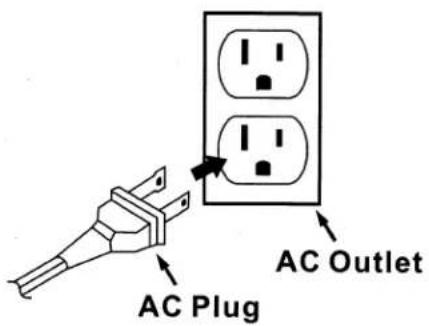
Connect the small end of the AC Power Cord to the AC socket on the back cabinet, then insert the plug in any convenient household 120V 60Hz AC outlet.

natural_image
Line drawing of a microwave oven with power outlet and socket, no text or symbols presentNote:
This unit has a polarized AC plug with one wide blade and one narrow blade. This plug will only fit into a matching polarized AC outlet. This is a safety feature to reduce the possibility of electric shock. If this plug will not fit in your AC outlet, you probably have an outdated non-polarized outlet. You should have your outdated outlet changed by a qualified, licensed electrician. Do not file the wide blade on the plug, or use an adapter to make the plug fit into your outlet. This defeats the safety feature and could expose you to electric shock.
Battery Operation
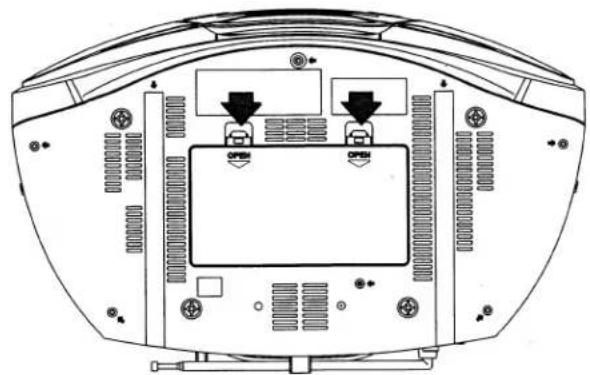
1.) Turn the unit upside down. Press down on the two battery compartment locking tabs and remove the battery door.
natural_image
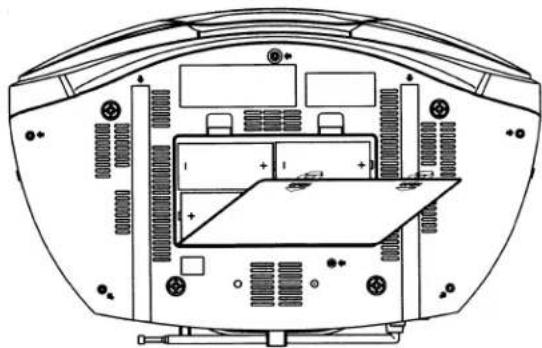
Top-down schematic of a device rear panel with ventilation slots and two labeled 'OPEN' buttons (no text or symbols beyond basic labels)2.) Insert 8 UM-1 "D" size batteries according to the polarity markings engraved in the compartment. If the batteries are inserted incorrectly the unit will not work.
natural_image
Technical line drawing of a mechanical component with internal components and mounting holes (no text or symbols)3.) Replace the battery compartment door and make sure that it is securely locked in place.
Note: In order to operate the unit on battery power the AC cord must be disconnected from the AC socket on the back cabinet.
BATTERY PRECAUTIONS
Follow these precautions when using batteries in this device:
- Use only the size and type of batteries specified.
- Be sure to follow the correct polarity when installing the batteries as indicated in the battery compartment. Reversed batteries may cause damage to the device.
- Do not mix different types of batteries together (e.g. Alkaline and Carbon-Zinc) or old batteries with fresh ones.
- If the device is not to be used for a long period of time, remove the batteries to prevent damage or injury from possible battery leakage.
- Do not try to recharge batteries not intended to be recharged; they can overheat and rupture. (Follow battery manufacturer's directions.)
Warning: Danger or Explosion if Battery is incorrectly replaced. Replace only with the same or equivalent type.
Protect Your Furniture
This model is equipped with non-skid rubber 'feet' to prevent the product from moving when you operate the controls. These 'feet' are made from non-migrating rubber material specially formulated to avoid leaving any marks or stains on your furniture. However certain types of oil based furniture polishes, wood preservatives, or cleaning sprays may cause the rubber 'feet' to soften, and leave marks or a rubber residue on the furniture. To prevent any damage to your furniture we strongly recommend that you purchase small self-adhesive felt pads, available at hardware stores and home improvement centers everywhere, and apply these pads to the bottom of the rubber 'feet' before you place the product on fine wooden furniture.
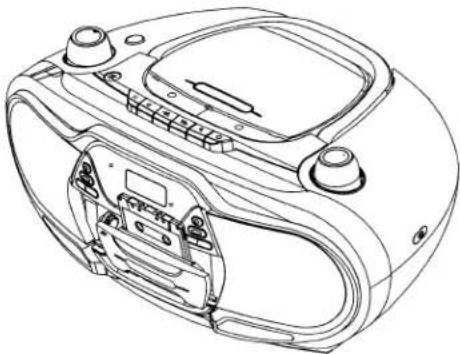
LOCATION OF CONTROLS AND INDICATORS
Top Panel
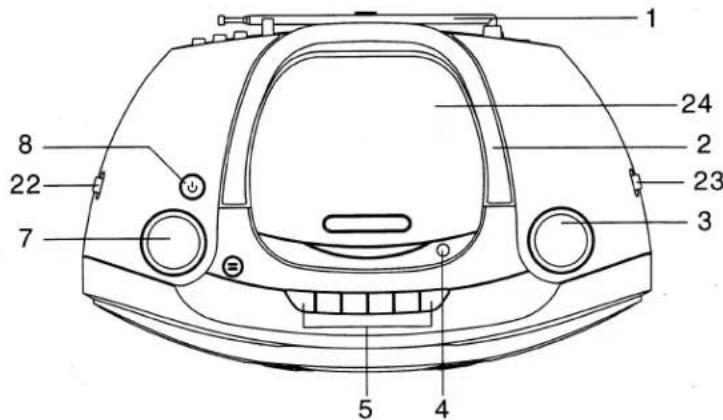
Front Panel

Back Panel

8
1.) FM Telescopic Antenna
2.) FOLDING HANDLE
3.) TUNING Knob
4.) CD Door OPEN/CLOSE Tab
5.) Cassette Control Keys
(● Record / ◀ Play / ▶ Rewind / ◀ F. Fwd / ■ ▲ Stop-Eject / || Pause)
6.) FM Stereo Indicator
7.) VOLUME Knob
8.) POWER Button
9.) REPEAT Button
10.) BASS Button
11.) POWER Indicator
12.) LCD Display
13.) CD PROGRAM Button
14.) CD RANDOM Button
15.) CD PLAY/PAUSE Button
16.) CD STOP Button
17.) CD Rev. Skip Search ◀ Button
18.) CD Forward. Skip Search ▶Button
19.) AUX IN Jack
20.) Battery Compartment
21.) AC Socket
22.) FUNCTION Switch (AUX/CD - TAPE - RADIO)
23.) BAND Switch (FM ST. - FM - AM)
24.) CD Door
25.) SPEAKERS
26.) Cassette Door
OPERATING INSTRUCTIONS
Listening To The Radio
Tuner Information
This system features a normal AM/FM analog tuning system. Unlike a digital tuner it does not automatically lock in on the exact frequency of a station. However instead of a dial scale and a moving dial pointer we have included a digital frequency display to help you tune more accurately.
Do not be concerned if you cannot easily tune the display to the exact frequency of your favorite stations, especially on the AM band. Slowly rotate the TUNING control until the display approaches the frequency of the desired station and stop when get the strongest, noise free reception - even if the display is not indicating the exact frequency of desired station.
1.) Slide the FUNCTION (AUX/CD/TAPE/RADIO) Selector to Radio position.
2.) Slide the BAND Selector to the desired band (FM ST/FM/AM)
3.) Press the POWER button to turn the system 'On'. The LED Power indicator and the main display backlighting come on. Depending on the band you selected either an AM or a FM frequency will appear in the display. If you selected the FM ST or FM bands, extend the telescoping FM antenna to its full length.
4.) Rotate the TUNING knob to tune to the desired station. It is not necessary to adjust the display to the exact frequency of your station. Use the display as a guide and release the TUNING knob when you are receiving the strongest signal, even if the frequency on the display does not exactly match the frequency of your station.
NOTE: If you selected the FM ST band and you have tuned to a FM Stereo station the FM ST indicator will light. If FM Stereo reception is noisy or weak you may be able to improve it by switching the BAND selector to the FM position, but the sound will no longer be in stereo.
5.) Adjust the VOLUME control to the desired setting.
6.) Press the BASS button to increase the Bass response. Press again to return to normal Bass response.
natural_image
Black and white abstract image with vertical streaks and a small dark mark, no discernible text or symbols7.) When you are finished listening press the POWER button button to shut the system 'Off'. The power LED indicator and the main display go 'Off'.
Antenna Information
AM
The AM antenna is inside the cabinet. If AM reception is unsatisfactory try rotating the entire unit until you find the position that provides the best reception.

natural_image
Top-down schematic of a vehicle dashboard with directional arrows indicating rotation or cycle (no text or symbols)FM
Extend and vary the direction of the FM antenna to find the position that provides the best reception.

natural_image
Top-down line drawing of a vehicle dashboard with control panel and directional arrows (no text or symbols)Playing Compact Discs
Note: Although this portable CD player can read CD-R and CD-RW discs, in addition to normal CDs, the playability of CD-R/RW discs may be affected by the type of software that was used to create the discs, as well as the quality and condition of the blank media you are using. 100% playability cannot be guaranteed. This is not an indication of a problem with the player.
Normal Playback
1.) Slide the FUNCTION selector to the AUX/CD position.
2.) Press the POWER button to turn the system 'On'. The Power LED indicator and the main display come 'On'. TWO dashes (- - ) appear in the display to indicate there is on disc in the player.
3.) Press on the CD door in the area marked OPEN/CLOSE to open the door. If you have not already removed the paper CD transit protection card, please do so now.
4.) Place your CD on the center spindle with the printed label side facing up. Press down on the disc near the center hole until hold to make sure that the disc is properly seated on the spindle. Close the CD door.

natural_image
Line drawing of a portable radio with a hand inserting a plug into the top panel (no text or symbols)5.) The two dashes (--) will flash for a few seconds while the player reads the disc and then the display will show the total number of tracks on your disc.
09
If the disc is loaded upside down or badly scratched and cannot be read the display will again show two dashes (- -)
6.) Press the PLAY/PAUSE button. The play indicator ▶ appears in the display and playback begins on track 1.

- To skip to lower or higher numbered tracks during playback press the ▶▶ or ◀◀ button repeatedly until the desired track number appears in the display. Playback will begin on the selected track.
- To search rapidly forward or backward during playback to locate a specific portion of a track, depress and hold the ▶▶ or ◀◀ button. The player will search rapidly forward or backward as long as the buttons are depressed. The volume is automatically reduced during high speed music search. Normal speed playback will resume when the buttons are released.
- To Pause momentarily during playback press the PLAY/PAUSE button again. The sound stops and the play indicator flashes but the disc continues to spin. To cancel Pause and resume normal playback at the same point, press the PLAY/PAUSE button once more.
7.) Adjust the VOLUME and BASS controls as desired.
8.) To Stop playback at any time press the STOP button. The disc stops and the display again show the total number of tracks on the disc. After the last track has played the player stops automatically and the display will shows the total number of tracks.
9.) Open the CD door, remove your disc, and close the door again.
10.) Press the POWER button to turn the system 'Off'.
IMPORTANT:
Remember that the power does not shut off automatically at the end of a CD. You must press the POWER button to shut the system 'Off', especially when operating the system on battery power.
To Start Playback From A Specific Track
Insert your disc in the player, close the door, and wait until the total number of tracks appear on the display. Press either the ◀◀ or ▶▶ button until the desired track number is flashing in the display, and then press the PLAY/PAUSE button within 5 seconds to begin playback on the desired track.
Repeat Playback
You can program the player to continuously repeat either a single track or all tracks on the disc. The Repeat function can be activated while the disc is playing or while the disc is stopped.
One Track Repeat
1.) While the Disc is playing single track, press the REPEAT button once. The REPEAT Indicator appears and flashes in the Display. The selected track will be repeated continuously.
2.) While the Disc is stopped, press the SKIP▶▶ or ◀◀ buttons until the desired track number is flashing in the display, then press the PLAY/PAUSE button within 5 seconds to begin Repeat playback on that track. Press the REPEAT button once. The REPEAT Indicator appears and flashes in the Display. The selected track will be repeated continuously.
To cancel One Track Repeat :
(i) Press the STOP button or
(ii) Press the REPEAT button twice till the Display's REPEAT indicator disappear.
All Tracks Repeat
1.) While the Disc is playing at any single track, press the REPEAT button twice. The REPEAT indicator remains in the Display. All tracks on the Disc will be repeated continuously.
2.) While the Disc is stopped, press the REPEAT button twice, the REPEAT indicator appears and remains in the Display. Press the PLAY/PAUSE button to begin the disc playback. All tracks on the Disc will be repeated continuously.
To cancel All Tracks Repeat playback:
(i) Press the STOP button or
(ii) Press the REPEAT button once till the Display's REPEAT indicator disappear.
Random Playback
To play the tracks on the disc in random order:
1.) Press the RANDOM button once. The RANDOM indicator appears in the display.
2.) Press the PLAY/PAUSE button. The player will randomly select a track and begin playback. After all tracks have played once in random order the player stops automatically.
To cancel Random playback and resume normal playback at any time press the RANDOM button once more. The RANDOM indicator disappears and normal playback begins on that track and continues until the end of the disc.
Programmed Playback
You can program up to 20 tracks on a disc to play back in any desired order. You may also program a specific track to play several times within the same program if desired.
Note: The player cannot be programmed while a disc is playing. If a disc is playing press the STOP button to stop playback before you begin the programming steps below.
1.) Insert your disc in the player, close the door, and wait until the total number of tracks appears in the display.
2.) Press the PROGRAM button once. The MEMORY indicator flashes and Program Number 01(P01) appears briefly, then the track number display(00) begins flashing together with the MEMORY indicator.

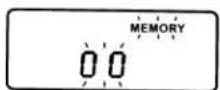
3.) Press the SKIP ▶▶ or ◀◀ buttons to select the first track number you wish to program.(Example: Track 07)

4.) When track number 07 is flashing in the display press the PROGRAM button once again to enter track number 7 in Program Memory number 1. The display will briefly show P02 and then track indicator 00 begins flashing again.
5.) Press the SKIP ▶▶ or ◀◀ buttons to select the next track number you wish to program.(Example: Track 10)

6.) When the desired track number is flashing in the display press the PROGRAM button again to enter the track in the program memory.
7.) Repeat steps 5 and 6 until you have entered up to 20 tracks in the program memory.
8.) To begin programmed playback press the PLAY/PAUSE button. The MEMORY indicator stops flashing and remains in the display. Playback will begin on the first track that you programmed and continue until the last programmed track has played. The display will then show the total number of tracks on the disc and the programmed tracks are cleared from the memory.
Program Repeat Playback
You can use the Program and Repeat features together to continuously repeat a programmed sequence of tracks.
After you have programmed the desired sequence of tracks as described on page 15, press the PLAY/PAUSE button to begin programmed playback and then press the REPEAT button twice for all tracks repeat or once for single track repeat (see Repeat playback) and the REPEAT indicator remains in the display together with the MEMORY indicator.
To stop Program Repeat Playback press the STOP button.
natural_image
Black and white abstract image with diagonal gradient and a small dark spot, no visible text or symbolsPlaying Cassette Tapes
1.) Open the cassette door by pressing the ■▲Stop/Eject key.
2.) Place a pre-recorded cassette tape with the exposed tape facing up and the full reel on the right side.
natural_image
Line drawing of a mechanical device with ports and internal components (no text or symbols)3.) Set the FUNCTION selector to the TAPE position and press the POWER button to turn the system on. The Power LED indicator comes on but the main display remains off.
4.) Press the cassette ◀ Play key to begin playback.
5.) Set the VOLUME and BASS controls as desired.
6.) To advance the tape rapidly press the ◀◀F.Fwd key. To stop the tape before it ends press the ■▲Stop/Eject key.
7.) To rewind the tape rapidly press the ▶▶ Rewind key. To stop the tape before it ends press the ■▲Stop/Eject key.
8.) When the tape ends the Automatic Stop System releases the ◀ Play key and shuts off the tape motor. You may then open the cassette door, remove your tape, turn it over and play the other side if desired.
9.) When you are finished listening stop the tape, open the door, remove the tape and close the door.
If you are playing a tape and then switch to the RADIO or AUX/CD function be sure to press the ■▲Stop/Eject key to disengage the tape mechanism. This prevents excess wear and tear on the mechanism.
IMPORTANT:
Always press the ▪Stop/Eject key to shut off the tape motor before opening the cassette door to remove your tape. The Automatic Stop System does not function in the ◀F.Fwd and ▶Rewind modes. When the tape ends in the ◀F.Fwd and ▶Rewind modes the motor continues to run. You must press the ▪Stop/Eject key to shut off the motor before opening the door to remove your tape.
Making A Tape Recording
This model allows you to make tape recordings directly from the CD player, the radio, or from the device plugged into the auxiliary jack.
- Refer to "Playing Compact Discs" if necessary to operate the CD player.
- Refer to "Listening To The Radio" if necessary to tune in the station you wish to record from radio.
• Refer to "Auxiliary Input Jack".
1.) Press the ■▲Stop/Eject key to open the cassette door.
2.) Insert a good quality blank cassette tape into the slots on the cassette door with the open end facing down and the full reel on the left. Use normal tape only. Do not use tape identified as "CrO₂" (Chrome) or "Metal" tape formulations. For best results use tapes of 60 minutes (C-60) or less. Do not use 90 minute or 120 minute tapes as these thinner tapes are more likely to jam in the mechanism.
3.) Close the cassette door.
4.) When you are ready to start recording press the ●Record key. The ◀Play key will also engage. The CD/AUX you are playing, or radio program you selected will be recorded directly on to the tape.
5.) Press the II Pause key during recording to stop the tape temporarily and avoid recording unwanted material such as radio commercials.
6.) When you have finished recording press the ▪Stop/Eject key to stop and remove the tape.
Automatic Recording Volume Level Control
This unit has an Automatic Level Control (ALC) circuit which controls the recording volume level and prevents overloaded and distorted recordings. The VOLUME control has no effect on recording volume level. You may change the VOLUME control setting during the recording or even reduce the volume level to "Minimum". This will not effect the level of the recording.
Auxiliary Input Jack
This system includes an Auxiliary Input Jack to allow you to listen to and record music from an external source such as an iPod® or MP3 player.
- Press the POWER button to turn the system on and set the FUNCTION selector to the AUX/CD position.
- Connect the headphone jack or Line Out jack of your external source to the AUX IN jack on the back panel of this system (Connection cable is not included). AUX appears at the right top corner of Display while the CD function is replaced.
- Begin playback of your external music source and a adjust the VOLUME controls of this system and your external source for the most pleasing sound.
- When you are finished listening press the POWER button to shut this system 'Off' and shut off your external source as well.
IMPORTANT: You must disconnect the connection cable from the Aux In jack on the back panel in order to use the CD player in this system.
iPod is a trademark of Apple Computer, Inc., registered in the U.S. and other countries.
CARE AND MAINTENANCE
About Cassette Tapes
Whenever you record on a cassette any previously recorded material is erased as the new material is recorded. To prevent you from accidentally erasing material which you wish to save, blank cassettes are equipped with erase prevention tabs for each side of the tape. If the erase prevention tab for side A is removed, you cannot accidentally record on side A. The record key cannot be depressed if the erase prevention tab on the cassette has been removed.
To prevent accidental erasing on side A of a cassette use a small screw driver or similar tool to break off the erase prevention tab for side A. This prevents the record key from locking.

natural_image
Line drawing of a cassette tape with two buttons and label 'A' (no text or symbols on the device itself)TAB FOR SIDE A BREAK OUT TO PREVENT RECORDING
If later you do wish to record on side A of the cassette, cover the tab opening with a piece of cellophane tape. This will allow the record key to function again.
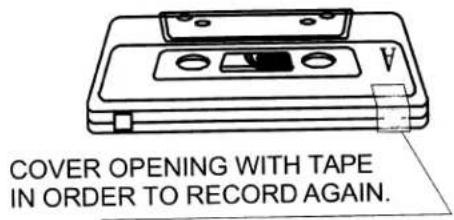
Cassette Care
Two common causes of trouble experienced when using cassettes are:
1.) Tape jamming — Leading to uneven speed in playback, and
2.) Tape tangling — Where the tape wraps itself around vital parts of themechanism.
To reduce the likelihood of these problems occurring, the following precautions should be observed:
- Check that there are no loose layers of tape visible through the cassette center window (see Fig. 1). Take up any loose layers, using a pencil or hexagonal barrelled ballpoint pen, before inserting the cassette into the machine (see Fig. 2).
- If the cassette feels "tight" while performing operation shown (see Fig. 2), the tape may be jamming due to "ridges" formed in the winding of the tape (visible through the center window). These may be removed, in most cases, by fast winding of the cassette from one end to the other and back again.
• Use only well-known brands of tape. Avoid use of C-120 cassettes.
Furthermore, do not expose cassettes to direct sunlight, dust or oil, and do not touch the tape surfaces.

natural_image
Diagram of a cassette tape device with an arrow indicating motion (no text or symbols)
natural_image
Isometric line drawing of a mechanical component with a screw and base, labeled Fig. 2 (no text or symbols on the diagram itself)Head Cleaning
The tape heads, pinch roller and capstan require periodic cleaning. This removes particles of the metal oxide coating that wear off the tape and accumulate on these parts and impair performance.
Disconnect the AC power cord, press the ■▲Stop/Eject key to open the cassette door, and press the ◀Play key. Clean the tape heads, pinch roller and capstan with a soft cloth or cotton pad dampened in isopropyl alcohol or special tape head cleaner.
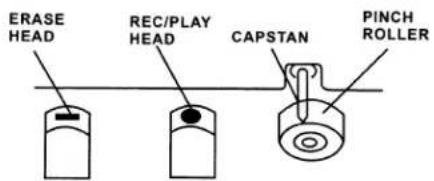
Compact Disc Care
- To remove a disc from its storage case, press down on the center of the case and lift the disc out, holding it carefully by the edges.

natural_image
Illustration of a hand pressing a circular component with an upward arrow (no text or symbols)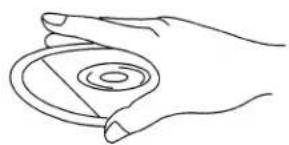
natural_image
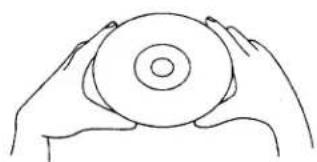
Line drawing of a hand holding a circular object with concentric rings (no text or symbols)- Fingerprints and dust should be carefully wiped off the disc's recorded surface with a soft cloth. Unlike conventional records, compact discs have no grooves to collect dust and microscopic debris, so gently wiping with a soft cloth should remove most particles. Wipe in a straight line from the inside to the outside of the disc. Small dust particles and light stains will have absolutely no effect on reproduction quality.
natural_image
Line drawing of two hands holding a circular object (no text or symbols)

- Clean the disc periodically with a soft, lint-free, dry cloth. Never use detergents or abrasive cleaners to clean the disc. If necessary, use a CD cleaning kit.
- Never write on or affix labels to the surface of compact discs.
Care Of The Cabinet
If the cabinet becomes dusty wipe it with a soft dry dust cloth. Do not use any wax, polish sprays, or abrasive cleaners on the cabinet.
Caution
Never allow any water or other liquids to get inside the unit while cleaning.
TROUBLESHOOTING GUIDE
Should this unit exhibit a problem, check the following before seeking service.
| Symptom | Possible Cause | Solution |
| Radio | ||
| Noise or sound distorted on AM or FM broadcasts. | Station not tuned properly for AM or FM. | Retune the AM or FM broadcast station. |
| FM: Telescopic antenna is not extended. | Extend FM Telescopic antenna. | |
| AM: The bar antenna is not positioned correctly. | Reposition the unit until best reception is obtained. | |
| FM ST indicator does not light. | The BAND selector is switched to FM position. | Switch the BAND selector to FM ST position. |
| AM or FM, no sound. | FUNCTION switch is not set to RADIO. | Set FUNCTION switch to RADIO. |
| Volume at minimum. | Increase Volume. | |
| Compact Disc Player | ||
| CD Player will not play. | FUNCTION switch is not set to AUX/CD. | Set FUNCTION switch to AUX/CD. |
| CD is not installed or installed incorrectly. | Insert CD with label side up. | |
| CD skips while playing. | Disc is dirty or scratched. | Wipe disc with cloth or use another disc. |

Emerson®
SERVICE
TO FIND THE LOCATION AND PHONE NUMBER OF YOUR NEAREST SERVICE CENTER PERMITTED TO PERFORM WARRANTY...
CALL TOLL FREE: 1-800-695-0098
FOR ADDITIONAL SET-UP OR OPERATING ASSISTANCE PLEASE CALL: 1-800-898-9020
FOR CUSTOMER SERVICE, PLEASE WRITE TO:
Emerson Radio Corp.,
Consumer Affairs Dept.,
5101 Statesman Drive.
Irving, TX 75063.
LIMITED WARRANTY
Emerson Radio Corp. warrants manufacturing defects in original material, including original parts and workmanship, under normal use and conditions, for a period of ninety (90) days from the date of original purchase in the U.S. With your dated proof of purchase, we will provide repair service at no charge for labor and parts at an authorized Depot Repair Facility, or replace the product in our discretion. For repair or replacement, pack your unit in a padded box, enclose your check or money order payable to Emerson Radio Corp. in the amount of \$9.00 (not required by California residents) to cover shipping and handling costs, and enclose a copy of your proof of purchase. Send your unit to:
Emerson Radio Corp.
5101 Statesman Drive,
Irving, TX 75063.
This warranty does not cover damage from negligence, misuse, abuse, accident, failure to follow operating instructions, commercial use, rental, repairs by an unauthorized facility, or products purchased, used, serviced or damaged outside of the United States.
THIS WARRANTY GIVES YOU SPECIFIC LEGAL RIGHTS, AND YOU MAY ALSO HAVE OTHER RIGHTS WHICH VARY FROM STATE TO STATE.
AU898M
The serial number of your unit is located on a label on the back panel. Please take a moment now to locate the serial number and write the number in the space provided below. You may be asked to provide this number when calling for product service.
Model Number: PD9127
Serial Number:

natural_image
Black and white abstract image with vertical gradient and bright light streaks (no text or symbols)Emerson®
PD9127-806-01
Printed in China

natural_image
Abstract grayscale gradient with vertical bright streaks and a small dark spot (no text or symbols)- Portable CD-R/RW Player with AM/FM Stereo Radio and Cassette Recorder
- OWNER'S MANUAL
- PD9127
- CAUTION
- IMPORTANT SAFETY INSTRUCTIONS
- BEFORE WE BEGIN
- IMPORTANT NOTES
- CLASS 1 LASER PRODUCT
- FCC Information
- PREPARATION FOR USE
- Unpacking and Set Up
- Power Sources
- AC Operation
- Note:
- Battery Operation
- BATTERY PRECAUTIONS
- Protect Your Furniture
- LOCATION OF CONTROLS AND INDICATORS
- OPERATING INSTRUCTIONS
- Listening To The Radio
- Tuner Information
- Antenna Information
- AM
- FM
- Playing Compact Discs
- Normal Playback
- IMPORTANT:
- To Start Playback From A Specific Track
- Repeat Playback
- One Track Repeat
- All Tracks Repeat
- Random Playback
- Programmed Playback
- Program Repeat Playback
- Playing Cassette Tapes
- Making A Tape Recording
- Automatic Recording Volume Level Control
- Auxiliary Input Jack
- CARE AND MAINTENANCE
- About Cassette Tapes
- Cassette Care
- Head Cleaning
- Compact Disc Care
- Care Of The Cabinet
- TROUBLESHOOTING GUIDE
- LIMITED WARRANTY
Brand : Emerson
Model : PD9127
Category : Portable CD player