
720 - NAS LACIE - Free user manual and instructions
Find the device manual for free 720 LACIE in PDF.


| Product Type | LCD Monitor |
| Model | LaCie 720 |
| Panel Size | 20.1 inches |
| Resolution | UXGA 1600 x 1200 |
| Panel Type | VA with LED backlight |
| Brightness | 250 cd/m² |
| Contrast Ratio | 600:1 |
| Viewing Angle | 178° horizontal / 178° vertical |
| Response Time | 8 ms (gray to gray) |
| Color Support | 16.7 million colors |
| Video Inputs | DVI-I (analog/digital), DVI-D (digital) |
| USB Hub | 1 upstream, 2 downstream |
| Power Consumption | 43.5 W typical, 1.2 W standby |
| Dimensions (with stand) | 448.0 x 390.8 x 220.0 mm |
| Weight (with stand) | 7.6 kg |
| Stand Adjustments | Height 100 mm, tilt -5°/+15°, swivel ±150°, portrait mode |
| VESA Mount | 100 x 100 mm |
| Color | Black |
| Key Features | LED backlight, 14-bit gamma correction, ColorKeeper stabilizer, Adobe RGB/sRGB modes |
| Cleaning | Use lint-free, non-abrasive cloth; no cleaning solutions |
| Safety | Do not open, use only supplied power cord, avoid liquid contact |
| Box Contents | Monitor, DVI-D cable, DVI-I cable, USB cable, AC power cable, CD, stand pin, quick install guide |
Frequently Asked Questions - 720 LACIE
User questions about 720 LACIE
0 question about this device. Answer the ones you know or ask your own.
Ask a new question about this device
Download the instructions for your NAS in PDF format for free! Find your manual 720 - LACIE and take your electronic device back in hand. On this page are published all the documents necessary for the use of your device. 720 by LACIE.
USER MANUAL 720 LACIE
1. Introduction......6
1.1. LaCie 700 Series LCD Monitor Features....7
1.2. Monitor Specifications 8
1.3. Box Contents.... 11
1.4. About the LCD Stand Pin 12
1.5. Monitor Views and Components.... 13
2. Getting Connected.... 15
2.1. Connecting the Monitor to Your Computer.... 16
2.2. Connecting USB Devices 17
2.3. Installing an Alternative Stand or Attachment 18
2.4. Ergonomic Adjustments 19
2.4.1. Raise and Lower Monitor Screen 19
2.4.2. Screen Tilt....19
2.4.3. Swivel 19
2.4.4. Portrait Mode (720 only) 20
3.Monitor Operation.... 21
3.1. Button Functions 21
3.2. Settings and Adjustments (720 and 724)....22
3.2.1. Auto adjustment of the monitor settings 22
3.2.2. Locking the OSD 22
3.2.3. Choosing the Active Video Input 22
3.3. OSD Functions (720 and 724)....23
3.3.1. Picture 23
3.3.2.Color....24
3.3.3. Image....25
3.3.4. OSD....26
3.3.5. Setup 27
3.3.6. Information 27
4.Troubleshooting 28
4.1. LaCie 720 and 724 28
4.2. LaCie 730....31
5. Contacting Customer Support 32
6. Warranty Information .... 34
Copyrights
Copyright © 2008 LaCie. All rights reserved. No part of this publication may be reproduced, stored in a retrieval system, or transmitted in any form or by any means, electronic, mechanical, photocopying, recording or otherwise, without the prior written consent of LaCie.
Changes
The material in this document is for information only and subject to change without notice. While reasonable efforts have been made in the preparation of this document to assure its accuracy, LaCie assumes no liability resulting from errors or omissions in this document, or from the use of the information contained herein. LaCie reserves the right to make changes or revisions in the product design or the product manual without reservation and without obligation to notify any person of such revisions and changes.
FCC Declaration of Conformity:

NOTE: This equipment has been tested and found to comply with the limits for a Class B digital device, pursuant to Part 15 of the FCC Rules. These limits are designed to provide reasonable protection against harmful interference in a residential installation. This equipment generates, uses and can radiate radio frequency energy and, if not installed and used in accordance with the instructions, may cause harmful interference to radio communications. However, there is no guarantee that interference will not occur in a particular installation. If this equipment does cause harmful interference to radio or television reception, which can be determined by turning the equipment off and on, the user is encouraged to try and correct the interference by one or more of the following measures:
◆Reorient or relocate the receiving antenna.
Increase the separation between the equipment and receiver.
Connect the equipment into an outlet on a circuit different from that to which the receiver is connected.
Consult the dealer or an experienced radio/TV technician for help.
Use only shielded cables to connect I/O devices to this equipment.
Use the attached specified cables with the LaCie 700 Series color monitor so as not to interfere with radio and television reception.
- The power supply cord you use must have been approved by and comply with the safety standards of U.S.A. and meet the following condition.
| Power supply chord | Non shield type, 3-conductor |
| Length 2.0 m | |
| Plug shape | (USA) |
- Please use the supplied shielded video signal cable, 15-pin mini D-SUB to DVI-A cable or DVI-D to DVI-D cable. Use of other cables and adapters may cause interference with radio and television reception.
U.S. Responsible Party: LaCie, LTD
Address: 22985 NW Evergreen Pkwy Hillsboro, OR 97124
Tel. No.: (503) 844-4503
CE Manufacturer's Declaration for CE Certification
We, LaCie, solemnly declare that this product conforms to the following European standards:
EN60950-1, EN61000-3-2
EN61000-3-3, EN55024
With reference to the following conditions:
◆3/23/EEC Low Voltage Directive
89/336/EEC EMC Directive
LaCie S.A.
CAUTION: Modifications not authorized by the manufacturer may void the user's authority to operate this device. Modifications not authorized by the manufacturer may void the user's authority to operate this device.
CAUTION: A shielded-type power cord is required in order to meet FCC emission limits and also to prevent interference to the nearby radio and television reception. It is essential that only the supplied power cord be used.
Safety Precautions and Maintenance
DO NOT OPEN THE MONITOR. There are no user serviceable parts inside and opening or removing covers may expose you to dangerous shock hazards or other risks. Refer all servicing to qualified service personnel.
Do not spill any liquids into the cabinet or use your monitor near water.
Do not insert objects of any kind into the cabinet slots, as they may touch dangerous voltage points, which can be harmful or fatal or may cause electric shock, fire or equipment failure.
Do not place any heavy objects on the power cord. Damage to the cord may cause shock or fire.
Do not place this product on a sloping or unstable surface, as the monitor may fall, causing serious damage.
Do not place any objects onto the monitor and do not use the monitor outdoors.
◆The inside of the fluorescent tube located within the LCD monitor contains mercury. Please follow the bylaws or rules of your municipality to dispose of the tube properly.
Do not bend power cord.
Do not use monitor in high temperature, humid, dusty, or oily areas.
Do not cover vent on monitor.
Immediately unplug your monitor from the outlet and refer servicing to qualified personnel under the following conditions:
When the power supply cord or plug is damaged.
If liquid has been spilled, or objects have fallen into the monitor.
If the monitor has been exposed to rain or water.
If the monitor has been dropped or ♦ the cabinet damaged.
If the monitor does not operate normally by following operating instructions.
If glass is broken, handle with care.
If monitor or glass is broken, do not come in contact with the liquid crystal and handle with care.
Allow adequate ventilation around the monitor so that heat can properly dissipate. Do not block ventilated openings or place the monitor near a radiator or other heat sources. Do not put anything on top of monitor.
The power cable connector is the primary means of detaching the system from the power supply. The monitor should be installed close to a power outlet which is easily accessible.
◆Handle with care when transporting. Save packaging for transporting.
◆Image Persistence: Please be aware that LCD Technology may experience a phenomenon known as Image Persistence.
Image Persistence occurs when a residual or "ghost" image of a previous image remains visible on the screen. Unlike CRT monitors, LCD monitors' image persistence is not permanent, but constant images being displayed for a long period of time should be avoided. To alleviate image persistence, turn off the monitor for as long as the previous image was displayed. For example, if an image was on the monitor for one hour, the monitor should be turned off for one hour to erase the image.
When operating the LaCie 700 Series LCD Monitor with a 220-240V AC power source in Europe, use the power cord provided with the monitor.
In the UK, a BS approved power cord with a moulded plug has a Black (five Amps) fuse installed for use with this equipment.
◆ If a power cord is not supplied with
this equipment please contact your supplier.
When operating the LaCie 700 Series LCD Monitor with a 220-240V AC power source in Australia, use the power cord provided with the monitor. If a power cord is not supplied with this equipment please contact your supplier.
For all other cases, use a power cord that matches the AC voltage of the power outlet and has been approved by and complies with the safety standard of your particular country.
Health and Ergonomic Precautions
Correct placement and adjustment of the monitor can reduce eye, shoulder and neck fatigue. Check the following when you position the monitor:
For optimum performance, allow 20 minutes for warm-up.
Adjust the monitor height so that the top of the screen is at or slightly below eye level. Your eyes should look slightly downward when viewing the middle of the screen.
Position your monitor no closer than 40 cm and no further away than 70 cm from your eyes. The optimal distance is 50 cm.
Rest your eyes periodically by focusing on an object at least 20 feet away. Blink often.
Position the monitor at a 90° angle ♦ to windows and other light sources to minimize glare and reflections. Adjust the monitor tilt so that ceiling lights do not reflect on your screen.
If reflected light makes it hard for you ♦ to see your screen, use an anti-glare filter.
Clean the lcd monitor surface with a lint-free, non-abrasive cloth. Avoid using any cleaning solution or glass cleaner!
Adjust the monitor's brightness and contrast controls to enhance readability.
Use a document holder placed close ♦ to the screen.
Position whatever you are looking at most of the time (the screen or reference material) directly in front of you to minimize turning your head while you are typing.
Avoid displaying fixed patterns on the monitor for long periods of time to avoid image persistence (after-image effects).
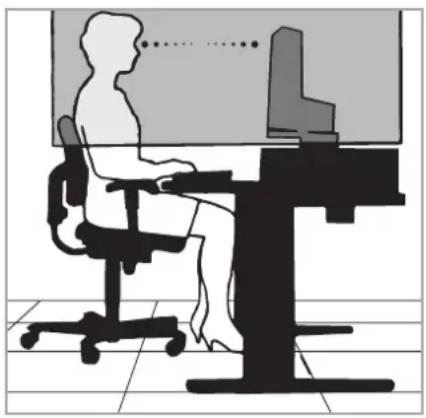
To maximize ergonomics benefits, we recommend the following:
Adjust the brightness until the background raster disappears.
◆ Do not position the contrast control to its maximum setting.
Use the preset size and position controls with standard signals.
◆Use the preset color setting.
Use non-interlaced signals with a vertical refresh rate between 60-75 Hz.
Do not use primary color blue on a dark background, as it is difficult to see and may produce eye fatigue to insufficient contrast.
Within the European Union

EU-wide legislation, as implemented in each Member State, requires that waste electrical and electronic products carrying the mark (left) must be disposed of separately from normal household waste. This includes monitors and electrical accessories, such as signal cables or power
cords. When you need to dispose of your LaCie display products, please follow the guidance of your local authority, or ask the shop where you purchased the product, or if applicable, follow any agreements made between yourself and LaCie.
The mark on electrical and electronic products only applies to the current European Union Member States.
Outside the European Union
If you wish to dispose of used electrical and electronic products outside the European Union, please contact your local authority so as to comply with the correct disposal method.
Manufacturer's Recycling and Energy Information
LaCie is strongly committed to environmental protection and sees recycling as one of the company's top priorities in trying to minimize the burden placed on the environment. We are engaged in developing environmentally friendly products, and always strive to help define and comply with the latest independent standards from agencies.
Recycling programs information:
Sweden - http://www.el-retur.se
Germany - http://www.recyclingpartner.de/
This monitor features an advanced energy saving capability. When a VESA Display Power Management Signaling (DPMS) Standard signal is sent to the monitor, the Energy Saving mode is activated. The monitor enters a single Energy Saving mode.
| Monitor Model Power Consumption LED Color | |||
| Power consumption 43.5W | white | ||
| 720 | Power Save mode | 1.2W | blinking white |
| Mechanical switch | Off-0.8W | ||
| Power consumption 55.6W | white | ||
| 724 | Power Save mode | 0.88W | blinking white |
| Mechanical switch | Off-0.68W | ||
| Power consumption | 98W | white | |
| 730 | Power Save mode | 1.25W | blinking white |
| Mechanical switch | Off-0.75W | ||


Introduction1.
Thank you for purchasing a LaCie 700 Series LCD Monitor.
Designed for creative professionals, the 700 Series features ground-breaking LED backlighting technology—the next step in color realism. With 14-bit gamma correction and the largest color gamuts available in the industry, the LaCie 700 Series monitors are ideal for all color-critical applications. The optional LaCie blue eye colorimeter and blue eye pro software are made specifically to tune your monitor for realistic image rendering.
Quick Links
Click to jump to a section:
Getting Connecte ♦ d
Monitor Operatio n
Troubleshootin ♦ g

LaCie 700 Series LCD Monitor Features1.1.
Environment-friendly LED-backlit wide-gamut LCD panel technology offers industry-leading CIE 1976 125% NTSC and 123% Adobe RGB Gamuts (116%/114% on LaCie 720)* that allow the LaCie 700 Series monitors to display a larger range of vibrant colors, previously unattainable by LCD monitors. When used in a color-managed environment, this enables a lossless workflow and offers the benefit of an even closer match between captured, displayed and printed colors. PVA LCD Panel technology offers an excellent balance between 1000:1 contrast (600:1 for the LaCie 720) and 250 cd/m2 brightness (200 cd/m2 for the LaCie 730) and provides expansive viewing angles of 178°.
14-bit Gamma Correction : An integrated circuit containing 14-bit color correction tables removes banding and offers subtle renditions of gradients. This is especially beneficial when displaying photographs containing delicate shades of color. These color correction tables can be accessed and programmed by the LaCie blue eye pro software, enabling true hardware calibration of the display to any gamma, white point, and brightness requested by the user.
ColorKeeper Backlight Stabilizer: The LaCie 700 Series monitor uses a sensor that analyzes in real time the brightness and chromaticity of its LED backlight. A feedback mechanism then uses this information to continuously adjust the LED backlight and panel behavior to ensure monitor brightness and color stay stable through time.
◆ User-friendly front panel offers easy access to Adobe RGB, sRGB and customer-defined color modes.
◆ Large diagonal sizes (30", 24" and 20") and high resolutions—2560x1600 (30"), 1920x1200 (24") and 1600x1200 (20")—ideal for graphics-intensive applications.
- Wide format (LaCie 724 and 730) enhances productivity by reducing the need for scrolling through documents and switching windows, and allows full 1:1 scale display of 2 full pages with additional space for application palettes and toolbars.
◆ Embedded USB hub allows easy connection of external peripherals.
♦ Ergonomic stand enabling height, swivel and tilt adjustments. In conjunction with the LaCie 720's mechanical pivot monitor stand adjustment, Pivot Pro software for Windows software allows you to effectively rotate the desktop and work in landscape mode. (On Mac OS X, landscape mode is available only on certain graphics boards, please refer to Apple's website for more information.)
♦ VESA-100 and 200 interfaces : The LaCie 700 Series monitors can be attached to VESA-100 (LaCie 720) and VESA-200 (LaCie 724 and 730) compatible attachments.
Available options:
LaCie blue eye pro Proof Edition : This new version of LaCie's calibration and ICC profiling package has been specially optimized for the requirements of soft proofing standards. In conjunction with the LaCie blue eye colorimeter, the included blue eye pro software provides automatic, easy-to-use, professional-grade hardware calibration and ICC profiling of LaCie 700 Series monitors and includes a complete set of tools that deliver the best of color-management. Please go to www.lacie.com for a full description of these features.
◆ Monitor easyHood : The black, anti-reflective velvet material that lines the easyHood reduces ambient light glare and ensures document colors are accurately seen by the user. The easyHood's retractable hook makes it easy to attach the optional LaCie blue eye colorimeter when needed, and once calibration has been completed, the hook discretely retracts into the hood. The easyHood's sturdy, one-piece hinged design ensures a stable and easy fit on the monitor.
Monitor Specifications1.2.
LaCie 720
| Resolution UXGA (1600x1200) | ||
| Panel Size 20.1-inch | ||
| Panel Type VA | ||
| Panel Backlight LED backlight | ||
| Color Space | (CIE 1976) 116% NTSC - 114% Adobe RGB / (CIE 1931) 104% NTSC - 109% Adobe RGB | |
| Dot Pitch 0.255×0.255 mm | ||
| Viewable Area(WxH) 408.0×306.0 mm | ||
| Brightness 250 cd/m | ? | |
| Contrast Ratio 600 : 1 | ||
| Viewing Angle Horz.178°/Vert. 178° | ||
| Response Time 8 ms gray to gray | ||
| Max. No. of Color 16.7 Million | ||
| Gamma Adjustment | 14 bit lookup table (14 bit processing) | |
| PC Input | Horizontal Freq. | 30-92 kHz |
| Vertical Freq. | 56-85 Hz | |
| Dot Clock | 162 MHz | |
| Max. Resolution | 1,600×1,200 | |
| Input Signal | Analog RGB, DVI Digital Link | |
| Synchronized Signal | Separate, Composite | |
| Input Terminal | Digital/Analog: DVID-I 29 pinx1, DVID-D24 pinx1 | |
| Plug and Play | DDC 2B | |
| USB Port | Upstream x 1, Downstream x 2 | |
| Power Consumption | Power | AC 100-240V, 50/60Hz |
| Power Consumption | 43.5W | |
| Power Save Mode | 1.2W | |
| Mechanical Switch | Off-0W | |
| Stand | Height Adjustment | 100mm |
| Tilt/Swivel | Forward 15°Back 5°/Right 150°Left 150° | |
| Portrait Function | With PivotPro software for Windows | |
| Dimensions(WxHxD)/Weight | without Stand | 448.0×358.5×89.0 mm/5.6 kg |
| with Stand | 448.0×390.8×220.0 mm/7.6 kg | |
| Arm Mount | VESA 100×100 mm | |
| Color | Black | |
LaCie 724
| Resolution WUXGA (1920x1200) | ||
| Panel Size 24-inch | ||
| Panel Type SPVA | ||
| Panel Backlight LED backlight | ||
| Color Space | (CIE 1976) 125% NTSC - 123% Adobe RGB / (CIE 1931) 111% NTSC - 116% Adobe RGB | |
| Dot Pitch 0.270mm(H) X 0.270mm(V) | ||
| Viewable Area(WxH) 518.4mm(H) X 324.0 (V) | ||
| Brightness 250 cd/m | 2 | |
| Contrast Ratio 1000 : 1 | ||
| Viewing Angle Horz.178°/Vert. 178° (CR>10) | ||
| Response Time 6 ms (GTG), 16ms (black-white-black) | ||
| Max. No. of Color 16.7 Million | ||
| Gamma Adjustment 14-bit lookup table (14 bit processing) | ||
| PC Input | Horizontal Freq. | 30-92kHz |
| Vertical Freq. | 56-85Hz | |
| Dot Clock | 162MHz | |
| Max. Resolution | 1,920 x 1,200 | |
| Input Signal | Analog RGB, DVI Digital Link | |
| Synchronized Signal | Separate, Composite | |
| Input Terminal | Digital/Analog: DVID-I 29 pinx1, DVID-D24 pinx1 | |
| Plug and Play | DDC 2B | |
| USB Port | Upstream x 1, Downstream x 4 | |
| Power Consumption | Power | AC100-240V, 50/60Hz |
| Power Consumption | 55.6W | |
| Power Save Mode | 0.88W | |
| Mechanical Switch | Off-0W | |
| Stand | Height Adjustment | 100mm |
| Tilt/Swivel | Tilt (-3°~ 25°), Swivel (-175° ~ 175) | |
| Portrait Function | None | |
| Dimensions(WxHxD)/Weight | without Stand | 563x382.5x93.5mm/7.0 kg |
| with Stand | 563x462x250mm/10.0kg | |
| Arm Mount | VESA 200×100 mm | |
| Color | Black | |
LaCie 730
| Resolution WQXGA (2560x1600) | ||
| Panel Size 30-inch | ||
| Panel Type SPVA | ||
| Panel Backlight LED backlight | ||
| Color Space | (CIE 1976) 125% NTSC - 123% Adobe RGB / (CIE 1931) 111% NTSC - 116% Adobe RGB | |
| Dot Pitch 0.2505mm(H) X 0.2505mm(V) | ||
| Viewable Area(WxH) 641.28mm(H) X 400.8mm(V) | ||
| Brightness 200 cd/m | ? | |
| Contrast Ratio 1000:1 | ||
| Viewing Angle Horz.178°/ Vert. 178° (CR>10) | ||
| Response Time 6ms (GTG), 12ms (black-white-black) | ||
| Max. No. of Color 16.7 Million | ||
| Gamma Adjustment 14-bit lookup table (14 bit processing) | ||
| PC Input | Horizontal Freq. | 98.7KHz, 49.3KHz |
| Vertical Freq. | 60Hz | |
| Dot Clock | 268.5MHz (Digital) | |
| Max. Resolution | 2,560 x 1,600 | |
| Input Signal | DVI-D x 1 (Dual Link) | |
| Synchronized Signal | Separate H/V Sync Only | |
| Input Terminal | Digital: DVID-D 24pin X 1 (Dual Link) | |
| Plug and Play | DDC 2B | |
| USB Port | Upstream x 1, Downstream x 4 | |
| Power Consumption | Power | AC100-240V, 50/60Hz |
| Power Consumption | 98W | |
| Power Save Mode | 1.25W | |
| Mechanical Switch | Off-0W | |
| Stand | Height Adjustment | 80mm |
| Tilt/Swivel | Tilt(-3°~25°), Swivel(0°~90°) | |
| Portrait Function | None | |
| Dimensions(WxHxD)/Weight | without Stand | 694x466.5x97 mm /10.0 kg |
| with Stand | 694x514x280 mm/13.8 kg | |
| Arm Mount | VESA 200×100 mm | |
| Color | Black | |
Box Contents1.3.
Your box contains the LaCie 700 Series LCD Monitor and some or all of the items listed below, depending on model:
LaCie 720
Monitor1.
DVI-D cable2.
DVI-I cable3.
USB cable4.
AC power cable5.
LaCie 700 Series CD with User Manual and monitor profiles6.
LCD stand pin7.
Quick Install Guide8.
LaCie 724
Monitor1.
DVI-D cable2.
DVI-I cable3.
USB cable4.
AC power cable5.
LaCie 700 Series CD with User Manual and monitor profiles6.
LCD stand pin7.
Quick Install Guide8.
LaCie 730
Monitor1.
DVI-D cable2.
USB cable4.
AC power cable5.
LaCie 700 Series CD with User Manual and monitor profiles6.
LCD stand pin7.
Quick Install Guide8.

IMPORTANT INFO: Please keep the product box and packing materials, including the LCD stand pin, and store in a safe area in case you need to safely transport your product in the future. In the event that the monitor should need to be repaired or serviced, it must be returned in its original packaging.

About the LCD Stand Pin1.4.
The monitor's LCD stand is secured during transport using a pin near the base of the stand. Please follow the procedure below to remove it.
- Take the monitor out of the box and remove cushioning material. Do not remove the pin yet.
- Doce the monitor on a desk or other horizontal surface. not remove the pin yet.

CAUTION: If the pin is removed while the product is on its side, the stand may extend forcefully, causing it to hit the body of the handler or to fall, resulting in personal injury or damage to the product.
- Peel off the seal and remove the pin.
Be sure to keep the pin in an easily accessible location, as it may be required in the future when repacking this product for transport.
When transporting the monitor in the future, adjust the LCD to its lowest position and insert the pin into the LCD stand base to lock it in place. The monitor can then be inserted back into the cushioning material and into its box.

Monitor Views and Components1.5.
Rear View
DVI video input1.
LCD stand pin2.
Power connector3.
Kensington lock slot4.
USB peripheral ports5.
USB host port6.
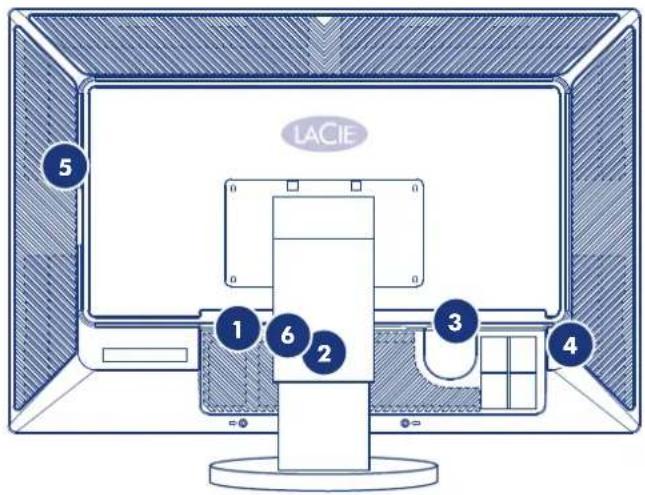
LaCie 730

LaCie 720
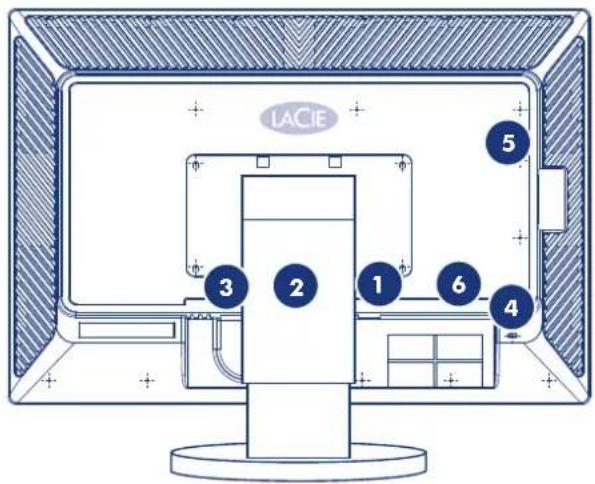
LaCie 724
Front View
LaCie 720 and 724
Power button1.
OSD (On Screen Display) controls2.
Color mode select3.
NOTE: See sections 2.1 and 3.3 for instructions on using the power button and On Screen Display controls.

LaCie 730
Power button1.
Brightness adjust buttons2.
Color mode select3.
NOTE: See sections 2.1 and 3.3 for instructions on using the power button and On Screen Display controls.

Getting Connected2.
Installing your LaCie 700 Series LCD Monitor is easy, requiring only a few simple connections:
2.1.rConnecting the Monitor to Your Compute
2.2. Connecting USB Devices
2.3. Installing an Alternative Stand or Attachment
2.4. Ergonomic Adjustment ♦ s
2.1. Connecting the Monitor to Your Computer
To attach the LCD monitor to your computer, follow these instructions:
- Power off your computer.
Connect the signal cable (see Fig. 2.1):2.
2a. For a PC or MAC with DVI digital output (A):
Connect the DVI signal cable to the DVI connector on your computer. Connect the other end of the DVI cable to the monitor's DVI input. Tighten all screws.
2b. For a PC or MAC with Analog output:
Connect the 15-pin mini D-SUB to DVI-A signal cable (not included) to the connector of the display card in your system. Connect the other end of this cable to the LCD Monitor's D-SUB (VGA) input.
- (B) not the AC center of the power cord
back of the monitor and the other end to the power outlet.
Turn on the main monitor power with the switch on the back, then turn on the display with the power button on the front. Power on your computer. If the monitor displays and image, installation is completed.

LaCie 730
![graph TD A["Device A"] --> B["Device B"] B --> C["Computer monitor with icon"] style A fill:#f9f,stroke:#333 style B fill:#ccf,stroke:#333 style C fill:#cfc,stroke:#333](/content/2026/06/1222352/images/7d4398baa039ffc6b7fdbba0895243037690761688ae9f9687e50d413e71f6bc.jpg)
LaCie 724
![graph TD A["Device 1"] -->|A| D["Device"] B["Device 2"] -->|B| D["Device"]](/content/2026/06/1222352/images/2704419456671e09c8911b6fdf6ce68a3e280838efb8347fcee6bbcd00ebb243.jpg)
LaCie 720
2.2. Connecting USB Devices
USB devices can be connected to the USB connectors located on the side of the monitor.
- Connect the USB terminal on your computer to the USB host port on the monitor. The monitor's USB hub is now connected to your computer.
- Connect USB peripherals to the USB connectors.

LaCie 730

LaCie 724

LaCie 720
2.3. Installing an Alternative Stand or Attachment
The base of the LaCie 700 Series Monitor can be disconnected to attach a flexible monitor arm or other attachment. Prepare the arm and screws required for installation beforehand.
Step 1—Remove the base
Turn off your monitor and unplug the power cord.1.
Lay the monitor face-down on a flat surface with a cushion 2. beneath it to protect the screen.
- Remove the four mounting screws from the base (Figure 2.5-A) and then remove the base.
Step 2—Attach a Base
NOTE: The LaCie 720 monitor accepts a 100 mm x 100 mm VESA-compliant mounting interface pad and the LaCie 724 & 730 accpet a 200 mm x 100 mm VESA-compliant mounting interface pad.
- Remove the base from the monitor as described in steps 1-3, above.
- Align the mounting interface pad with the holes in the rear cover mounting pad and secure it with four screws that came with the arm-type base, wall mount hanger or other base.
CAUTION: Do not use screws longer than the standard dimension, as they may damage the inside of the Monitor.
CAUTION: For wall mounts that do not comply with VESA standard screw specifications, the length of the screws may differ depending on their specifications.
CAUTION: Do not use screws that do not comply with the VESA standard screw specifications. Do not fasten the screws too tightly, as this may damage the product or cause the product to fall, leading to personal injury. LaCie is not liable for these kinds of accidents.

CAUTION: LaCie is not liable for product damage or personal injury when a non-VESA or nonspecified wall mount is used or the consumer fails to follow the product installation instructions.

CAUTION: To mount the monitor on a wall, you should purchase the wall mounting kit that allows you to mount the monitor at least 10cm away from the wall surface.

Figure 2.5-A
2.4. Ergonomic Adjustments

CAUTION: Use care when raising, lowering, titling or swiveling the monitor screen.
Raise and Lower Monitor Screen2.4.1.
To raise or lower screen, place hands on each side of the monitor and raise or lower to the desired height (Fig. 2.4.1).

Screen Tilt2.4.2.
Grasp the top and bottom sides of the monitor screen with your hands and adjust the tilt as desired (Fig. 2.4.2).

Swivel2.4.3.
Grasp both sides of the monitor screen with your hands and adjust the swivel as desired (Fig. 2.4.3).

NOTE: The base of the monitor is designed to swivel on a hard, flat surface. The entire unit turns, not just the display.

Portrait Mode (720 only)2.4.4.
Grasp both sides of the monitor screen with your hands and adjust the swivel as desired (Fig. 2.4.4).

Figure 2.4.4
3. Monitor Operation
This section describes how to use the buttons on the front of the monitor to control all of the monitor's functions through the On Screen Display (OSD). Please note that the LaCie 730 offers no On-Screen Menu. The Color and Power buttons function the same way as on the LaCie 720/724. The Up/Down buttons increase and decrease overall monitor brightness. Other color parameters such as white point and gamma can be adjusted by using LaCie's blue eye pro calibration tool.
Button Functions3.1.
Color

Press the Color button continuously to cycle through the preset color modes.
◆Adobe RGB the display in the Adobe RGB color-space.
◆ sRGB – Places the display in the sRGB colorspace.
- Custom – Choosing the Custom mode will allow you to manually adjust the brightness and contrast using the OSD menu on the LaCie 720 and LaCie 724.
Calibration – The Calibration color mode is active when LaCie blue eye pro performs hardware calibration on your monitor. Once you have calibrated your monitor, it is recommended to avoid exiting this mode (for example by manually shifting to another monitor color mode) as it endangers the accuracy of displayed colors.
♦ Emulation – Secondary calibration mode
Up/Down

Use to select menu items and to change the values of settings adjustments.
Input

Press to activate a highlighted menu item.
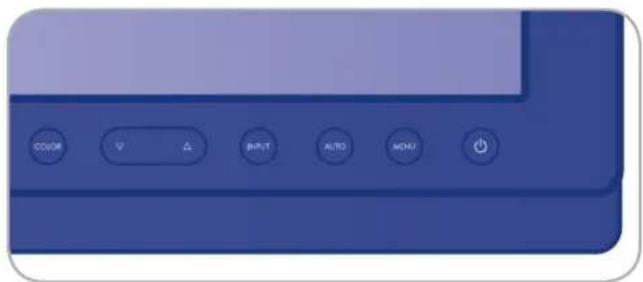
LaCie 720 and 724

LaCie 730
Auto

Press to self-adjust to the incoming PC signal. The values of fine, coarse and position are adjusted automatically.
Menu

Press to open the on-screen menu and exit from the menu screen or close the screen adjustment menu.
Power button/Power indicator

Use this button to turn the monitor on and off. The button glows white during normal operation, and blinks once as the monitor saves your adjustments. On the LaCie 730 this button becomes blue if a signal cable is disconnected.
Settings and Adjustments (720 3.2. and 724)
Auto adjustment of the monitor set-3.2.1. tings
When the AUTO button is pressed, the Auto Adjustment screen appears as shown in the animated screen on the center.
Auto adjustment allows the monitor to self-adjust to the incoming video signal. Fine, coarse and position values are adjusted automatically (available in analog mode only).
To make the automatic adjustment function sharper, execute the 'AUTO' function while the AUTO PATTERN is on.
If auto adjustment does not work properly, press AUTO button again to adjust picture with more accuracy.
If you change resolution in the control panel, auto function will be executed automatically.
Locking the OSD3.2.2.
The OSD can be locked to prevent current settings from being changed by accident.
To lock the OSD: Hold down the MENU button for more than five seconds.
To unlock the OSD: Hold down the MENU button for more than five seconds.

NOTE: When the OSD is locked, you can only adjust the brightness and contrast of the monitor.
Choosing the Active Video Input3.2.3.
Push the INPUT button to select the video signal source when the OSD is off.

3.3. OSD Functions (720 and 724)
| Function Available Settings | |||||
| Picture Brightness Contrast | |||||
| Color Color Tone Color Control Gamma | |||||
| Image Coarse Fine Sharpness H-Position V-Position | |||||
| OSD | Language | H-Position | V-Position | Transparency | Display Time |
| Setup | Auto Source | Image Reset | Color Reset | Indicator | |
| Information | |||||
3.3.1. Picture
Brightness
You can use the on-screen menus to change the brightness according to personal preference.
Direct Access Feature: When OSD is not on the screen, push the up arrow button to adjust brightness.

Contrast
You can use the on-screen menus to change the contrast according to personal preference.
Direct Access Feature: When OSD is not on the screen, push the down arrow button to adjust contrast.


Figure 3.3.1

Direct Access Controls
Color3.3.2.
Color Tone
The Color Tone menu adjusts color tones to your preference. Use the up and down arrow buttons to adjust the color tone. When the color tone is balanced between "warm" and "cool" the adjustment value reads as "off."
Maximum "Warm" value is 5
Maximum "Cool" value is 6.
Color Control
The Color Control adjusts individual R,G,B color balance. Use the up and down arrow buttons to adjust the values of red, green and blue.
Gamma
Gamma correction changes the luminance of the colors with intermediate luminance. Use the up and down arrow buttons to adjust the gamma values between ±0.6 .
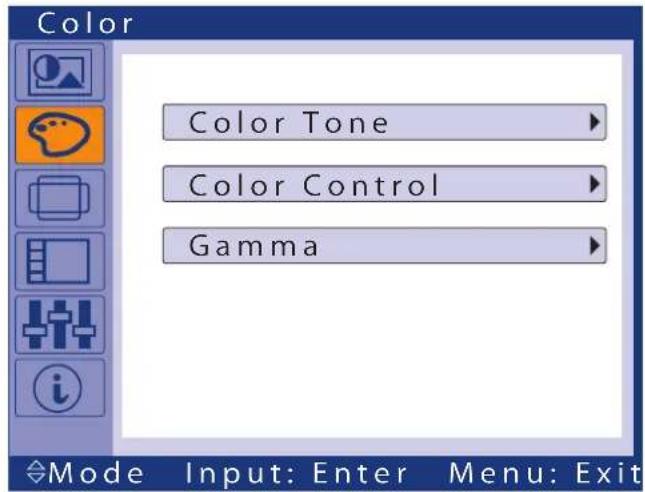
Figure 3.3.2
3.3.3. Image
Coarse
Use the Coarse control to remove noise such as vertical stripes. Coarse adjustment may move the screen image area. You may relocate it to the center using the H-Position control menu.

NOTE: Coarse control is available in analog mode only.
Fine
Removes noise such as horizontal stripes. If the noise persists even after fine tuning, repeat it after adjusting the frequency (clock speed).

NOTE: Fine control is available in analog mode only.
Sharpness
The sharpness control adjusts the clarity of the image.
Horizontal Position
The H-Position control adjusts the horizontal position of the monitor's entire display.

NOTE: H-Position control is available in analog mode only.
V-Position
Changes the vertical position of the monitor's entire display.

NOTE: V-Position control is available in analog mode only.

Figure 3.3.3-A
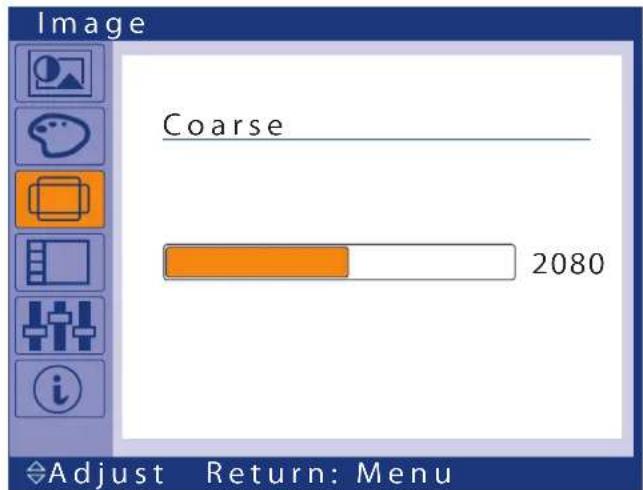
Figure 3.3.3-B
OSD3.3.4.
Language
You can choose one of 9 languages.
English, Deutsch, Espanol, Français, Italiano, Svenska, Russian, Portugues, Türkçe

NOTE: The language chosen affects only the language of the OSD. It has no effect on any software running on the computer.
H-Position and V-Position
Use the H-Position and V-Position menus to change the position where the OSD menu appears on your monitor.
Transparency
Turn transparency on to make the OSD menu partially transparent.
Display Time
The menu will be automatically turned off if no adjustments are made for a certain time period. Use the Display Time menu to specify the amount of time the menu will wait before it is turned off.

Figure 3.3.4
Setup3.3.5.
Auto Source
Select Auto Source for the monitor to automatically select the signal source.
Image Reset
Image Reset returns all image parameters to factory default values.
Color Reset
Color Reset returns all color parameters to factory default values.
Indicator
Turns all LEDs on or off. If it seems that the light from the LEDs affects the brightness of the LCD, you can turn off the power to them by setting the Indicator to Off. When setting it to On again, all LEDs will again operate in accordance with the change in monitor status.
Information3.3.6.
The Information panel displays the current video source, display mode and resolution of the monitor.

Figure 3.3.5

Figure 3.3.6
4. Troubleshooting
In the event that your LaCie 700 series LCD Monitor is not working correctly, please refer to the following checklist to find out where the problem is coming from. If you have gone through all of the points on the checklist and your monitor is still not working correctly, please have a look at the FAQs that are regularly published on our website – www.lacie.com. One of these FAQs may provide an answer to your specific question. If you need further assistance, please contact your LaCie reseller or LaCie Technical Support (see page 43, Contacting Customer Support for details).
Check List
Before calling for assistance, check the information in this section to see if you can remedy any problems yourself.
Manual Updates
LaCie is constantly striving to give you the most up-to-date, comprehensive User's Manuals available on the market. It is our goal to provide you with a friendly, easy-to-use format that will help you quickly install and utilize the many functions of your new device. If your manual does not reflect the configurations of the product that you purchased, please check our website for the most current version available.
www.lacie.com
LaCie 720 and 7244.1.
| Problem Checklist Solutions | ||
| The monitor will not turn on. | Is the power cord connected properly? | Check the power cord connection and supply. |
| No images appear on the screen. | Is there a “Check Signal Cable” message on the screen? | If a “Check Signal Cable” message appears on the screen when the monitor is connected properly, check to see if the monitor status is set to analog. Press the ‘[source]’ button to check the input signal source. |
| Can you see “Not Optimum Mode”, “Recommended Mode 1600 x 1200 60 Hz”for the LaCie 720 or1920x1200 60Hzfor the LaCie 724 on the screen? | You can see this message when the signal from the video card exceeds the maximum resolution and frequency that the monitor can handle properly. Adjust the maximum resolution and frequency that the monitor can handle properly. If the display exceeds UXGA or 75Hz, a “Not Optimum Mode”, Recommended Mode 1600 x1200 60 Hz or 192x1200 60Hz for the LaCie 724 message is displayed. If the display exceeds 85 Hz, the LaCie 720 or LaCie 724 display will work properly but the Not Optimum Mode, Recommended Mode 1600 x 1200 60 Hz 1600 x 1200 60 Hz”for the LaCie 720 or1920x1200 60Hzfor the LaCie 724 message appears for one minute and then disappears. Please change to the recommended mode during this one-minute period. (The message is displayed again if the system is rebooted.) | |
| Problem Checklist | Solutions | |
| If the power is on and neither of the above messages appears... | ...reboot the computer to see the initial screen login screen. If the initial login screen appears, boot the computer in Safe Mode and then change the frequency of the video card.NOTE: If the initial screen (the login screen) does not appear, contact the Service Center or your dealer. | |
| Is the power indicator on the monitor blinking at 1 second intervals? | The monitor is in PowerSaver mode. Press a key on the keyboard to activate the monitor and restore the image on the screen. If there is still no image, press the '[source]' button, then press any key on the keyboard again to activate the monitor and restore the image on the screen. | |
| Is the monitor connected using the DVI cable? | The screen may appear blank if you boot the system before you connect the DVI cable, or disconnect and then reconnect the DVI cable while the system is running, as certain types of graphic cards do not send out video signals. Connect the DVI cable and then reboot the system. | |
| I cannot see the On Screen Display (OSD). | Has the OSD menu been locked to prevent changes? | Unlock the OSD by pressing the MENU button for at least 5 seconds. |
| The screen shows strange colors or just black and white. | Are images on the screen tinted with a color? | Check your video card connection. Make sure the video card is fully inserted in its slot. |
| Have the screen colors become strange after running a program or after an application crash? | Reboot the computer. | |
| Has the video card been set properly? | Refer to the documentation that came with your video card to set it properly. | |
| The screen suddenly has become unbalanced. | Have you changed the video card or the driver? | Adjust image position and size using the OSD. See section 3.3.3.Image. |
| Have you adjusted the resolution or frequency of your video card to the monitor? | Refer to the documentation that came with your video card to adjust its resolution and frequency. | |
| The screen can be unbalanced due to the cycle of the video card signals. | Readjust Position by referring to the OSD. | |
| The screen is out of focus or OSD cannot be adjusted. | Have you adjusted the resolution or frequency on the monitor? | Refer to the documentation that came with your video card to adjust its resolution and frequency. |
| The LED is blinking but there are no images on the screen. | Is the Display Timing frequency properly adjusted? | Refer to the documentation that came with your video card to adjust its frequency. |
| Problem Checklist Solutions | ||
| The screen displays images in only 16 colors. | Have the Windows display settings been set properly? | Windows ME/2000/XP: Set the colors properly in Control Panel/Display/Settings. |
| The screen colors have changed after changing the video card. | Has the video card been set properly? | Refer to the documentation that came with your video card to set it properly. |
| Error message: “Unrecognized monitor, Plug & Play (VESA DDC) monitor found.” | Have you installed the monitor driver? | Install the monitor driver according to the Driver Installation Instructions. |
LaCie 7304.2.
| Problem Checklist Solutions | ||
| The monitor will not turn on. | Is the power cord connected properly? | Check the power cord connection and supply. |
| No images appear on the screen. | Is there a "Check Signal Cable" message on the screen? | If a "Check Signal Cable" message appears on the screen when the monitor is connected properly, check to see if the monitor status is set to analog. Press the 'Information' button to check the input signal source. |
| If the power is on and the above message does not appear... | ...reboot the computer to see the initial screen login screen. If the initial login screen appears, boot the computer in Safe Mode and then change the frequency of the video card.NOTE: If the initial screen (the login screen) does not appear, contact the Service Center or your dealer. | |
| Is the power indicator on the monitor blinking at 1 second intervals? | The monitor is in PowerSaver mode. Press a key on the keyboard to activate the monitor and restore the image on the screen. If there is still no image, press the '[Xxx]' button, then press any key on the keyboard again to activate the monitor and restore the image on the screen. | |
| The screen shows strange colors or just black and white. | Are images on the screen tinted with a color? | Check your video card connection. Make sure the video card is fully inserted in its slot. |
| Have the screen colors become strange after running a program or after an application crash? | Reboot the computer. | |
| Has the video card been set properly? | Refer to the documentation that came with your video card to set it properly. | |
| The screen suddenly has become unbalanced. | Have you adjusted the resolution or frequency of your video card to the monitor? | Refer to the documentation that came with your video card to adjust its resolution and frequency. |
| The LED is blinking but there are no images on the screen. | Is the Display Timing frequency properly adjusted? | Refer to the documentation that came with your video card to adjust its frequency. |
| The screen displays images in only 16 colors. | Have the Windows display settings been set properly? | Windows ME/2000/XP: Set the colors properly in Control Panel/Display/Settings. |
| The screen colors have changed after changing the video card. | Has the video card been set properly? | Refer to the documentation that came with your video card to set it properly. |
| I cannot use the 2560x1600 resolution with the monitor. | Does the graphics card on your computer support the 2560x1600 resolution? | If your graphics card does not support the 2560x1600 resolution, then you can only use the 1280x800 resolution with your monitor. To use the 2560x1600 resolution, replace your graphics card with one that supports that resolution. |
Contacting Customer Support5.
Before You Contact Technical Support
Read the User Manual and review the Troubleshooting section. If you have asked yourself all of the pertinent questions in the troubleshooting checklist, and you still can't get your LaCie monitor to work properly, contact us via the contacts on page xx. Before contacting us, make sure that you are in front of your computer and that you have the following information on hand:
| Information Where to Find Information | |
| LaCie 700 Series monitor serial number Located on a sticker | at the back of monitor. |
| Macintosh/PC model | Mac users: Click on the Apple icon in the menu bar and select About This Mac.Windows users: Right click My Computer and select Properties > General. |
| Operating system version | |
| Processor speed | |
| Computer memory | |
| The brand and model of the graphics board used in your computer | Mac users: Click on the Apple icon in the finder bar and select About this Mac. Select More Info... The Apple System Profiler will launch and will list your internal and external peripherals.Windows users: Right click My Computer and select Properties > Hardware. |
LaCie Customer Support Contacts
| LaCie Asia, Singapore, and Hong KongContact us at:http://www.lacie.com/asia/contact/ | LaCie AustraliaContact us at:http://www.lacie.com/au/contact/ |
| LaCie BelgiumContact us at:http://www.lacie.com/be/contact/ (Français) | LaCie CanadaContact us at:http://www.lacie.com/caen/contact/ (English) |
| LaCie DenmarkContact us at:http://www.lacie.com/dk/contact | LaCie FinlandContact us at:http://www.lacie.com/fi/contact/ |
| LaCie FranceContact us at:http://www.lacie.com/fr/contact/ | LaCie GermanyContact us at:http://www.lacie.com/de/contact/ |
| LaCie ItalyContact us at:http://www.lacie.com/it/contact/ | LaCie JapanContact us at:http://www.lacie.com/jp/contact/ |
| LaCie NetherlandsContact us at:http://www.lacie.com/nl/contact/ | LaCie NorwayContact us at:http://www.lacie.com/no/contact/ |
| LaCie SpainContact us at:http://www.lacie.com/es/contact/ | LaCie SwedenContact us at:http://www.lacie.com/se/contact |
| LaCie SwitzerlandContact us at:http://www.lacie.com/chfr/contact/ (Français) | LaCie United KingdomContact us at:http://www.lacie.com/uk/contact |
| LaCie IrelandContact us at:http://www.lacie.com/ie/contact/ | LaCie USAContact us at:http://www.lacie.com/contact/ |
| LaCie InternationalContact us at:http://www.lacie.com/intl/contact/ | |
Warranty Information6.
LaCie warrants your monitor against any defect in material and workmanship, under normal use, for the period designated on your warranty certificate. In the event this product is found to be defective within the warranty period, LaCie will, at its option, repair or replace the defective product. This warranty is void if:
◆The monitor was operated/stored in abnormal use or maintenance conditions;
The monitor is repaired, modified or altered, unless such repair, modification or alteration is expressly authorized in writing by LaCie;
The monitor was subjected to abuse, neglect, lightning strike, electrical fault, improper packaging or accident;
The monitor was installed improperly; ♦
The serial number of the monitor is defaced or missing; ♦
The broken part is a replacement part such as a pickup tray, etc.
The tamper seal on the monitor casing is broken.
LaCie will not, under any circumstances, be liable for direct, special or consequential damages such as, but not limited to, damage or loss of property or equipment, loss of profits or revenues, cost of replacement goods, or expense or inconvenience caused by service interruptions.
Under no circumstances will any person be entitled to any sum greater than the purchase price paid for the monitor.
To obtain warranty service, call LaCie Technical Support. You will be asked to provide your LaCie product's serial number, and you may be asked to furnish proof of purchase to confirm that the monitor is still under warranty.
All monitors returned to LaCie must be securely packaged in their original box and shipped with postage prepaid.

IMPORTANT INFO: Register online for free technical support: www.lacie.com/register


- INTRODUCTION......6
- GETTING CONNECTED.... 15
- 3.MONITOR OPERATION.... 21
- 4.TROUBLESHOOTING 28
- CONTACTING CUSTOMER SUPPORT 32
- WARRANTY INFORMATION .... 34
- COPYRIGHTS
- CHANGES
- FCC DECLARATION OF CONFORMITY
- CE MANUFACTURER'S DECLARATION FOR CE CERTIFICATION
- SAFETY PRECAUTIONS AND MAINTENANCE
- HEALTH AND ERGONOMIC PRECAUTIONS
- WITHIN THE EUROPEAN UNION
- OUTSIDE THE EUROPEAN UNION
- MANUFACTURER'S RECYCLING AND ENERGY INFORMATION
- RECYCLING PROGRAMS INFORMATION
- INTRODUCTION1
- QUICK LINKS
- LACIE 700 SERIES LCD MONITOR FEATURES1.1
- AVAILABLE OPTIONS
- MONITOR SPECIFICATIONS1.2
- BOX CONTENTS1.3
- LACIE 720
- LACIE 724
- LACIE 730
- ABOUT THE LCD STAND PIN1.4
- MONITOR VIEWS AND COMPONENTS1.5
- REAR VIEW
- FRONT VIEW
- GETTING CONNECTED2
- CONNECTING THE MONITOR TO YOUR COMPUTER
- CONNECTING USB DEVICES
- INSTALLING AN ALTERNATIVE STAND OR ATTACHMENT
- STEP 1—REMOVE THE BASE
- STEP 2—ATTACH A BASE
- ERGONOMIC ADJUSTMENTS
- RAISE AND LOWER MONITOR SCREEN2.4.1
- SCREEN TILT2.4.2
- SWIVEL2.4.3
- PORTRAIT MODE (720 ONLY)2.4.4
- MONITOR OPERATION
- BUTTON FUNCTIONS3.1
- COLOR
- UP/DOWN
- INPUT
- AUTO
- MENU
- POWER BUTTON/POWER INDICATOR
- SETTINGS AND ADJUSTMENTS (720 3.2. AND 724)
- AUTO ADJUSTMENT OF THE MONITOR SET-3.2.1. TINGS
- LOCKING THE OSD3.2.2
- CHOOSING THE ACTIVE VIDEO INPUT3.2.3
- OSD FUNCTIONS (720 AND 724)
- PICTURE
- BRIGHTNESS
- CONTRAST
- COLOR3.3.2
- COLOR TONE
- COLOR CONTROL
- GAMMA
- IMAGE
- COARSE
- FINE
- SHARPNESS
- HORIZONTAL POSITION
- V-POSITION
- OSD3.3.4
- LANGUAGE
- H-POSITION AND V-POSITION
- TRANSPARENCY
- DISPLAY TIME
- SETUP3.3.5
- AUTO SOURCE
- IMAGE RESET
- COLOR RESET
- INDICATOR
- INFORMATION3.3.6
- TROUBLESHOOTING
- CHECK LIST
- MANUAL UPDATES
- CONTACTING CUSTOMER SUPPORT5
- BEFORE YOU CONTACT TECHNICAL SUPPORT
- WARRANTY INFORMATION6
Brand : LACIE
Model : 720
Category : NAS