C1200BT - Printer EPSON - Free user manual and instructions
Find the device manual for free C1200BT EPSON in PDF.


User questions about C1200BT EPSON
0 question about this device. Answer the ones you know or ask your own.
Ask a new question about this device
Download the instructions for your Printer in PDF format for free! Find your manual C1200BT - EPSON and take your electronic device back in hand. On this page are published all the documents necessary for the use of your device. C1200BT by EPSON.
USER MANUAL C1200BT EPSON
Bluetooth™ Print Adapter from EPSON®
User's Guide
Copyright Notice
All rights reserved. No part of this publication may be reproduced, stored in a retrieval system, or transmitted in any form or by any means, electronic, mechanical, photocopying, recording, or otherwise, without the prior written permission of SEIKO EPSON CORPORATION. The information contained herein is designed only for use with this EPSON product. EPSON is not responsible for any use of this information as applied to other products.
Neither SEIKO EPSON CORPORATION nor its affiliates shall be liable to the purchaser of this product or third parties for damages, losses, costs, or expenses incurred by purchaser or third parties as a result of accident, misuse, or abuse of this product or unauthorized modifications, repairs, or alterations to this product, or (excluding the U.S.) failure to strictly comply with SEIKO EPSON CORPORATION's operating and maintenance instructions.
SEIKO EPSON CORPORATION shall not be liable for any damages or problems arising from the use of any options or any consumable products other than those designated as Original EPSON Products or EPSON Approved Products by SEIKO EPSON CORPORATION.
Trademarks
EPSON and EPSON Stylus are registered trademarks of SEIKO EPSON CORPORATION.
Bluetooth is a trademark of SIG, Inc. and is used by SEIKO EPSON CORPORATION under license.
General Notice: Other product names used herein are for identification purposes only and may be trademarks of their respective owners. EPSON disclaims any and all rights in those marks.
The ENERGY STAR emblem does not represent EPA endorsement of any product or service.
Copyright © 2002 by Epson America, Inc.
CPD-13629
2/02
Contents
Welcome 1
PDA System Requirements 2
Laptop System Requirements 2
Setting Up the Print Adapter 3
Before You Begin 3
Connecting the Print Adapter 4
Checking the Connection to the Printer 5
Using a Palm PDA 7
Installing the Software 7
Sending Your First Print Job 8
Using a Pocket PC 11
Installing the Software 11
Sending Your First Print Job 12
Using a Laptop
Adding a Virtual COM Port 17
Configuring the Printer Driver
Printing
Problem Solving
Where to Get Help
Notices
FCC Compliance Statement
Declaration of Conformity
Regulatory Information
Welcome!
The Bluetooth ^TM Print Adapter from EPSON ^® lets you print to many popular EPSON printers from your Bluetooth-enabled PDA or laptop computer without using a cable.
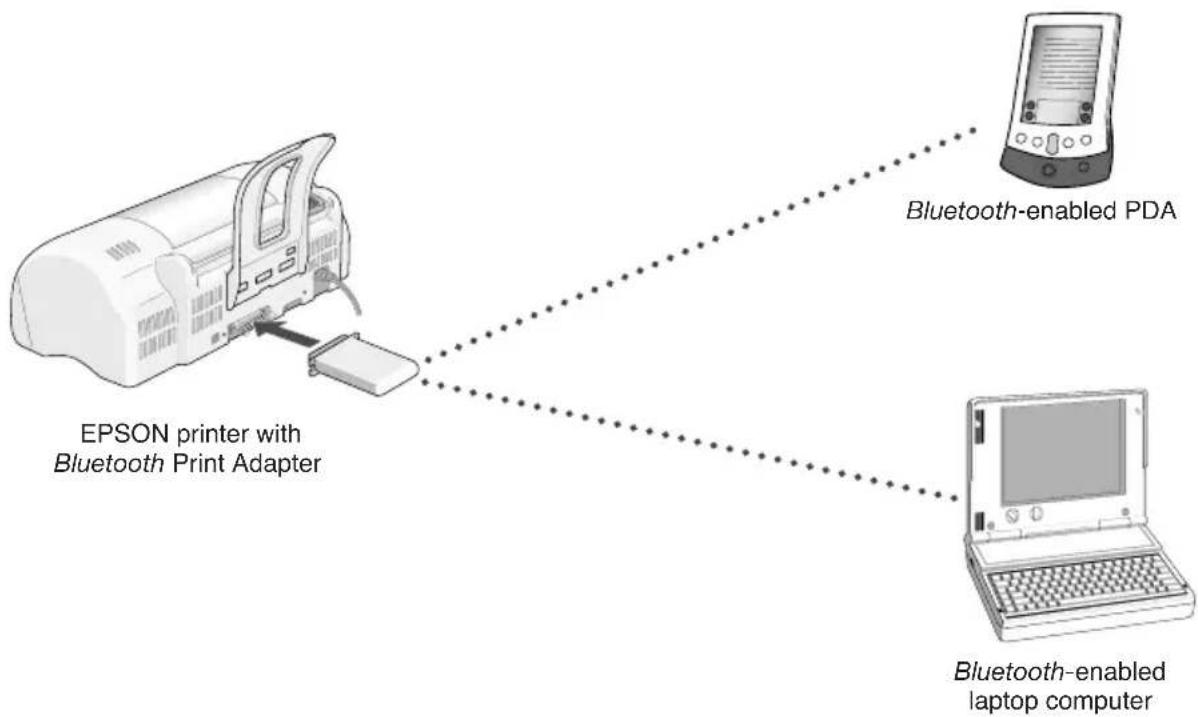
flowchart
graph TD
    A["EPSON printer with Bluetooth Print Adapter"] --> B["Bluetooth-enabled PDA"]
    A --> C["Bluetooth-enabled laptop computer"]
The print adapter supports printing to the following printers from the following devices:
■ EPSON Stylus® C80 Palm
^TM PDAs, Pocket PCs, and laptops
■ EPSON Stylus C60 Pocket PCs and laptops
■ EPSON Stylus Photo 820 Pocket PCs and laptops
■ EPSON Stylus Photo 890 Pocket PCs and laptops
■ EPSON Stylus Photo 1280 Pocket PCs and laptops

The print adapter may support additional EPSON printers and other devices, such as Bluetooth-enabled cell phones. All devices must support the Bluetooth Serial Port Profile, Object Push Profile, or LAN Access Profile. Visit EPSON Support at http://support.epson.com for the latest information on supported printers and devices.
The print adapter only supports EPSON printers.
This manual provides instructions for setting up the print adapter, installing the Bluetooth printing software to your Bluetooth device, and printing. For information on setting up your printer or installing the printer driver, see your printer documentation.

For best results, print text and low-resolution graphics with your print adapter. Because of the speed limitations of Bluetooth wireless communications, high-resolution graphics and photographs may require significant time to print.
PDA System Requirements
■ Palm m125, m500, m505, or i705 with a Bluetooth SDIO card running OS 4.0 or later, or
Bluetooth-enabled Pocket PC, including the Compaq® iPAQ™ with CompactFlash sled and built-in Bluetooth capabilities; Compaq iPAQ with the Socket™ Bluetooth Card; and Casio® E-125 with the Socket Bluetooth Card
■ Microsoft® Windows® compatible PC running Windows XP, Me, 2000, 98, 95, or NT 4.0, with a Pentium® or better processor, 133 MHz or faster
■ CD-ROM or DVD drive and 10MB of free hard disk space to install the software
Laptop System Requirements
■ Microsoft Windows compatible PC running Windows XP, Me, 2000, 98, 95, or NT 4.0, with a Pentium or better processor, 133 MHz or faster
■ At least 64MB of RAM
■ TROY® WindPort PCMCIA card

Although other Bluetooth PCMCIA cards may work with the print adapter, EPSON recommends that you use the TROY WindPort card for best results.
Setting Up the Print Adapter
The print adapter connects to your printer's parallel port. At the same time as your printer is connected to the print adapter, you can connect it to your computer with a USB cable.
Before You Begin
In addition to this User's Guide, make sure you have the following:
■ Bluetooth Print Adapter (Model C1200BT)
■ Power supply
■ Bluetooth Software and Utilities CD-ROM
Observe these guidelines to reduce static discharge when you handle the print adapter:
■ Make sure that you are adequately grounded by touching a bare metal part of the printer while connecting the print adapter.
■ To reduce static charge buildup, avoid moving around too much and, if possible, avoid working on a carpeted area.
It's a good idea to make sure your EPSON printer and your computer, Pocket PC, or Palm PDA are working before you begin.
Connecting the Print Adapter
Follow these steps to connect the print adapter to your printer:
- Make sure that the printer is turned off.
- Plug the print adapter into the printer's parallel port, as shown.

text_image
Parallel port Power supply- Turn on the printer.
- Connect the power supply to the print adapter, as shown. Then plug the power supply into an electrical outlet.
The green light on the print adapter flashes for a few seconds and then goes out. If the green light flashes continuously in a regular pattern, unplug the power supply and plug it in again. If the problem persists, contact EPSON.

text_image
Connection light (green) Activity light (yellow) Test buttonChecking the Connection to the Printer
Make sure that both the print adapter and the printer are turned on, then press the test button on the print adapter for one second to print a test page. If the test page fails to print, try the following:
- Make sure the print adapter is securely connected to the printer’s parallel port.
■ Make sure the printer is working and is not out of ink or paper.
■ Unplug the print adapter, plug it back in, and try printing the test page again.
If you cannot print a test page, contact EPSON as described on page 22.

When a Bluetooth device makes a connection to the print adapter, the print adapter's green light remains on. The yellow light flashes whenever data is transmitted.
Because the print adapter does not support the EPSON Status Monitor, you won't be able to obtain print job status.
Using a Palm PDA
With the Bluetooth Print Adapter from EPSON, you can use your Palm PDA to print to the EPSON Stylus® C80 printer.
This chapter explains how to install the software on the CD-ROM that came with your print adapter and send your first print job. The steps for subsequent print jobs are similar, but you won't have to select a printer.
Installing the Software
Follow these steps to install the Bluetooth printing software to your Palm PDA:
- Connect your Palm PDA to your computer.
- Insert the CD-ROM that came with the print adapter in your computer's drive.
- Double-click the Palm Desktop icon on your Windows desktop, and then click Install.
- On the Install Tool window, click Add, then browse to your CD-ROM.
- Double-click the Palm folder to open it.
- Select BtPrintV13r63C80 and click Open.
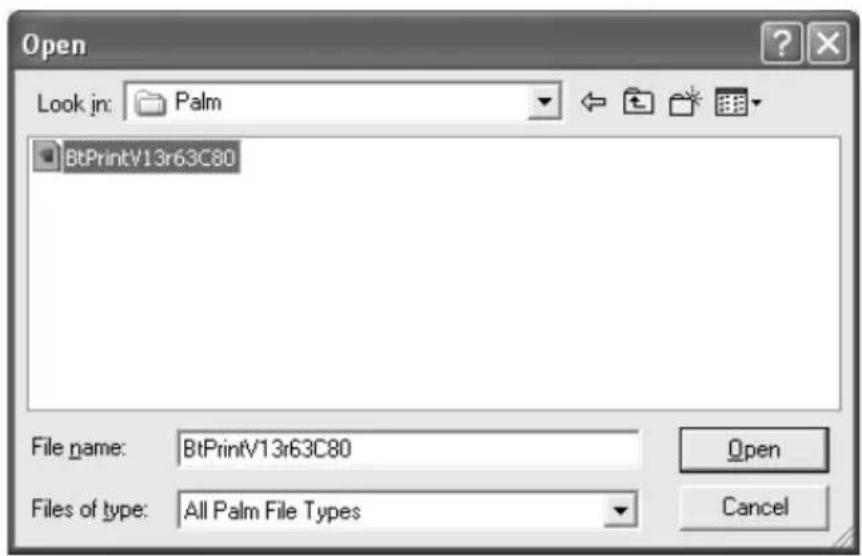
text_image
Open Look jn: Palm BtPrintV13r63C80 File name: BtPrintV13r63C80 Files of type: All Palm File Types Open Cancel- Follow the instructions on your computer screen to complete installation of the software.
Sending Your First Print Job
Before you begin, make sure your Bluetooth SDIO card is installed in your Palm PDA.
Follow these steps to send your first print job:
- Tap the BTPrint C80 icon on your PDA's main screen.

text_image
3:22 pm Address Bluetooth BtPrint C80 Calc Card Info Clock Date Book Graffiti HotSync Memo Pad Note Pad Parens Lite-
Tap the icon of the program you want to print from.
-
Tap the Menu icon in the lower left corner of your PDA's graffiti area. You see a drop-down menu similar to the one below.
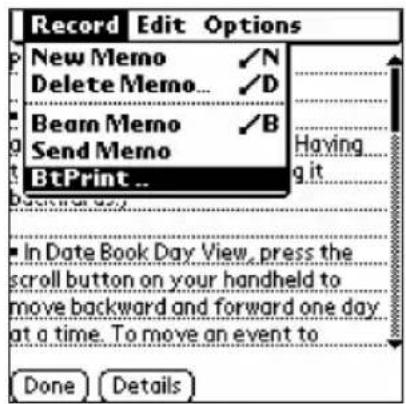
text_image
Record Edit Options New Memo ✓N Delete Memo... ✓D Beam Memo ✓B Send Memo BtPrint... Having g it In Date Book Day View, press the scroll button on your handheld to move backward and forward one day at a time. To move an event to Done Details- Tap BtPrint. You see this screen:

text_image
BtPrint v1.3r63 EPSON C1200BT Bluetooth Driver: Epson C80 Copies: ▼ 1 Paper Size: ▼ Letter Include Header OK Cancel Select Printer-
Tap Select Printer.
-
If a printer appears in the list on the next screen, go to step 7.
If no printer appears, tap Find More. You briefly see the message Searching for Bluetooth Devices.
- Select Stylus C80_xxxxxx (where xxxxxx indicates the last six digits in the printer's MAC address). Then tap OK.

text_image
Discovery Results Select the default printer... Stylus C80_080272 OK Cancel Find More- Change any print options you want to, and tap OK to begin printing.
Using a Pocket PC
You can use your Pocket PC to print to the following printers: EPSON Stylus C60, EPSON Stylus C80 (black and white printing only), EPSON Stylus Photo 820, EPSON Stylus Photo 890, and EPSON Stylus Photo 1280.
This chapter explains how to install the software on the CD-ROM that came with your print adapter and send your first print job. The steps for sending subsequent print jobs are similar, but you won't have to choose a printer unless you want to change it.
Installing the Software
Follow these steps to install the Bluetooth printing software to your Pocket PC:
- Connect your Pocket PC to your computer.
- Insert the CD-ROM that came with the print adapter in your computer's drive.
- Open your CD-ROM window if it doesn't open automatically.
- Double-click the PocketPC folder.
- Double-click PrintPocketCE Install.
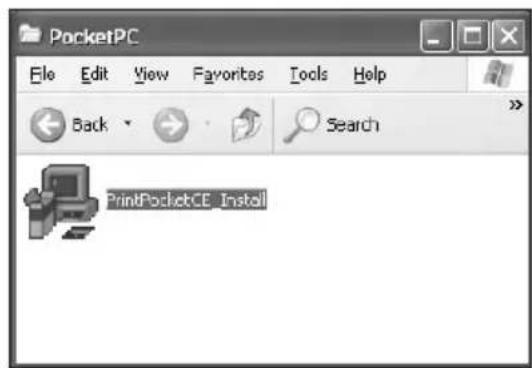
text_image
PocketPC Ele Edit View Favorites Tools Help Back Search PrintPocketCE Install- Follow the instructions on your computer screen to accept the license agreement and install the software.
Sending Your First Print Job
Follow the steps below to print for the first time from a Pocket PC with built-in Bluetooth capabilities.

You can also print from a Pocket PC with the Socket Bluetooth Card. Visit the Socket web site at http://www.socketcom.com and select the Bluetooth Connection Kit as your product. Then follow the instructions in the on-screen User's Guide to connect to the printer and print.
- Start the Compaq Bluetooth Manager and click Search.
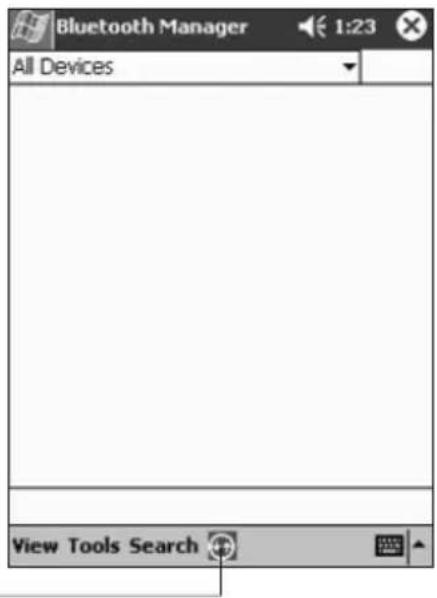
text_image
Bluetooth Manager 1:23 All Devices View Tools SearchClick here
- When Bluetooth Manager locates your printer, select it and click Save. The printer shows up as the printer name followed by the last six digits of the MAC address.

text_image
Bluetooth Manager New Device Name Type Stylus C60_02... Wor... Stop Save Filter Searching for Devices...- Select which groups, if any, you want to save the printer to and click OK.

text_image
Bluetooth Manager 11:42 Save the devices to following groups All Devices Home Work OK Cancel Add Group-
On the next screen, click OK in the upper right side of the screen.
-
Click the printer icon in the All Devices screen.
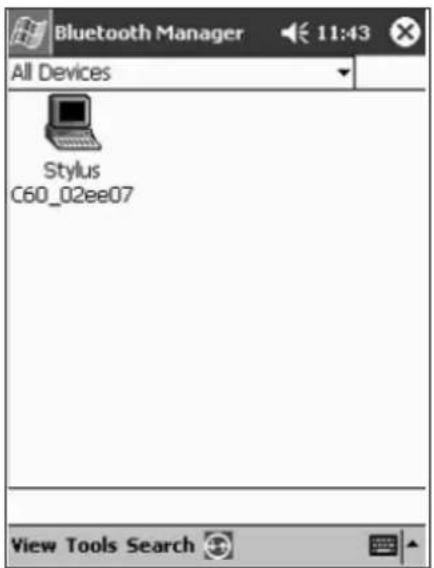
text_image
Bluetooth Manager 11:43 All Devices Stylus C60_02ee07 View Tools Search- In the Device Information screen, select Actions and then select Connect to P1.

text_image
Bluetooth Manager 11:43 ok Device Information Device Name Stylus C60_02ee07 Device Address 00:40:17:02:EE:07 Device Type Workstation Device Bonded No Last Seen 01/08/2002 Send Business Card Exchange Business Card Connect to P1 Connect to LAN Printer Create bond with this device Remove this Device Actions- When you've successfully connected to the printer, start PrintPocketCE and select the document you want to print.
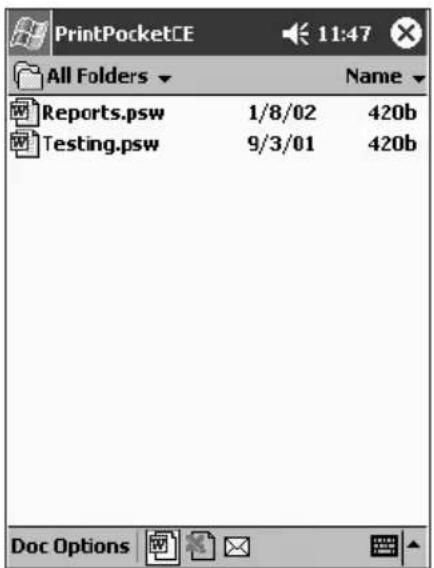
text_image
PrintPocketCE 11:47 All Folders Name Reports.psw 1/8/02 420b Testing.psw 9/3/01 420b Doc Options- When you see this screen, choose EPSON Stylus or ESC/P 2 from the Printer list and COM8 from the Port list. Change any other settings you want and click Start Printing.

text_image
PrintPocketCE 11:48 Printer: Epson ESC/P 2 Port: COM8: Color/Mono: 4 Color CMYK Paper Size: Letter Orientation ● Portrait ○ Landscape Custom Paper Width 8.5" Height 11" Start Printing More Settings Cancel Printing
If your Pocket PC has a Socket Bluetooth Card, select Bluetooth: Socket CF Card from the Port list.
If you see a message that the serial connection was terminated, click OK. Your job will print.
If you cancel a job while it's printing, you may need to turn your printer off and then on again, and then unplug the print adapter and plug it back in.
Using a Laptop
If your Bluetooth-enabled laptop computer supports the Bluetooth Serial Port Profile, you can use it to print to the following printers: EPSON Stylus C60, EPSON Stylus C80, EPSON Stylus Photo 820, EPSON Stylus Photo 890, and EPSON Stylus Photo 1280. Your laptop may either have built-in Bluetooth capabilities, or a Troy WindPort PCMCIA card.

Although other Bluetooth PCMCIA cards may work with the print adapter, EPSON recommends that you use the WindPort card to ensure that the print adapter works correctly.
This chapter explains how to create a virtual COM port, configure the printer driver to use the virtual port, and print. For complete configuration information, see your Windows documentation.
Adding a Virtual COM Port
Most Bluetooth devices that support the Bluetooth Serial Port profile allow you to create a virtual COM port. A COM port (for example, COM1) is normally used with an RS-232 connection or a modem. A virtual COM port emulates a COM port, but works over the Bluetooth wireless link.
To add a virtual COM port, follow the instructions that came with your laptop, Bluetooth PCMCIA card, or USB dongle. The name of the virtual port should start with COM and end with a number (for example, COM4). Make sure that you don't use the name of an existing COM port (generally, you can't use COM1 or COM2). In some cases, you need to restart your laptop to enable the port.
Configuring the Printer Driver
Before you begin, follow your printer documentation to install the printer driver and set up your printer. Then follow these steps to configure the printer driver to use the virtual COM port.
- Windows XP: Click Start > Control Panel > Printers and Other Hardware > View installed printers or fax printers.
Other Windows systems: Click Start, point to Settings, and then select Printers.
- Right-click your printer icon, and then select Properties.
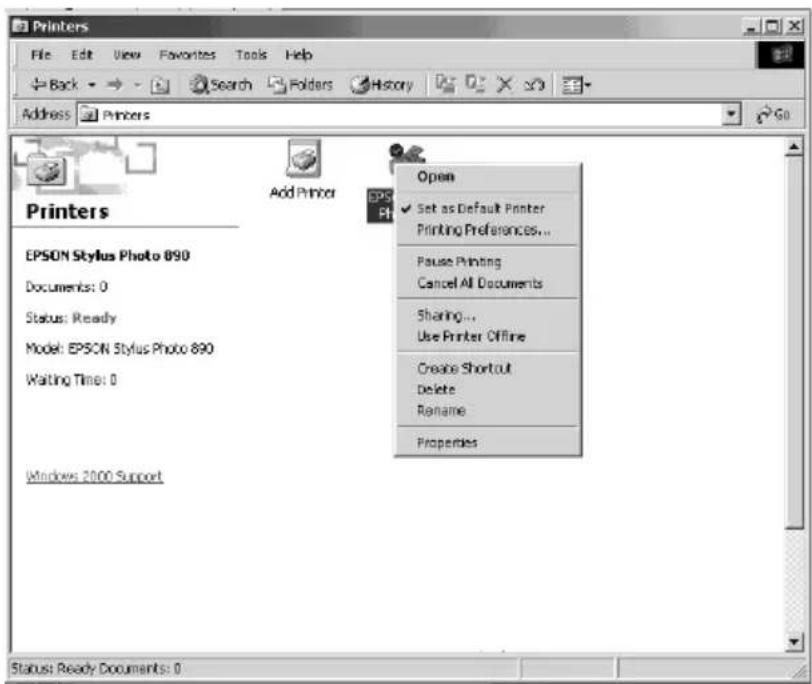
text_image
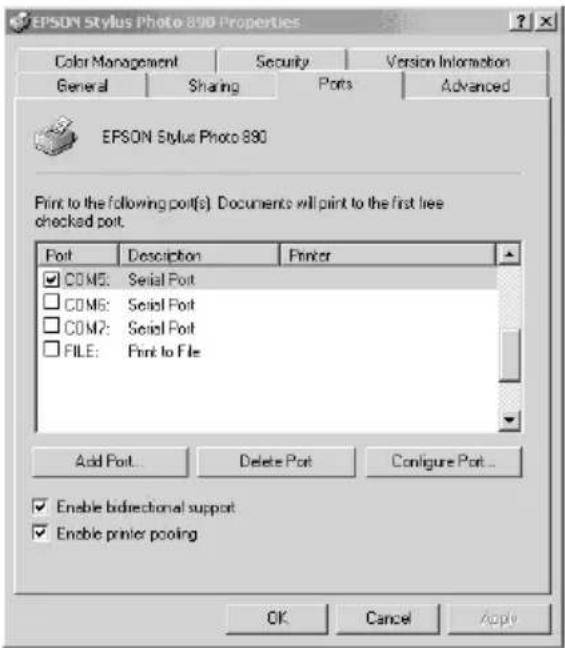
Printers File Edit View Favorites Tools Help Back Search Folders History Address Printers Printers Add Printer EPSON Stylus Photo 890 Documents: 0 Status: Ready Model: EPSON Stylus Photo 890 Waiting Time: 0 Windows 2000 Support Open Set as Default Printer Printing Preferences... Pause Printing Cancel All Documents Sharing... Use Printer Offline Create Shortcut Delete Rename Properties Status: Ready Documents: 0- If you are using Windows XP, 2000, or NT, click the Ports tab. Click the checkbox next to the name of the virtual COM port you created. Click Apply, and then OK.
text_image
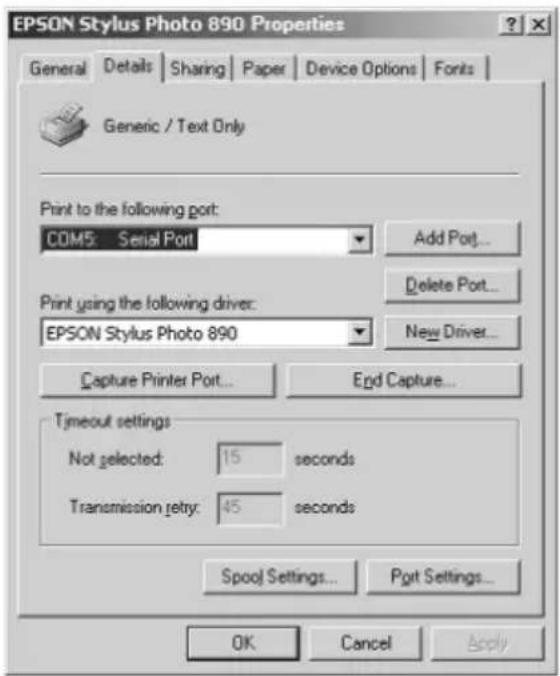
EPSON Stylus Photo 890 Properties Color Management Security Version Information General Sharing Ports Advanced EPSON Stylus Photo 890 Print to the following port(s). Documents will print to the first free checked port. Port Description Print COM5: Serial Port COM6: Serial Port COM7: Serial Port FILE: Print to File Add Port... Delete Port Configure Port... Enable bidirectional support Enable printer pooling OK Cancel Apply- If you are using Windows Me, 98, or 95, click the Details tab. Select the virtual COM port you created. Click Apply and then OK.
text_image
EPSON Stylus Photo 890 Properties General Details Sharing Paper Device Options Fonts Generic / Text Only Print to the following port: COM5: Serial Port Add Port... Delete Port... Print using the following driver: EPSON Stylus Photo 890 New Driver... Capture Printer Port... End Capture... Timeout settings Not selected: 15 seconds Transmission retry: 45 seconds Spool Settings... Port Settings... OK Cancel ApplyPrinting
This section provides general steps for printing. For detailed information, see the documentation that came with your laptop, PCMCIA card, or USB adapter.
- If necessary, connect to the print adapter using the discovery program provided with your Bluetooth PCMCIA card, USB adapter, or built-in adapter. (You may need to do two steps: perform a device discovery to find the print adapter, and then a service search or discovery to select the Serial Port Profile service [P1]).
- To establish a Bluetooth connection, associate your virtual COM port with the print adapter and/or the P1 service. When you have a connection, the print adapter's green light comes on.

Some programs, such as the 3Com® Connection Manager, don't require this step because they perform discovery after you begin printing.
-
Open the document you want to print and select Print from the File menu.
-
If you've already associated the COM port with the print adapter, the job prints. If not, you are asked what device you want to use. Select your printer (the printer shows up as the printer name followed by the last six digits of its MAC address). If necessary, select the P1 service, then click the appropriate button to establish a connection and print.
When you're done printing, you may need to break the Bluetooth connection from the host computer to let other people use the printer. See the documentation for your Bluetooth device for details.
If you're having problems printing, see if there is an updated driver for your printer on EPSON's support site (http://support.epson.com). You can also try printing with the generic ESC/P 2 driver in your Windows software. See your Windows documentation for details.

If you cancel a job while it's printing, you may need to turn your printer off and then on again, and then unplug the print adapter and plug it back in.
Problem Solving
If you are unable to print, check the following:
To verify that you have a connection, make sure that the print adapter's green light is on. If the light is off, unplug and reconnect the print adapter and try printing again. Make sure that neither the print adapter nor your Bluetooth device is on a metal table or near large metal objects. Also, make sure they are not located near an 802.11b access point. If necessary, move to a different location and try again.
- Press the test button on the side of the print adapter for about one second to print a test page (the print adapter's green light must be off). If the test page does not print, make sure the print adapter is connected to the printer and the printer is turned on. Also, make sure the printer is not out of ink or paper. If the test page prints but you cannot print from your application program, unplug the print adapter and plug it in again.
If you still can't print, reset the print adapter to its factory default settings by holding down the test button for more than 5 seconds and then unplugging the print adapter and plugging it in again.
If none of these suggestions work, contact EPSON as described in the next section.
Where to Get Help
EPSON provides technical assistance 24 hours a day on the World Wide Web. Visit EPSON Support at http://support.epson.com to download drivers and other files, look at product documentation, access troubleshooting information, and receive technical advice through e-mail.
To speak to a technical support representative, dial:
■ U.S.: (562) 276-7500, 6 AM to 8 PM, Pacific Time, Monday through Friday and 7 AM to 4 PM, Saturday
Canada: (905) 709-2567, 6 AM to 6 PM, Pacific Time, Monday through Friday
Toll or long distance charges may apply. Before you call, please have the following information ready:
■ Product name (Bluetooth Print Adapter from EPSON, Model C1200BT)
■ Product serial number (located on the bottom of the adapter)
■ Proof of purchase (such as a store receipt) and date of purchase
■ Computer configuration
■ Description of the problem
This chapter includes legal notices and other important information.
FCC Compliance Statement
For United States Users
This equipment has been tested and found to comply within the limits for a Class B digital device pursuant to Part 15 of the FCC Rules. These limits are designed to provide reasonable protection against harmful interference in a residential installation. This equipment generates, uses, and can radiate radio frequency energy and, if not installed and used in accordance with the instructions, may cause harmful interference to radio or television reception. However, there is no guarantee that interference will not occur in a particular installation. If this equipment does cause interference to radio and television reception, which can be determined by turning the equipment off and on, the user is encouraged to try to correct the interference by one or more of the following measures:
■ Reorient or relocate the receiving antenna.
■ Increase the separation between the equipment and receiver.
■ Connect the equipment into an outlet on a circuit different from that to which the receiver is connected.
■ Consult the dealer or an experienced radio/TV technician for help.
For Canadian Users
This Class B apparatus complies with Canadian ICES-003.
Declaration of Conformity
According to 47CFR, Part 2 and 15 for Class B Personal Computers and Peripherals; and/or CPU Boards and Power Supplies used with Class B Personal Computers:
We: EPSON AMERICA, INC.
Located at: MS 3-13
3840 Kilroy Airport Way
Long Beach, CA 90806-2469
Telephone: (562) 290-5254
Declare under sole responsibility that the product identified herein, complies with 47CFR Part 2 and 15 of the FCC rules as a Class B digital device. Each product marketed is identical to the representative unit tested and found to be compliant with the standards. Records maintained continue to reflect the equipment being produced can be expected to be within the variation accepted, due to quantity production and testing on a statistical basis as required by 47CFR §2.909.
Operation is subject to the following two conditions: (1) this device may not cause harmful interference, and (2) this device must accept any interference received, including interference that may cause undesired operation.
Trade Name: EPSON
Type of Product: Bluetooth Print Adapter C1200BT
Model: WNDCT 90150
Regulatory Information
United States of America and Canada
Tested to Comply With FCC Standards FOR HOME OR OFFICE USE.
See FCC 47CFR, Part 15.19(b)(2).
This device complies with part 15 of the FCC rules and with RSS-210 / RSS-139 of the Industry Canada.
A minimum separation of 20 cm (8 inches) must be maintained between the antenna and the person for this device to satisfy the RF exposure requirements of the FCC.
Note that any changes or modifications to this equipment not expressly approved by the manufacturer may void the FCC authorization to operate this equipment.
Canada (IC notice)
To prevent radio interference to the licensed service, this device is intended to be operated indoors and away from windows to provide maximum shielding.
Equipment that is installed outdoors is subject to licensing.
Operation is subject to the following two conditions: (1) This device may not cause harmful interference, and (2) this device must accept any interference received, including interference that may cause undesired operation of the device.