ELPDC04 - Video projector EPSON - Free user manual and instructions
Find the device manual for free ELPDC04 EPSON in PDF.


User questions about ELPDC04 EPSON
0 question about this device. Answer the ones you know or ask your own.
Ask a new question about this device
Download the instructions for your Video projector in PDF format for free! Find your manual ELPDC04 - EPSON and take your electronic device back in hand. On this page are published all the documents necessary for the use of your device. ELPDC04 by EPSON.
USER MANUAL ELPDC04 EPSON
High Resolution Document Camera
User's Guide
Important Safety Information
WARNING: Never open any cover on the document camera. Dangerous electrical voltages inside the document camera can severely injure you. Do not attempt to service this product yourself. Refer all servicing to qualified service personnel.
WARNING: The document camera and its accessories come packaged in plastic bags. Keep plastic bags away from small children to avoid any risk of suffocation.
Caution: Never attempt to replace the lamps. Refer all lamp servicing to qualified service personnel.
Copyright Notice
All rights reserved. No part of this publication may be reproduced, stored in a retrieval system, or transmitted in any form or by any means, electronic, mechanical, photocopying, recording, or otherwise, without the prior written permission of SEIKO EPSON CORPORATION. The information contained herein is designed only for use with this EPSON product. EPSON is not responsible for any use of this information as applied to other products.
Neither SEIKO EPSON CORPORATION nor its affiliates shall be liable to the purchaser of this product or third parties for damages, losses, costs, or expenses incurred by purchaser or third parties as a result of: accident, misuse, or abuse of this product or unauthorized modifications, repairs, or alterations to this product, or (excluding the U.S.) failure to strictly comply with SEIKO EPSON CORPORATION's operating and maintenance instructions.
SEIKO EPSON CORPORATION shall not be liable for any damages or problems arising from the use of any options or any consumable products other than those designated as Original EPSON Products or EPSON Approved Products by SEIKO EPSON CORPORATION.
EPSON is a registered trademark of SEIKO EPSON CORPORATION.
PrivateLine and Presenters Club are registered trademarks and EPSON Connection is a service mark of Epson America, Inc.
General Notice: Other product names used herein are for identification purposes only and may be trademarks of their respective owners. EPSON disclaims any and all rights in those marks.
Contents
Welcome....1
Getting the Most from Your Document Camera ..... 2
Using Your Documentation .... 2
Getting More Information .... 3
Registration 3
1 Setting Up the Document Camera ....5
Unpacking the Document Camera 6
Installing Batteries in the Remote Control ....7
Positioning the Document Camera....8
Unfolding the Document Camera 9
Connecting to a Projector or TV/Computer Monitor.....11
Connecting the RGB Video Cable ..... 11
Connecting the RCA Cable 12
Connecting to a Computer....13
Connecting a Mouse to the Document Camera ..... 14
Adjusting the Camera DIP Switches. 15
2 Using the Document Camera ..... 17
Turning On Your Equipment....18
Turning On the Document Camera 18
What To Do If You See a Blank Screen ..... 19
Switching Between Picture Sources. 20
Adjusting the Lighting 21
Adjusting the Image 22
Zooming and Focusing Your Image. 22
Adjusting the Brightness 23
Adjusting the White Balance 23
Using the Pointer 23
Pausing the Main Display....24
Adjusting Settings with the On-Screen Display ..... 24
Using the Camera Head as a Conventional Video Camera . . 26
Using the Image Mate Software 26
Turning Off and Storing the Document Camera ..... 27
3
Maintaining and Transporting the Document Camera 31
Cleaning the Lenses 32
Cleaning the Document Camera Case .... 33
Transporting the Document Camera 34
4
Solving Problems 35
Solving Problems with the Image 36
Solving Problems with the Remote Control .... 37
Where to Get Help. 38
Telephone Support Services 38
5
Technical Specifications .... 39
General....39
Lighting 39
Remote Control 40
Dimensions 40
Electrical 40
Environmental 40
Safety 41
Compatible Video Formats 41
6
Notices 43
Important Safety Instructions 43
Remote Control Information 46
Declaration of Conformity 47
FCC Compliance Statement. 48
Warranty 49
Index....51
Welcome
Your versatile EPSON ^® ELPDC04 High Resolution Document Camera can be connected to most types of projectors and display devices. From boardrooms to auditoriums, you can show fine detail with a large variety of presentation materials.
Your document camera captures images at a resolution of 1024 × 768 pixels with a maximum shooting area of 13.4 × 9.9 in. ( 340 × 252 mm). With its 10× zoom capability and true XGA resolution, even 10 point type can be read clearly. And the document camera's support for RGB and composite video provides additional versatility.
You can connect the document camera to a wide range of computers, including IBM ^® compatible PCs and laptops, Apple ^® Macintosh, Power Macintosh ^™ series (including G3 and G4 systems), PowerBook ^® computers, many iMac ^™ and iBook ^™ series systems, and high-end workstations such as the Sun ^® SPARCstation. ^™
Getting the Most from Your Document Camera
Depending on your presentation, you can take advantage of any or all of these options:
■ Connecting to a projector or TV/computer monitor The document camera requires an output device, such as a projector or TV/computer monitor, to display its image. To connect the document camera to these devices, see page 11.
■ Connecting to a laptop or desktop computer
You can connect a video output source, such as a laptop or desktop computer, to the document camera. This is especially useful if your projector has only one video input port. See page 13 for more information.
■ Using the remote control
The remote control lets you control the lamps, zoom and focus your image, and switch the display from the camera to a computer. See Chapter 2 for details.
Using Your Documentation
This book contains all the information you need to set up and use your document camera. Please follow these guidelines as you read through it:
■ Warnings must be followed carefully to avoid bodily injury.
■ Cautions must be observed to avoid damage to your equipment.
■ Notes contain important information about your document camera.
Getting More Information
Need tips on giving presentations or more information about your document camera? Here's where you can look for help:
■ http://www.presentersonline.com
Includes a library of articles covering presentation tips, tricks, and technology. The site provides templates, clip art, and sound clips, as well as Presenters Services to use on the road. Even more resources and services are available if you register to join the Presenters Club®—and it’s free.
■ http://support.epson.com
Download FAQs and e-mail your questions to EPSON support.
If you still need help after checking this User's Guide and the sources listed above, you can use the EPSON PrivateLine® Support service to get help fast. Call (800) 637-7661 and enter the PIN on the card included with your document camera. Or take advantage of EPSON's electronic support services 24 hours a day. See page 38 for more information.
Registration
To register, simply fill out and return the enclosed registration card. Registering allows EPSON to better understand and meet your needs. If you want, you can also receive special updates on new accessories, products, and services.
Setting Up the Document Camera
This chapter explains how to set up the document camera for a video presentation. You'll find instructions for:
■ Unpacking the document camera
■ Installing batteries in the remote control
■ Positioning the document camera
■ Unfolding the document camera
■ Connecting to a projector or TV/computer monitor
■ Connecting to a computer
■ Connecting a mouse to the document camera
- Adjusting the document camera’s DIP switches
Unpacking the Document Camera
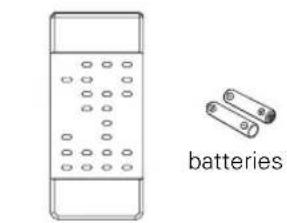
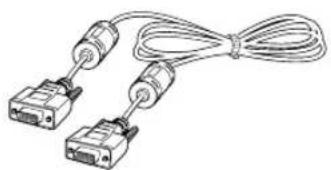
After unpacking the document camera, make sure you have all the items shown below:

natural_image
Technical line drawing of a mechanical device with articulated arms and a base platform (no text or symbols)document camera
natural_image
Diagram of a battery cell with two batteries shown in separate cases (no text or symbols on the cells)remote control
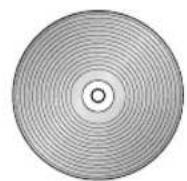
Image Mate™
CD-ROM

mouse
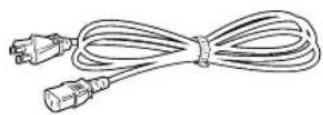
power cord
natural_image
Two identical USB connectors connected by a coiled cable, no text or symbols visibleRGB video cable
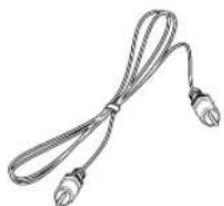
natural_image
Coiled cable with two connectors (no text or symbols visible)RCA cable
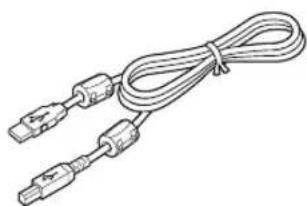
natural_image
Line drawing of a broadband cable with two connectors (no text or symbols)USB cable
Save all the packaging in case you need to ship the document camera later. Always use the original packaging (or equivalent) when you need to send the document camera to another location. For transportation instructions, see page 34.
Installing Batteries in the Remote Control
Before using the remote control, install its batteries.
-
Press down on the battery cover and slide it off.
-
Insert two AAA batteries as shown.
-
Replace the battery compartment cover.
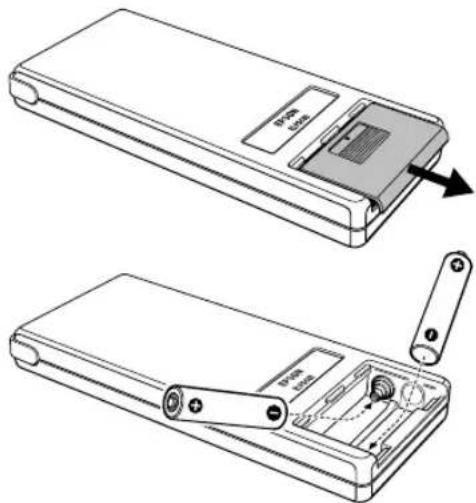
natural_image
Technical line drawing of a remote control device with labeled ports and an arrow indicating assembly (no text or symbols present)caution
When replacing batteries, take the following precautions:
■ Don't mix old and new batteries.
■ Replace batteries as soon as they run out. If the batteries leak, wipe away battery fluid with a soft cloth. If fluid gets on your hands, wash them immediately.
■ Don't expose batteries to heat or flame.
■ Dispose of used batteries according to local regulations.
■ Remove batteries if you won't be using the document camera for a long period of time.
Positioning the Document Camera
caution
Don't hold or lift the document camera by the camera head arm or lighting unit arms; this may damage them.
Before connecting the document camera, you need to decide where to place it. Wherever you place it, be sure to follow these guidelines:
■ Place the document camera on a sturdy, level surface.
■ Make sure there is plenty of space for ventilation around and under the document camera.
■ Make sure the document camera is within 10 feet (3 m) of a grounded electrical outlet or extension cord, and within 5 feet (1.5 m) of your output source.
■ Make sure you are within 23 feet (7 m) of the front or back of the document camera to use the remote control.
■ With the control panel facing you, place the document camera directly in front of you. Otherwise, items you place on the stage may appear upside-down.

text_image
head arm lighting arm stage lighting arm control panelMost presenters find it convenient to place the document camera in front of the audience. This lets the presenter stand in the front of the room, face the audience, and remain close enough to the equipment to be able to control it.
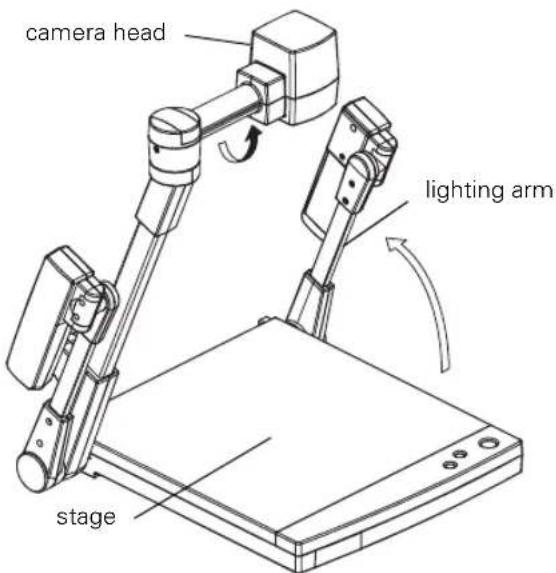
Unfolding the Document Camera
Follow these steps to unfold the document camera:
- Raise the camera arm until you hear a click, then lower it slightly until it locks into place.
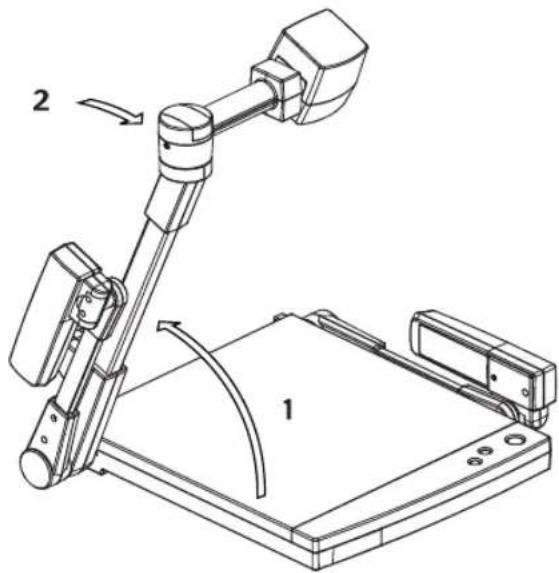
text_image
Technical diagram of a mechanical device with labeled parts 1 and 2, showing assembly or assembly steps.-
Rotate the camera head so that the lens faces the stage (downward).
-
Raise the right lighting arm, as shown, until it stops.
text_image
camera head lighting arm stage- Rotate the lighting units forward, as shown, until they stop.
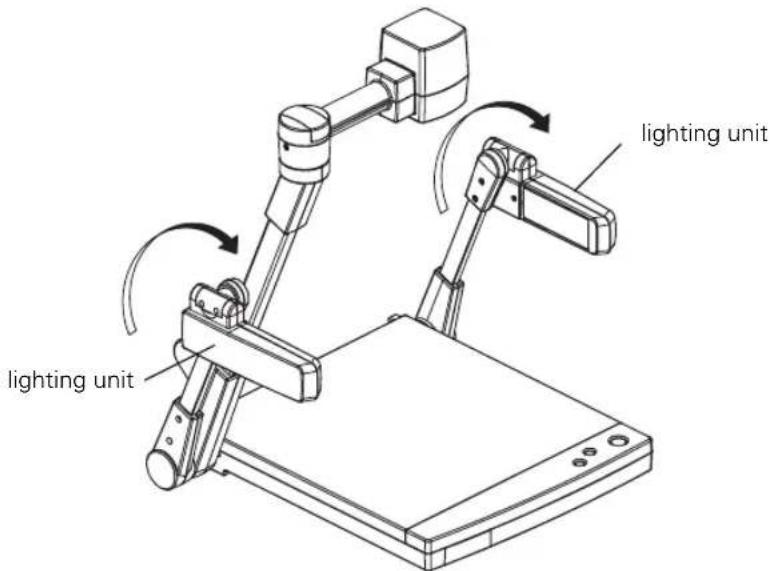
text_image
lighting unit lighting unit- Tilt the lighting arms outward until they stop; then position the lighting units so that they face the stage (downward).

natural_image
Technical line drawing of a mechanical device with articulated arms and a base plate (no text or symbols)Connecting to a Projector or TV/Computer Monitor
You can connect the document camera to any projector or monitor that has a standard RGB video or composite video input port. EPSON projectors support both connections. Most computer monitors support only RGB video, while many television monitors support composite video. Follow the instructions below to connect the document camera to your output device with an RGB video cable or an RCA cable.
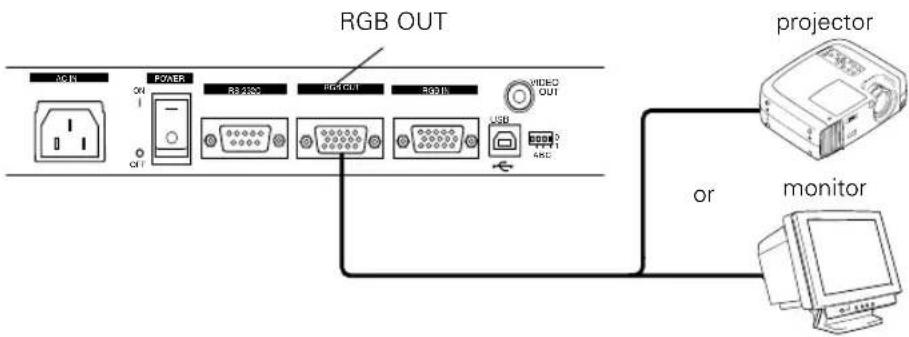
Connecting the RGB Video Cable
Before you start, make sure your document camera and projector or computer monitor are turned off.
- Connect one end of the RGB video cable to the document camera's RGB OUT port.
text_image
RGB OUT AC IN POWER RS-23C R51OUT RGB IN VIDEO OUT USB or monitor-
Connect the other end of the RGB video cable to the RGB video input port on the projector or computer monitor.
-
Tighten the screws on the connectors.
note
The RGB video input port on the projector or monitor may be labeled "computer," or "video in."
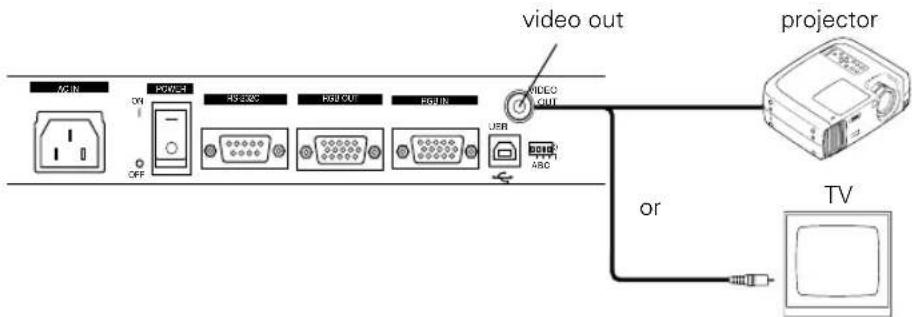
Connecting the RCA Cable
Before you start, make sure your document camera and projector or TV are turned off.
- Connect one end of the RCA cable to the document camera's VIDEO OUT port.
text_image
DCIN ON OFF POWER 4D 350Ω RHD OUT RHD UR VIDEO OUT USB PROJECTOR or TV- Connect the other end of the RCA cable to the RCA input port on the projector or TV.
Connecting to a Computer
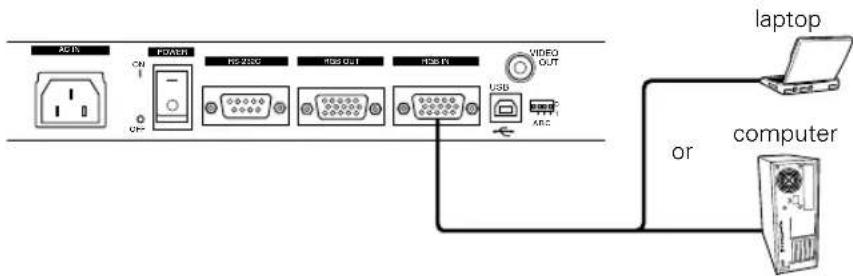
The document camera comes with one RGB video input port. This can be used to connect a laptop or desktop computer to the document camera.
This is especially useful if your projector has only one input port. You can connect a computer to the document camera's RGB input port as described below, and connect the document camera to the projector's input port as described on page 11. This way, you can use the camera's remote control to switch between picture sources. Follow the instructions on page 20 to switch between the sources.
Before you start, make sure your document camera and computer are turned off.
- Connect one end of the RGB video cable to the document camera's RGB IN port.
text_image
AC IN POWER RS-230C RBS OUT RBS IN VIDEO OUT USB Laptop or computer-
Connect the other end of the RGB video cable to your computer's RGB video output (monitor) port.
-
Tighten the screws on the connectors.
Connecting a Mouse to the Document Camera
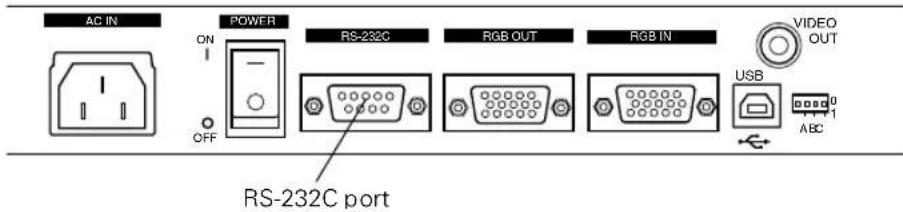
The included mouse functions as a pointing device. It also gives you access to the document camera's on-screen display, which controls many of the features that are selectable from the remote control. To connect the mouse, follow the instructions below.
- Make sure your document camera is turned off.
- Connect the mouse cable to the RS-232C port on the back of the document camera.
- Make sure DIP switch C is set to 0 (up). If it is not, follow the instructions on page 15 to change the DIP switch setting.
text_image
AC IN POWER RS-232C RGB OUT RGB IN VIDEO OUT USB 0 1 ABC RS-232C portAdjusting the Camera DIP Switches
The document camera has four DIP switches that control special settings. Refer to the table below to make sure they are set correctly for your configuration.

text_image
DIP switches ABC AC-15 CN DIGIT RS-20C FL43 CU USB VIDEO OUT AC| DIP Switch 0 | 1 Function | ||
| — | — | — | Factory use only. |
| A | N * | PAIT Selects the TS video output C format. Select NTSC for US model TV sets and PAL for European TV sets. | |
| B | 6 * | 50 Hz Selects the shutter frequency. If the image starts to flicker, try setting the shutter frequency to 50. | |
| C Mouse | * | RS-232C Selects the communication mode of the RS-232C port. To use a mouse, set the switch to 0. To use control codes, set the switch to 1. | |
* Default setting
note
For a list of control codes, go to http://support.epson.com. After selecting your product from the list, you can access technical information on controlling your document camera from your computer.
2
Using the
Document Camera
Once you have set up the document camera, you're ready to turn it on, adjust the image, and give your presentation. This chapter covers the following:
■ Turning on the document camera and other equipment
■ Switching between picture sources
■ Adjusting the lighting
■ Adjusting the image
■ Using the pointer
■ Pausing the Main display
■ Adjusting settings with the on-screen display
■ Using the camera head as a conventional video camera
■ Using the Image Mate software
■ Turning off and storing the document camera
Turning On Your Equipment
Make sure your document camera and other equipment are set up and connected correctly, as described in Chapter 1. Always turn on your projector or monitor first. Then turn on your document camera, as described below, followed by any other equipment you've connected to it.
You can turn on your computer and video equipment in any order. If you have both a computer and video source connected, you may have to switch to the desired source to see its image, as described on page 20.
Turning On the Document Camera
Follow these steps to plug in and turn on the document camera:
- Connect one end of the power cord to the document camera's power inlet.

text_image
AC IN POWER DC-22C RGB OUT RGB IN VIDEO OUT USB ABC power inlet- Connect the other end to a grounded electrical outlet.
- Turn on the projector or monitor.
- Turn on the document camera.

text_image
AC IN DC POWER DC+200C DC+100A DC+50V USB IN VIDEO OUT USB Power switch AB CAfter a few moments, the upper lamps turn on.
- Place your presentation material on the stage. You should see an image on screen.
Once you see your image, turn to page 22 for instructions on making adjustments.
If your image doesn't appear, see the next section for help.
When you're done with your presentation, turn off the document camera as described on page 27.
note
If you turn off the document camera, always wait a few seconds before turning it back on.
What To Do If You See a Blank Screen
If an image doesn't appear, try the following:
■ Make sure the cables are connected correctly, as described on page 11 for a projector or monitor or page 13 for a computer.
■ Make sure everything is turned on.
■ Make sure the lighting unit lamps are on.
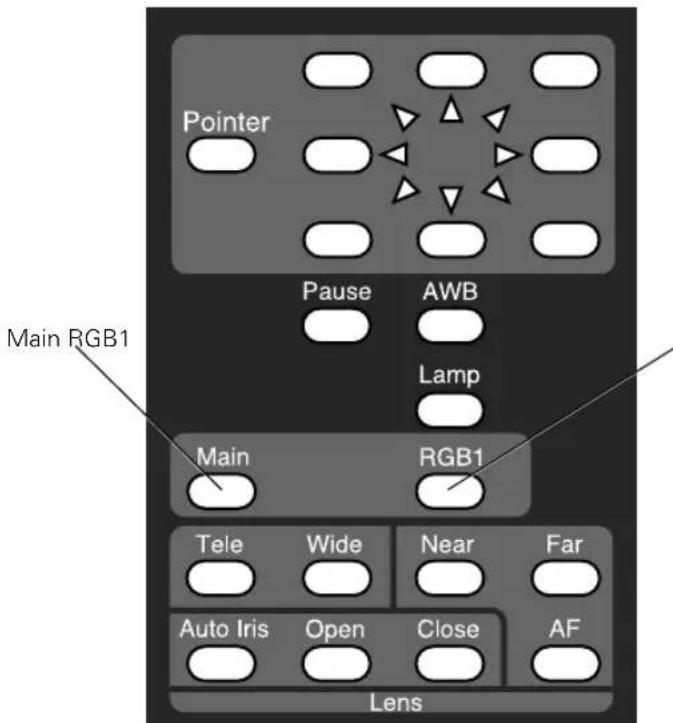
If you are using a video source, such as a laptop or desktop computer, you may need to switch video sources. Press the RGB1 button as shown on page 20.
If an image still doesn't appear, refer to Chapter 4 for more help.
Switching Between Picture Sources
If you have an external video source connected to the document camera, such as a laptop or desktop computer, you can switch between the video source and the camera. Press the RGB1 button on the remote control to switch the video source. Press the Main button to switch back to the camera.
text_image
Pointer Pause AWB Lamp Main RGB1 Main RGB1 Tele Wide Near Far Auto Iris Open Close AF LensAdjusting the Lighting
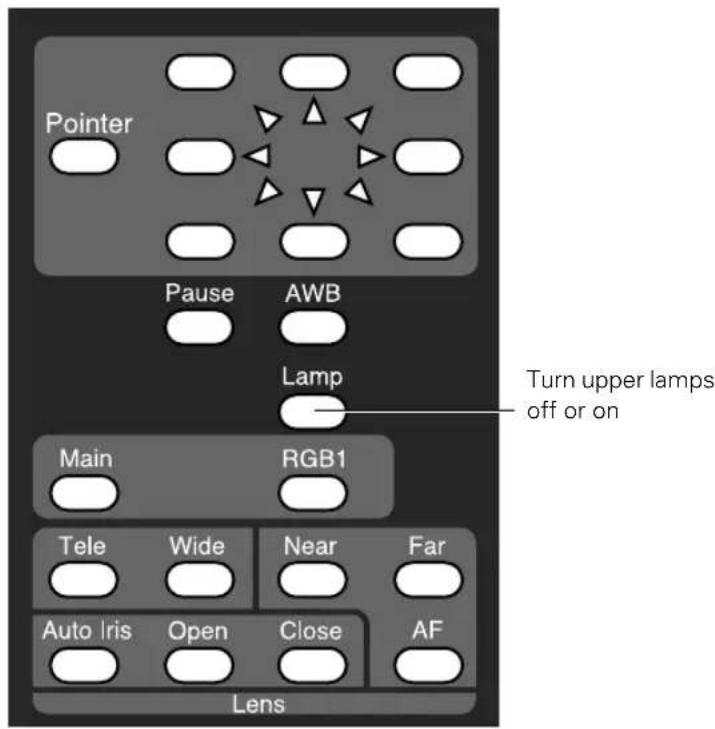
If you are presenting printed material or 3-D objects, the two upper lamps provide ample light. If the ambient lighting in the room is sufficient, however, you may obtain a better image with the upper lamps off.
Press the Lamp button on the remote control to turn off the lamps one at a time from right to left (when facing the unit's control panel). Press it a third time to turn the lamps back on. There will be a slight delay before the lamps turn back on.
text_image
Pointer Pause AWB Lamp Turn upper lamps off or on Main RGB1 Tele Wide Near Far Auto Iris Open Close AF LensAdjusting the Image
Once you see your image, you may need to make certain adjustments:
■ To zoom or focus your image, see the next section.
■ If the image is too light or dark, see page 23.
■ If the image has a color cast, see page 23.
Zooming and Focusing Your Image
Use the Tele button on the control panel or remote control to enlarge the image, and use the Wide button to reduce it. The document camera will automatically focus the image.
Your document camera is equipped with a double speed zoom feature. Press Tele or Wide briefly to zoom at normal speed. Press and hold in either button to zoom at a higher rate of speed.
If you change items on the stage, press the Auto Focus button to focus the image. The indicator light flashes until the image is focused. The following objects may not focus well using the auto focus feature:
■ Objects with little contrast
■ Objects with a bright background or excessive contrast
■ Objects with fine repeated patterns or stripes
■ Objects that glitter or reflect bright light
■ Objects with varying depths of field
To manually focus these objects, use the Near or Far button on the remote control.
note
The auto focus function works up to a height of approximately 5.9 in. (15 cm) above the stage surface.

text_image
Remote Control Pointer Pause AWB Lamp Main RGB1 Tele Wide Near Far Auto Iris Open Close AF Lens Far Enlarge Reduce Near Auto Focus
text_image
Control Panel EPSON ELPDC04 Zoom Wide Auto Focus ReduceEnlarge Take Auto FocusAdjusting the Brightness
The document camera is initially set to auto iris. You can manually adjust the iris to control the amount of light that reaches the camera.
If the screen looks dark, press the Open button on the remote control to open the iris so that more light reaches the camera. If the screen looks too bright, press the Close button. To return to the auto iris default setting, press the Auto Iris button.
Adjusting the White Balance
In different lighting conditions it may be necessary to adjust the document camera's white balance. This setting automatically corrects for color shifts in different lighting environments.
If the displayed image has a color cast, press the AWB button on the remote control to automatically adjust the white balance. See page 24 for manual white balance adjustments using the document camera's on-screen display.
Using the Pointer
The pointer lets you direct attention to specific sections of your presentation material. You can choose from two types of pointers in four colors.
To make the pointer appear on the screen, press the Pointer button on the remote control. When the mouse is connected to the document camera, pressing the left mouse button will also display the cursor.
To move the pointer, use the direction buttons on the remote control. The mouse also allows you to move the pointer as you would on a computer.
To remove the pointer from the screen, press the Pointer button on the remote control or click the left mouse button three times (this brings up an on-screen display before the pointer is removed).
For information on selecting different types of pointers, see page 24.

text_image
Remote control direction buttons correct color cast Pointer Pause AWB Lamp Main RGB1 Tele Wide Near Far Auto Iris Open Close AF Lens increase brightness reduce brightnessnote
The pointer feature only works when the document camera is in the Main display mode. It does not work then the document camera is in the RGB1 display mode.
note
The pause feature only works when the document camera is in the Main display mode. It does not work then the document camera is in the RGB1 display mode.
Pausing the Main Display
During a presentation, it may be necessary to change the material you are displaying. Press the Pause button before switching your material. This freezes the image on screen, allowing you to change your material. When you are ready to display the next item, press the Pause button again.
Adjusting Settings with the On-Screen Display
The on-screen display allows access to many of the settings available with the document camera's remote control. To access the on-screen display, you must have the mouse connected to the document camera's RS-232C port (See “Connecting a Mouse to the Document Camera” on page 14). When the left mouse button is clicked, the on-screen display and the pointer appears. The table below lists the various functions and their descriptions.

text_image
UPPER A F NEAR WB +3 0 -3| Icon Name Function | |||
 | Lighting Unit On/Off | Turns off the lamps individually. Click once to turn off the right lamp. Click a second time to turn off the left lamp. Click a third time to turn on both lamps (this may take a few seconds). | |
 |  | Color/B&W Switches the display from Color to B&W (black and white). | |
 |  | Pause On/Off | Switches the screen from Live to Still. |
| Icon Name Function | ||
 | Auto Focus Automatically brings objects on the stage into focus. | |
  | Zoom Tele/Wide | Zooms in or out. |
  | Focus Near/Far | Manually focuses objects that do not work with the auto focus feature. |
  | Iris Open/Close | Increases or reduces image brightness. |
 | Pointer Changes the shape and color of the on-screen pointer. | |
  | White balance Automatic | Automatically adjusts the white balance and corrects color casts. |
  | White balance Manual | Enables manual white balance adjustment. Click the arrows below to adjust the colors individually to compensate for color casts. |
 | ||
  | Aperture selection On/Off | Turns image enhancement (contour) on and off. This setting is on by default. |
  | Gamma selection | Changes the gamma setting from 1.0 to 0.6. The default gamma setting is 1.0. |
 | Save settings Saves change made to the document camera. | |
 | Restore defaults | Restores settings to factory defaults. |
Using the Camera Head as a Conventional Video Camera
note
The camera's shutter operates at 15 frames per second.
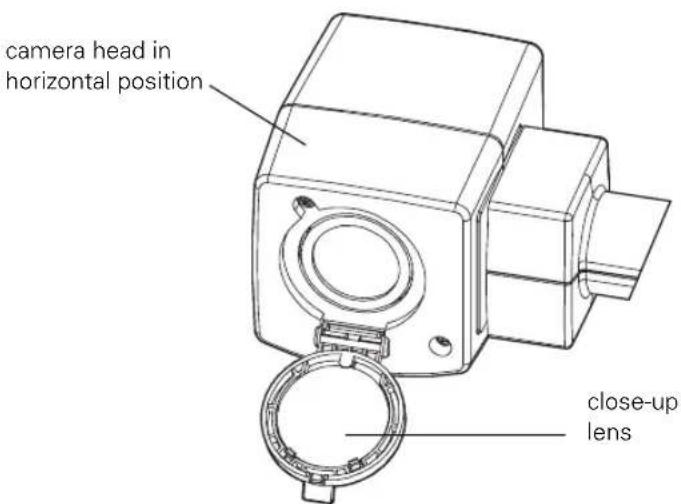
By rotating the camera head to a horizontal position, you can use the document camera as a conventional video camera. To view walls or distant objects, flip down the close-up lens. The document camera can resolve images from 3.6 feet (1.1 m) to infinity.
text_image
camera head in horizontal position close-up lensUsing the Image Mate Software
The Image Mate software allows you to transfer images from the document camera to the PC. You can also use the virtual remote control feature to control the document camera and change its settings. For more information on installing and using the Image Mate software, see the manual.pdf file in the US folder on the Image Mate CD-ROM. To view the PDF file, you will need to have Adobe® Acrobat® Reader® installed on your computer. If it's not already installed, run ar500enu.exe in the Acrobat US folder on the CD-ROM.
Turning Off and Storing the Document Camera
When you've finished using the document camera, follow these steps to turn off and store it. If you're using a monitor or projector, shut it down last.
- Turn off the document camera.
- Unplug the power cord and disconnect any attached video cables.
- If the close-up lens is flipped down, close it.
- Place the remote control inside the remote control storage compartment and close the tray.

text_image
remote controlcaution
Be careful not to let the camera arm drop, or you may damage it.
- Turn the lighting units toward the lighting arms until they stop; then tilt the lighting arms toward the stage (inward).

text_image
lighting unit lighting arm lighting unit lighting arm stage- Rotate the lighting units backward, as shown, until they stop.

natural_image
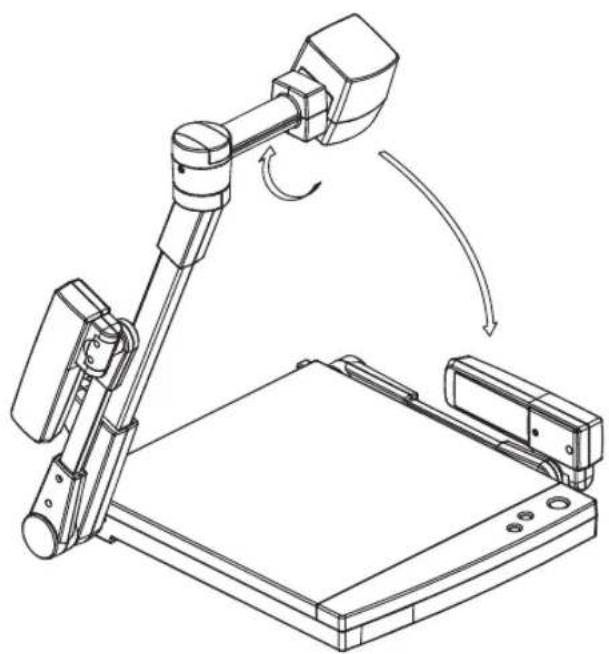
Technical line drawing of a robotic arm with articulated joints and a base platform (no text or symbols)- Lower the right lighting arm and rotate the camera head to its original position.
natural_image
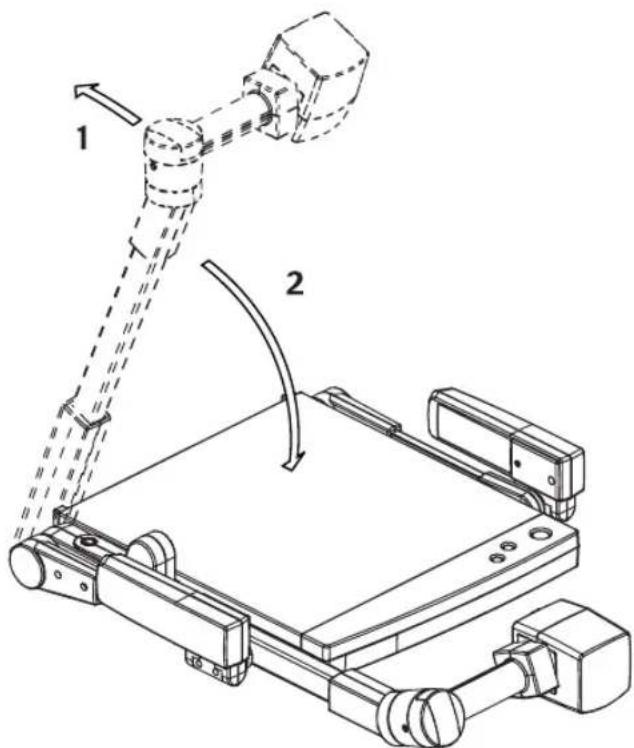
Technical line drawing of a mechanical device with rotating arm and base plate (no text or symbols)- Raise the camera arm until you hear a click, then lower the arm until it stops.
text_image
Technical diagram of a robotic arm with labeled components and motion arrows3
Maintaining and Transporting the Document Camera
warning
Before you clean any part of the document camera, turn it off and unplug the power cord. Never open any cover on the document camera. Dangerous electrical voltages in the document camera can injure you severely. Don't try to service this product yourself. Refer all servicing to qualified service personnel.
Your document camera needs little maintenance. All you need to do on a regular basis is keep the lenses and stage clean. Any dirt or smears on the lenses or stage may show up on your presented image.
You should not replace the lamps or any other parts. If any part needs replacing, contact your dealer or a qualified servicer.
This chapter covers the following:
■ Cleaning the lenses
■ Cleaning the document camera case
■ Transporting the document camera
Cleaning the Lenses
Clean the lenses whenever you notice dirt or dust on the surface.
■ Use a canister of compressed air to remove dust.
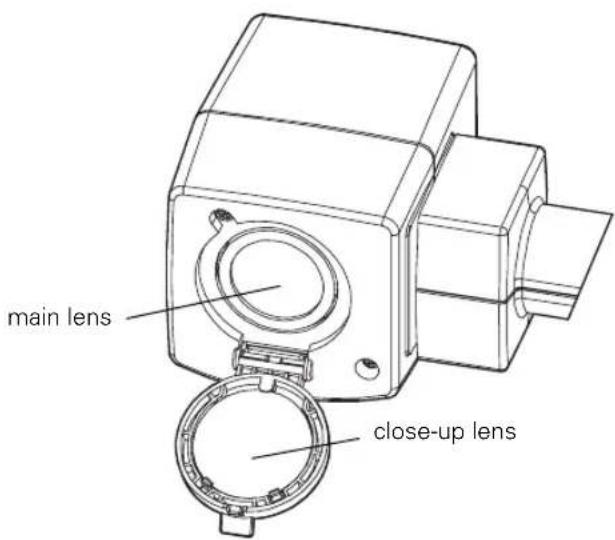
■ To remove dirt or smears on the lenses, use lens-cleaning paper. If necessary, moisten a soft cloth with lens cleaner and gently wipe the lens surface.
■ Clean both sides of the close-up lens.
text_image
main lens close-up lensCleaning the Document Camera Case
Before you clean the case, first turn off the document camera and unplug the power cord.
■ To remove dirt or dust, wipe the case with a soft, dry, lint-free cloth.
■ To remove stubborn dirt or stains, moisten a soft cloth with water and a neutral detergent. Then wipe the case.
■ Do not use wax, alcohol, benzene, thinner, or other chemical detergents. These can damage the case.
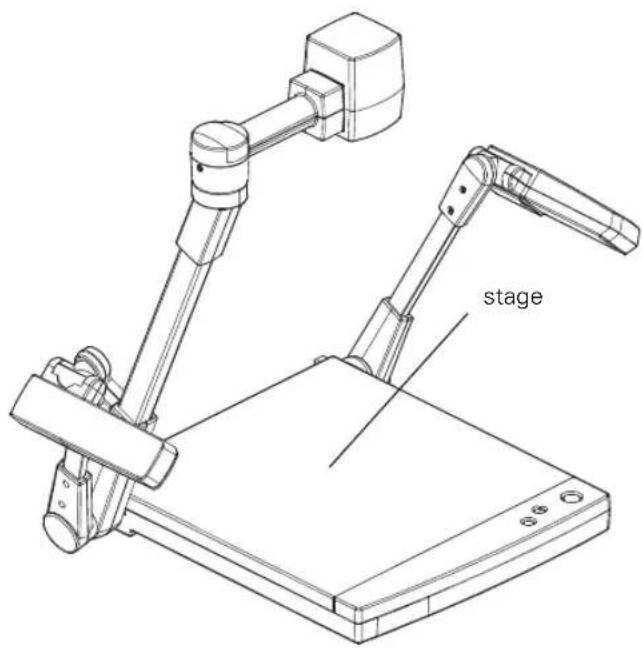
■ Take special care when cleaning the stage, or you may scratch it. Scratches on the stage may appear on your image.
text_image
stageTransporting the Document Camera
note
EPSON shall not be liable for any damages incurred during transportation.
The document camera contains many glass and precision parts. If you need to transport it, follow these guidelines to prevent damage to the document camera:
■ Make sure to turn off and fold the document camera as described on page 27.
■ When shipping the document camera for repairs, use the original packaging material if possible. If you do not have the original packaging, use equivalent materials, placing plenty of cushioning around the document camera.
■ When transporting the document camera a long distance, pack it in a firm box, using cushioning around the document camera.
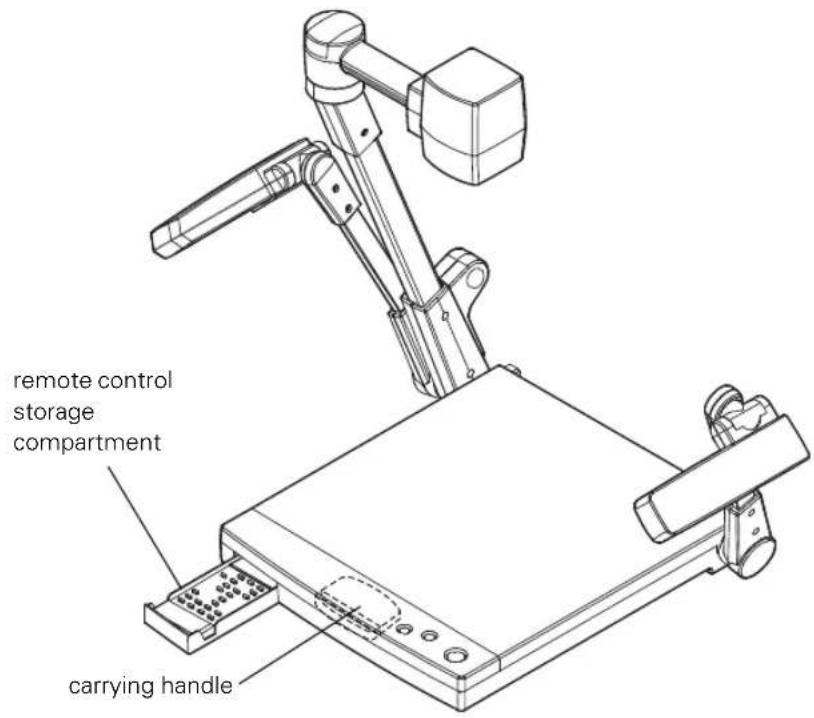
■ When you are hand-carrying the document camera, be sure to use the carrying handle.
■ When transporting the document camera, you may leave the remote control inside the remote control storage compartment.
text_image
remote control storage compartment carrying handle4
Solving Problems
This chapter helps you solve problems with your document camera, and tells you how to contact technical support for problems you can't solve yourself. This chapter explains the following:
■ Solving problems with the image
■ Solving problems with the remote control
■ Contacting technical support
Solving Problems with the Image
No image appears on the screen.
- Check that all cables are properly connected (see Chapter 1) and everything is turned on.
■ Make sure the projector or computer is not in sleep mode. Check the projector documentation, or try pressing a key on the computer keyboard.
■ The document camera may have been turned on too quickly after it was turned off. Turn the document camera off, wait a few seconds, and then turn it on again.
■ The wrong source may be selected. Try pressing the Main or RGB1 button on the remote control.
■ You may need to change the NTSC or PAL DIP switch setting on the document camera. See page 15 for instructions.
The image contains static or noise.
If you're using cables that are longer than 6 feet (2 m), or an extension cable, the image quality may be reduced. Try using the cables supplied with the document camera.
- Keep your projector, computer, and video cables away from the power cord as much as possible to prevent interference.
The camera's DIP switches may be set incorrectly. Try adjusting the switches as described on page 15.
The image is blurry.
■ There may be dirt on the lenses. Clean the lenses as described on page 32.
■ Try pressing the Auto Focus button.
■ Some objects do not auto focus well (see page 22). Manually focus these objects using the Near and Far buttons.
■ The presentation material may be too close to the lens. Make sure the close-up lens is closed.
■ The presentation material may be too far from the lens. Open the lens by flipping it down.
■ Make sure there is no condensation on the lenses. You may need to wait before using the document camera after moving it from a cold environment to a warm environment.
Solving Problems with the Remote Control
■ Make sure you are within 23 feet (7 m) of the document camera, and within range of the document camera's front or back sensor (approximately 30^ to the left or right and 15^ above or below).
■ The remote control batteries may not be installed correctly or may be low on power. Try changing the batteries as described on page 7.
Dim the room lights and turn off any fluorescent lighting. Make sure the document camera is not in direct sunlight. Strong lighting, especially fluorescent lights, may affect the document camera's infrared receivers.
■ Turn off any nearby equipment that emits infrared energy, such as a radiant room heater.
Where to Get Help
EPSON provides technical assistance through electronic support services 24 hours a day, as listed in the following table:
| Service Access | |
| World Wide Web | From the internet, you can reach EPSON’s product support athttp://support.epson.com. After selecting your product, you can access troubleshooting information, download product documentation, and receive technical advice through e-mail. |
| Presenters Online Accesstips, templates, and training for developing successful presentations athttp://www.presentersonline.com. | |
Telephone Support Services
To use the EPSON PrivateLine Support service, call (800) 637-7661 and enter the PIN on the EPSON PrivateLine Support card included with your document camera. This is the fastest way of speaking to a live representative, and it's free. This service is available 6 AM to 6 PM, Pacific Time, Monday through Friday, for the duration of your warranty period.
You may also speak with an EPSON document camera support specialist by dialing one of these numbers:
■ U.S.: (562) 276-4394, 6 AM to 6 PM, Pacific Time, Monday through Friday
■ Canada: (905) 709-3839, 6 AM to 6 PM, Pacific Time, Monday through Friday
Toll or long distance charges may apply.
Before you call, please have the following information ready:
■ Product name (EPSON ELPDC04 High Resolution Document Camera)
■ Product serial number (located on the rear panel of the document camera)
■ Computer configuration, if applicable
■ Description of the problem
5 _T
Technical Specifications
General
CCD 1/3 inch (848,676 progressive square pixels)
Resolution 1024 × 768 pixels
Lens F=2.8, f=5.8 to 58 mm
Frame speed 15 frames per second
Shooting area 13.4 × 9.9 in. ( 340 × 252 mm) max.
1.5 × 1.1 in. (38 × 28 ~mm) min.
Limit of focus
adjustment 5.9 in. (150 mm) from the stage surface
using the close-up lens
1.6 feet (.5 m) to infinity with the camera
positioned horizontally and without using
the close-up lens
Zoom 10× optical with double speed function
Focus Automatic/manual
Iris Automatic/manual
White balance Automatic/manual
Gamma selection ON ( =0.6 ), OFF ( =1.0 )
Frequency selection 50 or 60 Hz
Video output NTSC or PAL
Lighting
Lamps High frequency fluorescent, 9 W × 2
Remote Control
Range 23 feet (7 m)
Batteries Alkaline AAA (2)
Dimensions
Weight 14.3 lb (6.5 kg)
Folded (h× w× d) 3.9× 19.7× 24.1 in.
(99 × 500 × 612 mm)
Unfolded (h × w × d) 22.6 × 27.8 × 15.9 in.
(575 × 706 × 403 mm)
Electrical
Rated frequency 50/60 Hz
Power supply 100 to 120 VAC
Power consumption 100 to 120 VAC: 55 W
Environmental
Temperature Operating: 41 to 104 °F (5 to 40 °C)
Storage: 14 to 140 °F (-10 to 60 °C)
Humidity Operating: 30 to 85% RH,
non-condensing
Storage: 20 to 90% RH,
non-condensing
Safety
United States FCC 47CFR Part 15B Class B (DoC)
UL1950 3rd Edition
Canada ICES-003
CSA C22.2 No.950-95 (cUL)
Compatible Video Formats
The document camera supports NTSC and PAL video standards, as well as the monitor display formats listed below.
| Mode Refresh Rate (Hz) | Resolution | |
| VGA1 85.08 640 | × 350 | |
| VGA2 85.08 640 | × 400 | |
| VGA3 85.039 720 | × 400 | |
| VGA—60 59.94 640 | × 480 | |
| VGA—72 72.809 640 | × 480 | |
| VGA—75 75 640 | × 480 | |
| VGA—85 85.008 640 | × 480 | |
| SVGA—56 56.25 800 | × 600 | |
| SVGA—60 60.317 800 | × 600 | |
| SVGA—72 72.188 800 | × 600 | |
| SVGA—75 75 800 | × 600 | |
| SVGA—85 85.061 800 | × 600 | |
| XGA—60 60.004 1024 | × 768 | |
| XGA—70 70.069 1024 | × 768 | |
| XGA—75 75.029 1024 | × 768 | |
| XGA—85 84.997 1024 | × 768 | |
| SXGA1 75 1152 | × 864 | |
| SXGA2 60 1280 | × 960 | |
| SXGA3 85.002 1280 | × 960 | |
| SXGA—60 60.02 1280 × | 1024 | |
| SXGA—75 75.025 1280 | × 1024 | |
| SXGA—85 85.024 1280 | × 1024 | |
| UXGA—60 60 1600 | × 1200 | |
| UXGA—65 65 1600 | × 1200 | |
| UXGA—70 70 1600 | × 1200 | |
| UXGA—75 75 1600 | × 1200 | |
| UXGA—85 85 1600 | × 1200 | |
| MAC 13 66.667 640 | × 480 | |
| MAC 16 74.55 832 | × 624 | |
| MAC 19 74.927 1024 | × 768 | |
| MAC 21 75.062 1152 | × 870 | |
| PC98 56.42 640 | × 400 |
Notices
This chapter includes safety instructions and other important information about your EPSON document camera.
Important Safety Instructions
Follow these safety instructions when setting up and using the document camera:
- Read Instructions – All the safety and operating instructions should be read before the appliance is operated.
- Retain Instructions – The safety and operating instructions should be retained for future reference.
■ Heed Warnings – All warnings on the product appliance and in the operating instructions should be adhered to.
■ Follow Instructions – All operating and use instructions should be followed. - Cleaning – Unplug this product from the wall outlet before cleaning. Do not use liquid cleaners or aerosol cleaners. Use a damp cloth for cleaning.
■ Attachments – Do not use attachments not recommended by the product manufacturer as they may cause hazards.
Water and Moisture – Do not use this product near water—for example, near a bath tub, wash bowl, kitchen sink, or laundry tub, in a wet basement, or near a swimming pool, and the like. - Accessories – Do not place this product on an unstable cart, stand, tripod, bracket, or table. The product may fall, causing serious injury to a child or adult, and serious damage to the product. Use only with a cart, stand, tripod, bracket, or table recommended by the manufacturer, or sold with the product. Any mounting of the product should follow the manufacturer's instructions, and should use a mounting accessory recommended by the manufacturer.
Ventilation – Slots and openings in the cabinet are provided for ventilation and to ensure reliable operation of the product and to protect it from overheating, and these openings must not be blocked or covered. The openings should never be blocked by placing the product on a bed, sofa, rug, or other similar surface. This product should not be placed in a built-in installation such as a bookcase or rack unless proper ventilation is provided or the manufacturer's instructions have been adhered to.
■ Place the document camera near a wall outlet where the plug can be easily unplugged.
■ Power Sources – This product should be operated only from the type of power source indicated on the marking label. If you are not sure of the type of power supply to your home, consult your appliance dealer or local power company. For products intended to operate from battery power or other sources, refer to the operating instructions.
- Grounding or Polarization – This product may be equipped with either a polarized 2-wire AC line plug (a plug having one blade wider than the other) or a 3-wire grounding type plug (a plug having a third grounding pin). The 2-wire polarized plug will fit into the power outlet only one way. This is a safety feature. If you are unable to insert the plug fully into the outlet, try reversing the plug. If the plug still fails to fit, contact your electrician to replace your obsolete outlet. Do not defeat the safety purpose of the polarized plug. The 3-wire grounding type plug will fit into a grounding type power outlet. This is a safety feature. If you are unable to insert the plug into the outlet, contact your electrician to replace your obsolete outlet. Do not defeat the safety purpose of the grounding type plug.
■ Power-Cord Protection – Power-supply cords should be routed so that they are not likely to be walked on or pinched by items placed upon or against them, paying particular attention to cords at plugs, convenience receptacles, and the point where they exit from the product.
Lightning – For added protection for this product during a lightning storm, or when it is left unattended and unused for long periods of time, unplug it from the wall outlet and disconnect the antenna or cable system. This will prevent damage to the product due to lightning and power-line surges.
- Overloading – Do not overload wall outlets, extension cords, or integral convenience receptacles as this can result in a risk of fire or electric shock.
A product and cart combination should be moved with care. Quick stops, excessive force, and uneven surfaces may cause the product and cart combination to overturn.
■ Object and Liquid Entry – Never push objects of any kind into this product through openings as they may touch dangerous voltage points or short-out parts that could result in a fire or electric shock. Never spill liquid of any kind on the product.
- Servicing – Do not attempt to service this product yourself as opening or removing covers may expose you to dangerous voltage or other hazards. Refer all servicing to qualified service personnel.
■ Damage Requiring Service – Unplug this product from the wall outlet and refer servicing to qualified service personnel under the following conditions:
■ When the power-supply cord or plug is damaged.
■ If liquid has been spilled, or objects have fallen into the product.
■ If the product has been exposed to rain or water.
If the product does not operate normally by following the operating instructions. Adjust only those controls that are covered by the operating instructions as an improper adjustment of other controls may result in damage and will often require extensive work by a qualified technician to restore the product to its normal operation.
■ If the product has been dropped or damaged in any way.
■ When the product exhibits a distinct change in performance—this indicates a need for service.
- Replacement Parts – When replacement parts are required, be sure the service technician has used replacement parts specified by the manufacturer or have the same characteristics as the original part. Unauthorized substitutions may result in fire, electric shock or other hazards.
■ Safety Check – Upon completion of any service or repairs to this product, ask the service technician to perform safety checks to determine that the product is in proper operating condition. - Heat – The product should be situated away from heat sources such as radiators, heat registers, stoves, or other products (including amplifiers) that produce heat.
WARNING:
TO REDUCE THE RISK OF FIRE OR ELECTRIC SHOCK, DO NOT EXPOSE THIS PRODUCT TO RAIN OR MOISTURE.
THIS IS A CLASS B PRODUCT. IN A DOMESTIC ENVIRONMENT THIS PRODUCT MAY CAUSE RADIO INTERFERENCE IN WHICH CASE THE USER MAY BE REQUIRED TO TAKE ADEQUATE MEASURES.
Remote Control Information
You can operate the document camera by remote control via a line-of-sight infrared (IR) receiver at the front and rear of the document camera. The document camera may not respond to remote control commands under the following conditions:
■ There is an object between the remote control IR emitter and the IR receiver on the document camera.
■ Ambient light is too bright.
■ Certain types of fluorescent lighting are used.
■ A strong light source shines into the IR receiver.
■ Other equipment that emits infrared energy, such as a radiant room heater, is in the room.
These conditions commonly cause problems for most infrared-controlled equipment. Try the following:
■ The remote control batteries may be low on power; replace them.
■ Dim the ambient lighting and/or turn off any fluorescent lights.
■ Close any window coverings and/or move the document camera out of direct sunlight.
■ Turn off other equipment that emits infrared energy.
If the remote control still does not work properly, you can always use the buttons located on the document camera control panel, even in an environment containing one of the conditions listed above.
Declaration of Conformity
According to 47CFR, Part 2 and 15 Class B Personal Computers and Peripherals; and/or CPU Boards and Power Supplies used with Class B Personal Computers
We: EPSON AMERICA, INC.
Located at: 3840 Kilroy Airport Way
MS: 3-13
Long Beach, CA 90806-2469
Telephone: (562) 290-5254
Declare under sole responsibility that the product identified herein, complies with 47CFR Part 2 and 15 of the FCC rules as a Class B digital device. Each product marketed, is identical to the representative unit tested and found to be compliant with the standards. Records maintained continue to reflect the equipment being produced can be expected to be within the variation accepted, due to quantity production and testing on a statistical basis as required by 47CFR §2.909. Operation is subject to the following two conditions: (1) this device may not cause harmful interference, and (2) this device must accept any interference received, including interference that may cause undesired operation.
Trade Name: EPSON
Type of Product: Image Presentation Camera
Model: ELPDC04
FCC Compliance Statement
For United States Users
This equipment has been tested and found to comply with the limits for a Class B digital device, pursuant to Part 15 of the FCC Rules. These limits are designed to provide reasonable protection against harmful interference in a residential installation. This equipment generates, uses, and can radiate radio frequency energy and, if not installed and used in accordance with the instructions, may cause harmful interference to radio or television reception. However, there is no guarantee that interference will not occur in a particular installation. If this equipment does cause interference to radio and television reception, which can be determined by turning the equipment off and on, the user is encouraged to try to correct the interference by one or more of the following measures:
■ Reorient or relocate the receiving antenna.
■ Increase the separation between the equipment and receiver.
■ Connect the equipment into an outlet on a circuit different from that to which the receiver is connected.
■ Consult the dealer or an experienced radio/TV technician for help.
WARNING
The connection of a non-shielded equipment interface cable to this equipment will invalidate the FCC Certification of this device and may cause interference levels which exceed the limits established by the FCC for this equipment. It is the responsibility of the user to obtain and use a shielded equipment interface cable with this device. If this equipment has more than one interface connector, do not leave cables connected to unused interfaces. Changes or modifications not expressly approved by the manufacturer could void the user's authority to operate the equipment.
For Canadian Users
This Class B digital apparatus meets all requirements of the Canadian Interference-Causing Equipment Regulations.
Epson America, Inc. Limited Warranty
What Is Covered: Epson America, Inc. (“Epson”) warrants to the first end user customer of the EPSON product enclosed with this limited warranty statement that the product, if purchased and used in the United States or Canada, conforms to the manufacturer’s specifications and will be free from defects in workmanship and materials for a period of two (2) years from the date of original purchase (except that the warranty period is 90 days for lamps). For warranty service, you must provide proof of the date of original purchase.
What Epson Will Do To Correct Problems: Should your EPSON product prove defective during the warranty period, please bring the product securely packaged in its original container or an equivalent, along with proof of the date of original purchase, to your EPSON Dealer or EPSON Customer Care Center. Epson will, at its option, repair or replace on an exchange basis the defective unit, without charge for parts or labor. When warranty service involves the exchange of the product or of a part, the item replaced becomes EPSON property. The exchanged product or part may be new or previously repaired to the EPSON standard of quality. Exchange or replacement products or parts assume the remaining warranty period of the product covered by this limited warranty. However, each replacement lamp carries the limited 90-day warranty stated above.
What This Warranty Does Not Cover: This warranty covers only normal use in the United States and Canada. For lamps, 24-hour-per-day use causes unusual strain and is not considered normal use. This warranty is not transferable and will not apply to products purchased from an end user. This warranty does not cover consumables (e.g., fuses), other than lamps. EPSON is not responsible for warranty service should the EPSON label or logo or the rating label or serial number be removed or should the product fail to be properly maintained or fail to function properly as a result of misuse, abuse, improper installation, neglect, improper shipping, damage caused by disasters such as fire, flood, and lightning, improper electrical current, software problems, interaction with non-EPSON products, or service other than by an EPSON Authorized Servicer. Postage, insurance, or shipping costs incurred in presenting your EPSON product for carry-in warranty service are your responsibility. If a claimed defect cannot be identified or reproduced in service, you will be held responsible for costs incurred.
THE WARRANTY AND REMEDY PROVIDED ABOVE ARE EXCLUSIVE AND IN LIEU OF ALL OTHER EXPRESS OR IMPLIED WARRANTIES INCLUDING, BUT NOT LIMITED TO, THE IMPLIED WARRANTIES OF MERCHANTABILITY OR FITNESS
FOR A PARTICULAR PURPOSE. SOME LAWS DO NOT ALLOW THE EXCLUSION OF IMPLIED WARRANTIES. IF THESE LAWS APPLY, THEN ALL EXPRESS AND IMPLIED WARRANTIES ARE LIMITED TO THE WARRANTY PERIOD IDENTIFIED ABOVE. UNLESS STATED HEREIN, ANY STATEMENTS OR REPRESENTATIONS MADE BY ANY OTHER PERSON OR FIRM ARE VOID. EXCEPT AS PROVIDED IN THIS WRITTEN WARRANTY, NEITHER EPSON AMERICA, INC. NOR ITS AFFILIATES SHALL BE LIABLE FOR ANY LOSS, INCONVENIENCE, OR DAMAGE, INCLUDING DIRECT, SPECIAL, INCIDENTAL OR CONSEQUENTIAL DAMAGES, RESULTING FROM THE USE OR INABILITY TO USE THE EPSON PRODUCT, WHETHER RESULTING FROM BREACH OF WARRANTY OR ANY OTHER LEGAL THEORY. IF THE REMEDY ABOVE FAILS, EPSON'S ENTIRE LIABILITY SHALL BE LIMITED TO A REFUND OF THE PRICE PAID FOR THE EPSON PRODUCT COVERED BY THIS LIMITED WARRANTY.
In Canada, warranties include both warranties and conditions.
Some jurisdictions do not allow limitations on how long an implied warranty lasts and some jurisdictions do not allow the exclusion or limitation of incidental or consequential damages, so the above limitations and exclusions may not apply to you.
This warranty gives you specific legal rights, and you may also have other rights which vary from jurisdiction to jurisdiction.
To locate an Authorized EPSON Servicer nearest you, call the EPSON Connection ^SM at (562) 276-4394 in the U.S. and (905) 709-3839 in Canada or write to: Epson America, Inc., P. O. Box 93012, MS: 6-33, Long Beach, CA 90809-3012.
Index
Numerics
3-D objects, presenting, 21
A
Adjusting settings, 24 to 25
Auto Focus button, 22
Auto Iris button, 23
B
Batteries, installing, 7
Blank screen, 19
Blurry image, 36 to 37
Brightness, adjusting, 23
Buttons
focus, 22
iris, 23
lamp, 21
main, 20
pause, 24
RGB1, 20
zoom, 22
C
Cables, 6, 36
Cleaning, 31 to 33
Close button, 23
Close-up lens, 26, 32
Computer, connecting to, 13
Connecting document camera
to a computer, 13
to a monitor, 11 to 12
to a mouse, 14
to a projector, 11 to 12
Control codes, 15
D
Declaration of Conformity, 47
DIP switches, adjusting, 15
Document camera
cleaning, 31 to 33
connecting, 11 to 14
folding, 27 to 29
positioning, 8
specifications, 39 to 42
storing, 27 to 29
transporting, 34
turning off, 27
turning on, 18 to 19
unfolding, 9 to 10
E
Electrical specifications, 40
Enlarging, image, 22
Environmental specifications, 40
EPSON technical support, 3, 38
F
Far button, 22
FCC compliance statement, 48
Focusing image, 22
Folding document camera, 27 to 29
Frame speed, 26, 39
G
Gamma, 39
H
Help, 3, 38

Image
brightness, 23
focusing, 22
resolution, 39
shooting area, 39
shooting speed, 26, 39
sources, selecting, 20
troubleshooting, 19, 36 to 37
white balance, 23, 25
zooming, 22
Image Mate Software, 26
Iris, adjusting, 23

Lamp
selecting, 21
specifications, 39
Lens
cleaning, 31 to 32
specifications, 39
Lighting, adjusting, 21

Main button, 20
Monitor, connecting, 11 to 12
Mouse, connecting, 14

Near button, 22

On-screen display, adjusting settings, 24 to 25
Open button, 23

Picture, see Image
Pointer, using, 23
Positioning, document camera, 8
Power
specifications, 40
switch, 18
PrivateLine Support, 3, 38
Problems
blank screen, 19
image, 36 to 37
remote control, 37, 46
Projector, connecting, 11 to 12

Reducing, image, 22
Registration, 3
Remote control
batteries, 7
specifications, 40
storing, 34
troubleshooting, 37, 46
Resolution, 39
RGB1 button, 20

Safety
instructions, 43 to 45
specifications, 41
Screen image, see Image
Service, see Technical support
Shooting speed, 26, 39
Software, 26
Specifications
dimensions, 40
electrical, 40
environmental, 40
general, 39
lamp, 39
lens, 39
remote control, 40
safety, 41
video formats, 41 to 42
Support, see Technical support

Technical support, 3, 38
Tele button, 22
Television, connecting, 11 to 12
Temperature requirements, 40
Transporting, 34
Troubleshooting
image, 19, 36 to 37
remote control, 37, 46
Turning off document camera, 27
Turning on document camera, 18 to 19
U
Unfolding, document camera, 9 to 10
Unpacking, document camera, 6
V
Video camera, using camera as, 26
Video formats supported, 41 to 42
W
Warranty, 49 to 50
White balance, adjusting, 23, 25
Wide button, 22
Z
Zooming image, 22