Dimension 4500C - Desktop computer DELL - Free user manual and instructions
Find the device manual for free Dimension 4500C DELL in PDF.


User questions about Dimension 4500C DELL
0 question about this device. Answer the ones you know or ask your own.
Ask a new question about this device
Download the instructions for your Desktop computer in PDF format for free! Find your manual Dimension 4500C - DELL and take your electronic device back in hand. On this page are published all the documents necessary for the use of your device. Dimension 4500C by DELL.
USER MANUAL Dimension 4500C DELL
text_image
front door power button hard-drive light GD or DVD drive light breakaway hinge IEEE 1394 connector* PC Card connectors (2)** breakaway hinge USB 2.0 connectors (2) headphone connector* On computers with integrated IEEE 1394 connectors.
** On computers with integrated PC Card connectors.
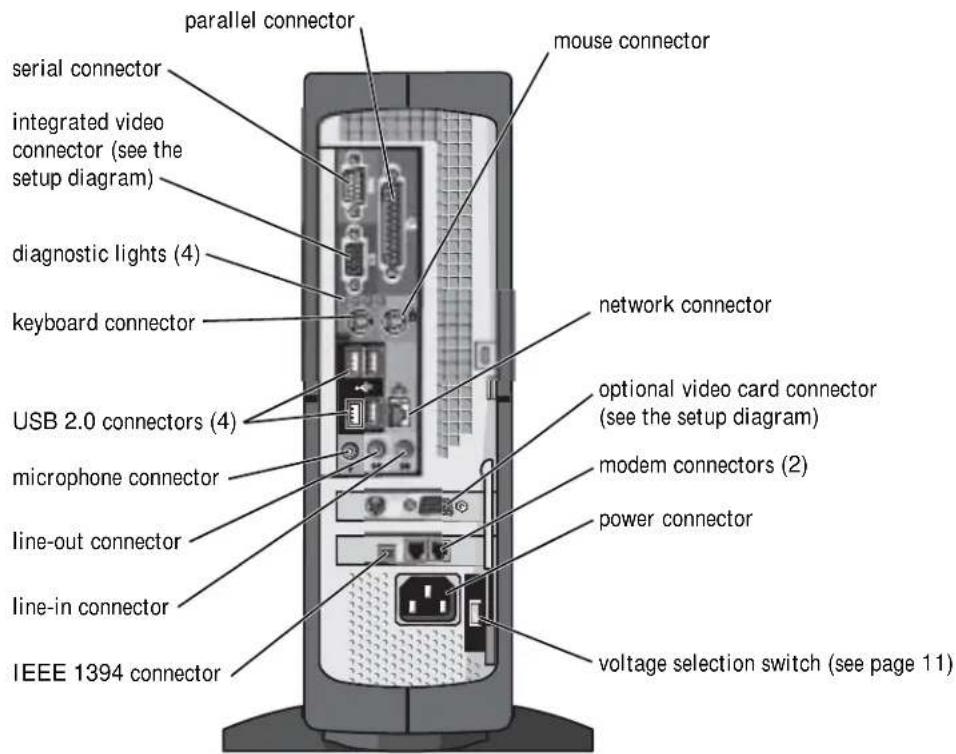
text_image
parallel connector serial connector integrated video connector (see the setup diagram) diagnostic lights (4) keyboard connector USB 2.0 connectors (4) microphone connector line-out connector line-in connector IEEE 1394 connector mouse connector network connector optional video card connector (see the setup diagram) modem connectors (2) power connector voltage selection switch (see page 11)Hints, Notices, and Cautions
HINT: A HINT indicates important information that helps you make better use of your computer.
NOTICE: A NOTICE indicates either potential damage to hardware or loss of data and tells you how to avoid the problem.
CAUTION: A CAUTION indicates a potential for property damage, personal injury, or death.
Abbreviations and Acronyms
For a complete list of abbreviations and acronyms, see the Tell Me How help file. To access help files, see page 38.
Information in this document is subject to change without notice. © 2003 Dell Computer Corporation. All rights reserved.
Reproduction in any manner whatsoever without the written permission of Dell Computer Corporation is strictly forbidden.
Trademarks used in this text: Dell, the DELL logo, Dimension, Inspiron, Latitude, OptiPlex, and Dell Precision are trademarks of Dell Computer Corporation; Intel and Pentium are registered trademarks of Intel Corporation; Microsoft and Windows are registered trademarks of Microsoft Corporation.
Other trademarks and trade names may be used in this document to refer to either the entities claiming the marks and names or their products. Dell Computer Corporation disclaims any proprietary interest in trademarks and trade names other than its own.
This product incorporates copyright protection technology that is protected by method claims of certain U.S. patents and other intellectual property rights owned by Macrovision Corporation and other rights owners. Use of this copyright protection technology must be authorized by Macrovision Corporation, and is intended for home and other limited viewing uses only unless otherwise authorized by Macrovision Corporation. Reverse engineering or disassembly is prohibited.
Contents
CAUTION: Safety Instructions 9
General 9
When Using Your Computer 11
When Working Inside Your Computer ..... 12
Protecting Against Electrostatic Discharge 13
Ergonomic Computing Habits 13
Battery Disposal 14
Finding Information for Your Computer 15
1 Setting Up
Connecting the AC Adapter 20
Attaching and Removing the Computer Stand ..... 21
Setting Up a Printer 23
Printer Cable 23
Connecting a Parallel Printer 23
Connecting a USB Printer 24
Connecting an IEEE 1394 Device (Optional) 25
Transferring Information to a New Computer 26
Setting Up a Home and Office Network 28
Connecting to a Network Adapter 28
Network Setup Wizard 28
Connecting to the Internet 29
Setting Up Your Internet Connection 29
Copying CDs 30
Using Easy CD Creator Basic 31
Using Blank CD-R Discs or Blank CD-RW Discs 32
Helpful Tips 32
How to Copy a CD 33
Hyper-Threading 34
Turning Off Your Computer 34
2 Solving Problems
Finding Solutions 36
Finding Help Information 38
Battery Problems 38
Drive Problems 39
CD drive problems 39
Problems writing to a CD-RW drive 40
DVD drive problems 40
Hard drive problems 41
E-Mail, Modem, and Internet Problems 41
Error Messages 43
General Problems 44
A program stops responding 44
A program crashes repeatedly 44
A program is designed for an earlier Windows operating system 44
A solid blue screen appears 45
Other software problems 45
Other technical problems 46
General hardware problems 46
IEEE 1394 Problems 47
Keyboard Problems 47
Mouse Problems 48
Network Problems 49
PC Card Problems 50
Power Problems 51
Printer Problems 52
Scanner Problems 53
Sound and Speaker Problems 54
Video and Monitor Problems 55
If the screen is blank 55
If the screen is difficult to read 56
3 Advanced Troubleshooting
Diagnostic Lights 60
Using System Restore 62
Creating a Restore Point 62
Restoring the Computer to an Earlier Operating State ..... 62
Undoing the Last System Restore 63
Dell Diagnostics 64
When to Use the Dell Diagnostics 64
Starting the Dell Diagnostics 65
Drivers 67
What Is a Driver? 67
Identifying Drivers 68
Reinstalling Drivers 68
Resolving Software and Hardware Incompatibilities 70
Reinstalling Windows ^® XP 71
4 Adding Parts
Front and Back View of the Computer 76
Front View 76
Back View 78
Reattaching the Front Door 79
Opening the Computer Cover 80
Looking Inside Your Computer 82
System Board 83
Adding PC Cards (Optional) 84
PC Card Types 84
Installing a PC Card 84
Removing a PC Card 85
Adding Other Cards 86
Adding or Replacing a Video Card 88
Removing a Video Card 88
Installing a Video Card 89
Adding Memory 90
Closing the Computer Cover 92
5 Appendix
Specifications 96
Standard Settings 100
Viewing Settings 101
System Setup Program Screens 101
Clearing Forgotten Passwords....102
Replacing the Battery 103
Dell Technical Support Policy 104
Contacting Dell 105
Regulatory Information....106
Index 107
CAUTION: Safety Instructions
Use the following safety guidelines to help ensure your own personal safety and to help protect your computer and working environment from potential damage.
General
- Do not attempt to service the computer yourself unless you are a trained service technician. Always follow installation instructions closely.
• To help prevent electric shock, plug the computer and device power cables into properly grounded electrical outlets. These cables are equipped with 3-prong plugs to help ensure proper grounding. Do not use adapter plugs or remove the grounding prong from a cable. If you must use an extension cable, use a 3-wire cable with properly grounded plugs.

natural_image
Pure electrical outlet symbol without any text or labels• To help avoid the potential hazard of electric shock, do not use your computer during an electrical storm.
• To help avoid the potential hazard of electric shock, do not connect or disconnect any cables or perform maintenance or reconfiguration of this product during an electrical storm.
- If your computer includes a modem, the cable used with the modem should be manufactured with a minimum wire size of 26 American wire gauge (AWG) and an FCC-compliant RJ-11 modular plug.
- Before you clean your computer, disconnect the computer from the electrical outlet. Clean your computer with a soft cloth dampened with water. Do not use liquid or aerosol cleaners, which may contain flammable substances.
• To help avoid possible damage to the system board, wait 5 seconds after turning off the computer before disconnecting a device from the computer.
⚠️CAUTION: Safety Instructions (continued)
- To avoid shorting out your computer when disconnecting a network cable, first unplug the cable from the network adapter on the back of your computer, and then from the network jack. When reconnecting a network cable to your computer, first plug the cable into the network jack, and then into the network adapter.
- To help protect your computer from sudden, transient increases and decreases in electrical power, use a surge suppressor, line conditioner, or uninterruptible power supply (UPS).
- Ensure that nothing rests on your computer's cables and that the cables are not located where they can be stepped on or tripped over.
- Do not push any objects into the openings of your computer. Doing so can cause fire or electric shock by shorting out interior components.
- Keep your computer away from radiators and heat sources. Also, do not block cooling vents. Avoid placing loose papers underneath your computer; do not place your computer in a closed-in wall unit or on a bed, sofa, or rug.
When Using Your Computer
As you use your computer, observe the following safe-handling guidelines.

CAUTION: Do not operate your computer with any cover(s) (including computer covers, bezels, filler brackets, front-panel inserts, and so on) removed.
- Your computer is equipped with one of the following:
- A fixed-voltage power supply — Computers with a fixed-voltage power supply do not have a voltage selection switch on the back panel and operate at only one voltage (see the regulatory label on the outside of the computer for its operating voltage).
- An auto-sensing voltage circuit — Computers with an auto-sensing voltage circuit do not have a voltage selection switch on the back panel and automatically detect the correct operating voltage.
- A manual voltage selection switch — Computers with a voltage selection switch on the back panel must be manually set to operate at the correct operating voltage.

text_image
115V 230V
NOTICE: To help avoid damaging a computer with a manual voltage selection switch, set the switch for the voltage that most closely matches the AC power available in your location. For Japan, the voltage selection switch must be set to the 115-V position even though the AC power available in Japan is 100 V. Also, ensure that your monitor and attached devices are electrically rated to operate with the AC power available in your location.
- Before working inside the computer, unplug the computer to help prevent electric shock or system board damage. Certain system board components continue to receive power any time the computer is connected to AC power.
When Using Your Computer (continued)
When Working Inside Your Computer
Before you open the computer cover, perform the following steps in the sequence indicated.

CAUTION: Do not attempt to service the computer yourself, except as explained in your online Dell™ documentation or in instructions otherwise provided to you by Dell. Always follow installation and service instructions closely.

NOTICE: To help avoid possible damage to the system board, wait 5 seconds after turning off the computer before removing a component from the system board or disconnecting a device from the computer.
1 Perform an orderly computer shutdown using the operating system menu.
2 Turn off your computer and any devices connected to the computer.
3 Ground yourself by touching an unpainted metal surface on the chassis, such as the metal around the card-slot openings at the back of the computer, before touching anything inside your computer.
While you work, periodically touch an unpainted metal surface on the computer chassis to dissipate any static electricity that might harm internal components.
4 Disconnect your computer and devices, including the monitor, from their electrical outlets. Also, disconnect any telephone or telecommunication lines from the computer.
Doing so reduces the potential for personal injury or shock.
In addition, take note of these safety guidelines when appropriate:
- When you disconnect a cable, pull on its connector or on its strain-relief loop, not on the cable itself. Some cables have a connector with locking tabs; if you are disconnecting this type of cable, press in on the locking tabs before disconnecting the cable. As you pull connectors apart, keep them evenly aligned to avoid bending any connector pins. Also, before you connect a cable, ensure that both connectors are correctly oriented and aligned.
When Using Your Computer (continued)
- Handle components and cards with care. Do not touch the components or contacts on a card. Hold a card by its edges or by its metal mounting bracket. Hold a component such as a microprocessor chip by its edges, not by its pins.

CAUTION: There is a danger of a new battery exploding if it is incorrectly installed. Replace the battery only with the same or equivalent type recommended by the manufacturer. Do not dispose of the battery along with household waste. Contact your local waste disposal agency for the address of the nearest battery deposit site.
Protecting Against Electrostatic Discharge
Static electricity can harm delicate components inside your computer. To prevent static damage, discharge static electricity from your body before you touch any of your computer's electronic components, such as the microprocessor. You can do so by touching an unpainted metal surface on the computer chassis.
As you continue to work inside the computer, periodically touch an unpainted metal surface to remove any static charge your body may have accumulated.
You can also take the following steps to prevent damage from electrostatic discharge (ESD):
- Do not remove components from their antistatic packing material until you are ready to install the component in your computer. Just before unwrapping the antistatic packaging, discharge static electricity from your body.
- When transporting an electrostatic sensitive component, first place it in an antistatic container or packaging.
- Handle all electrostatic sensitive components in a static-safe area. If possible, use antistatic floor pads and workbench pads.
Ergonomic Computing Habits

CAUTION: Improper or prolonged keyboard use may result in injury.

CAUTION: Viewing the monitor screen for extended periods of time may result in eye strain.
For comfort and efficiency, observe the ergonomic guidelines in the Tell Me How help file when setting up and using your computer.
When Using Your Computer (continued)

Battery Disposal
Your computer uses a lithium coin-cell battery. The lithium coin-cell battery is a long-life battery, and it is very possible that you will never need to replace it. However, should you need to replace it, see page 103.
Do not dispose of the battery along with household waste. Contact your local waste disposal agency for the address of the nearest battery deposit site.
Finding Information for Your Computer
What Are You Looking For? Find it Here
• A diagnostic program for my computer
- Drivers for my computer
• My computer documentation
• My device documentation
ResourceCD
text_image
EXTERIOR AND ISSUATED DIGITAL EXTERIOR ON THIS COMPUTER For "EXTERIOR AND ISSUATED" (1998) DOLLYou can use this CD to access documentation and reinstall drivers (see page 67).
• How to set up a printer
• How to troubleshoot and solve problems
• How to add parts
• How to contact Dell
• Warranty information
Owner's Manual

• Express Service Code and Service Tag Number
- Micro's Windows® License Label
Express Service Code and Product Key

text_image
WWW.DELL.COM Service Tag: XXXXX Express Service Code: XX-XXX-XX Windows OS Professional DSM New Issue Product Size: XXXXX-XXXXX-XXXXX-XXXXX-XXXXXLocated on your computer.
What Are You Looking For? Find it Here
• How to reinstall my operating system Operating System CD
text_image
OPERATING SYSTEM GENERAL VATTLED ON THIS COMPUTER [ ] INFLY® (2017) 3.00 GB INFLY® INFLY® INFLY® INFLY® INFLY® INFLY® INFLY® INFLY® INFLY® INFLY® INFLY® INFLY® INFLY® INFLY® INFLY® INFLY® INFLY® INFLY® INFLY® INFLY® INFLY®, INC. INFLY®, INC. INFLY®, INC. INFLY®, INC. INFLY®, INC. INFLY®, INC. INFLY®, INC. INFLY®, INC. INFLY®, INC. INFLY®, INC. INFLY®, INC. INFLY®, INC. INFLY®, INC. INFLY®, INC. INFLY®, INC. INFLY®, INC. INFLY®, INC. INFLY, INC. INFLY, INC. INFLY, INC. INFLY, INC. INFLY, INC. INFLY, INC. INFLY, INC. INFLY, INC. INFLY, INC. INFLY, INC. INFLY, INC. INFLY, INC. INFLY, INC. INFLY, INC. INFLY, INC. INFLY, INC. INFLY, INC. IN FLY, INC. IN FLY, INC. IN FLY, INC. IN FLY, INC. IN FLY, INC. IN FLY, INC. IN FLY, INC. IN FLY, INC. IN FLY, INC. IN FLY, INC. IN FLY, INC. IN FLY, INC. IN FLY, INC. IN FLY, INC. IN FLY, INC. IN FLY, INC. IN FLY, INC.If you reinstall your operating system, use the ResourceCD to reinstall drivers for the devices that came with your computer.
- Latest drivers for my computer
- Answers to technical service and support questions
• Online discussions with other users and technical support
• Documentation for my computer
Dell Support website
The Dell Support website provides several online tools, including:
- Knowledge Base — hints, tips, and online courses
- Customer Forum — online discussion with other Dell customers
- Upgrades — upgrade information for components, such as memory, the hard drive, and the operating system
- Customer Care — contact information, order status, warranty, and repair information
- Downloads — drivers, patches, and software updates
• Reference — computer documentation, product specifications, and white papers
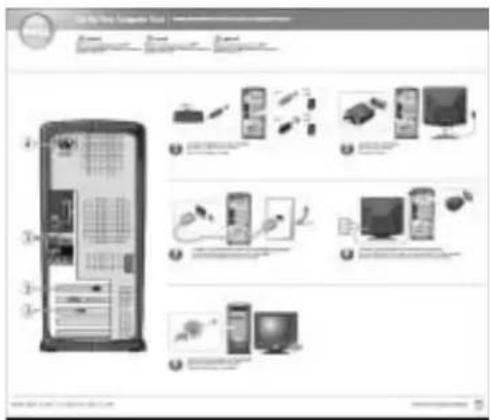
• How to set up my computer Setup Diagram
text_image
Screenshot of a software interface showing device selection and configuration options with labeled icons and labels.| What Are You Looking For? Find it Here | |
| Tips on using WindowsHow to clean my computerHow to use my mouse and keyboard | Tell Me How Help File1 Click the Start button, and then click Help and Support.2 Click User and system guides, and then click User's guides.3 Click Tell Me How. |
| How to use Windows® XPDocumentation for my computer and devices | Windows XP Help and Support Center1 Click the Start button, and then click Help and Support.2 Type a word or phrase that describes your problem, and then click the arrow icon.3 Click the topic that describes your problem.4 Follow the instructions shown on the screen. |
SECTION 1
Setting Up
Connecting the AC Adapter
Attaching and Removing the Computer Stand
Setting Up a Printer
Connecting an IEEE 1394 Device (Optional)
Transferring Information to a New Computer
Setting Up a Home and Office Network
Connecting to the Internet
Copying CDs
Hyper-Threading
Turning Off Your Computer
Connecting the AC Adapter
1 Connect the AC adapter to the plug on the AC power cable.
CAUTION: If you decide to connect the green ground wire to an electrical outlet, do not permit contact between the green ground wire and power leads because electrical shock, fire, or damage to your computer can occur (see the following figure).

natural_image
Electrical plug with no accompanying text or symbols, enclosed in a circle (no readable text or labels)2 If you decide not to connect the green ground wire to the electrical outlet, go to step 4.
3 Connect the metal ground connector to the grounding source on the outlet (see the following figure):
a Loosen the grounding source.
b Slide the metal ground connector behind the grounding source, and tighten the grounding source.

text_image
grounding source metal ground connector4 Connect the AC power cable to the outlet.
Attaching and Removing the Computer Stand
To attach the stand:
1 Rotate the computer to an upside-down position.
2 Insert the screw into the bottom of the stand.
3 Align the two tabs and the screw on the stand with the tab holes and screw hole in the bottom of the computer.

text_image
screw screw hole tabs (2) tab holes (2)4 Tighten the screw.
HINT: Place your computer on a soft surface to prevent scratching the top cover.
5 Place the computer in the upright position.

natural_image
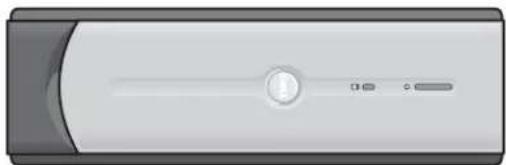
Illustration of a desktop computer tower with indicator lights and ports (no text or symbols)1 Turn the computer over so that the stand is at the top.
2 Loosen the screw and lift the stand away.
3 Place the computer in a horizontal position until you reattach the stand.
natural_image
Close-up of a white electronic device casing with a circular button and control buttons (no visible text or symbols)Setting Up a Printer

NOTICE: Complete the operating system setup before you connect a printer to the computer.
See the documentation that came with the printer for setup information, including how to:
- Obtain and install updated drivers
- Connect the printer to the computer
- Load paper and install the toner or ink cartridge
- Contact the printer manufacturer for technical assistance
Printer Cable
Your printer connects to your computer with either a USB cable or a parallel cable. Your printer may not come with a printer cable, so if you purchase a cable separately, ensure that it is compatible with your printer. If you purchased a printer cable at the same time you purchased your computer, the cable may arrive in the computer box.
Connecting a Parallel Printer
1 Complete the operating system setup, if you have not already done so.
2 Turn off the computer (see page 34).

NOTICE: For best results, use a 3-m (10-ft) or shorter parallel cable.
3 Attach the parallel printer cable to the parallel connector on the computer and tighten the two screws. Attach the cable to the connector on the printer and snap the two clips into the two notches.

text_image
parallel connector on computer screws (2) parallel printer cable notches (2) connector on printer clips (2)4 Turn on the printer and then turn on the computer. If the Add New Hardware Wizard window appears, click Cancel.
5 Install the printer driver if necessary. See the documentation that came with your printer.
Connecting a USB Printer

HINT: You can connect USB devices while the computer is turned on.
1 Complete the operating system setup if you have not already done so.
2 Install the printer driver if necessary. See the documentation that came with your printer.
3 Attach the USB printer cable to the USB connectors on the computer and the printer. The USB connectors fit only one way.

text_image
USB connector on computer USB printer cable USB connector on printerConnecting an IEEE 1394 Device (Optional)
IEEE 1394 devices can move large amounts of data between computers and peripheral devices and are ideal for use with multimedia devices, such as digital video cameras.
Your computer provides a IEEE 1394 connector on both the front and back panels (see "Front and Back View of the Computer" on page 76 for locations.)

HINT: The connector can accept six-pin IEEE 1394 devices with the use of an adapter.

text_image
IEEE 1394 connector IEEE 1394 cableTransferring Information to a New Computer
The Microsoft® Windows® XP operating system provides a Files and Settings Transfer wizard to move data from the source computer to the new computer. You can move data such as:
• E - m a i l s
- Toolbar settings
- Window sizes
- Internet bookmarks
You can transfer the data to the new computer over a network or serial connection, or you can store it on a removable medium, such as a writable CD or floppy disk.
To prepare the new computer for the file transfer:
1 Click the Start button, point to All Programs→Accessories→System Tools, and then click Files and Settings Transfer Wizard.
2 When the Files and Settings Transfer Wizard welcome screen appears, click Next.
3 On the Which computer is this? screen, click New Computer, and then click Next.
4 On the Do you have a Windows XP CD? screen, click I will use the wizard from the Windows XP CD, and then click Next.
5 When the Now go to your old computer screen appears, go to your old or source computer.
To copy data from the old computer:
1 Insert the Windows XP Operating System CD into your CD or DVD drive.
2 On the Welcome to Microsoft Windows XP screen, click Perform additional tasks.
3 Under What do you want to do?, click Transfer files and settings.
4 On the Files and Settings Transfer Wizard welcome screen, click Next.
5 On the Which computer is this? screen, click Old Computer, and then click Next.
6 On the Select a transfer method screen, click the transfer method you prefer.
7 On the What do you want to transfer? screen, select the items you want to transfer and then click Next.
After the information has been copied, the Completing the Collection Phase screen appears.
8 Click Finish.
To transfer data to the new computer:
1 On the Now go to your old computer screen, click Next.
2 On the Where are the files and settings? screen, select the method you chose for transferring your settings and files, and then click Next.
The wizard reads the collected files and settings and applies them to your new computer.
When all of the settings and files have been applied, the Finished screen appears.
3 Click Finished and restart the new computer.
Setting Up a Home and Office Network
Connecting to a Network Adapter
Before you connect your computer to a network, the computer must have a network adapter installed and a network cable connected to it.
To connect a network cable:

HINT: Insert the cable until it clicks into place, and then gently pull it to ensure that it is secure.

HINT: Do not use a network cable with a telephone wall jack.
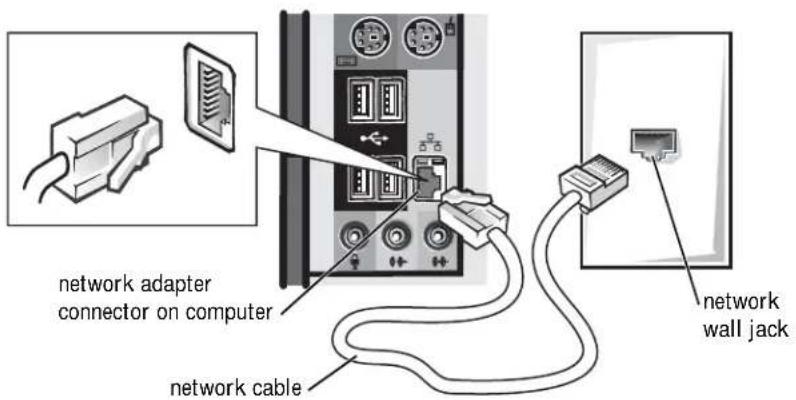
1 Connect the network cable to the network adapter connector on the back of your computer.
2 Connect the other end of the network cable to a network connection device, such as a network wall jack.
text_image
network adapter connector on computer network cable network wall jackNetwork Setup Wizard
The Microsoft ^® Windows ^® XP operating system provides a Network Setup Wizard to guide you through the process of sharing files, printers, or an Internet connection between computers in a home or small office.
1 Click the Start button, point to All Programs→Accessories→Communications, and then click Network Setup Wizard.
2 On the welcome screen, click Next.
3 Click Checklist for creating a network.
4 Complete the checklist and required preparations, and return to the Network Setup Wizard.
5 Follow the instructions on the screen.
Connecting to the Internet
To connect to the Internet, you need a modem or network connection and an Internet service provider (ISP), such as AOL or MSN. Your ISP will offer one or more of the following Internet connection options:
- Dial-up connections that provide Internet access through a phone line. Dial-up connections are considerably slower than DSL and cable modem connections.
- DSL connections that provide high-speed Internet access through your existing phone line. With a DSL connection, you can access the Internet and use your phone on the same line simultaneously.
- Cable modem connections that provide high-speed Internet access through your local cable TV line.
If you are using a dial-up connection, connect a telephone line to the modem connector on your computer and to the telephone wall jack before you set up your Internet connection. If you are using a DSL or cable modem connection, contact your ISP for setup instructions.
Setting Up Your Internet Connection
To set up an AOL or MSN connection:
1 Save and close any open files, and exit any open programs.
2 Double-click the MSN Explorer or AOL icon on the Windows ^® desktop.
3 Follow the instructions on the screen to complete the setup.
HINT: Selecting the connection method This computer connects directly to the Internet enables the integrated firewall provided with Windows XP.
HINT: ISPs and ISP offerings vary by country.
If you do not have an MSN Explorer or AOL icon on your desktop or if you want to set up an Internet connection with a different ISP:
1 Save and close any open files, and exit any open programs.
2 Click the Start button and click Internet Explorer.
The New Connection Wizard appears.
3 Click Connect to the Internet.
4 In the next window, click the appropriate option:
- If you do not have an ISP and want to select one, click Choose from a list of Internet service providers (ISPs).
- If you have already obtained setup information from your ISP but you did not receive a setup CD, click Set up my connection manually.
• If you have a CD, click Use the CD I got from an ISP.
5 Click Next.
If you selected Set up my connection manually, continue to step 6. Otherwise, follow the instructions on the screen to complete the setup.

HINT: If you do not know which type of connection to select, contact your ISP.
6 Click the appropriate option under How do you want to connect to the Internet?, and then click Next.
7 Use the setup information provided by your ISP to complete the setup.
If you are having problems connecting to the Internet, see "E-Mail, Modem, and Internet Problems" on page 41. If you cannot connect to the Internet but have successfully connected in the past, the ISP might have a service outage. Contact your ISP to check the service status, or try connecting again later.

HINT: Ensure that you follow all copyright laws when you create CDs.
Copying CDs
This section applies only to computers that have a CD- or DVD-recording device.
The information in this section is based on the Roxio Easy CD Creator Basic documentation that came with your computer. See the following section, "Using Easy CD Creator Basic," for instructions on how to locate that documentation.
To burn CDs, you need to use CD-burner software. Roxio Easy CD Creator Basic is your computer's CD-burner software. The software includes these project programs that enable you to record specialty CDs for different types of uses:
- DirectCD allows you to format a blank CD-R or CD-RW disc so that you can use Microsoft® Windows® Explorer to drag and drop data files to the CD-RW drive. You can use a DirectCD-formatted CD-RW disc like another hard drive on your computer because CD-RW discs are fully rewritable (CD-R discs can be used with DirectCD, but that media type has overwriting limitations—see "Using Blank CD-R Discs or Blank CD-RW Discs" for recording media differences).
• MusicCD allows you to burn custom music CDs. - DataCD allows you to copy a variety of your documents, such as spreadsheet or accounting files, to a CD for permanent storage.
- Disc Copier allows you to make a backup copy of almost any type of CD. This program allows you to make a copy of a CD for everyday use so that you can archive and save the original copy. (Disc Copier is titled "CD Copier" in some versions of Roxio CD Creator Basic.)
All four project programs are available on the Easy CD Creator Basic Select a Project menu screen. To view the Select a Project menu screen, click the Start button, point to All Programs→ Roxio Easy CD Creator, and then click Project Selector.
Using Easy CD Creator Basic
See the Easy CD Creator Basic documentation for instructions on how to use the program, information about different recording techniques, and CD media limitations. The Easy CD Creator Basic documentation is located in the Microsoft® Windows® XP Help and Support Center (see "Finding Help Information" on page 38). The documentation is also provided on the Dell Dimension ResourceCD, which is included with your computer. Each Easy CD Creator Basic project program also has thorough online help files.
HINT: The information in this section also applies to using Easy CD Creator Basic with a DVD+ RW or a DVD+ R drive.
HINT: Some music and game CDs are copy-protected. If you have a CD that cannot be copied, you must use the original CD for everyday use.
Using Blank CD-R Discs or Blank CD-RW Discs
Your CD-RW drive writes to two different types of recording media—CD-R and CD-RW discs. Use blank CD-R (CD-Recordable) disks to record music or permanently store data files. After creating a CD-R disc, you cannot write to that disc again without changing your method of recording (see the Roxio documentation for more information). Use blank CD-RW (CD-ReWritable) discs when you want to write, erase, rewrite, and update your files onto CDs.
Helpful Tips
- You must use the Easy CD Creator Basic project programs to copy and record all music and data CDs. You can use Windows Explorer to drag and drop files to a CD-R or CD-RW disc only after you first use DirectCD to format the disc.
- You must use CD-R discs to burn music CDs that you want to play in regular stereos. CD-RW discs do not play in most home or car stereos.
- If you want to copy files from the Internet or files from a floppy or Zip drive, copy those files to your hard drive first, and then burn your CD. Your CD-RW drive requires a steady stream of data to properly record. Direct Internet downloads, floppy drives, and Zip drives may not be able to provide a steady data stream to your CD-RW drive.
- Music MP3 files can be played only on MP3 players or on computers that have MP3 software installed.
- Ensure that you set the sampling rate to at least 128 Kbps when you burn MP3 files to a CD. Otherwise, recording errors may occur.
- Do not burn a blank CD-R or CD-RW disc to its maximum capacity; for example, do not copy a 650-MB file to a 650-MB blank CD. The CD-RW drive needs 1 or 2 MB of the blank CD to finalize the recording.
- Use a blank CD-RW disc to practice CD recording until you are familiar with CD recording techniques. If you make a mistake, you can erase the CD-RW disc and try again. You can also use blank CD-RW discs to test music file projects before you record the project permanently to a blank CD-R disc.
• See the Roxio support website at support.roxio.com for additional helpful tips.
How to Copy a CD
The procedure assumes that your computer is equipped with a single CD-RW drive (without an additional CD drive). If your computer is equipped with both types of drives, see the Roxio documentation for instructions on how to copy CDs from a CD drive to a CD-RW drive.
1 Click the Start button, point to All Programs→ Roxio Easy CD Creator, and then click Project Selector.
The Select a Project window appears.
2 Click Disc Copier. (Disc Copier is titled "CD Copier" in some versions of Easy CD Creator Basic.)
The Disc Copier window appears and displays your CD-RW drive in the Copy from and the Record to lists.
3 Insert the source CD that you want to copy into the CD-RW drive.
The Disc Copier project program briefly checks the source CD in the CD-RW drive to ensure that it is a readable CD.
4 Click Copy.
Depending on the size of the files that are being copied, the copy process may take a few minutes.
5 After the source CD is copied, remove the source CD from the CD-RW drive tray.
The CD-RW drive tray opens automatically after the source CD is copied.
6 Insert a blank CD into the CD-RW drive and close the tray.
The recording starts automatically.
7 After the recording completes, click OK.
HINT: If you have a DVD/CD-RW combo drive and experience recording problems, check the Roxio support website at support.roxio.com for available software patches.
HINT: You must use CD-R discs to burn music CDs that you want to play in regular stereos. CD-RW discs do not play in most home or car stereos.
HINT: Hyper-Threading is supported only on computers that have 3.06-GHz microprocessors (or higher) installed.
Hyper-Threading
Hyper-Threading is an Intel® technology that can enhance overall performance by allowing one physical microprocessor to function as two logical microprocessors, capable of performing certain tasks simultaneously. It is recommended that you use the Microsoft® Windows® XP operating system because Windows XP is optimized to take advantage of Hyper-Threading technology. While many programs can benefit from Hyper-Threading technology, some programs have not been optimized for Hyper-Threading and may require an update from the software manufacturer. Contact the software manufacturer for updates and information on using your software with Hyper-Threading.
To determine if your computer is using Hyper-Threading technology:
1 Click the Start button, right-click My Computer, and then click Properties.
2 Click Hardware and click Device Manager.
3 In the Device Manager window, click the plus (+) sign next to the processor type. If Hyper-Threading is enabled, the processor is listed twice.
You can enable or disable Hyper-Threading through the system setup program. For more information on accessing the system setup program, see page 100. For more information on Hyper-Threading, search the Knowledge Base on the Dell Support website at support.dell.com.
Turning Off Your Computer

NOTICE: To avoid losing data, turn off your computer by performing a Microsoft ^® Windows ^® operating system shutdown, as described next, rather than by pressing the power button.
1 Save and close any open files, exit any open programs, click the Start button, and then click Turn Off Computer.
2 In the Turn off computer window, click Turn off.
The computer turns off after the shutdown process finishes.
2
SECTION 2
Solving Problems
Finding Solutions
Finding Help Information
Battery Problems
Drive Problems
E-Mail, Modem, and Internet Problems
Error Messages
General Problems
IEEE 1394 Problems
Keyboard Problems
Mouse Problems
Network Problems
PC Card Problems
Power Problems
Printer Problems
Scanner Problems
Sound and Speaker Problems
Video and Monitor Problems
Finding Solutions
Sometimes it's difficult to figure out where to go for answers. Use this chart to help you quickly find the answers to your questions.
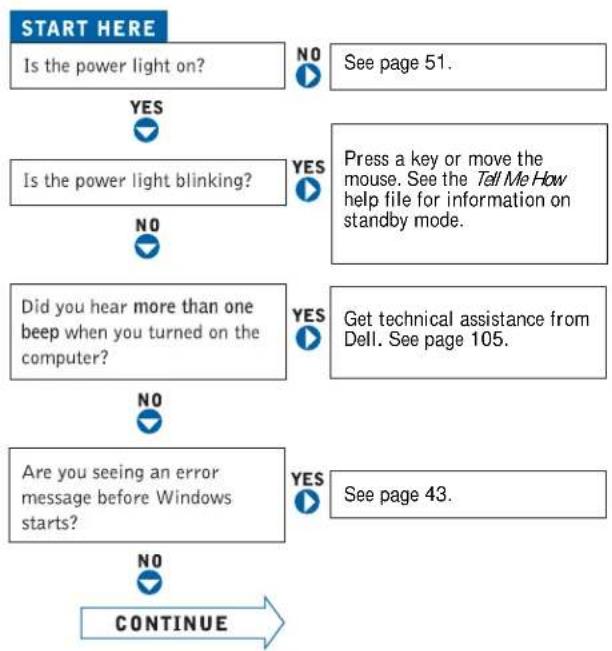
flowchart
graph TD
    A["Start Here"] --> B{Is the power light on?}
    B -->|YES| C["Is the power light blinking?"]
    B -->|NO| D{Is the power light blinking?}
    D -->|YES| E["Press a key or move the mouse. See the Tell Me How help file for information on standby mode."]
    D -->|NO| F{Did you hear more than one beep when you turned on the computer?}
    F -->|YES| G["Get technical assistance from Dell. See page 105."]
    F -->|NO| H{Are you seeing an error message before Windows starts?}
    H -->|YES| I{See page 43.}
    H -->|NO| J["CONTINUE"]

text_image
Are you having a problem with... video or the monitor? YES See page 55. sound or the speakers? YES See page 54. the printer? YES See page 52. the modem? YES See page 41. the mouse? YES See page 48. the keyboard? YES See page 47. the hard drive or a disk drive? YES See page 39. the network adapter? YES See page 49. the scanner? YES See page 53. Windows error messages? YES See page 43. a program? YES See page 44. the Internet? YES See page 41. your e-mail? YES See page 41. Are you having some other type of problem? YES See page 44.Finding Help Information
TO ACCESS THE Tell Me HowHELP FILE
1 Click the Start button, and then click Help and Support.
2 Click User and system guides, and then click User's guides.
3 Click Tell Me How.
To access Windows Help
1 Click the Start button, and then click Help and Support.
2 Type a word or phrase that describes your problem, and then click the arrow icon.
3 Click the topic that describes your problem.
4 Follow the instructions shown on the screen.
TO LOCATE ADDITIONAL INFORMATION FOR YOUR COMPUTER — See page 15.
Battery Problems

CAUTION: There is a danger of a new battery exploding if it is incorrectly installed. Replace the battery only with the same or equivalent type recommended by the manufacturer. Discard used batteries according to the manufacturer's instructions.

CAUTION: Before you begin any of the procedures in this section, follow the safety instructions on page 9.
REPLACE THE BATTERY — If you have to repeatedly reset time and date information after turning on the computer, or if an incorrect time or date displays during start-up, replace the battery (see page 103). If the battery still does not work properly, contact Dell (see page 105).
Drive Problems
CD drive problems
ADJUST THE WINDOWS VOLUME CONTROL — Click the speaker icon in the lower-right corner of your screen.
- Ensure that the volume is turned up by clicking the slider and dragging it up.
- Ensure that the sound is not muted by clicking any boxes that are checked.
TEST THE DRIVE WITH ANOTHER CD — Insert another CD to eliminate the possibility that the original CD is defective.
CHECK THE SPEAKERS AND SUBWOOFER — See "Sound and Speaker Problems" on page 54.
ENSURE THAT WINDOWS RECOGNIZES THE DRIVE — Click the Start button, and then click My Computer. If the CD drive is not listed, perform a full scan with your antivirus software to check for and remove viruses. Viruses can sometimes prevent Windows from recognizing the drive.
CLEAN THE DISC — See the Tell Me How help file for instructions on cleaning your CDs. To access help files, see page 38.
CHECK FOR INTERRUPT REQUEST CONFLICTS — See page 70.

HINT: High-speed CD drive vibration is normal and may cause noise. This does not indicate a defect in the drive or the CD.
HINT: If you disable standby mode to write to a CD-RW drive, remember to reenable standby mode when you finish writing to the CD.
HINT: Because of different regions worldwide and different disc formats, not all DVD titles work in all DVD drives.
Problems writing to a CD-RW drive
TURN OFF STANDBY MODE IN WINDOWS BEFORE WRITING TO A CD-RW DISC — For information on power conservation modes, see the Tell Me How help file or search for the keyword standby in Windows Help. To access help files, see page 38.
CLOSE OTHER PROGRAMS — The CD-RW drive must receive a steady stream of data when writing. If the stream is interrupted, an error occurs. Try closing all programs before writing to the CD-RW.
DVD drive problems
TEST THE DRIVE WITH ANOTHER DVD — Insert another DVD to eliminate the possibility that the original DVD is defective.
ENSURE THAT WINDOWS RECOGNIZES THE DRIVE — Click the Start button, and then click My Computer. If the DVD drive is not listed, perform a full scan with your antivirus software to check for and remove viruses. Viruses can sometimes prevent Windows from recognizing the drive.
CLEAN THE DISC — See the Tell Me How help file for instructions on cleaning your DVDs. To access help files, see page 38.
CHECK FOR INTERRUPT REQUEST CONFLICTS — See page 70.
Hard drive problems
RUN CHECK DISK
1 Click the Start button, and then click My Computer.
2 Right-click the drive letter (local disk) that you want to scan for errors, and then click Properties.
3 Click the Tools tab.
4 Under Error-checking, click Check Now.
5 Click Start.
CHECK FOR INTERRUPT REQUEST CONFLICTS — See page 70.
E-Mail, Modem, and Internet Problems
CHECK THE TELEPHONE LINE CONNECTION — Verify that the telephone line is connected to the jack on the modem. (The jack has either a green label or a connector-shaped icon next to it.) Ensure that you hear a click when you insert the telephone line connector into the modem.
CHECK THE TELEPHONE JACK — Disconnect the telephone line from the modem and connect it to a telephone. Listen for a dial tone.
CONNECT THE MODEM DIRECTLY TO THE TELEPHONE WALL JACK — If you have other telephone devices sharing the line, such as an answering machine, fax machine, surge protector, or line splitter, then bypass them and use the telephone to connect the modem directly to the telephone wall jack.
USE A DIFFERENT TELEPHONE LINE — If you are using a line that is 3 m (10 ft) or more in length, try a shorter one.
RUN THE MODEM HELPER DIAGNOSTICS — Click the Start button, point to All Programs, and then click Modem Helper. Follow the instructions on the screen to identify and resolve modem problems. (Modem Helper is not available on all computers.)

HINT: Connect the modem to an analog telephone jack only. The modem does not operate while it is connected to a digital telephone network.
VERIFY THAT THE MODEM IS COMMUNICATING WITH WINDOWS®
1 Click the Start button, and then click Control Panel.
2 Click Printers and Other Hardware.
3 Click Phone and Modem Options.
4 Click the Modems tab.
5 Click the COM port for your modem.
6 Click Properties, click the Diagnostics tab, and then click Query Modem to verify that the modem is communicating with Windows.
If all commands receive responses, the modem is operating properly.
TURN OFF CALL WAITING (CATCH-PHONE) — See your telephone directory for instructions on deactivating this feature. Then adjust the dial-up networking connection properties.
1 Click the Start button, and then click Control Panel.
2 Click Printers and Other Hardware, and then click Phone and Modem Options.
3 Click your connection type to highlight it.
4 Click the Dialing Rules tab, and then click Edit.
5 Click the To Disable Call Waiting box to place a checkmark in it.
6 Select the disable code from the drop-down menu (for example, *70).
7 Click Apply, and then click OK.
ENSURE THAT YOU ARE CONNECTED TO THE INTERNET — With the Outlook Express e-mail program open, click File. If Work Offline has a checkmark next to it, click the checkmark to remove it and connect to the Internet.
ENSURE THAT YOU HAVE SUBSCRIBED TO AN INTERNET SERVICE PROVIDER — Contact an Internet service provider to subscribe.
CONTACT YOUR INTERNET SERVICE PROVIDER — Contact your Internet service provider for assistance.
CHECK FOR INTERRUPT REQUEST CONFLICTS — See page 70.
Error Messages
A FILENAME CANNOT CONTAIN ANY OF THE FOLLOWING CHARACTERS: \ / : * ? " < > | — Do not use these characters in filenames.
A REQUIRED .DLL FILE WAS NOT FOUND — The program that you are trying to open is missing an essential file. To remove and then reinstall the program:
1 Click the Start button.
2 Click Control Panel.
3 Click Add or Remove Programs.
4 Select the program you want to remove.
5 Click the Change or Remove Program icon.
6 See the program documentation for installation instructions.
INSERT BOOTABLE MEDIA — The operating system is trying to boot to a nonbootable CD. Insert a bootable CD.
NOT ENOUGH MEMORY OR RESOURCES. CLOSE SOME PROGRAMS AND TRY AGAIN — You have too many programs open. Close all windows and open the program that you want to use. In some cases, you might have to restart your computer to restore computer resources. If so, try running the program that you want to use first.
OPERATING SYSTEM NOT FOUND — Contact Dell (see page 105).
THE FILE BEING COPIED IS TOO LARGE FOR THE DESTINATION DRIVE — The file that you are trying to copy is too large to fit on the disc. Try copying the file to a blank disk or using a larger-capacity disc.
x:\ IS NOT ACCESSIBLE. THE DEVICE IS NOT READY — Insert a disc into the drive and try again.
General Problems
A program stops responding
END THE PROGRAM
1 Press
2 Click Applications.
3 Click the program that is no longer responding.
4 Click End Task.
TURN THE COMPUTER OFF — If your computer locks up and you are unable to get a response by pressing a key on your keyboard or moving your mouse, press and hold the power button for at least 8 to 10 seconds until the computer turns off. Then press the power button again to turn on the computer. You might lose data if you are unable to perform an operating system shutdown.
A program crashes repeatedly

HINT: Software usually includes installation instructions in its documentation or on a CD.
CHECK THE SOFTWARE DOCUMENTATION — Many software manufacturers maintain websites with information that may help you solve the problem. Ensure that you properly installed and configured the program. If necessary, uninstall and then reinstall the program.
A program is designed for an earlier Windows operating system
RUN THE PROGRAM COMPATIBILITY WIZARD
Windows XP provides a Program Compatibility Wizard that configures a program so it runs in an environment similar to non-Windows XP operating system environments.
1 Click the Start button, point to All Programs→Accessories, and then click Program Compatibility Wizard.
2 In the welcome screen, click Next.
3 Follow the instructions on the screen.
A solid blue screen appears
TURN THE COMPUTER OFF — If the computer does not respond to a keystroke or a proper shutdown, press the power button for at least 8 to 10 seconds until the computer turns off. Press the power button again to restart the computer. The chkdsk program automatically runs during the start-up process. Follow the instructions on the screen.
Other software problems
CHECK THE SOFTWARE DOCUMENTATION OR CONTACT THE SOFTWARE MANUFACTURER FOR TROUBLESHOOTING INFORMATION
BACK UP YOUR FILES IMMEDIATELY — If your computer has a CD-RW drive installed, see the drive's documentation for instructions.
ENSURE THAT YOU HAVE NOT MADE AN ERROR WHILE ENTERING DATA — See the program documentation to make sure that the values or characters you are entering are valid.
CHECK FOR VIRUSES — Use a virus-scanning program to check the hard drive or CDs.
RESTART THE COMPUTER — Save and close any open files, exit any open programs, and then shut down your computer through the Start menu instead of pressing the power button. Otherwise, you may lose data.
CHECK FOR COMPATIBILITY
- Ensure that the program is compatible with the operating system installed on your computer and that your computer meets the minimum hardware requirements needed to run the software. See the software documentation for information.
- If necessary, uninstall and then reinstall the program.
ENSURE THAT YOU PROPERLY INSTALLED AND CONFIGURED THE PROGRAM — See the software documentation for information. If necessary, uninstall and then reinstall the program.
Other technical problems
GO TO THE DELL SUPPORT WEBSITE — Go to support.dell.com for help with general usage, installation, and troubleshooting questions. The support website offers several different tools to help you, such as Dell Forum—a chat room where you can communicate with other Dell customers about their computers and gain access to technical support through e-mail. See the Service and Support Guide provided with your computer for a description of the hardware and software support provided by Dell.
CALL DELL — If you cannot solve your problem using the Dell Support website or e-mail service, call Dell for technical assistance (see page 105). See the Service and Support Guide provided with your computer for a description of the hardware and software support provided by Dell.
General hardware problems
If your computer exhibits one or more of the following symptoms, a device conflict may exist:
- Your computer locks up, particularly while using a specific device.
- A recently added device does not work.
- A sound card emits noise or demonstrates other problems.
- Unintelligible characters print from the printer.
• The mouse pointer does not move or "stutters" when it moves.
- Messages appear stating that the computer is not operating at maximum performance.
- Errors occur and programs crash for no apparent reason.
- Nothing displays on the monitor.
REMOVE ANY RECENTLY ADDED HARDWARE TO SEE IF IT RESOLVES THE CONFLICT — If removing the hardware resolves the conflict, see the hardware documentation for configuration and troubleshooting instructions. If the problem persists, contact the hardware manufacturer for technical assistance.
CHECK YOUR OPERATING SYSTEM DOCUMENTATION FOR ADDITIONAL TROUBLESHOOTING INFORMATION
CHECK FOR INTERRUPT REQUEST CONFLICTS — See page 70.
IEEE 1394 Problems
CHECK THE IEEE 1394 DEVICE — Ensure that the IEEE 1394 device is properly inserted into the connector.
ENSURE THAT THE IEEE 1394 DEVICE IS RECOGNIZED BY WINDOWS®
1 Click the Start button.
2 Click Control Panel.
3 Click Printers and Other Hardware. If your IEEE 1394 device is listed under the appropriate Control Panel icon, Windows recognizes the device.
IF YOU HAVE PROBLEMS WITH A DELL-PROVIDED IEEE 1394 DEVICE — Contact Dell (see page 105).
IF YOU HAVE PROBLEMS WITH A IEEE 1394 DEVICE NOT PROVIDED BY DELL — Contact the IEEE 1394 device manufacturer.
Keyboard Problems
RESTART THE COMPUTER
- If the mouse is functioning, shut down the computer (see page 34). After the computer shuts down, press the power button to restart the computer.
- If the computer does not respond to a keystroke or the mouse, press the power button for at least 8 to 10 seconds until the computer turns off. Press the power button again to restart the computer.

HINT: Check Windows Explorer to see if your device is listed as a drive.
CHECK THE KEYBOARD CABLE
- Shut down the computer (see page 34), reconnect the keyboard cable as shown on the setup diagram for your computer, and then restart the computer.
- Ensure that the keyboard cable is firmly connected to the computer.
- Check the cable connector for bent or broken pins and for damaged or frayed cables. Straighten bent pins.
- Remove keyboard extension cables and connect the keyboard directly to the computer.
TEST THE KEYBOARD — Connect a keyboard that works properly to the computer, and try using the keyboard. If the new keyboard works, the original keyboard is faulty.
CHECK FOR INTERRUPT REQUEST CONFLICTS — See page 70.
Mouse Problems
RESTART THE COMPUTER
1 Simultaneously press
2 Type u, press the keyboard arrow keys to highlight Shut down or Turn Off, and then press
3 After the computer turns off, press the power button to restart the computer.
IF YOU CONNECTED THE MOUSE BEFORE TURNING ON THE COMPUTER, RECONNECT THE MOUSE CABLE
1 Simultaneously press
2 Type u, press the keyboard arrow keys to highlight Shut down or Turn Off, and then press
3 After the computer turns off, reconnect the mouse cable as shown on the setup diagram for your computer.
4 Start the computer.
IF YOU CONNECTED THE MOUSE AFTER TURNING ON THE COMPUTER, REMOVE THE POWER CABLE, AND THEN RECONNECT THE MOUSE CABLE — If the mouse is connected after the power is turned on, the mouse appears to be nonfunctional. To make the mouse function properly:
1 While your computer is on, remove the power cable from the back of the computer.
2 Connect the mouse to the computer.
3 Reconnect the power cable.
4 Turn on your computer.
Pressing the power button does not clear the computer's settings and does not restore mouse functionality.
CHECK THE MOUSE CABLE
- Check the cable connector for bent or broken pins and for damaged or frayed cables. Straighten bent pins.
- Ensure that the cable is firmly connected to the computer.
TEST THE MOUSE — Connect a mouse that works properly to the computer, and try using the mouse. If the new mouse works, the original mouse was faulty.
CHECK THE MOUSE SETTINGS
1 Click the Start button, click Control Panel, and then click Printers and Other Hardware.
2 Click Mouse.
3 Try adjusting the settings.
REINSTALL THE MOUSE DRIVER — See page 67.
CHECK FOR INTERRUPT REQUEST CONFLICTS — See page 70.
Network Problems
CHECK THE NETWORK CABLE CONNECTOR — Ensure that the network cable is connected as shown on page 28.
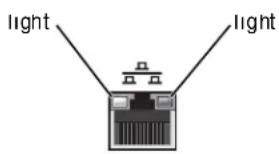
CHECK THE NETWORK LIGHTS ON THE BACK OF THE COMPUTER — No light indicates that there is no network communication. Try replacing the network cable.
text_image
light lightRESTART THE COMPUTER AND TRY TO LOG ON TO THE NETWORK AGAIN
CHECK YOUR NETWORK SETTINGS — Contact your network administrator or the person who set up your network to verify that your network settings are correct and that the network is functioning.
CHECK FOR INTERRUPT REQUEST CONFLICTS — See page 70.
PC Card Problems

HINT: Your computer is designed for 16-bit PCMCIA cards only. Do not use a 32-bit CardBus.
CHECK THE PC CARD — Ensure that the PC Card is properly inserted into the connector.
ENSURE THAT THE CARD IS RECOGNIZED BY WINDOWS® — Double-click the Unplug or Eject Hardware icon in the Windows taskbar. Ensure that the card is listed.
IF YOU HAVE PROBLEMS WITH A DELL-PROVIDED PC CARD — Contact Dell (see page 105).
IF YOU HAVE PROBLEMS WITH A PC CARD NOT PROVIDED BY DELL — Contact the PC Card manufacturer.
Power Problems

CAUTION: Before you begin any of the procedures in this section, follow the safety instructions on page 9.
ADJUST THE POWER PROPERTIES — Your computer may be in standby or hibernate mode. For information on power conservation modes, see the Tell Me How help file, or search for the keyword standby or hibernate in Windows® Help. To access help files, see page 38.
IF THE POWER LIGHT IS BLINKING GREEN — The computer is in standby mode. Press a key on the keyboard or move the mouse to resume normal operation.
IF THE POWER LIGHT IS OFF — The computer is either turned off or is not receiving power.
- Ensure that the power cable is firmly inserted into both the power connector on the back of the computer and the electrical outlet.
- If the computer is plugged into a power strip, ensure that the power strip is plugged into an electrical outlet and that the power strip is turned on.
- Ensure that the electrical outlet is working by testing it with another device, such as a lamp.
- Ensure that the voltage selection switch is set to match the AC power at your location (see page 9).
- Bypass power protection devices, power strips, and power extension cables to verify that the computer turns on.
- Swap the computer and monitor power cables to determine if the power cable is defective.
- Ensure that the microprocessor power cable is securely connected to the system board (see page 83).
- Ensure that the power supply cables are securely connected to the system board (see page 83).
- If the problem persists, contact Dell (see page 105).

HINT: If the power light on the front of the computer is steady green (see page 76), the computer is operating normally.

HINT: Dell does not cover the printer's warranty. If you need technical assistance for your printer, call the printer's manufacturer. See the printer documentation for the correct phone number.
IF THE POWER LIGHT IS STEADY AMBER — The computer is receiving electrical power, but an internal power problem might exist.
- Ensure that the voltage selection switch is set to match the AC power at your location (see page 9).
- Ensure that the microprocessor power cable is securely connected to the system board (see page 83).
- If the problem persists, contact Dell (see page 105).
IF THE POWER LIGHT IS BLINKING AMBER — A device might be malfunctioning or incorrectly installed.
- Remove and then reinstall the memory modules (see page 90).
- Remove and then reinstall any cards (see page 86).
- Remove and then reinstall the video card, if applicable (see page 88).
- If the problem persists, contact Dell (see page 105).
ELIMINATE INTERFERENCE — Electrical appliances on the same circuit or operating near the computer can cause interference. Other causes of interference are:
• Power extension cables
- Keyboard and mouse extension cables
- Too many devices on a power strip
- Multiple power strips connected to the same electrical outlet
Printer Problems
CHECK THE PRINTER DOCUMENTATION — See the printer documentation for setup and troubleshooting information.
ENSURE THAT THE PRINTER IS TURNED ON — See the printer documentation for power button information.
VERIFY THE PRINTER CABLE CONNECTIONS
• See the printer documentation for cable connection information.
- Ensure that the printer cables are securely connected to the printer and the computer as described in "Setting Up a Printer" on page 23.
TEST THE ELECTRICAL OUTLET — Ensure that the electrical outlet is working by testing it with another device, such as a lamp.
VERIFY THAT THE PRINTER IS RECOGNIZED BY WINDOWS®
1 Click the Start button.
2 Click Control Panel.
3 Click Printers and Other Hardware.
4 Click View installed printers or fax printers. If the printer is listed, right-click the printer icon.
5 Click Properties, and then select the Ports tab. For a parallel printer, ensure that the Print to the following port(s): setting is LPT1 (Printer Port). For a USB printer, ensure that the Print to the following port(s): setting is USB.
REINSTALL THE PRINTER DRIVER — See page 67.
CHECK FOR INTERRUPT REQUEST CONFLICTS — See page 70.
Scanner Problems
CHECK THE SCANNER DOCUMENTATION — See the scanner documentation for setup and troubleshooting information.
UNLOCK THE SCANNER — Ensure that your scanner is unlocked if it has a locking tab or button.
RESTART THE COMPUTER AND TRY THE SCANNER AGAIN
CHECK THE CABLE CONNECTIONS
- If your scanner has a power cable, ensure that the power cable is firmly connected to a working electrical outlet and that the scanner is turned on.
- Ensure that the scanner cable is firmly connected to the computer and to the scanner.

HINT: Dell does not cover the scanner's warranty. If you need technical assistance for your scanner, call the scanner's manufacturer. See the scanner documentation for the correct phone number.

HINT: The volume control in some MP3 players overrides the Windows® volume setting. If you have been listening to MP3 songs, ensure that you did not turn the player volume down or off.
VERIFY THAT THE SCANNER IS RECOGNIZED BY MICROSOFT® WINDOWS®
1 Click the Start button.
2 Click Control Panel.
3 Click Printers and Other Hardware.
4 Click Scanners and Cameras. If your scanner is listed, Windows recognizes the scanner.
REINSTALL THE SCANNER DRIVER — See the scanner documentation for instructions.
Sound and Speaker Problems
CHECK THE SPEAKER CABLE CONNECTIONS — Ensure that the speakers are connected as shown on the setup diagram supplied with the speakers.
ENSURE THAT THE SUBWOOFER AND THE SPEAKERS ARE TURNED ON — See the setup diagram supplied with the speakers. If your speakers have volume controls, adjust the volume, bass, or treble to eliminate distortion.
ADJUST THE WINDOWS VOLUME CONTROL — Click or double-click the speaker icon in the lower-right corner of your screen. Ensure that the volume is turned up and that the sound is not muted.
DISCONNECT HEADPHONES FROM THE HEADPHONE CONNECTOR — Sound from the speakers is automatically disabled when headphones are connected to the computer's front-panel headphone connector.
TEST THE ELECTRICAL OUTLET — Ensure that the electrical outlet is working by testing it with another device, such as a lamp.
ELIMINATE POSSIBLE INTERFERENCE — Turn off nearby fans, fluorescent lights, or halogen lamps to check for interference.
RUN THE SPEAKER DIAGNOSTICS — Some speaker systems have self-diagnostics. See the speaker documentation for diagnostics instructions.
REINSTALL THE AUDIO (SOUND) DRIVER — See page 67.
CHECK FOR INTERRUPT REQUEST CONFLICTS — See page 70.
Video and Monitor Problems
If the screen is blank
CHECK THE MONITOR POWER LIGHT — If the power light is lit or blinking, the monitor has power. If the power light is blinking, press a key on the keyboard or move the mouse.
PRESS THE MONITOR POWER BUTTON — Firmly press the button to ensure that the monitor is turned on.
CHECK THE MONITOR CABLE CONNECTION — Check the connector for bent or broken pins. (It is normal for monitor cable connectors to have missing pins.) Ensure that the video cable is connected as shown on the Start Here setup diagram for your computer.
TEST THE ELECTRICAL OUTLET — Ensure that the electrical outlet is working by testing it with another device, such as a lamp.
SWAP THE POWER CABLES — Swap the computer and monitor power cables to determine if the power cable is defective.
TEST THE VIDEO EXTENSION CABLE (IF USED) — If you are using a video extension cable and removing the cable solves the problem, the cable is defective.
HINT: See the monitor documentation for troubleshooting procedures.
TEST ANOTHER MONITOR — If another monitor is available, connect it to the computer.
CHECK THE DIAGNOSTIC LIGHTS — See page 60.
If the screen is difficult to read
CHECK THE MONITOR SETTINGS — See the monitor documentation for instructions on adjusting the contrast and brightness, demagnetizing (degaussing) the monitor, and running the monitor self-test.
CHECK THE VIDEO CONNECTOR — If you purchased the optional video card, ensure that you connected your monitor cable to the correct video connector.
MOVE THE SUBWOOFER AWAY FROM THE MONITOR — If your speaker system includes a subwoofer, ensure that the subwoofer is at least 60 cm (2 ft) away from the monitor.
MOVE THE MONITOR AWAY FROM EXTERNAL POWER SOURCES — Fans, fluorescent lights, halogen lamps, and other electrical devices can cause the screen image to appear "shaky." Turn off nearby devices to check for interference.
ROTATE THE MONITOR TO FACE A DIFFERENT DIRECTION — Eliminate sunlight glare, which can cause poor picture quality.
ADJUST THE WINDOWS® DISPLAY SETTINGS
1 Click the Start button, and then click Control Panel.
2 Click Appearance and Themes.
3 Click Display, and then click the Settings tab.
4 Try different settings for Screen resolution and Color quality.
RESTORE THE RECOMMENDED SETTINGS — Restore the original resolution and refresh rate settings. See the Tell Me How help file for instructions. To access help files, see page 38.
CHECK FOR INTERRUPT REQUEST CONFLICTS — See page 70.
3
SECTION 3
Advanced Troubleshooting
Diagnostic Lights
Resolving Software and Hardware Incompatibilities
Reinstalling Windows® XP
Diagnostic Lights
To help you troubleshoot a problem, your computer is equipped with four lights on the back panel labeled "A," "B," "C," and "D" (see page 78). These lights can be yellow or green. When the computer starts normally, the lights flash. After the computer starts, the lights remain green. If the computer malfunctions, the color and sequence of the lights identify the problem.

CAUTION: Before you begin any of the procedures in this section, follow the safety instructions on page 9.
Diagnostic Code Definition Corrective Action
Y Y G G

Memory modules are detected, but a memory failure has occurred.
- If you have one memory module installed, reinstall it (see page 90), and then restart the computer.
- If you have two or more memory modules installed, remove the modules, reinstall one module (see page 90), and then restart the computer. If the computer starts normally, reinstall an additional module. Continue until you identify a faulty module or reinstall all modules without error.
- If available, install properly working memory of the same type into your computer (see page 90).
- If the problem persists, contact Dell (see page 105).
G Y G Y
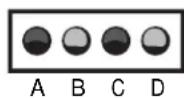
Memory modules are detected, but a memory configuration or compatibility error exists.
- Be sure that there are no special memory module/memory connector placement requirements (see page 90).
- Verify that the memory modules that you are installing are compatible with the computer (see page 97).
- If the problem persists, contact Dell (see page 105).
| Diagnostic Code Definition Corrective Action | ||
G Y Y Y | No memory modules are detected. | Reinstall all memory modules (see page 90) and then restart the computer.To eliminate the possibility of a faulty memory connector, remove all memory modules, install one memory module (if the computer supports a single module), and restart the computer.Then move the memory module to another connector and restart the computer.If the problem persists, contact Dell (see page 105). |
Y G Y Y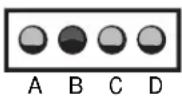 | PCI bus failure. | 1 Determine if a conflict exists by removing a card (not the video card) (see page 86) and then restarting the computer.2 If the problem persists, reinstall the card that you removed, remove a different card (see page 86), and then restart the computer.3 Repeat this process for each card. If the computer starts normally, troubleshoot the last card removed from the computer for resource conflicts (see "Resolving Software and Hardware Incompatibilities" on page 70).4 If the problem persists, contact Dell (see page 105). |
Y G Y G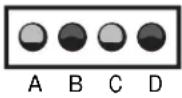 | Video controller failure. | If the computer has a video card, remove the card and reinstall it (see page 88).If the problem persists or the computer has integrated video, contact Dell (see page 105). |
Diagnostic Code Definition Corrective Action
G G G Y
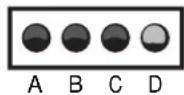
Other failure. • Ensure that the cables are properly
connected from the hard drive, CD drive, and DVD drive to the system board (see page 83).
- If the problem persists, contact Dell (see page 105).
The Microsoft ^® Windows ^® XP operating system provides System Restore to allow you to return your computer to an earlier operating state (without affecting data files) if changes to the hardware, software, or other system settings have left the computer in an undesirable operating state. See Windows Help for information on using System Restore. To access Windows Help, see page 38.

NOTICE: Make regular backups of your data files. System Restore does not monitor your data files or recover them.
Creating a Restore Point
1 Click the Start button.
2 Click Help and Support.
3 Click System Restore.
4 Follow the instructions on the screen.
Restoring the Computer to an Earlier Operating State
If problems occur after installing a device driver, first try using Device Driver Rollback (see page 68). If that is unsuccessful, then use System Restore.

NOTICE: Before restoring the computer to an earlier operating state, save and close all open files and close all open programs. Do not alter, open, or delete any files or programs until the system restoration is complete.
1 Click the Start button, point to All Programs→Accessories→System Tools, and then click System Restore.
2 Ensure that Restore my computer to an earlier time is selected, and then click Next.
3 Click a calendar date to which you want to restore your computer.
The Select a Restore Point screen provides a calendar that allows you to see and select restore points. All calendar dates with available restore points appear in bold.
4 Select a restore point, and then click Next.
If a calendar date has only one restore point, then that restore point is automatically selected. If two or more restore points are available, click the restore point that you prefer.
5 Click Next.
The Restoration Complete screen appears after System Restore finishes collecting data, and then the computer automatically restarts.
6 After the computer restarts, click OK.
To change the restore point, you can either repeat the steps using a different restore point, or you can undo the restoration.
Undoing the Last System Restore

NOTICE: Before undoing the last system restore, save and close all open files and close all open programs. Do not alter, open, or delete any files or programs until the system restoration is complete.
1 Click the Start button, point to All Programs→Accessories→System Tools, and then click System Restore.
2 Select Undo my last restoration and click Next.
3 Click Next.
The System Restore screen appears, and then the computer automatically restarts.
4 After the computer restarts, click OK.
Enabling System Restore
If you reinstall Windows XP with less than 200 MB of free hard-disk space available, System Restore is automatically disabled. To see if System Restore is enabled:
1 Click the Start button, and then click Control Panel.
2 Click Performance and Maintenance.
3 Click System.
4 Click the System Restore tab.
5 Make sure that Turn off System Restore is unchecked.
Dell Diagnostics
When to Use the Dell Diagnostics
If you experience a problem with your computer, perform the checks in "Solving Problems" (see page 35) and run the Dell Diagnostics before you contact Dell for technical assistance. Running the Dell Diagnostics may help you resolve the problem without contacting Dell. If you do contact Dell, the test results can provide important information for Dell's service and support personnel.
The Dell Diagnostics allows you to:
- Perform express, extended, or custom tests on one or all devices
- Select tests based on a symptom of the problem you are having
- Choose how many times a test is run
- Display test results
- Suspend testing if an error is detected
- Access online help information that describes the tests and devices
- Receive status messages that tell you whether tests completed successfully
- Receive error messages if problems are detected
Starting the Dell Diagnostics

NOTICE: Only use the Dell Diagnostics to test your Dell™ computer. Using this program with other computers can result in error messages.
Start the Dell Diagnostics from either your hard drive or from the Dell Dimension ResourceCD as explained below.
Starting the Dell Diagnostics From Your Hard Drive
1 Shut down and restart the computer.
2 When the DELL ^® logo appears, press < F12> immediately.
If you wait too long and the Microsoft® Windows® logo appears, continue to wait until you see the Windows desktop. Then shut down your computer through the Start menu and try again.
3 When the boot device list appears, highlight Boot to Utility Partition and press
4 When the Dell Diagnostics Main Menu appears, select the test you want to run (see page 66).
Starting the Dell Diagnostics From the ResourceCD
1 Insert the ResourceCD into the CD drive.
2 Shut down and restart the computer.
When the DELL ^® logo appears, press < F12> immediately.
If you wait too long and the Windows logo appears, continue to wait until you see the Windows desktop. Then shut down your computer through the Start menu and try again.
3 When the boot device list appears, highlight IDE CD-ROM Device and press
4 Select the IDE CD-ROM Device option from the CD boot menu.
5 Select the Boot from CD-ROM option from the menu that appears.
6 Type 1 to start the ResourceCD menu.
7 Type 2 to start the Dell Diagnostics.
8 Select Run the 32 Bit Dell Diagnostics from the numbered list. If multiple versions are listed, select the version appropriate for your platform.

HINT: If you receive a message stating that no Diagnostics utility partition has been found, follow the instructions to run the Dell Diagnostics from your ResourceCD.

HINT: This feature changes the boot sequence for one time only. On the next start-up, the computer boots according to the devices specified in the system setup program.

HINT: The Service Tag number for your computer is located at the top of each test screen.
9 When the Dell Diagnostics Main Menu appears, select the test you want to run.
Dell Diagnostics Main Menu
1 After the Dell Diagnostics loads and the Main Menu screen appears, click the button for the option you want.
| Option Function | |
| Express Test | Performs a quick test of devices. This test typically takes 10 to 20 minutes and requires no interaction on your part. Run Express Test first to increase the possibility of tracing the problem quickly. |
| Extended Test | Performs a thorough check of devices. This test typically takes an hour or more and requires you to answer questions periodically. |
| Custom Test | Tests a specific device. You can customize the tests you want to run. |
| Symptom Tree | Lists the most common symptoms encountered and allows you to select a test based on the symptom of the problem you are having. |
2 If a problem is encountered during a test, a message displaying the error code and a description of the problem appear. Write down the error code and problem description and follow the instructions on the screen.
If you cannot resolve the error condition, contact Dell (see page 105).
3 If you run a test from the Custom Test or Symptom Tree option, click the applicable tab described in the following table for more information.
| Tab Function |
| Results Displays the results of the test and any error conditions encountered. |
| Errors Displays error conditions encountered, error codes, and problem description. |
Help Describes the test and may indicate requirements for running the test.
| Tab Function |
| Configuration Displays your hardware configuration for the selected device.The Dell Diagnostics obtains your configuration information for all devices from the system setup program, memory, and various internal tests and displays it in the device list in the left pane of the screen. The device list may not display the names of all the components installed on your computer or all devices attached to your computer. |
| Parameters Allows you to customize the test by changing the test settings. |
4 When the tests are completed, if you are running the Dell Diagnostics from the ResourceCD, remove the CD.
5 Close the test screen to return to the Main Menu screen. To exit the Dell Diagnostics and restart the computer, close the Main Menu screen.
Drivers
What Is a Driver?
A driver is a program that controls a device such as a printer, mouse, or keyboard. All devices require a driver program.
A driver acts like a translator between the device and the programs that use the device. Each device has its own set of specialized commands that only its driver recognizes.
Many drivers, such as the keyboard driver, come with your Microsoft ^® Windows ^® operating system. You may need to install drivers if you:
- Upgrade your operating system
- Reinstall your operating system
- Connect or install a new device
If you experience a problem with any device, perform the steps in the following sections to identify whether the driver is the source of your problem and if necessary, to update the driver.
Identifying Drivers
1 Click the Start button and click Control Panel.
2 In the Control Panel window, under Pick a Category, click Performance and Maintenance.
3 In the Performance and Maintenance window, click System.
4 In the System Properties window, click the Hardware tab.
5 Click Device Manager.
6 In the Device Manager window, scroll down the list to see if any device has an exclamation point (a yellow circle with a [!]) on the device icon. If an exclamation point is next to the device name, you may need to reinstall the driver or install a new driver.
Reinstalling Drivers

NOTICE: The Dell Support website and your Dell Dimension ResourceCD provide approved drivers for Dell™ computers. If you install drivers obtained from other sources, your computer might not work correctly.
Using Windows XP Device Driver Rollback
If a problem occurs on your computer after you install or update a driver, use Windows XP Device Driver Rollback to replace the driver with the previously installed version.
To use Device Driver Rollback:
1 Click the Start button and click Control Panel.
2 In the Control Panel window, under Pick a Category, click Performance and Maintenance.
3 In the Performance and Maintenance window, click System.
4 In the System Properties window, click the Hardware tab.
5 Click Device Manager.
6 In the Device Manager window, right-click the device for which the new driver was installed and click Properties.
7 Click the Drivers tab.
8 Click Roll Back Driver.
If Device Driver Rollback does not resolve the problem, then use System Restore (see page 62) to return your computer to the operating state that existed before you installed the new driver.
Using the Dell Dimension ResourceCD
If using Device Driver Rollback or System Restore (see page 62) does not resolve the problem, then reinstall the driver from the Dell Dimension ResourceCD:
1 With the Windows desktop displayed, insert the ResourceCD into the CD or DVD drive.
If this is your first time to use the ResourceCD, go to step 2. If not, go to step 5.
2 When the ResourceCD installation program starts, follow the prompts on the screen.
3 When the InstallShield Wizard Complete window appears, remove the ResourceCD and click Finish to restart the computer.
4 When you see the Windows desktop, reinsert the ResourceCD into the CD or DVD drive.
5 At the Welcome Dell System Owner screen, click Next.
A message stating that the ResourceCD is detecting hardware in your computer appears.
The drivers that are used by your computer are automatically displayed in the My Drivers—The ResourceCD has identified these components in your system window.
6 Click the driver that you want to reinstall and follow the instructions on the screen.
If a particular driver is not listed, then that driver is not required by your operating system.

HINT: The ResourceCD displays drivers only for hardware that came on your computer. If you installed additional hardware, the drivers for the new hardware might not be displayed by the ResourceCD. If those drivers are not displayed, exit the ResourceCD program. For drivers information, see the documentation that came with the device.
Resolving Software and Hardware Incompatibilities
Microsoft ^® Windows ^® XP IRQ conflicts occur if a device either is not detected during the operating system setup or is detected but incorrectly configured.
To check for conflicts on a computer running Windows XP:
1 Click the Start button, and then click Control Panel.
2 Click Performance and Maintenance, and then click System.
3 Click the Hardware tab, and then click Device Manager.
4 In the Device Manager list, check for conflicts with the other devices.
Conflicts are indicated by a yellow exclamation point (!) beside the conflicting device or a red x if the device has been disabled.
5 Double-click any conflicting device listed to bring up the Properties window to determine what needs to be reconfigured or removed from the Device Manager.
Resolve these conflicts before checking specific devices.
6 Double-click the malfunctioning device type in the Device Manager list.
7 Double-click the icon for the specific device in the expanded list.
The Properties window appears.
8 Resolve any IRQ conflicts, as described in step 5.
If an IRQ conflict exists, the Device status area in the Properties window reports the cards or devices that share the device's IRQ.
You can also use the Windows XP Hardware Troubleshooter:
1 Click the Start button.
2 Click Help and Support.
3 Type hardware troubleshooter in the Search field, and then click the arrow to start the search.
4 Click Hardware Troubleshooter in the Search Results list.
5 In the Hardware Troubleshooter list, click I need to resolve a hardware conflict on my computer.
6 Click Next.
Reinstalling Windows ^® XP
Before reinstalling the Microsoft ^® Windows XP operating system to correct a problem, try correcting the problem by performing a Windows XP System Restore (see page 62). The reinstallation process can take 1 to 2 hours, and you will need to reinstall your drivers, virus protection program, and other software when the process is complete.

NOTICE: The Operating System CD provides options for reinstalling your Windows XP operating system. The options can potentially overwrite files installed by Dell and possibly affect programs installed on your hard drive. Therefore, Dell does not recommend that you reinstall your operating system unless instructed to do so by a Dell technical support representative.

NOTICE: To prevent conflicts with Windows XP, you must disable any virus protection software installed on your computer before you reinstall Windows XP.
To reinstall Windows XP:
1 To reinstall Windows XP, insert the Operating System CD into the CD or DVD drive.
Close any program or utility that might run after you insert the CD into the drive.
2 Turn off the computer (see page 34), and then turn the computer on again.
3 When the blue DELL™ logo appears, press < F12> immediately.
If you wait too long and the operating system logo appears, continue to wait until you see the Microsoft Windows desktop. Then shut down the computer and try again.
4 Use the arrow keys to select the CD-ROM option, and then press
5 When the Windows XP Setup screen appears, press
6 Read the information in the License Agreement window, and then press < F8> on your keyboard to agree with the license information.
7 If your computer already has Windows XP installed and you want to recover your current Windows XP data, type r to select the repair option, and then go to step 16.
If you want to install a new copy of Windows XP, press
The Windows XP Setup screen appears and Windows XP begins to copy files and install the devices. The computer automatically restarts multiple times before it requires additional input.
8 When the Welcome to Microsoft screen appears, click the green arrow icon at the bottom of the screen to continue. Follow the directions on the screen to finish.
9 When the Regional Settings screen appears, select the settings for your locale, and then click Next.
10 Enter your name and organization in the Personalize Your Software screen, and then click Next.
11 If you are reinstalling Windows XP Home Edition, enter a name for your computer when the Computer Name window appears, and then click Next.
If you are reinstalling Windows XP Professional, enter a name for your computer and a password when the Computer Name and Administrator Password window appears, and then click Next.
12 If the Modem Dialing Information screen appears, enter the requested information. Then click Next.
13 Enter the date, time, and time zone in the Date and Time Settings window, and then click Next.
14 If you have a network card in your computer, select the appropriate network settings.
If you do not have a network card, this option does not appear.
Windows XP begins to install its components and configure the computer. The computer automatically restarts.
15 When the Welcome to Microsoft screen appears, click the green arrow icon at the bottom of the screen to continue. Follow the directions on the screen to finish.
16 Remove the CD from the drive.
17 Reinstall the appropriate drivers (see page 67).
18 Reinstall your virus protection software.
19 Reinstall your other software programs.
See the documentation supplied with the software for instructions.
SECTION 4
Adding Parts
Front and Back View of the Computer
Reattaching the Front Door
Opening the Computer Cover
Looking Inside Your Computer
Adding PC Cards (Optional)
Adding Other Cards
Adding or Replacing a Video Card
Adding Memory
Closing the Computer Cover
Front and Back View of the Computer
Front View

HINT: The front-panel door does not close when you are using certain PC Cards or IEEE 1394, USB, or headphone connectors.
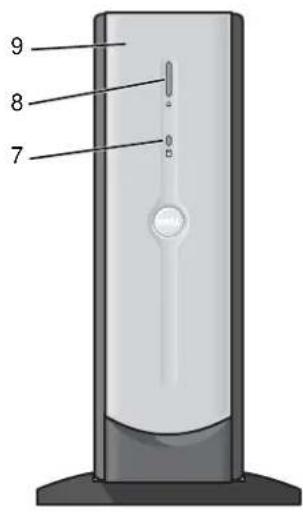
text_image
7 8 9
text_image
Diagram of a computer monitor rear panel with numbered components for identification| 1 | breakaway hinges (2) | To prevent damage to your computer, the front door is designed to "break away" if it is opened too far. To reattach the front door, see page 79. |
| 2 | IEEE 1394 connector | Use the IEEE 1394 connector (available on computers with an IEEE 1394 option) for high-speed data transfer between your computer and a device, such as a digital camera. |
| 3 | CD or DVD drive light | The drive light is on when the computer reads data from or writes data to the CD or DVD drive. |
| 4 | PC Card connectors(2) | Connect a PC Card into any of the PC Card connectors (available on computers with a PC Card option). Use the PC Card connectors for 16-bit PCMCIA cards only. Do not use a 32-bit CardBus. |
| 5 | USB 2.0 connectors (2) | For quick connections, Dell recommends using the front USB connectors for USB devices such as digital cameras, gaming controllers, and scanners. Use the back-panel USB connectors for USB devices that are seldom disconnected, such as USB mouse and keyboard devices.NOTICE: This computer supports the use of a USB hub. However, do not connect two or more USB hubs to a USB connector. Doing so may cause the computer to unexpectedly restart.HINT: If you attach a USB device that was not included in your original computer order, you may need to install a specific driver to make the device work. Check the documentation that came with the device or contact the USB device manufacturer for more information. |
| 6 | headphone connector | Use the headphone connector to attach headphones and most speakers for listening to all sounds from your computer, including your CD player and computer sounds such as beeps. |
| 7 | hard-drive light | The hard-drive light is on when the computer reads data from or writes data to the hard drive. The light might also be on when devices such as your CD player are operating. |
| 8 | power button Press this button to turn on the computer.NOTICE: To avoid losing data, do not use the power button to turn off the computer. Instead, perform a Windows shutdown. | |
| 9 | front door Open the door to use the front-panel connectors.HINT: The front door is removable; if you remove it or accidentally knock it off its hinges, it snaps back in place. For instructions on how to reattach the door, see page 79. | |
Back View

HINT: The front-panel door is removable; if you remove it or accidentally knock it off its hinges, it snaps back in place. For instructions on how to reattach the door, see page 79.
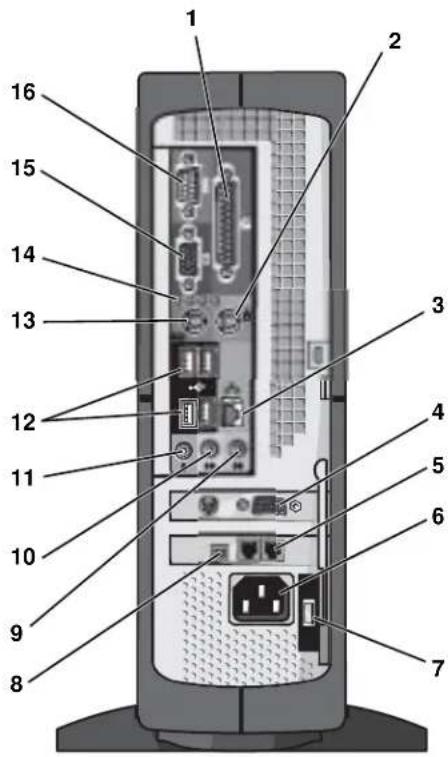
text_image
Labeled diagram of a computer tower rear panel showing internal components and ports| 1 | parallel connector | Connect a parallel device, such as a printer, to the parallel connector. If you have a USB printer, plug it into a USB connector. |
| 2 | mouse connector | Plug a standard mouse into the green mouse connector. Turn off the computer and any attached devices before you connect a mouse to the computer. If you have a USB mouse, plug it into a USB connector. |
| 3 | network connector Connect your computer to a network using this connector. | |
| 4 | video card connector | If you purchased the optional video card, plug your monitor into the video card connector. |
| 5 | modem connectors (2) | Use the modem connector to connect your computer to the Internet. |
| 6 | power connector The connection for the power cable. | |
| 7 voltage selection switch (may not be available on all computers) | Your computer is equipped with either an auto-sensing voltage selector or a manual voltage selection switch. See "Safety Instructions" on page 9 for more information. | |
| 8 | IEEE 1394 connector | Use the IEEE 1394 connector (available on computers with an IEEE 1394 option) for high-speed data transfer between your computer and a peripheral device such as a digital camera. |
| 9 | line-in connector | Use the blue line-in connector to attach a record/playback device such as a cassette player, CD player, or VCR. |
| 10 | line-out connector | Use the green line-out connector to attach headphones and most speakers with integrated amplifiers. |
| 11 | microphone connector | Use the pink microphone connector to attach a personal computer microphone for voice or musical input into a sound or telephony program. |
| 12 | USB 2.0 connectors (4) | Connect USB devices such as a mouse, keyboard, printer, joystick, and computer speakers into any of the USB connectors. |
| 13 | keyboard connector | If you have a standard keyboard, plug it into the purple keyboard connector. If you have a USB keyboard, plug it into a USB connector. |
| 14 | diagnostic lights (4) | Use the lights to help you troubleshoot a computer problem based on the diagnostic code. For more information, see page 60. |
| 15 | integrated video connector | If this connector has a protective cap over it, then your computer has the optional video card installed. If this connector does not have a protective cap over it, plug the cable from your monitor into the blue connector. |
| 16 | serial connector | Connect a serial device to the serial connector. |
Reattaching the Front Door
To prevent damage to your computer, the front door is designed to "break away" if it is opened too far. To reattach the front door:
1 Shut down the computer (see page 34).
2 Disconnect the computer's power cable from the electrical outlet.
3 Move the hinge arms to the closed position.
4 Align the two clips on the inside of the front door with the two hinge arms.
HINT: The top hinge arm clicks when it is moved to the closed position—the bottom hinge arm does not.
5 Press inward on the front door until it clips to both hinge arms.

text_image
hinge arms (2) in closed position front-door clips (2) front doorOpening the Computer Cover
CAUTION: Before you begin any of the procedures in this section, follow the safety instructions on page 9.
CAUTION: To guard against electrical shock, always unplug your computer from the electrical outlet before opening the cover.
1 Shut down the computer (see page 34).
NOTICE: To disconnect a network cable, first unplug the cable from your computer and then unplug it from the network wall jack.
2 Turn off any attached devices and disconnect them from their electrical outlets.
3 Disconnect the computer power cable from the wall outlet, and then press the power button to ground the system board.
4 Disconnect all cables from the computer, and then remove the computer stand (see page 21).
NOTICE: Ensure that there is sufficient space to support the open cover—at least 30 cm (1 ft) of desk top space.
5 Press the two release buttons until the cover is free to swing up.
NOTICE: Open the cover slowly to ensure that you do not damage any cables.
6 Raise the back of the cover, and pivot it toward the front of the computer.
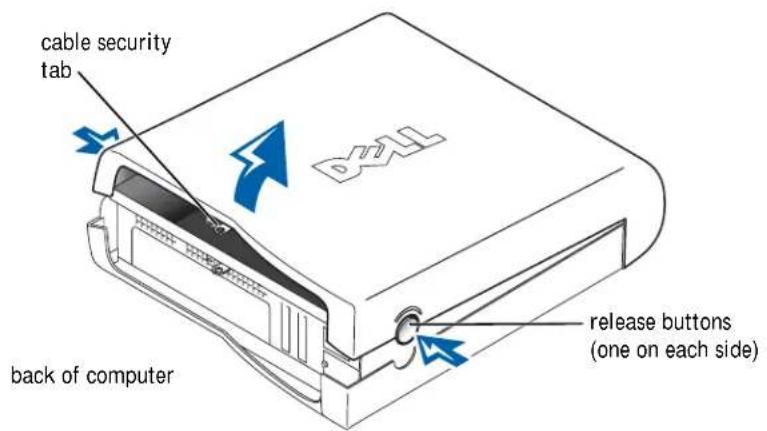
text_image
cable security tab back of computer DWLL release buttons (one on each side)HINT: Make sure that the computer is oriented with the cable security tab on top, as shown in the illustration.
Looking Inside Your Computer
CAUTION: Before you begin any of the procedures in this section, follow the safety instructions on page 9.
CAUTION: To guard against electrical shock, always unplug your computer from the electrical outlet before opening the cover.
NOTICE: Be careful when opening the computer cover to ensure that you do not inadvertently disconnect cables from the system board.
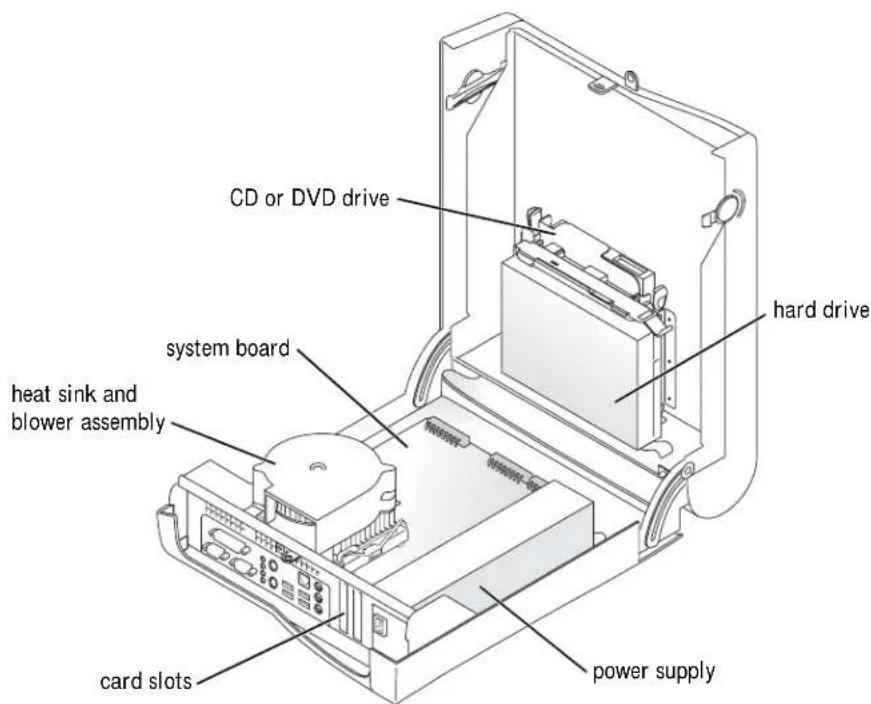
text_image
CD or DVD drive hard drive system board heat sink and blower assembly card slots power supplySystem Board
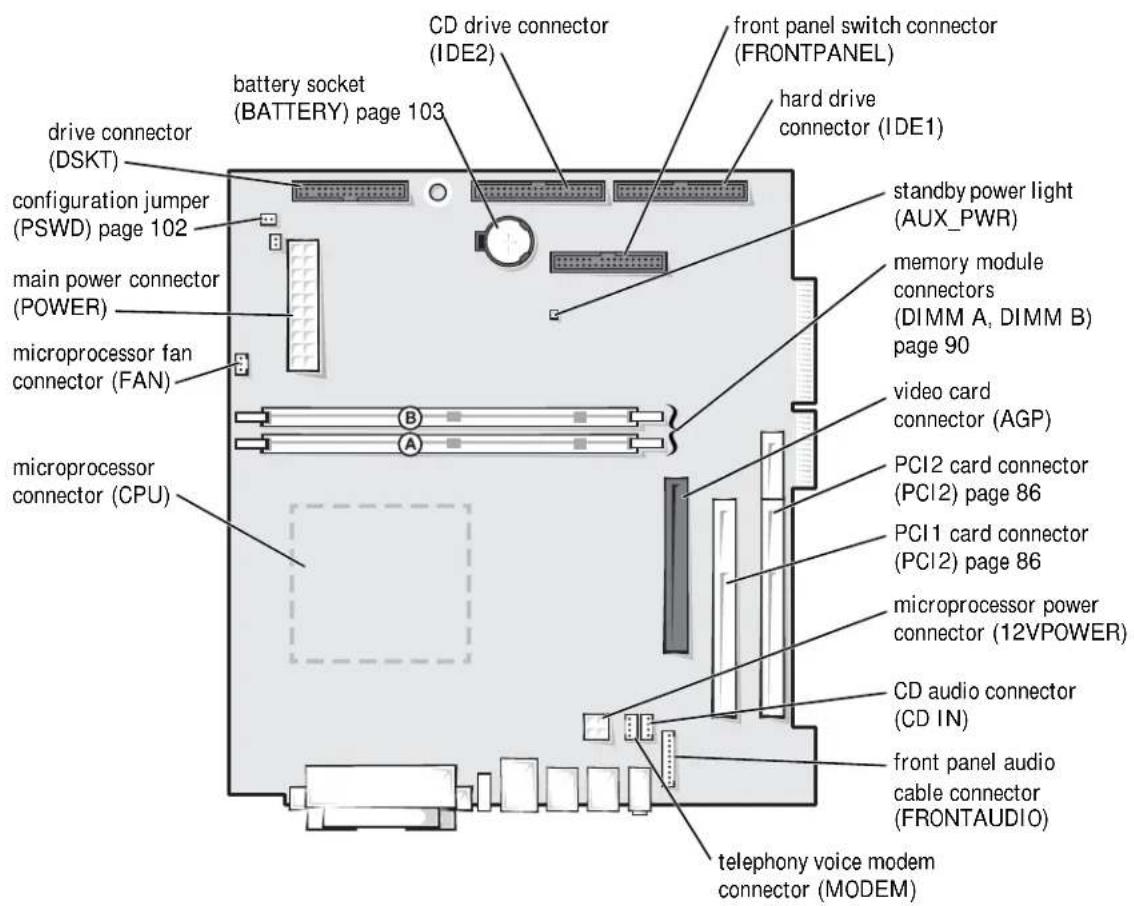
text_image
CD drive connector (IDE2) front panel switch connector (FRONT PANEL) battery socket (BATTERY) page 103 hard drive connector (IDE1) drive connector (DSKT) configuration jumper (PSWD) page 102 main power connector (POWER) microprocessor fan connector (FAN) microprocessor connector (CPU) standby power light (AUX_PWR) memory module connectors (DIMM A, DIMM B) page 90 video card connector (AGP) PCI2 card connector (PCI2) page 86 PCI1 card connector (PCI2) page 86 microprocessor power connector (12VPOWER) CD audio connector (CD IN) front panel audio cable connector (FRONTAUDIO) telephony voice modem connector (MODEM)back of computer
Adding PC Cards (Optional)
You can add PC Cards to computers with integrated PC Card connectors.
PC Card Types
The PC Card slot has two connectors that support four combinations of cards:
HINT: "Type" of card refers to its thickness, not its functionality.
HINT: Your computer is designed for either 5-V or 3.3-V 16-bit PCMCI A cards. Some cards are keyed for 3.3 V only but will not fit into the PC slot. Cards are keyed to prevent incorrect insertion into the slot. If card orientation is not clear, see the documentation supplied with the card.
HINT: The length of some PC Cards may prevent the front-panel door from closing.
HINT: A PC Card is not a bootable device.
- A single Type I or Type II card (using either the upper or lower PC Card connector)
- One Type I card and one Type II card (using either connector)
- Two Type I cards or two Type II cards
• One Type III card (using the lower connector)
Both PC Card connectors support extended PC Cards.
Installing a PC Card
PC Cards are generally marked with a symbol (such as a triangle or an arrow) to indicate which end to insert into the slot, and the cards are keyed to prevent incorrect insertion. If card orientation is not clear, see the documentation supplied with the card.
1 Hold the card with its orientation symbol pointing into the slot and the top side of the card facing up.
2 Insert the card into the slot, and press firmly until the card is completely seated in the internal PC Card connector.

natural_image
Technical line drawing of a device with an inset showing a component (no text or symbols)3 If you encounter too much resistance when you insert the card, do not force the card. Check the card's orientation, and try again.
4 Your computer recognizes most PC Cards and automatically loads the appropriate device driver for use with the computer. If the configuration program tells you to load the manufacturer's drivers, install them with the CD that accompanied the PC Card.
Removing a PC Card

NOTICE: Use the PC Card configuration utility on the taskbar to select and stop a card from functioning before you remove it from the computer. If you do not remove the card in the configuration utility, you could lose data from open programs.

NOTICE: Do not attempt to eject a card by pulling its dongle, if one is attached.
Press the eject button, and gently remove the card.

HINT: Press the button with the upper dot to eject the top card and the button with the lower dot to eject the bottom card.
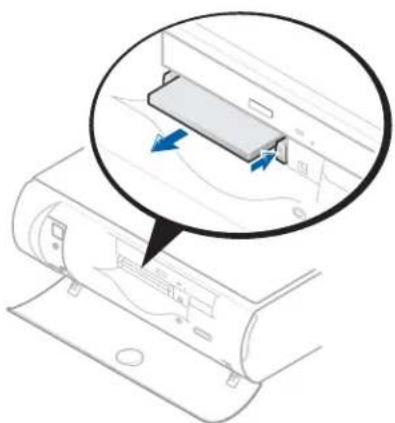
natural_image
Diagram of a device interior showing airflow or fluid flow direction with arrows, no text or symbols presentAdding Other Cards
CAUTION: Before you begin any of the procedures in this section, follow the safety instructions on page 9.
CAUTION: To guard against electrical shock, always unplug your computer from the electrical outlet before opening the cover.
NOTICE: You must use low-profile cards for your computer. A full-size card can cause damage to the computer or the card.
The computer's card connectors allow you to install different types of devices such as modems and network adapters.
1 Shut down the computer (see page 34).
NOTICE: To disconnect a network cable, first unplug the cable from your computer and then unplug it from the network wall jack.
2 Turn off any attached devices and disconnect them from their electrical outlets.
3 Disconnect the computer power cable from the wall outlet, and then press the power button to ground the system board.
4 Remove the computer stand (see page 21).
5 Open the computer cover (see page 80).
6 Press the lever on the retention arm and raise the retention arm.
7 If you are installing a new card, remove the filler bracket to create an empty card-slot opening.
If you are replacing a card that is already installed in the computer, remove the card. If necessary, disconnect any cables connected to the card. Grasp the card by its top corners, and ease it out of its connector.
8 Prepare the card for installation.
See the documentation that came with the card for information on configuring the card, making internal connections, or otherwise customizing it for your computer.

CAUTION: Some network adapters automatically start the computer when they are connected to a network. To guard against electrical shock, be sure to unplug your computer from its electrical outlet before installing any cards.
9 Insert the card into the card connector.
If the card is full-length, insert the end of the card into the card guide bracket as you lower the card toward its connector on the system board. Insert the card firmly into the card connector on the riser board.
10 Lower the retention arm and press it into place, securing the card(s) in the computer.
11 Reconnect any cables that you previously removed.
12 Connect any cables that should be attached to the card.
See the documentation for the card for information about the card's cable connections.

NOTICE: Do not route card cables over or behind the cards. Cables routed over the cards can prevent the computer cover from closing properly or cause damage to the equipment.
13 Close the computer cover (see page 92).
14 Attach the computer stand (see page 21).

NOTICE: To connect a network cable, first plug the cable into the network wall jack and then plug it into the computer.
15 Connect your computer and devices to electrical outlets, and turn them on.
16 Install any drivers required for the card as described in the card documentation.
Adding or Replacing a Video Card

CAUTION: Before you begin any of the procedures in this section, follow the safety instructions on page 9.

CAUTION: To guard against electrical shock, always unplug your computer from the electrical outlet before opening the cover.

NOTICE: You must use low-profile cards for your computer. A full-size card can cause damage to the computer or the card.
1 Shut down the computer (see page 34).

NOTICE: To disconnect a network cable, first unplug the cable from your computer and then unplug it from the network wall jack.
2 Turn off any attached devices and disconnect them from their electrical outlets.
3 Disconnect the computer power cable from the wall outlet, and then press the power button to ground the system board.
4 Remove the computer stand (see page 21).
5 Open the computer cover (see page 80).
Removing a Video Card
1 Remove the filler bracket by raising the hinged lever and sliding the filler bracket up.
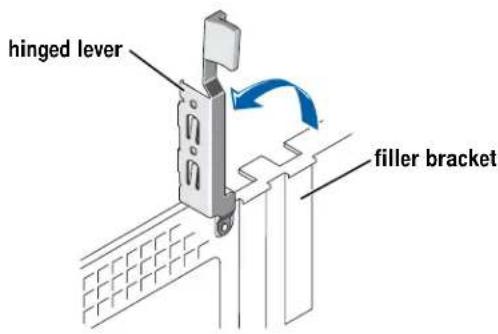
text_image
hinged lever filler bracket2 Press the card lever toward the PCI connector.
3 Pull the card up and out of the card clip.

text_image
notch lever tab card clip AGP connector PCI connector back of computerInstalling a Video Card

NOTICE: You must use low-profile cards for your computer. A full-size card can damage the computer or the card.
1 To add or replace the card, press the card lever toward the PCI connector and gently press the card into the AGP connector until it clicks into place.
2 Release the card lever, ensuring that the tab fits into the notch on the front end of the card.
3 Secure the card by lowering the hinged lever on the back panel.
4 Close the computer cover (see page 92).
5 Attach the computer stand (see page 21).

NOTICE: To connect a network cable, first plug the cable into the network wall jack and then plug it into the computer.
6 Connect your computer and devices to electrical outlets, and turn them on.

HINT: If you purchased the optional video card, ensure that you connected your monitor cable to the correct video connector.

HINT: Memory purchased from Dell is covered under your computer warranty.
Adding Memory
CAUTION: Before you begin any of the procedures in this section, follow the safety instructions on page 9.
CAUTION: To guard against electrical shock, always unplug your computer from the electrical outlet before opening the cover.
You can increase your computer memory by installing memory modules on the system board. For information on the type of memory supported by your computer, look under "Memory" in "Technical Specifications" on page 97.
1 Shut down the computer (see page 34).
NOTICE: To disconnect a network cable, first unplug the cable from your computer and then unplug it from the network wall jack.
2 Turn off any attached devices and disconnect them from their electrical outlets.
3 Disconnect the computer power cable from the wall outlet, and then press the power button to ground the system board.
4 Remove the computer stand (see page 21).
5 Open the computer cover (see page 80).
6 Remove the video card (see page 88).
7 If necessary, remove a memory module:
a Press out the securing clip at each end of the memory module connector.
b Grasp the module and pull up.
If the module is difficult to remove, gently ease the module back and forth to remove it from the connector.
8 To insert a module, press out the securing clip at each end of the memory module connector.
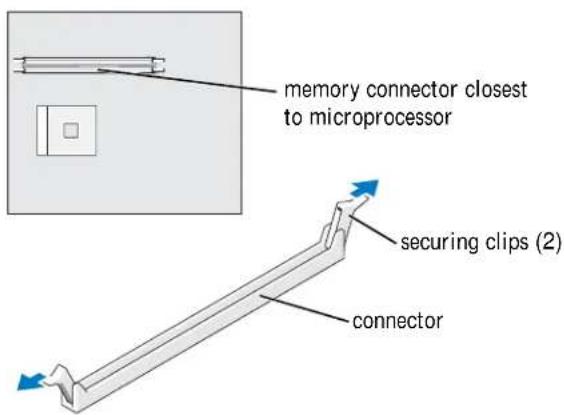
text_image
memory connector closest to microprocessor securing clips (2) connector9 Align the notch on the bottom of the module with the crossbar in the connector.
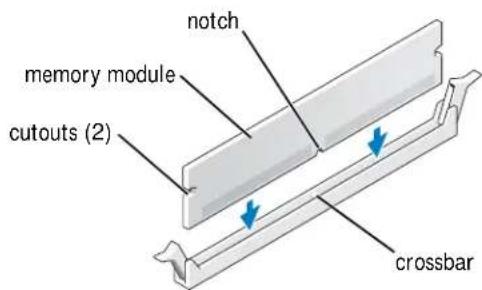
text_image
notch memory module cutouts (2) crossbar
NOTICE: To avoid damage to the memory module, press the module straight down into the connector while you apply equal force to each end of the module.
10 Insert the module into the connector until the module snaps into position.
If you insert the module correctly, the securing clips snap into the cutouts at each end of the module.
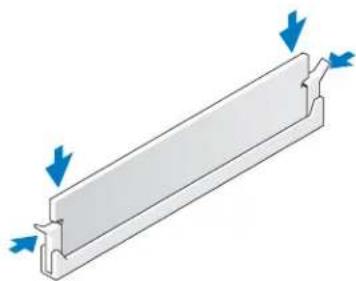
natural_image
3D diagram of a mechanical component with directional arrows indicating force or movement (no text or symbols)11 Reinstall the video card (see page 88).
12 Close the computer cover (see page 92).
13 Attach the computer stand (see page 21).
NOTICE: To connect a network cable, first plug the cable into the network wall jack and then plug it into the computer.
14 Connect your computer and devices to electrical outlets, and turn them on.
15 Right-click the My Computer icon and then click Properties.
16 Click the General tab.
17 To verify that the memory is installed correctly, check the amount of memory (RAM) listed.
Closing the Computer Cover
1 Ensure that all cables are connected, and fold cables out of the way. Make sure that cables are not routed over the drive cage—they will prevent the cover from closing properly.
2 Ensure that no tools or extra parts are left inside the computer.
3 Pivot the cover down and ensure that the release buttons click into place.
4 Attach the computer stand (see page 21).
NOTICE: To connect a network cable, first plug the cable into the network wall jack and then plug it into the computer.
5 Connect your computer and devices to electrical outlets, and turn them on.
5
SECTION 5
Appendix
Specifications
Standard Settings
Clearing Forgotten Passwords
Replacing the Battery
Dell Technical Support Policy
Contacting Dell
Regulatory Information
Specifications
| Microprocessor | |
| Microprocessor type Intel | ^® Pentium ^® 4 |
| L1 cache 8 KB first-level | |
| L2 cache integrated 256-KB or 512-KB at full microprocessor speed | |
| System Information | |
| System chip set Intel 845G | |
| DMA channels four | |
| Interrupt levels 24 APIC mode | |
| System BIOS chip 4 Mb (512 KB) | |
| System clock 400- or 533-MHz data rate | |
| Expansion Bus | |
| Bus types PCI and AGP | |
| Bus speed PCI: 33 MHz; AGP: 66 MHz | |
| AGP connector one low profile | |
| AGP connector size 172 pins | |
| AGP connector data width (maximum) | 32 bits |
| AGP video bus protocols | 4x/2x modes at 1.5 V |
| PCI connectors | one low profile |
| PCI connector size | 120 pins |
| PCI connector data width (maximum) | 32 bits |
Memory
Architecture DDR SDRAM
Memory connectors two
Memory capacities 128-, 256-, and 512-MB non-ECC DDR SDRAM
Minimum memory 128 MB
Maximum memory 1 GB
Memory type 266-MHz DDR SDRAM (non-ECC)
Drives
Externally accessible one slimline optical bay
one slimline 3.5-inch bay
Internally accessible one bay for 1-inch–high IDE hard drive
Available devices ATA-100 Ultra DMA hard drive, CD drive,
DVD drive, and CD-RW drive
Ports and Connectors
Externally accessible:
Serial One 9-pin connector; 16550C-compatible
Parallel 25-hole connector (bidirectional)
IEEE 1394 Two 4-hole, unpowered connectors
Video 15-hole connector
Keyboard 6-pin mini-DIN connector or USB connector
Mouse 6-pin mini-DIN connector or USB connector
USB two front-panel and four back-panel USB 2.0-compliant connectors (compatible with 1.1)
Headphone front-panel miniature connector
Audio three miniature connectors for line-in, line-out, and microphone
Network one 10/100 Ethernet network connector
Internally accessible:
Primary IDE channel 40-pin connector on PCI local bus
Secondary IDE channel 40-pin connector on PCI local bus
| Video | |
| Video controller Intel integrated AGP graphics (low-profileAGP video card also supported) | |
| Audio | |
| Audio controller ADI 1981A | |
| Controls and Lights | |
| Power control push button | |
| Power light green light on power button—blinking greenin sleep state; solid green for power-on state | |
| Hard-drive access light green | |
| Diagnostic code lights four bicolor (amber and green) located on back panel | |
| Power | |
| DC power supply: | |
| Wattage 160 W | |
| Heat dissipation 500 BTU (fully-loaded computer without monitor) | |
| Voltage (see page 11 for important voltage setting information) | 90 to 135 V at 50/60 Hz; 180 to 265 V at 50/60 Hz; 100 V at 50/60 Hz for Japanese computers |
| Backup battery 3-V CR2032 coin cell | |
| Physical | |
| Height x Width x Depth(With stand) | 32.3 x 9.5 x 35.6 cm (12.7 x 3.8 x 14.0 inches) |
| 33.8 x 18.0 x 35.6 cm (13.3 x 7.1 x 14.0 inches) | |
| Weight 7.43 kg (16.4 lbs) | |
Environmental
| Temperature: | |
| Operating | 10° to 35°C (50° to 95°F)* |
| Storage | -40° to 65°C (-40° to 149°F) |
| Relative humidity 20% to 80% (noncondensing) | |
| Maximum vibration: | |
| Operating 0.25 G at 3 to 200 Hz at 1/2 octave/min | |
| Storage 0.5 G at 3 to 200 Hz at 1/2 octave/min | |
| Maximum shock: | |
| Operating bottom half-sine pulse with a change in velocity of 50.8 cm/sec (20 inches/sec) | |
| Storage 23-G faired-square wave with a velocity change of 508 cm/sec (200 inches/sec) | |
| Altitude: | |
| Operating -15.2 to 3048 m (-50 to 10,000 ft) | * |
| Storage -15.2 to 10,670 m (-50 to 35,000 ft) | |
* At 35°C (95°F), the maximum operating altitude is 914 m (3000 ft).
Standard Settings
The system setup program contains the standard settings for your computer.

NOTICE: Unless you are an expert computer user, don't change the settings for this program. Certain changes might make your computer work incorrectly.
See the following figure for an example of the main program screen.
| Dell - Dimension 4500C | |||
| Intel® Pentium® 4 Processor: ann GNs Level 2 Cache: ann KB Integrated | BIOS Version: ann Service Tag: nanaaa | ||
| System Time | 00:00:00 | ||
| System Date | DAY/MO/DATE/YR | ||
| Diskette Drive A: | Not Installed | ||
| Primary Drive 0 | Hard Drive | ||
| Primary Drive 1 | Off | ||
| Secondary Drive 0 | CD-ROM Reader | ||
| Secondary Drive 1 | Off | ||
| Boot Sequence | <Enter> | ||
| Memory Information | <Enter> | ||
| CPU Information | <Enter> | ||
| Integrated Devices (LegacySelect Options) | <Enter> | ||
| PCI IRQ Assignments | <Enter> | ||
| IRQ Reservations | <Enter> | ||
| Power Management | <Enter> | ||
| System Security | <Enter> | ||
| Keyboard NumLock | On | ||
| Report Keyboard Errors | Report | ||
| Auto Power On | Disabled | ||
| Remote Wake Up | Off | ||
| Fast Boot | On | ||
| System Event Log | <Enter> | ||
| Asset Tag | xxxxx | ||
Viewing Settings
1 Turn on (or restart) your computer.
2 When the blue DELL ^TM logo appears, press < F2> immediately.
If you wait too long and the operating system logo appears, continue to wait until you see the Microsoft® Windows® desktop. Then shut down your computer and try again.
System Setup Program Screens
The system setup program screens display the current configuration information for your computer. Information on the screen is divided into five areas:
- Title – The area at the top of all system setup screens that displays your computer's model number.
- Computer data – Two boxes below the title that display the system processor, L2 cache, service tag, and the version number of the BIOS.
- Options – A scrollable box listing options that define the configuration of your computer (including installed hardware, power conservation, and security features).
Fields to the right of the listed options contain settings or values. The settings and values that you can change are brighter on the screen. All other settings and values are set by the computer and cannot be changed. When
- Key functions – A line of boxes across the bottom of all system setup screens that lists keys and their functions within the system setup program.
- Help – Press < F1> for information on the option that is selected (highlighted).
Clearing Forgotten Passwords

CAUTION: Before you begin any of the procedures in this section, follow the safety instructions on page 9.
If you forget your user or setup password, you cannot operate your computer or change settings in the system setup program until you clear the forgotten password(s).

NOTICE: This process erases both the system and setup passwords.
1 Shut down the computer (see page 34).

NOTICE: To disconnect a network cable, first unplug the cable from your computer and then unplug it from the network wall jack.
2 Turn off any attached devices and disconnect them from their electrical outlets.
3 Disconnect the computer power cable from the wall outlet, and then press the power button to ground the system board.
4 Remove the computer stand (see page 22).
5 Open the computer cover (see page 80).
6 Locate jumper PSWD on the system board (see page 83) and remove the jumper plug.
7 Close the computer cover (see page 92), plug your computer into an electrical outlet, and turn on the computer.
The existing password(s) will be erased.
8 Shut down the computer (see page 34).

NOTICE: To disconnect a network cable, first unplug the cable from your computer and then unplug it from the network wall jack.
9 Turn off any attached devices and disconnect them from their electrical outlets.
10 Disconnect the computer power cable from the wall outlet, and then press the power button to ground the system board.
11 Open the computer cover (see page 80).
12 Reconnect the jumper plug to jumper PSWD (see page 83).
13 Close the computer cover (see page 92).
14 Attach the computer stand (see page 21).

NOTICE: To connect a network cable, first plug the cable into the network wall jack and then plug it into the computer.
15 Connect your computer and devices to electrical outlets, and turn them on.
Turning on your computer with the PSWD jumper installed reenables the password feature.
Replacing the Battery

CAUTION: Before you begin any of the procedures in this section, follow the safety instructions on page 9.
A coin-cell battery maintains computer configuration, date, and time information. The battery can last several years.
If you have to repeatedly reset time and date information after turning on the computer, replace the battery.

CAUTION: A new battery can explode if it is incorrectly installed. Replace the 3-V CR2032 battery only with the same or equivalent type recommended by the manufacturer. Discard used batteries according to the manufacturer's instructions.
1 Record all the screens in the system setup program (see page 100) so that you can restore the correct settings in step 9.
2 Remove the computer stand (see page 22).
3 Open the computer cover (see page 80).
4 Locate the battery socket BATTERY (see page 103).
5 Remove the battery by carefully prying it out of its socket with your fingers or with a blunt, nonconducting object such as a plastic screwdriver.
NOTICE: To avoid damage to the system board while you pry the battery loose, be sure to insert the plastic screwdriver between the battery and the socket (not the system board).

text_image
battery battery socket (BATTERY)6 Insert the new battery into the socket with the side labeled "+" facing up and snap it into place.
7 Attach the computer stand (see page 21).
8 Connect your computer and devices to electrical outlets, and turn them on.
NOTICE: To connect a network cable, first plug the cable into the network wall jack and then plug it into the computer.
9 Access the system setup program (see page 100) and restore the settings you recorded in step 1.
10 Properly dispose of the old battery (see page 14).
Dell Technical Support Policy
See the Service and Support Guide supplied with your computer.
Contacting Dell
When you need to contact Dell, use the telephone numbers, codes, and electronic addresses provided in the following table. If you need assistance in determining which codes to use, contact a local or an international operator.
HINT: Toll-free numbers are for use within the country for which they are listed.
See the Service and Support Guide supplied with your computer for a description of the hardware and software support provided by Dell.
| Country (City)International Access CodeCountry CodeCity Code | Department Name or Service Area,Website and E-Mail Address | Area Codes,Local Numbers, andToll Free Numbers |
| Japan (Kawasaki) | Technical Support (Server) toll free: 0120-1984-35 | |
| International Access Code: 001 | Technical Support Outside of Japan (Server) 81-44-556-4152 | |
| Country Code: 81 | Technical Support (DimensionTM and InspironTM) toll free: 0120-1982-26 | |
| City Code: 44 | Technical Support Outside of Japan (Dimensionand Inspiron) | 81-44-520-1435 |
| Technical Support (Dell PrecisionTM, OptiPlexTM, and LatitudeTM) | toll free: 0120-1984-33 | |
| Technical Support Outside of Japan (DellPrecision, OptiPlex, and Latitude) | 81-44-556-3894 | |
| 24-Hour Automated Order Service 044 556-3801 | ||
| Customer Care 044 556-4240 | ||
| Business Sales Division (Up to 400 employees) 044 556 3494 | ||
| Preferred Accounts Division Sales (Over 400employees) | 044 556-3433 | |
| Large Corporate Accounts Sales (Over 3500employees) | 044 556-3440 | |
| Public Sales (Government agencies, educationalinstitutions, and medical institutions) | 044 556 3440 | |
| Global Segment Japan 044 556 3469 | ||
| Individual User 044 556 1657 | ||
| Faxbox Service 044 556-3490 | ||
| Switchboard 044 556-4300 | ||
| Website: support.jp.dell.com |
Regulatory Information
Electromagnetic Interference (EMI) is any signal or emission, radiated in free space or conducted along power or signal leads, that endangers the functioning of a radio navigation or other safety service or seriously degrades, obstructs, or repeatedly interrupts a licensed radio communications service. Radio communications services include but are not limited to AM/FM commercial broadcast, television, cellular services, radar, air-traffic control, pager, and Personal Communication Services (PCS). These licensed services, along with unintentional radiators such as digital devices, including computers, contribute to the electromagnetic environment.
Electromagnetic Compatibility (EMC) is the ability of items of electronic equipment to function properly together in the electronic environment. While this computer has been designed and determined to be compliant with regulatory agency limits for EMI, there is no guarantee that interference will not occur in a particular installation. If this equipment does cause interference with radio communications services, which can be determined by turning the equipment off and on, you are encouraged to try to correct the interference by one or more of the following measures:
- Reorient the receiving antenna.
- Relocate the computer with respect to the receiver.
- Move the computer away from the receiver.
- Plug the computer into a different outlet so that the computer and the receiver are on different branch circuits.
If necessary, consult a Dell Technical Support representative or an experienced radio/television technician for additional suggestions.
Dell computers are designed, tested, and classified for their intended electromagnetic environment. These electromagnetic environment classifications generally refer to the following harmonized definitions:
• Class A is typically for business or industrial environments.
- Class B is typically for residential environments.
For additional regulatory information, see the Tell Me How help file that accompanied your computer. To access the help file, see page 38.
Index
A
audio. See sound
B
battery disposal, 14 replacing, 103
BIOS, 100
C
cards adding, 86 connectors, 83
CD drive fixing problems, 39
CD-RW drive fixing problems, 40
CDs copying, 30 Easy CD Creator Basic, 31
Check Disk, 41
computer back view, 76 closing cover, 92 error messages, 43-44 front door, 76
front view, 76 internal parts, 82 opening cover, 80 specifications, 96 stops responding, 44 turning off, 34
conflicts drivers, 68 resolving software and hardware incompatibilities, 70
contact numbers, 105
copying CDs general information, 30 helpful tips, 32 how to copy a CD, 33
cover closing, 92 opening, 80
D
Dell Diagnostics, 15, 64 Dell Support website, 16 Device Driver Rollback, 68 diagnostics, Dell, 15, 64 display. See monitor documentation device, 15
finding, 15 finding information, 15 help file, 17, 38 online, 16 Owner's Manual, 15 ResourceCD, 15 setup diagram, 16
drivers definition, 67 reinstalling, 68 ResourceCD, 69 troubleshooting, 68
drives fixing problems, 39 DVD drive fixing problems, 40
E
electrostatic discharge, 13
e-mail fixing problems, 41
error messages, 43 start-up, 43
Express Service Code, 15
F
Files and Settings Transfer Wizard, 26
finding information, 15
finding solutions, 36
fixing problems battery, 38
Dell Diagnostics, 64
drive, 39
e-mail, 41
IEEE 1394, 47
Internet connection, 41
keyboard, 47
modem, 41
mouse, 48
network, 49
PC Cards, 50
power, 51
printer, 52
scanner, 53
sound and speakers, 54
start-up error messages, 43
video and monitor, 55
front door, 76
reattaching, 79
H
hard drive
fixing problems, 41
hardware
drivers, 67
fixing problems, 46
incompatibilities, 70
Help and Support Center, 17, 38
help file, 17, 38
Hyper-Threading, 34
|
IEEE 1394, 25
Internet
connecting, 29
fixing problems, 41
setting up connection, 29
IRQ conflicts, 70
K
keyboard
fixing problems, 47
M
memory
adding, 90
connectors, 83
messages
start-up, 43-44
Microsoft License Label, 15
modem
fixing problems, 41
monitor
fixing problems, 55
motherboard. See system board
N
network
fixing problems, 49
setting up, 28
Network Setup Wizard, 28
O
office network, 28
operating system
CD, 16
operating system
reinstallation
Windows XP, 71
P
password
clearing system setup, 102
PC Cards
installing, 84
removing, 85
types, 84
power
fixing problems, 51
turning off your computer, 34
printer
cable, 23
connecting, 23
fixing problems, 52
parallel, 23
setting up, 23
troubleshooting, 52
USB, 24
program
crashes, 44
stops responding, 44
R
RAM. See memory
reinstalling
drivers, 68
Windows XP, 71
ResourceCD, 15, 68-69
Dell Diagnostics, 15, 64
S
safety instructions, 9
scanner
fixing problems, 53
screen. See monitor
service tag number, 15
settings
system setup program, 100
setup diagram, 16
shutting down your computer, 34
software
Hyper-Threading, 34
incompatibilities, 70
reinstalling software, 68
sound
adjusting volume, 54
fixing problems, 54
speaker
adjusting volume, 54
fixing problems, 54
specifications, 96
system board, 83
System Restore, 62
system setup program, 100
T
technical assistance
telephone numbers and addresses, 105
Tell Me How help file accessing, 17, 38
troubleshooting, 36
Dell Diagnostics, 15, 64
Device Driver Rollback, 68
drivers, 67
Help and Support Center, 17, 38
turning off your computer, 34
V
video
fixing problems, 55
video memory
connector, 83
volume
adjusting, 54
W
Windows License Label, 15
Windows XP
Device Driver Rollback, 68
Help, 17, 38
Help and Support Center, 17, 38
Hyper-Threading, 34
reinstalling, 71
shutdown, 34