Inspiron M411R - Laptop DELL - Free user manual and instructions
Find the device manual for free Inspiron M411R DELL in PDF.


User questions about Inspiron M411R DELL
0 question about this device. Answer the ones you know or ask your own.
Ask a new question about this device
Download the instructions for your Laptop in PDF format for free! Find your manual Inspiron M411R - DELL and take your electronic device back in hand. On this page are published all the documents necessary for the use of your device. Inspiron M411R by DELL.
USER MANUAL Inspiron M411R DELL
Notes, Cautions, and Warnings

NOTE: A NOTE indicates important information that helps you make better use of your computer.

CAUTION: A CAUTION indicates potential damage to hardware or loss of data if instructions are not followed.

WARNING: A WARNING indicates a potential for property damage, personal injury, or death.
Information in this document is subject to change without notice.
© 2011 Dell Inc. All rights reserved.
Trademarks used in this text: Dell™, the DELL logo, and Inspiron™ are trademarks of Dell Inc.; Microsoft®, Windows®, and the Windows start button logo are either trademarks or registered trademarks of Microsoft Corporation in the United States and/or other countries.
Reproduction of these materials in any manner whatsoever without the written permission of Dell Inc. is strictly forbidden.
Regulatory model: P20G
Regulatory type: P20G001
2011-02
Rev.
A00
Contents
1 Before You Begin....9
Recommended Tools. 9
Turning Off Your Computer. 9
Before Working Inside Your Computer 10
2 Top Cover.... 13
Removing the Top Cover 13
Replacing the Top Cover. 14
3 Battery....15
Removing the Battery 15
Replacing the Battery 16
4 Module Cover 17
Removing the Module Cover. 17
Replacing the Module Cover 18
5 Optical Drive 19
Removing the Optical Drive 19
Replacing the Optical Drive 21
6 Memory Module(s).... 23
Removing the Memory Module(s)....23
Replacing the Memory Module(s)....24
7 Keyboard 27
Removing the Keyboard 27
Replacing the Keyboard 29
8 Palm-Rest Assembly 31
Removing the Palm-Rest Assembly 31
Replacing the Palm-Rest Assembly 34
9 Hot-Key Board 37
Removing the Hot-Key Board 37
Replacing the Hot-Key Board 38
10 Power Button Board 41
Removing the Power Button Board 41
Replacing the Power Button Board 42
11 Wireless Mini-Card(s) 45
Removing the Mini-Card(s) 45
Replacing the Mini-Card(s) 47
12 Thermal Fan.... 49
Removing the Thermal Fan 49
Replacing the Thermal Fan 50
13 Display.... 53
Display Assembly 53
Removing the Display Assembly ..... 53
Replacing the Display Assembly ..... 56
Display Bezel 57
Removing the Display Bezel 57
Replacing the Display Bezel 58
Display Panel 58
Removing the Display Panel 58
Replacing the Display Panel 59
Display Cable 60
Removing the Display Cable 60
Replacing the Display Cable 60
Hinge Caps....61
Removing the Hinge Caps 61
Replacing the Hinge Caps 62
Display Brackets. 62
Removing the Display Brackets 62
Replacing the Display Brackets 63
14 Camera Module 65
Removing the Camera Module. 65
Replacing the Camera Module 66
15 Hinge Cover 69
Removing the Hinge Cover. 69
Replacing the Hinge Cover 71
16 VGA Connector Board 73
Removing the VGA Connector Board 73
Replacing the VGA Connector Board 74
17 System Board.... 77
Removing the System Board 77
Replacing the System Board....81
Entering the Service Tag in the BIOS 82
18 Speakers 83
Removing the Speakers 83
Replacing the Speakers 84
19 Coin-Cell Battery 87
Removing the Coin-Cell Battery 87
Replacing the Coin-Cell Battery....88
20 Thermal Cooling Assembly 89
Removing the Thermal Cooling Assembly 89
Replacing the Thermal Cooling Assembly 90
21 Processor Module 91
Removing the Processor Module 91
Replacing the Processor Module 92
22 Hard-Drive Assembly 95
Removing the Hard-Drive Assembly. 95
Replacing the Hard-Drive Assembly 97
23 I/O Board 99
Removing the I/O Board 99
Replacing the I/O Board 100
24 AC-Adapter Connector 101
Removing the AC-Adapter Connector ..... 101
Replacing the AC-Adapter Connector ..... 102
25 Flashing the BIOS 105
Before You Begin
This manual provides procedures for removing and installing components in your computer. Unless otherwise noted, each procedure assumes that the following conditions exist:
- You have performed the steps in "Turning Off Your Computer" on page 9 and "Before Working Inside Your Computer" on page 10.
- You have read the safety information that shipped with your computer.
- A component can be replaced or—if purchased separately—installed by performing the removal procedure in the reverse order.
Recommended Tools
The procedures in this document may require the following tools:
- Small flat-blade screwdriver
- Ph i l l i p s s c r e w d r i v e r
- Pl a s t i c s c r i b e
- BIOS executable update program available at support.dell.com
Turning Off Your Computer

CAUTION: To avoid losing data, save and close all open files and exit all open programs before you turn off your computer.
1 Save and close all open files and exit all open programs.
2 Click the Start button and then click Shut Down.
The computer turns off after the operating system shutdown process finishes.
3 Ensure that the computer is turned off. If your computer did not automatically turn off when you shut down the operating system, press and hold the power button until the computer turns off.
Before Working Inside Your Computer
Use the following safety guidelines to help protect your computer from potential damage and to help to ensure your own personal safety.

WARNING: Before working inside your computer, read the safety information that shipped with your computer. For additional safety best practices information, see the Regulatory Compliance Homepage at dell.com/regulatory_compliance.

CAUTION: To avoid electrostatic discharge, ground yourself by using a wrist grounding strap or by periodically touching an unpainted metal surface (such as a connector on your computer).

CAUTION: Handle components and cards with care. Do not touch the components or contacts on a card. Hold a card by its edges or by its metal mounting bracket. Hold a component such as a processor by its edges, not by its pins.

CAUTION: Only a certified service technician should perform repairs on your computer. Damage due to servicing that is not authorized by Dell is not covered by your warranty.

CAUTION: When you disconnect a cable, pull on its connector or on its pull-tab, not on the cable itself. Some cables have connectors with locking tabs; if you are disconnecting this type of cable, press in on the locking tabs before you disconnect the cable. As you pull connectors apart, keep them evenly aligned to avoid bending any connector pins. Also, before you connect a cable, ensure that both connectors are correctly oriented and aligned.

CAUTION: To avoid damaging the computer, perform the following steps before you begin working inside the computer.
1 Ensure that the work surface is flat and clean to prevent the computer cover from being scratched.
2 Turn off your computer (see "Turning Off Your Computer" on page 9) and all attached devices.

CAUTION: To disconnect a network cable, first unplug the cable from your computer and then unplug the cable from the network device.
3 Disconnect all telephone or network cables from the computer.
4 Press and eject any installed cards from the 8-in-1 media card reader.
5 Disconnect your computer and all attached devices from their electrical outlets.
6 Disconnect all attached devices from your computer.
CAUTION: To help prevent damage to the system board, remove the main battery (see "Removing the Battery" on page 15) before working inside the computer.
7 Remove the battery (see "Removing the Battery" on page 15).
8 Turn the computer top-side up, open the display, and press the power button to ground the system board.
Top Cover
WARNING: Before working inside your computer, read the safety information that shipped with your computer. For additional safety best practices information, see the Regulatory Compliance Homepage at dell.com/regulatory_compliance.
CAUTION: Only a certified service technician should perform repairs on your computer. Damage due to servicing that is not authorized by Dell is not covered by your warranty.
CAUTION: To avoid electrostatic discharge, ground yourself by using a wrist grounding strap or by periodically touching an unpainted metal surface (such as a connector on your computer).
CAUTION: To help prevent damage to the system board, remove the main battery (see "Removing the Battery" on page 15) before working inside the computer.
Removing the Top Cover
1 Follow the instructions in "Before You Begin" on page 9.
2 Press and hold the release button that secures the top cover to the display back cover.
3 Slide and lift the top cover.

text_image
1 Dell 21 top cover 2 release button
Replacing the Top Cover
1 Follow the instructions in "Before You Begin" on page 9.

NOTE: Ensure that the Dell logo is facing towards the back of the computer while replacing the top cover.
2 Align the top cover to the display back cover.
3 Slide the top cover until it clicks into place. Ensure that there are no gaps between the top cover and display back cover.

CAUTION: Before turning on the computer, replace all screws and ensure that no stray screws remain inside the computer. Failure to do so may result in damage to the computer.
Battery
WARNING: Before working inside your computer, read the safety information that shipped with your computer. For additional safety best practices information, see the Regulatory Compliance Homepage at dell.com/regulatory_compliance.
CAUTION: Only a certified service technician should perform repairs on your computer. Damage due to servicing that is not authorized by Dell is not covered by your warranty.
CAUTION: To avoid electrostatic discharge, ground yourself by using a wrist grounding strap or by periodically touching an unpainted metal surface (such as a connector on your computer).
CAUTION: To avoid damage to the computer, use only the battery designed for this particular Dell computer. Do not use batteries designed for other Dell computers.
Removing the Battery
1 Follow the instructions in "Before You Begin" on page 9.
2 Shut down the computer and turn it over.
3 Slide the battery lock latch until it clicks into place.
4 Slide the battery release latch to the unlock position.
5 Slide and lift the battery out of the battery bay.

text_image
1 2 31 battery release latch 2 battery
3 battery lock latch
Replacing the Battery
1 Follow the instructions in "Before You Begin" on page 9.
2 Slide the battery into the battery bay until it clicks into place.
3 Slide the battery lock latch to the lock position.
Module Cover
WARNING: Before working inside your computer, read the safety information that shipped with your computer. For additional safety best practices information, see the Regulatory Compliance Homepage at dell.com/regulatory_compliance.
CAUTION: Only a certified service technician should perform repairs on your computer. Damage due to servicing that is not authorized by Dell is not covered by your warranty.
CAUTION: To avoid electrostatic discharge, ground yourself by using a wrist grounding strap or by periodically touching an unpainted metal surface (such as a connector on your computer).
CAUTION: To help prevent damage to the system board, remove the main battery (see "Removing the Battery" on page 15) before working inside the computer.
Removing the Module Cover
1 Follow the instructions in "Before You Begin" on page 9.
2 Remove the battery (see "Removing the Battery" on page 15).
3 Loosen the captive screw that secures the module cover to the computer base.
4 Using your fingertips, release the tabs on the module cover from the slots on the computer base.
5 Lift the module cover off the computer base.

text_image
1 2 31 captive screw 2 module cover
3 tabs (2)
Replacing the Module Cover
1 Follow the instructions in "Before You Begin" on page 9.
2 Align the tabs on the module cover with the slots on the computer base and gently snap the cover in place.
3 Tighten the captive screw that secures the module cover to the computer base.
4 Replace the battery (see "Replacing the Battery" on page 16).

CAUTION: Before turning on the computer, replace all screws and ensure that no stray screws remain inside the computer. Failure to do so may result in damage to the computer.
Optical Drive
WARNING: Before working inside your computer, read the safety information that shipped with your computer. For additional safety best practices information, see the Regulatory Compliance Homepage at dell.com/regulatory_compliance.
CAUTION: Only a certified service technician should perform repairs on your computer. Damage due to servicing that is not authorized by Dell is not covered by your warranty.
CAUTION: To avoid electrostatic discharge, ground yourself by using a wrist grounding strap or by periodically touching an unpainted metal surface (such as a connector on your computer).
CAUTION: To help prevent damage to the system board, remove the main battery (see "Removing the Battery" on page 15) before working inside the computer.
Removing the Optical Drive
1 Follow the instructions in "Before You Begin" on page 9.
2 Remove the battery (see "Removing the Battery" on page 15).
3 Remove the module cover (see "Removing the Module Cover" on page 17).
4 Remove the screw that secures the optical-drive assembly to the computer base.
5 Slide the optical-drive assembly out of the optical-drive compartment.
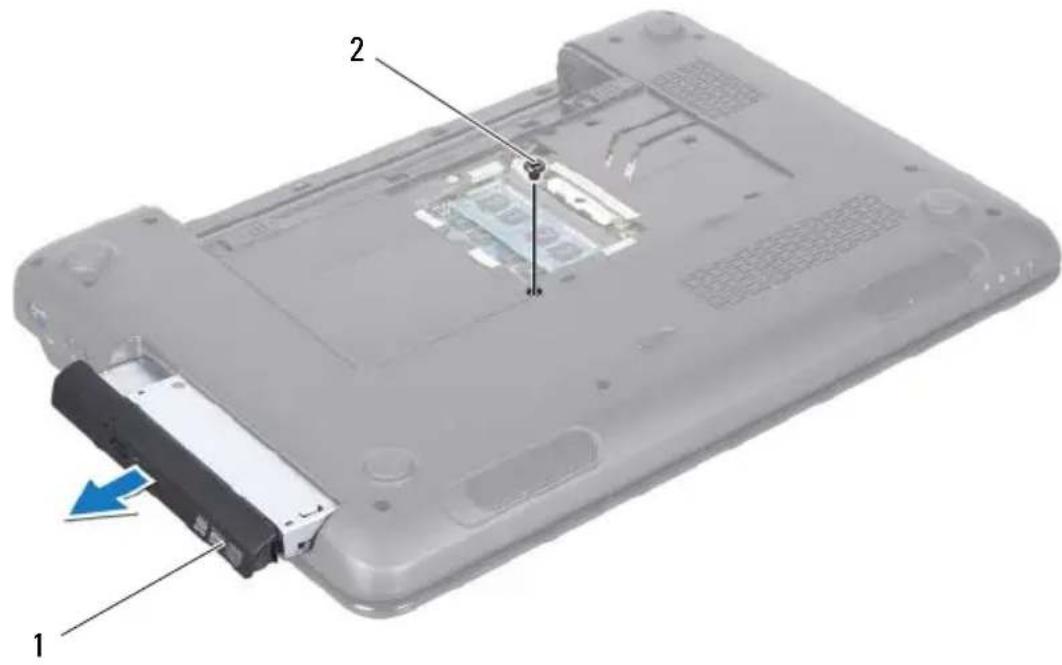
text_image
Labeled diagram of a computer rear panel showing internal components and a blue arrow indicating a component.1 optical-drive assembly 2 screw
6 Remove the two screws that secure the optical-drive bracket to the optical drive.
7 Pull the optical-drive bezel to detach it from the optical drive.

text_image
1 2 3 41 screws (2) 2 optical-drive bracket
3 optical drive 4 optical-drive bezel
Replacing the Optical Drive
1 Follow the instructions in "Before You Begin" on page 9.
2 Align the tabs on the optical-drive bezel with the slots on the optical drive and snap the optical-drive bezel into place.
3 Align the screw holes on the optical-drive bracket with the screw holes on the optical drive and replace the two screws.
4 Slide the optical-drive assembly into the optical-drive compartment until it is fully seated.
5 Replace the screw that secures the optical-drive assembly to the computer base.
6 Replace the module cover (see "Replacing the Module Cover" on page 18).
7 Replace the battery (see "Replacing the Battery" on page 16).

CAUTION: Before turning on the computer, replace all screws and ensure that no stray screws remain inside the computer. Failure to do so may result in damage to the computer.
Memory Module(s)
WARNING: Before working inside your computer, read the safety information that shipped with your computer. For additional safety best practices information, see the Regulatory Compliance Homepage at dell.com/regulatory_compliance.
CAUTION: Only a certified service technician should perform repairs on your computer. Damage due to servicing that is not authorized by Dell is not covered by your warranty.
CAUTION: To avoid electrostatic discharge, ground yourself by using a wrist grounding strap or by periodically touching an unpainted metal surface (such as a connector on your computer).
CAUTION: To help prevent damage to the system board, remove the main battery (see "Removing the Battery" on page 15) before working inside the computer.
You can increase your computer memory by installing memory modules on the system board. See "Specifications" in your Setup Guide for information on the type of memory supported by your computer.
NOTE: Memory modules purchased from Dell are covered under your computer warranty.
Your computer has two user-accessible SO-DIMM sockets, labeled DIMM A and DIMM B, that can be accessed from the bottom of the computer.
Removing the Memory Module(s)
1 Follow the instructions in "Before You Begin" on page 9.
2 Remove the battery (see "Removing the Battery" on page 15).
3 Remove the module cover (see "Removing the Module Cover" on page 17).
CAUTION: To prevent damage to the memory module connector, do not use tools to spread the memory module securing clips.
4 Use your fingertips to carefully spread apart the securing clips on each end of the memory-module connector until the module pops up.
5 Remove the memory module(s) from the memory-module connector.

text_image
1 2 31 memory-module connector 2 securing clips (2)
3 memory module
Replacing the Memory Module(s)

CAUTION: If you need to install memory modules in two connectors, install a memory module in the connector labeled "DIMM A" before you install a memory module in the connector labeled "DIMM B."
1 Follow the instructions in "Before You Begin" on page 9.
2 Align the notch in the memory module with the tab in the memory-module connector.
3 Slide the memory module firmly into the slot at a 45-degree angle, and press the memory module down until it clicks into place. If you do not hear the click, remove the memory module and reinstall it.

NOTE: If the memory module is not installed properly, the computer may not boot.
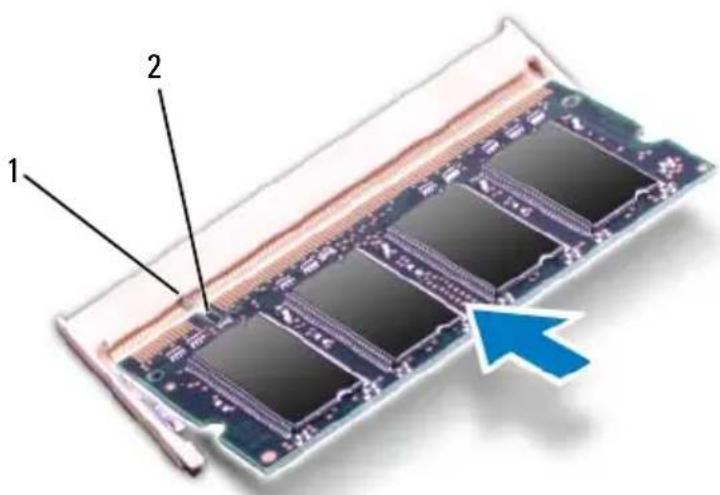
text_image
1 21 tab 2 notch
4 Replace the module cover (see "Replacing the Module Cover" on page 18).
5 Replace the battery (see "Replacing the Battery" on page 16), or connect the AC adapter to your computer and an electrical outlet.

CAUTION: Before turning on the computer, replace all screws and ensure that no stray screws remain inside the computer. Failure to do so may result in damage to the computer.
6 Turn on the computer.
As the computer boots, it detects the memory module(s) and automatically updates the system configuration information.
To confirm the amount of memory installed in the computer:
Click Start → Control Panel → System and Security → System.
Keyboard
WARNING: Before working inside your computer, read the safety information that shipped with your computer. For additional safety best practices information, see the Regulatory Compliance Homepage at dell.com/regulatory_compliance.
CAUTION: Only a certified service technician should perform repairs on your computer. Damage due to servicing that is not authorized by Dell is not covered by your warranty.
CAUTION: To avoid electrostatic discharge, ground yourself by using a wrist grounding strap or by periodically touching an unpainted metal surface (such as a connector on your computer).
CAUTION: To help prevent damage to the system board, remove the main battery (see "Removing the Battery" on page 15) before working inside the computer.
Removing the Keyboard
1 Follow the instructions in "Before You Begin" on page 9.
2 Remove the battery (see "Removing the Battery" on page 15).
CAUTION: The keycaps on the keyboard are fragile, easily dislodged, and time-consuming to replace. Be careful when removing and handling the keyboard.
3 Turn the computer over and open the display as far as possible.
CAUTION: Do not slide the plastic scribe under the keyboard tabs to remove the keyboard as it may cause permanent damage to the keyboard tabs.
4 Slide a plastic scribe between the slots on the keyboard and release the tabs on the palm rest.
5 Pry and lift the keyboard to disengage it from the tabs on the palm rest.

text_image
Dell 1 PrintSc 21 plastic scribe 2 keyboard

CAUTION: Be extremely careful when removing and handling the keyboard. Failure to do so could result in scratching the display panel.
6 Ease the keyboard up until it clears off the palm rest.
7 Carefully turn the keyboard over and place it on the palm-rest assembly.
8 Lift the connector latch that secures the keyboard cable to the connector on the system board and disconnect the keyboard cable.
9 Lift the keyboard off the computer.
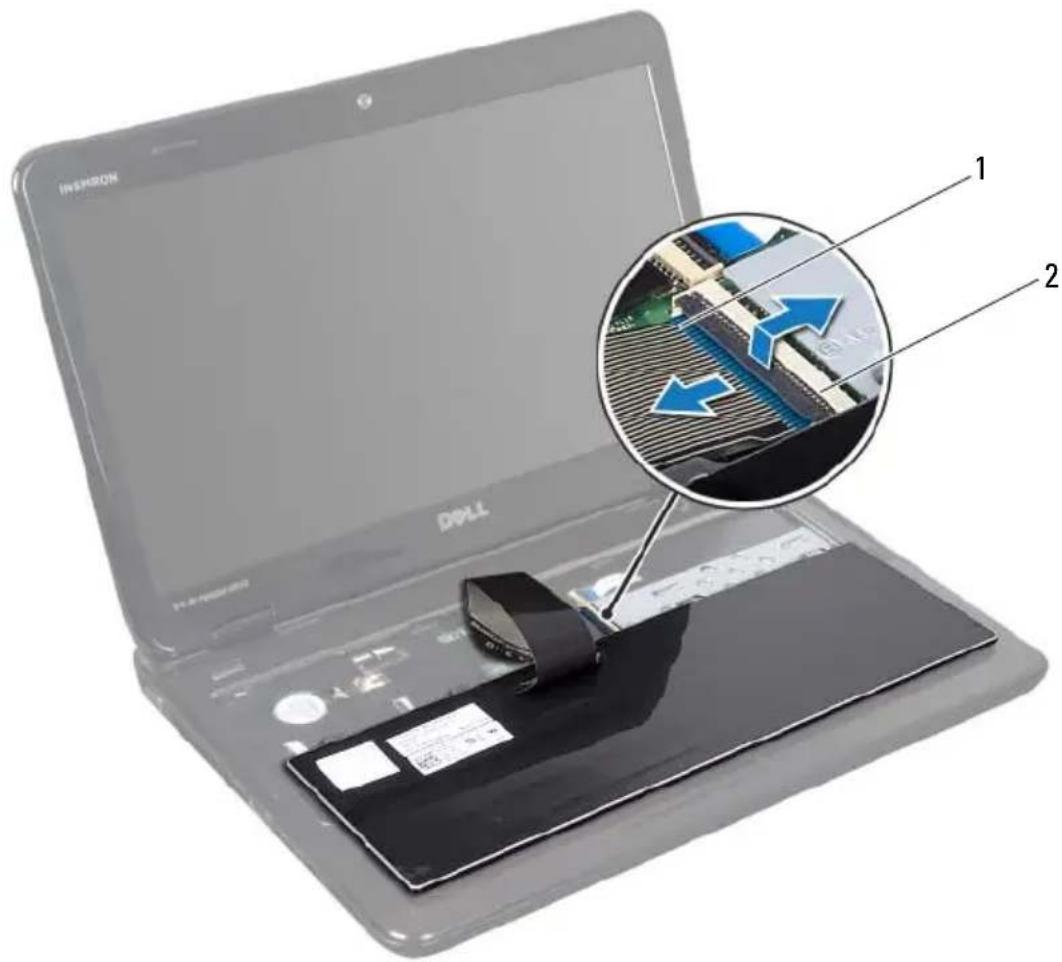
text_image
INSEMRON DOLL 1 21 keyboard cable 2 keyboard-cable connector
Replacing the Keyboard
1 Follow the instructions in "Before You Begin" on page 9.
2 Slide the keyboard cable into the connector on the system board. Press down on the connector latch to secure the keyboard cable to the connector on the system board.
3 Slide the tabs on the keyboard into the slots on the palm-rest assembly.
4 Gently press around the edges of the keyboard and slide it upwards to secure the keyboard under the tabs on the palm-rest assembly.
5 Close the display and turn the computer over.
6 Replace the battery (see "Replacing the Battery" on page 16).
Palm-Rest Assembly
WARNING: Before working inside your computer, read the safety information that shipped with your computer. For additional safety best practices information, see the Regulatory Compliance Homepage at dell.com/regulatory_compliance.
CAUTION: Only a certified service technician should perform repairs on your computer. Damage due to servicing that is not authorized by Dell is not covered by your warranty.
CAUTION: To avoid electrostatic discharge, ground yourself by using a wrist grounding strap or by periodically touching an unpainted metal surface (such as a connector on your computer).
CAUTION: To help prevent damage to the system board, remove the main battery (see "Removing the Battery" on page 15) before working inside the computer.
Removing the Palm-Rest Assembly
1 Follow the instructions in "Before You Begin" on page 9.
2 Remove the battery (see "Removing the Battery" on page 15).
3 Remove the module cover (see "Removing the Module Cover" on page 17).
4 Follow the instructions from step 4 to step 5 in "Removing the Optical Drive" on page 19.
5 Remove the ten screws from the computer base.
6 Remove the keyboard (see "Removing the Keyboard" on page 27).
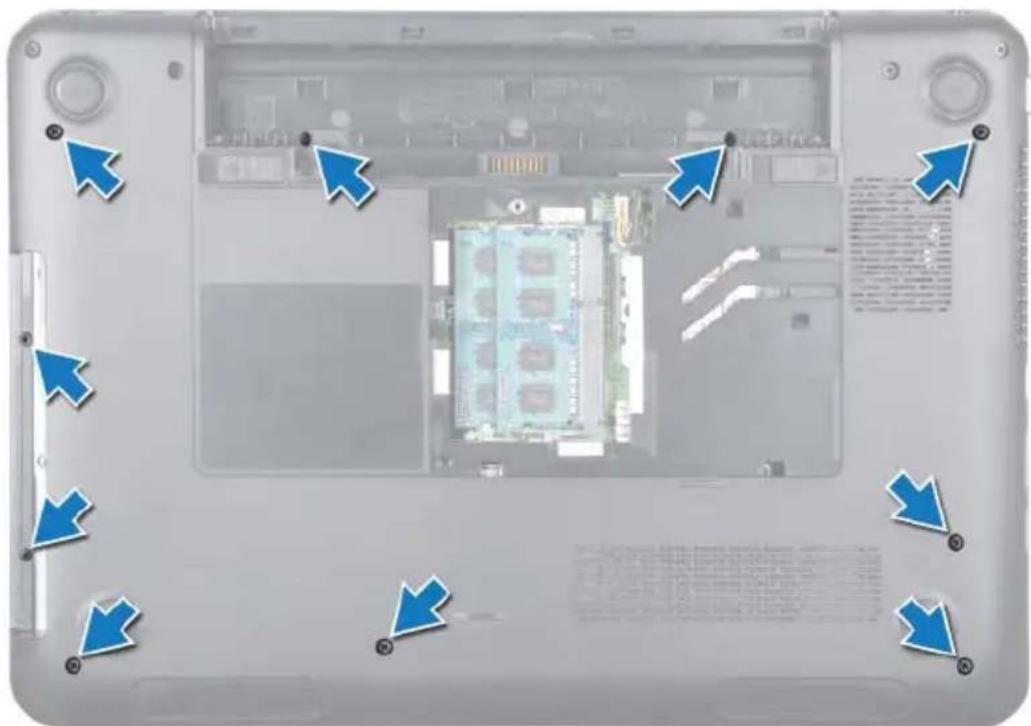
natural_image
Laptop interior view showing front panel, rear panels, and internal circuit board (no text or symbols visible)7 Remove the five screws on the palm-rest assembly.
△ CAUTION: Pull on the plastic tab on top of the connectors to avoid damaging the connectors.
8 Lift the connector latches and pull the pull-tabs to disconnect the power-button cable, touch-pad cable, and hot-key board cable from the connectors on the system board.

text_image
Laptop interior with numbered annotations pointing to electronic components and circuit boards, showing blue directional arrows.1 touch-pad cable 2 power-button cable
3 hot-key board cable

CAUTION: Carefully separate the palm rest from the computer base to avoid damage to the palm rest.
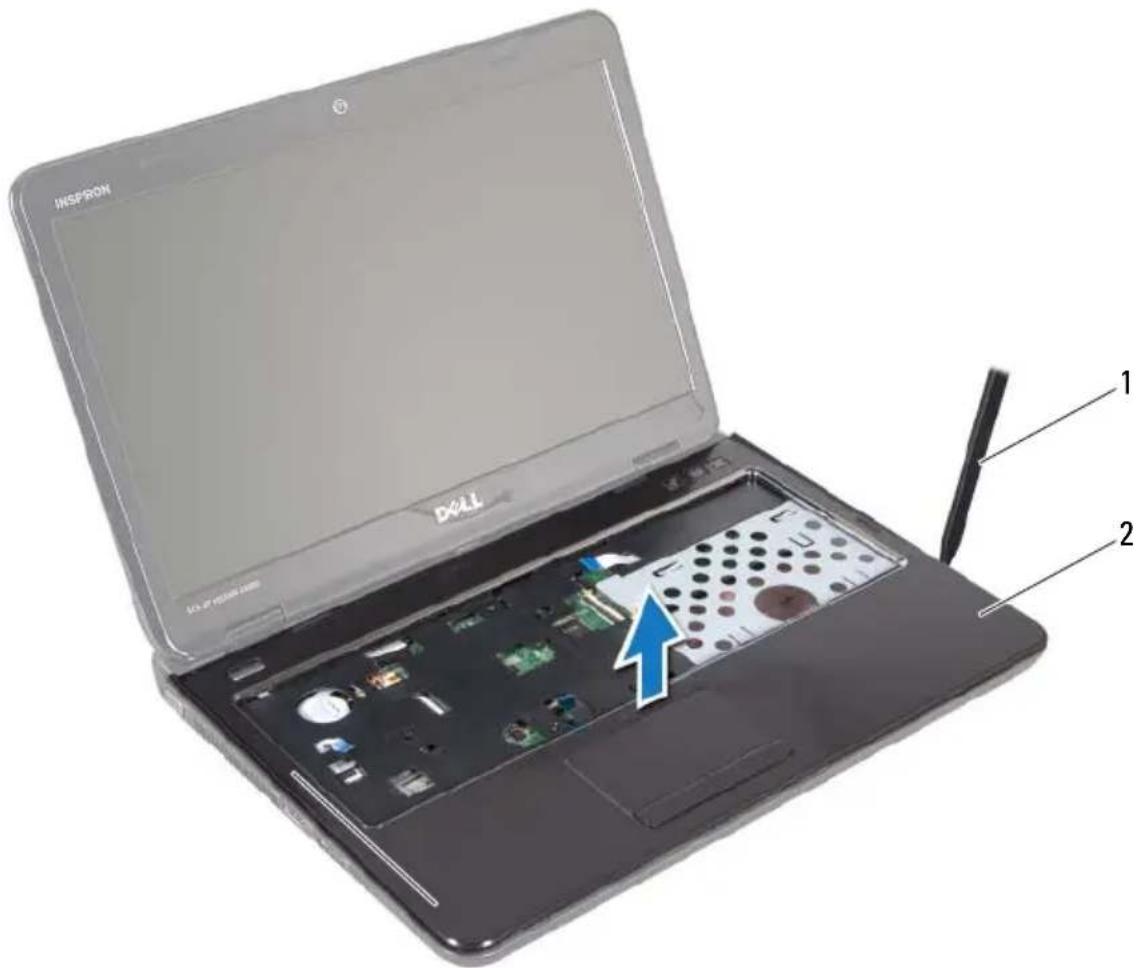
9 Using a plastic scribe, carefully pry out the palm-rest assembly along the rear edge and then ease the palm-rest assembly from the computer base.
10 Lift the palm-rest assembly off the computer base.
11 Turn the palm-rest assembly over.
12 Remove the hot-key board (see "Removing the Hot-Key Board" on page 37).
13 Remove the power button board (see "Removing the Power Button Board" on page 41).
text_image
INSIPRON D&L 1 21 plastic scribe 2 palm-rest assembly
Replacing the Palm-Rest Assembly
1 Follow the instructions in "Before You Begin" on page 9.
2 Replace the power button board (see "Replacing the Power Button Board" on page 42).
3 Replace the hot-key board (see "Replacing the Hot-Key Board" on page 38).
4 Align the tabs on the palm-rest assembly with the slots on the computer base and gently snap the palm-rest assembly in place.
5 Slide the power-button cable, touch-pad cable, and hot-key board cable into the connectors on the system board and press down on the connector latches to secure them.
6 Replace the five screws on the palm-rest assembly.
7 Replace the keyboard (see "Replacing the Keyboard" on page 29).
8 Turn the computer over and replace the ten screws at the bottom of the computer.
9 Follow the instructions from step 4 to step 5 in "Replacing the Optical Drive" on page 21.
10 Replace the module cover (see "Replacing the Module Cover" on page 18).
11 Replace the battery (see "Replacing the Battery" on page 16).

CAUTION: Before turning on the computer, replace all screws and ensure that no stray screws remain inside the computer. Failure to do so may result in damage to the computer.
Hot-Key Board
WARNING: Before working inside your computer, read the safety information that shipped with your computer. For additional safety best practices information, see the Regulatory Compliance Homepage at dell.com/regulatory_compliance.
CAUTION: Only a certified service technician should perform repairs on your computer. Damage due to servicing that is not authorized by Dell is not covered by your warranty.
CAUTION: To avoid electrostatic discharge, ground yourself by using a wrist grounding strap or by periodically touching an unpainted metal surface (such as a connector on your computer).
CAUTION: To help prevent damage to the system board, remove the main battery (see "Removing the Battery" on page 15) before working inside the computer.
Removing the Hot-Key Board
1 Follow the instructions in "Before You Begin" on page 9.
2 Remove the battery (see "Removing the Battery" on page 15).
3 Remove the module cover (see "Removing the Module Cover" on page 17).
4 Follow the instructions from step 4 to step 5 in "Removing the Optical Drive" on page 19.
5 Remove the keyboard (see "Removing the Keyboard" on page 27).
6 Remove the palm-rest assembly (see "Removing the Palm-Rest Assembly" on page 31).
7 Turn the palm-rest assembly over.
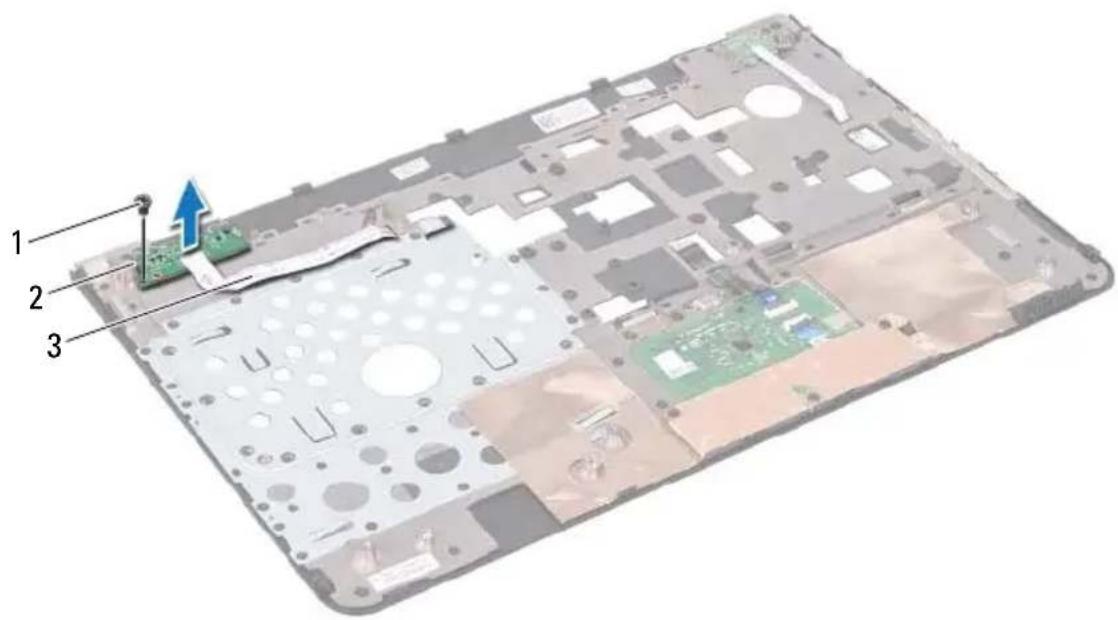
8 Remove the hot-key board cable from the slot on the palm-rest assembly.
9 Remove the screw that secures the hot-key board to the palm-rest assembly.
10 Lift the hot-key board off the palm-rest assembly.
text_image
Labeled diagram of a laptop showing internal components including circuit board, battery pack, and indicator lights.1 screw 2 hot-key board
3 hot-key board cable
Replacing the Hot-Key Board
1 Follow the instructions in "Before You Begin" on page 9.
2 Align the slots on the hot-key board with the alignment posts on the palm-rest assembly and replace the screw.
3 Route the hot-key board cable through the slot on the palm-rest assembly.
4 Turn the palm-rest assembly over.
5 Replace the palm-rest assembly (see "Replacing the Palm-Rest Assembly" on page 35).
6 Replace the keyboard (see "Replacing the Keyboard" on page 29).
7 Follow the instructions from step 4 to step 5 in "Replacing the Optical Drive" on page 21.
8 Replace the module cover (see "Replacing the Module Cover" on page 18).
9 Replace the battery (see "Replacing the Battery" on page 16).

CAUTION: Before turning on the computer, replace all screws and ensure that no stray screws remain inside the computer. Failure to do so may result in damage to the computer.
Power Button Board
WARNING: Before working inside your computer, read the safety information that shipped with your computer. For additional safety best practices information, see the Regulatory Compliance Homepage at dell.com/regulatory_compliance.
CAUTION: Only a certified service technician should perform repairs on your computer. Damage due to servicing that is not authorized by Dell is not covered by your warranty.
CAUTION: To avoid electrostatic discharge, ground yourself by using a wrist grounding strap or by periodically touching an unpainted metal surface (such as a connector on your computer).
CAUTION: To help prevent damage to the system board, remove the main battery (see "Removing the Battery" on page 15) before working inside the computer.
Removing the Power Button Board
1 Follow the instructions in "Before You Begin" on page 9.
2 Remove the battery (see "Removing the Battery" on page 15).
3 Remove the module cover (see "Removing the Module Cover" on page 17).
4 Follow the instructions from step 4 to step 5 in "Removing the Optical Drive" on page 19.
5 Remove the keyboard (see "Removing the Keyboard" on page 27).
6 Remove the palm-rest assembly (see "Removing the Palm-Rest Assembly" on page 31).
7 Turn the palm-rest assembly over.
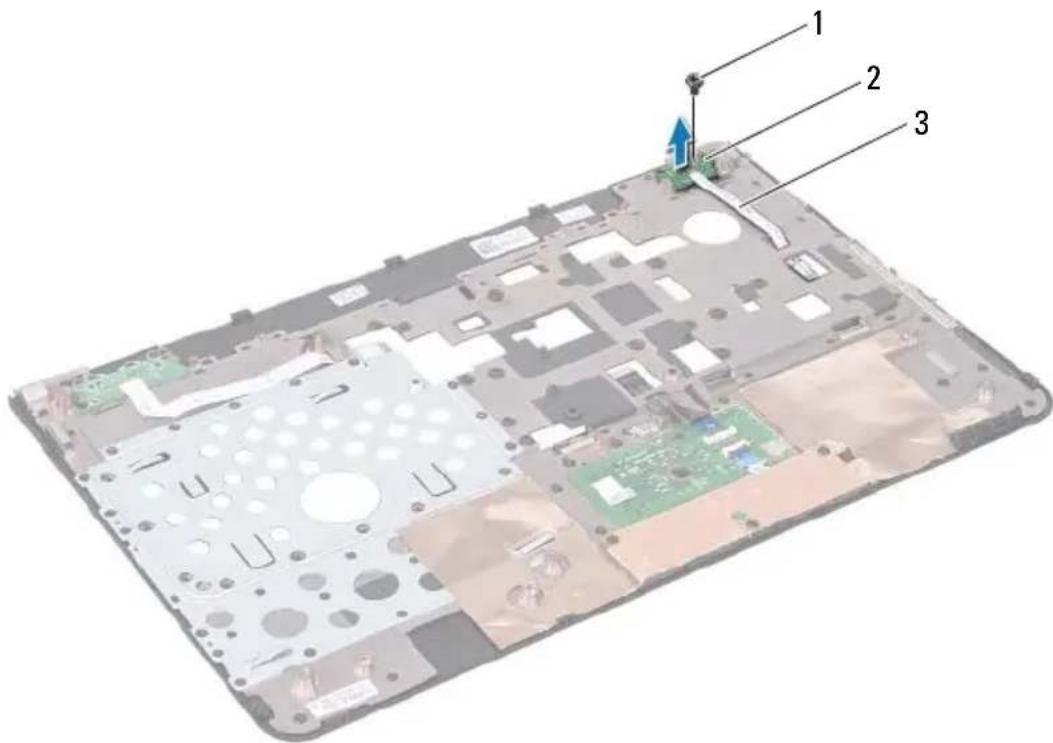
8 Remove the power-button board cable from the slot on the palm-rest assembly.
9 Remove the screw that secures the power button board to the palm-rest assembly.
text_image
Laptop interior diagram with numbered components and a blue arrow indicating a specific location on the top part.1 screw 2 power button board
3 power-button board cable
Replacing the Power Button Board
1 Follow the instructions in "Before You Begin" on page 9.
2 Align the slots on the power button board with the alignment posts on the palm-rest assembly and replace the screw.
3 Route the power-button board cable through the slot on the palm-rest assembly.
4 Turn the palm-rest assembly over.
5 Replace the palm-rest assembly (see "Replacing the Palm-Rest Assembly" on page 35).
6 Replace the keyboard (see "Replacing the Keyboard" on page 29).
7 Follow the instructions from step 4 to step 5 in "Replacing the Optical Drive" on page 21.
8 Replace the module cover (see "Replacing the Module Cover" on page 18).
9 Replace the battery (see "Removing the Battery" on page 15).

CAUTION: Before turning on the computer, replace all screws and ensure that no stray screws remain inside the computer. Failure to do so may result in damage to the computer.
Wireless Mini-Card(s)
WARNING: Before working inside your computer, read the safety information that shipped with your computer. For additional safety best practices information, see the Regulatory Compliance Homepage at dell.com/regulatory_compliance.
CAUTION: Only a certified service technician should perform repairs on your computer. Damage due to servicing that is not authorized by Dell is not covered by your warranty.
CAUTION: To avoid electrostatic discharge, ground yourself by using a wrist grounding strap or by periodically touching an unpainted metal surface (such as a connector on your computer).
CAUTION: To help prevent damage to the system board, remove the main battery (see "Removing the Battery" on page 15) before working inside the computer.
NOTE: Dell does not guarantee compatibility or provide support for Mini-Cards from sources other than Dell.
If you ordered a wireless Mini-Card with your computer, the card is already installed.
Your computer has one full Mini-Card slot and one half Mini-Card slot:
- One full Mini-Card slot — supports Worldwide Interoperability for Microwave Access (WiMax).
- One half Mini-Card slot — supports Wireless Local Area Network (WLAN).
NOTE: Depending on the configuration of the computer when it was sold, the Mini-Card slot may or may not have a Mini-Card installed.
Removing the Mini-Card(s)
1 Follow the instructions in "Before You Begin" on page 9.
2 Remove the battery (see "Removing the Battery" on page 15).
3 Remove the module cover (see "Removing the Module Cover" on page 17).
4 Follow the instructions from step 4 to step 5 in "Removing the Optical Drive" on page 19.
5 Remove the keyboard (see "Removing the Keyboard" on page 27).
6 Remove the palm-rest assembly (see "Removing the Palm-Rest Assembly" on page 31).
7 Disconnect the two antenna cables from the Mini-Card(s).
8 Remove the screw that secures the Mini-Card(s) to the system board.
9 Lift the Mini-Card(s) off the computer base.

text_image
INSPIRON 1 2 3 DELL1 screw 2 antenna cables (2)
3 Mini-Card
10 If you are removing the WLAN Mini-Card, detach it from the WLAN Mini-Card bracket.

text_image
Diagram of an electronic device showing a component with labeled parts and directional arrow indicating motion or flow.1 Mini-Card bracket 2 Mini-Card
CAUTION: When the Mini-Card is not in the computer, store it in protective antistatic packaging. For more information, see "Protecting Against Electrostatic Discharge" in the safety information that shipped with your computer.
Replacing the Mini-Card(s)
1 Follow the instructions in "Before You Begin" on page 9.
2 Remove the new Mini-Card from its packaging.
CAUTION: Use firm and even pressure to slide the card into place. If you use excessive force, you may damage the connector.
CAUTION: The connectors are keyed to ensure correct insertion. If you feel resistance, check the connectors on the card and on the system board, and realign the card.
CAUTION: To avoid damage to the Mini-Card, never place cables under the card.
3 If you are replacing the WLAN Mini-Card, attach it to the WLAN Mini-Card bracket.
4 Insert the Mini-Card connector at a 45-degree angle into the system-board connector.
5 Press the other end of the Mini-Card down into the slot on the system board and replace the screw that secures the Mini-Card to the system board.
6 Connect the appropriate antenna cables to the Mini-Card you are installing.
The following table provides the antenna cable color scheme for the Mini-Cards supported by your computer.
| Connectors on the Mini-Card Antenna Cable Color Scheme | |
| WLAN (2 antenna cables) | |
| Main WLAN (white triangle) | white |
| Auxiliary WLAN (black triangle) | black |
| WiMax (2 antenna cables) | |
| Main WiMax (white triangle) | white with gray stripe |
| Auxiliary WiMax (black triangle) | black with gray stripe |
7 Replace the palm-rest assembly (see "Replacing the Palm-Rest Assembly" on page 35).
8 Replace the keyboard (see "Replacing the Keyboard" on page 29).
9 Follow the instructions from step 4 to step 5 in "Replacing the Optical Drive" on page 21.
10 Replace the module cover (see "Replacing the Module Cover" on page 18).
11 Replace the battery (see "Replacing the Battery" on page 16).

CAUTION: Before turning on the computer, replace all screws and ensure that no stray screws remain inside the computer. Failure to do so may result in damage to the computer.
12 Install the drivers and utilities for your computer, as required.

NOTE: If you are installing a communication card from a source other than Dell, you must install the appropriate drivers and utilities.
Thermal Fan
WARNING: Before working inside your computer, read the safety information that shipped with your computer. For additional safety best practices information, see the Regulatory Compliance Homepage at dell.com/regulatory_compliance.
CAUTION: Only a certified service technician should perform repairs on your computer. Damage due to servicing that is not authorized by Dell is not covered by your warranty.
CAUTION: To avoid electrostatic discharge, ground yourself by using a wrist grounding strap or by periodically touching an unpainted metal surface (such as a connector on your computer).
CAUTION: To help prevent damage to the system board, remove the main battery (see "Removing the Battery" on page 15) before working inside the computer.
Removing the Thermal Fan
1 Follow the instructions in "Before You Begin" on page 9.
2 Remove the battery (see "Removing the Battery" on page 15).
3 Remove the keyboard (see "Removing the Keyboard" on page 27).
4 Remove the palm-rest assembly (see "Removing the Palm-Rest Assembly" on page 31).
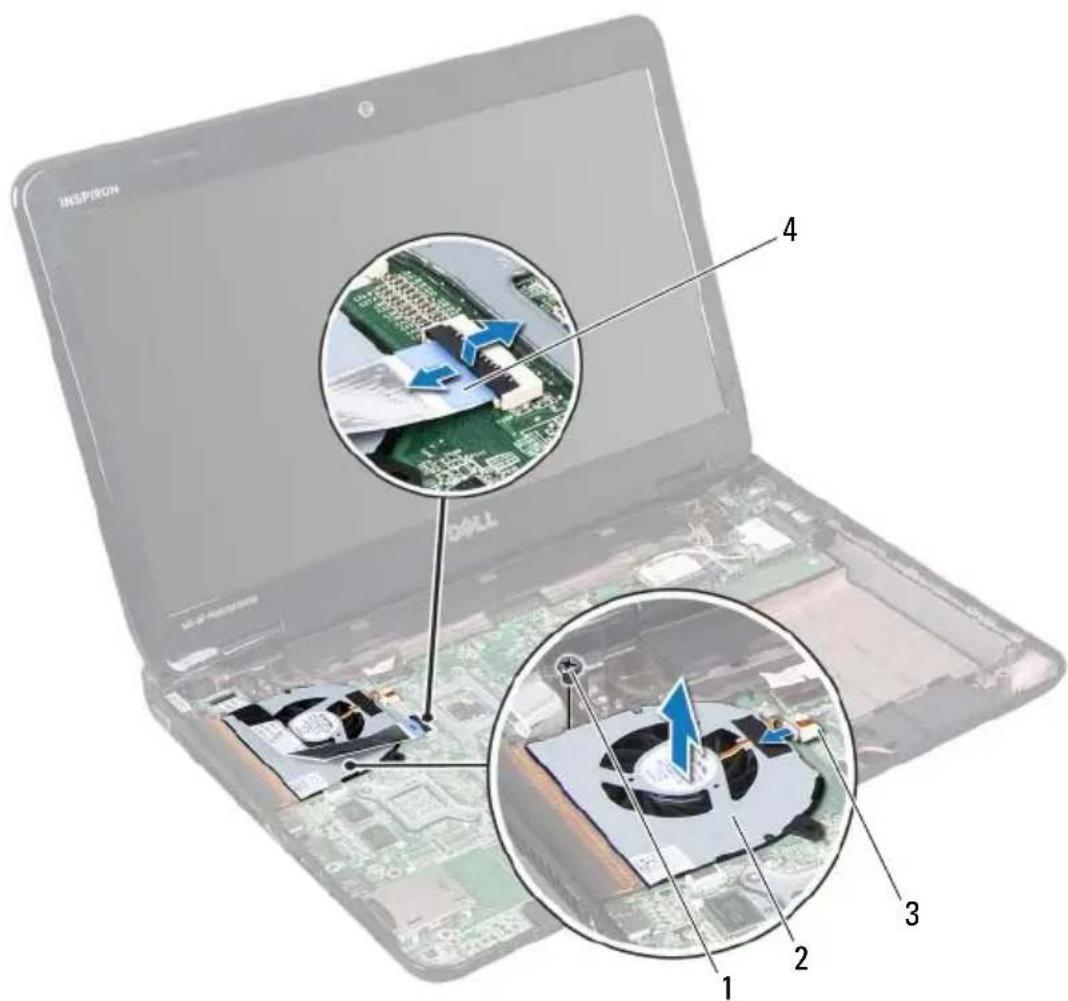
5 Disconnect the display cable from the connector on the system board.
6 Disconnect the thermal fan cable from the connector on the system board.
7 Remove the screw that secures the thermal fan to the computer base.
8 Lift the thermal fan off the system board.
text_image
INSPIRON 4 1 2 3 21 Follow the instructions in "Before You Begin" on page 9.
2 Place the thermal fan on the computer base and replace the screw.
3 Connect the thermal fan cable to the connector on the system board.
4 Connect the display cable to the connector on the system board.
5 Replace the palm-rest assembly (see "Replacing the Palm-Rest Assembly" on page 35).
6 Replace the keyboard (see "Replacing the Keyboard" on page 29).
7 Replace the battery (see "Replacing the Battery" on page 16).

CAUTION: Before turning on the computer, replace all screws and ensure that no stray screws remain inside the computer. Failure to do so may result in damage to the computer.
Display
WARNING: Before working inside your computer, read the safety information that shipped with your computer. For additional safety best practices information, see the Regulatory Compliance Homepage at dell.com/regulatory_compliance.
CAUTION: Only a certified service technician should perform repairs on your computer. Damage due to servicing that is not authorized by Dell is not covered by your warranty.
CAUTION: To avoid electrostatic discharge, ground yourself by using a wrist grounding strap or by periodically touching an unpainted metal surface (such as a connector on your computer).
CAUTION: To help prevent damage to the system board, remove the main battery (see "Removing the Battery" on page 15) before working inside the computer.
Display Assembly
Removing the Display Assembly
1 Follow the instructions in "Before You Begin" on page 9.
2 Remove the battery (see "Removing the Battery" on page 15).
3 Remove the module cover (see "Removing the Module Cover" on page 17).
4 Follow the instructions from step 4 to step 5 in "Removing the Optical Drive" on page 19.
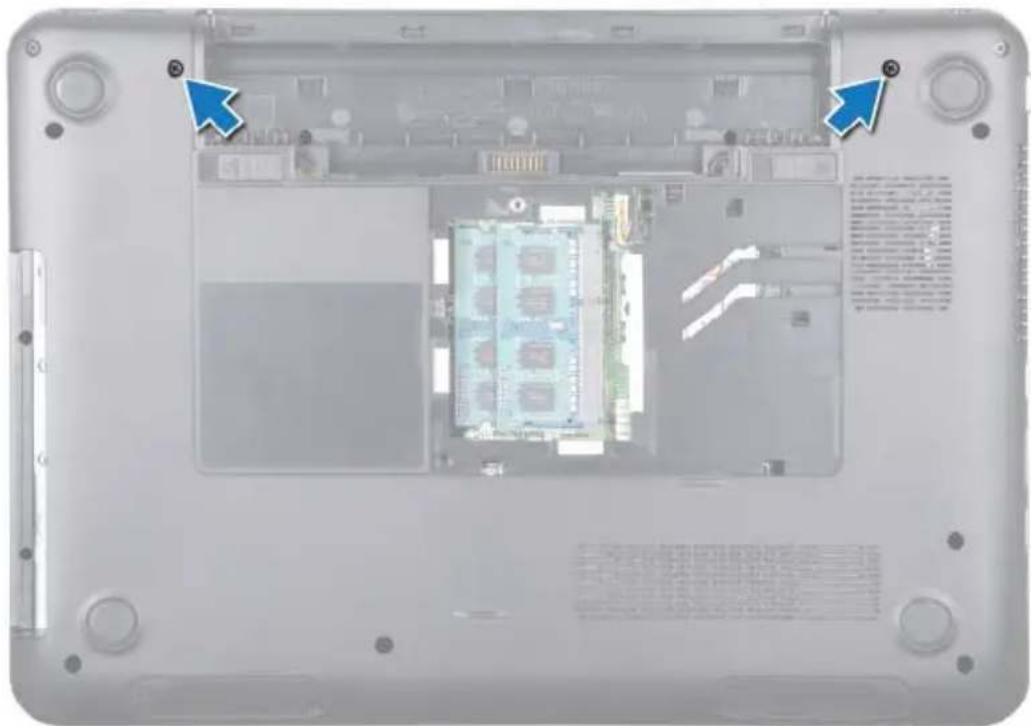
5 Remove the two screws from the computer base.
natural_image
Laptop interior view showing internal circuit board and drive casing (no text or symbols visible)6 Remove the keyboard (see "Removing the Keyboard" on page 27).
7 Remove the palm-rest assembly (see "Removing the Palm-Rest Assembly" on page 31).
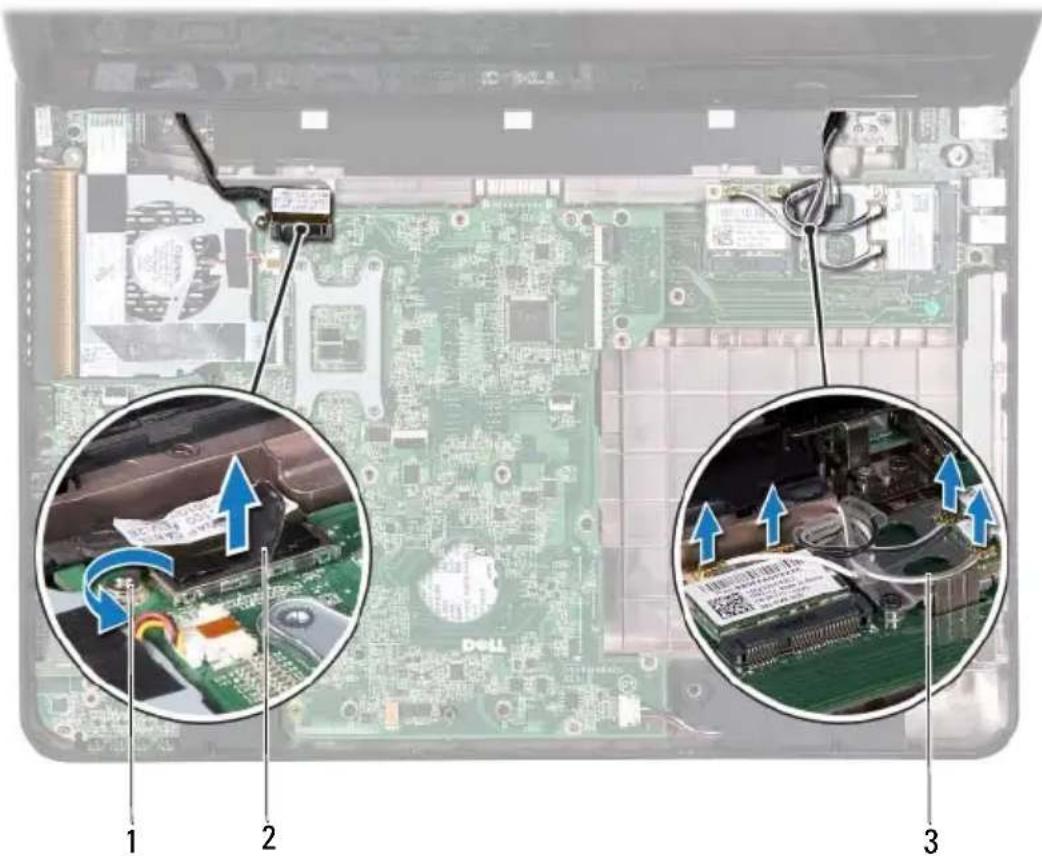
8 Loosen the display cable grounding screw.
9 Disconnect the display cable from the connector on the system board.
10 Disconnect the Mini-Card antenna cables from the connectors on the Mini-Card(s) (see "Removing the Mini-Card(s)" on page 45).
text_image
Laptop interior with close-up insets showing engine, circuit board, and battery components with blue arrows indicating motion or movement.1 display cable grounding screw 2 display-cable connector
3 Mini-Card antenna cables (4)
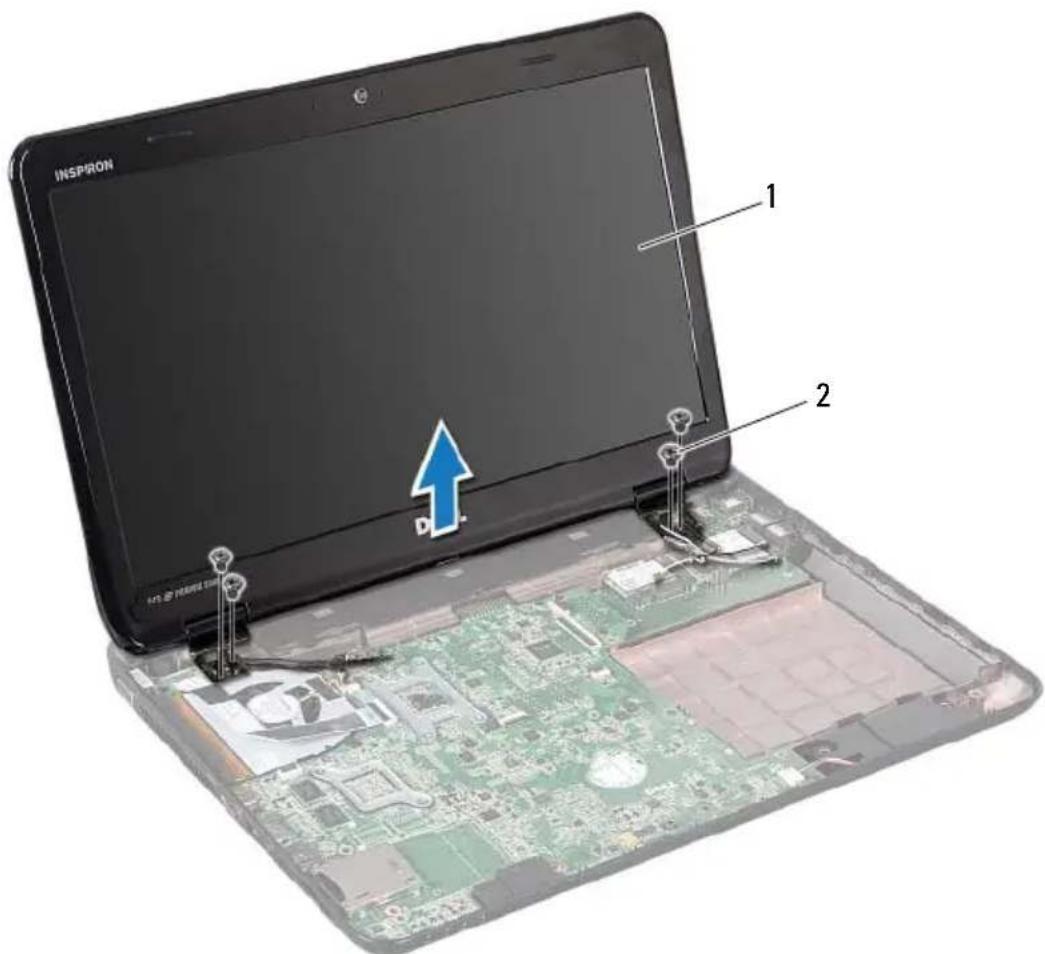
11 Remove the four screws that secure the display assembly to the computer base.
12 Lift the display assembly off the computer base.
text_image
INSIPRON 1 21 display assembly 2 screws (4)
Replacing the Display Assembly
1 Follow the instructions in "Before You Begin" on page 9.
2 Place the display assembly in position and replace the four screws that secure the display assembly to the computer base.
3 Route the display cable and Mini-Card antenna cables through the routing guides.
4 Connect the display cable to the connector on the system board.
5 Connect the Mini-Card antenna cables to the Mini-Cards(s) (see "Replacing the Mini-Card(s)" on page 47).
6 Tighten the display cable grounding screw.
7 Replace the palm-rest assembly (see "Replacing the Palm-Rest Assembly" on page 35).
8 Replace the keyboard (see "Replacing the Keyboard" on page 29).
9 Replace the two screws at the bottom of the computer.
10 Follow the instructions from step 4 to step 5 in "Replacing the Optical Drive" on page 21.
11 Replace the module cover (see "Replacing the Module Cover" on page 18).
12 Replace the battery (see "Replacing the Battery" on page 16).

CAUTION: Before turning on the computer, replace all screws and ensure that no stray screws remain inside the computer. Failure to do so may result in damage to the computer.
Display Bezel
Removing the Display Bezel
1 Follow the instructions in "Before You Begin" on page 9.
2 Remove the top cover (see "Removing the Top Cover" on page 13).
3 Remove the display assembly (see "Removing the Display Assembly" on page 53).

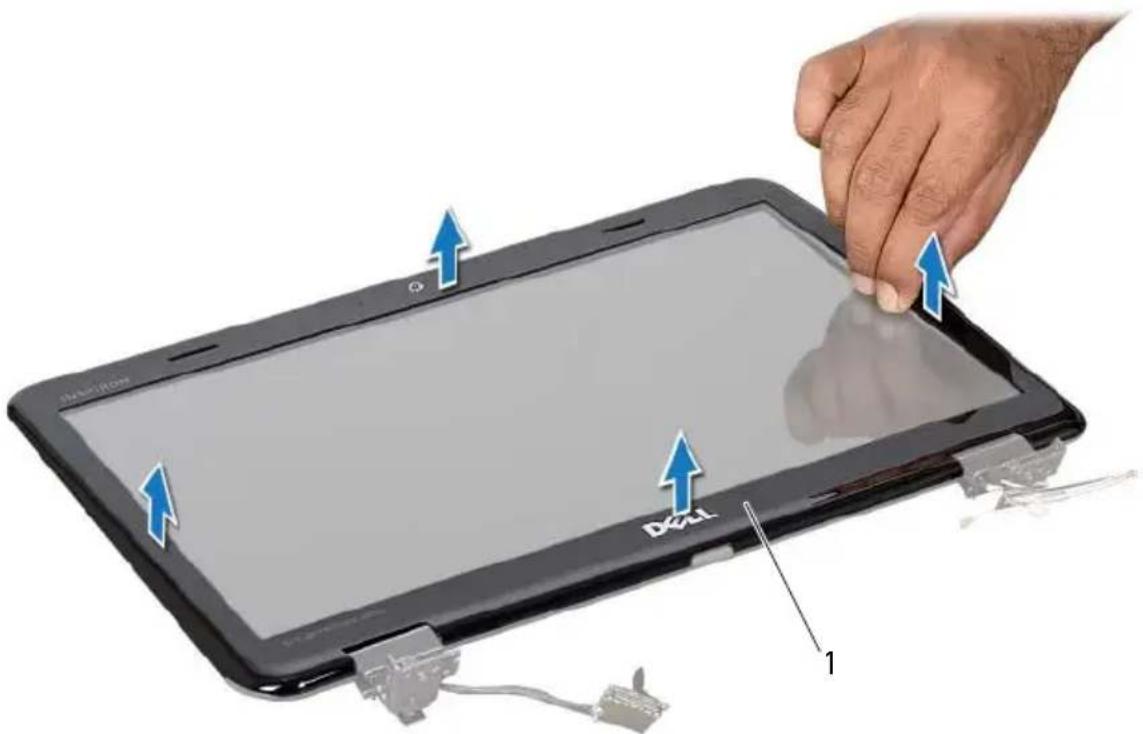
CAUTION: The display bezel is extremely fragile. Be careful when removing it to prevent damaging the display bezel.
4 Using your fingertips, carefully pry up the inside edge of the display bezel.
5 Remove the display bezel.
text_image
D24L 11 display bezel
Replacing the Display Bezel
1 Follow the instructions in "Before You Begin" on page 9.
2 Realign the display bezel over the display panel and gently snap it into place.
3 Replace the display assembly (see "Replacing the Display Assembly" on page 56).
4 Replace the top cover (see "Replacing the Top Cover" on page 14).
Display Panel
Removing the Display Panel
1 Follow the instructions in "Before You Begin" on page 9.
2 Remove the display assembly (see "Removing the Display Assembly" on page 53).
3 Remove the display bezel (see "Removing the Display Bezel" on page 57).
4 Remove the six screws that secure the display panel to the display cover.
5 Note the routing of the display cable and Mini-Card(s) cables and remove the cables from the routing guides on the display cover.
6 Lift the display panel off the display cover.

text_image
Labeled diagram of an electronic device showing internal components and a blue arrow indicating direction or movement.1 display cover 2 display panel
3 screws (6)
Replacing the Display Panel
1 Follow the instructions in "Before You Begin" on page 9.
2 Align the screw holes on the display panel with the screw holes on the display cover and replace the six screws.
3 Route the display cable through the routing guides on the display cover.
4 Replace the display bezel (see "Replacing the Display Bezel" on page 58).
5 Replace the display assembly (see "Replacing the Display Assembly" on page 56).

CAUTION: Before turning on the computer, replace all screws and ensure that no stray screws remain inside the computer. Failure to do so may result in damage to the computer.
Display Cable
Removing the Display Cable
1 Follow the instructions in "Before You Begin" on page 9.
2 Remove the display assembly (see "Removing the Display Assembly" on page 53).
3 Remove the display bezel (see "Removing the Display Bezel" on page 57).
4 Remove the display panel (see "Removing the Display Panel" on page 58).
5 Turn the display panel over and place it on a clean surface.
6 Lift the tape that secures the display cable to the connector on the display panel and disconnect the display cable.
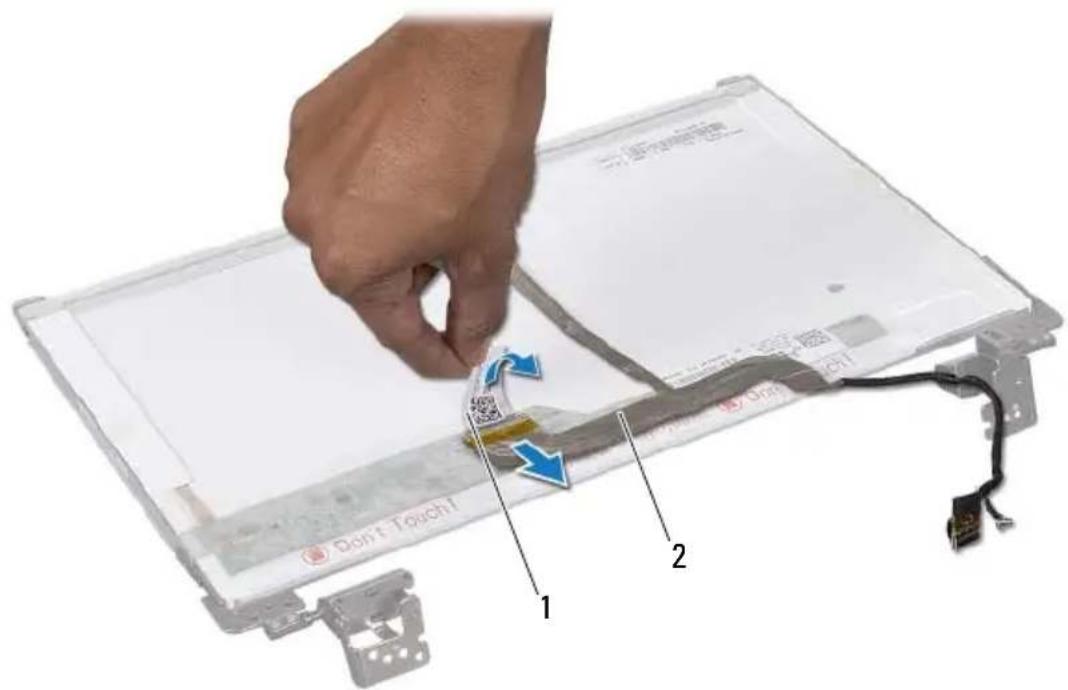
text_image
Don't Touch 1 21 tape 2 display cable
Replacing the Display Cable
1 Follow the instructions in "Before You Begin" on page 9.
2 Connect the display cable to the connector on the display panel and secure it with the tape.
3 Turn the display panel over and place it on the display cover.
4 Replace the display panel (see "Replacing the Display Panel" on page 59).
5 Replace the display bezel (see "Replacing the Display Bezel" on page 58).
6 Replace the display assembly (see "Replacing the Display Assembly" on page 56).

CAUTION: Before turning on the computer, replace all screws and ensure that no stray screws remain inside the computer. Failure to do so may result in damage to the computer.
Hinge Caps
Removing the Hinge Caps
1 Follow the instructions in "Before You Begin" on page 9.
2 Remove the display assembly (see "Removing the Display Assembly" on page 53).
3 Remove the display bezel (see "Removing the Display Bezel" on page 57).
4 Remove the six screws that secure the display panel to the display cover.
5 Turn the display panel over and keep it on a clean surface.
6 Press both sides of each hinge cap and lift the hinge caps out of the display hinges.
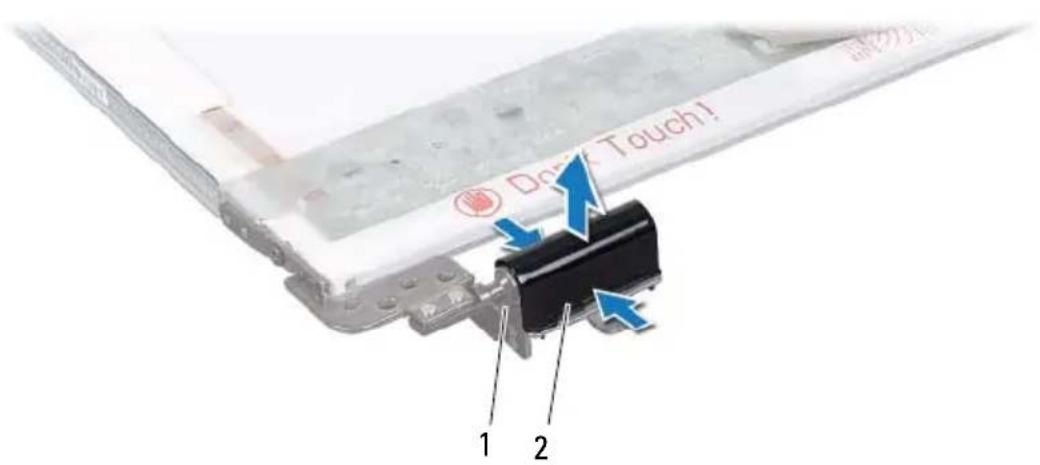
text_image
Touch! Do Touch! 1 21 display hinges (2) 2 hinge caps (2)
Replacing the Hinge Caps
1 Follow the instructions in "Before You Begin" on page 9.
2 Align the tabs on the hinge caps with the slots on the display panel brackets and snap them into place.
3 Turn the display panel over and place it on the display cover.
4 Replace the six screws that secure the display panel to the display cover.
5 Replace the display bezel (see "Replacing the Display Bezel" on page 58).
6 Replace the display assembly (see "Replacing the Display Assembly" on page 56).
△ CAUTION: Before turning on the computer, replace all screws and ensure that no stray screws remain inside the computer. Failure to do so may result in damage to the computer.
Display Panel Brackets
Removing the Display Panel Brackets
1 Follow the instructions in "Before You Begin" on page 9.
2 Remove the display assembly (see "Removing the Display Assembly" on page 53).
3 Remove the display bezel (see "Removing the Display Bezel" on page 57).
4 Remove the hinge caps (see "Removing the Hinge Caps" on page 61).
5 Remove the four screws (two on each side) that secure the display panel brackets to the display panel.
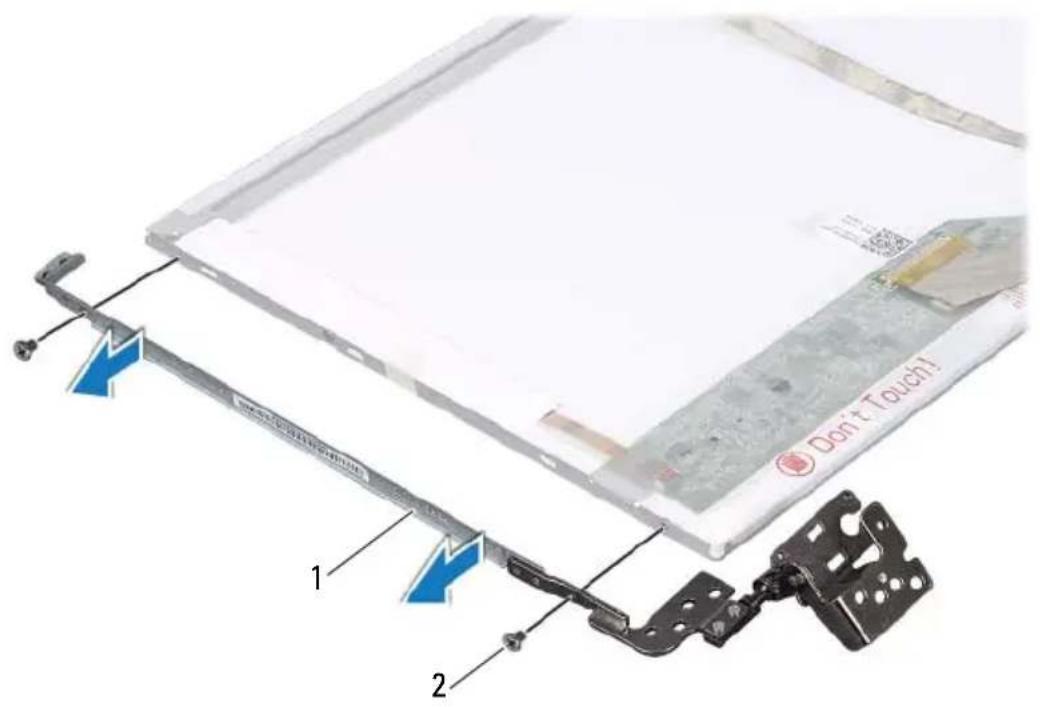
text_image
Don't Touch! 1 21 display panel brackets (2) 2 screws (4)
Replacing the Display Panel Brackets
1 Follow the instructions in "Before You Begin" on page 9.
2 Align the screw holes on the display panel vbbrackets with the screw holes on the display panel.
3 Replace the four screws (two on each side) that secure the display-panel brackets to the display panel.
4 Replace the hinge caps (see "Replacing the Hinge Caps" on page 62).
5 Replace the display bezel (see "Replacing the Display Bezel" on page 58).
6 Replace the display assembly (see "Replacing the Display Assembly" on page 56).
CAUTION: Before turning on the computer, replace all screws and ensure that no stray screws remain inside the computer. Failure to do so may result in damage to the computer.
Camera Module
WARNING: Before working inside your computer, read the safety information that shipped with your computer. For additional safety best practices information, see the Regulatory Compliance Homepage at dell.com/regulatory_compliance.
CAUTION: Only a certified service technician should perform repairs on your computer. Damage due to servicing that is not authorized by Dell is not covered by your warranty.
CAUTION: To avoid electrostatic discharge, ground yourself by using a wrist grounding strap or by periodically touching an unpainted metal surface (such as a connector on your computer).
CAUTION: To help prevent damage to the system board, remove the main battery (see "Removing the Battery" on page 15) before working inside the computer.
Removing the Camera Module
1 Follow the instructions in "Before You Begin" on page 9.
2 Remove the battery (see "Removing the Battery" on page 15).
3 Remove the module cover (see "Removing the Module Cover" on page 17).
4 Follow the instructions from step 4 to step 5 in "Removing the Optical Drive" on page 19.
5 Remove the keyboard (see "Removing the Keyboard" on page 27).
6 Remove the palm-rest assembly (see "Removing the Palm-Rest Assembly" on page 31).
7 Remove the display assembly (see "Removing the Display Assembly" on page 53).
8 Remove the display bezel (see "Removing the Display Bezel" on page 57).
9 Using a plastic scribe, pry the camera module from the display back cover.
10 Lift the camera and remove the tape that secures the camera cable to the camera module.
11 Disconnect the camera cable from the connector on the camera module.
12 Remove the camera module.
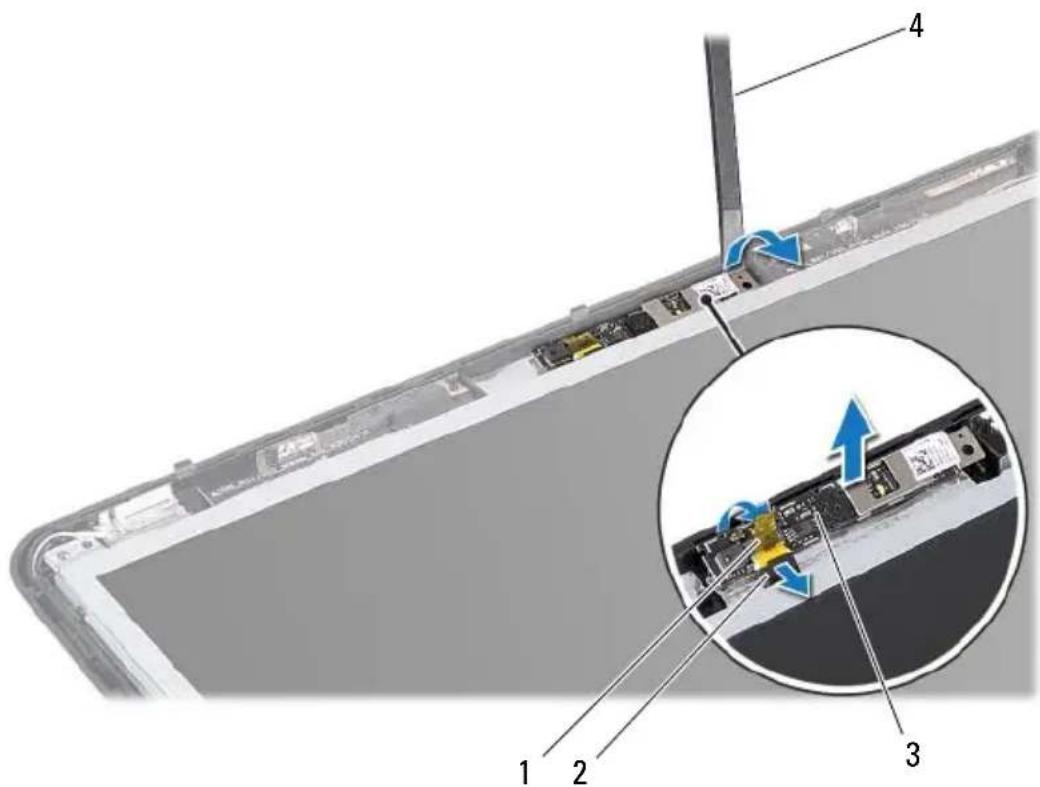
text_image
Diagram of a device's internal structure with numbered parts and an inset showing a close-up of the internal components.1 tape 2 camera cable
3 camera module 4 plastic scribe
Replacing the Camera Module
1 Follow the instructions in "Before You Begin" on page 9.
2 Connect the camera cable to the connector on the camera module.
3 Adhere the tape that secures the camera cable to the camera module.
4 Align the slots on the camera module with the alignment posts on the display cover.
5 Replace the display bezel (see "Replacing the Display Bezel" on page 58).
6 Replace the display assembly (see "Replacing the Display Assembly" on page 56).
7 Replace the palm-rest assembly (see "Replacing the Palm-Rest Assembly" on page 35).
8 Replace the keyboard (see "Replacing the Keyboard" on page 29).
9 Follow the instructions from step 4 to step 5 in "Replacing the Optical Drive" on page 21.
10 Replace the module cover (see "Replacing the Module Cover" on page 18).
11 Replace the battery (see "Replacing the Battery" on page 16).

CAUTION: Before turning on the computer, replace all screws and ensure that no stray screws remain inside the computer. Failure to do so may result in damage to the computer.
Hinge Cover
WARNING: Before working inside your computer, read the safety information that shipped with your computer. For additional safety best practices information, see the Regulatory Compliance Homepage at dell.com/regulatory_compliance.
CAUTION: To avoid electrostatic discharge, ground yourself by using a wrist grounding strap or by periodically touching an unpainted metal surface.
CAUTION: Only a certified service technician should perform repairs on your computer. Damage due to servicing that is not authorized by Dell is not covered by your warranty.
CAUTION: To help prevent damage to the system board, remove the main battery (see "Removing the Battery" on page 15) before working inside the computer.
Removing the Hinge Cover
1 Follow the instructions in "Before You Begin" on page 9.
2 Remove the battery (see "Removing the Battery" on page 15).
3 Remove the module cover (see "Removing the Module Cover" on page 17).
4 Follow the instructions from step 4 to step 5 in "Removing the Optical Drive" on page 19.
5 Remove the keyboard (see "Removing the Keyboard" on page 27).
6 Remove the palm-rest assembly (see "Removing the Palm-Rest Assembly" on page 31).
7 Remove the display assembly (see "Removing the Display Assembly" on page 53).
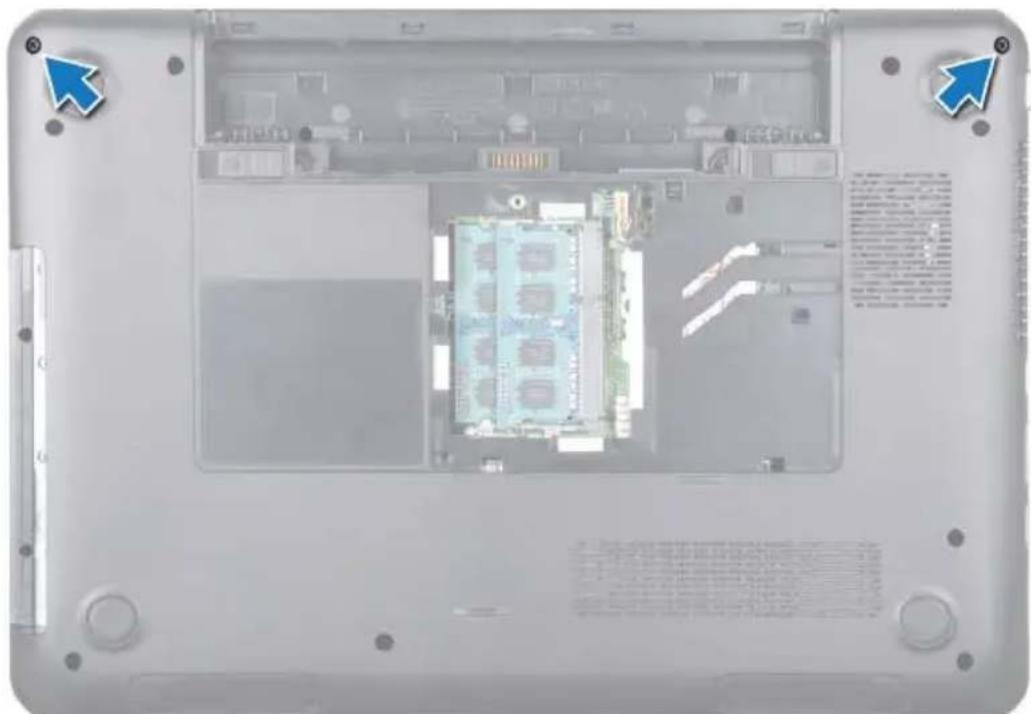
8 Remove the two screws from the computer base.
natural_image
Top-down view of a laptop backrest showing internal circuit board and ventilation slots (no text or symbols visible)9 Release the two tabs that secure the hinge cover to the computer base.

natural_image
Laptop interior view showing a closed circuit board with labeled components (no text or symbols beyond labels)1 tabs (2)
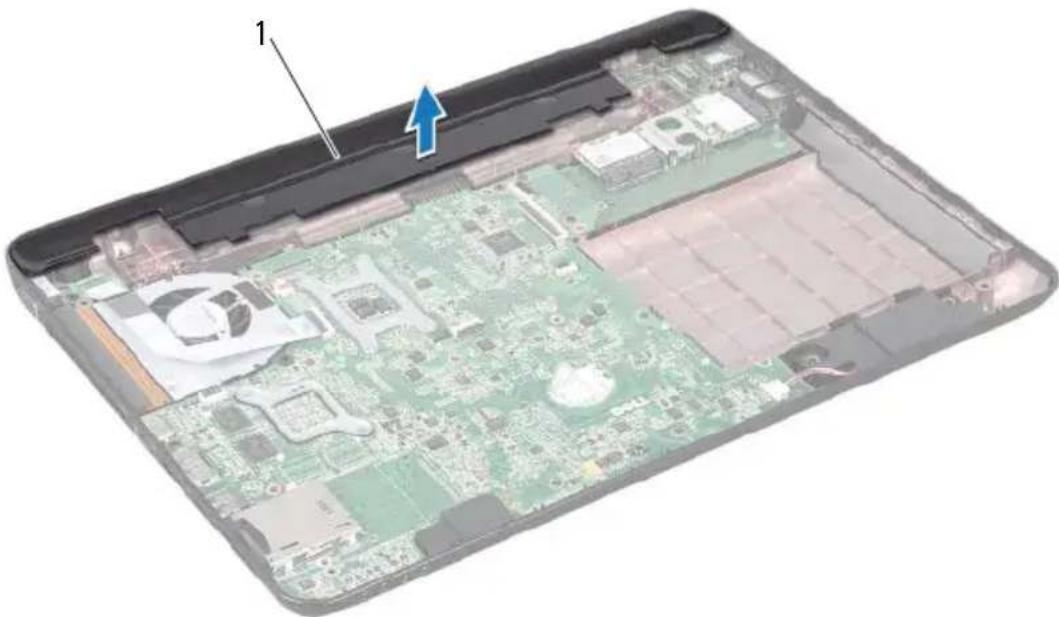
10 Lift the hinge cover off the computer base.
70 Hingle Cover
natural_image
Cross-sectional diagram of a device showing internal circuit board and components (no text or symbols)1 hinge cover
Replacing the Hinge Cover
1 Follow the instructions in "Before You Begin" on page 9.
2 Align the two tabs on the hinge cover with the slots on the computer base and snap the hinge cover into place.
3 Replace the two screws at the bottom of the computer.
4 Replace the display assembly (see "Replacing the Display Assembly" on page 56).
5 Replace the palm-rest assembly (see "Replacing the Palm-Rest Assembly" on page 35).
6 Replace the keyboard (see "Replacing the Keyboard" on page 29).
7 Follow the instructions from step 4 to step 5 in "Replacing the Optical Drive" on page 21.
8 Replace the module cover (see "Replacing the Module Cover" on page 18).
9 Replace the battery (see "Replacing the Battery" on page 16).

CAUTION: Before turning on the computer, replace all screws and ensure that no stray screws remain inside the computer. Failure to do so may result in damage to the computer.
VGA Connector Board
WARNING: Before working inside your computer, read the safety information that shipped with your computer. For additional safety best practices information, see the Regulatory Compliance Homepage at dell.com/regulatory_compliance.
CAUTION: Only a certified service technician should perform repairs on your computer. Damage due to servicing that is not authorized by Dell is not covered by your warranty.
CAUTION: To avoid electrostatic discharge, ground yourself by using a wrist grounding strap or by periodically touching an unpainted metal surface (such as a connector on your computer).
CAUTION: To help prevent damage to the system board, remove the main battery (see "Removing the Battery" on page 15) before working inside the computer.
Removing the VGA Connector Board
1 Follow the instructions in "Before You Begin" on page 9.
2 Remove the battery (see "Removing the Battery" on page 15).
3 Remove the keyboard (see "Removing the Keyboard" on page 27).
4 Remove the palm-rest assembly (see "Removing the Palm-Rest Assembly" on page 31).
5 Remove the display assembly (see "Removing the Display Assembly" on page 53).
6 Remove the hinge cover (see "Removing the Hinge Cover" on page 69).
7 Remove the screw that secures the VGA connector board to the system board.
8 Disconnect the display cable from the connector on the system board.
9 Lift the VGA connector board off the system board.

text_image
Diagram of a smartphone showing internal components with numbered labels and an inset close-up of a circuit board with blue arrows indicating flow or movement.1 screw 2 display cable
Replacing the VGA Connector Board
1 Follow the instructions in "Before You Begin" on page 9.
2 Align the connector on the VGA connector board with the slot on the computer base.
3 Connect the display cable to the connector on the system board.
4 Replace the screw that secures the VGA connector board to the computer base.
5 Replace the hinge cover (see "Replacing the Hinge Cover" on page 71).
6 Replace the display assembly (see "Replacing the Display Assembly" on page 56).
7 Replace the palm-rest assembly (see "Replacing the Palm-Rest Assembly" on page 35).
8 Replace the keyboard (see "Replacing the Keyboard" on page 29).
9 Replace the battery (see "Replacing the Battery" on page 16).

CAUTION: Before turning on the computer, replace all screws and ensure that no stray screws remain inside the computer. Failure to do so may result in damage to the computer.
System Board
WARNING: Before working inside your computer, read the safety information that shipped with your computer. For additional safety best practices information, see the Regulatory Compliance Homepage at dell.com/regulatory_compliance.
CAUTION: Only a certified service technician should perform repairs on your computer. Damage due to servicing that is not authorized by Dell is not covered by your warranty.
CAUTION: To avoid electrostatic discharge, ground yourself by using a wrist grounding strap or by periodically touching an unpainted metal surface (such as a connector on your computer).
CAUTION: To help prevent damage to the system board, remove the main battery (see "Removing the Battery" on page 15) before working inside the computer.
CAUTION: Handle components and cards by their edges, and avoid touching pins and contacts.
Removing the System Board
1 Follow the instructions in "Before You Begin" on page 9.
2 Press and eject any installed cards or blanks from the 8-in-1 media card reader.
3 Remove the battery (see "Removing the Battery" on page 15).
4 Remove the module cover (see "Removing the Module Cover" on page 17).
5 Remove the memory module(s) (see "Removing the Memory Module(s)" on page 23).
6 Follow the instructions from step 4 to step 5 in "Removing the Optical Drive" on page 19.
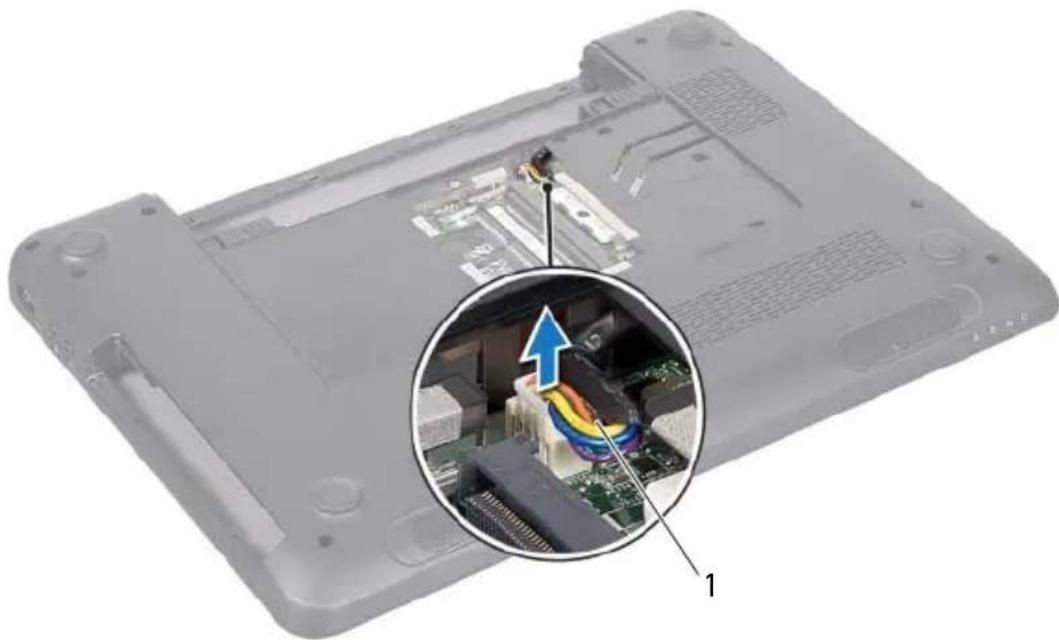
7 Disconnect the AC-adapter connector cable from the connector on the system board.
natural_image
Laptop interior view showing a circuit board with an inset close-up of the internal components (no text or symbols visible)1 AC-adapter connector cable
8 Remove the keyboard (see "Removing the Keyboard" on page 27).
9 Remove the palm-rest assembly (see "Removing the Palm-Rest Assembly" on page 31).
10 Remove the thermal fan (see "Removing the Thermal Fan" on page 49).
11 Loosen the display cable grounding screw.
12 Disconnect the display cable and speakers cable from the connectors on the system board.
13 Remove the five screws that secure the system board to the computer base.

text_image
Laptop interior with close-up insets showing components like CPU, battery pack, and circuit board connections1 display cable connector 2 display cable grounding screw
3 speakers cable connector
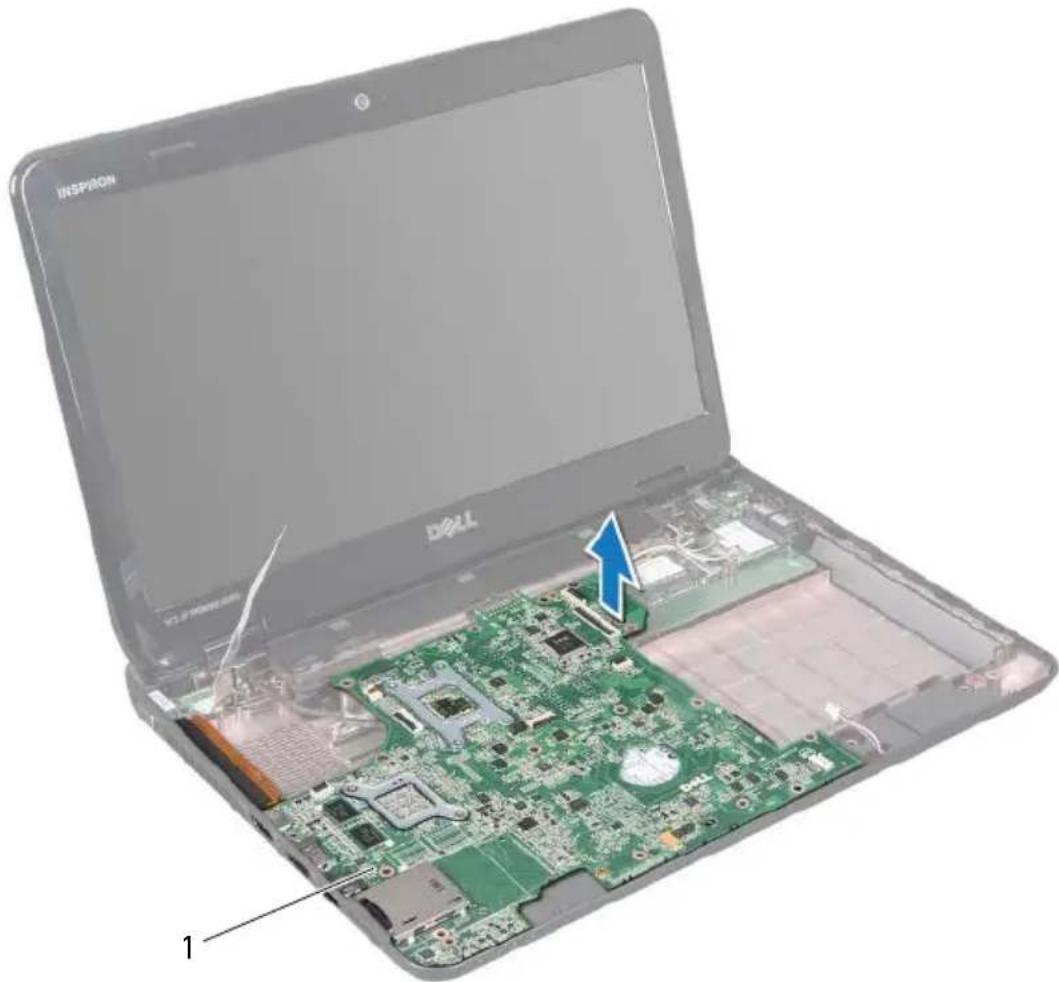
14 Lift the system board assembly to disconnect the connector on the system board from the connector on the I/O board.
text_image
INSIPRON 11 system board
15 Turn the system board over.
16 Remove the coin-cell battery (see "Removing the Coin-Cell Battery" on page 87).
17 Follow the instructions from step 3 to step 5 in "Removing the Hard-Drive Assembly" on page 95.
18 Remove the thermal cooling assembly (see "Removing the Thermal Cooling Assembly" on page 89.
19 Remove the processor module (see "Removing the Processor Module" on page 91).
Replacing the System Board
1 Follow the instructions in "Before You Begin" on page 9.
2 Replace the processor module (see "Replacing the Processor Module" on page 92).
3 Replace the thermal cooling assembly (see "Replacing the Thermal Cooling Assembly" on page 90.
4 Follow the instructions from step 5 to step 7 in "Replacing the Hard-Drive Assembly" on page 97.
5 Replace the coin-cell battery (see "Replacing the Coin-Cell Battery" on page 88).
6 Turn the system board over.
7 Align the connectors on the system board with the slots on the computer base and place it in position.
8 Gently press the system board to connect the connector on the system board to the connector on the I/O board.
9 Replace the five screws that secure the system board to the computer base.
10 Connect the display cable and speakers cable to the connectors on the system board.
11 Tighten the display cable grounding screw.
12 Replace the thermal fan (see "Replacing the Thermal Fan" on page 50).
13 Replace the palm-rest assembly (see "Replacing the Palm-Rest Assembly" on page 35).
14 Replace the keyboard (see "Replacing the Keyboard" on page 29).
15 Connect the AC-adapter connector cable to the connector on the system board.
16 Follow the instructions from step 4 to step 5 in "Replacing the Optical Drive" on page 21.
17 Replace the memory module(s) (see "Replacing the Memory Module(s)" on page 24).
18 Replace the module cover (see "Replacing the Module Cover" on page 18).
19 Replace the battery (see "Replacing the Battery" on page 16).
20 Replace any cards or blanks removed from the 8-in-1 media card reader.

CAUTION: Before turning on the computer, replace all screws and ensure that no stray screws remain inside the computer. Failure to do so may result in damage to the computer.
21 Turn on the computer.

NOTE: After you have replaced the system board, enter the computer Service Tag in the BIOS of the replacement system board.
22 Enter the service tag (see "Entering the Service Tag in the BIOS" on page 82).
Entering the Service Tag in the BIOS
1 Ensure that the AC adapter is plugged in and that the main battery is installed properly.
2 Turn on the computer.
3 Press
4 Navigate to the security tab and enter the service tag in the Set Service Tag field.
Speakers
WARNING: Before working inside your computer, read the safety information that shipped with your computer. For additional safety best practices information, see the Regulatory Compliance Homepage at dell.com/regulatory_compliance.
CAUTION: To avoid electrostatic discharge, ground yourself by using a wrist grounding strap or by periodically touching an unpainted metal surface (such as a connector on your computer).
CAUTION: Only a certified service technician should perform repairs on your computer. Damage due to servicing that is not authorized by Dell is not covered by your warranty.
CAUTION: To help prevent damage to the system board, remove the main battery (see "Removing the Battery" on page 15) before working inside the computer.
Removing the Speakers
1 Follow the instructions in "Before You Begin" on page 9.
2 Follow the instructions from step 2 to step 14 in "Removing the System Board" on page 77.
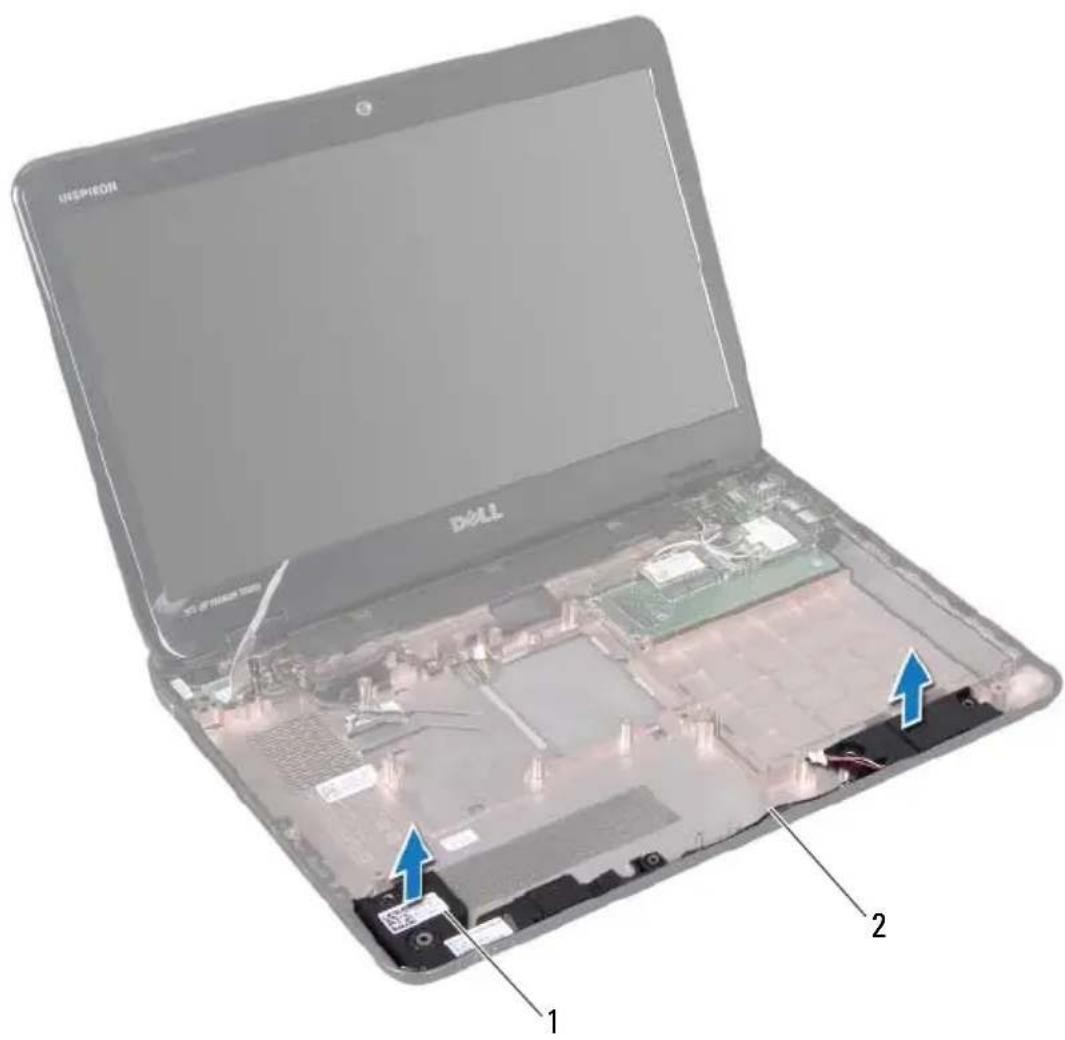
3 Note the speakers cable routing and lift the left and right speakers along with the its cable from the computer base.
text_image
Laptop interior diagram with labeled components and directional arrows indicating movement or flow1 speakers (2) 2 speakers cable
Replacing the Speakers
1 Follow the instructions in "Before You Begin" on page 9.
2 Place the speakers on the computer base and route the speakers cable through the routing guides.
3 Follow the instructions from step 7 to step 20 in "Replacing the System Board" on page 81.

CAUTION: Before turning on the computer, replace all screws and ensure that no stray screws remain inside the computer. Failure to do so may result in damage to the computer.
Coin-Cell Battery
WARNING: Before working inside your computer, read the safety information that shipped with your computer. For additional safety best practices information, see the Regulatory Compliance Homepage at dell.com/regulatory_compliance.
CAUTION: Only a certified service technician should perform repairs on your computer. Damage due to servicing that is not authorized by Dell is not covered by your warranty.
CAUTION: To avoid electrostatic discharge, ground yourself by using a wrist grounding strap or by periodically touching an unpainted metal surface (such as a connector on your computer).
CAUTION: To help prevent damage to the system board, remove the main battery (see "Removing the Battery" on page 15) before working inside the computer.
Removing the Coin-Cell Battery
1 Follow the instructions in "Before You Begin" on page 9.
2 Follow the instructions from step 2 to step 15 in "Removing the System Board" on page 77.
3 Use a plastic scribe and gently pry the coin-cell out of the battery socket on the system board.
4 Lift the coin-cell battery out of the system-board socket.

text_image
Diagram of a computer motherboard with labeled parts and a blue arrow indicating a component or connection point.1 plastic scribe 2 coin-cell battery
Replacing the Coin-Cell Battery
1 Follow the instructions in "Before You Begin" on page 9.
2 Hold the coin-cell battery with the positive side up.
3 Slide the coin-cell battery into the slot and gently press until it snaps in place.
4 Follow the instructions from step 6 to step 20 in "Replacing the System Board" on page 81.

CAUTION: Before turning on the computer, replace all screws and ensure that no stray screws remain inside the computer. Failure to do so may result in damage to the computer.
Thermal Cooling Assembly
WARNING: Before working inside your computer, read the safety information that shipped with your computer. For additional safety best practices information, see the Regulatory Compliance Homepage at dell.com/regulatory_compliance.
WARNING: If you remove the thermal cooling assembly from the computer when the heat sink is hot, do not touch the metal housing of the thermal cooling assembly.
CAUTION: Only a certified service technician should perform repairs on your computer. Damage due to servicing that is not authorized by Dell is not covered by your warranty.
CAUTION: To avoid electrostatic discharge, ground yourself by using a wrist grounding strap or by periodically touching an unpainted metal surface (such as a connector on your computer).
CAUTION: To help prevent damage to the system board, remove the main battery (see "Removing the Battery" on page 15) before working inside the computer.
Removing the Thermal Cooling Assembly
1 Follow the instructions in "Before You Begin" on page 9.
2 Remove the system board (see "Removing the System Board" on page 77).
3 Turn the system board over and keep it on a clean surface.
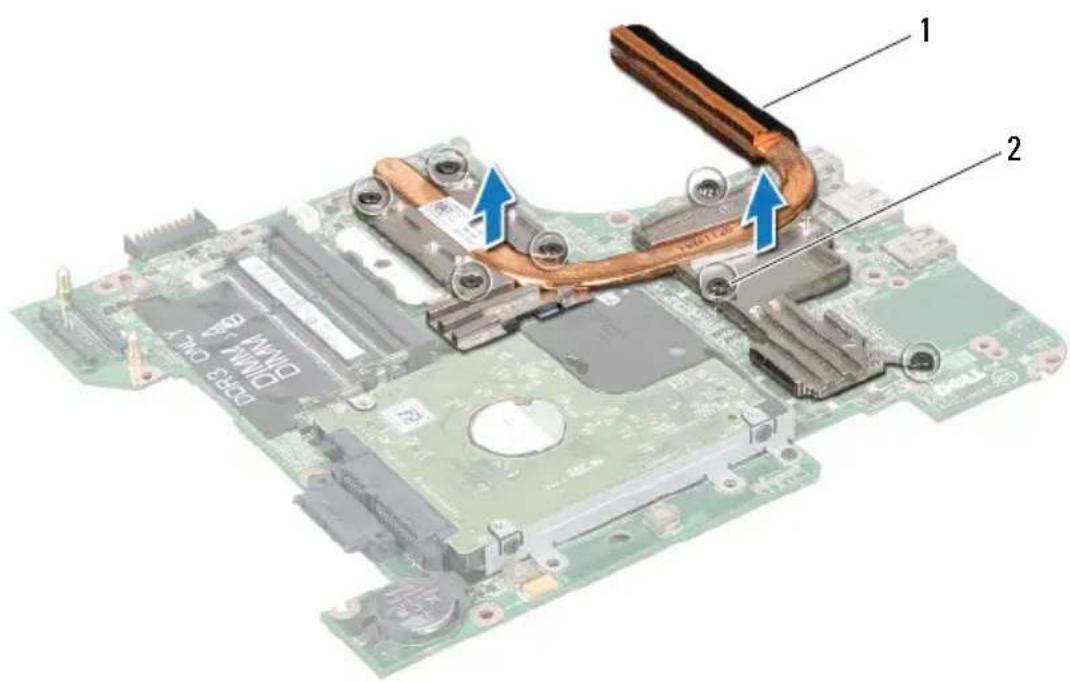
4 In sequential order (indicated on the thermal cooling assembly), loosen the seven captive screws that secure the thermal cooling assembly to the system board.
5 Lift the thermal cooling assembly off the system board.
text_image
Labeled diagram of a computer motherboard showing heat sink components and thermal insulation layers1 thermal cooling assembly 2 captive screws (7)
Replacing the Thermal Cooling Assembly

NOTE: The original thermal grease can be reused if the original processor and heat sink are reinstalled together. If either the processor or the heat sink is replaced, use the thermal pad provided in the kit to ensure that thermal conductivity is achieved.
1 Follow the instructions in "Before You Begin" on page 9.
2 Place the thermal cooling assembly on the system board.
3 Align the seven captive screws on the thermal cooling assembly with the screw holes on the system board and tighten the screws in sequential order (indicated on the thermal cooling assembly).
4 Replace the system board (see "Replacing the System Board" on page 81).

CAUTION: Before turning on the computer, replace all screws and ensure that no stray screws remain inside the computer. Failure to do so may result in damage to the computer.
Processor Module
WARNING: Before working inside your computer, read the safety information that shipped with your computer. For additional safety best practices information, see the Regulatory Compliance Homepage at dell.com/regulatory_compliance.
CAUTION: Only a certified service technician should perform repairs on your computer. Damage due to servicing that is not authorized by Dell is not covered by your warranty.
CAUTION: To avoid electrostatic discharge, ground yourself by using a wrist grounding strap or by periodically touching an unpainted metal surface (such as a connector on your computer).
CAUTION: To help prevent damage to the system board, remove the main battery (see "Removing the Battery" on page 15) before working inside the computer.
CAUTION: Handle components and cards by their edges, and avoid touching pins and contacts.
Removing the Processor Module
1 Follow the instructions in "Before You Begin" on page 9.
2 Follow the instructions from step 2 to step 15 in "Removing the System Board" on page 77.
3 Remove the thermal cooling assembly (see "Removing the Thermal Cooling Assembly" on page 89).
4 To loosen the ZIF socket, use a small, flat-blade screwdriver and rotate the ZIF-socket cam screw counterclockwise until it comes to the cam stop.
CAUTION: To ensure maximum cooling for the processor, do not touch the heat transfer areas on the processor thermal-cooling assembly. The oils in your skin can reduce the heat transfer capability of the thermal pads.
CAUTION: When removing the processor module, pull the module straight up. Be careful not to bend the pins on the processor module.
5 Lift the processor module from the ZIF socket.

text_image
Diagram showing a screwdriver turning a microchip with blue arrows indicating rotation, labeled with parts 1 and 2.1 ZIF socket 2 ZIF-socket cam screw
Replacing the Processor Module
1 Follow the instructions in "Before You Begin" on page 9.

NOTE: If a new processor is installed, you will receive a new thermal-cooling assembly, which will include an affixed thermal pad, or you will receive a new thermal pad along with documentation to illustrate proper installation.
2 Align the pin-1 corner of the processor module with the pin-1 corner of the ZIF socket, then insert the processor module.

NOTE: The pin-1 corner of the processor module has a triangle that aligns with the triangle on the pin-1 corner of the ZIF socket.
When the processor module is properly seated, all four corners are aligned at the same height. If one or more corners of the module are higher than the others, the module is not seated properly.
CAUTION: To avoid damage to the processor, hold the screwdriver perpendicular to the processor when turning the cam screw.
3 Tighten the ZIF socket by turning the cam screw clockwise to secure the processor module to the system board.
4 Replace the thermal cooling assembly (see "Replacing the Thermal Cooling Assembly" on page 90).
5 Follow the instructions from step 6 to step 20 in "Replacing the System Board" on page 81.
CAUTION: Before turning on the computer, replace all screws and ensure that no stray screws remain inside the computer. Failure to do so may result in damage to the computer.
Hard-Drive Assembly
WARNING: Before working inside your computer, read the safety information that shipped with your computer. For additional safety best practices information, see the Regulatory Compliance Homepage at dell.com/regulatory_compliance.
WARNING: If you remove the hard drive from the computer when the drive is hot, do not touch the metal housing of the hard drive.
CAUTION: Only a certified service technician should perform repairs on your computer. Damage due to servicing that is not authorized by Dell is not covered by your warranty.
CAUTION: To avoid electrostatic discharge, ground yourself by using a wrist grounding strap or by periodically touching an unpainted metal surface (such as a connector on your computer).
CAUTION: To help prevent damage to the system board, remove the main battery (see "Removing the Battery" on page 15) before working inside the computer.
CAUTION: To prevent data loss, turn off your computer (see "Turning Off Your Computer" on page 9) before removing the hard-drive assembly. Do not remove the hard drive while the computer is On or in Sleep state.
CAUTION: Hard drives are extremely fragile. Exercise care when handling the hard drive.
NOTE: Dell does not guarantee compatibility or provide support for hard drives from sources other than Dell.
NOTE: If you are installing a hard drive from a source other than Dell, you need to install an operating system, drivers, and utilities on the new hard drive.
Removing the Hard-Drive Assembly
1 Follow the instructions in "Before You Begin" on page 9.
2 Follow the instructions from step 2 to step 15 in "Removing the System Board" on page 77.
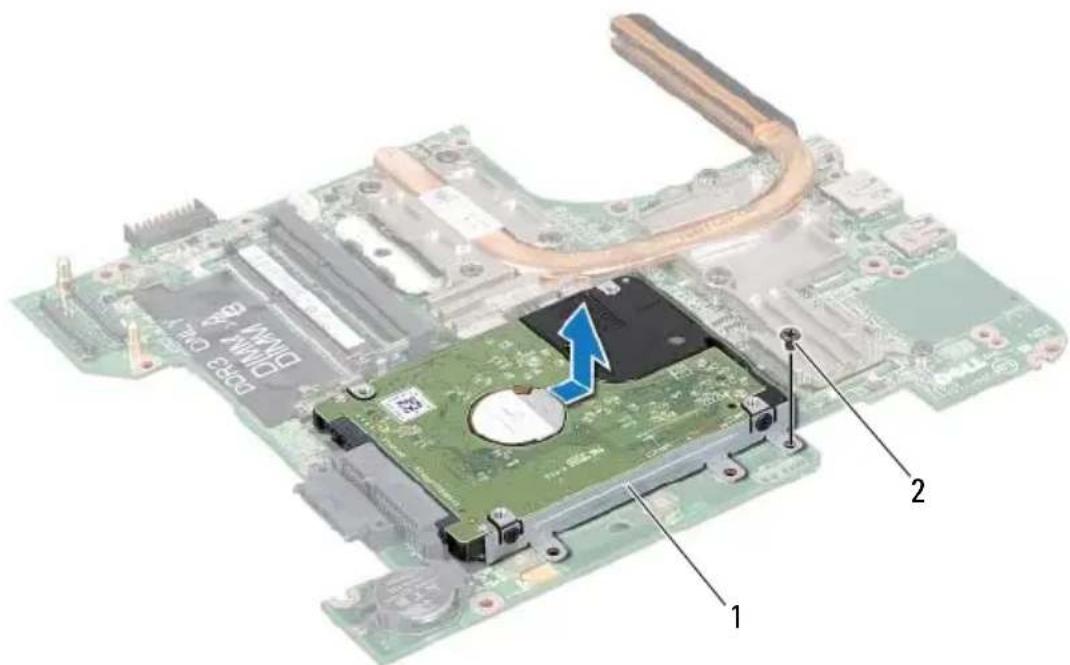
3 Remove the screw that secures the hard-drive assembly to the system board.
4 Slide the hard-drive assembly in the direction shown in the illustration to disconnect it from the connector on the system board.
5 Lift the hard-drive assembly off the system board.
text_image
CPU320 DINAM COLD 1 21 hard-drive assembly 2 screw
6 Remove the four screws that secure the hard-drive bracket to the hard drive.
7 Lift the hard drive away from the hard-drive bracket.

text_image
Diagram of a hard disk drive with labeled components and a blue arrow indicating a specific part.1 screws (4) 2 hard-drive bracket
3 hard drive
Replacing the Hard-Drive Assembly
1 Follow the instructions in "Before You Begin" on page 9.
2 Remove the new hard drive from its packaging.
Save the original packaging for storing or shipping the hard drive.
3 Place the hard drive in the hard-drive bracket.
4 Replace the four screws that secure the hard-drive bracket to the hard drive.
5 Place the hard-drive assembly on the system board.
6 Slide the hard-drive assembly to connect it to the connector on the system board.
7 Replace the screw that secures the hard-drive assembly to the system board.
8 Follow the instructions from step 6 to step 20 in "Replacing the System Board" on page 81.

CAUTION: Before turning on the computer, replace all screws and ensure that no stray screws remain inside the computer. Failure to do so may result in damage to the computer.
I/O Board
WARNING: Before working inside your computer, read the safety information that shipped with your computer. For additional safety best practices information, see the Regulatory Compliance Homepage at dell.com/regulatory_compliance.
CAUTION: Only a certified service technician should perform repairs on your computer. Damage due to servicing that is not authorized by Dell is not covered by your warranty.
CAUTION: To avoid electrostatic discharge, ground yourself by using a wrist grounding strap or by periodically touching an unpainted metal surface (such as a connector on your computer).
CAUTION: To help prevent damage to the system board, remove the main battery (see "Removing the Battery" on page 15) before working inside the computer.
Removing the I/O Board
1 Follow the instructions in "Before You Begin" on page 9.
2 Follow the instructions from step 2 to step 14 in "Removing the System Board" on page 77.
3 Remove the Mini-Card(s) (see "Removing the Mini-Card(s)" on page 45).
4 Remove the display assembly (see "Removing the Display Assembly" on page 53).
5 Remove the hinge cover (see "Removing the Hinge Cover" on page 69).
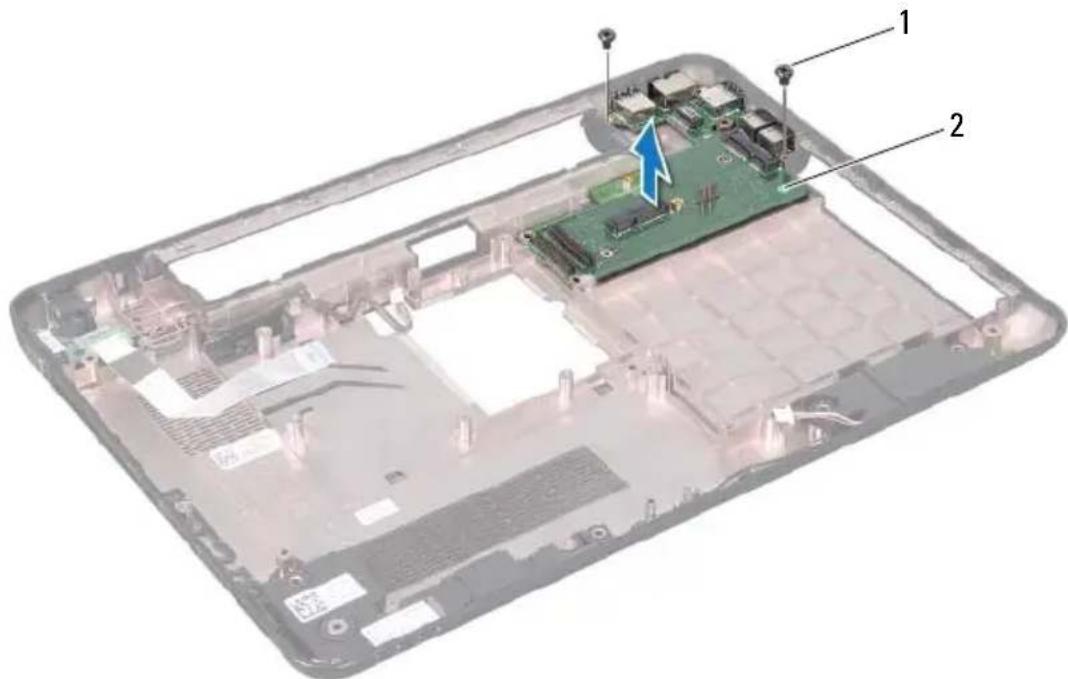
6 Remove the two screws that secure the I/O board to the computer base.
7 Lift the I/O board off the computer base.
text_image
Labeled diagram of a laptop showing internal components with annotations 1 and 2 pointing to a green circuit board.1 screws (2) 2 I/O board
Replacing the I/O Board
1 Follow the instructions in "Before You Begin" on page 9.
2 Align the connectors on the I/O board into the slots on the computer base.
3 Replace the two screws that secure the I/O board to the computer base.
4 Replace the hinge cover (see "Replacing the Hinge Cover" on page 71).
5 Replace the display assembly (see "Replacing the Display Assembly" on page 56).
6 Replace the Mini-Card(s) (see "Replacing the Mini-Card(s)" on page 47).
7 Follow the instructions from step 7 to step 20 in "Replacing the System Board" on page 81.
CAUTION: Before turning on the computer, replace all screws and ensure that no stray screws remain inside the computer. Failure to do so may result in damage to the computer.
AC-Adapter Connector
WARNING: Before working inside your computer, read the safety information that shipped with your computer. For additional safety best practices information, see the Regulatory Compliance Homepage at dell.com/regulatory_compliance.
CAUTION: Only a certified service technician should perform repairs on your computer. Damage due to servicing that is not authorized by Dell is not covered by your warranty.
CAUTION: To avoid electrostatic discharge, ground yourself by using a wrist grounding strap or by periodically touching an unpainted metal surface (such as a connector on your computer).
CAUTION: To help prevent damage to the system board, remove the main battery (see "Removing the Battery" on page 15) before working inside the computer.
Removing the AC-Adapter Connector
1 Follow the instructions in "Before You Begin" on page 9.
2 Follow the instructions from step 2 to step 14 in "Removing the System Board" on page 77.
3 Remove the display assembly (see "Removing the Display Assembly" on page 53).
4 Remove the hinge cover (see "Removing the Hinge Cover" on page 69).
5 Remove the VGA connector board (see "Removing the VGA Connector Board" on page 73).
6 Note the AC-adapter connector cable routing and remove the cable from the routing guides.
7 Remove the screw that secures the AC-adapter connector to the computer base.
8 Lift the AC-adapter connector off the computer base.
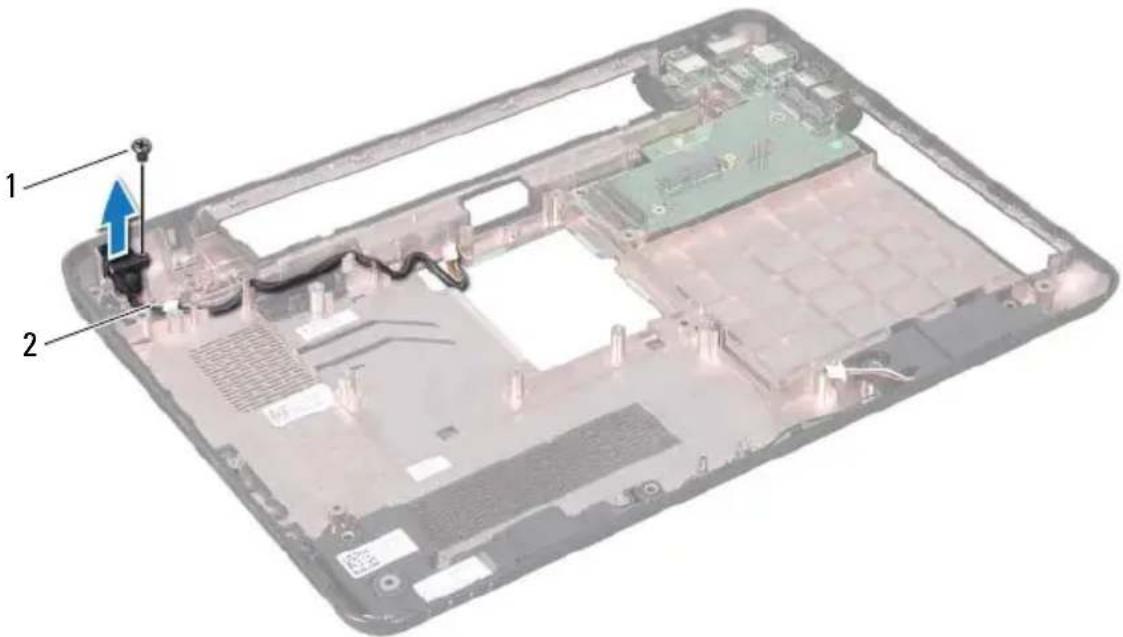
text_image
Labeled diagram of a tablet device showing internal components and parts with numbered annotations1 screw 2 AC-adapter connector cable
Replacing the AC-Adapter Connector
1 Follow the instructions in "Before You Begin" on page 9.
2 Place the AC-adapter connector on the computer base.
3 Replace the screw that secures the AC-adapter connector to the computer base.
4 Route the AC-adapter connector cable through the routing guides.
5 Replace the VGA connector board (see "Replacing the VGA Connector Board" on page 74).
6 Replace the hinge cover (see "Replacing the Hinge Cover" on page 71).
7 Replace the display assembly (see "Replacing the Display Assembly" on page 56).
8 Follow the instructions from step 7 to step 20 in "Replacing the System Board" on page 81.

CAUTION: Before turning on the computer, replace all screws and ensure that no stray screws remain inside the computer. Failure to do so may result in damage to the computer.
Flashing the BIOS
The BIOS may require flashing when an update is available or when replacing the system board. To flash the BIOS:
1 Turn on the computer.
2 Go to support.dell.com/support/downloads.
3 Locate the BIOS update file for your computer:

NOTE: The Service Tag for your computer is located on a label at the bottom of your computer.
If you have your computer's Service Tag:
a Click Enter a Tag
b Enter your computer's Service Tag in the Enter a service tag: field, click Go, and proceed to step 4.
If you do not have your computer's Service Tag:
a Click Select Model.
b Select the type of product in the Select Your Product Familylist.
c Select the product brand in the Select Your Product Line list.
d Select the product model number in the Select Your Product Model list.

NOTE: If you have selected a different model and want to start over again, click Start Over on the top right of the menu.
e Click Confirm.
4 A list of results appear on the screen. Click BIOS.
5 Click Download Now to download the latest BIOS file.
The File Download window appears.
Click Save to save the file on your desktop. The file downloads to your desktop.
7 Click Close if the Download Complete window appears.
The file icon appears on your desktop and is titled the same as the downloaded BIOS update file.
8 Double-click the file icon on the desktop and follow the instructions on the screen.