HL-L2376DW - Printer BROTHER - Free user manual and instructions
Find the device manual for free HL-L2376DW BROTHER in PDF.


User questions about HL-L2376DW BROTHER
0 question about this device. Answer the ones you know or ask your own.
Ask a new question about this device
Download the instructions for your Printer in PDF format for free! Find your manual HL-L2376DW - BROTHER and take your electronic device back in hand. On this page are published all the documents necessary for the use of your device. HL-L2376DW by BROTHER.
USER MANUAL HL-L2376DW BROTHER
MODELS COVERED BY THIS MANUAL
| HL-1*** | 1050/1070/1110/1111/1112/1118/1200/1201/1202/1208/1210W/1210WE/1210WR/1211W/1212W/1212WR/1218W/1250/1270N/1450/1470N/1650/1660e/1670N/1850/1870N/ | HL-B*** | B2050DN/B2080DW |
| HL-2*** | 2060/2070N/2130/2140/2150N/2170W/2240D/2250DN/2260/2260D/2270DW/2400C/2400Ce/2460/2560DN/2569DW/2590DN/2595DW/2600CN/2700CN | HL-L2*** | L2300/L2300D/L2305W/L2320D/L2321D/L2340DW/L2360DN/L2360DW/L2361DN/L2365DW/L2366DW/L2370DN/L2370DW/L2371DN/L2372DN/L2375DW/L2376DW/L2385DW/L2386DW |
| HL-3*** | 3040CN/3045CN/3070CW/3075CW/3140CW/3150CDN/3150CDW/3160CDW/3170CDW/3190CDW/3260N/3400CN/3450CN | HL-L3*** | L3210CW/L3230CDN/L3230CDW/L3270CDW |
| HL-4*** | 4040CN/4050CDN/4070CDW/4140CN/4150CDN/4570CDW | HL-L5*** | L5000D/L5100DN(T)/L5102DW/L5200DW(T)/L5202DW |
| HL-5*** | 5040/5050/5070N/5140/5150D/5170DN/5240/5250DN/5270DN/5280DW/5340D/5350DN/5370DW/5380DN/5440D/5450DN/5470DW/5580D/5585D/5590DN/5595DN | HL-L6*** | L6200DW(T)/L6202DW/L6250DN/L6250DW/L6300DW(T)/L6400DW(T)/L6402DW |
| HL-6*** | 6050/6050D/6050DN/6180DW | HL-L8*** | L8250CDN/L8260CDN/L8260CDW/L8350CDW(T)/L8360CDW(T) |
| HL-7*** | 7050 | HL-L9*** | L9200CDW(T)/L9300CDW(T)/L9310CDW |
| HL-8*** | 8050N | HL-P*** | P2500 |
| HL-S*** | S7000DN |
| First version | August, 1999 Created for HL-1050/1070/1250/1270N/1450/1470N/P2500/1660e/2060/2400C | |
| Ver. A March | 2000 Revised for Addition of HL-2400Ce/3400CN | |
| Ver. B March | 2001 Revised for Addition of HL-1650/1670N/3260N/2460 | |
| Ver. C October | 2001 Revised for Addition of HL-1450/1470N | |
| Ver. D June | 2003 Revised for Addition of HL-7050/1850/1870N/5050/5070N | |
| Ver. E September | 2003 Revised for Addition of HL-2600CN/3450CN. | |
| Ver. F October | 2003 Revised for Addition of HL-5040. | |
| Ver. G January | 2004 Correct Paper Source command of PCL5. | |
| Ver. H February | 2004 Correct Epson & IBM emulation, PJL and Barcode. | |
| Ver. I June | 2004 Revised for Addition of HL-6050/6050D/6050DN/8050N/2700CN. | |
| Ver. J | July, 2004 | Revised for Addition of HL-5140/5150D/5150DN and addition of a section of Carbon Copy and addition of a table of Tray Selection of TRAYCOMMAND Special. |
| Ver. K December | 2004 Revised for Addition of HL-2070N. | |
| Ver. L | March, 2006 Revised for Addition of HL-5240/5250DN/5270DN/5280DW. | |
| Ver. M | June, 2007 Revised for Addition of HL-4040CN/4050CDN/4070CDW. | |
| Ver. N April | 2009 Revised for Addition of HL-2140/2150N/2170W. | |
| Ver. O April | 2009 Revised for Addition of HL-5340D/5350DN/5370DW/5380DN. | |
| Ver. P | June, 2009 Revised for Addition of HL-3040CN/3070CW | |
| Ver. Q June | 2010 Revised for Addition of HL-2130/2240D/2250DN/2270DW/4140CN/4150CDN/4570CDW | |
| Ver. R November | 2011 Revised for Addition of HL-3045CN/3075CW/5440D/5450DN/5470DW/6180DW | |
| Ver. S | March, 2012 Revised for Addition of HL-S7000DN | |
| Ver. T October | 2012 Revised for Addition of HL-3150CDW/HL-3150CDN/HL-3170CDW | |
| Ver. U March | 2013 Revised for Addition of HL-1110/1111/1112/1118 | |
| Ver. V | November, 2013 Revised for Addition of HL-L8250CDN/L8350CDW(T)/L9200CDW(T) | |
| Ver.W March | 2014 Revised for Addition of HL-L2300/L2300D/L2320D/L2321D/2260/2260D/L2305W/L2340DW/L2360DN/L2361DN/2560DN/L2360DW/L2365DW/L2366DW/2569DW | |
| Ver.X | June, 2014 | Revised for Addition of HL-HL-1212W/1210W/1210WR/1212WR/1210WE/1211W/1218W/1200/1201/1202/1208 |
| Ver.Y | November, 2014 Revised for Addition of HL-L9300CDW(T) | |
| Ver.Z | October, 2015 | Revised for Addition of HL-L5000D/5580D/5585D/5595DN/L5102DW/L5100DN(T)/5590DN/L5200DW(T)/L5202DW/L6200DW(T)/L6202DW/L6250DN/L6250DW/L6300DW(T)/L6400DW(T)/L6402DW |
| Ver.AA | January, 2017 | Revised for Addition of HL-L8260CDN/L8260CDW/L8360CDW(T)/L9310CDW |
| Ver.AB | July, 2017 | Revised for Addition of HL-L2370DN/L2371DN/L2372DN/2590DN/B2050DN/L2370DW/L2375DW/L2376DW/B2080DW/L2385DW/L2386DW/2595DW |
| Ver.AC | March, 2018 | Revised for Addition of HL-L3270CDW/L3230CDW/L3230CDN/L3210CW/3190CDW/3160CDW |
| Ver.AD Dec | mber, 2019 | Revised for Addition about PJL for SF-4000(Finisher). |
© Copyright Brother Industries, Ltd. 2019
ALL RIGHTS RESERVED
Trademark acknowledgments
Brother is a registered trademark of Brother Industries Ltd.
PostScript is a registered trademark of Adobe Incorporated.
Epson is a registered trademark and FX-850 a trademark of Seiko Epson Corporation.
Hewlett Packard, HP, LaserJet and PCL are registered trademarks and LaserJet, HP-GL, and HP-GL/2 are trademarks of Hewlett Packard Company.
IBM is a registered trademark and Proprinter XL is a trademark of International Business Machines Corporation.
Microsoft, MS-DOS and Windows are registered trademarks.
Intellifont is a registered trademark of Agfa Corporation.
TrueType is a trademark of Apple Computer, Inc.
All other brand and product names mentioned in this manual are registered trademarks or trademarks of respective companies.
Compilation and Publication
Under the supervision of Brother Industries Ltd., this manual has been compiled and published, covering the latest product's descriptions and specifications.
The contents of this manual and the specifications of this product are subjected to change without notice.
Brother reserves the right to make changes without notice in the specifications and materials contained herein and shall not be responsible for any damages (including consequential) caused by reliance on the materials presented, including but not limited to typographical and other errors relating to the publication.
TABLE OF CONTENTS
GLOSSARY
CHAPTER 1 INTRODUCTION
- ABOUT THE MANUAL 3
- AREAS OF USE 4
CHAPTER 2 PCL PRINTER CONTROL LANGUAGE
- COMMAND LIST 7
- INTRODUCTION 10
- CONTROLLING THE PRINTER----11
- JOB CONTROL 15
- USING FONTS----47
- USING GRAPHICS 81
- MACROS 102
- STATUS READBACK 108
- INDEX 116
CHAPTER 3 PCL5C
- INTRODUCTION 3
- COLOR MODES 4
- COLOR PALLETS----10
- COLOR GRAPHICS 12
- ENHANCE OUTPUT 14
- HP-GL/2----16
- INDEX 18
CHAPTER 4 HP-GL/2 GRAPHICS LANGUAGE
- COMMOAND LIST 4
- INTRODUCTION 6
- TERMINOLOGY 7
- COMMAND SYNTAX----9
- THE HP-GL GRAPHICS WINDOW----10
- PREPARING TO PRINT GRAPHIC IMAGES----11
- COMMANDS----12
- INDEX 52
CHAPTER 5 PJL PRINTER JOB LANGUAGE
- INTRODUCTION 4
- HOW TO USE PJL 8
- COMMAND GROUP----9
- KERNEL COMMANDS----10
- JOB SEPARATION COMMANDS----13
- ENVIRONMENT COMMANDS----15
- STATUS READBACK COMMANDS----61
- DEVICE ATTENDANCE COMMANDS ----78
- INDEX 81
CHAPTER 6 EPSON FX-850
- COMMAND LIST 3
- INTRODUCTION 5
- EMULATION DETAILS 6
- TERMINOLOGY 7
- CONTROLLING THE PRINTER 8
- COMMANDS----9
- INDEX 28
CHAPTER 7 IBM PROPRINTER XL
- COMMAND LIST 3
- INTRODUCTION 5
- EMULATION DETAILS 6
- NOTATION USED IN THIS EMULATION DESCRIPTION ---- 7
- COMMANDS----8
- INDEX 21
CHAPTER 8 BAR CODE CONTROL
- INTRODUCTION 3
- PRINT BAR CODES OR EXPANDED CHARACTERS----4
- DEFINITION OF PARAMETERS 5
- EXAMPLE PROGRAM LISTINGS ----12
CHAPTER 9 HP-GL GRAPHICS LANGUAGE
- COMMAND LIST 3
- INTRODUCTION 4
- COMMANDS----6
- INDEX 27
CHAPTER 10 CARBON COPY FUNCTION
- OUTLINE 3
- SPECIFICATIONS 4
- DETAILED INFORMATION----10
APPENDIX A COMPARISON LIST
APPENDIX B FLASH/PCMCIA CARD COMMANDS
APPENDIX C HBP MODE COMMANDS
APPENDIX D REFERENCE LIST OF MX-2000/4000/5000/7000
SERIES UNIQUE COMMANDS
APPENDIX E REFERENCE LIST OF FS-5050 UNIQUE COMMANDS
GLOSSARY
| Absolute plotting | A method of plotting in the HP-GL and HP-GL/2 graphics language where coordinates are specified relative to the origin of the coordinate system currently in use. |
| Anchor point | The top left-hand corner of the PCL picture frame. You can position this on the page using a PCL command. |
| Anisotropic scaling | A form of image scaling using the SC command in HP-GL and HP-GL/2 mode in which the user units can be of different sizes. Hence the entire graphics window can be used to display the image. |
| ASCII The standard system for assigning number codes (0 ~ 255) to alphabetic, numeric and control code characters. | |
| Attribute | A characteristic of a downloadable font or a character of a Downloadable font that is represented by a number of a fixed length. |
| Bitmap font | A font whose characters are defined as raster images. The characters that make up a bitmap font are of a fixed size. |
| Bold | A wider line thickness for typographical characters, used to make the text stand out, for example, in headings. |
| Calling a macro | A way of running a macro in which changes to the modified print environment are not retained when the macro has finished running. |
| Cartridge | A storage medium that you can insert into the printer cartridge slots. Cartridges can store fonts. The advantage of using cartridges is that they allow you to use more fonts without taking up printer memory space. |
| Cartridge font | A font that is stored on a cartridge. These are widely available commercially. |
Character cell The imaginary grid on which downloadable characters are designed.
Character code A number assigned to a character that uniquely identifies it.
| Character descriptor | A block of data that describes the characteristics of an individual character in a downloadable font, such as its width and height. |
| Character set | A selection of different characters. Characters sets normally include the alphabet in both upper- and lowercase, the digits' 0-9, punctuation marks, common mathematical symbols and a few other useful characters. There are also some specialized character sets that are used for specific applications like mathematics. A font is defined as having a particular character set. |
| Column | A vertical sub-division of the page whose width is equal to the HMI (horizontal motion index). The print position moves across the page one column width when any single character is printed (in a monospaced font), or when a space character is printed (in a proportionally spaced font). See also HMI. |
| Control code | An ASCII code that tells the computer to perform a particular function, such as a carriage return. |
| Control panel reset | A reset or factory reset performed using the printer control panel. |
| Cross-hatching | A method of shading using perpendicular diagonal lines that cross one another. |
| Current units | The current unit type in use in HP-GL and HP-GL/2 mode. Current units are either user units or graphics units depending on whether an SC command has been used. |
| Cursor | Although the printer does not have a cursor, it is sometimes easier to visualize the printer's operation in terms of a cursor that can be moved from place to place on the page. |
Cursor position The current position of the imaginary cursor.
Decipoint A unit of measure equal to 1/720".
Default conditions A set of HP-GL and HP-GL/2 mode settings that you restore using the DF; command. The default conditions are a subset of the initial settings.
Destination image The graphic image that is already in place on a page and to which the source image is applied in the LaserJet series print model.
Dots A unit of measure equal to 1/600", the smallest increment that the cursor can move.
Downloadable font A character font that can be downloaded from your computer to the printer. You can either buy Downloadable fonts or create your own. A downloadable font consists of a font descriptor block followed by a character code, character descriptor block and the data for each character in the font.
Downloading The process of sending either a font, a macro or a graphic image from your computer to the printer.
Effective window The area of the page on which HP-GL and HP-GL/2 output can appear. The effective window is determined by the overlap of the logical page, the PCL picture frame, the hard clip and the soft clip limits.
Emulation mode A mode of operation in which the printer imitates the functions of a different model.
Enabling a macro for overlay A macro that is enabled for overlay runs as the final operation before each page is printed, using the macro overlay environment printer settings.
Escape sequence The Esc character followed by a string of other characters that tell the printer which operation to perform.
Factory default environment The collection of printer settings that have been made to the printer before it leaves the factory. You can reset the printer to the factory settings either by using a printer command or using the control panel.
Factory reset A reset in which LaserJet mode is made the current emulation mode and the factory default environment is restored.
Fill A shading applied to a shape that you have drawn.
| Fixed spacing | See monospacing. |
| Font | A collection of characters that are designed to work in harmony together. A font has several characteristics that identify it uniquely: character or symbol set, spacing, pitch, height or point size, style, stroke weight and typeface. Fonts can either be resident in the printer's ROM, installed on cartridge or downloaded from your computer. You can either buy downloadable fonts commercially or create your own. The word "font" is often wrongly used to mean "typeface". A font is confined to a single height or point size whereas a typeface is not. |
| Font descriptor | A block of data that is downloaded to the printer as the first part of a downloaded font. The font descriptor describes the characteristics that are common to every character in the font, such as stroke weight, and contains other relevant information. |
| Graphics mode initial settings | The HP-GL and HP-GL/2 mode settings that are in effect when you enter HP-GL and HP-GL/2 mode. You can restore the initial conditions using the IN; command. |
| Graphics units | The default units of the HP-GL and HP-GL/2 coordinate system. Also sometimes called plotter units. |
| Graphics window | The area on the page in which HP-GL and HP-GL/2 graphic images can appear. Initially this is the same as the picture frame, but you can change the size, position and aspect ratio of the graphics window using the IW command. |
| Gray scale A degree of continuous shading ranging from 0%, white, to 100%, black. | |
| Hard clip limits | The area of the page on which it is physically possible to print using HP-GL and HP-GL/2 graphics language commands. The hard clip limits are determined by the size of the physical page and are equivalent to the LaserJet mode printable area. |
| Hatching A method of shading using parallel lines. | |
| Height | The height in typographic points (1/72" units) of an unaccented capital letter in a font. |
| HMI Horizontal motion index. | The horizontal distance that the print position moves across the page when any single character is printed (in a monospaced font), or when a space character is printed (in a proportionally spaced font). You can set the HMI using printer commands, however, when you alter any font characteristic (in effect, select a new font) or switch between the primary and secondary fonts, the HMI is reset to its default value based on the newly selected font. |
| Horizontal plot size | The original horizontal size of an imported HP-GL and HP-GL/2 image. |
| Internal font | A font that is stored in the printer ROM and is therefore always available for use, for example, Brougham 10 pitch, or a font generated from a scalable typeface stored in the printer's ROM, for example, Tennessee bold 15 pt. |
| Isotropic scaling | A form of image scaling using the SC command in HP-GL or HP-GL/2 mode in which the user units must be of equal size. Hence it may not be possible to use the entire graphics window to display the image. |
Justification The way in which text is aligned. For example, left justification involves aligning the left end of every line of text.
Label A text string that forms part of an HP-GL and HP-GL/2 plot.
Landscape Logical page The orientation in which the top edge of the page is longer than the side edges. The area of the physical page on which the cursor can be positioned in LaserJet mode. You can use PCL commands to specify the position of the logical page on the physical page. Also known as the PCL addressable area.
LSB i) The least significant byte of a set of data bytes.
ii) The least significant bit of a single byte of data.
Macro A sequence of PCL commands that can be stored in the printer memory. To run the sequence you need only use a single PCL command.
Macro execution Executing a macro is a way of running a macro whereby any changes made to the modified print environment by the macro are retained when macro execution has been completed.
Macro overlay environment Used only by a macro that has been enabled for overlay. A combination of the user default environment and the modified print environment.
Medium The line thickness of normal type.
Modified print environment The collection of all current LaserJet printer settings. This environment is saved if you call a macro or enter HP-GL and HP-GL/2 mode, it is restored when the macro has finished running or when you quit HP-GL or HP-GL/2 mode.
Monospacing Some bitmap fonts are printed with each character occupying the same space on a line of text. This is known as monospacing.
MSB i) The most significant byte of a set of data bytes.
ii) The most significant bit of a single byte of data.
Pattern i) The hatching or cross-hatching that can be applied to an outline shape.
ii) The non-white areas of the source image in the LaserJet print model.
Pattern transparency The patterned (non-white) areas of the source image are either transparent, in which case the destination image is visible through the white parts of the pattern, or opaque, in which case the destination image is not visible at all throughout the patterned areas of the source image.
PCL Printer Control Language. The language consisting of escape sequences that is used to control the printer in LaserJet mode
PCL addressable area See logical page.
PCL picture frame See picture frame.
Pen Although this printer is a laser printer the HP-GL/2 and HP-GL graphics languages retains the notion of a pen and allows you to select between two pens, white and black. You must select a pen before you can draw anything. The HP-GL and HP-GL/2 language were originally developed for use with plotters and the terminology remains.
Perforation skip A feature whereby the printer automatically compensates for a page break and resumes printing from the top of the text area on the next page.
Permanent font A downloaded font that is retained when a printer reset is performed.
Permanent macro A macro stored in the printer that will not be erased if the printer is reset.
Physical page The paper or envelope on which the printer prints.
Picture frame The area of the physical page in which HP-GL and HP-GL/2 graphic images can be printed.
Pitch The number of characters in one inch of text. Only applicable to monospaced (fixed pitch fonts.)
Plot A drawing produced using the HP-GL and HP-GL/2 graphics language. So called because the language was originally invented for use with plotters.
Plotter units See graphics units.
Point The standard unit of measurement for character height. Equal to 1/72".
Point factor scaling A form of image scaling using the SC command in HP-GL or HP-GL/2 mode in which the user units and the location of the scaling point P1 are specified in terms of graphics units.
Point size See height.
Polygon A shape consisting of one or more closed groups of connected lines.
Polygon buffer An area of printer memory in which you can store one or more polygons and sub-polygons defined using HP-GL and HP-GL/2 commands. Some HP-GL and HP-GL/2 commands use the polygon buffer automatically.
Portrait The orientation in which the side edges of the page are longer than the top edge.
Posture A component of a font's style - whether it is upright or italic.
Primary font In LaserJet mode the printer maintains two current font settings. The primary font is the first of these.
Print model A way of describing the interaction between different graphic elements (source image, pattern and destination image).
Printable area The area of the page on which the printer can print.
Print position The position from which printing of the next character or graphic object will begin, providing that no operations that change the print position are performed in the interim.
Proportional spacing Fonts intended for high quality typographic output use a method of character spacing in which the space occupied by a single character on a line of text depends on the individual design of the character. This is known as proportional spacing. Scalable fonts are almost invariably proportionally spaced.
RAM Random Access Memory. The printer's memory in which fonts and macros can be stored and where pages that are to be printed are composed.
Raster graphics A method of representing a graphic image as a series of zeroes and ones that correspond to white and black dots respectively.
Relative plotting A method of plotting in the HP-GL and HP-GL/2 graphics language where coordinates are specified relative to the point at which the last graphics command terminated.
Reset When you reset the printer you restore a base set of conditions. A reset can either be performed using the control panel or by sending the printer a reset command. There are two types of reset, the normal reset and factory reset. A normal reset simply restores the current emulation mode with the most recent control panel settings -- it does not change the emulation mode itself. A factory reset makes LaserJet mode the current emulation mode and restores the factory default environment.
Resident font See internal font.
ROM Read Only Memory. Part of the printer's memory that contains the software controlling the printer and the printer internal fonts. The ROM cannot be altered unless the type of ROM fitted to the printer is Flash ROM, in which case it can be written to electronically via the parallel port of the printer.
Row A horizontal sub-division of the page whose height is equal to the VMI (vertical motion index). The print position moves down the page a distance equal to the row height when a line feed is performed.
Sans serif A kind of typeface normally used for headlines. Sans serif typefaces do not have little hooks (serifs) on the individual characters. This helps Sans serif headline text stand out more prominently.
Scalable fonts A font for which you can specify the character size. The printer will automatically scale the characters to the size you require.
Scaling In HP-GL or HP-GL/2 mode you can use the SC command to scale graphic images. The three types of scaling are known as anisotropic, isotropic and point factor scaling.
Scaling points Two imaginary points called P1 and P2 that define a rectangular area relative to the picture frame. You can use the HP-GL or HP-GL/2 SC and IP or IR commands to transform and scale images by changing the relationship between the two scaling points.
Scalable typeface A typeface for which you can choose a point size (height) in order to obtain a particular font for printing. For example, you might select the Utah typeface and then select 14 pt. as the height. The printer has many resident typefaces. You can also buy scalable typeface cartridge and disks.
Secondary font In LaserJet mode the printer maintains two current font settings. The secondary font is the second of these.
Serif A kind of typeface normally used for body text. Serif typefaces have little hooks (serifs) on the individual characters that makes text more readable.
Soft clip limits See graphics window. The soft limits are determined by the IW command.
Source image The graphic image that is applied to the destination image in the LaserJet print model. The interaction of the two images is determined by the current source and pattern transparency settings.
Source transparency The source image is either transparent, in which case the destination image is visible throughout the white parts of the source image, or opaque, in which case the destination image is not visible at all through the source image.
Spacing The way in which a font's characters are arranged on a line of text. See monospacing and proportional spacing.
Stick font The default HP-GL and HP-GL/2 font consisting of thin lined characters.
Stroke weight The thickness of the lines that comprise the characters in a particular font. Medium, bold and light stroke weights are commonly used.
Sub-polygon A shape consisting of a closed group of points connected by lines. Several sub-polygons can form one polygon.
Symbol set See character set.
Tab channel A set of up to sixteen vertical tab stops. Up to eight vertical tab channels can be set up in the Epson FX-850 mode.
Temporary font A downloaded font that is erased from the printer's memory when a printer reset is performed. To use the font again you must download it again.
Temporary macro A macro that is erased from the printer's memory when a reset is performed. If you want to use the macro again you must redefine it and download it to the printer again.
Text area The area of the physical page on which the printer can place text.
Text direction The orientation of printed text relative to the physical page.
TIFF Tagged Image File Format. A common file format used for storing raster graphics data.
Transparency See pattern transparency and source transparency.
Typeface The design style of a set of typographic characters. The character design is intended to make the characters work together cohesively to produce readable text. The word "font" is often erroneously used to mean "typeface".
User default environment The current combination of LaserJet factory default settings and settings made using the control panel. This is the environment that is in effect when you switch on the printer in LaserJet mode or change to LaserJet emulation from another emulation mode. You can reset the printer to its user default settings either by using a printer command or using the control panel.
User units Coordinate units specified by the user with the HP-GL and HP-GL/2 SC command.
Vector graphics A method of defining graphic images in terms of coordinates, points and lines. The HP-GL and HP-GL/2 graphics languages use this method.
Vertical plot size The original vertical size of an imported HP-GL and HP-GL/2 image.
VMI
Vertical motion index. The vertical distance that the print position moves down the page when a line feed is performed. This can be set using printer commands or with the printer's control panel by adjusting the "Lines" menu option in PAGE FORMAT MODE.
CHAPTER 1
INTRODUCTION
CONTENTS
1. ABOUT THE MANUAL ....3
2. AREAS OF USE......4
2.1 Using Word Processing Packages and Spreadsheets......4
2.2 Graphics....4
2.3 Programming....4
2.4 Font Development....5
1. ABOUT THE MANUAL
This technical reference manual is intended to help you get the most out of each of the emulation modes supported by your HL-Series printer. It is divided into nine sections - this introductory section and one section for each of the emulation modes. Each emulation mode section describes the software commands (the escape sequences and control codes) that you can use to make the printer perform each of its available functions. Some example programs are included to give you useful ideas.
This manual is for our PCL models. For the differences between each model, see the Appendix "Model Comparison."
"PCL6" includes both "PCLXL" and "PCL5e".
As for "PCL5e", it is described in "chapter 2 PCL" of this manual.
As for "PCLXL", it is mainly used with Windows driver, and its command is structured by binary code.
Therefore, it is not described in this manual.
For basic set-up information, such as how to connect the printer to your computer, look in the User's guide. The User's guide also describes the printers control panel and how you can set various options using the keys.
2. AREAS OF USE
There are several different applications for which you may want to use your HL-Series printer. Four general areas are outlined in the following sections.
2.1 Using Word Processing Packages and Spreadsheets
You may simply wish to use the printer with your software application packages, such as word-processors or spreadsheets. Many software packages automatically send commands to the printer requesting particular type styles, character sizes and specifying page set-up information and other relevant data. In this case you will not need to use this manual, as your software package will perform the task of controlling the printer for you. Other packages allow you to embed software commands within your word-processed or spreadsheet documents. This manual describes the commands you need, and you can simply include them in the form that your package requires. In either case, read the documentation that came with your software to find out its own specific requirements for driving a printer.
2.2 Graphics
HP-GL/2 or HP-GL mode offers many powerful graphic features that enable you to draw and print detailed images quickly and easily. Many commercial graphic packages, notably computer-aided design applications programs, produce HP-GL/2 or HP-GL output. LaserJet mode also has several graphics features. You can either write your own programs to generate images or use existing graphics software.
2.3 Programming
If you are writing software, for example in BASIC or C, to drive the printer, the description and formal specification of each command will enable you to transcribe them straight into your programs. Below is a simple example of a program to draw and print a three inch black square. The program is given in both C and BASIC.
C language program
#include <stdio.h>
main()
{
FILE *prn; /* initialization section */
prn = fopen("PRN", "wb");
fprintf(prn, "\33E"); /* Esc E - Reset the printer */
fprintf(prn, "\33%0B"); /* Esc%0B - Enter HP-GL/2 */
fprintf(prn, "IN"); /* Initialize */
fprintf(prn, "SP1PA1024, 1024"); /* Select pen 1 & move to 0, 0 */
fprintf(prn, "PDFT1RA4096, 4096"); /* Draw 3" solid square */
fprintf(prn, "\33%0A"); /* Quit HP-GL/2 & restore original cursor position */
fprintf(prn, "\33E /* Reset and eject page */
}
BASIC language program
10 LPRINT CHR$(27); "E"; :REM Esc E - Reset the printer
20 LPRINT CHR$(27); "%0B"; :REM Esc%0B - Enter HP-GL/2
30 LPRINT "IN"; :REM Initialize
40 LPRINT "SP1PA1024, 1024"; :REM Select pen 1 & move to 0, 0
50 LPRINT "PDFT1RA4096, 4096"; :REM Draw 3" solid square
60 LPRINT CHR$(27); "%0A"; :REM Quit HP-GL/2 & restore original cursor position
70 LPRINT CHR$(27); "E"; :REM Reset and eject page
2.4 Font Development
In LaserJet mode you can send your own character designs to an HL-Series printer and print text using them. To do this you need first to design your characters on paper. Having done this you can then either input and download your characters using a commercial software package, or encode your designs numerically and write your own program to download them.
CHAPTER 2
PCL
PRINTER CONTROL
LANGUAGE
CONTENTS
1. COMMAND LIST....7
2. INTRODUCTION .... 10
3. CONTROLLING THE PRINTER....11
3.1. Control Codes....11
3.1.1. Backspace (08) <08h>.....11
3.1.2. Line feed (10) <0Ah> 11
3.1.3. Form feed (12) <0Ch> 11
3.1.4. Carriage return (13) <0Dh> 11
3.1.5. Select primary font (14) <0Eh>....11
3.1.6. Select secondary font (15) <0Fh>....11
3.1.7. Escape (27) <1Bh>....11
3.1.8. Horizontal tab (09) <09h> 11
3.1.9. Space (32) <20h> 11
3.2. Escape Sequences....12
3.2.1. Line termination....12
3.2.2. End-of-line wrap....13
3.2.3. Display functions mode....13
3.3. Environments....14
3.3.1. Factory default environment ....14
3.3.2.User default environment....14
3.3.3. Modified print environment....14
3.3.4. Macro overlay environment....14
4. JOB CONTROL....15
4.1. Commands....15
4.1.1. Page size 15
4.1.2. Media type selection....20
4.1.3. Output tray 21
4.1.4. Paper source....22
4.1.5. Left long-edge offset registration .....27
4.1.6. Top offset registration ....27
4.1.7. Simplex/duplex printing....28
4.1.8. Paper side selection....28
4.1.9. Job separation command....28
4.1.10. Reset....28
4.1.11. Reset to factory default settings....30
4.1.12. Reset to user settings ....30
4.1.13. Printer self test .... 30
4.1.14. Exit current emulation mode ....30
4.1.15. Change emulation mode....30
4.2. The Page 32
4.2.1. Physical page....32
4.2.2. Printable area....32
4.2.3. Logical page....32
4.2.4. Text area....32
4.2.5. HP-GL/2 graphics window 32
4.2.6. Portrait page dimensions 33
4.2.7. Landscape page dimensions ....35
4.2.8. Coordinates....37
4.2.9. Units 37
4.2.10. Unit of measure....37
4.2.11. Setting the left and right margins ....37
4.2.12. Resetting the horizontal margins ....38
4.2.13. Setting the top margin....38
4.2.14. Setting the vertical motion index (VMI) 39
4.2.15. Setting the horizontal motion index (HMI)....39
4.2.16. Setting line spacing....40
4.2.17. Text length 40
4.2.18. Page length....41
4.2.19. Perforation skip 41
4.2.20. Positioning the cursor 42
4.2.21. Vertical positioning....42
4.2.22. Horizontal position 43
4.2.23. Positioning the cursor using control codes 44
4.2.24. Using the cursor position stack....44
4.2.25. Half line feed 45
4.2.26. Logical page orientation....45
4.2.27. Text direction....45
5. USING FONTS 47
5.1. Introduction 47
5.1.1. Font types 47
5.1.2. Bitmap fonts 47
5.1.3. Scalable fonts....47
5.1.4. Bound fonts 49
5.1.5. Unbound fonts....49
5.1.6. Font sources 49
5.1.7. Internal fonts 49
5.1.8. Card/cartridge fonts 49
5.1.9. Downloadable fonts 49
5.1.10. Primary and secondary fonts ....50
5.1.11. Specifying the primary font ....50
5.1.12. Specifying the secondary font....50
5.1.13. Selecting the default fonts....50
5.1.14. Switching between the primary and secondary fonts 50
5.1.15. Criteria for font selection....51
5.1.16. Symbol set ....51
5.1.17. Symbol collections ....51
5.1.18. Type of character spacing....51
5.1.19. Pitch ....51
5.1.20. Height....51
5.1.21. Style ....51
5.1.22. Stroke weight ....52
5.1.23. Typeface ....52
5.2. Font Selection Commands....53
5.2.1.User-defined symbol sets 53
5.2.2. Symbol set ID code command....53
5.2.3. Define symbol set ....53
5.2.4. Symbol set control command....55
5.2.5. Selecting the symbol set....55
5.2.6. Selecting the type of character spacing....57
5.2.7. Selecting the pitch....57
5.2.8. Selecting the height ....58
5.2.9. Scaling the scalable fonts vertically or horizontally ....58
5.2.10. Selecting the style....58
5.2.11. Selecting the stroke weight....59
5.2.12. Selecting the typeface....59
5.2.13. Font orientation....60
5.2.14. Transparent print data....61
5.2.15. Esc&d#D (27)(38)(100) #(68) <1Bh><26h><64h>#<44h>....61
5.3. Downloadable font manipulation....62
5.3.1. Font ID 62
5.3.2. Operations on downloaded fonts 62
5.3.3. Selecting a downloaded font....62
5.4. Creating Downloadable Fonts....63
5.4.1. Downloading 63
5.4.2. Sending the font descriptor....63
5.4.3. Unicode symbol index character complement bits....74
5.4.4. Sending a character code....75
5.4.5. Sending a character descriptor and data....75
6. USING GRAPHICS......81
6.1. Source, Pattern and Destination....81
6.1.1. Set source transparency....81
6.1.2. Set pattern transparency....82
6.1.3. Set area fill identity....83
6.1.4.User-defined pattern command 84
6.1.5. Set pattern reference point 84
6.1.6. User-defined pattern control 85
6.1.7. Set pattern type....85
6.2. Plotting Rectangles 87
6.2.1. Cursor position....87
6.2.2. Set rectangle width 87
6.2.3. Set rectangle height 87
6.2.4. Draw filled rectangle 87
6.3. Raster Graphics 89
6.3.1. Positioning the cursor ....89
6.3.2. Set raster resolution....89
6.3.3. Set high resolution control 89
6.3.4. Set raster image orientation....89
6.3.5. Set raster area height 90
6.3.6. Set raster area width....90
6.3.7. Set raster y-offset....90
6.3.8. Set compression mode 90
6.3.9. Start raster transfer....96
6.3.10. Send raster data....96
6.3.11. Compress transfer graphics....96
6.3.12. End raster transfer 96
6.3.13. Horizontal 1200-dpi image format mode (Raster Graphic Mode 1027)....98
6.4. Vector Graphics 100
6.4.1. Enter HP-GL/2 mode 100
6.5. The Picture Frame 101
6.5.1. The default picture frame....101
6.5.2. Set picture frame anchor point....101
6.5.3. Set picture frame vertical size....101
6.5.4. Set picture frame horizontal size ....101
6.5.5. Specify vertical plot size....101
6.5.6. Specify horizontal plot size ....101
7. MACROS....102
7.1. The Purpose of a Macro 102
7.2. Defining a Macro....103
7.2.1. Macro ID....103
7.2.2. Start macro definition....103
7.2.3. End macro definition 103
7.3. Running a Macro....104
7.3.1. Execute macro....104
7.3.2. Call macro....104
7.3.3. Enable macro for overlay 104
7.3.4. Disable macro for overlay 104
7.4. Handling Macros....105
7.4.1. Delete all macros 105
7.4.2. Delete all temporary macros....105
7.4.3. Delete macro....105
7.4.4. Make macro temporary....105
7.4.5. Make macro permanent....105
7.4.6. Delete all macros from the storage device ....105
7.4.7. Delete macro from the storage device....105
7.4.8. Save macro into the storage device 105
7.4.9. Execute data....106
7.4.10. AppleTalk configuration ....106
7.4.11. MIO video I/O port control....107
8. STATUS READBACK......108
8.1. Introduction....108
8.2. Memory Status request....108
8.3. Entity Status.... 108
8.4. Status Response....108
8.5. Status Response Syntax....109
8.5.1. Set status readback location type....109
8.5.2. Set status readback location unit....109
8.5.3. Inquire status readback entity....110
8.5.4. Entity status response....110
8.5.5. Font response....110
8.5.6. Bitmap fonts 111
8.5.7. Bound scalable fonts....111
8.5.8. Unbound scalable fonts 111
8.5.9. Download fonts ....111
8.5.10. Location type 1 (currently selected) font.....111
8.5.11. Font extended response 112
8.5.12. Macro response 113
8.5.13. Use-defined pattern response 113
8.5.14. Symbol set response ....113
8.5.15. Entity error codes....114
8.5.16.Free space command 114
8.5.17. Font cache ....115
8.5.18. Memory status response....115
8.5.19. Memory error response....115
8.5.20. Flush all pages command....115
8.5.21. Echo command....115
9. INDEX......116
1. COMMAND LIST
Control Codes 11
Escape sequences 12
| Esc&k#G | Line | termination | 12 |
| Esc&s#C | End-of-line | wrap | 13 |
| EscY Display function mode 13 | |||
| EscZ Display function mode 13 | |||
Environments 14
Job Control 15
| Esc&l#A | Page size | 15 | |
| Esc&n# | Media type selection | 16 | |
| Esc&l#G | Output tray | 16 | |
| Esc&l#H | Paper source | 18 | |
| Esc&l#U | Left long-edge offset registration | 21 | |
| Esc&l#Z | Top offset registration | 21 | |
| Esc&l#S | Simplex/duplex printing | 22 | |
| Esc&a#G | Paper side selection | 22 | |
| Esc&llT | Job separation command | 22 | |
| EscE | Reset | 22 | |
| EscCR FD | Reset to factory default settings | 23 | |
| EscCR!#R | Reset to user settings | 23 | |
| Escz | Printer self test | 23 | |
| Esc%-12345X | Exit current emulation mode | 23 | |
| EscCR## | Change emulation mode | 23 |
The Page 25
| Esc&u#D | Unit of measure | 28 |
| Esc&a#L | Setting the left and right margins | 28 |
| Esc&a#M | Setting the left and right margins | 28 |
| Esc9 | Resetting the horizontal margins | 29 |
| Esc&l#E | Setting the top margin | 29 |
| Esc&l#C | Setting the vertical motion index (VMI) | 30 |
| Esc&k#H | Setting the horizontal motion index (HMI) | 30 |
| Esc&l#D | Setting line spacing | 31 |
| Esc&l#F | Text length | 31 |
| Esc&l#P | Page length | 32 |
| Esc&l#L | Perforation skip | 32 |
| Esc&a#R | Vertical cursor positioning -rows | 33 |
| Esc*p#Y | Vertical cursor positioning - units | 33 |
| Esc&a#V | Vertical cursor positioning - decipoints | 33 |
| Esc&a#C | Horizontal cursor positioning - columns | 34 |
| Esc*p#X | Horizontal cursor positioning - units | 34 |
| Esc&a#H | Horizontal cursor positioning - decipoints | 35 |
| Esc&f#S | Using the cursor position stack | 35 |
| Esc= | Half line feed | 36 |
| Esc&l#O | Logical page orientation | 36 |
| Esc&a#P | Text direction | 36 |
Using fonts 38
| Esc(3@, Esc)3@ Selecting the default fonts | 40 | |
| SI, SO | Switching between the primary and secondary font | 40 |
| Esc*c#R | Symbol set ID code command | 43 |
| Esc(f#W | Define symbol set | 43 |
| Esc*c#S | Symbol set control command | 45 |
| Esc(symbol set ID | Select the symbol set | 45 |
| Esc(s#C, Esc)s#C | Select the symbol set | 46 |
| Esc(s#P, Esc)s#P | Selecting the type of character spacing | 47 |
Esc(s#H, Esc)s#H Selecting the pitch 47
Esc(s#V, Esc)s#V Selecting the height 48
EscCR!#H, EscCR!#V Scaling the scalable fonts vertically or horizontally 48
Esc(s#S, Esc)s#S Selecting the style 48
Esc(s#B, Esc)s#B Selecting the stroke weight 49
Esc(s#T, Esc)s#T Selecting the typeface 49
Esc&p#X Transparent print data 51
Esc&d#D, Esc&d@ Underlining text 51
Esc&*c#D Font ID 52
Esc*c#F Operations on downloaded fonts 52
Esc(#X, Esc)#X Selecting a downloaded font 52
Esc)s#W Sending the font descriptor 53
Esc*c#E Sending a character code 65
Esc(s#W Sending a character descriptor and data 65
Using graphics 71
| Esc*v#N | Set source transparency | 71 |
| Esc*v#O | Set pattern transparency | 72 |
| Esc*c#G | Set area fill identity | 73 |
| Esc*c#W | User-defined pattern command | 74 |
| Esc*p#R | Set pattern reference point | 74 |
| Esc*c#Q | User-defined pattern control | 75 |
| Esc*v#T | Set pattern type | 75 |
| Esc*c#A, Esc*c#H | Set rectangle width | 77 |
| Esc*c#B, Esc*c#V | Set rectangle height 77 | |
| Esc*c#P | Draw filled rectangle | 77 |
| Esc*t#R | Set raster resolution 79 | |
| EscCR ## | Set high resolution control | 79 |
| Esc*r#F | Set raster image orientation | 79 |
| Esc*r#T | Set raster area height | 80 |
| Esc*r#S | Set raster area width | 80 |
| Esc*b#Y | set raster y-offset | 80 |
| Esc*b#M | Set compression mode | 80 |
| Esc*r#A | Start raster transfer | 86 |
| Esc*b#W | Send raster data | 86 |
| Esc*b#C | Compress transfer graphics | 86 |
| Esc*rB | End raster transfer | 86 |
| Esc*rC | End raster transfer | 86 |
| Esc*b##W | Horizontal 1200-dpi image format mode (Raster Graphic Mode 1027) | 88 |
| Esc%#B | Enter HP-GL/2 mode | 90 |
| Esc*c0T | Set picture frame anchor point | 91 |
| Esc*c#Y | Set picture frame vertical size | 91 |
| Esc*c#X | Set picture frame horizontal size | 91 |
| Esc*c#L | Specify vertical plot size | 91 |
| Esc*c#K | Specify horizontal plot size | 91 |
Macros 92
| Esc&f#Y | Macro ID | 93 |
| Esc&f0X | Start macro definition | 93 |
| Esc&f1X | End macro definition | 93 |
| Esc&f2X | Execute macro | 94 |
| Esc&f3X | Call macro 94 | |
| Esc&f4X | Enable macro for overlay | 94 |
| Esc&f5X | Disable macro for overlay | 94 |
| Esc&f6X | Delete all macros | 95 |
| Esc&f7X | Delete all temporary macros | 95 |
| Esc&f8X | Delete macro | 95 |
| Esc&f9X | Make macro temporary | 95 |
| Esc&f10X | Make macro permanent | 95 |
| Esc&f1030X | Delete all macros from the storage device | 95 |
| Esc&f1036X | Delete macro from the storage device | 95 |
| Esc&f1038X | Save macro into the storage device | 95 |
| EscCR!#E | Execute data | 96 |
| Esc&b#W | AppleTalk configuration | 96 |
EscCR!1234#M MIO video I/O port control 97
Status Readback 98
Esc*s#T Set status readback location type 99
Esc*s#U Set status readback location unit 99
Esc*s#1 Inquire status readback entity 100
Esc*s1M Free space command 104
Esc&r#F Flush all pages command 105
Esc*s#X Echo command
2. INTRODUCTION
This laser / ink printer provides a complete emulation of the supported Hewlett Packard LaserJet printer. Features include raster and vector graphics, support for bitmap and scalable fonts and page control. There are many resident fonts in the printer and you can gain access to more by inserting a font cartridge/card or the storage device into the printer or by downloading fonts from your computer.
3. CONTROLLING THE PRINTER
3.1. Control Codes
Control codes are ASCII codes that tell the printer to perform a given function, such as a carriage return. You can send these codes to the printer as part of a program.
3.1.1. Backspace
(08)
<08h>
ASCII code 8. This code moves the cursor one column to the left.
3.1.2. Line feed (10) <0Ah>
ASCII code 10. This code performs a line feed.
3.1.3. Form feed (12) <0Ch>
ASCII code 12. This code ejects the most recently printed page from the printer.
3.1.4. Carriage return (13) <0Dh>
ASCII code 13. This code performs a carriage return.
3.1.5. Select primary font (14) <0Eh>
ASCII code 15. When you send this code to the printer subsequent characters will be printed in the current primary font. This is explained further in the sub-section entitled "Using fonts".
3.1.6. Select secondary font (15) <0Fh>
ASCII code 14. When you send this code to the printer subsequent characters will be printed in the current secondary font. This is explained further in the sub-section entitled "Using fonts".
3.1.7. Escape
(27)
<1Bh>
ASCII code 27. You must use this character code to start every instruction sequence that you send to the printer.
3.1.8. Horizontal tab (09) <09h>
ASCII code 9. This code moves the cursor one tab position to the right. The tab positions are at the left margin and at the left edge of every 8th column as defined by the horizontal motion index (HMI) described in the next section, entitled "The Page".
3.1.9. Space
(32)
<20h>
ASCII code 32. This code moves the cursor one column to the right.
3.2. Escape Sequences
Escape sequences, also known as PCL (Printer Control Language) commands, tell the printer which operations to perform. An escape sequence consists of the Esc character followed by a string of characters which define the operation to be performed. Some escape sequences require parameter values. These are included in the sequence as numeric characters. The final letter of an escape sequence must be uppercase: all others must be lowercase.
You can send the printer instructions by embedding escape sequences in programs or in word processed documents.
In this manual escape sequences are shown as they would be entered, except that the character # in a sequence indicates that a number should be included at that point in the sequence. If no number is included, the printer interprets that parameter's value as 0.
When downloading fonts or sending raster scan images to the printer the final uppercase character of the sequence is followed by the relevant data.
Two escape sequences can be combined into one if the first three characters of each sequence (including the Esc character itself) are the same. Hence, Esc*c45G and Esc*c2P may be combined to give Esc*c45g2P. The uppercase 'G' which terminated the first sequence becomes a lowercase character in the combined sequence. Combined escape sequences are executed left to right, so be careful to place commands in the order in which you want them to be executed.
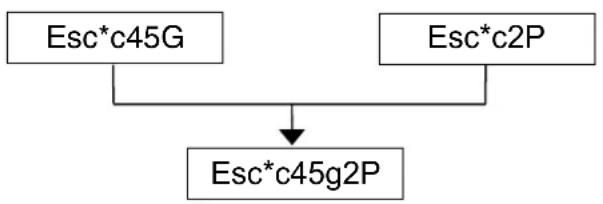
flowchart
graph TD
    A["Esc*c45G"] --> C["Esc*c45g2P"]
    B["Esc*c2P"] --> C["Esc*c45g2P"]
3.2.1. Line termination
You can set the carriage return, line feed and form feed control codes to perform compound functions. You can either do this using the printer's control panel (see the User Guide) or by sending the printer the following escape sequence:
Esc&k#G (27) (38) (107) #(71) <1Bh><26h><6Bh>#<47h>
- 0 = Carriage return, line feed and form feed perform their normal functions.
- 1 = Carriage return performs carriage return/line feed, line feed and form feed perform their normal functions.
- 2 = Carriage return performs its normal function, line feed performs carriage return/line feed and form feed performs carriage return/form feed.
- 3 = Carriage return performs carriage return/line feed, line feed performs carriage return/line feed and form feed performs carriage return/form feed.
| 0 | CR→CR | LF→LF | FF→FF |
| 1 | CR→CR+LF | LF→LF | FF→FF |
| 2 | CR→CR | LF→CR+LF | FF→CR+FF |
| 3 | CR→CR+LF | LF→CR+LF | FF→CR+FF |
3.2.2. End-of-line wrap
If the printer tries to print a line of text that is longer than the width of the text area, the end of the line will normally be lost. However, you can set the printer to flow text onto the next line so that text is not lost.
You can turn on the automatic text wrap feature either from the printer's control panel (see the User Guide) or by sending the printer the following escape sequence:
Esc&s0C (27) (38) (115) (48) (67) <1Bh><26h><73h><30h><43h>
To turn off the facility send:
Esc&s1C (27) (38) (115) (49) (67) <1Bh><26h><73h><31h><43h>
3.2.3. Display functions mode
You can choose to make the printer print escape sequences instead of executing them. Send the printer the following sequence:
EscY (27) (89) <1B><59>
Now the printer prints out escape sequences and prints the characters of the control codes. It does not execute them. The only exceptions to this are CR, the carriage return code, which causes a carriage return and line feed to be performed, and the EscZ escape sequence which turns the mode off.
To turn the display functions mode off and enable escape sequences to be executed again send:
EscZ (27) (90) <1B><5A>
The printer exits the display function mode after printing a character of code 1B Hex and the letter "Z". All subsequent escape sequences and control codes are executed normally and not printed literally.
3.3. Environments
3.3.1. Factory default environment
The factory default environment is the collection of printer settings programmed into the printer before it leaves the factory. You can restore the factory default environment using the printer's control panel.
See the User's Guide to find how to reset the printer from the printer's control panel.
Some settings cannot be restored to the factory default environment with the RESET operation from the printer's control panel.
3.3.2. User default environment
The user default environment is a combination of factory default settings and settings which the user has made from the printer's control panel or remote printer console. You can store user default setting(s) in the printer by using the printer control panel. You can restore the user default environment either by sending the reset escape sequence to the printer, EscE, or by performing a reset from the printer's control panel. On some models, there are multiple User settings available, refer to your printer User Guide to see if your printer supports these.
3.3.3. Modified print environment
The modified print environment is made up of all the current printer settings. If you call a macro or go into HP-GL/2 graphics language the modified print environment settings are saved. When the macro has been executed, or when you quit HP-GL/2, these saved settings are restored. The modified print environment consists of settings for the following features:
| Page length | Primary font characteristics | Raster graphics presentation mode |
| Page size | Secondary font characteristics HMI | Raster graphics left margin |
| Orientation | Primary font | Pattern ID |
| Left registration | Secondary font | Current pattern |
| Top registration | Font ID | Source transparency mode |
| Paper source | Character code Macro ID | Pattern transparency mode |
| Number of copies | VMI/Line spacing | Print direction |
| Margins | Horizontal rectangle size | Raster graphics compression mode |
| Perforation skip mode | Vertical rectangle size | Underline mode |
| Line termination mode | Area fill ID | Raster graphics height |
| End-of line wrap | Raster graphics resolution | Raster graphics width |
| Current font |
3.3.4. Macro overlay environment
The macro overlay environment is a combination of the user default environment and the current modified print environment. The overlay environments settings take effect when a macro is enabled for automatic overlay. This is detailed in the section of this manual in which macros are described.
4. JOB CONTROL
4.1. Commands
4.1.1. Page size
Esc&I#A (27) (38) (108) # (65) <1Bh><26h><6Ch>#<41h>
# stands for the type of paper or envelope to be used.
Values for # correspond to the paper or envelope sizes shown in the table. Envelopes sizes are shown in the shaded part of the table.
| Model | HL-1050/1070 | HL-1250/1275N/P230D | HL-1860er/2060 | HL-2400C/2400Ce | HL-343DCN | HL-1450/1470N | HL-1650/1670N | HL-3260N | HL-2460 HL-7030 | HL-1550/1570N/S420/1550/167CN5140/5150D/S170CN/16350B/1650H830DN/2070N/S240S/250DN/S270DN/S280DN | HL-2600CN | HL-3450CN HL-8550N HL-2700CN | HL-4040CN/4050CDN/4370CDW | HL-2150N/2170W | HL-5340D/5350DN/S370DW/5380DN | |||
| 1 Executive | √ | √ | √ | √ | √ | √ | √ | √ | √ | √ | √ | √ | √ | √ | √ | √ | √ | |
| 2 Letter | √ | √ | √ | √ | √ | √ | √ | √ | √ | √ | √ | √ | √ | √ | √ | √ | √ | |
| 3 Legal | √ | √ | √ | √ | √ | √ | √ | √ | √ | √ | √ | √ | √ | √ | √ | √ | √ | |
| 6 Ledger | √ | √ | √ | |||||||||||||||
| 10 Oficio | ||||||||||||||||||
| 24 A6 | √ | √ | √ | |||||||||||||||
| 25 A5 | √ | √ | √ | √ | √ | √ | √ | √ | √ | √ | √ | |||||||
| 26 A4 | √ | √ | √ | √ | √ | √ | √ | √ | √ | √ | √ | √ | √ | √ | √ | √ | √ | |
| 27 A3 | √ | √ | √ | |||||||||||||||
| 44 B6 JIS) | ||||||||||||||||||
| 45 B5 JIS) | √ | √ | √ | √ | √ | √ | √ | √ | √ | √ | √ | √ | √ | √ | ||||
| 46 B4 JIS) | √ | √ | √ | |||||||||||||||
| 71 POSTCARD | √ | √ | √ | |||||||||||||||
| 109 B5 | √ | √ | √ | √ | √ | √ | √ | √ | √ | √ | √ | √ | √ | √ | √ | √ | √ | |
| 101 | Free size | √ | √ | √ | √ | √ | √ | √ | √ | √ | √ | |||||||
| 110 | JIS Envelop #3 | |||||||||||||||||
| 111 | JIS Envelop #4 | |||||||||||||||||
| 1024 | B6 | √ | √ | √ | √ | √ | √ | √ | √ | √ | √ | |||||||
| 44 | JIS B6 | √ | √ | √ | ||||||||||||||
| 1025 | A5 | √ | √ | √ | √ | √ | √ | √ | √ | |||||||||
| 1026 | A6 | √ | √ | √ | √ | √ | √ | √ | √ | √ | √ | √ | √ | |||||
| 1028 | 13"X19" | √ | √ | |||||||||||||||
| 1029 A4 Short Edge | ||||||||||||||||||
| 1030 | Letter Short Edge | |||||||||||||||||
| 1033 | Organizer J | √ | √ | √ | ||||||||||||||
| 1034 | Organizer K | √ | √ | √ | ||||||||||||||
| 1035 | Organizer L | √ | √ | √ | ||||||||||||||
| 1036 | Organizer M | √ | √ | √ | ||||||||||||||
| 1037 | DL Long Edge | |||||||||||||||||
| 1038 | Folio | √ | √ | √ | √ | |||||||||||||
| 1039 3"K5" | √ | √ | ||||||||||||||||
| 1042 | A5 Long Edge | √ | ||||||||||||||||
| 1043 | A4 Short | √ | ||||||||||||||||
| 1044 | JIS Envelop #3 | |||||||||||||||||
| 1045 | JIS Envelop #4 | |||||||||||||||||
| 1046 | Mexican Legal | |||||||||||||||||
| 1047 | Indian Legal | |||||||||||||||||
| 17 | 16K(197x273mm) | |||||||||||||||||
| 34 | 16K(195x270mm) | |||||||||||||||||
| 89 | 16K(184x260mm) | |||||||||||||||||
| 2048 16 (A4 Long) | √ | √ | √ | √ | √ | √ | √ | √ | √ | |||||||||
| 2050 | Wide Letter | |||||||||||||||||
| 80 | Monarch | √ | √ | √ | √ | √ | √ | √ | √ | √ | √ | √ | √ | √ | √ | |||
| 81 CO M-10 | √ | √ | √ | √ | √ | √ | √ | √ | √ | √ | √ | √ | √ | √ | √ | √ | √ | |
| 90 | International DL | √ | √ | √ | √ | √ | √ | √ | √ | √ | √ | √ | √ | √ | √ | √ | √ | √ |
| 91 | International C5 | √ | √ | √ | √ | √ | √ | √ | √ | √ | √ | √ | √ | √ | ||||
| 1037 | International DL | √ | √ | √ | √ | |||||||||||||
| Model | HL-1050/1070 | HL-1250/12720/P200D | HL-1860e/2060 | HL-2400C/2400Ce | HL-343DCN | HL-1450/1470N | HL-1650/1670N | HL-3263N | HL-2460 HL-7630 | HL-1550/1570N/50420/550/567GN51460/5160D/5170CN/6350B/650D8350DN/270NN-5240/5260DN-5270DN/5280DN | HL-2603CN | HL-3450CN HL-8550N HL-2703DN | HL-4043CN/4050CDN/4070CDW | HL-2153N/2170W | HL-5340D/5350DN/5370DW/5380DN | |||
| 1040 Envelop #4 | ||||||||||||||||||
| 1041 Envelop MAX | ||||||||||||||||||
CHAPTER 2 PCL - 16
| Model | HL-3170CDW3073CW | HL-2250DN2273DNW4140CN4180CDW4570CDW | HL-5440D5450DN5470DW56180DW | HL-57300DN | HL-3170CDW | HL-L8250CDWL8350CDWHL9200CDWHL9300CDW | HL-L2362DNL7360DWL7385DWL23850DN2369DW | HL-L5300D/SSB004L5100DNL52500DWL6250DWL85300DWL6400DW | HL-L8260CDWL8280CDWHL8380CDWHL8360CDWT/L9310CDW | HL-L2370DNL2371DNL2372N2550DNW58505CNL2376DNW12375DWL23780DW62850DWL2385DWL2386DNL2385DW2385ZW | HL-L3270CDWHL3230CDWHL3230CDN132185GW3190CDW58180CDW | |
| 1 Executive | √ | √ | √ | √ | √ | √ | √ | √ | √ | √ | √ | |
| 2 Letter | √ | √ | √ | √ | √ | √ | √ | √ | √ | √ | √ | |
| 3 Legal | √ | √ | √ | √ | √ | √ | √ | √ | √ | √ | √ | |
| 6 Ledger | √ | √ | √ | √ | ||||||||
| 10 Oficio | √ | √ | √ | |||||||||
| 24 A6 | √ | √ | √ | √ | √ | √ | √ | √ | √ | √ | √ | |
| 25 A5 | √ | √ | √ | √ | √ | √ | √ | √ | √ | √ | √ | |
| 26 A4 | √ | √ | √ | √ | √ | √ | √ | √ | √ | √ | √ | |
| 27 A3 | √ | √ | √ | √ | ||||||||
| 44 B6 | JIS) | √ | √ | √ | √ | |||||||
| 45 B5 | JIS) | √ | √ | √ | √ | √ | √ | √ | √ | √ | √ | √ |
| 46 B4 | JIS) | √ | √ | √ | √ | |||||||
| 71 POSTCARD | √ | √ | √ | √ | √ | √ | √ | √ | √ | √ | √ | |
| 100 B5 | √ | √ | √ | √ | √ | √ | √ | √ | √ | √ | √ | |
| 101 Free size | √ | √ | √ | √ | √ | √ | √ | √ | √ | √ | √ | |
| 110 | JIS Envelop #3 | √ | √ | √ | ||||||||
| 111 | JIS Envelop #4 | √ | √ | √ | ||||||||
| 1024 B6 | √ | √ | √ | √ | √ | √ | √ | √ | √ | |||
| 44 JIS | B6 | √ | √ | √ | √ | √ | √ | √ | √ | √ | √ | √ |
| 1025 A5 | √ | √ | √ | √ | √ | √ | √ | √ | √ | √ | √ | |
| 1026 A6 | √ | √ | √ | √ | √ | √ | √ | √ | √ | √ | √ | |
| 1028 13"X19" | √ | √ | √ | √ | ||||||||
| 1029 A4 | Short Edge | √ | √ | √ | √ | |||||||
| 1030 | Letter ShortEdge | |||||||||||
| 1033 Or | ganizer J | √ | √ | √ | √ | √ | √ | √ | ||||
| 1034 Or | ganizer K | √ | √ | √ | √ | √ | √ | √ | ||||
| 1035 Organizer L | √ | √ | √ | √ | √ | √ | √ | |||||
| 1036 Organizer M | √ | √ | √ | √ | √ | √ | √ | |||||
| 1037 DL | Long Edge | √ | √ | √ | √ | |||||||
| 1038 | Folio | √ | √ | √ | √ | √ | √ | √ | √ | √ | √ | √ |
| 1039 3"K5" | √ | √ | √ | √ | √ | √ | √ | √ | √ | √ | √ | |
| 1042 A5 | Long Edge | √ | √ | √ | √ | √ | √ | √ | √ | √ | √ | √ |
| 1043 | A4 Short | √ | √ | √ | √ | √ | √ | √ | √ | |||
| 1044 | JIS Envelop #3 | √ | √ | √ | √ | |||||||
| 1045 | JIS Envelop #4 | √ | √ | √ | √ | |||||||
| 1046 Mexican Legal | √ | √ | √ | √ | ||||||||
| 1047 Indian Legal | √ | √ | √ | √ | ||||||||
| 17 | 16K(197x273mm) | √ | √ | √ | √ | √ | √ | √ | √ | √ | √ | |
| 34 | 16K(195x270mm) | √ | √ | √ | √ | √ | √ | √ | √ | √ | √ | |
| 89 | 16K(184x260mm) | √ | √ | √ | √ | √ | √ | √ | √ | √ | √ | |
| 2048 | 16"(A4 Long) | √ | √ | √ | √ | √ | ||||||
| 2050 Wide Letter | √ | √ | √ | √ | ||||||||
| 80 | Monarch | √ | √ | √ | √ | √ | √ | √ | √ | √ | √ | |
| 81 COM-10 | √ | √ | √ | √ | √ | √ | √ | √ | √ | √ | ||
| 90 | International DL | √ | √ | √ | √ | √ | √ | √ | √ | √ | √ | |
| 91 | International C5 | √ | √ | √ | √ | √ | √ | √ | √ | √ | √ | |
| 1037 | InternationalDL | √ | √ | √ | √ | √ | √ | √ | √ | √ | ||
| Model | HL-3170CDW3D73CW | HL-2250CDN/2273DW4H414DCN4H150CDW4570CDW | HL-S440D/S450DN/S470DWNS180DW | HL-S7000DN | HL-3170CDW | HL-L2750CDWL8350CDWL9250CDWL15300CDW | HL-L2560DWL1.2380DW/L.23BSWV2350DN/2560DW | HL-L5000DSB0DL51100DN8280CDWL8380CDWL9836CDW/T859310CDW | HL-L8260CDWL8280CDWL8380CDWL9836CDW/T859310CDW | HL-L2370DNL2371DNL2372NDN2560DNF5850CNL12570DAW12375DW12378DW46280DW52580DWL2369DW2895C2W | HL-L3270CDWL3325CDWL3326CDWL3350CDWL3550W3100CDW | |
| 1040 Envelop #4 | √ | √ | √ | √ | √ | √ | √ | √ | ||||
| 1041 Envelop MAX | √ | √ | √ | √ | √ | √ | √ | √ | ||||
CHAPTER 2 PCL - 18
When the printer receives this command any unprinted pages are printed and the left, right and top margins and the text length are set to their factory defaults for the new page size.
- The cursor is moved to the top left of the text area on the new page.
- Depending on your model, you may also set the page size from the printer's control panel or remote printer console program (see the User Guide).
- If the paper size you select differs from the size of the currently loaded paper, a message appears in the control panel prompting you to load the selected size of paper (for HL-1660e, 2060, 2400C/Ce, 3400CN, 3260N 2460, 7050, 1850, 1870N and 2700CN).
Example)
Select letter size: Esc&l2A <1Bh><26h><6Ch><32h><41h>
Select the width of free size paper: Esc&f#G (1/720 inch unit; for HL-3260N, 2460, 7050, 1850, 1870N, 5040, 5050, 5070N, 5140, 5150D, 5170DN, 2600CN, 3450CN, 2700CN, 2070N, 5240, 5250DN, 5270DN, 5280DW, 4040CN, 4050CDN, 4070CDW, 2150N, 2170W, 5340D, 5350DN, 5370DW, 5380DN, 3070CW, 3075CW, 2250DN, 2270DW, 4140CN, 4150CDN, 4570CDW, 5440D, 5450DN, 5470DW, 6180DW, 3170CDW, L8250CDN, L8350CDW, L9200CDW, L9300CDW, L2360DN, L2360DW, L2365DW, 2560DN, 2569DW, S7000DN, L2370DN, L2371DN, L2372DN, 2590DN, B2050DN, L2370DW, L2375DW, L2376DW, B2080DW, L2385DW, L2386DW, 2595DW, L3270CDW, L3230CDW, L3230CDN, L3210CW, 3190CDW and 3160CDW.)
Select the height of free size paper: Esc&f#F (1/720 inch unit; for HL-3260N, 2460, 7050, 1850, 1870N, 5040, 5050, 5070N, 5140, 5150D, 5170DN, 2600CN, 3450CN, 2700CN, 2070N, 5240, 5250DN, 5270DN, 5280DW, 4040CN, 4050CDN, 4070CDW, 2150N, 2170W, 5340D, 5350DN, 5370DW, 5380DN, 3070CW, 3075CW, 2250DN, 2270DW, 4140CN, 4150CDN, 4570CDW, 5440D, 5450DN, 5470DW, 6180DW, 3170CDW, L8250CDN, L8350CDW, L9200CDW, L9300CDW, L2360DN, L2360DW, L2365DW, 2560DN, 2569DW, S7000DN, L2370DN, L2371DN, L2372DN, 2590DN, B2050DN, L2370DW, L2375DW, L2376DW, B2080DW, L2385DW, L2386DW, 2595DW, L3270CDW, L3230CDW, L3230CDN, L3210CW, 3190CDW and 3160CDW.)
4.1.2. Media type selection
Esc&n# (27) (38) (110)# <1Bh><26h><6Eh>#
# stands for the media type of paper to be used.
Values for # correspond to the media type shown in the table.
| Model | HL-2073DN5240/5256DN/5276DN/5280DW/5216DN/5217DW/5343D/5350DN/5373DW/5380DN | HL-4040CN/4050CDN/4076CDW/3040CW/3040CN/2250DN/2270DW/5440DW/5450DN/S770DW/6190DW | HL-4140CN/4150CDN/4570CDW/3170CDW/LB200CDN/LB350CDWL/820XCDWL/8300CDWL/2380DNL/2380DW/LB200DW/LB350DW/LB450DW | HL-S7000DN | HL-L5000DX/5580DL5110DX/NL5200DW/LB200DW/LB350DW/LB450DW | HL-L8260CDN/L8260CDW/LB350CDWL/8300CDW/LB350CDWL/8300DW/LB450DW | HL-L2570DNL/2371DNL/2372DN/2390DN/52050DN/L2370DW/L2370DW/L2380DW/L2380DW/2580DW | HL-L3270CDWL/3230CDWL/3230CDNL/3210GW/3180CDW/3160CDWT | |
| 6WdPlain | Set as Plain Paper. | √ | √ | √ | √ | √ | |||
| 5WdRegular | √ | √ | √ | √ | √ | ||||
| 5WdThin | Set as Thin Paper. | √ | √ | √ | √ | √ | |||
| 6WdLight | √ | √ | √ | ||||||
| 6WdThick | Set as Thick Paper. | √ | √ | √ | √ | √ | |||
| 11WdMid Weight | √ | √ | √ | ||||||
| 6WdHeavy | √ | √ | √ | ||||||
| 12WdExtra Heavy | √ | √ | √ | ||||||
| 7WdThick2 | Set as Thicker Paper. | √ | √ | √ | √ | ||||
| 5WdBond | Set as Bond Paper. | √ | √ | √ | √ | √ | |||
| 13WdTransparency | Set as Transparent Paper. | √ | √ | √ | √ | ||||
| 10WdEnvelopes | Set as Envelope. | √ | √ | √ | √ | ||||
| 9WdEnvelope | √ | √ | √ | ||||||
| 9WdEnvthick | Set as Thick Envelope. | √ | √ | √ | √ | ||||
| 8WdEnvthin | Set as Thin Envelope. | √ | √ | √ | √ | ||||
| 9WdRecycled | Set as Recycled Paper. | √ | √ | √ | √ | √ | |||
| 9WdPostcard | Set as Post Card. | √ | √ | √ | √ | √ | √ | √ | |
| 8WdLabel | Set as Label. | √ | √ | √ | √ | √ | √ | ||
| 7WdLabels | √ | √ | √ | √ | √ | √ | |||
| 7WdGlossy | Set as Glossy | √ | √ | √ | √ | √ | |||
| 8WdGloss | √ | √ | √ | ||||||
| 18WdHP Soft Gloss 120 | √ | √ | √ | ||||||
| 12WdHeavy Gloss | √ | √ | √ | ||||||
| 18WdExtra Heavy Gloss | √ | √ | √ | ||||||
| 14WdHP Glossy 130 | √ | √ | √ | ||||||
| 14WdHP Glossy 160 | √ | √ | √ | ||||||
| 14WdHP Glossy 220 | √ | √ | √ | ||||||
| 12WdCard Glossy | √ | √ | √ | ||||||
| 8WdColor | Set as Color Paper | √ | √ | √ | |||||
| 11WdLetterhead | Set as Letterhead | √ | √ | √ | |||||
| 12WdHolepunched | Set as HolepunchedPaper. | √ | √ | √ | |||||
| 11WdPrepunched | √ | √ | √ | ||||||
| 11WdCard Slack | Set as Plain Paper. | √ | √ | √ | |||||
| 12WdHP Matte 90 | √ | √ | √ | ||||||
| 13WdHP Matte 105 | √ | √ | √ | ||||||
| 13WdHP Matte 120 | √ | √ | √ | ||||||
| 13WdHP Matte 160 | √ | √ | √ | ||||||
| 13WdHPCoverMatte | √ | √ | √ | ||||||
| 11WdPreprinted | √ | √ | √ | ||||||
| 9WdHP Tough | √ | √ | √ | ||||||
4.1.3. Output tray
Esc&I#G (27) (38) (108) #(71)
<1Bh><26h><6Ch>#<47h>
# denotes the output tray.
1: Select the printer output tray.
3: Select #1 bin. (CT:HL-8050N)
4: Select #2 bin.
5: Select #3 bin.
6: Select #4 bin.
7: Select #5 bin.
8: Select #6 bin.
9: Select #7 bin.
10: Select #8 bin.
11: Select #9 bin.
12: Select #10 bin.
100: Select the finisher tray (HL-3260N)
• This command selects the specified output tray.
• This command is ignored when the specified tray is not available.
- The PJL OUTBIN command is ignored when this command is executed.
- If the printer has data to print when this command is executed, the command is valid from the next page immediately after the data is printed.
4.1.4. Paper source
Esc&I#H (27) (38) (108) # (72) <1Bh><26h><6Ch>#<48h>
# denotes the paper source.
Values for # may be 0, 1, 2, 3, or 4.
- If # = 0 the current page is ejected and the paper source remains the same.
- If # = 1 the current page is printed and the upper cassette becomes the paper source.
- If # = 2 the current page is printed and paper is fed in manually.
- If # = 3 the current page is printed and envelopes are fed in manually.
- If # = 4 the current page is printed and the lower cassette becomes the paper source.
- If # = 4 the current page is printed and the multi-purpose tray becomes the paper source. (HL-1660e/2060/1650/1670N/1850/1870N/5050/5070N/5150D/5170DN/7050/6050/6050D/6050DN/5240/5250DN/5270DN/5280DW/4040CN/4050CDN/4070CDW/5340D/5350DN/5370DW/5380DN/4140CN/4150CDN/4570CDW/5440D/5450DN/5470DW/6180DW/L8250CDN/L8350CDW/L9200CDW/L9300CDW/S7000DN/L2360DN/L2360DW/L2365DW/2560DN/2569DW/L2385DW/L2386DW/2595DW)
- If # = 5 the current page is printed and the lower cassette becomes the paper source. (HL-1070/1250/1270N/P2500/1660c/2060/2400C/2400Cc/3400CN/1450/1470N/1650/1670N/3260N/2460/7050/1850/1870N/5040/5050/5070N/5140/5150D/5170DN/2600CN/3450/6050/6050D/6050DN/8050N/2700CN/5240/5250DN/5270DN/5280DW/4050CDW/4070CDW/5340D/5350DN/5370DW/5380DN/4140CN/4150CDW/4570CDW/5440D/5450DN/5470DW/6180DW/L8250CDW/L8350CDW/L9200CDW/L9300CDW /S7000DN/L2360DN/L2360DW/L2365DW/2560DN/2569DW)
- If # = 6 if TRAYCOMMAND is LJ3, the current page is printed and the lower cassette becomes the paper source. (HL-1660e/2060/2400C/2400Ce/3400CN/1650/1670N/3260N/1850/1870N/5040/5050/5070N/5140/5150D/5170DN/2600CN/3450/6050/6050D/6050DN/2700CN/5240/5250DN/5270DN/5280DW/4050CDN/4070CDW/5340D/5350DN/5370DW/5380DN/4140CN/4150CDN/4570CDW/5440D/5450DN/5470DW/6180DW/L8250CDN/L8350CDW/L9200CDW/L9300CDW/S7000DN/L2360DN/L2360DW/L2365DW/2560DN/2569DW)
- If # = 7 the current page is printed and the paper source is auto selected.
- If # = 8 the current page is printed and the lower cassette (Tray 3) becomes the paper source. (HL-3400CN/3450CN/3260N/2460/7050/5240/5250DN/5270DN/5280DW/5340D/5350DN/5370DW/5380DN/S7000DN/L9300CDW)
- If # = 9 the current page is printed and the lower cassette (Tray 4) becomes the paper source. (HL-3260N/2460/7050/S7000DN)
- If # = 100 the current page is printed and the Tray ID 1 becomes the paper source. (HL-2460/7050/S7000DN)
- If # = 101 the current page is printed and the Tray ID 2 becomes the paper source. (HL-2460/7050/S7000DN)
- If # = 102 the current page is printed and the Tray ID 3 becomes the paper source. (HL-2460/7050/S7000DN)
- If # = 103 the current page is printed and the Tray ID 4 becomes the paper source. (HL-2460/7050/S7000DN)
- If # = 1001 the current page is printed and the paper source is fixed tray.
- If # = 1002 the current page is printed and the paper source is auto selection.
- If # = 1 or # = 2 either paper or envelopes may be fed in, depending on the current page size setting.
- The cursor is positioned at the top left of the text area on the next page.
If PJL TRAYCOMMAND is NORMAL;
| HL-1050H | HL-1070 | HL-1250/1270N/P2500/1450/1470N/2400C/Ce | HL-3400CN | HL-1660e/2060/1650/1670N | HL-3260N | HL-1850/1870N/5050/5070N/5150D/5170DN/6050/6050D/6050DN | HL-5240/5250DN/5270DN/5280DW/5340D/5350DN/5370DW/5380DN | HL-5040/5140 | HL-2070N/2150N/2170W/2250DN/2270DW | HL-2460/7050 | HL-S7000DN | HL-8050N | HL-2600CN/2700CN | HL-3450CN | HL-4040CN | HL-4050CDN/4070CDW/4140CN/4150CDW/4570CDW/5440D/5450DN/5470DW/6180DW | |
| #=0 Eject | ← | ← | ← | ← | ← | Eject | ← | ← | ← | ← | ← | ← | ← | ← | Eject | ← | |
| #=1 | Sheet Feeder | Tray 1 | ← | ← | ← | ← | Tray 1 | ← | ← | ← | ← | ← | ← | ← | ← | Tray 1 | ← |
| #=2 | Manual Feed | ← | ← | ← | ← | ← | Manual Feed | ← | ← | ← | ← | ← | ← | ← | ← | Manual Feed | ← |
| #=3 N/A | ← | Envelope | ← | ← | ← | Envelope | ← | ← | ← | ← | ← | ← | ← | ← | Envelope | ← | |
| #=4 N/A Tray 2 | ← | ← | MP Tray | ← | MP Tray | ← | N/A | ← | MP Tray | ← | Tray2 | ← | ← | MP Tray | ← | ||
| #=5 N/A Tray 2 | ← | ← | ← | ← | Tray 2 | ← | ← | N/A Tray 2 | ← | ← | ← | ← | N/A Tray 2 | ||||
| #=6 N/A | ← | ← | ← | ← | ← | N/A | ← | ← | ← | ← | ← | ← | ← | ← | N/A | ← | |
| #=7 | Auto selection | ← | ← | ← | ← | ← | Auto selection | ← | ← | ← | ← | ← | ← | ← | ← | Auto selection | ← |
| #=8 N/A | ← | ← | Tray 3 N/A | Tray 3 N/A | Tray3 N/A | ← | ← | Tray3 | ← | N/A Tray3 | N/A | ← | |||||
| #=9 N/A | ← | ← | ← | ← | Tray 4 N/A | ← | ← | ← | ← | Tray4 | ← | N/A | ← | N/A | ← | ||
| #=10 N/A | ← | ← | ← | ← | ← | ← | ← | ← | ← | ← | ← | ← | ← | ← | ← | ← | |
| #=100 N/A | ← | ← | ← | Tray ID 1 | ← | N/A | ← | ← | N/A | ← | |||||||
| #=101 N/A | ← | ← | ← | Tray ID 2 | ← | N/A | ← | ← | N/A | ← | |||||||
| #=102 N/A | ← | ← | ← | Tray ID 3 | ← | N/A | ← | ← | N/A | ← | |||||||
| #=103 N/A | ← | ← | ← | Tray ID 4 | ← | N/A | ← | ← | N/A | ← | |||||||
| #=1001 Fixed tray | ← | ← | ← | ← | ← | ← | ← | ← | Fixed tray | ← | |||||||
| #=1002 | Auto selection | ← | ← | ← | ← | ← | ← | N/A | ← | N/A | ← |
| HL-3070CW/3075CW/3170CDW | HL-L2360DN/L2360DW/L2365DW/2560DN/2569DW | HL-L9300CDW | HL-L8250CDN/L8350CDW/L9200CDW | HL-L5000D/5580D/L5100DN/L5200DW/L6200DW/L6300DW/L6400DW | HL-L8260CDN/L8260CDW/L8360CDW/L8360CDWT/L9310CDW | HL-L2385DW/L2386DW/L2386DW | HL-L2370DN/L2371DN/L2372DN/2590DN/B2050DN/L2370DW/L2375DW/L2375DW/B2080DW | HL-L3270CDW/L3230CDW/L3230CDN/L3210CW/3190CDW/3160CDW | |
| #=0 | ← | ← | ← | ← | ← | ← | ← | ← | ← |
| #=1 | ← | ← | ← | ← | ← | ← | ← | ← | ← |
| #=2 | ← | ← | ← | ← | ← | ← | ← | ← | ← |
| #=3 | ← | ← | ← | ← | ← | ← | ← | ← | ← |
| #=4 | N/A MP Tray | ← | ← | ← | ← | ← | N/A | ← | |
| #=5 | N/A | ← | Tray 2 | ← | ← | ← | N/A | ← | ← |
| #=6 | ← | ← | ← | ← | ← | ← | ← | ← | ← |
| #=7 | ← | ← | ← | ← | ← | ← | ← | ← | ← |
| #=8 | ← | ← | Tray3 N/A | Tray3 Tray | B N/A | ← | ← | ||
| #=9 | ← | ← | ← | ← | Tray4 Tray | 4 N/A | ← | ← | |
| #=10 | ← | ← | ← | ← | Tray5 Tray | 5 N/A | ← | ← | |
| #=100 | ← | ← | ← | ← | ← | ← | ← | ← | ← |
| #=101 | ← | ← | ← | ← | ← | ← | ← | ← | ← |
| #=102 | ← | ← | ← | ← | ← | ← | ← | ← | ← |
| #=103 | ← | ← | ← | ← | ← | ← | ← | ← | ← |
| #=1001 | ← | ← | ← | ← | ← | ← | ← | ← | ← |
| #=1002 | ← | ← | ← | ← | ← | ← | ← | ← | ← |
If PJL TRAYCOMMAND is SPECIAL:
| HL-1660e/2060/1650/1670N | HL-2400C/Ce | HL-3400CN | HL-3260N | HL-1850/1870N/5050/5070N/5150D/5170DN/6050/6050D/6050DN | HL-5240/5250DN/5270DN/5280DW/5340D/5350DN/5370DW/5380DN | HL-5040/5140 | HL-2070N/215DN/2170W/2250DN/2270DW | HL-2600CN/2700CN | HL-3450CN | HL-4040CN | HL-4050CDN/4070CDW/4140CN/4150CDN/4570CDW/5440D/5450DN/5470DW/6180DW | HL-3070CW/3075CW/3170CDW | HL-S7000DN | HL-L9300CDW | HL-L8250CDN/L8350CDW/L9200CDW | HL-L2360DN/L2360DW/L23650DW/2560DN/2569DW | HL-L5000D/5580D/L5100DN/L5200DW/L6200DW/L6300DW/L6400DW | HL-L8260CDN/L8260CDW/L8360CDW/L8360CDWT/L9310CDW | |||
| #=0 Elect | ← | ← | ← | ← | ← | ← | ← | ← | ← | Elec1 | ← | ← | ← | ← | ← | ← | ← | ← | ← | ← | |
| #=1 Tray 1 | ← | ← | ← | ← | ← | ← | ← | ← | ← | Tray 1 | ← | ← | ← | ← | ← | ← | ← | ← | ← | ← | |
| #=2 | Manual Feed | ← | ← | ← | ← | ← | ← | ← | ← | ← | Manual Feed | ← | ← | ← | ← | ← | ← | ← | ← | ← | ← |
| #=3 Envelope | ← | ← | ← | ← | ← | ← | ← | ← | ← | Envelope | ← | ← | ← | ← | ← | ← | ← | ← | ← | ← | |
| #=4 Tray 2 | ← | ← | ← | ← | ← | ← | N/A Tray 2 | ← | N/A Tray 2 | N/A Tray 2 | ← | ← | N/A Tray 2 | Tray 2 | |||||||
| #=5 Tray 2 | ← | ← | ← | ← | ← | ← | N/A Tray 2 | ← | N/A Tray 2 | N/A Tray 2 | ← | ← | N/A Tray 2 | Tray 2 | |||||||
| #=6 MP Tray Tray 2 | ← | MP Tray | ← | ← | N/A | ← | Tray 2 | ← | MP Tray | ← | N/A MPTray | ← | ← | ← | ← | ← | ← | ← | |||
| #=7 | Auto selection | ← | ← | ← | ← | ← | ← | ← | ← | ← | Auto selection | ← | ← | ← | ← | ← | ← | ← | ← | ← | ← |
| #=8 N/A | ← | Tray 3 | ← | N/A Tray 3 | N/A | ← | ← | Tray 3 N/A | ← | ← | Tray 3 | ← | N/A | ← | Tray 3 Tray 3 | ||||||
| #=9 N/A | ← | ← | Tray 4 N/A | ← | ← | ← | ← | ← | N/A | ← | ← | Tray 4 N/A | ← | ← | Tray 4 Tray 4 | ||||||
| #=10 N/A | ← | ← | ← | ← | ← | ← | ← | ← | ← | ← | ← | ← | ← | ← | ← | ← | Tray 5 Tray 5 | ||||
| #=100 N/A | ← | ← | ← | ← | ← | ← | ← | ← | ← | N/A | ← | ← | Tray ID 1 N/A | ← | ← | ← | ← | ← | ← | ||
| #=101 N/A | ← | ← | ← | ← | ← | ← | ← | ← | ← | N/A | ← | ← | Tray ID 2 N/A | ← | ← | ← | ← | ← | ← | ||
| #=102 N/A | ← | ← | ← | ← | ← | ← | ← | ← | ← | N/A | ← | ← | Tray ID 3 N/A | ← | ← | ← | ← | ← | ← | ||
| #=103 N/A | ← | ← | ← | ← | ← | ← | ← | ← | ← | N/A | ← | ← | Tray ID 4 N/A | ← | ← | ← | ← | ← | ← | ||
| #=1001 N/A | ← | ← | ← | Fixed tray | ← | ← | ← | ← | ← | Fixed tray | ← | ← | ← | ← | ← | ← | ← | ← | ← | ← | |
| #=1002 N/A | ← | ← | ← | Auto selection | ← | ← | ← | N/A | ← | N/A | ← | ← | Auto selection | N/A | ← | ← | ← | ← | ← | ← | |
# stands for the distance in decipoints (1/720") that the left edge of the logical page is to be moved.
• Values for # may be in the range -32,767 to 32,767.
• The distance specified is relative to the logical page's current position.
- # can be positive or negative. Use a positive number to move the logical page to the right on the physical page, and a negative number to move it to the left.

text_image
Positive Negative4.1.6. Top offset registration
Esc&I#Z (27) (38) (108) #(90) <1Bh><26h><6Ch>#<5Ah>
# stands for the distance in decipoints (1/720") that the top edge of the logical page is to be moved.
• Values for # may be in the range -32,767 to 32,767.
• The distance specified is relative to the logical page's current position.
- # can be positive or negative. Use a positive number to move the logical page downwards on the physical page, and a negative number to move it upwards.
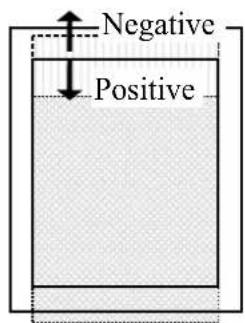
text_image
Negative Positive4.1.7. Simplex/duplex printing
(For HL-1660e/2060/3400CN/1650/1670N/3260N/2460/7050/1850/1870N/5150D/5170DN/5250DN/5270DN/5280DW/4050CDN/4070CDW/5340D/5350DN/5370DW/5380DN/2240D/2250DN/2270DW/4150CDN/4570CDW/5440D/5450DN/5470DW/6180DW/S7000DN/3170CDW/L8250CDN/L8350CDW/L9200CDW/L9300CDW /L2360DN/L2360DW/L2365DW/2560DN/2569DW/L2370DN/L2371DN/L2372DN/2590DN/B2050DN/L2370DW/L2375DW/L2376DW/B2080DW/L2385DW/L2386DW/2595DW/L3270CDW/L3230CDW/L3230CDW/3190CDW/3160CDW)
Esc&I#S (27) (38) (108) # (83) <1Bh><26h><6Ch>#<53h>
# can be 0, 1, or 2.
-
= 0 indicates Simplex printing.
- # = 1 indicates Duplex - Long edge binding printing.
-
= 2 indicates Duplex - Short edge binding printing.
- If the optional duplex unit is not installed onto the printer, this mode is set to Simplex mode.
This command setting is not saved in the printer's NV-RAM.
[Long Edge Binding]
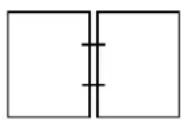
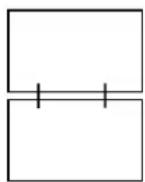
-
= 0 indicates the next side. If there is a page being processed, the printer finishes the processing of that page. If there are no pages being processed, this command is ignored.
-
= 1 indicates the front face. If the currently processing page is an odd page, the printer finishes the processing of that page and attaches a dummy page.
If the odd page has already been processed onto the page and the even page has not been processed yet, only a dummy page is attached.
If the currently processing page is an even page, the printer finishes the processing of the page.
If both an even and odd page have been processed and the next odd page has not been processed yet, this command is ignored.
- # = 2 indicates the back face.
If the currently processing page is an odd page, the printer finishes the processing of the page.
If the odd page has already been processed onto the page and the even page has not been processed yet, this command is ignored.
If the currently processing page is an even page, the printer finishes the processing of the page and attaches a dummy (white) page.
If both an even and odd page have been processed and the next odd page has not been processed yet, only a dummy (white) page is attached.
4.1.9. Job separation command
(For HL-3260N/2460/6050/6050D/6050DN/8050N/S7000DN)
Esc&1T (27) (38) (108) (49) (84) <1Bh><26h><6Ch><31h><54h>
It is recommended to insert this command at the end of each job.
4.1.10. Reset
EscE (27) (69) <1Bh><45h>
- A printer reset restores the user default environment, deletes any temporary fonts and temporary macros.
- Any pages that have been transmitted are printed out.
- You can also perform a printer reset using the printer's control panel or remote printer console program (see the User Guide).
4.1.11. Reset to factory default settings
EscCRFD (27) (13) (70) (68) <1Bh><0Dh><46h><44h>
- This command causes a factory reset to be performed, restoring all the printer's factory default settings. See the section "Factory default environment" for a list of the factory default settings.
- You can also perform a factory reset using the printer's control panel or remote printer console program (see the User Guide).
4.1.12. Reset to user settings
EscCR!#R (27) (13) (33) # (82) <1Bh><0Dh><21h>#<52h>
-
can be 0, 1 or 2.
-
0 indicates the current settings are restored. Unlike the Esc E reset command, the Esc CR!0R command resets the input buffer.
-
1 indicates the user settings 1 are restored, if the printer supports multi user settings.
-
2 indicates the user settings 2 are restored, if the printer supports multi user settings (Except for HL-7050).
- Depending on the model, you may be able to lock the control panel settings ("SETTING LOCK=ON"). In that case, parameters 1 and 2 are ignored.
4.1.13. Printer self test
Escz (27) (122) <1Bh><7Ah>
A printer self test causes a test sheet to be printed out to show that the machine is working properly. Depending on the model, you may also see the test pattern for HRC setting.
4.1.14. Exit current emulation mode
Esc%-12345X (27) (37) (45) (49) (50) (51) (52) (53) (88) <1Bh><25h><2Dh><31h><32h><33h><34h><35h><58h>
- When the printer receives this command, all page data already received is printed out.
• All settings are reset to the user settings. - Exits the current emulation mode.
PR2000070
4.1.15. Change emulation mode
EscCRGL (27) (13) (71) (76) <1Bh><0Dh><47h><4Ch>
This command changes the emulation mode to HP-GL mode.
EscCRAB (27) (13) (65) (66) <1Bh><0Dh><41h><42h>
This command changes the emulation mode to BR-Script Batch mode.
EscCRAI (27) (13) (65) (73) <1Bh><0Dh><41h><49h>
This command changes the emulation mode to BR-Script Interactive mode.
EscCRI (27) (13) (73) <1Bh><0Dh><49h>
This command changes the emulation mode to IBM Proprinter XL mode.
EscCRE (27) (13) (69) <1Bh><0Dh><45h>
This command changes the emulation mode to Epson FX-850 mode.
Depending on the model, you can also switch between emulation modes using the printer's control panel (see the User Guide).
Emulations available for each model are listed below.
| PCL HP | GL BR-Script2 | BR-Script3 | Epson FX-850 | IBM Proprinter XL | ||
| HL-1050 | √ | √ | √ | |||
| HL-1070 | √ | √ | √ | √ | ||
| HL-1250 | √ | √ | √ | |||
| HL-1270N | √ | √ | √ | √ | ||
| HL-P2500 | √ | |||||
| HL-1660e | √ | √ | √ | √ | √ | |
| HL-2060 | √ | √ | √ | √ | √ | |
| HL-2400C | √ | √ | √ | √ | √ | |
| HL-2400Ce | √ | √ | √ | √ | √ | |
| HL-3400CN | √ | √ | √ | √ | √ | |
| HL-1650/1670N | √ | √ | √ | √ | ||
| HL-3260N | √ | √ | √ | √ | √ | |
| HL-2460 | √ | √ | √ | √ | √ | |
| HL-1450 | √ | √ | √ | |||
| HL-1470N | √ | √ | √ | √ | ||
| HL-7050 | √ | √ | √ | √ | √ | |
| HL-1850/1870N | √ | √ | √ | √ | ||
| HL-5040/5140 | √ | |||||
| HL-2070N/ | √ | √ | √ | |||
| HL-5050/5070N/ 5150D/5170DN | √ | √ | √ | √ | ||
| HL-2600CN | √ | √ | √ | √ | √ | |
| HL-3450CN | √ | √ | √ | √ | √ | |
| HL-6050/6050D/ 6050DN | √ | √ | √ | √ | ||
| HL-5240/5250DN/5270DN/5280DW | √ | √ | √ | √ | ||
| HL-8050N | √ | √ | √ | √ | √ | |
| HL-2700CN | √ | √ | √ | √ | √ | |
| HL-4040CN | √ | |||||
| HL-4050CDN /4070CDW | √ | √ | ||||
| HL-2150N/2170W | √ | |||||
| HL-5340D/5350DN/5370DW/5380DN | √ | √ | √ | √ | ||
| HL-3070CW/3075CW | √ | √ | ||||
| HL-4140CN/4150CDN/4570CDW | √ | √ | ||||
| HL-2250DN/2270DW | √ | |||||
| HL-5440D/5450DN/5470DW/6180DW | √ | √ | √ | √ | ||
| HL-S7000DN | √ | √ | ||||
| HL-3170CDW | √ | √ | ||||
| HL-L8250CDN/L8350CDW/L9200CDW/ L9300CDW | √ | √ | ||||
| HL-L2360DN/L2360DW/L2365DW/2560DN/2569DW | √ | |||||
| HL-L5000D/5580D/L5100DN/L5200DW/L6200DW/L6300DW/L6400DW | √ | √ | √ | √ | ||
| HL-L8260CDN/L8260CDW/L8360CDW/L8360CDWT/L9310CDW | √ | √ | ||||
| HL-L2370DN/L2371DN/L2372DN/2590DN/B2050DN/L2370DW/L2375DW/L2376DW/B2080DW | √ | |||||
| HL-L2385DW/L2386DW/2595DW | √ | √ | ||||
| HL-L3270CDW/L3230CDW/L3230CDN/L3210CW/3190CDW/3160CDW | √ | √ |
4.2. The Page
4.2.1. Physical page
The physical page refers to the size of the paper or envelope currently in use: A4, Letter, B5, JIS B5, Legal and Executive are the permitted paper sizes: Monarch, COM-10, International DL and International C5 are the allowable envelope sizes.
4.2.2. Printable area
The printable area is a rectangular area of the physical page on which the printer can print. Its edges are approximately 1/6" in from the edges of the physical page, please refer to the printer User Guide for the exact measurement for each model.
4.2.3. Logical page
The logical page is the area of the physical page where the cursor can be positioned. (Although the printer does not really have a cursor, we refer to the position on the page from which the printing of a character or graphic starts as the cursor position). You can alter the size of the logical page using the left offset registration and top offset registration commands. The logical page is also called the PCL (printer control language) addressable area.
4.2.4. Text area
The text area is the area of the physical page on which text can be printed, and is determined by the left, right and top margin settings, the text length and whether the perforation skip facility is on or off. All these settings can be made either from the printer's control panel (see the User Guide) or using PCL commands.
4.2.5. HP-GL/2 graphics window
The HP-GL/2 graphics window is the area of the physical page on which images can be printed using HP-GL/2 commands. This is described in the HP-GL/2 section of this manual. The default graphics window is bound by the left and right edges of the logical page and horizontal boundaries half an inch below the top and above the bottom of the logical page.
4.2.6. Portrait page dimensions
(DEFAULT VALUES)
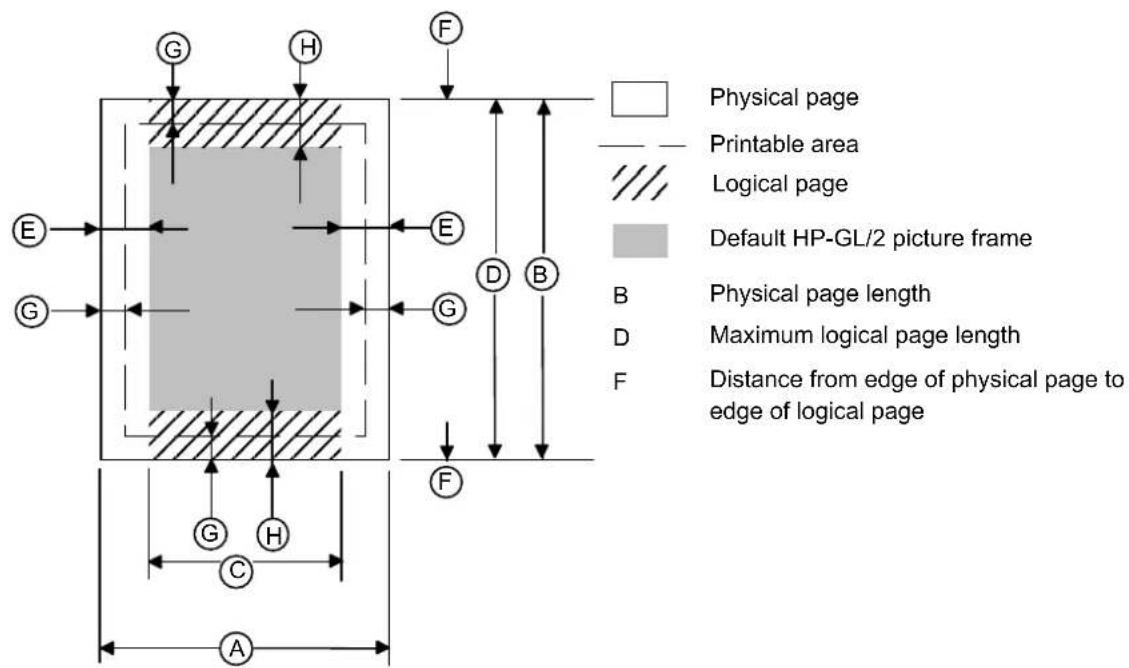
text_image
Physical page Printable area Logical page Default HP-GL/2 picture frame B Physical page length D Maximum logical page length F Distance from edge of physical page to edge of logical page| PAPER SIZE A B | C D | E F G H | ||||||
| LETTER | 2550 | 3300 | 2400 | 3300 | ||||
| LEGAL | 2550 | 4200 | 2400 | 4200 | ||||
| EXECUTIVE | 2175 | 3150 | 2025 | 3150 | 75 | 0 | 50 | 150 |
| A4 | 2480 | 3507 | 2338 | 3507 | ||||
| B5 | 2078 | 2952 | 1936 | 2952 | ||||
| JIS B5 | 2149 | 3035 | 2007 | 3035 | 71 | 0 | 50 | 150 |
| B6 | 1476 | 2078 | 1334 | 2078 | ||||
| JIS B6 | 1511 | 2149 | 1369 | 2149 | 71 | 0 | 50 | 150 |
| A5 | 1748 | 2480 | 1606 | 2480 | ||||
| A6 | 1240 | 1748 | 1098 | 1748 | ||||
| A4 80 character | 2480 | 3507 | 2400 | 3507 | 40 | 0 | 50 | 150 |
| A4 long | 2480 | 4783 | 2338 | 4783 | 71 | 0 | 50 | 150 |
| COM-10 | 1237 | 2850 | 1087 | 2850 | ||||
| MONARCH | 1162 | 2250 | 1012 | 2250 | 75 | 0 | 50 | 150 |
| C5 | 1913 | 2704 | 1771 | 2704 | ||||
| DL | 1299 | 2598 | 157 | 2598 | ||||
| DL Long Edge | 2598 | 1299 | 2450 | 1299 | 74 | 0 | 50 | 150 |
| FOLIO | 2550 | 3900 | 2400 | 3900 | ||||
| ORGANIZER J | 825 | 1500 | 675 | 1500 | 75 | 0 | 50 | 150 |
| ORGANIZER K | 1125 | 2025 | 975 | 2025 | 75 | 0 | 50 | 150 |
| ORGANIZER L | 1650 | 2550 | 1500 | 2550 | 75 | 0 | 50 | 150 |
| ORGANIZER M | 2550 | 3300 | 2400 | 3300 | 75 | 0 | 50 | 150 |
| 3X5 | 900 | 1500 | 750 | 1500 | 75 | 0 | 50 | 150 |
| A3 | 3507 | 4960 | 3365 | 4960 | ||||
| 13"X19" | 3900 | 5700 | 3750 | 5700 | ||||
| B4 | 2952 | 4156 | 2810 | 4156 | ||||
| JIS B4 | 3035 | 4298 | 2893 | 4298 | 71 | 0 | 50 | 150 |
| Lcdger | 3300 | 5100 | 3150 | 5100 | ||||
| 75 | 0 | |
| 75 | 0 | |
| 71 | ||
| 71 | ||
| 71 | ||
| 71 | ||
| 71 | ||
| 0 | 50 | |
| 71 | ||
| 71 | ||
| 75 | 0 | |
| 71 | ||
| 75 | 0 | 50 |
| 71 | ||
| 75 | 0 | 50 |
| POSTCARD | 1181 | 1748 | 1039 | 1748 | 71 | |||
| Envelop #4 1240 | 2776 10 | 98 2776 | 71 0 50 | 150 | ||||
| Envelop MAX 141 | 7 2776 | 1275 27 | 76 71 0 | 50 150 | ||||
| A5 Long Edge 248 | 0 1748 | 2338 17 | 48 71 0 | 50 150 | ||||
| A4 Short 2480 31 | 89 2338 | 3189 71 | 0 50 150 | |||||
| 16K(197x273mm) | 2325 | 3225 | 2175 | 3225 | 75 | 0 | 50 | 150 |
| 16K(195x270mm) | 2303 | 3189 | 2161 | 3189 | 71 | 0 | 50 | 150 |
| 16K(184x260mm) | 2173 | 3070 | 2031 | 3070 | 71 | 0 | 50 | 150 |
| Mexican Legal 25 | 50 4014 | 2400 40 | 14 75 0 | 50 150 | ||||
| India Legal 2539 | 4074 23 | 97 4074 | 71 0 50 | 150 | ||||
All measurements are in 1/300" units
4.2.7. Landscape page dimensions
(DEFAULT VALUES)

flowchart
graph TD
    A["A"] --> B["C"]
    B --> C["G"]
    C --> D["H"]
    D --> E["E"]
    E --> F["F"]
    F --> G["D"]
    G --> H["B"]
    H --> I["G"]
    I --> J["E"]
    J --> K["F"]
    K --> L["D"]
    L --> M["B"]
    M --> N["E"]
    N --> O["F"]
    O --> P["H"]
    P --> Q["G"]
    Q --> R["E"]
    R --> S["F"]
Physical page
Printable area
Logical page
Default HP-GL/2 picture frame
B D F
Physical page length
Maximum logical page length
Distance from edge of physical page to edge of logical page
| PAPER SIZE A B | C D | E F G H | ||||||
| LETTER | 3300 | 2550 | 3180 | 2550 | ||||
| LEGAL | 4200 | 2550 | 4080 | 2550 | ||||
| EXECUTIVE | 3150 | 2175 | 3030 | 2175 | 60 | 0 | 50 | 150 |
| A4 | 3507 | 2480 | 3389 | 2480 | ||||
| B5 | 2952 | 2078 | 2834 | 2078 | ||||
| JIS B5 | 3035 | 2149 | 2917 | 2149 | 59 | 0 | 50 | 150 |
| B6 | 2078 | 1476 | 1960 | 1476 | ||||
| JIS B6 | 2149 | 1511 | 2031 | 1511 | 59 | 0 | 50 | 150 |
| A5 | 2480 | 1748 | 2362 | 1748 | ||||
| A6 | 1754 | 1240 | 1636 | 1240 | ||||
| A4 long | 4783 | 2480 | 4665 | 2480 | 59 | 0 | 50 | 150 |
| COM-10 | 2850 | 1237 | 2730 | 1237 | ||||
| MONARCH | 2250 | 1162 | 2130 | 1162 | 60 | 0 | 50 | 150 |
| C5 | 2704 | 1913 | 2586 | 1913 | ||||
| DL | 2598 | 1299 | 2480 | 1299 | ||||
| DL Long Edge | 1299 | 2598 | 1151 | 2598 | 60 | 0 | 74 | 150 |
| FOLIO | 3900 | 2550 | 3780 | 2550 | ||||
| ORGANIZER J | 1500 | 825 | 1380 | 825 | 60 | 0 | 50 | 150 |
| ORGANIZER K | 2025 | 1125 | 1905 | 1125 | 60 | 0 | 50 | 150 |
| ORGANIZER L | 2550 | 1650 | 2430 | 1650 | 60 | 0 | 50 | 150 |
| ORGANIZER M | 3300 | 2550 | 3180 | 2550 | 60 | 0 | 50 | 150 |
| 3X5 | 1500 | 900 | 1380 | 900 | 60 | 0 | 50 | 150 |
| A3 | 4960 | 3507 | 4842 | 3507 | ||||
| 13"X19" | 5700 | 3900 | 5580 | 3900 | ||||
| B4 | 4156 | 2952 | 4038 | 2952 | ||||
| JIS B4 | 4298 | 3035 | 4180 | 3035 | 59 | 0 | 50 | 150 |
| Ledger | 5100 | 3300 | 4980 | 3300 | ||||
| POSTCARD | 1748 | 1181 | 1630 | 1181 | 59 | 0 | 50 | 150 |
| Envelop #4 | 2776 | 1240 | 2658 | 1240 | 59 | 0 | 50 | 150 |
| 60 | 0 | |
| 60 | 0 | |
| 59 | ||
| 59 | ||
| 59 | ||
| 59 | ||
| 59 | ||
| 0 | 50 | |
| 59 | ||
| 59 | ||
| 60 | 0 | |
| 59 | ||
| 59 | ||
| 59 | ||
| 60 | 0 | 50 |
| 59 | ||
| 59 | ||
| 60 | 0 | 50 |
| Envelop MAX 277 | 6 1417 | 2658 14 | 17 59 0 | 50 150 | ||||
| A5 Long Edge 174 | 8 2480 | 1630 24 | 80 59 0 | 50 150 | ||||
| A4 Short 3189 24 | 80 3071 | 2480 59 | 0 50 1 | 50 | ||||
| 16K(197x273mm) | 3225 | 2325 | 3105 | 2325 | 60 | 0 | 50 | 150 |
| 16K(195x270mm) | 3189 | 2303 | 3071 | 2303 | 59 | 0 | 50 | 150 |
| 16K(184x260mm) | 3070 | 2173 | 2952 | 2173 | 59 | 0 | 50 | 150 |
| Mexican Legal 40 | 4 2550 | 3894 25 | 50 60 0 | 50 150 | ||||
| India Llegal 4074 | 2539 39 | 56 2539 | 59 0 50 | 150 |
All measurements are in 1/300" units
4.2.8. Coordinates
The printer control language coordinate system has its origin at the intersection of the left edge of the logical page and the top margin. The x-coordinate value of the current cursor position increases as the cursor moves from left to right, the y-coordinate value increases as the cursor moves down the page. The cursor can be explicitly positioned anywhere on the current logical page using the PCL coordinate system. In addition, the cursor's coordinate position will change as text and graphics are printed.
4.2.9. Units
You can specify cursor movement within the PCL coordinate system using one of three different unit systems.
Decipoints
A decipoint is one-tenth of a typographic point measurement = 1/720".
Rows and columns
Using the horizontal motion index (HMI) (Esc&k#H) and vertical motion index (VMI)(Esc&l#C) commands you can set the width of a column and the height of a row. You can then use the column width and row height as the units of the coordinate system. The line-spacing command is an alternative to the VMI command.
Units
The unit of measurement used must be defined by the unit of measure command as described in 4.2.10.
4.2.10. Unit of measure
Esc&u#D (27) (38) (117) #(68) <1Bh><26h><75h>#<44h>
-
value can be 96, 100, 120, 144, 150, 160, 180, 200, 225, 240, 288, 300, 360, 400, 450, 480, 600, 720, 800, 900, 1200, 1440, 1800, 2400, 3600, 7200.
-
stands for the unit of measurement in dots per inch.
- The value set by this command is used as the unit setting for use by other setting commands such as ESC*p#X.
• The default value of # is 300.
Example)
Esc&u300D Esc*p+100x+200Y
move cursor 100/300 inch right and 200/300 inch down.
Esc&u600D Esc*p+100x+200Y
move cursor 100/600 inch right and 200/600 inch down.
4.2.11. Setting the left and right margins
Esc&a#L (27) (38) (97) # (76) <1Bh><26h><61h>#<4Ch>
# stands for the distance between the left edge of the logical page and the left margin in columns.
Esc&a#M (27) (38) (97) #(77) <1Bh><26h><61h>#<4Dh>
# stands for the distance between the left edge of the logical page and the right margin in columns.
- The column width is as defined by the HMI. If you subsequently change the HMI, the margin positions that you have set do not change - that is, when you specify margin positions they remain fixed physically until you specify new ones or reset them to default values.
- You cannot specify a value for the left margin that is greater than the value of the current right margin.
- If the current cursor position is to the left of your new left margin setting, the cursor will be moved to the new left margin.
-
You cannot set the right margin further right than the right edge of the logical page.
-
If the current cursor position is to the right of your new right margin setting, the cursor will be moved to the new right margin.
- The factory default left and right margin settings are at the left and right edges of the logical page respectively.
- Depending on your model, margin settings can be made from the printer's control panel (see the User Guide).
10 REM ***** SET AND CLEAR SIDE MARGINS *****
20 ESC=CHR(27)
30 WIDTH "LPT1:", 255
40 REM --- END OF LINE WRAP ON ---
50 LPRINT ESC$+"&s0C";
60 REM --- LEFT MARGIN SET TO 10 COLUMNS ----
70 LPRINT ESC$+"&a10L";
80 REM --- RIGHT MARGIN SET TO 70 COLUMNS ----
90 LPRINT ESC$+"&a70M";
100 REM --- PRINT "0123456789" 10 TIMES
110 FOR I=1 TO 10
120 LPRINT "0123456789";
130 NEXT
140 LPRINT
150 REM --- CLEAR SIDE MARGIN ----
160 LPRINT ESC$+"9";
170 REM --- PRINT "0123456789" 10 TIMES
180 FOR I=1 TO 10
190 LPRINT "0123456789";
200 NEXT
210 REM --- PAPER EJECT ----
220 LPRINT CHR$(12);
230 END
4.2.12. Resetting the horizontal margins
Esc9 (27) (39) <1Bh><39h>
This command resets the left and right margins to the left and right edges of the logical page respectively.
4.2.13. Setting the top margin
Esc&I#E (27) (38) (108) # (69) <1Bh><26h><6Ch>#<45h>
# stands for the distance between the top of the logical page and the top margin in rows.
- The row height is as defined by the VMI. If you subsequently change the VMI (or the line spacing) the top margin position that you have set does not change - that is, when you specify the top margin position it remains fixed physically until you specify a new one or reset it to a default value.
- The top margin command is ignored if you try to set a margin greater than the current length of the logical page.
- The top margin command is ignored if the current VMI is 0.
- The factory default top margin setting is half an inch below the top of the logical page.
- Depending on your model, the top margin can be set from the printer's control panel (see the User Guide).
10 REM ***** SET TOP MARGIN TO 10 LINES *****
20 REM
30 ESC=CHR(27)
40 LPRINT ESC$+"&l10E";
50 LPRINT "10 LINES "
60 LPRINT CHR$(12);
70 END
4.2.14. Setting the vertical motion index (VMI)
Esc&I#C (27) (38) (108) #(67) <1Bh><26h><6Ch>#<43h>
# stands for the height of one row in 1/48".
-
can have any value in the range 0-32767.
- The distance specified by the VMI is the vertical distance moved down the page when the printer performs a line feed. The VMI is also sometimes referred to as the line pitch.
- If you try to set a VMI that is greater than the current length of the logical page the command is ignored.
- Changing the VMI setting does not affect the position of the top margin.
- The factory default setting is 8 - that is, the printer will print six lines of text per inch.
- Depending on your model, you can change the number of lines per page setting from the printer's control panel or remote printer console. If you change its setting, the VMI will change automatically.
10 REM ***** SETTING THE LINE PITCH *****
20 ESC=CHR(27)
30 REM
40 REM --- SET LINE PITCH TO 1/48 INCH ---
50 LPRINT ESC$+"&l1C";
60 FOR I=1 TO 10
70 LPRINT "I can't read."
80 NEXT
90 LPRINT ESC$+"&l8C";
100 LPRINT
110 LPRINT
120 REM --- SET LINE PITCH TO 1/12 INCH ---
130 LPRINT ESC$+"&l4C";
140 LPRINT "line pitch is 1/12 inch"
150 REM --- SET LINE PITCH TO 1/8 INCH ---
160 LPRINT ESC$+"&l6C";
170 LPRINT "line pitch is 1/8 inch"
180 REM --- SET LINE PITCH TO 1/6 INCH ---
190 LPRINT ESC$+"&l8C";
200 LPRINT "line pitch is 1/6 inch"
210 REM --- SET LINE PITCH TO 1/4 INCH ---
220 LPRINT ESC$+"&l12C";
230 LPRINT "line pitch is 1/4 inch"
240 LPRINT "line pitch is 1/4 inch"
250 REM --- PAPER EJECT ---
260 LPRINT CHR$(12);
270 END
<Sample file 1>
4.2.15. Setting the horizontal motion index (HMI)
Esc&k#H (27) (38) (107) # (72) <1Bh><26h><6Bh>#<48h>
# stands for the width of one column in 1/120".
-
can have any value in the range 0-32767 and can have up to four decimal places.
- If you are using a fixed space font the HMI is the horizontal distance moved across the page when the printer prints one character.
- If you are using a proportionally spaced font the HMI is the horizontal distance moved across the page when the printer receives a space control code < 20h .
- If any font characteristics are changed, or a Select Primary Font or Select Secondary Font control code is sent to the printer, the HMI is set to correspond to the default pitch value of the newly selected font.
- Changing the HMI setting does not affect the positions of the left and right margins.
- The factory default setting is 12 - that is, the printer will print ten characters of fixed pitch text per inch.
10 REM ***** SETTING THE CHARACTER PITCH *****
20 ESC=CHR(27)
30 REM --- DEFAULT IS 10 CPI PITCH ---
40 LPRINT "10 PITCH "
50 REM --- SET 5 CPI PITCH ---
60 LPRINT ESC$+"&k24H";
70 LPRINT "AAA"
80 REM --- SET 6 CPI PITCH ---
90 LPRINT ESC$+"&k20H";
100 LPRINT "AAA"
110 REM --- SET 8 CPI PITCH ---
120 LPRINT ESC$+"&k15H";
130 LPRINT "AAA"
140 REM --- SET 10 CPI PITCH ---
150 LPRINT ESC$+"&k12H";
160 LPRINT "AAA"
170 REM --- SET 12 CPI PITCH ---
180 LPRINT ESC$+"&k12H";
190 LPRINT "AAA"
200 REM --- SET 0 CPI PITCH ---
210 LPRINT ESC$+"&kH";
220 LPRINT "I CAN'T READ"
230 REM --- PAPER EJECT ---
240 LPRINT CHR$(12);
250 END
<Sample file 2>
4.2.16. Setting line spacing
Esc&I#D (27) (38) (108) # (68) <1Bh><26h><6Ch>#<44h>
# stands for the number of lines to be printed per inch.
-
can have any of the following values: 1, 2, 3, 4, 6, 8, 12, 16, 24 or 48.
- This command performs the same function as the VMI command.
- Changing the line spacing setting does not affect the position of the top margin.
- The factory default setting is 6 - that is, the printer will print six lines of text per inch.
- Depending on your printer model, the number of lines per page can also be set from the printer's control panel or remote printer console (see the User Guide).
4.2.17. Text length
Esc&I#F (27) (38) (108) # (70) <1Bh><26h><6Ch>#<46h>
# stands for the number of lines of text (at the current VMI) to be printed on each page.
- Values for # should be within the value (Logical Page length-Top margin).
- Text is printed from the top margin downwards.
- If you specify a value that would cause the text area to extend beyond the end of the logical page, the command is ignored.
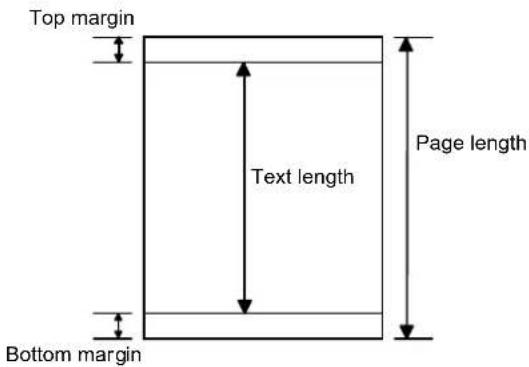
text_image
Top margin Text length Page length Bottom margin4.2.18. Page length
Esc&1#P (27) (38) (108) #(80) <1Bh><26h><6Ch>#<50h>
# stands for the length of the logical page in lines (at the current VMI).
- If you specify a page length greater than is allowed by the physical size of the paper in the currently installed paper tray, a control panel message prompts you to load paper of the appropriate size.
- When the printer receives this command any unprinted pages are printed and the left, right and top margins and the text length are set to their user defaults.
- If you specify a page length greater than is allowed by any of the supported paper sizes, the command is ignored.
- If the current VMI is 0 the command is ignored.
- For the USA, the factory default page size is letter, for which the default page length is 66 lines (11 inches at 6 lines per inch). For Europe, the factory default page size is A4, for which the default page length is 70 lines (11.6 inches at 6 lines per inch). The default lengths for other paper sizes are: Legal - 84 lines, Executive - 63 lines (all at 6 lines per inch).
- Depending on your printer model, you can also set the page length from the printer's control panel or remote printer console by setting LINES to the required number of lines per page in the PAGE FORMAT mode (see the User Guide).
10 REM ***** SETTING THE PAGE LENGTH TO 66 LINES *****
20 REM
30 ESC\=CHR\(27)
40 LPRINT ESC\$+"&166P";
50 FOR I=1 TO 67
60 LPRINT STR\$(I)
70 NEXT
80 LPRINT CHR\$(12);
90 END
4.2.19. Perforation skip
You can set the printer to flow text from one page to the next when it encounters a line feed (or half line feed) that would otherwise move the cursor position to below the bottom of the text area. When perforation skip is enabled the cursor is automatically moved to the top left hand corner of the text area on the next page and printing continues.
Esc&l#L (27) (38) (108) # (76) <1Bh><26h><6Ch>#<4Ch>
# is either 0 or 1.
-
= 0 turns the perforation skip feature off.
-
= 1 turns the perforation skip feature on. • The factory default mode is perforation skip on.
- Whenever the perforation skip mode is changed, the top margin and page length values are reset to their default values.
4.2.20. Positioning the cursor
You can position the cursor anywhere on the logical page. In addition, the cursor position is automatically changed when text or graphics are printed. You can either position the cursor using absolute PCL coordinate values or position it relative to the current cursor position, using dots, decipoints or rows and columns as units. In case of using dots, the units value is defined by the ESC & u # d command. The commands for positioning the cursor are listed below.
4.2.21. Vertical positioning
Vertical cursor positioning - rows
Esc&a#R (27) (38) (97) # (82) <1Bh><26h><61h>#<52h>
# = number of rows
- A plus or minus sign preceding the number of rows parameter indicates that the cursor is to be positioned relative to its current position. A signed positive parameter value signifies that the cursor is to be repositioned vertically downwards on the page, a negative value means that it will be moved upwards.
- An unsigned number as the parameter signifies that the vertical repositioning is absolute - the cursor will be repositioned the specified number of rows below the top margin, the PCL coordinate system's x-axis.
- The parameter value can have up to two decimal places.
- The cursor's horizontal position remains unchanged.
- If you attempt to move the cursor to a position that is outside the boundaries of the logical page, the cursor will be positioned at either the top or bottom of the logical page as appropriate.
Vertical cursor positioning - units
Esc*p#Y (27) (42) (112) #(89) <1Bh><2Ah><70h>#<79h>
# = number of units
- Units value is defined by the Esc & u # D command.
- A plus or minus sign preceding the number of dots parameter indicates that the cursor is to be positioned relative to its current position. A signed positive parameter value signifies that the cursor is to be repositioned vertically downwards on the page, a negative value means that it will be moved upwards.
- An unsigned number as the parameter signifies that the vertical repositioning is absolute - the cursor will be repositioned the specified number of dots below the top margin, the PCL coordinate system's x-axis.
- The cursor's horizontal position remains unchanged.
- If you attempt to move the cursor to a position that is outside the boundaries of the logical page, the cursor will be positioned at either the top or bottom of the logical page as appropriate.
Vertical cursor positioning - decipoints
Esc&a#V (27) (38) (97) #(86) <1Bh><26h><61h>#<56h>
# = number of decipoints in 1/720"
- A plus or minus sign preceding the number of decipoints parameter indicates that the cursor is to be positioned relative to its current position. A signed positive parameter value signifies that the cursor is to be repositioned vertically downwards on the page, a negative value means that it will be moved upwards.
- An unsigned number as the parameter signifies that the vertical repositioning is absolute - the cursor will be repositioned the specified number of decipoints below the top margin, the PCL coordinate system's x-axis.
- The cursor's horizontal position remains unchanged.
- If you attempt to move the cursor to a position that is outside the boundaries of the logical page, the cursor will be positioned at either the top or bottom of the logical page as appropriate.
4.2.22. Horizontal position
Horizontal cursor positioning - columns
Esc&a#C (27) (38) (97) #(67) <1Bh><26h><61h>#<43h>
# = number of columns
- A plus or minus sign preceding the number of columns parameter indicates that the cursor is to be positioned relative to its current position. A signed positive parameter value signifies that the cursor is to be repositioned to the right on the page, a negative value means that it will be moved to the left.
- An unsigned number as the parameter signifies that the horizontal repositioning is absolute - the cursor will be repositioned the specified number of columns to the right of the left edge of the logical page, the PCL coordinate system's y-axis.
- The parameter value can have up to two decimal places.
- The cursor's vertical position remains unchanged.
- If you attempt to move the cursor to a position that is outside the boundaries of the logical page, the cursor will be positioned at either the left or right edge of the logical page as appropriate.
10 REM ***** HORIZONTAL CURSOR POSITIONING *****
20 ESC=CHR(27)
30 REM
40 REM --- POSITIONING CURSOR AT COLUMN 10 ---
50 LPRINT ESC$+"&a10C";
60 LPRINT "A";
70 REM --- MOVING CURSOR 5 COLUMNS TO THE LEFT ---
80 LPRINT ESC$+"&a-5C";
90 LPRINT "B";
100 REM --- MOVING CURSOR 10 COLUMNS TO THE RIGHT ---
110 LPRINT ESC$+"&a+10C";
120 LPRINT "C";
130 REM --- PAPER EJECT ---
140 LPRINT CHR$(12);
150 END

<Sample file 3>
Horizontal cursor positioning - units
Esc*p#X (27) (42) (112) #(88) <1Bh><2Ah><70h>#<58h>
# = number of units
• The Units value is defined by the Esc & u # D command.
- A plus or minus sign preceding the number of dots parameter indicates that the cursor is to be positioned relative to its current position. A signed positive parameter value signifies that the cursor is to be repositioned to the right on the page, a negative value means that it will be moved to the left.
- An unsigned number as the parameter signifies that the horizontal repositioning is absolute - the cursor will be repositioned the specified number of dots to the right of the left edge of the logical page, the PCL coordinate system's y-axis.
- The cursor's vertical position remains unchanged.
- If you attempt to move the cursor to a position that is outside the boundaries of the logical page, the cursor will be positioned at either the left or right edge of the logical page as appropriate.
10 REM ***** HORIZONTAL CURSOR POSITIONING *****
20 ESC=CHR(27)
30 REM
40 REM --- POSITIONING CURSOR AT 1 INCH ---
50 LPRINT ESC$+"*p300X";
60 LPRINT "A";
70 REM --- MOVING CURSOR 0.5 INCHES TO THE LEFT ---
80 LPRINT ESC$+"*p-150X";
90 LPRINT "B";
100 REM --- MOVING CURSOR 1 INCH TO THE RIGHT ---
110 LPRINT ESC$+"*p+300X";
120 LPRINT "C";
130 REM --- PAPER EJECT ---
140 LPRINT CHR$(12);
150 END
<Sample file 4>
Horizontal cursor positioning - decipoints
Esc&a#H (27) (38) (97) #(72) <1Bh><26h><61h>#<48h>
# = number of decipoints 1/720"
- A plus or minus sign preceding the number of decipoints parameter indicates that the cursor is to be positioned relative to its current position. A signed positive parameter value signifies that the cursor is to be repositioned to the right on the page, a negative value means that it will be moved to the left.
- An unsigned number as the parameter signifies that the horizontal repositioning is absolute - the cursor will be repositioned the specified number of decipoints to the right of the left edge of the logical page, the PCL coordinate system's y-axis.
- The cursor's vertical position remains unchanged.
- If you attempt to move the cursor to a position that is outside the boundaries of the logical page, the cursor will be positioned at either the left or right edge of the logical page as appropriate.
10 REM ***** HORIZONTAL CURSOR POSITIONING *****
20 ESC=CHR(27)
30 REM
40 REM --- POSITIONING CURSOR AT 1 INCH ---
50 LPRINT ESC$+"&a720H";
60 LPRINT "A";
70 REM --- MOVING CURSOR 0.5 INCHES TO THE LEFT ---
80 LPRINT ESC$+"&a-360H";
90 LPRINT "B";
100 REM --- MOVING CURSOR 1 INCH TO THE RIGHT ---
110 LPRINT ESC$+"&a+720H";
120 LPRINT "C";
130 REM --- PAPER EJECT ---
140 LPRINT CHR$(12);
150 END

<Sample file 5>
4.2.23. Positioning the cursor using control codes
The carriage return, space, horizontal tab and backspace control codes can also be used to reposition the cursor using the current VMI and HMI settings.
4.2.24. Using the cursor position stack
You can save and retrieve up to 20 cursor positions using the cursor position stack.
Esc&f#S (27) (38) (102) #(115) <1Bh><26h><66h>#<73h>
# = 0 or 1
- Setting # to 0 stores the current cursor position on the stack.
- Setting # to 1 retrieves the cursor position currently on the top of the stack and makes it the current cursor position.
- Resetting the printer deletes all the positions from the stack.
4.2.25. Half line feed
$$ \text { Esc } = (2 7) (6 1) < 1 \mathrm{Bh} > < 3 \mathrm{Dh} > $$
This command moves the cursor down half a row as defined by the last VMI or line spacing command (Esc&l#C).
4.2.26. Logical page orientation
Esc&I#O (27) (38) (108) # (79) <1Bh><26h><6Ch>#<4Fh>
# = 0, 1, 2 or 3
• This command sets the orientation of the logical page relative to the physical page.
- Values of # produce orientations as follows: 0 = portrait, 1 = landscape, 2 = reverse portrait and 3 = reverse landscape.
- Sending this command to the printer causes the page length, text length, top, left and right margins to be set to their user default values. Any previously transmitted data is printed out and the cursor is positioned at the top left hand corner of the text area on the next page.
- Portrait or Landscape orientation can also be selected from the printer's control panel.
• The factory default orientation is portrait.

text_image
(0,0) X "TEXT" Y Top margin Physical page Logical page X (0,0) Y Portrait # = 0 Landscape # = 1
text_image
Physical page Logical page Top margin "EXT" (0,0) Y X Reverse portrait # = 2 Y (0,0) TEXT X Reverse landscape # = 34.2.27. Text direction
Esc&a#P (27) (38) (97) #(80) <1Bh><26h><61h>#<50h>
# = 0, 90, 180 or 270.
- This command changes the orientation of the logical page relative to the physical page, but without the side effects of the logical page orientation command. Hence you can print text in different directions on the same page.
-
Values of # have the following effects: 0 = portrait, 90 = landscape, 180 = reverse portrait and 270 = reverse landscape. The value specifies the angle through which the text direction is rotated counterclockwise.
• The cursor position remains at the same physical page position. -
All subsequent text is printed in the newly selected orientation.
- The PCL coordinate system and margin settings are rotated through the specified angle. Hence the cursor coordinates will change.
- HP-GL/2 graphics images cannot be rotated using this command.
- The factory default orientation is portrait.
10 WIDTH "LPT1:", 255
20 REM --- PRINTER RESET ---
30 LPRINT CHR$(27); "E";
40 REM --- MOVING CURSOR TO X=500, Y=500 ---
50 LPRINT CHR$(27); "*p500X";
60 LPRINT CHR$(27); "*p500Y";
70 REM --- 0 deg ---
80 LPRINT CHR$(27); "&a0P";
90 LPRINT "BROTHER ";
100 REM --- 90 deg ---
110 LPRINT CHR$(27); "&a90P";
120 LPRINT "BROTHER ";
130 REM --- 180 deg ---
140 LPRINT CHR$(27); "&a180P";
150 LPRINT "BROTHER ";
160 REM --- 270 deg ---
170 LPRINT CHR$(27); "&a270P";
180 LPRINT "BROTHER ";
190 REM --- PAPER EJECT ---
200 LPRINT CHR$(12)
210 END
5. USING FONTS
5.1. Introduction
A font is a collection of characters that have common characteristics, such as size, style and typeface, and which ranges over a given set of symbols. For example, 12 point Tennessee Bold in the Roman-8 symbol set is a typical HL Series font. Different sorts of fonts are used to create various typographic effects. Traditionally, large point size sans serif typeface fonts, like Helsinki and Utah are used for document headlines while smaller fonts with serif typefaces, like Tennessee and Portugal are used for body text. In LaserJet mode you can have access to a large range of fonts that are already built in to the printer's ROM, plus the facility for downloading more fonts from a personal computer or plugging in font cards/cartridges or the storage device. When you select a font for printing you will specify a number of characteristics which identify the font you require. The laser / ink printer does its best to print using the font you specified, but if amongst all its available fonts it does not have the exact one that you specified, it will compromise and give you what it regards as the closest available font. Sometimes the results will not be what you expected and you should exercise care in selecting fonts for printing. In most instances the selection of a font will be handled automatically from your word processing software or other applications package. In these cases you need only ensure that the correct font is available (that is, as a standard font in the ROM, on cartridge/card or downloaded) and the application will do the rest. You do not need to concern yourself with sending any escape sequences.
As well as using software commands you can also select fonts using the printer's control panel. Consult the printer User Guide for details.
5.1.1. Font types
There are two types of fonts supported by the HL Series printers in LaserJet mode - bitmap fonts and scalable fonts.
5.1.2. Bitmap fonts
The characters which make up a bitmap font are raster bit images of the relevant symbols. When text is printed using the font it is nearly always monospaced and when you select the font you specify it by its typeface, pitch (the number of characters printed per inch), height (point size) and symbol set.
5.1.3. Scalable fonts
The printer has many scalable fonts available as standard. The following table shows scalable fonts available for models HL-1050/1070/1250/1270N/1450/1470N/P2500/1660c/2060/2400C/2400Cc/3400CN/1650/1670N/2460/7050/1850/1870N/5040/5050/5070N/5140/5150D/5170DN/2600CN/3450CN/6050/6050D/6050DN/8050N/2700CN/2070N/4040CN/4050CDN/4070CDW/2150N/2170W/5240/5250DN/5270DN/5280DW/5340D/5350DN/5370DW/5380DN/3070CW/3075CW/2250DN/2270DW/4140CN/4150CDN/4570CDW/L2360DN/L2360DW/L2365DW/2560DN/2569DW/S7000DN/L2370DN/L2371DN/L2372DN/2590DN/B2050DN/L2370DW/L2375DW/L2376DW/B2080DW/L2385DW/L2386DW/2595DW/L3270CDW/L3230CDW/L3230CDN/L3210CW/3190CDW/3160CDW. (For the other models' resident fonts, please see the printer User's Guide.)
Intellifont Compatible Fonts:
| HL-1050/1070/1250/1270N/1450/1470N/P2500/1660e/2060/2400C/2400Ce/3400CN/1650/1670N/3260N/2460/7050/1850/1870N/5040/5050/5070N/5140/5150D/5170DN/2600CN/3450CN/6050/6050D/6050DN/8050N/2700CN/2070N/5240/5250DN/5270DN/5280DW/4040CN/4050CDN/4070CDW/2150N/2170W/5340D/5350DN/5370DW/5380DN/3070CW/3075CW/2250DN/2270DW/4140CN/4150CDN/4570CDW/5440D/5450DN/5470DW/6180DW/S7000DN/3170CDW/L8250CDN/L8350CDW/L9200CDW/L9300CDW/L2360DN/L2360DW/L2365DW/2560DN/2569DW/L2370DN/L2371DN/L2372DN/2590DN/B2050DN/L2370DW/L2375DW/L2376DW/B2080DW/L2385DW/L2386DW/2595DW/L3270CDW/L3230CDW/L3230CDN/L3210CW/3190CDW/3160CDW | ||
| Alaska Medium, Extra Bold | √ | |
| Antique Oakland Medium, Oblique, Bold | √ | |
| PcBrussels Light, Light italic, Demi, Demi italic | √ | |
| Oklahoma Medium, Oblique, Bold, BoldOblique | √ | |
| Cleveland Condensed | √ | |
| Connecticut | √ | |
| Brougham Medium, Oblique, Bold, Bold oblique | √ | |
| Guatemala Antique, Italic, Bold, Bold italic | √ | |
| LetterGothic Medium, Oblique, Bold | √ | |
| Maryland | √ | |
| PcTennessee Roman, Italic, Bold, Bold italic | √ | |
| Utah Medium, Oblique, Bold, BoldOblique | √ | |
| Utah Condensed Medium, Oblique, Bold, Bold oblique | √ | |
Microsoft Windows 3.1 TrueType Compatible Fonts:
| HL-1050/1070/1250/1270N/1450/1470N/P2500/1660e/2060/2400C/2400Ce/3400CN/1650/1670N/3260N/2460/7050/1850/1870N/5040/5050/5070N/5140/5150D/5170DN/2600CN/3450CN/6050/6050D/6050DN/8050N/2700CN/2070N/5240/5250DN/5270DN/5280DW/4040CN/4050CDN/4070CDW/2150N/2170W/5340D/5350DN/5370DW/5380DN/3070CW/3075CW/2250DN/2270DW/4140CN/4150CDN/4570CDW/5440D/5450DN/5470DW/6180DW/S7000DN/3170CDW/L8250CDN/L8350CDW/L9200CDW/L9300CDW/L2360DN/L2360DW/L2365DW/2560DN/2569DW/L2370DN/L2371DN/L2372DN/2590DN/B2050DN/L2370DW/L2375DW/L2376DW/B2080DW/L2385DW/L2386DW/2595DW/L3270CDW/L3230CDW/L3230CDN/L3210CW/3190CDW/3160CDW | ||
| Tennessee Roman, Italic, Bold, Bold Italic | √ | |
| Helsinki Medium, Oblique, Bold, BoldOblique | √ | |
| BR Symbol | √ | |
| W Dingbats | √ | |
BR-Script Fonts:
| HL-1050/1070/1250/1270N/1450/1470N/P2500/1660e/2060/2400C/2400Ce/3400CN/1650/1670N/3260N/2460/7050/1850/1870N/5050/5070N/5150D/5170DN/2600CN/3450CN/6050/6050D/6050DN/8050N/2700CN5240/5250DN/5270DN/5280DW/4040CN/4050CDN/4070CDW/5340D/5350DN/5370DW/5380DN3070CW/3075CW/4140CN/4150CDN/4570CDW/5440D/5450DN/5470DW/6180DW/S7000DN/3170CDW/L8250CDN/L8350CDW/L9200CDW/L9300CDW/L2370DN/L2371DN/L2372DN/2590DN/B2050DN/L2370DW/L2375DW/L2376DW/B2080DW/L2385DW/L2386DW/2595DW/L3270CDW/L3230CDW/L3230CDN/L3210CW/3190CDW/3160CDW | ||
| Atlanta Book, BookOblique, Demi,DemiOblique | √ | |
| Copenhagen Roman, Italic, Bold, Bold italic | √ | |
| Portugal Roman, Italic, Bold, Bold italic | √ | |
| Calgary | MediumItalic | √ |
Brother Original Fonts:
| HL-1050/1070/1250/1270N/1450/1470N/P2500/1660e/2060/2400C/2400Ce/3400CN/1650/1670N/3260N/2460/7050/1850/1870N/5040/5050/5070N/5140/5150D/5170DN/2600CN/3450CN/6050/6050D/6050DN/8050N/2700CN/2070N5240/5250DN/5270DN/5280DW/4040CN/4050CDN/4070CDW/2150N/2170W/5340D/5350DN/5370DW/5380DN/3070CW/3075CW/2250DN/2270DW/4140CN/4150CDN/4570CDW/5440D/5450DN/5470DW/6180DW/S7000DN/3170CDW/L8250CDN/L8350CDW/L9200CDWL9300CDW/L2370DN/L2371DN/L2372DN/2590DN/B2050DN/L2370DW/L2375DW/L2376DW/B2080DW/L2385DW/L2386DW/2595DW/L3270CDW/L3230CDW/L3230CDN/L3210CW/3190CDW/3160CDW | |
| Bermuda Script | √ |
| German | √ |
| US Roman | √ |
| San Diego | √ |
You can select a font in any of these typefaces, specifying height (point size) and symbol set. Characters printed in scalable fonts are always proportionally spaced - that is, the spacing between characters on a line depends on their shapes. To add to the number of fonts available, you can buy scalable typeface cartridges/cards which you can insert into the printer's cartridge/card slots and scalable typeface disks from which you can copy the typefaces into the printer's memory. You can also create your own downloadable scalable typefaces, using software commands.
5.1.4. Bound fonts
Bound fonts are fonts which have only a single symbol set.
5.1.5. Unbound fonts
Unbound fonts are fonts which have a large amount of symbols selected from a complementary symbol index (intellifont) or unicode symbol index (TrueType).
5.1.6. Font sources
Depending on your printer model, fonts available to the printer can be in one of three places, either in the printer's ROM as supplied from the factory, on a cartridge/card, on the storage device, or in the printer's RAM. RAM fonts are downloaded from a personal computer.
5.1.7. Internal fonts
The printer comes with some bitmap fonts contained in its ROM and many scalable typefaces which can be used to create scalable fonts.
5.1.8. Card/cartridge fonts
You can buy cartridge/card -based bitmap fonts and scalable typefaces. Plug the cartridge/card into one of the printer's cartridge/card slots and then select any font from them as if it were in the printer's ROM. Depending on your model, you can also save bitmap fonts and scalable typeface in the flash ROM memory, installed optional storage device and you can use any of these as if they were a font card.
5.1.9. Downloadable fonts
You can buy diskettes containing fonts which can be copied directly to the printer using the DOS COPY command. You can also design your own fonts and download them to the printer.
One disadvantage of downloaded fonts is that they reside in the printer's RAM memory. The printer also uses this memory for composing the text and graphic output that it prints on the page. If the memory contains too many fonts the printer may run out of memory. Since downloaded fonts are stored in the printer's RAM they are lost when the printer is switched off, and you must download them again before you can use them.
5.1.10. Primary and secondary fonts
The printer maintains two sets of font characteristics which define its primary and secondary fonts. The primary font is the one it will use by default, the secondary font can be selected instead. This facility enables you to have two parallel font definitions that you can switch between easily without invoking long escape sequences. You can select the primary and secondary fonts using PCL commands.
Depending on your model, you can also set any available fonts to be the printer's user default primary and secondary fonts using the printer's control panel. Refer to the User Guide for instructions on how to do this.
The factory default settings for both primary and secondary fonts are Brougham 12 point, 10 cpi Roman 8.
5.1.11. Specifying the primary font
When you specify primary font characteristics you send escape codes with '(' as the second character of the sequence. This tells the printer that the font characteristic you are specifying applies to the primary font.
5.1.12. Specifying the secondary font
When you specify secondary font characteristics you send escape codes with ')' as the second character of the sequence. This tells the printer that the font characteristic you are specifying applies to the secondary font.
5.1.13. Selecting the default fonts
To set the primary font settings to those of the printers default font and discard all the software settings you have made in the meantime, send the printer the following escape sequence:
Esc (3@
(27) (40) (51) (64)
<1Bh><28h><33h><40h>
To set the secondary font settings to those of the printers default font send:
Esc) 3@
(27) (41) (51) (64)
<1Bh><29h><33h><40h>
5.1.14. Switching between the primary and secondary fonts
To select the primary font as the font for printing send the printer the SI control code:
SI
(15)
(OF)
To select the secondary font as the font for printing send the printer the SO control code:
so
(14)
(0E)
5.1.15. Criteria for font selection
The printer will try to match your stated font requirements as best it can with the fonts available to it in any of the three possible font locations. In most cases you will be specifying a font you know to be present in one of the locations and the resulting printed text will appear exactly as you envisaged. However, if you specify a particular combination of font characteristics that is not possible, the printer will produce the closest possible match that it can by satisfying the following specifications in the following order: symbol set / spacing type / pitch (for monospaced fonts) / height / stroke weight / style.
The meanings of each of these are explained in the following sub-sections. Likewise, if you simply specify a font attribute that is not available, for example if you request a Utah Light font when only Utah Medium and Utah Bold are available in the font locations, the printer will simply ignore the requirement (light stroke weight, in this case) that it cannot fulfill.
5.1.16. Symbol set
The symbol set is the list of symbols that constitute a particular font. Normally, symbol sets contain lower and upper case letters, numbers, punctuation marks and a selection of other commonly used symbols. Some symbol sets are designed for specific needs, for example, for generating text with mathematical expressions. The symbol set has the highest priority of all the characteristics you specify when you designate the font you require. If the symbol set you choose is available, but not in conjunction with any of the other characteristics you specify, the printer will satisfy your symbol set request at the expense of the rest of your designation and the text printed out may well look completely different from what you expected to see.
5.1.17. Symbol collections
The symbol collections contain many symbols and a symbol set is made from symbol collections by selecting the required symbols for unbound fonts. As symbol collections have more symbols than symbol sets, unbound fonts can have more symbols than bound fonts. Due to the compatibility between symbol sets and symbol collections, the printer searches the designated MSL or Unicode number by using a symbol set mapping table.
5.1.18. Type of character spacing
Character spacing is either fixed (monospacing), in which every printed character is allocated the same amount of space on the line, or proportional, where characters are spaced according to their shape and size. For any serious typographic work proportional spacing is essential since fixed spacing is unattractive and hard to read. In general, monospacing is used with bitmap fonts and proportional spacing is used with scalable fonts. However, proportionally spaced bitmap fonts do exist.
5.1.19. Pitch
Pitch is the number of characters that are printed per inch and therefore only applies to monospaced fonts. If you make a pitch selection while using a proportionally spaced font the command will have no immediate effect. However, the new pitch will be stored as part of the primary (or secondary) font designation and applied the next time a monospaced font is selected as the primary (or secondary) font.
The printer's in-built bitmap fonts all have a pitch of either 10, 12 or 16.66 characters per inch.
5.1.20. Height
Height refers to the height in points (1/72") of unaccented capital letters in a font. This is the generally accepted method of defining the height of a font's characters. Scaled fonts can be specified to an accuracy of 0.25 points.
5.1.21. Style
A font's style is defined by its posture (upright or italic), width (condensed, normal or expanded) and structure (solid, outline or shadow). Upright and italic bitmap fonts and scalable typefaces are available in the printer's ROM. However, these are all normal and solid fonts. To print using any of the other styles (for example, using Condensed Helsinki or Outline Tennessee) you would have to download the requisite font or install a font card/cartridge containing it.
5.1.22. Stroke weight
Stroke weight refers to the thickness of the lines which make up the printed characters. Characters of normal line thickness are called medium. Thicker lines are referred to as bold or black and thinner lines as light or thin. You can specify 15 different stroke weights - 0 denotes medium weight, negative values signify thinner strokes, and positive values signify bolder (thicker) strokes. If you have the bold font available that matches your font designation, a stroke weight selection of 1 to 7 will produce bold text. Likewise, for light or thin text you would need to make the requisite light or thin font available for the stroke weight selection to have any effect.
5.1.23. Typeface
Typeface refers to the designed style of the characters. Commonly known typefaces include Times, Helvetica, Univers and Palatino. The printer has its own resident typefaces. When selecting a particular typeface ensure that it meets all your other specified criteria, otherwise the printer will substitute a font of a different typeface that can satisfy the other, higher priority criteria, such as style and stroke weight.
5.2. Font Selection Commands
5.2.1. User-defined symbol sets
User-defined symbol sets can be used with Unbound scalable fonts. Three new commands below are prepared for use to control a user-defined symbol set.
To define a symbol set, its ID code must first be defined.
Next, a list of symbols for the symbol set must be downloaded.
Then, you can use the defined ID code for the symbol set selection.
5.2.2. Symbol set ID code command
Esc*c#R (27) (42) (99) # (82) <1Bh><2Ah><63h>#<52h>
• Value for # can be from 0 to 2047.
- This command defines the ID code for a user-defined symbol set which can be used to control symbol set selection.
- The symbol set ID code defined by this command must be calculated by using the following formula. Symbol Set ID Code = ( # x 32 ) + ( ID - 64 )
Symbol set selection values consists of numerical character(s) and an alphabetical character.
For example, 8U is the symbol set selection value for Roman-8. In this case, the Symbol set ID code is 277 as the result of the following calculation.
$$ (8 \times 3 2) + (8 5 - 6 4) = 2 7 7 $$
- Make sure to select an unused number for a new ID code that you define. If the ID code has been used already, the printer deletes the existing symbol set and defines the new symbol set.
5.2.3. Define symbol set
Esc (f#W[data] (27) (49) (102) #(87) <1Bh><28h><66h>#<57h>
- # value can be from 18 to 32767.
- # stands for number of bytes of data that follow this command.
- If an existing ID code is used for a user-defined symbol set, it is overwritten.
- Up to 2047 downloadable user-defined symbol sets can be stored subject to the printer's memory capacity.
- If a memory full error occurs while downloading the user-defined symbol set, the symbol set which is being downloaded becomes invalid.
- The symbol set which is defined by this command is temporarily stored in the printer memory.
- The data following this command should be in the following format.
| 15MSB | 8 | 7 | 0LSB | |
| 0 - 1 | Header Size (18) | |||
| 2 - 3 | Encoded symbol set designator | |||
| 4 - 5 | Format Symbol Set Type | |||
| 6 - 7 | First Code | |||
| 8 - 9 | Last Code | |||
| 10 - | Character Requirements | |||
| Symbol Map [Last Code - First code + 1] | ||||
(B) Boolean (0,1)
(UB) Unsigned Byte (0 \~ 255)
(SB) Signed Byte (-128 \~ 127)
(UI) Unsigned Integer (0 \~ 65535)
(SI) Signed Integer (-32768\~32767)
(ULI) Unsigned Long Integer (0 \~ 2 ^32 -1)
(SLI) Signed Long Integer (-2^31 2^31 - 1)
(ASC**) ASCII string array (0 \~ **-1) of characters
0 -1: Header size (UI) - set to 18 or greater.
This value stands for the number of header bytes.
2 -3 : Encoded Symbol Set Designator (UI) - should be as same as the ID code which is defined by ESC*c#R.
4 : Format (UB) - 1 for MSL (Intellifont), 3 for Unicode (TrueType).
5 : Symbol Set Type (UB) - 0, 1 or 2.
0 specifies a 7-bit font with character codes 20H to 7FH acceptable.
1 specifies an 8-bit font with character codes 20H to 7FH and 80H to FFH acceptable.
2 specifies 8-bit 256 all character fonts. Only when the printer is set to transparent print mode can the characters 0, 7\~15 and 27 be printed.
6 -7: First Code (UI) - indicates the first code of definition data following this header.
8 -9: Last Code (UI) - indicates the last code of definition data following this header. This value should be more than the first code value. Also, the data followed this header should have (Last code - first code + 1) bytes.
10 - 17: Character Requirement Flag (8 bytes)
Used in conjunction with the character complement field in the header of the font descriptor to decide the compatibility of a symbol set for an unbound font. This flag indicates which symbol collections are necessary to make the required symbol set.
Each bit in this field stands for the selection of each symbol collection. When set to 1, the symbol collection is included and when set to 0, the symbol collection is not included in the unbound scalable font.
Character Requirements for MSL Symbol index
| Bit | Value | Designated Use |
| 63 | 1 | Basic Latin required (such as ISO 8859/1 Latin 1) |
| 0 | Basic Latin not required | |
| 62 | 1 | East European Latin required (such as ISO 8859/2 Latin 2) |
| 0 | Basic European Latin not required | |
| 61 | 1 | Turkish required (such as ISO 8859/9 Latin 5) |
| 0 | Turkish not required | |
| 34 | 1 | Math required (such as Math-8) |
| 0 | Math not required | |
| 33 | 1 | Semi-graphic required (such as PC-8 D/N) |
| 0 | Semi-graphic not required | |
| 32 | 1 | Dingbats required (such as ITC Zapf Dingbats series 100, series 200 ) |
| 0 | Dingbats not required | |
| 2,1,0 000 MSL Symbol index | ||
Character Requirements for Unicode Symbol index
| Bit | Value | Designated Use |
| 31 | 1 | ASCII required (such as ISO 6 ASCII) |
| 0 | ASCII not required | |
| 30 | 1 | West Europe extensions required (such as ISO 69 French) |
| 0 | West Europe extensions not required | |
| 29 | 1 | East Europe extensions required (such as ISO 8859/2 Latin 2) |
| 0 | East Europe extensions not required | |
| 28 | 1 | Turkish extensions required (such as ISO 8859/9 Latin 5) |
| 0 | Turkish extensions not required | |
| 27 | 1 | Desktop Publishing extensions required (such as Windows 3.1) |
| 0 | Desktop Publishing extensions not required | |
| 26 | 1 | Accent extensions required (such as ISO 8859/1 Latin 1) |
| 0 | Accent extensions not required | |
| 25 | 1 | PCL extensions required (such as Roman-8) |
| 0 | PCL extensions not required | |
| 24 | 1 | Macintosh extensions required (such as MC text) |
| 0 | Macintosh extensions not required | |
| 23 | 1 | PostScript extensions required (such as PS Text) |
| 0 | PostScript extensions not required | |
| 22 | 1 | Code Page extensions required (such as PC-8) |
| 0 | Code Page extensions not required | |
| 2,1,0 001 Unicode Symbol Index | ||
Symbol map (Array of UI)
The symbol map, which has a list of symbol index numbers, is used to define the symbols for the symbol set. This map defines the combinations of symbol index numbers and character codes.
5.2.4. Symbol set control command
Esc*c#S (27) (42) (99) #(83) <1Bh><2Ah><63h>#<53h>
- Values for # can be 0, 1, 2, 4, or 5.
- 0 specifies to delete all temporary and permanent user-defined symbol sets.
• 1 specifies to delete all temporary user-defined symbol sets.
• 2 specifies to delete current user-defined symbol set.
• 4 specifies to make current user-defined symbol set temporary. - 5 specifies to make current user-defined symbol set permanent.
5.2.5. Selecting the symbol set
Esc (symbol set ID (27) (40) <1Bh><28h>
- This command selects the symbol set (character set) for the primary font.
- Symbol set IDs consist of a number followed by a letter.
- Default symbol set ID is Roman-8. If an invalid default symbol set ID is selected, the symbol set becomes Roman-8.
- The selectable symbol set varies depending on the printer model.
| Symbol set Set primary font Symbol set Set primary font | |||
| ISO 60 : Norwegian 1 Esc(0D ISO 57 : Chinese Esc(2K | |||
| ISO 61 : Norwegian 2 Esc(1D ISO8859-1 (ECMA-94) Latin | Esc(0N | ||
| ISO 4 : United Kingdom Esc(1E Wingdings Esc(579L | |||
| Windows 3.1 Latin 2 Esc(9E PS Math | Esc(5M | ||
| ISO 25 : French | Esc(0F Ventura Math | Esc(6M | |
| ISO 69 : French | Esc(1F Math-8 | Esc(8M | |
| HP German | Esc(0G Symbol | Esc(19M | |
| ISO 21 : German | Esc(1G ISO 8859-2 Latin 2 | Esc(2N | |
| ISO 15 : Italian | Esc(0I ISO 8859-9 Latin 5 | Esc(5N | |
| Microsoft Publishing | Esc(6J ISO 11: Swedish; names | Esc(0S | |
| Desk Top Esc(7J PS Text | Esc(10J | ||
| HP Spanish | Esc(1S Ventura International | Esc(13J | |
| ISO 17 : Spanish | Esc(2S Ventura US Esc(14J | ||
| ISO 10 : Swedish | Esc(3S ISO 16 : Portuguese | Esc(4S | |
| ISO 14 : JIS ASCII | Esc(0K ISO 84 : Portuguese | Esc(5S | |
| ISO 85 : Spanish | Esc(6S Windows 3.1 Latin 5 | Esc(5T | |
| PC Turkish | Esc(9T ISO 6 : ASCII | Esc(0U | |
| Legal | Esc(1U ISO 2 : IRV Esc(2U | ||
| Roman 8 | Esc(8U Windows 3.0 Latin 1 | Esc(9U | |
| PC-8 | Esc(10U PC-8 D/N | Esc(11U | |
| PC-850 | Esc(12U Pi Font | Esc(15U | |
| PC-852 | Esc(17U Windows 3.1 Latin 1 | Esc (19U | |
| MC Text | Esc(12J ISO 8859-10 Latin 6 | Esc (6N | |
| OCR-A | Esc(0O OCR-B | Esc(1O | |
| ROMAN EXT. | Esc(0E ISO LATIN9 | Esc(9N | |
| ABICOMP B/P | Esc(13P ABICOMP INTL | Esc(14P | |
| ROMAN 9 | Esc(4U PC-858 | Esc(13U | |
| PC-860 | Esc(20U PC-861 | Esc(21U | |
| PC-863 | Esc(23U PC-865 | Esc(25U | |
| TURKISH 8 | Esc(8T PC-857 | Esc(16U | |
| PC-8 PC NOVA | Esc(27Q PC-853 | Esc(18U | |
| ISO GREEK | Esc(12N GREEK 8 | Esc(8G | |
| WINDOWS GREEK | Esc(9G PC-851 | Esc(10G | |
| PC-869 | Esc(11G) | PC-8 | L/G |
| PC-8 GREEK Esc(14G ISO CYRILLIC Esc(10N | |||
| PC-866 | Esc(3R) | WINDOWS | CYR |
| PC-855 | Esc(10R) | RUSSIAN-GOST | Es |
| PC-8 BULGARIAN Esc(13R | UKRAINIAN | Esc(14R | |
| Hebrew-7 | Esc(0H) | Hebrew-8 | |
User-defined symbol sets are defined by the command ESC (f#W.
Esc) symbol set ID (27) (41) <1Bh><29h>
- This command selects the symbol set (character set) for the secondary font.
- To select any of the above symbol sets for the secondary font simply substitute ')' for '(' in the command shown in the table.
10 REM ***** SELECT A CHARACTER SET *****
20 ESC=CHR(27)
30 WIDTH "LPT1:",255
40 REM --- ROMAN-8 CHARACTER SET SELECTION ----
50 LPRINT ESC$+" (8U";
60 REM --- PRINT CHARACTERS ----
70 FOR I=160 TO 255
80 LPRINT CHR$(I);
90 NEXT
100 LPRINT
110 REM --- PC-8 CHARACTER SET SELECTION ----
120 LPRINT ESC$+" (10U";
130 REM --- PRINT CHARACTERS ----
140 FOR I=160 TO 255
150 LPRINT CHR$(I);
160 NEXT
170 LPRINT
180 REM --- PAPER EJECT ---
190 LPRINT CHR$(12);
200 END
There is a further group of symbol sets that are available for Brother fonts only. You can select these as follows:
Esc (s#C (27) (40) (115) #(67) <1Bh><28h><73h>#<43h>
- This command selects the symbol set (character set) for the primary font.
Esc) s#C (27) (41) (115) #(67) <1Bh><29h><73h>#<43h>
- This command selects the symbol set (character set) for the secondary font.
• Brother symbol set IDs consist of a number only.
| Symbol Set | Set primary font | Symbol set | Set primary font |
| Roman-8 | Esc(s1C) | Portuguese | Esc(s15C) |
| US ASCII | Esc(s2C) | Swiss German | Esc(s16C) |
| German | Esc(s3C) | American Spanish | Esc(s17C) |
| UK English | Esc(s4C) | Norwegian/Danish | Esc(s18C) |
| French | Esc(s5C) | Canadian | Esc(s19C) |
| Dutch | Esc(s6C) | Finnish/Swedish | Esc(s20C) |
| Italian | Esc(s7C) | South African | Esc(s21C) |
| S. Spanish | Esc(s8C) | PC-8 D/N | Esc(s23C) |
| A. English WP | Esc(s9C) | PC-8 | Esc(s25C) |
| UK ASCII/2 | Esc(s10C) | PC-850 | Esc(s26C) |
| Symbol | Esc(s11C) | PC-860 | Esc(s27C) |
| International | Esc(s12C) | PC-863 | Esc(s28C) |
| American English | Esc(s13C) | PC-865 | Esc(s29C) |
| UK ASCII | Esc(s14C) | Japanese English | Esc(s38C) |
- To select any of the above symbol sets for the secondary font simply substitute ')' for '(' in the command shown in the table.
10 REM ***** SELECTING CHARACTER SETS *****
20 ESC=CHR(27)
30 WIDTH "LPT1:", 255
40 REM --- GERMAN CHARACTER SET SELECTION ----
50 LPRINT ESC$+" (s3C";
60 REM --- PRINT CHARACTERS ----
70 FOR I=33 TO 127
80 LPRINT CHR$(I);
90 NEXT
100 LPRINT
110 REM --- FRENCH CHARACTER SET SELECTION ----
120 LPRINT ESC$+" (s5C";
130 REM --- PRINT CHARACTERS ----
140 FOR I=33 TO 127
150 LPRINT CHR$(I);
160 NEXT
170 LPRINT
180 REM --- PAPER EJECT ---
190 LPRINT CHR$(12);
200 END
5.2.6. Selecting the type of character spacing
Esc(s#P (27) (40) (115) #(80) <1Bh><28h><73h>#<50h>
- This command selects the spacing type for the primary font.
Esc) s#P (27) (41) (115) #(80) <1Bh><29h><73h>#<50h>
- This command selects the spacing type for the secondary font.
-
= 0 selects fixed spacing and # = 1 selects proportional spacing.
10 REM ***** SELECTING A PROPORTIONAL OR FIXED SPACE FONT *****
20 ESC=CHR(27)
30 WIDTH "LPT1:",255
40 REM --- SELECT A PROPORTIONALLY SPACED FONT ----
50 LPRINT ESC$+" (s1P";
60 FOR I=33 TO 127
70 LPRINT CHR$(I);
80 NEXT
90 LPRINT
100 REM --- SELECT A FIXED SPACE FONT ---
110 LPRINT ESC$+" (sOP";
120 FOR I=33 TO 127
130 LPRINT CHR$(I);
140 NEXT
150 LPRINT
160 REM --- PAPER EJECT ---
170 LPRINT CHR$(12);
180 END
5.2.7. Selecting the pitch
Esc (s#H (27) (40) (115) # (72) <1Bh><28h><73h>#<48h>
This command designates the pitch for the primary font.
Esc) s#H (27) (41) (115) #(72) <1Bh><29h><73h>#<48h>
- This command designates the pitch for the secondary font.
-
= the number of characters to be printed per inch. However, the actual size range is defined in combination with the character height.
- The printer's in-built bitmap fonts all have a pitch of either 10, 12 or 16.66 characters per inch, and you can specify any of these as follows:
Esc&k0S (10 cpi)
Esc&k2S (16.66 cpi)
Esc&k4S (12 cpi)
- The selection will apply to whichever font you are currently specifying (primary or secondary).
- If the printer doesn't have the specified size font, the next largest size font is used. If the printer doesn't have a larger sized font, the next smallest one is used.
- This value is ignored by the printer when a proportional spaced font is selected.
10 REM ***** CHARACTER PITCH SELECTION *****
20 ESC=CHR(27)
30 WIDTH "LPT1:", 255
40 REM --- SELECT A 10 CPI PITCH FONT ----
50 LPRINT ESC$+" (s10H";
60 FOR I=33 TO 127
70 LPRINT CHR$(I);
80 NEXT
90 LPRINT
100 REM --- SELECT A 12 CPI PITCH FONT ---
110 LPRINT ESC$+" (s12H";
120 FOR I=33 TO 127
130 LPRINT CHR$(I);
140 NEXT
150 LPRINT
160 REM --- PAPER EJECT ---
170 LPRINT CHR$(12);
180 END
5.2.8. Selecting the height
Esc (s#V (27) (40) (115) #(86) <1Bh><28h><73h>#<56h>
This command designates the height of the primary font.
Esc) s#V (27) (41) (115) #(86) <1Bh><29h><73h>#<56h>
- This command designates the height of the secondary font.
-
is the size in points (1/72") from 0.25 to 999.75 in 0.25 increments.
- This value is ignored by the printer when a fixed-spaced scalable font is selected.
5.2.9. Scaling the scalable fonts vertically or horizontally
EscCR!#H (27)(13)(33)#(72) <1Bh><0Dh><21h>#<48h>
This command designates the height of the scalable fonts.
EscCR!#V (27)(13)(33)#(86) <1Bh><0Dh><21h>#<56h>
This command designates the width of the scalable fonts.
-
can be from 0.25 \~ 3.00 in 0.01 increments.
-
value is set to 0.25 when # is specified less than 0.25, and # value is set to 3.00 when # is specified bigger than 3.00.
- The value set by this command is initialized when the emulation is changed, a printer Reset, Test Print or Macro overlay is executed.
5.2.10. Selecting the style
Esc (s#S (27) (40) (115) #(83) <1Bh><28h><73h>#<53h>
- This command designates the style of the primary font.
Esc) s#S (27) (41) (115) #(83) <1Bh><29h><73h>#<53h>
- This command designates the style of the secondary font.
- If you select a particular style (for example upright condensed outline) the command will only take effect if the font is available in one of the three font locations.
| Value | Font Style |
| 0 | Upright & solid |
| 1 | Italic |
| 4 | Condensed |
| 5 | Condensed italic |
| 8 | Compressed, or extra condensed |
| 24 | Expanded |
| 32 | Outline |
| 64 | Inline |
| 128 | Shadowed |
| 160 | Outline shadowed |
10 REM ***** PRINT IN ITALIC & UPRIGHT STYLE *****
20 ESC=CHR(27)
30 WIDTH "LPT1:", 255
40 REM --- PRINT USING AN ITALIC FONT ----
50 LPRINT ESC$+" (s1S";
60 REM --- PRINT FONT ----
70 FOR I=33 TO 127
80 LPRINT CHR$(I);
90 NEXT
100 LPRINT
110 REM --- PRINT USING AN UPRIGHT FONT ----
120 LPRINT ESC$+" (s0S";
130 REM --- PRINT FONT ----
140 FOR I=33 TO 127
150 LPRINT CHR$(I);
160 NEXT
170 LPRINT
180 REM -- PAPER EJECT ---
190 LPRINT CHR$(12);
200 END
5.2.11. Selecting the stroke weight
Esc (s#B (27) (40) (115) #(66) <1Bh><28h><73h>#<42h>
- This command designates the stroke weight of the primary font.
Esc) s#B (27) (41) (115) #(66) <1Bh><29h><73h>#<42h>
• This command designates the stroke weight of the secondary font
- # is an integer between -7 and 7. A value of 0 signifies a medium stroke weight, negative numbers signify thin or light stroke weights and positive numbers signify bold stroke weights.
- If you select a light or bold stroke weight the command will only have an effect if the font is available in one of the three font locations.
5.2.12. Selecting the typeface
Esc(s#T (27) (40) (115) #(84) <1Bh><28h><73h>#<54h>
- This command designates the typeface of the primary font.
Esc) s#T (27) (41) (115) #(84) <1Bh><29h><73h>#<54h>
- This command designates the typeface of the secondary font.
- If the typeface you specify is not available in any of the three font source locations the printer will substitute a font of a different typeface.
- The available values vary with the printer model. The following table shows the value for each typeface and availability.
| Typeface | Set font | Setpebndary font | HL-1050/1250/P2500 | HL-2070N/2150N/2170W/2250DN/2270DW | HL-1070/1270N/1660c/2060/2400C/2400Ce/3400CN/1450/1470N/1650/1670N/2460/3260N/7050/1850/1870N/5040/5050/5070N/5140/5150D/5170DN/2600CN/3450CN/6050/6050D/6050DN/8050N/2700CN/5240/5250DN/5270DN/5280DW/4040CN/4050CDN/4070CDW/5340D/5350DN/5370DW/5380DN/3070CW/3075CW/4140CN/4150CDN/4570CDW/5440D/5450DN/5470DW/6180DW/S7000DN/3170CDW/L8250CDN/L8350CDW/L9200CDW/L9300CDW/L2360DN/L2360DW/L2365DW/2560DN/2569DW/L2370DN/L2371DN/L2372DN/2590DN/B2050DN/L2370DW/L2375DW/L2376DW/B2080DW/L2385DW/L2386DW/2595DW/L3270CDW/L3230CDW/L3230CDN/L3210CW/3190CDW/3160CDW | ||
| Alaska Antique Oakland Esc(s4168T Esc)s4168T * * * | Esc)s4362T | * | * | ||||
| Brougham | Esc(s4099T) | Esc)s4099T | * | * | |||
| Cleveland Condensed | Esc(s4140T) | Esc)s4140T * * * | |||||
| Connecticut | Esc(s4116T) | Esc)s4116T | * | * | * | ||
| Guatemala Antique | Esc(s4197T) | Esc)s4197T * * * | |||||
| LetterGothic | Esc(s4102T) | Esc)s4102T | * | * | * | ||
| Maryland | Esc(s4297T) | Esc)s4297T | * | * | * | ||
| Oakland | Esc(s4113T) | Esc)s4113T | * | * | * | ||
| PC Brussels | Esc(s4143T) | Esc)s4143T * * * | |||||
| PC Tennessee | Esc(s4101T) | Esc)s4101T * * * | |||||
| Utah | Esc(s4148T) | Esc)s4148T | * | * | * | ||
| BR Symbol | Esc(s16686T) | Esc)s16686T | * | * | * | ||
| Helsinki | Esc(s16602T) | Esc)s16602T | * | * | * | ||
| Tennessee | Esc(s16901T) | Esc)s16901T | * | * | * | ||
| W Dingbats | Esc(s31402T) | Esc)s31402T | * | * | * | ||
| Atlanta | Esc(s155T) | Esc)s155T | * | ||||
| Calgary | Esc(s159T) | Esc)s159T | * | ||||
| Copenhagen | Esc(s157T) | Esc)s157T | * | ||||
| Portugal | Esc(s158T) | Esc)s158T | * | ||||
| Letter Gothic 16.66 | Esc(s130T) | Esc)s130T | * | * | * | ||
| Brougham | Esc(s128T) | Esc)s128T | |||||
| OCR-A | Esc(s104T) | Esc)s104T | * | * | * | ||
| OCR-B | Esc(s110T) | Esc)s110T | * | * | |||
| Bermuda Script | Esc(s134T) | Esc)s134T | * | * | |||
| Germany | Esc(s132T) | Esc)s132T | * | * | |||
| San Diego | Esc(s133T) | Esc)s133T | * | * | |||
| US Roman | Esc(s135T) | Esc)s135T | * | * | |||
5.2.13. Font orientation
The printer's built-in fonts are all portrait fonts. If you switch the orientation of the logical page to landscape and select a font, the printer will automatically create the landscape font in its memory. This saves you having to make the landscape font available by installing a card/cartridge or by downloading the font, but takes up printer memory and may cause the printer to run out of space when trying to compose complex page layouts.
5.2.14. Transparent print dataTransparent print data
Esc&p#X (character codes)
(27) (38) (112) #(88)
<1Bh><26h><70h>#<58h>
- This command enables you to print characters which are normally unprintable.
-
is the number of bytes of data that follow the command.
- Each byte of data is interpreted as a character code and the corresponding character in the currently selected symbol set is printed (if there is one). You can use this command to print the symbols in the character set which do not appear on the keyboard.
- If there is no character in the current symbol set corresponding to a specified code, a space is printed.
- The command is useful when using character sets like the IBM All Character Set in which every single code has a corresponding character.
- Any control codes within the data will have no effect. The control code byte is treated as a character code.
5.2.15. Esc&d#D
(27)(38)(100)#(68)
<1Bh><26h><64h>#<44h>
• This command enables the underline facility.
- # is either 0 or 3. A value of 0 signifies fixed underlining, 3 specifies floating underlining.
- Fixed underlining means that the underline is drawn in the same place for all the characters of a particular font.
- Floating underlining means that the underline is drawn in the same place for all the characters on a particular line.
- The command below disables the underline facility.
Esc&d@
(27) (38) (100) (64)
<1Bh><26h><64h><40h>
5.3. Downloadable font manipulation
Fonts that you have bought on diskette can be downloaded to the printer from diskette or hard disk using the DOS COPY command or a font downloading applications program. To create your own fonts you can use PCL commands to send the various blocks of data that comprise a do(wnloadable font. There are also a number of PCL commands that enable you to manage fonts that you have already downloaded (both those that you have bought and those you may have created yourself).
If you are using commercially available fonts consult the documentation that came with them for information on how best to send them to the printer.
5.3.1. Font ID
Esc&*c#D (27) (38) (42) (99) # (68) <1Bh><26h><2Ah><63h>#<44h>
- This command identifies the numerical ID of the font on which subsequent operations will be performed.
-
is the font ID number.
- Use this command to specify the ID number of a font that you are about to download, or of a font already in printer memory that you want to perform a particular operation on.
- If you specify the number of a font that already exists in memory and then download a new font from your computer, the new font will overwrite the original font and assume the ID number that you specified.
5.3.2. Operations on downloaded fonts
Esc*c#F (27) (38) (42) (99) #(70) <1Bh><26h><2Ah><63h>#<46h>
- This command performs an operation on one or more downloaded fonts.
-
identifies the operation to be performed.
-
= 0 Delete all downloaded fonts from the printer's memory.
-
= 1 Delete all temporary fonts from the printer's memory. (Fonts can be made permanent so as to be saved when the printer is reset - see below).
-
= 2 Delete the font (whose ID number was most recently specified) from the printer's memory.
-
= 3 Delete the character (whose character code was most recently specified) from the font (whose ID number was most recently specified). (The command for specifying a character code is given in the section entitled Creating Downloadable Fonts).
-
= 4 Make the font (whose ID number was most recently specified) temporary
-
= 5 Make the font (whose ID number was most recently specified) permanent
-
= 6 Make/Assign a copy of the current font (primary or secondary) with the last specified ID number.
-
= 1026 Delete the font (whose ID number was most recently specified) from the storage device.
-
= 1028 Delete all download fonts in the storage device.
-
= 1029 Save the font (whose ID number was most recently specified) into the storage device. (All download fonts in the storage device are permanent fonts.)
- Note: #=1026, 1028, 1029 are available only when a storage device is installed into the printer.
5.3.3. Selecting a downloaded font
Esc (#X (27) (40) #(88) <1Bh><28h>#<58h>
- This command selects a downloaded font as the primary font.
Esc) #X (27) (41) #(88) <1Bh><29h>#<58h>
- This command selects a downloaded font as the secondary font.
-
is the ID number of the downloaded font.
5.4. Creating Downloadable Fonts
5.4.1. Downloading
You can download existing fonts (that is, ones that you have bought or ones that you have created previously) using either a font downloading application program or the DOS command
COPY/b
In addition, some word-processing and DeskTop publishing programs will automatically download the fonts that have been used in a document when that document is printed.
Alternatively, you can create a new downloadable font and download the necessary blocks of data that comprise the downloadable font using PCL commands.
To send a font, you must send
* a font descriptor block followed by the character code
* a character descriptor
* data for each character
The printer can download 3 types of fonts.
Bitmap fonts, Bound Scalable fonts and Unbound Scalable fonts.
5.4.2. Sending the font descriptor
Esc)s#W (font descriptor data) (27)(40)(115) #(58) <1Bh><28h><73h>#<88h>
- This command sends the font descriptor to the printer.
• # should be in the range 0 to 32767. -
is the number of bytes in the descriptor.
- Characters are designed on a notional grid known as the character cell. The positioning and shape of each character on the grid defines its size, shape and alignment to the other characters in the font.
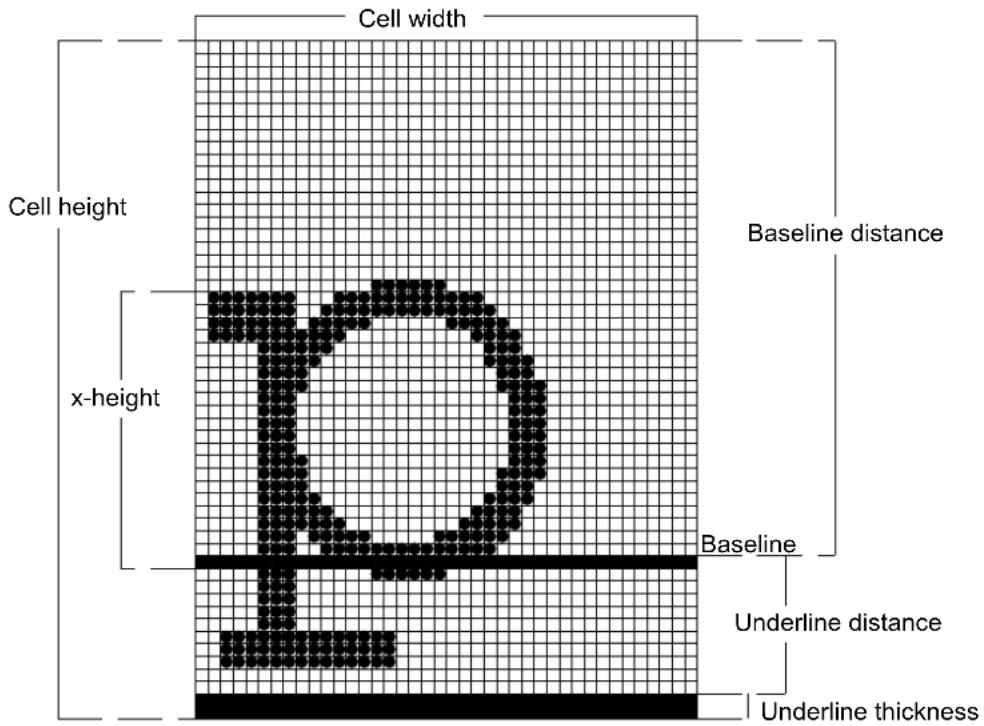
text_image
Cell width Cell height x-height Baseline distance Baseline Underline distance Underline thickness- The Font descriptor has information for the whole character set. When this font descriptor is sent to the printer with a font header to identify the font ID, the descriptor parameters become the basis of the downloaded fonts.
- The data format for each type of font descriptor block is shown below.
| Byte | 15 (MSB) 87 | (LSB) 0 |
| 0 | Font Descriptor Size (64) | |
| 2 | Descriptor Format (0) | Font vpc T |
| 4 | Style MSB Reserved | |
| 6 | Base Line Position | |
| 8 | Cell Width | |
| 10 | Cell Height | |
| 12 | Orientation S | pacing |
| 14 | Symbol Set | |
| 16 | Pitch (Default HMI) | |
| 18 | Height | |
| 20 | x-Height | |
| 22 | Width fpc | Style LSB |
| 24 | Stroke Weight | Typeface LSB |
| 26 | Typeface MSB Serif St | yle |
| 28 | Quality | Placement |
| 30 | Underline Distance Underline Hei | ght |
| 32 | Text Height | |
| 34 | Text Width | |
| 36 | First Code | |
| 38 | Last Code | |
| 40 | Pitch Extended Hei | ght Extended |
| 42 | Cap Height | |
| -47 | Font Numbe r | |
| -63 | Font Name | |
| 64 | Copyright (optional) | |
| Byte | 15 (MSB) 87 | (LSB) 0 |
| 0 | Font Descriptor Size (68) | |
| 2 | Descriptor Format (20) | Font vpe T |
| 4 | Style MSB Reserved | |
| 6 | Base Line Position | |
| 8 | Cell Width | |
| 10 | Cell Height | |
| 12 | Orientation S | pacing |
| 14 | Symbol Set | |
| 16 | Pitch (Default HMI) | |
| 18 | Height | |
| 20 | x-Height | |
| 22 | Width fpc | Style LSB |
| 24 | Stroke Weht | Typeface LSB |
| 26 | Typeface MSB Serif St | yle |
| 28 | Quality | Placement |
| 30 | Underline Distance Underline Hei | ght |
| 32 | Text Heht | |
| 34 | Text Width | |
| 36 | First Code | |
| 38 | Last Code | |
| 40 | Pitch Extended Hei | ght Extended |
| 42 | Cap Height | |
| -47 | Font Numbe r | |
| -63 | Font Name | |
| 64 | X Resolution | |
| 66 | Y Resolution X=Y: 300 or 600 | |
| n | Copyright (Optional) | |
| Byte | 15 (MSB) 87 | (LSB) 0 |
| 0 | Font Descriptor Size (>80) | |
| 2 | Descriptor Format (10) | Font ype T |
| 4 | Style MSB Reserved | |
| 6 | Base Line Position | |
| 8 | Cell Width | |
| 10 | Cell Height | |
| 12 | Orientation S | pacing |
| 14 | Symbol Set | |
| 16 | Pitch (Default HMI) | |
| 18 | Height | |
| 20 | x-Height | |
| 22 | Width Ypc | Style LSB |
| 24 | Stroke Weight | Typeface LSB |
| 26 | Typeface MSB Serif St | yle |
| 28 | Quality | Placement |
| 30 | Underline Distance Underline Hei | ght |
| 32 | Text Height | |
| 34 | Text Width | |
| 36 | First Code | |
| 38 | Last Code | |
| 40 | Pitch Extended Hei | ght Extended |
| 42 | Cap Height | |
| 44 - 47 | Font Numbe r | |
| 48 - 63 | Font Name | |
| 64 | Scale Facto | |
| 66 | Master X Resolution | |
| 68 | Master Y Resolution | |
| 70 | Master Underline Position | |
| 72 | Master Underline Thickness (Height) | |
| 74 | OR Threshold | |
| 76 | Global Italic Angle | |
| Desc. size | Global Intellifont Data Size | |
| 80 | Global Intellifont Data | |
| n | Copyright (optional) | |
| Reserved Checksu | m | |
| Byte | 15 (MSB) 8 7 | (LSB) 0 |
| 0 | Font Descriptor Size (<88) | |
| 2 | Descriptor Format (11) Font Type | (10) |
| 4 | Style MSB Reserved | |
| 6 | Base Line Position | |
| 8 | Cell Width | |
| 10 | Cell Height | |
| 12 | Orientation Spacing | |
| 14 | Symbol Set | |
| 16 | Pitch (Default HMI) | |
| 18 | Height | |
| 20 | x-Height | |
| 22 | Width Type Style LSB | |
| 24 | Stroke Weight Typeface LSB | |
| 26 | Typeface MSB | Serif Style |
| 28 | Quality | Placement |
| 30 | Underline Distance | Underline Thickness |
| 32 | Text Height | |
| 34 | Text Width | |
| 36 | Reserved | |
| 38 | Number of Contours (Characters) | |
| 40 | Pitch Extended | Height Extended |
| 42 | Cap Height | |
| 44 - 47 | Font Number | |
| 48 - 63 | Font Name | |
| 64 | Scale Factor | |
| 66 | Master X Resolution | |
| 68 | Master Y Resolution | |
| 70 | Master Underline Position | |
| 72 | Master Underline Thickness | |
| 74 | OR Threshold | |
| 76 | Global Italic Angle | |
| 78-85 | Character Complement | |
| Desc. Size - 2 | Global Intellifont Data size | |
| Desc. size n | Global Intellifont Data | |
| Copyright (optional) | ||
| Reserved | Checksum | |
| Byte | 15 (MSB) 8 7 | (LSB) 0 |
| 0 | Font Descriptor Size (>72) | |
| 2 | Descriptor Format (15) Font Type | |
| 4 | Style MSB Reserved | |
| 6 | Base Line Position | |
| 8 | Cell Width | |
| 10 | Cell Height | |
| 12 | Orientation Spacing | |
| 14 | Symbol Set | |
| 16 | Pitch (Default HMI) | |
| 18 | Height | |
| 20 | x-Height | |
| 22 | Width Type Style LSB | |
| 24 | Stroke Weight Typeface LSB | |
| 26 | Typeface MSB | Serif Style |
| 28 | Quality | Placement |
| 30 | Underline Distance | Underline Thickness |
| 32 | Text Height | |
| 34 | Text Width | |
| 36 | First Code | |
| 38 | Last Code / Number of characters | |
| 40 | Pitch Extended | Height Extended |
| 42 | Cap Height | |
| 44 - 47 | Font Number | |
| 48 - 63 | Font Name | |
| 64 | Scale Factor | |
| 66 | Master Underline position | |
| 68 | Master Underline Thickness | |
| 70 | Font Scaling Technology | Variety |
| 72 | [ additional data may be inserted here ] | |
| Desc. size | Segmented Font data | |
| # - 2 | Reserved | Checksum |
- Attributes are in one of six numerical formats.
Unsigned integer (UI) 0 to 65535
Unsigned long integer (ULI) 0 to 2^32 - 1
Signed integer (SI) -32768 to 32767
Unsigned byte (UB) 0 to 255
Signed byte (SB) -128 to 127
Boolean 0 or 1
- Font descriptor size (UI) - the size in bytes of the font descriptor block. Minimum size values for each font type are shown in the above figure.
- Descriptor format (UB) - format type of the font.
| 0 | Bitmap font |
| 10 | Intellifont bound scalable font |
| 11 | Intellifont unbound scalable font |
| 15 | TrueType bound scalable font |
| 20 | Special bitmap font |
• Font type (UB) - specifies type of symbol set.
0 Bound font. A 7-bit font with character codes 20H to 7FH acceptable.
1 Bound font. An 8-bit font with character codes 20H to 7FH and 80H to FFH acceptable.
2 Bound font. 8-bit all character codes are printable. However, 00H, 07H to 0FH and 1BH are printable only when the data is defined as transparent print data.
10 Unbound font. Character codes corresponding to MSL numbers are acceptable.
11 Unbound font. Character codes corresponding to Unicode numbers are acceptable.
When a 7-bit font or 8-bit font is selected, it is possible for codes 00H to FFH to load characters or delete them. It is also possible to print the characters if they are defined as transparent print data.
- Style MSB (UW) - combined with the Style LSB to make the style word. The value of the style word is calculated as follows: style word = posture + (4 width) + (32 structure).
| Value | Posture | |
| 0 | Upright | |
| 1 | Italic | |
| 2 | Alternate | Italic |
| 3 | Reserved | |
| Value | Width | |
| 0 | Normal | |
| 1 | Condensed | |
| 2 | Compressed or Extra Condensed | |
| 3 | Extra | compressed |
| 4 | Ultra | compressed |
| 5 | Reserved | |
| 6 | Extended or Expanded | |
| 7 | Extra Extended or Extra Expanded | |
| Value | Structure |
| 0 | Solid |
| 1 | Outline |
| 2 | In-line |
| 3 | Contour |
| 4 | Solid with Shadow |
| 5 | Outline with Shadow |
| 6 | Inline with Shadow |
| 7 | Contour with Shadow |
| 8-11 | Patterned (Complex patterns, subject to type family) |
| 12-15 | Patterned with Shadow |
| 16 | Inverse |
| 17 | Inverse in Open Border |
| 18-30 | Reserved |
| 31 | Unknown structure |
The reserved bits should be set to Zero.
- Baseline position (UI) -
Bitmap font - the height in dots from the top of the character cell to the baseline. The units of dots is the same as the defined font resolution. This number can be in the range 0 to (cell height - 1).
Intellifont scalable - a Y coordinate in the design cell.
TrueType scalable - the height in dots from the top of the character cell to the baseline. This should be set to 0.
- Cell width (UI) - ignored by these printers. The width in dots of the character cell. This can be from 1 to 65535.
- Cell height (UI) - ignored by these printers. The height in dots of the character cell. This can be from 1 to 65535.
- Orientation (UB) - 0(portrait), 1(landscape), 2(reverse portrait) or 3(reverse landscape). Ignored by these printers.
- Spacing (B) - the type of spacing, 0 (fixed pitch) or 1 (proportional spacing).
- Symbol set (UI) - a symbol set ID consists of a number and a letter. The symbol set attribute value is calculated as follows: symbol set = (32 x number) + (ASCII value of letter - 64). For example, Math-8 has the symbol set ID '8M' so it would be encoded as (32 x 8) + (77 - 64) = 269.
| Symbol set name Symbol set ID Symbol set name Symbol set ID | |||
| Default Set | 0@ Math-7 0A | ||
| Line Draw-7 0B HP Lar | ge Characters (264x Terminals) | 0C | |
| ISO 60: Danish/Norwegian 0D ISO 61: Norwe | gian version 2 1D | ||
| Roman Extensions 0E ISO 4: United Kin | gdom | 1E | |
| ISO 25: French 0F ISO 69: French 1F | |||
| HP German 0G ISO 21: German | 1G | ||
| Greek-8 | 8G | Hebrew-7 | |
| Hebrew-8 | 8H ISO 15: Italian | 0I | |
| Microsoft Publishing | 6J DeskTop | 7J | |
| Document | 8J PS Text | 10J | |
| Ventura International | 13J Ventura US | 14J | |
| ISO 14: JIS ASCII | 0K ISO 13: Katakana | 1K | |
| ISO 57: Chinese | 2K Kana-8 8K | ||
| Korean-8 | 9K (Same as 0B)Line Draw-7 | 0L | |
| HP Block Characters | 1L Tax Line Draw | 2L | |
| Line Draw-8 8L Math-7 | (Same as 0A) | 0M | |
| Tech-7 | 1M PS Math | 5M | |
| Ventura Math | 6M Math-8 | 8M | |
| ECMA-94 Latin 1 (ISO 8859/1) | 0N ECMA-94 Latin 2 (ISO 8859/2) | 2N | |
| ECMA-128 Latin 5 (ISO 8859/9) | 5N ECMA-113/88 Latin/Gillic | 10N | |
| OCR A | 0O OCR B | 1O | |
| OCR M | 2O APL (Typewriter Paired) | 0P | |
| APL (Bit Paired) | 1P Specials | xQ | |
| Cyrillic ASCII (ECMA-113/86, | 0R yriklic | 1R | |
| PC Cyrillic | 3R ISO 11: Swedish for Names | 0S | |
| HP Spanish | 1S ISO 17: S panish | 2S | |
| ISO 10: Swedish | 3S ISO 16: Portu guese | 4S | |
| ISO 84: Portuguese | 5S ISO 85: S panish | 6S | |
| HP European Spanish | 7S HP Latin S panish | 8S | |
| HP-GL Download | 16S HP-GL Drafting | 17S | |
| HP-GL Special Symbols | 18S Turkish-8 | 8T | |
| Thai-8 | 0T ISO 6: ASCII | 0U | |
| Legal | 1U ISO 2: Interna tional Reference Version | 2U | |
| HP-GL Language Set | 5U OEM-1 | ||
| Roman-8 | 8U Windows | ||
| PC-8 | 10U PC-8 D/N (Danish/Norwegian) | 11U | |
| PC-850 | 12U PC-852 | 17U | |
| Pi Font | 15U Arabic (McKay's version) | 0V | |
| Arabic-8 | 8V 3 of 9 Barcode | 0Y | |
| Industrial 2 of 5 Barcode | 1Y Matrix 2 of 5 Barcode | 2Y | |
| Interleaved 2 of 5 Barcode | 4Y CODABAR Barcode | 5Y | |
| MSI/Plessey Barcode | 6Y Code 11 Barcode | 7Y | |
| UPC/EAN Barcode | 8Y USPS Zi p | 15Y | |
- Pitch (UI) - This value defines the default spacing for each point size in 1/4 dots. Combined with Pitch Extended to specify the pitch of the font in 1/1024 dots. This is available for fixed pitch font characters including the space character, and the space character of proportional spacing fonts.
For example, in case of a 17 cpi font (at 600 dpi),
$$ \frac {1 \text { inch }}{1 7 \text { chara. }} \times \frac {6 0 0 \mathrm{dpi}}{1 \text { inch }} \times \frac {4}{1} = 1 4 1. 1 7 6 4 6 $$
the value of Pitch (UI) should be 141.
The remainder of 0.17646 is calculated as pitch extended:
$$ \frac {0 . 1 7 6 4 6}{4} \times \frac {2 5 6}{1} = 4 5. 1 7 3 7 6 $$
the value for pitch extended is 45.
For Intellifont-scalable fonts only, the default HMI is calculated as follows.
Default HMI (in dots) = (300 x master design pitch x required point size) /
{Master x Resolution /(height
Default HMI (in dots) =
(300 x master design pitch x required point size) / {72.307 x scale factor}
Height (UI) - specifies the height of the font in 1/4 dots. Combined with Height Extended to specify the height of the font in 1/1024 dots. This value can be converted to the point size (1/72").
For example, in case of a 10 point font at 300 dpi,
$$ 1 0 \text { point } \times \frac {1}{7 2} \times \frac {3 0 0 \text { dots }}{1 \text { inch }} \times \frac {4}{1 \text { dots }} = 1 6 6. 6 6 7 $$
This value is normally set to 2000 for Intellifont and should be set to zero for TrueType fonts.
- x-height (UI) - ignored by the HL Series printers. This word specifies the height (for Bitmap fonts) or the distance from the baseline (for Scalable fonts) of a lower case 'x' in 1/4 dots.
- Width type (SB) - ignored by the HL Series printers. This byte specifies the font character width according to the table below.
| Value | Width | type |
| -5 | Ultra | compressed |
| -4 | Extra | compressed |
| -3 | Compressed or Extra condensed | |
| -2 | Condensed | |
| 0 | Normal | |
| 2 | Expanded | |
| 3 | Extra | expanded |
• Style LSB (UB) - see Style MSB.
- Stroke weight (SB) - valid values are from -7 to +7 . 0 denotes the normal (Roman) stroke width, -7 is the lightest possible stroke and 7 is the boldest.
| Value | Stroke | Weight |
| -7 | Ultra | thin |
| -6 | Extra | thin |
| -5 | Thin | |
| -4 | Extra | light |
| -3 | Light | |
| -2 | Demi | light |
| -1 | Semi | light |
| 0 Medium, Book, or Text | ||
| 1 | Semi | bold |
| 2 | Demi | bold |
| 3 | Bold | |
| 4 | Extra | bold |
| 5 | Black | |
| 6 | Extra | black |
| 7 | Ultra | black |
- Typeface family (UB) – the typeface. This word is made up of the Typeface MSB and the Typeface LSB and identifies the typeface by number.
Bits 0 to 11 specify the typeface family and bits 12 to 15 specify the vending company.
15 12 11 0
| Vendor | Typeface Family |
| Value | Vendor |
| 0 | Reserved |
| 1 | Agfa Division, Miles Inc. |
| 2 | Bitstream Inc. |
| 3 | Linotype Company |
| 4 | The Monotype Corporation plc |
| 5 | Adobe Systems Inc. |
The Typeface family number can be 0 to 4095. This value is calculated as follows;
(TrueType base value) + (Vendor value × 4096) = Typeface Family
- Serif style (UB) -
Bitmap font - ignored by these printers.
Scalable font - values for the lower 6 bits are ignored and values for the upper 2 bits indicates the serif style. Bit 6 indicates sans serif and bit 7 indicates serif. - Quality (UB) - ignored by these HL Series printers. This byte specifies the fonts quality according to the following table.
- Placement (SB) - ignored by these HL Series printers. This byte specifies the placement of characters relative to the baseline according to the following table.
• Underline distance (SB) -
Bitmap fonts - the distance in dots from the baseline to the underline. A positive value places the underline above the baseline, a negative value places it below the baseline. A value of 0 places it on the baseline. Scalable fonts - ignored by these printers. This value should be set to 0.
• Underline height (UB) - the height of underline itself.
Bitmap fonts - this value is fixed at 3 dots.
Scalable fonts - ignored by these printers. This value should be set to 0.
• Text height (UI) - ignored by these HL Series printers.
This word specifies the spacing between successive lines of text in 1/4 dots for bitmap fonts and in design units for scalable fonts. This is normally about 1.2 times the fonts height.
• Text width (UI) - ignored by these HL Series printers.
This word specifies the average width of the fonts lowercase characters in 1/4 dots for bitmap fonts and in design units for scalable fonts. - First code (UI) - ignored by these printers. This word specifies the character code of the first (lowest numbered) printable character in the font.
- Last code (UI) - specifies the character code of the last (highest numbered) character in the font. If this value is less than 255, it is recognized as 00FFH.
- Pitch extended (UB) - the fractional part of the character pitch. For a 17 cpi font the bytes value would be calculated as follows:
- 1200/17 = 70.588 The Pitch byte takes the value 70.
- Pitch Extended = 0.588 x 256 = 150 (rounded down).
(According to HP's manual, this should be set to 0.) This printer ignores the value for scalable fonts. - Height extended (UB) - the fractional part of the height of the font. For a 10 point font the bytes value would be calculated as follows:
1200 x 10/72 = 166.667, the Height byte takes the value 166
Height Extended = 0.667 × 256 = 170 (rounded down).
Point size = (character height × 256 + extended character height) × 300 / (72 × 1024)
(According to HP's manual, this should be set to 0.) These printers ignore the value for scalable fonts. -
Cap height data (UI) - ignored by these HL Series printers. This word specifies for the font the distance between the baseline and the top of an unaccented capital letter (for example, 'H'), as a percentage of the font's em rule, '—'.
-
Font number (ULI) - ignored by these HL Series printers. This 4-byte field specifies the number assigned to the font by the vending company. The number is stored as a hexadecimal value in the lower three bytes, bytes 44, 45 and 46.
- Font name (16 bytes) - ignored by these HL Series printers. This 16-byte field can be used to specify a name for the font.
• X-Resolution (UI) - specifies the resolution in the X-scan direction.
This value can be 300 or 600 for bitmap fonts, and is normally set to 2540 for Intellifont scalable fonts. This is used for scaling the X-coordinates of font data to the required point size.
After scaling ( in dots ) =
(300 x the required point size x X-coordinate) / {72.307 x scale factor (8782)}
After scaling ( in dots ) =
(300 × the required point size × X-coordinate) / {Master X-resolution × (Height / 8)}
- Y-Resolution (UI) - specifies the resolution in the Y-scan direction.
This value should be set to 300 or 600 dpi for special bitmap fonts and is not available for Bitmap fonts and TrueType fonts.
This is normally set to 2540 for Intellifont -scalable fonts and is used for scaling the Y-coordinates of the font data to the required point size.
This value is calculated as:
After scaling (in dots) = (300 x the required point size x Y-coordinate) / (72.307 x scale factor (8782))
After scaling ( in dots ) = (300 x the required point size x Y-coordinate) /
{ M x (Height / 8) } s
- Scale Factor (UI) - specifies the number of design units per Em. This value can be the unit for the metrics of Intellifont / TrueType scalable fonts.
This is normally set to 8782 and is calculated for Intellifont as follows:
• Scale factor x 72.307 = resolution x height / 8
- This is normally set to 2048 for TrueType fonts.
- Master Underline position (UI) - Specifies the distance from the baseline to the top of the underline in design units and this is an alternative for "Underline Position (bit 30)" only for scalable fonts.
- Master Underline height (UI) - specifies the height of the underline itself in design units and this is an alternative for "Underline Thickness (bit 31)" only for scalable fonts.
- Font Scaling Technology (UB) - specifies the type of font scaling technology for any scalable fonts.
- Variety (UB) - only for TrueType fonts, this value should be set to 0.
- OR (LRE) Threshold (UI) - specifies the pixel size in design units. This is switched on between scaling the font and its rasterization.
- Global Italic Angle (SI) - specifies the italic angle as a tangent relative to the vertical. The value 0 makes upright fonts.
- Global Intellifont Data Size (UI) - indicates the size of the global Intellifont data block.
- Global Intellifont Data - includes the global intellifont data.
- Character Complement (Array of UB) - identifies the symbol set compatibility for unbound fonts used with the Character Requirement flag in the symbol set descriptor.
MSL Symbol Index
| Bit Field | Designated Use |
| 58 - 63 | Reserved for Latin fonts. |
| 55 - 57 | Reserved for Cyrillic fonts. |
| 52 - 54 | Reserved for Arabic fonts. |
| 50 - 51 | Reserved for Greek fonts. |
| 48 - 49 | Reserved for Hebrew fonts. |
| 3 - 47 | Miscellaneous uses (South Asian, Armenian, other alphabets, bar codes, OCR, Math, PC Semi-graphics, etc.) |
| 0 - 2 | Symbol Index field. 111 - MSL Symbol Index |
Unicode Symbol Index
| Bit Field | Designated Use |
| 32 - 63 | Miscellaneous uses (South Asian, Armenian, other alphabets, bar codes, OCR, Math, etc.) |
| 28 - 31 | Reserved for Latin fonts. |
| 22 - 27 | Reserved for platform / application variant fonts. |
| 3 - 21 | Reserved for Cyrillic, Arabic, Greek and Hebrew fonts. |
| 0 - 2 | Symbol Index field. 110 - Unicode Symbol Index |
MSL Symbol Index Character Complement bits
| Bit Field | Designated Use |
| 63 | 0 if font is compatible with standard Latin character sets (e.g., Roman-8, ISO 8859-1 Latin 1); otherwise set to 1. |
| 62 | 0 if font is compatible with East European Latin character sets (e.g., ISO 8859-2 Latin 2); otherwise set to 1. |
| 61 | 0 if font contains Turkish character sets (e.g., ISO 8859/9 Latin 5); otherwise set to 1. |
| 34 | 0 if font has access to the math characters of the Math-8, PS Math and Ventura Math character sets; otherwise set to 1. |
| 33 | 0 if font has access to the semi-graphic character of the PC-8, PC-850, etc. character sets; otherwise set to 1. |
| 32 | 0 if font is compatible with ITC Zapf Dingbats series 100, 200, etc.; otherwise set to 1. |
| 2,1,0 | 111 if font is arranged in MSL symbol Index order. |
5.4.3. Unicode symbol index character complement bits
| Bit Field | Designated Use |
| 31 | 0 if font is compatible with 7-bit ASCII; otherwise set to 1. |
| 30 | 0 if font is compatible with ISO 8859/1 Latin 1 (West Europe) character sets; otherwise set to 1. |
| 29 | 0 if font is compatible with ISO 8859/2 Latin 2 (East Europe) character sets; otherwise set to 1. |
| 28 | 0 if font is compatible with Latin 5 (Turkish) character sets (e.g., ISO 8859/9 Latin 5, PC-Turkish); otherwise set to 1. |
| 27 | 0 if font is compatible with Desktop Publishing character sets (e.g., Windows 3.1 Latin 1, DeskTop, MC Text); otherwise set to 1. |
| 26 | 0 if font is compatible with character sets requiring a wider selection of accents (e.g., MC Text, ISO 8859/1 Latin 1); otherwise set to 1. |
| 25 | 0 if font is compatible with traditional PCL character sets (e.g., Roman-8, Legal, ISO 4 United Kingdom); otherwise set to 1. |
| 24 | 0 if font is compatible with the Macintosh character set (MS Text); otherwise set to 1. |
| 23 | 0 if font is compatible with PostScript Standard Encoding (PS Text); otherwise set to 1. |
| 22 | 0 if font is compatible with Code Pages (e.g., PC-8, PC-850, PC-Turk, etc.); otherwise set to 1. |
| 2,1,0 | 110 if font is arranged in Unicode Symbol Index order. |
- Checksum - This should be set to a value which, when added to the contents of the 64 bytes of this font descriptor data produces a total of 0.
- Descriptor size - segmented font data.
| MSB15 8 | LSB7 0 | ||
| x | |||
| x + 2 | |||
| x + 4 | |||
| x + 4 + 1st seg.size | First segment, segment identifier | ||
| First segment, Segment size | |||
| First segment, Data segment | |||
| Second segment, segment identifier, Size, Data segment | |||
| | | |||
| # - 6 | Null segment identifier | ||
| # - 4 | Null segment size | ||
| # - 2 | Reserved Checksum | ||
This segment follows just after the font header for TrueType. Each segment is divided into segment identifier, segment size and data segment parts.
*Segment Identifier (UI) -
Each item in the data segment part has an identification number.
| Value | Mnemonic | Data Segment |
| 17219 | CC | Character Complement |
| 17232 | CP | Copyright |
| 18260 | GT | Global TrueType Data |
| 20545 | PA | Panose Description |
| 22618 | XW | X windows font name |
| 65535 | Null Segment |
*Segment Size (UI) - indicates the size of each item in the data segment.
*Data segment -
AP - Application support segment (reserved)
CC - Character Complement
Function and form are as same as character complement flag in the font descriptor. This is only for unbound fonts.
CP - Copyright
Value should be ASCII data.
GI - Global Intellifont data (reserved)
GT - Global TrueType Data
This segment consists of a table directory and several tables for the TrueType font scaler.
The table directory consists of a 12-byte header and 16 bytes pen entry.
IF - Intellifont Face Data (Reserved)
PA - PANOSE Descriptor
This data segment is used for font selection and substitution.
PF - PS-compatible font name (Reserved)
XW - X-Windows font name
5.4.4. Sending a character code
Esc*c#E (character code) (27) (42) (99) #(69)
<1Bh><2Ah><63h>#<45h>
- This command sends a character code for the bitmap font (MSL number for unbound fonts) to the printer. The font data must follow immediately.
-
is the character code. # can be from 0 to 65535. The specified character is defined by the data which follows the character code.
- Use this command also to designate a character for deletion from a font, using the command for deleting a character from a downloaded font.
5.4.5. Sending a character descriptor and data
Esc(s#W (character descriptor and character data)
(27) (40) (115) # (87)
<1Bh><28h><73h>#<57h>
- This command sends a character descriptor block and raster data describing the shape of the character to the printer.
-
is the total number of bytes (descriptor and data) which will follow this command and can be up to 32767. If you need to send more than 32767 bytes to describe a single character you must split it into blocks of 32767 bytes or less and send each block separately.
- The character header for the first block of data describing a character is in the following format.
[Bitmap font]
Byte Data
| 0 - 1 | Format | Continuation |
| 2 - 3 | Descriptor size | Class |
| 4 - 5 | Orientation | Reserved |
| 6 - 7 | Left offset | |
| 8 - 9 | Top offset | |
| 0 - 11 | Character width | |
| 2 - 13 | Character height | |
| 4 - 15 | Delta X | |
| 16 - | Raster Character Data | |
| Byte | Data | |
| 0-1 | Format Continuation | |
| 2 | Raster Character Data | |
- The bytes which follow the header are the raster data that make up the character.
- Attributes are in one of four numerical formats.
Unsigned integer (UI) 0 to 65535
Signed integer (SI) -32768 to 32767
Unsigned byte (UB) 0 to 255
Boolean - 0 or 1
- Format (UB) - 4 for bitmap fonts.
- Continuation (B) - signifies whether the character data represents a new character (0) or is a continuation of the character described by the previous character descriptor block and its data (non-zero). If the continuation byte is non-zero the bytes following it are interpreted as character data.
- Descriptor size (UB) - 14 for bitmap fonts.
- Class (UB) - 1 for bitmap fonts, 2 for compressed bitmap fonts. Bitmap fonts are described using uncompressed raster data. Compressed bitmap fonts character data is encoded as follows. The first byte of a line of data contains the number of times that the line is successively repeated. The second byte indicates the number of successive white pixels that start the line and the third byte indicates the number of successive black pixels that follow the white pixels. Subsequent even and odd numbered bytes indicate the number of successive white and black pixels respectively that make up the line. If there are more than 255 successive pixels of a single color this is indicated by a byte set to 255 followed by a byte set to 0 followed by a byte indicating the remaining number of pixels of that color. The width of each line is determined by the character width attribute. All rows must contain the same number of pixels. The total number of pixels on each row must equal the character width attribute.
- Orientation (UB) - the orientation of the character. 0 = portrait, 1 = landscape, 2 = reverse portrait or 3 = reverse landscape. This attribute setting must match the orientation specified in the font descriptor block.
- Left offset (SI) - the distance between the character reference point and the leftmost dot of the character on the grid. The offset can be from -16384 to 16383.
- Top offset (SI) - the distance between the character reference point and the topmost dot of the character on the grid. The offset can be from -16384 to 16383.
- Character width (UI) - the width of the download character in grid dots. This can be in the range 1 to 16384.
- Character height (UI) - the height of the download character in grid dots. This can be in the range 1 to 16384.
- Delta X (UI) - the horizontal distance from the bottom left hand corner of the character's grid that the cursor is moved after the character is printed. The attribute is specified in units of 1/1200" and can be in the range -32768 to 32767.
[Intellifont scalable font data]
| Byte | Data | |
| 0-1 | Format Continuation | |
| 2 - 3 | Descriptor size Class | |
| 4 - 5 | Contour Character data | |
| t data | Reserved Checksum | |
| 4 | Contour Data size |
| 6 | Metric data offset |
| 8 | Character Intellifont data offset |
| 10 | Contour tree offset |
| 12 | XY data offset |
| 14 | |
| Metric data | |
| Character Intellifont Data | |
| Contour tree data | |
| XY coordinate data |
| 0-1 | Format | Continuation |
| 2 - 3 | Continuous contour character data | |
| Last | Reserved | Checksum |
| 0-1 | Format | Continuation |
| 2 - 3 | Descriptor size | Class |
| 4 - 5 | Compound character escarpment | |
| 6 - 7 | piled character number | ignore |
| 8 - ... | piled character list ( 6 byte x characters ) | |
| Last | Reserved | checksum |
- Format (UB) - specifies the character format.
| Value | Format |
| 4 | Bitmap font |
| 10 | Intellifont-scalable font |
| 15 | TrueType scalable font |
- Continuation (B) - signifies whether the character data represents a new character (0) or is a continuation of the character described by the previous character descriptor block and its data (non-zero). If the continuation byte is non-zero the bytes following it are interpreted as character data.
- Descriptor size (UB) - specifies the character descriptor size in bytes.
• Class (UB). indicates the character format.
| Value | Class |
| 1 | Bitmap |
| 2 | Compressed Bitmap |
| 3 | Contour (Intellifont scalable) |
| 4 | Compound Contour (Intellifont scalable) |
| 15 | TrueType Scalable |
- Contour data size (UI) - specifies the contour data size.
- Metric Data offset (SI) - relative to the address of the contour data size field.
- Contour Tree Offset (SI) -relative to the address of the contour data size field.
- XY Data Offset (SI) -relative to the address of the contour data size field.
- Metric Data
• Character Intellifont Scalable Data - Contour Tree Data
- XY Coordinate Data
- Checksum - this value is placed at the end of the character data.
• Compound character escapement (SI) - Piled character number (UB)
- Piled character list - includes some piled characters. Each of them is 6 bytes.
[TrueType scalable font]
| Byte | Data | |
| 0-1 | Format (15) Continuation (0) | |
| 2 - 3 | Descriptor size Class (15) | |
| 4 ~ Additional descriptor size | ||
| 2 + Desc.size | Character Data Size | |
| 4 + Desc. size | Glyph ID | |
| 6 + Desc. size | TrueType Glyph Data | |
| 0-1 | Format (15) Continuation (0) | |
| 2 - 3 | Descriptor size Class (15) | |
| 4 ~ Additional descriptor size | ||
| 2 + Desc.size | Character Data Size | |
| 4 + Desc. size | Glyph ID | |
| 6 + Desc. size | beginning of TrueType Glyph Data | |
| 0-1 | Format (15) Continuation (1) | |
| TrueType Glyph Data | ||
| Last-2 | Reserved | Checksum |
- The character data follows these header bytes. Characters are represented as raster data and the data bytes are used to build up an image of the character from left to right and from top to bottom, according to the character width and height settings.
- Format (UB) - 15 specifies TrueType font.
- Continuation (B) - specifies whether the character data represents a new character (0) or is a continuation of the character described by the previous character descriptor block (non-zero). If the continuation byte is non-zero the bytes following it are interpreted as character data.
- Descriptor size (UB) - specifies the character descriptor size in bytes.
• Class (UB) - indicates the character format.
| V | a | l | u | e | C | l | a | s | s |
1 Bitmap
2 Compressed Bitmap
3 Contour (Intellifont scalable)
4 Compound Contour (Intellifont scalable)
15 TrueType scalable
- Character data size (UI) - should be the same value as (the character data size + Glyph ID + TrueType Glyph data) size.
- Glyph ID (UI) - specifies the ID number for glyph data, which is used by the TrueType font scaler.
- TrueType Glyph data - includes the data segment which is associated with the given character as found in the glyph table of the original TrueType font file.
- Checksum (UB) - should be a value which, when added to "Character data + Glyph ID + TrueType Glyph data" size, produces a zero result.
![BROTHER HL-L2376DW - [TrueType scalable font] - 1](/content/2026/06/1221164/images/f4d8d3f210820bc54ff177b850ac0035a82def9f59049fb3793d2df9be59f5f2.jpg)
text_image
Portrait character Paper motion Raster scan Top offset = 22 dots Character height = 31 dots Character reference point Left offset = 2 dots Delta X = 30 dots Baseline Cursor position after character has been printed Character width = 26 dots![BROTHER HL-L2376DW - [TrueType scalable font] - 2](/content/2026/06/1221164/images/042373e9fc7ff87bc2d8ea7dac90585a5c9825f832acd9e231faf6cea18c4d71.jpg)
text_image
Landscape character Paper motion Top offset = 27 dots Character height = 26 dots Raster scan Left offset = 22 dots Character width = 31 dots Baseline Cursor position after character has been printed Character reference point Delta X = 30 dots6. USING GRAPHICS
This HL Series printer affords the user considerable flexibility in the creation of graphic images. Vector, raster and rectangle graphics are available, all of which allow a range of shading and filling options. The HP-GL/2 graphics commands that are supported are described in the HP-GL/2 section of this manual.
6.1. Source, Pattern and Destination
We refer to a printing model in which a source image (the image to be drawn) is applied to a destination image (simply the graphics or text that already exist on the page). The source image consists of white space and non-white areas. The non-white areas are covered by a pattern of some description. The pattern may simply be solid black or it may itself consist of white and non-white areas, for example the pattern may consist of vertical spaced lines. You can specify the way in which the white and dark areas of the entire source image and the white and dark areas of the pattern interact with the destination image to produce the finished effect.
For example
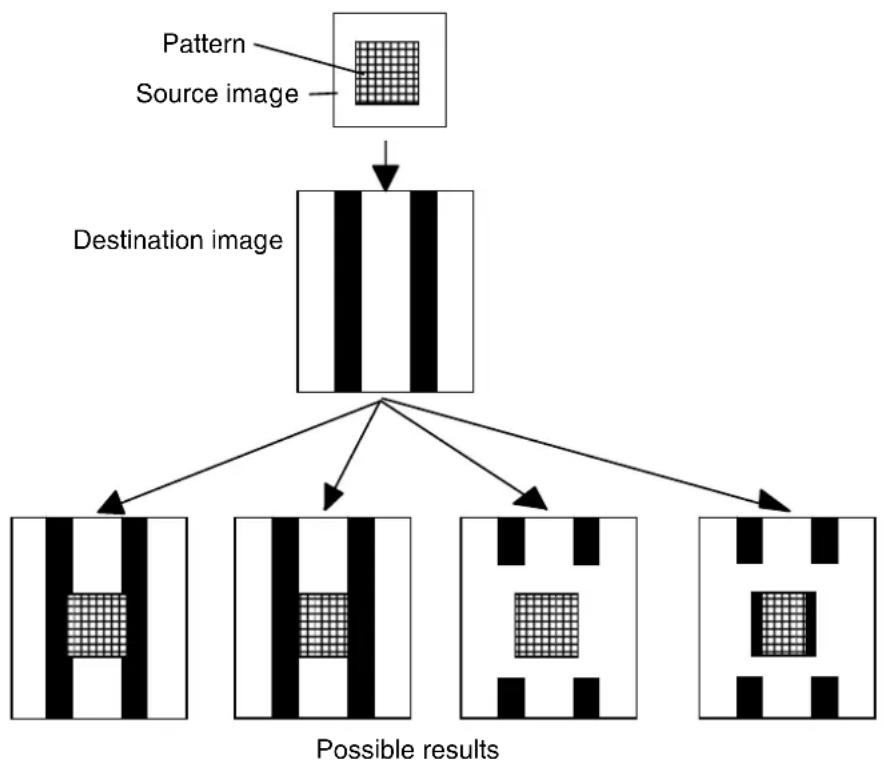
flowchart
graph TD
    A["Pattern Source image"] --> B["Destination image"]
    B --> C["Possible results"]
    B --> D["Patterned Image 1"]
    B --> E["Patterned Image 2"]
    B --> F["Patterned Image 3"]
    B --> G["Patterned Image 4"]
6.1.1. Set source transparency
Esc*v#N (27) (42) (118) #(78)
<1Bh><2Ah><76h>#<4Eh>
• This command sets the source image transparency.
- # is either 0 or 1. Set # to 0 to select transparent mode and to 1 to specify opaque mode.
- Transparent mode means that parts of the destination image will be visible through the white space areas of the source image when the source image has been printed on top of the destination image.
- Opaque mode means that parts of the destination image will not be visible through the white space areas of the source image when the source image has been printed on top of the destination image.
For example
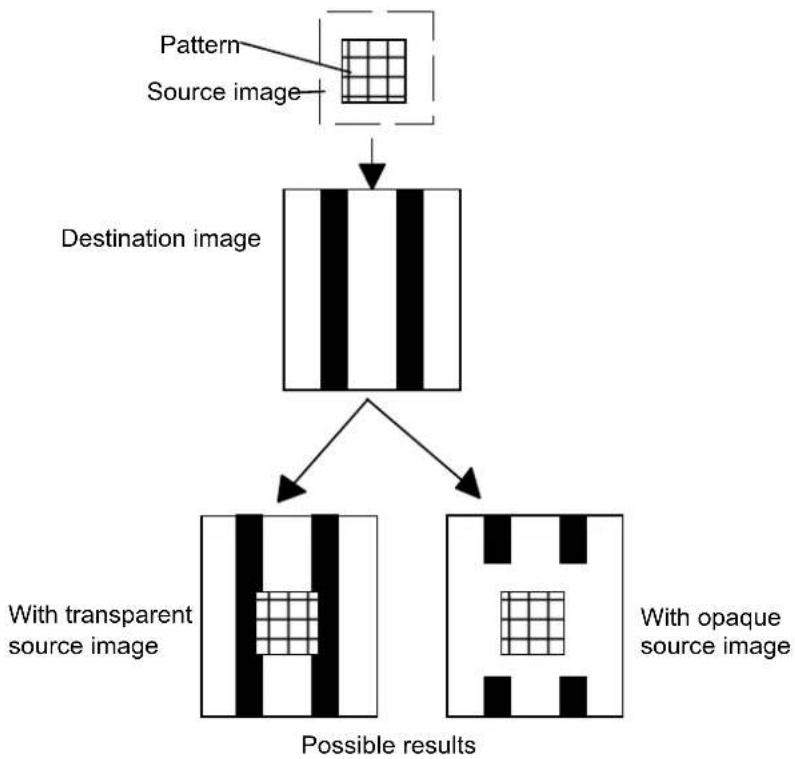
flowchart
graph TD
    A["Pattern Source image"] --> B["Destination image"]
    B --> C["With transparent source image"]
    B --> D["With opaque source image"]
    C --> E["Possible results"]
    D --> E
6.1.2. Set pattern transparency
Esc*v#O (27) (42) (118) #(79)
<1Bh><2Ah><76h>#<4Fh>
• This command sets the pattern transparency.
- # is either 0 or 1. Set # to 0 to select transparent mode and to 1 to specify opaque mode.
- Transparent mode means that parts of the destination image will be visible through the patterned areas of the source image when the source image has been printed on top of the destination image. If the pattern is a solid black fill obviously you will not be able to see any of the destination image through the patterned areas of the source image.
- Opaque mode means that the destination image will not be visible through the patterned areas of the source image when the source image has been printed on top of the destination image.
For example
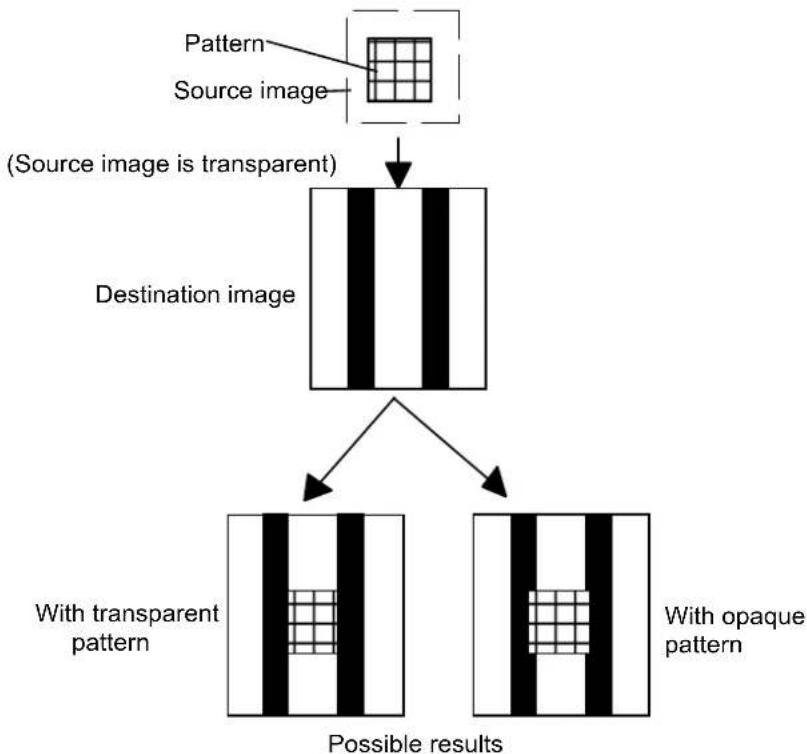
flowchart
graph TD
    A["Pattern"] --> B["(Source image is transparent)"]
    C["Source image"] --> B
    B --> D["Destination image"]
    D --> E["With transparent pattern"]
    D --> F["With opaque pattern"]
    E --> G["Possible results"]
    F --> G
6.1.3. Set area fill identity
Esc*c#G
(27) (42) (99) # (71)
<1Bh><2Ah><63h>#<47h>
- This command sets the pattern ID of a shading tone, a fill pattern or a user-defined pattern for subsequent selection with the Set Pattern Type command.
-
1 \~ 100 specify the percentage of a gray scale.
-
1 \~ 6 select a fill pattern.
-
1 \~ 32767 select a user-defined pattern.
- You can specify a gray scale tone from 1 to 100. To use the specified tone for shading you must then select one of the two gray scale pattern options with the Set Pattern Type command.
For example
Fill patterns
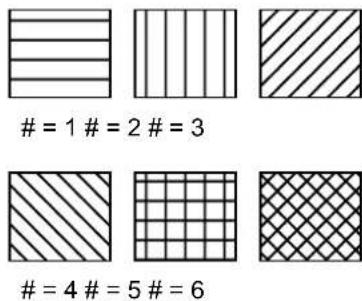
text_image
= 1 # = 2 # = 3
= 4 # = 5 # = 6
6.1.4. User-defined pattern command
Esc*c#W [ data ] (27) (42) (99) #(87) <1Bh><2Ah><63h>#<57h>
-
should be in the range 0 \~ 32767.
-
stands for the number of pattern data bytes.
- User defined patterns can be defined by binary data or an 8 byte pattern descriptor.
• The formats for the pattern descriptor are listed below.
MSB
| 0 - 1 | Format (0) Continuation (0) | |
| 2 - 3 | Pixel Encoding (1) Reserved (0) | |
| 4 - 5 | Height in Pixels | |
| 6 - 7 | Width in Pixels | |
| 8 - | Pattern Image | |
LSB
MSB
| 0 - 1 | Format (20) Continuation (0) | |
| 2 - 3 | Pixel Encoding (1) Reserved (0) | |
| 4 - 5 | Height in Pixels | |
| 6 - 7 | Width in Pixels | |
| 8 - 9 | X resolution | |
| 10 - 11 | Y resolution X=Y: 300 or 600 | |
| 12 - | Pattern Image | |
LSB
- A pattern which is defined at 600 dpi cannot be converted to one at 300 dpi.
- Format - set to 0 or 20.
- Continuation - set to 0.
- Pixel Encoding - set to 1.
• Height in Pixels - specifies the pattern height by the number of rows. - Width in Pixels - specifies the pattern width by the number of pixels.
- Pattern Image - consists of the raster data for the pattern.
• X resolution - specifies the resolution in the X scan direction. - Y resolution - specifies the resolution in the Y scan direction.
6.1.5. Set pattern reference point
Esc*p#R (27) (42) (112) #(82) <1Bh><2Ah><70h>#<52h>
- This command sets the pattern reference point to the current cursor position.
-
specifies whether the pattern rotates with the print direction or remains fixed.
- The Pattern reference point should be placed on a physical page and the base pattern is positioned at the pattern reference point for tiling.
6.1.6. User-defined pattern control
Esc*c#Q (27) (42) (99) #(81) <1Bh><2Ah><63h>#<51h>
-
= 0 deletes all (temporary and permanent) user-defined patterns from the printer memory.
-
= 1 deletes all temporary user-defined patterns from the printer memory.
-
= 2 deletes the pattern whose ID number was specified most recently.
-
= 4 saves the user-defined pattern as a temporary pattern whose ID number was specified most recently.
-
= 5 saves the user-defined pattern as a permanent pattern whose ID number was specified most recently.
6.1.7. Set pattern type
Esc*v#T (27) (42) (118) #(84) <1Bh><2Ah><76h>#<54h>
- This command selects the fill pattern (black, white, gray scale or cross-hatch pattern) for use with subsequent graphics operations.
-
is in the range 0 to 4 or 130.
-
= 0 selects solid black as the fill pattern.
-
= 1 selects white as the fill pattern (all source images will be completely white).
-
= 2 selects one of eight gray scales. Specify the gray scale you require as a percentage (0-100%) with the Set Area Fill Identity command.
-
= 3 selects the cross-hatch pattern you choose with the Set Area Fill Identity.
-
= 4 selects the user-defined pattern
-
= 130 selects one of the 64 gray scales. You can specify the gray scale you require as a percentage (0-100%) with the Set Area Fill Identity command. This feature is unique to these HL-Series printers.
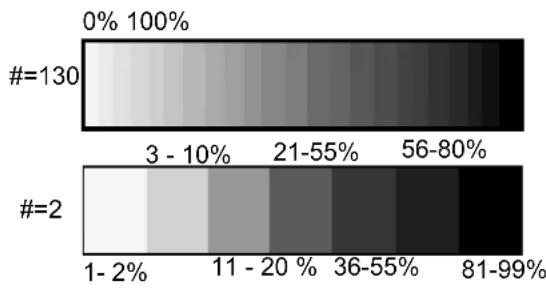
heatmap
| Group | 0% | 100% | | :--- | :--- | :--- | | #=130 | 0% | 100% | | #=2 | 1-2% | 81-99% | | #=2 | 11-20% | 36-55% | | #=2 | 21-55% | 56-80% | | #=2 | 56-80% | 81-99% | | #=2 | 81-99% | 36-55% | | #=2 | 11-20% | 11-20% | | #=2 | 36-55% | 36-55% | | #=2 | 56-80% | 56-80% | | #=2 | 81-99% | 81-99% |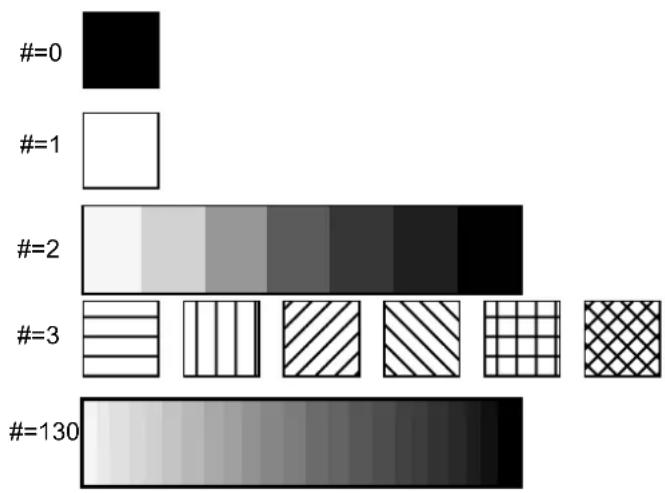
heatmap
| Value | Color Intensity | |---|---| | #=0 | Dark Black | | #=1 | White | | #=2 | Dark Grey | | #=3 | Striped White | | #=3 | Striped White | | #=3 | Crosshatch White | | #=3 | Crosshatch White | | #=130 | Dark Grey (approx) |• See the following example for programming examples using patterns.
Pattern example
10 WIDTH "LPT1:", 255
20 ESC= CHR(27)
30 REM --- RESET PRINTER ---
40 LPRINT ESC$; "E";
50 REM --- SET SOURCE=TRANSPARENT ---
60 REM --- SET PATTERN=OPAQUE ---
70 LPRINT ESC$; "*v0n10";
80 REM --- BACKGROUND ---
90 LPRINT ESC; "*c80G"; ESC; "*v2T";
100 LPRINT ESC; "*p100x100Y"; ESC; "*c1000a300b2P";
110 REM --- PATTERN ---
120 LPRINT ESC$; "*p150x300Y";
130 LPRINT ESC$; "(s1p48v0s0b4101T";
140 LPRINT ESC; "*c1G"; ESC; "*v3T"; : LPRINT "P";
150 LPRINT ESC; "*c2G"; ESC; "*v3T"; : LPRINT "A";
160 LPRINT ESC; "*c6G"; ESC; "*v3T"; : LPRINT "T";
170 LPRINT ESC; "*c4G"; ESC; "*v3T"; : LPRINT "T";
180 LPRINT ESC; "*c5G"; ESC; "*v3T"; : LPRINT "E";
190 LPRINT ESC; "*c3G"; ESC; "*v3T"; : LPRINT "R";
200 LPRINT ESC; "*c1G"; ESC; "*v3T"; : LPRINT "N";
210 REM --- PAPER EJECT ---
220 LPRINT CHR$(12);
230 END
<Sample file 6>
6.2. Plotting Rectangles
Drawing rectangles is a basic case of printing graphics: the source image consists solely of the rectangle itself. Thus only the pattern transparency has any bearing on the final effect - the source transparency is irrelevant.
6.2.1. Cursor position
Position the cursor using the commands described in the chapter entitled "The Page". You can use units, decipoints or rows and columns as coordinate units. Remember that the y-coordinate value goes up as the cursor moves down the logical page.
6.2.2. Set rectangle width
Esc*c#A (27) (42) (99) #(65) <1Bh><2Ah><63h>#<41h>
- This command sets the width of the rectangle to be printed in dots.
- # is the number of dots.
Esc*c#H (27) (42) (99) #(72) <1Bh><2Ah><63h>#<48h>
- This command sets the width of the rectangle to be printed in decipoints.
-
is the number of decipoints.
6.2.3. Set rectangle height
Esc*c#B (27) (42) (99) # (66) <1Bh><2Ah><63h>#<42h>
- This command sets the height of the rectangle to be printed in dots.
-
is the number of dots.
Esc*c#V (27) (42) (99) #(86) <1Bh><2Ah><63h>#<56h>
- This command sets the height of the rectangle to be printed in decipoints.
-
is the number of decipoints.
6.2.4. Draw filled rectangle
Esc*c#P (27) (42) (99) # (80) <1Bh><2Ah><63h>#<50h>
- This command fills a rectangular area with the specified shading option.
-
is 0 to 5 or 130.
- # = 0 uses solid black as the fill pattern.
- # = 1 uses white as the fill pattern.
-
= 2 selects the gray scale you chose with the Set Area Fill Identity command as the fill pattern.
-
= 3 selects the cross-hatch pattern you chose with the Set Area Fill Identity.
-
= 4 selects the user defined pattern, which is the ID number selected by the set Area Fill Identity.
-
= 5 uses the pattern specified by the combination of the most recent Set Area Fill Identity command and the most recent Set Pattern Type command.
-
= 130 selects one of the sixty-four gray scales. You can specify the gray scale you require as a percentage (0-100%) with the Set Area Fill Identity command. This feature is unique to these HL Series printers.
| # | Fill |
| 0 | Solid black |
| 1 | White |
| 2 | Gray scale (1 - 8) |
| 3 | Cross hatch pattern |
| 4 | User-defined pattern |
| 5 | Current pattern |
| 130 | Gray scale (1 - 64) |
• See the following example for programming examples using gray scales.
Gray scale example
10 ESC= CHR(27)
20 WIDTH "LPT1:", 255
30 REM --- DRAW A PATTERN USING 64 GRAY SCALES ---
40 X = 50: Y = 100: XL=50 :YL=200
50 FOR GRAY = 0 TO 100 STEP 2
60 GOSUB 220
70 X=GRAY*10+50 :XL=X-XL
80 GOSUB 260
90 XL=X
100 NEXT GRAY
110 REM --- DRAW A PATTERN USING 8 GRAY SCALES ---
120 Y=400
130 FOR GRAY = 0 TO 100 STEP 2
140 GOSUB 220
150 X=GRAY*10+50 :XL=X-XL
160 GOSUB 320
170 XL=X
180 NEXT GRAY
190 REM --- PAPER EJECT ---
200 LPRINT CHR$(12)
210 END
220 REM --- SET THE CURSOR POSITION ---
230 LPRINT ESC$; "*p"; X; "X";
240 LPRINT ESC$; "*p"; Y; "Y";
250 RETURN
260 REM --- PRINT 64-GRAY SCALE PATTERN ---
270 LPRINT ESC$; "*c"; XL; "A";
280 LPRINT ESC$; "*c"; YL; "B";
290 LPRINT ESC$; "*c"; GRAY; "G";
300 LPRINT ESC$; "*c130P";
310 RETURN
320 REM --- PRINT 8-GRAY SCALE PATTERN ---
330 LPRINT ESC$; "*c"; XL; "A";
340 LPRINT ESC$; "*c"; YL; "B";
350 LPRINT ESC$; "*c"; GRAY; "G";
360 LPRINT ESC$; "*c2P";
370 RETURN

<Sample file 7>
6.3. Raster Graphics
6.3.1. Positioning the cursor
Position the cursor using the commands described in the chapter entitled "The Page", using dots, decipoints or rows and columns as coordinate units.
6.3.2. Set raster resolution
Esc*t#R (27) (42) (116) #(82) <1Bh><2Ah><74h>#<52h>
- This command sets the raster image resolution in dots per inch.
-
is 75, 100, 150, 200, 300 or 600.
- The lower the resolution you specify, the less printer memory your raster image will occupy.
- Use this command before you issue a Begin Raster Graphics command, otherwise the resolution that you specify will not take effect until the next time you re-enter raster graphics mode.
6.3.3. Set high resolution control
EscCRRO (27) (13) (82) (79) <1Bh><0Dh><52h><4Fh>
• This command sets high resolution control off.
EscCRRL (27) (13) (82) (76) <1Bh><0Dh><52h><4Ch>
• This command sets high resolution control Light level.
EscCRRM (27) (13) (82) (77) <1Bh><0Dh><52h><4Dh>
• This command sets high resolution control Medium level.
EscCRRD (27) (13) (82) (68) <1Bh><0Dh><52h><44h>
• This command sets high resolution control Dark level.
6.3.4. Set raster image orientation
Esc*r#F (27) (42) (114) #(70) <1Bh><2Ah><72h>#<46h>
- This command specifies the orientation of the raster image.
-
is 0 or 3.
-
= 0 determines that the image will be printed from left to right and from top to bottom within the current logical page.
-
= 3 determines that the image will be printed from left to right and from top to bottom within the current physical page irrespective of logical page orientation. • The default value of # is 3.
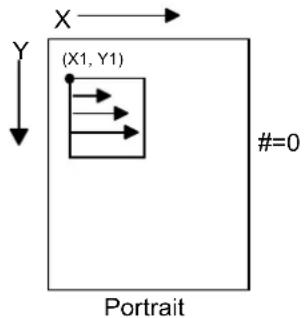
text_image
X Y (X1, Y1) #=0 Portrait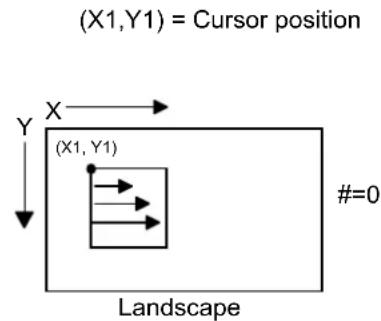
text_image
(X1,Y1) = Cursor position X → Y (X1,Y1) #=0 Landscape
text_image
Y (X1, Y1) #=3 Portrait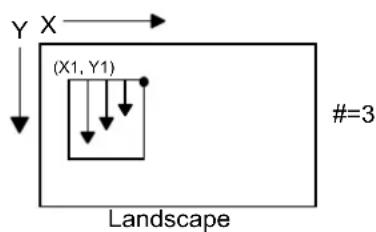
text_image
Y X → ↓ ↓ (X1, Y1) #=3 Landscape6.3.5. Set raster area height
Esc*r#T (27) (42) (114) #(84) <1Bh><2Ah><72h>#<54h>
- This command sets the height of the raster image to be printed.
-
is the number of raster rows.
- If you use this command after using a Start Raster Graphics or a Transfer Raster Data command, it does not take effect until after the next End Raster Graphics command.
6.3.6. Set raster area width
Esc*r#S (27) (42) (114) #(83) <1Bh><2Ah><72h>#<53h>
- This command sets the width of the raster image to be printed.
-
is the number of dots at the specified dots per inch resolution.
- If you use this command after using a Start Raster Graphics or a Transfer Raster Data command, it does not take effect until after the next End Raster Graphics command.
6.3.7. Set raster y-offset
Esc*b#Y (27) (42) (98) #(89) <1Bh><2Ah><62h>#<59h>
- This command sets the offset (number of blank rows to be skipped) for the raster image to be printed.
-
is the number of rows that are left blank at the top of the image.
-
must be in the range 0-32767.
- This command is only effective in raster graphics mode, that is, after a Start Raster Graphics mode command.
6.3.8. Set compression mode
Esc*b#M (27) (42) (98) # (77) <1Bh><2Ah><62h>#<4Dh>
Identifies the method of compression used to encode the raster image that is to be sent to the printer.
-
is 0, 1, 2, 3, 5, 9, 1152 or 1024.
- # = 0 signifies no compression is to be used.
-
= 1 indicates that run-length encoding is to be used. The raster data bytes are transmitted in pairs. The second byte of each pair specifies the raster output, the first byte specifies the number of times the second byte is successively repeated. A value of 0 for the first byte indicates a single occurrence of the second byte, a value of 1 indicates two consecutive occurrences of the second byte and so on.
-
= 2 indicates that TIFF (tagged image file format) encoding is to be used. In this format the data is transmitted in groups of bytes. The first byte of each group is a control byte and defines how the subsequent data byte or bytes should be interpreted, and how many data bytes there are before the next control byte. If the two's complement value of the control byte is in the range -1 to -127, the following byte is a repeated data byte. The number of successive occurrences of the data byte is given by the absolute value of the control byte plus one - that is, if the control byte is -6, the following data byte is repeated 7 times. If the value of the control byte is in the range 0-127 the bytes which follow arc unencoded raster data. The number of data bytes is given by the absolute value of the control byte plus one - that is, if the control byte is 9, the following ten bytes arc unencoded data. If a control byte has the two's complement value -128 it is ignored and the next byte is treated as a control byte.
- # = 3 indicates that delta row compression is to be used. In this method byte sequences identify how each raster row differs from the last row that was transmitted. The first byte identifies the number of consecutive bytes (the value of the most significant 3 bits plus 1) to be changed and the position in the line at which to start substituting the replacement bytes (the least significant 5 bits plus 1). Hence, if the command byte has a 3 in the top three bits and 10 in the bottom five bits, the 11th, 12th, 13th and 14th bytes of the last row will be replaced by the four data bytes that follow.
If the least significant 5 bits are all 1, the next byte is treated as a further offset value and its value is added to 32 to calculate the offset. If this byte in turn is all ones the next byte is also treated as a continuation byte and its value is added to the offset and so on until a byte whose value is not 255 is encountered.
This combination of command bytes and replacement bytes is used to specify all the differences between the last raster row sent (the seed row) and the new row to be transmitted. When the new row has been sent it becomes the new seed row.
- # = 5 indicates that adaptive compression is to be used.
This compression compresses multiple rows (a block) into one transfer graphics command.
Most other compression methods compress only one row to one transfer graphics command.
One transfer graphic command (ESC *b##W) can contain only up to 32,767 bytes.
As mode 5 compression compresses multiple rows, the amount of transferred data may become large.
If compressed data exceeds this limit, reduce the number of rows in the block.
We can use mode 0 to mode 3 compression to compress each row. We can even compress empty (white) rows and duplicate rows with these compression methods.
- Command byte
Mode 5 compressed data consists of multiple elements. Each element contains 3 header bytes at the beginning.
The first byte of the header bytes is a command byte.
| First byte Second, third byte | ||
| 0 | Unencoded | bytes of data |
| 1 Run-length Encoding Number of 2 | TIFF | |
| 3 Delta Row compression | ||
| 4 Empty Row Number of empty row or repetition | ||
| 5 Duplicate Row | ||
Command byte
0 - This element is an uncompressed row. The next two bytes contain the byte count of the uncompressed data. Uncompressed data follows the header.
1 - This element identifies a compressed row. Compression method is mode 1. The next two bytes (upper byte first) contain the byte count of the compressed data. Compressed data follows the header.
2 - This element identifies a compressed row. Compression method is mode 2. The next two bytes (upper byte first) contain the byte count of the compressed data. Compressed data follows the header
3 - This element identifies a compressed row. Compression method is mode 3. The next two bytes (upper byte first) contain the byte count of the compressed data. Compressed data follows the header
4 - This element identifies multiple empty rows. The next two bytes (upper byte first) contain the empty row count.
5 - This element identifies duplicate rows. The next two bytes (upper byte first) contain the duplicate row count.
- # = 9 Mode 9 compression
Like mode 3 compression, this mode 9 compression data contains only the difference of the current row from the preceding row.
Replacement data often consists of a repetition of a particular byte in mode 3 compression.
Mode 9 compression is effective in such cases.
Simple mode 9 compression data consists of a command byte and the replacement data.
A Command byte consists of 3 parts. These are the control bit, the offset count and the replacement count.
The Control bit is the most significant bit (bit 7) of a control byte.
Command byte for mode 9 compression (non repeated replacement data)
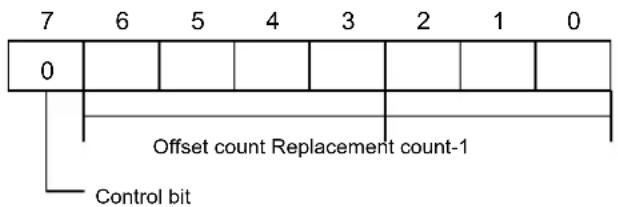
text_image
7 6 5 4 3 2 1 0 0 Offset count Replacement count-1 Control bitIf the control bit is 0, replacement data is not repeated data. Bits 6 to 3 contain the offset count. This field value is from 0 to 15. If this value is 15, the next byte of the control bytes is an optional offset count. The value of this optional offset count byte is from 0 to 255. If this optional offset count value is 255, then the next byte is another (second) optional offset count byte. Optional offset count bytes will continue until the value is less than 255. The total Offset value is the sum of the offset count in the control byte and all the optional offset bytes.
Bits 2 to 0 of the control byte contains the replacement count - 1. The value is from 0 to 7. If this value is 7, optional replacement byte(s) follow the control byte or optional offset byte(s) (if any).
If the first optional replacement count byte is 255, then a second optional count byte follows the first optional count byte. Optional offset count bytes will continue until the value becomes less than 255. The addition of the replacement count in the control byte and all optional replacement count bytes gives the total replacement count.
Replacement data bytes follow the control byte and any optional offset bytes and any optional replacement count bytes.
Seed row 55 55 55 55 55 55 55 55 55 55 55 55
Current row 55 55 55 55 55 11 11 22 33 44 55 66 77
Offset count = 5
Replacement count = 8
Replacement data = 11 11 22 33 44 55 66 77

text_image
7 6 5 4 3 2 1 0 0 0 1 0 1 1 1 1 Offset count = 5 Replacement count = 7 + 1 = 8 Optional offset count byte = 0 11 11 22 33 44 55 66 77 8 bytes of replacement dataCommand byte for mode 9 compression (repeated replacement data)
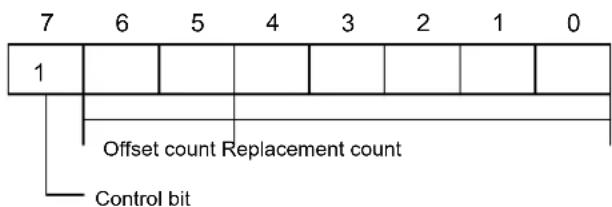
text_image
7 6 5 4 3 2 1 0 1 Offset count Replacement count Control bitIf the control bit is 1, replacement data is repeated data. Bits 6 to 5 contain the offset count and bits 4 to 0 contain the 'replacement count (repeat count) - 2'.
If bit 6 and bit 5 are '1', then an optional offset byte follows the control byte. If the value of this optional offset byte is 255, another (second) optional offset byte follows the first optional offset byte. The addition of the offset count in the control byte and any optional offset bytes gives the total offset count.
If bits 4 to 0 are all '1', an optional replacement count byte follows the control byte or any optional offset byte(s). If the first optional replacement count byte has a value of 255, a second optional replacement count byte follows the first optional replacement count byte. Optional replacement count bytes will continue until the value becomes less than 255.
Seed row 55 55 55 55 55 55 55 55 55 55 55 55 55
Current row 55 55 55 11 11 11 55 55 66 66 66 66 55
Offset count = 3
Replacement count = 3
Replacement data = 11
Offset count = 2
Replacement count = 4
Replacement data = 66
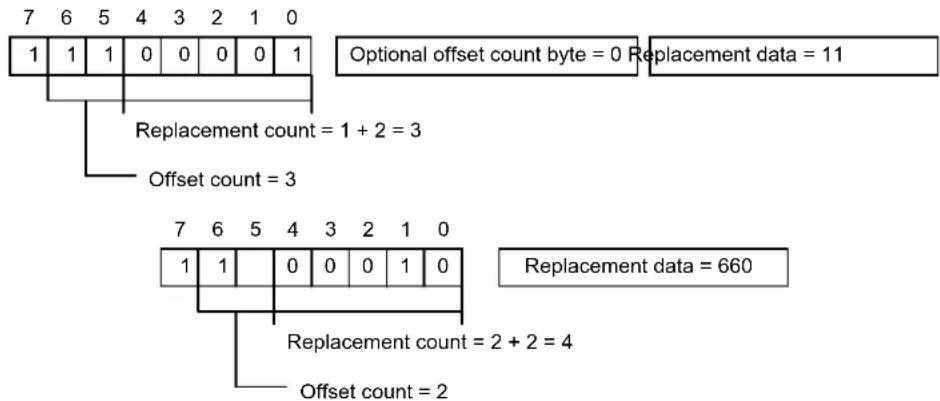
text_image
7 6 5 4 3 2 1 0 1 1 1 0 0 0 0 1 Optional offset count byte = 0 Replacement data = 11 Replacement count = 1 + 2 = 3 Offset count = 3 Replacement data = 660 Replacement count = 2 + 2 = 4 Offset count = 2- # = 1152 indicates that CCITT G3/G4 data compression is to be used.
This format is popular in optical document storage areas as this compression is effective to store black and white type pictures. As G3/G4 format does not have picture size/resolution information, the printer requires a header at the beginning of the picture data. The header size is 94 Bytes. Both the header and the picture data are transferred by the ESC*b###W(###=data length) command. The normal PCL transfer graphics data command has a limitation on the data size and ### should not exceed 32767. Unlike other modes, this mode is special and does not have the 32767 size limitation. The data must have the following structure - Header and Picture data. The values in this mode are little endians.

flowchart
graph TD
    A["Header"] --> B["Picture data"]
    C["94 bytes"] --> D["Picture data length"]
    E["File Length"] --> F["End"]
| Byte position | Data | Description |
| 0 - 1 | 6E 6E 'nn' This is header ID. | |
| 2 - 3 | 0A 00 Reserved | |
| 4 - 7 | 5E 00 00 00 Picture data start offset from header top | |
| 8 - 11 | File length File length including 94 Byte header. If file length is 65,536 byte, these 4 bytes become "00 00 01 00" | |
| 12 - 13 | 01 00 Reserved | |
| 14 - 15 | 01 00 Reserved | |
| 16 - 19 | 4A 00 00 00 Reserved | |
| 20 - 21 | Compression mode 02 00: Fax MH format03 00: Fax MR format04 00: Fax G4 format | |
| 22 - 55 | 00 ... 00 All zero | |
| 56 - 59 | Picture data length If picture data length is 65,442 (65,536 ~-94) byte, these 4 bytes become "A2 FF 00 00." | |
| 60 - 61 | 01 00 bit / pixel | |
| 62 - 63 | 01 00 bit / pixel | |
| 64 - 65 | Pixels/line If picture dot width = 2,400, these 2 bytes become "60 09" | |
| 66 - 67 | Pixels/line Same as above. | |
| 68 - 69 | Lines/picture If picture dot count = 3,100, these 2 bytes become "1C 0C." | |
| 71 - 71 | Lines/picture Same as above. | |
| 72 - 73 | 00 00 Reserved | |
| 74 - 75 | Photometrics 00 00 or 01 00 | 00 00 : data 0 = white01 00 : data 0 = black |
| 76 - 77 | 02 00 Reserved | |
| 78 - 79 | Fill order 01 00 or 02 00 | 01 00 : filled from MSB02 00 : filled from LSB |
| 80 - 81 | 01 00 Reserved | |
| 82 - 83 | 00 00 Reserved | |
| 84 - 85 | 01 00 Reserved | |
| 86 - 87 | Resolution 200,300, 400, 600 | C8 00 00 00 : 200 dpi, 2C 01 00 00 : 300 dpi,90 01 00 00 : 400 dpi, 58 02 00 00 : 600 dpi400 and 600 dpi are available when the printer operates in 600 dpi mode. |
| 88 - 89 | Resolution 200,300, 400, 600 | C8 00 00 00 : 200 dpi, 2C 01 00 00 : 300 dpi,90 01 00 00 : 400 dpi, 58 02 00 00 : 600 dpi400 and 500 dpi are available when the printer operates in 600 dpi mode. |
| 90 - 91 | 02 00 Reserved | |
| 92 - 93 | 00 00 Reserved | |
For further information about the CCITT G3/G4 data format, please refer to CCITT (The International Telegraph and Telephone Consultative Committee) BLUE BOOK Volume VII.
- # = 1024 indicates TIFF format. This is valid only for 600 dpi data. The raster graphics data is transferred with the ESC*b###W (### = data length) command. The TIFF file follows this mode set command. This printer does not support LZW compression. Pages that contain TIFF data are printed in gray scale mode. The TIFF data contains the header, tag and print data.
This mode supports TIFF Version 5.0 file format. In this mode, the transfer graphics data count does not have a limitation of 32,767 bytes. This printer supports both "MM" (big endian) format and "II" (little endian) format. The Print model is not applied to this type of data transfer. The printer has some limitations on the TIFF format as follows:-
-
Tag position has to be prior to the picture (strip) data.
-
Compression tag - Tag ID : 259
The printer supports 1, 2, 3, 4 and 32773.
1 : no compression (Bits/Sample=1,4,8)
2 : CCITT G3 MH (Bits/Sample=1)
3 : CCITT G3 MR (Bits/Sample=1)
4 : CCITT G4 (Bits/Sample=1)
32773 : Pack Bits (Bits/Sample=1)
- Sample/pixel - Tag ID : 277
This value should be 1. This means the printer accepts only monochrome TIFF files.
- Bits/Sample - Tag ID: 258
The printer supports 1,4 and 8.
If you specify 4 or 8 and the printer resolution is 600 dpi, the printer prints the page using APT.
- Horizontal resolution (Tag ID=282) and Vertical resolution (Tag ID=283)
| Compression type | Bits/Sample Available Resolution APT | ||
| No Compression 4 | 8 From 1 dpi to 300 dpi ON | ||
| No Compression Pack Bit | 1 | Printer's Resolution (300 or 600 dpi) | OFF |
| CCITT G3 & G4 1 | 200,300,400,600 dpi400 & 600 dpi arc only available when the printer operates in 600 dpi mode. | OFF | |
We recommend 150 dpi or less resolution for APT to reduce data size.
- # = 1025 indicates the Brother original Compression Method.
- # = 1026 indicates the Brother Advanced Data Transfer Mode.
6.3.9. Start raster transfer
Esc*r#A (27) (42) (114) #(65) <1Bh><2Ah><72h>#<41h>
- This command signals the start of the transfer of a raster image to the printer.
-
is 0 or 1.
-
= 0 denotes that the image will be printed starting from the left edge of the logical page.
-
= 1 denotes that the image will be printed starting from the current cursor position.
- The transfer of raster data to the printer continues until either an End Raster Transfer command is sent or a command other than Send Raster Data, Set Compression Mode or Set Raster Y-Offset is sent.
- This command sends a single row of the raster image to the printer for printing.
-
signifies the number of bytes to be sent.
- If more data is transmitted than can be fitted onto one row of the specified raster area, the excess data will be ignored.
6.3.11. Compress transfer graphics
Esc*b#C
- As a more efficient alternative to the Send Raster Data command, this command sends a single row of the raster image to the printer for printing in a compressed form.
-
signifies the number of data bytes that the uncompressed row consisted of.
- Pairs of bytes describe the data which follows.
- If the MSB of the first byte of a pair is 1, the byte that follows the pair is repeated. The number held in the remaining fifteen bits of the byte pair is the number of times the data byte is repeated.
- If the MSB of the first byte of the pair is 0, the bytes that follow the pair are not repeated. The number held in the remaining fifteen bits of the byte pair is the number of bytes of unrepeated raster data that follow.
- A raster row is made up of a sequence of byte pair-image data combinations.
6.3.12. End raster transfer
Esc*rB (27) (42) (114) (66) <1Bh><2Ah><72h><42h>
- This command signals the end of a transfer of a raster image to the printer.
- After execution of this command the cursor is positioned a distance of one raster row (at the last specified number of dots per inch) down from the bottom of the raster area.
Esc*rC (27) (42) (114) (67) <1Bh><2Ah><72h><43h>
- This command signifies the end of the raster graphic data transfer and this is a modified version of the ESC *rB command.
- After receiving this command, the printer resets the compression seed, compression mode and left-graphics margin to 0.
- Also, the cursor is positioned a distance of one raster row (at the last specified number of dots per inch) down from the bottom of the raster data.
- This command resets the compression mode setting to 0.
- This command defaults the left graphics margin to 0.
Raster graphics example
10 REM ***** A EXAMPLE OF RASTER GRAPHICS *****
20 ESC=CHR(27)
30 WIDTH "LPT1:", 255
40 REM --- SET GRAPHICS RESOLUTION TO 300 DPI ---
50 LPRINT ESC$+"*t300R";
60 REM --- START RASTER GRAPHICS ---
70 LPRINT ESC$+"*r1A";
80 REM --- TRANSFER RASTER GRAPHICS ---
90 FOR I=1 TO 28
100 REM --- TRANSFER 1 LINE OF DOTS (4 byte = line) ---
110 LPRINT ESC$+"*b4W";
120 FOR J=1 TO 4
130 READ A$
140 LPRINT CHR(VAL("&H"+A));
150 NEXT J
160 NEXT I
170 REM --- END RASTER GRAPHICS ---
180 LPRINT ESC$+"*rB"
190 LPRINT
200 LPRINT
210 REM --- CHANGE GRAPHIC RESOLUTION
220 LPRINT ESC$+"*t75R";
230 REM --- START RASTER GRAPHICS ---
240 LPRINT ESC$+"*r1A";
250 REM --- TRANSFER RASTER GRAPHICS ---
260 RESTORE 410
270 FOR I=1 TO 28
280 REM --- TRANSFER 1 LINE OF DOTS (4 byte = line) ---
290 LPRINT ESC$+"*b4W";
300 FOR J=1 TO 4
310 READ A$
320 LPRINT CHR(VAL("&H"+A));
330 NEXT J
340 NEXT I
350 REM --- END RASTER GRAPHICS ---
360 LPRINT ESC$+"*rB"
370 REM --- PAPER EJECT ---
380 LPRINT CHR$(12);
390 END
400 REM --- RASTER DATA ---
410 DATA 00,1F,E0,00
420 DATA 00,7F,F8,00
430 DATA 01,F0,3E,00
440 DATA 03,C0,0F,00
450 DATA 07,00,03,80
460 DATA 0E,00,01,C0
470 DATA 1C,38,70,E0
480 DATA 18,70,70,60
490 DATA 38,38,70,70
500 DATA 30,00,00,30
510 DATA 70,00,00,38
520 DATA 61,00,02,18
530 DATA 61,00,02,18
540 DATA 6F,80,07,98
550 DATA 67,80,07,D8
560 DATA 61,80,06,18
570 DATA 61,C0,0E,18
580 DATA 70,E0,1C,38
590 DATA 30,70,78,30
600 DATA 38,3F,F0,70
610 DATA 18,OF,CO,60
620 DATA 1C,00,00,EO
630 DATA 0E,00,01,CO
640 DATA 07,00,03,80
650 DATA 03,CO,OF,OO
660 DATA 01,FO,3E,OO
670 DATA 0O,7F,F8,OO
680 DATA 0O,1F,EO,OO
690 REM --- DATA END ---
<Sample file 8>
6.3.13. Horizontal 1200-dpi image format mode (Raster Graphic Mode 1027)
The printer supports 1200 dpi printing for special image formats in 1200 dpi mode. We recommend that the installed printer memory is 10 Mbytes or more for 1200 dpi printing.
To set 1200 dpi mode,
- Set 1200 dpi printing mode by using the following PJL command:
@PJL SET RAS1200MODE = ON
- Choose PCL mode with the following PJL command:
@PJL ENTER LANGUAGE = PCL
(If you select a mode other than PCL mode, 1200 dpi printing mode cannot be selected.)
The PCL Mode set command for 1200 dpi Image Format is ESC *b1027M. The transfer raster data command (ESC*b###W) then transfers horizontal 1200 dpi data.
<1200 dpi Graphic Data Compression Format>
This compression format consists of blocks of data 64 dots down the page starting from the leading edge of the paper.
i.e.: If the graphic data extends over three bands as shown in the following diagram, it transfers the data as three blocks of data:
ESC*b##W

bar
| Band | Value | |---|---| | Block 1 | 128 | | Block 2 | 192 | | Block 3 | 256 | | Band 1 | 64 | | Band 2 | 64 | | Band 3 | 64 | | Band 4 | 64 | | Band 5 | 64 |In mode 1027, the transfer graphic data command byte count does not have a limitation of 32,767 bytes.
The block data is composed as follows:
| Position | Data Description |
| 0 - 1 Block length n - 2 | |
| 2 - 3 Horizontal position dots from the left of the page | |
| 4 - 5 Vertical position dots from the leading edge of the page | |
| 6 Height dots number of image vertical dots | |
| 7 - 8 Width words number of image horizontal 16 bit words | |
| 9 - (n - 1) Compression data compression image data | |
i.e.: Data is at horizontal position = 256, vertical position = 64, height = 32 dots, width = 100 x 16 bit words (1600 dots), and compression data is 800 bytes;
ESC*b809W 03h 27h 01h 00h 00h 40h 20h 00h 64h [Data800Byte]

text_image
lfloor a b c d e f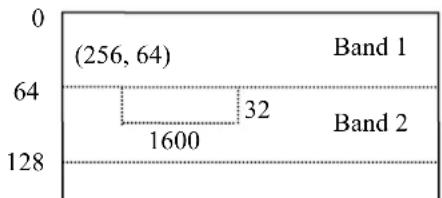
bar
| Band | Value | |---|---| | Band 1 | 64 | | Band 2 | 32 | | Total | 1600 | | Left Label | 0 | | Right Label | 128 |a: Block length(807)
b: Horizontal position(256)
c: Vertical position(64)
d: Height dots(32)
e: Width words(100)
f: Compression image data
Data compression compresses the original image data word by word (16 bits).
The compressed data consists of both horizontal compression which uses 16 bit, 8 bit and 4 bit repeating patterns within 1 word or 2 words of data and vertical compression which indicates how many times to repeat the same data as in the previous line within 1 word of data.
• Non-compressed data
When the most significant bit in the first 2 bytes is 0, the printer goes into non-compression mode. The following 11 bits then indicate the number of words of data, the least significant 4 bits are not used. After that, the image data follows word by word.
15 14

text_image
4 3 0 0 data word count (11 bits) not used data 1 (16 bits) data n (16 bits)• 16 bit repeating compressed data
When the most significant 3 bits in the first 2 bytes are in the order 1, 0, 0, the remaining 13 bits indicate the number of times to repeat 16 bit data. The following 2 bytes should be the 16 bit data to repeat.
15 14

text_image
3 12 0 : 1 : 0 : 0 : number of repeats(13 bits) : data to repeat(16 bits)• 8 bit repeating compressed data
When the most significant 3 bits in the first 2 bytes are in the order 1, 1, 0, the following 5 bits indicate the number of times to repeat 16 bit (two by 8 bits) data. The remaining 8 bits should be the 8 bit data to repeat.
15 14

text_image
8 12 8 7 0 · 1 · 1 · 0 · number of repeats · data to repeat(8 bits) (5 bits)• 4 bit repeating compression data
When the most significant 3 bits in the first 2 bytes are in the order 1, 0, 1, the following 4 bits are the 4 bit data to repeat. The remaining 9 bits indicate the number of times to repeat the 16 bit (4 by 4 bits) data.
15 14

text_image
3 12 9 8 0 · 1 · 0 · 1 · data to repeat · number or repeats(9 bits) (4 bits)• Vertical repeating compressed data
When the most significant 3 bits in the first 2 bytes are in the order 1, 1, 1, the remaining 13 bits indicate the same data words as in the previous line.
15 14

text_image
3 12 0 · 1 · 1 · 1 · the same data words as in the previous line (13 bits)The printer cannot support the APT and HRC function in the 1200 dpi printing mode.
6.4. Vector Graphics
For large-scale graphic images it is more efficient to use vector graphics. In LaserJet emulation mode you can set up the page area on which to print vector graphics images. The vector graphics capabilities of these HL Series printers working in HP-GL/2 mode are described in the HP-GL/2 section of this manual.
6.4.1. Enter HP-GL/2 mode
Esc%#B (27) (37) #(66) <1Bh><25h>#<42h>
• This command enters HP-GL/2 graphics mode.
- # = 0 the cursor is positioned at the previous HP-GL/2 cursor position. If this is the first time you have switched to HP-GL/2 mode since switching the printer on, the cursor is placed at the origin of the HP-GL/2 graphics window.
- # = 1 the cursor remains at its current position.
6.5. The Picture Frame
The PCL picture frame is the rectangular area of the page on which you can print graphic images. You can position and size the picture frame to suit your requirements and achieve effects such as scaling or distortion of vector graphics images.
6.5.1. The default picture frame
The default picture frame size and position is determined by the default logical page size and text length for each given paper size.
6.5.2. Set picture frame anchor point
Esc*c0T (27) (42) (99) (48) (84) <1Bh><2Ah><63h><30h><54h>
- This command sets the anchor point (top left hand corner) of the picture frame to the current cursor position.
6.5.3. Set picture frame vertical size
Esc*c#Y (27) (42) (99) #(89) <1Bh><2Ah><63h>#<59h>
- This command sets the vertical size of the picture frame.
- # is the height of the picture frame in decipoints.
6.5.4. Set picture frame horizontal size
Esc*c#X (27) (42) (99) #(88) <1Bh><2Ah><63h>#<58h>
• This command sets the horizontal size of the picture frame.
- # is the width of the picture frame in decipoints.
6.5.5. Specify vertical plot size
Esc*c#L (27) (42) (99) # (76) <1Bh><2Ah><63h>#<4Ch>
• This command specifies the height in inches of an imported image.
- # is the height of the image in inches.
- # can be in the range 0 to 32767 and can have up to four places of decimals.
- This command is only applicable to existing graphic images which are being imported from an application.
- The imported graphic will be scaled so that its height matches that of the HP-GL/2 graphics window.
6.5.6. Specify horizontal plot size
Esc*c#K (27) (42) (99) # (75) <1Bh><2Ah><63h>#<4Bh>
- This command specifies the width in inches of the image being imported.
- # is the width of the image in inches.
- # can be in the range 0 to 32767 and can have up to four places of decimals.
- This command is only applicable to existing graphic images which are being imported from an application.
- The imported graphic will be scaled so that its width matches that of the HP-GL/2 graphics window.
7. MACROS
7.1. The Purpose of a Macro
A macro is a sequence of commands that you wish to execute. You can specify the command sequence and download it to the printer after which you can execute it with a single command. For example, you might wish to draw a raster image at the top of each page you print. Rather than sending the same sequence of commands every time you print a new page, it is more efficient to define a macro to draw the image and store the macro in the printer's memory. Having done this, you can draw the picture on each page simply by running the macro, that is, with a single command.
Like downloaded fonts, macros take up printer memory. To alleviate this, some macros are available on cartridges that can be plugged into the printer's cartridge slots. A cartridge-based macro must have a unique ID number or else you will not be able to access it. If a downloaded macro has the same ID number as a cartridge macro, all references to the ID number will be interpreted as references to the downloaded macro. To access the cartridge macro you would first have to delete the downloaded macro.
Another method of storing Macros is uniquely available on the HL-1660e/2060/2400C/2400Ce/3400CN/2600CN/3450CN/2460/7050/3260N/6050/6050D/6050DN/8050N/2700CN printers. Macros can be saved to these cards as required and then executed from the card. For the HL-2400Ce/3400CN/2600CN/3450CN/2460/3260N printers, Macros can be also saved to and executed from the optional internal hard disk drive installed as required. A delete facility is also included to allow the removal of macros when no longer required. The rules for identifying and calling Macros from this card are exactly the same as for cartridge stored Macros detailed above. For the HL-
1270N/1470N/1650/1670N/1850/1870N/5070N/5170DN/6050/6050D/6050DN/5270DN/5280DW/5380DN//5440D/5450DN/5470DW/6180DW/L2360DN/L2360DW/L2365DW/2560DN/2569DW/S7000DN/L3270CDW/L3230CDW/L3230CDN/L3210CW/3190CDW/3160CDW printer, Macros can be stored in the incorporated Flash memory.
One macro can call another, however, only two levels of nesting are permitted.
A printer reset will delete macros from the printer's memory unless they have been explicitly designated as permanent.
The PCL picture frame commands, the printer reset command and HP-GL/2 graphic language commands cannot be invoked from within a macro.
7.2. Defining a Macro
To define a macro you must first assign an ID number to it, then send to the printer a Start Macro Definition command, the macro definition itself (consisting of a sequence of PCL commands) and finally an End Macro Definition command.
7.2.1. Macro ID
Esc&f#Y (27) (38) (102) #(89) <1Bh><26h><66h>#<59h>
- This command assigns an identity number to a macro that is to be downloaded, or references an existing macro in the printer's memory.
-
is the ID number of a macro. The ID number must be in the range 0-32767.
- If you specify the ID number of an existing macro and then download a new macro definition to the printer, the new macro will overwrite the existing macro.
7.2.2. Start macro definition
Esc&f0X (27) (38) (102) (48) (88) <1Bh><26h><66h><30h><58h>
- This command signifies that the following commands constitute a macro definition.
7.2.3. End macro definition
Esc&f1X (27) (38) (102) (49) (88) <1Bh><26h><66h><31h><58h>
• This command terminates the macro definition.
7.3. Running a Macro
Macros can be invoked in three different ways: they can be 'executed', 'called' or 'enabled for overlay'. When a macro is 'executed' it uses the current modified print environment. Any changes it makes to the environment are permanent. A macro that is 'called' also uses the current modified print environment, however, any changes it makes to the environment are discarded when the macro has performed its function. When a macro is 'enabled' for overlay, the macro's command sequence is performed as the final operation every time a page is printed. Overlaid macros use the overlay environment. The overlay environment is a combination of the user default environment and the modified print environment. This environment is effective only while the macro is running.
Page length Paper source
Page size Number of copies
Orientation Cursor position stack
Registration
- This command executes the macro whose ID number was specified most recently.
- Any changes made to the modified print environment during the execution of a macro, such as font selection or margin settings, are retained after macro execution has been completed.
7.3.2. Call macro
Esc&f3X (27) (38) (102) (51) (88) <1Bh><26h><66h><33h><58h>
- This command calls the macro whose ID number was specified most recently.
- Any changes made to the modified print environment during a macro call, such as raster graphics settings, are temporary and remain in effect only while the macro is running. They are not retained after the macro has finished.
7.3.3. Enable macro for overlay
Esc&f4X (27) (38) (102) (52) (88) <1Bh><26h><66h><34h><58h>
- This command overlays the macro whose ID number was specified most recently.
7.3.4. Disable macro for overlay
Esc&f5X (27) (38) (102) (53) (88) <1Bh><26h><66h><35h><58h>
- This command stops overlaying the macro whose ID number was specified most recently.
7.4. Handling Macros
7.4.1. Delete all macros
Esc&f6X (27) (38) (102) (54) (88) <1Bh><26h><66h><36h><58h>
- This command deletes all macros from the printer's memory.
7.4.2. Delete all temporary macros
Esc&f7X (27) (38) (102) (55) (88) <1Bh><26h><66h><37h><58h>
- This command deletes all temporary macros from the printer's memory. Temporary macros are those which have not been made permanent with the Esc&f10X command.
7.4.3. Delete macro
Esc&f8X (27) (38) (102) (56) (88) <1Bh><26h><66h><38h><58h>
- This command deletes from printer memory the macro whose ID number was specified most recently.
7.4.4. Make macro temporary
Esc&f9X (27) (38) (102) (57) (88) <1Bh><26h><66h><39h><58h>
- This command makes the macro whose ID number was specified most recently temporary (that is, it will not be retained if the printer is reset).
7.4.5. Make macro permanent
Esc&f10X (27) (38) (102) (49) (48) (88) <1Bh><26h><66h><31h><30h><58h>
- This command makes the macro whose ID number was specified most recently permanent (that is, it will be retained if the printer is reset).
7.4.6. Delete all macros from the storage device
Esc&f1030X (27) (38) (102) (49) (48) (51) (48) (88)
<1Bh><26h><66h><31h><30h><33h><30h><58h>
- This command deletes all macros and all data from the storage device.
7.4.7. Delete macro from the storage device
Esc&f1036X (27) (38) (102) (49) (48) (51) (54) (88)
<1Bh><26h><66h><31h><30h><33h><36h><58h>
- This command deletes the macro whose ID number was specified most recently from the storage device.
7.4.8. Save macro into the storage device
Esc&f1038X (27) (38) (102) (49) (48) (51) (56) (88)
<1Bh><26h><66h><31h><30h><33h><38h><58h>
- This command saves the macro whose ID number was specified most recently into the storage device.
Macro example
10 REM ***** A EXAMPLE OF A MACRO *****
20 ESC=CHR(27)
30 WIDTH "LPT1:", 255
40 REM --- RESET PRINTER ---
50 LPRINT CHR$(27); "E":
60 REM --- SET MACRO ID TO 0 ---
70 LPRINT ESC$+"&f0Y";
80 REM --- START MACRO DEFINITION ---
90 LPRINT ESC$+"&f0X";
100 REM --- SET CURSOR POSITION X=1800 DOT, Y=0 DOT ---
110 LPRINT ESC$+"*p1800x0Y";
120 REM --- SET FONT TO LETTER GOTHIC (18 DOTS WIDE) ---
130 LPRINT ESC$+" (s0p16.66h8.5v0s0b130T";
140 REM --- PRINT COMMENT ---
150 LPRINT "Printed by this printer";
160 REM --- SET CURSOR POSITION X=1790 DOT, Y=-40 DOT ---
170 LPRINT ESC$+" *p1790x-40Y";
180 REM --- PERFORM SHADING ---
190 REM --- SET SHADING WIDTH TO 23 CHARACTERS + 20 DOTS ---
200 LPRINT ESC$+" *c";23*18+20;"A";
210 REM --- SET SHADING HEIGHT TO 30 DOTS ---
220 LPRINT ESC$+" *c60B";
230 REM --- DRAW SHADING PATTERN (5% GRAY SCALE) ---
240 LPRINT ESC$+" *c5g2P";
250 REM --- END MACRO DEFINITION ---
260 LPRINT ESC$+" &f1X";
270 REM --- MACRO OVERLAY ON (PRINT THE MESSAGE ON EVERY PRINTOUT) -- 280 LPRINT ESC$+" &f4X";
290 REM --- SET FONT TO BROUGHAM 10 ---
300 LPRINT ESC$+" (s0p10h12v0s0b128T";
310 REM --- MACRO OVERLAY ON, PAPER EJECT ---
320 LPRINT "MACRO OVERLAY ON";
330 LPRINT CHR$(12);
340 REM --- MACRO OVERLAY ON, PAPER EJECT ---
350 LPRINT "MACRO OVERLAY ON";
360 LPRINT CHR$(12);
370 REM --- MACRO OVERLAY OFF (PRINT WITHOUT THE MESSAGE) ---
380 LPRINT ESC$+" &f5X";
390 REM --- MACRO OVERLAY OFF, PAPER EJECT ---
400 LPRINT "MACRO OVERLAY OFF";
410 LPRINT CHR$(12);
420 END
7.4.9. Execute data
The data saved in the storage device by using Printer's control panel "SAVE DATA" function can be printed by the following command. It can also be printed by operation of the Printer control panel.
EscCR!#E (27)(13)(33)#(69) <1Bh><0Dh><21h>#<45h>
-
indicates the DATA ID.
- Execute the data which is saved in the flash memory card or Hard Disk card.
- The printer uses the current environment when this command is executed.
- While executing the data, it is possible to change the emulation or reset the printer.
- If this command is included in the last data which was saved by the "SAVE DATA" operation from the printer's control panel, the printer enters a permanent loop so that saved data such as DEMO printing keeps printing. To stop it, press the RESET key on the printer's control panel. This function is available only for the Flash ROM card.
7.4.10. AppleTalk configuration
Esc&b#W[key]
• # value can be from 0 to 32767.
- # stands for number of bytes in the data which is following this command.
• [key] should be [RENAME], [JOB] or [TYPE].
- If the key is [RENAME], this command allows the printer to change the name field of the AppleTalk name binding protocol.
<ESC>&b#WRENAME<sp>printername
printername should be specified with 1 to 31 characters.
The characters 00 toFF (except for $00, @, :, *, =, SC5) can be used for the printername.
$00 is used as the terminator.
If invalid characters are used, this command is ignored.
- If the [key] is set to [JOB], this command changes the current job name.
<ESC>&b#WJOB<sp>jobname
All characters from $00 to SFF can be used for the jobname.
jobname can have a maximum of 127 characters.
- If the [key] is set to [TYPE], this command allows the printer to change the type field of the AppleTalk name binding protocol.
<ESC>&b#WTYPE<sp>devicetype
devicetype should be specified with 1 to 31 characters.
The characters \00 to SFF (except for \00, @, :, *, =, \C5) can be used for the devicetype. \00 is used as the terminator.
If invalid characters are used, this command is ignored.
7.4.11. MIO video I/O port control
The HL-1660e and 2060 printers have only the "VSREQ" signal for vertical synchronization that can be sent to the MIO port. This causes a short delay to the actual printing start after sending the VSREQ signal if the video controller is processing an interrupt. This delay causes an incorrect vertical printing position. To avoid the problem, the following command is useful.
EscCR!12340M (27) (13) (33) (49) (50) (51) (52) (48) (77)
<1Bh><0Dh><21h><31h><32h><33h><34h><30h><4Dh>
- Laser diode video interface port of the MIO port is closed.
EscCR!12341M (27) (13) (33) (49) (50) (51) (52) (49) (77)
<1Bh><0Dh><21h><31h><32h><33h><34h><31h><4Dh>
- Laser diode video interface port of the MIO port is opened.
EscCR!12342M (27) (13) (33) (49) (50) (51) (52) (50) (77)
<1Bh><0Dh><21h><31h><32h><33h><34h><32h><4Dh>
- Laser diode video interface port of the MIO port is opened and the print start command is sent to the printer engine immediately after sending the VSREQ signal.
8. STATUS READBACK
8.1. Introduction
Status readback features are explained in this section. The printer sends a status response message after receiving a request for its status by these commands. You can get the information as shown below from the printer.
- available printer (user) memory
- current available fonts and symbol sets
- the ID numbers of downloaded macros and user-defined patterns to verify their presence
The computer system must have a device driver for bi-directional communication to get the printers status response. Bi-directional communication is supported on the HL Series printers by the printer driver that comes with these machines.
8.2. Memory Status request
You can identify the capacity of the user memory in the printer by using the memory status request. You can determine whether to execute "downloading" or not, by knowing the available memory and thus avoid printer memory overrun errors.
8.3. Entity Status
You can request the printer to send the status of its entities. A font, symbol set, macro or user-defined pattern in the printer can be an entity. In order to request entity status, a position type and a position unit must be identified first and then the entity request command must be sent.
Location type is the memory positions that contain the entities. Memory positions are internal ROM, RAM, cartridges/cards, the storage device and one additional position specified as "currently selected". Currently selected means the entity is active. However, "currently selected" can be applied only for fonts and user-defined patterns.
Location unit means a more specific position within the location type.
When the location type and unit are identified, you can request the status with the Inquire Status Readback Entity command. The entity (font, symbol set, macro or user-defined pattern) is specified by this command and the printer sends the response.
When an invalid request is sent, the printer sends an error response back.
8.4. Status Response
If a status request (command) is received, the printer produces the response data. The printer accumulates this data in an I/O status buffer and saves the response in this buffer until a user reads it or you turn off the printer.
The printer clears the status responses when Printer resolution, Page protection or Emulation language is changed.
The printer processes status requests and their related response in the order in which the printer receives them.
According to the internal printer operations, the number of responses the printer can accumulate is different. If you use multiple applications or share the printer, you should read the response to a request before making a new request.
You should use the Echo command so that your applications request will synchronize with the printer's responses, because an earlier application might have requested a status and the printer might retain it.
A status response gets routed back to the I/O port that it was requested from.
8.5. Status Response Syntax
All of the status responses begin with "PCL", Carriage Return control code and a Line Feed control code. The response is ended by a Carriage Return and a Line Feed control code. At the end of the transaction, status responses are ended by a Form Feed Control code. The fundamental syntax for the status response is as shown below.
PCL<CR> <LF>
INFO TITLE<CR><LF>
KEYWORDn=DATAn<CR><LF>
KEYWORDn=DATAn<CR><LF>
.
.
.
<FF>
TITLE, KEYWORDn, and DATAn are strings which differ according to the status readback command being operated. One or more keyword lines related to the status readback response accompany every status readback response. The Echo command response differs from this and is as shown below.
PCL<CR><LF>
ECHO ValueField<CR><LF>
<FF>
ValueField is the decimal number which comes from the Echo command value field.
For future printers, keywords might be added. Applications in which the status readback is used should be made to disregard lines with keywords they do not understand.
8.5.1. Set status readback location type
ESC*s#T (27) (42) (115) #(84) <1Bh><2Ah><73h>#<54h>
This command determines the status location type according to the value of #.
The location type is used in association with the location unit in order to specify an entity location for a status request.
-
= 0 specifies an invalid location. When the printer receives an Inquire Entity Command, an error response is generated. This is the default value. When you execute a printer reset, this value is reset to 0.
- # = 1 specifies the currently selected location.
- # = 2 specifies all locations.
-
= 3 specifies the printer's internal location.
-
= 4 specifies the downloaded entity.
-
= 5 specifies the user-installed card/cartridge
The location type setting is retained by the printer. When the printer does not send the set status readback location type command in order to change the setting for an entity request, then the printer uses the currently available location type setting.
8.5.2. Set status readback location unit
ESC*s#U (27) (42) (115) # (85) <1Bh><2Ah><73h>#<55h>
• The status location unit is selected by the value of #.
- The printer uses the location unit in association with the location type in order to specify an entity location for a status request.
| Type | Unit | ||
| 0 | - | invalid | location |
| 1 | - | currently selected location | |
| 2 | - | all | locations |
| 3 | 0 | all internal entities | |
| 4 | 0 | all downloaded entities |
| 1 | downloaded entity as temporary | |
| 2 | downloaded entity as permanent | |
| 5 | 0 | All cartridge/cards |
| 1 | the cartridge/card which has the highest priority. | |
| n | the cartridge/card which has the lowest priority |
- When the location value is 0, 1 and 2, it ignores the unit value (which might be set to any value). The default value is 0, and whenever you reset the printer, the value is reset to the default value.
- The location unit setting is retained by the printer. If the printer does not send this command to change the setting for an entity request, then it uses the currently available location units.
- The printer may set the location type and unit in order. It does not identify any invalid combinations until it receives the inquire entity command. Hence, if the unit value is not in the correct range, it sets the unit to the value for a proper error response to be sent when the inquire entity command is received.
8.5.3. Inquire status readback entity
ESC*s#I (27) (42) (115) #(73) <1Bh><2Ah><73h>#<49h>
- Specifies the entity type and makes the printer produce a status response for the entity identified in the status readback location (type and unit).
| Value | Entity type |
| 0 | Font |
| 1 | Macro |
| 2 | User-defined Pattern |
| 3 | Symbol set |
| 4 | Font extended |
8.5.4. Entity status response
The status response for an inquire status readback entity command differs according to the type of the requested entity.
8.5.5. Font response
Keywords returned from the printer depend on whether the printer font is a bitmap, unbound scalable or bound scalable. Below is the list of keywords for a font request.
SELECT =
SYMBOLSETS=
LOCTYPE=
LOCUNIT=
Below is an example of a font status response for inquire status command.
Internal, bitmap, LetterGothic 16.66
Internal, unbound scalable, PcTennessee italic
Downloaded, bound scalable, Portugal
Font status:
PCL
INFO FONTS
SELECT="<Esc>(8U<ESC>(s0p16.66h9.5v0s0b130T"
SELECT="<Esc>(slp_v1s0b4101T"
SYMBOLSETS="0D, 0I, 0N, 0S, 0U, 1E, 1F, 1G, ..."
SELECT="<Esc>(1U<Esc>(slp_v0s0b5111T<Esc>(22X"
In a font status response, the "SELECT=" keyword line specifies the individual fonts. The font is identified by this line by specifying the font selection characteristics such as symbol set, spacing, pitch, height, style, stroke weight, and typefaces. It returns the "SELECT=" for all font types.
In a status response, the five characters "<", "E", "s", "c", and "&>" represent an escape character.
Keywords following a "SELECT=" keyword mean the font specified by that "SELECT=" keyword.
8.5.6. Bitmap fonts
For bitmap fonts, the printer returns the "SELECT=" line. This specifies the font selection features. For instance, the printer returns the printer's internal, bitmap, Roman-8 LetterGothic font as follows.
PCL
INFO FONTS
SELECT"=<Esc>(8U<Esc>(s0p16.66h8.5v0s0b130T"
8.5.7. Bound scalable fonts
For bound scalable fonts, an underscore( "...slp__v0s...",") in the "SELECT=" line means it is a bound scalable font. Also, the related features are indicated. Either the height or pitch is indicated depending upon whether the font is proportional or fixed spaced. The printer, for instance, returns the printer's internal scalable Symbol font (proportionally spaced) as follows.
PCL
INFO FONTS
SELECT="<Esc>(19M<Esc>(s1p__v0s0b16901T"
8.5.8. Unbound scalable fonts
For unbound fonts, the printer adds the "SYMBOLSETS=" keyword to specify the symbol sets which can be used, as the symbol sets can also be used with an unbound font, and there is no symbol set sequence in the "SELECT=" line. The printer, for instance, returns the printer's internal unbound scalable Brougham (medium, fixed spaced) font and Pc Tennessee (bold italic, proportional spaced) fonts as follows.
PCL
INFO FONTS
SELECT="<Esc>(s0p_h0s0b4099T"
SYMBOLSETS="0D, 0I, 0N, 0U, 1E, 1F, 1G, ..."
SELECT="<Esc>(slp_v1s1s3b4101T"
SYMBOLSETS="0D, 0I, 0N, 0S, 0U, 1E, 1F, 1G, ..."
8.5.9. Download fonts
For download fonts (bitmap, bound scalable or unbound scalable), the font ID number is included at the end of the "SELECT=" line. For instance, the printer returns a downloaded bitmap Brougham with a font ID of 40 and a downloaded, unbound scalable, Dom Casual typeface with a font ID of 79 as follows.
PCL
INFO FONTS
SELECT="<Esc>(8U<Esc>(s0p11.00h12.0v0s0b3T<Esc>(40X"
SELECT="<Esc>(s1p__v1s0b5259T<Esc>)79X"
SYMBOLSETS="0D, 0D, 0N, 0S, 0U, 1E, 1F, 1G, ..."
8.5.10. Location type 1 (currently selected) font
For a status location type 1 (currently selected) font, the printer returns a single font, the printer font which is currently selected. The following are the keywords and data returned.
The printer returns the "LOCTYPE=" and "LOCUNIT=" after the "SELECT=" line for every font.
The "SELECT=" line changes for bound and unbound scalable fonts.
For all scalable fonts, the actual size (height or pitch) is indicated instead of the underscores. For unbound scalable fonts, the symbol set which is bound to the font at present is indicated. For all fonts, when the font is a secondary font, ")" replace the "(" characters in the "SELECT=" line.
"LOCTYPE=" specifies the location type of the font which is selected at present. The value field of the Set Status Readback Type command is related to the value returned.
"LOCUNIT=" specifies the location unit of the font which is selected at present. The value field of the Set Status Readback Unit command is related to the value returned.
For instance, if the printer font which is selected at present is a bold 12 point Presentation bitmap font which is selected from a cartridge, and a font entity request with the location type set to 1 is produced, the response will be returned as follows.
PCL
INFO FONTS
SELECT="<Esc>(2U<Esc>(s0p10.00h12.0v0s3b11T"
LOCTYPE=5
LOCUNIT=1
For instance, suppose the printer font which is selected at present is unbound scalable Dom Casual font with the features below:
downloaded (font ID of 78)
temporary
Roman-8(specified for printing)
secondary font
18 point
When an entity request is produced with the location type set to 1(selected at present), it returns the response below.
PCL
INFO FONTS
SELECT="<Esc>) 8U<Esc>) s1p18.00v1s0b4148T<Esc>) 78X"
LOCTYPE=4
LOCUNIT=1
8.5.11. Font extended response
The font extended response supplies a method to return the name and internal ID number of the font as well as the "SELECT=" line. It is the same as a font status response since "SELECT="," SYMBOLSETS=",
"LOCTYPE=", and "LOCUNIT=" are returned in the same way. With regard to a font extended request, it returns the two additional keywords, "DEFID=" and "NAME=" as follows.
"DEFID" specifies the internal ID number of the font which is shown on the test print (font list). This is the number which is used to select the font as the default font from the control panel of printer or from PJL. The "DEFID=" number is made of two parts, which are a location and an ID number. The locations which are likely are as follows;
I - Internal
C - Cartridge (printer with single cartridge)
Cn - Cartridge (printer with multiple cartridge/card when n is specified by printer.)
S - Permanent download fonts
For temporary download fonts, it returns "DEFID=NONE" because temporary download fonts do not have an internal ID number.
The printer assigns the internal ID number of a temporary download font with the Font ID (ESC*c#D) command. This internal ID number differs from the downloaded ID number assigned to a downloaded font.
It returns "NAME=" only for font extended status requests. The name of the font is the same as shown on the font printout.
For instance, it returns the font extended response for the printer's internal bitmap LetterGothic font and a downloaded unbound Portugal temporary font as follows.
PCL
INFO FONTS EXTENDED
SELECT="<Esc>(8U<Esc>(s0p10.00h12.0v0s0b0T"
DEFID="I 45"
NAME="Line Printer"
SELECT="<Ec>(s1p__v1s3b4111T<Esc>(7X"
SymbolSETS="0D, 0I, 0N, 0S, 0U, 1E, 1F, 1G,...
DEFID=NONE
NAME="CG Palacio BdIt"
SELECT="...
For instance, a font extended response with the location type set to 1( selected at present ) where the font which is selected at present is the internal Pc Tennessee (18 point identified for printing) bold, returns the response as follows.
PCL
INFO FONTS EXTENDED
SELECT="<Esc>(8U<Esc>(s0p18.00h0s3b4101T"
DEFID="<Esc>(8U<Esc>s0p18.000s3b4101T"
DEFID="I 2"
NAME="PcTennessee Bd"
LOCTYPE=1
LOCUNIT=1
8.5.12. Macro response
The status response for macros indicates all of the macro IDs ("IDLIST=") for the macros in a particular location.
Status location type 1( selected at present ) is an unused location for macros and an error is returned.
A macro status response may be shown as follows.
PCL
INFO MACROS
IDLIST="1, 3, 8, 29, 32"
8.5.13. Use-defined pattern response
The status response of user-defined patterns indicates all of the user-defined patterns and all of the user-defined pattern IDs ("IDLIST") for the patterns in a particular location.
A user-defined pattern response may be shown as follows.
PCL
INFO PATTERN
IDLIST="1, 2, 9, 13, 27, 456"
When the location type is specified to 1 (selected at present), "LOCTYPE=" and "LOCUNIT=" lines are added.
It returns the "LOCTYPE=" only for a status location type 1 requirement. It specifies the location type of the pattern which is selected at present.
It returns the "LOCUNIT=" only for a status location type 1 requirement. It specifies the location unit of the pattern which is selected at present.
A user-defined pattern response for the pattern selected at present may be shown as follows.
PCL
INFO PATTERN
IDLIST="88"
LOCTYPE=4
LOCUNIT=2
When the pattern selected at present is set to one of the internal HP-specified patterns, there is no number available and it returns the response "ERROR=NONE".
PCL
INFO PATTERNS
ERROR=NONE
8.5.14. Symbol set response
The symbol set response indicates all of the symbol set IDs ("IDLIST") for all of the symbol sets in the identified location. There can be bound and unbound scalable fonts in the identified location (type and unit).
A symbol set response may be shown as follows.
PCL
INFO SYMBOLSETS
IDLIST="0U, 2K, 8M, 11U"
Status location type 1 (selected at present) is an incorrect location for unbound font symbol sets and returns an error.
Example responses in this section for "SYMBOLSETS=" do not indicate the complete list of symbol sets which are available internally, but only a partial list. The internal symbol sets depend on the printer and might differ according to the printer.
8.5.15. Entity error codes
When an out-of-range value exists in the command value fields, or when the entity is not supported or does not exist, or the request is inadequate, the printer replies with one of four likely errors as follows:
Invalid Entity
Invalid Location
None
Internal Error
ERROR=INVALID ENTITY
When the identified entity type is not in the range or not supported, it returns an invalid entity error.
PCL
INFO ENTITY
ERROR=INVALID ENTITY
ERROR=INVALID LOCATION
When the entity type is correct, but the location (the type, the unit, or the combination) is not, or when the identified device is not installed, it returns an invalid location error.
PCL
INFO FONTS
ERROR=INVALID LOCATION
ERROR=NONE
When the entity type and location are correct, but there are not any entities of the identified type in the location, or when the type is not correct for the identified entity, it generates the NONE error response.
PCL
INFO SYMBOLSETS
ERROR=NONE
ERROR=INTERNAL ERROR
The status response for some requirements could be quite big. When status replies are requested, it returns an internal error if the printer runs out of memory as follows:
PCL
INFO SYMBOL SETS
ERROR=INTERNAL ERROR
8.5.16. Free space command
ESC*s1M (27) (42) (115) (48) (77) <1Bh><2Ah><73h><31h><4Dh>
The amount of memory which is free for use is returned by this command. Two values are returned: the total amount of free memory and the largest block of free memory.
When you send a value other than 1, an error ("ERROR = INVALID UNIT") is returned.
The Free Space command is sent to check the free memory space and you can acknowledge whether the printer has enough memory for a job or not before you execute your job. Also you can check the amount of memory which an entity or any other data has already used.
Free memory space will always be changing during different printing conditions.
For example, when the printer receives print data, it is stored in the printer memory and so the free space in the printer memory becomes smaller. After the data is printed, the printer memory becomes empty, so the free space becomes larger again.
Certain action is needed when you decide there is not enough memory to hold the data to be downloaded.
8.5.17. Font cache
In order to print characters from a scalable font, the printer changes the scalable character outlines into sized bitmaps. These bitmapped characters are produced on a character-by-character basis and the produced bitmapped characters are stored in memory. As it prints more pages using more fonts, more memory is consumed by the bitmaps. The bitmap characters used on the first page of a job can stay in memory till the end of a job. These stored bitmap characters are known as the font cache.
If a Brother HL-Series printer encounters a memory low condition, all of the font cache is automatically deleted. Also, font cache and temporary entities can be cleared by a Printer Reset command.
8.5.18. Memory status response
The total available memory is specified by "TOTAL=" and the largest continuous block size of available memory is specified by "LARGEST=".
PCL
INFO MEMORY
TOTAL = 10000
LARGEST = 3500
8.5.19. Memory error response
When the value field of the free memory command is out of range, the response for this command would be as follows;
PCL
INFO MEMORY
ERROR = INVALID UNIT
8.5.20. Flush all pages command
ESC&r#F (27) (38) (114) #(70) <1Bh><26h><72h>#<46h>
This command suspends accepting data from a PC and clears the user memory.
-
=0 suspends receiving data and clears all completed data. Incompleted data remains in the printers memory.
-
=1 suspends receiving data and clears all data remaining in the printer memory.
8.5.21. Echo command
ESC*s#X (27) (42) (115) #(88) <1Bh><2Ah><73h>#<58h>
This command is used to distinguish each request and response. In networking/sharing environments, some requests may be sent from a number of PCs to one printer. This command sends the user selected value to the printer and the printer can return the same value. Adding this command before the status request command allows this echo value to distinguish the corresponding status response.
9. INDEX
A
adaptive compression 91
anchor point 101
AppleTalk configuration....106
APT....95
area fill 83
B
backspace 11
binding 28
bitmap font 47,111
bound font 49
bound scalable font 111
C
carriage return 11
CCITT G3/G4 93
character code 75
character descriptor and data 75
character spacing 51
compress transfer graphics 96
compression mode 90
condensed....59
control code 11
coordinate....37
cursor position....42, 44
cursor position stack 44
D
decipoints 37
default fonts 50
defined symbol set 53
destination 81
display function mode 13
download font 111
downloadable font 49
create 63
manipulation....62
downloaded font operation....62
select....62
duplex printing 28
E
Echo command 115
emulation mode change....30
exit....30
end-of-line wrap 13
entity error code 114
entity status 108
entity status response 110
envelope 15
environment 14
error response memory .... 115
Esc....12
escape....11
escape sequence 12
F
factory default environment 14
factory default setting 30
fill pattern 85
filled rectangle draw....87
fixed spacing 57
fixed underlining 61
floating underlining 61
Flush All Pages command.... 115
font 47
font cache 115
font descriptor 63
font extended response 112
font ID 62
font orientation 60
font response 110
font selection criteria 51
font source.... 49
font type 47
form feed 11
Free Space command 114
G
graphics....81
graphics window 32
H
half line feed 45
height 51,58
raster image 90
select....58
high resolution control 89
HMI....39
horizontal cursor position 43
horizontal margin 38
horizontal motion index 39
horizontal plot size 101
horizontal tab 11
HP-GL/2 mode 100
I
internal font 49
italic....59
J
Job separation command 28
L
landscape 45
left long-edge offset registration 27
left margin 37
line feed 11
line pitch 39
line spacing.... 40
line termination 12
location type status readback .... 109
location unit status readback .... 109
logical page 32
logical page orientation....45
lower cassette 22
M
macro....102
call 104
delete 105
execute....104
overlay....104
macro definition end 103
start 103
macro ID.... 103
macro overlay environment 14
macro response 113
manual paper feed 22
measurement....37
media type selection....20
memory status request 108
MIO video I/O port control 107
Mode 9 compression 92
modified print environment 14
multi-purpose tray 22
o
orientation raster image 89
output tray 21
P
page....32
page dimensions landscape....35 portrait....33
page length 41
page size 15
paper side selection.... 28
paper source 22
paper type 15
pattern 81
pattern reference point 84
pattern transparency 82
pattern type 85
PCL 12
perforation skip 41
physical page 32
picture frame .... 101 horizontal size .... 101 vertical size .... 101
pitch .... 51, 57 select.... 57
portrait....45
primary font 11,50
printable area 32
proportional spacing 57
R
Raster Graphic Mode 1027 98
raster graphics 89
raster image send 96
raster resolution 89
raster transfer end......96
rectangle height 87
rectangle width 87
rectangles 87
reset....29
RESET 14
right margin 37
rows and columns 37
S
status response syntax 109
stroke weight 52
select....59
style 51,58
select....58
symbol collection 51
symbol set 51
define....53
select....55
symbol set control command 55
symbol set ID code command 53
symbol set response 113
T
test sheet 30
text area 32
text direction 45
text length 40
text wrap 13
TIFF 90,95
top margin 38
top offset registration 27
transfer start raster image 96
transparent print data 61
type of character spacing select....57
typeface 52
select....59
U
unbound font 49
unbound scalable font 111
underlining text 61
unit of measure 37
units....37
upper cassette 22
upright....59
user default environment 14
user settings 30
user-defined pattern command 84
user-defined pattern control 85
user-defined pattern response 113
V
vector graphics 100
vertical cursor position 42
vertical motion index 39
vertical plot size 101
VMI....39
W
width raster image 90
Y
y-offset raster image 90
CHAPTER 3
PCL5C
CONTENTS
1. INTRODUCTION....3
2. COLOR MODES......4
2.1. Using Simple Color Mode - Set Simple Color 4
2.2. Using PCL Color Mode - Set PCL Color Setting 5
2.3. Using HP-GL/2 Color Mode....9
3. COLOR PALETTES 10
3.1. Set Color #1 10
3.2. Set Color #2 10
3.3. Set Color #3 10
3.4. Set Color to Palette 10
3.5. Select Color....11
3.6. Push/Pop Palette 11
4. COLOR GRAPHICS 12
4.1. Start Raster Transfer.... 12
4.2. Set Destination Raster Width 12
4.3. Set Destination Raster Height 12
4.4. Set Scale Algorithm.... 13
4.5. Send Raster Data by Plane.... 13
4.6. Enter HP-GL/2 Mode 13
5. ENHANCE OUTPUT....14
5.1. Set Render Algorithm.... 14
5.2. Set Monochrome Mode.... 14
5.3. Set Gamma Correction.... 15
5.4. Download Dither Matrix.... 15
5.5. User-defined Pattern Command.... 15
6. HP-GL/2....16
6.1. IN (Initialize Set Instruction) Command.... 16
6.2. PC (Pen Color) Command 16
6.3. NP (Number of Pens) Command 17
6.4. CR (Color Range) Command 17
7. INDEX 18
1. INTRODUCTION
This chapter describes the enhanced commands for the PCL5C emulation.
PCL5C is upwards-compatible with PCL5e. For the commands of PCL5e, refer to "Chapter 2 PCL" which describes the PCL5e emulation.
If you are reading this technical manual for the first time, it is recommended that you read Chapter 2 first before reading this Chapter.
2. COLOR MODES
The PCL5C emulation provides a B/W mode, which is the default, and three color modes as follows;
1) Simple Color Mode
2) PCL Color Mode
3) HP-GL/2 Color Mode
Simple Color Mode allows you to use a maximum of 8 colors easily. PCL Color Mode allows you to use a maximum of 16,000,000 colors logically. HP-GL/2 Mode allows you to use vector graphics in color.
It is possible to switch between these modes in a single page, which enables you to use each of them for your purpose.
When handling colors in those modes, use palette. For details on palette, refer to Section 3 'Color Palettes' of this chapter.
This section describes the details about each color mode.
2.1. Using Simple Color Mode - Set Simple Color
Command
ESC*r#U (27) (42) (114) #(85) <1Bh><2Ah><72h>#<55h>
# = -4 CMYK mode
# = -3 CMY mode
# = 1* B/W mode
# = 3 RGB mode
* Default value = 1
- The # value specifies the palette and the colors for the palette. For specific colors, refer to the table below;
- This command specifies each color corresponding to the index number. The color is fixed and unchangeable.
- The colors which were specified in the palette by the PCL or HP-GL/2 command are cancelled.
| Index No -4 (CMYK) -3(CMY) 1(B/W) * 3(RGB) | ||||
| 0 | White | White | White | Black |
| 1 | Cyan | Cyan | Black | |
| 2 | Magenta | Magenta | - | Green |
| 3 | Blue | Blue | - | Yellow |
| 4 | Yellow | Yellow | - | Blue |
| 5 | Green | Green | - | Magenta |
| 6 | Red | Red | - | Cyan |
| 7 | Black | Black | - | |
Whit
* = default
2.2. Using PCL Color Mode - Set PCL Color Setting
Command
$$ \text { ESC } * \mathrm{v} # \mathrm{W} (2 7) (4 2) (1 1 8) # (8 7) < 1 \mathrm{Bh} > < 2 \mathrm{Ah} > < 7 6 \mathrm{h} > # < 5 7 \mathrm{h} > $$
$$ # = 6, 1 8 $$
# stands for the number of bytes of data that follow this command.
This command sets the palette size and transformation between the entered value and device-specific value.
This command has two types of format, short format and long format. Here are the formats for the PCL color setting.
1) Short Format
MSB LSB
| 0 - 1 | Format (0) Encoding mode | |
| 2 - 3 | Bits / index Bits / value #1 | |
| 4 - 5 | Bits / value #2 Bits / value #3 |
♣ Format
This value must be 0.
♣ Encoding mode
• This value defines how to send the raster image data.
- The value can be from 0 to 3 only, other values are ignored.
| Encoding Mode | |
| 0 Send Index No by Plane * | |
| 1 Send Index No by Pixel | |
| 2 Send Direct Value by Plane | |
| 3 Send Direct Value by Pixel | |
* = default
Send Index No by Plane (= 0 default)
• This mode assigns the Index No. to the Plane, then sends it.
- The necessary number for the Plane is determined depending on the number of bits/index. 1 (one) plane should be needed per 1 (one) bit/index. For instance, 4 planes are needed for 4 bits/index.
- Bits/index must be 1, 2, 4, 5, 6, 7, 8.
- This mode sends the plane data except the last one using the Send Raster Data by Plane command (ESC*b#V).
- This mode also sends the last plane data using the Send Raster Data command (ESC*b#W).
(i.e. 4 bits/index)
** The Italic characters shown above are the index No. at the 4th pixel in the 1st raster.
[Example]
If you want to send index No. 7,6,5,4,3,2,1,0;
Enter 'ESC*v6W 00h 00h 04h 08h 08h 08h', then select Send Index No by Plane.
Select 4 bits/index. ( 2^4 = 16 Palettes)
ESC*r1A
Start Raster Transfer
ESC*b1V 10101010B
Send Plane1 data (The Index No Bit0 data)
ESC*b1V 11001100B
Send Plane2 data (The Index No Bit1 data)
ESC*b1V 11110000B
Send Plane3 data (The Index No Bit2 data)
ESC*b1W 00000000B
Send Plane4 data (The Index No Bit3 data)
...
ESC*rC
End Raster Transfer
(xxh: hexadecimal, xxxxxxxxB: binary)
Send Index No by Pixel (= 1)
- This mode sends the index No. by pixel.
- Bits/index must be 1, 2, 4, 8.
(2 bits/index)
** The Italic characters shown above are the index No. at the 2nd pixel in the 3rd raster.
[Example]
If you want to send the index No. below;
Index No.
3, 2, 1, 0 (1st raster)
2, 1, 0, 3 (2nd raster)
3, 0, 1, 2 (3rd raster)
0, 1, 2, 3 (4th raster)
Enter 'ESC*v6W 00h 01h 02h 08h 08h 08h', then select Send Index No by Plane.
Select 2 bits/index. ( 2^2=4 Palettes)
ESC*r1A
Start Raster Transfer
ESC*b1V 11100100B
Send 1st raster data
ESC*b1V 10010011B
Send 2nd raster data
ESC*b1V 11000110B
Send 3rd raster data
ESC*b1W 00011011B
Send 4th raster data
...
ESC*rC
End Raster Transfer
(xxh: hexadecimal, xxxxxxxxB: binary)
Send Direct Value by Plane (= 2)
- This mode sends each value of RGB by plane.
- Bits/index must be 1.
- This mode sends the plane data except the last one using the Send Raster Data by Plane command.
- This mode sends the last plane data using the Send Raster Data command.
(i.e.)
ESC*b#V r, r, r, , r...→ Plane 1 1st raster
ESC*b#V g, g, g, g _, g...→ Plane 2
ESC*b#W b, b, b, b _, b...→ Plane 3
ESC*b#V r, r, r, r, r...→ Plane 1 2nd raster
ESC*b#V g, g, g, g, g...→ Plane 2
** The Italic characters shown above are the index No. at the 4th pixel in the 1st raster.
[Example]
If you want to send RGB=(1,1,1)(0,1,1)(1,0,1)(0,0,1)(1,1,0)(0,1,0)(1,0,0)(0,0,0);
** The values in the brackets show the RGB value of the pixel.
Enter 'ESC*v6W 00h 02h 01h 01h 01h 01h', then select Send Direct Value by Plane.
Select 1 bit/index.
ESC*r1A Start Raster Transfer
ESC*b1V 10101010B Send Plane 1 data (Red data)
ESC*b1V 11001100B Send Plane 2 data (Green data)
ESC*b1W 11110000B Send Plane 3 data (Blue data)
ESC*rC End Raster Transfer
(xxh: hexadecimal, xxxxxxxxB: binary)
Send Direct Value by Pixel (= 3)
- This sends each value of RGB pixel by pixel.
- Bits/index must be 8.
(i.e.)
ESC*b#W r, g, b, r, g, b, r, g, b, r, g, b, , , , → 1st raster
ESC*b#W r, g, b, r, g, b, r, g, b, r, g, b, ...→2nd raster
ESC*b#W r, g, b, r, g, b, r, g, b, r, g, b, ...→3rd raster
ESC*b#W r, g, b, r, g, b, r, g, b, r, g, b,...→4th raster
ESC*b#W r, g, b, r, g, b, r, g, b, r, g, b, ...→ 5th raster
** The Italic characters shown above are the index No. at the 4th pixel in the 1st raster.
[Example]
If you want to send the RGB value below;
RGB value.
(0,0,0)(128,128,128)(128,64,0)(255,128,64) 1st raster
(128,128,128)(128,64,0)(255,128,64) (0,0,0) 2nd raster
(128,64,0)(255,128,64) (0,0,0) (128,128,128) 3rd raster
** The values in the brackets show the RGB value of the pixel.
Enter 'ESC*v6W 00h 03h 08h 08h 08h 08h', then select Send Direct Value by Pixel.
Select 8 bits/index.
ESC*r1A Start Raster Transfer
ESC*b12V 00h 00h 00h 80h 80h 80h 80h 40h 00h ffh 80h 40h Send Plane 1 data (Red data)
ESC*b12V 80h 80h 80h 80h 40h 00h ffh 80h 40h 00h 00h 00h Send Plane 2 data (Green data)
ESC*b12W 80h 40h 00h ffh 80h 40h 00h 00h 00h 80h 80h 80h Send Plane 3 data (Blue data)
ESC*rC End Raster Transfer
(xxh: hexadecimal, xxxxxxxxB: binary)
♣ Bits/index
- Specifies the palette size at 2^n . n indicates bits/index. ( n=4 2^4=16 palettes)
- When the encoding mode is 0 or 1, the palette size selected by the bits/index value specifies the range of the index No., which can be used for raster data.
• The values specified by the encoding mode are listed below;
| Encoding Mode Bits/Index | |
| 0 | 0,1,2,3,4,5,6,7,8 |
| 1 | 1,2,4,8 |
| 2 | 1 |
| 3 | 8 |
♣ Bits/value (#1, #2, #3)
Each value indicates a color as follows;
1: red
2: green
3: blue
- When the encoding mode is 0 or 1, it ignores this setting. The black/white reference, described later, is set.
- When the encoding mode is 2, it shows the number of planes that are required to send each color.
- When the encoding mode is 3, it shows the number of bits that are required to send each color.
- It sets the black reference to 0. (Valid when the Encoding mode is 0 or 1.)
- It sets the white reference to 2^n - 1 . (Valid when the Encoding mode is 0 or 1.)
2) Long Format
| MSB | LSB | |
| 0 - 1 | Format (0) Encoding mode | |
| 2 - 3 | Bits / index Bits / value #1 | |
| 4 - 5 | Bits / value #2 Bits / value #3 | |
| 6 - 7 | White reference for value #1 | |
| 8 - 9 | White reference for value #2 | |
| 0 - 11 | White reference for value #3 | |
| 2 - 13 | Black reference for value #1 | |
| 4 - 15 | Black reference for value #2 | |
| 6 - 17 | Black reference for value #3 | |
The long format allows you to make the setting of the white/black reference in addition to the ones available in the short format.
♣ White reference for value #1, #2, #3
• This mode specifies the white value (the lowest level of density).
• Each value indicates a color as follows;
1: red
2: green
3: blue
Range: -32767 \~ 32767
- When the encoding mode is 2 or 3, this setting is valid.
♣ Black reference for value #1, #2, #3
♣ This mode specifies the black value (the highest level of density).
♣ Each value indicates a color as follows;
| #1: | red |
| #2: | green |
| #3: | blue |
Range: -32767 \~ 32767
- When the encoding mode is 2 or 3, this setting is valid.
2.3. Using HP-GL/2 Color Mode
Two methods are provided to set the color mode in the HP-GL/2 mode. Set the color mode by the PCL command, then transfer to the HP-GL/2 mode. Execute the NP command.
For the details on how to use the color selections in the HP-GL/2 mode, refer to Section 6 'HP-GL/2'.
3. COLOR PALETTES
3.1. Set Color #1
Command
ESC*v#A (27) (42) (118) # (65) <1Bh><2Ah><76h>#<41h>
Range = -32767 \~ 32767
Default value = 0
- This command sets the red value in the palette. Use the Set Color to Palette command to set the value.
- The value range to be set varies depending on the specified black/white reference.
3.2. Set Color #2
Command
ESC*v#B (27) (42) (118) # (66) <1Bh><2Ah><76h>#<42h>
Range = -32767 \~ 32767
Default value = 0
- This command sets the green value in the palette. Use the Set Color to Palette command to set the value.
- The value range to be set varies depending on the specified black/white reference.
3.3. Set Color #3
Command
ESC*v#C (27) (42) (118) # (67) <1Bh><2Ah><76h>#<43h>
Range = -32767 \~ 32767
Default value = 0
- This command sets the blue value in the palette. Use the Set Color to Palette command to set the value.
- The value range to be set varies depending on the specified black/white reference.
3.4. Set Color to Palette
Command
ESC*v#I (27) (42) (118) # (73) <1Bh><2Ah><76h>#<49h>
Range = 0 \~ (2^n - 1) (The value n is specified by the Bit/Index setting in the Set PCL Color Setting command.)
Default value = 0
- This command sets the red, green and blue values which are set by the Set Color #1, #2, #3 commands in the palette.
- When an out of range value is set, it is ignored in the palette.
- This command sets the value which was set by the Set Color #1, #2, #3 commands to 0.
3.5. Select Color
Command
ESC*v#S (27) (42) (118) # (83) <1Bh><2Ah><76h>#<53h>
# = 0 current palette size
Default value = 0
- This command selects the color as the index number in the palette.
• This command is valid for text, underline, rule and graphics. - This command does not affect the User-defined color pattern or HP-GL/2. (The HP-GL/2 command selects the color using the SP command.)
- The value to be selected by this command is never affected by the Set PCL Color Setting, Set Render Algorithm, Download Dither Matrix or Set Gamma Correction commands.
3.6. Push/Pop Palette
Command
ESC*p#P (27) (42) (112) # (80) <1Bh><2Ah><70h>#<50h>
# = 0 * Push palette
= 1 Pop palette
* Default value = 0
- The value of 0 pushes the current palette onto the palette stack. This command does not affect the current palette.
- The value of 1 pops the palette from the top of the palette stack and replace the current palette with it.
- If the Pop Palette command is executed without a Push palette having first having been executed, it is ignored.
- The palette stack is controlled as a First In Last Out stack.
-
The parameters below are pushed to the palette stack;
-
Color Mode (Simple Color / PCL Color Mode)
- Parameters to be set by the Set PCL Color Setting command
♦ Encoding Mode (mode 0, 1, 2, 3) - Bits / index
- Bits / value #1
- Bits / value #2
- Bits / value #3
- Black and White Reference
◆ Parameter of Render Algorithm
♦ Parameter of Gamma Correction - Color Palette
♦ Dither to be downloaded by the Download Dither Matrix command - Pen Width (HP-GL/2)
- The data below is pushed to the palette stack;
- Colors to be selected by the Select Color command
- Colors to be selected by the Set #1, #2, #3 command
♦ Monochrome Print Mode
4. COLOR GRAPHICS
4.1. Start Raster Transfer
Command
ESC*r#A (27) (42) (114) #(65) <1Bh><2Ah><72h>#<41h>
# = 0 * Prints the image from the left edge of the logical page.
= 1 Prints the image from the current cursor position.
= 2 Executes scaling. Prints the image from the left edge of the logical page.
= 3 Executes scaling. Prints the images from the current cursor position.
* Default value = 0
- This command signals the start of the transfer of raster image data to the printer.
- The transfer of raster data to the printer continues until either an End Raster Transfer command is sent or a command other than Send Raster Data, Set Compression Mode or Y-Offset is sent.
- The source width and height are set by the Set Raster Area Width (ESC*r#S) and Set Raster Area Height (ESC*r#T) commands. When the # value is 2 or 3, the data with these source width/height values is enlarged or reduced to the width and height set by the Set Destination Raster Width and Set Destination Raster Height commands. (Refer to the following sections.)
4.2. Set Destination Raster Width
Command
ESC*t#H (27) (42) (116) # (72) <1Bh><2Ah><74h>#<48h>
Range = 0 \~ 32767 (number of decipoints in 1/720")
Default value = 0
- If value 2 or 3 is sent with the Start Raster Transfer command and graphic scaling is set, this command sets the destination width.
- Values outside the range are invalid.
- If the setting is 0 or is omitted, this command uses the same width as the source width.
- If the specified width is wider than the page, drawings are clipped by the right physical page boundary. The scaling factor is dealt with correctly.
4.3. Set Destination Raster Height
Command
ESC*t#V (27) (42) (116) #(86) <1Bh><2Ah><70h>#<56h>
Range = 0 \~ 32767 (number of decipoints in 1/720")
Default value = 0
- If value 2 or 3 is sent with the Start Raster Transfer command and graphic scaling is set, this command sets the destination height.
- Values outside the range are invalid.
- If the setting is 0 or is omitted, this command uses the same height as the source height.
- If the specified height is longer than the page, drawings are clipped by the bottom of physical page boundary. The scaling factor is dealt with correctly.
4.4. Set Scale Algorithm
Command
ESC*t#K (27) (42) (116) # (75) <1Bh><2Ah><70h>#<4Bh>
# = 0 * Takes the lighter overlying dots when reducing.
= 1 Takes the darker overlying dots when reducing.
* Default value = 0
- This command sets which algorithm the data is reduced by.
- Any combinations, such as vertical only, horizontal only or vertical and horizontal are allowed to be reduced. If the setting is vertical only or horizontal only, this command affects the set direction.
- This command should be used after sending the Start Raster Transfer command after setting the scaling (ESC*r2A or ESC*r3A).
4.5. Send Raster Data by Plane
Command
ESC*b#V [data] (27) (42) (98) #(87) <1Bh><2Ah><62h>#<56h>
Range = 0 32767
Default value = N/A
- This command sends a plane of data to the printer and goes ahead to the next plane (not to the next row).
- The # value represents the number of data bytes to be sent. The number of planes per row is specified by the Set Simple Color command or the Set PCL Color command, depending on which color mode is used. The first plane sent represents the least significant bit in the pixel.
- Since this command does not affect the cursor position, it cannot be used for the last plane or for single-plane rows. Only the ESC*b#W command can progress the cursor to the next row.
- The amount of data sent varies depending on the plane, and it is separate from the raster width. When the data sent is shorter than the raster width, the data which was not filled within the specified raster width is cleared to 0. Empty planes can be sent when the # value is 0.
4.6. Enter HP-GL/2 Mode
Command
ESC%#B (27) (37) # (66) <1Bh><2Ah><25h>#<4Ah>
# = 0 * Position the cursor at the previous HP-GL/2 cursor position.
= 1 Leave the cursor at its current PCL position.
= 2 Use current PCL coordinate system and previous HP-GL/2 pen position
= 3 Use PCL dot coordinate system and the current cursor position
Range = 0 3
* Default value = 0
- Immediately after the printer receives this command, it switches to HP-GL/2 mode, interpreting commands as HP-GL/2 commands until it receives an Enter PCL Mode, Reset or UEL command, or until the printer is turned off and on.
- The # value specifies the cursor position once HP-GL/2 mode is entered. Each value performs the following functions;
- # = 0 : The cursor is positioned at the previous HP-GL/2 cursor position. If this is the first time you have switched to HP-GL/2 mode since switching the printer on, the cursor is placed at the origin of the HP-GL/2 graphics windows.
- # = 1 : The cursor remains at its current position.
-
= 2: The PCL coordinate system is used when entering into HP-GL/2 mode from PCL mode. The HP-GL/2 cursor position uses the previous HP-GL/2 position. It is separate from the P1 and P2 positions.
-
= 3: The PCL coordinate system is used when entering into HP-GL/2 mode from PCL mode. The PCL cursor position is used instead of the HP-GL/2 cursor position. It is separate from the P1 and P2 positions.
5. ENHANCE OUTPUT
5.1. Set Render Algorithm
Command
ESC*t#J (27) (42) (116) # (74) <1Bh><2Ah><70h>#<4Ah>
# = 0 Scatter dither
= 1 Snap to primaries
= 2 Snap black to white, all other colors to black
= 3 * Scatter dither
= 4 Scatter dither
= 5 Monochrome device best dither
= 6 Monochrome scatter dither
= 7 Clustered dither
= 8 Monochrome clustered dither
= 9 User-defined dither
= 10 Monochrome user-defined dither
= 11 Scatter dither
= 12 Monochrome scatter dither
= 13 Scatter dither
= 14 Monochrome scatter dither
* Default value = 3
- This command selects the halftone render algorithm.
- # = 1 : This does not use halftones. For 8 bits/pixel, for instance, any value over 128 is transferred to 255, and any value under 127 is transferred to 0.
- # = 2 : This transfers black to white and other colors to black.
-
= 3: This selects the scatter dither. The scatter dither is the most crisp dither (device best dither) for the HL-2400C/Ce/3400CN/2600CN/3450CN/2700CN.
- # = 0, 4, 11, 13 : These show halftones using a dither method, which places dots in a dither pattern to make the special frequency higher.
- # = 7 : This shows halftones using a dither method, which enlarges dots from their center.
- # = 9 : This shows halftones using the dither which is specified by the Download Dither Matrix command.
-
= 5, 6, 8, 10, This replaces the color value with gray scale data using the formula below; 12, 14, 1025: gray value = 0.30 x red + 0.59 x green + 0.11 x blue
5.2. Set Monochrome Mode
Command
ESC&b#M (27) (38) (98) # (77) <1Bh><26h><62h>#<4dh>
# = 0 * Monochrome mode off
= 1 Monochrome mode on
* Default value = 0
- This command prints the color data by replacing it with gray scale data.
- This command replaces the color data with gray scale data using the formula below;
- gray value = 0.30 x red + 0.59 x green + 0.11 x blue
- This command should be sent before sending the data to be printed. Failure to do so will cause the current page to be closed and printed. This command may be sent on a page-by-page basis.
5.3. Set Gamma Correction
Command
ESC*t#I (27) (42) (116) #(73) <1Bh><2Ah><74h>#<49h>
# = 0.0 \~ 32767.0 (command is ignored for invalid values)
Default value = 0 (gamma correction off)
This command does not destroy the contents of the current palette, but setting a gamma value replaces any lookup table input in either Device CMY or Device RGB.
5.4. Download Dither Matrix
Command
ESC*m#W [data] (27) (42) (109) #(87) <1Bh><2Ah><6dh>#<57h>
Range = 7 \~ 32767 (Any other value is ignored.)
# stands for the number of pattern data bytes.
• This command specifies a single matrix for the R, G, and B colors.
- The dither which is specified by this command is valid when selecting the # value to 9 or 10 with the Set Render Algorithm command.
- The table below shows the format for a dither matrix that is applied to all three primary colors.
MSB
LSB
| 0 - 1 | Format (0) Number of planes (1) | |
| 2 - 3 | Dither matrix height in pixels | |
| 4 - 5 | Dither matrix width in pixels | |
♦ Format: set to 0.
♦ Number of planes: set to 1.
♦ Dither matrix height in pixels: specifies the dither matrix height by the number of pixels.
♦ Dither matrix width in pixels: specifies the dither matrix width by the number of pixels.
** The values for 'Dither matrix height in pixels' and 'Dither matrix width in pixels' should not be 0. The multiple of these two values should not be more than 32767.
5.5. User-defined Pattern Command
Command
ESC*c#W (22) (42) (99) #(87) <1Bh><2Ah><63h>#<57h>
Range = 0 \~ 32767.
# stands for the number of pattern data bytes.
MSB
LSB
| 0 - 1 | Format (1) | Continuation (0) |
| 2 - 3 | Pixel Encoding (1/8) | Reserved (0) |
| 4 - 5 | Height in Pixels | |
| 6 - 7 | Width in Pixels | |
| 8 - 9 | Pattern Image | |
- Format: set to 1. This command downloads the color pattern.
NOTE: If the Format is set to 0 or 20, it sends monochrome format. For details, refer to 'Chapter 2 PCL'.
- Pixel encoding: set to either of 1 bit or 8 bits. If selecting 1 bit, 1 pixel is assigned to 1 bit (2 colors). If selecting 8 bit, 1 pixel is assigned to 8 bits (256 colors).
- Height in pixels: specifies the pattern height by the number of rows.
♦ Width in pixels: specifies the pattern width by the number of pixels. - Pattern Image: sends the pattern image data as an index number of the palette. It uses the colors of the current palette when the pattern is used.
6. HP-GL/2
A few HP-GL/2 commands are added for the HL-2400C/Ce, HL-3400CN, HL-2600CN, HL-3450CN, HL-2700CN, HL-4040CN/4050CDN/4070CDW/3070CW/3075CW/4140CN/4150CDN/4570CDW/3170CDW/L8250CDN/L8350CDW/L9200CDW/L9300CDW/L3270CDW/L3230CDW/L3230CDW/L3210CW/3190CDW/3160CDW color laser printer, and the features of some existing commands are also expanded.
The new or revised HP-GL/2 commands as follows are described in this chapter;
- Initialize Set Instruction (IN) - resets all programmable functions to their default settings
- Pen Color (PC) - changes the palette colors
• Number of Pens (NP) - changes the palette size
• Color Range (CR) - sets the range for specifying relative color data
For the basic commands of HP-GL/2, refer to 'Chapter 8 HP-GL/2 Graphics Language'.
6.1. IN (Initialize Set Instruction) Command
Command
IN [;]
This command returns the graphics mode to initial conditions. It initializes the parameters listed on Page.9 of 'Chapter 8 HP-GL/2' and also those shown below.
| Function | Equivalent Instruction | Condition |
| Number of Pens NP 8 | ||
| Color Range CR Black reference (red, green, blue) ---->0 | ||
| White reference (red, green, blue) ----> | 255 | |
This command also initializes the parameters of the palette as follows;
| Palette No.(Pen No.) | Color |
| 0 | White |
| 1 | Black |
| 2 | Red |
| 3 | Green |
| 4 | Yellow |
| 5 | Blue |
| 6 | Magenta |
| 7 | Cyan |
6.2. PC (Pen Color) Command
Command
PC [pen, red, green, blue]
PC [pen;]
PC [;]
This command changes the pen colors in the palette and sets the colors of all pens to their default settings.
- pen: represents the palette number specified by this command. It ignores the command if it is out of the range of the specified parameter.
- red, green, blue: specifies the color. The range of the specified value is determined by the CR command. Default range is 0 255 .
• PC [];: initializes all palettes.
• PC [pen];: sets the pen to the default color.
| Number of pens in palette | Pen number Color | |
| 2 ("NP 2;") 0 White | ||
| 1 | Black | |
| 4 ("NP 4;") 0 White | ||
| 1 | Black | |
| 2 | Red | |
| 3 | Green | |
| 8 ("NP 8;") 0 White | ||
| 1 | Black | |
| 2 | Red | |
| 3 | Green | |
| 4 | Yellow | |
| 5 | Blue | |
| 6 | Magenta | |
| 7 | Cyan |
** If the number of pens in the palette is over 8, the color is set to black.
6.3. NP (Number of Pens) Command
Command
NP [n;]
NP [;]
Range = 2 32768
Default value = 8
- This command makes the palette the specified size after the Initialize Set Instruction command or Set PCL Color Setting command is executed.
- The n value represents the palette number with the value of 2^n . When it cannot be indicated with the value of 2^n , the next value, 2^n+1 is selected.
- When a value over 257 is specified, 256 is selected.
- When a value less than 2 is specified, it is ignored.
- The specified palette can be selected by the Select Pen command. When the value specified by the Select Pen command is bigger than the palette number specified by this command, the value of the remainder is used.
6.4. CR (Color Range) Command
Command
CR [....]
Range = -32768 \~ 32767
Default value is listed below;
| R | G | B | ||
| Black reference 0 0 | 0 | |||
| White reference | 255 | 255 | 255 | |
| Black reference: specifies the black value (the highest level of density) | ||||
| White reference: specifies the white value (the lowest level of density) | ||||
• This command sets the range for specifying relative color data.
- The value specified by this command is reset to the default value by the CR [;] or IN [;] command.
7. INDEX
A
algorithm 13
B
B/W mode 4
black value 9
blue value 10
C
color palette 10
color range 17
CR command 17
D
destination raster height 12
destination raster width 12
dither matrix 15
G
gamma....15
green value 10
H
HP-GL/2 color mode 9
HP-GL/2 command 16
HP-GL/2 mode enter....13
I
IN command 16
initialize set instruction .... 16
L
long format 8
M
monochrome mode 14
N
NP command 17
number of pens 17
P
palette....4
palette size....5
PC command 16
PCL color mode 5
pen color 16
pixel 6
Plane 5
pop palette 11
push palette 11
R
raster data send 13
raster image 5
raster transfer start....12
red value 10
render algorithm 14
S
shortformat....5
simple color mode 4
U
User-defined Pattern command .... 15
W
white value 8
CHAPTER 4
HP-GL/2 GRAPHICS LANGUAGE
CONTENTS
- COMMAND LIST 4
- INTRODUCTION 6
- TERMINOLOGY 7
3.1. Picture Frame....7
3.2. Anchor Point 7
3.3. Graphics Window 7
3.4. Hard Clip Limits....7
3.5. Soft Clip Limits 7
3.6. Graphics Units 7
3.7. User Units 7
3.8. Current Units 7
3.9. Pens....7
3.10. Absolute and Relative Plotting 8
3.11. Fills 8
- COMMAND SYNTAX 9
4.1. Mnemonic....9
4.2. Parameters....9
4.3. Separators 9
4.4. Terminator....9
- THE HP-GL GRAPHICS WINDOW 10
5.1. Units 10
5.2. The Scaling Points P1 and P2 10
5.3. Scaling 10
5.4. Transformation.... 10
- PREPARING TO PRINT GRAPHIC IMAGES 11
6.1. Setting Up the Graphics Window 11
6.2. Using Existing Image Plots 11
6.3. Printing an Image....11
6.4. Entering HP-GL/2 Mode....11
6.5. Quitting HP-GL/2 Mode.... 11
- COMMANDS 12
7.1. Initialize Commands.... 12
7.2. Plot Area and Unit Setting Instructions 14
7.3. Pen Control and Plot Instructions .... 18
7.4. The polygon group 25
7.5. Plot Function Instructions.... 30
7.6. Character Plot Instructions.... 38
7.6.1. Introduction 39
8. INDEX......52
1. COMMAND LIST
DF Default set instruction 12
IN Initialize set instruction 13
IP Input scaling point 14
IR Input relative scaling points 14
SC Scale 15
IW Window 17
RO Rotate coordinate system 17
PU Pen up
PD Pen down
PA Plot absolute
PR Relative coordinate pen move 19
AA Draw absolute arc 20
AR Draw relative arc 21
AT Absolute arc three point 21
RT Relative arc three point 22
PE Polyline encoded 22
BR Bezier relative 24
BZ Bezier absolute
PM Polygon mode 25
EA Edge rectangle absolute 25
ER Edge rectangle relative 26
EP Edge polygon 26
EW Edge wedge 26
RA Fill rectangle absolute 27
RR Fill rectangle relative 28
WG Fill wedge 28
FP Fill polygon 29
AC Anchor corner 30
FT Fill type 31
LA Line attribute 32
LT Line type selection 33
PW Pen width 34
RF Raster fill definition 34
SM Symbol mode 35
SP Select pen 35
SV Screened vectors
TR Transparency mode
UL User-defined line type 37
WU Select unit for pen width 37
SD Define standard font 39
AD Define alternate font 42
SS Select standard font 42
SA Select alternate font 42
FI Select primary font 43
FN Select secondary font 43
LB Character plot
DT Define label terminator 44
LO Label origin 44
| DI | Absolute | direction |
| DR | Relative | direction |
| DV Define variable text path 47 | ||
| CP Relative character movement 47 | ||
| CF Character fill mode 48 | ||
| SI Set absolute character size 48 | ||
| SR Set relative character size 49 | ||
| SL | Character | slant |
| SB Scalable or bitmap fonts 50 | ||
| ES | Extra | space |
| TD | Transparent data | |
2. INTRODUCTION
Some of the HL series printers can be used in HP-GL/2 graphics mode to produce vector graphics output using the commands of the HP-GL/2 graphics language or to print out existing HP-GL/2 format images.
HP-GL/2 is a part of the PCL emulation, which includes graphics command.
The Default plotting measurement unit in the HP-GL/2 graphics mode is 1/1016" (0.025 mm).
3. TERMINOLOGY
3.1. Picture Frame
The printer frame is the rectangular area of the page on which graphic output can be printed. This is based on the logical page defined for the selected paper size.
3.2. Anchor Point
The anchor point of the picture frame is the top left hand corner of the frame. This can be moved on the page using PCL language page control commands.
3.3. Graphics Window
The graphics window is the rectangular area of the page on which you can generate graphic output using HP-GL/2 commands. Initially the graphics window is the same as the picture frame but may be altered using the HP-GL/2 IW command.
3.4. Hard Clip Limits
Hard clip limits are the physical restrictions which define where printed output can appear on a page.
3.5. Soft Clip Limits
Soft clip limits are the user-defined restrictions which define where printed output can appear on a page.
3.6. Graphics Units
The initial coordinate system employs units of 1/1016" in both the x- and y-axes.
3.7. User Units
The HP-GL/2 graphics language uses a coordinate system. You can impose your own x- and y-scale units on this system using the SC command.
3.8. Current Units
The units in use at a given time are called the current units. Current units are either user units or graphics units, depending on whether scaling has been turned on or not. The SC command is used to turn scaling on, that is, to make user units the current units.
3.9. Pens
By convention, certain HP-GL/2 graphics language commands are thought of as using a pen, which can be either up or down. To produce plotted output the pen must be down. To move to a location on the page without producing output the pen must be in the up position. Some HP-GL/2 commands require you to specify the pen position before you use them, others have implied pen positions built into them, so that you do not need to specify "Pen up" or "Pen down".
3.10. Absolute and Relative Plotting
Drawing commands are of two distinct types: absolute commands, in which the coordinates specified are the absolute user or graphics coordinates and relative commands, whose coordinates are relative to the coordinate position at which the previous graphics command terminated.
3.11. Fills
You can fill in the shapes you have drawn with the plotting commands by using the fill commands. A number of different shading options are available.
4. COMMAND SYNTAX
An HP-GL and HP-GL/2 command can consist of up to four items: a mnemonic, a parameter field, a separator and a terminator.
4.1. Mnemonic
The two-letter mnemonic is the name of the command and should help remind you of its function.
4.2. Parameters
Some commands have parameters following the instruction mnemonic. Multiple parameters must have separators between them. Parameters are shown in italics. Optional parameters are surrounded by square brackets. Parameters that can be repeated are followed by "...".
- Integer - integers are allowed in the range -2^30 and 2^30 - 1 . Real numbers specified for a parameter that should be an integer are rounded to the nearest integer.
- Clamped integer - integers are allowed in the range -32768 and 32767. Parameters outside this range are converted (clamped) to the nearest integer within the range, for example 40,000 will be clamped to 32767. Non-integers are converted to the nearest integer.
- Real number - real numbers whose integer part is in the range -2^30 to 2^30 - 1 . Accuracy to at least 6 significant digits is guaranteed. If a number outside the range is specified the entire command is ignored. The decimal point can be omitted when the number has no fractional part.
- Clamped real number - real numbers whose integer part is in the range -32768 to 32767. Parameters outside this range are converted (clamped) to the nearest real number within the range. The decimal point can be omitted when the number has no fractional part.
Text parameters are referred to as labels and can consist of any sequence of characters.
4.3. Separators
If an HP-GL/2 instruction accepts more than one parameter, you must put spaces or a comma between the parameters to separate them.
4.4. Terminator
Most commands are terminated implicitly by the first letter of the next instruction mnemonic. A semi-colon may be used to explicitly terminate a command. However, the final command issued before quitting HP-GL/2 mode must be terminated with a semi-colon. Since a terminator is almost always optional it is shown surrounded by square brackets.
5. THE HP-GL GRAPHICS WINDOW
5.1. Units
When you first enter graphics mode, the prevailing coordinate system has its origin in the bottom left hand corner of the graphics window and has x- and y-units of 1/1016". Using the SC command you can divide the axes into more convenient units. The size of the graphics window remains unaltered.
5.2. The Scaling Points P1 and P2
Many instructions use two reference scaling points, P1 and P2. Initially these are in the bottom left and top right hand corners of the graphics window respectively. You can alter the position of these points relative to the graphics window, or relative to one another, by using the IP or IR commands.
5.3. Scaling
You can easily scale images up or down by increasing or decreasing the distance between P1 and P2. You can do this both with existing images that are to be imported and with images that are generated by a string of HP-GL and HP-GL/2 commands, identical commands can be used to create the same image in different sizes.
5.4. Transformation
You can transform images horizontally or vertically by changing the relative positions of P1 and P2. You can do this both with existing images that are to be imported and with images that are generated by a string of HP-GL/2 commands.
6. PREPARING TO PRINT GRAPHIC IMAGES
6.1. Setting Up the Graphics Window
Before entering HP-GL/2 mode you will probably want to set the dimensions and position of the PCL picture frame and hence the graphics window. (Remember that when you enter HP-GL/2 mode they are initially the same). To do this you will need to send some preparatory PCL commands while in LaserJet mode. Use the Esc*c0T command to position the picture frame and the Esc*c#X and Esc*c#Y commands to determine it's horizontal and vertical dimensions respectively. These commands are described fully in the sub-section Vector Graphics in the LaserJet section of this manual. (Section 2)
If you do not specify a position and dimensions for the picture frame, the default picture frame is used. This is described in the sub-section 'The Page in LaserJet mode' section of this manual.
6.2. Using Existing Image Plots
If you are importing an existing HP-GL/2 plot you can easily determine the size and position on the page of the resulting printed graphic. Images are automatically scaled and fitted to the picture frame (the HP-GL/2 graphics window) in either of the following two cases.
1) If you use the Esc*c#K and Esc*c#L PCL commands to specify the width and height of the original plot before entering HP-GL/2 mode. These commands are explained in the sub-section 'Vector Graphics in LaserJet mode' section of this manual. Only use these commands if you are importing an existing plot.
2) If the imported image code is page-size independent.
An image is page-size independent if it's HP-GL/2 code satisfies the following conditions.
- User units are used exclusively, that is, an SC command is used before any drawing commands are issued. Note in particular that if the graphics window is changed from the default using the IW command, it must be specified in user units.
- No absolute units are used or implied, that is, drawing commands use relative movement only and character size, pattern length and pen width are always specified as relative measurements. Commands like IP and PA, which imply the use of absolute units even if none are explicitly supplied, should not be used at all.
If you import an image without fulfilling these two criteria, that is, the image is not page size independent and you do not specify its horizontal and vertical plot sizes, the plot will be drawn actual size. Any part of the plot that falls outside the effective window will not appear on the printed page.
6.3. Printing an Image
When you have carried out any necessary preliminary steps that your particular application requires, as described in the preceding sections, enter HP-GL/2 mode using the Esc%#B command and send the sequence of HP-GL/2 commands to generate the image.
6.4. Entering HP-GL/2 Mode
To enter graphics mode from PCL printer control language use the Esc%#B command. Set # to 0 if you want the pen to start from the previous HP-GL/2 pen position. Set # to 1 if you want to the pen to start from the current PCL cursor position. You must specify either one setting or the other.
6.5. Quitting HP-GL/2 Mode
To quit graphics mode use the Esc%#A command. Set # to 0 if you want to place the cursor at the previous PCL cursor position. This is the default setting. Set # to 1 if you want to place the cursor at the current HP-GL/2 pen position.
7. COMMANDS
7.1. Initialize Commands
DF - Default set instruction
DF[;]
- Returns the graphics mode to default conditions. The following are the default settings.
| Function | Equivalent Instruction | Condition |
| Plot mode PA; Absolute plotting | ||
| Absolute direction DI 1,0; Horizontal | ||
| Line type LT; Solid line | ||
| Line pattern length LT; 4% of distance from P1 to P2 | ||
| Anchor corner AC; Lower left corner of picture frame | ||
| Line Attributes LA; Butt cap, mitered joints, miter limit = 5 | ||
| User-Defined line type UL; All line types set to default | ||
| Window | IW; Set at limits of printable area according to paper size | |
| Symbol mode | SM; | Off |
| Character Fill Mode | CF; | Solid, Fill, no edging |
| Character set | SS; | Standard character set selected |
| Scalable or Bitmap Fonts | SB 0; | Scalable font only |
| Character slant | SL 0; | 0 degrees |
| Scaling | SC; | Off |
| Label terminator | DT chr(3) | chr(3), non-printing |
| Raster fill | RF; Solid black | |
| Fill type | FT; | solid fill |
| Transparency mode | TR1; | Transparency mode on |
| Screened vectors | SV; No screening | |
| Polygon mode | PM0PM2; | Polygon buffer empty |
| Standard font | SD; Stick font | |
| Alternate font | AD; | Stick font |
| Character size transformation | SI; | Off |
| Label origin | LO1; | Current pen location |
| Text path | DV; | Left to right with normal line feed |
| Extra space | ES; | No extra space |
| Transparent data | TD; Normal printing mode | |
NOTE: The location of the scaling points(P1, P2) remains constant.
IN - Initialize set instruction
IN[;]
- Returns the graphics mode to initial conditions;
| Function | Equivalent Instruction | Condition |
| Plot mode PA; Absolute plotting | ||
| Relative character direction | DR | 1,0; Horizontal |
| Line type LT; Solid line | ||
| Line pattern length LT; 4% of distance from P1 to paper size | P2 | |
| Window IW; Set at limits of printable area according to paper size | ||
| Symbol mode SM; Off | ||
| Anchor corner AC; Lower left corner of picture frame | ||
| Line attributes LA; Butt caps, mitered joins, miter limit = 5 | ||
| User-defined line type UL; All line types set to default | ||
| Pen | SP; | Select white pen |
| Pen position | PA0,0; | HP-GL/2 origin |
| Character set | SS; | Standard character set selected |
| Character size transformation | SI; | Off |
| Scalable or bitmap fonts | SB0; | Scalable only |
| Character slant | SL 0; | 0 degrees |
| Character fill | CF; Solid fill | |
| Scaling | SC; | Off |
| Label terminator | DT chr(3) | chr(3) |
| Raster fill | RF; Solid black | |
| Fill type | FT; | Bi-directional fill, type 1 |
| Transparency mode | TR1; | Transparency mode on |
| Screened vectors | SV; No screening | |
| Polygon mode | PM0PM2; | Polygon buffer empty |
| Standard font | SD; Stick font | |
| Alternate font | AD; Stick font | |
| Pen condition | PU; Pen up | |
| Pen width type | WU; | Metric |
| Pen width | PW; | Set at 0.35 mm |
| Label origin | LO1; | Current pen location |
| Text path | DV; Left to right with normal line feed | |
| Rotation | RO; Set at 0 degrees | |
| Extra space | ES; | No extra space |
| Transparent data | TD; Normal printing mode | |
| Scaling points | IP; | Initialized according to paper size |
7.2. Plot Area and Unit Setting Instructions
| Instruction | Function |
| IP | Scaling point |
| IR Input relative scaling points | |
| SC | Scale |
| IW | Input window |
| RO Rotate coordinate system | |
IP - Input scaling point
IP [ P1x, P1y [,P2x, P2y] ] [;]
Plx ; x coordinate of P1 Ply ; y coordinate of P1
P2x ; x coordinate of P2 P2y ; y coordinate of P2
• The coordinates used are absolute values in graphics units.
- Set the location of the scaling points(P1,P2).
- Coordinate values for P1X,P1Y, P2X and P2Y are given as integer numbers.
- You can set P1 and P2 to be anywhere that the range of allowable coordinates permits. However, only parts of resulting images that lie within the effective window will be printed.
- The default location of P1 is the lower left corner and P2 is the upper right corner of the PCL picture frame.
- Using this instruction without a parameter field initializes the scaling points(P1,P2) to the default location.
- P2X and P2Y may be omitted. If P2X and P2Y are omitted, P2 is set automatically so as not to alter the distance between P1 and P2.
- If P2x and P2y are omitted P2 is set to be in the same position relative to P1 that it was before the command was invoked.
- The IP command remains in effect until another IP command, an IR command or an IN command is used.
IR - Input relative scaling points
IR [ P1x, P1y [, P2x, P2y]] [;]
P1x ; x-coordinate of P1 P1y ; y-coordinate of P1
P2x ; x-coordinate of P2 P2y ; y-coordinate of P2
- The coordinate values are percentages relative to the bottom left and top right hand corners of the picture frame.
• Coordinate values for P1x, P1y, P2x, and P2y are treated as clamped real numbers. - Using this instruction without parameters sets the scaling points (P1, P2) to their initial positions, the bottom left and top right hand corners of the picture frame.
- If P2x and P2y are omitted P2 is set to be in the same position relative to P1 that it was before the command was invoked.
- You can set P1 and P2 to be anywhere that the range of allowable coordinates permits. However, only parts of resulting images that lie within the effective window will be printed.
- The IR command remains in effect until another IR command, and IP command or an IN command is used.
SC - Scale
SC [ Xmin, Xmax, Ymin, Ymax [, type ] ] [;] (Type = 0)
SC [ Xmin, Xmax, Ymin, Ymax, type [ left, bottom]] [;] (Type =1)
SC [ X min , X factor , Y min Y factor [, type ]] [;] (Type = 2)
X_min ; X coordinate of P1 X_max ; X coordinate of P2
Y_min ; Y coordinate of P1 Y_max ; Y coordinate of P2
Type ; type of scaling
Left ; percentage of unused space to be left to the left of the scaling area
bottom ; percentage of unused space to be left below the scaling area
X_factor ; number of graphics units per user unit on the x-axis.
Y_factor ; number of graphics units per user unit on the y-axis.
- This command turns scaling on and establishes a user unit coordinate system. The coordinate system is specified relative to the points P1 and P2. The origin need not necessarily be at P1. Three different types of scaling are available.
- The technical terms, user unit and graphics unit, as used in this manual are defined as follows: User unit : the unit of the coordinates set by the SC instruction.
Graphics unit : the unit(1/1016 of an inch) of the coordinates not set by the SC instruction.
- All coordinates are in user units.
- Coordinate values for X , X , Y , and Y are given as real numbers.
- X_min , Y_min , X_max and Y_max specify the range of the X- and Y-axes. X_min and Y_min value should be P1 and X_max and Y_max should be P2.
- X_min must be different from X_max , and Y_min must be different from Y_max .
• Using this instruction without a parameter field turns the scaling off.
- Type can be 0, 1 or 2, which select scaling types known as anisotropic, isotropic and point factor scaling respectively.
- Type 0 scaling (anisotropic scaling, the default) allows you to specify different sized x-axis and y-axis units. Hence the area specified by X , X , Y , and Y will occupy the entire area defined by P1 and P2.
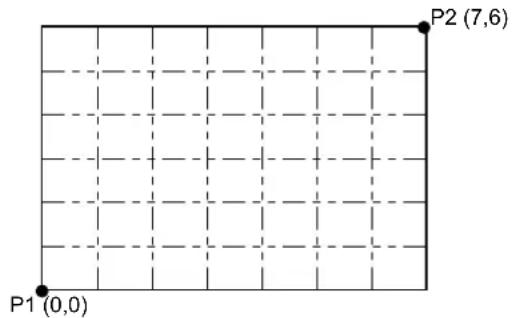
text_image
P2 (7,6) P1 (0,0)• left and bottom settings have no effect in type 0 scaling.
- Type 1 scaling (isotropic scaling) forces x-axis and y-axis units to be the same size. As a result the area specified by X , X , Y , and Y (the isotropic area) may not fit exactly into the rectangular area defined by P1 and P2.

text_image
P1 (0,0) (6,7) P2- With type 1 scaling you can specify the percentage of unused space that is to lie below, or to the left of, the isotropic area.
- left specifies the percentage of unused space you want to lie to the left of the isotropic area and can be from 0 to 100. If you do not specify the value for left, it is automatically set to the default value = 50%.
- bottom specifies the percentage of unused space you want to lie below the isotropic area and can be from 0 to 100. If you do not specify the value for bottom, it is automatically set to the default value = 50%.
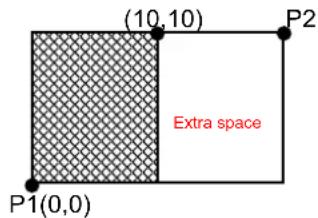
text_image
(10,10) P2 Extra space P1(0,0)SC 0,10,0,10,1,0,0
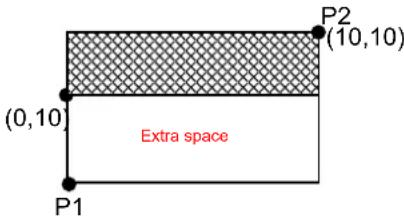
text_image
P2 (10,10) (0,10) Extra space P1SC0,20,0,10,1,100,100
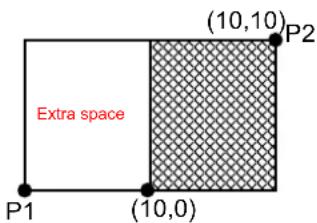
text_image
Extra space (10,0) (10,10) P1 P2SC 0,10,0,10,1,100,100

text_image
P2 Extra space (20,10) P1(0,0)SC 0,20,0,10,1,0,0
- You must either specify both left and bottom, or specify neither. However, the printer can only use one of these two parameters at a time, depending where the extra space is on a page. ¥
- If you do not specify a percentage for unused space to the left or at the bottom, the isotropic area is centred in the rectangle defined by P1 and P2.
- Type 2 scaling (point factor scaling) specifies the ratio of graphics units to user units and sets user units coordinates for P1.
- X_factor specifies the number of graphics units that comprise a single user x-axis unit.
- Y _factor specifies the number of graphics units that comprise a single user y-axis unit.
- Valid values for Xfactor and Yfactor are real numbers.
- An SC command remains in effect until another SC command is issued, until default settings are restored with the DF command or until the printer is initialized with an IN command.
10 '-Scale-'
20 WIDTH "LPT1:", 255
30 LPRINT CHR$(27); "E";
40 LPRINT CHR$(27); "%0B";
50 LPRINT "IN;SP1;"
60 '-- Anisotropic scaling --
70 LPRINT "PA1500,6000;EA3500,8000;"
80 LPRINT "IP1500,6000,3500,8000;SC0,200,0,100,0;PA50,50;CI50;"
90 LPRINT "IN;PA1500,3000;EA3500,5000;"
100 LPRINT "IP1500,3000, 3500,5000;SC0,100,0,200,0;PA50,50;CI50;"
110 LPRINT"IN;PA1300,8200;DT#;LBAnisotropic scaling#";
120 '--Isotropic scaling--
130 'Left,Bottom= 0,0
140 LPRINT "PA4500,6000;EA6500,8000;"
150 LPRINT"IP4500,6000,6500,8000;SC0,200,0,100,1,0,0;PA50,50;CI50;"
160 'Left, Bottom = 100,100
170 LPRINT "IN;PA4500,3000;EA6500,5000;"
180 LPRINT"IP4500,3000,6500,5000;SCO,100,0,200,1,100,100;PA5O,5O;CI5O;"
190 LPRINT "IN;PA400O,82;DT#;LBIsotropooic scaling#";
200 LPRINT CHR$(27);"%OA";
21OLPRINT CHR$(27);"E";
22O END
IW - Window
IW [ X1, Y1, X2, Y2 ] [;]
X_1 -Window lower left X coordinate Y ^1 -Window lower left Y coordinate X_2 -Window upper right X coordinate Y ^2 -Window upper right Y coordinate
- This instruction sets the window inside which drawing can be performed (the soft clip limits).
- Coordinates are specified in current units.
• Using this instruction with no parameters sets the window to be the same as the picture frame. - You can set the corners of the window to lie outside the picture frame. However, only the portion of the image which lies within both the picture frame and the window will appear on the page.
- If scaling is turned on with the SC command before the window is defined with the IW command, you can move the window on the physical page by specifying different locations for P1 and P2 with the IP and IR commands. The user unit coordinates that bound the window remain the same.
- If an SC command is used after the IW window definition, the window is fixed on the physical page and does not move when subsequent IP and IR commands are invoked.
- An IW command remains in effect until another IW command is issued, until default settings are restored with the DF command or until the printer is initialized with an IN command.
50 LPRINT "IN;SP1;";
60 LPRINT "SI0.2,0.35,PA2000,3200;;LBTHIS IS AN EXAMPLE OF IW"; CHR\$(3)
70 LPRINT "IW3000,1300,4500,3700;PD2000,1700;LBTHIS IS AN EXAMPLE OF IW";CHR\$(3)
80 LPRINT "PU3000,1300;PD4500,1300,4500,3700;PD3000,3700,3000,1300;PU;"
90 LPRINT CHR\$(27); "%0A";
100 LPRINT CHR\$(27); "E";
110 END
<Sample 22>
RO - Rotate coordinate system
RO [q] [;]
q : Angle in degrees through which the coordinate system is rotated.
- This instruction is used to rotate the graphics coordinate system anti-clockwise.
- Using this instruction with no parameter sets the rotation of the coordinate system to 0 degrees (default value).
• The pen position does not change. - P1 and P2 rotate with the coordinate system and retain the same coordinate values.
- To relocate P1 and P2 at the lower left and upper right hand corners of the picture frame, use the IP or IR commands.
- If you have previously used an IW command, the window is also rotated. Any part of the window that falls outside the hard clip limits will be clipped.
- The command remains in effect until another RO command is used or until the printer is initialized with the IN instruction.
- Valid values of q are 0, 90, 180 or 270.
10 '--Rotate Coordinate System--
20 WIDTH "LPT1:", 255
30 LPRINT CHR\$(27); "E";
40 LPRINT CHR\$(27); "%0B";
50 LPRINT "IN;SP1;";
60 FOR I = 0 TO 270 STEP 90
70 LPRINT "RO"; I; "PA1000,2000;PD3000,2000,2000,3000,1000,2000;PU;"
80 LPRINT "LB RO ="; I; CHR\$(3)
90 LPRINT "PA600,1500;LBRotate Coordinate System";CHR\$(3)
100 NEXT I
110 LPRINT CHR\$(27); "%0A";
120 LPRINT CHR\$(27); "E";
130 END
<Sample 23>
7.3. Pen Control and Plot Instructions
| Instruction | Function | |
| PU | Pcn | Up |
| PD | Pcn | Down |
| PA | Plot | Absolute |
| PR Relative Coordinate Pen Move | ||
| AA Absolute Arc Plot | ||
| AR Relative Arc Plot | ||
| AT Absolute Three Point Arc | ||
| RT Relative Three Point Arc | ||
| PE | Polyline | Encoded |
| CI | Circle | |
| BR | Bezier | Relative |
| BZ | Bezier | Absolute |
PU - Pen up
PU [X,Y[,...]] [;]
X; X coordinate of the cursor movement destination Y; Y coordinate of the cursor movement destination
- X and Y are either relative or absolute, depending on whether a PA or a PR was the last plot command executed. The absolute coordinates are set as default.
- You can specify as many coordinate pairs as you wish. The cursor moves to each point in turn without drawing.
• Using this instruction without a parameter field raises the pen without changing the cursor position.
• Coordinates are specified in the currently selected unit. - In symbol mode PU draws the specified symbol at each point in the parameter list.
- In polygon mode the specified coordinate pairs are placed in the polygon buffer.
- If an odd number of coordinates are specified, the final (unpaired) coordinate is ignored.
PD - Pen down
PD [X, Y [, ...]] [;]
X; X coordinate of the cursor movement destination
Y; Y coordinate of the cursor movement destination
- X and Y are either relative or absolute, depending on whether a PA or a PR was the last plot command executed. The absolute coordinates are the default setting.
- You can specify as many coordinate pairs as you wish. The cursor moves to each point in turn, drawing lines on the page.
- Using this instruction without a parameter lowers the pen without changing the cursor position.
• Coordinates are specified in the currently selected unit. - In symbol mode PD draws the specified symbol at each defined point on the x- and y-axis.
- In polygon mode the specified coordinate pairs are placed in the polygon buffer.
- If an odd number of coordinates are specified, the final (unpaired) coordinate is ignored.
PA - Plot absolute
PA [X, Y [, ...]] [;]
X ; X coordinate of the cursor movement destination
Y; Y coordinate of the cursor movement destination
- Coordinates are absolute values in user or current units.
- Whether used with or without parameters the command establishes absolute plotting as the plotting mode.
- The command moves the cursor to the specified coordinates, drawing straight lines, only when the pen is down.
- In symbol mode PA draws the specified symbol at each point in the parameter list.
- In polygon mode the specified coordinate pairs are placed in the polygon buffer.
- If an odd number of coordinates are specified, the final (unpaired) coordinate is ignored.
10 ' -- Plot Absolute --
20 WIDTH "LPT1:", 255
30 LPRINT CHR$(27); "E";
40 LPRINT CHR$(27); "%0B";
50 LPRINT "IN; SP1; ";
60 LPRINT "PA2000, 6000; PD0, 6000, 2000, 7500, 2000, 6000; PU2500, 6000; ";
70 LPRINT "PAPD4500, 6000, 2500, 7500, 2500, 6000; PU10365, 500; ";
80 LPRINT CHR$(27); "%0A";
90 LPRINT CHR$(27); "E";
100 END

<Sample 24>
PR - Relative coordinate pen move
PR [X, Y [, ...]] [;]
X ; X coordinate of the cursor movement destination
Y ; Y coordinate of the cursor movement destination
- Coordinates used are relative values in current units.
- Whether used with or without parameters the command establishes relative plotting as the plotting mode.
- The command moves the cursor to the specified coordinates, drawing straight lines, only when the pen is down.
- You can specify any number of coordinated pairs and plotting is performed in the order the coordinates are specified.
- In symbol mode PR draws the specified symbol at each point in the parameter list.
- In polygon mode the specified coordinate pairs are placed in the polygon buffer.
- If an odd number of coordinates are specified, the final (unpaired) coordinate is ignored.
10 ' - Plot Relative -
20 WIDTH "LPT1:", 255
20 LPRINT CHR$(27); "E";
30 LPRINT CHR$(27); "%0B";
40 LPRINT "IN;SP1;"
50 LPRINT "PA5000,4500,;PDPR-2000,0,2000,2000,0,-2000;PU500,0;"
60 LPRINT "PD2000,0,-2000,2000,0,-2000;PU;"
70 LPRINT CHR$(27); "%0A";
80 LPRINT CHR$(27); "E";
90 END
<Sample 25>
AA - Draw absolute arc
AA [X, Y, qc [, qd]] [;]
X ; Arc centre X coordinate Y ; Arc centre Y coordinate
qc ; Arc angle in degrees qd ; Chord angle in degrees
- Coordinates are absolute coordinates in current units.
- Starting from the current position, this command plots an arc centred on the absolute coordinates X, Y having the specified arc angle and chord angle, with the radius being the distance between the current position and the point X,Y.
- After execution of the command the cursor position is at the opposite end of the arc from the point at which plotting started.
- Plotting takes place only when the pen is down.
- If the command is invoked with the pen up, plotting is not performed, but the cursor position moves to what would have been the plot end point.

text_image
qd = Chord Angle qc = Arc Angle (X,Y)• The value for qc is a clamped real number.
- When qc is positive, plotting is counterclockwise.
- When qc is negative, plotting is clockwise.
- The value for qd is a clamped real number in the range 0.5^ to 180^ . The default value is 5^ .
10 -- Draw Absolute Arc --
20 WIDTH "LPT1:", 255
30 LPRINT CHR$(27); "E";
40 LPRINT CHR$(27); "%0B";
50 LPRINT "IN; SP1; IP1000, 1000, 6000, 6000;"
60 LPRINT "SC0, 100, 0, 100;"
70 LPRINT "PA0, 30;"
80 LPRINT "PD; PA0, 45; AA0, 50, 180; PA0, 70;"
90 LPRINT "AA0, 100, 900; PA100, 55; AA100, 50, 180; PA100, 30;"
100 LPRINT "AA100, 100, 90; PA45, 100; AA50, 100, 180; PA80, 100;"
110 LPRINT "AA100, 0, 90; PA55, 0; AA50, 0, 180; PA30, 0; AA0, 0, 90;"
120 LPRINT "PU; PA50, 50, CI20;"
130 LPRINT CHR$(27); "%0A";
140 LPRINT CHR$(27); "E";
150 END
<Sample 26>
AR - Draw relative arc
AR X, Y, qc (, qd) [;]
X ; Arc centre X coordinate Y ; Arc centre Y coordinate
qc ; Arc angle in degrees qd ; Chord angle in degrees
- Coordinates are relative values in current units.
- Starting from the current cursor position the command plots an arc whose centre is at the relative coordinate position (X,Y) and which has the specified arc and chord angles. The radius of the arc is the distance between the current position and the point (X,Y).
- After execution of the command the cursor position is at the opposite end of the arc from the point at which plotting started.
- Plotting takes place only when the pen is down.
- If the command is invoked with the pen up, plotting is not performed, but the cursor position moves to what would have been the plot end point.
• The value for qc is a clamped real number. - When qc is positive, plotting is counterclockwise.
- When qc is negative, plotting is clockwise.
- The value for qd is a clamped real number in the range 0.5^ to 180^ . The default value is 5^ .
10 --Draw Relative Arc --
20 WIDTH "LPT1:", 255
30 LPRINT CHR$(27); "E";
40 LPRINT CHR$(27); "%0B";
50 LPRINT "IN;SP1;IP1000,1000,6000,6000;"
60 LPRINT "SC-100,100,-100,100;"
70 LPRINT
    "PA-100,70;PD;PR30,0;AR0,-70,-90,15;AR70,0,90;PR60,0;PU;"
80 LPRINT CHR$(27); "%0A";
90 LPRINT CHR$(27); "E";
100 END
<Sample 27>
AT - Absolute arc three point
AT X_1 , Y_1 , X_2 , Y_2 [,qd] [;]
X_1 ; x-coordinate of intermediate point Y _2 ; y-coordinate of intermediate point
X_2 ; x-coordinate of end point y _2 ; y-coordinate of end point qd; the chord angle used to draw the arc
- All coordinates are absolute and in current units.
- The command draws an arc from the current position, through the specified intermediate position and finishing at the specified end position.
• After completion of the command the current cursor position is at the end of the arc. - An arc can be drawn clockwise or anti-clockwise.
- If the current scaling mode is not isotropic, the arc may be elliptical rather than circular.
- The chord angle must be in the range 0.5^ to 180^ .
• The default chord angle is 5^ .
10 '--Absolute Arc Three Point--
20 WIDTH "LPT1:", 255
30 LPRINT CHR\$(27); "E";
40 LPRINT CHR\$(27); "%0B";
50 LPRINT "IN;SP1;";
60 LPRINT "PA1000,100;PD2500,100;"
70 LPRINT "PU650,1150;PD1000,1150;"
80 LPRINT "PU650,450;PD1000,450;
90 LPRINT "PU1000,100;PD1000,1500,2500,1500;"
100 LPRINT "AT3200,800,2500,1500;"
110 LPRINT "PU3200,900;PD;"
120 LPRINT "AT3300,800,3200,700;"
130 LPRINT "PU3300,800;PD3500,800;"
140 LPRINT CHR\$(27); "%0A";
150 LPRINT CHR&(27); "E";
160 END
<Sample 28>
RT - Relative arc three point
RT X_1 , Y_1 , X_2 , Y_2 [, qd] [;] X_1 ; x-coordinate of intermediate point Y_2 ; y-coordinate of intermediate point X_2 ; x-coordinate of end point y_2 ; y-coordinate of end point qd; the chord angle used to draw the arc
- The specified coordinates of the two points are relative to the current pen position.
- The command draws an arc from the current position, through the specified intermediate position and finishing at the specified end position.
• After completion of the command the current cursor position is at the end of the arc. - An arc can be drawn clockwise or anti-clockwise.
- If the current scaling mode is not isotropic, the arc may be elliptical rather than circular.
- The chord angle must be in the range 0.5^ to 180^ .
• The default chord angle is 5^ .
10 '--Relative Arc Three Point--
20 WIDTH "LPT1:", 255
30 LPRINT CHR$(27); "E";
40 LPRINT CHR$(27); "&0B";
50 LPRINT "IN;SP1;"
60 LPRINT "PA1000,100;PR;PD1500,0;"
70 LPRINT "PU-1850,1050;PD350,0;"
80 LPRINT "PU-350,-700;PD350,0;"
90 LPRINT "PU0,-350;PD0,1500,1500,0;"
100 LPRINT "RT800,-750,0,-1500;"
110 LPRINT "PU700,850;PD;"
120 LPRINT "RT100,-100,0,-200;"
130 LPRINT "PU100,100;PD200,0;"
140 LPRINT CHR&(27); "%0A";
150 LPRINT CHR$(27); "E";
160 END
<Sample 29>
PE - Polyline encoded
PE [ [flag] [value] | X₁Y₁ ... [flag] [value] | X₁Y₁ ] ];
flag ; a command or mode that applies to the data that follows value; parameter data for the preceding flag
X ; X-coordinate of a cursor movement destination
Y ; Y-coordinate of a cursor movement destination
- This command allows you to combine a sequence of PA, PR, PU, PD and SP commands into a coded format. This reduces file size and transmission time.
- Do not use commas within the PE command. Parameters either have their own terminators or do not require them.
- The PE command must be terminated with a semi-colon.
- The command draws lines using the current line type and current units.
- The command draws lines to all coordinate points specified unless you precede the coordinate pair with a pen up flag.
- On completion of the command, the pen is down unless the final move was made with the pen up.
- All coordinate points are interpreted as relative unless preceded by the absolute flag (=).
- On completion of the command, the previous plotting mode is restored.
- Flags are not encoded. They are sent as ASCII characters. The MSB of the code is ignored, thus 60 and 188 can both represent <, the flag for pen up.
• The following flags are used:
':' - Select pen. The number which follows is the required pen number. A PE command that does not include a select pen command uses the currently selected pen.
'<' - Pen up. The pen is raised and moved to the specified coordinate pair. All coordinate pair values not preceded by this flag are automatically interpreted as pen down plotting commands.
'>- Fractional data. The value following the flag specifies the number of fractional binary bits in the coordinate data.
'=' - Absolute plotting mode. The pair of coordinates which follow this flag are absolute coordinates.
'7' - 7 bit mode. All subsequent coordinate values within this PE command are to be interpreted as 7-bit values, that is, encoded in base 32.
- If you use the ':' flag in polygon mode it is ignored as the SP command has no effect in this mode.
- Values and coordinates are encoded in base 64 or base 32. Values determine the setting of the immediately preceding flag. Legal values and coordinates are as follows:
Pen number - 0 (white) or 1 (black)
Number of fractional binary bits -
x- and y-coordinates - (-2
-26 to 26. The default is 0.
30) to 2^30 - 1 current units. If the pen position is moved outside this range, subsequent plotting commands are ignored until an absolute coordinate pair within the allowable range is specified.
- Flag and coordinate values are encoded as either base 64 or base 32 numbers and then transmitted as ASCII character codes. Base 64 is the default. Use Base 64 if your computer can send data without a parity bit. Use base 32 if your system requires a parity bit.
- To encode an integer proceed as follows. If the number is negative, take the absolute value, multiply by 2 and add 1. Hence -x := 2x+1. If the number is positive simply multiply by 2. Hence x := 2x. Convert the new number into base 64 or base 32 according to your system and encode each base 64 or base 32 digit as the corresponding ASCII character.
- To encode a real number proceed as follows. Multiply the number of decimal places in your coordinate's data by 3.33 and round the result up to the next highest integer (for example round 6.66 up to 7). This gives the number of binary bits needed to represent the number's fractional part - the value that you will supply with the > flag. Call this number n. Now multiply the number you are encoding by 2^n . Round this number to the nearest integer and then follow the procedure described above for encoding an integer.
- Transmit each number to the printer least significant digits first. Terminate each number with the most significant digit. This must be specified from a different ASCII range from the preceding digits in the number. In base 64, non-terminating digits are represented by the numbers 63-126 and terminating digits by the numbers 191-254. In base 32, non-terminating digits are represented by the numbers 63-94 and terminating digits by the numbers 95-126. Hence if using a base 32 number whose least significant digit is 14, and whose most significant digit is 5, encode 14 as 77 (63+14) and 5 as 100 (95+5).
| Non-terminator | Terminator | |
| Base 64 | 63-126 191-254 | |
| Base 32 | 63-94 95-126 |
- In symbol mode the PE command draws the specified symbol at each specified point.
- In polygon mode the points specified within the PE command are not plotted. Instead they are stored in the polygon buffer and used when a FP (Fill Polygon) or EP (Edge Polygon) command is used.
- The PE command with no parameters simply updates the carriage return point.
CI - Circle plot
CI r(, qd) [;]
r ; Radius of circle ( in current units )
qd ; Chord angle ( in degrees )
- The command plots a circle with the current position as the centre, with a radius r and chord angle qd .
• After plotting, the cursor returns to the centre of the circle.
- Plotting takes place irrespective of whether the pen is up or down.
- Valid values for r are specified in the current unit.
- Valid values for qd are clamped real numbers in the range 0.5^ to 180^ . The default value is 5^ .
• To avoid placing an unwanted dot at the centre of the circle precede the CI command with a PU command.
10 '-- Circle --
20 WIDTH "LPT1:", 255
30 LPRINT CHR$(27); "E";
40 LPRINT CHR$(27); "%0B";
50 LPRINT "IN; SP1; ";
60 LPRINT "SC-75, 75, -75, 75, 1;"
70 LPRINT "PA0, 0; LT; CI5; LT0; CI-12;"
80 LPRINT "LT1; CI19; LT2; CI-26;"
90 LPRINT "LT3; CI33; LT4; CI-40;"
100 LPRINT "LT5; CI47; LT6; CI54;"
110 LPRINT CHR$(27); "%0A";
120 LPRINT CHR$(27); "E";
130 END

<Sample 30>
BR - Bezier relative
BR [ X1, Y1, X2, Y2, X3, Y3 . . . [X1, Y1, X2, Y2, X3, Y3]] [;] X1, X2, X3 ; X coordinate of the second (X1), third (X2), and forth (X3) control point Y1, Y2, Y3 ; Y coordinate of the second (Y1), third (Y2), and forth (Y3) control point
- Coordinates are relative values in current units.
- Using the current pen position as the starting point, the bezier curve is geometrically drawn referring to the other three points. The start point of the curve is at (X0,Y0), and the curve is tangential to the line from (X0,Y0) to (X1,Y1) at that point, and it leaves the point in that direction. The end point of the curve is at (X3,Y3), and the curve is tangential to the line from (X2,Y2) to (X3,Y3).
• After execution of this command the cursor position is at the end of the bezier curve. - When drawing a bezier curve is repeated, the last (fourth) control point of the first curve is used as the first control point for the second curve.
- Plotting takes place only when the pen is down.
- If the command is invoked with the pen up, plotting is not performed, but the cursor position moves to what would have been the plot end point.
- If the curve extends to the outside of the soft/hard clip limit, it is clipped.
- This command can only be used in polygon mode.
BZ - Bezier absolute
BZ [X1, Y1, X2, Y2, X3, Y3 ... [X1, Y1, X2, Y2, X3, Y3]] [;] X1, X2, X3 ; X coordinate of the second (X1), third (X2), and forth (X3) control point Y1, Y2, Y3 ; Y coordinate of the second (Y1), third (Y2), and forth (Y3) control point
- Coordinates are absolute values in current units.
- Using the current pen position as the starting point, the bezier curve is geometrically drawn referring to the other three points. The start point of the curve is at (X0,Y0), and the curve is tangential to the line from (X0,Y0) to (X1,Y1) at that point, and it leaves the point in that direction. The end point of the curve is at (X3,Y3), and the curve is tangential to the line from (X2,Y2) to (X3,Y3).
• After execution of this command the cursor position is at the end of the bezier curve. - When drawing a bezier curve is repeated, the last (fourth) control point of the first curve is used as the first control point of the second curve.
- Plotting takes place only when the pen is down.
- If the command is invoked with the pen up, plotting is not performed, but the cursor position moves to what would have been the plot end point.
- If the curve extends to the outside of the soft/hard clip limit, it is clipped.
- This command can only be used in polygon mode.
7.4. The polygon group
| Instruction | Function | |
| PM | Polygon | Mode |
| EA Edge Absolute Rectangle | ||
| ER Edge Relative Rectangle | ||
| EP | Edge | Polygon |
| EW | Edge | Wedge |
| RA Fill Absolute Rectangle | ||
| RR Fill Relative Rectangle | ||
| WG | Fill | Wedge |
| FP | Fill | Polygon |
PM - Polygon mode
PM [ms] [;]
- This command is used for entering and leaving polygon mode, the mode that allows you to access the polygon buffer.
- When in polygon mode you can use any of the vector group commands to define the vertices of a polygon. The following commands can be used; DF, IN, AA, AR, AT, BR, BZ, CI, PA, PD, PE, PR, PU, RT
- The polygon you have defined is not printed until you exit polygon mode and fill or edge the polygon.
- ms, the mode status, can have the value 0, 1 or 2. If ms = 0 the command empties the polygon buffer and enters polygon mode. A value of 1 closes the current polygon and remains in polygon mode. All commands sent following a PM1 before a PM2 or a further PM1 are used to build one sub-polygon. A value of 2 closes the current polygon or sub-polygon and exits polygon mode.
- Having exited polygon mode you can use the EP and FP commands to edge or fill the polygons you have defined.
- The EP command only draws between points defined when the pen was in the down position.
- The FP command fills the area between the polygon vertices irrespective of whether the pen was up or down when the polygon was defined.
- The first point in the polygon buffer is the pen position when the PM0 command was invoked.
- The next pen position specified after a PM1 command becomes the first vertex of the next sub-polygon.
- When plotting a polygon the pen always moves to the first point in the up position.
- Using the command with no parameters clears the polygon buffer and enters polygon mode. This is equivalent to the PM0; command.
- If a DF or IN command is invoked in the polygon mode, the printer quits polygon mode, clears the polygon buffer and executes the subsequent command.
- If an ESC E reset command is invoked while the printer is in polygon mode, the printer quits polygon mode, clears the polygon buffer, exits HP-GL/2 and ejects the page.
EA - Edge rectangle absolute
EA X, Y[;]
X ; X coordinate of opposite corner for the rectangle Y ; Y coordinate of opposite corner for the rectangle
• X and Y coordinates are absolute coordinates in current units.
- Plots the rectangle formed by the current position and the opposite corner specified by X and Y.
• After plotting, the cursor returns to its point of origin and pen up/down status remains as selected.
- Plotting is performed whether the pen is up or down.
10 '-Edge Rectangle Absolute-
20 WIDTH "LPT1:", 255
30 LPRINT CHR$(27); "E";
40 LPRINT CHR$(27); "%0B";
50 LPRINT "IN;SP1;"
60 LPRINT "SCO,150,0,150,1;"
70 LPRINT "PA25;105;EA65;130;"
80 LPRINT "PA30;110;EA70,135;"
90 LPRINT "PA35;115;EA75;140;"
100 LPRINT CHR$(27); "%0A";
110 LPRINT CHR$(27); "E";
120 END

<sample 31>
ER - Edge rectangle relative
ER X, Y[;]
X ; X coordinate of opposite corner for the rectangle
Y ; Y coordinate of opposite corner for the rectangle
- Coordinates are relative to the current position in current units.
- Plots the rectangle formed by the current position and the opposite corner specified by X and Y.
• After plotting, the cursor returns to its point of origin.
- Plotting is performed whether the pen is up or down.
10 '-Edge Rectangle Relative -
20 WIDTH "LPT1:", 255
30 LPRINT CHR$(27); "E";
40 LPRINT CHR$(27); "%0B";
50 LPRINT "IN;SP1;"
60 LPRINT "SC0;150;0;150;1;"
70 LPRINT "PA25,105;ER40,25;"
80 LPRINT "PR 5, 5;ER40,25;"
90 LPRINT "PR 5, 5;ER40,25;"
100 LPRINT CHR$(27); "%0A";
110 LPRINT CHR$(27); "E";
120 END
<Sample 32>
EP - Edge polygon
EP [;]
- This command plots the outline of the polygon currently stored in the polygon buffer.
- The command only plots between points defined when the pen was down.
- The command plots an outline irrespective of whether the pen is currently up or down.
- The command does not affect the data in the polygon buffer.
- On completion of the plot the cursor returns to the original position.
EW - Edge wedge
- Plots a wedge centred on the current position with radius r , start point angle ql , arc angle qc and chord angle qd .
• After plotting, the cursor returns to its point of origin. - Plotting is performed whether the pen is up or down.
- You should use this command with the type "isotropic". Anisotropic type may make the wedge stretch.
- r specifies the radius of the circle. A positive value for r places the 0^ reference point onto the positive x-axis and a negative value for r places the 0^ reference point onto the negative x-axis.
• The value for q1 is a clamped real number.
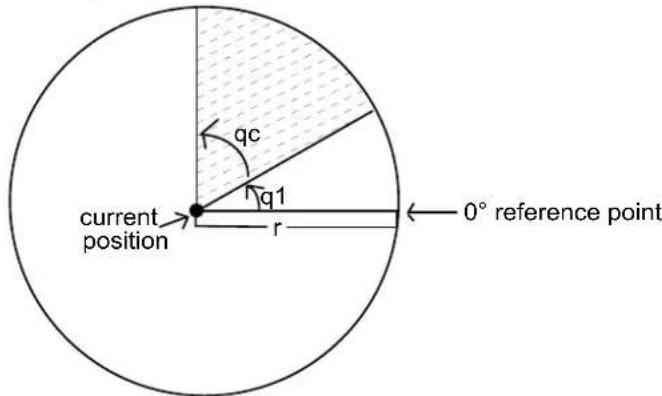
text_image
current position qc q1 r 0° reference point- q1 specifies the wedge starting point relative to the 0 degree reference point.
- When qI is positive, the positive direction of the X axis relative to the current position is set at 0 degrees and the start point is sought in the counterclockwise direction. The opposite occurs when qI is negative: the negative X axis is set at 0 degrees and the start point is sought by going clockwise.
- qc specifies the angle of the wedge in degrees.
• The value for qc is a clamped real number.
- Plotting proceeds counterclockwise when ac is positive and clockwise when negative.
• The value for qd must be an integer from -32.768 to +32.767.
- When ad is not specified, the chord angle is the default value (5 degrees)
10 '- Edge Wedge -
20 WIDTH "LPT1:", 255
30 LPRINT CHR$(27); "E";
40 LPRINT CHR$(27); "%0B";
50 LPRINT "IN;SP1;"
60 LPRINT "PA2000,5000;"
70 LPRINT "EW1250,90,180,5;"
80 LPRINT "EW1250,270,120;"
90 LPRINT "EW1250,30,60;"
100 LPRINT CHR$(27); "%0A";
110 LPRINT CHR$(27); "E";
120 END
<Sample 33>
RA - Fill rectangle absolute
RA X, Y[;]
X ; X coordinate of opposite corner for the rectangle
Y; Y coordinate of opposite corner for the rectangle
• X and Y coordinates are absolute coordinates in current units.
• Fill the rectangle formed by the current position and the opposite corner specified by X and Y.
• After plotting, the cursor returns to its point of origin.
- Plotting is performed whether the pen is up or down.
10 ' - Fill Absolute Rectangle -
20 WIDTH "LPT1:", 255
30 LPRINT CHR$(27); "E";
40 LPRINT CHR$(27); "%0B";
50 LPRINT "IN;SP1;PA5000,4000;"
60 LPRINT "FT1;RA4250,3250;"
70 LPRINT "FT3,100;RA5750,3250;"
80 LPRINT "FT2;RA5750,4750;"
90 LPRINT "FT4,100,45;RA4250,4750;"
100 LPRINT CHR$(27); "%0A";
110 LPRINT CHR$(27); "E";
120 END
<Sample 34>
RR - Fill rectangle relative
RR X, Y[;]
X; X coordinate of opposite corner for the rectangle Y; Y coordinate of opposite corner for the rectangle
• Coordinates relative to the current position in current units.
- Fill the rectangle formed by the current position and the opposite corner specified by X and Y.
• After plotting the cursor returns to its point of origin.
- Plotting is performed whether the pen is up or down.
10 ' - Fill Relative Rectangle -
20 WIDTH "LPT1:", 255
30 LPRINT CHR$(27); "E";
40 LPRINT CHR$(27); "%0B";
50 LPRINT "IN;SP1;PA5000,4000;"
60 LPRINT "FT1;RR750,750;"
70 LPRINT "PR750,0;"
80 LPRINT "FT3,100;RR750,750;"
90 LPRINT "PRO,750;"
100 LPRINT "FT2;RR750,750;"
110 LPRINT "FT4,100,45;RR-750,750;"
120 LPRINT CHR$(27); "%0A";
130 LPRINT CHR$(27); "E";
140 END
<Sample 35>
WG - Fill wedge
WG r, q1, qc ( , qd) [ ; ]
r ; Radius in current units
q1 ; Start point angle
qc ; Arc angle
qd ; Chord angle
- Fill in a wedge centred on the current position with radius r , start point angle ql , arc angle qc and chord angle qd .
• After plotting, the cursor returns to its point of origin. - Plotting is performed whether the pen is up or down.
- You should use this command with the type "isotropic". Anisotropic type may make the wedge stretch.
- r specifies the radius of circle. A positive value places the 0^ reference point onto the positive x-axis and the negative value places it onto the negative x-axis.
• The value for q1 is a clamped real number. - q1 specifies the wedge starting point related to the 0^ reference point.
- When qI is positive, the positive direction of the X axis relative to the current position is set at 0 degrees and the start point is sought in the counterclockwise direction. The opposite occurs when qI is negative: the negative X axis is set at 0 degrees and the start point is sought by going clockwise.
• qc specifies the angle of the wedge.
• The value for qc is a clamped real number. - Plotting proceeds counterclockwise when qc is positive and clockwise when negative.
• The value for qd is a clamped real number. - When qd is not specified, the chord angle is the default value (5 degrees).
10 ' - Fill Wedge -
20 WIDTH "LPT1:", 255
30 LPRINT CHR$(27); "E";
40 LPRINT CHR$(27); "%0B";
50 LPRINT "IN;SP2;FT3,100;"
60 LPRINT "PA2000,5000;"
70 LPRINT "WG1250,90,180,5;"
80 LPRINT "SP3;EW1250,90,180,5;"
90 LPRINT "SP4;FT4,100,45;"
100 LPRINT "WG1250,270,120;"
110 LPRINT "SP3;EW1250,270,120;"
120 LPRINT "SP1;FT1;"
130 LPRINT "WG1250,30,60;"
140 LPRINT "SP3;EW1250,30,60;"
150 LPRINT CHR$(27); "%0A";
160 LPRINT CHR$(27); "E";
170 END
<Sample 36>
FP - Fill polygon
FP [;]
FP [n] [;]
n ; fill method
- This command fills the polygon currently stored in the polygon buffer.
• The command does not clear the buffer or alter the data at all. - The command fills between points defined when the pen was up or down.
- If a polygon is composed of sub-polygons, the command fills alternate areas.
- On completion of the plot the cursor returns to the original position.
- The command performs a fill irrespective of whether the pen is currently up or down.
- You can specify the fill method. There are two types of fill method.
• 0 specifies the even/odd fill method.
Places a point within the polygon and draws a straight line from it to the outside of polygon. If the cross point of the straight line and polygon edges are an odd count, the polygon which includes the start point is filled.
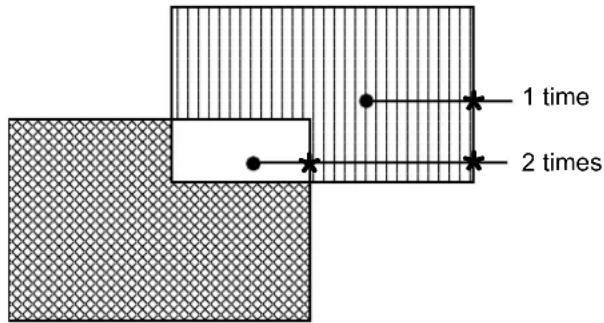
text_image
1 time 2 times• 1 specifies Non-zero winding fill method.
10 '- Fill Polygon -
20 WIDTH "LPT1:", 255
30 LPRINT CHR$(27); "E";
40 LPRINT CHR$(27); "%0B";
50 LPRINT "IN; SP1;"
60 LPRINT "PA1500, 1500; PM0; CI1000, 60; PM1;"
70 LPRINT "CI500; PM1; PM2;"
80 LPRINT "LT4; FT3, 50, 45;"
90 LPRINT "FP;"
100 LPRINT CHR$(27); "%0A";
110 LPRINT CHR$(27); "E";
120 END
<Sample 37>
7.5. Plot Function Instructions
| Instruction | Function | |
| AC | Anchor | Corner |
| FT | Fill | Type |
| LA | Line | Attribute |
| LT | Line | Type |
| PW | Pen | Width |
| RF Raster Fil | Definition | |
| SM | Symbol | Mode |
| SP | Select | Pen |
| SV | Screened | Vectors |
| TR | Transparency | Mode |
| UL User-defined Line Type | ||
| WU Select Unit for Pen Width | ||
AC - Anchor corner
AC [X, Y] [;]
X ; x-coordinate of starting point of fill pattern Y ; y-coordinate of starting point of fill pattern
- This command specifies the anchor corner which is the starting position of a fill pattern.
- If no parameters are specified the lower left hand corner of the PCL picture frame, according to the current coordinate system, becomes the anchor position. This is equivalent to AC0,0;
- User units or graphics units may be used.
- The value of the coordinates are real numbers in the range (-2^30) to 2^30 - 1 .
10 '-Anchor Corner -
20 WIDTH "LPT1:", 255
30 LPRINT CHR$(27); "E";
40 LPRINT CHR$(27); "%0B";
50 LPRINT "IN;SP1;"
60 LPRINT "PA3000,3000;FT3,400,45;"
70 LPRINT "RR1000,1000;ER1000,1000;"
80 LPRINT "PR1000,0;FT4,400,45;"
90 LPRINT "RR1000,1000;ER1000,1000;"
100 LPRINT "PR1000,0;FT3,400,45;"
110 LPRINT "RR1000,1000;ER1000,1000;"
120 LPRINT "PA3000,1500;AC3000,1500;"
130 LPRINT "RR1000,1000;ER1000,1000;"
140 LPRINT "PA4000,1500;AC4000,1500;FT4,400,45;"
150 LPRINT "RR1000,1000;ER1000,1000;"
160 LPRINT "PA5000,1500;AC5000,1500;FT3,400,45;"
170 LPRINT "RR1000,1000;ER1000,1000;"
180 LPRINT CHR$(27); "%OA";
190 LPRINT CHR$(27); "E";
200 END
<Sample 38>
FT - Fill type
FT n(, d(, q)) [;]
- Sets the fill type, interval and angle when filling an area. This setting is effective for the commands FP, RA, RR, WG and CF.
• The value for n must be a clamped integer number
| Fill type | Description Option 1 Option 2 | ||
| 1 Solid black (bi-directional fill) | |||
| 2 Solid black (single directional fill) | |||
| 3 hatching (parallel line) fill interval fill angle | |||
| 4 cross-hatching fill interval fill angle | |||
| 10 | shading | shading level | |
| 11 | HP-GL/2 user-defined | raster-fill index | |
| 21 | PCL cross-hatching | pattern type | |
| 22 | PCL user-defined | pattern ID | |
| 130 | shading (one of sixty-four gray scales) | Shading level | |
- option 1 for n = 3 or 4 is the setting for the interval of the lines in the fill. This is specified in current units.
- If d is omitted or 0, it is set to the default value which is 1% of the diagonal distance between P1 and P2.
- Option 2 for n = 3 and 4 is the setting of the angle for the lines in degrees.
• If q is omitted, the fill angle already specified will be used.
• The value of q is a clamped real number. - Option 1 for n = 10 is the setting for the shading density. It is specified as a percentage from 0 to 100.
- Option 2 for n = 10 is ignored.
- Option 1 for n=11 specifies the HP-GL/2 user-defined raster fill pattern. This uses the index number which is defined by the RF command.
- Option 2 for n = 11 is ignored.
- Option 1 for n = 21 specifies the PCL cross-hatch patterns. There are 6 types of PCL cross-hatch patterns.
- Option 2 for n = 21 is ignored.
- Option 1 for n=22, the PCL user-defined patterns defined by the ESC*c#W command with a unique ID code.
- Option 2 for n = 22 is ignored.
- Option 1 for n = 130 , the 64 gray scale shading density. It is specified as a percentage from 0 to 100.
- Option 2 for n = 130 is ignored.
10 ' - Fill Type -
20 WIDTH "LPT1:", 255
30 LPRINT CHR$(27); "E";
40 LPRINT CHR$(27); "%0B";
50 LPRINT "IN;SP1;";
60 LPRINT "PA2000,2000;FT;PR2500,300;ER2500,300;"
70 LPRINT "PRO,300;FT3,80,30;RR2500.300;"
80 LPRINT "PRO,300;FT10,36;RR2500,300;ER2500,300;"
90 LPRINT CHR$(27); "%0A";
100 LPRINT CHR$(27); "E";
110 END

<Sample 39>
LA - Line attribute
LA [1, v [, 1, v [, 1, v]] ];
1; line attribute v : value
• This command specifies the shape of line joins and line ends.
• These settings are effective for the line widths thicker than 0.35 mm.
• I specifies the line attribute for which you are setting a value.
- There are three line attributes - line end type, line join type and miter limit, specified by line attribute values of 1, 2 and 3 respectively.
• v specifies the value of the particular attribute.
• Line ends are either butt (1), square (2,), triangular (3) or round (4).
- Line joins are either mitered (1), mitered/beveled (2), triangular (3), round (4), beveled (5), or have no join (6).
- Miter limit is the ratio of miter length to line width. When the miter limit is exceeded, the join is clipped to the miter limit.
- The miter limit is specified as a clamped real number.
- If no parameters are specified, the line attributes are set as follows: line ends are butt, line joins are mitered and the miter limit is 5. This is equivalent to the command LA1, 1, 2, 1, 3, 5;

text_image
Miter length Line widthMiter limit = Miter length / Line width
- Labels are always drawn with rounded ends and joins.
- An LA command remains in effect until another LA command is issued, until default settings are restored with the DF command or until the printer is initialized with an IN command.
10 '-Line Attributes-
20 WIDTH "LPT1:", 255
30 LPRINT CHR$(27); "E";
40 LPRINT CHR$(27); "%0B";
50 LPRINT "IN;SP1;"
60 LPRINT "PA4000,3000;PW2;LA1,3;PD3500,2500,4000,2000;"
70 LPRINT "PU3500,200;LA2,2,3,20;PD3000,2500,3000,2300;"
80 LPRINT "PU2500,2300;LA1,4;PD3500,2300;"
90 LPRINT "PU2700,2100;PD3300,2100;"
100 LPRINT "PU2900,1900;PD3100,1900;"
110 LPRINT CHR$(27); "%0A";
120 LPRINT CHR$(27); "E";
130 END
<Sample 40>
LT - Line type selection
LT [, n [, p [,m]]] [;]
n ; Line pattern number
p ; Line pattern length (percentage or millimeters of distance between P1 and P2)
m : mode
- This command specifies the line pattern for use when drawing lines with the vector group commands.
- n defines the line type to be used. n is either in the range -8 to 8 or is 99.
- Values of n from 1 to 8 specify a line type (as defined with the UL command) and use a fixed pattern length. Any residual part of the pattern not used on a particular drawing operation is stored and used at the start of the next line drawn.
- Values of n from -1 to -8 specify a line type (as defined with the UL command) and use an adaptive pattern length - that is, the pattern is scaled so as to fit one or more complete patterns into the line.
- If n is 0, a dot is placed at the (X, Y) coordinates specified with any vector commands used.
- p , the pattern length, specifies the length of one complete pattern, either as a percentage of the distance between P1 and P2 or in millimeters. The unit system used is determined by the mode setting. If the length is omitted, the printer uses the most recently specified pattern length.
- If a zero or negative pattern length is specified the command is ignored.
- m , the mode, defines whether the pattern length parameter, p , is interpreted as a reading in millimeters, (m=1) , or as a percentage of the distance between P1 and P2, (m=0) . If no mode number is included in the command, the most recently specified mode is used.
- LT99; restores the previous line type (and, if it is a fixed line type, the residue), provided that the current line type is solid and that the pen position is the same as it was when the current, solid line type was selected.
- An LT command remains in effect until another LT command is issued, until the default settings are restored with the DF command or until the printer is initialized with an IN command.
- If no parameters are specified the line type is set to be solid. The previous line type, pattern length and any line residue are saved.
10 ' - Line Type -
20 WIDTH "LPT1:", 255
30 LPRINT CHR$(27); "E";
40 LPRINT CHR$(27); "%0B";
50 LPRINT "IN;IP1000,1000,9000,7000;SP1;"
60 LPRINT "PA2000,7100;PDPR400,0;PU;" 'REM DEFAULT LINE = 400
70 LPRINT "LT8;PA2000,7000;PD5000,7000;PU;"
80 LPRINT "LT8,4,0;PA2000,6900;PD5000,6900;PU;"
90 LPRINT "LT8,8,1;PA2000,6800;PD5000L6800;PU;"
100 '
110 LPRINT "LT4,PA2000,6600;PD5000,6600;PU;"
120 LPRINT "LT4,4,0;PA2000,6500;PD5000,6600;PU;"
130 LPRINT "LT4,10,1;PA2000,6400;PD5000,6400;PU;"
140 '
150 LPRINT "LT0;PA2000,6300;PD5000,6200; PU;"
160 LPRINT "LT0,4,0;PA2000,6100;PD5000,61000;PU;"
170 LPRINT "LT0,10,1;PA2000,6000;PD5000,6000;PU;"
180 '
190 LPRINT "LT-4;PA2000,5800;PD5000,5800;PU;"
200 LPRINT "LT-4,4,0;PA2000,5700;PD5000,5700;PU;"
210 LPRINT "LT-4,10,1;PA2000,5600;PD5000,5600;PU;"
220 '
230 LPRINT "LT-8;PA2000,5400;PD5000,5400;PU;"
240 LPRINT "LT-8,4,0;PA2000,5300;PD5000,5300;PU;"
250 LPRINT "LTO8,1O,1;PA2OOO,52OO;PD5OOO,52OO;PU;"
26O '
27O LPRINT "LT99;PA2OOO,5OOO;PD5OOO,5OOO;PU;"
28O LPRINT CHR$(27); "%OA";
29O LPRINT CHR$(27); "E";
3O END

<Sample 41>
PW - Pen width
PW [w, [,p]] [;]
w; width
p; pen
- This command specifies the width of the pen.
- Pen width can either be specified as a fixed width in millimeters (the default) or relative to the distance between the scaling points P1 and P2.
- If a width of zero is specified the thinnest width possible (1 dot wide) is set.
- Metric widths are scaled by the ratio of the PCL picture frame to the HP-GL/2 plot size. If the ratio for the two axes is different, the smaller one is used. If this is less than the thinnest width available then a width of 1 dot is selected.
- If no pen number is specified the new width applies to both pens.
- If a pen number other than 0 or 1 is specified the command is ignored. There are six pens in the specification.
- If no parameters are specified the pen width defaults to either 0.35mm or 0.1% of the distance from P1 to P2 according to the current width unit setting.
- Pen width settings are not affected by a DF command.
- Pen width does not set the width of the lines that make up the characters in a label.
- A PW command remains in effect until another PW command is issued, until a WU command is used or until the printer is initialized with an IN command.
10 '-Pen Width-
20 WIDTH "LPT1:", 255
30 LPRINT CHR$(27); "E";
40 LPRINT CHR$(27); "%0B";
50 LPRINT "IN;SP1;"
60 LPRINT "PA3500,2500;PW1.5;"
70 LPRINT "PD4500,2800,4500,1800,3500,1500,3500,2500;"
80 LPRINT "PW0.8;PD2300,2900,2300,1900,3500,1500;"
90 LPRINT "PW0.5;PU2300,2900;PD3300,3200,4500,2800;"
100 LPRINT "PW0.25:PU4500,1800;PD3500,2100;"
110 LPRINT CHR$(27); "%0A";
120 LPRINT CHR$(27); "E";
130 END
<Sample 42>
RF - Raster fill definition
RF [ i [, w, h, p [, ...]] ] [;]
i : index w : width
p: pen number h : height
- This command defines a rectangular pattern which may be used to fill the area.
- i is the index number of the pattern that is to be defined and must be in the range 1-8. 8 patterns can exist concurrently.
- If used with an index parameter and no others, the pattern is defined as a solid black fill.
- w is the width in pixels of the pattern that is to be defined and must be in the range 1-255.
- h is the height in pixels of the pattern that is to be defined an must be in the range 1 - 255.
- p stands for a pixel in the defined fill. p = 0 signifies a white pixel, p > 0 signifies a black pixel. The number of pixels specified should equal the number of pixels in the fill pattern (w, h). The parameter defines successive pixels' colors from left to right, top to bottom. If you do not supply enough pixel parameters the trailing pixels default to white.
- Use the FT command to select a fill type from those defined with the RF command.
- Omitting parameters sets all raster fill patterns to solid fill.
10 '--Raster Fill Definition==
20 WIDTH "LPT1:", 255
30 LPRINT CHR$(27); "E";
40 LPRINT CHR$(27); "%0B";
50 LPRINT "IN;SP1;"
60 LPRINT "PU5,5;PA3500,2500;"
70 LPRINT
"RF2,8,4,0,0,0,0,0,0,0,0,0,0,1,1,0,0,0,0,0,1,1,0,0,0,0,0,0,0,0,0,
0,;"
80 LPRINT "FT11,2;RR4000,800;EP;"
90 LPRINT CHR$(27); "%0A";
100 LPRINT CHR$(27); "E";
110 END
<Sample 43>
SM - Symbol mode
SM c[;]
c ; ASCII character or symbol code
- The command specifies the symbol to be drawn.
- The specified symbol will be drawn at the end of each vector, irrespective of whether the pen is up or down when the PA, PR, PD, PU or PE instructions are used.
- Characters in the character code ranges 33 - 58, 60 - 126 and characters 161 and 254 can be used.
- Character code 59 stands for the ';' which is the HP-GL/2 terminator. You cannot use it as a symbol.
- The current character size, slant and direction settings affect the way the symbol is drawn.
- Omitting the parameter cancels the symbol mode.
- On quitting symbol mode the original pen up/down state is restored.
SP - Select pen
SP [n] [;]
n ; pen number
- The command selects a pen for drawing.
- You must use this command before performing any drawing or filling commands.
- n should be either 0 or 1 (although any other integers will be interpreted as 1.)
- If n is 0 the white pen is selected. In this case drawing commands will have no effect, unless you are plotting onto a dark background and transparency mode is off.
- If n is 1 the black pen is selected and printing can proceed normally. Use SP1 at the start of HP-GL/2 programs.
- Invoking the command with no parameter is equivalent to SP0.
SV - Screened vectors
SV [ s [, option_1[, option_2]] ] [;]
s : screen type
option_1 and option_2: dependent on the screen type
- This command selects the type of screening that will be applied to vectors, arcs, circles and edges of polygons, rectangles and wedges.
- The screen type must have the value 0, 1, 2, 21, 22 or 130. 0 = no screen, 1 = shaded fill (one of eight gray scales), 2 = raster fill as defined by the RF command, 21 = a pre-defined PCL cross-hatch pattern and 130 = shaded fill (one of sixty-four gray scales).
- With screen type 1 option_1 specifies the percentage of shading (0-100): option_2 is ignored.
-
With screen type 2 option_1 is used to specify the index number of the fill pattern created using the RF command. Option_2 is set to either 0 or 1: 0 means that the fill will appear in the colour of pen number 1, 1 means it should appear in the current pen's colour.
-
With screen type 21 option 1 specifies one of six predefined PCL cross-hatch patterns (patterns 1 - 6). option 2 is ignored.
- With screen type 22, option 1 specifies the ID number of PCL user-defined pattern which is defined by the ESC*c#W command. option 2 is ignored.
- With fill screen type 130 option 1 specifies the percentage of shading (0 - 100): option 2 is ignored.
- If option 1 and option 2 are omitted, the most recently specified values for these parameters, for the specified screen type, are used.
- All screening patterns use the current anchor corner.
- Invoking the command with no parameter turns screening off. This is equivalent to SV0;
10 '-Screened Vectors-
20 WIDTH "LPT1:", 255
30 LPRINT CHR$(27); "E";
40 LPRINT CHR$(27); "%0B";
50 LPRINT "IN;SP1;"
60 LPRINT "SV1,15;PA4000,5000;CI500;"
70 LPRINT "SV1,50;PA5000,4000;CI400;"
80 LPRINT "SV1,100;PA6000,6000;CI300;"
90 LPRINT "PW10;SV21,5;PA2000,1000;PD;AA0,0,90;PC;"
100 LPRINT "PW5;SV21,3;PA6000,6000;CI500;"
110 LPRINT "PW7;SV21,6;PA2000,8000;PDPA5000,8000;PU;"
120 LPRINT "PW7;SV21,6;PA2000,8000;PDPA5000,8000;PU;"
130 LPRINT "1,1,0,0,0,0,0,0,1,1,"
140 LPRINT "0,0,1,1,0,0,1,1,0,0,"
150 LPRINT "0,0,0,0,1,1,0,0,0,0,"
160 LPRINT "0,0,1,1,0,0,1,1,0,0,"
170 LPRINT "1,1,0,0,0,0,0,0,1,1;"
180 LPRINT
"PW15;SV2,3;PA4000,2000;PMO;PD6000,2000,6000,4000,4000,4000;PM1;PM2;EP;"
190 LPRINT CHR$(27); "%OA";
200 LPRINT CHR$(27); "E";
210 END
<Sample 44>
TR - Transparency mode
TR [n] [;]
n ; transparency type
- This command turns transparency mode on and off. Transparency mode defines how source and destination graphics images interact.
- n is either 0 (off) or 1(on).
- When transparency mode is on, the white parts of a source image (the image that is being superimposed on the destination image) do not affect the destination image - that is, part of the destination image will be visible beneath the source image.
- When transparency mode is off the destination image is not visible beneath the source image.
- Invoking the command with no parameter turns transparency mode on. This is equivalent to TR1;
- An Esc E reset, a control panel reset, the IN command and the DF command all turn transparency mode on.
10 'Transparency Mode-
20 WIDTH "LPT1:", 255
30 LPRINT CHR$(27); "E";
40 LPRINT CHR$(27); "%0b";
50 LPRINT "IN;SP1;";
60 'PART1 TR1
70 'Original Destination 1
80 LPRINT "TR1;PA1900,4900;PM0;PM3100;4900,2500,6100;PM1;"
90 LPRINT "PM2;FP;"
100 'Source 1
110 LPRINT "FT10,50;PA2000,5000;RR500,500;PA2500,5500;RR500,500;"
120 LPRINT "FT10,1;PA2500,5000;RR500,500;PA2000,5500;RR500,500;FT;"
130 'PART2 TR0
140 'Original Destination 2
150 LPRINT "TR0;PA3900,4900;PM0;PA5100,4900,4500,6100;PM1;"
160 LPRINT "PM2;FP;"
170 'Source 2
180 LPRINT "FT10,50;PA4000,5000;RR500,500;PA4500,5500;RR500,500;"
190 LPRINT "FT10,1;PA4500,5000;RR500,500;PA4000,5500;RR500,500;FT;"
200 '
210 '( POLYGON )
220 LPRINT "PA2000,1000;PM0;PDPA4000,1000,3000,3000;PM1;"
230 LPRINT "PA2500,1200,3500,1200,3000,2500;PM1;"
240 LPRINT "PA3000,800,3700,2500,2300,2500;PM1;"
250 LPRINT "PM2;FP;"
260 LPRINT CHR$(27); "%OA";
270 LPRINT CHR$(27); "E";
280 END
<Sample 45>
UL - User-defined line type
UL [i] [,g[...]] [;]
i ; unit type g : gap length
- This command allows you to define line types which you can then subsequently select with the LT command.
- i must be in the range 1-8. i identifies the line type that is to be defined.
- The index parameter uses absolute values.
- g (the gap length) alternately specifies pen up and pen down parts of the defined line type. A maximum of twenty line sections are permitted, the first of which is a pen down section. Numbers must be integers in the range 0\~32767. These numbers are converted to percentages by the LT command.
• Maximum definition for the gap of each line type is 20. - The sum of the gap parameters must be greater than 0.
- Specifying an index number with no gap parameters sets the line type to the default pattern for that index number.
- Using the command with no parameter sets all line types to the defaults.
10 '-User Defined Line Type-
20 WIDTH "LPT1:", 255
30 LPRINT CHR$(27); "E";
40 LPRINT CHR$(27); "%0B";
50 LPRINT "IN;SP1;;"
60 LPRINT "UL8,0,15,0,15,0,15,40,15;"
70 LPRINT "LT8,5;PA2000,2500;PDPA5000,2500;PU;"
80 LPRINT "UL4,40,15,0,15,0,15,40,15,0,15;"
90 LPRINT "LT4,10;PA2000,3000;PDPA5000,3000;PU;"
100 LPRINT "UL1,40,40,40,40,40;"
110 LPRINT "LT1,10;PA2000,3500;PDPA5000,3500;PU;"
120 LPRINT CHR$(27); "%0A";
130 LPRINT CHR$(27); "E";
140 END
<Sample 46>
WU - Select unit for pen width
WU [t] [;]
t ; unit type
- This command specifies the pen width unit. It applies to all pens.
- t must be either 0 or 1.
- If t is 0 the pen width parameter which accompanies subsequent PW commands will be treated as a reading in millimeters.
- If t is 1 the pen width parameter which accompanies subsequent PW commands will be treated as percentage of the distance between the scaling points P1 and P2. The default width is 0.1% of the diagonal distance from P1 to P2.
- The command sets all pen widths to a default of 0.35mm. Hence it should be used before the PW command.
• Using the command with no parameter defaults the type to 0 (metric) and all pen widths to 0.35mm.
- The unit type is not affected by a DF command.
10 '-Pen Width Unit Selection-
20 WIDTH "LPT1:", 255
30 LPRINT CHR$(27); "E";
40 LPRINT CHR$(27); "%0B";
50 LPRINT "IN;SP1;";
60 'metric
70 LPRINT PA2000,6000;PDPA6000,6000;PU;" 'Default 0.35mm
80 LPRINT "WU0;PA2000,5700;PDPA6000,5700;PU;" '0.35mm
90 LPRINT "WU0;PW1.5;PA2000,5400;PDPA6000,5400;PU;" '1.5mm
100 LPRINT "WU0;PW0.8;PA2000,5100;PDPA6000,5100;PU;" '0.8mm
110 "-relative unit
120 LPRINT "PW;PA2000,4600;PDPA6000,4600;PU;" 'Default 0.35mm=4dot
130 LPRINT "IP1000,1000,9000,7000;"
140 LPRINT "WU1;PA2000,4300;PDPA6000,4300;PU;" '300*10/1016=2dot
150 LPRINT "IP1000,1000,5000,4000;"
160 LPRINT "WU1;PA2000,4000;PDPA6000,4000;PU;" '300*5/1016=1dot
170 LPRINT CHR$(27); "%OA";
180 LPRINT CHR$(27); "E";
190 END
<Sample 47>
7.6. Character Plot Instructions
| Instruction | Function | |
| SD Define Standard Font | ||
| AD Define Alternate Font | ||
| SS Select Standard Font | ||
| SA Select Alternate Font | ||
| FI Select Primary Font | ||
| FN Select Secondary Font | ||
| LB | Define | Label |
| DT Define Label Terminator | ||
| LO | Label | Origin |
| DI | Absolute | Direction |
| DR | Relative | Direction |
| DV Define Variable Text Path | ||
| CP | Character | Plot |
| CF Character Fill Mode | ||
| SI Set Absolute Character Size | ||
| SR Set Relative Character Size | ||
| SL Set Character Slant | ||
| SB Scalable or Bitmap Fonts | ||
| ES | Extra Space | |
| TD | Transparent | Data |
7.6.1. Introduction
The character group commands enable you to print text to accompany your HP-GL/2 generated graphics without leaving graphics mode. You can use any font that would be available to you in LaserJet emulation mode and you can modify various printing characteristics of the text such as the size, direction and slant of the characters.
SD - Define standard font
SD [ attribute, value ] [...] [;]
attribute ; a font attribute to be defined value ; the value of the attribute
- This command allows you to define the standard font and its attribute.
- attribute takes a value from 1-7. 1=symbol set, 2=spacing, 3=pitch, 4=height, 5=posture, 6=stroke weight and 7=typeface.
• value selects an option for the specified attribute. - If the defined font is not available another font is selected that matches the defined font's specified attributes as closely as possible. The symbol set attribute has the highest priority for matching and typeface has the lowest.
- If you omit all parameters, the default standard font attributes are used. These are shown below.
| Attribute | Meaning | Default | value | Description |
| 1 | Symbol | set | 277 | |
| 2 | Spacing | 0 | g | Roman-8Monospacing |
| 3 | Pitch | 9 | 9 cpi point | |
| 4 | Height | 11.5 | 11.5 | |
| 5 | Posture | 0 | characters | Upright |
| 6 | Stroke weight | 0 | Medium | |
| 7 | Typeface | 48 | Stick font |
- attribute = 1 : Symbol set
| Value | Name ISO | number | Value | Name ISO | number |
| 1 Math - 7 - 2 Line Draw - 7 - | |||||
| 3 HP Large Characters - 4 Norwegian v1 60 | |||||
| 5 Roman Extensions - 6 French v1 | 25 | ||||
| 7 | HP German | -8 Hebrew - 7 | - | ||
| 9 | Italian | 15 | 11 | JIS ASCII | 14 |
| 12 | Line Draw - 7 | - | 13 | Math - 7 | - |
| 14 | ECMA-94 Latin1 (8-bit version) | 8859/1 | 15 | OCR - A | - |
| 16 | APL (typewriter paired) | - | 18 | Cyrillic ASCII | - |
| 19 | Swedish for names | 11 | 20 | Thai - 8 | - |
| 21 | ASCII | 6 | 22 | Arabic (MacKay's Version) | - |
| 25 | 3 of 9 Barcode | -26 Not used | - | ||
| 36 | Danish/Norwegian v2 | 61 | 37 | United Kingdom | 4 |
| 38 | French v2 | 69 | 39 | German | 21 |
| 43 | Katakana | 13 | 44 | HP Block Characters | - |
| 45 | Tech - 7 | - | 47 | OCR - B | - |
| 48 | APL (bit paired) | - | 50 | Cyrillic | - |
| 51 | HP Spanish | - | 53 | Legal | - |
| 57 | Industrial 2 of 5 Barcode | - | 75 | Chinese | 57 |
| 76 | Tax Line Draw - | 78 ECMA-94 Latin 2 8859/2 | |||
| 79 | OCR-M | - | 83 | Spanish | 17 |
| 85 | International Reference Version | 2 | 89 | Matrix 2 of 5 Barcode | - |
| 114 | PC Cyrillic | - | 115 | Swedish | 10 |
| 147 | Portuguese | 16 | 153 | Interleaved 2 of 5 Barcode | - |
| 173 PS Math - 174 ECMA-128 Latin 5 8859/9 | |||||
| 179 | Portuguese | 84 | 181 | HPL Language Set | - |
| 185 | CODABAR Barcode | - | 202 | Microsoft Publishing | - |
| 205 | Ventura Math | - | 211 | Spanish | 85 |
| 217 | MSI/Plessey Barcode | - | 234 | DeskTop | - |
| 243 | HP European Spanish | - | 249 | Code 11 Barcode | - |
| 263 | Greek - 8 | - | 264 | Hebrew - 8 | - |
| 266 | Document | - | 267 | Kana - 8 | - |
| 268 | Line Draw 8 | - | 269 | Math - 8 | - |
| 275 | HP Latin Spanish | - | 276 | Turkish - 8 | - |
| 277 | Roman - 8 (Default) | - | 278 | Arabic - 8 | - |
| 281 | UPC/EAN Barcode | - | 299 | Korean - 8 | - |
| 309 | Windows | - | 330 | PS Text | - |
| 332 | PS ITC Zapf Dingbats | - | 334 | ECMA-113/88 Latin/Cyrillic | 8859/5.2 |
| 341 | PC-8 | - | 373 | PC-8 D/N | - |
| 405 | PC-850 | - | 428 | ITC Zapf Dingbats Series 300 | - |
| 458 | Ventura U.S. | - | 501 | Pi Font | - |
| 505 | USPS Zip | - | 531 | HP-GL Download | - |
| 563 | HP-GL Drafting | - | 595 | HP-GL Special Symbols | - |
• attribute = 2 : Spacing
| Value | Meaning |
| 0 | Monospacing |
| 1 | Proportional spacing |
- attribute = 3 : Pitch
Specify pitch in characters per inch (cpi). The pitch value you specify can be in the range 0 to 32767.9999. Pitch only applies to monospaced fonts.
- attribute = 4 : Height
Specify height in points. One point is 1/72". The height value you specify can be in the range 0 to 32767.9999. Proportionally spaced fonts are scaled according to the height you select. Monospaced fonts ignore this setting value.
- attribute = 5 : Posture
| value | Meaning |
| 0 | Upright |
| 1 | Italic |
| 2 | Alternate italic |
- attribute = 6 : Stroke weight
| Attribute | Meaning |
| -7 | Ultra Thin |
| -6 | Extra thin |
| -5 | thin |
| -4 | Extra light |
| -3 | Light |
| -2 | Demi light |
| -1 | Semi light |
| 0 Medium, Book or Text | |
| 1 | Semi bold |
| 2 | Demi bold |
| 3 | Bold |
| 4 | Extra bold |
| 5 | Black |
| 6 | Extra black |
| 7 | Ultra black |
| 9999 Stick font at current pen width* | |
* This attribute value is only effective if the stick font is the current font.
- attribute = 7 : Typeface
You can select any typefaces available in LaserJet mode, from the internal fonts, card/cartridge fonts or download fonts.
10 '-Standard Font Definition-
20 WIDTH "LPT1:", 255
30 LPRINT CHR$(27); "E";
40 LPRINT CHR$(27); "%0B";
50 LPRINT "IN;SP1 Bird";
60 LPRINT "PA2200,7000;SD2,0,4,11.5,5,0;"
70 LPRINT "DT#;LBLaser printer"
80 LPRINT "PA2000,5000;SD2,1,4,20,5,1;"
90 LPRINT "LBLaser printer"
100 LPRINT "PA1000,3000;SD2,1,4,50,5,1;"
110 LPRINT "LBLASER PRINTER"
120 LPRINT CHR$(27); "E";
130 LPRINT CHR$927); "%0A";
140 END
<Sample 48>
AD - Define alternate font
AD [ attribute, value ] [...] [;]
attribute : a font attribute to be defined
value : the value of the attribute
• This command allows you to define the alternate font and its attribute.
• attribute takes a value from 1-7.
1 = symbol set, 2 = spacing, 3 = pitch, 4 = height, 5 = posture, 6 = stroke weight and 7 = typeface.
- value selects an option for the specified attribute. For further explanation about attribute values see the previous SD command.
- If the defined font is not available, another font is selected that matches the defined font's specified attributes as closely as possible. The symbol set attribute has the highest priority for matching and typeface has the lowest.
- If you omit all parameters, the default alternate font attributes are used.
10 '-Define Alternate Font -
20 WIDTH "LPT1:", 255
30 LPRINT CHR$(27); "E";
40 LPRINT CHR$(27); "%0B";
50 LPRINT "IN;SP1;";
60 '- Standard font -
70 LPRINT "PA1000,5000;"
80 LPRINT "LBStandard font"; CHR$(3);
90 '- Alternate font -
100 LPRINT "AD2,1,4,24,7,4101;"
110 LPRINT "PA1000,4000;"
120 LPRINT "SA";
130 LPRINT "LBAlternate font"; CHR$(3);
140 LPRINT CHR$(27); "%0A";
150 LPRINT CHR$(27); "E";
160 END

<Sample 49>
SS - Select standard font
ss [;]
- This command allows you to select the standard font, as defined by the SD command. All subsequently printed labels will appear in the standard font.
- The SS command is equivalent to including the SI control code (ASCII 15) in a label.
- The default standard font is the HP-GL stick font.
- The font remains current until the printer is initialized with an IN command, until the default conditions are resorted with the DF command or until an SA command is used.
SA - Select alternate font
SA [;]
- This command allows you to select the alternate font, as defined by the AD command. All subsequently printed labels will appear in the alternate font
- The SA command is equivalent to including the SO control code (ASCII 14) in a label.
- The font remains current until the printer is initialized with an IN command, until the default conditions are restored with the DF command or until an SS command is used.
FI - Select primary font
FI font-ID [;]
font-ID ; the identity number of any accessible font.
- This command allows you to select any accessible font, which has previously been given an identity number in LaserJet mode, as the primary (standard) font. All subsequently printed labels will appear in the primary font.
- For scalable fonts this command must be preceded by an SD command specifying the font's point size or pitch.
- When the FI command is issued the primary (standard) font's attributes are set to be those of the selected font (provided it is available).
10 '-Select Primary Font & Select standard Font -
20 WIDTH "LPT1:", 255
30 LPRINT CHR$(27); "E";
40 LPRINT CHR$(27); "*c15D";
50 LPRINT CHR$(27); "(s1p18v0s3b52T";
60 LPRINT CHR$(27); "*c6F";
70 LPRINT CHR$(27); "%0B";
80 LPRINT "IN; SP1;"
90 LPRINT "PA1500, 1500; DT#; LBLaser Printer"; CHR(13); CHR(10); "#"
100 LPRINT "SD4, 18; FI15; LBLaser Printer"
110 LPRINT CHR$(27); "%0A";
120 LPRINT CHR$(27); "E";
130 END
<Sample 50>
FN - Select secondary font
FN font-ID [;]
font-ID : the identity number of any accessible font
- This command allows you to select any accessible font, which has previously been given an identity number in PCL mode, as the secondary (alternate) font. All subsequently printed labels will appear in the secondary font.
- For scalable fonts the FN command must be preceded by an AD command specifying the font's point size or pitch.
- When the FN command is issued the secondary (alternate) font's attributes are set to be those of the selected font (provided it is available).
LB - Character plot
LB [ cs ] < terminator > [;]
cs : character string
• This command enables you to print character strings.
- You must supply a terminator at the end of your string. You can either use the default terminator, ETX (ASCII 3), or define your own terminating character using the DT command.
- A label can include non-printing characters such as a carriage return or line feed.
- Printing takes place irrespective of whether the pen is currently up or down.
- The label is printed starting from the current cursor position and using any label origin setting that you have made with the LO command.
10 '-Label-
20 WIDTH "LPT1:", 255
30 LPRINT CHR$(27); "E";
40 LPRINT CHR$(27); "%0B";
50 LPRINT "IN;SP1;"
60 LPRINT "PA2500,2500;DT*;"
70 LPRINT "SD1,21,2,1,4,25,5,0,6,3,7,52;SS;"
80 LPRINT "LBLaser printer*"
90 LPRINT CHR$(27); "%0A";
100 LPRINT CHR$(27); "E";
110 END
<Sample 51>
DT - Define label terminator
DT [c[,m]] [;]
c: Character
m : mode
- This command allows you to specify the character that terminates strings printed with the LB instruction.
- The character immediately following DT is taken to be the terminator. Hence, do not put a space between the DT and your chosen character. If you do, space will be interpreted as the terminator in all subsequent LB commands.
- m , the mode, determines whether the terminating character is printed as part of the label or not. If m = 0 the character is printed; if m = 1 it is not.
- If you do not specify a value for m the terminating character is not printed.
- If you leave out the character parameter the default character ETX (ASCII 3) is used as the terminator.
- This setting is effective until the another DT is invoked or IN or DF is performed.
10 REM - Define Label Terminator -
20 WIDTH "LPT:", 255
30 LPRINT CHR$(27); "E";
40 LPRINT CHR$(27); "%0B";
50 LPRINT "IN;SP2;";
60 LPRINT "IN;SP2;SC0,5000,0,5000;"
70 LPRINT "PA0,4500;LBDefault control character ETX"; CHR(13);CHR(3);
80 LPRINT "LBterminates by performing end-"; CHR(13);CHR(3);
90 LPRINT "LBof-text function.";CHR$(3);
100 LPRINT "PA0,3500;DT@;LBPrinting characters terminate;", CHR$(13);
"@";
110 LPRINT "LBbut are also printed.@";
120 LPRINT "PA0,3000;DT"; CHR$(7); "LBcontrol characters terminate";
CHR$(13);chr(7);
130 LPRINT "LBand perform their function."; CHR$(7)
140 LPRINT CHR$(27); "%01";
150 LPRINT CHR$(27); "E";
160 END

<Sample 52>
LO - Label origin
LO [p] [;]
- This instruction allows you to position labels in different ways relative to the current pen location.
- You can centre, left justify or right justify labels relative to the current pen location and print them on, above or below the current location.
- You can combine an offset distance, equal to 25% of the current font's point size, with any of the above origin positions.
- p must either be in the range 1 - 9, 11 - 10 and 21. The label origin position specified by each p parameter value is shown below. 21 sets the label origin to the same one in PCL.
P=1 P=4 P=7 .
P=2 P=5 P=8
P=3 P=6 P=9
P = 11 P = 14^* P = 17
· P = 12 P = 15 P = 18
^ P=13 P=16 P=19 ^
- When you use an LO instruction the carriage return point is set to be the new label origin. To send the pen back to a label's origin when you have finished printing it, include a carriage return between the last character of the label and the terminating character.
- If a label contains embedded carriage returns, each character string following a carriage return is printed starting from the label origin.
- If you omit the parameter the label origin is the bottom left hand corner of the first character's character cell - equivalent to LO11;.
- The command remains in effect until the printer is initialized with an IN command, until the default conditions are restored with the DF command or until another LO command is used.
10 '-Label Origin-
20 WIDTH "LPT1:", 255
30 LPRINT CHR$(27); "E";
40 LPRINT CHR$(27); "%0B";
50 LPRINT "IN;SP;"
60 LPRINT "SC-4000,4000,-5000,5000;SI0.17,0.26;"
70 LPRINT "PA0,500;PD-500,0,0,-500,500,0,0,500;DT#;"
80 LPRINT "CI10;LO4;LBCentred on point punct"
90 LPRINT "PU-500,0;CI10;LO18;LBleft centre offset punct"
100 LPRINT "PU0,-500;CI10;LO13;LBRight offset from point punct"
110 LPRINT "PA500,0;CI10;LO3;LBright hang from point punct"
120 LPRINT CHR$(27); "%0A";
130 LPRINT CHR$(27); "E";
140 END

<Sample 53>
DI - Absolute direction
DI [ run, rise ] [;]
run : X direction component rise : Y direction component
- This command determines the direction in which subsequent labels will be printed.
- gives the tangent of the angle between the base line of a label's characters and the horizontal.
• run is equivalent to cos 0 and rise is equivalent to sin 0.
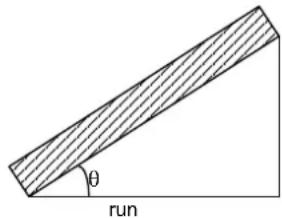
text_image
θ runrise
tan θ
- Values for run and rise are clamped real numbers.
- When you issue a DI instruction the carriage return point is set to the current pen location.
• The instruction is ignored if run and rise are both 0. - Any text path that you set with the DV instruction will combine with the current printing direction to determine the layout of characters on the page.
- If you omit the parameters the printing direction is horizontal.
- The label direction which is specified by this command is not affected by changes in the location of P1 and P2.
10 ' -Absolute Direction -
20 WIDTH "LPT1:", 255
30 LPRINT CHR$(27); "E";
40 LPRINT CHR$(27); "%0B";
50 LPRINT "IN;SP1;";
60 DEG = -45
70 RAD = 3.1416 / 180 * DEG
80 LPRINT "IN;SP2;PA3050,4450;"
90 LPRINT "DT";"
100 LPRINT "DT0,2;LB_*_1988#"; "DI2,2;LB_*_1989#";
110 LPRINT "DT2,0;LB_*_1990#"; "DI2,-2;LB_*_1991#";
120 LPRINT "DT0,-2;LB_*_1992#"; "DI-2,-2;LB_*_1993#";
130 LPRINT "DT-2,0;LB_*_1994#"; "DI-2,2;LB_*_1995#";
140 LPRINT "PA3500,5350;DI", COS(0), SIN(0); "LB_*_2000"; CHR$(13); "#";
150 LPRINT "DI", COS(RAD); SIN(RAD); "LB_RETURN_POINT"; CHR$(13); "#";
160 LPRINT CHR$(27); "%0A";
170 LPRINT CHR$(27); "E";
180 END
<sample 54>
DR - Relative direction
DR [ run, rise ] [;]
run : X-component of the printing direction expressed as a percentage of the x-component of the distance between P1 and P2.
rise : Y-component of the printing direction expressed as a percentage of the y-component of the distance between P1 and P2.
- This command determines the direction in which subsequent labels will be printed.
- Values for run and rise are clamped real numbers.
- The instruction is ignored if run and rise are both 0.
- When you issue a DR instruction the carriage return point is set to the current pen location.
- Any text path that you set with the DV instruction will combine with the current printing direction to determine the layout of characters on the page.
- If you change the positions of P1 and P2 the printing direction will change accordingly.
- If you omit the parameters the printing direction is horizontal and the run = 1% of |P2X-P1X|.
- Actual values for run and rise are changed relative to the P1 and P2 value. It is calculated as below: actual run = run parameter / 100 x (P2x - P1x) actual rise = rise parameter / 100 x (P2y - P1y)
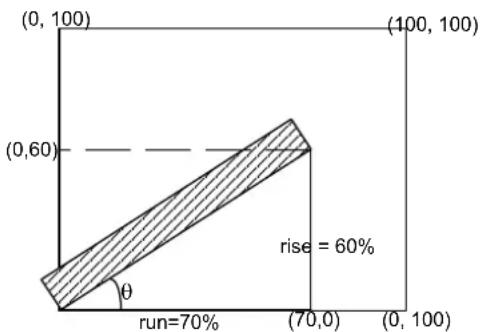
text_image
(0, 100) (100, 100) (0,60) θ run=70% (70,0) (0, 100) rise = 60%DV - Define variable text path
DV [ path [,line] ];]
path : text printing path - horizontal or vertical, and left to right, right to left, upwards or downwards.
line: the effect of a line feed.
- This command determines the printing direction for labels and the carriage return point.
- Permissible values of path are 0, 1, 2 and 3. If path = 0 labels are printed horizontally and left to right - normal printing. If path = 1 labels are printed vertically downwards - characters appear in a vertical column. If path = 2 labels are printed horizontally and right to left - words appear backwards. If path = 3 labels are printed vertically upwards - characters appear in a vertical column, reading from bottom to top.
- The value of line must be either 0 or 1. If line = 0, each time a line feed is encountered the current pen position is moved at an angle of 90^ to the path in a clockwise direction. Hence, if path = 1 the second line of text is printed to the left of the first line. If line = 1 each time a line feed is encountered the current pen position is moved at an angle of 90^ to the path in an anticlockwise direction. Hence, if path = 2 the second line of text is printed below the first line.
- If you do not use a DV command the default text path is horizontal, left to right: line feeds will move the pen position at 90^ to the text clockwise. This is equivalent to using the command DV0,0;
- If you omit both parameters the text path is horizontal, left to right.
CP - Relative character movement
CP [ spaces [,lines]] [;]
spaces ; the number of text spaces the pen position is moved.
lines ; the number of text lines the pen position is moved.
- Use this command to re-position the pen. The command moves the pen the specified number of lines and spaces corresponding to the currently selected font's pitch and line spacing. (For proportionally spaced fonts the width of the space character is used to determine the distance moved horizontally). All movement is relative to the current label printing direction.
- spaces is the number of spaces that the pen moves. A positive value of spaces moves the pen right from the current pen location: a negative value moves it to the left.
- lines is the number of lines that the pen moves. A negative value offset moves the pen down from the current pen location: a positive value moves it upwards.
• Values for spaces and lines are clamped real numbers. - The command only moves the pen and does not draw lines, irrespective of whether the pen is currently up or down.
- On completion of the command, the previous pen status (up or down) is restored.
- The height of text lines (the vertical distance that a line feed moves the pen position) is fixed for every font. However, it can be adjusted using the ES instruction.
- If you omit all parameters, the pen position moves to the carriage return point and then down one line - hence CP; is equivalent to a carriage return followed by a line feed.
10 '-Character Plot -
20 WIDTH "LPT1:", 255
30 LPRINT CHR$(27); "E";
40 LPRINT CHR$(27); "%0B";
50 LPRINT "IN;SP1;";
60 LPRINT "PA1000,5000 Bird";
70 LPRINT "PD;PR2000,0;PU Bird";
80 LPRINT "CP-15,1 Bird";
90 LPRINT "LBAbove the line"; CHR$(3);
100 LPRINT "CP-14,-2 Bird";
110 LPRINT "LBBelow the line"; CHR$(3);
120 LPRINT CHR$(27); "%0A"
130 LPRINT CHR$(27); "E"
140 END
<Sample 55>
pen : the pen used to edge characters
• This command determines how characters are edged and filled.
- Only scalable fonts can be both filled and edged - bitmap fonts and the stick font cannot be edged and can only be filled with raster fill, shading or PCL cross-hatch patterns. Scalable characters can be filled with any pattern specified by the FT command.
- Permissible values of fill are 0, 1, 2 and 3. If fill = 0 characters are filled with a solid fill and edged. If fill = 1 characters are edged but not filled. (Bitmap characters and stick font characters are filled as they cannot be edged.) If fill = 2 characters are filled using the current fill type, but not edged. If fill = 3 characters are filled, using the current fill type and edged.
- pen can be either 0 or 1. A value of 0 specifies the edging pen to be white; a value of 1 selects the black pen for edging. If no pen is specified in the instruction the current pen, as selected with the SP command, is used.
- The width of the edging pen is proportional to the character's point size.
- The fill line width used for cross hatch patterns is set with the PW command.
- If you omit both parameters solid fill and the white edging pen are selected - this is equivalent to CF0.0;
- If the command is not used all characters are solid and unedged.
- A CF command remains in effect until an IN command is used to initialize the printer, a DF command is used to restore the default settings or another CF command is invoked.
10 '-Character Fill Mode -
20 WIDTH "LPT1:", 255
30 LPRINT CHR$(27); "E";
40 LPRINT CHR$(27); "%0B";
50 LPRINT "IN;SP1;";
60 LPRINT "SD1,21,2,1,4,140,5,0,6,3,7,52;SS;"
70 LPRINT "PA1000,3000;DT*;FT3,50,45;"
80 LPRINT "CF1,1;LBA*;"
90 LPRINT "PW0.1;CF3,1;LBB*;"
100 LPRINT "PW0.5;LBC*;"
110 LPRINT CHR$(27); "%0A";
120 LPRINT CHR$(27); "E";
130 END

<sample 56>
SI - Set absolute character size
SI [ width, height ] [;]
width : the width in centimeters of printed characters
height : the height in centimeters of printed characters
- This command allows you to specify the size of the characters that you print with the LB instruction in centimeters.
- width specifies character width and is a clamped real number. Negative values of width produce right-to-left mirror image characters.
- height specifies the height of a capital letter and is a clamped real number. Negative values of height produce upside-down mirror image characters.
- If you change character size, the line width used to draw stick font characters may also change.
- If you omit the parameters, the character size is as specified by the most recent SD or AD command.
- If an SB1; command has previously been issued, printed characters may not be exactly the size that you specify.
- If an SB1; command has been issued, specifying a negative value will not produce mirror image characters.
10 ' -Absolute Character Size-
20 WIDTH "LPT1:", 255
30 LPRINT CHR$(27); "E";
40 LPRINT CHR$(27); "%0B";
50 LPRINT "IN;SP1;";
60 LPRINT "PA700,3000;DT#;LBPrinter punct"
70 LPRINT "PA700,2000;SI0.75,1;LBPrinter punct"
80 LPRINT "SI;SD1,21,2,1,3,12,5,0,6,0,7,52;SS;"
90 LPRINT "PA40003000;LBPrinter punct"
100 LPRINT "PA4000,2000;SI1,1.5;LBPrinter punct"
110 LPRINT CHR$(27); "%0A";
120 LPRINT CHR$(27); "E";
130 END
<Sample 57>
SR - Set relative character size
SR [ width, height ] [;]
width ; the width of printed characters expressed as a percentage of the x-component of the distance between P1 and P2.
height ; the height of printed characters expressed as a percentage of the y-component of the distance between P1 and P2.
- This command allows you to specify the size of the character that you print with the LB instruction relative to the scaling points P1 and P2.
- width sets the character width to a percentage of |P2x-P1x| and is a clamped real number. Negative values of width produce right-to-left mirror image characters
- height sets the character height to a percentage of |P2y-P2y| and is a clamped real number. Negative values of height produce upside-down mirror image character.
- If you change the positions of P1 and P2, the character size will change unless the scaling points remain in the same relative positions.
- If you move P2 to the left of, or below P1, characters will appear in mirror image.
- If you change the character size, the line width used to draw stick font characters may also change.
- If you omit the parameters, the character size is as specified by the most recent SD or AD command.
10 '-Relative Character Size-
20 WIDTH "LPT1:", 255
30 LPRINT CHR$(27); "E";
40 LPRINT CHR$(27); "%0B";
50 LPRINT "IN;SP1;"
60 LPRINT "IP2000,2000,6500,6500;DT@;"
70 LPRINT "SR;PA0,2700;LBRELATIVE LABEL SIZE@
80 LPRINT "IP0,0,5500,5500;PA0,2000;"
90 LPRINT "LBNEW P1 AND P2 CHANGE LABEL SIZE@
100 LPRINT "PA0,1000;SR2.5;LBNEW SR INSTRUCTION`;CP;"
110 LPRINT CHR$(27); "%0A";
120 LPRINT CHR$(27); "E";
140 END
<Sample 58>
SL - Character slant
SL [ tan φ ] [;]
tan - tangent of character slant angle ()
- This command determines the slant of characters printed with subsequent LB commands.
- is the angle between characters and the vertical. A positive value of (and ) produces forward sloping characters, while a negative value results in characters which slant backwards.
• Values of tan are clamped real numbers.
• A value of 0 for tan results in upright characters. - If you omit the parameter, is take to be 0 and any characters printed will be upright.
10 ' -Character Slant-
20 WIDTH "LPT1:", 255
30 LPRINT CHR$(27); "E";
40 LPRINT CHR$(27; "%0B";
50 LPRINT "IN;SP1;";
60 LPRINT "SD1,21,2,1,4,25,5,0,6,0,7,5;SI0.7,1;"
70 LPRINT "PA1000,1000;DT#,1;SL0.36,LBPrinter punct"
80 LPRINT "PA1000,300;SL-0.36;LBPrinter punct"
90 LPRINT CHR$(27); "%0A";
100 LPRINT CHR$(27); "E";
110 END
<Sample 59>
SB - Scalable or bitmap fonts
SB [n] [;]
n : font category selection
- This command enables you to restrict the range of selectable fonts to scalable fonts and the stick font only.
- n can be 0 or 1. If n = 0 you may only select scalable fonts (or the stick font). If n = 1 you may select any type of font.
- An SB command can alter the current standard and alternate font selections.
- Setting n to 1 allows the selection of bitmapped fonts and has the following side-effects:
- Bitmap characters cannot be edged.
- Bitmap characters can only be printed in orientations of 0^ , 90^ , 180^ or 270^ .
• The SL (character slant) command is not applied to bitmap fonts. - Bitmap font character sizes are approximate only.
- The DF and IN commands set n to 0, - only scalable fonts and the stick fonts may be selected.
- The FI and FN commands implicitly set n to 1 if you use either of them to select a bitmap font.
- If you omit n from the command, only scalable fonts and the stick font may be selected. This is equivalent to an SB0; command.
• The default setting is scalable fonts and stick font only.
ES - Extra space
ES [ width [,height] ] [;]
width : factor by which character spacing is changed. height : factor by which line spacing is changed
- This command enables you to adjust the space between label characters and lines.
- width specifies the factor by which to increase or decrease the character spacing. Positive numbers specify an increase and negative numbers a decrease.
- height specifies the factor by which to increase or decrease the line spacing. Positive numbers specify an increase and negative numbers a decrease.
- If you use the command without parameters, no extra space is used when labels are printed. This is equivalent to ES0,0;
- An ES command remains in effect until another ES command is executed, a DF or IN command is executed or the printer is reset, either with the EscE command or from the control panel.
TD - Transparent data
TD [ mode ] [;]
mode : normal or transparent data mode.
- This command enables you to specify whether control characters should perform their normal function or should be printed.
- mode is set to either 0 or 1. If mode is set to 0, control codes perform their normal functions and are not printed. If mode=1, all characters are printed, if possible. No control characters perform any function except the label terminator. Any non-printing or undefined characters appear as a space.
- If you use the command without parameters, control codes will perform their normal functions and will not be printed. This is equivalent to TD0;
10 '-Transparent Data-
20 WIDTH "LPT:", 255
30 LPRINT CHR$(27); "E";
40 LPRINT CHR$(27); "%0B";
50 LPRINT "IN;SP1;"
60 '-TD=1 (Transparent) -
70 LPRINT "PA1000,5000;LBMODE : TD1 (Transparent)"; CHR$(13)
80 LPRINT "<Print as characters when labeling>"; CHR$(3)
90 X=1000
100 FOR I = &H0 O &H8
110 LPRINT "SD1,341,2,1,4,10,7,5;PA";X;",4000;TD1;DT@;LB";CHR$(I);"@";
120 X = X + 150
130 NEXT I
140 LPRINT "TD0;"
150 LPRINT CHR$(27); "%0A";
160 LPRINT CHR$(27); "E";
170 END
<Sample 60>
8. INDEX
A
Absolute arc three point 21
absolute commands 8
Absolute direction 45
Anchor corner 30
anchor point 7
B
Bezier absolute 24
Bezier relative 24
C
Character fill mode 48
Character plot 43
Character slant 49
Circle plot 23
current units 7
D
Default set instruction....12
Define alternate font 42
Define label terminator 44
Define standard font 39
Define variable text path 47
Draw absolute arc 20
Draw relative arc 21
E
Edge polygon 26
Edge rectangle absolute 25
Edge rectangle relative 26
Edge wedge 26
Extra space 50
F
fill commands 8
Fill polygon 29
Fill rectangle absolute 27
Fill rectangle relative....28
Fill type 31
Fill wedge 28
G
graphic units 7
graphics window 7,10,11
H
hard clip limits 7
I
image plots 11
Initialize command 12
Initialize set instruction....13
Input relative scaling points 14
Input scaling point 14
L
Label origin 44
Line attribute 32
Line type selection 33
M
mnemonic....9
P
parameters....9
pen 7
Pen down 18
Pen up 18
Pen width 34
Plot absolute 19
Polygon mode 25
Polyline encoded 22
printer frame 7
R
Raster rill definition....34
Relative arc three point 22
Relative character movement 47
relative commands 8
Relative coordinate pen move 19
Relative direction 46
Rotate coordinate system 17
S
Scalable or bitmap fonts 50
Scale....15
scaling point 10
Screened vectors 35
Select alternate font 42
Select pen 35
Select primary font 43
Select secondary font 43
Select standard font 42
Select unit for pen width 37
separators 9
Set absolute character size 48
Set relative character size 49
soft clip limits....7
Symbol mode 35
syntax 9
T
terminator....9
Transparency mode 36
Transparent data 50
U
user units 7
User-defined line type 37
W
Window 17
CHAPTER 5
PJL
PRINTER JOB
LANGUAGE
CONTENTS
1. INTRODUCTION 4
1.1. About PJL 4
1.2. In Case of Using PJL with a Non-PJL Printer 5
1.2.1. PCL jobs....5
1.2.2. Postscript jobs....5
1.2.3. Other printer languages ....5
1.3. PJL Syntax and Format 6
1.4. Variables....7
1.4.1. Alphanumeric variables....7
1.4.2. Numeric variables 7
1.4.3. Strings....7
1.5. Invalid Commands 7
1.5.1. Syntax errors....7
1.5.2. Syntax warning and semantic warning 7
2. HOW TO USE PJL 8
2.1. Overview 8
2.2. PJL Job Requirement 8
3. COMMAND GROUP....9
4. KERNEL COMMANDS....10
4.1. Introduction.... 10
4.2. UEL Command 10
4.3. EXECUTE Command 10
4.4. ENTER Command 11
4.5. COMMENT Command....11
4.6. Printer Language Switching....12
4.6.1. Explicit switching....12
4.6.2. Implicit switching....12
4.6.3. Context switching....12
5. JOB SEPARATION COMMANDS....13
5.1. Introduction 13
5.2. JOB Command 13
5.3. EOJ Command 14
6. ENVIRONMENT COMMANDS....15
6.1. Introduction 15
6.1.1. Print environment....15
6.1.2. PJL reset conditions....16
6.1.3. Remember these points about environments....16
6.1.4. PJL environment variables....17
6.2. Variables....18
6.2.1. Variables for HL-1050/1070/1250/1270N/1450/1470N/P2500/1650/1670N/3260N/2460/
7050/1850/1870N/5040/5050/5070N/5140/5150D/5170DN/6050/6050D/6050DN/8050N/
2070N/5240/5250DN/5270DN/5280DW/2140/2150N/2170W/5340D/5350DN/5370DW/5380DN/2130/2240D/2
250DN/2270DW/4140CN/4150CDN/4570CDW/5440D/5450DN/5470DW/6180DW/S7000DN/3140CW/
3150CDW/3150CDN/3170CDW/1110/HL1111/1112/1118/L8250CDN/L8350CDW(T)/L9200CDW(T)/
L9300CDW(T)/L8260CDN/L8260CDW/L8360CDW(T)/L9310CDW/L2300/L2300D/L2320D/L2321D/2260/
2260D/L2305W/L2340DW/L2360DN/L2361DN/2560DN/L2360DW/L2365DW/L2366DW/2569DW/1212W/
1210W/1210WR/1212WR/1210WE/1211W/1218W/1200/1201/1202/1208/L5000D/5580D/5585D/5595DN/
L5102DW/L5100DN(T)/5590DN/L5200DW(T)/L5202DW/L6200DW(T)/L6202DW/L6250DN/L6250DW/
L6300DW(T)/L6400DW(T)/L6402DW/L2385DW/L2386DW/2595DW/L2370DW/L2370DWXL/L2375DW/L2375
DWR/L2376DW/B2080DW/L2370DN/L2370DNR/L2371DN/L2372DN/2590DN/B2050DN/2290/L2310D/L2312
D/L2310DR/L2330D/L2331D/L2336D/L2335D/2295D/B2000D/L2325DW/L2350DW/L2350DWR//L2357DW/L2
352DW/L2351DW /L3270CDW/3190CDW/L3230CDW/3160CDW/L3230CDW/L3230CDN/L3210CW....18
6.2.2. Variables for HL-
1660e/2060/2400C/2400Ce/3400CN/2600CN/3450CN/2700CN/4040CN/4050CDN/4070CDW/3040CN/
3045CN/3070CW/3075CW....53
6.3. Default Command 58
6.4. Initialize Command 58
6.5. Reset Command 59
6.6. Set Command....59
7. STATUS READBACK COMMANDS....61
7.1. Introduction 61
7.1.1. Synchronization with the printer....61
7.1.2. Basic format of status readback responses....61
7.2. Inquire Command 62
7.3. DINQUIRE Command....63
7.4. ECHO Command 64
7.5. INFO Command....65
7.5.1. ID category....67
7.5.2. CONFIG category 67
7.5.3. MEMORY category 69
7.5.4. STATUS category 70
7.5.5. VARIABLES category 70
7.5.6. USTATUS category 72
7.6. USTATUS Command....73
7.6.1. Device variable 74
7.6.2. JOB variables....75
7.6.3. PAGE variable....76
7.6.4. TIMED variable 76
7.7. USTATUSOFF Command 77
7.8. JOB Recovery....77
8. DEVICE ATTENDANCE COMMANDS 78
8.1. Introduction 78
8.2. RDYMSG Command....78
8.3. OPMSG Command 79
8.4. STMSG Command....79
9. INDEX......81
1. INTRODUCTION
1.1. About PJL
Printer Job Language(PJL) provides job status control by sending the printer status information to the application. PJL can be a valuable tool for the single-user environment, but is a much more useful tool for the networking / sharing environment.
PJL
Emulations ( BR-Script, PCL, IBM, EPSON etc...)
Printer
PJL allows job-level control that cannot be accomplished with PCL, Postscript or other emulations. PJL includes five major features.
(1) Printer language switching
With PJL, it is possible to switch positively between the printer languages such as PCL, Postscript, Epson, IBM and Diablo directly from applications.
(2) Printer status readback
PJL can provide information such as printer model, configuration, printer feature setting, error information and other status information to the application.
(3) Front panel control
PJL can remotely control the printer's control panel settings and messages.
(4) Easy of utilization
All PJL commands except the UEL command have a user-friendly construction using printable characters and English words.
(5) Spooler control
PJL provides an improved spooler which can manage the printer better, particularly in a network environment.
Note :
The commands for Printer status readback or Front panel control can be invoked in modes other than PCL or BR-Script. However, the commands for printer status readback get the information from PCL or BR-Script and the commands for front panel control perform the settings for PCL or BR-Script.
1.2. In Case of Using PJL with a Non-PJL Printer
Our recent printer models support PJL, however, earlier models do not. If the PJL commands are sent to a non-PJL printer, the printer acts as follows;
1.2.1. PCL jobs
For a PCL printer which does not support the PJL language, the PJL command is printed as ASCII text until initial PCL printer reset command (
The print job is possibly followed by more printed PJL commands.
Without the PCL reset command, the PJL commands are printed as ASCII text on the same page as the PCL print job.
1.2.2. Postscript jobs
For Postscript printers, when the printer receives a PJL command, a Postscript error is reported. The Postscript job is discarded.
1.2.3. Other printer languages
According to the active emulation, the PJL command is understood differently. To avoid the problem, you should not use PJL commands on any non-PJL printer.
1.3. PJL Syntax and Format
Syntax
@PJL ENTER LANGUAGE = emulation [
@PJL
PJL
Prefix
ENTER
Command
name
LANGUAGE
Option
name
@PJL ENTER LANGUAGE Enter this portion verbatim
[ ] The words in brackets [ ... ] indicates optional parameters. You should not type the brackets themselves in the command.
< .. > The words in < .. > indicates a control code character
| Horizontal tab character (ASCII 9) | |
| Line feed character ( ASCII 10 ) | |
| Carriage Return ( ASCII 13 ) | |
| Space ( ASCII 32 ) | |
| Escape ( ASCII 27 ) | |
| Form Feed ( ASCII 12 ) | |
| White space which consists of someand | |
| Printable characters |
Format
PJL commands have 4 types of formats as shown below.
Format 1
This format is only used for the Universal Exit Language(UEL) command.
Format 2 @PJL [
This format allows a PJL line without a command, and is used to break several PJL command lines visually, to make it easier to see the PJL command lines.
Format 3 @PJL command [
This format is used only for the COMMENT and ECHO commands.
Format 4 @PJL command [command modifier : value]
option=value [
This format is used for all other PJL commands.
PJL Syntax Rules:
PJL Syntax should be written according to the following rules.
- "@PJL" must be uppercase. The other words of a PJL command are not case-sensitive.
- Spacing between characters consists of one or more of either the space character (ASCII 32) or the horizontal tab character(ASCII 9).
-
White space should be placed as follows, depending on the location within the command.
-
White space must be placed between @PJL and the PJL command name and between the PJL command and command modifiers.
- If a white space is placed in any other place in a command, it is optional.
- If a white space is not placed between two portions of a command, the command is not valid.
1.4. Variables
PJL can use alphanumeric variables, numeric variableless and strings.
1.4.1. Alphanumeric variables
The first character must always be a character in the allowable range of letters and digits. Letters consists of the uppercase characters (ASCII 65-90) and lowercase characters (ASCII 97-122). Digits consists of the numbers 0-9 (ASCII 48-57).
<Example>
Brother2245
1.4.2. Numeric variables
The number consists of digits with one optional decimal point and an optional + or - sign preceding the first digit.
<Example> <Wrong>
0.1234
-123.4 +.05
+123.0 -.05
1.4.3. Strings
Strings consist of any combination of characters from ASCII 32 to 255, plus ASCII 9, except ASCII 34 (quotation marks), which are used to define the start and end of a string.
<Example>
"Print Job KKK"
"This is a sample string"
1.5. Invalid Commands
There are two general types of invalid commands. Each type operates differently.
Syntax errors include :
- unrecognized command and command modifier
- strings which are missing quotation marks
• numeric values which are missing digits before the decimal point
1.5.1. Syntax errors
Commands received with Syntax errors cause the printer to ignore the entire PJL command.
1.5.2. Syntax warning and semantic warning
Syntax warnings and semantic warnings are issued for commands which include unsupported options, values which are out of range, or wrong or missing commands, etc. When the printer receives commands which would create a syntax warning or semantic warning, it operates the command as long as possible, however, the portion of the command which would create a warning is ignored.
2. HOW TO USE PJL
2.1. Overview
PJL resides "above" printer languages such as Postscript and PCL. Each job can be distinguished from the other jobs by PJL, and it can switch between PJL commands and printer language commands for each job.
PJL Code PCL Job PJL Code Postscript Job PJL Code
2.2. PJL Job Requirement
Some conditions are required in order for PJL commands to work correctly. Jobs which follow these conditions will work correctly with a PJL printer in both single user and network environments.
- All PJL jobs must begin and end with a UEL command.
- The @PJL prefix must be placed immediately after the UEL command which starts PJL jobs, and can be followed by
and . Characters, including control characters, must not be placed between the UEL command and the @PJL prefix. - Nothing must be placed after the UEL command which ends a PJL job.
is required to terminate all PJL commands. can be placed before , however, is optional and is ignored. - Blank lines must not exist. If a blank line is required, the @PJL
line can be used.
3. COMMAND GROUP
| Command Group Command Command Description | ||
| Kernel Commands UEL | Exits current printer language and returns control to PJL. | |
| EXECUTE Orders the | printer to execute the specified operation. | |
| COMMENT Comments | can be placed in the command line | |
| ENTER Selects a printer language | ||
| Job Separation Commands | JOB Informs printer of job start | |
| EOJ Informs printer of | job end | |
| Environment Commands | DEFAULT Sets default value | |
| SET Sets an environment | ent value which is available during a PJL job | |
| INITIALIZE Resets the current and default PJL variables to factory values | ||
| RESET Resets current PJL variables to default values | ||
| Status Readback Commands | INQUIRE Requests the current value for a specified environment | |
| DINQUIRE | Requests the default value for a specified environment | |
| ECHO | Returns theto the host computer | |
| INFO | Requests a specified category. | |
| USTATUS Allows the printer to send unsolicited status information | ||
| USTATUSOFF | Stops the printer sending all unsolicited status information | |
| Device Attendance Commands | RDYMSG | Replaces the READY message on the control panel |
| OPMSG | Displays altered message on the control panel and takes the printer off-line | |
| STMSG | Displays altered message on the control panel and takes the printer off-line. If status readback is enabled, returns name of the key. | |
4. KERNEL COMMANDS
4.1. Introduction
This section explains three PJL command, UEL, ENTER and COMMENT. These commands provide the minimum set of tools to operate job control.
UEL command (Universal Exit Command)
ENTER command
COMMENT command
4.2. UEL Command
The Universal Exit Command causes the printer to exit the current printer language and sets the printer into PJL mode.
Syntax
<ESC>% -12345X
• The UEL command is a data stream sequence.
- The UEL command indicates to the current printer language to finish a job. If PJL is available, PJL commands which have not yet been executed are cancelled and the printer is ready to accept the next PJL command.
- The UEL command must be placed in the first and last position of all PJL job command sequences.
- Printers which have an Automatic I/O switching feature can use the UEL command in order to set job boundaries.
- The @PJL prefix which is placed at the beginning of a PJL job must follow immediately after the UEL command.
- If the printer receives codes other than the PJL prefix, it enables the default printer language and prints the job.
- ENTER command should be used in order to specify the printer language.
Example
<ESC>%-12345X@PJL<CR><LF>
@PJL ENTER LANGUAGE = PCL <CR><LF>
<ESC>E.....PCL JOB.....<ESC>E
<ESC>%-12345X
4.3. EXECUTE Command
The EXECUTE command orders the printer to execute the specified operation.
This command is supported only by HL-1050/1070/1250/1270N/1450/1470N/P2500/2400C/2400Ce/3400CN/1650/1670N/3260N/2460/7050/1850/1870N/5040/5050/5070N/5140/5150D/5170DN/2600CN/3450CN/6050/6050D/6050DN/8050N/2700CN/2070N/5240/5250DN/5270DN/5280DW/4040CN/4050CDN/4070CDW/2140/2150N/2170W/5340D/5350DN/5370DW/5380DN/3040CN/3045CN/3070CW/3075CW/2130/2240D/2250DN/2270DW/4140CN/4150CDN/4570CDW/5440D/5450DN/5470DW/6180DW/S7000DN/3140CW/3150CDW/3150CDN/3170CDW/1110/1111/1112/1118/L8250CDN/L8350CDW(T)/L9200CDW(T)/L9300CDW(T)/L8260CDN/L8260CDW/L8360CDW(T)/L9310CDW/L2300/L2300D/L2320D/L2321D/2260/2260D/L2305W/L2340DW/L2360DN/L2361DN/2560DN/L2360DW/L2365DW/L2366DW/2569DW/1212W/1210W/1210WR/1212WR/1210WE/1211W/1218W/1200/1201/1202/1208/L3270CDW/3190CDW/L3230CDW/3160CDW/L3230CDW/L3230CDN/L3210CW printers.
Syntax
@PJL EXECUTE operation [
Parameters
- operation
SHUTDOWN : The printer goes into sleep mode.
DEMOPAGE : The printer prints the demo page.
RESIFONT : The printer prints the list of resident fonts.
PERMFONT: The printer prints the list of permanent download fonts.
PRTCONFIG: The printer prints the list of printer settings.
- If the printer receives this command, it immediately executes the specified operation.
- If this command specifies an operation which is not supported, this command is ignored.
Example
<ESC>% -12345X@PJL<CR><LF>
@PJL EXECUTE DEMOPAGE <CR><LF>
<ESC>% -12345X
4.4. ENTER Command
The ENTER command specifies which emulation the printer uses to print data.
Syntax
@PJL ENTER LANGUAGE = emulation [<CR>] <LF>
Parameters
- emulation
The variables depend on the printer model. - The ENTER command must be placed immediately before print data.
- The specified emulation will be used immediately after the terminating
of the ENTER command. - If the printer does not receive the ENTER command, it uses the default printer language which is set by the control panel or the printer language which is set by the SET PERSONALITY command.
- When a printer emulation is selected by the ENTER command, the printer must switch to the defined printer language.
- If this command specifies an emulation which is not supported, data after this command is ignored until the next UEL command.
Example
<ESC>%-12345X@PJL<CR><LF>
@PJL ENTER LANGUAGE = PCL <CR><LF>
<ESC>E.....PCL JOB.....<ESC>E
<ESC>%-12345X
@PJL COMMENT Start of Postscript job <CR><LF>
@PJL ENTER LANGUAGE = POSTSCRIPT <CR><LF>
%!PS-ADOBE.....Postscript JOB.....^D
<ESC>%-12345X
@PJL COMMENT End of Postscript job <CR><LF>
<ESC>%-12345X
4.5. COMMENT Command
The COMMENT command is used to add an information line, such as an explanation for the PJL command.
Syntax
@PJL COMMENT remarks [<CR>] <LF>
Parameters
- remarks
Printable characters (ASCII 33-255) and White space which containsand ) - The COMMENT command is helpful for placing an explanation of a PJL command.
- The COMMENT command can be placed on the PJL line anywhere between the UEL command and the ENTER command.
• The COMMENT command is terminated by. - Comments can only be one line long. If you wish to add more text, start a new comment line.
Example
<ESC>%-12345X@PJL<CR><LF>
@PJL COMMENT ----<CR><LF>
@PJL COMMENT -- PCL & PS JOB --<CR><LF>
@PJL COMMENT ----<CR><LF>
@PJL <CR><LF>
@PJL SET RET = ON <CR><LF>
@PJL ENTER LANGUAGE = PCL <CR><LF>
<ESC>E......PCL JOB......<ESC>E
<ESC>%-12345X@PJL<CR><LF>
@PJL COMMENT Start of Postscript job <CR><LF>
@PJL ENTER LANGUAGE = POSTSCRIPT <CR><LF>
%!PS-ADOBE......Postscript JOB.....^D
<ESC>%-12345X@PJL<CR><LF>
@PJL COMMENT End of Postscript job <CR><LF>
<ESC>%-12345X
4.6. Printer Language Switching
There are three methods of switching printer languages.
4.6.1. Explicit switching
Explicit switching means the method which uses the PJL ENTER LANGUAGE command to switch to the desired emulation. As the desired emulation is explicitly specified, this method is the most reliable.
4.6.2. Implicit switching
If a default printer language is configured, and the PJL ENTER command is not described on a PJL line, the printer uses the default printer emulation. This may not always select your desired emulation.
4.6.3. Context switching
If the printer is set to 'automatic emulation selection' and the PJL ENTER command is not described in the PJL command, the printer investigates the incoming data and decides the required printer emulation. The printer can select the printer language by this switching, however, the PJL ENTER command is recommended to select the printer language accurately.
5. JOB SEPARATION COMMANDS
5.1. Introduction
This section explains two PJL command, JOB and EOJ. These commands are used to determine the boundaries of a job. When these commands are used with status readback, the printer also can send status information at the beginning and end of each job.
5.2. JOB Command
The JOB Command sends information at the start of a PJL job to the printer and aligns the job with the page status information. It also specifies which pages of a job are to be printed.
Note:
JOB and EOJ command are always used in pairs. You must not use one without the other.
Syntax
@PJL JOB [NAME = "job name"] [START = first page] [END = last page]
[PASSWORD = "password"] [<CR>] <LF>
• NAME = "job name"
This option NAME describes the print job as a job name. Printable characters (ASCII 33-255) and spaces or horizontal tab characters can be used for the job name. It can contain 80 characters max. and must be enclosed in double quotes. If the NAME option is set, the job name is included in the unsolicited job.
• START = first page
This option START is used to provide a non-printing mode. You can specify from which page printing is to start. If the START option is not set, the printer starts printing at the beginning of the job.
first page = 1 to 2,147,483,647 Default value = 1
• END = last page
The END option indicates the page number of the last page to be printed. If the END option is not set, the printer prints to the end of the job. If the end of job is encountered before the START page, no pages are printed. If the end of job is encountered before the END page, printing terminates.
last page = 1 to 2,147,483,647 Default value = prints entire job
- PASSWORD = password ( HL-1660e/2060/2400C/2400Ce/3400CN/1650/1670N/3260N/2460/7050/1850/1870N/5040/5050/5070N/5140/5150D/5170DN/2600CN/2700CN/3450CN/6050/6050D/6050DN/8050N/2070N/5240/5250DN/5270DN/5280DW/4040CN/4050CDN/4070CDW/2140/2150N/2170W/5340D/5350DN/5370DW/5380DN/3040CN/3045CN/3070CW/3075CW/2130/2240D/2250DN/2270DW/4140CN/4150CDN/4570CDW/5440D/5450DN/5470DW/6180DW/S7000DN/3140CW/3150CDW/3150CDN/3170CDW/L8250CDN/L8350CDW(T)/L9200CDW(T)/L9300CDW(T)/L8260CDN/L8260CDW/L8360CDW(T)/L9310CDW/L2300/L2300D/L2320D/L2321D/2260/2260D/L2305W/L2340DW/L2360DN/L2361DN/2560DN/L2360DW/L2365DW/L2366DW/2569DW/ HL-1212W, 1210W, 1210WR, 1212WR, 1210WE, 1211W, 1218W/L3270CDW/3190CDW/L3230CDW/3160CDW/L3230CDW/L3230CDN/L3210CWonly ) When the password is set by the DEFAULT command, modifying the NVRAM by using the DEFAULT or INITIALIZE commands is locked with the password. Sending the correct password with this command can unlock this until the EOJ command is executed.
password = 0 to 65,535 Default value = 0
When the printer receives the JOB command, the UEL command is not recognized as a job boundary until an EOJ command is received.
- If the UEL command is placed between the PJL JOB and EOJ commands, it is handled as a printer language reset. In this case, UEL resets the printer environment to the PJL Current environment, not to the User Default Environment.
- If your application supports status readback capabilities, you can monitor the job status by the USTATUS command with the JOB option.
- If job status is available and a JOB command is received, the printer returns a job status message.
Note:
Resetting the page count according to unsolicited page status information does not affect the current page.
Example
<ESC>%-12345X@PJL<CR><LF>
@PJL JOB NAME = "KKK data from spooler" <CR><LF>

<ESC>%-12345X@PJL<CR><LF>
@PJL COMMENT Postscript Job <CR><LF>
@PJL JOB NAME = "YYY data from spooler 2" <CR><LF>
@PJL ENTER LANGUAGE = POSTSCRIPT <CR><LF>
%!PS......PS    JOB......^D
<ESC>%-12345X@PJL<CR><LF>
@PJL EOJ NAME = "End of YYY data" <CR><LF>

<ESC>%-12345X@PJL <CR><LF>
@PJL ENTER LANGUAGE = PCL <CR><LF>
<ESC>E......PCL JOB......<ESC>E
<ESC>%-12345X@PJL <CR><LF>
@PJL EOJ NAME = "End of KKK" <CR><LF>
<ESC>%-12345X@PJL <CR><LF>
5.3. EOJ Command
The EOJ command indicates to the printer that the job is completed. You must use this command whenever you use the JOB command.
Note:
JOB and EOJ command always are used in pairs. You must not use one without the other.
Syntax
@PJL EOJ [NAME = "job name"] [<CR>] <LF>
• NAME = "job name"
The EOJ command can name the print job. The job name is a string and must be enclosed in double quotes in the command syntax. The job name need not be same as the "job name" of the JOB command. If the NAME option is described, the unsolicited end-of-job status includes the job name. Job names can use printable characters (ASCII 33-255) and spaces or horizontal tab characters up to a maximum of 80 characters.
• The EOJ command indicates the end of a job.
- Resets the PJL Current Environment variables to the default values.
- Terminates the non-printing mode.
- When the EOJ command is received, the printer returns unsolicited job status information.
- The EOJ command resets the page number associated with unsolicited page status.
Example
<ESC>%-12345X@PJL<CR><LF>
@PJL JOB NAME = "KKK data from spooler" <CR><LF>
    <ESC>%-12345X@PJL<CR><LF>
    @PJL COMMENT Postscript Job <CR><LF>
    @PJL JOB NAME = "YYY data from spooler 2" <CR><LF>
    @PJL ENTER LANGUAGE = POSTSCRIPT <CR><LF>
    %!PS......PS    JOB......^D
    <ESC>%-12345X@PJL<CR><LF>
    @PJL EOJ NAME = "End of YYY data" <CR><LF>
<ESC>%-12345X@PJL<CR><LF>
@PJL ENTER LANGUAGE = PCL <CR><LF>
<ESC>E......PCL JOB......<ESC>E
<ESC>%-12345X@PJL<CR><LF>
@PJL EOJ NAME = "End of KKK" <CR><LF>
<ESC>%-12345X
6. ENVIRONMENT COMMANDS
6.1. Introduction
Our recent printers have many features which you are able to set using printer commands, through the printer control panel or by using the remote printer console program. A combination of PJL commands and printer emulation commands allows you to set printer features to the desired state.
This chapter describes the setting of printer features known as printer environments, PJL commands you are able to use to set printer features to a desired state are as follows;
- DEFAULT
Set the default value for environment variables. (storing them in non volatile RAM, so called NV-RAM)
- INITIALIZE
Reset the current and default PJL variables to the factory default values
- RESET
Reset the current PJL values to the default values
- SET
Set an environment variable to a specified value until the next PJL reset condition.
6.1.1. Print environment
The printer constantly maintains four environments, which are listed below in priority order
1. Factory Default Environment
These environment setting values are permanently stored in the printer. The printer uses these settings when it is powered on for the first time after shipping from the factory, and after the @PJL INITIALIZE command is performed.
2. User Default Environment
These environment setting values are stored in the printer's NV-RAM and can be altered through the printer's control panel or by using the Remote Printer Console software or the @PJL DEFAULT command. These values are placed into the PJL Current Environment following any PJL reset condition.
3. PJL Current Environment
These environment setting values contain the current PJL feature settings. Current settings are based on the User Default values and include any settings modified by the @PJL SET command. These settings are changed to the User Default values when a PJL reset occurs.
4. Modified Print Environment
These environment settings become active just after a printer language is entered. At that time, the PJL Current environment values are loaded into the Modified Print Environment and act as a base set of features. Then, Printer language commands are used to change or modify feature settings to the desired state.
Whenever an emulation is activated or a reset command is received (a reset command includes any printer language reset or PJL reset), the PJL Current environment settings are loaded into the Modified Print environment.
The diagram below illustrates how the environments interact and how the modified print environment is affected.
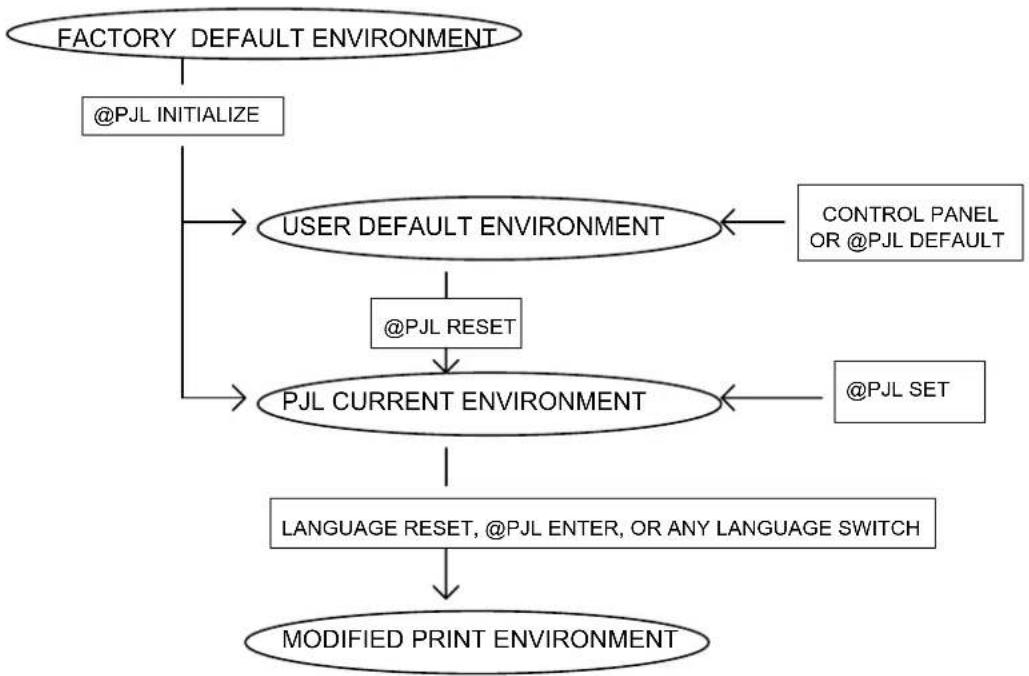
flowchart
graph TD
    A["FACTORY DEFAULT ENVIRONMENT"] --> B["@PJL INITIALIZE"]
    B --> C["USER DEFAULT ENVIRONMENT"]
    C --> D["@PJL RESET"]
    D --> E["PJL CURRENT ENVIRONMENT"]
    E --> F["LANGUAGE RESET, @PJL ENTER, OR ANY LANGUAGE SWITCH"]
    F --> G["MODIFIED PRINT ENVIRONMENT"]
    C --> H["CONTROL PANEL OR @PJL DEFAULT"]
    E --> I["@PJL SET"]
6.1.2. PJL reset conditions
The result of PJL reset condition is different from that of a printer language reset (for example, ESC E). Printer language reset loads the PJL Current Environment values into the Modified Print Environment. PJL reset conditions load the User Default values into the PJL Current Environment, which are then loaded into the Modified Print Environment.
PJL reset occurs on the following events.
- Power on
- UEL command (when not between a JOB and EOJ command pair)
- @ PJL INITIALIZE command
- @ PJL RESET command
- @ PJL JOB or EOJ command
- Other printer-specific events
- Reset from Control Panel
- Language specific exit command
- Emulation switching command
6.1.3. Remember these points about environments
Remember the following points when you use PJL to set the printer to a desired state.
- The current feature settings are the same as the control panel values (or values in the remote printer console program) when beginning a PJL job.
- The current feature settings (Modified Print Environment) become the same as the PJL Current Environment when the printer enters a printer language. The feature settings are modified by the printer language command once a printer language is started. All other settings are overridden by printer language commands.
- The SET command changes the PJL Current Environment settings. These settings are effective until the next PJL reset condition.
- Control Panel settings, the remote printer console program settings or the DEFAULT command changes the User Default Environment.
-
Printer language commands change the Modified Print Environment. These settings are effective during a printer language job. The PJL Current Environment settings are loaded into the Modified Print Environment by a printer language specific reset, for example, ESC E for PCL.
-
Always use the PJL RESET command after a job is completed if the SET command is used in the PJL job.
6.1.4. PJL environment variables
This section lists the PJL environment variables. There are two kinds of PJL environment variables, General PJL environment variables and Printer language -specific variables. For all variables, except the read-only variables, value settings can be modified using @PJL SET, @PJL RESET, @PJL DEFAULT, and @PJL INITIALIZE.
By using the @ PJL INQUIRE and @ PJL DINQUIRE, you can request value settings for the printer features. For the details of these commands, see the next section.
Note:
- Use PJL commands only when no printer language commands are available for a desired feature.
- When setting printer features with PJL, use the SET and RESET commands when you want to affect the current PJL job only.
If you want to affect more than the current job, use the DEFAULT and INITIALIZE commands. - Supported variables depend on your printer model.
6.2. Variables
6.2.1. Variables for HL-1050/1070/1250/1270N/1450/1470N/P2500/1650/1670N/3260N/2460/7050/1850/1870N/5040/5050/5070N/5140/5150D/5170DN/6050/6050D/6050DN/8050N/2070N/5240/5250DN/5270DN/5280DW/2140/2150N/2170W/5340D/5350DN/5370DW/5380DN/2130/2240D/2250DN/2270DW/4140CN/4150CDN/4570CDW/5440D/5450DN/5470DW/6180DW/S7000DN/3140CW/3150CDW/3150CDW/3170CDW/1110/HL1111/1112/1118/L8250CDN/L8350CDW(T)/L9200CDW(T)/L9300CDW(T)/L8260CDN/L8260CDW/L8360CDW(T)/L9310CDW/L2300/L2300D/L2320D/L2321D/2260/2260D/L2305W/L2340DW/L2360DN/L2361DN/2560DN/L2360DW/L2365DW/L2366DW/2569DW/1212W/1210W/1210WR/1212WR/1210WE/1211W/1218W/1200/1201/1202/1208/L5000D/5580D/5585D/5595DN/L5102DW/L5100DN(T)/5590DN/L5200DW(T)/L5202DW/L6200DW(T)/L6202DW/L6250DN/L6250DW/L6300DW(T)/L6400DW(T)/L6402DW/L2385DW/L2386DW/2595DW/L2370DW/L2370DWXL/L2375DW/L2375DWR/L2376DW/B2080DW/L2370DN/L2370DNR/L2371DN/L2372DN/2590DN/B2050DN/2290/L2310D/L2312D/L2310DR/L2330D/L2331D/L2336D/L2335D/2295D/B2000D/L2325DW/L2350DW/L2350DWR//L2357DW/L2352DW/L2351DW /L3270CDW/3190CDW/L3230CDW/3160CDW/L3230CDW/L3230CDN/L3210CW
1. General PJL Environment Variables
The PJL environment variables which are not printer language-specific are listed in the following table. When using these variables, do not use LPARM.
Variables Descri
ption Sam
COPIES Number of uncollated copies for each page of the job.
ple Value Range
| 1 to 200 (HL-1050/1070) |
| 1 to 99 (HL-1250/1270N/1450/1470N/P2500) |
| 1 to 999 (HL-1650/1670N/3260N/2460/7050/1850/1870N/5040/5050/ |
| 5070N/5140/5150D/5170DN/6050/6050D/6050DN/8050N/2070N/5240/5250DN/5270DN/5280DW/2140/2150N/2170W/5340D/5350DN/ |
| 5370DW/5380DN/2130/2240D/2250DN/2270DW/4140CN/ |
| 4150CDN/4570CDW/5440D/5450DN/5470DW/6180DW/S7000DN/3140CW/3150CDW/3150CDN/3170CDW/1110/1111/1112/1118/L82 |
| 50CDN/L8350CDW(T)L9200CDW(T)L9300CDW(T)L9260CDW/L8260CDW/L8360CDW(T)L9310CDW/L2300/L2300DL/2320DL/2321 |
| D/2260/2260DL/2305WL/2340DW/L2360DN/L2361DN/2560DN/L2360DW/L2365DW/L2366DW/2569DW/1212W/1210W/1210WR/1212 |
| WR/1210WE/1211W/1218W/1200/1201/1202/1208/L5000D/5580D/5585D/5595DN/L5102DW/L5100DN(T)/5590DN/L5200DW(T)L520 |
| 2DW/L6200DW(T)/L6202DW/L6250DN/L6250DW/L6300DW(T)/L6400DW(T)/L6402DW/L2385DW/L2386DW/2595DW/L2370DW/L237 |
| 0DW/L2375DW/L2375DW/R2376DW/B2080DW/L2370DN/R2371DN/2372DN/2590DN/B2050DN/2290/L2310DL/2312 |
| D/L2310DR/L2330D/L2331D/L2336D/L2335D/2295D/B2000DL/2325DW/L2350DW/L2350DW/R2357DW/L2352DW/L2351DW/L3270 |
| CDW/3190CDW/L3230CDW/3160CDW/L3230CDN/L3210CW/ |
| MANUALFEED Feeds the paper from manual feed slot. ON or OFF |
| ECONOMODE Turn the econom y mode (toner saving mode) ON or OFF. ON or OFF |
| ECONOLEVEL Selects the toner saving level from 1 (high) to 3 (low). |
PERSONALITY Sets the emulation mode.
| 1 to 3 |
| 0 to 3 (HL-1650/1670N/3260N/2460/7050/1850/1870N/5040/5050/5070N/5140/5150D/5170DN/6050/6050D/6050DN/8050N) |
| AUTO, PCL, IBM, EPSON, POSTSCRIPT (HL-1050/1070/1250/1270N/1450/1470N/P2500/1650/1670N/1850/1870N/5050/5070N/5150D/5170DN/6050/6050D/6050DN/8050N/5240/5250DN/5270DN/5280DW/5340D/5350DN/5370DW/5380DN/5440D/5450DN/5470DW/6180DW) |
| AUTO, PCL, IBM, EPSON, POSTSCRIPT, HPGL (HL-3260N/2460/7050) |
| AUTO, PCL, IBM, EPSON (HL-2070N) |
| AUTO, PCL,POSTSCRIPT(HL-S7000DN/3170CDW/L8250CDNL/8350CDW/T/L9200CDW/T/L9300CDW/T/L8260CDN/L8260CDWL/8360CDW/T/L9310CDW/PCL(HL-5040/5140/2150N/2170W/2130/2240D/2250DN/2270DW/L2360DN/L2361DN/2560DN/L2360DW/L2365DW/L2366DW/2569DW) |
| AUTO, PCL, POSTSCRIPT(HL-4140CN/4150CDN/4570CDW/L2385DW/L2386DW/2595DW/L2370DW/L2370DWXL/L2375DW/L2375DWR/L2376DW/B2080DW/L2370DN/L2370DN/R2371DN/L2372DN/2590DN/B2050DN/L3270CDW/3190CDW/L3230CDW/3160CDWL/3230CDN/L3210CW) |
| AUTO, PCL, PCLXL, IBM, EPSON, POSTSCRIPT (HL-L5000D/5580D/5585D/5595DN/L5102DW/L5100DN(T)/5590DN/L5200DW(T)/L5202DW/L6200DW(T)/L6202DW/L6250DN/L6250DW/L6300DW(T)/L6400DW(T)/L6402DW) |
INPUTBUF Sets the receiving buffer size value.
| 1 to 15 (HL-1650/1670N/2460/ 7050/1850/1870N/5040/5050/ 5070N/5140/5150D/5170DN/6050/6050D/6050DN/8050N/2070N/5240/5250DN/5270DN/5280DW/2140/2150N/2170W/5340D/5350DN/5370DW/5380DN/2130/2240D/2250DN/2270DW) |
| 1 to 7 (HL-4140CN) |
| 4150CDW/4570CDW/5440D/5450DN/5470DW/6180DW/S7000DN/3140CW/3150CDW/3150CDN/3170CDWL/8250CDN/L8350CDW(T)/L9200CDW(T)/L9300CDW(T)/L8260CDN/L8260CDW/L8360CDW(T)/L9310CDW/L2300DL/2300DL/2320DL/2321D/2260/2260DL/2305WL/2340DW/L2360DNL/2361DN/2560DN/L2360DW/L2365DW/L2366DW/2569DW/1212W/1210W/ |
| /1210WR/1212WR/1210WE/1211W/1218W/5000D/5580D/5585D/5595DN/5102DW/L5100DN(T)/5590DN/L5200DW(T)/L5202DW/L6200DW(T)/L6202DW/L6250DN/L6250DW/L6300DW(T)/L6400DW(T)/L6402DW/L2385DW/L2386DW/2595DW/L2370DW/L2370DWX/L2375DW/L2375DWR/L2376DW/B2080DW/L2370DN/L2371DN/L2372DN/2590DN/2590DN/2290FL/2310DL/2312DL/231DR/2330DL/2331DL/2336DL/2335DL/2295DL/2000DL/2325DW/L2350DW/L2350DWR/2357DW/L2352DW/L2351DW/L3270CDW/3190CDWL/3230CDW/3160CDW/L3230CDN/3210CW/ |
Variables Descri
ption Sam
XOFFSET Sets the X offset (horizontal offset) value.
ple Value Range
| -500 to 500 dots (HL-1050/1070/1250/1270N/1450/1470N/P2500/1650/1670N/2460/7050/1850/1870N/5040/5050/5070N/5140/5150D/5170DN/6050/6050D/6050DN/8050N/2070N/5240/5250DN/5270DN/5280DW/2140/2150N/2170W/5340D/5350DN/5370DW/5380DN/2130/2240D/2250DN/2270DW/4140CN/4150CDN/4570CDW/5440D/5450DN/5470DW/6180DW/S7000DN/3140CW/3150CDW/3150CDN/3170CDW/1110/1111/1112/1118/L8250CDN/L8350CDW(T)L9200CDW(T)L9300CDW(T)L8260CDN/L8260CDW/L8360CDW(T)L9310CDW/L2300/L2300D/L2320D/L2321D/2260/2260D/L2305WL/2340DW/L2360DN/L2361DN/2560DN/L2360DW/L2365DW/L2368DW/L2369DW/2120W/1210W/1210WR/1212WR/1210WF/1211W/1218W/1200/1201/1202/1208/L5000D/5580D/5585D/5595DN/5102DW/L5100DN/T)5590DN/L5200DW(T)L520DW/L6200DW(T)L6202DW/L6250DN/L6250DW/L6300DW(T)L6400DW(T)L6402DL2385DW/L2386DW/2595DW/L2370DW/L2370DW/L2375DW/L2375DWR/L2376DW/B2080DW/L2370DN/L2370DNR/L2371DN/L2372DN/2580DN/B2050DN/2290/L2310D/L2312D/L2310DR/L2330D/L2331D/L2336D/2295D/B2000D/L2325DW/L2350DW/L2350DWR/L2357DW/L2352DW/L2351DW/L2370CDW/3190CDW/L3230CDW/3180CDW/L3230CDN/L3210CW) |
YOFFSET Sets the Y offset ( vertical offset ) value. -500 to 500 dots
AUTOCONT Auto Continue Mode ON or OFF
TIMEOUTEMU Sets the time-out value for automatic emulation switchin q. 1 to 99 seconds
PRIORITY Sets the priority between EPSON or IBM for automatic emulation EPSON or IBM
HPFSEL ALL, LJ4 (HL-1650/1670N/3260N/2460/7050/1850/1870N/5040/5050/5070N/5140/5150D/5170DN/6050/6050D/6050DN)
| B05DN/2070N/5240/5250DN/5270DN/5280DW/2140/2150N/2170W/5340D/5350DN/5370DW/5380DN/2250DN/2270DW/4140CN/4150CDN/4570CDW/5440D/5450DN/5470DW/6180DW/57000DN/3140CW/3150CDW/3170CDWL/8250CDN/L8350CDW/TJL9300CDW[TJL9300CDW]TJL8260CDN/L8260CDW/L8360CDW/TJL9310CDW/L2300L/2300DL/2320DL/2321D/2260/2260DL/2305WL/2340DW/L2360DNL2361DN/2560DNL/2360DW/L2365DW/L2366DW/L2569DW/1212W/1210W/1210WR/1212WR/1210WR/1211W/1218WL/5000D/5580D/5585D/5595DN/L5102DW/L5100DN(Ty)5590DN/L5200DW(TjL5202DW/L6200DW(TjL6202DW/L6250DN/L6250DW/L6300DW(TjL6400DW/TjL6402DW/L2385DW/L2386DW/L2595DW/L2370DW/L2370DW/L2375DW/L2376DW/B2080DW/L2370DN/L2370DNR/L2371DN/L2372DN/2590DN/B2050DN/2290/L2310D/L2312DL/23130DR/L2330DL/2331DL/2336DL/2335DT/2295D/B2000D/L2325DW/L2350DW/L2350DWR/L2357DW/L2352DW/L2351DW/L3270CDW/3190CDWL/3230CDW/3160CDWL/3230CDN/L3210CW |
AUTOFF Sets the auto FF setting to ON or OFF. ON or OFF
TIMEOUTFF Sets the timeout value for auto FF. 1 to 99 seconds
TIMEOUT Sets the timeout value for Automatic interface switchin
CDCCHIGH Sets the hi gh-speed transfer mode of the Centronics interface to ON or ON or OFF (HL-1050/1070/1250/1270N/1450/1470N/P2500)
DTRCTRL Selects when DTR becomes low. 0 to 2
| 0 = the printer is turned off-line by the SEL switch, the input buffer is full, 0 to 3(HL-1650/1670N/1850/1870N/5040/5050/5070N/5140/5150D/5170DN) |
or when a printer error occurs.
1 = the printer is turned off-line by the SEL switch or when a printer error
2 = the printer is turned off-line by the SEL switch.
3 = the printer is never turned off-line.
AUTOSLEEP Sets the automatic sleep mode ON or OFF.
TIMEOUTSLEEP Sets the timeout value for automatic sleep mode.
ON or OFF
1 to 00 minutes
1 to 99 minutes (HL-1650/1670N/2460/1850/1870N/5040/5050/5070N/5140/5150D/5170DN/2140/2150N/2170W)
1 to 240 minutes (HL-3260N/7050/6050/6050D/6050DN/8050N/2070N/5240/5250DN/5270DN/5280DW)
1 to 210 minutes (HL-5340D/5350DN/5370DW/5380DN/2130/2240D/2250DN/2270DW/4140CN/4150CDN/4570CDW)
1 to 90 minutes (HL-5440D/5450DN/5470DW/6180DW)
0 to 90 minutes (HL
S7000DN/3140CW/3150CDW/3150CDN/3170CDW/L 8250CDN/L 8350CDW/TV L9200CDW/TV L9300CDW/TV L8260CDN/L 8260CDW/L
8360CDW(T)L9310CDWL2300J2300DJ2320DJ2321D/2260/2260DJ2305WL2340DWJ2360DNJ2361DN/2560DNJ2360DWJ23
SERWII 02SERW/02SERW/1210W/1210W/1210W/R/1210W/R/1210W/E/1211W/1218W/5000D/5590D/5585D/5505DNII 5100DNII 5100
00DW/L2300DW/L2309DW/T212W/T210W/T210W/T212WN/T210W/T21TW/T21TW/L3000D/3300D/3305D/3305DN/L31DN/T/5500DN/L5200DW/TV/L5202DW/L6200DW/TV/L6202DW/L6250DN/L6250DW/L6300DW/TV/L6400DW/TV/L6402DW)
0 to 50 minutes (HL-
L2385DW/L2386DW/2595DW/L2370DW/L2370DWXL/L2375DW/L2375DWR/L2376DW/B2080DW/L2370DN/L2370DNR/L2371DN/L23
72DN/2590DN/B2050DN/2290/L2310D/L2312D/L2310DR/L2330D/L2331D/L2336D/L2335D/2295D/B2000D/L2325DW/L2350DW/L235
0DWR//L2357DW/L2352DW/L2351DW/L3270CDW/3190CDW/L3230CDW/3160CDW/L3230CDN/L3210CW)
BETA or ESSZEF
BETA OF ESSZE1 ON or OFF (HL-1050/1070/1250/1270N/1450/1470N/P2500)
CHAPTER 5 PJL - 20
| Variables | Descrip tion Sam | ple Value Range |
| ON, OFF or JOB (HL-1650/1670N/3260N/2460/7050/1850/1870N/5040/5050/5070N/5140/5150D/5170DN/6050/6050D/6050DN/8050N/2070N/5240/5250DN/5270DN/5280DW/2140/2150N/2170W/5340D/5350DN/5370DW/5380DN) | ||
| DEMOPRINT | Enables the Demo page printing. | OFF or JOB(HL-4140CN/4150CDN/4570CDW/5440D/5450DN/5470DW/6180DW/3140CW/3150CDW/3150CDN/3170CDW)ON or OFF (HL-1050/1070/1250/1270N/1450/1470N/P2500/1650/1670N/2460/7050/1850/1870N/5040/5050/5070N/5140/5150D/5170DN/6050/6050D/6050DN/8050N/2070N/5240/5250DN/5280DW/2140/2150N/2170W/5340D/5350DN/5370DW/5380DN/2130/2240D/2250DN/2270DW/4140CN/4150CDN/4570CDW/5440D/5450DN/5470DW/6180DW/3140CW/3150CDW/3150CDN/3170CDW/L8250CDN/L8350CDW(T)/L9200CDW(T)/L9300CDW(T)/L2300/L2300D/L2320D/L2321D/2260/2260D/L2305WL/2340DW/L2360DN/L2361DN/2560DN/L2360DW/L2365DW/L2366DW/2569DW/L2366DW/2569DW/L2366DW/L2366DW/L2366DW/L2366DW/L2366DW/L2366DW/L2366DW/L2366DW/L2366DW/L2366DW/L2366DW/L2366DW/L2366DW/L2366DW/L2366DW/L2366DW/L2366DW/L2500DW/T)/L5202DW/L6200DW(T)/L6202DW/L6250DN/L6250DW/L6300DW(T)/L6400DW(T)/L6402DW) |
| PAGEPROTECT Configuration of the Page protection mode. This mode reserves a block of printer memory to avoid 31 PRINT OVERRUN errors. | AUTO, OFF, LETTER, LEGAL, A4 | |
| RESOLUTION Printer resolution setting. If the printer can not print a large file at 600 dpi because of insufficient memory, the printer decreases the resolution to 300 dpi automatically | 800(HL-S7000DN/HL-3140CW/HL-3150CDW/HL-3150CDN/HL-3170CDW)1200 (HL-1650/1670N/2460/7050/1850/1870N/5040/5050/5070N/5140/5150D/5170DN/6050/6050D/6050DN/8050N/2070N/5240/2520DN/5270DN/5280DW/2140/2150N/2170W/5340D/5350DN/5370DW/5380DN/2130/2240D/2250DN/2270DW/5440D/5450DN/5470DW/6180DW/L2300/L2300D/L2320D/L2321D/2260/2260D/L2305WL/2340DW/L2360DN/L2361DN/2560DN/L2360DW/L2365DW/L2366DW/2569DW/2569DW/2569DW/2569DW/2569DW/2569DW/2569DW/2569DW/2569DW/2569DW/2569DW/2569DW/2569DW/2569DW/2569DW/2569DW/2569DW/2 | |
| LANG Selects the language for the RPC program. | ENGLISH, FRENCH, GERMAN, DUTCH, NORWEGIAN (HL-1050/1070/1250/1270N/1450/1470N/P2500)ENGLISH, FRENCH, GERMAN, DUTCH, NORWEGIAN, SPANISH, ITALIAN, SWEDISH, DANISH, JAPANESE (HL-1650/1670N/1850/1870N/5040/5050/5070N/5140/5150D/5170DN)ENGLISH, FRENCH, GERMAN, DUTCH, SPANISH, ITALIAN, DANISH (HL-3260N)ENGLISH, FRENCH, GERMAN, DUTCH, SPANISH, ITALIAN, NORWEGIAN, DANISH, SWEDISH (HL-2460/7050)ENGLISH, FRENCH, GERMAN, DUTCH, SPANISH, ITALIAN, NORWEGIAN, DANISH, PORTUGUESE (HL-6050/6050D/6050DN)ENGLISH, FRENCH, GERMAN, DUTCH, SPANISH, ITALIAN, NORWEGIAN, DANISH, PORTUGUESE (HL-8050N)ENGLISH, FRENCH, GERMAN, DUTCH, SPANISH, ITALIAN, NORWEGIAN, FINNISH, PORTUGUESE, DANISH, SWEDISH (HL-2070N)ENGLISH, FRENCH, GERMAN, DUTCH, SPANISH, ITALIAN, NORWEGIAN, FINNISH, PORTUGUESE, DANISH, HUNGARIAN, RUSSIA, BULGARIAN, ROMANIAN (HL-5240/5250DN/5270DN/5280DW)ENGLISH, FRENCH, GERMAN, DUTCH, SPANISH, ITALIAN, NORWEGIAN, FINNISH, PORTUGUESE, DANISH, SWEDISH, CZECH, POLISH, HUNGARIAN, RUSSIA, BULGARIAN, ROMANIAN, SLOVAKIAN, BRAZILIAN (HL-2140/2150N/2170W)ENGLISH, FRENCH, GERMAN, DUTCH, SPANISH, ITALIAN, NORWEGIAN, FINNISH, PORTUGUESE, DANISH, SWEDISH, CZECH, POLISH, HUNGARIAN, RUSSIA, BULGARIAN, ROMANIAN, SLOVAKIAN, BRAZILIAN, TURKISH, JAPANESE (HL-5340D/5350DN/5370DW/5380DN/2130/2240D/2250DN/2270DW /4140CN/4150CDN/4570CDW/5440D/5450DN/5470DW/6180DW)ENGLISH, FRENCH, GERMAN, DUTCH, SPANISH, ITALIAN, DANISH, BRAZILIAN, JAPANESE (HL-S7000DN)ENGLISH, FRENCH, GERMAN, DUTCH, SPANISH, ITALIAN, NORWEGIAN, PORTUGUESE, DANISH, SWEDISH, FINNISH, CZECH, POLISH, HUNGARIAN, RUSSIAN, BULGARIAN, ROMANIAN, SLOVAKIAN, BRAZILIAN, TURKISH, CROATIAN, SLOVENE (HL-3140CW/HL-3150CDW/HL-3150CDN/HL-3170CDW) | |
| Variables Descrip tion Sam | pie Value Range | |
| ENGLISH, FRENCH, GERMAN, DUTCH, SPANISH, ITALIAN, NORWEGIAN, PORTUGUESE, DANISH, SWEDISH, FINNISH, CZECH, POLISH, HUNGARIAN, RUSSIAN, BULGARIAN, ROMANIAN, SLOVAKIAN, BRAZILIAN, TURKISH, CROATIAN, SLOVENE, JAPANESE(HL-L8250CDN/L8350CDW(T)/L9200CDW(T)/L9300CDW(T)/L8260CDN/L8260CDW/L8360CDW(T)/L9310CDW/L2300/L2300/D/L2320D/L2321D/2260/2260D/L2305W/L2340DW/L2360DN/L2361DN/2560DN/L2360DW/L2365DW/L2366DW/2569DW/L5000D/5580D/5585D/5595DN/L5102DW/L5100DN(T)/5590DN/L5200DW(T)/L5202DW/L6200DW(T)/L6202DW/L6250DN/L6250DW/L6300DW(T)/L6400DW(T)/L6402DW) | ||
| ENGLISH, FRENCH, GERMAN, DUTCH, SPANISH, ITALIAN, NORWEGIAN, PORTUGUESE, DANISH, SWEDISH, FINNISH, CZECH, POLISH, HUNGARIAN, RUSSIAN, BULGARIAN, ROMANIAN, SLOVAKIAN, BRAZILIAN, TURKISH, CROATIAN, SLOVENE,JAPANESE, CHILI, INDONESIAN,SIMPLIFIEDCHINESE, TRADITIONALCHINESE, KOREAN(HL-L2385DW/L2386DW/2595DW/L2370DW/L2370DW/L2370DW/L2375DW/R/2376DW/B2080DW/L2370DN/L2370DNR/L2371DN/L2372DN/2590DN/B2050DN/2290/L2310D/L2312D/L2310DR/L2330D/L2331D/L2336D/L2335D/2295D/B2000D/L2325DW/L2350DW/L2350DWR/L2357DW/L2352DW/L2351DW/L3270CDW/3190CDW/L3230CDW/3160CDW/L3230CDN/L3210CW) | ||
| KEEPPCL If set to ON, the printer keeps the permanent fonts and macros of PCL when the emulation is changed to another mode. | ON or OFF (Except for HL-2070N) | |
| CONTEXTSWITC Auto emulation modeH | ON or OFF (HL-1650/1670N/ 2460/7050/1850/1870N/5040/ 5050/5070N/5140/5150D/ 5170DN/6050/6050D/6050DN/8050N/2070N/5240/5250DN/5270DN/5280DW/5340D/5350DN/5370DW/5380DN/4140CN/4150CDN/4570CDW/5440D/5450DN/5470DW/6180DW/5700DN/3140CW/3150CDW/3150CDN/3170CDW/L8250CDN/L8350CDW(T)/L9200CDW(T)/L9300CDW(T)/L8260CDN/L8260CDW/L8360CDW(T)/L9310CDW/L2300/L2300D/L2320D/L2321D/2260/2260D/L2305WL/2340DW/L2360DN/L2361DN/2580DN/L2360DW/L2365DW/L2366DW/2589DW/1212W/1210W/1210WR/1212WR/1210WE/1211W/1218W/L5000D/5580D/5585D/5595DN/L5102DW/L5100DN(T)/5590DN/L5200DW(T)/L5202DW/L6200DW(T)/L6202DW/L6250DN/L6250DW/L6300DW(T)/L6402DW/L6350DW/L6400DW(T)/L6402DW/L2385DW/L2386DW/2595DW/L2370DW/L2370DW/L2375DW/L2375DW/L2375D/WR/L2376DW/B2080DW/L2370DN/L2370DNR/L2376DW/B2080DW/L2370DN/L2370DNR/L2376DW/B2080DW/L2370DN/L2370DWR/L2371DN/L237D/2295D/B2000D/L2330D/L2331D/L2336D/L2335D/2295D/B2000D/L2330DW/L2330DW/L2330DW/L2330DW/L2330DW/L2330DW/L2330DW/L2330DW/L2330DW/L2330DW/L2330DW/L2330DW/L2330DW/L2330DW/L2330DW/L2330DW/L2330DW/L2350DWR/L2357DW/L2352DW/L2351DW/L3270CDW/3190CDW/L3230CDW/3160CDW/L3230CDN/L3210CW) | |
| DOUBLESTRIKE Enables bold printing in IBM or EPSON mode ON or OFFCPLOCK Returns the lock status of the control panel. If OFF, the control panel is unlocked. If ON, the control panel is locked. | OFF, ON (HL-1650/1670N/ 3260N/2460/7050/1850/1870N/ 5040/5050/5070N/5140/5150D/ 5170DN/6050/6050D/6050DN/8050N/2070N/5240/5250DN/5270DN/5280DW/2140/2150N/2170W/5340D/5350DN/5370DW/5380DN/2130/2240D/2250DN/2270DW/4140CN/4150CDN/4570CDW/5440D/5450DN/5470DW/6180DW/5700DN/3140CW/3150CDW/3150CDN/3170CDW/L8250CDN/L8350CDW(T)/L9200CDw(T)/L9300CDW(T)/L8260CDN/L8260CDW/L8360CDW(T)/L9310CDW/L2305WL/2340DW/L2360DN/L2361DN/2560DN/L2360DW/L2365DW/L2366DW/2569DW/1212W/1210W/1210WR/1212WR/1210WE/1211W/1218W/L5000D/5580D/5585D/5595DN/L5102DW/L5100DN(T)/5590DN/L5200DW(T)/L5201DW/L6200DW(T)/L6202DW/L6250DN/L6250DW/L6300DW(T)/L6400DW/T)/L6402DW/L2385DW/L2386DW/2595DW/L2370DW/L2375DW/L2376DW/B2080DW/L2370DN/L2370DNR/L2371DN/L237D/2295D/B2000D/L2330D/L2331D/L2336D/L2335D/2295D/B2000D/L2330DW/L2330DW/L2330DW/L2330DW/L2330DW/L2330DW/L2335D/2295D/B2000D/L2330DW/L2330DW/L2330DW/L2330DW/L2330DW/L2330DW/L2330DW/L2330DW/L2330DW/L2330DW/L2330DW/L2330DW/L2330DW/L2350DWR/L2357DW/L2352DW/L2515DW/L3270CDW/3190CDW/L3230CDW/3160CDW/L3230CDN/L3210CW) | |
| PASSWORD Password for panel lock to write to the NVRAM with theDEFAULT/INITIALIZE command. | 0 to 65535 (HL-1650/1670N/ 3260N/2460/7050/1850/1870N/ 5040/5050/5070N/5140/5150D/ 5170DN/6050/6050D/6050DN/8050N(2070N/5240/5250DN/5270DN/5280DW/2140/2150N/2170W/5340D/5350DN/5370DW/5380DN/2130/2240D/2250DN/2270DW/4140CN/ 4150CDN/4570CDW/5440D/5450DN/5470DW/6180DW/5700DN/3140CW/3150CDW/3150CDN/3170CDW/L8250CDN/L8350CDW(T)/L9200CDW(T)/L930CDW(T)/L8260CDN/L8260CDW/L8360CDW(T)/L9310CDW/L2305WL/2340DW/L2360DN/L2361DN/2560DN/L2360DW/L2365DW/L2366DW/2569DW/1212W/1211W/1210WR/1212WR/1210WE/1211W/1218W/L5000D/5580D/5585D/5595DN/L5102DW/L5100DN(T)/5590DN/L5200DW(T)/L5201DW/L6200DW(T)/L62O2DW/L6250DN/L6250DW/L6300DW(T)/L6400DW/T)/L6402DW/L2385DW/L2386DW/2595DW/L2370DW/L2375DW/L2376DW/B2080DW/L2370DN/L2370DNR/L2371DN/L247D/2295D/B2000D/L2330D/L2331D/L2336D/L2335D/2295D/B2000D/L2330DW/L2330DW/L2330DW/L2330DW/L2330DW/L2330DW/L2330DW/L2330DW/L | |
BIDI ON or OFF (HL-1650/1670N/ 3260N/2460/7050/1850/1870N/ 5040/5050/5070N/5140/5150D/ 5170DN/6050/6050D/6050DN/
8050N/2070N/5240/5250DN/5270DN/5280DW/5340D/5350DN/5370DW/5380DN)
| Variables Descri | ption Sam | pile Value Range |
| POWERSAVE | Sets the power save mode ON or OFF. | ON or OFF (HL-1650/1670N/3260N/2460/7050/1850/1870N/5040/5050/5070N/5140/5150D/5170DN/6050/6050D/6050DN/B050N/2070N/5240/5250DN/5270DN/5280DW/2140/2150N/2170W/5340D/5350DN/5370DW/5380DN/2130/2240D/2250DN/2270DW/5440D/5450DN/5470DW/6180DW/S700DN/5140CW/3150CDW/3150CDW/L2300/L2300DL/2320DL/2321D/2260/2260DL/2305WL/2340DW/L2360DN/2361DN/2560DN/L2360DW/L2365DW/L2366DW/2569DW) HL-1212W, 1210W, 1210WR, 1212WR, 1210WE, 1211W,1218WL/5000D/5580D/5585DN/5595DN/L5102DW/L5100DN(T)/5590DN/L5200DW(T)/L5202DW/L6200DW(T)/L6202DW/L6250DN/L6250DW/L6300DW(T)/L6400DW(T)/L6402DW/L2385DW/L2386DW/2595DW/L2370DW/L2375DW/L2375DWR/L2376DW/B2080DW/L2370DN/L2370DNR/L2371DN/L2372DN/2590DN/82050DN/2290L/2310DL/2312DL/2310DR/L2330DL/2331DL/2336DL/2335D/2295D/B2000D/L2325DW/L2350DW/L2350DWR/L2357DW/L2352DW/L2351DW/L2370CDW/3190CDW/L3230CDW/3160CDW/L3230CDW/L3210CW) |
| POWERSAVETIM E | Sets the time saving value for power save mode. | 1 to 99 (HL-1650/1670N/2460/1850/1870N/5040/5050/5070N/5140/5150D/5170DN/2070N/2140/2150N/2170W)1 to 240 (HL-3260N/7050/6050/6050D/6050DN/8050N/5240/5250DN/5270DN/5280DW)1 to 210 (HL-5340D/5350DN/5370DW/5380DN/2130/2240D/2250DN/2270DW/4140CN/4150CDN/4570CDW)1 to 90 (HL-5440D/5450DN/5470DW/6180DW/S700DN/3140CW/3150CDW/3150CDN/3170DW/L8250CDN/L8350CDW(T)/L9200CDW(T)/L9300CDW(T)/L2300L/2300D/L2320D/L2321D/2260/2260D/L2305WL/2340DW/L2360DN/L2361DN/2560DN/L2360DW/L2365DW/L2366DW/2569DW/1212W/1210W/1210WR/1212WR/1210WE/1211W/1218WL/5000D/5580D/5585D/5595DN/L5102DW/L5100DN(T)/5590DN/L5200DW(T)/L5202DW/L6200DW(T)/L6202DW/L6250DN/L6250DW/L6300DW(T)/L6400DW(T)/L6402DW/L2385DW/L2386DW/L2386DW/L2370DN/L2370DNR/L2371DN/L2372DN/2590DN/82050DN/2290L/2310DL/2312DL/2310DR/L2330DL/2331DL/2336DL/2335D/2295D/B2000DL/2325DW/L2350DW/L2350DWR/L2357DW/L2352DW/L2351DW/L3270CDW/3190CDW/L3230CDW/L3230CDN/L3210CW) |
| MEDIATYPE | Media Type. The temperature of fixing unit is adjusted depending on this setting. | REGULAR, THICK THICK2, THIN, BOND, TRANSPARENCY(HL-1650/1670N)REGULAR, THICK TRANSPARENCY (HL-3260N)REGULAR, THICK THICK2, TRANSPARENCY, BOND, ENVELOPES (HL-2460)REGULAR, THICK THICK2, TRANSPARENCY, BOND, ENVELOPES,THIN (HL-7050)REGULAR, THICK THICK2, TRANSPARENCY, THIN, BOND, ENVELOPES, ENVTHICK, ENVTHIN(HL-1850/1870N/5040/5050/5070N/5140/5150D/5170DN)REGULAR, THICK THICK2, TRANSPARENCY, THIN, BOND, ENVELOPES, ENVTHIN, RECYCLED(HL-6050/6050D/6050DN)REGULAR, THICK THICK2, TRANSPARENCY (HL-8050N)REGULAR, THICK THICK2, TRANSPARENCY, THIN, BOND, ENVELOPES, ENVTHICK, ENVTHIN, RECYCLED (HL-2070N/5240/5250DN/5270DN/5280DW/2140/2150N/2170W/5340D/5350DN/5370DW/5380DN)REGULAR, THICK, THICK2, ENVELOPES,BOND,THIN, RECYCLED ENVTHICK, ENVTHIN,POSTCARD,LABEL (HL-2130/2240D/2250DN/2270DW/5440D/5450DN/5470DW/6180DW/L2300L/2300D/L2320DL/2321D/2260/2260D/L2305WL/2340DW/L2360DN/L2361DN/2560DN/L2365DW/L2386DW/2595DW/L2370DW/L2370DW/L2375DW/L2375DWR/L2376DW/B2080DW/L2370DN/L2370DNR/L2371DN/L2372DN/2590DN/82050DN/2290L/2310DL/2312DL/2310DR/L2330D/L2331DL/2336DL/2335D/2295D/B2000DL/2325DW/L2350DW/L2357DW/L2357DW/L2351DW)REGULAR,THICK, THICK2, ENVELOPES,BOND,THIN, RECYCLED ENVTHICK, ENVTHIN,POSTCARD,LABEL,GLOSSY(HL-4140CN/4150CDN/4570CDW)REGULAR,THICK,THIN,RECYCLED,BOND,POSTCARD(HL-S7000DN)REGULAR,THIN,RECYCLED(HL-3140CWHL-3150CDWHL-3150CDN/HL-3170CDW)REGULAR,RECYCLED(HL-1110/HL-1111/HL-1112/HL-1118/HL-1212W/1210W/1210WR/1212WR/1210WE/1211W/1218W/1200/1201/1202/1208)REGULAR, THICK, THICK2, THIN, RECYCLED, BOND, ENVELOPES, ENVTHICK, ENVTHIN, POSTCARD, LABEL, GLOSSY(HL-L8250CDN/L8350CDW(T)/L9200CDW(T)/L9300CDW(T)/L8260CDN/L8260CDW/L8360CDW(T)/L9310CDW)REGULAR, THICK, THICK2, THIN, BOND, ENVELOPES, ENVTHICK, ENVTHIN, RECYCLED, POSTCARD, LABEL, COLOR,HOLEPUNCHED (HL-L5000D/5580D/5585D/5595DN/L5102DW/L5100DN(T)/5590DN/L5200DW(T)/L5202DW/L6250DN/L6250DW/L6300DW(T)/L6400DW(T)/L6402DW) |
| Variables Descri | pition Sam | pie Value Range |
| REGULAR,THICK,THICK2,ENVELOPES,BOND,THIN,RECYCLED,ENVTHICK,ENVTHIN,POSTCARD,ABEL,GLOSSY(L3270CDW/3190CDW/L3230CDW/3160CDWL/3230CDN/L3210CW) | ||
| RET | Configuration of the High Resolution Control hardware. | LIGHT,MEDIUM,DARK,OFF(HL-1650/1670N/3260N/2460/7050/1870N/5040/5050/5070N/5140/5150D/5170DN/6050/6050D/6050DN/8050N) |
| IMAGEADAPT OFF,ON AUTO(HL-1650/1670N/3260N/2460/7050/1850/1870N/5040/5050/5070N/5140/5150D/5170DN/2070N/5240/5250DN/5270DN/5280DW/2140/2150N/2170W/5340D/5350DN/5370DW/5380DN/2130/2240D/2250DN/2270DW/4140CN/4150CDN/4570CDW/5440D/5450DN/5470DW/6180DW/57000DN/3140CW/3150CDW/3150CDN/3170CDW/L8250CDN/L8350CDW(T)/L9200CDW(T)/L9300CDW(T)/L8260CDN/L8260CDW/L8360CDW(T)/L9310CDW/L2300/L2300/D/L2320D/L2320D/2260/2280D/L2305W/L2340DW/L2360DN/L2361DN/2560DN/L2360DW/L2365DW/L2366DW/2569DW)HL-1212W,1210W,1210WR,1212WR,1210WE,1211W,1218W/L3270CDW/3190CDW/L3230CDW/3160CDW/L3230CDN/L3210CW) | ||
| INTRAY 1(Read Only) | Returns the auto-selection lock status for the MP tray. | LOCKED,UNLOCKED(HL-1650/1670N/3260N/2460/7050/1850/1870N/5040/5050/5070N/5140/5150D/5170DN/6050/6050D/6050DN/8050N/5240/5250DN/5270DN/5280DW/5340D/5350DN/5370DW/5380DN/4140CN/4150CDN/4570CDW/5440D/5450DN/5470DW/6180DW/57000DN/L8250CDN/L8350CDW(T)/L9200CDW(T)/L9300CDW(T)/L8260CDN/L8260CDW/L8360CDW(T)/L9310CDW/L5000D/5580D/5585D/5595DN/L5102DW/L5100DN(T)/5590DN/L5200DW(T)/L6202DW/L6200DW(T)/L6202DW/L6250DN/L6250DW/L6300DW(T)/L6400DW(T)/L6402DW/2595DW/L2386DW/L2385DW) |
| INTRAY 2(Read Only) | Returns the auto-selection lock status for the upper paper tray. | LOCKED,UNLOCKED(HL-1650/1670N/3260N/2460/7050/1850/1870N/5040/5050/5070N/5140/5150D/5170DN/6050/6050D/6050DN 8050N/2070N/5240/5250DN/5270DN/5280DW/2140/2150N/2170W/5340D/5350DN/5370DW/5380DN/2130/2240D/2250DN/2270DW/4140CN 4150CDN/4570CDW/5440D/5450DN/5470DW/6180DW/57000DN/3140CW/3150CDW/3170CDW/1110/1111/1112/1118/L8250CDN/L8350CDW(T)/L9200CDW(T)/L9300CDW(T)/L8260CDN/L8260CDW/L8360CDW(T)/L9310CDW/L2300/L2300D/L2320D/L2321D/2260/2260D/L2305W/L2340DW/L2360DN/L2361DN/2560DN/L2360DW/L2365DW/L2366DW/2569DW/1212W/1210W/1210WR/1212WR/1210WE/1211W/1218W/1200/1201/1202/1208/L5000D/5580D/5585D/5595DN/L5102DW/L5100DN(T)/5590DN/L5200DW(T)/L6202DW/L6250DN/L6250DW/L6300DW(T)/L6400DW(T)/L6402DW/L2385DW/L2386DW/2595DW/L2370DW/L2370DWXL/L2375DW/L2375DW/R/L2376DW/B2080DW/L2370DN/L2370DNR/L2371DN/L2372DN/2590DN/B2050DN/2290/L2310D/L2312D/L2310DR/L2330D/L2331D/L2336D/L2335D/2295D/B2000D/L2325DW/L2350DW/L2350DWR/L2357DW/L2352DW/L2351DW/L3270CDW/3190CDW/L3230CDW/3160CDW/L3230CDN/L3210CW) |
| INTRAY 3(Read Only) | Returns the auto-selection lock status for the optional lower paper cassette. | LOCKED,UNLOCKED(HL-1650/1670N/3260N/2460/7050/1850/1870N/5040/5050/5070N/5140/5150D/5170DN/8050N/5240/5250DN/5270DN/5280DW/5340D/5350DN/5370DW/5380DN/4140CN/4150CDN/4570CDW/5440D/5450DN/5470DW/6180DW/S7000DN/L8250CDN/L8350CDW(T)/L9200CDW(T)/L9300CDW(T)/L8260CDN/L8260CDW/L8360CDW(T)/L9310CDW/L5000D/5580D/5595DN/L5102DW/L5100DN(T)/L6202DW/L6250DW/T/L6202DW/L6250DN/L6250DW/L6300DW(T)/L6400DW(T)/L6402DW) |
| Returns the auto-selection lock status for the Tray3 (HL-8050N) | ||
| INTRAY 4(Read Only) | Returns the auto-selection lock status for the optional lower paper cassette. | LOCKED,UNLOCKED(HL-3260N/2460/7050/8050N/5240/5250DN/5270DN/5280DW/5340D/5350DN/5370DW/5380DN/5370DW/5380DN/S7000DN/L9300CDW(T)/L8260CDN/L8260CDW/L8360CDW(T)/L9310CDW/L5000D/5580D/5585D/5595DN/L5102DW/L5100DN(T)/L6202DW/L6250DN/L6250DW/L6300DW(T)/L6400DW(T)/L6402DW) |
| Returns the auto-selection lock status for the Tray4 (HL-8050N) | ||
| INTRAY 5(Read Only) | Returns the auto-selection lock status for the optional lower paper cassette. | LOCKED,UNLOCKED(HL-3260N/2460/7050/7000DN/L8260CDN/L8260CDW/L8360CDW(T)/L9310CDW/L5000D/5580D/5585D/5595DN/L5102DW/L5100DN(T)/L6202DW/L6250DN/L6250DW/L6300DW(T)/L6400DW-T)/L6402DW) |
| INTRAY 6(Read Only) | Returns the auto-selection lock status for the optional lower paper cassette. | LOCKED,UNLOCKED(HL-L8260CDN/L8260CDW/L8360CDW(T)/L9310CDW/L5000D/5580D/5585D/5595DN/L5102DW/L5100DN(T)/L6202DW/L6250DW/T/L6250DN/L6250DW/L6300DW(T)/L6400DW(T)/L6402DW) |
| Variables Descri | ption Sam | pie Value Range |
| INTRAY1SIZE | Selects the paper size in Tray1. | LETTER, LEGAL, EXECUTIVE, A3, A4, B5, A5, A6, COM10, C5, DL, MONARCH, LEDGER, JISB4, LTRS, A4S, EXECUTIVES, B5S (HL-3260N) |
| Selects the paper size in MP Tray (HL-7050/6050/6050D/6050DN/5240/5250DN/5270DN/5280DW/5340D/5360 DN/5370DW/5380DN/4140CN/4150CDN/4570CDW/5440D/5450DN/5470 DW/6180DW/S7000DN). | LETTER, LEGAL, EXECUTIVE, A4, JISB5, B5, A5, B6, A6, COM10, DL, MONARC, C5, A4LONG, CUSTOM (HL-2460) | |
| LETTER, LEGAL, EXECUTIVE, A4, JISB5, B5, A5, B6, A6, COM10, DL, MONARC, C5, A4LONG, ANY (HL-7050) | ||
| LETTER, LEGAL, EXECUTIVE, A4, JISB5, B5, A5, B6, A6, COM10, DL, MONARC, C5, A4LONG, ANY, FOLIO, POSTCARD, ORGANIZERJ, ORGANIZERK, ORGANIZERM, ORGANIZERL, USERDEFINED, DLL (HL- 6050/6050D/6050DN/5240/5250DN/5270DN/5280DW) | ||
| LETTER, LEGAL, EXECUTIVE, A4, B5, A5, A6, JISB5, B6, COM10, C5, DL, MONARCH (HL-8050N) | ||
| LETTER, LEGAL, EXECUTIVE, A4, JISB5, B5, A5, B6, A6, COM10, DL, MONARC, C5, A4LONG, ANY, FOLIO, POSTCARD, ORGANIZERJ, ORGANIZERK, ORGANIZERM, ORGANIZERL, USERDEFINED, DLL, A5L, ENVYOU4, ENVCHOU3, P3X5 (HL- 5340D/5350DN/5370DW/5380DN) | ||
| ANY, LETTER, LEGAL, A4, EXECUTIVE, COM10, DL, JISB5, B5, A5, A5L, B6, A6, MONARCH, C5, FOLIO, DLL, POSTCARD, USERDEFINED, E NVYOU4, ENVCHOU3, P3X5, ROC16K, SIXTEENK195X270, SIXTEENK184X260 (HL-4140CN/4150CDN/4570CDW) | ||
| ANY, LETTER, LEGAL, A4, EXECUTIVE, COM10, DL, JISB5, B5, A5, A5L, B6, A6, MONARCH, C5, FOLIO, DLL, POSTCARD, USERDEFINED, E NVYOU4, ENVCHOU3, P3X5, ROC16K, SIXTEENK195X270, SIXTEENNK184X260(HL-5440D/5450DN/5470DW/6180DW) | ||
| ANY, LETTER, LEGAL, A4, EXECUTIVE, JISB5, B5, JISB6, A5, A5L, A6, FOLIO, P3X5, POSTCARD (HL-S7000DN) | ||
| LETTER, LEGAL, A4, EXECUTIVE, COM10, DL, JISB5, B5, A5, A6, MONARCH, C5, FOLIO, P3X5, POSTCARD, ENVYOU4, ENVCHOU3, A5L, JISB6, ROC16K, SIXTEENK195X270, SIXTEENK184X260(HL- L8250CDN/L8350CDW(T)/L9200CDW(T)/L9300CDW(T)) | ||
| LETTER, LEGAL, MEXICANLEGAL, INDIALEGAL, A4, B5, EXECUTIVE, DL, COM10, MONARCH, C5, JISB5, A5, JIS B6, A6, POSTCARD, FOLIO, P3X5, ENVYOU4, JENVCHOU4, JENVCHOU3, A5L, ROCK16K, SIXTEENK195X270, SIXTEENK184X260 (HL- L5000D/5580D/5585D/5595DN/L5102DW/L5100DN(T)/5590DN/L5200DW(T)/L5202DW/L6200DW(T)/L6202DW/L6250DN/L6250DW/L 6300DW(T)/L6400DW(T)/L6402DW) | ||
| LETTER, LEGAL, MEXICANLEGAL, INDIALEGAL, A4, EXECUTIVE, JISB5, A5, JISB5, A5, POSTCARD, FOLIO, A5L, SIXTEENK195X270 (HL-2595DW/L2386DW/L2385DW) | ||
| INTRAY2SIZE | Selects the paper size in Tray2. | LETTER, LEGAL, EXECUTIVE, A3, A4, B5, A5, A6, COM10, C5, DL, MONARCH, LEDGER, JISB4, LTRS, A4S, EXECUTIVES, B5S (HL-3260N) |
| Selects the paper size in Tray1 (HL- 7050/6050/6050D/6050DN/5240/5250DN/5270DN/5280DW/5340D/5350 DN/5370DW/5380DN/4140CN/4150CDN/4570CDW/5440D/5450DN/5470 DW/6180DW/S7000DN). | A4, LETTER, B5, EXECUTIVE, ENVELOPES, LEGAL, A5, B6, A6, AMLONG, NO CASSETTE (HL-2460) | |
| A4LETTER, B5EXECUTIVE, ENVELOPES, LEGAL, A5, B6, A6, A4LONG, NOCASSETTE (HL-7050) | ||
| A4LETTER, B5EXECUTIVE, ENVELOPES, LEGAL, A5, B6, A6, A4, LETTER, JISB5, B5, EXECUTIVE, FOLIO, POSTCARD, NOCASSETTE (HL-6050/6050D/6050DN) | ||
| LETTER, LEGAL, EXECUTIVE, A4, B5, A5, A6, JISB5, B6, COM10, C5, DL, MONARCH (HL-8050N) | ||
| ANY. LETTER, LEGAL, A4, EXECUTIVE, JISB5, B5, A5, B6, A8, FOLIO(HL-5240/5250DN/5270DN/5280DW) | ||
| ANY. LETTER, LEGAL, A4, EXECUTIVE, JISB5, B5, A5, B6, A8, FOLIO, POSTCARD, A5L(HL-5340D/5350DN/5370DW/5380DN) | ||
| ANY. LETTER, LEGAL, A4, EXECUTIVE, JISB5, B5, A6, B6, A6, FOLIO, POSTCARD, A5L, JISB6 (HL-4140CN/4150CDN/4570CDW) | ||
| ANY. LETTER, LEGAL, A4, EXECUTIVE, JISB5, B5, A5, B6, A6, FOLIO, POSTCARD, A5L, ROC16K, SIXTEENK195X270. SIXTEENK184X260 (HL-5440D/5450DN/5470DW/6180DW) | ||
| Variables Descri | ption Sam | ple Value Range |
| ANY. LETTER LEGAL, A4, EXECUTIVE, JISB5, A5, A5L, FOLIO(HL-S7000DN)ANY, LETTER, LEGAL, A4, EXECUTIVE, JISB5, A5, A6, FOLIO, POSTCARD, A5L, JISB6 (HL-3140CW/HL-3150CDW/HL-3150CDN/HL-3170CDW)LETTER, LEGAL, A4, EXECUTIVE, JISB5, A5, A6, FOLIO, POSTCARD, A5L, JISB6, ROC16K, SIXTEENK195X270,SIXTEENK184X260(HL-L8250CDN/L8350CDW(T)/L9200CDW(T)/L9300CDW(T)/L8260CDN/L8260CDW/L8360CDW(T)/L9310CDW/L2300/L2300D/L2320D/L2321D/2260/2260D/L2305W/L2340DW/L2360DN/L2361DN/2560DN/L2360DW/L2365DW/L2366DW/2569DW)LETTER, LEGAL, A4, EXECUTIVE, JISB5, B5, A5, FOLIO, A5L, ROC16K, SIXTEENK195X270, SIXTEENK184X260 (HL-1212W/1210W/1210WR/1210WE/1211W/1218W)LETTER, LEGAL, MEXICANLEGAL, INDIALEGAL, A4, EXECUTIVE, JISB5, A5, JISB5, A5, POSTCARD, FOLIO, A5L, ROCK16K,SIXTEENK195X270, SIXTEENK184X260 (HL-L5000D/5580D/5585D/5595DN/L5102DW/L5100DN(T)/5590DN/L5200DW(T)/L5202DW/L6200DW(T)/L6202DW/L6250DN/L6250DW/L6300DW(T)/L6400DW(T)/L6402DW)LETTER, LEGAL, MEXICANLEGAL, INDIALEGAL, A4, EXECUTIVE, JISB5, A5, JISB5, A5, POSTCARD, FOLIO, A5L,SIXTEENK195X270 (HL-L2385DW/L2386DW/2595DW/L2370DW/L2370DWXL/L2375DW/L2375DWR/L2376DW/B2080DW/L2370DN/L2370DNR/L2371DN/L2372DN/2590DN/B2050DN/2290/L2310D/L2312D/L2310DR/L2330D/L2331D/L2336D/L2335D/2296D/B2000D/L2325DW/L2350DWR/L2357DW/L2352DW/L2351DW)LETTER, LEGAL, MEXICANLEGAL, INDIALEGAL, A4, B5, EXECUTIVE, JISB5, A5, A6, POSTCARD, FOLIO, A5L,SIXTEENK195X270(HL-L3270CDW/3190CDW/L3230CDW/3160CDW/L3230CDN/L3210CW) | ||
| INTRAY3SIZE | Selects the paper size in Tray3. | LETTER, LEGAL, EXECUTIVE, A3, A4, B5, A5, A6, COM10, C5, DL, MONARCH, LEDGER, JISB4, LTRS, A4S, EXECUTIVES, B5S(HL-3260N) |
| Selects the paper size in Tray2 (HL-7050/6050/6050D/6050DN/5240/5250DN/5270DN/5280DW/5340D/5350DN/5370DW/5380DN/4140CN/4150CDN/4570CDW/S7000DN). | A4, LETTER, B5, EXECUTIVE, ENVELOPES, LEGAL, A5, B6, A6, A4LONG, NO CASSETTE (HL-2460)A4LETTER, B5EXECUTIVE, ENVELOPES, LEGAL, A5, B6, A6, A4LONG, NOCASSETTE (HL-7050)A4LETTER, B5EXECUTIVE, ENVELOPES, LEGAL, A5, B6, A6, A4, LETTER, JISB5, B5, EXECUTIVE, FOLIO, POSTCARD,NOCASSETTE (HL-6050/6050D/6050DN)LETTER, LEGAL, EXECUTIVE, A4, B5, A5, A6, JISB5, B6, COM10, C5, DL, MONARCH (HL-8050N)ANY, LETTER, LEGAL, A4, EXECUTIVE, JISB5, B5, A5, B6, FOLIO(HL-5240/5250DN/5270DN/5280DW/5340D/5350DN/5370DW/5380DN)ANY, LETTER, LEGAL, A4, EXECUTIVE, JISB5, B5, A5, B6, FOLIO, JISB6 (HL-4140CN/4150CDN/4570CDW)ANY, LETTER, LEGAL, A4, EXECUTIVE, JISB5, B5, A5, B6, A6, FOLIO, POSTCARD, A5L, ROC16K, SIXTEENK195X270,SIXTEENK184X260 (HL-5440D/5450DN/5470DW/6180DW)ANY. LETTER LEGAL, A4, EXECUTIVE, JISB5, A5,FOLIO(HL-S7000DN)LETTER, LEGAL, A4, EXECUTIVE, JISB5, A5, FOLIO, JISB6, ROC16K, SIXTEENK195X270, SIXTEENK184X260(HL-L8250CDN/L8350CDW(T)/L9200CDW(T)/L9300CDW(T)/L8260CDN/L8260CDW/L8360CDW(T)/L9310CDW)LETTER, LEGAL, MEXICANLEGAL, INDIALEGAL, A4, EXECUTIVE, JISB5, A5, FOLIO, ROCK16K, SIXTEENK195X270,SIXTEENK184X260 (HL-L5000D/5580D/5585D/5595DN/L5102DW/L5100DN(T)/5590DN/L5200DW(T)/L5202DW/L6200DW(T)/L6202DW/L6250DN/L6250DW/L630O DW(T)/L6400DW(T)/L6402DW) | |
| Selects the paper size in Tray1. LETTER | . LEGAL EXECUTIVE. A3, A4, B5, A5, A6, COM10, C5, DL, MONARCH, LEDGER, JISB4, LTRS, A4S, XECUTIVES, B5SINTR | |
| Selects the paper size in Tray3 (HL-7050/5240/5250DN/5270DN/5280DW/5340D/5350DN/5370DW/5380DN/S7000DN). | A4, LETTER, B5, EXECUTIVE, ENVELOPES, LEGAL, A5, B6, A6, A4LONG, NO CASSETTE (HL-2460) | |
| A4LETTER, B5EXECUTIVE, ENVELOPES, LEGAL, A5, B6, A6, A4LONG, NOCASSETTE (HL-7050) | ||
| LETTER, LEGAL, EXECUTIVE, A4, B5, A5, A6, JISB5, B6, COM10, C5, DL, MONARCH (HL-8050N) | ||
| ANY, LETTER, LEGAL, A4, EXECUTIVE, JISB5, B5, A5, B6, FOLIO(HL-5240/5250DN/5270DN/5280DW/5340D/5350DN/5370DW/5380DN) | ||
| ANY, LETTER, LEGAL, A4, EXECUTIVE, JISB5, A5, FOLIO(HL-S7000DN) | ||
| LETTER, LEGAL, A4, EXECUTIVE, JISB5, A5, FOLIO, JISB6, ROC16K, SIXTEENK195X270, SIXTEENK184X260/(L9300CDW(T)) | ||
| LETTER, LEGAL, MEXICANLEGAL, INDIALEGAL, A4, EXECUTIVE, JISB5, A5, FOLIO, ROCK16K, SIXTEENK195X270, SIXTEENK184X260 (HL-L5000D/5580D/5585D/5595DN/L5102DW/L5100DN(T)/5590DN/L5200DW(T)/L5202DW/L6200DW(T)/L6202DW/L6250DN/L6250DW/L6300DW(T)/L6400DW(T)/L6402DW) | ||
| INTRAY5SIZE | Selects the paper size in Tray5. | LETTER, LEGAL, EXECUTIVE, A3, A4, B5, A5, A6, COM10, C5, DL, MONARCH, LEDGER, JISB4, LTRS, A4S, XECUTIVES, BSS (HL-3260N) |
| Selects the paper size in Tray4 (HL-7050/S7000DN). | A4, LETTER, B5, EXECUTIVE, ENVELOPES, LEGAL, A5, B6, A6, A4LONG, NO CASSETTE (HL-2460) | |
| A4LETTER, B5EXECUTIVE, ENVELOPES, LEGAL, A5, B6, A6, A4LONG, NOCASSETTE (HL-7060) | ||
| ANY, A4, LETTER, JISB5, A5, EXECUTIVE, LEGAL, FOLIO(HL-S7000DN) | ||
| LETTER, LEGAL, MEXICANLEGAL, INDIALEGAL, A4, EXECUTIVE, JISB5, A5, FOLIO, ROCK16K, SIXTEENK195X270, SIXTEENK184X260 (HL-L5000D/5580D/5585D/5595DN/L5102 DW/L5100DN(T)/5590DN/L5200DW(T)/L5202DW/L6200DW(T)/L6202DW/L6250DN/L6250DW/L6300DW(T)/L6400DW(T)/L6402DW) | ||
| INTRAY6SIZE | Selects the paper size in Tray6. | LETTER, LEGAL, MEXICANLEGAL, INDIALEGAL, A4, EXECUTIVE, JISB5, A5, FOLIO, ROCK16K, SIXTEENK195X270, SIXTEENK184X260 (HL-L5000D/5580D/5585D/5595DN/L5102DW/L51100DN(T)/5590DN/L5200DW(T)/L5202DW/L6200DW(T)/L6202DW/L6250DN/L6250DW/L6300DW(T)/L6400DW(T)/L6402DW) |
| SOURCETRAY Selects the paper source tray. | AUTO, MPTRAY, TRAY1, TRAY2 (HL-1650/1670N/1850/ 1870N/5040/5050/5070N/5140/ 5150D/5170DN/6050/6050D/6050DN/4140CN/4150CDN/4570CDW/5440D/5450DN/5470DW/6180DW/L8250CDN/L8350CDW(T)/L9200CDW(T)/L9300CDW(T))/L8260CDN/L8260CDW/L8360CDW(T)/L9310CDW/AUTO, MPTRAY, TRAY1, TRAY2 , TRAY3 (HL-5240/5250DN/5270DN/5280DW/5340D/5350DN/5370DW/5380DN AUTO, TRAY1, TRAY2, TRAY3, TRAY4, MPTRAY (HL-3260N/2460/7050/S7000DN TRAYID1, TRAYID2, TRAYID3, TRAYID4 (HL-2460/7050/S7000DN) AUTO, TRAY1, TRAY2, TRAY3, TRAY4 (HL-8050N) AUTO, TRAY1 (HL-2070N/2140/2150N/2170W/HL-3140CW/HL-3150CDW/HL-3150CDW/HL-3170CDW/HL-1110/HL-1111/HL-1112/HL-1118/ HL-1212W, 1210W, 1210WR, 1212WR, 1210WE, 1211W, 1218W L2300/L2300D/L2320D/L2321D/2260/2260D/L2305W/L2340DW/L2360DN/L2361DN/2560DN/L2360DW/L2365DW/L2366DW/2569DW /1200/1201/1202/1208/12370DW/L2370DW/L2375DW/L2375DW/R/L2376DW/B2080DW/L2370DN/L2370DNR/L2371DN/L2372DN/2590DN/B2050DN/2290/12310D/L2312D/L2310DR/L2330D/L2331D/L2336D/L2335D/2295D/B2000D/L2325DW/L2350DW/L2350DWR//L2357DW/L2352DW/L2351DW/L2370CDW/3190CDW/L3230CDW/3160CDW/L3230CDN/L3210CW) | |
| AUTO, TRAY1, TRAY2, TRAY3, TRAY4, TRAY5 (HL-L8260CDN/L8260CDW/LB360CDW(T)/L9310CDW/L5000D/5580D/5585D/5595DN/L5102DW/L5100DN/T)/5590DN/L5200DW(T)/L5202DW/L6200DW(T)/L6202DW/L6250DN/L6250DW/L6300DW(T)/L6400DW(T)/L6402DW) | ||
| AUTO, MPTRAY, TRAY1 (HL-2595DW/L2386DW/L2385DW) | ||
| MPTRAYSIZE | LETTER, LEGAL, EXECUTIVE, A3, A4, B5, A5, A6, COM10, C5, DL, MONARCH, LEDGER, JISB4, LTRS, A4S, EXECUTIVE, B5S (HL-3260N)ANY, LETTER, LEGAL, A4, EXECUTIVE, COM10, MONARCH, C5, DL, DLL, B5, A5, A6, B6, JISB5, A4LONG, POSTCARD, ORGANIZERJ, ORGANIZERK, ORGANIZERL, ORGANIZERM, FOLIO, USERDEF(HL-1850/1870N/ 5040/5050/5070N/5140/5150D/5170DN/6050/6050D/6050DN/5240/5250DN/5270DN/5280DW)LETTER, LEGAL, EXECUTIVE, A4, JISB5, B5, A5, B6, A6, COM10, DL, MONARC, C5, A4LONG, ANY, FOLIO, POSTCARD, ORGANIZERJ, ORGANIZERK, ORGANIZERM, ORGANIZERL, USERDEFINED, DLL, A5L, ENVYOU4, ENVCHOU3, P3X5 (HL-5340D/5350DN/5370DW/5380DN)ANY, LETTER, LEGAL, A4, EXECUTIVE, COM10, DL, JISB5, B5, A5, A5L, B6, A6, MONARCH, C5, FOLIO, DLL, POSTCARD, USERDEFINED, P3X5, ROC16K, SIXTEENK195X270, SIXTEENK184X260 (HL-4140CN/4150CDN/4570CDW)ANY, LETTER, LEGAL, A4, EXECUTIVE, COM10, DL, JISB5, B5, A5, A5L, B6, A6, MONARCH, C5, FOLIO, POSTCARD, USERDEFINED, ENVYOU4, ENVCHOU3, P3X5, ROC16K, SIXTEENK195X270, SIXTEENK184X260, JISB6 (HL-5440D/5450DN/5470DW/6180DW)ANY,LETTER, LEGAL, A4,EXECUTIVE, JISB5, B5,JISB6,A5,A5L,A6,FOLIO,P3X5,POSTCARD (HL-S7000DN)LETTER, LEGAL, A4, EXECUTIVE, COM10, DL, JISB5, B5, A5, A6, MONARCH, C5, FOLIO, P3X5, POSTCARD, ENVYOU4, ENVCHOU3, A5L, JISB6, ROC16K, SIXTEENK195X270, SIXTEENK184X260(HL-L8250CDN/L8350CDW(T)/L9200CDW(T)/L9300CDW(T)/L8260CDN/L8260CDW/L8360CDW(T)/L9310CDW)LETTER, LEGAL, A4, EXECUTIVE, COM10, DL, JISB5, B5, A5, A6, MONARCH, C5, FOLIO, P3X5, POSTCARD, ENVYOU4, ENVCHOU3, A5L, JISB6, ROC16K, SIXTEENK195X270,SIXTEENK184X260,JENVCHOU3,JENVCHOU4,MEXICANLEGAL.INDIALEGAL (HL-L5000D/5580D/5585D/5595DN/L5102DW/L5100DN(T)/5590DN/L5200DW(T)/L5202DW/L6200DW(T)/L6202DW/L6250DN/L6250DW/L6300DW(T)/L6400DW(T)/L6402DW)LETTER, LEGAL, A4, EXECUTIVE, COM10, DL, JISB5, B5, A5, A6, MONARCH, C5, FOLIO, P3X5, POSTCARD, ENVYOU4, ENVCHOU3, A5L, JISB6, SIXTEENK195X270, JENVCHOU3,JENVCHOU4,MEXICANLEGAL.INDIALEGAL (HL-2595DW/L2386DW/L2385DW) | |
| MPTRAY | MP tray priority for AUTO feeder selection mode. | CASSETTE, FIRST (HL-1650/ 1670/3260N/2460/7050/1850/ 1870N/5040/5050/5070N/5140/ 5150D/5170DN/6050/6050D/6050DN/5240/5250DN/5270DN/5280DW/4140CN/4150CDN/4570CDW/5440D/5450DN/5470DW/6180DW/S7000DN/L8250CDN/L8350CDW(T)/L9200CDW(T)/L9300CDW(T)/L8260CDN/L8260CDW/L8360CDW(T)/L9310CDW/L5000D/5580D/5585D/5595DN/L5102DW/L5100DN(T)/5590DN/L5200DW(T)/L5202DW/L6200DW(T)/L6202DW/L6250DN/L6250DW/L6300DW(T)/L6400DW(T)/L8402DW/2595DW/L2386DW/L2385DW) |
| MPPAPERIN | Continues printing by holding down Go switch for manual feeding. | STOP, CONTINUE (HL-1650/ 1670N/3260N/2460/7050/1850/ 1870N/5040/5050/5070N/5140/ 5150D/5170DN/6050/6050D/6050DN/5240/5250DN/5270DN/5270DW/4140CN/4150CDN/4570CDW/5440D/5450DN/5470DW/6180DW/S7000DN/L8250CDN/L8350CDW(T)/L9200CDW(T)/L9300CDW(T)) |
| TRAY1SIZE | A3, JISB4, LEDGER, A4, A4S, A5, B5, B5S, LEGAL, LETTER, LTRS, EXECUTIVE, EXECUTIVES (HL-3260N)ANY, LETTER, LEGAL, A4, EXECUTIVE, B5, A5, A6, B6, JISB5, A4LONG, POSTCARD, FOLIO (HL-1850/1870N/5040/5050/5070N/5140/5150D/5170DN/6050D/6050DN)DETECTSENSOR, LETTER, LEGAL, EXECUTIVE, A4, JISB5 B5, A5, B6, A6, FOLIO, POSTCARD (HL-6050/6050D/ 6050DN) | |
CHAPTER 5 PJL - 25
CHAPTER 5 PJL - 26
CHAPTER 5 PJL - 28
Variables Descri ption Sam
ple Value Range
DETECTSENSOR, B5, B6, A6, COM10, DL, MONARCH, C5, USERDEFINED (HL-805DN) ANY, LETTER, LEGAL, A4, EXECUTIVE, B5, A5, A6, B6, JISB5, FOLIO (HL-5240/5250DN/5270DN/5280DW) ANY, LETTER, LEGAL, A4, EXECUTIVE, JISB5, B5, A5, B6, A6, FOLIO, POSTCARD, A5L (HL-5340D/5350DN/5370DW/5380DN) ANY, LETTER, LEGAL, A4, EXECUTIVE, JISB5,B5,A5,B6,A6,FOLIO,POSTCARD,A5L,JISB6 (HL-4140CN/4150CDN/4570CDW) ANY, LETTER, LEGAL, A4, EXECUTIVE, COM10, DL, JISB5, B5, A5, A5L, B6, A6, MONARCH, C5, FOLIO, POSTCARD, USERDEFINED, ENVYOU4, ENVCHOU3, P3X5, ROC16K, SIXTEENK19SX270, SIXTEENK184X260, JISB6 (HL-5440D/5450DN/5470DW/6180DW)
ANY, LETTER, LEGAL, A4, EXECUTIVE JISB5, A5, A5L FOLIO (HL-S7000DN) ANY, LETTER, LEGAL, A4, EXECUTIVE, JISB5, A5, A6, FOLIO, POSTCARD, A5L, JISB6 (HL-3140CW/HL-3150CDW/HL-3150CDN/HL-3170CDW)
LETTER, LEGAL, A4, EXECUTIVE, JISB5, A5, A6, FOLIO, POSTCARD, ASL, JISB6, ROC16K, SIXTEENK195X270, SIXTEENK184X260(HL-L8250CDN/L8350CDW(T)L9200CDW(T)L9300CDW(T)L8260CDN/L8260CDW/L8360CDW(T)L9310CDW/L2300/L2300D/L2320D/L2321D/2260/2260D/L2305W/L2340DW/L2360DN/L2361DN/2560DN/L2360DW/L2365DW/L2366DW/2569DW)
LETTER, LEGAL, A4, EXECUTIVE, JISB5, A5, FOLIO, ROC16K, A6, A5L, SIXTEENK195X270, SIXTEENK184X260 (HL-1212W/1210W/1210WR/1212WR/1210WE/1211W/1218W)
LETTER, LEGAL, MEXICANLEGAL, INDIALEGAL, A4, EXECUTIVE, JISB5, A5, JISB5, A5, POSTCARD, FOLIO, A5L, ROCK16K, SIXTEENK195X270, SIXTEENK184X260 (HL-L) 5.000D/5580D/5585D/5595DN/L5102DW/L5100DN(T)/5590DN/L5200DW(T)/L5202DW/L6200DW(T)/L6202DW/L6250DN/L6250DW/L6300DW(T)/L6400DW(T)/L6402DW)
LETTER, LEGAL, MEXICANLEGAL, INDIALEGAL, A4, EXECUTIVE, JISB5, A5, JISB5, A5, POSTCARD, FOLIO, A5L, SIXTEENK195X270 (HL- L2385DW/L2386DW/2595DW/L2370DW/L2370DWXL/L2375DW/L2376DWR/L2376DW/B2080DW/L2370DN/L2370DNR/L2371DN/L23 72DN/2590DN/B2050DN/2290/L2310D/L2312D/L2310DR/L2330DL/2331D/L2336DL/2335D/2295DB/2000DL/2325DW/L2350DW/L235 0DWR/L2357DW/L2352DW/L2351DW) LETTER, LEGAL, MEXICANLEGAL, INDIALEGAL, A4, B5, EXECUTIVE, JISB5, A5, A6, POSTCARD, FOLIO, A5L, SIXTEENK195X270(HL-L3270CDW/3190CDWL/3230CDW/3160CDWL/3230CDN/L3210CW)
TRAY2SIZE
A3, JISB4, LEDGER, A4, A4S, A5, B5, B5S, A6, LEGAL LETTER, LTRS, EXECUTIVE, EXECUTIVES, COM10, C5, DL MONARCH (HL-3260N)
ANY, LETTER, LEGAL, A4, EXECUTIVE, B5, A5, JISB5, A4LONG, FOLIO (HL-1850/ 1870N/5040/5050/5070N/5140/ 5150D/5170DN) DETECTSENSOR, LETTER, LEGA>, EXECUTIVE, A4, JISB5, B5, A5, B6, FOLIO (HL-6050/6050D/6050DN) DETECTSENSOR, B5, B6, A6, COM10, DL, MONARCH, C5, USERDEFINED (HL-8050N) ANY, LETTER, LEGAL, A4, EXECUTIVE, B5, A5, B6, JISB5, FOLIO (HL-5240/5250DN/5270DN/5280DW/5340D/5350DN/5370DW/5380DN)
ANY, LETTER, LEGAL, A4, EXECUTIVE, JISB5, B5, A5, B6, FOLIO, JISB6 (HL-4140CN/4150CDN/4570CDW) ANY, LETTER, LEGAL, A4, EXECUTIVE, JISB5, B5, A5, B6, A6, FOLIO, POSTCARD, ASL, ROC16K, SIXTEENK195X270, SIXTEENK184X280 (HL-5440D/5450DN/5470DW/6180DWHL- L8250CDN/L8350CDW(T)/L9200CDW(T)/L9300CDW(T))/L8260CDN/L8260CDW/L8360CDW(T)/L9310CDW/
ANY, LETTER, LEGAL, A4, EXECUTIVE, JISB5, A5, FOLIO (HL-S7000DN) LETTER, LEGAL, MEXICANLEGAL, INDIA LEGAL, A4, EXECUTIVE, JISB5, A5, FOLIO, ROCK16K, SIXTEENK195X270, SIXTEENK184X280 (HL- L5000D/5580D/5585D/5595DN/L5102DW/L5100DN(T)/5590DN/L5200DW(T)/L5202DW/L6200DW(T)/L6202DW/L6250DN/L6250DW/L 6300DW(T)/L6400DW(T)/L6402DW)
TRAY3SIZE
CHAPTER 5 PJL - 29
| Variables Descri | ption Sam | pile Value Range |
| A3, JISB4, LEDGER, A4, A4S, A5, B5S, LEGAL, LETTER, LTRS, EXECUTIVE, EXECUTIVES | ||
| A4, LETTER | ||
| A3, JISB4, LEDGER, A4, A4S, A5, B5, B5S, LEGAL, LETTER, LTRS, EXECUTIVE, EXECUTIVE (HL-3260N)DETECTSENSOR, B5, B6, A6, COM10, DL, MONARCH, C5, USERDEFINED (HL-8050N)ANY, LETTER, LEGAL, A4, EXECUTIVE, B5, A5, B6, JISB5, FOLIO (HL-5240/5250DN/5270DN/5280DW/5340D/5350DN/5370DW/5380DN)ANY, LETTER LEGAL, A4, EXECUTIVE, JISB5, A5, FOLIO (HL-S7000DN)LETTER, LEGAL, A4, EXECUTIVE, JISB5, A5, FOLIO, JISB6, ROC16K SIXTEENK195X270, SIXTEENK184X260(HL-L9300CDW(T))LETTER, LEGAL, MEXICANLEGAL, INDIALEGAL, A4, EXECUTIVE, JISB5, A5, FOLIO, ROCK16K, SIXTEENK195X270,SIXTEENK184X260 (HL-L8260CDN/L8260CDWL/L8360CDW(T)/L9310CDWL/L5000D/5580D/5585D/5595DN/L5102DW/L5100DN(T)/5590DN/L5200DW(T)/L5202DW/L6200DW(T)/L6202DW/L6250DN/L6250DW/L6300DW(T)/L6400DW(T)/L6402DW) | ||
| TRAY4SIZE | A3, JISB4, LEDGER, A4, A4S, A5, B5, B5S, LEGAL, LETTER, LTRS, EXECUTIVE, EXECUTIVE (HL-3260N)DETECTSENSOR, B5, B6, A6, COM10, DL, MONARCH, C5, USERDEFINED (HL-8050N)ANY, LETTER LEGAL, A4, EXECUTIVE, JISB5, A5, FOLIO (HL-S7000DN)LETTER, LEGAL, MEXICANLEGAL, INDIALEGAL, A4, EXECUTIVE, JISB5, A5, FOLIO, ROCK16K, SIXTEENK195X270,SIXTEENK184X260 (HL-L8260CDN/L8260CDWL/L8360CDW(T)/L9310CDWL/L500O/D/5580D/5585D/5595DN/L5102DW/L5100DN(T)/5590DN/L5200DW(T)/L5202DW/L6200DW(T)/L6202DW/L6250DN/L6250DW/L6300DW(T)/L6400DW(T)/L6402DW( ) | |
| TRAYSSIZE LETTER, LEGAL, MEXICANLEGAL, INDIALEGAL, A4, EXECUTIVE, JISB5, A5, FOLIO, ROCK16K, SIXTEENK195X270,SIXTEENK184X260 (HL-L8260CDN/L8260CDWL/L8360CDW(T)/L9310CDWL/L500O/D 5580D/5585D/5595DN/L5102DW/L5100DN(T)/5590DN/L5200DW(T)/L5202DW/L6200DW(T)/L6202DW/L6250DN/L6250DW/L6300DW(T)/L6400DW(T)/L6402DW) | ||
| APT ON or OFF (HL-1650/1670N/ 3260N/2460/1850/1870N/5040/ 5050/5070N/5140/5150D/ | 5170DN/4140CN/4150CDN/4570CDW/3140CW/3150CDW/3150CDW/3170CDW/L8250CDN/L8350CDW(T)/L9200CDW(T)/L9300CDW(T)/L8260CDN/L8260CDWL/L8360CDW(T)/L9310CDW/L500O/D/5580D/5585D/5595DN/L5102DW/L5100DN(T)/5590DN/L5200DW(T)/L5202DW/L6200DW(T)/L6202DW/L6250DN/L6250DW/L6300DW(T)/L6400DW(T)/ L6402DW/L2385DW/L2386DW/2595DW/L2370DW/L2370DW/L2375DW/L2375DWR/L2376DW/B2080DW/L2370DN/L2370DNR/L2371DN/L2372DN/2590DN/B2050DN/L3270CDW/3190CDW/L3230CDW/3160CDW/L3230CDN/L3210CW) | |
| DENSITY Returns the printing density level setting from 1 to 15. The default value is 8. | -6, -5, -4, -3, -2, -1, 0, 1, 2, 3, 4, 5, 6 (HL-1650/1670N/1850/1870N/ 5040/5050/5070N/5140/5150D/ 5170DN/6050/6050D/6050DN/2070N/5240/5250DN/5270DN/5280DW/2140/2150N/2170W/5340D/5350DN/5370DW/5380DN/2130/2240D/2250DN/2270DW/5440D/5450DN/5470DW/6180DW/S7000DN/1110/1111/1112/1118/L2300/L2300DL/2320DL/2321D/2260/2260D/L2305WL/2340DW/L2360DNL/2361DN/2560DNL/2360DW/L2365DW/L2366DW/2569DW/2127W/1210W/1210WR/1212WR/1210WE/1211W/1218W/1200/1202/1208/L5000D/5580D/5595D/5595DN/L5102DW/L5100DN(T)/5590DN/L5200DW(T)/L5202DW/L6200DW(T)/L6202DW/L6250DN/L6250DW/L6300DW(T)/L6400DW(T)/L6402DW/L2385DW/L2386DW/2595DW/L2370DW/L2370DW/L2375DW/L2376DW/L2376DW/B2080DW/L2370DN/L2370DNR/L2371DN/L2372DN/2590DN/B2050DN/2290/L2310DL/2312DL/2310DR/L2330DL/2331DL/2336DL/2295D/B2000D/L2325DW/L2350DW/L2350DWR/L2357DW/L2352DW/L2351DW/L3270CDW/3190CDW/L3230CDW/3160CDW/L3230CDN/L3210CW) | |
| LOWTONER Continues printing when the toner is low. | -2, -1, 0, 1, 2 (HL-3260N/2460/ 7050/8050N)STOP, CONTINUE (HL-3260N/2460/7050/8050N/L2385DW/L2386DW/2595DW/L2370DW/L2370DW/L2375DW/L2376DW/B2080DW/L2370DN/L2370DNR/L2371DN/L2372DN/2590DN/B2050DN/2290/L2310DL/2312DL/2310DR/L2330D/L2331D/L2336D/L2335D/2295D/B2000D/L2325DW/L2350DW/L2350DWR/L2357DW/L2352DW/L2351DW) | |
| Variables Descri | ption Sam | pie Value Range |
| RAS1200MODE | OFF, ON, TRUE (HL-1650/1670N/1850/1870N/5040/5050/5070N/5140/5150D/5170DN/6050/6050DN/2070N/2130/2240D/2250DN/2270DW/5440D/5450DN/5470DW/6180DW/L2300/L2300DL2320DL2321D/2260/2260DL2305WL/2340DW/L2360DN/L2361DN/2560DN/L2360DW/L2365DW/L2366DW/2569DWYL5000D/5580D/5585D/5595DN/L5102DW/L5100DN/T)5590DN/L5200DW(T)L5202DW/L6200DW(T)L6202DW/L6250DN/L6250DW/L6300DW(T)L6400DW(T)L6402DW/L2385DW/L2386DW/2595DW/L2370DW/L2370DW/L2375DW/L2375DW/L2376DW/B2080DW/L2370DN/L2370DN/R/L2371DN/L2372DN/2590DN/B2050DN/2290L2310D/L2312D/L2310DR/L2330D/L2331D/L2336D/L2335D/2295D/B2000D/L2325DW/L2350DW/L2350DWR/L2357DW/L2352DW/L2351DW)OFF, TRUE (HL-5240/5250DN/5270DN/5280DW/2140/2150N/2170W/5340D/5350DN/5370DW/5380DN)OFF, ON(HL-1110HL-1111HL-1112HL-1118HL-1200HL-1201HL-1202HL-1208) | |
| PSBINARY ON or OFF (HL-1650/1670N/2460/7050/1850/1870N/5040/5050/5070N/5140/5150D/5170DN/6050/6050D/6050DN/8050N/5240/5250DN/5270DN/5280DW/5340D/5350DN/5370DW/5380DN/4140CN/4150CDN/4570CDW/5440D/5450DN/5470DW/5380DN/4140CN/4150CDN/4570CDW/5440D/5450DN/5470DW/5380DN/4140CN/4150CDN/4570CDW/5440D/5450DN/5470DW/5380DN/42900CDW(T)L9300CDW(T)L8260CDN/L8260CDW/L8360CDW(T)L9200CDW(T)L9300CDW(T)L8260CDW/L8360CDW(T)L9310CDW/L2386DW/2595DW/L2370DW/L2370DW/L2375DW/L2385DW/L2386DW/2595DW/L2370DW/L2370DW/L2375DW/L2375DW/L2376DW/B2080DW/L2370DN/L2370DN/R/L2371DN/L2372DN/2590DN/2590DN/2590DN/2590DN/2590DN/2590DN/2590DN/2590DN/2590DN/2590DN/2590DN/2590DN/2590DN/2590DN/2590DN/2590DN/2590DN/2320CDN/L3210CW) | ||
| PSQUOTEBIN ON or OFF (HL-1650/1670N/2460/7050/1850/1870N/5040/5050/5070N/5140/5150D/5170DN/6050/6050D/6050DN/8050N/5240/ 5250DN/5270DN/5280DW/5340D/5350DN/5370DW/5380DN/A140CN/4150CDN/4570CDW/5440D/5450DN/5470DW/5470DW/6180DW/5700DN/3170CDW/L8250CDN/L8350CDW(T)L9200CDW(T)L9300CDW(T)L8260CDN/L8260CDW/L8360CDW(T)L9310CDW/L2386DW/2595DW/L2370DW/L2370DW/L2375DW/L2375DW/L2385DW/L2386DW/2595DW/L2370DW/L2370DW/L2375DW/L2375DW/L2375DW/L2375DW/L2375DW/L2375DW/L2375DW/L2375DW/L2375DW/L2375DW/L2375DW/L2375DW/L2375DW/L2375DW/L2375DW/L2375DW/L2375DW/L2470DN/L2370DN/2460/7050/1850/1870N/5040/5050/5070N/5140/5150D/5170DN/6050/6050D/6050DN/8050N/2070N/5240/5250DN/5270DN/5280DW/2150N/2170W/5340D/5350DN/5370DW/5380DN/2250DN/2270DW/4140CN/4150CDN/4570CDW/5440D/5450DN/5470DW/6180DW/5700DN/3140CW/3150CDW/3150CDN/3170CDW/L8250CDN/L8350CDW(T)L9200CDW(T)L9300CDW(T)L8260CDN/L8260CDW/L8360CDW(T)L9310CDW/L2360DN/L2361DN/2560DN/L2360DW/L2365DW/L2366DW/2569DW/L5000D/5580D/5585D/5595DN/L5102DW/L5100DN/T)5590DN/L5200DW/T)L5202DW/L6200DW/T)L6202DW/L6250DN/L6250DW/L6300DW(T)L6400DW(T)L6402DW/L2385DW/L2386DW/2595DW/L2370DW/L2370DW/LX/L2375DW/L2375DW/L2375DW/L2375DW/L2375DW/L2375DW/L2375DW/L2375DW/L2375DW/L2375DW/L2375DW/L2375DW/L2375DW/L2375DW/L2375DW/L2375DW/L2385DW/L2386DW/2595DW/L2370DW/L2370DW/LX/L2375DW/L2375DW/L2375DW/L2375DW/L2375DW/L2375DW/L2375DW/L2375DW/L2375DW/L2375DW/L2375DW L2375DW/L2375DW/L2375DW/L2375DW/L2375DW/L2375DW/L2375DW/L2375DW/L2375DW/L2375DW/L2375DW/L2375DW/L2375DW/L2375DW/L2375DW/L2375DW/L2370DN/L2370DN/2460/7050/1850/1870N/5040/5050/5070N/5140/5150D/5170DN/6050/6050D/6050DN/8050N/2070N/5240/5 250DN/5270DN/5280DW/2150N/2170W/5340D/5350DN/5370DW/5380DN/2250DN/2270DW/4140CN/4150CDN/4570CDW/5440D/5450DN/5460DW/6180DW/6180DW/6180DW/6180DW/6180DW/6180DW/6180DW/6180DW/6180DW/6180DW/6180DW/6180DW/6180DW/6180DW/6180DW/6180DW/6180DW/ 59300CDW(T)L8260CDN/L8260CDW/L8360CDW(T)L9310CDW/L2360DN/L2361DN/2560DN/L2360DW/L2365DW/L2366DW/2569DW/L5000D/5580D/5585D/5585D/5595DN/L5102DW/L5100DN/T)5590DN/L5200DW/T)L5202DW/L6200DW/T)L6202DW/L6250DN/L6250DW/L6250DW/L6250DW/L6250DW/L6250DW/L6250DW/L6250DW/L6250DW/L6250DW/L6250DW/L6250DW/L6250DW/L6250DW/L6250DW/L6250DW/L6250DW/L6250DW/L6275DN/L2370DN/2460/7050/1850/1870N/5040/5050/5070N/5140/5150D/5170DN/6050/6050D/6050DN/8050N/2070N/5240/525OEN/5270DN/5280DW/2150N/2170W/5340D/5350DN/5370DW/5380DN/2250DN/2270DW/4140CN/4150CDN/4570CDW/5440D/5450DN/5470DW/ 6180DW/6180DW/6180DW/6180DW/6180DW/6180DW/6180DW/6180DW/6180DW/6180DW/6180DW/6180DW/6180DW/6180DW/6180DW/6180DW/618 5930CDW(T)L8260CDN/L8260CDW/L8360CDW(T)L9310CDW/L2360DN/L2361DN/2560DN/L2360DW/L2365DW/L2366DW/2569DW/L5000D/5580D/5585D/5595DN/5102DW/L5100DN/T)5590DN/L5200DW/T)L6400DW/T)L6402DW/L2385DW/L2386DW/2595DW/L2370DW/L2370DW/LX/L2375DW/L2375DW/L2375DW/L2375DW/L2375DW/L2375DW/L2375DW/L2375DW/L2375DW/L2375DW/L 2375DW/L2375DW/L2375DW/L2375DW/L2375DW/L2375DW/L2375DW/L2375DW/L2375DW/L2375DW/L2375DW/L2375DW/L2375DW/L2375DW/L2375DW/L2375DW/L2376DW/L2375DW/L2375DW/L2375DW/L2375DW/L2375DW/L2375DW/L2375DW/L2375DW/L2375DW/L2375DW/L2375DW/L2375DW/L2375DW/L2375DW/L2375DW/L2375DW/L2 2370DN/2460/7050/1850/1870N/5040/5050/5070N/5140/5150D/5170DN/6050/6050D/6050DN/8050N/2070N/5240/5250DN 5270DN/5280DW/2150N/2170W/5340D/5350DN/5370DW/5380DN/2250DN/2270DW/4140CN/4150CDN/4570CDW/5440D/5450DN/5470DW/6 180DW/6 7000DN/3140CW/3150CDW/3170CDW/L8250CDN/L8350CDW(T)L9200CDW(T)L9300CDW(T)L8260CDN/L8260CDW/L8360CDW(T)L9310CDW/L2360DN/L2361DN/2560DN/L2360DW/L2365DW/L2 2366DW/2569DW/L5000D/5580D/5585D/5595DN/L5102DW/L5100DN/T)5590DN/L5200DW/T)L6400DW/T)L6402DW/L2385DW/L2386DW/2595DW/L2370DW/L2370DW/LX/L2375DW/L2375DW/L2375DW/L2375DW/L2375D/W/L2375D/W/L2375D/W/L2375D/W/L2375D/W/L2375D/W/L2375D/W/L2375D/W/L2375D/W/L2375D/W/L2375D/W/L2375D/W/L2375D/W/L2375D/W/L2375D/W/L 2375D/W/L2375D/W/L2375D/W/L2375D/W/L2375D/W/L2375D/W/L2375D/W/L2375D/W/L2375D/W/L2375D/W/L2375D/W/L2375D/W/L2375D/W/L2375D/W/L2 2370DN/2460/7050/1850/1870N/5040/5050/5070N/5140/5150D/5170DN/6050/6050D/6050DN/8050N/2070N/5240/52 550DN/5270DN/5280DW/2150N/2170W/5340D/5350DN/5370DW/5380DN/2250DN/2270DW/4140CN/4150CDN/4570CDW/5440D/5450DN/547OWD/6180DW/6180DW/6180DW/6180DW/6180DW/6180DW/6180DW/6180DW/6180DW/6180DW/6180DW/6180DW/6180DW/6180DW/6180DW/6180DW/61 2375D/W/L2375D/W/L2375D/W/L2375D/W/L2375D/W/L2375D/W/L2375D/W/L2375D/W/L2375D/W/L2375D/W/L2375D/W/L2375D/W/L2375D/W/L2375D/W/L 1.2375D/W/L2375D/W/L2375D/W/L2375D/W/L2375D/W/L2375D/W/L2375D/W/L2375D/W/L2375D/W/L2375D/W/L2375D/W/L2375D/W/L2375D/W/L2375D/W/L2.2375D/W/L2375D/W/L2375D/W/L2375D/W/L2375D/W/L2375D/W/L2375D/W/L2375D/W/L2375D/W/L2375D/W/L2375D/W/L2375D/W/L2375D/W/L2375D/W/L 4.2375D/W/L2375D/W/L2375D/W/L2375D/W/L2375D/W/L2375D/W/L2375D/W/L2375D/W/L2375D/W/L2375D/W/L2375D/W/L2375D/W/L2375D/W/L2375D/W/L | ||
Variables Descri
ption Sam
ple Value Range
COMPABITMAP ON or OFF (HL-1650/1670N/2460/7050/1850/1870N/5040/5050/5070N/5140/5150D/5170DN/6050/6050D/6050DN/
| 8050N/2070N/5240/5250DN/5270DN/5280DW/2150N/2170W/5340D/5350DN/5370DW/5380DN/2250DN/2270DW/4140CN/4150CDN/4570CDW/5440D/5450DN/5470DW/6180DW/5700DN/3140CW/3150CDW/3150CDW/3170CDW/L8250CDN/L8350CDW(T)/L9200CDW(T)/L9300CDW(T)/L8260CDN/L8260CDW/L8360CDW(T)/L9310CDW/L2360DN/L2361DN/2560DN/L2360DW/L2365DW/L2366DW/2569DW/212W/1210W/1210WR/1212WR/1210WE/1211W/1218WL/5000D/5580D/5585D/5595D/5102DW/L5100DN/T/5590DN/L5200DW(T)/L5202DW/L6200DW(T)/L6202DW/L6250DN/L6250DW/L6300DW(T)/L6400DW(T)/L6402DW/L2385DW/L2386DW/2595DW/L2370DW/L2370DW/L2370DW/L2375DW/L2375DW/L2375DW/L2376DW/B2080DW/L2370DN/L2370DNR/L2371DNL/2372DN/2590DN/B2050DN/L3270CDW/3190CDW/L3230CDW/3160CDW/L3230CDW/3160CDW/L3230CDW/3120CW) | |
| FSEL300DPI LOW or HIGH (HL-1650/1670N/ 1850/1870N/5040/5050/5070N/ 5140/5150D/5170DN/6050/6050D/6050DN/8050N/2070N/5240/5250DN/5270DN/5280DW/2150N/2170W/5340D/5350DN/5370DW/5380DN/2250DN/2270DW/4140CN/4150CDN/457OCDW/5440D/5450DN/5470DW/6180DW/5700DN/3140CW/3150CDW/3150CDW/L8260CDN/L8260CDW/L8360CDW(T)/L9310CDW/L2360DN/L2361DN/2560DN/L2360DW/L2360DW/L2360DW/L2360DW/L2360DW/L2360DW/L2360DW/L2360DW/L2360DW/L2360DW/L2360DW/L2360DW/L2360DW/L2360DW/L2360DW/L2360DW/L2360DW/L2370DN/L2370DW/L2370DW/L2370DW/L2375DW/L2375DW/L2375DW/L2375DW/L2375DW/L2375DW/L2375DW/L2375DW/L2375DW/L2375DW/L2375DW/L2375DW/L2375DW/L2375DW/L2375DW/L2375DW/L2375DW/L2400DW/L2370DW/L2370DW/L2370DW/L2370DW/L2370DW/L2370DW/L2370DW/L2370DW/L2370DW/L2370DW/L2370DW/L2370DW/L2370DW/L2370DW/L2370DW/L2370DW/L2370DW/L1640DW/L2370DW/L2370DW/L2370DW/L2370DW/L2370DW/L2370DW/L2370DW/L2370DW/L2370DW/L2370DW/L2370DW/L2370DW/L2370DW/L2370DW/L2370DW/L2370DW/L3270DW/L3270DW/L3270DW/L3270DW/L3270DW/L3270DW/L3270DW/L3270DW/L3270DW/L3270DW/L3270DW/L3270DW/L3270DW/L3270DW/L3270DW/L3270DW/L3270DW | 6050D/6050DN/8050N/2070N/5240/5250DN/5270DN/5280DW/2150N/2170W/5340D/5350DN/5370DW/5380DN/2250DN/2270DW/4140ON/4150CDN/457OCDW/5440D/5450DN/5470DW/6180DW/5700DN/3140CW/3150CDW/3150CDW/L8260CDN/L8260CDW/L8360CDW(T)/L9310CDW/L2360DW/L2361DN/2560DN/L2360DW/L2360DW/L2360DW/L2360DW/L2360DW/L2360DW/L2360DW/L2360DW/L2360DW/L2360DW/L2360DW/L2360DW/L2360DW/L2360DW/L2370DN/L2370DW/L3270DW/L3270DW/L3270DW/L3270DW/L3270DW/L3270DW/L3270DW/L3270DW/L3270DW/L3270DW/L3270DW/L3270DW/L3270DW/L3270DW/L3270DW/L3260DW/L3260DW/L3260DW/L3260DW/L3260DW/L3260DW/L3260DW/L3260DW/L3260DW/L3260DW/L3260DW/L3260DW/L3260DW/L3260DW/L3260DW/L3260DW/L3260DW/L2360DW/L2360DW/L2360DW/L2360DW/L2360DW/L2360DW/L2360DW/L2360DW/L2360DW/L2360DW/L2360DW/L2360DW/L2360DW/L2360DW/L2360DW/L2360DW(L2360DW/L2360DW/L2360DW/L2360DW/L2360DW/L2360DW/L2360DW/L2360DW/L2360DW/L2360DW/L2360DW/L2360DW/L2360DW/L2360DW/L2360DW/L2360DW/L2365DW/L2360DW/L2360DW/L2360DW/L2360DW/L2360DW/L2360DW/L2360DW/L2360DW/L2360DW/L2360DW/L2360DW/L2360DW/L2360DW/L2360DW/L2360DW/L2360DW/L2400DW/L2360DW/L2360DW/L2360DW/L2360DW/L2360DW/L2360DW/L2360DW/L2360DW/L2360DW/L2360DW/L2360DW/L2360DW/L2360DW/L2360DW/L2360DW/L2360DW/L3270DW/L3270DW/L3270DW/L3270DW/L3270DW/L3270DW/L3270DW/L3270DW/L3270DW/L3270DW/L3270DW/L3270DW/L3270DW/L3270DW/L3270DW/L3270DW/L4140DN/2170W/5340D/5350DN/5370DW/5380DN/2250DN/2270DW/4140ON/4150CDW/5440D/5450DN/5470DW/6180DW/6180DW/6180DW/6180DW/6180DW/6180DW/6180DW/6180DW/6180DW/6180DW/6180DW/6180DW/6180DW/6180DW/6180DW/6180DW/6180DW/5850D/5595DN/5102DW/L5100DN/T/5590DN/L5200DW(T)/L5202DW/L6200DW(T)/L6202DW/L6250DN/L6250DW/L6300DW(T)/L6400DW(T)/L6402DW/L2385DW/L2386DW/2595DW/2595DW/L2370DW/L2370DW/L2375DW/L2375DW/L2375DW/L2375DW/L2375DW/L2375DW/L2375DW/L2375DW/L2375DW/L2375DW/L2375DW/L2375DW/L2375DW/L2375DW/L2400DW/L2385DW/L2386DW/2595DW/2595DW/L2370DW/L2370DW/L2370DW/L2375DW/L2375DW/L2375DW/L2375DW/L2375DW/L2375DW/L2375DW/L2375DW/L2375DW/L2375DW/L2375DW/L2375DW/L2375DW/L2385DW/L2386DW/2595DW/2595DW/L2370DW/L2370DW/L2375DW/L2375DW/L2375DW/L2375DW/L2375DW/L2375DW/L2375DW/L2375DW/L2375DW/L2375DW/L2400DW/L2385DW/L2386DW/2595DW/2595DW/L2370DW/L2400DW/L2400DW/L2400DW/L2400DW/L2400DW/L2400DW/L2400DW/L2400DW/L2400DW/L2400DW/L2400DW/L2400DW/L2400DW/L2400DW/L2400DW/L2400DW/L2400DW/L1640DW/L2385DW/L2386DW/2595DW/2595DW/L2370DW/L2375DW/L2375DW/L2375DW/L2375DW/L2375DW/L2375DW/L2375DW/L2375DW/L2375DW/L2400DW/L2400DW/L2400DW/L2400DW/L2400DW/L2400DW/L2400DW/L2400DW/L2400DW/L2400DW/L2400DW/L2400DW/L2400DW/L2400DW/L2400DW/L2400DW/L2385DW/L2386DW/2595DW/2595DW/L2370DW/L2375DW/L2375DW/L2375DW/L2375DW/L2375DW/L2375DW/L2375DW/L2375DW/L2375DW/L2375DW/L2375DW/L2400DW/L2400DW/L2400DW/L2400DW/L2400DW/L2400DW/L2400DW/L2385DW/L2386DW/2595DW/2595DW/L2370DW/L2400DW/L2400DW/L2400DW/L2400DW/L2400DW/L2400DW/L2400DW/L2400DW/L2400DW/L2400DW/L2385DW/L2386DW/2595DW/2595DW/L2370DW/L2400DW/L2400DW/L2400DW/L2400DW/L2385DW/L2386DW/2595DW/2595DW/L2370DW/L2400DW/L2400DW/L2400DW/L2400DW/L2400DW/L2400DW/L2400DW/L1640DW/L2385DW/L2386DW/2595DW/2595DW/L2370DW/L2400DW/L2400DW/L2400DW/L2400DW/L2400DW/L2400DW/L2400DW/L2400DW/L2400DW/L2400DW/L2400DW/L1640DW/L2385DW/L2386DW/2595DW/2595DW/L1640DW/L2385DW/L2386DW/2595DW/2595DW/L2375DW/L2400DW/L2400DW/L2400DW/L2400DW/L2400DW/L2400DW/L2400DW/L2400DW/L2400DW/L2400DW/L2400DW/L2400DW/L2400DW/L2400DW/L2400DW/L1640DW/L2400DW/L2400DW/L2400DW/L2400DW/L2400DW/L2400DW/L2400DW/L2400DW/L2400DW/L2400DW/L2400DW/L2400DW/L1640DW/L2400DW/L2400DW/L2400DW/L1640DW/L2400DW/L2400DW/L2400DW/L1640DW/L2400DW/L2400DW/L2400DW/L1640DW/L2400DW/L2400DW/L2400DW/L1640DW/L1640DW/L2400DW/L2400DW/L2400DW/L1640DW/L2400DW/L2400DW/L1640DW/L1640DW/L1640DW/L1640DW/L1640DW/L1640DW/L1640DW/L1640DW/L1640DW/L1640DW/L1640DW/L1640DW/L1640DW/L1640DW/L1640DW/L1640DW/L1640DW/L 1850/1870/1850/1870/1870/1870/1870/1870/1870/1870/1870/1870/1870/1870/1870/1870/1870/1870/1870/1870/1870/1870/1870/1880/1880/1880/1880/1880/1880/1880/1880/1880/1880/1880/1880/1880/1880/1880/1880/1880/1880/1880/1880/1890/1890/1890/1890/1890/1890/1890/1890/1890/1890/1890/1890/1890/1890/1890/1890/1890/1890/1890/1890/1810/1890/1890/1890/1890/1890/1890/1890/1890/1890/1890/1890/1890/1890/1890/1890/1890/1890/1890/1890/1880/1890/1890/1890/1890/1890/1890/1890/1890/1890/1890/1890/1890/1890/1890/1890/1890/1890/1890/1880/1880/1880/1880/1880/1880/1880/1880/1880/1880/1880/1880/1880/1880/1880/1880/1880/1880/1880/1870/1870/1870/1870/1870/1870/1870/1870/1870/1870/1870/1870/1870/1870/1870/1870/1870/1870/1870/1860/1870/1870/1870/1870/1870/1870/1870/1870/1870/1870/1870/1870/1870/1870/1870/1870/1870/1870/1870/1890/1890/1890/1890/1890/1890/1890/1890/1890/1890/1890/1890/1890/1890/1890/1890/1890/1890/1890/1865/1890/1890/1890/1890/1890/1890/1890/1890/1890/1890/1890/1890/1890/1890/1890/1890/1890/1890/1890/1895/1895/1895/1895/1895/1895/1895/1895/1895/1895/1895/1895/1895/1895/1895/1895/1895/1895/1895/1895/189 |
| Variables Descri | ption Sam | ple Value Range |
| ISRFONT | Sets the Israeli font ON or OFF. | ON or OFF (HL-1650/1670N/ 2460/7050/1850/1870N/5040/5050/5070N/5140/5150D/ 5170DN/6050/6050D/6050DN/B050N/2070N/5240/5250DN/5270DN/5280DW/2150N/2170W/5340D/5350DN/5370DW/5380DN/2250DN/2270DW/4140CN/4150CDN/4570CDW/5440D/5450DN/5470DW/6180DW/5700DN/3140CW/3150CDW/3150CDN/3170CDW/L8250CDN/L8350CDW(T)/L9200CDW(T)/L9300CDW(T)/L8260CDN/L8260CDW/L8360CDW(T)/L9310CDW/L2360DN/L2361DN/2560DN/L2360DW/L2365DW/L2366DW/2569DW/1212W/1210W/1210WR/1212WR/1210WE/1211W/1218W/L5000D/5580D/5585D/5595DN/L5102DW/L5100DN(T)/5590DN/L5200DW(T)/L5202DW/L6200DW(T)/L6202DW/L6250DN/L6250DW/L6300DW(T)/L6400DW(T)/L6402DW/L2385DW/L2386DW/2585DW/L2370DW/L2370DW/XL/L2375DW/L2375DWR/L2376DW/B2080DW/L2370DN/L2370DNR/L2371DN/L2372DN/2590DN/B2050DN/L3270CDW/3190CDW/L3230CDW/3160CDW/L3230CDN/L3210CW) |
| TRANSFER Selects the transfer current. AUTO, LOW, HIGH (HL-1650/ 1670N/1850/1870N/5040/5050/ 5070N/5140/5150D/5170DN/2070N/5240/5250DN/5270DN/5280DW/2140/2150N/2170W/5340D/5350DN/5370DW/5380DN/2130/2240D/2250DN/2270DW) | ||
| PARALLEL FAST, SLOW (HL-1650/1670N/ 1850/1870N/5040/5050/5070N/ 5140/5150D/5170DN/6050/6050D/2070N/5240/5250DN/5270DN/5280DW/5340D/5350DN/5370DW/5380DN) | ||
| ERRORPRINT | OFF, ON, EXCEPTCDCC(HL-1650/1670N/1850/1870N/ 5040/5050/5070N/5140/5150D/ 5170DN/6050/6050D/6050DN/2070N/5240/5250DN/5270DN/5280DW/2140/2150N/2170W/5340D/5350DN/5370DW/5380DN/2130/2240D/2250DN/2270DW/4140CN/4150CDN/4570CDW/L8260CDN/L8260CDW/L8360CDW(T)/L9310CDW/L2385DW/L2386DW/2585DW/L2370DW/L2370DW/XL/L2375DW/L2375DWR/L2376DW/B2080DW/L2370DN/L2371DN/L2372DN/2590DN/B2050DN/L3270CDW/L3230CDW/L3210CW) | |
| BOISEIDMODE WIN95CONDENCESIZE | , IEEE (HL-1650/1670N/ 1850/1870N/5040/5050/5070N/ 5140/5150D/5170DN)P1666, P1714 (HL-1650/1670N/ 3260N/2460/7050/1850/1870N/ 5040/5050/5070N/5140/5150D/5170DN/6050/6050D/6050DN/8050N/2070N/5240/5250DN/5270DN/5280DW/5340D/5350DN/5370DW/5380DN) | |
| FXLFSETMODE NORMAL, ALL (HL-1650/ 1670N/3260N/2460/7050/1850/ 1870N/5040/5050/5070N/5140/5150D/5170DN/6050/6050D/6050DN/8050N/2070N/5240/5250DN/5270DN/5280DW/5340D/5350DN/5360DN/5370DW/5380DN) | ||
| FXLFITAMODE OBLIQUE, ITALIC (HL-1650/ 1670N/3260N/2460/7050/1850/ 1870N/5040/5050/5070N/5140/ 5150D/5170DN/6050/6050D/6050DN/8050N/2070N/5240/5250DN/5270DN/5280DW/5340D/5350DN/5370DW/5380DN) | ||
| ENVINTERVAL 0 to 255PSCEILMODE FLOOR, CEIL (HL-1650/1670N/ 3260N/2460/7050/1850/1870N/ 5040/5050/5070N/5140/5150D/ 5170DN/6050/6050D/6050DN/B050N/5240/5250DN/5270DN/5280DW/5340D/5350DN/5370DW/5380DN/4140CN/4150CDN/4570CDW/5440D/5450DN/5470DW/6180DW/S7000DN/3170CDW/L8250CDN/L8350CDW(T)/L9200CDW(T)/L9300CDW(T)/L8260CDN/L8260CDW/L8360CDW(T)/L9310CDW/L3270CDW/3190CDW/L3230CDW/3160CDW/L3230CDN/L3210CW) | ||
| PS300RESO NO, IF2M, FORCE (HL-1650/ 1670N/3260N/2460/7050/1850/ 1870N/5040/5050/5070N/5140/ 5150D/5170DN/6050/6050D/6050DN/8050N(8050N/5240/5250DN/5270DN/5280DW/5340D/5350DN/5370DW/5380DN) | ||
| DUPLEX | Duplex mode | ON or OFF (HL-1650/1670N/ 3260N/2460/7050/1850/1870N/ 5040/5050/5070N/5140/5150D/ 5170DN/6050/6050D/6050DN/8050N/5250DN/5270DN/5280DW/5340D/5350DN/5370DW/5380DN/2240D/2250DN/2270DW/A150CDN/4570CDW/5440D/5450DN/5470DW/6180DW/6180DW/3150CDW/3170CDW/L8250CDN/L8350CDW(T)/L9200CDW(T)/L9300CDW(T)/L8260CDN/L8260CDW/L8360CDW(T)/L9310CDW/L2300D/L2320D/L2321D/2260/2260D/L2305D/L2340DW/L2360DN/L2361DN/2560DN/L2360DW/L2365DW/L2366DW/2569DW)/L5000D/5580D/5585D/5595DN/L5102DW/L5100DN(T)/5590DN/L5200DW(T)/L5202DW/L6200DW(T)/L6202DW/L6250DN/L6250DW/L6300DW(T)/L6400DW(T)/L5402DW/L2385DW/L2386DW/2595DW/L2370DW/L2370DW/L2375DW/L2376DW/L2376DW/L2376DW/L2377DN/L2372DN/2590DN/B2050DN/2290L2310D/L2312D/L2310DR/L2330D/L2331D/L2336D/L2335D/2295D/B2000D/L2325DW/L2350DW/L2350DWR/L2357DW/L2352DW/L2351DW/L3270CDW/3190CDW/L3230CDW/3160CDW/L3230CDN) |
| BINDING Returns the settin | g of binding edge selection for duplex printing. | LONGEDGE. SHORTEDGE |
| (HL-1650/1670N/3260N/2460/7050/1850/1870N/5040/5050/5070N/5140/5150D/5170DN/6050/6050D/6050DN/8050N/5250DN/5270DN/5280DW/5340D/5350DN/5370DW/5380DN/2240D/2250DN/2270DW/4150CDN/4570CDW/5440D/5450DN/5470DW/6180DW/5700DN/3150CDW/3150CDN/3170CDW/L8250CDN/L8350CDW(T)/L9200CDW(T)/L9300CDW(T)/L8260CDN/L8260CDW/L8360CDW(T)/L9310CDW/L2300/L2300D/L2320D/L2321D/2260/2260D/L2305WL/2340DW/L2360DN/L2361DN/2560DN/L2360DW/L2365DW/L2366DW/2569DW)/L5000D/5580D/5585D/5595DN/L5102DW/L5100DN(T)/5590DN/L5200DW(T)/L5202DW/L6200DW(T)/L6202DW/L6250DN/L6250DW/L6300DW(T)/L6400DW/L6402DW/L2385DW/L2386DW/2595DW/L2370DW/L2370DWXL/L2375DW/L2375DWR/L2376DW/B2080DW/L2370DN/L2371DN/L2372DN/2590DN/B2050DN/2290/L2310D/L2312D/L2310DR/L2330D/L2331D/L2336D/L2335D/2295D/62000D/L2325DW/L2350DW/L2350DWR/L2357DW/L2352DW/L2351DW/L3270CDW/3190CDW/L3230CDW/3160CDW/L3230CDN) | ||
| TRAYPRIORITY | MPT1T2T3T4, MPT4T3T2T1, T1T2T3T4 MP, T4T3T2T1MP (HL-2460/7050/S7000DN)MPT1T2T3T4, MPT4T3T2T1, T1T2T3T4 MP, T4T3T2T1MP, T1T2T3T4, T4T3T2T1 (HL-3260N)MPT1T2, T1T2MP (HL-1850/1870N/5040/5050/5070N/5140/5150D/5170DN)MPT1T2, T1T2MP, T1T2, T1MPT2 (HL-6050/6050D/6050DN/5240/5250DN/5270DN/5280DW/5340D/5360DN/5370DW/5380DN)T1T2T3T4, T4T3T2T1 (HL-8050N)MPT1T2, MPT2T1, T1T2MP, T2T1MP, T1T2, T2T1, T1MPT2, T2MPT1 (HL-4140CN/4150CDN/4570CDW/5440D/5450DN/5470DW/6180DW/L8250CDN/LB350CDW(T)/L9200CDW(T)/L8260CDN/L8260CDW/L8360CDW(T)/L9310CDW/)MPT1T2T3, MPT3T2T1, T1T2T3MP, T3T2T1MP (L9300CDW(T))MPT1T2, MPT2T1, T1T2MP, T2T1MP (HL-L5000D/5580D/5585D/5595DN/L5102DW/L5100DN(T)/5590DN/L5200DW(T)/L5202DW/L6200DW(T)/L6202DW/L6250DN/L6250DW/L6300DW(T)/L6400DW(T)/L6402DW) | |
| FFSUPPRESS ON or OFF (HL-1650/1670N/ 3260N/2460/7050/1850/1870N/ 5040/5050/5070N/5140/5150D/ 5170DN/6050/6050D/6050DN/8050N/2070N/5240/5250DN/5270DN/5280DW/2140/2150N/2170W/5340D/5360DN/5370DW/5380DN/2130/2240D/2250DN/2270DW/4140CN/4150CDN/4570CDW/5440D/5450DN/5470DW/6180DW/57000DN/3140CW/3150CDW/3150CDN/3170CDW/1110/1111/1112/1118/L8250CDN/L8350CDW(T)/L9200CDW(T)/L9300CDW(T)/L8260CDN/L8260CDW/L8360CDW(T)/L9310CDW/L2300/L2300D/L2320D/L2321D/2260/2260D/L 2305WL/2340DW/L2360DN/L2361DN/2560DN/L2360DW/L2365DW/L2366DW/2569DW/1212W/1210W/1210WR/1212WR/1210WE/1211W/1218W/1200/1201/1202/1208/L5000D/5580D/5585D/5595DN/L5102DW/L5100DN(T)/5590DN/L5200DW(T)/L5202DW/L6200DW(T)/L6202DW/L6250DN/L6250DW/L6300DW(T)/L6400DW(T)/L8402DW/L2385DW/L2386DW/2595DW/L2370DW/L2370DWXL/L2375DW/L2375DWR/L2376DW/B2080DW/L2370DN/L2370DN/R2371DN/L2372DN/2590DN/B2050DN/2290/L2310D/L2312D/L2310DR/L2330D/L2331D/L2336D/L2335D/2295D/62000D/L2325DW/L2350DW/L2351DW/L3270CDW/3190CDW/L3230CDW/3160CDW/L3230CDN/L3210CW) | ||
| LCDDENSITY Sets the LCD angle value. 0 to 2 (HL-1650/1670N/2460/ 7050/1850/1870N/5040/5050/ 5070N/5140/5150D/5170DN/6050/6050D/6050DN/5270DN/5280DW/5380DN) | ||
| FAXRINGDELAY | 0 to 4 (HL-3260N/2460/7050) | |
| FAXREDUCTION AUTO | , OFF, FIX90 (HL-3260N/2460/7050) | |
| FAXRAMSIZE 1 to 16 | {HL-3260N/2460/7050} | |
| RECEIVEMODE ON or OFF | (HL-3260N/2460/ 7050) | |
| FAXINTERVAL OFF | , ON6H, ON12H, ON24H, ON2D, ON4D , ON7D(HL-3260N/2460/7050) | |
| GLPENSIZE1 | 1 to 16 (HL-3260N/2460/7050) | |
| 1 to 10 (HL-8050N) | ||
| GLPENSIZE2 | 1 to 16 (HL-3260N/2460/7050) | |
| 1 to 10 (HL-8050N) | ||
| GLPENSIZE3 | 1 to 16 (HL-3260N/2460/7050) | |
| 1 to 10 (HL-8050N) | ||
| GLPENSIZE4 | 1 to 16 (HL-3260N/2460/7050) | |
| 1 to 10 (HL-8050N) | ||
| GLPENSIZE5 | 1 to 16 (HL-3260N/2460/7050) | |
| 1 to 10 (HL-8050N) | ||
| GLPENSIZE6 | 1 to 16 (HL-3260N/2460/7050) | |
| 1 to 10 (HL-8050N) | ||
| GLPENGRAY1 G15 | , G30, G45, G75, G90, G100 (%) (HL-3260N/2460/7050/ 8050N) | |
| Variables Descri | ption Sam | pile Value Range |
| GLPENGRAY2 G15 | G30, G45, G75, G90, G100 (%) (HL-3260N/2460/7050/8050N) | |
| GLPENGRAY3 G15 | G30, G45, G75, G90, G100 (%) (HL-3260N/2460/7050/8050N) | |
| GLPENGRAY4 G15 | G30, G45, G75, G90, G100 (%) (HL-3260N/2460/7050/8050N) | |
| GLPENGRAY5 G15 | G30, G45, G75, G90, G100 (%) (HL-3260N/2460/7050/8050N) | |
| GLPENGRAY6 G15 | G30, G45, G75, G90, G100 (%) (HL-3260N/2460/7050/8050N) | |
| STBBUSY | RISE, FALL (HL-1650/1670N/ 3260N/2460/7050/1850/1870N/ 5040/5050/5070N/8050N/5140/5150D/5170DN/2070N/5240/5250DN/5270DN/5280DW/5340D/5350DN/5370DW/5380DN) | |
| ACKBUSY | RISE, FALL (HL-1650/1670N/ 2460/7050/1850/1870N/5040/ 5050/5070N/5140/5150D/ 5170DN/6050/6050D/6050DN/8050N/2070N/5240/5250DN/5270DN/5280DW/5340D/5350DN/5370DW/5380DN) | |
| PICKUPRETRY | 0 to 7 (HL-2460/7050/6050/6050D/6050DN/5240/5250DN/5270DN/5280DW/2070N/2140/2150N/2170W/5340D/5350DN/5370DW/5380DN/2130/2240D/2250DN/2270DW/5440D/5450DN/5470DW/6180DW/57000DN/3140CW/3150CDW/3150CDW/3170CDW/1110/1111/1112/1118/LB250CDN/L8350CDW(T)/L9200CDW(T)/L9300CDW(T)/LB260CDN/L8260CDW/L8360CDW(T)/L9310CDW/L2300/L2300D/L2320D/L2321D/2260/2260D/L2305W/L2340DW/L2360DN/L2361DN/2560DN/L2360DW/L2365DW/L2366DW/2569DW/1212W/1210WR/1212WR/1210WE/1211W/1218W/1200/1201/1202/1208/L5000D/5580D/5585D/5595DN/L5102DW/L6100DN(T)/5590DN/L5200DW(T)/L5202DW/L6200DW(T)/L6202DW/L6250DN/L6250DW/L6300DW(T)/L6400DW(T)/L6402DW/L2385DW/L2386DW/2596DW/L2370DW/L2370DW/XL/L2375DW/L2375DWR/L2376DW/B2080DW/L2370DN/L2370DNR/L2371DN/L2372DN/2590DN/B2050DN/2290/L2310D/L2312DL/2310DR/L2330D/L2335D/2295D/B2000D/L2325DW/L2350DW/R/L2357DW/L2352DW/L2351DW/L3270CDW/3190CDW/L3230CDW/3160CDW/L3230CDN/L3210CW) | |
| COLLATE Sets the collate printing. | 0 to 63 (HL-1650/1670N/1850/ 1870N/5040/5050/5070N/5140/ 5150D/5170DN/2070N)ON or OFF (HL-2460/7050/6050/6050D/6050DN/8050N/L5000D/5580D/5585D/5595DN/L5102DW/L5100DN(T)/5590DN/L5200DW(T)/L6202DW/L6250DN/L6250DW/L6300DW(T)/L6400DW(T)/L6402DW/L8260CDN/L8260CDW/L8360CDW(T)/L9310CDW/L2385DW/L2386DW/2595DW/L2370DW/L2370DNR/L2371DN/L2372DN/2590DN/B2050DN/2290/L2310D/L2312DL/2310DR/L2330D/L2335D/2295D/B2000D/L2325DW/L2350DW/R/L2357DW/L2435DW/L2351DW/L3270CDW/3190CDW/L3230CDW/3160CDW/L3230CDN/L3210CW) | |
| TIMESETYEAR | 1998 to 2039 (HL-3260N/2460/ 7050/8050N) | |
| TIMESETMONTH | 1 to 12 (HL-3260N/2460/7050/ 8050N) | |
| TIMESETDAY | 1 to 31 (HI-3260N/2460/7050/ 8050N) | |
| TIMESETHOUR | 0 to 23 (HL-3260N/2460/7050/ 8050N) | |
| TIMESETMIN | 0 to 59 (HL-3260N/2460/7050/ 8050N) | |
| TIMESETSEC | 0 to 59 (HL-3260N/2460/7050/ 8050N) | |
| TIMESTYLE | UMD, MDY, DMY (HI-3260N/ 2460/7050/8050N) | |
| SUMMERTIME | ON or OFF (HL-3260N/2460/ 7050/8050N) | |
| ZONESET | ON or OFF (HL-3260N/2460/ 7050/8050N) | |
| TIMEZONE | -24 to 24 (HL-3260N/2460/7050/ 8050N) | |
| OUTBIN | ALLSTACKER, ALLSORTER, UPPER, OPTIONALOUTPUTBIN1, OPTIONALOUTPUTBIN2, OPTIONALOUTPUTBIN3,OPTIONALOUTPUTBIN4, OPTIONALOUTPUTBIN5, OPTIONALOUTPUTBIN6, OPTIONALOUTPUTBIN7, OPTIONALOUTPUTBIN8,OPTIONALOUTPUTBIN9, OPTIONALOUTPUTBIN10 | |
| (HL-2460/7050)ALLSTACKER, ALLSORTER, UPPER, FINISHER, OPTIONALOUTPUTBIN1, OPTIONALOUTPUTBIN2, OPTIONALOUTPUTBIN3,OPTIONALOUTPUTBIN4,(HL-3260N)ALLSTACKER, UPPER(HL-8050N)AUTO, STANDARD, OPTIONAL(HL-S7000DN)AUTO, STANDARD, OPTIONALOUTPUTBIN1, OPTIONALOUTPUTBIN2, OPTIONALOUTPUTBIN3,OPTIONALOUTPUTBIN4,ALLSORTER,ALLSTACKER,SFL,FINISHER (HL-L6300DW(T)/L6400DW(T)/L6402DW) | ||
| MAILBOXPROTE | 0-4 (HL-3260N) | |
| CT | 0-10 (HL-2460/7050) | |
| AVOIDMAILBOXF | ON or OFF (HL-3260N/2460/ 7050/8050N/L6300DW(T)/L6400DW(T)/L6402DW) | |
| ULL | ||
| Variables Descri | ption Sam | ple Value Range |
| TOWERFEED ON or OFF | (HL-2460/7050) | |
| RAMDISKSIZE 0 to XX Mb | yte(s) (Except for HL-2070N/5270DN/5280DW/5380DN) | |
| TRANSFERVOLT | MODE1, MODE2, MODE3, MODE4MODE1: NormalMODE2: Low,MODE3: Middle,MODE4: High(HL-2460/7050) | |
| COLDSTARTMOD Sets the cold start mode. | OFF, MODE1, MODE2 | |
| E | MODE1:MODE2(HL-2460/7050) | |
| TNCHARGETIME O9FF | , SHORT, NORMAL, LONG (HL-2460/7050) | |
| TNCHARGEMODE OFF | , MODE1, MODE2, MODE3, MDE4, MRDE5, MODE6, MODE7 (HL-2460/7050) | |
| FUSERSLEEPCT | ON or OFF (HL-2460/7050) | |
| THICKPRDLY | OFF, SHORT, NORMAL, LONG(HL-2460/7050) | |
| BONDPRDLY | OFF, SHORT, NORMAL, LONG(HL-2460/7050) | |
| FLICKER MODE 0 to 63 | (HL-2460/7050) | |
| APPLEUSBPS Sets Postscript Pure Binary Printing from Macintosh via USB. | ON, OFF (HL-1850/1870N/5040/ 5050/5070N/5140/5150D/5170DN/5240/5250DN/5270DN/5280DW/5340D/5350DN/5370DW/5380DN/4140CN/4150CDN/4570CDW/5440D/5450DN/5470DW/6180DW/57000DN/3140CW/3150CDW/3150CDN/3170CDW/L8250CDN/L8350CDW(T)/L9200CDW(T)/L9300CDW(T)/L8260CDN/L8260CDW/L8360CDW(T)/L9310CDW/L2385DW/L2386DW/2595DW/L2370DW/L2370DW/L2375DW/L2375DWR/L2376DW/L2376DW/L2376DW/L2370DN/L2370DNR/L2371DN/L2372DN/2590DN/B2050DN/L3270CDW/3190CDW/L3230CDW/3160CDW/L3230CDN/L3210CW) | |
| DX1JOB1PAGE Sets 1JOB1PAGE Printing mode. SIMPLEX, DUPLEX (HL-1850/ 1870N/5040/5050/5070N/5140/ 5150D/5170DN/6050/6050D/6050DN/8050N/5250DN/5270DN/5280DW/5340D/5350DN/5370DW/5380DN/2240D/2250DN/2270DW/4140CN/4150CDN/4570CDW/5440D/5450DN/5470DW/6180DW/57000DN/3140CW/3150CDW/3150CDN/3170CDW/L8250CDN/L8350CDW(T)/L9200CPW(T)/L9300CDW(T)/L8260CDN/L8260CDW/L8360CDW(T)/L9310CDW/L2300L/2300D/L2320D/L2321D/2260/2260D/L2305W/L2340DW/L2360DN/L2361DN/2560DN/L2360DW/L2365DW/L2366DW/2569DW/L3270CDW/3190CDW/L3230CDW/3160CDW/L3230CDN) | ||
| As for HL-6050 series, supported ROM version is 1.18 or later. | ||
| AUTOONLINE Sets auto return function from setting Panel mode to Ready mode. ON, OFF (HL-7050/6050/6050D/6050DN/5270DN/5280DW/5380DN/4140CN/4150CDN/4570CDW/5440D/5450DN/5470DW/6180DW/57000DN/3140CW/3150CDW/3150CDN/3170CDW/L8250CDN/L8350CDV(T)/L2300L/2300D/L2320D/L2321D/2260/2260D/L2305W/L2340DW/L2360DN/L2361DN/2560DN/L2360DW/L2365DN/L2366DN/2569DW/L5000D/5580D/5585D/5595DN/L5102DW/L5100DN(T)/5590DN/L5200DW(T)/L5202DW/L6200DW(T)/L6202DW/L6250DN/L6250DW) | ||
| BUTTONREPEAT Sets key repeating speed in Panel mode. | BUTTON100MSEC, BUTTON200MSEC, BUTTON300MSEC, BUTTON400MSEC, BUTTON500MSEC, BUTTON1000MSEC,BUTTON1500MSEC, BUTTON2000MSEC (HL-7050/ 6050/6050D/6050DN/5270DN/5280DW/5380DN) | |
| BUTTON100MSEC, BUTTON200MSEC, BUTTON300MSEC, BUTTON400MSEC, BUTTON500MSEC, BUTTON600MSEC, BUTTON800MSEC, BUTTON1000MSEC, BUTTON1400MSEC, BUTTON1500MSEC, BUTTON1800MSEC, BUTTON2000MSEC (HL-4140CN/4150CDN/4570CDW) | ||
| Variables Descri | ption Sam | pile Value Range |
| BUTTON100MSEC, BUTTON400MSEC, BUTTON600MSEC, BUTTON800MSEC, BUTTON1000MSEC, BUTTON1400MSEC, BUTTON1800MSEC, BUTTON2000MSEC(HL-5440D/5450DN/5470DW/6180DW/S7000DN/3140CW/3150CDW/3150CDN/3170CDWL/8250CDN/L8350CDW(T)/L8260CDN/L8260CDW/L2300/L2300DL/2320D/L2321D/2260/2260D/L2305W/L2340DW/L2360DN/L2361DN/2560DN/L2360DW/L2365DW/L2366DW/2569DW/L5000D/5580D/5585D/5595DN/L5102DW/L5100DN(T)/5590DN/L5200DW(T)/L5202DW/L6200DW(T)/L6202DW/L6250DN/L6250DW/L2325DW/L2350DW/L2370DN/B2050DN/2590DN/L2370DW/L2375DW/B2080DW/L2385DW/2595DW/L3210CDW/3160CDWL/3230CDWL | ||
| MESSAGESCROL | Sets scrolling time at Scroll message. 1-10 (HL-7050/6050/6050D/L | 6050DN/5270DN/5280DW/5380DN/4140CN/4150CDN/4570CDW/5440D/5450DN/5470DW/6180DW/S7000DN/3140CW/3150CDW/3150CDN/3170CDW/L8250CDN/L8350CDW(T)/L8260CDN/L8260CDW/L2300/L2300DL/2320D/L2321D/2260/2260D/L2305W/L2340DW/L2360DN/L2361DN/2560DN/L2360DW-L2365DW/L2366DW/2569DW/L5000D/5580D/5585D/5595DN/L5102DW/L5100DN(T)/5590DN/L5200DW(T)/L5202DW/L6200DW(T)/L6202DW/L6250DN/L6250D/W/L2325DW/L2350DW/L2370DN/B2050DN/2590DN/L2370DW/L2375DW/B2080DW/L2385DW/2595DW/L3210CDW/3160CDWL/3230CDWL/3230CDN) |
| ERRORBUZZER | Sets Buzzer mode at Error condition. OFF | , ON (HL-7050/6050/6050D/ 6050DN),ON (HL-7050/6050/6050D/ 6050DN),HIGH (HL-7050/6050/ 6050D/6050DN) |
| PANELBUZZER | Sets Buzzer mode for Panel Operation. OFF | |
| BUZZERVOLUME | Sets Buzzer volume. LOW | |
| CARBONMODE | Sets Carbon mode OFF, ON, AUTO, PARALLEL (HL- | 6050/6050D/6050DN/5270DN/5280DW/5380DN/L5000D/5580D/5585D/5595DN/L5102DW/L5100DN(T)/5590DN/L5200DW(T)/L5202DW/L6200DW(T)/L6202DW/L6250DN/L6250DW/L6250DW(T)/L6400DW(T)/L6402DW) |
| CARBONCOPIES | Set the number of Carbon copies. 1-8 (HL- | 6050/6050D/6050DN/5270DN/5280DW/5380DN/L5000D/5580D/5585D/5595DN/L5102DW/L5100DN(T)/5590DN/L5200DW(T)/L5202DW/L6202DW(T)/L6202DW/L6250DN/L6250DW/L6250DW(T)/L6400DW(T)/L6402DW) |
| CARBON1TRAY | Select input tray for the first page. REMAINING | , MP, TRAY1, TRAY2 (If available) (HL-6050/ 6050D/6050DN/5270DN/5280DW/5380DN)MPTRAY, TRAY1, TRAY2, TRAY3, TRAY4, TRAY5 (HL-L5000D/5580D/5585D/5595DN/L5102DW/L5100DN(T)/5590DN/L5200DW(T)/L5202DW/L6200DW(T)/L6202DW/L6250DN/L6250DW/L6300DW(T)/L6400DW(T)/L6402DW) |
| CARBON2TRAY | Select input tray for the first page. REMAINING | , MP, TRAY1, TRAY2 (If available) (HL-6050/ 6050D/6050DN/5270DN/5280DW/5380DN)MPTRAY, TRAY1, TRAY2, TRAY3, TRAY4, TRAY5 (HL-L5000D / 5580D / 5585D / 5595DN / 5102DW / 5100DN(T)/5590DN/L5200DW(T)/L5202DW/L6200DW(T)/L6202DW/L6250DN/L6250DW/L6300DW(T)/L6400DW(T)/L6402DW) |
| CARBON3TRAY | Select input tray for the first page. REMAINING | , MP, TRAY1, TRAY2 (If available) (HL-6050/ 6050D/6050DN/5270DN/5280DW/5380DN)MPTRAY, TRAY1, TRAY2, TRAY3, TRAY4, TRAY5 (HL-L5000D/L5580D/5585D/5595DN/L5102DW/L5100DN(T)/5590DN/L5200DW(T)/L5202DW/L6200DW(T)/L6202DW/L6250DN/L6250DW/L6300DW(T)/L6400DW(T)/L6402DW)6300DW(T)/L6400DW(T)/L6402DW) |
| CARBON4TRAY | Select input tray for the first page. REMAINING | , MP, TRAY1, TRAY2 (If available) (HL-6050/ 6050D/6050DN/5270DN/5280DW/5380DN)MPTRAY, TRAY1, TRAY2, TRAY3, TRAY4, TRAY5 (HL-L5000D/l5580D/5585D/5595DN/L5102DW/L5100DN(T)/5590DN/L5200DW(T)/L5202DW/L6200DW(T)/L6202DW/L6250DN/L6250DW/L6300DW(T)/L6400DW(T)/L6402DW)8300DW(T)/L6400DW(T)/L6402DW) |
| CARBON5TRAY | Select input tray for the first page. REMAINING | , MP, TRAY1, TRAY2 (If available) (HL-6050/ 6050D/6050DN/5270DN/5280DW/5380DN)MPTRAY, TRAY1, TRAY2, TRAY3, TRAY4, TRAY5 (HL-L5000D l5580D/5585D/5595DN/L5102DW/L5100DN(T)/5590DN/L5200DW(T)/L5202DW/L6200DW(T)/L6202DW/L6250DN/L6250DW/L6300DW(T)/L6400DW(T)/L6402DW) 8300DW(T)/L6400DW(T)/L6402DW) |
| CARBON6TRAY | Select input tray for the first page. REMAINING | , MP, TRAY1, TRAY2 (If available) (HL-6050/ 6050D/6050DN/5270DN/5280DW/5380DN)MPTRAY, TRAY1, TRAY2, TRAY3, TRAY4, TRAY5 (HL-L5000Dl5580D/5585D/5595DN/L5102DW/L5100DN(T)/5590DN/L5200DW(T)/L5202DW/L6200DW(T)/L6202DW/L6250DN/L6250DW/L6300DW(T)/L6400DW(T)/L6402DW)18300DW(T)/L6400DW(T)/L6402DW)MPTRAY, TRAY1, TRAY2, TRAY3, TRAY4, TRAY5 (HL- L5000D/5580D/5585D/5595DN/L5102DW/L5100DN(T)/5590DN/L5200DW(T)/L5202DW/L6200DW(T)/L6202DW/L6250DN/L6250DW/L 6300DW(T)/L6400DW(T)/L6402DW) |
| CARBON7TRAY | Select input tray for the first page. REMAINING | MP, TRAY1, TRAY2 (If available) (HL-6050/ 6050D/6050DN/5270DN/5280DW/5380DN) MPTRAY, TRAY1, TRAY2, TRAY3, TRAY4, TRAY5 (HL- L5000D/5580D/5585D/5595DN/L5102DW/L5100DN(T)/5590DN/L5200DW(T)/L5202DW/L6200DW(T)/L6202DW/L6200DN/L6250DW/L 6300DW(T)/L6400DW(T)/L6402DW) |
| CARBON8TRAY | Select input tray for the first page. REMAINING | MP, TRAY1, TRAY2 (If available) (HL-6050/ 6050D/6050DN/5270DN/5280DW/5380DN) MPTRAY, TRAY1, TRAY2, TRAY3, TRAY4, TRAY5 (HL- L5000D/L580D/5585D/5595DN/L5102DW/L5100DN(T)/5590DN/L5200DW(T)/L5202DW/L6200DW(T)/L6202DW/L6250DN/L6250DW/L 6300DW(T)/L6400DW(T)/L6402DW)6050DN/5270DN/5280DW/5380DN/L5000D/5580D/5585D/5595DN/L5102DW/L5100DN(T)/5590DN/L5200DW(T)/L5202DW/L6200DW(T)/L6202DW/L6250DN/L6250DW/L6300DW(T)/L6400DW(T)/L6402DW) |
| CARBON1MACRO Sets if a Macro is added to first page or not. OFF, ON (HL-6050/6050D/ | ||
| CARBON2MACRO Sets if a Macro is added to second page or not. OFF, ON (HL-6050/6050D/ | 6050DN/5270DN/5280DW/5380DN/L5000D/5580D/5585D/5595DN/L5102DW/L5100DN(T)/5590DN/L5200DW(T)/L5202DW/L6200DW(T)/L6202DW/L6250 DN/L6250DW/L6300DW(T)/L6400DW(T)/L6402DW) | |
| CARBON3MACRO Sets if a Macro is added to third page or not. OFF, ON (HL-6050/6050D/ | 6050DN/5270DN/5280DW/5380DN/L5000D/5580D/5585D/5595DN/L5102DW/L5100DN(T)/5590DN/L5200DW(T)/L502DW/L6200DW(T)/L6202DW/L6250DN/L6250DW/L6300DW(T)/L6400DW(T)/L6402DW) | |
| CARBON4MACRO Sets if a Macro is added to fourth page or not. OFF, ON (HL-6050/6050D/ | 6050DN/5270DN/5280DW/5380DN/L5000D/5580D/5585D/5595DN/L5102DW/L5100DN(T)/5590DN/L5200DW(T)/L5102DW/L6200DW(T)/L6202DW/L6250DN/L6250DW/L6300DW(T)/L6400DW(T)/L6402DW) | |
| CARBON5MACRO Sets if a Macro is added to fifth page or not. OFF, ON (HL-6050/6050D/ | 6050DN/5270DN/5280DW/5380DN/L5000D/5580D/5585D/5595DN/L5102DW/L5100DN(T)/5590DN/L5200DW(T)/L5302DW/L6200DW(T)/L6202DW/L6250DN/L6250DW/L6300DW(T)/L6400DW(T)/L6402DW) | |
| CARBON6MACRO Sets if a Macro is added to sixth page or not. OFF, ON (HL-6050/6050D/ | 6050DN/5270DN/5280DW/5380DN/L5000D/5580D/5585D/5595DN/L5102DW/L5100DN(T)/5590DN/L5200DW(T)/L5502DW/L6200DW(T)/L6202DW/L6250DN/L6250DW/L6300DW(T)/L6400DW(T)/L6402DW) | |
| CARBON7MACRO Sets if a Macro is added to seventh page or not. OFF, ON (HL-6050/6050D/ | 6050DN/5270DN/5280DW/5380DN/L5000D/5580D/5585D/5595DN/L5102DW/L5100DN(T)/5590DN/L5200DW(T)/L56202DW/L6250DN/L6250DW/L6300DW(T)/L6400DW(T)/L6402DW) | |
| CARBON8MACRO Sets if a Macro is added to eighth page or not. OFF, ON (HL-6050/6050D/ | 6050DN/5270DN/5280DW/5380DN/L5000D/5580D/5585D/5595DN/L5102DW/L5100DN(T)/5590DN/L5200DW(T)/L5702DW/L6200DW(T)/L6202DW/L6250DN/L6250DW/L6300DW(T)/L6400DW(T)/L6402DW) | |
| CARBON1MACRO Sets Macro ID to added to first page. (ID Number) (HL-6050/6050D/ ID | 6050DN/5270DN/5280DW/5380DN/L5000D/5580D/5585D/5595DN/L5102DW/L5100DN(T)/5590DN/L5200DW(T)/L5202DW/L6200DW(T)/L6202DW/L6200DN/L6250DW/L6300DW(T)/L6400DW(T)/L6402DW) | |
| CARBON2MACRO Sets Macro ID to added to second page. (ID Number) (HL-6050/6050D/ ID | 6050DN/5270DN/5280DW/5380DN/L5000D/5580D/5585D/5595DN/L5102DW/L5100DN(T)/5590DN/L5200DW(T)/L56202DW/L6250DN/L6250DW/L630OWD(T)/L6400DW(T)/L6402DW) | |
| Variables Description | ple Value Range | |
| CARBON3MACRO Sets Macro ID to added to third page. (ID Number) (HL-6050/6050D/ ID | 6050DN/5270DN/5280DW/5380DN/L5000D/5580D/5585D/5595DN/L5102DW/L5100DN(T)/5590DN/L5200DW(T)/L5202DW/L6200DW(T)/L6202DW/L6250DN/L6250DW/L6300DW(T)/L6400DW(T)/L6402DW) | |
| CARBON4MACRO Sets Macro ID to added to fourth page. (ID Number) (HL-6050/6050D/ ID | 6050DN/5270DN/5280DW/5380DN/L5000D/5580D/5585D/5595DN/L5102DW/L5100DN(T)/5590DN/L5200DW(T)/L52O2DW/L6200DW(T)/L6202DW/L6250DN/L6250DW/L6300DW(T)/L6400DW(T)/L6402DW) | |
| CARBON5MACRO Sets Macro ID to added to fifth page. (ID Number) (HL-6050/6050D/ ID | 6050DN/5270DN/5280DW/5380DN/L5000D/5580D/5585D/5595DN/L5102DW/L5100DN(T)/5590DN/L5200DW(T)/L52D2DW/L6200DW(T)/L6202DW/L6250DN/L6250DW/L6300DW(T)/L6400DW(T)/L6402DW) | |
| CARBON6MACRO Sets Macro ID to added to sixth page. (ID Number) (HL-6050/6050D/ ID | 6050DN/5270DN/5280DW/5380DN/L5000D/5580D/5585D/5595DN/L5102DW/L5100DN(T)/5590DN/L5200DW(T)/L52C2DW/L6200DW(T)/L6202DW/L6250DN/L6250DW/L6300DW(T)/L6400DW(T)/L6402DW) | |
| CARBON7MACRO Sets Macro ID to added to seventh page. (ID Number) (HL-6050/6050D/ ID | 6050DN/5270DN/5280DW/5380DN/L5000D/5580D/5585D/5595DN/L5102DW/L5100DN(T)/5590DN/L5200DW(T)/L52B2DW/L6200DW(T)/L6202DW/L6250DN/L6250DW/L6300DW(T)/L6400DW(T)/L6402DW) | |
| CARBON8MACRO Sets Macro ID to added to eighth page. (ID Number) (HL-6050/6050D/ ID | 6050DN/5270DN/5280DW/5380DN/L5000D/5580D/5585D/5595DN/L5102DW/L5100DN(T)/5590DN/L5200DW(T)/L52Q2DW/L6200DW(T)/L6202DW/L6250DN/L6250DW/L6300DW(T)/L6400DW(T)/L6402DW) | |
| CARBONMACRO Sets the order of Macro addition. BEHIND, FRONT (HL-6050/ | 6050DN/6050DN/5270DN/5280DW/5380DN/L5000D/5580D/5585D/5595DN/L5102DW/L5100DN(T)/5590DN/L5200DW(T)/L52D2DW/L6200DW(T)/L6202DW/L6250 DN/L6250DW/L6300DW(T)/L6400DW(T)/L6402DW) | |
CHAPTER 5 PJL - 34
2. PCL-Specific Variables
The following values are PCL (HP LaserJet emulation) specific and can be set and requested using PJL. These variables must be set using the LPARM : PCL option.
| Variables Descri | ption Sam | ple Value Range |
| PAPER | Sets the paper size. | LETTER, A4, LEGAL, A5, A6, B5, EXECUTIVE, JISB5(All models except for HL-1110/HL-1111/HL-1112/HL-1118)B6, COM10, MONARCH, C5, DL (HL-8050N)B6, COM10, MONARCH, C5, DL, A4LONG(HL-1650/1670N/2460/7050)A3, LEDGER, JISB4,LTRS, EXECUTIVES, BSS, COM10, MONARCH, C5, DL, A4LONG(HL-3260N)B6, COM10, MONARCH, C5, DL, DLL, POSTCARD, ORGANIZERJ, ORGANIZERK, ORGANIZERL, ORGANIZERM, FOLIO, USERDEF, A4LONG(HL-1850/1870N/5040/5050/5070N/5140/5150D/5170DN/6050/6050D/6050DN/2070N/5240/5250DN/5270DN/5280DW)B6, COM10, MONARCH, C5, DL, DLL, POSTCARD, FOLIO, A4LONG(HL-2150N/2170W)B6, COM10, MONARCH, C5, DL, DLL, POSTCARD, FOLIO, A4LONG, A5L, P3X5, ENVYOU4, ENVCHOU3(HL-5340D/5350DN/5370DW/5380DN)B6, COM10, MONARCH, C5, DL,FOLIO,DLL,POSTCARD,A5L,JISB6 ,P3X5, ROC16K,SIXTEENK195X270,SIXTEENK184X260 (HL-/2250DN/2270DW/ 4140CN/4150CDN/4570CDW)B6, COM10, MONARCH, C5, DL,POSTCARD,FOLIO,P3X5,ENVYOU4,ENVCHOU3,A5L,JISB6,ROC16K,SIXTEENK195X270,SIXTEENK184X260 (HL-5440D/5450DN/5470DW/6180DW /HL-3170CDW)POSTCARD,FOLIOP3X5,A5L,JISB6,B6,ROC16K,SIXTEENK195X270,SIXTEENK184X260 (HL-S7000DN)LETTER, A4, LEGAL,FOLIO (HL-1110/HL-1111/HL-1112/HL-1118)LETTER, LEGAL, A4, EXECUTIVE, COM10, MONARCH, C5, DL, B5, A5, A6, JISB5, POSTCARD, FOLIO, P3X5, ENVYOU4, ENVCHOU3, A5L, JISB6, ROC16K, SIXTEENK195X270, SIXTEENK184X260 (HL-L8250CDN/L8350CDW(T)/L9200CDW(T)/L9300CDW(T)/L2360DN/L2361DN/2560DN/L2360DW/L2365DW/L2366DW/2569DW))LETTER, LEGAL, A4, EXECUTIVE, B5, A5, JISB5, FOLIO, A5L, ROC16K, SIXTEENK195X270, SIXTEENK184X260 (HL-1200/1201/1202/1208)LETTER, LEGAL, MEXICANLEGAL, INDIALEGAL, A4, B5, EXECUTIVE, DL, COM10, MONARCH, C5, JISB5, A5, JISB6, A6, POSTCARD, FOLIO, P3X5, ENVYOU4, JENVCHOU3, A5L, ROC16K, SIXTEENK195X270, SIXTEENK184X260 (HL-L5000D/5580D/5585D/5595DN/L5102DW/L5100DN/T)/5590DN/L5200DW(T)/L5202DW/L6200DW(T)/L6202DW/L6250DN/L6250DW/L6300DW(T)/L6400DW(T)/L6402DW)LETTER, LEGAL, MEXICANLEGAL, INDIALEGAL, A4, B5, EXECUTIVE, DL, COM10, MONARCH, C5, JISB5, A5, JISB6, A6, POSTCARD, FOLIO, P3X5, ENVYOU4, JENVCHOU3, A5L, SIXTEENK195X270(HL-L2385DW/L2386DW/2595DW/L2370DW/L2370DW/L2375DW/L2375DW/R/L2376DW/B2080DW/L2370DN/L2370DNR/L2371DN/L2372DN/2590DN/B2050DN/2290/L2310D/L2312D/L2310DR/L2330D/L2331D/L2336D/L2335D/2295D/B2000D/L2325DW/L2350DW/L2350DWR/L2357DW/L2352DW/L2351DW)LETTER, LEGAL, MEXICANLEGAL, INDIALEGAL, A4, B5, EXECUTIVE, DL, COM10, MONARCH, C5, JISB5, A5, A6, POSTCARD, FOLIO, ENVYOU4, JENVCHOU3, A5L, SIXTEENK195X270(HL-L3270CDW/3190CDW/L3230CDW/3160CDW/L3230CDN/L3210CW)ORIENTATION Sets the orientation. PORTRAIT OR LANDSCAPE LEFTMARGIN Sets the left margin.0 to 126 columns (HL-1050/1070/1250/1270N/1450/1470N/P2500/3260N/2460/7050/6050/6050D/6050DN/8050N/5440D/5450DN/5470DW/6180DW/S7000DN/3170CDW/L8250CDN/L8350CDW(T)/L9200CDW(T)/L9300CDW(T)/L2360DN/L2361DN/2560DN/L2380DW/L2365DW/L2366DW/2569DW/L5000D/5580D/5585D/5595DN/L5102DW/L5100DN(T)/5590DN/L5200DW(T)/L5202DW/L6200DW(T)/L6202DW/L6250DN/L6250DW/L6300DW(T)/L6400DW(T)/L6402DW/L2385DW/L2386DW/2595DW/L2370DW/L2370DW/L2375DW/L2375DW/R/L2376DW/B2080DW/L2370DN/L2370DNR/L2371DN/L2372DN/2590DN/B2050DN)0 to 145 columns (HL-1650/ 1670N/1850/1870N/5040/5050/ 5070N/5140/5150D/5170DN/2070N/2150N/2170W/5240/5250DN/5270DN/5280DW/5340D/5350DN/5370DW/5380DN/2250DN/2270DW/4140CN/4150CDN/4570CDW/L3270CDW/3190CDW/L3230CDW/3160CDW/L3230CDN/L3210CW)RIGHTMARGIN Sets the right margin0 to 136 columns (HL-1050/1070/1250/1270N/1450/1470N/P2500) |
| Variables Descri | ption Sam | pile Value Range |
| 10 to 155 columns (HL-1650/1670N/1850/1870N/5040/5050/5070N/5140/5150D/5170DN/2070N/2150N/2170W/5240/5250DN/5270DN/5280DW/5340D/5350DN/5370DW/5380DN/2250DN/2270DW/4140CN/4150CDN/4570CDW/L3270CDW/3190CDW/L3230CDW/3160CDW/L3230CDN/L3210CW) | ||
| 10 to 136 columns (HL-3260N/2460/7050/6050/6050D/6050DN/8050N/5440D/5450DN/5470DW/6180DW/5700DN/3170CDW/L8250CDN/L8350CDW(T)/L9200CDW(T)/L9300CDW(T)/L2360DN/L2361DN/2560DN/L2360DW/L2365DW/L2366DW/2569DW/L5000D/5580D/5585D/5595DN/L5102DW/L5100DN(T)/5590DN/L5200DW(T)/L5202DW/L6200DW(T)/L6202DW/L6250DN/L6250DW/L6300DW(T)/L6400DW(T)/L6402DW/L2385DW/L2386DW/2595DW/L2370DW/L2370DW/L2375DW/L2375DWR/L2376DW/B2080DW/L2370DN/L2370DNR/L2371DN/L2372DN/2590DN/B2050DN) | ||
| TOPMARGIN Sets the to p margin | 0, 0.33, 0.5, 1.0, 1.5, 2.0 inch | |
| BOTMARGIN Sets the bottom mar g in. 0 | , 0.33, 0.5, 1.0, 1.5, 2.0 inch | |
| FORM/LINES Sets the number of lines. 5 to 128 lines | ||
| FONTSOURCE Sets the font source to Internal fonts or Permanent Soft Fonts | I or S (HL-1050/1070/1250/1270N/1450/1470N/P2500/1650/1670N/1850/1870N/5040/5050/5070N/5140/5150D/5170DN/2070N/5240/5250DN/2150N/2170W/5340D/5350DN/5370DW/2250DN/2270DW/4140CN/4150CDN/4570CDW/3170CDW/L8250CDN/L8350CDW(T)/L9200CDW(T)/L9300CDW(T)/L5000D/5580D/5585D/5595DN/L5102DW/L5100DN(T)/L590DN/L5200DW(T)/L5202DW/L6200DW(T)/L6202DW/L6250DN/L6250DW/L6300DW(T)/L6400DW(T)/L6402DW/L2385DW/L2386DW/2595DW/L2370DW/L2370DW/L2385DW/L2386DW/2595DW/L2370DW/L2370DW/L2371DN/L2372DN/2590DN/B2050DN/L3270CDW/3190CDW/L3230CDW/3160CDW/L3230CDN/L3210CW) | |
| { C1, C2, S (HL-3260N/2460/7050){ C,S (HL-6050/6050D/6050DN/8050N/5270DN/5280DW/5380DN){C1,S(HL-6440D/6450DN/5470DW/6180DW/5700DN/L2360DN/L2361DN/2560DN/L2360DW/L2365DW/L2366DW/2569DW} | ||
| FONTNUMBER Sets the font number | 0 to n (HL-1050/1070/1250/1270N/1450/1470N/P2500)0 to 0x7FFFFFF (HL-1650/1670N/3260N/2460/7050/1850/1870N/5040/5050/5070N/5140/5150D/5170DN/6050/6050D/6050DN/8050N/2070N/5240/5250DN/5270DN/5280DW/2150N/2170W/5340D/5350DN/5370DW/5380DN/2250DN/2270DW/4140CN/4150CDN/4570CDW/5440D/5450DN/5470DW/6180DW/5700DN/3170CDW/L8250CDN/L8350CDW(T)/L9200CDW(T)/L9300CDW(T)/L2360DN/L2361DN/2560DN/L2360DW/L2366DW/L2366DW/2569DW/L5000D/5580D/5585D/5595DN/L5102DW/L5100DN(T)/L590DN/L5200DW(T)/L5202DW/L6200DW(T)/L6202DW/L6250DN/L6250DW/L6300DW(T)/L6400DW(T)/L590DN/L6250DW/L6300DW/L6300DW/L6300DW/L6300DW/L6300DW/L6300DW/L6300DW/L6300DW/L6300DW/L6300DW/L6300DW/L6300DW/L6300DW/L6300DW/L6300DW/L6300DW/L6300DW/L2370DW/L2370DN/L2370DN/R2371DN/L2372DN/2590DN/B2050DN/L2370CDW/3190CDW/L3230CDW/3160CDW/L3230CDN/L3210CW} | |
| PITCH Pitch of the default font in units of characters per inch. The pitch value can be specified to two decimal places | 0.44, 0.45,......99.99 | |
| PTSIZE Height of the default font in units of points. The point size can be specified to a quarter of a point | 4.00, 4.25,......999.75 | |
CHAPTER 5 PJL - 41
| SYMSET Sets the symbol set. | ROMAN8, ISOL1, ISOL2, ISOL5, PC8, PC8DN, PC850, PC852, PC8TK, WINL1, WINL2, WINL5, DESKTOP, PSTEXT, VNINTL, VNUS, MSPUBL, MATH8, PSMAH, VNMATH, PIFONT, LEGAL, ISO2, ISO4, ISO6, ISO10, ISO11, ISO 14, ISO15, ISO16, ISO17, ISO21, ISO 25, ISO 57, ISO60, ISO61, ISO69, ISO84, ISO85, WIN30, HPGERM, HPSPAN, MCTEXT (All models) |
| OCRA, OCRB, SYMBOL, WDINGS (HL-1050/1070/1250/1270N/1450/1470N/P2500/1650/1670N/1850/1870N/5040/5050/5070N/5140/5150D/5170DN/6050/6050D/6050DN/8050N/2070N/5240/5250DN/5270DN/5280DW/2150N/2170W/5340D/5350DN/5370DW/5380DN/2250DN/2270DW/4140CN/4150CDN/4570CDW/L8250CDN/L8350CDW(T)/L9200CDW(T)/L9300CDW(T)) | |
| PC1004, WINBALT, ISOL6, PC775 (HL-1650/1670N/3260N/2460/7050/1850/1870N/5040/5050/5070N/5140/5150D/5170DN/6050/6050D/6050DN/8050N/2070N/5240/5250DN/5270DN/5280DW/2120N/2170W/5340D/5350DN/5370DW/5380DN/2250DN/2270DW/4140CN/4150CDN/4570CDW/L8250CDN/L8350CDW(T)/L9200CDW(T)/L9300CDW(T)) |
| Variables Descri | ption Sam | ple Value Range |
| HERBREW7 (HL-1650/1670N/1850/1870N/5040/5050/5070N/5140/5150D/5170DN/6050/6050D/6050DN/8050N/2070N/5240/5250DN/5270DN/5280DW/2150N/2170W/5340D/5350DN/5370DW/5380DN/2250DN/2270DW/4140CN/4150CDN/4570CDW/L8250CDN/L8350CDW(T)/L9200CDW(T)/L9300CDW(T)) | ||
| ABIBP, ABIINTL, RUSSIAN, UKRAINIAN, PC866, PC8LG, PC851, WINGREEK, ISOLC, ISOGREEK, PC853, PC855, PC857, PC858,PC860, PC861, PC863, PC865, PC869, ISOL9, PC8B, PC8G, PC8PC, GREEK8, TURKISH8, ROMAN9, ROMANEXT, WINC (HL-1850/ 1870N/5040/5050/5070N/5140/ 5150D/5170DN/6050/6050D/6050DN/8050N/2070N/5240/5250DN/5270DN/5280DW/2150N/2170W/5340D/5350DN/5370DW/5380DN2250DN/2270DW/4140CN/4150CDN/4570CDW/L8250CDN/L8350CDW(T)/L9200CDW(T)/L9300CDW(T)/L9300CDW(T)/L2360DN/L2361DN/2560DN/L2360DW/L2360DW/L2365DW/L2366DW/2569DW/L5000D/5580D/5585D/5595DN/L5102DW/L5100DN(T)/5590DN/L5200DW(T)/L5202DW/L6200DW(T)/L6202DW/L6250DN/L6250DW/L6300DW(T)/L6400DW(T)/L6402DW) | ||
| PC1004,WINBALT,SYMBOL,OCRA,OCRB,WDINGS,HEBREW7,ISOL6,PC775,ABIBP,ABIINTL,RUSSIAN,UKRAINIAN,PC866,PC8LG,PC851,WINGREEK,ISOLC,ISOGREEK,PC853,PC855,PC857,PC858,PC860,PC861,PC863,PC865,PC869,ISOL9,PC8B,PC8G,PC8PC,GREEK8,TURKISH8,ROMAN9,ROMANEXT,WINC(HL-5440D/5450DN/5470DW/6180DW/S7000DN/HL-3170CDW) | ||
| PC8,PC8DN,PC850,PC852,PC8TK,PC1004.WINL1.WINL2.WINL5.WINBALT,DESKTOP,PSTEXT,VNINTL,VNUS,MSPUBL,MATH8,PSMATH,VNMATH,PIFONT,LEGAL,ISO2,ISO4,ISO6,ISO10,ISO11,ISO14,ISO15,ISO16,ISO17,ISO21,ISO25,ISO57,ISO60,ISO61,ISO69,ISO84,ISO85,WIN30,HPGERM,HPSPAN,MCTEXT,SYMBOL,OCRA,OCRB,WDINGS,HEBREW7,ROMAN8,ISOL1,ISOL2,ISOL5,ISOL6,PC775,ABIBP,ABIINTL,RUSSIAN,UKRAINIAN,PC866,PC8LG,PC851,WINGREEK,ISOLC,ISOGREEK,PC853,PC855,PC857,PC858,PC860,PC861,PC863,PC865,PC869,ISOL9,PC8B,PC8G,PC8PC,GREEK8,TUKRISH8,ROMAN9,ROMANEXT,WINC. HEBREW8(HL-L2365DW/L2386DW/2595DW/L2370DW/L2370DW/L2375DW/L2376DW/L2376DW/B2080DW/L2370DN/L2370DNR/L2371DN/L2372DN/2590DN/B2050DN/L3270CDW/3190CDW/L3230CDW/3160CDW/L3230CDN/L3210CW) | ||
| AUTOLF Sets AUTO LF ON or OFF | ||
| AUTOCR Sets AUTO CR ON or OFF | ||
| AUTOWRAP Sets AUTO WRAP ON or OFF | ||
| AUTOSKIP Sets AUTO SKIP ON or OFF | ||
3. EPSON-Specific Variables
The following values are EPSON (EPSON FX-850 emulation) specific and can be set and requested using PJL. These variables must be set using the LPARM : EPSON option.
| Variables Descri | ption Sam | ple Value Range |
| PAPER Sets the paper size. | LETTER, A4, LEGAL, A5, A6, B5, EXECUTIVE, COM10, MONARCH, C5, DL, JISB5 (All models)B6 (HL-8050N)B6, A4LONG (HL-1650/1670N/2460/7050)A3, LEDGER, JISB4, LTRS, EXECUTIVES, BSS, A4LONG(HL-3260N)B6, DLL, POSTCARD, ORGANIZERJ, ORGANIZERK, ORGANIZERL, ORGANIZERM, FOLIO, USERDEF, A4LONG(HL-1850/1870N/5050/5070N/5150D/5170DN/6050/6050D/ 6050DN/2070N/5240/5250DN/5270DN/5280DW) | |
| B6, DLL, POSTCARD, FOLIO, A4LONG, A5L, P3X5, ENVYOU4, ENVCHOU3(HL-5340D/5350DN/5370DW/5380DN)B6,POSTCARD,FOLIO,P3X5,ENVYOU4,ENVCHOU3,A5L,JISB6,ROC16K,SIXTEENK195X270,SIXTEENK184X260(HL-5440D/5450DN/5470DW/6180DW) | ||
| LETTER, LEGAL, MEXICANLEGAL, INDIALEGAL, A4, B5, EXECUTIVE, DL, COM10, MONARCH, C5, JISB5, A5, JISB6, A6,POSTCARD, FOLIO, P3X5, ENVYOU4, JENVCHOU4, JENVCHOU3, A5L, ROC16K, SIXTEENK195X270, SIXTEENK184X260 (HL-L5000D/5580D/5585D/5595DN/L5102DW/L5100DN(T)/5590DN/L5200DW(T)/L5202DW/L6200DW(T)/L6202DW/L6250DN/L6250DW/L6300DW(T)/L6400DW(T)/L6402DW) | ||
| ORIENTATIO Sets the orientation. PORTRAIT | , LANDSCAPE | |
| LEFTMARGIN Sets the left margin | 0 to 126 (HL-1050/1070/1250/1270N/1450/1470N/P2500/3260N/2460/7050/6050/6050DN/8050N/5440D/5450DN/5470DW/6180DW/L5000D/5580D/5585D/5595DN/L5102DW/L5100DN(T)/5590DN/L5200DW(T)/L5202DW/L6200DW/L6250DN/L6250DW/L6300DW(T)/L6400DW(T)/L6402DW) | |
| RIGHTMARGI Sets the right margin | 0 to 145 (HL-1650/1670N/1850/ 1870N/5050/5070N/5150D/5170DN2070N/5240/5250DN/5270DN/5280DW/5340D/5350DN53 70DW/5380DN)0 to 136 (HL-1050/1070/1250/1270N/1450/1470N/P2500)10 to 155 (HL-1650/1670N/1850/1870N/5050/5070N/5150D/5170DN/2070N/5240/5250DN/5270DN/5280DW/534 0D/5350DN/5370 DW/5380DN)10 to 136 (HL-3260N/2460/7050/6050/6050DN/8050N/5440D/5450DN/5470DW/6180DW/L5000D/5580D/5585D/5595DN/L5102DW/L5100DN(T)/5590DN/5200DW(T)/L5202DW/L6200DW(T)/L6202DW/L6250DN/L6250DW/L6300DW(T)/L6400DW(T)/L6402DW) | |
| TOPMARGIN Sets the to p margin | 0, 0.33, 0.5, 1.0, 1.5, 2.0 inch | |
| BOTMARGIN Sets the bottom mar cin. 0 | , 0.33, 0.5, 1.0, 1.5, 2.0 inch | |
| FORMLINES Sets the number of lines. 5 to 128 lines | ||
| FONTSOURCE Sets the font source to Internal fonts or Permanent Soft E Fonts | I or S (HL-1050/1070/1250/1270N/1450/1470N/P2500/1650/1670N/ 1850/1870N/5040/5050/5070N/5140/5150D/5170DN/2070N/5240/5250DN/5340D/5350DN/5370DW/L5000D/5580D/5585D/5595DN/L5102DW/L5100DN(T)/5590DN/L5200DW(T)/L5202DW/L6200DW(T)/L6202DW/L6250DN/L6250DW/L6300DW(T)/L6400DW(T)/L 6402DW) | |
| I C1, C2 S (HL-3260N/2460/7050)I. C. S(HL-6050/6050D/6050DN/ 8050N/5270DN/5280DW/5380DN)I.C1, S(HL-5440D/5450DN/5470DW/6180DW) | ||
| FONTNUMBE Sets the font number | 0 to n (HL-1050/1070/1250/1270N/1450/1470N/P2500)0 to 0x7FFFFFFF (HL-1650/ 1670N/3260N/2460/7050/1850/ 1870N/5050/5070N/5150D/ 5170DN/6050/6050D/6050DN/8050N/2070N/5240/5250DN/5270DN/5280DW/5340D/5350DN/5370DW/5380DN/5440D/5450DN/5470DW/6180DW/L5000D/5580D/5585D/5595DN/L5102DW/L5100DN(T)/5590DN/L5200DW(T)/L5202DW/L6200DW(T)/L6202DW/L6250DN/L6250DW/L6300DW(T)/L6400DW/T)(L6402DW) | |
| PITCH Pitch of the default font in units of characters per inch. The pitch value can be specified to two decimal places | 0.44, 0.45, ......99.99 | |
| Variables Description Sample Value Range | |
| PTSIZE Height of the default font in units of points. The point size can be specified to a quarter of a point | 4.00, 4.25, ......999.75 |
| SYMSET Sets the symbol set. | USASCII, GERMAN, UKASCII1, FRENCH1, DANISH1, ITALY, SPANISH, SWEDISH, JAPAN, NORWEG, DANISH2, UKASCII2, FRENCH2, DUTCH, SAFRICA, PC8, PC8DN, PC850, PC852, PC860, PC863, PC865, PC8TK, SYMBOL, WDINGS, OCRA, OCRB (HL-1050/1070/1250/1270N/1450/1470N/P2500) |
| USASCII, GERMAN, UKASCII1, FRENCH1, DANISH1, ITALY SPANISH, SWEDISH, JAPANESE, NORWEGIAN, DANISH2, UKASCII2, FRENCH2, DUTCH, SOUTHAFRICAN, PC8, PC8DN, PC850, PC852, PC860, PC863, PC865, PC8TK (HL-1650/1670N/3260N/2460/7050/1850/1870N/5050/5070N/5150D/5170DN/6050/6050D/6050DN/8050N/2070N/5240/5250DN/5270DN/5280DW/5340D/5350DN/5370DW/5380DN/5440D/5450DN/5470DW/6180DW/L5000D/5580D/5585D/5595DN/L5102DW/L5100DN(T)/5590DN/L5200DW(T)/L5202DW/L6200DW(T)/L6202DW/L6250DN/L6250DW/L6300DW(T)/L6400DW(T)/L6402DW) | |
| AUTOLF Sets AUTO LF ON or OFF | |
| AUTOMASK Sets AUTO MASK ON or OFF | |
| SELREADOU ON or OFF | |
4. IBM-Specific Variables
The following values are IBM (IBM Proprinter XL emulation) specific and can be set and requested using PJL. These variables must be set using the LPARM : IBM option.
| Variables Description Sample Value Range | |
| PAPER Sets the paper size. | LETTER, A4, LEGAL, A5, A6, B5. EXECUTIVE, COM10, MONARCH, C5, DL, JISB5 (All models)B6 (HL-8050N)B6, A4LONG (HL-1650/1670N/2460/7050)A3, LEDGER, JISB4, LTRS, EXECUTIVES, B5S, A4LONG(HL-3260N)B6, DLL, POSTCARD, ORGANIZERJ, ORGANIZERK, ORGANIZERL, ORGANIZERM, FOLIO, USERDEF, A4LONG(HL-1850/1870N/5050/5070N/5150D/5170DN/6050/6050D/ 6050DN/2070N/5240/5250DN/5270DN/5280DW)B6, DLL, POSTCARD, FOLIO, A4LONG, A5L, P3X5, ENVYOU4, ENVCHOU3(HL-5340D/5350DN/5370DW/5380DN)B6,POSTCARD,FOLIO,P3X5,ENVYOU4,ENVCHOU3,A5L,JISB6,ROC16K,SIXTEENK195X270,SIXTEENK184X260 (HL-5440D/5450DN/5470DW/6180DW)LETTER, LEGAL, MEXICANLEGAL, INDIALEGAL, A4, B5. EXECUTIVE, DL, COM10, MONARCH, C5, JISB5, A5, JISB6, A6, POSTCARD, FOLIO, P3X5, ENVYOU4, JENVCHOU4, JENVCHOU3, A5L, ROC16K, SIXTEENK195X270, SIXTEENK184X260 (HL-L5000D/5580D/5585D/5595DN/L5102DW/L5100DN(T)/5590DN/L5200DW(T)/L5202DW/L6200DW(T)/L6202DW/L6250DN/L6250DW/L6300DW(T)/L6400DW(T)/L6402DW) |
| ORIENTATION Sets the orientation. PORTRAIT, LANDSCAPE LEFTMARGIN Sets the left margin | 0 to 126 (HL-1050/1070/1250/1270N/1450/1470N/P2500/3260N/2460/7050/6050/6050D/6050DN/8050N/5440D/5450DN/5470DW/6180DW/L5000D/5580D/5585D/5595DN/L5102DW/L5100DN(T)/5590DN/L5200DW(T)/L5202DW/L6200DW(T)/L6202DW/L6250DN/L6250DW/L6300DW(T)/L6400DW(T)/L8402DW) |
| RIGHTMARGI Sets the right margin N | 0 to 145 (HL-1650/1670N/1850/ 1870N/5050/5070N/5150D/ 5170DN/2070N/5240/5250DN/5270DN/5280DW/5340D/5350DN/5370DW/5380DN)0 to 136 (HL-1050/1070/1250/1270N/1450/1470N/P2500)10 to 155 (HL-1650/1670N/1850/ 1870N/5050/5070N/5150D/ 5170DN/2070N/5240/5250DN/5270DN/5280DW/5340D/5350DN/5370DW/580DN)10 to 136 (HL-3260N/2460/7050/6050/6050D/6050DN/8050N/5440D/5450DN/5470DW/6180DW/L5000D/5580D/5585D/5595DN/L5102DW/L5100DN(T)5590DN/L5200DW(T)/L5202DW/L6200DW(T)/L6202DW/L6250DN/L6250DW/L6300DW(T)/L6400DW(T)/L6402DW) |
| TOPMARGIN Sets the top margin 0, 0.33, 0.5, 1.0, 1.5, 2.0 inchBOTMARGIN Sets the bottom margin, 0, 0.33, 0.5, 1.0, 1.5, 2.0 inchFORMLINES Sets the number of lines, 5 to 128 linesFONTSOURCE Sets the font source to Internal fonts or Permanent Soft Fonts | I or S (HL-1050/1070/1250/1270N/1450/1470N/P2500/1650/1670N/ 1850/1870N/5040/5050/5070N/5140/5150D/5170DN/2070N/5240/5250DN/5340D/5350DN/5370DW/L5000D/5580D/5585D/5595DN/L5102DW/L5100DN(T)/5590DN/L5200DW(T)/L5202DW/L6200DW(T)/L6202DW/L6250DN/L6250DW/L6300DW(T)/L6400DW(W)/L6402DW)I, C1, C2, S (HL-3260N)I, C.S (HL-8050/6050D/6050DN/ 8050N/5270DN/5280DW/5380DN)I,C1,S(HL-5440D/5450DN/5470DW/6180DW) |
| FONTNUMBER Sets the font number | 0 to n (HL-1050/1070/1250/1270N/1450/1470NP2500)0 to 0x7FFFFFF (HL-1650/ 1670N/3260N/1850/1870N/5050/ 5070N/5150D/5170DN/6050/6050D/6050DN/8050N/2070N/5240/5250DN/5270DN/5280DW/5340D/5350DN/5370DW/5380DN/5440D/5450DN/5470DW/6180DW/L5000D/5580D/5585D/5595DN/L5102DW/L5100DN(T)/5590DN/L5200DW(T)/L5202DW/L6200DW(T)/L6202DW/L625O/N/L6250DW/L6300DW(T)/L6400DW(T)/L6402DW) |
| PITCH Pitch of the default font in units of characters per inch.The pitch value can be specified to two decimal places | 0.44, 0.45, ......99.99 |
| PTSIZE Height of the default font in units of points. The point size can be specified to a quarter of a point | 4.00, 4.25, ......999.75 |
| SYMSET Sets the symbol set. | PC8, PCBDN, PC850, PC852, PC860, PC863, PC865, PC8TK (All models)OCRA, OCRB, SYMBOL, WDINGS (HL-1050/1070/1250/1270N/1450/1470N/P2500) |
Variables Description Sample Value Range
AUTOLF Sets AUTO LF ON or OFF AUTOCR Sets AUTO CR ON or OFF
AUTOMASK Sets AUTO MASK ON or OFF
5. PostScript-Specific Variables
The following values are PostScript (BR-Script) specific and can be set and requested using PJL. The BR-Script mode is standard in some models but may be available only when the optional BR-Script 2 ROM board is installed into the printer. These variables must be set using the LPARM : IBM option.
| Variables Description Sample Value Range | |
| PAPER Sets the paper size. | LETTER, A4, LEGAL, A5, A6, B5, EXECUTIVE, JISB5 (All models)B6, COM10, MONARCH, C5, DL (HL-8050N)B6, COM10, MONARCH, C5, DL, A4LONG (HL-1650/1670N/2460/7050)A3, LEDGER, JISB4, LTRS, EXECUTIVES, B5S, COM10, MONARCH, C5, DL, A4LONG(HL-3260N)B6, COM10, MONARCH, C5, DL, DLL, POSTCARD, ORGANIZERJ, ORGANIZERK, ORGANIZERL, ORGANIZERM, FOLIO, USERDEF, A4LONG(HL-1850/1870N/5050/5070N/5150D/5170DN/6050/6050D/ 6050DN/5240/5250DN/5270DN/5280DW)B6, COM10, MONARCH, C5, DL, DLL, POSTCARD, FOLIO, A4LONG, A5L, P3X5, ENVYOU4, ENVCHOU3(HL-5340D/5350DN/5370DW/5380DN)FOLIO,DLL,POSTCARD,A5L,JISB6, COM10, MONARCH, C5, DL,ORGANIZERJ,P3X5,ENVYOU4,ENVCHOU3,ROC16K,SIXTEENK195X270,SIXTEENK184X260 (HL-4140CN/4150CDN/4570CDW)B6, COM10, MONARCH, C5, DL,POSTCARD,FOLIO,P3X5,ENVYOU4,ENVCHOU3,A5L,JISB6,ROC16K,SIXTEENK195X270,SIXTEENK184X260 (HL-5440D/5450DN/5470DW/6180DW /HL-3170CDW)POSTCARD,FOLIO,P3X5,A5L,JISB6,ROC16K,SIXTEENK195X270,SIXTEENK184X260 (HL-S7000DN)LETTER, LEGAL, A4, EXECUTIVE, COM10, MONARCH, C5, DL, B5, A5, A6, JISB5, POSTCARD, FOLIO, P3X5, ENVYOU4, ENVCHOU3, A5L, JISB6, ROC16K, SIXTEENK195X270, SIXTEENK184X260 (HL-L8250CDN/L8350CDW(T)/L9200CDW(T)/L9300CDW(T))LETTER, LEGAL, MEXICANLEGAL, INDIALEGAL, A4, B5, EXECUTIVE, DL, COM10, MONARCH, C5, JISB5, A5, JISB6, A6, POSTCARD, FOLIO, P3X5, ENVYOU4, JENVCHOU4, JENVCHOU3, A5L, ROC16K, SIXTEENK195X270, SIXTEENK184X260 (HL-L5000D/5580D/5585D/5595DN/L5102DW/L5100DN(T)/5590DN/L5200DW(T)/L5202DW/L6200DW(T)/L6202DW/L6250DN/L6250DW/L6300DW(T)/L6400DW(T)/L6402DW)LETTER, LEGAL, MEXICANLEGAL, INDIALEGAL, A4, B5, EXECUTIVE, DL, COM10, MONARCH, C5, JISB5, A5, JISB6, A6, POSTCARD, FOLIO, P3X5, ENVYOU4, JENVCHOU4, JENVCHOU3, A5L, SIXTEENK195X270(HL-L2385DW/L2386DW/2595DW/L2370DW/L2370DWXL/L2375DW/L2375DWR/L2376DW/B2080DW/L2370DN/L2370DNR/L2371DN/L2372DN/2590DN/B2050DN/2290/L2310D/L2312D/L2310DR/L2330D/L2331D/L2336D/L2335D/2295D/B2000D/L2325DW/L2350DW/L2350DWR/L2357DW/L2352DW/L2351DW)LETTER, LEGAL, MEXICANLEGAL, INDIALEGAL, A4, B5, EXECUTIVE, DL, COM10, MONARCH, C5, JISB5, A5, A6, POSTCARD, FOLIO, ENVYOU4, JENVCHOU4, JENVCHOU3, A5L, SIXTEENK195X270(HL-L3270CDW/3190CDWL/3230CDW/3160CDW/L3230CDN/L3210CW) |
| ORIENTATION Sets the orientation. PORTRAIT, LANDSCAPEPRTPSERRS The printing of a PostScript error page is enabledor disabled by this variable | ON or OFF |
| CRLFCONV(HL-1050/1070/1250/1270N/1450/1470N/P2500) | When set to ON, CR codes in the PostScript data are converted to LF codes.ON or OFF |
| APPLETALKPS When set to ON, the printer fixes the emulationto BR-Script 2 mode for accepting data from AppleTalk. When set to OFF, the printer's auto emulation switching function judges the emulation. | ON or OFF |
6. HPGL-Specific Variables
The following values are HPGL (HP LaserJet emulation) specific and can be set and requested using PJL. These variables must be set using the LPARM: HPGL option.
| Variables | Description Sample Value Range | |
| PAPER Sets the paper size. | LETTER, LEGAL, EXECUTIVE, A4, JISB5, B5, A5, B6, A6, COM10, DL, MONARCH, C5, A4LONG (HL-3260N/2460/7050) | |
| A3, LEGER, JISB4, LTRS, A4S, EXECUTIVES, B5S (HL-3260N)LETTER, LEGAL, EXECUTIVE, A4, JISB5, B5, A5, B6, A6, COM10, DL, MONARC, C5 (HL-8050N) | ||
| ORIENTATION SYMSET | Sets the PORTRAIT or LANDSCAPE (HL-3260N/2460/7050)Sets the symbol set. | ANSIASCII, CHRSET9825, FRENCHGERMAN, SCANDINAVIAN, SPANISHLATIN, JISASCII, ROMAN8EXT, ISOIRV, ISOSWEDISH, ISOSWEDISHN, ISONORWAY1, ISOGERMAN, ISOFRENCH, ISOUK, ISOITALIAN, ISOSSPANISH, ISOPORTUGUESE, ISONORWAY2 (HL-3260N/2460/7050) |
6.2.2. Variables for HL-
1660e/2060/2400C/2400Ce/3400CN/2600CN/3450CN/2700CN/4040CN/4050CDN/4070CDW/3040CN/3045CN/3070CW/3075CW
1. General PJL Environment Variables
The PJL environment variables which are not printer language-specific are listed in the following table. When using these valuables, do not use the LPARM command.
Variables Description Sample Value Range
| COPIES Number of uncollated copies for each page of the job. 1 to 999 | ||
| PAPER | Paper size. | LETTER, A4, LEGAL, MEXICANLEGAL, INDIALEGAL, EXECUTIVE, COM10, MONARCH, C5, DL, JISB5, A4LONG , B5, A5,A6, B6, DLL, POSTCARD, ORGANIZERJ, ORGANIZERK, ORGANIZERL, ORGANIZERM, FOLIO, P3X5, ENVYOU4, ENVCHOU3,JENVCHOU3, JENVCHOU4, A3, LEDGER, JISB4, LTRS, EXECUTIVES, BSS, USERDEF |
| ORIENTATION Page orientation. PORTRAIT, LANDSCAPEMANUALFEED Manual feed mode. ON, OFF | ||
| RET Configuration of the High Resolution Control hardware. LIGHT, MEDIUM, DARK, OFF | ||
| PAGEPROTECT Configuration of the Page protection mode. This mode reserves ablock of printer memory to avoid 31 PRINT OVERRUN errors. | AUTO, OFF, LETTER, LEGAL, A4 | |
| RESOLUTION Printer resolution setting. If the printer cannot print a large file at800 dpi because of insufficient memory, the printer decreases theresolution to 300 dpi automatically | 300, 600 | |
| PERSONALITY Personality (emulation) can be switched with the @ PJL ENTERcommand or ESC CR ## command. If the AUTO option is selected(factory default), the printer senses the data from the computer andswitches the emulation automatically. | AUTO, PCL , POSTSCRIPT, IBM, EPSON, HPGL | |
| TIMEOUTEMU The time out is the duration during which another automaticemulation change is not allowed. Duration of the timeout is set inseconds. | 1 to 99 | |
| AUTOCONT Returns the configuration of the Continue mode. ON, OFF | ||
| LOWTONER Returns the configuration for TONER EMPTY message action. IfSTOP, the printer stops printing. If CONTINUE, the printercontinues printing. | CONTINUE, STOP | |
| INTRAY 1(Read Only) | Returns the auto-selection lock status for the MP tray. | LOCKED, UNLOCKED |
| INTRAY 2(Read Only) | Returns the auto-selection lock status for the upper paper tray. | LOCKED, UNLOCKED |
| INTRAY 3(Read Only) | Returns the auto-selection lock status for the optional lower papercassette. | LOCKED, UNLOCKED |
| INTRAY 4(Read Only) | Returns the auto-selection lock status for the optional lower papercassette. | LOCKED, UNLOCKED |
| INTRAY 5(Read Only) | Returns the auto-selection lock status for the optional lower papercassette. | LOCKED, UNLOCKED |
| INTRAY 6(Read Only) | Returns the auto-selection lock status for the optional lower papercassette. | LOCKED, UNLOCKED |
| INTRAY1SIZE | Returns the size of the paper currently installed in the standardpaper tray. | LETTER, A4, LEGAL, MEXICANLEGAL, INDIALEGAL, EXECUTIVE, COM10, MONARCH, C5, DL, JISB5, A4LONG , B5, A5,A6, B6, DLL, POSTCARD, ORGANIZERJ, ORGANIZERK, ORGANIZERL, ORGANIZERM, FOLIO, P3X5, ENVYOU4, ENVCHOU3,JENVCHOU3, JENVCHOU4, A3, LEDGER, JISB4, LTRS, EXECUTIVES, BSS, USERDEF, ANY |
| INTRAY2SIZE | Returns the size of the paper currently installed in the lower paper | (same as INTRAY1SIZE) |
| INTRAY3SIZE | Returns the size information for the optional lower paper cassette. | (same as INTRAY1SIZE) |
| INTRAY4SIZE | Returns the size information for the optional lower paper cassette. | (same as INTRAY1SIZE) |
Variables Description Sample Value Range
| INTRAYSIZE Returns the size information for the optional lower paper cassette. (same as INTRAYSIZE) | ||
| INTRAYSIZE Returns the size information for the optional lower paper cassette. (same as INTRAYSIZE) | ||
| SOURCETRAY Selects the paper source tray. AUTO, MPTRAY, TRAY1, TRAY2, TRAY3, TRAY4, TRAY5 | ||
| XOFFSET Sets the X offset ( horizontal offset ) value. -500 to 500 dots | ||
| YOFFSET Sets the Y offset ( vertical offset ) value. -500 to 500 dots | ||
| DUPLEX Duplex mode ON, OFF | ||
| BINDING Returns the setting of binding edge selection for duplex printing. LONGEDGE, SHORTEDGE | ||
| FIRSTPRINT First print mode. This makes the first print speed faster by starting the polygon mirror motor at Power On. Setting to MIDDLE is effective only for the first page after Power ON. Setting to HIGH makes the scanner motor rotate continuously. | NORMAL, MIDDLE, HIGH | |
| DENSITY Returns the printing density level setting from 1 to 15. The default value is 8. | 1 (lighter) to 15 (darker) | |
| LANG Returns the language for control panel and status readback information. | ENGLISH, FRENCH, GERMAN, DUTCH, SPANISH, ITALIAN, NORWEGIAN, FINNISH, PORTUGUESE, DANISH, SWEDISH, CZECH, POLISH, HUNGARIAN, RUSSIA, BULGARIAN, ROMANIAN, SLOVAKIAN, JAPANESE | |
| CPLOCK Returns the lock status of the control panel. If OFF, the control panel is unlocked. If ON, the control panel is locked. | OFF, ON | |
| PASSWORD | Password for panel lock to write to the NVRAM with the DEFAULT/INITIALIZE command. | 0 to65535 |
| ECONOMODE | Toner Saving Mode | OFF, ON |
| ECONOLEVEL | Level for Toner saving mode. If set to 1, approx. 50 % toner is saved. If set to 2, approx. 25% toner is saved. | 1, 2 |
| MPTRAY MP Tray Priority For AUTO feeder selection mode. CASSETTE, FIRST | ||
| TIMEOUT | Sets the timeout value for Automatic interface switching (seconds) | 1 to 99 |
| AUTOFF Sets the auto FF setting to ON or OFF. ON or OFF | ||
| TIMEOUTFF | Sets the timeout value for auto FF. (seconds) | 1 to 99 |
| AUTOSLEEP | Power Save Mode | ON, OFF |
| TIMEOUTSLEEP Timeout for Power Save mode. The printer goes into the power save mode after this time-out period (minutes). | 1 to 99 | |
| MEDIATYPE | Media Type. The temperature of fixing unit is adjusted depending on this setting. | REGULAR, THICK, THICK2, TRANSPARENCY, THIN, BOND, ENVELOPES, ENVTHICK, ENVTHIN, RECYCLED, POSTCARD LABEL |
| REPRINT | Sets the reprint function. | OFF, ON, JOB |
| COLLATE | Sets the collate printing. | ON, OFF |
| HOLD | Specifies whether the received data is stored in the hard disk or | OFF, STORE, PROOF |
| HOLDTYPE | Specifies the document type of the received data which has been stored in the optional hard disk. If PRIVATE is selected, a password is required for the data to be printed or deleted. | PUBLIC, PRIVATE |
| HOLDKEY | Specifies the password when the document type is set to PRIVATE. | 0 to 9 (4 digits to be selected) |
| TIMESETYEAR | Clock: year setting | 1998 to 2039 |
| TIMESETMONTH* | Clock: month setting | 1 to 12 |
| TIMESETDAY | Clock: date setting | 1 to 31 |
Variables Description Sample Value Range
TIMESETHOUR Clock: hour setting 0 to 23
TIMESETMIN Clock: minute setting 0 to 59
TIMESETSEC Clock: second setting 0 to 59
TIMESTYLE Sets the display style of the clock. YMD (YYYY/MM/DD hh/mm), MDY (MM/DD/YYYY hh/mm), DMY (DD/MM/YYYY hh/mm)
SUMMERTIME Clock: summer time setting OFF, ON
ZONESET Clock: time zone setting OFF, ON
TIMEZONE Clock: time setting of time zone -24 to +24
RENDERMODE Color printing or monochrome printing is specified. COLOR, GRAYSCALE, AUTOCOLOR Selecting grayscale mode prints the document in 256 levels of grayscale.
APTMODE Print quality in color printing is specified OFF, ON, ON4, B8, B8H
COLORADAPT The printer checks the content of the documents for color. If color is OFF, ON
detected, it will print in color. If no color content is detected, it will
print in monochrome.
STRINGCODESET Character code set of the information (ex. JOB NAME) is specified. HPROMAN8, ISO88592, ISO88595, JISX02011976, ISO88599, UTF8
2. PCL-Specific Variables
The following values are PCL (HP LaserJet emulation) specific and can be set and requested using PJL. These variables must be set using the LPARM : PCL option.
| Variables Description Sample Value Range | ||
| FONTSOURCE | The valid values for FONTSOURCE areI (Internal Fonts)C (Cartridge Fonts)C1 (Card Fonts)S (Permanent Soft Fonts)If the specified value becomes invalid, it is automatically changed to the default value. | I, C, C1, S, |
| FONTNUMBER | Font number. This value can be seen on the Print FontTest selected from the Control Panel. This value is automatically changed to the lowest value whenever the FONTSOURCE setting is changed. | 0, 1, 2, ..n |
| PITCH | Pitch of the default font in units of characters per inch.The pitch value can be specified to two decimal places | 0.44, 0.45, 99.99 |
| PTSIZE | Height of the default font in units of points. The point size can be specified to a quarter of a point | 4.00, 4.25, ......999.75 |
| SYMSET | Symbol set ROMAN8, ISOL1, ISOL2, ISOL5, PC8, PC8DN, PC850,PC852, PC8TK, WINL1, WINL2, WINL5, DESKTOP,PSTEXT, VNINTL, VNUS, MSPUBL, MATH8,PSMATH, VNMATH, PIFONT, LEGAL, ISO2, ISO4,ISO6, ISO10, ISO11, ISO 14, ISO15, ISO16, ISO17,ISO21, ISO 25, ISO 57, ISO60, ISO61, ISO69, ISO84,ISO85, WIN30, HPGERM, HPSPAN, MCTEXT | |
| LEFTMARGIN | Sets the left margin. 0 to 145 columnsRIGHTMARGIN Sets the right margin 10 to 155 columns | |
| TOPMARGIN | Sets the top marginBOTMARGIN Sets the bottom margin. | 0, 0.33, 0.5, 1.0, 1.5, 2.0 inch0, 0.33, 0.5, 1.0, 1.5, 2.0 inch |
| FORMLINES | Sets the number of lines per page. | 5 to 128 lines |
| AUTOLF | Sets AUTO LF | ON or OFF |
| AUTOCR | Sets AUTO CR | ON or OFF |
| AUTOWRAP | Sets AUTO WRAP | ON or OFF |
| AUTOSKIP | Sets AUTO SKIP | ON or OFF |
3. PostScript-Specific Variable
The currently defined PostScript specific variable is listed as follows. This variable can be set using the LPARM : POSTSCRIPT option.
| Variable | Description Sample Value Range | |
| PRTPSERRS | The printing of a PostScript error page is enabled or disabled by this variable | OFF, ON |
6.3. Default Command
The DEFAULT command changes the User-Default environment which is stored in NV-RAM and it is activated following a PJL reset condition. The current print environment is not affected by the DEFAULT command, but when a PJL reset condition happens, this command takes effect. This doesn't change the current print environment, but is activated when a PJL reset condition happens.
It is recommended to restrict the use of the DEFAULT command when the printer is shared by several users such as in a network environment. This allows use of the standard print environment and avoids changing default features for each print job. If you have to change the default for a particular print job, use the SET command.
Syntax
@PJL DEFAULT [LPARAM : personality] variable = value [<CR>] <LF>
- LPARM : Personality
This optional parameter is used to set personality-specific (emulation) environment variables.
• variable = Value
This parameter is used to set one of the environment variables to the specified value. For example, the @PJL DEFAULT RESOLUTION = 300 command sets the user-default resolution to 300 dpi. Use the @PJL INFO VARIABLES command to obtain valid variables and the range of values for each variable. This command can request the information directly from the printer.
Example
<ESC>%-12345X@PJL <CR><LF>
@PJL COMMENT Control Panel Defaults <CR><LF>
@PJL DEFAULT PAGEPROTECT = LEGAL <CR><LF>
@PJL DEFAULT LPARM : PCL SYMSET = PC850 <CR><LF>
@PJL RESET <CR><LF>
<ESC>%-12345X
6.4. Initialize Command
The INITIALIZE command resets the PJL Current Environment and User Default Environment variables to the Factory Default values. I/O configuration values and the unsolicited status settings are not affected by this command.
It is recommended to restrict the use of the INITIALIZE command when the printer is shared by several users such as in a networking environment in order to use a standard environment and avoid having default features changed by different print jobs.
Syntax :
@PJL INITIALIZE [<CR>] <LF>
Parameters :
• The INITIALIZE command has no parameters.
- The INITIALIZE command resets the following environment variables to the Factory Default values.
- If any additional personality (emulation) is added to the printer, the printer may support more personality-specific variables than the variables listed. In any case, the INITIALIZE command resets the PJL Current and User Default environment values for all personalities to their factory default.
Example :
<ESC>%-12345X@PJL <CR><LF>
@PJL COMMENT setting to <CR><LF>
@PJL COMMENT factory defaults <CR><LF>
@PJL INITIALIZE <CR><LF>
<ESC>%-12345X
6.5. Reset Command
The PJL RESET command resets the PJL Current Environment variables to the User Default values.
Use this command at the end of any PJL jobs in which the PJL SET command was used.
Syntax
@PJL RESET [<CR>] <LF>
Parameters
• The RESET command has no parameters
- When an application such as a Spooler or Print Data Generator uses the SET command to set PJL variables, the application has to conclude with the RESET command (before the UEL command) to return the variables to the previous state.
- The RESET command resets the environment variables to their user default values.
In any case, the RESET command resets the PJL Current settings for all personalities to the User Default values.
- Use the @PJL INFO VARIABLES command to obtain valid variables and the range of values for each variable. This command requests this information directly from the printer.
Examples
<ESC>% -12345X@PJL <CR><LF>
@PJL COMMENT Reset variables to <CR><LF>
@PJL COMMENT control panel settings <CR><LF>
@PJL SET RESOLUTION = 300 <CR><LF>
@PJL SET RET = DARK <CR><LF>
@PJL ENTER LANGUAGE = PCL <CR><LF>
<ESC>E ....PCL job ...<ESC>% -12345X@PJL <CR><LF>
@PJL COMMENT Reset to return to <CR><LF>
@PJL COMMENT control panel settings <CR><LF>
@PJL RESET <CR><LF>
<ESC>% -12345X
6.6. Set Command
The SET command enables you to change the value of PJL Current Environment variables during a PJL job until a PJL reset condition resets the default values.
Use this command to make a job-specific environment.
Syntax
@PJL SET [LPARAM : personality] variable = value [<CR>] <LF>
• LPARM : Personality
This optional parameter is used to set personality(emulation) -specific environment variables.
• variable = value
This parameter sets one of the environment variables to the specified value.
For example, @ PJL SET RESOLUTION = 300 command sets the current resolution to 300 dpi. For a list of variables and values, see the following table.
- Use the @PJL INFO VARIABLES to obtain valid variables and the range of values for each variable. This command can request this information directly from the printer.
Parameters
- The printer control panel setting values and the feature settings stored in NV-RAM are not affected by the values modified with the SET command.
- The setting values selected with the SET command are valid until the next PJL reset condition occurs.
- If the SET command is used in a job, use the RESET command after the job to reset the printer to User default settings.
Examples:
<ESC>%-12345X@PJL <CR><LF>
@PJL COMMENT Setting PCL job <CR><LF>
@PJL COMMENT to desired state <CR><LF>
@PJL SET RET = DARK <CR><LF>
@PJL SET PAGEPROTECT = OFF <CR><LF>
@PJL SET RESOLUTION = 600 <CR><LF>
@PJL ENTER LANGUAGE = PCL <CR><LF>
<ESC> E....PCL job .... <ESC>E
<ESC>%-12345X@PJL <CR><LF>
@PJL RESET <CR><LF>
<ESC>%-12345X
7. STATUS READBACK COMMANDS
7.1. Introduction
Applications can request, by sending a PJL command to the printer, information such as the configuration and status of the printer. The printer can be programmed to send back this information when requested and also can send back voluntarily unsolicited information of its status such as cover open, off-line state, toner empty, displayed prompt message on the LCD and other necessary information.
PJL Status Readback will help you to program the application to appropriately set the printer settings.
In this chapter, you can learn how to use PJL Status Readback in programming an application. The following Status Readback Commands are described :
- INQUIRE ... requests the information of the specified PJL Default setting (PJL Current Environment) set by @PJL SET or @PJL RESET command
- DINQUIRE ... requests the information of the specified User Default setting (User Default Environment) set by @PJL DEFAULT or @PJL INITIALIZE command or control panel
- ECHO ... request the printer to send back to the host computer a comment for the purpose of synchronization with each other in order to start communication
- INFO ... requests a specified category of information from the printer
- USTATUS ... gives the printer permission to send back unsolicited information.
- USTATUSOFF ... turns off all unsolicited status information set by USTATUS
Job Recovery is also described in this chapter.
7.1.1. Synchronization with the printer
The printer sends the status responses to the same I/O port as it received the request from. Therefore, in a shared or network environment, if the I/O port was used by another user and the printer is still processing the previous job, the printer may send a response of the status of the previous user's job against the request from the current application. In order to make sure that an application can receive correct responses for its request, it must synchronize itself with the printer by sending the ECHO command so as to be assured that the printer is ready for communication to you.
7.1.2. Basic format of status readback responses
The printer sends its status information to the host computer in the following format :
• starts with the @PJL prefix
• ends with a
- All the data is in a readable ASCII format.
Each line in the PJL status responses is in the following format :
• starts with a specific keyword
• ends with
For example, the readback response against the @PJL DINQUIRE is :
@PJL DINQUIRE [LPARM : personality] variable<CR><LF> value<CR><LF> <FF>
The application must read all the data between the @PJL and
Refer to each command description to learn about the format of responses from the printer.
7.2. Inquire Command
The INQUIRE command is used in order to get the information of the current value of a specified variable in the PJL DEFAULT setting. (PJL environment). It is possible to get the information for variables the value of which PJL cannot change (Read-only).
This INQUIRE command can request only one variable at a time. If you would like to get the information from multiple variables, send multiple INQUIRE commands or the PJL INFO VARIABLES command which responds with all the variables in the PJL Default settings (PJL Default Environment).
Syntax
@PJL INQUIRE [LPARAM : personality] variable [<CR>] <LF>
Response Syntax
@PJL INQUIRE [LPARM : personality] variable <CR><LF>
value <CR><LF>
<FF>
If the variable is not supported by the printer, it returns the response in the following syntax :
@PJL INQUIRE [LPARM : personality] variable <CR><LF>
"?" <CR><LF>
<FF>
- LPARM : personality
This optional parameter must be used when requesting the information of printer language-specific variables, such as the font number in the PJL DEFAULT setting.
- variable : variable
This is a parameter which specifies which variable you would like to get the information about among the PJL Default settings (PJL Current Environment). The variables which can be used in this command are listed in Appendix A. You can also check by sending the @PJL INFO VARIABLES command to the printer.
- value
This is the value of the parameter requested by the variable parameter.
Examples
Example 1 :
This example requests the current print environment settings for RET, PAPER, and ORIENTATION :
<ESC>%-12345X@PJL <CR><LF>
@PJL COMMENT ***Requesting*** <CR><LF>
@PJL COMMENT about PJL Default Settings** <CR><LF>
@PJL ECHO 19:15:00 02-20-1993 <CR><LF>
@PJL INQUIRE RET <CR><LF>
@PJL INQUIRE PAPER <CR><LF>
@PJL INQUIRE ORIENTATION <CR><LF>
<ESC>%-12345X
The printer may return, for example, the following response against the above INQUIRE commands :
@PJL ECHO 19:15:00 02-20-1993 <CR><LF>
<FF>
@PJL INQUIRE RET<CR><LF>
LIGHT<CR><LF>
<FF>
@PJL INQUIRE PAPER<CR><LF>
LETTER<CR><LF>
<FF>
@PJL INQUIRE ORIENTATION<CR><LF>
PORTRAIT<CR><LF>
<FF>
Example 2 :
This example requests the PCL-specific settings.
<ESC>%-12345X@PJL <CR><LF>
@PJL COMMENT ***Inquiring PCL settings*** <CR><LF>
@PJL ECHO 19:20:05 02-20-1993 <CR><LF>
@PJL INQUIRE LPARM:PCL FONTSOURCE<CR><LF>
@PJL INQUIRE LPARM:PCL FONTNUMBER<CR><LF>
<ESC>%-12345X
The printer may return the following response for the above INQUIRE commands :
@PJL ECHO 19:20:05 02-20-1993 <CR><LF>
<FF>
@PJL INQUIRE LPARM:PCL FONTSOURCE <CR><LF>
I<CR><LF>
<FF>
@PJL INQUIRE LPARM:PCL FONTNUMBER <CR><LF>
13<CR><LF>
<FF>
7.3. DINQUIRE Command
The DINQUIRE command is used to get the information of the default value of a specific variable in the PJL Environment. (User Default Settings). It is also possible to get the value for variables which PJL cannot change (Read-only).
The returned value of User Default Settings is identical to the Control Panel Setting.
This DINQUIRE command can request only one variable at a time. If you would like to get information from more variables, send multiple DINQUIRE commands.
Syntax:
@PJL DINQUIRE [LPARAM : personality] variable [<CR>] <LF>
Response Syntax:
@PJL DINQUIRE [LPARM : personality] variable <CR><LF>
value <CR><LF>
<FF>
If the variable is not supported by the printer, it returns the response in the following syntax :
@PJL DINQUIRE [LPARM : personality] variable <CR><LF>
"?" <CR><LF>
<FF>
• LPARM : personality
This optional parameter must be used when requesting information about printer language-specific variables such as the font number in the User Default setting.
- variable
Variable is a parameter which specifies what you would like to get the information about among the User Default settings (User Default Environment). The valid variables are listed in the following tables.
- value
Value is the returned value for the requested variable. See the following tables to learn about values for specific variables.
Examples
Example 1 :
This example requests the current print environment settings for RET, PAPER, and ORIENTATION :
<ESC>%-12345X@PJL <CR><LF>
@PJL COMMENT ***Requesting*** <CR><LF>
@PJL COMMENT about User Default Settings** <CR><LF>
@PJL ECHO 20:30:00 02-20-1993<CR><LF>
@PJL DINQUIRE RET<CR><LF>
@PJL DINQUIRE PAPER<CR><LF>
@PJL DINQUIRE ORIENTATION<CR><LF>
<ESC>%-12345X
The printer may return, for example, the following response against the above DINQUIRE commands:
@PJL ECHO 20:30:00 02-20-1993 <CR><I
<FF>
@PJL DINQUIRE RET<CR><LF>
LIGHT<CR><LF>
<FF>
@PJL DINQUIRE PAPER<CR><LF>
LETTER<CR>LF>
<FF>
@PJL DINQUIRE ORIENTATION<CR><LF>
LANDSCAPE<CR><LF>
<FF>
Example 2 :
This example requests the PCL-specific settings.
<ESC>%-12345X@PJL <CR><LF>
@PJL COMMENT ***Inquiring PCL settings*** <CR><LF>
@PJL ECHO 20:33:05 02-20-1993 <CR><LF>
@PJL DINQUIRE LPARM:PCL FONTSOURCE <CR><LF>
@PJL DINQUIRE LPARM:PCL FONTNUMBER <CR><LF>
<ESC>%-12345X
The printer may return the following response for the above DINQUIRE commands :
@PJL ECHO 20:33:05 02-20-1993 <CR><LF>
<FF>
@PJL DINQUIRE LPARM : PCL FONTSOURCE <CR><LF>
I<CR><LF>
<FF>
@PJL DINQUIRE LPARM : PCL FONTNUMBER <CR><LF>
15<CR><LF>
<FF>
7.4. ECHO Command
The ECHO command requests the printer to send back a specified message, in order to ensure that the printer is ready for communication with the application and that the received answer from the printer is what the application requested. The application must send this command before starting PJL communication.
After sending the ECHO command, the application must ignore any status information from the printer before it receives the response from this command, because not receiving the response from this command means that the printer is still processing the previous job and its status information is for the previous job environment. When the application receives the correct response for the requested ECHO command, the printer is now ready for the application and you can be sure that the status information following is for the requested command by the application.
Syntax
@PJL ECHO [< words >] [<CR>] <LF>
Response Syntax
@PJL ECHO [< words >] <CR><LF>
<FF>
-
The beginning of this parameter must be a printable character. Then this parameter consists of characters from ASCII 33 to 255, space characters and horizontal tab characters.
This < words > parameter can be written without quotation marks as this is not a string of variables.
The parameter is recommended to be unique, distinguishable words from other print jobs, such as the time determined by the real time clock and user name, so as to confirm the received message from the printer is definitely the answer for the ECHO command which the application sent.
The length of the
Parameters
| Parameter Valid characters | |
| ASCII 33 to 255,,, | |
Example
The application sends the following example to the printer :
<ESC>%-12345X@PJL <CR><LF>
@PJL COMMENT the ECHO command follows <CR><LF>
@PJL ECHO This is a sample 22:03:00 <CR><LF>
<ESC>%-12345X
The printer sends back the answer for the above ECHO command :
@PJL ECHO This is a sample 22:03:00 <CR><LF>
<FF>
After receiving the above answer, all the messages from the printer are the requested information from the application, except for unsolicited status information.
7.5. INFO Command
The INFO command requests the printer to send back information on a specific category of the printer such as 'ID' (model name), 'CONFIG' (printer configuration), 'MEMORY' (available printer memory), 'STATUS' (current printer status), 'VARIABLES' (list of setting variables), 'USTATUS' (list of unsolicited status variables), 'PAGECOUNT' (total printing page number of the printer), 'PHYSICALMEMORY' (Physical memory size of printer) as shown in the following table.
This INFO command can request the information from only one category at a time. If you would like to get the information from more categories, send multiple INFO commands.
Syntax
@PJL INFO category [<CR>] <LF>
Response Syntax
@PJL INFO category <CR><LF>
[lines of printable characters or <WS> with <CR><LF> at the end of each line]
<FF>
If the variable is not supported by the printer, it returns the response in the following syntax :
@PJL INFO category <CR><LF>
"? "<CR><LF>
<FF>
Parameters
| Category | Information requesting |
| ID The printer model number. For example the HL-1660e will return 'Brother HL-1660e'. | |
| CONFIG | A list of the printer configuration information (available options) within the format of the number of types and/or the description of each available type of; |
| paper sources | |
| paper sizes | |
| languages | |
| USTATUS (unsolicited status) commands | |
| font sources | |
| RAM | |
| number of lines and characters on the LCD | |
| MEMORY The total number of bytes of free memory space (user memory) and the largest free memory block. | |
| STATUS The printer status of the current message displayed on the LCD, on-line/off-line status and the status code. | |
| VARIABLES | A list of the current settings of all the environmental & language-specific variables and the selectable values for each variable |
| USTATUS A list of the current settings of all the unsolicited status variables and selectable values for each variable | |
| PAGECOUNT Total number of pages the printer has printed. | |
| PHYSICALMEMOR Physical printer memory. This value is the same as the response for INFO CONFIG. | |
| FEATURES The list of the printer features. | |
| OPTIONS The information of the options (HL-2460/3260N/1650/1670N/7050/ | |
| 1850/1870N/5040/5050/5070N/5140/5150D/5170DN/6050/6050D/ | |
| 6050DN/8050N/5240/5250DN/5270DN/5280DW/4040CN/4050CDN/ | |
| 4070CDW/2070N/2140/2150N/2170W/5340D/5350DN/5370DW/5380DN/3040CN/3045CN/3070CW/3075CW/ | |
| 2130/2240D/2250DN/2270DW/4140CN/4150CDN/4570CDW/5440D/5450DN/5470DW/6180DW/S7000DN/31 | |
| 40CW/3150CDW/3150CDN/3170CDW/L8250CDN/L8350CDW(T)/L9200CDW(T)/L9300CDW(T)/L8260CDN/L | |
| 8260CDW/L8360CDW(T)/L9310CDW/L2300/L2300D/L2320D/L2321D/2260/2260D/L2305W/L2340DW/L2360 | |
| DN/L2361DN/2560DN/L2360DW/L2365DW/L2366DW/2569DW/1212W/1210W/1210WR/1212WR/1210WE/1 | |
| 211W/1218W/L5000D/5580D/5585D/5595DN/L5102DW/L5100DN(T)/5590DN/L5200DW(T)/L5202DW/L6200 | |
| DW(T)/L6202DW/L6250DN/L6250DW/L6300DW(T)/L6400DW(T)/L6402DW/L3270CDW/3190CDW/L3230CD | |
| W/3160CDW/L3230CDN/L3210CW) | |
| INTRAYCONFIG The information of the paper cassette (HL-2460/3260N/1650/1670N/ | |
| 7050/1850/1870N/5040/5050/5070N/5140/5150D/5170DN/6050/ | |
| 6050D/6050DN/8050N/2070N/5240/5250DN/5270DN/5280DW/ | |
| 70W/5340D/5350DN/5370DW/5380DN/3040CN/3045CN/3070CW/3075CW/2130/2240D/2250DN/2270DW/41 | |
| 40CN/4150CDN/4570CDW/5440D/5450DN/5470DW/6180DW/S7000DN/3140CW/3150CDW/3150CDN/3170 | |
| CDW/1110/1111/1112/1118/L8250CDN/L8350CDW(T)/L9200CDW(T)/L9300CDW(T)/L8260CDN/L8260CDW/ | |
| L8360CDW(T)/L9310CDW/L2300/L2300D/L2320D/L2321D/2260/2260D/L2305W/L2340DW/L2360DN/L2361 | |
| DN/2560DN/L2360DW/L2365DW/L2366DW/2569DW/1212W/1210WR/1212WR/1210WE/1211W/121 | |
| 8W/1200/1201/1202/1208/L5000D/5580D/5585D/5595DN/L5102DW/L5100DN(T)/5590DN/L5200DW(T)/L520 | |
| 2DW/L6200DW(T)/L6202DW/L6250DN/L6250DW/L6300DW(T)/L6400DW(T)/L6402DW/L3270CDW/3190CD | |
| W/L3230CDW/3160CDW/L3230CDN/L3210CW) | |
| OUTTRAYCONFIG The information of the paper output tray (HL-2460/3260N/1650/1670N/ | |
| 7050/1850/1870N/5040/5050/5070N/5140/5150D/5170DN/6050/ | |
| 6050D/6050DN8050N/2070N/5240/5250DN/5270DN/5280DW/ | |
| 4040CN/4050CDN/4070CDW/2140/2150N/2170W/5340D/5350DN/5370DW/5380DN/3040CN/3045CN/3070C | |
| W/3075CW/2130/2240D/2250DN/2270DW/4140CN/4150CDN/4570CDW/5440D/5450DN/5470DW/6180DW/S | |
| 7000DN/3140CW/3150CDW/3150CDN/3170CDW/1110/1111/1112/1118/L8250CDN/L8350CDW(T)/L9200CD | |
| W(T)/L9300CDW(T)/L8260CDN/L8260CDW/L8360CDW(T)/L9310CDW/L2300/L2300D/L2320D/L2321D/2260 | |
| /2260D/L2305W/L2340DW/L2360DN/L2361DN/2560DN/L2360DW/L2365DW/L2366DW/2569DW/1212W/121 | |
| 0W/1210WR/1212WR/1210WE/1211W/1218W/1200/1201/1202/1208/L5000D/5580D/5585D/5595DN/L5102DW/L5100DN(T)/5590DN/L5200DW(T)/L5202DW | |
| L6200DW(T)/L6202DW/L6250DN/L6250DW/L6300DW(T)/L6400DW(T)/L6402DW/L3270CDW/3190CDW/L3 | |
| 230CDW/3160CDW/L3230CDN/L3210CW) | |
| DXCONFIG The information of the Duplex unit (HL-2460/3260N/1650/1670N/7050 | |
| /1850/1870N/5040/5050/5070N/5140/5150D/5170DN/6050/6050D | |
| 6050DN/8050N/5240/5250DN/5270DN/5280DW/4040CN/4050CDN/ | |
| 4070CDW/2140/2150N/2170W/5340D/5350DN/5370DW/5380DN/2240D/2250DN/2270DW/4150CDN/4570C | |
| DW/5440D/5450DN/5470DW/6180DW/S7000DN/3140CW/3150CDW/3150CDN/3170CDW/L8250CDN/L8260CD | |
| N/L8260CDW/L8350CDW(T)/L8360CDW(T)/L9300CDW(T)/L9310CDW/L2300/L2300D/L2320 | |
| D/L2321D/2260/2260D/L2305W/L2340DW/L2360DN/2560DN/L2360DW/L2365DW/L2366DW/2569 | |
| DW/L5000D/5580D/5585D/5595DN/L5102DW/L5100DN(T)/5590DN/L5200DW(T)/L5202DW/L6200DW(T)/L6 | |
| 202DW/L6250DN/L6250DW/L6300DW(T)/L6400DW(T)/L6402DW/L3270CDW/3190CDW/L3230CDW/3160C | |
| DW/L3230CDN/L3210CW) | |
| STORAGECONFIG The information of the memory device (HL-2460/3260N/1650/1670N/ | |
| 7050/1850/1870N/5040/5050/5070N/5140/5150D/5170DN/6050/ | |
| 6050D/6050DN 8050N/2070N/5240/5250DN/5270DN/5280DW/ | |
| 4040CN/4050CDN/4070CDW/2140/2150N/2170W/5340D/5350DN/5370DW/5380DN(3040CN/3045CN/3070C | |
| W/3075CW/2130/2240D/2250DN/2270DW/4140CN/4150CDN/4570CDW/ | |
| 5440D/5450DN/5470DW/6180DW/S7000DN/3140CW/3150CDW/3150CDN/3170CDW/1110/1111/1112/1118/ | |
| L8250CDN/L8350CDW(T)/L9200CDW(T)/L9300CDW(T)/L8260CDW/L8260CDW/L8360CDW(T)/L9310CDW/L | |
| 2300/L2300D/L2320D/L2321D/2260/2260D/L2305W/L2340DW/L2360DN/L2361DN/2560DN/L2360DW/L2365 | |
| DW/L2366DW/2569DW/1212W/1210W/1210WR/1212WR/1210WE/1211W/1218W/1200/1201/1202/1208/L50 | |
| 0W/5580D/5585D/5595DN/L5102DW/L5100DN(T)/5590DN/L5200DW(T)/L5202DW/L6200DW(T)/L6202DW/ | |
| L6250DN/L6250DW/L6300DW(T)/L6400DW(T)/L6402DW/L3270CDW/3190CDW/L3230CDW/3160CDW/L323 | |
| 0CDN/L3210CW) | |
7.5.1. ID category
The application can use @PJL INFO ID command to find out the printer model name. As the features of the printer may be changed by future revisions, the application should check them by using the @PJL INFO CONFIG command.
Example
The application sends the following command to the printer :
<ESC>% -12345X@PJL <CR><LF>
@PJL INFO ID <CR><LF>
<ESC>% -12345X
The printer sends back the answer for the above INFO command if the printer name is HL-1660e:
@PJL INFO ID<CR><LF>
"Brother HL-1660e"<CR><LF>
<FF>
7.5.2. CONFIG category
The application can use @PJL INFO CONFIG command to have the printer return a list of printer configuration information. The list consists of the information on paper sources, paper sizes, languages, USTATUS (unsolicited status) commands, font sources, RAM size, number of lines and characters on the LCD supported by the printer, with the format of the number of available types and/or the description of each type. The printer sends back a list of multiple information for one @PJL INFO CONFIG command.
Syntax:
@PJL INFO CONFIG <CR><LF>
Response Syntax:
@PJL INFO CONFIG <CR><LF>
feature [=value] [value feature information] <CR><LF>
[<HT>returned option[ attribute] <CR><LF>]
...
...
...
...
feature [=value] [value feature information] <CR><LF>
[<HT>returned option[ attribute] <CR><LF>]
<FF>
| Parameter Range of Characters Description | ||
| feature | alphabetical letters (ASCII 65-90 or 97-122), numbers (ASCII 48-57) | Name of an item of the printer configuration : |
| * Beginning with a letter for example ) | IN TRAYS (paper sources)OUT TRAYS (output trays)PAPER (paper sizes)LANGUAGES (printer languages)USTATUS (unsolicited status)FONT CARTRIDGE SLOTSMEMORY (RAM size)DISPLAY LINES (number of lines available on the LCD)DISPLAY CHARACTER SIZE (number of characters available on the LCD) etc. | |
| value | numbers | Value for the feature, or value which shows a number or range of options |
| feature | alphabetical letters (ASCII 65-90 or 97-122), numbers (ASCII 48-57) | Type of the following information: |
| * separated from others by spaces ENUMERATED | RANGEREADONLYetc. | |
| returned option | alphabetical letters (ASCII 65-90 or 97-122), numbers (ASCII 48-57) | An option of the item, such as PCL of the item of LANGUAGES |
| attribute | alphabetical letters (ASCII 65-90 or 97-122), numbers (ASCII 48-57) | Further information for a returned option . For example, a PC attribute following an INTRAY2 returned option indicates INTRAY2 means LC (optional tray2) |
Example
The application sends the following command to the printer :
<ESC>% -12345X@PJL<CR><LF>
@PJL INFO CONFIG<CR><LF>
<ESC>% -12345X
The printer may send back the answer for the above INFO command :
@PJL INFO CONFIG<CR><LF>
IN TRAYS [1 ENUMERATED]<CR><LF>
INTRAY1 PC<CR><LF>
INTRAY2 LC<CR><LF>
OUT TRAYS [2 ENUMERATED]<CR><LF>
NORMAL FACEDOWN<CR><LF>
PAPER [9 ENUMERATED]<CR><LF>
LETTER<CR><LF>
LEGAL<CR><LF>
A4<CR><LF>
EXECUTIVE<CR><LF>
MONARCH<CR><LF>
COM10<CR><LF>
DL<CR><LF>
C5<CR><LF>
B5<CR><LF>
LANGUAGES [5 EMULATED]<CR><LF>
PCL<CR><LF>
POSTSCRIPT<CR><LF>
IBM<CR><LF>
EPSON<CR><LF>
HPGL<CR><LF>
USTATUS [4 ENUMERATED]
DEVICE<CR><LF>
JOB<CR><LF>
PAGE<CR><LF>
TIMED<CR><LF>
FONT CARTRIDGE SLOTS [2 ENUMERATED]<CR><LF>
CARTRIDGE<CR><LF>
CARTRIDGE1<CR><LF>
MEMORY=2097152<CR><LF>
DISPLAY LINES=1<CR><LF>
DISPLAY CHARACTER SIZE=16<CR><LF>
<FF>
In this example, IN TRAYS [2 ENUMERATED] indicates that there are two options in IN TRAYS (paper sources) and MEMORY=2097152 indicates the RAM size in the printer is 2097152 bytes.
7.5.3. MEMORY category
The application can use the @PJL INFO MEMORY command to check the size of total free memory and the largest free memory block in the printer.
The free memory size may vary according to the personality (printer language). In order to know the free memory size in PCL, use the
Example
The application sends the following command to the printer :
<ESC>%-12345X@PJL<CR><LF>
@PJL COMMENT the INFO MEMORY command follows<CR><LF>
@PJL ECHO This is a sample 2-28-1993 19:03:00<CR><LF>
@PJL INFO MEMORY<CR><LF>
<ESC>%-12345X
The printer sends back the answer for the above command :
@PJL ECHO This is a sample 2-28-1993 19:03:00<CR><LF>
<FF>
@PJL INFO MEMORY<CR><LF>
TOTAL=159984<CR><LF>
LARGEST=53322<CR><LF>
<FF>
7.5.4. STATUS category
The application can use the @PJL INFO STATUS command to check the printer on-line/off-line status, the current message on the LCD and a status code. The ONLINE=TRUE indicates the printer is online, while the ONLINE=FALSE shows it is off-line. Refer to the list of the PJL Status Codes in the Appendix for the meanings of the returned status codes.
Example
The application sends the following command to the printer :
<ESC>%-12345X@PJL<CR><LF>
@PJL COMMENT the INFO STATUS command follows<CR><LF>
@PJL ECHO This is a sample 2-28-1993 19:10:00<CR><LF>
@PJL INFO STATUS<CR><LF>
<ESC>%-12345X
The printer sends back the answer for the above command when BR-Script mode and letter sized paper are selected and it is in idle status:
@PJL ECHO This is a sample 2-28-1993 19:10:00<CR><LF>
<FF>
@PJL INFO STATUS<CR><LF>
CODE=10001<CR><LF>
DISPLAY="00 IDLE 001P LT"<CR><LF>
ONLINE=TRUE<CR><LF>
<FF>
7.5.5. VARIABLES category
The application can send the @PJL INFO VARIABLES command to get a list of possible variables for printer environment settings, possible language-specific variables, the current settings for both and the possible values or range for those variables. Refer to the "Environment Variables" in Chapter 6 for more information about the variables for the environment settings.
The language-specific variables returned from the printer depend on the current environment and are indicated with LPARM: personality.
The value and options for the FONTSOURCE variable depend on the installed font sources such as cartridge, downloaded permanent soft fonts.
The range of fonts listed for FONTNUMBER variable is only for the current font source. The upper limit value of the range varies according to the number of fonts in the current font source.
Example
The application sends the following command to the printer :
<ESC>%-12345X@PJL <CR><LF>
@PJL COMMENT the INFO VARIABLES command <CR><LF>
@PJL ECHO This is a sample 2-28-1993 19:35:00 <CR><LF>
@PJL INFO VARIABLES <CR><LF>
<ESC>%-12345X
The printer may send back the answer for the above command :
@PJL ECHO This is a sample 2-28-1993 19:35:00 <CR><LF>
<FF>
@PJL INFO VARIABLES<CR><LF>
COPIES=3 [2 RANGE]<CR><LF>
1<CR><LF>
999<CR><LF>
PAPER=LETTER [9 ENUMERATED]<CR><LF>
LETTER<CR><LF>
LEGAL<CR><LF>
A4<CR><LF>
EXECUTIVE<CR><LF>
MONARCH<CR><LF>
COM10<CR><LF>
C5<CR><LF>
DL<CR><LF>
B5<CR><LF>
ORIENTATION=PORTRAIT [2 ENUMERATED]<CR><LF>
PORTRAIT<CR><LF>
LANDSCAPE<CR><LF>
FORMLINES=60 [2 RANGE]
5<CR><LF>
128<CR><LF>
MANUALFEED=OFF [2 ENUMERATED]<CR><LF>
OFF<CR><LF>
ON<CR><LF>
RET=MEDIUM [4 ENUMERATED]<CR><LF>
OFF<CR><LF>
LIGHT<CR><LF>
MEDIUM<CR><LF>
DARK<CR><LF>
PAGEPROTECT=OFF [4 ENUMERATED]<CR><LF>
OFF<CR><LF>
LETTER<CR><LF>
LEGAL<CR><LF>
A4<CR><LF>
RESOLUTION=600 [2 ENUMERATED]<CR><LF>
300<CR><LF>
600<CR><LF>

PERSONALITY=AUTO EPSON [8 ENUMERATED]<CR><LF>
AUTO<CR><LF>
PCL<CR><LF>
POSTSCRIPT<CR><LF>
Interactive<CR><LF>
IBMProprinterXL<CR><LF>
EPSONFX850<CR><LF>
HPGL<CR><LF>
TIMEOUT=10 [2 RANGE]<CR><LF>
1
99
INTRAY1=UNLOCKED [2 ENUMERATED]<CR><LF>
UNLOCKED<CR><LF>
LOCKED<CR><LF>
INTRAY2=UNLOCKED [2 ENUMERATED]<CR><LF>
UNLOCKED<CR><LF>
LOCKED<CR><LF>
AUTOCONT=ON [2 ENUMERATED]<CR><LF>
OFF<CR><LF>
ON<CR><LF>
LOWTONER=OFF [2 ENUMERATED]<CR><LF>
OFF<CR><LF>
ON<CR><LF>
INTRAY1SIZE=LETTER [9 ENUMERATED]<CR><LF>
LETTER<CR><LF>
LEGAL<CR><LF>
A4<CR><LF>
EXECUTIVE<CR><LF>
MONARCH<CR><LF>
COM10<CR><LF>
C5<CR><LF>
DL<CR><LF>
B5<CR><LF>
INTRAY2SIZE=LEGAL [9 ENUMERATED]<CR><LF>
LETTER<CR><LF>
LEGAL<CR><LF>
A4<CR><LF>
EXECUTIVE<CR><LF>
MONARCH<CR><LF>
COM10<CR><LF>
C5<CR><LF>
DL<CR><LF>
B5<CR><LF>
LPARAM:PCL FONTSOURCE=I [4 EMULATED]<CR><LF>
I<CR><LF>
C<CR><LF>
C1<CR><LF>
S<CR><LF>
LPARAM:PCL FONTNUMBER=0 [2 RANGE]<CR><LF>
0<CR><LF>
70<CR><LF>
LPARAM:PCL PITCH=10.00 [2 RANGE]<CR><LF>
0.44<CR><LF>
99.99<CR><LF>
LPARAM:PCL PTSIZE=12.00 [2 RANGE]<CR><LF>
4.00<CR><LF>
999.75<CR><LF>
LPARAM:PCL SYMSET=ROMAN8 [43 ENUMERATED]<CR><LF>
ROMAN8<CR><LF>
ISOL1<CR><LF>
ISOL2<CR><LF>
...
WIN30<CR><LF>
HPGERM<CR><LF>
HPSPAN<CR><LF>
MCTEXT<CR><LF>
LPARAM:POSTSCRIPT PRTPSERRS=OFF [2 ENUMERATED]<CR><LF>
OFF<CR><LF>
ON<CR><LF>
<FF>
7.5.6. USTATUS category
The application can send the @PJL INFO USTATUS command to check the possible unsolicited status types of the printer and the current setting value and possible values for them.
Syntax
@PJL INFO USTATUS [<CR>] <LF>
Response Syntax
@PJL INFO USTATUS <CR><LF>
variable=value [value feature information] <CR><FF>
[<HT>returned option <CR><LF>]
...
...
...
...
variable=value [value feature information] <CR><FF>
[<HT>returned option <CR><LF>]
<FF>
Parameters
| VariableValue | Description |
| DEVICE ON Makes unsolicited device status valid for any status change | |
| VERBOSE Makes unsolicited device status valid for any of PJL parser warning, error and status change | |
| OFF Makes unsolicited device status invalid for any status change | |
| JOB ON Makes unsolicited job status (reporting job start/job end) valid | |
| OFF Makes unsolicited job status invalid | |
| PAGE ON Makes unsolicited page status (reporting respective page printed and OFF Makes unsolicited page status invalid | |
| TIMED 5 to 300 Makes timed unsolicited status (allowing the printer to send back unsolicited status after an interval specified in seconds) valid | |
| 0 Turns TIMED USTATUS off (Makes timed unsolicited status invalid) | |
Example
The application sends the following command to the printer :
<ESC>%-12345X@PJL <CR><LF>
@PJL COMMENT the INFO USTATUS command <CR><LF>
@PJL ECHO This is a sample 2-28-1993 21:15:00 <CR><LF>
@PJL INFO USTATUS <CR><LF>
<ESC>%-12345X
The printer may send back the following answer for the above command :
@PJL ECHO This is a sample 2-28-1993 21:15:00 <CR><LF>
<FF>
@PJL INFO STATUS<CR><LF>
DEVICE=VERBOSE [3 ENUMERATED]<CR><LF>
OFF<CR><LF>
ON<CR><LF>
VERBOSE<CR><LF>
JOB=ON [2 ENUMERATED]<CR><LF>
OFF<CR><LF>
ON<CR><LF>
PAGE=ON [2 ENUMERATED]<CR><LF>
OFF<CR><LF>
ON<CR><LF>
TIMED=0 [2 RANGE]<CR><LF>
5<CR><LF>
300<CR><LF>
<FF>
7.6. USTATUS Command
Sending the USTATUS command makes unsolicited printer status (sending the printer status information to the host computer automatically without being requested for it) valid or invalid. If the unsolicited status is set to ON with the USTATUS command, the printer sends unsolicited status information to the host computer at the time interval set by USTATUS TIMED command from when the status changes. On the other hand, the DINQUIRE, INQUIRE and INFO commands make the printer send a response only once, just after they are received.
The printer status to be sent to the host computer are ;
• Device status changes - printer cover open, paper jams, paper out, etc
• Job status changes - completion of the printing of a job, receiving a JOB command
• Page status changes - ejecting a printed page
All the unsolicited status information (USTATUS DEVICE, JOB, PAGE and TIMED) is turned off at once by the USTATUSOFF command. Each status can be turned off individually by the corresponding USTATUS command.
The USTATUS TIMED command specifies after which time period the printer sends the unsolicited status information and is turned off by setting the time increment to zero with this command.
To get information about the current settings or possible settings for unsolicited status, use the INFO USTATUS command.
Syntax
@PJL USTATUS variable = value [<CR>] <LF>
Response Syntax
@PJL USTATUS variable <CR><LF>
returned option [printable characters or <WS>] <CR><LF>
...
...
...
...
returned option <CR><LF>
<FF>
Parameters
| VariableValue | Description |
| DEVICE ON Makes unsolicited device status valid for any status change (printer errors) | |
| VERBOSE Makes unsolicited device status valid for any PJL parser warning, error and status changes | |
| OFF Makes unsolicited device status invalid for any status change | |
| JOB ON Makes unsolicited job status (reporting job start/job end) valid | |
| OFF Makes unsolicited job status invalid | |
| PAGE ON Makes unsolicited page status (reporting respective page printed and OFF Makes unsolicited page status invalid | |
| TIMED 5 to 300 Makes timed unsolicited status (allowing the printer to send back unsolicited status after an interval specified in seconds) valid | |
| 0 Turn TIMED USTATUS off (Makes timed unsolicited status invalid) | |
7.6.1. Device variable
The @PJL USTATUS DEVICE command allows the printer to send status messages when the printer status changes. The printer will send the status by the status code shown in the table below.
Status code Status
10000 - 10999 Status information such as printer on-line or off-line.
11000 - 11999 Status of available paper in paper input sources, such as paper empty and auto-switching to another paper source.
20000 - 20999 PJL parser errors. The entire command line of a PJL command is ignored when an error (except for code 20004) occurs.
25000 - 25999 PJL parser errors. Part of a PJL command is ignored when the error occurs.
27000 - 27999 PJL semantic errors, which means that they are grammatically acceptable but cannot be executed. For example, attempting to lock the only unlocked paper tray causes this error.
30000 - 30999 Errors which do not stop the printing procedure if the CONTINUE is set to AUTO (auto continue mode). If the CONTINUE mode is set to STOP, the printer stops printing and goes to off-line status and only resumes when the CONTINUE or SEL key are pressed.
Status code Status
35000 - 25999 Errors which may cause incorrect printing results, such as loss of some print data on a page. The operator's intervention may be required.
40000 - 40999 Errors such as paper empty, cover open or paper jams which suspend printing until the operator takes the corresponding corrective action.
41000 - 41999 Errors in the paper source such as running out of paper in the current paper tray and none available from any other paper sources.
Example
Example 1 :
The application sends the following command to the printer :
<ESC>%-12345X@PJL <CR><LF>
@PJL USTATUS DEVICE = VERBOSE <CR><LF>
<ESC>%-12345X
The printer may send back the answer for the above command :
@PJL USTATUS DEVICE<CR><LF>
CODE=40021<CR><LF>
DISPLAY='12 COVER OPEN '<CR><LF>
ONLINE=FALSE<CR><LF>
<FF>
Example 2 :
When the following wrong PJL command is sent :
<ESC>%-12345X@PJL <CR><LF>
@PJL USTATUS DEVICE = VERBOSE <CR><LF>
@PJL ECO wrong sample 3-6-1993 23:12:00 <CR><LF>
<ESC>%-12345X
The printer may send back the answer for the above command :
@PJL USTATUS DEVICE<CR><LF>
CODE=20002<CR><LF>
<FF>
7.6.2. JOB variables
The @PJL USTATUS JOB = ON command allows the printer to send the job processing status. This is sent to the application whenever a JOB and EOJ command is issued so that the application knows when a job starts and ends.
Example
The application sends the following commands to the printer.
<ESC>%-12345X@PJL <CR><LF>
@PJL USTATUS JOB = ON <CR> <LF>
@PJL JOB NAME = "JOB 88554" <CR> <LF>
<ESC>%-12345X@PJL <CR> <LF>
@PJL ENTER LANGUAGE = PCL <CR> <LF>
<ESC>E . . . PCL Job . . . <ESC>E <ESC>%-12345X
<ESC>%-12345X@PJL <CR><LF>
@PJL EOJ NAME = "JOB 88554" <CR> <LF>
<ESC>%-12345X
The printer may send back the answer for the above command.
@PJL USTATUS JOB<CR><LF>
START<CR><LF>
NAME="JOB 88554"<CR><LF>
<FF>
[ . . time period while job is printing . . . ]
@PJL USTATUS JOB<CR><LF>
END<CR><LF>
NAME = "JOB 88554"<CR><LF>
PAGES=5<CR><LF>
<FF>
7.6.3. PAGE variable
The @PJL USTATUS PAGE = ON command allows the printer to send the information about the print completion of a particular page. Using this command, you can monitor the job process on a page-by-page basis.
Example
The application sends the following commands to the printer.
<ESC>%-12345X@PJL <CR><LF>
@PJL USTATUS PAGE = ON <CR> <LF>
@PJL JOB <CR><LF>
@PJL ENTER LANGUAGE = PCL <CR><LF>
<ESC>E . . . Four-page PCL Job . . . <ESC>E
<ESC>%-12345X@PJL <CR><LF>
@PJL EOJ <CR><LF>
<ESC>%-12345X
The printer may send back the answer for the above command.
@PJL USTATUS PAGE<CR><LF>
1<CR><LF>
<FF>
@PJL USTATUS PAGE<CR><LF>
2<CR><LF>
<FF>
@PJL USTATUS PAGE<CR><LF>
3<CR><LF>
<FF>
@PJL USTATUS PAGE<CR><LF>
4<CR><LF>
<FF>
7.6.4. TIMED variable
The @PJL USTATUS TIMED = XXX command enables the printer to send printer status information to the application at the specified time period.
This time interval can be set to 0 and from 5 to 300 seconds. If set to 0, this function is turned off. If set to any value between 5 and 300, the printer automatically sends to the application "CODE = XXXXX" (a status code number), "DISPLAY =XXXXXXXXXX" (the message currently displayed on the printer's control panel), and "ON LINE = XXXXXXXX" (printer's on-line/off-line status) at the specified time interval.
Example
The application sends the following commands to the printer.
<ESC>%-12345X@PJL <CR><LF>
@PJL USTATUS TIMED = 30 <CR><LF>
<ESC>%-12345X
The printer may send back the answer for the above command.
@PJL USTATUS TIMED<CR><LF>
CODE=10001<CR><LF>
DISPLAY="00 READY 001P LT"<CR><LF>
ONLINE=TRUE<CR><LF>
<FF>
7.7. USTATUSOFF Command
The @PJL USTATUSOFF command makes all unsolicited status reporting inactive.
Syntax
@PJL USTATUSOFF [<CR>] <LF>
Parameters
There are no parameters for this command.
Example
<ESC>%-12345X@PJL <CR><LF>
@PJL USTATUSOFF <CR><LF>
@PJL USTATUS DEVICE = ON <CR><LF>
<ESC>%-12345X
7.8. JOB Recovery
You can recover a failed job with the combination of JOB and EOJ commands and the USTATUS PAGE command. JOB/EOJ commands inform the printer of the beginning and ending of each job and the USTATUS PAGE command informs the application of completion of printing of each page of a job.
When the spooler finds a job failure, it can recover the failed job. It can send the JOB command with the START option. The START page should be set to the last printed page, which can be found by the USTATUS PAGE command.
8. DEVICE ATTENDANCE COMMANDS
8.1. Introduction
You can change display messages on the printer control panel by using PJL. The Operator can be alerted by this feature to what specific actions should be taken. This chapter shows you three device attendance commands.
RDYMSG
By using this command, you can change the message "00 READY" on the printer control panel into whatever message you like. This command does not change the printer's online/offline state.
OPMSG
By using this command, the printer can display a message you specify on the printer switch panel LCD and set the printer to off-line (non-ready state for printing).
STMSG
By using this command, the printer can display a message you specify on the printer control panel LCD and the printer will go off-line. After the operator puts the printer back on-line by the on-line / off-line key, the printer name is returned by the printer to the application.
8.2. RDYMSG Command
With the RDYMSG command, you can change the message "00 READY" on the printer control panel into a specified message. The printer will be kept online.
Syntax
@PJL RDYMSG DISPLAY = "message" [<CR>] <LF>
Parameters
| Parameter | Functional | Range | Default |
| DISPLAY = "message" ASCII 33 and ASCII | N/A | ||
| 35 through 255, | |||
| <HT> | |||
DISPLAY = "message"
You can use any combination of characters available on the printer except for the quotation marks (ASCII 34) up to 16 characters total including spaces or horizontal tab. Characters must be enclosed in double quotes.
Comments :
- This RDYMSG command keeps the printer online. You can display whatever message you like, for example, job name, person name etc..
- @PJL RDYMSG DISPLAY = "" This command returns the display to "00 READY".
Example :
The following example shows how to display the name of person who is printing the job.
<ESC>%-12345X@PJL <CR><LF>
@PJL JOB NAME = "Tom's job" <CR><LF>
@PJL RDYMSG DISPLAY = "TOM'S JOB" <CR><LF>
The following is an example of how to restore the display to the normal ready message.
<ESC>%-12345X@PJL <CR><LF>
@PJL COMMENT Normal READY message <CR><LF>
@PJL RDYMSG DISPLAY = "" <CR><LF>
@PJL EOJ NAME = "End of Tom's Job" <CR><LF>
<ESC>%-12345X
8.3. OPMSG Command
With the OPMSG command, you can display any message you like on the printer switch panel LCD. The printer will go off-line and stop printing until the operator presses the ON LINE key or resets the printer (Press SHIFT key and RESET key, then press SET key.)
Syntax
@PJL OPMSG DISPLAY = "message" [<CR>] <LF>
Parameters
| Parameter | Functional | Range | Default |
| DISPLAY = "message" ASCII 33 and ASCII | N/A | ||
| 35 through 255, | |||
DISPLAY = "message"
You can use any combination of characters available on the printer except for the quotation marks (ASCII 34) up to 16 characters in total including spaces or horizontal tab. Characters must be enclosed in double quotes.
Example
The following example shows how to display "LOAD C5 ENVELOPE" on the printer switch panel.
<ESC>%-12345X@PJL <CR><LF>
@PJL JOB NAME = "JOB C5 envelope" <CR><LF>
@PJL OPMSG DISPLAY = "LOAD C5 ENVELOPE" <CR><LF>
@PJL <CR><LF>
@PJL ENTER LANGUAGE = PCL <CR><LF>
<ESC>E This is C5 Envelope<ESC>E
8.4. STMSG Command
With the STMSG command, you can display any message you like on the printer switch panel LCD. The printer will go off-line and stop printing until the operator presses the ON LINE key or resets the printer (Press SHIFT key and RESET key, then press SET key.) When the printer is put back to on-line by the operator, the printer returns a status message giving the name of the key.
Syntax
@PJL STMSG DISPLAY = "message" [<CR>] <LF>
Return Syntax
@PJL STMSG DISPLAY = "message" <CR><LF>
key <CR><LF>
<FF>
Parameters
| Parameter | Functional | Range | Default |
| DISPLAY = "message" | ASCII 33 and ASCII | N/A | |
| 35 through 255, | |||
| <HT> | |||
| key | ONLINE, | RESET | N/A |
DISPLAY = "message"
You can use any combination of characters available on the printer except for the quotation marks (ASCII 34) up to 16 characters total including spaces or horizontal tab. Characters must be enclosed in double quotes.
key
After the operator presses the key in order to put the printer back to on-line, this variable will be returned with the status response.
Example
Following example shows how to display "LOAD LETTER SIZE" on the printer switch panel LCD.
<ESC>%-12345X@PJL <CR><LF>
@PJL <CR><LF>
@PJL STMSG DISPLAY = "LOAD LETTER SIZE" <CR><LF>
@PJL <CR><LF>
@PJL ENTER LANGUAGE = PCL <CR><LF>
<ESC>E... PCL job ...<ESC>E<ESC>%-12345X
If the operator press the ONLINE key,
@PJL STMSG DISPLAY = "LOAD LETTER SIZE"<CR><LF>
ONLINE<CR><LF>
<FF>
9. INDEX
C
COMMENT command .... 11
conditions 8
context switching 12
D
DEFAULT command 58
DEMOPAGE....10
Device Attendance command 78
DINQUIRE command 63
E
ECHO command 64
emulation switching 11
end of Job 14
ENTER command 11
Environment commands 15
EOJ command 14
EPSON-specific variables 44
EXECUTE command 10
explicit switching 12
F
format....6
I
IBM-specific variables 47
implicit switching....12
INFO command 65
CONFIG category 67
ID category 67
MEMORY category 69
STATUS category 70
USTATUS category 72
VARIABLES category 70
information line 11
INITIALIZE command 58
INQUIRE command 62
invalid command 7
J
JOB Command 13
job name 13
JOB recovery 77
K
Kernel command 10
0
OPMSG command 79
P
PCL-specific variables 40, 52, 57
PERMFONT....11
PJL RESET command 59
PostScript-specific variable 57
print environment 15
PRTCONFIG....11
R
RDYMSG command 78
reset conditions 16
RESIFONT 10
S
SET command 59
SHUTDOWN 10
start of job 13
Status Readback commands 61
STMSG command 79
syntax....6
rules....6
U
UEL command 10
Universal Exit Command 10
USTATUS command 73
Device variable 74
JOB variables 75
PAGE variables 76
TIMED variable 76
USTATUSOFF command 77
V
variable 7
variables....18
CHAPTER 6
EPSON FX-850
CONTENTS
- COMMAND LIST....3
- INTRODUCTION....5
- EMULATION DETAILS....6
3.1. Ignored Commands 6
3.2. Resolution 6
- TERMINOLOGY....7
4.1. Syntax 7
4.2. Conventions....7
- CONTROLLING THE PRINTER 8
5.1. The Control Panel 8
5.2. Control codes....8
5.3. Escape sequence 8
- COMMANDS....9
6.1. Basic printer operations....9
6.2. Page set up....13
6.3. Line Spacing....15
6.4. Using Tabs....16
6.5. Using Standard Characters ...... 17
6.6. Using customized characters ......23
6.7. Graphics....24
- INDEX 28
1. COMMAND LIST
| NUL | Null | 9 | |
| BEL | Bell | 9 | |
| SP | Space | 9 | |
| BS | Backspace | 9 | |
| CR | Carriage | return | 9 |
| LF | Line | Feed | 9 |
| FF | Form | Feed | 9 |
| Esc SP n Set inter-character space 10 | |||
| Esc a n Select justification mode 10 | |||
| Esc $ n1 n2 Set absolute print position | 10 | ||
| Esc \n1 n2 | Set relative print position | 10 | |
| Esc < | Select unidirectional printing | 10 | |
| Esc U | Select / cancel unidirectional printing | 10 | |
| Esc = | Set data MSB to 0 | 11 | |
| Esc > | Set data MSB to 1 | 11 | |
| Esc # | Cancel MSB setting | 11 | |
| Esc x n | Select near letter quality or draft | 11 | |
| Esc s n | Select / cancel half speed mode | 11 | |
| DC1 | Enable printer | 11 | |
| DC3 | Disable printer | 11 | |
| Esc @ | Initialize printer | 11 | |
| Esc CR mode | Reset printer / change emulation mode | 12 | |
| Esc CR ! # R | User reset | 12 | |
| Esc EM n | Paper input control | 12 | |
| Esc 9 | Enable out-of-paper sensor | 13 | |
| Esc 8 | Disable out-of-paper sensor | 13 | |
| Esc C n | Set page length | 13 | |
| Esc C NUL n | Set page length | 13 | |
| Esc l n | Set left margin | 13 | |
| Esc Q n | Set right margin | 13 | |
| Esc N n | Set perforation skip | 13 | |
| Esc O | Cancel perforation skip | 14 | |
| Esc 2 | Select 1/6" line spacing | 14 | |
| Esc 0 | Select 1/8" line spacing | 14 | |
| Esc 1 | Select 7/72" line spacing 14 | ||
| Esc A n | Select n/72" line spacing 14 | ||
| Esc 3 n | Select n/216" line spacing | 14 | |
| Esc J n | Perform n/216" line feed 14 | ||
| Esc j n | Perform n/216" reverse line feed | 15 | |
| Esc D n1 n2 n3 ... NUL | 15 | ||
| Set horizontal tab stops | |||
| HT | Horizontal | tab | |
| Esc B n1 n2 n3 ... NUL | 15 | ||
| Set vertical tab stops | |||
| Esc b n m1 m2 m3 ... NUL | 16 | ||
| Set vertical channel tab stops | |||
| Esc / n | Select vertical tab channel | 16 | |
| VT | Vertical | tab | |
| Esc P | Set pitch to 10 characters per inch | 16 | |
| Esc M | Set pitch to 12 characters per inch | 17 | |
| Esc p n | Select / cancel proportional spacing | 17 | |
| SI | Select condensed character mode I | 17 | |
| Esc SI | Select condensed character mode II | 17 | |
| DC2 | Cancel condensed character mode | 17 | |
| Esc E | Select emphasized character mode | 17 | |
| Esc F | Cancel emphasized character mode | 17 | |
| Esc G | Select double-strike mode | 18 | |
15
16
Esc H Cancel double-strike mode 18
Esc W n Select / Cancel double-width printing 18
SO Select single-line double-width printing (I) 18
Esc SO Select single-line double-width printing (II) 18
DC4 Cancel single-line double-width printing 18
Esc 4 Select italic mode 19
Esc 5 Cancel italic mode 19
Esc S n Select superscript / subscript mode 19
Esc T Cancel superscript / subscript mode 19
Esc w n Select / cancel double-height printing 19
Esc - n Select / cancel underline mode 19
Esc ! n Select printing mode 20
Esc 6 Select expansion of printable code area 20
Esc 7 Cancel expansion of printable code area 20
Esc 1 n Expand printable code area 20
Esc R n Select international character set 21
Esc t n Select italic / graphic character table 21
Esc & NUL n1 n2 (n3
Define characters
Esc % n NUL Select standard / downloaded characters 22
Esc:000 Copy ROM character to RAM 23
Esc * m n1 n2 < image data > 23
Select image mode
Esc ? n m Reassign image mode 23
Esc ^ a n1 n2 Print 9 bit image 24
Esc K n1 n2
Print single-density image
Esc L n1 n2
Print double-density image
Esc Y n1 n2
Print double-speed double-density image
Esc Z n1 n2
Print quadruple-density
2. INTRODUCTION
In this mode you can control the HL-Series printers that support this emulation directly by incorporating control codes and escape sequences into your program. Alternatively, applications software (for example, your word-processing or spreadsheet software) may send the necessary commands to the printer automatically. Check the manual that came with your software for instructions on how to use your application with an Epson FX-850 printer.
3. EMULATION DETAILS
The following points should be borne in mind when using the printer in Epson FX-850 mode.
3.1. Ignored Commands
The following commands are ignored: the BEL control code (ASCII code 7) which is normally used to sound a printer's bell, the DC1 (ASCII 17) and DC3 (ASCII 19) control codes, used to enable and disable a printer, the Esc 9 and Esc 8 commands, which normally enable and disable the out-of-paper sensor, the Esc < and Esc U commands for enabling unidirectional printing and the Esc x control code for choosing between near letter quality and draft printing.
In addition, commands that try to change the printer's printing speed cannot do so, since the HL-Series printers always print as fast as they can. Hence, the Esc s command, to select or cancel half-speed printing mode, is also ignored, and the Esc Y escape sequence (Print Double-Speed, Double-Density Image), performs the same function as the Esc L (Print Double-Density Image) command.
3.2. Resolution
The resolution of our recent printers is 600 dots per inch. (HL-2060/1650/1670N/2460/7050/1850/1870N/5050/5070N/5150D/5170DN/6050/6050D/6050DN/8050N/2070N/5240/5250DN/5270DN/5280DW/5340D/5350DN/5370DW/5380DN/5440D/5450DN/5470DW/6180DW supports 1200dpi.) Some instructions use fractions of an inch by which 600 is not exactly divisible, for example Esc J performs a line feed using a line spacing of n/216". Similarly, there are graphics commands which specify resolutions of 72, 120 and 240 dots per inch. When a line spacing or graphic cannot be implemented exactly at 600 dots per inch the printer approximates as closely as possible using 600 dots per inch.
4. TERMINOLOGY
4.1. Syntax
The following conventions are used in this description of the Epson FX-850 mode software commands:
A single letter, two or three-letter control code mnemonic, or number in upright bold text is a literal character and should be sent to the printer as the character code.
A letter or word in italics is a variable and you must substitute an appropriate value when you use the command.
A statement element enclosed in angle brackets consists of a stream of data whose length is defined within the same command. The data consists of numbers represented by bytes which are sent to the printer as if they were ASCII character codes.
4.2. Conventions
Although the machine is a laser printer and does not physically have a print head, for the purposes of this emulation description, we refer to the location on the page at which the printer is currently positioned to print as the print position.
The printable area is the area of the page where the printer can place a dot.
The bits that comprise a byte of data are numbered 1 to 8. Bit 1 is the least significant bit (LSB) and bit 8 is the most significant bit (MSB).
The lower case 'L' character is shown as an 'I' in the Esc1 printer command, to distinguish it from the character 'l' (onc).
5. CONTROLLING THE PRINTER
Commands are invoked using either control codes or escape sequences. You can send them to the printer as part of a program using the same command that you would use to print a string on the printer. For example in BASIC you would use the LPRINT command.
The printer's control panel can also be used to set various operating parameters. Try to ensure that the control panel settings and computer generated settings do not conflict with one another, or you may not get the results you require.
5.1. The Control Panel
Refer to the printer User's Guide for a description of how to use the printer's control panel switches. You should be aware, however, that the following can be set using the control panel: automatic line feed (a line feed is performed with every carriage return), auto mask (two-line top and bottom margins are automatically used on every page), paper size, top, bottom, left and right margins, the number of lines of text per page, orientation (portrait or landscape), the current font and the emulation mode. Conflict between control panel settings and the settings you establish with software commands (or from applications software) is by far the most likely cause of unexpected printing results. Use this manual in conjunction with the printer User's guide to resolve these conflicts.
5.2. Control codes
Control codes are ASCII codes that instruct the printer to perform a particular operation, such as a line feed. You can send a control code to the printer by sending the same type of instruction you would use to print a character using its ASCII code number. For example, the ASCII code for a form feed is 12, so to make the printer perform a form feed use the following BASIC statement:
LPRINT CHR\$(12);
The CHR\$ operator is normally used to convert an ASCII code into its corresponding character.
5.3. Escape sequence
Escape sequences tell the printer what Epson FX-850 mode function to perform. An escape sequence consists of the Esc character followed by one or more characters which define the operation to be performed. Send an escape sequence to the printer by sending the same type of instruction you would use to print characters using their ASCII codes. Some escape sequences require parameter values or data following them, for example, commands which turn a particular feature on and off, or commands for printing graphic images. Numerical parameter data, too, is sent to the printer as if it were a character code to be printed. For example, to move the print position to the third column position on the page the required escape sequence is Esc HT 3. In BASIC this would be:
LPRINT CHR\(27); CHR\(9); CHR\$(3);
In some instances where a numerical parameter can only take the values 0 or 1, you have a choice between sending the number or the character code itself as the numerical parameter. Hence you can use CHR\(0) or CHR\(48) to represent 0, and use CHR\(1) or CHRS(49) to represent 1. The practice of using character code numbers CHR\(48) and CHR\$(49) is not recommended, however, as it is not conducive to clear programming and, in any case, is not universally available on commands whose parameters can only be either 0 or 1.
6. COMMANDS
6.1. Basic printer operations
The most common printer operations are described in this section. Some are invoked using control codes alone - the rest require escape sequences. For the sake of completeness, several instructions which are part of the Epson FX-850 mode instruction sets, but which an HL Series printer ignores are included.
Null
NUL (0) <00h>
NUL (ASCII code 0) is ignored.
Bell
BEL (7) <07h>
BEL (ASCII code 7) is ignored.
Space
SP (32) <20h>
The SP control code (ASCII code 32) moves the current print position one space to the right. LPRINT CHR\$(32); 'Print a space
Backspace
BS (08) <08h>
- The BS control code (ASCII code 8) moves the current print position one space to the left.
- This code is only effective when used with left justification, which is the default justification mode. LPRINT CHR\$(8); 'Backspace
Carriage return
CR (13) <0Dh>
- The CR control code (ASCII 13) moves the print position to the left margin on the current line.
- If automatic line feed is on, this code moves the current print position to the left margin on the next line. On some printers you can turn on automatic line feed using the control panel switches. LPRINT CHR\$(13); 'Carriage return
Line feed
LF (10) <0Ah>
- The LF control code (ASCII code 10) moves the current print position down one line, using the current line space setting.
• This code does not cause a carriage return to be performed.
- If the print position is such that this operation would move it below the bottom margin, the current page is ejected and the print position is moved to the top of the next page instead.
Form feed
FF (12) <0Ch>
- The FF control code (ASCII code 12) ejects the current page and moves the current print position to the top of the next page, unless the current page is blank.
- This code does not cause a carriage return to be performed, hence the print position does not change horizontally.
- If the current page is blank this control code has no effect. LPRINT CHR\$(12); 'Form feed
Set inter-character space
EscSPn (27) (32)n <1Bh><20h>n
- This command allows you to set the space between successive characters.
- n is the space between characters in multiples of 1/120".
- n must be in the range 0 to 127.
LPRINT CHR\(27); CHR\(32); CHR\$(5); 'Set 1/24" char space
Select justification mode
Escan (27) (97)n <1Bh><61h>n
- This command allows you to select the justification mode for subsequent text.
- Set n to 0 to select left justification.
- Set n to 1 to centre subsequent text.
- Set n to 2 to select right justification.
- Set n to 3 to select full justification (text will be both left and right justified).
- The default justification mode is left justification.
- The horizontal tab, HT, and backspace, BS, control codes can only be used in left justification mode. LPRINT CHR\(27); CHR\(97); CHR\$(2); 'Right justify text
Set absolute print position
Esc\$n1n2 (27) (36)n1n2 <1Bh><24h>n1n2
- This command allows you to print characters a specified distance in from the left margin.
• The unit of movement is 1/60".
• The specified distance to be moved is n_1+(n_2*256)/120" . - If the specified position is to the right of the right margin the command is ignored. LPRINT CHR\(27); CHR\(36); CHR\(120); CHR\(0); 'Print a line 2" in
Set relative print position
Esc\n1n2 (27) (92)n1n2 <1Bh><5Ch>n1n2
- This command allows you to print characters a specified distance to the left or right of the current print position.
• The unit of movement is 1/120". - If you wish to move the print position to the right, the distance the print position is to be moved is calculated as (n_i + (n_2 * 256)) / 120" .
- If you wish to move the print position to the left, the distance the print position is to be moved is calculated as (65536 - (n_1 + (n_2 * 256))) / 120
- If the specified position is beyond the left or right margin the command is ignored. LPRINT CHR\(27); CHR\(36); CHR\(180); CHR\(0); 'Print a line 1.5" to the right
Select unidirectional printing
Esc< (27) (60) <1Bh><3Ch>
This command has no effect.
Select / cancel unidirectional printing
EscU (27) (85) <1Bh><55h>
This command has no effect.
Set data MSB to 0
Esc= (27) (61) <1Bh><3Dh>
- This command enables you to set the most significant bit of incoming data bytes to 0.
- This command does not affect data comprising a graphics image or data that defines a downloadable character.
LPRINT CHR\(27); CHR\(61); 'Set MSB to 0
Set data MSB to 1
Esc> (27) (62) <1Bh><3Eh>
- This command enables you to set the most significant bit of incoming data bytes to 1.
- This command does not affect data comprising a graphics image or data that defines a downloadable character.
LPRINT CHR\(27); CHR\(62); 'Set MSB to 1
Cancel MSB setting
Esc# (27) (35) <1Bh><23h>
This command cancels the two commands that set the most significant bit of incoming data bytes (Esc = and Esc >).
LPRINT CHR\(27); CHR\(35); 'Cancel MSB setting
Select Near Letter Quality or Draft
Escxn (27) (120)n <1Bh><78h>n
The printer ignores this command.
Select / cancel half speed mode
Escsn (27) (115)n <1Bh><73h>n
The printer ignores this command.
Enable printer
DC1 (17) <11h>
The printer ignores this command.
Disable printer
DC3 (19) <13h>
The printer ignores this command.
Initialize printer
Esc@ (27) (64) <1Bh><40h>
- This command resets the printer.
- All remaining data is printed out and the printer default settings are restored. LPRINT CHR\(27); CHR\(64); 'Printer reset
Reset printer / change emulation mode
EscCR
- This command enables you to switch emulation mode or to reset the printer.
- Change emulation mode by setting mode to the appropriate letter or pair of letters. Set mode to 'D' to switch to Diablo mode, 'H' to switch to LaserJet mode, 'I' to switch to IBM Proprinter XL mode, 'AB' to switch to BR-Script Batch mode, 'AI' to switch BR-Script Interactive mode, 'GL' to switch to HP-GL mode.
- If you set mode to 'E' in Epson FX-850 mode, a printer reset is performed.
- If you set mode to 'FD', to reset the printer to its factory default settings, LaserJet mode (the factory default emulation mode) is selected and the LaserJet factory default environment is restored. For a list of the factory default settings see the sub-section "Factory default environment" in Chapter 2 "PCL" of this manual.
- On receiving this command the printer prints any remaining data and performs a page eject (unless the current page is blank). The newly selected emulation mode's default settings come into effect, except when mode is set to 'FD'.
LPRINT CHR\(27); CHR\(13); CHR\$(73); 'Change to IBM Proprinter mode
User reset
EscCR!#R (27)(13)(33)#(82) <1Bh><0Dh><21h>#<52h>
- # = 0, the printer restores to the current user setting.
- # = 1, the printer restores to user settings 1.
- # = 2, the printer restores to user settings 2.
Paper Input Control
EscEMn (27) (25)n <1Bh><19h>n
n Value HL-1660c/2060/3260N/2460/7050/1650/1670N/1850/1870N/5050/5070N/5150D/5170DN/6050/6050D/6050DN/8050N/5240/5250DN/5270DN/5280DW/5340D/5350DN/5370DW/5380DN//5440D/5450DN/5470DW/6180DW
n = 0 Initialize the feeder mode.
n = 1 Feed from the MP tray. (Except for HL-8050N)
n = 2 Feed from Tray 1.
n = 3 Feed from Tray 2.
n = 4 Feed from Tray 3.
n = 5 Feed from Tray 4.(Only HL-3260N/2460/7050/8050N)
n = R Ejcct paper.
n Value HL-1050
n = 0 Initialize the feeder mode.
n = 1/2 Feed from the tray.
n = R Ejcct paper.
n Value HL-1250/1270N/1450/1470N/P2500/2400C/2400Ce/3400CN/2600CN/3450CN/2700CN
n = 0 Initialize the feeder mode.
n = 1 Feed from the Tray 1.
n = 2 Feed from the Tray 2.
n = R Eject paper.
n Value HL-2070N
n = 0 Initialize the feeder mode.
n = 2 Feed from the tray.
n = R Eject paper.
Enable out-of-paper sensor
Esc9
(27) (57)
<1Bh><39h>
The printer ignores this command.
Disable out-of-paper sensor
Esc8
(27) (56)
<1Bh><38h>
The printer ignores this command.
6.2. Page set up
Set page length
EscCn
(27) (67) n
<1Bh><43h>n
This command sets the page length in lines.
or
EscCNULn (27) (67) (00)n <1Bh><43h><00h>n
- This command sets the page length in inches.
- The top of form position is set to be the current line.
- n is the number of lines that make up one page, or the length of the page in inches, according to which form of the command is used.
- If the first form of the command is used ( n = the number of lines in the page) the current line spacing setting is used to determine the length of the page.
- If the first form of the command is used, n must be in the range 1 to 127.
- If the second form of the command is used (n = page length in inches), n must be in the range 1 to 14. LPRINT CHR\(27); CHR\(67); CHR\$(40); '40 lines per page LPRINT CHR\(27); CHR\(67); CHR\(0); CHR\(11); '11 inches per page
Set left margin
Escln
(27) (108)n
<1Bh><6Ch>n
- This command sets the left margin in columns from the left edge of the page. The width of a column is the current character width.
- In proportional spacing mode a column width of 1/10" is adopted.
• This command clears all tab settings. - The minimum space allowed between the left and right margins is 1/5". LPRINT CHR\(27); CHR\(108); CHR\$(10); 'Left margin 1" at 10 cpi
Set right margin
EscQn
(27) (81)n
<1Bh><51h>n
- This command sets the right margin in columns from the left edge of the page. The width of a column is the current character width.
- In proportional spacing mode a column width of 1/10" is adopted.
• This command clears all tab settings. - The minimum space allowed between the left and right margins is 1/5". LPRINT CHR\(27); CHR\(81); CHR\$(72); 'Right margin 6" at 12 cpi
Set perforation skip
EscNn
(27) (78) n
<1Bh><4Eh>n
- This command sets the bottom margin and enables perforation skip, that is, whenever the print position reaches the bottom margin the printer performs a page eject and moves the print position to the top of the next page.
- n = the number of lines at the current line spacing setting between the bottom margin and the bottom edge of the paper.
- n must be in the range 1 to 127.
- Esc C (Set Page Length) and Esc O (Cancel Perforation Skip) cancel automatic perforation skip.
- If the bottom margin specified by this command would be located above the top margin, the command is ignored.
LPRINT CHR\(27); CHR\(78); CHR\$(4); 'Set bottom margin to 4 lines.
Cancel perforation skip
EscO
(27) (79)
<1Bh><4Fh>
This command cancels the automatic perforation skip feature.
LPRINT CHR\(27); CHR\(79); 'Cancel perforation skip.
6.3. Line Spacing
Select 1/6" line spacing
Esc2
(27) (50)
<1Bh><32h>
- This command sets the line spacing to 1/6". All subsequent line feed operations will move the print position 1/6" down the page.
- This line spacing is the default setting when the printer is switched on or reset. LPRINT CHR\(27); CHR\(50); 'Set line spacing to 1/6''.
Select 1/8" line spacing
Esc0
(27) (48)
<1Bh><30h>
This command sets the line spacing to 1/8". All subsequent line feed operations will move the print position 1/8" down the page.
LPRINT CHR\(27); CHR\(48); 'Set line spacing to 1/8".
Select 7/72" line spacing
Esc1
(27) (49)
<1Bh><31h>
- This command sets the line spacing to 7/72". All subsequent line feed operations will move the print position 7/72" down the page.
- Since the printer resolution is 600 dots per inch the line spacing will not be exactly 7/72". LPRINT CHR\(27); CHR\(49); 'Set line spacing to 7/72".
Select n/72" line spacing
EscAn
(27) (65)n
<1Bh><41h>n
- This command sets the line spacing to n/72". All subsequent line feed operations will move the print position n/72" down the page.
- Since the printer's resolution is 600 dots per inch the line spacing will not be exactly n / 72 ".
- n must be in the range 1 to 85.
- If n is outside the range 1 to 85 the default line spacing, 1/6" is selected. LPRINT CHR\(27); CHR\(65); CHR\$(10); 'Set line spacing of 10/72".
Select n/216" line spacing
Esc3n
(27) (51)n
<1Bh><33h>n
- This command sets the line spacing to n/216". All subsequent line feed operations will move the print position n/216" down the page.
- Since the printer's resolution is 600 dots per inch the line spacing will not be exactly n / 216 ".
- n must be in the range 1 to 255. LPRINT CHR\(27); CHR\(51); CHR\$(25); 'Select line spacing of 25/216".
Perform n/216" line feed
EscJn
(27) (74) n
<1Bh><4Ah>n
- This command performs a single line feed, moving the print position down the page by n / 216 .
- This command does not perform a carriage return.
- The current line spacing setting is not affected.
- n must be in the range 0 to 255.
- The actual vertical distance moved may not be exactly the distance you specify due to the printer's 600 dots per inch resolution.
LPRINT CHR\(27); CHR\(74); CHR\$(54); '1/4" line feed
Perform n/216" reverse line feed
Escjn (27) (106)n <1Bh><6Ah>n
This command performs a single reverse line feed, moving the print position up the page by n/216".
- This command does not perform a carriage return.
- The current line spacing setting is not affected.
- n must be in the range 0 to 255.
- The actual vertical distance moved may not be exactly the distance you specify due to the printer's 600 dots per inch resolution.
LPRINT CHR\(27); CHR\(106); CHR\$(108); '1/2" line feed
6.4. Using Tabs
Set horizontal tab stops
EscDn1n2n3...NUL (27) (68)n1n2n3... (00) <1Bh><44h>n1n2n3...<00h>
- This command enables you to set up to 32 horizontal tab stops based on the current character width.
- The character width setting is determined by the combination of the current pitch (10 or 12 characters per inch) and the current character mode (condensed, normal or double-width). If proportional spacing is being used the character width is based on a pitch of 10 characters per inch.
- The tab stops must be set in ascending order. If you invoke the command with the tabs in any other order all horizontal tab settings are cleared.
• The value of n_i must be in the range 0 to 255. - Once you have selected the tab settings they remain fixed - their position does not change if you change the character pitch or character width settings.
- To set up a group of equally spaced tab stops use the Esc e 0 command.
- Esc D 0 clears all horizontal tab settings.
- The default tab stop settings are at every eighth column, starting at the ninth column. The default column width is 1/10".
- The default settings are adopted when the printer is first switched on or when you perform a reset with the Esc @ instruction.
- You can move the print position to the tab stops using the HT control code. LPRINT CHR\(27); CHR\(68); CHR\(10); CHR\(20); CHR\$(0); 'Set tab stops at columns 10 and 20.
Horizontal tab
HT (09) <09h>
- The HT control code (ASCII code 9) moves the current print position one tab stop to the right.
- The command is ignored if there are no tab stops to the right of the current print position or if the next tab stop is beyond the right margin.
LPRINT CHR\$(9); 'Tab
Set vertical tab stops
EscBn1n2n3...NUL (27) (66)n1n2n3... (00) <1Bh><42h>n1n2n3...<00h>
- This command enables you to set up to sixteen vertical tab stops based on the current line space setting.
- The tab stops must be set in ascending order. If you specify the tab settings in any other order, any settings made with a previous Esc B command are cleared.
• The value of n_i must be in the range 0 to 255.
• Vertical tab settings are not affected by subsequent changes in the line spacing setting. - To set up a group of equally spaced tab stops use the Esc e 1 command.
- Esc B 0 clears the vertical tab settings set with a previous Esc B command.
- You can move the print position to the tab stops using the VT control code. LPRINT CHR\(27); CHR\(66); CHR\(12); CHR\(24); CHR\$(0); 'Set tab stops at lines 12 and 24.
Set vertical channel tab stops
Escbnm1m2m3...NUL (27) (98) nm1m2m3... (00) <1Bh><62h>nm1m2m3...<00h>
- You can set up to eight different sets of vertical tab stops and select any of these sets for use at any time. Each set of tab stops is called a channel - channels are numbered from 0 to 7.
- Channel 0 normally holds the settings you have selected with the Esc B command, or equally spaced tab settings that you have set with the Esc e 1 command. However, you can also set the channel 0 tab settings using the Esc b command.
• To set the tab stops held in channels 1 to 7 you must use the Esc b command. - This command enables you to set up to sixteen vertical tab stops for each channel based on the current line space setting.
- n is the channel number whose tab stops are to be set.
- m_i specifies the tab based on the current line space setting.
- The value of m_i must be in the range 0 to 255.
- The tab stops must be set in ascending order. If you specify a channel's tab settings in any other order, any previous settings made for that channel are cleared.
• Vertical tab settings are not affected by subsequent changes in the line spacing setting. - Esc b n 0 clears the vertical tab settings set for channel n.
- You can select a channel using the Esc / command and move the print position to its tab stops using the VT control code.
'Set tab stops at lines 10 and 20.
Select vertical tab channel
Esc/n (27) (47)n <1Bh><2Fh>n
- This command allows you to select a set of vertical tabs (or channel) that you defined using the Esc b command.
- All subsequent vertical tab commands use the selected tab channel's settings.
- n must be in the range from 0 to 7.
- The default channel is channel 0. Channel 0 is the current channel when the printer is first switched on or after a reset with the Esc @ command.
• There are no default vertical tab settings for any channel.
LPRINT CHR\(27); CHR\(47); CHR\$(5); 'Select vertical tab channel 5
Vertical tab
VT (11) <0Bh>
- The VT control code (ASCII 11) moves the current print position one vertical tab stop down the page. The current vertical tab channel's settings are used.
- If you have not previously selected a vertical tab channel with the Esc / command, channel 0, the default channel is used.
- If you have not set any vertical tab stops for the current channel with either the Esc B, Esc b, or Esc e 1 commands, the print position is moved down one line using the current line space setting.
- If there are no tab stops below the current print position a line feed is performed.
- If no tab stops have been set a carriage return and line feed are performed.
LPRINT CHR\$(11); ' Vertical tab
6.5. Using Standard Characters
Set pitch to 10 characters per inch
EscP (27) (80) <1Bh><50h>
This command sets the printing pitch to 10 characters per inch (cpi).
LPRINT CHR\(27); CHR\(80); 'Set pitch to 10 cpi
Set pitch to 12 characters per inch
EscM
(27) (77)
<1Bh><4Dh>
This command sets the printing pitch to 12 characters per inch (cpi).
LPRINT CHR\(27); CHR\(77); 'Set pitch to 12 cpi
Select / cancel proportional spacing
Escpn
(27) (112)n
<1Bh><70h>n
- This command allows you to turn proportional spacing on or off.
- Setting n to 1 turns proportional spacing on. Subsequent text is printed proportionally spaced.
- Setting n to 0 turns proportional spacing off. Subsequent text is printed monospaced.
- When you specify the value for n you can use the character codes for '0' and '1' (48 and 49) instead of 0 and 1.
- Selecting proportional spacing cancels condensed character mode.
- You cannot use the backspace, BS, code in proportional spacing mode.
- If you change the character pitch using Esc P or Esc M, proportional spacing is automatically turned off. LPRINT CHR\(27); CHR\(112); CHR\$(1); 'Turn proportional spacing on
Select condensed character mode I
SI
(15)
<0Fh>
- This command selects condensed character mode. Subsequent text characters are condensed horizontally when printed.
- Selecting proportional spacing cancels condensed character mode.
LPRINT CHR\$(15); 'Set condensed character mode
Select condensed character mode II
EscSI
(27) (15)
<1B><0F>
- This command selects condensed character mode. Subsequent text characters are condensed horizontally when printed.
- Selecting proportional spacing cancels condensed character mode.
• This command functions exactly like the SI control code.
LPRINT CHR\(27); CHR\(15); 'Set condensed character mode
Cancel condensed character mode
DC2
(18)
<12h>
This command cancels condensed character mode. Subsequent text characters are printed normally.
LPRINT CHR\$(18); 'Cancel condensed character mode
Select emphasized character mode
EscE
(27) (69)
<1Bh><45h>
This command turns emphasized character mode on. Subsequent text is printed with a bold stroke width.
LPRINT CHR\(27); CHR\(69); 'Turn emphasized character mode on
Cancel emphasized character mode
EscF
(27) (70)
<1Bh><46h>
This command turns emphasized character mode off. Subsequent text is printed with a medium stroke width.
LPRINT CHR\(27); CHR\(70); 'Turn emphasized character mode off
Select double-strike mode
EscG (27) (71) <1Bh><47h>
This command turns double-strike mode on. Subsequent text is printed with a bold stroke width.
LPRINT CHR\(27); CHR\(71); 'Turn double-strike printing mode on
Cancel double-strike mode
EscH (27) (72) <1Bh><48h>
This command turns double-strike mode off. Subsequent text is printed with a medium stroke width.
LPRINT CHR\(27); CHR\(72); 'Turn double-strike printing mode off
Select / cancel double-width printing
EscWn (27) (87)n <1Bh><57h>n
- This command turns double-width printing on or off.
- If n is set to 1 subsequent text is printed using double-width characters. The line spacing setting is doubled.
- If n is set to 0 subsequent text is printed using normal sized characters. The previous character pitch setting is restored.
- When you specify a value for n you may also use the character codes for '0' and '1' (48 and 49) instead of 0 and 1.
- Only Esc W 0 can be used to cancel double-width printing mode set using the Esc W 1 instruction.
- Esc W 0 cancels double-width printing mode set using the Esc W 1 instruction, the SO control code or the Esc SO instruction.
LPRINT CHR\(27); CHR\(87); CHR\$(1); 'Set double-width printing mode
Select single-line double-width printing (I)
SO (27) <0Eh>
- This command turns double-width printing mode on for one line only. The subsequent line of text is printed using double-width characters and with the line spacing setting doubled.
- The following commands cancel double-width printing mode set using the SO control code: LF, FF, VT, Esc W 0, DC4, and ESC @.
- If the "auto LF" (automatic line feed) function has been turned on from the control panel, the carriage return control code, CR, will also cancel double-width printing mode selected with the SO control code.
LPRINT CHR\$(14); 'Set double-width printing mode for one line
Select single-line double-width printing (II)
EscSO (27) (14) <1Bh><03h>
- This command turns double-width printing mode on for one line only. The subsequent line of text is printed using double-width characters and with the line spacing setting doubled.
- The following commands cancel double-width printing mode set using the SO escape sequence: LF, FF, VT, Esc W 0, DC4, and ESC @.
- If the "auto LF" (automatic line feed) function has been turned on from the control panel, the carriage return control code, CR, will also cancel double-width printing mode selected with the Esc SO escape sequence.
- This command functions exactly like the SO control code. LPRINT CHR\(27); CHR\(14); 'Set double-width printing mode for one line
Cancel single-line double-width printing
DC4 (20) <14h>
- This control code cancels single-line double-width mode set with the SO control code or with the Esc SO escape sequence. Subsequent text is printed using normal sized characters.
- The previous character pitch is restored. LPRINT CHR\$(20); 'Cancel enlarged character mode set with SO
Select italic mode
Esc4
(27) (52)
<1Bh><34h>
- This command enables the italic printing mode. Subsequent text is printed in italic style.
- You can still use italic text even after selecting the extended character set with the Esc t command. LPRINT CHR\(27); CHR\(52); 'Italic mode
Cancel italic mode
Esc5
(27) (53)
<1Bh><35h>
This command cancels the italic printing mode. Subsequent text is printed upright.
LPRINT CHR\(27); CHR\(53); 'Cancel italic mode
Select superscript / subscript mode
EscSn
(27) (83)n
<1Bh><53h>n
- This command allows you to print superscripts or subscripts.
- Set n to 0 to print subsequent text using superscript characters.
- Set n to 1 to print subsequent text using subscript characters.
- When you specify the value for n you may use the character codes for '0' and '1' (48 and 49) instead of 0 and 1.
- Selecting either superscript or subscript mode cancels double-height printing mode.
- You can cancel either superscript or subscript mode with the Esc T command. LPRINT CHR\(27); CHR\(83); CHR\$(0); 'Turn on superscript mode
Cancel superscript / subscript mode
EscT
(27) (84)
<1Bh><54h>
- This command cancels superscript or subscript printing mode.
- Subsequent text is printed using normal characters.
LPRINT CHR\(27); CHR\(84); 'Turn off superscript mode
Select / cancel double-height printing
Escwn
(27) (119)n
<1Bh><77h>n
- This command turns double-height printing on or off.
- If n is set to 1 subsequent text is printed using double-height characters. The line space setting is doubled.
- If n is set to 0 subsequent text is printed using normal sized characters. The previous line spacing is restored.
- When you specify a value for n you may also use the character codes for '0' and '1' (48 and 49) instead of 0 and 1.
- You cannot use superscript, subscript or condensed printing modes in conjunction with double-height printing. If you try to select any of these three modes while in double-height printing the command will be ignored.
LPRINT CHR\(27); CHR\(119); CHR\$(1); 'Set double-height printing mode
Select / cancel underline mode
Esc-n
(27) (45) n
<1B><2D>n
- This command turns character underlining on or off.
- If n is set to 1 subsequent text is printed underlined. All characters, including space characters, are underlined with a continuous line.
• Horizontal tabbed spaces are never underlined.
• If n is set to 0 subsequent text is not underlined. - When you specify a value for n you may also use the character codes for '0' and '1' (48 and 49) instead of 0 and 1.
LPRINT CHR\(27); CHR\(45); CHR\$(1); 'Underline following text
Select printing mode
Esc!n
(27) (33) n
<1Bh><21h>n
- This command allows you to select a combination of printing modes with just one command.
- The various modes are weighted as shown. Add the numbers that correspond to each mode you require and set n to the total.
| 10 characters per inch 0 | |
| 12 characters per inch 1 | |
| Proportional spacing 2 | |
| Condensed mode 4 | |
| Emphasized mode 8 | |
| Double-strike mode 16 | |
| Double-width mode 32 | |
| Italic printing 64 | |
| Underline mode 128 |
- Double-strike and emphasized modes are identical.
- Proportional spacing overrides either character pitch setting (10 cpi or 12 cpi).
- Proportional spacing and condensed mode cannot be combined. Proportional spacing has precedence. LPRINT CHR\(27); CHR\(33); CHR\$(138); 'Proportionally space, emphasize & underline following text.
Select expansion of printable code area
Esc6
(27) (54)
<1Bh><36h>
- This command enables you to print characters whose character codes are in the range 128 to 159.
- You can define your own characters and assign codes in this range to them.
LPRINT CHR\(27); CHR\(54); 'Expand printable area
Cancel expansion of printable code area
Esc7
(27) (55)
<1Bh><37h>
This command prevents you from printing characters with codes in the range 128 to 159.
LPRINT CHR\(27); CHR\(55); 'Cancel codes 128-159
Expand printable code area
EscIn
(27) (73) n
<1Bh><49h>n
- This command permits you to enable or disable the printing of characters whose character codes are in the ranges 0 to 31 and 128 to 159. You can define your own characters and assign codes in these ranges to them.
- Set n to 1 to enable printing of characters in the ranges 0 to 31 and 128 to 159.
- Set n to 0 to disable printing of characters in the ranges 0 to 31 and 128 to 159.
- When you specify the value for n you can use the character codes for '0' and '1' (48 and 49) instead of 0 and 1 if you wish.
LPRINT CHR\(27); CHR\(73); CHR\$(1); 'Expand printable area
Select international character set
EscRn
(27) (82)n
<1Bh><52h>n
- This command selects one of the available international character sets, refer to the printer User Guide for supported character sets.
- Each character set varies slightly from the others and contains a small number of special characters necessary for printing in that particular language.
- The selection you make with this command does not affect any italic or graphics character table selection that you may have made with the Esc t command.
- The character sets listed below, plus several others, can also be selected from the printer's control panel.
- The character sets available and the corresponding values of n are as follows:
US ASCII 0 Japanese 8
French I 1 Norwegian 9
German 2 Danish II 10
UK ASCII I 3 UK ASCII II 13
Danish I 4 French II 14
Swedish 5 Dutch 15
Italy 6 South African 16
Spanish 7
- If you have selected the graphics character table with the Esc t 1 command the following additional character sets are available.
Norwegian set I 17 IBM set I 19
Norwegian set II 18 IBM set II 20
LPRINT CHR\(27); CHR\(82); CHR\$(3); 'Select British char set
Select italic / graphics character table
Esctn
(27) (116)n <1Bh><74h>n
- This command allows you to choose between two character tables - the italic character table and the graphics character table.
- The two tables are shown in the Epson FX-850 section of the appendix at the end of this manual.
- Set n to 0 to select the italic character table. Character codes in the range 160 to 255 are now italic characters.
- Set n to 1 to select the extended character table. Character codes in the range 128 to 255 are now foreign language and graphics characters.
- You can still print italic characters using the Select Italic Mode, Esc 4, command even when you have selected the graphics character table.
6.6. Using customized characters
Define characters
Esc&NULn 1 n 2 (n _3
- This command enables you to define and download characters for printing.
- Monospaced characters are designed on a grid eleven dots wide by nine dots high. Characters either occupy the top 8 rows of the grid (ascending characters) or rows 2 to 9 of the grid (descending characters).
Blank columns Character width
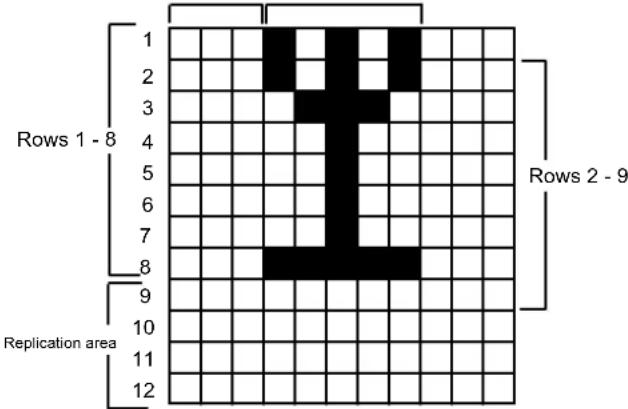
text_image
1 2 3 4 5 6 7 8 9 10 Replication area 11 12 Rows 1 - 8 Rows 2 - 9- Proportionally spaced characters are subject to the same height constraints (that is, eight dots high and either ascending or descending). The width of proportionally spaced characters is specified by the value in n3 .
- n_j is the character code of the first character in the sequence to be defined.
- n_2 is the character code of the last character in the sequence to be defined.
- It is assumed that you are defining a sequence of characters whose code numbers increment by one for each character as default. If this is not the case, you must split the characters you are defining into sets of characters with contiguous code numbers and use a separate command for each set.
- Each character is defined as a series of bytes - each byte defining a column of dots. The columns are read from left to right in the order in which they occur in the definition. The most significant bit of each byte represents the top dot of the column, and the least significant bit represents the bottom dot. Simply set a bit to 1 to print a dot in that position on the grid, or to 0 to print white space.
- The MSB (bit 8) of n_3 specifies whether the defined character is an ascender or a descender. Set bit 8 to 0 when defining an ascender, and to 1 for a descender. Ascending characters occupy the top 8 rows of the grid while descending characters occupy rows 2 to 9 of the grid.
- Bits 5 to 7 of n_3 specify the number of columns left blank to the left of the defined character in proportional spacing mode. The number of columns to skip is the number held in bits 5 to 7 minus 1. Up to six columns can be skipped. Hence, if you set this number to 4 it is equivalent to setting the first three character definition data bytes to 0.
- Bits 1 to 4 of n_3 specify the width in columns of the defined character in proportional spacing mode. The width in columns is the number held in bits 1 to 4. Characters can be up to fifteen columns wide, including skipped blank columns.
- Downloaded characters are selected using the Esc % 1 NUL command and then printed by sending the appropriate character codes.
Select standard / downloaded characters
Esc%nNUL (27) (37)n(00) <1Bh><25h>n<00h>
- Once you have defined and downloaded one or more customized characters using the Esc & command, you can choose between the normal characters contained in the printer ROM and the characters you have downloaded.
- Set n to 0 to select the printer standard characters. In this mode you cannot print any of your own defined characters.
- Set n to 1 to select your own downloaded characters for printing. Now you can print using your user-defined characters but you cannot print any of the printer standard characters unless you have previously downloaded them to RAM as well, using the Esc : Copy ROM to RAM command.
LPRINT CHR\(27); CHR\(37); CHR\(1); CHR\(0); 'Select downloaded characters
Copy ROM character to RAM
Esc:000 (27) (58) (00) (00) (00) <1Bh><3Ah><30h><30h><30h>
- In order to use your own customized characters in conjunction with the standard characters contained in the printer, you must first download the printer standard ROM characters to the printer RAM, then define and download your own customized characters, and finally select the downloaded characters for printing using the Esc % 1 NUL escape sequence. This has the effect of inserting your custom characters into the standard character set in place of the standard characters with the same character codes.
- This command enables you to download the printer current character set to its RAM. The printer current character set consists of whichever combination of international character set and italic or graphic character table you have selected.
LPRINT CHR\(27); CHR\(58); CHR\(0); CHR\(0); CHR\$(0); 'Copy printer's characters to its RAM
6.7. Graphics
Select image mode
Esc*mn1n2
- This command enables you to define and print a single line raster bit image on a single text line at a selected horizontal resolution.
- n_1 and n_2 define the number of bytes that comprise the image.
- The image consists of 256^*n_, + n_, bytes of data, each byte representing a single vertical column of 4/30".
- m defines the horizontal resolution at which the image will be printed. m must be in the range 0 to 7. A value of 0 selects 60 dots per inch, 1 and 2 select 120 dots per inch, 3 selects 240 dots per inch, 4 selects 80 dots per inch, 5 selects 72 dots per inch, 6 selects 90 dots per inch and 7 selects 144 dots per inch.
• Each byte represents a vertical column of eight dots, the most significant bit representing the dot at the top. Simply set a bit to 1 if you want a dot to appear in that position, and to 0 if you want white space to appear.
• Images are printed left to right. - Images are printed at a horizontal resolution determined by your selection and at an approximate vertical resolution of 72 dots per inch. The printer attempts to match your chosen horizontal resolution as best it can using its 600 dpi resolution.
- You can only use this command in portrait orientation.
10 WIDTH "LPT1:", 255
20 LPRINT "*** ESC * m n1 n2 ***"
30 FOR M=0 TO 6
40 LPRINT "m=";M
50 ' * SELECT BIT IMAGE MODE *
60 LPRINT CHR\(27);"*";CHR\(M);CHR\(240);CHR\(0);
70 FOR I=1 TO 8
80 N=2^I-1
90 FOR J=1 TO 30
100 LPRINT CHR\$(N);
110 NEXT J:NEXT I:LPRINT
120 NEXT M:END
*** ESC * m n1 n2 ***
Sample 9
Reassign image mode
Esc?cm (27) (63) cm <1Bh><3Fh>cm
- This command enables you to redefine the horizontal resolution attached to a particular image mode. Hence, you could assign a density of 90 dots per inch to the image mode normally associated with 60 dots per inch, which is selected with the Esc K command. All subsequent Esc K commands would then generate images with a horizontal density of 90 dots per inch.
- c is the character which signifies the graphics mode: K = single-density (60 dpi), L = double-density (120 dpi), Y = double-speed, double-density (120 dpi) and Z = quadruple-density (240 dpi).
- m defines the new horizontal resolution to be assigned to the specified graphics mode. m must be in the range 0 to 7. A value of 0 selects 60 dots per inch, 1 and 2 select 120 dots per inch, 3 selects 240 dots per inch, 4 selects 80 dots per inch, 5 selects 72 dots per inch 6 selects 90 dots per inch and 7 selects 144 dots per inch.
LPRINT CHR\(27); CHR\(63); CHR\(90); CHR\(7); 'Change quad density to 144 dpi
Print 9 bit image
Esc^an1n2
(27) (92) an1n2
<1Bh><5Eh>an1n2
- This command enables you to define and print a single line raster bit image on a single text line.
- n_1 and n_2 define the number of vertical 9-dot columns that comprise the image.
- a defines the horizontal density of the image. Set a to 0 for a horizontal density of 60 dots per inch, and to 1 for an approximate horizontal density of 120 dots per inch.
- The image consists of 256^*n_2 + n_1 columns of data, each column representing a single vertical column of 1/8".
- Each pair of bytes represents a vertical column of nine dots, the most significant bit of the first byte representing the dot at the top of the column, the least significant bit of the first byte representing the second dot from the bottom, and the MSB of the second byte representing the dot at the bottom of the column. Bits 1 to 7 of the second byte are not used. Simply set a bit to 1 if you want a dot to appear in that position, and to 0 if you want white space to appear.
- Images are printed from left to right.
- Images are printed at a horizontal resolution of 60 or approximately 120 dots per inch and at an approximate vertical resolution of 72 dots per inch.
- You can only use this command in portrait orientation.
10 WIDTH "LPT1", 255
20 LPRINT "*** ESC ^ m n1 n2 ***"
30 LPRINT "--STANDARD DENSITY--"
40 M=0
50 GOSUB 120
60 LPRINT
70 LPRINT
80 LPRINT "--DOUBLE-DENSITY--"
90 M=1
100 GOSUB 120
110 END
120 FOR A=1 TO 10
130 LPRINT CHR(27); "^";CHR(M);CHR(10);CHR(0);
140 LPRINT CHR(8);CHR(128);CHR(20);CHR(0);
150 LPRINT CHR(34);CHR(128);CHR(65);CHR(0);
160 LPRINT CHR(128);CHR(128);CHR(65);CHR(0);
170 LPRINT CHR(34);CHR(128);CHR(20);CHR(0);
180 LPRINT CHR(8);CHR(128);CHR(0);CHR(0);
190 NEXT A
200 RETURN
** ESC ^ m n1 n2 ***
Sample 10
Print single-density image
EscKn 1 n 2
- This command enables you to define and print a single line raster bit image on a single text line.
- n_1 and n_2 define the number of bytes that comprise the image.
- The image consists of 256^*n, + n_j bytes of data, each byte representing a single vertical column of 4/30".
• Each byte represents a vertical column of eight dots, the most significant bit representing the dot at the top. Simply set a bit to 1 if you want a dot to appear in that position, and to 0 if you want white space to appear.
• Images are printed from left to right. - Images are printed at a horizontal resolution of 60 dots per inch and at an approximate vertical resolution of 72 dots per inch.
- You can only use this command in portrait orientation.
10 WIDTH "LPT1:", 255
20 LPRINT "*** ESC K n1 n2 ***"
30 FOR I=1 TO 5
40 ' * STANDARD DENSITY BIT IMAGE MODE *
50 LPRINT CHR(27); "K"; CHR(160); CHR$(0);
60 FOR J=1 TO 8
70 FOR K=1 TO 20
80 N=2^J-1
90 LPRINT CHR$(N);
100 NEXT K
110 NEXT J
120 LPRINT
130 NEXT I:END
*** ESC K n1 n2 ***
Sample 11
Print double-density image
EscLn 1 n 2
- This command enables you to define and print a single line raster bit image on a single text line.
- n_1 and n_2 define the number of bytes that comprise the image.
- The image consists of 256^*n_2 + n_1 bytes of data, each byte representing a single vertical column of 4/30".
- Each byte represents a vertical column of eight dots, the most significant bit representing the dot at the top. Simply set a bit to 1 if you want a dot to appear in that position, and to 0 if you want white space to appear.
• Images are printed from left to right. - Images are printed at an approximate horizontal resolution of 120 dots per inch and at an approximate vertical resolution of 72 dots per inch.
- You can only use this command in portrait orientation.
10 WIDTH "LPT1:", 255
20 LPRINT "*** ESC L n1 n2 ***
30 FOR I=1 TO 5
40 '*' DOUBLE-DENSITY BIT IMAGE MODE *
50 LPRINT CHR(27); "L"; CHR(160); CHR$(0);
60 FOR J=1 TO 8
70 FOR K=1 TO 20
80 N=2^J-1
90 LPRINT CHR$(N);
100 NEXT K
110 NEXT J
120 LPRINT
130 NEXT I:END
*** ESC L n1 n2 ***
Sample 12
Print double-speed double-density image
EscYn 1 n 2
- This command enables you to define and print a single line raster bit image on a single text line.
- n_1 and n_2 define the number of bytes that comprise the image.
- The image consists of 256^*n, + n_j bytes of data, each byte representing a single vertical column of 4/30".
• Each byte represents a vertical column of eight dots, the most significant bit representing the dot at the top. Simply set a bit to 1 if you want a dot to appear in that position, and to 0 if you want white space to appear.
• Images are printed from left to right. - Images are printed at an approximate horizontal resolution of 120 dots per inch and at an approximate vertical resolution of 72 dots per inch.
- You can only use this command in portrait orientation.
- The printer always prints as fast as possible, hence this command is the exact equivalent of the Esc L command.
10 WIDTH "LPT1:", 255
20 LPRINT "*** ESC Y n1 n2 ***"
30 FOR I=1 TO 5
40 '*' DOUBLE-SPEED & DOUBLE-DENSITY BIT IMAGE MODE *
50 LPRINT CHR(27); "Y"; CHR(160); CHR$(0);
60 FOR J=1 TO 8
70 FOR K=1 TO 20
80 N=2^J-1
90 LPRINT CHR$(N);
100 NEXT K
110 NEXT J
120 LPRINT
130 NEXT I:END
** ESC Y n1 n2 ***
Sample 13
Print quadruple-density image
EscZn 1 n 2
- This command enables you to define and print a single line raster bit image on a single text line.
- n_1 and n_2 define the number of bytes that comprise the image.
- The image consists of 256^*n_, + n_, bytes of data, each byte representing a single vertical column of 4/30".
- Each byte represents a vertical column of eight dots, the most significant bit representing the dot at the top. Simply set a bit to 1 if you want a dot to appear in that position, and to 0 if you want white space to appear.
- Images are printed from left to right.
- Images are printed at an approximate horizontal resolution of 240 dots per inch and at an approximate vertical resolution of 72 dots per inch.
- You can only use this command in portrait orientation.
10 WIDTH "LPT1;", 255
20 LPRINT "*** ESC Z n1 n2 ***"
30 FOR I=1 TO 5
40 ' * QUADRUPLE-DENSITY BIT IMAGE MODE *
50 LPRINT CHR(27); "Z", CHR(160); CHR$(0);
60 FOR J=1 TO 8
70 FOR K=1 TO 20
80 N=2^J-1
90 LPRINT CHR$(N);
100 NEXT K
110 NEXT J
120 LPRINT
130 NEXT I:END
*** ESC Z n1 n2 ***
Sample 14
7. INDEX
9
9 bit image 25
A
absolute print position 10
B
Backspace....9
C
Carriage return 9
characters
define 23
condensed character 18
control codes 8
control panel 8
D
data MSB 11
double-density image 26
double-height printing 20
double-speed double-density image 27
double-strike mode 19
double-width printing 19
downloaded characters 23
E
emphasized character mode.... 18
emulation mode 12
Escape sequences 8
F
feeder mode 12
Form feed 9
H
horizontal tab stops 16
I
image mode 24
Initialize....11
inter-character space 10
international character set 22
italic / graphics character table 22
italic mode 20
J
justification mode 10
L
left margin 13
line feed 15
Line feed 9
line spacing 15
P
page length 13
perforation skip 13
pitch 17
printable code area 21
printing mode 21
proportional spacing 18
Q
quadruple-density image 27
R
relative print position 10
resolution 6
reverse line feed 16
right margin 13
ROM character 24
S
single-density image 26
single-line double-width printing 19
space 9
subscript mode 20
superscript mode 20
syntax....7
U
underline mode 20
unidirectional printing 10
user reset 12
V
vertical tab channel 17
vertical tab stops 16
CHAPTER 7
IBM PROPRINTER XL
CONTENTS
- COMMAND LIST....3
- INTRODUCTION....5
- EMULATION DETAILS....6
3.1. Ignored Commands....6
3.2. Resolution 6
3.3. Character Set selection....6
3.4. Controlling the Printer 6
3.5. Control Codes 6
3.6. Escape sequences....6
- NOTATION USED IN THIS EMULATION DESCRIPTION ....7
4.1. Syntax 7
4.2. Data Conventions....7
- COMMANDS......8
5.1. Basic Printer Operation 8
5.2. Page Format 11
5.3. Using Characters 14
5.4. Graphics....18
- INDEX 21
1. COMMAND LIST
| NUL | Null | 8 | |
| BEL | Bell | 8 | |
| ESC | Escape | 8 | |
| SP | Space | 8 | |
| BS | Backspace | 8 | |
| LF | Line | Feed | 8 |
| FF | Form | Feed | 8 |
| CR | Carriage | return | 8 |
| Esc5n Automatic line feed 9 | |||
| DC1 | Enable | printer | 9 |
| EscQ22 | Disable printer | 9 | |
| EscQ3 | Disable printer | 9 | |
| EscCRmode | Reset printer / change emulation mode | 9 | |
| EscCR!#R | User reset | 9 | |
| EscEMn | Paper input control | 10 | |
| EscCn | Set page length | 11 | |
| EscCNULn | Set page length | 11 | |
| EscXmn | Set left and right margins | 11 | |
| EscNn | Set perforation skip | 11 | |
| EscO | Cancel perforation skip | 11 | |
| Esc0 | Set 1/8" line spacing 12 | ||
| Esc1 | Set 7/72" line spacing | 12 | |
| EscAn | Save n/72" line spacing | 12 | |
| Esc2 | Activate n/72" line spacing | 12 | |
| Esc3n Set n/216" line feed | 12 | ||
| EscJn | Execute n/216" line feed | 12 | |
| EscDn1n2n3...NUL | 13 | ||
| Set horizontal tab stops | |||
| EscBn1n2n3...NUL | 13 | ||
| Set vertical tab stops | |||
| HT | Horizontal | tab | |
| VT | Vertical | tab | |
| EscR | Restore default tab settings | 13 | |
| Esc7 | Select character set I | 14 | |
| Esc6 | Select character set II | 14 | |
| DC2 | Set pitch to 10 cpi | 14 | |
| Esc: | Set pitch to 12 cpi | 14 | |
| EscPn | Proportional spacing | 14 | |
| SI | Set condensed character mode | 14 | |
| EscE | Set emphasized character mode | 14 | |
| EscF | Cancel emphasized character mode | 14 | |
| SO | Set enlarged character mode for a single line | 15 | |
| DC4 | Cancel enlarged character mode | 15 | |
| CAN | Cancel | 15 | |
| EscWn | Enlarged character mode | 15 | |
| EscSn | Set superscript or subscript character mode | 15 | |
| EscT | Cancel superscript or subscript character mode | 15 | |
| Esc-n | Underline mode | 16 | |
| Esc_n Continuous overline mode | 16 | ||
| Esc[@n1n2n3n4n5n6 | 16 | ||
| Select double-height / double-width mode | |||
| Esc\n1n2 | |||
| Select character from the All Character Code table | |||
| Esc^ | |||
| EscI | Select character font | 17 | |
| Esc=n1n220n3(n4n5...) | |||
| Define characters | |||
13 13
EscKn1n2
Set single-density image mode
EscLn1n2
Set double-density image mode
EscYn1n2
Set double-speed, double-density image mode
EscZn1n2
Set quadruple-density image mode
2. INTRODUCTION
Some of these HL Series printers offer a complete emulation of the IBM Proprinter. In Proprinter XL mode you can drive the printer directly by incorporating control codes and escape sequences in your program, or alternatively, applications software (for example, your word-processing software) may send the necessary commands to the printer automatically. Check the manual that came with your software package for instructions on how to use your software with an IBM Proprinter XL.
3. EMULATION DETAILS
The following points should be borne in mind when running the HL Series printers in IBM Proprinter XL mode.
3.1. Ignored Commands
A few IBM Proprinter XL commands have reduced effect, or no effect at all. In some cases this is due to the physical nature of an HL Series printer. These commands are as follows. The BEL control code (ASCII 7) which is used to sound the Proprinter's bell, is ignored. The DC3 control code (ASCII 23), used to disable the Proprinter, is also ignored. The Esc Y escape sequence, which enables double-speed, double-density graphics mode has no effect on the printing speed, as HL Series printers always operate as fast as they can. Hence the Esc Y has the same effect as the Esc L (enable double-density graphics mode) sequence.
3.2. Resolution
The resolution of the HL Series printers is 600 dots per inch. Some IBM Proprinter commands use fractions of an inch that not exactly divisible by 600, for example Esc 0 sets line spacing to 1/8" of an inch. Similarly, the Proprinter graphics commands specify resolutions of 72, 120 and 240 dots per inch. When a graphic cannot be represented exactly at 600 dots per inch the printer prints the closest possible approximation to the specified image using 600 dots per inch.
3.3. Character Set selection
Using software commands you can select IBM character set I, IBM character set II or the IBM All Character Code table. Using the printer control panel you can select a number of other character sets depending on the printer model, consult the User's Guide to see if this emulation is supported and for a description of how to do this. All available character sets are shown in the IBM Proprinter XL mode section of the appendix at the end of this manual.
3.4. Controlling the Printer
Commands are invoked using either control codes or escape sequences. You can send them to the printer as part of a program, using the same command that you would use to print a text string on the printer. For example, in BASIC you would use the LPRINT command.
3.5. Control Codes
Control codes are ASCII codes that tell the printer to perform a particular function such as a line feed. Send a control code to the printer by sending the same type of instruction you would use to print a character using its ASCII code number. For example, the ASCII code for a form feed is 12, so to get the printer to perform a form feed use the following BASIC statement:
LPRINT CHR\$(12);
The CHR\$ operator is normally used to convert an ASCII code into its corresponding character.
3.6. Escape sequences
Escape sequences tell the printer which Proprinter function to perform. An escape sequence consists of the ESC character followed by one or more characters which define the operation to be performed. Send an escape sequence to the printer by sending the same type of instruction you would use to print characters using their ASCII codes. Some escape sequences require parameter values or data following them, for example, commands which turn a particular feature on and off and commands for downloading character descriptions to the printer or for printing graphic images. Numerical parameter data, too, is sent to the printer as if it were a character code to be printed. For example, to set the left and right margin settings to be at 10 and 70 columns across the page the required escape sequence is Esc X 10 70. In BASIC this would be:
The following conventions are used in this description of the Proprinter XL software commands.
A letter, word or number in upright bold text is the literal character which and should be sent to the printer as a character code.
A letter or word in italics is a variable and you must substitute the appropriate value or values when using the command.
An ellipsis, ..., indicates that an element may be repeated any number of times.
4.2. Data Conventions
The bits that comprise a byte of data are numbered 1 to 8. Bit 1 is the least significant bit (LSB) and bit 8 is the most significant bit (MSB).
5. COMMANDS
5.1. Basic Printer Operation
The most common printer operations are described in this section. Most are invoked using control codes. For the sake of completeness the instructions which HL Series printers ignore are included.
Null
NUL (0) <0h>
NUL (ASCII 0) is ignored.
Bell
BEL (07) <07h>
BEL (ASCII 7) is ignored.
Escape
ESC (27) <1Bh>
The ESC control code (ASCII 27) marks the start of an escape sequence.
LPRINT CHR\$(27);
Space
SP (32) <20h>
The SP control code (ASCII 32) moves the current print position one space to the right. LPRINT CHR\$(32);
Backspace
BS (08) <08h>
The BS control code (ASCII 8) moves the current print position one space to the left. LPRINT CHR\$(8);
Line feed
LF (10) <0Ah>
The LF control code (ASCII 10) moves the current print position down one line.
LPRINT CHR\$(10);
Form feed
FF (12) <0Ch>
- The FF control code (ASCII 12) ejects the current page (unless it is blank) and moves the current print position to the top of the next page.
- If the current page is blank this control code has no effect. LPRINT CHR\$(12);
Carriage return
CR (13) <0Dh>
- The CR control code (ASCII 13) moves the current print position to the left margin on the current line.
- If automatic line feed is ON, this code moves the current print position to the left margin on the next line.
LPRINT CHR\$(13);
Automatic line feed
Esc5n
(27) (53)n
<1Bh><35h>n
- When automatic line feed is ON, a line feed is automatically performed every time a carriage return is sent to the printer.
- To turn the automatic line feed function ON, set n to 1.
- To turn the automatic line feed function OFF, set n to 0.
LPRINT CHR\(27); CHR\(53); CHR\$(1); 'Turn auto line feed on
Enable printer
DC1 (17) (11h>
The DC1 control code (ASCII 17) enables the printer to accept data for printing again after a disable printer instruction.
LPRINT CHR\$(17);
Disable printer
EscQ22 (27) (81) (50) (50) <1Bh><51h><32h><32h>
or
EscQ3 (27) (81) (51) <1Bh><51h><32h>
- These two commands stop the printer from accepting any data for printing or any control codes until it has received a DC1 code (enable printer).
- The DC3 code (ASCII 19) is not recognised by the printer.
LPRINT CHR\(27); CHR\(81); CHR\$(22); 'Disable printer
Change emulation mode
EscCR
- This command changes the printer emulation mode or performs a reset.
- mode can be 'E' (Epson), 'H' (LaserJet), 'I' (IBM Proprinter XL), 'AB' (BR-Script Batch), 'AI' (BR-Script Interactive), 'GL' (HP-GL) or 'FD' (factory default).
- On receiving this command the printer prints any remaining data and performs a page eject (unless the current page is blank). The new emulation mode default settings come into effect, except when the mode is set to 'FD'.
- If you set the mode to 'FD' to reset the printer to its factory default settings, LaserJet mode (the factory default emulation mode) is selected and the LaserJet factory default environment is restored. For a list of the factory default settings see the sub-section "Factory default environment" in Chapter 2 "PCL" of this manual.
- Selecting IBM Proprinter XL emulation with mode = 'T' causes the printer to be reset.
LPRINT CHR\(27); CHR\(13); CHR\$(69); 'Change to Epson emulation
User Reset
EscCR!#R (27)(13)(33)#(82) <1Bh><0Dh><21h>#<52h>
-
= 0, restores to the current user setting.
-
= 1, restores to User settings 1.
-
= 2, restores to User settings 2.
Paper input control
| EscEMn | (27) (25)n | <1Bh><19h>n |
| n Value | HL-1660e/2060/3260N/2460/7050/1650/1670N/1850/1870N/5050/5070N/5150D/5170DN/6050/6050D/6050DN/8050N/5240/5250DN/5270DN/5280DW/5340D/5350DN/5370DW/5380DW/5440D/5450DN/5470DW/6180DW | |
| n = 0 Initialize the feeder mode.n = 1 Feed from the MP tray. (Except for HL-8050N)n = 2 Feed from Tray 1.n = 3 Feed from Tray 2.n = 4 Feed from Tray 3.n = 5 Feed from Tray 4.(Only HL-3260N/2460/7050/8050N)n = R Eject paper. | ||
| n Value | HL-1050 | |
| n = 0 Initialize the feeder mode.n = 1/2 Feed from the tray.n = R Eject paper. | ||
| n Value | HL-1250/1270N/1450/1470N/P2500/2400C/2400Ce/3400CN/2600CN/3450CN/2700CN | |
| n = 0 Initialize the feeder mode.n = 1 Feed from Tray 1.n = 2 Feed from Tray 2.n = R Eject paper. | ||
| n Value | HL-2070N | |
| n = 0 Initialize the feeder mode.n = 2 Feed from the tray.n = R Eject paper. | ||
5.2. Page Format
Set page length
EscCn (27) (67)n
<1Bh><43h>n
This command sets the page length in lines.
or
EscCNULn (27) (67) (0)n <1Bh><43h><00h>n
- This command sets the page length in inches.
- n is the number of lines that make up one page, or the length of the page in inches, according to the form of the command.
- If the first form of the command is used ( n = the number of lines in the page) the current line spacing setting is used to determine the length of the page.
- If the first form of the command is used, n must be in the range 1 to 255.
- If the second form of the command is used ( n = page length in inches ), n must be in the range 1 to 14.
LPRINT CHR\(27); CHR\(81); CHR\$(22); 'Disable printer
Set left and right margins
EscXmn (27) (88) mn <1Bh><88h>mn
- This command sets the left and right margins.
- m = the number of character positions at the current pitch (characters per inch) between the left edge of the page and the left margin.
- n = the number of character positions at the current pitch between the left edge of the page and the right margin.
- If you set m = 0 the current left margin setting is retained.
• If you set n = 0 the current right margin setting is retained.
LPRINT CHR\$(18); 'Set pitch to 10 CPI LPRINT CHR\(27); CHR\(88); CHR\(10); CHR\(70); 'Set margins to 1" and 7"
Set perforation skip
EscNn (27) (78)n <1Bh><4Eh>n
- This command sets the bottom margin and enables perforation skip, that is, whenever the print position reaches the bottom margin the printer performs a page eject and moves the print position to the top of the next page.
- n = the number of lines at the current line space setting between the bottom edge of the page and the bottom margin.
- n must be in the range 1 to 255.
- Esc C (set page length) and Esc O(Cancel perforation skip) cancel automatic perforation skip.
- If the bottom margin is set to be above the top margin, the top margin is discarded and one line is enabled for printing.
LPRINT CHR\(27); CHR\(78); CHR\$(4); 'Set bottom margin to 4 lines.
Cancel perforation skip
EscO (27) (79) <1Bh><4Fh>
This command cancels the automatic perforation skip feature.
LPRINT CHR\(27); CHR\(79); 'Cancel perforation skip.
Line spacing and tabs
Set 1/8" line spacing
Esc0 (27) (48) <1Bh><30h>
This command sets the line spacing to 1/8". All subsequent line feed operations will move the print position 1/8" down the page.
LPRINT CHR\(27); CHR\(48); 'Set line spacing to 1/8".
Set 7/72" line spacing
Esc1 (27) (48) <1Bh><31h>
- This command sets the line spacing to 7/72". All subsequent line feed operations will move the print position 7/72" down the page.
- Since the printer's resolution is 600 dots per inch the line spacing will not be exactly 7/72". LPRINT CHR\(27); CHR\(49); 'Set line spacing to 7/72".
Save n/72" line spacing
EscAn (27) (65)n <1Bh><41h>n
- This command allows you to select a line spacing of n/72". Your selection does not take effect until you activate it with the Esc 2 command.
- Since the printer's resolution is 600 dots per inch the line spacing may not be exactly n / 72 ".
- n must be in the range 1 to 85.
- If n is outside the range 1 to 85 the default line spacing, 1/6" is selected. LPRINT CHR\(27); CHR\(65); CHR\$(10); 'Select line spacing of 10/72".
Activate n/72" line spacing
Esc2 (27) (50) <1Bh><32h>
This command allows you to activate the line spacing setting you specified with the Esc A command.
LPRINT CHR\(27); CHR\(50); 'Activate selected line spacing of n/72".
Set n/216" line spacing
Esc3n (27) (51)n <1Bh><33h>n
- This command sets the line spacing to n/216". All subsequent line feed operations will move the print position n/216" down the page.
- Since the printer's resolution is 600 dots per inch the line spacing may not be exactly n / 216 ".
- n must be in the range 1 to 255.
LPRINT CHR\(27); CHR\(51); CHR\$(25); 'Select line spacing of 25/216".
Execute n/216" line spacing
EscJn (27) (74)n <1Bh><4Ah>n
- This command moves the print position one line down the page using a line spacing of n / 216 .
- The existing line space setting is not affected.
LPRINT CHR\(27); CHR\(50); CHR\$(30); 'Move print position down 30/216".
Set horizontal tabs
EscD<n1><n2><n3>...NUL (27) (68)n1n2n3... (00)
<1Bh><44h>n1n2n3...<00h>
- This command enables you to set up to 28 horizontal tab stops using the current character pitch.
- The tab stops should be set in ascending order.
- Esc D 0 clears all horizontal tab settings.
- Esc R restores the default settings, which are at every eighth column, starting at the ninth column.
- You can move the print position to the tab stops using the HT control code.
LPRINT CHR\(27); CHR\(68); CHR\(10); CHR\(20); CHR\$(0); 'Set tab stops at columns 10 and 20.
Set vertical tabs
EscB<n1><n2><n3> ...NUL (27)(66)n1n2n3... (00)
<1Bh><42h>n1n2n3...<00h>
- This command enables you to set up to 64 vertical tab stops using the line feed pitch.
- The tab stops should be set in ascending order.
- Esc B 0 and Esc R both clear all vertical tab settings.
- You can move the print position to the tab stops using the VT control code.
LPRINT CHR\(27); CHR\(66); CHR\(12); CHR\(24); CHR\$(0); 'Set tab stops at lines 12 and 24.
Horizontal tab
HT (09) <09h>
- The HT control code (ASCII 9) moves the current print position one tab stop to the right.
- The command is ignored if there are no tab stops to the right of the current print position or if the next tab stop is beyond the right margin.
LPRINT CHR\$(9);
Vertical tab
VT (11) <0Bh>
- The VT control code (ASCII 11) moves the current print position one vertical tab stop down the page.
- If there are no tab stops below the current print position a line feed is performed.
- If no tab stops have been set a line feed is performed.
LPRINT CHR\$(9);
Restore default tab settings
EscR (27) (82) <1Bh><52h>
- This command restores the default horizontal tab settings which are at every eight columns, starting at the ninth column. There are no default vertical tab settings.
LPRINT CHR\(27); CHR\(82); 'Restore default tab stops.
5.3. Using Characters
Select character set I
Esc7 (27) (55) <1Bh><37h>
This command selects IBM Character set I for use in subsequent printing operations.
LPRINT CHR\(27); CHR\(55); 'Select character set I
Select character set II
Esc6 (27) (56) <1Bh><36h>
This command selects IBM character set II for use in subsequent printing operations.
LPRINT CHR\(27); CHR\(54); 'Select character set II
Set pitch to 10 cpi
DC2 (18) <12h>
- This command sets the printing pitch to 10 characters per inch (cpi).
- If condensed character mode has previously been set, it is cancelled.
LPRINT CHR\$(18); 'set pitch to 10 CPI
Set pitch to 12 cpi
Esc: (27) (58) <1Bh><3Ah>
This command sets the printing pitch to 12 characters per inch (cpi).
LPRINT CHR\(27); CHR\(58); 'set pitch to 12 CPI
Proportional spacing
EscPn (27) (80)n <1Bh><50h>n
- This command allows you to turn proportional spacing on or off.
- Setting n to 1 turns proportional spacing on. Subsequent text is printed proportionally spaced.
- Setting n to 0 turns proportional spacing off. Subsequent text is printed monospaced.
- If you change the character pitch using DC2, SI or Esc:, proportional spacing is automatically turned off.
LPRINT CHR\(27); CHR\(80); CHR\$(1); 'Turn proportional spacing on
Set condensed character mode
SI (15) <0Fh>
- This command selects condensed character mode. Subsequent text characters are condensed horizontally when printed.
- The DC2 code, used to select a character pitch of 10 cpi, cancels condensed character mode. LPRINT CHR\$(15); 'Set condensed character mode
Set emphasized character mode
EscE (27) (69) <1Bh><45h>
This command turns emphasized character mode on. Subsequent text is printed with a bold stroke width. LPRINT CHR\(27); CHR\(69); 'Turn emphasized character mode on
Cancel emphasized character mode
EscF (27) (70) <1Bh><46h>
This command turns emphasized character mode off. Subsequent text is printed with medium stroke width.
LPRINT CHR\(27)l CHR\(70); 'Turn emphasized character mode off
Set enlarged character mode for a single line
SO (14) <0Eh>
- This command turns enlarged character mode on for one line only. The subsequent line of text is printed using double-width characters and with the line space setting doubled.
- The following commands cancel enlarged character mode set using the SO control code: CR, CAN, LF, FF, VT, Esc W 0, DC4 and Esc [@].
LPRINT CHR\$(14); 'Set enlarged character mode for one line
Cancel enlarged character mode
DC4 (20) <14h>
- This control code cancels the single-line enlarged character mode set with the SO control code. Subsequent text is printed using normal sized characters. The previous line spacing setting is restored.
- The previous character pitch is restored. LPRINT CHR\$(20); 'Cancel enlarged character mode set with SO
Cancel
CAN (24) <18h>
This control code cancels single-line enlarged character mode set with the SO control code. Subsequent text is printed using normal sized characters and the previous line spacing setting is restored.
LPRINT CHR\$(24); 'Cancel enlarged character mode set with SO
Enlarged character mode
EscWn (27) (87)n <1Bh><57h>n
- This command turns enlarged character mode on or off.
- If n is set to 1 subsequent text is printed using double-width characters. The line spacing setting is doubled.
- If n is set to 0 subsequent text is printed using normal sized characters. The previous line spacing and character pitch settings are restored.
- Only Esc W 0 can be used to cancel enlarged character mode set using the Esc W 1 instruction.
- Esc W 0 cancels enlarged character mode set using the Esc W 1 instruction, the SO control code or the Esc [@ instruction.
LPRINT CHR\(27); CHR\(87); CHR\$(1); 'Set enlarged character mode
Set superscript or subscript character mode
EscSn (27) (83)n <1Bh><53h>n
- This command allows you to print superscripts or subscripts.
- Set n to 0 to print subsequent text using superscript characters.
- Set n to 1 to print subsequent text using subscript characters.
LPRINT CHR\(27); CHR\(83); CHR\$(1); 'Turn on subscript mode
Cancel superscript or subscript character mode
EscT (27) (84) <1Bh><54h>
- This command stops superscript or subscript printing if either had been enabled.
- Subsequent text is printed using normal characters.
LPRINT CHR\(27); CHR\(84); 'Turn off superscript/subscript mode
Underline mode
Esc-n (27) (126)n <1Bh><7Eh>n
- This command turns character underlining on or off.
- If n is set to 1 subsequent text is underlined.
- Horizontal tab spaces are not underlined irrespective of whether underlining mode is on or off.
- If n is set to 0 subsequent text is not underlined.
LPRINT CHR\(27); CHR\(45); CHR\$(1); 'Underline following text
Continuous overline mode
Esc_n (27) (95)) n <1Bh><5Fh>n
- This command turns character overline printing on or off.
- If n is set to 1 subsequent text is printed with a continuous line above it.
- Horizontal tab spaces are not printed overlined irrespective of whether overline printing mode is on or off.
- If n is set to 0 subsequent text is not printed with an overline.
LPRINT CHR\(27); CHR\(95); CHR\$(1); 'Print following text with an overline
Select double-height / double-width mode
Esc [@n1n2n3n4n5n6 (27) (91) (64)n1n2n3n4n5n6 <1Bh><5Bh><40h>n1n2n3n4n5n6
- This command enables you to select single or double line spacing and single or double character height and width.
- n_1 should be set to 4 and n_2, n_3 and n_4 to 0.
- To set double line spacing and select double-height characters set n_5 to 34.
- To set double line spacing and select normal height characters set to n_5 to 33.
• To set single line spacing and select double-height characters set to n_5 to 18. - To set single line spacing and select normal height characters set n_5 to 17.
• To select double-width characters set n_6 to 2.
• To select single-width characters set n_6 to 1.
LPRINT CHR\(27); CHR\(91); CHR\(64); CHR\(4); CHR\(0); CHR\(0); CHR\(0); CHR\(34); CHR\$(1); 'Set double line spacing and print double-height, double-width characters.
Select character from the All Character Code table
Esc\n1n2
- This command enables you to print characters from the All Character Code table.
- n_1 and n_2 specify the number of characters to be printed.
• The number of characters printed is 256^*n_2+n_1 .
- Control codes included in the character data are not executed. LPRINT CHR\(27); CHR\(92); CHR\(64); CHR\(1); CHR\(65); CHR\(66); CHR\(67); CHR\(68); CHR\$(69); 'Print 320 characters starting ABCDE...
Select a character from the All Character Code table
Esc^
(27) (94)
<1Bh><5Eh>
- This command enables you to print a single character from the All Character Code table.
- A control code is not executed if the code is sent immediately following this instruction.
LPRINT CHR\(27); CHR\(94); CHR\$(36); 'Printed a dollar sign
Select character font
EscIn
(27) (73) n
<1Bh><49h>n
- This command enables you to select a font and choose the print quality.
- If n is set to 0 the printer's standard font and draft quality are selected.
- If n is set to 2 the printer's standard font and letter quality are selected.
- If n is set to 4 the download font (the characters you sent to the printer using the Esc = command) and draft quality are selected.
- If n is set to 6 the download font (the characters you sent to the printer using the Esc = command) and letter quality are selected.
LPRINT CHR\(27); CHR\(73); CHR\$(2); 'Selected letter quality printer font
Define characters
Esc=n1n220n3(n4n5
(27) (61)n1n220n3 ( ... <1Bh><3Dh>n1n220n3 ( ...
- This command enables you to define and download characters for printing.
- Monospaced characters are designed on a grid eleven dots wide by twelve dots high. The width of proportionally spaced characters is specified in n_5 .

text_image
Blank columns Character width 1 2 3 4 5 6 7 8 9 10 Replication area 11 12 Rows 1 - 8 Rows 2 - 9- n_1 and n_2 define the number of characters to be defined as follows: number of characters = ((n_1 + (n_2 * 256) - 2) / 13 .
- n_3 is the character code of the first character in the sequence to be defined. It is assumed that you are defining a sequence of characters whose code numbers increment by one for each character to be defined.
- If bits 1 and 2 of n_4 are 0 and bit 8 is set to 1, the bytes that make up the character definition define the top eight rows of the grid, the most significant bit representing the top dot, and the least significant bit representing the eighth dot down. Simply set a bit to 1 to print a dot in that position on the grid, or to 0 to print white space.
-
If bits 1 and 2 of n_4 are 00 and bit 8 is set to 0 the bytes that make up the character definition define rows 2 to 9 of the grid, the most significant bit representing the second dot, and the least significant bit representing the ninth dot down. Simply set a bit to 1 to print a dot in that position on the grid, or to 0 to print white space.
-
If bits 1 and 2 of n_4 are 01 the least significant bit of each data byte is replicated in rows 9 to 12 of the grid.
- If bits 1 and 2 of n_4 are 10 the bits 1 to 4 of each data byte are replicated in rows 9 to 12 of the grid.
- Bits 5 to 7 of n_5 specify the number of columns left blank to the left of the defined character in proportional spacing mode. Up to seven columns can be skipped.
- Bits 1 to 4 of n_5 specify the width in columns of the defined character in proportional spacing mode. Up to fifteen columns can be used to define the character.
- Downloaded characters are selected using the Esc I command and then printed by sending the appropriate character codes.
5.4. Graphics
Set single-density image mode
EscKn 1 n 2
- This command enables you to define and print a single line raster bit image on a single text line.
- n_1 and n_2 define the number of bytes that comprise the image.
- The image consists of 256^*n_2+n_1 bytes of data, each byte representing a single vertical column of 4/30".
• Images are printed left to right.
- Images are printed at a horizontal resolution of 60 dots per inch and at an approximate vertical resolution of 72 dots per inch.
- Each byte represents a vertical column of eight dots, the most significant bit representing the dot at the top. Simply set a bit to 1 if you want a dot to appear in that position, and to 0 if you want white space to appear.
10 WIDTH "LPT1:", 255
20 LPRINT "*** ESC K n1 n2 ***"; CHR$(10);
30 FOR i=1 TO 5
40 ' * STANDARD DENSITY BIT IMAGE MODE *
50 LPRINT CHR(27); "K"; CHR(160); CHR$(0);
60 FOR J=1 TO 8
70 FOR K=1 TO 20
80 N=2^J-1
90 LPRINT CHR$(N);
100 NEXT K
110 NEXT J
120 LPRINT CHR$(10);
130 NEXT I:END

< Sample 15 >
Set double-density image mode
EscLn 1 n 2
- This command enables you to define and print a single line raster bit image on a single text line.
- n_1 and n_2 define the number of bytes that comprise the image.
-
The image consists of 256*n_1+n_2 bytes of data, each byte representing a single vertical column of 4/30".
• Images are printed left to right. -
Images are printed at an approximate horizontal resolution of 120 dots per inch and at an approximate vertical resolution of 72 dots per inch.
- Each byte represents a vertical column of eight dots, the most significant bit representing the dot at the top. Simply set a bit to 1 if you want a dot to appear in that position, and to 0 if you want white space to appear.
10 WIDTH "LPT1:", 255
20 LPRINT "***ESC L n1 n2 ***"CHR$(10);
30 FOR I=1 TO 5
40 '*DOUBLE-DENSITY BIT IMAGE MODE *
50 LPRINT CHR(27); "L"; CHR(160); CHR$(0);
60 FOR J=1 TO 8
70 FOR K=1 TO 20
80 N=2^J-1
90 LPRINT CHR$(N);
100 NEXT K
110 NEXT J
120 LPRINT CHR$(10);
130 NEXT I:END

< Sample 16 >
Set double-speed, double-density image mode
EscYn 1 n 2
- This command enables you to define and print a single line raster bit image on a single text line.
- n_1 and n_2 define the number of bytes that comprise the image.
- The image consists of 256^*n_2+n_1 bytes of data, each byte representing a single vertical column of 4/30".
• Images are printed left to right. - Images are printed at an approximate horizontal resolution of 120 dots per inch and at an approximate vertical resolution of 72 dots per inch.
- Each byte represents a vertical column of eight dots, the most significant bit representing the dot at the top. Simply set a bit to 1 if you want a dot to appear in that position, and to 0 if you want white space to appear.
- This printer always prints as fast as possible, hence this command is the exact equivalent of the Esc L command.
10 WIDTH "LPT1:", 255
20 LPRINT "*** ESC Y n1 n2 ***", CHR$(10);
30 FOR I=1 TO 5
40 '*DOUBLE-SPEED & DOUBLE-DENSITY BIT IMAGE MODE *
50 LPRINT CHR(27); "Y"; CHR(160); CHR$(0);
60 FOR J=1 TO 8
70 FOR k=1 TO 20
80 N=2^J-1
90 LPRINT CHR$(N);
100 NEXT K
110 NEXT J
120 LPRINT CHR$(10);
130 NEXT I:END

< Sample 17 >
Set quadruple-density image mode
EscZn 1 n 2
- This command enables you to define and print a single line raster bit image on a single text line.
- n_1 and n_2 define the number of bytes that comprise the image.
- The image consists of 256*n_1+n_2 bytes of data, each byte representing a single vertical column of 4/30".
• Images are printed left to right. - Images are printed at an approximate horizontal resolution of 240 dots per inch and at an approximate vertical resolution of 72 dots per inch.
- Each byte represents a vertical column of eight dots, the most significant bit representing the dot at the top. Simply set a bit to 1 if you want a dot to appear in that position, and to 0 if you want white space to appear.
10 WIDTH "LPT1:", 255
20 LPRINT "*** ESC Z n1 n2 ***"; CHR$(10);
30 FOR I=1 TO 5
40 ' * QUADRUPLE-DENSITY BIT IMAGE MODE *
50 LPRINT CHR(27); "Z"; CRH(16); CHR$(0);
60 FOR J=1 TO 8
70 FOR K=1 TO 20
80 N=2^J-1
90 LPRINT CHR$(N);
100 NEXT K
110 NEXT J
120 LPRINT CHR$(10);
130 NEXT I:END

< Sample 18 >
6. INDEX
A
Automatic line feed 9
B
Backspace....8
C
cancel 15
Carriage return 8
character set 6,14
characters....17
condensed character 14
control codes 6
D
double-density image mode 18
double-height / double-width mode 16
E
emphasized character 14
emulation mode 9
enlarged character 15
Escape 8
Escape sequences 6
F
feeder mode 10
Form feed 8
G
graphics 18
H
horizontal tab 13
L
left margin 11
Line feed 8
line spacing 12
O
overline mode 16
P
page length 11
paper input control 10
perforation skip 11
pitch 14
print quality 17
proportional spacing 14
Q
quadruple-density image mode 20
R
resolution 6
right margin 11
S
single-density image mode 18
Space....8
subscript character mode 15
superscript character mode 15
syntax....7
T
tab settings 13
U
underline mode 16
User reset 9
V
vertical tab 13
CHAPTER 8
BAR CODE
CONTROL
CONTENTS
- INTRODUCTION....3
- PRINT BAR CODES OR EXPANDED CHARACTERS .... 4
- DEFINITION OF PARAMETERS .... 5
3.1. Bar Code Mode 5
3.2. Bar Code Style, Expanded Character Shading, Line Block Drawing & Box Drawing Shading .... 5
3.3. Bar Code Scaling (Width only) 7
3.4. Bar Code Human Readable Line On or Off....7
3.5. Quiet Zone 7
3.6. Bar Code, Expanded Character Unit, Line Block Drawing & Box Drawing Units....7
3.7. Bar Code, Expanded Character, Line, Block Drawing & Box Drawing Offset in the X-axis ..... 8
3.8. Bar Code & Expanded Character Offset in the Y-axis 8
3.9. Bar Code, Expanded Character, Line, Block Drawing & Box Drawing Height 8
3.10. Expanded Character, Line Block Drawing & Box Drawing Width 8
3.11. Expanded Character Rotation 8
3.12. Bar Code Data Start 9
3.13. Box Drawing 10
3.14. Line Block Drawing.... 10
3.15. Expanded Character Data Start 10
3.16. Table of Code(EAN) 128 set C....11
- EXAMPLE PROGRAM LISTINGS....12
1. INTRODUCTION
Some of the HL series printers can print bar codes in the HP LaserJet, EPSON FX-850, and IBM Proprinter XL emulation modes, refer to the printer User guide for information.
2. PRINT BAR CODES OR EXPANDED CHARACTERS
ESC i n ... n \ (27) (105)n ... n (92) <1Bh><69h>n ... n <5Ch>
Creates bar codes or expanded characters according to the parameters "n ... n". For further information about the parameters, see the following "Definition of Parameters." This command must end with the "\" code (5CH).
3. DEFINITION OF PARAMETERS
This bar code command can have the following parameters in the parameter segment (n ... n). Parameters are effective only within the single command sequence using the syntax ESC i n ... n . They do not take effect in any subsequent bar code commands. If any parameters are not specified, they take the default settings. The last parameter must be the bar code data start identifier ("b" or "B") or the expanded character data start identifier ("l" or "L"). Other parameters can be specified in any sequence. The prefix of each parameter can be either a lower-case or upper-case character, - for example, "t0" or "T0", "s3" or "S3", etc.
3.1. Bar Code Mode
(All Model)
n = "t0" or "T0"    CODE 39 (default)
n = "t1" or "T1"    Interleaved 2 of 5
n = "t3" or "T3"    FIM (US-Post Net)
n = "t4" or "T4"    Post Net (US-Post Net)
n = "t5" or "T5"    EAN 8, EAN 13, or UPC A
n = "t6" or "T6"    UPC E
n = "t9" or "T9"    Codabar
n = "t12" or "T12"    Code 128 set A
n = "t13" or "T13"    Code 128 set B
n = "t14" or "T14"    Code 128 set C
n = "t130" or "T130"    ISBN (EAN)
n = "t131" or "T131"    ISBN (UPC-E)
n = "t132" or "T132"    EAN 128 set A
n = "t133" or "T133"    EAN 128 set B
n = "t134" or "T134"    EAN 128 set C
(only HL-
L5000D/L5580D/L5100DN/L5200DW/L6200DW/L6300DW/L6400DW/L8250CDN/L8350CDW/L9200CDW
/L9300CDW/L2370DN/L2371DN/L2372DN/2590DN/B2050DN/L2370DW/L2375DW/L2376DW/B2080DW/
L2385DW/L2386DW/2595DW/L3270CDW/L3230CDW/L3230CDN/L3210CW/3190CDW/3160CDW)
n = "t137" or "T137"    Code 93
n = "t138" or "T138"    Code 93 Extend
n = "t139" or "T139"    GS1 Databar Omnidirectional
n = "t140" or "T140"    GS1 Databar Truncated
n = "t141" or "T141"    GS1 Databar Stacked
n = "t142" or "T142"    GS1 Databar Stacked Omnidirectional
n = "t143" or "T143"    GS1 Databar Limited
n = "t144" or "T144"    GS1 Databar Expanded
n = "t145" or "T145"    GS1 Databar Expanded Stacked
n = "t146" or "T146"    MSI
n = "t147" or "T147"    MSI + CHK10
n = "t148" or "T148"    MSI + CHK11_IBM
n = "t149" or "T149"    MSI + CHK11_NCR
n = "t150" or "T150"    MSI + CHK10 + CHK10
n = "t151" or "T151"    MSI + CHK11_IBM + CHK10
n = "t152" or "T152"    MSI + CHK11_NCR + CHK10
n = "t200" or "T200"    PDF417
n = "t201" or "T201"    Compact PDF417
n = "t202" or "T202"    Macro PDF417

This parameter selects the bar code mode as above. When n is "t5" or "T5", the bar code mode (EAN 8, EAN 13, or UPC A) varies according to the number of characters in the data.
3.2. Bar Code Style, Expanded Character Shading, Line Block Drawing & Box Drawing Shading
- Bar Code Style
$$ \mathrm{n} = \text {"s0"} \text { or } \text {"S0"} 3: 1 (\text { default }) $$
$$ \mathrm{n} = \text {"s1"} \text { or } \text {"S1"} 2: 1 $$
$$ \mathrm{n} = \text {"s3"} \text { or } \text {"S3"} 2. 5: 1 $$
This parameter selects the bar code style as above. When the EAN 8, EAN 13 or UPC-A bar code mode is selected, this bar code style parameter is ignored.
- Expanded Character shading
$$ " S" 0 = \text { White } $$
$$ 1 = \text { Black } $$
$$ 2 = \text { Vertical stripes } $$
$$ 3 = \text { Horizontal stripes } $$
$$ 4 = \text { Cross hatch } $$
$$ \mathrm{c.g.} \quad " S" \mathrm{n1n2} $$
$$ n 1 = \text { Background fill pattern } $$
$$ \mathrm{n} 2 = \text { Foreground fill pattern } $$
If "S" is followed by only one parameter, the parameter is a foreground fill pattern.
• Line Block Drawing & Box Drawing Shading
"S" 1 = Black 2 = Vertical stripes 3 = Horizontal stripes 4 = Cross hatch
3.3. Bar Code Scaling (Width only)
$$ \mathrm{n} = \text {"mnnn"} \text { or } \text {"Mnnn"} \quad (\mathrm{nnn} = 0 \sim 3 2 7 6 7) $$
This parameter specifies the bar code width scaling. The unit of "nnn" is %. The default value is m100 (100%).
3.4. Bar Code Human Readable Line On or Off
n = "r0" or "R0" Human readable line OFF n = "r1" or "R1" Human readable line ON
Default: Human readable line ON when the following barcode types are selected.
(1) "T5" or "t5"
(2) "T6" or "t6"
(3) "T130" or "t130"
(4) "T131" or "t131"
Default: Human readable line OFF
All others
This parameter specifies whether or not the printer prints the human readable line below the bar code. Human readable characters are always printed with OCR-B font at 10 cpi pitch and all the current character style enhancements are masked. Note that the default setting is subject to the bar code mode selected by "t" or "T".
3.5. Quiet Zone
$$ \mathrm{n} = \text {"onnn"} \text { or } \text {"Onnn"} (\mathrm{nnn} = 0 \sim 3 2 7 6 7) $$
Quiet Zone is the space on both side of the bar codes. Its width can be specified using the units which are set by the "u" or "U" parameter. (For the description of "u" or "U" parameter, see the next section.) The default setting of Quiet Zone width is 1 inch.
3.6. Bar Code, Expanded Character Unit, Line Block Drawing & Box Drawing Units
n = "u0" or "U0" Millimeters (default) n = "u1" or "U1" 1/10" n = "u2" or "U2" 1/100" n = "u3" or "U3" 1/12" n = "u4" or "U4" 1/120" n = "u5" or "U5" 1/10 Millimeter n = "u6" or "U6" 1/300" n = "u7" or "U7" 1/720"
This parameter specifies the measurement units of X-axis offset, Y-axis offset and bar code height.
3.7. Bar Code, Expanded Character, Line, Block Drawing & Box Drawing Offset in the X-axis
$$ \mathrm{n} = \text {"xnnn"} \text { or } \text {"Xnnn"} $$
This parameter specifies the offset from the current print position in the "u"- or "U"-specified units.
3.8. Bar Code & Expanded Character Offset in the Y-axis
$$ \mathrm{n} = \text {"ynnn"} \text { or } \text {"Ynnn"} $$
This parameter specifies the downward offset from the current print position in the "u"- or "U"-specified units.
3.9. Bar Code, Expanded Character, Line, Block Drawing & Box Drawing Height
$$ n = \text {"hnnn", "Hnnn", "dnnn", or "Dnnn"} $$
Default heights
(1) EAN13, EAN8, UPC-A, ISBN (EAN13, EAN8, UPC-A),
| ISBN | (UPC-E): | 22 | mm | |||||||
| ( | 2 | ) | U | P | C | - | E | : | ||
| (3) | Others: | 12 | mm | |||||||
Expanded characters 2.2 mm (default)
Line Block Drawing & Box Drawing 1 dot
This parameter specifies the height of bar codes or expanded characters as above. It can take the prefix "h", "H", "d", or "D". The height is specified in the "u"- or "U"-specified units. Note that the default setting of the bar code height (12 mm, 18 mm or 22 mm) is subject to the bar code mode selected by "t" or "T".
3.10. Expanded Character, Line Block Drawing & Box Drawing Width
(except HL- L5000D/L5580D/L5100DN/L5200DW/L6200DW/L6300DW/L6400DW/L8250CDN/L8350CDW/L9200CDW /L9300CDW/L2370DN/L2371DN/L2372DN/2590DN/B2050DN/L2370DW/L2375DW/L2376DW/B2080DW/ L2385DW/L2386DW/2595DW/L3270CDW/L3230CDW/L3230CDN/L3210CW/3190CDW/3160CDW)
$$ n = \text { "wnnn" } \text { or "Wnnn" } $$
Default widths
Expanded character 1.2 mm
Line Block Drawing & Box Drawing 1 dot
This parameter specifies the width of expanded characters in the selected units as above.
3.11. Expanded Character Rotation
(except HL-L5000D/L5580D/L5100DN/L5200DW/L6200DW/L6300DW/L6400DW/L8250CDN/L8350CDW/L9200CDW/L9300CDW/L2370DN/L2371DN/L2372DN/2590DN/B2050DN/L2370DW/L2375DW/L2376DW/B2080DW/L2385DW/L2386DW/2595DW/L3270CDW/L3230CDW/L3230CDN/L3210CW/3190CDW/3160CDW)
| n = "a0" or "A0" | Upright (default) |
| n = "a1" or "A1" | Rotated 90 degrees clockwise |
| n = "a2" or "A2" | Upside down, rotated 180 degrees clockwise |
| n = "a3" or "A3" | Rotated 270 degrees clockwise |
3.12. Bar Code Data Start
$$ n = \text { "b" } \text { or } \text { "B" } $$
- Data that follows "b" or "B" is read in as bar code data. Bar code data must end with the "¥" code (5CH), which also terminates this command. The acceptable bar code data is subject to the bar code mode selected by "t" or "T" as listed below.
- When the CODE 39 is selected with the parameter "t0" or "T0":
Forty three characters "0" to "9", "A" to "Z", "-", ", ", "(space)", "S", "/ ", "+", and "%" can be accepted as bar code data. Other characters cause data error. The number of characters for bar codes is not limited. The bar code data automatically starts and ends with an asterisk "* " (start character and stop character). If the received data has an asterisk "* " at its beginning or end, the asterisk is regarded as a start character or stop character. When you put "?" on the end of the data, a check digit is automatically added.
- When the Interleaved 2 of 5 is selected with the parameter "t1" or "T1":
Ten numerical characters "0" to "9" can be accepted as bar code data. Other characters cause data error. The number of characters for bar codes is not limited. Since this mode of bar codes require even characters, if the bar code data has odd characters, the zero character "0" is automatically added to the end of the bar code data. When you put "?" on the end of the data, a check digit is automatically added.
- When the FIM (US-Post Net) is selected with the parameter "t3" or "T3":
Characters "A" to "D" are valid and 1 digit of data can be printed. Uppercase and lowercase alphabet characters can be accepted.
- When the Post Net (US-Post Net) is selected with the parameter "t4" or "T4":
Characters "0" to "9" can be accepted as bar code data and it must be terminated by a check digit. "?" can be used in place of a check digit.
- When the EAN 8, EAN 13, or UPC A is selected with the parameter "t5" or "T5":
Ten numerical characters "0" to "9" can be accepted as bar code data. The number of characters for bar codes is limited as follows.
EAN 8: Total 8 digits (7 digits + 1 check digit)
EAN 13: Total 13 digits (12 digits + 1 check digit)
UPC A: Total 12 digits (11 digits + 1 check digit)
Any number of characters other than as above causes a data error and the bar code data is printed as normal print data. If the check digit is incorrect, the printer calculates it and replaces it with the correct check digit so that the correct bar code data will be printed. When EAN13 is selected, adding "+" and a 2-or 5-digit number after the data will create the add-on code.
When UPC-E is selected with the parameter "t6" or "T6":
The numerical characters "0" to "9" can be accepted as bar code data.
8 digits Standard format. The first character must be "0" and the data must be terminated by a check digit.
Total 8 digits = "0" + 6 digits + 1 check digit
6 digits The first character "0" and the last check digit are removed from the 8 digit data.
*1: For 8 digits, "?" can be used in place of a check digit.
*2: Adding "+" and 2- or 5-digit number after the data creates an add-on code for all 6 and 8 digit formats.
- When Codabar is selected with the parameter "t9" or "T9":
Characters "0" to "9", "-", ". ", "\$", "/", "+", ": " can be printed. Characters "A" to "D" can be printed as a start-stop code, which can be uppercase or lowercase. If there is no start-stop code, an error will occur.
The check digit cannot be added and "?" causes an error.
- When Code 128 Set A, Set B, or Set C is selected with the parameter "t12" or "12," "t13" or "T13," or "t14" or "T14" respectively:
Code sets A, B and C are individually selectable. Set A encodes characters in the range Hex 00 to 5F. Set B encodes characters in the range Hex 20 to 7F. Set C encodes numeric pairs in the range 00 to 99.
- Switching is allowed between the code sets by sending %A, %B, or %C.
- FNC 1, 2, 3, and 4 are produced with %1, %2, %3, and %4.
- The SHIFT code, %S, allows temporary switching (for 1 character only) between set A and set B and vice versa.
- To print the "%" character, it must be sent twice.
When you put "?" on the end of the data, a check digit is automatically added.
- When ISBN (EAN) is selected with the parameter "t130" or "T130":
The rules are the same as for "t5" or "T5"
- When the ISBN (UPC-E) is selected with the parameter "t131" or "T131":
The rules are the same as for "t6" or "T6"
- When EAN 128 set A, set B or set C is selected with the parameter "t132" or "T132," "t133" or "T133" or "t134" or "T134" respectively: Same rules apply as for "t12" or "T12," "t13" or "T13", or "t14" or "T14."
3.13. Box Drawing
(except HL-
L5000D/L5580D/L5100DN/L5200DW/L6200DW/L6300DW/L6400DW/L8250CDN/L8350CDW/L9200CDW/L9300CDW/L2370DN/L2371DN/L2372DN/2590DN/B2050DN/L2370DW/L2375DW/L2376DW/B2080DW/L2385DW/L2386DW/2595DW/L3270CDW/L3230CDW/L3230CDN/L3210CW/3190CDW/3160CDW)
ESC i ... E (or e)
"E" or "e" is a terminator.
3.14. Line Block Drawing
(except HL-
L5000D/L5580D/L5100DN/L5200DW/L6200DW/L6300DW/L6400DW/L8250CDN/L8350CDW/L9200CDW/L9300CDW/L2370DN/L2371DN/L2372DN/2590DN/B2050DN/L2370DW/L2375DW/L2376DW/B2080DW/L2385DW/L2386DW/2595DW/L3270CDW/L3230CDW/L3230CDN/L3210CW/3190CDW/3160CDW)
ESC i ... V (or v)
"V" or "v" is a terminator.
3.15. Expanded Character Data Start
(except HL-
L5000D/L5580D/L5100DN/L5200DW/L6200DW/L6300DW/L6400DW/L8250CDN/L8350CDW/L9200CDW/L9300CDW/L2370DN/L2371DN/L2372DN/2590DN/B2050DN/L2370DW/L2375DW/L2376DW/B2080DW/L2385DW/L2386DW/2595DW/L3270CDW/L3230CDW/L3230CDN/L3210CW/3190CDW/3160CDW)
n = "l" or "L"
Data that follows "l" or "L" is read in as expanded character data (or labeling data). Expanded character data must end with the "\" code (5CH), which also terminates this command. To print the '\' character, you must input '\'.
3.16. Table of Code(EAN) 128 set C
Code(EAN) 128 set C describes an original command. The correspondence table is as follows.
| No. | Code 128 | Set C Input command | d | Hex No. | Code 128 | Set C Input command | d | Hex |
| 0 00 | NUL 0x00 52 52 | 4 0x34 | ||||||
| 1 01 | SOH 0x01 53 53 | 5 0x35 | ||||||
| 2 02 | STX 0x02 54 54 | 6 0x36 | ||||||
| 3 03 | ETX 0x03 55 55 | 7 0x37 | ||||||
| 4 04 | EOT 0x04 56 56 | 8 0x38 | ||||||
| 5 05 | ENQ 0x05 57 57 | 9 0x39 | ||||||
| 6 | 0 | 6 K | 0x06 58 | 58 | : | 0x3a | ||
| 7 07 | BEL 0x07 59 59 | ; | 0x3b | |||||
| 8 08 | BS | 0x08 | 60 60 < 0x3c | |||||
| 9 09 | HT | 0x09 | 61 61 = | 0x3 | d | |||
| 10 10 | LF | 0x0a | 62 62 | > 0x3e | ||||
| 11 | 11 | VT | 0x0b | 63 | 63 | ? | 0x3f | |
| 12 | 12 | NP | 0x0c | 64 | 64 | @ | 0x40 | |
| 13 13 | CR | 0x0 | d | 65 65 | A | 0x41 | ||
| 14 | 14 | SO | 0x0e | 66 | 66 | B | 0x42 | |
| 15 | 15 | SI | 0x0f | 67 | 67 | C | 0x43 | |
| 16 16 | DLE 0x10 68 68 | D | 0x44 | |||||
| 17 17 | DC1 0x11 69 69 | E | 0x45 | |||||
| 18 18 | DC2 0x12 70 70 | F | 0x46 | |||||
| 19 19 | DC3 0x13 71 71 | G | 0x47 | |||||
| 20 20 | DC4 0x14 72 72 | II | 0x48 | |||||
| 21 21 | NA | K | 0x15 73 | 73 | 1 | 0x49 | ||
| 22 22 | SYN 0x16 74 74 | J | 0x4a | |||||
| 23 23 | ETB 0x17 75 75 | K | 0x4b | |||||
| 24 24 | CAN | 0x18 | 76 76 | L 0x4c | ||||
| 25 | 25 | EM | 0x19 | 77 | 77 | M | 0x4d | |
| 26 26 | SUB 0x1a 78 78 | N | 0x4e | |||||
| 27 27 | ESC | 0x1b 79 79 | O | 0x4f | ||||
| 28 28 | FS | 0x1c | 80 80 | P 0x50 | ||||
| 29 29 | GS | 0x1 | d | 81 81 | Q | 0x51 | ||
| 30 | 30 | RS | 0x1c | 82 | 82 | R | 0x52 | |
| 31 | 31 | US | 0x1f | 83 | 83 | S | 0x53 | |
| 32 | 32 | SP | 0x20 | 84 | 84 | T | 0x54 | |
| 33 33 | 0x21 | 85 85 | U | 0x55 | ||||
| 34 | 34 | " | 0x22 | 86 | 86 | V | 0x56 | |
| 35 35 | # 0x23 87 87 | W | 0x57 | |||||
| 36 36 | $ 0x24 88 88 | X | 0x58 | |||||
| 37 | 37 | % | 0x25 | 89 | 89 | Y | 0x59 | |
| 38 | 38 | & | 0x26 | 90 | 90 | Z | 0x5a | |
| 39 | 39 | ' | 0x27 | 91 | 91 | [ | 0x5b | |
| 40 40 | 0x28 | 92 92 | \ | 0x5c5c | ||||
| 41 | 41 | ) | 0x29 | 93 | 93 | ] | 0x5d | |
| 42 | 42 | * | 0x2a | 94 | 94 | ^ | 0x5e | |
| 43 | 43 | + | 0x2b | 95 | 95 | _ | 0x5f | |
| 44 | 44 | , | 0x2c | 96 | 96 | ` | 0x60 | |
| 45 | 45 | - | 0x2d | 97 | 97 | a | 0x61 | |
| 46 | 46 | . | 0x2c | 98 | 98 | b | 0x62 | |
| 47 | 47 | / | 0x2f | 99 | 99 | c | 0x63 | |
| 48 | 48 | 0 | 0x30 | 100 | Set B | d | 0x64 | |
| 49 | 49 | 1 | 0x31 | 101 | Set A | e | 0x65 | |
| 50 | 50 | 2 | 0x32 | 102 | FNC 1 | f | 0x66 | |
| 51 | 51 | 3 0x33 | ||||||
4. EXAMPLE PROGRAM LISTINGS
10 'Barcode
20 WIDTH "LPT1:", 255
30 'CODE 39
40 LPRINT CHR$(27); "it0r1s0x00y00b123456\n";
50 'INTER LEAVED
60 LPRINT CHR$(27); "it1r1s0x70y00b123456\n";
70 'EAN-13
80 LPRINT CHR$(27); "it5r1s0x00y020b123456789012?\";
90 LPRINT CHR$(27); "it5r1s0x70y020b123456789012?+12345\n";
100 'UPC-A
110 LPRINT CHR$(27); "it5r1s0x00y050b12345678901?\";
120 LPRINT CHR$(27); "it5r1s0x70y050b12345678901?+12345\n";
130 'EAN-8
140 LPRINT CHR$(27); "it5r1s0x00y080b1234567?\";
150 LPRINT CHR$(27); "it5r1s0x70y080b1234567?+12345\n";
160 'UPC-E
170 LPRINT CHR$(27); "it6r1s0x00y110b0123456?\";
180 LPRINT CHR$(27); "it6r1s0x70y110b0123456?+12344\n";
190 'CODABAR
195 LPRINT CHR$(27); "it9r1s0x00y140bA123456A\n";
210 'POST NET
220 LPRINT CHR$(27); "it4r1x70y140b1234567?\";
230 'FIM
240 LPRINT CHR$(27); "iT3R1x130Y140BA\n";
250 'ISBN
260 LPRINT CHR$(27); "it130r1s0x00y170b123456789012?+12345\n";
270 LPRINT CHR$(27); "it130r1s0x70y170b12345678901?+12345\n";
280 LPRINT CHR$(27); "it130r1s0x00y200b1234567?+12345\n";
300 'LABEL PRINT
310 LPRINT CHR$(27); "ih10w10x25y230lSample\n";
320 LPRINT CHR$(27); "ix90y230s4h10w10f2g2c";
330 LPRINT CHR$(27); "ix105y230s4h10w10v\n";
400 LPRINT CHR$(&HC);
<Sample 19>
CHAPTER 9
HP-GL
GRAPHICS
LANGUAGE
CONTENTS
1. COMMAND LIST 3
2. INTRODUCTION .... 4
2.1. HP-GL Syntax 4
2.2. Font Selection 4
2.3. Coordinate System and Printing Area....4
2.3.1. Coordinate system 4
2.3.2. Printing area....5
3. COMMANDS 6
3.1. Initialization and Default Setting Instructions 6
3.2. Plot Area and Unit Setting Instructions 7
3.3. Pen Control and Plot Instructions 8
3.4. The polygon Group 13
3.5. Plot Function Instructions.... 18
3.6. Character Plot Instructions....20
3.7. Dual Context Extensions....26
4. INDEX......27
1. COMMAND LIST
DF Default set instruction 6
IN Initialize set instruction 6
IP Input scaling point 7
SC Scale 7
IW Input window
RO Rotate coordinate system 8
PG Page feed
PU Pen up
PD Pen down
PA Plot absolute
PR Relative coordinate pen move 10
AA Draw absolute arc 11
AR Draw relative arc 11
CI Circle plot 12
EA Edge rectangle absolute 13
ER Edge rectangle relative 14
EW Edge wedge 15
RA Fill rectangle absolute 16
RR Fill rectangle relative 16
WG Fill wedge 17
FT Fill type 18
LT Line type selection 18
PW Pen width 19
SM Symbol mode 19
SP Select pen 19
TL Tick length 19
XT X-axis tick 20
YT Y-axis tick 20
PT Pen thickness select 20
CS Standard character set 20
CA Alternate character set 20
SS Select standard character set 21
SA Select alternate character set 21
DT Define label terminator 21
LB Character plot
DI Absolute direction 22
DR Relative direction 23
CP Character plot 23
SI Set absolute character size 23
SR Set relative character size 24
SL Character slant 24
UC User-defined character 25
EscCRRO, EscCRRL, EscRRM, EscRRD
Set high resolution control (Brother original) 26
EscCR!#R User reset (Brother original) 26
EscCRFD Factory reset (Brother original) 26
2. INTRODUCTION
The HP-GL graphics mode emulates 40 out of 56 instructions for the HP 7475A plotter made by Hewlett-Packard.
Default measurement unit in the HP-GL graphics mode is 1/1016"(0.025mm).
2.1. HP-GL Syntax
A command consists of a two-letter instruction mnemonic, a parameter field (not needed for some instructions) and a terminator. Parameters following the instruction mnemonic must be separated from each other by at least a single space or comma.

text_image
Instruction Mnemonic Parameter Field P A 10 20 Terminator ; At least one space or comma (,) must be usedNumeric values used in the parameter field are in one of the following four formats.
(1) Integer - integers between -2^30 and 2^30-1 . Real numbers specified for a parameter that should be an integer are rounded to the nearest integer.
(2) Clamped integers - integers between -32768 and 32767. Values outside this range are converted to the nearest integer within the range. Real numbers are rounded to the nearest integer.
(3) Real - real numbers between -2^30 and 2^30 - 1 .
(4) Clamped Real - real numbers between -32768 and 32767. Values outside this range are converted to the nearest real number within the range.
2.2. Font Selection
Eighteen character sets compatible with the HP 7454A are available.
2.3. Coordinate System and Printing Area
2.3.1. Coordinate system
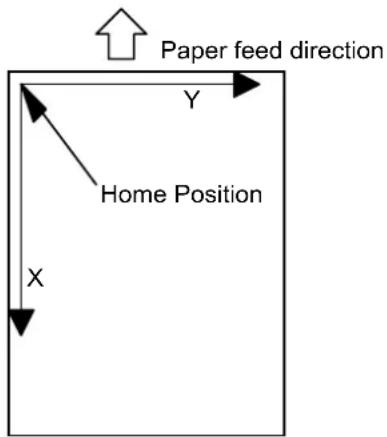
text_image
Paper feed direction Y Home Position XThe home position is at the upper left corner of the area where printing is possible.
2.3.2. Printing area
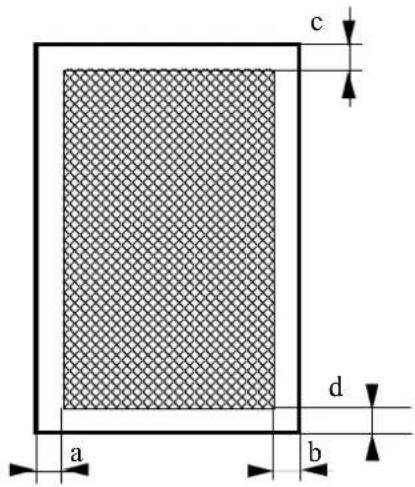
text_image
c d a b| a | b | c | d | (mm) | |
| A4 | 4 | 5 | 5 | 5 | |
| A3 | 4 | 5 | 5 | 5 (HL-3400CN/3260N/3450CN) | |
| Letter | 6 | 5 | 5 | 5 | |
| Legal | 6 | 5 | 5 | 5 | |
3. COMMANDS
3.1. Initialization and Default Setting Instructions
DF - Default set instruction
DF[;]
- Returns the graphics mode to the default conditions.
- The following are the default settings.
| Function | Equivalent Instruction | Condition |
| Plot mode PA; Absolute plotting | ||
| Relative character direction | DR 1,0; | Horizontal |
| Line type LT; Solid line | ||
| Line pattern length LT; 4% of distance from P1 to P2 | ||
| Window IW; Set at limits of printable area | according to paper size | |
| Relative character size SR; Width=0.75% of |P2x - P1x| | ||
| Symbol mode SM; Off | ||
| Tick length | TL; X-axis: 0.5% of |P2y - P1y| | |
| Standard character set | CS 0; | Character set 0 |
| Alternate character set | CA 0; | Character set 0 |
| Character set | SS; | Standard character set selected |
| Character slant | SL 0; | 0 degrees |
| Scaling | SC; | Off |
| Label terminator | DT chr(3) | chr(3) |
| Chord angle | ---- | 5 degrees |
| Fill type | FT; | Bi-directional fill, type 1 |
| Fill distance | FT; | 1% of distance from P1 to P2 |
| Fill slant | FT; | 0 degrees |
| Pen Thickness | PT; | Set at 0.3 mm |
NOTE: The location of the scaling points(P1, P2) remains constant.
IN - Initialize set instruction
IN[;]
- Returns the graphics mode to the following initial conditions;
| Function | Equivalent Instruction | Condition |
| Plot mode | PA; | Absolute |
| Relative character direction | DR 1,0; | Horizontal |
| Line type | LT; Solid line | |
| Line pattern length | LT; | 4% of distance from P1 to P2 |
| Window | IW; | Set at limits of printable area according to paper size |
| Relative character size | SR; | Width=0.75% of |P2x-P1X|Hcight=1.5% of |P2y-P1y| |
| Symbol mode | SM; Off | |
| Tick length | TL; | X-axis: 0.5% of |P2y-P1y|Y-axis: 0.5% of |P2x-P1x| |
| Standard character set | CS 0; | Character set 0 |
| Alternate character set | CA 0; | Character set 0 |
| Character set | SS; | Standard character set selected |
| Character slant SL 0; 0 degrees | ||
| Scaling | SC ; | Off |
| Label terminator | DT chr(3) | chr(3) |
| Chord angle | ---- 5 degrees | |
| Fill type FT; Bi-directional fill, type 1 | ||
| Fill distance FT; 1% of distance from P1 to P2 | ||
| Fill slant FT; 0 degrees | ||
| Pen thickness PT; Set at 0.3 mm | ||
| Pen condition PU; Pen up | ||
| Rotation RO; Set at 0 degrees | ||
| Scaling points IP; Initialized according to | paper size | |
3.2. Plot Area and Unit Setting Instructions
| Instruction | Function | |
| IP Scaling point | ||
| SC | Scale | |
| IW | Input | window |
| RO Rotate coordinate system | ||
| PG | Page | output |
IP - Input scaling point
IP [ P1x, P1y [,P2x, P2y]] [;]
P1x ; x coordinate of P1
P1y ; y coordinate of P1
P2x ; x coordinate of P2
P2Y ; Y coordinate of P2
• The coordinate values used are absolute values in graphics units.
- Sets the location of the scaling points(P1, P2).
• Coordinate values for P1X, P1Y, P2X and P2Y are given as integer numbers.
The IP instruction is ignored when the set coordinates are outside the print area.
• Using this instruction without a parameter field initializes the scaling points(P1, P2).
- P2X and P2Y may be omitted. (If P2X and P2Y are omitted, P2 is set automatically so as not to alter the distance between P1 and P2).
SC - Scale
SC Xmin, Xmax, Ymin, Ymax
Xmin ; X coordinate of P1
Xmax ; X coordinate of P2
Ymin ; Y coordinate of P1
Ymax ; Y coordinate of P2
- Sets the scale for the coordinates the user wants to establish.
• Coordinate values for Xmin, Xmax, Ymin and Ymax are given as real numbers.
• Using this instruction without a parameter field turns the scaling off. - The technical terms user unit and graphics unit as used in this manual are defined as follows;
User unit
: the unit of the coordinates set by the SC instruction
Graphics unit
: the unit (1/1016 of an inch) of the coordinates not set by the SC instruction
10 '*** SCEX ***
20 LPRINT "IN; IP3000, 2000, 4500, 3500; SP1; SC0, 120, 0, 120;"
30 FOR T=0 TO 2*3.1416+3.1416/20 STEP 3.1416/20
40 X=COS(T)*100
50 Y=SIN(T)*100
60 LPRINT "PA";X;",";Y;";PD;"
70 NEXT T
80 LPRINT "PU;"
90 END
IW - Input window
IW [ X₁, Y₁, X₂, Y₂ ] [;]
X1-Window lower left X coordinate Y1-Window lower left Y coordinate
X2-Window upper right X coordinate Y2-Window upper right Y coordinate
- This instruction sets the window inside which plotting can be performed.
• Graphic units are always used.
• Coordinate values for X1, Y1, X2 and Y2 are integer numbers from 0 to 32,767. - The order of the pairs (X1, Y1) and (X2, Y2) may be reversed with no change in the window created: "IW X1, Y1, X2, Y2" is identical in effect to "IW X2, Y2, X1, Y1".
• Using this instruction without a parameter field releases any previous limitations on the plot area.

text_image
(X2,Y2) (X1,Y1) Window Print paperRO - Rotate coordinate system
RO [q] [;]
q : Angle in degrees through which the coordinate system is rotated.
- This instruction rotates the coordinate system.
• A value of 0 or 90 must be used for q.
• Using this instruction without a parameter field sets the rotation of the coordinate system to 0 degrees.
PG - Page feed
PG [;]
- Executes a page feed
• After page feeding, the cursor position return to the home position (0, 0).
3.3. Pen Control and Plot Instructions
| Instruction | Function | |
| PU | Pcn | Up |
| PD | Pen | Down |
| PA | Plot | Absolute |
| PR Relative Coordinate Pen Move | ||
| AA Absolute Arc Plot | ||
| AR Relative Arc Plot | ||
| CI | Circle | |
PU - Pen up
PU [X,Y[,...]] [;]
X ; X coordinate of the cursor movement destination
Y ; Y coordinate of the cursor movement destination
- X and Y are either relative or absolute, depending on whether a PA or a PR was the last plot command executed. The absolute coordinates are set as default.
- Moves the cursor to the specified coordinates after raising the pen.
- Using this instruction without a parameter field raises the pen without changing the cursor position.
- When scaling is on, user coordinates are used.
- Also, when scaling has been performed, the values for X and Y are real numbers.
- When scaling is off graphics units are used.
- When there is no scaling, the coordinates values for X and Y are integer numbers.
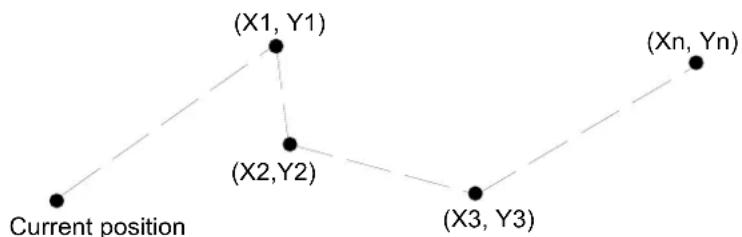
flowchart
graph TD
    A["Current position"] --> B["(X1, Y1)"]
    B --> C["(X2, Y2)"]
    C --> D["(X3, Y3)"]
    D --> E["(Xn, Yn)"]
PD - Pen down
PD [X, Y [, ...]] [;]
X ; X coordinate of the cursor movement destination
Y ; Y coordinate of the cursor movement destination
- X and Y are either relative or absolute, depending on whether a PA or a PR was the last plot command executed. The absolute coordinates are set as default.
- Moves the cursor to the specified coordinates after lowering the pen. (This plots a straight line.)
- Using this instruction without a parameter lowers the pen without changing the cursor position. (One dot is plotted.)
- When scaling has been performed, the cursor is moved by user coordinates.
- Also, when scaling has been performed, the values for X and Y are real numbers.
- When there is no scaling, the cursor is moved by absolute coordinates in graphics units.
- When there is no scaling, the coordinate values for X and Y are integer numbers.

flowchart
graph TD
    A["Current position"] --> B["(X1, Y1)"]
    B --> C["(X2, Y2)"]
    C --> D["(X3, Y3)"]
    D -.-> E["(Xn, Yn)"]
PA - Plot absolute
PA [X, Y [, ...]] [;]
X ; X coordinate of the cursor movement destination
Y ; Y coordinate of the cursor movement destination
• X and Y are absolute values in user units or graphics units.
- Moves the cursor to the specified coordinates.
- Plots a straight line only when the pen is down.
- When scaling has been performed, the values for X and Y are integer numbers.
- When there is no scaling, the cursor is moved by absolute coordinates in graphics units.
- When there is no scaling, the coordinate values for X and Y are integer numbers.

flowchart
graph TD
    A["Current position"] --> B["(X1, Y1)"]
    B --> C["(X2, Y2)"]
    C --> D["(X3, Y3)"]
    D -.-> E["(Xn, Yn)"]
10 '*** PAEX1 ***
20 LPRINT "IN;SP1;"
30 LPRINT "PA2000,6000;PD0,6000,2000,7500,2000,6000;PU2500,6000;"
40 LPRINT "PAPD4500,6000,2500,7500,2500,6000;PU10365,500;"
50 END
<Sample 62>
10 ' *** PAEX2 ***
20 LPRINT "IN;SP1;SCO,100,0,100;"
30 LPRINT "PA50,30;PD25,30,50,50,50,30;PU55,30;"
40 LPRINT "PAPD80,30,55,50,55,30,PU;"
50 END
<Sample 63>
PR - Relative coordinate pen move
PR [X, Y [, ...]] [;]
X ; X coordinate of the cursor movement destination
Y ; Y coordinate of the cursor movement destination
- Coordinates are relative to the current position in user units or graphics units.
- Plots a straight line only when the pen is down.
- When scaling has been performed, the cursor is moved by relative coordinates in user units.
• Also, when scaling has been performed, the values for X and Y are real numbers. - When there is no scaling, the cursor is moved by relative coordinates in graphics units.
- When there is no scaling, the coordinate values for X and Y are integer numbers.

text_image
X1 Y Y2 Y3 Current position X310 ' *** prex 1 ***
20 LPRINT "IN;SP1;"
30 LPRINT "PA5000,4500,;PDPR-2000,0,2000,2000,0,-2000;PU500,0;"
40 LPRINT "PD2000,0,-2000,2000,0,-2000;PU;"
50 END
<Sample 64>
AA - Draw absolute arc
AA [X, Y, qc [, qd]] [;]
X ; Arc centre X coordinate Y ; Arc centre Y coordinate
qc ; Arc angle in degrees qd ; Chord angle in degrees
• X and Y coordinates are absolute coordinates in user units or graphics units.
- Starting from the current position, plots an arc centred on the absolute coordinates X, Y having the specified arc angle and chord angle, with the radius being the distance between the current position and the point X,Y.
• After plotting, the cursor position moves to the plot end point.
- Plotting is performed only when the pen is down.
- When the pen is up, plotting is not performed but the cursor position moves to the plot end point.
- When scaling has been performed, the cursor is moved by absolute coordinates in user units.
- Also, when scaling has been performed, the values for X and Y are real numbers.
- When there is no scaling, the cursor is moved by absolute coordinates in graphics units.
- When there is no scaling, the coordinate values for X and Y are integer number.
- The value for pc is a clamped real number.
- When qc is positive, counterclockwise plotting from the current point is performed.
- When qc is negative, plotting is made clockwise from the current position.
• The value for qd is a clamped real number.
- When qd is not specified, the chord angle is the default value (5 degrees).
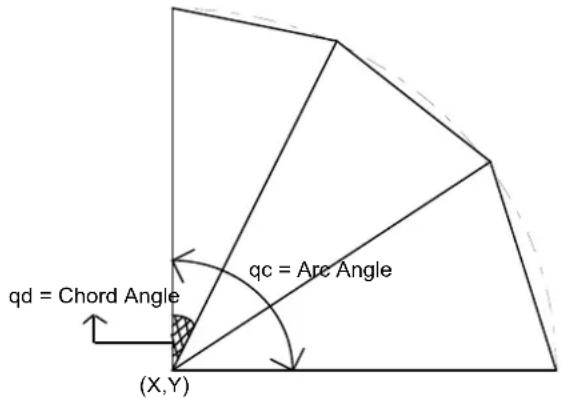
text_image
qd = Chord Angle qc = Arc Angle (X,Y)10 '*** AAEX ***
20 LPRINT "IN;SP1;IP2650,1325,7650,6325;"
30 LPRINT "SC0,100,0,100;"
40 LPRINT "PA0,30;"
50 LPRINT "PD;PA0,45;AA0,50,180;PA0,70;"
60 LPRINT "AA0,100,90;PA45,100;AA50,100,180;PA70,100;"
70 LPRINT "AA100,100,90;PA100,55;AA100,50,180;PA100,30;"
80 LPRINT "AA100,0,90;PA100,55;AA100,50,180;PA70,100;"
90 LPRINT "AA100,0,90;PA55,0;AA50,0,180;PA30,0;AA0,0,90;"
100 LPRINT "PU;PA50,50,CI20;"
110 END
<Sample 68>
AR - Draw relative arc
AR X, Y, qc (, qd) [;]
X ; Arc centre X coordinate Y ; Arc centre Y coordinate
qc ; Arc angle in degrees qd ; Chord angle in degrees
• X and Y coordinates are relative coordinates in user units or graphics units.
- Starting from the current cursor position the command plots an arc whose centre is at the relative coordinate position (X,Y) and which has the specified arc and chord angles. The radius of the arc is the distance between the current position and the point (X,Y).
• After plotting the cursor position changes to the plot end point.
- Plotting is performed only when the pen is down.
- When the pen is up, plotting is not performed but the cursor position moves to the plot end point.
- When scaling has been performed, the cursor is moved by relative coordinates in user units.
• Also, when scaling has been performed, the values for X and Y are real numbers. - When there is no scaling, the cursor is moved by relative coordinates in graphics units.
- When there is no scaling, the coordinate values for X and Y are integer numbers.
- The value for qc is a clamped real number.
- When qc is positive, counterclockwise plotting from the current point is performed.
- When qc is negative, plotting is made clockwise from the current position.
- The value for qd is a clamped real number.
- When qd is not specified, the chord angle is the default value (5 degrees).
10 '*** AREX1 ***
20 LPRINT "IN;SP1;IP2650,1325,7650,6325;"
30 LPRINT "SC-100,100,-100,100;"
40 LPRINT "PA-80,-80;PD;AR0,50,90;AR50,0,90;PU;"
50 END
<Sample 69>
10 ' *** AREX2 ***
20 LPRINT "IN;SP1;IP2650,1325,7650,6325;"
30 LPRINT "SC-100,100,-100,100;"
40 LPRINT "PA-100,70;PD;PR30,0;AR-, -70,-90;AR70,0,90;PR60,0;PU;"
50 END
100 END
<Sample 70>
CI - Circle plot
CI r(, qd)[;]
r : Radius of circle ( in user units or graphic units )
qd : Chord angle ( in degrees )
- Plots a circle centred on the current position with a radius r and chord angle qd.
• After plotting, the cursor returns to its point of origin at the centre of the circle. - Plotting is performed whether the pen is up or down.
- When scaling has been performed, the circle is plotted in user units.
- Also, when scaling has been performed, the value for r is a real number.
- When scaling is off, the circle is plotted in graphics units.
- When there is no scaling, the coordinate value for r is an integer number.
- When qd is not specified, the chord angle is the default value (5 degrees).
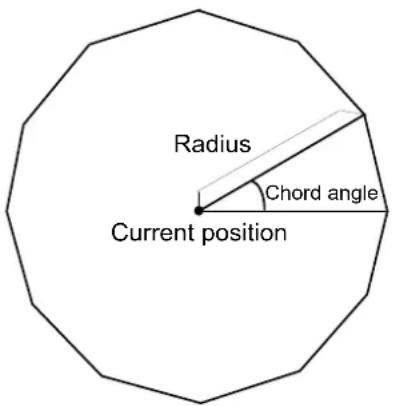
text_image
Radius Chord angle Current position10 '*** CIEX1 ***
20 LPRINT "IN;SP1;IP2650,1325,7650,6325;"
30 LPRINT "SC-100,100,-100,100;"
40 LPRINT "PA-60,50;CI40,45;"
50 LPRINT "PA60,50;CI40,30;"
60 LPRINT "PA-60,-50;CI40,15;"
70 LPRINT "PA60,-50;CI40,5;"
80 END
<Sample 65>
10 '*** CIEX2 ***
20 LPRINT "IN;SP1;IP2650,1325,8650,7325;"
30 LPRINT "SC0,170,0,170;"
40 LPRINT "PA100,100;LT;CI10,5;LT0;CI-20,5;LT1;CI30,5;"
50 LPRINT "LT2;CI-40,5;LT3;CI50,5;LT4;CI-
60,5;LT5;CI70,5;LT6;CI80,5;"
60 END
<Sample 66>
10 '*** CIEX3 ***
20 LPRINT "IN;SP1;IP2650,1325,7650,6325;"
30 LPRINT "SC-1000,1000,-1000,1000;"
40 LPRINT "PA-800,800;"
50 GOSUB 130
60 LPRINT "PA200,800;"
70 GOSUB 130
80 LPRINT "PA-800,-200;"
90 GOSUB 130
100 LPRINT"PA200,-200;"
110 GOSUB 130
120 END
130 LPRINT "CI70;PR600,0;CI70;PR-300,-300;CI250;"
140 LPRINT "PR-300,-300;CI70;PR600,0;CI70;"
150 RETURN
<Sample 67>
3.4. The polygon Group
| Instruction | Function | |
| EA Edge Absolute Rectangle | ||
| ER Edge Relative Rectangle | ||
| EW | Edge | Wedge |
| RA Fill Absolute | Rectangle | |
| RR Fill Relative | Rectangle | |
| WG | Fill | Wedge |
EA - Edge rectangle absolute
EA X, Y[;]
X ; X coordinate of opposite angle for the rectangle
Y ; Y coordinate of opposite angle for the rectangle
• X and Y coordinates are absolute coordinates in user units or graphics units.
- Plots the rectangle formed by the current position and the opposite angle specified by X and Y.
• After plotting the cursor returns to its point of origin.
- Plotting is performed whether the pen is up or down.
- When scaling has been performed, the rectangle is plotted in user units.
• Also, when scaling has been performed, the values for X and Y are real numbers.
- When there is no scaling, the rectangle is plotted in graphics units.
- When there is no scaling, the coordinate values for X and Y are integer numbers.
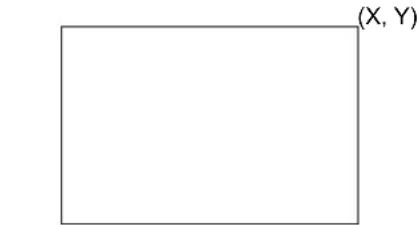
text_image
(X, Y)Current position
10 '*** EAEX ***
20 LPRINT "IN;SP1;PA7000,4000;"
30 LPRINT "PT.3;FT1;RA6000,3000;"
40 LPRINT "SP3,;EA6000,3000;"
50 LPRINT "SP4;FT3,100;RA8000,3000;"
60 LPRINT "SP3,;EA8000,3000;"
70 LPRINT "SP5;PT.3;FT2;RA8000,5000;"
80 LPRINT "SP3;EA8000,5000;"
90 LPRINT "SP6;FT4,100,45;RA6000,5000;"
100 LPRINT "SP3;EA6000,5000;PG"
110 END
<Sample 72>
ER - Edge rectangle relative
ER X, Y[;]
X ; X coordinate of opposite angle for the rectangle
Y ; Y coordinate of opposite angle for the rectangle
- Coordinates are relative to the current position in user units or graphics units.
- Plots the rectangle formed by the current position and the opposite angle specified by X and Y.
• After plotting the cursor returns to its point of origin. - Plotting is performed whether the pen is up or down.
- When scaling has been performed, the rectangle is plotted in user units.
• Also, when scaling has been performed, the values for X and Y are real numbers. - When there is no scaling, the rectangle is plotted in graphics units.
- When there is no scaling, the coordinate values for X and Y are integer numbers.

text_image
Current position X increment Y increment10 '*** EREX ***
20 LPRINT "IN;SP1;PA5000,5000;"
30 LPRINT "PT.3;FT1;RR500,500;"
40 LPRINT "SP3,;ER500,500;"
50 LPRINT "PR500,0"
60 LPRINT "SP4;FT3,;RR500,500;"
70 LPRINT "SP3,;ER500,500;"
80 LPRINT "PRO,500;"
90 LPRINT "SP5;PT.3;FT2;RR500,500;"
100 LPRINT "SP3;ER500,500;"
110 LPRINT "SP6;FT4,100,45;RR-500,500;"
120 LPRINT "SP3;ER-500,500;PG"
130 END
<Sample 74>
EW - Edge wedge
- Plots a wedge centred on the current position with radius r , start point angle q1 , arc angle qc and chord angle qd .
• After plotting, the cursor returns to its point of origin. - Plotting is performed whether the pen is up or down.
- When scaling has been performed, the circle is plotted in user units.
• Also, when scaling has been performed, the value for r is a real number. - When there is no scaling, the circle is plotted in graphics units.
- When there is no scaling, the coordinate value for r is an integer number.
• The value for q1 is a clamped real number.

text_image
current position r qc q1 0° reference point- q1 specifies the wedge starting point related to the 0 degree reference point.
- When qI is positive, the positive direction of the X axis relative to the current position is set at 0 degrees and the start point is sought in the counterclockwise direction. The opposite occurs when qI is negative: the negative X axis is set at 0 degrees and the start point is sought by going clockwise.
• qc specifies the angle of the wedge in degrees.
• The value for qc is a real number. - Plotting proceeds counterclockwise when qc is positive and clockwise when negative.
• The value for qd is a clamped real number. - When qd is not specified, the chord angle is the default value (5 degrees)
10 ' *** EWEX ***
20 LPRINT "IN;SP2;FT3,100;"
30 LPRINT "PA5000,4000;"
40 LPRINT "WG1250,90,180,5;"
50 LPRINT "SP3;EW1250,90,180,5;"
60 LPRINT "SP4,FT4,100,45;"
70 LPRINT "WG1250,270,120;"
80 LPRINT "SP3;EW1250,270,120;"
80 LPRINT "SP1;PT.3;FT1;"
100 LPRINT "WG1250,30,60;"
110 LPRINT "SP3;EW1250,30,60;PG;"
120 END
RA - Fill rectangle absolute
RA X, Y[;]
X ; X coordinate of opposite angle for the rectangle Y ; Y coordinate of opposite angle for the rectangle
• X and Y coordinates are absolute coordinates in user units or graphics units.
- Fill in the rectangle formed by the current position and the opposite angle specified by X and Y.
• After plotting, the cursor returns to its point of origin.
- Plotting is performed whether the pen is up or down.
- When scaling has been performed, the rectangle is plotted in user units.
• Also, when scaling has been performed, the values for X and Y are real numbers.
- When there is no scaling, the rectangle is plotted in graphics units.
- When there is no scaling, the coordinate values for X and Y are integer numbers.
![BROTHER HL-L2376DW - RA X, Y[;] - 1](/content/2026/06/1221164/images/d4a0623a6bd2e389e1514e23142e942c4637edf4b7821f93617701bb6d37b9b1.jpg)
text_image
(X, Y) Fill pattern specified by FT and PTCurrent position
10 '*** RAEX ***
20 LPRINT "IN;SP1;PA5000,4000;"
30 LPRINT "PT.3;FT1;RA4250,3250;"
40 LPRINT "FT3,100;RA5750,3250;"
50 LPRINT "FT2;RA5750,4750;"
60 LPRINT "FT4,100,45;RA4250,4750;"
70 END
<Sample 71>
RR - Fill rectangle relative
RR X, Y[;]
X ; X coordinate of opposite angle for the rectangle Y ; Y coordinate of opposite angle for the rectangle
- Coordinates are relative to the current position in user units or graphics units.
- Fill in the rectangle formed by the current position and the opposite angle specified by X and Y.
• After plotting the cursor returns to its point of origin. - Plotting is performed whether the pen is up or down.
- When scaling has been performed, the rectangle is plotted in user units.
- Also, when scaling has been performed, the values for X and Y are real numbers.
- When there is no scaling, the rectangle is plotted in graphics units.
- When there is no scaling, the coordinate values for X and Y are integer numbers.
![BROTHER HL-L2376DW - RR X, Y[;] - 1](/content/2026/06/1221164/images/7a9ed10ea015750dc2796aaeee02e5396b7d27d90702f6adf958883de43acbcf.jpg)
text_image
Y increment Current position X increment Fill pattern specified by FT and PT10 '*** PREX ***
20 LPRINT "IN;SP1;PA5000,5000;"
30 LPRINT "PT.3;FT1;RR500,500;"
35 LPRINT "PR500,0;"
40 LPRINT "FT3,70;RR500,500;"
45 LPRINT "PRO,500;"
50 LPRINT "FT2;RR500,500;"
60 LPRINT "FT4,70,45;RR-500,500;"
70 END
<Sample 73>
WG - Fill wedge
- Fill in a wedge centred on the current position with radius r, start point angle q1, arc angle qc and chord angle qd.
• After plotting, the cursor returns to its point of origin. - Plotting is performed whether the pen is up or down.
- When scaling has been performed, the circle is plotted in user units.
• Also, when scaling has been performed, the value for r is a real number. - When there is no scaling, the circle is plotted in graphics units.
- When there is no scaling, the coordinate value for r is an integer number.
• The value for q1 is a clamped real number. - When q1 is positive, the positive direction of the X axis relative to the current position is set at 0 degrees and the start point is sought in the counterclockwise direction. The opposite occurs when q1 is negative: the negative X axis is set at 0 degrees and the start point is sought by going clockwise.
• The value for qc is a clamped real number. - Plotting proceeds counterclockwise when qc is positive and clockwise when it is negative.
• The value for qd is a clamped real number. - When qd is not specified, the chord angle is the default value (5 degrees).
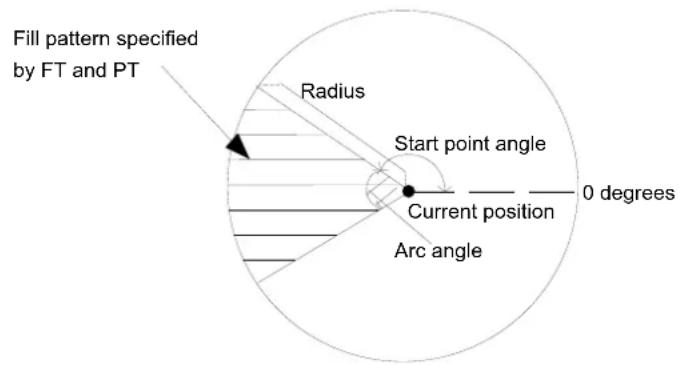
text_image
Fill pattern specified by FT and PT Radius Start point angle Current position Arc angle 0 degrees10 ' *** WGEX ***
20 LPRINT "IN;SP2;FT3,100;"
30 LPRINT "PA5000,4000;"
40 LPRINT "WG1250,90,180,5;"
50 LPRINT "SP4;FT4,100,45;"
60 LPRINT "WG1250,270,120;"
70 LPRINT "SP1;PT.3;FT1;"
80 LPRINT "WG1250,30,60;PG;"
90 END
3.5. Plot Function Instructions
| Instruction | Function | |
| FT | Fill | Type |
| LT | Line | Type |
| PW | Pen | Width |
| SM | Symbol | Mode |
| SP | Select | Pen |
| TL | Tick | Length |
| XT | X | Tick |
| YT | Y | Tick |
| PT | Pen | Thickness |
FT - Fill type
FT [n [, d [, q]] ];]
n : Fill type
d : Fill interval (interval between the parallel lines of the area being filled)
q : Fill angle (degrees )
- Sets the fill type, interval and angle when filling an area.
- The value for n is a clamped integer number.
Solid lines (bi-directional fill)
Solid lines (single direction fill)
Parallel lines
Crosshatching
- The fill interval when n is 1 or 2 is the interval set by the pen thickness (PT) instruction.
- Any value given for d when n is 1 or 2 will be ignored.
- If d is omitted, the fill interval already specified will be used.
- If d is 0, the default value will be used (1% of distance from P1 to P2.)
• The value of d is a clamped real number. - If q is omitted, the fill angle already specified will be used.
• The value of q is a clamped real number.
LT - Line type selection
LT [, n [, p]] [;]
n ; Line pattern number
p ; Line pattern length (percentage or millimeters of distance between P1 and P2)
- Specifies the line type and pattern length.
- When the n parameter field is omitted a solid line is selected.
- When the p parameter field is omitted the pattern length is 4% of the distance between P1 and P2 (default value).
• The value of n is a clamped integer number.
• The value of p is a clamped real number from 0.0000 to 127.9999. - When p is omitted the previously set line pattern length is used.
Default :Solid line
:For straight line, start and end points are plotted.
:For an arc, plotting takes place for every chord angle that is set.
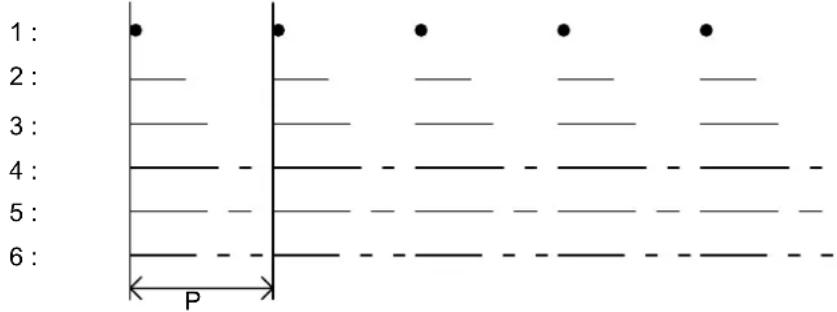
text_image
1: 2: 3: 4: 5: 6: PPW-Pen width
PW n[;]
w ; width (unit = 1/300 inch)
- This command specifies the width of the currently selected pen.
- The value of w is an integer number from 1 to 10.
SM - Symbol mode
SM c[;]
c ; ASCII character or symbol code
- The command specifies the symbol to be drawn.
- When the PA, PR, PD or PU instruction is used, the specified symbol will be drawn at the end of each vector.
- The specified symbol will be drawn at the end of each vector even if the pen is up when the PA or PR instructions are used.
- Omitting the parameter field cancels the symbol mode.
10 '*** SMEX ***
20 LPRINT "IN;SP1;SM*;PA500,1500;"
30 LPRINT "PD600,1590,670,1860,850,1960,1320,1900,1940,2350:"
40 LPRINT "PU;SM;PA500,500;SM3;"
50 LPRINT "PA550,800,680,720,800,950,1150,1230,1870,1350;PU;"
60 LPRINT "SM;PA1850,600;PD;SMY;PA3000,1450;"
70 LPRINT "SMZ;PA3300,1150;SMX;PA1850,600;PU;"
80 END
SP - Select pen
SP [n] [;]
n ; Pen number
- Selects the pen specified by the pen number.
- The value for n must be an integer from 0 to 6.
TL - Tick length
TL 11(,12)[;]
1-Length of ticks in the positive X- and Y-axes
2-Length of ticks in the negative X- and Y-axes
- Tick length is a percentage of the vertical and horizontal distances between P1 and P2.
- Sets the length of tick marks for the XT and YT instructions.
- Values for 1 and 2 are clamped real numbers.
- When the parameter field is omitted, the default values for tick length are used, for both 11 and 12, these are 0.5% of the horizontal and vertical distances between P1 and P2.
10 '*** TLEX ***
30 FOR I=1 TO 10
40 LPRINT "PR800,0;XT;"
50 NEXT I
60 LPRINT "TL;PU;PA300,279;PD;"
70 GOSUB 1000
80 LPRINT "TL1,0;PU;PA1100,279;PD;"
- Plots vertical tick marks as specified by the TL instruction from the current position.
• After plotting, the cursor returns to its point of origin. - Plotting is performed whether the pen is up or down.
YT - Y-axis tick
YT [;]
- Plots horizontal tick marks as specified by the TL instruction from the current position.
• After plotting, the cursor returns to its point of origin. - Plotting is performed whether the pen is up or down.
10 '*** XTYTEX ***
20 LPRINT "IN;PA300,279;SP2;PD";
30 LPRINT "PR1300,0;XT;PR1300,0;XT;PU;"
40 END
PT - Pen thickness select
PT [d] [;]
d : Fill line interval (mm)
- Sets the line interval when filling in with solid lines.
- The value for d is a clamped number from 0.0000 to 5.0000.
- The default value (0.3 mm) is used when d is omitted.
3.6. Character Plot Instructions
| Instruction | Function | |
| CS Standard Set Definition | ||
| CA Alternate Set Definition | ||
| SS Select Standard Font | ||
| SA Select Alternate Font | ||
| DT Define Label Terminator | ||
| LB | Define | Label |
| DI | Absolute | Direction |
| DR | Relative | Direction |
| CP | Character | Plot |
| SI Set Absolute | Character Size | |
| SR Set Relative | Character Size | |
| SL Set Character | Slant | |
| UC | User-defined | Character |
CS - Standard character set
CS n[;]
n ; Character set number(*)
- Specifies the standard character set.
- When the parameter field is omitted, character set 0 is specified.
- The value for n is a clamped integer number in the range of 0 to 4, 6 to 7, 9 or 30 to 39.
CA - Alternate character set
CA n[;]
n ; Character set number (*)
- Specifies the alternate character set.
- When the parameter field is omitted, character set 0 is specified.
- The value for n is a clamped integer number in the range of 0 to 4, 6 to 7, 9 or 30 to 39.
| n | Character | Set |
| 0 | ANSI | ASCII |
| 1 9825 Character Set | ||
| 2 | French/German | |
| 3 | Scandinavian | |
| 4 | Spanish/Latin | American |
| 6 | JIS | ASCII |
| 7 ROMAN 8 Extensions | ||
| 9 | ISO | IRV |
| 30 | ISO | Swedish |
| 31 ISO Swedish for Names | ||
| 32 ISO Norway, Version 1 | ||
| 33 | ISO | German |
| 34 | ISO | French |
| 35 | ISO | Kingdom |
| 36 | ISO | Italian |
| 37 | ISO | Spanish |
| 38 | ISO | Portuguese |
| 39 ISO Norway, Version 2 | ||
SS - Select standard character set
ss [;]
Selects the standard character set specified by the CS instruction.
SA - Select alternate character set
SA [;]
Selects the alternate character set specified by the CA instruction.
10 '*** SASSEX ***
20 LPRINT "PA5000,5000;"
30 LPRINT "SP2;CS4;CA9;SS;LBS_E_T_4";CHR(14);"S_E_T_9";CHR(3)
40 END∅
<Sample 79>
DT - Define label terminator
DT c [;]
c : Character
- The specified character is used as the character plotter terminator.
- The character plot mode is canceled by sending a terminator at the end of a character plot string.
- The parameter field used for this command must be only one character in length.
- The default value (chr\$(3)) is used when the parameter field is omitted.
10 '*** DTEX ***
20 LPRINT "IN;SP2;SC0,5000,0,5000;"
30 LPRINT "PA0,4500;LBDefault control character
ETX";CHR(13);CHR(3);
40 LPRINT "LBterminates by performing end-";CHR(13);CHR(3);
50 LPRINT "LBof-text function.";CHR$(3);
60 LPRINT "PA0,3500;DT@;LBPrinting characters
terminate,";CHR$(13):"@";
70 LPRINT "LBbut are also printed.@";
80 LPRINT "PA0,3000;DT";CHR$(13);";LBcontrol characters
terminate";CHR(10);CHR(13)
90 LPRINT "LBand perform their function.";CHR$(13)
100 END

<Sample 80>
LB - Character plot
LB [ cs ] < terminator > [;]
cs : character string
- Plots character strings, numerical expressions, variables etc.
- Plotting is performed whether the pen is up or down.
• After plotting, the cursor moves to the position of the next character.
10 '*** LBEX1 ***
20 LPRINT "SP2;PA1000,4000;"
30 X=30
40 LPRINT "LB",X,X+1,X+2,CHR$(3)
50 END
<Sample 81>
10 '*** LBEX2 ***
20 LPRINT "SP2;PA4000,5000;"
30 X=30
40 LPRINT "LB";X;X+1;X+2,CHR$(3)
70 END
<Sample 82>
10 '*** LBEX3 ***
20 LPRINT "SP2;PA5000,6000;"
30 X=30
40 LPRINT "LB";X;" ";X+1;" ";X+2,CHR$(3)
70 END
<Sample 83>
DI - Absolute direction
DI [ run, rise ] [;]
run : X direction component
rise : Y direction component
• Specifies the character plot direction.
• Values for the run and rise are clamped real numbers.
- The instruction is ignored when the values for both run and rise are 0.
- When the parameter field is omitted, the default value (horizontal direction) is used.

text_image
θ runrise
tan θ
10 '*** DIEX ***
15 DEG=-45
16 RAD3.1416/180*DEG
20 LPRINT "IN;SP2;PA3050,4450;"
30 LPRINT "DI0,2;LB_*_1988";CHR(3);"DI2,2;LB_*_1989";CHR(3)
40 LPRINT "DI2,0;LB_*_1990";CHR(3);"DI2,-2;LB_*_1991";CHR(3)
50 LPRINT "DI0,-2;LB_*_1992";CHR(3);DI-2,-2;LB_*_1993";CHR(3)
60 LPRINT "DI-2,0;LB_*_1994";CHR(3);"DI-2,2;LB_*_1995";CHR(3)
70 LPRINT
"PA3500,5350;DI",COS(0),SIN(0);"LB_*_2000";CHR(13);CHR(3);
80 LPRINT "DI",COS(RAD);SIN(RAD);"LB_RETURN
POINT";CHR(13);CHR(3)
90 END
<Sample 84>
DR - Relative direction
DR [ run, rise ] [;]
run : X direction component
rise : Y direction component
• A percentage of the distance in the X and Y directions between P1 and P2 is used as the units
• Specifies the character plot direction.
• Values for the run and rise are clamped real numbers.
- The instruction is ignored when values for both run and rise are 0.
- When the parameter field is omitted, the default value (horizontal direction) is used.

area
| x | y | |-------|-------| | 0 | 0 | | 70 | 60 | | 100 | 100 |CP - Character plot
CP X,Y [;]
X ; the number of text spaces the pen position is moved.
Y ; the number of text lines the pen position is moved.
- Moves the cursor the specified number of characters.
- Values for X and Y are clamped real numbers.
- When the parameter field is omitted, the cursor is not moved along the X-axis but it is moved 1 character in the negative direction along the Y-axis (identical to executing CP 0, -1:).
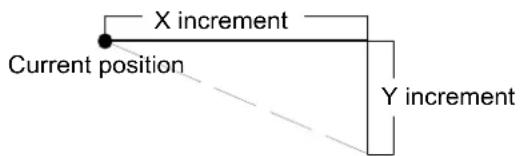
text_image
X increment Current position Y increment10 '*** CPEX ***
20 LPRINT "DF;SP1;PA1000,3000;PDPR3000,0;PU;PR-3000,0;"
30 LPRINT "CP5,.55;LBABOVE THE LINE";CHR$(3);"PA2000,3000;"
40 LPRINT "XT;CP0,-1.15;LBBELOW THE LINE";CHR(13);CHR(10);"AND WITH A NEAT";CHR$(3)
50 LPRINT "CP;LBMARGIN";CHR$(3)
60 END
<Sample 85>
SI - Set absolute character size
SI [ width, height ] [;]
width : the width in centimeters of printed characters height : the height in centimeters of printed characters
- Specifies the size of characters to be plotted.
- Values for width and height are clamped real numbers.
- When the parameter field is omitted, the default values are used (width: 0.1879 cm, height: 0.2690 cm).
10 '*** SIEX1 ***
20 LPRINT "IN;SP1;PA1000,1000;"
30 LPRINT "SI2,1.5;LBLASER";CHR$(3)
40 END
<Sample 86>
10 '*** SIEX2 ***
20 LPRINT "IN;SP1;PA5000,3000;"
30 LPRINT "SI-.35,.35;LBCHARACTER";CHR$(3)
40 END
<Sample 87>
10 '*** SIEX3 ***
20 LPRINT "IN;SP1;PA5000,3000;"
30 LPRINT "SI.35,-.35;LBCHARACTER";CHR$(3)
40 END
<Sample 88>
10 '*** SIEX4 ***
20 LPRINT "IN;SP1;PA5000,3000;"
30 LPRINT "SI-.35,-.35;LBCHARACTER";CHR$(3)
40 END
<Sample 89>
SR - Set relative character size
SR [ width, height ] [;]
width ; the width of printed characters expressed as a percentage of the x-component of the distance between P1 and P2.
height ; the height of printed characters expressed as a percentage of the y-component of the distance between P1 and P2.
- Specifies the size of characters to be plotted.
• Values for width and height are clamped real numbers. - When the parameter field is omitted, the default values are used (width: 0.7500%, height: 1.5000%).
10 ' *** SREX ***
20 LPRINT "IN;SP2;PA100,7000;LBDEFAULT SIZE";CHR$(3)
30 LPRINT "IP 2000,2000,6500,6500;PA100,6500;"
40 LPRINT "LBNEW P1 AND P2 CHANGE LABEL SIZE";CHR$(3);"SR5,5;"
50 LPRINT "PA100,6000;LBNEW SR INSTRUCTION";CHR(13);CHR(3);
60 LPRINT "LBCHANGE LABEL SIZE";CHR$(3);
<Sample 90>
SL - Character slant
SL [ tan φ ] [;]
tan φ - tangent of character slant angle (φ)
- Specifies the slant of characters to be plotted.
• Value for is a clamped real number. - When the parameter field is omitted, the default value is used (0 degree character slant).

text_image
θ10 "*** SLEX ***
20 LPRINT "DF;SP1;SI1.3,1.3;PA100,6000;"
30 LPRINT "SL2;LBLASER"; CHR\$(3)
40 LPRINT "SL-2;PR3000,0;LBLASER"; CHR\$(3)
50 END
UC - User-defined character
UC X1, Y1, X2, Y2..., Xn, Yn[;]
Xi : Number of grids in X direction
Yi : Number of grids in Y direction
- Draws user-generated character or symbol.
• Values for Xi and Yi are clamped real numbers. - If a value between 99.0000 and 127.9999 is entered between(Xi, Yi) and (Xi+1, Yi+1), the pen will be lowered at that point.
- If a value between -128.0000 and -99.0000 is entered between (Xi, Yi) and (Xi+1, Yi+1), the pen will be raised at that point.
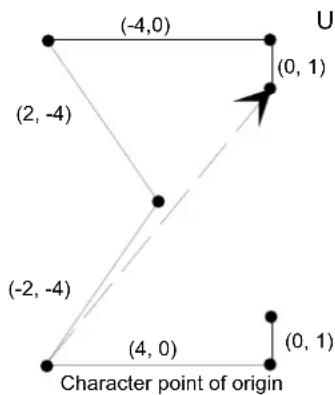
text_image
(-4,0) (2, -4) (-2, -4) (4, 0) Character point of origin (0, 1) (0, 1)UC 4, 99, 0, 1, -4, 0, 2, -4, -2, -4, 4, 0, 0, 1;
10 '*** UCEX1 ***
20 LPRINT "IN;SP2;PA2000,2000;"
30 FOR AA=19 TO 89 STEP 10
40 A=AA/100
50 LPRINT "SI",A,A*1.7
60 LPRINT "UC4,7,99,0,1,-4,0,2,-4,-2,-4,4,0,0,1;"
70 NEXT AA
80 LPRINT "PA2000,3750;"
90 FOR BB=19 TO 89 STEP 10
100 B=BB/100
110 LPRINT "SI",B,B*1.7
120 LPRINT "LBE";CHR$(3)
130 NEXT BB
140 END
<Sample 92>
10 '*** UCEX2 ***
20 LPRINT "SP1;PA3000,5000;SI.5,.8"
30 LPRINT "UC0,4,99,1.75,0,1.5,4,3,-8,3,8,3,-8,3,8,3,-8,1.5,4,1.75,0;"
40 LPRINT "CP5,0;LB1000 ohms";CHR$(3)
50 END
<Sample 93>
10 '*** UCEX2 ***
20 LPRINT "SP1;PA3000,4500;SI.5,.8"
30 LPRINT "UC0,8,99,3.5,0,3,8,6,-16,6,16,6,-16,6,16,6,-16,3,8,3.5,0;"
40 END
<Sample 94>
3.7. Dual Context Extensions
Set High resolution control (Brother original)
EscCRRO
This command sets high resolution control off.
EscCRRL
This command sets high resolution control light level.
EscCRRM
This command sets high resolution control medium level.
EscRRD
This command sets high resolution control dark level.
User reset (Brother original)
EscCR!#R
-
can be 0, 1 or 2.
-
0 indicates the current setting are restored.
-
1 indicates the user settings 1 are restored.
-
2 indicates the user settings 2 are restored. (Except for HL-7050)
Factory reset (Brother original)
EscCRFD
- This command causes a factory reset to be performed, restoring all the printer's factory default settings.
- You can also perform a factory reset using the printer's control panel (see the User Guide).
4. INDEX
A
Absolute direction 22
Alternate character set 20
C
Character plot 22, 23
character set 4
Character slant 24
Circle plot 12
D
Default set instruction....6
Define label terminator 21
Draw absolute arc 11
Draw relative arc 11
E
Edge rectangle absolute 13
Edge rectangle relative 14
Edge wedge 15
F
Factory reset....26
Fill rectangle absolute 16
Fill rectangle relative....16
Fill type 18
Fill wedge 17
H
High resolution control 26
home position 4
I
Initialize set instruction....6
Input scaling point 7
Input window 8
L
Line type selection 18
P
Pen down 9
Pen thickness select 20
Pen up 9
Pen width 19
Plot absolute 9
printing area 5
R
Relative coordinate pen move 10
Relative direction 23
Rotate coordinate system 8
S
Scale....7
Select alternate character set 21
Select pen 19
Select standard character set 21
Set absolute character size 23
Set relative character size 24
Standard character set 20
Symbol mode 19
syntax 4
T
Tick length 19
U
User reset 26
User-defined character 25
X
X-axis tick 20
Y
Y-axis tick 20
CHAPTER 10
CARBON COPY
FUNCTION
CONTENTS
1. OUTLINE....3
1.1. Outline of the function 3
2. SPECIFICATIONS......4
2.1. Explanation of each function 4
2.1.1. Carbon copy mode setting....4
2.1.2. Setting of the number of copies....4
2.1.3. Paper tray selection setting 4
2.1.4. Additional macro setting ....4
2.2. How to set each function....5
2.2.1. Setting on the control panel 5
2.2.2. Setting on the control panel 6
2.2.3. Setting with the PJL command 7
2.2.4. Setting with the PJL command 8
2.3. Example 9
2.3.1. Setting on the control panel 9
2.3.2. Setting with the PJL command 9
3. DETAILED INFORMATION...... 10
3.1. Details on the specifications.... 10
3.1.1. Usable emulation....10
3.1.2. About tray selection 10
3.1.3. About the duplex setting .... 10
3.1.4. About the USER DEFINED SIZE paper 10
3.1.5. About the reprint function....10
3.1.6. About the spool data....10
3.2. Limited items 10
3.2.1. About the page break of the print data 10
3.2.2. About the
1. OUTLINE
1.1. Outline of the function
This function allows you to print two or more copies of the one page data on the printer side. The function also allows you to select the paper tray and register an additional macro for each copy. Therefore it is possible to change the printing format for each copy by selecting the paper tray to change the paper type or registering different macros.
The main purpose of this function is to support the carbon copy printing on the laser printer, which has been provided on the dot printer.
This function is supported on the HL-6050/6050D/6050DN/5270DN/5280DW/5380DN/L5000D/L5580D/L5100DN/L5200DW/L6200DW/L6300DW/L6400DW printers.
2. SPECIFICATIONS
2.1. Explanation of each function
2.1.1. Carbon copy mode setting
Sets the carbon copy function to ON or OFF.
ON: Turns on the carbon copy function.
OFF: Turns off the carbon copy function.
AUTO: Turns on the carbon copy function when the @PJL ENTER LANGUAGE command is not included in the print data, and turns off when the @PJL ENTER LANGUAGE command is included.
PARALLEL: Turns on the carbon copy function when the print data is received through the parallel interface, and turns off when it is received through other interface such as USB, Net, etc.
The factory setting is OFF.
2.1.2. Setting of the number of copies
Sets the number of carbon copies.
The number can be set to 1 (one) to 8 (eight).
The factory setting is 1 (one).
2.1.3. Paper tray selection setting
Selects the paper tray for each copy.
• AUTO/REMAINING
All trays can be selected when AUTO is set.
When the one tray is selected to fix for other copy, the AUTO setting is switched to REMAINING, and other trays than the fixed one can be selected.
If REMAINING is set when all trays are fixed, the Tray 1 is fixed.
- MPTRAY
The paper tray is fixed to the MP tray. - TRAY1
The paper tray is fixed to the Tray 1.
• TRAY2 (Only when the Tray 2 is installed)
The paper tray is fixed to the Tray 2. - TRAY3 (Only when the Tray 3 is installed) (Only HL-5270DN/5280DW/5380DN Printer) The paper tray is fixed to the Tray 3.
The factory setting is AUTO for all pages.
2.1.4. Additional macro setting
Sets the additional macro for each copy.
The macro data of the PCL emulation which is registered in the storage device or memory can be used.
The macro is registered by using the printer driver, macro registration command of the PCL emulation or other.
Select OFF when any macro is not added.
The factory setting is OFF for all pages.
2.2. How to set each function
2.2.1. Setting on the control panel
(HL-6050/6050D/6050DN/5270DN/5280DW/5380DN)
| PRINT MENU | CARBON MENU | CARBON COPY | =OFF/ON/AUTO / PARALLEL | Sets the carbon copy mode. |
| COPIES | =1 - 8 Sets the number of copies. | |||
| COPY 1 TRAY | =AUTO/REMAINING MPTRAY TRAY 1 TRAY 2 TRAY 3 * | Selects the paper tray. | ||
| COPY 1 MACRO | =OFF (ID number) | Sets the additional macro. (Note) When no macro is set, 'NO MACRO DATA' is indicated, and the display returned. | ||
| COPY 2 TRAY | (Same with COPY 1) (Same with COPY 1) | |||
| COPY 2 MACRO | (Same with COPY 1) (Same with COPY 1) | |||
| COPY 3 TRAY | (Same with COPY 1) (Same with COPY 1) | |||
| COPY 3 MACRO | (Same with COPY 1) (Same with COPY 1) | |||
| COPY 4 TRAY | (Same with COPY 1) (Same with COPY 1) | |||
| COPY 4 MACRO | (Same with COPY 1) (Same with COPY 1) | |||
| COPY 5 TRAY | (Same with COPY 1) (Same with COPY 1) | |||
| COPY 5 MACRO | (Same with COPY 1) (Same with COPY 1) | |||
| COPY 6 TRAY | (Same with COPY 1) (Same with COPY 1) | |||
| COPY 6 MACRO | (Same with COPY 1) (Same with COPY 1) | |||
| COPY 7 TRAY | (Same with COPY 1) (Same with COPY 1) | |||
| COPY 7 MACRO | (Same with COPY 1) (Same with COPY 1) | |||
| COPY 8 TRAY | (Same with COPY 1) (Same with COPY 1) | |||
| COPY 8 MACRO | (Same with COPY 1) (Same with COPY 1) | |||
* (Only HL-5270DN/5280DW/5380DN Printer)
When CARBON COPY=OFF is set, other carbon menu is not indicated.
The setting indication of each copy is shown on the control panel for the number of copies which is set in the CARBON COPIES menu to set the paper tray and macro.
The setting of each copy is saved even if it is not indicated.
When implementing FACTORY RESET, all settings are initialized.
2.2.2. Setting on the control panel
(HL-L5000D/L5580D/L5100DN/L5200DW/L6200DW/L6300DW/L6400DW)
| PRINT MENU | CARBON MENU | CARBON COPY | =OFF/ON/ Sets the carbon copy mode. | |
| COPIES | =1 - 8 Sets the number of copies. | |||
| COPY 1 TRAY | =MPTRAYTRAY 1TRAY 2TRAY 3TRAY 4TRAY 5 | Selects the paper tray. | ||
| COPY 1 MACRO | =OFF(ID number) | Sets the additional macro.(Note) When no macro is set, 'NO MACRO DATA' is indicated,and the display returned. | ||
| COPY 2 TRAY | (Same with COPY 1) (Same with COPY 1) | |||
| COPY 2 MACRO | (Same with COPY 1) (Same with COPY 1) | |||
| COPY 3 TRAY | (Same with COPY 1) (Same with COPY 1) | |||
| COPY 3 MACRO | (Same with COPY 1) (Same with COPY 1) | |||
| COPY 4 TRAY | (Same with COPY 1) (Same with COPY 1) | |||
| COPY 4 MACRO | (Same with COPY 1) (Same with COPY 1) | |||
| COPY 5 TRAY | (Same with COPY 1) (Same with COPY 1) | |||
| COPY 5 MACRO | (Same with COPY 1) (Same with COPY 1) | |||
| COPY 6 TRAY | (Same with COPY 1) (Same with COPY 1) | |||
| COPY 6 MACRO | (Same with COPY 1) (Same with COPY 1) | |||
| COPY 7 TRAY | (Same with COPY 1) (Same with COPY 1) | |||
| COPY 7 MACRO | (Same with COPY 1) (Same with COPY 1) | |||
| COPY 8 TRAY | (Same with COPY 1) (Same with COPY 1) | |||
| COPY 8 MACRO | (Same with COPY 1) (Same with COPY 1) | |||
When CARBON COPY=OFF is set, other carbon menu is not indicated.
The setting indication of each copy is shown on the control panel for the number of copies which is set in the CARBON COPIES menu to set the paper tray and macro.
The setting of each copy is saved even if it is not indicated.
When implementing FACTORY RESET, all settings are initialized.
2.2.3. Setting with the PJL command
This function supports each of the SET, DEFAULT, INQUIRE and DINQUIRE commands in the PJL commands.
(HL-6050/6050D/6050DN/5270DN/5280DW/5380DN)
| PJL command | Setting value | Default value | Descriptions |
| CARBONMODE | =OFFONAUTOPARALLEL | OFF | OFF: Turns off the function.ON: Turns on the function.AUTO: Turns on when the PJL ENTERLANGUAGE command is not included.Turns off when the PJL ENTERLANGUAGE command is included.PARALLEL: Turns on when the data is received through the parallel interface. |
| CARBONCOPIES 1 - 8 | 1 Sets the number of copies. | ||
| CARBON1TRAY | =REMAININGMPTRAY1TRAY2*TRAY3 | REMAINING Selects the paper tray.When the Tray2/*Tray3 is not installed, it is invalid to select the Tray2/*Tray3.*Only HL-5270DN/5280DW/5380DN | |
| CARBON1MACRO | =OFFON | OFF Sets the additional macro.OFF: The macro is not added.ON: The macro is added. | |
| CARBON1MACROID | =(ID) 0 Specifics | the macro. | When the macro is not set, NULL is returned even if sending the INQUIRE or DINQUIRE command. |
| CARBON2TRAY | → | → | (Same with CARBON1TRAY) |
| CARBON2MACRO | → | → | (Same with CARBON1MACRO) |
| CARBON2MACROID | → | → | (Same with CARBON1MACROID) |
| CARBON3TRAY | → | → | (Same with CARBON1TRAY) |
| CARBON3MACRO | → | → | (Same with CARBON1MACRO) |
| CARBON3MACROID | → | → | (Same with CARBON1MACROID) |
| CARBON4TRAY | → | → | (Same with CARBON1TRAY) |
| CARBON4MACRO | → | → | (Same with CARBON1MACRO) |
| CARBON4MACROID | → | → | (Same with CARBON1MACROID) |
| CARBON5TRAY | → | → | (Same with CARBON1TRAY) |
| CARBON5MACRO | → | → | (Same with CARBON1MACRO) |
| CARBON5MACROID | → | → | (Same with CARBON1MACROID) |
| CARBON6TRAY | → | → | (Same with CARBON1TRAY) |
| CARBON6MACRO | → | → | (Same with CARBON1MACRO) |
| CARBON6MACROID | → | → | (Same with CARBON1MACROID) |
| CARBON7TRAY | → | → | (Same with CARBON1TRAY) |
| CARBON7MACRO | → | → | (Same with CARBON1MACRO) |
| CARBON7MACROID | → | → | (Same with CARBON1MACROID) |
| CARBON8TRAY | → | → | (Same with CARBON1TRAY) |
| CARBON8MACRO | → | → | (Same with CARBON1MACRO) |
| CARBON8MACROID | → | → | (Same with CARBON1MACROID) |
2.2.4. Setting with the PJL command
This function supports each of the SET, DEFAULT, INQUIRE and DINQUIRE commands in the PJL commands.
(HL-L5000D/L5580D/L5100DN/L5200DW/L6200DW/L6300DW/L6400DW)
| PJL command | Setting value | Default value | Descriptions |
| CARBONMODE | =OFFON | OFF | OFF: Turns off the function.ON: Turns on the function. |
| CARBONCOPIES 1 - 8 | 1 Sets the number of copies. | ||
| CARBON1TRAY | =MPTRAYTRAY1TRAY2TRAY3TRAY4TRAY5 | TRAY1 Selects | the paper tray. |
| CARBON1MACRO | =OFFON | OFF Sets the additional macro.OFF: The macro is not added.ON: The macro is added. | |
| CARBON1MACROID | =(ID) 0 Specifies the macro. | When the macro is not set, NULL is returned even if sending the INQUIRE or DINQUIRE command. | |
| CARBON2TRAY | → | → | (Same with CARBON1TRAY) |
| CARBON2MACRO | → | → | (Same with CARBON1MACRO) |
| CARBON2MACROID | → | → | (Same with CARBON1MACROID) |
| CARBON3TRAY | → | → | (Same with CARBON1TRAY) |
| CARBON3MACRO | → | → | (Same with CARBON1MACRO) |
| CARBON3MACROID | → | → | (Same with CARBON1MACROID) |
| CARBON4TRAY | → | → | (Same with CARBON1TRAY) |
| CARBON4MACRO | → | → | (Same with CARBON1MACRO) |
| CARBON4MACROID | → | → | (Same with CARBON1MACROID) |
| CARBON5TRAY | → | → | (Same with CARBON1TRAY) |
| CARBON5MACRO | → | → | (Same with CARBON1MACRO) |
| CARBON5MACROID | → | → | (Same with CARBON1MACROID) |
| CARBON6TRAY | → | → | (Same with CARBON1TRAY) |
| CARBON6MACRO | → | → | (Same with CARBON1MACRO) |
| CARBON6MACROID | → | → | (Same with CARBON1MACROID) |
| CARBON7TRAY | → | → | (Same with CARBON1TRAY) |
| CARBON7MACRO | → | → | (Same with CARBON1MACRO) |
| CARBON7MACROID | → | → | (Same with CARBON1MACROID) |
| CARBON8TRAY | → | → | (Same with CARBON1TRAY) |
| CARBON8MACRO | → | → | (Same with CARBON1MACRO) |
| CARBON8MACROID | → | → | (Same with CARBON1MACROID) |
2.3. Example
The following sections describe the setting method of the example below.
The number of copies is 4 (four).
The carbon copy function is enabled by sending the data only through the parallel interface.
1st page: The paper is fed from the Tray 1. The ID=128 macro is added.
2nd page: The paper is fed from the Tray 2. The ID=129 macro is added.
3rd page: The paper is fed from the MP tray. No macro is added.
4th page: The paper is fed from the MP tray. No macro is added.
2.3.1. Setting on the control panel
PRINT MENU → CARBON MENU → CARBON COPY = PARALLEL
PRINT MENU → CARBON MENU → COPIES = 4
PRINT MENU → CARBON MENU → COPY 1TRAY = TRAY1
PRINT MENU → CARBON MENU → COPY 1 MACRO = 128
PRINT MENU → CARBON MENU → COPY 2 TRAY = TRAY2
PRINT MENU → CARBON MENU → COPY 2 MACRO = 129
PRINT MENU → CARBON MENU → COPY 3 TRAY = MPTRAY
PRINT MENU → CARBON MENU → COPY 3 MACRO = OFF
PRINT MENU → CARBON MENU → COPY 4 TRAY = MPTRAY
PRINT MENU → CARBON MENU → COPY 4 MACRO = OFF
2.3.2. Setting with the PJL command
UEL
@PJL DEFAULT CARBONMODE = PARALLE
@PJL DEFAULT CARBONCOPIES = 4
@PJL DEFAULT CARBON1TRAY = TRAY1
@PJL DEFAULT CARBON1MACRO = ON
@PJL DEFAULT CARBON1MACROID = 128
@PJL DEFAULT CARBON2TRAY = TRAY2
@PJL DEFAULT CARBON2MACRO = ON
@PJL DEFAULT CARBON2MACROID = 129
@PJL DEFAULT CARBON1TRAY = MP
@PJL DEFAULT CARBON3MACRO = OFF
@PJL DEFAULT CARBON4TRAY = MP
@PJL DEFAULT CARBON4MACRO = OFF
UEL
3. DETAILED INFORMATION
3.1. Details on the specifications
3.1.1. Usable emulation
Only the PCL emulation can be used since the macro is supported only on the PCL emulation. For the request to use the EPSON / IBM emulation, however, the filter function which converts the EPSON / IBM emulation data to the PCL emulation one is provided.
3.1.2. About tray selection
When the carbon copy function is enabled, the normal tray selection function is ignored, and the carbon copy function takes priority (excluding the PRIORITY command).
| Ignored tray command | SOURCE, MP FIRST, MP SIZE, MANUAL FEED,TRAY1 SIZE, TRAY2 SIZE, TRAY3 SIZE, TRAY4 SIZE, TRAY5 SIZE, DUPLEX |
| Valid tray command | PRIORITY |
3.1.3. About the duplex setting
When the carbon copy function is enabled, the duplex printing function cannot be used. (The duplex setting is ignored both on the control panel and with the PJL command.)
3.1.4. About the USER DEFINED SIZE paper
Since the user defined size paper is often used with the carbon copy function, it can be fed from the Tray 1 and Tray 2. However, the paper which cannot be fed from the selected tray is not supported. (Ex. A6 size or others with the Tray 2)
3.1.5. About the reprint function
When the carbon copy function is enabled, the reprint function cannot be used.
3.1.6. About the spool data
The carbon copy function cannot be used even if the function is turned on for the spool data.
3.2. Limited items
3.2.1. About the page break of the print data
When the print data is two or more pages, it is required to insert the FORM FEED command (
For the print data which breaks a page only with the form feed code, the problem that the macro cannot be added correctly, or that the data is not printed in the correct order will occur since the page break is not known.
3.2.2. About the command of the print data
If the
While the filter program is being operated, the printer does not stop the process and disable the carbon copy function.
APPENDIX A
COMPARISON LIST
APPENDIX A - COMPARISON LIST - 1
CONTENTS
PCL5 (PAPER SIZE).... 3
PCL5
(TRAY: IF PJL TRAYCOMMAND IS NORMAL.) ...... 12
PCL5
(TRAY: IF PJL TRAYCOMMAND IS SPECIAL.)...... 15
PCL5(OTHERS) 18
Typeface Selection (PCL) 38
HP-GL/2....42
EPSON FX-850....44
IBM PROPRINTER XL....46
BAR CODE....48
HP-GL 49
PJL 51
General PJL Environment Variables....59
PCL Specific Variables 109
PostScript Specific Variables.... 112
EPSON Specific Variables 114
IBM Specific Variables.... 116
In this chapter, you can find which commands are supported by your printer.
PCL5 (Paper Size)
| COMMAND | HL-1050/1070 | HL-1250/1270/P2500 | HL-1450/1470N | HL-1660e/2060 | HL-2400/Ce | HL-2600CN | HL-2700CN | HL-3400CN | HL-3450CN | HL-1650/1670N | HL-1850/1870N | HL-5040/5050/5070N | HL-5140/5150D/5170DN | HL-2070N | HL-6050/6050D/6050DN | 5240/50D/70DN/60DW | HL-8050N | HL-3260N |
| Esc&I1APaper Size Executive | √ | √ | √ | √ | √ | √ | √ | √ | √ | √ | √ | √ | √ | √ | √ | √ | √ | √ |
| Esc&I2APaper Size Letter | √ | √ | √ | √ | √ | √ | √ | √ | √ | √ | √ | √ | √ | √ | √ | √ | √ | √ |
| Esc&I3APaper Size Legal | √ | √ | √ | √ | √ | √ | √ | √ | √ | √ | √ | √ | √ | √ | √ | √ | √ | √ |
| Esc&I6APaper Size Ledger | √ | √ | √ | |||||||||||||||
| Esc&I10APaper Size Oficio | ||||||||||||||||||
| Esc&I24APaper Size A6 | ||||||||||||||||||
| Esc&I25APaper Size A5 | √ | √ | √ | √ | √ | √ | √ | √ | √ | √ | √ | √ | ||||||
| Esc&I26APaper Size A4 | √ | √ | √ | √ | √ | √ | √ | √ | √ | √ | √ | √ | √ | √ | √ | √ | √ | √ |
| Esc&I27APaper Size A3 | √ | √ | √ | |||||||||||||||
| Esc&I45APaper Size JIS B5 | √ | √ | √ | √ | √ | √ | √ | √ | √ | √ | √ | √ | √ | √ | √ | √ | ||
| Esc&I46APaper Size JIS B4 | √ | √ | √ | |||||||||||||||
| Esc&I100APaper Size B5 | √ | √ | √ | √ | √ | √ | √ | √ | √ | √ | √ | √ | √ | √ | √ | √ | √ | √ |
| Esc&I110APaper Size JIS Envelop #3 | ||||||||||||||||||
| Esc&I111APaper Size JIS Envelop #4 | ||||||||||||||||||
| Esc&I1024APaper Size B6 | √ | √ | √ | √ | √ | √ | √ | √ | √ | √ | √ | √ | ||||||
| Esc&I44APaper Size JIS B6 | ||||||||||||||||||
| Esc&I1025APaper Size A5 | √ | √ | √ | √ | √ | √ | √ | √ | √ | √ | √ | √ | ||||||
| Esc&I1026APaper Size A6 | √ | √ | √ | √ | √ | √ | √ | √ | √ | √ | √ | √ | √ | |||||
| Esc&I1028APaper Size 13"X19" | √ | √ | ||||||||||||||||
| Esc&I1029APaper Size A4 ShortEdge | ||||||||||||||||||
| Esc&I1030APaper Size Letter | ||||||||||||||||||
| Esc&I1033APaper Size Organizer J | √ | √ | √ | √ | √ | √ | ||||||||||||
| Esc&I1034APaper Size Organizer K | √ | √ | √ | √ | √ | √ |
APPENDIX A - COMPARISON LIST - 3
| COMMAND | HL-1050/1070 | HL-1250/1270N/P2500 | HL-1450/1470N | HL-1660e/2060 | HL-2400C/Ce | HL-2600CN | HL-2700CN | HL-3400CN | HL-3450CN | HL-1650/1670N | HL-1850/1870N | HL-5040/5050/5070N | HL-5140/5150D/5170DN | HL-2070N | HL-9050/9050D/6050DN | HL-6050/6050D/6050DN | HL-8050N | HL-3260N |
| Esc&I1035APaper Size Organizer L | √ | √ | √ | √ | √ | √ | ||||||||||||
| Esc&I1036APaper Size Organizer M | √ | √ | √ | √ | √ | √ | ||||||||||||
| Esc&I1037APaper SizeDL Long Edge Feeding | √ | √ | √ | √ | √ | √ | ||||||||||||
| Esc&I1038APaper Size Folio | √ | √ | √ | √ | √ | √ | ||||||||||||
| Esc&I1039APaper Size 3"X5" | ||||||||||||||||||
| Esc&I1040APaper Size Envelop #4 | ||||||||||||||||||
| Esc&I1041APaper Size Envelop Max | ||||||||||||||||||
| Esc&I2048APaper Size A4 Long | √ | √ | √ | √ | √ | √ | √ | √ | √ | |||||||||
| Esc&I2050APaper Size Wide Letter | ||||||||||||||||||
| Esc&I71APaper SizePOSTCARD(HAGAKI) | √ | √ | √ | √ | √ | √ | ||||||||||||
| Esc&I80APaper Size Monarch | √ | √ | √ | √ | √ | √ | √ | √ | √ | √ | √ | √ | √ | √ | ||||
| Esc&I81APaper Size COM 10 | √ | √ | √ | √ | √ | √ | √ | √ | √ | √ | √ | √ | √ | √ | √ | √ | √ | √ |
| Esc&I90APaper Size DL | √ | √ | √ | √ | √ | √ | √ | √ | √ | √ | √ | √ | √ | √ | √ | √ | √ | √ |
| Esc&I91APaper Size C5 | √ | √ | √ | √ | √ | √ | √ | √ | √ | √ | √ | √ | √ | |||||
| Esc&I1042APaper Size A5 Long Edge | ||||||||||||||||||
| Esc&I1043APaper Size A4 Short | ||||||||||||||||||
| Esc&I1044APaper Size JIS Envelop #3 | ||||||||||||||||||
| Esc&I1045APaper Size JIS Envelop #4 | ||||||||||||||||||
| Esc&I1046APaper Size Mexican Legal | ||||||||||||||||||
| Esc&I1047APaper Size Indian Legal | ||||||||||||||||||
| COMMAND | HL-1050/1070 | HL-1250/1270N/P2500 | HL-1450/1470N | HL-1660e/2060 | HL-2400/Ce | HL-2600CN | HL-2700CN | HL-3400CN | HL-3450CN | HL-1650/1670N | HL-1850/1870N | HL-5040/5050/5070N | HL-5140/5150D/5170DN | HL-2070N | HL-9050/6050D/6050DN | HL-5240/5070DN/60DW | HL-8050N | HL-3260N |
| Esc&I17APaper Size16K(197x273mm) | ||||||||||||||||||
| Esc&I34APaper Size16K(195x270mm) | ||||||||||||||||||
| Esc&I89APaper Size16K(184x260mm) | ||||||||||||||||||
| Esc&I101APaper Size Free Size | √ | √ | √ | √ | √ | √ | √ | √ | √ | √ | √ |
| COMMAND | HL-2460 | HL-7050 | HL-7050 | HL-7050 | HL-7050 | HL-7050 | HL-7050 | HL-7050 | HL-7050 | HL-7050 | HL-7050 | HL-7050 | HL-7050 | HL-7050 | HL-7050 | HL-7050 |
| Paper Size Executive | ||||||||||||||||
| Esc&I12A | ||||||||||||||||
| Paper Size Leftor | ||||||||||||||||
| Esc&I3A | ||||||||||||||||
| Paper Size Legal | ||||||||||||||||
| Esc&I6A | ||||||||||||||||
| Paper Size Leftor | ||||||||||||||||
| Esc&I10A | ||||||||||||||||
| Paper Size Oficio | ||||||||||||||||
| Esc&I24A | ||||||||||||||||
| Paper Size A6 | ||||||||||||||||
| Esc&I25A | ||||||||||||||||
| Paper Size A5 | ||||||||||||||||
| Esc&I26A | ||||||||||||||||
| Paper Size A4 | ||||||||||||||||
| Esc&I27A | ||||||||||||||||
| Paper Size A3 | ||||||||||||||||
| Esc&I45A | ||||||||||||||||
| Paper Size JIS B5 | ||||||||||||||||
| Esc&I46A | ||||||||||||||||
| Paper Size JIS B4 | ||||||||||||||||
| Esc&I100A | ||||||||||||||||
| Paper Size B5 | ||||||||||||||||
| Esc&I110A | ||||||||||||||||
| Paper Size JIS Envelop #3 | ||||||||||||||||
| Esc&I111A | ||||||||||||||||
| Paper Size JIS Envelop #4 | ||||||||||||||||
| Esc&I1024A | ||||||||||||||||
| Paper Size B6 | ||||||||||||||||
| Esc&I44A | ||||||||||||||||
| Paper Size JIS B6 | ||||||||||||||||
| Esc&I1025A | ||||||||||||||||
| Paper Size A5 | ||||||||||||||||
| Esc&I1026A | ||||||||||||||||
| Paper Size A6 | ||||||||||||||||
| Esc&I1028A | ||||||||||||||||
| Paper Size 13"X:19" | ||||||||||||||||
| Esc&I1029A | ||||||||||||||||
| Paper Size A4, ShortEdge | ||||||||||||||||
| Esc&I1030A | ||||||||||||||||
| Paper Size Leftor | ||||||||||||||||
| Esc&I1033A | ||||||||||||||||
| Paper Size Organizer J. | ||||||||||||||||
| Esc&I1034A | ||||||||||||||||
| Paper Size Organizer K. |
APPENDIX A - COMPARISON LIST - 7
| COMMAND | HL-2460 | HL-7050 | HL-4040CN4050CDN4070CDW | HL-2150N2170W | HL-2150N2170W | HL-5340D/5350DN5370DW/5380DN | HL-3070CW/3075CW | HL-3070CW/3075CW | HL-4140CN4150CDW | HL-N4570CDW | HL-2250DN/2270D | HL-2250DN/2270D | HL-5440D/5450DN/5470DW/5480DW | HL-S7000DN | HL-3170CD | HL-L250CDN/L8350CDWTY/WL6200CDW(719J200CDWT) | HL-L250CDN/L8350CDWTY/WL6200CDW(719J200CDWT) | HL-L2390DN/L2900DW/WL6400DW | HL-L2390DN/L2900DW/WL6400DW | HL-L2620DW/L6300DW | HL-L2620DW/L6300DW/WL6400DW | HL-L5000D/5850D/L5100DN/L5200D | HL-L5000D/5850D/L5100DN/L5200D | HL-L5000D/5850D/L5100DN/L5200D | HL-L5000D/5850D/L5100DN/L5200D | HL-L5000D/5850D/L5100DN/L 0CCSW |
| Esc&I17APaper Size16K(197x273mm) | √ | √ | √ | √ | √ | √ | √ | √ | ||||||||||||||||||
| Esc&I34APaper Size16K(195x270mm) | √ | √ | √ | √ | √ | √ | √ | √ | ||||||||||||||||||
| Esc&I89APaper Size16K(184x260mm) | √ | √ | √ | √ | √ | √ | √ | √ | ||||||||||||||||||
| Esc&I101APaper Size Free Size | √ | √ | √ | √ | √ | √ | √ | √ | √ | √ | √ | √ | √ | √ | √ | √ | √ | √ | √ | √ |
| COMMAND | DBW20000000000000000000000000000000000000000000000000000000000000000000000000000000000000000000000000000 | HL- W | HL- W |
| Esc&I1APaper Size Executive | √ | √ | |
| Esc&I2APaper Size Letter | √ | √ | |
| Esc&I3APaper Size Legal | √ | √ | |
| Esc&I6APaper Size Ledger | √ | √ | |
| Esc&I10APaper Size Oficio | √ | √ | |
| Esc&I24APaper Size A6 | √ | √ | |
| Esc&I25APaper Size A5 | √ | √ | |
| Esc&I26APaper Size A4 | √ | √ | |
| Esc&I27APaper Size A3 | √ | √ | |
| Esc&I45APaper Size JIS B5 | √ | √ | |
| Esc&I46APaper Size JIS B4 | √ | √ | |
| Esc&I100APaper Size B5 | √ | √ | |
| Esc&I110APaper Size JIS Envelop #3 | √ | √ | |
| Esc&I111APaper Size JIS Envelop #4 | √ | √ | |
| Esc&I1024APaper Size B6 | √ | √ | |
| Esc&I44APaper Size JIS B6 | √ | √ | |
| Esc&I1025APaper Size A5 | √ | √ | |
| Esc&I1026APaper Size A6 | √ | √ | |
| Esc&I1028APaper Size 13"X19" | √ | √ | |
| Esc&I1029APaper Size A4 ShortEdge | √ | √ | |
| Esc&I1030APaper Size Letter | √ | √ | |
| Esc&I1033APaper Size Organizer J | √ | √ | |
| Esc&I1034APaper Size Organizer K | √ | √ | |
| COMMAND | DBW25695803W | FL-W | HL-H |
| Esc&I1035APaper Size Organizer L | √ | √ | |
| Esc&I1036APaper Size Organizer M | √ | √ | |
| Esc&I1037APaper SizeDL Long Edge Feeding | √ | √ | |
| Esc&I1038APaper Size Folio | √ | √ | |
| Esc&I1039APaper Size 3"X5" | √ | √ | |
| Esc&I1040APaper Size Envelop #4 | √ | √ | |
| Esc&I1041APaper Size Envelop Max | √ | √ | |
| Esc&I2048APaper Size A4 Long | √ | √ | |
| Esc&I2050APaper Size Wide Letter | √ | √ | |
| Esc&I71APaper SizePOSTCARD(HAGAKI) | √ | √ | |
| Esc&I80APaper Size Monarch | √ | √ | |
| Esc&I81APaper Size COM 10 | √ | √ | |
| Esc&I90APaper Size DL | √ | √ | |
| Esc&I91APaper Size C5 | √ | √ | |
| Esc&I1042APaper Size A5 Long Edge | √ | √ | |
| Esc&I1043APaper Size A4 Short | √ | √ | |
| Esc&I1044APaper Size JIS Envelop #3 | √ | √ | |
| Esc&I1045APaper Size JIS Envelop #4 | √ | √ | |
| Esc&I1046APaper Size Mexican Legal | √ | √ | |
| Esc&I1047APaper Size Indian Legal | √ | √ |
| COMMAND | RDWZ5890MW | HL-SDWL2376DWZ5890W | W | L2376DWZ1376CD |
| WL3230CDN13210C | ||||
| W3190CDWZ5890CD | ||||
| Esc&I17APaper Size16K(197x273mm) | √ | √ | ||
| Esc&I34APaper Size16K(195x270mm) | √ | √ | ||
| Esc&I89APaper Size16K(184x260mm) | √ | √ | ||
| Esc&I101APaper Size Free Size | √ | √ |
PCL5 (Tray: If PJL TRAYCOMMAND is NORMAL.)
| COMMAND | HL-1050 | HL-1070 | HL-P2500/ 1250/1270N | HL-1450/ 1470N | HL-2400C/Ca | HL-2700CN/ 2600CN | HL-3400CN | HL-3450CN | HL-1660e/ 2060 | HL-1650/ 1670N | HL-1850/ 1870N | HL-5050/5070N/ 5150D/5170DN | HL-6050/ 6050DN | HL-6050/ 6050DN | HL-5240/50DN/70DN/800W | HL-5040/5140 |
| Esc&I0H Paper Eject | √ | √ | √ | √ | √ | √ | √ | √ | √ | √ | √ | √ | √ | √ | √ | √ |
| Esc&I1H Primary Tray | √ Feeder1 | Upper Cassette | Tray1 | |||||||||||||
| Esc&I2H Manual Feed | √ | √ | √ | √ | √ | √ | √ | √ | √ | √ | √ | √ | √ | √ | √ | √ |
| Esc&I3H Envelope | Feed from Manual Feed | |||||||||||||||
| Esc&I4H Secondary Tray | Feeder2 | Tray2over Cassette Tray2 | MP Tray | |||||||||||||
| Esc&I5H Optional Tray | Lower Cassette | Tray2 | ||||||||||||||
| Esc&I6H | ||||||||||||||||
| Esc&I7H Automatic Selection | √ | √ | √ | √ | √ | √ | √ | √ | √ | √ | √ | √ | √ | √ | ||
| Esc&I8H Optional Tray | Tray3 | Tray3 | ||||||||||||||
| Esc&I9H Optional Tray | ||||||||||||||||
| Esc&I10H Optional Tray | ||||||||||||||||
| Esc&I100H Tray ID 1 | ||||||||||||||||
| Esc&I101H Tray ID 2 | ||||||||||||||||
| Esc&I102H Tray ID 3 | ||||||||||||||||
| Esc&I103H Tray ID 4 | ||||||||||||||||
| Esc&I1001H Fixed Tray | √ | √ | √ | √ | √ | √ | √ | √ | ||||||||
| Esc&I1002H Auto Selection | √ | √ | √ | √ | √ | √ | ||||||||||
| COMMAND | HL-6050N | HL-3260N | HL-2460 | HL-7050 | HL-2070N/2150N/2170W | HL-4040CN | HL-4050CDN/4070CDW | HL-5380DN/L9200CDW(T) | HL-6340D/5360DN/6370DW; 5380DN/L9200CDW(T) | HL-3070CW/3075CW | HL-4140CN/4150CDN/4570 | HL-2250DN/2270DW | HL-6440D/5450DN/5470DW | HL-6180DW | HL-57000DN | HL-3170CDW | HL-8250CDN/L8350CDW(T) |
| Esc&I0H Paper Eject | √ | √ | √ | √ | √ | √ | √ | √ | √ | √ | √ | √ | √ | √ | √ | ||
| Esc&I1H Primary Tray | Tray1 | ||||||||||||||||
| Esc&I2H Manual Feed | √ | √ | √ | √ | √ | √ | √ | √ | √ | √ | √ | √ | √ | √ | √ | ||
| Esc&I3H Envelope | Feed from Manual Feed | ||||||||||||||||
| Esc&I4H Secondary Tray | MP Tray | MP Tray MP Tray | MP Tray MP Tray | ||||||||||||||
| Esc&I5H Optional Tray | Tray2 Tray2 Tray2 | Tray2 Tray2 | |||||||||||||||
| Esc&I6H | |||||||||||||||||
| Esc&I7H Automatic Selection | √ | √ | √ | √ | √ | √ | √ | √ | √ | √ | √ | √ | √ | √ | √ | √ | |
| Esc&I8H Optional Tray | Tray3 | Tray3 Tray3 | |||||||||||||||
| Esc&I9H Optional Tray | Tray4 | Tray4 | |||||||||||||||
| Esc&I10H Optional Tray | Tray4 | ||||||||||||||||
| Esc&I100H Tray ID 1 | Tray ID 1 | Tray ID 1 | |||||||||||||||
| Esc&I101H Tray ID 2 | Tray ID 2 | Tray ID 2 | |||||||||||||||
| Esc&I102H Tray ID 3 | Tray ID 3 | Tray ID 3 | |||||||||||||||
| Esc&I103H Tray ID 4 | Tray ID 4 | Tray ID 4 | |||||||||||||||
| Esc&I1001H Fixed Tray | √ | √ | √ | √ | √ | √ | √ | √ | √ | √ | |||||||
| Esc&I1002H Auto Selection | √ | √ | √ | ||||||||||||||
| COMMAND | 65DW/2560DN/2569DW | L2360DN/L2360DW/L2360DN/L2360DW/L2360DN/L2360DW/L2360DN/L2360DW/L2360DN/L2360DW/L2360DN/L2360DW/L2360DN/L2360DN/L2360DN/L2360DN/L2360DN/L2360DN/L2360DN/L2360DN/L2360DN/L2360DN/L2360DN/L2360DN/L2360DN/L2360DN/L2360DN/L2360DN/L2360DN/L2386DW/2596 | L5000D/L5000D/L5000D/L5000D/L5000D/L5000D/L5000D/L5000D/L5000D/L5000D/L5000D/L5000D/L5000D/L5000D/L5000D/L5000D/L5000D/L5001 | L6200DW/L6200DW/L6200DW/L6200DW/L6200DW/L6200DW/L6200DW/L6200DW/L6200DW/L6200DW/L6200DW/L6200DW/L6200DW/L6200DW/L6200DW/L6200DW/L6200DW/L6201 | L8260CDN/L8260CDN/L8260CDN/L8260CDN/L8260CDN/L8260CDN/L8260CDN/L8260CDN/L8260CDN/L8260CDN/L8260CDN/L8260CDN/L8260CDN/L8260CDN/L8260CDN/L8300DW/L8300DW/L8300DW/L8300DW/L8300DW/L8300DW/L8300DW/L8300DW/L8300DW/L8300DW/L8300DW/L8300DW/L8300DW/L8300DW/L8300DW/L8300DW/L8300DW/L8350DW/L8350DW/L8350DW/L8350DW/L8350DW/L8350DW/L8350DW/L8350DW/L8350DW/L8350DW/L8350DW/L8350DW/L8350DW/L8350DW/L8350DW/L8350DW/L8350DW/L2370DW/L2370DW/L2370DW/L2370DW/L2370DW/L2370DW/L2370DW/L2370DW/L2370DW/L2370DW/L2370DW/L2370DW/L2370DW/L2370DW/L2370DW/L2370DW/L2370DW/L4 | L2370DN/L2371DN/L2372DN/2560DN/2560DN/L2560DN/L2560DN/L2560DN/L2560DN/L2560DN/L2560DN/L2560DN/L2560DN/L2560DN/L2560DN/L2560DN/L2560DN/L2560DN/L2560DN/L2560DN/L2560DN/L2561 | L2385DW/L2386DW/L2386DW/L2386DW/L2386DW/L2386DW/L2386DW/L2386DW/L2386DW/L2386DW/L2386DW/L2386DW/L2386DW/L2386DW/L2386DW/L2386DW/L2386DW/L2386DW/L2400 | L3270CDW/L3270CDW/L3270CDW/L3270CDW/L3270CDW/L3270CDW/L3270CDW/L3270CDW/L3270CDW/L3270CDW/L3270CDW/L3270CDW/L3270CDW/L3270CDW/L3270CDW/L3310CW/L3190C | L3270CDW/L3270CDW/L3270CDW/L3270CDW/L3270CDW/L3270CDW/L3270CDW/L3270CDW/L3270CDW/L3270CDW/L3270CDW/L3270CDW/L3270CDW/L3270CDW |
| Esc&I0H Paper Eject | √ | √ | √ | √ | √ | ||||
| Esc&I1H Primary Tray | Tray1 | ||||||||
| Esc&I2H Manual Feed | √ | √ | √ | √ | √ | ||||
| Esc&I3H Envelope | Feed from Manual Feed | ||||||||
| Esc&I4H Secondary Tray | MP Tray | MP Tray | |||||||
| Esc&I5H Optional Tray | Tray2 Tray2 Tray2 | ||||||||
| Esc&I6H | |||||||||
| Esc&I7H Automatic Selection | √ | √ | √ | √ | √ | ||||
| Esc&I8H Optional Tray | Tray3 Tray3 Tray3 | ||||||||
| Esc&I9H Optional Tray | Tray4 Tray4 Tray4 | ||||||||
| Esc&I10H Optional Tray | Tray5 Tray5 | ||||||||
| Esc&I100H Tray ID 1 | |||||||||
| Esc&I101H Tray ID 2 | |||||||||
| Esc&I102H Tray ID 3 | |||||||||
| Esc&I103H Tray ID 4 | |||||||||
| Esc&I1001H Fixed Tray | √ | √ | √ | √ | √ | ||||
| Esc&I1002H Auto Selection | |||||||||
PCL5 (Tray: If PJL TRAYCOMMAND is SPECIAL.)
| COMMAND | HL-1050 | HL-1070 | HL-P2500/ 1250/1270N | HL-1450/ 1470N | HL-2400C/Ce | HL-2700CN/ 2600CN | HL-3400CN | HL-3450CN | HL-1660e/ 2060 | HL-1650/ 1670N | HL-1850/ 1870N | HL-5050/5070N/ 5150D/5170DN | HL-6050/ 6050D/6050DN | HL-5240/50DN/70DN/80DW | HL-5040/5140 |
| Esc&I0H Paper Eject | √ | √ | √ | √ | √ | √ | √ | √ | √ | √ | √ | √ | √ | √ | √ |
| Esc&I1H Primary Tray | √ Feeder1 | Upper Cassette | Tray1 | ||||||||||||
| Esc&I2H Manual Feed | √ | √ | √ | √ | √ | √ | √ | √ | √ | √ | √ | √ | √ | √ | √ |
| Esc&I3H Envelope | Feed from Manual Feed | ||||||||||||||
| Esc&I4H Secondary Tray | Feeder2 | Lower Cassette | Tray2 | ||||||||||||
| Esc&I5H Optional Tray | Lower Cassette | Tray2 | |||||||||||||
| Esc&I6H | MP TrayTray2 | Tray2 | |||||||||||||
| Esc&I7H Automatic Selection | √ | √ | √ | √ | √ | √ | √ | √ | √ | √ | √ | √ | √ | ||
| Esc&I8H Optional Tray | Tray3 | Tray3 | |||||||||||||
| Esc&I9H Optional Tray | |||||||||||||||
| Esc&I9H Optional Tray | |||||||||||||||
| Esc&I100H Tray ID 1 | |||||||||||||||
| Esc&I101H Tray ID 2 | |||||||||||||||
| Esc&I102H Tray ID 3 | |||||||||||||||
| Esc&I103H Tray ID 4 | |||||||||||||||
| Esc&I1001H Fixed Tray | √ | √ | √ | √ | √ | √ | √ | ||||||||
| Esc&I1002H Auto Selection | √ | √ | √ | √ | √ | ||||||||||
| COMMAND | HL-8050N | HL-3260N | HL-2460 | HL-7050 | HL-2070N/2150N/2170W | HL-4040CN | HL-4050CDN 4070CDW | HL-5340D/5350DN/5370DW/5380DN/L9300CDW(T) | HL-3070CW/3075CW | HL-4140CN/4150C/DN/4570CDW | HL-2250DN/2270DW | HL-5440D/5450DN/5470DW/6180DW | HL-S7000DN | HL-3170CDW | HL-L8250CDN/L8350CDW(T)/L9200CDW(T) |
| Esc&I0H Paper Eject | √ | √ | √ | √ | √ | √ | √ | √ | √ | √ | √ | √ | √ | √ | √ |
| Esc&I1H Primary Tray | Tray1 | ||||||||||||||
| Esc&I2H Manual Feed | √ | √ | √ | √ | √ | √ | √ | √ | √ | √ | √ | √ | √ | √ | √ |
| Esc&I3H Envelope | Feed from Manual Feed | ||||||||||||||
| Esc&I4H Secondary Tray | Tray2 MP Tray | Tray2 | Tray2 Tray2 | Tray2 | |||||||||||
| Esc&I5H Optional Tray | Tray2 | Tray2 | Tray2 Tray2 | Tray2 | |||||||||||
| Esc&I6H | MP Tray | Tray2 MP | Tray MP | ray | MP Tray MP Tray | ||||||||||
| Esc&I7H Automatic Selection | √ | √ | √ | √ | √ | √ | √ | √ | √ | √ | √ | √ | √ | √ | √ |
| Esc&I8H Optional Tray | Tray3 | Tray3 Tray3 | |||||||||||||
| Esc&I9H Optional Tray | Tray4 | Tray4 | |||||||||||||
| Esc&I9H Optional Tray | |||||||||||||||
| Esc&I100H Tray ID 1 | Tray ID 1 | Tray ID 1 | |||||||||||||
| Esc&I101H Tray ID 2 | Tray ID 2 | Tray ID 2 | |||||||||||||
| Esc&I102H Tray ID 3 | Tray ID 3 | Tray ID 3 | |||||||||||||
| Esc&I103H Tray ID 4 | Tray ID 4 | Tray ID 4 | |||||||||||||
| Esc&I1001H Fixed Tray | √ | √ | √ | √ | √ | √ | √ | √ | √ | √ | √ | ||||
| Esc&I1002H Auto Selection | √ | √ | √ | ||||||||||||
| COMMAND | L2360DN/L2360DW/L2365DW/2560DN/2569DW | HL-L5000D/5580DL/5100DN/L5200DW | HL-L6200DW/L6300DW/L6400DW | HL-L8260CD/L8260CD/W/L8360CDW/L9310CDW | HL-050DN/L2370DW/L2375DW/L2376DW/B22480DW | HL-L2370DN/L2371DN/L2372DN/2590DN/B2 | HL-L2385DW/L2386DW/2595DW | HL-0CW/3190CDW/3160CDW |
| Esc&I0H Paper Eject | √ | √ | √ | √ | √ | √ | √ | √ |
| Esc&I1H Primary Tray | Tray1 | |||||||
| Esc&I2H Manual Feed | √ | √ | √ | √ | √ | √ | √ | √ |
| Esc&I3H Envelope | Feed from Manual Feed | |||||||
| Esc&I4H Secondary Tray | Tray2 Tray2 Tray2 | |||||||
| Esc&I5H Optional Tray | Tray2 Tray2 Tray2 | |||||||
| Esc&I6H | MP Tray | MP Tray | ||||||
| Esc&I7H Automatic Selection | √ | √ | √ | √ | √ | √ | √ | √ |
| Esc&I8H Optional Tray | Tray3 Tray3 Tray3 | |||||||
| Esc&I9H Optional Tray | Tray4 Tray4 Tray4 | |||||||
| Esc&I9H Optional Tray | Tray5 Tray5 | |||||||
| Esc&I100H Tray ID 1 | ||||||||
| Esc&I101H Tray ID 2 | ||||||||
| Esc&I102H Tray ID 3 | ||||||||
| Esc&I103H Tray ID 4 | ||||||||
| Esc&I1001H Fixed Tray | √ | √ | √ | √ | √ | √ | √ | √ |
| Esc&I1002H Auto Selection | ||||||||
PCL5 (Others)
| COMMAND | HL-1070 | HL-1050/1250/ 1450/P2500 | HL-1270N/ 1470N | HL-1660e/ 2060 | HL-2400C/Ce/ 2600CN | HL-2700CN | HL-3400CN/ 3450CN | HL-1650/ 1670N | HL-1850/ 1870N | HL-5040/ 5050/5070N | HL-5140/ 5150D/5170DN | HL-8050/ 6050/D/6050DN | HL-5240/50DN/70DN/800W | HL-8050N | HL-3260N | HL-2460 | HL-7050 | HL-2070N/2150N/2170W |
| Esc&n#Media type selection | ✓ | ✓ | ||||||||||||||||
| Esc&k#GLine Termination | ✓ | ✓ | ✓ | ✓ | ✓ | ✓ | ✓ | ✓ | ✓ | ✓ | ✓ | ✓ | ✓ | ✓ | ✓ | ✓ | ✓ | ✓ |
| Esc&s#CEnd of Line Wrap | ✓ | ✓ | ✓ | ✓ | ✓ | ✓ | ✓ | ✓ | ✓ | ✓ | ✓ | ✓ | ✓ | ✓ | ✓ | ✓ | ✓ | ✓ |
| EscYDisplay Function ON | ✓ | ✓ | ✓ | ✓ | ✓ | ✓ | ✓ | ✓ | ✓ | ✓ | ✓ | ✓ | ✓ | ✓ | ✓ | ✓ | ✓ | ✓ |
| EscZDisplay Function OFF | ✓ | ✓ | ✓ | ✓ | ✓ | ✓ | ✓ | ✓ | ✓ | ✓ | ✓ | ✓ | ✓ | ✓ | ✓ | ✓ | ✓ | ✓ |
| Esc&IOSSimplex | ✓ | ✓ | ✓ | ✓ | ✓ | ✓ | ✓ | ✓ | ✓ | ✓ | ✓ | ✓ | ✓ | ✓ | ||||
| Esc&I1SDuplex Long-EdgeBinding | ✓ | ✓ | ✓ | ✓ | ✓ | ✓ | ✓ | ✓ | ✓ | ✓ | ✓ | ✓ | ✓ | ✓ | ||||
| Esc&I2SDuplex Short-EdgeBinding | ✓ | ✓ | ✓ | ✓ | ✓ | ✓ | ✓ | ✓ | ✓ | ✓ | ✓ | ✓ | ✓ | ✓ | ||||
| Esc&I#ULong-edge Offset | ✓ | ✓ | ✓ | ✓ | ✓ | ✓ | ✓ | ✓ | ✓ | ✓ | ✓ | ✓ | ✓ | ✓ | ✓ | ✓ | ✓ | ✓ |
| Esc&I#ZShort-edge Offset | ✓ | ✓ | ✓ | ✓ | ✓ | ✓ | ✓ | ✓ | ✓ | ✓ | ✓ | ✓ | ✓ | ✓ | ✓ | ✓ | ✓ | ✓ |
| Esc&I#XCopy Volume | #: 1 - 32767 | |||||||||||||||||
| Esc&I#TJob Separation | ✓ | ✓ | ✓ | ✓ | ✓ | ✓ | ✓ | ✓ | ✓ | ✓ | ✓ | ✓ | ✓ | ✓ | ✓ | ✓ | ✓ | ✓ |
| EscEPrinter Reset | ✓ | ✓ | ✓ | ✓ | ✓ | ✓ | ✓ | ✓ | ✓ | ✓ | ✓ | ✓ | ✓ | ✓ | ✓ | ✓ | ✓ | ✓ |
| EscCR#RUser Reset | ✓ | ✓ | ✓ | ✓ | ✓ | ✓ | ✓ | ✓ | ✓ | ✓ | ✓ | ✓ | ✓ | ✓ | ✓ | |||
| COMMAND | HIL-2070N/2150N/2170W | HIL-7050 | HIL-2460 | ||||||||||||||||||||||||||||||||||||||||||||||||
| Esc#pYEsc#/P | Esc#/RVertical Position(line) | Esc#/RPerforation SktCEsc#/REsc#/LEsc#/LEsc#/LEsc#/LEsc#/LEsc#/LEsc#/LEsc#/LEsc#/LEsc#/LEsc#/LEsc#/LEsc#/LEsc#/LEsc#/LEsc#/LEsc#/LEsc#/LEsc#/LEsc#/LEsc#/LEsc#/LEsc#/LEsc#/LEsc#/LEsc#/LEsc#/LEsc#/LEsc#/LEsc#/LEsc#/LEsc#/LEsc#/LEsc#/L Esc#/FEsc#/FEsc#/FEsc#/FEsc#/FEsc#/FEsc#/FEsc#/FEsc#/FEsc#/FEsc#/FEsc#/FEsc#/FEsc#/FEsc#/FEsc#/FEsc#/FEsc#/FEsc#/FEsc#/FEsc#/FEsc#/FEsc#/FEsc#/FEsc#/FEsc#/FEsc#/FEsc#/FEsc#/FEsc#/FEsc#/FEsc#/FEsc#/FEsc#/FEsc/FEsc#/FEsc#/FEsc#/FEsc#/FEsc#/FEsc#/FEsc#/FEsc#/FEsc#/FEsc#/FEsc#/FEsc#/FEsc#/FEsc#/FEsc#/FEsc#/FEsc#/FEsc#/FEsc#/FEsc#/FEsc#/FEsc#/FEsc#/FEsc#/FEsc#/FEsc#/FEsc#/FEsc#/FEsc#/FEsc#/FEsc#/FEsc#/FEsc#/fEsc#/fEsc#/fEsc#/fEsc#/fEsc#/fEsc#/fEsc#/fEsc#/fEsc#/fEsc#/fEsc#/fEsc#/fEsc#/fEsc#/fEsc#/fEsc#/fEsc#/fEsc#/fEsc#/fEsc#/fEsc#/fEsc#/fEsc#/fEsc#/fEsc#/fEsc#/fEsc#/fEsc#/fEsc#/fEsc#/fEsc#/fEsc#/fEsc#/f Esc#/FEsc#/FEsc#/FEsc#/FEsc#/FEsc#/FEsc#/FEsc#/FEsc#/FEsc#/FEsc#/FEsc#/FEsc#/FEsc#/FEsc#/FEsc#/FEsc#/FEsc#/FEsc#/FEsc#/FEsc#/FEsc#/FEsc#/FEsc#/FEsc#/FEsc#/FEsc#/FEsc#/FEsc#/FEsc#/FEsc#/FEsc#/FEsc#/F Esc#/FEsc#/FEsc#/FEsc#/FEsc#/FEsc#/FEsc#/FEsc#/FEsc#/FEsc#/FEsc#/FEsc#/FEsc#/FEsc#/FEsc#/FEsc#/FEsc#/FEsc#/FEsc#/FEsc#/FEsc#/FEsc#/FEsc#/FEsc#/FEsc#/FEsc#/FEsc#/FEsc#/FEsc#/FEsc#/FEsc#/FEsc#/FEsc#/Fesc#/FEsc#/FEsc#/FEsc#/FEsc#/FEsc#/FEsc#/FEsc#/FEsc#/FEsc#/FEsc#/FEsc#/FEsc#/FEsc#/FEsc#/FEsc#/FEsc#/FEsc#/FEsc#/FEsc#/FEsc#/FEsc#/FEsc#/FEsc#/FEsc#/FEsc#/FEsc#/FEsc#/FEsc#/FEsc#/FEsc#/FEsc#/FEsc#/FEsc/#FEsc#/FEsc#/FEsc#/FEsc#/FEsc#/FEsc#/FEsc#/FEsc#/FEsc#/FEsc#/FEsc#/FEsc#/FEsc#/FEsc#/FEsc#/FEsc#/FEsc#/FEsc#/FEsc#/FEsc#/FEsc#/FEsc#/FEsc#/FEsc#/FEsc#/FEsc#/FEsc#/FEsc#/FEsc#/FEsc#/FEsc#/FEsc#/FEsc#/ FEsc#/FEsc#/FEsc#/FEsc#/FEsc#/FEsc#/FEsc#/FEsc#/FEsc#/FEsc#/FEsc#/FEsc#/FEsc#/FEsc#/FEsc#/FEsc#/FEsc#/FEsc#/FEsc#/FEsc#/FEsc#/FEsc#/FEsc#/FEsc#/FEsc#/FEsc#/FEsc#/FEsc#/FEsc#/FEsc#/FEsc#/FEsc#/FEsc#/F Esc#FEsc#/FEsc#/FEsc#/FEsc#/FEsc#/FEsc#/FEsc#/FEsc#/FEsc#/FEsc#/FEsc#/FEsc#/FEsc#/FEsc#/FEsc#/FEsc#/FEsc#/FEsc#/FEsc#/FEsc#/FEsc#/FEsc#/FEsc#/FEsc#/FEsc#/FEsc#/FEsc#/FEsc#/FEsc#/FEsc#/FEsc#/FEsc#/FEsc#/GEsc#/FEsc#/FEsc#/FEsc#/FEsc#/FEsc#/FEsc#/FEsc#/FEsc#/FEsc#/FEsc#/FEsc#/FEsc#/FEsc#/FEsc#/FEsc#/FEsc#/FEsc#/FEsc#/FEsc#/FEsc#/FEsc#/FEsc#/FEsc#/FEsc#/FEsc#/FEsc#/FEsc#/FEsc#/FEsc#/FEsc#/FEsc#/FEsc#/Fesc#FEsc#/FEsc#/FEsc#/FEsc#/FEsc#/FEsc#/FEsc#/FEsc#/FEsc#/FEsc#/FEsc#/FEsc#/FEsc#/FEsc#/FEsc#/FEsc#/FEsc#/FEsc#/FEsc#/FEsc#/FEsc#/FEsc#/FEsc#/FEsc#/FEsc#/FEsc#/FEsc#/FEsc#/FEsc#/FEsc#/FEsc#/FEsc#/FEsc/fEsc#/FEsc#/FEsc#/FEsc#/FEsc#/FEsc#/FEsc#/FEsc#/FEsc#/FEsc#/FEsc#/FEsc#/FEsc#/FEsc#/FEsc#/FEsc#/FEsc#/FEsc#/FEsc#/FEsc#/FEsc#/FEsc#/FEsc#/FEsc#/FEsc#/FEsc#/FEsc#/FEsc#/FEsc#/FEsc#/FEsc#/FEsc#/FEsc#/Fisc#/Fisc#/Fisc#/Fisc#/Fisc#/Fisc#/Fisc#/Fisc#/Fisc#/Fisc#/Fisc#/Fisc#/Fisc#/Fisc#/Fisc#/Fisc#/Fisc#/Fisc#/Fisc#/Fisc#/Fisc#/Fisc#/Fisc#/Fisc#/Fisc#/Fisc#/Fisc#/Fisc#/Fisc#/Fisc#/Fisc#/Fisc#/Fisc#/Fisc$/fEsc#/Fisc#/Fisc#/Fisc#/Fisc#/Fisc#/Fisc#/Fisc#/Fisc#/Fisc#/Fisc#/Fisc#/Fisc#/Fisc#/Fisc#/Fisc#/Fisc#/Fisc#/Fisc#/Fisc#/Fisc#/Fisc#/Fisc#/Fisc#/Fisc#/Fisc#/Fisc#/Fisc#/Fisc#/Fisc#/Fisc#/Fisc#/Fisc#/Fissc#/Fisc#/Fisc#/Fisc#/Fisc#/Fisc#/Fisc#/Fisc#/Fisc#/Fisc#/Fisc#/Fisc#/Fisc#/Fisc#/Fisc#/Fisc#/Fisc#/Fisc#/Fisc#/Fisc#/Fisc#/Fisc#/Fisc#/Fisc#/Fisc#/Fisc#/Fisc#/Fisc#/Fisc#/Fisc#/Fisc#/Fisc#/Fisc#/Fisc#Fisc#/Fisc#/Fisc#/Fisc#/Fisc#/Fisc#/Fisc#/Fisc#/Fisc#/Fisc#/Fisc#/Fisc#/Fisc#/Fisc#/Fisc#/Fisc#/Fisc#/Fisc#/Fisc#/Fisc#/Fisc#/Fisc#/Fisc#/Fisc#/Fisc#/Fisc#/Fisc#/Fisc#/Fisc#/Fisc#/Fisc#/Fisc#/Fisc#/fEsc#/Fisc#/Fisc#/Fisc#/Fisc#/Fisc#/Fisc#/Fisc#/Fisc#/Fisc#/Fisc#/Fisc#/Fisc#/Fisc#/Fisc#/Fisc#/Fisc#/Fisc#/Fisc#/Fisc#/Fisc#/Fisc#/Fisc#/Fisc#/Fisc#/Fisc#/Fisc#/Fisc#/Fisc#/Fisc#/Fisc#/Fisc#/Fisc#/fEsc/#Fisc#/Fisc#/Fisc#/Fisc#/Fisc#/Fisc#/Fisc#/Fisc#/Fisc#/Fisc#/Fisc#/Fisc#/Fisc#/Fisc#/Fisc#/Fisc#/Fisc#/Fisc#/Fisc#/Fisc#/Fisc#/Fisc#/Fisc#/Fisc#/Fisc#/Fisc#/Fisc#/Fisc#/Fisc#/Fisc#/Fisc#/Fisc#/Fisc#/ Fisc#/Fisc#/Fisc#/Fisc#/Fisc#/Fisc#/Fisc#/Fisc#/Fisc#/Fisc#/Fisc#/Fisc#/Fisc#/Fisc#/Fisc#/Fisc#/Fisc#/Fisc#/Fisc#/Fisc#/Fisc#/Fisc#/Fisc#/Fisc#/Fisc#/Fisc#/Fisc#/Fisc#/Fisc#/Fisc#/Fisc#/Fisc#/Fisc#/Fiscc#/Fisc#/Fisc#/Fisc#/Fisc#/Fisc#/Fisc#/Fisc#/Fisc#/Fisc#/Fisc#/Fisc#/Fisc#/Fisc#/Fisc#/Fisc#/Fisc#/Fisc#/Fisc#/Fisc#/Fisc#/Fisc#/Fisc#/Fisc#/Fisc#/Fisc#/Fisc#/Fisc#/Fisc#/Fisc#/Fisc#/Fisc#/Fisc#/Fisc/#Fisc#/Fisc#/Fisc#/Fisc#/Fisc#/Fisc#/Fisc#/Fisc#/Fisc#/Fisc#/Fisc#/Fisc#/Fisc#/Fisc#/Fisc#/Fisc#/Fisc#/Fisc#/Fisc#/Fisc#/Fisc#/Fisc#/Fisc#/Fisc#/Fisc#/Fisc#/Fisc#/Fisc#/Fisc#/Fisc#/Fisc#/Fisc#/Fisc/# Fisc#/Fisc#/Fisc#/Fisc#/Fisc#/Fisc#/Fisc#/Fisc#/Fisc#/Fisc#/Fisc#/Fisc#/Fisc#/Fisc#/Fisc#/Fisc#/Fisc#/Fisc#/Fisc#/Fisc#/Fisc#/Fisc#/Fisc#/Fisc#/Fisc#/Fisc#/Fisc#/Fisc#/Fisc#/Fisc#/Fisc#/Fisc#/Fisc#/ Fiscc#/Fiscc#/Fiscc#/Fiscc#/Fiscc#/Fiscc#/Fiscc#/Fiscc#/Fiscc#/Fiscc#/Fiscc#/Fiscc#/Fiscc#/Fiscc#/Fiscc#/Fiscc#/Fiscc#/Fiscc#/Fiscc#/Fiscc#/Fiscc#/Fiscc#/Fiscc#/Fiscc#/Fiscc#/Fiscc#/ Fiscc#/Fiscc#/Fiscc#/Fiscc#/Fiscc#/Fiscc#/Fiscc#/Fiscc#/Fiscc#/Fiscc#/Fiscc#/Fiscc#/Fiscc#/Fiscc#/Fiscc#/Fiscc#/Fiscc#/Fiscc#/Fiscc#/Fiscc#/Fiscc#/Fiscc#/Fiscc#/Fiscc#/Fis c# Fiscc#/ Fiscc#/ Fiscc#/ Fiscc#/ Fiscc#/ Fiscc#/ Fiscc#/ Fiscc#/ Fiscc#/ Fiscc#/ Fiscc#/ Fiscc#/ Fiscc#/ Fiscc#/ Fiscc#/ Fiscc#/ Fiscc#/ Fiscc#/ Fiscc#/ Fiscc#/ Fiscc#/ Fiscc#/ Fiscc#/ Fiscc#/ Fiscc#/ Fiscc# Fiscc#/ Fiscc#/ Fiscc#/ Fiscc#/ Fiscc#/ Fiscc#/ Fiscc#/ Fiscc#/ Fiscc#/ Fiscc#/ Fiscc#/ Fiscc#/ Fiscc#/ Fiscc#/ Fiscc#/ Fiscc#/ Fiscc#/ Fiscc#/ Fiscc#/ Fiscc#/ Fiscc#/ Fiscc#/ Fiscc#/ Fiscc#/ Fis c# Fiscc#/ Fiscc#/ Fiscc#/ Fiscc#/ Fiscc#/ Fiscc#/ Fiscc#/ Fiscc#/ Fiscc#/ Fiscc#/ Fiscc#/ Fiscc#/ Fiscc#/ Fiscc#/ Fiscc#/ Fiscc#/ Fiscc#/ Fiscc#/ Fiscc#/ Fiscc#/ Fiscc#/ Fiscc#/ Fiscc#/ Fiscc#/Fiscc#/ Fiscc#/ Fiscc#/ Fiscc#/ Fiscc#/ Fiscc#/ Fiscc#/ Fiscc#/ Fiscc#/ Fiscc#/ Fiscc#/ Fiscc#/ Fiscc#/ Fiscc#/ Fiscc#/ Fiscc#/ Fiscc#/ Fiscc#/ Fiscc#/ Fiscc#/ Fiscc#/ Fiscc#/ Fiscc#/ Fiscc#/ Fiscc#/Fiscc# Fiscc#/ Fiscc#/ Fiscc#/ Fiscc#/ Fiscc#/ Fiscc#/ Fiscc#/ Fiscc#/ Fiscc#/ Fiscc#/ Fiscc#/ Fiscc#/ Fiscc#/ Fiscc#/ Fiscc#/ Fiscc#/ Fiscc#/ Fiscc#/ Fiscc#/ Fiscc#/ Fiscc#/ Fiscc#/ Fiscc#/ Fiscc#/ fiscc#/ fiscc#/ fiscc#/ fiscc#/ fiscc#/ fiscc#/ fiscc#/ fiscc#/ fiscc#/ fiscc#/ fiscc#/ fiscc#/ fiscc#/ fiscc#/ fiscc#/ fiscc#/ fiscc#/ fiscc#/ fiscc#/ fiscc#/ fiscc#/ fiscc#/ fiscc#/ fiscc#/ fiscc#/fiscc#/ fiscc#/ fiscc#/ fiscc#/ fiscc#/ fiscc#/ fiscc#/ fiscc#/ fiscc#/ fiscc#/ fiscc#/ fiscc#/ fiscc#/ fiscc#/ fiscc#/ fiscc#/ fiscc#/ fiscc#/ fiscc#/ fiscc#/ fiscc#/ fiscc#/ fiscc#/ fiscc#/ fiscc#/ Fiscc#/ Fiscc#/ Fiscc#/ Fiscc#/ Fiscc#/ Fiscc#/ Fiscc#/ Fiscc#/ Fiscc#/ Fiscc#/ Fiscc#/ Fiscc#/ Fiscc#/ Fiscc#/ Fiscc#/ Fiscc#/ Fiscc#/ Fiscc#/ Fiscc#/ Fiscc#/ Fiscc#/ Fiscc#/ Fiscc#/ Fiscc#/ fiscc# Fiscc#/ Fiscc#/ Fiscc#/ Fiscc#/ Fiscc#/ Fiscc#/ Fiscc#/ Fiscc#/ Fiscc#/ Fiscc#/ Fiscc#/ Fiscc#/ Fiscc#/ Fiscc#/ Fiscc#/ Fiscc#/ Fiscc#/ Fiscc#/ Fiscc#/ Fiscc#/ Fiscc#/ Fiscc#/ Fiscc#/ Fiscc#/Fis c# Fis c# Fis c# Fis c# Fis c# Fis c# Fis c# Fis c# Fis c# Fis c# Fis c# Fis c# Fis c# Fis c# Fis c# Fis c# Fis c# Fis c# Fis c# Fis c# Fis c# Fis c# Fis c# Fis c# Fis c# Fis c# | |||||||||||||||||||||||||||||||||||||||||||||||||
| √ | √ | √ | √ | √ | √ | √ | √ | √ | √ | √ | √ | √ | √ | √ | √ | √ | √ | √ | √ | √ | √ | √ | √ | √ | √ | √ | √ | √ | √ | √ | √ | √ | √ | √ | √ | √ | √ | √ | √ | √ | √ | √ | √ | √ | √ | √ | √ | √ | √ | V |
| COMMAND | Esc&e#VVerticalPosition(decypoint) | Esc&e#CHorizontalPosition(column) | Esc&e#HHorizontalPosition(decypoint) | HL-1070 | EscPAXHorizontal Position(dot) | Esc&fOSPush Cursor Position | Esc&fTS | Esc&fHHorizontalPosition(decypoint) | HL-1270N/1470N | HL-1050/1250/1450/P2500 | HL-1050/1250/1450/P2500 |
| COMMAND | Command | SO | Esc3@. Esc130@ | Esc13@. Esc130@ |
| Secondary, Fort Select | ||||
| Primary, Fort Select | ||||
| Esc C#R | ||||
| Esc C#R | ||||
| Esc F#V | ||||
| Esc F#W | ||||
| Define, Symbol Set | ||||
| Esc c#S | ||||
| Symbol Set ID Set | ||||
| Esc symbol ID | ||||
| Esc s#C | ||||
| Esc s#P | ||||
| Esc s#P | ||||
| Esc s#P | ||||
| Esc s#H | ||||
| Esc s#H | ||||
| Esc s#H | ||||
| Esc s#S | ||||
| Esc s#S | ||||
| Esc s#V | ||||
| Esc s#V | ||||
| Esc s#V | ||||
| Esc s#V | ||||
| Esc s#V | ||||
| Esc s#V | ||||
| Esc s#V | ||||
| Esc s#V | ||||
| Esc s#V | ||||
| Esc s#V/ | ||||
| Esc s#V/ | ||||
| Esc s#V/ | ||||
| Esc s#V/ | ||||
| Esc s#V/ | ||||
| Esc s#V/ | ||||
| Esc s#V/ | ||||
| Esc s#V/ | ||||
| Esc s#V/ | ||||
| Hel-2400C/C8/2600CN | HL-2400C/C8/2600CN | HL-2400C/C8/2600CN | HL-2700CN | |
| HL-2700CN | HL-2700CN | HL-2700CN | HL-3400CN:3450CN | |
| HL-3400CN:3450CN | HL-3400CN:3450CN | HL-3400CN:3450CN | HL-1650/1670N | |
| HL-1650/1670N | HL-1650/1670N | HL-1650/1670N | HL-1850/1870N | |
| HL-1850/1870N | HL-1850/1870N | HL-1850/1870N | HL-5040/5050/5070N | |
| HL-5040/5050/5070N | HL-5040/5050/5070N | HL-5040/5050/5070N | HL-6140/5150D/6170DN | |
| HL-6140/5150D/6170DN | HL-6140/5150D/6170DN | HL-6140/5150D/6170DN | HL-6505/6050D/6050DN | |
| HL-6505/6050D/6050DN | HL-6505/6050D/6050DN | HL-6505/6050D/6050DN | HL-6505/6050D/6050DN | |
| HL-6505/6050D/6050DN | HL-6505/6050D/6050DN | HL-6505/6050D/6050DN | HL-65240/50DN/70DN/80DNW | |
| HL-65240/50DN/70DN/80DNW | HL-65240/50DN/70DN/80DNW | HL-65240/50DN/70DN/80DNW | HL-8050N | |
| HL-8050N | HL-8050N | HL-8050N | HL-3260N | |
| HL-3260N | HL-3260N | HL-3260N | HL-2460 | |
| HL-2460 | HL-2460 | HL-2460 | HL-7050 | |
| HL-7050 | HL-7050 | HL-7050 | HL-2070N/2150N/2170W |
| Command | Esc#B, Esc#B Stroke Weight | Esc#T, Esc#T, Esc#T, Typeface | Esc#B, Esc#B Stroke Weight | Esc#T, Esc#T, Esc#T, Typeface | Esc#B, Esc#B Stroke Weight | Esc#T, Esc#T, Esc#T, Typeface | Esc#B, Esc#B Stroke Weight | Esc#T, Esc#T, Esc#T, Typeface |
| HL-1070 | HL-1050/1250/1450/2500 | HL-1050/1250/1450/2500 | HL-1050/1250/1450/2500 | HL-1070 | HL-1070 | HL-1070 | HL-1070 | |
| Esc#B, Esc#B Stroke Weight | Esc#B, Esc#B Stroke Weight | Esc#B, Esc#B Stroke Weight | Esc#B, Esc#B Stroke Weight | Esc#B, Esc#B Stroke Weight | Esc#B, Esc#B Stroke Weight | Esc#B, Esc#B Stroke Weight | Esc#B, Esc#B Stroke Weight | |
| Esc#T, Esc#T, Esc#T, Typeface | Esc#T, Esc#T, Esc#T, Typeface | Esc#T, Esc#T, Esc#T, Typeface | Esc#T, Esc#T, Esc#T, Typeface | Esc#T, Esc#T, Esc#T, Typeface | Esc#T, Esc#T, Esc#T, Typeface | Esc#T, Esc#T, Esc#T, Typeface | Esc#T, Esc#T, Esch#D, Esc#D, Esc#D, Esc#D, Esc#D, Esc#D, Esc#D, Esc#D, Esc#D, Esc#D, Esc#D, Esc#D, Esc#D, Esc#D, Esc#D, Esc#D, Esc#D, Esc#D, Esc#D, Esc#D, Esc#D, Esc#D, Esc#D, Esc#D, Esc#D, Esc#D, etc. | |
| Auto Underline Download Font | Auto Underline Download Font | Auto Underline Download Font | Auto Underline Download Font | Auto Underline Download Font | Auto Underline Download Font | Auto Underline Download Font | Auto Underline Download Font | |
| HIL-1270N/1470N | HIL-1270N/1470N | HIL-1270N/1470N | HIL-1270N/1470N | HIL-1270N/1470N | HIL-1270N/1470N | HIL-1270N/1470N | HIL-1270N | |
| Transparent Print | Transparent Print | Transparent Print | Transparent Print | Transparent Print | Transparent Print | Transparent Print | Transparent Print | |
| Auto Underline Download Font | Auto Underline Download Font | Auto Underline Download Font | Auto Underline Download Font | Auto Underline Download Font | Auto Underline Download Font | Auto Underline Download Font | Auto Underline Download Font | |
| Enc#D Download Font Control | Enc#D Download Font Control | Enc#D Download Font Control | Enc#D Download Font Control | Enc#D Download Font Control | Enc#D Download Font Control | Enc#D Download Font Control | Enc#D Download Font Control | |
| Esc#X Set to Primary Font | Esc#X Set to Primary Font | Esc#X Set to Primary Font | Esc#X Set to Primary Font | Esc#X Set to Primary Font | Esc#X Set to Primary Font | Esc#X Set to Primary Font | Esc#X Set to Primary Font | |
| Esc#X Set to Secondary Font | Esc#X Set to Secondary Font | Esc#X Set to Secondary Font | Esc#X Set to Secondary Font | Esc#X Set to Secondary Font | Esc#X Set to Secondary Font | Esc#X Set to Secondary Font | Esc#X Set to Secondary Font | |
| Esc#D Set to Default | Esc#D Set to Default | Esc#D Set to Default | Esc#D Set to Default | Esc#D Set to Default | Esc#D Set to Default | Esc#D Set to Default | Esc#D Set to Default | |
| Esc#V Setto Default | Esc#V Setto Default | Esc#V Setto Default | Esc#V Setto Default | Esc#V Setto Default | Esc#V Setto Default | Esc#V Setto Default | Esc#V Setto Default | |
| Esc#D Setto Default | Esc#D Setto Default | Esc#D Setto Default | Esc#D Setto Default | Esc#D Setto Default | Esc#D Setto Default | Esc#D Setto Default | Esc#D Setto Default | |
| Esc#V Setto Default | Esc#V Setto Default | Esc#V Setto Default | Esc#V Setto Default | Esc#V Setto Default | Esc#V Setto Default | Esc#V Setto Default | Esc#V Setto Default | |
| Esc#D Setto Default | Esc#D Setto Default | Esc#D Setto Default | Esc#D Setto Default | Esc#D Setto Default | Asc#D Setto Default | Esc#D Setto Default | Esc#D Setto Default | |
| Esc#V Setto Default | Esc#D Setto Default | Esc#D Setto Default | Esc#D Setto Default | Esc#D Setto Default | Esc#D Setto Default | Esc#D Setto Default | Esc#D Setto Default | |
| Esc#D Setto Default | Esc#D Setto Default | Esc#D Setto Default | Esc#D Setto Default | Esc#D Setto Default | Esc#D Setto Default | Esc#D Setto Default | Esc#D Setto Default | |
| Esc#D Setto Default | Esc#D Setto Default | Esc#D Setto Default | Esc#D Setto Default | Esc#D Setto Default | Esc#D Setto Default | Esc##D Setto Default | Esc#D Setto Default | |
| Esc#D Setto Default | Esc#D Setto Default | Esc#D Setto Default | Esc#D Setto Default | Esc#D Setto Default | Esc#D Setto Default | Esc#D Setto Default | Esc#D Setto Default | |
| Esc#D Setto Default | Esc#D Setto Default | Esc#D Setto Default | Esc#D Sett. Default | Esc#D Sett. Default | Esc#D Sett. Default | Esc#D Sett. Default | Esc#D Sett. Default | |
| Esc#D Setto Default | Esc#D Setto Default | Esc#D Setto Default | Esc#D Setto Default | Esc#D Setto Default | Esc#D Setto Default | Esc#D Setto Default | Esc#D Setto Default | |
| Esc#D Setto Default | Esc#D Setto Default | Esc#D Setto Default | Esc#D Setto Default | Esc#D Setto Default | Asc#D Setto Default | Esc#D Setto Default | Esc#D Setto Default | |
| Esc#D Setto Default | Esc#D Setto Default | Esc#D Setto Default | Esc#D Setto Default | Esc#D Setto Default | Esc#D Setto Default | Esc#D Setto Default | Esc#D Setto Default | |
| Esc#D Setto Default | Esc#D Setto Default | Esc#DSetto Default | Esc#D Setto Default | Esc#D Setto Default | Esc#D Setto Default | Esc#D Setto Default | Esc#D Setto Default | |
| Esc#D Setto Default | Esc#D Setto Default | Esc#D Setto Default | Esc#D Setto Default | Esc#D Setto Default | Esc#D Setto Default | Esc#D Setto Default | Esc#D Setto Default | |
APPENDIX A - COMPARISON LIST - 22
| Command | Esc#E Character Code Set | Esc#W Download Character | Esc#N Select Source Transparency Mode | Esc#O Select Pattern Transparency Mode | Esc#P Select Pattern Transparency Mode | Esc#Q Select Pattern Transparency Mode | Esc#R Select Pattern Transparency Mode | Esc#T Select Pattern Transparency Mode | Esc#A Select Pattern Transparency Mode | Esc#B Select Pattern Transparency Mode | Esc#C Select Pattern Transparency Mode | Esc#D Select Pattern Transparency Mode | Esc#E Select Source Transparency Mode | Esc#F Select Source Transparency Mode | Esc#G Select Source Transparency Mode | Esc#H Select Source Transparency Mode | Esc#I Select Source Transparency Mode | Esc#J Select Source Transparency Mode | Esc#K Select Source Transparency Mode | Esc#L Select Source Transparency Mode | Esc#M Select Source Transparency Mode | Esc#N Select Source Transparency Mode | Esc#O Select Source Transparency Mode | Esc#P Select Pattern Transparency Mode | Esc#Q Select Pattern Transparency Mode | Esc#Q Select Pattern Transparency Mode | Esc#C Select Pattern Transparency Mode | Esc#D Select Pattern Transparency Mode | Esc#E Select Pattern Transparency Mode | Esc#F Select Pattern Transparency Mode | Esc#G Select Pattern Transparency Mode | Esc#H Select Pattern Transparency Mode | Esc#I Select Pattern Transparency Mode | Esc#J Select Pattern Transparency Mode | Esc#K Select Pattern Transparency Mode | Esc#L Select Pattern Transparency Mode | Esc#M Select Pattern Transparency Mode | Esc#N Select Pattern Transparency Mode | Esc#O Select Pattern Transparency Mode | Esc#P Select Pattern Transparency Mode | Esc#Q Select Pattern Transparency Mode | Esc#Q Select Pattern Transparency Mode | Esc#C Select Pattern Transparency Mode | Esc#D Select Pattern Transparency Mode | Esc#E Select Pattern Transparency Mode | Esc#F Select Pattern Transparency Mode | Esc#G Select Pattern Transparency Mode | Esc#H Select Pattern Transparency Mode | Esc#I Select Pattern Transparency Mode | Esc#J Select Pattern Transparency Mode | Esc#K Select Pattern Transparency Mode | Asc#A Select Pattern Horizontal Size(dot) | Esc#A Select Pattern Horizontal Size(dot) | Esc#B Select Pattern Horizontal Size(dot) | Esc#C Select Pattern Horizontal Size(dot) | Esc#D Select Pattern Horizontal Size(dot) | Esc#E Select Pattern Horizontal Size(dot) | Esc#F Select Pattern Horizontal Size(dot) | Esc#G Select Pattern Horizontal Size(dot) | Esc#H Select Pattern Horizontal Size(dot) | Esc#I Select Pattern Horizontal Size(dot) | Esc#J Select Pattern Horizontal Size(dot) | Esc#K Select Pattern Horizontal Size(dot) | Esc#L Select Pattern Horizontal Size(dot) | Esc#M Select Pattern Horizontal Size(dot) | Esc#N Select Pattern Horizontal Size(dot) | Esc#O Select Pattern Horizontal Size(dot) | Esc#P Select Pattern Horizontal Size(dot) | Esc#Q Select Pattern Horizontal Size(dot) | Esc#Q Select Pattern Horizontal Size(dot) | Esc#C Select Pattern Horizontal Size(dot) | Esc#D Select Pattern Horizontal Size(dot) | Esc#E Select Pattern Horizontal Size(dot) | Esc#F Select Pattern Horizontal Size(dot) | Esc#G Select Pattern Horizontal Size(dot) | Esc#H Select Pattern Horizontal Size(dot) | Esc#I Select Pattern Horizontal Size(dot) | Esc#J Select Pattern Horizontal Size(dot) | Esc#KSelect Pattern Horizontal Size(dot) | Esc#L Select Pattern Horizontal Size(dot) | Esc#M Select Pattern Horizontal Size(dot) | Esc#N Select Pattern Horizontal Size(dot) | Esc#O Select Pattern Horizontal Size(dot) | Esc#P Select Pattern Horizontal Size(dot) | Esc#Q Select Pattern Horizontal Size(dot) | Esc#Q Select Pattern Horizontal Size(dot) | Esc#C Select Pattern Horizontal Size(dot) | Esc#D SelectPattern Horizontal Size(dotspoint) | Esc#E SelectPattern Horizontal Size(dotspoint) | Esc#F SelectPattern Horizontal Size(dotspoint) | Esc#G SelectPattern Horizontal Size(dotspoint) | Esc#H SelectPattern Horizontal Size(dotspoint) | Esc#I SelectPattern Horizontal Size(dotspoint) | Esc#J SelectPattern Horizontal Size(dotspoint) | Esc#K SelectPattern Horizontal Size(dotspoint) | Esc#L SelectPattern Horizontal Size(dotspoint) | Esc#M SelectPattern Horizontal Size(dotspoint) | Esc#N SelectPattern Horizontal Size(dotspoint) | Esc#O SelectPattern Horizontal Size(dotspoint) | Esc#P SelectPattern Horizontal Size(dotspoint) | Esc#Q SelectPattern Horizontal Size(dotspoint) | Esc#Q SelectPattern Horizontal Size(dotspoint) | Esc#C SelectPattern Horizontal Size(dotspoint) | Esc#D SelectPattern Horizontal Size(dotspoint) | Esc#E SelectPattern Horizontal Size(dotspoint) | Esc#F SelectPattern Horizontal Size(dotspoint) | Esc#G SelectPattern Horizontal Size(dotspoint) | Esc#H SelectPattern Horizontal Size(dotspoint) | Esc#I SelectPattern Horizontal Size(dotspoint) | Esc#J SelectPattern Horizontal Size(dotspoint) | Esc#K SelectPattern Horizontal Size(dotspoint) | Esc##A SelectPattern Horizontal Size(dotspoint) | Esc#A SelectPattern Horizontal Size(dotspoint) | Esc#C SelectPattern Horizontal Size(dotspoint) | Esc#D SelectPattern Horizontal Size(dotspoint) | Esc#E SelectPattern Horizontal Size(dotspoint) | Esc#F SelectPattern Horizontal Size(dotspoint) | Esc#G SelectPattern Horizontal Size(dotspoint) | Esc#H SelectPattern Horizontal Size(dotspoint) | Esc#I SelectPattern Horizontal Size(dotspoint) | Esc#J SelectPattern HorizontalSize(dotspoint) | Esc#K SelectPattern Horizontal Size(dotspoint) | Esc#D SelectPattern Horizontal Size(dotspoint) | Esc#E SelectPattern Horizontal Size(dotspoint) | Esc#F SelectPattern Horizontal Size(dotspoint) | Esc#G SelectPattern Horizontal Size(dotspoint) | Esc#H SelectPattern Horizontal Size(dotspoint) | Esc#I SelectPattern Horizontal Size(dotspoint) | Esc#J SelectPattern Horizontal Size(dotspoint) | Esc#K SelectPattern HorizontalSize(dotspoint) | Esc#D SelectPattern Horizontal Size(dotspoint) | Esc#E SelectPattern Horizontal Size(dotspoint) | Esc#F SelectPattern Horizontal Size(dotspoint) | Esc#G SelectPattern Horizontal Size(dotspoint) | Esc#H SelectPattern Horizontal Size(dotspoint) | Esc#I SelectPattern Horizontal Size(dotspoint) | Esc#J SelectPattern Horizontal Size(dotspoint) | Esc#K SelectPattern Horizontal Size(dotspoint)(Size(dotspoint)) | Esc#D SelectPattern Horizontal Size(dotspoint) | Esc#E SelectPattern Horizontal Size(dotspoint) | Esc#F SelectPattern Horizontal Size(dotspoint) | Esc#G SelectPattern Horizontal Size(dotspoint) | Esc#H SelectPattern Horizontal Size(dotspoint) | Esc#I SelectPattern Horizontal Size(dotspoint) | Esc#J SelectPattern Horizontal Size(dotspoint) | Esc#K SelectPattern Horizontal Size(dotspoint) | Esc#D SelectPattern Horizontal Size(dotspoint) | Esc#E SelectPattern Horizontal Size(dotspoint) | Esc#F SelectPattern Horizontal Size(dotspoint) | Esc#G SelectPattern Horizontal Size(dotspoint) | Esc#H SelectPattern Horizontal Size(dotspoint) | Esc#I SelectPattern Horizontal Size(dotspoint) | Esc#J SelectPattern Horizontal Size(dotspoint)(Size(dotspoint)) | Esc#K SelectPattern Horizontal Size(dotspoint) | Esc#D SelectPattern Horizontal Size(dotspoint) | Esc#E SelectPattern Horizontal Size(dotspoint) | Esc#F SelectPattern Horizontal Size(dotspoint) | Esc#G SelectPattern Horizontal Size(dotspoint) | Esc#H SelectPattern Horizontal Size(dotspoint) | Esc#I SelectPattern Horizontal Size(dotspoint) | Esc#J SelectPattern Horizontal Size(dotspoint) | Esc#k SelectPattern Horizontal Size(dotspoint) | Esc#D SelectPattern Horizontal Size(dotspoint) | Esc#E SelectPattern Horizontal Size(dotspoint) | Esc#F SelectPattern Horizontal Size(dotspoint) | Esc#G SelectPattern Horizontal Size(dotspoint) | Esc#H SelectPattern Horizontal Size(dotspoint) | Esc#I SelectPattern Horizontal Size(dotspoint) | Esc#J SelectPattern Horizontal Size(dotspoint) | Esc#k SelectPattern HorizontalSize (dot) | Esc#D SelectPattern Horizontal Size (dot) | Esc#E SelectPattern Horizontal Size (dot) | Esc#F SelectPattern Horizontal Size (dot) | Esc#H SelectPattern Horizontal Size (dot) | Esc#I SelectPattern Horizontal Size (dot) | Esc#J SelectPattern Horizontal Size (dot) | Esc#k SelectPattern Horizontal Size (dot) | Esc#D SelectPattern Horizontal Size (dot) | Esc#E SelectPattern Horizontal Size (dot) | Esc#F SelectPattern Horizontal Size (dot) | Esc#H SelectPattern Horizontal Size (dot) | Esc#I SelectPattern Horizontal Size (dot) | Esc#J SelectPattern Horizontal Size (dot) | Esc#k SelectPattern Horizontal Size (dot) | Esc#D SelectPattern Horizontal Size (dot) | Esc#E SelectPattern Horizontal Size(Dotspoint) | Esc#DSelectPattern Horizontal Size(Dotspoint) | Esc#DSelectPattern Horizontal Size(Dotspoint) | Esc#DSelectPattern Horizontal Size(Dotspoint) | Esc#DSelectPattern Horizontal Size(Dotspoint) | Esc#DSelectPattern Horizontal Size(Dotspoint) | Esc#DSelectPattern Horizontal Size(Dotspoint) | Esc#DSelectPattern Horizontal Size(Dotspoint) | Esc#DSelectPattern Horizontal Size(Dotspoint) | Esc#DSelectPattern Horizontal Size (dot) | Esc#DSelectPattern Horizontal Size (dot) | Esc#DSelectPattern Horizontal Size (dot) | Esc#DSelectPattern Horizontal Size (dot) | Esc#DSelectPattern Horizontal Size (dot) | Esc#DSelectPattern Horizontal Size (dot) | Esc#DSelectPattern Horizontal Size (dot) | Esc#DSelectPattern Horizontal Size (dot) | Esc#DSelectPattern Horizontal Size (dot) | Esc#DSelectPattern Horizontal Size (dot)(dot) | Esc#DSelectPattern Horizontal Size (dot) | Esc#DSelectPattern Horizontal Size (dot) | Esc#DSelectPattern Horizontal Size (dot) | Esc#DSelectPattern Horizontal Size (dot) | Esc#DSelectPattern Horizontal Size (dot) | Esc#DSelectPattern Horizontal Size (dot) | Esc#DSelectPattern Horizontal Size (dot) | Esc#DSelectPattern Horizontal Size (dot) | Esc#DSelectPattern Horizontal Size (Dot) | Esc#DSelectPattern Horizontal Size (dot) | Esc#DSelectPattern Horizontal Size (dot) | Esc#DSelectPattern Horizontal Size (dot) | Esc#DSelectPattern Horizontal Size (dot) | Esc#DSelectPattern Horizontal Size (dot) | Esc#DSelectPattern Horizontal Size (dot) | Esc#DSelectPattern Horizontal Size (dot) | Esc#DSelectPattern Horizontal Size (dot) | Esc#DSelectPattern Horizontal Size (dot) Esc#DSelectPattern Horizontal Size (dot) | Esc#DSelectPattern Horizontal Size (dot) | Esc#DSelectPattern Horizontal Size (dot) | Esc#DSelectPattern Horizontal Size (dot) | Esc#DSelectPattern Horizontal Size (dot) | Esc#DSelectPattern Horizontal Size (dot) | Esc#DSelectPattern Horizontal Size (dot) | Esc#DSelectPattern Horizontal Size (dot) | Esc#DSelectPattern Horizontal Size (dot) | Asc#A SelectPattern Horizontal Size (dot) | Asc#A SelectPattern Horizontal Size (dot) | Asc#C SelectPattern Horizontal Size (dot) | Asc#D SelectPattern Horizontal Size (dot) | Asc#E SelectPattern Horizontal Size (dot) | Asc#F SelectPattern Horizontal Size (dot) | Asc#G SelectPattern Horizontal Size (dot) | Asc#H SelectPattern Horizontal Size (dot) | Asc#D SelectPattern Horizontal Size (dot) | Asc#E SelectPattern Horizontal Size (dot) | Asc#F SelectPattern Horizontal Size (dot) | Asc#G SelectPattern Horizontal Size (dot) | Asc#H SelectPattern Horizontal Size (dot) | Asc#D SelectPattern Horizontal Size (dot) | Asc#E SelectPattern Horizontal Size (dot) | Asc#F SelectPattern Horizontal Size (dot) | Asc#G Electrons Material (dot) | Asc#D Electrons Material (dot) | Asc#E Electrons Material (dot) | Asc#F Electrons Material (dot) | Asc#G Electrons Material (dot) | Asc#H Electrons Material (dot) | Asc#D Electrons Material (dot) | Asc#E Electrons Material (dot) | Asc#F Electrons Material (dot) | Asc#G Electrons Material (dot) | Asc#H Electrons Material (dot) | Asc#D Electrons Material (dot) | Asc#E Electrons Material (dot) | Asc#F Electrons Material (dot) | Asc#G Electrons Material (dot) | Asc#D Electrons Material (dot) | Asc#E Electrons Material (dot) | Asc#F Electrons Material (dot) | Asc#G Electrons Material (dot) | Asc#H Electrons Material (dot) | Asc#D Electrons Material (dot) | Asc#E Electrons Material (dot) | Asc#F Electrons Material (dot) | Asc#G Electrons material (dot) | Asc#H Electrons material (dot) | Asc#D Electrons material (dot) | Asc#E Electrons material (dot) | Asc#F Electrons material (dot) | Asc#G Electrons material (dot) | Asc#H Electrons material (dot) | Asc#D Electrons material (dot) | Asc#E Electrons material (dot) | Asc#F Electrons material (dot) | Asc#G Electrons material (dot) | Asc#H Electrons material (dot) | Asc#D Electrons material (dot) | Asc#E Electrons material (dot) | Asc#F Electrons Material (dot) | Asc#G Electrons material (dot) | Asc#H Electrons material (dot) | Asc#D Electrons material (dot) | Asc#E Electrons material (dot) | Asc#F Electrons material (dot) | Asc#G Electrons material (dot) | Asc#H Electrons material (dot) | Asc#D Electrons material (dot) | Asc#E Electrons Material (dot) | Asc#F Electrons material (dot) | Asc#G Electrons material (dot) | Asc#H Electrons material (dot) | Asc#D Electrons material (dot) | Asc#E Electrons material (dot) | Asc#F Electrons material (dot) | Asc#G Electrons material (dot) | Asc#H Electrons material (dot) | Asc#D Electrons material (dot) | Asc#E Electrons Material (dot) | Asc#F Electrons Material (dot) | Asc#G Electrons material (dot) | Asc#H Electrons material (dot) | Asc#D Electrons material (dot) | Asc#E Electrons material (dot) | Asc#F Electrons material (dot) | Asc#G Electrons material (dot) | Asc#H Electrons material (dot) | Asc#D Electrons Material (dot) | Asc#E Electrons material (dot) | Asc#F Electrons material (dot) | Asc#G Electrons material (dot) | Asc#H Electrons material (dot) | Asc#D Electrons material (dot) | Asc#E Electrons material (dot) | Asc#F Electrons material (dot) | Asc#G Electrons material (dot) | Asc#H Electrons material (dot) | Asc#D Electrons Material (dot) | Asc#E Electrons material (dot) | Asc#F Electrons Material (dot) | Asc#G Electrons material (dot) | Asc#H Electrons material (dot) | Asc#D Electrons material (dot) | Asc#E Electrons material (dot) | Asc#F Electrons material (dot) | Asc#G Electrons material (dot) | Asc#H Electrons material (dot) | Asc#D Electrons Material (dot) | Asc#E Electrons Material (dot) | Asc#F Electrons material (dot) | Asc#G Electrons material (dot) | Asc#H Electrons material (dot) | Asc#D Electrons material (dot) | Asc#E Electrons material (dot) | Asc#F Electrons material (dot) | Asc#G Electrons material (dot) | Asc#H Electrons material (dot) | Asc#D Electrons Material (dot) | Asc#E Electrons Material (dot) | Asc#F Electrons Material (dot) | Asc#G Electrons material (dot) | Asc#H Electrons material (dot) | Asc#D Electrons material (dot) | Asc#E Electrons material (dot) | Asc#F Electrons material (dot) | Asc#G Electrons material (dot) | Asc#H Electrons Material (dot) | Asc#D Electrons material (dot) | Asc#E Electrons material (dot) | Asc#F Electrons material (dot) | Asc#G Electrons material (dot) | Asc#H Electrons material (dot) | Asc#D Electrons material (dot) | Asc#E Electrons material (dot) | Asc#F Electrons material (dot) | Asc#G Electrons material (dot) | Asc#H Electrons Material (dot) | Asc#D Electrons material (dot) | Asc#E Electrons material (dot) | Asc#F Electrons Material (dot) | Asc#G Electrons material (dot) | Asc#H Electrons material (dot) | Asc#D Electrons material (dot) | Asc#E Electrons material (dot) | Asc#F Electrons material (dot) | Asc#G Electrons material (dot) | Asc#H Electrons Material (dot) | Asc#D Electrons material (dot) | Asc#E Electrons Material (dot) | Asc#F Electrons material (dot) | Asc#G Electrons material (dot) | Asc#H Electrons material (dot) | Asc#D Electrons material (dot) | Asc#E Electrons material (dot) | Asc#F Electrons material (dot) | Asc#G Electrons material (dot) | Asc#H Electrons Material (dot) | Asc#D Electrons material (dot) | Asc#E Electrons Material (dot) | Asc#F Electrons Material (dot) | Asc#G Electrons material (dot) | Asc#H Electrons material (dot) | Asc#D Electrons material (dot) | Asc#E Electrons material (dot) | Asc#F Electrons material (dot) | Asc#G Electrons material (dot) | Asc#H Electrons Material (dot) | Asc#D Electrons Material (dot) | Asc#E Electrons material (dot) | Asc#F Electrons material (dot) | Asc#G Electrons material (dot) | Asc#H Electrons material (dot) | Asc#D Electrons material (dot) | Asc#E Electrons material (dot) | Asc#F Electrons material (dot) | Asc#G Electrons material (dot) | Asc#H Electrons Material (dot) | Asc#D Electrons Material (dot) | Asc#E Electrons material (dot) | Asc#F Electrons Material (dot) | Asc#G Electrons material (dot) | Asc#H Electrons material (dot) | Asc#D Electrons material (dot) | Asc#E Electrons material (dot) | Asc#F Electrons material (dot) | Asc#G Electrons material (dot) | Asc#H Electrons Material (dot) | Asc#D Electrons Material (dot) | Asc#E Electrons Material (dot) | Asc#F Electrons material (dot) | Asc#G Electrons material (dot) | Asc#H Electrons material (dot) | Asc#D Electrons material (dot) | Asc#E Electrons material (dot) | Asc#F Electrons material (dot) | Asc#G Electrons material (dot) | Asc#H Electrons Material (dot) | Asc#D Electrons Material (dot) | Asc#E Electrons Material (dot) | Asc#F Electrons Material (dot) | Asc#G Electrons material (dot) | Asc#H Electrons material (dot) | Asc#D Electrons material (dot) | Asc#E Electrons material (dot) | Asc#F Electrons material (dot) | Asc#G Electrons Material (dot) | Asc#H Electrons material (dot) | Asc#D Electrons material (dot) | Asc#E Electrons material (dot) | Asc#F Electrons material (dot) | Asc#G Electrons material (dot) | Asc#H Electrons material (dot) | Asc#D Electrons material (dot) | Asc#E Electrons material (dot) | Asc#F Electrons material (dot) | Asc#G Electrons Material (dot) | Asc#H Electrons material (dot) | Asc#D Electrons material (dot) | Asc#E Electrons material (dot) | Asc#F Electrons Material (dot) | Asc#G Electrons material (dot) | Asc#H Electrons material (dot) | Asc#D Electrons material (dot) | Asc#E Electrons material (dot) | Asc#F Electrons material (dot) | Asc#G Electrons Material (dot) | Asc#H Electrons material (dot) | Asc#D Electrons material (dot) | Asc#E Electrons Material (dot) | Asc#F Electrons material (dot) | Asc#G Electrons material (dot) | Asc#H Electrons material (dot) | Asc#D Electrons material (dot) | Asc#E Electrons material (dot) | Asc#F Electrons material (dot) | Asc#G Electrons Material (dot) | Asc#H Electrons material (dot) | Asc#D Electrons material (dot) | Asc#E Electrons Material (dot) | Asc#F Electrons Material (dot) | Asc#G Electrons Material (dot) | Asc#H Electrons material (dot) | Asc#D Electrons material (dot) | Asc#E Electrons material (dot) | Asc#F Electrons material (dot) | Asc#G Electrons material (dot) | Asc#H Electrons material (dot) | Asc#D Electrons material (dot) | Asc#E Electrons material (dot) | Asc#F Electrons Material (dot) | Asc#G Electrons Material (dot) | Asc#H Electrons material (dot) | Asc#D Electrons material (dot) | Asc#E Electrons material (dot) | Asc#F Electrons Material (dot) | Asc#G Electrons Material (dot) | Asc#H Electrons material (dot) | Asc#D Electrons material (dot) | Asc#E Electrons material (dot) | Asc#F Electrons Material (dot) | Asc#G Electrons material (dot) | Asc#H Electrons material (dot) | Asc#D Electrons material (dot) | Asc#E Electrons material (dot) | Asc#F Electrons Material (dot) | Asc#G Electrons Material (dot) | Asc#H Electrons material (dot) | Asc#D Electrons material (dot) | Asc#E Electrons material (dot) | Asc#F Electrons material (dot) | Asc#G Electrons material (dot) | Asc#H Electrons material (dot) | Asc#D Electrons material (dot) | Asc#E Electrons Material (dot) | Asc#F Electrons material (dot) | Asc#G Electrons Material (dot) | Asc#H Electrons material (dot) | Asc#D Electrons material (dot) | Asc#E Electrons material (dot) | Asc#F Electrons material (dot) | Asc#G Electrons material (dot) | Asc#H Electrons material (dot) | Asc#D Electrons material (dot) | Asc#E Electrons Material (dot) | Asc#F Electrons Material (dot) | Asc#G Electrons Material (dot) | Asc#H Electrons material (dot) | Asc#D Electrons material (dot) | Asc#E Electrons material (dot) | Asc#F Electrons material (dot) | Asc#G Electrons Material (dot) | Asc#H Electrons material (dot) | Asc#D Electrons material (dot) | Asc#E Electrons material (dot) | Asc#F Electrons material (dot) | Asc#G Electrons Material (dot) | Asc#H Electrons material (dot) | Asc#D Electrons material (dot) | Asc#E Electrons material (dot) | Asc#F Electrons Material (dot) | Asc#G Electrons Material (dot) | Asc#H Electrons material (dot) | Asc#D Electrons material (dot) | Asc#E Electrons material (dot) | Asc#F Electrons material (dot) | Asc#G Electrons Material (dot) | Asc#H Electrons material (dot) | Asc#D Electrons material (dot) | Asc#E Electrons Material (dot) | Asc#F Electrons material (dot) | Asc#G Electrons Material (dot) | Asc#H Electrons material (dot) | Asc#D Electrons material (dot) | Asc#E Electrons material (dot) | Asc#F Electrons material (dot) | Asc#G Electrons Material (dot) | Asc#H Electrons material (dot) | Asc#D Electrons material (dot) | Asc#E Electrons Material (dot) | Asc#F Electrons Material (dot) | Asc#G Electrons material (dot) | Asc#H Electrons material (dot) | Asc#D Electrons material (dot) | Asc#E Electrons material (dot) | Asc#F Electrons material (dot) | Asc#G Electrons Material (dot) | Asc#H Electrons material (dot) | Asc#D Electrons Material (dot) | Asc#E Electrons material (dot) | Asc#F Electrons material (dot) | Asc#G Electrons Material (dot) | Asc#H Electrons material (dot) | Asc#D Electrons material (dot) | Asc#E Electrons material (dot) | Asc#F Electrons material (dot) | Asc#G Electrons material (dot) | Asc#H Electrons material (dot) | Asc#D Electrons Material (dot) | Asc#E Electrons material (dot) | Asc#F Electrons material (dot) | Asc#G Electrons Material (dot) | Asc#H Electrons material (dot) | Asc#D Electrons material (dot) | Asc#E Electrons material (dot) | Asc#F Electrons material (dot) | Asc#G Electrons Material (dot) | Asc#H Electrons material (dot) | Asc#D Electrons Material (dot) | Asc#E Electrons material (dot) | Asc#F Electrons material (dot) | Asc#G Electrons material (dot) | Asc#H Electrons material (dot) | Asc#D Electrons material (dot) | Asc#E Electrons material (dot) | Asc#F Electrons material (dot) | Asc#G Electrons Material (dot) | Asc#H Electrons material (dot) | Asc#D Electrons Material (dot) | Asc#E Electrons material (dot) | Asc#F Electrons Material (dot) | Asc#G Electrons Material (dot) | Asc#H Electrons material (dot) | Asc#D Electrons material (dot) | Asc#E Electrons material (dot) | Asc#F Electrons material (dot) | Asc#G Electrons Material (dot) | Asc#H Electrons material (dot) | Asc#D Electrons Material (dot) | Asc#E Electrons material (dot) | Asc#F Electrons Material (dot) | Asc#G Electrons material (dot) | Asc#H Electrons material (dot) | Asc#D Electrons material (dot) | Asc#E Electrons material (dot) | Asc#F Electrons material (dot) | Asc#G Electrons Material (dot) | Asc#H Electrons material (dot) | Asc#D Electrons Material (dot) | Asc#E Electrons Material (dot) | Asc#F Electrons Material (dot) | Asc#G Electrons Material (dot) | Asc#H Electrons material (dot) | Asc#D Electrons material (dot) | Asc#E Electrons material (dot) | Asc#F Electrons material (dot) | Asc#G Electrons material (dot) | Asc#H Electrons material (dot) | Asc#D Electrons Material (dot) | Asc#E Electrons material (dot) | Asc#F Electrons Material (dot) | Asc#G Electrons Material (dot) | Asc#H Electrons material (dot) | Asc#D Electrons material (dot) | Asc#E Electrons material (dot) | Asc#F Electrons material (dot) | Asc#G Electrons material (dot) | Asc#H Electrons material (dot) | Asc#D Electrons Material (dot) | Asc#E Electrons Material (dot) | Asc#F Electrons material (dot) | Asc#G Electrons Material (dot) | Asc#H Electrons material (dot) | Asc#D Electrons material (dot) | Asc#E Electrons material (dot) | Asc#F Electrons material (dot) | Asc#G Electrons material (dot) | Asc#H Electrons material (dot) | Asc#D Electrons Material (dot) | Asc#E Electrons Material (dot) | Asc#F Electrons Material (dot) | Asc#G Electrons Material (dot) | Asc#H Electrons material (dot) | Asc#D Electrons material (dot) | Asc#E Electrons material (dot) | Asc#F Electrons material (dot) | Asc#G Electrons Material (dot) | Asc#H Electrons material (dot) | Asc#D Electrons Material (dot) | Asc#E Electrons Material (dot) | Asc#F Electrons material (dot) | Asc#G Electrons material (dot) | Asc#H Electrons material ( |
| COMMAND | HL-1070 | HL-1050/1250/ 1450/P2500 | HL-1270N/ 1470N | HL-1660e/ 2060 | HL-2400C/Ce/ 26000CN | HL-2700CN | HL-3400CN/ 3450CN | HL-1650/ 1670N | HL-1850/ 1870N | HL- 5040/ 5050/5070N | HL- 5140/ 5150D/5170DN | HL-6050/ 6050/D/6050DN | HL-5240/50DN/70DN/80DW | HL-8050N | HL-3260N | HL-2460 | HL-7050 | HL-2070N/2150N/2170W |
| Esc*c#V Pattern Vertical Size(decipoint) | ✓ | ✓ | ✓ | ✓ | ✓ | ✓ | ✓ | ✓ | ✓ | ✓ | ✓ | ✓ | ✓ | ✓ | ✓ | ✓ | ✓ | ✓ |
| Esc*c#P Print Pattern | #: 0 - 5, 130, 258 | |||||||||||||||||
| Esc*t#R Resolution Setting | #: 75, 100, 150, 200, 300, 600 | |||||||||||||||||
| Esc*r#F Raster Graphics Presentation | ✓ | ✓ | ✓ | ✓ | ✓ | ✓ | ✓ | ✓ | ✓ | ✓ | ✓ | ✓ | ✓ | ✓ | ✓ | ✓ | ✓ | ✓ |
| Esc*r#T Raster Height | ✓ | ✓ | ✓ | ✓ | ✓ | ✓ | ✓ | ✓ | ✓ | ✓ | ✓ | ✓ | ✓ | ✓ | ✓ | ✓ | ✓ | ✓ |
| Esc*r#S Raster Width | ✓ | ✓ | ✓ | ✓ | ✓ | ✓ | ✓ | ✓ | ✓ | ✓ | ✓ | ✓ | ✓ | ✓ | ✓ | ✓ | ✓ | ✓ |
| Esc*b#Y Raster Y Offset | ✓ | ✓ | ✓ | ✓ | ✓ | ✓ | ✓ | ✓ | ✓ | ✓ | ✓ | ✓ | ✓ | ✓ | ✓ | ✓ | ✓ | ✓ |
| Esc*b#M Set Compression Mode | #: 0, 1, 2, 3, 5, 9, 1024, 1027, 1028, 1152 | #: 0, 1, 2, 3, 5, 9, 1027, 1028, 1152 | #: 0, 1, 2, 3, 5, 9, 1024, 1025, 1026, 1027, 1152, 2048, 2049 | #: 0, 1, 2, 3, 5, 9, 1024, 1025, 1026, 1027, 1152 | ||||||||||||||
| Esc*r#A Begin Raster Graphics | ✓ | ✓ | ✓ | ✓ | ✓ | ✓ | ✓ | ✓ | ✓ | ✓ | ✓ | ✓ | ✓ | ✓ | ||||
| Esc*b#W Transfer Data | ✓ | ✓ | ✓ | ✓ | ✓ | ✓ | ✓ | ✓ | ✓ | ✓ | ✓ | ✓ | ✓ | ✓ | ✓ | ✓ | ✓ | ✓ |
| Esc*b#C Compression Transfer | ✓ | ✓ | ✓ | ✓ | ✓ | ✓ | ✓ | ✓ | ✓ | ✓ | ✓ | ✓ | ✓ | ✓ | ✓ | ✓ | ✓ | ✓ |
APPENDIX A - COMPARISON LIST - 24
| COMMAND | EscTbEnd Raster Graphics | EscRC | End Raster Graphics | Esc%#B | Esc*0T | Set Picture FrameAnchor Point | Esc*C#Y | Esc*C#Y | Picture FrameHorizontal Size | Picture Frame VerticalSize | Esc*C#X | Picture FrameHorizontal size | Esc*C#L | Esc*C#K | HP-GL2 PlotHorizontal Size | Esc&FIX | End Macro Definition | Esc&FIX | Start Macro Definition | Esc&FIX |
| HL-1070 | √ | √ | √ | √ | √ | √ | √ | √ | √ | √ | √ | √ | √ | √ | √ | √ | √ | √ | √ | |
| HL-1050/1250/1450/P2500 | √ | √ | √ | √ | √ | √ | √ | √ | √ | √ | √ | √ | √ | √ | √ | √ | √ | √ | √ | |
| HL-1270N/1470N | √ | √ | √ | √ | √ | √ | √ | √ | √ | √ | √ | √ | √ | √ | √ | √ | √ | √ | √ | |
| HL-1680E/2060 | √ | √ | √ | √ | √ | √ | √ | √ | √ | √ | √ | √ | √ | √ | √ | √ | √ | √ | √ | |
| HL-2400/C/E/2600CN | √ | √ | √ | √ | √ | √ | √ | √ | √ | √ | √ | √ | √ | √ | √ | √ | √ | √ | √ | |
| HL-2700CN | √ | √ | √ | √ | √ | √ | √ | √ | √ | √ | √ | √ | √ | √ | √ | √ | √ | √ | √ | |
| HL-3400CN/3450CN | √ | √ | √ | √ | √ | √ | √ | √ | √ | √ | √ | √ | √ | √ | √ | √ | √ | √ | √ | |
| HL-1850/1870N | √ | √ | √ | √ | √ | √ | √ | √ | √ | √ | √ | √ | √ | √ | √ | √ | √ | √ | √ | |
| HL-5040/5050/5070N | √ | √ | √ | √ | √ | √ | √ | √ | √ | √ | √ | √ | √ | √ | √ | √ | √ | √ | √ | |
| HL-5140/5150D/5170DN | √ | √ | √ | √ | √ | √ | √ | √ | √ | √ | √ | √ | √ | √ | √ | √ | √ | √ | √ | |
| HL-6050/6050D/6050DN | √ | √ | √ | √ | √ | √ | √ | √ | √ | √ | √ | √ | √ | √ | √ | √ | √ | √ | √ | |
| HL-5240/50DN/70DN/80DW | √ | √ | √ | √ | √ | √ | √ | √ | √ | √ | √ | √ | √ | √ | √ | √ | √ | √ | √ | |
| HL-8050N | √ | √ | √ | √ | √ | √ | √ | √ | √ | √ | √ | √ | √ | √ | √ | √ | √ | √ | √ | |
| HL-3260N | √ | √ | √ | √ | √ | √ | √ | √ | √ | √ | √ | √ | √ | √ | √ | √ | √ | √ | √ | |
| HL-2460 | √ | √ | √ | √ | √ | √ | √ | √ | √ | √ | √ | √ | √ | √ | √ | √ | √ | √ | √ | |
| HL-7050 | √ | √ | √ | √ | √ | √ | √ | √ | √ | √ | √ | √ | √ | √ | √ | √ | √ | √ | √ | |
| HL-2070N/2150N/2170W | √ | √ | √ | √ | √ | √ | √ | √ | √ | √ | √ | √ | √ | √ | √ | √ | √ | √ | √ |
APPENDIX A - COMPARISON LIST - 25
| COMMAND | Esc&ISX | Macro Overlay OFF | Esc&ISX | Esc&ISX | Esc&ISX | Esc&ISX | Esc&ISX | Esc&ISX | Esc&ISX | Esc&ISX | Esc&ISX | Esc&ISX | Esc&ISX | Esc&ISX | Esc&ISX | Esc&ISX | Esc&ISX | Esc&ISX | Esc&ISX | Esc&ISX | Esc&ISX | Esc&ISX | Esc&ISYX | Esc&ISYX | Esc&ISYX | Esc&ISYX | Esc&ISYX | Esc&ISYX | Esc&ISYX | Esc&ISYX | Esc&ISYX | Esc&ISYX | Esc&ISYX | Esc&ISYX | Esc&ISYX | Esc&ISYX | Esc&ISYX | Esc&ISYX | Esc&ISYX | Esc &ISYX | Esc&ISYX | Esc&ISYX | Esc&ISYX | Esc&ISYX | Esc&ISYX | Esc&ISYX | Esc&ISYX | Esc&ISYX | Esc&ISYX | Esc&ISYX | Esc&ISYX | Esc&ISYX | Esc&ISYX | Esc&ISYX | Esc&ISYX | Esc&ISYX | |||||||||||||||||||||||||||||||||||||||||||||
| HL-1070 | |||||||||||||||||||||||||||||||||||||||||||||||||||||||||||||||||||||||||||||||||||||||||||||||||||||
| HL-1050/1250/1450/P2500 |
APPENDIX A - COMPARISON LIST - 26
| Command | |
| Esc#T# Flush All Pages | |
| Esc#X | |
| Echo | |
| COMMAND | Esc&#Media type selection | Esc&#GLine Termination | Esc&SFCEnd of Line Wrap | EscY | EscZ | EscZDisplay Function ON | Esc&I0S | Esc&I1S | Esc&I2S | Esc&I3S | Esc&I4S | Esc&I5S | Esc&I6S | Esc&I7S | Esc&I8S | Esc&I9S | ||||||||||||||||||
| HL-4040CN | HL-4050CDN 4070CDW | HL-4050CDN 700N/800W | HL-4050CDN 700N/800W | HL-4050CDN 4070CDW | HL-4050CDN 700N/800W | HL-4050CDN 700N/800W | HL-4050CDN 700N/800W | HL-4050CDN 700N/800W | HL-4050CDN 700N/800W | HL-4050CDN 700N/800W | HL-5240/500N/700N/800W | HL-5240/500N/700N/800W | HL-5240/500N/700N/800W | HL-5240/500N/700N/800W | HL-5240/500N/700N/800W | HL-L-2260D/2270DW | HL-5440/5450DN/5470DW/6180DW | HL-5440/5450DN/5470DW/6180DW | HL-5440/5450DN/5470DW/6180DW | HL-5440/5450DN/5470DW/6180DW | HL-5440/5450DN/5470DW/61B0DW | HL-57000DN | HL-57000DN | HL-57000DN | HL-57000DN | HL-57000DN | HL-57000DN | HL-57000DN | HL-57000DN | HL-57000DN | HL-57000DN | HL-57000DN | HL-57000DN | |
| Esc&I0S | Esc&I0S | Esc&I0S | Esc&I0S | Esc&I0S | Esc&I0S | Esc&I0S | Esc&I0S | Esc&I0S | Esc&I0S | Esc&I0S | Esc&I0S | Esc&I0S | Esc&I0S | Esc&I0S | Esc&I0S | Esc&I0S | Esc& I0S | Esc&I0S | Esc&I0S | Esc&I0S | Esc&I0S | Esc&I0S | Esc&I0S | Esc&I0S | Esc&I0S | Esc&I0S | ||||||||
| Simplex | Simplex | Simplex | Simplex | Simplex | Simplex | Simplex | Simplex | Simplex | Simplex | Simplex | Simplex | Simplex | Simplex | Simplex | Simplex | Simplex | Simplex | Simplex | Simplex | Simplex | Simplex | Simplex | Simplex | Simplex | Simplex | Simplex | ||||||||
| Duplex Function ON | Duplex Function ON | Duplex Function ON | Duplex Function ON | Duplex Function ON | Duplex Function ON | Duplex Function ON | Duplex Function ON | Duplex Function ON | Duplex Function ON | Duplex Function ON | Duplex Function ON | Duplex Function ON | Duplex Function ON | Duplex Function ON | Duplex Function ON | Duplex Function ON | Duplex Function ON | Duplex Function ON | Duplex Function ON | Duplex Function OFF | Duplex Function OFF | Duplex Function OFF | Duplex Function OFF | Duplex Function OFF | Duplex Function OFF | Duplex Function OFF | ||||||||
| Esc&I0S | Esc&I0S | Esc&I0S | Esc&I0S | Esc&I0S | Esc&I0S | Esc&I0S | Esc&I0S | Esc&I0S | Esc&I0S | Esc&I0S | Esc&I0S | Esc&I0S | Esc&I0S | Esc&I0S | Esc&I0S | |||||||||||||||||||
| Encle | Encle | Encle | Encle | Encle | Encle | Encle | Encle | Encle | Encle | Encle | Encle | Encle | Encle | Encle | Encle | |||||||||||||||||||
| Esc&I1S | Esc&I1S | Esc&I1S | Esc&I1S | Esc&I1S | Esc&I1S | Esc&I1S | Esc&I1S | Esc&I1S | Esc&I1S | Esc&I1S | Esc&I1S | Esc&I1S | Esc&I1S | Esc&I1S | Esc&I1S | |||||||||||||||||||
| Display Function ON | Display Function ON | Display Function ON | Display Function ON | Display Function ON | Display Function ON | Display Function ON | Display Function ON | Display Function ON | Display Function ON | Display Function ON | Display Function ON | Display Function ON | Display Function ON | Display Function ON | Display Function ON | |||||||||||||||||||
| Encle | Encle | Encle | Encle | Encle | Encle | Encle | Encle | Encle | Encle | Encle | Encle | Encle | Encle | Encle | Encle | |||||||||||||||||||
| Encle | Encle | Encle | Encle | Encle | Encle | Encle | Encle | Encle | Encle | Encle | Encle | Encle | Encle | Encle | Encle | |||||||||||||||||||
| Encle | Encle | Encle | Encle | Encle | Encle | Encle | Encles | Encle | Encle | Encle | Encle | Encle | Encle | Encle | Encle | |||||||||||||||||||
| Encle | Encle | Encle | Encle | Encle | Encle | Encle | Encle | Encle | Encle | Encle | Encle | Encle | Encle | Encle | Encle |
9 #: 1 - 999
| COMMAND | HIL-4040CN | EsczSelf-testEsc%-12245XUEL |
| HL-4050CDN 4070CDW | Esc&#DUnit of MeasureEsc&#LLeft MarginEsc&#MRight MarginEsc&#M | |
| HL-4050CDN 4070CDW | Esc&#L | |
| HL-4050CDN 4070CDW | Esc&#M | |
| HL-4050CDN 4070CDW | Esc&#M | |
| HL-4050CDN 4070CDW | Esc&#M | |
| HL-4050CDN 4070CDW | Esc&#M | |
| HL-4050CDN 4070CDW | Esc&#M | |
| HL-3070CDN/3075CW/4140CN | ||
| HL-4150CDN/4570CDW | Esc&#L | |
| COMMAND | Esc&e#VVerticalPosition(deipoint)HorizontalPosition(column) | Esc&e#HHorizontalPosition(column) | Esc&A#CHorizontalPosition(column) | Esc&A#HHorizontalPosition(column) | HL-4040CN | HL-4050CDN A/070CDW | HL-4050CDN A/070CDW | HL-4050CDN A/070CDW | HL-4050CDN A/070CDW | HL-4050CDN A/070CDW | HL-4050CDN A/070CDW | HL-4050CDN A/070CDW | HL-5240/50DN/70DN/80DN | HL-5240/50DN/70DN/80DN | HL-5240/50DN/70DN/80DN | HL-5240/50DN/70DN/80DN | HL-5240/50DN/70DN/80DN | HL-5240/50DN/70DN/80DN | HL-5440D/540DN/5470DW/6180DW | HL-5440D/540DN/5470DW/6180DW | HL-5440D/540DN/5470DW/6180DW | HL-5440D/540DN/5470DW/6180DW | HL-5440D/540DN/5470DW/6180TW | HL-57000DN | Esc&fNS | Esc&fNS | Esc&fNS | Esc&fNS | Esc&fNS | Esc&fNS | Esc&fNS | Esc&fNS | Esc&fNS | Esc&fNS | Esc&fNS | Esc&fNS | Esc&fNS | Esc&fNS | Esc&fNS | Esc&fNS | Esc&fNS | Esc&fNS | Esc&fNS | Esc&fNS | Esc&fNS | Esc&fNS | Esc&fNS | Esc&fNS | Esc&fNS | Esc&fNS | Esc&fNS | Esc&fNS | Esc&fNS | Esc&fNS | Esc&fNS | Esc&fNS | Esc&fNS | Esc&fNS | Esc&fNS | Esc&fNS | Esc&fNS | Esc&fNS | Esc&fNS | Esc&fNS | Esc&rS | Esc&rS | Esc&rS | Esc&rS | Esc&rS | Esc&rS | Esc&rS | Esc&rS | Esc&rS | Esc&rS | Esc&rS | Esc&rS | Esc&rS | Esc&rS | Esc&rS | Esc&rS | Esc&rS | Esc&rS | Esc&rS | Esc&rS | Esc&rSS | Esc&rSS | Esc&rSS | Esc&rSS | Esc&rSS | Esc&rSS | Esc&rSS | Esc&rSS | Esc&rSS | Esc&rSS | Esc&rSS | Esc&rSS | Esc&rSS | Esc&rSS | Esc&rSS | Esc&rSS | Esc&rSS | Esc&rSS | Esc&rSS | Esc&rSS | Esc&rS | Esc&rS | Esc&rS | Esc&rS | Esc&rS | Esc&rS | Esc&rS | Esc&rS | Esc&rS | Esc&rS | Esc&rS | Esc&rS | Esc&rS | Esc&rS | Esc&rS | Esc&rS | Esc&rS | Esc&rS | Esc&rS | Esc&rP | Esc&rP | Esc&rP | Esc&rP | Esc&rP | Esc&rP | Esc&rP | Esc&rP | Esc&rP | Esc&rP | Esc&rP | Esc&rP | Esc&rP | Esc&rP | Esc&rP | Esc&rP | Esc&rP | Esc&rP | Esc&rP | Esc&rP | Esc&rS | Esc&rS | Esc&rS | Esc&rS | Esc&rS | Esc&rS | Esc&rS | Esc&rS | Esc&rS | Esc&rS | Esc&rS | Esc&rS | Esc&rS | Esc&rS | Esc&rS | Esc&rS | Esc&rS | Esc&rS | Esc&rS | Esc&rT | Esc&rT | Esc&rT | Esc&rT | Esc&rT | Esc&rT | Esc&rT | Esc&rT | Esc&rT | Esc&rT | Esc&rT | Esc&rT | Esc&rT | Esc&rT | Esc&rT | Esc&rT | Esc&rT | Esc&rT | Esc&rT | Esc&rT | Esc&rS | Esc&rS | Esc&rS | Esc&rS | Esc&rS | Esc&rS | Esc&rS | Esc&rS | Esc&rS | Esc&rS | Esc&rS | Esc&rS | Esc&rS | Esc&rS | Esc&rS | Esc&rS | Esc&rS | Esc&rS | Esc&rS | Esc&rSP | Esc&rSP | Esc&rSP | Esc&rSP | Esc&rSP | Esc&rSP | Esc&rSP | Esc&rSP | Esc&rSP | Esc&rSP | Esc&rSP | Esc&rSP | Esc&rSP | Esc&rSP | Esc&rSP | Esc&rSP | Esc&rSP | Esc&rSP | Esc&rSP | Esc&rSP | Esc&rS | Esc&rS | Esc&rS | Esc&rS | Esc&rS | Esc&rS | Esc&rS | Esc&rS | Esc&rS | Esc&rS | Esc&rS | Esc&rS | Esc&rS | Esc&rS | Esc&rS | Esc&rS | Esc&rS | Esc&rS | Esc&rS | Esc&rST | Esc&rST | Esc&rST | Esc&rST | Esc&rST | Esc&rST | Esc&rST | Esc&rST | Esc&rST | Esc&rST | Esc&rST | Esc&rST | Esc&rST | Esc&rST | Esc&rST | Esc&rST | Esc&rST | Esc&rST | Esc&rST | Esc&rST | Esc&rS | Esc&rS | Esc&rS | Esc&rS | Esc&rS | Esc&rS | Esc&rS | Esc&rS | Esc&rS | Esc&rS | Esc&rS | Esc&rS | Esc&rS | Esc&rS | Esc&rS | Esc&rS | Esc&rS | Esc&rS | Esc&rS | Esc&rSE | Esc&rSE | Esc&rSE | Esc&rSE | Esc&rSE | Esc&rSE | Esc&rSE | Esc&rSE | Esc&rSE | Esc&rSE | Esc&rSE | Esc&rSE | Esc&rSE | Esc&rSE | Esc&rSE | Esc&rSE | Esc&rSE | Esc&rSE | Esc&rSE | Esc&rSE | Esc&rS | Esc&rS | Esc&rS | Esc&rS | Esc&rS | Esc&rS | Esc&rS | Esc&rS | Esc&rS | Esc&rS | Esc&rS | Esc&rS | Esc&rS | Esc&rS | Esc&rS | Esc&rS | Esc&rS | Esc&rS | Esc&rS | Esc&rSC | Esc&rSC | Esc&rSC | Esc&rSC | Esc&rSC | Esc&rSC | Esc&rSC | Esc&rSC | Esc&rSC | Esc&rSC | Esc&rSC | Esc&rSC | Esc&rSC | Esc&rSC | Esc&rSC | Esc&rSC | Esc&rSC | Esc&rSC | Esc&rSC | Esc&rSC | Esc&rS | Esc&rS | Esc&rS | Esc&rS | Esc&rS | Esc&rS | Esc&rS | Esc&rS | Esc&rS | Esc&rS | Esc&rS | Esc&rS | Esc&rS | Esc&rS | Esc&rS | Esc&rS | Esc&rS | Esc&rS | Esc&rS | Esc&rSD | Esc&rSD | Esc&rSD | Esc&rSD | Esc&rSD | Esc&rSD | Esc&rSD | Esc&rSD | Esc&rSD | Esc&rSD | Esc&rSD | Esc&rSD | Esc&rSD | Esc&rSD | Esc&rSD | Esc&rSD | Esc&rSD | Esc&rSD | Esc&rSD | Esc&rSD | Esc&rS | Esc&rS | Esc&rS | Esc&rS | Esc&rS | Esc&rS | Esc&rS | Esc&rS | Esc&rS | Esc&rS | Esc&rS | Esc&rS | Esc&rS | Esc&rS | Esc&rS | Esc&rS | Esc&rS | Esc&rS | Esc&rS | Esc&rSF | Esc&rSF | Esc&rSF | Esc&rSF | Esc&rSF | Esc&rSF | Esc&rSF | Esc&rSF | Esc&rSF | Esc&rSF | Esc&rSF | Esc&rSF | Esc&rSF | Esc&rSF | Esc&rSF | Esc&rSF | Esc&rSF | Esc&rSF | Esc&rSF | Esc&rSF | Esc&rS | Esc&rS | Esc&rS | Esc&rS | Esc&rS | Esc&rS | Esc&rS | Esc&rS | Esc&rS | Esc&rS | Esc&rS | Esc&rS | Esc&rS | Esc&rS | Esc&rS | Esc&rS | Esc&rS | Esc&rS | Esc&rS | Esc&rSB | Esc&rSB | Esc&rSB | Esc&rSB | Esc&rSB | Esc&rSB | Esc&rSB | Esc&rSB | Esc&rSB | Esc&rSB | Esc&rSB | Esc&rSB | Esc&rSB | Esc&rSB | Esc&rSB | Esc&rSB | Esc&rSB | Esc&rSB | Esc&rSB | Esc&rSB | Esc&rS | Esc&rS | Esc&rS | Esc&rS | Esc&rS | Esc&rS | Esc&rS | Esc&rS | Esc&rS | Esc&rS | Esc&rS | Esc&rS | Esc&rS | Esc&rS | Esc&rS | Esc&rS | Esc&rS | Esc&rS | Esc&rS | Esc&r |
| COMMAND | Command | SO | Esc,3@. Esc,3@ | HL-4040CN | Secondary Fort Select | Primary Fort Select | Esc C#R | Esc C#R | Symbol Set ID Set | Esc/FFW | Esc/FFW | Define Symbol Set | Esc C#S | Esc C#S | Symbol Set Control | Esc/symbol ID | Esc/symbol ID | Selecting the Symbol Set | Esc/s#C | Esc/s#C | Character Set | Esc/s#P | Esc/s#P | Esc/s#P | Fixed Pitch or PS | Esc/sH | Esc/sH1 | Esc/sH1 | Character Pitch Selection | Esc/sH#S | Esc/sH#S | Esc/s#S | Esc/s#S | Esc/s#S | Esc/s#V | Esc/s#V | Esc/s#V | Point Size | Esc/sH#V | Esc/sH#S | Esc/sH#S | Esc/s#S | Esc/s#S | Esc/s#S | Esc/s#S | Esc/s#S | Esc/s#S | Esc/s#S | Esc/s#S | Esc/s#S | Esc/s#S | Esc/s#S | Esc/s#S | Esc/s#S | Esc/s#S | Esc/s#S | Esc/s#S | Esc/s#S | Esc/s#S | Esc/s#S | Esc/s#S | Esc/S#S | Esc/S#S | Esc/S#S | Esc/S#S | Esc/S#S | Esc/S#S | Esc/S#S | Esc/S#S | Esc/S#S | Esc/S#S | Esc/S#S | Esc/S#S | Esc/S#S | Esc/S#S | Esc/S#S | Esc/S#S | Esc/S#S | Esc/S#S | Esc/S#S | Esc/S#S | Esc / 5240/50DN/70DN/80DNW | HL-4050CDN 4070CDW | HL-4050CDN 4070CDW | HL-4050CDN 4070CDW | HL-4050CDN 4070CDW | HL-4050CDN 4070CDW | HL-4050CDN 4070CDW | HL-4050CDN 4070CDW | HL-L240/50DN/70DN/80DNW | HL-4050CDN 4070CDW | HL-4050CDN 4070CDW | HL-L240/50DN/70DN/80DNW | HL-4050CDN 4070CDW | HL-L240/50DN/70DN/80DNW | HL-4050CDN 4070CDW | HL-L240/50DN/70DN/80DNW | HL-4050CDN 4070CDW | HL-L240/50DN/750DN/80DNW | HL-4050CDN 4070CDW | HL-4050CDN 4070CDW | HL-4050CDN 4070CDW | HL-4050CDN 4070CDW | HL-4050CDN 4070CDW | HL-4050CDN 40570CDW | HL-4050CDN 4570CDW | HL-4050CDN 4570CDW | HL-4050CDN 4570CDW | HL-4050CDN 4570CDW | HL-4050CDN 4570CDW | HL-4050CDN 4570CDW | HL-4050CDN 4570CPW | HL-4050CDN 4570CDW | HL-4050CDN 4570CDW | HL-4050CDN 4570CDW | HL-4050CDN 4570CDW | HL-4050CDN 4570CDW | HL-4050CDN 4570CDW | HL-L250CDN/2270DW | HL-2250DNI/2270DW | HL-2250DNI/2270DW | HL-2250DNI/2270DW | HL-2250DNI/2270DW | HL-2250DNI/2270DW | HL-2250DNI/2270DW | HL-2250DNI/2270DW | HL-5440D/5450DN/5470DW/6180DW | HL-5440D/5450DN/5470DW/6180DW | HL-5440D/5450DN/5470DW/6180DW | HL-5440D/5450DN/5470DW/6180DW | HL-5440D/5450DN/5470DV/6180DW | HL-5440D/5450DN/5470DW/6180DW | HL-5440D/5450DN/5470DW/6180DW | HL-5440D/5450DN/5470DW/6180DW | HL-5440D/5450DN/6180DW/6180DW | HL-5440D/5450DN/6180DW/6180DW | HL-5440D/5450DN/6180DW/6180DW | HL-5440D/5450DN/6180DW/6180DW | HL-5440D/5450DNI/5470DW/6180DW | HL-5440D/5450DN/6180DW/6180DW | HL-5440D/5450DN/6180DW/6180DW | HL-5440D/5450DN/6180DW/6180DW | HL-5440D/6180DW/6180DW | HL-5440D/6180DW/6180DW | HL-5440D/6180DW/6180DW | HL-5440D/6180DW/6180DW | HL-5440D/6180DW/6180DW | HL-5440C/6180DW | HL-5440D/6180DW | HL-5440D/6180DW | HL-5440D/6180DW | HL-5440D/6180DW | HL-5440D/6180DW | HL-5440D/6180DW | HL-5440D/6180DW | HL-5440D/5450DN/5470DW/6180DW | HL-5440D/5450DN/5470DW/6180DW | HL-5440D/5450DN/5470DW/6180DW | HL-5440D/5450DN/70DN/80DNW | HL-5440D/5450DN/70DN/80DNW | HL-5440D/5450DN/70DN/80DNW | HL-5440D/5450DN/70DN/80DNW | HL-5440D/5450DN/70DN/80DNW | HL-5440C/6180DW/6180DW | HL-5440D/6180DW/6180DW | HL-5440D/6180DW/6180DW | HL-5440D/6180DW/6180DW | HL-5440D/6180DW/6180DW | HL-5440DCN/12360DNI/2360DNI/2560DNI/2569DW | HL-12360DNI/2360DNI/2360DNI/2560DNI/2569DW | HL-12360DNI/2360DNI/2360DNI/2560DNI/2569DW | HL-12360DNI/2360DNI/2360DNI/2560DNI/2569DNI/2569DW | HL-12360DNI/2360DNI/2360DNI/2560DNI/2569DW | HL-12360DNI/2360DNI/2360DNI/2560DNI/2569DW | HL-12360DNI/2360DNI(1)L9300CDW(T) | HL-3170CDW | HL-3170CDW | HL-3170CDW | HL-3170CDW | HL-3170CDW | HL-3170CDW | HL-3170CDW | HL-3170CDW | HL-3170CDW | HL-3170CDW | HL-3170CDW | HL-3170CDW | ||||||||||||
| HL-12370DNI/23710NL2372DN/23720DNI/23720DNI/23720DNI/23720DNI/23720DNI/23720DNI/23720DNI/23720DNI/23720DNI/23720DNI/23720DNI/23720DNI/23720DNI/2380DNI/2380DNI/2380DNI/2380DNI/2380DNI/2380DNI/2380DNI/2380DNI/2380DNI/2380DNI/2380DNI/2380DNI/2380DNI/2380DNI/2380C#N/2380DNI/2380DNI/2380DNI/2380DNI/2380DNI/2380DNI/2380DNI/2380DNI/2380DNI/2380DNI/2380DNI/2380DNI/2380DNI/2380DNI/ | |||||||||||||||||||||||||||||||||||||||||||||||||||||||||||||||||||||||||||||||||||||||||||||||||||||||||||||||||||||||||||||||||||||||||||||||||||||||||||||||||||||||||||||||||||||||||||||||||||||||
| COMMAND | EscS#B, EscS#B Stroke Weight | EscS#T, EscS#T | EscS#D, EscS#D, | EscS#X Transparent Print | EscS#D Download Font | EscS#F Download Font Control | EscS#D Download Font | EscS#D Download Font | EscS#X Auto Underline | EscS#D, EscS#D, | EscS#X Transparent Print | EscS#D Download Font | EscS#F Download Font Control | EscS#X Get to Primary Fort | EscS#X Set to Secondary Fort | EscS#D Font Default | EscS#D Settled(Primary) | EscS#D Font Default | EscS#W Settled(Secondary) | EscS#W Download Font Header | EscS#W | EscS#D L3270CDW/L3230CDW/L3210CW/3190CDW 3100CDW | HL-13270DN/242710NL/2327DN/2580DN/2B2500DN/L2375DN/12375DW/12376DW/2B208DW/AL2388DW/2595DW | ||||||||||||
| #0~6 #0 - 6 F/28, 6 1028, 1029 | #0~6, 1028, 1028, 1029 | #0~6, 1026, 1028, 1029 | #0~6, 1026, 1028, 1029 | #0~6, 1026, 1028, 1029 | #0~6, 1026, 1028, 1029 | #0~6, 1026, 1028,1029 | #0~6, 1026, 1028, 1029 | #0~6, 1026, 1028, 1029 | #0~6, 1026, 1028, 1029 | #0~6, 1026, 1028, 1029 | #0-6, 1026, 1028, 1029 | #0~6, 1026, 1028, 1029 | #0~6, 1026, 1028, 1029 | #0~6, 1026, 1028, 1029 | #0~6, 1026. 1028, 1029 | #0~6, 1026, 1028, 1029 | #0~6, 1026, 1028, 1029 | #0~6, 1026, 1028, 1029 | #0~6, 1026, 1028, 2580DN/12350CDW/12365DW/2560DN/2569DW | HL-12360DN/12360DW/12365DW/2560DN/2569DW | HL-12360DN/12360DW/12365DW/2560DN/2569DW | HL-12360DN/12360DW/12365DW/2560DN/2569DW | HL-12360DN/2560DN/12365DW/2560DN/2569DW | HL-12360DN/2560DN/12365DW/2569DW | HL-12360DN/2560DN/12365DW/2569DW | HL-12360DN/2560DN/12365DW/2569DW | HL-12360DN/2560DN/12365DW/2569DW | HL-12360DN /242710NL/2327DN/2580DN/2B2500DN/L2375DN/12388DW/2595DW |
APPENDIX A - COMPARISON LIST - 32
| Command | Esc#E Character Code Set | Esc#W Download Character | Esc#N Esc#N | ESC#E |
| HL-404CN | HL-4050CDN 4070CDW | HL-4240/50DN/70DN/80DW | HL-3070CW/307SCW/4140CN | |
| Select Source Transparency Mode | Select Source Transparency Mode | Select Source Transparency Mode | ESC#O | |
| ESC#O | ESC#O | ESC#O | ESC#O | |
| Select Pattern Transparency Mode | Select Pattern Transparency Mode | Select Pattern Transparency Mode | ESC#O | |
| Select Pattern Transparency Mode | Select Pattern Transparency Mode | Select Pattern Transparency Mode | ESC#O | |
| Select Pattern Transparency Mode | Select Pattern Transparency Mode | Select Pattern Transparency Mode | ESC#O | |
| Select Pattern Transparency Mode | Select Pattern Transparency Mode | Select Pattern Transparency Mode | ESC#O | |
| Select Pattern Transparency Mode | Select Pattern Transparency Mode | Select Pattern Transparency Mode | ESC#O | |
| Select Pattern Transparency Method | Select Pattern Transparency Method | Select Pattern Transparency Method | ESC#O | |
| Select Pattern Transparency Method | Select Pattern Transparency Method | Select Pattern Transparency Method | ESC#O | |
| Select Pattern Transparency Method | Select Pattern Transparency Method | Select Pattern Transparency Method | ESC#O | |
| Select Pattern Transparency Method | Select Pattern Transparency Method | Select Pattern Transparency Method | ESC#O | |
| Select Pattern Transparency Method | Select Pattern Transparency Method | Select Pattern Transparency Method | ESC#O | |
| Select Pattern Transparency Model | Select Pattern Transparency Model | Select Pattern Transparency Model | ESC#O | |
| Select Pattern Transparency Model | Select Pattern Transparency Model | Select Pattern Transparency Model | ESC#O | |
| Select Pattern Transparency Model | Select Pattern Transparency Model | Select Pattern Transparency Model | ESC#O | |
| Select Pattern Transparency Model | Select Pattern Transparency Model | Select Pattern Transparency Model | ESC#O | |
| Select Pattern Transparency Model | Select Pattern Transparency Model | Select Pattern Transparency Model | ESC#O | |
| Select Pattern Transparency Method | Select Pattern Transparency Method | Select Pattern Transparency Method | ESC#O | |
| Select Pattern Transparency Method | Select Pattern Transparency Method | Select Pattern Transparency Method | ESC#O | |
| Select Pattern Transparency Method | Select Pattern Transparency Method | Select Pattern Transparency Method | ESC#O | |
| Select Pattern Transparency Method | Select Pattern Transparency Method | Select Pattern Transparency Method | ESC#O | |
| Select Pattern Transparency System | Select Pattern Transparency System | Select Pattern Transparency System | ESC#O | |
| Select Pattern Transparency System | Select Pattern Transparency System | Select Pattern Transparency System | ESC#O | |
| Select Pattern Transparency System | Select Pattern Transparency System | Select Pattern Transparency System | ESC#O | |
| Select Pattern Transparency System | Select Pattern Transparency System | Select Pattern Transparency System | ESC#O | |
| Select Pattern Transparency System | Select Pattern Transparency System | Select Pattern Transparency System | ESC#O | |
| Select Pattern Transparency Method | Select Pattern Transparency Method | Select Pattern Transparency Method | ESC#O | |
| Select Pattern Transparency Method | Select Pattern Transparency Method | Select Pattern Transparency Method | ESC#O | |
| Select Pattern Transparency Method | Select Pattern Transparency Method | Select Pattern Transparency Method | ESC#O | |
| Select Pattern Transparency Method | Select Pattern Transparency Method | Select Pattern Transparency Method | ESC#O | |
| Select Pattern Transparency Type (Redpoint) | Select Pattern Transparency Type (Redpoint) | Select Pattern Transparency Type (Redpoint) | ESC#O | |
| Select Pattern Transparency Type (Redpoint) | Select Pattern Transparency Type (Redpoint) | Select Pattern Transparency Type (Redpoint) | ESC#O | |
| Select Pattern Transparency Type (Redpoint) | Select Pattern Transparency Type (Redpoint) | Select Pattern Transparency Type (Redpoint) | ESC#O | |
| Select Pattern Transparency Type (Redpoint) | Select Pattern Transparency Type (Redpoint) | Select Pattern Transparency Type (redpoint) | ESC#O | |
| Select Pattern Transparency Type (Redpoint) | Select Pattern Transparency Type (Redpoint) | Select Pattern Transparency Type (Redpoint) | ESC#O | |
| Select Pattern Transparency Type (Redpoint) | Select Pattern Transparency Type (Redpoint) | Select Pattern Transparency Type (Redpoint) | ESC#O | |
| Select Pattern Transparency Type (Redpoint) | Select Pattern Transparency Type (Redpoint) | Select Pattern Transparency type (Redpoint) | ESC#O | |
| Select Pattern Transparency Type (Redpoint) | Select Pattern Transparency Type (Redpoint) | Select Pattern Transparency Type (Redpoint) | ESC#O | |
| Select Pattern Transparency Type (Redpoint) | Select Pattern Transparency Type (Redpoint) | Select Pattern Transparency Type (Redpoint) | ESC#O | |
| Select Pattern Transparency Type (Redpoint) | Select Pattern Transparency Type (Redpoint) | Select pattern type (Redpoint) | ESC#O | |
| Select Pattern Transparency Type (Redpoint) | Select pattern type (Redpoint) | Select pattern type (Redpoint) | ESC#O | |
| Select Pattern Transparency Type (Redpoint) | Select pattern type (Redpoint) | Select pattern type (Redpoint) | ESC#O | |
| Select Pattern Transparency Type (Redpoint) | Select pattern type (Redpoint) | Select pattern type (Redpoint) | ESC#O | |
| Select Pattern Transparency Type (Redpoint) | Select pattern type (Redpoint), Select pattern type (Redpoint) | Select pattern type (Redpoint) | ESC#O | |
| Select pattern type (Redpoint) | Select pattern type (Redpoint) | Select pattern type (Redpoint) | ESC#O | |
| Select pattern type (Redpoint) | Select pattern type (Redpoint) | Select pattern type (Redpoint) | ESC#O | |
| Select pattern type (Redpoint) | Select pattern type (Redpoint) | Select pattern type (Redpoint) | ESC#O | |
| Select pattern type (Redpoint) | Select pattern type (Redpoint) |
| COMMAND | HL-4040CN | HL-4050CDN,4070CDW | HL-524050DN70DN80DW | HL-3070CW/3075CW/4140CN | HL-4150CDN/4570CDW | HL-2250DN/2270DW | HL-5440D/5450DN/5470DW/6180DW | HL-S7000DN | HL-3170CDW | HL-L8250CDN/L8350CDW(T)YL9200CDW(T)YL9300CDW(T) | HL-L2360DNL/2360DW/L2365DW/2366DW | HL-L5000D/5580D/L5100DN/L5200DW/ | HL-L6200DW/L6300DW/L6400DW | HL-8260CDN/L8260CDW/L8360CDWTL9310C | HL-L2370DW/L2370DW/2370DW/2370DW/2370DW/2370DW/2370DW/2370DW/2370DW/2370DW/2370DW/2370DW/2370DW/2370DW/2370DW/2370DW/2370DW/2370DW/237 | |
| Esc*c#VPattern VerticalSize(decipoint) | √ | √ | √ | √ | √ | √ | √ | √ | √ | √ | √ | √ | √ | √ | √ | √ |
| Esc*c#PPrint Pattern | #: 0 - 5, 130, 258 | |||||||||||||||
| Esc*t#RResolution Setting | #: 75, 100, 150, 200, 300, 600 | |||||||||||||||
| Esc*r#FRaster GraphicsPresentation | √ | √ | √ | √ | √ | √ | √ | √ | √ | √ | √ | √ | √ | √ | √ | √ |
| Esc*r#TRaster Height | √ | √ | √ | √ | √ | √ | √ | √ | √ | √ | √ | √ | √ | √ | √ | √ |
| Esc*r#SRaster Width | √ | √ | √ | √ | √ | √ | √ | √ | √ | √ | √ | √ | √ | √ | √ | √ |
| Esc*b#YRaster Y Offset | √ | √ | √ | √ | √ | √ | √ | √ | √ | √ | √ | √ | √ | √ | √ | √ |
| Esc*b#MSet CompressionMode | #: 0, 1, 2, 3, 5, 9,1024, 1025, 1026,1027, 1030, 1152,2048, 2049 | #: 0, 1,2, 3, 5,9, 1024,1025,1026,1027,1030,1152 | #: 0, 1, 2, 3, 5, 9,1024, 1025, 1026,1027, 1030, 1152,2048, 2049 | #: 0, 1,2, 3, 5, 9,1024,1025,1026,1027,1030,1152,2048,2049 | #: 0, 1,2, 3, 5,9, 1024,1025,1026,1027,1030,1152,2048,2049 | #: 0, 1, 2, 3, 5, 9, 1024, 1025,1026, 1027, 1030, 1152,2048, 2049 | #: 0, 1, 2, 3, 5, 9, 1024, 1025,1026, 1027, 1030, 1152,2048, 2049 | #: 0, 1, 2, 3, 5, 9, 1030, 1032, 2010 | ||||||||
| Esc*r#ABegin Raster Graphics | √ | √ | √ | √ | √ | √ | √ | √ | √ | √ | √ | √ | √ | √ | √ | √ |
| Esc*b#WTransfer Data | √ | √ | √ | √ | √ | √ | √ | √ | √ | √ | √ | √ | √ | √ | √ | √ |
| Esc*b#CCompression Transfer | √ | √ | √ | √ | √ | √ | √ | √ | √ | √ | √ | √ | √ | √ | √ | √ |
| COMMAND | EscTB | End Raster Graphics | Esc TC | End Raster Graphics | Esc%#B | End Raster Graphics | Esc#T8 |
| Esc#C | End Raster Graphics | Esc TC | End Raster Graphics | Esc#T8 | End Raster Graphics | Esc#T8 | |
| Esc#T8 | End Raster Graphics | Esc#T8 | End Raster Graphics | Esc#T8 | End Raster Graphics | Esc#T8 | |
| Esc#T8 | End Raster Graphics | Esc#T8 | End Raster Graphics | Esc#T8 | End Raster Graphics | Esc#T8 | |
| Esc#T8 | End Raster Graphics | Esc#T8 | End Raster Graphics | Esc#T8 | End Raster Graphics | Esc#T8 | |
| HL-4040CN | |||||||
| Esc#T8 | End Raster Graphics | Esc#T8 | End Raster Graphics | Esc#T8 | End Raster Graphics | Esc#T8 | |
| Esc#T8 | End Raster Graphics | Esc#T8 | End Raster Graphics | Esc#T8 | End Raster Graphics | Esc#T8 | |
| Esc#T8 | End Raster Graphics | Esc#T8 | End Raster Graphics |
| COMMAND | Esc&FSX | Macro Overlay OFF | Esc&ffsX | Delete All Macros | Esc&f7X | Esc&f7X | Esc&f8X | Delete Temporary Macro | Esc&f8X | Esc&f8X | Delete Current Macro | Esc&f9X | Make Temporary Macro | Esc&f10X | Make Permanent Macro | Esc&f1030X | Esc&f1030X | Delete Current Macro | Card | Esc&f1030X | Trans Card | From Card | Esc's#T | Esc's#T | Set Status Readback Location Type | Esc's#U | Inquire Status Readback Entity | Esc's#I | Esc's#I | Esc's#I | Esc's#I | Esc's#I | Esc's#I | Esc's#I | Esc's#I | Esc's#I | Esc's#I | Esc's#I | Esc's#I | Esc's#I | Esc's#I | Esc's#I | Esc's#I | Esc's#I | Esc's#I | Esc's#I | Esc's#I | Esc's#J | Esc's#I | Esc's#I | Esc's#I | Esc's#I | Esc's#I | Esc's#I | Esc's#I | Esc's#I | Esc's#I | Esc's#I | Esc's#I | Esc's#I | Esc's#I | Esc's#I | Esc's#I | Esc's#I | Esc's#I | Esc's#I | Esc's#I | Esc's#i | Esc's#I | Esc's#I | Esc's#I | Esc's#I | Esc's#I | Esc's#I | Esc's#I | Esc's#I | Esc's#I | Esc's#I | Esc's#I | Esc's#I | Esc's#I | Esc's#I | Esc's#I | Esc's#I | Esc's#I | Esc's#I | Esc's#I | Esc's#l | Esc's#I | Esc's#I | Esc's#I | Esc's#I | Esc's#I | Esc's#I | Esc's#I | Esc's#I | Esc's#I | Esc's#I | Esc's#I | Esc's#I | Esc's#I | Esc's#I | Esc's#I | Esc's#I | Esc's#I | Esc's#I | Esc's#I | Esc's#II | Esc's#I | Esc's#I | Esc's#I | Esc's#I | Esc's#I | Esc's#I | Esc's#I | Esc's#I | Esc's#I | Esc's#I | Esc's#I | Esc's#I | Esc's#I | Esc's#I | Esc's#I | Esc's#I | Esc's#I | Esc's#I | Esc's#I | Esc's# I | Esc's#I | Esc's#I | Esc's#I | Esc's#I | Esc's#I | Esc's#I | Esc's#I | Esc's#I | Esc's#I | Esc's#I | Esc's#I | Esc's#I | Esc's#I | Esc's#I | Esc's#I | Esc's#I | Esc's#I | Esc's#I | Esc's#I | Esc's# | ||||||||||||||||||||||||||||||||||||||||||||||||||||||||||||||||||||||||||||||||||||||||||||||||||||||||||||||||||||||||||||||||||||||||||||||||||||||||||||||||||||||||||||||||||||||||||||||||||||||||||||
| HL-4040CN | √ | √ | √ | √ | √ | √ | √ | √ | √ | √ | √ | √ | √ | √ | √ | √ | √ | √ | √ | √ | √ | √ | √ | √ | √ | √ | √ | √ | √ | √ | √ | √ | √ | √ | √ | √ | √ | √ | √ | √ | √ | √ | √ | √ | √ | √ | √ | √ | √ | √ | × | √ | √ | √ | √ | √ | √ | √ | √ | √ | √ | √ | √ | √ | √ | √ | √ | √ | √ | √ | √ | √ | √ | √ | √ | √ | √ | √ | √ | √ | √ | √ | √ | √ | √ | √ | √ | √ | √ | √ | √ | √ | √ | √ | √ | √ | √ | √ | √ | √ | ○ | √ | √ | √ | √ | √ | √ | √ | √ | √ | √ | √ | √ | √ | √ | √ | √ | √ | √ | √ | √ | √ | √ | √ | √ | √ | √ | √ | √ | √ | √ | √ | √ | √ | √ | √ | √ | √ | √ | √ | √ | √ | √ | √ | √ | √ | √ | √ | √ | √ | V | √ | √ | √ | √ | √ | √ | √ | √ | √ | √ | √ | √ | √ | √ | √ | √ | √ | √ | √ | √ | √ | √ | √ | √ | √ | √ | √ | √ | √ | √ | √ | √ | √ | √ | √ | √ | √ | √ | √ | √ | √ | √ | √ | √ | √ | √ | √ | √ | √ | ✗ | √ | √ | √ | √ | √ | √ | √ | √ | √ | √ | √ | √ | √ | √ | √ | √ | √ | √ | √ | √ | √ | √ | √ | √ | √ | √ | √ | √ | √ | √ | √ | √ | √ | √ | √ | √ | √ | √ | √ | √ | √ | √ | √ | √ | √ | √ | √ | √ | √ | □ | √ | √ | √ | √ | √ | √ | √ | √ | √ | √ | √ | √ | √ | √ | √ | √ | √ | √ | √ | √ | √ | √ | √ | √ | √ | √ | √ | √ | √ | √ | √ | √ | √ | √ | √ | √ | √ | √ | √ | √ | √ | √ | √ | √ | √ | √ | √ | √ | √ | √ | √ | √ | √ | √ | √ | √ | √ | √ | √ | √ | √ | √ | √ | √ | √ | √ | √ | √ | √ | √ | √ | √ | √ | √ | √ | √ | √ | √ | √ | √ | √ | √ | √ | √ | √ | √ | √ | √ | √ | √ | √ | √ | √ | √ | √ | √ | √ | √ | √ | ||
| Esc&f5X | ||||||||||||||||||||||||||||||||||||||||||||||||||||||||||||||||||||||||||||||||||||||||||||||||||||||||||||||||||||||||||||||||||||||||||||||||||||||||||||||||||||||||||||||||||||||||||||||||||||||||||||||||||||||||||||||||||||||||||||||||||||||||||||||||||||||||||||||||||||||||||||||||||||||||||||||||||||||||||||||||||||||||||||||||||||||||||||||||
APPENDIX A - COMPARISON LIST - 36
| Command | |
| Esc#T# Flush All Pages | |
| ESC#X | |
| Echo | |
Typeface Selection (PCL)
| Command Typeface | HL-1050/1250/ 1450/P2500 | HL-1070/ 1270N/1470N | HL-1660e/ 2050 | HL-2400C/Ce/ 26000CN | HL-2700CN | HL-3400CN/ 3450CN | HL-1650/ 1670N | HL-1850/ 1870N | HL-5040/ 5050/5070N | HL-5140/ 5150D/5170DN | HL-6050/ 6050D/6050DN | HL-8240/50DN/70DN/80DW | HL-8050N | HL-2460/ 3260N/7050 | HL-2070N/2150N/2170W | HL-4040CN/ 4050CDN/ 4070CDW | HL-5340D/50DN/70DW/80DN | |
| Esc(s129T Anelia) | ||||||||||||||||||
| Esc(s128T Brougham) | ||||||||||||||||||
| Esc(s130T Letter Gothic) | √ | √ | √ | √ | √ | √ | √ | √ | √ | √ | √ | √ | √ | √ | √ | √ | √ | |
| Esc(s104T OCR-A) | √ | √ | √ | √ | √ | √ | √ | √ | √ | √ | √ | √ | √ | √ | √ | √ | √ | |
| Esc(s110T OCR-B) | √ | √ | √ | √ | √ | √ | √ | √ | √ | √ | √ | √ | √ | √ | √ | √ | √ | |
| Esc(s152T Helsinki) | ||||||||||||||||||
| Esc(s153T Tennessee) | ||||||||||||||||||
| Esc(s154T Helsinki Narrow) | ||||||||||||||||||
| Esc(s155T Atlanta) | √ | √ | √ | √ | √ | √ | √ | √ | √ | √ | √ | √ | √ | √ | √ | √ | ||
| Esc(s156T Brussels) | ||||||||||||||||||
| Esc(s157T Copenhagen) | √ | √ | √ | √ | √ | √ | √ | √ | √ | √ | √ | √ | √ | √ | √ | √ | ||
| Esc(s158T Portugal) | √ | √ | √ | √ | √ | √ | √ | √ | √ | √ | √ | √ | √ | √ | √ | √ | ||
| Esc(s159T Calgary) | √ | √ | √ | √ | √ | √ | √ | √ | √ | √ | √ | √ | √ | √ | √ | √ | ||
| Esc(s4101T PC Tennessee) | √ | √ | √ | √ | √ | √ | √ | √ | √ | √ | √ | √ | √ | √ | √ | √ | √ | |
| Esc(s4143T PC Brussels) | √ | √ | √ | √ | √ | √ | √ | √ | √ | √ | √ | √ | √ | √ | √ | √ | √ | |
| Esc(s4148T Utah) | √ | √ | √ | √ | √ | √ | √ | √ | √ | √ | √ | √ | √ | √ | √ | √ | √ | |
| Esc(s4362T Alaska) | √ | √ | √ | √ | √ | √ | √ | √ | √ | √ | √ | √ | √ | √ | √ | √ | √ | |
| Esc(s4168T Antique Oakland) | √ | √ | √ | √ | √ | √ | √ | √ | √ | √ | √ | √ | √ | √ | √ | √ | √ | |
| Esc(s4099T Brougham) | √ | √ | √ | √ | √ | √ | √ | √ | √ | √ | √ | √ | √ | √ | √ | √ | √ | |
| Esc(s4140T Cleveland Condensed) | √ | √ | √ | √ | √ | √ | √ | √ | √ | √ | √ | √ | √ | √ | √ | √ | √ | |
| Esc(s4116T Connecticut) | √ | √ | √ | √ | √ | √ | √ | √ | √ | √ | √ | √ | √ | √ | √ | √ | √ | |
| Esc(s4197T Guatemala) | √ | √ | √ | √ | √ | √ | √ | √ | √ | √ | √ | √ | √ | √ | √ | √ | √ | |
| Esc(s4102T Letter Gothic) | √ | √ | √ | √ | √ | √ | √ | √ | √ | √ | √ | √ | √ | √ | √ | √ | √ | |
| Esc(s4297T Maryland) | √ | √ | √ | √ | √ | √ | √ | √ | √ | √ | √ | √ | √ | √ | √ | √ | √ | |
| Esc(s4113T Oklahoma) | √ | √ | √ | √ | √ | √ | √ | √ | √ | √ | √ | √ | √ | √ | √ | √ | √ | |
| Esc(s16886T BR Symbol) | √ | √ | √ | √ | √ | √ | √ | √ | √ | √ | √ | √ | √ | √ | √ | √ | √ | |
| Esc(s16602T Helsinki) | √ | √ | √ | √ | √ | √ | √ | √ | √ | √ | √ | √ | √ | √ | √ | √ | √ | |
| Esc(s16901T Tennessee) | √ | √ | √ | √ | √ | √ | √ | √ | √ | √ | √ | √ | √ | √ | √ | √ | √ | |
| Esc(s31402T W Dingbals) | √ | √ | √ | √ | √ | √ | √ | √ | √ | √ | √ | √ | √ | √ | √ | √ | √ | |
APPENDIX A - COMPARISON LIST - 38
| Command Type/ace | ESC1s134T | Bermuda Script |
| ESC1s132T German y | HL-1050/1250/1450/P2500 | HL-1050/1250/1450/P2500 |
| HL-1070/1270N/1470N | HL-1070/1270N/1470N | |
| HL-1660E/2060 | HL-1660E/2060 | |
| HL-2400C/C/E/2600CN | HL-2400C/C/E/2600CN | |
| HL-2700CN | HL-2700CN | |
| HL-3400CN/3450CN | HL-3400CN/3450CN | |
| HL-1650/1670N | HL-1650/1670N | |
| HL-1850/1870N | HL-1850/1870N | |
| HL-5040/5050/5070N | HL-5040/5050/5070N | |
| HL-5140/5150D/5170DN | HL-5140/5150D/5170DN | |
| HL-6050/6050D/6050DN | HL-6050/6050D/6050DN | |
| HL-5240/5260N/70DN/80DNW | HL-5240/5260N/70DN/80DNW | |
| HL-8050N | HL-8050N | |
| HL-2460/3260N/7050 | HL-2460/3260N/7050 | |
| HL-2070N/2150N/2170W | HL-2070N/2150N/2170W | |
| HL-4040CN/4050CCDN/4070CDCW | HL-4040CN/4050CCDN/4070CDCW | |
| HL-5340D/50DN/70DW/80DN | HL-5340D/50DN/70DW/80DN |
| Command Type | Place |
| Ecds129T Anella | |
| Ecds128T Brougham | |
| Ecds130T Lette Gothic | HL-4100CN/4150CDN/4570CDW |
| Ecds104T OCR A | HL-2250DN/2270DW |
| Ecds110T OCR B | HL-2250DN/2270DW |
| Ecds152T Helsinki | |
| Ecds153T Tannasseae | |
| Ecds154T Heinki Narrow | HL-3170CDW |
| Ecds155T Atlanta | |
| Ecds156T Brussels | HL-3170CDW |
| Ecds157T Copzhausen | HL-3170CDW |
| Ecds158T Portuga | HL-3170CDW |
| Ecds159T Caligr y | HL-3170CDW |
| Ecds1401T PC Tunnesses | HL-3170CDW |
| Ecds4143T PC Brussels | HL-3170CDW |
| Ecds4146T Utah | HL-3170CDW |
| Ecds4362T Alaska | HL-3170CDW |
| Ecds4168T Oakland | HL-3170CDW |
| Ecds4099T Brougham | HL-3170CDW |
| Ecds4140T Condensead | HL-3170CDW |
| Ecds4116T Connecticut | HL-3170CDW |
| Ecds4197T Guatemala | HL-3170CDW |
| Ecds4107T Little Gothic | HL-3170CDW |
| Ecds4297T Maryland | HL-3170CDW |
| Ecds4113T Oklahoma | HL-3170CDW |
| Ecds16686T BR Symbol | HL-3170CDW |
| Ecds16602T Heinki | HL-3170CDW |
| Ecds16901T Telnesse | HL-3170CDW |
| Ecds16901T Dingbals | HL-3170CDW |
| Command Type/Place | |
| ESC132T German | H-L- |
| ESC133T San Diego | H-L2700N/L2300CDW/L230CDW/WA3180CDW |
| ESC132T German | H-L2700N/L2370DN/2590DN/B2050DN/L2370DW/24750N/A2760N/A8360CDW/L8360CDW/T.9310CDW |
| ESC132T German | H-L260CDW/L8260CDW/L8360CDW/I.8360CDW/T.9310CDW |
| ESC132T German | H-L260CDW/L6300DW/L6400DW |
| ESC132T German | H-L6200DW/L6300DW/L6400DW |
| ESC132T German | H-L6200DW/L6300DW/L6400DW |
| ESC132T German | H-L-12360DN/L2360DW/L23650N/A2560DN/25690W |
| ESC132T German | H-L-12360DN/L2360DW/L23650N/A2560DN/25690W |
| ESC132T German | H-L-12360DN/L2360DW/L23650N/A2560DN/25690W |
| ESC132T German | |
HP-GL/2
| COMMAND | HL-1050/1070/1250/1270N/1450/1470N/P2500/1660e/2060/2400C/2400Ce/3400CN/1650/1670N/3260N/2460/7050/1850/1870N/5050/5070N/5150D/5170DN/2600CN/3450CN/6050/6050D/6050DN/8050N/2700CN/2070N/5240/5250DN/5270DN/5280DW/4040CN/4050CDN/4070CDW/2150N/2170W/5340D/5350DN/5370DW/5380DN/3070CW/3075CW/4140CN/4150CDN/4570CDW/2250DN/2270DW/5440D/5450DN/5470DW/6180DW/S7000DN/L8250CDN/L8350CDW(T)/L9200CDW(T)/L9300CDW(T)/L2360DN/L2360DW/L2365DW/2580DN/2569DW/L5000D/5580D/L5100DN/L5200DW/L6200DW/L6300DW/L6400DW/L8260CDN/L8260CDW/L8360CDW/L8360CDWT/L9310CDW/L2370DN/L2371DN/L2372DN/2590DN/B2050DN/L2370DW/L2375DW/L2376DW/B2080DW/L2385DW/L2386DW/2595DW/L3270CDW/L3230CDW/L3230CDN/L3210CW/3190CDW/3160CDW |
| DF | √ |
| IN | √ |
| IP | √ |
| IR | √ |
| SC | √ |
| IW | √ |
| RO | √ |
| PU | √ |
| PD | √ |
| PA | √ |
| PR | √ |
| AA | √ |
| AR | √ |
| AT | √ |
| RT | √ |
| PE | √ |
| CI | √ |
| BR | √ |
| BZ | √ |
| PM | √ |
| EA | √ |
| ER | √ |
| EP | √ |
| EW | √ |
| RA | √ |
| RR | √ |
| WG | √ |
| FP | √ |
| AC | √ |
| FT | √ |
| LA | √ |
| LT | √ |
| PW | √ |
| RF | √ |
| SM | √ |
| SP | √ |
| SV | √ |
| TR | √ |
| UL | √ |
| WU | √ |
| SD | √ |
| AD | √ |
| SS | √ |
| SA | √ |
| COMMAND | HL-1050/1070/1250/1270N/1450/1470N/P2500/1660e/2060/2400C/2400Ce/3400CN/1650/1670N/3260N/2460/7050/1850/1870N/5050/5070N/5150D/5170DN/2600CN/3450CN/6050/6050D/6050DN/8050N/2700CN/2070N/5240/5250DN/5270DN/5280DW/4040CN/4050CDN/4070CDW/2150N/2170W/5340D/5350DN/5370DW/5380DN/3070CW/4140CN/4150CDN/4570CDW/2250DN/2270DW/5440D/5450DN/5470DW/6180DW/S7000DN/L8250CDN/L8350CDW(T)/L9200CDW(T)/L9300CDW(T)/L2360DN/L2360DW/L2365DW/2560DN/2569DW/L5000D/5580D/L5100DN/L5200DW/L6200DW/L6300DW/L6400DW/L8260CDN/L8260CDW/L8360CDW/L8360CDWT/L9310CDW/L2370DN/L2371DN/L2372DN/2590DN/B2050DN/L2370DW/L2375DW/L2376DW/B2080DW/L2385DW/L2386DW/2595DW/L3270CDW/L3230CDW/L3230CDN/L3210CW/3190CDW/3160CDW |
| FI | √ |
| FN | √ |
| LB | √ |
| DT | √ |
| LO | √ |
| DI | √ |
| DR | √ |
| DV | √ |
| CP | √ |
| CF | √ |
| SI | √ |
| SR | √ |
| SL | √ |
| SB | √ |
| ES | √ |
| TD | √ |
| CO | √ |
| PG | √ |
| RP | √ |
| NP | √ |
Epson FX-850
| Command | HL-1050/1070/1250/1270N/1450/1470N/P2500/1660e/2060/2400C/2400Ce/3400CN/1650/1670N/3260N/2460/7050/1850/1870N/5050/5070N/5150D/5170DN/2600CN/3450CN/6050/6050DN/6050DN/8050N/2700CN/2070N/5240/5250DN/5270DN/5280DW/5340D/5350DN/5370DW/5380DN/5440D/5450DN/5470DW/6180DW/L5000D/5580D/L5100DN/L5200DW/L6200DW/L6300DW/L6400DW |
| SP | √ |
| BS | √ |
| CR | √ |
| LF | √ |
| FF | √ |
| Esc SP n | √ |
| Esc a n | √ |
| Esc S n1 n2 | √ |
| Esc \ n1 n2 | √ |
| Esc < | √ |
| Esc > | √ |
| Esc # | √ |
| Esc @ | √ |
| Esc CR#R | √ |
| Esc EM n | √ |
| Esc C n | √ |
| Esc C NUL n | √ |
| Esc In | √ |
| Esc Q n | √ |
| Esc N n | √ |
| Esc O | √ |
| Esc 2 | √ |
| Esc 0 | √ |
| Esc 1 | √ |
| Esc A n | √ |
| Esc 3 n | √ |
| Esc J n | √ |
| Esc j n | √ |
| Esc D n1 n2 n3 ... NUL | √ |
| HT | √ |
| Esc B n1 n2 n3... NUL | √ |
| Esc b n m1 m2 m3 ... NUL | √ |
| Esc / n | √ |
| VT | √ |
| Esc P | √ |
| Esc M | √ |
| Esc p n | √ |
| SI | √ |
| Esc SI | √ |
| DC2 | √ |
| Esc E | √ |
| Esc F | √ |
| Esc G | √ |
| Esc H | √ |
| Esc W n | √ |
| SO | √ |
| Esc SO | √ |
| DC4 | √ |
| Esc 4 | √ |
| Command | HL-1050/1070/1250/1270N/1450/1470N/P2500/1660e/2060/2400C/2400Ce/3400CN/1650/1670N/3260N/2460/7050/1850/1870N/5050/5070N/5150D/5170DN/2600CN/3450CN/6050/6050D/6050DN/8050N/2700CN/2070N/5240/5250DN/5270DN/5280DW/5340D/5350DN/5370DW/5380DN/5440D/5450DN/5470DW/6180DW/L5000D/5580D/L5100DN/L5200DW/L6200DW/L6300DW/L6400DW |
| Esc 5 | √ |
| Esc S n | √ |
| Esc T | √ |
| Esc w n | √ |
| Esc -n | √ |
| Esc I n | √ |
| Esc 6 | √ |
| Esc 7 | √ |
| Esc I n | √ |
| Esc R n | √ |
| Esc t n | √ |
| Esc&NUL n1 n2 | √ |
| Esc % n NUL | √ |
| Esc:000 | √ |
| Esc * m n1 n2 | √ |
| Esc ? n m | √ |
| Esc ^ a n1 n2 | √ |
| Esc K n1 n2 | √ |
| Esc L n1 n2 | √ |
| Esc Y n1 n2 | √ |
| Esc Z n1 n2 | √ |
IBM ProPrinter XL
| Command | HL-1050/1070/1250/1270N/1450/1470N/P2500/1660e/2060/2400C/2400Ce/3400CN/1650/1670N/3260N/2460/7050/1850/1870N/5050/5070N/5150D/5170DN/2600CN/3450CN/6050/6050D/6050DN/8050N/2700CN/2070N/5240/5250DN/5270DN/5280DW/5340D/5350DN/5370DW/5380DN/5440D/5450DN/5470DW/6180DW/L5000D/5580D/L5100DN/L5200DW/L6200DW/L6300DW/L6400DW |
| ESC | √ |
| SP | √ |
| BS | √ |
| CR | √ |
| LF | √ |
| FF | √ |
| Esc 5 n | √ |
| DC1 | √ |
| Esc Q 22 | √ |
| Esc Q 3 | √ |
| Esc CR ! #R | √ |
| Esc EM n | √ |
| Esc C n | √ |
| Esc C NUL n | √ |
| Esc X m n | √ |
| Esc N n | √ |
| Esc O | √ |
| Esc 0 | √ |
| Esc 1 | √ |
| Esc A n | √ |
| Esc 2 | √ |
| Esc 3 n | √ |
| Esc J n | √ |
| Esc D n1 n2 n3 ... NUL | √ |
| Esc B n1 n2 n3 ... NUL | √ |
| HT | √ |
| VT | √ |
| Esc R | √ |
| Esc 7 | √ |
| Esc 6 | √ |
| DC2 | √ |
| Esc : | √ |
| Esc P n | √ |
| SI | √ |
| Esc E | √ |
| Esc F | √ |
| SO | √ |
| DC4 | √ |
| CAN | √ |
| Esc W n | √ |
| Esc S n | √ |
| Esc T | √ |
| Esc - n | √ |
| Esc n | √ |
| Esc [ @ n1n2n3n4n5n6 | √ |
| Esc \ n1 n2 | √ |
| Esc ^ | √ |
| Esc I n | √ |
| Esc = n1 n2 20 n3 | √ |
| Esc K n1 n2 | √ |
| Esc L n1 n2 | √ |
| Esc Y n1 n2 | √ |
| Esc Z n1 n2 | √ |
BAR CODE
| Command | HL-1050/1070/1250/1270N/1450/1470N/P2500/1660o/2060/2400C/2400Co/3400CN/1650/1670N/3260N/2460/7050/1850/1870N/5050/5070N/5150D/5170DN/2600CN/3450CN/6050/6050D/6050DN/8050N/2700CN/2070N/5240/5250DN/5270DN/5280DW/4040CN/4050CDN/4070CDW/2150N/2170W/5340D/5350DN/5370DW/5380DN/3070CW/3075CW/4140CN/4150CDN/4570CDW/2250DN/2270DW/5440D/5450DN/5470DW/6180DW/S7000DN/L8250CDN/L8350CDW(T)/L9200CDW(T)/L9300CDW(T)/L2360DN/L2360DW/L2365DW/2560DN/2569DW | HL-L5000D/5580D/L5100DN/L5200DW/L6200DW/L6300DW/L6400DW/L8260CDN/L8260CDW/L8360CDW/L8360CDWT/L9310CDW/L2370DN/L2371DN/L2372DN/2590DN/B2050DN/L2370DW/L2375DW/L2376DW/B2080DW/L2385DW/L2386DW/2595DW/L3270CDW/L3230CDW/L3230CDN/L3210CW/3190CDW/3160CDW |
| CODE 39 | √ | √ |
| Interleaved 2 of 5 | √ | √ |
| FIM (US-Post Net) | √ | √ |
| Post Net | √ | √ |
| EAN8.EAN13,UPC A | √ | √ |
| UPC E | √ | √ |
| Codabar | √ | √ |
| UPS Code128set A | √ | √ |
| UPS Code128set B | √ | √ |
| UPS Code128set C | √ | √ |
| ISBN (EAN) | √ | √ |
| ISBN (UPC-E) | √ | √ |
| EAN128 set A | √ | √ |
| EAN 128 set B | √ | √ |
| EAN 128 set C | √ | √ |
| Code93 | √ | |
| GS1 DataBar | √ | |
| MSI | √ | |
| PDF417 | √ |
HP-GL
| COMMAND | HL-1050/1250/1450/P2500 | HL-1070/12470N/1470N | HL-1660e/2060 | HL-2400e/Ce/2800CN | HL-2700CN | HL-3400cn/3450CN | HL-1650/1670N | HL-1850/1870N | HL-5040/5050/5070N | HL-5140/5150D/5170DN | HL-6050/6050D/6050DN | HL-5240/50DN/70DN/80DW | HL-8050N | HL-3260N | HL-2460 | HL-7050 | HL-2070N/2150N/2170W |
| DF | √ | √ | √ | √ | √ | √ | √ | √ | |||||||||
| IN | √ | √ | √ | √ | √ | √ | √ | √ | |||||||||
| IP | √ | √ | √ | √ | √ | √ | √ | √ | |||||||||
| SC | √ | √ | √ | √ | √ | √ | √ | √ | |||||||||
| IW | √ | √ | √ | √ | √ | √ | √ | √ | |||||||||
| RO | √ | √ | √ | √ | √ | √ | √ | √ | |||||||||
| PG | √ | √ | √ | √ | √ | √ | √ | √ | |||||||||
| PU | √ | √ | √ | √ | √ | √ | √ | √ | |||||||||
| PD | √ | √ | √ | √ | √ | √ | √ | √ | |||||||||
| PA | √ | √ | √ | √ | √ | √ | √ | √ | |||||||||
| PR | √ | √ | √ | √ | √ | √ | √ | √ | |||||||||
| AA | √ | √ | √ | √ | √ | √ | √ | √ | |||||||||
| AR | √ | √ | √ | √ | √ | √ | √ | √ | |||||||||
| CI | √ | √ | √ | √ | √ | √ | √ | √ | |||||||||
| EA | √ | √ | √ | √ | √ | √ | √ | √ | |||||||||
| ER | √ | √ | √ | √ | √ | √ | √ | √ | |||||||||
| EW | √ | √ | √ | √ | √ | √ | √ | √ | |||||||||
| RA | √ | √ | √ | √ | √ | √ | √ | √ | |||||||||
| RR | √ | √ | √ | √ | √ | √ | √ | √ | |||||||||
| WG | √ | √ | √ | √ | √ | √ | √ | √ | |||||||||
| FT | √ | √ | √ | √ | √ | √ | √ | √ | |||||||||
| LT | √ | √ | √ | √ | √ | √ | √ | √ | |||||||||
| PW | √ | √ | √ | √ | √ | √ | √ | √ | |||||||||
| SM | √ | √ | √ | √ | √ | √ | √ | √ | |||||||||
| SP | √ | √ | √ | √ | √ | √ | √ | √ | |||||||||
| TL | √ | √ | √ | √ | √ | √ | √ | √ | |||||||||
| XT | √ | √ | √ | √ | √ | √ | √ | √ | |||||||||
| YT | √ | √ | √ | √ | √ | √ | √ | √ | |||||||||
| PT | √ | √ | √ | √ | √ | √ | √ | √ | |||||||||
| CS | √ | √ | √ | √ | √ | √ | √ | √ | |||||||||
| CA | √ | √ | √ | √ | √ | √ | √ | √ | |||||||||
| SS | √ | √ | √ | √ | √ | √ | √ | √ | |||||||||
| SA | √ | √ | √ | √ | √ | √ | √ | √ | |||||||||
| DT | √ | √ | √ | √ | √ | √ | √ | √ | |||||||||
| LB | √ | √ | √ | √ | √ | √ | √ | √ | |||||||||
| DI | √ | √ | √ | √ | √ | √ | √ | √ | |||||||||
| DR | √ | √ | √ | √ | √ | √ | √ | √ | |||||||||
| CP | √ | √ | √ | √ | √ | √ | √ | √ | |||||||||
| SI | √ | √ | √ | √ | √ | √ | √ | √ | |||||||||
| SR | √ | √ | √ | √ | √ | √ | √ | √ | |||||||||
| SL | √ | √ | √ | √ | √ | √ | √ | √ | |||||||||
| UC | √ | √ | √ | √ | √ | √ | √ | √ |
APPENDIX A - COMPARISON LIST - 49
| COMMAND | HL-1050/1250/1450/P2500 | HL-1070/12470N/1470N | HL-1660/e2060 | HL-2400e/Ce/2600CN | HL-2700CN | hl-3400cn/3450CN | HL-1850/1670N | HL-1850/1870N | HL-5040/5050/5070N | HL 5140/5150D/5170DN | HL-6050/6050D/6050DN | HL-5240/50DN/70DN/80DW | HL-8050N | HL-3260N | HL-2460 | HL-7050 | HL-2070N/2150N/2170W |
| DC | √ | √ | √ | √ | √ | √ | √ | √ | |||||||||
| DP | √ | √ | √ | √ | √ | √ | √ | √ | |||||||||
| EX | √ | √ | √ | √ | √ | √ | √ | √ | |||||||||
| IM | √ | √ | √ | √ | √ | √ | √ | √ | |||||||||
| QA | √ | √ | √ | √ | √ | √ | √ | √ | |||||||||
| QC | √ | √ | √ | √ | √ | √ | √ | √ | |||||||||
| QD | √ | √ | √ | √ | √ | √ | √ | √ | |||||||||
| QE | √ | √ | √ | √ | √ | √ | √ | √ | |||||||||
| QF | √ | √ | √ | √ | √ | √ | √ | √ | |||||||||
| QH | √ | √ | √ | √ | √ | √ | √ | √ | |||||||||
| QI | √ | √ | √ | √ | √ | √ | √ | √ | |||||||||
| √ | √ | √ | √ | √ | √ | √ | √ | ||||||||||
| QP | √ | √ | √ | √ | √ | √ | √ | √ | |||||||||
| QS | √ | √ | √ | √ | √ | √ | √ | √ | |||||||||
| OW | √ | √ | √ | √ | √ | √ | √ | √ |
PJL
| Command | HL-1050 | HL-1250/1450 | HL-1070 | HL-1270N/1470N | HL-P2500 | HL-1660e/2060 | HL-2400C/Ce/26000CN | HL-2700CN | HL-3400CN/3450CN | HL-1850/1670N | HL-1850/1870N | HL-5040/5050/5070N | HL-5140/5160D/5170DN | HL-6050/6050D/6050DN | HL-5240/50DN/70DN/80DW | HL-8050N |
| ESC%-123245X | √ | √ | √ | √ | √ | √ | √ | √ | √ | √ | √ | √ | √ | √ | √ | √ |
| PJL ENTER LANGUAGE = personality | ||||||||||||||||
| PCL | √ | √ | √ | √ | √ | √ | √ | √ | √ | √ | √ | √ | √ | √ | √ | √ |
| PCLXL | √ | √ | √ | √ | √ | √ | √ | √ | √ | √ | √ | √ | √ | √ | √ | |
| EPSON | √ | √ | √ | √ | √ | √ | √ | √ | √ | √ | √ | √ | √ | √ | √ | |
| IBM | √ | √ | √ | √ | √ | √ | √ | √ | √ | √ | √ | √ | √ | √ | √ | |
| POSTSCRIPT | √ | √ | √ | √ | √ | √ | √ | √ | √ | √ | √ | √ | √ | |||
| HPGL | √ | √ | √ | √ | ||||||||||||
| @PJL EXECUTE operation | ||||||||||||||||
| SHUTDOWN | √ | √ | √ | √ | √ | √ | √ | √ | √ | |||||||
| DEMOPAGE | √ | √ | √ | √ | √ | √ | √ | √ | √ | √ | √ | √ | √ | √ | ||
| RESIFONT | √ | √ | √ | √ | √ | √ | √ | √ | √ | √ | √ | √ | √ | √ | √ | √ |
| PERMFONT | √ | √ | √ | √ | √ | √ | √ | √ | √ | √ | √ | √ | √ | √ | √ | √ |
| TESTPRINT | √ | √ | √ | √ | √ | √ | √ | |||||||||
| PRTCONFIG | √ | √ | √ | √ | √ | √ | √ | |||||||||
| @PJL COMMENT remarks [<CR>][LF> | √ | √ | √ | √ | √ | √ | √ | √ | √ | √ | √ | √ | √ | √ | √ | √ |
| @PJL JOB [NAME = "job name"] [START =first page] [END = last page] [PASSWORD ="password"][<CR>][LF> | [NAME = "job name"] [START = first page] [END = last page] [PASSWORD = "password"][<CR>][LF> | |||||||||||||||
| @PJL EOJ [NAME = "job name"][<CR>][LF> | √ | √ | √ | √ | √ | √ | √ | √ | √ | √ | √ | √ | √ | √ | √ | √ |
| @PJL DEFAULT [LPARM : personality]variable = value[<CR>][LF> | √ | √ | √ | √ | √ | √ | √ | √ | √ | √ | √ | √ | √ | √ | √ | √ |
| @PJL INITIALIZE[<CR>][LF> | √ | √ | √ | √ | √ | √ | √ | √ | √ | √ | √ | √ | √ | √ | √ | √ |
| @PJL RESET[<CR>][LF> | √ | √ | √ | √ | √ | √ | √ | √ | √ | √ | √ | √ | √ | √ | √ | √ |
| @PJL SET [LPARM : personality] variable =value[<CR>][LF> | √ | √ | √ | √ | √ | √ | √ | √ | √ | √ | √ | √ | √ | √ | √ | √ |
| @PJL INQUIRE [LPARM : personality]variable[<CR>][LF> | √ | √ | √ | √ | √ | √ | √ | √ | √ | √ | √ | √ | √ | √ | √ | √ |
| @PJL DINQUIRE [LPARM : personality]variable[<CR>][LF> | √ | √ | √ | √ | √ | √ | √ | √ | √ | √ | √ | √ | √ | √ | √ | √ |
| @PJL ECHO[<words>][<CR>][LF> | √ | √ | √ | √ | √ | √ | √ | √ | √ | √ | √ | √ | √ | √ | √ | √ |
| @PJL INFO ID[<CR>][LF> | √ | √ | √ | √ | √ | √ | √ | √ | √ | √ | √ | √ | √ | √ | √ | √ |
| @PJL INFO CONFIG[<CR>][LF> | √ | |||||||||||||||
| @PJL INFO MEMORY[<CR>][LF> | √ | √ | √ | √ | √ | √ | √ | √ | √ | √ | √ | √ | √ | √ | √ | √ |
| @PJL INFO STATUS[<CR>][LF> | √ | √ | √ | √ | √ | √ | √ | √ | √ | √ | √ | √ | √ | √ | √ | √ |
| @PJL INFO VARIABLES[<CR>][LF> | √ | √ | √ | √ | √ | √ | √ | √ | √ | √ | √ | √ | √ | √ | √ | √ |
| @PJL INFO USTATUS[<CR>][LF> | DEVICE, JOB, PAGE, TIMED | |||||||||||||||
| @PJL INFO PAGECOUNT[<CR>][LF> | √ | √ | √ | √ | √ | √ | √ | √ | √ | √ | √ | √ | √ | √ | √ | √ |
| @PJL INFO PHYSICALMEMORY | √ | √ | √ | √ | √ | √ | √ | √ | √ | √ | √ | √ | √ | √ | √ | √ |
| @PJL INFO FEATURES[<CR>][LF> | √ | √ | √ | √ | √ | √ | √ | √ | √ | √ | √ | √ | √ | |||
| Command | HL-1050 | HL-1250/1450 | HL-1070 | HL-1270N/1470N | HL-P2500 | HL-1660a/2060 | HL-2400C/Ce/2600CN | HL-2700CN | HL-3400CN/3450CN | HL-1650/1670N | HL-1850/1870N | HL-5040/5050/5070N | HL-5140/5150D/5170DN | HL-6050/6050D/6050DN | HL-6240/60DN/70DN/80DW | HL-8050N |
| @PJL INFO DRUMLIFE | √ | √ | √ | √ | √ | √ | √ | √ | √ | √ | √ | √ | √ | |||
| @PJL USTATUS variable = value | DEVICE, JOB, PAGE, TIMED | |||||||||||||||
| @PJL USTATUSOFF | √ | √ | √ | √ | √ | √ | √ | √ | √ | √ | √ | √ | √ | √ | √ | |
| @PJL RDYMSG DISPLAY = "message" | √ | √ | √ | √ | √ | √ | √ | √ | √ | √ | √ | √ | √ | √ | √ | |
| @PJL OPMSG DISPLAY = "message" | √ | √ | √ | √ | √ | √ | √ | √ | √ | √ | √ | √ | √ | √ | √ | |
| @PJL STMSG DISPLAY = "message" | √ | √ | √ | √ | √ | √ | √ | √ | √ | √ | √ | √ | √ | √ | √ | |
| Command | HL-3260N | HL-2460 | HL-7050 | HL-2070N | HL-4040CN | HL-4050CDN:4070CDW | HL-2140/2150N/2170W | HL-5340D/5350DN/5360DN | HL-3040CN/3045CN | HL-3070CW/3075CW | HL-4140CN/4150CDN/4570CDW | HL-2250DN/2270DW | HL-2130/2240D | HL-5440D | HL-5450DN/5470DW/6180DW | HL-57000DN |
| ESC%-123245X | √ | √ | √ | √ | √ | √ | √ | √ | √ | √ | √ | √ | √ | √ | √ | √ |
| PJL ENTER LANGUAGE = personality | ||||||||||||||||
| PCL | √ | √ | √ | √ | √ | √ | √ | √ | √ | √ | √ | √ | √ | √ | ||
| PCLXL | √ | √ | √ | √ | √ | √ | √ | √ | √ | √ | √ | √ | √ | √ | ||
| EPSON | √ | √ | √ | √ | √ | √ | √ | |||||||||
| IBM | √ | √ | √ | √ | √ | √ | √ | |||||||||
| POSTSCRIPT | √ | √ | √ | √ | √ | √ | √ | √ | √ | √ | ||||||
| HPGL | ||||||||||||||||
| @PJL EXECUTE operation | ||||||||||||||||
| SHUTDOWN | ||||||||||||||||
| DEMOPAGE | √ | √ | √ | |||||||||||||
| RESIFONT | √ | √ | √ | √ | √ | √ | √ | √ | √ | √ | √ | √ | √ | √ | √ | |
| PERMFONT | √ | √ | √ | √ | √ | √ | √ | √ | √ | √ | √ | √ | √ | √ | √ | |
| TESTPRINT | √ | √ | √ | √ | √ | √ | √ | √ | √ | √ | √ | √ | √ | √ | √ | √ |
| PRTCONFIG | √ | √ | √ | √ | √ | √ | √ | √ | √ | √ | √ | √ | √ | √ | √ | √ |
| @PJL COMMENT remarks[<CR>][LF> | √ | √ | √ | √ | √ | √ | √ | √ | √ | √ | √ | √ | √ | √ | √ | √ |
| @PJL JOB [NAME = "job name"] [START =first page] [END = last page] [PASSWORD ="password"][<LF> | [NAME = "job name"] [START = firstpage] [END = last page] [PASSWORD="password"][<LF> | √ | √ | √ | √ | √ | √ | √ | √ | √ | √ | √ | √ | |||
| @PJL EOJ [NAME = "job name"][<LF> | √ | √ | √ | √ | √ | √ | √ | √ | √ | √ | √ | √ | √ | √ | √ | √ |
| @PJL DEFAULT [LPARM : personality]variable = value[<CR>][LF> | √ | √ | √ | √ | √ | √ | √ | √ | √ | √ | √ | √ | √ | √ | √ | √ |
| @PJL INITIALIZE[<CR>][LF> | √ | √ | √ | √ | √ | √ | √ | √ | √ | √ | √ | √ | √ | √ | √ | √ |
| @PJL RESET[<CR>][LF> | √ | √ | √ | √ | √ | √ | √ | √ | √ | √ | √ | √ | √ | √ | √ | √ |
| @PJL SET [LPARM : personality] variable=value[<CR>][LF> | √ | √ | √ | √ | √ | √ | √ | √ | √ | √ | √ | √ | √ | √ | √ | √ |
| @PJL INQUIRE [LPARM : personality]variable[<CR>][LF> | √ | √ | √ | √ | √ | √ | √ | √ | √ | √ | √ | √ | √ | √ | √ | √ |
| @PJL DINQUIRE [LPARM : personality]variable[<CR>][LF> | √ | √ | √ | √ | √ | √ | √ | √ | √ | √ | √ | √ | √ | √ | √ | √ |
| @PJL ECHO[<CR>][<LF> | √ | √ | √ | √ | √ | √ | √ | √ | √ | √ | √ | √ | √ | √ | √ | √ |
| @PJL INFO ID[<CR>][LF> | √ | √ | √ | √ | √ | √ | √ | √ | √ | √ | √ | √ | √ | √ | √ | √ |
| @PJL INFO CONFIG[<CR>][LF> | √ | √ | √ | √ | √ | √ | √ | √ | √ | √ | √ | √ | √ | |||
| @PJL INFO MEMORY[<CR>][LF> | √ | √ | √ | √ | √ | √ | √ | √ | √ | √ | √ | √ | √ | √ | √ | √ |
| @PJL INFO STATUS[<CR>][LF> | √ | √ | √ | √ | √ | √ | √ | √ | √ | √ | √ | √ | √ | √ | √ | √ |
| @PJL INFO VARIABLES[<CR>][LF> | √ | √ | √ | √ | √ | √ | √ | √ | √ | √ | √ | √ | √ | √ | √ | √ |
| @PJL INFO USTATUS[<CR>][LF> | DEVICE, JOB, PAGE, TIMED | |||||||||||||||
| @PJL INFO PAGECOUNT[<CR>][LF> | √ | √ | √ | √ | √ | √ | √ | √ | √ | √ | √ | √ | √ | √ | √ | √ |
| @PJL INFO PHYSICALMEMORY | √ | √ | √ | √ | √ | √ | √ | √ | √ | √ | √ | √ | √ | √ | √ | √ |
| @PJL INFO FEATURES[<CR>][LF> | √ | √ | ||||||||||||||
| Command | HL-3260N | HL-2460 | HL-7050 | HL-2070N | HL-4040CN | HL-4050CDN/4070CDW | HL-2140/2150N/2170W | HL-540D/5350DN/5370DW/5380DN | HL-3040CN/3045CN | HL-3070CW/3075CW | HL-4140CN/4150CDN/4570CDW | HL-2250DN/2270DW | HL-2130/2240D | HL-540D | HL-5450DN/5470DW/6180DW | HL-S7000DN |
| @PJL INFO DRUMLIFE | √ | √ | √ | √ | √ | √ | √ | √ | √ | √ | √ | √ | ||||
| @PJL USTATUS variable = value | ||||||||||||||||
| @PJL USTATUSOFF | √ | √ | √ | √ | √ | √ | √ | √ | √ | √ | √ | √ | √ | √ | √ | |
| @PJL RDYMSG DISPLAY = "message" | √ | √ | √ | √ | √ | √ | √ | √ | √ | √ | √ | √ | ||||
| @PJL OPMSG DISPLAY = "message" | √ | √ | √ | √ | √ | √ | √ | √ | √ | √ | √ | √ | ||||
| @PJL STMSG DISPLAY = "message" | √ | √ | √ | √ | √ | √ | √ | √ | √ | √ | √ | √ | ||||
APPENDIX A - COMPARISON LIST - 53
| Command | HL-3140CW | HL-3150CDW/3150CDN | HL-3170CDW | HL-1110HL-1111HL-1112HL-1118 | HL-1110HL-1111HL-1112HL-1118 | L8250CDNLL8350CDW(TL9200CDW(TL9300CDW(TL) | HL-L2300L2300D(L2320D/L2321D) | HL-L2360DW(L2360DW(L2360DW) | L2361DN(2360DW(L2360DW) | L2360DW(L2360DW(L2360DW) | HL-1200Y1201Y1202Y1208 | HL-1200Y1201Y1202Y1208 | L6400DW(TL6402DW) | L6300DW(TL6300DW) | L6300DW(TL6300DW) | L6300DW(TL6300DW) | L6300DW(TL6300DW) | L6300DW(TL6300DW) |
| ESC%-123245X | √ | √ | √ | √ | √ | √ | √ | √ | √ | √ | √ | √ | √ | |||||
| PJL ENTER LANGUAGE = personality | ||||||||||||||||||
| PCL | √ | √ | √ | √ | √ | √ | √ | √ | √ | |||||||||
| PCLXL | √ | √ | √ | √ | ||||||||||||||
| EPSON | √ | |||||||||||||||||
| IBM | √ | |||||||||||||||||
| POSTSCRIPT | √ | √ | √ | √ | ||||||||||||||
| HPGL | ||||||||||||||||||
| @PJL EXECUTE operation | ||||||||||||||||||
| SHUTDOWN | √ | √ | ||||||||||||||||
| DEMOPAGE | ||||||||||||||||||
| RESIFONT | √ | √ | √ | √ | √ | |||||||||||||
| PERMFONT | √ | √ | √ | √ | √ | |||||||||||||
| TESTPRINT | √ | √ | √ | √ | √ | √ | √ | √ | √ | √ | √ | √ | ||||||
| PRTCONFIG | √ | √ | √ | √ | √ | √ | √ | √ | √ | √ | √ | |||||||
| @PJL COMMENT remarks []<LF> | √ | √ | √ | √ | √ | √ | √ | √ | √ | √ | √ | |||||||
| @PJL JOB [NAME = "job name"] [START =first page] [END = last page] [PASSWORD ="password"] []<LF> | √ | √ | √ | √ | √ | √ | √ | √ | √ | √ | √ | |||||||
| @PJL EOJ [NAME = "job name"] []<LF> | √ | √ | √ | √ | √ | √ | √ | √ | √ | √ | √ | |||||||
| @PJL DEFAULT [LPARM : personality]variable = value []<LF> | √ | √ | √ | √ | √ | √ | √ | √ | √ | √ | √ | |||||||
| @PJL INITIALIZE []<LF> | √ | √ | √ | √ | √ | √ | √ | √ | √ | √ | √ | |||||||
| @PJL RESET []<LF> | √ | √ | √ | √ | √ | √ | √ | √ | √ | √ | √ | |||||||
| @PJL SET [LPARM : personality] variable =value []<LF> | √ | √ | √ | √ | √ | √ | √ | √ | √ | √ | √ | |||||||
| @PJL INQUIRE [LPARM : personality]variable []<LF> | √ | √ | √ | √ | √ | √ | √ | √ | √ | √ | √ | |||||||
| @PJL DINQUIRE [LPARM : personality]variable []<LF> | √ | √ | √ | √ | √ | √ | √ | √ | √ | √ | √ | |||||||
| @PJL ECHO []<LF> | √ | √ | √ | √ | √ | √ | √ | √ | √ | √ | √ | |||||||
| @PJL INFO ID []<LF> | √ | √ | √ | √ | √ | √ | √ | √ | √ | √ | √ | |||||||
| @PJL INFO CONFIG []<LF> | √ | √ | √ | √ | √ | √ | √ | √ | √ | √ | √ | |||||||
| @PJL INFO MEMORY []<LF> | √ | √ | √ | √ | √ | √ | √ | √ | √ | √ | √ | |||||||
| @PJL INFO STATUS []<LF> | √ | √ | √ | √ | √ | √ | √ | √ | √ | √ | √ | |||||||
| @PJL INFO VARIABLES []<LF> | √ | √ | √ | √ | √ | √ | √ | √ | √ | √ | √ | |||||||
| @PJL INFO USTATUS []<LF> | DEVICE, JOB, PAGE, TIMED | |||||||||||||||||
| @PJL INFO PAGECOUNT []<LF> | √ | √ | √ | √ | √ | √ | √ | √ | √ | √ | √ | |||||||
| @PJL INFO PHYSICALMEMORY | √ | √ | √ | √ | √ | √ | √ | √ | √ | √ | √ | |||||||
| @PJL INFO FEATURES []<LF> | √ | √ | √ | √ | ||||||||||||||
APPENDIX A - COMPARISON LIST - 55
| Command | HL-3140CW | HL-3150CDW/3150CDN | HL-3170CDW | HL-1110HL-1111HL-1112HL-1118 | HL-1110HL-1111HL-1112HL-1118 | L8250CDNL8350CDW(T)L9200CDW(T)L9300CDW(T) | HL-L2300L2300DL2320DL2321DL | HL-L2360DW/L2360DW/L2360DW | L2360DW/L2360DW/L2360DW | L2360DW/L2360DW/L2360DW | HL-1212W/1210W/1210WR/1212WR/1210WE/1211W/1218W | HL-1200/1201/1202/1208 | HL-1200/1201/1202/1208 | L6400DW(T)L6402DW | L6400DW(T)L6402DW | L6400DW(T)L6402DW | HL-L5000D/5580D/5585D/WL6020DW/L6250DW/L6250DW | L6250DW/L6250DW/L6250DW | L6250DW/L6250DW/L6250DW | L6250DW/L6250DW/L6250DW | L6250DW/L6250DW/L6250DW | L6250DW/L6250DW/L6250DW | L6250DW/L6350DW/L6350DW/L6350DW | L6350DW/L6350DW/L6350DW/L6350DW | L6350DW/L6350DW/L6350DW/L6350DW | L6350DW/L6350DW/L6350DW/L6350DW | L6350DW/L6350DW/L6350DW/L6350DW | L6250DW/L6250DW/L6250DW/L6250DW | L6250DW/L6250DW/L6250DW/L6250DW | L6250DW/L6250DW/L6250DW/L6250DW | L6250DW/L6250DW/L6250DW/L6250DW | L6250DW/L6250DW/L6250DW/L6350DW/L6350DW/L6350DW/L6350DW/L6350DW/L6350DW/L6350DW/L6350DW/L6350DW/L6350DW/L6350DW/L6350DW/L6350DW/L6350DW/L6350DW/L6350DW/L6350DW | L6250DW/L6250DW/L6250DW/L6250DW/L6250DW/L6250DW/L6250DW/L6250DW/L6250DW/L6250DW/L6250DW/L6250DW/L6250DW/L6250DW/L6250DW/L6250DW/L6250DW/L625 |
| @PJL INFO DRUMLIFE | √ | √ | √ | √ | √ | √ | √ | √ | √ | √ | √ | ||||||||||||||||||||||
| @PJL USTATUS variable = value | DEVICE, JOB, PAGE, TIMED | ||||||||||||||||||||||||||||||||
| @PJL USTATUSOFF | √ | √ | √ | √ | √ | √ | √ | √ | √ | √ | √ | ||||||||||||||||||||||
| @PJL RDYMSG DISPLAY = "message" | √ | √ | √ | √ | |||||||||||||||||||||||||||||
| @PJL OPMSG DISPLAY = "message" | √ | √ | √ | √ | |||||||||||||||||||||||||||||
| @PJL STMSG DISPLAY = "message" | √ | √ | √ | √ | |||||||||||||||||||||||||||||
| Command | L3270CDW3:190CDW4:320CDW3:160CDW4:320CDW4:NL:3270CW |
| ESC%-123245X | √ |
| PJL ENTER LANGUAGE = personality | |
| PCL | √ |
| PCLXL | √ |
| EPSON | |
| IBM | |
| POSTSCRIPT | √ |
| HPGL | |
| @PJL EXECUTE operation | |
| SHUTDOWN | |
| DEMOPAGE | |
| RESIFONT | √ |
| PERMFONT | √ |
| TESTPRINT | √ |
| PRTCONFIG | √ |
| @PJL COMMENT remarks [<CR>]<LF> | √ |
| @PJL JOB [NAME = "job name"] [START =first page] [END = last page] [PASSWORD ="password"][] | √ |
| @PJL EOJ [NAME = "job name"][] | √ |
| @PJL DEFAULT [LPARM : personality]variable = value[] | √ |
| @PJL INITIALIZE[] | √ |
| @PJL RESET[] | √ |
| @PJL SET [LPARM : personality] variable=value[] | √ |
| @PJL INQUIRE [LPARM : personality]variable[] | √ |
| @PJL DINQUIRE [LPARM : personality]variable[] | √ |
| @PJL ECHO [][] | √ |
| @PJL INFO ID[] | √ |
| @PJL INFO CONFIG[] | √ |
| @PJL INFO MEMORY[] | √ |
| @PJL INFO STATUS[] | √ |
| @PJL INFO VARIABLES[] | √ |
| @PJL INFO USTATUS[] | √ |
| @PJL INFO PAGECOUNT[] | √ |
| @PJL INFO PHYSICALMEMORY | √ |
| @PJL INFO FEATURES[] | √ |
| Command | L3270CDW3/H-180CDWL3Z30CDWL3Z30CDW3 |
| @PJL INFO DRUMLIFE[<CR>]<LF> | √ |
| @PJL USTATUS variable = value [<CR>]<LF> | |
| @PJL USTATUSOFF [<CR>]<LF> | √ |
| @PJL RDYMSG DISPLAY = "message"<CR>><LF> | |
| @PJL OPMSG DISPLAY = "message"<CR>><LF> | |
| @PJL STMSG DISPLAY = "message"<CR>><LF> |
General PJL Environment Variables
| General PJL Environment Variables | HL-1050 | HL-1070 | HL-1250/ 1270N | HL-1450/ 1470N | HL-P2500 | HL-2400C/Ce/ 2600CN | HL-2700CN | HL-3400cn/ 3450CN | HL-1660a | HL-2060 | HL-1650/ 1670N | HL-5040/ 5050/ 5070N |
| COPIES | 1 - 200 1 - 999 | |||||||||||
| PAPER | ||||||||||||
| LETTER | √ | √ | √ | √ | √ | √ | √ | √ | √ | √ | √ | √ |
| LEGAL | √ | √ | √ | √ | √ | √ | √ | √ | √ | √ | √ | √ |
| MEXICANLEGAL | ||||||||||||
| INDIALEGAL | ||||||||||||
| A4 | √ | √ | √ | √ | √ | √ | √ | √ | √ | √ | √ | √ |
| B5 | √ | √ | √ | √ | √ | √ | √ | √ | √ | √ | √ | √ |
| EXECUTIVE | √ | √ | √ | √ | √ | √ | √ | √ | √ | √ | √ | √ |
| DL | √ | √ | √ | √ | √ | √ | √ | √ | √ | √ | √ | √ |
| COM10 | √ | √ | √ | √ | √ | √ | √ | √ | √ | √ | √ | √ |
| MONARCH | √ | √ | √ | √ | √ | √ | √ | √ | √ | |||
| C5 | √ | √ | √ | √ | √ | √ | √ | √ | √ | |||
| JISBS | √ | √ | √ | √ | √ | √ | √ | √ | ||||
| A5 | √ | √ | √ | √ | √ | √ | √ | √ | ||||
| B6 | √ | √ | √ | √ | ||||||||
| JISB6 | ||||||||||||
| A6 | √ | √ | √ | √ | √ | √ | √ | |||||
| A4LONG | √ | √ | √ | √ | √ | √ | ||||||
| ANY | √ | |||||||||||
| DLL | √ | |||||||||||
| POSTCARD | √ | |||||||||||
| ORGANIZERJ | √ | |||||||||||
| ORGANIZERK | √ | |||||||||||
| ORGANIZERL | √ | |||||||||||
| ORGANIZERM | √ | |||||||||||
| FOLIO | √ | |||||||||||
| USERDEF | √ | |||||||||||
| LEDGER | √ | |||||||||||
| P3X5 | ||||||||||||
| ENVYOU4 | ||||||||||||
| ENVCHOU3 | ||||||||||||
| JENVCHOU4 | ||||||||||||
| JENVCHOU3 | ||||||||||||
| A5L | ||||||||||||
| A3 | √ | |||||||||||
| JISB4 | √ | |||||||||||
| A3PLUS | √ | |||||||||||
| LTRS | √ | |||||||||||
| A4S | √ | |||||||||||
| EXECUTIVES | ||||||||||||
| B5S | ||||||||||||
APPENDIX A - COMPARISON LIST - 59
| General PJL Environment Variables | HL-1050 | HL-1070 | HL-1250/ 1270N | HL-1450/ 1470N | HL-P2500 | HL-2400C/Ce/ 2600CN | HL-2700CN | HL-3400m/ 3450CN | HL-1660e | HL-2060 | HL-1650/ 1670N | HL-5040/ 5050/ 5070N |
| ROC16K | ||||||||||||
| SIXTEENK195X270 | ||||||||||||
| SIXTEENK184X260 | ||||||||||||
| ORIENTATION | PORTRAIT, LANDSCAPE | |||||||||||
| FORMLINES | 5 ~ 128 | |||||||||||
| MANUALFEED | ON, OFF | |||||||||||
| RET | LIGHT, MEDIUM, DARK, OFF | |||||||||||
| PAGEPROTECT | AUTO, OFF, LETTER, LEGAL, A4 | |||||||||||
| RESOLUTION | 300, 600 300, 600 | HQ1200 300, 600 300, 600, HQ1200 | ||||||||||
| PERSONALITY | ||||||||||||
| AUTO | √ | √ | √ | √ | √ | √ | √ | √ | √ | √ | √ | |
| PCL | √ | √ | √ | √ | √ | √ | √ | √ | √ | √ | √ | √ |
| IBM | √ | √ | √ | √ | √ | √ | √ | √ | √ | √ | √ | |
| EPSON | √ | √ | √ | √ | √ | √ | √ | √ | √ | √ | √ | |
| POSTSCRIPT | √ | √ | √ | √ | √ | √ | √ | √ | ||||
| HPGL | √ | √ | √ | √ | √ | |||||||
| TIMEOUTEMU | 1~99 | 1~99 | ||||||||||
| AUTOCONT | ON, OFF | |||||||||||
| LOWTONER | CONTINUE, STOP | |||||||||||
| INTRAY1 | LOCKED, UNLOCKED | |||||||||||
| INTRAY2 | LOCKED, UNLOCKED | |||||||||||
| General PJL Environment Variables | HL-1050 | HL-1070 | HL-1250/ 1270N | HL-1450/ 1470N | HL-P2500 | HL-2400C/Ce/ 26000CN | HL-2700CN | HI-3400env 3450CN | HL-1660e | HL-2060 | HL-1650/ 1670N | HL-5040/ 5050/ 5070N |
| INTRAY3 | LOCKED, UNLOCKED | |||||||||||
| INTRAY4 | ||||||||||||
| INTRAY5 | ||||||||||||
| INTRAY6 | ||||||||||||
| INTRAY1SIZE | ||||||||||||
| ANY | ||||||||||||
| LETTER | √ | √ | √ | √ | √ | |||||||
| LEGAL | √ | √ | √ | √ | √ | |||||||
| MEXICANLEGAL | ||||||||||||
| INDIALEGAL | ||||||||||||
| A4 | √ | √ | √ | √ | √ | |||||||
| B5 | √ | √ | √ | √ | √ | |||||||
| EXECUTIVE | √ | √ | √ | √ | √ | |||||||
| DL | √ | √ | √ | √ | √ | |||||||
| COM10 | √ | √ | √ | √ | √ | |||||||
| MONARCH | √ | √ | ||||||||||
| C5 | √ | √ | ||||||||||
| JISBS | √ | |||||||||||
| A5 | √ | √ | ||||||||||
| B6 | √ | √ | ||||||||||
| JIS B6 | ||||||||||||
| A6 | √ | √ | ||||||||||
| A4LONG | ||||||||||||
| CUSTOM | ||||||||||||
| A3 | √ | |||||||||||
| LEDGER | √ | |||||||||||
| JISB4 | √ | |||||||||||
| A3PLUS | √ | |||||||||||
| LTRS | √ | |||||||||||
| A4S | √ | |||||||||||
| EXECUTIVES | ||||||||||||
| B5S | ||||||||||||
| DLL | ||||||||||||
| POSTCARD | ||||||||||||
| ORGANIZERL | ||||||||||||
| ORGANIZERK | ||||||||||||
| ORGANIZERL | ||||||||||||
| ORGANIZERM | ||||||||||||
| General PJL Environment Variables | HL-1050 | HL-1070 | HL-1250/ 1270N | HL-1450/ 1470N | HL-P2500 | HL-2400C/Ce/ 2600CN | HL-2700CN | HL-3400cn/ 3450CN | HL-1660e | HL-2060 | HL-1650/ 1670N | HL-5040/ 5050/ 5070N |
| FOLIO | ||||||||||||
| P3X5 | ||||||||||||
| ENVYOU4 | ||||||||||||
| ENVCHOU3 | ||||||||||||
| JENVCHOU4 | ||||||||||||
| JENVCHOU3 | ||||||||||||
| A5L | ||||||||||||
| USERDEFINED | ||||||||||||
| USERDEF | ||||||||||||
| NOCASSETTE | ||||||||||||
| ROCK16K | ||||||||||||
| SIXTEENK195X270 | ||||||||||||
| SIXTEENK184X260 | ||||||||||||
| INTRAY2SIZE - | - | - | - | |||||||||
| A4LETTER | ||||||||||||
| B5EXECUTIVE | ||||||||||||
| ENVELOPES | ||||||||||||
| ANY | ||||||||||||
| LETTER | ||||||||||||
| LEGAL | ||||||||||||
| MEXICANLEGAL | ||||||||||||
| INDIALEGAL | ||||||||||||
| A4 | ||||||||||||
| B5 | ||||||||||||
| EXECUTIVE | ||||||||||||
| DL | ||||||||||||
| COM10 | ||||||||||||
| MONARCH | ||||||||||||
| C5 | ||||||||||||
| JISB5 | ||||||||||||
| A5 | ||||||||||||
| B6 | ||||||||||||
| JIS B6 | ||||||||||||
| A6 | ||||||||||||
| A4LONG | ||||||||||||
| DLL | ||||||||||||
| POSTCARD | ||||||||||||
| ORGANIZERJ | ||||||||||||
| ORGANIZERK | ||||||||||||
| ORGANIZERL | ||||||||||||
| ORGANIZERM | ||||||||||||
| FOLIO | ||||||||||||
APPENDIX A - COMPARISON LIST - 60
APPENDIX A - COMPARISON LIST - 62
APPENDIX A - COMPARISON LIST - 61
| General PJL Environment Variables | HL-1050 | HL-1070 | HL-1250/ 1270N | HL-1450/ 1470N | HL-P2500 | HL-2400C/Ce/ 2600CN | HL-2700CN | HL-3400env/ 3450CN | HL-1660e | HL-2060 | HL-1650/ 1670N | HL-5040/ 5050/ 5070N |
| P3X5 | ||||||||||||
| ENVYOU4 | ||||||||||||
| ENVCHOU3 | ||||||||||||
| A5L | ||||||||||||
| USERDEFINED | ||||||||||||
| NOCASSETTE | ||||||||||||
| ROCK16K | ||||||||||||
| SIXTEENK195X270 | ||||||||||||
| SIXTEENK184X260 | ||||||||||||
| INTRAY3SIZE - | - | - | - | |||||||||
| ANY | ||||||||||||
| LETTER | ||||||||||||
| LEGAL | ||||||||||||
| MEXICANLEGAL | ||||||||||||
| INDIALEGAL | ||||||||||||
| A4 | ||||||||||||
| B5 | ||||||||||||
| EXECUTIVE | ||||||||||||
| JISB5 | ||||||||||||
| A5 | ||||||||||||
| B6 | ||||||||||||
| JISB6 | ||||||||||||
| FOLIO | ||||||||||||
| A5L | ||||||||||||
| NOCASSETTE | ||||||||||||
| ROCK16K | ||||||||||||
| SIXTEENK195X270 | ||||||||||||
| SIXTEENK184X260 | ||||||||||||
| INTRAY4SIZE | ||||||||||||
| ANY | ||||||||||||
| LETTER | ||||||||||||
| LEGAL | ||||||||||||
| MEXICANLEGAL | ||||||||||||
| INDIALEGAL | ||||||||||||
| AA | ||||||||||||
| B5 | ||||||||||||
| EXECUTIVE | ||||||||||||
| JISB5 | ||||||||||||
| A5 | ||||||||||||
| JISB6 | ||||||||||||
| FOLIO | ||||||||||||
| A5L | ||||||||||||
APPENDIX A - COMPARISON LIST - 63
| General PJL Environment Variables | HL-1050 | HL-1070 | HL-1250/ 1270N | HL-1450/ 1470N | HL-P2500 | HL-2400C/Ce/ 2600CN | HL-2700CN | HL-3400cm/ 3450CN | HL-1660e | HL-2060 | HL-1650/ 1670N | HL-5040/ 5050/ 5070N |
| ROCK16K | ||||||||||||
| SIXTEENK195X270 | ||||||||||||
| SIXTEENK184X260 | ||||||||||||
| INTRAY5SIZE | ||||||||||||
| ANY | ||||||||||||
| LETTER | ||||||||||||
| LEGAL | ||||||||||||
| MEXICANLEGAL | ||||||||||||
| INDIALEGAL | ||||||||||||
| A4 | ||||||||||||
| B5 | ||||||||||||
| EXECUTIVE | ||||||||||||
| JISB5 | ||||||||||||
| A5 | ||||||||||||
| FOLIO | ||||||||||||
| A5L | ||||||||||||
| ROCK16K | ||||||||||||
| SIXTEENK195X270 | ||||||||||||
| SIXTEENK184X260 | ||||||||||||
| INTRAY6SIZE | ||||||||||||
| ANY | ||||||||||||
| LETTER | ||||||||||||
| LEGAL | ||||||||||||
| MEXICANLEGAL | ||||||||||||
| INDIALEGAL | ||||||||||||
| A4 | ||||||||||||
| B5 | ||||||||||||
| EXECUTIVE | ||||||||||||
| JISB5 | ||||||||||||
| A5 | ||||||||||||
| FOLIO | ||||||||||||
| A5L | ||||||||||||
| ROCK16K | ||||||||||||
| SIXTEENK195X270 | ||||||||||||
| SIXTEENK184X260 | ||||||||||||
| SOURCETRAY | ||||||||||||
| AUTO | √ | √ | ||||||||||
| MPTRAY | √ | √ | ||||||||||
| TRAY1 | √ | √ | ||||||||||
| TRAY2 | √ | √ | ||||||||||
| TRAY3 | ||||||||||||
| TRAY4 | ||||||||||||
| General PJL Environment Variables | HL-1050 | HL-1070 | HL-1250/ 1270N | HL-1450/ 1470N | HL-P2500 | HL-2400C/Ce/ 2600CN | HL-2700CN | HI-3400env/ 3450CN | HL-1660e | HL-2060 | HL-1650/ 1670N | HL-5040/ 5050/ 5070N |
| TRAYS | ||||||||||||
| TRAYID1 | ||||||||||||
| TRAYID2 | ||||||||||||
| TRAYID3 | ||||||||||||
| TRAYID4 | ||||||||||||
| XOFFSET | -500 ~ 500 | |||||||||||
| YOFFSET | -500 ~ 500 | |||||||||||
| DUPLEX | ON, OFF | |||||||||||
| BINDING | LONGEDGE, SHORTEDGE | |||||||||||
| FIRSTPRINT | NORMAL, MIDDLE, HIGH | |||||||||||
| DENSITY | 1 ~ 15 | -6 ~ 6 | ||||||||||
| LANG | ||||||||||||
| ENGLISH | √ | √ | √ | √ | √ | √ | √ | √ | √ | √ | √ | √ |
| FRENCH | √ | √ | √ | √ | √ | √ | √ | √ | √ | √ | √ | √ |
| GERMAN | √ | √ | √ | √ | √ | √ | √ | √ | √ | √ | √ | √ |
| DUTCH | √ | √ | √ | √ | √ | √ | √ | √ | √ | √ | √ | √ |
| SPANISH | √ | √ | √ | √ | √ | √ | √ | √ | √ | √ | √ | √ |
| ITALIAN | √ | √ | √ | √ | √ | √ | √ | √ | √ | √ | √ | √ |
| NORWEGIAN | √ | √ | √ | √ | √ | √ | √ | √ | √ | √ | √ | |
| PORTUGUESE | √ | √ | √ | √ | √ | √ | √ | √ | √ | |||
| DANISH | √ | √ | √ | √ | √ | √ | √ | √ | √ | √ | √ | |
| SWEDISH | √ | √ | √ | √ | ||||||||
| FINNISH | √ | √ | √ | √ | √ | √ | √ | √ | √ | |||
| CZECH | ||||||||||||
| POLISH | ||||||||||||
| HUNGARIAN | ||||||||||||
| RUSSIAN | ||||||||||||
| BULGARIAN | ||||||||||||
| ROMANIAN | ||||||||||||
| SLOVAKIAN | ||||||||||||
| BRAZILIAN | ||||||||||||
| TURKISH | ||||||||||||
| CROATIAN | ||||||||||||
| General PJL Environment Variables | HL-1050 | HL-1070 | HL-1250/ 1270N | HL-1450/ 1470N | HL-P2500 | HL-2400C/Ce/ 2600CN | HL-2700CN | HL-3400cn/ 3450CN | HL-1660e | HL-2060 | HL-1650/ 1670N | HL-5040/ 5050/ 5070N |
| SLOVENE | ||||||||||||
| JAPANESE | √ | √ | ||||||||||
| CANADA | √ | √ | ||||||||||
| USA | √ | √ | ||||||||||
| CPLOCK | ON, OFF | |||||||||||
| PASSWORD | 0~65535 | |||||||||||
| ECONOMODE | OFF, ON | |||||||||||
| ECONOLEVEL | 0~3 | |||||||||||
| MPTRAY | CASSETTE, FIRST | |||||||||||
| TIMEOUT | 1~99 | |||||||||||
| AUTOFF | ON, OFF | |||||||||||
| TIMEOUTFF | 1~99 | |||||||||||
| AUTOSLEEP | ON, OFFON, OFF | |||||||||||
| TIMEOUTSLEEP | 1~99 | |||||||||||
| CDCCHIGH | ON, OFF | |||||||||||
| DTRCTRL | 0~3 | 0~3 | ||||||||||
| XOFFTIMINGSEL | 0, 1, 2, 3 | |||||||||||
| POWERSAVE | ||||||||||||
| POWERSAVETIME | ||||||||||||
| MEDIATYPE | ||||||||||||
| REGULAR | √ | √ | √ | √ | √ | √ | √ | √ | √ | √ | √ | √ |
| THICK | √ | √ | √ | √ | √ | √ | √ | √ | √ | √ | √ | √ |
| THICK2 | √ | √ | √ | √ | √ | √ | √ | √ | ||||
| TRANSPARENCY | √ | √ | √ | √ | √ | √ | √ | √ | √ | √ | √ | √ |
| THIN | √ | √ | √ | √ | √ | √ | ||||||
| BOND | √ | √ | ||||||||||
| ENVELOPES | √ | √ | ||||||||||
| ENVTHICK | √ | √ | ||||||||||
| ENVTHIN | √ | √ | ||||||||||
| RECYCLED | ||||||||||||
| POSTCARD | ||||||||||||
| LABEL | ||||||||||||
| GLOSSY | ||||||||||||
| General PJL Environment Variables | HL-1050 | HL-1070 | HL-1250/ 1270N | HL-1450/ 1470N | HL-P2500 | HL-2400C/Ce/ 2600CN | HL-2700CN | HI-3400cy/ 3450CN | HL-1660e | HL-2060 | HL-1650/ 1670N | HL-5040/ 5050/ 5070N |
| COLOR | ||||||||||||
| HOLEPUNCHED | ||||||||||||
| REPRINT | ||||||||||||
| PRIORITY | EPSON, IBM | EPSON, IBM | ||||||||||
| IBMCHARE1 | BETA, ESSZET | |||||||||||
| KEEPPCL | ON, OFF | ON, OFF | ||||||||||
| DOUBLESTRIKE | ON, OFF ON, OFF | |||||||||||
| COLLATE | ||||||||||||
| HOLD | ||||||||||||
| HOLDTYPE | ||||||||||||
| HOLDKEY | ||||||||||||
| TIMESETYEAR | ||||||||||||
| TIMESETMONTH | ||||||||||||
| TIMESETDAY | ||||||||||||
| TIMESETHOUR | ||||||||||||
| TIMESETMIN | ||||||||||||
| TIMESETSEC | ||||||||||||
| TIMESTYLE | ||||||||||||
| SUMMERTIME | ||||||||||||
| ZONESET | ||||||||||||
| TIMEZONE | ||||||||||||
| RENDERMODE | ||||||||||||
| APTMODE | ||||||||||||
| COLORADAPT | ||||||||||||
| STRINGCODESET | ||||||||||||
| General PJL Environment Variables | HL-1850/1870N | HL-6050/6050DN | HL-5140/5150D5170DN | HL-5240/50DN70DN800W | HL-8050N | HL-3260N | HL-2460 | HL-7050 | HL-2070N | HL-4040CN | HL-4060CDN/4070CDW | HL-2140/2150N/2170W |
| COPIES | 1-999 | |||||||||||
| PAPER | ||||||||||||
| LETTER | √ | √ | √ | √ | √ | √ | √ | √ | √ | √ | √ | |
| LEGAL | √ | √ | √ | √ | √ | √ | √ | √ | √ | √ | √ | |
| MEXICANLEGAL | ||||||||||||
| INDIA LEGAL | ||||||||||||
| A4 | √ | √ | √ | √ | √ | √ | √ | √ | √ | √ | √ | |
| B5 | √ | √ | √ | √ | √ | √ | √ | √ | √ | √ | √ | |
| EXECUTIVE | √ | √ | √ | √ | √ | √ | √ | √ | √ | √ | √ | |
| DL | √ | √ | √ | √ | √ | √ | √ | √ | √ | √ | √ | |
| COM10 | √ | √ | √ | √ | √ | √ | √ | √ | √ | √ | √ | |
| MONARCH | √ | √ | √ | √ | √ | √ | √ | √ | √ | √ | √ | |
| C5 | √ | √ | √ | √ | √ | √ | √ | √ | √ | √ | √ | |
| JISB5 | √ | √ | √ | √ | √ | √ | √ | √ | √ | √ | ||
| A5 | √ | √ | √ | √ | √ | √ | √ | √ | √ | √ | √ | |
| B6 | √ | √ | √ | √ | √ | √ | √ | √ | √ | √ | ||
| JISB6 | ||||||||||||
| A6 | √ | √ | √ | √ | √ | √ | √ | √ | √ | √ | ||
| A4LONG | √ | √ | √ | √ | √ | √ | √ | √ | √ | √ | ||
| ANY | √ | √ | √ | √ | ||||||||
| DLL | √ | √ | √ | √ | √ | √ | √ | √ | ||||
| POSTCARD | √ | √ | √ | √ | √ | √ | √ | √ | ||||
| ORGANIZERJ | √ | √ | √ | √ | √ | √ | √ | |||||
| ORGANIZERK | √ | √ | √ | √ | √ | √ | √ | |||||
| ORGANIZERL | √ | √ | √ | √ | √ | √ | √ | |||||
| ORGANIZERM | √ | √ | √ | √ | √ | √ | √ | |||||
| FOLIO | √ | √ | √ | √ | √ | √ | √ | √ | ||||
| USERDEF | √ | √ | √ | √ | √ | |||||||
| LEDGER | √ | |||||||||||
| P3X5 | √ | √ | ||||||||||
| ENVYOU4 | √ | √ | ||||||||||
| ENVCHOU3 | √ | √ | ||||||||||
| JENVCHOU4 | ||||||||||||
| JENVCHOU3 | ||||||||||||
| A5L | ||||||||||||
| A3 | √ | |||||||||||
| JISB4 | √ | |||||||||||
| A3PLUS | ||||||||||||
| LTRS | √ | |||||||||||
| A4S | √ | |||||||||||
| EXECUTIVES | √ | |||||||||||
| B5S | √ | |||||||||||
| General PJL Environment Variables | HL-1850/1870N | HL-6050/6050DN | HL-5140/5150D/5170DN | HL-5240/50DN/70DN/800W | HL-8050N | HL-3260N | HL-2460 | HL-7050 | HL-2070N | HL-4040CN | HL-4060DN/4070CDW | HL-2140/2150N/2170W |
| ROC16K | ||||||||||||
| SIXTEENK195X270 | ||||||||||||
| SIXTEENK184X260 | ||||||||||||
| ORIENTATION | PORTRAIT, LANDSCAPE | |||||||||||
| FORMLINES | 5~128 | 5~128(onlyHL-2150N/2170W) | ||||||||||
| MANUALFEED | ON, OFF | |||||||||||
| RET | LIGHT, MEDIUM, DARK, OFF | LIGHT, MEDIUM, DARK, OFF | ||||||||||
| PAGEPROTECT | AUTO, OFF, LETTER, LEGAL, A4 | AUTO, OFF, LETTER, LEGAL, A4 | ||||||||||
| RESOLUTION | 300, 600, HQ1200 | 300, 600, 1200 | 300, 600, HQ1200 | 300, 600 | 300, 600, HQ1200 | 300, 600, 1200 | 300, 600, HQ1200 | 300, 600, HQ1200 | ||||
| PERSONALITY | ||||||||||||
| AUTO | √ | √ | √ | √ | √ | √ | √ | √ | √ | √ | ||
| PCL | √ | √ | √ | √ | √ | √ | √ | √ | √ | √ | √(onlyHL-2150N/2170W) | |
| IBM | √ | √ | √ | √ | √ | √ | √ | √ | √ | |||
| EPSON | √ | √ | √ | √ | √ | √ | √ | √ | √ | |||
| POSTSCRIPT | √ | √ | √ | √ | √ | √ | √ | √ | √ | |||
| HPGL | √ | √ | √ | √ | ||||||||
| TIMEOUTEMU | 1~99 | 1~99(onlyHL-2150N/2170W) | ||||||||||
| AUTOCONT | ON, OFF | |||||||||||
| LOWTONER | CONTINUE, STOP | CONTINUE, STOP | CONTINUE, STOP | |||||||||
| INTRAY1 | LOCKED, UNLOCKED | LOCKED, UNLOCKED | ||||||||||
| INTRAY2 | LOCKED, UNLOCKED | |||||||||||
| General PJL Environment Variables | HL-1850/ 1870N | HL-6050/ 6050D/6050DN | HL-5140/ 5150D/5170DN | HL-5240/50DN/70DN/80DW | HL-8050N | HL-3260N | HL-2460 | HL-7050 | HL-2070N | HL-4040CN | HL-4060CDN/ 4070CDW | HL-2140/2150N/2170W |
| INTRAY3 | LOCKED, UNLOCKED | LOCKED, UNLOCKED | ||||||||||
| INTRAY4 | LOCKED, UNLOCKED | |||||||||||
| INTRAY5 | LOCKED, UNLOCKED | |||||||||||
| INTRAY6 | ||||||||||||
| INTRAY1SIZE | ||||||||||||
| ANY | ✓ | ✓ | ✓ | ✓ | ✓ | |||||||
| LETTER | ✓ | ✓ | ✓ | ✓ | ✓ | ✓ | ✓ | ✓ | ||||
| LEGAL | ✓ | ✓ | ✓ | ✓ | ✓ | ✓ | ✓ | ✓ | ||||
| MEXICANLEGAL | ||||||||||||
| INDIALEGAL | ||||||||||||
| A4 | ✓ | ✓ | ✓ | ✓ | ✓ | ✓ | ✓ | ✓ | ||||
| B5 | ✓ | ✓ | ✓ | ✓ | ✓ | ✓ | ✓ | ✓ | ||||
| EXECUTIVE | ✓ | ✓ | ✓ | ✓ | ✓ | ✓ | ✓ | ✓ | ||||
| DL | ✓ | ✓ | ✓ | ✓ | ✓ | ✓ | ✓ | ✓ | ||||
| COM10 | ✓ | ✓ | ✓ | ✓ | ✓ | ✓ | ✓ | ✓ | ||||
| MONARCH | ✓ | ✓ | ✓ | ✓ | ✓ | ✓ | ✓ | ✓ | ||||
| C5 | ✓ | ✓ | ✓ | ✓ | ✓ | ✓ | ✓ | ✓ | ||||
| JISB5 | ✓ | ✓ | ✓ | ✓ | ✓ | ✓ | ||||||
| A5 | ✓ | ✓ | ✓ | ✓ | ✓ | ✓ | ✓ | ✓ | ||||
| B6 | ✓ | ✓ | ✓ | ✓ | ✓ | ✓ | ||||||
| JIS B6 | ||||||||||||
| A6 | ✓ | ✓ | ✓ | ✓ | ✓ | ✓ | ✓ | ✓ | ||||
| A4LONG | ✓ | ✓ | ✓ | ✓ | ✓ | |||||||
| CUSTOM | ✓ | |||||||||||
| A3 | ✓ | |||||||||||
| LEDGER | ✓ | |||||||||||
| JISB4 | ✓ | |||||||||||
| A3PLUS | ||||||||||||
| LTRS | ✓ | |||||||||||
| A4S | ✓ | |||||||||||
| EXECUTIVES | ✓ | |||||||||||
| B5S | ✓ | |||||||||||
| DLL | ✓ | ✓ | ✓ | ✓ | ||||||||
| POSTCARD | ✓ | ✓ | ✓ | ✓ | ||||||||
| ORGANIZERL | ✓ | ✓ | ✓ | ✓ | ||||||||
| ORGANIZERK | ✓ | ✓ | ✓ | ✓ | ||||||||
| ORGANIZERL | ✓ | ✓ | ✓ | ✓ | ||||||||
| ORGANIZERM | ✓ | ✓ | ✓ | ✓ | ||||||||
| General PJL Environment Variables | HL-1850/1870N | HL-6050/6050DN | HL-5140/5150D5170DN | HL-5240/50DN70DN800W | HL-8050N | HL-3260N | HL-2460 | HL-7050 | HL-2070N | HL-4040CN | HL-4060CDN/4070CDW | HL-2140/2150N/2170W |
| FOLIO | √ | √ | √ | √ | ||||||||
| P3X5 | √ | √ | ||||||||||
| ENVYOU4 | √ | √ | ||||||||||
| ENVCHOU3 | √ | √ | ||||||||||
| JENVCHOU4 | ||||||||||||
| JENVCHOU3 | ||||||||||||
| A5L | ||||||||||||
| USERDEFINED | √ | √ | √ | |||||||||
| USERDEF | √ | √ | ||||||||||
| NOCASSETTE | √ | |||||||||||
| ROCK16K | ||||||||||||
| SIXTEENK195X270 | ||||||||||||
| SIXTEENK184X260 | ||||||||||||
| INTRAY2SIZE | - | - | ||||||||||
| A4LETTER | √ | √ | √ | √ | ||||||||
| B5EXECUTIVE | √ | √ | √ | √ | ||||||||
| ENVELOPES | √ | √ | √ | √ | ||||||||
| ANY | √ | √ | ||||||||||
| LETTER | √ | √ | √ | √ | ||||||||
| LEGAL | √ | √ | √ | √ | √ | |||||||
| MEXICANLEGAL | ||||||||||||
| INDIALEGAL | ||||||||||||
| A4 | √ | √ | √ | √ | ||||||||
| B5 | √ | √ | √ | √ | ||||||||
| EXECUTIVE | √ | √ | √ | √ | ||||||||
| DL | ||||||||||||
| COM10 | ||||||||||||
| MONARCH | ||||||||||||
| C5 | ||||||||||||
| JISB5 | √ | √ | √ | √ | ||||||||
| A5 | √ | √ | √ | √ | √ | |||||||
| B6 | √ | √ | √ | √ | √ | |||||||
| JIS B6 | ||||||||||||
| A6 | √ | √ | √ | √ | √ | |||||||
| A4LONG | √ | |||||||||||
| DLL | ||||||||||||
| POSTCARD | √ | √ | ||||||||||
| ORGANIZERJ | ||||||||||||
| ORGANIZERK | ||||||||||||
| ORGANIZERL | ||||||||||||
| ORGANIZERM | ||||||||||||
| FOLIO | √ | √ | √ | √ | ||||||||
| P3X5 | ||||||||||||
| ENVYOU4 | ||||||||||||
| ENVCHOU3 | ||||||||||||
| A5L | ||||||||||||
| USERDEFINED | ||||||||||||
| NOCASSETTE | √ | √ | √ | |||||||||
| ROCK16K | ||||||||||||
| SIXTEENK195X270 | ||||||||||||
| SIXTEENK184X260 | ||||||||||||
| INTRAY3SIZE | - | - | - | - | - | - | ||||||
| ANY | √ | |||||||||||
| LETTER | √ | |||||||||||
| LEGAL | √ | |||||||||||
| MEXICANLEGAL | ||||||||||||
| INDIALEGAL | ||||||||||||
| A4 | √ | |||||||||||
| B5 | √ | |||||||||||
| EXECUTIVE | √ | |||||||||||
| JISB5 | √ | |||||||||||
| A5 | √ | |||||||||||
| B6 | √ | |||||||||||
| JISB6 | ||||||||||||
| FOLIO | √ | |||||||||||
| A5L | ||||||||||||
| NOCASSETTE | ||||||||||||
| ROCK16K | ||||||||||||
| SIXTEENK195X270 | ||||||||||||
| SIXTEENK184X260 | ||||||||||||
| INTRAY4SIZE | - | - | - | - | - | |||||||
| ANY | ||||||||||||
| LETTER | ||||||||||||
| LEGAL | ||||||||||||
| MEXICANLEGAL | ||||||||||||
| INDIALEGAL | ||||||||||||
| A4 | ||||||||||||
| B5 | ||||||||||||
| EXECUTIVE | ||||||||||||
| JISB5 | ||||||||||||
| A5 | ||||||||||||
| JISB6 | ||||||||||||
| FOLIO | ||||||||||||
| A5L | ||||||||||||
| General PJL Environment Variables | HL-1850/1870N | HL-6050/6050DN | HL-5140/5150DN5170DN | HL-5240/50DN70DN800W | HL-8050N | HL-3260N | HL-2460 | HL-7050 | HL-2070N | HL-4040CN | HL-4060CDN/4070CDW | HL-2140/2150N/2170W |
| ROCK16K | ||||||||||||
| SIXTEENK195X270 | ||||||||||||
| SIXTEENK184X260 | ||||||||||||
| INTRAY5SIZE | - | - | - | |||||||||
| ANY | ||||||||||||
| LETTER | ||||||||||||
| LEGAL | ||||||||||||
| MEXICANLEGAL | ||||||||||||
| INDIALEGAL | ||||||||||||
| A4 | ||||||||||||
| B5 | ||||||||||||
| EXECUTIVE | ||||||||||||
| JISB5 | ||||||||||||
| A5 | ||||||||||||
| FOLIO | ||||||||||||
| A5L | ||||||||||||
| ROCK16K | ||||||||||||
| SIXTEENK195X270 | ||||||||||||
| SIXTEENK184X260 | ||||||||||||
| INTRAY6SIZE | ||||||||||||
| ANY | ||||||||||||
| LETTER | ||||||||||||
| LEGAL | ||||||||||||
| MEXICANLEGAL | ||||||||||||
| INDIALEGAL | ||||||||||||
| A4 | ||||||||||||
| B5 | ||||||||||||
| EXECUTIVE | ||||||||||||
| JISB5 | ||||||||||||
| A5 | ||||||||||||
| FOLIO | ||||||||||||
| A5L | ||||||||||||
| ROCK16K | ||||||||||||
| SIXTEENK195X270 | ||||||||||||
| SIXTEENK184X260 | ||||||||||||
| SOURCETRAY | ||||||||||||
| AUTO | ✓ | ✓ | ✓ | ✓ | ✓ | ✓ | ✓ | ✓ | ✓ | ✓ | ✓ | ✓ |
| MPTRAY | ✓ | ✓ | ✓ | ✓ | ✓ | ✓ | ✓ | ✓ | ✓ | ✓ | ||
| TRAY1 | ✓ | ✓ | ✓ | ✓ | ✓ | ✓ | ✓ | ✓ | ✓ | ✓ | ✓ | ✓ |
| TRAY2 | ✓ | ✓ | ✓ | ✓ | ✓ | ✓ | ✓ | ✓ | ✓ | |||
| TRAY3 | ✓ | ✓ | ✓ | ✓ | ✓ | |||||||
| TRAY4 | ✓ | ✓ | ✓ | ✓ | ||||||||
| General PJL Environment Variables | HL-1850/ 1870N | HL-6050/ 6050D/6050DN | HL-5140/ 5150D/5170DN | HL-5240/50DN/70DN/80DW | HL-8050N | HL-3260N | HL-2460 | HL-7050 | HL-2070N | HL-4040CN | HL-4060CDN/ 4070CDW | HL-2140/2150N/2170W |
| TRAYS | ||||||||||||
| TRAYID1 | ✓ | ✓ | ||||||||||
| TRAYID2 | ✓ | ✓ | ||||||||||
| TRAYID3 | ✓ | ✓ | ||||||||||
| TRAYID4 | ✓ | ✓ | ||||||||||
| XOFFSET | -500 ~ 500 | -104 ~ 500 | -500 ~ 500 | |||||||||
| YOFFSET | -500 ~ 500 | -50 ~ 500 | -500 ~ 500 | |||||||||
| DUPLEX | ON, OFF | ON, OFF | ||||||||||
| BINDING | LONGEDGE, SHORTEDGE | LONGEDGE, SHORTEDGE | ||||||||||
| FIRSTPRINT | ||||||||||||
| DENSITY | -6 ~ 6 | -2 ~ 2 | -6 ~ 6 -6 + 6 | |||||||||
| LANG | ||||||||||||
| ENGLISH | ✓ | ✓ | ✓ | ✓ | ✓ | ✓ | ✓ | ✓ | ✓ | ✓ | ✓ | |
| FRENCH | ✓ | ✓ | ✓ | ✓ | ✓ | ✓ | ✓ | ✓ | ✓ | ✓ | ✓ | |
| GERMAN | ✓ | ✓ | ✓ | ✓ | ✓ | ✓ | ✓ | ✓ | ✓ | ✓ | ✓ | |
| DUTCH | ✓ | ✓ | ✓ | ✓ | ✓ | ✓ | ✓ | ✓ | ✓ | ✓ | ✓ | |
| SPANISH | ✓ | ✓ | ✓ | ✓ | ✓ | ✓ | ✓ | ✓ | ✓ | ✓ | ✓ | |
| ITALIAN | ✓ | ✓ | ✓ | ✓ | ✓ | ✓ | ✓ | ✓ | ✓ | ✓ | ✓ | |
| NORWEGIAN | ✓ | ✓ | ✓ | ✓ | ✓ | ✓ | ✓ | ✓ | ✓ | ✓ | ||
| PORTUGUESE | ✓ | ✓ | ✓ | ✓ | ✓ | |||||||
| DANISH | ✓ | ✓ | ✓ | ✓ | ✓ | ✓ | ✓ | ✓ | ✓ | |||
| SWEDISH | ✓ | ✓ | ✓ | ✓ | ✓ | ✓ | ✓ | ✓ | ✓ | |||
| FINNISH | ✓ | ✓ | ||||||||||
| CZECH | ✓ | ✓ | ✓ | |||||||||
| POLISH | ✓ | ✓ | ✓ | |||||||||
| HUNGARIAN | ✓ | ✓ | ✓ | |||||||||
| RUSSIAN | ✓ | ✓ | ✓ | |||||||||
| BULGARIAN | ✓ | ✓ | ✓ | |||||||||
| ROMANIAN | ✓ | ✓ | ✓ | |||||||||
| SLOVAKIAN | ✓ | ✓ | ✓ | |||||||||
| BRAZILIAN | ||||||||||||
| TURKISH | ||||||||||||
| CROATIAN | ||||||||||||
| General PJL Environment Variables | HL-1850/1870N | HL-6050/6050DN | HL-5140/5150D/5170DN | HL-5240/50DN/70DN/80DW | HL-8050N | HL-3260N | HL-2400 | HL-7050 | HL-2070N | HL-4040CN | HL-4050CDN/4070CDW | HL-2140/2150N/2170W |
| SLOVENE | ||||||||||||
| JAPANESE | √ | √ | ||||||||||
| CANADA | ||||||||||||
| USA | ||||||||||||
| CPLOCK | ON, OFF | |||||||||||
| PASSWORD | 0~65535 | |||||||||||
| ECONOMODE | OFF, ON | |||||||||||
| ECONOLEVEL | 0~3 | |||||||||||
| MPTRAY | CASSETTE, FIRST | CASSETTE, FIRST | ||||||||||
| TIMEOUT | 1~99 | |||||||||||
| AUTOFF | ON, OFF | |||||||||||
| TIMEOUTFF | 1~99 | |||||||||||
| AUTOSLEEP | ON, OFF | |||||||||||
| TIMEOUTSLEEP | 0~2401~99 1~240 1~240 | |||||||||||
| CDCCHIGH | ||||||||||||
| DTRCTRL | 0~3 | |||||||||||
| XOFFTIMINGSEL | ||||||||||||
| POWERSAVE | ||||||||||||
| POWERSAVETIME | ||||||||||||
| MEDIATYPE | ||||||||||||
| REGULAR | √ | √ | √ | √ | √ | √ | √ | √ | √ | √ | √ | |
| THICK | √ | √ | √ | √ | √ | √ | √ | √ | √ | √ | √ | |
| THICK2 | √ | √ | √ | √ | √ | √ | √ | √ | √ | √ | ||
| TRANSPARENCY | √ | √ | √ | √ | √ | √ | √ | √ | √ | √ | ||
| THIN | √ | √ | √ | √ | √ | √ | √ | √ | √ | |||
| BOND | √ | √ | √ | √ | √ | √ | √ | √ | √ | √ | ||
| ENVELOPES | √ | √ | √ | √ | √ | √ | √ | √ | √ | |||
| ENVTHICK | √ | √ | √ | √ | √ | √ | ||||||
| ENVTHIN | √ | √ | √ | √ | √ | √ | √ | |||||
| RECYCLED | √ | √ | √ | √ | √ | |||||||
| POSTCARD | √ | √ | ||||||||||
| LABEL | √ | √ | ||||||||||
| GLOSSY | ||||||||||||
| General PJL Environment Variables | HL-1850/ 1870N | HL-6050/ 6050D/6050DN | HL-5140/ 5150D/5170DN | HL-5240/50DN/70DN/80DW | HL-8050N | HL-3260N | HL-2460 | HL-7050 | HL-2070N | HL-4040CN | HL-4060CDN/ 4070CDW | HL-2140/2150N/2170W |
| COLOR | ||||||||||||
| HOLEPUNCHED | ||||||||||||
| REPRINT | OFF, JOB | OFF,ON,JOB | ||||||||||
| PRIORITY | EPSON, IBM | |||||||||||
| IBMCHARE1 | BETA, ESSZET | |||||||||||
| KEEPPCL | ON, OFF | ON, OFF | ||||||||||
| DOUBLESTRIKE | ON, OFF | ON, OFF | ||||||||||
| COLLATE | ||||||||||||
| HOLD | OFF, STORE | |||||||||||
| HOLDTYPE | ||||||||||||
| HOLDKEY | 0000-9999 | 0000-9999 | ||||||||||
| TIMESETYEAR | ||||||||||||
| TIMESETMONTH | ||||||||||||
| TIMESETDAY | ||||||||||||
| TIMESETHOUR | ||||||||||||
| TIMESETMIN | ||||||||||||
| TIMESETSEC | ||||||||||||
| TIMESTYLE | YMD, MDY, DMY | |||||||||||
| SUMMERTIME | ||||||||||||
| ZONESET | ||||||||||||
| TIMEZONE | ||||||||||||
| RENDERMODE | COLOR, GRAYSCALE, AUTOCOLOR | |||||||||||
| APTMODE | OFF, ON, ON4, B8, B8H | |||||||||||
| COLORADAPT | OFF, ON | |||||||||||
| General PJL Environment Variables | HL-1850/1870N | HL-6050/6050D/6050DN | HL-5140/5150D/5170DN | HL-5240/50DN/70DN/80DW | HL-8050N | HL-3260N | HL-2460 | HL-7060 | HL-2070N | HL-4040CN | HL-4050CDN/4070CDW | HL-2140/2150N/2170W |
| STRINGCODESET | HPROMAN8, ISO88592, ISO88595 | HPROMAN8, ISO88592, ISO88595JISX02011976 | ||||||||||
APPENDIX A - COMPARISON LIST - 64
APPENDIX A - COMPARISON LIST - 65
APPENDIX A - COMPARISON LIST - 70
APPENDIX A - COMPARISON LIST - 71
APPENDIX A - COMPARISON LIST - 72
APPENDIX A - COMPARISON LIST - 73
APPENDIX A - COMPARISON LIST - 74
APPENDIX A - COMPARISON LIST - 76
| General PJL Environment Variables | 5340D:5350DN/5370DW/53 | HL-80DN | HL-3040CN/3045CN | HL-3070CW/3075CW | 4140CN/150CDN/4570CDW | HL-2250DN/2270DW | HL-2130/2240D | 5450DN/6470DW/6180DW | HL-S7000DN | HL-3140CW | HL-3150CDW/3150CDN | HL-3170CDW | HL-1110HL-1111HL-1112HL-1118 |
| COPIES | 1 - 999 | ||||||||||||
| PAPER | |||||||||||||
| LETTER | √ | √ | √ | √ | √ | √ | √ | √ | √ | √ | √ | ||
| LEGAL | √ | √ | √ | √ | √ | √ | √ | √ | √ | √ | √ | ||
| MEXICANLEGAL | |||||||||||||
| INDIA LEGAL | |||||||||||||
| A4 | √ | √ | √ | √ | √ | √ | √ | √ | √ | √ | √ | ||
| B5 | √ | √ | √ | √ | √ | √ | √ | √ | √ | √ | |||
| EXECUTIVE | √ | √ | √ | √ | √ | √ | √ | √ | √ | √ | |||
| DL | √ | √ | √ | √ | √ | √ | √ | √ | √ | ||||
| COM10 | √ | √ | √ | √ | √ | √ | √ | √ | √ | ||||
| MONARCH | √ | √ | √ | √ | √ | √ | √ | √ | √ | ||||
| C5 | √ | √ | √ | √ | √ | √ | √ | √ | √ | ||||
| JISB5 | √ | √ | √ | √ | √ | √ | √ | √ | √ | √ | |||
| A5 | √ | √ | √ | √ | √ | √ | √ | √ | √ | √ | |||
| B6 | √ | √ | √ | √ | √ | √ | √ | ||||||
| JISB6 | √ | √ | √ | √ | √ | √ | √ | √ | √ | ||||
| A6 | √ | √ | √ | √ | √ | √ | √ | √ | √ | √ | |||
| A4LONG | √ | √ | |||||||||||
| ANY | |||||||||||||
| DLL | √ | √ | √ | √ | √ | √ | √ | √ | √ | ||||
| POSTCARD | √ | √ | √ | √ | √ | √ | √ | √ | √ | √ | |||
| ORGANIZERJ | √ | ||||||||||||
| ORGANIZERK | √ | ||||||||||||
| ORGANIZERL | √ | ||||||||||||
| ORGANIZERM | √ | ||||||||||||
| FOLIO | √ | √ | √ | √ | √ | √ | √ | √ | √ | √ | √ | ||
| USERDEF | |||||||||||||
| LEDGER | |||||||||||||
| P3X5 | √ | √ | √ | √ | √ | √ | √ | √ | √ | √ | |||
| ENVYOU4 | √ | √ | √ | √ | √ | √ | √ | √ | √ | ||||
| ENVCHOU3 | √ | √ | √ | √ | √ | √ | √ | √ | √ | ||||
| JENVCHOU4 | |||||||||||||
| JENVCHOU3 | |||||||||||||
| A5L | √ | √ | √ | √ | √ | √ | √ | √ | √ | √ | |||
| A3 | |||||||||||||
| JISB4 | |||||||||||||
| A3PLUS | |||||||||||||
| LTR5 | |||||||||||||
| A4S | |||||||||||||
| EXECUTIVES | |||||||||||||
| B5S | |||||||||||||
APPENDIX A - COMPARISON LIST - 79
| General PJL Environment Variables | HL-80DN | HL-3040CN/3045CN | HL-3070CW/3075CW | HL-4140CN/150CDW/4570CD | HL-2250DN/2270DW | HL-2130/2240D | HL-5440D/5470DW/6180DW | HL-S7000DN | HL-3140CW | HL-3150CDW/3150CDN | HL-3170CDW | HL-1110HL-1111HL-1112HL-1118 |
| ROC16K | √ | √ | √ | √ | √ | √ | √ | √ | √ | |||
| SIXTEENK195X270 | √ | √ | √ | √ | √ | √ | √ | √ | √ | |||
| SIXTEENK184X260 | √ | √ | √ | √ | √ | √ | √ | √ | √ | |||
| ORIENTATION | PORTRAIT, LANDSCAPE | |||||||||||
| FORMLINES | 5~128 | 5~128 5~128 | ||||||||||
| MANUALFEED | ON, OFF | ON, OFF | ||||||||||
| RET | ||||||||||||
| PAGEPROTECT | AUTO, OFF, LETTER, LEGAL, M | |||||||||||
| RESOLUTION | 300, 600, HQ1200, 1200 | 300, 600 600 | 300, 600 300, 600, 1200 | 600 | ||||||||
| PERSONALITY | ||||||||||||
| AUTO | √ | √ | √ | √ | √ | √ | √ | √ | ||||
| PCL | √ | √ | √ | √ | √ | √ | √ | √ | ||||
| IBM | √ | √ | ||||||||||
| EPSON | √ | √ | ||||||||||
| POSTSCRIPT | √ | √ | √ | √ | √ | |||||||
| HPGL | ||||||||||||
| TIMEOUTEMU | 1~99 | 1~99 1~99 1~99 | ||||||||||
| AUTOCONT | ON, OFF ON, OFF ON, OFF | |||||||||||
| LOWTONER | ||||||||||||
| INTRAY1 | LOCKED, UNLOCKED | LOCKED, UNLOCKED | LOCKED, UNLOCKED | |||||||||
| INTRAY2 | LOCKED, UNLOCKED | |||||||||||
APPENDIX A - COMPARISON LIST - 80
| General PJL Environment Variables | 5340D/5350DN/5370DW/5380DNHL- | HL-3040CN/3045CN | HL-3070CW/3075CW | 4140CN/4150CDWHL-W | HL-2250DN/2270DW | HL-2130/2240D | 5450DN/5470DW/6180DW | HL-S440D/ | HL-S7000DN | HL-3140CW | HL-3150CDW/3150CDN | HL-3170CDW | HL-1110HL-1111HL-1112HL-1118 |
| INTRAY3 | LOCKED, UNLOCKED | LOCKED, UNLOCKED | LOCKED, UNLOCKED | ||||||||||
| INTRAY4 | LOCKED, UNLOCKED | LOCKED, UNLOCKED | |||||||||||
| INTRAY5 | LOCKED, UNLOCKED | ||||||||||||
| INTRAY6 | |||||||||||||
| INTRAY1SIZE | |||||||||||||
| ANY | ✓ | ✓ | ✓ | ✓ | |||||||||
| LETTER | ✓ | ✓ | ✓ | ✓ | |||||||||
| LEGAL | ✓ | ✓ | ✓ | ✓ | |||||||||
| MEXICANLEGAL | |||||||||||||
| INDIALEGAL | |||||||||||||
| A4 | ✓ | ✓ | ✓ | ✓ | |||||||||
| B5 | ✓ | ✓ | ✓ | ✓ | |||||||||
| EXECUTIVE | ✓ | ✓ | ✓ | ✓ | |||||||||
| DL | ✓ | ✓ | ✓ | ||||||||||
| COM10 | ✓ | ✓ | ✓ | ||||||||||
| MONARCH | ✓ | ✓ | ✓ | ||||||||||
| C5 | ✓ | ✓ | ✓ | ||||||||||
| JISBS | ✓ | ✓ | ✓ | ✓ | |||||||||
| A5 | ✓ | ✓ | ✓ | ✓ | |||||||||
| B6 | ✓ | ✓ | ✓ | ||||||||||
| JIS B6 | ✓ | ✓ | |||||||||||
| A6 | ✓ | ✓ | ✓ | ✓ | |||||||||
| A4LONG | ✓ | ||||||||||||
| CUSTOM | |||||||||||||
| A3 | |||||||||||||
| LEDGER | |||||||||||||
| JISB4 | |||||||||||||
| A3PLUS | |||||||||||||
| LTRS | |||||||||||||
| A4S | |||||||||||||
| EXECUTIVES | |||||||||||||
| B5S | |||||||||||||
| DLL | ✓ | ✓ | ✓ | ||||||||||
| POSTCARD | ✓ | ✓ | ✓ | ✓ | |||||||||
| ORGANIZERL | |||||||||||||
| ORGANIZERK | |||||||||||||
| ORGANIZERL | |||||||||||||
| ORGANIZERM | |||||||||||||
APPENDIX A - COMPARISON LIST - 81
| General PJL Environment Variables | 5340D:5350DN:5370DW:5380DNHL- | HL-3040CN:3045CN | HL-3070CW:3075CW | 4140CN:4150CDW:4570CDWHL-W | HL-2250DN:2270DW | HL-2130/2240D | 5450DN:5470DW:6180DWHL-5440D | HL-S7000DN | HL-3140CW | HL-3150CDW:3150CDN | HL-3170CDW | HL-1110HL-1111HL-1112HL-1118 |
| FOLIO | √ | √ | √ | √ | ||||||||
| P3X5 | √ | √ | √ | √ | ||||||||
| ENVYOU4 | √ | √ | √ | |||||||||
| ENVCHOU3 | √ | √ | √ | |||||||||
| JENVCHOU4 | ||||||||||||
| JENVCHOU3 | ||||||||||||
| A5L | √ | √ | √ | √ | ||||||||
| USERDEFINED | ||||||||||||
| USERDEF | √ | √ | ||||||||||
| NOCASSETTE | ||||||||||||
| ROCK16K | ||||||||||||
| SIXTEENK195X270 | √ | √ | ||||||||||
| SIXTEENK184X260 | √ | √ | ||||||||||
| INTRAY2SIZE | ||||||||||||
| A4LETTER | ||||||||||||
| B5EXECUTIVE | ||||||||||||
| ENVELOPES | ||||||||||||
| ANY | √ | √ | √ | √ | √ | √ | √ | √ | √ | |||
| LETTER | √ | √ | √ | √ | √ | √ | √ | √ | √ | |||
| LEGAL | √ | √ | √ | √ | √ | √ | √ | √ | √ | |||
| MEXICANLEGAL | ||||||||||||
| INDIALEGAL | ||||||||||||
| A4 | √ | √ | √ | √ | √ | √ | √ | √ | √ | |||
| B5 | √ | √ | √ | √ | √ | |||||||
| EXECUTIVE | √ | √ | √ | √ | √ | √ | √ | √ | √ | |||
| DL | ||||||||||||
| COM10 | ||||||||||||
| MONARCH | ||||||||||||
| C5 | ||||||||||||
| JISB5 | √ | √ | √ | √ | √ | √ | √ | √ | √ | |||
| A5 | √ | √ | √ | √ | √ | √ | √ | √ | √ | |||
| B6 | √ | √ | √ | √ | √ | |||||||
| JIS B6 | √ | √ | √ | √ | √ | √ | √ | |||||
| A6 | √ | √ | √ | √ | √ | √ | √ | √ | ||||
| A4LONG | ||||||||||||
| DLL | ||||||||||||
| POSTCARD | √ | √ | √ | √ | √ | √ | √ | √ | ||||
| ORGANIZERJ | ||||||||||||
| ORGANIZERK | ||||||||||||
| ORGANIZERL | ||||||||||||
| ORGANIZERM | ||||||||||||
| FOLIO | √ | √ | √ | √ | √ | √ | √ | √ | √ |
APPENDIX A - COMPARISON LIST - 82
| General PJL Environment Variables | 5340D:5350DN/5370DW/5380DNHL- | HL-3040CN/3045CN | HL-3070CW/3075CW | 4140CN/150CDN/4570CDWHL-W | HL-2250DN/2270DW | HL-2130/2240D | 5450DN/6470DW/6180DWHL-5440D | HL-S7000DN | HL-3140CW | HL-3150CDW/3150CDN | HL-3170CDW | HL-1110HL-1111HL-1112HL-1118 |
| P3X5 | ||||||||||||
| ENVYOU4 | ||||||||||||
| ENVCHOU3 | ||||||||||||
| A5L | √ | √ | √ | √ | √ | √ | √ | √ | √ | |||
| USERDEFINED | √ | √ | √ | |||||||||
| NOCASSETTE | ||||||||||||
| ROCK16K | ||||||||||||
| SIXTEENK195X270 | √ | √ | √ | |||||||||
| SIXTEENK184X260 | √ | √ | √ | |||||||||
| INTRAY3SIZE | ||||||||||||
| ANY | √ | √ | √ | √ | ||||||||
| LETTER | √ | √ | √ | √ | ||||||||
| LEGAL | √ | √ | √ | √ | ||||||||
| MEXICANLEGAL | ||||||||||||
| INDIALEGAL | ||||||||||||
| A4 | √ | √ | √ | √ | ||||||||
| B5 | √ | √ | √ | |||||||||
| EXECUTIVE | √ | √ | √ | √ | ||||||||
| JISB5 | √ | √ | √ | √ | ||||||||
| A5 | √ | √ | √ | √ | ||||||||
| B6 | √ | √ | √ | |||||||||
| JISB6 | ||||||||||||
| FOLIO | √ | √ | √ | √ | ||||||||
| A5L | ||||||||||||
| NOCASSETTE | ||||||||||||
| ROCK16K | ||||||||||||
| SIXTEENK195X270 | ||||||||||||
| SIXTEENK184X260 | ||||||||||||
| INTRAY4SIZE | - | |||||||||||
| ANY | √ | |||||||||||
| LETTER | √ | |||||||||||
| LEGAL | √ | |||||||||||
| MEXICANLEGAL | ||||||||||||
| INDIALEGAL | ||||||||||||
| A4 | √ | |||||||||||
| B5 | ||||||||||||
| EXECUTIVE | √ | |||||||||||
| JISB5 | √ | |||||||||||
| A5 | √ | |||||||||||
| JISB6 | ||||||||||||
| FOLIO | √ | |||||||||||
| A5L | ||||||||||||
| General PJL Environment Variables | 5340D/5350DN/5370DW/5380DNHL- | HL-3040CN/3045CN | HL-3070CW/3075CW | 4140CN/4150CDW/4570CDWHL-W | HL-2250DN/2270DW | HL-2130/2240D | 5450DN/5470DW/6180DWHL-5440D | HL-S7000DN | HL-3140CW | HL-3150CDW/3150CDN | HL-3170CDW | HL-1110HL-1111HL-1112HL-1118 |
| ROCK16K | ||||||||||||
| SIXTEENK195X270 | ||||||||||||
| SIXTEENK184X260 | ||||||||||||
| INTRAY5SIZE | ||||||||||||
| ANY | ✓ | |||||||||||
| LETTER | ✓ | |||||||||||
| LEGAL | ✓ | |||||||||||
| MEXICANLEGAL | ||||||||||||
| INDIALEGAL | ||||||||||||
| A4 | ✓ | |||||||||||
| B5 | ||||||||||||
| EXECUTIVE | ✓ | |||||||||||
| JISB5 | ✓ | |||||||||||
| A5 | ✓ | |||||||||||
| FOLIO | ✓ | |||||||||||
| A5L | ||||||||||||
| ROCK16K | ||||||||||||
| SIXTEENK195X270 | ||||||||||||
| SIXTEENK184X260 | ||||||||||||
| INTRAY6SIZE | ||||||||||||
| ANY | ||||||||||||
| LETTER | ||||||||||||
| LEGAL | ||||||||||||
| MEXICANLEGAL | ||||||||||||
| INDIALEGAL | ||||||||||||
| A4 | ||||||||||||
| B5 | ||||||||||||
| EXECUTIVE | ||||||||||||
| JISB5 | ||||||||||||
| A5 | ||||||||||||
| FOLIO | ||||||||||||
| A5L | ||||||||||||
| ROCK16K | ||||||||||||
| SIXTEENK195X270 | ||||||||||||
| SIXTEENK184X260 | ||||||||||||
| SOURCETRAY | ||||||||||||
| AUTO | ✓ | ✓ | ✓ | ✓ | ✓ | ✓ | ✓ | ✓ | ✓ | ✓ | ✓ | ✓ |
| MPTRAY | ✓ | ✓ | ✓ | ✓ | ✓ | ✓ | ✓ | ✓ | ||||
| TRAY1 | ✓ | ✓ | ✓ | ✓ | ✓ | ✓ | ✓ | ✓ | ✓ | ✓ | ✓ | ✓ |
| TRAY2 | ✓ | ✓ | ✓ | ✓ | ||||||||
| TRAY3 | ✓ | ✓ | ||||||||||
| TRAY4 | -500 ~ 500 | ✓ |
APPENDIX A - COMPARISON LIST - 83
APPENDIX A - COMPARISON LIST - 84
| General PJL Environment Variables | 5340D/5350DN/5370DW/5380DN | HL-3040CN/3045CN | HL-3070CW/3075CW | 4140CN/4150CDN/4570CDW | HL-2250DN/2270DW | HL-2130/2240D | 5450DN/5470DW/6180DW | HL-5440D | HL-S7000DN | HL-3140CW | HL-3150CDW/3150CDN | HL-3170CDW | HL-1110HL-1111HL-1112HL-1118 |
| TRAYS | |||||||||||||
| TRAYID1 | |||||||||||||
| TRAYID2 | |||||||||||||
| TRAYID3 | |||||||||||||
| TRAYID4 | |||||||||||||
| XOFFSET | -500~500 | -500~500-50~500 | -500~500 | ||||||||||
| YOFFSET | -500~500 | -50~500 | -500~500 | ||||||||||
| DUPLEX | ON, OFF | ON, OFF (only HL-4150CDN/4570CDW) | ON, OFF | ON, OFF (only HL-2240D) | ON, OFF ON, OFF | ||||||||
| BINDING | LONGEDGE- SHORTEDGE | LONGEDGE, SHORTEDGE(on y HL-4150CDN/4570CDW) | LONGEDGE, SHORTEDGE | LONGEDGE, SHORTEDGE (only HL-2240D) | LONGEDGE, SHORTEDGE | LONGEDGE, SHORTEDGE | |||||||
| FIRSTPRINT | |||||||||||||
| DENSITY | -6~6 | -6~6 | |||||||||||
| LANG | |||||||||||||
| ENGLISH | √ | √ | √ | √ | √ | √ | √ | √ | √ | √ | √ | √ | |
| FRENCH | √ | √ | √ | √ | √ | √ | √ | √ | √ | √ | √ | √ | |
| GERMAN | √ | √ | √ | √ | √ | √ | √ | √ | √ | √ | √ | √ | |
| DUTCH | √ | √ | √ | √ | √ | √ | √ | √ | √ | √ | √ | √ | |
| SPANISH | √ | √ | √ | √ | √ | √ | √ | √ | √ | √ | √ | √ | |
| ITALIAN | √ | √ | √ | √ | √ | √ | √ | √ | √ | √ | √ | √ | |
| NORWEGIAN | √ | √ | √ | √ | √ | √ | √ | √ | √ | √ | √ | ||
| PORTUGUESE | √ | √ | √ | √ | √ | √ | √ | √ | √ | √ | √ | ||
| DANISH | √ | √ | √ | √ | √ | √ | √ | √ | √ | √ | √ | √ | |
| SWEDISH | √ | √ | √ | √ | √ | √ | √ | √ | √ | √ | √ | ||
| FINNISH | √ | √ | √ | √ | √ | √ | √ | √ | √ | √ | √ | ||
| CZECH | √ | √ | √ | √ | √ | √ | √ | √ | √ | √ | √ | ||
| POLISH | √ | √ | √ | √ | √ | √ | √ | √ | √ | √ | √ | ||
| HUNGARIAN | √ | √ | √ | √ | √ | √ | √ | √ | √ | √ | √ | ||
| RUSSIAN | √ | √ | √ | √ | √ | √ | √ | √ | √ | √ | √ | ||
| BULGARIAN | √ | √ | √ | √ | √ | √ | √ | √ | √ | √ | √ | ||
| ROMANIAN | √ | √ | √ | √ | √ | √ | √ | √ | √ | √ | √ | ||
| SLOVAKIAN | √ | √ | √ | √ | √ | √ | √ | √ | √ | √ | √ | ||
| BRAZILIAN | √ | √ | √ | √ | √ | √ | √ | √ | √ | √ | √ | √ | |
| TURKISH | √ | √ | √ | √ | √ | √ | √ | √ | √ | √ | √ | ||
| CROATIAN | √ | √ | √ | √ | |||||||||
APPENDIX A - COMPARISON LIST - 85
| General PJL Environment Variables | 5340D/5350DN/5370DW/5380DN HL- | HL-3040CN/3045CN | HL-3070CW/3075CW | 4140CN/4150CDN/4570CDW HL-W | HL-2250DN/2270DW | HL-2130/2240D | 5450DN/6470DW/6180DW HL-5440D/ | HL-S7000DN | HL-3140CW | HL-3150CDW/3150CDN | HL-3170CDW | HL-1110HL-1111HL-1112HL-1116 |
| SLOVENE | √ | √ | √ | |||||||||
| JAPANESE | √ | √ | √ | √ | √ | √ | √ | |||||
| CANADA | ||||||||||||
| USA | ||||||||||||
| CPLOCK | ON, OFF | ON, OFF ON, OFF | ||||||||||
| PASSWORD | 0~65535 0~65535 | 50~65535 | ||||||||||
| ECONOMODE | OFF, ON | |||||||||||
| ECONOLEVEL | ||||||||||||
| MPTRAY | CASSETTE, FIRST | CASSETTE, FIRST | CASSETTE, FIRST | |||||||||
| TIMEOUT | 1~99 | |||||||||||
| AUTOFF | ON, OFF ON, OFF | ON, OFF | ||||||||||
| TIMEOUTFF | 1~99 | 1~99 | ||||||||||
| AUTOSLEEP | ON, OFF | |||||||||||
| TIMEOUTSLEEP | 1~210 1~210 0~90 | 0~210 | ||||||||||
| CDCCHIGH | ||||||||||||
| DTRCTRL | ||||||||||||
| XOFFTIMINGSEL | ||||||||||||
| POWERSAVE | ON, OFF | |||||||||||
| POWERSAVETIME | 0~90 | |||||||||||
| MEDIATYPE | ||||||||||||
| REGULAR | √ | √ | √ | √ | √ | √ | √ | √ | √ | √ | √ | √ |
| THICK | √ | √ | √ | √ | √ | √ | √ | √ | √ | √ | √ | |
| THICK2 | √ | √ | √ | √ | √ | √ | √ | √ | √ | √ | ||
| TRANSPARENCY | √ | |||||||||||
| THIN | √ | √ | √ | √ | √ | √ | √ | √ | √ | √ | √ | |
| BOND | √ | √ | √ | √ | √ | √ | √ | √ | √ | √ | √ | |
| ENVELOPES | √ | √ | √ | √ | √ | √ | √ | √ | √ | √ | ||
| ENVTHICK | √ | √ | √ | √ | √ | √ | √ | √ | √ | √ | ||
| ENVTHIN | √ | √ | √ | √ | √ | √ | √ | √ | √ | √ | ||
| RECYCLED | √ | √ | √ | √ | √ | √ | √ | √ | √ | √ | √ | √ |
| POSTCARD | √ | √ | √ | √ | √ | √ | √ | √ | √ | √ | ||
| LABEL | √ | √ | √ | √ | √ | √ | √ | √ | √ | |||
| GLOSSY | √ | √ | √ | |||||||||
| General PJL Environment Variables | 5340D/5350DN/5370DW/5380DN | HL-3040CN/3045CN | HL-3070CW/3075CW | 4140CN/4150CDW/4570CD | HL-2250DN/2270DW | HL-2130/2240D | 5450DN/6470DW/6180DW | HL-S7000DN | HL-3140CW | HL-3150CDW/3150CDN | HL-3170CDW | HL-1110HL-1111HL-1112HL-1116 |
| COLOR | ||||||||||||
| HOLEPUNCHED | ||||||||||||
| REPRINT | OFF,ON,JOB | OFF, JOB OFF, ON, JOB | OFF, JOB OFF, JOB | |||||||||
| PRIORITY | EPSON, IBM | EPSON, IBM | ||||||||||
| IBMCHARE1 | BETA, ESSZET | BETA, ESSZET | ||||||||||
| KEEPPCL | ON, OFF ON, OFF ON, OFF ON, OFF | ON, OFF | ||||||||||
| DOUBLESTRIKE | ON, OFF | |||||||||||
| COLLATE | ||||||||||||
| HOLD | OFF, STORE Only HL-5380DN | OFF, STORE | OFF, PROOF , STORE OFF, PROOF , STORE | |||||||||
| HOLDTYPE | PUBLIC, PRIVATE PUBLIC, PRIVATE | PUBLIC,PRIVATE,PERSONAL | ||||||||||
| HOLDKEY | 0000-9999Only HL-5380DN | 0000-9999 0000-9999 | ||||||||||
| TIMESETYEAR | ||||||||||||
| TIMESETMONTH | ||||||||||||
| TIMESETDAY | ||||||||||||
| TIMESETHOUR | ||||||||||||
| TIMESETMIN | ||||||||||||
| TIMESETSEC | ||||||||||||
| TIMESTYLE | YMD, MDY, DMY | |||||||||||
| SUMMERTIME | ||||||||||||
| ZONESET | ||||||||||||
| TIMEZONE | ||||||||||||
| RENDERMODE | COLOR, GRAYSCALE, AUTOCOLOR | COLOR, GRAYSCALE | ||||||||||
| APTMODE | OFF, ON, ON4, B8, B8H OFF, ON, ON4, B8, BBH | |||||||||||
| COLORADAPT | OFF, ON OFF, ON | |||||||||||
| General PJL Environment Variables | 5340D/5350DN/5370DW/5380DNHL- | HL-3040CN/3045CN | HL-3070CW/3075CW | 4140CN/4150CDN/4570CDWHL- | HL-2250DN/2270DW | HL-2130/2240D | 5450DN/5470DW/6180DWHL-5440D/ | HL-S7000DN | HL-3140CW | HL-3150CDW/3150CDN | HL-3170CDW | HL-1110HL-1111HL-1112HL-1116 |
| STRINGCODESET | HPROMAN8, ISO88592, ISO88595JISX02011976 | HPROMAN8, ISO88592, ISO88595 | HPROMAN8, ISO88592, ISO88595, JISX02011976, ISO88599 | HPROMAN8, ISO88592, ISO88595, JISX02011976, ISO88599,UTF-8 | HPROMAN8, ISO88592, ISO88595, JISX02011976, ISO88599,UTF-8 | |||||||
APPENDIX A - COMPARISON LIST - 86
| General P/L Environment Variables | 1 - 999 - 999 | |||||||||||||||
| PAPER | ||||||||||||||||
| LETTER | √ | √ | √ | √ | √ | √ | √ | √ | √ | √ | √ | √ | √ | √ | ||
| LEGAL | √ | √ | √ | √ | √ | √ | √ | √ | √ | √ | √ | √ | √ | √ | ||
| MEXICAN LEGAL | √ | √ | √ | √ | ||||||||||||
| INDIA LEGAL | √ | √ | √ | √ | ||||||||||||
| A4 | √ | √ | √ | √ | √ | √ | √ | √ | √ | √ | √ | √ | √ | √ | ||
| B5 | √ | √ | √ | √ | √ | √ | √ | √ | √ | √ | √ | √ | √ | √ | ||
| EXECUTIVE | √ | √ | √ | √ | √ | √ | √ | √ | √ | √ | √ | √ | √ | √ | ||
| DL | √ | √ | √ | √ | √ | √ | √ | √ | √ | √ | √ | √ | √ | √ | ||
| COM/10 | √ | √ | √ | √ | √ | √ | √ | √ | √ | √ | √ | √ | √ | √ | ||
| MONARCH | √ | √ | √ | √ | √ | √ | √ | √ | √ | √ | √ | √ | √ | √ | ||
| C8 | √ | √ | √ | √ | √ | √ | √ | √ | √ | √ | √ | √ | √ | √ | ||
| JISB5 | √ | √ | √ | √ | √ | √ | √ | √ | √ | √ | √ | √ | √ | √ | ||
| A5 | √ | √ | √ | √ | √ | √ | √ | √ | √ | √ | √ | √ | √ | √ | ||
| B6 | √ | √ | √ | √ | √ | √ | √ | √ | √ | √ | √ | √ | √ | √ | ||
| JISB6 | √ | √ | √ | √ | √ | √ | √ | √ | √ | √ | √ | √ | √ | √ | ||
| A6 | √ | √ | √ | √ | √ | √ | √ | √ | √ | √ | √ | √ | √ | √ | ||
| A4 LONG | √ | √ | √ | √ | √ | √ | √ | √ | √ | √ | √ | √ | √ | √ | ||
| ANY | √ | √ | √ | √ | √ | √ | √ | √ | √ | √ | √ | √ | √ | √ | ||
| DLL | √ | √ | √ | √ | √ | √ | √ | √ | √ | √ | √ | √ | √ | √ | ||
| POSTCARD | √ | √ | √ | √ | √ | √ | √ | √ | √ | √ | √ | √ | √ | √ | ||
| ORGANIZER/JI | ||||||||||||||||
| ORGANIZER/K | ||||||||||||||||
| ORGANIZER/L | ||||||||||||||||
| ORGANIZER/EL | ||||||||||||||||
| ORGANIZER/L | ||||||||||||||||
| ORGANIZER/M | ||||||||||||||||
| ORGANIZER/M | ||||||||||||||||
| FOLIO | √ | √ | √ | √ | √ | √ | √ | √ | √ | √ | √ | √ | √ | √ | ||
| USERDEF | ||||||||||||||||
| LEDGER | ||||||||||||||||
| P3X5 | √ | √ | √ | √ | √ | √ | √ | √ | √ | √ | √ | √ | √ | √ | ||
| ENVOYOU4 | √ | √ | √ | √ | √ | √ | √ | √ | √ | √ | √ | √ | √ | √ | ||
| ENVCHOU3 | √ | √ | √ | √ | √ | √ | √ | √ | √ | √ | √ | √ | √ | √ | ||
| JENVCHOU4 | ||||||||||||||||
| JENVCHOU3 | ||||||||||||||||
| A6L | √ | √ | √ | √ | √ | √ | √ | √ | √ | √ | √ | √ | √ | √ | ||
| A3 | ||||||||||||||||
| JISB4 | ||||||||||||||||
| A3PLUS | ||||||||||||||||
| LTRS | ||||||||||||||||
| A4S | ||||||||||||||||
| EXECUTIVES | ||||||||||||||||
| B2S | ||||||||||||||||
APPENDIX A - COMPARISON LIST - 89
| General PJL Environment Variables | HL-L8250CDN1LB350CDW(T)YL9200CDW(T) | HL-L9300CDW(T) | L2300A/L2300D/L2320D/L2321D/2260/2260DW/W | L2305WL/L2340D | L2360DN/L2361DN/2560DN/L2360DW/W | L2360DN/L2361DN/2560DN/L2360DW/W | HL-1200/1201/1202/1208 | HL-1200/1201/1202/1208 | HL-1272W/1210W/1210WR/1212WR/1210W/1211W/1218W/DCP-1610W/1610WR/1610WE/1617NW/1612W/1612WR/1615NW/1616NW/1618W/ MFC-1910W/1912WR/1910WE/1911W/1911NW/1915W/1916NW/1919NW | HL-L5000D/L580D/565D/L5659DN/L5102DW/L5100DN/T/L5590DN/L5200DW/T/L6202DW/L6200DW/T/L6202DW/L6250DN/L6250DW/L6300DW/T/L6400DW/T/Y | HL-L2330D | HL-2290 | HL-B2050DN/2295D |
| ROC16K | √ | √ | √ | √ | √ | √ | √ | √ | √ | √ | |||
| SIXTEENK195X270 | √ | √ | √ | √ | √ | √ | √ | √ | √ | √ | |||
| SIXTEENK184X260 | √ | √ | √ | √ | √ | √ | √ | √ | √ | ||||
| ORIENTATION | PORTRAIT, LANDSCAPE | PORTRAIT, LANDSCAPE | |||||||||||
| FORMLINES | 5~128 | 5~128 5~128 | 5~128 | ||||||||||
| MANUALFEED | ON, OFF | ON, OFF | |||||||||||
| RET | |||||||||||||
| PAGEPROTECT | |||||||||||||
| RESOLUTION | 300, 600 | 600 300,600,HQ1 | 200,TR1200 | 300,600,HQ1200,TR1200 | |||||||||
| PERSONALITY | |||||||||||||
| AUTO | √ | √ | √ | √ | √ | √ | |||||||
| PCL | √ | √ | √ | √ | √ | ||||||||
| IBM | √ | ||||||||||||
| EPSON | √ | ||||||||||||
| POSTSCRIPT | √ | ||||||||||||
| HPGL | |||||||||||||
| TIMEOUTEMU | 1~99 | 1~99 | |||||||||||
| AUTOCONT | ON, OFF | ON, OFF | |||||||||||
| LOWTONER | |||||||||||||
| INTRAY1 | LOCKED, UNLOCKED | LOCKED, UNLOCKED | |||||||||||
| INTRAY2 | LOCKED, UNLOCKED | ||||||||||||
| General PJL Environment Variables | HL-L8250CDN1LB350CDW(T)HL9200CDW(T) | HL-L9300CDW(T) | L2300WL2300D/L2320DL2321D/2260/2260DW/W | L2305WL2340D | L2360DNW2361DN/2560DN/L2360DW/W | HL-1200/1201/1202/1208 | HL-1212W/1210W/1210WR/1212WR/1210WEI/1211W/1218WD/CP-1610W/1610WR/1610WEI/1617NW/1612W/1612WR/1615NW/1616NW/1618W/MFC-1910W/1912WR/1910WEI/1911W/1911NW/1915W/1916NW/1919NW | HL-L5000D/5580D/5585D/L5100DN/T/L5590DN/L5200DW/T/L5202DW/L6200DW/T/L6202DW/L6250DN/L6250DW/L6300DW/T/L6400DW/T/L6402DW | HL-L2330D | HL-L2290 | HL-B2050DN/2295D | |
| INTRAY3 | LOCKED, UNLOCKED | LOCKED, UNLOCKED | ||||||||||
| INTRAY4 | LOCKED, UNLOCKED | LOCKED, UNLOCKED | ||||||||||
| INTRAY5 | LOCKED, UNLOCKED | |||||||||||
| INTRAY6 | LOCKED, UNLOCKED | |||||||||||
| INTRAY1SIZE | ||||||||||||
| ANY | ||||||||||||
| LETTER | √ | √ | √ | |||||||||
| LEGAL | √ | √ | √ | |||||||||
| MEXICANLEGAL | √ | |||||||||||
| INDIALEGAL | √ | |||||||||||
| A4 | √ | √ | √ | |||||||||
| B5 | √ | √ | √ | |||||||||
| EXECUTIVE | √ | √ | √ | |||||||||
| DL | √ | √ | √ | |||||||||
| COM10 | √ | √ | √ | |||||||||
| MONARCH | √ | √ | √ | |||||||||
| C5 | √ | √ | √ | |||||||||
| JISB5 | √ | √ | √ | |||||||||
| A5 | √ | √ | √ | |||||||||
| B6 | ||||||||||||
| JIS B6 | √ | √ | √ | |||||||||
| A6 | √ | √ | √ | |||||||||
| A4LONG | ||||||||||||
| CUSTOM | ||||||||||||
| A3 | ||||||||||||
| LEDGER | ||||||||||||
| JISB4 | ||||||||||||
| A3PLUS | ||||||||||||
| LTRS | ||||||||||||
| A4S | ||||||||||||
| EXECUTIVES | ||||||||||||
| B5S | ||||||||||||
| DLL | ||||||||||||
| POSTCARD | √ | √ | √ | |||||||||
| ORGANIZER | ||||||||||||
| ORGANIZERK | ||||||||||||
| ORGANIZERL | ||||||||||||
| ORGANIZERM | ||||||||||||
APPENDIX A - COMPARISON LIST - 91
| General PJL Environment Variables | ||
| FOLIO | HL-2300 | |
| PXS | HL-2300 | |
| ENVYOU4 | HL-2300 | |
| ENVCHOU3 | HL-2300 | |
| JENVCHOU4 | HL-2300 | |
| JENVCHOU3 | HL-2300 | |
| A6L | HL-2300 | |
| USERDEFINED | HL-2300 | |
| USERDEF | HL-2300 | |
| NOCASSETTE | HL-2300 | |
| ROCK18K | HL-2300 | |
| SIXTEENK195X270 | HL-2300 | |
| SIXTEENK184X260 | HL-2300 | |
| INTRAYSIZE | HL-2300 | |
| ALETTER | HL-2300 | |
| BASECUTIVE | HL-2300 | |
| ENVELOPES | HL-2300 | |
| ANY | HL-2300 | |
| LETTER | HL-2300 | |
| LEGAL | HL-2300 | |
| MEXICANIEGAL | HL-2300 | |
| INDIALEGAL | HL-2300 | |
| A4 | HL-2300 | |
| B5 | HL-2300 | |
| EXECUTIVE | HL-2300 | |
| COM10 | HL-2300 | |
| MONARCH | HL-2300 | |
| CS | HL-2300 | |
| JISB5 | HL-2300 | |
| A5 | HL-2300 | |
| B6 | HL-2300 | |
| JIS B6 | HL-2300 | |
| A6 | HL-2300 | |
| AILONG | HL-2300 | |
| DLL | HL-2300 | |
| POSTCARD | HL-2300 | |
| ORGANIZERJ | HL-2300 | |
| ORGANIZEREL | HL-2300 | |
| ORGANIZERMI | HL-2300 | |
| FOLIO | HL-2300 | |
| General PUL Environment Variables | ||
| P3X5 | ||
| ENVYOUA4 | ||
| ENVCHOUA3 | ||
| ASL | ||
| USERDEFINED | ||
| NOCASSETTE | ||
| ROCK18K | ||
| SIXTEENK195X270 | ||
| SIXTEENK184X260 | ||
| INTRAY3SIZE | ||
| ANY | ||
| LETTER | ||
| MEXICANLEGAL | ||
| INDIALEGAL | ||
| B5 | ||
| JISB5 | ||
| FOLIO | ||
| NOCASSETTE | ||
| SIXTEENK195X270 | ||
| SIXTEENK184X260 | ||
| ANY | ||
| LETTER | ||
| MEXICANLEGAL | ||
| INDIALEGAL | ||
| B5 | ||
| JISB5 | ||
| FOLIO | ||
| INTRAY4SIZE | ||
| HEL-82050DN/2295D | ||
| HL-2290 | ||
APPENDIX A - COMPARISON LIST - 93
| General PJL Environment Variables | |||||||||||||||
| INTRAY5SIZE | |||||||||||||||
| SIXTEENK195X270 | HL-L8250CDN/L8350CDW(T)/L9200CDW(T) | ||||||||||||||
| ANY | |||||||||||||||
| LETTER | |||||||||||||||
| LEGAL | |||||||||||||||
| MEXICANLEGAL | |||||||||||||||
| INDIALEGAL | |||||||||||||||
| A4 | |||||||||||||||
| B5 | |||||||||||||||
| EXECUTIVE | |||||||||||||||
| JISB5 | |||||||||||||||
| A5 | |||||||||||||||
| FOLIO | |||||||||||||||
| A5L | |||||||||||||||
| ROCK18R | |||||||||||||||
| SIXTEENK195X270 | |||||||||||||||
| SIXTEENK184X260 | |||||||||||||||
| INTRAY6SIZE | |||||||||||||||
| ANY | |||||||||||||||
| LETTER | |||||||||||||||
| LEGAL | |||||||||||||||
| MEXICANLEGAL | |||||||||||||||
| INDIALEGAL | INDIALEGAL | INDIALEGAL | INDIALEGAL | INDIALEGAL | INDIALEGAL | INDIALEGAL | INDIALEGAL | INDIALEGAL | INDIALEGAL | INDIALEGAL | INDIALEGAL | INDIALEGAL | INDIALEGAL | INDIALEGAL | |
| A4 | |||||||||||||||
| B5 | |||||||||||||||
| EXECUTIVE | |||||||||||||||
| JISB5 | |||||||||||||||
| A5 | √ | ||||||||||||||
| FOLIO | √ | ||||||||||||||
| A5L | √ | ||||||||||||||
| ROCK18R | √ | ||||||||||||||
| SIXTEENK195X270 | √ | ||||||||||||||
| SIXTEENK184X260 | √ | ||||||||||||||
| SOURCETRAY | |||||||||||||||
| AUTO | √ | √ | √ | √ | √ | √ | √ | √ | √ | √ | √ | √ | √ | √ | |
| MPTRAY | √ | √ | √ | √ | √ | √ | √ | √ | √ | √ | √ | √ | √ | √ | |
| TRAY1 | √ | √ | √ | √ | √ | √ | √ | √ | √ | √ | √ | √ | √ | √ | |
| TRAY2 | √ | √ | √ | √ | √ | √ | √ | √ | √ | √ | √ | √ | √ | √ | |
| TRAY3 | √ | √ | √ | √ | √ | √ | √ | √ | √ | √ | √ | √ | √ | √ | |
| TRAY4 | √ | √ | √ | √ | √ | √ | √ | √ | √ | √ | √ | √ | √ | √ | |
| General P/L Environment Variables | |||||||||||||||
| TRAYS | H-L8250CDN/8250CDW(T)/9200CDW(T) | ||||||||||||||
| TRAYID1 | |||||||||||||||
| TRAYID2 | |||||||||||||||
| TRAYID3 | |||||||||||||||
| TRAYID4 | |||||||||||||||
| XOFFSET | -500~500 | ||||||||||||||
| YOFFSET | -500~500 | ||||||||||||||
| DUPLEX | ON, OFF | ||||||||||||||
| BINDING | LONGEDGE, SHORTEDGE | ||||||||||||||
| FIRSTPRINT | |||||||||||||||
| DENSITY | |||||||||||||||
| LANG | |||||||||||||||
| ENGLISH | √ | √ | √ | √ | √ | √ | √ | √ | √ | √ | √ | √ | √ | √ | √ |
| FRENCH | √ | √ | √ | √ | √ | √ | √ | √ | √ | √ | √ | √ | √ | √ | √ |
| GERMAN | √ | √ | √ | √ | √ | √ | √ | √ | √ | √ | √ | √ | √ | √ | √ |
| DUITCH | √ | √ | √ | √ | √ | √ | √ | √ | √ | √ | √ | √ | √ | √ | √ |
| SPANISH | √ | √ | √ | √ | √ | √ | √ | √ | √ | √ | √ | √ | √ | √ | √ |
| ITALIAN | √ | √ | √ | √ | √ | √ | √ | √ | √ | √ | √ | √ | √ | √ | √ |
| NORMESIAN | √ | √ | √ | √ | √ | √ | √ | √ | √ | √ | √ | √ | √ | √ | √ |
| PORTUGUESE | √ | √ | √ | √ | √ | √ | √ | √ | √ | √ | √ | √ | √ | √ | √ |
| DANISH | √ | √ | √ | √ | √ | √ | √ | √ | √ | √ | √ | √ | √ | √ | √ |
| SWEDISH | √ | √ | √ | √ | √ | √ | √ | √ | √ | √ | √ | √ | √ | √ | √ |
| FINNISH | √ | √ | √ | √ | √ | √ | √ | √ | √ | √ | √ | √ | √ | √ | √ |
| CZECHI | √ | √ | √ | √ | √ | √ | √ | √ | √ | √ | √ | √ | √ | √ | √ |
| POLISH | √ | √ | √ | √ | √ | √ | √ | √ | √ | √ | √ | √ | √ | √ | √ |
| HUNGARIAN | √ | √ | √ | √ | √ | √ | √ | √ | √ | √ | √ | √ | √ | √ | √ |
| RUSSIAN | √ | √ | √ | √ | √ | √ | √ | √ | √ | √ | √ | √ | √ | √ | √ |
| BULGARIAN | √ | √ | √ | √ | √ | √ | √ | √ | √ | √ | √ | √ | √ | √ | √ |
| ROMANIAN | √ | √ | √ | √ | √ | √ | √ | √ | √ | √ | √ | √ | √ | √ | √ |
| SLOVAKIAN | √ | √ | √ | √ | √ | √ | √ | √ | √ | √ | √ | √ | √ | √ | √ |
| BRAZILIAN | √ | √ | √ | √ | √ | √ | √ | √ | √ | √ | √ | √ | √ | √ | √ |
| TURKISH | √ | √ | √ | √ | √ | √ | √ | √ | √ | √ | √ | √ | √ | √ | √ |
| CROATIAN | √ | √ | √ | √ | √ | √ | √ | √ | √ | √ | √ | √ | √ | √ | √ |
APPENDIX A - COMPARISON LIST - 94
| General PJL Environment Variables | HL-8250CDN/L850CDW(T) | HL-L9300CDW(T) | L2300/L2300D/L2320D/L2321D/2260/2260D W/ | L2305WL/2340D | L2360DW/L2361DN/2560DN/L2360DW/W | L2360DN/L2361DN/2560DN/L2360DW/W/2569D | HL-1200/1201/1202/1208 | 1910W/1912WR/1910WE/1911W/1911NW/1915W/1916NW/1919NW | 1210WE/1211W/1218WD/DCP-1610W/1610WR/1610WE/1617NW/1612W/1612WR/1615NW/1616NW/1618W/NAFC-1616NW/1618W/NAFC-1910W/1912WR/1910WE/1911W/1911NW/1915W/1916NW/1919NW | HL-1212W/1210W/1210WR/1212WR/1210WR/1212WR/1210WR/1212WR/1210WR/1212WR/1210WR/1212WR/1210WR/1212WR/1210WR/1212WR/1210WR/1212WR/1210WR/1212WR/1200DW(T) | HL-6402DW | L6300DW(T) | L6400DW(T) | HL-L2330D | HL-2290 | HL-B2050DN/2295D |
| SLOVENE | √ | √ | √ | √ | √ | √ | √ | √ | √ | |||||||
| JAPANESE | √ | √ | √ | √ | √ | √ | √ | √ | √ | |||||||
| CANADA | ||||||||||||||||
| USA | ||||||||||||||||
| CPLOCK | ON, OFF ON, OFF | ON, OFF | ||||||||||||||
| PASSWORD | 0~65535 0~65535 | 0~65535 | ||||||||||||||
| ECONOMODE | OFF, ON | |||||||||||||||
| ECONOLEVEL | ||||||||||||||||
| MPTRAY | CASSETTE, FIRST | CASSETTE, FIRST | ||||||||||||||
| TIMEOUT | 1~99 | 1~99 | ||||||||||||||
| AUTOFF | ON, OFFON, OFF | ON, OFF | ||||||||||||||
| TIMEOUTFF | 1~99 | |||||||||||||||
| AUTOSLEEP | ON, OFF | |||||||||||||||
| TIMEOUTSLEEP | 0-90 | |||||||||||||||
| CDCCHIGH | ||||||||||||||||
| DTRCTRL | ||||||||||||||||
| XOFFTIMINGSEL | ||||||||||||||||
| POWERSAVE | ON, OFF | |||||||||||||||
| POWERSAVETIME | 0~90 | 0~90 0~50 | ||||||||||||||
| MEDIATYPE | ||||||||||||||||
| REGULAR | √ | √ | √ | √ | √ | √ | √ | √ | √ | √ | ||||||
| THICK | √ | √ | √ | √ | √ | √ | √ | √ | √ | |||||||
| THICK2 | √ | √ | √ | √ | √ | √ | √ | √ | √ | |||||||
| TRANSPARENCY | ||||||||||||||||
| THIN | √ | √ | √ | √ | √ | √ | √ | √ | √ | |||||||
| BOND | √ | √ | √ | √ | √ | √ | √ | √ | √ | |||||||
| ENVELOPES | √ | √ | √ | √ | √ | √ | √ | √ | √ | |||||||
| ENVTHICK | √ | √ | √ | √ | √ | √ | √ | √ | √ | |||||||
| ENVTHIN | √ | √ | √ | √ | √ | √ | √ | √ | √ | |||||||
| RECYCLED | √ | √ | √ | √ | √ | √ | √ | √ | √ | √ | ||||||
| POSTCARD | √ | √ | √ | √ | √ | √ | √ | √ | √ | |||||||
| LABEL | √ | √ | √ | √ | √ | √ | √ | √ | √ | |||||||
| GLOSSY | √ | √ | ||||||||||||||
| General PJL Environment Variables | HL-L8250CDN/L8350CDW(T)L9200CDW(T) | HL-L9300CDW(T) | L2300/L2300D/L2320D/L2321D/2260/2260D W/ | L2305WL/2340D | L2360DN/L2361DN/2560DN/L2360DW/ | HL-1200/1201/1202/1208 | HL-1212W/1210W/1210WR/1212WR/1210WE/1211W/1218WD/C1610W/1610WR/1610WE/1617NW/1612W/1612WR/1615NW/1616NW/1618W/ NFC-1910W/1912WR/1910WE/1911W/1911NW/1915W/1916NW/1919NW | HL-L2300D/L580D/5585D/L599DN/L5102DW/L5100DN/T/L5590DN/L5202DW/L6200DW/T/L6202DW/L6250DW/L6300DW/T/L6400DW/T/L6402DW | HL-L2330D | HL-L2290 | HL-B2050DN/2295D | |
| COLOR | √ | |||||||||||
| HOLEPUNCHED | √ | |||||||||||
| REPRINT | ||||||||||||
| PRIORITY | ||||||||||||
| IBMCHARE1 | ||||||||||||
| KEEPPCL | ON, OFF | ON, OFF | ||||||||||
| DOUBLESTRIKE | ||||||||||||
| COLLATE | ON, OFF | |||||||||||
| HOLD | OFF, PROOF, STORE | |||||||||||
| HOLDTYPE | PUBLIC, PRIVATE | |||||||||||
| HOLDKEY | 0000-9999 | |||||||||||
| TIMESETYEAR | ||||||||||||
| TIMESETMONTH | ||||||||||||
| TIMESETDAY | ||||||||||||
| TIMESETHOUR | ||||||||||||
| TIMESETMIN | ||||||||||||
| TIMESETSEC | ||||||||||||
| TIMESTYLE | ||||||||||||
| SUMMERTIME | ||||||||||||
| ZONESET | ||||||||||||
| TIMEZONE | ||||||||||||
| RENDERMODE | COLOR, GRAYSCALE | |||||||||||
| APTMODE | OFF, ON, ON4, B8, B8H | |||||||||||
| COLORADAPT | OFF, ON | |||||||||||
| General PJL Environment Variables | HL-L250CDN/LR590CDW(T)L9200CDW(T) | HL-L9300CDW(T) | L2300/L2300DL2320DL2321D/2260/2260DW/W | L2305WL/2340D | L2360DN/L2361DN/2560DN/L2360DW/L2366DW/2569D/W | HL-1200/1201/1202/1208 | HL-1212W/1210W/1210WR/1212WR/1210WE/1211W/1218WD/DCP-1610W/1610WR/1610WE/1617NW/1612W/1612WR/1615NW/1616NW/1618W/MFC-1910W/1912WR/1910WE/1911W/1911NW/1915W/1916NW/1919NW | HL-1212W/1210W/1210WR/1212WR/1210WE/1211W/1218WD/DCP-1610W/1610WR/1610WE/1617NW/1612W/1612WR/1615NW/1616NW/1616NW/1618W/MFC-1910W/1912WR/1910WE/1911W/1911NW/1915W/1916NW/1919NW | HL-L2500D/5680D/5656D/5656DN/L5102DW/L5100DN/T/5590DN/L5200DW/T/L5202DW/L6200DW/T/L6202DW/L6250DN/L6250DW/L6402DW | HL-L2330D | HL-Z290 | HL-B2050DN/2295D |
| STRINGCODESET | HPROMAN8, ISO88592, ISO88595, JISX02011976, ISO88599,UTF-8 | HPROMAN8ISO88592ISO88595ISO88599JISX02011976UTF-8 | HPROMAN8ISO88592ISO88595ISO88599JISX02011976UTF-8 | HPROMAN8ISO88592ISO88595ISO88599JISX02011976UTF-8 | ||||||||
| General PJL Environment Variables | HL-2595DW | HL-B2050DN | L2310DL2325DW/L2350D | HL-L2370DW/L2370DWXL | HL-L2312DL2310DR/L2357DW/L2362DW/L2360DWR | HL-L2372DN/L2370DNR/L2375DWR | HL-L2331DL/L2335DL/2336DL/2361DW | HL-L2371DN/L2376DW/B2080DW | HL-L2386DW/L2385DW | HL-B2000D | HL-L2370DN/L2375DW | HL-L3270CDW/L3230CDN | HL-L3230CDW | HL-3160CDW/3190CDW | HL-L3210CW |
| COPIES | 1 - 999 | ||||||||||||||
| PAPER | |||||||||||||||
| LETTER | √ | √ | √ | √ | √ | √ | √ | √ | √ | ||||||
| LEGAL | √ | √ | √ | √ | √ | √ | √ | √ | √ | ||||||
| MEXICANLEGAL | √ | √ | √ | √ | √ | √ | √ | √ | √ | ||||||
| INDIALEGAL | √ | √ | √ | √ | √ | √ | √ | √ | √ | ||||||
| A4 | √ | √ | √ | √ | √ | √ | √ | √ | √ | ||||||
| B5 | √ | √ | √ | √ | √ | √ | √ | √ | |||||||
| EXECUTIVE | √ | √ | √ | √ | √ | √ | √ | √ | √ | ||||||
| DL | √ | √ | √ | √ | √ | √ | √ | √ | √ | ||||||
| COM10 | √ | √ | √ | √ | √ | √ | √ | √ | √ | ||||||
| MONARCH | √ | √ | √ | √ | √ | √ | √ | √ | √ | ||||||
| C5 | √ | √ | √ | √ | √ | √ | √ | √ | √ | ||||||
| JISB5 | √ | √ | √ | √ | √ | √ | √ | √ | |||||||
| A5 | √ | √ | √ | √ | √ | √ | √ | √ | √ | ||||||
| B6 | |||||||||||||||
| JISB6 | |||||||||||||||
| A6 | √ | √ | √ | √ | √ | √ | √ | √ | √ | ||||||
| A4LONG | |||||||||||||||
| ANY | |||||||||||||||
| DLL | |||||||||||||||
| POSTCARD | √ | √ | |||||||||||||
| ORGANIZERJ | |||||||||||||||
| ORGANIZERK | |||||||||||||||
| ORGANIZERL | |||||||||||||||
| ORGANIZERM | |||||||||||||||
| FOLIO | √ | √ | √ | √ | √ | √ | √ | √ | |||||||
| USERDEF | |||||||||||||||
| LEDGER | |||||||||||||||
| P3X5 | |||||||||||||||
| ENVYOU4 | |||||||||||||||
| ENVCHOU3 | |||||||||||||||
| JENVCHOU4 | |||||||||||||||
| JENVCHOU3 | |||||||||||||||
| A5L | √ | √ | √ | √ | √ | √ | √ | √ | √ | ||||||
| A3 | |||||||||||||||
| JISB4 | |||||||||||||||
| A3PLUS | |||||||||||||||
| LTRS | |||||||||||||||
| A4S | √ | √ | √ | √ | √ | ||||||||||
| EXECUTIVES | |||||||||||||||
| B5S | |||||||||||||||
| General PJL Environment Variables | HL-2595DW | HL-B2050DN | HL-L2310D/L2325DW/L2350D | HL-L2370DW/L2370DWXL | HL-L2312DL2310DR/L2357DW/L2362DW/L2360DWR | HL-L2372DN/L2370DNR/L2375DWR | HL-L2331DL2335DL2361DW | HL-L2371DN/L2376DW/B2080 | HL-L2386DW/L2385DW | HL-B2000D | HL-L2370DN/L2375DW | HL-L3270CDW/L3230CDN | HL-L3230CDW | HL-3160CDW/3190CDW | HL-L321DCW |
| ROC16K | |||||||||||||||
| SIXTEENK195X270 | √ | √ | √ | √ | |||||||||||
| SIXTEENK184X260 | |||||||||||||||
| ORIENTATION | PORTRAIT, LANDSCAPE | ||||||||||||||
| FORMLINES | 5~128 | ||||||||||||||
| MANUALFEED | ON, OFF | ||||||||||||||
| RET | |||||||||||||||
| PAGEPROTECT | |||||||||||||||
| RESOLUTION | 300,600,HQ1200,TR1200 | 300,600,HQ1200 | 300,600 | 300,600,HQ1200 | |||||||||||
| PERSONALITY | |||||||||||||||
| AUTO | √ | √ | √ | √ | √ | √ | √ | √ | √ | ||||||
| PCL | √ | √ | √ | √ | √ | √ | √ | √ | √ | ||||||
| IBM | √ | √ | √ | √ | √ | √ | |||||||||
| EPSON | √ | √ | √ | √ | √ | √ | |||||||||
| POSTSCRIPT | √ | √ | √ | √ | √ | √ | √ | √ | √ | ||||||
| HPGL | |||||||||||||||
| TIMEOUTEMU | 1~99 | ||||||||||||||
| AUTOCONT | ON, OFF | ||||||||||||||
| LOWTONER | |||||||||||||||
| INTRAY1 | LOCKED, UNLOCKED | ||||||||||||||
| INTRAY2 | LOCKED, UNLOCKED | ||||||||||||||
√ √ √
| General PJL Environment Variables | HL-2595DW | HL-B2050DN | HL-L2310DL2325DW/L2350D | HL-L2370DW/L2370DWXL | HL-L2312DL2310DR/L2357DW/L2362DW/L2360DWR | HL-L2372DN/L2370DNR/L2375DWR | HL-L2331DL2335DL2336DL2381DW | HL-L2371DN/L2376DW/B2080 | HL-L2386DW/L2385DW | HL-B2000D | HL-L2370DN/L2375DW | HL-L3270CDW/L3230CDN | HL-L3230CDW | HL-3160CDW/3190CDW | HL-L3210CW |
| INTRAY3 | |||||||||||||||
| INTRAY4 | |||||||||||||||
| INTRAY5 | |||||||||||||||
| INTRAY6 | |||||||||||||||
| INTRAY1SIZE | |||||||||||||||
| ANY | |||||||||||||||
| LETTER | √ | √ | |||||||||||||
| LEGAL | √ | √ | |||||||||||||
| MEXICANLEGAL | √ | √ | |||||||||||||
| INDIALEGAL | √ | √ | |||||||||||||
| A4 | √ | √ | |||||||||||||
| B5 | √ | √ | |||||||||||||
| EXECUTIVE | √ | √ | |||||||||||||
| DL | √ | √ | |||||||||||||
| COM10 | √ | √ | |||||||||||||
| MONARCH | √ | √ | |||||||||||||
| C5 | √ | √ | |||||||||||||
| JISB5 | √ | √ | |||||||||||||
| A5 | √ | √ | |||||||||||||
| B6 | |||||||||||||||
| JIS B6 | √ | √ | |||||||||||||
| A6 | √ | √ | |||||||||||||
| A4LONG | |||||||||||||||
| CUSTOM | |||||||||||||||
| A3 | |||||||||||||||
| LEDGER | |||||||||||||||
| JISB4 | |||||||||||||||
| A3PLUS | |||||||||||||||
| LTRS | |||||||||||||||
| A4S | |||||||||||||||
| EXECUTIVES | |||||||||||||||
| B5S | |||||||||||||||
| DLL | |||||||||||||||
| POSTCARD | √ | √ | |||||||||||||
| ORGANIZERL | |||||||||||||||
| ORGANIZERK | |||||||||||||||
| ORGANIZERL | |||||||||||||||
| ORGANIZERM | |||||||||||||||
| General PJL Environment Variables | HL-2595DW | HL-B2050DN | L2310DL2325DW/L2350D | HL-L2370DW/L2370DWXL | L2312DL2310DR/L2357DW/L2362DW/L2360DWR | HL-L2372DN/L2370DNR/L2375DWR | L2331DL2335DL2336DL2361DW | HL-L2371DN/L2376DW/B2080 | HL-L2386DW/L2385DW | HL-B2000D | HL-L2370DN/L2375DW | HL-L3270CDW/L3230CDN | HL-L3230CDW | HL-3160CDW/3190CDW | HL-L321DCW |
| FOLIO | √ | √ | |||||||||||||
| P3X5 | √ | √ | |||||||||||||
| ENVYOU4 | √ | √ | |||||||||||||
| ENVCHOU3 | |||||||||||||||
| JENVCHOU4 | √ | √ | |||||||||||||
| JENVCHOU3 | √ | √ | |||||||||||||
| A5L | √ | √ | |||||||||||||
| USERDEFINED | √ | √ | |||||||||||||
| USERDEF | |||||||||||||||
| NOCASSETTE | |||||||||||||||
| ROCK16K | |||||||||||||||
| SIXTEENK195X270 | √ | √ | |||||||||||||
| SIXTEENK184X260 | |||||||||||||||
| INTRAY2SIZE | |||||||||||||||
| A4LETTER | |||||||||||||||
| B5EXECUTIVE | |||||||||||||||
| ENVELOPES | |||||||||||||||
| ANY | |||||||||||||||
| LETTER | √ | √ | √ | √ | √ | √ | √ | √ | √ | ||||||
| LEGAL | √ | √ | √ | √ | √ | √ | √ | √ | √ | √ | √ | √ | √ | √ | |
| MEXICANLEGAL | √ | √ | √ | √ | √ | √ | √ | √ | √ | √ | √ | √ | √ | √ | |
| INDIALEGAL | √ | √ | √ | √ | √ | √ | √ | √ | √ | √ | √ | √ | √ | √ | |
| A4 | √ | √ | √ | √ | √ | √ | √ | √ | √ | ||||||
| B5 | √ | √ | √ | √ | |||||||||||
| EXECUTIVE | √ | √ | √ | √ | √ | √ | √ | √ | √ | ||||||
| DL | √ | √ | √ | √ | |||||||||||
| COM10 | √ | √ | √ | √ | |||||||||||
| MONARCH | √ | √ | √ | √ | |||||||||||
| C5 | √ | √ | √ | √ | |||||||||||
| JISB5 | √ | √ | √ | √ | √ | √ | √ | √ | √ | ||||||
| A5 | √ | √ | √ | √ | √ | √ | √ | √ | √ | ||||||
| B6 | |||||||||||||||
| JIS B6 | |||||||||||||||
| A6 | √ | √ | √ | √ | √ | √ | √ | √ | √ | ||||||
| A4LONG | |||||||||||||||
| DLL | |||||||||||||||
| POSTCARD | √ | √ | √ | √ | √ | √ | √ | √ | √ | √ | √ | ||||
| ORGANIZERJ | |||||||||||||||
| ORGANIZERK | |||||||||||||||
| ORGANIZERL | |||||||||||||||
| ORGANIZERM | |||||||||||||||
| FOLIO | √ | √ | √ | √ | √ | √ | √ | √ | √ |
APPENDIX A - COMPARISON LIST - 101
APPENDIX A - COMPARISON LIST - 102
| General PJL Environment Variables | HL-2595DW | HL-B2050DN | HL-L2310DL2325DW/L2350D | HL-L2370DW/L2370DWXL | HL-L2312DN2310DR/L2357DW/L2362DW/L2360DWR | HL-L2372DN/L2370DNR/L2375DWR | HL-L2331D/L2335D/L2361DW | HL-L2371DN/L2376DW/B2080 | HL-L2386DW/L2385DW | HL-B2000D | HL-L2370DN/L2375DW | HL-L3270CDW/L3230CDN | HL-L3230CDW | HL-3160CDW/3190CDW | HL-L321DCW |
| P3X5 | |||||||||||||||
| ENVYOU4 | |||||||||||||||
| ENVCHOU3 | |||||||||||||||
| A5L | √ | √ | √ | √ | √ | √ | √ | √ | √ | ||||||
| USERDEFINED | |||||||||||||||
| NOCASSETTE | |||||||||||||||
| ROCK16K | |||||||||||||||
| SIXTEENK195X270 | √ | √ | √ | √ | √ | √ | √ | √ | √ | √ | |||||
| SIXTEENK184X260 | |||||||||||||||
| INTRAY3SIZE | |||||||||||||||
| ANY | |||||||||||||||
| LETTER | |||||||||||||||
| LEGAL | |||||||||||||||
| MEXICANLEGAL | |||||||||||||||
| INDIALEGAL | |||||||||||||||
| A4 | |||||||||||||||
| B5 | |||||||||||||||
| EXECUTIVE | |||||||||||||||
| JISB5 | |||||||||||||||
| A5 | |||||||||||||||
| B6 | |||||||||||||||
| JISB6 | |||||||||||||||
| FOLIO | |||||||||||||||
| A5L | |||||||||||||||
| NOCASSETTE | |||||||||||||||
| ROCK16K | |||||||||||||||
| SIXTEENK195X270 | |||||||||||||||
| SIXTEENK184X260 | |||||||||||||||
| INTRAY4SIZE | |||||||||||||||
| ANY | |||||||||||||||
| LETTER | |||||||||||||||
| LEGAL | |||||||||||||||
| MEXICANLEGAL |
APPENDIX A - COMPARISON LIST - 103
| General PJL Environment Variables | HL-2595DW | HL-B2050DN | HL-L2310DL2325DW/L2350D | HL-L2370DW/L2370DWXL | HL-L2312DL2310DR/L2357DW/L2362DW/L2360DWR | HL-L2372DN/L2370DNR/L2375DWR | HL-L2331DL/L2335DL2361DW | HL-L2331DN/L2376DW/B2080 | HL-L2386DW/L2385DW | HL-B2000D | HL-L2370DN/L2375DW | HL-L3270CDW/L3230CDN | HL-L3230CDW | HL-3160CDW/3190CDW | HL-L3210CW |
| ROCK18K | |||||||||||||||
| SIXTEENK195X270 | |||||||||||||||
| SIXTEENK184X260 | |||||||||||||||
| INTRAY5SIZE | |||||||||||||||
| ANY | |||||||||||||||
| LETTER | |||||||||||||||
| LEGAL | |||||||||||||||
| MEXICANLEGAL | |||||||||||||||
| INDIALEGAL | |||||||||||||||
| A4 | |||||||||||||||
| B5 | |||||||||||||||
| EXECUTIVE | |||||||||||||||
| JISB5 | |||||||||||||||
| A5 | |||||||||||||||
| FOLIO | |||||||||||||||
| A5L | |||||||||||||||
| ROCK16K | |||||||||||||||
| SIXTEENK195X270 | |||||||||||||||
| SIXTEENK184X260 | |||||||||||||||
| INTRAY6SIZE | |||||||||||||||
| ANY | |||||||||||||||
| LETTER | |||||||||||||||
| LEGAL | |||||||||||||||
| MEXICANLEGAL | |||||||||||||||
| INDIALEGAL | |||||||||||||||
| A4 | |||||||||||||||
| B5 | |||||||||||||||
| EXECUTIVE | |||||||||||||||
| JISB5 | |||||||||||||||
| A5 | |||||||||||||||
| FOLIO | |||||||||||||||
| A5L | |||||||||||||||
| ROCK18K | |||||||||||||||
| SIXTEENK195X270 | |||||||||||||||
| SIXTEENK184X260 | |||||||||||||||
| SOURCETRAY | |||||||||||||||
| AUTO | √ | √ | √ | √ | √ | √ | √ | √ | √ | √ | |||||
| MPTRAY | √ | √ | |||||||||||||
| TRAY1 | √ | √ | √ | √ | √ | √ | √ | √ | √ | √ | |||||
| TRAY2 | |||||||||||||||
| TRAY3 | |||||||||||||||
| TRAY4 | |||||||||||||||
APPENDIX A - COMPARISON LIST - 104
| General PJL Environment Variables | HL-2565DW | HL-B2050DN | L2310DL2325DW/L2350D | HL-L2370DW/L2370DWXL | L2312DN2310DR/L2357DW/L2362DW/L2360DWR | HL-L2372DN/L2370DNR/L2375DWR | HL-L2331DN/L2335DL2336DL2361DW | HL-L2371DN/L2376DW/B2080 | HL-L2386DW/L2385DW | HL-B2000D | HL-L2370DN/L2375DW | HL-L3270CDW/L3230CDN | HL-L3230CDW | HL-3160CDW/3190CDW | HL-L3210CW |
| TRAYS | |||||||||||||||
| TRAYID1 | |||||||||||||||
| TRAYID2 | |||||||||||||||
| TRAYID3 | |||||||||||||||
| TRAYID4 | |||||||||||||||
| XOFFSET | -500 ~ 500 | ||||||||||||||
| YOFFSET | -500 ~ 500 | ||||||||||||||
| DUPLEX | ON.OFF | ||||||||||||||
| BINDING | LONGEDGE, SHORTEDGE | ||||||||||||||
| FIRSTPRINT | |||||||||||||||
| DENSITY | |||||||||||||||
| LANG | |||||||||||||||
| ENGLISH | √ | √ | √ | √ | √ | √ | √ | √ | √ | ||||||
| FRENCH | √ | √ | √ | √ | √ | √ | √ | √ | √ | ||||||
| GERMAN | √ | √ | √ | √ | √ | √ | √ | √ | √ | ||||||
| DUTCH | √ | √ | √ | √ | √ | √ | √ | √ | √ | ||||||
| SPANISH | √ | √ | √ | √ | √ | √ | √ | √ | √ | ||||||
| ITALIAN | √ | √ | √ | √ | √ | √ | √ | √ | √ | ||||||
| NORWEGIAN | √ | √ | √ | √ | √ | √ | √ | √ | √ | ||||||
| PORTUGUESE | √ | √ | √ | √ | √ | √ | √ | √ | √ | ||||||
| DANISH | √ | √ | √ | √ | √ | √ | √ | √ | √ | ||||||
| SWEDISH | √ | √ | √ | √ | √ | √ | √ | √ | √ | ||||||
| FINNISH | √ | √ | √ | √ | √ | √ | √ | √ | √ | ||||||
| CZECH | √ | √ | √ | √ | √ | √ | √ | √ | √ | ||||||
| POLISH | √ | √ | √ | √ | √ | √ | √ | √ | √ | ||||||
| HUNGARIAN | √ | √ | √ | √ | √ | √ | √ | √ | √ | ||||||
| RUSSIAN | √ | √ | √ | √ | √ | √ | √ | √ | √ | ||||||
| BULGARIAN | √ | √ | √ | √ | √ | √ | √ | √ | √ | ||||||
| ROMANIAN | √ | √ | √ | √ | √ | √ | √ | √ | √ | ||||||
| SLOVAKIAN | √ | √ | √ | √ | √ | √ | √ | √ | √ | ||||||
| BRAZILIAN | √ | √ | √ | √ | √ | √ | √ | √ | √ | ||||||
| TURKISH | √ | √ | √ | √ | √ | √ | √ | √ | √ | ||||||
| CROATIAN | √ | √ | √ | √ | √ | √ | √ | √ | √ | ||||||
√ √ √ √ √ √ √ √ √ √ √ √ √ √ √ √ √ √ √ √ √ √ √
√ √ √ √ √ √ √ √ √ √ √ √ √ √ √ √ √ √ √ √ √ √
√ √ √ √ √ √ √ √ √ √ √ √ √ √ √ √ √ √ √ √ √ √ √
√ √ √ √ √ √ √ √ √ √ √ √ √ √ √ √ √ √ √ √ √ √ √
| General PJL Environment Variables | HL-2595DW | HL-B2050DN | L2310D/L2325DW/L2350D | HL-L2370DW/L2370DWXL | HL-L2312D/L2310DR/L2357DW/L2352DW/L2350DWR | L2312D/L2310DR/L2357DW/L2352DW/L2350DWR | L2372DN/L2370DWR/L2375DWR | L2331D/L2335D/L2336D/L2381DW | L2371DN/L2376DW/B2080DW | HL-L2386DW/L2385DW | HL-B2000D | HL-L2370DN/L2375DW | HL-L3270CDW/L3230CDN | HL-L3230CDW | HL-3160CDW/3190CDW | HL-L3210CW |
| SLOVENE | √ | √ | √ | √ | √ | √ | √ | √ | ||||||||
| JAPANESE | √ | √ | √ | √ | √ | √ | √ | √ | √ | |||||||
| CANADA | ||||||||||||||||
| USA | ||||||||||||||||
| CPLOCK | ON, OFF | |||||||||||||||
| PASSWORD | 0~65535 | |||||||||||||||
| ECONOMODE | OFF, ON | |||||||||||||||
| ECONOLEVEL | ||||||||||||||||
| MPTRAY | CASSETTE, FIRST | CASSETTE, FIRST | ||||||||||||||
| TIMEOUT | 1~99 | |||||||||||||||
| AUTOFF | ON, OFF | |||||||||||||||
| TIMEOUTFF | ||||||||||||||||
| AUTOSLEEP | ON, OFF | |||||||||||||||
| TIMEOUTSLEEP | 0-90 | |||||||||||||||
| CDCCHIGH | ||||||||||||||||
| DTRCTRL | ||||||||||||||||
| XOFFTIMINGSEL | ||||||||||||||||
| POWERSAVE | ON, OFF | |||||||||||||||
| POWERSAVETIME | 0~50 | |||||||||||||||
| MEDIATYPE | ||||||||||||||||
| REGULAR | √ | √ | √ | √ | √ | √ | √ | √ | √ | |||||||
| THICK | √ | √ | √ | √ | √ | √ | √ | √ | √ | |||||||
| THICK2 | √ | √ | √ | √ | √ | √ | √ | √ | √ | |||||||
| TRANSPARENCY | ||||||||||||||||
| THIN | √ | √ | √ | √ | √ | √ | √ | √ | √ | |||||||
| BOND | √ | √ | √ | √ | √ | √ | √ | √ | √ | |||||||
| ENVELOPES | √ | √ | √ | √ | √ | √ | √ | √ | √ | |||||||
| ENVTHICK | √ | √ | √ | √ | √ | √ | √ | √ | √ | |||||||
| ENVTHIN | √ | √ | √ | √ | √ | √ | √ | √ | √ | |||||||
| RECYCLED | √ | √ | √ | √ | √ | √ | √ | √ | √ | |||||||
| POSTCARD | √ | √ | √ | √ | √ | √ | √ | √ | √ | √ | ||||||
| LABEL | √ | √ | √ | √ | √ | √ | √ | √ | √ | |||||||
| GLOSSY | √ | √ | √ | √ | ||||||||||||
| General PJL Environment Variables | HL-2595DW | HL-B2050DN | L2310DL2325DW/L2350D | HL-L2370DW/L2370DWXL | L2312DL2310DR/L2357DW/L2352DW/L2350DWR | HL-L2372DN/L2370DWR/L2375 | L2331DL2335DL2336DL2381DW | HL-L2371DN/L2376DW/B2080 | HL-L2386DW/L2385DW | HL-B2000D | HL-L2370DN/L2375DW | HL-L3270CDW/L3230CDN | HL-L3230CDW | HL-3160CDW/3190CDW | HL-L3210CW |
| COLOR | |||||||||||||||
| HOLEPUNCHED | |||||||||||||||
| REPRINT | |||||||||||||||
| PRIORITY | |||||||||||||||
| IBMCHARE1 | |||||||||||||||
| KEEPPCL | ON, OFF | ||||||||||||||
| DOUBLESTRIKE | |||||||||||||||
| COLLATE | ON, OFF | ||||||||||||||
| HOLD | |||||||||||||||
| HOLDTYPE | |||||||||||||||
| HOLDKEY | |||||||||||||||
| TIMESETYEAR | |||||||||||||||
| TIMESETMONTH | |||||||||||||||
| TIMESETDAY | |||||||||||||||
| TIMESETHOUR | |||||||||||||||
| TIMESETMIN | |||||||||||||||
| TIMESETSEC | |||||||||||||||
| TIMESTYLE | |||||||||||||||
| SUMMERTIME | |||||||||||||||
| ZONESET | |||||||||||||||
| TIMEZONE | |||||||||||||||
| RENDERMODE | COLOR, GRAYSCALE | ||||||||||||||
| APTMODE | OFF, ON, ON4, B8, B8H | ||||||||||||||
| COLORADAPT | OFF, ON | ||||||||||||||
| General PJL Environment Variables | HL-2595DW | HL-B2050DN | L2310D/L2325DW/L2350D | HL-L2370DW/L2370DWXL | HL-L2312DL2310DR/L2357D | L2312DL2310DR/L2357D | L2312DL2310DR/L2357D | L2312DL2310DR/L2357D | L2312DL2310DR/L2357D | L2312DL2310DR/L2357D | L2312DL2310DW | L2312DL2310DW | L2312DL2310DW | L2312DL2310DW | L2312DL2310DW | L2312DL2310DW | L2312DL2310DW |
| STRINGCODESET | HPROMAN8ISO88592ISO88595ISO88599JISX02011976UTF-8 | ||||||||||||||||
PCL Specific Variables
| PCL Specific Variables | HL-1050/1070/1250/1270N/1450/1470NPZ500 | HL-1660e/2060/2400C/C=3400CN/2700CN | HL-1650/1670N | HL-1650/1870N/5040/5050/5070N/5140/5150D/70W | HL-6050/6050D/6050DN/8050N | hl-3260N/2460/7050 | HL-4040CN/4050CDN/150CDN/4570CDW/2250D/N/2270DW | HL-4040CN/4050CDN/4070CDW/5240/5250DN/S340D/5350DN/5370DW/3070CW/3075CW/4140CN/4150CDN/4570CDW/2250D | S270DN/5250DW/M5380DN |
| FONTSOURCE I, S I, C, C1, S I, C, S I, S I, C, S | I, S | HL- | |||||||
| FONTNUMBER | 0,1,2,...n | 0 - 0x7FFFFFF | 0,1,2,...n | ||||||
| PITCH | 0.44, 0.45 ~ 99.99 | 0.44 ~ 99.99 | |||||||
| PTSIZE | 4.00, 4.25 ~ 999.75 | 4.00 ~ 999.75 | |||||||
| LEFTMARGIN 0 ~ 145 columns 0 ~ 126 columns | 0 ~ 145columns 0 ~ 145 column | ||||||||
| RIGHTMARGIN 10 ~ 155 columns 10 ~ 136 columns | 10 ~ 155 columns 10 ~ 136 columns | 10 ~ 155 columns | |||||||
| TOPMARGIN | 0, 0.33, 0.5, 1.0, 1.5, 2.0 inch | ||||||||
| BOTMARGIN | 0, 0.33, 0.5, 1.0, 1.5, 2.0 inch | ||||||||
| FORMLINES | 5 ~ 128 | ||||||||
| AUTOLF | ON, OFF | ||||||||
| AUTOCR | ON, OFF | ||||||||
| AUTOWRAP | ON, OFF | ||||||||
| AUTOSKIP | ON, OFF | ||||||||
| SYMSET | ROMAN8, ISOL1,ISOL2, ISOL5, ISOL6,PC8, PC8DN, PC850,PC852, PC8TK,PC775, PC1004,WINL1, WINL2,WINL5, WINBALT,DESKTOP, PSTEXT,VNINTL, VNUS,MSPUBL, MATH8,PSMATH, VNMATH,PIFONT, LEGAL,ISO2, ISO4, ISO6,ISO10, ISO11, ISO14,ISO15, ISO16, ISO17,ISO21, ISO25,ISO57,ISO60, ISO61, ISO69,ISO84, ISO85,WIN30, HPGERM,HPSPAN, MCTEXTSYMBOL OCRA,OCRB WDINGSHEBREW7 | ROMAN8, ISOL1,ISOL2, ISOL5, ISOL6,PC8, PC8DN, PC850,PC852, PC8TK,PC775, PC1004,WINL1, WINL2, WINL5,WINBALT,DESKTOP, PSTEXT,VNINTL, VNUS,MSPUBL, MATH8,PSMATH, VNMATH,PIFONT, LEGAL,ISO2, ISO4, ISO6,ISO10, ISO11, ISO14,ISO15, ISO16, ISO17,ISO21, ISO25,ISO57,ISO60, ISO61, ISO69,ISO84, ISOB5,WIN30, HPGERM,HPSPAN, MCTEXT | PC8, PC8DN, PC850,PC852, PC8TK,PC1004, WINL1,WINL2, WINL5, WINBALT,DESKTOP, PSTEXT, VNINTL, VNUS,MSPUBL, MATH8, PSMATH, VNMATH,PIFONT, LEGAL,ISO2, ISO4, ISO6, ISO10,ISO11, ISO14, ISO15, ISO16, ISO17, ISO21, ISO25, ISO57,ISO60, ISO61, ISO69,ISO84, ISOB5,WIN30, HPGERM, HPSPAN,MCTEXT, SYMBOL, OCRA, OCRB, WDBWINGSHEBREW7,ROMAN8, ISOL1,ISOL2, ISOL5, ISOL6,PC775 | PC8, PC8DN, PC850,PC852, PC8TK,PC1004, WINL1, WINL2, WINL5, WINBALT,DESKTOP, PSTEXT, VNINTL, VNUS,MSPUBL, MATH8,PSMATH, VNMATH,PIFONT, LEGAL,ISO2, ISO4, ISO6, ISO10,ISO11, ISO14, ISO15, ISO16, ISO17, ISO21, ISO25, ISO57,ISO60, ISO61, ISO69,ISO84, ISOB5,WIN30, HPGERM, HPSPAN, MCTEXT, ROMAN8, ROMAN8, ROMAN8, ROMAN8, ROMAN8, ROMAN8, ROMAN8, ROMAN8, ROMAN8, ROMAN8, ROMAN8, ROMAN8, ROMAN8, ROMAN8, ROMAN8, ROMAN8, ROMAN8, ROMAN8, ROMAN8, ROMAN8, ROMAN8, ROMAN8, ROMAN8, ROMAN8, ROMAN8, ROMAN 8, ROMAN8, ROMAN8, ROMAN8, ROMAN8, ROMAN8, ROMAN8, ROMAN8, ROMAN8, ROMAN8, ROMAN8, ROMAN8, ROMAN8, ROMAN8, ROMAN8, ROMAN8, ROMAN8, ROMAN8, ROMAN8, ROMAN8, ROMAN8, ROMAN8, ROMAN8, ROMAN8, ROMAN8, ROMN, ROMAN8, ROMAN8, ROMAN8, ROMAN8, ROMAN8, ROMAN8, ROMAN8, ROMAN8, ROMAN8, ROMAN8, ROMAN8, ROMAN8, ROMAN8, ROMAN8, ROMAN8, ROMAN8, ROMAN8, ROMAN8, ROMAN8, ROMAN8, ROMAN8, ROMAN8, ROMAN8, ROMAN8, ROMAN9, ROMAN8, ROMAN8, ROMAN8, ROMAN8, ROMAN8, ROMAN8, ROMAN8, ROMAN8, ROMAN8, ROMAN8, ROMAN8, ROMAN8, ROMAN8, ROMAN8, ROMAN8, ROMAN8, ROMAN8, ROMAN8, ROMAN8, ROMAN8, ROMAN8, ROMAN8, ROMAN8, ROMAN8, ROMAN10, ROMAN8, ROMAN8, ROMAN8, ROMAN8, ROMAN8, ROMAN8, ROMAN8, ROMAN8, ROMAN8, ROMAN8, ROMAN8, ROMAN8, ROMAN8, ROMAN8, ROMAN8, ROMAN8, ROMAN8, ROMAN8, ROMAN8, ROMAN8, ROMAN8, ROMAN8, ROMAN8, ROMAN8, ROMAN20, ROMAN8, ROMAN8, ROMAN8, ROMAN8, ROMAN8, ROMAN8, ROMAN8, ROMAN8, ROMAN8, ROMAN8, ROMAN8, ROMAN8, ROMAN8, ROMAN8, ROMAN8, ROMAN8, ROMAN8, ROMAN8, ROMAN8, ROMAN8, ROMAN8, ROMAN8, ROMAN8, ROMAN8, ROMN20, ROMAN8, ROMAN8, ROMAN8, ROMAN8, ROMAN8, ROMAN8, ROMAN8, ROMAN8, ROMAN8, ROMAN8, ROMAN8, ROMAN8, ROMAN8, ROMAN8, ROMAN8, ROMAN8, ROMAN8, ROMAN8, ROMAN8, ROMAN8, ROMAN8, ROMAN8, ROMAN8, ROMAN8,ROMAN8, ROMAN8, ROMAN8, ROMAN8, ROMAN8, ROMAN8, ROMAN8, ROMAN8, ROMAN8, ROMAN8, ROMAN8, ROMAN8, ROMAN8, ROMAN8, ROMAN8, ROMAN8, ROMAN8, ROMAN8, ROMAN8, ROMAN8, ROMAN8, ROMAN8, ROMAN8, ROMAN8, ROMAN8,ROMAN9, ROMAN8, ROMAN8, ROMAN8, ROMAN8, ROMAN8, ROMAN8, ROMAN8, ROMAN8, ROMAN8, ROMAN8, ROMAN8, ROMAN8, ROMAN8, ROMAN8, ROMAN8, ROMAN8, ROMAN8, ROMAN8, ROMAN8, ROMAN8, ROMAN8, ROMAN8, ROMAN8, ROMAN8,ROMAN10, ROMAN8, ROMAN8, ROMAN8, ROMAN8, ROMAN8, ROMAN8, ROMAN8, ROMAN8, ROMAN8, ROMAN8, ROMAN8, ROMAN8, ROMAN8, ROMAN8, ROMAN8, ROMAN8, ROMAN8, ROMAN8, ROMAN8, ROMAN8, ROMAN8, ROMAN8, ROMAN8, ROMAN8 , ROMAN8 , ROMAN8 , ROMAN8 , ROMAN8 , ROMAN8 , ROMAN8 , ROMAN8 , ROMAN8 , ROMAN8 , ROMAN8 , ROMAN8 , ROMAN8 , ROMAN8 , ROMAN8 , ROMAN8 , ROMAN8 , ROMAN8 , ROMAN8 , ROMAN8 , ROMAN8 , ROMAN8 , ROMAN8 , ROMAN8 , ROMAN8 , ROMAN8 2000CN3450CN/2700CN2600CN3450CN/2700CN1470NPZ500 | PC8, PC8DN, PC850,PC852, PC8TK,PC1004, WINL1, WINL2, WINL5, WINBALT,DESKTOP, PSTEXT,VNINTL, VNUS,MSPUBL, MATH8,PSMATH, VNMATH,PIFONT, LEGAL,ISO2, ISO4, ISO6, ISO10,ISO11, ISO14, ISO15, ISO16, ISO17, ISO21,ISO25, ISO57,ISO60, ISO61, ISO69,ISO84, ISOB5,WIN30, HPGERM, HPSPAN,MCTEXT, ROMAN8, ROMAN8, ROMAN8, ROMAN8, ROMAN8, ROMAN8, ROMAN8, ROMAN8, ROMAN8, ROMAN8, ROMAN8, ROMAN8, ROMAN8, ROMAN8, ROMAN8, ROMAN8, ROMAN8, ROMAN8, ROMAN8, ROMAN8, ROMAN8, ROMAN8, ROMAN8, ROMAN8,ROMAN20, ROMAN8, ROMAN8, ROMAN8, ROMAN8, ROMAN8, ROMAN8, ROMAN8, ROMAN8, ROMAN8, ROMAN8, ROMAN8, ROMAN8, ROMAN8, ROMAN8, ROMAN8, ROMAN8, ROMAN8, ROMAN8, ROMAN8, ROMAN8, ROMAN8, ROMAN8, ROMAN8, ROMAN8 , ROMN20 , ROMN20 , ROMN20 , ROMN20 , ROMN20 , ROMN20 , ROMN20 , ROMN20 , ROMN20 , ROMN20 , ROMN20 , ROMN20 , ROMN20 , ROMN20 , ROMN20 , ROMN20 , ROMN20 , ROMN20 , ROMN20 , ROMN20 , ROMN2 | ||||
s 0 - 126 columns
| PCL Specific Variables | S450DN/L570DW/6180WHL-5440D/WHL-5440D/ | HL-S7000N | 3150CDW3150CDN | HL-3170CDW | HL-1110HL-1111HL-1112HL-1118 | L8250CDN/L8350CDW(T)/L9200CDW(T)/L9300CDW(T) | L2300/L2300DL/L2320DL2321D/2260/2260DW/L230SW/L2340D | L2360DW/L2360DW/2369DW | L2360DW/L2361DN/2560D |
| FONTSOURCE | I, C, S, I, C, S, I | C1, S, I, S, C, S, S | |||||||
| FONTNUMBER | 0 - 0x7FFFFFF 0 - 0x47 0 - 0x7FFFFFF 0 - 0x7FFFFFF 0 - 0x7FFFFFF | ||||||||
| PITCH | 0.44 - 99.99 0.44 - 99.99 0.44 - 99.99 0.44 - 99.99 | ||||||||
| PTSIZE | 4.00 - 999.75 4.00 - 999.75 4.00 - 999.75 | ||||||||
| LEFTMARGIN | 0 - 126columns 0 - 96columns 0 - 126columns 0 - 126columns 0 - 126columns | ||||||||
| RIGHTMARGIN | 10 - 136 columns 10 - 106 columns 10 - 136 columns 10 - 136 columns | ||||||||
| TOPMARGIN | 0, 0.33, 0.5, 1.0, 1.5, 2.0 inch | 0, 0.33, 0.5, 1.0, 1.5, 2.0 inch | 0, 0.33, 0.5, 1.0, 1.5, 2.0 inch | 0, 0.33, 0.5, 1.0, 1.5, 2.0 inch | |||||
| BOTMARGIN | 0, 0.33, 0.5, 1.0, 1.5, 2.0 inch | 0, 0.33, 0.5, 1.0, 1.5, 2.0 inch | 0, 0.33, 0.5, 1.0, 1.5, 2.0 inch | 0, 0. 33, 0.5, 1.0, 1.5, 2.0 inch | |||||
| FORMLINES | 5 - 128 | 5 - 128 | 5 - 128 | 5 - 128 | |||||
| AUTOLF | ON, OFF | ON, OFF | ON, OFF | ON, OFF | |||||
| AUTOCR | ON, OFF | ON, OFF | ON, OFF | ON, OFF | |||||
| AUTOWRAP | ON, OFF | ON, OFF | ON, OFF | ON, OFF | |||||
| AUTOSKIP | ON, OFF | ON, OFF | ON, OFF | ON, OFF | |||||
| SYMSET | PC8, PC8DN, PC850, PC852, PC8TK, PC1004, WINL1, WINL2, WINL5, WINBALT, DESKTOP, PSTEXT, VNINTL, VNUS, MSPUBL, MATH8, PSMATH, VNMATH, PIFONT, LEGAL, ISO2, ISO4, ISO6, ISO10, ISO11, ISO14, ISO15, ISO16, ISO17, ISO21, ISO25, ISO57, ISO60, ISO61, ISO69, ISO84, ISO85, WIN30, HPGERM, HPSPAN, MCTEXT, ROMAN8, ISOL1, ISOL2, ISOL5, ISOL6, PC775, ABIBP, ABIINTL, RUSSIAN, UKRAINIAN, PC866, PC8LG, PC851, WINGREEK, ISOLC, ISOGREEK, PC853, PC855, PC857, PC858, PC860, PC861, PC863, PC865, PC869, ISOL9, PC8B, PC8G, PC8PC, GREEK8, TURKISH8, ROMAN9, ROMANEXT, WINC, SYMBOL, OCR-A, OCR-B, WDINGS, HEBRAW7 | PC8, PC8DN, PC850, PC852, PC8TK, PC1004, WINL1, WINL2, WINL5, WINBALT, DESKTOP, PSTEXT, VNINTL, VNUS, MSPUBL, MATH8, PSMATH, VNMATH, PIFONT, LEGAL, ISO2, ISO4, ISO6, ISO10, ISO11, ISO13, ISO14, ISO15, ISO16, ISO17, ISO21, ISO25, ISO57, ISO60, ISO61, ISO69, ISO84, ISO85, WIN30, HPGERM, HPSPAN, MCTEXT, ROMAN8, ISOL1, ISOL2, ISOL5, ISOL6, PC775, ABIBP, ABIINTL, RUSSIAI, UKRAINIAN, PC866, PC8LG, PC851, WINGREEK, ISOLC, ISOGREEK, PC853, PC855, PC857, PC858, PC860, PC861, PC863, PC865, PC869, ISOL9, PC8B, PC8G, PC8PC, GREEK8, TRUKISH8, ROMAN9, ROMANEXT, WINC, SYMBOL, OCR-A, OCR-B, WDINGS, HEBRAW7 | PC8, PC8DN, PC850, PC852, PC8TK, PC1004, WINL1, WINL2, WINL5, WINBALT, DESKTOP, PSTEXT, VNINTL, VNUS, MSPUBL, MATH8, PSMATH. VNMATH, PIFONT. LEGAL, ISO2, ISO4, ISO6, ISO10, ISO11, ISO14, ISO15, ISO16, ISO17, ISO21, ISO25, ISO57, ISO60, ISO61, ISO69, ISO84, ISO85, WIN30, HPGERM, HPSPAN, MCTEXT, SYMBOL, OCR-A, OCR-B, WDINGS, HEBREW7, ROMAN8, ISOL1, ISOL2, ISOL5, ISOL6, PC775, ABIBP, ABIINTL, RUSSIAI, UKRAINIAN, PC866, PC8LG, PC851, WINGREEK, ISOLC, ISOGREEK, PC853, PC855, PC857, PC858, PC860, PC869, ISOL9, PC8B, PC8G, PC8PC, GREEK8, TRUKISH8, ROMAN9, ROMANEXT, WINC | PC8, PC8DN, PC850, PC852, PC8TK, PC1004, WINL1, WINL2, WINL5, WINBALT, DESKTOP, PSTEXT, VNINTL, VNUS, MSPUBL, MATH8, PSMATH. VNMATH, PIFONT. LEGAL, ISO2, ISO4, ISO6, ISO10, ISO11, ISO13, ISO14, ISO15, ISO16, ISO17, ISO21, ISO25, ISO57, ISO60, ISO61, ISO69, ISO84, ISO85, WIN30, HPGERM, HPSPAN, MCTEXT, SYMBOL, OCR-A, OCR-B, WDINGS, HEBREW7, ROMAN8, ISOL1, ISOL2, ISOL5, ISOL6. PC775, ABIBP, ABIINTL, RUSSIAI, UKRAINIAN, PC866, PC8LG, PC851, WINGREEK, ISOLC, ISOGREEK, PC853, PC855, PC857, PC858, PC860, PC869, ISOL9, PC8B, PC8G, PC8PC, GREEK4, TURKISH8, ROMAN9, ROMANEXT, WINC | PC8, PC8DN, PC850, PC852, PC8TK, PC1004, WINL1, WINL2, WINL5, WINBALT, DESKTOP, PSTEXT, VNINTL, VNUS, MSPUBL, MATH8, PSMATH. VNMATH, PIFONT. LEGAL, ISO2, ISO4,ISO6,ISO10,ISO11, ISO13, ISO14, ISO15, ISO16, ISO17, ISO21, ISO25, ISO57, ISO60, ISO61, ISO69, ISO84, ISO85, WIN30, HPGERM, HPSPAN, MCTEXT, SYMBOL, OCR-A, OCR-B, WDINGS, HEBREW7, ROMAN8, ISOL1, ISOL2, ISOLE5, ISOLE6, PC775,ABIBP, ABIINTL, RUSSIAI, UKRAINIAN, PC866, PC8LG, PC851, WINGREEK, ISOLC, ISOGREEK, PC853, PC855, PC857, PC858, PC860, PC869, ISOL9, PC8B, PC8G, PC8PC, GREEK4, TURKISH4, ROMAN9, ROMANEXT,WINC | ||||
APPENDIX A - COMPARISON LIST - 110
| PCL Specific Variables | 1210WE, 1211W, 1218W | HL-1200/1201/1202/1208 | L4227W, L360C/W, L360C/W, L360C/W, L360C/W, L360C/W, L360C/W, L360C/W, L360C/W, L360C/W, L360C/W, L360C/W, L360C/W, L360C/W, L360C/W, L360C/W, | L360C/W, L360C/W, L360C/W, L360C/W, L360C/W, L360C/W, L360C/W, L360C/W, L360C/W, L360C/W, L360C/W, L360C/W, L360C/W, L360C/W, L359W, L359W, L359W, L359W, L359W, L359W, L359W, L359W, L359W, L359W, L359W, L359W, L359W, L359W, L359W, L359W, L359W, L360W, L360W, L360W, L360W, L360W, L360W, L360W, L360W, L360W, L360W, L360W, L360W, L360W, L360W, L360W, L360W, L360W, L270C/W, L270C/W, L270C/W, L270C/W, L270C/W, L270C/W, L270C/W, L270C/W, L270C/W, L270C/W, L270C/W, L270C/W, L270C/W, L270C/W, L270C/W, MBCD/A, MBCD/A, MBCD/A, MBCD/A, MBCD/A, MBCD/A, MBCD/A, MBCD/A, MBCD/A, MBCD/A, MBCD/A, MBCD/A, MBCD/A, MBCD/A, MBCD/A, MBCD/A, MBCD/A, MBCD/A, MBCD/A, MBCD/A, MBCD/B, MBCD/B, MBCD/B, MBCD/B, MBCD/B, MBCD/B, MBCD/B, MBCD/B, MBCD/B, MBCD/B, MBCD/B, MBCD/B, MBCD/B, MBCD/B, MBCD/B, MBCD/B, MBCD/B, MBCD/B, MBCD/B, MBCD/B, MBCD/C, MBCD/C, MBCD/C, MBCD/C, MBCD/C, MBCD/C, MBCD/C, MBCD/C, MBCD/C, MBCD/C, MBCD/C, MBCD/C, MBCD/C, MBCD/C, MBCD/C, MBCD/C, MBCD/C, MBCD/C, MBCD/C, MBCD/C, MBCD/D, MBCD/D, MBCD/D, MBCD/D, MBCD/D, MBCD/D, MBCD/D, MBCD/D, MBCD/D, MBCD/D, MBCD/D, MBCD/D, MBCD/D, MBCD/D, MBCD/D, MBCD/D, MBCD/D, MBCD/D, MBCD/D, MBCD/D, MBCD/E, MBCD/E, MBCD/E, MBCD/E, MBCD/E, MBCD/E, MBCD/E, MBCD/E, MBCD/E, MBCD/E, MBCD/E, MBCD/E, MBCD/E, MBCD/E, MBCD/E, MBCD/E, MBCD/E, MBCD/E, MBCD/E, MBCD/E, MBCD/F, MBCD/F, MBCD/F, MBCD/F, MBCD/F, MBCD/F, MBCD/F, MBCD/F, MBCD/F, MBCD/F, MBCD/F, MBCD/F, MBCD/F, MBCD/F, MBCD/F, MBCD/F, MBCD/F, MBCD/F, MBCD/F, MBCD/F, MBCD/G, MBCD/G, MBCD/G, MBCD/G, MBCD/G, MBCD/G, MBCD/G, MBCD/G, MBCD/G, MBCD/G, MBCD/G, MBCD/G, MBCD/G, MBCD/G, MBCD/G, MBCD/G, MBCD/G, MBCD/G, MBCD/G, MBCD/G, MBCD/H, MBCD/H, MBCD/H, MBCD/H, MBCD/H, MBCD/H, MBCD/H, MBCD/H, MBCD/H, MBCD/H, MBCD/H, MBCD/H, MBCD/H, MBCD/H, MBCD/H, MBCD/H, MBCD/H, MBCD/H, MBCD/H, MBCD/H, MBCD/I, MBCD/I, MBCD/I, MBCD/I, MBCD/I, MBCD/I, MBCD/I, MBCD/I, MBCD/I, MBCD/I, MBCD/I, MBCD/I, MBCD/I, MBCD/I, MBCD/I, MBCD/I, MBCD/I, MBCD/I, MBCD/I, MBCD/I, MBCD/K, MBCD/K, MBCD/K, MBCD/K, MBCD/K, MBCD/K, MBCD/K, MBCD/K, MBCD/K, MBCD/K, MBCD/K, MBCD/K, MBCD/K, MBCD/K, MBCD/K, MBCD/K, MBCD/K, MBCD/K, MBCD/K, MBCD/K, MBCD/L, MBCD/L, MBCD/L, MBCD/L, MBCD/L, MBCD/L, MBCD/L, MBCD/L, MBCD/L, MBCD/L, MBCD/L, MBCD/L, MBCD/L, MBCD/L, MBCD/L, MBCD/L, MBCD/L, MBCD/L, MBCD/L, MBCD/L, MBCD/M, MBCD/M, MBCD/M, MBCD/M, MBCD/M, MBCD/M, MBCD/M, MBCD/M, MBCD/M, MBCD/M, MBCD/M, MBCD/M, MBCD/M, MBCD/M, MBCD/M, MBCD/M, MBCD/M, MBCD/M, MBCD/M, MBCD/M, MBCD/P, MBCD/P, MBCD/P, MBCD/P, MBCD/P, MBCD/P, MBCD/P, MBCD/P, MBCD/P, MBCD/P, MBCD/P, MBCD/P, MBCD/P, MBCD/P, MBCD/P, MBCD/P, MBCD/P, MBCD/P, MBCD/P, MBCD/P, MBCD/R, MBCD/R, MBCD/R, MBCD/R, MBCD/R, MBCD/R, MBCD/R, MBCD/R, MBCD/R, MBCD/R, MBCD/R, MBCD/R, MBCD/R, MBCD/R, MBCD/R, MBCD/R, MBCD/R, MBCD/R, MBCD/R, MBCD/R, MBCD/S, MBCD/S, MBCD/S, MBCD/S, MBCD/S, MBCD/S, MBCD/S, MBCD/S, MBCD/S, MBCD/S, MBCD/S, MBCD/S, MBCD/S, MBCD/S, MBCD/S, MBCD/S, MBCD/S, MBCD/S, MBCD/S, MBCD/S, MBCD/T, MBCD/T, MBCD/T, MBCD/T, MBCD/T, MBCD/T, MBCD/T, MBCD/T, MBCD/T, MBCD/T, MBCD/T, MBCD/T, MBCD/T, MBCD/T, MBCD/T, MBCD/T, MBCD/T, MBCD/T, MBCD/T, MBCD/T, MBCD/U, MBCD/U, MBCD/U, MBCD/U, MBCD/U, MBCD/U, MBCD/U, MBCD/U, MBCD/U, MBCD/U, MBCD/U, MBCD/U, MBCD/U, MBCD/U, MBCD/U, MBCD/U, MBCD/U, MBCD/U, MBCD/U, MBCD/U, MBCD/V, MBCD/V, MBCD/V, MBCD/V, MBCD/V, MBCD/V, MBCD/V, MBCD/V, MBCD/V, MBCD/V, MBCD/V, MBCD/V, MBCD/V, MBCD/V, MBCD/V, MBCD/V, MBCD/V, MBCD/V, MBCD/V, MBCD/V, MBCD/S, MBCD/S, MBCD/S, MBCD/S, MBCD/S, MBCD/S, MBCD/S, MBCD/S, MBCD/S, MBCD/S, MBCD/S, MBCD/S, MBCD/S, MBCD/S, MBCD/S, MBCD/S, MBCD/S, MBCD/S, MBCD/S, MBCD /MBCD /MBCD /MBCD /MBCD /MBCD /MBCD /MBCD /MBCD /MBCD /MBCD /MBCD /MBCD /MBCD /MBCD /MBCD /MBCD /MBCD /MBCD /MBCD /MBCD /MBCD /MBCD /MBCD /MBCD /MBCD /NFCB /MBCD /MBCD /MBCD /MBCD /MBCD /MBCD /MBCD /MBCD /MBCD /MBCD /MBCD /MBCD /MBCD /MBCD /MBCD /MBCD /MBCD /MBCD /MBCD /MBCD /MBCD /MBCD /MBCD /MBCD /MBC D /MBCD /MBCD /MBCD /MBCD /MBCD /MBCD /MBCD /MBCD /MBCD /MBCD /MBCD /MBCD /MBCD /MBCD /MBCD /MBCD /MBCD /MBCD /MBCD /MBCD /MBCD /MBCD /MBCD /MBCD /MBCN /MBCD /MBCD /MBCD /MBCD /MBCD /MBCD /MBCD /MBCD /MBCD /MBCD /MBCD /MBCD /MBCD /MBCD /MBCD /MBCD /MBCD /MBCD /MBCD /MBCD /MBCD /MBCD /MBCD /MBCD /MBCDN /MBCDN /MBCDN /MBCDN /MBCDN /MBCDN /MBCDN /MBCDN /MBCDN /MBCDN /MBCDN /MBCDN /MBCDN /MBCDN /MBCDN /MBCDN /MBCDN /MBCDN /MBCDN /MBCDN /MBCDN /MBCDN /MBCDN /MBCDN /MBCDN /MBC DN /MBCDN /MBCDN /MBCDN /MBCDN /MBCDN /MBCDN /MBCDN /MBCDN /MBCDN /MBCDN /MBCDN /MBCDN /MBCDN /MBCDN /MBCDN /MBCDN /MBCDN /MBCDN /MBCDN /MBCDN /MBCDN /MBCDN /MBCDN /MBCDN /MBCRN /MBCRN /MBCRN /MBCRN /MBCRN /MBCRN /MBCRN /MBCRN /MBCRN /MBCRN /MBCRN /MBCRN /MBCRN /MBCRN /MBCRN /MBCRN /MBCRN /MBCRN /MBCRN /MBCRN /MBCRN /MBCRN /MBCRN /MBCRN /MBCRN /MBCR /MBCRN /MBCRN /MBCRN /MBCRN /MBCRN /MBCRN /MBCRN /MBCRN /MBCRN /MBCRN /MBCRN /MBCRN /MBCRN /MBCRN /MBCRN /MBCRN /MBCRN /MBCRN /MBCRN /MBCRN /MBCRN /MBCRN /MBCRN /MBCRN /MBC RN /MBCRN /MBCRN /MBCRN /MBCRN /MBCRN /MBCRN /MBCRN /MBCRN /MBCRN /MBCRN /MBCRN /MBCRN /MBCRN /MBCRN /MBCRN /MBCRN /MBCRN /MBCRN /MBCRN /MBCRN /MBCRN /MBCRN /MBCRN /MBCRN /MBCRNA /MBCRN /MBCRN /MBCRN /MBCRN /MBCRN /MBCRN /MBCRN /MBCRN /MBCRN /MBCRN /MBCRN /MBCRN /MBCRN /MBCRN /MBCRN /MBCRN /MBCRN /MBCRN /MBCRN /MBCRN /MBCRN /MBCRN /MBCRN /MBCRN /MBCRV /MBCRV /MBCRV /MBCRV /MBCRV /MBCRV /MBCRV /MBCRV /MBCRV /MBCRV /MBCRV /MBCRV /MBCRV /MBCRV /MBCRV /MBCRV /MBCRV /MBCRV /MBCRV /MBCRV /MBCRV /MBCRV /MBCRV /MBCRV /MBCRV /MBC RV /MBCRV /MBCRV /MBCRV /MBCRV /MBCRV /MBCRV /MBCRV /MBCRV /MBCRV /MBCRV /MBCRV /MBCRV /MBCRV /MBCRV /MBCRV /MBCRV /MBCRV /MBCRV /MBCRV /MBCRV /MBCRV /MBCRV /MBCRV /MBCRV /MBCR /MBCRV /MBCRV /MBCRV /MBCRV /MBCRV /MBCRV /MBCRV /MBCRV /MBCRV /MBCRV /MBCRV /MBCRV /MBCRV /MBCRV /MBCRV /MBCRV /MBCRV /MBCRV /MBCRV /MBCRV /MBCRV /MBCRV /MBCRV /MBCRV /MBCRN /MBCRN /MBCRN /MBCRN /MBCRN /MBCRN /MBCRN /MBCRN /MBCRN /MBCRN /MBCRN /MBCRN /MBCRN /MBCRN /MBCRN /MBCRN /MBCRN /MBCRN /MBCRN /MBCRN /MBCRN /MBCRN /MBCRN /MBCRN /MBCVN /MBCVN /MBCVN /MBCVN /MBCVN /MBCVN /MBCVN /MBCVN /MBCVN /MBCVN /MBCVN /MBCVN /MBCVN /MBCVN /MBCVN /MBCVN /MBCVN /MBCVN /MBCVN /MBCVN /MBCVN /MBCVN /MBCVN /MBCVN /MBCVN /MBC VN /MBCVN /MBCVN /MBCVN /MBCVN /MBCVN /MBCVN /MBCVN /MBCVN /MBCVN /MBCVN /MBCVN /MBCVN /MBCVN /MBCVN /MBCVN /MBCVN /MBCVN /MBCVN /MBCVN /MBCVN /MBCVN /MBCVN /MBCVN /MBCVN /MBCV /MBCVN /MBCVN /MBCVN /MBCVN /MBCVN /MBCVN /MBCVN /MBCVN /MBCVN /MBCVN /MBCVN /MBCVN /MBCVN /MBCVN /MBCVN /MBCVN /MBCVN /MBCVN /MBCVN /MBCVN /MBCVN /MBCVN /MBCVN /MBCVN /MBCRN /MBCRN /MBCRN /MBCRN /MBCRN /MBCRN /MBCRN /MBCRN /MBCRN /MBCRN /MBCRN /MBCRN /MBCRN /MBCRN /MBCRN /MBCRN /MBCRN /MBCRN /MBCRN /MBCRN /MBCRN /MBCRN /MBCRN /MBCRN /MBCrn /MBCRN /MBCRN /MBCRN /MBCRN /MBCRN /MBCRN /MBCRN /MBCRN /MBCRN /MBCRN /MBCRN /MBCRN /MBCRN /MBCRN /MBCRN /MBCRN /MBCRN /MBCRN /MBCRN /MBCRN /MBCRN /MBCRN /MBCRN /MBCRN /MBCRM /MBCRN /MBCRN /MBCRN /MBCRN /MBCRN /MBCRN /MBCRN /MBCRN /MBCRN /MBCRN /MBCRN /MBCRN /MBCRN /MBCRN /MBCRN /MBCRN /MBCRN /MBCRN /MBCRN /MBCRN /MBCRN /MBCRN /MBCRN /MBCRN /MBCLN /MBCRN /MBCRN /MBCRN /MBCRN /MBCRN /MBCRN /MBCRN /MBCRN /MBCRN /MBCRN /MBCRN /MBCRN /MBCRN /MBCRN /MBCRN /MBCRN /MBCRN /MBCRN /MBCRN /MBCRN /MBCRN /MBCRN /MBCRN /MBCRN /MBCBN /MBCBN /MBCBN /MBCBN /MBCBN /MBCBN /MBCBN /MBCBN /MBCBN /MBCBN /MBCBN /MBCBN /MBCBN /MBCBN /MBCBN /MBCBN /MBCBN /MBCBN /MBCBN /MBCBN /MBCBN /MBCBN /MBCBN /MBCBN /MBCBN /MBC BN /MBCBN /MBCBN /MBCBN /MBCBN /MBCBN /MBCBN /MBCBN /MBCBN /MBCBN /MBCBN /MBCBN /MBCBN /MBCBN /MBCBN /MBCBN /MBCBN /MBCBN /MBCBN /MBCBN /MBCBN /MBCBN /MBCBN /MBCBN /MBCBN /MBCRN /MBCRN /MBCRN /MBCRN /MBCRN /MBCRN /MBCRN /MBCRN /MBCRN /MBCRN /MBCRN /MBCRN /MBCRN /MBCRN /MBCRN /MBCRN /MBCRN /MBCRN /MBCRN /MBCRN /MBCRN /MBCRN /MBCRN /MBCRN /MBCRL /MBCRL /MBCRL /MBCRL /MBCRL /MBCRL /MBCRL /MBCRL /MBCRL /MBCRL /MBCRL /MBCRL /MBCRL /MBCRL /MBCRL /MBCRL /MBCRL /MBCRL /MBCRL /MBCRL /MBCRL /MBCRL /MBCRL /MBCRL /MBCRL /MBC RL /MBCRL /MBCRL /MBCRL /MBCRL /MBCRL /MBCRL /MBCRL /MBCRL /MBCRL /MBCRL /MBCRL /MBCRL /MBCRL /MBCRL /MBCRL /MBCRL /MBCRL /MBCRL /MBCRL /MBCRL /MBCRL /MBCRL /MBCRL /MBCRL /MBCR /MBCRL /MBOE /MBOE /MBOE /MBOE /MBOE /MBOE /MBOE /MBOE /MBOE /MBOE /MBOE /MBOE /MBOE /MBOE /MBOE /MBOE /MBOE /MBOE /MBOE /MBOE /MBOE /MBOE /MBOE /MBOE /MBOE /MBOOEN /MBOEN /MBOEN /MBOEN /MBOEN /MBOEN /MBOEN /MBOEN /MBOEN /MBOEN /MBOEN /MBOEN /MBOEN /MBOEN /MBOEN /MBOEN /MBOEN /MBOEN /MBOEN /MBOEN /MBOEN /MBOEN /MBOEN /MBOEN /MBOEN /MBOEN /MBOXEN /MBOXEN /MBOXEN /MBOXEN /MBOXEN /MBOXEN /MBOXEN /MBOXEN /MBOXEN /MBOXEN /MBOXEN /MBOXEN /MBOXEN /MBOXEN /MBOXEN /MBOXEN /MBOXEN /MBOXEN /MBOXEN /MBOXEN /MBOXEN /MBOXEN /MBOXEN /MBOXEN /MBOXEN /MBoxEN /MBOXEN /MBOXEN /MBOXEN /MBOXEN /MBOXEN /MBOXEN /MBOXEN /MBOXEN /MBOXEN /MBOXEN /MBOXEN /MBOXEN /MBOXEN /MBOXEN /MBOXEN /MBOXEN /MBOXEN /MBOXEN /MBOXEN /MBOXEN /MBOXEN /MBOXEN /MBOXEN /MBOXEN /MPOEN /MPOEN /MPOEN /MPOEN /MPOEN /MPOEN /MPOEN /MPOEN /MPOEN /MPOEN /MPOEN /MPOEN /MPOEN /MPOEN /MPOEN /MPOEN /MPOEN /MPOEN /MPOEN /MPOEN /MPOEN /MPOEN /MPOEN /MPOEN /MPOEN /MFOEN /MFOEN /MFOEN /MFOEN /MFOEN /MFOEN /MFOEN /MFOEN /MFOEN /MFOEN /MFOEN /MFOEN /MFOEN /MFOEN /MFOEN /MFOEN /MFOEN /MFOEN /MFOEN /MFOEN /MFOEN /MFOEN /MFOEN /MFOEN /MFOEN /MBOEN /MBOEN /MBOEN /MBOEN /MBOEN /MBOEN /MBOEN /MBOEN /MBOEN /MBOEN /MBOEN /MBOEN /MBOEN /MBOEN /MBOEN /MBOEN /MBOEN /MBOEN /MBOEN /MBOEN /MBOEN /MBOEN /MBOEN /MBOEN /MFOEN /MFOEN /MFOEN /MFOEN /MFOEN /MFOEN /MFOEN /MFOEN /MFOEN /MFOEN /MFOEN /MFOEN /MFOEN /MFOEN /MFOEN /MFOEN /MFOEN /MFOEN /MFOEN /MFOEN /MFOEN /MFOEN /MFOEN /MFOEN /MBOXEN /MBOXEN /MBOXEN /MBOXEN /MBOXEN /MBOXEN /MBOXEN /MBOXEN /MBOXEN /MBOXEN /MBOXEN /MBOXEN /MBOXEN /MBOXEN /MBOXEN /MBOXEN /MBOXEN /MBOXEN /MBOXEN /MBOXEN /MBOXEN /MBOXEN /MBOXEN /MBOXEN /MBOEN /MBOXEN /MBOXEN /MBOXEN /MBOXEN /MBOXEN /MBOXEN /MBOXEN /MBOXEN /MBOXEN /MBOXEN /MBOXEN /MBOXEN /MBOXEN /MBOXEN /MBOXEN /MBOXEN /MBOXEN /MBOXEN /MBOXEN /MBOXEN /MBOXEN /MBOXEN /MBOXEN /MBOEN /MBOEN /MBOXEN /MBOXEN /MBOXEN /MBOXEN /MBOXEN /MBOXEN /MBOXEN /MBOXEN /MBOXEN /MBOXEN /MBOXEN /MBOXEN /MBOXEN /MBOXEN /MBOXEN /MBOXEN /MBOXEN /MBOXEN /MBOXEN /MBOXEN /MBOXEN /MBOXEN /MBOEN /MBOXEN /MBOEN /MBOXEN /MBOXEN /MBOXEN /MBOXEN /MBOXEN /MBOXEN /MBOXEN /MBOXEN /MBOXEN /MBOXEN /MBOXEN /MBOXEN /MBOXEN /MBOXEN /MBOXEN /MBOXEN /MBOXEN /MBOXEN /MBOXEN /MBOXEN /MBOXEN /MBOXEN /MBOEN /MBOEN /MBOEN /MBOXEN /MBOXEN /MBOXEN /MBOXEN /MBOXEN /MBOXEN /MBOXEN /MBOXEN /MBOXEN /MBOXEN /MBOXEN /MBOXEN /MBOXEN /MBOXEN /MBOXEN /MBOXEN /MBOXEN /MBOXEN /MBOXEN /MBOXEN /MBOXEN /MBOEN /MBOXEN /MBOXEN /MBoxEN /MBOXEN /MBOXEN /MBOXEN /MBOXEN /MBOXEN /MBOXEN /MBOXEN /MBOXEN /MBOXEN /MBOXEN /MBOXEN /MBOXEN /MBOXEN /MBOXEN /MBOXEN /MBOXEN /MBOXEN /MBOXEN /MBOXEN /MBOXEN /MBOXEN /MBoxEN /MBoxEN /MBoxEN /MBoxEN /MBoxEN /MBoxEN /MBoxEN /MBoxEN /MBoxEN /MBoxEN /MBoxEN /MBoxEN /MBoxEN /MBoxEN /MBoxEN /MBoxEN /MBoxEN /MBoxEN /MBoxEN /MBoxEN /MBoxEN /MBoxEN /MBoxEN /MBoxEN /MBoxEN /MboxEN /MboxEN /MboxEN /MboxEN /MboxEN /MboxEN /MboxEN /MboxEN /MboxEN /MboxEN /MboxEN /MboxEN /MboxEN /MboxEN /MboxEN /MboxEN /MboxEN /MboxEN /MboxEN /MboxEN /MboxEN /MboxEN /MboxEN /MboxEN /MboxEN /MBoxEN /MboxEN /MboxEN /MboxEN /MboxEN /MboxEN /MboxEN /MboxEN /MboxEN /MboxEN /MboxEN /MboxEN /MboxEN /MboxEN /MboxEN /MboxEN /MboxEN /MboxEN /MboxEN /MboxEN /MboxEN /MboxEN /MboxEN /MboxEN /MBoxEN /MBoxEN /MBoxEN /MBoxEN /MBoxEN /MBoxEN /MBoxEN /MBoxEN /MBoxEN /MBoxEN /MBoxEN /MBoxEN /MBoxEN /MBoxEN /MBoxEN /MBoxEN /MBoxEN /MBoxEN /MBoxEN /MBoxEN /MBoxEN /MBoxEN /MBoxEN /MBoxEN /MBOXEN /NBOXEN /NBOXEN /NBOXEN /NBOXEN /NBOXEN /NBOXEN /NBOXEN /NBOXEN /NBOXEN /NBOXEN /NBOXEN /NBOXEN /NBOXEN /NBOXEN /NBOXEN /NBOXEN /NBOXEN /NBOXEN /NBOXEN /NBOXEN /NBOXEN /NBOXEN /NBOXEN /NBOXEN /NBOXEN / NBOXEN /NBOX |
APPENDIX A - COMPARISON LIST - 111
PostScript Specific Variables
| PostScript Specific Variables | HL-1050/ 1250/1450' P2500 | HL-1070 | HL-1270N/ 1470N | HL-1660e/ 2060/ 2400C/Ce/ 3400CN/ 2600CN/ 3450CN/ 2700CN | HL-1650/1670N/ 1850/1870N/ 5050/5070N/ 5150D/5170DN | HL-3260 | HL-2460 | HL-7050/6050/ 6050D/6050DN/ 8050N/5240/5250DN/5270DN/5280DW | HL-4050CDN/A4070CDW | HL-5340D/5350DN/5370DW/5380DN | HL-3070CW/3075CW/4140CN/4150CDN/4570CDW | HL-5440D/5450DN/5470DW/5180DW | HL-S7000DN | HL-3140CW/3150CDW/3150CDN | HL-3170CDW | HL-1110H/L-1111H/L-1112H/L-1118H/L-1200H/L-1201H/L-1202H/L-1208 |
| PRTPSERRS ON, OFF | ON, OFF | |||||||||||||||
| ORIENTATION | PORTRAIT, LANDSCAPE | PORTRAIT, LANDSCAPE | ||||||||||||||
| CRLFCONV | ON, OFF | |||||||||||||||
| APPLETALKPS | ON, OFF | |||||||||||||||
| PostScript Specific Variables | L8250CDN1L8350CDW(T)L9200CDW(T)AL9300CDW(T) | HL-L2300L2300DNL2320LDN2360DW2360DW | HL-1212W, 1210W, 1210WR, 1212WR, 1210WE, 1211W, 1218W | HL-1212W, 1210W, 1210WR, 1212WR, 1210WE, 1211W, 1218W | HL-L500D5580D5565D5565DN/L5102DW/L5100DN(T)L5590DN/L5200DW(T)L5202DW/L5200DW(T)L6202DW/L6250DW/L6300DW(T)L6400DW(T)L6402DW | HL-L2385DW/L2386DW/2595DW | HL-L2385DW/L2386DW/2595DW | HL-0CW/3190CDW/3160CDW | L3270CDW/L3230CDW/L3230CDN/L321CDWL/3230CDN/L3210CW |
| PRTPSERRS | ON, OFF ON, OFF ON, OFF ON, OFF ON, OFF ON | ||||||||
| ORIENTATION | PORTRAIT, LANDSCAPE | PORTRAIT, LANDSCAPE | PORTRAIT, LANDSCAPE | PORTRAIT, LANDSCAPE | PORTRAIT, LANDSCAPE | PORTRAIT, LANDSCAPE | |||
| CRLFCONV | |||||||||
| APPLETALKPS | |||||||||
EPSON Specific Variables
| EPSON Specific Variables | HL-1050/1070/1250/1270N/1450/1470N | HL-P2500 | HL-1660/E2060/2400C/Ce/3400CN/2600CN/3450CN/2700CN | HL-1650/670N/1650/1870N/5950D/5170DN/2070N/5240/5250DN/5270DN/5280DW/5340/D/5350DN/5370DW/5380DN | HL-3260/2460/7050/6050D/6050DN/8050N | HL-5440D/6050D/6050DN/6050DN/8050N | HL-S7000DN | 3140CW/3150CDW/3150CDN/3170CDW | HL-1110HL-1111HL-1112HL-1118HL-1200HL-1201HL-1202HL-1208 | HL-L8250CDN/HL-8350CDW/TYL9200CDW(T)YL9300CDW(T) |
| ORIENTATION | PORTRAIT,LANDSCAPE | |||||||||
| LEFTMARGIN 0 - 145 0 - | 126 columns 0 - | 145 columns | 0 - 126 columns | |||||||
| RIGHTMARGIN | 10 ~ 155 columns | 10 ~ 136 columns | 10 ~ 155 columns | 10 ~ 136 columns | ||||||
| TOPMARGIN | 0, 0.33, 0.5, 1.0, 1.5, 2.0 | 0, 0.33, 0.5, 1.0, 1.5, 2.0 inch | ||||||||
| BOTMARGIN | 0, 0.33, 0.5, 1.0, 1.5, 2.0 | 0, 0.33, 0.5, 1.0, 1.5, 2.0 inch | ||||||||
| FORMLINES 5-128 | 5 ~ 128 | |||||||||
| FONTNUMBER 0,1,2, ...n | 0, 1, 2, ... n | 0-0x7FFFFFFF | ||||||||
| PITCH | 0.44, 0.45 - 99.99 | 0.44, 0.45 - 99.99 | ||||||||
| PTSIZE | 4.00, 4.25 - 999.75 | 4.00, 4.25 - 999.75 | ||||||||
| SYMSET | USASCII, GERMAN, UKASCII, FRENCH1, DANISH1, ITALY, SPANISH, SWEDISH, JAPAN, NORWEG, DANISH2, UKASCII2, FRENCH2, DUTCH, SAFRICA, PC8, PC8DN, PC850, PC852, PC860, PC863, PC865, PC8TK | USASCII, GERMAN, UKASCII, FRENCH1, DANISH1, ITALY, SPANISH, SWEDISH, JAPAN, NORWEG, DANISH2, UKASCII2, FRENCH2, DUTCH, SAFRICA, PC8, PC8DN, PC850, PC852, PC860, PC863, PC865, PC8TK | USASCII, GERMAN, UKASCII1, FRENCH1, DANISH1, ITALY, SPANISH, SWEDISH, JAPANESE, NORWEGIAN, DANISH2, UKASCII2, FRENCH2, DUTCH, SOUTHAFRICAN, PC8, PC8DN, PC850, PC852, PC860, PC863, PC865, PC8TK | |||||||
| AUTOLF ON, OFF | ON, OFF | |||||||||
| AUTOMASK ON, OFF | ON, OFF | |||||||||
| SELREADOUT ON, OFF | ON, OFF | |||||||||
| EPSON Specific Variables | HL-L2300/L2300D/L232L1D/2260/2260D/L2305W/L2340DW/L2360D/W/L2361DN/2560DN/L2360DW/L2365DW/L2366DW/2569DW | HL-L6300DW(T)/L6400DW(T)/L6402DW | HL-L5000/D5580D/5585D/L5595DN/L5100DW/L5590DN/L5200DW(T)/L5202DW/L6200DW(T)/L6202DW/L6250DW/L6250DW |
| ORIENTATION | PORTRAIT, LANDSC APE | ||
| LEFTMARGIN | 0 - 126 columns | ||
| RIGHTMARGIN | 10 - 136 columns | ||
| TOPMARGIN | 0, 0.33, 0.5, 1.0, 1.5, 2.0 inch | ||
| BOTMARGIN | 0, 0.33, 0.5, 1.0, 1.5, 2.0 inch | ||
| FORMLINES | 5 - 128 | ||
| FONTNUMBER | 0-0x7FFFFFFF | ||
| PITCH | 0.44, 0.45 ~ 99.99 | ||
| PTSIZE | 4.00, 4.25 ~ 999.75 | ||
| SYMSET | USASCII,GERMAN,U KASCII1,FRENCH1,D ANISH1,ITALY,SPANI SH,SWEDISH,JAPAN ESE,NORWEGIAN,D ANISH2,UKASCII2,F RENCH2,DUTCH,SO UTHAFRICAN,PC8,P C8DN,PC850,PC852, PC860,PC863,PC865 | ||
| AUTOLF | ON, OFF | ||
| AUTOMASK | ON, OFF | ||
| SELREADOUT | |||
IBM Specific Variables
| IBM Specific Variables | HL-1050/1070/1250/1270N/1450/1470N | HL-P2500 | 3400CN, 2600CN/3450CN, 2700CN | HL-1660e/2060/2400C/Ce/DN | HL-1650/1670N, 1850/1870N, 6050/5270N, 5150/5170DN/505/5270N, 5150/5170DN/505/5270N, 5150/5170DN/505/5270N, 5150/5170DN/505/5270N, 5150/5170DN/505/5270N, 5155/5170DN/505/5270N, 5155/5170DN/505/5270N, 5155/5170DN/505/5270N, 5155/5170DN/505/5270N, 5155/5170DN/505/ | |||||||||||||||||||||||||||||||||||||||||||||||||||||||||||||||||||||||||||||||||||||||||||||||||||||||||||||||||||||||||||||||||||||||||||||||||||||||||||||||||||||||||||||||||||||||||||||||||||||||||||||||||||||||||||||||||||||||||||||||||||||||||||||||||||||||||||||||||||||||||||||||||||||||||||||||||||||||||||||||||||||||||||||||||||||||||||||||||||||||||||||||||||||||||||||||||||||||
| ORIENTATION | PORTRAIT, LANDSCAP | PORTRAIT, LANDSCAPE | PORTRAIT,LANDSCAPE | POR TRAIT,LANDSCAPE | PORTRAIT,LANDSCAPE | |||||||||||||||||||||||||||||||||||||||||||||||||||||||||||||||||||||||||||||||||||||||||||||||||||||||||||||||||||||||||||||||||||||||||||||||||||||||||||||||||||||||||||||||||||||||||||||||||||||||||||||||||||||||||||||||||||||||||||||||||||||||||||||||||||||||||||||||||||||||||||||||||||||||||||||||||||||||||||||||||||||||||||||||||||||||||||||||||||||||||||||||||||||||||||||||||||||||
| LEFTMARGIN | 0 ~ 145 columns | 0 ~ 126 columns | 0 ~ 145 columns | 0 ~ 126 columns | 0 ~ 126 columns | |||||||||||||||||||||||||||||||||||||||||||||||||||||||||||||||||||||||||||||||||||||||||||||||||||||||||||||||||||||||||||||||||||||||||||||||||||||||||||||||||||||||||||||||||||||||||||||||||||||||||||||||||||||||||||||||||||||||||||||||||||||||||||||||||||||||||||||||||||||||||||||||||||||||||||||||||||||||||||||||||||||||||||||||||||||||||||||||||||||||||||||||||||||||||||||||||||||||
| RIGHTMARGIN | 10 ~ 155 columns | 10 ~ 136 columns | 10 ~ 155 columns | 10 ~ 136 columns | 10 ~ 136 columns | |||||||||||||||||||||||||||||||||||||||||||||||||||||||||||||||||||||||||||||||||||||||||||||||||||||||||||||||||||||||||||||||||||||||||||||||||||||||||||||||||||||||||||||||||||||||||||||||||||||||||||||||||||||||||||||||||||||||||||||||||||||||||||||||||||||||||||||||||||||||||||||||||||||||||||||||||||||||||||||||||||||||||||||||||||||||||||||||||||||||||||||||||||||||||||||||||||||||
| TOPMARGIN | 0, 0.33, 0.5, 1.0, 1.5, 2.0 inch | 0, 0.33, 0.5, 1.0, 1.5, 2.0 inch | ||||||||||||||||||||||||||||||||||||||||||||||||||||||||||||||||||||||||||||||||||||||||||||||||||||||||||||||||||||||||||||||||||||||||||||||||||||||||||||||||||||||||||||||||||||||||||||||||||||||||||||||||||||||||||||||||||||||||||||||||||||||||||||||||||||||||||||||||||||||||||||||||||||||||||||||||||||||||||||||||||||||||||||||||||||||||||||||||||||||||||||||||||||||||||||||||||||||||||
| BOTMARGIN | 0, 0.33, 0.5, 1.0, 1.5, 2.0 inch | 0, 0.33, 0.5, 1.0, 1.5, 2.0 inch | 0, 0.33, 0.5, 1.0, 1.5, 2.0 inch | |||||||||||||||||||||||||||||||||||||||||||||||||||||||||||||||||||||||||||||||||||||||||||||||||||||||||||||||||||||||||||||||||||||||||||||||||||||||||||||||||||||||||||||||||||||||||||||||||||||||||||||||||||||||||||||||||||||||||||||||||||||||||||||||||||||||||||||||||||||||||||||||||||||||||||||||||||||||||||||||||||||||||||||||||||||||||||||||||||||||||||||||||||||||||||||||||||||||||
| FORMLINES 5 ~ 128 | 5 ~ 128 | 5 ~ 128 | ||||||||||||||||||||||||||||||||||||||||||||||||||||||||||||||||||||||||||||||||||||||||||||||||||||||||||||||||||||||||||||||||||||||||||||||||||||||||||||||||||||||||||||||||||||||||||||||||||||||||||||||||||||||||||||||||||||||||||||||||||||||||||||||||||||||||||||||||||||||||||||||||||||||||||||||||||||||||||||||||||||||||||||||||||||||||||||||||||||||||||||||||||||||||||||||||||||||||||
| FONTNUMBER 0, 1, 2, ... n | 0, 1, 2, ... n | 0 - 0x7FFFFFFF | ||||||||||||||||||||||||||||||||||||||||||||||||||||||||||||||||||||||||||||||||||||||||||||||||||||||||||||||||||||||||||||||||||||||||||||||||||||||||||||||||||||||||||||||||||||||||||||||||||||||||||||||||||||||||||||||||||||||||||||||||||||||||||||||||||||||||||||||||||||||||||||||||||||||||||||||||||||||||||||||||||||||||||||||||||||||||||||||||||||||||||||||||||||||||||||||||||||||||||
| PITCH | 0.44, 0.45 - 99.99 | 0.44, 0.45 - 99.99 | PTSIZE | 4.00, 4.25 - 999.75 | 4.00, 4.25 - 999.75 | 4.00, 4.25 - 999.75 | PTSIZE | 4.00, 4.25 - 999.75 | PTSIZE | 4.00, 4.25 - 999.75 | 4.00, 4.25 - 999.75 | 4.00, 4.25 - 999.75 | 4.00, 4.25 - 999.75 | PTSIZE | 4.00, 4.25 - 999.75 | PTSIZE | 4.00, 4.25 - 999.T5 | 4.00, 4.25 - 999.T5 | 4.00, 4.25 - 999.T5 | 4.00, 4.25 - 999.T5 | 4.00, 4.25 - 999.T5 | 4.00, 4.25 - 999.T5 | 4.05, 4.25 - 999.T5 | 4.05, 4.25 - 999.T5 | 4.05, 4.25 - 999.T5 | 4.05, 4.25 - 999.T5 | 4.05, 4.25 - 999.T5 | 4.05, 4.35 - 999.T5 | 4.05, 4.35 - 999.T5 | 4.05, 4.35 - 999.T5 | 4.05, 4.35 - 999.T5 | 4.05, 4.35 - 999.T5 | 4.05, 4.35 - 989.75 | 4.05, 4.35 - 989.75 | 4.05, 4.35 - 989.75 | 4.05, 4.35 - 989.75 | 4.05, 4.35 - 989.75 | 4.05, 4.35 - 989.75 | 4.10, 4.35 - 989.75 | 4.10, 4.35 - 989.75 | 4.10, 4.35 - 989.75 | 4.10, 4.35 - 989.75 | 4.10, 4.35 - 989.75 | 4.10, 4.45 - 989.75 | 4.10, 4.45 - 989.75 | 4.10, 4.45 - 989.75 | 4.10, 4.45 - 989.75 | 4.10, 4.45 - 989.75 | 4.10, 4.45 - 979.75 | 4.10, 4.45 - 979.75 | 4.10, 4.45 - 979.75 | 4.10, 4.45 - 979.75 | 4.10, 4.45 - 979.75 | 4.10, 4.45 - 979.75 | ||||||||||||||||||||||||||||||||||||||||||||||||||||||||||||||||||||||||||||||||||||||||||||||||||||||||||||||||||||||||||||||||||||||||||||||||||||||||||||||||||||||||||||||||||||||||||||||||||||||||||||||||||||||||||||||||||||||||||||||||||||||||||||||||||||||||||||||||||||||||||||||||||||||||||||||||||||||||||||||||||||||||||||||||||||||
| SYMSET | PC8, PC8DN, PC850, PC852, PC860, PC863, PC865, PC865, PC865, PC865, PC865, PC865, PC865, PC865, PC865, PC865, PC865, PC865, PC865, PC865, PC865, PC865, PC865, PC865, PC865, PC865, PC866, PC866, PC866, PC866, PC866, PC866, PC866, PC866, PC866, PC866, PC866, PC866, PC866, PC866, PC866, PC866, PC866, PC866, PC866, PC866, PC867, PC866, PC866, PC866, PC866, PC866, PC866, PC866, PC866, PC866, PC866, PC866, PC866, PC866, PC866, PC866, PC866, PC866, PC866, PC866, PC868, PC866, PC866, PC866, PC866, PC866, PC866, PC866, PC866, PC866, PC866, PC866, PC866, PC866, PC866, PC866, PC866, PC866, PC866, PC866, PC865, PC866, PC866, PC866, PC866, PC866, PC866, PC866, PC866, PC866, PC866, PC866, PC866, PC866, PC866, PC866, PC866, PC866, PC866, PC865, PC865, PC865, PC865, PC865, PC865, PC865, PC865, PC865, PC865, PC865, PC865, PC865, PC865, PC865, PC865, PC865, PC865, PC865, PC864, PC864, PC864, PC864, PC864, PC864, PC864, PC864, PC864, PC864, PC864, PC864, PC864, PC864, PC864, PC864, PC864, PC864, PC864, PC864, PC863, PC863, PC863, PC863, PC863, PC863, PC863, PC863, PC863, PC863, PC863, PC863, PC863, PC863, PC863, PC863, PC863, PC863, PC863, PC863, PC862, PC862, PC862, PC862, PC862, PC862, PC862, PC862, PC862, PC862, PC862, PC862, PC862, PC862, PC862, PC862, PC862, PC862, PC862, PC862, PC861, PC861, PC861, PC861, PC861, PC861, PC861, PC861, PC861, PC861, PC861, PC861, PC861, PC861, PC861, PC861, PC861, PC861, PC861, PC861, PC860, PC860, PC860, PC860, PC860, PC860, PC860, PC860, PC860, PC860, PC860, PC860, PC860, PC860, PC860, PC860, PC860, PC860, PC860, PC860, PC861, PC861, PC861, PC861, PC861, PC861, PC861, PC861, PC861, PC861, PC861, PC861, PC861, PC861, PC861, PC861, PC861, PC861, PC861, PC862, PC862, PC862, PC862, PC862, PC862, PC862, PC862, PC862, PC862, PC862, PC862, PC862, PC862, PC862, PC862, PC862, PC862, PC862, PC863, PC863, PC863, PC863, PC863, PC863, PC863, PC863, PC863, PC863, PC863, PC863, PC863, PC863, PC863, PC863, PC863, PC863, PC863, PC864, PC864, PC864, PC864, PC864, PC864, PC864, PC864, PC864, PC864, PC864, PC864, PC864, PC864, PC864, PC864, PC864, PC864, PC864, PC865, PC865, PC865, PC865, PC865, PC865, PC865, PC865, PC865, PC865, PC865, PC865, PC865, PC865, PC865, PC865, PC865, PC865, PC865, PC863, PC863, PC863, PC863, PC863, PC863, PC863, PC863, PC863, PC863, PC863, PC863, PC863, PC863, PC863, PC863, PC863, PC863, PC863, PC861, PC861, PC861, PC861, PC861, PC861, PC861, PC861, PC861, PC861, PC861, PC861, PC861, PC861, PC861, PC861, PC861, PC861, PC861, PC863, PC863, PC863, PC863, PC863, PC863, PC863, PC863, PC863, PC863, PC863, PC863, PC863, PC863, PC863, PC863, PC863, PC863, PC863, PC860, PC860, PC860, PC860, PC860, PC860, PC860, PC860, PC860, PC860, PC860, PC860, PC860, PC860, PC860, PC860, PC860, PC860, PC860, PC862, PC862, PC862, PC862, PC862, PC862, PC862, PC862, PC862, PC862, PC862, PC862, PC862, PC862, PC862, PC862, PC862, PC862, PC862, PC864, PC864, PC864, PC864, PC864, PC864, PC864, PC864, PC864, PC864, PC864, PC864, PC864, PC864, PC864, PC864, PC864, PC864, PC864, PC862, PC862, PC862, PC862, PC862, PC862, PC862, PC862, PC862, PC862, PC862, PC862, PC862, PC862, PC862, PC862, PC862, PC862, PC862, PC860, PC860, PC860, PC860, PC860, PC860, PC860, PC860, PC860, PC860, PC860, PC860, PC860, PC860, PC860, PC860, PC860, PC860, PC860, PC863, PC863, PC863, PC863, PC863, PC863, PC863, PC863, PC863, PC863, PC863, PC863, PC863, PC863, PC863, PC863, PC863, PC863, PC863, PC865, PC865, PC865, PC865, PC865, PC865, PC865, PC865, PC865, PC865, PC865, PC865, PC865, PC865, PC865, PC865, PC865, PC865, PC864, PC865, PC865, PC865, PC865, PC865, PC865, PC865, PC865, PC865, PC865, PC865, PC865, PC865, PC865, PC865, PC865, PC865, PC865, PC864, PC863, PC863, PC863, PC863, PC863, PC863, PC863, PC863, PC863, PC863, PC863, PC863, PC863, PC863, PC863, PC863, PC863, PC863, PC862, PC861, PC861, PC861, PC861, PC861, PC861, PC861, PC861, PC861, PC861, PC861, PC861, PC861, PC861, PC861, PC861, PC861, PC861, PC860, PC861, PC861, PC861, PC861, PC861, PC861, PC861, PC861, PC861, PC861, PC861, PC861, PC861, PC861, PC861, PC861, PC861, PC861, PC860, PC862, PC862, PC862, PC862, PC862, PC862, PC862, PC862, PC862, PC862, PC862, PC862, PC862, PC862, PC862, PC862, PC862, PC862, PC861, PC862, PC862, PC862, PC862, PC862, PC862, PC862, PC862, PC862, PC862, PC862, PC862, PC862, PC862, PC862, PC862, PC862, PC862, PC861, PC863, PC863, PC863, PC863, PC863, PC863, PC863, PC863, PC863, PC863, PC863, PC863, PC863, PC863, PC863, PC863, PC863, PC863, PC864, PC863, PC863, PC863, PC863, PC863, PC863, PC863, PC863, PC863, PC863, PC863, PC863, PC863, PC863, PC863, PC863, PC863, PC863, PC864, PC861, PC861, PC861, PC861, PC861, PC861, PC861, PC861, PC861, PC861, PC861, PC861, PC861, PC861, PC861, PC861, PC861, PC861, PC861, PC864, PC861, PC861, PC861, PC861, PC861, PC861, PC861, PC861, PC861, PC861, PC861, PC861, PC861, PC861, PC861, PC861, PC861, PC861, PC862, PC861, PC861, PC861, PC861, PC861, PC861, PC861, PC861, PC861, PC861, PC861, PC861, PC861, PC861, PC861, PC861, PC861, PC861, PC862, PC863, PC863, PC863, PC863, PC863, PC863, PC863, PC863, PC863, PC863, PC863, PC863, PC863, PC863, PC863, PC863, PC863, PC863, PC864, PC862, PC862, | |||||||||||||||||||||||||||||||||||||||||||||||||||||||||||||||||||||||||||||||||||||||||||||||||||||||||||||||||||||||||||||||||||||||||||||||||||||||||||||||||||||||||||||||||||||||||||||||||||||||||||||||||||||||||||||||||||||||||||||||||||||||||||||||||||||||||||||||||||||||||||||||||||||||||||||||||||||||||||||||||||||||||||||||||||||||||||||||||||||||||||||||||||||||||||||||||||||||||||
APPENDIX B
FLASH/PCMCIA CARD COMMANDS
CONTENTS
1. INTRODUCTION ....3
2. HOW TO READ THE CARD COMMANDS SPECIFICATION......4
2.1 Commands....4
2.2 Available Devices....4
2.3 Description 4
2.4 Error 4
3. COMMANDS ....5
3.1 Select Storage Device Command ....5
(For HL-2060/2400C/2400Ce/3400CN/2460/3260N/7050/2600CN/3450CN/6050/6050D/6050DN Only) ....5
3.2 Format Command 6
3.2.1 Physical format 6
3.2.2 Logical format 6
3.3 Save Data Command....7
3.3.1 Save specified type....7
3.4 Data....8
3.4.1 Save data....8
3.4.2 Execute data....8
3.5 Font....9
3.5.1 Save primary font....9
3.5.2 Save secondary font....9
3.5.3 Delete all download fonts....10
3.5.4 Delete download font with specified ID....10
3.5.5 Save download font with specified ID....11
3.6 Macro 12
3.6.1 Delete all macros....12
3.6.2 Delete macro with specified ID 12
3.6.3 Save macro with specified ID 13
3.6.4 Save image (Fixed printing location) 13
3.6.5 Save image (Printing location not fixed)....14
3.7 Copy Card (For HL-1660e/2060/2400C/2400Ce/3400CN/2460/3260N/7050/2600CN/3450CN Only) 15
4. USE CARD COMMANDS FROM PCL....16
4.1 Execute Macros 16
4.2 Use Download Fonts....17
5. USE CARD COMMANDS FROM POSTSCRIPT ....18
1. INTRODUCTION
The Flash/Card Commands described in this chapter are applicable to the HL-1270N/1470N/1660c/2060/2400C/2400Ce/3400CN/1650/1670N/2460/3260N/7050/1850/1870N/5070N/5170DN/2600CN/3450CN/6050/6050D/6050DN/8050N/2700CN/5270DN/5280DW/5380DN/6180DW/5470DW/5450DN/5440D/S7000DN printers only. The following types of devices can be used for the printers;
1) Flash memory card (HL-1660e/2060/2400C/2400Ce/3400CN/2600CN/3450CN)
2) ATA flash memory card (HL-1660c/1060/2400C/2400Cc/3400CN/2460/3260N/7050/2600CN/3450CN/6050/6050D/6050DN/8050N/2700CN)
3) Internal flash memory (HL-1270N/1470N/1650/1670N/1850/1870N/5070N/5170DN/6050/6050D/6050DN/5270DN/5280DW/5380DN/6180DW/5470DW/5450DN/5440D/S7000DN)
4) Internal HDD (HL-2400Ce/3400CN/2460/3260N/7050/2600CN/3450CN)
Both command and control panel operations allow you to read / write data onto these devices. The PostScript emulation recognizes device types 2), 3) and 4) as a hard disk and the PostScript file operator allows you to read / write data on these devices.
For the HL-
1270N/1470N/1650/1670N/1850/1870N/5070N/5170DN/6050/6050D/6050DN/5270DN/5280DW/5380DN/6180DW/5470DW/5450DN/5440D/S7000DN printer, please note that the part of the internal printer flash memory can be used as though it was a HDD.
For the HL-6050/6050D/6050DN printer, the internal printer flash memory is available after their firmware version 1.18.
2. HOW TO READ THE CARD COMMANDS SPECIFICATION
Each command is described in the following four sections of this manual.
2.1 Commands
Command data sequences and syntax.
ESC or CR stands for 0x1b or 0x0d as follows;
ESC ----0x1b
CR ---- 0x0d
2.2 Available Devices
The supported memory card devices which can be used for each command are represented in this manual using the abbreviations as follows.
| Abbreviation | Device | Type |
| F Flash | memory card (HL-1660e/2060/2400C/2400Ce/3400CN/2600CN/3450CN) | |
| A ATA | flash memory card(HL-1660c/2060/2400C/2400Ce/3400CN/2460/3260N/7050/2600CN/3450CN/6050/6050D/6050DN/8050N/2700CN) | |
| H Internal | IDE HDD (HL-2400C/2400Ce/3400CN/2460/3260N/7050/2600CN/3450CN) | |
| I Internal | flash memory (HL-1650/1670N/1270N/1470N/1850/1870N/5070N/5170DN/6050/6050D/6050DN/5270DN/5280DW/5380DN/6180DW/5470DW/5450DN/5440D/S7000DN) |
2.3 Description
The detailed description about each command with command structure and syntax.
2.4 Error
Possible errors that may occur during cards operations.
3. COMMANDS
3.1 Select Storage Device Command
(For HL-2060/2400C/2400Ce/3400CN/2460/3260N/7050/2600CN/3450CN/6050/6050D/6050DN Only)
Command
ESC CR ! 12358F Slot No
** Slot No = 1
Slot No = 2 (Slot No. 2 is not used for the HL-2460/3260N.)
Slot No = 3 (Internal HDD)
Default = 1
For HL-6050/6050D/6050DN
** Slot No = 1 (ATA flash memory Card.)
Slot No = 2 (Internal flash memory.)
Available Devices
F, A, H
Description
The card is specified and controlled by the following commands.
For the detailed information on specific card operation commands, refer to the following sections which describe each command in detail.
| Command | |
| Physical Format | ESC CR ! 12340F |
| Logical Format | ESC CR ! 12341F |
| Save Primary Font | ESC CR ! 12343F |
| Save Secondary Font | ESC CR ! 12344F |
| Save by Type | ESC CR ! 12345F |
| Save Data | ESC CR ! 12347F |
| Save Image (Fixed Printing Location) | ESC CR ! 12348F |
| Execute Data | ESC CR ! 12349F |
| Save Image (Infixed Printing Location) | ESC CR ! 12350F |
| Delete All Download Fonts | ESC * c 1028F |
| Delete Download Fonts of Specified ID | ESC * c 1026F |
| Save Download Fonts of Specified ID | ESC * c 1029F |
| Delete All Macros | ESC & f 1030X |
| Delete Macros of Specified ID | ESC & f 1036X |
| Save Macros of Specified ID | ESC & f 1038X |
| Copy Card | ESC CR ! 12357F |
Default value is 1 (slot 1). The card is reset to the default value under the following circumstances:-
1) When the printer is turned on.
2) When the printer is reset on the control panel.
Error
N/A
3.2 Format Command
3.2.1 Physical format
Command
ESC CR ! 12340F
Available Devices
F, A, H, I
Description
This command executes a physical format for the storage device. This will delete all existing data on the device.
When two devices are installed into the printer, the command formats the device specified by the select storage device command. When only one device is installed, the command formats that device.
Error
HL-1660e/2060/2400C:
43 CARD1 W ERROR
43 CARD2 W ERROR
HL-2400Ce/3400CN
43 DEVICE1 W ERROR
43 DEVICE2 W ERROR
43 DEVICE3 W ERROR
HL-2460/3260N/2600CN/3450CN/7050:
43 CARD ERROR
43 HDD ERROR
HL-
1650/1670N/1850/1870N/5070N/5170DN/5270DN/5280DW/5380DN/6180DW/5470DW/5450DN/5440D/S7000DN:
43 SERVICE E74
HL-6050/6050D/6050DN/8050N/2700CN:
43 CARD ERROR
3.2.2 Logical format
Command
ESC CR ! 12341F
Available Devices
F, A, H, I
Description
This command executes a logical format.
When two devices are installed into the printer, the command formats the device specified by the select storage device command. When only one device is installed, the command formats that device.
Error
HL-1660e/2060/2400C:
43 CARD1 W ERROR
43 CARD2 W ERROR
HL-2400Ce/3400CN
43 DEVICE1 W ERROR
43 DEVICE2 W ERROR
43 DEVICE3 W ERROR
HL-2460/3260N/2600CN/3450CN/7050:
43 CARD ERROR
43 HDD ERROR
HL-
1650/1670N/1850/1870N/5070N/5170DN/5270DN/5280DW/5380DN/6180DW/5470DW/5450DN/5440D/S7000DN:
43 SERVICE E74
HL-6050/6050D/6050DN/8050N/2700CN:
43 CARD ERROR
3.3 Save Data Command
3.3.1 Save specified type
Command
ESC CR ! 12345F type(4byte) size(4byte) data...
** type = MCRO, DATA
Available Devices
F, A, H
Description
This command saves data of the specified type with the data ID which is set with the ESC & f # Y (Macro ID Configuration) command.
If there is insufficient memory in the printer to store the data, a memory full error occurs.
When the printer supports two or more storage devices, the command saves the data onto the device specified by the select storage device command. When only one device is enabled, the command saves onto that device.
Error
HL-1660e/2060/2400C:
34 MEMORY FULL
43 CARD1 W ERROR
43 CARD2 W ERROR
HL-2400Ce/3400CN
43 DEVICE1 W ERROR
43 DEVICE2 W ERROR
43 DEVICE3 W ERROR
HL-2460/3260N/2600CN/3450CN/7050:
43 CARD ERROR
43 HDD ERROR
HL-
1650/1670N/1850/1870N/5070N/5170DN/5270DN/5280DW/5380DN/6180DW/5470DW/5450DN/5440D/S7000DN:
43 SERVICE E74
HL-6050/6050D/6050DN/8050N/2700CN:
43 CARD ERROR
3.4 Data
3.4.1 Save data
Command
ESC CR ! 12347F ID(2byte) size(4byte) data...
Available Devices
F, A, H
Description
This command saves data which is sent from the PC with the specified ID onto the device.
If there is insufficient memory in the printer to store the data, a memory full error occurs.
When the printer supports two or more storage devices, the command saves the data onto the device specified by the select storage device command. When only one device is enabled, the command saves onto that device.
Error
HL-1660e/2060/2400C:
34 MEMORY FULL
43 CARD1 W ERROR
43 CARD2 W ERROR
HL-2400Ce/3400CN
43 DEVICE1 W ERROR
43 DEVICE2 W ERROR
43 DEVICE3 W ERROR
HL-2460/3260N/2600CN/3450CN/7050:
43 CARD ERROR
43 HDD ERROR
HL-
1650/1670N/1850/1870N/5070N/5170DN/5270DN/5280DW/5380DN/6180DW/5470DW/5450DN/5440D/S7000DN:
43 SERVICE E74
HL-6050/6050D/6050DN/8050N/2700CN:
43 CARD ERROR
3.4.2 Execute data
Command
ESC CR ! 12349F ID(2byte)
Available Devices
F, A, H
Description
This command executes the specified ID data.
When the printer supports two or more storage devices, the command saves the data onto the device specified by the select storage device command. When only one device is enabled, the command saves onto that device.
Error
N/A
3.5 Font
3.5.1 Save primary font
Command
ESC CR ! 12343F
Available Devices
F, A, H, I
Description
This command saves the primary font which is currently selected into the device. The primary font can also be saved by control panel operation.
The ID specified with the ESC * c # D (Font ID) command is used for registration.
When two devices are installed into the printer, the command saves the font onto the device specified by the select storage device command. When only one device is installed, the command saves the font onto that device.
This command is only valid in PCL emulation.
Error
HL-1660e/2060/2400C:
43 CARD1 W ERROR
43 CARD2 W ERROR
HL-2400Ce/3400CN
43 DEVICE1 W ERROR
43 DEVICE2 W ERROR
43 DEVICE3 W ERROR
HL-2460/3260N/2600CN/3450CN/7050:
43 CARD ERROR
43 HDD ERROR
HL-
1650/1670N/1850/1870N/5070N/5170DN/5270DN/5280DW/5380DN/6180DW/5470DW/5450DN/5440D/S7000DN:
43 SERVICE E74
HL-6050/6050D/6050DN/8050N/2700CN:
43 CARD ERROR
3.5.2 Save secondary font
Command
ESC CR ! 12344F
Available Devices
F, A, H, I
Description
This command saves the secondary font which is currently selected into the device. The secondary font can also be saved by control panel operation.
The ID specified with the ESC * c # D (Font ID) command is used for registration.
When two devices are installed into the printer, the command saves the font onto the device specified by the select storage device command. When only one device is installed, the command saves the font onto that device.
This command is only valid in PCL emulation.
Error
HL-1660e/2060/2400C:
43 CARD1 W ERROR
43 CARD2 W ERROR
HL-2400Ce/3400CN
43 DEVICE1 W ERROR
43 DEVICE2 W ERROR
43 DEVICE3 W ERROR
HL-2460/3260N/2600CN/3450CN/7050:
43 CARD ERROR
43 HDD ERROR
HL-
1650/1670N/1850/1870N/5070N/5170DN/5270DN/5280DW/5380DN/6180DW/5470DW/5450DN/5440D/S7000DN:
43 SERVICE E74
HL-6050/6050D/6050DN/8050N/2700CN:
43 CARD ERROR
3.5.3 Delete all download fonts
Command
ESC * c 1028F
Available Devices
F, A, H, I
Description
This command deletes all the download fonts which are saved in the device.
When two devices are installed into the printer, the command deletes the download fonts in the device specified by the select storage device command. When only one device is installed, the command deletes the download fonts in that device.
This command is only valid in PCL emulation.
Error
HL-1660e/2060/2400C:
43 CARD1 W ERROR
43 CARD2 W ERROR
HL-2400Ce/3400CN
43 DEVICE1 W ERROR
43 DEVICE2 W ERROR
43 DEVICE3 W ERROR
HL-2460/3260N/2600CN/3450CN/7050:
43 CARD ERROR
43 HDD ERROR
HL-
1650/1670N/1850/1870N/5070N/5170DN/5270DN/5280DW/5380DN/6180DW/5470DW/5450DN/5440D/S7000DN:
43 SERVICE E74
HL-6050/6050D/6050DN/8050N/2700CN:
43 CARD ERROR
3.5.4 Delete download font with specified ID
Command
ESC * c 1026F
Available Devices
F, A, H, I
Description
This command deletes the font with the ID which is specified with the ESC * c # D (Font ID) command from the device.
When two devices are installed into the printer, the command deletes the download fonts in the device specified by the select storage device command. When only one device is installed, the command deletes the download fonts in that device.
If any download fonts with the specified ID are not saved in the device, this command is ignored.
This command is only valid in PCL emulation.
Error
HL-1660e/2060/2400C:
43 CARD1 W ERROR
43 CARD2 W ERROR
HL-2400Ce/34000CN
43 DEVICE1 W ERROR
43 DEVICE2 W ERROR
43 DEVICE3 W ERROR
HL-2460/3260N/2600CN/3450CN/7050:
43 CARD ERROR
43 HDD ERROR
HL-
1650/1670N/1850/1870N/5070N/5170DN/5270DN/5280DW/5380DN/6180DW/5470DW/5450DN/5440D/S7000DN:
43 SERVICE E74
HL-6050/6050D/6050DN/8050N/2700CN:
43 CARD ERROR
3.5.5 Save download font with specified ID
Command
ESC * c 1029F
Available Devices
F, A, H, I
Description
This command saves the font with the ID which is specified with the ESC * C # D (Font ID) command.
When two devices are installed into the printer, the command saves the download fonts in the device specified by the select storage device command. When only one device is installed, the command saves the download fonts in that device.
This command is only valid in PCL emulation.
Error
HL-1660e/2060/2400C:
43 CARD1 W ERROR
43 CARD2 W ERROR
HL-2400Ce/3400CN
43 DEVICE1 W ERROR
43 DEVICE2 W ERROR
43 DEVICE3 W ERROR
HL-2460/3260N/2600CN/3450CN/7050:
43 CARD ERROR
43 HDD ERROR
HL-
1650/1670N/1850/1870N/5070N/5170DN/5270DN/5280DW/5380DN/6180DW/5470DW/5450DN/5440D/S7000DN:
43 SERVICE E74
HL-6050/6050D/6050DN/8050N/2700CN:
43 CARD ERROR
3.6 Macro
3.6.1 Delete all macros
Command
ESC & f 1030X
Available Devices
F, A, H, I
Description
This command deletes all the macros which are saved in the device.
When two devices are installed into the printer, the command deletes all the macros in the device specified by the select storage device command. When only one device is installed, the command deletes all the macros in that device.
This command is only valid in PCL emulation.
Error
HL-1660e/2060/2400C:
43 CARD1 W ERROR
43 CARD2 W ERROR
HL-2400Ce/3400CN
43 DEVICE1 W ERROR
43 DEVICE2 W ERROR
43 DEVICE3 W ERROR
HL-2460/3260N/2600CN/3450CN/7050:
43 CARD ERROR
43 HDD ERROR
HL-
1650/1670N/1850/1870N/5070N/5170DN/5270DN/5280DW/5380DN/6180DW/5470DW/5450DN/5440D/S7000DN:
43 SERVICE E74
HL-6050/6050D/6050DN/8050N/2700CN:
43 CARD ERROR
3.6.2 Delete macro with specified ID
Command
ESC & f 1036X
Available Devices
F, A, H, I
Description
This command deletes the macro with the ID which is specified with the ESC & f # Y (Macro ID Configuration) command from the device.
When two devices are installed into the printer, the command deletes the macros in the device specified by the select storage device command. When only one device is installed, the command deletes the macros in that device. If any macros with the specified ID are not saved in the device, the command is ignored.
This command is only valid in PCL emulation.
Error
HL-1660e/2060/2400C:
43 CARD1 W ERROR
43 CARD2 W ERROR
HL-2400Ce/3400CN
43 DEVICE1 W ERROR
43 DEVICE2 W ERROR
43 DEVICE3 W ERROR
HL-2460/3260N/2600CN/3450CN/7050:
43 CARD ERROR
43 HDD ERROR
HL-
1650/1670N/1850/1870N/5070N/5170DN/5270DN/5280DW/5380DN/6180DW/5470DW/5450DN/5440D/S7000DN:
43 SERVICE E74
HL-6050/6050D/6050DN/8050N/2700CN:
43 CARD ERROR
3.6.3 Save macro with specified ID
Command
ESC & f 1038X
Available Devices
F, A, H, I
Description
This command saves a macro with the ID which is specified with the ESC & f # Y (Macro ID Configuration) command on the device.
When two devices are installed into the printer, the command saves the macros on the device specified by the select storage device command. When only one device is installed, the command saves the macros on that device.
This command is only valid in PCL emulation.
Error
HL-1660e/2060/2400C:
43 CARD1 W ERROR
43 CARD2 W ERROR
HL-2400Ce/3400CN
43 DEVICE1 W ERROR
43 DEVICE2 W ERROR
43 DEVICE3 W ERROR
HL-2460/3260N/2600CN/3450CN/7050:
43 CARD ERROR
43 HDD ERROR
HL-
1650/1670N/1850/1870N/5070N/5170DN/5270DN/5280DW/5380DN/6180DW/5470DW/5450DN/5440D/S7000DN:
43 SERVICE E74
HL-6050/6050D/6050DN/8050N/2700CN:
43 CARD ERROR
3.6.4 Save image (Fixed printing location)
Command
ESC CR ! 12348F
Available Devices
F
Description
After transferring the last print data into the image data area, this command saves the data with the ID which is specified with the ESC & f # Y (Macro ID Configuration) command as a PCL command on the device.
The printing location for the saved data is fixed on the page.
The data can be executed by the data execute command (ESC CR ! 12349 F).
When two devices are installed into the printer, the command saves the data on the device specified with the select storage device command. When only one device is installed, the command saves the data on that device.
This command is only valid in PCL emulation.
Error
HL-1660e/2060/2400C:
43 CARD1 W ERROR
43 CARD2 W ERROR
HL-2400Ce/3400CN/2600CN/3450CN:
43 DEVICE1 W ERROR
43 DEVICE2 W ERROR
43 DEVICE3 W ERROR
3.6.5 Save image (Printing location not fixed)
Command
ESC CR ! 12350F
Available Device
F
Description
After transferring the last print data into the image data area, this command saves the data with the ID which is specified with the ESC & f # Y (Macro ID Configuration) command as a PCL command on the device.
The printing location for the saved data is not fixed on the page.
The move cursor command allows you to print the data anywhere you want when executing this command.
The data can be executed by the data execute command (ESC CR ! 12349 F).
When two devices are installed into the printer, the command saves the data on the device specified with the select storage device command. When only one device is installed, the command saves the data on that device.
This command is only valid in PCL emulation.
Error
HL-1660e/2060/2400C:
43 CARD1 W ERROR
43 CARD2 W ERROR
HL-2400Ce/3400CN/2600CN/3450CN:
43 DEVICE1 W ERROR
43 DEVICE2 W ERROR
43 DEVICE3 W ERROR
3.7 Copy Card (For HL-1660e/2060/2400C/2400Ce/3400CN/2460/3260N/7050/2600CN/3450CN Only)
Command
ESC CR ! 12357F
Available Devices
F, A
Description
1) Flash memory card
After executing a logical format on the transfer device, this command copies to the transfer device only when the two devices have the same memory size. It is essential that the transfer device has already been formatted.
The specify device command allows you to specify the source device.
| Specified Device Copy Order | |
| 1 | Slot 2 → Slot 1 |
| 2 | Slot 1 → Slot 2 |
** "Slot 2 → Slot 1" is the default setting.
2) ATA flash memory card
After executing a logical format on the transfer device, this command copies to the transfer device file by file from the master device.
If the memory runs short in the transfer device during the data transfer, the copy process is discontinued. Data written to the transfer device before the error is valid in the device.
The specify device command allows you to specify the source device.
| Specified Device Copy Order | |
| 1 | Slot 2 → Slot 1 |
| 2 | Slot 1 → Slot 2 |
** "Slot 2 → Slot 1" is the default setting.
Error
43 CARD1 W ERROR
43 CARD2 W ERROR
(HL-2460 / 3260N / 7050)
| Specified Device Copy Order | |
| 1 | Internal HDD → Slot 1 |
| 2,3 | Slot 1 → Internal HDD |
Note that this command cannot copy the spool data.
Error
43 CARD ERROR
43 HDD ERROR
4. USE CARD COMMANDS FROM PCL
4.1 Execute Macros
Command
ESC & 1 2 X Execute Macro
ESC & 1 3 X Call Macro
ESC & 1 4 X Macro Overlay
Available Devices
F, A, H, I
Description
The macros saved in the device can be executed from the PCL command language as well as saving macros in the printer memory.
The priority for searching is as follows;
- Macro in printer memory
- Macro in Card 1
- Macro in Card 2
- Macro in Internal HDD
The above priority is never affected by the select storage device command (ESC CR ! 12358F).
For HL-6050/6050D/6050DN printers, the priority for searching is as follows;
- Macro in printer memory
- Macro in Card
- Macro in Internal flash memory
For HL-8050N/2700CN printers, the priority for searching is as follows;
- Macro in printer memory
- Macro in Card
Error
N/A
4.2 Use Download Fonts
Command
ESC ( # X Designates soft font # as Primary ESC ) # X Designates soft font # as Secondary
** # = font ID number
Available Devices
F, A, H, I
Description
The download fonts saved in the device can be selected from the PCL command language as well as saving download fonts in printer memory.
The priority for searching is as follows;
- Font in printer memory
- Font in Card 1
- Font in Card 2
- Font in Internal HDD
The above priority is never affected by the select storage device command (ESC CR ! 12358F).
The download fonts can be also selected from the font select command in PCL.
For HL-6050/6050D/6050DN printers, the priority for searching is as follows;
- Font in printer memory
- Font in Card
- Font in Internal flash memory
For HL-8050N/2700CN printers, the priority for searching is as follows;
- Font in printer memory
- Font in Card
Error
N/A
5. USE CARD COMMANDS FROM POSTSCRIPT
The PostScript emulation recognizes the storage device as a hard disk (except a Flash memory card) and the PostScript file operation allows you to read/write data on these devices.
(i.e.)
Create the file named "test" and write the data, "This is a data string" onto the device which is inserted into Slot 1.
/fl (%disk0%test)(w)file def
fl (This is a data string) write
fl closefile
For PostScript, the following command should be used to specify the hard disk which is to be used;
(%disk#%)
** # = number
The above number corresponds to the slots of the HL-1660e/2060/2400C/2400Ce/3400CN/2460/2460N/7050/2600CN/3450CN/2700CN printer as follows;
Slot 1: (%disk0%)
Slot 2: (%disk1%)
Internal HDD: (%disk2%)
APPENDIX C
HBP MODE
COMMANDS
CONTENTS
- DESCRIPTIONS......3
- COMMAND TO ENTER HBP MODE ....4
- HBP COMMANDS....5
3.1 Command List 5
3.2 Commands (Detailed Explanation) 6
3.2.1 Resolution setting commands....6
3.2.2 Economy mode setting commands 6
3.2.3 Sleep mode setting commands 7
3.2.4 Mode setting commands....8
3.2.5 Engine related setting commands 9
3.2.6 Engine related execute commands 9
3.2.7 Graphic data input commands....10
3.2.8 Formfeed commands....10
3.2.9 Exit commands 10
3.3 Graphic Data Format....11
- RECOMMENDED COMMAND STRING 13
1. DESCRIPTIONS
The HBP mode commands can be used for the HL-820/1020/1040 printers only.
The following commands and syntax are used in these specifications.
Description: meaning or code
*: 1byte of data
+: sign for combining data (This is not a control code.)
(……)B: character string enclosed in parentheses means 1 data byte described in binary format
CHR\$(•): character of the value (in decimal) enclosed in parentheses
••H: means hexadecimal value
(Examples)
| 1bH | 25H | 2dH | 31H | 32H | 33H | 34H | 35H |
| 58H | 40H | 50H | 4aH | 4cH | 0aH |
@L+(00000000)B
-> 40H 4cH 00H
@J+CHRS (0) + CHRS (1)
-> 40H 4aH 00H 01H
2. COMMAND TO ENTER HBP MODE
Command
@PJL
Function
The printer enters the HBP mode when this command is received.
Explanation
The printer can receive this command when it is in the idle condition (during HP emulation, IBM emulation, Epson emulation and Auto emulation for HL-1040). The printer reports an error if it receives this command when it is already in HBP mode. The printer enters HBP mode when it receives this command. This mode continues until one of following occurs.
(1) The printer receives the Exit command.
(2) The printer power is turned off.
(3) InputPrime Signal is brought LOW.
The printer executes the following HBP commands in HBP mode.
3. HBP COMMANDS
An HBP command is composed of '@' + an Uppercase Alphabetic character + parameters (not necessary for some commands).
3.1 Command List
@A Reserved
@B Reserved
@C Not used
@D Speed setting for Centronics I/F
@E Economy mode setting
@F Form feed
@G Data input
@H Not used
@I Information request
@J Settings for engine related items
@K Execution for engine related items
@L Resolution setting
@m Mode setting
@N Reserved
@O Not used
@P Reserved
@Q Not used
@R Reserved
@S Not used
@T Setting for sleep time
@U Not used
@V Not used
@W Not used
@X Exit
@Y Not used
@Z Not used
Not used : An error occurs in the printer if these character strings are sent as commands.
Reserved: These commands are not necessary to create the driver. Do not use these commands.
3.2 Commands (Detailed Explanation)
3.2.1 Resolution setting commands
Command
@L + *
Function
This command sets the printer resolution.
| Command | Resolution | |
| @ L+ (00000000)B | 600dpi | (Default) |
| @ L+ (00000101)B | 300dpi | |
| @ L+ (00001010)B | 150dpi | |
Explanation
The resolution is set when the printer receives this command.
This command is applied from the next page printed after the FormFeed command after this command is sent (i.e. the next complete page).
The resolution is valid until the one of the following occurs.
(1) The printer receives the Exit command.
(2) The printer power is turned off.
(3) InputPrime Signal is brought LOW.
After (1) is sent, the printer resolution is uncertain. The driver must resend this command again after the HBP mode switch command is sent.
After (2) or (3), the resolution returns to default (600 dpi).
3.2.2 Economy mode setting commands
Command
@E + *
Function
Command Economy Mode
@ E+ (00000000)B OFF (Default)
@ E+ (00000001)B Level 1 (Darkest)
@ E+ (00000010)B Level 2
@ E+ (00000011)B Level 3 (Lightest)
Explanation
This command is applied from the next page printed after the FormFeed command after this command is input. Default value is Economy Mode OFF.
The ECONOMY MODE is valid until the one of the following occurs.
(1) The printer receives the Exit command.
(2) The printer power is turned off.
(3) InputPrime Signal is brought LOW.
After (1) is sent, the ECONOMY MODE value is uncertain. The driver must resend this command again after the HBP mode switch command is sent.
After (2) or (3), the ECONOMY MODE value returns to default. (OFF)
3.2.3 Sleep mode setting commands
Command
@T+ *
Function
This command sets the sleep time in minutes.
Explanation
This command is valid immediately after the printer receives the command.
The command is valid until one of the following occurs.
(1) The printer receives the Exit command.
(2) The printer receives a new sleep time setting command.
(3) The printer power is turned off.
(4) InputPrime Signal is brought LOW.
This command sets the time from the last printer operation (printing, key pressing, motor being driven) to entering sleep mode.
1 byte of binary data (0-255) after the @T command indicates the minute(s) delay to enter sleep mode. However, there are two exceptions. If the value is set to 0, the sleep time is set to 5 seconds. If the value is set to 255, the printer does not go into sleep mode.
For the HL-1040, the command is valid during HBP mode only, it is not effective after using the @X Exit command.
Note1:
Sleep time means the time from the last operation (Key Pressing, Data receiving, Printing) to entering sleep mode.
Note2:
HL-1040 also accepts the PJL command which sets the sleep time. The sleep time set by the PJL command is valid both in HBP mode and in Non-HBP modes. (PCL, EPSON or IBM emulation)
3.2.4 Mode setting commands
Command
@M+*
Function
This command allows various error mode operations to be set. 1 byte, used as 8 bits, that follows the @M command select the settings for each mode.
Bit0:0 = The printer clears the input buffer when a Paper Jam error or Undefined Code error occurs. The printer does not recover automatically from a Print Overrun error.
1 = The printer does not clear the input buffer when a Paper Jam error or Undefined Code error occurs. The printer recovers automatically 10 seconds later from a Print Overrun error.
Bit1: Not used
Bit2:0 = The printer generates an error when an undefined code is received.
1 = The printer ignores any undefined codes.
Bit3: Not used
Bit4:0 = The printer does not ignore any illegal data which is received before entering the HBP mode. (The printer will ignore any illegal data until approx. 32kbyte is received, then the data after that is recognized as undefined code.)
Bit5: Not used
Bit6: Not used
Bit7: Select printer error messages ON or OFF. (HL-820/1020/1040)
0: The printer does not print an error message when an error occurs.
1: The printer prints an error message when an error occurs. The printer resets when an error occurs when Bit7:1. Therefore the setting of Bit0:1 is ignored.
This command works immediately after it is sent to the printer. The command actions apply to the data before printing.
The most appropriate value is as follows;
@M<81H>
3.2.5 Engine related setting commands
Command
@J+*
Function
This command allows the setting of engine related commands. Each setting depends on the value of the 3 byte command string.
@J+CHR\(0) +CHR\(n): Sets Media Type
This command allows the printer to change the temperature control for the fuser unit when printing.
n=0: Regular (Default)
n=1: Thick paper
n=2: Thicker paper
n=3: Transparency
@J+CHR\(1)+CHR\(n): Sets the toner stirring time
The value of n (0-255) sets the toner stirring time in seconds. The value 0 gives the default setting of 30 seconds stored in the printer, and 1-6 is fixed at 6 seconds. Toner is stirred by the @K+CHR\$(0) command. It is not necessary to set it from the driver.
@J+CHR\(2)+CHR\(n): Indicates Envelope mode
n=0 Normal mode
n=1 Envelope mod
The driver sets the value to 1 if the paper length is from 180 mm to 250 mm, and the value to 0 when it is shorter or longer.
@J+CHR\(3) +CHR\(n): Sets the envelope mode level
The value n sets the time limit in continuous envelope printing. The default (0) is 20 seconds, which represents a printing speed of 3 ppm.
When set to 0, the time limit in continuous envelope printing is set to 20 seconds.
The printing speed is fastest if the setting is shorter than normal loading speed, such as 1 second or 2 seconds. It is not necessary to set it from the driver.
3.2.6 Engine related execute commands
Command
@K+*
Function
This is an immediately executed command.
@K+CHR\$(0): Execute toner stirring
To set the toner stirring time, use the command, @J+CHR\(1)+CHR\(n).
It is not necessary to set this command from the driver.
3.2.7 Graphic data input commands
Command
@G+ [data length(3bytes)] + data
Function
The 3 bytes of data following the @G command shows the length of the data, N. The N bytes following this 3 byte header is handled as graphic data.
(Example)
fprintf(fp,"%@G%c%c%c",
(char)((data_length>>16)&0xff),
(char)((data_length>>8)&0xff),
(char)((data_length>>0)&0xff));
fwrite(data,(size_t)1,(size_t)data_length,fp);
See section 2.3 for further details of the data format.
The printer driver can send the printer 1 page of print data divided into sections by sending these commands continuously. It is recommended to send 1 page of print data without dividing into sections when the 1 page print data is more than the printer memory (500 Kbytes) as the printer will print this ' on the fly' and sending it in one block will improve the print performance.
3.2.8 Formfeed commands
Command
@F
Remark: The last raster scan on each page should be a white raster. For instance, the white raster command '@G<00H><00H><01H>
Function
This command sets a page break.
The printer works as follows when it receives this command;
(1) If 1 page of print data is less than the input buffer size in the printer, the printer recognizes the command as a page break and starts printing.
(2) If 1 page of print data is more than the input buffer size in the printer, then since the printer has already started printing, this command is handled as a page break only.
When it is received after printing, a Print Overrun error occurs in the printer. If Bit0 is set to 1 in the mode setting command (@M+*) mentioned in section 2.2.5., the printer ignores the data until it receives this form feed command when a Print Overrun error occurs.
3.2.9 Exit commands
Command
@X
Function
This command exits from HBP mode
The HL-1040 printer is restored to the default emulation mode by this command
3.3 Graphic Data Format
The data format, which follows the @G+ [number of data bytes (3 bytes)] command, is as shown below.
| the number of command bytes for raster 1 | command byte 1 | modified data 1 | command byte 2 | modified data 2 |
| the number of command bytes for raster 2 | command byte 1 | modified data 1 | modified data 2 | modified data 3 |
:
:
| The number of command bytes for raster n | command byte 1 | modified data 1 |
The description of each byte
(1) the number of command bytes for raster n
This byte describes the number of command bytes for each raster.
In the case that the raster data is the same as the former raster, 00h is sent as the number of command bytes. In the case that the data is all white, FFh is sent as the number of command bytes and the data format, which should follow the number of command bytes, is not necessary.
(2) command byte
The operation of this byte is divided into the following 2 uses.
Data replacement
| 0 | b6 | b5 | b4 | b3 | b2 | b1 | b0 |
b6, b5, b4, b3 the replacement position (4bits)
b2, b1, b0 the amount of replacement data (3bits): The input value is 1 less than the actual data count of the replacement data.
When both b6, b5, b4, b3 and b2, b1, b0 are overflow, the next byte shows the replacement position and the byte after the next byte shows the amount of replacement data.
Repeated data replacement
| 1 | b6 | b5 | b4 | b3 | b2 | b1 | b0 |
b6, b5 the replacement position (2bits)
b4, b3, b2, b1, b0 the number of loops (5bits): The input value is 2 less than the actual number of loops. (Example)
The 4th byte of data onward is replaced by the three data bytes 00h, AAh, 55h
00100010b,00h,AAh,55h
The 15th byte of data onward is replaced by the two data bytes 33h, 44h and the 20th data onward (absolute value) is replaced by the two data bytes FFh.
01111001b,33h,44h,00100001b,FFh
The 5th byte data onward is replaced by the twelve data bytes AAh.
11101010b,02h,Aah
When the replacement position and the amount of replacement data are overflow, the next data byte becomes an Expansion Offset Byte. However, if the number is FFh, 00h is added.
The number of command bytes = 300, FFh+2Dh
The number of command bytes = 510, FFh+FFh+00h
If there are more than two command bytes for 1 raster, the replacement position for the second command byte onwards is indicated by the offset byte, starting from the data position replaced by the first command byte.
4. RECOMMENDED COMMAND STRING
The command strings below shows the recommended command stream for two pages of a print job.
@PJL DEFAULT AUTOSLEEP=0
@PJL DEFAULT TIMEOUTSLEEP=15
@PJL ENTER LANGUAGE = HBP
@L<00H> Set 600 dpi resolution
@E<00H> Set economy mode off
@T<0FH> Set Sleep time to 15 minutes
@M<81H>
Set
mode
Error Print on
@J<00H><00H> Set the MediaType (normal paper)
Thick paper : @J<00H><01H>]
@J<02H><00H> Normal Paper (not Envelope)
Envelope
[@J<02H><01H>
@G
@G+ <00H><00H><01H>
@F Form feed (1st page)
@G
@G+ <00H><00H><01H>
@F Form feed (2nd page)
@X Exit from HBP mode
APPENDIX D
REFERENCE LIST OF
MX-2000/4000/5000/
7000 SERIES
UNIQUE COMMANDS
CONTENTS
- INTRODUCTION....3
- GENERAL SPECIFICATION ....4
- COMMAND REFERENCE LIST....5
3.1. Commands Descriptions....5
3.1.1. PJL output tray & mode setting....5
3.1.2. PJL mailbox protection & bin number setting 6
3.1.3. PJL avoidance of mailbox bin full 6
3.1.4. PCL output tray setting 7
3.1.5. PS output tray & mode setting....7
3.1.6. PS mailbox protection & bin number setting....9
1. INTRODUCTION
This manual covers the general specifications and the command reference list of the MX-2000 series (MX-2001 / MX-2002 / MX-2003), MX-4000 series (MX-4000 / MX-4100 / MX-4200 / MX-4300), MX-5000 and MX-7000 series (MX-7000 / MX-7005 / MX-7010) Mailbox units. The MX-2000 series Mailbox units are optionally installed onto the HL-2060 printer, the MX-4000 is optionally installed onto the HL-L6300/L6400 series printer, the MX-4100 / MX-4200 / MX-4300 is optionally installed onto the HL-2460 printer, MX-5000 series are optionally installed onto the HL-3260N printer, and MX-7000 series are optionally installed onto the HL-7050 printer.
Note:
While the MX-2001/4000/4100/7000 Mailbox unit is available in all countries, the MX-2003/4200/7010 is available in U.S. and Canada only, and the MX-2002/4300/7005 is available in the other countries than U.S. and Canada.
2. GENERAL SPECIFICATION
The Mailbox unit is an option for the HL-2060, HL-2460, HL-3260 or HL-7050 printer and the MX-2000/4000/7000 series composed of three types of units. The MX-2001/4100/7000 Lower Mailbox unit consists of five bins. The MX-2002/4200/7005 Upper Mailbox unit is additionally installed onto the MX-2001/4100 and also consists of five bins. The MX-4000 Mailbox unit consists of four bins. The MX-2003/4300/7010 Mailbox unit consists of ten bins. Once you have installed the unit, it works as a stacker, sorter and mailbox for the printer.
HL-2060 : MX-2001/2002/2003
HL-2460 : MX-4100/4200/4300
HL-3260 : MX-5000
HL-7050 : MX-7000/7005/7010
HL-L6300/L6400 : MX-4000
| Function | Description |
| Stacker Printed | paper is ejected into the multiple output bins behaving as a single high-capacity tray. |
| Sorter Printed | paper is ejected as a set for a print job into a bin when multiple sets of documents are printed and collated. |
| Mailbox Printed | paper is ejected into the bin specified as your own mail box. |
3. COMMAND REFERENCE LIST
This section describes the specific commands as listed below used to support the functions of the Mailbox unit.
1) PJL output tray & mode setting
2) PJL mailbox protection & bin number setting
3) PJL avoidance of output bin full
4) PCL output tray setting
5) PS output tray & mode setting
6) PS mailbox protection & bin number setting
For the details on each command, refer to the following sections.
3.1. Commands Descriptions
3.1.1. PJL output tray & mode setting
Format
@PJL SET/DEFAULT OUTBIN=TrayName
Parameter
TrayName*
| • UPPER: | Select the printer face-down output tray. |
| • OPTIONALOUTPUTBIN1: | Select the #1 bin of the Mailbox unit. |
| • OPTIONALOUTPUTBIN2: | Select the #2 bin of the Mailbox unit. |
| • OPTIONALOUTPUTBIN3: | Select the #3 bin of the Mailbox unit. |
| • OPTIONALOUTPUTBIN4: | Select the #4 bin of the Mailbox unit. |
| • OPTIONALOUTPUTBIN5: | Select the #5 bin of the Mailbox unit. |
| • OPTIONALOUTPUTBIN6: | Select the #6 bin of the Mailbox unit. |
| • OPTIONALOUTPUTBIN7: | Select the #7 bin of the Mailbox unit.) |
| • OPTIONALOUTPUTBIN8: | Select the #8 bin of the Mailbox unit. |
| • OPTIONALOUTPUTBIN9: | Select the #9 bin of the Mailbox unit. |
| • OPTIONALOUTPUTBIN10: | Select the #10 bin of the Mailbox unit. |
| • ALLSTACKER: | Select the stacker function. ** |
| • ALLSORTER: | Select the sorter function. ** |
^* = The tray names are compatible with the HP tray naming.
** = These are unique tray names (parameters).
Default = ALLSTACKER
Explanation
- This command selects the specified output tray and output mode, trays defined as Mailboxes are numbered from the bottom of the unit upwards
- This command is ignored when there is no specified tray.
- The ALLSTACKER and ALLSORTER parameters are executed for all output trays other than the ones which are defined and protected as mailboxes. (Refer to Section 3.1.2 'PJL mailbox protection & tray number setting'.)
- The difference between the SET and DEFAULT selection and the effective period of this setting follow the PJL specifications.
3.1.2. PJL mailbox protection & bin number setting
Format
@PJL SET/DEFAULT MAILBOXPROTECT=TrayNumber
Parameter
TrayNumber
- Lower unit: #1 to 5 from bottom to top
- Lower unit + Upper unit: #1 to 10 from bottom to top
1 to 4 from bottom to top
Default = 0
HL-L6300/L6400 series do not support this command.
Explanation
- This command sets the bins with numbers larger than the TrayNumber specified as mailbox use only. They cannot then be used for either stacker or sorter functions.
- If the bin number is set to 0, the mailbox protection is released, then all bins can be used for stacker and sorter functions.
- If the bin number is set out of the effective range, this command is ignored.
| Setting type Effective range | |
| • MX not installed 0 | |
| • Lower unit installed | 0, 1 ~ 5 |
| • Lower & upper unit installed | 0, 1 ~ 10 |
| Setting type Effective range | |
| • MX not installed 0 | |
| • MX installed | 0, 1 ~ 4 |
- The difference between the SET and DEFAULT selection and the effective period of this setting follow the PJL specifications.
3.1.3. PJL avoidance of mailbox bin full
Command
@PJL SET/DEFAULT AVOIDMAILBOXFULL=ON/OFF
Parameter
ON/OFF
- OFF: Paper is ejected to the printer face-down output tray when the specified tray is full.
- ON: Paper is not ejected to the printer face-down output tray even when the specified tray is full.
Default = OFF
Explanation
- When paper is ejected into a bin specified by a setting command which limits the bin selection, this command selects whether to eject automatically paper to the printer face-down output tray or not when the specified bin is full.
- The difference between the SET and DEFAULT selection and the effective period of this setting follow the PJL specifications.
3.1.4. PCL output tray setting
Command
Esc&1#G (27) (38) (108) # (71) <1Bh><38h><6ch>#<47h>
Parameter
# denotes the output tray.
| • 1: | Select the printer face-down output tray. |
| • 3: | Select #1 bin of the Mailbox unit. |
| • 4: | Select #2 bin of the Mailbox unit. |
| • 5: | Select #3 bin of the Mailbox unit. |
| • 6: | Select #4 bin of the Mailbox unit. |
| • 7: | Select #5 bin of the Mailbox unit. |
| • 8: | Select #6 bin of the Mailbox unit. |
| • 9: | Select #7 bin of the Mailbox unit. |
| • 10: | Select #8 bin of the Mailbox unit. |
| • 11: | Select #9 bin of the Mailbox unit. |
| • 12: | Select #10 bin of the Mailbox unit. |
Default = 1
HL-L6300/L6400 series do not support this command.
Explanation
- This command selects the specified output tray, trays defined as Mailboxes are numbered from the bottom of the unit upwards
- This command is ignored when the specified tray is not available.
- The PJL OUTBIN command is ignored when this command is executed.
• Refer to the Technical Reference Guide Section 4.1.2 'Output tray' in Chapter 2 'PCL'.
3.1.5. PS output tray & mode setting
Command
# setoutputmode
<> setpagedevice
Parameter
#
| 0: | Select the printer face-down output tray. |
| 1: | Select the stacker function. |
| 2: | Select the sorter function. |
| 4~10: | Select the printer face-down output tray. |
| 11: | Select #1 bin of the Mailbox unit. |
| 12: | Select #2 bin of the Mailbox unit. |
| 13: | Select #3 bin of the Mailbox unit. |
| 14: | Select #4 bin of the Mailbox unit. |
| 15 | Select #5 bin of the Mailbox unit. |
| 16: | Select #6 bin of the Mailbox unit. |
| 17: | Select #7 bin of the Mailbox unit. |
| 18: | Select #8 bin of the Mailbox unit. |
| 19: | Select #9 bin of the Mailbox unit. |
| 20: | Select #10 bin of the Mailbox unit. |
Default = 0
#
- : Select the printer face-down output tray.
• 1 Select automatic output tray
• 2: Select the stacker function.
• 3: Select the sorter function. - 4\~10: Select the printer face-down output tray.
- 11: Select #1 bin of the Mailbox unit.
• 12: Select #2 bin of the Mailbox unit.
• 13: Select #3 bin of the Mailbox unit.
• 14: Select #4 bin of the Mailbox unit.
Default = 0
Explanation
- This operator selects the specified output tray and output mode.
- This operator is ignored when no tray is specified.
- The '1' and '2' parameters are executed for all output trays other than ones which are defined and protected as mailboxes.
(HL-2060)
This operator is registered in 'statusdict'.
statusdict begin
0 setoutputmode
end
(HL-2460/3260/7050)
<> setpagedevice
3.1.6. PS mailbox protection & bin number setting
Command
# setoutputprotect
<> setpagedevice
Parameter
#
- Lower unit: #1 to 5 from bottom to top
- Lower unit + Upper unit: #1 to 10 from bottom to top
1 to 4 from bottom to top
Default = 0
Explanation
- This operator sets the bins with numbers larger than the TrayNumber specified as mailbox use only. They cannot then be used for either stacker or sorter functions.
- If the bin number is set to 0, the mailbox protection is released, then all bins can be used for stacker and sorter functions.
- If the bin number is set out of the effective range, this operator is ignored.
| Setting type Effective range | |
| • MX not installed 0 | |
| • Lower unit installed | 0, 1 ~ 5 |
| • Lower & upper unit installed | 0, 1 ~ 10 |
| Setting type Effective range | |
| • MX not installed 0 | |
| • MX installed | 0, 1 ~ 4 |
(HL-2060)
This operator is registered in 'statusdict'.
statusdict begin
5 setoutputprotect
end
(HL-2460/3260/7050)
<> setpagedevice
APPENDIX E
REFERENCE LIST OF FS-5050 UNIQUE COMMANDS
CONTENTS
- INTRODUCTION....3
- GENERAL SPECIFICATION ....3
- COMMAND REFERENCE LIST....3
3.1. Commands Descriptions....4
3.1.1. PJL output tray....4
3.1.2. PCL output tray 4
3.1.3. PS output tray Command 4
3.1.4. PJL staple on/off 5
3.1.5. PS staple on/off.... 5
3.1.6. PJL job offset on/off 6
3.1.7. PS job offset on/off....6
3.1.8. PCL job separate (Esc&ll1T) Command....6
1. INTRODUCTION
This manual covers the general specifications and the command reference list of the FS-5050 Finisher/Stapler units, which are optionally installed onto the HL-3260 printer.
2. GENERAL SPECIFICATION
The Finisher/Stapler unit is an option for the HL-3260 printer.
| Function | Description |
| Finisher/ Stapler | Printed pages can be sorted or stapled. |
3. COMMAND REFERENCE LIST
This section describes the specific commands as listed below used to support the functions of the Finisher/Stapler unit.
1) PJL output tray
2) PCL output tray
3) PS output tray
4) PJL staple on/off
5) PS staple on/off
6) PJL job offset on/off
7) PS job offset on/off
8) PCL job separate
For the details on each command, refer to the following sections.
3.1. Commands Descriptions
3.1.1. PJL output tray
Format
@PJL SET/DEFAULT OUTBIN=TrayName
Parameter
TrayName*
• FINISHER: Select the tray of the Finisher/Stapler unit
Default = ALLSTACKER
Explanation
- This command selects the Finisher/Stapler unit.
- This command is ignored when the Finisher/Stapler unit is not available.
- The difference between the SET and DEFAULT selection and the effective period of this setting follow the PJL specifications.
3.1.2. PCL output tray
Command
Esc&1#G (27) (38) (108) #(71) <1Bh><38h><6ch>#<47h>
Parameter
# denotes the output tray.
• 100 Select the Finisher/Stapler unit.
Default = 1
Explanation
- This command selects the Finisher/Stapler unit.
- This command is ignored when the Finisher/Stapler unit is not available.
• The PJL OUTBIN command is ignored when this command is executed.
3.1.3. PS output tray
Command
<>setpagedevice
Parameter
#
• 3: Select the Finisher/Stapler unit.
Default = 0
Explanation
- This command selects the Finisher/Stapler unit.
- This command is ignored when the Finisher/Stapler unit is not available.
<Example>
<</BROutbinMode 3>>setpagedevice
3.1.4. PJL staple on/off
Format
@PJL SET/DEFAULT STAPLE=StapleName
Parameter
StapleName*
• UPPER LEFT: Select the upper left of the Finisher/Stapler unit
• UPPER RIGHT: Select the upper right of the Finisher/Stapler unit
- LOWER LEFT: Select the lower left of the Finisher/Stapler unit
- LOWER RIGHT: Select the lower right of the Finisher/Stapler unit
• OFF:
Default = UPPER LEFT
Explanation
• This command selects the staple.
- This command is ignored when the Finisher/Stapler unit is not available.
- The difference between the SET and DEFAULT selection and the effective period of this setting follow the PJL specifications.
3.1.5. PS staple on/off
Command
<>setpagedevice
Parameter
#
• 0: Select off of the Finisher/Stapler unit.
- 1: Select the upper left of the Finisher/Stapler unit.
• 2: Select the upper right of the Finisher/Stapler unit.
• 3: Select the lower left of the Finisher/Stapler unit.
• 4: Select the upper right of the Finisher/Stapler unit.
Default = 0
Explanation
• This command selects the staple.
- This command is ignored when the Finisher/Stapler unit is not available.
<Example>
<</BRStaple 0>>setpagedevice
3.1.6. PJL job offset on/off
Format
@PJL SET/DEFAULT JOBOFFSET=ON/OFF
Parameter
| • ON: | Paper is ejected offset by each job. |
| • OFF: | Paper is ejected together. |
Default = ON
Explanation
- This command selects the job offset.
- This command is ignored when the Finisher/Stapler unit is not available.
- The difference between the SET and DEFAULT selection and the effective period of this setting follow the PJL specifications.
3.1.7. PS job offset on/off
Command
Parameter
bool
| • True: | Paper is ejected offset by each job. |
| • False: | Paper is ejected together. |
Default = false
Explanation
• This command selects the job off set.
- This command is ignored when the Finisher/Stapler unit is not available.
<Example>
<<BRjoboffset true>>setpagedevice
3.1.8. PCL job separate (Esc&11T)
Command
Esc&11T (27) (38) (108) (49) (84) <1Bh><26h><6ch><31h><54h>
Explanation
• This command separates the job.
- This command is ignored when the Finisher/Stapler unit is not available.
APPENDIX F
REFERENCE LIST OF SF-4000 UNIQUE COMMANDS
CONTENTS
- INTRODUCTION....3
- GENERAL SPECIFICATION ....3
- COMMAND REFERENCE LIST....3
3.1. Commands Descriptions....4
3.1.1. PJL output tray....4
3.1.2. PJL staple on/off 5
3.1.3. PJL job offset on/off 6
1. INTRODUCTION
This manual covers the general specifications and the command reference list of the SF-4000 Finisher/Stapler units, which are optionally installed onto the HL-L6300DW/L6400DW printer.
2. GENERAL SPECIFICATION
The Finisher/Stapler unit is an option for the HL-L6300DW/L6400DW printer.
| Function | Description |
| Finisher/ Stapler | Printed pages can be sorted or stapled. |
3. COMMAND REFERENCE LIST
This section describes the specific commands as listed below used to support the functions of the Finisher/Stapler unit.
1) PJL output tray
2) PJL staple on/off
3) PJL job offset on/off
For the details on each command, refer to the following sections.
3.1. Commands Descriptions
3.1.1. PJL output tray
Format
@PJL SET/DEFAULT OUTBIN=TrayName
Parameter
TrayName*
• FINISHER: Select the tray of the Finisher/Stapler unit
Default = ALLSTACKER
Explanation
• This command selects the Finisher/Stapler unit.
- This command is ignored when the Finisher/Stapler unit is not available.
- The difference between the SET and DEFAULT selection and the effective period of this setting follow the PJL specifications.
3.1.2. PJL staple on/off
Format
@PJL SET/DEFAULT FINISH=STAPLE/NONE
Parameter
• STAPLE: Paper is stapled by each job.
• NONE: Paper is not stapled.
Default = NONE
Explanation
• This command selects the staple.
- This command is ignored when the Finisher/Stapler unit is not available.
- The difference between the SET and DEFAULT selection and the effective period of this setting follow the PJL specifications.
3.1.3. PJL job offset on/off
Format
@PJL SET/DEFAULT JOBOFFSET=ON/OFF
Parameter
| • ON: | Paper is ejected offset by each job. |
| • OFF: | Paper is ejected together. |
Default = OFF
Explanation
• This command selects the job offset.
- This command is ignored when the Finisher/Stapler unit is not available.
- The difference between the SET and DEFAULT selection and the effective period of this setting follow the PJL specifications.