
VC-MH71SM - VCR SHARP - Free user manual and instructions
Find the device manual for free VC-MH71SM SHARP in PDF.


| Product Type | VHS VCR |
| Brand | SHARP |
| Model | VC-MH71SM |
| Video Format | VHS PAL / MESECAM |
| Number of Heads | 4 Heads |
| Maximum Recording Time | 480 min (LP mode with E-240 cassette) |
| Playback Speeds | SP (23.39 mm/s) and LP (11.70 mm/s) |
| Audio | Hi-Fi stereo, NICAM, normal mono track |
| Reception Channels | VHF E2-E12, CATV S1-S41, UHF 21-69 |
| RF Output | UHF channel 21-69 |
| Connectors | 2 SCART (LINE1 IN/OUT, LINE2 IN/DECODER), front audio/video input (LINE3), stereo audio output |
| Power Supply | AC 230V, 50 Hz |
| Power Consumption | 16 W (standby ≤ 1 W) |
| Dimensions (W × D × H) | 360 × 289 × 93 mm |
| Weight | 3.2 kg |
| Main Functions | SHOWVIEW programming, timer recording (8 programs), still picture, slow motion, visual search, DPSS, repeat playback, NTSC playback, child lock, low power mode |
| Maintenance | Head cleaning by an authorized SHARP center if necessary; use high-quality cassettes to limit dirt buildup |
| Safety | Do not block ventilation openings; avoid humidity, shocks, and magnetic sources; unplug if liquid is spilled |
| Included Accessories | Remote control, 2 AA/R6/UM3 batteries, RF cable, user manual |
Frequently Asked Questions - VC-MH71SM SHARP
User questions about VC-MH71SM SHARP
0 question about this device. Answer the ones you know or ask your own.
Ask a new question about this device
Download the instructions for your VCR in PDF format for free! Find your manual VC-MH71SM - SHARP and take your electronic device back in hand. On this page are published all the documents necessary for the use of your device. VC-MH71SM by SHARP.
USER MANUAL VC-MH71SM SHARP
Important notes on your VCR 2
Unpacking the accessories 3
INSTALLING YOUR VCR
Connecting the cables 4
Tuning the TV into the VCR 5
Auto installation 6
BASIC OPERATION
Important notes on your VCR and video tapes 7
How to playback a video tape 7
Pausing and slow motion 8
Fast forwarding/rewinding a video tape 9
Immediate recording. 10
How to use SHOWVIEW to make a recording 11
How to set a delayed recording 13
Checking, changing and cancelling a recording 15
ADVANCED OPERATION
Audio and your VCR (Hi-Fi VCR'S ONLY) 16
Connecting to audio equipment 17
Playback of a video tape 18
Checking the amount of tape remaining 18
Playing back a video tape repeatedly 18
Playing back an NTSC tape 19
Digital Display 20
Blue mute 21
Colour 21
Searching the video tape 22
Skip searching the video tape 22
Digital programme search system (DPSS) 23
Recording from other equipment 24
SPECIAL FEATURES ON YOUR VCR
Low power feature 25
Child lock 25
CUSTOMISED INSTALLATION
Manually tuning a channel 26
Broadcast and CATV channels 27
Manually sorting channels 28
Sorting the channels into your preferred order 28
Deleting channels 29
Re-naming channels 30
Changing the on-screen display language 31
Manually setting the clock 31
MORE INFORMATION ABOUT YOUR VCR
VCR digital display 32
Selecting the output from the VCR 32
On-screen display 33
Specifications 34
Troubleshooting 35
BEFORE USING YOUR VCR
IMPORTANT NOTES ON YOUR VCR
IDEAL VCR LOCATION
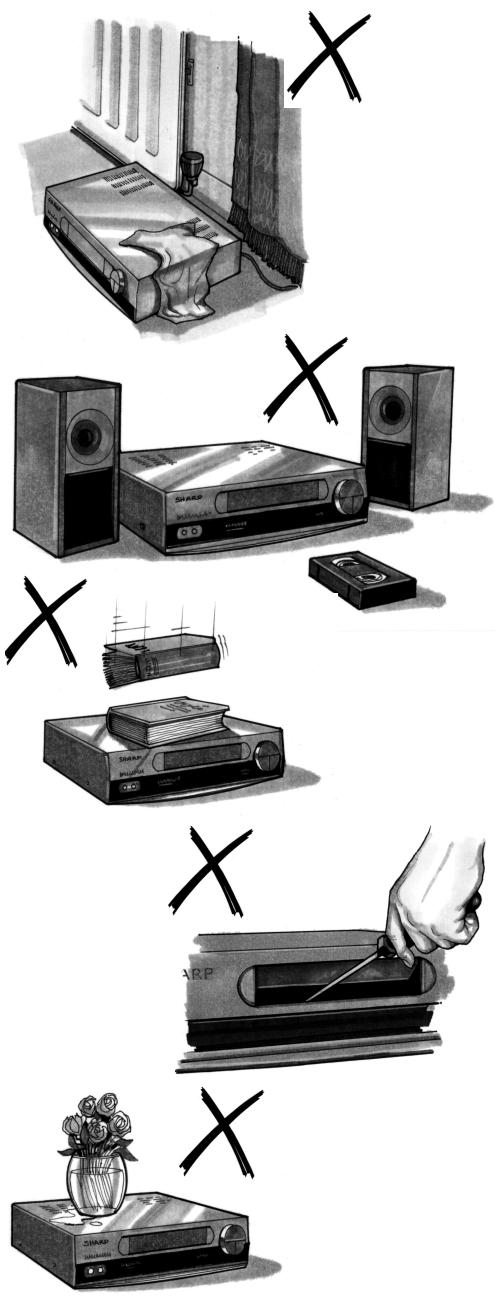
PLACE THE VCR...
- ... on a flat level surface away from radiators or other heat sources and out of direct sunlight.
- ... and video tapes away from magnetic sources such as speakers or microwave ovens. ... at least 8" (20cm) away from the TV.
- ... away from curtains, carpets or other materials and allow ventilation space around the VCR.
DO NOT...
... block the air-vent openings. ... expose the VCR to excessive dust, mechanical vibration or shock. ... place any heavy object or liquid on top of the VCR. If liquid drops inside the VCR unplug immediately and contact your SHARP dealer. Do not use the VCR. ... insert or drop anything into the tape compartment or through the air-vents, as this could result in serious damage, fire or an electric shock.
POWER SOCKET
- To avoid overheating or even fire, insert the plug correctly into the socket.
DO NOT...
... overload power sockets, this may cause a fire or electric shock. ... pull the power cord to disconnect the plug from the mains. ...bind the power cords together. - This VCR is not equipped with a mains power switch. Accordingly, nominal current to drive the clock is drawn at all times when the AC power cord is plugged into a wall socket. If the VCR is not to be used for an extended period be sure to unplug the cord.
BEFORE USING YOUR VCR
UNPACKING THE ACCESSORIES
CHECK ALL THESE ACCESSORIES ARE SUPPLIED WITH YOUR VCR. CONTACT YOUR DEALER IF ANY ARE MISSING.
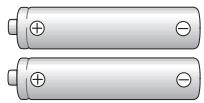
(TYPE AA/R6/UM3) BATTERIES (X2)
for the remote control unit.
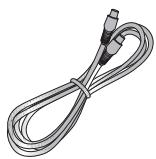
RF CONNECTION CABLE connects the VCR to the TV.
Battery cover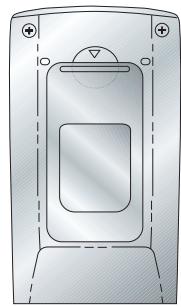
To fit the batteries into the remote control
Remove the battery cover on the back of the remote control. Fit the batteries: to and to . terminals. Place the battery cover back into position.

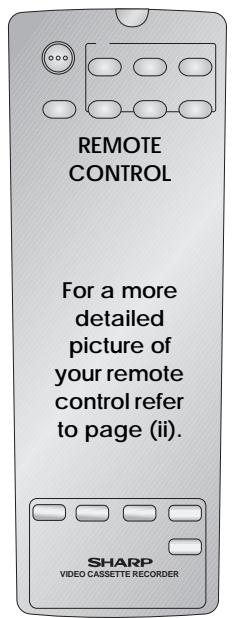
Remote Control
Remote Control must be pointed towards the VCR to operate. - Do not expose to liquid or shock. - May not function if the VCR is in direct sunlight or any other strong light. - Replace both alkaline batteries (type AA/R6/UM3) if the remote control fails. - Remove the batteries and keep in a safe place if you do not plan to use the VCR for several months. - Remove and dispose of flat batteries safely and promptly. Incorrect use of batteries may cause them to leak or burst.
INSTALLING YOUR VCR
CONNECTING THE CABLES
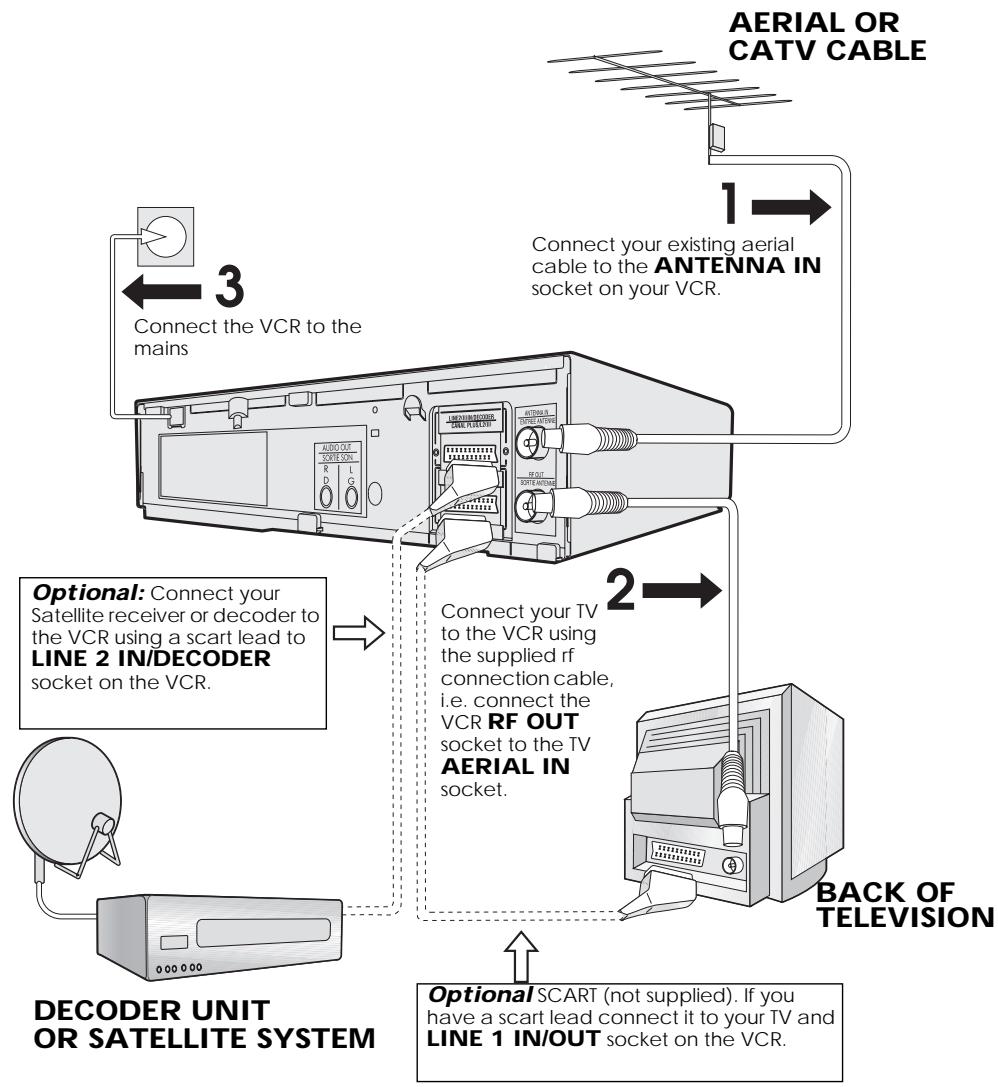
The VCR is correctly connected.
GB-4
INSTALLING YOUR VCR
TUNING THE TV INTO THE VCR
IMPORTANT NOTE: By pressing the STANDBY button, the VCR will toggle between STANDBY and LOW POWER modes. The VCR display will not be illuminated in low power mode.
- Ensure your VCR is still in the STANDBY mode (not low power).
- Switch on the TV. Select an unused channel on your TV for your VCR (there may be a dedicated video channel refer to your TV operation manual).
- Press and hold the MENU button for 3 seconds. The VCR will search and display the ideal RF channel.
- Tune the selected channel on your TV (refer to your TV manual) until the menu screen appears.
- Press SET to store the RF channel and to place the VCR back into STANDBY.
SHARP
Example:
H 36 RF
MENU SCREEN
TIMER
MODE
GRUNDE INSTELLUNG
SET
:SELECT
:ENTER
MENU:END
NOTE:
- If you have a preferred channel, the RF channel can be set manually (21-69) after Step 3 using the [triangle / nabla] keys.
The TV is tuned to the VCR.
INSTALLING YOUR VCR
AUTO INSTALLATION
Press STOP to switch on your VCR.
This model will automatically tune in the TV channels in your area, sort them into a standard order and set the clock.
The screen opposite should be showing on your TV.
Follow the instructions from the screens.
(Auto sort will take a few minutes to complete)
On completion, the MOVE MENU will appear showing the present channel order. Press MENU to exit.
AUTO INSTALLATION PRESS SET KEY TO START AUTOMATIC SETTING
If the clock is NOT automatically set, the clock screen will appear. Refer to MANUALLY SETTING THE CLOCK. To check the clock has been set correctly, press DISPLAY until the time appears on the display.
If the screen above does not appear, follow the procedure VCR RESET below.
If you wish to customise the channel order, refer to MANUALLY SORTING CHANNELS.
VCR RESET
- Press STOP to switch on the VCR.
- Press and hold MENU and CHANNEL ▼ buttons together on the front of the VCR for 10 seconds.
- The AUTO INSTALLATION screen should now be showing on your TV.
- Follow the on-screen display to proceed with auto installation.
Refer to the CUSTOMISED INSTALLATION chapter if:
- Your VCR could not tune automatically - due to, for example, poor reception. You wish to re-arrange the channel order. You wish to change the time on the clock, or if the VCR could not set the time.
■ All the programmes should now be correctly tuned in and the clock set.
BASIC OPERATION
IMPORTANT NOTES ON YOUR VCR AND VIDEO TAPES
VIDEO TAPES
If you use only good quality video tapes, generally it will not be necessary to clean the video heads. If poor quality tapes are used, or if a tape is loaded after changing VCR location, oxide from the tape may "clog" the video heads. This will cause the playback picture to be "snowy", or even disappear. To remove minor contamination run a video tape in visual search mode. If this fails, you will need to have the heads cleaned by a SHARP Service Facility. Please note, if cleaning is necessary it is not covered by the guarantee. Use video tapes which carry the VHS mark.

Condensation forms in the VCR when it is moved out of or into a warm place. If you try to playback or record, the video tape and VCR may be damaged. Turn the VCR on and wait for about two hours until the VCR reaches room temperature before operating.
PLAYBACK
- Switch on your TV and select the video channel.
- Carefully push a pre-recorded video tape into the tape compartment. This will switch the VCR on.
- If the record-protection tab has been removed, the VCR will start playback as soon as the video tape has been loaded.
- To start playback, press PLAY/ X2 (▶).
Record protection tab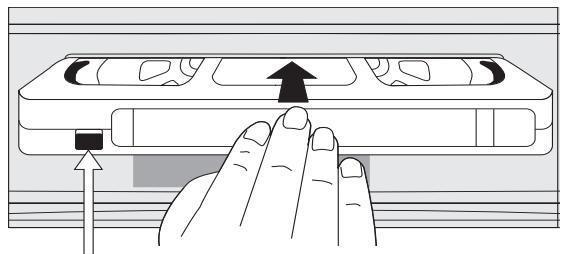
BASIC OPERATION
SHARP SUPER PICTURE should enhance the picture quality during playback. It is normally set to ON. To turn SHARP SUPER PICTURE on or off press SUPER P. on the VCR front panel.
For double speed playback (without sound), press PLAY/X2 (▶) again. To revert to normal playback, press PLAY/X2 (▶) again. To stop the video tape, press STOP (■). To eject the tape press EJECT on the VCR.
PICTURE DISTURBANCE DURING PLAYBACK
This VCR has an automatic tracking system which reduces picture disturbance when you start to playback a video tape. When auto-tracking is in operation → flashes on the on-screen display. If the picture still has disturbance you may need to manually track the video tape:
During PLAYBACK of a video tape.
- Press CHANNEL ▲ or ▼ to position picture interference off the TV screen. (Manual Tracking)
- Press CHANNEL ▲ and ▼ buttons together to start Auto Tracking.
PAUSING AND SLOW MOTION
- Press PLAY/X2 (▶) to start the video tape playing.
- To pause the video tape, press PAUSE/STILL (❚❚).
To minimize jitter while in pause mode, press CHANNEL ▲ or ▼. Press PLAY/X2 (▶) to resume playback. To play back in slow motion (without sound), press SLOW on the remote control. Slow motion speed can be adjusted using the ⊙ or ⊕ buttons next to the slow button. Picture disturbance can be improved by using the CHANNEL ▲ or ▼ during slow motion playback. Press PLAY/X2 (▶) to resume playback.
NOTES:
- There will be picture interference and possibly a change to black and white picture using Pause and Slow functions.
- PAUSE mode will disengage after about 5 minutes.
BASIC OPERATION
- Press STOP (■) to stop the video tape.
- Press FAST FORWARD (▶▶)/REWIND (◀◀) on the remote control or turn the shuttle ring on the VCR to the Right/Left and release.
- To stop fast forward/rewind, press STOP (■).
FORWARD/REVERSE VISUAL SEARCH
- During playback, press FAST FORWARD (▶▶)/REWIND (◀◀) on the remote control, or turn the shuttle ring fully to the Right/Left.
- To lock search mode, turn the shuttle far Right/Left and release.
- To decrease the speed, press FAST FORWARD (▶▶)/REWIND (▲▲) again, or turn the shuttle to the halfway position.
- Press PLAY/X2 (▶) to resume playback.
NOTE:
- There will be picture interference and possibly a change to black and white picture using Visual Fast Forward/Rewind functions.
BASIC OPERATION
IMMEDIATE RECORDING
SELECTION OF A CHANNEL
Select the channel by using the number buttons on the remote control, or select the next/previous channel by pressing CHANNEL [▲ or ▼].
To change between single digit and 2-digit channel numbers, press AM/PM (1/√n).
For example, for channel 24, press AM/PM 1/11 then press 2 4.
You can record the channel you are watching or a different channel.
- Insert a video tape into your VCR.
- Select the channel you wish to record on the VCR.
- To start recording, press REC (●).
- To pause during recording, press PAUSE/STILL (Ⅲ).
- To continue recording, press REC (●).
- To stop recording, press STOP (■) once.
SIMPLE TIMED RECORDING:
- To specify a stop time, press REC (●).
- Each additional press of REC (●) will delay the stop time by 10 minutes.
- To stop recording at any time, press STOP (■) once.

STOP 15:30
NOTES:
- If the tape ends before the recording is complete, the VCR will stop recording and rewind, or eject if the VCR is in timer record mode.
- If the VCR ejects the video tape when you press REC (●), the tape is record protected, i.e., the record protection tab has been removed.
BASIC OPERATION
HOW TO USE SHOWVIEW TO MAKE A RECORDING
If appears on the VCR display, press TIMER ON/OFF before starting. - Check that the clock is displaying the correct time.
SHOWVIEW allows you to program the VCR to record up to eight programmes using the SHOWVIEW numbers published in TV listings...
- Press [SV/V+] on the remote control
- Enter the SHOWVIEW number from the TV listing using the NUMBER BUTTONS.
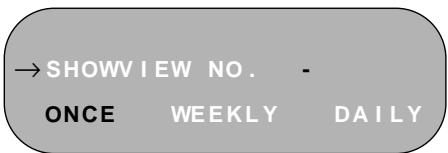
NOTE:
- An ERROR message will appear if you have entered a number that is not a current SHOWVIEW number. If this happens press CLEAR to delete the numbers as required and enter the correct SHOWVIEW number.
- Press [▲/▼] to select ONCE, WEEKLY, DAILY.
- If you want to make additional recordings at the same time each day or week, then use [▲/▼] to select the WEEKLY, or DAILY option as appropriate.
- Press SET to confirm.
NOTE:
- Check that the menu list agrees with the times shown in the TV listing. If it does not press CLEAR to return to the SHOWVIEW menu, and re-enter the correct SHOWVIEW number.
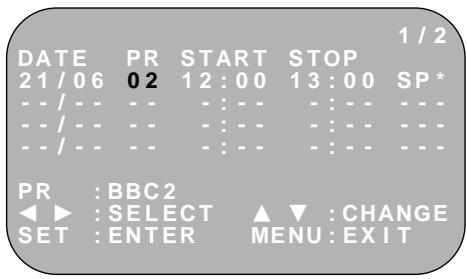
The first time that you use SHOWVIEW to make a recording on each channel Preset, (PR) may be highlighted on the menu.
- Enter the channel you wish to record using the NUMBER BUTTONS, for example if you wish to record channel 2 press 0 2. The VCR will remember this for the future.
NOTES:
You may also access the SHOWVIEW menu by the following procedure:
i. Press MENU. ii. The SHOWVIEW option will be highlighted. Press SET to confirm.
Continue from step 2 above.
BASIC OPERATION
HOW TO USE SHOWVIEW TO MAKE A RECORDING
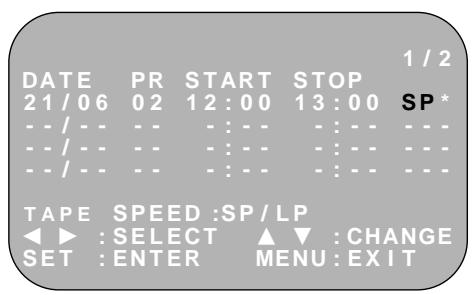
- If your VCR has long play facility and you wish to change the RECORDING SPEED, use the [▲/▼] to highlight SP. Press [▲/▼] to select standard play (SP) or long play (LP) as required.
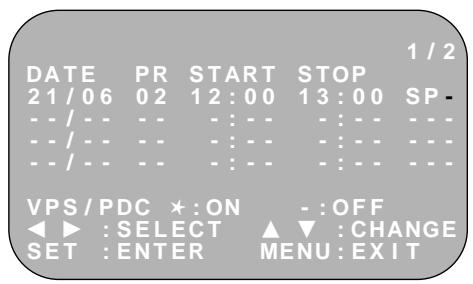
- [See NOTE below]. For VPS/PDC setting use [▲/▶] to highlight the final column. Using the [▲/▼] will select VPS/PDC ON or OFF (★ = ON = OFF).
- Press SET to confirm the programme. The SHOWVIEW menu will reappear. If you wish to enter further SHOWVIEW recordings repeat this procedure.
- When you have completed entering timer settings, press MENU to remove the menu from the TV screen.
- Press TIMER ON/OFF once to place the VCR in TIMER STANDBY mode. The symbol will be shown on the display.
NOTES:
VPS/PDC is a signal broadcast by some TV stations which adjusts the start and stop time of your VCR recording. This ensures that if there is a change in broadcast time for your programme the VCR will still record the whole programme. It is essential that the start time as it appears in the TV listing is used to program the VCR, as this information is used to identify the VPS/PDC signal corresponding to your programme. If the symbol flashes, a video tape has not been inserted into the VCR. - If the video tape is ejected when the VCR tries to record, the record protection tab has been removed. - During recording, press STOP (■) to cancel the recording. If there are further recordings to be made, the VCR will return to TIMER STANDBY.
BASIC OPERATION
HOW TO SET A DELAYED RECORDING
You can make a maximum of eight delayed recordings up to a year in advance.
The example shown is for 24-hour clock operation. 12-hour clock operation can be selected from the manual clock setting menu.
12-hour clock am/pm can be selected using the AM/PM button on the remote control.
- If appears on the VCR display, press TIMER ON/OFF before starting.
- Check that the clock is displaying the correct time.
SETTING A RECORDING
For example: Recording a programme on channel 3 from 21:05 to 22:30 on July 9th.
- Press STOP (■) to switch on the VCR.
- Press MENU.
- Press [▲/▼] to select TIMER. Press SET to confirm.
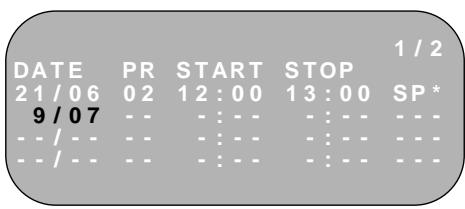
- The position which is initially highlighted is the next available timer record entry. Press SET to confirm this.
- The display will automatically show today's date.
Either: If this is the date you wish to make the recording on, press SET to confirm this.
Or: enter the recording date using the [▲/▼] or the NUMBER BUTTONS. Enter two digits for the day, then two for the month. For example for July 9th, press 0 9 (9th), then 0 7 (July).
- Then press SET to confirm.
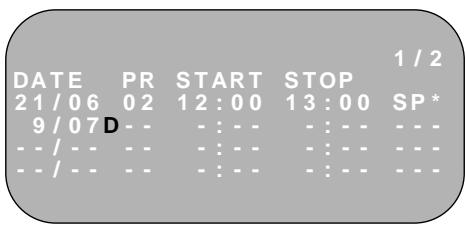
- If you want to make additional recordings at the same time each day or week, use [▲/▼] or select D (daily) or W (weekly). Then press SET to confirm.
- Enter the channel using the [▲/▼] or the NUMBER BUTTONS. For example to record a programme on channel 3, press 0 3. Then press SET to confirm.
MENU SCREEN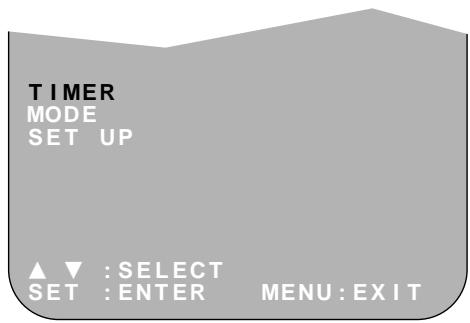
BASIC OPERATION
HOW TO SET A DELAYED RECORDING
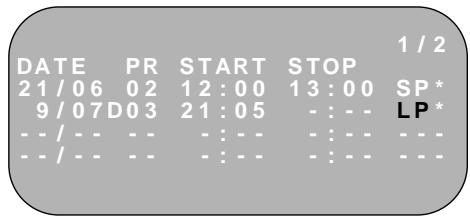
- Enter the start time using the [▲/▼] or the NUMBER BUTTONS, hours first then minutes (when entering less than 10 minutes add a '0' before the number), for example for 21:05 start, press 2 1 0 5. Then press SET to confirm.
- Enter the stop time, for example for 22:30 stop, press 2 2 3 0.
- If your VCR has long play facility and you wish to change the RECORDING SPEED, use the [▲/▼] to highlight SP. Press [▲/▼] to select standard play (SP) or long play (LP) as required.
- [See note below]. For VPS/PDC setting use the [▲/▼] to highlight the final column. Using the [▲/▼] will select VPS/PDC ON or OFF ( = ON - = OFF).
- Press SET to confirm.
- The MENU now shows all the timer settings you have entered. If you wish to make additional timer recordings, repeat this procedure.
- When you have completed entering timer settings, press MENU to remove the menu from the TV screen.
- Press TIMER ON/OFF once to place the VCR in TIMER STAND-BY mode. The indicator will be shown on the display.

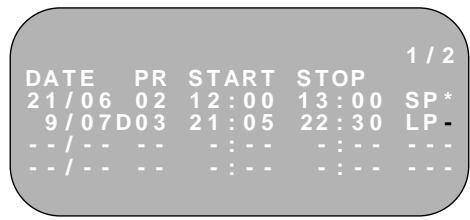
NOTES:
VPS/PDC is a signal broadcast by some TV stations which adjusts the start and stop time of your VCR recording. This ensures that if there is a change in broadcast time for your programme the VCR will still record the whole programme. It is essential that the start time as it appears in the TV listing is used to program the VCR, as this information is used to identify the VPS/PDC signal corresponding to your programme. - If the indicator flashes, a video tape has not been inserted into the VCR. - If the video tape is ejected when the VCR tries to record, the record protection tab has been removed. - During recording, press STOP (■) to cancel the recording. If there are further recordings to be made, the VCR will return to TIMER STANDBY.
BASIC OPERATION
HOW TO SET A DELAYED RECORDING
CHECKING, CHANGING AND CANCELLING A RECORDING
CHECKING A RECORDING
- If in TIMER STANDBY mode, press TIMER ON/OFF to exit.
- Press STOP to switch on the VCR.
- Press MENU.
- Press [▲/▼] to select TIMER. Press SET to confirm.
- All the delayed recordings in the VCR's memory will be shown.
- You can check the settings and change or cancel them.
MENU SCREEN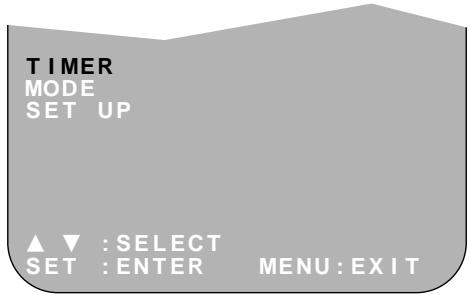
CHANGING A RECORDING
- Follow steps 1 to 4 of CHECKING A RECORDING.
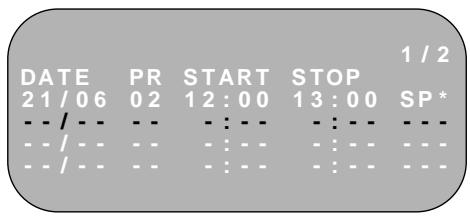
- If you wish to change a delayed recording, press [▲/▼] to highlight the recording, then press SET.
- Press [▲/▼] to highlight the setting to be changed and correct it by using the [▲/▼] or the NUMBER BUTTONS.
- When all corrections are complete, press SET, then press MENU.
- Follow steps 1 to 4 of CHECKING A RECORDING.
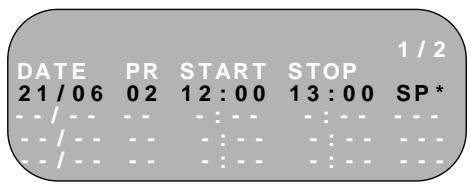
- If you wish to cancel a delayed recording, press [▲/▼] to highlight the recording to be cancelled, then press CLEAR.
- Press MENU.
NOTE:
- If there are some programmes to be recorded, do not forget to press TIMER ON/OFF button to return the VCR to TIMER STAND-BY mode.
ADVANCED OPERATION
AUDIO AND YOUR VCR (Hi-Fi VCR'S ONLY)
HI-FI STEREO SOUND
Stereo sound is possible from this VCR if you have a stereo TV connected to the VCR with a scart lead, or audio equipment connected with audio phono leads. The VCR is normally set so that stereo sound is possible. The sound output from the VCR is controlled by the
AUDIO OUT button on the remote control. If you wish to change the sound output you can use the AUDIO OUT button as follows:
- Press AUDIO OUT once. The LEFT audio channel will be sent to BOTH speakers. L will appear on the VCR display.
- Press AUDIO OUT twice. The RIGHT audio channel will be sent to BOTH speakers. R will appear on the VCR display.
- Press AUDIO OUT three times. The MONO track will be sent to BOTH speakers. L and R will disappear from the VCR display.
- Pressing AUDIO OUT a fourth time, normal Hi-Fi stereo sound will be heard. L and R will appear on the VCR display.
NICAM Hi-Fi STEREO SOUND
Your VCR can receive and record programmes broadcast in NICAM or IGR sound (the factory pre-set condition for NICAM is AUTO). NICAM or IGR sound may not be stereo, this depends on the programme being received.
Audio is automatically recorded in two different ways:
(i) Hi-Fi: Using specialised rotary heads, two audio signals are recorded on to the tape. These will be stereo, mono or bilingual depending on the sound being received. (ii) Normal: A mono recording is also made on the conventional analogue audio track.
- Press MENU to display the main menu on the screen.
- Press [▲/▼] to select MODE.
- Press SET. NICAM will be selected.
- Press [▲/▲] to select OFF.
- Press SET, to return to the menu screen.
- Press MENU, to exit to normal screen.
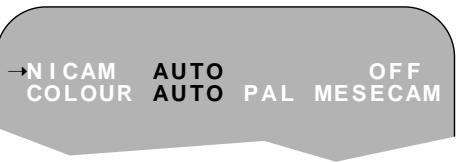
NOTES:
- If the tape being played back does not carry sound recorded on Hi-Fi tracks, L and R will not appear on the display.
- If the sound contains 'crackling' or 'popping' noises, the sound quality may be improved by adjusting the tracking using CHANNEL / .
- If the poor quality persists for a long period, the VCR will automatically select the mono track and the sound will be in mono.
- Not all TV transmitters provide NICAM or IGR sound. In this case, the VCR automatically switches to receive the mono signal.
- NICAM sound may not be stereo.
ADVANCED OPERATION
AUDIO AND YOUR VCR (Hi-Fi VCR'S ONLY)
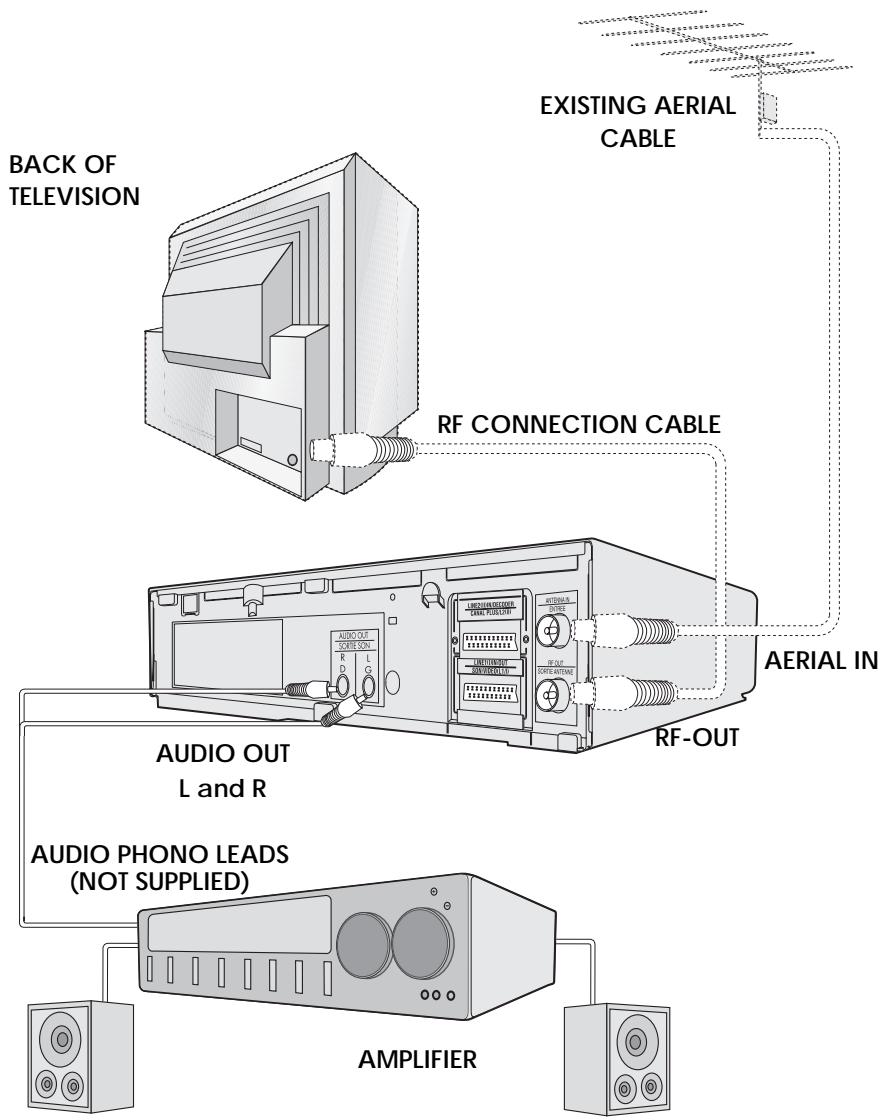
CONNECTING TO AUDIO EQUIPMENT
The diagram below shows how to connect your VCR to audio equipment. When connected in this way, stereo sound is possible from the speakers.
ADVANCED OPERATION
CHECKING THE AMOUNT OF TAPE REMAINING
When you load a video tape into the VCR, it can calculate approximately the amount of video tape remaining in hours and minutes. This is useful in determining whether or not there is sufficient tape left to make a recording.
When a video tape is playing, the amount of tape remaining is calculated for you automatically.
To display the amount of video tape remaining:
- Load the video tape into the VCR.
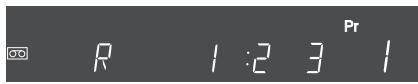
- Press DISPLAY on the remote control as many times as necessary until "R" appears on the VCR display. The tape will wind forward and then return to its original position. The tape remaining will be shown on the VCR display in hours and minutes.
For example, if 1 hour 23 minutes is left on the tape:
NOTES:
- Do not interrupt the tape remaining calculation. If less than 5 minutes of tape remains, the display will flash.
You can set your VCR to automatically rewind at the end of playing a video tape and replay the entire tape again. REPEAT will appear on the on-screen display when selected.
To use this feature:
- Press MENU to display the main menu on the screen.
- Press [▲/▼] to select MODE.
- Press SET.
- Press [▲/▼] to select REPEAT.
- Press [▲/▲] to select ON.
- Press SET.
- Press MENU to return to normal screen.
MODE MENU SCREEN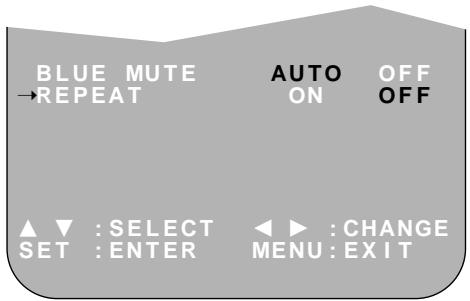
ADVANCED OPERATION
NTSC (National Television Standards Committee) is a different TV standard to PAL and is used in some Non-European Countries. Your VCR can playback pre-recorded NTSC tapes onto a PAL system TV, but cannot record an NTSC signal onto a video tape.
Note that...
You cannot record NTSC signals or dub NTSC tapes onto other VCRs from this VCR. - You cannot use Slow speed, Still frame, Double Speed, Frame Advance, or Tape Remaining with a pre-recorded NTSC tape. - On some televisions, the picture may appear in black and white or there may be no picture. This does not indicate a fault with your VCR. - On some televisions, the picture may shrink vertically causing black bands to appear at the top and bottom of your screen. - On some televisions, the played-back picture may roll vertically; this does not indicate a fault with your VCR.
ADVANCED OPERATION
DIGITAL DISPLAY
TIME OF DAY
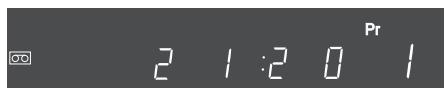
Shows current time of day, if the clock is set.
Press DISPLAY until the time of day appears. For
example, 21:20 appears:
OPERATION MODE
Shows status of tape. Press DISPLAY until the display appears, for example:

TAPE COUNTER AND ZERO BACK
Tape counter measures the current position of the video tape in real time. ZERO BACK uses the tape counter to determine a specific point on a tape you may wish to return to.
- Press DISPLAY until tape counter appears, for example:

- To identify the current position on a video tape, press CLEAR and the tape counter will appear:

When you wish to return to this position on the video tape, press ZERO BACK. The tape will rewind/advance to this point.
NOTE:
- The tape counter will only operate on recorded sections of tape.
ADVANCED OPERATION
BLUE MUTE
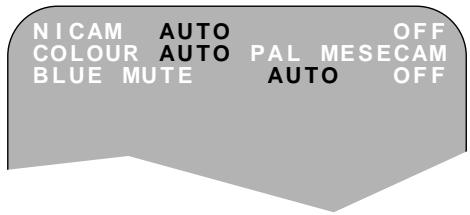
The TV screen will be blue if a TV channel with no signal is selected, an unrecorded section of tape is played, or the quality of the recording on the tape is poor. Select OFF to disable this feature.
- Press MENU to display the main menu on the screen.
- Press [▲/▼] to select MODE.
- Press SET.
- Press [▲/▼] to select BLUE MUTE.
- Press [</▶] to select OFF.
- Press SET and then MENU to return to the normal screen.
MODE MENU SCREEN
COLOUR
If the VCR is playing a poor quality recording, the picture may turn black and white. Selecting PAL/MESECAM may improve this (depending on the recording), although coloured speckles may appear on black and white recordings.
- Follow steps 1 to 3 from BLUE MUTE.
- Press [▲/▼] to select COLOUR.
- Press [▲/▼] to select AUTO/PAL or MESECAM.
- Press SET and then MENU to return to the normal screen.
ADVANCED OPERATION
SEARCHING THE VIDEO TAPE
SKIP SEARCHING THE VIDEO TAPE
You can search the tape in 30-second time intervals. To do this, follow the procedure below:
- Press PLAY/X2 (▶) to start the video tape playing.
- Press SKIP SEARCH on the remote control. The number of times you press SKIP SEARCH determines the forward search time.
1 press = 30 seconds.
2 presses = 1 minute.
3 presses = 1 minute 30 seconds.
4 presses = 2 minutes.
After searching, normal playback will resume automatically.
ADVANCED OPERATION
SEARCHING THE VIDEO TAPE
DIGITAL PROGRAMME SEARCH SYSTEM (DPSS)
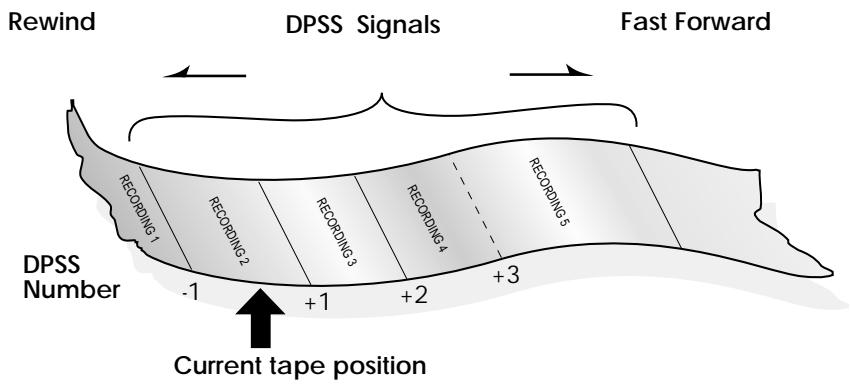
Your VCR records a marker signal on the tape at the start of each recording. These signals can be used later to locate the starting point of a recording.
Press DPSS / to locate a previous programme or the next programme.
For example:
- Load the video tape into the VCR.
- Press DPSS ▸ three times. A 3 will appear on the on-screen display, and the VCR will fast forward to locate the third recording after the current one.
- Press DPSS once. A -1 will appear on the on-screen display and the VCR will rewind to locate the beginning of the current recording.
- To cancel the search before it has finished, press STOP (■) or PLAY/X2 (▶).
NOTES:
Recordings must be longer than 3 minutes. - The starting point of playback may vary. This feature will only work with video tapes recorded on a VCR with the DPSS feature.
ADVANCED OPERATION
RECORDING FROM OTHER EQUIPMENT
You can record video and audio signals from various sources, for example a camcorder, onto a video tape using your VCR.
For example, recording from a camcorder connected to LINE 2 IN/DECODER on your VCR:
Optional Scart connection (not supplied) Mono/Stereo Camcorder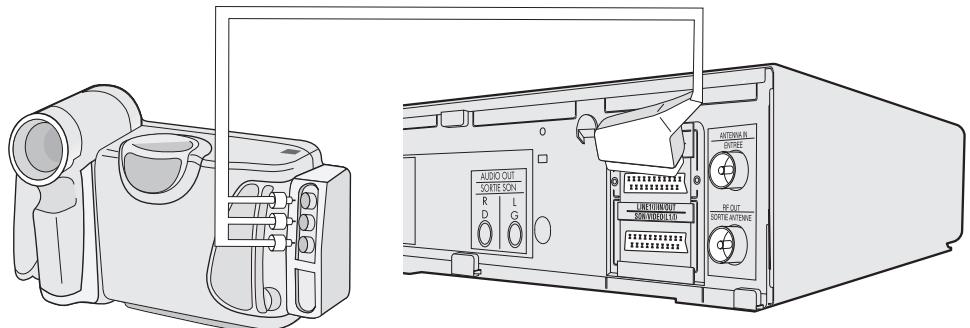
- Load tape into the VCR.
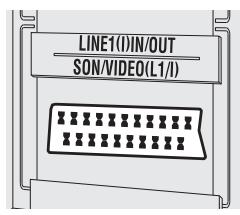
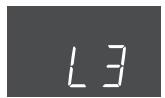
- Press INPUT SELECT on the remote control until the VCR display shows L2.
- If you wish to record from a source connected to LINE 1 IN/OUT, select L1.
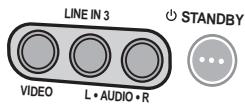
- If you wish to record from a source connected with audio phono leads to the sockets on the front of the VCR (if fitted), select L3.


NOTE:
- There are many different ways of connecting external equipment to your VCR. Please refer to your equipment operation manuals for further information.
SPECIAL FEATURES ON YOUR VCR
LOW POWER FEATURE
To meet new power regulations your VCR can be placed in LOW POWER mode. In LOW POWER mode the VCR power consumption is reduced to below 1 Watt.
LOW POWER MODE
- Press STAND BY (O) to place the VCR in STANDBY mode.
- Press STAND BY (O) again to place the VCR in LOW POWER mode. The VCR digital display will appear blank.
The VCR power consumption will now be below 1 Watt.
DISENGAGING LOW POWER MODE
Either press STANDBY ( ) to return the VCR to STANDBY mode.
Or press STOP ( ) to use the VCR.
NOTES:
- With poor signal conditions, an increase in noise may be observed on the screen in LOW POWER mode.
- When entering STANDBY, noise may be observed. If a signal is input from an AV source, the VCR may not go into true LOW POWER mode.
- When disengaging low power mode from the VCR, press the Standby button.
CHILD LOCK
You can lock your VCR with this feature. It will work even when the VCR is in standby, preventing children from operating the VCR.
TO ENGAGE CHILD LOCK
Press and hold on the remote control for about 2 seconds.
flashes and then remains lit on the VCR display confirming that CHILD LOCK has been activated.
Regardless of what other operating buttons are touched, the VCR will continue to operate in its present mode. If CHILD LOCK is activated during playback, once the tape reaches its end, the VCR will automatically rewind the tape, eject it, and turn the power off.
TO DISENGAGE CHILD LOCK
Press and hold for about 2 seconds.
Starts flashing and then disappears. CHILD LOCK is disengaged.
NOTES:
If you attempt to change modes by pressing another button while CHILD LOCK is on, the indicator will flash on the VCR display. If power is interrupted for more than 60 seconds (due to power failure etc), CHILD LOCK may disengage.
CUSTOMISED INSTALLATION
MANUALLY TUNING A CHANNEL
It should not be necessary to tune in a broadcast channel manually except in unusual circumstances such as poor signal.
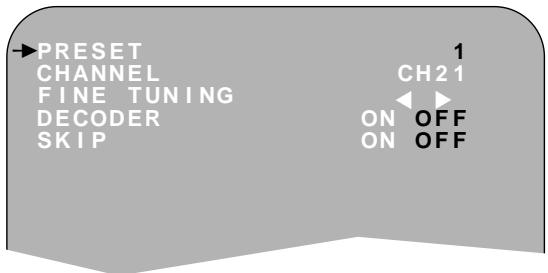
To manually tune in a channel follow the procedure below.
- Press MENU.
- Press [▲/▼] to select SET UP. Press SET to confirm.
- CHANNEL PRESET will be highlighted. Press SET.
- Press [▲/▼] to select CHANNEL.
- Press [1/11] to select CH or CC. This will determine whether off air (CH) or cable (CC) is tuned first. Note that both off air and cable will be tuned regardless of the setting.
- Press [◀/▶] to start tuning in either direction. Tuning will stop when a channel is received. If it is not the desired channel, press [◀/▶] to continue tuning.
- Press [▲/▼] to select FINE TUNING. Press and hold [▲/▶] until the sharpest colour picture is obtained.
IMPORTANT NOTE:
- If you connect an independent decoder, you must press [▲/▼] to select DECODER, then select [▲/▲] to turn the decoder function ON.
- Press [▲/▼] to select SKIP.
The SKIP function determines whether the channel can be selected when using the CHANNEL ▲/▼ instead of the NUMBER BUTTONS.
- Press [◀/▶] to select ON or OFF for this option.
- Press SET to confirm.
- Press MENU to leave this function.
CHANNEL PRESET CHANNEL SORT CLOCK LANGUAGE
CUSTOMISED INSTALLATION
BROADCAST AND CATV CHANNELS
| Station Signals | Real Channel Numbers | Station Signals | Real Channel Numbers | ||
| VHF | 2/A●3/B●45/D●6/E●7/F●89/G●10/H●11/H●12/H2●S11 | CH:02CH:03CH:04CH:05CH:06CH:07CH:08CH:09CH:10CH:11CH:12CH:13 | CATV | S01/S21▲S02/S22▲C●/S03/S23▲S24▲S25▲S1S5 | CH:75CH:76CH:77CH:78CH:79CH:80CH:85 |
| M1/S1M2/S2: | CC:01CC:02: | ||||
| M10/S10U1/S11 | CC:10CC:11 | ||||
| UHF | 2122:6869 | CH:21CH:22: | : | U10/S20S21: | :CC:20CC:21: |
| S40S41 | CC:40CC:41 |
Available in Italy Available in Switzerland
NOTE:
- The VCR has 84 programmable channel positions each of which can be set to any of the broadcast and CATV channels shown in the table.
CUSTOMISED INSTALLATION
MANUALLY SORTING CHANNELS
SORTING THE CHANNELS INTO YOUR PREFERRED ORDER
When your VCR tunes in broadcast channels automatically, it sorts them into a standard order using teletext information. You can change the order of the channels with the following procedure.
- Press MENU.
- Press [▲/▼] to select SET UP. Press SET to confirm.
- Press [▲/▼] to select CHANNEL SORT. Press SET to confirm.
- The MOVE position will be highlighted. Press SET to confirm.
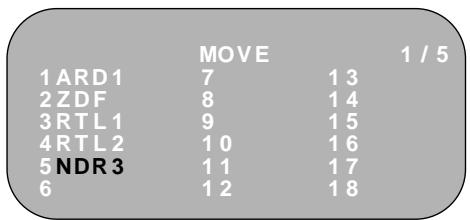
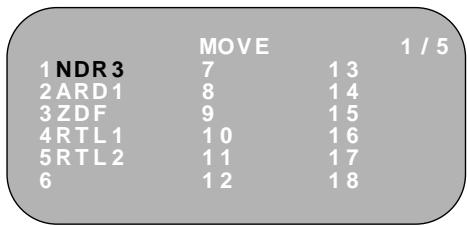
- Press [▲/▼/▲/▶] to highlight the channel to be moved. Press SET to confirm.
- Press [▲/▼/▲/▶] to highlight the new position for the channel. Press SET to confirm.
- If any more channels are to be moved, repeat the procedure from step 5.
- When all the channels are in your preferred order, press MENU to leave the MENU function.
2. MENU SCREEN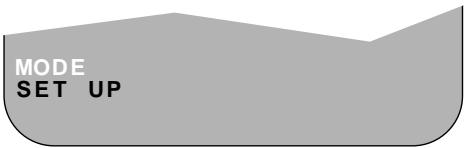
5.
6.
CUSTOMISED INSTALLATION
MANUALLY SORTING CHANNELS
DELETING CHANNELS
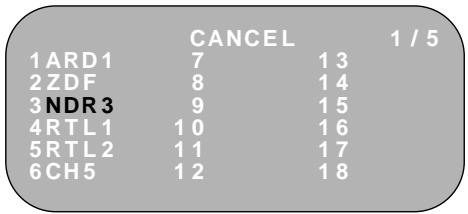
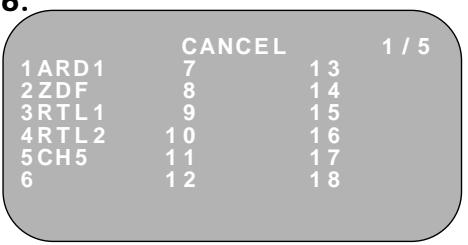
If there is a channel you wish to delete from the VCR memory you can follow the procedure below.
- Press MENU.
- Press [▲/▼] to select SET UP. Press SET to confirm.
- Press [▲/▼] to select CHANNEL SORT. Press SET to confirm.
- Press [▲/▼] to select CANCEL. Press SET to confirm.
- Press [▲/▼] to highlight the channel to be cancelled.
- Press SET twice to cancel the channel.
- When all the channels you wish have been cancelled, press MENU.
2. MENU SCREEN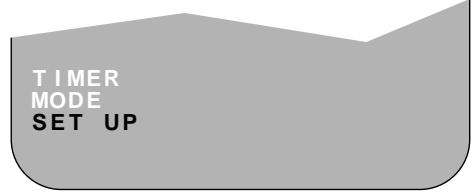
5.
6.
CUSTOMISED INSTALLATION
MANUALLY SORTING CHANNELS
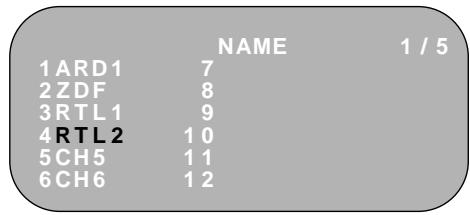
RE-NAMING CHANNELS
When your VCR tunes in broadcast channels automatically, it names them using teletext information. You can change the name of a channel with the following procedure.
- Press MENU.
- Press [▲/▼] to select SET UP. Press SET to confirm.
- Press [▲/▼] to select CHANNEL SORT. Press SET to confirm.
- Press [▲/▼] to highlight NAME. Press SET to confirm.
- Press [▲/▼] to highlight the channel to be named. Press SET to confirm.
- Press [◀/▶/▲/▼] to rename the channel. Press SET to confirm.
- If any more channels are to be renamed, repeat procedure from step 5.
- When all the channels are named correctly, press MENU to leave the MENU function.
2. MENU SCREEN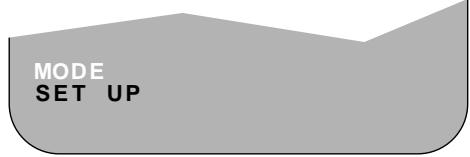
5.
6.
CUSTOMISED INSTALLATION
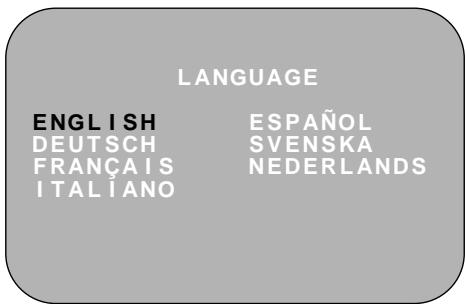
CHANGING THE ON-SCREEN DISPLAY LANGUAGE
Changing the language used by the on-screen display will not change the operation of the VCR or make it suitable for any other broadcast standard.
- Press MENU
- Press [▲/▼] to select SET UP. If the display is not in a language you can understand, this is the fourth option from the top. Press SET to confirm.
- Press [▲/▼] to select LANGUAGE (the last option).
- Then press SET.
- Press [▲/▼/▲/▶] to select your language. Then press SET to confirm.
MANUALLY SETTING THE CLOCK
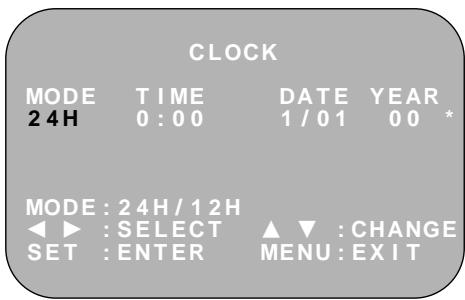
The clock will normally be set using teletext information when your VCR automatically tunes in the broadcast channels. If for any reason teletext signals are not present your VCR will not be able to set the clock. This procedure will allow you to set the clock manually.
- Press MENU. Press [▲/▼] to select SET UP. Press SET to confirm.
- Press [▲/▼] to select CLOCK. Press SET to confirm.
- Press [▲/▼] to select either 12 or 24 hour clock.
- Press [▲/▼] to select TIME. Enter the time using the NUMBER BUTTONS or [▲/▼]. If the minutes are less than 10, enter the leading 0. If using the 12 hour clock enter AM or PM by pressing (//) on the remote control.
- Press [▲/▼] to select DATE. Enter the date using the NUMBER BUTTONS or [▲/▼]. For example, for 1st April enter 01 04.
- Press [▲/▼] to select YEAR. Enter the last two digits of the year using the NUMBER BUTTONS or [▲/▼]. For example, for 1998 enter 98. For the year 2000 enter 00.
- Select * for AUTO CLOCK on/off (* is ON, - is OFF). Then press SET to confirm.
NOTE:
- If AUTO CLOCK is set to OFF (- is OFF), then you will need to update the clock for daylight saving.
MORE INFORMATION ABOUT YOUR VCR
VCR DIGITAL DISPLAY
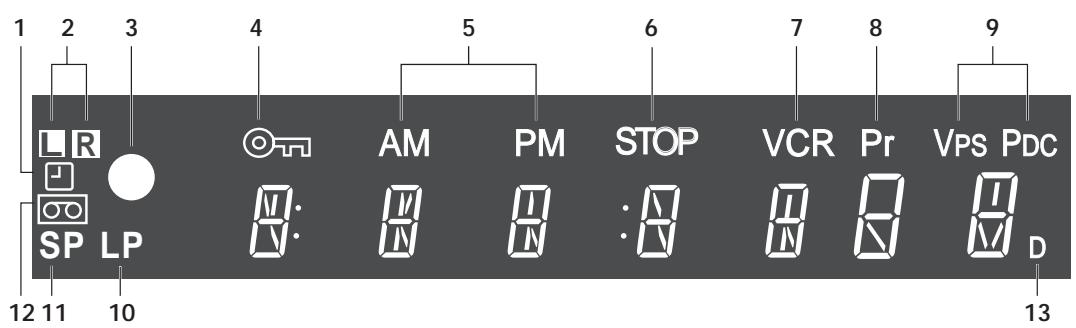
- TIMER indicator.
- AUDIO OUTPUT indicators.
- RECORDING indicator.
- CHILD LOCK indicator.
- AM/PM indicators.
- STOP indicator.
- VCR mode indicator.
- PRESET CHANNEL indicator.
- VIDEO PROGRAMMING SYSTEM/PROGRAMME DELIVERY CONTROL indicator.
- LONG PLAY indicator.
- STANDARD PLAY indicator.
- VIDEO TAPE indicator.
- DECODER indicator.
NOTE:
Some models do not have all the features shown, therefore, they will not appear on the display.
SELECTING THE OUTPUT FROM THE VCR
If your VCR is connected to your TV with a scart lead, when you start to play a video tape the VCR will automatically switch its output so that the playback picture is shown on the TV. In this case 'VCR' will appear on the VCR display.
You can manually override this by pressing [TV/VCR] on the remote control. Now the TV broadcast channel will be seen on the TV screen and 'VCR' will disappear from the VCR display.
- Pressing [TV/VCR] again will return the TV picture to the playback picture.
MORE INFORMATION ABOUT YOUR VCR
ON-SCREEN DISPLAY
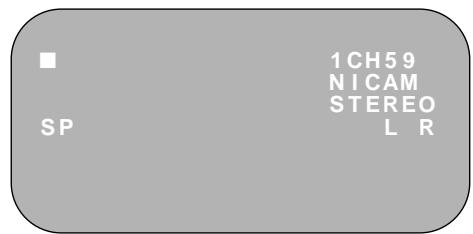
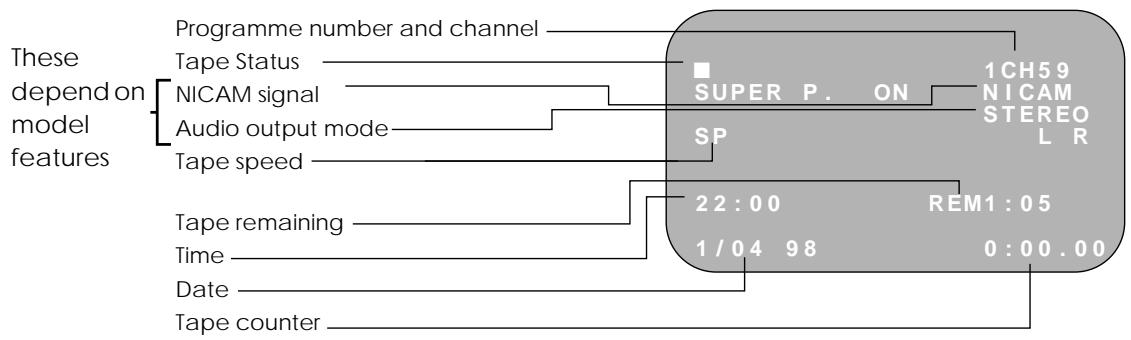
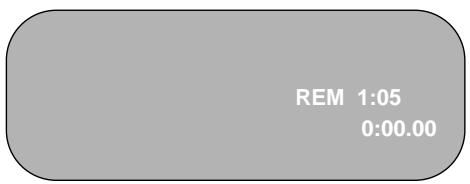
All the information you need on the VCR status will be summarised on the on-screen display. If you are recording, playing back a tape or watching a broadcast on the video channel you can call up three standard on-screen displays. The display can be selected by pressing the MODE OSD button on the remote control, 1,2,3 or 4 times.
- AUTO, the current mode and channel number will be displayed for 3 seconds when an operation or number button is pressed.
- FULL., all the active features will also be shown on screen.
1.
2.
- COUNTER, this display will show the tape counter and amount of tape remaining.
- DISPLAY OFF, this will remove the display from the screen.
3.
NOTES:
The default time and date will not be displayed if the clock has not been set. The VCR will return to display 1. each time it is switched on. - If you are recording from this VCR to another, make sure you remove the display from the screen otherwise it will be recorded.
MORE INFORMATION ABOUT YOUR VCR
SPECIFICATIONS
Format:
Number of heads:
Video signal system:
Hi-Fi audio recording system:
Maximum playing time:
Tape width:
Tape speed:
Antenna:
Reception channels:
RF output signal:
Power requirement:
Power consumption:
Operating temperature:
Storage temperature:
Video input:
Video output:
Audio input:
Audio output:
Hi-Fi audio:
Dimensions:
Weight:
Supplied accessories:
VHS PAL standard
Four heads
PAL/MESECAM colour or monochrome signal: 625 lines
Deep layer recording system conforming to stereo Hi-Fi VHS standard.
480 min. with E-240 video cassette in Long Play (LP) mode
12.7 mm
23.39 mm/s Standard Play (SP): 11.70 mm/s Long Play (LP)
75Ω unbalanced
VHF channel E2-E12, CATV S1-S41, UHF channel 21-69
UHF channel 21-69
AC 230V, 50 Hz
16W approx. (Low power consumption ≤ 1W)
5°C to 40°C
-20°C to 55°C
1.0 Vp-p, 75 Ω
1.0 Vp-p, 75 Ω
Line1&2: -3.8 dBs, 10 kΩ, Line 3: -5.0 dBs, 47 kΩ
Line1&2: -3.8 dBs, 1 kΩ
Dynamic range: ~90 dBs typ. (SP); Frequency response: 20 Hz - 20 kHz; Wow and flutter: < 0.005% Wrm (JIS A)
360 (W) x 289 (D) x 93 (H) mm
3.2 kg (approx.)
75 Ω RF Connection cable, operation manual, remote control, AA/R6/UM3 battery (x2)
- Specifications are subject to change without notice as part of our policy of continuous improvement.
- No liability is accepted for any inaccuracies or omissions in this publication, although every possible care has been taken to make it complete and as accurate as possible.
TROUBLESHOOTING
TROUBLESHOOTING
| PROBLEM | ANSWER |
| Display is not working. | ·Make sure the VCR is not in LOW POWER mode. ·Make sure the power cord is plugged in. ·Make sure the wall socket has power (plug another appliance in). |
| VCR will not operate - ☑ appears in VCR display. | ·Press the TIMER ON/OFF button to disengage timer. |
| VCR will not respond to any commands. | ·Check CHILD LOCK is not engaged. ·Safety device operating: unplug VCR for 2 hours. |
| Tape cannot be loaded. | ·Make sure there is no other tape in the VCR. ·Make sure you are loading the tape correctly. |
| VCR cannot be operated by remote control. | ·Remote control is too far away from the main unit. ·Point the remote control at the VCR. ·Batteries are flat - replace both. ·Batteries have not been inserted correctly. ·VCR is positioned in strong light. |
| No picture appears. | ·Make sure TV is set to the video channel. ·Check all connecting cables. |
| Rewind is not possible. | ·Make sure tape is not at the start. |
| Picture does not change even though CHANNEL▼/▲ buttons are pressed. | ·Make sure VCR is not in timer or menu mode. |
| Desired channel position cannot be selected. | ·The channel position has been set to be skipped. Cancel the skip mode for that channel. |
| No colour or poor TV picture on normal viewing. | ·Make sure all the cables are connected properly. ·Make sure VCR power cord is properly plugged in. |
| Playback picture is snowy. | ·Adjust the tracking using CHANNEL▼/▲ buttons. ·Try another tape. ·The video heads may have been contaminated - refer to a SHARP Service Facility. |
| Tape is automatically ejected when pressing REC (●) or TIMER ON/OFF buttons. | ·The record-protection tab has been removed. |
| Playback/ recording does not playback in stereo. | ·Ensure VCR is connected to a stereo TV and SCART lead. ·Programme may not carry stereo. |
| SHOWVIEW does not record desired programme. | ·Broadcast does not carry VPS/PDC signal which alters recording time. ·Check VPS/PDC mode is switched to ON. ·Ensure date and time are correctly set on the VCR. |
- INSTALLING YOUR VCR
- BASIC OPERATION
- ADVANCED OPERATION
- SPECIAL FEATURES ON YOUR VCR
- CUSTOMISED INSTALLATION
- MORE INFORMATION ABOUT YOUR VCR
- BEFORE USING YOUR VCR
- IMPORTANT NOTES ON YOUR VCR
- IDEAL VCR LOCATION
- PLACE THE VCR
- DO NOT
- POWER SOCKET
- UNPACKING THE ACCESSORIES
- (TYPE AA/R6/UM3) BATTERIES (X2)
- TO FIT THE BATTERIES INTO THE REMOTE CONTROL
- REMOTE CONTROL
- CONNECTING THE CABLES
- TUNING THE TV INTO THE VCR
- EXAMPLE
- MENU SCREEN
- NOTE
- AUTO INSTALLATION
- VCR RESET
- IMPORTANT NOTES ON YOUR VCR AND VIDEO TAPES
- VIDEO TAPES
- PLAYBACK
- PICTURE DISTURBANCE DURING PLAYBACK
- PAUSING AND SLOW MOTION
- NOTES
- FORWARD/REVERSE VISUAL SEARCH
- IMMEDIATE RECORDING
- SELECTION OF A CHANNEL
- SIMPLE TIMED RECORDING
- HOW TO USE SHOWVIEW TO MAKE A RECORDING
- HOW TO SET A DELAYED RECORDING
- SETTING A RECORDING
- CHECKING, CHANGING AND CANCELLING A RECORDING
- CHECKING A RECORDING
- CHANGING A RECORDING
- AUDIO AND YOUR VCR (HI-FI VCR'S ONLY)
- HI-FI STEREO SOUND
- NICAM HI-FI STEREO SOUND
- CONNECTING TO AUDIO EQUIPMENT
- CHECKING THE AMOUNT OF TAPE REMAINING
- NOTE THAT
- DIGITAL DISPLAY
- TIME OF DAY
- OPERATION MODE
- TAPE COUNTER AND ZERO BACK
- BLUE MUTE
- MODE MENU SCREEN
- COLOUR
- SEARCHING THE VIDEO TAPE
- SKIP SEARCHING THE VIDEO TAPE
- DIGITAL PROGRAMME SEARCH SYSTEM (DPSS)
- RECORDING FROM OTHER EQUIPMENT
- LOW POWER FEATURE
- LOW POWER MODE
- DISENGAGING LOW POWER MODE
- CHILD LOCK
- TO ENGAGE CHILD LOCK
- TO DISENGAGE CHILD LOCK
- MANUALLY TUNING A CHANNEL
- IMPORTANT NOTE
- BROADCAST AND CATV CHANNELS
- MANUALLY SORTING CHANNELS
- SORTING THE CHANNELS INTO YOUR PREFERRED ORDER
- DELETING CHANNELS
- RE-NAMING CHANNELS
- CHANGING THE ON-SCREEN DISPLAY LANGUAGE
- MANUALLY SETTING THE CLOCK
- VCR DIGITAL DISPLAY
- SELECTING THE OUTPUT FROM THE VCR
- ON-SCREEN DISPLAY
- SPECIFICATIONS
- TROUBLESHOOTING
Brand : SHARP
Model : VC-MH71SM
Category : VCR