
W2300 - Home Theater DELL - Free user manual and instructions
Find the device manual for free W2300 DELL in PDF.


| Product Type | LCD TV |
| Model | Dell W2300 |
| Screen Size | 23 inches (viewable) |
| Display Technology | Active Matrix TFT LCD |
| Native Resolution | 1280 x 768 pixels |
| Contrast Ratio | 400:1 (typical) |
| Brightness | 450 cd/m² (typical) |
| Viewing Angle | 88° vertical / 88° horizontal (typical) |
| Pixel Pitch | 0.3915 mm |
| Video Inputs | VGA (D-sub), DVI-D, Composite, S-Video, Component, RF Antenna/Cable |
| Audio Inputs | PC audio (3.5mm), Composite audio (RCA) |
| Audio Outputs | Headphone out, Audio out (TV tuner) |
| Power Supply | 90-264 VAC, 50/60 Hz |
| Power Consumption (PC mode) | 70 W (typical) |
| Power Consumption (TV mode) | 100 W (typical) |
| Standby Power | < 3 W |
| Dimensions (W x H x D) | 758 x 448 x 265.5 mm (29.84 x 17.63 x 10.45 in) |
| Weight (TV only) | 13.8 kg (30.4 lbs) |
| Operating Temperature | 0°C to 35°C (32°F to 95°F) |
| Humidity (Operating) | 10% to 80% (noncondensing) |
| Energy Star Compliant | Yes |
| Special Features | Picture-in-Picture (PIP), Parental Control, Closed Caption, Sleep Timer, OSD with 3 languages |
| Cleaning Instructions | Use soft cloth lightly dampened with water; avoid harsh chemicals |
Frequently Asked Questions - W2300 DELL
User questions about W2300 DELL
0 question about this device. Answer the ones you know or ask your own.
Ask a new question about this device
Download the instructions for your Home Theater in PDF format for free! Find your manual W2300 - DELL and take your electronic device back in hand. On this page are published all the documents necessary for the use of your device. W2300 by DELL.
USER MANUAL W2300 DELL
Dell™ W2300 LCD TV User's Guide
Preface
Safety Instructions
Introduction
Setup
Using the LCD TV
Troubleshooting
Specifications
Regulatory Notices
Dell Contact Information
Limited Warranties
Documentation
Information in this document is subject to change without notice.
© 2003 Dell Inc. All rights reserved.
Reproduction in any manner whatsoever without the written permission of Dell Inc. is strictly forbidden.
Trademarks used in this text: Dell and the DELL logo are trademarks of Dell Inc.; Microsoft, Windows, and Windows NT are registered trademarks of Microsoft Corporation; VESA is a registered trademark of Video Electronics Standards Association; IBM is a registered trademark of International Business Machines Corporation; Adobe is a trademark of Adobe Systems Incorporated, which may be registered in certain jurisdictions. As an ENERGY STAR Partner, Dell Inc. has determined that this product meets the ENERGY STAR guidelines for energy efficiency.
Other trademarks and trade names may be used in this document to refer to either the entities claiming the marks and names or their products. Dell Inc. disclaims any proprietary interest in trademarks and trade names other than its own.
Initial release: November, 2003
Preface: Dell™ W2300 LCD TV User's Guide
About This Guide • Notational Conventions
About This Guide
This guide is intended for anyone who uses the Dell ^TM W2300 LCD TV. It describes the product features, setup, and operation.
The sections are as follows:
• Safety Instructions lists safety information.
- Setup describes the initial setup process.
• Using the LCD TV gives an overview of how to use the LCD TV.
- Troubleshooting provides tips and solutions for common problems.
- Specifications lists the technical specifications of the LCD TV.
• Regulatory lists regulatory certifications and notices.
- Dell Contact Information provides Dell Service support information.
- Limited Warranty describes the warranty information for this product.
- Documentation provides additional documentation that supports this product.
- Introduction gives an overview of the LCD TV's features and provides an orientation to the LCD TV.
Notational Conventions
The following subsections describe notational conventions used in this document.
Notes, Notices, and Cautions
Throughout this guide, blocks of text may be accompanied by an icon and printed in bold type or in italic type. These blocks are notes, notices, and cuations, and they are used as follows:

NOTE: A NOTE indicates important information that helps you make better use of your computer.

NOTICE: A NOTICE indicates either potential damage to hardware or loss of data and tells you how to avoid the problem.

CAUTION: A CAUTION indicates a potential for property damage, personal injury, or death.
Some cautions may appear in alternate formats and may be unaccompanied by an icon. In such cases, the specific presentation of the warning is mandated by regulatory authority.
Back to Contents Page
Safety Instructions: Dell™ W2300 LCD TV User's Guide

Caution: Use of controls, adjustments, or procedures other than those specified in this documentation may result in exposure to shock, electrical hazards, and/or mechanical hazards.
Read and follow these instructions when connecting and using your LCD TV:
- To help avoid damaging your computer, be sure that the voltage selection switch on the power supply for the computer is set to match the alternating current (AC) power available at your location:
- 115 volts (V)/60 hertz (Hz) in most of North and South America and some Far Eastern countries such as Japan, South Korea (also 220 volts (V)/60 hertz (Hz)), and Taiwan.
- 230 volts (V)/50 hertz (Hz) in most of Europe, the Middle East, and the Far East.
Always be sure that your LCD TV is electrically rated to operate with the AC power available in your location.

Note: This LCD TV does not need or have a voltage selection switch for setting the AC voltage according to the ranges defined in the Electrical for PC section in the Specifications page.
- Never insert anything metallic into the LCD TV openings. Doing so may create the danger of electric shock.
• To avoid electric shock, never touch the inside of the LCD TV. Only a qualified technician should open the LCD TV case. - Never use your LCD TV if the power cable has been damaged. Do not allow anything to rest on the power cable. Keep the power cable away from where people could trip over it.
- Be sure to grasp the plug, not the cable, when disconnecting the LCD TV from an electric socket.
- Do not defeat the safety purpose of the polarized or grounding-type plug. A polarized plug has two blades with one wider than the other. A grounding type plug has two blades and third grounding prong. The wide blade or third prong are provided for your safety. When the provided plug does not fit into your outlet, consult
an electrician for replacement of the obsolete outlet.
- Openings in the LCD TV cabinet are provided for ventilation. To prevent overheating, these openings should not be blocked or covered. Avoid using the LCD TV on a bed, sofa, rug, or other soft surface, as doing so may block the ventilation openings in the bottom of the cabinet. If you place the LCD TV in a bookcase or an enclosed space, be sure to provide adequate ventilation and air flow.
- Place your LCD TV in a location with low humidity and minimum dust. Avoid places similar to a damp basement or dusty hallway.
- Do not expose the LCD TV to rain or use it near water (in kitchens, next to swimming pools, etc.). If the LCD TV accidentally gets wet, unplug it and contact Dell immediately. You can clean the LCD TV with a damp cloth when necessary, being sure to unplug the LCD TV first.
- Place the LCD TV on a solid surface and treat it carefully. The screen is made of glass and can be damaged if dropped or hit sharply. Use only with a cart, stand, tripod, bracket, or table capable to adequately support your LCD TV. When a cart is used, use caution when moving the cart/ LCD TV combination to avoid injury from tip-over. Contact Dell for mounting accessories.

- Unplug this apparatus during lightning storms or when unused for long periods of time.
- Locate your LCD TV near an easily accessible electric outlet.
- If your LCD TV does not operate normally - in particular, if there are any unusual sounds or smells coming from it - unplug it immediately and contact Dell.
- Do not attempt to remove the back cover, as you will be exposed to an electrical shock hazard. The back cover should only be removed by qualified service personnel.
- High temperatures can cause problems. Don't use your LCD TV in direct sunlight, and keep it away from heaters, stoves, fireplaces, and other sources of heat.
- Unplug your LCD TV from the electric outlet before any service is performed.
-
Damage Requiring Service- The appliance should be serviced by qualified service personnel when:
-
A. The power supply cord or the plug has been damaged;or
B. Objects have fallen, or liquid has been spilled into the appliance;or
。 C. The appliance has been exposed to rain;or
D. The appliance does not appear to operate normally or exhibits a marked change in performance;or
E. The appliance has been dropped, or the enclosure damaged. Tilt/Stability-All televisions must comply with recommended international global safety standards for tilt and stability properties of its cabinets design.
Do not compromise these design standards by applying excessive pull force to the front, or top of the cabinet which could ultimately overturn the product.
Do not place electronic equipment/toys on the top of the set. As such items could unsuspectingly fall from the top of the set and cause product damage and/or personal injury.
Wall or Ceiling Mounting-The LCD TV should be mounted to a wall or ceiling only as recommended by the manufacturer. Power Lines-An outdoor antenna should be located away from power lines.
Outdoor Antenna Grounding-If an outside antenna is connected to the receiver, be sure the antenna system is grounded so as to provide some protection against voltage surges and built up static charges. Section 810 of the National Electric Code. ANSI/NFPA No.70-1984, provides information with respect to proper grounding of the mats and supporting structure grounding of the lead-in wire to and antenna-discharge unit, size of grounding connectors, location of antenna-discharge unit, connection to grounding electrodes and requirements for the grounding electrode. See Figure below.
Refer to limited warranty section of your user guide for service of your LCD TV. Servicing is required when the LCD TV has been damaged in any way, such as power-supply cord or plug is damaged, liquid has been spilled or objects have fallen into LCD TV the LCD TV has been exposed to rain or moisture, does not operate normally, or has been dropped.
Note to the CATV system installer: This reminder is provided to call the CATV system installer's attention to Article 820-40 of the NEC that provides guidelines for proper grounding and, in particular, specifies that the cable ground shall be connected to the grounding system fo the building, as close to the point of cable entry as practical.
Back to Contents Page
Introduction: Dell™ W2300 LCD TV User's Guide
Overview • Graphics
Overview
Thank you for purchasing the Dell W2300 23-inch wide LCD TV. Utilizing an Active Matrix TFT LCD, the Dell LCD TV display sharp and brilliant images of text and graphics with a maximum resolution up to 1280 x 768 pixels. This Dell LCD TV was designed to accommodate a wide variety of uses from a TV entertainment system with capabilities to display TV broadcast standards and HDTV formats to a performance PC Monitor for use in the home, small office, or large corporate environment. This LCD TV can be used as a stand alone TV, or as a dual function TV/Monitor with complete TV and PC system capabilities including word processing, e-mail, spreadsheets, and Internet browsing.
For more details see Specifications Section.
Graphics
The following links show various views of the LCD TV and its components.
Front View
Back View
Side View
Bottom View
Back to Contents Page
Setup: Dell™ W2300 LCD TV User's Guide
LCD TV Height Adjustable Stand (HAS)
Connection to your LCD TV
Proper location of your LCD TV
Maintenance
Back to Contents Page
Using the LCD TV: Dell™ W2300 LCD TV User's Guide
Setting the Optimal Resolution
Controls and Indicators
Remote Controls
Back to Contents Page
Troubleshooting: Dell™ W2300 LCD TV User's Guide
Troubleshooting PC Display Problems • OSD warning message • Common Problems • TV and Audio Problems • Remote Control Problems • Product Specific Problems
Troubleshooting PC Display Problems
Self-Test Feature Check (STFC)
Your LCD TV when used as a computer display through DVI and/or VGA connection provides a self-test feature that allows you to check whether your LCD TV is functioning properly. If your LCD TV and computer are properly connected but the LCD TV screen remains dark, run the LCD TV self-test by performing the following steps:
- Turn off both your computer and the LCD TV.
- Unplug the video cable from the back of the computer. To ensure proper Self-Test operation, remove both Digital(white connector) and the Analog(blue connector) cables from the back of computer.
- Turn on the LCD TV.
The floating 'Dell - self-test Feature Check' dialog box should appear on-screen (against a black background) if the LCD TV cannot sense a video signal and is working correctly. While in self-test mode, the power LED remains green and the self-test pattern will scroll through the screen continually.
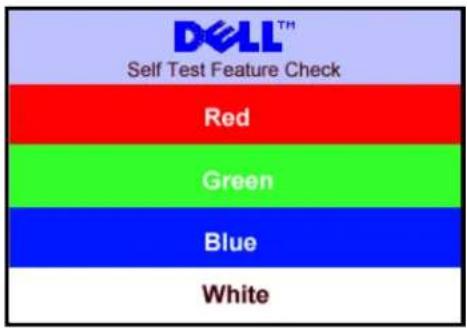
This box also appears during normal system operation if the video cable becomes disconnected or damaged.
- Turn off your LCD TV and reconnect the video cable; then turn on both your computer and the LCD TV. If your LCD TV screen remains blank after you use the previous procedure, check your video controller and computer system; your LCD TV is functioning properly.
OSD Warning Messages
A warning message may appear on the screen indicating LCD TV current status.
| ATTENTION AUTO ADJUSTMENT IN PROCESS | When user see this warning message, it means that the LCD TV is in adjustment process. | |
| ATTENTION CANNOT DISPLAY THIS VIDEO MODE, CHANGE COMPUTER DISPLAY INPUT TO 1280x768@60Hz | A warning message may appear on the screen indicating that the LCD TV is out of sync range. See Specifications for the Horizontal and Vertical frequency ranges addressable by this LCD TV. Recommended mode is 1280x 768 @ 60Hz. | |
| ATTENTION NO VIDEO INPUT SIGNAL | This message means that there is no video input signal. | |
| ATTENTIONIN POWER SAVING MODEPRESS ANY KEY ON KEYBOARDOR MOVE MOUSE | LCD TV is in a power save mode (in PC mode). | |
 | The main OSD menu is unlocked. | |
 | The main OSD menu is locked. | |
Common Problems
The following table contains general information about common LCD TV problems you might encounter.
| COMMON SYMPTOMS | WHAT YOU EXPERIENCE POSSIBLE SOLUTIONS | |
| No Video/ Power LED off | No picture, LCD TV is dead | Check connection integrity at both ends of the video cableElectric outlet verificationEnsure power button depressed fully |
| No Video/ Power LED on | No picture or no brightness | Increase brightness & contrast controlsPerform LCD TV self-test feature checkCheck for bent or broken pins |
| Poor Focus Picture is fuzzy, blurry or ghosting | Push Auto adjust buttonAdjust Phase and Clock controls via OSDEliminate video extension cablesPerform LCD TV resetLower video resolution or increase font size | |
| Shaky/Jittery Video Wavy picture or fine movement | Push Auto Adjust buttonAdjust Phase and Clock controls via OSDPerform LCD TV resetCheck environmental factorsRelocate and test in other room | |
| Missing Pixels LCD screen has spots | Cycle power on-offThese are pixels that are permanently off and is a natural defect that occurs in LCD technology | |
| Stuck-on Pixels LCD screen has bright spots | Cycle power on-offThese are pixels that are permanently on and is a natural defect that occurs in LCD technology | |
| Brightness Problems Picture too dim or too bright | Perform LCD TV resetPush Auto Adjust buttonAdjust brightness & contrast controls | |
| Geometric Distortion Screen not centered correctly | Perform LCD TV reset on "Position Settings Only"Push auto-adjust buttonAdjust the centering controlsEnsure LCD TV is in proper video modeNote: When operating in DVI mode, the positioning adjustments are not available. | |
| Horizontal/Vertical Lines | Screen has one or more lines | Perform LCD TV resetPush Auto Adjust buttonAdjust Phase and Clock controls via OSDPerform LCD TV self-test feature check and determine if these lines are also in self-test modeCheck for bent or broken pinsNote: When operating in DVI mode, the Pixel Clock and Phase adjustments are not available. |
| Sync Problems Screen is scrambled or appears torn | Perform LCD TV resetPush Auto Adjust buttonAdjust Phase and Clock controls via OSDPerform LCD TV self-test feature check to determine if scrambled screen appears in self-test modeCheck for bent or broken pinsBoot up in the "safe mode" | |
| LCD Scratched Screen has scratches or smudges | Turn LCD TV off and clean the screen | |
| Safety Related Issues Visible signs of smoke or sparks | Do not perform any troubleshooting stepsLCD TV needs to be replaced | |
| Intermittent Problems LCD TV malfunctions on & off | Ensure LCD TV is in proper video modeEnsure video cable connection to computer and to the flat panel is securePerform LCD TV resetPerform LCD TV self-test feature check to determine if the intermittent problem occurs in self-test mode | |
TV and Audio Problems
| COMMON SYMPTOMS | WHAT YOU EXPERIENCE POSSIBLE SOLUTIONS | |
| Poor TV signal reception | Abnormal picture seen from the screen | The proximity of mountains or high buildings may be responsible for ghost pictures, echoing or shadows. In this case, try manually adjusting your pictures: see ‘fine tuning’ or adjust the direction of the outside aerial.For Asia users in non-NTSC area: Does your antenna enable you to receive broadcasts in this frequency range (UHF or VHF band)? In the event of difficult reception (snowy pictures) switch the NR on the PICTURE menu to ON. |
| No TV picture | No picture when TV input was selected | Have you connected the aerial socket properly? Have you chosen the right system? Poorly connected SCART cables or aerial sockets are often the cause of picture or sound problems (sometimes the connectors can become half disconnected if the LCD TV set is moved or turned). Check all connections. |
| No sound | No sound output when a program with sound was playing | Ensure that the audio cables are firmly connected to both the audio input connectors on your LCD TV and audio output connectors on your PC or Video player.If on certain TV channels you receive a picture but no sound, this means that you do not have the correct TV system. Modify the SYSTEM setting. |
Video Problems
| COMMON SYMPTOMS | WHAT YOU EXPERIENCE POSSIBLE SOLUTIONS |
| No Video No signal indicator is displayed. | Check Video Input SelectionComposite: Yellow colored RCA jackS-Video: Typically a round 4 pin jackComponent: Typically 3 RCA jacks of Green, Red and Blue. |
| Low Quality DVD playback | Picture not crisp and some color distortionCheck DVD connectionComposite gives good pictureS-Video gives better pictureComponent gives best picture |
| Check if TV volume is turn off of muted | |
| No sound See video but no audio | Connect the audio cable securelyAudio cable is connected incorrectlyVerify that the audio source is selected correctly in the OSD |
Remote Control Problems
| REMOTE CONTROL PROBLEMS | WHAT YOU EXPERIENCE POSSIBLE SOLUTIONS |
| Remote control does not work properly | No response from LCD TV when remote is pressed |
Product Specific Problems
| SPECIFIC SYMPTOMS | WHAT YOU SEE POSSIBLE SOLUTIONS |
| Screen image is too small | Image is centered on screen, but does not fill entire viewing areaPerform LCD TV reset on "All Settings" |
| Cannot adjust the LCD TV with the buttons on the front panel | OSD does not appear on the screenTurn the LCD TV off and unplug the power cord and then plug back and power on |
Specifications: Dell™ W2300 LCD TV User's Guide
General • Flat Panel • Resolution • PC Display Modes • TV Display Modes • HDTV Display Modes • SDTV • Electrical • Physical Characteristics • Environmental • Power Management Modes • TV and Video Power Management Modes • Pin Assignments • Plug and Play Capability
General
Model number W2300 LCD TV
Flat Panel
Screen dimensions
Screen type Active matrix - TFT LCD
Screen dimensions 23 inches (23-inch viewable image size)
Preset display area:
Horizontal 501.12±3 mm (20.04 inches ± 0.12 inches)
Vertical 300.67± 3 mm (12.03 inches ± 0.12 inches)
Pixel pitch 0.3915 mm
Viewing angle +/- 88° (vertical) typ, +/- 88° (horizontal) typ
Luminance output 450 CD/m ^2 (typ)
Contrast ratio 400 to 1 (typ)
Faceplate coating Anti-glare
Backlight CCFL (12)
Panel Weight 2.7 Kg/ 5.95lbs
Resolution
Horizontal scan range 30 kHz to 61kHz (automatic)
Vertical scan range 56 Hz to 75 Hz (automatic)
Optimal preset resolution
1280 x 768 at 60 Hz
Highest addressable
1280 x 768 at 75 Hz
resolution
* Addressable means the LCD TV will sync up to this mode.
However, Dell does not guarantee the image will be sized, shaped and centered correctly.
| Display Mode Horizontal Frequency (kHz) | Vertical Frequency (Hz) | Pixel Clock (MHz) | Sync Polarity (Horizontal/Vertical) |
| VGA, 720x 400 31.4 | 69 70.087 28.3 -/+ | ||
| VGA, 640x 480 31.4 | 69 59.940 25.2 -/- | ||
| VESA, 640 x 480 37 | .500 75.000 31.5 -/- | ||
| VESA, 800 x 600 37 | .879 60.317 40.0 +/+ | ||
| VESA, 800 x 600 46 | .875 75.000 49.5 +/+ | ||
| VESA, 1024 x 768 4 | 8.363 60.004 65.0 -/- | ||
| VESA, 1024 x 768 6 | 0.023 75.029 78.8 +/+ | ||
| VESA, 1280 x 768 4 | 7.776 59.870 79.5 -/+ | ||
| VESA, 1280 x 768 6 | 0.289 74.893 102.25 -/+ | ||
| VESA, 1280 x 768 4 | 7.396 59.995 68.25 +/- |
TV Display Modes
Americas model
| Band Assignment | AIR CH CATV CH | |||
| CH Video Carrier (MHz) | CH | Video Carrier (MHz) STD | ||
| VHF LOW | 02-06 | 55.25-83.25 | 02-15 | 55.25-127.25 |
| VHF HIGH | 07-13 | 175.25-211.25 | 16-44 | 133.25-343.25 |
| UHF | 14-69 | 471.25-801.25 | 45-125 | 349.25-799.25 |
HDTV Display Modes
| Display Mode | Horizontal Frequency (kHz) | Vertical Frequency (Hz) | Pixel Clock (MHz) | Scan |
| 1920 X 1080i | 33.75 | 60 | 74.25 | Interlace |
| 1280 X 720P | 45 | 60 | 74.25 | Progressive |
| 1920 X 1080i | 28.125 | 50 | 74.25 | Interlace |
| 1280 X 720P | 37.5 | 50 | 74.25 | Progressive |
SDTV
| Characteristics | PAL | NTSCM |
| Lines per picture 625 frames 525 frames | ||
| Field frequency, nominal value 60 fields/s 59.94 fields/s | ||
| Nominal video bandwidth 5HMz 4.2 MHz | ||
| Nominal line period 64μs 63.5555μs | ||
| Line-blanking interval 12±0.3μs 10.9±0.2μs | ||
| Interval between time datum (0H) and back edge of line-blanking pulse | 10.5μs 9.2 to 10.3 | μs |
| Front porch 1.5±0.3μs 1.27 to 2.22μs | ||
| Synchronizing pulse 4.7±0.2μs 4.7±0.1μs | ||
| Build-up time of the line blacking pulse | 0.3±0.1μs =/< 0.48 μs | |
| Build-up time of the line synchronizing pulse | 0.2±0.1μs | =< 0.25μs |
| Start of sub-carrier burst | 5.6±0.1μs 5.3(4.7) to 5.71)μs | |
| Duration of sub-carrier burst | 2.25±0.23 (10±1 cycles)μs | 2.23±3.11 (9±1 cycles)μs |
Electrical for PC
| Video input signals | Analog RGB, 0.7 Volts +/-5%, positive polarity at 75 ohm input impedanceDigital DVI-D TMDS, 600mV for each differential line, positive polarity at 50 ohm input impedance |
| Synchronization input signals | Separate horizontal and vertical synchronizations, polarity-free TTL level, Composite |
| AC input voltage / frequency | 90 to 264 VAC / 50 or 60 Hz ± 2Hz |
Physical Characteristics
| Connector type 15-pin D-subminiature, blue connector; DVI-D, white connector | |
| Signal cable type | Analog: Detachable, D-sub, 15pin, shipped detached to the LCD TVDigital: Detachable, DVI-D, Solid pins, shipped detached from the LCD TV |
| Dimensions: (without packing) | |
| Height | 448.0 mm (17.63 inches) |
| Width | 758.0 mm (29.84 inches) |
| Depth | 265.5 mm (10.45 inches) |
| Weight (LCD TV only) | 13.8 Kg (30.4 lbs) |
| Weight (with packaging) | 18.7 Kg (41.21 lbs) |
Environmental
Temperature:
Operating 0°C to 35°C (32°F to 95°F)
Nonoperating Storage: 0 to 60°C (32°F to 140°F)
Shipping: -20 to 60°C(-4°F to 140°F)
Humidity:
Operating 10% to 80% (noncondensing)
Nonoperating Storage: 5% to 90% (noncondensing)
Shipping: 5% to 90%(noncondensing)
Altitude:
Operating 3,657.6m (12,000 ft) max
Nonoperating 12,192 m (40,000 ft) max
Thermal dissipation 239BTU/hour (typical at PC model)
342 BTU/hour (typical at TV model))
Power Management Modes
If you have VESA's DPMS compliance display card or software installed in your PC, the LCD TV can automatically reduce its power consumption when not in use. This is referred to as 'Power Save Mode'*. If input from keyboard, mouse or other input devices is detected by the computer, the LCD TV will automatically "wake up". The following table shows the power consumption and signaling of this automatic power saving feature:
PC display power management mode
| Power Management Definition | |||||
| VESA Modes Video H-sync V-sync Power Used LED color | |||||
| ON Active Yes Yes 70W (typical) Green | |||||
| OFF Blanked No | No | < 3 W Amber | |||

NOTE: In Power Saving Mode, Press Any Key on Keyboard or Move Mouse. Activate the computer and 'wake up' the LCD TV to gain access to the OSD.
TV and Video Power Management Modes
| Power management Definition | ||||
| Display | Video Power State | Power | Used | LED color |
| ON | Active | Always On | 100W(typical) | Green |
| Stand by Blanked Off after 30minutes | of no signal < 3W Amber | |||
| Power switch off Active/Blanked Off < 1W OFF | ||||
This monitor is ENERGY STAR®-compliant as well as TCO '99 power management compatible.

* Zero power consumption in OFF mode can only be achieved by disconnecting the main cable from the monitor.
ENERGY STAR® is a U.S. registered mark. As an ENERGY STAR® Partner, DELL has determined that this product meets the ENERGY STAR® guidelines for energy efficiency.

NOTE: This LCD TV automatically returns to normal operation when horizontal and vertical sync return, which occurs when you move the computer's mouse or press a key on the keyboard.
Pin Assignments
15-pin D-Sub connector:

| Pin Number L | CD TV Side of the 15-Pin Side Signal Cable |
| 1 Red | |
| 2 Green | |
| 3 Blue | |
| 4 GND | |
| 5 Self test | |
| 6 Red GND | |
| 7 Green GND | |
| 8 Blue GND | |
| 9 +5V (supply | form PC) |
| 10 Sync GND | |
| 11 GND | |
| 12 Bi-directional data (SDA) | |
| 13 H. Sync | |
| 14 V. Sync (vclk) | |
| 15 Data clock | (SCL) |
24 pin digital-only DVI cable:

Note: Pin 1 is at the top right.
| Pin | Signal Assignment | Pin | Signal Assignment | Pin | Signal Assignment |
| 1 | T.M.D.S. Data 2- | 9 | T.M.D.S. Data 1- | 17 | T.M.D.S. Data 0- |
| 2 | T.M.D.S. Data 2+ | 10 | T.M.D.S. Data 1+ | 18 | T.M.D.S. Data 0+ |
| 3 | T.M.D.S. Data 2 Shield | 11 | T.M.D.S. Data 1 Shield | 19 | T.M.D.S. Data 0 Shield |
| 4 No | Pin 12 No Pin 20 No Pin | ||||
| 5 No | Pin 13 No Pin 21 No Pin | ||||
| 6 | DDC Clock | 14 | +5V Power | 22 | T.M.D.S. Clock Shield |
| 7 DDC Data 15 Self test 23 T.M.D.S. Clock + | |||||
| 8 | No Connect | 16 | Hot Plug Detect | 24 | T.M.D.S. Clock - |
Plug and Play Capability
You can install the LCD TV in any Plug and Play-compatible system. The LCD TV automatically provides the computer system with its Extended Display Identification Data (EDID) using Display Data Channel (DDC) protocols so the system can configure itself and optimize the LCD TV settings.
Back to Contents Page
Regulatory: Dell™ W2300 LCD TV User's Guide
Energy Efficiency • Federal Communications Commission (FCC) Notice (U.S. Only) • Canadian Regulatory Information (Canada Only) • MIC Notice (Republic of Korea Only) • NOM Information (Mexico Only) • Regulatory Listing
Energy Efficiency

The proper operation of the function requires a computer with VESA® DPMS power management capabilities. When used with a computer equipped with VESA® DPMS, the monitor is ENERGY STAR®-compliant. As an ENERGY STAR® Partner, Dell Computer Corporation has determined that this product meets the ENERGY STAR® guidelines for energy efficiency.
Federal Communications Commission (FCC) Notice (U.S. Only)
Caution: This equipment has been tested and found to comply with the limits for a Class B digital device, pursuant to Part 15 of the FCC Rules. These limits are designed to provide reasonable protection against harmful interference in a residential installation. This equipment generates, uses, and can radiate radio frequency energy and, if not installed and used in accordance with the instructions, may cause harmful interference to radio communications. However, there is no guarantee that interference will not occur in a particular installation. If this equipment does cause harmful interference to radio or television reception, which can be determined by turning the equipment off and on, the user is encouraged to try to correct the interference by one or more of the following measures:
• Reorient or relocate receiving antenna.
- Increase the separation between the equipment and receiver.
- Connect the equipment into an outlet on a circuit different from that to which the receiver is connected.
- Consult the dealer or an experienced radio/TV technician for help.
This device complies with Part 15 of the FCC rules. Operation is subject to the following two conditions:
• This device may not cause harmful interference.
- This device must accept any interference received including interference that may cause undesired operation.
Instructions to Users: This equipment complies with the requirements of FCC (Federal Communication Commission) equipment provided that following conditions are met.
- Power cable: Shielded power cable should be used.
- Video inputs: The input signal amplitude must not exceed the specified level.
Notice: Changes or modifications not expressly approved by the party responsible for compliance could void the user's authority to operate the equipment.
Canadian Regulatory Information (Canada Only)
This digital apparatus does not exceed the Class B limits for radio noise emissions from digital apparatus set out in the Radio Interference Regulations of the Canadian Department of Communications.
Note that Canadian Department of Communications (DOC) regulations provide, that changes or modifications not expressly approved by Dell Computer Corporation could void your authority to operate this equipment.
This Class B digital apparatus meets all requirements of the Canadian Interference-Causing Equipment Regulations.
NOM Information (Mexico Only)
The following information is provided on the device(s) described in this document in compliance with the requirements of the official Mexican standards (NOM):
| Dell Computer Corporation | |
| Exporter: | One Dell WayRound Rock, TX 78682 |
| Dell Computer de México, | |
| Importer: | S.A. de C.V. Rio Lerma No. 302 - 4o PisoCol. Cuauhtemoc 16500 México, D.F. |
| Dell Computer de México, | |
| Ship to: | S.A. de C.V. al Cuidado de Kuehne & Nagelde México S. de R.I., Avenida Soles No. 55Col. Peñon de los Baños, 15520 México, D.F. |
Supply voltage: 90-264 VAC
Frequency: 50-60 Hz
Current consumption: 1.6-0.8A
Safety Certifications:
- UL 1950
• CSA 950
• NOM
EMC Certifications:
- FCC Part 15 Class B
Energy Consumption and Ergonomics:
- ENERGY STAR®
Technical Assistance • Automated Order-Status Service • Contacting Dell
Technical Assistance
If you need help with a technical problem, Dell is ready to assist you.
1 Call technical support from a telephone near or at the LCD TV so that technical support can assist you with any necessary procedures. When calling Dell, use your Express Service Code to help expedite the routing of your call to the proper support personnel. The Express Service Code is located on the LCD TV as shown below.

Note: Dell's Express Service Code system may not be available in all countries.
2 In the U.S., Business customers should call 1-877-459-7298, and Consumer (Home and Home Office) customers should call 1-800-624-9896. If you are calling from a different country or are in a different Service area, see "Contacting Dell" for your local telephone number.
3 Follow the menu prompts in the automated telephone system to speak with a technical support representative.
Automated Order-Status Service
To check on the status of any Dell™ products that you have ordered, you can go to support.dell.com, or you can call the automated order-status service. A recording prompts you for the information needed to locate and report on your order. See "Contacting Dell" for the telephone number to call for your region.
Contacting Dell
To contact Dell electronically, you can access the following website:
- www.dell.com
• support.dell.com (technical support)
- premiersupport.dell.com (technical support for educational, government, healthcare, and medium/large business customers, including Premier, Platinum, and Gold customers)
For specific web address for your country, find the appropriate country section in the table below.
Note: Toll-free numbers are for use within the country for which they are listed.
When you need to contact Dell, use the electronic addresses, telephone numbers, and codes provided in the following table. If you need assistance in determining which codes to use, contact a local or an international operator.
Canada (North York, Ontario) Online Order Status: www.dell.ca/ostatus
International Access Code: 011 Auto Tech (automated technical support) toll-free: 1-800-247-9362
TechFax toll-free: 1-800-950-1329
Customer Care (Home Sales/Small Business) toll-free: 1-800-847-4096
Customer Care (med./large business, government) toll-free: 1-800-326-9463
Technical Support (Home Sales/Small Business) toll-free: 1-800-847-4096
Technical Support (med./large bus., government) toll-free: 1-800-387-5757
Sales (Home Sales/Small Business) toll-free: 1-800-387-5752
Sales (med./large bus., government) toll-free: 1-800-387-5755
Spare Parts Sales & Extended Service Sales 1 866 440 3355
Mexico Customer Technical Support
International Access Code: 00 Sales
Country Code: 52
Customer Service
Main
001-877-384-8979
or 001-877-269-3383
50-81-8800
or 01-800-888-3355
001-877-384-8979
or 001-877-269-3383
50-81-8800
or 01-800-888-3355
U.S.A. (Austin, Texas)
International Access Code: 011
Country Code: 1
Technical Support
Customer Service
DellNet™ Service and Support
Automated Order-Status Service
AutoTech (portable and desktop computers)
Consumer (Home and Home Office)
toll-free: 1-800-624-9896
toll-free: 1-800-624-9897
toll-free: 1-800-433-9014
toll-free: 1-800-247-9362
toll-free: 1-877-Dellnet
(1-877-335-5638)
toll-free: 1-800-695-8133
Financial Services website: www.dellfinancialservices.com
Financial Services (lease/loans)
toll-free: 1-877-577-3355
Financial Services (Dell Preferred Accounts [DPA])
toll-free: 1-800-283-2210
Business
Customer Service and Technical Support
toll-free: 1-800-822-8965
Employee Purchase Program (EPP) Customers
toll-free: 1-800-695-8133
Projectors Technical Support
toll-free: 1-877-459-7298
Public (government, education, and healthcare)
Customer Service and Technical Support toll-free: 1-800-234-1490
Employee Purchase Program (EPP) Customers toll-free: 1-800-234-1490
Dell Sales
toll-free: 1-800-289-3355
or toll-free: 1-800-879-3355
Dell Outlet Store (Dell refurbished computers) toll-free: 1-888-798-7561
Software and Peripherals Sales toll-free: 1-800-671-3355
Spare Parts Sales toll-free: 1-800-357-3355
Extended Service and Warranty Sales toll-free: 1-800-247-4618
Fax toll-free: 1-800-727-8320
Dell Services for the Deaf, Hard-of-Hearing, or
Speech-Impaired
toll-free: 1-877-DELLTTY
(1-877-335-5889)
Limited Warranties
Limited Warranties for Dell Branded Hardware Products (U.S. Only) • "Total Satisfaction" Return Policy (U.S. Only) • Limited Warranty Terms for Dell-Branded Hardware Products (Canada Only) • "Total Satisfaction" Return Policy (Canada Only) • Dell Software and Peripherals (Canada Only) • 1-Year End-User Manufacturer Guarantee (Latin America and the Caribbean Only)
Limited Warranties and Return Policy
Dell-branded hardware products purchased in the U.S. or Canada come with either a 90-day, 1-year, 2-year, 3-year, or 4-year limited warranty. To determine which warranty came with your hardware product(s), see your packing slip or invoice. The following sections describe the limited warranties and return policy for the U.S., the limited warranties and return policy for Canada, the manufacturer guarantee for Latin America and the Caribbean, and the Intel® Pentium® and Celeron® warranty for the U.S. and Canada.
Limited Warranties for Dell Branded Hardware Products (U.S. Only)
What is covered by this limited warranty?
This limited warranty covers defects in materials and workmanship in your—our end-user customer's—Dell-branded hardware products, including Dell-branded peripheral products.
What is not covered by this limited warranty?
This limited warranty does not cover:
- Software, including the operating system and software added to the Dell-branded hardware products through our factory-integration system, third-party software, or the reloading of software
• Non-Dell-branded and Solution Provider Direct products and accessories - Problems that result from:
-External causes such as accident, abuse, misuse, or problems with electrical power
-Servicing not authorized by Dell
-Usage that is not in accordance with product instructions
-Failure to follow the product instructions or failure to perform preventive maintenance
-Problems caused by using accessories, parts, or components not supplied by Dell
- Products with missing or altered Service Tags or serial numbers
• Products for which Dell has not received payment
THIS WARRANTY GIVES YOU SPECIFIC LEGAL RIGHTS, AND YOU MAY ALSO HAVE OTHER RIGHTS WHICH VARY FROM STATE TO STATE (OR JURISDICTION TO JURISDICTION). DELL'S RESPONSIBILITY FOR MALFUNCTIONS AND DEFECTS IN HARDWARE IS LIMITED TO REPAIR AND REPLACEMENT AS SET FORTH IN THIS WARRANTY STATEMENT. ALL EXPRESS AND IMPLIED WARRANTIES FOR THE PRODUCT, INCLUDING BUT NOT LIMITED TO ANY IMPLIED WARRANTIES AND CONDITIONS OF MERCHANTABILITY AND FITNESS FOR A PARTICULAR PURPOSE, ARE LIMITED IN TIME TO THE TERM OF THE LIMITED WARRANTY PERIOD REFLECTED ON YOUR PACKING SLIP OR INVOICE. NO WARRANTIES, WHETHER EXPRESS OR IMPLIED, WILL APPLY AFTER THE LIMITED WARRANTY PERIOD HAS EXPIRED. SOME STATES DO NOT ALLOW LIMITATIONS ON HOW LONG AN IMPLIED WARRANTY LASTS, SO THIS LIMITATION MAY NOT APPLY TO YOU. WE DO NOT ACCEPT LIABILITY BEYOND THE REMEDIES PROVIDED FOR IN THIS LIMITED WARRANTY OR FOR CONSEQUENTIAL OR INCIDENTAL DAMAGES, INCLUDING, WITHOUT LIMITATION, ANY LIABILITY FOR THIRD-PARTY CLAIMS AGAINST YOU FOR DAMAGES, FOR PRODUCTS NOT BEING AVAILABLE FOR USE, OR FOR LOST DATA OR LOST SOFTWARE. OUR LIABILITY WILL BE NO MORE THAN THE AMOUNT YOU PAID FOR THE PRODUCT THAT IS THE SUBJECT OF A CLAIM. THIS IS THE MAXIMUM AMOUNT FOR WHICH WE ARE RESPONSIBLE.
SOME STATES DO NOT ALLOW THE EXCLUSION OR LIMITATION OF INCIDENTAL OR CONSEQUENTIAL DAMAGES, SO THE ABOVE LIMITATION OR EXCLUSION MAY NOT APPLY TO YOU.
How long does this limited warranty last?
- This limited warranty lasts for the time period indicated on your packing slip or invoice, except for the following Dell-branded hardware:
- Portable computer batteries carry a 1-year limited warranty.
- Projector lamps carry a 90-day limited warranty.
• Memory carries a lifetime limited warranty. - Monitors carry the longer of either a 3-year limited warranty or the remainder of the warranty for the Dell computer to which the monitor will be connected.
Other add-on hardware carries the longer of either a 1-year limited warranty for new parts and a 90-day limited warranty for reconditioned parts or, for both new and reconditioned parts, the reminder of the warranty for the Dell computer on which such parts are installed.
The limited warranty on all Dell-branded products begins on the date of the packing slip or invoice. The warranty period is not extended if we repair or replace a warranted product or any parts. Dell may change the availability of limited warranties, at its discretion, but any changes will not be retroactive.
What do I do if I need warranty service?
Before the warranty expires, please call us at the relevant number listed in the following table. Please also have your Dell Service Tag or order number available.
| Individual Home Consumers : U.S. Only | |
| Technical Support 1-800-624-9896 | |
| Customer Service 1-800-624-9897 | |
| Individual Home Consumers who purchased through an Employee Purchase Program: | |
| Technical Support and Customer Service 1-800-822-8965 | |
| Home and Small Business Commercial Customers: | |
| Technical Support and Customer Service 1-800-456-3355 | |
| Medium, Large, or Global Commercial Customers, Healthcare Customers, and Value-Added Resellers (VARs): | |
| Technical Support and Customer Service 1-800-822-8965 | |
| Government and Education Customers: | |
| Technical Support and Customer Service 1-800-234-1490 | |
| Dell-Branded Memory 1-888-363-5150 |
What will Dell do?
During the 90 days of the 90-day limited warranty and the first year of all other limited warranties: During the 90 days of the 90-day limited warranty and the first year of all other limited warranties, we will repair any Dell-branded hardware products returned to us that prove to be defective in materials or workmanship. If we are not able to repair the product, we will replace it with a comparable product that is new or refurbished.
When you contact us, we will issue a Return Material Authorization Number for you to include with your return. You must return the products to us in their original or equivalent packaging, prepay shipping charges, and insure the shipment or accept the risk if the product is lost or damaged in shipment. We will return the repaired or replacement products to you. We will pay to ship the repaired or replaced products to you if you use an address in Canada. Otherwise, we will ship the product to you freight collect.
If we determine that the problem is not covered under this warranty, we will notify you and inform you of service alternatives that are available to you on a fee basis.
NOTE: Before you ship the product(s) to us, make sure to back up the data on the hard drive(s) and any other storage device(s) in the product(s). Remove any confidential, proprietary or personal information, removable media, such as floppy

disks, CDs, or PC Cards. We are not responsible for any of your confidential, proprietary or personal information; lost or corrupted data; or damaged or lost removable media.
During the remaining years following the first year of all limited warranties: We will replace any defective part with new or refurbished parts, if we agree that it needs to be replaced. When you contact us, we will require a valid credit card number at the time you request a replacement part, but we will not charge you for the replacement part as long as you return the original part to us within 30 days after we ship the replacement part to you. If we do not receive the original part within 30 days, we will charge to your credit card the then-current standard price for that part.
We will pay to ship the part to you if you use an address in Canada. Otherwise, we will ship the part freight collect. We will also include a prepaid shipping container with each replacement part for your use in returning the replaced part to us.

NOTE: Before you replace parts, make sure to back up the data on the hard drive(s) and any other storage device(s) in the product(s). We are not responsible for lost or corrupted data.
What if I purchased a service contract?
If your service contract is with Dell, service will be provided to you under the terms of the service contract. Please refer to that contract for details on how to obtain service. Dell's service contracts can be found online at www.dell.ca or by calling Customer Care at 1-800-847-4096. If you purchased through us a service contract with one of our third-party service providers, please refer to that contract (mailed to you with your packing slip or invoice) for details on how to obtain service.
How will you fix my product?
We use new and refurbished parts made by various manufacturers in performing warranty repairs and in building replacement parts and systems. Refurbished parts and systems are parts or systems that have been returned to Dell, some of which were never used by a customer. All parts and systems are inspected and tested for quality. Replacement parts and systems are covered for the remaining period of the limited warranty for the product you bought. Dell owns all parts removed from repaired products.
May I transfer the limited warranty?
Limited warranties on systems may be transferred if the current owner transfers ownership of the system and records the transfer with us. The limited warranty on Dell-branded memory may not be transferred. You may record your transfer by going to Dell's website:
- If you are an Individual Home Consumer, go to www.dell.com/us/en/dhs/topics/sbtopic_015_ccare.htm www.dell.ca/ca/en/gen/topics/segtopic_ccare_nav_013_ccare.htm
- If you are a Home Office, Small, Medium, Large, or Global Commercial Customer, go to www.dell.com/us/en/biz/topics/sbtopic_ccare_nav_015_ccare.htm
- If you are a Government, Education, or Healthcare Customer, or an Individual Home Consumer who purchased through an Employee Purchase Program, go to www.dell.com/us/en/pub/topics/sbtopic_015_ccare.htm
If you do not have Internet access, call your customer care representative or call 1-800-624-9897.
"Total Satisfaction" Return Policy (U.S. Only)
We value our relationship with you and want to make sure that you're satisfied with your purchases. That's why we offer a "Total Satisfaction" return policy for most products that you—the end-user customer—purchase directly from Dell. Under this policy, you may return to Dell products that you purchased directly from Dell for a credit or a refund of the purchase price paid, less shipping and handling and applicable return fees as follows:
- New Hardware Products and Accessories — All new hardware, accessories, parts, and unopened software still in its sealed package, excluding the products listed below, may be returned within 30 days from the date on the packing slip or invoice. To return applications software or an operating system that has been installed by Dell, you must return the entire computer. A different return policy applies to nondefective products purchased through Dell's Software and Peripherals division by customers of our Small and Medium Business divisions. Those products may be returned within 30 days from the date on the packing slip or invoice, but a fifteen percent (15%) return fee will be deducted from any refund or credit. The "Total Satisfaction" Return Policy and Software and Peripherals division return policy are not available for Dell | EMC storage products, EMC-branded products, Unisys-branded products, PowerVault™ 160T tape libraries, or enterprise software.
- Reconditioned or Refurbished Dell-Branded Hardware Products and Parts — All reconditioned or refurbished Dell-branded server and storage products may be returned within 30 days from the date on the packing slip or invoice. All other reconditioned or refurbished Dell-branded hardware products and parts may be returned within 14 days of the date on the packing slip or invoice.
To return products, e-mail or call Dell customer service to receive a Credit Return Authorization Number within the return policy period applicable to the product you want to return. You must obtain a Credit Return Authorization Number in order to return the product. See "Contacting Dell" or "Getting Help" in your customer documentation (or www.dell.com/us/en/gen/contact.htm) to find the appropriate contact information for obtaining customer assistance.
You must ship the products to Dell within 5 days of the date that Dell issues the Credit Return Authorization Number. You must also return the products to Dell in their original packaging, in as-new condition along with any media, documentation, and all other items that were included in the original shipment, prepay shipping charges, and insure the shipment or accept the risk of loss or damage during shipment.
Limited Warranty Terms for Dell-Branded Hardware Products (Canada Only)
What is covered by this limited warranty?
This limited warranty covers defects in materials and workmanship in your—our end-user customer's—Dell-branded hardware products, including Dell-branded peripheral products.
What is not covered by this limited warranty?
This limited warranty does not cover:
- Software, including the operating system and software added to the Dell-branded hardware products through our factory-integration system, or the reloading of the software
• Non-Dell branded and Solution Provider Direct products and accessories - Problems that result from:
-External causes such as accident, abuse, misuse, or problems with electrical power
-Servicing not authorized by Dell
-Usage that is not in accordance with product instructions
-Failure to follow the product instructions or failure to perform preventive maintenance
-Problems caused by using accessories, parts, or components not supplied by Dell
- Products with missing or altered Service Tags or serial numbers
- Products for which Dell has not received payment
THIS WARRANTY GIVES YOU SPECIFIC LEGAL RIGHTS, AND YOU MAY ALSO HAVE OTHER RIGHTS WHICH VARY FROM PROVINCE TO PROVINCE. DELL'S RESPONSIBILITY FOR MALFUNCTIONS AND DEFECTS IN PRODUCT IS LIMITED TO REPAIR AND REPLACEMENT AS SET FORTH IN THIS WARRANTY STATEMENT, FOR THE TERM OF THE WARRANTY PERIOD REFLECTED ON YOUR PACKING SLIP OR INVOICE. EXCEPT FOR THE EXPRESS WARRANTIES CONTAINED IN THIS WARRANTY STATEMENT, DELL DISCLAIMS ALL OTHER WARRANTIES AND CONDITIONS, EXPRESS OR IMPLIED, INCLUDING WITHOUT LIMITATION IMPLIED WARRANTIES AND CONDITIONS OF MERCHANTABILITY AND FITNESS FOR A PARTICULAR PURPOSE, STATUTORY OR OTHERWISE. SOME PROVINCES DO NOT ALLOW THE EXCLUSION OF CERTAIN IMPLIED WARRANTIES OR CONDITIONS, OR LIMITATIONS ON HOW LONG AN IMPLIED WARRANTY OR CONDITION LASTS. THEREFORE, THE FOREGOING EXCLUSIONS AND LIMITATIONS MAY NOT APPLY TO YOU.
WE DO NOT ACCEPT LIABILITY BEYOND THE REMEDIES PROVIDED FOR IN THIS WARRANTY STATEMENT OR FOR SPECIAL, INDIRECT, CONSEQUENTIAL, OR INCIDENTAL DAMAGES, INCLUDING, WITHOUT LIMITATION, ANY LIABILITY FOR THIRD-PARTY CLAIMS AGAINST YOU FOR DAMAGES, FOR PRODUCTS NOT BEING AVAILABLE FOR USE, OR FOR LOST DATA OR LOST SOFTWARE. OUR LIABILITY WILL BE NO MORE THAN THE AMOUNT YOU PAID FOR THE PRODUCT THAT IS THE SUBJECT OF A CLAIM. THIS IS THE MAXIMUM AMOUNT FOR WHICH WE ARE RESPONSIBLE.
SOME PROVINCES DO NOT ALLOW THE EXCLUSION OR LIMITATION OF SPECIAL, INDIRECT, INCIDENTAL, OR CONSEQUENTIAL DAMAGES, SO THE ABOVE LIMITATION OR EXCLUSION MAY NOT APPLY TO YOU.
How long does this limited warranty last?
This limited warranty lasts for the time period indicated on your packing slip or invoice, except that the limited warranty on Dell-branded batteries lasts only 1 year and the limited warranty on the lamps for Dell-branded projectors lasts only 90 days. The limited warranty begins on the date of the packing slip or invoice. The warranty period is not extended if we repair or replace a warranted product or any parts. Dell may change the terms and availability of limited warranties, at its discretion, but any changes will not be retroactive (that is, the warranty terms in place at the time of purchase will apply to your purchase).
What do I do if I need warranty service?
Before the warranty expires, please call us at the relevant number listed in the following table. Please also have your Dell Service Tag or order number available.
| Individual Home Consumers; Home Office and Small Business Customers: | Canada Only |
| Technical Support and Customer Service | 1-800-847-4096 |
| Medium, Large, and Global Commercial Customers; Government, Education, and Healthcare Customers; and Value-Added Resellers (VARs): | |
| Technical Support 1-800-387-5757 | |
| Customer Service | 1-800-326-9463 |
| Government or Education Customers, or Individual Home Consumers who purchased through an Employee Purchase Program: | |
| Technical Support 1-800-387-5757 | |
| Customer Service | 1-800-326-9463(Extension 8221 for Individual Consumers) |
| Dell-Branded Memory 1-888-363-5150 |
What will Dell do?
During the 90 days of the 90-day limited warranty and the first year of all other limited warranties: During the 90 days of the 90-day limited warranty and the first year of all other limited warranties, we will repair any Dell-branded hardware products returned to us that prove to be defective in materials or workmanship. If we are not able to repair the product, we will replace it with a comparable product that is new or refurbished.
When you contact us, we will issue a Return Material Authorization Number for you to include with your return. You must return the products to us in their original or equivalent packaging, prepay shipping charges, and insure the shipment or accept the risk if the product is lost or damaged in shipment. We will return the repaired or replacement products to you. We will pay to ship the repaired or replaced products to you if you use an address in Canada. Otherwise, we will ship the product to you freight collect.
If we determine that the problem is not covered under this warranty, we will notify you and inform you of service alternatives that are available to you on a fee basis.

NOTE: Before you ship the product(s) to us, make sure to back up the data on the hard drive(s) and any other storage device(s) in the product(s). Remove any confidential, proprietary or personal information, removable media, such as floppy disks, CDs, or PC Cards. We are not responsible for any of your confidential, proprietary or personal information; lost or corrupted data; or damaged or lost removable media.
During the remaining years following the first year of all limited warranties: We will replace any defective part with new or refurbished parts, if we agree that it needs to be replaced. When you contact us, we will require a valid credit card number at the time you request a replacement part, but we will not charge you for the replacement part as long as you return the original part to us within 30 days after we ship the replacement part to you. If we do not receive the original part within 30 days, we will charge to your credit card
the then-current standard price for that part.
We will pay to ship the part to you if you use an address in Canada. Otherwise, we will ship the part freight collect. We will also include a prepaid shipping container with each replacement part for your use in returning the replaced part to us.

NOTE: Before you replace parts, make sure to back up the data on the hard drive(s) and any other storage device(s) in the product(s). We are not responsible for lost or corrupted data.
What if I purchased a service contract?
If your service contract is with Dell, service will be provided to you under the terms of the service contract. Please refer to that contract for details on how to obtain service. Dell's service contracts can be found online at www.dell.ca or by calling Customer Care at 1-800-847-4096. If you purchased through us a service contract with one of our third-party service providers, please refer to that contract (mailed to you with your packing slip or invoice) for details on how to obtain service.
How will you fix my product?
We use new and refurbished parts made by various manufacturers in performing warranty repairs and in building replacement parts and systems. Refurbished parts and systems are parts or systems that have been returned to Dell, some of which were never used by a customer. All parts and systems are inspected and tested for quality. Replacement parts and systems are covered for the remaining period of the limited warranty for the product you bought. Dell owns all parts removed from repaired products.
May I transfer the limited warranty?
Limited warranties on systems may be transferred if the current owner transfers ownership of the system and records the transfer with us. The limited warranty on Dell-branded memory may not be transferred. You may record your transfer by going to Dell's website:
- For Canada-purchased computers (in-country transfers) and to transfer from one customer to another, go to www.dell.ca/ca/en/gen/topics/segtopic_ccare_nav_013_ccare.htm
- For out-of-country transfers (outside of the original country of purchase), go to www.dell.com/us/en/biz/topics/sbtopic_ccare_nav_016_ccare.htm
If you do not have Internet access, call Dell at 1-800-847-4096 (Home Consumer customers) or 1-800-326-9463 (Corporate Commercial or Government customers).
"Total Satisfaction" Return Policy (Canada Only)
If you are an end-user customer who bought new products directly from Dell, you may return them to Dell up to 30 days after you receive them for a refund or credit of the product purchase price. If you are an end-user customer who bought reconditioned or refurbished products from Dell, you may return them to Dell within 14 days after the date on the packing slip or invoice for a refund or credit of the product purchase price. In either case, the refund or credit will not include any shipping and handling charges shown on your packing slip or invoice and will be subject to a fifteen percent (15%) restocking fee, unless otherwise prohibited by law. If you are an organization that bought the products under a written agreement with Dell, the agreement may contain different terms for the return of products than specified by this policy.
To return products, you must call Dell Customer Service at 1-800-847-4096 to receive a Credit Return Authorization Number. To expedite the process of your refund or credit, Dell expects you to return the products to Dell in their original packaging within 5 days of the date that Dell issues the Credit Return Authorization Number. You must also prepay shipping charges and insure the shipment or accept the risk of loss or damage during shipment. You may return software for a refund or credit only if the sealed package containing the floppy disk(s) or CD(s) is unopened. Returned products must be in as-new condition, and all of the manuals, floppy disk(s), CD(s), power cables, and other items included with a product must be returned with it. For customers who want to return, for refund or credit only, either application or operating system software that has been installed by Dell, the whole system must be returned, along with any media and documentation that may have been included in the original shipment.
The "Total Satisfaction" Return Policy does not apply to Dell | EMC storage products. It also does not apply to products purchased through Dell's Software and Peripherals division. For those products, please instead refer to Dell's Software and Peripheral's then-current return policy (see the following section, "Dell Software and Peripherals [Canada Only]").
Dell Software and Peripherals (Canada Only)
Third-Party Software and Peripherals Products
Similar to other resellers of software and peripherals, Dell does not warrant third-party products. Third-party software and peripheral products are covered by the warranties provided by the original manufacturer or publisher only. Third-party manufacturer warranties vary from product to product. Consult your product documentation for specific warranty information. More information may also be available from the manufacturer or publisher.
While Dell offers a wide selection of software and peripheral products, we do not specifically test or guarantee that all of the products we offer work with any or all of the various models of Dell computers, nor do we test or guarantee all of the products we sell on the hundreds of different brands of computers available today. If you have questions about compatibility, we recommend and encourage you to contact the third-party software and peripheral product manufacturer or publisher directly.
Dell-Branded Peripheral Products
Dell does provide a limited warranty for new Dell-branded peripheral products (products for which Dell is listed as the manufacturer) such as monitors, batteries, memory, docking stations, and projectors. To determine which limited warranty applies to the product you purchased, see the Dell packing slip or invoice and/or the product documentation that accompanied your product. Descriptions of Dell's limited warranties are described in preceding sections.
Return Policy
If you are an end-user customer who bought Dell Software and Peripherals products directly from a Dell company, you may return Dell Software and Peripherals products that are in as-new condition to Dell up to 30 days from the date on the packing slip or invoice for a refund of the product purchase price if already paid. This refund will not include any shipping and handling charges shown on your packing slip or invoice; you are responsible for those.
To return products, you must call Dell Customer Service at 1-800-387-5759 to receive a Credit Return Authorization Number. You must ship the Dell Software and Peripherals products back to Dell in their original manufacturer's packaging (which must be in as-new condition), prepay shipping charges, and insure the shipment or accept the risk of loss or damage during shipment.
To qualify for refund or replacement, returned products must be in as-new condition, software products must be unopened, and all of the manuals, floppy disk(s), CD(s), power cables, and other items included with a product must be returned with it.
1-Year End-User Manufacturer Guarantee (Latin America and the Caribbean Only)
Guarantee
Dell Computer Corporation ("Dell") warrants to the end user in accordance with the following provisions that its branded hardware products, purchased by the end user from a Dell company or an authorized Dell distributor in Latin America or the Caribbean, will be free from defects in materials, workmanship, and design affecting normal use, for a period of 1 year from the original purchase date. Products for which proper claims are made will, at Dell's option, be repaired or replaced at Dell's expense. Dell owns all parts removed from repaired products. Dell uses new and reconditioned parts made by various manufacturers in performing repairs and building replacement products.
Exclusions
This Guarantee does not apply to defects resulting from: improper or inadequate installation, use, or maintenance; actions or modifications by unauthorized third parties or the end user; accidental or willful damage; or normal wear and tear.
Making a Claim
Claims must be made in Latin America or the Caribbean by contacting the Dell point of sale within the guarantee period. The end user must always supply proof of purchase, indicating name and address of the seller, date of purchase, model and serial number, name and address of the customer, and details of symptoms and configuration at the time of malfunction, including peripherals and software used. Otherwise, Dell may refuse the guarantee claim. Upon diagnosis of a warranted defect, Dell will make arrangements
and pay for ground freight and insurance to and from Dell's repair/replacement center. The end user must ensure that the defective product is available for collection properly packed in original or equally protective packaging together with the details listed above and the return number provided to the end user by Dell.
Limitation and Statutory Rights
Dell makes no other warranty, guarantee or like statement other than as explicitly stated above, and this Guarantee is given in place of all other guarantees whatsoever, to the fullest extent permitted by law. In the absence of applicable legislation, this Guarantee will be the end user's sole and exclusive remedy against Dell or any of its affiliates, and neither Dell nor any of its affiliates shall be liable for loss of profit or contracts, or any other indirect or consequential loss arising from negligence, breach of contract, or howsoever. This Guarantee does not impair or affect mandatory statutory rights of the end user against and/or any rights resulting from other contracts concluded by the end user with Dell and/or any other seller.
Dell World Trade LP
One Dell Way, Round Rock, TX 78682, USA
Dell Computadores do Brasil Ltda (CNPJ No. 72.381.189/0001-10)
Avenida Industrial Belgraf, 400
92990-000 - Eldorado do Sul - RS - Brasil
Dell Computer de Chile Ltda
Coyancura 2283, Piso 3- Of.302,
Documentation: Dell™ W2300 LCD TV User's Guide
You must right-click the link for a portable document format (PDF) file and save the file to your hard-disk drive. Attempting to link directly to large PDF files causes your system to freeze.
To save PDF files (files with an extension of .pdf) to your hard-disk drive, right-click the document title, click Save Target As in Microsoft® Internet Explorer or Save Link As in Netscape Navigator, and specify a location on your hard-disk drive.
Right-click only the following link:
"Quick Set-up"(.pdf)
To view a PDF file, launch Adobe™ Acrobat Reader. Click File → Open and select the PDF file.

NOTE: PDF files require Adobe Acrobat Reader, which can be downloaded from the Adobe World Wide Web site.
Front View: Dell™ W2300 LCD TV User's Guide
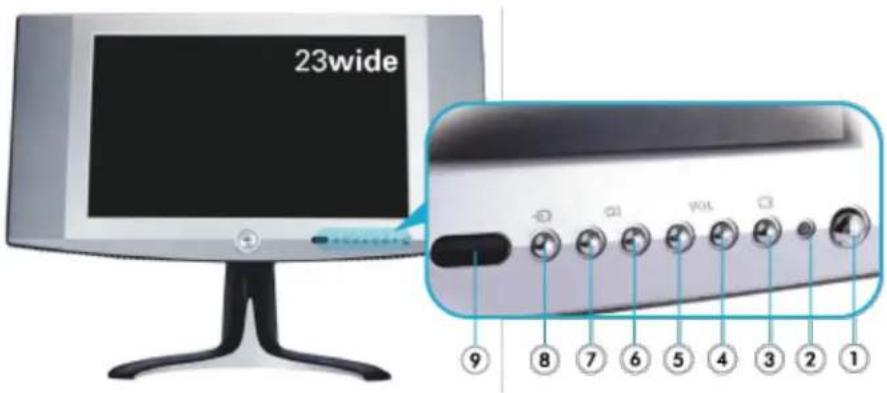
1 Power switch On/Off
2 Power LED Normal operation: Green. Sleeping mode: Amber.
3 Menu Enable OSD menu (enter key for PC).
4 + Volume Increase / Selection
5 Volume Decrease/ Selection
6 ↑ Next channel / Up
7 ↓ Previous channel / Down
8 Input select Input source select key;PC Analog, PC Digital, TV Tuner, Composite, S-Video, Component.
9 IR receiver Sense the signal from remote control handset.
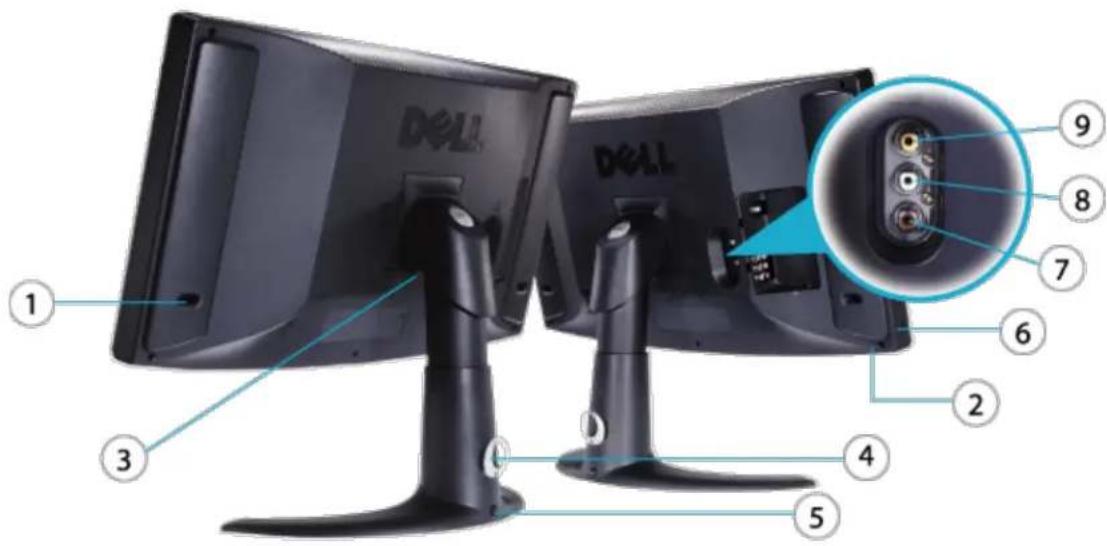
1 Bass-Port
2 Security cable lock
3 Base release button
4 Cable Clip
5 Lock down button
6 Headphone
7-8 PVR-- Audio Out (TV Tuner)
9 PVR-- Video Out (TV Tuner)
Side View: Dell™ W2300 LCD TV Monitor User's Guide

1 TV Antenna or Cable In
S-Video In
2 (paired with composite audio in and video in)
3 Composite Audio In
4 Composite Video In
5 Audio In
(paired with component video in)
6 Earphone In /Line out
7 Component Video In
8 Base Release Button
Bottom View: Dell™ W2300 LCD TV User's Guide
Americas Bottom View
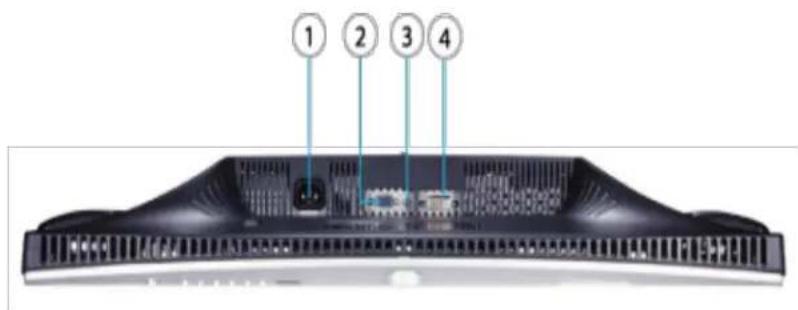
1 AC Inlet (AC in)
2 D-SUB (Analog in)
3 PC Audio in
4 DVI-D (Digital in)
Back to Contents Page
Height-Adjustable Stand (HAS): Dell™ W2300 LCD TV User's Guide
Attaching HAS • Cable Management • Tilt Swivel • Vertical Adjustment • Removing HAS
Attaching HAS
Lay LCD TV on a flat, soft, and clean surface or use the foam cushion shipped with your LCD TV. Attach stand to LCD TV by aligning tabs on stand to the LCD TV.

Cable Management
Run all cables through the provided cable sleeve and then run the sleeve (with cables) through the cable clip in the back of HAS.

Tilt/Swivel
With the attached pedestal, you can tilt and/or swivel the LCD TV for the most comfortable viewing angle.

Vertical Adjustment
Press the Lock Down button at the bottom of the HAS to make any vertical adjustment. HAS travels vertically.

Removing HAS
Lay LCD TV on a flat, soft, and clean surface or use the foam cushion shipped with your LCD TV. Press the release button, and pull up the base.

Attaching the Cables: Dell™ W2300 LCD TV User's Guide
Connecting Your PC • Connecting as a TV • Connecting your DVD/VCD/VCR/CATV Box • Connecting A/V outputs
Connecting your PC

CAUTION: Before performing any of the setup procedures listed below, read and follow the safety instructions.
Connect the power cord to an electrical outlet.

natural_image
Diagram showing a Dell monitor connected to a cable with an orange arrow pointing to its power outlet (no text or symbols present)A. Connection through blue VGA & lime green audio cable
- Connect one end of the blue VGA cable to the VGA plug on W2300, and connect the other end to the VGA plug on your PC.
- Connect one end of the lime green audio cable to the audio jack by the D-sub plug on W2300, and connect the other end to the Audio jack on your PC.
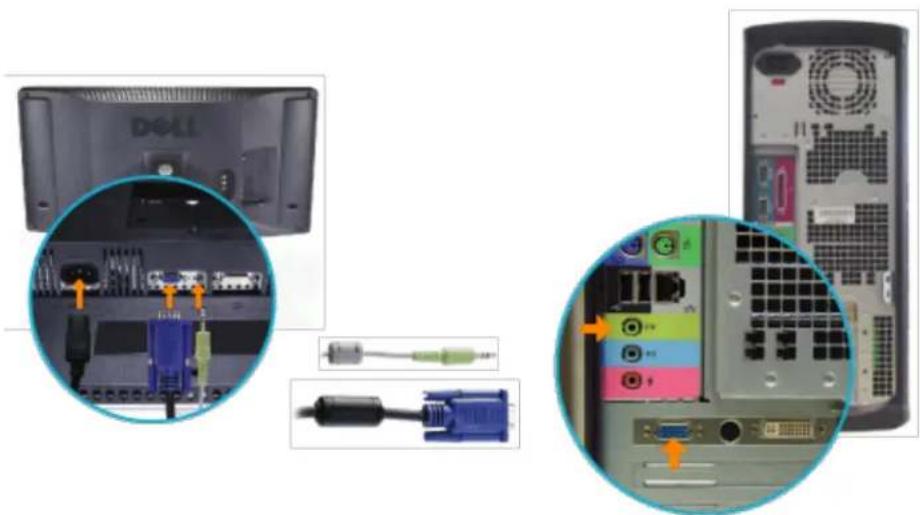
natural_image
Close-up of a Dell monitor internal components with connectors and cables, showing external wiring and ports (no readable text or symbols)OR
B. Connection through white DVI cable & lime green audio cable
- Connect one end of the white DVI cable to the DVI plug on W2300, and connect the other end to the DVI plug on your PC.
- Connect one end of the lime green audio cable to the audio jack by the DVI plug on W2300, and connect the
other end to the audio jack on your PC.
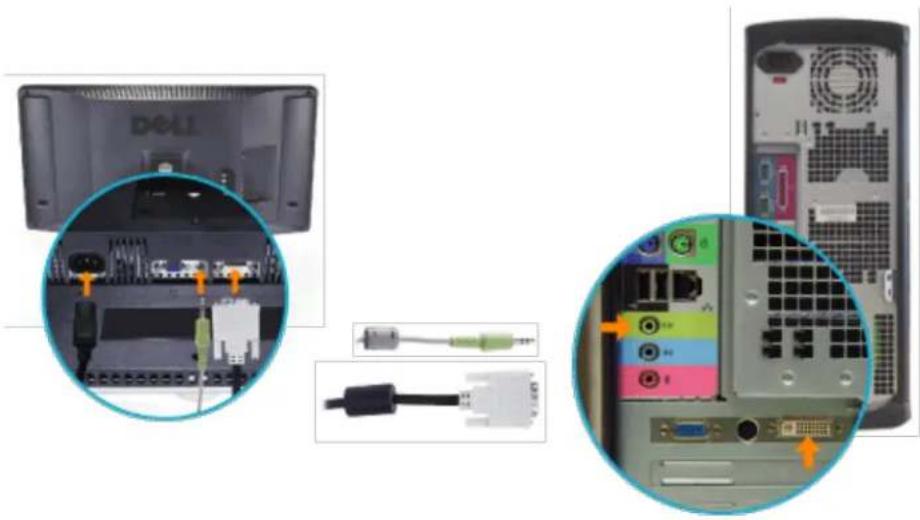
natural_image
Close-up of a Dell computer tower showing internal components including cable, drive, and ports (no text or symbols visible)Connecting as a TV
Cable TV · Antenna · TV to VCR
Cable TV
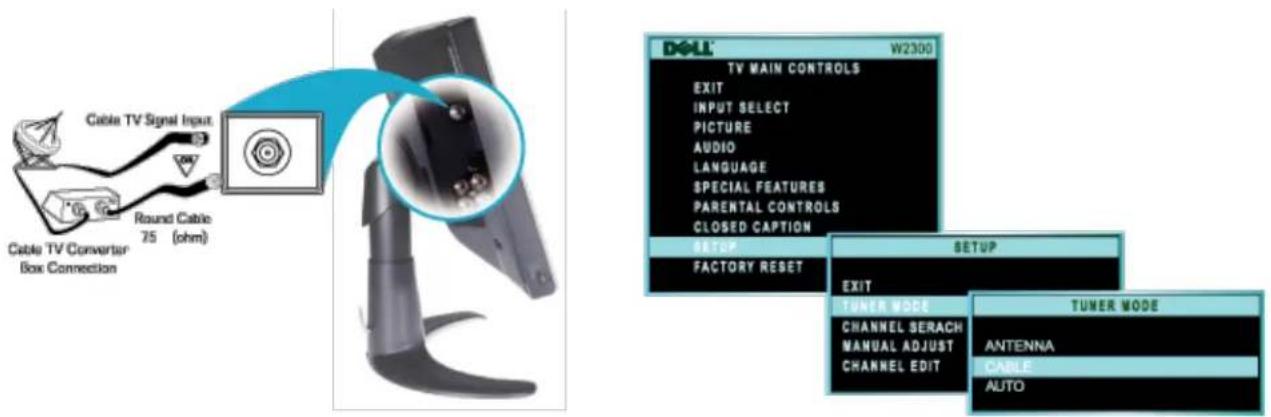
- If your Cable TV signal is a single, round cable (75 ohm), then you're ready to connect to the TV. Connect the TV cable to the ANTENNA/CABLE plug on the TV.
- If you have a cable converter box, connect the cable TV signal to the IN (put) plug on the converter, connect the OUT(put) plug from the converter to the 75 Ω (ohm) plug on the TV.
- Verify that the On Screen Display (OSD) is set to Cable.
Note: The connecting cable for the converter is supplied by the Cable TV company.
Antenna

-
If your antenna has a round cable (75 ohm) on the end, then you're ready to connect it to the TV. If your antenna has flat, twin-lead wire (300 ohm), you first need to attach the antenna wires to the screws on a 300 -to 75- ohm adapter.
-
Push the round end of the adapter (or antenna) onto the 75Ω (ohm) plug on the back of the TV. If the round end of the antenna wire is threaded, screw it down finger tight.
-
Verify that the On Screen Display (OSD) is set to Antenna.

Note: If your home has separate UHF and VHF antennas, you will need a combiner to connect to the TV.
TV to VCR
Follow the steps below to connect a basic antenna or Cable TV signal to a VCR, and then
the VCR to the TV. For information on other hookups (possible when cable/ descrambler boxes are included), refer to the owner's manuals for the VCR and the cable converter.
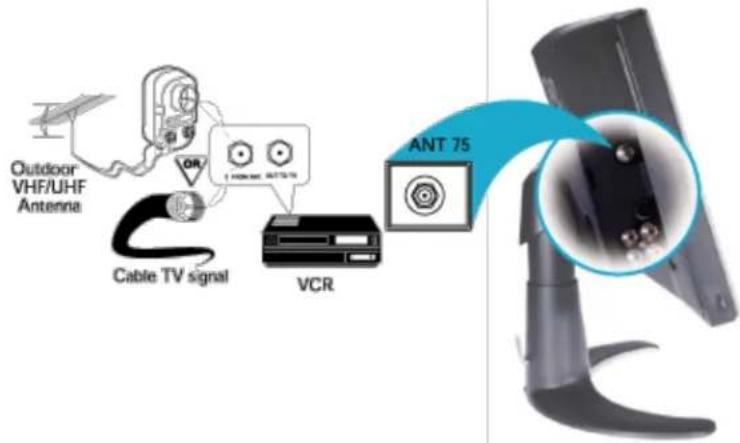
- Connect your antenna or Cable TV signal to the IN FROM ANT (enna) plug on the VCR.
- Connect the OUT TO TV plug on the VCR to the 75 ohm plug on the TV (connecting cable supplied with the VCR).
- Refer to the owner's manual included with your VCR for other possible connections and TV/VCR operating details.
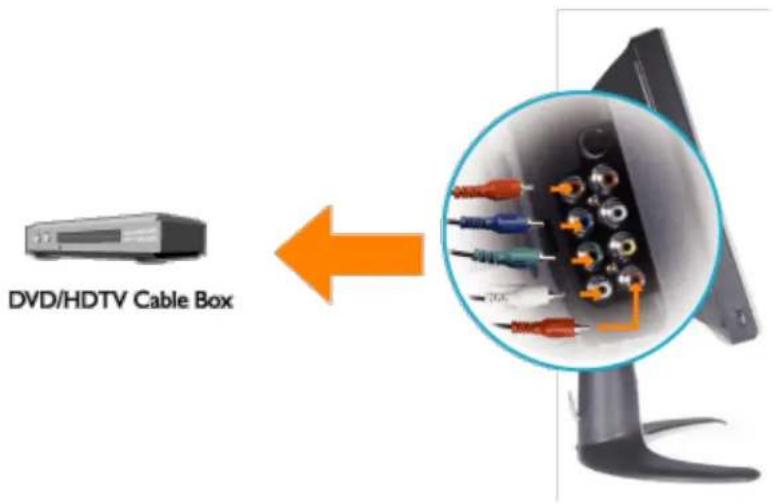
Connecting to DVD/VCD/VCR/CATV BOX
Connect devices with cables provided. Select Composite or S-Video input from On Screen Display (OSD) Menu. Refer to the Controls and Indicators section in this document for more information on the OSD. S-Video Source generally yields better video performance than composite.

Connect device with cables provided. Select Component input from OSD Menu. For optimal performance use YPbPr for HDTV formats.
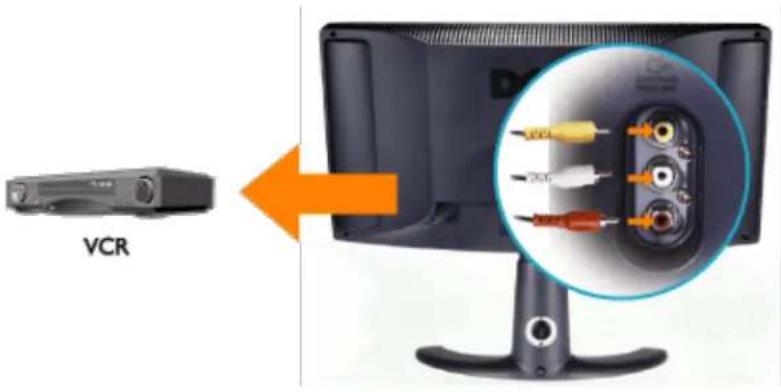
Connecting A/V Outputs
- The Composite output jacks on W2300 back cover provides the function to record your favorite program through broadcast or cable TV.
- Connect devices (VCR, Camcorder...) with cables provided. Select TV input from OSD Menu.
Proper location: Dell™ W2300 LCD TV User's Guide
Consider the following environmental factors when you are deciding how to position the LCD TV:
- Do not store or use the LCD TV in locations exposed to heat, direct sunlight, or extreme cold.
- Avoid moving the LCD TV between locations with large temperature differences. Please refer to the Specifications section.
- Do not subject the LCD TV to severe vibration or high impact conditions. Do not place the LCD TV inside a car trunk.
- Do not store or use the LCD TV in locations exposed to high humidity or dusty environment. Also do not allow water or other liquids to spill on or into the LCD TV.
- Keep flat panel monitor in room temperature conditions. Excessive cold or hot conditions can have an adverse effect on the liquid crystal of the display.
Maintenance: Dell™ W2300 LCD TV User's Guide

Caution: To avoid risk of electric shock, do not disassemble the LCD TV cabinet. Users cannot service the LCD TV. User maintenance is restricted to cleaning.

NOTE: Before cleaning the LCD TV, unplug it from the electrical outlet.
- To clean the surface of the panel, lightly dampen a soft, clean cloth with water. Do not use ketone type materials (ex. Acetone) and no chemicals should be used.
- To clean the LCD TV cabinet, use a cloth lightly dampened with a mild detergent.
- Do not use benzene, thinner, ammonia, abrasive cleaners, or compressed air.
Setting the Optimal Resolution: Dell™ W2300 LCD TV User's Guide
For optimal LCD TV performance while using the Microsoft ^ Windows ^ operating systems, set the display resolution to 1280 x 768 pixels by performing the following steps:
- Click the Start button, point to Settings, and click Control Panel.
- Double-click the Display icon in the Control Panel window, and then click the Settings tab.
- In the Desktop area, move the slider to 1280 by 768 pixels. Then click OK.
- Recommended frequency is 60Hz.

Note: Please prevent prolonged static video images and use screen savers to avoid degradation to the LCD TV screen
Driver Installation
Use the LCD TV CD to install the appropriate LCD TV driver for your operating system.
Windows XP · Windows 2000
Microsoft ^® Windows ^® XP Operating System
To manually install or update the driver, perform the following steps:
- Insert the LCD TV CD into the CD-ROM drive.
- Click Start --> Control Panel --> Appearance & Themes and then click the Display icon.
- In the Display Properties window, click the Settings tab, and then click Advanced.
- Click the Monitor tab, and then click Properties -->Driver tab -->Update Driver.
- When the Hardware Update Wizard dialog box appears, choose "Install the software automatically," and click Next> and then Finish to complete the installation.
- Close the Display Properties window.
Microsoft ^® Windows ^® 2000 Operating System
To manually install or update the driver, perform the following steps:
- Click Start --> Settings --> Control Panel and then double-click Display.
- In the Display Properties window, click the Settings tab, and then click Advanced.
- Click the Monitor tab, and then click Properties -->Driver -->Update Driver.
- When the Update Device Driver Wizard dialog box appears, choose "Search for a suitable driver for my device," and click Next>.
- Insert the LCD TV CD into the CD-ROM drive, type d:\ (change the drive letter to match your CD-ROM drive if it is not drive D) in the Copy manufacturer's files from: box, and click Next> and then Finish to complete the installation.
- Close the Display Properties window.
Controls and Indicators: Dell™ W2300 LCD TV User's Guide
Front Panel • On Screen Display Controls • Remote Controls • Setting Optimal Resolution
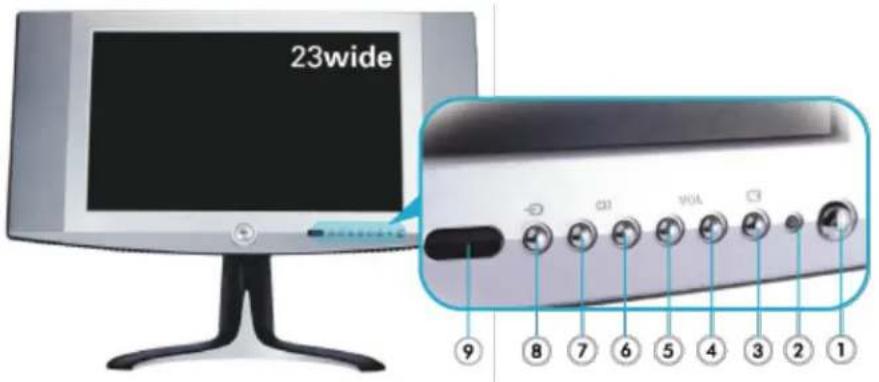
1 Power switch On/Off
2 Power LED Normal operation: Green.
Sleeping mode: Amber.
3 Menu Enable OSD menu
4 + Volume Increase / Selection
5 _ Volume Decrease/ Selection
6 ↑ Next channel / Up
7 ↓ Previous channel / Down
8 Input select Input source select key;PC Analog, PC Digital, TV Tuner, Composite, S-Video, Component.
9 IR receiver Sense the signal from remote control handset.
On Screen Display Controls
Below is an overall view of the structure of the On-Screen Display. You can use this as a reference when you want to work your way around the different adjustments later on.
There are three different modes of OSD:
• PC Mode • Composite / Component / S-Video Mode • TV Mode
Americas OSD Guide
PC Mode

A Main Menu B Sub-Menu name C Menu icon
- With the menu off, push the MENU button on the remote or in font of the LCD TV to enter OSD system and display the main menu.
- Push the ↑ and ↓ buttons to move between the function icons. As you move from one icon to another, the selection is highlighted.
- Push the MENU button once to activate the highlighted function; Push -/+ to select the preferred parameter, push menu to enter the selected bar, then use the - and + buttons making your changes.
- Push the Menu button to return the main menu or select another function.
| Icon Menu | Name and Sub-menus | Description |
 | EXIT This is used to exit out of the Main menu | |
 | INPUT SELECT: Select video source for main display:PC ANALOG: PC VGA inputPC DIGITAL: PC DIGITAL input | |


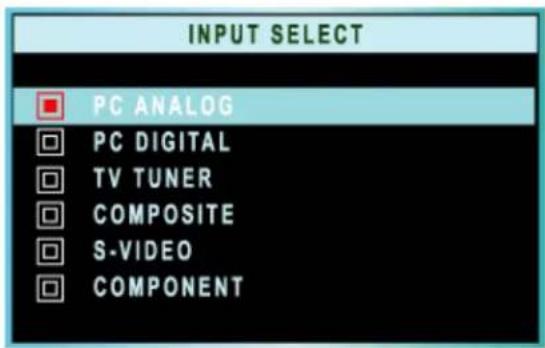
BRIGHTNESS/CONTRAST :
The Brightness function :
Push the + button to increase luminance; push the - button to decrease luminance (min 0 \~ max. 100).
The Contrast function :
Push the + button to increase the contrast; push the - button to decrease the contrast (min 0 \~ max. 100).
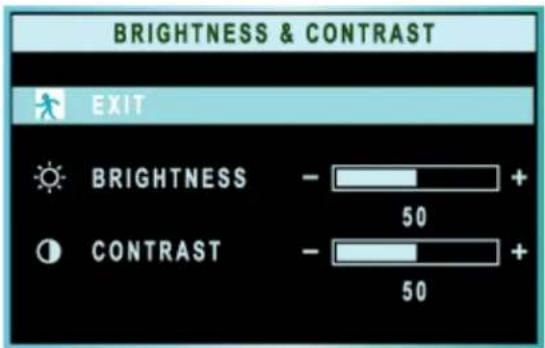
AUDIO:
Select your preferred function.
EXIT: Exit this menu
TREBLE: Adjustable from 0 to 100
BASS: Adjustable from 0 to 100
BALANCE: Adjustable from 0 to 100
VOLUME: Adjustable from 0 to 100
SURROUND: ON/OFF
MUTE: ON/OFF
AUDIO SOURCE: Only in PC/TV/Video mode
POWER SAVING:ON/OFF
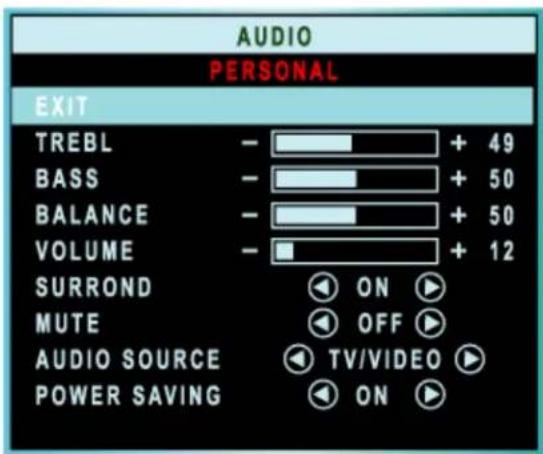

SIZE&POSITION:
Positioning moves the viewing area around on the monitor screen.
EXIT: Exit this menu
H. POSITION /V. POSITION: When making changes to either the 'Horizontal' or 'Vertical' settings, the image will simply be shifted in response to your selection/change. Minimum is '0' (-). Maximum is '100' (+).
4:3 ASPECT RATIO: Select 4:3 image display
FULL SCREEN: Select full screen (16:9) image display


Note: When operating 1280*768 in DVI mode, the positioning adjustments are not available.
IMAGING SETTING:
To adjust the image settings.
EXIT: Exit this menu
AUTO ADJUST: Press to select automatic adjustment.
PHASE : Use the - and + buttons to adjust from 0 to 100.
PIXEL CLOCK: Use the - and + buttons to adjust from 0 to 100.
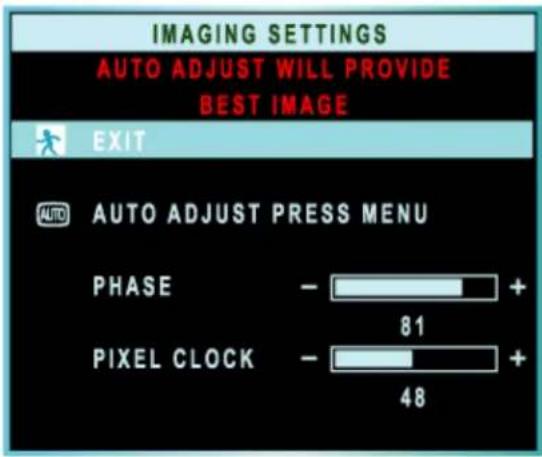

Note: Operating in DVI mode, the Pixel Clock and Phase adjustments are not available.

COLOR SETTING:
Color Settings adjusts the color temperature.
EXIT: Exit this menu
NATURE COLOR: Equivalent to original panel color.
NORMAL COLOR: 6500K (Same as SRGB) default from FACTORY
BLUE PRESET: Equivalent to 9300K
RED PRESET: Equivalent to 5700K
USER PRESET: Adjust red, green, blue three colors from 0 to 100.
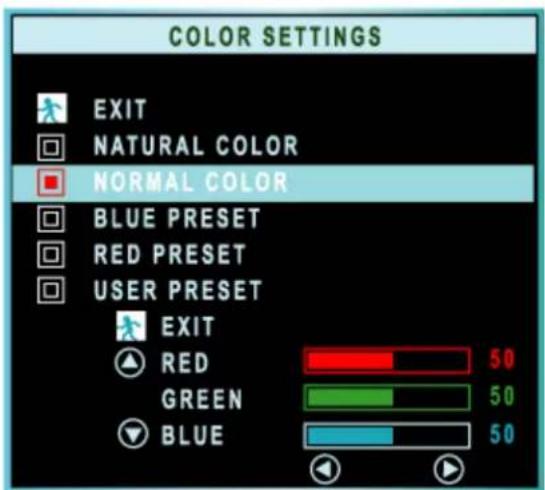
OSD SETTINGS:
Each time the OSD opens, it displays in the same location on the screen. 'OSD Settings'

(horizontal/vertical) provides control over this location.
EXIT: Exit this menu
HORIZONTAL: Adjustable from 0 to 100.
VERTICAL: Adjustable from 0 to 100.
OSD HOLD TIME: The OSD stays active for as long as it is in use. The range of time setting is from 5 to 60 seconds.
OSD LOCK: Controls user access to adjustments. Show key icon after selecting lock.
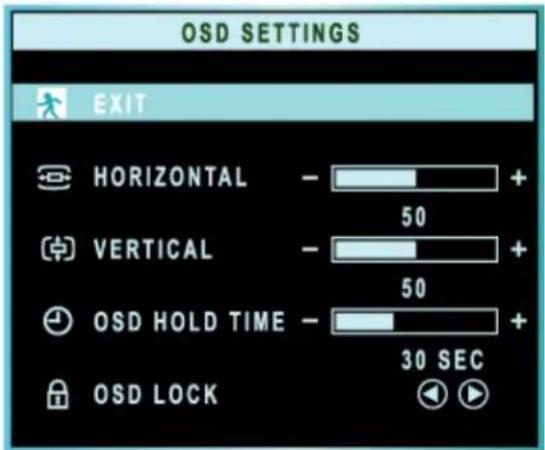

Note: When the OSD is locked, pressing the menu button again and it will take user to OSD LOCK menu. Press (+) to unlock and allow user access to all applicable settings.

Language:
Language sets the OSD to display in one of three languages (English, Spanish, French)
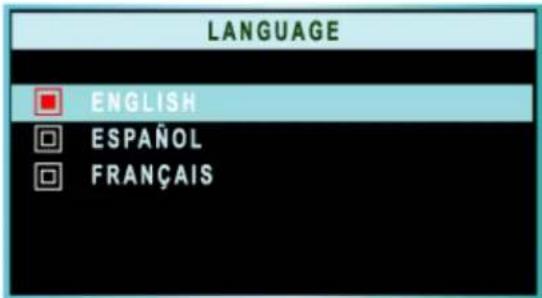

FACTORY RESET:
Reset the settings to the factory default values.
EXIT: Exit this menu
POSITION SETTINGS ONLY: Resume position setting to factory default.
COLOR SETTINGS ONLY: Resume color setting to factory default.
All SETTINGS: Load all factory default settings.

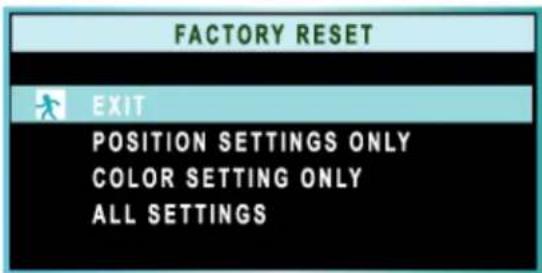
PICTURE IN PICTURE:
Adjust picture in picture preferences.
SIZE: Turn off and set the size of PIP. Users can chose your preferred size.
• OFF
- SMALL
- MEDIUM
• LARGE
H POSITION: Adjust the Horizontal position of PIP.
V POSITION: Adjust the Vertical position of PIP.
VIDEO SOURCE: Select video source of PIP:
- EXIT
• TV TUNER
• COMPOSITE VIDEO - S-VIDEO
• COMPONENT VIDEO

EXIT Exit from this menu
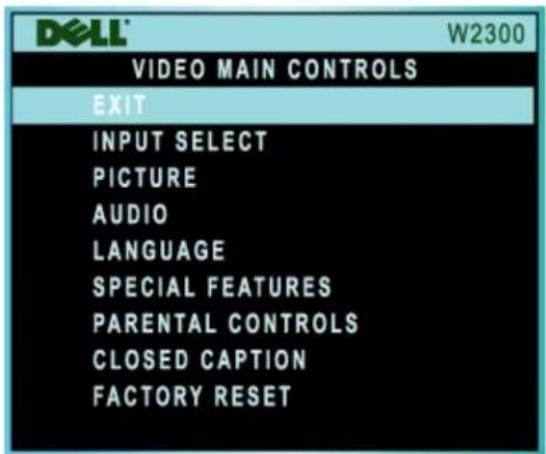
INPUT SELECT Use up and down arrow button to highlight the "INPUT SELECT".
Select video source for main display:
• PC ANALOG: PC VGA input
• PC DIGITAL: PC DIGITAL input
• TV TUNER: Antenna or cable TV input
• COMPOSITE: Composite video input
• S-VIDEO: S-video input
• COMPONENT: Component video input
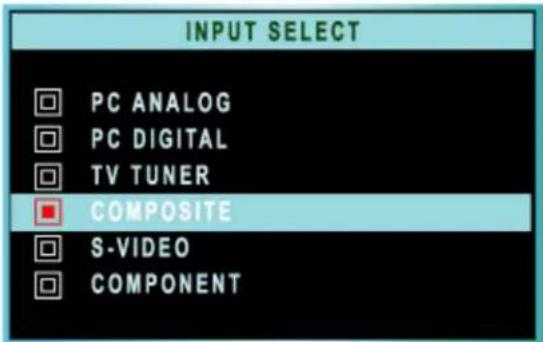
PICTURE Adjust picture characteristics to suit personal preference.
EXIT: Exit from this menu
BRIGHTNESS: Adjustable from 0 to 100
CONTRAST: Adjustable from 0 to 100
COLOR: Adjustable from 0 to 100
SHARPNESS: Adjustable from 0 to 100
TINT: Not available in component input.
Adjustable from 0 to 100
HOR SHIFT: Only available in component input.
Adjustable from 0 to 100
COLOR TEMP: Select from Normal, Cool or Warm by "-" and "+" buttons.
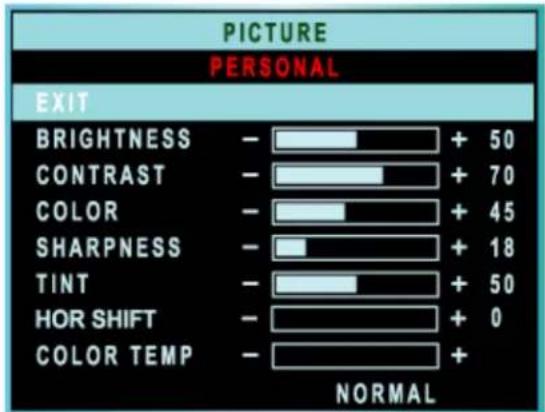
| Note: "TINT" is not available in component input. "HOR SHIFT" only function in component input. | ||
AUDIO Adjust audio characteristics to suit personal preference.EXIT: Exit from this menu.TREBLE: Adjustable from 0 to 100BASS: Adjustable from 0 to 100BALANCE: Adjustable from 0 to 100VOLUME: Adjustable from 0 to 100SURROUND: Switch Surround Sound On/ OffMUTE: Switch Mute On/ Off  | ||
LANGUAGE Set language for OSD.There are three languages of OSD display.ENGLISHSPANISHFRENCH 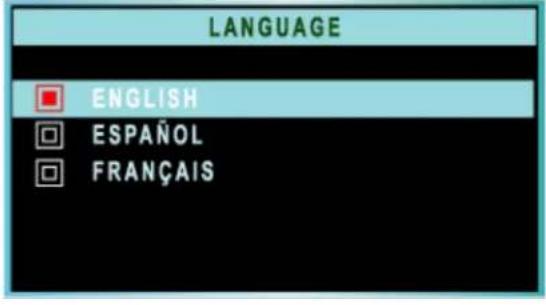 | ||
| SPECIAL FEATURES | Activate special control features:EXIT: Exit from this menu.CLOSED CAPTION: To turn on or off. (For Composite video only)SLEEP TIMER: Slide bar off .OSD LOCK: Show key icon after selecting lock.VIDEO MODE: Set the screen scaling mode to suit personal preference:STANDARD MODE4:3 ASPECT RATIO FULL SCREENNONLINEAR SCALINGNote: "CLOSED CAPTION" is available for composite video only. FULL SCREENNONLINEAR SCALINGNote: "CLOSED CAPTION" is available for composite video only. | |
| PARENTALCONTROL | 1) When users first enter the PARENTALCONTROL, the screen will show the windowasking user key in the code.2) Users will see the window" Access code" whenthey enter this function.EXITLOCKCHANGE CODECLEAR ALL3) Enter Master code "3355" (read "DELL" ontelephone keypad) twice. | 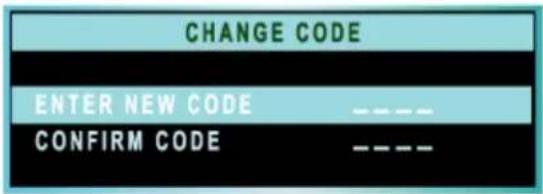 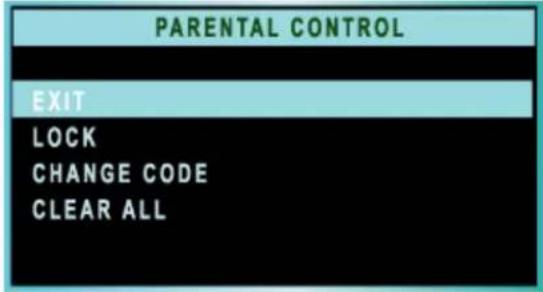  |
| CLOSEDCAPTION | EXIT: Exit from this menu.CLOSED CAPTION: ON/ OFFCAPTION MODE:CC1CC2CC3CC4CC MUTETXT1 | 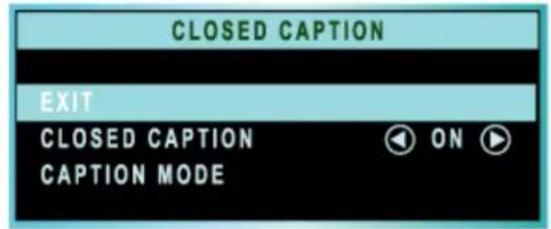 |
| TXT2• TXT3• TXT4Note: "CLOSED CAPTION" is available for composite video only. | |
| FACTORY RESET | Reset the setting to default values.NO: Keep the setting as current.YES: Load factory setting 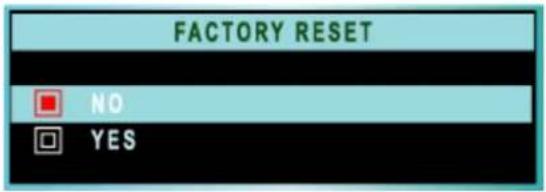 |
TV Mode
EXIT Exit from this menu
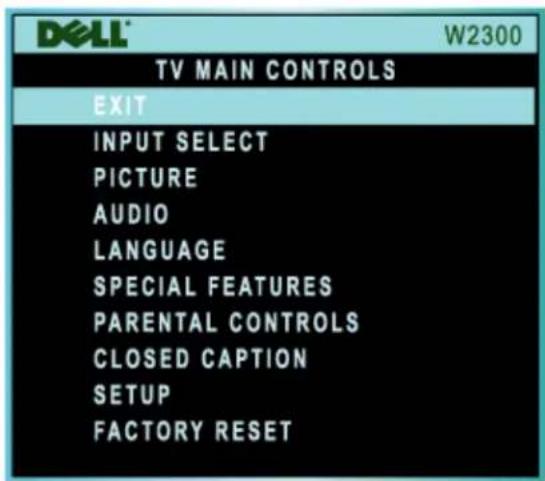
INPUT SELECT Select video source for main display:
• PC ANALOG: PC VGA input
• PC DIGITAL: PC DIGITAL input
• TV TUNER: Antenna or cable TV input
• COMPOSITE: Composite video input
• S-VIDEO: S-video input
• COMPONENT: Component video input
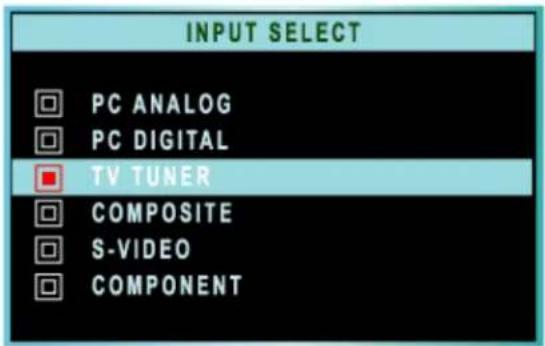
PICTURE Adjust picture characteristics to suit personal preference.
EXIT: Exit from this menu
BRIGHTNESS: Adjustable from 0 to 100
CONTRAST: Adjustable from 0 to 100
COLOR: Adjustable from 0 to 100
SHARPNESS: Adjustable from 0 to 100
TINT: Not available in component input.
Adjustable from 0 to 100
COLOR TEMP: Select from Normal, Cool or Warm by "-" and "+" buttons.

AUDIO Adjust audio characteristics to suit personal preference.
EXIT: Exit from this menu.
TREBLE: Adjustable from 0 to 100
BASS: Adjustable from 0 to 100
BALANCE: Adjustable from 0 to 100
VOLUME: Adjustable from 0 to 100
SURROUND: Switch Surround Sound On/ Off
MUTE: Switch Mute On/ Off

LANGUAGE Set language for OSD.
There are three languages of OSD display.
- ENGLISH
- SPANISH
- FRENCH

SPECIAL | Activate special control features:
EXIT: Exit from this menu.
SLEEP TIMER: Slide bar off.
OSD LOCK: Show key icon after selecting lock.
VIDEO MODE: Set the screen scaling mode to suit personal preference:
| STANDARD MODE4:3 ASPECT RATIOFULL SCREENNONLINEAR SCALING | 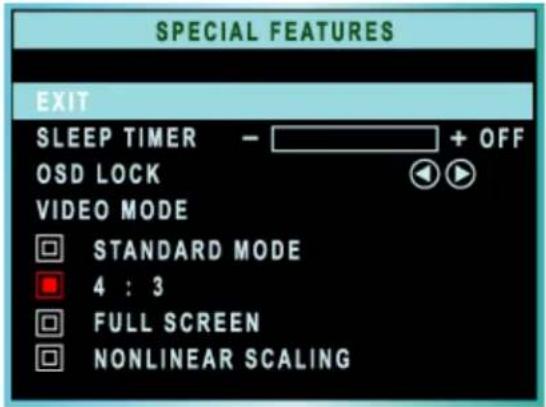 | |
| PARENTALCONTROL | 1) When users first enter the PARENTALCONTROL, the screen will show the windowasking user key in the code.2) Users will see the window" Access code" whenthey enter this function.EXITLOCKCHANGE CODECLEAR ALL3) Enter Master code "3355" (read "DELL" ontelephone keypad) twice. | 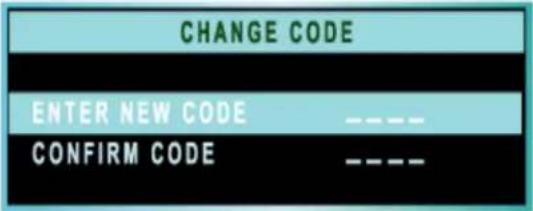 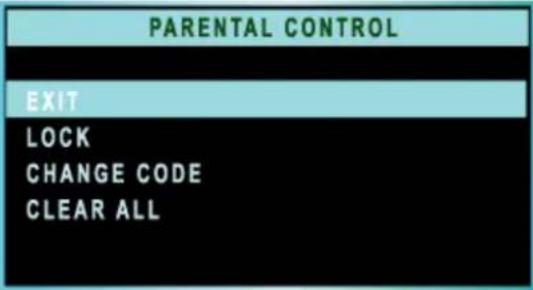 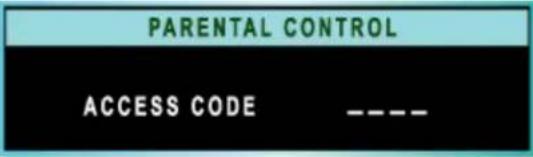 |
| CLOSEDCAPTION | EXIT: Exit from this menu.CLOSED CAPTION: ON/ OFFCAPTION MODE:CC1CC2CC3CC4CC MUTETXT1TXT2 |  |
| • TXT3• TXT4 | ||
| SETUP | EXIT: Exit from this menu.TUNER MODE:• ANTENNA• CABLE• AUTOCHANNEL SEARCH:• PLEASE WAIT• PROG.FOUND• CHANNELMANUAL ADJUST: FINETUNECHANNEL EDIT:• CHANNEL (UP/DOWN)• SKIPPED (- / + BUTTON) | 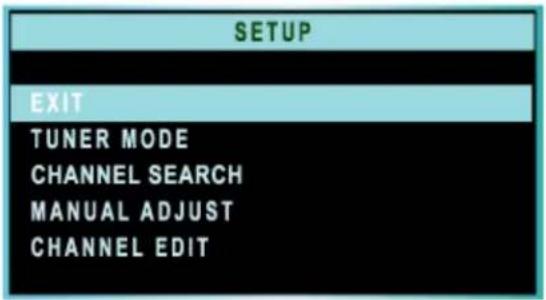 |
| FACTORY RESET | Reset the setting to default values.NO: Keep the setting as current.YES: Load factory setting |  |
RETURN TO TOP OF THE PAGE
TV Controls: Dell™ W2300 LCD TV User's Guide
Using your Remote Control
When Programming universal remotes, please use Philips/Magnavox TV codes.
Americas
Remote Control Diagram
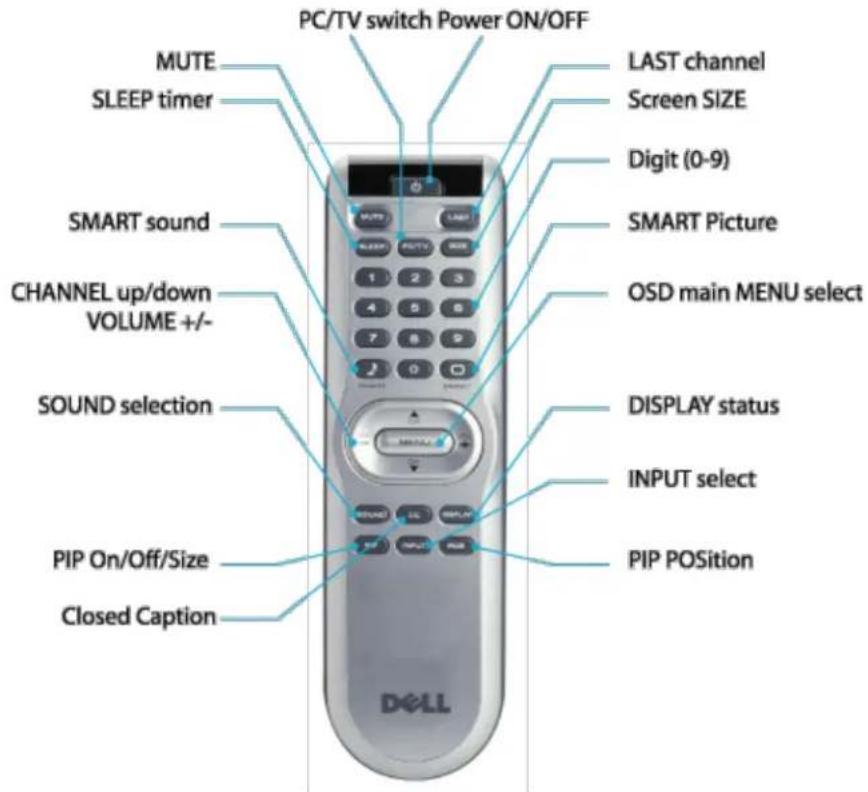
| Power On/Off The remote | power button turns the LCD TV ON and OFF. |
| PIP On/Off and size: | Picture in Picture (PIP): Turns PIP On/Off and select PIP size. PIP can only be displayed with PC (Digital or Analog) as Main input source. |
| INPUT selection | Change the input selection from PC Digital, PC Analog, Composite, S-video and Component inputs. |
| PIP POSITION | Changes the PIP Position to four different corners of the display. |
| Digit 0-9 | Manual entry for direct access to Channel programs for a 2 digit channel number. |
| SMART sound | Selects excellent preset audio for voice, music, theatre, and personal settings. |
| SOUND selection | TV sound mode selection, to access MONO, STEREO and SAP. |
| MUTE Controls sound to mute | sound or restore sound setting. |
| PC/TV switch PC/TV function swaps between last PC and Video input viewed. | |
| SMART picture | Selects excellent preset picture controls for multi-media, personal, movies, sports, and weak signal programs. |
| DISPLAY status | To display the state of video input, aspect ratio, program number, sound selection, timer for 5 second. |
| CHANNEL up/down Adjusts the TV channel up/down. | |
| Volume +/- To increase and decrease volume level. | |
| OSD main MENU select Displays the main On-Screen Display (OSD) menu. | |
| SLEEP timer | Selects the length of time to automatically turn off the LCD TV (off, 15-180). |
| Screen Size | Selects different screen sizes; standard mode, 4:3, full screen, and non-linear scaling. |
| LAST channel Selects the previous TV channel viewed. | |
| Closed Caption | Selects Close caption feature. (Japanese model without this button) |
RETURN TO TOP OF THE PAGE
- Dell™ W2300 LCD TV User's Guide
- Preface: Dell™ W2300 LCD TV User's Guide
- About This Guide
- Notational Conventions
- Notes, Notices, and Cautions
- Safety Instructions: Dell™ W2300 LCD TV User's Guide
- Introduction: Dell™ W2300 LCD TV User's Guide
- Overview
- Graphics
- Setup: Dell™ W2300 LCD TV User's Guide
- Using the LCD TV: Dell™ W2300 LCD TV User's Guide
- Troubleshooting: Dell™ W2300 LCD TV User's Guide
- Troubleshooting PC Display Problems
- Self-Test Feature Check (STFC)
- OSD Warning Messages
- Common Problems
- Specifications: Dell™ W2300 LCD TV User's Guide
- General
- Flat Panel
- Screen dimensions
- Resolution
- TV Display Modes
- Environmental
- Power Management Modes
- TV and Video Power Management Modes
- Pin Assignments
- Plug and Play Capability
- Regulatory: Dell™ W2300 LCD TV User's Guide
- Energy Efficiency
- Federal Communications Commission (FCC) Notice (U.S. Only)
- Canadian Regulatory Information (Canada Only)
- NOM Information (Mexico Only)
- Safety Certifications:
- EMC Certifications:
- Energy Consumption and Ergonomics:
- Technical Assistance
- Automated Order-Status Service
- Contacting Dell
- Canada (North York, Ontario) Online Order Status: www.dell.ca/ostatus
- Limited Warranties
- Limited Warranties and Return Policy
- Limited Warranties for Dell Branded Hardware Products (U.S. Only)
- What is covered by this limited warranty?
- What is not covered by this limited warranty?
- How long does this limited warranty last?
- What do I do if I need warranty service?
- What will Dell do?
- What if I purchased a service contract?
- How will you fix my product?
- May I transfer the limited warranty?
- "Total Satisfaction" Return Policy (U.S. Only)
- Limited Warranty Terms for Dell-Branded Hardware Products (Canada Only)
- "Total Satisfaction" Return Policy (Canada Only)
- Dell Software and Peripherals (Canada Only)
- Third-Party Software and Peripherals Products
- Dell-Branded Peripheral Products
- Return Policy
- 1-Year End-User Manufacturer Guarantee (Latin America and the Caribbean Only)
- Guarantee
- Exclusions
- Making a Claim
- Limitation and Statutory Rights
- Documentation: Dell™ W2300 LCD TV User's Guide
- Front View: Dell™ W2300 LCD TV User's Guide
- Side View: Dell™ W2300 LCD TV Monitor User's Guide
- Bottom View: Dell™ W2300 LCD TV User's Guide
- Height-Adjustable Stand (HAS): Dell™ W2300 LCD TV User's Guide
- Attaching HAS
- Cable Management
- Tilt/Swivel
- Vertical Adjustment
- Removing HAS
- Attaching the Cables: Dell™ W2300 LCD TV User's Guide
- Connecting your PC
- OR
- Connecting as a TV
- Cable TV
- Antenna
- TV to VCR
- Connecting to DVD/VCD/VCR/CATV BOX
- Connecting A/V Outputs
- Proper location: Dell™ W2300 LCD TV User's Guide
- Maintenance: Dell™ W2300 LCD TV User's Guide
- Setting the Optimal Resolution: Dell™ W2300 LCD TV User's Guide
- Driver Installation
- Microsoft ® Windows ® XP Operating System
- Microsoft ® Windows ® 2000 Operating System
- Controls and Indicators: Dell™ W2300 LCD TV User's Guide
- On Screen Display Controls
- BRIGHTNESS/CONTRAST :
- AUDIO:
- SIZE&POSITION:
- IMAGING SETTING:
- COLOR SETTING:
- OSD SETTINGS:
- Language:
- FACTORY RESET:
- PICTURE IN PICTURE:
- TV Mode
- TV Controls: Dell™ W2300 LCD TV User's Guide
- Using your Remote Control
Brand : DELL
Model : W2300
Category : Home Theater