
W2607C - Home Theater DELL - Free user manual and instructions
Find the device manual for free W2607C DELL in PDF.


| Product Type | LCD TV Display |
| Brand | Dell |
| Model | W2607C |
| Display Technology | TFT Color Premium LCD |
| Screen Size | 26 inches (26-inch viewable) |
| Aspect Ratio | 16:9 |
| Native Resolution | 1366 x 768 (WXGA) |
| Brightness | 500 nits (typical) |
| Contrast Ratio | 600:1 (typical) |
| Response Time | 8 ms (typical) |
| Video Capabilities | 480i, 480p, 720p, 1080i, 576i, 576p |
| Dimensions (with stand) | 477 x 826 x 205 mm (18.78 x 32.52 x 8.07 in) |
| Dimensions (without stand) | 404 x 826 x 108 mm |
| Weight (with stand) | 14.5 kg (31.97 lbs) |
| Tilt / Swivel | -5 to +20 degrees / +/- 45 degrees |
| Audio Output | 15 W per channel (stereo) |
| Audio Features | SRS TruSurround XT, Midnight Mode |
| Inputs | Composite (2), S-Video (2), Component (2), TV Coaxial (2), DVI (1), VGA (1) |
| Outputs | Composite Video Out, Audio Out (L/R), Headphone |
| Remote Control | Included (with batteries) |
| Parental Control | Yes (V-Chip, channel lock) |
| Power Supply | AC 100-240 V (50/60 Hz) |
| Cleaning | Wipe with a soft, dry cloth. Do not use liquids or chemicals. |
| Safety | Keep away from heat, direct sunlight, moisture. Unplug if smoke or sparks appear. |
| Spare Parts & Repairability | Contact Dell for replacement parts and service. Refer to owner's manual. |
Frequently Asked Questions - W2607C DELL
User questions about W2607C DELL
0 question about this device. Answer the ones you know or ask your own.
Ask a new question about this device
Download the instructions for your Home Theater in PDF format for free! Find your manual W2607C - DELL and take your electronic device back in hand. On this page are published all the documents necessary for the use of your device. W2607C by DELL.
USER MANUAL W2607C DELL
Dell™ W2607C LCD TV Display
Owner's Manual
Notes, Notices, and Cautions

NOTE: A NOTE indicates important information that helps you make better use of your LCD TV display.

NOTICE: A NOTICE indicates either potential damage to hardware or loss of data and tells you how to avoid the problem.

CAUTION: A CAUTION indicates a potential for property damage, personal injury, or death.
Information in this document is subject to change without notice.
© 2006 Dell Inc. All rights reserved.
Reproduction in any manner whatsoever without the written permission of Dell Inc. is strictly forbidden.
Trademarks used in this text: Dell, Dimension, OptiPlex, Dell Precision, Latitude, Inspiron, DellNet, PowerApp, PowerEdge. PowerConnect, PowerVault, EMC ^® and the DELL logo are trademarks of Dell, Inc.; SRS (●) TruSurround XT, SRS, and (●) symbol are trademarks of SRS Labs, Inc.
TruSurround XT technology is incorporated under license from SRS Labs, Inc.
Other trademarks and trade names may be used in this document to refer to either the entities claiming the marks and names or their products. Dell Inc. disclaims any proprietary interest in trademarks and trade names other than its own.
Contents
1 About Your LCD TV Display 5
Front View. 5
Right Side View 6
Left Side View. 7
Bottom View. 8
Package Contents 9
2 Setting Up Your LCD TV Display 11
Proper Location for Your LCD TV Display 11
Connecting Your LCD TV Display 11
Connecting Your Computer to the LCD TV Display 13
3 Your Remote Control....19
Installing Batteries 19
Using Your Remote Control. 20
Using Your LCD TV Display With a Universal or Learning Remote Control. . . 22
4 Using the TV Menu 23
Using Your Remote Control With the TV Menu. 23
Selecting Your TV Menu Language 24
Input Select Menu 24
Picture Settings Menu 25
Audio Settings Menu 26
Size Menu 26
Parental Control 27
Setup Menu 28
Sleep Timer 29
Closed Caption 29
5 Troubleshooting Your LCD TV Display ....30
Troubleshooting Tips. 30
General Problems 31
TV Menu Messages 35
Remote Control Problems 36
Using the Self-Test Feature When Your LCD TV Display is Connected
to Your Computer 36
Problems When Using the LCD TV Display as a Monitor 37
6 Specifications for Your LCD TV Display....38
7 Contacting Dell 42
Index 59
About Your LCD TV Display
Front View

1 IR receiver Senses the signal from the remote control.
2 Power indicator light (LED)
The light is blue when the LCD TV display is on and amber when the LCD TV display is in power save mode.
Right Side View

1 Power button
Press to turn the LCD TV display on and off. The power button is blue when it is on and amber when it is in power saving mode.
2 /OK TV Menu menu button Press to enable the TV Menu.
3 Volume button Press to decrease the volume.
4 Volume button Press to increase the volume.
5 Channel button
Press to select the previous channel or navigate through the TV Menu.
6 Channel button
Press to select the next channel or navigate through the TV Menu.
7 Input Select button
Press to display the Input Select menu.
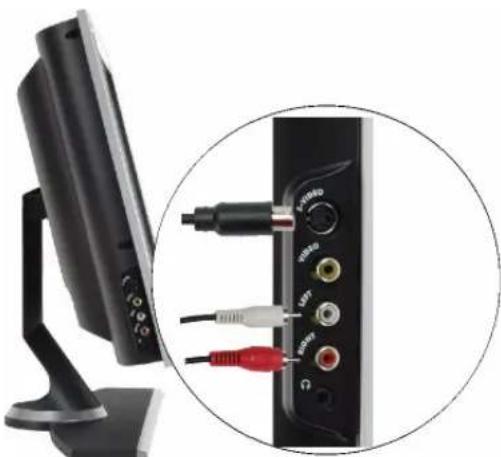
Left Side View

1 AV SIDE (S-Video 2)
Connect devices such as a video game system or a VCR.
2 AV SIDE (Composite 2) Connect devices such as a VCR or DVD player.
3 AV SIDE audio connector Use the audio connector if you have connected a device to AV SIDE connectors.
4 Headphone connector Connect headphones.
Bottom View
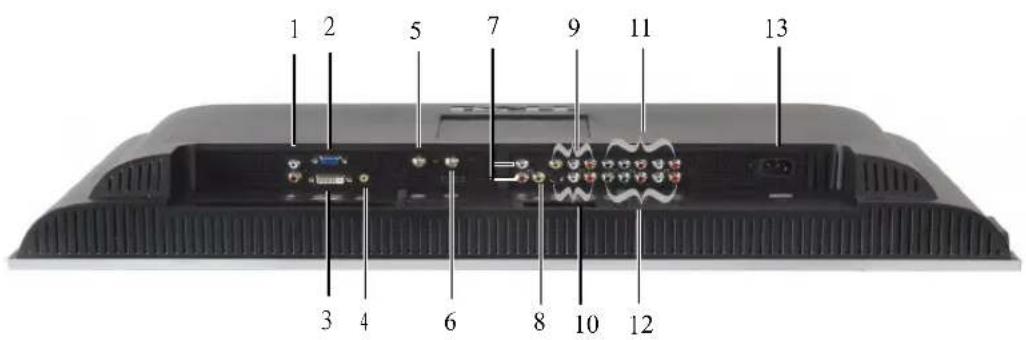
1 DVI audio connector (L/R)
Use the DVI audio connector if you have connected a device such as a DVD player to the DVI connector.
2 VGA Connect your computer.
3 DVI connector Connect your computer or video devices such as a DVD player.
4 Audio connector for VCA or DVI
Connect the audio cable from your computer to the LCD TV Display.
5 NTSC/Analog Cable Connect analog cable TV box or an analog antenna.
6 HIDTV/Digital Cable Connect digital cable TV box or a digital antenna.
7 Composite out/Audio Out (L/R)
Connect to VCR (L/R) audio inputs.
8 Composite out/Video Out Connect to VCR video input.
9 Composite video and audio connectors (AV1)
Connect devices such as a VCR or DVD player.
10 S-Video video and audio connectors (AV2)
Connect devices such as a video game system or a VCR.
11 Component video and audio connectors (AV3)
Connect devices such as a DVD player or cable TV box.
12 Component video and audio connectors (AV4)
Connect devices such as a DVD player or cable TV box.
13 Power connector Connect your power cord.
Package Contents

NOTE: If you need additional cables, contact Dell.
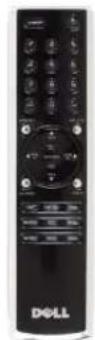
Remote control
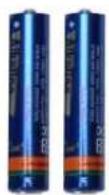
AAA batteries (2)
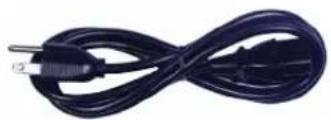
Power cord
natural_image
Coiled black cable with a 12-pin connector, no visible text or symbolsComponent video cable
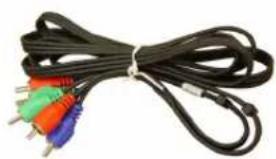
natural_image
Coiled black cable with multiple colored connectors (no text or symbols visible)Audio cable

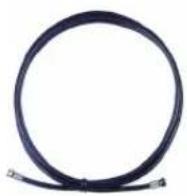
natural_image
Coiled black cable with three red and white connectors (no text or symbols visible)Coaxial cable
Documentation:
Setup Guide
Product Information Guide
Owner's Manual

Setting Up Your LCD TV Display

CAUTION: Before you begin any of the procedures in this section, follow the safety instructions located in the Product Information Guide.
Proper Location for Your LCD TV Display
Consider the following environmental factors when you are deciding where to install your LCD TV display:
- Do not store or use the LCD TV display in locations that are exposed to high heat, direct sunlight, or extreme cold.
- Avoid moving the LCD TV display between locations with extreme temperature differences. For more information, see "Specifications for Your LCD TV Display" on page 38.
- Do not subject the LCD TV display to severe vibration or high impact conditions. Do not place the LCD TV display inside a car trunk.
- Do not store or use the LCD TV display in locations where the LCD TV display would be exposed to high humidity or dusty environment.
- Do not place the LCD TV display in a location where water or other liquids could spill on or into the LCD TV display.
Connecting Your LCD TV Display
Your LCD TV display has four standard connectors that can be used to connect devices.

NOTE: Before you connect your LCD TV display, ensure that you have all the proper cables. Some cables may come with the device you are connecting. For a list of cables that came with your LCD TV display, see "Package Contents" on page 9. To order additional cables, contact Dell.
Quality Cable and Connector When to Use
Good Coaxial (RF) carries the video and audio
natural_image
Back panel of a computer interface showing ports like VGA, SGA, and network connectors (no visible text or labels)from one cable. The coaxial connector is labeled, NTSC/Analog Cable or HIDTV/Digital Cable on your LCD TV display. To locate the connector, see "Bottom View" page 8.
Quality Cable and Connector When to Use
Good Composite carries the video signal through

a single pin. If you are using a composite video connector you also need to connect composite audio connectors. To locate the connector, see "Left Side View" page 7.
Better S-Video splits the video signal into two
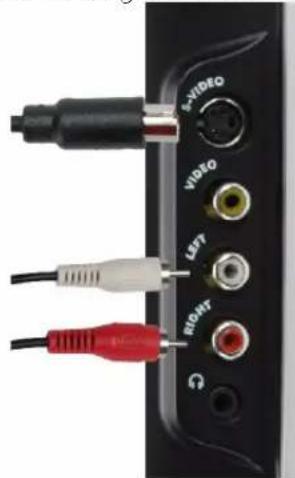
signals, black-and-white and color. To locate the connector, see "Left Side View" page 7.
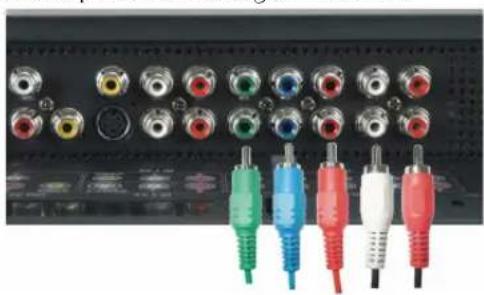
Best Component splits the video signal into three
natural_image
Close-up of a black electronic device rear panel with multiple colored audio jack connectors (green, red, blue, white) attached to the left side.signals, two color and one black-and-white. To locate the connector, see "Bottom View" page 8.
Connecting Your Computer to the LCD TV Display
Your LCD TV display has two standard connectors that can be used to connect your computer.

NOTE: The type of connector you use depends on the graphics card your computer supports. For additional information about graphic cards, see your computer documentation.
Quality Cable and Connector When to Use
Good

natural_image
Back panel of a computer interface showing a blue V2D VGA port connected to two connectors (red and green), no visible text or symbols.A standard graphic display system for computers that uses an analog signal and can support resolutions up to 1360 x 768.
Better
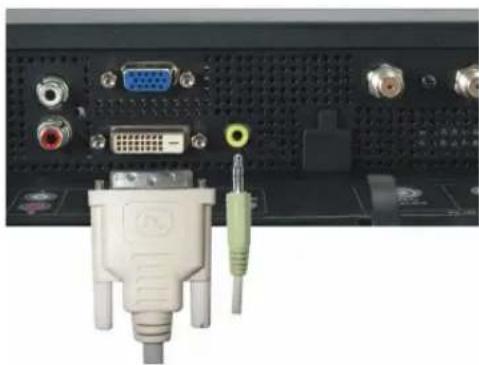
natural_image
Back panel of a computer interface showing VGA connectors and ports (no visible text or labels)A digital signal that can support digital and convert analog to digital. DVI can be used for high resolution display and can support resolutions up to 1360 x 768.
Connect the audio cable from your computer to the LCD TV Display Audio connector for VGA or DVI.
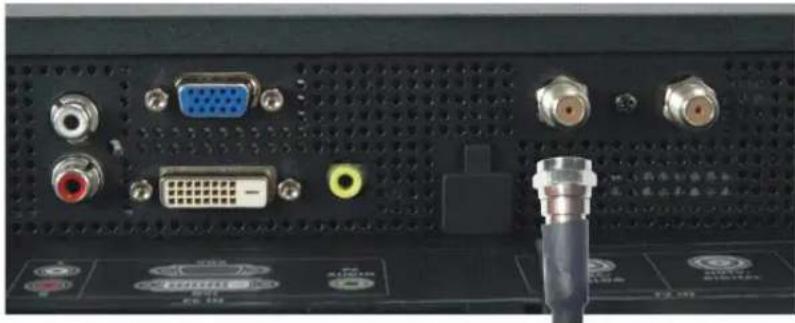
Using NTSC/Analog and HDTV/Digital
natural_image
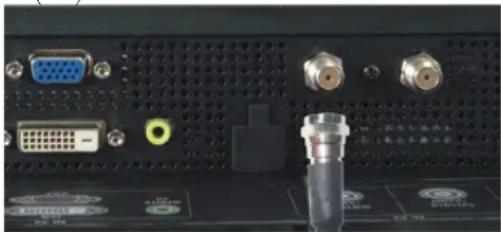
Back panel of a computer interface showing ports, connectors, and a metallic connector (no readable text or symbols)1 Turn off the LCD TV display and unplug the power cord.
2 Connect the coaxial cable to the NTSC/Analog Cable connector of the LCD TV display.
3 Plug in the power cord for the LCD TV display and turn on the LCD TV display.
4 Enter the TV Menu and select TV Analog. For additional information about the Input Select menu, see "Input Selection Menu" page 24.
natural_image
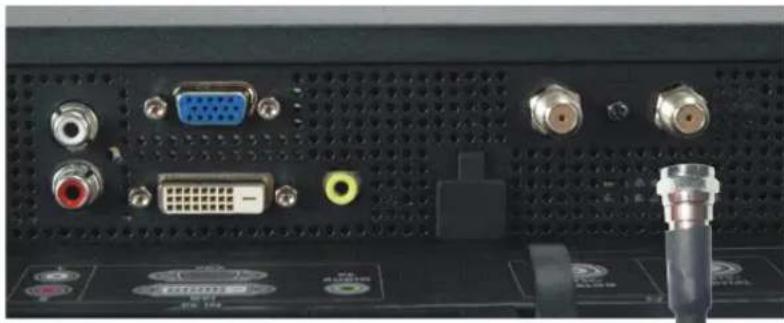
Back panel of a computer monitor showing ports, connectors, and audio equipment (no readable text or symbols)1 Turn off the LCD TV display and unplug the power cord.
2 Connect the coaxial cable to the HDTV/Digital Cable connector of the LCD TV display.
3 Plug in the power cord for the LCD TV display and turn on the LCD TV display.
4 Enter the TV Menu and select TV Digital. For additional information about the Input Select menu, see "Input Selection Menu" page 24.
Using the Composite Connector

natural_image
Computer monitor with attached audio jack and cable, showing ports and connectors (no text or symbols visible)1 Turn off the LCD TV display and unplug the power cord.
2 Connect video and audio cables from your device to LCD TV.
3 Plug in the power cords for the LCD TV display and device and turn the power on.
4 Enter the TV Menu and select the AV SIDE (Composite 2). For additional information about the Input Select menu, see "Input Selection Menu" page 24.
Using the S-Video Connector
natural_image
Close-up of a computer monitor and audio jack interface showing connected cables and ports (no visible text or symbols)1 Turn off the LCD TV display and unplug the power cord.
2 Connect video and audio cables from your device to LCD TV.
3 Plug in the power cords for the LCD TV display and device and turn the power on.
4 Enter the TV Menu and select the AV SIDE (S-Video 2). For additional information about the Input Select menu, see "Input Selection Menu" page 24.
Using the Component Connectors

natural_image
Back panel of a black audio/video computer interface with multiple colored audio jack ports (no visible text or labels)1 Turn off the LCD TV display and unplug the power cord.
2 Connect video and audio cables from your device to LCD TV.
3 Plug in the power cords for the LCD TV display and device and turn the power on.
4 Enter the TV Menu and select the AV3 (Component 1) or AV4 (Component 2). For additional information about the Input Select menu, see "Input Selection Menu" page 24.
Using the DVI Connector

NOTE: Only one connector can be used for a computer, either VGA or DVI.
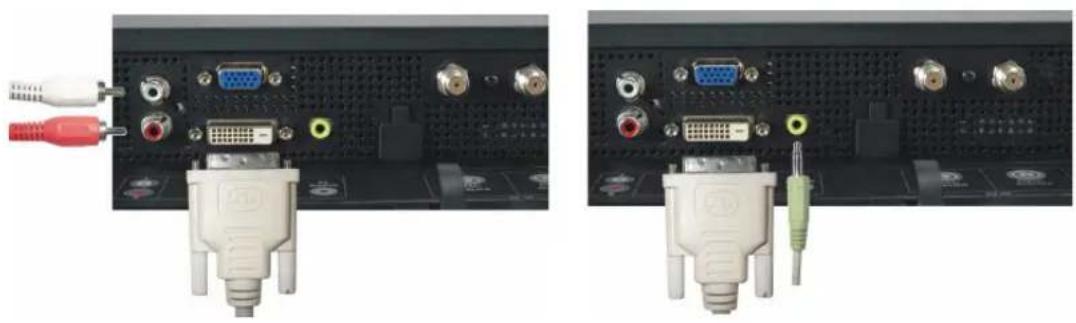
Connecting a Video Device Connecting a Computer
natural_image
Back view of a computer interface showing two DVI connectors with various ports and connectors (no text or symbols visible)1 Turn off the LCD TV display and unplug the power cord.
2 Connect the white DVI cable to your LCD display TV and to the video device or your computer.
3 Connect the audio cables.
If you are connecting a video device, use the audio connectors (red and white) or if you are connecting a computer use the stereo connector (green).

NOTE: Some cable TV boxes may have DVI connectors, but do not support using a DVI connection. For more information, contact your cable TV company.
4 Plug in the power cords for the LCD TV display and device and turn the power on.
5 Enter the TV Menu and select the DVI. For additional information about the Input Select menu, see "Input Selection Menu" page 24.
Using the VGA Connector

NOTE: Only one connector can be used for a computer, either VGA or DVI.

natural_image
Back panel of a computer interface showing VGA connectors and ports (no readable text or symbols)1 Turn off the LCD TV display and unplug the power cord.
2 Connect the blue VGA cable to your LCD TV display and to your computer.
3 Connect the green audio cable to the connector on the LCD TV display and to your computer.
4 Plug in the power cords for the LCD TV display and computer and turn the power on.
5 Enter the TV Menu and select the VGA. For additional information about the Input Select menu, see "Input Selection Menu" page 24.
Your Remote Control
Installing Batteries
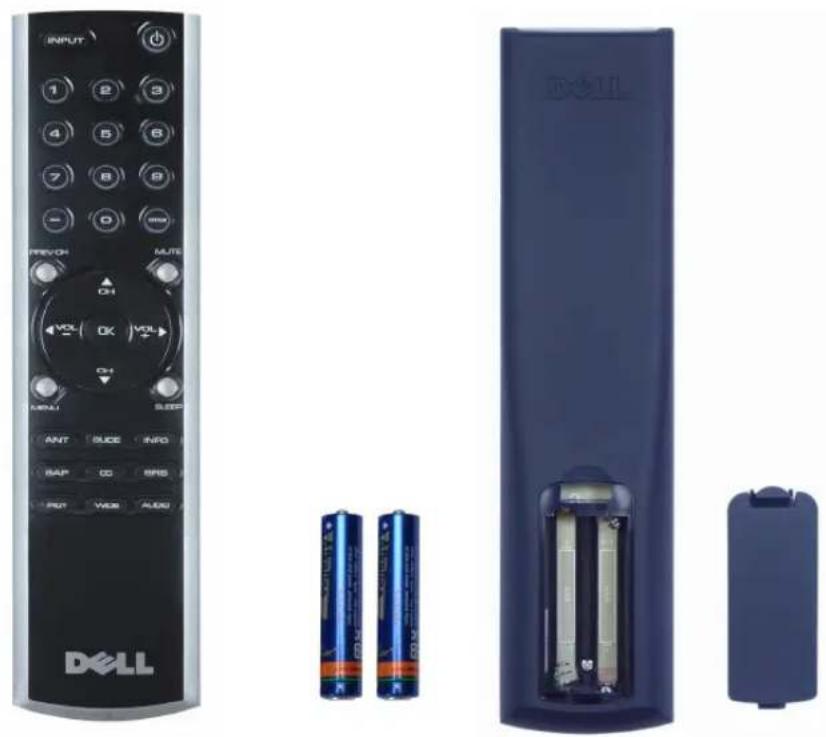
Before you can use your remote control, install two-AAA batteries.
1 Slide open the battery cover.
2 Install the batteries. Make sure that you match the + and - on the batteries with the + and - symbols in the battery compartment.
3 Replace the battery cover.
natural_image
Exterior view of a Dell remote control with visible buttons, battery pack, and rear panel (no text or symbols on main objects)Using Your Remote Control
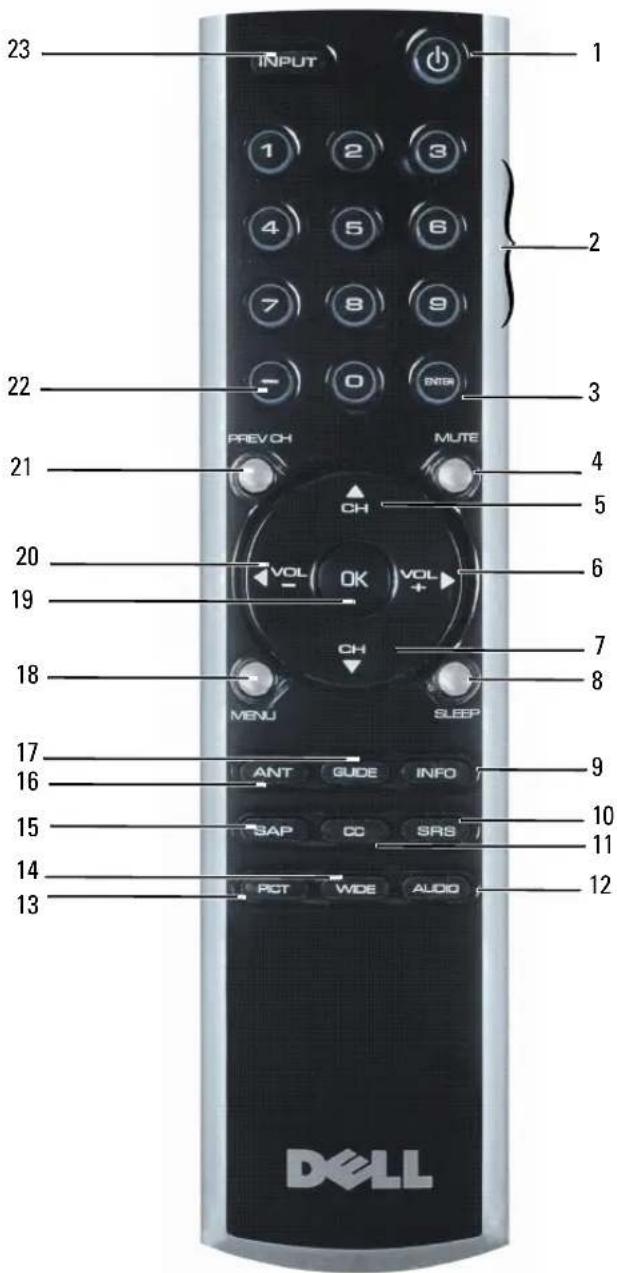
| 1 Power Button Turns the LCD TV display on and off. | |
| 2 Number buttons Press to select a channel. | |
| 3 Enter Selects an TV Menu option, confirms a channel selection. | |
| 4 Mutc Press to turn the sound on and off. | |
| 5 CH (up icon) Press to view the next channel.In the TV Menu, use the channel button to navigate through the menus in the TV Menu. | |
| 6 Vol + Increases the volume.In the TV Menu, use the volume button to navigate through the menus. | |
| 7 CH (down icon) Press to view the previous channel.In the TV Menu, use the channel button to navigate through the menus in the TV Menu. | |
| 8 Sleep Turns on the sleep timer. | |
| 9 INFO Display information about your TV display (for example, in TV Mode displays the channel you are watching.) | |
| 10 SRS Toggle SRS surround on and off. | |
| 11 CC Cycles through the Closed Caption menu. | |
| 12 Audio | Cycles through the preset Audio options. |
| 13 Pict | Cycles through the preset options for the Picture menu. |
| 14 Wide | Cycles through the size (aspect ratio) options from the Picture menu. |
| 15 SAP Turns on | Second Audio Program (SAP). |
| 16 ANT | Selects TV tuner as input source. |
| 17 Guide | Toggle EPG on and off. |
| 18 Menu Enters and exits the TV Menu main menu. | |
| 19 OK | Selects an TV Menu option, confirms a channel selection. |
| 20 Vol - | Decreases the volume.In the TV Menu, use the volume button to navigate through the menus. |
| 21 Prev CH | Returns you to previously viewed channel. |
| 22 — | For setting channels. |
| 23 Input | Enters and exits the Input Select menu. |
Using Your LCD TV Display With a Universal or Learning Remote Control
Preprogrammed universal remote controls can be programmed to control the following functions on your Dell LCD TV display:
• P o w e r
- Channel Up (+)
- Channel Down (-)
• Volume Up (+)
• V o l u m e D o w n (-)
- M u t e
- Input Select
NOTE: Future preprogrammed universal remote controls may be able to control more functions.
You can program universal remote controls to work with your Dell LCD TV display in the following ways:
- If the remote control manual lists codes by manufacturer, use the Philips codes.
- If the remote control has a search function, this function may be used to find the correct code.
- If the remote control has a learning function, you can program specific buttons on it from the Dell remote control, in addition to those buttons listed above.
NOTE: For additional information, see the documentation that came with your universal or learning remote control.
Using the TV Menu
Your LCD TV display has an TV Menu that allows you to select the proper input source, make adjustments to the image and audio settings and set parental controls.
Using Your Remote Control With the TV Menu
NOTE: You can access and make selections to the TV Menu using the volume and channel buttons on the side panel of the LCD TV display or you can use the remote control. Except where noted, this section describes how to use the TV Menu with the remote control.
1 To enter the TV Menu, press theMenu button. Seven icons appear along the bottom of the screen.
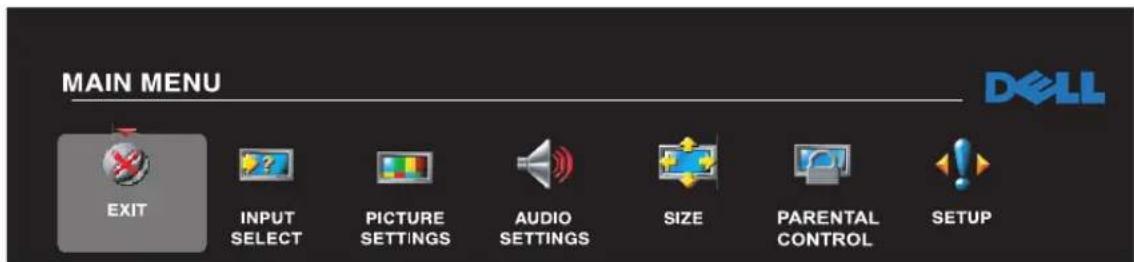
2 Use the left and right buttons (volume buttons) to move between the icons. The icon appears highlighted as you move through the menu.
3 To select an option, push the OK button when the icon is highlighted.
4 A new menu appears for that selected option. Use the up and down buttons (channel buttons) to move through the various settings.
NOTE: A red arrow appears next to the setting as you navigate through the options. A check mark appears next to the option that you have selected.
5 Use the left and right buttons (volume buttons) and the OK button to adjust or select settings.
NOTE: You can select Exit at any time to return to the main menu.
6 After you have made your selections, select Exit to return to the main menu.
7 To exit the TV Menu, select the Exit icon and press OK.
Selecting Your TV Menu Language
1 Press Menu to enter the TV Menu.
2 Select Setup.
3 In the Setup menu, select Language and select the language that you want the TV Menu to appear in.
Input Select Menu
The Input Select menu allows you to choose the proper source based on how you have your LCD TV display and video equipment connected. Press Input on the remote to go directly to the Input Select menu. You can also press Menu and select Input Select from the main menu.
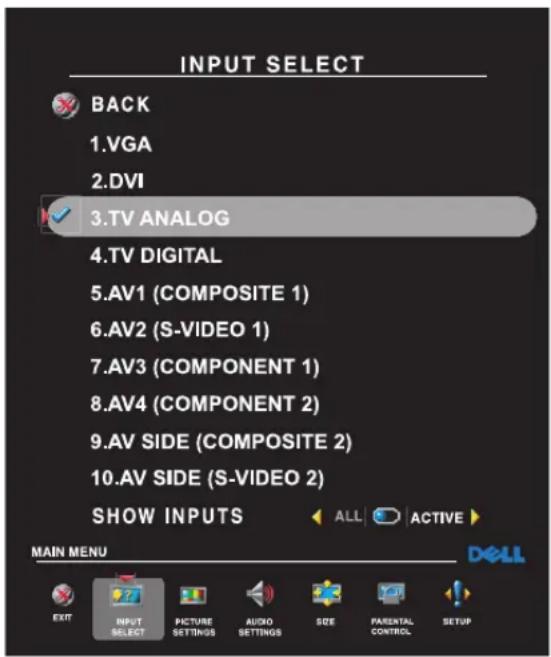
VGA — Select when your LCD TV display is being used as a computer monitor and you have connected the computer using a VGA cable. See "Bottom View" on page 8 for the location of the VGA connector.
DVI — Select when your LCD TV display is being used as a computer monitor and you have connected the computer or when you have connected a device, such as a DVD player using the DVI cable. See "Bottom View" on page 8 for the location of the DVI connector.
TV Analog — Select when you have your analog antenna or cable TV box connected to the NTSC/Analog Cable connector. See "Bottom View" on page 8 for the location of the coaxial connector.
TV Digital — Select when you have your digital antenna or cable TV box connected to the HDTV/Digital Cable connector. See "Bottom View" on page 8 for the location of the coaxial connector.
AV1 (Composite 1) — Select when you have a video device, such as a video game system, connect to the composite connector. See "Bottom View" on page 8 for the location of the composite connector.
AV2 (S-Video 1) — Select when you have a video device, such as a VCR, connect to the S-Video connector. See "Bottom View" on page 8 for the location of the S-Video connector.
AV3 (Component 1) — Select when you have a video device, such as a DVD player, connected to the component connector. See "Bottom View" on page 8 for the location of the component connector.
AV4 (Component 2) — Select when you have a video device, such as a DVD player, connected to the component connector. See "Bottom View" on page 8 for the location of the component connector.
AV SIDE (Composite 2) — Select when you have a video device, such as a video game system, connected to the composite connector on the side of the LCD TV display. See "Left Side View" on page 7
for the location of the composite connector.
AV SIDE (S-Video 2) — Select when you have a video device, such as a VCR, connected to the S-Video connector on the side of the LCD TV display. See "Left Side View" on page 7 for the location of the S-Video connector
SHOW INPUTS — Show Inputs allows you to select Active or All. Active automatically searches the connected input sources. The available input sources appear in white and input sources that are not available appear in grey. All shows all the input sources and allows you to select all the input sources even if you do not have a device connected.

NOTE: In TV Menu Settings, located in the Setup menu, you can set the Input Select to display the device that you have attached. For example, AV SIDE (S-VIDEO 2) would say DVD when you view the Input Select menu.
Picture Settings Menu
The Picture Settings menu allows you to adjust the appearance of the image including color and brightness.

If you select one of the following preset image settings, the individual settings are automatically updated.
• Movies
• Sports
- Weak Signal
- Multimedia
If you select Personal, you can adjust the individual settings, such as Brightness and Color
The color temperature presets are:
Normal: 6500K
Natural: the native panel temperature
Bluc: 9300K
Red: 5700K
Audio Settings Menu
The Audio Settings menu allows you to set the audio to best fit the type of show you are watching.

SRS TruSurround XT—Delivers virtual surround sound over two speakers from any source, which creates a wider sound with deep rich bass.
Midnight Mode — Evens out the large volume variations between voice and action scenes.
If you select one of the following preset Equalizer Mode settings, the individual audio levels are automatically updated:
• Music
• Theater
• Voice
If you select Personal, you can adjust the
individual audio levels, such as Bass and Treble.
Use Program to select Stereo, Mono, or SAP (Second Audio Program).
Size Menu
Size menu allows you to adjust the appearance of the image. Use Horizontal Shift to adjust the horizontal placement of the image.
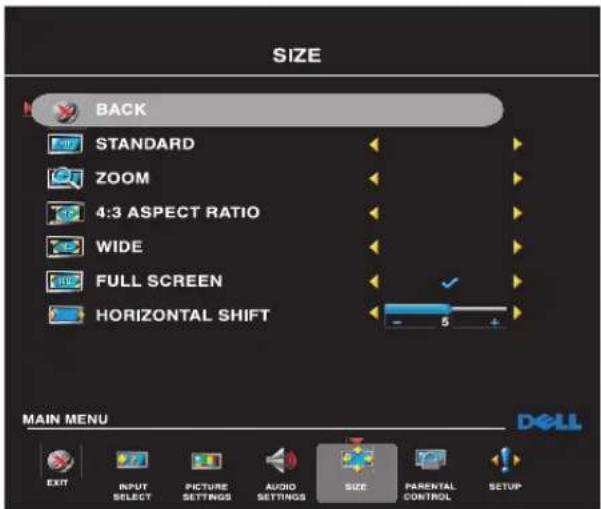
Use the following settings to adjust the aspect ratio:
Standard — Best selection for viewing digital HDTV, 16:9 or 22:9 DVD movies.
Zoom — Best selection for viewing TV, VCR or 4:3 DVD movie.
4:3 — Best selection for viewing TV, VCR or 4:3 DVD movie.
Wide — Best selection for viewing digital HDTV, 16:9 and 22:9 DVD movies.
Full screen — Best selection for viewing digital HDTV or 16:9 DVD movies.
NOTE: Most DVDs have information about the supported aspect ratio on the case.
Parental Control
Parental Control allows you to restrict access of inappropriate channels and programs to children.
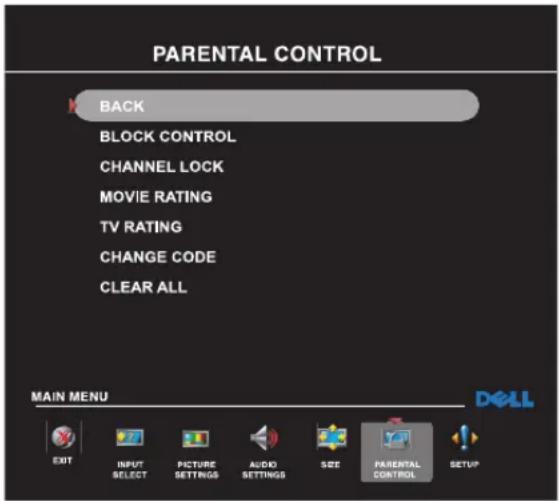
To enter the Parental Control menu, you need an access code. The first time you enter, use access code 3355. See "Setting an Access Code" on page 27 for information on creating a new access code.
You can set the following options to block content:
• Channel Lock — Blocks selected channels
• Movie Rating—Blocks movies based on their rating (G, PG, PG-13, R, NC-17, and X)
• TV Ratings — Blocks TV shows based on their rating
• Block Control — Turns on or off all your parental control settings

NOTE: You can use Clear All to unblock the channels and programs that you have set.
Setting an Access Code
After you enter the Parental Control menu for the first time, you can set your own four-digit access code. If for any reason you lose or forget your access code, you can press channel down and volume decrease simultaneously.
1 In the Parental Control menu, select Change Code.
2 Using the number pad on the remote control, enter a new access code.
3 Select Exit.
Setup Menu
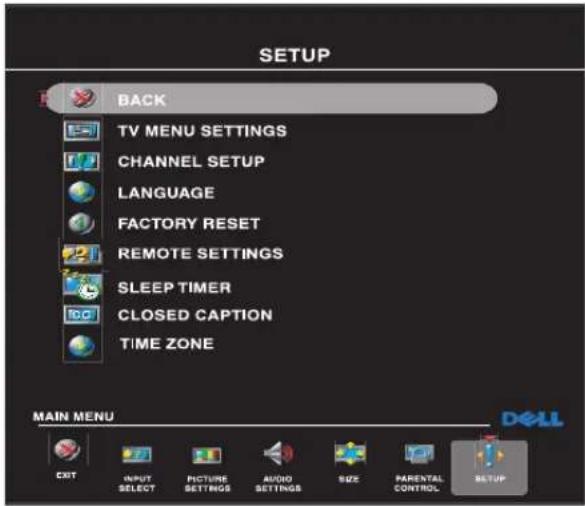
Setup menu allows you to adjust the appearance of the TV Menu, to change the language of the TV Menu (see "Selecting Your TV Menu Language" on page 24) and to restore factory settings.
Use TV Menu Hold Time to increase or decrease the amount of time the TV Menu appears. The maximum amount of time is 60 seconds.
In the TV Menu Settings menu you can select TV Button lock to lock the TV Menu and the side panel buttons. When this option is enabled, only the power button functions. To unlock the TV Menu and side panel buttons:
- Press the Menu button on the TV.
A message appears stating that the TV is locked.
- While the message is on the TV, press the channel up and volume increase button simultaneously.
Setting Your Cable Channels
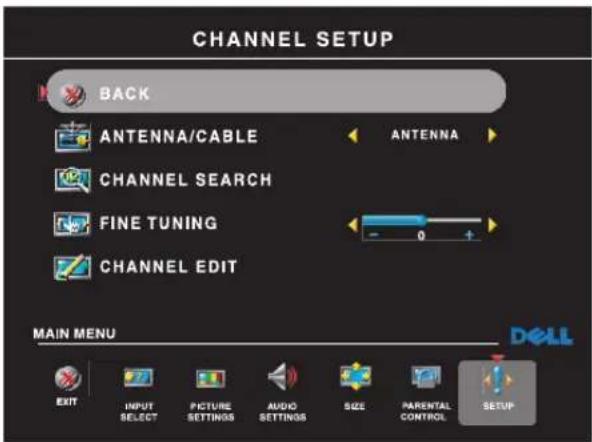
Your TV is set to automatically detect whether you are using an antenna or cable and then set the available channels. Some cable providers use an older cable standard that the TV can not automatically detect. If you have your TV connected but can only view channels 5 and 6, complete the following steps:
1 Press the Menu button on the remote control, or TV to enter the TV Menu.
2 Select Setup and then select Channel Setup.
3 In Channel Setup, select
Antenna/Cable, and then toggle to Cable.
4 If selecting Cable does not resolve the issue, repeat steps 1 through step 3 using each available Channel Setup option (HRC, IRC, and Antenna) until you can view all channels.
Sleep Timer
Sleep Timer allows you to select an increment of time after which the LCD TV display turns off automatically. You can select from 10 minutes to 3 hours.
Closed Caption

In the Closed Caption menu, you can select On, Off, or Mute. If you select Mute, CC automatically displays when you use the Mute button on the remote control.
You can choose from the following modes:
- CC1 through CC4 and TXT1 through TXT4 (CC1, CC2, and CC4 offer standard Closed Captioning and CC3 provides closed captioning in a secondary language.)
Troubleshooting Your LCD TV Display

CAUTION: If at any time you see smoke or sparks coming from your TV display, unplug the TV display immediately and contact Dell. Do not try to perform any troubleshooting steps.
Troubleshooting Tips

NOTE: Some problems may be related to your device. See the documentation for any devices connected to your LCD TV display.
Most problems with your LCD TV display may be caused by not having the correct input source selected. Each connector on the LCD TV display is associated with an input source, which are labeled AV1 through AV SIDE (S-Video 2) in the Input Select menu.
• AV1 (Composite 1)—Composite connector on the bottom of the LCD TV display
• AV2 (S-Video 1)— S-Video connector on the bottom of the LCD TV display
• AV3 (Component 1)— Component connector on the bottom of the LCD TV display
• AV4 (Component 2)— Component connector on the bottom of the LCD TV display
• AV SIDE ( Composite 2)—Composite connector on the side of the LCD TV display
• AV SIDE (S-Video 2)—S-Video connector on the side of the LCD TV display
You can also select the following input sources:
• TV Analog — NTSC/Analog Cable connector on the bottom of the LCD TV display
• TV Digital — HIDTV/Digital Cable connector on the bottom of the LCD TV display
• VGA—VGA connector on the bottom of the LCD TV display
• DVI—DVI connector on the bottom of the LCD TV display
General Problems
Problem Possible Solution
Poor picture quality while watching TV and using a device such as a DVD player or a VCR
- Check the aspect ratio settings in the TV Menu. Press the Menu button on the remote control and select Size. For more information on using the TV Menu, see "Using the TV Menu" on page 23.
- Reconnect the device using the same type of connector. For example, if you are using the composite connector on the bottom, try connecting the device to the composite connector on the side of the LCD TV display. See "About Your LCD TV Display" on page 5 for the location of the connectors.
After you connect the device, change the input source in the TV Menu. See "Input Select Menu" on page 24 for more information.
- Connect the device using a different connector. For example, if you are experiencing the problem using a composite connector, try using the component connector.
NOTE: To connect to a different connector, you need the appropriate cables for that connector. See your device documentation for a list of supported connections.
After you connect the device, change the input source in the TV Menu. See "Input Select Menu" on page 24 for more information.
- Reset the original factory defaults. Press Menu on the remote control, select Setup, and then select Factory Reset .
- Adjust the color temperature. Press Menu on the remote control, select Picture, and then select Color Temperature.
NOTE: Some set top boxes offer aspect ratio. See your device documentation for more information.
Problem Possible Solution
| Poor picture quality when using a device connected to the NTSC/Analog(coaxial) or HDTV/Digital(coaxial) connector | 1 Ensure LCD TV display is selected as the input source in the Input Select menu. See "Input Select Menu" on page 24 for more information.2 Press Menu on the remote control, select Setup, and then select Channel Setup. This resets the channels on your remote.3 Check the aspect ratio settings in the TV Menu. Press the Menu button on the remote control and select Size. For more information on using the TV Menu, see "Using the TV Menu" on page 23.4 Reset the original factory defaults. Press Menu on the remote control, select Setup, and then select Factory Reset .5 Adjust the color temperature. Press Menu on the remote control, select Picture , and then select Color Temperature.6 The problem may be with your device, contact your service provider. |
| Nothing appears on my LCD TV display 1 | Ensure the LCD TV display is turned on.2 Verify that all the cables are properly connected to the LCD TV display, including the power cable.3 Check to see if there is a blue or amber light on the lower, right-hand corner of the LCD TV display. A blue light indicates the LCD TV display is on. An amber light means the LCD TV display is in power save mode.4 Ensure the proper source is selected in the Input Select menu. See "Input Select Menu" on page 24 for more information.5 Reconnect any devices that are currently connected to the LCD TV display. If you are using multiple devices, connect and test one device at a time.6 Connect another device that you know is working properly.7 Reset the original factory defaults. Press Menu on the remote control, select Setup, and then select Factory Reset . |
Problem Possible Solution
| No sound 1 | Ensure mute is not turned on. Pressing the Mute button on the remote control turns the mute function on and off.2 If only certain LCD TV channels do not have sound, then you need to correct the Input Select menu in the TV Menu (see "Input Select Menu" on page 24).3 Verify that the audio cables are firmly connected to both the audio input connectors on your LCD TV display and audio output connectors on your devices. Ensure that the cable colors match the connectors colors.4 Also, ensure that the audio cables are connected to the same row as the video cables. See "About Your LCD TV Display" on page 5 for the location of the connectors.5 Reconnect the device using the same type of connector. For example, if you are using the composite connector on the bottom, try connecting the device to the composite connector on the side of the LCD TV display. See "About Your LCD TV Display" on page 5 for the location of the connectors.After you connect the device, change the input source in the TV Menu. See "Input Select Menu" on page 24 for more information.6 Connect the device using a different connector. For example, if you are experiencing the problem using a composite connector, try using the component connector.NOTE: To connect to a different connector, you need the appropriate cables for that connector. See your device documentation for a list of supported connections.After you connect the device, change the input source in the TV Menu. See "Input Select Menu" on page 24 for more information.7 Test the device on a different TV. |
| Double image or no image with DVD Turn off the progressive scan on the DVD player. Your Dell ^TM LCD TV display offers built-in deinterlacer that is equal to or better quality than the deinterlacer on your DVD player. For more information about progressive scan on your DVD player, see the documentation for your DVD player | |
| Picture is too dim or too bright | Update the color settings in the TV Menu. Press Menu on the remote control and select Picture Settings. |
| The screen is not centered correctly 1 | Update the size settings in the TV Menu. Press Menu on the remote control and select Size.2 Reset the original factory defaults. Press Menu on the remote control, select Setup, and then select Factory Reset . |
| Problem Possible Solution | |
| Screen has one or more lines 1 | Check the aspect ratio settings in the TV Menu. Press the Menu button on the remote control and select Size. For more information on using the TV Menu, see "Using the TV Menu" on page 23.2 Ensure the proper source is selected in the Input Select menu. See "Input Select Menu" on page 24 for more information.3 Try connecting a different device. Ensure that you properly connect the cables and update the input source in the TV Menu.4 Update the size settings in the TV Menu. Press Menu on the remote control and select Size.5 Reset the original factory defaults. Press Menu on the remote control, select Setup, and then select Factory Reset . |
| The side panel buttons do not work Check the TV Menu to see if the buttons have been locked. Press Menu on your remote control, select Setup.Use the side panel buttons to unlock the TV Menu and side panel buttons:1 Press the Menu button.A message appears stating that the TV Menu and buttons are locked.2 While the message is on the screen, press the volume increase and channel up buttons on the side panel simultaneously.A message appears stating that the TV Menu and buttons are unlocked. | |
| The picture is too small 1 | Adjust the size settings. Press Menu on the remote control, and select Size.2 This may be a problem with your device. See the documentation for the device. |
TV Menu Messages
While using your LCD TV display, the following messages may appear.
Message Possible Solution
| Auto Adjust No action required, the LCD TV display is performing an auto adjustment. | |
| Out of Range Check the optimal resolution settings. | |
| You may need to download a new video driver. For more information, go tosupport.dell.com. | |
| No Video Input | 1 Check that all cables are properly connected.2 Ensure the proper source is selected in theInput Selectmenu.Scc "Input Select Menu" on page 24 for more information. |
| TV Button Lock | To unlock, pressMenuon your remote control, selectSetup.Use the side panel buttons to unlock the TV Menu and side panel buttons:1 Press the Menu button.A message appears stating that the TV Menu and buttons are locked.2 While the message is on the screen, press the volume decrease and channel up buttons on the side panel simultaneously.A message appears stating that the TV Menu and buttons are unlocked. |
| In Power Save ModePress any key on keyboard or move mouse | If you have a computer connected to the LCD TV display and there is no signal detected, the LCD TV display goes in to sleep mode. The power light is amber when the LCD TV display in is sleep mode.Press any key on the keyboard or move the mouse to wake the LCD TV display. |
| In Power Save ModePlease Check Video Signal | If you are using a video device and it has been inactive for 30 minutes the LCD TV display goes in to power save mode. The power light is amber when the LCD TV display is in power save mode. |
| Self Test Appears for computer source when there is nothing plugged in.Select VGA or DVI from Input Select menu and nothing is plugged in. Plug a computer in to the VGA or DVI. | |
Remote Control Problems
Problem Possible Solution
| The LCD TV display does not respond when using the remote control | 1 Point the remote control directly at the lower right corner of the LCD TV display. Be sure that nothing is blocking the front of the LCD TV display. For the location of the IR, see "Front View" on page 5.2 Verify that the batteries are properly installed.3 If the batteries are old, install new batteries.NOTE: Bright lights or other infrared devices may interfere with your remote control and IR on the LCD TV display. |
Using the Self-Test Feature When Your LCD TV Display is Connected to Your Computer
When your computer is connected to the LCD TV display through DVI or VGA connector you can use the self-test feature to check whether your LCD TV display is functioning properly. If your LCD TV display and computer are properly connected but the LCD TV display screen remains dark, run the LCD TV display self-test by performing the following steps:
1 Turn off both your computer and the LCD TV display.
2 Unplug the video cable from the back of the computer.
3 Turn on the LCD TV display.
If the LCD TV display cannot sense a video signal and is working correctly, the floating "Dell - Self-Test Feature Check" dialog box appears on the screen (against a black background).
While in self-test mode, the power light remains blue and the self-test pattern scrolls through the screen continually. This box also appears during normal system operation if the video cable becomes disconnected or damaged.
4 Turn off your LCD TV display and reconnect the video cable; then turn on both your computer and the LCD TV display. If your LCD TV display screen remains blank, the problem may be with your computer or graphic card.
See your computer documentation for more information.
Problems When Using the LCD TV Display as a Monitor

NOTE: You can only connect your computer to the LCD TV display using a VGA connector.
Problem Possible Solution
| The picture is off-centered or too small 1 | Use Auto Adjust to check the Image Settings. Press Menu to enter the TV Menu, select Image Settings, and then select Auto Adjust.2 Check the optimal resolution settings.You may need to download a new video driver. For more information, go to support.dell.com.NOTE: Some older video cards may not support the resolution settings for the LCD TV display. |
| No audio 1 | Ensure the green audio cable is connected to audio connector on the LCD TV display and on the computer. For the location of the connector on the LCD TV display, see "Using the VGA Connector" on page 18. See your computer documentation for the location of connectors on your computer.Do not connect the audio cable to the headphone jack.2 Ensure the volume on the computer is not muted.3 Verify that sound on your computer is working by checking the speakers. See your computer documentation for information on troubleshooting your computer.4 Disconnect the LCD TV display from the computer and test to see if the LCD TV display volume works. |
| No video | NOTE: If you see a self-test, it means there is a problem with your video card or you are using the wrong input source.1 Ensure the LCD TV display is turned on.2 Verify that all the cables are properly connected to the LCD TV display, including the power cable.3 Check to see if there is a blue or amber light on the lower, right-hand corner of the LCD TV display. A blue light indicates the LCD TV display is on. An amber light, means the LCD TV display is in power save mode.4 Ensure VGA is selected in the Input Select menu. See "Input Select Menu" on page 24 for more information.5 Reconnect the computer.6 Connect another device that you know is working properly.7 Reset the original factory defaults. Press Menu on the remote control, select Setup, and then select Factory Reset . |
Specifications for Your LCD TV Display
General
Model number W2607C
Display type TFT COLOR Premium LCD
Screen size 26 inch panel (26-inch viewable image size)
Viewable area 575.77
x 323.71 mm
(22.67 inches x 12.74 inches)
Image aspect ratio Wide screen
16:9 resolution
16:9 aspect ratio
Brightness (typical) 500 nits (typical)
Contrast Ratio 600:1 (typical)
Response time 8ms (typical)
Video Display Capabilities 480i
480p
720p
1080i
576i (where available)
576p (where available)
Additional Features:
SAP capable
Yes
CC capable
Yes
Parental control capable
Ycs
Physical Dimension
| Display (with stand) 477 x 826 x 205 mm | 18.78" x 32.52" x 8.07" |
| Display (no stand) 404 x 826 x 108 mm | |
| With Speakers Non-detachable | |
| Weight (with stand) 14.5 kg/31.97 lbs (est) | |
| Tilt -5/+20 degrees | |
| Swivel +/- 45 degrees | |
| Native Resolution 1366 x 768 (WXCA) | |
| IIDTV Capable Yes |
Tuner
| Number of Tuners two (analog+digital) |
Viewing Angle
| Horizontal +/- 85 degrees |
| Vertical +/- 85 degrees |
Inputs
| Video | |
| Composite (CVBS) | two (side+bottom) |
| S-Video | two (side+bottom) |
| Component | two (bottom) |
| TV In (coaxial) | two (bottom) |
| Audio (L+R) | six pairs |
| DVI (for use with a video device) | one (bottom) |
| Computer | |
| VGA (for use as computer monitor) | one (bottom) |
| DVI (for use as computer monitor) | one (bottom) |
| Audio (PC) | one (bottom) |
Outputs
| Vidco | |
| Composite (CVBS) | one (bottom) |
| Audio (L+R) | one pair |
| Headphone | one (side) |
Audio
| Effects SRS TruSurround XT | |
| Midnight Mode | |
| Speakers (integrated) 15 watts/channel | |
15+15 watts total
Contacting Dell
To contact Dell electronically, you can access the following websites:
- www.dell.com
• support.dell.com (support)
For specific web addresses for your country, find the appropriate country section in the table below.

NOTE: Toll-free numbers are for use within the country for which they are listed.

NOTE: In certain countries, support specific to Dell XPS™ portable computers is available at a separate telephone number listed for participating countries. If you do not see a telephone number listed that is specific for XPS portable computers, you may contact Dell through the support number listed and your call will be routed appropriately.
When you need to contact Dell, use the electronic addresses, telephone numbers, and codes provided in the following table. If you need assistance in determining which codes to use, contact a local or an international operator.
| Country (City)International Access CodeCountry CodeCity Code | Department Name or Service Area,Website and E-Mail Address | Area Codes,Local Numbers, andToll-Free Numbers |
| Anguilla General Support | toll-free: 800-335-0031 | |
| Antigua and Barbuda General Support | 1-800-805-5924 | |
| Argentina (Buenos Aires) | Website:www.dcll.com.ar | |
| International Access Code: 00 | E-mail: us_latin_services@dell.com | |
| Country Code: 54 | E-mail for desktop and portable computers:la-tcchsupport@dcll.com | |
| City Code: 11 | E-mail for servers and EMC® storage products:la_cntcrprisc@dcll.com | |
| Customer Care | toll-free: 0-800-444-0730 | |
| Hardware and Warranty Support | toll-free: 0-800-444-0733 | |
| Hardware And Warranty Support Services | toll-free: 0-800-444-0724 | |
| Sales | 0-810-444-3355 | |
| Aruba General Support | toll-free: 800-1578 | |
| Australia (Sydney) | Website: support.ap.dell.com | |
| International Access Code: 0011 | E-mail: support.ap.dell.com/contactus | |
| Country Code: 61 | General Support | 13DELL-133355 |
| City Code: 2 | ||
| Austria (Vienna) | Website: support.euro.dell.com | |
| International Access Code: 900 | E-mail: tech_support_central_europe@dell.com | |
| Country Code: 43 | Home/Small Business Sales | 0820 240 530 00 |
| City Code: 1 | Home/Small Business Fax | 0820 240 530 49 |
| Home/Small Business Customer Care | 0820 240 530 14 | |
| Preferred Accounts/Corporate Customer Care | 0820 240 530 16 | |
| Support for XPS portable computers only | 0820 240 530 81 | |
| Home/Small Business Support for all other Dell computers | 0820 240 530 14 | |
| Preferred Accounts/Corporate Support | 0660 8779 | |
| Switchboard | 0820 240 530 00 | |
| Bahamas General Support | toll-free: 1-866-278-6818 | |
| Barbados General Support | 1-800-534-3066 | |
| Belgium (Brussels) | Website: support.euro.dell.com | |
| International Access Code: 00 | Hardware And Warranty Support for XPS portable computers only | 02 481 92 96 |
| Country Code: 32 | ||
| City Code: 2 | Hardware And Warranty Support for all other Dell computers | 02 481 92 88 |
| Hardware And Warranty Support Fax | 02 481 92 95 | |
| Customer Care | 02 713 15 65 | |
| Corporate Sales | 02 481 91 00 | |
| Fax | 02 481 92 99 | |
| Switchboard | 02 481 91 00 | |
| Bermuda General Support | 1-800-342-0671 | |
| Bolivia General Support | toll-free: 800-10-0238 | |
| Brazil | Website:www.dell.com/br | |
| International Access Code: 00Country Code: 55City Code: 51 | Customer Support, Hardware and WarrantySupport | 0800 90 3355 |
| Hardware and Warranty Support Fax | 51 481 5470 | |
| Customer Care Fax | 51 481 5480 | |
| Sales | 0800 90 3390 | |
| British Virgin Islands General Support | toll-free: 1-866-278-6820 | |
| BruneiCountry Code: 673 | Hardware and Warranty Support (Penang,Malaysia) | 604 633 4966 |
| Customer Care (Penang, Malaysia) | 604 633 4888 | |
| Transaction Salcs (Penang, Malaysia) | 604 633 4955 | |
| Canada (North York, Ontario)International Access Code: 011 | Online Order Status: www.dell.ca/ostatus | |
| AutoTech (automated Hardware and WarrantySupport) | toll-free: 1-800-247-9362 | |
| Customer Service (Home Sales/Small Business) | toll-free: 1-800-847-4096 | |
| Customer Service (med./large business,government) | toll-free: 1-800-326-9463 | |
| Customer Service (printers, projectors, televisions,handhelds, digital jukebox, and wireless) | toll-free: 1-800-847-4096 | |
| Hardware Warranty Support (IHome Sales/SmallBusiness) | toll-free: 1-800-906-3355 | |
| Hardware Warranty Support (med./large bus.,government) | toll-free: 1-800-387-5757 | |
| Hardware Warranty Support (printers, projectors,televisions, handhelds, digital jukebox, and wireless) | 1-877-335-5767 | |
| Sales (Home Sales/Small Business) | toll-free: 1-800-387-5752 | |
| Sales (med./large bus., government) | toll-free: 1-800-387-5755 | |
| Spare Parts Sales & Extended Service Sales | 1 866 440 3355 | |
| Cayman Islands General Support | 1-800-805-7541 | |
Chile (Santiago)
Sales and Customer Support
toll-free: 1230-020-4823
Country Code: 56
City Code: 2
| Country (City)International Access CodeCountry CodeCity Code | Department Name or Service Area,Website and E-Mail Address | Area Codes,Local Numbers, andToll-Free Numbers |
| China (Xiamen)Country Code: 86City Code: 592 | Hardware and Warranty Support website:support.dell.com.cn | |
| Hardware and Warranty Support E-mail:cn_support@dell.com | ||
| Customer Care E-mail: customer_cn@dell.com | ||
| Hardware and Warranty Support Fax | 592 818 1350 | |
| Hardware and Warranty Support (DcllTMDimensionTMand Inspiron) | toll-free: 800 858 2968 | |
| Hardware and Warranty Support (OptiPlexTM, LatitudeTM, and Dell PrecisionTM) | toll-free: 800 858 0950 | |
| Hardware and Warranty Support (servers and storage) | toll-free: 800 858 0960 | |
| Hardware and Warranty Support (projectors, PDAs, switches, routers, and so on) | toll-free: 800 858 2920 | |
| Hardware and Warranty Support (printers) | toll-free: 800 858 2311 | |
| Customer Care | toll-free: 800 858 2060 | |
| Customer Care Fax | 592 818 1308 | |
| Home and Small Business | toll-free: 800 858 2222 | |
| Preferred Accounts Division | toll-free: 800 858 2557 | |
| Large Corporate Accounts GCP | toll-free: 800 858 2055 | |
| Large Corporate Accounts Key Accounts | toll-free: 800 858 2628 | |
| Large Corporate Accounts North | toll-free: 800 858 2999 | |
| Large Corporate Accounts North Government and Education | toll-free: 800 858 2955 | |
| Large Corporate Accounts East | toll-free: 800 858 2020 | |
| Large Corporate Accounts East Government and Education | toll-free: 800 858 2669 | |
| Large Corporate Accounts Queue Team | toll-free: 800 858 2572 | |
| Large Corporate Accounts South | toll-free: 800 858 2355 | |
| Large Corporate Accounts West | toll-free: 800 858 2811 | |
| Large Corporate Accounts Spare Parts | toll-free: 800 858 2621 | |
| Colombia Ceneral Support | 980-9-15-3978 | |
| Costa Rica General Support | 0800-012-0435 | |
| Czech Republic (Prague)International Access Code: 00Country Code: 420 | Website:support.euro.dell.comE-mail:czech_dell@dell.comHardware and Warranty SupportCustomer CareFaxHardware and Warranty FaxSwitchboard | 22537 272722537 270722537 271422537 272822537 2711 |
| Denmark (Copenhagen)International Access Code: 00Country Code: 45 | Website:support.euro.dell.comHardware and Warranty Support for XPS portable computers onlyHardware and Warranty Support for all other Dell computersCustomer Care (Relational)Home/Small Business Customer CareSwitchboard (Relational)Switchboard Fax (Relational)Switchboard (Home/Small Business)Switchboard Fax (Homc/Small Business) | 7010 00747023 01827023 01843287 55053287 12003287 12013287 50003287 5001 |
| Dominica General Support | toll-free: 1-866-278-6821 | |
| Dominican Republic General Support | 1-800-148-0530 | |
| Ecuador General Support | toll-frec: 999-119 | |
| El Salvador General Support | 01-899-753-0777 | |
| Finland (Helsinki)International Access Code: 990Country Code: 358City Code: 9 | Website:support.euro.dell.comHardware and Warranty SupportCustomer CareFaxSwitchboard | 09 253 313 6009 253 313 3809 253 313 9909 253 313 00 |
| France (Paris) (Montpellier) | Website:support.euro.dell.com | |
| International Access Code: 00 | Home and Small Business | |
| Country Code: 33 | Hardware and Warranty Support for XPS portable computers only | 0825 387 129 |
| City Codes: (1) (4) | Hardware and Warranty Support for all other Dell computers | 0825 387 270 |
| Customer Care | 0825 823 833 | |
| Switchboard | 0825 004 700 | |
| Switchboard (calls from outside of France) | 04 99 75 40 00 | |
| Sales | 0825 004 700 | |
| Fax | 0825 004 701 | |
| Fax (calls from outside of France) | 04 99 75 40 01 | |
| Corporate | ||
| Hardware and Warranty Support | 0825 004 719 | |
| Customer Care | 0825 338 339 | |
| Switchboard | 01 55 94 71 00 | |
| Sales | 01 55 94 71 00 | |
| Fax | 01 55 94 71 01 | |
| Germany (Langen) | Website:support.euro.dell.com | |
| International Access Code: 00 | E-mail: tech_support_central_europe@dell.com | |
| Country Code: 49 | Hardware and Warranty Support for XPS portable computers only | 06103 766-7222 |
| City Code: 6103 | Hardware and Warranty Support for all other Dell computers | 06103 766-7200 |
| Home/Small Business Customer Care | 0180-5-224400 | |
| Global Segment Customer Care | 06103 766-9570 | |
| Preferred Accounts Customer Care | 06103 766-9420 | |
| Large Accounts Customer Care | 06103 766-9560 | |
| Public Accounts Customer Care | 06103 766-9555 | |
| Switchboard | 06103 766-7000 | |
| Greece | Website: support.euro.dell.com | |
| International Access Code: 00 | Hardware and Warranty Support | 00800-44 14 95 18 |
| Country Code: 30 | Gold Service Hardware and Warranty Support | 00800-44 14 00 83 |
| Switchboard | 2108129810 | |
| Gold Service Switchboard | 2108129811 | |
| Sales | 2108129800 | |
| Fax | 2108129812 | |
| Grenada General Support | toll-free: 1-866-540-3355 | |
| Guatemala General Support | 1-800-999-0136 | |
| Guyana General Support | toll-free: 1-877-270-4609 | |
| Hong Kong | Website: support.ap.dell.com | |
| International Access Code: 001 | Hardware and Warranty Support E-mail:apsupport@dell.com | |
| Country Code: 852 | Hardware and Warranty Support (Dimension andInspiron) | 2969 3188 |
| Hardware and Warranty Support (OptiPlex,Latitude, and Dell Precision) | 2969 3191 | |
| Hardware and Warranty Support (PowerAppTM,PowerEdgeTM, PowerConnectTM, and PowerVaultTM) | 2969 3196 | |
| Customer Care | 3416 0910 | |
| Large Corporate Accounts | 3416 0907 | |
| Global Customer Programs | 3416 0908 | |
| Medium Business Division | 3416 0912 | |
| Home and Small Business Division | 2969 3105 | |
India E-mail: india_support_desktop@dell.com
india_support_notebook@dell.com
india_support_Server@dell.com
Hardware And Warranty Support
and 1600448046
Sales (Large Corporate Accounts)
Sales (Home and Small Business)
1600 33 8044
1600 33 8046
| Country (City)International Access CodeCountry CodeCity Code | Department Name or Service Area,Website and E-Mail Address | Area Codes,Local Numbers, andToll-Free Numbers |
| Ireland (Cherrywood) | Website:support.euro.dell.com | |
| International Access Code: 16 | E-mail: dell_direct_support@dell.com | |
| Country Code: 353 | Hardware and Warranty Support for XPS portable computers only | 1850 200 722 |
| City Code: 1 | Hardware and Warranty Support for all other Dell computers | 1850 543 543 |
| U.K. Hardware and Warranty Support (dial within U.K. only) | 0870 908 0800 | |
| Home User Customer Care | 01 204 4014 | |
| Small Business Customer Care | 01 204 4014 | |
| U.K. Customer Care (dial within U.K. only) | 0870 906 0010 | |
| Corporate Customer Care | 1850 200 982 | |
| Corporate Customer Care (dial within U.K. only) | 0870 907 4499 | |
| Ireland Sales | 01 204 4444 | |
| U.K. Sales (dial within U.K. only) | 0870 907 4000 | |
| Fax/Sales Fax | 01 204 0103 | |
| Switchboard | 01 204 4444 | |
| Italy (Milan) | Website:support.euro.dell.com | |
| International Access Code: 00 | Home and Small Business | |
| Country Code: 39 | Hardware and Warranty Support | 02 577 826 90 |
| City Code: 02 | Customer Care | 02 696 821 14 |
| Fax | 02 696 821 13 | |
| Switchboard | 02 696 821 12 | |
| Corporate | ||
| Hardware and Warranty Support | 02 577 826 90 | |
| Customer Care | 02 577 825 55 | |
| Fax | 02 575 035 30 | |
| Switchboard | 02 577 821 |
Jamaica General Support (dial from within Jamaica only) 1-800-682-3639
| Country (City)International Access CodeCountry CodeCity Code | Department Name or Service Area,Website and E-Mail Address | Area Codes,Local Numbers, andToll-Free Numbers |
| Japan (Kawasaki) | Website: support.jp.dell.com | |
| International Access Code: 001 | Hardware And Warranty Support (servers) | toll-free: 0120-198-498 |
| Country Code: 81 | Hardware And Warranty Support outside of Japan (servers) | 81-44-556-4162 |
| City Code: 44 | Hardware And Warranty Support (Dimension and Inspiron) | toll-free: 0120-198-226 |
| Hardware And Warranty Support outside of Japan (Dimension and Inspiron) | 81-44-520-1435 | |
| Hardware And Warranty Support (Dell Precision, OptiPlex, and Latitude) | toll-free: 0120-198-433 | |
| Hardware And Warranty Support outside of Japan (Dell Precision, OptiPlex, and Latitude) | 81-44-556-3894 | |
| Hardware And Warranty Support (PDAs, projectors, printers, routers) | toll-free: 0120-981-690 | |
| Hardware And Warranty Support outside of Japan (PDAs, projectors, printers, routers) | 81-44-556-3468 | |
| Faxbox Service | 044-556-3490 | |
| 24-Hour Automated Order Service | 044-556-3801 | |
| Customer Care | 044-556-4240 | |
| Business Sales Division (up to 400 employees) | 044-556-1465 | |
| Preferred Accounts Division Sales (over 400 employees) | 044-556-3433 | |
| Large Corporate Accounts Sales (over 3500 employees) | 044-556-3430 | |
| Public Sales (government agencies, educational institutions, and medical institutions) | 044-556-1469 | |
| Global Segment Japan | 044-556-3469 | |
| Individual User | 044-556-1760 | |
| Switchboard | 044-556-4300 | |
| Korea (Seoul) | E-mail: krsupport@dcll.com | |
| International Access Code: 001 | Support | toll-free: 080-200-3800 |
| Country Code: 82 | Support (Dimension, PDA, Electronics and Accessories) | toll-free: 080-200-3801 |
| City Code: 2 | Sales | toll-free: 080-200-3600 |
| Fax | 2194-6202 | |
| Switchboard | 2194-6000 | |
| Latin America Customer Hardware and Warranty Support (Austin, Texas, U.S.A.) | 512 728-4093 | |
| Customer Service (Austin, Texas, U.S.A.) | 512 728-3619 | |
| Fax (Hardware and Warranty Support and Customer Service) (Austin, Texas, U.S.A.) | 512 728-3883 | |
| Sales (Austin, Texas, U.S.A.) | 512 728-4397 | |
| SalesFax (Austin, Texas, U.S.A.) | 512 728-4600or 512 728-3772 | |
| Luxembourg | Website: support.euro.dell.com | |
| International Access Code: 00 | Support | 342 08 08 075 |
| Country Code: 352 | Home/Small Business Sales | +32 (0)2 713 15 96 |
| Corporate Sales | 26 25 77 81 | |
| Customer Care | +32 (0)2 481 91 19 | |
| Fax | 26 25 77 82 | |
| Macao | Hardware and Warranty Support | toll-free: 0800 105 |
| Country Code: 853 | Customer Service (Xiamen, China) | 34 160 910 |
| Transaction Sales (Xiamen, China) | 29 693 115 | |
| Malaysia (Penang) | Website: support.ap.dell.com | |
| International Access Code: 00Country Code: 60City Code: 4 | Hardware And Warranty Support (Dell Precision,OptiPlcx, and Latitude) | toll-free: 1 800 880 193 |
| Hardware And Warranty Support (Dimension,Inspiron, and Electronics and Accessories) | toll-free: 1 800 881 306 | |
| Hardware And Warranty Support (PowerApp,PowerEdge, PowerConnect, and PowerVault) | toll-free: 1800 881 386 | |
| Customer Care | toll-free: 1800 881 306(option 6) | |
| Transaction Sales | toll-free: 1 800 888 202 | |
| Corporate Sales | toll-free: 1 800 888 213 | |
| Mexico | Customer Hardware And Warranty Support | 001-877-384-8979 |
| International Access Code: 00Country Code: 52 | Sales | or 001-877-269-3383 |
| Customer Service | 50-81-8800or 01-800-888-3355 | |
| Main | 001-877-384-8979or 001-877-269-338350-81-8800or 01-800-888-3355 | |
| Montserrat General Support | toll-free: 1-866-278-6822 | |
| Netherlands Antilles General Support | 001-800-882-1519 | |
| Netherlands (Amsterdam) | Website:support.curo.dell.com | |
| International Access Code: 00Country Code: 31City Code: 20 | Hardware and Warranty Support for XPS portable computers only | 020 674 45 94 |
| Hardware and Warranty Support for all other Dell computers | 020 674 45 00 | |
| Hardware and Warranty Support Fax | 020 674 47 66 | |
| Home/Small Business Customer Care | 020 674 42 00 | |
| Relational Customer Care | 020 674 4325 | |
| Home/Small Business Sales | 020 674 55 00 | |
| Relational Sales | 020 674 50 00 | |
| Home/Small Business Sales Fax | 020 674 47 75 | |
| Relational Sales Fax | 020 674 47 50 | |
| Switchboard | 020 674 50 00 | |
| Switchboard Fax | 020 674 47 50 | |
| New Zealand | Website:support.ap.dell.com | |
| International Access Code: 00Country Code: 64 | E-mail: support.ap.dell.com/contactusGeneral Support | 0800 441 567 |
| Nicaragua General Support | 001-800-220-1006 | |
| Norway (Lysaker) | Website:support.euro.dell.com | |
| International Access Code: 00Country Code: 47 | Hardware and Warranty Support for XPS portable computers only | 815 35 043 |
| Hardware and Warranty Support for all other Dell products | 671 16882 | |
| Relational Customer Care | 671 17575 | |
| Home/Small Business Customer Care | 23162298 | |
| Switchboard | 671 16800 | |
| Fax Switchboard | 671 16865 | |
| Panama General Support | 001-800-507-0962 | |
| Peru General Support | 0800-50-669 | |
| Poland (Warsaw) | Website: support.euro.dell.com | |
| International Access Code: 011 | E-mail: pl_support_tech@dell.com | |
| Country Code: 48 | Customer Service Phone | 57 95 700 |
| City Code: 22 | Customer Carc | 57 95 999 |
| Sales | 57 95 999 | |
| Customer Service Fax | 57 95 806 | |
| Reception Desk Fax | 57 95 998 | |
| Switchboard | 57 95 999 | |
| Portugal | Website: support.euro.dell.com | |
| International Access Code: 00 | Hardware and Warranty Support | 707200149 |
| Country Code: 351 | Customer Care | 800 300 413 |
| Sales | 800 300 410 or 800 300 411 or800 300 412 or 21 422 07 10 | |
| Fax | 21 424 01 12 | |
| Puerto Rico General Support | 1-800-805-7545 | |
| St. Kitts and Nevis General Support | toll-free: 1-877-441-4731 | |
| St. Lucia General Support | 1-800-882-1521 | |
| St. Vincent and the Grenadines General Support | toll-free: 1-877-270-4609 | |
| Singapore (Singapore) | Website: support.ap.dell.com | |
| International Access Code: 005 | Hardware and Warranty Support (Dimension,Inspiron, and Electronics and Accessories) | toll-free: 1800 394 7430 |
| Country Code: 65 | Hardware and Warranty Support (OptiPlex,Latitude, and Dell Precision) | toll-free: 1800 394 7488 |
| Hardware and Warranty Support (PowerApp,PowerEdge, PowerConnect, and PowerVault) | toll-free: 1800 394 7478 | |
| Customer Care | toll-free: 1 800 394 7430(option 6) | |
| Transaction Sales | toll-free: 1 800 394 7412 | |
| Corporate Sales | toll-free: 1 800 394 7419 | |
| Slovakia (Prague) | Website: support.euro.dell.com | |
| International Access Code: 00 | E-mail: czech_dell@dell.com | |
| Country Code: 421 | Hardware and Warranty Support | 02 5441 5727 |
| Customer Care | 420 22537 2707 | |
| Fax | 02 5441 8328 | |
| Tech Fax | 02 5441 8328 | |
| Switchboard (Sales) | 02 5441 7585 | |
| South Africa (Johannesburg) | Website: support.euro.dell.com | |
| International Access Code: 09/091 | E-mail: dell_za_support@dell.com | |
| Gold Queue | 011 709 7713 | |
| Country Code: 27 | Hardware and Warranty Support | 011 709 7710 |
| City Code: 11 | Customer Care | 011 709 7707 |
| Sales | 011 709 7700 | |
| Fax | 011 706 0495 | |
| Switchboard | 011 709 7700 | |
| Southeast Asian and Pacific Countries | Hardware and Warranty Support, Customer Service,and Sales (Penang, Malaysia) | 604 633 4810 |
| Spain (Madrid) | Website: support.euro.dell.com | |
| International Access Code: 00 | Home and Small Business | |
| Country Code: 34 | Hardware and Warranty Support | 902 100 130 |
| City Code: 91 | Customer Care | 902 118 540 |
| Sales | 902 118 541 | |
| Switchboard | 902 118 541 | |
| Fax | 902 118 539 | |
| Corporate | ||
| Hardware and Warranty Support | 902 100 130 | |
| Customer Care | 902 115 236 | |
| Switchboard | 91 722 92 00 | |
| Fax | 91 722 95 83 | |
| Sweden (Upplands Vasby) | Website:support.euro.dell.com | |
| International Access Code: 00Country Code: 46City Code: 8 | Hardware and Warranty Support for XPS portable computers only | 0771 340 340 |
| Hardware and Warranty Support for all other Dell products | 08 590 05 199 | |
| Relational Customer Care | 08 590 05 642 | |
| Home/Small Business Customer Care | 08 587 70 527 | |
| Employee Purchase Program (EPP) Support | 20 140 14 44 | |
| Hardware and Warranty Support Fax | 08 590 05 594 | |
| Sales | 08 590 05 185 | |
| Switzerland (Geneva) | Website:support.euro.dell.com | |
| International Access Code: 00Country Code: 41City Code: 22 | E-mail: Tech_support_central_Europe@dell.com | |
| Hardware and Warranty Support for XPS portable computers only | 0848 33 88 57 | |
| Hardware and Warranty Support (Home and Small Business) for all other Dcll products | 0844 811 411 | |
| Hardware and Warranty Support (Corporate) | 0844 822 844 | |
| Customer Care (Home and Small Business) | 0848 802 202 | |
| Customer Care (Corporate) | 0848 821 721 | |
| Fax | 022 799 01 90 | |
| Switchboard | 022 799 01 01 | |
| Taiwan | Website:support.ap.dell.com | |
| International Access Code: 002Country Code: 886 | E-mail: ap_support@dell.com | |
| Hardware and Warranty Support (OptiPlex, Latitude, Inspiron, Dimension, and Electronics and Accessories) | toll-free: 00801 86 1011 | |
| Hardware and Warranty Support (PowerApp, PowerEdge, PowerConnect, and PowerVault) | toll-free: 00801 60 1256 | |
| Customer Care | toll-free: 00801 60 1250 (option 5) | |
| Transaction Sales | toll-free: 00801 65 1228 | |
| Corporate Sales | toll-free: 00801 651 227 | |
| Thailand | Website: support.ap.dell.com | |
| International Access Code: 001Country Code: 66 | Hardware and Warranty Support (OptiPlex,Latitude, and Dell Precision) | toll-free: 1800 0060 07 |
| Hardware and Warranty Support (PowerApp,PowerEdge, PowerConnect, and PowerVault) | toll-free: 1800 0600 09 | |
| Customer Care | toll-free: 1800 006 007(option 7) | |
| Corporate Sales | toll-free: 1800 006 009 | |
| Transaction Sales | toll-free: 1800 006 006 | |
| Trinidad/Tobago General Support | 1-800-805-8035 | |
| Turks and Caicos Islands General Support | toll-free: 1-866-540-3355 | |
| U.K. (Bracknell) | Website: support.euro.dell.com | |
| International Access Code: 00Country Code: 44City Code: 1344 | Customer Care website:support.euro.dell.com/uk/en/ECare/Form/Home.aspE-mail: dell_direct_support@dell.comHardware and Warranty Support(Corporate/Preferred Accounts/PAD [1000+employees]) | 0870 908 0500 |
| Hardware and Warranty Support for XPS portablecomputers only | 0870 366 4180 | |
| Hardware and Warranty Support (direct andgeneral) for all other products | 0870 908 0800 | |
| Global Accounts Customer Care | 01344 373 186 | |
| Home and Small Business Customer Care | 0870 906 0010 | |
| Corporate Customer Care | 01344 373 185 | |
| Preferred Accounts (500–5000 employees)Customer Care | 0870 906 0010 | |
| Central Government Customer Care | 01344 373 193 | |
| Local Government & Education Customer Care | 01344 373 199 | |
| Health Customer Care | 01344 373 194 | |
| Home and Small Business Sales | 0870 907 4000 | |
| Corporate/Public Sector Sales | 01344 860 456 | |
| Home and Small Business Fax | 0870 907 4006 | |
Uruguay General Support
toll-free: 000-413-598-2521
| Country (City)International Access CodeCountry CodeCity Code | Department Name or Service Area,Website and E-Mail Address | Area Codes,Local Numbers, andToll-Free Numbers |
| U.S.A. (Austin, Texas)International Access Code: 011Country Code: 1 | Automated Order-Status ServiceAutoTech (portable and desktop computers)Hardware and Warranty Support (Dell TV, Printers, and Projectors) for Relationship customersConsumer (Home and Home Office) Support for all other Dell productsCustomer ServiceEmployee Purchase Program (EPP) CustomersFinancial Services website:www.dellfinancialservices.comFinancial Services (lease/loans)Financial Services (Dell Preferred Accounts [DPA])BusinessCustomer Service and SupportEmployee Purchase Program (EPP) CustomersPrinters and Projectors SupportPublic (government, education, and healthcare)Customer Service and SupportEmployee Purchase Program (EPP) CustomersDell SalesDell Outlet Store (Dell refurbished computers)Software and Peripherals SalcsSpare Parts SalesExtended Service and Warranty SalesFaxDell Services for the Deaf, Hard-of-Hearing, or Speech-Impaired | toll-frcc: 1-800-433-9014toll-free: 1-800-247-9362toll-free 1-877-459-7298toll-free: 1-800-624-9896toll-free: 1-800-624-9897toll-frcc: 1-800-695-8133toll-free: 1-877-577-3355toll-frcc: 1-800-283-2210toll-free: 1-800-456-3355toll-frcc: 1-800-695-8133toll-free: 1-877-459-7298toll-frcc: 1-800-456-3355toll-free: 1-800-695-8133toll-frcc: 1-800-289-3355or toll-free: 1-800-879-3355toll-free: 1-888-798-7561toll-frcc: 1-800-671-3355toll-free: 1-800-357-3355toll-free: 1-800-247-4618toll-frcc: 1-800-727-8320toll-free: 1-877-DELLTTY(1-877-335-5889) |
| U.S. Virgin Islands General Support | 1-877-673-3355 | |
| Venezuela General Support | 8001-3605 | |
Index
A
About
side connectors, 5
side panel buttons, 5
TV, 5
Access Code
creating, 27
Adjust, 26
brightness, 25
color, 25
aspect ratio, 26
Audio, 26
B
Button
lock, 28
unlock, 28
Buttons
channel up and down, 6
channels, 19
power, 6
remote control, 19
Side panel, 6
volume, 6, 19
C
Cables, 9
Channel, 28
blocking, 27
Closed caption, 29
Component, 16
Connecting devices
Cable TV box, 11
camcorder, 11
computer, 11
DVD player, 11
VCR, 11
Connectors, 7
AV1,7
AV2,7
AV3,8
AV4,8
coaxial, 8, 11
component, 8, 11, 16
composite, 11
DVI, 8, 11, 17
location of, 8
power, 8
quality, 11
side panel, 7
S-Video, 11, 16
VGA, 8
D
DVI, 17
F
Factory settings
restore, 28
H
headphones, 7
|
Input Select
Input sources, 24
Input Source, 19
rename, 28
IR receiver, 5
M
Midnight Mode, 26
Monitor, 18
P
Package contents, 9
Parental Control
access code, 27
Power indicator
amber light, 5
blue light, 5
Power light
amber, 5
blue, 5
Problems
remote control, 36
TV, 30
R
Remote control, 19, 23
batteries, 19
buttons, 19
Learning remote, 22
problems with, 36
using, 19
Main Mcnu, 23
Parental Control, 27
Picture, 25
remote control, 23
setup, 28
using, 23
U
Universal remote, 22
s
Self Test, 36
setup, 28
Sleep Timer, 29
Specifications, 38
SRS, 26
S-Vidco, 16
V
VGA, 18
T
Troubleshooting, 30
computer, 36-37
general problems, 31
monitor, 37
remote control, 36
self test, 36
TV Menu, 35
TV
connectors, 11
location, 11
set up, 11
TV Menu
access code, 27
appearance of, 28
Input Select, 24
language, 24
- Dell™ W2607C LCD TV Display
- Owner's Manual
- Notes, Notices, and Cautions
- Contents
- About Your LCD TV Display 5
- Setting Up Your LCD TV Display 11
- Your Remote Control....19
- Using the TV Menu 23
- About Your LCD TV Display
- Front View
- Right Side View
- Left Side View
- Bottom View
- Package Contents
- Setting Up Your LCD TV Display
- Proper Location for Your LCD TV Display
- Connecting Your LCD TV Display
- Quality Cable and Connector When to Use
- Connecting Your Computer to the LCD TV Display
- Using NTSC/Analog and HDTV/Digital
- Using the Composite Connector
- Using the S-Video Connector
- Using the Component Connectors
- Using the DVI Connector
- Connecting a Video Device Connecting a Computer
- Using the VGA Connector
- Your Remote Control
- Installing Batteries
- Using Your LCD TV Display With a Universal or Learning Remote Control
- Using the TV Menu
- Using Your Remote Control With the TV Menu
- Selecting Your TV Menu Language
- Input Select Menu
- Picture Settings Menu
- Audio Settings Menu
- Size Menu
- Parental Control
- Setting an Access Code
- Setup Menu
- Setting Your Cable Channels
- Sleep Timer
- Closed Caption
- Troubleshooting Your LCD TV Display
- Troubleshooting Tips
- General Problems
- Problem Possible Solution
- TV Menu Messages
- Remote Control Problems
- Using the Self-Test Feature When Your LCD TV Display is Connected to Your Computer
- Problems When Using the LCD TV Display as a Monitor
- Specifications for Your LCD TV Display
- General
- Contacting Dell
- Index
- A
- B
- C
- D
- F
- H
- |
- M
- P
- R
- U
- s
- V
- T
Brand : DELL
Model : W2607C
Category : Home Theater