
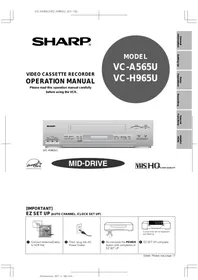
VC-A565U/H965U - VCR SHARP - Free user manual and instructions
Find the device manual for free VC-A565U/H965U SHARP in PDF.


| Product Type | VHS VCR |
| Brand | SHARP |
| Model | VC-A565U / VC-H965U |
| Video Format | VHS NTSC |
| Video Recording System | Helical scanning with two rotating heads |
| Number of Video Heads | 4 (double azimuth) |
| Audio System | 1 fixed linear head + 2 rotating Hi-Fi heads (VC-H965U model only) |
| Tape Speeds | SP: 33.35 mm/s, LP: 16.67 mm/s (playback only), EP: 11.12 mm/s |
| Max Recording Time | SP: 160 min (T-160 cassette), EP: 480 min (T-160 cassette) |
| Channels | VHF 2-13, UHF 14-69, CATV 1-125 (181 channels total) |
| Antenna | 75 ohm input |
| Video Input | 0.5 to 2.0 Vp-p, 75 ohms unbalanced |
| Video Output | 1.0 Vp-p, 75 ohms unbalanced |
| Audio Input | -8 dBs, 47 kohms unbalanced |
| Audio Output | -8 dBs, 1 kohm unbalanced |
| Power Supply | 120 V AC, 60 Hz, 17 W |
| Dimensions (W x H x D) | 360 x 92 x 229 mm |
| Weight | 2.3 kg |
| Special Features | EZ Set Up, 400x fast forward/reverse, quick start, automatic head cleaning system, quasi S-VHS playback, 4 double azimuth heads, HQ system, 1 year/8 event programmable timer, universal remote, Super Image Sharp, auto repeat, DPSS digital search, Skip Search, Instant Replay, auto rewind, child lock |
| Maintenance and Cleaning | Automatic head cleaning system at each cassette insertion/ejection. Do not use excessive cleaning cassettes. |
| Operating Temperature | 5 °C to 40 °C |
| Storage Temperature | -20 °C to 60 °C |
Frequently Asked Questions - VC-A565U/H965U SHARP
User questions about VC-A565U/H965U SHARP
0 question about this device. Answer the ones you know or ask your own.
Ask a new question about this device
Download the instructions for your VCR in PDF format for free! Find your manual VC-A565U/H965U - SHARP and take your electronic device back in hand. On this page are published all the documents necessary for the use of your device. VC-A565U/H965U by SHARP.
USER MANUAL VC-A565U/H965U SHARP
Please read this operation manual carefully before using the VCR.
(VC-H965U)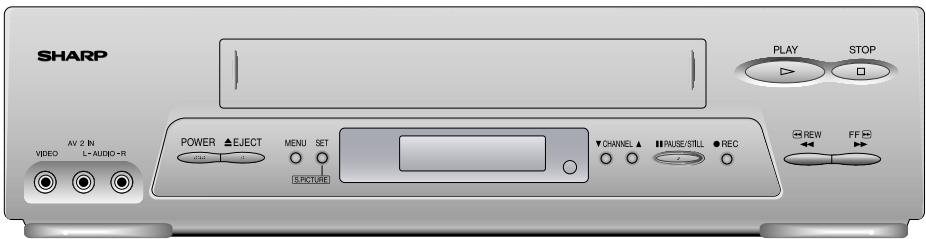

MID-DRIVE

HQ
HIGH QUALITY
[IMPORTANT]
EZ SET UP (AUTO CHANNEL /CLOCK SET UP)
1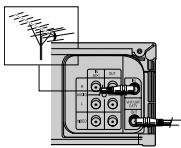
Connect Antenna/Cable to VCR first.
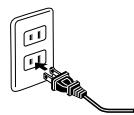
2 Then, plug into AC Power Outlet.

3 Do not press the POWER button until completion of EZ SET UP.
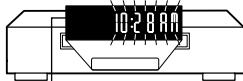
Current time will be displayed and flashing.

EZ SET UP complete.
This video cassette recorder (VCR) uses "ONLY" VHS cassette tapes, NTSC video signals and 120 V AC, 60 Hz (standard household current).
For future reference, record the model and serial number (located on the rear of the VCR) in the space provided.
Model No.:
Serial No.:
WARNING: TO REDUCE THE RISK OF FIRE OR ELECTRIC SHOCK, DO NOT EXPOSE THIS APPLIANCE TO RAIN OR MOISTURE.
CAUTION: TO PREVENT ELECTRIC SHOCK, MATCH WIDE BLADE OF PLUG TO WIDE SLOT, FULLY INSERT.

CAUTION
RISK OF ELECTRIC SHOCK DO NOT OPEN


This symbol warns the user of uninsulated voltage within the unit that can cause dangerous electric shocks.
CAUTION: TO REDUCE THE RISK OF ELECTRIC SHOCK, DO NOT REMOVE COVER. NO USER-SERVICEABLE PARTS INSIDE. REFER SERVICING TO QUALIFIED SERVICE PERSONNEL.

This symbol alerts the user that there are important operating and maintenance instructions in the literature accompanying this unit.
WARNING—Keep your VCR away from electrical and magnetic appliances which could impair performance. Be sure to position your VCR away from your TV or video monitor by at least 8 inches.
WARNING OF DEW FORMATION
Whenever your VCR is moved from a cold to a warm environment, it is important that you plug the unit in, turn the power on and allow it to sit for about 2 hours before attempting to play a tape. This period will allow any dew formation to evaporate. Failure to do so may result in tape and/or video head damage.
After the 2 hour evaporation period, you may witness a "snowy" picture for the first few minutes of VCR operation. This picture noise will disappear shortly thereafter.
As an ENERGY STAR® Partner, SHARP has determined that this product meets the ENERGY STAR® guidelines for energy efficiency. ENERGY STAR is a U.S. registered mark.
WHAT IS ENERGY STAR®
TVs and VCRs use energy both when they are on and when they are off. North Americans spend more than 1 billion a year on energy consumed by TVs and VCRs when they are not in use. The new ENERGY STAR® models will reduce that energy "leakage" by up to 75 percent. Ultimately, this will mean more than500 million a year in energy savings for consumers.
The energy savings will help reduce the burning of fossil fuels and the related carbon dioxide pollution that contributes to global warming. If every North American family replaced their TVs and VCRs with ENERGY STAR® models, it would reduce carbon dioxide emissions by five million tons every year — equivalent to eliminating the pollution from more than one million cars.
By using ENERGY STAR® products, you will save money on your electric bills and use less energy. This not only makes good economic sense but also is good for our environment.
CAUTION
PLEASE READ ALL OF THESE INSTRUCTIONS BEFORE YOU OPERATE THIS PRODUCT AND SAVE THESE INSTRUCTIONS FOR LATER USE.
Electrical energy can perform many useful functions. This product has been engineered and manufactured to assure your personal safety. BUT IMPROPER USE CAN RESULT IN POTENTIAL ELECTRICAL SHOCK OR FIRE HAZARDS. In order not to defeat the safeguards incorporated in this product, observe the following basic rules for its installation, use and servicing.
1. Read Instructions
All the safety and operating instructions should be read before the product is operated.
2. Retain Instructions
The safety and operating instructions should be retained for future reference.
3. Heed Warnings
All warnings on the product and in the operating instructions should be adhered to.
4. Follow Instructions
All operating and use instructions should be followed.
5. Cleaning
Unplug this product from the wall outlet before cleaning. Do not use liquid cleaners or aerosol cleaners. Use a damp cloth for cleaning.
6. Attachments
Do not use attachments not recommended by the product manufacturer as they may cause hazards.
7. Water and Moisture
Do not use this product near water-for example, near a bath tub, wash bowl, kitchen sink, or laundry tub; in a wet basement; or near a swimming pool; and the like.
8. Accessories
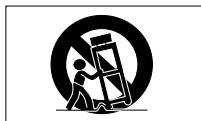
Do not place this product on an unstable cart, stand, tripod, bracket, or table. The product may fall, causing serious injury to a child or adult, and serious damage to the product.
Use only with a cart, stand, tripod, bracket, or table recommended by the manufacturer, or sold with the product. Any mounting of the product should follow the manufacturer's instructions, and should use a mounting accessory recommended by the manufacturer.
9. Transportation
A product and cart combination should be moved with care. Quick stops, excessive force, and uneven surfaces may cause the product and cart combination to overturn.
10. Ventilation
Slots and openings in the cabinet are provided for ventilation to ensure reliable operation of the product and to protect it from overheating, and these openings must not be blocked or covered. The openings should never be blocked by placing the product on a bed, sofa, rug, or other similar surface. This product should not be placed in a built-in installation such as a bookcase or rack unless proper ventilation is provided or the manufacturer's instructions have been adhered to.
11. Power Sources
This product should be operated only from the type of power source indicated on the marking label. If you are not sure of the type of power supply to your home, consult your product dealer or local power company. For products intended to operate from battery power, or other sources, refer to the operating instructions.
12. Grounding or Polarization
This product is equipped with either a 2-wire polarized plug (one plug blade bigger than the other) or a 3-wire grounded plug (a third pin for grounding). The 2-wire polarized plug will fit only one way into the power outlet. The 3-wire grounded plug will fit only into a grounding-type power outlet.
If the plug does not fit, ask your electrician to replace your obsolete outlet. Do not modify the plug. To do so will void the safety feature.
13. Power-Cord Protection
Power-supply cords should be routed so that they are not likely to be walked on or pinched by items placed upon or against them, paying particular attention to cords at plugs, convenience receptacles, and the point where they exit from the product.
14. Outdoor Antenna Grounding
If an outside antenna or cable system is connected to the product, be sure the antenna or cable system is grounded so as to provide some product protection against voltage surges and built-up static charges. Article 810 of the National Electrical Code, ANSI/NFPA 70, provides information with regard to proper grounding of the mast and supporting structure, grounding of the lead-in wire to an antenna discharge unit, size of grounding conductors, location of antenna-discharge unit, connection to grounding electrodes, and requirements for the grounding electrode.
EXAMPLE OF ANTENNA GROUNDING ACCORDING TO NATIONAL ELECTRICAL CODE NEC—NATIONAL ELECTRICAL CODE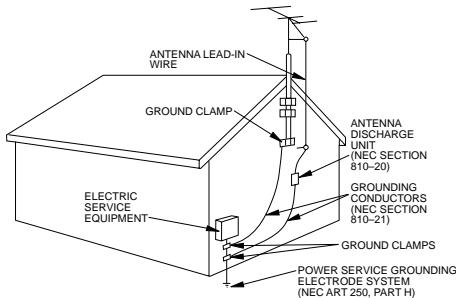
15. Lightning
For added protection for this product during a lightning storm, or when it is left unattended and unused for long periods of time, unplug it from the wall outlet and disconnect the antenna or cable system. This will prevent damage to the product due to lightning and power-line surges.
16. Power Lines
An outside antenna system should not be located in the vicinity of overhead power lines or other electric light or power circuits, or where it can fall into such power lines or circuits. When installing an outside antenna system, extreme care should be taken to keep from touching such power lines or circuits as contact with them might be fatal.
17. Overloading
Do not overload wall outlets, extension cords, or integral convenience receptacles as this can result in a risk of fire or electric shock.
18. Object and Liquid Entry
Never push objects of any kind into this product through openings as they may touch dangerous voltage points or short-out parts that could result in a fire or electric shock. Never spill liquid of any kind on the product.
19. Servicing
Do not attempt to service this product yourself as opening or removing covers may expose you to dangerous voltage or other hazards. Refer all servicing to qualified service personnel.
20. Damage Requiring Service
Unplug this product from the wall outlet and refer servicing to qualified service personnel under the following conditions:
a. When the power-supply cord or plug is damaged. b. If liquid has been spilled, or objects have fallen into the product. c. If the product has been exposed to rain or water. d. If the product does not operate normally by following the operating instructions. Adjust only those controls that are covered by the operating instructions, as an improper adjustment of other controls may result in damage and will often require extensive work by a qualified technician to restore the product to normal operation. e. If the product has been dropped or damaged in any way. f. When the product exhibits a distinct change in performance, this indicates a need for service.
21. Replacement Parts
When replacement parts are required, be sure the service technician has used replacement parts specified by the manufacturer or have the same characteristics as the original part. Unauthorized substitutions may result in fire, electric shock, or other hazards.
22. Safety Check
Upon completion of any service or repairs to this product, ask the service technician to perform safety checks to determine that the product is in proper operating condition.
23. Heat
This product should be situated away from heat sources such as radiators, heat registers, stoves, or other products (including amplifiers) that produce heat.
SERVICE
- Do not attempt to service this VCR yourself. Instead, unplug it and contact a qualified service technician. (See LIMITED WARRANTY at the end of this manual.)
- Be sure the service technician uses authorized replacement parts or their equivalents. Unauthorized parts may cause fire, electrical shock or other hazards.
- Following any service or repair, be sure the service technician performs safety checks to certify that your VCR is in safe operating order.
OTHERS
- For Your Information: Your full understanding of the following is appreciated. Parliament by statute has decreed that it is illegal to make copies of copyrighted material of any manner or kind without the consent of the copyright owner, subject to the "Fair Dealing" exceptions in the Act penalties may be imposed on those guilty of making such copies.
- Normally, your VCR does not require head cleaning. However, the heads may become clogged when an old or damaged tape is used. If the playback picture becomes blurred, the heads may need cleaning. Head cleaning should be performed by a qualified technician. Contact the nearest Sharp Factory Service Centre or Authorized Service Station. Do not use a cleaning tape unless it is new and of high quality. Excessive use of cleaning tapes may also damage the heads.

General Information
IMPORTANT SAFEGUARDS AND
PRECAUTIONS 3
Features 6
Accessories 6
Major Components of Your VCR 7
Remote Control 8
- Inserting the Batteries
Using the Universal Remote Control 9
- How to set the Universal Remote Control code
- How to operate the VCR, TV, Cable Box or Digital Satellite Receiver

Setting Up
Connecting the VCR 10
RF Connection - AV Connection After the Connection - Setting the 3 ↔ 4 Output Channel
Cable TV Connections 12
Menu Screen 16
OSD (On Screen Display) 16
How to Display Indicators
EZ Set Up (With Auto Clock Setting) 17
Setting the Language 18
Setting the Clock 18
- Auto Clock Setting
- Manual Clock Setting Automatic Daylight Saving-Time (D.S.T.) Adjustment
Setting the Channels 21
- Adding Channel Memory/Erasing Channel Memory
Mode Selection 23

Basic Operations
Playback 24
- Inserting a Video Cassette - Playback
- Fast Forward and Rewind Video Search
- Slow Motion Playback (only with the remote control)
- Still Picture and Frame Advance Automatic Tracking Control System
- Manual Tracking Control
- Blue Screen Noise Elimination
- Quick Start with Full Loading Mechanism Full Automatic Playback Automatic Head Cleaning System Audio Output Mode

Recording
Recording a TV Programme 27
- Without a Cable Box or Digital Satellite Receiver
- With a Cable Box or Digital Satellite Receiver
- To Watch Another TV Programme While Recording Cassette Erase Protection
- Recording Speeds
- Recording Hi-Fi Stereo Sound
- Recording MTS (Multi-channel TV Sound) Broadcasts Monitor Output When Receiving a SAP Broadcast
- Tape Dubbing Connection Instructions
Simple Recording Timer 30
- Changing the Contents of the Simple Recording Timer
- Cancelling the Simple Recording Timer
Recording with the Timer 31
- Confirming Timer Programmes
- Cancelling Timer Programmes

Special Functions
Sharp Super Picture 34 Recorded Section Auto Repeat 34 Auto Zero Back 34 DPSS (Digital Programme Search System) 35 Skip Search 35 Instant Replay 35 Tamper Proof 36

Helpful Hints
Specifications 37 Troubleshooting 38 Service Information 38 LIMITED WARRANTY 40
Only for VC-H965U
Hi-Fi Stereo Sound - Built-in MTS (Multi-channel TV Sound) Decoder - Lets you record stereo or SAP (Separate Audio Programme) broadcasts.
Common Features
400 Times Fast Forward and Rewind Speed. - EZ Set Up — VCR tuner channels and clock are automatically set for both Air and Cable channels. S-VHS Quasi Playback Notes for S-VHS tape
- Playback of S-VHS recorded tapes is possible.
- Playback of S-VHS image quality is not available.
- Picture noise or distortion may appear on the screen during playback in the SLOW or STILL mode.
- S-VHS recording is not available. However, HQ recording is possible with S-VHS tape.
- Double-Azimuth 4-Heads
- 19µ Clear Picture System (in EP mode) — For enhanced picture quality in EP (Extended Play) mode. HQ System for Better Resolution and Colour Reproduction
- Multi-Language (English/Spanish/French) OSD (On Screen Display) with Menu Screen Guidance — On-screen setting and recording instructions.
- 181-channel PLL Quartz Synthesized Random Access Tuner with Automatic Channel Setting
- Quick Start with Full Loading Mechanism 1-Year, 8-Event Programmable Timer
- Simple Recording Timer Universal Remote Control
- Operates the VCR and basic functions of various TVs, Cable Boxes and some Digital Satellite Receivers.
- Sharp Super Picture — Enhances picture quality during playback.
- 5 seconds Timer Backup
- Field-Still/Variable Slow/Frame Advance Real-Time Counter - Displays accurate tape time in hours, minutes and seconds. Automatic Daylight Saving-Time (D.S.T.) Adjustment — Automatically adjusts VCR clock to daylight saving-time.
- Blue Screen Noise Elimination
- Auto Tracking Control System — Automatically adjusts tracking during playback.
- Digital Programme Search System (DPSS) — Quickly locates the beginning of a specific recording.
- Skip Search — Quickly operates a forward video search in 30 seconds intervals, then resumes playback.
- Instant Replay — Quickly operates a reverse video search in 20 seconds intervals, then resumes playback.
- Auto Zero Back — Quickly finds "0:00.00" point and stops there.
- Recorded Section Auto Repeat — Continually playback a recorded section of the tape. Full Automatic Playback
- Tamper Proof — Prevents accidental change of the operation mode.
- Up to 8 Hours of Recording and Playback (with T-160 cassette) Automatic Head Cleaning System — Cleans the VCR video heads each time you insert and eject a tape.
- Built-in Front AV Jacks — For easy connection of audio/video equipment such as the Sharp Viewcam.

Accessories
Make sure that all of the following accessories are included with your VCR.
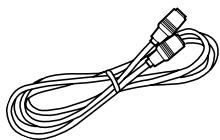
Round coaxial cable (75 Ohm, 0.9 m [3-11/18 ft.]) QCNW-8533GEZZ or QCNW-8614AJZZ
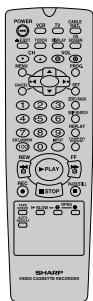
Remote control unit RRMCG1237AJSA or RRMCG1237AJSB
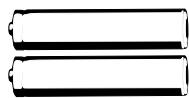
AA batteries for the remote control unit
[Front] Cassette compartment (see Playback/Recording)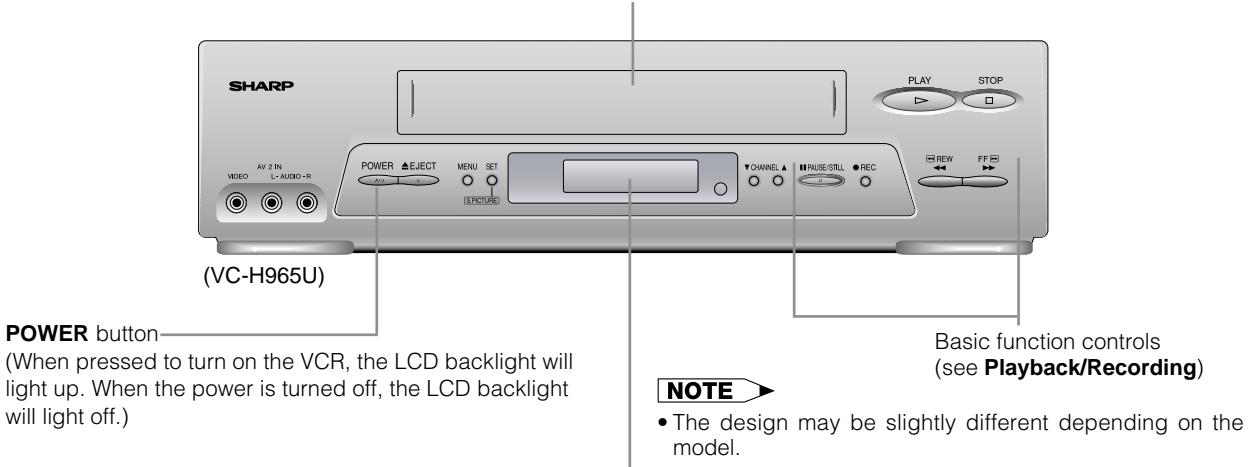
Multi-Function Display (explained throughout the operation instructions)
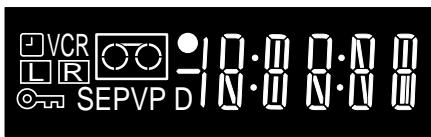
When the power is on, each time DISPLAY is pressed, the Multi-Function display changes as follows:
1 Channel setting → 2 Tape counter → 3 Clock
NOTE
- Tape counter is displayed during playback, fast forward, rewind, or recording.
- When the power is turned off, the clock is displayed and the LCD backlight will turn off.
The meaning of the main indicators is shown below. (The list does not include all indicators)
| Symbol | Function Status | Symbol | Function Status |
| Rotate slowly | Play | Rotate rapidly | Fast forward, Video Search Forward |
| Rotate slowly | Record | Rotate rapidly | Rewind, Video Search Rewind |
| Stop | Cassette-in | ||
| Slow, Still, Frame Advance | Rec Pause | ||
| Tamper Proof Active | VCR | Unit in VCR mode |
NOTE
- The display will return to channel setting mode when STOP is pressed during operation mode.
[Rear] (VC-H965U)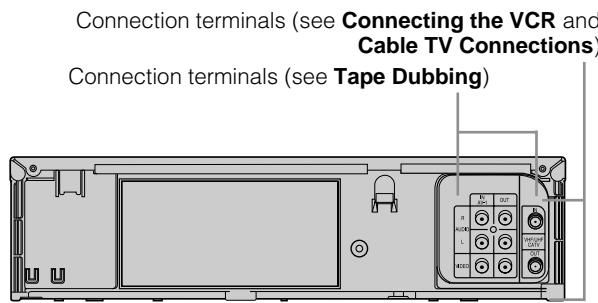
(VC-A565U)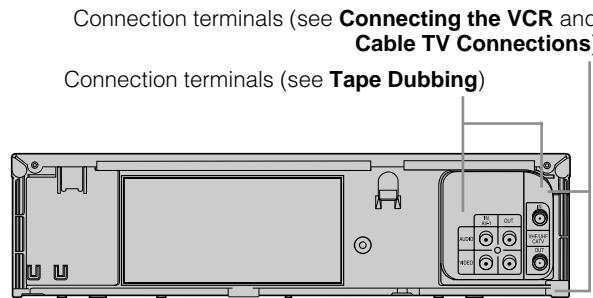
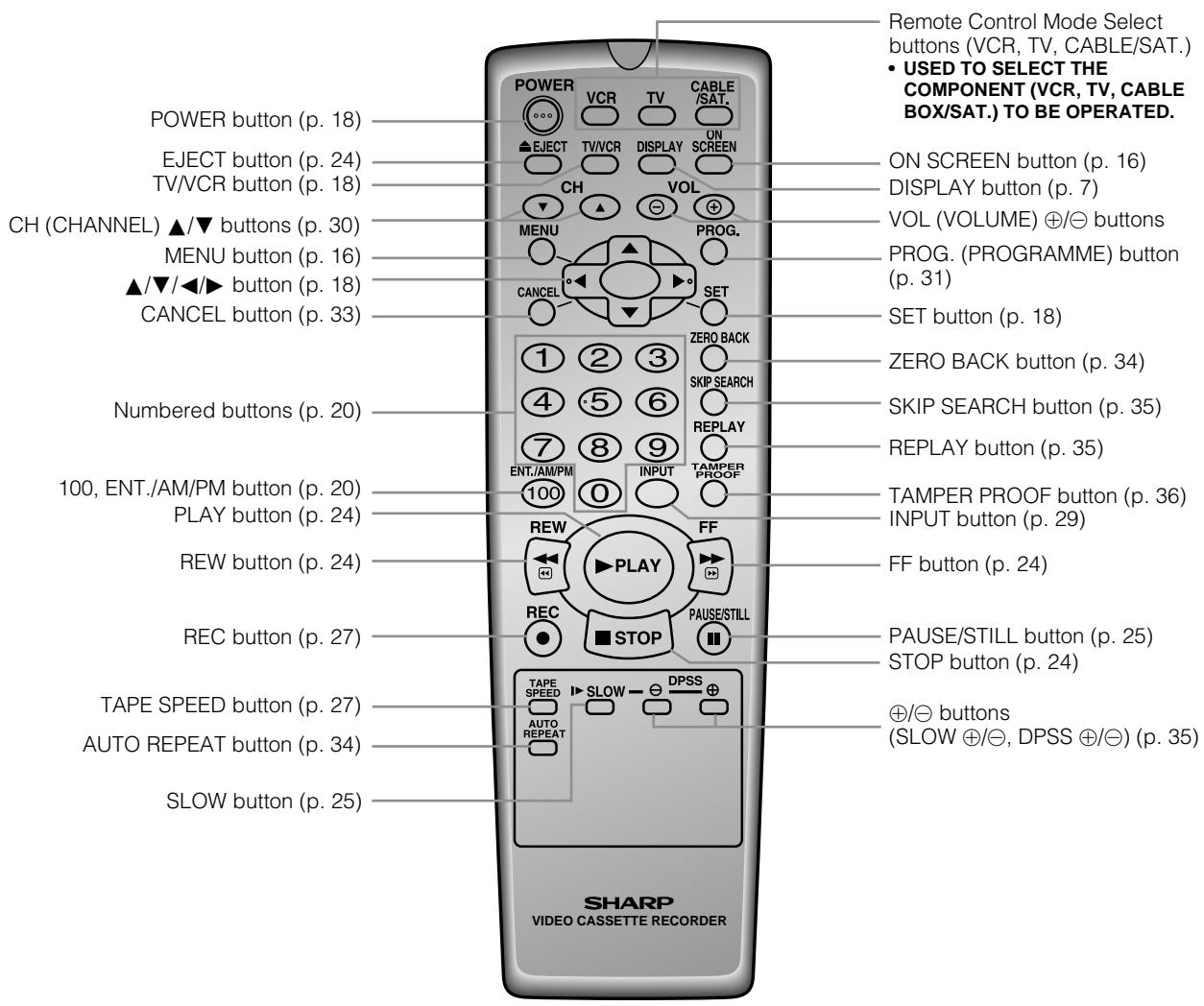
Inserting the Batteries
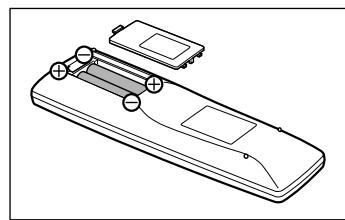
Make sure that the batteries have been properly installed first. Fit two batteries type "AA". If the remote control stops working, fit new batteries.
Ensure the batteries are fitted correctly, matching the polarities (⊕/⊖) indicated in the remote control.
NOTE
- After changing the batteries in the remote control, the code settings for the TV, cable box and Digital Satellite Receiver must be re-entered.
- Do not subject the remote control to shock, water or excessive humidity.
- The remote control may not function if the VCR sensor is in direct sunlight or any other strong light.
- Incorrect use of batteries may cause them to leak or burst. Read the battery warnings and use the batteries properly.
- Do not mix old and new batteries or mix brands in use.
- Remove the batteries if the remote control will not be operated for an extended period of time.
- If the remote control does not function properly when new batteries are installed, remove the batteries and keep pressing any button for 10 seconds before re-installing them.
How to set the Universal Remote Control code
The Universal Remote Control may operate the basic functions of 20 different types of TVs, 18 different types of Cable Boxes and 2 different types of Digital Satellite Receivers.
To enter the Universal Remote Control code for your TV, Cable Box or Digital Satellite Receiver, follow the instructions below.
There is no guarantee that the universal remote control will function with your TV, cable box or digital satellite receiver.
For TV Setting
Setting the Manufacturer's Code Directly
Press TV and CH on the remote control simultaneously. Enter the 2-digit manufacturer's code with the numbered buttons (Ex. 02 = "0" "2") on the remote control within 10 seconds after releasing TV and CH Point the remote control towards the TV. Press TV and release. Press POWER. If the TV turns on/off, setup was successful. If not, repeat the procedure using another code.
NOTE
- Refer to the code list for the buttons which work with each brand.
| Buttons on the Remote Control | POWER CH▲/▼VOL ⊕/I- Numbered (0-9) | INPUT | 100/ENT. | |
| Brand | Code | |||
| EMERSON | 18 | X | X | - |
| FISHER | 16 | X | X | 100 |
| FUNAI | 05 | X | X | 100 |
| GE | 06, 08 | X | - | 100 |
| GOLDSTAR | 17 | X | - | - |
| HITACHI | 14 | X | X | 100 |
| JVC | 15 | X | X | 100 |
| MAGNAVOX | 08 | X | - | 100 |
| 10 | X | X | - | |
| MITSUBISHI | 13 | X | X | - |
| PANASONIC | 12, 20 | X | X | - |
| RCA | 06, 08 | X | - | 100 |
| SAMSUNG | 19 | X | X | - |
| SANYO | 16 | X | X | 100 |
| SHARP | 01 | X | X | 100 |
| 02 | X | X | - | |
| SONY | 09 | X | X | 100/ENT. |
| TECHNOL ACE | 03 | X | X | - |
| TOSHIBA | 11 | X | X | 100 |
| ZENITH | 04 | X | X | ENT. |
| 07 | X | - | 100/ENT. | |
For Cable Box or Digital Satellite Receiver Setting
Setting the Manufacturer's Code Directly
1 Press CABLE/SAT. and CH on the remote control simultaneously. Enter the 2-digit manufacturer's code with the numbered buttons (Ex. 02 = "0" "2") on the remote control within 10 seconds after releasing CABLE/SAT. and CH 3 Point the remote control towards the device. Press CABLE/SAT. and release. Press POWER. If the TV turns on/off, setup was successful. If not, repeat the procedure using another code.
NOTE
Refer to the code list for the buttons which work with each brand. - SAT. stands for Digital Satellite Receiver.
| Buttons on the Remote Control | POWER CH ▲/▼ Numbered (0-9) | 100/ENT. | |
| Brand | Code | ||
| JERROLD | 01, 04, 05, 06, 07 | X | ENT. |
| 02, 03, 08 | X | - | |
| OAK | 16 | X | ENT. |
| PANASONIC | 13 | X | - |
| 14 | X | ENT. | |
| PHILIPS | 18 | X | - |
| PIONEER | 15 | X | ENT. |
| RCA | 13 | X | - |
| 14 | X | ENT. | |
| *RCA (SAT.) | 19 | X | - |
| REGAL | 17 | X | - |
| SCIENTIFIC ATLANTA | 09, 10, 11 | X | - |
| SONY (SAT.) | 20 | X | ENT. |
| ZENITH | 12 | X | ENT. |
- Only for RCA (SAT.) POWER ON-CABLE/SAT. button POWER OFF-Power button
How to operate the VCR, TV, Cable Box or Digital Satellite Receiver
To operate the VCR, TV, Cable Box or Digital Satellite Receiver, first press VCR, TV or CABLE/SAT. to switch to the desired mode, then press the button for the feature you wish to use.
NOTE
- If the batteries in the remote control are changed, the code settings must be re-entered.
- Some brands have more than one remote code listed, due to changes in the remote codes. In such cases, try more than one code to find the code that operates your TV, Cable Box or Digital Satellite Receiver.
The connection method differs depending on the type of TV.
If you have cable TV (CATV), see Cable TV Connections.
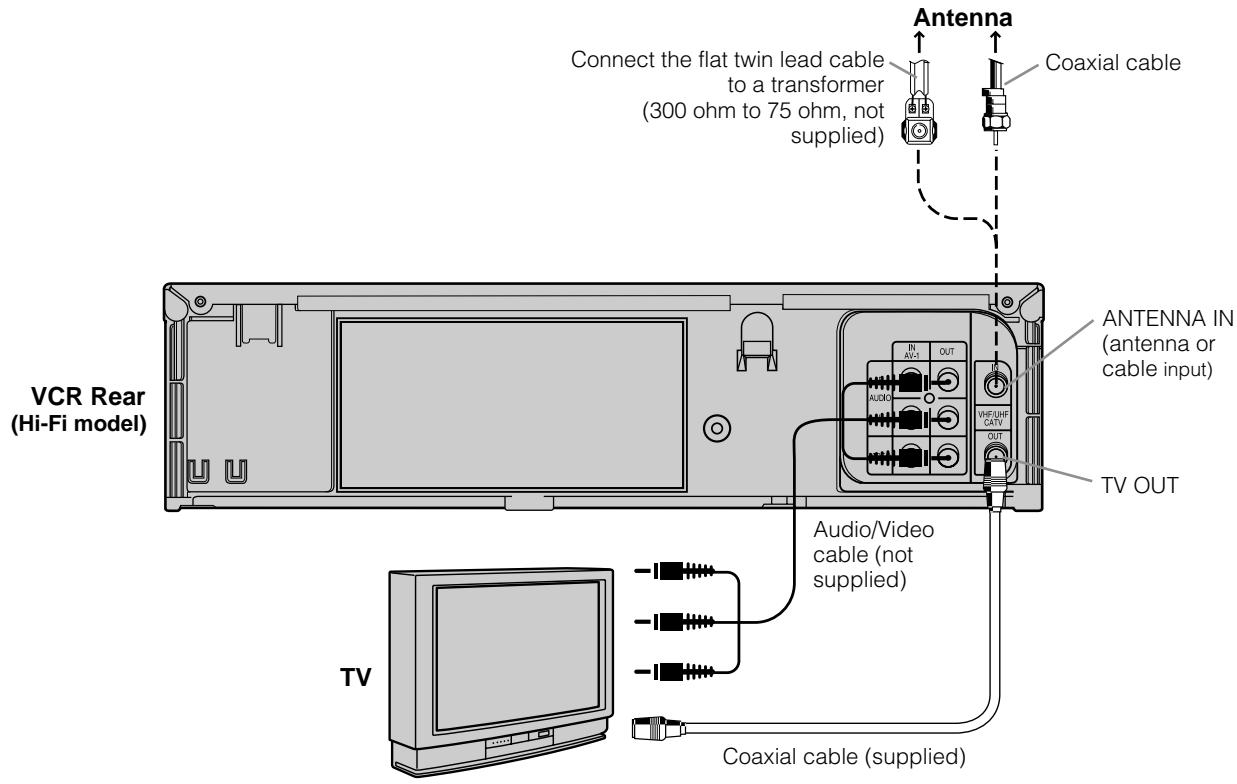
RF Connection (for connection to a TV without AV terminals)
1. Disconnect the TV antenna from the TV. 2. Connect the TV antenna cable to the ANTENNA IN terminal on the rear of the VCR. 3. Connect the TV OUT terminal on the rear of the VCR with the antenna terminal on the TV using a coaxial cable. Select the TV channel 3 or 4 corresponding to the 3/4 output channel of the VCR. (See Setting the 3/4 Output Channel on page 11.)
AV Connection (for connection to a TV with AV terminals)
1. Disconnect the TV antenna from the TV. 2. Connect the antenna, VCR and TV using the Audio/Video cable and coaxial cable (supplied) as shown. 3. Select the video input mode or A/V input mode on your TV. (See the TV operation manual for details.)
NOTE
- If your VCR is a monaural model, connect the audio cable to "AUDIO OUT" on the VCR.
After the Connection
Plug in the power cord of the TV. Then go to EZ Set Up.
Setting the 3/4 Output Channel
The 3/4 Output Channel lets you change the VCR OUTPUT to standard TV broadcasting signals. Both your TV and VCR must be set to the same channel (i.e., TV on channel 3 and VCR OUTPUT channel on 3 too).
1 Press POWER to turn the power off. • Press TV/VCR, current VCR Output Channel will appear on the LCD display. Each time TV/VCR is pressed for 2 seconds, the LCD display changes as follow:

RF 3 = Output Channel 3
RF 4 = Output Channel 4
NOTE
- VCR Output Channel is automatically set during EZ Set Up.
- If Channel 3 (or 4) is an active broadcast channel in your area, the Channel 4 (or 3) will be set.
- If both channels are active or none active, the VCR Output Channel will be set to Channel 3.
- Cancelled the EZ Set Up by pressing POWER during EZ Set Up before setting the Output Channel.
- VCR Output Channel will not change to previous VCR Output Channel if TV/VCR is pressed continuously for more than 2 seconds.
Your VCR is capable of receiving the following non-scrambled channels.
- Scrambled channels can be received with the cable box supplied by your cable TV company.
PREPARATION
Set the 3 ↔ 4 Output Channel of the VCR to 3 or 4. See Setting the 3 ↔ 4 Output Channel on page 11.
First check your TV/CATV system.
Step ① Is your TV cable compatible with the VCR?
- YES → Go to Step ②
- NO → Go to Step ③
Step ② Does your CATV system have some or all channels scrambled?
- YES → Go to D
- NO → Go to A
Step ③ Does your CATV system have some or all channels scrambled?
- YES → Go to D
- NO → Go to Step ④
Step ④ Choose the type below.
- Basic connection (only for
descrambled CATV signals.) → Go to B-1 or 2
- To watch a CATV programme while recording a TV programme
by using the A/B switch. → Go to C
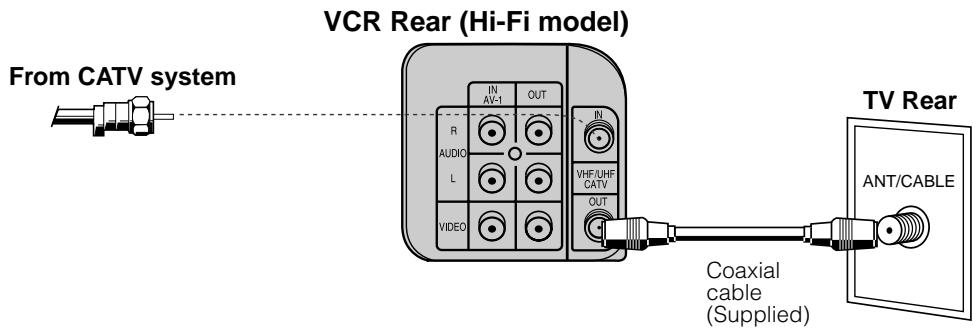
A Connection without a cable box
- Connect as shown. Then go to "After the Connection".
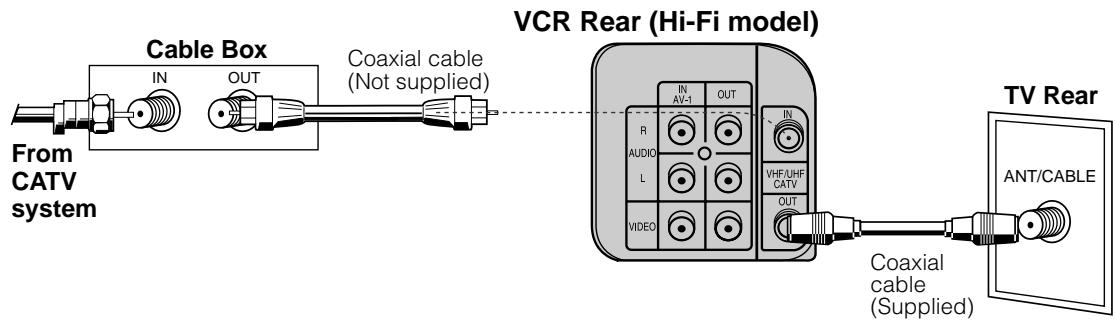
B Connection with cable box

- Connect as shown. With this connection, it is possible to record scrambled CATV signals. Then go to "After the Connection".
NOTE
- If the cable box is turned off, it will not output any signals, thus making it impossible to record or view a programme from the CATV system.
- In the case of the above connections, it is not possible to change channels using the VCR remote control. Only the cable box can be used to change channels.
- Only one channel at a time can be programmed for recording programmes with the timer. It is not possible to watch a TV programme different from the one being recorded.
- Depending on which terminals the TV has, a separate combiner (mixer) or separator (splitter) may be necessary.

- Connect as shown. With this connection, it is not possible to record CATV programmes which have been scrambled, but is possible to record one channel and watch the other one. Then go to "After the Connection".
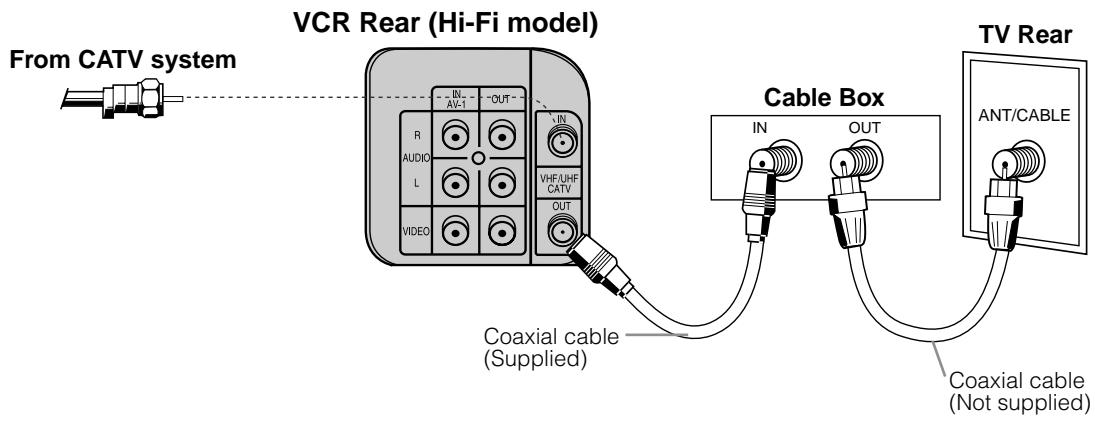
NOTE
- With the above connection, the VCR's channel selector or the numbered buttons on the remote control can be used to select channels.
- Depending on which terminals the TV has, a combiner (mixer) or separator (splitter) may be necessary.
- To record one channel and watch another, the VCR must be set to the TV mode.
Connection with cable box, A/B switch and splitter
By using an A/B switch or splitter, it is possible to switch between the cable box and the VCR output.
For example, while recording a TV programme with the VCR, it is possible to watch a CATV programme (including scrambled programmes) using the A/B switch.
- Connect as shown. Then go to "After the Connection".
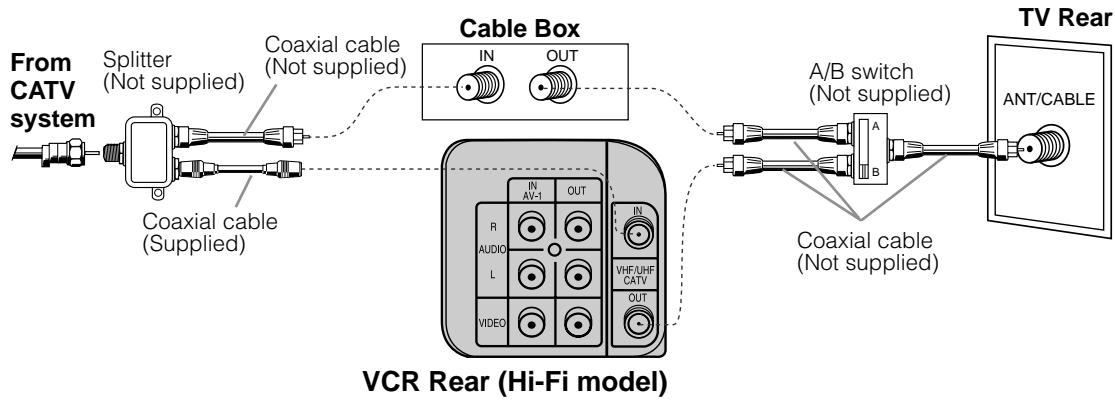
Using the A/B Switch
- Set the A/B switch to the "A" position in the following situations.
1 To watch a cable TV programme while recording another programme. To watch a scrambled cable TV programme. To watch a cable TV programme when the VCR is turned off.
NOTE
- Use the cable box to change channels.
- If you turn off the cable box, you cannot watch a CATV programme.
- Set the A/B switch to the "B" position in the following situations.
1. To playback a cassette on the VCR. 2. To watch a programme which is being recorded with the VCR tuner. 3. To watch a programme using the VCR tuner.
D. Connection with two cable boxes, A/B switch and splitter
The following connection is necessary to record a cable TV programme (even those scrambled by a cable company) while watching another cable TV programme. The following connection requires two cable boxes, a 2-way splitter and an A/B switch.
- Connect as shown. Then go to "After the Connection".
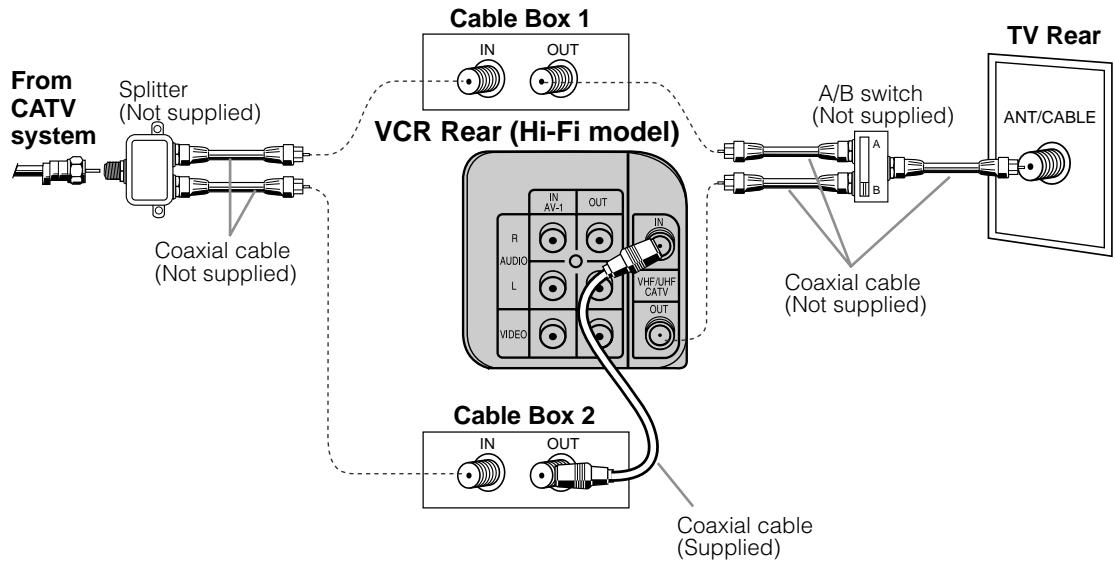
Using the A/B Switch
- Set the A/B switch to the "A" position in the following situations.
1. To watch a cable TV programme while recording another programme. 2. To watch a cable TV programme when the VCR is turned off.
- Set the A/B switch to the "B" position in the following situations.
1. To playback a cassette on the VCR. 2. To watch a programme being recorded or to change (or watch) channels with the cable box 2. The output channel of the cable box 2 and the VCR must be the same.
NOTE
- If you turn off the cable box, you cannot record or view a CATV programme.
- If you have questions regarding any connection procedure, please contact your cable company or the nearest Sharp Authorized Service.
After the Connection
Plug in the power cords of the TV and cable box.
Then go to EZ Set Up.
The MENU screen is a home screen used to select various screen functions. A submenu will appear once you select an item from the menu.
1 Turn on the TV and select the video channel. (See Setting the 3 ↔ 4 Output Channel on page 11.) Press POWER and then TV/VCR to select "VCR" ("VCR" will light on the multi-function display). Press MENU to display the MENU screen.
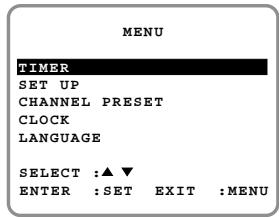
The following 5 items can be set by using the MENU screen.
TIMER: Setting a timer recording (and checking it). (See page 31.)
SET UP: VCR operating conditions are set according to the broadcast reception and tape playback conditions. (See page 23.)
CHANNEL PRESET: Setting the channels. (See page 21.)
CLOCK: Setting the present time. (See pages 18-20.)
LANGUAGE: Selection of language to be used for the MENU screen. (See page 18.)
Press / and then SET. The screen changes to the one which you have selected. To cancel the MENU screen, press MENU.

OSD (On Screen Display)
To facilitate the operation and check the current VCR mode information, the following OSD (On Screen Display) will appear on the TV screen when using this VCR.
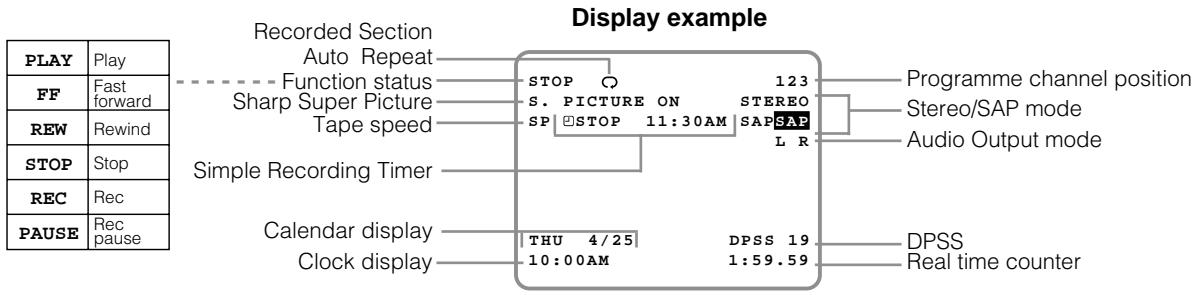
NOTE
- If the clock is not set, the time and date will not be displayed.
- Stereo/SAP and Audio Output modes are only for Hi-Fi model.
How to Display Indicators
Each time ON SCREEN is pressed, the screen changes as follows:

AUTO Display
When an operation button, numbered button or CH ▲/▼ is pressed, the current function status or the number of the channel will be displayed in the upper section of the TV screen for about 3 seconds.
(When you press PLAY)
(When you press REC while you are receiving CH 9.)
NOTE
- When the VCR power is turned off, the display mode is retained in memory.
- When you record a video signal output from this VCR on another VCR, press ON SCREEN to select Display Off. (If the function status is displayed on the screen, it is also recorded on the tape.)
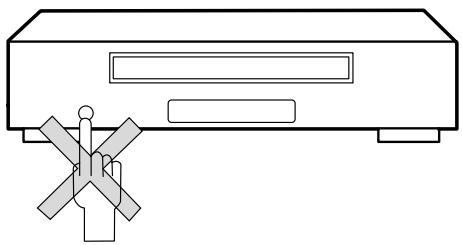
IMPORTANT (Caution during EZ Set Up):
- Do not press the POWER button on the VCR or remote control.
- Do not insert a video cassette into the VCR.
The EZ Set Up function automatically sets the tuner channels and clock when the antenna cable is connected to the rear of the VCR and the power plug is then connected to an AC outlet.
IMPORTANT:
When using a cable box: See Cable TV Connections. - Leave POWER on the cable box turned on and select a channel that carries EDS signals.
During Auto Channel Setting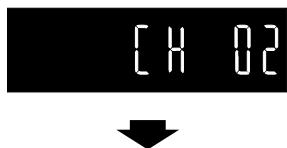
During Auto Clock Setting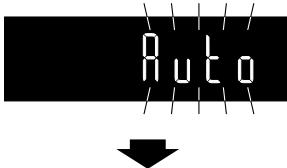
EZ Set Up complete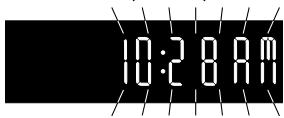
PROCEDURE
1. Make sure that the antenna cable is connected. For connection configuration, refer to Connecting the VCR. 2. Connect the VCR power plug to an AC outlet. The tuner channels and clock will automatically be set.
- This VCR can monitor and use time-signals (EDS signals), which are provided by some TV stations, to automatically adjust the VCR clock. This VCR automatically searches EDS signals, but if you are in a hurry to use timer recording or know the channel of the EDS signal carrier in your area, follow the procedure in Auto Clock Setting or Manual Clock Setting.
NOTE
- If power is supplied to the VCR before the cable is connected, EZ Set Up will not be able to preset the channels into memory. If this occurs, unplug the VCR from the power source and wait a few minutes. Check the cable/antenna connection and supply power to the VCR. EZ Set Up will automatically begin again.
- If the power is turned on during EZ Set Up, the Auto Channel setting will be interrupted and the tuner channels will not be able to be preset.
- Auto Clock Setting may take several minutes.
- If the Auto Clock Setting is not completed within 30 minutes, there may be no channels with EDS signals. In this case, set the clock manually. (See Manual Clock Setting.)
- If the antenna signal is weak, the Auto Clock Setting function may not operate.
- During initial channel setting, the channels are set into the AIR channel setting. To watch a cable TV channel, select "CATV" on the CHANNEL PRESET screen. (See Setting the Channels.)
When you use the VCR for the first time or the power is interrupted for more than 5 seconds (power failure, etc.), you should set the language to be used for the MENU screen.
PREPARATION
- Turn on your TV and select the video channel.
(See Setting the 3↔ 4 Output Channel.)
- Press POWER and then TV/VCR to select "VCR".
("VCR" will light on the multi-function display.)
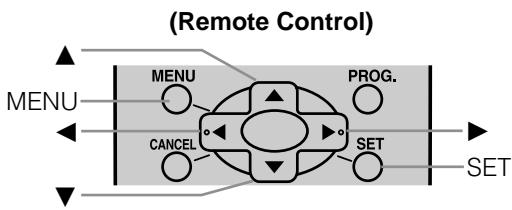
| LANGUAGE ENGLISH ESpañOL FRANÇAIS SELECT :▲▼ ENTER :SET EXIT :MENU | 1 Press MENU. LANGUAGE screen will appear. |
| 2 Select the language with ▲/▼. Ex.: ENGLISH | |
| SET ○ | 3 Press SET to enter. To return to the normal screen, press MENU. |
NOTE
- If you press MENU to exit the LANGUAGE screen in Step ③, the data will not be stored.
- You can also use the (CHANNEL ), (CHANNEL ), (FF ), (REW ), MENU or SET on the VCR to set the On Screen Display (OSD).

Setting the Clock
Auto Clock Setting (If you DO know a channel that carries EDS signals)
PREPARATION
- Make sure that the antenna cable is connected and connect the power cord.
- Turn on your TV and select the video channel. (See Setting the 3 ↔ 4 Output Channel.)
- Press POWER and then TV/VCR to select "VCR". ("VCR" will light on the multi-function display.)
IMPORTANT:
When using a cable box: See Cable TV Connections. - Leave POWER on the cable box turned on and select a channel that carries EDS signals.
| MENU → ▲ → ▼ | MENU → TIMER SET UP CHANNEL PRESET CLOCK LANGUAGE SELECT :▲▼ ENTER :SET EXIT :MENU | SET → Press MENU. Select “CLOCK” with ▲/▼ and then press SET. |
| ▲ → ▼ → ▲ → ▼ | CLOCK → AUTO MANUAL | SET → Select “AUTO” with ▲/▼ and then press SET. |
| → ▲ → ▲ → → → → → → → → → → → → → → → → → → → → → → → → → → → → → → → → → → → → → → → → → → → → → → → → → → ← → → → → → → → → → → → → → → → → → → → → → → → → → → → → → → → → → → → → → → → → → → → → → → → → → > | 3 → Set EDS CH SET mode to “MANUAL” with ▲/▼ and then press ▼. |
| EDS CH SET AUTO MANUAL EDS CH 07 | Select a channel that carries EDS signals with ▲/□. Ex.: 07 ·The number of channels that can be selected depends on the mode setting on the CHANNEL PRESET screen. See NOTE. When using a cable box: Input the output channel (02, 03 or 04) of the cable box. | ||
| SET | Normal Screen | POWER | Press SET to enter. The screen returns to normal. Press POWER to turn off the VCR. The Auto Clock Setting function will automatically set the clock. |
NOTE
- If the EDS CH SET mode is set to MANUAL mode in Step 3 and a channel that does not carry EDS signal is selected in Step 4, the Auto Clock Setting function will not operate.
- In Step 4, the number of channels that can be selected depends on the mode setting on the CHANNEL PRESET screen. See the table below.
| AIR/CATV | Channels to be selected |
| AIR | 02 ↔ 03 ↔ 04 …… 68 ↔ 69 ↔ 02 |
| CATV | 01 ↔ 02 ↔ 03 …… 124 ↔ 125 ↔ 01 |
- In Step 1, if you press MENU when operating the screen setting for the first time or after a power failure of more than 5 seconds, the LANGUAGE screen will appear.
- If you entered incorrect data during the setting procedure, re-enter the correct data in the following manner:
① Use ◁ / ▷ to select the data to be corrected. ② Set the correct data with △ / ▽ ③ After correcting the data in Step ②, press SET to enter.
- If you press MENU in Step ⑤, the data will not be stored.
- If a button is not pressed within 3 minutes during the setting procedure, the screen will return to the normal screen.
Manual Clock Setting
PREPARATION >>
- Turn on your TV and select the video channel. (See Setting the 3 ↔ 4 Output Channel.)
- Press POWER and then TV/VCR to select "VCR". ("VCR" will light on the multi-function display.)
| MENU | MENU TIMER SET UP CHANNEL PRESET CLOCK LANGUAGE SELECT :▲▼ ENTER :SET EXIT :MENU | SET | 1 Press MENU. Select “CLOCK” with ▲/▼ and then press SET. |
| ▲ | ▲ | ▲ | 2 Select “MANUAL” with ▲/▼ and then press SET. |
| ▲ | ▲ | ▲ | 3 Select :▲▼ ENTER :SET EXIT :MENU |
| CLOCK TIME DATE YEAR DST ▲/□ 10:28AM 7/04THU 02 ON SELECT :▲ ▲ ENTER :SET EXIT :MENU | Select “TIME” with ▲/□ and set time by holding ▲/▼. Ex.: 10:28 AM Numbered buttons can be used instead of ▲/▼ to set time and date. Press ENT./AM/PM (100) to select AM or PM during time setting. |
| Select and set “DATE”, “YEAR” and “DST” in turn, in the same manner as in Step ③. • See Automatic Daylight Saving-Time (D.S.T.) Adjustment. Ex.: Jul. 4, 2002, DST: ON | |
| SET ▲ Normal Screen | If the data is correct, press SET to enter. The screen returns to normal. |
NOTE
- In Step 1, if you press MENU when operating the screen setting for the first time or after the power is interrupted for more than 5 seconds, the LANGUAGE screen will appear.
- If you entered incorrect data during the setting procedure, re-enter the correct data in the following manner:
① Use / to select the data to be corrected. ② Set the correct data with /. ③ After correcting the data in Step ②, press SET to enter.
- If you press MENU to exit the CLOCK screen in Step ⑤, the data will not be stored.
- If a button is not pressed within 3 minutes during the setting procedure, the screen will return to the normal screen.
Automatic Daylight Saving-Time (D.S.T.) Adjustment
This VCR is equipped with an internal Automatic Daylight Saving-Time Adjustment function. In spring (first Sunday in April) and autumn (last Sunday in October), the time is adjusted as shown below. This function has been preset to ON at the factory. Set the D.S.T. mode in the clock setting screen.
Spring
Programmed timer recording set within this time frame (2:00 AM to 3:00 AM) will not be carried out.
First Sunday in April (D.S.T. is ON)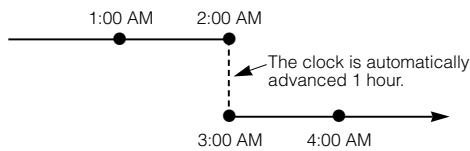
Autumn
Because there will be two time frames from 1:00 AM to 2:00 AM, timer programming set between these times will be influenced by the time change.
Last Sunday in October (D.S.T. is ON)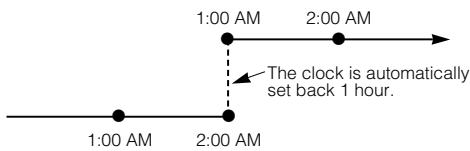
NOTE
- If the timer recording programme is affected by the D.S.T. time change, check your TV listing and find out when it reflects the time change. Some TV listings will indicate the time change in the same manner as is programmed in this VCR, but others do not show the time change until the next morning. In that case, when programming a timer, use the CLOCK screen to set the D.S.T. mode to OFF so the time change will not be carried out.
Your VCR can receive a maximum of 181 channels as shown below by presetting the channels into memory. (VHF: 2 to 13, UHF: 14 to 69, CATV: 1 to 125)
PREPARATION
- Make sure that the cable (antenna or CATV) is connected to the IN terminal on the rear of the VCR.
| MENUE | →▲ →▼ | SET | → |
| CHANNEL PRESET AIR/CATV CH SET | →AIR/CATV AUTO MANUAL | →▼ | →Select “AIR” or “CATV” with ▲/ ▲ and then press ▼. Ex.: AIR • To watch cable TV after EZ Set Up, select “CATV”, press SET. |
| AIR/CATV CH SET | →AIR/CATV AUTO MANUAL | →SET | →Set “CH SET” to “AUTO” with ▲/ ▲ and then press SET. |
| AUTOMATIC TUNING. PLEASE WAIT. | 02 →Normal Screen | →The auto tuning will start. The channel display will count up and when finished, the screen returns to normal. | |
NOTE
Automatic tuning will not start unless the arrow is at "CH SET-AUTO" position. - If a button is not pressed within 3 minutes during the setting procedure, the screen will return to normal. - If the power is interrupted for more than 5 seconds, AIR / CATV selection must be set again. - Automatic tuning will be interrupted if PLAY, REC or MENU are pressed before the screen returns to normal.
Adding Channel Memory/Erasing Channel Memory
Use this function to manually add or erase channels to/from the memory.
| 1 Select the channel to be added with the numbered buttons and the channel to be erased with the CH ▲/▼ or numbered buttons. | |
| MENU | SET |
| CHANNEL PRESET | Press MENU. Select “CHANNEL PRESET” with ▲/▼ and press SET. |
| TIMER | SET |
| SET UP | |
| CHANNEL PRESET | |
| CLOCK | |
| LANGUAGE | |
| SELECT :▲▼ | Select “CH SET” with ▲/▼ and then select “MANUAL” with ▲/▼. Then press SET. |
| ENTER :SET EXIT :MENU | |
| CHANNEL PRESET | SET |
| AIR/CATV | Select “ADD” if you want to add the channel memory or “ERASE” if you want to erase the channel memory with ▲/▼. |
| AIR CATV | |
| CH SET AUTO MANUAL | |
| [ADD] | Select “ADD” if you want to add the channel memory or “ERASE” if you want to erase the channel memory with ▲/▼. |
| ADD 03 | |
| CHANNEL SELECT :▲▼ | |
| ADD/ERASE :▲▼ | |
| EXIT :MENU | |
| ERASE 03 | |
| NORMAL Screen | Press MENU to return to the normal screen. |
NOTE
- If the power is interrupted for more than 5 seconds, the channel memory may be erased. If this happens, reset the channels again and reset AIR/CATV selection.
- If a button is not pressed within 3 minutes during the setting procedure, the screen will return to normal.
You can use the SET UP-selection screen to select the mode for basic features.
PREPARATION
- Turn on the TV and select the video channel. Press POWER and then TV/VCR to select "VCR" ("VCR" will light on the multi-function display).
| MENU → → → → → → → → → → → → → → → → → → → → → → → → → → → → → → → → → → → → → → → → → → → → → → → → → → >SET | 1 Press MENU. |
| 2 Select “SET UP” with ▲/▼ and then press SET. | |
| [AUTO REPEAT] | 3 Set AUTO REPEAT mode to ON or OFF with ▲/▲. Then press ▼. (See Recorded Section Auto Repeat.) • SAP and AUDIO OUTPUT are displayed only with Hi-Fi model. See the shaded area below. |
| [BLUE SCREEN] | 4 Set BLUE SCREEN mode to ON or OFF with ▲/▲. Then press ▼. (See Blue Screen Noise Elimination.) |
| [SAP] | (Only for Hi-Fi model) 5 Set SAP (Separate Audio Programme) mode to ON or OFF with ▲/▲. Then press ▼. (See Recording MTS (Multi-channel TV sound) Broadcasts.) |
| [AUDIO OUTPUT] | (Only for Hi-Fi model) 6 Set AUDIO OUTPUT mode to MONO, LR, L or R with ▲/▲. (See Audio Output Mode.) |
| SET → → → → → → → → → → → → → → → → → → → → → → → → → → → → → → → → → → → → → → → → → → → → → → → → → 0 0 0 0 0 0 0 0 0 0 0 0 0 0 0 0 0 0 0 0 0 0 0 0 0 0 0 0 0 0 0 0 0 0 0 0 0 0 0 0 0 0 0 0 0 0 0 0 0 0 1 1 1 1 1 1 1 1 1 1 1 1 1 1 1 1 1 1 1 1 1 1 1 1 1 1 1 1 1 1 1 1 1 1 1 1 1 1 1 1 1 1 1 1 1 1 1 1 1 1 0 0 0 0 0 0 0 0 0 0 0 0 0 0 0 0 0 0 0 0 0 0 0 0 0 0 0 0 0 0 0 0 0 0 0 0 0 0 0 0 0 0 0 0 0 0 0 0 0 2 2 2 2 2 2 2 2 2 2 2 2 2 2 2 2 2 2 2 2 2 2 2 2 2 2 2 2 2 2 2 2 2 2 2 2 2 2 2 2 2 2 2 2 2 2 2 2 2 2 0 0 0 0 0 0 0 0 0 0 0 0 0 0 0 0 0 0 0 0 0 0 0 0 0 0 0 0 0 0 0 0 0 0 0 0 0 0 0 0 0 0 0 0 0 0 0 0 0 3 3 3 3 3 3 3 3 3 3 3 3 3 3 3 3 3 3 3 3 3 3 3 3 3 3 3 3 3 3 3 3 3 3 3 3 3 3 3 3 3 3 3 3 3 3 3 3 3 3 0 0 0 0 0 0 0 0 0 0 0 0 0 0 0 0 0 0 0 0 0 0 0 0 0 0 0 0 0 0 0 0 0 0 0 0 0 0 0 0 0 0 0 0 0 0 0 0 0 8 8 8 8 8 8 8 8 8 8 8 8 8 8 8 8 8 8 8 8 8 8 8 8 8 8 8 8 8 8 8 8 8 8 8 8 8 8 8 8 8 8 8 8 8 8 8 8 8 8 0 0 0 0 0 0 0 0 0 0 0 0 0 0 0 0 0 0 0 0 0 0 0 0 0 0 0 0 0 0 0 0 0 0 0 0 0 0 0 0 0 0 0 0 0 0 0 0 0 4 4 4 4 4 4 4 4 4 4 4 4 4 4 4 4 4 4 4 4 4 4 4 4 4 4 4 4 4 4 4 4 4 4 4 4 4 4 4 4 4 4 4 4 4 4 4 4 4 4 0 0 0 0 0 0 0 0 0 0 0 0 0 0 0 0 0 0 0 0 0 0 0 0 0 0 0 0 0 0 0 0 0 0 0 0 0 0 0 0 0 0 0 0 0 0 0 0 0 6 6 6 6 6 6 6 6 6 6 6 6 6 6 6 6 6 6 6 6 6 6 6 6 6 6 6 6 6 6 6 6 6 6 6 6 6 6 6 6 6 6 6 6 6 6 6 6 6 6 0 0 0 0 0 0 0 0 0 0 0 0 0 0 0 0 0 0 0 0 0 0 0 0 0 0 0 0 0 0 0 0 0 0 0 0 0 0 0 0 0 0 0 0 0 0 0 0 0 5 5 5 5 5 5 5 5 5 5 5 5 5 5 5 5 5 5 5 5 5 5 5 5 5 5 5 5 5 5 5 5 5 5 5 5 5 5 5 5 5 5 5 5 5 5 5 5 5 5 0 0 0 0 0 0 0 0 0 0 0 0 0 0 0 0 0 0 0 0 0 0 0 0 0 0 0 0 0 0 0 0 0 0 0 0 0 0 0 0 0 0 0 0 0 0 0 0 0 7 7 7 7 7 7 7 7 7 7 7 7 7 7 7 7 7 7 7 7 7 7 7 7 7 7 7 7 7 7 7 7 7 7 7 7 7 7 7 7 7 7 7 7 7 7 7 7 7 7 8 8 8 8 8 8 8 8 8 8 8 8 8 8 8 8 8 8 8 8 8 8 8 8 8 8 8 8 8 8 8 8 8 8 8 8 8 8 8 8 8 8 8 8 8 8 8 8 8 10 10 10 10 10 10 10 10 10 10 10 10 10 10 10 10 10 10 10 10 10 10 10 10 10 10 10 10 10 10 10 10 10 10 |
NOTE
- If you press MENU to exit the mode selection screen in Step ⑦, the data will not be stored. Be sure to press SET to store the data.
- SAP is used for bilingual broadcasting. Check your local broadcast station or cable company.
Inserting a Video Cassette
Gently insert the video cassette into the cassette compartment. The VCR turns on automatically and "√" appears on the multi-function display. If the cassette is inserted incorrectly, the loading system will not function. Do not force the cassette into the VCR.
To remove the cassette, press EJECT during stop mode.
Playback
PREPARATION
- Turn on the TV and select the video channel. (See Setting the 3 ↔ 4 Output Channel.)
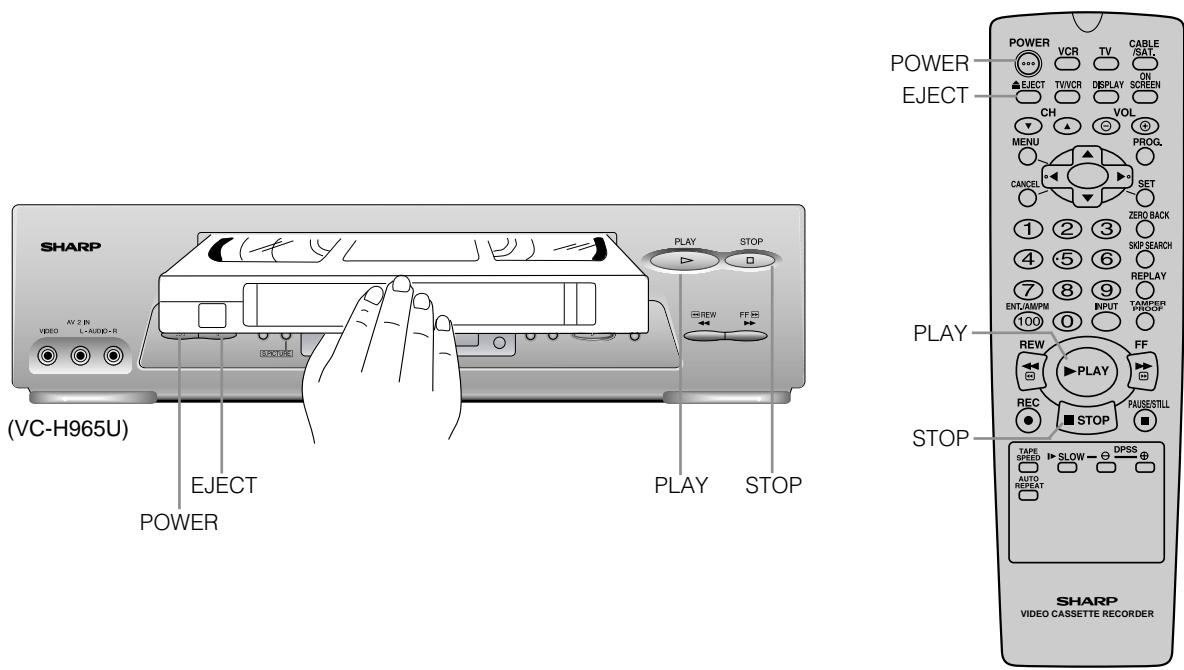
PROCEDURE
1 Press POWER to turn on the VCR. 2 Insert a cassette. Press PLAY. (The automatic tracking control system engages and "PLAY" flashes on the TV screen for a few seconds. See Automatic Tracking Control System.) To stop playback, press STOP. (If the tape reaches its end, the VCR will automatically rewind the tape to the beginning, turn its power off, and eject the tape.)
NOTE
- If noise should remain on the TV screen after tracking adjustment has been completed by the Automatic Tracking Control System, use the manual tracking mode.
- Press CH / during playback mode to change to manual tracking mode. Adjust the tracking using CH / until the noise is minimized or eliminated.
- For tapes recorded in EP on another VCR that still have vertical jitter even after manual adjustment, hold down PLAY for about 2 seconds. (On screen display may be blurred). Ejecting the tape or turning off the power will return playback to its normal mode.
Notes for S-VHS tape
- Playback of S-VHS recorded tapes is possible.
- Playback of S-VHS image quality is not available.
- Picture noise or distortion may appear on the screen during playback in the SLOW or STILL mode.
- S-VHS recording is not available. However, HQ recording is possible with S-VHS tape.
Fast Forward and Rewind
When the VCR is in stop mode, press FF or REW to fast forward or rewind the cassette. (The picture cannot be viewed in this mode.) Press STOP to halt fast forward or rewind.
NOTE
- The FF and REW speeds may be slower for cassette tapes other than T-60, T-90 or T-120.
- After rewinding the T-120 cassette tape for about 60 seconds, you can fast forward the cassette tape.
Video Search
Use the following procedure to quickly find the section you want, while viewing the picture.
1 During playback, press FF for forward video search or REW for reverse video search. There are 2 search speeds in each direction. The VCR switches between them each time the button is pressed. Press PLAY to resume normal playback.
Slow Motion Playback (only with the remote control)
Press SLOW during playback. Press SLOW + or - (to the right of SLOW) to vary the slow motion playback speed between 1/5 and 1/30 of the normal playback speed.
If noise bars appear on the screen, use CH + or -.
If the picture experiences vertical jitter during the slow mode, set your VCR to the still mode and press CH + or - to stabilize the picture. Then press SLOW again.
3 Press PLAY to resume normal playback.
Still Picture and Frame Advance
1 Press PAUSE/STILL during playback. This will freeze the picture on your TV. If the picture vibrates vertically during still mode, use CH ▲/▼ to adjust for minimum distortion. If noise bars appear on the screen during still mode, set your VCR to the slow mode and press CH ▲/▼ to make the noise disappear. Then press PAUSE/STILL again. 3 Press PAUSE/STILL during still mode for frame advance. 4 Press PLAY again to resume normal playback.
NOTE
- Sound is muted during still picture, video search, frame advance and variable slow motion.
- The picture quality in still picture, video search, frame advance and variable slow motion is best with tapes recorded in SP or EP mode.
Automatic Tracking Control System
This function automatically adjusts the tracking to match the recorded tape. Auto tracking engages in the following cases:
- When you insert the cassette and begin playback.
- When you press CH ▲/▼ at the same time.
- When the VCR has been playing back an unrecorded section of tape and then reaches a recorded tape segment.
When auto tracking engages, "PLAY" on the TV screen flashes for a few seconds.
Poor Tracking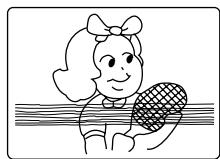
Normal Picture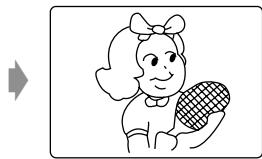
Manual Tracking Control
When a poorly recorded tape is played back or the VCR is near an electrical or magnetic field, auto tracking may not operate normally. In this event, manually adjust the tracking with CH ▲/▼ to make any noise disappear.
Blue Screen Noise Elimination
Set the BLUE SCREEN mode to ON on the SET UP-selection screen. (See Mode Selection.) This function eliminates monitor noise and mutes sound during playback of unrecorded portions of a tape and when receiving a non-broadcasting channel. Blue Screen will also appear if the VCR is set to the Auxiliary mode but no video signal is fed to the VCR. (The BLUE SCREEN mode is set to ON at the factory.)
NOTE
- Blue Screen does not function during still picture, variable slow motion and video search.
- Blue Screen may not function properly if the broadcast signal is too strong or too weak.
- Blue Screen does not function during playback of a tape with noise recorded.
- If the antenna signal is weak while recording a TV programme or if the input signal is weak while tape dubbing, the monitor screen may turn blue since the unit may not recognize whether or not a proper signal is being received. In this event, set the BLUE SCREEN mode to OFF.
Quick Start with Full Loading Mechanism
Your VCR has a standby function (Full Loading Mechanism) to allow immediate recording and playback.
After pressing REC or PLAY, it takes about 2 seconds until recording or playback is engaged when in the standby mode.
Full Automatic Playback
The Full Automatic Playback lets you enjoy playback with ease. When you insert a cassette with the erasure protection tab removed, your VCR automatically turns on the power and playback the tape. When the tape reaches its end, the VCR automatically rewrites the tape, turns its power off and ejects the tape.
NOTE
- If the erasure protection hole is covered, press PLAY after the power turns on automatically.
Automatic Head Cleaning System
When the tape is inserted or ejected, this system automatically cleans the drum and heads with a special roller before recording or playback begins, protecting the heads and drum from dirt and preserving beautiful sound and picture quality.
Only for Hi-Fi model Audio Output Mode
Your VCR has 3 channels for audio recording (2 on the Hi-Fi track and 1 on the linear track). You can select the audio output channels in playback mode on the SET UP-selection screen. The following shows which audio channels will be heard when a stereo Hi-Fi video cassette is played back while a stereo system is properly
connected to the VCR.
(See Mode Selection.)
Hi-Fi L + R mode: LR
Normally, select Hi-Fi L + R mode on the SET UP-selection screen: both the left (L) and right (R) audio channels will be taken from the Hi-Fi audio track.
Normally you will not have to change to another mode.
(See Recording MTS (Multi-channel TV Sound) Broadcasts.)
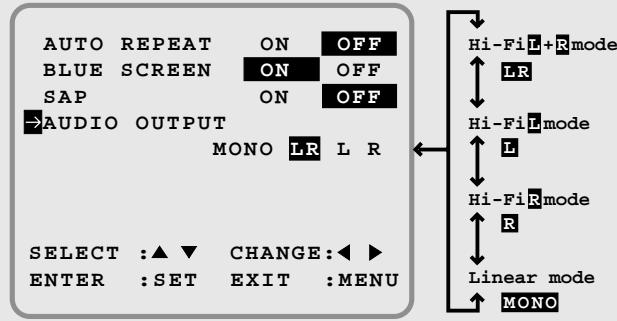
Hi-Fi mode:
The left channel of the Hi-Fi audio track will be played back through both speakers.
Hi-Fi mode: R
The right channel of the Hi-Fi audio track will be played back through both speakers.
Linear mode: MONO
The audio signal recorded on the linear audio track will be played back through both speakers.
NOTE
- When video cassettes recorded on a non-Hi-Fi VCR are played back or the Hi-Fi audio output level is poor, the audio signal recorded on the linear audio track will automatically be played back regardless of the audio output mode.
PREPARATION
- Turn on the TV and select the video channel. (See Setting the 3 ↔ 4 Output Channel.)
- Press POWER and then TV/VCR to select "VCR" ("VCR" will light on the multi-function display).
Only for Hi-Fi model
- If necessary, set "SAP" on the SETUP-selection screen. (See Mode Selection.)
Without a Cable Box or Digital Satellite Receiver
1 Insert the cassette, with the erasure protection tab covered. (See Cassette Erase Protection below.) Press TAPE SPEED on the remote control to set the recording speed (SP or EP). (See Recording Speeds below.)
SP or EP will appear in the multi-function display.
3 Select the desired channel with CH ▲/▼ or the numbered buttons on the remote control. 4 Press REC. (If the erasure protection tab has been removed, the cassette will be ejected.) To stop recording, press STOP.
- To pause recording during the REC mode, press PAUSE/STILL on the remote control. To resume recording, press PAUSE/ STILL or REC. (Pause disengages automatically after about 5 minutes to avoid damage to the tape and the VCR and stop mode is engaged.)
With a Cable Box or Digital Satellite Receiver
1 Insert the cassette, with the erasure protection tab covered. (See Cassette Erase Protection below.) Press TAPE SPEED on the remote control to set the recording speed (SP or EP). (See Recording Speeds below.)
SP or EP will appear in the multi-function display.
3 Set the TV and VCR channels to output CH of cable box or digital satellite receiver. Set the cable box or digital satellite receiver to the desired channel to record. Press REC. (If the erasure protection tab has been removed, the cassette will be ejected.) 6 To stop recording, press STOP.
NOTE
- You will be unable to watch a scrambled channel while recording.
- It is not necessary to set the clock to use this recording operation.
- "PAUSE" will flash on the TV screen if PAUSE/STILL is pressed in stop mode. Press STOP to disengage the pause mode or press REC to enter the record standby mode.
- The VCR can record a TV programme even with the TV turned off.
To Watch Another TV Programme While Recording
While recording, press TV/VCR to select "TV" (the "VCR" indicator will disappear), then select the programme you wish to view using the TV tuner.
At the end of the tape, your VCR will automatically stop recording, rewinds the tape, turns its power off and ejects the tape.
Cassette Erase Protection
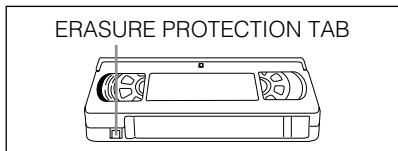
A WIS cassette has a removable tab to prevent accidental erasure of recorded material. Removing the tab prevents recording. To record on a video cassette with the tab removed, place adhesive tape over the tab opening.
Recording Speeds
This VCR lets you select a recording speed (SP or EP). SP provides a better picture, although the recording time is shorter. Select the tape speed that best suits your needs.
NOTE
- This VCR can playback tapes recorded in LP (Long Play) mode.
| MODE CASSETTE | SP (Standard Play) | EP (Extended Play) |
| T-60 | 1 hr. | 3 hrs. |
| T-120 | 2 hrs. | 6 hrs. |
| T-160 | 2 hrs. & 40 min. | 8 hrs. |
Only for Hi-Fi model Recording Hi-Fi Stereo Sound
Your VCR records AUDIO signals on two types of audio tracks.
Hi-Fi:
Using specialized rotary heads, audio signals are recorded on the video track in FM format.
Multi-sound broadcasts (Stereo or SAP [Separate Audio Programme]) are recorded on two channels.
Linear:
All audio signals are recorded in mono on the linear audio track.
NOTE
- Video cassettes recorded on a non-Hi-Fi VCR can also be played back. However, if the audio signals are recorded on two linear channels, stereo programmes will be played back in monaural and SAP (Separate Audio Programme) will be played back with both the MAIN and SAP audio mixed together.
- Video cassettes recorded on this VCR can be played back on a non-Hi-Fi VCR. However, only the linear track will be played back.
Recording MTS (Multi-channel TV Sound) Broadcasts
Your VCR can record stereo or SAP (Separate Audio Programme) broadcasts, where available.
If the broadcast is in stereo, the VCR automatically records the stereo sound in dynamic Hi-Fi. If the broadcast is in SAP, you can record both the MAIN and the SAP sound by using the SET UP-selection screen to set the SAP mode to ON. If the broadcast is in stereo/SAP, you can record either the SAP sound by using the SET UP-selection screen to set the SAP mode to ON or stereo sound by setting the SAP mode to OFF. (See Mode Selection.)
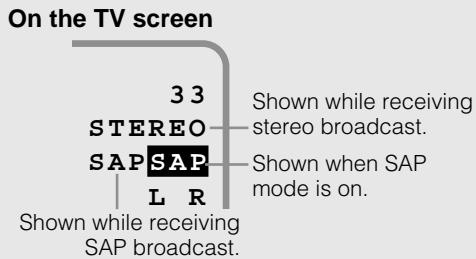
MTS/SAP RECORDING
- The monitor output listed in the table shows that the audio output mode is in the Hi-Fi L + R mode.
| Broad-cast Re-ceived | SAP Mode Position | *Monitor Output | Recording | |||
| L-Speaker | R-Speaker | Hi-Fi L-CH | Hi-Fi R-CH | Linear Track | ||
| Stereo | OFF | L | R | L | R | L + R |
| ON | L | R | L | R | L + R | |
| SAP | OFF | MAIN | MAIN | MAIN | MAIN | MAIN |
| ON | MAIN | SAP | MAIN | SAP | SAP | |
| Stereo/SAP | OFF | L | R | L | R | L + R |
| ON | L + R | SAP | L + R | SAP | SAP | |
Monitor Output When Receiving a SAP Broadcast
When receiving a SAP broadcast, if the SAP position is set to ON, change the audio output mode to select Monitor Output (MAIN or SAP) with the SET UP-selection screen.
(See Mode Selection.)
When enjoying a TV programme with MAIN sound:
Select L on the SET UP-selection screen.
(See Audio Output Mode.)
When enjoying a TV programme with SAP sound:
Select R or MONO on the SET UP-selection screen.
(See Audio Output Mode.)
Tape Dubbing Connection Instructions
Your VCR can dub (copy) video material from another video device. It can also output video and audio signals for recording on other video or audio equipment. Audio/Video dubbing cannot be done separately.
Switch your VCR to the auxiliary input by pressing INPUT on the remote control. R or R2 lights up on the multi-function display. (You can also use CHANNEL triangle/nabla on the VCR or CH triangle/nabla on the remote control.) Begin recording on the dubbing VCR and playback on the source VCR simultaneously.
NOTE
- When using special playback functions (still picture, video search, frame advance and variable slow motion) during dubbing, a blue screen may appear. Set BLUE SCREEN mode on the dubbing VCR (for recording) to OFF. (See Mode Selection.)
- To use the TV as a monitor while dubbing, press TVVCR to "VCR" on the dubbing VCR.
- Use an RCA pin-type connection cable (not supplied with VCR, but supplied with VIEWCAM) to connect source VCR to dubbing VCR. Refer to the manual of the VCR connected to this unit when dubbing a tape.
- You can also use the front AV jacks. Select "AV" (Aux. 2 input) by pressing INPUT twice.
Only for Hi-Fi model
- If the source VCR is in monaural mode, connect the audio cable to "AUDIO-L" of the dubbing VCR.
(VC-A565U)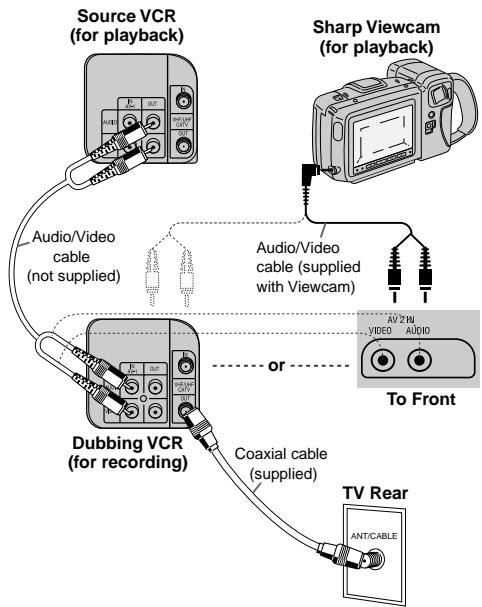
(VC-H965U)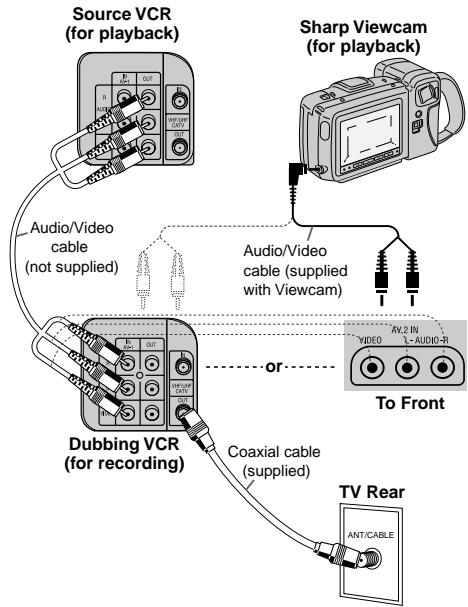
The Simple Recording Timer (SRT) enables you to set the recording stop time. The SRT can be set on the TV screen by using the remote control.
The SRT cannot be set if the clock has not been set. Make sure the clock is set before setting the SRT.
PREPARATION
- Turn on the TV and select the video channel. (See Setting the 3 ↔ 4 Output Channel.)
- Insert a cassette with the erasure protection tab opening covered. Power will turn on automatically.
- Press TV/VCR to select "VCR" ("VCR" will light on the multi-function display).
Only for Hi-Fi model
- If necessary, set "SAP" on the SET UP-selection screen. (See Mode Selection.)
PROCEDURE
Example: Recording a TV programme in the SP mode. The programme is on Channel 2, ending at 9:50 AM. The present time is 8:43 AM.
| CH 0.2 0.2 0.2 0.2 0.2 0.2 0.2 0.2 0.2 0.2 0.2 0.2 0.2 0.2 0.2 0.2 0.2 0.2 0.2 0.2 0.2 0.2 0.2 0.2 0.2 0.1 0.1 0.1 0.1 0.1 0.1 0.1 0.1 0.1 0.1 0.1 0.1 0.1 0.1 0.1 0.1 0.1 0.1 0.1 0.1 0.1 0.1 0.1 0.1 0.1 0.2 0.2 0.2 0.2 0.2 0.2 0.2 0.2 0.2 0.2 0.2 0.2 0.2 0.2 0.2 0.2 0.2 0.2 0.2 0.2 0.2 0.2 0.2 0.2 0.4 0.4 0.4 0.4 0.4 0.4 0.4 0.4 0.4 0.4 0.4 0.4 0.4 0.4 0.4 0.4 0.4 0.4 0.4 0.4 0.4 0.4 0.4 0.4 0.4 0.2 0.2 0.2 0.2 0.2 0.2 0.2 0.2 0.2 0.2 0.2 0.2 0.2 0.2 0.2 0.2 0.2 0.2 0.2 0.2 0.2 0.2 0.2 0.2 0.3 0.3 0.3 0.3 0.3 0.3 0.3 0.3 0.3 0.3 0.3 0.3 0.3 0.3 0.3 0.3 0.3 0.3 0.3 0.3 0.3 0.3 0.3 0.3 0.3 0.4 0.4 0.4 0.4 0.4 0.4 0.4 0.4 0.4 0.4 0.4 0.4 0.4 0.4 0.4 0.4 0.4 0.4 0.4 0.4 0.4 0.4 0.4 0.4 0.5 0.5 0.5 0.5 0.5 0.5 0.5 0.5 0.5 0.5 0.5 0.5 0.5 0.5 0.5 0.5 0.5 0.5 0.5 0.5 0.5 0.5 0.5 0.5 0.5 0.2 0.2 0.2 0.2 0.2 0.2 0.2 0.2 0.2 0.2 0.2 0.2 0.2 0.2 0.2 0.2 0.2 0.2 0.2 0.2 0.2 0.2 0.2 0.2 0.5 0.5 0.5 0.5 0.5 0.5 0.5 0.5 0.5 0.5 0.5 0.5 0.5 0.5 0.5 0.5 0.5 0.5 0.5 0.5 0.5 0.5 0.5 0.5 0.6 0.6 0.6 0.6 0.6 0.6 0.6 0.6 0.6 0.6 0.6 0.6 0.6 0.6 0.6 0.6 0.6 0.6 0.6 0.6 0.6 0.6 0.6 0.6 0.6 0.7 0.7 0.7 0.7 0.7 0.7 0.7 0.7 0.7 0.7 0.7 0.7 0.7 0.7 0.7 0.7 0.7 0.7 0.7 0.7 0.7 0.7 0.7 0.7 0.7 0.8 0.8 0.8 0.8 0.8 0.8 0.8 0.8 0.8 0.8 0.8 0.8 0.8 0.8 0.8 0.8 0.8 0.8 0.8 0.8 0.8 0.8 0.8 0.8 0.8 0.9 0.9 0.9 0.9 0.9 0.9 0.9 0.9 0.9 0.9 0.9 0.9 0.9 0.9 0.9 0.9 0.9 0.9 0.9 0.9 0.9 0.9 0.9 0.9 0.9 0.8 0.8 0.8 0.8 0.8 0.8 0.8 0.8 0.8 0.8 0.8 0.8 0.8 0.8 0.8 0.8 0.8 0.8 0.8 0.8 0.8 0.8 0.8 0.8 0.2 0.2 0.2 0.2 0.2 0.2 0.2 0.2 0.2 0.2 0.2 0.2 0.2 0.2 0.2 0.2 0.2 0.2 0.2 0.2 0.2 0.2 0.2 0.2 0.8 0.8 0.8 0.8 0.8 0.8 0.8 0.8 0.8 0.8 0.8 0.8 0.8 0.8 0.8 0.8 0.8 0.8 0.8 0.8 0.8 0.8 0.8 0.8 0.5 0.5 0.5 0.5 0.5 0.5 0.5 0.5 0.5 0.5 0.5 0.5 0.5 0.5 0.5 0.5 0.5 0.5 0.5 0.5 0.5 0.5 0.5 0.5 0.8 0.8 0.8 0.8 0.8 0.8 0.8 0.8 0.8 0.8 0.8 0.8 0.8 0.8 0.8 0.8 0.8 0.8 0.8 0.8 0.8 0.8 0.8 0.8 0.6 0.6 0.6 0.6 0.6 0.6 0.6 0.6 0.6 0.6 0.6 0.6 0.6 0.6 0.6 0.6 0.6 0.6 0.6 0.6 0.6 0.6 0.6 0.6 0.8 0.8 0.8 0.8 0.8 0.8 0.8 0.8 0.8 0.8 0.8 0.8 0.8 0.8 0.8 0.8 0.8 0.8 0.8 0.8 0.8 0.8 0.8 0.8 0.7 0.7 0.7 0.7 0.7 0.7 0.7 0.7 0.7 0.7 0.7 0.7 0.7 0.7 0.7 0.7 0.7 0.7 0.7 0.7 0.7 0.7 0.7 0.7 0.2 0.2 0.2 0.2 0.2 0.2 0.2 0.2 0.2 0.2 0.2 0.2 0.2 0.2 0.2 0.2 0.2 0.2 0.2 0.2 0.2 0.2 0.2 0.2 0.6 0.6 0.6 0.6 0.6 0.6 0.6 0.6 0.6 0.6 0.6 0.6 0.6 0.6 0.6 0.6 0.6 0.6 0.6 0.6 0.6 0.6 0.6 0.6 0.2 0.2 0.2 0.2 0.2 0.2 0.2 0.2 0.2 0.2 0.2 0.2 0.2 0.2 0.2 0.2 0.2 0.2 0.2 0.2 0.2 0.2 0.2 0.2 0.9 0.9 0.9 0.9 0.9 0.9 0.9 0.9 0.9 0.9 0.9 0.9 0.9 0.9 0.9 0.9 0.9 0.9 0.9 0.9 0.9 0.9 0.9 0.9 0.2 0.2 0.2 0.2 0.2 0.2 0.2 0.2 0.2 0.2 0.2 0.2 0.2 0.2 0.2 0.2 0.2 0.2 0.2 0.2 0.2 0.2 0.2 0.2 0.7 0.7 0.7 0.7 0.7 0.7 0.7 0.7 0.7 0.7 0.7 0.7 0.7 0.7 0.7 0.7 0.7 0.7 0.7 0.7 0.7 0.7 0.7 0.7 0.6 0.6 0.6 0.6 0.6 0.6 0.6 0.6 0.6 0.6 0.6 0.6 0.6 0.6 0.6 0.6 0.6 0.6 0.6 0.6 0.6 0.6 0.6 0.6 0.5 0.5 0.5 0.5 0.5 0.5 0.5 0.5 0.5 0.5 0.5 0.5 0.5 0.5 0.5 0.5 0.5 0.5 0.5 0.5 0.5 0.5 0.5 0.5 0.7 0.7 0.7 0.7 0.7 0.7 0.7 0.7 0.7 0.7 0.7 0.7 0.7 0.7 0.7 0.7 0.7 0.7 0.7 0.7 0.7 0.7 0.7 0.7 0.5 0.5 0.5 0.5 0.5 0.5 0.5 0.5 0.5 0.5 0.5 0.5 0.5 0.5 0.5 0.5 0.5 0.5 0.5 0.5 0.5 0.5 0.5 0.5 0.4 0.4 0.4 0.4 0.4 0.4 0.4 0.4 0.4 0.4 0.4 0.4 0.4 0.4 0.4 0.4 0.4 0.4 0.4 0.4 0.4 0.4 0.4 0.4 0.6 0.6 0.6 0.6 0.6 0.6 0.6 0.6 0.6 0.6 0.6 0.6 0.6 0.6 0.6 0.6 0.6 0.6 0.6 0.6 0.6 0.6 0.6 0.6 0.9 0.9 0.9 0.9 0.9 0.9 0.9 0.9 0.9 0.9 0.9 0.9 0.9 0.9 0.9 0.9 0.9 0.9 0.9 0.9 0.9 0.9 0.9 0.9 0.6 0.6 0.6 0.6 0.6 0.6 0.6 0.6 0.6 0.6 0.6 0.6 0.6 0.6 0.6 0.6 0.6 0.6 0.6 0.6 0.6 0.6 0.6 0.6 0.4 0.4 0.4 0.4 0.4 0.4 0.4 0.4 0.4 0.4 0.4 0.4 0.4 0.4 0.4 0.4 0.4 0.4 0.4 0.4 0.4 0.4 0.4 0.4 0.8 0.8 0.8 0.8 0.8 0.8 0.8 0.8 0.8 0.8 0.8 0.8 0.8 0.8 0.8 0.8 0.8 0.8 0.8 0.8 0.8 0.8 0.8 0.8 0.4 0.4 0.4 0.4 0.4 0.4 0.4 0.4 0.4 0.4 0.4 0.4 0.4 0.4 0.4 0.4 0.4 0.4 0.4 0.4 0.4 0.4 0.4 0.4 0.7 0.7 0.7 0.7 0.7 0.7 0.7 0.7 0.7 0.7 0.7 0.7 0.7 0.7 0.7 0.7 0.7 0.7 0.7 0.7 0.7 0.7 0.7 0.7 0.9 0.9 0.9 0.9 0.9 0.9 0.9 0.9 0.9 0.9 0.9 0.9 0.9 0.9 0.9 0.9 0.9 0.9 0.9 0.9 0.9 0.9 0.9 0.9 0.7 0.7 0.7 0.7 0.7 0.7 0.7 0.7 0.7 0.7 0.7 0.7 0.7 0.7 0.7 0.7 0.7 0.7 0.7 0.7 0.7 0.7 0.7 0.7 0.4 0.4 0.4 0.4 0.4 0.4 0.4 0.4 0.4 0.4 0.4 0.4 0.4 0.4 0.4 0.4 0.4 0.4 0.4 0.4 0.4 0.4 0.4 0.4 0.9 0.9 0.9 0.9 0.9 0.9 0.9 0.9 0.9 0.9 0.9 0.9 0.9 0.9 0.9 0.9 0.9 0.9 0.9 0.9 0.9 0.9 0.9 0.9 0.5 0.5 0.5 0.5 0.5 0.5 0.5 0.5 0.5 0.5 0.5 0.5 0.5 0.5 0.5 0.5 0.5 0.5 0.5 0.5 0.5 0.5 0.5 0.5 0.9 0.9 0.9 0.9 0.9 0.9 0.9 0.9 0.9 0.9 0.9 0.9 0.9 0.9 0.9 0.9 0.9 0.9 0.9 0.9 0.9 0.9 0.9 0.9 0.4 0.4 0.4 0.4 0.4 0.4 0.4 0.4 0.4 0.4 0.4 0.4 0.4 0.4 0.4 0.4 0.4 0.4 0.4 0.4 0.4 0.4 0.4 0.4 0.3 0.3 0.3 0.3 0.3 0.3 0.3 0.3 0.3 0.3 0.3 0.3 0.3 0.3 0.3 0.3 0.3 0.3 0.3 0.3 0.3 0.3 0.3 0.3 0.5 0.5 0.5 0.5 0.5 0.5 0.5 0.5 0.5 0.5 0.5 0.5 0.5 0.5 0.5 0.5 0.5 0.5 0.5 0.5 0.5 0.5 0.5 0.5 0.3 0.3 0.3 0.3 0.3 0.3 0.3 0.3 0.3 0.3 0.3 0.3 0.3 0.3 0.3 0.3 0.3 0.3 0.3 0.3 0.3 0.3 0.3 0.3 0.8 0.8 0.8 0.8 0.8 0.8 0.8 0.8 0.8 0.8 0.8 0.8 0.8 0.8 0.8 0.8 0.8 0.8 0.8 0.8 0.8 0.8 0.8 0.8 0.3 0.3 0.3 0.3 0.3 0.3 0.3 0.3 0.3 0.3 0.3 0.3 0.3 0.3 0.3 0.3 0.3 0.3 0.3 0.3 0.3 0.3 0.3 0.3 0.6 0.6 0.6 0.6 0.6 0.6 0.6 0.6 0.6 0.6 0.6 0.6 0.6 0.6 0.6 0.6 0.6 0.6 0.6 0.6 0.6 0.6 0.6 0.6 0.3 0. 1 1 1 1 1 1 1 1 1 1 1 1 1 1 1 1 1 1 1 1 1 1 1 1 1 1 1 1 1 1 1 1 1 1 1 1 1 1 1 1 1 1 1 1 1 1 1 1 1 1 1 |
Changing the Contents of the Simple Recording Timer
Press REC. The stop time flashes on the TV screen. 2 Change the stop time as desired using REC.
Cancelling the Simple Recording Timer
1 Press STOP.
NOTE
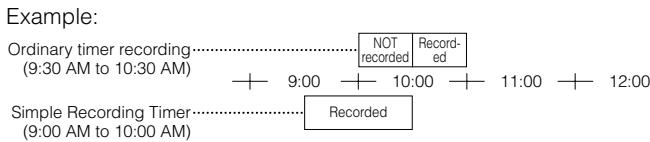
- The Simple Recording Timer has priority over other recordings.
- Ordinary timer programmes will not be recorded when portions of the time setting of the simple recording timer and of the time setting of the ordinary timer recording overlap.
PREPARATION
- Turn on the TV and select the video channel.
- Insert a cassette with the erasure protection tab opening covered. Power will turn on automatically.
- Press TV/VCR to select "VCR" ("VCR" will light on the multi-function display).
- Check that the clock is displaying the correct time.
Only for Hi-Fi model
- If necessary, set "SAP" on the SET UP-selection screen. (See Mode Selection.)
PROCEDURE
Example: Recording a TV programme in the SP mode: the TV programme is on channel 7 starting at 9:05 PM and stopping at 10:35 PM on August 10th. The present time is 6:35 PM on August 10th.
| PROG. | 1/2DATE CH START STOP---/-------/---/---/---/---/---/---/---/---/---/---/---/---/---/---/---/---/---/---/---/---/---/---/---/---/---/---/---/---/---/---/---/---/---/---/---/---/---/---/---/---/---/---/---/---/---/---/---/---/---/---/-----/---/---/---/---/---/---/---/---/---/---/---/---/---/---/---/---/---/---/---/---/---/---/---/---/---/---/---/---/---/---/---/---/---/---/---/---/---/---/---/---/---/---/---/---/---/---/---/---/---/----/---/---/---/---/---/---/---/---/---/---/---/---/---/---/---/---/---/---/---/---/---/---/---/---/---/---/---/---/---/---/---/---/---/---/---/---/---/---/---/---/---/---/---/---/---/---/---/---/---/ SET | 1 Press PROG.. The Timer screen will appear and then press SET. |
| ▲ 1/2DATE CH START STOP8/10------------/---/---/---/---/---/---/---/---/---/---/---/---/---/---/---/---/---/---/---/---/---/---/---/---/---/---/---/---/---/---/---/---/---/---/---/---/---/---/---/---/---/---/---/---/---/---/---/---/--- /---/---/---/---/---/---/---/---/---/---/---/---/---/---/---/---/---/---/---/---/---/---/---/---/---/---/---/---/---/---/---/---/---/---/---/---/---/---/---/---/---/---/---/---/---/---/---/---/---/---/ SELECT :▲ CHANGES:▲▼ENTER :SET EXIT :MENU | 2 Select the desired month/day (DATE) with ▲/▼ and then press ▲.. The cursor will move to the next column. Ex.: August 10th • If you want to record every day or week at the same time, hold ▼ when you select the date. When pressing: The recording date changes in this sequence: ▼ 8/10→MO-FR→MO-SA→DAILY→SAT·SUN→8/9→8/8... (next year) ▲ 8/10 → 8/11 → 8/12………8/8 → 8/9 → SUN………SAT……… (present) (tomorrow) (next year) | |
| ▲ 1/2DATE CH START STOP8/10 07------------/---/---/---/---/---/---/---/---/---/---/---/---/---/---/---/---/---/---/---/---/---/---/---/---/---/---/---/---/---/---/---/---/---/---/---/---/---/---/---/---/---/---/---/---/---/---/---/--- /---/— | 3 Select the desired channel with ▲/▼ and then press ▲.. Ex.: Channel 07 | |
| ▲ 1/2DATE CH START STOP8/10 07 9:05:10--------/---/---/---/---/---/---/---/---/---/---/---/---/---/---/---/---/---/---/---/---/---/---/---/---/---/---/---/---/---/---/---/---/---/---/---/---/---/---/---/---/---/---/---/---/---/---/---/---/—— | 4 Set the recording start time (hour digits and minute digits) with ▲/▼ and then press ▲.. Ex.: 9:05 PM Press the ENT./AM/PM (100) to select AM or PM. | |
| ▲ 1/2DATE CH START STOP8/10 07 9:05:10:35:10SP--------------------/---/---/---/---/---/---/---/---/---/---/---/---/---/---/---/---/---/---/---/---/---/---/---/---/---/---/---/---/---/---/---/---/---/---/---/---/---/---/---/---/---/---/---/---/---/---/---/--- | 5 Set the recording stop time with ▲/▼ and then press ▲.. Ex.: 10:35 PM | |
| ▲ 1/2DATE CH START STOP8/10 07 9:05:10:35:10SP------------------------/---/---/---/---/---/---/---/---/---/---/---/---/---/---/---/---/---/---/---/---/---/---/---/---/---/---/---/---/---/---/---/---/---/---/---/---/---/---/---/---/---/---/---/---/---/---/--- | 6 Select the tape speed with ▲/▼. Ex.: SP | |
| SET O | 1/2 DATE CH START STOP 8/10 07 9:05H10:35HSP | 7 Press SET. • To programme the additional timer settings, press SET and repeat steps 2-7. |
| MENU O | TURN VCR POWER OFF FOR TIMER RECORDING. | 8 Press MENU to finish settings. The display shown to the left appears on the screen for 5 seconds, after which the normal screen returns. |
| POWER O | 9 Press POWER to enter the timer standby mode. Be sure that “☐” is lit up on the multi-function display. |
NOTE
- If the power is interrupted for more than 5 seconds (power failure, etc.) during timer recording, the Auto Clock Setting will reset the time after the power is returned (the timer indicator on the multi-function display will flash.) but the timer settings will be cancelled.
- Numbered buttons can be used instead of to set the data.
- If the cassette ends before recording all the programmes, the VCR will stop, turns its power off and ejects the tape automatically.
- In Step 9, if POWER is pressed with no cassette inserted, the TIMER indicator flashes for 5 seconds indicating that timer recording is not possible.
- In Step 9, if the inserted cassette is without the erasure protection tab, TIMER indicator flashes and the cassette is ejected.
- To stop timer recording, press STOP.
- If a button is not pressed within 3 minutes during the setting procedure, the screen will return to the normal screen.
- There are two timer setting screens (1/2, 2/2).
Confirming Timer Programmes
You can see on the Timer setting screen a list of all timer programmes that are already set.
PREPARATION
- Turn on the TV and select the video channel.
- Press POWER and then TV/VCR to select "VCR" ("VCR" will light on the multi-function display).
| PROG. | 1/2DATE CH START STOP8/01 125 12:05H12:30HE8/10 07 9:05H10:35HSPDAILY 88 10:03H10:30HEP--//-----------------122CLEAR :CANCELLEET :▲▼ENTER :SET EXIT :MENU | 1 Press PROG.. TIMER screen will appear. • Check the information displayed. |
| ▲▼ | 1/2DATE CH START STOP8/01 125 12:05H12:30HE8/10 07 9:05H10:35HSPDAILY 88 10:03H10:30HEP--//---------------------122CLEAR :CANCELLEET :▲▼ENTER :SET EXIT :MENU | 2 If you want to correct the data, select the data to be changed with ▲/▼ and then press SET. Correct the data as desired using ▲/▼/▲/◆. Then press SET. See 2/2 screen also. |
| MENU | TURN VCR POWER OFFFOR TIMER RECORDING. | 3 Pressing MENU will clear the screen. The display shown to the left appears for 5 seconds, after which the normal screen returns. • After checking or correcting the programme contents, press POWER to enter the Timer Standby mode. |
Cancelling Timer Programmes
Perform the following procedure to cancel timer programmes that have already been set.
PREPARATION
- Turn on the TV and select the video channel.
- Press POWER and then TV/VCR to select "VCR" ("VCR" will light on the multi-function display).
| PROG. | 1/2DATE CH START STOP8/01 125 12:05H12:30HE78/10 07 9:05H10:35HSPDAILY 88 10:03H10:30HEP--/-------1--/--▼2/2CLEAR :CANCELSELECT :▲▼ENTER :SET EXIT :MENU | ▲▼ | 1 Press PROG.. TIMER screen will appear. • Select the programme you wish to cancel with ▲/▼. |
| CANCEL | 1/2DATE CH START STOP8/01 125 12:05H12:30HE78/10 07 9:05H10:35HSPDAILY 88 10:03H10:30HEP--/-------1--/--▼2/2CLEAR :CANCELSELECT :▲▼ENTER :SET EXIT :MENU | 2 Double-check that it is the programme you wish to cancel and press CANCEL. It will be cleared on the screen. | |
| MENU | TURN VCR POWER OFFFOR TIMER RECORDING. | POWER | 3 Pressing MENU will clear the screen. The display shown to the left appears for 5 seconds, after which the normal screen returns. • If there are still some programmes set, press POWER to enter the Timer Standby mode. • If you press MENU when all of the timer programmes are cancelled, the screen will return to normal. |
This function creates clearer picture quality only during playback.
S. PICTURE ON
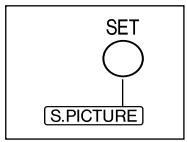
Press S. PICTURE on the VCR.
"S.PICTURE ON (or OFF)" will appear on the TV screen for a few seconds. Each time the button is pressed, the mode switches between ON and OFF. (The Sharp Super Picture is preset to ON at the factory.)
ON:
Normally leave the mode set to ON. This high picture quality function will create a clearer image during playback.
OFF:
Set to OFF when playing back a tape on the VCR while editing or when strong noise appears on the screen.
NOTE
This function only operates during playback. It will not operate when recording or watching a TV programme with the VCR tuner.
- When playing S-VHS tape
- Sharp Super Picture is set to off automatically. When playback finishes, the setting will return to the previous setting.
- You cannot change the ON/OFF setting manually.
- The ON/OFF status of Sharp Super Picture can be checked by pressing ON SCREEN to display the OSD. This function cannot be set to ON/OFF while the MENU screen is displayed. First close the MENU screen before operating this function.
- When the VCR power is turned off, the Sharp Super Picture setting is retained in memory.
- If power is interrupted for more than 5 seconds (power failure, etc.), the setting will return to ON.

Recorded Section Auto Repeat

With this feature, if the recorded portion has finished and a non-recorded portion has continued for 15 seconds, the tape will automatically stop, rewind to the beginning, and repeat playback.
PLAY Q
PROCEDURE
Press AUTO REPEAT on the remote control. The "O" mark will appear on the screen for 3 seconds. When a non-recorded portion has continued for 15 seconds after the recorded portion has finished, the tape will stop and begin rewinding. The tape will rewind to the beginning and repeat playback. To turn off the Recorded Section Auto Repeat function, press AUTO REPEAT once more.
NOTE
- You can also set the Recorded Section Auto Repeat mode by selecting "ON" on the SET UP selection screen. (The AUTO REPEAT mode is preset to OFF at the factory.)
- The ON/OFF status of the Recorded Section Auto Repeat can be checked by pressing ON SCREEN to display the OSD. (The "O" mark lights when the Recorded Section Auto Repeat is on.)
- If the Recorded Section Auto Repeat is on and the tape is rewound to the beginning with rewind or reverse video search, the tape will automatically start playback.

Auto Zero Back
This function automatically forwards or rewinds the cassette to the "0:00.00" point. Use this function to return to a recording start point.
PROCEDURE
NOTE
1. Reset the counter to "0:00.00" with CANCEL before recording. 2. Press REC to start recording. 3. After recording the desired programme, press STOP to stop recording. 4. Press ZERO BACK to return to the recording start point (0:00.00).
- During auto zero back, if the VCR rewinds (or fast forwards) the tape all the way without finding the "0:00.00" point, it will stop at the beginning (or end) of the tape.
- The counter start point "0:00.00" may differ slightly from the starting point on the tape.
- This function is not operable during recording, recording pause, simple recording timer or timer recording.
You can quickly locate a desired section of the tape with this feature.
Index Signal
An index signal is automatically recorded on the tape at the start of ordinary recording, simple recording timer and timer recording.
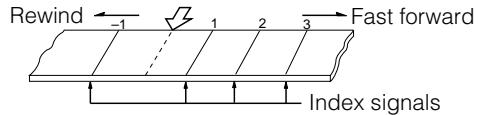
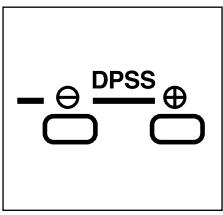
PROCEDURE
1. Insert a tape containing index signals. 2. Select the index number of the desired programme with DPSS ⊕/⊖ on the remote control. - With each press of the button, the number changes. One of 19 programmes can be selected in either direction (one of up to 38 programmes). (Ex.: DPSS 3=Third programme after the current one.)
On the TV screen
Search starts immediately when you press DPSS ⊕/⊖. (When a signal is located, the displayed number decreases.) When the selected section is found, playback begins automatically.
NOTE
- DPSS may not work if recordings are too close (within 3 minutes of each other).
- Press PLAY or STOP to cancel DPSS.
- If the tape reaches its end or beginning before locating the desired point, DPSS is cancelled.
- DPSS may not function for damaged or worn tapes.
- DPSS cannot be used with tapes that contain no index signals.
- The starting point of a programme may vary slightly.
- DPSS does not operate during the slow, record, timer stand-by and timer recording modes or when there is no cassette loaded.
- Index signals for DPSS cannot be entered manually.

Skip Search
SKIP SEARCH

With this feature, you can set a forward video search time to approx. 30, 60, 90 or 120 seconds of recorded material. After searching, normal playback will resume automatically.
- Press SKIP SEARCH on the remote control during playback (ex. during commercials).
| Number of Times Pressed | 1 Time | 2 Times | 3 Times | 4 Times |
| Video Search Time | Approx. 30 sec. | Approx. 60 sec. | Approx. 90 sec. | Approx. 120 sec. |

Instant Replay
REPLAY

With this feature, you can set a reverse video search time to approximately 20, 40, 60, or 80 seconds of recorded material. After searching, normal playback will resume automatically.
- Press REPLAY on the remote control during playback.
| Number of Times Pressed | 1 Time | 2 Times | 3 Times | 4 Times |
| Video Search Time | Approx. 20 sec. | Approx. 40 sec. | Approx. 60 sec. | Approx. 80 sec. |
TAMPER PROOF

With this feature, you can lock all VCR modes to prevent accidental changes.
This function works even when the VCR power is off, thus preventing children from operating the VCR or viewing selected programs while you are away from home.
Tamper Proof
1. Press TAMPER PROOF on the remote control for about 2 seconds.
"@" flashes and "---" lights up on the multi-function display.
Press TAMPER PROOF again.
"@m" remains lit on the multi-function display, confirming that Tamper Proof has been activated.
Now, regardless of what other operating buttons are touched, the VCR will continue to operate in the present mode.
(If Tamper Proof is activated during playback, once the tape reaches its end, the VCR automatically rewinds the tape, turns its power off, and ejects the tape.)
Disengaging Tamper Proof
- Press TAMPER PROOF for about 2 seconds.
"@m" starts flashing and then disappears. Now, Tamper Proof is disengaged.
Advanced Tamper Proof
1. Press TAMPER PROOF on the remote control for about 2 seconds. "@" flashes and "---" lights on the multi-function display. Input the personal code number (4 digit code) with the numbered buttons. The personal code number you have input is displayed on the multi-function display. 3. Press TAMPER PROOF again. "@" remains lit on the multi-function display confirming that Tamper Proof has been activated. Now regardless of what other operating buttons are touched, the VCR will continue to operate in the present mode.
(If Tamper Proof is activated during playback, once the tape reaches its end, the VCR automatically rewinds the tape, turns its power off and ejects the tape.)
Disengaging Advanced Tamper Proof
Press TAMPER PROOF for about 2 seconds. "@" flashes and "---" lights on the multi-function display. Input the personal code number (4 digit code) you used to activate Advanced Tamper Proof with the numbered buttons. The personal code number you have input is displayed on the multi-function display. 3. Press TAMPER PROOF again. "@" disappears. Now, Tamper Proof is disengaged. If the code number is wrong, "---" is displayed on the multi-function display. Retry to input the right code number. Press TAMPER PROOF again.
NOTE
- If power is interrupted for more than 5 seconds (power failure, etc.), Tamper Proof may disengage.
- If Tamper Proof is on, and you attempt to change modes by pressing any button, the "@" indicator will flash on the multi-function display.
Format: VHS NTSC Standard
Video Recording System: Rotary Two-Head Helical Scanning
Number of Video Heads: 4
Video Signal Standard: NTSC Colour System
Audio Recording System: 1 Stationary Head for Linear Audio
2 Rotary Heads for Hi-Fi stereo (Only for Hi-Fi model)
Tape Width: 12.7 mm (1/2 inch)
Tape Speed: (SP) 33.35 mm/sec (1.31 i.p.s.)
(LP) 16.67 mm/sec (0.66 i.p.s.) (playback only)
(EP) 11.12 mm/sec (0.44 i.p.s.)
Maximum Recording Time: (SP) 160 min (T-160)
(EP) 480 min (T-160)
Channel Coverage: VHF 2-13
UHF 14-69
CATV 1-125
Antenna Input: 75 Ohm
Video Input: 0.5 to 2.0 Vp-p, 75 Ohm unbalanced
Video Output: 1.0 Vp-p, 75 Ohm unbalanced
Audio Input: -8 dBs, 47 kOhm unbalanced (0 dBs = 0.775 Vrms)
Audio Output: -8 dBs, 1 kOhm unbalanced (0 dBs = 0.775 Vrms)
Hi-Fi Audio (Only for Hi-Fi model) Dynamic Range: 90 dB Frequency Response: 20 Hz-20 kHz Memory Backup: 5 seconds Operating Temperature: 5°C to 40°C (41°F to 104°F) Storage Temperature: -20°C to 60°C (-4°F to 140°F) Power Source: 120 V AC, 60 Hz Power Consumption: 17 W Dimensions (approx.): 360 (W) × 92 (H) × 229 (D) mm Weight (approx.): 2.3 kg
NOTE
Hi-Fi model: VC-H965U - Specifications are subject to change without notice.
Check this list before calling for service.
| Problem | Possible Cause/Solutions |
| • NO OPERATION WHEN ANY BUTTON IS PRESSED. | • MAKE SURE THAT THE "TAMPER PROOF" MODE IS NOT ENGAGED (A " @ _ " will appear in the multi-function display.). • If you forget the personal code number you have input with Advanced Tamper Proof, input "0000" (four zeros) to disengage it. |
| • No power. (Nothing on the multi-function display.) | • Make sure the power cord is plugged in. • Check the outlet, fuse or circuit breaker. |
| • VCR does not receive CATV channels. | • Use the CHANNEL PRESET screen to change from AIR mode to CATV. (See Setting the Channels.) |
| • VCR does not operate. | • Turn on the power. • Press EJECT several times. • Safety device in VCR is functioning. Unplug VCR and plug it in again after a few minutes. |
| • VCR does not record. | • Cassette erasure protection tab is removed. Use a different cassette or place adhesive tape over the tab opening. • Check for a cassette loaded in the unit. |
| • No colour or poor TV picture during normal viewing. | • Make sure the "TV" has been selected by pressing TV/VCR. • Make sure all cables are connected properly. |
| • No tape movement. | • Make sure the VCR is not in PAUSE/STILL mode. • Make sure the tape has not reached the end or beginning. |
| • No picture appears during playback. | • Make sure the TV is set to the same channel as the VCR's 3 ↔ 4 Output Channel. • Check all connecting cables. |
| • Cassette cannot be loaded. | • Make sure there is no other cassette inside. • Make sure the cassette is properly positioned and reinsert. • Make sure the "TAMPER PROOF" mode is not engaged. |
| • Timer recording does not work. | • Power failure may have occurred. • If the clock display is blinking, set the clock and try again. |
| • Noise appears on the screen when the automatic tracking control system is operating. | • Adjust the tracking manually by pressing CH ▲/▼. • In some cases, with a worn or damaged tape, noise cannot be eliminated completely. |
| • Cannot record a signal through the rear external input jack. | • The VCR may not be set to external input mode. Press INPUT to set the VCR to external input mode. (See Tape Dubbing.) |
| • Picture or sound is not stable during playback. | • Keep your VCR away from electrical and magnetic appliances. Be sure to position your VCR at least 8" away from your TV or video monitor. |
| • "DEW" | • See page 2 for information. |
| • If remote control fails to operate. | • See page 8 for information. |
| Only for Hi-Fi model | |
| • Stereo TV puts out monaural sound only, even when cassettes recorded in Hi-Fi stereo are playback. | • Use RCA pin type connection cables (not the supplied coaxial cable) to connect the TV to the VCR and set the TV to external video input mode. • Adjust the tracking, or try another Hi-Fi stereo cassette. |
| • Cassettes recorded in stereo mode are not playback in stereo. | • Make sure the sound was recorded in Hi-Fi stereo. (Any stereo signals recorded on the linear track will not be playback in stereo.) |
This unit is equipped with a microprocessor. Its performance could be adversely affected by external electrical noise or interference. If this should happen, unplug the VCR and plug it in again after a few minutes and reset EZ Set Up for AIR/CATV operation.

Service Information
To obtain the name and address of the nearest Sharp Factory Service Centre or Authorized Service Centre, please contact:
HEADQUARTERS: 335 Britannia Road East, Mississauga, Ontario L4Z 1W9
Tel: (905) 568-7140
LIMITED WARRANTY
Consumer Electronics Products
Congratulations on your purchase!
Sharp Electronics of Canada Ltd. (hereinafter called "Sharp") gives the following express warranty to the first consumer purchaser for this Sharp brand product, when shipped in its original container and sold or distributed in Canada by Sharp or by an Authorized Sharp Dealer:
Sharp warrants that this product is free, under normal use and maintenance, from any defects in material and workmanship. If any such defects should be found in this product within the applicable warranty period, Sharp shall, at its option, repair or replace the product as specified herein.
This warranty shall not apply to:
(a) Any defects caused or repairs required as a result of abusive operation, negligence, accident, improper installation or inappropriate use as outlined in the owner's manual. (b) Any Sharp product tampered with, modified, adjusted or repaired by any party other than Sharp, Sharp's Authorized Service Centres or Sharp's Authorized Servicing Dealers. (c) Damage caused or repairs required as a result of the use with items not specified or approved by Sharp, including but not limited to head cleaning tapes and chemical cleaning agents. (d) Any replacement of accessories, glassware, consumable or peripheral items required through normal use of the product including but not limited to earphones, remote controls, AC adapters, batteries, temperature probe, stylus, trays, filters, belts, ribbons, cables and paper. (e) Any cosmetic damage to the surface or exterior that has been defaced or caused by normal wear and tear. (f) Any damage caused by external or environmental conditions, including but not limited to transmission line/power line voltage or liquid spillage. (g) Any product received without appropriate model, serial number and CSA/CUL markings. (h) Any products used for rental or commercial purposes. (i) Any installation, setup and/or programming charges.
Should this Sharp product fail to operate during the warranty period, warranty service may be obtained upon delivery of the Sharp product together with proof of purchase and a copy of this LIMITED WARRANTY statement to an Authorized Sharp Service Centre or an Authorized Sharp Servicing Dealer. In home warranty service may be provided at Sharp's discretion on any Sharp television with the screen size of 27" or larger and on any Sharp Over-the-Range Microwave Oven.
This warranty constitutes the entire express warranty granted by Sharp and no other dealer, service centre or their agent or employee is authorized to extend, enlarge or transfer this warranty on behalf of Sharp. To the extent the law permits, Sharp disclaims any and all liability for direct or indirect damages or losses or for any incidental, special or consequential damages or loss of profits resulting from a defect in material or workmanship relating to the product, including damages for the loss of time or use of this Sharp product or the loss of information. The purchaser will be responsible for any removal, reinstallation, transportation and insurance costs incurred. Correction of defects, in the manner and period of time described herein, constitute complete fulfillment of all obligations and responsibilities of Sharp to the purchaser with respect to the product and shall constitute full satisfaction of all claims, whether based on contract, negligence, strict liability or otherwise.
WARRANTY PERIODS:
Audio Products
Camcorder
DVD Products
LCD Projector
LCD TV
Microwave Oven
Television Products
VCR Products
Vacuum Cleaner
Parts & Labour (exceptions noted) 1 year 1 year 1 year 1 year (lamp 90 days) 1 year 2 years (magnetron component-3 additional years) 1 year (picture tube component-1 additional year) 1 year 1 year
To obtain the name and address of the nearest Authorized Sharp Service Centre or Dealer, please contact: SHARP ELECTRONICS OF CANADA LTD., 335 Britannia Road East, Mississauga, Ontario L4Z 1W9
For more information on this Warranty, Sharp Extended Warranty Offers, Sharp Canada Products, Accessory Sales, Dealer or Service Locations, please call (905) 568-7140
Visit our Web site: www.sharp.ca

- MID-DRIVE
- [IMPORTANT]
- EZ SET UP (AUTO CHANNEL /CLOCK SET UP)
- WARNING: TO REDUCE THE RISK OF FIRE OR ELECTRIC SHOCK, DO NOT EXPOSE THIS APPLIANCE TO RAIN OR MOISTURE
- CAUTION: TO PREVENT ELECTRIC SHOCK, MATCH WIDE BLADE OF PLUG TO WIDE SLOT, FULLY INSERT
- CAUTION
- WARNING OF DEW FORMATION
- WHAT IS ENERGY STAR®
- READ INSTRUCTIONS
- RETAIN INSTRUCTIONS
- HEED WARNINGS
- FOLLOW INSTRUCTIONS
- CLEANING
- ATTACHMENTS
- WATER AND MOISTURE
- ACCESSORIES
- TRANSPORTATION
- VENTILATION
- POWER SOURCES
- GROUNDING OR POLARIZATION
- POWER-CORD PROTECTION
- OUTDOOR ANTENNA GROUNDING
- LIGHTNING
- POWER LINES
- OVERLOADING
- OBJECT AND LIQUID ENTRY
- SERVICING
- DAMAGE REQUIRING SERVICE
- REPLACEMENT PARTS
- SAFETY CHECK
- HEAT
- SERVICE
- OTHERS
- GENERAL INFORMATION
- IMPORTANT SAFEGUARDS AND
- SETTING UP
- BASIC OPERATIONS
- RECORDING
- SPECIAL FUNCTIONS
- HELPFUL HINTS
- ONLY FOR VC-H965U
- COMMON FEATURES
- MULTI-FUNCTION DISPLAY (EXPLAINED THROUGHOUT THE OPERATION INSTRUCTIONS)
- NOTE
- INSERTING THE BATTERIES
- HOW TO SET THE UNIVERSAL REMOTE CONTROL CODE
- THERE IS NO GUARANTEE THAT THE UNIVERSAL REMOTE CONTROL WILL FUNCTION WITH YOUR TV, CABLE BOX OR DIGITAL SATELLITE RECEIVER
- FOR TV SETTING
- SETTING THE MANUFACTURER'S CODE DIRECTLY
- FOR CABLE BOX OR DIGITAL SATELLITE RECEIVER SETTING
- HOW TO OPERATE THE VCR, TV, CABLE BOX OR DIGITAL SATELLITE RECEIVER
- RF CONNECTION (FOR CONNECTION TO A TV WITHOUT AV TERMINALS)
- AV CONNECTION (FOR CONNECTION TO A TV WITH AV TERMINALS)
- AFTER THE CONNECTION
- SETTING THE 3/4 OUTPUT CHANNEL
- PREPARATION
- FIRST CHECK YOUR TV/CATV SYSTEM
- A CONNECTION WITHOUT A CABLE BOX
- B CONNECTION WITH CABLE BOX
- CONNECTION WITH CABLE BOX, A/B SWITCH AND SPLITTER
- USING THE A/B SWITCH
- CONNECTION WITH TWO CABLE BOXES, A/B SWITCH AND SPLITTER
- OSD (ON SCREEN DISPLAY)
- HOW TO DISPLAY INDICATORS
- AUTO DISPLAY
- IMPORTANT (CAUTION DURING EZ SET UP)
- IMPORTANT
- PROCEDURE
- SETTING THE CLOCK
- AUTO CLOCK SETTING (IF YOU DO KNOW A CHANNEL THAT CARRIES EDS SIGNALS)
- MANUAL CLOCK SETTING
- AUTOMATIC DAYLIGHT SAVING-TIME (D.S.T.) ADJUSTMENT
- SPRING
- AUTUMN
- ADDING CHANNEL MEMORY/ERASING CHANNEL MEMORY
- INSERTING A VIDEO CASSETTE
- PLAYBACK
- NOTES FOR S-VHS TAPE
- FAST FORWARD AND REWIND
- VIDEO SEARCH
- SLOW MOTION PLAYBACK (ONLY WITH THE REMOTE CONTROL)
- STILL PICTURE AND FRAME ADVANCE
- AUTOMATIC TRACKING CONTROL SYSTEM
- MANUAL TRACKING CONTROL
- BLUE SCREEN NOISE ELIMINATION
- QUICK START WITH FULL LOADING MECHANISM
- FULL AUTOMATIC PLAYBACK
- AUTOMATIC HEAD CLEANING SYSTEM
- ONLY FOR HI-FI MODEL AUDIO OUTPUT MODE
- HI-FI MODE
- HI-FI MODE: R
- LINEAR MODE: MONO
- ONLY FOR HI-FI MODEL
- WITHOUT A CABLE BOX OR DIGITAL SATELLITE RECEIVER
- WITH A CABLE BOX OR DIGITAL SATELLITE RECEIVER
- TO WATCH ANOTHER TV PROGRAMME WHILE RECORDING
- CASSETTE ERASE PROTECTION
- RECORDING SPEEDS
- ONLY FOR HI-FI MODEL RECORDING HI-FI STEREO SOUND
- HI-FI
- LINEAR
- RECORDING MTS (MULTI-CHANNEL TV SOUND) BROADCASTS
- MTS/SAP RECORDING
- MONITOR OUTPUT WHEN RECEIVING A SAP BROADCAST
- TAPE DUBBING CONNECTION INSTRUCTIONS
- CHANGING THE CONTENTS OF THE SIMPLE RECORDING TIMER
- CANCELLING THE SIMPLE RECORDING TIMER
- CONFIRMING TIMER PROGRAMMES
- CANCELLING TIMER PROGRAMMES
- ON
- OFF
- WHEN PLAYING S-VHS TAPE
- RECORDED SECTION AUTO REPEAT
- AUTO ZERO BACK
- INDEX SIGNAL
- SKIP SEARCH
- INSTANT REPLAY
- REPLAY
- TAMPER PROOF
- DISENGAGING TAMPER PROOF
- ADVANCED TAMPER PROOF
- DISENGAGING ADVANCED TAMPER PROOF
- SERVICE INFORMATION
- LIMITED WARRANTY
- CONSUMER ELECTRONICS PRODUCTS
- CONGRATULATIONS ON YOUR PURCHASE
Brand : SHARP
Model : VC-A565U/H965U
Category : VCR