QCP 1900 - Mobile Phone KYOCERA - Free user manual and instructions
Find the device manual for free QCP 1900 KYOCERA in PDF.


User questions about QCP 1900 KYOCERA
0 question about this device. Answer the ones you know or ask your own.
Ask a new question about this device
Download the instructions for your Mobile Phone in PDF format for free! Find your manual QCP 1900 - KYOCERA and take your electronic device back in hand. On this page are published all the documents necessary for the use of your device. QCP 1900 by KYOCERA.
USER MANUAL QCP 1900 KYOCERA
QCP 800/1900 USER GUIDE

text_image
SEND 1 2/10 3/10 4 5 6 7 8 9 *↑ 0 # INFO CLEUT POWER CHALAWARKyocera Wireless Corp. 10300 Campus Point Drive http://www.kyocera-wireless.com
80-B6675-1EN, Rev. -
This manual is based on the production version of the QCP 800 and QCP 1900 phone. Software changes may have occurred after this printing.
QUALCOMM reserves the right to make changes in technical and product specifications without prior notice.
The products and equipment described in this documentation are manufactured under one or more of the following U.S. Patents:
4,901,307 5,056,109 5,099,204 5,101,501 5,103,459 5,107,225 5,109,390 5,193,094 5,228,054 5,257,283 5,265,119 5,267,261 5,267,262 5,280,472 5,283,536 5,289,527 5,307,405 5,309,474 5,337,338 5,339,046 5,341,456 5,383,219 5,392,287 5,396,516 D356,560 5,408,697 5,414,728 5,414,796 5,416,797 5,426,392 5,437,055 D361,065 5,442,322 5,442,627 5,452,473 5,461,639 5,469,115 5,469,471 5,471,497 5,475,870 5,479,475 5,483,696 5,485,486 5,487,175 5,490,165 5,497,395 5,499,280 5,504,773 5,506,865 5,509,015 5,509,035 5,511,067 5,511,073 5,513,176 5,515,177 5,517,323 5,519,761 5,528,593 5,530,928 5,533,011 5,535,239 5,539,531 5,544,196 5,544,223 5,546,459 5,548,812 5,559,881 5,559,865 5,561,618 5,564,083 5,566,000 5,566,206 5,566,357 5,568,483 5,574,773 5,574,987 D375,740 5,576,662 5,577,022 5,577,265 D375,937 5,588,043 D376,804 5,589,756 5,590,069 5,590,406 5,590,408 5,592,548 5,594,718 5,596,570 5,600,754 5,602,834 5,602,833 5,603,096 5,604,459 5,604,730 5,608,722 5,614,806 5,617,060 5,621,752 5,621,784 5,621,853 5,625,876 5,627,857 5,629,955 5,629,975 5,638,412 5,640,414 5,642,398 5,644,591 5,644,596 5,646,991 5,652,814 5,654,979 5,655,220 5,657,420 5,659,569 5,663,807 5,666,122 5,673,259 5,675,581 5,675,644 5,680,395 5,687,229 D386,186 5,689,557 5,691,974 5,692,006 5,696,468 5,697,055 5,703,902 5,704,001 5.708.448 5.710.521 5.710.758 5.710.768 5.710.784 5.715.236 S.71S.72S.72S.72S.72S.72S.72S.72S.72S.72S.72S.72S.72S.72S.
Copyright © 2000 Kyocera Wireless Corp.
All rights reserved. Printed in the United States of America.
QUALCOMM is a registered trademark and registered service mark of QUALCOMM Incorporated. QCP 800 and QCP 1900 are a registered trademark and Smart Key is a trademark of QUALCOMM Incorporated.
CONTENTS
Introduction 5
Highlights ....5
Important Information......6
Getting Started ....7
Sliding Earpiece 7
Display Indicators ....10
Using the Battery....11
Turning the Phone On and Off....13
Antenna 14
Charging the Battery ....15
Basic Functions 16
Function Keys....16
Making a Call ......17
Correcting Dialing Mistakes......17
Getting Your Own Phone Number ......17
Receiving Calls ......18
Redialing Calls ......19
Adjusting Volume....19
Emergency Dialing....19
Signal Strength 20
Power Save Mode ......21
Phone Book Feature......22
The Two Phone Book Types....22
Saving Numbers to Your Primary Phone Book ....23
Retrieving Numbers from Your Phone Book 24
Changing Your Phone Book......27
Dialing Numbers from Your Phone Book ......28
Advanced Phone Book Features....29
Menu Feature.... 32
Main Menu 32
Menu Access Method ....32
Shortcut Menu Access Method ....33
Menu Item Descriptions ....33
Paging, Messaging, and Voice Mail...... 40
New Message Alert 41
Viewing Pages and Messages ......42
Voice Mail Notifications....44
Low Memory Warning 45
Out of Memory Warning 45
Accessories 46
Phone Safety 47
Background......47
For Best Performance ....48
Caring for the Battery ....49
Driving Safety ....50
Other Safety Guidelines ....50
Where To Find Help.... 53
Your Service Provider ....53
Your Phone Documentation....53
Kyocera Technical Support....53
Index 55
INTRODUCTION
Highlights
Congratulations on your purchase of the QCP 800 or QCP 1900 phone. It is an easy-to-use, versatile, and dependable phone which provides many unique features including:
• Large, easy-to-read, 4-line backlit text display with an additional line for informative icons
• 20-button lighted keypad
- Menu-driven interaction with prompts
- Inherent call privacy through CDMA encoding
- Slide-up earpiece that extends for placing/receiving calls which retracts for minimum size, maximum portability, and keypad locking
- Exceptionally long battery life
- Any key answer, speed dial, auto redial, and 99 memory locations for phone numbers
- Advanced features such as short messaging service and caller ID
- Optional accessories
Important Information
Caution
Any changes or modifications not expressly approved in this document could void your warranty for this equipment and void your authority to operate this equipment.
Warning
Only use the batteries, antennas, and chargers provided by QUALCOMM. The use of any other type will invalidate the warranty and may be dangerous.
FCC/IC Notice
The phone may cause TV or radio interference (i.e., when using the telephone in close proximity to receiving equipment). The FCC/IC can require you to stop using the telephone if such interference cannot be eliminated. If you need assistance, contact your local dealer.
GETTING STARTED
This section includes drawings of the important phone parts and instructions on getting your phone powered up and ready to use.
Sliding Earpiece
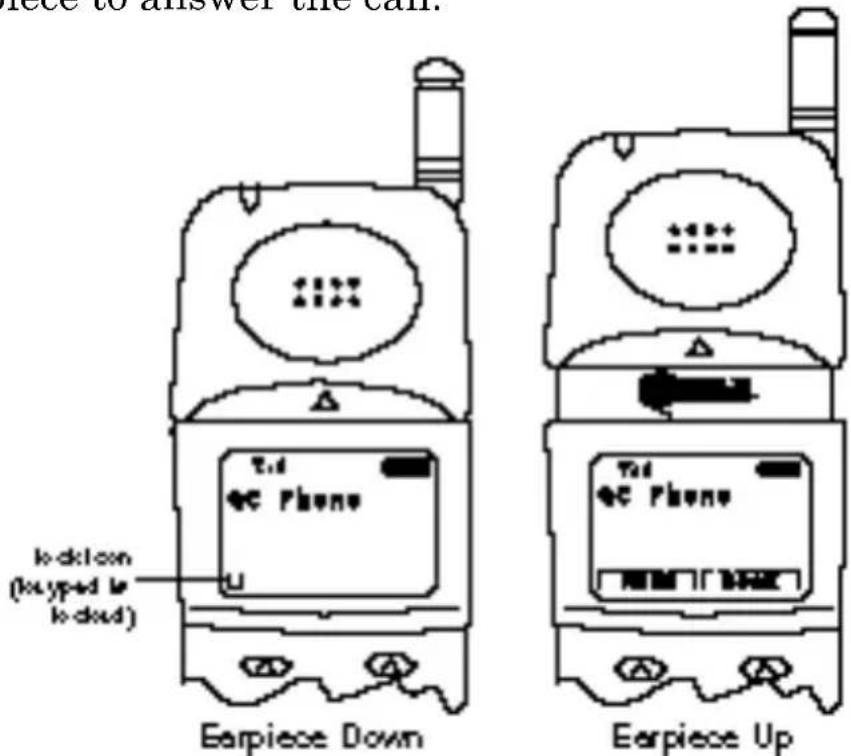
The earpiece moves up and down. It must be up to use any of the phone's features including making calls. When the earpiece is down, the keypad is locked and you will see a lock icon. You will hear the phone ring (if the phone is on) but must raise the earpiece to answer the call.
text_image
I-dk1con (IcTyped Ic I-dkd) Earpiece Down Earpiece UpThis feature allows you to keep the phone on, and in your pocket or brief case, without accidentally pressing any keys. The earpiece must be up to turn off the phone.
Front View of the Phone
text_image
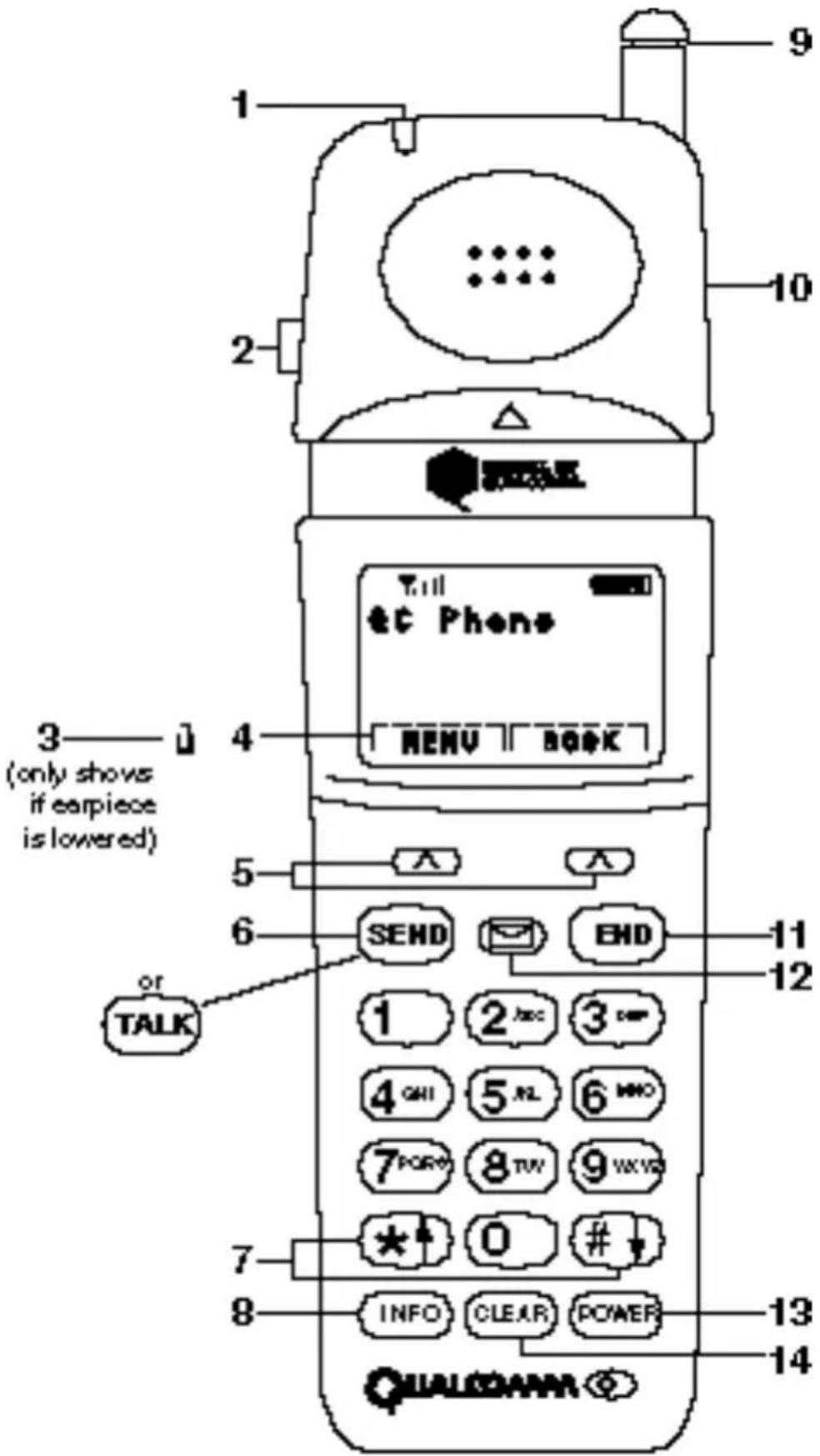
1 2 3 (only shows if earpiece is lowered) 4 5 6 or TALK 7 8 9 10 11 12 13 14 TALK Phone MENU BOOK SEND EHD 1 2 abc 3 cmp 4 QAI 5 ML 6 MWD 7 FOW 8 TW 9 WVD * 0 # INFO CLEAR POWER QUALCOMMFront View Description
1 Red Light lights when power key is pressed and when there are incoming calls and messages.
2 Volume/Scroll let you adjust the volume and scroll Keys through the menus.
3 Lock Icon indicates that the keypad is locked because the earpiece is down.
4 Smart Key border and word that defines the Name Indicator current operation of the Smart Key

5 Smart Keys ^TM are used in context with the text display. The current operation of a Smart Key is defined by the word above it on the display.
6 SEND/TALK is used to place and receive calls and activate network features (i.e. call waiting and three-way calling).
7 Scroll Keys allow you to scroll through the menu options and displays.
8 INFO is used to provide additional information about the call record or display and for added functionality.
9 Antenna provides best voice quality when all the way up.
10 Earpiece when lowered, locks the keypad and terminates a call in progress, when raised, unlocks the keypad and answers an incoming call.
11 END is used to end a call and/or return to standby display.
12 Message allows quick access to text and Key voice mail notification messages.
13 POWER turns power on and off (earpiece must be up).
14 CLEAR clears the digits and/or text from the display.
Display Indicators
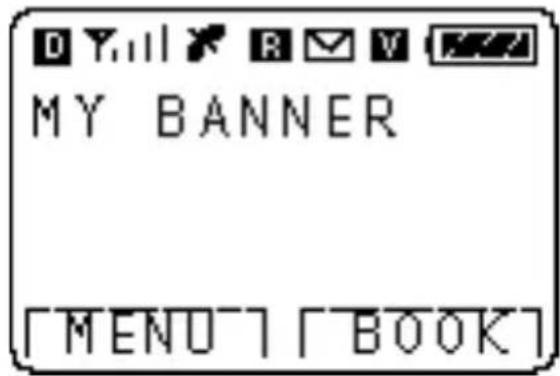
Display indicators are located at the top of the display. Different indicators appear based on the phone's operating mode.
text_image
MY BANNER [MENO] [BOOK]
Digital Indicates that you are Indicator receiving a digital signal.

Signal Indicates current signal strength. More lines means better signal strength.

No Service The phone is not receiving a signal from the system.

In Use The call is in progress.
No Icon The phone is in standby.

Roaming The phone is outside of its home area.

Text There is a text message Message or page waiting.

Voice There is a voice mail Message notification message waiting.

Battery Indicates battery charge level status. The more black you see the greater the charge.
Using the Battery
The phone comes with a rechargeable battery pack. The battery pack is shipped with approximately 50% capacity so you can use it immediately after purchasing the phone. Remember to charge the battery as soon as possible in order to maximize the talk time and standby time.
Installing the Battery
Remove the battery cap before installing the battery.
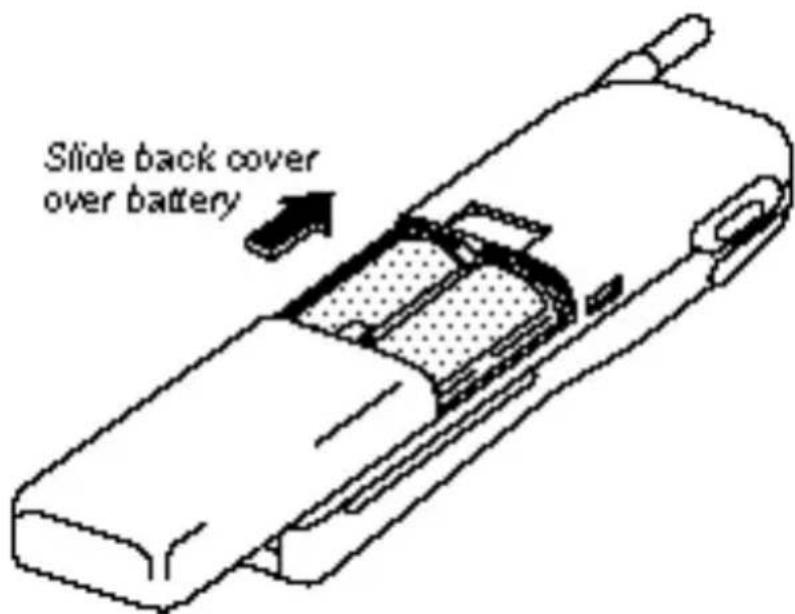
- Press down on the battery release latch and simultaneously slide the back cover down and out.
- Place the battery pack into the opening at a 45^ angle with the metal contacts at the top and facing downward.
- Press down on the battery pack until it drops into place.

text_image
Insert battery at 45° angle- Replace the back cover by sliding it up toward the battery release latch.
text_image
Slide back cover over batteryRemoving the Battery
- Turn the power off; Otherwise, you may lose stored numbers and messages.
- Press down at the battery release latch and simultaneously slide the back cover down and out.
- Hold the battery pack at the bottom right corner and pull up and out at a 45^ angle.
Turning the Phone On and Off
Turning On
Make sure that the charged battery pack has been installed in the back of the phone or that you have external power (using the cigarette lighter adaptor or car kit).
- Raise the earpiece.
- Press for a few seconds until the red light at the top of the earpiece is lit.
Turning Off
- With the earpiece raised, press for a few seconds until “Powering Off” is displayed.
- Release POWER
- Lower the earpiece.
When the power is off, nothing displays on the screen.
Note
If is pressed for less than 1 second, the phone will not turn off. If earpiece is down, the phone will not turn off.
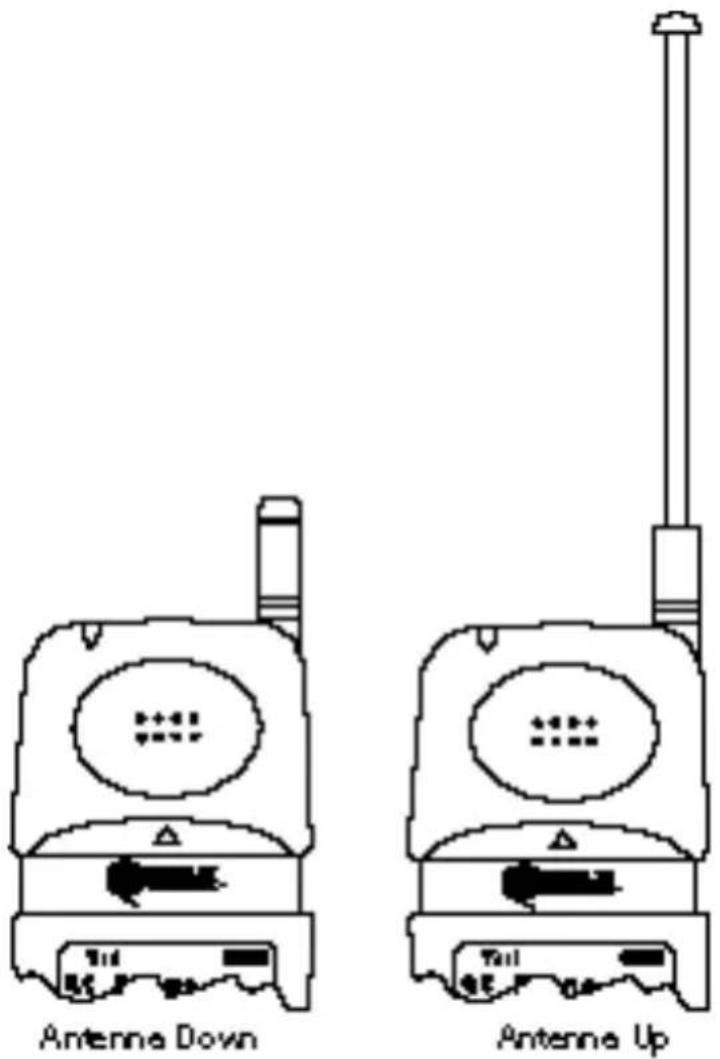
Antenna
Raise the antenna for best voice quality.
text_image
Antenna Down Antenna UpCharging the Battery
The battery charge level is shown at the top right of the display.

text_image
Fully Charged Very Low blink Almost OutWhen the battery charge level becomes low, the low battery sensor will alert you by displaying the screen icon and sounding an audible tone. If the battery level becomes too low, the phone will switch off and any function in progress will not be saved.
Batteries may be charged using the standard QUALCOMM desktop charger, optional travel charger, or cigarette lighter adaptor.
Using the Desktop Charger
Warning: Only use the desktop charger and AC adaptor provided with the phone. Using the wrong adaptor may cause damage.
- Plug one end of the AC adaptor into the charger holder and the other end into a wall outlet.
- Insert either the battery pack alone or the phone with installed battery pack into the slot. You should then see a red light on the charger indicating that the battery is being charged.
If completely discharged, the battery will charge in approximately 5 to 6 hours. If you leave the phone on while it is in the desktop charger, the battery will take longer to charge.
You do not need to completely discharge the battery before charging. Unlike other battery systems, there is no memory effect which could degrade the battery performance.
BASIC FUNCTIONS
Function Keys
The following keys perform these functions when pressed during most procedures:

Clears characters from the screen. Press once to erase one digit or character. Press and hold to erase all digits. When in a menu, press once to go back one level and press and hold to go back to the standby display.

Disconnects a call. Also exits all the way out of a menu back to the phone's most basic standby display without changing the setting.

Provides hyphens, and hard or timed pauses when programming a number in memory; accesses special characters when in text mode; and also provides additional information and functions.

Places a call.

Left and right Smart Keys select whatever option is directly above them.

Scrolls through phone book entries and menu items.

Enters numbers, characters, and chooses menu items.
Making a Call
First, check that your phone is on. The display indicators should be visible on the screen.
- Raise the earpiece.
-
Enter the phone number.
-
Press: If the phone is locked, the number is restricted, or there is another problem, you will see a help message.
-
Press or lower the earpiece to disconnect the call.

Correcting Dialing Mistakes
Press to erase one digit at a time. Press and hold for at least one second to delete all digits or letters.
Getting Your Own Phone Number
If your phone has been activated, you can see your phone's number by doing the following:
- Turn the phone on.
- Press INFO.
Or if the phone is already on:
-
Raise the earpiece.
-
Press INFO.
Receiving Calls
Your phone must be on to receive calls. The earpiece may be up or down.
If the earpiece is down:
Raise the earpiece.
Or if the earpiece is already up:
Press any key (except for the volume keys) to answer.
To disconnect the call:
Press or lower the earpiece.
Call Waiting
Your service provider may offer call waiting. When you are in a call, you may hear two beeps indicating another incoming call.
-
Press to access this call.
-
Press again to toggle between the two callers.
Three-way Calling
Your service provider may offer three-way calling.
Press to connect the three parties.
See your service provider for more instructions.
Redialing Calls
Redialing Last Outgoing Number
- Press to redial the last outgoing call.
Redial Last Ten Calls
You can redial any of your last ten calls through the call history list. See the Phone Book section.
Adjusting Volume
The volume keys on the side of the phone can be used for three different functions:
- Adjusting earpiece volume when you are in a call
- Adjusting ringer volume when you first raise the earpiece
- Scrolling through menu items when you are using the menus or phone book features
Emergency Dialing
You can place calls to 911 or one of the other three emergency numbers that are in your phone book even if your phone is locked or restricted. The service provider may have preprogrammed the three emergency numbers for you.
Making Emergency Calls
-
Press 3 or one of the other three emergency numbers.
-
Press .SEND TALK
Saving and Editing Emergency Numbers
-
Press under [MENU].
-
Press for Security menu.
-
Enter the lock code. The lock code is typically set to either 0000 or 1234 as a default.
-
Press for Emergency #
-
Press under [EDIT] to make changes to the first emergency number.
or
Press under [NEXT] to see the next emergency number.
Signal Strength
The quality of the call depends on the signal strength in your area. The phone displays the current strength as a number of bars next to the signal strength icon; the more bars, the better the signal.

text_image
No signal received Weakest signal Strongest signalIf the signal is poor, raise the antenna for best performance. If you are in a building, the reception may be better near a window.
Power Save Mode
The power save mode feature will automatically turn on if the phone has not been able to acquire any systems after 15 minutes of searching. While this feature is active, the phone's battery charge is conserved. The phone will automatically recheck for service periodically. To manually force the phone to recheck for service, press any key or raise the earpiece. A message on the display will indicate when the phone is operating in power save mode.
PHONE BOOK FEATURE
The Two Phone Book Types
You should be familiar with the basic functions of the phone before using the phone book. There are two types of phone books: primary phone book memory and recent call history list.
Primary Phone Book Memory
The phone has 99 general use phone book memory locations where you can store entries of up to 32 digits with an associated name up to 12 characters.
Recent Call History List
The phone keeps a list of the last 10 calls you made, accepted, missed, or added.
Depending on the operating mode and available features, each entry may contain the phone number, name, and time stamp (which indicates when the call occurred).
You may see one of the following entries:
MISSED Indicates an unanswered incoming call if caller ID is available.
CALLED BY Indicates a call you received and answered if caller ID is available.
CALL TO Indicates a call you placed.
ADDED Indicates that the number was added using the scratch pad feature.
- While viewing a call history entry, press INFO to show additional information available such as the time stamp.
Saving Numbers to Your Primary Phone Book
Memory locations 1 to 9 should be used for one-touch dial or most commonly used phone numbers.
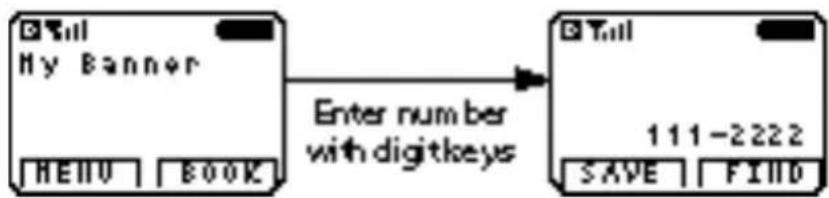
- Enter the phone number that you want to save. [SAVE] will then appear.
flowchart
graph LR
    A["My Banner"] -->|Enter number with digitkeys| B["111-2222"]
    A --> C["HELV BOOK"]
    B --> D["SAVE FINDD"]
-
Press under [SAVE].
-
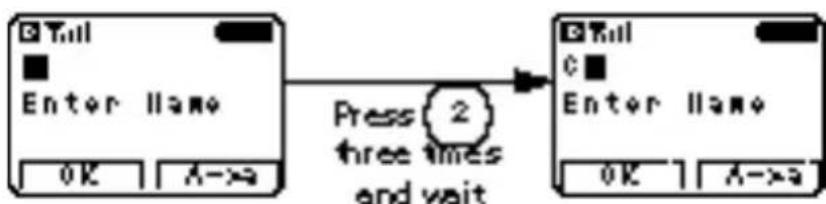
Enter a name to go with the number.
Press the key labeled with the letter you want. Press it once to get the first letter on the key, twice to get the second, three times to get the third, and four times for the number (or fourth letter). If you miss the letter you want, keep
pressing the key until it reappears. Press to correct any mistakes. Two seconds after you choose a character, the cursor moves to the right one character. Repeat this process until the name is entered.
flowchart
graph LR
    A["Enter Name"] -->|Press three times and wait| B["Enter Name"]
    A -->|OK| C["A->a"]
    B -->|OK| D["A->a"]
    style A fill:#f9f,stroke:#333
    style B fill:#f9f,stroke:#333
-
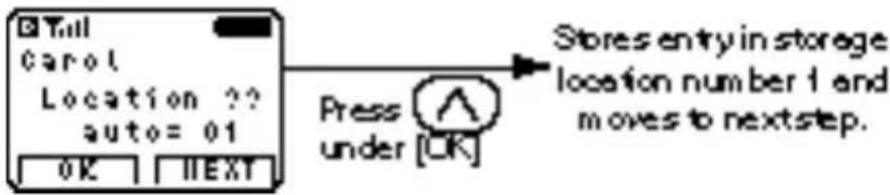
Press under [OK] to save the name and move to the next step.
-
Press under [OK] to store the number in the first available storage location.
text_image
Tull Carol Location ?? auto= 01 OK NEXT Press under [UK] Stores entry in storage location number 1 and moves to next step.or
Enter a specific, two digit location number.
- Press under [OK] to save the number.
text_image
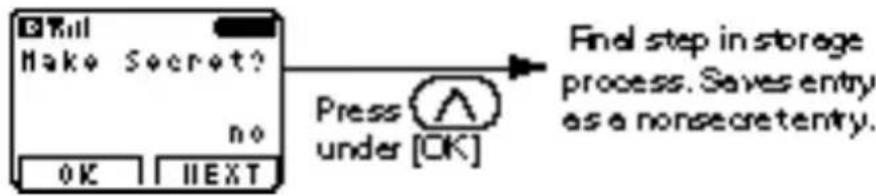
Make Secret? no OK NEXT Press under [OK] Final step in storage process. Saves entry as a nonsecret entry.or
Press under [NEXT] and then under [OK] to save the number as secret. (Secret numbers do not display on the screen.)
Retrieving Numbers from Your Phone Book
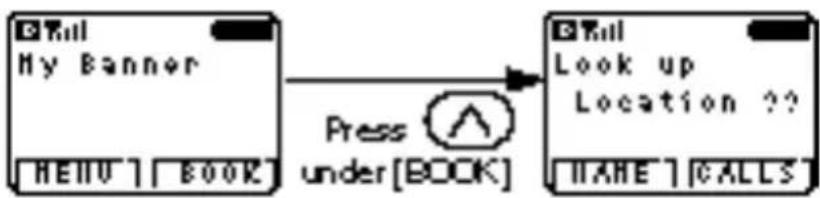
Press under [BOOK] to access the phone book.
text_image
©Till My Banner HEIIV | BOOK Press under[BOOK] ©Till Look up Location ?? NAME | CALLSRetrieving all Manually Stored Memory Locations
-
Press under [BOOK].
-
Press or to scroll through the memory list.
-
Press under [VIEW] to see what is in that memory location.
-
Press under [ERASE] or [EDIT] or press

to call.
Retrieving One Entry by Memory Location Number
-
Press under [BOOK].
-
Enter the two digit memory location number. You will then see what is in that memory location.
-
If occupied, to call or press under [ERASE] or [EDIT].

Retrieving by Name Search
-
Press under [BOOK].
-
Press under [NAME].
-
Enter the letter(s) that you want to look for.
-
Press under [FIND].
The phone then searches for names with those letters. You will see a list of matches.
-
Press or to scroll through the list.
-
Press under [VIEW].
or
Press to call.
Retrieving Recent Call History
-
Press under [BOOK].
-
Press under [CALLS].
-
Press or to scroll through the last ten calls.
-
Press to place a call. or
Press under [VIEW] to see specifics of the call.
- Press under [SAVE] to save the number to a memory location.
If the number already has a name associated with it, it is already entered into a memory location.
While viewing an entry, press INFO to show additional information available such as the time stamp.
Retrieving by Part of Phone Number Search
You can look for a phone number if you know at least three of the digits.
-
Enter any three sequential digits from the phone number on the main screen..
-
Press under [FIND].
-
If there is a match, press or to scroll to desired entry.
-
Press under [VIEW] to see the entry or to place a call.
Changing Your Phone Book
Erasing a Stored Memory
-
Press under [BOOK]. Recall and view the memory location.
-
Press under [ERASE]. This will erase the name and number from the memory location leaving it free for a future entry.
-
Press under [OK].
-
“-erased-” will flash on the display to confirm that the entry has been erased.
Editing a Stored Memory Location
-
Recall the memory location.
-
Press under [EDIT].
-
Edit the number using the digit keys, and

-
Press under [OK].
-
Edit the name using or↑, the digit keys, and CLEAR
-
Press under [OK]. You are then prompted for a memory location.
-
Press under [OK] to use the memory location listed or enter a new memory location.
-
Press under [OK] to finish the editing process and store as a nonsecret entry.
Dialing Numbers from Your Phone Book
You can make a call using any memory location either by speed dialing from the list or by pressing

while viewing the full contents of the
memory location.
Speed Dialing
You can quickly dial numbers that are saved in your phone's phone book.
-
Press the key(s) that correspond to the numeric memory location. For example, for memory location 10, Press under [BOOK], and then press 1 0
-
Press The phone will find the
telephone number in its phone book, display it on the screen, and then dial it.
One-touch Dialing
One-touch dialing enables you to dial phone book entries through one key press (for locations 1 to 9) or two key presses (for locations 10 to 99).
You can turn one-touch dialing on through the “One-Touch” item under the “Features” menu.
For memory locations 1 to 9:
Press and hold the appropriate key for at least one second.
For locations 10 to 99:
- Press the first digit.
- Press and hold the key for the second digit.
Dialing from a Memory List
- Press under [BOOK].
- Press or to go to the memory location you want.
- Press SEND TALK
Dialing from within a Memory Location
While viewing any memory location, press

Advanced Phone Book Features
Pause Feature
When you call automated systems (such as voice mail or credit card billing numbers), you often have to enter a series of numbers. Instead of entering the numbers by hand, you can store the numbers in your phone book separated by special characters called pauses. There are two kinds of pauses:
- Hard Pauses—You have to press under [RESUME] to go to the next number.
- Timed Pauses—The phone will send the next set of numbers after two seconds. Each additional timed pause will add two more seconds to the pause length.
Storing a Number with Pauses
- Enter the number.
- Press INFO.
- Press for HardPause.
or
Press for TimePause.
-
Enter additional numbers (i.e., pin number, credit card number).
-
Press under [SAVE].
Note
You can press for Hyphens. Hyphens are used for appearance only; the phone dials the number without any delays.
Punctuation Characters for Name Entry
You can use any of the 18 special characters while you are entering names during phone book storage or editing.
- Press INFO during the "Enter Name" step.
You will then see a list of characters.

flowchart
graph LR
    A["PUNCTUATION 1-"] --> B["Volume"]
    C["PUNCTUATION 2-"] --> B
    D["PUNCTUATION 5-"] --> B
    E["PUNCTUATION 8-"] --> B
    B --> F["Scroll keys"]
    style A fill:#f9f,stroke:#333
    style C fill:#f9f,stroke:#333
    style D fill:#f9f,stroke:#333
    style E fill:#f9f,stroke:#333
    style F fill:#ccf,stroke:#333
-
Press the or to see the other nine characters that you may choose from.
-
Press the number next to the character that you want.
-
Continue entering the name.
Case Changing During Name Entry
When entering a name, you can use both upper and lower case letters.
- Press under [A->a] to change case.
- Enter letters.
"Prepending" a Stored Number
“Prepend” is used if you are out of your home system and need to add the area code to an existing phone book number. When a phone book entry, call history entry, or messages callback number shows up on the display, you can make additions to the beginning of the original number. However, you can’t edit the original number during “prepend.”
To “prepend” a number:
- Recall a number in memory.
- Press any digits. Digits entered will prepend the recalled number.
- Press to dial the new, longer number.
Making an Entry Secret
You can set memory locations to “secret” (which hides the phone number and only displays the name). If you do not enter a name to go with the number, you will see the word “secret” in any memory displays or lists. “Secret” memory locations can only be deleted, not edited.
MENU FEATURE
Main Menu
This section describes the various menu items. An arrow to the right of the title indicates if there is more information before (↑) or after (↓) that particular number. The main menu looks like the following:
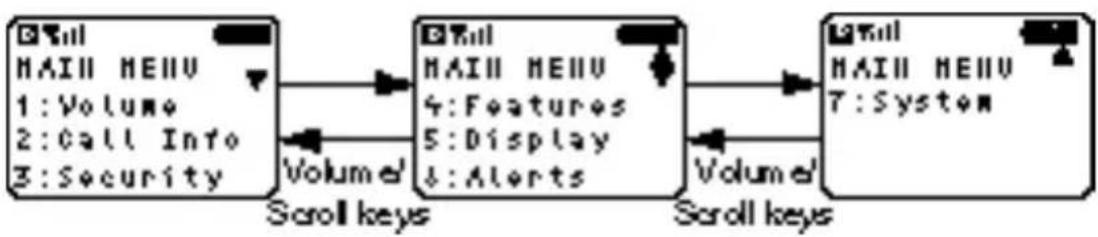
flowchart
graph LR
    A["MAIII MENU\n1:Volume\n2:Call Info\n3:Security"] --> B["Scroll keys"]
    B --> C["MAIII MENU\n4:Features\n5:Display\n6:Alerts"]
    C --> D["Scroll keys"]
    D --> E["MAIII MENU\n7:System"]
    style A fill:#f9f,stroke:#333
    style B fill:#ccf,stroke:#333
    style C fill:#cfc,stroke:#333
    style D fill:#fcc,stroke:#333
    style E fill:#ffc,stroke:#333
Menus allow you to check or change the phone's various features and settings. You may see the different menus using either the menu access method or the shortcut menu access method.
Menu Access Method
-
Press the under [MENU].
-
Press or to step forward or backward through the list of features.
-
Press to go back one step.
-
Press the number corresponding to the menu item that you want to select.
-
Press under [NEXT].
or
Press or to cycle through the possible settings. A check mark indicates the current option selection.
-
Press under [OK] to save the setting.
-
Press to cancel without saving.
Shortcut Menu Access Method
Each menu feature can also be quickly accessed by pressing under [MENU] and the numbers on the desired menu screen. For example, when the shortcut is used, the phone displays the current menu item setting.
Menu Item Descriptions
1 Volume
This allows you to adjust the ringer, key beep, and earpiece volume.
1 Ringer Adjust ringer and new message
alert volume with the or↑
↓ keys or volume keys. You can also adjust the ringer volume by pressing the volume keys only while the phone is in standby or is ringing. Possible settings: silent, low, M-, M+, high.
2 Key Beep Adjust the key beep volume (the sound the phone makes when the keys are pressed with the
*↑ or keys or volume keys). Possible settings: silent, low, M-, M+, high.
3 Earpiece Adjust the earpiece volume with
the ,*keys or volume keys. You can also adjust this during a call by pressing only the volume keys. Possible settings: low, M-, M+, high.
2 Call Info
This allows you to see the number and duration of various kinds of calls.
1 Last Call Display duration of last call in minutes and seconds.
2 Home Calls Display the total number of calls and time (minutes and seconds), of all calls made while in the home system (i.e., not roaming),
since last reset. Press under [ZERO] to reset

3 Roam Calls Display the total number of calls and time (minutes and seconds) of all calls made while roaming.
Press under [ZERO] to reset.
4 All Calls Display the total number of calls and time (minutes and seconds) including calls made while in the home system and while roaming. This is NOT resettable.
3 Security
You must enter the lock code to see what is in the security menu. Typical default values are either the last 4 digits of your phone number or 0000.
1 Lock Mode Choose when you want the phone to lock. Possible settings: "on power up," "now," "never." "Now" immediately locks the phone. When the lock code is entered, this is reset to "never." "On power up" locks the phone when the phone is turned on. "Never" means that the phone is never locked. When locked, you can only make emergency calls or receive incoming calls. All other functions of the phone are disabled. If you forget your lock code, please call your service provider for help.
2 Restrict Set phone use restrictions to "yes" or "no." If set to "yes," you can only make calls to emergency numbers and phone numbers in locations 1 to 9.
3 New Code Enter a new four digit lock code number.
4 Emergency# Enter three emergency numbers.
You can call these numbers and 911 even when the phone is locked or restricted. If dialing the number, it must exactly match one of these programmed numbers for it to override the lock and restriction settings.
5 Clear Calls Clear the call history
information.
4 Features
1 Auto Answer Select the number of rings before the phone automatically answers a call. Possible settings: "5 rings," "3 rings," "1 ring," and "off." The earpiece must be raised for auto answer to work. This feature is most commonly used with the car kit.
2 Auto Retry Set the length of time the phone waits before automatically redialing a number when the system is busy. Possible settings: “every 60 seconds,” “every 30 seconds,” “every 10 seconds,” “off.”
3 Scratch Pad Store phone numbers during a call. These numbers are added to call history.
4 Mute Switch the microphone on and off while in a call. When the microphone is off, the other party can not hear you.
5 Key Beep Set key beep length and touch tone playback speed. Possible settings: “long,” “normal.”
6 One-touch Enable/disable one-touch phone book memory dialing. Possible settings: “enable,” “disable.”
7 Privacy Set the voice privacy feature for CDMA calls. Possible settings: "enhanced," "standard."
CDMA offers inherent voice privacy. Check with your service provider for availability of the enhanced voice privacy mode. During a call, if active, you will see an inverse “P” on the same line as the call time.
5 Display
This allows you to choose what you see on the display.
1 Backlight Choose the setting of the LCD and keypad backlighting. Possible settings: “always on,” “always off,” “10 seconds,” “30 seconds,” “on when earpiece up.” “10 seconds” turns the backlight off 10 seconds after the last key was pressed. “30 seconds” waits 30 seconds after the last key press. For the 10 and 30 seconds options, backlighting will not turn on if the earpiece is down.
"On when earpiece up" causes the backlight to turn on (and remain on) only when the earpiece is up. "Always on" means that the backlight is on whether the earpiece is up or down. Choosing "always on" significantly increases battery drain. "Always off" means that the backlight is never on.
2 Banner A banner enables you to personalize your phone by displaying your name, for example. Enter the banner (up to 12 characters) that will display on the top line when the phone powers up and when it is in standby. Press under [EDIT] to make changes to the existing banner. Enter the characters the same way you do for the phone book.
3 Show Time Choose whether to display date and time. Possible settings: "yes," "no."
4 Auto Hyphen Possible settings: “on,” “off.” When on, automatically inserts hyphens to be consistent with U.S. phone numbers.
6 Alerts
1 Fade Set an alert to inform you when you have lost a call or lose service. Possible settings: “on,” “off.”
2 Minute Set minute minder to beep every 10 seconds before the minute while in a call.
3 Service Set an alert to beep when a network service parameter changes.
7 System
This allows you to set some of the PCS network settings.
1 Set NAM Select the phone's NAM (Number Assignment Module) if the phone is registered with multiple service providers.
2 Auto NAM Allows the phone to automatically switch to one of the programmed NAMs if it is operating in the corresponding service provider area.
3 Activation If supported by your service provider, this item enables you to initiate over-the-air activation in order to get your phone working through a few key presses.
PAGING, MESSAGING, AND VOICE MAIL
This feature allows your phone to receive messages when it is turned on. A single key, allows you to access your messages while a four line display provides for easy viewing. While reading a message, you can return a call to the callback number provided in the message simply by pressing

twice.
Messages are stored in the phone's memory and are not erased when the phone is turned off. The phone has the capability of storing up to 23, 40 character messages. However, the number of messages that can be stored will be reduced if messages are greater than 40 characters.
Note
Check with your service provider regarding the availability of this feature. The information contained in a message, such as time stamp and callback number, depends on the mode the phone is operating in and the service provider's network capabilities.
This phone supports three types of messages:

Message typically contains text

Page typically contains digits

Voice Mail indicates the number of new
Notification voice mail messages that your
voice mailbox has. You must call your voice mail number to listen to these messages.
New Message Alert
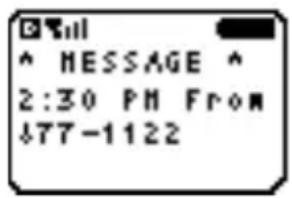
The phone will notify you of a new message by a display on the screen, five short beeps (if enabled), a flashing red light on the earpiece, and by turning on an icon on the top of the display. If a message is marked URGENT, the corresponding icon (or
v) will flash. In addition, the first line of the display will contain asterisks (*) on each side of the label for example, “*MESSAGE! *”.
text_image
^ MESSAGE * 2:30 PM From $77-1122To acknowledge the new message indication:
Press any key.
or
Raise the earpiece.
The phone will then be returned to the display that was present before the alert. The red light will continue to flash and a reminder beep will occur every two minutes until the new message is acknowledged.
Viewing Pages and Messages
These messages may consist of a time stamp, a callback number, a name (if the callback number matches a phone number stored in a memory location), and text. They are accessed as text type messages as shown below.
Reading New Messages
-
Press The display will then show the number of new messages.
-
Press under [TEXT]. You will see the messages in the order they were received except for all urgent messages, which will be displayed first.
Messages will automatically scroll page by page. To manually scroll through the message line by line, press or . At the end of the message, the Smart Key options will be [ERASE] and [NEXT].
- Press under [ERASE] to erase the message and go to the next message.
or
Press under [NEXT] to keep the message in memory and go to the next message.
-
Press to view the callback number provided in the message.
-
Press again to place a call to the callback number.
Note
When there are no new messages, the phone will display a list of previous messages.
If the callback number has not been previously stored into one of the phone's memory locations, you can do so by pressing under [SAVE].
If a name appears with the callback number, the number is already stored in a phone memory location.
After storing the number in phone book memory, the phone returns to the callback screen. Press SND TALK to place the call. You may prepend digits, such as an area code, simply by pressing the desired digits before pressing SEND TALK
Reading Previous Messages
-
Press .
-
Press under [TEXT]. This displays the list of previous messages. Each line will show the first 11 characters of the messages.
-
Press or to select the message.
-
Press under [ERASE]. This erases the message and goes to the next message.
or
Press under [VIEW]. This lets you view the message.
-
While viewing a message or with the arrow pointing to the desired message, you can press SEND TALK to place a call to the callback number provided in the message. After you see the callback number on the display, press SEND TALK again to place the call.
-
Press under [QUIT]. This brings you back to the list of previous messages.
Voice Mail Notifications
Voice mail notification indicates the number of new voice mail messages in your mailbox. Only the most recent voice mail notification will be stored in the phone; previous messages will be overwritten. You must call your voice mail service to retrieve these messages.
Reading Voice Mail Notification Messages
-
Press .
-
Press under [VOICE] to view the entire message. The phone will automatically scroll page by page. To manually scroll, press or

- Press to call back your voice mailbox if your voice mail system has sent a callback number.
or
Press under [QUIT] when you get to the end of the message.
or
Press under [ERASE] to erase the message and turn the V on off. Usually, this is not required because the network will command the phone to automatically turn the icon off when you have no new messages.
Low Memory Warning
The phone will alert you when the amount of available message memory is less than 25%.
Although the phone can still receive new messages, you should erase messages you no longer need to avoid running out of memory.
Out of Memory Warning
When the phone has no more available message memory, it can no longer accept new messages.
When this occurs, the phone will display an “Out of Memory” message.
ACCESSORIES
You can purchase a number of accessories for your QCP 800 or QCP 1900 phone, including batteries, chargers, and a hands-free car kit. For our full line of accessories, visit our Accessories Store at
■ www.kyocera-wireless.com/store
Or order by phone at
■ (800) 211-1537 or (510) 683-4004
PHONE SAFETY AND CARE
Background
The hand-held portable personal communication service telephone is one of the most exciting and innovative electronic products ever developed. With it you can stay in contact with your office, your home, emergency services etc.
Your personal communication service telephone is a radio transmitter and receiver. When it is ON, it receives and also sends out radio frequency (RF) energy. The phone operates in the frequency range of 800MHz to 840MHz (QCP 800) or 1850 MHz to 1990 MHz (QCP 1900). When you use your phone, the system handling your call controls the power level at which your phone transmits. The power level can range from 0.006 of a watt to 0.3 of a watt.
Exposure to Radio Frequency Energy
In 1991, the Institute of Electrical and Electronics Engineers (IEEE) and in 1992, the American National Standards Institute (ANSI) updated the 1982 ANSI Standard for safety levels with respect to human exposure to RF energy. Over 120 scientists, engineers, and physicians from universities, government health agencies, and industry, after reviewing the available body of research, developed this updated standard.
In March 1993, The U.S. Federal Communications Commission (FCC) proposed the adoption of this updated standard.
The design of the QCP 800/QCP 1900 phone complies with this updated standard. Of course, if you want to limit RF exposure even further than the updated ANSI Standard, you may choose to control the duration of your calls and operate your phone in the most power efficient manner.
For Best Performance
To properly operate the phone and maintain safe and satisfactory service, follow these rules:
- Extend the antenna fully.
- Hold the phone with the antenna up and over your shoulder.
- Do not hold the phone antenna at any time.
- Do not use the phone with a damaged antenna.
- Speak directly into the mouth piece.
- Use the phone when the car is stopped.
Avoid exposing the phone and accessories to rain or liquid spills. If the phone gets wet, turn the power off immediately and remove the battery pack. If the phone is inoperable, then return it to the dealer for service.
Only authorized personnel should install or service the phone and its accessories. Faulty installation or service may be dangerous and may invalidate the warranty.
Caring for the Battery
For best battery performance, follow these guidelines:
- Only use QUALCOMM battery packs, model number TABAT0001, and QUALCOMM chargers, model numbers TATVL0001 or TADTC0002. Do not use any other battery pack or charger.
QUALCOMM's chargers are designed to maximize the battery life performance.
- Do not charge the battery pack in temperatures outside of 32^ to 122^ (0°C to 50°C) because damage could occur.
- Do not use the battery charger in direct sunlight or in places with high humidity such as the bathroom.
- Never dispose of the battery pack by a fire.
- Keep the metal contacts at the top end of the battery pack clean.
- Do not attempt to disassemble or short circuit the battery pack.
- You may need to recharge the battery if it has not been used for a long time.
- Replace the battery when it no longer provides acceptable performance. The battery pack may be recharged hundreds of times before it will need to be replaced.
- Do not store the battery pack for long periods in places where high temperatures frequently occur. Follow these storage rules:
less than 1 month: -4^ to 140^ (-20°C to 60°C) more than 1 month: -4^ to 113^ (-20°C to 45°C)
Driving Safety
Talking on the phone while driving is extremely dangerous and is illegal in some states. Remember, safety comes first.
Check the laws and regulations on the use of PCS phones in the areas where you drive. Always obey them.
When using the phone in the car:
- Give full attention to driving.
- Use hands-free operation.
- Pull off the road and park before making or answering a call.
If you must use the phone while driving, please use one-touch, speed dialing, and auto answer modes.
FAILURE TO FOLLOW THESE INSTRUCTIONS MAY LEAD TO SERIOUS PERSONAL INJURY AND POSSIBLE PROPERTY DAMAGE.
Other Safety Guidelines
For the safe and efficient operation of your phone, observe the following guidelines.
Remember to follow any special regulations in force in any given area. Always turn off the phone wherever its use is forbidden or when it may cause interference or danger.
Electronic Devices
Most modern electronic equipment is shielded from RF energy. However, RF energy from PCS telephones may affect inadequately shielded electronic equipment.
RF energy may affect improperly installed or inadequately shielded electronic operating and entertainment systems in motor vehicles. Check with the manufacturer or its representative to determine if these systems are adequately shielded from external RF energy.
You should also check with the manufacturer of any equipment that has been added to your vehicle.
Consult the manufacturer of any personal medical devices (such as pacemakers, hearing aids, etc.) to determine if they are adequately shielded from external RF energy.
Turn off the phone in health care facilities and request permission before using the phone near medical equipment.
Aircraft
Turn the phone off before boarding any aircraft. Use it on the ground only with crew permission. Do not use it in the air. To prevent possible interference with aircraft systems, U.S. Federal Aviation Administration (FAA) regulations require you to have permission from a crew member to use your phone while the plane is on the ground. To prevent interference with personal communication service systems, FCC regulations prohibit using your phone while the plane is in the air.
Children
Do not allow children to play with your phone. It is not a toy. Children could hurt themselves or others (by poking themselves or others in the eye with the antenna for example). Also, children could damage the phone or make calls that increase your telephone bills.
Blasting Areas
To avoid interfering with blasting operations, turn your phone OFF when in a “blasting area” or in areas posted: “Turn off two-way radio.” Construction crews often use remote control RF devices to set off explosives.
Potentially Explosive Atmospheres
Turn your phone OFF when in any area with a potentially explosive atmosphere. It is rare but your phone or its accessories could generate sparks.
Sparks in such areas could cause an explosion or fire resulting in bodily injury or even death.
Areas with a potentially explosive atmosphere are often, but not always, clearly marked. They include fueling areas such as gas stations; below deck on boats; fuel or chemical transfer or storage facilities; areas where the air contains chemicals or particles, such as grain, dust, or metal powders; and any other area where you would normally be advised to turn off your vehicle engine.
Do not transport or store flammable gas, liquid, or explosives in the compartment of your vehicle which contains your phone or accessories.
Vehicles using liquefied petroleum gas (such as propane or butane) must comply with the National Fire Protection Standard (NFPA-58). For a copy of this standard, contact the National Fire Protection Association, One Batterymarch Park, Quincy, MA 02269, Attn: Publication Sales Division.
WHERE TO FIND HELP
Your Service Provider
For questions about your phone and phone service, contact your service provider. Your service provider's customer support department can answer questions about your phone, phone bill, call coverage area, and specific features (such as call forwarding or voice mail) available to you.
Your Phone Documentation
If you have questions about the features of the phone, refer to this guide and other materials provided with your phone. To view or download the most current version of this user's guide, visit us at www.kyocera-wireless.com.
Kyocera Technical Support
If you have additional questions, contact the Kyocera Wireless Corp. Customer Care Center in any of these ways:
■ Web site: www.kyocera-wireless.com
■ U.S. and Canada: (800) 349-4478
■ Other Countries: (858) 882-1400
■ Email: phone-help@kyocera-wireless.com
Before requesting support, please try to reproduce and isolate the problem. When you contact the Customer Care Center, be ready to provide the following information:
■ The name of your service provider
■ The actual error message or problem you are experiencing
■ The steps you take to reproduce the problem
■ The Electronic Serial Number (ESN) and Part Number (MCN) of the phone. The ESN usually starts with a "B" and the MCN usually starts with a "61-." You will find these numbers inside your phone by removing the battery.
INDEX
A
AC adaptor 15
accessories 5, 48, 52
aircraft 51
alerts 39
fade 39
minute 39
service 39
setting 39
answering a call 7, 9, 18, 36, 50
Antenna 9, 14
antenna 6, 20, 48, 51
Auto NAM 39
automatic answer 36
automatic hyphenation 38
automatic redial 5,36
automatic retry 36
automatic scrolling 42, 44
B
backlight 37, 38
banner 38
battery
care 49
charge 21
charging 11, 15
drain 38
installing 11
level indicator 10, 15
removing 12
use 11
best performance 20, 48
blasting areas 52
C
call history 19, 22, 26, 31, 36
call info 34
call waiting 9, 18
calls
credit card 29
dialing 28, 29, 36
ending 9
incoming 9, 18, 22, 35
making 7, 17, 19, 50
receiving 18
redialing 19, 36
restrictions 35
roaming 10, 34, 35
three-way 9,18
car kit 13, 36
CDMA 5,37
children 51
cigarette lighter adaptor 13, 15
clear
calls 36
digits 9
clear digits 16
Code Division Multiple Access 5, 37
correcting dialing mistakes 17
customer service 6
D
dialing calls 19, 28, 37
dialing from memory location 29
digital system 10
display 5
display features 21, 27, 37, 38
display indicators 10, 17
driving safety 50
E
ear piece
5, 7, 9, 13, 17, 18, 19, 21, 33, 34, 36, 37, 41
editing 30
memory 27
numbers 20
emergency numbers 19, 20, 35, 36
END key 9
ending a call 9
entering
a number 17, 23, 24, 25, 29, 36
letters 25
lock code 20, 35
lower case letters 31
name 23
punctuation 30
explosive atmospheres 52
F
fade alert 39
FCC 6, 48, 51
features 5, 7, 9, 19, 22, 29, 32, 36
frequency 47
Functions 16
functions 16, 19
|
incoming calls 9, 22, 35
INFO key 9
K
key beep volume 34
keypad lock 5, 7, 9
L
last ten numbers dialed 19, 26
lock code 35
low battery 15
M
manual pauses 29
memory
clearing 27
editing 27
effect 15
locations 5, 22, 25, 26, 28, 31
retrieving 24
storage 40
menu
item descriptions 33–54
method 32
options 32
shortcuts 33
message
text 10
voice 10
message key 9
messages 40–54
minute alert 39
mute 36
muting voice 36
N
NAM 39
no service 10
Number Assignment Module 39
0
one-touch dialing 28, 37
own phone number 17
P
pages 10, 40
pause dialing 29
performance tips 48
phone book 22
advanced features 29
dialing from 28, 37
editing 27
retrieving from 24
saving numbers to 23
phone number
viewing your own 17
power 12,47
POWER key 9
power key 9
power save mode 21
powering off 13
powering on 13
R
radio frequency energy exposure 47
recalling last number dialed 19
recalling memory locations 24–26
recalling previously dialed numbers 26
Receive Signal Strength Indicator 10, 20
receiving calls 9, 18
receiving messages 41
red light 9, 13, 15, 41
redial 19
system busy timer 36
review last number dialed 19
reviewing memory contents 24–26
ringer volume 19, 33
RSSI 10, 20
S
safety 47, 50
scratch pad 22, 36
scroll
through messages 44
through stored names 25
through stored numbers 26
scroll keys 9
searching
for names 25
for numbers 24, 25, 26
secret numbers 24, 31
signal strength 10, 20
Smart Keys 9, 16
speed dial 5, 28, 50
standby time 11
storing
names with numbers 23
numbers 20, 23–24
secret numbers 31
T
TALK key 9
talk time 11
timer
last call 34. See also call info
roaming 34. See also call info
total 35. See also call info
travel charger 15
V
voice mail 9, 10, 41, 44
volume
earpiece 19, 34
key beep 34
keys 9
ringer 19,33