Cruiser P3200 - Audio Equipment GamesterGear - Free user manual and instructions
Find the device manual for free Cruiser P3200 GamesterGear in PDF.


User questions about Cruiser P3200 GamesterGear
0 question about this device. Answer the ones you know or ask your own.
Ask a new question about this device
Download the instructions for your Audio Equipment in PDF format for free! Find your manual Cruiser P3200 - GamesterGear and take your electronic device back in hand. On this page are published all the documents necessary for the use of your device. Cruiser P3200 by GamesterGear.
USER MANUAL Cruiser P3200 GamesterGear
natural_image
Abstract black and white geometric logo resembling a stylized letter or symbol (no text or symbols present)GAMESTERGEAR
Cruiser P3200
Gaming Headset Manual

text_image
Padded Headband Large 57mm Drivers Cloth Ear Pads Detachable MicTECHNICAL SPECIFICATIONS
Acoustic Design:
Frequency Response:
Driver:
Sensitivity:
Mic Type:
Mic Frequency Response:
Cable Length:
Connector Type:
Closed Back
20hz - 20khz
57 mm @ 32 ohms
112dB SPL, 1mW @ 1khz
Detachable Boom Mic
70hz - 15khz
12.5 ft (3.8 m)
3.5mm for Game Audio
USB for Power & Voice Chat
Package Contents
natural_image
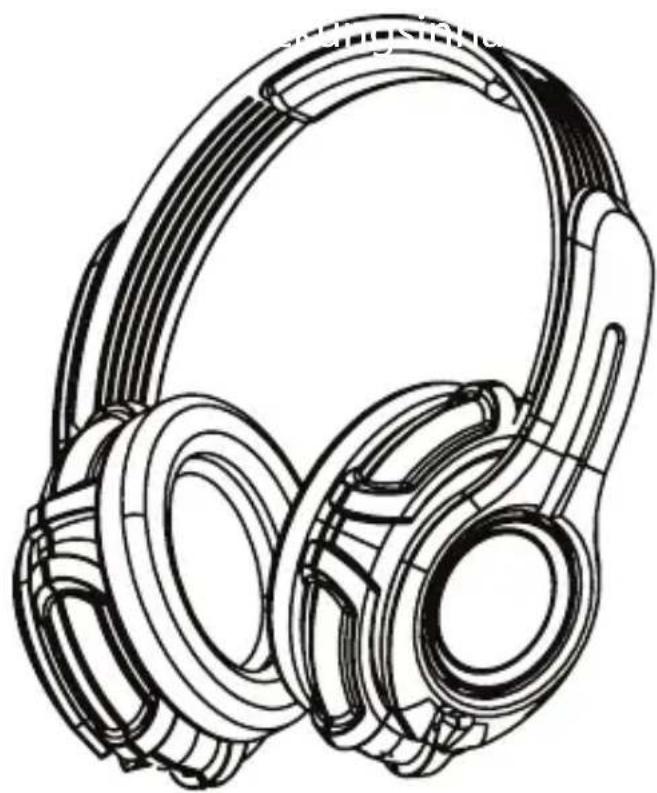
Line drawing of a pair of hardcover headphones (no text or symbols)Cruiser P3200 Headset

text_image
3200°F -100V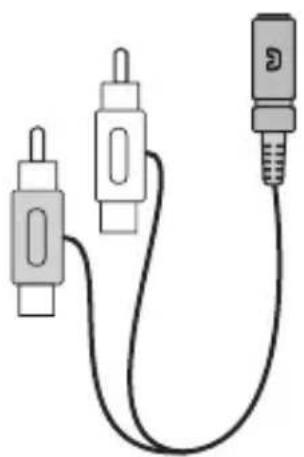
natural_image
Pure electrical circuit lines without any symbols
text_image
Detachable micRCA to 3.5mm Audio Splitter Cable
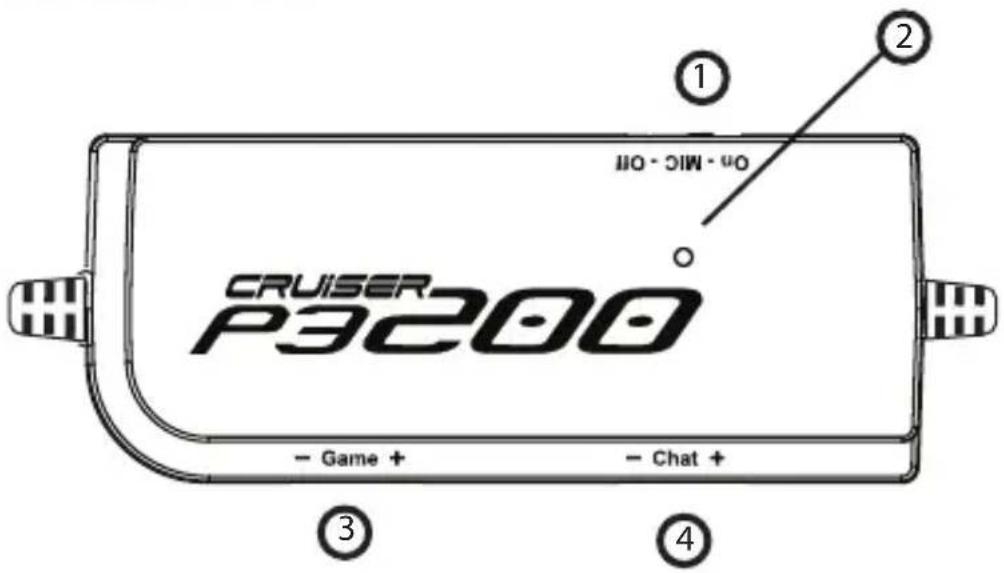
Control Dongle
text_image
CRUISER P3200 Game + Chat + On - MIC - Off ① ② ③ ④-
Mic Mute Switch
-
Game Volume
-
Mic Mute LED
-
Chat Volume
PS3™ Audio Configuration
In the PS3™ XMB, select [Setting] - [Sound Settings] - [Audio Multi-Output]

text_image
05/20 12:00 PM Audio Output Settings Audio Multi-Output On Sets to output audio through multiple connectors simultaneously. Audio output to connectors that are not selected in [Audio Output Settings] is downscaled to 2 Ch.PS3™ Microphone Setup

text_image
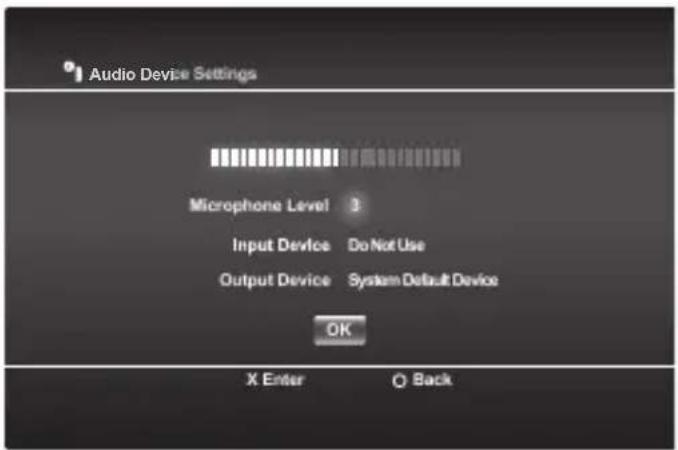
0 12/14 12:15 PM Manage Bluetooth Devices Camera Device Settings Audio Device Settings Sets the audio input and output devices for voice/video chat and other communicatin features. Vocle Changer Keyboard Type Key Repeat Interval Key Repeat Speed Mouse TypeIn the PS3-XMB, select [Setting] - [Accessories Settings] - [Audio Device settings]
text_image
Audio Device Settings Microphone Level 3 Input Device Do Not Use Output Device System Default Device OK X Enter BackAdjust the Microphone to level 3
text_image
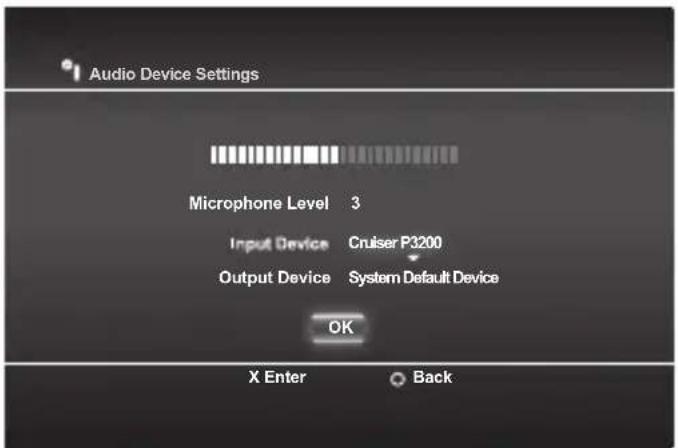
Audio Device Settings Microphone Level 3 Input Device Cruiser P3200 Output Device System Default Device OK X Enter BackGo down to "Input Device" and select "Cruiser P3200"

text_image
Audio Device Settings Microphone Level 3 Input Device Cruiser P3200 Output Device Cruiser P3200 OK X Enter BackGo to "Output Device" and select "Cruiser P3200"
HDMI Setup
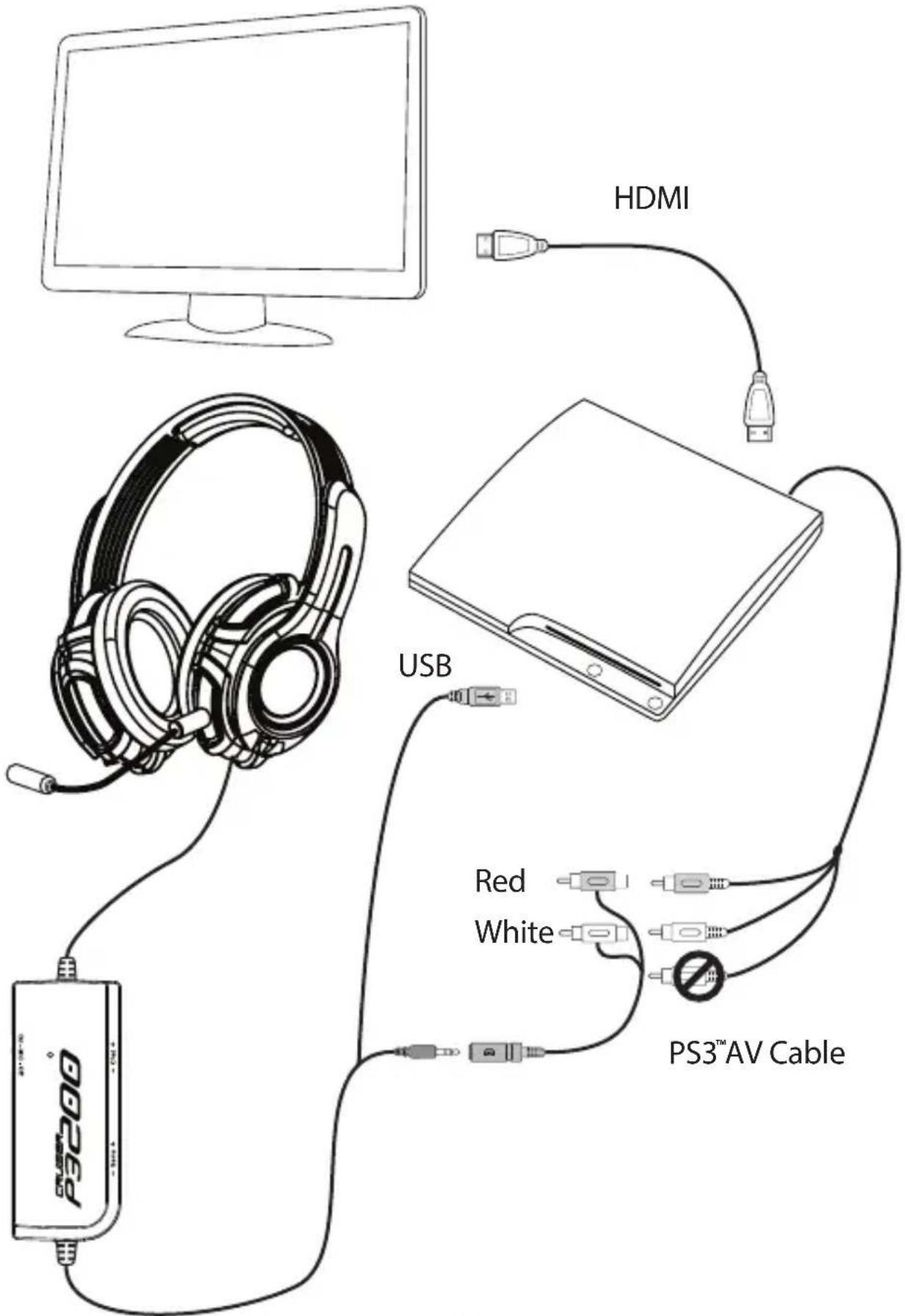
text_image
HDMI USB Red White PS3™ AV Cable PS200RCA Setup

text_image
PS3000 Red/White Yellow PS3™AV Cable USBPC Setup

text_image
USB USB P3200Before using the headset, please go to the [Control Panel] then select the [Sound] folder in Windows to configure the headset.
PC Setup Cont.

text_image
Sound Playback Recording Sounds Communications Select a playback device below to modify its settings: Headphones & High Definition Audio Device Configure Speakers Test Disable Set as Default Device Set as Default Communication Device Show Disabled Devices Show Disconnected Devices Properties Configure Set Default Properties OK Cancel ApplyRight click on the device name to where the headphone is plugged into, and set it to "Default Device". This needs to be done for best performance
text_image
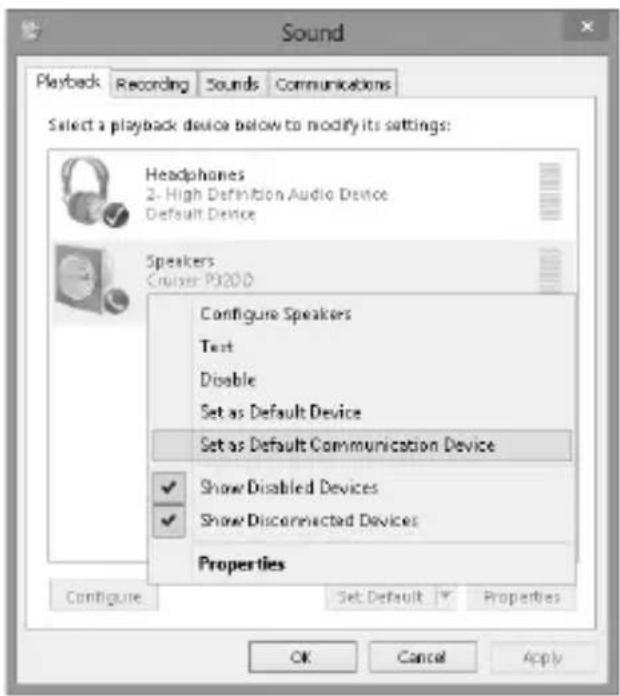
Sound Playback Recording Sounds Communications Select a playback device below to modify its settings: Headphones 2-High Definition Audio Device Default Device Speakers Cruiser P3200 Configure Speakers Text Disable Set as Default Device Set as Default Communication Device Show Disabled Devices Show Disconnected Devices Properties Configure Set: Default Properties OK Cancel ApplyThe Cruiser P3210 device needs to be set to "Default Communication Device" by right clicking on the device name.

text_image
Sound Playback: Recording Sounds Communications Select a playback device below to modify its settings: Headphones 2: High Definition Audio Device Default Device Speakers Cruiber P3200 Default Communications Device Configure Set Default Properties OK Cancel ApplyDevice image/text may vary depending on system setup
FAQ
Q: Why do I have no sound coming out of my new Cruiser Headset?
A: Be sure to plug in both the USB and the RCA plugs (3.5mm plug for PC) into the correct slot of your system.
Q: I'm sure I plugged everything in correctly to my PS3 ^TM , but I still have no audio.
A: Please refer to page 3. There we show how to enable multi-output for your PS3".
Q: Why is the mic not picking up my voice?
A: Make sure that the microphone has been properly locked into place, as it will not work if it has not been.
Q: I followed the steps required to mic set up, but I still don't have my mic working.
A: Be sure that you don't accidentally have the mic set to Mute on the dongle.
Q: My Volume Channel is only working on "Chat" in PC-why is that?
A: Please refer to page 8 for proper PC set up of your Cruiser Headset.
Q: I have misplaced/damaged my detachable microphonen, how can I request a replacement?
A: Simply visit the gamestergear website and send us an email request for a new detachable microphone. Please do note that there will be a fee for a replacement microphone.
Maintenance
Do not expose headphones to extreme temperatures. Wipe the headphones and head-band with mild antiseptic to avoid infections. Do not use alcohol-based disinfectants.
Safety Notice
To avoid potential damage to the device, always disconnect all cables before transporting it.
WARNING: Permanent hearing damage can occur if a headset is used at high volumes for extended periods of time, so it is important to keep the volume at a safe level. Over time, your ears adapt to loud volume levels, so a level that may not cause initial discomfort can still damage your hearing. If you experience ringing in your ears after listening with the headset, it means the volume is set too loud. The louder the volume is set the less time it takes to affect your hearing. Be sure to listen at moderate levels.
Tips:
- Before placing a headset on your ears, turn the volume down completely, then slowly increase it to a comfortable level.
- Turn down the volume if you can't hear people speaking near you.
- Avoid turning up the volume to block out noisy surroundings.
Cautions
Do not make any modifications to the system or accessories. Unauthorized alterations may compromise safety, regulatory compliance, system performance, and may void the warranty
Operate this product within the temperature range of -4^ to 113^ ( -20^ to 45^ ) only. Damage caused by use outside of that range may not be covered by the warranty
Check and follow local laws regarding use of a mobile phone and headset/headphones while operating any vehicle or using equipment that requires your full attention. If you use the headset/headphones while engaging in any such activity, be sure to focus on safety.
Limited 1 Year Warranty
GamesterGear hereby warrants that this product will be free from defects in materials and workmanship for a period of one year from the date of purchase. At its option GamesterGear will repair or replace the defective product and promptly return it to you. You should retain proof of purchase to validate the purchase date and return it with any warranty claim.
If you believe this product is defective within the warranty period, carefully repack the unit, insure it, and return it postage prepaid.
For return RMA and address, please visit www.gamestergear.com.
Certification
This device complies with FCC and industry Canada RF radiation exposure limits set forth for general population. It must not be co-located or be operating in conjunction with any other antenna or transmitter.
Eligible to bear CE marking.
Conforms to European EMC. Tested with standards: EN55022, EN55022, CE-LVD, EN60065 (EN50332-1)
Customer Service
For additional help in solving problems, please visit www.gamestergear.com for online support.
Copyright © 2013 GamesterGear All Rights Reserved. No part of this document may be reproduced without prior written consent from GamesterGear. The GamesterGear logo, is a registered trademark of GamesterGear, Inc. PlayStation is a registered trademark and PS3 is a trademark of Sony Computer Entertainment, Inc. Windows is a registered trademark of Microsoft Corporation. All other trademarks are properties of their respective owners and are hereby acknowledged. Made in China.