Z-530M - Home Theater SAMSUNG - Free user manual and instructions
Find the device manual for free Z-530M SAMSUNG in PDF.


User questions about Z-530M SAMSUNG
0 question about this device. Answer the ones you know or ask your own.
Ask a new question about this device
Download the instructions for your Home Theater in PDF format for free! Find your manual Z-530M - SAMSUNG and take your electronic device back in hand. On this page are published all the documents necessary for the use of your device. Z-530M by SAMSUNG.
USER MANUAL Z-530M SAMSUNG
In case the need for Servicing arises
Don't hesitate to call any nearby AS center with your name, address and telephone number when anything wrong with your product occurs.
SAMSUNG
ELECTRONICS

text_image
SAMSUNGOWNER'S INSTRUCTIONS
Z-510M/530M
VIDEO-CD/CD/CD-R/RW/MP3 DISC PLAYER
Before operating the unit, please read this manual thoroughly, and retain for future reference.
Z-510M
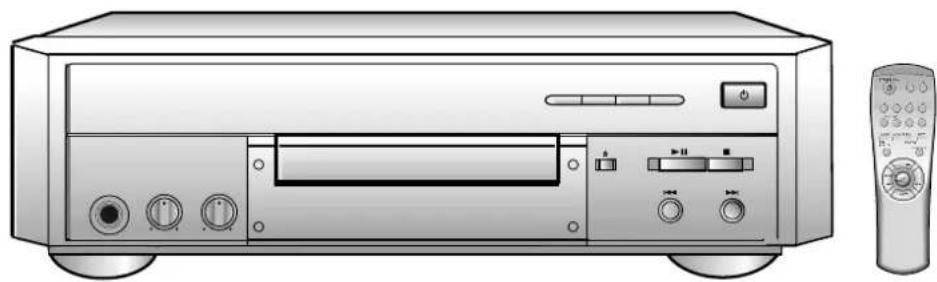
natural_image
Illustration of a CD-ROM front panel with control buttons and a remote control (no text or symbols)Z-530M

natural_image
Illustration of a CD-ROM front panel with control knobs and a remote control (no text or symbols)


This player does not apply to business use and CD-ROM/CD graphic discs cannot be played with this player.
Even though the MP3 disc that you purchased contains the 'MP3' mark on its cover, the disc not written data by the format of MPEG1 LAYER3(file extension name: .MP3) can not be played back normally.
SAFETY PRECAUTIONS

CAUTION
RISK OF ELECTRIC SHOCK DO NOT OPEN

CAUTION
TO REDUCE THE RISK OF ELECTRIC SHOCK, DO NOT REMOVE TOP COVER, NO USER SERVICEABLE PARTS INSIDE, REFER SERVICING TO QUALIFIED SERVICE PERSONNEL.
DANGER
This symbol is intended to alert you to the presence of dangerous voltage within the product.

CAUTION
This symbol is intended to alert you to the presence of important instruction accompanying the product.
WARNING
To reduce the risk of fire or electric shock, do not expose this appliance to rain or moisture.
Enter information here for future reference.
Date of Purchased: ____
Model No:
Serial No: ____
Selling Dealer:
Dealer Address:
Dealer Phone No: ____
CLASS 1 LASER PRODUCT
CLASS 1 LASER PRODUCT
This Compact Disc player is classified as a CLASS 1 LASER product
Use of controls adjustments or performance of procedures other than those specified herein may result in hazardous radiation.
CAUTION-INVISIBLE LASER RADIATION WHEN OPEN AND INTER LOCK DEFEATED, AVOID EXPOSURE TO BEAM.
SPECIAL NOTICE
Warning:
- This unit contains no user serviceable parts.
Never remove covers unless qualified to do so.
This unit contains dangerous voltages, always remove main plug from the socket before any service operation and when not in use for a long period.
Important:
- This unit is designed for your enjoyment in your home. We cannot be liable for the quality of the unit if you use it for commercial use. So please do not use this unit for commercial use.
IMPORTANT NOTICE
NOTE TO CATV SYSTEM INSTALLER;
- This reminder is provided to call the CATV system installer's attention to article 820-40 of the NEC provides guidelines for proper the cable ground shall be connected to the grounding system of the building, as close to the point of cable entry as practical.
SAFETY INSTRUCTIONS
SAFETY INSTRUCTIONS

natural_image
Cartoon illustration of a person using a power tool to strike a damaged electrical socket, with an angry face and lightning bolt nearby (no text or symbols)- Do not damage the power cord. Damage to the power cord may cause a fire or shock hazard.
- When unplugging the power cord, please hold by the plug and remove it carefully in standby mode.
- When you finish operating the unit, always turn off the power. Leaving a disc loaded for a long time with power turned on may damage the disc.
- When you insert the disc, please do not insert over another disc.
- This product should not be used in business applications.
WHEN MOISTURE CONDENSATION GETS IN THE UNIT

natural_image
Cartoon illustration of a car with a smiling face and a hand giving a thumbs-up, accompanied by a surprised sun and a small character waving (no text or symbols)- When the unit is moved from a cold area to a warm area suddenly, moisture may condense on the mechanical parts which restricts the laser signal from normal operation.
- If this occurs, leave the unit with the power turned on for 1\~2 hours. (without a disc)
CONTENTS
SAFETY INSTRUCTIONS 3
CONTROLS AND COMPONENTS----6
REMOTE CONTROL 8
TO INSERT BATTERIES 8
SYSTEM CONNECTIONS 9
MP3 DISC PLAYBACK 10
VIDEO-CD PLAYBACK 11
DISC VIEW FUNCTION---- 13
REPEAT FUNCTION---- 14
PROGRAM FUNCTION 15
ZOOM FUNCTION 16
SEARCHING FUNCTIONS 17
KARAOKE FUNCTION 19
TROUBLE SHOOTING 21
WHEN VIDEO IS DISPLAYED THROUGH SET ---- 22
GENERAL INFORMATION ABOUT THE DISC ---- 22
CARE OF PLAYER AND DISCS 22
SPECIFICATIONS 23
SAFETY INSTRUCTIONS
READ INSTRUCTIONS
- All the safety and operating instructions should be read before the appliance is operated.
RETAIN INSTRUCTIONS
- The safety and operating instructions should be retained for future reference.
HEED WARNINGS
- All warnings on the appliance and in the operating instructions should be adhered to.
FOLLOW INSTRUCTIONS
- All operating and use instructions should be followed.
WATER AND MOISTURE
- Do not use this video product near water-for example, near a bathtub, wash bowl, kitchen sink, or laundry tub, in a wet basement, or near a swimming pool, and the like.
OVERLOADING
- Do not overload wall outlets and extension cords as this can result in the risk of fire or electric shock.
VENTILATION
- Slots and openings in the cabinet are provided for ventilation and to ensure reliable operation of the video product and to protect it from overheating these openings must not be blocked or covered. The openings should never be blocked by placing the video product on a bed, sofa, rug, or other similar surface. This video product should never be placed near or over a radiator or heat register. This video product should not be placed in a built-in installation such as a bookcase or rack unless proper ventilation is provided or the manufacturer's instructions have been followed.
POWER CORD PROTECTION
- Power-supply cords should be routed so that they are not likely to be walked on or pinched by items placed upon or against them paying particular attention to cords at plugs, convenience receptacles, and the point where they exit from the appliance.
CLEANING
- Unplug this video product from the wall outlet before cleaning. Do not use liquid cleaners or aerosol cleaners. Use a damp cloth for cleaning.
LIGHTNING
- For added protection of this video product receiver during a lightning storm, or when it is left unattended and unused for long periods of time, unplug it from the wall outlet and disconnect the antenna or cable system. This will prevent damage to the video product due to lightning and power-line surges.
OBJECT AND LIQUID ENTRY
- Never push objects of any kind into this product through openings as they may touch dangerous
voltage points or short-out parts that could result in a fire or electric shock. Never spill liquid of any kind on the video product.
ACCESSORIES
- Do not place this video product on an unstable cart, stand, tripod, bracket, or table. The video product may fall, causing serious injury to a child or adult, and serious damage to the appliance. Use only with a cart, stand, tripod, bracket, or table recommended by the manufacturer, or sold with the video product. Any mounting of the appliance should follow the manufacturer's instructions and should use a mounting accessory recommended by the manufacturer.
CART
- An appliance and cart combination should be moved with care. Quick stops, excessive force, and uneven surfaces may cause the appliance and cart combination to overturn.
POWER SOURCES
- This video product should be operated only from the type of power source indicated on the marking label. If you are not sure of the type of supply to your home, consult your appliance dealer or local power company. For video products intended to be operated from battery power, or other sources, refer to the operating instructions.
POWER LINES
- An outside antenna system should not be located in the vicinity of overhead power lines or other electric light or power circuits, or where it can fall into such power lines or circuits. When installing an outside antenna system, extreme care should be taken to keep from touching such power lines or circuits as contact with them might be fatal.
POLARIZATION
- This video product is equipped with a polarized alternating current line plug (a plug having one blade wider than the other.) This plug will fit into the power outlet only one way. This is a safety feature. If you are unable to insert the plug fully into the outlet, try reversing the plug. If the plug should still fail to fit, contact your electrician to replace your obsolete outlet. Do not defeat the safety purpose of the polarized plug.
OUTDOOR ANTENNA GROUNDING
- If an outside antenna is connected to the antenna terminal, be sure the antenna system is grounded so as to provide some protection against voltage surges and built-up static charges.
- In the U.S.A section 810 of the National Electrical Code, ANSI/NFPA No. 70-1984, provides information with respect to proper grounding of the mast and supporting structure, grounding of the lead-in wire to an antenna discharge unit, size of grounding conductors location of antenna discharge unit, connection to grounding electrodes, and requirements for the grounding electrode. See the figure below.
ATTACHMENTS
- Do not use attachments not recommended by the video product manufacturer as they may cause hazards.

text_image
ANTENNA LEAD IN WIRE GROUNDS CLAMP ANTENNA DISCHARGE UNIT (NEC SECTION. 810-20) ELECTRIC SERVICE EQUIPMENT GROUND CONDUCTORS (NEC SECTION 810-21) GROUND CLAMPS POWER SERVICE GROUNDING ELECTRODE SYSTEM (NEC ART 250, PART H)SAFETY CHECK
- Upon completion of any service or repairs to this video product, ask the service technician to perform safety checks to determine that the video product is in proper operating condition.
DAMAGE REQUIRING SERVICE
- Unplug this video product from the wall outlet and refer servicing to qualified service personnel under the following conditions.
a. When the power-supply cord or plug is damaged.
b. If liquid has been spilled, or objects have fallen into the video product.
c. If the video product has been exposed to rain or water
d. If the video product does not operate normally by following the operating instructions. Adjust only those controls that are covered by the operating instructions as an improper adjustment of other controls may result in damage and will often require extensive work by a qualified technician to restore the video product to its normal operation.
e. If the video product has been dropped or the cabinet has been damaged.
f. When the video product exhibits a distinct change in performance - this indicates a need for service.
SERVICING
- Do not attempt to service this product yourself as opening or removing covers may expose you to dangerous voltage or other hazards.
• Refer all servicing to qualified service personnel.
REPLACEMENT PARTS
- When replacement parts are required, be sure the service technician has used replacement parts specified by the manufacturer or having the same characteristics as the original part. Unauthorized substitutions may result in fire, electric shock or other hazards.
CONTROLS AND COMPONENTS
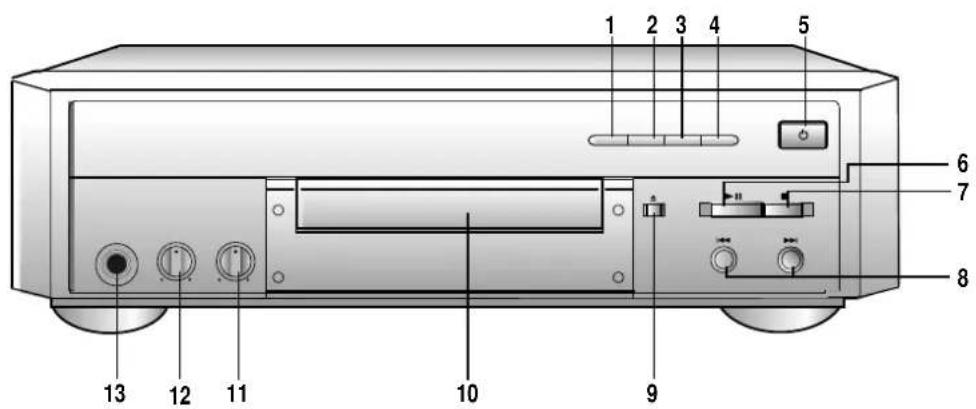
FRONT PANEL
Z-510M
text_image
1 2 3 4 5 6 7 8 9 10 11 12 13Z-530M

text_image
1 2 3 4 5 6 7 8 9 10 11 12 13- Key Control b button
- Key Control # button
- Repeat button
- Sound button
- Standby/On button
- Select(Play/Pause) button
-
Return(Stop) button
-
Previous/Next (Skip/Search) buttons
- Open/Close button
- Disc Tray
- Digital Echo Volume knob
- Mic Volume knob
- Mic jack
CONTROLS AND COMPONENTS
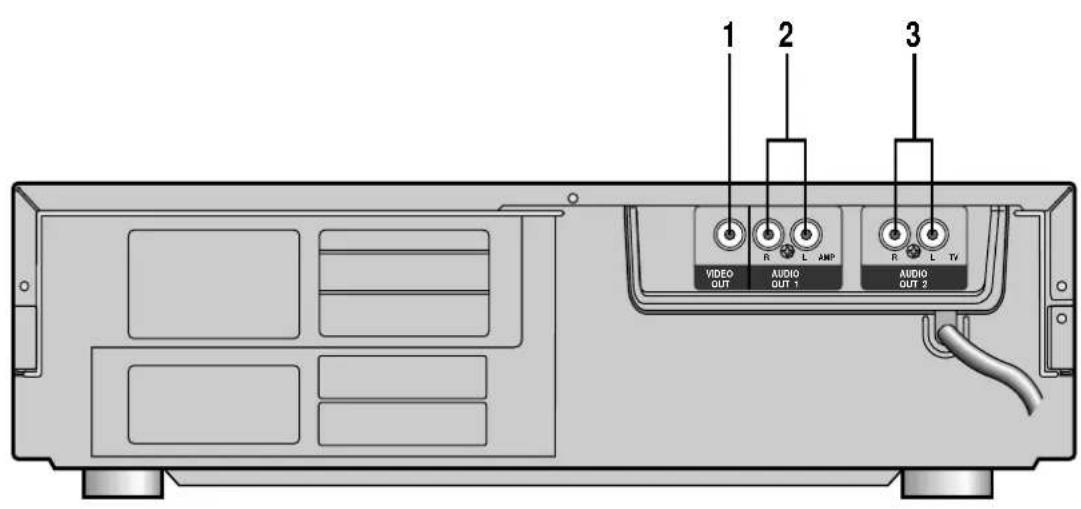
REAR PANEL
text_image
1 2 3 VIDEO OUT AUDIO OUT 1 AUDIO OUT 21. VIDEO OUTPUT
- Connect to the VIDEO IN of your TV set.
2. AUDIO OUTPUT (AMP)
- Connect to the AUDIO IN of your STEREO AMPLIFIER.
3. AUDIO OUTPUT (TV)
- Connect to the AUDIO IN of your TV set.
ACCESSORIES
REMOTE CONTROL VIDEO CABLE AUDIO CABLE OWNER'S

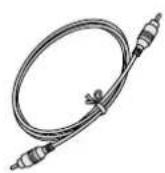
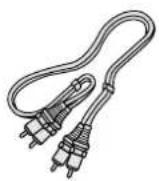
INSTRUCTIONS
REMOTE CONTROL
text_image
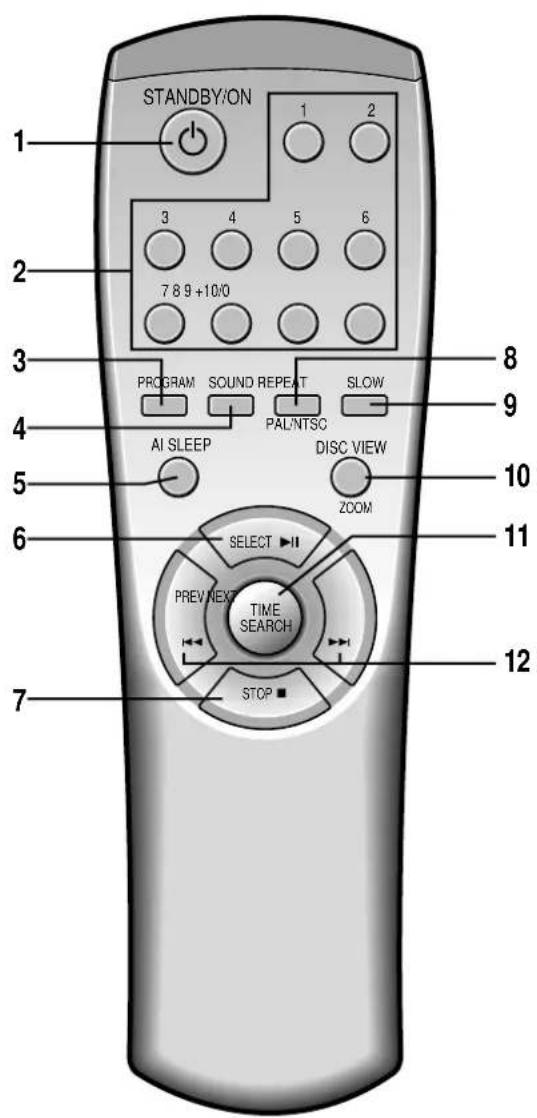
STANDBY/ON 1 2 3 4 5 6 7 8 9 +10/0 PROGRAM SOUND REPEAT SLOW AI SLEEP PAINTSC DISC VIEW ZOOM SELECT ▶II PREV NEXT TIME SEARCH STOP 8 9 10 11 12- STANDBY/ON button
- DIGIT buttons
- PROGRAM button
- SOUND Selector button
- AI SLEEP button
- SELECT(PLAY / PAUSE) button
- STOP (RETURN) button
- REPEAT/PAL/NTSC button
- SLOW button
- DISC VIEW/ZOOM button
- TIME SEARCH(LAST MEMORY) button
- PREVIOUS / NEXT(SKIP) button
TO INSERT BATTERIES
1 Open the battery compartment cover.
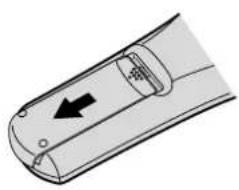
natural_image
Diagram of a remote control panel with an arrow indicating left-side movement (no text or symbols)2 Install two "AAA" batteries observing the correct polarity as shown in compartment.
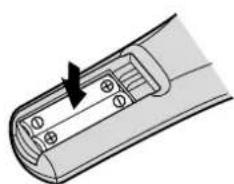
natural_image
Diagram of a remote control panel with an arrow indicating left motion (no text or symbols)3 Replace the cover.
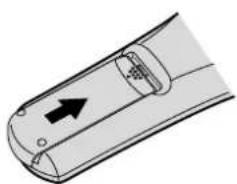
natural_image
Diagram of a remote control panel with an arrow indicating left-side direction (no text or symbols)SYSTEM CONNECTIONS
VCD AND CDP + TV
- Connect AUDIO OUT2 jack of the VCD and CDP to AUDIO IN jack of the TV.
- Connect VIDEO OUT jack of the VCD and CDP to VIDEO IN jack of the TV.

text_image
SET REAR ANT VCR ANTenna RF OUT RF OUT RF CABLE RF IN VIDEO CABLE AUDIO CABLE TO VIDEO IN TO AUDIO IN TVVCD AND CDP + TV + AMPLIFIER
- Connect VIDEO OUT jack of the VCD and CDP to VIDEO IN jack of the TV.
- Connect AUDIO OUT1 jack of the VCD and CDP to the AUX or CD INPUT jacks of the AMPLIFIER.

flowchart
graph TD
    A["TV"] -->|TO VIDEO IN| B["Monitor"]
    C["AMPLIFIER"] -->|TO AUX OR CD IN| D["Audio Cable"]
    E["VIDEO OUT"] -->|AUDIO CABLE| F["Audio Cable"]
    G["VIDEO OUT 1"] -->|AUDIO CABLE| H["Audio Cable"]
    I["VIDEO OUT 2"] -->|AUDIO CABLE| J["Audio Cable"]
MP3-DISC PLAYBACK
This is a player that enables the playback of VCD, audio CD, CD-R and CD-RW and MP3-CD and does not possess the function that saves MP3 files.
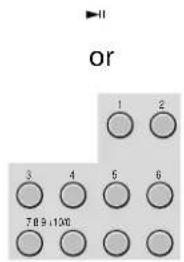
HOW TO PLAYBACK MP3 DISC directly
1 After inserting MP3 Disc in the Set, Press the select button or Number button after Reading.
text_image
or 1 2 3 4 6 6 789+1002 You can see the information of Disc on the TV.
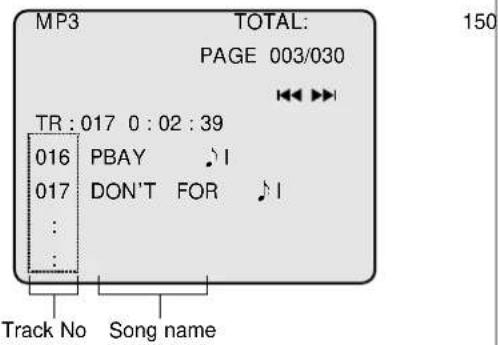
text_image
MP3 TOTAL: PAGE 003/030 TR:017 0:02:39 016 PBAY 017 DON'T FOR Track No Song name♪ I : MP3 File display
Select the Number button for Track No. and Press the "Select" button.
7 tracks are displayed on the PAL TV screen every time;
5 tracks are displayed on the NTSC TV screen every time.
NOTE
- Song names are marked by only English and digits. But unsupported Data are marked by “-”.
WHAT IS MP3?
MP3 stands for MPEG 1 layer 3. It is an efficient way to store high-quality music or other audio content on your computer. MP3 files can be 1/4 to 1/20 the size of a commercial CD audio file-yet retain a high sound quality. MP3 files usually have the extension .mp3, and can be downloaded from the Internet, or can be legally made for personal use from your favorite CDs that you purchased.
HOW TO PLAYBACK MP3 DISC on MENU MODE
1 After inserting MP3 Disc in the Set, Press the "DISC VIEW" button.

2 You can see the following information of Disc on the TV.
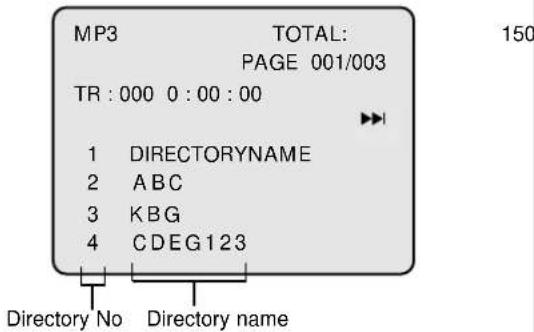
text_image
MP3 TOTAL: PAGE 001/003 TR : 000 0 : 00 : 00 1 DIRECTORYNAME 2 ABC 3 KBG 4 CDEG123 Directory No Directory name 150Select the Number of Directory.
You can see the following Display.

text_image
MP3 TOTAL: PAGE 001/004 TR : 000 0 : 00 : 00 DIRECTORY NAME ►►► 1 DIRECTORYNAME ♩I 2 ABC ♩I 3 KBG ♩I 4 CDEG123 ♩ISelect the No of song and you can enjoy the Music.
TO RETURN TO THE PREVIOUS MENU
Press the RETURN button.
- When a wrong menu is selected or other menu is about to be selected, hold down the RETURN button more than one second.
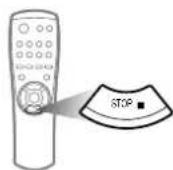
When the RETURN button is pressed shortly, the disc may be stopped.
- When you want to stop playing, press the RETURN button short.
VIDEO-CD PLAYBACK
HOW TO PLAYBACK VIDEO-CD version 2.0
- Turn on the Power button.
1 Press the Open/Close button.
- The tray is ejected.
2 Insert a VIDEO-CD disc and press the Open/Close button.

Press the SELECT (PLAY/PAUSE) button.
- In version 1.1 disc menu is not displayed and play function is operated.
- Only in version 2.0 disc menu is displayed.
- If you press directly the digit key at STOP MODE, start to play the track of selected digit No without menu picture (PBC OFF, MENU OFF MODE).
Ex) When playing a VIDEO-CD version 2.0 disc
Main menu
- The collection of videos
- Videorche.
- Music video
- Movie
- High definition static image
4 Select a number from the menu and press it. Ex) In the case of selecting No. 1 the collection of videos.

text_image
Diagram showing a remote with a pointer labeled '1' pointing to a circle, followed by an arrow indicating direction.- Prologue
- Beauty of Korea
- Beautiful landscape of the South Pacific Ocean
- A woman's day
5 Select a number from the menu and press it.
Ex) When selecting No. 4 A woman's day.
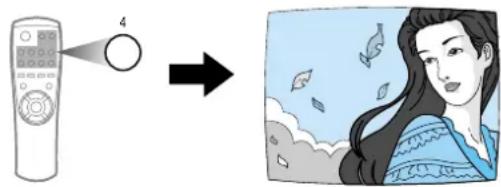
text_image
Illustration showing a remote control with a numbered circle and an arrow pointing to a woman looking at floating objects.TO RETURN TO THE PREVIOUS MENU
Press the RETURN button.
- When a wrong menu is selected or other menu is about to be selected, hold down the RETURN button more than one second.
When the RETURN button is pressed shortly in VIDEO-CD version 2.0, the disc may be stopped.
- When you want to stop playing at the VIDEO-CD version 2.0 menu on mode, press the RETURN button short.
Press the NEXT button, the next menu will be displayed. Press the PREVIOUS button, the previous menu will be displayed.

NOTE
In the case of menu mode
- PROGRAM, TIME SEARCH, REPEAT, DISC VIEW functions do not work.
How to select a song or a video without using menu function.
- Select a track number from the disc jacket and press it at the stop mode.
- When playing version 2.0 disc which has no MENU screen, If no play or no picture,
Press SELECT button or NEXT button to see MENU screen or the next screen.
Press the SLOW button on the remote control when the play function is on
-Voices do not come out when the SLOW button is pressed
-Slow playing is 1/2 of the normal playing speed at 1st press.
-Slow playing is 1/4 of the normal playing speed at 2nd press.
-Slow playing is 1/8 of the normal playing speed at 3rd press.
-Slow playing is canceled at 4th press.
-The sound is muted during the slow playing.

To return to normal operation
-Press the SELECT(PLAY/PAUSE) button.
NTSC/PAL SELECTION METHOD
- Press the PAL/NTSC(REPEAT) button for 1 sec or longer on STOP Mode. You can matching the picture display on your TV.
AI SLEEP FUNCTION
- Press AI SLEEP button, After playing state is finished, Automatically go to power off.
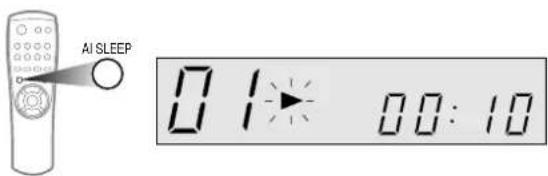
text_image
AI SLEEP 01:00:10PREPARATION
- Press the STANDBY/ON button. (The audio is set to the stereo mode automatically)
- Insert a disc and press the PLAY button.
Press the SOUND SELECTOR button
- Every time you press this button, sound changes as show below
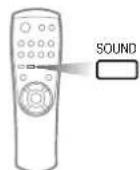
(REMOTE CONTROL)
| Screen on your TV monitor | Audio Output | ||
| L-ch R-ch | |||
| 1st press. | L-CH | L-signal L | -signal |
| 2nd press. | R-CH | R-signal R | -signal |
| 3rd press. | STEREO | L-signal R | -signal |
When playing a CD-R or CD-RW
User-edited CD-Rs (Recordable) and CD-RWs (Rewritable) can be played back only if they are already "finalized".
You can play back your original CD-Rs or CD-RWs recorded in music CD format. (However, they may not be played back depending on their characteristics or recording conditions.)
- Some CD-Rs or CD-RWs may not be played back on this unit because of their disc characteristics, damage or stain on them, or if the player's lens is dirty.
- CD-RWs may require a longer readout time. (This is caused by the fact that the reflectance of CD-RWs is lower than for regular CDs.)
DISC VIEW FUNCTION
- Desired music or video display can be used directly without by menu functions (VER 2.0 Mode). This function is possible in Ver 1.1 and Ver 2.0 menu off mode.
TRACK VIEW
- This function is performed in the STOP mode.
- This function is used for show the first views by nine in track.ex)VCD 1.1 Version.
1 Press the DISC VIEW button in the stop mode.
- Nine tracks are presented with sound.

text_image
DISC VIEW ZOOM TRACK VIEW 01 02 03 04 05 06 07 08 09In case of cancelling the TRACK VIEW function.
Repress the DISC VIEW button.
- If playbacks as original case.
In case the number of tracks is more than ten.
- Press the NEXT button watching the track bellow.
Press the PREVIOUS button. watching the former track. EX) If the disc has 14 tracks.
2 Press the DIGIT button to select Track View.
- The selected track is displayed on the small screen with sound played. EX) When selecting No 4.
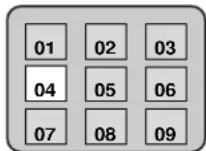
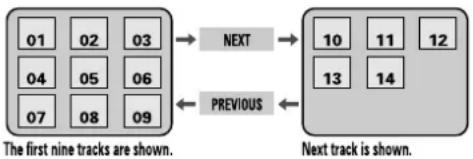
flowchart
graph LR
    A["01 02 03"] --> B["NEXT"]
    C["04 05 06"] --> D["PREVIOUS"]
    E["07 08 09"] --> D
    B --> F["10 11 12"]
    D --> G["13 14"]
    F --> H["Next track is shown."]
    G --> H
When pressing the DIGIT button.

The 11th track is displayed on the small screen.

When pressing the select( play'pause) button it's displayed in full screen.
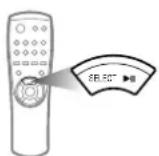
3 Press the SELECT(PLAY/PAUSE) button.
- Displayed in full screen.
DISC VIEW FUNCTION
INDEX VIEW
- This function acts as displaying the track in playing sequentially by time and so it's convenient for searching desired video.
1 Press the PLAY button to playback.

2 Press the DISC VIEW button.
- The display as dividing into nine equal parts in displayed together with relevant sound.

3 Press the DIGIT button to play back the desired part number.
- It's displayed from the selected part in full screen.
REPEAT FUNCTION
- Turn on the TV.
- Load and play a disc.
1. TO REPEAT ONE TRACK
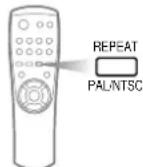
Press the REPEAT button.
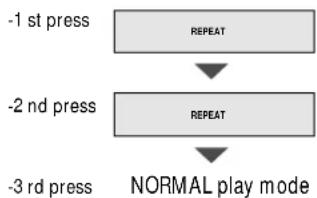
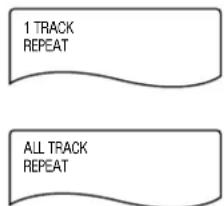
- "REPEAT" indicating the one track repeat lights and the one track is played repeatedly.

TO REPEAT ONE DISC
Press the REPEAT button again.
- "REPEAT" indicating the one disc repeat lights and the one disc is played repeatedly.
Note
- The repeat function is cancelled when the Power, Open/Close buttons are pressed.
- Every press of this button, changes lights.
flowchart
graph TD
    A["-1 st press"] --> B["REPEAT"]
    C["-2 nd press"] --> D["REPEAT"]
    E["-3 rd press"] --> F["NORMAL play mode"]
text_image
1 TRACK REPEAT ALL TRACK REPEATPROGRAM FUNCTION
- This function can program up to 30 tracks during STOP mode.
ex) To program No.4 track.
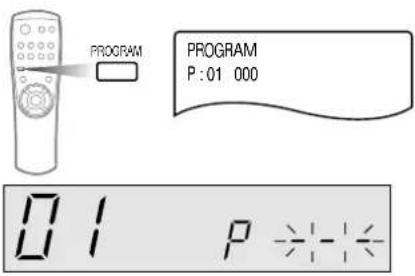
1 Press the PROGRAM button.
text_image
PROGRAM PROGRAM P:01 000 01 P - - - -4 Press the PLAY/PAUSE button. • Programming is completed, and the fi
- Programming is completed, and the first track of the program is played. - When the PREVIOUS/NEXT button is pressed, the next or previous programmed track is played.

2 Press the track number to be programmed.
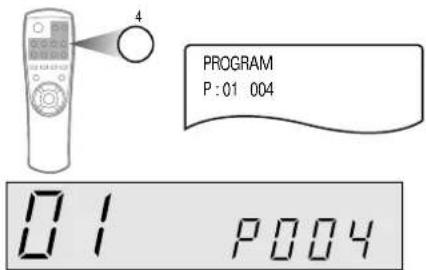
- Press the digit buttons. Ex) Select track 4
text_image
PROGRAM P:01 004 01 P004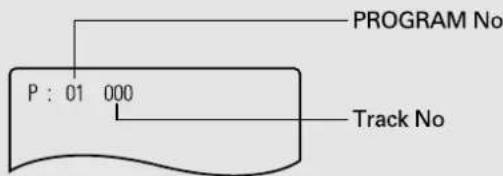
text_image
PROGRAM No P : 01 000 Track NoIn a second
- After step 2, you must press the PROGRAM button again then the selected number (04) is programmed. - Up to 30 tracks can be programmed by repeating step 2 to 3.
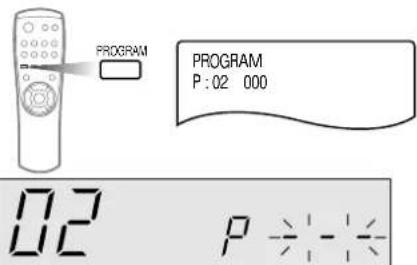
text_image
PROGRAM PROGRAM P:02 000 02 P - : - : -NOTE
- If the PROGRAM button is pressed during programming, it can not be programmed anymore, press again to continue.
- To escape program function, Press the OPEN/CLOSE button, or press the STOP button two times.
ZOOM FUNCTION
- This function works only in the VCD play mode.
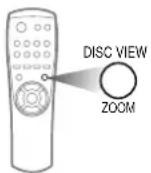
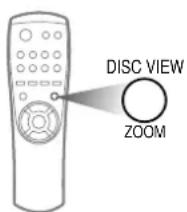
1 Press the DISC VIEW/ZOOM key for 1 sec or longer to change the screen to 2 x ZOOM.
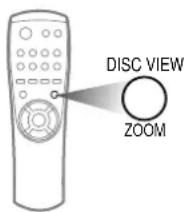
text_image
DISC VIEW ZOOM2 While in the 2 x ZOOM screen, press the DISC VIEW/ZOOM key for 1 sec or longer again to change the screen to 4 x ZOOM.
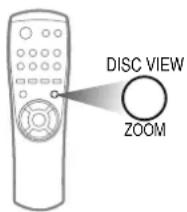
text_image
DISC VIEW ZOOM3 While in the stage of No.1 or No.2 above, press the ◀◀, ▶▶, ▶II, ■ key to scroll the screen to the left, right, up, or down.
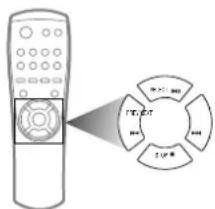
text_image
Diagram showing a remote connected to a circular device with labeled ports and ports in Chinese4 While in the 4 x ZOOM, Press the DISC VIEW/ZOOM button for 1 sec or longer, and display normal picture.
text_image
DISC VIEW ZOOMSEARCHING FUNCTIONS
- Turn on the TV.
- Load and play the disc.
HIGH SPEED SEARCH
- This function is used to searching disc for desired location.
Press and hold down the Search button during the play.
- Hold down the Previous/Next button on the front panel more than one second. (For example:)

natural_image
Illustration of a CD-ROM with a triangular pointer and sound wave icons at the bottom (no text or symbols)SET
To play normally
SKIP
- When the pressed button is released, it returns to the normal play.
Press the Previous/Next( ◀◀◀,▶▶▶ ) buttons. - Press the Previous/Next( ◀◀◀,▶▶▶ ) button on the front panel repeatedly within one second.
- When the Previous/Next button is pressed, it quickly advances to the Previous/Next Track.
- When the "◀◀" button is pressed, it returns to the beginning of the currently playing track. If pressed again, it returns to the previous track.
- Picture moves to the beginning of the next track whenever "▶▶" button is pressed.
- When the Previous or Next button is pressed while playing a disc such as a movie disc, it quickly advances 5 minutes in the forward/reverse direction.

text_image
Diagram showing a remote control with an X-axis label and directional arrows indicating motion or movement.NOTE
In case of high speed search
- When searching a CD disc, the volume is lowered and it advances in high speed.
- If the search does not operate properly due to the noise, release the button momentarily and press it again.
- When the search for a VIDEO-CD is released, mosaic screen might appear or the screen might advance slower than the audio for a short period of time.
- If you choose 'SCAN' in the middle of playing back your MP3 disc, SOUND is not played.
SEARCHING FUNCTIONS
TIME SEARCH
1 Press the TIME button.

text_image
TIME SEARCH 01 02 : 23 00 : 00 01 - - 00:002 Enter the time by pressing the DIGIT button.

text_image
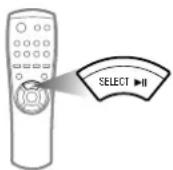
1 2 3 4 TIME 01 02 : 23 12 : 343 Press the SELECT ▶ button.
NOTE
- If entering the time is greater than total time of the disc, it will not be entered.
- If entering the time is greater than track time it will play next track.
- This function works only for playing mode.
- This function can operate only for Menu off mode of VIDEO-CD.
LAST MEMORY FUNCTION
-If you press the STOP or STANDBY/ON button during VIDEO-CD playback, a play-back position slightly ahead of the current time or track is stored in the unit's memory.
-You can easily find the memorized position or track just press the TIME SEARCH button.
METHOD
-When you press the STOP or STANDBY/ON button to finish the operation,
-Press TIME SEARCH button and this unit will search for original position.

NOTE
- Last memory play is always operated as menu off mode even if last status is menu on.
- If you press stop and open, this function will be cancelled.
KARAOKE FUNCTION
- Turn on the TV.
- Load and play a disc.
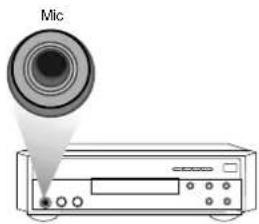
1 Connect the MIC.
- The key control will be displayed on the screen.

text_image
KEY 42 Load a disc and select a desired track.
- Eject the tray by pressing the Open/Close button, load a disc and close the tray.

Use the microphone.
- Two microphones can be used at the same time. (For example:)
text_image
Mic(SET)
KEY CONTROL FUNCTION
• Make sure to be at the karaoke mode.
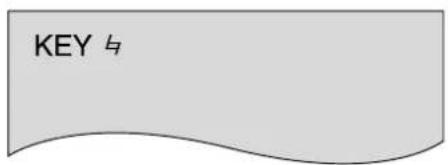
Press the Key Control button
- Press the Key Control button to adjust the key to suit to your voice. (the 15 step key control)
text_image
KEY 与ex) In case of pressing #:
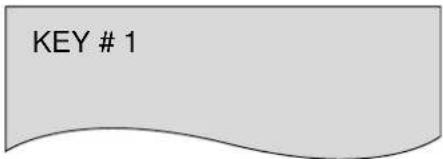
text_image
KEY # 1On screen Display will disappear in 3 seconds.
ex) In case of pressing # once more:

text_image
KEY # 2Note
- Depending on a type of VIDEO-CD 2.0 disc, it may be not operated Key Control function in still picture.
- This function is operated only on VCD Mode.
KARAOKE FUNCTION
Adjust the Digital Echo.
- This will add an echo to your voice, giving you the feeling of singing on stage, Adjust it as desired.
(For example:)

text_image
To decrease echo effect Digital Echo Min Max (SET) To increase echo effectTo decrease or increase the volume of the Microphone:
- Turning to the left decreases Mic-Vol. Turning to the right increases Mic-Vol. (For example:)

text_image
Mic -Vol. Min Max (SET)If howling occurs:
-Reduce the microphone volume.
- Change the direction that the microphone faces.
-Move the microphone away from the speaker.
TROUBLE SHOOTING
| SYMPTOM CHECK AND ACTION | |
| Tray is not ejected. -Check if the power is turned on. | |
| The unit does not play -Check if a disc is loaded. | |
| Tray is ejected. | -Check if a disc is contaminated or damaged.Remove disc, clean it and insert again.-Check if a disc is seated properly. |
| Video or audio is muted, or tray is ejected after 2-5 seconds. | -Check for condensation in unit.-Removed disc, leave the unit with the power turned on for 1-2 hours. The unit will operate only after the condensation is cleared. |
| Picture appears late when SELECT(PLAY/PAUSE) button is pressed. | -Repeated pressing of PLAY/STOP/OPEN caused disc drive motor to over heat, and protection circuit activated until motor cools down. |
| Does not have video although disc is turned. -Check if connection is secure. | -Check if TV power is turned on.-Check if the unit is bypassed. |
| Picture shakes vertically. | -Picture may shakes momentarily during transition from dark to bright. |
| Picture quality of a particular disc is poor and picture shakes | -Check if disc is damaged or deformed.-Check if disc is contaminated. |
| SKIP or SEARCH takes too much time. | -Some discs may require longer time to read encoded information.-Check disc. |
| TIME SEARCH searches different time. | -Check if disc is contaminated or deformed.-When picture shakes disc may be contaminated or deformed causing malfunction. Clean disc |
| After pressing the SELECT(PLAY/PAUSE) button, there is a long delay before picture appears on screen. | -If the PLAY/STOP/OPEN operations are repeated within short period of time, the Disc Drive Motor overheats. The disc will not rotate until the motor cools down. This is a normal condition. Wait a few minutes for the motor to cool down. |
| The disc rotates well, but you do not have picture on the screen, You can see the picture on screen, but the quality is poor and the picture shakes. | -Check if the TV power is turn ON.-Check if the connection is good.-Check if the disc is in good condition. |
| No sound | -Check if disc is loaded upside down.-Insert disc with label side up.-Check if disc is severely deformed. Clean the disc |
WHEN VIDEO IS DISPLAYED THROUGH SET
-Source : VIDEO-CD DISC
-Display :TV monitor
| SET MODE TV SYSTEM DISPLAY MARK | ||||
| PAL | PAL | PAL | OK | PAL 50Hz |
| NTSC | OK | PAL 50Hz | ||
| NTSC | PAL | NG | No sync | |
| NTSC | NG | No sync | ||
| NTSC | PAL | PAL | NG | No color |
| NTSC | NG | No color | ||
| NTSC | PAL | OK | ||
| NTSC | OK NTSC | 60Hz | ||
* Color or sync is in trouble according to TV set.
GENERAL INFORMATION ABOUT THE DISC
GENERAL INFORMATION ABOUT THE DISC
Compact Disc Digital Audio (Max. 20 min.)8cm Single(3 inch)  | |
Compact Disc (CD) Digital Audio (Max. 74min)12cm Single(5 inch)  | |
Video Compact Disc Digital Video and Audio (Max. 74min.) (VCD) 12cm Single(5 inch)  |
CARE OF PLAYER AND DISCS
CARE OF DISCS
Use a soft, dry cloth for cleaning.

natural_image
Illustration of two hands holding a circular object with a number 6 and sparkles, no text or symbols present.Clean the disc with water diluted with neutral detergent solution and wipe from inside to outside using dry cloth.
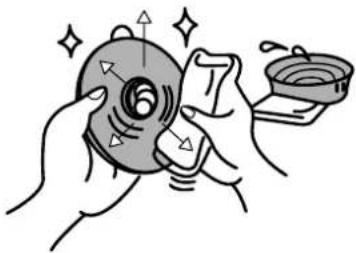
natural_image
Illustration of hands cleaning a circular object with sparkles and a small container (no text or symbols)Store a disc away from direct sunlight or heat source.

natural_image
Cartoon illustration of a sad face emerging from a window with a smiling sun (no text or symbols)Keep the disc free from dust.
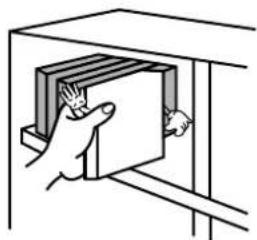
natural_image
Illustration of a hand inserting a rectangular block into a cabinet (no text or symbols)CARE OF PLAYER AND DISCS
Cleaning the Player
- Use soft cloth or the dusting attachment of your vacuum cleaner to dust the exposed surface of the player. Use the vacuum cleaner attachment to remove dust from the ventilation holes on the top, back, sides, and bottom of the cabinet.
- Some of plastic surfaces are easily scratched, and they can be marred by alcohol and various solvents. Avoid excessive use of oil-based furniture polishes since the materials used in the cabinet are non-porous and the residue will accumulate more dust.
CARE OF DISC
Handling Discs
- When loading or removing discs, do not touch the playing surface.
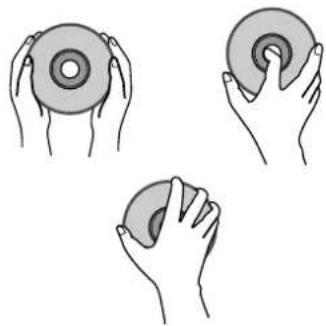
natural_image
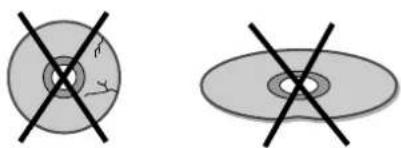
Three hand-drawn illustrations of discoloration or cleaning techniques (no text or symbols)DO NOT PLAY CRACKED OR WARPED DISCS.
- Never play cracked, scratched, or warped disc. This may damage the player cause it to malfunction.
natural_image
Two circular diagrams with crosshairs, one showing a central circle and the other an oval (no text or symbols)SPECIFICATIONS
| GENERAL – Power consumption: 8.5WSPECIFICATIONS – Weight: 2.8 kg- Dimensions 420 (W) x284 (D) x 111 (H) mm- Operating temperature: +5°C~+35°C (41°F~95°F) | |||
| USABLE Media NTSC/PAL | |||
| CD | 12cm | single 74 min | |
| 8 cm | single 20 min | ||
| VCD | 12cm single | Audio + Video | 74 min |
| MP3 120m single | - Format that can be played back: MPEG1 LAYER3- Sampling frequency: 44.1KHz- File extension name: .MP3 | ||
| VIDEO OUTPUT | - Output level: 1Vp-p (for 75 ohm load) 1channel | ||
| AUDIO OUTPUT – 2 Channels | L/R)- Output1 level: 2 Vrms (1KHz, 0 dB)- Output2 level: 0.5 Vrms (1KHz, 0 dB)- Audio characteristics: frequency response: 20Hz-20KHzSignal to Noise: 85dBtotal harmonic distortion:0.1%(at 1KHz, 0dB) | ||