HT-BP10 - Home Theater SAMSUNG - Free user manual and instructions
Find the device manual for free HT-BP10 SAMSUNG in PDF.


User questions about HT-BP10 SAMSUNG
0 question about this device. Answer the ones you know or ask your own.
Ask a new question about this device
Download the instructions for your Home Theater in PDF format for free! Find your manual HT-BP10 - SAMSUNG and take your electronic device back in hand. On this page are published all the documents necessary for the use of your device. HT-BP10 by SAMSUNG.
USER MANUAL HT-BP10 SAMSUNG
DIGITAL HOME CINEMA SYSTEM
HT-BP10
THIS APPLIANCE IS MANUFACTURED BY:
Instruction Manual

ELECTRONICS
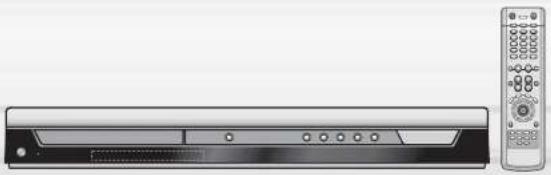
natural_image
Illustration of a flat-screen TV unit with a remote control (no text or symbols visible)


Safety Warnings Precautions


text_image
CAUTION RISK OF ELECTRIC SHOCK, DO NOT OPEN CAUTION: TO REDUCE THE RISK OF ELECTRIC SHOCK, DO NOT REMOVE REAR COVER. NO USER SERVICEABLE PARTS INSIDE, REFER SERVICING TO QUALIFIED SERVICE PERSONNEL.CLASS 1 LASER PRODUCT
This Compact Disc player is classified as a CLASS 1 LASER product.
Use of controls, adjustments or performance of procedures other than those specified herein may result in hazardous radiation exposure.
CAUTION-INVISIBLE LASER RADIATION WHEN OPEN AND INTERLOCKS DEFEATED, AVOID EXPOSURE TO BEAM.
This symbol indicates that dangerous voltage which can cause electric shock is present inside this unit.
This symbol alerts you to important operating and maintenance instructions accompanying the unit.
WARNING: To reduce the risk of fire or electric shock, do not expose this appliance to rain or moisture.
CAUTION: TO PREVENT ELECTRIC SHOCK, MATCH WIDE BLADE OF PLUG TO WIDE SLOT, FULLY INSERT.
Wiring the Main Power Supply Plug(UK Only)
IMPORTANT NOTICE
The main lead on this equipment is supplied with a moulded plug incorporating a fuse. The value of the fuse is indicated on the pin face of the plug and if it requires replacing, a fuse approved to BS1352 of the same rating must be used.
Never use the plug with the fuse cover removed. If the cover is detachable and a replacement is required, it must be of the same colour as the fuse fitted in the plug. Replacement covers are available from your dealer.
If the fitted plug is not suitable for the power points in your house or the cable is not long enough to reach a power point, you should obtain a suitable safety approved extension lead or consult your dealer for assistance.
However, if there is no alternative to cutting off the plug, remove the fuse and then safely dispose of the plug. Do not connect the plug to a main socket as there is a risk of shock hazard from the bared flexible cord.
Never attempt to insert bare wires directly into a main socket. A plug and fuse must be used at all times.
IMPORTANT
The wires in the main lead are coloured in accordance with the following code:
BLUE = NEUTRAL BROWN = LIVE
As these colours may not correspond to the coloured markings identifying the terminals in your plug, proceed as follows:
The wire coloured BLUE must be connected to the terminal marked with the letter N or coloured BLUE or BLACK. The wire coloured BROWN must be connected to the terminal marked with the letter L or coloured BROWN or RED.
WARNING: DO NOT CONNECT EITHER WIRE TO THE EARTH TERMINAL WHICH IS MARKED WITH THE LETTER E OR BY THE EARTH SYMBOL —, OR COLOURED GREEN OR GREEN AND YELLOW.
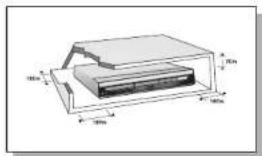
text_image
Technical diagram of a layered structure with labeled dimensions in millimeters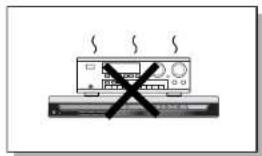
natural_image
Simple line drawing of a computer monitor with a crossed-out X symbol, no text or symbols present.Ensure that the AC power supply in your house complies with the identification sticker located on the back of your player. Install your player horizontally, on a suitable base (furniture), with enough space around it for ventilation (3-4-inches). Make sure the ventilation slots are not covered. Do not stack anything on top of the player. Do not place the player or amplifiers or other equipment which may become hot. Before moving the player, ensure the disc tray is exactly. This player is designed for continuous use. Switching off the DVD player to the stand-by mode does not disconnect the electrical supply. In order to disconnect the player completely from the power supply, remove the main plug from the wall outlet, especially when felt unused for a long period of time.
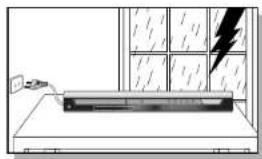
natural_image
Simple line drawing of a device on a desk with a lightning bolt above it, no text or symbols present.During thunderstorms, disconnect AC main plug from the wall outlet. Voltage peaks due to lightning could damage the unit.

natural_image
Simple line drawing of a device with a black X mark on top, next to a window and sun (no text or symbols)Do not expose the unit to direct sunlight or other heat sources. This could lead to overheating and malfunction of the unit.

text_image
Diagram showing symbolic icons including lightning, sun, and a pencil over a beam, likely representing visual or instructional elements.Protect the player from moisture (i.e. vases), and excess heat (e.g. fireplace) or equipment creating strong magnetic or electric fields (i.e. speakers...). Disconnect the power cable from the AC supply if the player malfunctions. Your player is not intended for industrial use. Use of this product is for personal use only. Condensation may occur if your player or disc has been stored in core temperatures.
If transporting the player during the winter, wait approximately 2 hours until the unit has reached room temperature before using.
text_image
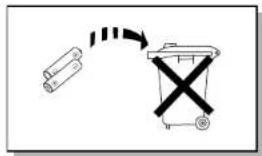
Diagram showing a battery and a trash bin with a crossed-out X symbol, indicating waste or disposal.The batteries used with this product contain chemicals that are harmful to the environment. Do not dispose of batteries in the general household trash.
Features
Multi-Disc Playback & FM Tuner
The HT-BP10 combines the convenience of multi-disc playback capability, including DVD, VCD, CD, MP3-CD, DivX, CD-R/RW, and DVD-R/RW, with a sophisticated FM tuner, all in a single player.
Dolby Pro Logic II
Dolby Pro Logic II is a new form of multi-channel audio signal decoding technology that improves upon existing Dolby Pro Logic.
○DAB (Digital Audio Broadcasting)
You can receive a DAB (Digital Audio Broadcasting) broadcast with clear CD-quality audio and text captions. However, because DAB broadcasting is still in testing phase, you can receive the broadcast only in limited areas of Seoul.
○ DTS (Digital Theater Systems)
DTS is an audio compression format developed by Digital Theater Systems Inc. It delivers full-frequency 5.1 channel sound.
○ TV Screen Saver Function
The HT-BP10 automatically brightens and darkens your TV screen after 3 minutes in the stop mode. The HT-BP10 automatically switches itself into the power saving mode after 20 minutes in the screen saver mode.
Power Saving Function
The HT-BP10 automatically shuts itself off after 20 minutes in the stop mode.
Customized TV Screen Display
The HT-BP10 allows you to select your favorite image during JPEG, DVD or VCD playback and set it as your background wallpaper.
Contents
PREPARATION
| Safety Warnings | 1 |
| Precautions | 2 |
| Features | 3 |
| Notes on Discs | 5 |
| Description | 7 |
CONNECTIONS
| Connecting the Speakers | 11 |
| Connecting the Vices Out to TV | 13 |
| PSCAN(Progressive Scan) Function | 14 |
| Connecting External Component | 15 |
| Connecting the FM Antenna | 16 |
OPERATION
| Disc Playback | 17 |
| MP3-CD Playback | 18 |
| DivX Playback | 19 |
| JPEG File Playback | 21 |
| Displaying Disc Information | 22 |
| Fast-Slow Playback | 23 |
| Skipping Scene/Songs | 23 |
| Repeat Playback | 24 |
| A-B Repeat Playback | 25 |
| Step Function | 26 |
| Angle Function | 26 |
| Zoom (Screen Enlargel) Function | 27 |
| EZ VIEW Function | 27 |
| Selecting Audio/Sustible Language | 28 |
| Moving Directy to a Scene/Sang | 29 |
| Using Disc Menu | 30 |
| Using the Title Menu | 30 |
SETUP
| Setting the Language | 31 |
| Setting TV Screen type | 33 |
| Setting Parental Controls (Rating Level) | 35 |
| Setting the Password | 36 |
| Setting the Wallpaper | 37 |
| Setting the Speaker Mode | 39 |
| Setting the Test Tone | 40 |
| Setting the Delay Time | 41 |
| Setting the Audio Quality | 43 |
| Setting the DRC (Dynamic Range Compression) | 46 |
| AV SYNC Setup | 46 |
| Doby Pro Logic II Mode | 47 |
| Doby Pro Logic II Effect | 48 |
| Sound Field (DSP;EQ Function) | 49 |
| Sleep Timer Function | 50 |
RADIO OPERATION
| Listening to Radio | 51 |
| Presenting Stations | 52 |
| Listening to DAB Stations | 53 |
| Storing DAB Stations | 55 |
| DAB Related Functions | 56 |
| About RDS broadcasting | 57 |
MISCELLANEOUS
| Adjusting Display Sightiness | 53 |
| Muse Function | 59 |
| Cautions on Handling and Storing Discs | 60 |
| Before Calling for Service | 61 |
| Language Code List | 63 |
| Specifications | 64 |
Notes on Discs

DVD (Digital Versatile Disc) offers fantastic audio and video, thanks to Dolby Digital surround sound and MPEG-2 video compression technology. Now you can enjoy these realistic effects in the home, as if you were in a movie theater or concert hall.


DVD players and the discs are coded by region. These regional codes must match in order for the disc to play. If the codes do not match, the disc will not play. The Region Number for this player is given on the rear panel of the player. (Your DVD player will only play DVDs that are labeled with identical region codes.)

playable Discs
| Disc Type | Disc/Video (Video) | Playing & Games | ||
| DVD | DVDVIDEO | Audio + Video | 12cm | Approx. 240 min. (single-sided) |
| Approx. 480 min. (coule-sided) | ||||
| 8cm | Approx. 80 min. (single-sided) | |||
| Approx. 160 min. (coule-sided) | ||||
| VIDEO-CD | discVIDEO | Audio + Video | 12cm | 74 min. |
| 8cm | 20 min. | |||
| AUDIO-CD | discVIDEO | Audio | 12cm | 74 min. |
| 8cm | 20 min. |

Do not use the following types of disc!
- LD, CD-G, CD-I, CD-ROM and DVD-ROM discs cannot be played on this player. If such discs are played, a "WRONG DISC FORMAT" message appears on the TV screen.
- DVD discs purchased abroad may not play on this player. If such discs are played, a "WRONG REGION CODE" message appears on the TV screen.
Copy Protection
- Many DVD discs are encoded with copy protection. Because of this, you should only connect your DVD player directly to your TV, not to a VCR. Connecting to a VCR results in a distorted picture from copy-protected DVD discs.
- This product incorporates copyright protection technology that is protected by methods claims of certain U.S. patents and other intellectual property rights owned by Macrovision Corporation and other rights owners. Use of this copyright protection technology must be authorized by Macrovision Corporation, and is intended for home and other limited viewing uses only unless otherwise authorized by Macrovision Corporation. Reverse engineering or disassembly is prohibited.
Disc Recording Format
CD-R Discs
- Some CD-R discs may not be playable depending on the disc recording device (CD-Recorder or PC) and the condition of the disc.
• Use a 650MB/74 minute CD-R disc.
Do not use CD-R disk over 700MB/80 minute as much as possible since it may not be played back. - Some CD-RW (Rewritable) media, may not be playable.
- Only CD-Rs that are properly "closed" can be fully played. If the session is closed but the disc is left open, you may not be able to fully play the disc.
CD-R MP3 Discs
- Only CD-R discs with MP3 files in ISO 9660 or Joliet format can be played.
- MP3 file names should be 8 characters or less in length and contain no blank spaces or special characters (./=+).
- Use discs recorded with a compression/decompression data rate greater than 128Kbps.
- Only files with the *.mp3" and ".MP3" extensions can be played.
- Only a consecutively written Multisession disc can be played. If there is a blank segment in the Multisession disc, the disc can be played only up to the blank segment.
- If the disc is not closed, it will take longer to begin playback and not all of the recorded files may be played.
- For files encoded in Variable Bit Rate (VBR) format, i.e. files encoded in both low bit rate and high bit rate (e.g., 32Kbps \~ 320Kbps), the sound may skip during playback.
- A maximum of 500 tracks can be played per CD.
- A maximum of 300 folders can be played per CD.
CD-R JPEG Discs
- Only files with the ".jpeg" and ".JPEG" extensions can be played.
- If the disc is not closed, it will take longer to start playing and not all of the recorded files may be played.
- Only CD-R discs with JPEG files in ISO 9660 or Joliet format can be played.
- JPEG file names should be 8 characters or less in length and contain no blank spaces or special characters (./=+).
- Only a consecutively written multisession disc can be played. If there is a blank segment in the multisession disc, the disc can be played only up to the blank segment.
• A maximum of 9,999 images can be stored on a single CD. - When playing a Kodak/Fuji Picture CD, only the JPEG files in the picture folder can be played.
- Picture discs other than Kodak/Fuji Picture CDs may take longer to start playing or may not play at all.
Description
—Front Panel—
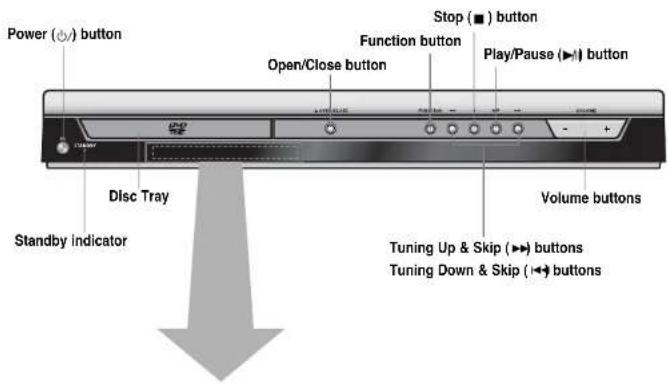
text_image
Power (○) button Stop (■) button Function button Play/Pause (▶) button Open/Close button Volume buttons Disc Tray Tuning Up & Skip (▶) buttons Tuning Down & Skip (◀) buttons Standby Indicator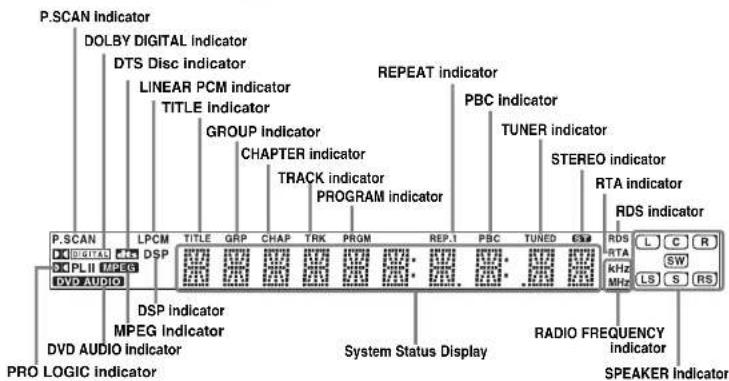
text_image
P.SCAN Indicator DOLBY DIGITAL Indicator DTS Disc Indicator LINEAR PCM Indicator TITLE Indicator GROUP Indicator CHAPTER Indicator TRACK indicator PROGRAM indicator REPEAT indicator PBC indicator TUNER indicator STEREO indicator RTA indicator RDS indicator L C R SW LS S RS P.SCAN DIGITAL PL II MPEG DVD AUDIO DSP Indicator MPEG Indicator PRO LOGIC indicator System Status Display RADIO FREQUENCY indicator SPEAKER Indicator—Rear Panel—

text_image
5.1 Channel Speaker Output Terminals External Audio Input Connector Cooling Fan COMPONENT VIDEO OUTPUT jacks Connect a TV with component video inputs to these jacks. DAB Antenna Connector SCART JACK Connect to a TV with scart input jack. FM Antenna Connector Video Output Connector Connect the TV's video input jacks (VIDEO IN) to the VIDEO OUT connector.Accessories

text_image
Video CableRemote Control FM Antenna DAB Antenna User's ManualDescription
—Remote Control—

text_image
TV, DVD POWER button TUNER MEMORY, P.SCAN button SLEEP button RDS Selection button Number(0-9) buttons REMAIN button VIDEO SEL. button PL II MODE button VOLUME button MENU button SUB TITLE button RETURN button STEP button ZOOM button REPEAT button SLOW, MO/ST button LOGO COPY button OPEN/CLOSE button DIMMER button DVD button AUX button TUNER button, DAB button DAB TUNE button CANCEL button Play/Pause button Stop button Tuning Preset/CD Skip button PL II EFFECT button TUNING/CH button INFO. button AUDIO button Cursor/Enter button MUTE button TEST TONE button SOUND EDIT button DSP/EQ button DIGEST button EZ VIEW, NTSC/PAL buttonInsert Remote Batteries
1
Remove the battery cover on the back of the remote by pressing down and sliding the cover in the direction of the arrow.
2
Insert two 1.5V AAA batteries, paying attention to the correct polarities (+ and -).
3
Replace the battery cover.


Caution
Follow these precautions to avoid leaking or cracking cells:
- Place batteries in the remote control so they match the polarity: (+) to (+) and (−) to (−).
- Use the correct type of batteries. Batteries that look similar may differ in voltage
• Always replace both batteries at the same time. - Do not expose batteries to heat or flame.
Range of Operation of the Remote Control
The remote control can be used up to approximately 23 feet/7 meters in a straight line. It can also be operated at a horizontal angle of up to 30° from the remote control sensor.
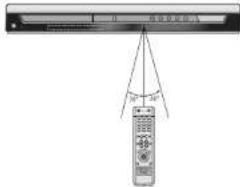
text_image
30° 25°Connecting the Speakers
Before moving or installing the product, be sure to turn off the power and disconnect the power cord.
text_image
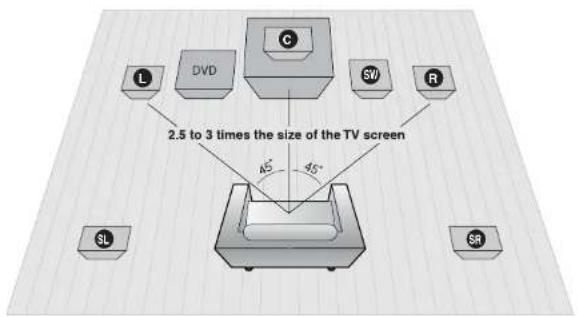
2.5 to 3 times the size of the TV screen 45° 45°Position of the DVD Player
- Place it on a stand or cabinet shelf, or under the TV stand.
Selecting the Listening Position
The listening position should be located about 2.5 to 3 times the distance of the TV's screen size away from the
TV. Example: For 32° TVs 2\~2.4m (6\~8feet) For 55° TVs 3.5\~4m (11\~13feet)
Front Speakers L R
- Place these speakers in front of your listening
- Place the speakers so that their tweeters will be at the same height as your ear.
- Align the front face of the front speakers with the front face of the center speaker or place them slightly in front of the center speakers.
Center Speaker ©
- It is best to install it at the same height as the front speakers.
- You can also install it directly over or under the TV.
Rear Speakers SL SR
- Place these speakers behind your listening position.
- If there isn't enough room, place these speakers so they face each other.
- Place them about 60 to 90cm (2 to 3feet) above your ear, facing slightly downward.
★ Unlike the front and center speakers, the rear speakers are used to handle mainly sound effects and sound will not come from them all the time.
Subwoofer SW
- The position of the subwoofer is not so critical. Place it anywhere you like.

text_image
Center Speaker Rear Speaker (L) Front Speaker (L) Subwoofer Rear Speaker (R) Front Speaker (R)1 Press and hold the terminal tab.
2 Insert the speaker cord.
3 Release the finger.
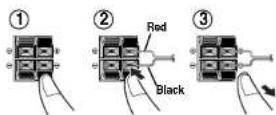
Note - Connect the red cord to the red (−) terminal and the black cord to the black (−) terminal.
Connecting the Video Out to TV
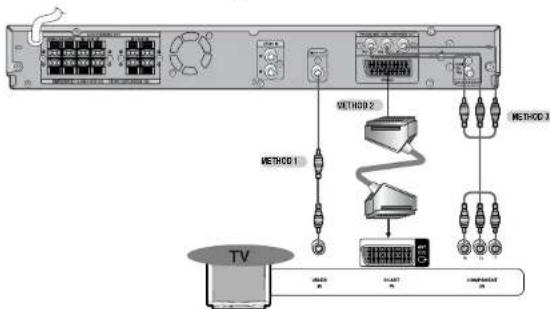
Choose one of the three methods for connecting to a TV.
flowchart
graph TD
    A["TV"] --> B["Switch"]
    B --> C["Method 1"]
    B --> D["Method 2"]
    B --> E["Method 3"]
    C --> F["Switch"]
    D --> G["Method 2"]
    E --> H["Method 3"]
METHOD 1 Composite Video ...... Good Quality
Connect the supplied video cable from the VIDEO OUT jack on the back panel of the system to the VIDEO IN jack on your television.
METHOD 2 Scart ...... Better Quality
If you television is equipped with an SCART input, connect an Scart Jack (not supplied) from the AV OUT jack on the back panel of the system to the SCART IN jack on your television.
VIDEO SELECT Function
Press and hold VIDEO SEL. button on the remote control for over 5 seconds.
- 'COMPOSITE' or "RGB" will appear in the display.
At this time, press the VIDEO SEL. button shortly to select between "COMPOSITE" and "RGB". - If Scart (RGB Input) is equipped for your TV, press VIDEO SEL, button to select RGB mode. You can get a better picture quality by using Scart setting.
- If Scarl (RGB Input) is not equipped for your TV, press VIDEO SEL button to select COMPOSITE mode.
METHOD 3 Component (Progressive Scan) Video ...... Best Quality
If your television is equipped with Component Video inputs, connect a component video cable (not supplied) from the Pr, Pb and Y jacks on the back panel of the system to the corresponding jacks on your television.

- When the Progressive scan mode is selected, the VIDEO and SCART outputs do not feed any signal.
P.SCAN(Progressive Scan) Function
Unlike regular Interlace Scan, in which two fields of picture information alternate to create the entire picture (odd scan lines, then even scan lines), Progressive Scan uses one field of information (all lines displayed in one pass) to create a clear and detailed picture without visible scan lines.
1 Press STOP button.
- When disc is played back, press the STOP button twice so that "STOP", appears on the display.
2 Press and hold P.SCAN button on the remote control for over 5 seconds.
- Pressing and holding the button for over 5 seconds will select "Progressive Scan" and "Interface Scan" alternately.
- When you select P.SCAN, "P.SCAN" will appear on the display.
- To set P.Scan mode for DivX discs, press the P.SCAN button on the remote control for more than 5 seconds with no disc in the unit ("NO DISC" on the display), then load the DivX disc and play.
What is Progressive (or Non-Interlaced) Scanning?
Interlaced Scan (1 FRAME = 2 FIELDS)
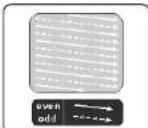
In interlaced-scan video, a frame consists of two interlaced fields (odd and even), where each field contains every other horizontal line in the frame. The odd field of alternating lines is displayed first, and then the even field is displayed to fill in the alternating gaps left by the odd field to form a single frame. One frame, displayed every 1/30th of a second, contains two interfaced fields, thus a total of 60 fields are displayed every 1/62th of a second. The interfaced scanning method is intended for capturing a still object.
Progressive Scan (FULL FRAME)
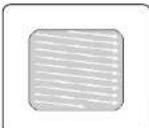
The progressive scanning method scans one full frame of video consecutively down the screen, line by line. An entire image is drawn at one time, as opposed to the interlaced scanning process by which a video image is drawn in a series of passes. The progressive scanning method is desirable for sealing with moving objects.

- This function works only on TVs equipped with component video inputs (Y, Pr, Pb) that support Progressive Video. (It does not work on TVs with conventional component inputs, i.e., non-progressive scan TVs.) - Depending on the brand and model of your TV, this function may not work.
Connecting External Component
Connecting an External Analog Component
Example: Analog signal components such as a VCR or TV.

text_image
Audio Cable (not supplied) If the external analog component has only one Audio Out, connect either left or right. L Audio OUT1 Connect Audio In on the Home Theater to Audio Out on the external analog component.
- Be sure to match connector colors.
2 Press AUX on the remote control to select AUX input.
- You can also use the FUNCTION button on the main unit.
The mode switches as follows: DVD/CD → AUX → FM → DAB
Connecting the FM, DAB Antennas

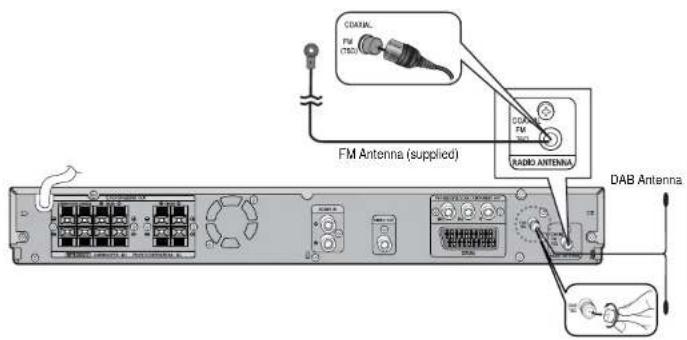
text_image
CDRAWL FM (CTS) FM Antenna (supplied) RADIO ANTENNA DAB Antenna
FM antenna connection
- Connect the FM antenna supplied to the FM 75Ω COAXIAL terminal.
- Slowly move the antenna wire around until you find a location where reception is good, then fasten it to a wall or other rigid surface.
Connecting the DAB Antenna (Included)
- Connect the connector on the end of the DAB antenna cable into the DAB antenna Input on the back of the unit.
- Attach the end of the DAB antenna cable to a wall with good reception.
Cooling Fan
The cooling fan supplies cool air to the unit to prevent overheating.
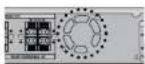
Please observe the following cautions for your safety.
- Make sure the unit is well-ventilated. If the unit has poor ventilation, the temperature inside the unit could rise and may damage it.
- Do not obstruct the cooling fan or ventilation holes. (If the cooling fan or ventilation holes are covered with a newspaper or cloth, heat may build up inside the unit and line may result.)
Disc Playback
1 Press OPEN/ CLOSE button to open the disc tray.
2 Load a disc.
- Place a disc gently into the tray with the disc's label facing up.
3 Press OPEN/ CLOSE button to close the disc tray.

Note
- Depending on the content of the disc, the initial screen may appear different.
To stop playback, press STOP during playback.
- If pressed once, "PRESS PLAY" is displayed and the stop position will be stored in memory.
If PLAY/PAUSE (▶/II) button or ENTER button is pressed, playback resumes from the stop position. (This function works only with DVDs.) - If pressed twice, "STOP" is displayed, and if PLAY/PAUSE (▶/|) button is pressed, playback starts from the beginning.
To temporarily pause playback, press PLAY/PAUSE during playback.
• To resume playback, press PLAY/PAUSE (▶/II) button again.
Selecting the Video Format
Press and hold NT/PAL button on the remote controller for over 5 seconds while the power is turned off.
- By default, the video format is set to "PAL".
• "NTSC" or "PAL" will appear in the display.
At this time, press the NT/PAL button shortly to select between "NTSC" and "PAL".
• Each country has a different video format standard. - For normal playback, the video format of the disc must be the same as the video format of your TV.
MP3-CD Playback
Data CDs (CD-ROM, CD-R, CD-RW) encoded in MP3 format can be played.
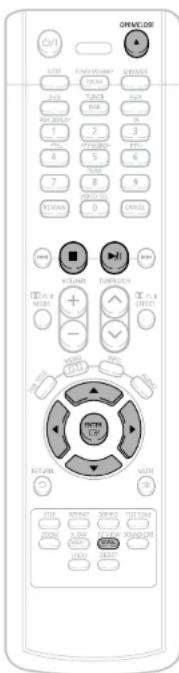
1 Press the OPEN/CLOSE button to open the disc tray, and then load the MP3 disc.
- The MP3 menu screen will appear and playback will start.
• The appearance of the menu depends on the MP3 disc.
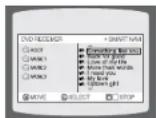
2 In Stop mode, use ◀▶▲▼ to select the album, and then press the ENTER button.
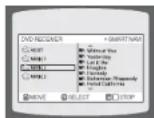
3 Tochange the album, use ◀▶▲▼ to select another album and then press the ENTER button.
• To select another album and track, repeat Steps 2 and 3 above.
4 Press the STOP button to stop playback.
Note
- Depending on the recording mode, some MP3-CDs may not play.
- Table of contents of a MP3-CD varies depending on the MP3 track format recorded on the disc.
- MP3 file support: MPEG1 LAYER3 (BITRATE : 128KBPS\~320KBPS, SAMPLING FREQ.: 32K/44.1K/48KHz)
DivX Playback
|| Skip Forward/Back
During playback, press the ◀◀◀▶▶ button.
- Goes to the next file whenever you press ▶▶ button, if there are over 2 files in the disk.
- Goes to the previous file whenever you press ◀◀ button, if there are over 2 files in the disk.
Fast playback
Toplay back the disc at a faster speed, press and hold ◀◀ or ▶▶ during playback.
• Each time you press and hold either button, the playback speed will change as follows:
2x 4x 8x 32x Normal.
5 Minute Skip function
During playback, press the ◀, ► button.
- Playback skips 5 minutes forward whenever you press ▶ button.
- Playback skips 5 minutes back whenever you press ◀ button.
Zoom Function
1 Press ZOOM button.
2 Press Cursor ▲,▼,◀,▶ buttons to move to the area you want to enlarge.
• Each time you press the button, your selection will toggle between "ZOOM X2" and "ZOOM OFF".
Note • DIVX file can be zoomed only in ZOOM X2 mode.
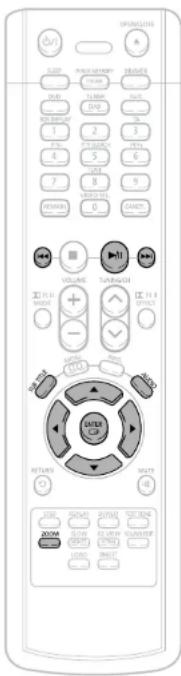
- Each time you press the button, your selection will toggle between "SUBTITLE ON" {1/1, 1/2 ...} and "SUBTITLE OFF".
- If the disc has only one subtitle file, it will be played automatically.
Audio Display
Press the AUDIO button.
- Each time you press the button, your selection will toggle between "AUDIO ON" (1/1, 1/2 ...) and

Note

* is displayed when there is one supported language in the disc.
DivX(Digital internet video eXpress)
DivX is a video file format developed by Microsoft and is based on MPEG4 compression technology to provide audio and video data over the Internet in real-time. MPEG4 is used for video encoding and MP3 for audio encoding so that the users can watch a movie at near DVD-quality video and audio.
1. Supported Formats
- This product only provides the following media formats. If both video and audio formats are not supported, the user may experience problems such as broken images or no sound.
• Supported Video Formats
| Format AVI WMA | |
| Supported Versions DivX3.11 ~ 5.1 V1/V2/V3/V7 | |
• Supported Audio Formats
| Format MP3 | WMA | AC | DT | |
| Bit Rate | 80~384kbps | 56~128kbps | 128~384kbps | N/A |
| Sampling Frequency | 44.1khz | 44.1/48khz | N/A | |
- Aspect Ratio: Although default DivX resolution is 640*480 pixels (4:3), this product supports up to 720*480 pixels (16:9). TV screen resolutions higher than 800 will not be supported.
- When you play a disc whose sampling frequency is higher than 48khz or 320kbps, you may experience shaking on the screen during playback.
2. Caption Function
- You must have some experience with video extraction and editing in order to use this feature properly.
- To use the caption function, save the caption file (*.smi) in the same file name as that of the DivX media file (*.avi) within the same folder.
Example. Root Samsung_Bluetek_007CD1.avi Samsung_Bluetek_007CD1.smi - Up to 60 alphanumeric characters or 30 East Asian characters (2 byte characters such as Korean and Chinese) for the file name.
JPEG File Playback JPEG
Images captured with a digital camera or camcorder, or JPEG files on a PC can be stored on a CD and then played back with this DVD player.
Press the OPEN/CLOSE button to open the disc tray, and then load the JPEG disc.
- Playback will start automatically and each image will show for 5 seconds before moving to the next image.
To rotate the image
During playback, press Cursor ▲,▼,◀,► buttons.
▲ Rotate vertically Rotate 50 Counterclockwise
▼ Rotate horizontally Rotate 60° clockwise

flowchart
graph TD
    A["Patient Interaction"] --> B["Cross-sectional View"]
    B --> C["Medical Equipment Component 1"]
    B --> D["Medical Equipment Component 2"]
    B --> E["Medical Equipment Component 3"]
    B --> F["Medical Equipment Component 4"]

text_image
OPEN/ON Control Panel OFFICE OK Cancel TRANSFORM TRANSFORM TRANSFORM TRANSFORM TRANSFORM TRANSFORM TRANSFORM TRANSFORM TRANSFORM TRANSFORM TRANSFORM TRANSFORM TRANSFORM TRANSFORM TRANSFORM TRANSFORM TRANSFORM TRANSFORM TRANSFORM TRANSFORM TRANSFORM TRANSFORM TRANSFORM TRANSFORM TRANSFORM TRANSFORM TRANSFORM TRANSFORM TRANSFORM TRANSFORM TRANSFORM TRANSFORM TRANSFORM TRANSFORMDisplaying Disc Information
You can view disc playback information on the TV screen.
Press INFO button.
• Each time the button is pressed, the display changes as follows:
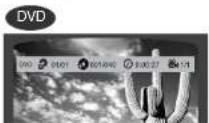
①

①
The information display disappears from the screen

①
The information display disappears from the screen

The information display disappears from the screen

appears on the TV screen!
If this symbol appears on the TV screen while buttons are being operated, that

• Depending on the disc, the disc information display may appear different.
- Depending on the disc, you can also select DTS, DOLBY DIGITAL, or PRO LOGIC.
Screen Display
DVD DVD display
VCD VCD display
CD CD display
DivX display
MP3 182.00 circh
TITLE display
TRACK [FILE] display
THURST WTE
CHAPTER display

NICO LANGUAGE
SUBTITLE display
AT PLAYBACK - kplay

EXIST DIGITAL DEPY
AMOUNTING

ANGLE CLAY

REPEAT PLAYBACK display

LR STEREO (UR) display
Checking the Remaining Time
Press the REMAIN button.
- For checking the total and remaining time of a title or chapter being played.
Each time the REMAIN button is pressed

flowchart
graph TD
    A["DVD"] --> B["TITLE ELAPSED"]
    B --> C["TITLE REMAIN"]
    C --> D["CHAPTER ELAPSED"]
    D --> E["CHAPTER REMAIN"]
    F["VCD"] --> G["TRACK ELAPSED"]
    G --> H["TRACK REMAIN"]
    H --> I["TOTAL ELAPSED"]
    I --> J["TOTAL REMAIN"]
Fast/Slow Playback
Fast Playback

Press and hold ◀◀◀▶▶
• Each time the button is held down during playback, the playback speed changes as follows:

flowchart
graph TD
    A["← 2X"] --> B["← 4X"]
    B --> C["← 8X"]
    C --> D["← 32X"]
    D --> E["▶ PLAY"]
    F["→ 2X"] --> G["→ 4X"]
    G --> H["→ 8X"]
    H --> I["→ 32X"]
    I --> J["▶ PLAY"]
Slow Playback
Press SLOW button.
• Each time the button is pressed during playback, the playback speed changes as follows:

flowchart
graph TD
    A["Be 12"] --> B["P 14"]
    B --> C["P 16"]
    C --> D["P 12"]
    D --> E["P 14"]
    E --> F["P 18"]
    F --> G["PLAY"]
    H["Be 10"] --> I["P 14"]
    I --> J["P 16"]
    J --> K["PLAY"]
    L["Be 12"] --> M["P 14"]
    M --> N["P 18"]
    N --> O["PLAY"]
    style A fill:#f9f,stroke:#333
    style H fill:#f9f,stroke:#333
    style L fill:#f9f,stroke:#333
    note right of H: Reverse skew playback does not work with VCD and DivX
Skipping Scenes/Songs
Briefly press
- Each time the button is pressed briefly during playback, the previous or next chapter, track, or directory (file) will be played. - You cannot skip chapters consecutively.
DVD

VCD
- When watching a VCD with a track longer than 15 minutes, each time is pressed, playback will skip back or forward 5 minutes.
The image is too blurry to recognize any text content.
Repeat Playback
Repeat playback allows you to repeatedly play a chapter, title, track (song), or directory (MP3 file).

Press REPEAT button.
• Each time the button is pressed during playback, the repeat playback mode changes as follows:

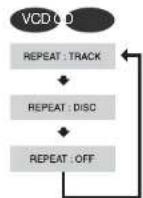

flowchart
graph TD
    A["MP3 JPEG"] --> B["REPEAT: RANDOM"]
    B --> C["REPEAT: TRACK"]
    C --> D["REPEAT: DIR"]
    D --> E["REPEAT: DISC"]
    E --> F["REPEAT: OFF"]
Repeat Playback Options
CHAPTER
Repeatedly plays the selected chapter.
TITLE
Repeatedly plays the selected title.
RANDOM
Plays tracks in random order
(Atrack that has already been played may
be played again.)
TRACK
Repeatedly plays the selected track.
DIB
Repeatedly plays all tracks in the selected
folder.
DISC
Repeatedly plays the entire disc.
DEF
Cancels Repeat Playback.
Note
- Repeat playback operation is not possible with version 2.0 VCD discs if PBC is turned on. To use Repeat Playback on a VCD with PBC, you should set the PBC to OFF in the disc menu. (See page 30.)
A-B Repeat Playback
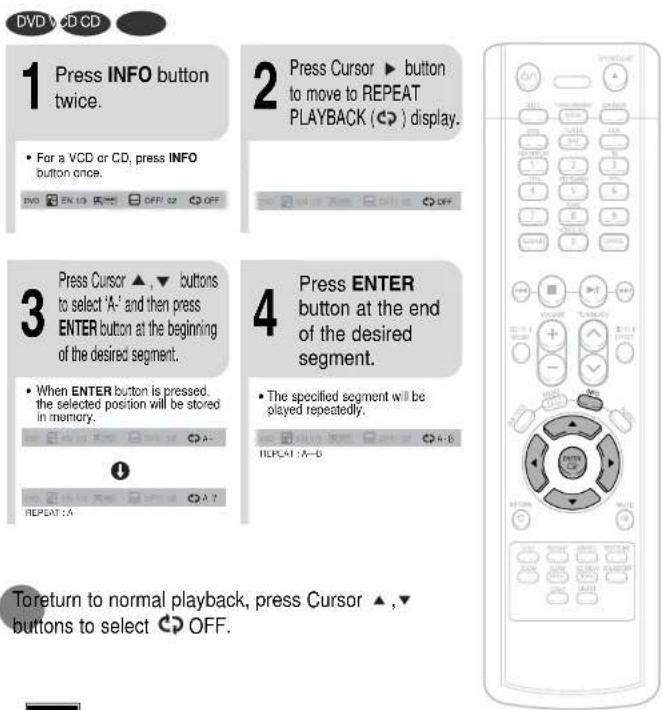
You can repeatedly play back a designated section of a DVD.
text_image
DVD VCD CD 1 Press INFO button twice. • For a VCD or CD, press INFO button once. 2 Press Cursor ▶ button to move to REPEAT PLAYBACK (◀) display. 3 Press Cursor ▲,▼ buttons to select 'A-' and then press ENTER button at the beginning of the desired segment. • When ENTER button is pressed, the selected position will be stored in memory. 4 Press ENTER button at the end of the desired segment. • The specified segment will be played repeatedly. REPEAT : A-6 Toreturn to normal playback, press Cursor ▲,▼ buttons to select ◎ OFF.Note
- The A-B Repeat function will not work on an MP3 or JPEG disc.
Step Function DVD VCD
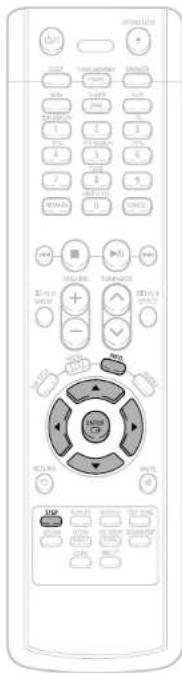
Press STEP button.
- The picture moves forward one frame each time the button is pressed during playback.

- During fast playback of a CD or MP3-CD, sound is heard only at 2x speed, and not at 4x, 6x, and 32x speeds.
- No sound is heard during slow playback and step motion playback.
Angle Function DVD
This function allows you to view the same scene in different angles.
1 Press INFO button.

2 Press Cursor ▶ button to move to ANGLE ( & ) display.

3 Press Cursor ▲,▼ or numeric buttons to select the desired angle.
• Each time the button is pressed, the angle changes as follows:
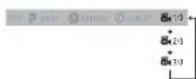

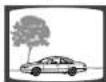


- The Angle function works only with discs on which multiple angles have been recorded.
text_image
OFFICE ON/OFFIC ON/OFFIC ON/OFFIC ON/OFFIC ON/OFFIC ON/OFFIC ON/OFFIC ON/OFFIC ON/OFFIC ON/OFFIC ON/OFFIC ON/OFFIC ON/OFFIC ON/OFFIC ON/OFFIC ON/OFFIC ON/OFFIC ON/OFFIC ON/OFFIC ON/OFFIC ON/OFFICA ON/OFFICA ON/OFFICA ON/OFFICA ON/OFFICA ON/OFFICA ON/OFFICA ON/OFFICA ON/OFFICA ON/OFFICA ON/OFFICA ON/OFFICA ON/OFFICA ON/OFFICA ON/OFFICA ON/OFFICA ON/OFFICA ON/OFFICA ON/OFFICA ON/OFFICA ON/OFFICO ON/OFFICO ON/OFFICO ON/OFFICO ON/OFFICO ON/OFFICO ON/OFFICO ON/OFFICO ON/OFFICO ON/OFFICO ON/OFFICO ON/OFFICO ON/OFFICO ON/OFFICO ON/OFFICO ON/OFFICO ON/OFFICO ON/OFFICO ON/OFFICO ON/OFFICO ON/OFFICOMA ON/OFFICOMA ON/OFFICOMA ON/OFFICOMA ON/OFFICOMA ON/OFFICOMA ON/OFFICOMA ON/OFFICOMA ON/OFFICOMA ON/OFFICOMA ON/OFFICOMA ON/OFFICOMA ON/OFFICOMA ON/OFFICOMA ON/OFFICOMA CON/CON/CON/CON/CON/CON/CON/CON/CON/CON/CON/CON/CON/CON/CON/CON/CON/CON/CON/CON/CON/CON/CON/CON/CON/CON/CON/CON/CON/CON/CON/CON/CON/CON/CON/CON/CON/CON/CON/CON/CON/CON/CON/CON/CON/CON/CON/CON/CON/CON/CON / CON / CON / CON / CON / CON / CON / CON / CON / CON / CON / CON / CON / CON / CON / CON / CON / CON / CON / CON / CON / CON / CON / CON / CON / CON / CON / CON / CON / CON / CON / CON / CON / CON / CON / CON / CON / CON / CON / CON / CON / CON / CON / CON / CON / CON / CON / CON / CON / CON / CON / Con / Con / Con / Con / Con / Con / Con / Con / Con / Con / Con / Con / Con / Con / Con / Con / Con / Con / Con / Con / Con / Con / Con / Con / Con / Con / Con / Con / Con / Con / Con / Con / Con / Con / Con / Con / Con / Con / Con / Con / Con / Con / Con / Con / Con / Con / Con / Con / Con / Con / O N O N O N O N O N O N O N O N O N O N O N O N O N O N O N O N O N O N O N O N O N O N O N O N O N O N O N O N O N O N O N O N O N O N O N O N O N O N O N O N O N O N O N O N O N O N O N O N O N O N O B U U U U U U U U U U U U U U U U U U U U U U U U U U U U U U U U U U U U U U U U U U U U U U U U U U U U U U U U U U U U U U U U U U U U U U U U U U U U U U U U U U U U U U U U U U U U U U U U U U U U I M P S T A L D E F G H I K J K L M M N M N M N M N M N M N M N M N M N M N M N M N M N M N M N M N M N M N M N M N M N M N M N M N M N M N M N M N M N M N M N M N M N M N M N M N M N M N M N M N M N M N M N M N M N M N M N M N M N M N M M N M N M M N M M N M M N M M N M M N M M N M M N M M N M M N M M N M M N M M N M M N M M N M M N M M N M M N M M N M M N M M N M M N M M N M M N M M N M M N M M N M M N M M N M M N M M N M M N M M N M M N M m n n n n n n n n n n n n n n n n n n n n n n n n n n n n n n n n n n n n n n n n n n n n n n n n n n n n n n n n n n n n n n n n n n n n n n n n n n n n n n n n n n n n n n n n n n n n n n n n n n n n m m m m m m m m m m m m m m m m m m m m m m m m m m m m m m m m m m m m m m m m m m m m m m m m m m m m m m m m m m m m m m m m m m m m m m m m m m m m m m m m m m m m m m m m m m m m m m m m m m m m/m i o l e f o r e s t o r e s t o r e s t o r e s t o r e s t o r e s t o r e s t o r e s t o r e s t o r e s t o r e s t o r e s t o r e s t o r e s t o r e s t o r e s t o r e s t o r e s t o r e s t o r e s t o r e s s i o l i v i o l i v i o l i v i o l i v i o l i v i o l i v i o l i v i o l i v i o l i v i o l i v i o l i v i o l i v i o l i v i o l i v i o l i v i o l i v i o l i v i o l i v i o l i v i o l i v i o l i o l i v i o l i v i o l i v i o l i v i o l i v i o l i v i o l i v i o l i v i o l i v i o l i v i o l i v i o l i v i o l i v i o l i v i o l i v i o l i v i o l i v i o l i v i o l i v i o l i u l i v i o l i u l i v i o l i u l i v i o l i u l i v i o l i u l i v i o l i u l i v i o l i u l i v i o l i u l i v i o l i u l i v i o l i u l i v i o l i u l i v i o l i u l i v i o l i u l i v(i) O C D I C D I C D I C D I C D I C D I C D I C D I C D I C D I C D I C D I C D I C D I C D I C D I C D I C D I C D I C D I C D I C D I C D I C D I C D I C D I C D I C D I C D I C D I C D I C D I C D I C D I/C D I C D I C D I C D I C D I C D I C D I C D I C D I C D I C D I C D I C D I C D I C D I C D I C D I C D I C D I C D I C D I C D I C D I C D I C D I C D I C D I C D I C D I C D I C D I C D I C D I CD I C D I C D I C D I C D I C D I C D I C D I C D I C D I C D I C D I C D I C D I C D I C D I C D I C D I C D I C D I C D I C D I C D I C D I C D I C D I C D I C D I C D I C D I C D I C D I C DI CO CO CO CO CO CO CO CO CO CO CO CO CO CO CO CO CO CO CO CO CO CO CO CO CO CO CO CO CO CO CO CO CO CO CO CO CO CO CO CO CO CO CO CO CO CO CO CO CO CO CO CO CO CO CO CO CO CO CO CO CO CO CO CO CO CO CO CO CO CO CO CO CO CO CO CO CO CO CO CO CO CO CO CO CO CO CO CO CO CO CO CO CO CO CO CO CO CO CO COCOO O R S T A L T A L T A L T A L T A L T A L T A L T A L T A L T A L T A L T A L T A L T A L T A L T A L T A L T A L T A L T A L T A L T A L T A L T A L T A L T A L T A L T A L T A L T A L T A L T A L T A L T A LT O R S T A L T A L T A L T A L T A L T A L T A L T A L T A L T A L T A L T A L T A L T A L T A L T A L T A L T A L T A L T A L T A L T A L T A L T A L T A L T A L T A L T A L T A L T A L T A L T AZoom (Screen Enlarge) Function
This function allows you to enlarge a particular area of the displayed image.

1 Press ZOOM button.
2 Press Cursor ▲,▼,◀,▶ buttons to move to the area you want to enlarge.
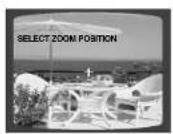

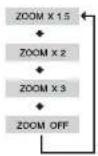
3 Press ENTER button.
• Each time the button is pressed, the zoom level changes as follows:
EZ VIEW Function DVD
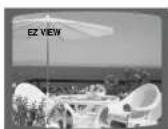
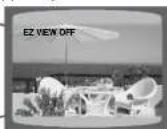
Press EZ VIEW button.
- Each time the button is pressed, the zoom function will switch between On and Off.
- When a movie is played in Widescreen format, black bars at the top and bottom of the TV screen can be removed by pressing the EZ VIEW button

Note
- This function will not work if the DVD is recorded with multi-camera angle format. - Black bars may not disappear because some DVD discs have a built-in horizontal to vertical ratio.
Selecting Audio/Subtitle Language


text_image
OPTION OUT OFF ON/OFF ON/OFF ON/OFF ON/OFF ON/OFF ON/OFF ON/OFF ON/OFF ON/OFF ON/OFF ON/OFF ON/OFF ON/OFF ON/OFF ON/OFF ON/OFF ON/OFF ON/OFF ON/OFF ON/OFF ON/OFF ON/OFF ON/OFF ON/OFF ON/OFF ON/OCC ON/OCC ON/OCC ON/OCC ON/OCC ON/OCC ON/OCC ON/OCC ON/OCC ON/OCC ON/OCC ON/OCC ON/OCC ON/OCC ON/OCC ON/OCC ON/OCC ON/OCC ON/OCC ON/OCC ON/OCC ON/OCC ON/OCC ON/OCC ON/OCC ON/OOC ON/OOC ON/OOC ON/OOC ON/OOC ON/OOC ON/OOC ON/OOC ON/OOC ON/OOC ON/OOC ON/OOC ON/OOC ON/OOC ON/OOC ON/OOC ON/OOC ON/OOC ON/OOC ON/OOC ON/OOC ON/OOC ON/OOC ON/OOC ON/OOC ON/OOOC ON/OOC ON/OOC ON/OOC ON/OOC ON/OOC ON/OOC ON/OOC ON/OOC ON/OOC ON/OOC ON/OOC ON/OOC ON/OOC ON/OOC ON/OOC ON/OOC ON/OOC ON/OOC ON/OOC ON/OOC ON/OOC ON/OOC ON/OOC ON/OOC ON/2000 2000 2000 2000 2000 2000 2000 2000 2000 2000 2000 2000 2000 2000 2000 2000 2000 2000 2000 2000 2000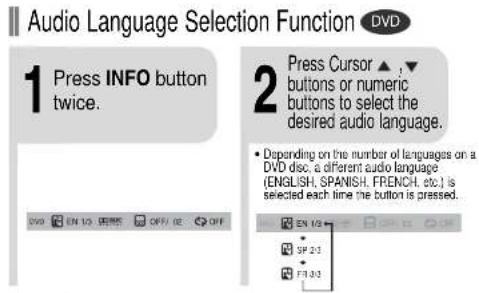
text_image
Audio Language Selection Function DVD 1 Press INFO button twice. 2 Press Cursor ▲,▼ buttons or numeric buttons to select the desired audio language. • Depending on the number of languages on a DVD disc, a different audio language (ENGLISH, SPANISH, FRENCH, etc.) is selected each time the button is pressed.Note - You can use the AUDIO button on the remote control to select a audio language.
text_image
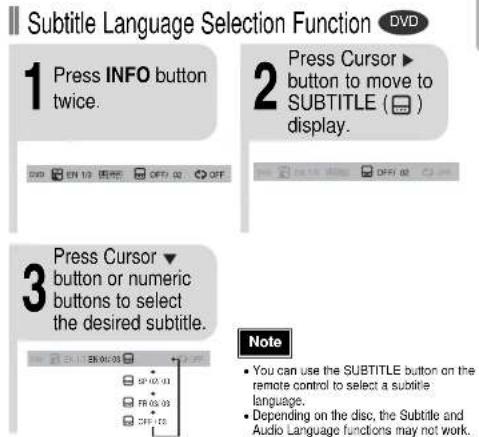
Subtitle Language Selection Function DVD 1 Press INFO button twice. 2 Press Cursor ▶ button to move to SUBTITLE (☐) display. 3 Press Cursor ▼ button or numeric buttons to select the desired subtitle. Note • You can use the SUBTITLE button on the remote control to select a subtitle language. • Depending on the disc, the Subtitle and Audio Language functions may not work.Moving Directly to a Scene/Song

1 Press INFO button.

Moving to a Title/Track
2 Press Cursor ▲ .▼ buttons or numeric buttons to select the desired title/track and then press ENTER button.

Moving to a Chapter
3 Press Cursor◀, ▶ buttons to move to Chapter (✗) display.

Moving to a Chapter
4 Press Cursor ▲,▼ buttons or numeric buttons to select the desired chapter and then press ENTER button.

Moving to a Specific Time
5 Press Cursor◀,▶ buttons to move to time display.

Moving to a Specific Time
6 Press the numeric buttons to select the desired time and then press ENTER button.


Press the numeric buttons.
• The selected file will be played.
- An MP3 or JPEG disc cannot be moved in the disc information screen.
- When playing an MP3 or JPEG disc, you cannot use ▲, ▼ to move to a folder. To move a folder, press ■ (Stop) and then press ▲, ▼.

Note
- You can press 🔊 on the remote control to move directly to the desired title, chapter, or track.
- Depending on the disc. you may not be able to move to the selected title or time.
Using Disc Menu
DVD
You can use the menus for the audio language, subtitle language, profile, etc. DVD menu contents differ from disc to disc.
1 In Stop mode, press MENU button.
- When playing a VCD (version 2.), this toggles between PBC ON and OFF.
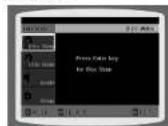
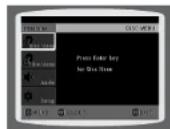
2 Press Cursor ▲,▼ buttons to move to 'DISC MENU' and then press ENTER button.
- When you select Disc Menu and it is not supported by the disc, the "This menu is not supported" message appears on the screen.

3 Press Cursor ▲,▼ ◀,▶ buttons to select the desired item.
- Press ENTER button.

Note
- Disc menu display may be different depending on the disc. PBC (Playback Control) Function
When playing a VCD (version 2.0), you can select and view various scenes according to the menu screen.
PBC ON: This VCD disc is version 2.0. The disc is played back according to the menu screen. Some functions may be disabled. When some functions are disabled, select "PBC OFF" to enable them.
PBC OFF: This VCD disc is version 1.1. The disc is played back in the same way as with a music CD.
Using the Title Menu
DVD
For DVDs containing multiple titles, you can view the title of each movie. Depending on the disc, the availability of this feature may vary.
1 In Stop mode, press MENU button.
2 Press Cursor ▲,▼ button to move to 'Title Menu'.
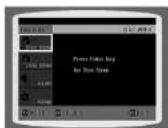

3 Press ENTER button.
• The title menu appears.
Pres
MENU button to exit the setup screen.
Note
- Title menu display may be different depending on the disc.
Setting the Language
OSD (On-Screen Display) language is set to English by default.

text_image
Front panel of a remote control with labeled buttons and function keys1 In Stop mode, press MENU button.
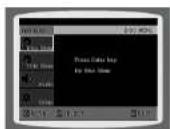
2 Press Cursor ▼ button to move to 'Setup' and then press ENTER button.
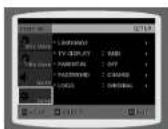
3 Select 'Language' and then press ENTER button

4 Press Cursor ▲,▼ button to select 'OSD Language' and then press ENTER button.

5 button to select the desired language and then press ENTER button.
- Once the setup is complete, if the language was set to English, OSD will be displayed in English.
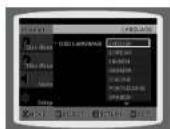
Press RETURN button to return to the previous level.
Press MENU button to exit the setup screen.
Note
- To select another language, select OTHER and enter the language code of your country. (See page 63 for language codes) AUDIO. SUB TITLE and DISC MENU language can be selected.
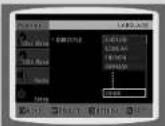
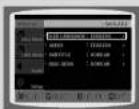
Selecting the OSD Language
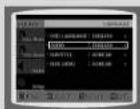
Selecting the
Audio Language
(recorded on the disc)
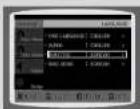
Selecting the Subtitle Language (recorded on the disc)

Selecting the Disc Menu
Language (recorded on the disc)
* If the language you selected is not recorded on the disc, menu language will not change even if you set it to your desired language.
Setting TV Screen type
Depending on your TV type (Wide Screen or conventional 4:3), you can select the TV's aspect ratio.
text_image
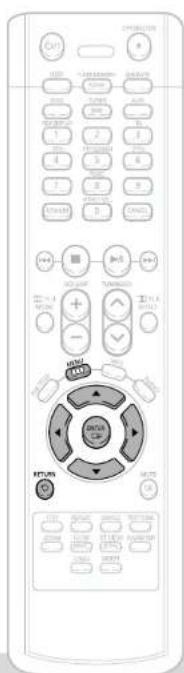
ON/OFFICUM CUTS HATINGS AVINGS MINI MINI MINI MINI MINI MINI MINI MINI MINI MINI MINI MINI MINI MINI MINI MINI MINI MINI MINI MINI MINI MINI MINI MINI MINI MINI MINI MINI MINI MINI MINI MINI MINI MINI1 In Stop mode, press MENU button.
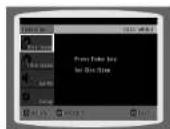
2 Press Cursor ▼ button to move to 'Setup' and then press ENTER button.
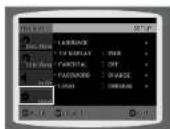
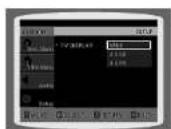
3 Press Cursor ▼ button to move to 'TV DISPLAY' and then press ENTER button.
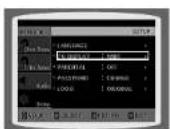
4 Press Cursor ▲,▼ button to select the desired item and then press ENTER button.
• Once the setup is complete, you will be taken to the previous screen.
Adjusting the TV Aspect Ratio (Screen Size)
The horizontal to vertical screen size ratio of conventional TVs is 4:3, while that of widescreen and high definition TVs is 16:9. This ratio is called the aspect ratio. When playing DVDs recorded in different screen sizes, you should adjust the aspect ratio to fit your TV or monitor.
- For a standard TV, select either "4:3LB" or "4:3PS" option according to personal preference. Select "16:9" if you have a widescreen TV.
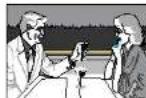
WIDE
: Select this to view a 16:9 picture in the full-screen mode on your widescreen TV.
- You can enjoy the widescreen aspect.
4:3LB
(4:3 Letterbox)
: Select this to play a 16:9 picture in the letter box mode on a conventional TV.
- Black bars will appear at the top and bottom of the screen.
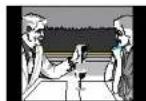
4:3PS
(4:3 Pan&Scan)
: Select this to play a 16:9 picture in the pan & scan mode on a conventional TV.
- You can see the central portion of the screen only (with the sides of the 16:9 picture cut off).

Note
- If a DVD is in the 4:3 ratio, you cannot view it in widescreen.
- Since DVD discs are recorded in various image formats, they will look different depending on the software, the type of TV, and the TV aspect ratio setting.
Press RETURN button to return to the previous level.
Press MENU button to exit the setup screen.
Setting Parental Controls (Rating Level)
Use this to restrict playback of adult or violent DVDs you do not want children to view.

text_image
VOLUME TOMATO + - CHANGE MINI MINI POTATO POTATO POTATO POTATO POTATO POTATO POTATO POTATO POTATO POTATO POTATO POTATO POTATO POTATO POTATO POTATO POTATO POTATO POTATO POTATO POTATO POTATO POTATO POTATO POTATO POTOTO POTOTO POTOTO POTOTO POTOTO POTOTO POTOTO POTOTO POTOTO POTOTO POTOTO POTOTO POTOTO POTOTO POTOTO POTOTO POTOTO POTOTO POTOTO POTOTO POTOTO POTOTO POTOTO POTOTO POTOTO POTATO1 In Stop mode, press MENU button.
2 Press Cursor ▼ button to move to 'Setup' and then press ENTER button.
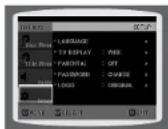
3 Press Cursor ▼ button to move to 'PARENTAL' and then press ENTER button.
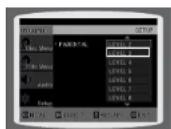
4 Press Cursor ▲,▼ button to select the desired rating level and then press ENTER button.
- If you have selected Level 6, you cannot view DVDs with Level 7 or higher. - The higher the level, the closer the content is to violent or adult material.

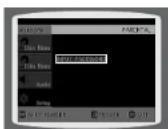
5 Enter the password and then press ENTER button.
- The password is set to '7890' by default. - Once the setup is complete, you will be taken to the previous screen.
Note
• This function works only if a DVD disc contains the rating level information.
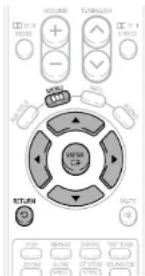
Press RETURN button to return to the previous level.
Press MENU button to exit the setup screen.
Setting the Password
You can set the password for the Parental (rating level) setting.
text_image
VOLUME TURNS/CH + - MINS -100 MINT -100 RETURN + - MOUT + - RETURN ON + - RETURN ON + - RETURN ON + - RETURN ON + - RETURN ON + - RETURN ON + - RETURN ON + - RETURN ON + - RETURN ON + - RETURN ON + - RETURN ON + - RETURN ON + - RETURN ON + - RETURN ON + - RETURN ON + - RETURN ON + - RETURN ON + - RETURN ON + - RETURN ON + - RETURN ON + - RETURN on1 Press MENU button.
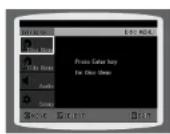
2 Press Cursor ▼ button to move to 'Setup' and then press ENTER button.

3 Press Cursor ▼ button to move to 'PASSWORD' and then press ENTER button.

4 Press ENTER button.
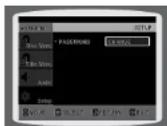
5 Enter the password and then press ENTER button.
- Enter the old password, a new password, and confirm new password. - The setting is complete.
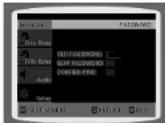
Note
- The password is set to "7890" by default.
If you have forgotten the rating level password, do the following:
- While the player is in the no disc mode, hold the main unit's ○ button for longer than 5 seconds. "INITIALIZE" appears on the display and all settings will return to the default values.
- Press the POWER button.
Using the RESET function will erase all stored settings.
Do not use this unless necessary.
Setting the Wallpaper

DVD
CDJPEG
While watching a DVD, VCD or JPEG CD, you can set the image you like as background wallpaper.
Setting the Wallpaper
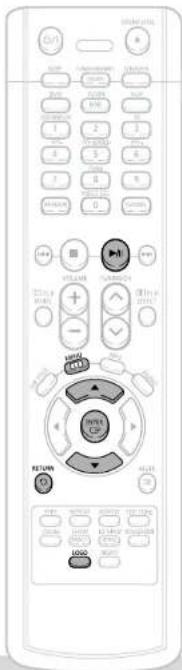
1 During playback, press PLAY/PAUSE button when an image you like appears.
2 Press LOGO button.
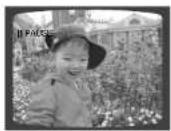
• "COPY LOGO DATA" will be displayed on the TV screen.

3 The power will turn off and then back on.
- The selected wallpaper will be displayed. - You can select up to 3 wallpaper settings.
text_image
OK Cancel Change Help Finish Help Help OK Cancel Change Help Finish Help Help OK Cancel Change Help Finish Help Help OK Cancel Change Help Finish Help Help OK Cancel Change Help Finish Help Help OK Cancel Change Help Finish Help Help OK Cancel Change Help Finish Help Help OK Cancel Change Help Finish Help Help OK
Select this to set the Samsung Logo image as your wallpaper.

Select this to set the desired image as your wallpaper.
To select one of the 3 wallpaper settings you've made
1 In Stop mode, press MENU button.
2 Press Cursor ▼ button to move to 'Setup' and then press ENTER button.
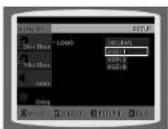
3 Press Cursor ▼ button to move to 'LOGO' and then press ENTER button.
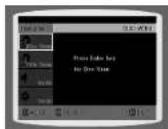
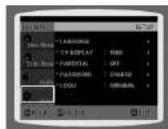
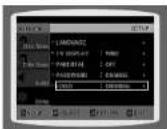
4 Press ▼ to select the desired 'USER', and then press ENTER.
5 Press MENU button to exit the setup screen.
Press RETURN button to return to the previous level.
Press MENU button to exit the setup screen.
Setting the Speaker Mode
Signal outputs and frequency responses from the speakers will automatically be adjusted according to your speaker configuration and whether certain speakers are used or not.
1
In Stop mode, press MENU button.

3
In the Speaker Setup, press the ENTER button again.

2
Press Cursor ▼ button to move to 'Audio' and then press ENTER button.

4
Press Cursor ▲, ▼, ◀, ▶ buttons to move to the desired speaker and then press ENTER button.
- For C, LS, and RS, each time the button is pressed, the mode switches alternately as follows: SMALL → NONE. - For L and R, the mode is set to SMALL.

text_image
ON/OFF R LIGHT ON/OFF ON/OFF ON/OFF ON/OFF ON/OFF ON/OFF ON/OFF ON/OFF ON/OFF ON/OFF ON/OFF ON/OFF ON/OFF ON/OFF ON/OFF ON/OFF ON/OFF ON/OFF ON/OFF ON/OFF ON/OFF ON/OFF ON/OFF ON/OFF ON/OFF ON/OFO ON/OFO ON/OFO ON/OFO ON/OFO ON/OFO ON/OFO ON/OFO ON/OFO ON/OFO ON/OFO ON/OFO ON/OFO ON/OFO ON/OFO ON/OFO ON/OFO ON/OFO ON/OFO ON/OFO ON/OFO ON/OFO ON/OFO ON/OFO ON/OFO ON/OFF ON/OFF ON/OFF ON/OFF ON/OFF ON/OFF ON/OFF ON/OFF ON/OFF ON/OFF ON/OFF ON/OFF ON/OFF ON/OFF ON/OFF ON/OFF ON/OFF ON/OFF ON/OFF ON/OFF ON/OFF ON/OFF ON/OFF ON/OFF ON/OF ON/OF ON/OF ON/OF ON/OF ON/OF ON/OF ON/OF ON/OF ON/OF ON/OF ON/OF ON/OF ON/OF ON/OF ON/OF ON/OF ON/OF ON/OF ON/OF ON/OF ON/OF ON/OF ON/OF ON/OF ON/OFOSetting the Test Tone
Use the Test Tone feature to check the speaker connections.
1
In Stop or no disc mode, press MENU button.
2
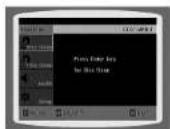
Press Cursor ▼ button to move to 'Audio' and then press ENTER button.

3
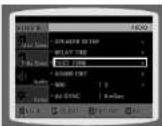
Press Cursor ▼ button to move to 'TEST TONE' and then press ENTER button.
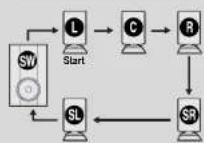
- The test tone will be sent to L → C → R → RS → LS → SW in order. If the ENTER button is pressed again at this time, the test tone will stop.
Press RETURN button to return to the previous level.
Press MENU button to exit the setup screen.

Select this when using the speakers. Select this when no speakers are connected.
Note
- Depending on PRO LOGIC and STEREO settings, the speaker mode may very (see page 47).
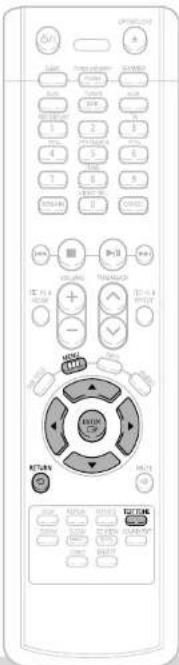
Alternate method: press the TEST TONE button on the remote.
L: Front Speaker (L) C: Center Speaker SW: Subwoofer R: Front Speaker (R) SL: Rear Speaker (L) SR: Rear Speaker (R)
Press TEST TONE button.
- Test tone will be produced as follows: When playing a DVD or CD, this will work only in Stop mode.
- Use this function to check that each speaker is correctly connected and that there is no problem.
To end the test tone, press TEST TONE button again.
Multi-Channel Pro Logic Mode
40
Setting the Delay Time
If the speakers cannot be placed at equal distances from the listening position, you can adjust the delay time of the audio signals from the center and rear speakers.

text_image
ONION START CHANGE RESET OK Cancel Change Adjust Change Change Change Change Change Change Change Change Change Change Change Change Change Change Change Change Change Change Change Change Change Change Change Change Change Change Change Change Change Change Change Change Change Change Change Change Change Change Change Change Change Change Change Change Change Change Change Change Change Change Update Update Update Update Update Update Update Update Update Update Update Update Update Update Update Update Update Update Update Update Update Update Update Update Update Update Update Update Update Update Update Update Update Update Update Update Update Update Update Update Update Update Update Update Update Update Update Update Update Update Previous1 In Stop mode, press MENU button.
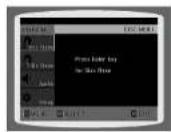
2 Press Cursor ▼ button to move to 'Audio' and then press ENTER button.

3 Press Cursor ▼ button to move to 'DELAY TIME' and then press ENTER button.
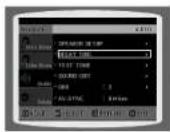
4 Press Cursor ▲, ▼, ◀, ▶ buttons to move to the desired speaker and then press ENTER button.

5 Press Cursor ◀, ► to set the Delay time.
- You can set the delay time for C between 00 and 05mSEC and for LS and RS between 00 and 15mSEC.

Setting up the Speaker Delay Time
When 5.1CH Surround Sound is played, you can enjoy the best sound if the distance between you and each speaker is the same. Since the sounds arrive at the listening position at different times depending on the placement of speakers, you can adjust this difference by adding a delay effect to the sound of the Center Speaker and Surround Speakers.
Note
- With COPL (Dolby Pro Logic II), the delay time may be different for each mode.
- With AC-3 and DTS, the delay time can be set between 00 and 15mSEC.
• The Center channel is only adjustable on 5.1 channel discs.
- Setting CENTER SPEAKER
If the distance of Dc is equal to or longer than the distance of Dt in the figure, set the mode as 0ms. Otherwise, change the setting according to the table.
| Distance between Df and Dc | Delay Time |
| 0.00 m | 0 ms |
| 0.34 m | 1 ms |
| 0.68 m | 2 ms |
| 1.02 m | 3 ms |
| 1.36 m | 4 ms |
| 1.70 m | 5 ms |
- Setting REAR (SURROUND) SPEAKERS
If the distance of Df is equal to the distance of Ds in the figure, set the mode as 0ms. Otherwise, change the setting according to the table.
| Distance between Of and Ds | Delay Time |
| 0.00 m | 0 ms |
| 1.00 m | 3 ms |
| 2.00 m | 8 ms |
| 3.00 m | 9 ms |
| 4.00 m | 12 ms |
| 5.00 m | 15 ms |

text_image
Ideal CENTER SPEAKER PLACEMENT C SW M Dc Df Ds SI Sr Ideal SURROUND SPEAKER PLACEMENT It is desirable to place all speakers within this circle. Dt: The distance from FRONT SPEAKER Ds: The distance from CENTER SPEAKER Ds: The distance from SURROUND SPEAKERSetting the Audio Quality
You can adjust the balance and level for each speaker.
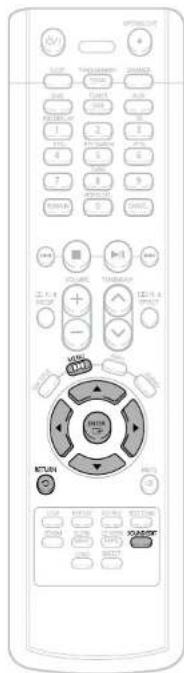
text_image
OPTIONAL ON/OFF START CHANGE CHANGE ON/OFF CHANGE CHANGE CHANGE ON/OFF CHANGE CHANGE CHANGE ON/OFF CHANGE CHANGE CHANGE ON/OFF CHANGE CHANGE CHANGE ON/OFF CHANGE CHANGE CHANGE ON/OFF CHANGE CHANGE CHANGE ON/OFF CHANGE CHANGE CHANGE ON/OFF CHANGE CHANGE CHANGE ON/OFF CHANGE CHANGE CHANGE ON/OFF CHANGE CHANGE CHANGE ON/OFF Change Change Change Change Change Change Change Change Change Change Change Change Change Change Change Change Change Change Change Change Change Change Change Change Change Change Change Change Change Change Change Change Change Change Change Change Change Change Change Change Change Change Change Change Change Change Change Change Change Change OCCOM/ANEOVATION/ANEOVATION/ANEOVATION/ANEOVATION/ANEOVATION/ANEOVATION/ANEOVATION/ANEOVATION/ANEOVATION/ANEOVATION/ANEOVATION/ANEOVATION/ANEOVATION/ANEOVATION/ANEOVATION/ANEOVATION/ANEOVATION/ANEOVATION/ANEOVATION/ANEOVATION/ANEOVION/ANEOVATION/ANEOVATION/ANEOVATION/ANEOVATION/ANEOVATION/ANEOVATION/ANEOVATION/ANEOVATION/ANEOVATION/ANEOVATION/ANEOVATION/ANEOVATION/ANEOVATION/ANEOVATION/ANEOVATION/ANEOVATION/ANEOVATION/ANEOVATION/ANEOVATION/ANEOVINATION/ANEOVINATION/ANEOVINATION/ANEOVINATION/ANEOVINATION/ANEOVINATION/ANEOVINATION/ANEOVINATION/ANEOVINATION/ANEOVINATION/ANEOVINATION/ANEOVINATION/ANEOVINATION/ANEOVINATION/ANEOVINATION/ANEOVINATION/ANEOVINATION/ANEOVINATION/ANEOVINATION/ANEOVINATION/ANEOVOLUTION/ANEOVOLUTION/ANEOVOLUTION/ANEOVOLUTION/ANEOVOLUTION/ANEOVOLUTION/ANEOVOLUTION/ANEOVOLUTION/ANEOVOLUTION/ANEOVOLUTION/ANEOVOLUTION/ANEOVOLUTION/ANEOVOLUTION/ANEOVOLUTION/ANEOVOLUTION/ANEOVOLUTION/ANEOVOLUTION/ANEOVOLUTION/ANEOVOLUTION/ANEOVOLUTION/ANEOVUTIONS/NONE/VISION/SONE/VISION/SONE/VISION/SONE/VISION/SONE/VISION/SONE/VISION/SONE/VISION/SONE/VISION/SONE/VISION/SONE/VISION/SONE/VISION/SONE/VISION/SONE/VISION/SONE/VISION/SONE/VISION/SONE/VISION/SONE/VISION/SONE/VISION/SONE/VISION/SONE/VISION/SONE/VISION/SONE/VISION/SONE/VISION/SONE/VISION/SONE/VISION/SONE/VISION/MARK/MARK/MARK/MARK/MARK/MARK/MARK/MARK/MARK/MARK/MARK/MARK/MARK/MARK/MARK/MARK/MARK/MARK/MARK/MARK/MARK/MARK/MARK/MARK/MARK/MARK/MARK/MARK/MARK/MARK/MARK/MARK/MARK/MARK/MARK/MARK/MARK/MARK/MARK/MARK/MARK/MARK/MARK/MARK/MARK/MARK/MARK/MARK/MARK/MARK/Mark/Mark/Mark/Mark/Mark/Mark/Mark/Mark/Mark/Mark/Mark/Mark/Mark/Mark/Mark/Mark/Mark/Mark/Mark/Mark/Mark/Mark/Mark/Mark/Mark/Mark/Mark/Mark/Mark/Mark/Mark/Mark/Mark/Mark/Mark/Mark/Mark/Mark/Mark/Mark/Mark/Mark/Mark/Mark/Mark/Mark/Mark/Mark/Mark/Mark/Mask/Mask/Mask/Mask/Mask/Mask/Mask/Mask/Mask/Mask/Mask/Mask/Mask/Mask/Mask/Mask/Mask/Mask/Mask/Mask/Mask/Mask/Mask/Mask/Mask/Mask/Mask/Mask/Mask/Mask/Mask/Mask/Mask/milk/milk/milk/milk/milk/milk/milk/milk/milk/milk/milk/milk/milk/milk/milk/milk/milk/milk/milk/milk/milk/milk/milk/milk/milk/milk/milk/milk/milk/milk/milk/milk/milk/milk/milk/milk/milk/milk/milk/milk/milk/milk/milk/milk/milk/milk/milk/milk/milk/milk/mink/mink/mink/mink/mink/mink/mink/mink/mink/mink/mink/mink/mink/mink/mink/mink/mink/mink/mink/mink/mink/mink/mink/mink/mink/mink/mink/mink/mink/mink/mink/mink/mink/mink/mink/mink/mink/mink/mink/mink/mink/mink/mink/mink/mink/mink/mink/mink/mink/mink/munk/munk/munk/munk/munk/munk/munk/munk/munk/munk/munk/munk/munk/munk/munk/munk/munk/munk/munk/munk/munk/munk/munk/munk/munk/munk/munk/munk/munk/munk/munk/munk/munk/munk/munk/munk/munk/munk/munk/munk/munk/munk/munk/munk/munk/munk/munk/munk/munk/munk/mulk/mulk/mulk/mulk/mulk/mulk/mulk/mulk/mulk/mulk/mulk/mulk/mulk/mulk/mulk/mulk/mulk/mulk/mulk/mulk/mulk/mulk/mulk/mulk/mulk/mulk/mulk/mulk/mulk/mulk/mulk/mulk/mulk/mulk/mulk/mulk/mulk/mulk/mulk/mulk/mulk/mulk/mulk/mulk/mulk/mulk/mulk/cmm/pmm/pmm/pmm/pmm/pmm/pmm/pmm/pmm/pmm/pmm/pmm/pmm/pmm/pmm/pmm/pmm/pmm/pmm/pmm/pmm/pmm/pmm/pmm/pmm/pmm/pmm/pmm/pmm/pmm/pmm/pmm/pmm/pmm/pmm/pmm/pmm/pmm/pmm/pmm/pmm/pmm/pmm/pmm/pmm/pmm/pmm/pmm/pmm/pmm/pmm/cmm/pmm/pmm/pmm/pmm/pmm/pmm/pmm/pmm/pmm/pmm/pmm/pmm/pmm/pmm/pmm/pmm/pmm/pmm/pmm/pmm/pmm/pmm/pmm/pmm/pmm/pmm/pmm/pmm/pmm/pmm/pmm/pmm/pmm/pmm/pmm/pmm/pmm/pmm/pmm/pmm/pmm/pmm/pmm/pmm/pmm/pmm/pmm/pmm/pms / / / / / / / / / / / / / / / / / / / / / / / / / / / / / / / / / / / / / / / / / / / / / / / / / / / / / / / / / / / / / / / / / / / / / / / / / / / / / / / / / / / / / / / / / / / / / / / / / / / / | ON/OFF | ON/OFF | ON/OFF | ON/OFF | ON/OFF | ON/OFF | ON/OFF | ON/OFF | ON/OFF | ON/OFF | ON/OFF | ON/OFF | ON/OFF | ON/OFF | ON/OFF | ON/OFF | ON/OFF | ON/OFF | ON/OFF | ON/OFF | ON/OFF | ON/OFF | ON/OFF | ON/OFF | ON/OFF | ON/OFO | ON/OFO | ON/OFO | ON/OFO | ON/OFO | ON/OFO | ON/OFO | ON/OFO | ON/OFO | ON/OFO | ON/OFO | ON/OFO | ON/OFO | ON/OFO | ON/OFO | ON/OFO | ON/OFO | ON/OFO | ON/OFO | ON/OFO | ON/OFO | ON/OFO | ON/OFO | ON/OFO | ON/OFO | ON/OF | ON/OFO | ON/OFO | ON/OFO | ON/OFO | ON/OFO | ON/OFO | ON/OFO | ON/OFO | ON/OFO | ON/OFO | ON/OFO | ON/OFO | ON/OFO | ON/OFO | ON/OFO | ON/OFO | ON/OFO | ON/OFO | ON/OFO | ON/OFO | ON/OFO | ON/OFO | ON/OFO | ON/OFO | ON/OFC | ON/OFC | ON/OFC | ON/OFC | ON/OFC | ON/OFC | ON/OFC | ON/OFC | ON/OFC | ON/OFC | ON/OFC | ON/OFC | ON/OFC | ON/OFC | ON/OFC | ON/OFC | ON/OFC | ON/OFC | ON/OFC | ON/OFC | ON/OFC | ON/OFC | ON/OFC | ON/OFC | ON/OFC | ON/OFO | ON/OFO | ON/OFO | ON/OFO | ON/OFO | ON/OFO | ON/OFO | ON/OFO | ON/OFO | ON/OFO | ON/OFO | ON/OFO | ON/OFO | ON/OFO | ON/OFO | |---|---|---|---|---|---|---|---|---|---|---|---|---|---|---|---|---|---|---|---|---|---|---|---|---|---|---|---|---|---|---|---|---|---|---|---|---|---|---|---|---|---|---|---|---|---|---|---|---|---|----| | 100% OFF: CHANGE: CHANGE: CHANGE: CHANGE: CHANGE: CHANGE: CHANGE: CHANGE: CHANGE: CHANGE: CHANGE: CHANGE: CHANGE: CHANGE: CHANGE: CHANGE: CHANGE: CHANGE: CHANGE: CHANGE: CHANGE: CHANGE: CHANGE: CHANGE: CHANGE: CHANGE: CHANGE: CHANGE: CHANGE: CHANGE: CHANGE: CHANGE: CHANGE: CHANGE: CHANGE: CHANGE: CHANGE: CHANGE: CHANGE: CHANGE: CHANGE: CHANGE: CHANGE: CHANGE: CHANGE: CHANGE: CHANGE: CHANGE: CHANGE: CHANGE: Change: Change: Change: Change: Change: Change: Change: Change: Change: Change: Change: Change: Change: Change: Change: Change: Change: Change: Change: Change: Change: Change: Change: Change: Change: Change: Change: Change: Change: Change: Change: Change: Change: Change: Change: Change: Change: Change: Change: Change: Change: Change: Change: Change: Change: Change: Change: Change: Change: Change: % Change: % Change: % Change: % Change: % Change: % Change: % Change: % Change: % Change: % Change: % Change: % Change: % Change: % Change: % Change: % Change: % Change: % Change: % Change: % Change: % Change: % Change: % Change: % Change: % Change: % Change: % Change: % Change: % Change: % Change: % Change: % Change: % Change: % Increase, % Increase, % Increase, % Increase, % Increase, % Increase, % Increase, % Increase, % Increase, % Increase, % Increase, % Increase, % Increase, % Increase, % Increase, % Increase, % Increase, % Increase, % Increase, % Increase, % Increase, % Increase, % Increase, % Increase, % Increase, % Increase, % Increase, % Increase, % Increase, % Increase, % Increase, % Increase, % Increase, % Increase, Other, Other, Other, Other, Other, Other, Other, Other, Other, Other, Other, Other, Other, Other, Other, Other, Other, Other, Other, Other, Other, Other, Other, Other, Other, Other, Other, Other, Other, Other, Other, Other, Other, Other, Other, Other, Other, Other, Other, Other, Other, Other, Other, Other, Other, Other, Other, Other, Other, Other, OthersMethod 1 When adjusting the audio quality using the setup screen
1 In Stop mode, press MENU button.
2 Press Cursor ▼ button to move to 'Audio' and then press ENTER button.


3 Press Cursor ▼ button to move to 'SOUND EDIT' and then press ENTER button.
4 Press Cursor ▲,▼ buttons to select and adjust the desired item. Press the ◀,► buttons to adjust the settings.


Press RETURN button to return to the previous level.
Press MENU button to exit the setup screen.
Method 2 When manually adjusting with the SOUND EDIT button
Adjusting Front Speaker Balance
1
Press SOUND EDIT button and then press Cursor
00 F - 01
usting Rear Speaker Balance
2 Press SOUND EDIT button and then press Cursor
00 R - 01
Adjusting Center Speaker Level
3 Press SOUND EDIT button and then press Cursor
Adjusting Rear Speaker Level
4
Press SOUND EDIT button and then press Cursor
REARR -01d8
Adjusting Subwoofer Speaker Level
5 Press SOUND EDIT button and then press Cursor
S/W +01dB
Note
• The adjustments will appear on the main unit's display, not on your TV screen.
Adjusting Front/Rear Speaker Balance
• You can select between 00 and -06 and OFF
• The volume decreases as you move closer to -6.
Adjusting Center/Rear/Subwoofer Speaker Level
- The volume level can be adjusted in steps from +6dB to -6dB
- The sound gets louder as you move closer to +6dB and quieter as you get closer to -6dB.
Setting the DRC (Dynamic Range Compression)
You can use this function to enjoy Dolby Digital sound when watching movies at low volume at night.
1
In Stop mode, press MENU button.

2
Press Cursor ▼ button to move to 'Audio' and then press ENTER button.

3
Press Cursor ▼ button to move to 'DRC' and then press ENTER button.
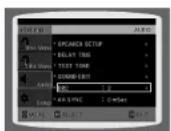
4
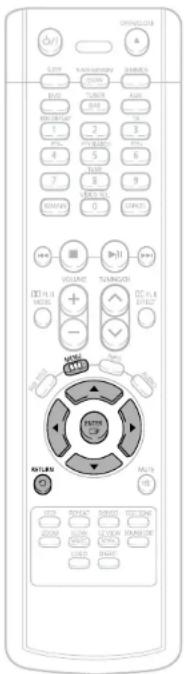
Press Cursor ▲,▼ to adjust the 'DRC'.
- When the Cursor ▲ button is pressed, the effect is greater, and when the Cursor ▼ button is pressed, the effect is smaller.

text_image
ON/OLOS START TAIN/UNION SUMMER RUNS TURIS AIR RISK/EXP 2 3 4 5 6 7 8 9 MAY/AN 0 CABLE VOLUME TAIN/UNION DC FILE EFFECT HOLD DOWN FRUIT HOME DOWN RIGHT TITLE MULTI OFF RESET SAVE SELECT DOOR ON/OFF ON/OFF ON/OFF ON/OFF ON/OFF ON/OFF ON/OFF ON/OFF ON/OFF ON/OFF ON/OFF ON/OFF ON/OFF ON/OFF ON/OFF ON/OFF ON/OFF ON/OFF ON/OFF ON/OFF ON/OFF ON/OFF ON/OFF ON/OFF ON/OFF ON/OFOAV SYNC Setup
Video may look slower than the audio if it is connected to a digital TV. If this occurs, adjust the audio delay time to match the video.
1
Press the MENU button.
- Setup menu appears.

2
Press Cursor ▲,▼ buttons to move to 'Audio' and then press ENTER button.
• 'Audio' menu appears.

3
Press Cursor ▲, ▼ buttons to move to 'AV-SYNC' and then press ENTER button.
• AV-SYNC screen appears.
4
Press Cursor ▲,▼ buttons to select the AV-SYNC Delay Time and then press the ENTER button.
- You can set the audio delay time between 0 ms and 300 ms. Set it to the optimal status.

Press RETURN button to return to the previous level.
Press MENU button to exit the setup screen.
Press RETURN button to return to the previous level.
Press MENU button to exit the setup screen.
Dolby Pro Logic II Mode
You can select the desired Dolby Pro Logic II audio mode.

text_image
Press ☐ PL II MODE button. • Each time the button is pressed, the mode changes as follows. ProLogic II MUSIC CINEMA PRO LOGIC MATRIX STEREO Note • When selecting Pro Logic II mode, connect your external device to the AUDIO INPUT jacks (L and R) on the player. If you connect to only one of the Inputs (L or R), you cannot listen to surround sound.Dolby Pro Logic II Effect
This function works only in Dolby Pro Logic MUSIC mode.
1 Press ☐ PL II MODE button to select 'MUSIC' mode.

2 Press PL II EFFECT button to select Panorama, then press Cursor ▶, ▶ buttons to select the desired effect setting.
- You can select either 0 or 1.
- This mode extends the front stereo image to include the surround speakers for an exciting "wraparound" effect with side wall imaging.

3 Press ☐ PL II EFFECT button to select C-Width, then press Cursor ▶,▶ buttons to select the desired effect setting.
- You can select between 0 and 7. - This sets the width of the center image. The higher the setting, the less sound comes from the center speaker.

4 Press ☒ PL II EFFECT button to select Dimension, then press the Cursor ◀, ▶ buttons to select the desired setting.
- You can select between 0 and 6. - Incrementally adjusts the sound field (DSP) from the front or rear.

Note
- When playing a DVD disc encoded with two or more channels, multi-channel mode will be selected automatically and PL II (Dolby Pro Logic II) button does not work.
Note
- When selecting Pro Logic II mode, connect your external device to the AUDIO INPUT Jacks (L and R) on the player. If you connect to only one of the Inputs (L or R), you cannot listen to surround sound.
PRO LOGIC II
• MUSIC: When listening to music, you can experience sound effects as if you are listening to the actual performance.
• CINEMA: Adds realism to the movie soundtrack.
• PRO LOGIC: You will experience a realistic multi-channel effect, as if using five speakers, while using just the front left and right speakers.
• MATRIX: You will hear 5.1 channel surround sound.
STEREO: Select this to listen to sound from the front left and right speakers and the subwoofer only.
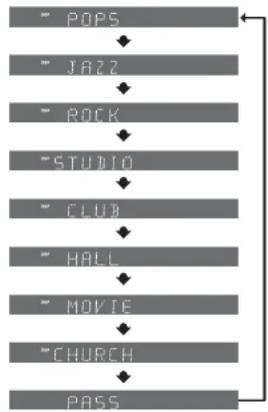
Sound Field (DSP)/EQ Function
DSP(Digital Signal Processor) DSP modes have been designed to simulate different acoustic environments. EQ: You can select ROCK, POP, or CLASSIC to optimize the sound for the genre of music you are playing

text_image
OPEN/CREATE OK SOLD TIME/ORDER START SELLER FAT GAR HAPPY I/O 1 2 3 4 5 6 7 8 9 0 RANGE VOLUME TAX/RANGE SELECT SELECT SELECT SELECT SELECT SELECT SELECT SELECT SELECT SELECT SELECT SELECT SELECT SELECT SELECT SELECT SELECT SELECT SELECT SELECT SELECT SELECT SELECT SELECT SELECT SELECT SELECT SELECT SELECT SELECT SELECT SELECT SELECT SELECT SELECT SELECT SELECT SELECT SELECT SELECT SELECT SELECT SELECT SELECT SELECT SELECT SELECT SELECT SELECT SELECT DELETEPress DSP/EQ button.
• "DSP" appears on the display panel.
• Each time the button is pressed, the selection changes as follows:
flowchart
graph TD
    A["POPS"] --> B["JAZZ"]
    B --> C["ROCK"]
    C --> D["STUDIO"]
    D --> E["CLUB"]
    E --> F["HALL"]
    F --> G["MOVIE"]
    G --> H["CHURCH"]
    H --> I["PASS"]
Note
- DSP/EQ function is only available in STEREO mode.
Press the ☐ PL II made button to show STEREO on the display.
• This feature works with CDs, MP3-CDs, 2 channel DVD-Audio, DIVX and
Dolby Digital discs. - When playing a DVD disc encoded with two or more channels,
multi-channel mode will be selected automatically and DSP/EQ function does not work.
Sleep Timer Function
You can set the time that the DVD player will shut itself off.
Press SLEEP button.
• "SLEEP" will be displayed. Each time the button is pressed the preset time changes as follows: 10 20 30 60 90 120 150 OFF .
5166P 10
To confirm the sleep timer setting, press SLEEP button.
• The remaining time before the DVD player will shut itself off is displayed.
*Pressing the button again changes the sleep time from what you have set earlier.
To cancel the sleep timer, press SLEEP button until OFF appears on the display.

text_image
OPEN/LOAD OFF START ELECTRICAL SUMMARY OFF SUPPORT ON/OFF RETURN ON/OFF RETURN ON/OFF RETURN ON/OFF RETURN ON/OFF RETURN ON/OFF RETURN ON/OFF RETURN ON/OFF RETURN ON/OFF RETURN ON/OFF RETURN ON/OFF RETURN ON/OFF RETURN ON/OFF RETURN ON/OFF RETURN ON/OFF RETURN ON/OFF RETURN ON/OFF RETURN ON/OFF RETURN ON/OFF RETURN ON/OFF RETURN ON/OFF RETURN OFF RETURN ON/OFF RETURN ON/OFF RETURN ON/OFF RETURN ON/OFF RETURN ON/OFF RETURN ON/OFF RETURN ON/OFF RETURN ON/OFF RETURN ON/OFF RETURN ON/OFF RETURN ON/OFF RETURN ON/OFF RETURN ON/OFF RETURN ON/OFF RETURN ON/OFF RETURN ON/OFF RETURN ON/OFF RETURN ON/OFF RETURN ON/OFF RETURN ON/CLOSE RETURN ON/OFF RETURN ON/OFF RETURN ON/OFF RETURN ON/OFF RETURN ON/OFF RETURN ON/OFF RETURN ON/OFF RETURN ON/OFF RETURN ON/OFF RETURN ON/OFF RETURN ON/OFF RETURN ON/OFF RETURN ON/OFF RETURN ON/OFF RETURN ON/OFF RETURN ON/OFF RETURN ON/OFF RETURN ON/OFF RETURN ON/OFF RETURN ON/OFOF RETURN ON/OFOF RETURN ON/OFOF RETURN ON/OFOF RETURN ON/OFOF RETURN ON/OFOF RETURN ON/OFOF RETURN ON/OFOF RETURN ON/OFOF RETURN ON/OFOF RETURN ON/OFOF RETURN ON/OFOF RETURN ON/OFOF RETURN ON/OFOF RETURN ON/OFOF RETURN ON/OFOF RETURN ON/OFOF RETURN ON/SIZE RETURN ON/SIZE RETURN ON/SIZE RETURN ON/SIZE RETURN ON/SIZE RETURN ON/SIZE RETURN ON/SIZE RETURN ON/SIZE RETURN ON/SIZE RETURN ON/SIZE RETURN ON/SIZENote
POP, JAZZ, ROCK: Depending on the genre of music, you can select POP, JAZZ, and ROCK.
STUDIO : Provides a sense of presence as if in a studio.
CLUB : Simulates the sound of a dance club with a throbbing bass beat.
HALL : Provides a clear vocal as if listening in a concert hall.
MOVIE: Provides the feeling of a movie theater.
CHURCH: Gives the feel of being in a grand church.
PASS: Select this for normal listening.
Listening to Radio
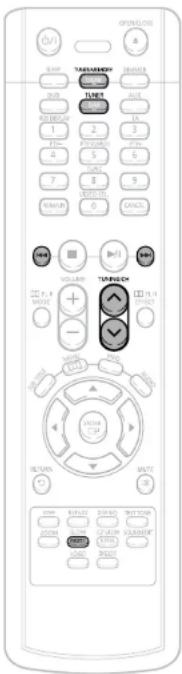
Remote Control Unit
1 Press TUNER button.
- The selection toggles back and forth between "FM → DAB" each time the TUNER button is pressed.
2 Tune in to the desired station.
Automatic Turing 1 When ◀◀◀▶ is pressed, a preset broadcast station is selected.
Automatic Turing 2 Press and hold TUNING/CH
to automatically search for active broadcasting stations.
The Ground Truth image displays a single, solid horizontal line. According to Rule 2 (UNDERSCORE & LINE RULES), this is a stylistic or background line, not a placeholder underscore. Therefore, the OCR result must ignore it and output nothing or only meaningful text. The provided OCR content is "____", which consists of four underscores. This is an incorrect interpretation of the line as a placeholder, violating the rule that stylistic lines must be ignored. The OCR has hallucinated underscores where none should exist based on the GT's visual context. Hence, the OCR result is inconsistent with the Ground Truth.
Manual Tuning Briefly press TUNING/CH to
increase or decrease the
frequency incrementally.
Main Unit
1 Press the Function button to select the desired band (FM).
2 Select a broadcast station.
Automatic Turing 1 Press the STOP (■)
- Button to select
PRESET and then press 📄, 📅 button to select the preset station.
Automatic Turin2 Press the STOP (■) button
to select MANUAL and then press and hold ◀◀,▶◀ button to automatically search the band.
Manual Tuning Press STOP (■) to select
- MANUAL and then briefly press to go into a lower or
higher frequency.
text_image
OPEN/LOG A B R T W L M N O P S E D U G I F K H L O C E F G H I F K H L O C E F G H I F K H L O C E F G H I F K H L O C E F G H I F K H L O C E F G H I F K H L Q C E F G H I F K H L O C E F G H I F K H L O C E F G H I F K H L O C EPresetting Stations
You can store up to:
• 15 FM stations
• FM Frequency-Modulation
Example: Presetting FM 89.1 in the memory
1 Press the TUNER button and select the FM band.
• Each time the button is pressed, the band switches between "FM → DAB".
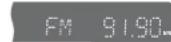
2 Press TUNING/CH to select "89.10".
- Refer to Step 2 on page 51 to automatically or manually tune in to a station.

3 Press the TUNER MEMORY button.
- *PRGM* flashes in the display

4 Press ◀◀◀◀◀ to select preset number.
- You can select between 1 and 15.
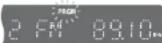
5 Press the TUNER MEMORY button again.
- Press the TUNER MEMORY button before
'PRGM' disappears from the display. - 'PRGM' disappears from the display and the station is stored in memory.

6 To preset another station, repeat steps 2 to 5.
Note • Up to 15 stations (30 total ; 15FM, 15AM) can be saved in memory.
If you save more than 15 stations, the oldest station previously saved is removed and a new station is stored in its place.
Press MO/ST button to listen in Mono/Stereo.
• Each time the button is pressed, the sound switches between "STEREO" and "MONO".
• In a poor reception area, select MONO for a clear, interference-free broadcast.
To tune in to a preset station, press ◀◀◀▶▶ on the remote control to select a channel.
Listening to DAB Stations
You can receive a DAB (Digital Audio Broadcasting) broadcast with clear CD-quality audio and text captions. However, because DAB broadcasting is still in testing phase, you can receive the broadcast only in limited areas.

text_image
OPEN/ON OFF TURSDAY DOWN AVG 3MB 1 2 3 4 5 6 7 8 9 MILK P P P VOLUME TURSDAY + - MILK P P MILK RETURN F MILK OR EXP RETURN OUTPUT SELECTORY DOWN OK CHANGEWhat is DAB?
DAB stands for digital audio broadcasting. It is a new form of radio that is broadcast digitally. Digital audio provides a superior quality of sound compared to regular analogue broadcasting.
Automatic Tuning
If no signal can be received because the unit is being used for the first time or because you have recently moved, please set available services.
1
Press DAB to select "DAB".
- Each time you press the button, the mode changes as follows: FM DAB .
2
Press and hold TUNE for longer than 3 seconds.
- "SCANNING" appears on the display and the this unit searches available services.
- It will about 30 to 40 seconds to search all available services.
Manual Tuning
If signal reception is weak, the auto tuning function may not work. In this case, set services manually.
1
Press DAB to select "DAB".
• Each time you press the button, the mode changes as follows: FM → DAB.
2
Press TUNE.
• The current frequency will be shown on the display.
3
Press TUNING/CH(∨.∧) to move to the desired frequency.
- "TUNING" appears on display and the station will be searched. If no signal is received, "NO SERVICE" will appear on the display.
Note
- If "NO SERVICE" appears on the display, press and hold TUNE for longer than 3 seconds. "SCANNING" appears and the number of the available services blinks on the display. If "NO SERVICE" continues to be displayed after the service search has finished, make sure you are not in a non-reception area and check the antenna connection.

text_image
SPRINGLOG A 2/1 RANGE TAWKSWITCHEN ON/OFF SAMS ON/OFF SAMS ON/OFF SAMS ON/OFF SAMS ON/OFF SAMS ON/OFF SAMS ON/OFF SAMS ON/OFF SAMS ON/OFF SAMS ON/OFF SAMS ON/OFF SAMS ON/OFF SAMS ON/OFF SAMS ON/OFF SAMS ON/OFF SAMS SAMS ON/OFF SAMS ON/OFF SAMS ON/OFF SAMS ON/OFF SAMS ON/OFF SAMS ON/OFF SAMS ON/OFF SAMS ON/OFF SAMS ON/OFF SAMS ON/OFF SAMS ON/OFF SAMS ON/OFF SAMS ON/OFF SAMS ON/OFF TAMBACK ON/OFF TAMBACK ON/OFF TAMBACK ON/OFF TAMBACK ON/OFF TAMBACK ON/OFF TAMBACK ON/OFF TAMBACK ON/OFF TAMBACK ON/OFF TAMBACK ON/OFF TAMBACK ON/OFF TAMBACK ON/OFF TAMBACK ON/OFF TAMBACK ON/OFORemote Control Unit
1
Press DAB to select "DAB".
• Each time you press the button, the mode changes as follows: FM → DAB.
2
Press the TUNING/CH(∨ ∧) button to select a service.
Main Unit
1
Press FUNCTION to select "DAB".
2
Select the service.
- Press ◀◀▶▶ to select the service.
ALL BAND III Frequency
| Frequency block | Frequency (MHz) |
| 5A | 174.928 |
| 5B | 176.640 |
| 5C | 178.352 |
| 5D | 180.064 |
| 6A | 181.936 |
| 6B | 183.648 |
| 6C | 185.360 |
| 6D | 187.072 |
| 7A | 188.928 |
| 7B | 190.640 |
| 7C | 192.352 |
| 7D | 194.064 |
| 8A | 195.936 |
| 8B | 197.648 |
| 8C | 199.360 |
| 8D | 201.072 |
| 9A | 202.928 |
| 9B | 204.640 |
| 9C | 206.352 |
| 9D | 208.064 |
| 10A | 209.936 |
| Frequency block | Frequency (MHz) |
| 10N | 210.096 |
| 10B | 211.648 |
| 10C | 213.360 |
| 10D | 215.072 |
| 11A | 216.926 |
| 11N | 217.088 |
| 11B | 218.640 |
| 11C | 220.352 |
| 11D | 222.064 |
| 12A | 223.936 |
| 12N | 224.096 |
| 12B | 225.648 |
| 12C | 227.360 |
| 12D | 229.072 |
| 13A | 230.784 |
| 13B | 232.496 |
| 13C | 234.208 |
| 13D | 235.776 |
| 13E | 237.488 |
| 13F | 239.200 |
- Shaded areas are frequencies used currently as of March, 2005 in the UK ("United Kingdom")
Storing DAB Stations
You can store up to 6 DAB stations.
Example: Storing the service name "ALPHA1" to the service number 3
1 Press DAB to select "DAB".
• Each time you press the button, the mode changes as follows: FM → DAB.
DB
2 Press TUNING/CH to select the service.
ALPHAI
3 Press the TUNER MEMORY button.
- 'PRGM' will blink on the display.
PRESET-1
4 Press ◀◀◀▶▶ to select the service number to which the service will be stored.
- You can select a service number from 1 to 6.
FROM PRESET-3
5 Press the TUNER MEMORY button.
- "PRCM" disappears from the display and the station will be stored.
- Press the TUNER MEMORY button before "PRGM" disappears from the display.
STORED
6 To preset another station, repeat steps 2 to 5.
DAB Related Functions
You can store up to 6 DAB stations.
GE

text_image
OPENLOPE 0/1 A SUB TARAVESDAY 0:00:00 0:00:00 LINE OFF START 1 2 3 4 5 6 7 8 9 10 11 12 13 14 15 16 17 18 19 20 21 22 23 24 25 26 27 28 29 30 31 32 33 34 35 36 37 38 39 40 41 42 43 44 45 46 47 48 49 50 51 52 53 54 55 56 57 58 59 60 61 62 63 64 65 66 67 68 69 70 71 72 73 74 75 76 77 78 79 80 81 82 83 84 85 86 87 88 89 90 91 92 93 94 95 96 97 98 99 100Information Display Function
You can check various information about the service being received.
Press INFO.
• Each time you press the button during reception, the mode changes on the display as follows:
- Depending on the service information, the display may vary or does not work.
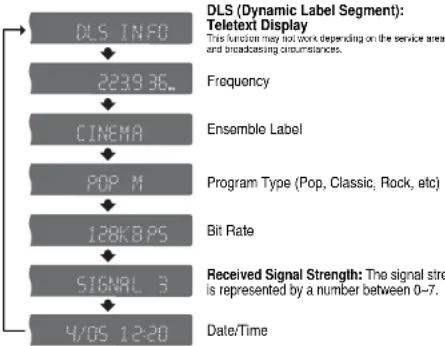
flowchart
graph TD
    A["OLS INFO"] --> B["2239.36..."]
    B --> C["CINEMA"]
    C --> D["POP M"]
    D --> E["128KBPS"]
    E --> F["SIGNAL 3"]
    F --> G["4/05 12:20"]
    H["Frequency"] --> C
    I["Ensemble Label"] --> C
    J["Program Type (Pop, Classic, Rock, etc)"] --> E
    K["Bit Rate"] --> F
    L["Received Signal Strength: The signal strength is represented by a number between 0-7."] --> G
Note
- If no button is pressed for 7\~8 seconds, you will be exited from the Information Display function.
- Small letters and some special characters (Ω, I, =, ?) cannot be displayed.
Note
RADIO OPERATION
Tuning in to a Stored DAB Station
- Press 1\~6 on the remote control to select the stored station.
- If no station is stored when you press 1\~6, "NO MEMORY" will appear on the display.
To Initialize DAB
- With the DAB function selected, press STOP on the main unit for longer than 5 seconds.
- "DAB RESET" blinks on the display and the DAB function will be reset to the default setting.
- When the DAB function is reset, Auto Scan is started.
About RDS broadcasting
Using the RDS (Radio Data System) to receive FM stations
ROS allows PM stations to send an additional signal along with their regular program signals. For example, the stations send their station names, as well as information about what type of program they broadcast, such as sports or music etc.
When tuned to an FM station which provides the RDS service, the RDS indicator lights up on the display.
• Description on RDS function
- PTY (Program Type) : Displays the type of programme currently being broadcast
- PS NAME (Program Service Name) : Indicates the name of broadcasting station and is composed of 8 characters.
- RT (Radio Text) : Decodes the text broadcast by a station (if any) and is composed of maximum 64 characters.
- CT (Clock Time) :Decodes the real time clock from the FM frequency
• Some stations may not transmit PTY, RT or CT information therefore this may not be displayed in all cases. - TA (Traffic Announcement): When this symbol flashes it shows that the traffic announcement is in progress.

- RDS may not operate correctly if the station tuned is not transmitting. RDS signal properly or if the signal strength is weak.
What information can RDS signals provide?
You can see the RDS signals the station sends on the display.
TO show the RDS signals
Press RDS DISPLAY while listening to an FM station.
Each time you press the button, the display change to show you the following information:
→ PS NAME→ RT→ CT→ Frequency
PS (Program Service) :While searching. 'PS' appears and then the station names will be displayed. 'NO PS' appears if no signal is sent.
RT(RadioText) : while searching, *RT*appears and then text messages the station sends will be displayed. *NO RT*appears if no signal is sent.
Frequency : station frequency [non-RDS service]
About characters shown in the display
When the display shows PS, or RT signals, the following characters are used.
* The display window cannot differentiate upper case and lower case letters and always uses upper case letters.
- The display window cannot show accented letters, “A,” for instance, may stans for accented “A”’s” like “A, A, A, A, and A.”

- If searching finishes at once, 'PS', and 'RT' will not appear on the display.
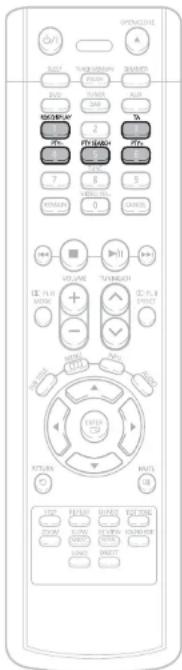
text_image
OPTOCLOSE A SUIT: TURNORWAY FORD: AVG SUNGER DAIR RISKER 2 MINI MINI MINI MINI MINI MINI MINI MINI MINI MINI MINI MINI MINI MINI MINI MINI MINI MINI MINI MINI MINI MINI MINI MINI MINI MINI MINI MINI MINI MINI MINI MINI MINI MINIPTY (Program Type) indication and PTY-SEARCH function
One of the advantages of the RDS service is that you can locate a particular kind of program from the preset channels by specifying the PTY codes.
To search for a program using the PTY codes
Before you start, remember...
- The PTY Search is only applicable to preset stations.
• To stop searching any time during the process, press PTY SEARCH while searching. - There is a time limit in doing the following steps. If the setting is cancelled before you finish, start from step 1 again.
- When pressing the buttons on the primary remote control, make sure that you have selected the FM station using the primary remote control.
1 Press PTY SEARCH while listening to an FM station.
2 Press the PTY-or PTY+until the PTY code you want appears on the display.
- The display gives you the PTY codes described to the right.
3 Press PTY SEARCH again, while the PTY code selected in the previous step is still on the display.
The center unit searches 15 preset FM stations, stops when it finds the one you have selected, and tunes in that station.
| Display | Program Type |
| NEWS | • News including an announced opinion and report |
| AFFAIRS | • Several matters including a current incident, documentary, discussion and analysis. |
| INFO | • Information including weights and measures, returns and forecast, matters interesting the customer, medical information, etc. |
| SPORT | • Sports |
| EDUCATE | • Education |
| DRAMA | • Drama-Radio serial, etc. |
| CULTURE | • Culture National or local culture including the religious problem, social science, language, theater, etc. |
| SCIENCE | • Natural science and technology |
| VARIED | • Others-Speech, amusing program (quiz, game), interview, comedy and edictical play, etc. |
| POP M | • Pop music |
| ROCK M | • Rock music |
| M.O.R.M | • Current contemporary music considered to be “easylistening.” |
| LIGHT M | • Light classical music- Classical music and instrumental and chorus music |
| CLASSICS | • Heavy classical music-Orchestra music, symphony, chamber music and opera |
| OTHER M | • Other music - Jazz, R&B country music |
| WEATHER | • Weather |
| FINANCE | • Finance |
| CHILDREN | • Children's programmes |
| SOCIAL A | • Social affairs |
| RELIGION | • Religion |
| PHONE IN | • Phone in |
| TRAVEL | • Travel |
| LEISURE | • Leisure |
| JAZZ | • Jazz Music |
| COUNTRY | • Country Music |
| NATION M | • National Music |
| OLDIES | • Oldies Music |
| FOLK M | • Folk Music |
| DOCUMENT | • Documentary |
Adjusting Display Brightness
You can adjust the brightness of the display on the main unit so it won't interfere with your movie viewing.
Press DIMMER button.
• Each time the button is press, the brightness changes as follows: DARK → BRIGHT.
Mute Function
This is useful when answering a doorbell or telephone call.
Press MUTE button.
• 'MUTE' flash in the display.
• To switch the sound back on (at the same volume as before), press MUTE again or the VOLUME buttons.

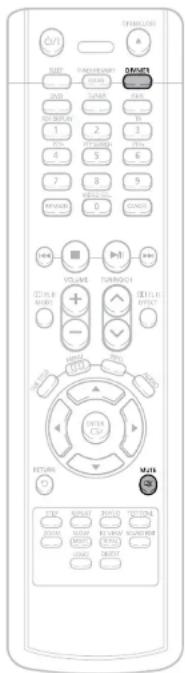
Cautions on Handling and Storing Discs
Small scratches on the disc may reduce sound and picture quality or cause skipping. Be especially careful not to scratch discs when handling them.
Handling discs

Do not touch the playback side of the disc. Hold the disc by the edges so that fingerprints will not get on the surface.
Do not stick paper or tape on the disc.
Disc Storage
Do not keep in direct sunlight

Keep in a cool ventilated area
Keep in a clean Protection jacket. Store vertically.

Caution
* Do not allow the discs to become contaminated with dirt.
- Do not load cracked or scratched discs.
Handling and Storing Discs
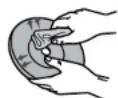
When you get fingerprints or dirt on the disc, clean it with a mild detergent diluted in water and wipe with a soft cloth.
* When cleaning, wipe gently from the inside to the outside of the disc.
Note
- Condensation may form if warm air comes into contact with cold parts inside the player. When condensation forms inside the player, the player may not operate correctly. If this occurs, remove the disc and let the player stand for 1 or 2 hours with the power on.
Before Calling for Service
Refer to the chart below when this unit does not function properly. If the problem you are experiencing is not listed below or if the instruction below does not help, turn off the unit, disconnect the power cord, and contact the nearest authorized dealer or Samsung Electronics Service Center.
Symptom Check/Remedy
| Disc tray does not open. | • Is the power cord plugged securely into the outlet?• Turn off the power and then turn it back on. |
| Playback does not start. | • Check the region number of the DVD.DVD discs purchased from abroad may not be playable.• CD-ROMs and DVD-ROMs cannot be played on this DVD player.• Make sure that the rating level is correct. |
| Playback does not start immediately when the Play/Pause button is | • Are you using a deformed disc or a disc with scratches on the surface?• Wipe the disc clean. |
| Sound is not produced. | • No sound is heard during fast playback, slow playback, and step motion playback.• Are the speakers connected properly? Is the speaker setup correctly customized?• Is the disc severely damaged? |
| Sound can be heard only from a few speakers and not all six. | • When listening to a CD or radio, sound is output to the front speakers (L/R) only. Select "PRO LOGIC II" by pressing [IMAGE] (Dolby Pro Logic II) on the remote control to use all six speakers.• Make sure that the DVD disc is 5.1-CH compatible.• If you set C, SL, and SR to NONE in the speaker mode in the audio setup of the setup screen, no sound is heard from the center speaker and the front left and right speakers. Set C, SL, and SR to SMALL. |
| Picture does not appear, sound is not produced, or the disc tray opens 2 to 5 seconds later. | • Was the DVD player suddenly moved from a cold place to a warm one? When condensation forms inside the player, remove the disc and let the player stand for 1 or 2 hours with the power on. (You can use the player again after condensation disappears.) |
| Dolby Digital 5.1 CH Surround Sound is not produced. | • Is there "Dolby Digital 5.1 CH" mark on the disc? Dolby Digital 5.1 CH Surround Sound is produced only if the disc is recorded with 5.1 channel sound.• Is the audio language correctly set to DOLBY DIGITAL 5.1-CH in the information display? |
Symptom Check/Remedy
| Disc is rotating but no picture is produced.Picture quality is poor and picture is shaking. | Is the TV power on?Are the video cables connected properly?Is the disc dirty or damaged?A poorly manufactured disc may not be playable. |
| The remote control does not work. | Is the remote control being operated within its operation range of angle and distance?Are the batteries exhausted? |
| Audio language and subtitles do not work. | Audio language and subtitles will not work for DVDs not containing them. And depending on the disc, they may work differently. |
| Menu screen does not appear even when the menu function is selected. | Are you using a disc that does not contain menus? |
| Aspect ratio cannot be changed. | You can play 16:9 DVDs in 16:9 WIDE mode, 4:3 LETTER BOX mode, or 4:3 PAN SCAN mode, but 4:3 DVDs can be seen in 4:3 ratio only. Refer to the DVD disc jacket and then select the appropriate function. |
| Can't receive radio broadcast. | Is the antenna connected properly?If the antenna's input signal is weak, install an external FM antenna in an area with good reception. |
| The main unit is not working.(Example: The power goes out or strange noise is heard.)The DVD player is not working normally. | Turn off the power and hold thebutton on the main unit for longer than 5 seconds.Using the RESET function will erase all stored settings.Do not use this unless necessary. |
| The password for rating level has been forgotten. | While "NO DISC" message appears on the display of main unit, hold the main unit'sbutton for longer than 5 seconds. "INITIALIZE" appears on the display and all settings will return to the default values.Press the POWER button.Using the RESET function will erase all stored settings.Do not use this unless necessary. |
Language Code List
Enter the appropriate code number for the initial settings "Disc Audio", "Disc Subtitle" and/or "Disc Menu" (See page 31).
| Code Language Code Language Code Language Code Language | |||||||
| 1027 | Atar 1181 | Frisian 1334 | Latvian, Lettish 1506 | Slovenian | |||
| 1028 | Abkhazian 1183 | Irish 1345 | Malagasy | 1507 | Samoun | ||
| 1032 | Afrikaans | 1186 | Scots Gaelic | 1347 | Maori | 1508 | Shona |
| 1039 | Amharic | 1194 | Galician | 1349 | Macedonian | 1509 | Somali |
| 1044 | Arabic | 1196 | Guarani | 1350 | Malayalam | 1511 | Albanian |
| 1045 | Assamese | 1203 | Gujarati | 1352 | Mongolian | 1512 | Serbian |
| 1051 | Aymara | 1209 | Hausa | 1353 | Moldavian | 1513 | Siswati |
| 1052 | Azerbaijani | 1217 | Hindi | 1356 | Marathi | 1514 | Sesotho |
| 1053 | Bashkir | 1226 | Croatian | 1357 | Malay | 1515 | Sundanese |
| 1057 | Byelorussian | 1229 | Hungarian | 1358 | Maltese | 1516 | Swedish |
| 1059 | Bulgarian | 1233 | Armenian | 1363 | Burmese | 1517 | Swahili |
| 1060 | Bihari | 1235 | Interlingua | 1365 | Nauru | 1521 | Tamil |
| 1069 | Bislama | 1239 | Interlingue | 1369 | Nepali | 1525 | Tegulu |
| 1066 | Bengali; Bangla | 1245 | Inuplak | 1376 | Dutch | 1527 | Tajlk |
| 1067 | Tibetan | 1248 | Indonesian | 1379 | Norwegian | 1528 | Thai |
| 1070 | Broton | 1253 | Icelandic | 1393 | Occitan | 1529 | Tigrinya |
| 1079 | Catalan | 1254 | Italian | 1403 | (Atan) Oromo | 1531 | Turkmen |
| 1093 | Corsican | 1257 | Hebrew | 1408 | Orlya | 1532 | Tagalog |
| 1097 | Czech | 1261 | Japanese | 1417 | Punjabi | 1534 | Setswana |
| 1103 | Welsh | 1269 | Yiddish | 1428 | Polish | 1535 | Tonga |
| 1105 | Danish | 1283 | Javanese | 1435 | Pashto. Pushto | 1538 | Turkish |
| 1109 | German | 1287 | Georgian | 1436 | Portuguese | 1539 | Tscnga |
| 1130 | Bhutani | 1297 | Kazakh | 1463 | Quechua | 1540 | Tatar |
| 1142 | Greek | 1298 | Greenlandic | 1481 | Rhaeto-Romance | 1543 | Twi |
| 1144 | English | 1299 | Cambodian | 1482 | Kirundi | 1557 | Ukrainian |
| 1145 | Esperanto | 1300 | Kannada | 1483 | Romanian | 1564 | Urdu |
| 1149 | Spanish | 1301 | Korean | 1489 | Russian | 1572 | Uzbek |
| 1150 | Estonian | 1305 | Kashmiri | 1491 | Kinyarwanda | 1581 | Vietnamese |
| 1151 | Basque | 1307 | Kurdish | 1495 | Sanskrit | 1587 | Volapuk |
| 1157 | Perslan | 1311 | Kirgniz | 1498 | Sindhli | 1613 | Wolo! |
| 1165 | Finnish | 1313 | Latin | 1501 | Sangro | 1632 | Xhosa |
| 1166 | Fiji | 1326 | Lingala | 1502 | Serbo-Croatian | 1665 | Yoruba |
| 1171 | Faeroese | 1327 | Laothian | 1503 | Singhalese | 1684 | Chinese |
| 1174 | French | 1332 | Lithuanian | 1505 | Slovak | 1697 | Zulu |
Specifications
| GENERAL | Power Consumption | 70W | ||
| Weight | 3.2Kg | |||
| Dimensions (W x H x D) | 430 x 60 x 340 mm | |||
| Operating Temperature Range | +5°C~+35°C | |||
| Operating Humidity Range | 10%~75% | |||
| FUMBER | Usable Sensitivity | 10dB | ||
| S/N Ratio | 60dB | |||
| Distortion | 0.5% | |||
| DAB | Usable Sensitivity | -95dBm | ||
| S/N Ratio | 75dB | |||
| Distortion | 0.07% | |||
| VIDEO OUTPUT | Composite Video | 1.0Vp-p(75Ω load) | ||
| Scart Jack | Compositive Video : 1.0Vp-p(75Ω load) | |||
| RGB Signal : 0.714Vp-p(75Ω load) | ||||
| AMPLIFIER | Front speaker output | 32W(4Ω)/CH | ||
| Center speaker output | 63W(4Ω) | |||
| Rear speaker output | 32W(4Ω)/CH | |||
| Subwoofer speaker output | 64W(8Ω) | |||
| Frequency range | 20Hz~20kHz | |||
| S/N Ratio | 75dB | |||
| Channel separation | 50dB | |||
| Input sensitivity | (AUX)500mV | |||
| SPEAKER | Speaker system | 5.1ch speaker system | ||
| Front/Rear speaker | Center speaker | Subwoofer speaker | ||
| Impedance | 4Ω x 4 | 4Ω | 8Ω | |
| Frequency range | 150Hz~20kHz | 150Hz~20kHz | 30Hz~150Hz | |
| Output sound pressure level | 85dB/W/M | 85dB/W/M | 86dB/W/M | |
| Rated input | 32W | 63W | 64W | |
| Maximum Input | 64W | 126W | 128W | |
| Dimensions (W x H x D) | 90 x 107 x 95 mm | 160 x 90 x 95 mm | 145 x 320 x 340 mm | |
| Weights | 0.36 Kg / 0.3 Kg | 0.45 Kg | 3.6 Kg | |