
RD1 - Digital Camera EPSON - Free user manual and instructions
Find the device manual for free RD1 EPSON in PDF.

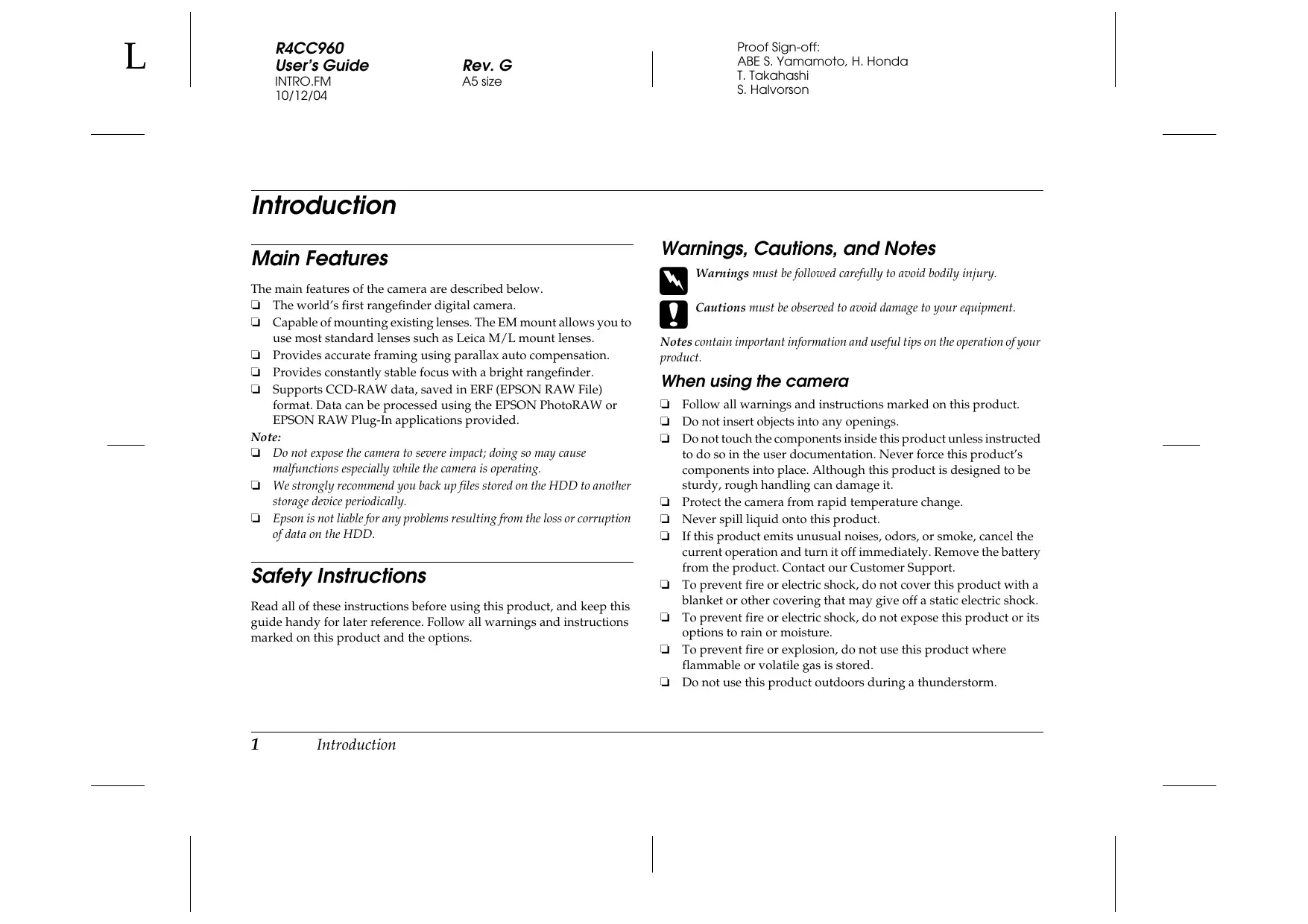

| Product type | Digital camera |
| Brand / Model | EPSON RD1 |
| Sensor resolution | 6.1 megapixels |
| Sensor size | APS-C (23.7 x 15.6 mm) |
| Sensor type | CCD |
| Lens mount | Epson mount (compatible with VM mount) |
| ISO sensitivity | 200, 400, 800, 1600 |
| Shutter | Focal plane, 1 to 1/2000 sec |
| Viewfinder | Rangefinder |
| Screen | LCD 2.0 inches (approx. 235,000 pixels) |
| Dimensions (W x H x D) | 142 x 89 x 40 mm |
| Weight (without battery) | Approx. 590 g |
| Power supply | Rechargeable lithium-ion battery (model NP-40) |
| Storage | SD/SDHC card |
| Maximum image size | 3008 x 2000 pixels |
| Image formats | JPEG, RAW |
| White balance | Automatic, manual, presets |
| Exposure modes | Aperture priority, manual |
| Main features | Interchangeable lens shooting, manual exposure control, RAW recording |
| Maintenance and cleaning | Clean the exterior with a soft dry cloth. For the sensor, use a cleaning kit. Avoid moisture. |
| Safety | Do not expose to rain. Keep out of reach of children. Do not open the device, except by a technician. |
| Spare parts and repairability | Battery, charger, USB cable. Parts available from EPSON after-sales service. |
| General information | Compliant with Canadian standard NMB-003. |
Frequently Asked Questions - RD1 EPSON
User questions about RD1 EPSON
0 question about this device. Answer the ones you know or ask your own.
Ask a new question about this device
Download the instructions for your Digital Camera in PDF format for free! Find your manual RD1 - EPSON and take your electronic device back in hand. On this page are published all the documents necessary for the use of your device. RD1 by EPSON.
USER MANUAL RD1 EPSON
Epson Rangefinder Digital Camera R-D1
All rights reserved. No part of this publication may be reproduced, stored in a retrieval system, or transmitted in any form or by any means, electronic, mechanical, photocopying, recording, or otherwise, without the prior written permission of Seiko Epson Corporation. The information contained herein is designed only for use with this Epson product. Epson is not responsible for any use of this information as applied to other products.
Neither Seiko Epson Corporation nor its affiliates shall be liable to the purchaser of this product or third parties for damages, losses, costs, or expenses incurred by the purchaser or third parties as a result of accident, misuse, or abuse of this product or unauthorized modifications, repairs, or alterations to this product, or (excluding the U.S.) failure to strictly comply with Seiko Epson Corporation's operating and maintenance instructions.
Seiko Epson Corporation shall not be liable for any damages or problems arising from the use of any options or any consumable products other than those designated as Original Epson Products or Epson Approved Products by Seiko Epson Corporation.
Seiko Epson Corporation shall not be held liable for any damage resulting from electromagnetic interference that occurs from the use of any interface cables other than those designated as Epson Approved Products by Seiko Epson Corporation.
EPSON is a registered trademark and EPSON Stylus is a trademark of Seiko Epson Corporation.
Microsoft and Windows are registered trademarks of Microsoft Corporation.
Apple and Macintosh are registered trademarks of Apple Computer, Inc.
Adobe and Photoshop are registered trademarks of Adobe System Incorporated.
SD is a trademark.
LEICA is a registered trademark of Leica IR GmbH.
General Notice: Other product names used herein are for identification purposes only and may be trademarks of their respective owners. Epson disclaims any and all rights in those marks.
Copyright © 2004 by Seiko Epson Corporation, Nagano, Japan
Contents
Introduction
Main Features 1
Safety Instructions 1
Warnings, Cautions, and Notes. 1
IMPORTANT SAFETY INSTRUCTIONS 3
FCC Compliance Statement for United States Users . . . 7
WARNING 7
Chapter 1 Getting Started
Unpacking Your Camera. 9
Camera Parts. 10
Attaching the Strap to Your Camera 12
Using the Battery 12
Charging the battery 12
Inserting the battery 13
Installing and Removing a Memory Card 14
Installing a memory card 15
Removing a memory card 16
Mounting and Removing a Lens 16
Mounting M (Bayonet) mount lenses. 16
Removing M (Bayonet) mount lenses. 17
Mounting L mount lenses. 17
Removing L mount lenses 18
Setting Up Your Camera 19
Turning the power on 19
Setting the date and time. 19
Setting the date format 20
Setting the language. 20
Power save timer settings 21
Assigning a function to the USER button. 21
Confirming the current settings 21
Resetting the default settings 22
Releasing the Shutter 22
Full and half-release. 22
Focusing. 22
Chapter 2 Taking Pictures
About the Status Gauge 23
Setting Photo Quality 24
Setting White Balance. 24
Setting ISO Sensitivity 25
Setting Auto Exposure (Aperture) 26
Setting Manual Exposure (Shutter Speed) 27
B (Bulb) shooting mode. 28
Manually Locking the Aperture Setting 29
Selecting a Frame 29
Selecting Color or Monochrome Photos 29
Selecting Image Settings. 30
Using the Flash Function 30
Numbering Your Photos Sequentially 31
Calibrating the Needles on the Status Gauge 31
Chapter 3 Viewing and Managing Your Photos
Viewing Photos on the LCD Display 33
Viewing the previous or next photo. 33
Switching between display modes 33
Viewing Your Photos in a Slide Show 36
Deleting Images 37
Formatting a memory card 37
Locking Images. 38
Locking an image. 38
Locking all images. 38
Unlocking all images. 38
Magnifying Images 38
LCD Brightness Settings 38
Setting Number of Prints (DPOF Setting) 39
Chapter 4 Using the LCD Display
How to Use the LCD Display. 40
Menu structure. 40
Chapter 5 Using the RAW Data Processing Software
Overview 43
System Requirements 43
Installing the Software. 44
EPSON PhotoRAW. 44
EPSONRAW Plug-In 44 Starting the Software 45 EPSON PhotoRAW 45 EPSONRAW Plug-In 45 Finding More Information. 45
Chapter 6 Maintenance and Troubleshooting
Cleaning the Camera 46 Storing the Camera. 46 Troubleshooting 46 Contacting Customer Support 47
For users in Hong Kong 47 For users in North America 47 For users in Korea 48
Appendix A Appendix
Standards and Approvals 49
Camera 49 Lithium-ion battery 49 Battery charger 49
Specifications 49
Camera 49 General 49 Image format 49 Optic system 50 Display functions 50 Interface (external connector) 50 Camera settings 50
Viewfinder indicators 51 Internal clock 51 Power supply 51 Battery charger 51 Performance 52 File size of photos 52 About Optional Accessories 52
Index
Introduction
Main Features
The main features of the camera are described below.
The world's first rangefinder digital camera. - Capable of mounting existing lenses. The EM mount allows you to use most standard lenses such as Leica M/L mount lenses. - Provides accurate framing using parallax auto compensation. - Provides constantly stable focus with a bright rangefinder. Supports CCD-RAW data, saved in ERF (EPSON RAW File) format. Data can be processed using the EPSON PhotoRAW or EPSON RAW Plug-In applications provided.
Note:
- Do not expose the camera to severe impact; doing so may cause malfunctions especially while the camera is operating. We strongly recommend you back up files stored on the HDD to another storage device periodically.
- Epson is not liable for any problems resulting from the loss or corruption of data on the HDD.
Safety Instructions
Read all of these instructions before using this product, and keep this guide handy for later reference. Follow all warnings and instructions marked on this product and the options.
Warnings, Cautions, and Notes

Warnings must be followed carefully to avoid bodily injury.

Cautions must be observed to avoid damage to your equipment.
Notes contain important information and useful tips on the operation of your product.
When using the camera
Follow all warnings and instructions marked on this product. Do not insert objects into any openings. Do not touch the components inside this product unless instructed to do so in the user documentation. Never force this product's components into place. Although this product is designed to be sturdy, rough handling can damage it. Protect the camera from rapid temperature change. Never spill liquid onto this product. If this product emits unusual noises, odors, or smoke, cancel the current operation and turn it off immediately. Remove the battery from the product. Contact our Customer Support. To prevent fire or electric shock, do not cover this product with a blanket or other covering that may give off a static electric shock. To prevent fire or electric shock, do not expose this product or its options to rain or moisture. To prevent fire or explosion, do not use this product where flammable or volatile gas is stored. Do not use this product outdoors during a thunderstorm.
- Do not use this product after moving it from a cold to warm environment, or vice-versa. Condensation may form on electronic parts. To prevent possible injury, do not take flash pictures in close proximity to anyone's eyes. Do not insert your finger into the camera or EM mount. If the liquid crystal solution contained in the LCD monitor leaks out and gets on your hands, wash them thoroughly with soap and water. If it gets into your eyes, flush them immediately with water.
- When connecting this product to a computer or other device with a cable, ensure the correct orientation of the connectors. Each connector has only one correct orientation. Inserting a connector in the wrong orientation may damage both devices connected by the cable.
When using the strap
- Do not swing the camera about. This can damage the camera or other objects, or cause injury.
- Do not pull or tighten the strap too much when wearing it; this can cause serious injury.
- Keep the strap away from children.
When using the battery
Follow the precautions below when using the battery as mishandling it may cause injury.
If battery acid gets into your eyes or on your skin, immediately rinse the affected area thoroughly with water and seek medical treatment. If a battery is swallowed, seek medical treatment immediately. Use only an Epson Li-ion battery for this camera, as specified in this manual.
- Do not use the battery that comes with this product for other devices. To protect against short-circuiting, do not remove the outside sleeves of the battery. Do not handle the battery with wet hands or use it near water. Do not expose the battery to water or high humidity.
- Do not drop, puncture, disassemble, mutilate, or short-circuit the battery. Do not expose the battery to heat, fire, or water. Do not use batteries that are leaking or damaged in any way.
- Do not charge the battery on battery chargers other than the one provided with this product. Do not charge the battery near open flame or in very hot locations.
- Keep the battery away from heat sources. Prevent the battery from coming into contact with metal objects that could short-circuit it, such as coins or keys. Do not solder wires or terminals directly to the battery. Do not touch battery terminals.
- Keep the battery away from open flame. If overheating, discoloration, distortion, a strange smell or any other abnormal situations occur, remove the battery from this product and do not use it.
- Keep batteries out of the reach of children. If charging has not finished after the regular charging time, stop charging.
- Do not place the battery into a high-pressed container or a microwave oven.
- Do not insert the battery into power outlets or other power sources, such as cigarette lighters.
- Charge the battery before using it. The battery is not fully charged when you purchase it.
When storing the battery
- When not using this device for a long period, remove the battery from this product and store it separately.
- Do not store the battery where temperature or humidity is very high. Store the battery out of children's reach. Discharge the battery completely before storing it for a long time.
- When not using the battery for a long time, charge the battery and then discharge it completely about once a year during storage.
When disposing of the battery
Before disposing of the battery, make sure you discharge it completely.

Warning:
- Be sure to completely cover both ends of the battery with tape to prevent combustion or explosion when disposing of it.
- Do not dispose of the battery as ordinary refuse. Instead, dispose of it in a collection or recycle box in accordance with local laws.
For the Netherlands users:
Do not dispose of the battery with ordinary refuse. Instead, dispose of it as small chemical waste in accordance with local laws, and the following Dutch Government Gazette 45, KCA Marking:

Do not dispose of the battery with ordinary refuse. Instead, dispose of it in a recycle box in accordance with local laws.
For North America and Canada Users:

This mark indicates that the battery will be recycled by RBRC. When you dispose of the battery, contact RBRC.
When using the battery charger
IMPORTANT SAFETY INSTRUCTIONS

Warning:
Read all relevant safety and operating instructions before using this product, as misuse could result in personal injury from fire, explosion, leakage, overheating, or electric shock.
These safety and operating instructions should be kept for future reference.
Use only the Epson battery charger provided to charge the Epson Li-ion battery Model EU-85. Never attempt to charge other types of batteries in this charger as they may explode, leak, overheat, or cause personal injury. Do not charge primary (non-rechargeable) batteries. - Do not handle the battery charger with wet hands or use it near water. Do not expose the battery charger to water or high humidity. - Use only the type of power source indicated on the battery charger's label, and always supply power directly from a standard, domestic power outlet with a power cord that meets the relevant local safety standards. Place the battery charger near an electrical outlet where the power cord can be easily unplugged. The battery charger is designed for use and provided with this product. Do not attempt to use it with other electronic devices unless specified.
The battery charger included is designed for use with this product. Use of any other battery charger could result in fire, electric shock, or injury. - Use only a power source that meets the power requirements indicated on the label attached to the product. If you are not sure of the power supply specifications in your area, contact your local power company or contact our Customer Support. Make sure the total amperage of all devices plugged into the power outlet does not exceed the power outlet's ampere rating. If you plan to use this product in Germany, the building installation must be protected by a 16 amp circuit breaker to provide adequate short-circuit protection and over-current protection for this product. Do not use a damaged or frayed battery charger. If you use an extension cord with this product, make sure the total amperage of all devices plugged into the extension cord does not exceed the cord's ampere rating. - Never disassemble, modify, or attempt to repair the battery charger by yourself except as specifically explained in this guide. - Do not use power outlets controlled by wall switches or automatic timers. - Do not use power outlets on the same circuit as large motors or other appliances that may cause voltage fluctuations. - Avoid using outlets on the same circuit as photocopiers or air conditioning systems that regularly switch on and off. Position this product's power cord so that it will not be stepped on or run over. Do not place any objects on the power cord or the battery charger. - Keep the power cord straight at the ends and at the points where it enters the transformer.
- Do not let the power cord become damaged or frayed. Place the battery charger in a location where people are unlikely to walk on the power cord, and the cord is not pinched by items placed upon or against it. If you cannot insert the plug into the power outlet, contact an electrician.
For US and Canadian users:
Use the power cord provided or a 6 to 10 foot UL-approved type SPT-2 or heavier type, 2 x 18 AWG cord with a 125 V 10 A plug and 125 V 7 A connector.

When using a memory card
- Only memory cards designed for the product's specifications can be used.
- The methods for using memory cards vary according to card type. Be sure to refer to the documentation included with your memory card for details. Do not remove the memory card while the power switch is on.
When using the LCD
- The LCD monitor on this product may contain a few small bright or dark spots. These are normal and do not mean that your LCD monitor is damaged in any way. If the LCD monitor on this product is damaged, consult your dealer. If the liquid crystal solution contained in the LCD monitor on this product leaks out and gets onto your hands, wash them thoroughly with soap and water. If it gets into your eyes, flush them immediately with water. If discomfort or vision problems remain after a thorough flushing, see a doctor immediately.
- Only use a soft, dry cloth to clean the display. Do not use liquid or chemical cleaners.
When storing, maintaining, or transporting the camera
Do not store this product outdoors. Do not store this product near water. - Do not store this product in a location subject to high temperature or humidity. - Do not store this product in a location subject to rapid changes in temperature or humidity.
- Do not store this product in a location subject to direct sunlight or strong light sources.
For United Kingdom, Hong Kong, and Singapore users
Replace fuses only with fuses of the correct size and rating.
For United Kingdom users
Safety information

Warning:
Refer to the rating plate for voltage and check that the appliance voltage corresponds to the supply voltage.
Important:
The wires in the mains lead fitted to this appliance are coloured in accordance to the following code:
Blue - Neutral
Brown - Live
If you have to fit a plug:
As the colors of the mains lead of this appliance may not match the colored markings used to identify the terminals in a plug, please proceed as follows: The blue wire must be connected to the terminal in the plug marked with the letter N.
The brown wire must be connected to the terminal in the plug marked with the letter L.
If damage occurs to the plug, replace the cord set or consult a qualified electrician.
FCC Compliance Statement for United States Users
This equipment complies with Part 15 of the FCC Rules. Operation is subject to the following two conditions: (1) this device may not cause harmful interference, and (2) this device must accept any interference received, including interference that may cause undesired operation. This equipment has been tested and found to comply with the limits for a Class B digital device, pursuant to Part 15 of the FCC Rules. These limits are designed to provide reasonable protection against harmful interference in a residential installation. This equipment generates, uses, and can radiate radio frequency energy and, if not installed and used in accordance with the instructions, may cause harmful interference to radio or television reception. However, there is no guarantee that interference will not occur in a particular installation. If this equipment does cause interference to radio and television reception, which can be determined by turning the equipment off and on, the user is encouraged to try to correct the interference by one or more of the following measures.
Reorient or relocate the receiving antenna - Increase the separation between the equipment and receiver - Connect the equipment to an outlet on a circuit different from that to which the receiver is connected - Consult your dealer or an experienced radio/TV technician for help
WARNING
The connection of a non-shielded equipment interface cable to this equipment will invalidate the FCC Certification of this device and may cause interference levels which exceed the limits established by the FCC for this equipment. It is the responsibility of the user to obtain and use a shielded equipment interface cable with this device. If this equipment has more than one interface connector, do not leave cables connected to unused interfaces.
Changes or modifications not expressly approved by the manufacturer could void the user's authority to operate the equipment.
For Canadian users
This Class B digital apparatus complies with Canadian ICES-003.
DECLARATION OF CONFORMITY
According to 47CFR, Part 2 and 15 for Class B Personal Computers and Peripherals; and/or CPU Boards and Power Supplies used with Class B Personal Computers:
We:
EPSON AMERICA, INC.
Located at:
MS 3-13
3840 Kilroy Airport Way
Long Beach, CA 90806
Telephone: (562) 290-5254
Declare under sole responsibility that the product identified herein, complies with 47CFR Part 2 and 15 of the FCC rules as a Class B digital device. Each product marketed, is identical to the representative unit tested and found to be compliant with the standards. Records maintained continue to reflect the equipment being produced can be expected to be within the variation accepted, due to quantity production and testing on a statistical basis as required by 47CFR §2.909. Operation is subject to the following two conditions: (1) this device may not cause harmful interference, and (2) this device must accept any interference received, including interference that may cause undesired operation.
Trade Name:
EPSON
Type of Product:
Digital Still Camera
Model:
G911A
Chapter 1
Getting Started
Unpacking Your Camera
Make sure that your camera box contains all of the items shown below.
Camera body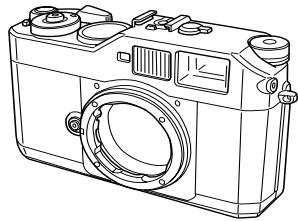
Lens cap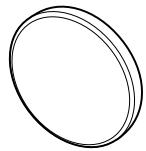
Li-ion battery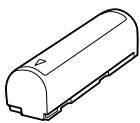
Strap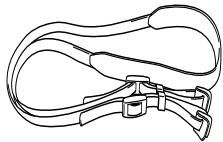
Battery charger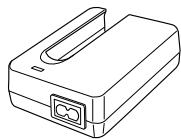
Power cord (for battery charger)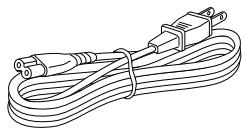
User's guide
CD-ROM (EPSON PhotoRAW/EPSON RAW Plug-In, Adobe Photoshop Elements 2.0*)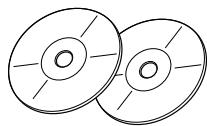
- Adobe Photoshop Elements 2.0 may not be included in some countries.
Camera Parts
Front view Back view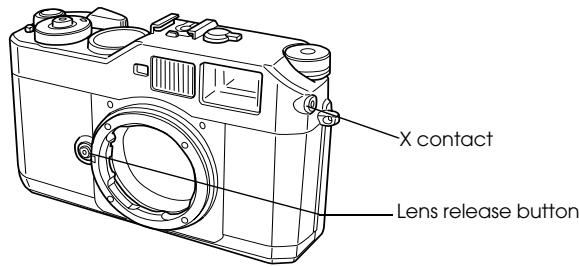
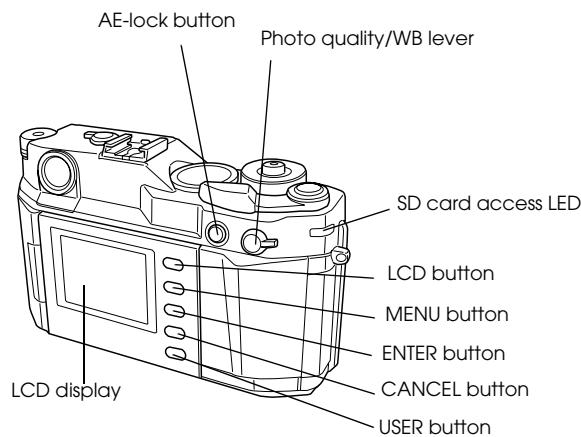
Top view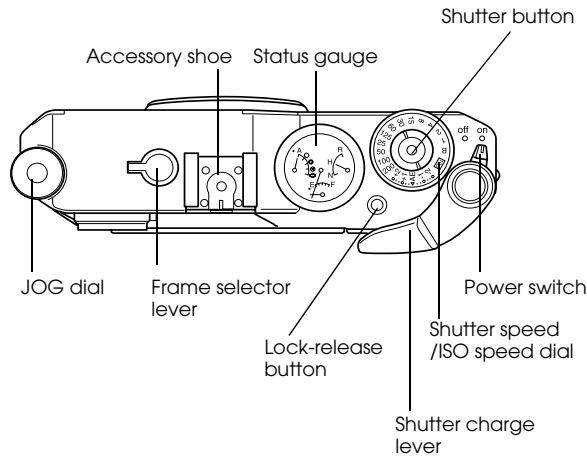
| X contact | Used to mount an optional flash. |
| Lens release button | Used to mount or remove lenses. |
| AE-lock button | Locks exposure. |
| Photo quality/WB lever | Sets photo quality or white balance. |
| SD card access LED | Indicates the following statuses of the SD card. On: accessing a memory card Flashing: a memory card error has occurred Off: not accessing a memory card |
| LCD button | Switches between picture-taking mode and playback mode. |
| MENU button | Displays the Main menu on the LCD monitor (available in playback mode). |
| ENTER button | Defines the selected item or settings (available in playback mode). |
| CANCEL button | Returns to the previous menu without making any settings (available in playback mode). |
| USER button | Performs the function previously assigned to it. |
| LCD display | Displays a menu screen or photos. |
| Shutter button | Half-release: Press the shutter button halfway down to display the optimal shutter speed (i.e., optimal exposure value) in the viewfinder. Also, pressing this button halfway in playback mode or Power Save Timer mode returns the camera to picture-taking mode. Full-release: Press this button fully down to take a photo. |
| Status gauge | Four needles display information about the current settings (number of remaining photos, photo quality, remaining battery power, and white balance settings). For details, see “About the Status Gauge” on page 23. |
| Accessory shoe | Used to mount optional equipment such as a flash or external viewfinder. |
| JOG dial | Navigates through the menus or photos displayed on the LCD monitor. For details, see “Menu structure” on page 40. |
| Frame selector lever | Sets a field angle for the finder. |
| Shutter charge lever | Winds up the shutter. |
| Power switch | Switches the power on/off. |
| Shutter speed /ISO speed dial | Sets the shutter speed. Or pull this dial up and rotate it to set the ISO sensitivity. |
| Lock-release button | Unlocks the shutter speed dial. |
Attaching the Strap to Your Camera
Follow the steps below to attach the strap to the camera.
- Attach the protective pad and the metal ring to one side of the camera.
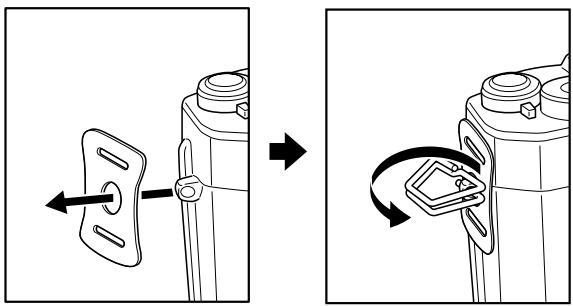
- Lace the strap end through the holes in the protective pad and the metal ring.
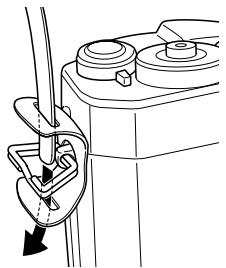
- Lace the strap end through the two plastic fasteners.
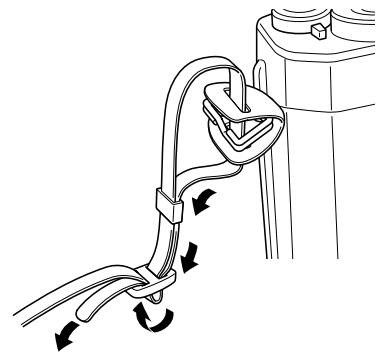
- Repeat steps 1 to 3 for the other end of the strap.
Using the Battery
Charging the battery
Your camera comes with a lithium-ion battery (EU-85). Be sure to charge the battery before using the camera for the first time or after long periods of disuse. It takes about 3.5 hours to charge the battery when no charge remains.
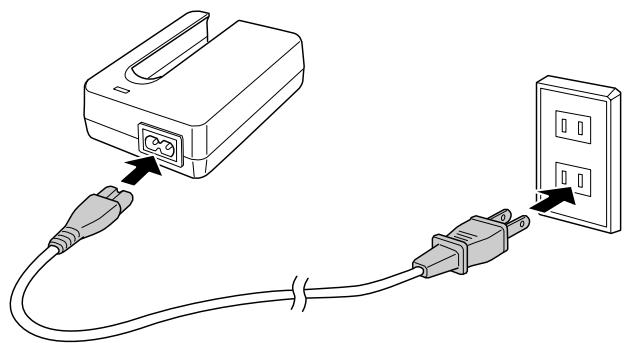
Follow the steps below to charge the battery.
- Connect the power cord that came with the camera to the battery charger, then plug it into a power outlet.
- Place the battery into the battery charger.
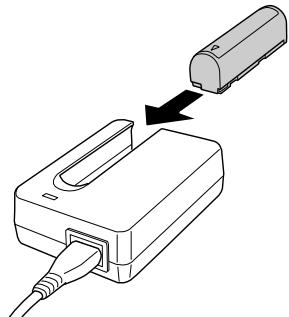
- Take the battery out when the charge lamp turns off. After charging the battery, unplug the battery charger's plug from the outlet.
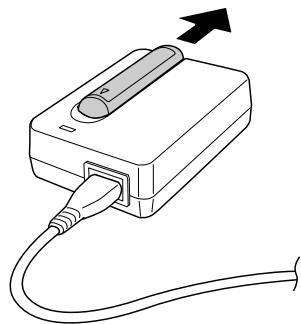
Note:
The charging time for the battery may differ depending on the temperature or the battery's remaining charge. During charging, the red lamp indicates the following status:
On: Indicates the battery is charging.
Off: Indicates charging is complete or the battery is not fully seated in the battery charger.
Inserting the battery
Your camera uses the lithium-ion battery (EU-85) provided. Only use an Epson Li-ion EU-85 battery with the camera.
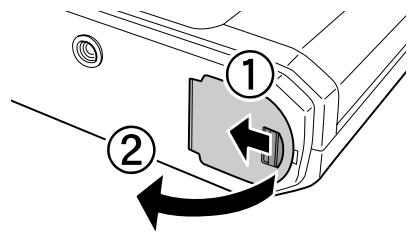
- Make sure that the camera is off, and then open the battery cover as shown below.
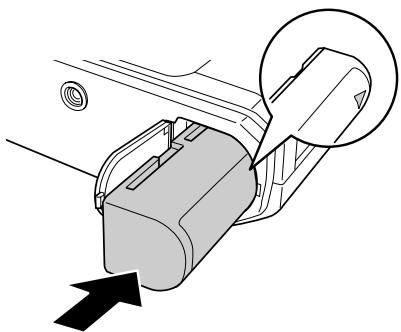
- Insert the battery.
Insert the battery into the camera until it clicks, making sure the orientation of the battery is correct.
- Close the battery cover.
Note:
To check the battery's remaining charge, see "Remaining battery power" on page 23. If you find that your battery has run out soon after recharging it a number of times, make sure to discharge it completely before recharging it. Or, the battery's service life has ended. In that case, replace it with a new battery.
Installing and Removing a Memory Card
You cannot take photos unless an SD memory card is installed in your camera.

Caution:
Make sure the memory card has no dirt or dust on the terminal. If the terminal is dirty, you may not be able to write to or read from the card. - Never insert or remove a memory card while the SD card access LED is on. Doing so may cause data in the card to be lost or damaged. - Avoid using or storing the card in direct sunlight, or in places that are extremely hot, humid, or dusty. - Keep the memory card slot cover closed while the memory card is loaded. This protects the memory card and the slot from dust and static; otherwise data on the memory card may be lost or damaged. Exposure of static electricity may cause the memory card to malfunction.
Note:
To make sure you are using the memory card correctly, read the documentation provided with the memory card. When using other devices with a memory card, also read the documentation provided with those devices.
Formatting a memory card
Format a memory card when you want to erase all the data on the card or when you see a message on the LCD display instructing you to do so.

Caution:
The SD memory card must be formatted by your camera. Using an SD memory card formatted by a different camera may cause read or write errors. For details, see "Formatting a memory card" on page 37. - When you format an SD memory card, all the data on the card is erased, including those locked with the camera's lock function. While formatting an SD memory card, do not take the card out of the camera.
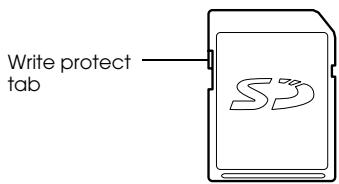
The write protect tab
The memory card is equipped with a write protect tab to prevent accidental loss of data. When this tab is in the locked position, photos on the memory card are locked and cannot be deleted or overwritten.
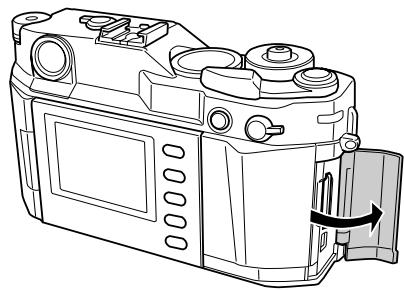
Installing a memory card
- Make sure that the SD memory access LED is off, and then open the memory card cover.
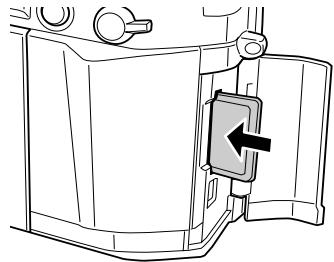
- Insert the card all the way into the memory card slot until it clicks.
Note:
When inserting the memory card, make sure the orientation of the memory card is correct and insert the card until it clicks.
- Close the memory card cover.
Removing a memory card
- Make sure the SD memory access LED is off, and then open the memory card cover.

Caution:
Never remove a memory card while the access light is on. Doing so may cause data in the card to be lost or damaged.
- Push the memory card down until you hear a click. When you release your finger, the SD memory card pops out.
Note:
If the memory card is not ejected, push the memory card down again.
- Remove the memory card.
- Close the memory card cover.
Mounting and Removing a Lens
You can use M (Bayonet) mount lenses on the camera. In addition, you can also use L mount lenses by attaching the optional M-Bayonet adapter ring.
Note:
The optional M-Bayonet adapter ring is not available in all countries.

Caution:
Some M/L mount lenses cannot be used because of the structure of the camera. For example, lenses with external dimensions exceeding 20.5mm cannot be used with this camera.
Lenses that cannot be used include:
- HOLEGON 15 mm F8
- SUPER ANGULON 21 mm F3.4
- SUPER ANGULON 21 mm F4
- ELMARIT 28 mm F2.8 (earliest model) -F2 (Dual Range SUMMICRON)
When you mount a collapsible lens, do not collapse the lens after mounting it. Collapsing the lens into the camera by force or mounting the lens while it is collapsed may damage the camera or the lens.
Lenses that can be used but must not be collapsed include:
- HEKTOR 50 mm F2.5
- ELMAR 50 mm F3.5
- Even with the same lens, the image quality using this camera may differ from that of an image taken with an analog camera.
Mounting M (Bayonet) mount lenses
- Match the red mark on the camera body with the red mark on the lens-barrel.
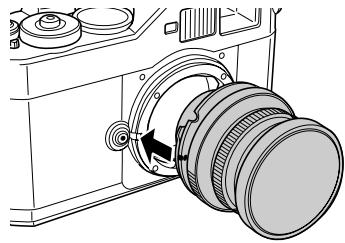

Caution:
Do not insert your finger into the camera or EM mount.
- Insert the lens and turn it clockwise until you hear a click.
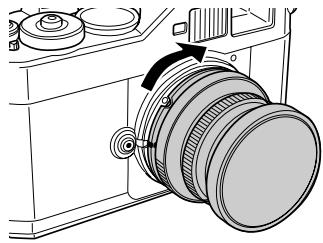
Removing M (Bayonet) mount lenses
- Turn the lens counterclockwise as far as it will go while pressing down the lens release button.
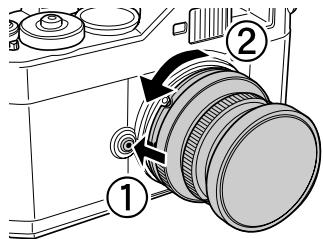
- Pull the lens straight out of the mount.
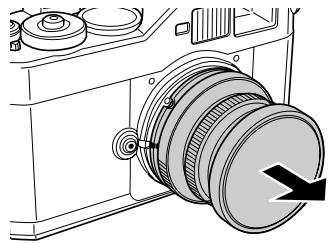
Mounting L mount lenses
Note:
- When you install an L mount lens, you need an optional M-Bayonet adapter ring. There are three sizes of M-Bayonet adapter rings, and any one of them can be used. For more information on mounting an M-Bayonet adapter ring on the camera body, see the M-Bayonet adapter ring manual.
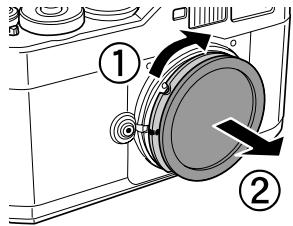
- Mount an optional M-Bayonet adapter ring together with its cover onto the lens mount.
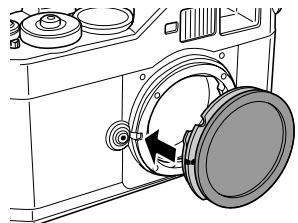
- Turn the M-Bayonet adapter ring clockwise, then remove the cover.
- Align the lens mount screw with that of the M-Bayonet adapter ring, and turn the lens clockwise until it clicks.
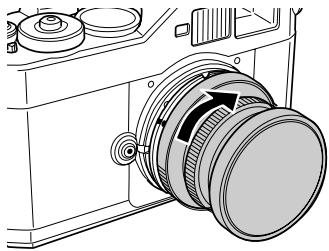

Caution:
Be careful not to tighten the lens too tightly.
Removing L mount lenses
- Turn the lens all the way counterclockwise and pull the lens straight out.
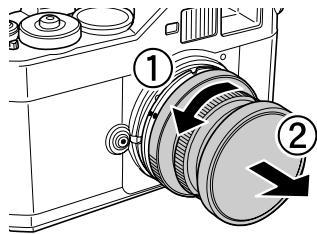
- Remove the M-Bayonet adapter ring from the camera.
Note:
For details about removing M-Bayonet adapter rings, see the manual provided with the M-Bayonet adapter ring.
Setting Up Your Camera
Turning the power on
- Turn the power switch to the on position.
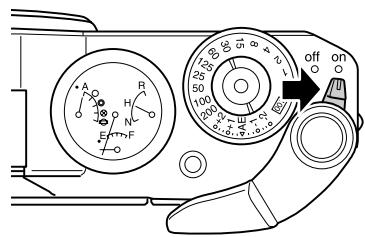
When you turn your camera on, information about current settings (number of remaining photos, photo quality, remaining battery power, and white balance settings) is indicated on the status gauge on the top of the camera. For details, see "About the Status Gauge" on page 23.
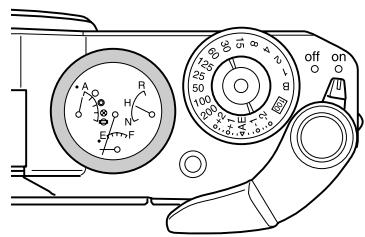
Note:
To turn the power switch off, turn it to the off position.
Setting the date and time
When you turn on the camera the first time, you need to set the current date (month, day, and year) and time (hours and minutes) on the LCD monitor. Once these settings are made, the camera automatically records the date and time each time an image is taken.
Note:
If you remove the battery from the camera, the date and time settings will be erased approximately two days after the time the camera was last used. After changing the battery, make sure that the date and time is set correctly. If necessary, set the date and time again. You can change the settings later using the Basic Setup menu. For details, see "Basic Setup menu" on page 42.
Follow the steps below to set the date and time.
- Turn the power switch on.
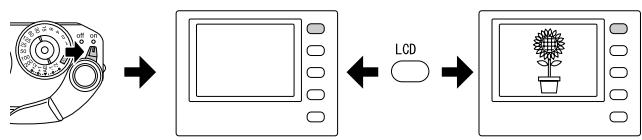
- Invert the LCD display toward you and press the LCD button. The Time and Date screen is displayed on the LCD display. For details about inverting the LCD monitor, see "How to Use the LCD Display" on page 40.
- Confirm that the year is highlighted, and rotate the JOG dial clockwise or counterclockwise to change the year.
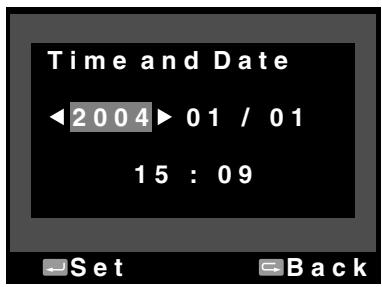
Note:
When you turn the JOG dial clockwise, the value will increase. To decrease the value, turn the JOG dial counterclockwise.
- Press the ENTER button. The year is set, and the month is highlighted.
- Repeat steps 3 and 4 until you finish making all settings for date and time.
The date and time setting is saved, and the screen returns to the Basic Setup menu.
Setting the date format
You can select display format for the date and time.
- Select Date Format in the Basic Setup menu using the JOG dial, and press the ENTER button. The Date Format screen appears. For details on using the menu, see "Basic Setup menu" on page 42.
- Select your desired display format for the year, month, and date using the JOG dial.
| YYYY/MM/DD (default setting) | Year/Month/Day |
| DD/MM/YYYY | Day/Month/Year |
| MM/DD/YYYY | Month/Day/Year |
- Press the ENTER button.
The Date Format setting is saved, and the screen returns to the Basic Setup menu.
Setting the language
You can select a language for messages or menus displayed on the LCD display.
- Select Language in the Basic Setup menu using the JOG dial, and press the ENTER button. For details on using the menu, see "Basic Setup menu" on page 42.
- Select the desired language using the JOG dial, and press the ENTER button.
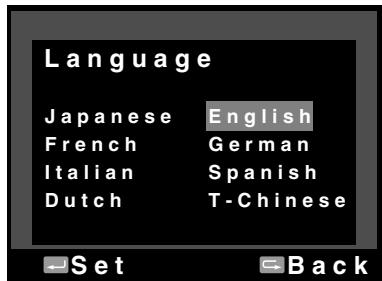
The new setting is saved, and the screen returns to the Basic Setup menu.
Power save timer settings
If no operations are performed for a certain period when power is on, the LCD display turns off automatically and the camera enters Power Save Timer mode to save battery power.
Note:
While the camera is in Power Save Timer mode, you can press any button to return to the previous mode.
- Select Power Save Timer in the Basic Setup menu using the JOG dial, and press the ENTER button. For details on using the menu, see "Basic Setup menu" on page 42.
- Use the JOG dial to select the length of time before the camera enters Power Save Timer mode, and press the ENTER button. You can select 3 min., 5 min. (default setting), 10 min., or 20 min. The new setting is saved, and the screen returns to the Basic Setup menu.
Assigning a function to the USER button
You can assign one of the following functions to the USER button: Delete, Lock, Magnify, Print, Settings (current settings), and Film. Delete is the default setting.
- Use the JOG dial to select Assign User Button in the Camera Settings menu, and press the ENTER button. For details on using the menu, see "Camera Settings menu" on page 41.
- Use the JOG dial to select a function to be assigned, and press the ENTER button. The selected function is assigned to the USER button, and the screen returns to the Camera Settings menu.
Confirming the current settings
You can check the current settings on the LCD monitor.
- Select Current Settings in the Camera Settings menu using the JOG dial. For details on using the menu, see "Camera Settings menu" on page 41.
The Current Settings screen is displayed.
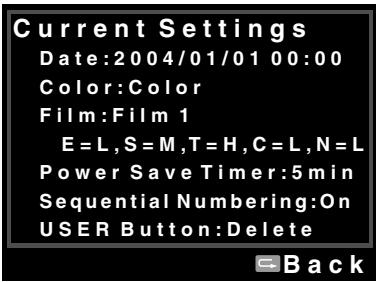
- After confirming the setting information, press the CANCEL button to return to the Camera Settings menu.
Resetting the default settings
If necessary, you can use this function to initialize all current settings to their factory defaults, as shown below.
| Setting | Default |
| Color | Color |
| Film | Standard |
| Date | YYYY/MM/DD |
| Power Save Timer | 5 min. |
| Sequential Numbering | On |
| LCD Brightness | 5/8 |
| Language | English |
| USER Button | Delete |
Follow the steps below to restore the default settings.
- Use the JOG dial to select Initialize Settings in the Camera Settings menu, and press the ENTER button. The Initialize Settings screen is displayed. For details on using the menu, see "Camera Settings menu" on page 41.
- Press the ENTER button to select OK. Camera Settings are initialized, and the screen returns to the Camera Settings menu.
Releasing the Shutter
Full and half-release
The shutter button has the following two-step function.
Half-release: When you press the shutter button halfway down, the optimal shutter speed (i.e., optimal exposure value) is displayed in the viewfinder. Also, pressing the shutter button halfway down in playback mode or Power Save Timer mode returns the camera to picture-taking mode.
Full-release: Press the shutter button all the way down to take a photo.
Focusing
To focus on a subject such as a group of people, rotate the focus ring on the lens.
Note:
Center your eye in the viewfinder to help you focus.
When vertical lines appear in the subject, turn the focus ring until the lines merge.
Taking Pictures
About the Status Gauge
You can use the status gauge on top of the camera to check the following: the number of remaining photos, photo quality, remaining battery power, and white balance. Each needle indicates the status of one of these items.
Note:
When the status gauge needs to be adjusted, you can calibrate the needles manually. For details, see "Calibrating the Needles on the Status Gauge" on page 31.
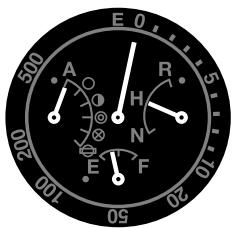
Number of remaining photos
The long needle at the top of the status gauge indicates the number of remaining photos (0 to 500). When an SD card is not installed in the camera or an error occurs, the needle indicates E.
Note:
Although "500" is shown on the meter as the maximum number, the actual maximum number of remaining photos is 999.
Photo Quality
The short needle on the right-side of the status gauge indicates the photo quality setting: N (Normal: 2240 x 1488 pixels), H (High: 3008 x 2000 pixels), or R (CCD-RAW).
Remaining battery power
The short needle at the bottom of the status gauge indicates the remaining battery power. The gauge goes from E (Empty) to F (Full).
White balance
The short needle on the left side of the status gauge indicates the white balance setting. The following icons indicate the current white balance settings.
| Icons | White balance setting |
| A | Auto |
| ○ | Sunny |
| ➀ | Shade |
| ◎ | Cloudy |
| ⊗ | Incandescent |
| ‒‒‒‒‒‒‒‒‒‒‒‒‒‒‒‒‒‒‒‒‒‒‒‒‒‒‒‒‒‒‒‒‒‒‒‒‒‒‒‒‒‒‒‒‒‒‒‒‒‒‒‒‒‒‒‒‒‒‒‒‒‒‒‒‒‒‒‒‒‒‒‒‒‒‒‒‒‒‒‒‒‒‒‒‒‒‒‒‒‒‒‒‒‒‒‒‒‒‒‒–– |
Setting Photo Quality
Before taking photos using the camera, photo quality (image format, size, and compression ratio) must be specified. Set photo quality according to how you plan to use your image data.
Photo quality setting
When taking photos using the camera, images are saved in JPEG or RAW format. The following table shows image formats and their compression ratios (RAW format cannot be compressed).
| Image format and size | Compression ratio | Status gauge setting | Average file size |
| 2240 × 1488 (JPEG) | 1/4 (unchangeable) | N | about 1.5MB |
| 3008 × 2000 (JPEG) | 1/4 (unchangeable) | H | about 3MB |
| CCD-RAW | - | R | about 10MB |
Follow the steps below to set photo quality.
- Switch the Photo quality/WB lever to the Q position.
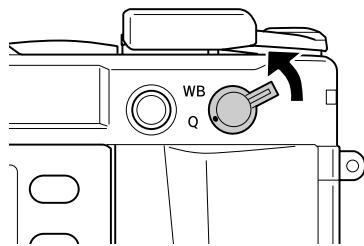
- Rotate the JOG dial to select your desired photo quality. The selected photo quality is indicated on the status gauge (the short needle on the right side of the gauge). For details, see "About the Status Gauge" on page 23.
- Return the Photo quality/WB lever to the center position.
Setting White Balance
The white balance function adjusts the camera for different kinds of lighting. It makes white look the same color in any situation. The camera has two white balance modes: automatic and manual. In manual mode you can adjust the setting to suit the subject and environment. Follow the steps below to adjust white balance manually.
- Switch the Photo quality/WB lever to the WB position.
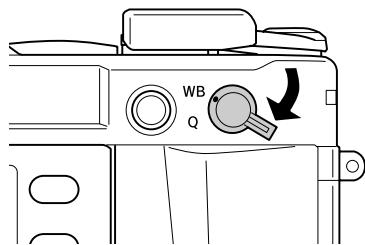
- Rotate the JOG dial to select the desired white balance (light source). You can select from Auto, Sunny, Shade, Cloudy, Incandescent, or Fluorescent.
Note:
You can check the selected white balance setting on the status gauge. For details, see "About the Status Gauge" on page 23.
- Return the Photo quality/WB lever to the center position.
Setting ISO Sensitivity
Sensitivity is a measure of how quickly the camera reacts to light. You can change the light sensitivity for a specific purpose and time manually or let the camera select it automatically. Follow the steps below to select ISO sensitivity manually.
- Pull up on the shutter speed dial (ISO speed dial) as shown.
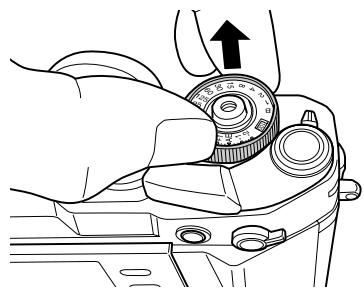
- Rotate the ISO speed dial. You can select ISO sensitivity from 200, 400, 800, or 1600.
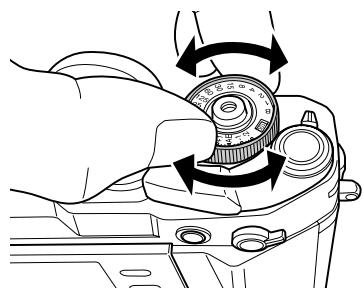
- Release the ISO speed dial.
Note:
If the subject is dark, setting a higher ISO sensitivity allows faster focusing and less chance of blurring. However, your photos may contain noise (lose color) or become grainy.
Setting Auto Exposure (Aperture)
When you set the aperture, the most appropriate shutter speed settings are automatically selected. Follow the steps below to set the aperture for a photo.
- Rotate the shutter speed dial to AE.
- Rotate the aperture ring to select the desired value.
- Pull the shutter charge lever back and release it.
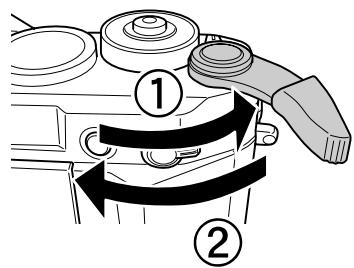
- Focus on the subject.
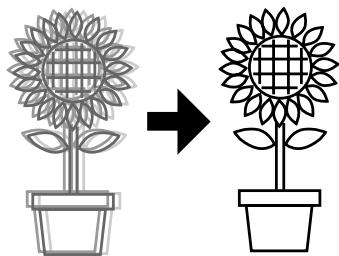
- Press the shutter button all the way down.
Shutter speed is automatically set at an appropriate exposure, and a picture is taken.
Note:
- When you set NR (Noise Reduction) to Hi (High) in the Film Settings screen and set the exposure at more than 2 seconds, noise reduction is automatically performed after taking a photo. While the noise reduction is being performed, do not turn the power off until the SD card access light goes out. If you turn the power off before the noise reduction procedure is complete, the image is saved without noise reduction. For brighter subjects, fast moving subjects or higher speed film, a higher shutter speed is recommended. You can take photos locking the aperture value manually. For details, see "Manually Locking the Aperture Setting" on page 29.
Exposure compensation
Exposure compensation is used to alter the exposure suggested by the camera. Exposure can be set between AE -2.0 EV (underexposure) and AE +2.0 EV (overexposure).
You can change exposure compensation using the shutter speed dial.
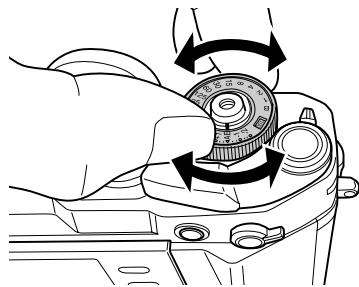
| Background is much brighter than the main subject | Select positive values |
| Background is much darker than the main subject | Select negative values |
Note:
- When you switch the shutter speed setting from AE (0) to another value, rotate the shutter speed dial while pressing the lock-release button. To cancel the exposure compensation, turn the shutter speed dial to AE. The exposure compensation value is set to zero.
Locking the exposure setting (AE lock)
The AE-lock button is used to take pictures using a locked exposure setting. This function is useful when setting exposure before shooting a backlit subject.
- Position the subject for which you want to set exposure, and press the AE-lock button. The exposure is locked and remains locked while the AE-lock button is held.
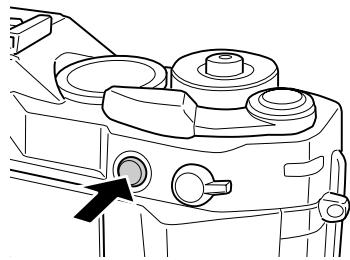
- Continue to press down on the AE-lock button and press the shutter button. (You can reposition the subject in the viewfinder without affecting the exposure setting.)
A picture is taken with the exposure set when you pressed the AE-lock button.
Note:
Exposure is not locked even if you press the shutter button halfway.
Setting Manual Exposure (Shutter Speed)
You can manually select a shutter speed from 1 to 2000 seconds, or you can select B (Bulb) as the shutter speed. B mode is useful for fast moving subjects or when you have little time to check focus.
To set shutter speed, follow the steps below.
- Pull back on and release the shutter charge lever.
- Rotate the shutter speed dial to the desired shutter speed value (1 to 2000).
Note:
To switch the shutter speed setting from auto to manual, rotate the shutter speed dial while pressing the lock-release button.
- Press the shutter button halfway down. Both the optimal shutter speed (optimal exposure) and current shutter speed are displayed in the viewfinder. (The optimal shutter speed is the flushing number.)
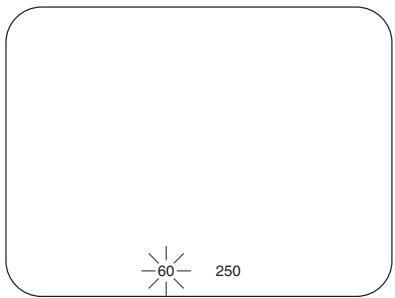
- Rotate the aperture ring until the optimal shutter speed matches the current shutter speed. The optimal shutter speed number stops flashing.
- Focus on the subject.
- Press the shutter button all the way down to take a photo.
Note:
If you set the shutter speed at a high value, you can shoot a fast moving subject without blurring. To avoid blurring, set the shutter speed faster than "1 sec./focal length." If you set a slow shutter speed, a tripod is recommended.
B (Bulb) shooting mode
Use bulb shooting mode when you need to take pictures at night or in low light conditions. This mode keeps the shutter open.
- Rotate the shutter speed dial to B.
- Rotate the aperture ring to select the desired value.
- Pull back on and release the shutter charge lever.
- Focus on the subject.
- When the exposure looks right, press the shutter button all the way down to take the picture.
Note:
- When you set NR (Noise Reduction) to Hi (High) in the Film Settings screen and set the exposure at more than 2 seconds, noise reduction is automatically performed after taking a photo. Do not turn the power off until the SD card access light goes out. If you turn the power off before the noise reduction procedure is complete, the image is saved without noise reduction.
- When taking photos in B shooting mode, use a tripod or cable release to prevent the picture from blurring. Install or remove a cable release as shown in the illustration below.
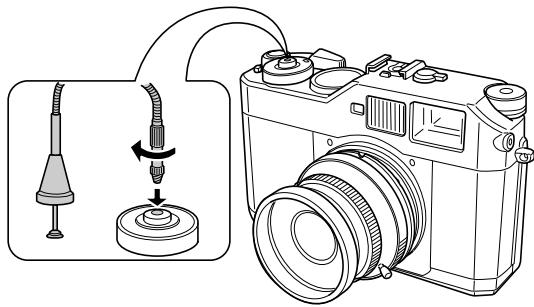
Manually Locking the Aperture Setting
To lock the aperture manually, follow the steps below.
- Pull back on and release the shutter charge lever.
- Rotate the aperture ring to the desired value.
- Press the shutter button halfway. Both the optimal shutter speed (optimal exposure) and current shutter speed are displayed in the viewfinder. (The optimal shutter speed is the flashing number.)
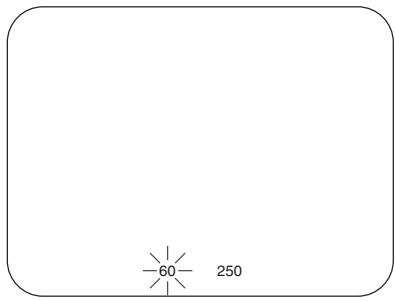
- Rotate the shutter speed dial to the optimal shutter speed value.
- Focus on the subject.
- Press the shutter button all the way down to take a photo.
Note:
You can also set the aperture automatically. For details, see "Setting Auto Exposure (Aperture)" on page 26.
Selecting a Frame
You can select 28mm, 35mm, and 50mm frames. Turn the frame selector lever to the frame appropriate for the focal length of the lens you're using. The parallax is automatically corrected.
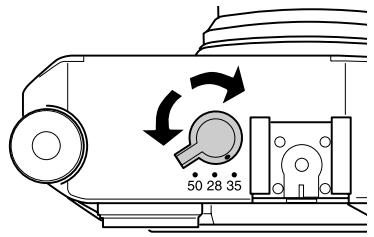
The frame setting is displayed in the viewfinder.
Selecting Color or Monochrome Photos
You can specify color or monochrome photos. The default setting is Color. When you select Monochrome, you can add a color filter effect in the Monochrome Filter screen.
- Use the JOG dial to select Color Setting in the Camera Settings menu, and press the ENTER button. The Color Setting screen is displayed. For details on using the menu, see "Camera Settings menu" on page 41.
- Select Color or Monochrome.
If you want color photos, use the JOG dial to select Color and press the ENTER button. The color setting is saved and the screen returns to the Camera Settings menu.
If you want black and white photos, use the JOG dial to select Monochrome and press the MENU button. The Monochrome Filter screen is displayed. Proceed to step 3.
- Select one of the following monochrome filters using the JOG dial, and press the ENTER button.
| Standard | No color filter is selected. |
| Green | Suitable for portraits. |
| Yellow | Suitable for landscape photos. The color contrast is enhanced in the order of Yellow, Orange, and Red. |
| Orange | |
| Red |
The setting is saved and the screen returns to the Camera Settings menu.
Note:
When you select a monochrome filter, you can take monochrome photos with a color filter effect.
Selecting Image Settings
You can select settings for the following image types: Standard, Film1, Film2, or Film3.
| Standard | Values for Edge Enhance, Saturation, Tint, and Contrast, are set to Me (Medium), and NR (Noise Reduction) is set to Lo (Low) by default. |
| Film1 to Film3 | You can set your desired value for Edge Enhance, Saturation, Tint, Contrast, and NR (Noise Reduction) using the JOG dial. |
To make Film1, Film2, or Film3 settings, follow the steps below.
- Use the JOG dial to select Film Setting in the Camera Settings menu, and press the ENTER button. The Film Setting screen is displayed. For details on using the menu, see "Camera Settings menu" on page 41.
- Select your desired image type (Film1, Film2, or Film3) and press the MENU button. The menu for your selection is displayed.
- Use the JOG dial to select the setting(s) you want and press the ENTER button. You can select Edge Enhance, Saturation, Tint, Contrast, and NR (Noise Reduction) for each film type.
- Use the JOG dial to select Lo, Me, or Hi, then press the ENTER button.
- Repeat steps 3 and 4 to make additional changes.
- When you're done, select Finish and press the ENTER button. The new values are saved, and the screen returns to the Camera Settings menu.
Using the Flash Function
An optional flash can be used when taking photos under poor lighting conditions.
- Install an optional flash in the camera's accessory shoe or X contact.
- Pull back on and release the shutter charge lever.
- Set the shutter speed to 1/125 or less.
- Focus on the subject and identify the distance between the camera lens and the subject.
- Set the corresponding aperture value from the distance and aperture list. See the documentation for your flash for details.
- Rotate the aperture ring to select the desired value.
- Focus on the subject again and press the shutter button down.
Note:
For more information, see the documentation for your flash.
Numbering Your Photos Sequentially
You can number your photos in sequence across different memory cards.
- Use the JOG dial to select Sequential Numbering in the Basic Setup menu, and press the ENTER button. For details on using the menu, see "Basic Setup menu" on page 42.
The Sequential Numbering screen is displayed.
| On (default) | Numbering continues even when the memory card is replaced. |
| Off | Number is reset to 1 when the memory card is replaced. |
- Use the JOG dial to highlight On or Off, and press the ENTER button. The new setting is saved and the screen returns to the Basic Setup menu.
Calibrating the Needles on the Status Gauge
You can check the number of remaining photos, photo quality, remaining battery power, and white balance using the status gauge on the top of the camera. There are 4 needles on the gauge. If any of these needles becomes inaccurate, follow the steps below to adjust it.
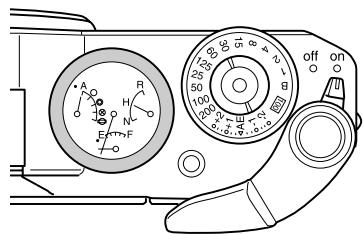
- Use the JOG dial to select Calibrate Needles in the Camera Settings menu, and press the ENTER button. The Needle Calibration screen is displayed. For details on using the menu, see "Camera Settings menu" on page 41.
- Use the JOG dial to select the needle you want to adjust and press the ENTER button.
The needles indicate the following:
| Needle | Function |
| E (long needle at the top of the gauge) | Number of remaining photos |
| R (short needle on the right-side of the gauge) | Photo quality |
| E (short needle at the bottom of the gauge) | Remaining battery power |
| A (short needle on the left-side of the gauge) | White balance |
Note:
For details, see "About the Status Gauge" on page 23.
- Move the left or right arrow using the JOG dial and press the ENTER button. The selected needle is moved by increments of one each time you press the ENTER button.
- Repeat step 3 until the needle returns to its original position.
- Select Finish and press the ENTER button.
- To calibrate another needle, repeat steps 2 to 5. When you're done, select Finish and press the ENTER button. The settings are saved, and the screen returns to the Camera Settings menu.
Viewing and Managing Your Photos
Viewing Photos on the LCD Display
When you turn the power switch on, you're ready to take pictures. To view the photos on the camera, invert the LCD display toward you and press the LCD button. The camera switches from picture-taking mode to playback mode, and the last recorded photo is displayed. For details about inverting the LCD monitor, see "How to Use the LCD Display" on page 40.
Viewing the previous or next photo
Rotate the JOG dial clockwise or counterclockwise to display the previous or next photo.
Switching between display modes
In playback mode, photos can be displayed in 7 modes. To switch between display modes, raise the JOG dial and rotate it clockwise or counterclockwise.
- Standard display (default setting)
- General information display
- Histogram display
- Highlight display
- Framing guide display
- Detailed information display -4-photo display
Note:
When viewing a photo in playback mode for the first time, the photo is displayed in standard display. The next time you return to playback mode, the photo is displayed in the last selected display style.
Display icons
The icons displayed at the bottom of the LCD display indicate the following:
| ○□ | Indicates you can complete the procedure by rotating the JOG dial clockwise or counterclockwise in the raised position. |
| ○□ | Indicates you can scroll a photo horizontally by rotating the JOG dial clockwise or counterclockwise in the raised position (displayed in the Magnify mode). |
| ○□ | Indicates you can scroll a photo vertically by rotating the JOG dial clockwise or counterclockwise in the raised position (displayed in the Magnify mode). |
| ○□ | Indicates you can display the previous or next photo by rotating the JOG dial clockwise or counterclockwise in the unraised position. |
| Indicates you can magnify or shrink a photo by rotating the JOG dial clockwise or counterclockwise in the unraised position (displayed in the Magnify mode). | |
| Appears when the ENTER button is available. | |
| Appears when the CANCEL button is available. | |
| Appears when the current photo display style is full screen. | |
| Appears when the current photo display style is 4-photo display. |
Note:
- When the battery is running low, the (battery) icon appears above the JOG dial icon.
- When the JOG dial is in the raised position, the icon turns green in the bottom left corner of the screen. When the JOG dial is in the unraised position, the icon turns green.
Information provided in display modes
This section describes the information provided in each of the display modes.
Standard display
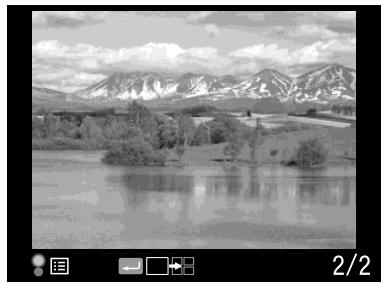
Number of current photo/total number of images (9999 maximum)
General information display
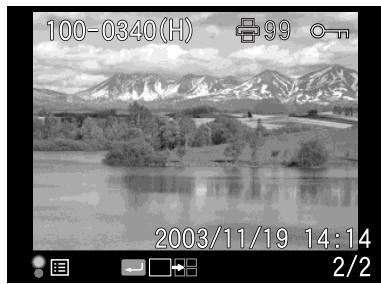
Number of current photo/total number of images (9999 maximum) Date and time of photo File number Photo quality Lock (○) icon (displayed only when the image is locked)
- Print (□) icon with number of prints (displayed only when DPOF settings have been made)
Histogram display
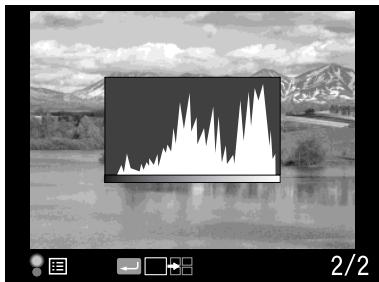
Number of current photo/total number of images (9999 maximum) - Histogram
Highlight display
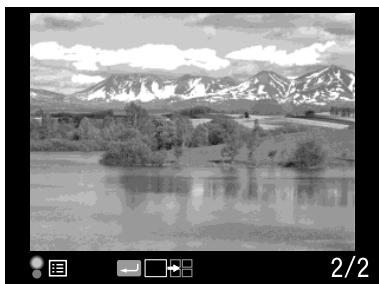
Number of current photo/total number of images (9999 maximum) Highlight display
Framing guide display
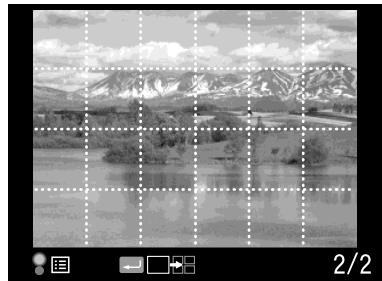
□ Framing guide Number of current photo/total number of images (9999 maximum)
Detailed information display
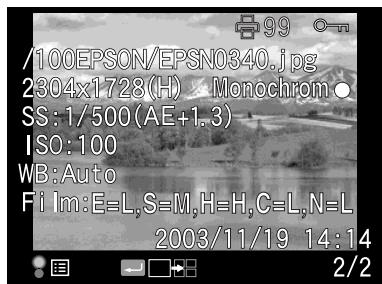
Number of current photo/total number of images (9999 maximum) Date and time of photo File name (file number and format) Image resolution
Photo quality Shutter speed (when the picture is taken with auto exposure, "AE" and the exposure compensation value are displayed. e.g., AE +1.3) ISO sensitivity White balance Film setting Lock (○) icon (displayed only when the image is locked) Print (□) icon with number of prints (displayed only when DPOF settings have been made) Color (color/monochrome) setting. When monochrome is set, the filter color is also displayed.
4-photo display
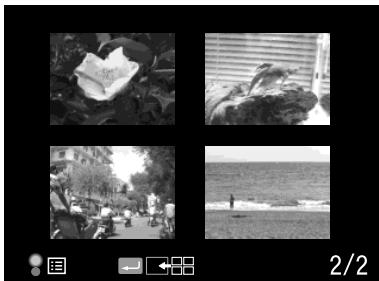
Number of current photo/total number of images (only for the selected photo)
Viewing Your Photos in a Slide Show
You can play back images in an automatic slide show with an interval of about 3 seconds between images.
- Press the MENU button in playback mode. The Main menu is displayed.
- Use the JOG dial to select Slide Show and press the ENTER button.
- Use the JOG dial to select the direction for viewing the slide show.
- When you rotate the JOG dial clockwise in the raised position, the slide show starts with the first stored image. The playback (▶) icon is displayed in the bottom of the screen.
- When you rotate the JOG dial counterclockwise in the raised position, the slide show starts with the last stored image. The reverse playback (▲) icon is displayed in the bottom of the screen.
- Press the ENTER button. The slide show starts.
Note:
To stop the slide show, press the ENTER button. To restart, press the ENTER button again. To return to the Main menu, press the CANCEL button.
Deleting Images
In playback mode, you can delete the currently displayed image or all images.
Deleting a single image
To delete the currently displayed image, follow the steps below.
- Use the JOG dial to display the image you want to delete, and press the MENU button. The Main menu is displayed.
- Select Delete and press the ENTER button. The Delete menu is displayed.
- Confirm that Delete 1 image is highlighted, and press the ENTER button. The confirmation screen is displayed.
- In the confirmation screen, use the JOG dial to select OK and press the ENTER button.
Note:
If you want to delete more images, display the next image by rotating the JOG dial in the unraised position. You cannot delete a locked image (displayed with the lock icon).
Deleting all images
- Press the MENU button in playback mode. The Main menu is displayed.
- Select Delete and press the ENTER button. The Delete menu is displayed.
- Raise the JOG dial. Use it to select Delete all images and press the ENTER button. The confirmation screen is displayed.
- Select OK on the confirmation screen and press the ENTER button. Note:
- You cannot delete locked images (displayed with the lock icon). For details, see "Locking Images" on page 38.
- When an SD memory card is locked, the message "Cannot delete. The SD card is write-protected." is displayed. Remove the card from the camera, then unlock the card and try again.
Formatting a memory card
Format a memory card when you want to erase all the data on the card or when a message on the LCD monitor instructs you to do so.
To format a memory card, follow the steps below.
- Use the JOG dial to select Format SD Card in the Camera Settings menu and press the ENTER button. The Format SD Card menu is displayed.
- Select Quick Format or Full Format using the JOG dial, and press the ENTER button. The confirmation screen is displayed.
- Select OK using the JOG dial, and press the ENTER button. The SD card formatting starts and the message " Formatting" is displayed.
After the SD memory card is formatted, the screen returns to the Camera Settings menu.

Caution:
You must format all memory cards in your camera before you use them. While formatting an SD memory card, do not take the card out of the camera.
Note:
- When you format an SD memory card, all the data on the card is erased, including locked images.
- When an SD memory card is locked, the message "Cannot format. The SD card is write-protected." is displayed. Remove the card from the camera, then unlock the card and try again.
Locking Images
This function is used to protect images from accidental deletion.
Note:
After locking images, they become read only.
Locking an image
- In playback mode, display the image you want to lock and press the MENU button. The Main menu is displayed.
- Use the JOG dial to select Lock, and press the ENTER button. The Lock menu is displayed.
Note:
If the selected image has already been locked, the lock icon is displayed in the top right corner of the image.
- Raise the JOG dial, then select Lock/Unlock 1 image and press the ENTER button.
Note:
If you want to lock additional images, rotate the JOG dial in the unraised position to display the next image. The menu item "Lock/Unlock 1 image" changes depending on whether the selected image is locked. - When the image is locked, the lock icon is displayed in the top right corner of the image.
Locking all images
- Press the MENU button in playback mode. The Main menu is displayed.
- Use the JOG dial to select Lock, then press the ENTER button. The Lock menu is displayed.
- Select Lock all images and press the ENTER button. All the images in the SD memory card are locked.

Caution:
When you format an SD memory card, all the data on the card is erased, including locked images.
Unlocking all images
To unlock all images in the SD memory card, raise the JOG dial and select Unlock all images, then press the ENTER button. The lock icon no longer appears on unlocked images.
Magnifying Images
You can zoom in on an image displayed in the LCD display.
- Press the MENU button in playback mode. The Main menu is displayed.
- Use the JOG dial to select Magnify, then press the ENTER button. The Magnify mode icon is displayed on the top left corner of the screen.
- Rotate the JOG dial (unraised position) clockwise to enlarge an image. To reduce an image, rotate the JOG dial (unraised position) counterclockwise.
Note:
Rotate the JOG dial (raised position) and press the ENTER button to switch the direction from vertical to horizontal, or vice versa. The current direction setting is indicated by the horizontal direction icon or vertical direction icon in the bottom left corner of the screen.
LCD Brightness Settings
You can select 8 levels of brightness for the LCD display. (default setting is 5).
- Use the JOG dial to select LCD Brightness in the Basic Setup menu, then press the ENTER button.
- Select the desired brightness and press the ENTER button. The new setting is saved, and the screen returns to the Basic Setup menu.
Setting Number of Prints (DPOF Setting)
You can specify the number of prints for each photo you print. You can also specify the information to be included when you print a photo. This information is saved in a Digital Print Order Format (DPOF) file on the camera's memory card. You can print with DPOF settings when using a printer and application that support the DPOF standard. Also, in some countries you will find digital photo labs that support DPOF and can print using the settings in your DPOF file.
- Press the MENU button in playback mode. The Main menu is displayed.
- Use the JOG dial to select Print Order, then press the ENTER button.
- Select Set DPOF for one or Set DPOF for all and press the ENTER button.
To specify the DPOF for the currently displayed image, select Set DPOF for one.
To confirm the current DPOF setting, select View current DPOF.
Note:
If you want to apply DPOF settings to additional images, rotate the JOG dial in the unraised position to display the next image.
- Use the JOG dial to specify the number of prints and press the ENTER button.
Note:
The number of prints cannot be specified for CCD-RAW data.
Using the LCD Display
How to Use the LCD Display
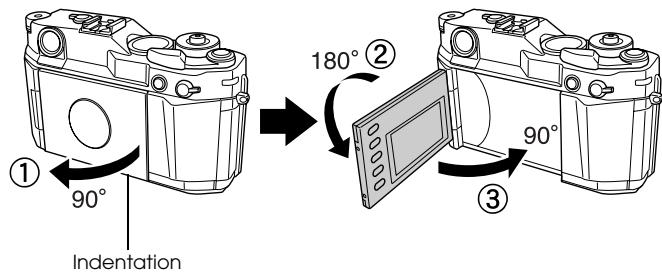
You can use the LCD display to view photos in playback mode or make camera settings. When using the LCD display, invert it toward you and press the LCD button. To invert the LCD monitor, insert your finger into the indentation at the bottom of the display and open the LCD so that it is at right angles to the camera (1). Then rotate it 180 degrees (2) and turn the display 90 degrees again (3).
Caution:
- Do not leave the LCD display open, or try to use the camera while it is open. Do not attempt to lift the camera by the LCD display.
Note:
- When you turn the power switch on while the LCD display is inverted toward you, the camera enters playback mode.
- When you perform one of the following in playback mode, the LCD display turns off and the camera returns to picture-taking mode.
- Press the LCD button
- Press the shutter button halfway down
- Invert the LCD display
Menu structure
In playback mode, you can use several menus to specify camera settings. To navigate through the menus or functions, use the JOG dial and buttons next to the LCD monitor.
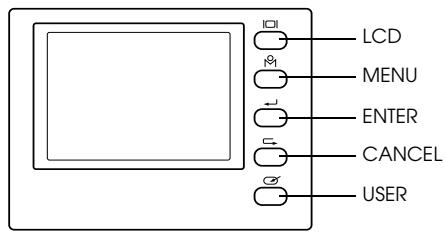
LCD button:
Switches from picture-taking mode to playback mode, and vice versa.
MENUBuTton:
Displays the Main menu on the LCD display.
ENTER button:
Selects settings and displays submenus.
CANCEL button: Used to exit a menu without making changes. The screen returns to the previous menu or function.
USER button: Accesses user-assigned functions.
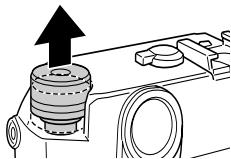
JOG dial: Rotate the JOG dial clockwise or counterclockwise to display the previous or next menu or photo. The JOG dial is used in either the raised or unraised position, depending on the menu or function. To use the JOG dial in the raised position, pull it up as shown below.
Main menu
When you press the MENU button in playback mode, the Main menu is displayed. All operations can be started from this menu.
| Function | Description |
| Delete | Delete 1 image or Delete all images |
| Magnify | Max 9.4 times (for JPEG images with 3008 x 2000 pixels) Max 2 times (for RAW images) Display position can be moved (vertical/horizontal). |
| Lock | Lock/Unlock 1 image, Lock all images or Unlock all images |
| Function | Description |
| Print Order | Set DPOF for one, Set DPOF for all (0 - 99), or View current DPOF. |
| Slide Show | Play photo images in a slide show. |
| Camera Settings | Displays the Camera Settings menu. For details, see "Camera Settings menu" below. |
Camera Settings menu
How to open the menu
To open the Camera Settings menu, follow the steps below.
- Press the MENU button in playback mode. The Main menu is displayed.
- Use the JOG dial to select Camera Settings and press the ENTER button. The Camera Settings menu is displayed.
| Function | Description |
| Current Settings | Displays current settings. |
| Color Setting | Color or Monochrome |
| Film Setting | Available from Film1, Film2, Film3, or Standard. When selecting Film1, Film2, or Film3, you can set a value for Edge Enhance, Saturation, Tint, Contrast, and NR (Noise Reduction). |
| Basic Setup | Displays the Basic Setup menu. See “Basic Setup menu” on page 42. |
| Format SD Card | Quick Format or Full Format |
| Assign USER Button | Assigns a function to the USER button. Available functions are Delete, Lock, Magnify, Print, Settings, and Film. |
| Calibrate Needles | Displays the Needle Calibration menu to adjust the following four needles: E (number of remaining photos), R (photo quality), E (remaining battery power), and A (white balance). These settings are indicated on the status gauge. |
| Initialize Settings | Resetsthe current settings (except date and time settings) to their default values. |
Basic Setup menu
How to open the menu
To open the Basic Setup menu, follow the steps below.
- Press the MENU button in playback mode. The Main menu is displayed.
- Use the JOG dial to select Camera Settings, then press the ENTER button. The Camera Settings menu is displayed.
- Select Basic Setup and press the ENTER button. The Basic Setup menu is displayed.
| Function | Description |
| Time and Date | Sets the date (year, month, and day) and time (hours and minutes). |
| Date Format | Selects date display format from the following: YYYY/MM/DD (default setting) MM/DD/YYYY DD/MM/YYYY |
| Power Save Timer | Selects the length of time before the camera enters Power Save Timer mode. Choices include 3 min, 5 min (default setting), 10 min, or 20 min. |
| Sequential Numbering | Specifies whether to continue numbering images sequentially when you replace a memory card. On (default): sequential numbering continues even if the memory card is replaced. Off: numbering resists at 1 when the memory card is replaced. |
| LCD Brightness | Sets the brightness of the LCD display. |
| Language | Selects the language used on the LCD menus: Japanese, English, French, German, Italian, Spanish, Dutch, T-Chinese |
Using the RAW Data Processing Software
Overview
When you take photos with CCD-RAW specified for photo quality, you can process these photos using the RAW data processing software. The following software is available:
| EPSON PhotoRAW | Process ERF (EPSON RAW File) files provided from DSC (Digital Still Camera) in a batch using optional parameters. |
| EPSON RAW Plug-In | Used with Adobe Photoshop 7, Photoshop CS, or Adobe Photoshop Elements 2.0 to display ERF (EPSON RAW File) files on these applications. |
Note:
To install the EPSON PhotoRAW or EPSON RAW Plug-In software, you need administrator privileges. For CCD-RAW files, only ERF format is supported. - Copy ERF files to your hard drive before processing them. It may take a long time to process them on a memory card.
System Requirements
The system requirements for using the camera with a computer are as follows:
| Windows: | OS: | Microsoft® Windows® 98, 98 Second Edition, Me, 2000 Professional, XP Home Edition, XP Professional |
| Hardware: | Pentium III 1 GHz or higher (Pentium IV 2 GHz or higher is recommended) | |
| Memory: | 256MB or more (512MB or more is recommended) | |
| Hard Disk: | 5MB or more free memory is required for installation | |
| 170MB or more free memory is required for operation | ||
| Display: | SVGA (800 × 600) or higher, 24 bit color or higher | |
| Macintosh: | OS: | Mac® OS 9.1 - 9.2.2 (CarbonLib compatible), Mac OS 10.2 or later |
| Hardware: | G3 233 MHz or higher (G4 1GHz or higher is recommended) | |
| Memory: | 42MB for application memory | |
| Hard Disk: | 50MB or more free memory is required for installation | |
| 170MB or more free memory is required for operation | ||
| Display: | 800 × 600 or higher, 32000 colors or more |

Caution: EPSON PhotoRAW is available only for Windows.
Installing the Software
EPSON PhotoRAW
- Insert the software CD-ROM into the CD-ROM drive.
The EPSON Installer Program dialog box appears automatically.
Note:
If the EPSON Installation Program dialog box does not appear, click the CD-ROM icon, and then select Open from the File menu. Then double-click EPSETUP.EXE. - When the authentication dialog box for assigning administrator privileges appears, enter the user name and password, and then click OK.
- Follow the on-screen instructions until all of the software is installed. When a message appears to inform you that the installation is complete, click Finish.
Uninstalling the software
Perform one of the following to uninstall EPSON PhotoRAW.
- Click Start, point to Settings, and select Control Panel, Add/Remove Programs, and then click EPSON PhotoRAW.
- Click Start, point to Programs, and select EPSON PhotoRAW, and then click Uninstall.
EPSON RAW Plug-In
- Insert the software CD-ROM into the CD-ROM drive.
For Windows users:
The EPSON Installer Program dialog box appears automatically.
Note:
To install the EPSON RAW Plug-In, you need administrator privileges.
If the EPSON Installation Program dialog box does not appear, click the CD-ROM icon, and then select Open from the File menu. Then double-click EPSETUP.EXE.
For Macintosh users:
Double-click the Ins EPSON RAW Plug-In icon inside the EPSON folder.
Note:
When the authentication dialog box for assigning administrator privileges appears, enter the user name and password, and then click OK.
- Follow the on-screen instructions until all of the software is installed. When a message appears to inform you that the installation is complete, click Finish or Quit.
Note:
The EPSON RAW Plug-In is automatically installed in the plug-in folder of Adobe Photoshop 7, Adobe Photoshop CS, or Adobe Photoshop Elements 2.0. If the plug-in folder of Adobe Photoshop 7, Adobe Photoshop CS, or Adobe Photoshop Elements 2.0 is not detected automatically, specify the folder manually.
Uninstalling the software
Follow the steps below to uninstall EPSON PhotoRAW.
For Windows
Click Start, point to Settings, and select Control Panel,
Add/Remove Programs, and then click EPSON RAW Plug-In.
For Macintosh
Delete the EPSON folder in the plug-in folder of Adobe Photoshop
7, Adobe Photoshop CS, or Adobe Photoshop Elements 2.0.
Starting the Software
EPSON PhotoRAW
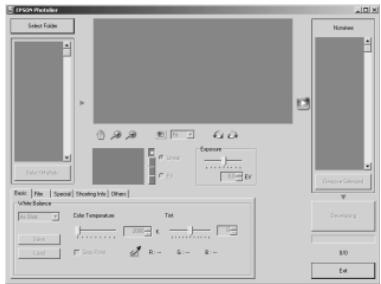
Click Start, point to All programs (or Programs), and select EPSON PhotoRAW, and then click EPSON PhotoRAW.
EPSON PhotoRAW is started and the main window is displayed.
EPSON RAW Plug-In
For Windows
- Click Start, point to All programs (or Programs), and select Adobe, and then click Adobe Photoshop 7, Adobe Photoshop CS, or Adobe Photoshop Elements 2.0.
- Click File, point to Open. The Open dialog box is displayed.
- Select the ERF file and click the Open button.
Note:
- When the EPSON RAW Plug-In does not start automatically even if you select an ERF file, select Open As from the File menu, and select EPSON RAW Plug-In from the Open as drop-down list. Then select your desired ERF file.
You cannot select an ERF file from a subfolder.
For Macintosh
Start Adobe Photoshop 7, Adobe Photoshop CS, or Adobe Photoshop Elements 2.0, and open the ERF file you want to process.
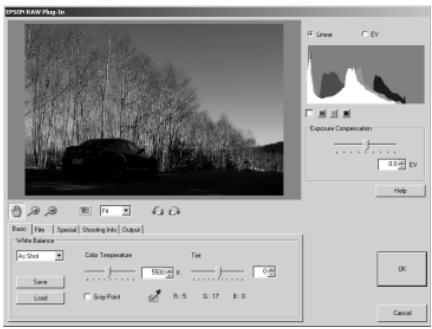
The main window for the EPSON RAW Plug-In is displayed as shown below.
Note:
- When the EPSON RAW Plug-In does not start automatically even if you select an ERF file, select Open from the File menu, and select EPSON RAW Plug-In from the Format drop-down list. Then select your desired ERF file. You cannot select an ERF file from a subfolder.
Finding More Information
For more information about these software applications, see their online help.
Maintenance and Troubleshooting
Cleaning the Camera
To keep your camera operating at its best, you should clean it thoroughly several times a year. Before you perform any maintenance on the camera, be sure to read the "Safety Instructions" on page 1. Then follow these guidelines:
Be sure to turn the camera off before cleaning. Use a clean, dry cloth to keep the camera free of dust. Do not use harsh or abrasive cleaners. If necessary, clean the battery contacts with a dry cloth.
Storing the Camera
If you are not planning to use the camera for a long period of time, remove the battery and store it in a dry location not subject to high temperatures. This prevents damage to the camera from battery leaks or corrosion.
Store the camera in its case. Do not store the camera in the following locations:
Where it will be exposed to direct sunlight (for example, on a car dashboard) Near sources of bright light or high humidity Near sources of heat or in a closed car In areas with excessive dirt or dust Where it will be exposed to strong vibrations or magnetic fields
Troubleshooting
When a problem occurs, an error message usually appears on the LCD display. Refer to the following section to solve the problem.
Status and error messages
| Error message | Description |
| Cannot delete. The image is locked. | Unlock the image using the lock function in the Main menu and try again. |
| Cannot delete. The SD card is write-protected. | Release the write-protect switch from the locked position, and try again. |
| Cannot lock. The SD card is write-protected | The SD card is already locked as the write-protect switch is in the locked position. |
| Cannot unlock. The SD card is write-protected. | Release the write-protect switch from the locked position. |
Contacting Customer Support
If your Epson product is not operating properly and you cannot solve the problem using the troubleshooting information in your product documentation, contact the customer support services for assistance. If customer support for your area is not listed below, contact the dealer where you purchased your product.
Customer support will be able to help you much more quickly if you give them the following information:
Product serial number
(The serial number label is usually on the back of the product.)
Product model Product software version
(Click About, Version Info, or a similar button in the product software.)
Brand and model of your computer - Your computer operating system, including version number. - Names and versions of the software applications you normally use with your product
For users in Hong Kong
To obtain technical support as well as other after-sales services, users are welcome to contact Epson Hong Kong Limited.
Internet Home Page
Epson Hong Kong has established a local home page in both Chinese and English on the Internet to provide users with the following information:
Product information Answers to Frequently Asked Questions (FAQs) Latest versions of Epson product drivers
Users can access our World Wide Web home page at:
http://www.epson.com.hk
Technical Support Hotline
You can also contact our technical staff at the following telephone and fax numbers:
Phone: (852) 2827-8911
Fax: (852) 2827-4383
For users in North America
If you need help with your digital camera, see the contact information below.
Epson provides technical assistance 24 hours a day through the electronic support services and automated telephone services listed in the following table:
World Wide Web
From the Internet, you can reach Epson
Support at http://support.epson.com. At this site, you can download drivers and other files, look at product documentation, and receive technical advice through e-mail.
Automated
A variety of automated help services are
Telephone Services
available 24 hours a day, seven days a week. To use these services, you must have a touch tone telephone and call (800) 922-8911.
To speak to a technical support representative, dial:
U.S.: (562) 276-4303, 6 AM to 6 PM, Pacific Time, Monday through Friday. Canada: (905) 709-2567, 6 AM to 6 PM, Pacific Time, Monday through Friday.
Toll or long distance charges may apply. Before you call, please have the following information ready:
Product name (Epson Rangefinder Digital Camera R-D1) Product serial number (located on the camera body) Proof of purchase (such as a store receipt) and date of purchase Computer configuration and operating system version Description of the problem
You can purchase manuals and accessories from Epson at (800)
873-7766, or visit www.epsonstore.com (U.S. sales only). In Canada,
please call (800) 463-7766 for dealer referral.
For users in Korea
If you need help with your digital camera, contact the shop where you purchased it.
Appendix
Standards and Approvals
Camera
EMC Directive 89/336/EEC
EN55022 Class B
EN55024
Lithium-ion battery
EMC Directive 89/336/EEC
EN55022 Class B
EN55024
Battery charger
Low Voltage Directive 73/23/EEC
EN60950
EMC Directive 89/336/EEC
EN55022 Class B
EN55024
Specifications
Camera
Epson Rangefinder Digital Camera R-D1
General
Dimensions
Height: 88.5 mm (3.54 inches)
and weight:
Width: 142 mm (5.68 inches)
Depth: 39.5 mm (1.58 inches)
Weight: Approx. 590 g (1.3 lb)
Temperature:
Operating: 5 to 35°C (41 to 95°F)
Storage: -20 to 60°C (-4 to 140°F)
Humidity:
Operating: 30 to 80%
(without condensation)
Storage: 10 to 80%
Memory card:
SD memory card: Up to 1GB
Power sources:
Lithium-ion battery (EU-85)
Image format
Recording format:
JPEG, CCD-RAW
File type:
Exif Ver.2.21, DCF (Design rule for Camera
File system) 2.0, DPOF 1.1 compliant
Recorded image size:
JPEG: 2240 × 1488 pixels
JPEG: 3008 × 2000 pixels
CCD-RAW
JPEG compression ratio: Locked at 1/4
PRINT image matching:® Supports PRINT Image Matching Ver.2.6 (JPEG only)
Optic system
Image sensor: Primary-color CCD (APS size: 23.7 × 15.6 mm)
Available pixels: 6.1 M
Lens mount: EM mount
Viewfinder: Real image range finder type see-through viewfinder
Viewfinder Real-size
magnification:
Range finder: With coupled coincidence-type range finder (interlocking range: 0.7m to infinity)
Visual field 28/35/50 mm bright frame switching, parallax auto frame: correction
Visual field 85% (at 3m )
ratio:
Shutter: Electronically controlled vertically traveling focal plane shutter Shutter speed: 1/2000 to 1 sec, bulb
Flash: Synchronous: 1/125 sec or less
Supported only in synchronized shooting
Metering: TTL screen surface direct actual-aperture center-weighted averaged metering
Exposure Aperture priority auto exposure/manual control:
Display functions
LCD display: Type 2 low-temperature polysilicon color LCD, 235K pixels
Status gauge: Indicates current status of the following: number of remaining photos, photo quality, remaining battery power, and white balance
SD card access: On/Off/flashing red
LED:
Interface (external connector)
Memory card I/F: SD card I/F
X contact: For external flash (synchronizes at shutter speed down to 1/125 sec)
Camera settings
Image size: Normal (JPEG: 2240 x 1488 pixels), High (JPEG: 3008 x 2000 pixels), RAW (CCD-RAW)
White balance: Auto (TTL metering auto white balance)/Sunny/Shade/Cloudy/Incandescent/Fluorescent
Number of remaining photos: E (no card/card error), 0 to 500 (500 on display; up to 999 can be taken)
Remaining battery power: Full to Empty
Exposure compensation: -2.0 to +2.0 EV (1/3 EV steps)/AE (Auto)
Shutter speed: 1/2000 sec to 1 sec, bulb
ISO speed: 200/400/800/1600
Viewfinder angle: 28/35/50 mm
Viewfinder indicators
Exposure meter: Displays optimal shutter speed on LED display based on metered value. Also displays current value through shutter speed dial (optimal shutter speed is the flashing number on the LCD display). Displayed shutter speed: 1/2000 to 1 sec, bulb
Internal clock
Internal clock: Records the shooting date on the photo (YYYY/MM/DD, H/M/S) Contains a capacitor for clock back-up (24 hours without battery)
Power supply
Type of battery: Li-ion battery Model: EU-85 Output voltage: 3.7 V Capacity: 1500 mAh
Battery service life: Number of shots possible
Under shooting conditions 1: Up to about 1000 shots
Under shooting conditions 2: Up to about 360 shots (compliant with the CIPA standard)
- Shooting conditions 1: Shooting 6 pictures per minute at a regular interval, then turning the camera off for one minute before turning it on again and repeating this procedure. Flash is off, shutter speed is set to 1/250, ISO is set to 200, image size is set to N (JPEG; 2240 x 1488 pixels) and WB is set to Sunny.
** Shooting conditions 2: Turning on the camera and waiting 30 seconds before taking the first picture, then taking 9 more pictures at 30 second intervals before turning off the camera and removing the battery for 10 minutes, then repeating this procedure. The flash is attached to the accessory shoe and is on for every second shot, shutter speed is set to 1/125, ISO is set to 200, image size is set to H (JPEG; 3008 x 2000 pixels) and WB is set to Auto.
Battery charger
Model No.: A281H
Input voltage: 100 to 240 VAC, 50/60 Hz
Charging method: Constant voltage, constant current
Charging display: Charging: Red LED lit
Completed: LED unlit
Performance
File size of photos
Photo quality:
Compression ratio
Average file size
2240 × 1488 (JPEG):
Locked at 1/4
about 1.5MB
3008 × 2000 (JPEG):
Locked at 1/4
about 3MB
CCD-RAW:
Non-compressive
about 10MB
About Optional Accessories
The following options are available for the camera.
Lithium-ion battery (Model: EU-85)
Index
A
Accessory shoe, 10, 11
AE lock, 27
AE-lock button, 10, 27
Auto Exposure, 26
B
Basic Setup menu, 42
Battery
battery charger, 9
charging, 12
inserting, 13
lamp, 13
li-ion battery, 9, 12
remaining battery power, 23
Battery charger, 9
Brightness of the LCD display, 38
Bulb shooting, 28
Button
AE-lock button, 11, 27
CANCEL button, 11
ENTER button, 10, 11
LCD button, 11, 33, 40
lens release button, 11
lock-release button, 28
MENU button, 11
shutter button, 11
USER button, 11
C
Cable release, 28
Calibration Needle Indicator, 31
Camera Settings menu, 41
CANCEL button, 10
Color setting
color, 29 monochrome, 29
Compression ratio, 24
Contacting EPSON, 47
Current settings, 21
Customer support, 47
D
Date and time settings, 19
Date format, 20
Default settings, 22
Delete
Deleting all images, 37
Deleting an image, 37
Display icons, 33
Display style, 33
4-photo display, 35
Detailed information display, 35
Framing guide display, 35
General information display, 34
Highlight display, 35
Histogram display, 35
Standard display, 34
DPOF, 39
E
ENTER button, 10
EPSON PhotoRAW, 43, 44
EPSON RAW Plug-In, 43
ERF (EPSON RAW File), 43
Exposure compensation, 26
F
Flash, 30
Format
SD memory card, 15, 37
Frame selector lever, 10, 11
1
Icons, 33
Image locking, 38
Image type, 30
Installing
memory card, 14
software, 44
Invert
LCD display, 40
ISO sensitivity, 25
ISO speed dial, 10, 11, 25
J
JOG dial, 10, 41
JPEG, 24
L
Language, 20
LCD button, 10
LCD display, 10, 11, 19, 40 invert, 40
Lens release button, 10
Li-ion battery, 9
L mount lens
mounting, 17
removing, 18
Lock-release button, 10, 11
M
M (Bayonet) mount lens
mounting, 16
removing, 17
Main menu, 41
Manual shooting
aperture locking, 29
shutter speed locking, 27
Memory card cover, 15
Memory card slot, 15
MENU button, 10
N
Needle indicator
remaining battery power, 23
white balance, 23
Number of remaining photos, 23
0
Option
flash, 30
M-Bayonet adapter ring, 17
P
Photo quality, 23, 24
Photo quality lever, 10, 11
Power on/off, 19
Power save timer, 21
Power switch, 10, 11
PRINT image matching, 50
R
RAW, 24
s
SD card access LED, 10, 11
SD memory card
formatting, 15, 37
installing, 14
removing, 16
write protect switch, 15
Setting
brightness of the LCD display, 38
date and time, 19
date format, 20
language, 20
power save timer, 21
white balance, 24
Shutter button, 10
full-release, 22
half-release, 22
Shutter charge lever, 10, 11
Shutter speed dial, 10, 11, 26
Slide show, 36
Software
installing, 44
system requirements, 43
Status gauge, 10, 11
number of remaining photos, 23
photo quality, 23
T
Technical support, 47
U
USER button, 10, 21
W
WB lever, 10
WB settings lever, 11
White balance, 23
Write protect switch, 15
X
X contact, 10, 11
Z
Zoom in/out, 38
- CONTENTS
- INTRODUCTION
- CHAPTER 1 GETTING STARTED
- CHAPTER 2 TAKING PICTURES
- CHAPTER 3 VIEWING AND MANAGING YOUR PHOTOS
- CHAPTER 4 USING THE LCD DISPLAY
- CHAPTER 5 USING THE RAW DATA PROCESSING SOFTWARE
- CHAPTER 6 MAINTENANCE AND TROUBLESHOOTING
- APPENDIX A APPENDIX
- INDEX
- MAIN FEATURES
- NOTE
- SAFETY INSTRUCTIONS
- WARNINGS, CAUTIONS, AND NOTES
- WHEN USING THE CAMERA
- WHEN USING THE STRAP
- WHEN USING THE BATTERY
- WHEN STORING THE BATTERY
- WHEN DISPOSING OF THE BATTERY
- WARNING
- WHEN USING THE BATTERY CHARGER
- IMPORTANT SAFETY INSTRUCTIONS
- WHEN USING A MEMORY CARD
- WHEN USING THE LCD
- WHEN STORING, MAINTAINING, OR TRANSPORTING THE CAMERA
- FOR UNITED KINGDOM, HONG KONG, AND SINGAPORE USERS
- FOR UNITED KINGDOM USERS
- IMPORTANT
- FCC COMPLIANCE STATEMENT FOR UNITED STATES USERS
- FOR CANADIAN USERS
- DECLARATION OF CONFORMITY
- CHAPTER
- GETTING STARTED
- UNPACKING YOUR CAMERA
- CAMERA PARTS
- ATTACHING THE STRAP TO YOUR CAMERA
- USING THE BATTERY
- CHARGING THE BATTERY
- INSERTING THE BATTERY
- INSTALLING AND REMOVING A MEMORY CARD
- CAUTION
- FORMATTING A MEMORY CARD
- THE WRITE PROTECT TAB
- INSTALLING A MEMORY CARD
- REMOVING A MEMORY CARD
- MOUNTING AND REMOVING A LENS
- MOUNTING M (BAYONET) MOUNT LENSES
- REMOVING M (BAYONET) MOUNT LENSES
- MOUNTING L MOUNT LENSES
- REMOVING L MOUNT LENSES
- SETTING UP YOUR CAMERA
- TURNING THE POWER ON
- SETTING THE DATE AND TIME
- SETTING THE DATE FORMAT
- SETTING THE LANGUAGE
- POWER SAVE TIMER SETTINGS
- ASSIGNING A FUNCTION TO THE USER BUTTON
- CONFIRMING THE CURRENT SETTINGS
- RESETTING THE DEFAULT SETTINGS
- RELEASING THE SHUTTER
- FULL AND HALF-RELEASE
- FOCUSING
- TAKING PICTURES
- ABOUT THE STATUS GAUGE
- NUMBER OF REMAINING PHOTOS
- PHOTO QUALITY
- REMAINING BATTERY POWER
- WHITE BALANCE
- SETTING PHOTO QUALITY
- PHOTO QUALITY SETTING
- SETTING WHITE BALANCE
- SETTING ISO SENSITIVITY
- SETTING AUTO EXPOSURE (APERTURE)
- EXPOSURE COMPENSATION
- LOCKING THE EXPOSURE SETTING (AE LOCK)
- SETTING MANUAL EXPOSURE (SHUTTER SPEED)
- B (BULB) SHOOTING MODE
- MANUALLY LOCKING THE APERTURE SETTING
- SELECTING A FRAME
- SELECTING COLOR OR MONOCHROME PHOTOS
- SELECTING IMAGE SETTINGS
- USING THE FLASH FUNCTION
- NUMBERING YOUR PHOTOS SEQUENTIALLY
- CALIBRATING THE NEEDLES ON THE STATUS GAUGE
- VIEWING AND MANAGING YOUR PHOTOS
- VIEWING PHOTOS ON THE LCD DISPLAY
- VIEWING THE PREVIOUS OR NEXT PHOTO
- SWITCHING BETWEEN DISPLAY MODES
- DISPLAY ICONS
- INFORMATION PROVIDED IN DISPLAY MODES
- STANDARD DISPLAY
- PHOTO DISPLAY
- VIEWING YOUR PHOTOS IN A SLIDE SHOW
- DELETING IMAGES
- DELETING A SINGLE IMAGE
- DELETING ALL IMAGES
- LOCKING IMAGES
- LOCKING AN IMAGE
- LOCKING ALL IMAGES
- UNLOCKING ALL IMAGES
- MAGNIFYING IMAGES
- LCD BRIGHTNESS SETTINGS
- SETTING NUMBER OF PRINTS (DPOF SETTING)
- USING THE LCD DISPLAY
- HOW TO USE THE LCD DISPLAY
- MENU STRUCTURE
- MAIN MENU
- CAMERA SETTINGS MENU
- HOW TO OPEN THE MENU
- BASIC SETUP MENU
- USING THE RAW DATA PROCESSING SOFTWARE
- OVERVIEW
- SYSTEM REQUIREMENTS
- INSTALLING THE SOFTWARE
- EPSON PHOTORAW
- UNINSTALLING THE SOFTWARE
- EPSON RAW PLUG-IN
- FOR WINDOWS
- FOR MACINTOSH
- STARTING THE SOFTWARE
- FINDING MORE INFORMATION
- MAINTENANCE AND TROUBLESHOOTING
- CLEANING THE CAMERA
- STORING THE CAMERA
- TROUBLESHOOTING
- STATUS AND ERROR MESSAGES
- CONTACTING CUSTOMER SUPPORT
- FOR USERS IN HONG KONG
- INTERNET HOME PAGE
- TECHNICAL SUPPORT HOTLINE
- FOR USERS IN NORTH AMERICA
- FOR USERS IN KOREA
- APPENDIX
- STANDARDS AND APPROVALS
- CAMERA
- LITHIUM-ION BATTERY
- BATTERY CHARGER
- SPECIFICATIONS
- GENERAL
- IMAGE FORMAT
- OPTIC SYSTEM
- DISPLAY FUNCTIONS
- INTERFACE (EXTERNAL CONNECTOR)
- CAMERA SETTINGS
- VIEWFINDER INDICATORS
- INTERNAL CLOCK
- POWER SUPPLY
- PERFORMANCE
- FILE SIZE OF PHOTOS
- ABOUT OPTIONAL ACCESSORIES
- A
- B
- C
- D
- E
- F
- J
- L
- M
- N
- P
- R
- S
- T
- U
- W
- X
- Z
Brand : EPSON
Model : RD1
Category : Digital Camera