
PLDVRCAM44 - Camera Pyle - Free user manual and instructions
Find the device manual for free PLDVRCAM44 Pyle in PDF.


| Product Type | Vehicle DVR Dash Cam Kit |
| Display | 4.0 inch IPS screen |
| Front Lens | 130° wide angle, F2.0 aperture |
| Front Camera Resolution | 1920x1080, 1280x720, 848x480 |
| Rear Camera Resolution | 720x480P |
| Video Format | MOV |
| Audio | Built-in microphone and speaker |
| Loop Recording | 1/2/3/5/10 minutes or off |
| G-Sensor | Built-in collision sensor |
| Motion Detection | On/Off |
| Parking Monitor | High/Middle/Low/Off |
| WDR | Supported |
| Rear Camera Mirroring | Supported |
| LED Light | Supported |
| ISO | Auto |
| Storage | Micro SD up to 32GB (Class 10 or above) |
| Power Interface | 5V/1.5A (min) |
| PC Interface | USB 2.0 |
| Rear Camera Cable Length | 7.2m (24ft) |
| Languages | English, Chinese, Japanese, Russian, Portuguese, French, German, Italian, Korean, Spanish |
Frequently Asked Questions - PLDVRCAM44 Pyle
User questions about PLDVRCAM44 Pyle
0 question about this device. Answer the ones you know or ask your own.
Ask a new question about this device
Download the instructions for your Camera in PDF format for free! Find your manual PLDVRCAM44 - Pyle and take your electronic device back in hand. On this page are published all the documents necessary for the use of your device. PLDVRCAM44 by Pyle.
USER MANUAL PLDVRCAM44 Pyle
natural_image
Black PYLE digital camera with a mounted sensor and head-mounted screen (no visible text or symbols on the device body)PLDVRCAM44
VEHICLE DVR DASH CAM KIT
Dual Camera Video Recording System
with Full HD 1080p
USER MANUAL
BASIC KEY FUNCTION
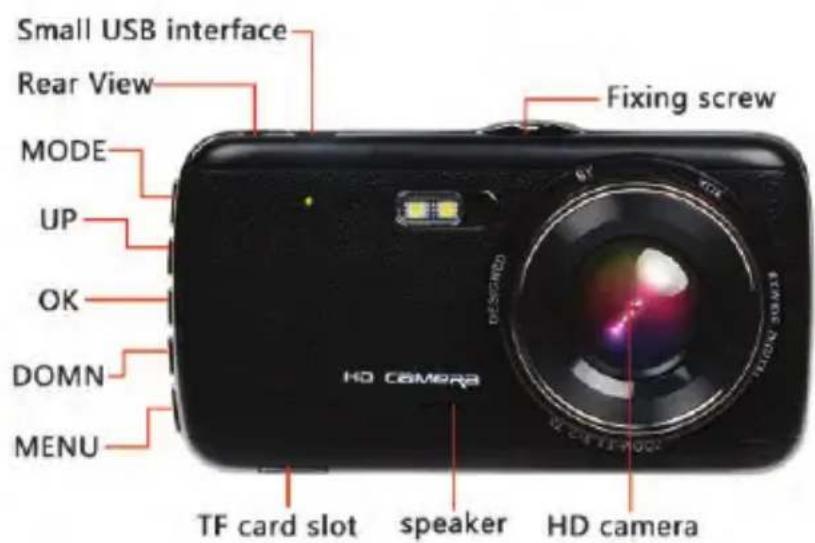

1. Mode Button
A: Press Mode button to switch Video / Photo / playback mode in standby;
B: Short press to lock current video file while recording.
2. Up Button
A: In standby, it's used to switch between the front camera and rear camera.
B: In setting menu, it's used to select the marker.
3. OK Button
Confirmation button.
A: Short press to start and stop recording; Or short press to turn on screen in screen saver.
B: Long press to power on and shut down
4. Down Button
A: Short press to turn on/off audio recording.
B: To select the marker in setting menu
5. Menu Button
Short press to pull out the setting menu.
Installation Guide
-
Before power on, insert micro SD card into device. Please use high speed micro SD card (Class 10 or above), capacity no less than 8GB, Maximum support card up to 32GB.
-
Install the suction cup mount and mount it near the rearview mirror (recommended)
-
Plug the original car charger into the car cigarette lighter.
-
Connect the car charger to the camera and route the cable. (along the edge of the windshield.)
-
Installed the rear camera near the license plate, (be careful with the UP/DOWN direction of the camera) Cable can be laid along the vehicle roof, after the installation, connect the rear camera with the main device.
-
Start the engine, the camera should power on automatically, and check the installation angle and other functions.
Attention:
-
Please check the rear camera image to ensure proper direction.
-
The installation requires some professional skill, if you are not familiar with such work, you can go to the auto shop.
Function Introduction
1. Auto recording feature
With the car engine starts up, the camera will automatically power on and start recording, charging indicator lights and video indicator lights blinking. After the engine turns off, the camera will automatically saves record files and shut
down after 5 seconds. Recorded files will be saved on the micro SD card.
2. Manual Recording Function
Long press recorder "OK" confirmation button for 3 seconds, the camera will power on and start recording automatically.
3. Photo Taking Mode.
In standby, short press Mode to enter photo taking mode, Use OK button to take a photo, and UP and Down button to zoom in and out.
4. Playback Mode
In standby, short press Mode twice to enter playback, use UP/down to select ,and OK to play, short press mode to exit playing, and use Menu button to delete the selected file.
5. Loop Recording / Cyclic Record
Turn on the loop recording function, and the camera will record in seamless 1/2/3 minutes clips,
Attention
A. If you turn off loop recording, the camera will stop recording if the memory card is full.
B. In loop recording, when memory card is full, the camera will overwrite the earliest recording files and starts a new one.
6. Use the motion detection function
In standby mode, Long press "MENU" button to enter into the motion detection mode. The moving objects can be detected and recorded automatically by the car DVR when the motion detect function is on. If there is no moving
objects in the screen for 5 seconds, the car DVR will stop recording. If you need to exit the motion detection mode, long press "MENU" button for 3 seconds to exit in standby mode.
7. Collision Sensor Function
Built-in crash sensors (G-sensor). If there is a vehicle collision, the camera will lock current video file on the accident happened 10 seconds before and after data. Also there is locked icon shown on the lower left of the screen. The locked file won't be overwritten by loop recording. (The sensitivity of the G-sensor can be adjusted according to using condition.)
8. One Key Lock Function
The car DVR has one key lock function, during recording, you can short press the Mode button to lock current video file which you want to preserve and will not be covered by loop recording.
9. Date and Time Setting
In standby, short press the "MENU" button to enter the system setup menu. Short press "up /down" button move to the "Clock Setting" option. Short press "OK" to go into the menu settings.
Attention: In order to keep ensured record evidence of accident date and time, please set the correct time before using the car DVR.
10. Playback
Short press "MODE" button in standby mode, you can enter into the playback mode. Short press "up/down" button to find file playback. Short press "OK" to play. If you need to exit playback mode, short press "MODE" button again.
11. View Reverse Video
The camera must be powered by the car charger, connect the red wire on the rear camera to the reversing light cable positive electrode. If you turn to reverse gear, the camera will automatically display the rear camera image in full screen to assist reversing, and resume normal recording afterward.
12. Parking Monitor
The parking monitor is used to monitor your car after parking. When you turn on parking monitor, after the engine stops and the camera powers off, the camera is in standby, if the car has suffered a shock or vibration, the camera will automatically turn on and start recording for 30 seconds then return to standby.
Specification:
| Display: 4.0 inch IPS screen | |
| Lens: Front 130 degree Wide angle lens | |
| Lens aperture: | F2.0 aperture |
| Front camera Resolution: 1920*1080, 1280*720,848*480 | |
| Rear camera Resolution: 720*480P | |
| Loop recording: 1min, 2min, 3min, 5min,10min /off | |
| Video format: MOV | |
| Audio: | built in MIC and speaker |
| Parking monitoring: high/middle/low/OFF | |
| Motion detection: ON/OFF | |
| ISO: Auto | |
| WDR: Supported | |
| G-sensor: | Supported |
| LED light: Supported | |
| Rear Camera Mirroring | Supported |
| PC interface: USB 2.0 | |
| Rear camera cable length: 7.2m/2B feet | |
| Power Interface: | 5V/1.5A(min) |
| Language: | English, Chinese, Japanese, Russian,Portuguese, French, German, Italian, Korean,Spanish |
| Storage: Micro SD card up to 32GB(C10 or above) | |
PYLE
PyleUSA.com

natural_image
Illustration of a laptop with a red checkmark on screen, accompanied by partial text 'V H N W' on the right side (no readable document content)VISIT US ONLINE:
Have a question?
Need service or repair?
Want to leave a comment?
PyleUSA.com/ContactUs
PYLE


- BASIC KEY FUNCTION
- Mode Button
- Up Button
- OK Button
- Down Button
- Menu Button
- Installation Guide
- Attention:
- Function Introduction
- Auto recording feature
- Manual Recording Function
- Photo Taking Mode.
- Playback Mode
- Loop Recording / Cyclic Record
- Attention
- Use the motion detection function
- Collision Sensor Function
- One Key Lock Function
- Date and Time Setting
- Playback
- View Reverse Video
- Parking Monitor
- PYLE
- PyleUSA.com
- VISIT US ONLINE:
Brand : Pyle
Model : PLDVRCAM44
Category : Camera