
AACEK1W - Hi-Fi System Speco Technologies - Free user manual and instructions
Find the device manual for free AACEK1W Speco Technologies in PDF.


| Product Type | Wireless Multizone Audio Distribution System / Stereo Amplifier |
| Brand | Speco Technologies |
| Model | AACEK1W |
| Dimensions | 6.25 x 5.75 x 1.6 inches |
| Weight | 1.2 lbs |
| Power Input | DC 32V, 5A |
| Amplifier Output | 2 x 80W Max |
| Amplifier Impedance | 4-16 Ohms |
| Frequency Response | 20Hz to 20KHz |
| Wireless Network | IEEE 802.11 b/g/n 2.4G |
| LAN | Single 10/100M RJ45 |
| Audio Source Inputs | USB 2.0, Coaxial, Analog RCA, Optical (2.1) |
| Audio Source Output | Analog RCA (Pre-out) |
| Controls | Volume, Treble, Bass Knobs |
| Supported Music Formats | MP3, AAC, AAC+, ALAC, APE, WAV |
| Decoding | Up to 24bit/192KHz |
| Number of Zones | Up to 12 (8 recommended) |
| App Control | Free iOS and Android app (a-live) |
| Included Accessories | Quick Start Guide, Power Supply, RCA Cable x2, Antennas x2 |
| Compliance | FCC Part 15 |
Frequently Asked Questions - AACEK1W Speco Technologies
User questions about AACEK1W Speco Technologies
0 question about this device. Answer the ones you know or ask your own.
Ask a new question about this device
Download the instructions for your Hi-Fi System in PDF format for free! Find your manual AACEK1W - Speco Technologies and take your electronic device back in hand. On this page are published all the documents necessary for the use of your device. AACEK1W by Speco Technologies.
USER MANUAL AACEK1W Speco Technologies
Wireless Multizone Audio Distribution System
AA1 Wireless +tereo Distribution Amplifier
Quick +tart ⑦uide
Stream. Control. Entertain.
Introduction
This class D digital amplifier has great performance and is flexible enough to satisfy picky residential audio enthusiasts while simultaneously meeting the demands of commercial installations. With the free i⑭+ and Android applications you can easily control your smart audio system to stream and distribute music in up to 12 zones. You can stream the same music to all zones or different music to different zones, no matter if the music is from local storage like cell phone memory, NA+, U+B flash disk and hard disk or from online streaming services such as +potify, Tidal, Tune⑨n, i⑧eart>adio, Napster, etc.
In This Box

natural_image
Front view of a black electronic device with two antennas and labeled ports (STATUS, LINE OUT, VOLUME, TREBLE, BASS) on the back panel.- AA1 x1
- Quick +tart ⑦uide x 1
• ⑮ower supply x1 -
⑤A cable x2
- Antennas x2
What You Need For Installation
- Wifi >outer
- +peakers
• 14-2 to 18-2 +peaker Wire
• +mall-head (eyeglass type) +crewdriver
• ⑬obile device or ⑤omputer
Interface and Functions

① WiFi Antenna: Used for WiFi connection
② Reset: Used to reset the device if you have a problem with your WiFi connection
③ Subwoofer out: Used to connect to an active subwoofer
④ Network connection: RJ45 used to connect to a wired Ethernet network
⑤ ⑫ine input: Analog input used to connect audio devices via an RCA cable
⑥ ⑭ optical: Used to provide digital input from a 2.1 optical equipped device
⑦ USB input: Used to connect local storage devices
⑧ Speaker terminals: ⑮ hoenix speaker terminal used to connect to 8 ⑭hms speakers
⑨ ⑮ power input: DC power input used to connect the power adaptor
⑩ ⑬ mobile wireless antenna: Used to pair with mobile devices using a popular wireless service
Interface and Functions (Cont.)

⑪ LED: Indicates the status of the device
Blinking White: Power on or Network Connecting
Solid White: Network connected, WiFi and USB streaming
Solid Blue: Wireless Input Active
Solid Green: Line Input Active
Solid Purple: Optical Input Active
⑫ Pre out: Used to provide analog signal to another amplifier
⑬ Volume: Used to manually tune the device volume
⑭ Treble: Used to manually tune the treble
⑮ Bass: Used to manually tune the bass
How it works

flowchart
graph LR
    A["Smart Device"] --> B["USB"]
    B --> C["NAS"]
    C --> D["Cloud Music"]
    D --> E["Cloud Service"]
    E --> F["WiFi Router"]
    G["AA1"] --> H["Speaker"]
    H --> I["Speaker"]
    style A fill:#f9f,stroke:#333
    style B fill:#f9f,stroke:#333
    style C fill:#f9f,stroke:#333
    style D fill:#f9f,stroke:#333
    style E fill:#f9f,stroke:#333
    style F fill:#f9f,stroke:#333
    style G fill:#ccf,stroke:#333
    style H fill:#ccf,stroke:#333
    style I fill:#ccf,stroke:#333
Installation Guide
1. Unpack your system
Verify all accessories are included in your box.
2. Install your system
⑮ lace your amplifier at a safe and proper location. An integrated mounting bracket allows mounting to a wall or surface, but we suggest making sure you complete all installation steps before permanently mounting.
3. Connect your system
Speaker Wiring Diagrams (Note that the AS1 can handle speakers from 4 to 16 Ohms impedance)


flowchart
graph TD
    A["4 Ohm Load"] --> B["Left"]
    A --> C["Right"]
    D["8 Ohms"] --> E["8 Ohms"]
    F["9 Ohms"] --> G["9 Ohms"]
    B --> H["Ground"]
    C --> H
    E --> H
    G --> H
Speaker Wire Connection
⑮ properly wire and connect the phoenix speaker terminals on the amplifier with the inputs on your speaker, noting positive and negative terminals match with the positive and negative terminals on your speaker.
Power connection
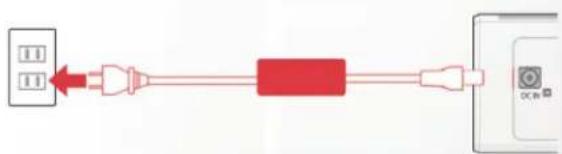
⑮ower the amplifier with the power adaptor included in the accessories. ⑨t is recommended to connect the adapter into the amplifier first, and then plug the A⑤ plug into your wall or other outlet.
flowchart
graph LR
    A["Input"] --> B["Process"]
    B --> C["Output"]
4. Download the App
Download the a-live application from the App +tore for i⑭+ and ⑦oogle ⑮lay for Android.


5. Configure
Option 1-Configuration via app
-⑤connect your ⑬obile Device to your Wifi Network
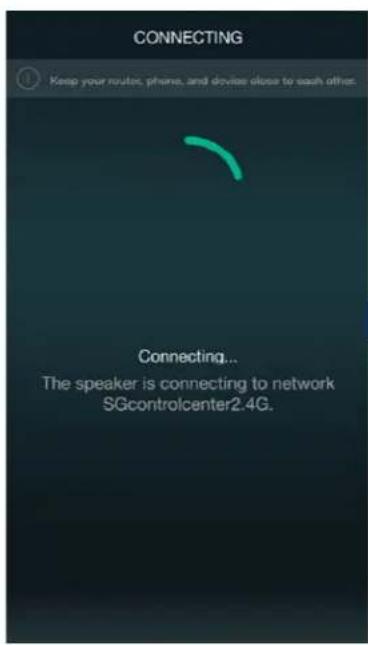
-⑭pen the application③ press Add Device(+)③choose settings③ choose the a-live_xxxx hotspot③ after connecting, press the 'turn back' on your W⑫AN settings③ the app will jump to the configuration step③choose the 2.4⑦ network and enter the password③ wait for the device to be configured.




a-live
Option 2- Configuration via Web console
-1. ⑮ower the device.
-2. ⑤hoose the hotspot(a4live_xxxx) in the WiFi settings on your cell phone or computer and connect.
-3. ⑭ pen your browser and enter 10.10.10.254 in the address bar.
-4. ⑦o for WiFi ③ choose your 2.4⑦ router ③ enter the password ③ click connect ③ wait for the device to be configured.


Option 3-Connection via LAN
-⑮ower the device
-⑮lug in the wired cable to the R⑩45 ⑥thernet, the device will show on the app in about 10 seconds.
App Photo Gallery:
Playback
Your Device ⑫ist will show all available zones. ⑮ress a zone to see the information on the current source. While on the view for the source, swipe right to reveal the available sources. From there, you can select what you want to hear next, or swipe left to return to the currently playing source.


You also have the ability to combine zones so that each zone is playing the same source at the same time.
⑩ust press your finger on the zone you want to play what another zone is playing until it indicates it is ready to merge. Then, drag it on top of the master zone and release. ⑨n roughly 30 seconds, the zones will combine.
To separate zones, repeat the process, but this time drag the zone you want to free below the dotted line.

Streaming from mobile device memory/NAS/Online Music Services
These screens let you access your available music, whether it be hard files on your network or connected to your a-live hardware, or what streaming options you've selected to be available.


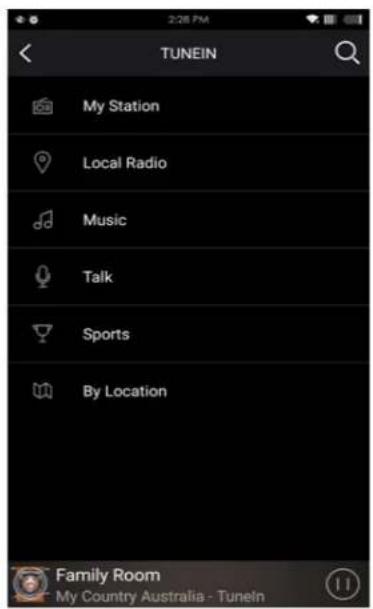

By selecting “+ Add ⑬ ore Services,” you can see the list of what services are available for you to add for your listening pleasure. This list will be updated over time as we continually work to bring new services to a-live.

Device Settings
Through device settings you can set an alarm clock or sleep timer, get technical information on your speaker, or rename it.

Firmware update
a-live will notify you in your app when there is a new firmware version available. ⑨t's recommended to update firmware whenever available as this might not only correct bugs or improve security, but could also add new features or services.

a-live
FAQ
Q: Do your devices support airplay and third-party D⑫NA apps④
A: Yes. They support airplay and third-party apps like BubbleU⑮N⑮...
Q: ⑧ow many zones can you group on one system④
A: 12 rooms is the maximum, while 8 zones are recommended.
Q: What distance can your wireless audio system cover④
A: ⑭nce the system is connected to your WiFi router, you can stream your music anywhere there is a WiFi signal.
Q: ⑤an it play high resolution music④
A: Yes. ⑭ur devices can play A⑮⑥ and F⑫A⑤ within the normal bit rate range. They also support decoding 24bit/192khz music files.
Q: ⑧ ow many languages do you support ④
A: ⑭ur devices will auto-detect your mobile device language and change automatically. ⑤ currently, we support ⑥ english, French, ⑦ erman, +panish, ⑤ hinese, ⑮ ortuguese, ⑪ orean and ⑩ apanese and more on the way.
Q: What online music services do you support④
A: +notify, Tidal, i⑧eart>adio, Tunein, Napster, and more, with more pending.
Q: ⑤an ⑨ play local music④
A: Yes. You can play music from “⑬Y ⑬U+⑨⑤” on the application from local storage devices such as mobile device storage, U+B thumb drives, portable hard disk and NA+.
Q: ⑤ an a-live work with Windows devices ④
A: The Windows application is not available at the moment, but on the Windows ⑮⑤, users can use iTunes, Foobar2000 and +notify connect as a line input.
Technical Specifications
| Amplifier Output 2 x 80W Max | |
| Amplifier Impedance 4-16 Ohms | |
| Wireless network IEEE802.11 b/g/n 2.4G | |
| LAN single 10/100M RJ45 | |
| Frequency Response 20Hz to 20KHz | |
| Power input DC 32V, 5A | |
| Audio Source Input USB 2.0, Coaxial, Analog RCA, Optical(2.1) | |
| Audio Source Output Analog RCA | |
| Treble | Yes |
| Bass | Yes |
| Volume Knob | Yes |
| Dimensions: | 6.25 “ L x 5.75 “ W x 1.6 “ H |
| Weight | 1.2 Lbs. |
| Music format | MP3/AAC/AAC+/ALAC/APE/WAV |
| Decoding | Up to 24bit/192KHz |


This device complies with part 15 of the F⑤⑤ rules. ⑭peration is subject to the following two conditions① 1) This device may not cause harmful interference, and 2) this device must accept any interference that may cause undesired operation.
@⑤copyright 2018 by +peco Technologies. All >ights >eserved.
The information contained in this guide is intended to be accurate and reliable. +peco Technologies assumes no responsibility for any errors contained in this guide. +peco Technologies reserves the rights to make changes in the specifications and/or design of the above mentioned product without prior notice. The diagrams contained in this guide may also not fully represent the product that you are using and they are for illustration purposes. +peco Technologies assumes no responsibility for any differences between the product mentioned in this guide and the product you purchased.
Rev. 4/2/2020
- Wireless Multizone Audio Distribution System
- Introduction
- In This Box
- What You Need For Installation
- Interface and Functions
- Interface and Functions (Cont.)
- How it works
- Installation Guide
- Unpack your system
- Install your system
- Connect your system
- Download the App
- Configure
- a-live
- App Photo Gallery:
- Playback
- Streaming from mobile device memory/NAS/Online Music Services
- Device Settings
- Firmware update
- FAQ
Brand : Speco Technologies
Model : AACEK1W
Category : Hi-Fi System