IdeaPad Flex Pro - Laptop LENOVO - Free user manual and instructions
Find the device manual for free IdeaPad Flex Pro LENOVO in PDF.


User questions about IdeaPad Flex Pro LENOVO
0 question about this device. Answer the ones you know or ask your own.
Ask a new question about this device
Download the instructions for your Laptop in PDF format for free! Find your manual IdeaPad Flex Pro - LENOVO and take your electronic device back in hand. On this page are published all the documents necessary for the use of your device. IdeaPad Flex Pro by LENOVO.
USER MANUAL IdeaPad Flex Pro LENOVO
Lenovo IdeaPad Flex Pro-13IKB User Guide
Notes
- Before using the product, be sure to read Lenovo Safety and General Information Guide first.
- The latest electronic compliance and environmental information are available from the Lenovo compliance information Web sites.
- To view compliance information go to: http://www.lenovo.com/compliance
-
To download environmental information go to: http://www.lenovo.com/ecodeclaration
-
Some instructions in this guide may assume that you are using Windows ^ 10. If you are using another Windows operating system, some operations may be slightly different. If you are using other operating systems, some operations may not apply to you.
- The features described in this guide are common to most models. Some features may not be available on your computer or your computer may include features that are not described in this user guide.
- The illustrations used in this manual are for Lenovo IdeaPad Flex Pro-13IKB unless otherwise stated.
- The illustrations in this manual may differ from the actual product. Please refer to the actual product.
Regulatory Notice
• For details, refer to Guides & Manuals at http://support.lenovo.com.
First Edition (February, 2019)
© Copyright Lenovo 2019.
LIMITED AND RESTRICTED RIGHTS NOTICE: If data or software is delivered pursuant to a General Services Administration "GSA" contract, use, reproduction, or disclosure is subject to restrictions set forth in Contract No. GS-35F-05925.
Contents
Chapter 1. Getting to know your computer .... 1
Top view....1
Left-side view 9
Right-side view.... 10
Bottom view.... 12
To use the Lenovo Active Pen (on select models).... 13
To use the Lenovo Active Pen2 (on select models).... 14
Chapter 2. Starting to use Windows 10.... 16
Configuring the operating system for the first time.... 16
Operating system interface.... 16
Putting the computer to sleep or shutting it down.... 18
Task and desktop management.... 20
Connecting to a wireless network 21
Get Started app.... 21
Touch screen operation.... 22
Chapter 3. Recovery system.... 25
Reset this PC 25
Chapter 4. Troubleshooting.... 26
Frequently asked questions.... 26
Troubleshooting 28
Trademarks 31
Chapter 1. Getting to know your computer
Top view

text_image
2 1 2 3 Lenovo 4 5 6 2 2Note: The dashed areas indicate parts that are not visible externally.
- Attention:
- When closing the display panel, be careful not to leave pens or any other objects in between the display panel and the keyboard. Otherwise, the display panel may be damaged.
Chapter 1. Getting to know your computer
| 1 | Integrated camera | Use the camera for video communication or taking photos. |
| 2 | Built-in microphone | Captures sound which can be used for video conferencing, voice narration, or audio recording. |
| 3 | Multi-touch screen | The LCD display with LED backlight provides brilliant visual output.Multi-touch function is available on this display. |
| 4 | Wireless LAN antennas | Connect to a wireless LAN adapter to send and receive wireless radio signals. |
| 5 | Fingerprint reader | Registers fingerprints that can be used as passwords to secure your computer. |
| 6 | Touchpad | The touchpad functions as a conventional mouse.One piece multi-touch ClickPad: To move the pointer on the screen, slide your fingertip over the pad in the direction in which you want the pointer to move.Left-click area: Clicking in this area corresponds to the functions of clicking the left button on a conventional mouse.Right-click area: Clicking in this area corresponds to the functions of clicking the right button on a conventional mouse. |
Note: You can enable/disable the touchpad by pressing F6 ( ☐ ) .
■ Using the keyboard
Function key combinations
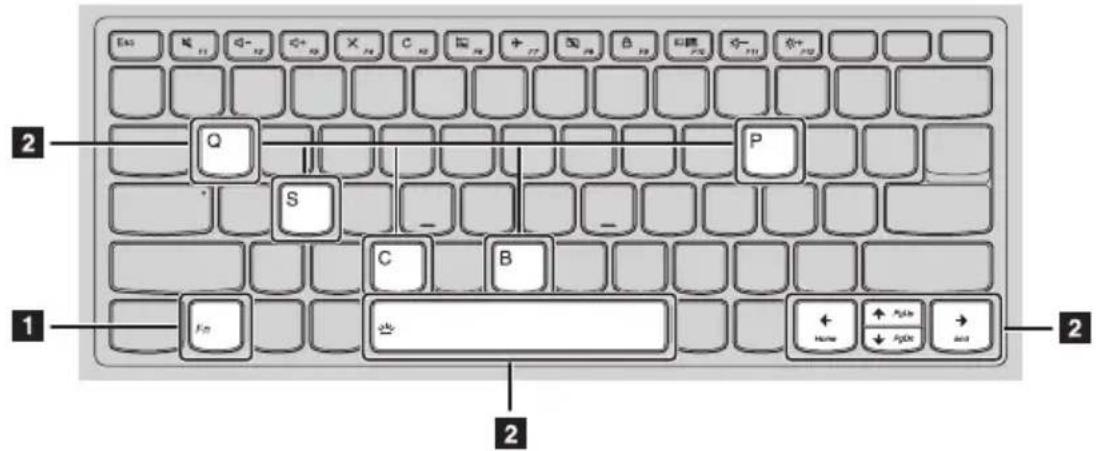
Through the use of the function keys, you can change operational features instantly. To use this function, press and hold Fn 1; then press one of the function keys 2
text_image
2 Q S P C B 1 Fm 2 Home Aplus Aplus andThe following describes the features of each function key.
Fn + B: Activates the break function.
Fn + P: Activates the pause function.
Fn + C: Enables/disables the scroll lock.
Fn + S: Activates the system request.
Fn + Q: Enables/disables Quiet mode.
Fn + ↑: Activates the Pgup key function.
Fn + ↓ Activates the Pgdn key function.
Fn + ← Activates the home key function.
Fn + → Activates the end key function.
Fn + Space:
Adjusts the keyboard backlight (off → dim → bright → off).
Chapter 1. Getting to know your computer
Hotkeys
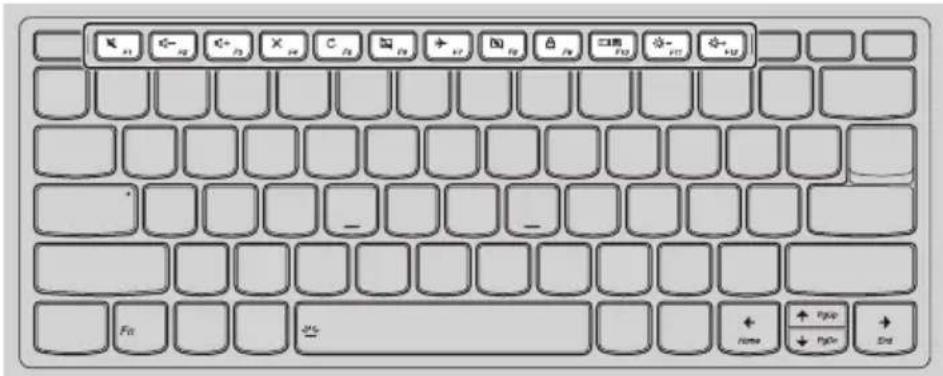
You can access certain system settings quickly by pressing the appropriate hotkeys.
text_image
Computer keyboard layout with labeled function keys and standard icons| : Mutes/unmutes the sound. | : Enables/disables Airplane mode. | ||
| : Decr eases the volume level. | : Enables/disables the integrated camera. | ||
| : Increases the volume level. | : Locks the screen. | ||
| : Enables/disables the microphone. | : Toggles the display between the computer and an external display device. | ||
| : Refreshes the desktop or the currently active window. | : Decreases the display brightness. | ||
 | : Enables/ disables the touchpad. | : Increases the di splay brightness. |
Note: You can use the Lenovo Vantage to enable/disable the hotkey function.
■ Positioning the display panel
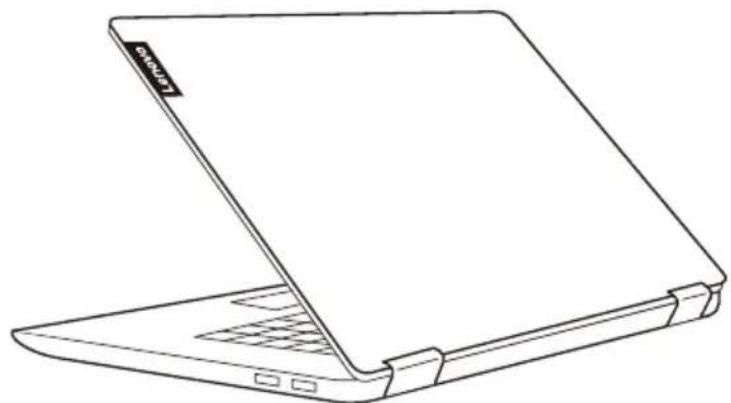
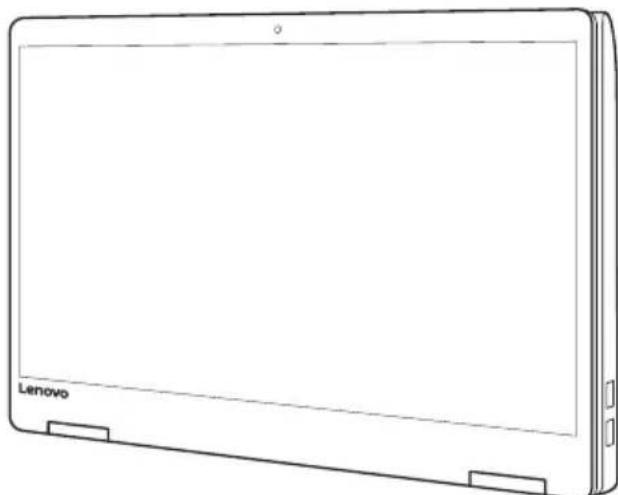
The display panel can be opened to any angle up to 360 degrees.

natural_image
Line drawing of a laptop with 360° rotation indicator, showing cross- blades and screen layout (no text or symbols on the diagram itself)Notebook Mode
natural_image
Line drawing of a laptop with a visible cover and keyboard (no text or symbols)Suitable for tasks that require a keyboard and mouse (such as creating documents, writing e-mails, and so on).
Chapter 1. Getting to know your computer
natural_image
Line drawing of a Lenovo laptop with front panel and side connectors (no text or symbols on the device itself)Suitable for tasks that require little or no touch (such as viewing photos or playing videos).
Tablet Mode
natural_image
Line drawing of a Lenovo tablet device with blank screen and side buttons (no text or symbols on the device itself)Suitable for tasks that require touching the screen often (such as surfing the Web, playing games, and so on).
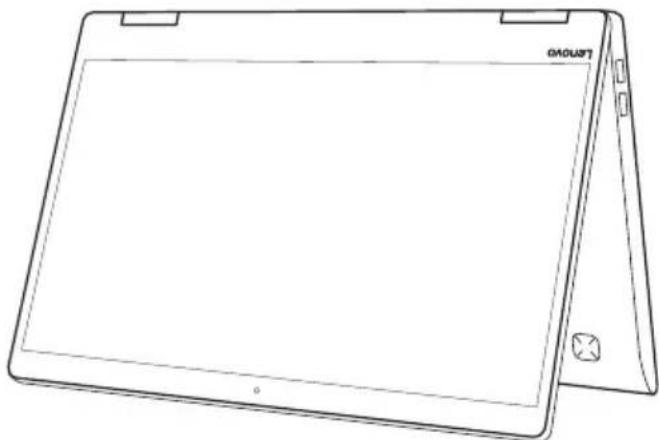
Tent Mode (Presentation Mode)
natural_image
Line drawing of a tablet device with front and back views (no text or symbols)Suitable for tasks that require limited interaction with the touch screen (such as displaying graphs or PowerPoint presentations).
- Attention:
- Do not open the display with too much force, otherwise the panel or hinges may be damaged.
Note: The keyboard and touchpad are automatically locked when the screen is opened beyond 190 degrees (approximately).
Chapter 1. Getting to know your computer
Screen orientation
You can rotate the display panel to your preferred orientation.
The orientation of the display automatically changes (alternating between portrait and landscape modes) depending on how you hold it.

natural_image
Close-up grayscale photo of a flower with water droplets, no visible text or symbols

natural_image
Close-up of a flower with water droplets, no visible text or symbolsLandscape
Portrait
Left-side view

text_image
1 2 1 31 AC power adapter jack/Type-C port
The AC power adapter jack is compatible with Type-C devices. Type-C port supports USB 3.1.
2 Battery status indicator
| Indicator Indicator status | Charge status | Meaning | |
| On (solid white) | Charging | The battery has more than 80% charge. | |
| On (solid amber) Discharging | The battery has between 5% and 20% charge. | ||
| Battery status indicator | Blinking slowly (white) Charging | The battery has between 20% and 80% charge. When the battery reaches 80% charge, the light will stop blinking. However, charging will continue until the battery is fully charged. | |
| Blinking slowly (amber) Charging | The battery has less than 20% charge. When the battery charge reaches 20%, the blinking color will change to white. | ||
| Blinking quickly (amber) | Discharging | The battery has less than 5% charge. | |
| Off Discharging The battery has more than 20% charge. | |||
3 Combo audio jack
Connects to headsets.
Notes:
- The combo audio jack does not support conventional microphones.
- The combo audio jack supports headphones and CTIA headsets.
Chapter 1. Getting to know your computer
Right-side view

text_image
1 2 31 Novo button
When the computer is off, press this button to start the recovery system or the BIOS setup utility, or to enter the boot menu.
Notes:
- You can use the tip of an unfolded paper clip (or similar object without a sharp tip) to gently press the Novo button.
- For details, see "Recovery system" on page 25.
2 Power button
Press this button to turn on the computer.
| Symbol Indicator | Indicator status | Meaning | |
| Power status indicator | On (solid white) The computer is powered on. | ||
| Blinking The computer is in sleep mode. | |||
| Off The computer is powered off. | |||
3 USB 3.0 port
Connects to USB devices.
Note: For details, see "Connecting USB device" on page 11.
■ Connecting USB device
You can connect a USB device to your computer by inserting its USB plug (Type A/Type C) into the USB port on your computer.

natural_image
Line drawing of a hand inserting a USB into a laptop keyboard (no text or symbols)The first time you plug a USB device into a particular USB port on your computer, Windows automatically installs a driver for that device. After the driver has been installed, you can disconnect and reconnect the device without performing any additional steps.
Note: Typically, Windows detects a new device after it has been connected, and then installs the driver automatically. However, some devices may require you to install the driver before connecting. Check the documentation provided by the device's manufacturer before connecting the device.
Before disconnecting a USB storage device, make sure your computer has finished transferring data to that device. Click the Safely Remove Hardware and Eject Media icon in the Windows notification area to remove the device before disconnecting.
Note: If your USB device uses a power cord, connect the device to a power source before connecting it. Otherwise, the device may not be recognized.
■ Statement on USB transfer rate
Depending on many factors such as the processing capability of the host and peripheral devices, file attributes, and other factors related to system configuration and operating environments, the actual transfer rate using the various USB connectors on this device will vary and will be slower than the data rate listed below for each corresponding device.
USB device Data rate (Gbit/s)
| 3.1 Gen 1 | 5 |
| 3.1 Gen 2 | 10 |
| 3.2 | 20 |
Chapter 1. Getting to know your computer
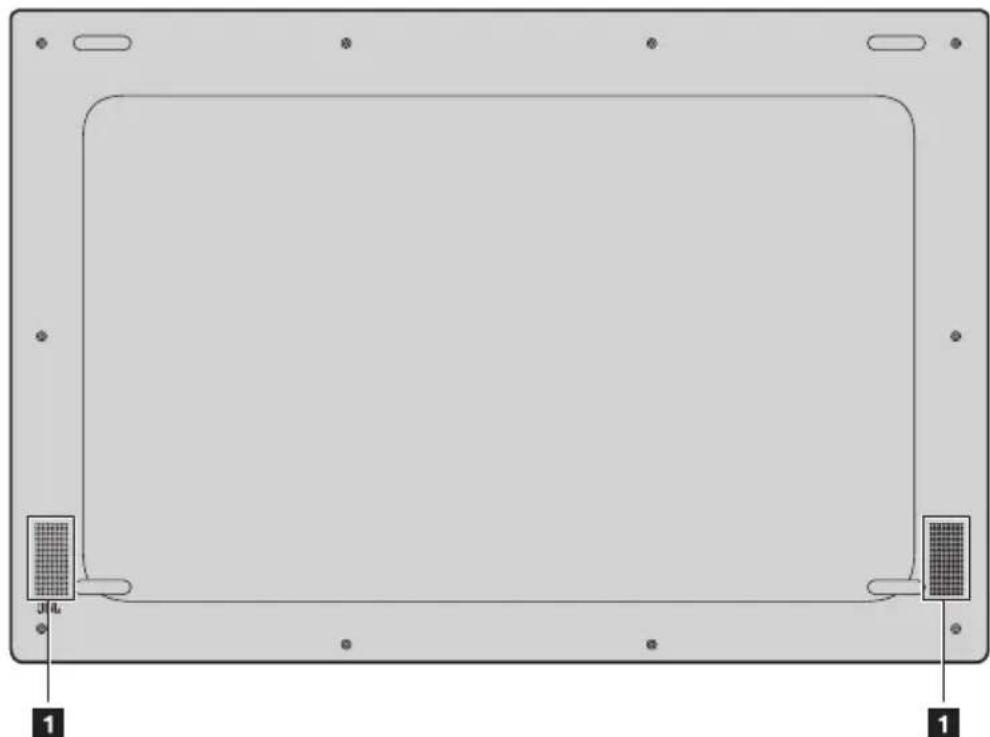
Bottom view
natural_image
Front view of a rectangular electronic device with mounting holes and labeled pins (no text or symbols beyond basic markings)1 Speakers
Provide audio output.
To use the Lenovo Active Pen (on select models)
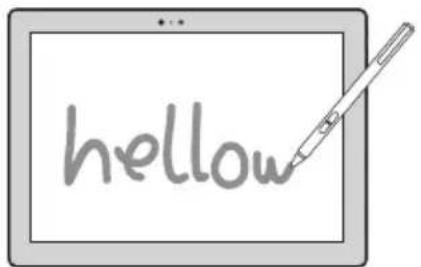
Select model is equipped with the Lenovo Active Pen, to use it, refer to the following illustrations.
Functions
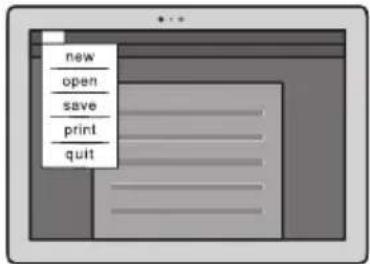
Writing Displaying the function menu
text_image
hellowPress and hold the upper button of the active pen when it approaches the display screen and the cursor appears.
text_image
new open save print quit
Right-clicking function
Press the upper button, then click on the touch screen.
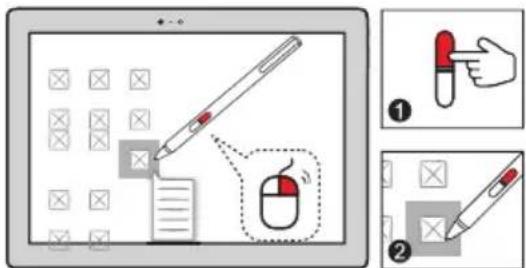
text_image
Illustration showing a hand-drawn pen writing on a document with a mouse, accompanied by two steps to outline the image.Erasing
Press the lower button when writing.

text_image
Illustration showing a tablet screen with stylized graphics and a pen, indicating editing or design process.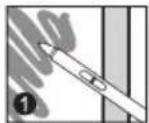
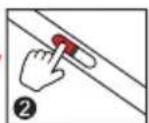
To replace the battery

flowchart
graph LR
    A["① Pen: Arrow"] --> B["② Screen: Arrow"]
    B --> C["③ Screen: Arrow"]
    C --> D["④ Screen: Arrow"]
Note: Insert the battery by matching the + and - terminals on the battery to the + and - terminals in the battery compartment.
To use the Lenovo Active Pen2 (on select models)
Select model is equipped with the Lenovo Active Pen2, it can be used as a Lenovo Active Pen. About the function of the Lenovo Active Pen, see page 13. Besides, more functions can be used after successful pairing.
Pairing
Press and hold the Bluetooth button for more than three seconds to enter pairing mode.

natural_image
Illustration of a hand holding a pen, with a magnified inset showing the tip and tip of the pen (no text or symbols present)Note: Make sure to set the Bluetooth switch of your computer to On before pairing.
Functions
One-click function of the Bluetooth button
Depends on the app preinstalled.

Double-click function of the Bluetooth button
Depends on the app preinstalled.

To replace the battery

natural_image
Simple line drawing of a pen with a red curved band and an arrow indicating direction (no text or symbols)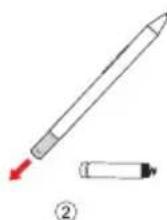


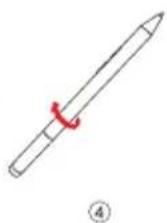
Note: Insert the battery by matching the + and - terminals on the battery to the + and - terminals in the battery compartment.
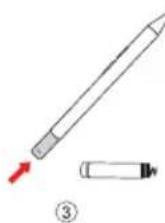
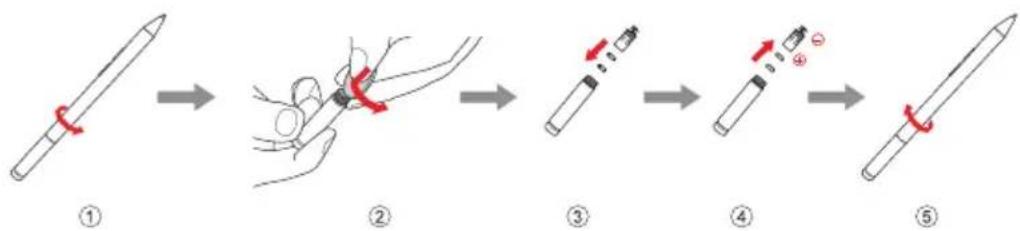
To replace the rear Bluetooth module battery
When the battery is low, the red LED indicator will flash.

To replace the rear Bluetooth module battery:
flowchart
graph LR
    A["Step ①: Pencil Drawing"] --> B["Step ②: Hand Making"]
    B --> C["Step ③: Click Button"]
    C --> D["Step ④: Click Button with Red Arrow ④"]
    D --> E["Step ⑤: Screen with Red Arrow"]
Note: Select the appropriate coin or screwdriver for removal.
Chapter 2. Starting to use Windows 10
Note: Windows ^® 10 has an updated version. If you are using the updated version, some operations may be different. Please refer to the actual product.
Configuring the operating system for the first time
You may need to configure the operating system when it is first used. The configuration process may include the procedures below:
- Accepting the end user license agreement
- Configuring the Internet connection
- Registering the operating system
- Creating a user account
Operating system interface
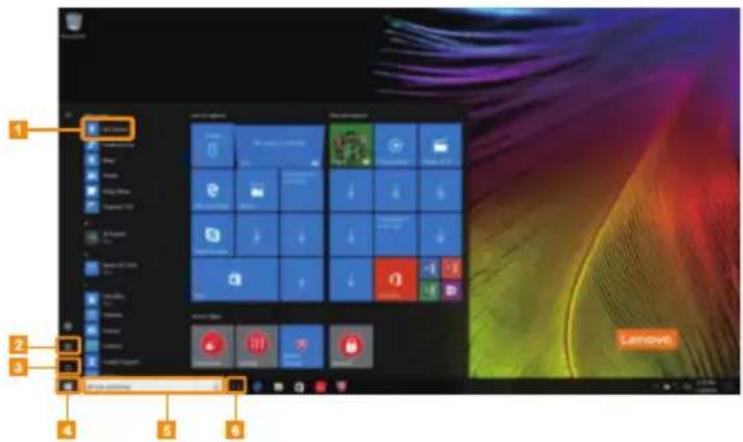
Windows 10 comes with a powerful and useful start menu. To open the start menu, do one of the following:
- Press the Windows key ☐ on the keyboard.
- Select Start □ on the lower-left corner of the desktop.
text_image
Screenshot of a Windows desktop with labeled steps and system icons, showing progress from Start to Exit.1 Get Started app
2 Settings button
3 Power button
4 Start button
5 Search box
6 Task view button
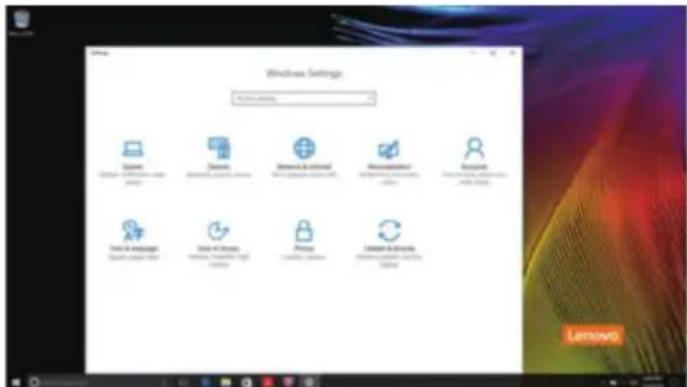
Settings
Settings lets you perform basic tasks. You can also search for more settings with the settings search box in the upper-right corner.
To open the settings, do the following:
- Open the start menu, and then select Settings
text_image
Windows Settings Accessories Options Camera Networks Security Internet Security Internet Security Internet Data & Manager Data & Manager Data & Manager Data & Manager Data & Manager Data & Manager■ Personalize the start menu
You can personalize the start menu with your favorite apps.
To personalize the start menu, do the following:
① Open the start menu and find the apps list on the left.
2 Right click the app you want to add to the start menu, and then select Pin to Start.

text_image
Screenshot of Lenovo desktop showing taskbar, application grid, and navigation icons with 'Lenovo' brandingNote: You can also drag apps from the apps list to add them to the start menu.
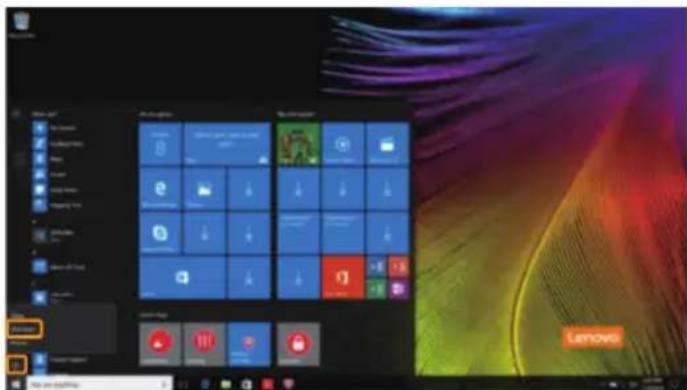
- Putting the computer to sleep or shutting it down
When you have finished working with your computer, you can put it to sleep or shut it down.
- Putting your computer to sleep
If you will be away from your computer for only a short time, put the computer to sleep. When the computer is in sleep mode, you can quickly wake it to resume use, bypassing the startup process.
To put the computer to sleep, do one of the following:
- Close the display lid.
- Press the Power button.
- Open the start menu, and then select Power ⏻ → Sleep.
Note: Wait until the power indicator light starts blinking (indicating that the computer is in sleep mode) before you move your computer. Moving your computer while the hard disk is spinning can damage the hard disk, causing loss of data.
To wake the computer, do one of the following:
- Press any key on the keyboard. (Notebook mode only)
- Press the Power button.
■ Shutting down the computer
If you are not going to use your computer for a long time, shut it down. To shut down the computer, do one of the following:
- Open the start menu, and then select Power ⏻ → Shut down.
text_image
Screenshot of Lenovo desktop showing home screen with app icons and a colorful wallpaper background- Press and hold or right-click the Start button in the lower-left corner and select Shut down or sign out → Shut down.

text_image
Background Background Background Background Background Background Background Background Background Background Background Background Background Background Background Background Background Background Background Background Background Background Background Background Background Background Background Background Background Background Background Background Background Background Background Background Background Background Background Background Background Background Background Background Background Background Background Background Background Background BackgroundTask and desktop management
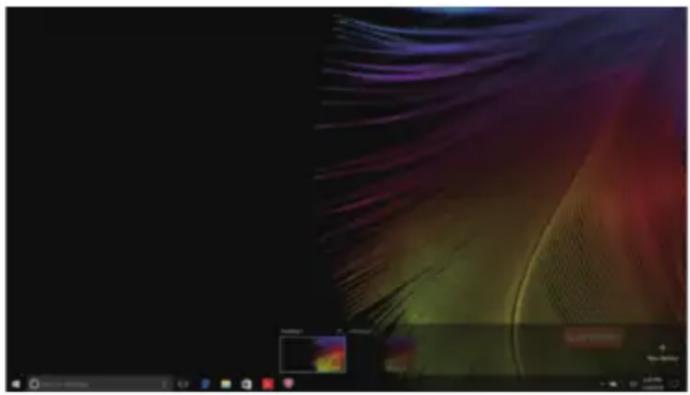
■ Task view
To open the task view, do one of the following:
- Select the Task view button ☐ on the task bar.
- Press the Windows key Tab .
- Swiping in from the left edge of the screen.
natural_image
Computer desktop with abstract color gradient and navigation bar (no readable text or symbols)■ Virtual desktop management
Windows 10 supports the ability to create, manage and switch between virtual desktops. To create a new virtual desktop, do one of the following:
- Open the task view, and then select New desktop.
- Press the Windows key 📄 + Ctrl + D.
To switch between different desktops, do one of the following:
- Open the task view and select the desktop you want active.
- Press the Windows key Ctrl + / to scroll through the desktops you've created.
Connecting to a wireless network
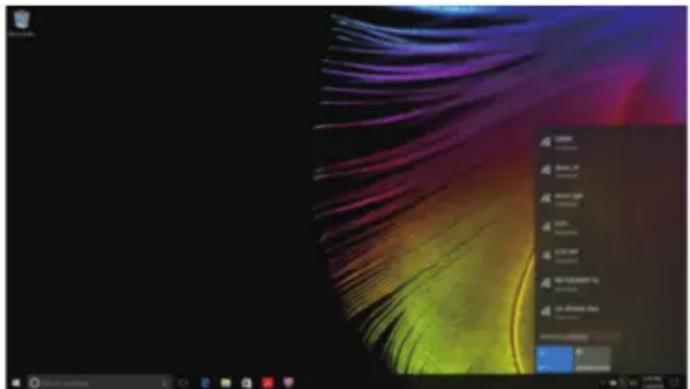
Enabling wireless connection
To enable wireless functions, do the following:
① Press F7 ( _r7 ) to disable airplane mode.
② Click * on the lower-right corner of the task bar to open the network configuration page.
Connecting to a wireless network
After wireless has been enabled, the computer will automatically scan for available wireless networks and display them in the wireless network list. To connect to a wireless network, click the network name in the list, and then click Connect.
Note: Some networks require a network security key or passphrase for connection. To connect to one of those networks, ask the network administrator or the Internet service provider (ISP) for the security key or passphrase.
text_image
Screenshot of a desktop computer with a colorful abstract background and a context menu open in Chinese.Get Started app
Windows 10 also provides the Get Started app to explain the new features of Windows 10. You can find it on the start menu.
To open the Get Started app, do one of the following:
- Open the start menu and select Get Started
- Press Fn + F1 (depending on keyboard layout).

Touch screen operation
The display panel can accept inputs like a tablet, using the multi-touch screen, or like a traditional notebook computer, using the keyboard and touchpad.
■ Multi-touch gestures
You can touch the screen with one or more fingertips to perform a variety of tasks.
Frequently used gestures Tasks performed
Tap
Tap once on an item.

natural_image
Hand pointing at a colorful abstract screen with a 'Samsung' logo (no text or symbols on the screen)Performs an action, such as starting an app, opening a link, or performing a command. Similar to left-clicking with a mouse.
Press and hold
Press your finger down and leave it there for a moment.

natural_image
Hand pointing at a colorful abstract screen with a glowing green-yellow gradient (no text or symbols)Enables you to see detailed information before selecting an action. Can also open a menu with more options. Similar to right-clicking with a mouse.
(continued)
Frequently used gestures Tasks performed
Zoom
Move two fingers together or apart while touching the screen.

text_image
Illustration of a hand pointing at a document with partial text, likely from a book or document.Rotate
Place two or more fingers on an item and then turn your hand.

natural_image
Abstract illustration of a hand interacting with a colorful, flowing ribbon-like shape (no text or symbols)Slide
Drag your finger across the screen.

natural_image
Stack of rolled documents with orange arrows pointing to a document (no visible text or symbols)Zooms in and out on visual apps, such as pictures and maps. Can also jump to the beginning or end of a list.
Rotates an object (Note: Not all items can be rotated, depending upon the app.).
Pans or scrolls through lists and pages. Can also move an object or be used to draw or write, depending upon the app. Similar to pressing and holding to pan and to scrolling with a mouse.
(continued)
Frequently used gestures Tasks performed
Swipe
Start from left/right edge of the screen, then swipe inwards toward the center.

natural_image
Hand pointing at a colorful abstract background with no visible text or symbolsSwiping in from the left edge of the screen can open the task view.
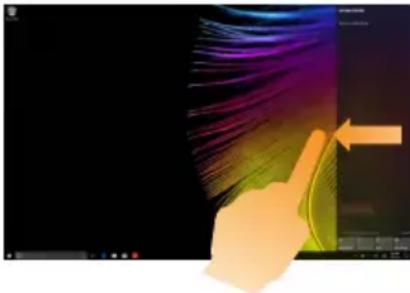
natural_image
Illustration of a hand pointing at a colorful abstract background with a cursor arrow (no text or symbols)Swiping in from the right edge of the screen displays the action center.
Chapter 3. Recovery system
Reset this PC
Introduction
Reset this PC is a built-in recovery tool that enables users to restore their operating system to its original state. This preserves their data and important customizations, without the need to back up their data in advance.
The following Reset this PC features are available to users from multiple locations within Windows:
Keep my files
Fixes software problems by reinstalling the factory default configuration. This preserves personal files, and deletes apps and settings.
Remove everything
Prepares the computer for recycling or transfer of ownership. This reinstalls the factory default configuration and returns all user data and applications to the state of their original Out-of-Box Experience (OOBE).
■ Using Reset this PC
Reset this PC can be launched using one of the following methods:
- Novo Menu:
- Press the Novo button to open the Novo Menu, then select System Recovery → Troubleshoot → Reset this PC.
- Windows PC settings:
- Windows PC settings → Update & security → Recovery → Reset this PC → select Start.
For more instructions, see the Windows Help and Support file on your computer.
Chapter 4. Troubleshooting
Frequently asked questions
This section lists frequently asked questions by category.
■ Finding information
What safety precautions should I follow when using my computer?
Read and follow all safety precautions included in Lenovo Safety and General Information Guide.
Note: To view Lenovo Safety and General Information Guide, select Lenovo Vantage icon on the taskbar. You can also download it from the Lenovo Support Web site.
What is the address of the Lenovo support Web site?
https://support.lenovo.com
Where can I find warranty information?
Visit the Lenovo Support Web site and type the serial number for your computer to look up warranty information.
■ Lenovo preinstalled operating system and software
What is the Lenovo preinstalled operating system?
Some Lenovo computers come with copies of the operating system installed at factory. Lenovo provides computers with preinstalled operating system for your convenience. If you purchased such a computer, you can use your computer out of the box and do not need to install a separate operating system.
What is Lenovo preinstalled software?
This is software (developed by Lenovo or other software vendors) installed and licensed at factory for your convenience. The license for some preinstalled software may be for trial versions. When the trial period expires, you may need to purchase a license if you want to continue to use the software.
Note: If a license agreement is displayed when you first start the software, read the agreement carefully. If you don't accept the terms of the agreement, do not use the software.
When I purchased my computer, it included a copy of Windows. How can I determine whether the copy of Windows is preinstalled by Lenovo?
On the outside of the sales package of your computer, you should find a label containing configuration information for your computer. Check the printed string next to OS. If it contains Windows or WIN, the copy of Windows was preinstalled by Lenovo.
I uninstalled a preinstalled software, but there is no significant increase in the free drive space.
The copy of Windows running on your computer may be Compact-enabled. For computers with Compact-enabled Windows, the majority of files needed for preinstalled software are installed on the Recovery Partition and won't be deleted through normal uninstallation.
How can I determine whether the Windows running on my computer is Compact enabled?
Compact technology is normally enabled on copies of Windows 10 Update running on SSD (or eMMC) -only computer models. To check your computer,
① Right-click the Start button in the lower-left corner and select Disk Management.
②The Disk Management program starts.
If Compact is labeled on the Windows partition, Compact is enabled on your copy of Windows.
Where can I find drivers for the various hardware devices of my computer?
If your computer is preinstalled with a Windows operating system, first check the installation program on the C partition of your hard disk. If you cannot find the drivers for all the hardware devices that you need there, download the drivers from the Lenovo consumer support website.
Note: The Lenovo support Web site contains the latest drivers.
BIOS setup utility
What is the BIOS setup utility?
The BIOS setup utility is ROM-based software. It communicates basic computer information and provides options for setting boot devices, security, hardware mode, and other preferences.
How can I start the BIOS setup utility?
To start the BIOS setup utility:
① Shut down the computer.
2 Press the Novo button and then select BIOS Setup.
How can I change the boot mode? (on select models)
There are two boot modes: UEFI First and Legacy Support. To change the boot mode, start the BIOS setup utility and set boot mode to UEFI First or Legacy Support on the boot menu.
When do I need to change the boot mode? (on select models)
The default boot mode for your computer is UEFI First mode. If you need to install a legacy Windows operating system on your computer, you must change the boot mode to Legacy Support. The legacy Windows operating system cannot be installed if you don't change the boot mode.
Getting help
How can I contact the customer support center?
See "Chapter 3. Getting help and service" of Lenovo Safety and General Information Guide.
Troubleshooting
Display problems
When I turn on the computer, nothing appears on the screen.
- If the screen is blank, make sure that:
- The AC power adapter is connected to the computer, and plugged into a working electrical outlet. - The computer power is on. Press the Power button again for confirmation.
- If these items are properly set, and the screen remains blank, have the computer serviced.
When I turn on the computer, only a white cursor appears on a blank screen.
- Resto re backed-up files to your Windows environment or the entire contents of your hard disk to its original factory contents using the Reset this PC. If you still see only the cursor on the screen, have the computer serviced.
The screen goes blank while the computer is on.
- Your screen saver or power management may be enabled. Do one of the following to resume from sleep mode:
- Press any key on the keyboard. (Notebook mode only) - Press the Power button.
Sleep problems
The critical low-battery error message appears, and the computer immediately turns off.
- The battery power is getting low. Connect the AC power adapter to the computer.
The computer enters sleep mode immediately after Power-on self-test (POST).
- Make sur e that:
- The battery pack is charged. - The operating temperature is within the acceptable range. See "Chapter 2. Use and care Information" in the Lenovo Safety and General Information Guide.
Note: If the battery pack is charged and the temperature is within range, have the computer serviced.
The computer does not return from sleep mode, and the computer does not work.
- If your computer is in sleep mode, connect the AC power adapter to the computer, then press the Power button.
- If the system still does not return from sleep mode, stops responding, or cannot be turned off, reset the computer. Unsaved data may be lost. To reset the computer, press and hold the Power button for eight seconds or more. If the computer is still not reset, remove the AC power adapter.
Display panel problems
The screen is blank. • Do the following:
- If you are using the AC power adapter or the battery pack, and the battery status indicator is on, press F12 ( 12 ) to make the screen brighter.
- If the power indicator is blinking, press the Power button to resume from sleep mode.
- If the problem persists, follow the solution in the next problem "The screen is unreadable or distorted."
The screen is unreadable or distorted.
- Make sure that:
- The screen resolution and color quality are correctly set. - The monitor type is correct.
Incorrect characters appear on the screen.
- Is the operating system or programs installed correctly? If they are installed and configured correctly, have the computer serviced.
Sound problems
No sound can be heard from the speakers even when the volume is turned up.
- Make sur e that:
- The Mute function is off.
- The combo audio jack is not being used.
- Speakers are selected as the playback device.
Battery pack problems
Your computer shuts down before the battery status indicator shows empty.
- Re charge the battery.
-or-
Your computer operates after the battery status indicator shows empty.
Other problems
Your computer does not respond.
- To turn off your computer, press and hold the Power button for eight seconds or more. If the computer still does not respond, remove the AC power adapter.
- Y our computer might lock when it enters sleep mode during a communication operation. Disable the sleep timer when you are working on the network.
The connected external device does not work.
- Do not connect or disconnect any external device cables other than USB while the computer power is on. Otherwise, you might damage your computer.
- When using high power consumption external devices such as an external USB optical disk drive, use an external device power adapter. Otherwise, the device may not be recognized, or the system may shut down as a result.
Trademarks
Lenovo is a trademark or registered trademark of Lenovo in the United States, other countries, or both.
Microsoft and Windows are trademarks of Microsoft Corporation in the United States, other countries, or both.
Other company, products, or service names may be trademarks or service marks of others.