USB120EXT - Computer accessory StarTech.com - Free user manual and instructions
Find the device manual for free USB120EXT StarTech.com in PDF.


User questions about USB120EXT StarTech.com
0 question about this device. Answer the ones you know or ask your own.
Ask a new question about this device
Download the instructions for your Computer accessory in PDF format for free! Find your manual USB120EXT - StarTech.com and take your electronic device back in hand. On this page are published all the documents necessary for the use of your device. USB120EXT by StarTech.com.
USER MANUAL USB120EXT StarTech.com
natural_image
Two black wireless network devices with ports and connectors, one with a USB logo (no visible text or symbols on the device body)USB110 EXT shown
Extending the Range of USB
FCC Radio Frequency Interference Statement Warning
The USBthere has been tested and found compliant with the limits for a Class B digital device, pursuant to Part 15 of the FCC Rules. These limits are designed to provide reasonable protection against harmful interference when installed and operated in a commercial environment. The USBthere generates, uses, and can radiate radio frequency energy and, if not installed and used in accordance with this user guide, may cause harmful interference to radio communications. Operation of the USBthere in a residential area is likely to cause harmful interference in which case the user will be required to correct the interference at his own expense.
CE Statement
We, StarTech.com, declare under our sole responsibility that the USBthere, to which this declaration relates, is in conformity with European Standard EN 55022/A1 Class B, and EN 55024.
IC Statement
This Class B digital apparatus complies with Canadian ICES-003.
Contents
Introduction......1
Product Contents...... 1
About the USBthere....2
Before You Begin 5
Installing the Local Unit 5
Installing the Remote Unit 5
Connecting the Local Unit to the Remote Unit.... 5
Checking the Installation....6
Connecting a USB Device 6
Troubleshooting 7
Specifications....9
Technical Support....10
Warranty Information 10
Notes
Introduction
This manual is intended to assist IT professionals install the USBthere USB110EXT/USB120EXT. The instructions in this guide assume a general knowledge of computer installation procedures, familiarity with cabling requirements, and some understanding of USB devices.
NOTE: Notes give additional information that could make installation easier.
Product Contents
When you open your product for the first time you should find the following items:
- USBthere USB110EXT/USB120EXT User Guide
- Local Unit
- Remote Unit
- USB cable (2m long)
To complete the installation, you will also require the following items that are not included with the product:
- USB compatible computer
- USB device
- Category 5 Unshielded Twisted Pair (UTP) cable with two RJ45 connectors (if using surface cabling), OR,
Category 5 UTP cabling with two information outlets and two Category 5 UTP patch cords with RJ45 connectors (if using premise cabling)
NOTE: The maximum length of the Category 5 UTP cable, including patch cords, must not exceed 50m.
About the USBthere
The USBthere breaks the five-meter distance barrier for the connection of USB peripheral devices and allows users to enjoy the benefits of USB technology beyond the desktop. With the USBthere, USB devices can be located up to 50 meters from the host computer. In addition, the USBthere can supply power to remote low-power and some high-power USB devices.
The product is composed of two individual units, the Local Unit and the Remote Unit.
The Local Unit
The Local Unit connects to the host computer using a conventional USB cable.
Front View Rear View

natural_image
Simple line drawing of a mechanical component with a labeled part (1) and no text or symbols1 Host Port (USB Type B)
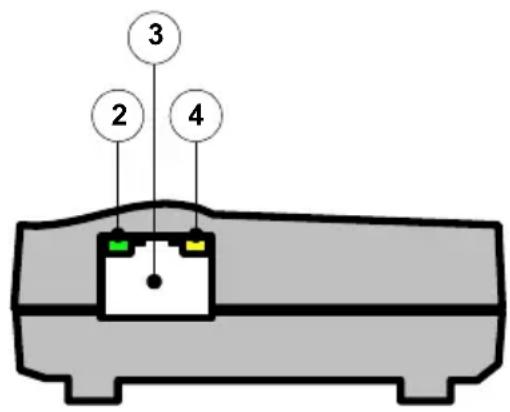
text_image
2 3 42 Host LED (green)
3 Link Port (RJ45)
4 Link LED (yellow)
The Remote Unit
The Remote Unit connects to the USB device using a conventional USB cable. The USB there USB110EXT allows you to connect one full-speed or low-speed USB device. The USB there USB120EXT allows you to connect two full-speed or low-speed USB devices.
Front View Rear View
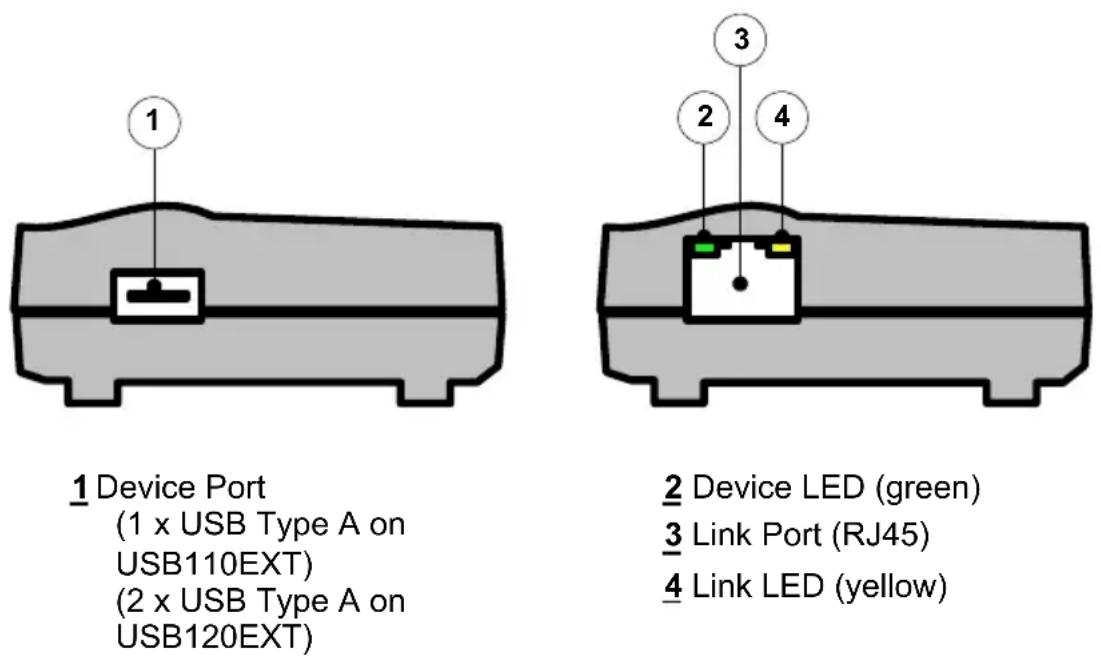
1 Device Port
(1 x USB Type A on
USB110EXT)
(2 x USB Type A on
USB120EXT)
2 Device LED (green)
3 Link Port (RJ45)
4 Link LED (yellow)
Network Cabling
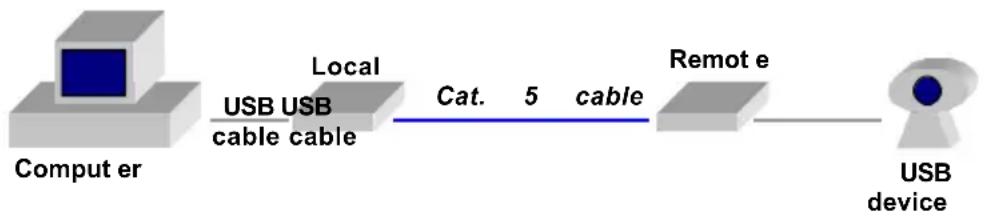
The Local Unit and the Remote Unit are interconnected by up to 50 meters of Category 5 Unshielded Twisted Pair (UTP) cabling. The UTP cabling must have a straight-through conductor configuration, with no crossovers, and must be terminated with 8-conductor RJ45 connectors at both ends.
flowchart
graph LR
    A["Comput er"] -->|USB cable| B["Local"]
    B -->|Cat. 5 cable| C["Remote e"]
    C --> D["USB device"]
NOTE: Category 5 UTP cabling is the standard data communications cable installed in most commercial and some residential buildings.
USB Cables
USB cables have two distinct connectors. The Type A connector is used to connect the cable from a USB device to the Type A port on a computer or hub. The Type B connector is used to attach the USB cable to a USB device.

Power Handling
Some USB devices are powered directly from the USB and do not require individual power supplies. These devices are called bus-powered devices. The USB there can provide power to these devices so they can be operated remotely.
Bus-powered devices are further divided into low-power and high-power categories. Low-power devices are allowed to draw up to 100mA from the USB. Typical examples include mice, joysticks, and keyboards without hubs. High-power devices are allowed to draw up to 500mA from the USB. Typical examples include cameras and keyboards with hubs. To determine if a device is high-power or low-power, consult the user documentation for the device.
The USB there can supply sufficient power to support all low-power devices and most high-power devices. Devices that place a very heavy power drain on USB (>300 mA) are not supported. Most USB devices operate well within this power budget.

NOTE: Devices with their own power source are usually considered to be low-power devices from a USB perspective and are thereby compatible with the USB there.
Compatibility
The USBthere complies with USB 1.1 specifications governing the design of full-speed and low-speed USB devices. However, StarTech.com does not guarantee that the USBthere.
Before You Begin
Before you can install the USB there, you need to prepare your site.
- Determine where the host computer is to be located and set up the computer.
- Determine where you want to locate the USB device.
- If you are using surface cabling, ensure you have enough Category 5 UTP cabling to connect the two locations.
OR
If you are using premise cabling, ensure Category 5 UTP cabling is installed between the two locations, with Category 5 information outlets located near both the computer and the USB device.
Installing the Local Unit
- Place the Local Unit near the host computer.
- Plug the Type B connector on the USB cable (included) into the Host port on the Local Unit.
- Plug the Type A connector on the USB cable into the USB port on the computer.
Installing the Remote Unit
- Place the Remote Unit near the USB device.
Connecting the Local Unit to the Remote Unit

NOTE: To ensure proper operation, we recommend that only Category 5, or better, Unshielded Twisted Pair (UTP) cabling be used to connect the Local Unit to the Remote Unit. The UTP cabling must have a straight-through conductor configuration with no crossovers, and must be terminated with 8-conductor RJ45 connectors at both ends.
With Surface Cabling
- Plug one end of the Category 5 UTP cabling (not included) into the Link port on the Local Unit.
- Plug the other end of the Category 5 UTP cabling into the Link port on the Remote Unit.
With Premise Cabling
- Plug one end of a Category 5 patch cord (not included) into the Link port on the Local Unit.
- Plug the other end of the patch cord into the Category 5 information outlet near the host computer.
- Plug one end of the second Category 5 patch cord (not included) into the Link port on the Remote Unit.
- Plug the other end of the second patch cord into the Category 5 information outlet near the USB device.
NOTE: The maximum length of the Category 5 UTP cable, including patch cords, must not exceed 50 meters.
Checking the Installation
- Check that the Link LEDs on both the Local Unit and the Remote Unit are on.
Connecting a USB Device
- Install any software required to operate the USB device. Refer to the documentation for this device, as required.
- Connect the USB device to the Device port on the Remote Unit.
- Check that the Host LED on the Local Unit is on.
- Check that the Device LED on the Remote Unit is on.
Troubleshooting
The following table provides troubleshooting help. The topics are arranged in the order in which they should be executed in most situations. If you are unable to resolve the problem after following these instructions, please contact technical support for further assistance (see page 10).
| Symptoms/Cause | Remedy |
| All LEDs on Local Unit are off.Cause:The Local Unit is not receiving power from the computer | 1. Ensure that the Local Unit is connected to a USB port on the computer2. Check that the computer is switched on and that the OS is running (not in Sleep mode). |
| Host LED on Local Unit is on; Link LED on Local Unit is off.Cause:There is no connection between the Local Unit and the Remote Unit. | 1. Ensure that a Category 5 UTP cable with straight-through conductors is connected between the Local Unit and the Remote Unit.2. Ensure that Category 5 cables and connectors are used throughout the entire link between the Local Unit and the Remote Unit.3. Check that Category 3 cable has not been substituted.4. Check that the cable length between the Local Unit and the Remote Unit does not exceed 50 metres.5. Connect a short Category 5 patch cord between the Local Unit and the Remote Unit. Recheck the operation of the system. |
| Link LED on Local Unit is on;Host LED on Local Unit is on.Link LED on Remote Unit is on;Device LED on Remote Unit is off.Cause:a) The USB device is not connected to the Remote Unit.b) The USB device is malfunctioning.c) The computer does not recognise the USB device.d) The computer does not support USB hubs.e) The extender is malfunctioning. | 1. Check that the USB device is securely connected to the USB port on the Remote Unit.2. Disconnect the Local Unit from the computer.3. Connect the USB device directly to the USB port on the computer.4. If the device does not operate properly, consult the user documentation for the device.5. If the device operates properly when directly connected to the computer, connect another full speed device (of a different type) to the Remote Unit. Connect the Local Unit to the computer.6. If the second device does not operate, the extender may be malfunctioning. Contact technical support for assistance.7. If the second device does operate properly, the first device may not be compatible with the extender. Contact technical support for assistance. |
| All LEDs on both Local Unit and Remote Unit are on but the device does not operate correctlyCause:a) The USB device is malfunctioning.b) The computer does not recognise the USB device.c) The extender is malfunctioning. | 1. Disconnect the Local Unit from the computer.2. Connect the USB device directly to the USB port on the computer.3. If the device does not operate properly, consult the user documentation for the device.4. If the device operates properly when directly connected to the computer, connect another full speed device (of a different type) to the Remote Unit. Connect the Local Unit to the computer.5. If the second device does not operate, the extender may be malfunctioning. Contact technical support for assistance.6. If the second device does operate properly, the first device may not be compatible with the extender. Contact technical support for assistance. |
Specifications
| Range (over Category 5 UTP cable) | 50 meters (165 ft) |
| USB device support USBthere USB110EXT: 1 x full-speed (12 Mb/s) or low-speed (1.5 Mb/s) device. USBthere USB120EXT: 2 x full-speed (12 Mb/s) or low-speed (1.5 Mb/s) devices. | |
| USB hub support Up to 3 hubs connected in series. Each hub reduces the maximum range by 10 meters. | |
| Maximum power available to USB at Remote Unit | 300 mA when the Local Unit is supplied with 500 mA; 600 mA when the Local Unit is supplied with 1000 mA |
| USB cable 2 meters (6.6 ft) | |
| Local Unit connector (upstream) | 1 x USB Type B |
| Local Unit connector (downstream) | 1 x RJ-45 |
| Remote Unit connector (upstream) | 1 x RJ-45 |
| Remote Unit connector (downstream) | USBthere USB110EXT: 1 x USB Type A USBthere USB120EXT: 2 x USB Type A |
| Local Unit dimensions | 100 mm x 70 mm x 30 mm (4.0" x 2.8" x 1.2") |
| Local Unit weight 0.1 kg (0.2 lb) | |
| Remote Unit dimensions 100 mm x 70 mm x 30 mm (4.0" x 2.8" x 1.2") | |
| Remote Unit weight 0.1 kg (0.2 lb) | |
| Total system shipping weight | 0.4 kg (0.8 lb) |
| Temperature range 4°C to 40°C | |
| Regulatory testing FCC, CE Class B | |
Technical Support
The following technical resources are available for this StarTech.com product:
On-line help:
We are constantly adding new information to the Tech Support section of our web site. To access this page, click the Tech Support link on our homepage, www.startech.com. In the tech support section there are a number of options that can provide assistance with this product.
Knowledge Base - This tool allows you to search for answers to common issues using key words that describe the product and your issue.
FAQ - This tool provides quick answers to the top questions asked by our customers.
Downloads - This selection takes you to our driver download page where you can find the latest drivers for this product.
Call StarTech.com tech support for help:
USA/Canada: 1-519-455-4931
UK/Ireland/Europe: 00-800-7827-8324
Support hours: Monday to Friday 9:00AM to 5:00PM EST (except holidays)
Warranty Information
This product is backed by a one-year warranty. In addition, StarTech.com warrants its products against defects in materials and workmanship for the periods noted below, following the initial date of purchase. During this period, the products may be returned for repair, or replacement with equivalent products at our discretion. The warranty covers parts and labor costs only. StarTech.com does not warrant its products from defects or damages arising from misuse, abuse, alteration, or normal wear and tear.
Limitation of Liability
- In no event shall the liability to StarTech.com Ltd. (or its officers, directors, employees or agents) for any damages (whether direct or indirect, special, punitive incidental, consequential, or otherwise), loss of profits, loss of business, or any pecuniary loss, arising out of related to the use of the product exceed the actual price paid for the product.