
CPNT410IR - Audio/Video Accessories StarTech.com - Free user manual and instructions
Find the device manual for free CPNT410IR StarTech.com in PDF.


| Product Type | 4-to-1 Component A/V Switch |
| Model | CPNT410IR |
| Brand | StarTech.com |
| Number of Inputs | 4 |
| Video Input/Output | Component YPbPr (RCA) |
| Audio Input/Output | Digital Coax and RCA audio |
| Remote Control | Included, with learning function |
| Power Supply | 9V DC adapter (included) |
| Dimensions (approx.) | 4.5 x 3 x 1 in |
| Weight (approx.) | 0.5 lbs |
| FCC Compliance | Class B |
| Key Functions | Input selection via front panel, remote, or learning; clear signal transmission |
| Installation | Connect devices to inputs, output to display, power adapter |
| System Requirements | Display with component video and RCA/coax audio inputs; appropriate cables |
| Warranty | 1 year |
Frequently Asked Questions - CPNT410IR StarTech.com
User questions about CPNT410IR StarTech.com
0 question about this device. Answer the ones you know or ask your own.
Ask a new question about this device
Download the instructions for your Audio/Video Accessories in PDF format for free! Find your manual CPNT410IR - StarTech.com and take your electronic device back in hand. On this page are published all the documents necessary for the use of your device. CPNT410IR by StarTech.com.
USER MANUAL CPNT410IR StarTech.com
4-to-1 Component YPbPr A/V Switch with Remote Control
CPNT410IR
Instruction Manual

natural_image
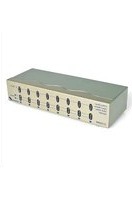
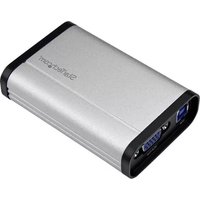
Exterior view of a silver electronic device with control buttons and indicator lights (no readable text or symbols)Actual product may vary from photo
StarTech.com
The Professionals' Source for Hard-to-Find Computer Parts
FCC Compliance Statement
This equipment has been tested and found to comply with the limits for a Class B digital device, pursuant to part 15 of the FCC Rules. These limits are designed to provide reasonable protection against harmful interference in a residential installation. This equipment generates, uses and can radiate radio frequency energy and, if not installed and used in accordance with the instructions, may cause harmful interference to radio communications. However, there is no guarantee that interference will not occur in a particular installation. If this equipment does cause harmful interference to radio or television reception, which can be determined by turning the equipment off and on, the user is encouraged to try to correct the interference by one or more of the following measures:
- Reorient or relocate the receiving antenna.
- Increase the separation between the equipment and receiver.
- Connect the equipment into an outlet on a circuit different from that to which the receiver is connected.
- Consult the dealer or an experienced radio/TV technician for help.
Use of Trademarks, Registered Trademarks, and other Protected Names and Symbols
This manual may make reference to trademarks, registered trademarks, and other protected names and/or symbols of third-party companies not related in any way to StarTech.com. Where they occur these references are for illustrative purposes only and do not represent an endorsement of a product or service by StarTech.com, or an endorsement of the product(s) to which this manual applies by the third-party company in question. Regardless of any direct acknowledgement elsewhere in the body of this document, StarTech.com hereby acknowledges that all trademarks, registered trademarks, service marks, and other protected names and/or symbols contained in this manual and related documents are the property of their respective holders.
Instruction Manual
Table of Contents
Introduction ....1
Features ....1
Before You Begin....1
System Requirements 1
Contents 1
Installation 2
Connecting Devices to the Switch....2
Using the Video Switch 2
Using the Remote Learning Feature ....3
Troubleshooting 3
Accessory Products from StarTech.com ....5
Technical Support....6
Warranty Information ....6
Instruction Manual
Introduction
Thank you for purchasing a StarTech.com 4-to-1 Component YPbPr A/V switch. This product allows you to connect up to four A/V devices that have Component Video and either Digital Coax audio or RCA audio output to a display using a single set of inputs. You can use either the front panel select button, the included remote control, or an existing component remote to toggle between inputs, using the remote learning feature. This product is perfect for use with DVD players, VCRs, game consoles and other video devices when you have a limited number of inputs available on your TV or other display.
Features
- Connect up to four devices to your TV using a single set of inputs
- You can program the video switch to work with your existing universal remote
- Maintains clear audio and video signals for excellent performance
Before You Begin
System Requirements
- A display that has at least one set of inputs that accommodate RCA audio or Digital Coax audio and component video
- A set of cables for each device to be connected to the switch that use RCA audio or Digital Coax audio and component video
- A set of cables to connect the switch to the display, using RCA audio or Digital Coax audio and component video
NOTE: If you are using Digital Coax to connect a device to the switch, Digital Coax will be required between the switch and the display in order for the selected component to properly output an audio signal. Similarly, if you are using RCA audio to connect between a component and the switch, RCA audio must be used between the switch and the display.
Contents
This package should contain:
- Component/Audio Switcher (1)
• 9V DC Power Adapter (1) - Instruction manual (1)
- Remote Control (1)
Instruction Manual
Installation
These instructions assume that the display has at least one available set of inputs that use Component Video, as well as RCA or Digital Coax audio capability, and that all the devices have their cables attached. You may need to disconnect an existing device from the display to make an input available and re-connect that device once the video switch has been suitably configured.
Connecting Devices to the Switch
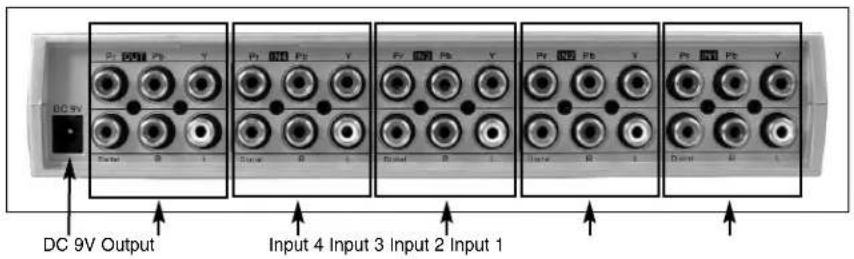
NOTE: These instructions assume that all devices connected to the switch use the same connection that the switch will use to connect to the display (i.e. the switch connects to the Component Video input on a television, so all devices will be connected to the switch using Component Video cables).
- Situate the switch near the display and the devices you wish to use with the switch.
- Using the color-coding on the jacks, connect one of the designated components to the corresponding ports marked IN1.
- Connect up to three additional devices following the instructions in step 2.
- Connect RCA audio or digital coax cables and a composite video cable to the ports labeled OUTPUT on the video switch. Connect the opposite end of those cables to the appropriate connectors on the display (normally marked as A/V IN or similar).
- Connect the power adapter (provided) to the port marked DC 9V on the video switch. Connect the opposite end to a wall outlet or other suitable power source.
The video switch is now ready to use.
Instruction Manual
Using the Video Switch

Once you have connected devices to the video switch, you can proceed to test the connection to the television or other display. Turn on the display, and select the input to which you connected the video switch. Consult the documentation for your display if you are unsure on how to select A/V inputs. Usually, there will be a button on the display's remote or front panel labeled INPUT or A/V. If the display has multiple inputs, you will need to ensure the input you have selected corresponds to the connectors on the television you used for the switch. A red LED indicator will light on the front panel of the switch to show which device is active.
Power on all of the devices you connected to the video switch. You should now be able to use the SELECT button on the video switch to select which device has an active connection to the display.
Using the Remote Learning Feature
This video switch allows you to select an input using the signal from any remote, using the remote learning feature. To program an existing remote to work with CPNT410IR:
- Press and hold the LEARN button on the video switch until the LED indicator for input 1 begins to flash.
- Aim your universal remote at the video switch. Press the key on the remote that corresponds to the key you want to use to select input 1 on the video switch (i.e. DVD, VCR, SATELLITE etc.) Once the video switch has stored that setting, the LED indicator for input 2 will flash on the video switch.
- Repeat this process for inputs 2, 3, and 4. When the process is complete, the video switch will automatically return to the input you selected before entering Learn Mode. To abort the programming at any time, press the LEARN button once.
Troubleshooting
If you're having difficulty using the video switch, try the following solutions based on the nature of the problem.
None of the devices connected to the video switch are displayed on the screen.
1) Ensure the video switch is plugged in and receiving power. One LED indicator on the front panel will be lit when the switch is receiving power.
2) Try selecting another input on the display and verify which input the switch is
Instruction Manual
connected to. Most displays will have their A/V inputs marked with a number, so ensure the input selected on the screen matches the physical connection between the switch and the display.
3) Verify cable connections between the video switch and display are snug.
Some of the devices connected to the switch do not appear on the display when they are connected.
1) Ensure the device you selected is powered on and that it has media inserted (if applicable: tape, DVD, etc.). If needed, press play on the device to ensure an image is displayed.
2) Ensure that all the cable connections between devices and the switch are correct and snug. Also ensure that the device is connected to the set of inputs that you selected on the switch.
Video or audio quality is poor.
1) Ensure the connections between the devices and the switch, and the switch and the display, are snug.
2) Try using a higher quality A/V cable to make the connection between the devices and the switch for the best possible performance.
Instruction Manual
Accessory Products from StarTech.com
Contact your local StarTech.com dealer or visit www.startech.com for cables or other accessories that will help you get the best performance out of your new product.
Component Cables
ZENCPNT1
Cable ZEN 3.3 ft (1m) Component Video Cable
ZENCPNT2
Cable ZEN 6.6 ft (2m) Component Video Cable
ZENCPNT3
Cable ZEN 9.8 ft (3m) Component Video Cable
Digital Coax Cables
ZENDIGCOAX1
Cable ZEN 3.3 ft (1m) Digital Coaxial Audio Cable
ZENDIGCOAX2
Cable ZEN 6.6 ft (2m) Digital Coaxial Audio Cable
ZENDIGCOAX3
Cable ZEN 9.8 ft (3m) Digital Coaxial Audio Cable
COAXSPDIF3
3 ft Premium Digital Coaxial Audio Cable
COAXSPDIF6
6 ft Premium Digital Coaxial Audio Cable
COAXSPDIF12
12 ft Premium Digital Coaxial Audio Cable
RCA Audio Cables
ZENAUDLR1
Cable ZEN 3.3 ft (1m) RCA Audio Cable
ZENAUDLR2
Cable ZEN 6.6 ft (2m) RCA Audio Cable
ZENAUDLR3
Cable ZEN 9.8 ft (3m) RCA Audio Cable
AUDIORCA12
12 ft Premium RCA Audio Cable
AUDIORCA3
3 ft Premium RCA Audio Cable
Instruction Manual
Technical Support
StarTech.com's lifetime technical support is an integral part of our commitment to provide industry-leading solutions. If you ever need help with your product, visit www.startech.com/support and access our comprehensive selection of online tools, documentation, and downloads.
Warranty Information
This product is backed by a one-year warranty. In addition, StarTech.com warrants its products against defects in materials and workmanship for the periods noted, following the initial date of purchase. During this period, the products may be returned for repair, or replacement with equivalent products at our discretion. The warranty covers parts and labor costs only. StarTech.com does not warrant its products from defects or damages arising from misuse, abuse, alteration, or normal wear and tear.
Limitation of Liability
In no event shall the liability of StarTech.com Ltd. and StarTech.com USA LLP (or their officers, directors, employees or agents) for any damages (whether direct or indirect, special, punitive, incidental, consequential, or otherwise), loss of profits, loss of business, or any pecuniary loss, arising out of or related to the use of the product exceed the actual price paid for the product.
Some states do not allow the exclusion or limitation of incidental or consequential damages. If such laws apply, the limitations or exclusions contained in this statement may not apply to you.
About StarTech.com
StarTech.com is “The Professionals’ Source for Hard-to-Find Computer Parts”. Since 1985, we have been providing IT professionals with the quality products they need to complete their solutions. We offer an unmatched selection of computer parts, cables, server management solutions and A/V products and serve a worldwide market through our locations in the United States, Canada, the United Kingdom and Taiwan.
Visit www.startech.com for complete information about all our products and to access exclusive interactive tools such as the Parts Finder and the KVM Reference Guide. StarTech.com makes it easy to complete almost any IT solution. Find out for yourself why our products lead the industry in performance, support, and value.


- FCC Compliance Statement
- Use of Trademarks, Registered Trademarks, and other Protected Names and Symbols
- Instruction Manual
- Table of Contents
- Introduction
- Features
- Before You Begin
- System Requirements
- Contents
- Installation
- Using the Video Switch
- Using the Remote Learning Feature
- Troubleshooting
- None of the devices connected to the video switch are displayed on the screen.
- Some of the devices connected to the switch do not appear on the display when they are connected.
- Video or audio quality is poor.
- Accessory Products from StarTech.com
- Component Cables
- ZENCPNT1
- ZENCPNT2
- ZENCPNT3
- Digital Coax Cables
- ZENDIGCOAX1
- ZENDIGCOAX2
- ZENDIGCOAX3
- COAXSPDIF3
- COAXSPDIF6
- COAXSPDIF12
- RCA Audio Cables
- ZENAUDLR1
- ZENAUDLR2
- ZENAUDLR3
- AUDIORCA12
- AUDIORCA3
- Technical Support
- Warranty Information
- Limitation of Liability
- About StarTech.com
Brand : StarTech.com
Model : CPNT410IR
Category : Audio/Video Accessories