
USB32DVIEH - Audio/Video Accessories StarTech.com - Free user manual and instructions
Find the device manual for free USB32DVIEH StarTech.com in PDF.


| Product Type | USB 3.0 to DVI External Video Card Adapter with 1-Port USB Hub |
| Brand | StarTech.com |
| Model | USB32DVIEH |
| Category | Audio/Video Accessories |
| Interface | USB 3.0 (backward compatible with USB 2.0) |
| Video Output | DVI (with included DVI to VGA adapter) |
| Maximum Resolution | 1920 x 1200 |
| Chipset | MCT Trigger T5-302 |
| Color | Black |
| Enclosure Material | Plastic |
| Audio Support | Yes (over DVI on compatible displays) |
| Operating System Compatibility | Windows 7 (32/64-bit), Windows 8 (32/64-bit) |
| Power Source | Bus-powered via USB port |
| Number of Adapters per PC | Up to 5 |
| Supported Display Modes | Mirror or extend desktop |
| Built-in USB Hub | 1-port USB 3.0 hub |
| Package Contents | Adapter, DVI to VGA adapter, Software CD, Instruction Manual |
| Warranty | 2 years |
| Technical Support | Lifetime free technical support |
Frequently Asked Questions - USB32DVIEH StarTech.com
User questions about USB32DVIEH StarTech.com
0 question about this device. Answer the ones you know or ask your own.
Ask a new question about this device
Download the instructions for your Audio/Video Accessories in PDF format for free! Find your manual USB32DVIEH - StarTech.com and take your electronic device back in hand. On this page are published all the documents necessary for the use of your device. USB32DVIEH by StarTech.com.
USER MANUAL USB32DVIEH StarTech.com
USB 3.0 to DVI External Video Card Multi Monitor Adapter with 1-Port USB Hub
USB32DVIEH
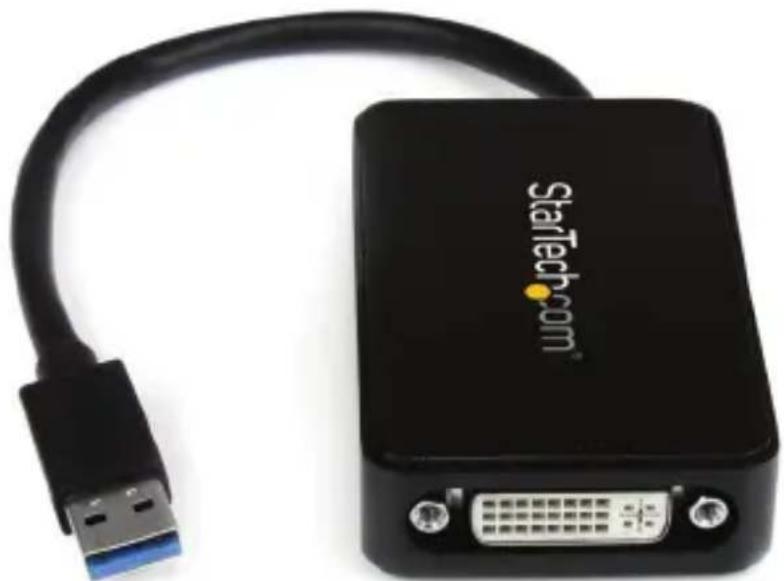
natural_image
Black StarTech.com USB device with DVI port, connected to a cable (no visible text or symbols on device body)*actual product may vary from photos
For the most up-to-date information, please visit: www.startech.com
FCC Compliance Statement
This equipment has been tested and found to comply with the limits for a Class B digital device, pursuant to part 15 of the FCC Rules. These limits are designed to provide reasonable protection against harmful interference in a residential installation. This equipment generates, uses and can radiate radio frequency energy and, if not installed and used in accordance with the instructions, may cause harmful interference to radio communications. However, there is no guarantee that interference will not occur in a particular installation. If this equipment does cause harmful interference to radio or television reception, which can be determined by turning the equipment off and on, the user is encouraged to try to correct the interference by one or more of the following measures:
• Reorient or relocate the receiving antenna.
- Increase the separation between the equipment and receiver.
- Connect the equipment into an outlet on a circuit different from that to which the receiver is connected.
- Consult the dealer or an experienced radio/TV technician for help.
Use of Trademarks, Registered Trademarks, and other Protected Names and Symbols
This manual may make reference to trademarks, registered trademarks, and other protected names and/or symbols of third-party companies not related in any way to StarTech.com. Where they occur these references are for illustrative purposes only and do not represent an endorsement of a product or service by StarTech.com, or an endorsement of the product(s) to which this manual applies by the third-party company in question. Regardless of any direct acknowledgement elsewhere in the body of this document, StarTech.com hereby acknowledges that all trademarks, registered trademarks, service marks, and other protected names and/or symbols contained in this manual and related documents are the property of their respective holders.
Table of Contents
Introduction ....1
Packaging Contents .... 1
Recommended System Requirements....1
Installation ....3
Driver Installation....3
Hardware Installation 4
USB HUB Installation (Optional) 4
Multiple USB Video Adapter Installation 5
Configuring the USB Video Adapter....5
Display Settings 6
Identify Monitors 6
Multi-Display Control Panel 7
Specifications 8
Technical Support 9
Warranty Information 9
Introduction
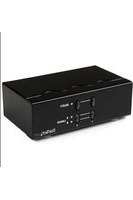
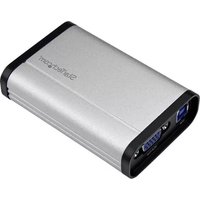
The USB32DVIEH USB 3.0 to DVI Adapter turns an available USB 3.0 port into a DVI output port with high resolution 1920x1200 video support. The adapter features a built-in 1-Port USB 3.0 hub, which offers a connection port in place of the USB port used for connecting the DVI adapter – an ideal workaround for Ultrabook™ or laptop users where only a limited number of USB ports are available.
The USB to DVI adapter functions as an external graphics card, providing a convenient way to add multi-monitor capability to a USB 3.0-enabled desktop or laptop computer (optimal performance from USB 3.0, backward compatible with USB 2.0). The included DVI to VGA adapter also allows you to use this device with a VGA display.
Leveraging the high-bandwidth (5 Gbps) SuperSpeed USB 3.0 interface, the adapter delivers smooth, high-definition content to your DVI display / projector. The adapter can be used to mirror your primary desktop, showing the same image on each display, or to extend your desktop to double your workspace and increase your productivity.
Backed by a StarTech.com 2-year warranty and free lifetime technical support.
Packaging Contents
• USB 3.0 to DVI Adapter
• DVI to VGA adapter
- Software CD
- Instruction Manual
Recommended System Requirements
• USB enabled computer system with available USB 3.0 or 2.0 port
• CPU: Quad Core 2.4GHz or Higher (i5 recommended)
• RAM: 4GB or higher
• Microsoft® 7(32/64-bit) 8(32/64-bit)

FrontBack

natural_image
Black Startech.com USB device with DVI port, shown against white background (no text or symbols on device body)
natural_image
Close-up of a black rectangular electronic device with a blue indicator light and a black cable inserted (no visible text or symbols)Installation Driver Installation
NOTE: Please ensure that the driver installation is complete prior to the physical installation (plugging in) of the USB 3.0 Video Adapter
- Download the latest drivers from the StarTech.com website (recommended), or insert the included Driver CD into your CD/DVD-ROM drive.
- Locate the Setup.exe application. This file will be located in the root directory of the Driver CD (e.g. D:) or downloaded file.
- Executing the Setup.exe application will launch the following screen. Please click Next > to start installation process. The set-up program will install the device driver and software application respectively.
*Ensure that the USB Video Adapter is not connected to the host computer.

- Once Windows has finished the driver installation, it will prompt you to restart the computer. Select "Yes, I want to restart my computer now", and click the "Finish" button.
Hardware Installation
- Once the computer has restarted connect your USB32DVIEH device via the USB cable to your PC.
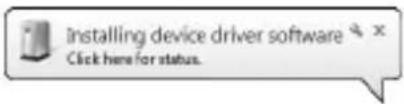
- The system will initiate driver and software application (screen may flash or go black during the install).
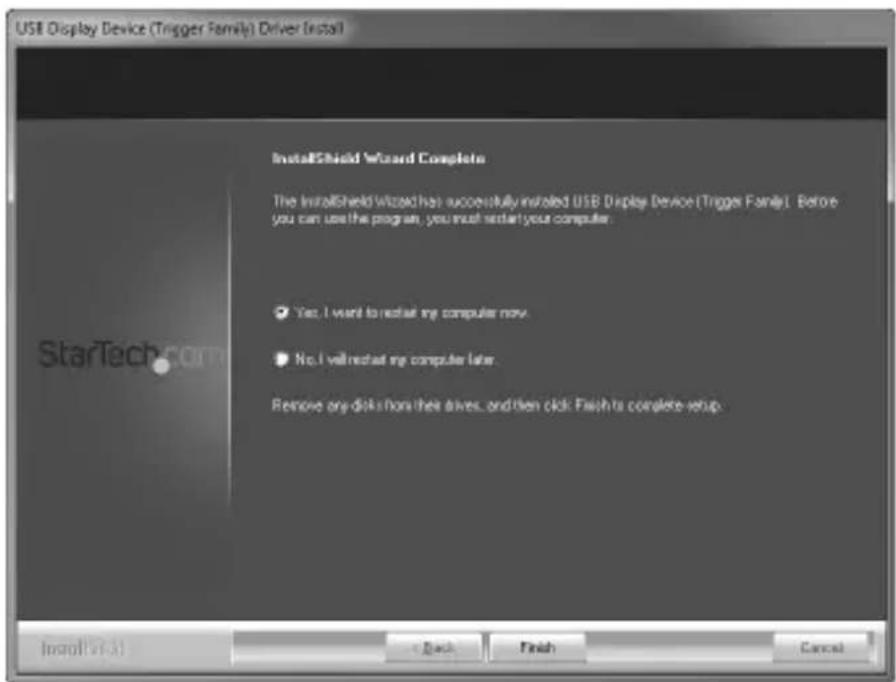
-
Connect your DVI monitor to the available DVI port on the USB32DVIEH device.
-
The USB Video Adapter is now ready for use.
USB HUB Installation (Optional)
This device includes a 1 port USB 3.0 hub to replace the port taken up by the device.
NOTE: If the USB display adapter is connected to a USB 2.0 host port, the hub will only operate at USB 2.0 speeds.
- Ensure the Hardware Installation steps have been completed. USB Hub drivers will install as part of the installation when device is connected.
- Connect the USB A type cable from your desired USB device to USB female port on the Display adapter.
- Follow any installation steps for the device connected.
Multiple USB Video Adapter Installation
Ensure you have the latest version of the drivers installed, otherwise, please download them from the StarTech.com website (www.startech.com).
- Complete the standard driver installation steps, up to when you plug in the first USB Video Adapter.
- Connect another monitor/display to the second USB Video Adapter, and turn on the display.
- Connect the USB type A connector on the second USB Video Adapter to an available USB 3.0 port on the host computer. The driver installation will begin automatically.
Repeat these steps for each additional USB Video Adapter you wish to install. Once all USB Video Adapters are installed, reboot the computer. After rebooting, you may be prompted to reboot one final time; please do so.
Configuring the USB Video Adapter
Look for the "USB Video Adapter" icon ( ) on your Windows System Tray (next to Clock). Right-click this icon to configure the adapter using the options explained in detail below.

Display Settings
Quick access to the Windows® "Display Settings" window.
This option allows you to use the Windows® native Display Settings to adjust all settings including: Resolution, monitor placement, and choose whether the additional will extend or mirror the main display.

Identify Monitors
This option displays the identification number assigned by Windows® to differentiate between each monitor. Using an easy to read overlay this number is displayed in the upper right corner of each monitor.

natural_image
Three stylized Windows XP icons with colorful motion trails against a black background (no text or symbols)Multi-Display Control Panel
This unique feature allows for quicker and simpler management of a multi-display environment using a series of hotkeys to quickly move the active program window to the desired display (either on-board or each USB Video Adapter).

The default setting of the hotkeys can be found in the Hotkey List of "Multi-Display Control Panel". For example: Ctrl + 2 means: to move the window to Display 2
Specifications
| AV Input USB 3.0 | |
| Interface USB | |
| Max Resolution 1920 x 1200 | |
| AV Output DVI | |
| Chipset ID MCT Trigger T5-302 | |
| Color Black | |
| Enclosure Type Plastic | |
| Audio Yes | |
| Maximum Digital Resolution 1920 x 1200 | |
| OS Compatibility | Windows® 7 (32/64bit) Windows® 8 (32/64bit) |
| Output Signal DVI | |
| Industry Standards | Standard DisplayPort, SuperSpeed USB 3.0, USB 2.0 |
| Supported Resolutions | Widescreen(16/32 bit): 1920x1200, 1920x1080, 1680x1050, 1600x900, 1440x900, 1360x768, 1280x800, 1280x768, 1280x720 Standard(16/32 bit): 1600x1200, 1400x1050, 1280x1024, 1280x960, 1152x864, 1024x768, 800x600 |
| Wide Screen Supported Yes |
NOTE: Connect a maximum of five USB32DVIEH adapters on a single PC
Technical Support
StarTech.com's lifetime technical support is an integral part of our commitment to provide industry-leading solutions. If you ever need help with your product, visit www.startech.com/support and access our comprehensive selection of online tools, documentation, and downloads.
For the latest drivers/software, please visit www.startech.com/downloads
Warranty Information
This product is backed by a two year warranty.
In addition, StarTech.com warrants its products against defects in materials and workmanship for the periods noted, following the initial date of purchase. During this period, the products may be returned for repair, or replacement with equivalent products at our discretion. The warranty covers parts and labor costs only. StarTech.com does not warrant its products from defects or damages arising from misuse, abuse, alteration, or normal wear and tear.
Limitation of Liability
In no event shall the liability of StarTech.com Ltd. and StarTech.com USA LLP (or their officers, directors, employees or agents) for any damages (whether direct or indirect, special, punitive, incidental, consequential, or otherwise), loss of profits, loss of business, or any pecuniary loss, arising out of or related to the use of the product exceed the actual price paid for the product. Some states do not allow the exclusion or limitation of incidental or consequential damages. If such laws apply, the limitations or exclusions contained in this statement may not apply to you.
Hard-to-find made easy. At StarTech.com, that isn't a slogan. It's a promise.
StarTech.com is your one-stop source for every connectivity part you need. From the latest technology to legacy products — and all the parts that bridge the old and new — we can help you find the parts that connect your solutions.
We make it easy to locate the parts, and we quickly deliver them wherever they need to go. Just talk to one of our tech advisors or visit our website. You'll be connected to the products you need in no time.
Visit www.startech.com for complete information on all StarTech.com products and to access exclusive resources and time-saving tools.
StarTech.com is an ISO 9001 Registered manufacturer of connectivity and technology parts. StarTech.com was founded in 1985 and has operations in the United States, Canada, the United Kingdom and Taiwan servicing a worldwide market.


- USB 3.0 to DVI External Video Card Multi Monitor Adapter with 1-Port USB Hub
- FCC Compliance Statement
- Use of Trademarks, Registered Trademarks, and other Protected Names and Symbols
- Table of Contents
- Introduction ....1
- Installation ....3
- Specifications 8
- Technical Support 9
- Warranty Information 9
- Introduction
- Packaging Contents
- Recommended System Requirements
- Installation Driver Installation
- Hardware Installation
- USB HUB Installation (Optional)
- Multiple USB Video Adapter Installation
- Configuring the USB Video Adapter
- Display Settings
- Identify Monitors
- Multi-Display Control Panel
- Technical Support
- Warranty Information
- Limitation of Liability
Brand : StarTech.com
Model : USB32DVIEH
Category : Audio/Video Accessories