DKT30CVAGPD - Computer accessory StarTech.com - Free user manual and instructions
Find the device manual for free DKT30CVAGPD StarTech.com in PDF.


User questions about DKT30CVAGPD StarTech.com
0 question about this device. Answer the ones you know or ask your own.
Ask a new question about this device
Download the instructions for your Computer accessory in PDF format for free! Find your manual DKT30CVAGPD - StarTech.com and take your electronic device back in hand. On this page are published all the documents necessary for the use of your device. DKT30CVAGPD by StarTech.com.
USER MANUAL DKT30CVAGPD StarTech.com
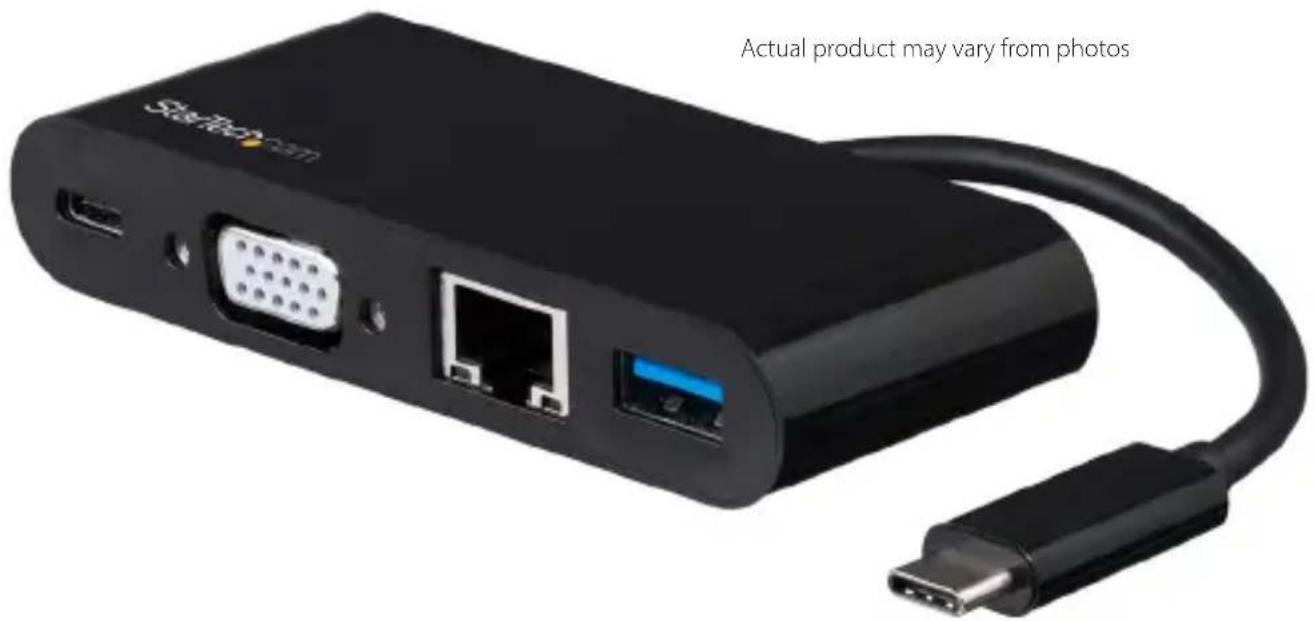
USB-C Multiport Adapter VGA - USB-A GbE - PD Charging
DKT30CVAGPD
text_image
Actual product may vary from photos Svstoc.comFor the latest information, technical specifications, and support for this product, please visit www.startech.com/DKT30CVAGPD.
FCC Compliance Statement
This equipment has been tested and found to comply with the limits for a Class B digital device, pursuant to part 15 of the FCC Rules. These limits are designed to provide reasonable protection against harmful interference in a residential installation. This equipment generates, uses and can radiate radio frequency energy and, if not installed and used in accordance with the instructions, may cause harmful interference to radio communications. However, there is no guarantee that interference will not occur in a particular installation. If this equipment does cause harmful interference to radio or television reception, which can be determined by turning the equipment off and on, the user is encouraged to try to correct the interference by one or more of the following measures:
• Reorient or relocate the receiving antenna.
- Increase the separation between the equipment and receiver.
- Connect the equipment into an outlet on a circuit different from that to which the receiver is connected.
- Consult the dealer or an experienced radio/TV technician for help
This device complies with part 15 of the FCC Rules. Operation is subject to the following two conditions: (1) This device may not cause harmful interference, and (2) this device must accept any interference received, including interference that may cause undesired operation.
Changes or modifications not expressly approved by StarTech.com could void the user's authority to operate the equipment.
Industry Canada Statement
This Class B digital apparatus complies with Canadian ICES-003.
Use of Trademarks, Registered Trademarks, and other Protected Names and Symbols
This manual may make reference to trademarks, registered trademarks, and other protected names and/or symbols of third-party companies not related in any way to StarTech.com. Where they occur these references are for illustrative purposes only and do not represent an endorsement of a product or service by StarTech.com, or an endorsement of the product(s) to which this manual applies by the third-party company in question. Regardless of any direct acknowledgement elsewhere in the body of this document, StarTech.com hereby acknowledges that all trademarks, registered trademarks, service marks, and other protected names and/or symbols contained in this manual and related documents are the property of their respective holders.
Table of Contents
Product diagram ....1
Front view....1
Product information....2
Package contents....2
Requirements 2
Specifications....2
USB 3.0....2
USB-C 2
USB 3.0 Type-A port .... 3
USB 3.0 Type C-port....3
USB Power Delivery 2.0....3
VGA port....3
Installation 3
Powering the multiport adapter....3
Disconnecting a USB-C power adapter....4
Installing the driver 5
Product support 6
Technical support....6
Warranty information....6
Limitation of liability....6
Product diagram
Actual product may vary from photos
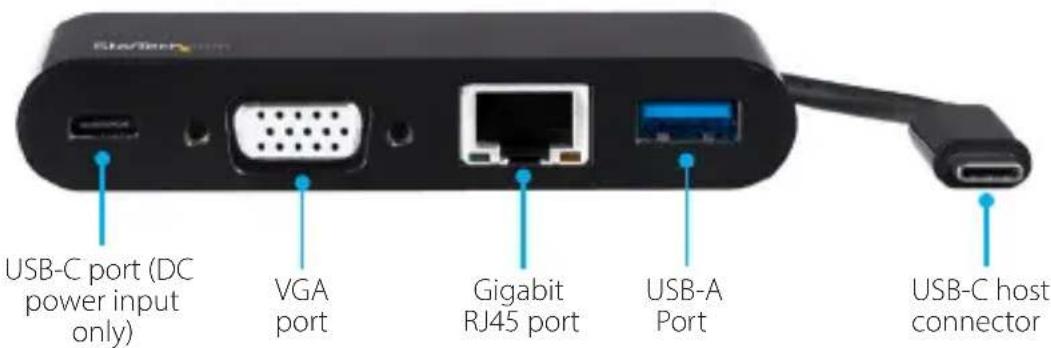
Front view
text_image
USB-C port (DC power input only) VGA port Gigabit RJ45 port USB-A Port USB-C host connectorProduct information
Package contents
- 1 x multiport adapter
• 1 x instruction manual
Requirements
Note: System requirements are subject to change. For the latest requirements, please visit www.StarTech.com/DKT30CVAGPD.
Laptop:
- An available USB-C port (to ensure full adapter functionality, the host USB-C port must support USB Power Delivery 2.0 and DP Alt Mode).
• (OPTIONAL) Laptop with a USB-C power adapter.
• (OPTIONAL) An AC electrical outlet.
VGA:
• VGA display device (projector or monitor) with cables.
Operating systems:
- Operating system requirements are subject to change. For the latest requirements, please visit: www.StarTech.com/DKT30CVAGPD
Specifications
USB 3.0
• Also referred to as USB 3.1 Gen 1.
• Supports connectivity speeds up to 5Gbps.
USB-C
Note: Some USB-C ports might only provide data transfers, and might not support video or USB Power Delivery 2.0.
• Supports data throughput up to 5Gbps and USB Power Delivery 2.0 (60 watts max).
- Thunderbolt™ 3 technology also uses the USB-C host connector, so you can connect the adapter to a Thunderbolt 3 port. The adapter will connect to the Thunderbolt 3 port at the USB speed of 5Gbps.
USB 3.0 Type-A port
• Supports data throughput up to 5 Gbps.
- Charges connected USB device using BC (battery charging) 1.2 with power up to 7.5 watts (5V/1.5A).
USB 3.0 Type C-port
• Supports USB Power Delivery 2.0.
USB Power Delivery 2.0
- Delivers up to 60 watts of power through the USB-C or Thunderbolt 3 port on the host laptop.
VGA port
• Supports resolution up to 1920x1200@60Hz.
Installation
Powering the multiport adapter
Power the multiport adapter by using one of the following methods:
- Bus power: The multiport adapter is powered by your host laptop's USB-C port and does not require a separate power adapter.
- USB-C power adapter (Recommended): Connect the USB-C connector on the host laptop's power adapter to the multiport adapter's USB-C port. The power adapter will power the multiport adapter and pass power through to the host laptop.
Note: Some laptops may have specific charging requirements. If a laptop requires 60W of power and an adapter connected to the laptop consumes a portion of the power requirement, the power supplied to the laptop will be reduce by the amount of power supplied to the adapter. The laptop may not recognize the loss in power and may cause a disruption in charging. For more information about Power Delivery, refer to the manufacturer of your hardware.
Connecting the multiport adapter using bus power
- (OPTIONAL): Connect your peripheral devices to the multiport adapter (e.g. VGA device i.e. projector, USB device i.e. keyboard, or an RJ45 network device i.e. Ethernet router).
Note: see Product Diagram for port location and identification.
- Connect the USB-C host connector on the multiport adapter to a USB-C port on your host laptop. Depending on the host laptop's operating system (see Requirements), the necessary drive will automatically be installed.
Connecting the multiport adapter using a USB-C power adapter
- (OPTIONAL): Connect your peripheral devices to the multiport adapter (e.g. VGA device i.e. projector, USB device i.e. keyboard, or an RJ45 network device i.e. Ethernet).
Note: see Product Diagram for port location and identification.
- Connect the USB-C host connector on the multiport adapter to a USB-C port on the host laptop.
- Connect the USB-C connector on the host laptop's power adapter to the USB Type-C port on the multiport adapter.
Disconnecting a USB-C power adapter
- Before disconnecting the USB-C power adapter from the multiport adapter, make sure all data transfers are complete.
Warning: If you disconnect the power adapter while transferring files to/from an attached storage device, the transfer will stop. This may corrupt any files that you were attempting to transfer.
- Disconnect the multiport adapter's USB-C host connector from the host laptop's USB-C port.
- Disconnect the host laptop's power adapter from the multiport adapter.
Note: Disconnecting the power adapter during operation can also cause the multiport adapter to lose functionality.
- (OPTIONAL) Disconnect the HDMI connector and any USB peripherals.
Installing the driver
If the required driver does not automatically install after connecting the multiport adapter to the host laptop, complete the driver installation manually:
- Connect the multiport adapter to the host laptop (see Powering the multi-port adapter), the Found New Hardware popup will appear.
- On the Found New Hardware popup, click the Cancel button.
- Usign a web browser type www.startech.com/DKT30CVAGPD in the address line.
- On the Product page, click the Support tab located in the middle of the screen.
- On the Drivers and Downloads section, click on the driver link that corresponds with the operating system running on the host laptop.
- Once the download is complete, extract the contents of the .zip file.
- Click the appropriate driver for the version of operating system that you are running and follow the on-screen prompts to complete the installation.
Product support
Technical support
StarTech.com's lifetime technical support is an integral part of our commitment to provide industry-leading solutions. If you ever need help with your product, visit www.startech.com/support and access our comprehensive selection of online tools, documentation, and downloads.
For the latest drivers/software, please visit www.startech.com/downloads
Warranty information
This product is backed by a three-year warranty.
StarTech.com warrants its products against defects in materials and workmanship for the periods noted, following the initial date of purchase. During this period, the products may be returned for repair, or replacement with equivalent products at our discretion. The warranty covers parts and labor costs only. StarTech.com does not warrant its products from defects or damages arising from misuse, abuse, alteration, or normal wear and tear.
Limitation of liability
In no event shall the liability of StarTech.com Ltd. and StarTech.com USA LLP (or their officers, directors, employees or agents) for any damages (whether direct or indirect, special, punitive, incidental, consequential, or otherwise), loss of profits, loss of business, or any pecuniary loss, arising out of or related to the use of the product exceed the actual price paid for the product. Some states do not allow the exclusion or limitation of incidental or consequential damages. If such laws apply, the limitations or exclusions contained in this statement may not apply to you.
Hard-to-find made easy. At StarTech.com, that isn't a slogan. It's a promise.
StarTech.com is your one-stop source for every connectivity part you need. From the latest technology to legacy products — and all the parts that bridge the old and new — we can help you find the parts that connect your solutions.
We make it easy to locate the parts, and we quickly deliver them wherever they need to go. Just talk to one of our tech advisors or visit our website. You'll be connected to the products you need in no time.
Visit www.startech.com for complete information on all StarTech.com products and to access exclusive resources and time-saving tools.
StarTech.com is an ISO 9001 Registered manufacturer of connectivity and technology parts. StarTech.com was founded in 1985 and has operations in the United States, Canada, the United Kingdom and Taiwan servicing a worldwide market.