DuraView 1UCABCONS19 - Computer accessory StarTech.com - Free user manual and instructions
Find the device manual for free DuraView 1UCABCONS19 StarTech.com in PDF.


User questions about DuraView 1UCABCONS19 StarTech.com
0 question about this device. Answer the ones you know or ask your own.
Ask a new question about this device
Download the instructions for your Computer accessory in PDF format for free! Find your manual DuraView 1UCABCONS19 - StarTech.com and take your electronic device back in hand. On this page are published all the documents necessary for the use of your device. DuraView 1UCABCONS19 by StarTech.com.
USER MANUAL DuraView 1UCABCONS19 StarTech.com
natural_image
Laptop-mounted server rack with open panel and keyboard, no visible text or labelsFCC Compliance Statement
This equipment has been tested and found to comply with the limits for a Class B digital device, pursuant to part 15 of the FCC Rules. These limits are designed to provide reasonable protection against harmful interference in a residential installation. This equipment generates, uses and can radiate radio frequency energy and, if not installed and used in accordance with the instructions, may cause harmful interference to radio communications. However, there is no guarantee that interference will not occur in a particular installation. If this equipment does cause harmful interference to radio or television reception, which can be determined by turning the equipment off and on, the user is encouraged to try to correct the interference by one or more of the following measures:
• Reorient or relocate the receiving antenna.
- Increase the separation between the equipment and receiver.
- Connect the equipment into an outlet on a circuit different from that to which the receiver is connected.
- Consult the dealer or an experienced radio/TV technician for help.
Use of Trademarks, Registered Trademarks, and other Protected Names and Symbols
This manual may make reference to trademarks, registered trademarks, and other protected names and/or symbols of third-party companies not related in any way to StarTech.com. Where they occur these references are for illustrative purposes only and do not represent an endorsement of a product or service by StarTech.com, or an endorsement of the product(s) to which this manual applies by the third-party company in question. Regardless of any direct acknowledgement elsewhere in the body of this document, StarTech.com hereby acknowledges that all trademarks, registered trademarks, service marks, and other protected names and/or symbols contained in this manual and related documents are the property of their respective holders.
Instruction Manual
Table of Contents
Introduction 1
System requirements ...... 2
Assembly 5
Installation 10
Connecting to a USB Controlled Computer ....10
Connecting to a PS2 Controlled Computer ....11
Connecting to a KVM Switch ....11
Operation 12
Front Panel Functions ....12
Keyboard Replacement 13
Touchpad Replacement 14
Specifications 15
Technical Support 17
Warranty Information 17
Screen Quality & Pixel Policy ....17
Introduction
Thank you for purchasing a StarTech.com 1U Cabinet Console. This console offers the ultimate in computer management, especially for applications where space is at a premium.
The console drawer can be pulled out from the rack for operation, on sliding rails that latch in the extended position; when not in use, the Active Matrix TFT display can be folded down, locked, and secured while pushed in. With different rear bracket & extension kits, the console can be mounted on rack cabinets of various depths.
Features
• 1UCABCONS: Flip-open 15" TFT LCD panel supports 1024 x 768 @60/70/75
1UCABCONS17: Flip-open 17" TFT LCD panel supports 1280 x 1024 @60/70/75
1UCABCONS19: Flip-open 19" TFT LCD panel supports 1280 x 1024 @60/70/75
• Standard 19" 1U rack drawer
- Modular design
• Full 105 key, low-profile, sturdy keyboard built-in
• Standard connectors for PC connection
• Supports replaceable keyboard, mouse and module selection
- Locking mechanism locks the drawer when pulled out, pushed in or folded down
- For rack cabinets with depth from 20" (50cm) and up (with appropriate rear bracket and extension kit)
• Quick and easy installation
• Optional KMV switches available
System requirements
The following are required to install the console:
- 1U Cabinet Console - assembled “LCD panel + keyboard + mouse pad” drawer
- Rear bracket & extension kit - This kit contains two pieces of rear brackets and two extensions. Make sure you have the correct kit to fit the depth of your cabinet.
Note: the following length is measured between front and rear poles, inside the rack cabinet not the outside depth of a rack
| Front pole to rear pole distance (Depth) | 1UCABCONS | 1UCABCONS17 1UCABCONS19 | ||||
| cm inch | cm inch | cm inch | ||||
| Minimum 59 23 | 2 59 | 2 59 | 23.2 | |||
| Maximum | 96 37 | 8 96 37 | 8 12 | 3 48.4 | ||
| Front pole to rear pole distance (Depth) | CABCONS30KIT | CABCONS42KIT | ||
| cm | inch | cm | inch | |
| Minimum | 57.5 | 22 5/8 | 77.5 | 30 1/2 |
| Maximum | 70.5 | 27 3/4 | 90.5 | 35 5/8 |
Please see diagram on the following page
Instruction Manual
Overhead Diagram
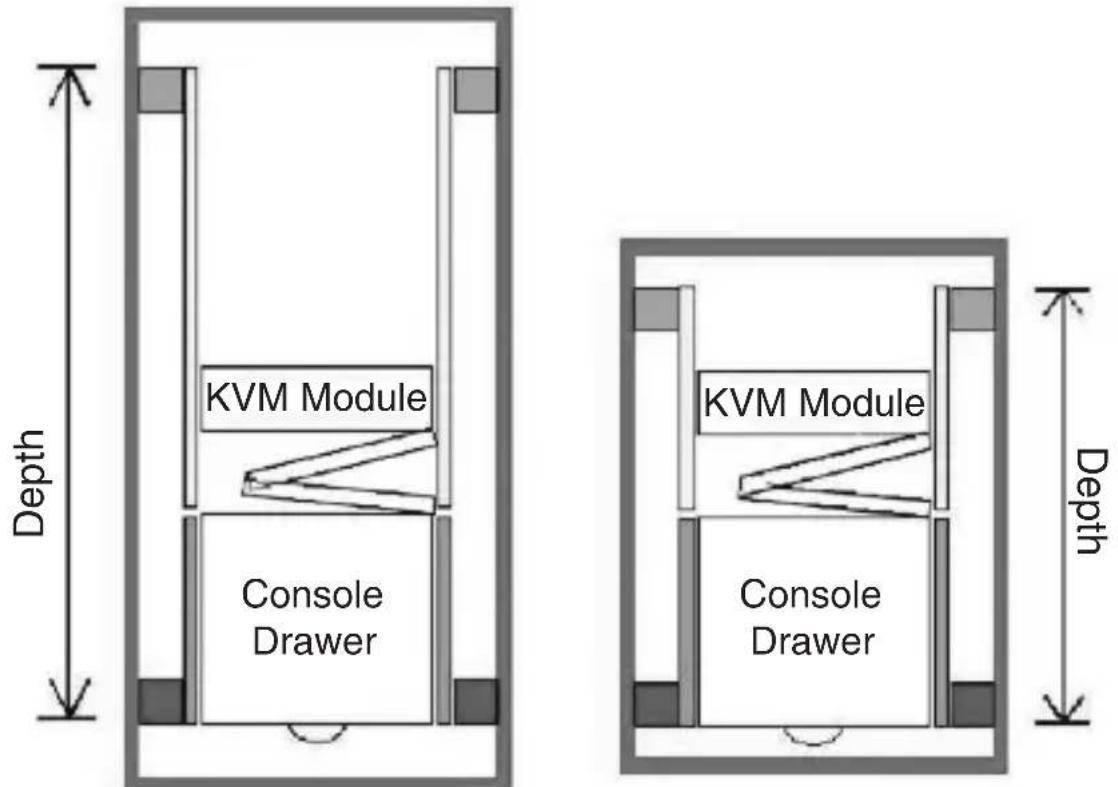
The KVM Module can be connected to a console, or be used as a stand-alone KVM Switch. There are three major categories: PS/2, USB and Sun Interfaces:
| Type PS/2 KVM | |||
| Model name | CAB832DS O | AB1631D CAB1 | 631D1U |
| No. of Console Ports | 2 1 1 | ||
| No. of Computer Ports | 8 16 16 | ||
| OSD Menu | Yes Yes Yes | ||
| Height | 1U 2U 1U | ||
| Cable Type | SVPS23N1_xxPS23N1THINxx | SVECONxx | |
Continued next page →
Instruction Manual
| Type Hybrid KVM | ||
| Model name | CAB831HD CAB1 | 631HD |
| Interface | PS/2, USB | |
| No. of Console Ports | 1 | 1 |
| No. of Computer Ports | 8 | 16 |
| OSD Menu | Yes | |
| Height | 1U 2U | |
| Cable Type | PS2 – SVECONxUSB - SVECONUSx | |
| Type IP KVM | |
| Model name | CAB1641HDI |
| Interface | PS/2, USB |
| No. of Console Ports | 1 |
| No. of Computer Ports | 16 |
| OSD Menu | Yes |
| Height | 1U |
| Cable Type | PS2 – SVECONxUSB - SVECONUSx |
Instruction Manual
Assembly
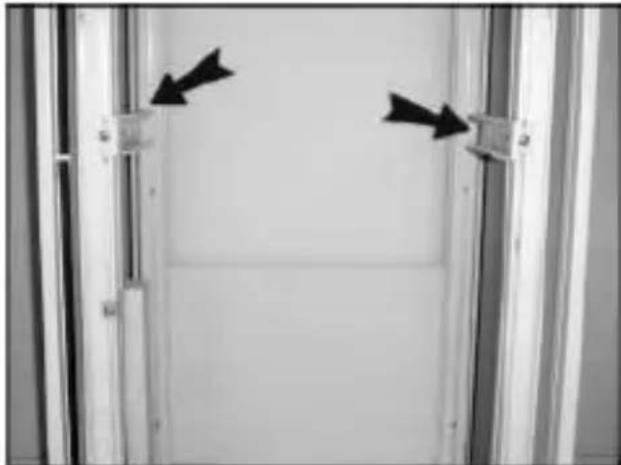
- Choose a proper position for the rack drawer. Mount the rear brackets (from the Rear bracket & extension kit) and lightly fasten them onto the rear vertical poles. Both will be removed later.
natural_image
Black arrow pointing to a door with two arrows indicating left and right sides (no text or symbols)- Remove the safety stopper from the console drawer. The safety stopper is designed to prevent the drawer from sliding out during transportation. Please note that once the Safety Stopper is removed, the drawer is free to slide out when the console is tilted. Be cautious, as this could cause injury.

natural_image
Close-up of a mechanical assembly with a highlighted component and an arrow pointing to a detail (no text or symbols visible)Instruction Manual
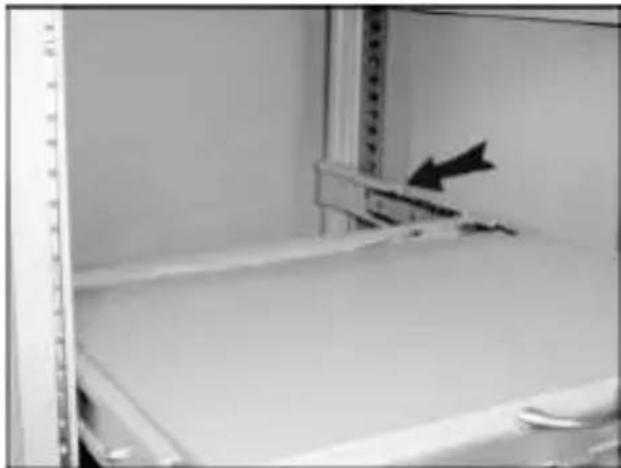
- Slide the assembled drawer into the rack cabinet from the front and insert the two slide rails of the assembled drawer into the pockets of the rear brackets.
natural_image
Interior view of a room with a large bed and a wall-mounted shelf, featuring a black arrow pointing to a small object (no visible text or symbols)- Fasten the assembled drawer onto the front brackets using the four screws provided.

natural_image
Interior view of a server rack cabinet with black arrows pointing to a shelf (no text or symbols visible)- Remove both of the rear brackets. The front brackets now hold the assembled drawer.

text_image
bracket removed loose bracketInstruction Manual
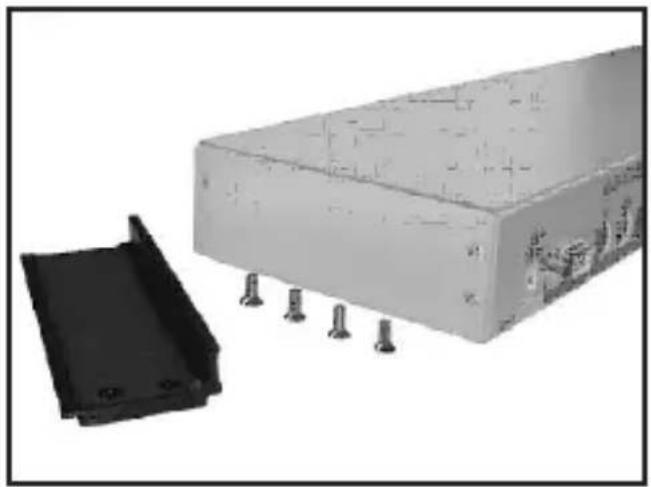
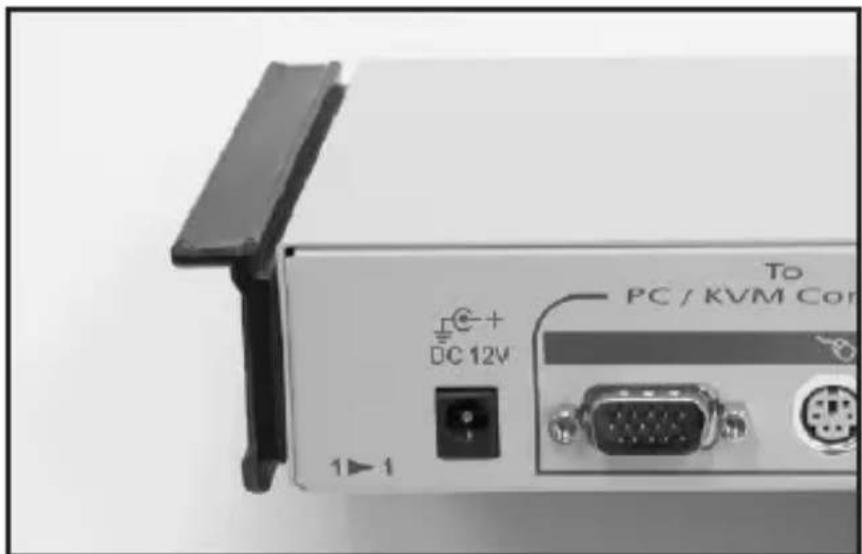
- Attach the extensions (from the Rear bracket & extension kit) to both sides of the KVM switch module. Please note the length of the extensions and mount them as shown. For a 2U module, the extensions are mounted to the lower half of the module.
natural_image
Exterior view of a rectangular electronic device with mounting holes and a separate black plastic housing (no visible text or symbols)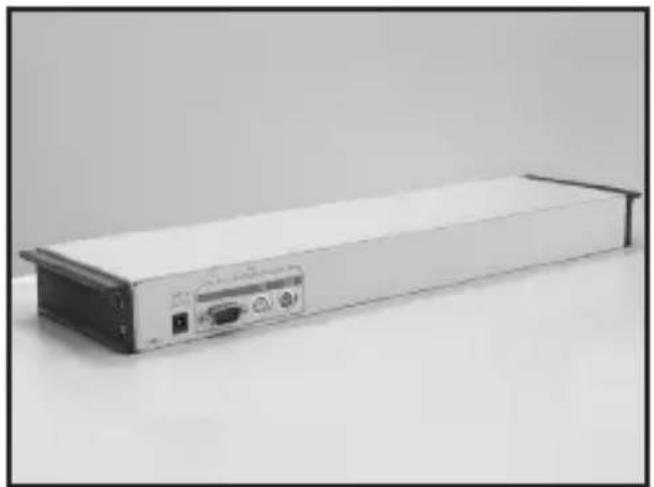
natural_image
Exterior view of a white electronic device chassis with ports and connectors (no visible text or symbols)NOTE: the orientation of the wide side of the extension
text_image
C-+ DC 12V To PC / KVM Cor 1▶ 1- The rear brackets, extensions and slide rails have a tight fit. Make sure you follow these steps for easy installation.
A.Slide the rear brackets onto the extensions.
B. Insert both sliding rails of the assembled drawer into the tight space formed by the rear brackets and the extensions. The KVM module should be pushed in evenly on both right and left sides.
Instruction Manual

natural_image
Person installing a server rack into a rack unit (no visible text or symbols)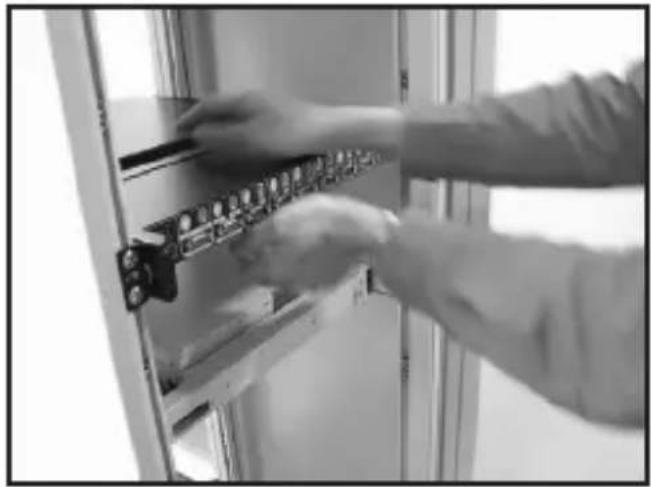
natural_image
Person installing or adjusting a wall-mounted electronic component (no visible text or symbols)-
Push the KVM switch module evenly toward the drawer:
-
Slide the console drawer out and fasten both units together using the screws provided:
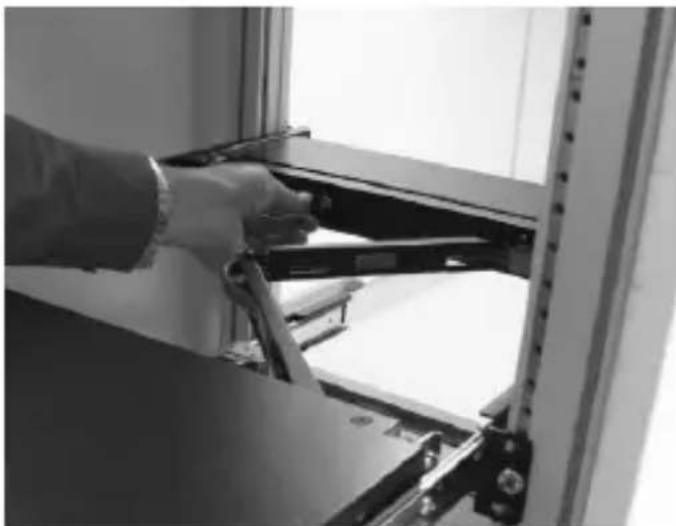
natural_image
Close-up of a hand operating a mechanical device with a handle, no visible text or symbols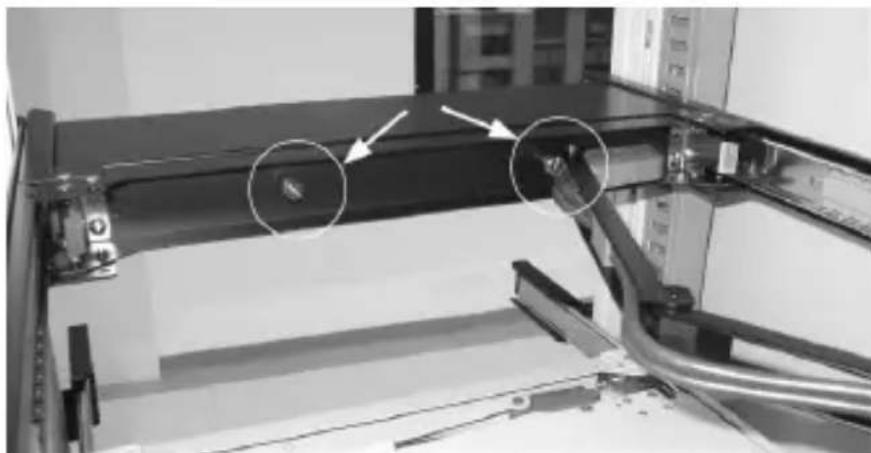
natural_image
Close-up of a mechanical assembly with two circular arrows pointing to a component, no visible text or symbols.Instruction Manual
- Make sure the C-36 connectors are firmly connected:
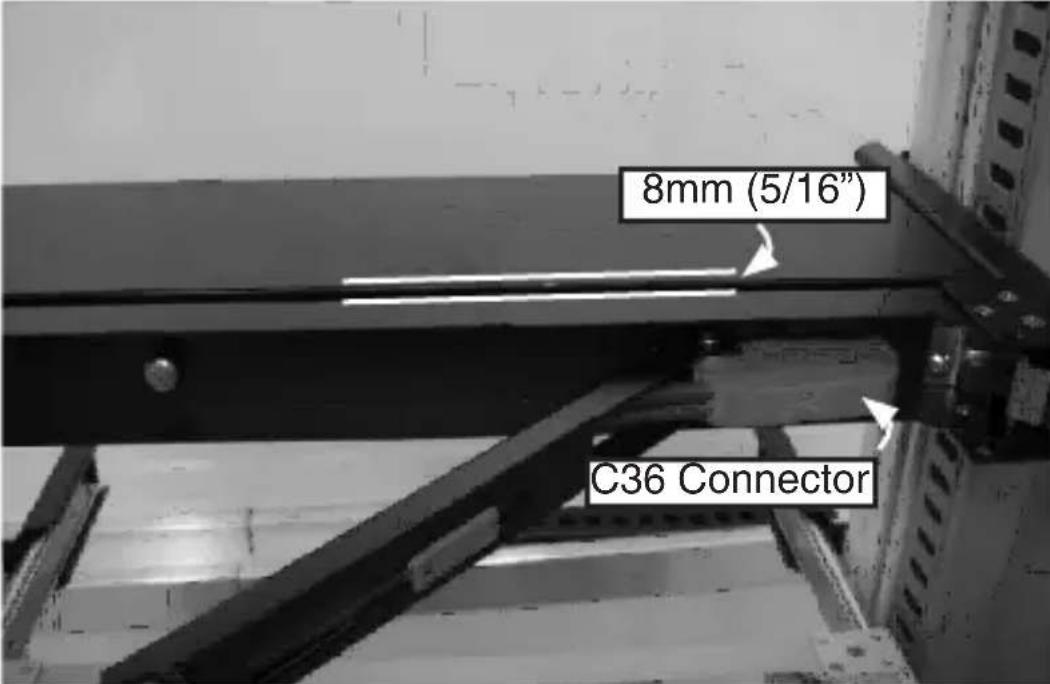
text_image
8mm (5/16") C36 Connector- Connect the power supply to the power jack on the KVM module to complete the assembly.
Installation
Please note: You can only connect to a computer using either the PS/2 or USB port not both simultaneously.
Connecting to a USB Controlled Computer
Connect the standard VGA cable and a USB A-B cable to the computer and 1UCABC CONS as shown below. The computer can be a USB-ready PC, Sun, HP server, or a Mac.
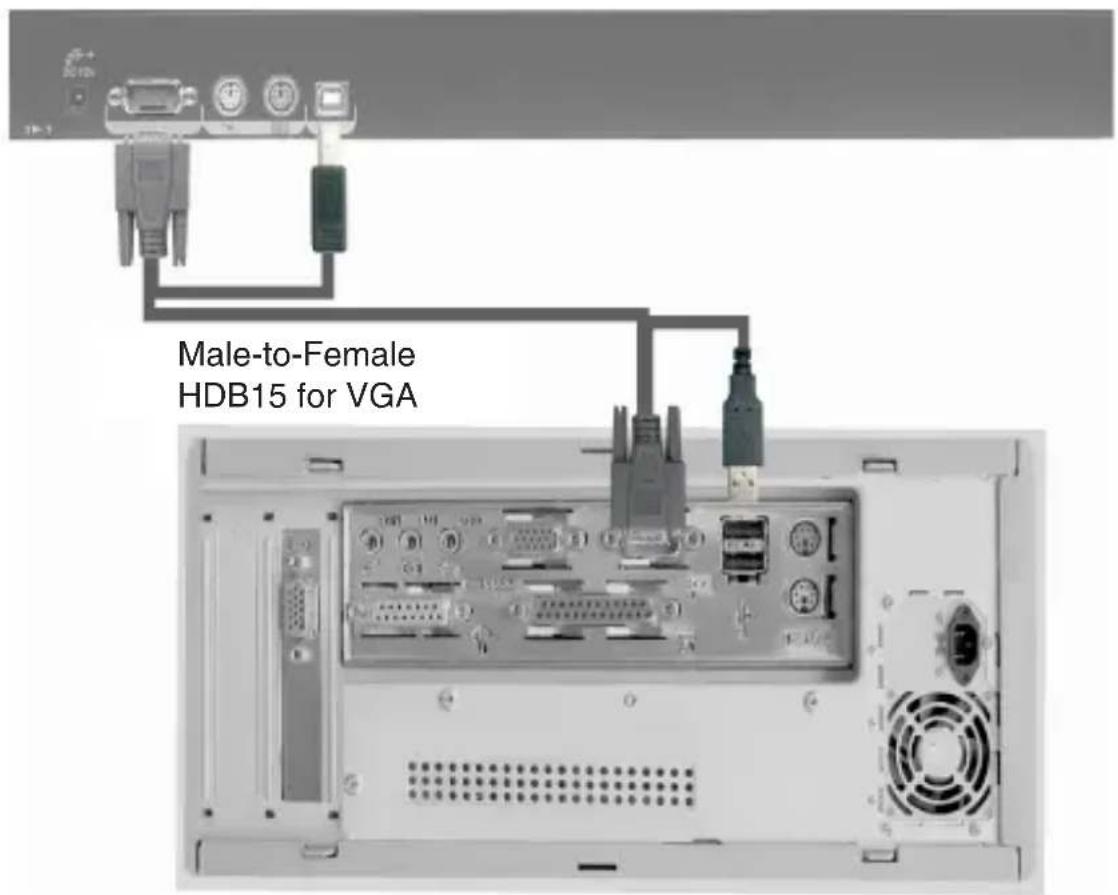
text_image
Male-to-Female HDB15 for VGAInstruction Manual
Connecting to a PS2 Controlled Computer
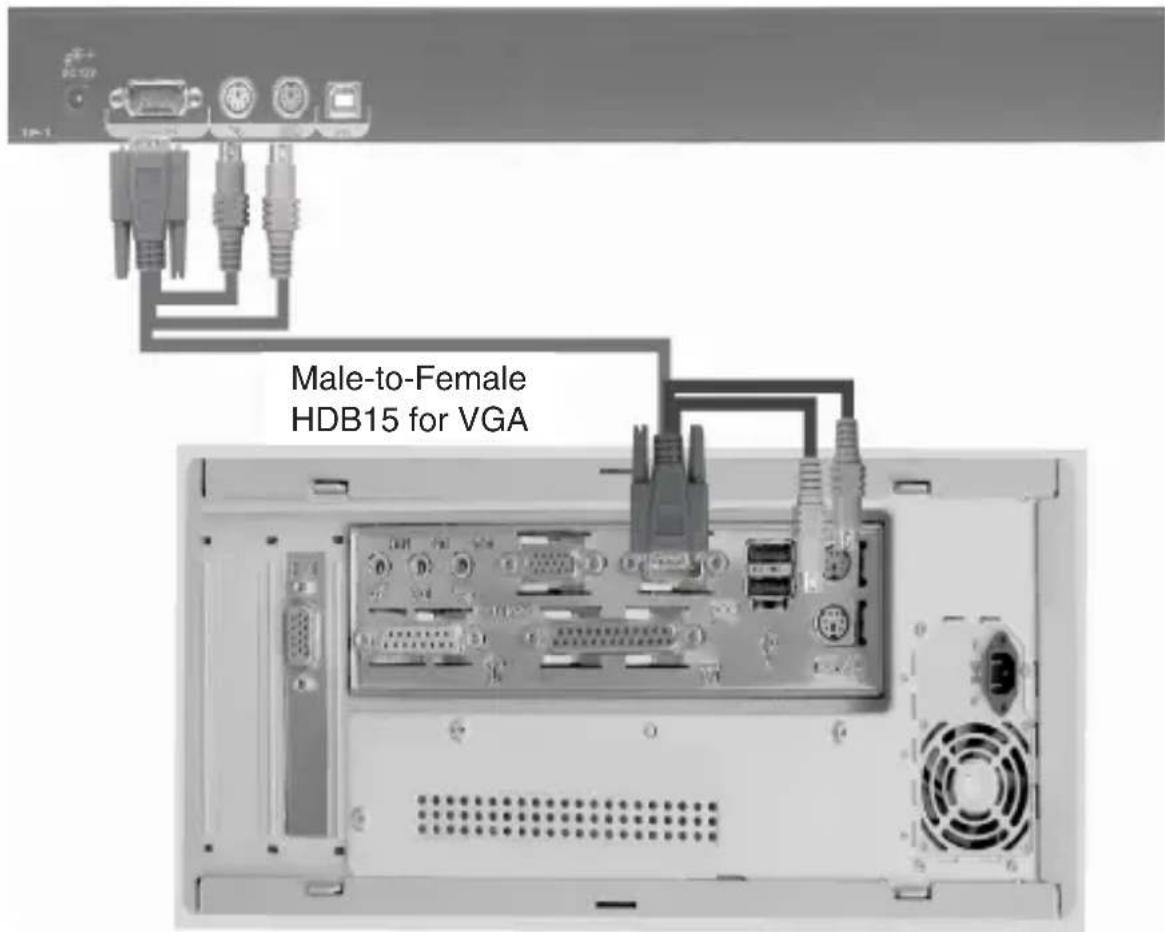
Connect the standard VGA cable and two mini-DIN6 male-to-male cables to the computer and 1UCABC CONS as shown below. There are two mini-DIN6 female connectors marked with keyboard and mouse, be sure not to swap the connections.
text_image
Male-to-Female HDB15 for VGAConnecting to a KVM Switch
When cascading with a KVM switch, 1UCABC CONS can be used to control up to 16 computers. The connection is exactly the same as is shown above (see Connecting to a USB Controlled Computer, or Connecting to a PS/2 Controlled Computer). The only difference is the connection would be made to the “CONSOLE PORT” (could be “PS/2” or “USB” interface) of the KVM switch instead, of a computer.
Please choose either PS/2 or USB to connect, prior to turning on your computer!
Operation
Front Panel Functions

text_image
12 5 6 7 8 9 OURVIEW to StarView.comKVM Control and Status:
(This section is effective only when a KVM switch module is connected.)
- Computer Selection Pad - Press one of these pushbuttons to select a computer. For 16 port models, 1-8 represent the lower 8 ports, while A-H indicates the higher 8 ports. Port 1 and A share the same push button; if port 1 is already selected, tap its pushbutton to select port A. If port 1 is not selected, press and hold pushbutton 1 for two seconds to select port A.
- Selected Computer Indicator - One of the indicators turns red when a corresponding computer is selected by pushbuttons, hotkey or OSD menu.
- Local Console in Operation - When a computer is accessed through the console, this will illuminate green.
- Remote Console in Operation - This will illuminate green when a computer is accessed by another set of keyboard/mouse/monitor connected to the Remote console when the KVM Switch Function Module is a 2-console KVM.
LCD Panel Control:
- LCD Panel Menu - These buttons invoke the OSD menu for the LCD panel and acts as menu selection.
- LCD Panel Adjustment - Lets you adjust settings for the LCD panel.
Instruction Manual
Keyboard Status and LCD Panel Power Switch:
- Num Lock - Keyboard Num Lock status
- Caps Lock - Keyboard Caps Lock status
- Scroll Lock - Keyboard Scroll Lock status
- LCD Panel Power Switch
Keyboard Replacement
The keyboard is replaceable, in the event of language changes or maintenance. To replace the key-board, tilt it up, locate the mini-USB cable underneath the keyboard and unplug it gently. While installing the replacement keyboard, please ensure that you extend just enough of the cable to keep the keyboard flat inside the tray.

Please note: There is a round hole under the drawer, which can be used to pass one finger through allowing for easier removal of the keyboard (pushing upwards).
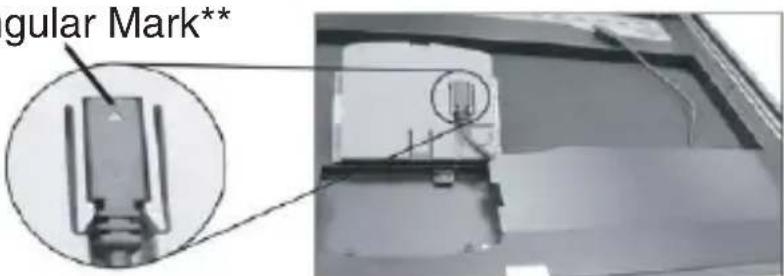
Please note: The triangular mark on the mini USB connector must face outwards.
Touchpad Replacement
The built-on Touchpad offers “wheel mouse” functionality. The area of the Touch Pad to the right side of the two small triangular marks is the simulated “wheel” as shown below:

text_image
Triangular Marker Scroll Wheel Area Left Mouse Button Right Mouse ButtonTo remove the Touch Pad, press the tab underneath it upward to release the latch, then slide it outwards until the Touch Pad can be lifted up clear from the notches, as shown in the figure below (right side). The Touchpad is attached by a piece of mini-USB cable. To install the Touchad, extend just enough mini-USB cable and slide the Touch Pad all the way in till you hear a click sound as it is locked in position.

natural_image
Hand placing a small object into a device component (no visible text or symbols)
natural_image
Close-up of a white plastic container with a small attached clip, placed on a surface (no text or symbols visible)Triangular Mark**
text_image
gular Mark****Please note that the triangular mark must face outward
Instruction Manual
Specifications
| 1UCABCONS 1 | UCABCONS17 1UCABCONS19 | ||
| Active Display Area (mm) | 304.1 x228.1 | 337.920 x270.336 | 376.32 x301.056 |
| Pixel Pitch (mm) | 0.297(H) x0.297(V) | 0.264 (H) x0.264 (V) | 0.294(H) x0.294(V) |
| Resolution | 1024 x 768@60/70/75Hz | 1280 x 1024@60/70/75Hz | |
| Color Pixel Arrangement | RGB vertical strip | ||
| Display Mode | Normally White | ||
| Brightness(cd/m2) | 250 (center) 260 (center) 250 (center) | ||
| Contrast Ratio | 350:1 400:1 | 500:1 | |
| Display Color | 16.2M colors(RGB 6-bits data) | 16.7M colors(RGB 8-bits data | |
| User Control | OSD Control (auto saving) | ||
| Input Signal | RGB analog, H/V separate | ||
| Plug-n-Play VESA | VESA DDC 1/2B | ||
| Power Consumption | 33W 37W 40W | ||
| Viewing Angle | -70~70(H)-60~60(V)(Typ.) | -80~80(H)-80~80(V) (Typ.) | -85~85(H)-85~85(V) (Typ.) |
Specifications cont'd on following page →
Instruction Manual
| Backlight Unit | 2 CCFLs edge-light (top/bottom) | 4 CCFLs edge-light (top/bottom) |
| Operating Temperature | 0 to +50 (°C) | |
| Storage Temperature | -20 to +60 (°C) | |
| Operating Humidity | Relative Humidity 8% ~ 95% | |
| Non-Operating Humidity | 95% RH | |
| Power Supply Input Voltage | Full range, 100V AC to 240V AC | |
| Regulatory Certifications | CE, FCC for the product. UL, TUV, CE for power supply | |
| Mouse Touch Pad | PS/2 | |
| Power Management | VESA DPMS compliantON mode = 23.2WSTANDBY mode <= 1WSUSPEND mode <= 1WOFF mode <= 1W | |
Technical Support
StarTech.com's lifetime technical support is an integral part of our commitment to provide industry-leading solutions. If you ever need help with your product, visit www.startech.com/support and access our comprehensive selection of online tools, documentation, and downloads.
Warranty Information
This product is backed by a one year warranty.
In addition, StarTech.com warrants its products against defects in materials and workmanship for the periods noted, following the initial date of purchase. During this period, the products may be returned for repair, or replacement with equivalent products at our discretion. The warranty covers parts and labor costs only. StarTech.com does not warrant its products from defects or damages arising from misuse, abuse, alteration, or normal wear and tear.
Limitation of Liability
In no event shall the liability of StarTech.com Ltd. and StarTech.com USA LLP (or their officers, directors, employees or agents) for any damages (whether direct or indirect, special, punitive, incidental, consequential, or otherwise), loss of profits, loss of business, or any pecuniary loss, arising out of or related to the use of the product exceed the actual price paid for the product. Some states do not allow the exclusion or limitation of incidental or consequential damages. If such laws apply, the limitations or exclusions contained in this statement may not apply to you.
Screen Quality & Pixel Policy
During the manufacturing process, certain cosmetic imperfections can occur which do not constitute defects in the screen requiring an RMA replacement. Defective or “dead” pixels or sub-pixels are common to all manufacturers of LCD displays. Visual imperfections are caused by one or more defective pixels or sub-pixels.
A pixel is comprised of one red, one green, and one blue sub-pixel. If a defective whole pixel is always on, it will appear as a bright spot, typically white, yellow or other bright color, while if it is always off, it will appear as a dark brown of black spot visible on a bright background. A defective sub-pixel is less visible than a defective whole pixel as it is smaller, and dependent on the color of the defective sub-pixel as contrasted to the background color.
A display is not deemed defective if it contains less than and up to:
• 3 bright dots (pixel always on)
- 5 dark dots (pixel always off)
- 5 total bright and dark dots (on and off pixels)
If your display appears to have defective pixels or sub-pixels, or if you should have any questions relating to this policy, please contact StarTech.com technical support either by phone, online live chat, or email.
StarTech.com Making hard-to-find easy!®
StarTech.com has been making “hard-to-find easy” since 1985, providing high quality solutions to a diverse IT and A/V customer base that spans many channels, including government, education and industrial facilities to name just a few. We offer an unmatched selection of computer parts, cables, A/V products, KVM and Server Management solutions, serving a worldwide market through our locations in the United States, Canada, the United Kingdom and Taiwan.
Visit www.startech.com today for complete information about all our products and to access exclusive interactive tools such as the Cable Finder, Parts Finder and the KVM Reference Guide. StarTech.com makes it easy to complete almost any IT or A/V solution. Find out for yourself why our products lead the industry in performance, support, and value.