Band - Smart bracelet Swami - Free user manual and instructions
Find the device manual for free Band Swami in PDF.


| Product Type | Smart bracelet (Golf GPS) |
| Brand | Swami |
| Model | Band |
| Weight | 1.2 oz (34 g) |
| Band Length | 10" (25.4 cm) |
| Display Size | 1" diagonal |
| Battery Type | 170mAh Lithium Ion Polymer |
| Battery Life (Golf Mode) | Up to 7 hours |
| Battery Life (Time Mode) | Up to 9-10 days |
| Charging Method | Magnetic USB charging cable |
| Connectivity | Bluetooth (for app pairing) |
| GPS | Yes (satellite) |
| Key Functions | Golf GPS distances (front/center/back), shot distance, scorecard, score history, time setting (auto or manual), step counter (via app?) |
| Languages | English, Spanish, French, German, Japanese |
| Unit of Measure | Yards or Meters |
| Screen Display Options | Type 1 or Type 2 |
| Buttons | Power/Back, OK, Up, Down |
| App Compatibility | iOS 9.0+, Android OS 5.0+ |
| Warranty | 1 year (defects) |
| Repair Service | Return to IZZO Golf (address provided in manual) |
| Caution | Do not expose to extreme temperatures; not waterproof (assumed) |
Frequently Asked Questions - Band Swami
User questions about Band Swami
0 question about this device. Answer the ones you know or ask your own.
Ask a new question about this device
Download the instructions for your Smart bracelet in PDF format for free! Find your manual Band - Swami and take your electronic device back in hand. On this page are published all the documents necessary for the use of your device. Band by Swami.
USER MANUAL Band Swami
| Product SWAMI Band | |
| # of Courses 38,000+ Worldwide | |
| Battery 170mAh Lithium Ion Polymer | |
| Battery Life Up to 7 hours (Golf Mode)Up to 9-10 days (Time Mode) | |
| Weight 1.2 oz | |
| Display Size 1" | |
| Band Length 10" | |
2 INTRODUCTION
CHARGING
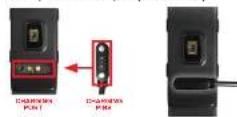
- Attach the magnetic pins on the charging cord to the magnetic charging ports located on the back of the band (under the heart rate sensor).
- Be sure the pins are aligned, then insert the other end of the charging cord into a USB port or AC adapter (not included).
SETTING THE TIME
- To set the correct time, the device must be connected to satellites (must be outside). This can be done by using Golf Mode or by going to Settings (see page 11).
ENGLISH
DESCRIPTION OF TERMS
- PRESS - Press & Release button quickly - HOLD - Press & Hold button until desired screen appears or change happens.

A. [POWER / BACK] - HOLD to Power On/Off. Press & Release to return to a previous screen.
B. [OK] - Press & Release to select options.
C. [UP] - Press & Release to scroll. HOLD while in Golf Mode to access Shot Distance screen.
D. [DOWN] - Press & Release to scroll. HOLD while in Golf Mode to access Scorecard.
4 HOW TO USE
GOLF MODE
- From Time Screen, Press & Release the [DOWN] button to display Golf Mode (A).

-
Press & Release the [OK] button to select Golf Mode.
-
Device will begin searching for satellite signal (Press & Release the [BACK] button to cancel).

- Once satellite connection is established, the nearest golf courses will be listed. Use [UP/DOWN] buttons to scroll to desired course, and then PRESS [OK] button to select the course.
ENGLISH
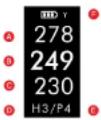
DISPLAY DIAGRAM
PLAY MODE
A. Distance to the Front of Green
B. Distance to the Center of Green
C. Distance to the Back of Green
D. Hole Number
E. Par for the hole
F. Unit of Measure (Yards or Meters)
- While on the Play Mode screen, HOLD the
[UP] button to access Shot Distance, or
HOLD the [DOWN] button to access the Scorecard.
6 HOW TO USE
SHOT DISTANCE
-
From the Play Mode Screen, HOLD the [UP] button display Shot Distance.
-
As you travel to your ball, the distance will begin calculating.
-
Once you arrive at your ball, the distance displayed is the distance of your previous shot (the distance you traveled).
-
Press & Release the [POWER/BACK] button to exit and return to Play Mode.
SCORECARD
-
From the Play Mode Screen, HOLD the [DOWN] button display the Scorecard.
-
Press & Release the [UP/DOWN] buttons until your correct score is displayed.
-
Press & Release the [POWER/BACK] button to exit and return to Play Mode.


ENGLISH 7
END ROUND
- To end your round. PRESS
[ POWER/BACK ] button.Scroll to the desired option then PRESS [OK] button to select. - Save & Exit - Save Scorecard, end round, and return to Main Menu.
- Discard & Exit - Discard Scorecard, end round, and return to Main Menu.
- Cancel - Select to return to Play Mode.
8 HOW TO USE
SCORE HISTORY
-
From Time Screen, Press & Release the [DOWN] button until you reach the Score History screen.
-
Press & Release the [OK]
button to select Score History.
-
Use the [UP/DOWN] buttons to scroll to the scorecard you would like to view, then PRESS [OK].
-
Use the [UP/DOWN] buttons to scroll to the scorecard you would like to view, then PRESS [OK].

Note: If you have already uploaded the scorecard to the App, it will no longer appear on the band.

ENGLISH 9
SETTINGS
-
From Time Screen, Press & Release the [UP] button until you reach the Settings screen.
-
Press & Release the [OK] button to select Settings.
-
Use the [UP/DOWN] buttons to scroll to the setting you would like to change, then PRESS [OK]

LANGUAGE
- Use the [UP/DOWN] buttons to select your desired language, then PRESS [OK] to select
Choose from: English, Spanish, French, German, or Japanese
-
Press & Release the [POWER/BACK] button to return to the Main Menu.
-
HOW TO USE
TIME SET
- While in Settings, Use the [UP/DOWN] buttons to scroll to the Time Set screen, then PRESS [OK].
- Auto - will start search for satellite connection to set the correct time (must be outside).
- Format - Choose from 24 or 12 hr time format.
- Daylight - Turn Daylight Savings Time ON or OFF.
- Press & Release the [POWER/BACK] button to return to the Main Menu.
UNIT OF MEASURE
-
While in Settings, Use the [UP/DOWN] buttons to scroll to the Y/M screen, then PRESS [OK].
-
Use the [UP/DOWN] buttons to select Yards or Meters, then PRESS [OK].
-
Press & Release the [POWER/BACK] button to return to the Main Menu.
ENGLISH 11
SCREEN DISPLAY
- While in Settings, Use the [UP/DOWN]
buttons to scroll to the Screen Display screen, then PRESS [OK].
-
Use the [UP/DOWN] buttons to select Type 1 or 2, then PRESS [OK].
-
Press & Release the [POWER/BACK] button to return to the Main Menu.
FREE APP
Search for SWAMI Band in the Google PlayChem™ or
the Google Play Store "or in iTunes"

Note: Compatibility depends on model of Smartphone and version of operating software. Features may vary or could be limited due to compatibility conflicts.
For Apple*: Compatible with iOS 9.0 or above.
For Android ^™ : Compatible with OS 5.0 or
*ANDROID IS A TRADEMARK OF GOOGLE INC.
12 HOW TO USE
PAIRING BAND WITH APP
- Make sure the phone you're pairing to
has Bluetooth enabled and your Swami Band is powered on.
- Open the SWAMI BAND App. Select the settings tab in the bottom right corner.

- On the settings screen, scroll down to "Bluetooth Pair" and select.

ENGLISH 13
- Select your specific device when it is listed under "Scan BlueTooth."

- Once you select your SWAMI BAND, the band will pair with the app. Once the pairing is successful, "Connect Success" will appear on the screen.

14 PAIRING
WARRANTY POLICY
This product is warranted to be free from defects for up to (1) year from the original purchase date. IZZO Golf cannot refund your purchase unless purchased directly from IZZO Golf. IZZO Golf will replace or repair any unit that is determined defective under normal use within the warranty period. Please call Customer Service at 888-606-4634 to request a Return Authorization. All defective products must be returned to:
IZZO Golf Attn: Returns Dept. 1635 Commons Parkway Macedon, NY 14502
Please include a note with your Name. Address, Phone # and Return Authorization #. Your replacement will be shipped once we diagnose the returned unit.
To register your product visit: www.callawaydmd.com/registration
If you have any other questions or concerns, please call 1-888-606-4634 or go to www.callawaydmd.com
WARRANTY 15
CAUTION
Global Position System (GPS) was developed
and is managed by the United States
Department of Defense (DOD) which is responsible for its personal operation and
responsible for its normal operation and position precision control; the U.S. is entitled
to affect function or position precision of
the whole system without prior notification
or announcement based on its political
considerations or safety of national defense.
In order to use the device correctly and safely, you must be aware of the following information prior to operating the device:
• The device was only designed for the
purpose of leisure and recreatio
is not applicable for industrial or special measurement.
special measurement.
• The device is only an auxiliary device. I720 Golf will not absent any local light
IZZO GON will not accept any legal liability for accidents due to mistaken operation, or
for accidents due to mistaken operation, any use of the device for measurement.
- Please do not try to dissemble the dev
or repair any part of the device discreetly.
- Please do not store the device in places
exposed to direct sunlight or in extremely
high temperatures.
FC CE

Brand : Swami
Model : Band
Category : Smart bracelet