Quasar CM-6212 - Security Camera FLIR - Free user manual and instructions
Find the device manual for free Quasar CM-6212 FLIR in PDF.


User questions about Quasar CM-6212 FLIR
0 question about this device. Answer the ones you know or ask your own.
Ask a new question about this device
Download the instructions for your Security Camera in PDF format for free! Find your manual Quasar CM-6212 - FLIR and take your electronic device back in hand. On this page are published all the documents necessary for the use of your device. Quasar CM-6212 by FLIR.
USER MANUAL Quasar CM-6212 FLIR
User and Installation Guide
CM-6212 H1-I

natural_image
Close-up of a white rectangular electronic device with a black lens and 'FLIR' logo on top (no additional text or symbols visible)© 2017 FLIR Systems, Inc. All rights reserved worldwide. No parts of this manual, in whole or in part, may be copied, photocopied, translated, or transmitted to any electronic medium or machine readable form without the prior written permission of FLIR Systems, Inc.
Names and marks appearing on the products herein are either registered trademarks or trademarks of FLIR Systems, Inc. and/or its subsidiaries. All other trademarks, trade names, or company names referenced herein are used for identification only and are the property of their respective owners. This product is protected by patents, design patents, patents pending, or design patents pending. The contents of this document are subject to change.
FLIR Systems, Inc.
6769 Hollister Avenue
Goleta, California 93117
USA
Phone: 888.747.FLIR (888.747.3547)
International: +1.805.964.9797
For technical assistance, please call us at +1.888.388.3577 or visit the Service & Support page at www.flir.com/security.
Important Instructions and Notices to the User:
Modification of this device without the express authorization of FLIR Commercial Systems, Inc. may void the user's authority under FCC rules to operate this device.
Proper Disposal of Electrical and Electronic Equipment (EEE)

The European Union (EU) has enacted Waste Electrical and Electronic Equipment Directive 2012/19/EU (WEEE), which aims to prevent EEE waste from arising; to encourage reuse, recycling, and recovery of EEE waste; and to promote environmental responsibility.
In accordance with these regulations, all EEE products labeled with the "crossed out wheeled bin" either on the product itself or in the product literature must not be
disposed of in regular rubbish bins, mixed with regular household or other commercial waste, or by other regular municipal waste collection means. Instead, and in order to prevent possible harm to the environment or human health, all EEE products (including any cables that came with the product) should be responsibly discarded or recycled.
To identify a responsible disposal method nearby, please contact the local waste collection or recycling service, the original place of purchase or product supplier, or the responsible government authority in the area. Business users should contact their supplier or refer to their purchase contract.
Document History
Version
Ver. 2
Date
October 17, 2017
Comment
Second release
FLIR
Table of Contents
- Document Scope and Purpose .... 1
- Introduction 7
2.1 Features 8
2.2 Package Contents 9
- Hardware Description ...... 11
3.1 Camera Dimensions 11
3.2 Internal Connectors 12
3.3 Cable Connectors 13
3.3.1 Waterproofing the Cable Connectors 14
- System Requirements 17
- Installation 19
5.1 Pre-Installation Checklist 19
5.2 Indoor Installation 19
5.3 Outdoor Installation 20
5.4 Powering the Camera 20
5.5 Connecting the Camera to the Network 21
5.6 Mounting the Camera 22
5.7 Adjusting and Framing-Up the Camera View 24
- Using DNA to Access the Camera 25
- Configuring the Unit's Initial IP Address 27
Table of Contents
9.4 Streaming Tab 95
9.4.1 Video Format 96
9.4.2 Video Compression 104
9.4.3 Video OCX Protocol 105
9.4.4 Video Frame Rate 106
9.4.5 Video Mask 107
9.4.6 Audio 108
9.5 Camera Tab 109
9.5.1 Exposure Screen 110
9.5.2 Picture Adjustment 112
9.5.3 Advanced Picture Settings 113
9.5.4 IR Function 117
9.5.5 Misc. Screen 118
9.6 Logout 119
- Appendices .... 121
10.1 Technical Specifications 122
10.2 Internet Security Settings on Internet Explorer 126
10.3 Installing UPnP Settings on Internet Explorer 128
10.4 Deleting Temporary Internet Files on Internet Explorer 131
10.5 Installing and Deleting the Web Player 132
40.2 Naturelle Cottiness 424
1 Document Scope and Purpose
The purpose of this document is to provide instructions and installation procedures for physically connecting the CM-6212 unit. After completing the physical installation, additional setup and configurations are required before video analysis and detection can commence.

Note:
This document is intended for use by technical users who have a basic understanding of CCTV camera/video equipment and LAN/WAN network connections.
Remarque:
Installation must follow safety, standards, and electrical codes as well as the laws that apply where the units are being installed.
Avertissement:
Document Scope and Purpose

A Warning is a precautionary message that indicates a procedure or condition where there are potential hazards of personal injury or death.
A Caution is a precautionary message that indicates a procedure or condition where there are potential hazards of permanent damage to the equipment and or loss of data.
A Note is useful information to prevent problems, help with successful installation, or to provide additional understanding of the products and installation.
A Tip is information and best practices that are useful or provide some benefit for installation and use of
General Cautions and Warnings
This section contains information that indicates a procedure or condition where there are potential hazards.
SAVE ALL SAFETY AND OPERATING INSTRUCTIONS FOR FUTURE USE.
Although the unit is designed and manufactured in compliance with all applicable safety standards, certain hazards are present during the installation of this equipment.
To help ensure safety and to help reduce risk of injury or damage, observe the following:
- The unit's cover is an essential part of the product. Do not open or remove it.
- Never operate the unit without the cover in place. Operating the unit without the cover poses a risk of fire and shock hazards.
- Do not disassemble the unit or remove screws. There are no user serviceable parts inside the unit.
- Only qualified trained personnel should arrive and repair this equipment

Caution:
• Do not drop the camera or subject it to physical shock.
- Do not touch sensor modules with fingers. If cleaning is necessary, use a clean cloth with a bit of ethanol and wipe it gently. If the camera will not be used for an extended period of time, put on the lens cap to protect the sensor from dirt.
- Do not aim the camera lens at strong light, such as the sun or an incandescent lamp, which can seriously damage the camera.
- Make sure that the surface of the sensor is not exposed to a laser beam, which could burn out the sensor.
- If the camera will be fixed to a ceiling, verify that the ceiling can support more than 50 newtons (50-N) of gravity, or over three times the camera's weight.
• The camera should be packed in its original packing if it is reshipped.

Caution:
To avoid damage from overheating or unit failure, assure that there is sufficient temperature regulation to support the unit's requirements (cooling/heating). Operating temperature should be kept in the range -10^ to 50^ ( 14^ to 122^ ), with no more than 90% non-condensing humidity.
Attention:
the manufacturer's specifications for optimal video signal may result in degradation of color and video parameters.
- Physical Security: The unit provides threat detection for physical security systems. In order to ensure that the unit cannot be disabled or tampered with, the system should be installed with security measures regarding physical access by trusted and un-trusted parties.
- Network Security: The unit transmits over IP to security personnel for video surveillance. Proper network security measures should be in place to assure networks remain operating and free from malicious interference. Install the unit on the backbone of a trusted network.
- Electrostatic Safeguards: The unit and other equipment connected to it (relay outputs, alarm inputs, racks, carpeting, etc.) shall be properly grounded to prevent electrostatic discharge.
The physical installation of the unit is the first phase of making the unit operational in a security plan. The goal is to physically place the unit, connect it to other devices in the system, and to establish network connectivity. When finished with the physical installation, complete the second phase of installation, which is the setup and configuration of the unit.
FLIR
Introduction
2 Introduction
The FLIR Quasar Gen II CM-6212-H1-I camera is an indoor/outdoor, vandal-proof, IP hemispheric camera. The camera can support:
• One 12MP H.264 stream at 20 fps
• One 12MP H.264 stream at 15 fps and one Full HD 1080p H.264/MJPEG stream at 12/15 fps (PAL/NTSC)
• One 12MP H.264 stream at 15 fps and two HD 720p H.264/MJPEG streams at 12/15 fps (PAL/NTSC)
• One 12MP H.264 stream at 15 fps, two HD 720p H.264/MJPEG streams at 12/15 fps (PAL/NTSC), and one D1 H.264/MJPEG stream at 12/15 fps (PAL/NTSC)
The camera includes a 1/1.7" Sony Progressive CMOS sensor and features an F2.4, hemispheric lens with a 1.29mm focal length and 360° Field of View (FOV) at full resolution. It provides real-time, quad-stream compression using MJPEG and H.264 baseline, main and high profiles. It also supports software dewarping, which enables the highest video resolutions.
The camera is ideal for operation in low-light environments, as it features a Day/Night cut-off filter (ICR), infrared IR illuminator, and 2D/3D/color noise reduction.

natural_image
Front view of a white rectangular electronic device labeled 'FLIR' with a central lens (no additional text or symbols visible)2.1 Features
• F2.4, 1.29mm panoramic lens • 1/1.7" Progressive scan CMOS sensor • 12 Megapixels
• Supports software dewarping • Supports up to four video streams • Digital PTZ
- Low-lux mode
- Electronic day/night (ICR)
- Infrared LED illuminator
- WDR
- 2D/3D/color noise reduction
- Backlight compensation
• Built-in web application/ web server • HTTP streaming MJPEG • H.264 and MJPEG compression
- Two-way audio
- Alarm input-driven events
- Relay output actions on
- Edge motion detection
- Motion detection with Region of Interest (ROI) masking
- Historical motion detection levels detected/recorded at frame levels
- Detection event-driven alarms
- Tampering detection and notification
- Dual HTTP notification server support (up to two servers)
- FTP upload (up to two locations)
- Upload alarm images to FTP
- Send images on alarm to e-mail
- E-mail SMTP alarm notification
- 128GB microSDXC
- Record snapshots to
Introduction
2.2 Package Contents
Before proceeding, check that the box contains the items listed here. If any item is missing or has defects, do not install or operate the product. Contact your dealer for assistance.
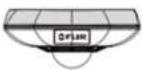 Hemispheric camera Hemispheric camera | 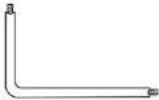 (Torx wrench) (Torx wrench) | 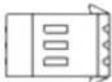 Power Terminal Block Power Terminal Block |
 Self-Tapping Screw (x3) Self-Tapping Screw (x3) | 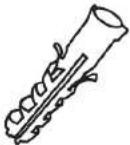 Plastic Anchor (x3) Plastic Anchor (x3) |  (Bundled software and documentation) (Bundled software and documentation) |
 |
FLIR
3 Hardware Description
This chapter provides information about the camera hardware for reference before installation. The connectors included on the camera's system cable are described.
• Camera Dimensions
- Internal Connectors
- Cable Connectors
3.1 Camera Dimensions
Following are the CM-6212 camera's dimensions.

Side View

text_image
163mm 6.43" H710 ΦFIB 163mm 6.43"3.2 Internal Connectors
The camera housing includes includes a microSD card drive, which supports a 128GB microSDXC card (Class 10). It also includes a Reset button for easily resetting the camera. The button enables you to save configured settings and to restore factory defaults, including network settings.

Note:
It is not recommended to record with the microSD card for 24/7 continuously.

text_image
Reset button microSD card slotInternal Camera Housing
To perform a hard reset to full factory defaults using the Reset button
- Insert a pointed object into the Reset button.
- Press the button for 30 seconds. Both LEDs on the RJ45 connector are extinguished. After one second, the green network LED flashes once and then remains lighted. The yellow activity LED flashes as soon as it detects network activity. The unit returns to full factory defaults.
3.3 Cable Connectors
The camera is shipped with an Ethernet cable for network and Power over Ethernet (PoE) connection and a system cable for ground, power, I/O, and audio connections. The figure below shows the various connectors included with the camera. The connectors, pin numbers and signal definitions are listed below.

text_image
1 Pink 2 Green 3 4 5CM-6212 Camera Input/Output Connections
| No. | Cable | Pin | Definition | Remarks |
| 1 | Audio I/O | Pink | Audio In | Two-way audio transmission |
| Green | Audio Out | |||
| 2 | Power (12VDC)(2-pin Terminal Block) | Black | DC 12V - | Power connection |
| Red | DC 12V + | |||
| 3 | Alarm I/O(4-pin Terminal Block) | 1 | Alarm In - | Alarm connection |
| 2 | Alarm In + | |||
| 3 | Alarm Out - | |||
| 4 | Alarm Out + | |||
| 4 | GND | - | GND | Ground connection |
| 5 | Ethernet Cable | - | RJ45 connector with LEDs for network and PoE connections. | |
The alarm input and output connectors are shown below
3.3.1 Waterproofing the Cable Connectors
Follow the instructions below to waterproof the connectors for the different types of cables included in the system cable. The cables are shown below.

System Cable

Standard RJ45 Cable
Camera Cables

Optional IP66 RJ45 Cable
To waterproof the system cable
- Connect all the required devices to the system cable. See figure above.
- Coat the joints with silicone gel. There should be no gap between the connectors and the cables. For alarm I/O connector and power connector, make sure the side with wires attached is also sealed with silicone gel.
- Seal the end of the rubber coating of the system cable as indicated in the figure below. Use enough silicone gel to fill in the hose and wrap around each wire in order to properly waterproof the cable.

To waterproof the IP66-Rated RJ45 cable
- Remove the supplied connector from the IP66-rated RJ45 plug.

Thread-Lock Sealing Nut and RJ45 Connector
- Loosen the thread-lock sealing nut on the IP66-rated RJ45 plug.

Loosened Thread-Lock Seoling Nut
- Thread the Ethernet cable through the thread-lock sealing nut and the IP66-rated RJ45 plug. If the Ethernet cable is already attached to a connector, remove it first.

FLIR
4 System Requirements
| Item | Minimum System Requirement |
| Personal Computer | Minimum: Intel® CoreTM i5-2430M @ 2.4 GHz, 4GB RAMRecommended: Intel® CoreTM i7-870 @ 2.93 GHz, 8GB RAM |
| Operating System | Windows 7, 8, and 8.1 (all 64-bit versions) |
| Web Browser | Microsoft Internet Explorer 10 and above (32-bit version) |
| Network Card | 10/100/1000 Mbps |
| Viewer | ActiveX control plug-in for Internet Explorer |
FLIR
5 Installation
This section describes how to install and connect the unit. It includes the following topics:
• Pre-Installation Checklist
- Indoor Installation
• Outdoor Installation
• Powering the Camera
• Connecting the Camera to the Network
- Mounting the Camera
• Adjusting and Framing-Up the Camera View
5.1 Pre-Installation Checklist
Before installing the unit, make sure that:
- Instructions in the Document Scope and Purpose section are followed.
• All related equipment is powered off during the installation. - Use best security practices to design and maintain secured camera access, communications infrastructure, tamper-proof outdoor boxes, etc.
- All electrical work must be performed in accordance with local regulatory requirements.

Caution:
5.3 Outdoor Installation
Read the instructions provided in this chapter thoroughly before installing the camera. Following are additional considerations for outdoor installation:
- For outside wiring installation, always use weatherproof equipment, such as boxes, receptacles, connectors, etc.
- For electrical wiring, use the properly rated sheathed cables for conditions to which the cable will be exposed (for example, moisture, heat, UV, physical requirements, etc.).
- Plan ahead to determine where to install infrastructure weatherproof equipment. Whenever possible, ground components to an outdoor ground.
- Use best security practices to design and maintain secured camera access, communications infrastructure, tamper-proof outdoor boxes, etc.
- All electrical work must be performed in accordance with local regulatory requirements.
5.4 Powering the Camera
The camera can be powered by Power over Ethernet or by an external 12VDC power adaptor (not included in the package).
- If using an external power supply, connect the power leads or three-pin power terminal block to the power supply.
• If using PoE, make sure that a Power Sourcing Equipment (PSE) device is used in the network.
Make sure the camera's power cable is properly connected. All electrical work must be performed in accordance with local regulatory requirements.

5.5 Connecting the Camera to the Network
A Cat 5 Ethernet cable is recommended for network connection. To ensure transmission quality, cable length should not exceed 100 meters (328 feet). Connect one end of the Ethernet cable to the RJ45 connector of the system cable. Plug the other end of the cable into the network switch or PC. Check the status of the link and the activity LEDs. If the LEDs are unfit, check the LAN connection.

A steady green link LED indicates good network connection.
The yellow activity LED flashes to indicate network activity.
To view and configure the camera via a LAN, you must attach the camera via the network switch or router to the same subnet (network segment or VLAN) as the computer that manages the unit. If the PC is on a different subnet than the camera, you will not be able to access the camera via a web browser.
If there is a DHCP server on the network, it is recommended to use FLIR's Discovery Network Assistant (DNA) utility to search for and change the camera's initial IP address. If there is no DHCP server on the network, the camera will initialize with the default IP (192.168.0.250). You can then use DNA to change its IP address.
5.6 Mounting the Camera
To eliminate IR reflection
- Clean the bubble from dirt and finger prints.
- Make sure the bubble has no scratches.
- Avoid aiming the IR where there are nearby objects closer than the scene of interest which might reflect back into the lens.
To mount the camera
- Do one of the following:
- For drilled wall or ceiling mounting:
a. Using the supplied template, mark with a pointed pencil the mounting surface through the plate holes where the four screw holes need to be drilled.

text_image
Ø 4.5 (0.16inch) 123 (4.6inch) Ø 4.5 (0.18inch) Ø 40 (1.57inch)Installation
- For installing on a 4S recessed electrical box:
a. Have a qualified installer (check your local electrical codes) rough-in the 4S recessed electrical box and run the wires and power (if not PoE) through the wall/conduits to the box location.
b. Ensure that the box is sufficiently sturdy (attach to the wall stud, ceiling joist, or reinforced surface as needed) to securely hold the weight of the camera.
- For bracket, pole and pendant installations:
a. Feed the system cable through the mounting accessory.

Note:
The power cable is not required if using PoE.

Tip:
Even if you are not using alarm inputs and audio input/output at the time of installation, you may want to consider pre-wiring these connections for future use.
Use shims for shoring up mounts on uneven surfaces.
b. Thread the wires through the base plate and screw it to the pre-drilled wall, ceiling, CM Series Recessed Mount, CM Series Corner Mount, or 4S electrical box. Check that the installation is not flimsy, will not wobble, and is flush with the mounting surface.
c. Plug the Cat 5 cable into the camera's Ethernet port and, if needed, plug the power
5.7 Adjusting and Framing-Up the Camera View
After the camera is connected to the network and running, it is necessary to frame-up the scene and adjust the camera settings to optimize the picture for the individual scenes. If Latitude is being used, consider scheduling different settings for changing ambient conditions throughout the day, week, month or seasons.
To adjust and frame-up the camera view
- In the DNA application, click DNA.
- In the Discovery list, click to select the camera.
- Right-click the context menu and select Web, or enter the camera's IP address in your browser's URL address bar.
- When the browser connects to the camera and prompts for login, do the following:
a) Log in using the default user name Admin and password 1234. If the password has previously been changed, use the new password.

Note:
Both the user name and password are case sensitive.
b) Allow the ActiveX to download and choose to install the Quasar Web Player.
- Replace the cover and tighten the screw.
6 Using DNA to Access the Camera
To view and configure the camera via a LAN, you must attach the camera via the network switch or router to the same subnet (network segment or VLAN) as the computer that manages the unit. If the PC is on a different subnet than the camera, you will not be able to access the camera via a web browser.
If there is a DHCP server on the network, it is recommended to use FLIR's Discovery Network Assistant (DNA) utility to search for and change the camera's initial IP address.
DNA is a user-friendly utility that is designed to easily discover and configure FLIR Professional Security edge devices on a network. The DNA tool has a simple user interface and does not require any installation. The software is provided as a single, standalone executable. It runs on any PC.
DNA provides a central location for listing all the supported FLIR Professional Security camera models accessible over the network. Once listed, each camera can be right-clicked to access and change the network settings. If the network settings are changed for some reason, a new search will relist the units. The units may then be configured via the web interface.
If FLIR's Latitude VMS is being used, configure the unit with a static IP address rather than with DHCP. This ensures that the IP address will not automatically change in the future and interfere with configurations and communication.
If there is no DHCP server on the network, the camera will initialize with the default IP (192.168.0.250). You can then use DNA to change its IP address.

Note:
For detailed guidelines about DNA and its usage, refer to the DNA 2.1 User Manual, which is included in the CD provided with the camera.
FLIR
7 Configuring the Unit's Initial IP Address
Use the FLIR DNA utility to discover the unit on the network and to set the unit's initial IP address.
- If the camera is located on a network that uses a DHCP server, or is managed by FLIR's Horizon or Meridian VMS and is configured as a DHCP server, configure the camera with DHCP-enabled. Horizon or Meridian automatically assigns the camera an IP address.
- If the camera is located on a network that does not use a DHCP server, or is managed by FLIR's Latitude VMS, manually enter its IP address in the DNA utility.

Note:
- It is possible to set the IP address without changing the subnet.
- The unit and the PC must be physically connected on the same network segment.
To manage the camera using Horizon, Meridian, or on a DHCP-enabled network
- Insert the CD included in the package in your computer's disk drive.
- Run the dna.exe file by clicking the icon. The DNA application opens and the device is displayed in the window.

text_image
Discovery Network Assistant (IPNA) - v1.7.1.8 File Device type: Normal Status: Linux Status: IP address: Ports: Software version: MAC address: Port: 1st inst 023-023-10 03:00:00:00 04:00:00:00 05:00:00:00 06:00:00:00 07:00:00:00 08:00:00:00 09:00:00:00 10:00:00:00 11:00:00:00 12:00:00:00 13:00:00:00 14:00:00:00 15:00:00:00 16:00:00:00 17:00:00:00 18:00:00:00 19:00:00:00 20:00:00:00 21:00:00:00 22:00:00:00 23:00:00:00 24:00:00:00 25:00:00:00 26:00:00:00 27:00:00:00 28:00:00:00 29:00:00:00 30:00:00:00 31:00:00:00 32:00:00:00 33:00:00:00 34:00:00:00 35:00:00:00 36:00:00:00 37:00:00:0- Click Update and wait for √ OK status to be displayed.

text_image
DNA - Assign IP (1 Device Selected) Use DHCP File IP Address: 42 . 70 . 30 . 225 Mode: 225 . 225 . 225 . 225 Subspace: 42 . 70 . 30 . 1 Status ✓ OK Name Current IP Previous OK C:\WINDOWS\11.1\\ Quasi-CHSP\Genus 10.76.13.225 18.75.25 < Back CloseDNA Assign IP Dialog Box
- If the camera cannot connect to a DHCP server, enter the unit's default IP address (192.168.0.250).
- Enter the default User Name (Admin) and Password (1234).

Note:
The user name and password are case-sensitive.
- Click on the unit in DNA's Discover List. The CM-6212 Login window opens.


Note:
-
The camera can be connected to a PC for bench installation via an Ethernet cross-cable.
-
The camera default IP Address is automatically set by the DHCP server. If using Latitude, the Address must be set manually.

Tip:
A camera setup adapter, such as Veracity Pinpoint, can be used to connect a laptop directly to the camera when using PoE.
To manage the camera using Latitude or on a network with static IP configuration
- Insert the CD included in the package in your computer's disk drive.
- Run the dna.exe file by clicking the icon. The DNA application opens and the device is displayed in the DNA Discovery window. See Figure: DNA Discovery Window.
- Select the unit by right-clicking it. The DNA - Assign IP window is displayed.

text_image
DNA - Assign IP (1 Device Selected) Use DHCP Frac IP Address: 102 + 364 + 108 + 200 Pval: 251 + 253 + 254 + 0 Germany: 182 + 364 + 109 + 1Configuring the Unit's Initial IP Address
- Enter the default User Name (Admin) and Password (1234).

text_image
Note: The user name and password are case-sensitive.- Click Login. The camera's web interface opens. See Figure: Live View.
8 Configuring Communication Settings
To configure communication settings on the camera
- Connect the camera to the network on the same VLAN/LAN as the workstation.
- If the network supports the default, open the DNA utility by running dna.exe which can be found
in the DNA utility folder in the supplied CD, or click the DNA icon

- In the DNA application, click the DNA button.
- If the Windows Firewall is enabled, a security alert window pops up.
- To continue, click Allow Access. Latitude users should consult the Latitude Installation Instructions on disabling the Windows Firewall.

text_image
Windows Security Alert Windows Firewall has blocked some features of this program Windows Firewall has blocked some features of discovery network assistant (LIA) on all public patents and documents. Name: Discovery Network Assistant (2014) Path: C:\Users\Network Azerbaijan\Software\Cloud\Temp\Home.exe After Discovery Network Assistant (2014) to communicate on these networks. Domain networks, such as a network Private networks, such as a home or work network Public networks, such as a airport and coffee shop (not recommended because these networks often have little or no security). What are the risks of showing a program through a friend? Alive access CancelWindows Firewall Screen
- Right-click the camera whose network property is to be changed. From the context menu that opens, select Assign IP. The Assign IP dialog is displayed.

text_image
DNA - Assign IP (1 Device Selected) Use DHCP Name: IP Address: 80 70 80 . 154 Position: 238 238 238 . 0 Sequence: 90 70 80 . 1 Status: Hode release Name Current IP Previous 0 CP-4221-061 QwenetEPCCamera ID: 75.20.55 (D:\HCP) < Back Close>DNA Assign IP - Use DHCP Dialog Box

Tip:
Record the camera's MAC address for future reference.
- To access DNA, do one of the following:
a. For DHCP (not supported by Latitude):
i. Select Use DHCP. Do not use for Latitude.
ii. Click Update and wait for status.
b. For Static IP (recommended for Latitude users):
- Right-click and select Web to directly access the camera via a web browser. The web browser opens on the unit's Login dialog box.

text_image
Windows Security The server: 172.59.7.76 at QuacalIND IP Camera requires a username and password. Warning: This server is requesting that your username and password be sent in an insecure manner (basic authentication without a secure connection). Admin Password Remember my credentials OK CancelLogin Dialog Box
- Log into the unit with the default user name Admin and password 1234.

Note:
- Both the user name and password are case-sensitive.
- It is strongly advised that administrator's password be altered for security reasons.
- If the User Account Control dialog box, opens and requests you to install the install.cap file, click Install.
• If the ActiveX installation is not successful after performing the previous step, in the Internet
Configuring Communication Settings

text_image
Internet Options General Security Privacy Content Connections Program Advanced Settings Show progress downloaded plus videos Show pictures security allowing active content from CDs to run on My Computer* allowing active content from run files on My Computer* allowing installed to run or install over if the administrator is run Block instances images with other moved content Check for publisher's certificate revocation Check for server certificate revocation* Check for registrations on downloaded programs Check for secure encrypted pages to fix Import temporary Internet Files file when browser is d.c. Enable 64 bit processes for Enhanced Protected Hads* Enable OOS Storage *Take effect after your server your computer Restore advanced settings Reset Internet Explorer settings rosters internet explorer's settings to their default condition. Reset... You should only use this if your browser is in an unsuitable state Some settings are managed by your system administrator. OK Cancel ApplyIE Tools > Internet Options > Advanced Window
- If the existing ActiveX certificate is old or invalid, the ActiveX installation may fail in systems that are not connected to the Internet, which therefore cannot update their security certificates. In this case, the Setup.exe file in the ActiveX folder on the supplied CD should be run. The user can then continue with the installation.

- If a popup message appears for running the ActiveX add-on, click Allow.
Configuring Communication Settings
- Install the web player.

Note:
If you have previously installed a web player application on the PC, you should delete the existing web player from the PC before accessing the camera. For information on how to install the new player, uninstall a previous player, and clear temporary Internet files, see Installing and Deleting the Web Player.
FLIR
9 Configuration and Operation
The Quasar Gen II camera is provided with a browser-based configuration interface for video playback and recording. In this chapter, information about main page introduction, system related settings and camera settings are described in detail.
Additionally, if FLIR's Latitude VMS is used, many of the configurations and features of FLIR's VMS provide configuration and automation of the camera.
The Settings tab in the Navigation Bar opens the sections in the sidebar that are used for configuring the camera. Three sections are available for configuration: System, Streaming, and Camera.

Note:
The System screen is accessible only by the Administrator.
This section includes the following information:
• Browser-Based Viewer Introduction
Live View
- System Tab
- Streaming Tab
- Camera Tab
- Logout
9.1 Browser-Based Viewer Introduction
Configuration and Operation

text_image
FLIR 1 2 3 LTM SETTINGS Log unit 4 ON 6002 HD 1 5 6 7 8 9 View Mode Video Format: 7L.364 1 ■ IL.264 2 ■ IL.264 3 ■ IL.364 4 2010/04/01 20:56Browser-Based User Interface
The user interface displays the following information:
- The Navigation Bar is displayed in the center of the screen containing Live and Settings buttons.
- Live Button
The Live screen opens by default when the camera logs on. It is used to monitor live video of the targeted area, adjust the display size, take snapshots of the view area, stop/start video streaming, record video in a designated file location, activate or de-activate a loudspeaker (audio function), and to perform a digital zoom. An explanation of the items on the screen is included below and in section 79.2.
- Settings Button
- The Language Bar is displayed to the right of the Navigation Bar. Supported languages include English, German, Spanish, French, Italian, Japanese, Korean, Portuguese, Russian, Simplified Chinese, and Traditional Chinese.
- The Log out link is located to the right of the Language Bar. Click the Log Out link to exit the application or log into the camera with a different username and password. See Log Out.
- The camera model number is displayed under the Log out link.
- Function buttons are displayed to the left of the Live View window. These are discussed in the following section.
- The video format is displayed and can be selected to the left of the date and time.
- The current date and time are displayed under the model number.
- In the center of the interface is the Live View window, which displays the image that the camera is monitoring.
- The firmware version of the camera is displayed under the Live View window on the right side.
9.2 Live View
The camera's Live screen is used to monitor live video. See Figure: Browser-Based User Interface. Double-clicking the Live View window opens the Info dialog box, which displays key details about the video stream:

text_image
Url: "http://10.70.50.129/" Connections: UDP (UNICAST) Network / Display: 12 / 12 fps Video size: 3840 x 2160 Format: H.264/90000 PCMU/8000/1 Video bitrate: 2204 k Video drop: 0 Audio bitrate: 63 k Audio drop: 0Configuration and Operation
The View Mode pane in the Live screen includes the following function buttons:

View Mode Pane
Full-Window Display

Click this button to view the live video in the full Live Video window.
Half-Window Display

Click this button to view the live video in half of the Live View window.
Full-Screen Mode

Click this button to view the live video on the full screen of your monitor. Click the ESC (Escape) key on your keyboard to exit Full-Screen Mode.


Mic

The Microphone button allows the local site to talk to the remote site. Click the button to switch it on/off. This function is available only to a user who has been granted this privilege by the Administrator. Refer to User in the Security section for further details.
Manual Trigger

This button enables you to trigger an action defined on the System > Events Setup > IO screen, which enables control over input and output alarms.
Speaker

Click the Speaker button to mute/activate the audio. This function is available only to a user who has been granted this privilege by the Administrator. Refer to User in the Security section for further details.
Configuration and Operation
9.3 System Tab
The System tab is used for configuring essential system settings. Click the System tab to expand the menu.

text_image
System System Security Network Events Setup Edge Recording Motion Detection Schedule File Location Maintenance Import/Export Streaming CameraCM-6212 System Menu
Click the link to open the tabs for the various functions:
| System | Security | Network | Events Setup | Edge Recording |
| Motion Detection | Schedule | File Location | Maintenance | Import/Export |
Configuration and Operation
9.3.1 System
The System screen is used for entering the camera's friendly name and date and time settings. Click the System tab in the sidebar. The System screen is displayed.

text_image
SYSTEM Host Name: Quesan/QHDCPCamera Time zone: SHP:20.00 Gamma, Libera, Monosz, England □ Enable daylight saving time time offset: 01:00:00 Start date: Jan 1st Sun Start time: 00:00:00 End date: Jan 1st Sun End time: 00:00:00 Time format: yyyy/mm/dd ▼ ○ Sync with computer time PC date: 2015/02/10 [yyyy/mm/cd] PC time: 21:43:44 [hh:mm:ss] ● Manual Date: 2016/04/01 [yyyy/mm/cd] Time: 90:00:00 [hh:mm:ss] ○ Sync with NTP server NTP server: 0.0.0.0 address [Host name or IP] Update interval: Every hour ▼ SAVESystem Screen
The System screen includes the following fields:
Host Name
Configuration and Operation
Sync with Computer Time
Select this button to synchronize video date and time display with the PC. You can change the PC date and time in the respective text box.
Manual
The Administrator can set video date and time manually. Entry format should be identical with that displayed to the right of the text box.
Sync with NTP Server
Network Time Protocol (NTP) is an alternate way to synchronize the camera's clock with an NTP server. Enter the network time server host name or IP address to synchronize in the text box. Then select an update interval (every hour, day or week) from the drop-down menu. For further information about NTP, visit www.ntp.org.
Click SAVE when finished.
9.3.2 Security
Clicking the Security tab in the System sidebar opens a drop-down menu with the following screens:
User
HTTPS
IP Filter
IEEE 802.1X
9.3.2.1 User
The User screen is used for entering and managing user credentials and privileges, as well as configuring authentication settings.

text_image
System > Security > User ADMIN PASSWORD Admin Password ********** Confirm password ********** SAVE ADD USER User name User password I/O access Camera control Talk Listen ADD MANAGE USER User name -- no user -- DELETE EDIT HTTP AUTHENTICATION SETTING Type B95C SAVE STREAMING AUTHENTICATION SETTING Type disable SAVEAdd user
The user name and passwords are limited to 14 characters. There is a maximum of 20 user accounts.
To add a new user
- Type the new user name and password in the respective fields.
- Select the appropriate check boxes to give the user Camera Control, Talk and Listen permissions.
- I/O access – Basic functions that enable you to view video when accessing to the camera.
- Camera control – Allows you to change camera parameters on the Camera tab.
- Talk – Talk allows the user at the local site to talk from the remote site to the administrator
-
Listen – Listen allows the user at the local site to listen from the remote site to the administrator.
-
Click ADD.
Manage User
- To delete a user, click the User name drop-down list and select the user. Click DELETE to remove the user.
- To edit a user, click the User name drop-down list and select the user. Click EDIT to edit the user's password and privileges.

Note:
You must enter the user password and also select the authorized function(s).
Streaming Authentication Setting
From the drop-down list, select one of the following options:
- Disable – Do not use streaming authentication (default setting).
- Basic – A form of authentication that uses unencrypted base64 encoding. Basic Authentication should generally only be used where transport layer security, such as HTTPS, is provided.
- Digest – A form of authentication used over RTSP in which credentials are encrypted when transmitted.
Click SAVE.
9.3.2.2 HTTPS
To use HTTPS on the camera, an HTTPS certificate must be installed. The HTTPS certificate can be obtained either by creating and sending a certificate request to a Certificate Authority (CA) or by creating a self-signed HTTPS certificate as described below.

Note:
The self-signed certificate does not provide the same level of security as a CA-issued certificate.
HTTPS allows secure connections between the camera and web browser using Secure Socket Layer (SSL) or Transport Layer Security (TLS) to protect camera settings and username/password info. A self-signed certificate or a CA-signed certificate is required to implement HTTPS.
Configuration and Operation
To create a self-signed certificate
Before a CA-issued certificate is obtained, you can first create and install a self-signed certificate. Under the Security category, click the HTTPS tab in the sidebar to display the following screen.

text_image
CREATE SELF-SIGNED CERTIFICATE CREATE INSTALL SIGNED CERTIFICATE CREATE CERTIFICATE REQUEST Upload signed certificate Browse... UPLOAD CREATED REQUEST Subject No certificate request created. PROPERTIES REMOVE INSTALLED CERTIFICATE Subject No certificate installed. PROPERTIES REMOVEHTTPS Screen – Create Self-Signed Certificate
-
On the HTTPS page, click CREATE under Create Self-Signed Certificate. The Create Self-Signed Certificate dialog box opens.
-
Enter the information in the appropriate field. A definition of each of the required fields follows.
-
Country – Enter a two-letter combination code to indicate the specific country in which the certificate will be used. For instance, type "US" to indicate United States.
• State or province – Enter the local administrative region. - Locality – Enter other geographical information.
-
Organization – Enter the name of the organization to which the entity identified in Common Name belongs.
-
Organizational Unit – Enter the name of the organizational unit to which the entity identified in the Common Name field belongs.
-
Common Name – Indicate the name of the person or other entity that the certificate identifies (often used to identify the website).
-
Valid days – Enter the period in days (1 \~ 9999) to indicate the valid period of certificate.
-
Click OK to save the certificate request after completion. The details are displayed in the Subject field of the Installed Certificate section.

text_image
INSTALLED CERTIFICATE Subject C=US, ST=ND, L=Ridgettled Park, O=DVTEL Ltd., OU=Technical Writing, CN=TW PROPERTIES REMOVEInstalled Certificate Section
- To view the details of the Installed Certificate, click PROPERTIES. The details are displayed in the Certificate Properties dialog box. If you want to remove the certificate, click REMOVE.

Configuration and Operation
- Click UPLOAD to install the certificate, as seen below.

text_image
CREATE SELF-SIGNED CERTIFICATE CREATE INSTALL SIGNED CERTIFICATE CREATE CERTIFICATE REQUEST Upload signed certificate Browse UPLOAD CREATED REQUEST Subject No certificate request created. PROPERTIES REMOVE INSTALLED CERTIFICATE Subject No certificate installed. PROPERTIES REMOVEHTTPS Screen – Upload Signed Certificate
To create a certificate request
- Click CREATE CERTIFICATE REQUEST to create and submit a certificate request in order to obtain a signed certificate from a CA.

The Create Certificate Request dialog box opens.

text_image
http://192.160.36.222.long1 server_createrequest.html - Internet Explorer http://192.160.36.222.long1 server_createrequest.html Create Certificate Request Country: State or province: Locality: Organization: Organizational Unit: Common Name: OK CancelCreate Certificate Request Dialog Box
-
Enter the information in the appropriate field. A definition of each of the required fields follows.
-
Country – Enter a two-letter combination code to indicate the specific country in which the certificate will be used. For instance, type "US" to indicate United States.
• State or province – Enter the local administrative region. - Locality – Enter other geographical information.
- Organization – Enter the name of the organization to which the entity identified in Common Name belongs.
- Organizational Unit – Enter the name of the organizational unit to which the entity identified in the Common Name field belongs.
-
Common Name – Indicate the name of the person or other entity that the certificate
-
To view details of the Certificate Request, click PROPERTIES below the Subject field. The Certificate Request Properties dialog box opens. If you want to remove the certificate, click REMOVE.
| Certificate Request Properties | |
| Certificate Request | |
| Version | 0 |
| Subject | C=US, ST=NJ, L=Ridgefield Park, C=UVTHL LTD.,OU=Technical Writing, CN=TW |
| Subject Public Key Info | |
| Public Key Algorithm | RSA Encryption |
| RSA Public Key | |
| Modulus (1024 bit) | dd 1f 28 4a 52 17 b3 66 af 6c 83 09 46 cf d3 52 6e a420 1f 83 1d 82 53 08 6b 6d 5d 6f 97 33 30 0f 81 1d 82b1 5f 10 bd bd e9 m3 2d 1a 4d abe6f 6b 5f 50 e2 97 305e a3 72 96 fc 09 59 3b bd 66 1b 53 9e 73 96 76 36 4307 72 97 30 6b 24 4f DC 97 00 0e e9 4c dd 40 8d 97 7625 00 c3 99 7f 96 b1 w7 94 6b a2 42 13 11 23 18 15 70cf 1f 0b 2b 13 16 6a 87 cf 06 00 69 33 99 66 26 7c 34b0 bit |
| Exponent | 65537 |
| Attributes | a0:00 |
| Certificate Request (PEM format) | |
----BEGIN LICENSE Request---- M18JcJCAKSCA2wQEWJLMNAGALUEBMCVWHKZCABgKBWBAgMKKHPqWFYQVQH D49SAwRnZWzP2WddFbHmcexeZkBpYNBaADcKKWmEVEUFCXgCjTgBNpBaAsf EYrb7aWnWtNcEXC0NTNAMWBCWPCZLQvQJQUAUVCZRDNBQWdKNpWpVBdA EYrb7aWnWtNcEXC0NTNAMWBCWPCZLQvQJQUAUVCZRDNBQWdKNpWpVBdA EYrb7aWnWtNcEXC0NTNAMWBCWPCZLQvQJQUAUVCZRDNBQWdKNpWpVBdA EYrb7aWnWrPcIq34aWnZwPcIq34aWnZwPcIq34aWnPcIq34aWnPcIq34aWnPcIq34aWnPcIq34aWnPcIq34aWnPcIq34aWnPcIq34aWnPcIq34aWnPcIq34aWnPcIq34aWnPcIq34aWn QlANZnZCQQKD-YSboc+DPKUExEVIIrWxTLBkgQapfUhMmHoVdLCuAWeA AAAMNPGsC6S1D3EBUUFAAIGBQUYUICRGLGTT57f01GkNwCWpFmDGwPGCT rplPjtEiYrSKMLVaeceUtyRbnBT2NDUUGU3JQwLBBL8FvsPKIclNcky SLTLUXLPFEceQAeYBRFRFvCa20u11cSQQQ+DXUC258.2yFJlWvNCNL7d57eYk ----END LICENSE Request----
Certificate Request Properties Dialog Box
- Copy the PEM-formatted request and send it to your CA.

text_image
Note: The self-signed certificate does not provide the same level of security as a CA-issued certificate.9.3.2.3 IP Filter
The IP filter restricts access to the camera by denying/allowing specific IP addresses. Click the IP filter tab under the category Security in the sidebar to display the following page.

text_image
System > Security > IP Filter IP FILTER Enable IP filter Deny the following IP addresses APPLY Filtered IP Addresses DELETE 0.0.0.0 ADDIP Filter Screen
To enable the IP filter
- Check the box to enable the IP filter function. Once enabled, the listed IP addresses (IPv4) are
Configuration and Operation
9.3.2.4 IEEE 802.1X
The camera is allowed to access a network protected by 802.1X/EAPOL (Extensible Authentication Protocol over LAN). Users must contact the network administrator to obtain certificates, user IDs, and passwords.

text_image
System > Security > IEEE 50.1x CA CERTIFICATE Browse UPLOAD Upload CA certificate. CLIENT CERTIFICATE Browse... UPLOAD Upload Client certificate. PRIVATE KEY Browse... UPLOAD Upload Private key. SETTINGS Identity admin Private Key password ****** Enable IEEE 802.1X SAVLIEEE 802.1X Screen
CA Certificate
- Enable IEEE 802.1X – Select the checkbox to enable IEEE 802.1X security. The setting is disabled by default.
Click SAVE to save the IEEE 802.1X/EAPTLS setting.
9.3.3 Network
The Network tab includes the following screens:
| Basic | QoS | SNMP | UPnP | DDNS | FTP | HTTP |
9.3.3.1 Basic
The Basic screen is used to configure the camera's basic network settings.

text_image
GENERAL Use IP address automatically Use fixed IP address IP address 172.19.7.71 Subset mask 255.255.255.0 Default gateway 172.19.7.2 Primary DNS 172.19.7.16 Secondary DNS 172.19.7.15 Use P/POS User name Password: SAVE ADVANCED Web Server port 80Configuration and Operation
General
Select one of the following options in the General area for configuring network settings:
• Get IP address automatically
• Use fixed IP address
- User PPPoE
Get IP address automatically
If you select Get IP address automatically, you can use the DNA utility, which is provided in the supplied CD, to obtain the IP address from a DHCP server on the network. See Using the DNA Utility to Search and Access the Camera.

Note:
For future reference, record the camera's MAC address, which is found on the camera label.
Use fixed IP address
The camera's default setting is Use fixed IP address. Refer to Using the DNA Utility to Search and Access the Camera for login with the default IP address. You may use DNA or enter the IP address in your Internet browser's URL address bar.
To set up a new static IP address
- Select the Use fixed IP address option.
- Enter the following information:
- IP address – The IP address is necessary for network identification.
Advanced
Enter the following advanced parameters in the Advanced section of the screen:
- Web Server port – The default web server port is 80. Once the port is changed, the user must be notified the change for the connection to be successful. For instance, when the Administrator changes the HTTP port of the camera whose IP address is 192.168.0.100 from 80 to 8080, the user must type in the web browser http://192.168.0.100:8080 instead of http://192.168.0.100.
- RTSP port – The default setting of the RTSP port is 554. The range is from 1024 to 65535.
- MJPEG over HTTP port – The default setting of MJPEG over HTTP port is 8008. The range is from 1024 to 65535.
- HTTPS port – The default setting of HTTPS port is 443. The range is from 1024 to 65535.
- MTU – The MTU (Maximum Transmission Unit) is the greatest amount of data that can be transferred in one physical frame on the network. For Ethernet, the MTU is 1500 bytes (default setting). For PPPoE, the MTU is 1492. The range is from 700 to 1500 bytes.

Note:
Be sure to assign a different port number for each service mentioned above.
Click SAVE to save the settings.
IPv6 Address Configuration
To enable IPv6
- Check Enable IPv6.
Configuration and Operation
DSCP Settings
The DSCP value range is from 0 to 63. The default DSCP value is 0 (DSCP disabled). The camera uses the following QoS classes: Video, Audio, and Management.
- Video DSCP – This class consists of applications such as MJPEG over HTTP, RTP/RTSP and RTSP/HTTP.
• Audio DSCP – The camera supports audio. - Management DSCP – This class consists of HTTP traffic (web browsing).
Click SAVE when complete.

Note:
To enable this function, make sure the switches/routers in the network support QoS.
9.3.3.3 SNMP
The Simple Network Management Protocol (SNMP) enables the camera to be monitored and managed remotely by the network management system. SNMP configuration settings are entered in the System > Network > SNMP screen.

text_image
SNMP V1/V2 Enable SNMP v1 Enable SNMP v2 Read Community public Write Community privateSNMP v1/v2
- Enable SNMP v1 or Enable SNMP v2 – Select the version of SNMP (v1 or v2) to use by checking the relevant box.
- Read Community – Specify the community name that has read-only access to all supported SNMP objects. The default value is public.
- Write Community – Specify the community name that has read/write access to all supported SNMP objects (except read-only objects). The default value is private.
SNMP v3
SNMP v3 provides important security features including:
- Confidentiality – Encryption of packets to prevent snooping by an unauthorized source.
- Integrity – Message integrity to ensure that a packet has not been tampered with in transit including an optional packet replay protection mechanism.
- Authentication – To verify that the message is from a valid source.
To enable the SNMP v3 protocol, enter the appropriate data and passwords requested:
- Enable SNMP v3 – Select the checkbox.
• Security Name – See note below. - Authentication Type – Select MD5 or SHA from the drop-down list. See note below.
- Authentication Password – See note below.
- Encryption Type – Select DES or AES from the drop-down list. See note below.
- Encryption Password – See note below.

Configuration and Operation
9.3.3.4 UPnP
The System > Network > UPnP screen enables the Universal Plug-and-Play protocol on your network devices.

text_image
UPNP SETTING ✓ trouble under ☐ Enable UPNP per forwarding Friendly name: CH 6212-01-0 SAVEUPnP Screen
UPnP Settings
- Enable UPnP – If UPnP is enabled and a camera is discovered on the LAN, the icon of the connected camera appears in My Network Places, allowing direct access, as seen below.

text_image
Microsoft File Edit View Insert Add: Microsoft Excel Delete: Microsoft Excel Edit: Microsoft Excel View: Help Save As Add As Remove As Edit As Add As Remove As Edit As Add As Remove As Edit As Add As Remove As Edit As Add As Remove As Edit As Add As Remove As Edit As Add As Remove As Edit As Add As Remove As Edit As Add As Remove As Edit As Add As Remove As Edit As Add As Remove As Edit As Add As Remove As EditAs Add As Remove As Edit As Add As Remove As Edit As Add As Remove As Edit As Add As Remove As Edit As Add As Remove As Edit As Add As Remove As Edit As Add As Remove As Edit As Add As Remove As Edit As Add As Remove As Edit As Add As Remove As Edit As Add As Remove As Edit AsConfiguration and Operation
- Friendly name – Enter the name for the camera for identification.
Click SAVE to save the settings.
9.3.3.5 DDNS
Dynamic Domain Name System (DDNS) allows a host name to be constantly synchronized with a dynamic IP address. This permits those using a dynamic IP address to be accessed by a static domain name. DDNS configuration settings are entered in the System > Network > DDNS screen:

text_image
DYNAMIC DNS Use Dynamic DNS If You Want To Use Your DDNS Account. ✓ Enable DNS Provider DynDNS.org(Dynamic) Host name Username/E-mail Password/Key SAVENDNS Screen
Configuration and Operation
9.3.3.6 Mail
Simple Mail Transfer Protocol (SMTP) is a protocol for sending e-mail messages between servers. It is a relatively simple, text-based protocol, where a text message is transferred to one or more specified recipients. The Administrator can send an e-mail via Simple Mail Transfer Protocol (SMTP) when an alarm is triggered. E-mail notifications are set by selecting the checkbox for an e-mail-related triggered action on the IQ, Network Failure Detection, Tampering, Periodic Event, Manual Trigger, and Motion Detection screens.
SMTP (E-mail) server configuration settings are entered in the System > Network > Mail screen:

text_image
SMTP 1st SMTP (mail) server 1st SMTP (mail) server port 25 1st SMTP account name 1st SMTP password 1st recipient email address □ 1st SMTP SSL 2nd SMTP (mail) server 2nd SMTP (mail) server port 25 2nd SMTP account name 2nd SMTP password 2nd recipient email address □ 2nd SMTP SSL Sender email address SAVEConfiguration and Operation
For each server, enter the server IP address, server port number, user name, password, and remote folder path. Settings are entered in the System > Network > FTP screen:

text_image
System > Network > FTP FTP 1st FTP server 1st FTP server port 21 1st FTP user name 1st FTP password 1st FTP remote folder □ 1st FTP passive mode 2nd FTP server 2nd FTP server port 21 2nd FTP user name 2nd FTP password 2nd FTP remote folder □ 2nd FTP passive mode SAVEFTP Screen
To use passive mode, select the 1st FTP passive mode or 2nd FTP passive mode checkbox for the respective server. In passive mode, FTP the client initiates both connections to the server, solving the problem of firewalls filtering the incoming data port connection to the client from the server.
In order to support passive mode FTP on the server-side firewall, the following communication channels
Configuration and Operation
Two notification server accounts (Alarm Triggered and Motion Detection) can be set up and sent to the specified HTTP servers. For each server, enter the HTTP details, including server IP address, user name, and password. Settings are entered in the System > Network > HTTP screen:

text_image
HTTP 1st HTTP server 1st HTTP user name 1st HTTP password 2nd HTTP server 2nd HTTP user name 2nd HTTP password SAVEHTTPScreen
Click SAVE when finished.
9.3.4 Events Setup
The Buenos Satun tab includes the following persons:
9.3.4.1 IO
The IO screen is used to control input and output alarms and messages, which are generated when an event is recognized by the system.

text_image
Systems > Events Setup > 30 ALARM SWITCH • pF ○ No ○ no schedule Alarm TYPE ○ Normal data ○ Normal object ALARM OUTPUT ● Output high ○ Output low TRIGGERED ACTION ■ Enable alarm output □ Send message by FTP □ Upload images by FTP □ Sound write notification File NAME: File name: Image.org ○ Add double-line aufls ○ Add automatic number aufls (no maximum value) ○ Add automatic number aufls up to 0 and then start over ○ Occurrence SAVE10 Screen
Alarm Switch
The Administrator can select from the following options:
Trigger Action
The Administrator can specify various alarm actions to take when an alarm is triggered. The following options are available:
- Enable alarm output – Select this checkbox to enable alarm relay output. The checkbox is not selected by default.
- Send message by FTP – Select the checkbox send an alarm message by FTP when an alarm is triggered.
- Upload image by FTP – Select this box to assign an FTP site and configure the parameters shown. When an alarm is triggered, event images are uploaded to the designated FTP site.

Note:
Images can be sent by FTP only when MJPEG is selected as the video stream from the Video Format screens in the Streaming tab.
Follow these steps:
• From the FTP address drop-down list, select one of the two FTP addresses to use.
- From the Pre-trigger buffer and Post-trigger buffer drop-down lists, select the number of frames for the buffer from 1-20 frames.
√ Upload image by FTP
FTP address
For the year ended
PRE-DRUGER OTHER
Post-Trigger Buffer
□ Continue inas
(2) 通过登录 https://www.
Upload for 1 sec
- Unlead, while the trigger is active

Note:
Make sure that FTP configuration has been completed. See FTP for details.
- Send HTTP notification – Select this checkbox to send a notification by HTTP. Select the destination HTTP address from the drop-down menu and specify the parameters for event notifications by the IO event triggered. When an alarm is triggered, the notification will be sent to one of two specified HTTP servers. See figure below.

Send HTTP Notification
- Record video clip – Select this box in order to save the alarm-triggered recording to your microSDXC card or to the NAS. Enter the number of seconds for the pre-trigger buffer. Select the first radial button if you wish to upload for a specified length of time and enter the number of seconds. Alternatively, select the second radial button to upload while the trigger is active.
Record video clip
Record to SD card
Pre-trigger buffer 1 sec
- Upload for 1 sec
○ Upload while the trigger is active
Record Video Clip

Configuration and Operation
• From the E-Mail address drop-down list, select one of the two e-mail addresses.
- From the Pre-trigger buffer and Post-trigger buffer drop-down lists, select the number of frames for the buffer from 1-20 frames.
√ Upload image by E-Mail
E-Mail address
Pre-trigger buffer
Post-trigger buffer
□ Continuous image upload
Upload for 1 sec
Upload while the trigger is active
Image frequency Max. √ fps
Upload Image by E-Mail
- Check the Continue image upload box if you wish to upload an image by e-mail for a defined period of time or while the trigger is active. Select one of the following options:
- To specify the length of time for the upload, select Upload for and enter the number of seconds in the text box.
• To upload while the trigger is active, select Upload while the trigger is active.
In the Image Frequency text box, from the drop-down list select the number of frames per seconds from 1-15 for the upload.

Note:
Make sure that SMTP configuration has been completed. See Mail for details.
- Overwrite
The original image in the FTP site will be overwritten by the new uploaded file with a static filename.
Click SAVE after configuring the settings.
9.3.4.2 Network Failure Detection
Settings on the Network Failure Detection screen enable the camera to periodically ping another IP device within the network to detect a network failure, for example, if a video server is disconnected. By implementing local recording through a microSDXC card, the camera can operate as a backup recording device for the surveillance system if network communication is lost due to a network failure.

text_image
System > Events Setup > Network Failure Detection DETECTION SWITCH ○ Off ○ On ● By schedule Please select ... DETECTION TYPE Ping the IP address 0.0.0.0 every 1 minutes TRIGGERED ACTION □ Enable alarm output High □ Record video play □ Send message by FTP □ Send message by E-mail SAVEConfiguration and Operation
Triggered Action
The Administrator can specify various alarm actions to be taken when an alarm is triggered. See the IO screen for details. The options are listed below.
- Enable alarm output – Check this box and select the predefined type of alarm output (low or high) to enable alarm relay when a network failure is detected.
- Send message by FTP – Select whether to send an alarm message by FTP when a network failure is detected.
- Record video clip – Select this box in order to save the alarm-triggered recording into a microSDXC card or the NAS.
- Send message by E-Mail – Select whether to send an alarm message by e-mail when a network failure is detected.
Click SAVE to save the network failure detection settings.
9.3.4.3 Tampering
The Tampering screen enables the camera to deal with tampering (such as blocking, paint-spraying, and obscuring the lens, etc.). Using video analysis, the camera can react to such events by sending notifications or uploading snapshots to the specified destination(s). Detection of camera tampering is achieved by measuring the differences between the older frames of video (which are stored in buffers) and more recent frames.

text_image
TAPPERING ALAME Current Solution: 250 Maximum Current [1.250] TAPPERING DURATION Current Solution: 250 Maximum Current [1.250] TAPPERING ACTION Current Solution: 250 Maximum Current [1.250]Tampering Duration
Minimum tampering duration is the time for video analysis to determine whether camera tampering has occurred. Minimum duration can also be interpreted as defining the tampering threshold; a longer duration represents a higher threshold.
In the Minimum duration text box, enter the tampering duration time in seconds. The range is from 10 to 3600 seconds.
In the Sensitivity level text box, select a number from 1-100. The default level is 80, which means if 20% or more sampling pixels are detected differently, the system will detect motion. The bigger the value, the more sensitive it is. When the value is bigger, the red horizontal line in the motion detection window will be lowered accordingly.
Tampering Action
The Administrator can specify multiple alarm actions to be taken when tampering is detected. See the IO screen for details. The options are listed as follows:
- Enable alarm output – Check this box and select the predefined type of alarm output (high or low) to enable alarm relay when tampering is detected.
- Send Message by FTP – The Administrator can select whether to send an alarm message by FTP when tampering is detected.
- Upload Image by FTP – Selecting this option enables you to assign an FTP site and configure various parameters.
- Send HTTP notification – Check this option, select the destination HTTP address, and specify the parameters for HTTP notifications.
- Record video clip – Select this box in order to save the alarm-triggered recording into a microSDXC card.
- Send message by E-Mail – The Administrator can select whether to send an alarm message by e-
Configuration and Operation
• Add sequence number suffix (limited value)
File Name: imageXX.jpg
X: Sequence Number
The file name suffix ends at the number being set. For example, if the setting is up to "10," the file name will start from 00, end at 10, and then start over again.
• Overwrite
The original image in the FTP site will be overwritten by the new uploaded file with a static
filename.
Click SAVE after configuring the settings.
9.3.4.4 Day/Night Trigger
The Day/Night Trigger screen is used to enable the camera to trigger a device connected to the camera's alarm output when the camera switches to Day or Night mode, which is set on the JR Function screen.

text_image
System > Event Setup > DayNight Trigger DAYNIGHT TRIGGER On On DAYNIGHT TYPE Day Night TRIGGERED ACTION Enable alarm output high SAVE9.3.4.5 Periodic Event
The Periodic Event screen is used to specify an alarm to be triggered at a specified time interval.

text_image
Systems > Event Setup > Periodic Event PERIODIC EVENT Off On TIME INTERVAL Minimum Interval: 00 sec TRIGGERED ACTION • Uploaded image by FTP • HIF address: FPL • Pre trigger buffer: 1. Format • Package buffer: 1. Format • Uploaded image by Digital • HIF address: 2. Real 2 • Pre trigger buffer: 3. Format • Package buffer: 4. Format FILE NAME: File name: mggugb • Add discrete suffix • Add sequence number suffix (no minimum value) • Add sequence number suffix up to 0 and then start over • Remove SAVEPeriodic Event Screen
Periodic Event
Select Off or On to activate this function. The default is Off.
Time Interval
File Name
- File Name – Enter a file name in the field, for example image.jpg. The uploaded image's file name format is set in this section. Select one that meets your requirements.
- Add date/time suffix (default setting) File name: imageYYMMDD_HHNNSS_XX.jpg Y: Year, M: Month, D: Day H: Hour, N: Minute, S: Second X: Sequence Number
- Add sequence number suffix (no maximum value) File name: imageXXXXXXXX.jpg X: Sequence Number
- Add sequence number suffix (limited value) File Name: imageXX.jpg X: Sequence Number
The file name suffix ends at the number being set. For example, if the setting is up to "10," the file name will start from 00, end at 10, and then start over again.
- Overwrite The original image in the FTP site will be overwritten by the new uploaded file with a static filename.
Click SAVE after configuring the settings.
9.3.4.6 Manual Trigger
The Manual Trigger screen is used to specify an alarm to be manually triggered. You can define action to take when an alarm occurs from the System > Events Setup > IO screen.

Manual Trigger
Select Off or On to activate this function. The default is Off.
Triggered Action
Specify one or both alarms to trigger:
- Enable alarm output – Check this box and select the predefined type of alarm output (high or low) to enable alarm relay when an alarm is triggered.
- Send Message by FTP – The Administrator can select whether to send an alarm message by FTP when an alarm is triggered.
- Upload Image by FTP – Selecting this option enables you to assign an FTP site and configure various parameters.
- Send HTTP notification – Check this option, select the destination HTTP address, and specify the parameters for HTTP notifications.
- IR Cut Filter – Select this checkbox to trigger an event when the IR cut filter is activated. From the drop-down menu, select on or off. When the IR Cut filter is set to on, the IR LED illuminator is activated for use in low-light environments in which Night mode is normally used.
- Send message by E-Mail – The Administrator can select whether to send an alarm message by e-mail when an alarm is triggered.
- Upload Image by E-Mail – Selecting this option enables you to assign an e-mail address and configure various parameters.
- Record video clip – Select this box in order to save the alarm-triggered recording into a microSDXC card.
File Name
- File Name – Enter a file name in the field, for example image.jpg. The uploaded image's file name format is set in this section. Select one that meets your requirements.
Configuration and Operation
The Events Handler tab is used for configuring settings for the various methods used for event notification. The tab includes the following screens:
SD Card
Network Share
Recording
9.3.5.1 SD Card
You can locally record up to 128GB on a Class 10 microSDXC card. The SD Card page shows the capacity information of the memory card and a recording list of all the recording files saved on the card. You can also format the card and implement automatic recording cleanup on this page. To implement microSDXC card recording, see Recording.

text_image
System > Edge Recording > SD Card DEVICE INFORMATION Device type: SD card Free space: 14507368KB Status: SD Card Available Total size: 15322112KB Full: No DEVICE SETTING Format device : FORMAT DISK CLEANUP SETTING Enable automatic disk cleanup Remove recordings older than: 1 tray(s) Remove oldest recordings when disk is: 85 % full SAVE! RECORDING LIST FileName SizeDevice Setting
Click Format to format the memory card.
Disk Cleanup Setting
Enable automatic recording cleanup by selecting Enable automatic disk cleanup. From the pull-down menu, specify the minimum length of time over which to remove recordings. For example, remove recordings over 10 days old. Enter the percent of disk capacity used in order to remove the oldest recordings. Click SAVE when finished.
Recording List
Each video file on the microSDXC card is listed in the Recording List table below. The maximum file size is 60 MB per file. See Recording for further details.
When the recording mode in the Recording screen is set as Always (consecutive recording) and the microSDXC card recording is enabled by events triggered, the system immediately saves a recorded event on the memory card once an event occurs. The camera then returns to the regular recording mode after events recording.

text_image
File: http://10.10.123/cp-ba/advanced/cp/standardization#.201 Select the list File name: 20100514_142675.psdConfiguration and Operation
- Download – To open/download a video clip, first select the file and then click DOWNLOAD. The selected file window pops up as shown below. Click the AVI file to play the video in the player or download it to a specified location.

text_image
http://192.1047.1253-gp-fib.sldownleaf.cp/Inventice@famarev4F_201 Download reporting file Select file list File name: M_20100314_142625.psd Out SelectSelected File Window
9.3.5.2 Network Share
The Network Share screen shows the capacity information of the Network Attached Storage (NAS) disk and provides a list of all the recording files saved on the disk.

text_image
System + Equip Recording - Network Share DEVICE INFORMATION Device type: Network Share free space: 000 Total size: 000 Status: offline Full: No DEVICE INFORMATION Protocol: SANBA Host: Share: User Name:Device Information
Upon connecting to the NAS, the following information about the disk is displayed:
• Device type – Displays Network Share
• Free space – Displays the amount of available storage space in GB
• Total size – Displays the total amount of storage space in GB
• Status – Indicates if the camera is online or offline
• Full – Indicates if the disk is full (Yes/No)
- Protocol – Displays the protocol used by the NAS. The default is SAMBA.
Enter the details for the following fields:
- Host – Enter the host IP address
- Share – Enter the path for a shared network storage device
- Username – Enter the name of the user accessing the NAS
- Password—Enter the password of the user accessing the NAS
Storage Tools
Click FORMAT to format the NAS.
Disk Cleanup Setting
Enable automatic recording cleanup by selecting Enable automatic disk cleanup. From the pull-down menu, specify the minimum length of time over which to remove recordings. For example, remove recordings over 10 days old. Enter the percent of disk capacity used in order to remove the oldest recordings. Click SAVE when finished.
Configuration and Operation

Note:
The capital letters: R, N, A, (A0), M, (M0) followed by an underscore, appear at the beginning of the file name. They denote the type of recording.
• R - Regular (always or schedule)
• N - Network failure
• M - Motion, (M0 refers to the first motion window trigger)
• A - Alarm (A0 refers to the first alarm trigger input).
- Download – To open/download a video clip, first select the file and then click DOWNLOAD. The selected file window pops up as shown below. Click the AVI file to play the video in the player or download it to a specified location. See Figure: Selected File Window.
9.3.5.3 Recording
The Recording screen is used to select a device and to set a schedule for recording clips. Up to 10 schedules can be set.
In the Recording Storage section, select the recording device: SD Card or Network Share.

Note:
It is not recommended to record with the microSD card for 24/7 continuously, as it may not be able to support long term continuous data read/write. Contact the manufacturer of the microSD card for information regarding its reliability and life expectancy.
Configuration and Operation
In the Recording Schedule section, specify the recording schedule. Select one of three options:
- Disable – Disable this function
• Always – Always use this function - Only during time frame – Records only during a specified time frame

Configuration and Operation
9.3.6 Motion Detection
The motion detection function detects suspicious motion and triggers alarms when motion volume in the detected region reaches or exceeds the determined sensitivity threshold value. The Live View pane on the Motion Detection screen is used for creating motion detection regions and indicating motion detection. It is possible to define up to four motion detection regions within the Live View pane. The motion detection function is disabled by default.

text_image
Schematic > Motion Detection Region configuration Motion Detection ○ On ● On ○ By schedule: Motion Induction Bar 100 MOTION DETECTION SETTING Sampling pixel interval [1-30] 1 Detection level [1-100] 10 Sensitivity level [1-100] 10 Time interval[sec] [7-200] 10 TRIGGERED ACTIONTo activate Motion Detection
- From the Motion Detection dropdown list, select a number from 1 to 4.
-
Do one of the following for each detection region:
-
Select On for continuous detection.
-
Select By schedule for scheduled detection. For instructions how to set a schedule for motion detection, refer to Schedule.
-
Create a Motion Detection region. See instructions below.
-
Paint the Motion Detection region. See instructions below.
- Configure the Motion Detection settings. See instructions below.
- Set triggered actions. See instructions below.
To create a Motion Detection region
- Click Edit. The Region Configuration editing options are displayed.

natural_image
Pixelated abstract image with a red square overlay on a grid background (no text or symbols)To set a schedule
- Select By schedule. The message "Please Select" is displayed.
- Click Please select. A drop-down menu opens.
- From the drop-down menu, select a schedule from 1 to 10. The selected schedules are displayed in a horizontal field above the drop-down menu.
- Click SAVE.
To configure motion detection settings
- Sampling pixel interval [1-10] – Select a number from 1-10. The default value is 1. If the value is set as 3, within the detection region, the system will take one sampling pixel for every 3 pixels by each row and each column (see the figure below).

Pixel Interval Illustration
- Detection level [1-100] – Select a number from 1-100. The default level is 40. This sets detection level for each sampling pixel; the smaller the value, the more sensitive it is.
- Sensitivity level [1-100] – Select a number from 1-100. The default level is 60, which means if 40% or more sampling pixels are detected differently, the system will detect motion. The bigger the value, the more sensitive it is and more colored segments will be displayed in the Motion Indication Bar.
- Time interval (sec) [0-7200] – Select a number from 0-7200 (seconds). The default interval is 10. The value is the interval between each detected motion
- Upload image by E-Mail – Select this box in order to assign an e-mail address and configure various parameters.
File Name
The uploaded image's filename format is set in this section. Select one that meets your requirements.
Click SAVE to save the motion detection settings.
9.3.7 Schedule
The Schedule screen is used for setting schedules for the network failure detection, tampering and motion detection functions. The functions in this tab allow administrators to create customized schedules for the camera that uses this option. If a schedule exists, the administrator can apply that schedule to this camera using the available drop-down list. See figure below.

Note:
This application is not the same as the Recording Schedule function. It is not used for recording live video.
To access the schedule function, open the Main window, select the System tab, and click the Schedule tab.

text_image
Schedule SCHEDULE Weekday Start time DurationConfiguration and Operation
9.3.8 File Location
From the File Location page, specify a storage location for snapshots and web recordings. The default setting is: C:. After confirming the setting, click SAVE to save the snapshots and recordings in the designated location.

text_image
File LOCATION Set the destination of snapshot photos and recorded video files All files stored as: C:\. SELECT SAVEFile Location Screen

9.3.9 Maintenance
Clicking the Maintenance tab in the System screen opens a drop-down menu with the following tabs:
Log File User Information Factory Default Software Version Software Upgrade Parameters
9.3.9.1 Log File
Click Log file to view the system log file. The content of the file provides information about connections after system boot-up.

text_image
System x Maintenance - Log File SYSTEM LOG Fri Apr 2 22:17:00 2010 --Network interface initialized start Fri Apr 2 22:17:02 2010 --Network interface initialized end Fri Apr 2 22:17:03 2010 --Host IP = 172.19.71 Fri Apr 2 22:17:07 2010 --Subnet Mask = 255.255.255.0 Fri Apr 2 22:17:07 2010 --Gateway = 172.19.72 Fri Apr 2 22:17:07 2010 --MAC address = 00:18:08:30:35:DB Fri Apr 2 22:17:27 2010 --AdminId::ffff:172.20.22.104 GET /HTTP/1.1 Fri Apr 2 22:17:27 2010 --AdminId::ffff:172.20.22.104 CAT /org-bi:/ketlogout.cgi H Fri Apr 2 22:17:30 2010 --AdminId::ffff:172.20.22.104 GET /org-bi:/mamntml.cgi H Fri Apr 2 22:17:31 2010 --AdminId::ffff:172.20.22.104 GET /org-bi:/center.cgi HTT Fri Apr 2 22:17:34 2010 --AdminId::ffff:172.20.22.104 GET /org-bi:/showcasts.cgi H Sat Apr 3 02:59:27 2010 --AdminId::ffff:172.19.795 GET /org-bi:/admin param.cgi Sat Apr 3 02:59:27 2010 --AdminId::ffff:172.19.795 GET /org-bi:/admin param.cgi Sat Apr 3 03:06:01 2010 --AdminId::ffff:172.19.795 GET /org-bi:/admin param.cgi Sat Apr 3 03:06:31 2010 --AdminId::ffff:172.19.795 GET /org-bi:/admin param.cgi Sat Apr 3 03:45:27 2010 --AdminId::ffff:172.19.795 GET /org-bi:/admin param.cgi Sat Apr 3 03:45:27 2010 --AdminId::ffff:172.19.795 GET /org-bi:/admin param.cgi Sat Apr 3 05:14:16 2010 --AdminId::ffff:172.19.795 GET /org-bi:/admin param.cgi Sat Apr 3 05:14:16 2010 --AdminId::ffff:172.19.795 GET /org-bi:/admin param.cgi Sat Apr 3 06:06:15 2010 --AdminId::ffff:172.19.795 GET /org-bi:/admin param.cgi Sat Apr 3 06:06:15 2010 --AdminId::ffff:172.19.795 GET /org-bi:/admin param.cgi Sat Apr 3 3:23:21:23 2010 --AdminId::ffff:172.19.795 GET /HTTP/1.3 Sat Apr 3 3:23:21:23 2010 --AdminId::ffff:172.19.795 GET /org-bi:/setkgout.cgi HTT Sat Apr 3 3:23:21:23 2010 --AdminId::ffff:172.19.795 GET /org-bi:/mamntml.cgi HT <Configuration and Operation
9.3.9.2 User Information
The Administrator can view each user's login information and privileges in the User information screen shown below.
View User Login Information
Click GET USER INFORMATION to see each user's details. For example: Admin: 1234. This indicates that the user's login username is Admin and the password is 1234.

text_image
User INFORMATION ADMIN:1234 USER:USER GET USER INFORMATION GET USER PRIVACYConfiguration and Operation
View User Privilege
Click GET USER PRIVACY to view each user's privileges.

text_image
USER INFORMATION Admin:1:1:1:1 user:1:1:1:1 GET USER INFORMATION GET USER PRIVACYUser Information – Get User Privacy
Configuration and Operation
9.3.9.3 Factory Default
The Factory Default page is shown below. Follow the instructions to reset the camera to factory default settings if needed.

text_image
FACTORY DEFAULT Restore full factory FULL RESTORE Restore factory settings (excluding network settings) PARTIAL RESTORE Reboot the system. REBOOTFactory Default Screen
Full Restore
Click FULL RESTORE to restore the factory default settings. The system restarts in 30 seconds.
Configuration and Operation
Partial Restore
Click PARTIAL RESTORE to restore the factory default settings, but save the network settings. The system restarts in 30 seconds.

text_image
SYSTEM WILL REBOOT IN SECONDS System will restart and network settings will be retained.Partial Restore Screen
Reboot
Click REBOOT to restart the system without changing current settings.
9.3.9.4 Software Version
Configuration and Operation
9.3.9.5 Software Upgrade
The Software Upgrade screen enables you to select a software file to upload.

text_image
System > Performance > Software upgrade SOFTWARE UPGRADE Follow these steps to perform the software upgrade Step1: Upload the binary file Step2: Select binary file you want to upgrade Step3: Click the univariate button to start the upgrade process UPGRADESoftware Upgrade Screen

Note:
- Make sure that the software upgrade file is available before performing a software upgrade.
- Do not change the file name. If you change the upgrade file name, the system will fail to find the file.

Caution:
-
Do not unplug power while entering file names.
-
Click UPGRADE. The system verifies that the upgrade file exists and begins to upload the file. The upgrade status bar is displayed on the page. When the upgrade process is completed, the Live page is displayed.
- Close the web browser.
- From the Windows Start menu, select Control Panel.
- Select Uninstall a Program.
- In the Currently installed programs list, select Quasar Player.
- Click Uninstall to delete the existing DVPlayer or DCViewer plug-in file.

Note:
For more information about deleting an existing web player, see Installing and Deleting the Web Player.
- Install the new ActiveX plug-in.
9.3.9.6 Parameters
The Parameters screen displays all of the system's parameter settings.

text_image
Systems > Maintenance > Parameters PARAMETER LIST QasarGMO IP Camera Initial Configuration File [Camera setting] exposure mode =Configuration and Operation
Slide the sidebar located on the right of the screen to view the entire list of parameters.
From the Import/Export screen you can export configuration files to a specified location and retrieve data by uploading an existing configuration file to the camera.

text_image
System > Import Export EXPORT FILES Export configuration files EXPORT UPLOAD FILES Select configuration files Browse... UPLOADImport/Export Screen
To export a configuration file
- Click EXPORT. An information bar opens.

File Download Screen
- Click Save.
- Specify a location to save the configuration file.
To import a configuration file
- Click Browse to select the configuration file
- Click UPLOAD. The file is uploaded to the camera.
Configuration and Operation
9.4 Streaming Tab
Select the Streaming tab in the navigation bar at the top of the page to display the configurable video and audio selections in the sidebar. From the Streaming sidebar, the Administrator can configure a specific video resolution, video compression mode, video protocol, audio transmission mode, etc.

Streaming Section Tabs
Details of these settings are specified in the following sections:
Video Format
Video Compression
Video OCX Protocol
Video Frame Rate
Video Mask
Audio
9.4.1 Video Format
From the Video Format screen, you can configure the following settings:
• Video Resolutions
• Text Overlay Settings
• Video Rotate Type
• GOV Settings
H.264 Profile

text_image
Drawing - Video Format VIDEO RESOLUTION H.264 Only H.264 Format: 4000 x 3000 (20 fps) Note Image attachment by FTP or E-mail will be available only while MPEG streaming is selected. SAVE TEXT OVERLAY SETTINGS Include data Include time Include text string: Include subtitle: SAVE VIDEO ROTATE TYPE Normal video SAVE GOV SETTINGS H.264-1 GOV Length : 40 H.264-2 GOV Length : 60 H.264-3 GOV Length : 30 H.264-4 GOV Length : 30 SAVE9.4.1.1 Video Resolutions
The camera's web interface supports software dewarping when implemented on the Latitude VMS. The default resolution setting is H.264 @ 4000x3000 (20 fps). The following video resolutions are supported:
H.264-only
- MJPEG-only
• H.264/MJPEG + H.264/MJPEG
• H.264/MJPEG + H.264/MJPEG + H.264/MJPEG
• H.264/MJPEG + H.264/MJPEG + H.264/MJPEG + H.264/MJPEG

Note:
Images can be sent by FTP or email only when MJPEG steaming is selected as one of the streams.
| H.264-Only | |
| PAL | NTSC |
| 4000 x 3000 (20 fps) | 4000 x 3000 (20 fps) |
| 3840 x 2160 (24 fps) | 3840 x 2160 (24 fps) |
| 3840 x 2160 (25 fps) | 3840 x 2160 (30 fps) |
| 1920 x 1080 (25 fps) | 1920 x 1080 (30 fps) |
Configuration and Operation
| H.264/MJPEG + H.264/MJPEG (PAL) | |
| Stream 1 | Stream 2 |
| 4000 x 3000 (15 fps) | 1920 x 1080 (12 fps) |
| 1280 x 720 (12 fps) | |
| 720 x 576 (12 fps) | |
| 3840 x 2160 (20 fps) | 1920 x 1080 (20 fps) |
| 1280 x 720 (20 fps) | |
| 720 x 576 (20 fps) | |
| 1920 x 1080 (25 fps) | 1920 x 1080 (25 fps) |
| 1280 x 720 (25 fps) | |
| 720 x 576 (25 fps) | |
| 1280 x 720 (25 fps) | 1280 x 720 (25 fps) |
| 720 x 576 (25 fps) | |
| 720 x 576 (25 fps) | 720 x 576 (25 fps) |
| H.264/MJPEG + H.264/MJPEG (NTSC) | |
| Stream 1 | Stream 2 |
| 4000 x 3000 (15 fps) | 1920 x 1080 (15 fps) |
| 1280 x 720 (15 fps) | |
| H.264/MJPEG + H.264/MJPEG + H.264/MJPEG (PAL) | ||
| Stream 1 | Stream 2 | Stream 3 |
| 4000 x 3000 (15 fps) | 1280 x 720 (12 fps) | 1280 x 720 (12 fps) |
| 720 x 576 (12 fps) | ||
| 720 x 576 (12 fps) | 720 x 576 (12 fps) | |
| 3840 x 2160 (12 fps) | 1920 x 1080 (12 fps) | 1280 x 720 (12 fps) |
| 720 x 576 (12 fps) | ||
| 1280 x 720 (12 fps) | 1280 x 720 (20 fps) | |
| 1920 x 1080 (25 fps) | 1280 x 720 (25 fps) | 1280 x 720 (25 fps) |
| 720 x 576 (25 fps) | ||
| 720 x 576 (25 fps) | 720 x 576 (25 fps) | |
| 1280 x 720 (25 fps) | 1280 x 720 (25 fps) | 1280 x 720 (25 fps) |
| 720 x 576 (25 fps) | ||
| 720 x 576 (25 fps) | 720 x 576 (25 fps) | |
| 720 x 576 (25 fps) | 720 x 576 (25 fps) | 720 x 576 (25 fps) |
| H.264/MJPEG + H.264/MJPEG + H.264/MJPEG (NTSC) | ||
| Stream 1 | Stream 2 | Stream 3 |
| 1280 x 720 (15 fps) | 1280 x 720 (15 fps) | |
| H.264/MJPEG + H.264/MJPEG + H.264/MJPEG + H.264/MJPEG (PAL) | |||
| Stream 1 | Stream 2 | Stream 3 | Stream 4 |
| 4000 x 3000 (15 fps) | 1280 x 720 (12 fps) | 1280 x 720 (12 fps) | 720 x 480 (12 fps) |
| 720 x 480 (12 fps) | |||
| 720 x 480 (12 fps) | 720 x 480 (12 fps) | ||
| 3840 x 2160 (12 fps) | 1920 x 1080 (12 fps) | 1280 x 720 (12 fps) | 720 x 576 (12 fps) |
| 720 x 576 (12 fps) | |||
| 1280 x 720 (12 fps) | 1280 x 720 (12 fps) | ||
| 720 x 576 (12 fps) | |||
| 720 x 576 (12 fps) | 720 x 576 (12 fps) | ||
| 1920 x 1080 (25 fps) | 1920 x 1080 (25 fps) | 1280 x 720 (25 fps) | 720 x 576 (25 fps) |
| 720 x 576 (25 fps) | |||
| 1280 x 720 (25 fps) | 1280 x 720 (25 fps) | ||
| 720 x 576 (25 fps) | |||
| 720 x 576 (25 fps) | 720 x 576 (25 fps) | ||
| 1280 x 720 (25 fps) | 1280 x 720 (25 fps) | 1280 x 720 (25 fps) | |
| 720 x 576 (25 fps) | |||
| 720 x 576 (25 fps) | 720 x 576 (25 fps) | ||
| 720 x 576 (25 fps) | 720 x 576 (25 fps) | 720 x 576 (25 fps) | |
| H.264/MJPEG + H.264/MJPEG + H.264/MJPEG + H.264/MJPEG (NTSC) | |||
| Stream 1 | Stream 2 | Stream 3 | Stream 4 |
| 4000 x 3000 (15 fps) | 1280 x 720 (15 fps) | 1280 x 720 (15 fps) | 720 x 480 (15 fps) |
| 720 x 480 (15 fps) | |||
| 720 x 480 (15 fps) | 720 x 480 (15 fps) | ||
| 3840 x 2160 (15 fps) | 1920 x 1080 (15 fps) | 1280 x 720 (15 fps) | 720 x 480 (15 fps) |
| 720 x 480 (15 fps) | |||
| 1280 x 720 (15 fps) | 1280 x 720 (15 fps) | ||
| 720 x 480 (15 fps) | |||
| 720 x 480 (15 fps) | 720 x 480 (15 fps) | ||
| 1920 x 1080 (30 fps) | 1920 x 1080 (30 fps) | 1280 x 720 (30 fps) | 720 x 480 (30 fps) |
| 720 x 480 (30 fps) | |||
| 1280 x 720 (30 fps) | 1280 x 720 (30 fps) | ||
| 720 x 480 (30 fps) | |||
| 720 x 480 (30 fps) | 720 x 480 (30 fps) | ||
| 1280 x 720 (30 fps) | 1280 x 720 (30 fps) | 1280 x 720 (30 fps) | |
| 720 x 480 (30 fps) | |||
| 720 x 480 (30 fps) | 720 x 480 (30 fps) | ||
| 720 x 480 (30 fps) | 720 x 480 (30 fps) | 720 x 480 (30 fps) | |
Configuration and Operation
9.4.1.1.2 Video Rotate Type
You can change video display type if necessary. Selectable video rotate types include Normal video, Flip video, Mirror video, 90 degree clockwise, 180 degree rotate, and 90 degree counterclock wise (referred to as "90 and 270 degrees" in Latitude). Differences among these types are illustrated below. Suppose the displayed image of the camera is shown as follows.

text_image
TOMOTRY TOMOTRYView-1 (Source)
To rotate the image vertically, for example, select Flip video. The displayed image is reversed as shown below.

text_image
2011 INSURANCE 2011
Note:
Image rotation is not supported for 4K streams above 15 fps.
You can set the GOV length to determine the frame structure (I-frames and P-frames) in a video stream for saving bandwidth. The setting range is from 1 to 255. A longer GOV means decreasing the frequency of I-frames. The default GOV setting for H.264-1 and H.264-2 is 25/30 (PAL/NTSC). The default GOV setting for H.264-3 and H.264-4 is 25/30 (PAL/NTSC). Click SAVE to confirm the GOV setting.
9.4.1.1.4 H.264 Profile
The H.264 standard defines 21 sets of capabilities. These are referred to as profiles and they target specific classes of applications. In the security industry, the most common are as follows:
• Baseline Profile (BP)
Primarily for low-cost applications that require additional data loss robustness, Baseline Profile is used in some videoconferencing and mobile applications. This is the most common profile used in IP security cameras due to the low computational cost of processing the video using this profile.
• Main Profile (MP)
This profile provides improved picture quality at reduced bandwidths and storage costs and is becoming more common as the camera processors (DSPs) become more able to handle the processing load. Main Profile can save 10-12% over Baseline. This is the default profile.
• High Profile (HP)
High Profile is the primary profile for HD broadcast applications. It can save 10-12% of the storage cost over Main Profile. However, it may also increase video latency, depending on the stream structure. Units default to the Main Profile to provide the best trade-off between storage size and
Configuration and Operation
9.4.2 Video Compression
From the Video Compression page, you can specify MJPEG and H.264 compression settings.

text_image
Streaming > Video Compression MJPEG COMPRESSION SETTING MPEG Q factor 35 SAVE HJ64-1 COMPRESSION SETTING H264-1 bit rate 2856 kbit/s SAVE HJ64-2 COMPRESSION SETTING H264-2 bit rate 2048 kbit/s SAVE HJ64-3 COMPRESSION SETTING H264-3 bit rate 2048 kbit/s SAVE HJ64-4 COMPRESSION SETTING H264-4 bit rate 1924 kbit/s SAVE QUALITY Encoding PRIORITY HJ64-1 Bit rate Quality SAVE COMPRESSION INFORMATION SETTING Display compression information on the home page SAVE CBR MODE SETTING Enable H.264-1 CBR mode Enable H.264-2 CBR mode Enable H.264-3 CBR mode Enable H.264-4 CBR mode SAVEQuality
The Encoding Priority function enables the user to adjust the quality of the picture along a single axis. The slider is configured according to Quantization Parameter (QP) values. Setting QP to a high value increases the bit rate and results in high compression, but this is at the expense of poor decoded image quality. Setting QP to a low value results in better decoded image quality, but with lower compression.
Encoding Priority should be set for each H.264 stream. The slider ranges from 1 (low bit rate) to 10 (high picture quality). The default setting is 7. Click SAVE to confirm the setting.

Note:
The Encoding Priority setting is displayed only when H.264 is selected.
Compression Information Setting
Select the checkbox to display compression information on the Home page. The default setting is Display compression information in the home page. Click SAVE to confirm the setting.
CBR Mode Setting
To enable CBR mode on a stream, select the checkbox for that stream. Click SAVE to confirm the setting.
9.4.3 Video OCX Protocol
From the Video OCX Protocol page, you can select various protocols for streaming media over the network. In the case of multicast networking, select Multicast mode.
Video OCX protocol setting options include:
- RTP over UDP
• RTP over RTSP (TCP) - RTSP over HTTP
- MJPEG over HTTP
- Multicast mode – Enter in each field all required data, including Multicast H.264-1 Video Address, Multicast H.264-2 Video Address, Multicast H.264-3 Video Address, Multicast H.264-4 Video Address, Multicast MJPEG Video Address, Multicast Audio Address, and Multicast TTL.
Click SAVE to confirm the settings.
9.4.4 Video Frame Rate
From the Video Frame Rate screen, you can specify the frames per second (fps) for each video compression format and stream.

text_image
Steering > Video Frame Rate MIPEG FRAME RATE SETTING MIPEG frame rate 30 SAVE H264-1 FRAME RATE SETTING H264-1 frame rate 30 SAVE H264-2 FRAME RATE SETTING H264-2 frame rate 30 SAVE H264-3 FRAME RATE SETTING H264-3 frame rate 30 SAVE- H.264-1 – The setting range for the H-264-1 Frame Rate at 4000x3000 is from 1 to 20 fps (PAL/NTSC).
- H.264-2 – The setting range for the H-264-2 Frame Rate is from 1 to 15 fps (PAL/NTSC) for Stream 1. The maximum resolution and frame rate for Stream 2 is 1920x1080 @ 12/15 fps (PAL/NTSC).
- H.264-3—The maximum frame rate for Stream 1 is from 1 to 20 fps (PAL/NTSC). The maximum resolution and frame rate for Stream 2 and Stream 3 is 1280x720 @ 12/15 fps (PAL/NTSC).
- H.264-4 – The maximum frame rate for Stream 1 is from 1 to 20 fps (PAL/NTSC). The maximum resolution and frame rate for Stream 2 and Stream 3 is 1280x720 @ 12/15 fps (PAL/NTSC). The maximum frame rate for Stream 4 is 720x480/576 @ 12/15 fps (PAL/NTSC).
Click SAVE to confirm the settings.

Note:
Images can be sent by FTP or email only when MJPEG steaming is selected as one of the streams.
9.4.5 Video Mask
From the Video Mask screen, you may select up to five rectangular portions of the View Area to 'Mask.' Below is an illustration with one mask displayed in the View Area.

Configuration and Operation
To disable a mask
- Uncheck the checkbox of the Video Mask meant to be deleted. The selected mask disappears from the Live Video pane.
Mask Setting
- Mask color – The selections of Mask color include red, black, white, yellow, green, blue, cyan, and magenta.
Click SAVE to confirm the setting.
9.4.6 Audio
From the Audio screen you can select the Transmission Mode, Server Gain, Bit Rate, and enable or disable storage of the audio recording.

text_image
TRANSMISSION MODE X Full duplex (Talk and listen simultaneously) ○ Full duplex (Talk or listen, not at the same time) ○ Simplex (Talk only) ○ Simplex (Locus only) ○ Double Server case settings: Input gain: 3 Output gain: 3 Bit Rate: μLAW SAV RECORDING TO STORAGE: OK/Cancel SAVEAudio Screen
Transmission Mode
• Full-duplex (Talk and listen simultaneously) – In the Full-duplex mode, the local and remote sites
Bit Rate
Selectable audio transmission bit rate include 16 kbps (G.726), 24 kbps (G.726), 32 kbps (G.726), 40 kbps (G.726), μLAW (G.711), ALAW (G.711), and AAC. Both μLAW and ALAW signify 64 kbps, but in different compression formats. A higher bit rate enables higher audio quality, but requires higher bandwidth. The default setting is AAC.

Note:
Latitude does not support G.726.
Click SAVE to confirm the settings.
Recording to Storage
This function enables recording of the audio on the SD card and NAS. The Recording to Storage function may be enabled or disabled in the Audio screen. The default setting is Disabled.

Note:
This function works only if the Recording to Storage option has been selected or if the Schedule option has been set.
Click SAVE to confirm the settings.
9.5 Camera Tab
Configuration and Operation
9.5.1 Exposure Screen
The Exposure screen is used to configure lens settings and exposure modes. The exposure is the amount of light received by the image sensor and is determined by the amount of exposure by the sensor (shutter speed), and other exposure parameters.
Administrators may either allow the camera to automatically select an exposure level using a programmed algorithm or choose the level themselves. The smaller the number (the higher the shutter speed) that the administrator selects, the lower the exposure level and vice versa.
In Auto Mode, a Minimum Shutter Speed may be set from the drop-down menu to ensure a maximum level of exposure. In Manual Mode, you can choose fixed shutter speeds from a drop-down menu.
Exposure Mode
The bottom section of the screen enables you to select one of two exposure modes: Auto Mode (default) or Manual Mode. Administrators may either allow the camera to automatically select an exposure level using a programmed algorithm or choose the level themselves.

text_image
Exposure Mode Exposure value 0 Auto Mode Hansol Mode Shutter Speed L/50| Auto ModeMin Shutter Speed | |||
| PAL | NTSC | PAL | NTSC |
| 1/425 | 1/500 | 1/50 | 1/60 |
| 1/300 | 1/350 | 1/25 | 1/30 |
| 1/215 | 1/250 | 1/12 | 1/15 |
| 1/150 | 1/180 | 1/6 | 1/8 |
| 1/120 | 1/120 | 1/3 | 1/4 |
| 1/100 | 1/100 | 1/1.5 | 1/2 |
| 1/75 | 1/90 | ||
Click SET when you finish configuring the settings.
9.5.1.2 Manual Mode
Manual mode is used generally where light levels are fixed and the auto settings do not provide the perfect exposure. It is recommended for scenes such as indoor scenes, where there is a fixed lighting contrast and a constant, precise exposure is required.
Manual Mode opens the iris completely with a fixed gain to a fixed shutter speed. Users can select a suitable shutter speed according to the environmental luminance. Increasing the value of the fixed shutter increases the amount of light entering the sensor. This allows a brighter and more detailed image. Similarly, utilizing gain and increasing its level increases the sensitivity of the image sensor, which brightens the image and add details. This increases the level of noise in the image.
In Manual Mode, the administrator can select a fixed shutter speed and gain from drop-down menus. The smaller the shutter speed number (the higher the shutter speed), the lower the exposure level. The higher
Configuration and Operation
| Manual ModeFixed Shutter Speeds | |||
| 1/300 | 1/350 | 1/6 | 1/8 |
| 1/215 | 1/250 | 1/3 | 1/4 |
| 1/150 | 1/180 | 1/1.5 | 1/2 |
- Gain – A nominal video signal level is usually 1-volt peak-to-peak for composite video, 0.7 volts for component or RGB video, or 0.3 volts for the chrominance subsection, at which level a fully saturated picture is transmitted to the acceptor. However, for cases where the video signal is attenuated, a low-noise, high-gain analog amplifier is built into quality video processing equipment. This amplifier provides video gain control whereby the video signal can be boosted or reduced. Dark pictures caused by low level lighting are easily adjusted. The Gain drop-down menu turns the video gain Off or moves it in steps from 1 to 9.
Click SET when you finish setting the gain.
9.5.2 Picture Adjustment
Adjustment of some qualities of the video is made possible by selecting Picture Adjustment in the Camera tab. Brightness, Sharpness, Contrast, Saturation and Hue may all be adjusted via drop-down menus from this window, as shown below.

natural_image
Close-up of a spherical object with reflective surface, possibly a lens or sphere (no text or symbols visible)Configuration and Operation
Contrast
Camera image contrast level is adjustable. Select from a range of -6 to +19. The default setting is DEFAULT. Click SET to confirm the new setting.
Saturation
Camera image saturation level is adjustable. Select from a range of -6 to +19. The default setting is DEFAULT. Click SET to confirm the new setting.
Hue
Camera image hue level is adjustable: select from a range of -12 to +13. The default setting is DEFAULT. Click SET to confirm the new setting.
9.5.3 Advanced Picture Settings
The Advanced Picture Settings screen is used configuring the following settings:
White Balance
Backlight
WDR Function
Noise Reduction Settings
9.5.3.1 White Balance
Options for controlling the camera's white balance (color balance) are shown below.

text_image
Multi-Reserve Install Build Build BuildFour white balance modes are available:
- Auto – The Auto Balance White mode computes the white balance value output using color information from the entire screen. It is suitable for an environment with a light source color temperature in the range of approximately 2,700 \~ 7,500K. This is the default setting.
- ATW (Auto Tracking White Balance) – The Auto Tracking White Balance function automatically adjusts the white balance in a scene while temperature color is changing. The ATW Mode is suitable for an environment with a light source color temperature in the range of approximately 2500 \~ 10,000K. This is the default setting.
- One Push – This button activates the factory-optimized setting for white balance. This setting may not be ideal for every lighting environment.
- Manual – In this mode, you can manually change the white balance value. You can select a number between 0 – 127 for either/both Rgain and Bgain to increase the red and/or blue luminance.
Click SET to confirm the new settings.
9.5.3.2 Backlight
Backlight compensation is used in images where a bright light source is behind the subject of interest. Without backlight compensation, the subject would normally appear in silhouette. The backlight function of the camera allows it to adjust the exposure of the entire image to properly expose the subject in the foreground. Select On or Off. The default setting is Off.
Click SET to confirm the new settings.

Configuration and Operation
The WDR function setting is adjustable among Off, Low, Mid and Hi. A higher level of WDR represents wider dynamic range, so that the IP camera can capture a greater scale of brightness. The default setting is Mid.
Click SET to confirm the new settings.

text_image
Advanced Picture Settings Welcome to: Auto ATW One Pad Named Light (0,227) Style (0,227) MAY Bevelg: 100 MAY PDS Function: 100 MAY Book: 500000 MAY Label: 100 MAY Custom: 100000 MAYAdvanced Picture Settings Screen - WDR Function
Configuration and Operation
9.5.3.4 Noise Reduction Settings
The noise reduction function consists of three settings:
3DNR
• 2DNR
• CollorNR
Noise reduction settings are used to reduce or eliminate artifacts that can limit the ability to positively identify an object. There are two types of noise: luminance and color (chroma) noise.
3DNR and 2DNR settings reduce luminance noise, which is composed of dots of various brightness levels (black, white and gray) luminance noise contains dots of varying brightness levels (black, white, and gray). It is not recommended to completely eliminate luminance noise, which can result in unnatural images. 3DNR and 2DNR settings should be configured after configuring ColorNR.

text_image
Advanced Picture Settings Select distance Auto ATW Grid Path Named RGB [1,27] RGB [0,27] RGB RGB RGB RGB RGB RGB RGB RGB RGB RGB RGB RGB RGB RGB RGB RGB RGB RGB RGB RGB RGB RGB RGB RGB RGB RGB RGB RGB RGB RGB RGB RGB RGB RGB RGB RGB RGB RGB RGB RGB RGB RGB RGB RGB RGB RGB RGB RGB RGB RGB RGBAdvanced Picture Settings Screen – Noise Reduction
ColorNR
The ColorNR setting controls the noise displayed as red, green and blue dots that are visible between light and dark areas. Four settings are available: Off, Color Low, Color Med, and Color Hi. The highest setting (Color Hi) maximizes the blending of the color noise with the image, effectively removing the dots, while the Color Low setting minimizes the blending. The Off setting disables this function. Click SET to confirm the new settings. The default setting is Color Hi.
9.5.4 IR Function
The IR Function setting activates two functions:
• The IR Cut (IRC) filter for electronic day/night operation (IR mode)
• The IR LED illuminator for use in low-light conditions or at night

text_image
Camera > IR Function IR FUNCTION IR Mode Smart IR LEC Auto SET Day/Night Threshold 0 1 0 2 SETIR LED Illuminator
This setting is used in low-light conditions or at night. IR LED lights are turned On or Off, depending on the light sensor. The default mode is Auto. Two settings are available:
• Auto – The light sensor operates automatically.
- Off – The IR light is always off.
Click SET to confirm the new setting.
Day/Night Threshold
Set the threshold at which you want to activate the IR function:
- For the daytime to nighttime threshold, from the upper drop-down list, select a number between 1-9, where 1 is darker and 9 is brighter.
- For the nighttime to daytime threshold, from the upper drop-down list, select a number between 1-9, where 1 is darker and 9 is brighter.
Click SET to confirm the new setting.
IR Compensation
From the drop-down list, set the IR Compensation to On or Off. Setting IR Compensation to On compensates for the reflection of infrared light emitted from the camera onto reflective objects, thus improving image sharpness and definition. Without IR compensation, objects may appear blurred. IR Compensation is enabled by default.
Click SET to confirm the new setting.
9.5.5 Misc. Screen
From the Misc. (Miscellaneous) tab you can set the TV system.

Note:
After changing TV System settings, the camera restarts automatically. Refresh your browser in order to use the unit with the new settings.
TV System Settings
Select the video system setting: 25 fps (PAL) or 30 fps (NTSC). The default TV system is 30 fps (NTSC).
Click SET to confirm the setting.
9.6 Logout
Selecting the Logout link on the Home page to close the session. The following message appears:

Logout Message
Upon clicking Login, the Login dialog box opens. See Figure: Login Dialog Box.
FLIR
10 Appendices
The following appendices are included in this section:
• Technical Specifications
• Internet Security Settings on Internet Explorer
• Installing UPnP Settings on Internet Explorer
• Deleting Temporary Internet Files on Internet Explorer
• Installing and Deleting the Web Player
• Network Settings
- Troubleshooting
• Acronyms and Abbreviations
• Mounting Accessories
10.1 Technical Specifications
Following are the CM-6212 technical specifications:
| Camera | ||
| Image Sensor | 1/1.7" 4000x3000 (12 MP) Progressive Scan BSI CMOS | |
| Effective Pixels (H x V) | 4000x3000 (H x V) | |
| Shutter Speed | 1.0 to 1/10,000 (auto) | |
| Digital Slow Shutter (DSS) | 1/1 to 1/25 or 1/30 with ≤ 32x sensitivity boost in day/night mode | |
| Sensitivity | Color Mode | 0.1 lux @ F2.4 |
| B/W Mode | 0.01 lux @ F2.4 in night mode with IR illuminator ON, measured with DSS OFF at 30 IRE | |
| Video | ||
| Video Compression | H.264 and MJPEG | |
| Video Resolution | Scalable from 12MP (H.264)/Full HD 1080p (MJPEG) to QVGA | |
| Maximum Performance | 12MP @ 20 fps (PAL/NTSC)12MP @ 15 fps + Full HD 1080p @ 12/15 fps (PAL/NTSC)12MP @ 15 fps + HD 720p @ 12/15 fps + HD 720p @ 12/15 fps (PAL/NTSC)12MP @ 15 fps + HD 720p @ 12/15 fps + HD 720p @ 12/15 fps + D1 @ 12/15 fps (PAL/NTSC) | |
| Bit Rate Control | CBR (64 – 20,480 Kbps) and VBR | |
Appendices
Operation
| Image Settings | Brightness | Manual |
| Exposure Control | Auto/Manual | |
| Sharpness | Manual | |
| Contrast | Manual | |
| Hue | Manual | |
| White Balance | Auto/ATW/One-Push/Manual | |
| Gain (AGC) | Automatic | |
| Backlight Compensation | On/Off | |
| Digital Zoom | Supported (x2 to x10) | |
| Wide Dynamic Range (WDR) | On/Off + 3 levels | |
| Noise Reduction | 3DNR: On/Off + 3 levels (with Latitude), On/Off + 3 levels (without Latitude); 2DNR (On/Off); ColorNR (On/Off + 3 levels) | |
| Privacy Mask (Video Mask) | Web interface: On/Off. Up to five embedded web interfaces are supported in the streaming video output, but are not supported by Latitude. In the Latitude interface, the Privacy Mask is independent of the camera's on-screen display and is not embedded. | |
| IR Function | Day/Night (Auto/On/Off/Smart) | |
| Compression | G.711 (μLAW and ALAW), G.726, and AAC |
Appendices
| Analytics | |
| Motion Detection | On/Off, plus sampling pixel interval, detection level, sensitivity level, and time interval settings. |
| Regions of Interest | Web interface: Configurable up to 10 ROI masks.Latitude interface: Configurable up to six ROI masks. |
| Motion Metadata | Streaming and recorded video includes per frame level motion metadata. Motion metadata is archive searchable by ROI via the Latitude Control Center user interface |
| Triggered Actions | Notifications, On-Event Recording and Relay Output Command.Includes configurable alarms and broad range of recording on detection of video and snapshots |
| Tampering Alarm | On/Off, plus duration, on-event notification, recording to SD card, recording to NAS, and more are supported as events in Latitude. |
| IR Illuminator | |
| Working Distance | 5 meters (16 ft.) at 360° |
| Wavelength | 850nm |
| LEDs | 4 |
| Network | |
| Interface | 10/100/1000Mbps Ethernet, Auto-sensing, Full/Half-Duplex |
| Services and Protocols | IPv4/v6, TCP/IP, UDP, RTP, RTSP, HTTP, HTTPS, ICMP, FTP, SMTP, DHCP, PPPoE, UPnP, IGMP, SNMP, SNTP, QoS, IEEE 802.1X, ONVIF Version 2.4 Profile S |
| Video Streaming | RTSP/RTP |
Appendices
Mechanical
| Connectors | Power | 2-pin terminal block |
| Ethernet | RJ45 | |
| Audio | 1x Line-in and 1x Line-out 1.5mm audio jack | |
| Alarm | 4-pin terminal block with 2-pin alarm input and 2-pin relay output | |
| LED Indicator | Power, Link, ACT | |
| Ingress Protection | IP66 | |
| Vandal Resistant Rating | IK10 | |
| Bubble Rating | IK10 Vandal-Resistant Polycarbonate | |
| Bubble F-Stop | Clear Bubble: F0.0, Smoke Bubble (optional): F1.0 | |
| Pan/Rotate/Tilt | 355" pan/ ±100" rotate/80° tilt | |
| Mechanical IR Cut Filter | Included | |
| Heater | Included | |
| Power | ||
| Source | 12VDC (± 10%)/PoE (802.3af Class 0) | |
| Power Consumption | 8W (12VDC)/10W (PoE) | |
| Physical | ||
| Dimensions | ∅163 x 104mm (6.43 x 4.1") | |
| Weight | 0.95 kg (2.1 lbs.) | |
| Environmental Specifications | ||
10.2 Internet Security Settings on Internet Explorer
If the existing ActiveX certificate is old or invalid, the ActiveX installation may fail in systems that are not connected to the Internet, which therefore cannot update their security certificates. In this case, the Setup.exe file in the ActiveX folder on the supplied CD should be run. You can then continue with the installation.
If ActiveX control installation is blocked, either set Internet security level to default or change ActiveX controls and plug-in settings.
To set the default Internet security level
- Start Internet Explorer (IE).
- From the Command Bar toolbar, select Tools and select Internet Options from the menu that appears.

Command Bar Toolbar – Select Internet Options
-
In the Internet Options window that appears, select the Security tab.
-
Select Internet in Select a zone to view or change security settings.
- If the settings are not defined as default, select Default Level and move the Allowed levels for this


[Non-Text]
[Non-Text]
[Non-Text]
[Non-Text]
[Non-Text]
[Non-Text]
[Non-Text]
[Non-Text]
[Non-Text]
[Non-Text]
[Non-Text]
[Non-Text]
[Non-Text]
[Non-Text]
[Non-Text]
[Non-Text]
[Non-Text]
[Non-Text]
[Non-Text]
[Non-Text]


[Non-Text]
[Non-Text]
[Non-Text]
[Non-Text]
[Non-Text]
[Non-Text]
[Non-Text]
[Non-Text]
[Non-Text]
[Non-Text]
[Non-Text]
[Non-Text]
[Non-Text]
[Non-Text]
[Non-Text]
[Non-Text]
[Non-Text]
[Non-Text]
[Non-Text]
Configuring ActiveX Controls and Plug-in Settings
To create a custom level
- Start Internet Explorer (IE).
- From the Command Bar toolbar, select Tools and select Internet Options from the menu that appears.

Command Bar Toolbar – Internet Options
- In the Internet Options window that appears, select the Security tab.
- If not already selected, select Internet, then select Custom Level. The Security Settings-Internet Zone dialog box opens.
- In the Security Settings-Internet Zone dialog box, under ActiveX controls and plug-ins set all the following options to Enable or Prompt:
• Automatic prompting for ActiveX controls
• Binary and script behaviors

Appendices
10.3 Installing UPnP Settings on Internet Explorer
Open the Desktop > Network window. Follow the instructions below to enable UPnP so that the camera can be discovered and displayed in Network locations under Other Devices:

Control Panel > Network Window
To enable UPnP discovery in Windows 7, 8, and 8.1
- Click (Start) and select Control Panel.
- Click Network and Internet.

Bietangli and Internet
The following table is in English:
Choose connecting and that
- Click Network and Sharing Center.

Network and Racing Center
Vase rebruits da delanch looks: — Eas
Total a minimum value by the networks

- Click Change advanced sharing settings.

Appendices

Note:
Network discovery requires that the DNS Client, Function Discovery Resource Publication, SSDP Discovery, and UPnP Device Host services are started, that network discovery is allowed to communicate through Windows Firewall, and that other firewalls are not interfering with network discovery.
To enable UPnP discovery in Windows 10
- Open the Control Panel.
- Click Network and Sharing Center.

- Click Change advanced sharing settings.

- In the Network discovery and File and printer sharing sections, select Tum on network discovery.

text_image
Externalizing steps Change settings options for additional network updates System updates can be corrected to include the following steps in the following settings: Passes Edit files Enter server profiles Remove frames Show waiting times on the computer to create network updates and developed a switch after network updates. B: User-specific drivers C: User-specific drivers Description of the systemTo check that the UPnP Device Host services are running

(Start) and type in the Search box services.msc. The Services (Local) dialog box

text_image
Test Provider Test Driver Data Driver Performance Performance Performance Performance Performance Performance Performance Performance Performance Performance Performance Performance Performance Performance Performance Performance Performance Performance Performance Performance Performance Performance Performance Performance Performance Performance Performance Performance Performance Performance Performance Performance Performance Performance Performance Performance Performance Performance Performance Performance Performance Performance Performance Performance Performance Performance Performance Performance Performance Performance Performance Data Driver Data Driver Data Driver Data Driver Data Driver Data Driver Data Driver Data Driver Data Driver Data Driver Data Driver Data Driver Data Driver Data Driver Data Driver Data Driver Data Driver Data Driver Data Driver Data Driver Data Driver Data Driver Data Driver Data Driver Data Driver Data Driver Data Driver Data Driver Data Driver Data Driver Data Driver Data Driver Data Driver Data Driver Data Diveries Diveries Diveries Diveries Diveries Diveries Diveries Diveries Diveries Diveries Diveries Diveries Diveries Diveries Diveries Diveries Diveries Diveries Diveries DiveriesWindows Services (Local) Dialog Box
- In the Services (Local) dialog box, scroll down the list to UPnP Device Host and verify that it shows the status Started. If Started is not displayed, right-click and select Start from the shortcut menu.
Appendices
10.4 Deleting Temporary Internet Files on Internet Explorer
To improve browser performance, it is recommended to clean up all of the temporary Internet files.
To delete temporary Internet files
- In Internet Explorer (IE), from the Command Bar toolbar, click Tools and select Internet Options from the menu that appears.

Command Bar Toolbar – Select Internet Options
- In the General tab in the Internet Options dialog box, click Delete.
- In the Delete Browser History dialog box that appears, select Temporary Internet files. Uncheck Cookies and History to keep this data. Then click Delete.

Appendices
10.5 Installing and Deleting the Web Player
The Quasar Player enables you to view the camera's user interface.
If this is a first-time installation of the camera, the Quasar Player installation wizard opens after accessing the camera.

text_image
Quiver Player - InstallShield Wizard Welcome to the InstallShield Wizard for Quiver Player The InstallShield Wizard will install Quiver Player on your computer. To continue, this field. RABIDUS: The program is protected by upgrades like and has a similar scope.Quasar Player Installation Wizard
To install the Quasar Player
- Click Next. The Player is installed.
- Click Finish when the next screen opens. The installation is completed. Quasar Player is displayed in the list of installed programs.

To delete an existing DVPlayer or DCViewer file

Start and select Control Panel. The Control Panel opens.
- In the Control Panel, click Uninstall a program.

Programs Uninstall a program Get programs
- From the installed program list, select DVPlayer or DCViewer.
- On the banner bar, click Uninstall.
- If prompted to confirm the Uninstall, click Yes.
- After deleting the previous player file, you must clear your computer's cache memory.
To clear your computer's cache memory
- In the Control Panel, click Internet Options. The Internet Properties dialog box opens.
- From the Browsing History section, click Delete. The Delete Browsing History dialog box opens.
- From the Delete Browsing History dialog box, select Preserve Favorites website data, Temporary Internet files and website files, Cookies and website data, and Tracking Protection, ActiveX Filtering and Do Not Track.
- Click Delete. The Internet Properties dialog box opens.
- Click OK. Your computer's cache memory is deleted. After the cache is cleared, the Quasar Player installation wizard opens.
- Follow instructions above to install the Quasar Player.
10.6 Network Settings
Following are the network protocols and ports used by the camera:
| Protocol | Port | Usage |
| FTP | 21 | Uploading files to the FTP server |
| HTTP | 80 | Sending commands, requests, replies and notifications |
| HTTPS | 443 | Using the secure socket protocols SSL/TLS over HTTP. HTTPS must be enabled if your network uses SNMPv3. |
| Multicast Streaming | As defined in the units | Video/streaming (multicast). Uses the ONVIF address defined by the Video Management System |
| Multicast UDP | 9766 | Unit self-publishing. Uses IP address 224.9.9.9 |
| NTP | 123 | Time synchronization with a network time server using SNTP |
| RTSP | 554 | RTP session setup |
| RTP | 2000 to 65535 | Multimedia streaming |
| SNMP | 161 | IP management system |
| SNMP Trap port | 162 | Sending alarm event and exception messages to the surveillance center |
10.7 Troubleshooting
This section provides useful information and remedies for common situations where problems may be encountered.
| Problem | Possible Solution |
| No network connection | Hardware issues:Check that the network is working and the unit is powered on.Check that the network (Ethernet) cable is properly attached to the unit.Confirm that the network cables are not damaged and replace if necessary.IP Address issues:Change the default IP address/addresses of the unit.From the PC running the web browser, ping the unit IP address and confirm that it can be reached.Confirm that the network settings/firewalls are set according to the requirements.The camera might be located on a different subnet. Contact your IT administrator to get the IP address of the camera. |
| How do I find IP address of my unit? | Check the network DHCP server IP address assignments and lease.Alternatively, move the camera to an isolated network and make sure camera gets DHCP address and is accessible. Move the camera back to the network and test it. If you still have issues |
Appendices
| Problem | Possible Solution |
| Cannot login to the camera | Check the login user ID of the user or admin.Check the login password of the user or admin. |
| No video image displayed on the main menu or the view menu of the web interface | Reset the browser security settings to the default value.Check that the correct port was configured. The default port is 554. |
| Bad output video quality | Check that the network cable is connected securely.Check that the camera settings are correct on the camera and in the unit.Check that the camera lens is clean and unobstructed.Check that the cable length is within specification. |
| Streaming video image is hanging (stopped) | Confirm the unit's video streaming settings.Refresh your browser screen (F5).Check that the bandwidth and bit rate settings of the network are set properly.Check that other processes and applications are not causing undue latency.Check that the firewall analysis or blocking is not interfering with the video stream and supports the required ports and communication protocols. |
Bluish picture in an indoor
Adjust the White balance configuration to Auto. If the lighting in the
10.8 Acronyms and Abbreviations
| Abbreviation | Description |
| 802.1X | Network Access Control Port-based authentication standard |
| AES | Advanced Encryption Standard |
| AGC | Automatic Gain Control |
| DES | Data Encryption Standard |
| DHCP | Dynamic Host Control Protocol |
| EAP | Extensible Authentication Protocol |
| FTP | File Transfer Protocol |
| H.264 | Video Compression Standard |
| HTTP | Hypertext Transport Protocol |
| HTTPS | Hypertext Transport Protocol Secure |
| IP | Internet Protocol |
| JPEG | Joint Photographic Experts Group |
| LDAP | Lightweight Directory Access Protocol |
| MD5 | Message-Digest 5 encryption algorithm |
| MJPEG | Motion Joint Photographic Experts Group |
| NTP | Network Time Protocol |
| ONWIE® | Open Network Video Interface Forum |
10.9 Mounting Accessories
The following mounting accessories are available from FLIR for installation of your Quasar Gen II CM-6212 Series Hemispheric IP Camera. For more information on available options, contact your FLIR sales representative or visit www.flir.com/security.
| Image | Part Number | Description |
 | CM-CAPX-IND-W | Indoor wall mounting kit. Includes pendant cap with 18cm (7.1 in.) threaded wall mount bracket. |
 | CM-CAPX-IND-P | Indoor pendant mounting cap. Ready for 3⁄4" conduit or 1-1/2" threaded mount. |
 | CM-CAPX-OUT-W | Outdoor wall mounting kit. Includes sunshield and pendant cap with 18cm (7.1 in.) threaded wall mount bracket. |
 | CM-CAPX-OUT-P | Outdoor pendant cap. Includes 1-1/2" male pipe threaded mount and 3⁄4" female EMT conduit compatibility. |
| CM-RCSD-G2 | Recessed mounting kit. Included peel and |
Appendices
| Image | Part Number | Description |
 | CM-4S-62 | 4S electrical box mounting adapter. Rotates camera position by 45' when mounting to a 4S electrical box. |
 | CX-POLE-0 | Pole Mount. Packaged with CX-AMRX-1 Mounting Bracket, CM-150-62 adapter, and CM-CAPX-IND-P or CM-CAPX-OUT-P. |
 | CM-F150-62 | 1-1/2" threaded quarter-turn adapter. |

FLIR Systems, Inc.
6769 Hollister Ave.
Goleta, CA 93117
USA
PH: +1 805.964.9797
PH: +1 877.773.3547 (Sales)
PH: +1 888.747.3547 (Support)
FX:+1 805.685.2711
www.flir.com/security
Corporate Headquarters
FLIR Systems, Inc.
27700 SW Parkway Ave.
Wilsonville, OR 97070
USA
PH:+1 503.498.3547
FX: +1 503.498.3153