
6445AF - Sound level meter YSI - Free user manual and instructions
Find the device manual for free 6445AF YSI in PDF.


| Product Type | Multiparameter Water Quality Sonde |
| Model | 6445AF (6-Series) |
| Dimensions (6600V2-2) | Diameter 3.5 in (8.9 cm), Length 19.6 in (49.8 cm) without depth sensor |
| Weight (6600V2-2) | 7 lb (3.18 kg) with depth and batteries |
| Power Source | 8 C-size alkaline batteries or external 12 VDC |
| Battery Life (typical) | Approximately 75 days at 20°C, 15 min logging interval (varies with sensors) |
| Internal Memory | 384 KB (150,000 individual parameter readings) |
| Communication Interfaces | RS-232C, SDI-12 |
| Operating Temperature | -5 to +50 °C (most sensors) |
| Maximum Depth | 200 m (656 ft) for most sensors; 61 m (200 ft) for optical sensors |
| Available Sensors | Temperature, Conductivity, pH, ORP, Rapid Pulse DO, ROX Optical DO, Turbidity, Chlorophyll, Rhodamine WT, BGA-PC, BGA-PE, Ammonium, Nitrate, Chloride, Depth |
| Calibration Methods | Discrete and unattended; calibration cup recommended; optical sensors upright only |
| DO Sensor Options | Rapid Pulse Polarographic (Clark type) or ROX Optical; cannot activate both simultaneously |
| Conductivity Accuracy | ±0.5% of reading + 0.001 mS/cm |
| pH Accuracy | ±0.2 units |
| Maintenance | Clean sensors with deionized water; replace DO membrane periodically; lubricate O-rings |
| Safety Features | Pressure relief valve on battery lid; handle calibration solutions with care; avoid damage to DO membrane |
| Spare Parts | YSI 6570 Maintenance Kit, probe installation tool, O-rings, membrane kits, calibration standards |
| Repair Service | Authorized YSI service centers; contact technical support for warranty and repair |
| Software | EcoWatch for Windows (included); compatible with Windows 3.1 to XP |
Frequently Asked Questions - 6445AF YSI
User questions about 6445AF YSI
0 question about this device. Answer the ones you know or ask your own.
Ask a new question about this device
Download the instructions for your Sound level meter in PDF format for free! Find your manual 6445AF - YSI and take your electronic device back in hand. On this page are published all the documents necessary for the use of your device. 6445AF by YSI.
USER MANUAL 6445AF YSI
Water Quality Sondes
User Manual
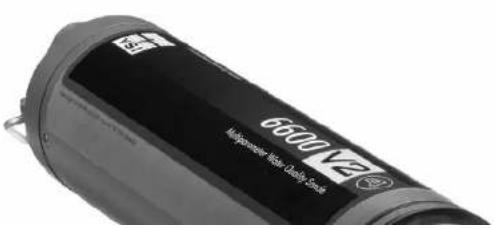
6-Series:
6600 V2
6600EDS V2
6920 V2
6820 V2
600 OMS V2
600XL
600XLM
SAFETY NOTES
TECHNICAL SUPPORT AND WARRANTY INFORMATION
Contact information for technical support and warranty information on YSI's Environmental Monitoring Systems products can be found in Section 9, Warranty and Service Information.
COMPLIANCE
When using the YSI 6-Series sondes in a European Community (CE) country, please be aware that electromagnetic compatibility (EMC) performance issues may occur under certain conditions, such as when the sonde is exposed to certain radio frequency fields.
If you are concerned with these issues, consult the Declaration of Conformity that was enclosed with your instrument. Specific conditions where temporary sensor problems may occur are listed in this document.
The Declaration of Conformity for your instrument can be found in Appendix II, EMC Performance. A similar document for YSI Model 650 is located at the end of Section 3, 650 MDS.
SPECIFICATIONS
For general specifications for all YSI Environmental Monitoring Systems products included in this manual, please see Appendix O, Specifications.
GENERAL SAFETY CONSIDERATIONS
For Health and Safety issues concerning the use of the calibration solutions with the sondes, please see Appendix A, Health and Safety.
TABLE OF CONTENTS
SECTION 1 INTRODUCTION
1.1 ABOUT YSI
-1
1.2 HOW TO USE THIS MANUAL
1-1
1.3 UNPACKING AND INSPECTION
1.2
SECTION 2 SONDES
2.1 GETTING STARTED
2-1
2.2 CONNECTING YOUR SONDE
[Non-Text]
2.3 PREPARING THE SONDE FOR USE 2-5
2.4 ECOWATCH FOR WINDOWS - GETTING STARTED
2-24
2.5 SONDE SOFTWARE SETUP
2-25
2.6 GETTING READY TO CALIBRATE
2-34
2.7 TAKING READINGS
2.8 USING ECOWATCH TO UPLOAD AND ANALYZE DATA 2-54
2.9 SONDE MENU
2-68
2.10 CARE, MAINTENANCE, AND STORAGE
2-111
SECTION 3 650 MDS DATA LOGGER
3.1 INTRODUCTION 3-1
3-1
3.2 GETTING STARTED
3-1
3.3 SETTING UP THE 650
3-18
3.4 SONDE MENU INTERFACE
3-21
3.5 LOGGING DATA WITH THE 650
3-27
3.6 MANAGING 650 FILES
3-46
3.7 UPLOADING DATA FROM SONDES 3-51
3.8 USING GPS WITH 650
3-51
3.9 USING THE 650 BAROMETER
3-53
3.10 UPGRADING 650 SOFTWARE
3-55
3.11 TROUBLESHOOTING 3-56
3.12 FERRITE BEAD INSTALLATION
3-57
3.13 SAFETY CONSIDERATIONS
3-58
3.14 650 MDS SPECIFICATIONS
3-61
SECTION 4. ECONUTORY FOR WORKING
5.14 CHLOROPHYLL 5-21
| 5.15 RHODAMINE | 5-28 | |
| 5.16 PHYCOCYANIN-CONTAINING BLUE-GREEN ALGAE | 5-31 | |
| 5.17 PIHYCOERYTIIRIN-CONTAINING BLUE-GREEN ALGAE | 5-37 | |
| 5.18 FLOW | 5-42 | |
SECTION 6 TROUBLESHOOTING
| 6.1 CALIBRATION ERRORS | 6-1 |
| 6.2 SONDE COMMUNICATION PROBLEMS | |
6.3 SENSOR PERFORMANCE PROBLEMS 6-3
SECTION 7 COMMUNICATION
7.1 OVERVIEW 7-1
7.2 HARDWARE INTERFACE 7-1
7.3 RS-232 INTERFACE 7-2
7.4 SDI-12 INTERFACE 7.2
SECTION 8 UPGRADING SONDE FIRMWARE 8.1
SECTION 9 WARRANTY AND SERVICE INFORMATION
9.1 LIMITATIONS OF WARRANTY 9-1
9.2 AUTHORIZED SERVICE CENTERS 9-2
9.3 CLEANING INSTRUCTIONS 9-2
9.4 PACKING INSTRUCTIONS 9-2
9.5 PRODUCT RETURN FORM 9-4
APPENDIX A HEALTH AND SAFETY A-1
APPENDIX B REQUIRED NOTICE B-1
APPENDIX C ACCESSORIES AND CALIBRATION STANDARDS C-1
APPENDIX D SOLUBILITY AND PRESSURE/ALTITUDE TABLES D-1
APPENDIX E TURBIDITY MEASUREMENTS E-1
APPENDIX F FLOW F-1
Introduction Section 1
SECTION 1 INTRODUCTION
1.1 ABOUT YSI INCORPORATED
From a three-man partnership in the basement of the Antioch College science building in 1948, YSI has grown into a commercial enterprise designing and manufacturing precision measurement sensors and control instruments for users around the world. Although our range of products is broad, we focus on three major markets: water testing and monitoring, health care, and bioprocessing.
In the 1950s, Hardy Trolander and David Case made the first practical electronic thermometer using a thermistor. This equipment was developed to supply Dr. Leland Clark with a highly sensitive and precise temperature sensor for the original heart-lung machine. The collaboration with Dr. Clark has been critical to the success of the company. In the 1960s, YSI refined a Clark invention, the membrane covered polarographic electrode, and commercialized oxygen sensors and meters which revolutionized the way dissolved oxygen was measured in wastewater treatment plants and environmental water. Today, geologists, biologists, environmental enforcement personnel, officials of water utilities and fish farmers recognize us as the leader in dissolved oxygen measurement.
In the 1970s, YSI again worked with Clark to commercialize one of his many inventions, the enzyme membrane. This development resulted in the first practical use of a biosensor, in the form of a membrane based on immobilized glucose oxidase, to measure blood sugar accurately and rapidly. In the next few years, this technology was extended to other enzymes, including lactate oxidase, for applications in biotechnology, health care, and sports medicine.
In the early 1990s, YSI launched a line of multi-parameter water monitoring systems to address the emerging need to measure non-point source pollution. Today we have thousands of instruments in the field that operate with the push of a button, store data in memory, and communicate with computers. These instruments (described in this manual) are ideal for profiling and monitoring water conditions in industrial and wastewater effluents, lakes, rivers, wetlands, estuaries, coastal waters, and monitoring wells. If the instrument has 'on board' battery power, it can be left unattended for weeks at a time with measurement parameters sampled at the user's setup interval and data securely saved in the unit's internal memory. The fast responses of YSI's sensors make the systems ideal for vertical profiling, and the small size of some our sondes allows them to fit down 2-inch diameter monitoring wells. All of YSI's multi-parameter systems feature either the YSI-patented Rapid Pulse Dissolved Oxygen Sensor, which exhibits low-stirring dependence and provides accurate results without an expensive, bulky, and power-intensive stirrer or an ROX
Introduction Section 1
techniques, and system setup is necessary to obtain accurate and meaningful results. Thorough reading and understanding of this manual is essential to proper operation.
Because of the many features, configurations and applications of these versatile products, some sections of this manual may not apply to the specific system you have purchased.
If you have any questions about this product or its application, please contact YSI's Technical Support Group or authorized dealer for assistance. See Section 9, Warranty and Service Information for contact information.
1.3 UNPACKING AND INSPECTION
Inspect the outside of the shipping box for damage. If any damage is detected, contact your shipping carrier immediately. Remove the equipment from the shipping box. Some parts or supplies are loose in the shipping box so check the packing material carefully. Check off all of the items on the packing list and inspect all of the assemblies and components for damage.
If any parts are damaged or missing, contact your YSI representative immediately. If you purchased the equipment directly from YSI, or if you do not know from which YSI representative your equipment was purchased, refer to Section 8, Warranty and Service Information for contact information.
Sondes Section 2
SECTION 2 SONDES
2.1 GETTING STARTED
The 6-Series Environmental Monitoring Systems from YSI are multi-parameter, water quality measurement, and data collection systems. They are intended for use in research, assessment, and regulatory compliance applications. Section 2 concentrates on sondes and how to operate them during different applications. A sonde is a torpedo-shaped water quality monitoring device that is placed in the water to gather water quality data. Sondes may have multiple probes. Each probe may have one or more sensors that read water quality data.
The following list contains parameters that your sonde may measure. See Appendix O, Specifications for the specific parameters of each sonde.
• Rapid Pulse Polarographic Dissolved Oxygen
• ROX Optical Dissolved Oxygen
- Conductivity
- Specific Conductance
- Salinity
• Total Dissolved Solids
- Resistivity
- Temperature
• pH
• ORP
- Depth
- Level
- Flow
- Turbidity
- Chlorophyll
- Rhodamine WT
• Phycocyanin-Containing Blue-green Algae
• Phycoerythrin-Containing Blue-green Algae
- Nitrate-N
Sondes Section 2
2.2 CONNECTING YOUR SONDE
There are a number of ways in which you may connect the sondes to various computers, data collection devices and VT-100 terminal emulators. To utilize the configuration that will work best for your application, make sure that you have all of the components that are necessary. The following list and diagrams (Figures 1-4) are a few possible configurations.
☐ Sonde to Lab Computer (recommended for initial setup)
☐ Sonde to Data Collection Platform
☐ Sonde to Portable Computer
☐ Sonde to YSI 650 MDS Display/Login
Figure 1

Sondes Section 2
Figure 2
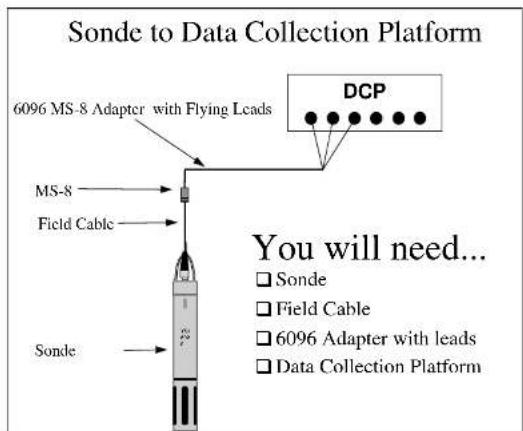
Figure 3
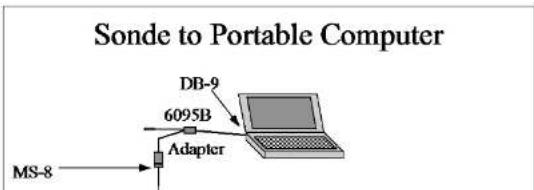
Sondes Section 2
Figure 4
Sonde to 650 Display/Login
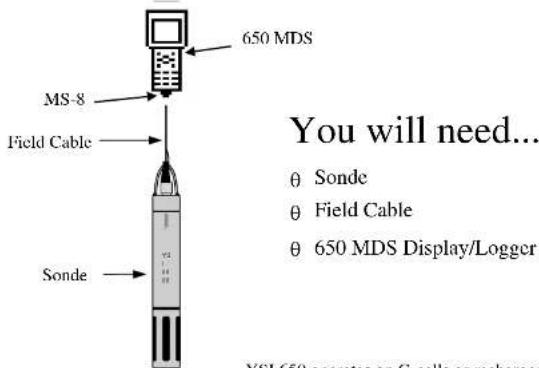
YSI 650 operates on C-cells or rechargeable batteries.
Sondes Section 2
2.3 PREPARING THE SONDE FOR USE
To prepare the sonde for calibration and operation, you need to install probes (sensors) into the connectors on the sonde bulkhead. In addition to probe installation, you need to install a new membrane on the YSI 6562 DO Probe if you are using this item. It is recommended that you install the DO membrane before installing the probe onto the bulkhead. For membrane changes in the future, you may be able to perform this operation without removing the DO probe. This will largely depend on whether the other installed probes interfere with your ability to install a membrane. The next step is providing power for the sondes, through batteries or line power, and then connecting a field cable. The four steps necessary for getting your sondes ready for use are listed below.
Step 1 Installing the Dissolved Oxygen Membrane – Section 2.3.1
Step 2 Installing the Probes - Section 2.3.2
Step 3 Supplying Power - Section 2.3.3
Step 4 Connecting a Field Cable - Section 2.3.4
2.3.1 STEP 1 - INSTALLING THE DISSOLVED OXYGEN MEMBRANE
Note: If you are using a ROX Optical DO sensor for your applications, please skip to Section 2.3.2 at this time.
The 6562 Rapid Pulse Polarographic DO probe is shipped with a protective dry membrane on the sensor tip held in place by an O-ring. Remove the O-ring and membrane. Handle the probe with care. It is very important not to scratch or contaminate the sensor tip. See Section 2.10.2, Probe Care and Maintenance, for information on how often the membrane should be replaced.
Unpack the YSI 6562 DO Probe Kit and follow the instructions below.
Open the membrane kit and prepare the electrolyte solution. Dissolve the KCl in the dropper bottle by filling it to the neck with deionized or distilled water and shaking until the solids are fully dissolved. After the KCl is dissolved, wait a few minutes until the solution is free of bubbles.
Figure 5
Figure 6
4
F
Sondes Section 2
DO MEMBRANE INSTALLATION WITH THE PROBE NOT INSTALLED IN THE SONDE
Remove the protective cap and the dry membrane from the YSI 6562 Dissolved Oxygen probe.
Make sure that the protective cap is installed on the connector end of the probe. Do not allow the electrolyte solution to wet the probe's connector and O-ring scal areas. This solution is extremely corrosive to the connector and is difficult to remove.
Before using any electrolyte, wrap a clean, dry paper towel around the capped probe to catch any spilled electrolyte. Hold the probe in a vertical position and apply a few drops of KCl solution to the tip. The fluid should completely fill the small moat around the electrodes and form a meniscus on the tip of the sensor. Be sure no air bubbles are stuck to the face of the sensor. If necessary, shake off the electrolyte and start over.
Figure 7 Secure a membrane between your left thumb and the probe body. Always handle the membrane with care, touching it only at the ends.
With the thumb and forefinger of your right hand, grasp the free end of the membrane. With one continuous motion, gently stretch it up, over, and down the other side of the sensor. The membrane should conform to the face of the sensor.
Secure the end of the membrane under the forefinger of your left hand.
Roll the O-ring over the end of the probe, being careful not to touch the membrane surface with your fingers. There should be no wrinkles or trapped air bubbles. Small wrinkles may be removed by lightly tugging on the edges of the membrane. If bubbles are present, remove the membrane and repeat steps 3-8.
Trim off any excess membrane with a sharp knife or scissors.

Sondes Section 2
DO MEMBRANE INSTALLATION WITH THE PROBE INSTALLED IN THE SONDE
Secure the sonde in a vertical position using a vise or a clamp and ring stand such that the sensors are upright. Remove the probe guard from the sonde.
Remove the old DO membrane and clean the probe tip with water and lens cleaning tissue. Make sure to remove any debris or deposits from the O-ring groove.
Using the dropper bottle of electrolyte supplied, place electrolyte on the DO probe tip until a high meniscus is formed as shown in Figure 8 below.
Figure 8 Figure 9

natural_image
Close-up of a cylindrical object with orange substance inserted into a black cylindrical base (no visible text or symbols)
natural_image
Close-up of hands holding a thin, transparent object with circular openings (no visible text or symbols)Hold the membrane so that all four corners are supported, but do not stretch the membrane laterally.
Position the membrane over the probe, keeping it parallel to the probe face as shown in Figure 9 above.
Using one continuous downward motion, stretch the membrane over the probe face as shown. See Figure 10 below. Do not hesitate to stretch the membrane.
Sondes Section 2
your fingers. Once the O-ring is in position, squeeze it every 90 degrees to equalize the tension. See Figure 11 above. DO NOT USE GREASE OR LUBICANT OF ANY KIND ON THE O-RING.
Using a hobby knife or a scalpel, trim the excess Tellon from the membrane, making your cut about 1/8 inch below the O-ring as shown in Figure 12 below. A razor blade can be used for the cut if no knife or scalpel is available.
Figure 12 Figure 13

natural_image
Close-up of a glass bottle with water being poured into it, no visible text or symbols
natural_image
Close-up of three cylindrical electronic components with metallic caps and a central display (no visible text or symbols)If the installation has been done properly, the finished product should have no bubbles, wrinkles, or tears as shown in Figure 13 above.
NOTE: Observe the following cautions to assure that your membrane installation is proper:
- Secure the sonde tightly so that it will not move during membrane installation.
- Wash hands before installation and do not allow finger oils or O-ring lubricant to touch the probe face or the membrane.
- Use caution when replacing the probe guard that you do not touch the membrane. If you suspect that the membrane has been damaged, replace it immediately.
Sondes Section 2
REMOVING THE PORT PLUGS
Using the long extended end of the probe installation tool supplied in the YSI 6570 Maintenance Kit, remove the port plugs. Save all the port plugs Figure 15 for possible future use.
There are a variety of probe options for the sondes. Figures 15, 16 and 17 illustrate the uses of the common tool for port plug removal. Note that this tool will also be used to install the various probes.
If the tool is misplaced or lost, you may use 7/64" and 9/64" hex keys as substitutes.

natural_image
Technical line drawing of a cylindrical mechanical component with a separate inset showing a separate cylindrical part (no text or symbols)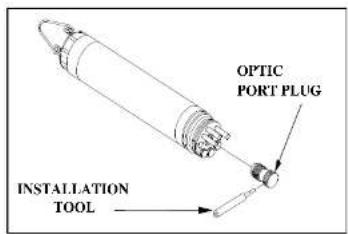
Figure 16
Figure 17

Figure 18
NOTE: You may need pliers to remove the ISE port

ICE DODT DI UIC
Sondes Section 2
600XL & 600XLM SONDE BULKHEAD
3 Port Sonde: 1 Rapid Pulse DO, 1 Conductivity/Temperature, and 1 pH/ORP
☐ 6562 Dissolved oxygen probe = 3-pin connector
☐ 6560 Conductivity/Temperature = 6-pin connector
☐ 6561 pH probe = 4 pin connector
☐ 6565 Combo pH/ORP probe = 4 pin connector
Figure 19

6600V2-2 SONDE BULKHEAD
8 Port Sonde: 1 Rapid Pulse DO, 1 Conductivity/Temperature, 2 Optical, 3 ISE, 1 pH/ORP
6562 Dissolved oxygen probe = 3-pin connector
☐ 6560 Conductivity/Temperature = 6-pin connector
☐ 6561 or 6561FG pH probe = 4 pin connector
☐ 6565 or 6565FG pH/ORP probe = 4 pin connector
☐ 6566 Fouling Resistant pH/ORP probe = 4 pin connector
6882 Chloride Probe = leaf spring connector
☐ 6883 Ammonium Probe = leaf spring connector
☐ 6884 Nitrate Probe = leaf spring connector
☐ 6026 Turbidity Probe, Wiping = 8 pin connector
Figure 20A

Sondes Section 2
6600EDS V2-2 SONDE BULKHEAD
5 Port Sonde: 1 Rapid Pulse DO, 1 Conductivity/Temperature, 2 Optical, 1 pH/ORP
Figure 20B
☐ 6562 Dissolved oxygen probe = 3-pin connector
☐ 6560 Conductivity/Temperature = 6-pin connector
☐ 6561 or 6561FG pH probe = 4 pin connector
☐ 6565 or 6565FG pH/ORP probe = 4 pin connector
☐ 6566 Fouling Resistant pH/ORP probe = 4 pin connector
6026 Turbidity Probe, Wiping = 8 pin connector
☐ 6136 Turbidity Probe, Wiping = 8 pin connector
□ 6025 Chlorophyll Probe, Wiping = 8 pin connector
☐ 6130 Rhodamine WT Probe, Wiping = 8 pin connector
☐ 6150 Optical Dissolved oxygen probe = 8 pin connector
□ 6131 PC-Blue-green Algae probe = 8 pin connector
□ 6132 PE-Blue-green Algac probe = 8 pin connector
Cond//Temp - 6 pin
pH/ORP-4 pin

6600V2-4 SONDE BULKHEAD
6 Port Sonde: 1 Conductivity/Temperature, 4 Optical, 1 pH/ORP
Figure 20C
☐ 6560 Conductivity/Temperature = 6-pin connector

Sondes Section 2
6820V2-1 & 6920V2-1 SONDE BULKHEADS
7 Port Sonde: 1 Rapid Pulse DO, 1 Conductivity/Temperature, 1 Optical, 1 pH/ORP, 3 ISE
☐ 6562 Dissolved oxygen probe = 3-pin connector
☐ 6560 Conductivity/Temperature = 6-pin connector
☐ 6561 or 6561FG pH probe = 4 pin connector
□ 6565 or 6565TG pH/ORP probe = 4 pin connector
□ 6566 Fouling Resistant pH/ORP probe = 4 pin connector
6882 Chloride Probe = leaf spring connector
□ 6883 Ammonium Probe = leaf spring connector
6884 Nitrate Probe = leaf spring connector
☐ 6026 Turbidity Probe, Wiping = 8 pin connector
☐ 6136 Turbidity Probe, Wiping = 8 pin connector
6025 Chlorophyll Probe, Wiping = 8 pin connector
☐ 6130 Rhodamine WT Probe, Wiping = 8 pin connector
□ 6150 Optical Dissolved oxygen probe = 8 pin connector
□ 6131 PC-Blue-green Algae probe = 8 pin connector
□ 6132 PE-Blue-green Algae probe = 8 pin connector
Figure 21A

6820V2-2 & 6920V2-2 SONDE BULKHEADS
5 Port Sonde: 1 Conductivity/Temperature, 2 Optical, 1 pH/ORP, 1 ISE
Figure 21B

□ 6560 Conductivity/Temperature = 6-pin connector
☐ 6561 or 6561FG pH probe = 4 pin connector
□ 6565 or 6565FG pH/ORP probe = 4 pin connector
☐ 6566 Fouling Resistant pH/ORP probe = 4 pin connector
□ 6882 Chloride Probe = leaf spring connector
6883 Ammonium Probe = leaf spring connector
6884 Nitrate Probe = leaf spring connector
□ 6026 Turbidity Probe, Wiping = 8 pin connector
Sondes Section 2
600LS BULKHEAD
If are working with a 600L.S, all sensors will have been installed at the factory.
Figure 21C

600R BULKHEAD
If are working with a 600R sonde, your instrument will arrive with the probes installed.
Figure 22
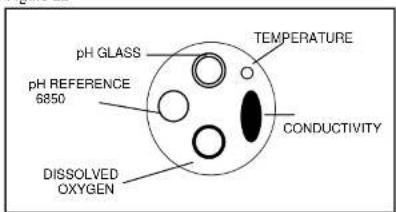
600QS BULKHEAD
Sondes Section 2
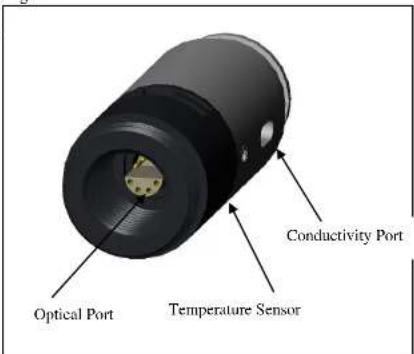
600 OMS V2-1 BULKHEAD
The conductivity sensor (module/port) for the 600 OMS V2-1 is factory installed. Optical probes (turbidity, chlorophyll, rhodamine WT, ROX optical DO, BGA-PC, and BGA-PE) are threaded into the optical port on the bottom of the sonde by the user.
Figure 24
LUBRICATE O-RINGS
Apply a thin coat of O-ring lubricant, supplied in the YSI 6570 Maintenance Kit, to the O-rings on the connector side of each probe that is to be installed.
CAUTION: Make sure that there are NO contaminants between the O-ring and the probe. Contaminants that are present under the O-ring may cause the O-ring to leak when the sonde is deployed.
Figure 25
Sondes Section 2
INSTALLING THE TURBIDITY, CHLOROPHYLL, RHODAMINE WT, BGA-PHYCOCYANIN, BGA-PHYCOERYTHRIN, AND ROX OPTICAL DISSOLVED OXYGEN PROBES
If you are using any of optical probes listed, it is recommended that the optical sensors be installed first. If you are not installing one of these probes, do not remove the port plug, and go on to the next probe installation.
Figure 26
All optical probes, 6136 turbidity, 6025 chlorophyll, 6130 Rhodamine WT, 6131 Phycocyanin Blue-green algae, 6132 Phycoerythrin-Blue-green algae, and 6150 ROX Optical DO are installed in the same way. Install the probe into the center port, seating the pins of the two connectors before you begin to tighten. Tighten the probe nut to the bulkhead using the short extended end of the tool supplied with the probe. Do not over-tighten.
CAUTION: Be careful not to cross-thread the probe nut.

The YSI 6820V2-1 and 6920V2-1 sondes can accept a single turbidity, chlorophyll, Rhodamine WT, BGA-PC, BGA-PE, or ROX DO probe. The 6600V2-2, 6600EDS V2-2, 6820V2-2, and 6920V2-2 sondes can accept and utilize two of the six optical sensors at the same time. The two optical ports of these sondes are labeled "I" and "C" on the sonde bulkhead. Each port can accept any of the six sensors so be sure to remember which sensor was installed in which port so that you will later be able to set up the sonde software correctly. The 6600V2-4 sonde can accept and utilize four of the six optical sensors at the same time. The four optical ports of this sonde are labeled "I", "C", "B", and "O" on the sonde bulkhead. Each port can accept any of the six sensors so be sure to remember which sensor was installed in which port so that you will later be able to set up the sonde software correctly.
INSTALLING THE 6562 RAPID PULSE DISSOLVED OXYGEN PROBE, CONDUCTIVITY/TEMP AND pH/ORP PROBES
Insert the probe into the correct port and gently rotate the probe until the two connectors align.
Figure 27

Sondes Section 2
INSTALLING THE ISE PROBES
The Ammonium, Nitrate and Chloride ISE probes do not have slip nuts and should be installed without tools. Use only your fingers to tighten. Any ISE probe can be installed in any of the three ports labeled "3", "4", and "5" on the sonde bulkhead of the 6820V2-1, 6920V2-1, and 6600V2-2 sondes or the single ISE port on the 6820V2-2 and 6920V2-2 bulkheads. Be sure to remember which sensor was installed in which port so that you will later be able to set up the sonde software correctly.
Figure 28

IMPORTANT: Make sure that the probe nut or probe body of the ISE probes are seated directly on the sonde bulkhead. This will ensure that connector seals will not allow leakage.
Figure 29

INSTALLING THE PROBE GUARD
Included with each sonde is a probe guard. The probe guard protects the probes during calibration and measurement procedures. Once the probes are installed, install this guard by aligning it with the threads on the bulkhead and turn the guard clockwise until secure.
CAUTION: Be careful not to damage the Rapid Pulse DO membrane during installation of the probe guard.
Figure 30 shows the YSI 6820V2-1/6820V2-2/6920V2-1/6920V2-2 probe guard; the guard for the
Sondes Section 2
2.3.3 STEP 3 - POWER
Some type of external power supply is required to power the YSI 600R, 600QS, 600XL 6820V2-1, and the non-battery version of the 600 OMS V2-1sondes. The YSI 6920V2-1, 6920V2-2, 6600V2-2, 6600EDS V2-2, 6600V2-4, 600XLM, and battery version of the 600 OMS V2-1sondes have internal batteries or can run on external power.
If you have purchased a YSI 650 MDS display/logger, attaching your sonde to the display/logger will allow your sonde to be powered from the batteries or the external power of the display/logger. See Section 3, Displays/Loggers, for power options.
The battery-powered version of this instrument is powered by alkaline batteries, which the user must remove and dispose of when the batteries no longer power the instrument. Disposal requirements vary by country and region, and users are expected to understand and follow the battery disposal requirements for their specific locale.
The circuit board in this instrument contains a manganese dioxide lithium "coin cell" battery that must be in place for continuity of power to memory devices on the board. This battery is not user serviceable or replaceable. When appropriate, an authorized YSI service center will remove this battery and properly dispose of it, per service and repair policies.
POWER FOR LAB CALIBRATION
A YSI 6038 (110 VAC) or 6651 (64-240 VAC) Power Supply is required for sondes without internal batteries when using them with a PC for calibration and setup. Sondes with internal batteries do not require a power supply, but using the sonde with a power supply in the lab is often convenient and extends battery life. Most adapters include a short pigtail for power that plugs into the power supply. After attaching the four-pin connector from the power supply to the pigtail, simply plug the power supply into the appropriate AC outlet.
See Section 2.2, Connecting Your Sonde, for specific information on cables, adapters and power supplies required for connecting your sonde to various devices.
Figure 32
Sondes Section 2
INSTALLING BATTERIES
The 600XLM, 6600V2-2, 6600EDS V2-2, 6600V2-4, 6920V2-1, 6920V2-2 and battery version of the 600 OMS V2-lare the sondes that use alkaline batteries for power. A set of batteries is supplied with each of these sondes. If you do not have one of these sonde model types, you may skip this section.
INSTALLING BATTERIES INTO THE YSI 600XLM OR 600 OMS V2-1 SONDES
To install 4 AA-size alkaline batteries into the sonde, refer to the following directions and Figure 33.
Grasp the cylindrical battery cover and unscrew by hand. Then slide the battery lid up and over the bulkhead connector. Insert batteries, paying special attention to polarity. Labeling on the battery compartment posts describes the orientation. It is usually easiest to insert the negative end of battery first and then "pop" the positive terminal into place.
Check the O-ring and sealing surfaces for any contaminants that could interfere with the O-ring seal of the battery chamber.
CAUTION: Make sure that there are NO contaminants between the O-ring and the sonde. Contaminants that are present under the O-ring may cause the O-ring to leak when the sonde is deployed.
Lightly lubricate the o-ring on the outside of the battery cover. DO NOT lubricate the internal o-ring.
Return the battery lid and tighten by hand.
Figure 33
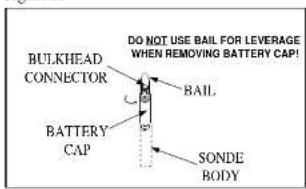
Figure 34

Sondes Section 2
INSTALLING BATTERIES INTO THE YSI 6600V2-2, 6600EDS V2-2, AND 6600V2-4 SONDES
IMPORTANT SAFETY FEATURE: The 116003 battery lid for the 6600V2-2, 6600EDS V2-2, and 6600V2-4 is equipped with a safety pressure-release valve. The valve will vent off any pressure build up in the battery compartment from waste gas that could be created by battery failure, improperly marked or installed batteries, flooding, and dead or heavily discharged batteries. Pressure from the waste gas can deform the battery compartment and cause the sonde to shatter, projecting fragments from the sonde casing in all directions. People near a sonde that shatters could suffer serious puncture wounds and serious eye injuries. DO NOT defeat this safety feature by blocking the valve or painting over or in close proximity to the valve. DO NOT attempt to disassemble the safety valve.
Install 8 C-size alkaline batteries according to the following directions and Figure 35.
Using the 9/64" hex driver supplied with the 6600V2-2, 6600EDS V2-2 and 6600V2-4 loosen the battery lid screws.
NOTE: The battery lid screws are captive. It is not necessary to remove them from the lid completely.
Figure 35

natural_image
Technical line drawing of a mechanical device with cylindrical components and connecting rods (no text or symbols)Remove the battery lid and install the batteries, as shown. If installing or replacing the batteries, test batteries for proper polarity and voltage and observe the correct polarity before installing the batteries into the battery chamber.
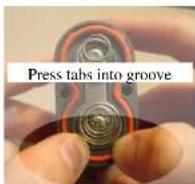
CAUTION: Be sure the orange O-ring is installed in the groove of the lid. The o-ring is designed with retention tabs to prevent it from falling out of the grove during installation. Check the O-ring and scaling surfaces for any contaminates which could interfere with the O-ring seal of the battery chamber. Remove any contaminates present. Also clean the protective O-rings which are located the side of the battery lid. Apply a small amount of grease to the threads of each screw to prevent binding. See the next section and Figures 35A through 35L for details on proper installation of the battery lid o-ring.
Sondes Section 2
- Press two of the outermost retaining tabs down into the groove. It should be clear that the retaining tabs have recessed into the groove along with the scal so that the tabs outermost edges are at or below the battery lid's mounting surface.
Figures 35C and 35D
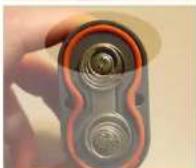
- Press the remaining two outermost retaining tabs into the groove and check to make sure the tabs have been recessed as before. Verify that the other two previously seated retaining tabs have not been forced from their position in the groove.
Figures 35E and 35F
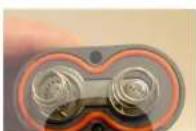
- Place your thumbs on the seal about a 14 " or so from the sides of the center retaining tab and press the seal down into the groove while sliding your thumbs towards each other. This stretches the seal to fit the profile of the groove allowing the center tab to be seated properly. You may need to use the tip of one of your thumbs to finish pressing the tab into place.
Figures 35G and 35H
- Press the remaining middle retaining tab into the groove as before and verify that none of the other retaining tabs have been forced from their positions in the groove during this part of the scal installation.
Figures 35I and 35J



Sondes Section 2
cannot be reset and the battery lid must be replaced before sonde deployment. Contact YSI Technical Support for instructions.

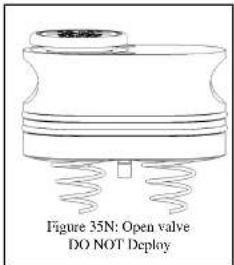
Lightly lubricate the o-rings on the outside of the battery cover. DO NOT lubricate the orange internal o-ring.
Return the battery lid and HAND tighten the screws with the hex driver until snug. DO NOT OVER TIGHTEN.
CAUTION: Over-tightening the screws may cause the battery compartment to flood. Do NOT use power tools to tighten the battery lid screws.
With the battery cover installed and secured, check the battery voltage in the sondes Status Menu. The voltage must be 12.0 volts or higher with new cells. A voltage less than 12.0 volts could indicate that a cell was installed upside down or that one of the cells is not at full strength.
CAUTION: Remove Batteries When Not in Use. As with any battery-powered instrumentation, batteries should be removed before short or long-term storage. Even with the new battery lid, batteries can leak, releasing toxic and corrosive battery acid and damaging equipment.
Sondes Section 2
Check the O-rings and scaling surfaces for any contaminants that could interfere with the seal of the battery chamber.
CAUTION: Make sure that there are NO contaminants between the O-ring and the sonde. Contaminants that are present under the O-ring may cause the O-ring to leak when the sonde is deployed.
Lightly lubricate the o-rings on the bottom of the threads and on the connector stem as shown in Figure 37.
Return the battery lid and tighten by hand. DO NOT OVER-TIGHTEN.

Figure 37
2.3.4 STEP 4 - CONNECTING A FIELD CABLE
Figure 38 All YSI 6600V2-2, 6600EDS V2-2, 6600V2-4, 6920V2-1, 6920V2-2, 6820V2-2, 600XLM, 600QS, and 600 OMS V2-1sondes have a sonde-mounted cable connector for attachment of the field cable. Some versions of the 600R, 600XL, and 6820V2-1 sondes also have this connector.
However, some versions of the YSI 600R, 600XL, and 6820V2-1sondes have permanently attached "integral" cables. If your sonde has a cable that is non-detachable, the next section will not be relevant.
To attach a field cable to the sonde connector, remove the waterproof cap from the sonde

Sondes Section 2
CAUTION: The 6067B cable is for laboratory use only -- it is not waterproof and should not be submersed!
Sondles that are equipped with level sensors use vented cables. See Appendix G, Using Vented Level, for detailed information.
Sondes Section 2
2.4 ECOWATCH FOR WINDOWS -GETTING STARTED
This section will describe how to get started with EcoWatch for Windows, but detailed information is provided in Section 4, EcoWatch for Windows, or a convenient Windows Help section that is part of the software. It is recommended that you thoroughly read Section 4 or use the Help function for a comprehensive understanding of EcoWatch for Windows.
2.4.1 INSTALLING ECOWATCH FOR WINDOWS
EcoWatch for Windows software must be used with an IBM-compatible PC with a 386 (or better) processor. The computer should also have at least 4MB of RAM and Windows Version 3.1 or later.
Place the EcoWatch for Windows compact disk in your CD ROM drive. Select Start, then Run and type d:\setup.exe at the prompt. Press Enter or click on "OK" and the display will indicate that EcoWatch is proceeding with the setup routine. Simply follow the instructions on the screen as the installation proceeds.
2.4.2 RUNNING ECOWATCH FOR WINDOWS
To run EcoWatch for Windows, simply select the EcoWatch icon on your desktop or from the Windows Program Menu. For help with the EcoWatch program, see Section 4, EcoWatch or use the Help section of the software.
2.4.3 ECOWATCH FOR WINDOWS SETUP
To setup the EcoWatch software for use with a sonde, select the sonde icon on the toolbar, and then the proper Com port to which your sonde is connected. If the default setting is correct, it does not need to be changed. Click "OK" to open a terminal window.
From the Comm Menu, select the Settings option to check the baud rate. The baud rate should be 9600. If it is not, select 9600 from the list and press Enter.
From the Settings Menu, select the Font/Color and Background Color options to choose a color scheme
Sondes Section 2
2.5 SONDE SOFTWARE SETUP
There are two sets of software at work in any YSI environmental monitoring system. One is resident in your PC and is called EcoWatch for Windows. The other software is resident in the sonde itself. In this section, you will first make sure that the language associated with your sonde software is appropriate to your application and change it if necessary. You will set up the sonde software using EcoWatch for Windows as the interface device between the sonde and your PC.
SETTING UP THE SONDE SOFTWARE LANGUAGE
The menus in the sonde software can be viewed in English, German, or French. However, the choice of language CANNOT be made from the sonde software itself. Rather the choice must be selected via a complete update of the software itself from the YSI Website as described below. Note that the menus in your sonde will be shown in English when you receive the instrument and, if this is your language of choice, no further action is required and you should skip to the next section. If you wish to change the language of your menus to German or French, use the following instructions.
Follow the step-by-step instructions below to change the language for the menus in your 6-series sonde:
- Connect your sonde to the serial port of a PC with access to the Internet using the proper cable as described in the previous section of this manual.
• Make sure that the sonde is powered with either internal batteries or a suitable power supply. - Access the YSI Environmental Software Downloads page at www.ysi.com/cdownloads or go to main page at www.ysi.com and click on Support button in green bar.
- Log in, or if a first time user, fill out the registration form and wait for a login password via return E-mail.
- Click on the Software folder under the Software Downloads section.
- Inside the folder, click on the file 6-Series & 556MPS Code Updater. M-DD-YYYY and save the file to a temporary directory on your computer.
• After the download is complete, run the file that you just downloaded and follow the on-screen
Sondes Section 2
- Set the Comm port number to match the port to which you connected the sonde cable and make sure that the "This is an ADV6600" selection is NOT checked.
- NEXT, SELECT THE LANGUAGE (ENGLISH, FRENCH, OR GERMAN) WHICH WILL BE USED IN YOUR SONDE MENUS.
- Then click on the Start Code Update button. An indicator bar will show the progress of the upgrade as shown below.

- When the update is finished (indicated on the PC screen as shown below), close the YSI Code Updater window (on the PC) by clicking on the "X" in the upper right corner of the window.

Sondes Section 2
Figure 39
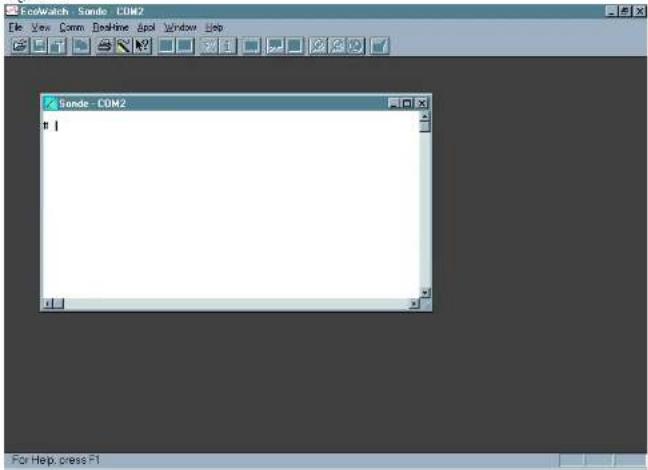
If your sonde has previously been used, the Main menu (rather than the # sign) may appear when communication is established. In this case simply proceed as described below. You will not be required to type "Menu".
If you are unable to establish interaction with the sonde, make sure that the cable is properly connected. If you are using external power, make certain that the YSI 6651 or 6038 power supply or other 12 vdc source is properly working. Recheck the setup of the Com port and other software parameters. Also refer to Section 6, Troubleshooting.
The sonde software is menu-driven. You select functions by typing their corresponding numbers. You do
Sondes Section 2
Figure 40 - Sonde Menu Flow Chart
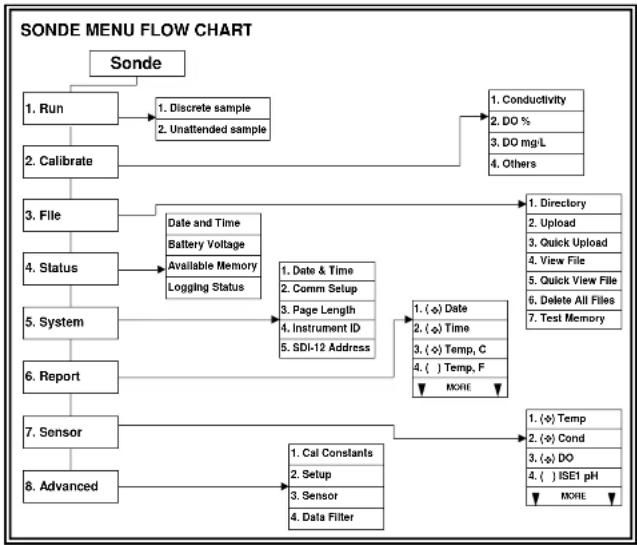
flowchart
graph TD
    A["Sonde"] --> B["1. Run"]
    B --> C["2. Calibrate"]
    C --> D["3. File"]
    D --> E["4. Status"]
    E --> F["5. System"]
    F --> G["6. Report"]
    G --> H["7. Sensor"]
    H --> I["8. Advanced"]

    B --> J["1. Discrete sample\n2. Unattended sample"]
    C --> K["1. Conductivity\n2. DO %\n3. DO mg/L\n4. Others"]

    D --> L["Date and Time\nBattery Voltage\nAvailable Memory\nLogging Status"]
    E --> M["1. Date & Time\n2. Comm Setup\n3. Page Length\n4. Instrument ID\n5. SDI-12 Address"]
    F --> N["1. (φ) Date\n2. (φ) Time\n3. (φ) Temp, C\n4. ( ) Temp, F\nMORE"]

    H --> O["1. Cal Constants\n2. Setup\n3. Sensor\n4. Data Filter"]

    P["1. Directory\n2. Upload\n3. Quick Upload\n4. View File\n5. Quick View File\n6. Delete All Files\n7. Test Memory"] --> Q["1. (φ) Temp\n2. (φ) Cond\n3. (φ) DO\n4. ( ) ISE1 pH\nMORE"]
SYSTEM SETUP
Sondes Section 2
Select 1-Date & time. An asterisk will appear next to each selection to confirm the entry. Press 4 and 5 to activate the date and time functions. Pay particular attention to the date format that you have chosen when entering date. You must use the 24-hour clock format for entering time. Option 4-() 4 digit year may be used so that the date will appear with either a two or four digit year display. If you do not enter the correct year format (8/30/98 for 2-digit, 8/30/1998 for 4 digit) your entry will be rejected.
----Date & time setup----
1-(*)m/d/y    4-( )4 digit year
2-( )d/m/y    5-Date=08/30/98
3-( )y/m/d    6-Time=11:12:30

Select option (0 for previous menu):
Select 4-Instrument ID from the System setup menu to record the instrument ID number (usually the instrument serial number), and press Enter. A prompt will appear which will allow you to type in the serial number of your sonde. This will make sure that any data that is collected is associated with a particular sonde. Note that the selection 5-Circuit Board SN shows the serial number of the PCB that is resident in your sonde (not the entire system as for Instrument ID). Unlike the Instrument ID, the user cannot change the Circuit Board SN. The 6-GLP filename and 7-SDI-12 address selections will be explained in Section 2.9.5
Press Esc or 0 to return to the System setup menu.
Then press Esc or 0 again to return to the Main menu.
----Main----
1-Run 5-System
2-Calibrate 6-Report
3-File 7-Sensor
4-Status 8-Advanced
Sondes Section 2
ENABLING SENSORS
To activate the sensors that are in your sonde, select Sensor from the Sonde Main menu.
----Sensors enabled----
1-(*)Time
2-(*)Temperature
3-(*)Conductivity
4-(*)Dissolved Oxy
5-(*)ISE1 pH
6-(*)ISE2 Orp
7-(*)ISE3 NH4+
8-(*)ISE4 NO3-
9-()ISE5 NONE
A-(*)Optic T Turbidity - 6136
B-(*)Optic C Chlorophyll

Select option (0 for previous menu):
Note that the exact appearance of this menu will vary depending upon the sensors that are available on your sonde. Enter the corresponding number to enable the sensors that are installed on your sonde. An asterisk indicates that the sensor is enabled.
When selecting any of the ISE or Optical ports, a submenu will appear. When this occurs, make a selection so that the sensor corresponds to the port in which the sensor is physically installed. Only ORP can be enabled as ISE2. Optic T, Optic C, Optic B, and Optic O generate a submenu on selection. Each optical port can have one of six probes (6136 Turbidity, 6025 Chlorophyll, 6130 Rhodamine WT, 6131 BGA-PC, 6132 BGA-PE, or 6150 ROX Optical DO) installed as indicated by the submenus.
NOTE CAREFULLY: It is NOT possible to simultaneously activate BOTH the 6562 Rapid Pulse polarographic dissolved oxygen sensor and the 6150 ROX Optical dissolved oxygen sensor. Activation of either sensor will automatically deactivate the other selection. Thus, users of 6600V2-2, 6600EDS V2-2, 6870V2-1 and 6920V2-1 sondes CANNOT measure oxygen with both types of sensors.
Sondes Section 2
----Report setup----
1-(*)Date m/d/y E-(*)Orp mV
2-(*)Time hh:mm:ss F-(*)NH4+ N mg/L
3-(*)Temp C G-() NH4+ N mV
4-(*)SpCond mS/cm H-() NH3 N mg/L
5-() Cond I-(*) NO3- N mg/L
6-() Resist J-() NO3- N mV
7-() TDS K-(*) Cl- mg/L
8-() Sal ppt L-() Cl- mV
9-(*)DOsat % M-(* ) Turbid+ NTU
A-(*) DO mg/L N-(* ) Chl ug/L
B-() DOchrg O-(* ) Chl RfU
C-(*) pH P-(* ) Battery volts
D-() pH mV

Select option (0 for previous menu):
Note that the exact appearance of this menu will vary depending upon the sensors that are available and enabled on your sonde. The asterisks (*) that follow the numbers or letters indicate that the parameter will appear on all outputs and reports. To turn a parameter on or off, type the number or letter that corresponds to the parameter.
Note also that since a 6136 turbidity probe was selected in the Sensor menu above, the units of turbidity are presented as "turbid+NTU". If a 6026 turbidity probe (which was offered by YSI up until 2002) had been selected, the units of turbidity would be presented as "turbid NTU". This designation is designed to differentiate the data from the two sensor types in later analysis.
For parameters with multiple unit options such as temperature, conductivity, specific conductance, resistivity and TDS, a submenu will appear as shown below for temperature, allowing selection of desired units for this parameter.
----Select units----
Sondes Section 2
CHECKING ADVANCED SETTINGS
Select Advanced from the Main menu. The following menu will be displayed.
----Advanced----
1-Cal constants
2-Setup
3-Sensor
4-Data filter

Select option (0 for previous menu):
Select Setup from the Advanced menu.
----Advanced setup----
1-(*)VT100 emulation
2-( )Power up to Menu
3-( )Power up to Run
4-( )Comma radix
5-(*)Auto sleep RS232
6-(*)Auto sloop SDI12
7-( )Multi SDI12
8-( )Full SDI12

Select option (0 for previous menu): 0
Make sure that, other than Auto sleep RS232, all entries are activated or deactivated as shown above.
For sondes which will be used in sampling studies where the user is present and observes readings in real-
Sondes Section 2
----Advanced sensor----
1-TDS constant=0.65
2-Latitude=40
3-Altitude Ft=0
4-(*)Fixed probe
5-( )Moving probe
6-DO temp co %/C=1.1
7-DO warm up sec=40
8-( )Wait for DO
9-Wipes=1
A-Wipe int=5
B-SDT12-M/wipe=1
C-Turb temp co %/C=0.3
D-(*)Turb spike filter
E-Chl temp co %/C=0
F-( )Chl spike filter

Select option (0 for previous menu):
If you have a depth sensor installed, you can maintain the default settings of 40 and 0 for 2-Latitude and 3-Altitude, respectively, without affecting your ability to learn the basic calibration and operation of the sonde. However, if you know the appropriate values for your location, change them. When this setup is verified, press Esc or 0 to return to the Advanced menu. For more information, see Section 2.9.8, Advanced.
The display under 3-Sensor may be different from the one shown in the example above, depending on the sensors that are installed in your unit. For example, if you do not have a chlorophyll probe, the last two entries (which are relevant only to chlorophyll) will not appear.
When this setup is verified, press Esc or 0 to return to the Advanced menu. For a detailed explanation of the choices in the Advanced menu, see Section 2.9.8, Advanced. Press Esc or 0 to back up to the Main menu.
2.6 GETTING READY TO CALIBRATE
2.6.1 INTRODUCTION
HEALTH AND SAFETY
Reagents that are used to calibrate and check this instrument may be hazardous to your health. Take a moment to review health and safety information in Appendix A of this manual. Some calibration standard solutions may require special handling.
CONTAINERS NEEDED TO CALIBRATE A SONDE
The calibration cup that comes with your sonde serves as a calibration chamber for all calibrations and minimizes the volume of calibration reagents required.
Although not recommended except in unusual circumstances, instead of the calibration cup, you may use laboratory glassware to perform some of the calibrations. If you do not use a calibration cup that is designed for the sonde, you are cautioned to do the following:
√ Perform all calibrations with the Probe Guard installed. This protects the probes from possible physical damage.
√ Use a ring stand and clamp to secure the sonde body to prevent the sonde from falling over. Much laboratory glassware has convex bottoms.
√ Insure that all sensors are immersed in calibration solutions. Many of the calibrations factor in readings from other probes (e.g., temperature probe). The top vent hole of the conductivity sensor must also be immersed during calibrations.
CALIBRATION TIPS
Sondes Section 2
-
Have several clean, absorbent paper towels or cotton cloths available to dry the sonde between rinses and calibration solutions. Shake the excess rinse water off of the sonde, especially when the probe guard is installed. Dry off the outside of the sonde and probe guard. Making sure that the sonde is dry reduces carry-over contamination of calibrator solutions and increases the accuracy of the calibration.
-
Make certain that port plugs are installed in all ports where probes are not installed. It is extremely important to keep these electrical connectors dry.
USING THE CALIBRATION CUP
Follow these instructions to use the calibration cup for calibration procedures with all of the instruments except the 600R, 600QS, and 600 OMS V2-1. For these sondes, the over-the-guard bottle that comes with your sonde, must be used.
√ Ensure that a gasket is installed in the gasket groove of the calibration cup bottom cap, and that the bottom cap is securely tightened. Note: Do not over-tighten as this could cause damage to the threaded portions of the bottom cap and tube.
√ Remove the probe guard, if it is installed.
√ Inspect the installed gasket on the sonde for obvious defects and if necessary, replace it with the extra gasket supplied.
√ Screw the cup assembly into place on the threaded end of sonde and securely tighten. Note: Do not over tighten as this could cause damage to the threaded portions of the bottom cap and tube.
√ Sonde calibration can be accomplished with the sonde upright—i.e. the cable connector end of the sonde is oriented above the probe end, or inverted where the orientation is reversed. A separate clamp and stand, such as a ring stand, is required to support the sonde in the inverted position.
√ When using the Calibration Cup for dissolved oxygen calibration in water-saturated air, make certain that the vessel is vented to the atmosphere by loosening the bottom cap or cup assembly, depending on
Sondes Section 2
RECOMMENDED VOLUMES OF CALIBRATION REAGENTS
The approximate volumes of the reagents are specified below for both the upright and inverted orientations.
Note that the volume values are only estimates. The actual amount of calibrator solution required will
depend on how many and what type of other probes are installed in you sonde bulkhead.
Table 1A 6820V2-1 and 6920V2-1 Sondes with Standard Calibration Cup*
| Probe to Calibrate | Upright | Inverted |
| Conductivity | 200ml | 150ml |
| pH/ORP | 125ml | 175ml |
| ISE | 125ml | 175ml |
| All Optical Sensors | 50ml | DO NOT CALIBRATE*** |
Table 1B 6820V2-1 and 6920V2-1 Sondes with Optional Extended Calibration Cup*
| Probe to Calibrate | Upright | Inverted |
| Conductivity | 320ml | 150ml |
| pH/ORP | 240ml | 175ml |
| ISE | 240ml | 175ml |
| All Optical Sensors | 225ml | DO NOT CALIBRATE*** |
Table 2 6820V2-2 and 6920V2-2 Sondes with Extended Calibration Cup*
| Probe to Calibrate | Upright | Inverted |
| Conductivity | 310ml | 150ml |
| pH/ORP | 200ml | 150ml |
| ISE | 200ml | 150ml |
| All Optical Sensors | 225 ml | DO NOT CALIBRATE*** |
Table 3 600XL and 600XLM Sondes
| Probe to Calibrate | Upright | Inverted |
| Conductivity | 50ml | 50ml |
| HOPP | 25ml | 50ml |
Sondes Section 2
Table 6 6600V2-4 Sonde with Standard Long Calibration Cup****
| Probe to Calibrate | Upright | Inverted |
| Conductivity | 525ml | 150ml |
| pH/ORP | 500ml | 150ml |
| All Optical Sensors | 425ml | DO NOT CALIBRATE*** |
Table 7 600 OMS V2-1 Sonde**
| Probe to Calibrate | Upright | Inverted |
| Conductivity | 375ml | N/A |
| Turbidity, Chlorophyll, Rhodamine WT | 350ml | N/A |
Table 8 600R and 600QS Sondes
| Probe to Calibrate | Upright | Inverted |
| Conductivity | 350ml | N/A |
| pH/ORP | 120ml | N/A |
* See section below for special instructions dealing with calibration of 6136 turbidity sensor.
** See section below for special instructions dealing with calibration of the conductivity sensor for the 600 OMS V2-1.
*** Optical Sensors CANNOT be calibrated with the sonde in the Upside-Down position because of interference from the meniscus of the calibration standard.
**** An extended length calibration cup is supplied with the 6600V2-4, 6600V2-2, and 6600EDSV2-2 to facilitate calibration of the 6136 turbidity sensor. This cup requires the use of larger volumes of other calibration solutions. Users may choose to purchase the shorter calibration cup sleeve for calibration of sensors other than the 6136 to reduce the volumes of calibrant. The shorter cal cup sleeve is YSI Item Number 066267 and can be obtained by contacting YSI Technical Support.
CALIBRATION OF THE 6136 TURBIDITY SENSOR
Sondes Section 2
NOTE CAREFULLY: All optical sensors MUST be calibrated in the upright position no matter which type of calibration cup is employed. In the upside-down position, the meniscus of the standard causes a great deal of interference and this interference is likely to result in calibration errors and/or erroneous field readings.
CALIBRATION OF 600 OMS V2-1 CONDUCTIVITY SENSOR
In order to conserve calibration solution, the 600 OMS V2-1 conductivity sensor should be calibrated with the optical probe removed and the optical port plug securely tightened. The volume of conductivity solution provided in Table 7 above reflects this special condition. In addition, it is recommended that the sonde be shaken vigorously after immersion in the conductivity reagent to assure that bubbles are expelled from the cell.
An instruction sheet dealing in greater detail with the special requirements for calibration of 600 OMS V2-Isensors is included with the sonde. Be sure to read the instructions carefully before using the sonde.
2.6.2 CALIBRATION PROCEDURES
The following calibration procedures are the most commonly used methods for the 6-series sensors. For detailed information on all calibration procedures, refer to Section 2.9.2, Calibrate.
To ensure more accurate results, you can rinse the calibration cup with water, and then rinse with a small amount of the calibration solution for the sensor that you are going to calibrate. Discard the rinse solution and add fresh calibrator solution. Use tables 1-8 to find the correct amount of calibrator solution.
-
Carefully immerse the probes into the solution and rotate the calibration cup to engage several threads. YSI recommends supporting the sonde with a ring stand and clamp to prevent the sonde from falling over.
-
With the proper cable, connect the sonde to a PC, access EcoWatch for Windows and proceed to the Main menu (for information on how to run EcoWatch for Windows software, see Section
Sondes Section 2
- Note that the exact appearance of this menu will vary depending upon the sensors that are available and enabled on your sonde. To select any of the parameters from the Calibrate menu, input the number that is next to the parameter. Once you have chosen a parameter, some of the parameters will have a number that appears in parentheses. These are the default values and will be used during calibration if you press Enter without inputting another value. Be sure not to accept default values unless you have assured that they are correct. If no default value appears, you must type a numerical value and press Enter.
- After you input the calibration value, or accept the default, press Enter. A real-time display will appear on the screen. Carefully observe the stabilization of the readings of the parameter that is being calibrated. When the readings have been stable for approximately 30 seconds, press Enter to accept the calibration. The calibrated value is bolded on the example screen on the following page.
- Press Enter to return to the Calibrate menu, and proceed to the next calibration.
CALIBRATION EXAMPLE
The example below for calibration of specific conductance, is designed to demonstrate the general calibration protocol for all parameters. From the Calibrate menu, press 1-Conductivity and the following display will be shown.
----Cond calibration----
1-SpCond
2-Cond
3-Salinity

Select option (0 for previous menu): 1
Select 1-SpCond (the generally-recommended method for calibration of a conductivity sensor) and the following prompt will appear which calls for your numerical input of the specific conductance of your calibration solution.
Sondes Section 2
Note that all parameters that have been enabled will appear - not just the one being calibrated at the moment. The user should carefully observe the stabilization of the readings of the parameter that is being calibrated and, when the readings are stable for approximately 30 seconds, press Enter to implement the calibration and the following message will appear.
Calibrated. Press
NOTE: If an ERROR message appears, begin the calibration procedure again. Be certain that the value you enter for the calibration standard is correct. Also see Section 6, Troubleshooting for more information on error messages.
CAUTION: Be certain to immerse the entire sonde in solution standards for calibration of all parameters. Most calibrations require readings not only from the sensor being calibrated but also from the temperature sensor.
Specific start-up calibration procedures for all sensors that commonly require calibration are provided in the following paragraphs of this section. Remember that these are basic protocols designed to get the user up and running with your 6-series sonde. A more-detailed discussion of sensor calibration can be found in Section 2.9.2.
CONDUCTIVITY
This procedure calibrates conductivity, specific conductance, salinity, and total dissolved solids.
Place the correct amount (see Tables 1-8) of 10 mS/cm conductivity standard (YSI 3163 is recommended) into a clean, dry or pre-rinsed calibration cup.
Before proceeding, ensure that the sensor is as dry as possible. Ideally, rinse the conductivity sensor with a small amount of standard that can be discarded. Be certain that you avoid cross-contamination of standard solutions with other solutions. Make certain that there are no salt deposits around the oxygen and pH/ORP buffer, respectively if you are reducing the levels of low conductivity.
Sondes Section 2
NOTE: The YSI conductivity system is very linear over its entire 0-100 mS/cm range. Therefore, it is usually not necessary to use calibration solutions other than the 10 mS/cm reagent recommended above for all environmental applications from low conductivity freshwater to seawater. YSI does offer the 3161 (1 mS/cm) and 3165 (100 mS/cm) conductivity standards for users who want to assure maximum accuracy at the high and low ends of the sensor range. Users of the 1 mS/cm standard should be particularly careful to avoid contamination of the reagent. In fact, because of contamination issues, YSI does not recommend using standards less than 1 mS/cm.
NOTE: For calibration of the 600 OMS V2-1 conductivity sensor, the optical probe must be removed and the port plugged. See specific instructions in the application note supplied with the 600 OMS V2-1.
RAPID PULSE POLAROGRAPHIC DISSOLVED OXYGEN
Place approximately 3 mm (1/8 inch) of water in the bottom of the calibration cup. Place the probe end of the sonde into the cup. Make certain that the DO and temperature probes are not immersed in the water. Engage only 1 or 2 threads of the calibration cup to insure the DO probe is vented to the atmosphere. Wait approximately 10 minutes for the air in the calibration cup to become water saturated and for the temperature to equilibrate.
Two calibration protocols are provided below for Rapid Pulse dissolved oxygen, one for sampling applications and one for long-term monitoring applications.
Sampling Applications
If your instrument will be used in sampling applications where the dissolved oxygen is "on" continuously during the study, deactivate "Autosleep RS232" as described in Section 2.5, Sonde Software Setup.
From the Calibrate menu, select Dissolved Oxy, then 1-DO % to access the DO percent calibration procedure. Calibration of dissolved oxygen in the DO % procedure also results in calibration of the DO mg/L mode and vice versa.
Enter the current barometric pressure in mm of Hg. (Inches of Hg x 25.4 = mm Hg).
Note: Laboratory barometer readings are usually "true" (uncorrected) values of air pressure and can be used.
Sondes Section 2
Monitoring Applications
If your instrument will be used in monitoring applications where data is being captured at a longer interval (c.g. 15 - 60 minutes) to internal sonde memory, a data collection platform or a computer, you need to activate "Autosleep RS232" as described in Section 2.5, Sonde Software Setup. Then follow the instructions detailed above for the Sampling Application calibration. With Autosleep active, the calibration will occur automatically with a display similar to that shown below.
| Temp C | SpCond mS/cm | Sal ppt | DOsat % | DO mg/L | Depth feet | pH | NH4+ mg/L | N NO3- mg/L | N Turbid NTU |
| Stabilizing: 38 | |||||||||
After the warm-up time is complete, the readings just before and just after calibration are displayed. When you press Enter, the screen returns to the DO Calibration menu.
ROX OPTICAL DISSOLVED OXYGEN
Place the sensor either (a) into a calibration cup containing about 1/8 inch of water which is vented by loosening the threads or (b) into a container of water which is being continuously sparged with an aquarium pump and air stone. Wait approximately 10 minutes before proceeding to allow the temperature and oxygen pressure to equilibrate.
Select ODOsat % and then 1-Point to access the DO calibration procedure. Calibration of your Optical dissolved oxygen sensor in the DO % procedure also results in calibration of the DO mg/L mode and vice versa.
Enter the current barometric pressure in mm of Hg. (Inches of Hg x 25.4 = mm Hg).
Note: Laboratory barometer readings are usually "true" (uncorrected) values of air pressure and can be used as is for oxygen calibration. Weather service readings are usually not "true", i.e., they are corrected to sea level, and therefore cannot be used until they are "uncorrected". An approximate formula for this
Sondes Section 2
DEPTH AND LEVEL
For the depth and level calibration, make certain that the depth sensor module is in air and not immersed in any solution.
From the Calibrate menu, select Pressure-Abs (or Pressure-Gage if you have a vented level sensor) to access the depth calibration procedure. Input 0.00 or some known sensor offset in feet. Press Enter and monitor the stabilization of the depth readings with time. When no significant change occurs for approximately 30 seconds, press Enter to confirm the calibration. This zeros the sensor with regard to current barometric pressure. Then press Enter again to return to the Calibrate menu.
For best performance of depth measurements, users should ensure that the sonde's orientation remains constant while taking readings. This is especially important for vented level measurements and for sondes with side mounted pressure sensors.
pH 2-POINT
Using the correct amount of pH 7 buffer standard (see Tables 1-8) in a clean, dry or pre-rinsed calibration cup, carefully immerse the probe end of the sonde into the solution. Allow at least 1 minute for temperature equilibration before proceeding.
From the Calibrate menu, select ISE1 pH to access the pH calibration choices and then press 2-2-Point. Press Enter and input the value of the buffer at the prompt.
NOTE: The actual pH value of all buffers is somewhat variable with temperature and that the correct value from the bottle label for your calibration temperature should be entered for maximum accuracy. For example, the pH of YSI "pH 7 Buffer" is 7.00 at 25 C, but 7.02 at 20 C.
After entering the correct pH value of the buffer, press Enter and the current values of all enabled sensors will appear on the screen and change with time as they stabilize in the solution. Observe the readings under pH and when they show no significant change for approximately 30 seconds, press Enter. The display will indicate that the calibration is accepted.
After the pH 7 calibration is complete, press Enter again, as instructed on the screen, to continue. Rinse
Sondes Section 2
The next calibration instructions are only for the ISE sensors which are options for the 6820V2-1, 6800V2-2, 6600V2-2, 6920V2-1, and 6920V2-2 sondes. If you do not have one of these sondes, you may skip to the next section.
AMMONIUM (NH 4^+ ), CHLORIDE CL AND NITRATE (NO 3^- ) 3-POINT
WARNING: AMMONIUM AND NITRATE SENSORS CAN ONLY BE USED AT DEPTHS OF LESS THAN 50 FEET (15 METERS). USE OF THE SENSORS AT GREATER DEPTHS IS LIKELY TO PERMANENTLY DAMAGE THE SENSOR MEMBRANE.
The calibration procedures for ammonium, nitrate or chloride are similar to pH except for the reagents in the calibration solutions. Suggested values for calibrants are 1 and 100 mg/L of either ammonium-nitrogen ( NH_4-N ) or nitrate-nitrogen ( NO_3-N ). Suggested values for calibrants are 10 and 1000 mg/L of Chloride (Cl).
NOTE: The following procedure requires one portion of the high concentration calibrant and two portions of the low concentration calibrant. The high concentration solution and one of the low concentration solutions should be at ambient temperature. The other low concentration solution should be chilled to less than 10^ C prior to beginning the procedure.
Place the proper amount of 100 mg/L standard (1000mg/l for chloride) into a clean, dry or pre-rinsed transport cup. Carefully immerse the probe end of the sonde into the solution. Allow at least 1 minute for temperature equilibration before proceeding.
Select Ammonium, Nitrate, or Chloride to access the appropriate calibration choices. Then select 3-3-Point. Press Enter and input the concentration value of the standard as requested. Press Enter and the current values of all enabled sensors will appear on the screen and will change with time as they stabilize in the solution. Observe the readings under NH4+, NO3-, or Cl. When they show no significant change for approximately 30 seconds, press Enter.
After the first calibration point is complete, proceed as instructed on the screen, to continue. Rinse the sonde in water and dry the sonde prior to the next step.
Place the proper amount of 1 mg/L standard for Ammonium or Nitrate (10 mg/l for Chloride) into a clean, dry or pre-rinsed transport cup. Carefully immerse the probe end of the sonde into the solution. Allow at least 1 minute for temperature equilibration before proceeding.
Sondes Section 2
CALIBRATION TIP: Exposure to the high ionic content of pH buffers can cause a significant, but temporary, drift in these ISE probes (ammonium, nitrate and chloride probes). Therefore, when calibrating the pH probe, YSI recommends that you use one of the following methods to minimize errors in the subsequent readings:
Calibrate pH first, immersing all of the probes in the pH buffers. After calibrating pH, place the probes in 100 mg/L nitrate or ammonium standard or 1000 mg/L chloride standard and monitor the reading. Usually, the reading starts low and may take as long as 30 minutes to reach a stable value. When it does, proceed with the calibration.
When calibrating pH, remove ISE modules from the sonde bulkhead and plug the ports. After pH calibration is complete, replace the ISE sensors and proceed with their calibration with no stabilization delay.
TURBIDITY 2-POINT
Select Optic X - Turbidity-6136 or Optic X - Turbidity 6026 from the Calibrate Menu and then 2-2-Point.
NOTE: Before calibrating your 6136 turbidity sensor, pay particular attention to the following cautions:
- To properly calibrate YSI turbidity sensors, you MUST use standards that have been prepared according to details in Standard Methods for the Treatment of Water and Wastewater (Section 2130 B). Acceptable standards include (a) formazin prepared according to Standard Methods; (b) dilutions of 4000 NTU formazin concentrate purchased from Hach; (c) Hach StablCal ^™ standards in various NTU denominations; and (d) AMCO-AEPA standards prepared specifically for the 6026 and 6136 by either YSI or approved vendors who are listed on the YSI website (www.ysi.com). STANDARDS FROM OTHER VENDORS ARE NOT APPROVED FOR THE YSI TURBIDITY SYSTEM AND THEIR USE WILL LIKELY RESULT IN BOTH CALIBRATION ERRORS AND INCORRECT FIELD READINGS.
- For AMCO-AEPA standards, the value entered by the user during the calibration protocol is DIFFERENT depending on which YSI turbidity sensor (Legacy 6026 or Current 6136) is being calibrated. This reflects the empirically determined fact that 6026 and 6136 sensors that have been
Sondes Section 2
water. Input the value 0 NTU at the prompt, and press Enter. The screen will display real-time readings that will allow you to determine when the readings have stabilized. Activate the wiper 1-2 times by pressing 3-Clean Optics as shown on the screen, to remove any bubbles. After stabilization is complete, press Enter to "confirm" the first calibration and then, as instructed, press Enter to continue.
Dry the sonde carefully and then place the sonde in the second turbidity standard (100 or 126 NTU is suggested) using the same container as for the 0 NTU standard. Input the correct turbidity value in NTU, press Enter, and view the stabilization of the values on the screen in real-time. As above, activate the wiper with the "3" key or manually rotate the sonde to remove bubbles. After the readings have stabilized, press Enter to confirm the calibration and then press Enter to return to the Calibrate menu.
Thoroughly rinse and dry the calibration cups for future use. For additional information related to calibrating the turbidity sensor, see Appendix E, Turbidity Measurements.
CHLOROPHYLL 1-POINT
Select Optic X -Chlorophyll from the Calibrate Menu, Chl g/L and then 1-1 point.
NOTE: This procedure will zero your fluorescence sensor and use the default sensitivity for calculation of chlorophyll concentration in g/L, allowing quick and easy fluorescence measurements that are only semi-quantitative with regard to chlorophyll. However, the readings will reflect changes in chlorophyll from site to site, or over time at a single site.
To increase the accuracy of your chlorophyll measurements, follow the 2-point or 3-point calibration protocols outlined in Section 2.9, Sonde Menu.
Before making any field readings, carefully read Section 5.14. Chlorophyll and Appendix I, Chlorophyll Measurements that describe practical aspects of fluorescence measurements.
To begin the calibration, place the correct amount (see Tables 1-8 above) of clear deionized or distilled water into the YSI clear calibration cup provided. Immersion the sonde in the water. Input the value 0 g / L at the prompt, and press Enter. The screen will display real-time readings that will allow you to determine when the readings have stabilized. Activate the wiper 1-2 times by pressing 3-Clean Optics as shown on the screen to remove any bubbles from the sensor. After stabilization is complete, press Enter to "confirm" the calibration and then, as instructed, press Enter to return to the Calibrate menu.
Sondes Section 2
Before making any field readings, carefully read Section 5.16, Principles of Operation to better understand the practical aspects of BGA-PC fluorescence measurements.
To begin the calibration, place the correct amount (see Tables 1-8 above) of clear deionized or distilled water into the YSI clear calibration cup provided. Immerse the sonde in the water. Input the value 0 cells/mL at the prompt, and press Enter. The screen will display real-time readings that will allow you to determine when the readings have stabilized. Activate the wiper 1-2 times by pressing 3-Clean Optics as shown on the screen to remove any bubbles from the sensor. After stabilization is complete, press Enter to "confirm" the calibration and then, as instructed, press Enter to return to the Calibrate menu. Note that because the range of the BGA sensors in cells/mL is large, the readings may appear to be somewhat noisier during the calibration procedure than for other 6-series sensors. Variations of +/- 400 cells/mL for the zero point can be observed with a properly functioning sensor since this value is only 0.2% of the range.
Thoroughly rinse and dry the calibration cups for future use. For additional information related to calibrating the BGA-PC sensor, see Section 5.16, Principles of Operation.
Note that the 1-point calibration of the BGA-PC sensor in cells/mL will also zero the PC RFU (Relative Fluorescence Units) parameter which is in units of percent of the full scale of the sensor. Users may wish to activate PC RFU in the Report menu and simply use this parameter to determine BGA-PC events until a good correlation between the observed cells/mL value and the value determined from laboratory analysis has been established.
BGA-PE 1-POINT
Select Optic X BGA-PE - from the Calibrate Menu, and then 1-1 point.
NOTE: This procedure will zero your fluorescence sensor and use the default sensitivity for calculation of phycoerythrin-containing BGA in cells/mL, allowing quick and easy fluorescence measurements that are only semi-quantitative with regard to BGA-PE. However, the readings will reflect changes in BGA-PE from site to site, or over time at a single site.
To increase the accuracy of your BGA-PE measurements, follow the 2-point calibration protocols outlined in Section 2.9, Sonde Menu.
Before making any field readings, carefully read Section 5.17, Principles of Operation to better understand the practical aspects of BGA-PE fluorescence measurements.
Sondes Section 2
RHODAMINE WT 2-POINT
Select Rhodamine from the Calibrate Menu and then 2-2-Point.
NOTE: One standard must be 0 ug/L in rhodamine WT, and this standard must be calibrated first.
To begin the calibration, place the correct amount (see Tables 1-8) of 0 standard (clear deionized or distilled water) into the calibration cup provided with your sonde and immerse the sonde in the water. Input the value 0 ug/l, at the prompt, and press Enter. The screen will display real-time readings that will allow you to determine when the readings have stabilized. Activate the wiper 1-2 times by pressing 3-Clean Optics as shown on the screen, to remove any bubbles. After stabilization is complete, press Enter to "confirm" the first calibration and then, as instructed, press Enter to continue.
Dry the sonde carefully and then place the sonde in the second rhodamine WT standard (100 ug/L is recommended) using the same container as for the 0 ug/L standard. Input the correct rhodamine WT concentration in ug/L, press Enter, and view the stabilization of the values on the screen in real-time. As above, activate the wiper with the "3" key or manually rotate the sonde to remove bubbles. After the readings have stabilized, press Enter to confirm the calibration and then press Enter to return to the Calibrate menu.
Thoroughly rinse and dry the calibration cups for future use.
Sondes Section 2
2.7 TAKING READINGS
After you have (1) enabled the sensors, (2) set the report to show the parameters that you want to see, and (3) calibrated the sensors, you are now ready to take readings.
There are two basic approaches to sampling, discrete and unattended. Using discrete sampling, the sonde is connected via a communication cable to a PC or 650 MDS DisplayLogger. The sampling frequency is likely to be rapid (seconds) in order to obtain a representative sampling as you move from site to site. Readings will probably be logged to several different files.
Unattended sampling is normally done with sondes that have internal batteries. The sampling frequency is likely to be longer (minutes or hours). A sonde is typically deployed for days or weeks at a time, and readings will be logged to a single file. The communication cable may be disconnected and internal battery power used to operate the sonde. Alternatively, the sonde may connect via SDI-12 communication to a data collection platform (DCP). Sondes without batteries need to be connected to an external power source for unattended sampling.
Select 1-Run from the Main menu to begin taking readings or to set/verify the parameters required for a study. There are two options in the Run menu as shown below.
----Run setup----
1-Discrete sample 2-Unattended sample
Select option (0 for previous menu): 1
DISCRETE SAMPLING
Select 1-Discrete sample from the Run menu. The Discrete sample menu will be displayed.
Sondes Section 2
If you started sampling without entering a filename, the default name NONAME1 will be assigned to your file. Whenever you press 1-LOG last sample or 2-LOG ON/OFF from the menu, NONAME1 will be opened during sampling. If this happens, and you want to restart the file with a different name, press 5-Close file and rename the file.
Select 4-Site to assign a site name with a maximum of 31 characters. This allows you to enter the name of the site where you are sampling.
When you select 5-Open File, a file is opened and the number 5 changes to Close File. When you are finished logging data to the file, press 5-Close File and number 5 changes back to Open File.
Now select 1-Start sampling to start discrete sampling.
After the initial sampling time interval has passed, (e.g. 4 seconds in the example above), sequential lines of data will appear on the screen.
| Temp C | Sal ppt | DOsat % | DO mg/L | Depth feet | pH | NH4+ N mg/L | NO3- N mg/L | Turbid NTU |
| *** 1-LOG last sample | 2-LOG ON/OFF, 3-Clean optics *** | |||||||
| 23.54 | 0.00 | 96.5 | 8.20 | 1.001 | 5.20 | 0.853 | 0.522 | 0.3 |
| *** LOG is ON, hit 2 to turn it OFF, 3-Clean optics *** | ||||||||
| 23.53 | 0.00 | 96.5 | 8.20 | 1.001 | 5.20 | 0.856 | 0.520 | 0.3 |
| 23.53 | 0.00 | 96.5 | 8.20 | 1.000 | 5.20 | 0.854 | 0.521 | 0.3 |
| 23.53 | 0.00 | 96.5 | 8.20 | 1.000 | 5.19 | 0.852 | 0.522 | 0.3 |
| *** 1-LOG last sample | 2-LOG ON/OFF, 3-Clean optics *** | |||||||
| 23.53 | 0.00 | 96.5 | 8.20 | 1.000 | 5.19 | 0.852 | 0.522 | 0.3 |
| Sample logged. | ||||||||
The following prompt will appear just below the screen header: 1-LOG last sample, 2-LOG ON/OFF, 3-Clean optics.
By entrino 1 LOC last formula, a single line of data can be loaned to conda memory and the following
Sondes Section 2
sampling at 6:00 PM on July 31, 1996. The site is Clear Lake, near the spillway, and you want to log all of the readings to a single file CLRLAKE3.
----Unattended setup----
1-Interval=00:15:00
2-Start date=07/17/96
3-Start time=18:00:00
4-Duration days=365
5-File=
6-Site=
7-Bat volts: 11.6
8-Bat life 25.1 days
9-Free mem 41.3 days
A-1st sample in 8.10 minutes
B-View params to log
C-Start logging
Follow the prompts on this screen to prepare your sonde for unattended deployment as described below:
To verify and/or correct the time and date enter 4-Status or 5-System menu from the Main menu. You may enter the correct date and time from either of these submenus.
☐ Select 1-Interval and enter the desired time between samples (e.g. 15 minutes in the screen above). Use the 24-hour clock format to enter interval.
☐ Select 2-Start Date and 3-Start Time to set the time that data will begin to log to sonde memory. If you do not make any change to these entries, then the study will automatically begin at the next integral time interval, once you have pressed C-Start logging.
Example: If the current time is 17:20:00 and your sample interval is 15 minutes, logging will automatically begin at 17:30:00.
It is better to start the study prior to taking the unit to the field so that you can confirm that
Sondes Section 2
☐ Skip B-View params to log in this initial test study. This feature will be explained in detail in Section 2.9, Sonde Menu.
After making the above entries, the sonde software will automatically calculate the expected battery life, and the time it will take for the sonde memory to be filled. This information is displayed on the screen for your consideration as items 8, 9, and A. If the battery life or the free memory capacity will be exceeded sooner than the duration, you may want to make some changes to the entries. For example, you can free up memory in the sonde by uploading all existing data from the sonde memory to your PC and then deleting them out of the sonde (see 3-File from Main Menu). You may want to change the batteries for longer battery life. You can lengthen the sampling interval to extend both battery life and memory capacity.
Review the screen below, which now displays the entries made above and reflects your logging conditions.
--------Unattended setup----
1-Interval=00:15:00
2-Start date=07/17/96
3-Start time=18:00:00
4-Duration days=365
5-File=clrlake3
6-Site=Clear Lake at Spillway
7-Bat volts: 11.6
8-Bat life 25.1 days
9-Free mem 41.3 days
A-1st sample in 4.10 minutes
B-View params to log
C-Start logging
Once you press C-Start logging, a screen will appear to request confirmation.
----Start logging----
Sondes Section 2
----Logging----
1-Interval=00:15:00
2-Next at 07/17/96
3-Next at 18:00:00
4-Stop at 07/31/96
5-Stop at 18:00:00
6-File=cirlake3
7-Site=Clear Lake at Spillway
8-Bat volts: 11.7
9-Bat life 25.5 days
A-Free mem 41.3 days
B-Stop logging
C-Show Live Data

Select option (0 for previous menu):
The display now shows the next date and time for logging, and the stop date and time for the logging study. Most importantly, note that the "B" command now shows B-Stop logging, a confirmation that the logging has indeed been initiated.
The Unattended study will terminate when the duration you specified has expired or the batteries are expended. If you want to terminate sooner, simply select 2-Unattended sample from the Run menu, then B-Stop logging. Select 1-yes and return to the Unattended setup menu.
Stop logging?
1-Yes
2-No
Select option (0 for previous menu):
Sondes Section 2
2.8 USING ECOWATCH TO CAPTURE, UPLOAD AND ANALYZE DATA
EcoWatch for Windows software is reporting and plotting software for use with the YSI 6-Series sondes. Instructions for installing this software were included in Section 2.1, Getting Started. This program can also be used to upload and view data logged to sonde memory during either discrete or unattended sampling.
CAPTURE
EcoWatch for Windows can be used to capture data in real-time to your PC's hard drive or to a floppy disk. To utilize this function, interface the sonde to your PC via a COM port, run EcoWatch for Windows, and follow the step by step instructions below.
- Click on the sonde icon, choose the proper Com port, and confirm.
- From the Main sondc menu press 1-Run and then 1-Discrete Sample.
- Make sure that the sample interval is set to the correct value. If it is not, change it to the correct value.
- Close the terminal window by clicking on the X in the upper right hand corner. Do not close EcoWatch for Windows.
- Open the Real-Time menu, click on New and select the location where you want to data transferred. Name the file, making sure that the name has extension .RT. The default location for the file is in the Data subdirectory of the ECOWWIN directory.
- Click OK. After EcoWatch sets up the sonde for the study, data transfer will begin at the sample rate you selected. The data will be automatically plotted with autoscaling and saved as a .DAT file at your chosen selection.
- To terminate the study, open the Real-Time menu, choose Close, and click OK.
Sondes Section 2
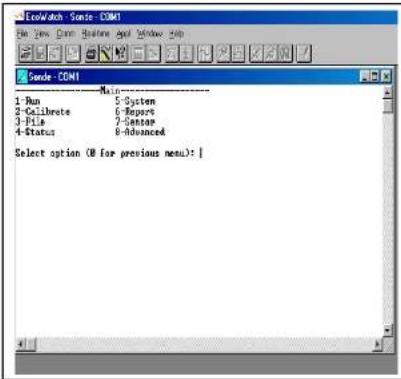

Select 1-Directory to view all files currently stored in the sondes flash disk memory, the screen below shows 6 files. All data files (.dat extension) could be uploaded to EcoWatch for viewing or plotting, but you do not need to upload all files in the directory. The file with the .glp extension contains the calibration record of the sonde. It is fully described in Sections 2.9.2 and 2.9.3 below. Details of any of the studies can be obtained by pressing the number key associated with the file in the Directory.
Filename Samples
1-BRIDGE1.dat 19
2-BRIDGE2.dat 27
3-UPLAKE.dat 33
4-CLRLAKE2.dat 167
5-DWNLAKE2.dat 31
6-00C03C01.gip 3
Select option (0 for previous menu): 4
--------File details----
1-View file
2-File:CLRLAKE2.dat
3-Samples: 167
4-Bytes: 4421
5-First:08/23/20C1
6-First:08:33:40
7-Last :08/23/20C1
8-Last :09:04:20
Sondes Section 2
----Time window----
1-Proceed
2-Start date 08/14/96
3-Start time 18:00:00
4-Stop date=08/28/96
5-Stop time=11:00:00

Select option (0 for previous menu):
Select 1-Proceed. Choose the appropriate file transfer protocol (in this example, PC6000) and a status box will show the progress of the upload. Verification of a successful transfer is indicated when all of the requested data have been transferred to the CAECOWIN\DATA subdirectory of your PC and automatically assigned a ".DAT" extension.
----File type----
1-PC6000
2-Comma & ' Delimited
3-ASCII Text

Select option (0 for previous menu):

Sondes Section 2
Select 5-Quick view file to view the last page of data from the last data file in flash disk memory. This feature is particularly useful to quickly review any recently acquired data so that system performance can be assessed.
Select 6-Delete all files to IRREVERSIBLY remove all files (INCLUDING the .glp file that contains calibration information) from the sonde flash disk memory. It is critical not to use this option until all relevant data from sonde memory is transferred to your computer via one of the upload options. There is a verification screen that appears, so that pressing the number 6-key does not immediately delete all files.
NOTE: By choosing the Delete function only .dat and .glp files will be erased. Calibration data for all sensors installed and calibrated on the sonde will not be deleted.
REPORTING AND PLOTTING DATA WITH ECOWATCH
There are many features in EcoWatch related to viewing, plotting, manipulating and reporting data collected from a 6-Series sonde. EcoWatch includes a Windows Help section for convenient reference that describes all of the software's features. This section of the manual describes the most commonly used functions of the program and Section 4, EcoWatch for Windows, is a detailed manual for EcoWatch software.
For the purposes of describing and demonstrating EcoWatch plotting, reporting and data manipulation capabilities, we use the file SAMPLE.DAT available on the compact disk that was enclosed with your 6-series sonde. This file will be copied to your hard drive during EcoWatch installation and should be available to you for the instructions below.
When you are ready to move beyond the example SAMPLE.DAT file and analyze data collected from the sonde, locate and open the appropriate .DAT file from your data upload exercise. These data are normally found at C:\ECOWWIN\DATA. An example filename is 1097CM01.DAT.
NOTE: In the instructions below that refer to clicking the mouse button, we always refer to the left mouse button unless otherwise specified.
OPENING A DATA FILE
If EcoWatch is not running, open the program by double clicking on the EcoWatch icon. Click on File to view a drop-down menu similar to the one shown in Figure 41. From this menu click on Open, then locate
Sondes Section 2
Figure 41 Opening a File
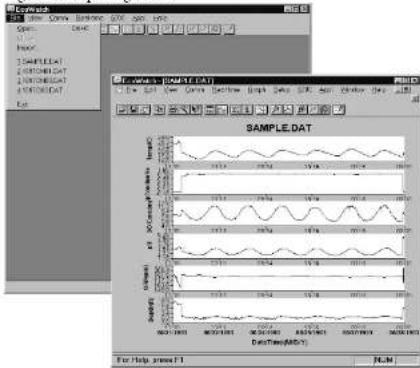
Some daily variations may be noticed in parameters such as dissolved oxygen, pH and temperature in this particular study. This is fairly typical in many natural bodies of water. Note also that conductivity is low at both ends of the graph. You may notice similar perturbations in some of the other readings as well. In this example, the sonde was not in the water for a short time at the beginning and end of the study. Not only can you see exactly when the sonde went in and out of the water, but the bottom graph shows the depth at which the sonde was deployed.
Notice also that you now see a new set of menu items in the top line. Some of these functions are specifically related to viewing and manipulating data. Next we will examine some of the viewing options.
VIEWING DATA
To look at some of the viewing options, click on View (Figure 42). Note that the Toolbar and Status Bar are turned on (check mark). In addition, the 4-Digit Year expression is checked. Also note that a check mark is just left of the Graph choice. When a check is next to Graph, all data are expressed graphically in
Sondes Section 2
Figure 42 Viewing Options
![EcoWatch - [SAMPLE.DAT] File Edit View Quick Backtime Graph Setup 200 Appl Window Help Toolbar Status Bar ±Digit Year Graph Tgtile Grid Marker Statistic Study Info Zoom In Zoom In Unknown Sample.DAT EcoWatch - [SAMPLE.DAT] File Edit View Quick Backtime Graph Setup 200 Appl Window Help Toolbar Status Bar ±Digit Year Graph Graph Table Grid Marker Statistic Study Info Zoom In Zoom In Unknown Sample.DAT Date Time Temp SpCond DO Cone pH M/D/Y C mS/cm mg/L 1. 06/21/1993 13:30:45 25.00 0.007 8.04 7.44 2. 06/21/1993 13:45:45 25.07 0.007 8.05 7.53 3. 06/21/1993 14:00:46 25.07 0.007 8.05 7.54 4. NUM](/content/2026/06/1216455/images/d0e1c69f51b8f7fcb12c3e77644f32f0be83ca950097bf0295a4daaf96e45c6c.jpg)
It may be somewhat awkward to scan the data table in this manner; therefore you have the option to turn off the graphical representation and allow the table to fill the window. See Figure 43. Notice now that when you click on View, the Graph item is no longer checked.
Sondes Section 2
Figure 43 Viewing the Data in Table Format
| Temp | SpCond | DO Conc | pH | ||
| 0 | C | mS/cm | mg/L | ||
| 1 | OGG | 25.00 | 0.007 | 8.04 | 7.44 |
| 2 | OGG | 25.07 | 0.007 | 8.05 | 7.53 |
| 3 | OGG | 25.07 | 0.007 | 8.05 | 7.54 |
| 4 | OGG | 25.07 | 0.007 | 8.06 | 7.54 |
| 5 | OGG | 25.07 | 0.006 | 8.03 | 7.53 |
| 6 | OGG | 25.07 | 0.006 | 8.02 | 7.54 |
| 7 | OGG | 25.07 | 0.006 | 8.05 | 7.53 |
| 8 | OGG | 25.07 | 0.006 | 8.04 | 7.53 |
| 9 | OG/21/1993 15:30:45 | 25.07 | 0.006 | 8.03 | 7.51 |
| 10 | OG/21/1993 16:30:45 | 25.13 | 0.006 | 8.05 | 7.54 |
| 11 | OG/21/1993 16:30:45 | 25.13 | 0.006 | 8.04 | 7.51 |
| 12 | OG/21/1993 16:30:45 | 25.07 | 0.006 | 8.01 | 7.53 |
| 13 | OG/21/1993 16:30:45 | 25.00 | 0.006 | 8.07 | 7.52 |
| 14 | OG/21/1993 16:30:45 | 25.00 | 0.006 | 8.04 | 7.57 |
| 15 | OG/21/1993 17:30:45 | 25.07 | 0.016 | 8.05 | 7.54 |
| 16 | OG/21/1993 17:30:45 | 26.50 | 0.016 | 7.88 | 7.56 |
| 17 | OG/21/1993 17:30:45 | 27.00 | 0.016 | 7.82 | 7.58 |
| 18 | OG/21/1993 17:30:45 | 27.07 | 0.016 | 7.80 | 7.60 |
Viewing features such as Grid, Marker, Zoom In, Zoom Out and Unzoom are all available when you activate the Graph function. Give each a try as you practice and learn more about the many features of EcoWatch.
The Statistics and Study functions of EcoWatch are shown in Figure 44. Both provide overview information related to the study data. The Statistics function lists minimum, maximum, mean and standard deviation information for each parameter activated. The Study function provides useful information about the design of the study including sample interval, date/time, number of samples, sensor identification and parameters reported. The Statistics and Study windows may be activated over either graph or table presentations.
To view either of these windows, click on View, highlight the desired function and click again. The window opens on top of the table or graph, similar to what is shown in Figure 43. Only one of these windows may open at once time. To continue, you must close the Statistics or Study window to return to the graph or table and activate the top line menu again.
As before practice viewing the functions mentioned above to gain more familiarity with these features.
Sondes Section 2
Figure 44 Statistics and Study Information
![LowWeek - [SAMPLE ID] Sample Source Sample Temp SpCond DO Conc pH C mSize mg/L 25.00 0.007 8.04 7.44 25.97 0.007 8.05 7.53 25.97 0.007 8.05 7.54 Temperature 6/6 Samples Time (06/21/1993 13:30:45) To (06/20/1993 09:00:45) Min Max Mean Std Temp (C) 16.53 27.87 19.82 1.279 SpCond (mS/cm) 8.81 8.82 8.76 1.164 DO Conc (mg/L) 5.46 11.77 8.42 1.879 Instrument Model Model ID Revision 1.04 Sample Total samples: CVV First sample: %/21/92 12:30:45 Lost sample: %/21/91 11:30:45 Parameters Battery Cond Depth DCIs. OP? p-1 Temp Logging Site Name: sea11m2 Rate: 15 Mio Duration: 8 Days, 11 Hrs, 30 Mio](/content/2026/06/1216455/images/33abf64cb030c9ba43a49ff781d528201033fc32f16d9a3d30dcacfb33b04ed1.jpg)
Next, with the Statistics and Study windows closed, return to the View menu, close Table and activate Graph.
Using the right mouse button, click at any point on the graph. A dotted vertical line appears along with specific data values in boxes to the left of the displayed graphs, as shown in Figure 45. You can hold down
Sondes Section 2
Figure 45 Viewing the Data with Right-Button Mouse Function

line
| Time (MJD) | Temp (mV) | pH | OHP (mV) | |------------|-----------|----|----------| | 06/21/1993 | 21.27 | 0.805 | 10.89 | | 06/22/1993 | 7.52 | 10.89 | 109 | | 06/23/1993 | 4.912 | 10.89 | 109 |Sondes Section 2
Figure 46 Changing the Appearance of a Graph or Table
![EcoWatch - [SAMPLE.DAT] File Edit View Comm Real-time Graph Setup $200 Appl Window Help Parameters Add/Remove... Graph Units Table Attributes... Names... SAMPLE.DAT Temp(0) 30 30 30 30 30 30 30 30 30 30 30 30 30 30 30 30 30 30 30 30 30 30 30 30 30 30 30 30 30 30 30 30 30 30 27.12 06.54 15.36 27.12 06.54 15.36 00'18 69'00 27.12 06.54 15.36 00'18 69'00 27.12 06.54 15.36 00'18 69'00 O(nmV) 27.12 06.54 15.36 00'18 69'00 27.12 06.54 15.36 00'18 69'00 Depth(h) 27.12 06.54 15.36 00'18 69'00 Date Time(M/D/Y) Set parameter display units EcoWatch - [SAMPLE.DAT] File Edit View Comm Real-time Graph Setup $200 Appl Window Help Parameters Graph Font/Color... Table Page Color... Trace Color... Page Title... ✓ 1 Trace per Graph ✓ Traces per Graph Sample.DAT Temp(0) 30 30 30 30 30 30 30 30 30 30 30 30 30 30 30 30 30 30 30 30 30 30 30 30 30 30 30 30 30](/content/2026/06/1216455/images/716bb381cb4baba43002402afd52f6ec381cf1bdadb1c712cae4244f1603ee99.jpg)
Sondes Section 2
along the x-axis, you may also manually scale the y-axis. This may allow you to discard a noise spike and obtain better resolution of events unrelated to the noise. Functions like Autoscale, Redraw and Cancel Limits are all used to "undo" some of the customization functions. Below in Figure 47 you see some of these functions.
One very commonly used function is Limit Data Set. If you choose this function by clicking on the highlighted item as shown below, you then use the mouse to move your cursor to the left limit of an area of interest, click once, then move the mouse to the right limit of interest and click again. The result will be a close up look at the specific area of the graph you have defined. Refer to Figure 47 and 48 below to see the results of this particular feature.
Figure 47 Selecting a Subset of Data within a Graph
![EcoWatch - [SAMPLE.DAT] File Edit View Comm Real-time Graph Setup 6200 Appl Window Help Zoom In Zoom Out Unzoom Zoom Window Center Scroll Limit Data Set Autoscale Manual Scale... Bedrow Cancel Limits Temp(℃) 20.0 17.0 15.0 13.0 11.0 9.0 7.0 5.0 3.0 1.0 -1.0 -3.0 -5.0 -7.0 -9.0 -11.0 -13.0 -15.0 -17.0 -19.0 -21.0 -23.0 -25.0 -27.0 -29.0 -31.0 -33.0 -35.0 -37.0 -39.0 -41.0 -43.0 -45.0 -47.0 -49.0 -51.0 -53.0 -55.0 -57.0 -59.0 -61.0 -63.0 -65.0 -67.0 -69.0 -71.0 -73.0 -75.0 -77.0 -79.0 -81.0 -83.0 -85.0 -87.0 -89.0 -91.0 -93.0 -95.0 -97.0 -99.0 OPD(mV) 22'12 22'12 22'12 22'12 22'12 22'12 22'12 22'12 22'12 22'12 22'12 22'12 22'12 22'12 22'12 22'12 22'12 22'54 15'36 06'54 15'36 06'54 15'36 06'54 15'36 06'54 15'36 06'54 15'36 06'54 15'36 06'54 15'36 06'54](/content/2026/06/1216455/images/a13516bf747099e97659bb71cca4029e168f1c942dc23cb4d8e005439dbf3a8f.jpg)
Sondes Section 2
Figure 48 Using Limit Data Set to Display a Subset of Data
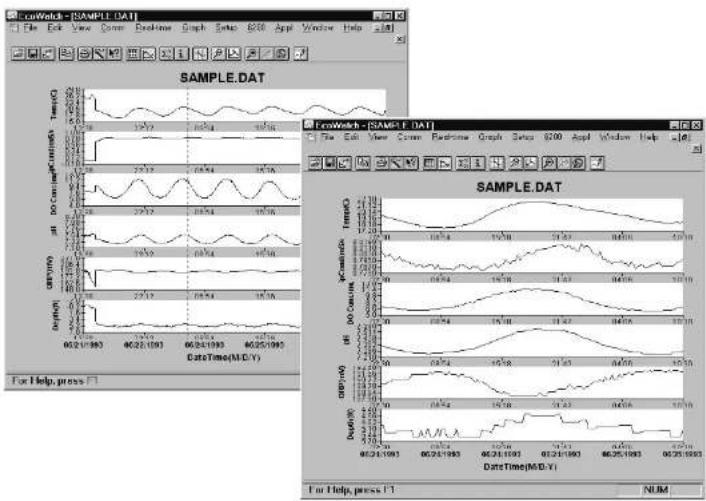
To return to the full set of data again, click on Graph, then Cancel Limits. If you desire a hard copy of any graph or table, or even a subset expression as shown above, you may use the Edit, Copy command to 'copy' the graph in the active window to the "Clipboard". You can then 'paste' this graph to the Windows application program of your choice. You may also be able to print graphs and tables as described in the next section.
Sondes Section 2
Figure 49 Saving, Exporting, Printing and Related Functions
![EcoWatch - [SAMPLE.DAT] File Edit View Comm Real-time Graph Setup $200 Appl Window Help Open Ctrl+O Close Import... Copy to Clipboard Ctrl+C Save Data Display... Ctrl+S Load Data Display... Ctrl+L Export... Report... Print... Ctrl+P Print Preview Print Setup... Page Setup Header/Footer... 1 SAMPLE.DAT 2 10083M02.DAT 3 10083M03.DAT SAMPLE.DAT 06/24/93 06/25/93 06/27/93 06/28/93 DateTime(M/D/Y) NUM](/content/2026/06/1216455/images/26822459b86fd8243419d0f9b81882c34044c5668497ef61040b1cdcf1c8e4bd.jpg)
EXAMPLE OF CUSTOMIZING A SUBSET OF SAMPLE.DAT
To conclude this section we have used a few of the many tools available in EcoWatch to demonstrate how you might use this powerful plotting and reporting program to express study results. We encourage you to
Sondes Section 2
Figure 50 Customizing a Graph from SAMPLE.DAT
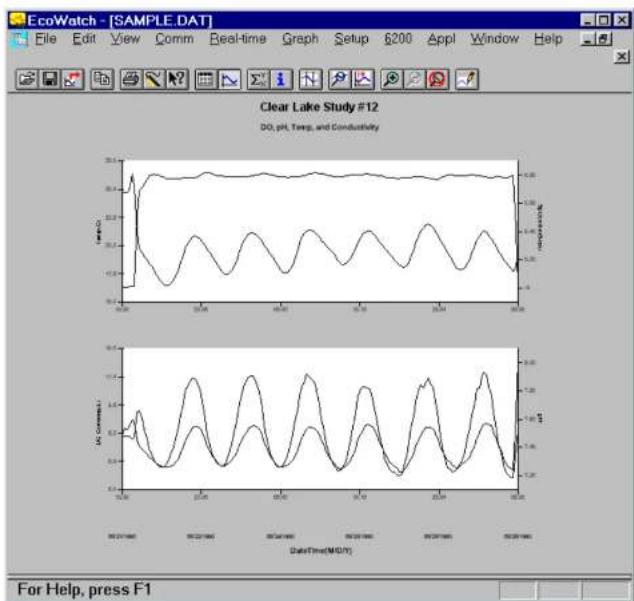
line
| Time (MΩ/yr) | pH | Temp | Conductivity | |--------------|-------|-------|--------------| | 0 | 0.7 | -0.5 | -0.5 | | 30 | 0.8 | -0.4 | -0.4 | | 60 | 0.75 | -0.3 | -0.3 | | 90 | 0.85 | -0.2 | -0.2 | | 120 | 0.78 | -0.45 | -0.45 | | 150 | 0.82 | -0.35 | -0.35 | | 180 | 0.76 | -0.48 | -0.48 | | 210 | 0.88 | -0.25 | -0.25 | | 240 | 0.79 | -0.55 | -0.55 |Finally, we selected File|Save Data Display and gave the custom plot the name "4PARAM" to that the presentation can be immediately recalled in the future.
Sondes Section 2
2.9 SONDE MENU
The functions of the sondes are accessible through the sonde menu. The sonde menu structure makes it simple and convenient to select functions. This section provides a description of the menus and their capabilities.
When moving between menus within the sonde software structure, use the 0 or Esc to back up to the previous menu. To exit menus and return to the sonde command line (the # sign), press 0 or Esc until the question "Exit menu (Y/N)?" appears. Type Y and the command prompt ("s") will be shown. To return to the Maln sonde menu, type menu and press Enter.
IMPORTANT MESSAGE! WHAT IF THERE IS NO RESPONSE TO A KEYSTROKE?
To save power, the sondes will power down automatically if no interaction from the keyboard occurs for approximately 60 seconds. When the software is in this "sleep" mode, the first subsequent keystroke simply "wakes it up" and has no visible effect on the display. The next keystroke after the unit is "awakened" will be input to the software in the intended manner. Thus, if you press a key after the sondes has been inactive for some time and nothing seems to happen, press the key again.
To gain experience with the sonde menus, select the sonde icon in EcoWatch for Windows and press Enter. See Figure 40 above for the Sonde Menu Flow Chart.
In the following subsections you will learn about the functions of the various menu items and when to use them. The discussion of the menu and submenu functions is organized in numerical order, beginning with Section 2.9.1 Run

Sondes Section 2
2.9.1 RUN
Select 1-Run from the Main menu to begin taking readings or to set/verify the parameters required for a study. There are two options in the Run menu.
----Run setup----
1-Discrete sample
2-Unattended sample

Select option (0 for previous menu): 1
DISCRETE SAMPLING
Discrete sampling is usually used in short term, spot sampling applications when the user is present at the site and the unit is attached to a 650 MDS Display/Linux or laptop PC. It could be used in the vertical profiling of a lake or river where the user lowers the sonde incrementally into the water, and data acquired for a few minutes at each depth. In this section, you will learn how to use the sonde menu structure to open and close files, set the interval between samples, start the sampling operation, and log data to the internal memory of the sonde.
Select 1-Discrete sample from the Run menu. The Discrete sample menu will be displayed.
--------Discrete sample----
1-Start sampling
2-Sample interval=4
3-File=
4-Site=
Sondes Section 2
Select 1 - Start sampling option to start discrete sampling. After the initial sampling time interval has passed (4 seconds in the screen above), sequential lines of data will appear on the screen.
| Date mm/dd/yy | Time hh:mm:ss | Temp C | SpCond mS/cm | Sal ppt | DO mg/L | Depth feet | pH | Turbid NTU | Battery volts |
| *** 1-LOG last sample | 2-LOG ON/OFF, | 3-Clean optics*** | |||||||
| 05/05/97 | 10:04:40 | 21.57 | 0.009 | 0.00 | 7.73 | -0.293 | 7.55 | 0.3 | 10.2 |
| 05/05/97 | 10:04:44 | 21.57 | 0.009 | 0.00 | 8.41 | -0.300 | 7.55 | 0.3 | 10.3 |
| *** LOC is ON, hit 2 to turn it OFF, | 3-Clean optics*** | ||||||||
| 05/05/97 | 10:04:48 | 21.58 | 0.009 | 0.00 | 8.41 | -0.302 | 7.55 | 0.3 | 10.3 |
| 05/05/97 | 10:04:52 | 21.58 | 0.009 | 0.00 | 8.40 | -0.302 | 7.55 | 0.3 | 10.3 |
| 05/05/97 | 10:04:56 | 21.58 | 0.009 | 0.00 | 8.41 | -0.303 | 7.55 | 0.3 | 10.2 |
| 05/05/97 | 10:05:00 | 21.58 | 0.009 | 0.00 | 8.42 | -0.303 | 7.55 | 0.3 | 10.3 |
| *** 1-LOG last sample | 2-LOG ON/OFF, | 3-Clean optics*** | |||||||
| 05/05/97 | 10:05:04 | 21.58 | 0.009 | 0.00 | 8.44 | -0.304 | 7.55 | 0.3 | 10.3 |
| Sample logged. | |||||||||
| 05/05/97 | 10:05:08 | 21.58 | 0.009 | 0.00 | 8.45 | -0.305 | 7.55 | 0.3 | 10.3 |
The following prompt will appear just below the screen header: 1-LOG last sample, 2-LOG ON/OFF, 3-Clean optics
- By entering 1-LOG last sample, A single line of data can be logged to sonde memory and the following message will be displayed: Sample logged.
- By entering 2-LOG ON/OFF, a set of data can be logged to memory and the following message will be displayed: LOG is ON, hit 2 to turn it OFF, 3-Clean optics. Press 2 again to terminate logging.
- By entering 3-Clean optics, if your unit has an optical probe, the wiper will clean the optical surface. The 3-Clean optics portion of the prompt will only appear if an optical probe was installed and enabled.
Select Esc or press 0 and return to the Discrete Sampling menu.
Sondes Section 2
Sampling Faster Than 0.5 Seconds
For special applications, your sonde is capable of faster sampling. The only limitation is a reduction of the number of sensors selected. To determine the maximum sampling frequency for your sensor setup, divide 36 by the number of enabled sensors in addition to the DO sensor.
Example:
If you enable any three sensors plus DO, divide 36 by 3 to obtain 12 samples/second (12 Hz) or 0.083 seconds between samples as the maximum sampling frequency. Remember that for sample intervals less than 4 seconds, DO readings are updated only every 4 seconds. Thus, at 12 Hz, the display will show 48 identical DO readings before a change occurs. Note also that at a faster sampling rate, consecutive readings are closer together, the threshold for any one sensor is less likely to be exceeded, and the data filter is less likely to disengage. For these applications you may want to adjust your threshold settings accordingly. See Section 2.9.8 for more information on the data filter.
Select 3-File to enter a filename with a maximum of 8 characters. You will log readings to the filename that you enter.
If you started sampling without entering a filename, the default name NONAME1 will be assigned to your file. Whenever you press 1-LOG last sample or 2-LOG ON/OFF from the menu, NONAME1 will be opened during sampling. If this happens, and you want to restart the file with a different name, press 5-Close file and rename the file.
Select 4-Site to assign a site name with a maximum of 31 characters This allows you to enter the name of the site where you are sampling.
When you select 5-Open File, a file is opened and the number 5 changes to Close File. When you are finished logging data to the file, press 5-Close File and designation changes back to Open File. When you start logging the Open File designation changes automatically to Close File.
Now select 1-Start sampling to start discrete sampling.
After the initial sampling time interval has passed, sequential lines of data will appear on the screen and you can log single or sequential data points and wipe the surface of your optical probe as described above.
Sondes Section 2
----Unattended setup----
1-Interval=00:15:00
2-Start date=07/17/96
3-Start time=18:00:00
4-Duration days=14
5-File=cirlake3
6-Site=Clear Lake at Spillway
7-Bat volts: 9.1
8-Bat life 21.2 days
9-Free mem 18.9 days
A-1st sample in 8.10 minutes
B-View params to log
C-Start logging
Follow the prompts on this screen to prepare your sonde for unattended deployment as described below:
- Verify that the current time and date are correct to ensure that your unattended sampling study begins and ends when you desire. To verify correct the time and date, return to the Main menu and enter 4-Status or 5-System. You may enter the correct date and time from either of these submenus.
- Select 1-Interval and enter the desired time between samples
- Select 2-Start Date and 3-Start Time to set the time that data will begin to log to sonde memory. Use the 24-hour clock format to enter the time. If you do not make any change to these entries, then the study will automatically begin at the next integral time interval once you have pressed C-Start logging.
Example: If the current time is 17:20:00 and your sample interval is 15 minutes, logging will automatically begin at 17:30:00.
It is better to start the study prior to taking the unit to the field so that you can confirm that readings are being saved to memory and carry out initial quality assurance. However, if your study demands that you start the instrument at the site at 6:00 PM, change the Start Time to 18:00:00.
Sondes Section 2
- Select B-View Parameters to log to confirm that your sensor and report setups are configured correctly as described in Sections 2.9.6 and 2.9.7. An example screen is shown below.
--------Params to log----
1-Temp C 6-Orp mV
2-Cond mS/cm 7-NH4+ N mg/L
3-DOsat % 8-NO3- N mg/L
4-DOchrg 9-Turbid NTU
5-pH A-Battery volts

Select option (0 for previous menu):
In some cases, the View params to log screen only identifies the raw parameters that are used in the calculation of the items that you have selected in the Report setup.
Example: You have selected DO mg/L in the Report setup, but it does not appear under View parameters to log because it is calculated from DO saturation %. Temperature, and Conductivity. Likewise, although specific conductance is selected in the Report setup, it does not appear under Parameters to log because it is calculated from Conductivity and Temperature. In all but a few cases, the proper configuration of Parameters to log will be automatically set up as long as the sensor is enabled.
There are several items that must be activated in the Report setup so they will be available from the file after upload. These special parameters are: DO Chg, DOSat %Local, ODOsat %Local, pH mV, NH4 ^- mV, NO3 ^- mV, Cl mV, PAR1, PAR2, Chl RFU, BGA-PC RFU, and BGA-PE RFU. If you want to log any of these parameters to your data file, be certain that they are active in the Report setup before you begin the unattended study.
After making the above entries, the sonde software will automatically estimate the expected battery life, and the time it will take for the sonde memory to be filled. This information is displayed on the screen for your consideration. If the battery life or the free memory capacity will be exceeded sooner than the duration, you may want to make some changes to the sonde set-up or the batteries themselves. For example, you can free up memory in the sonde by uploading all existing files from the sonde memory to your PC and then deleting them from the sonde (see 3-File from Main Menu). You may want to change the
Sondes Section 2
Select 1-Yes and the screen will change.
----Logging----
1-Interval=00:15:00
2-Next at 07/17/96
3-Next at 18:00:00
4-Stop at 07/31/96
5-Stop at 18:00:00
6-File=clrlake3
7-Site=Clear Lake at Spillway
8-Bat volts: 9.0
9-Bat life 21.2 days
A-Free mem 18.9 days
B-Stop logging
C-Show Live Data

Select option (0 for previous menu):
The display now shows the next date and time for logging and the stop date and time for the logging study. Most importantly, note that the bottom command now shows B-Stop logging, a confirmation that the logging has indeed been initiated.
If you select C-Show Live Data and leave the sonde attached to your PC, the data points will be shown on the screen as they are stored to internal memory.
The Unattended study will terminate when the duration you specified has expired or the batteries are expended. If you want to terminate sooner, simply select 2-Unattended sample from the Run menu, then B-Stop logging. Select 1-Yes and return to the Unattended setup menu.
Stop logging?
Sondes Section 2
2.9.2 CALIBRATE
All of the sonde sensors (except temperature) require periodic calibration to assure high performance. However, the calibration protocols for Rapid Pulse Polarographic dissolved oxygen are significantly different depending on whether the sonde is being set up for spot sampling or longer term unattended monitoring studies. This difference is user-selectable and is required primarily because the optimal performance of the Rapid Pulse dissolved oxygen sensor cannot be attained unless the control of this sensor varies from short term to long term applications.
For spot sampling it is best to pulse the sensor continuously during the Run mode to attain the most accurate results and optimize the response time. However, this continuous pulsing is not ideal for longer term logging studies in which the sonde data is captured to sonde memory or to a data collection platform at much less frequent intervals (e.g. 15 minutes). Continuous pulsing not only shortens the time between required probe maintenance, but consumes more power. With proper selection of the "Auto sleep" option (discussed in detail in Section 2.9.8, Advanced Menu), the user can configure the sonde software to either run continuously or "go to sleep" between samples to minimize Rapid Pulse DO probe wear and conserve power. The effect of this choice on the user interface relative to dissolved oxygen calibration is significant as described below:
☐ If "Auto sleep" is deactivated, the sonde runs continuously no matter what sample interval has been selected. Under these conditions, the user retains manual control of the dissolved oxygen calibration routine, viewing the stabilization of the readings in real time and confirming the calibration with keyboard entries.
☐ If "Auto sleep" is activated, the sonde will 'warm up' the sensors for the period of time selected for the DO sensor. Under these conditions, the user loses manual control of the Rapid Pulse DO calibration routine. Rapid Pulse DO will automatically calibrate after the selected time for warm up of the DO sensor has expired. In this mode of calibration, you do not observe stabilization of the readings in real time, but instead will observe a countdown of the warm up period followed by a message indicating that the Rapid Pulse DO calibration is complete.
Only the calibration of Rapid Pulse dissolved oxygen is affected by whether "Autosleep" is on or off; the user retains manual control of the calibration of all other parameters regardless of the "Auto sleep" setting. Once a particular warm up time (in seconds) has been utilized in Rapid Pulse DO calibration, the length of that time should not be changed during a study. A new calibration should be performed whenever the value of the user's time is allowed.
Sondes Section 2
Calibrate
1-Conductivity 6-ISE3 NH4+
2-Dissolved Oxy 7-ISE4 NO3-
3-Pressure-Abs 8-ISE5 Cl-
4-ISE1 pH 9-Optic T-Turbidity 6136
5-ISE2 ORP A-Optic C - Chlorophyll
Select option (0 for previous menu):
CONDUCTIVITY
Select 1-Conductivity to calibrate the conductivity probe and a second menu will offer you the options of calibrating in specific conductance, conductivity, or salinity. Calibrating any one option automatically calibrates the other two. After selecting the option of choice (specific conductance is normally recommended), you will be asked to enter the value of the standard used during calibration. Be certain that the units are correct. After pressing Enter, you will be able to follow the stabilization of the readings and confirm the calibration when the readings are stable by pressing Enter as instructed on the screen. Then, as instructed, press Enter again to return to the Calibrate menu.
RAPID PULSE POLAROGRAPHIC DISSOLVED OXYGEN WITH AUTOSLEEP ON
If you intend to do Unattended Sampling, it is recommended that you turn Autosleep RS232 "on" in the AdvancedSetup menu and follow these instructions for DO calibration. If you intend to do Discrete Sampling, it is recommended that you turn Autosleep RS232 "off" and use the calibration instructions in the next section.
Select 2-Dissolved oxygen to calibrate the oxygen probe. The submenu will offer you the option of calibrating in percent saturation or mg/L. After selecting the option of choice (percent saturation in water saturated air is normally recommended), you will be prompted for the next step. Calibrating either of the choices will automatically calibrate the other.
For the percent saturation mode, be certain that the sensor has been thermally equilibrated in water-saturated air and that the sensor shows stable readings prior to beginning the calibration routine.
Sondes Section 2
For the mg/L mode, calibration is carried out in a water sample which has a known concentration of dissolved oxygen, usually determined by Winkler titration. For this calibration procedure, the sensor should be immersed in the water. After thermal equilibration, enter the known mg/L value, press Enter, and the calibration procedure will be carried out automatically as for the percent saturation mode above.
RAPID PULSE DISSOLVED OXYGEN WITH AUTOSLEEP OFF
If you intend to do Discrete Sampling, it is recommended that you turn Autosleep "off" in the Advanced Setup menu and follow these instructions for DO calibration. If you intend to do Unattended Sampling, it is recommended that you turn Autosleep "on" and using the calibration instructions in the preceding section.
Select the Dissolved Oxygen option from the Calibrate menu to calibrate the oxygen probe. The submenu will offer you the option of calibrating in percent saturation or mg/L. After selecting the option of choice (percent saturation in water-saturated air is normally recommended), you will be prompted for the next step. Calibrating either of the choices will automatically calibrate the other.
For the percent saturation mode, be certain that the sensor has been thermally equilibrated in water-saturated air and that the sensor has stabilized prior to beginning the calibration routine, particularly after a membrane change. Relieve pressure in the cup if necessary. Remember, the Calibration Cup is designed to be air-tight and must be loosened if used as a calibration chamber. Then follow the screen prompt and enter the local barometric pressure in mm Hg, (inches Hg x 25.4), press Enter, and monitor the stabilization of the DO readings. After no changes occur for approximately 30 seconds, press Enter to confirm the calibration. Then, as instructed, press Enter again to return to the Calibrate menu. Note that at calibration, the DOsat % (percent air saturation) value will reflect the barometer value that was entered. For example, if a barometric pressure of 720 mm is entered, the DOsat % value will change to 94.7% (720/760 x 100).
Note that the parameter "DOsat %Local" is also available for users who prefer to set their percent air saturation value to 100%, no matter what barometer value is entered. The method of activating this parameter, its use, and its limitations are described in Appendix J of this manual. The key factor to remember, however, is that no matter which convention (DOsat % or DOsat %Local) is selected, the mg/L value will not be affected.
For the mg/L mode, calibration is carried out in a water sample which has a known concentration of
Sondes Section 2
membrane installed on the 6150 probe and NOT a function of the probe, i.e., the constants reflect the characteristics of the sensor membrane and NOT the probe. When a 6150 probe is purchased from YSI, it already has a sensor membrane installed and the constants of that membrane are transferred automatically to the sonde PCB when the sensor is run for the first time. After transfer, the constants can be viewed by accessing the AdvancedCal Constants menu as shown below – the regression constants are ODO K2-ODO K4 and the value at zero oxygen is K1 as shown below.

It should also be noted that the ROX sensor is characterized by two additional parameters – ODO Gain and Tzero. The ODO gain reflects the small change in the calibration which is carried out be the user in a 1-point calibration as described below. The Tzero value will always be the same as K1 until the user elects to perform a 2-point calibration as described below at which time it will change slightly to reflect the adjustment of the zero oxygen value.
You will also note that a different set of constants for your specific sensor membrane are supplied on the instruction sheet which came with your 6150 probe. These five constants (K1-K4 and C) have a different appearance than those shown in Advanced|Cal Constants because they are in coded form to allow error-free reentry by the user in the unlikely event that the regression constants in the probe are lost. The C constant is a check sum value associated with the values of K1-K4 and will prevent acceptance of the constants if typographical errors are made in their entry by the user. The coded constants must be entered in the Calibrate|Optic X - Dissolved Oxy|Enter Cal Sheet as shown below. The constants can also be viewed at any time by selecting Calibrate|Optic X - Dissolved Oxy|View Cal Sheet.


Sondes Section 2
which characterize the new membrane and they MUST be entered via the Calibrate|Optic X - Dissolved Oxy|Enter Cal Sheet selection as show above. Once the new constants have been entered in coded form they will be transferred to the probe and will be visible in uncoded form in Advanced|Cal Constants.
See Section 5.9, Principles of Operation and Appendix M, ROX Optical DO Sensor for more information.
User Calibration of the ROX Optical DO Sensor
NOTE CAREFULLY: As opposed to the 6562 Rapid Pulse Polarographic DO sensor described above, there is no difference between the calibration routine for sensors which will be used for sampling or monitoring applications. Usually the Autosleep RS-232 feature in the Advanced|Setup menu will be activated for ROX calibrations, but there is no problem if it is not active.
Select the Optic X-Dissolved Oxy option from the Calibrate menu to calibrate the oxygen probe. The submenu will offer you the option of calibrating in either percent air-saturation (ODOsat %) or oxygen concentration (ODO mg/L) units. Calibrating either of the choices will automatically calibrate the other. After selecting the option of choice (ODOsat % in water-saturated air or air-saturated water is normally recommended), you will be prompted for the next step where you must elect to do either a 1-point or a 2-point calibration. Except under unusual circumstances as described below, you should select the 1-point option for the ROX Optical DO calibration.
Calibration Using Percent Air Saturation - 1-Point
NOTE: YSI recommends that you use this method for calibration of your 6150 Dissolved Oxygen Sensor to obtain the maximum accuracy under normal operating conditions.
Place the sensor either (a) into a calibration cup containing about 1/8 inch of water which is vented by loosening the threads or (b) into a container of water which is being continuously sparged with an aquarium pump and air stone. Wait approximately 10 minutes before proceeding to allow the temperature and oxygen pressure to equilibrate.
Select ODOsat % and then 1-Point to access the DO calibration procedure. Calibration of your Optical dissolved oxygen sensor in the DO % procedure also results in calibration of the DO mg/L mode and vice versa.
Sondes Section 2
Calibration Using mg/L - 1-Point
Place the sensor in a container which contains oxygen of a known concentration of dissolved oxygen in mg/L AND THAT IS WITHIN +/- 10% of AIR SATURATION as determined by one of the following methods:
□ Winkler titration
☐ Aerating the solution and assuming that it is saturated, or
□ Measurement with another instrument.
CAUTION: Carrying out DO mg/L calibrations at values outside the range of +/- 10 % of air saturation is likely to compromise the quoted accuracy specification of the 6150 Optical DO Sensor.
Wait approximately 10 minutes before proceeding to allow the equilibration of the temperature and oxygen sensors.
Select ODO mg/L and then 1-Point to access the mg/L calibration procedure. Calibration of your optical dissolved oxygen sensor using the DO mg/L procedure also results in calibration of the ODOsat % mode and vice versa.
Enter the known mg/L concentration and press Enter. The current values of all enabled sensors will appear on the screen and change with time as they stabilize. Observe the readings under ODO mg/L and, when they show no significant change for approximately 30 seconds, press Enter. The screen will indicate that the calibration has been accepted and prompt you to press Enter again to return to the Calibrate menu.
2-Point Calibrations
By selecting either ODOsat % and then 2-Point or ODO mg/L and then 2-Point from the appropriate menus, you will be able to calibrate your sonde at zero oxygen and in water-saturated air or air-saturated water (if you select ODO%) or at zero oxygen and a known concentration of oxygen within +/-10% of air-saturation (if you select ODO mg/L). These two-point calibrations should be done ONLY if you suspect that your 6150 Optical DO sensor is less accurate than you require at low oxygen values. The key to performing a 2-point calibration is to make certain that your zero oxygen medium (probably either nitrogen gas or an aqueous solution of sodium sulfite at a concentration of approximately 2 g/L) is truly oxygen-free as described in the tips below:
Sondes Section 2
NOTE CAREFULLY: If you used sodium sulfite solution as your zero calibration medium, you MUST carefully remove all traces of the reagent from the probes prior to proceeding to the second point. YSI recommends that the second calibration point be in air-saturated water if you use sodium sulfite solution as your zero oxygen medium.
After confirming the zero point calibration, place the sensors in the medium containing a known oxygen pressure or concentration and wait at least 10 minutes for temperature equilibration. Then enter either the barometer reading in mm Hg (for ODO% 2-Point calibrations) or the actual concentration of oxygen which was probably determined from a Winkler titration (for ODO mg/L 2-Point calibrations). Press Enter and observe the readings in real time until they are stable. Then press Enter again to confirm the calibration. The screen will indicate that the calibration has been accepted and prompt you to press Enter again to return to the Calibrate menu.
CAUTION: Carrying out DO mg/L calibrations at values outside the range of +/- 10 % of air saturation for the second calibration point in the 2-Point routine is likely to compromise the quoted accuracy specification of the 6150 Optical DO Sensor.
NOTE CAREFULLY: It will normally not be necessary to perform 2-Point calibrations for the 6150 Optical DO Sensor and the procedure is not recommended unless (a) you are certain that the sensor does not meet your accuracy requirements at low DO levels and (b) you are operating under conditions where you are certain to be able to generate a medium which is truly oxygen free.
Note that the parameter "ODOsat %Local" is also available for users who prefer to set their percent air saturation value to 100%, no matter what barometer value is entered. The method of activating this parameter, its use, and its limitations are described in Appendix J of this manual. The key factor to remember, however, is that no matter which convention (ODOsat % or ODOsat %Local) is selected, the mg/L value will not be affected.
PRESSURE - ABS AND GAGE
Select Pressure - Abs (non-vented) or Gage (vented) to zero the depth sensor. The depth sensor is factory calibrated, but it is always necessary to zero the absolute sensor relative to the local barometric pressure. A minor correction is also sometimes necessary to set the Gage (vented) sensor output to exactly 0.000 for any other. The existing sensor should be carried out with the mode in its first initial
Sondes Section 2
pH
When selecting ISE1 pH, you will be given the choice of 1-point, 2-point, or 3-point calibrations.
Select the 1-point option only if you are adjusting a previous calibration. If a 2-point or 3-point calibration has been performed previously, you can adjust the calibration by carrying out a one point calibration. Inverse the sonde in a buffer of known pH value and press Enter. You will be prompted to type in the pH value of the solution.
NOTE: The actual pH value of all buffers is somewhat variable with temperature and that the correct value from the bottle label for your calibration temperature should be entered for maximum accuracy. For example, the pH of YSI "pH 7 Buffer" is 7.00 at 25 C, but 7.02 at 20 C.
After inputting the proper pH value for your calibration temperature, press Enter again, and the screen will display real-time readings that will allow you to determine when the pH and temperature readings have stabilized. Pressing Enter will confirm the calibration. Then, as instructed, press Enter again to return to the Calibrate menu. This calibration procedure adjusts only the pH offset and leaves the previously determined slope unaltered.
Select the 2-point option to calibrate the pH probe using only two calibration standards. In this procedure, the pH sensor is calibrated using a pH 7 buffer and a pH 10 or pH 4 buffer depending on your environmental water. A two point calibration procedure (as opposed to a 3-point procedure) can save time if the pH of the media being monitored is known to be either basic or acidic. For example, if the pH of a pond is known to vary between 5.5 and 7, a two-point calibration with pH 7 and pH 4 buffers is appropriate. Three point calibration with an additional pH 10 buffer will not increase the accuracy of this measurement since the pH is not within this higher range.
To begin the calibration, immerse the sonde in one of the buffers and enter the actual pH value depending on your calibration temperature. Press Enter, and the screen will display real-time readings that will allow you to determine when the pH sensor has stabilized. Pressing Enter will confirm the calibration. Following the instructions on the screen, place the sonde in the second pH buffer, input the pH value, press Enter, and view the stabilization of the values on the screen in real time. After the readings have stabilized, press Enter to confirm the calibration. Then, as instructed, press Enter again to return to the Calibrate menu.
Select the 3-point option to calibrate the pH probe using three calibration solutions. In this procedure, the pH probe is calibrated with pH 7 buffer and two additional buffers. The 3-point calibration method
Sondes Section 2
When selecting ISE3-NH4+, you will be given the choice of 1-point, 2-point, or 3-point calibrations for your ammonium (NH _4^+ ) sensor.
Select the 1-point option only if you are adjusting a previous calibration. If a 2-point or 3-point calibration has been performed previously, you can adjust the calibration by doing a one point calibration. Immersion the sonde in any solution of known ammonium concentration and press Enter. You will be prompted to type in the NH_4^+ value (in mg/L of NH_3 -N) of the solution you are using. Press Enter again, and the screen will display real-time readings that will allow you to determine when the NH_4^+ readings have stabilized. Pressing Enter will confirm the calibration.
Select the 2-point option to calibrate the NH_4^+ probe using only two calibration standards that are both at approximately the temperature of your environmental sample. In this procedure, the NH_4^+ sensor is usually calibrated using solutions that contain 1 and 100mg / L of NH_4 - N . Be certain that the calibration solution and sensor are thermally equilibrated prior to entering NH_4^+ values.
To begin the calibration immerse the sonde in the 1 mg/L standard, press Enter, input the NH 4 -N value, and again press Enter. The screen will display real-time readings that will allow you to determine when the sensor has stabilized. Pressing Enter will confirm the first calibration. Following the instructions on the screen, place the sonde in the second NH 4 ^- standard, press Enter, input the correct concentration value, again press Enter, and view the stabilization of the values on the screen in real time. After the readings have stabilized, press Enter to confirm the calibration. Then, as instructed, press any key to return to the Calibrate menu.
Select the 3-point option to calibrate the NH_4^* probe using three calibration solutions, two at ambient temperature and one at a temperature significantly different from ambient. The 3-point calibration method should be used to assure maximum accuracy when the temperature of the media to be monitored cannot be anticipated. The procedure for this calibration is the same as for a 2-point calibration, but the software will prompt you to place the sonde in the additional solution to complete the 3-point procedure. Be certain that the calibration solution and sensor are thermally equilibrated prior to proceeding with the calibration. The recommended order of calibration standards is (1) 100mg / L standard at ambient temperature, (2) 1mg / L standard at ambient temperature, and (3) 1mg / L standard at a different temperature (usually lower) than ambient. For best results, insure a temperature difference of at least 10C^ between the two 1mg / L standards.
NOTE: YSI strongly recommends the use of the 3-point protocol to ensure the best possible performance from all ISE sensors (ammonium, nitrate, and chloride)
Sondes Section 2
CHLORIDE
When selecting ISE5-CL-, you will be given the choice of 1-point, 2-point, or 3-point calibrations for your chloride (Cl-) sensor. The procedure is identical to that for the ammonium sensor, except that the calibrant values are in mg/L of Cl instead of NH_4 -N. IMPORTANT: We recommend that the user employ standards for chloride that arc 10 times greater than for ammonium and nitrate. Thus, the low calibration value should be 10mg / L and the high calibration value should be 1000mg / L Cl-. The difference is due to the fact that the effect of contamination of standards from inadvertent leakage of chloride ion from either the DO probe or the reference junction of the pH probe will be less significant at higher concentrations.
NOTE: YSI strongly recommends the use of the 3-point protocol to ensure the best possible performance from all ISE sensors (ammonium, nitrate, and chloride)
OPTIC TURBIDITY
NOTE: Before calibrating your 6026 or 6136 turbidity sensor, pay particular attention to the following cautions:
- To properly calibrate YSI turbidity sensors, you MUST use standards that have been prepared according to details in Standard Methods for the Treatment of Water and Wastewater (Section 2130 B). Acceptable standards include (a) formazin prepared according to Standard Methods; (b) dilutions of 4000 NTU formazin concentrate purchased from Hach; (c) Hach StablCal™ standards in various NTU denominations; and (d) AMCO-AEPA standards prepared specifically for the 6026 and 6136 by either YSI or approved vendors who are listed on the YSI website (www.ysi.com). STANDARDS FROM OTHER VENDORS ARE NOT APPROVED FOR THE YSI TURBIDITY SYSTEM AND THEIR USE WILL LIKELY RESULT IN BOTH CALIBRATION ERRORS AND INCORRECT FIELD READINGS.
- For AMCO-AEPA standards, the value entered by the user during the calibration protocol is DIFFERENT depending on which sensor (6026 or 6136) is being calibrated. This reflects the empirically determined fact that 6026 and 6136 sensors that have been calibrated to the same value in the primary standard formazin, will have different responses in suspensions of the AEPA-AMCO beads. This effect is likely due to the larger optical cell volume of the 6136. Thus, for example, the label of the YSI 6073 turbidity standard bottle indicates that the value of the standard is 100 NTU
Sondes Section 2
When selecting Optic X -6026-Turbidity (or 6136-Turbidity), there will be a choice of 1-point, 2-point, or 3-point calibrations for your turbidity sensor.
The 1-point option is normally used to zero the turbidity probe in 0 NTU standard. Place the sonde in clear water (deionized or distilled) with no suspended solids, and input 0 NTU at the screen prompt. Press Enter and the screen will display real-time readings that will allow you to determine when the turbidity readings have stabilized. Press Enter after the readings have stabilized to confirm the calibration and zero the sensor. Then, as instructed, press any key to return to the Calibrate menu.
Select the 2-point option to calibrate the turbidity probe using only two calibration standards. In this case, one of the standards must be clear water (0 NTU) and the other should be in the range of known turbidity for the water to be monitored. For example, if the water to be evaluated is known to be low in turbidity, an appropriate choice of standards might be 0 and 10 NTU (6026) or 0 and 12.7 NTU (6136). However, for general purpose measurements an appropriate choice of standards is usually 0 and 100 NTU (6026) or 0 and 126 NTU (6136).
To begin the calibration, immerse the sonde in the 0 NTU standard, as instructed, and press Enter. It is mandatory that the 0 NTU standard be calibrated first. The screen will display real-time readings that will allow you to determine when the readings have stabilized. Pressing Enter will confirm the first calibration. Following the instructions on the screen, place the sonde in the second turbidity standard, input the correct turbidity value in NTU, press Enter, and view the stabilization of the values on the screen in real-time. After the readings have stabilized, press Enter to confirm the calibration. Then, as instructed, press any key to return to the Calibrate menu.
Select the 3-point option for maximum accuracy over the entire range of 0 to 1000 NTU. As for the 2-point procedure, one of the standards must be 0 NTU. Because of the linearity characteristics of the sensors, we recommend that the other two standards have turbidity values of 100 and 1000 NTU. However, the user can select any values that are deemed appropriate. The procedure for this calibration is the same as for a 2-point calibration, but the software will prompt you to place the sonde in the additional solution to complete the 3-point procedure.
For all turbidity calibration procedures, be certain that the standard and sensor are thermally equilibrated prior to proceeding with the calibration.
For further information related to setting up, calibrating and running turbidity measurements, refer to Appendix E, Turbidity Measurements.
Sondes Section 2
Enter after the readings have stabilized to confirm the calibration and zero the sensor. Then, press any key to return to the Calibrate menu.
If you select Chl g / L in the initial calibration routine, there will be a choice of 1-point, 2-point, or 3-point options. The 1-point selection is normally used to zero the fluorescence probe in a medium that is chlorophyll-free. If you use this method, you will either choose to utilize the default sensitivity for chlorophyll in the sonde software or to update a previous multipoint calibration. Usually you will place the sonde in clear water, and input 0 g / L at the screen prompt. After pressing Enter the screen will display real-time readings allowing you to determine when the chlorophyll readings have stabilized. Press Enter after the readings have stabilized to confirm the calibration and zero the sensor. Then, as instructed, press any key to return to the Calibrate menu.
Note: For the 2-point and 3-point calibrations described below, standards of known fluorescence are required. Two general types of standards can be used: (a) phytoplankton suspensions of known chlorophyll content, and (b) dye solutions whose fluorescence can be correlated to that of chlorophyll. The user is responsible for determining the chlorophyll content of phytoplankton suspensions, either by employing the extractive analysis procedure described in Standard Methods for the Examination of Water and Wastewater, or by analyzing the suspension in situ using a laboratory fluorometer. See Section 5.14. Principles of Operation and Appendix I, Chlorophyll Measurements of this manual for more information about chlorophyll standards.
Select the 2-point option to calibrate the chlorophyll probe using only two calibration standards. In this case, one of the standards must be clear water (0 g/L) and the other should be in the range of a known chlorophyll content of the water to be monitored. For example, if the water to be evaluated is known to be low in chlorophyll, an appropriate choice of standards might be 0 and 10 g/L. However, for general-purpose measurements an appropriate choice of standards is usually approximately 100 g/L.
To begin the calibration, immerse the sonde in the 0 g/L standard, as instructed, and press Enter. It is mandatory that the 0 g/L standard be calibrated first. The screen will display real-time readings that will allow you to determine when the readings have stabilized. Pressing Enter will confirm the first calibration. Following the instructions on the screen, place the sonde in the second chlorophyll standard, input the correct value in g/L, press Enter, and view the stabilization of the values on the screen in real-time. After the readings have stabilized, press Enter to confirm the calibration. Then, as instructed, press any key to return to the Calibrate menu.
Select the 3-point option for maximum accuracy over the entire range of 0 to 400 g/L. As with the 2-point procedure, one of the standards must be 0 g/L. The user can select any values for the second and
Sondes Section 2
To calibrate your 6131 Blue-Green Algae-Phycocyanin (BGA-PC) sensor, select BGA-PC cells/mL in the initial calibration routine. There will be a choice of 1-point or 2-point options. The 1-point selection is normally used to zero the fluorescence probe in a medium that is BGA-free. If you use this method, you will either choose to utilize the default sensitivity for BGA-PC in the sonde software or to update a previous 2-point calibration. Usually you will place the sonde in clear water, and input 0 g / L at the screen prompt. After pressing Enter the screen will display real-time readings allowing you to determine when the BGA-PC readings have stabilized. Press Enter after the readings have stabilized to confirm the calibration and zero the sensor. Then, as instructed, press any key to return to the Calibrate menu.
Note: For the 2-point calibration described below, a standard of known fluorescence is required. Two general types of standards can be used: (a) phytoplankton suspensions of known BGA-PC content, and (b) dye solutions whose fluorescence can be correlated to that of BGA-PC. The user is responsible for determining the BGA-PC content of algal suspensions by using standard cell counting techniques. See Section 5.16. Principles of Operation of this manual for more information about BGA-PC standards.
Select the 2-point option to calibrate the BGA-PC probe using two calibration standards. In this case, one of the standards must be clear water (0 g/L) and the other should be in the range of the suspected BGA-PC content at the environmental site.
To begin the calibration, immerse the sonde in the 0 cells/mL standard, as instructed, and press Enter. It is mandatory that the 0 cells/mL standard be calibrated first. The screen will display real-time readings that will allow you to determine when the readings have stabilized. Pressing Enter will confirm the first calibration. Following the instructions on the screen, place the sonde in the second BGA-PC standard, input the correct value in cells/mL, press Enter, and view the stabilization of the values on the screen in real-time. After the readings have stabilized, press Enter to confirm the calibration. Then, as instructed, press any key to return to the Calibrate menu.
For all BGA-PC calibration procedures, be certain that the standard and sensor are thermally equilibrated prior to proceeding with the calibration
CAUTION: To be assured of the accuracy for field measurements made with your BGA-PC sensor, you must either initially calibrate the sensor using an algal suspension of known BGA-PC content or post calibrate your sensor in a spreadsheet by comparing the fluorescence values obtained in field studies with those obtained by laboratory analysis for chlorophyll on grab samples collected during the field study. The use of chemical dye standards for "calibration" of the sensor may not result in accurate correlation between fluorescence and actual BGA-PC readings and is designed primarily to evaluate the sensor for drift. See Section 5.16. Principles of Operation for more information on the proper calibration of your BGA-PC
Sondes Section 2
determining the BGA-PC content of algal suspensions by using standard cell counting techniques. See Section 5.17, Principles of Operation of this manual for more information about BGA-PC standards.
Select the 2-point option to calibrate the BGA-PE probe using two calibration standards. In this case, one of the standards must be clear water (0 cells/mL) and the other should be in the range of the suspected BGA-PC content at the environmental site.
To begin the calibration, immerse the sonde in the 0 g/L standard, as instructed, and press Enter. It is mandatory that the 0 cells/mL standard be calibrated first. The screen will display real-time readings that will allow you to determine when the readings have stabilized. Pressing Enter will confirm the first calibration. Following the instructions on the screen, place the sonde in the second BGA-PC standard, input the correct value in cells/mL, press Enter, and view the stabilization of the values on the screen in real-time. After the readings have stabilized, press Enter to confirm the calibration. Then, as instructed, press any key to return to the Calibrate menu.
For all BGA-PE calibration procedures, be certain that the standard and sensor are thermally equilibrated prior to proceeding with the calibration
CAUTION: To be assured of the accuracy for field measurements made with your BGA-PE sensor, you must either initially calibrate the sensor using an algal suspension of known BGA-PE content or post calibrate your sensor in a spreadsheet by comparing the fluorescence values obtained in field studies with those obtained by laboratory analysis for chlorophyll on grab samples collected during the field study. The use of chemical dye standards for "calibration" of the sensor may not result in accurate correlation between fluorescence and actual BGA-PE readings and is designed primarily to evaluate the sensor for drift. See Section 5.17. Principles of Operation for more information on the proper calibration of your chlorophyll sensor.
OPTIC RHODAMINE WT
When selecting Rhodamine, there will be a choice of 1-point, 2-point, or 3-point calibrations for your rhodamine WT sensor.
The 1-point option is normally used to zero the rhodamine probe in 0ug / L standard. Place the sonde in clear water with no suspended solids, and input 0ug / L at the screen prompt. Press Enter and the screen will display real-time readings that will allow you to determine when the rhodamine readings have
Sondes Section 2
point calibration, but the software will prompt you to place the sonde in the additional solution to complete the 3-point procedure.
For all rhodamine calibration procedures, be certain that the standard and sensor are thermally equilibrated prior to proceeding with the calibration.
REESTABILISHING DEFAULT CALIBRATION - "UNCAL" COMMAND
If, for any reason, you want to return to the factory default settings (slope and offset) for any parameter, follow the instructions below:
- Activate any calibration screen (1-point, 2-point, or 3-point) where a numerical entry is requested. In the example below, a 2-point turbidity calibration was selected.
- Instead of entering a numeric value, type the word "uncal" and press Enter.
- An "uncal" entry at any calibration prompt will reset both slope and offset for this parameter to the factory default settings.
----Turbidity calibration--
1-1 point
2-2 point
3-3 point

Select option (0 for previous menu): 2

Enter 1st Turbid NTU:uncal
NOTE: When using the 650 MDS as the sonde interface device, the "uncal" operation is performed by
Sondes Section 2
When any sensor is calibrated, 6-series sondes will automatically create a file in sonde memory that provides details of the calibration coefficients before and after the calibration. The file will have a .glp extension and will have the Circuit Board Serial # as the default filename. The file can be viewed by following the path File|Directory|View from the Main sonde menu.
--------File details----
1-View file
2-File:00003001.glp
3-Samples: 39
4-Bytes: 790
--------File----
1-Directory 4-View file
2-Upload 5-Quick view file
3-Quick Upload 6-Delete all files

Select option (0 for previous menu): 1
Filename Samples
1-BRIDGE1.dat 19
2-BRIDGE2.dat 27
3-UPLAKE.dat 33
4-CLRLAKE2.dat 167
Sondes Section 2
Pressing 1-View file will show the calibration record for the sonde. An example is shown below:
| m/d/y hh:mm:ss | S/N | Type | Value | |
| 08/23/2001 | 17:07:50 | 00003001 | Conductivity gain | 1.000000 |
| 08/23/2001 | 17:07:50 | 00003001 | DO gain | 1.000000 |
| 08/23/2001 | 17:07:50 | 00003001 | DO local gain | 1.000000 |
| 08/23/2001 | 17:07:50 | 00003001 | pH gain (pH-7)*K/mV | -5.05833 |
| 08/23/2001 | 17:07:50 | 00003001 | pH offset (pH-7)*K | 0.000000 |
| 08/23/2001 | 17:07:50 | 00003001 | ORP offset mV | 0.000000 |
| 08/23/2001 | 17:07:50 | 00003001 | TDS constant | 0.650000 |
| 08/23/2001 | 17:07:50 | 00003001 | Turb Offset | 0.000000 |
| 08/23/2001 | 17:07:50 | 00003001 | Turb A1 | 500.0000 |
| 08/23/2001 | 17:07:50 | 00003001 | Turb M1 | 500.0000 |
| 08/23/2001 | 17:07:50 | 00003001 | Turb A2 | 1000.000 |
| 08/23/2001 | 17:07:50 | 00003001 | Turb M2 | 1000.000 |
| 08/23/2001 | 17:07:50 | 00003001 | Chl Offset | 0.000000 |
| 08/23/2001 | 17:07:50 | 00003001 | Chl A1 | 100.0000 |
| 08/23/2001 | 17:07:50 | 00003001 | Chl M1 | 100.0000 |
| 08/23/2001 | 17:07:50 | 00003001 | Chl A2 | 200.0000 |
| 08/23/2001 | 17:07:50 | 00003001 | Chl M2 | 200.0000 |
| 08/23/2001 | 17:07:50 | 00003001 | Fluor Offset | 0.000000 |
| 08/23/2001 | 17:07:50 | 00003001 | DO gain | 1.103424 |
| 08/23/2001 | 17:07:50 | 00003001 | DO local gain | 1.000000 |
The data in the display shows a new sonde (Circuit Board # 00003001) which has just had its dissolved oxygen sensor calibrated. Note that the initial values for all parameters are the default settings. Only the last two entries (DO gain and DO local gain) have been affected by the calibration of the oxygen sensor. If the conductivity sensor is now calibrated, the new conductivity gain value is now automatically appended to the record as shown below:
| m/d/y hh:mm:ss | S/N | Type | Value |
| 08/23/2001 17:07:50 | 00003001 | Conductivity gain | 1.000000 |
| 08/23/2001 17:07:50 | 00003001 | DO gain | 1.000000 |
| 08/23/2001 17:07:50 | 00003001 | DO local gain | 1.000000 |
| 08/23/2001 17:07:50 | 00003001 | pH gain (pH-7)*K/mV | -5.05833 |
| 08/23/2001 17:07:50 | 00003001 | pH offset (pH-7)*K | 0.000000 |
| 08/23/2001 17:07:50 | 00003001 | OHP offset | -5.05833 |
Sondes Section 2
Constants and is described in Section 2.9.8. All other values in the .glp file are equivalent to those shown in the Advanced|Cal Constants menu.
CAUTION: Calibration records for all sensors will automatically be stored in the .glp file until the Delete All Files command is used from the File menu. However, if the Delete command is issued, all files, including the .glp (calibration record) file will be lost. Therefore, it is extremely important to remember to upload the .glp file to a PC or a 650 Display/Linux prior to deleting files from the sonde. See Section 2.9.3 for instructions on the upload and viewing of the .glp file.
2.9.3 FILE
Selections from the File menu allow the user to access data that has been stored in the sonde flash disk memory. Select 3-File from the Main menu.
----File----
1-Directory 4-View file
2-Upload 5-Quick view file
3-Quick Upload 6-Delete all files

Select option (0 for previous menu): 1
Select 1-Directory to view all files currently stored in sonde flash disk memory. The screen below shows 5 files of varying sizes. To examine the details of each file, press the associated number (e.g., 4 for CLRLAKE2.dat) and an additional screen will be displayed as shown below that quantifies the time of the deployment, the sample interval, and the site where the sonde was used. In addition, the data in the file can be viewed by using the 1-View file command
Filename Samples
----File details----
Sondes Section 2
- PC6000 format will transfer the data so that it will be compatible with the EcoWatch for Windows (supplied with your sonde) software package. YSI recommends data transfer in this format since it is significantly more rapid than other transfer options. If this data is required in Comma & Quote Delimited and/or ASCII formats, the user can quickly generate data in these formats using the Export function in EcoWatch for Windows.
- Comma & Quote Delimited format is commonly used to generate files that can be imported into spreadsheet software in your PC, where you can perform custom data analysis. A comma is still the delimiter, but the radix is corrected to a period. In most cases you should set the Page Length to 0 before using this type of upload format. See the Windows Help section in EcoWatch for information on setting the page length.
- ASCII Text is another alternative to transferring data directly to your computer into spreadsheet or other PC-based software.
Prior to upload, a "Time window" display appears to allow you the option to select portions of the logged data to upload. You may select 1-Proceed to upload all data logged from the dates and times shown.
----Time window----
1-Proceed
2-Start date=07/17/96
3-Start time=12:00:00
4-Stop date=07/31/96
5-Stop time=12:00:00

Select option (0 for previous menu):
Select 1-Proceed. Choose the appropriate file transfer protocol. A status box will appear in the lower right quadrant of the screen. Verification of a successful transfer is indicated when all of the requested data are transferred.
Sondes Section 2
You may choose the entire file. Use the Space Bar to alternately stop and to resume scrolling. Use the Esc key to cancel the view.
Select the 5–Quick View File option to view the last page of data from the last data file in sonde memory. This feature is particularly useful in quickly reviewing recently acquired data at field sites so that system performance can be assessed.
Select 6-Delete all files to IRREVERSIBLY remove all files from the sonde memory (INCLUDING the .glp file that may contain valuable calibration data). It is critical not to use this option until all relevant data from sonde memory has been transferred to your computer via one of the upload options. There is a verification screen that appears, so that pressing the 6 key does not immediately delete all files at this point.
NOTE: By choosing the Delete function only .dat and .glp files will be erased. Calibration data for all sensors installed and calibrated on the sonde will not be deleted.
The management of the .glp calibration record file that is automatically stored in sonde memory and is described in Section 2.9.2 above is similar to that for data files. However, there are some differences in the upload procedure of which the user should be aware. When uploading a .glp file there will be a choice of three upload protocols as shown below:
----File type----
1-Dinary
2-Comma & '' '' Delimited
3-ASCII Text

Select option (0 for previous menu):
The binary upload choice should ONLY be used when uploading the .glp file to a 650 Display/Linux; if the binary protocol is used in a direct upload to PC, a .glp file will indeed be transferred, but it will not be
Sondes Section 2
2.9.4 STATUS
Select 4-Status from the Sonde Main menu to obtain general information about the sonde and its setup.
----Status----
1-Version:3.01
2-Date=07/22/96
3-Time=09:04:28
4-Bat volts: 9.0
5-Bat life 21.2 days
6-Free bytes:129792
7-Logging:Inactive

Select option (0 for previous menu):
- 1-Version identifies the specific version of sonde software loaded in the sonde. This number is especially useful if you are calling YSI Technical Support. It may also be useful to you if you are comparing 2 or more sondes purchased at different times.
- Select 2-Date and 3-Time to display current date and time in 24-hour format. This is not a "live" display, but may be updated by pressing the 2 or 3 key again. This may be useful for viewing or setting real time. You may correct date or time from this submenu, by entering the corrected date or time as described in System setup. However, you cannot alter date format from this screen.
- In options 4, 5, and 6, you can view battery voltage, battery life, and available free memory in your sonde to help you evaluate whether the current setup is appropriate to complete an active logging or to begin a study in which you have defined your logging parameters. If you press key 4, 5 or 6 before you exit this screen, it may change, since this triggers the Status screen to update information. Note that no battery information will appear for the 600R, 600QS, 600XL, 6820V2-1, and 600 OMS V2-1(nonbattery version) sondes.
Sondes Section 2
2.9.5 SYSTEM
Select 5-System from the Sonde Main menu to set the date and time, customize the sonde communication protocol, adjust how information appears on the screen, and enter an instrument identification number and a GLP file designation.
1-Date & time
2-Comm setup
3-Page length=25
4-Instrument ID=YSI Sonde
5-Circuit board SN:00003001
6-GLP filename=00003001
7-SDI-12 address=0
Select option (0 for previous menu):
Select Date & time.
----Date & time setup----
1-(*)m/d/y    4-( )4 digit year
2-( )d/m/y    5-Date=08/11/98
3-( )y/m/d    6-Time=11:12:30

Select option (0 for previous menu):
Deere A and to activate the data and time functions. Day particular attention to the data format that you
Sondes Section 2
The default is 9600, but you may change it to match your host communication interface protocol by typing in the corresponding number, 1 through 7. An asterisk confirms the selection. Auto baud may be selected along with any of the choices. The Auto baud option allows the sonde to recognize and adjust to the received characters and we recommend that it is activated.
NOTE: If you change the baud rate, exit the sonde interaction and immediately change the baud rate in EcoWatch for Windows, Comm Settings. If you do not adjust the baud rate in the PC software, the sonde will not be able to communicate with the computer or any display/logger and your system will appear to be "locked-up."
Select 3-Page length from the System Setup menu and press Enter. This will allow you to control how many lines of data are sent to your display before a new header is shown. The smaller the page number, the fewer the lines of data will be transmitted to your display between headers. However, if you set the page length to zero (0), only the initial header will be displayed. In many cases, a page length of zero is the preferred configuration if you choose to upload your data in an ASCII or CDF format. See Section 2.9.3, File Menu, for more details.
NOTE: The header itself takes 4 lines. Therefore, if the page length is set to 25, there will be 21 lines of data and one header. Any page length less than 5 will result in no header being transmitted.
Select 4-Instrument ID from the System setup menu to record the instrument ID number (usually the instrument serial number), and press Enter. A prompt will appear which will allow you to type in the serial number of your sonde. This will make sure that any data that is collected is associated with a particular sonde.
The 5-Circuit Board SN entry shows the serial number of the PCB that is resident in your sondc (not the entire system as for Instrument ID). Unlike the Instrument ID, the user cannot change the Circuit Board SN.
Select 6-GLP filename to enter a name for the file that is automatically generated and appended as you calibrate any of the sonde sensors. The default designation for the GLP file is the Circuit Board SN and this name can be retained if you wish. See section 2.9.3 for general information on the GLP file.
Select 7-SDI-12 address from the System Setup menu to change the value. Input a number between 0 and 9 and then press Enter to confirm the selection. The SDI-12 default address is zero (0). This feature is fully described in Section 7, Communication and only utilized if the unit is to operate in a SDI-12 communication protocol network.
Sondes Section 2
----Report setup----
1-(*)Date C-()DOchrg
2-(*)Time hh:mm:ss D-()pH
3-(*)Temp C E-()pH mV
4-(*)SpCond uS/cm F-(*)Orp mV
5-()Cond G-()PAR1
6-()Resist H-()PAR2
7-()TDS I-(*)Turbid+ NTU
8-()Sal ppt J-(*)Chl ug/L
9-(*)DOsat % K-()Chl RFU
A-(*)DOsat &Local L-(*)Battery volts
B-()DO mg/L

Select option (G for previous menu):
The asterisks (*) that follow the numbers or letters indicate that the parameter will appear on all outputs and reports. To turn a parameter on or off type the number or letter, that corresponds to the parameter, after Select option. See Appendix J for instructions on activation of the parameter "DOsat %Local" and ODOsat %Local". The parameters "PAR1" and "PAR2" are associated with a special sonde equipped with a sensor for Photosynthetically Active Radiation (PAR) which can be purchased from the YSI Massachusetts. See Section 9 of this manual for contact information and Appendix K for a brief description of the PAR system for potential users.
Note that the units of turbidity are automatically presented as “turbid NTU” if a 6026 sensor has been selected and “turbid+ NTU” if a 6136 sensor has been selected. The different designations are designed to differentiate the data from the two sensors types in later analysis.
For parameters with multiple unit options such as temperature, conductivity, specific conductance, resistivity and TDS, a submenu will appear as shown below, allowing selection of desired units for this parameter.
----Select units----
1-(*)NONE
2-( )Temp C
Sondes Section 2
Oxygen in % air saturation, Dissolved Oxygen in mg/L, pH, ORP in millivolts, Turbidity in NTUs and Chlorophyll in ug/L. Date and time will also be displayed.
NOTE: Do not attempt to memorize or associate a number or letter with a particular parameter. The numbering scheme is dynamic and changes depending on the sensors which have been enabled.
The following list is a complete listing of the abbreviations utilized for the various parameters and units available in the Report setup menu.
Parameter Description
Date Day/Month/Year (format selectable)
Time Hour:Minute:Second (24-hour clock format)
Temp C Temperature in degrees Celsius
Temp F Temperature in degrees Fahrenheit
Temp K Temperature in degrees Kelvin
SpCond mS/cm Specific Conductance in milliSiemens per centimeter
SpCond uS/cm Specific Conductance in microSiemens per centimeter
Cond mS/cm Conductivity in milliSiemens per centimeter
Cond uS/cm Conductivity in microSiemens per centimeter
Resist MOhm*cm Resistivity in MegaOhms * centimeter
Resist Kohm*cm Resistivity in KiloOhms * centimeter
Resist Ohm*cm Resistivity in Ohms * centimeter
TDS g/L. Total dissolved solids in grams per liter
TDS kg/L Total dissolved solids in kilograms per liter
Sal ppt Salinity in parts per thousand (set to local barometer at calibration)
DOsat % Dissolved oxygen in % air saturation from Rapid Pulse Sensor
DOsat % Local Dissolved oxygen in % air saturation (set to 100 % at calibration) from the Rapid Pulse sensor
DO mg/L Dissolved oxygen in milligrams per liter from Rapid Pulse Sensor
DO chrg Dissolved oxygen sensor charge from Rapid Pulse Sensor
ODOsat % Dissolved oxygen in % air saturation from ROX Optical Sensor
ODOsat % Local Dissolved oxygen in % air saturation (set to 100 % at calibration) from the ROX Optical Sensor
ODO mg/L Dissolved oxygen in mg/L from ROX Optical Sensor
Press psia Pressure in pounds per square inch absolute
Press psir Pressure in pounds per square inch relative
Depth meters Water column in meters
Sondes Section 2
PAR1 Output from special photosynthetically active radiation sensor in mv or Photon Flux Density in umoles/sec/m2
PAR 2 Output from special photosynthetically active radiation sensor in my or Photon Flux Density in umolcs/sec/m2
2.9.7 SENSOR
The Sensor menu allows you to Enable or Disable (turn on or off) any available sensor and, in some cases, to select the port in which your sensor is installed.
From the Sonde Main menu select 7-Sensor and the following display will appear.
----Sensors enabled----
1-(*)Time 7-( )ISE3 NONE
2-(*)Temperature 8-( )ISE4 NONE
3-(*)Conductivity 9-( )ISE5 NONE
4-(*)Dissolved Oxy A-( )Optic T
5-(*)ISE1 pH B-( )Optic C
6-(*)ISE2 Orp C-(*)Battery

Select option (0 for previous menu):
Note that the exact appearance of this menu will vary depending upon the sensors available on your sonde.
When a particular sensor is active, an asterisk will appear in the parentheses associated with the selection. In this example the time, temperature, conductivity, dissolved oxygen, pH, ORP, and battery sensors are enabled. To disable a sensor, simply press the number of the active sensor or port, and the asterisk will disappear.
For the ISE and Optic selections, press the appropriate number, and then enable or disable the sensor using the submenu choices. Be certain that the appropriate sensor is "enabled" in the submenu according to the sonde bulkhead port in which it is physically installed. For example, if an ammonium sensor is placed in
Sondes Section 2
As noted above, the ISE3 PAR1 selection is used in a special instrument mated to a sensor for Photosynthetically Active Radiation that is available from Endeco/YSI. See Section 9 for contact information and Appendix K for a brief description of the PAR system for potential users.
A submenu similar to that below will appear if any of the Optic options (T, C, B, or O) is chosen as a port for a particular optical sensor..
----Select type----
1-(*)Optic-T(or C,B,O) Turbidity-6026
2-( )Optic-T(or C,B,O) Turbidity-6136
2-( )Optic-T(or C,B,O) Chlorophyll
3-( )Optic-T(or C,B,O) Rhodamine

Select option (0 for previous menu):
Any available optical probe can be installed in any optical port on YSI 6-series sondes. If a single port is present (600 OMS V2-1, 6820V2-1, 6920V2-1), then the port will be designated "Optic T" in the software even though the port is not physically labeled with a "T" on the bulkhead. The two optical ports in the 6600V2-2, 6600EDS V2-2, 6820V2-1, and 6920V2-2 are labeled "Optic T" and "Optic C", both in the software and on the bulkhead. Selection of either "Optic T" or "Optic C" in the software will produce submenus that allow the proper optical sensor to be selected. The four optical ports in the 6600V2-4 are labeled "Optic T", "Optic C", "Optic B", and "Optic O", both in the software and on the bulkhead. Selection of any of the options in the software will produce submenus that allow the proper optical sensor to be selected. Note, however, that only one probe of any type can be installed and activated in sondes with multiple optical ports. For example, it is not possible to use chlorophyll probes in both Optic T and Optic C ports of the 6600V2-2.
NOTE CAREFULLY: It is NOT possible to simultaneously activate BOTH the 6562 Rapid Pulse polarographic dissolved oxygen sensor and the 6150 ROX Optical dissolved oxygen sensor. Activation of either sensor will automatically deactivate the other selection. Thus, users of 6600V2-2, 6600EDS V2-2, 6820V2-1, and 6920V2-1 sondes CANNOT measure oxygen with both types of sensors.
NOTE: If you are using a previously purchased 6036 turbidity probe (discontinued on 1/1/02) with your sonde, select the “(*) Turbidity-6026” option in the above mcm.
Sondes Section 2
Select 1-Cal constants to display the calibration constants, as shown in the following example. Note that values only appear for the enabled sensors.
----Cal constants----
1-Cond:5    B-NO3 A:2.543
2-DO gain:1.2048   C-Cl J:99.5
3-mV offset:0    D-Cl S:-0.195
4-pH offset:0    E-Cl A:2.543
5-pH gain:-5.05833   F-Turb Offset:0
6-NH4 J:51.2    G-Turb A1:500
7-NH4 S:0.195    H-Turb M1:500
8-NH4 A:1.092    I-Turb A2:1000
9-NO3 J:99.5    J-Turb M2:1000
A-NO3 S:-0.195

Select option (0 for previous menu): 0
The following table provides the default value, operating range, and comments relative to the calibration constants. Error messages will appear during calibration if values are outside the indicated operating range unless the designation is "not checked".
| Parameter | Default | Operating range | Comments |
| Cond: 5 4 to 6 Traditional cell constant | |||
| DO gain: 1 0.5 to 2.0 | |||
| ODO gain 1 0.75 to 1.40 | |||
| ODO Tzero Same as K1 +/- 0.45 from K1 ODO value at zero oxygen after 2-point cal | |||
| ODO K1 N/A N/A ODO value at zero oxygen | |||
| ODO K2 N/A N/A ODO regression coefficient | |||
| ODO K3 N/A N/A ODO regression coefficient | |||
| ODO K4 N/A N/A ODO regression coefficient | |||
| Pres offset: | |||
| if not vented -14.7 -20.7 to -8.7 | |||
| if vented 0.0 -6 to 6 | |||
Sondes Section 2
Turb+ A2 1000 0.6 to 1.5 Range is ratio of (M2-M1) to (A2-A1)
Turb+ M2
Chl Offset 0 -30 to 20
Chl A1 500 0.6 to 1.5 Range is ratio of M1 to A1
Chl M1 500
Chl A2 1000 0.6 to 1.5 Range is ratio of (M2-M1) to (A2-A1)
Chl M2 1000
Chl RFU Offset 0 -0.1 to +0.1
PC Offset 0 -5000 to 10000
PC Gain 1 Not checked
PC RFU Offset 0 Not checked
PE Offset 0 -5000 to 15000
PE Gain 1 Not checked
PE RFU Offset 0 Not checked
Rhod Offset 0 -10 to 10
Rhod A1 500 0.6 to 1.5 Range ratio of M1 to A1
Rhod M1 500
Rhod A2 1000 0.6 to 1.5 Range is ratio of (M2-M1) to (A2-A1)
Rhod M2 1000
To reset a calibration cell constant, access the sonde Calibrate menu. Then select the sensor and type "UNCAL" instead of the value. This action will change the calibration constants of that sensor back to the factory default.
From the Advanced menu, select 2-Setup to display miscellaneous options. Type the appropriate number to activate/deactivate any of the displayed features.
----Advanced setup----
1-(*)VT100 emulation
2-Start up:Normal
3-()Comma radix
4-()Auto sleep RS232
5-()Auto sleep SDI12
6-()Multi SDI12
Sondes Section 2
----Start up:----
1-(*)Normal
2-()Menu
3-()Run
4-()Menu Run
5-()NMEA

Select option (0 for previous
menu):
Users should select the option for their application based on the descriptions below. Note, however, that the "Start up Normal" selection will be best for most applications.
1-() Start up Normal. This selection is the factory default and should be used for most operations of the sonde. When power is applied or a "reset" command is issued, the sonde firmware will return the "4" prompt. The user should then type "menu" to access the sonde firmware functionality
2-() Start up Menu. When this item is enabled, the sonde will go directly to menu mode when power is applied to the sonde. If the command line mode is not useful for your applications, then enabling this item will negate the need to type "Menu" and Enter at the # prompt to access the Main sonde menu. Activation of this item is NOT recommended except for special applications.
3-() Start up Run. When this item is enabled the sonde will start sampling and output data as soon as power is applied to the sonde. If you are using your sonde for Unattended sampling, do not activate this mode. Activation of this item is NOT recommended except for special applications.
4-() Start up Menu Run. When this item is enabled, the sonde will first enter the menu mode and then the run mode where it will start sampling. If you are using your sonde for Unattended sampling, do not activate this mode. Activation of this item is NOT recommended except for special applications.
5-() Start up NMEA. When this item is active, the sonde will start sampling and output data in a
Sondes Section 2
6-() Multi SDI12. Modifies the SDI12 protocol as follows: (1) No SDI12 service request will be issued. (2) Break commands will not cause a measurement reading to be aborted. Normally, you should leave this feature "off".
7-( ) Full SDI12. Enabling this feature forces full SDI-12 specification in order to pass the NR Systems SDI-12 Verifier. Disabling this feature will allow the unit to be more fault tolerant and will save some power. We recommend that you leave this feature "off".
8-( ) Sample and Hold. This feature is designed to be activated ONLY for studies in which your sonde is attached to a YSI 6500 Process Monitor. When "Sample and Hold" is active, the 6500 display and the SCADA output of the 6500 becomes equivalent to the internal memory of the sonde while an Unattended study is running. In the Unattended mode, the sonde "sleeps" between periodic samples with the interval between samples defined by the user. This method of operation results the extension of both the sonde battery life (not important in 6500 applications) and the time between required sensor maintenance procedures (which is important to 6500 applications using Rapid Pulse DO). After activation of the feature another entry will appear automatically which will allow you to input your sample interval which defines how often data is transmitted to the 6500 display. This new sample interval will automatically become the sample interval for the Run|Discrete sample mode of operation and you will not be able to change the interval until Sample and Hold is deactivated. In addition, the interval in the Run|Unattended sample mode will also change to the Sample and Hold interval. In this case, however, you will be able to change the Unattended Sample interval, but with the caveat that the Sample and Hold interval will also change, i.e., the Unattended sample interval and the Sample and Hold interval MUST be synchronized and the software assures that this will be the case.
For DCP applications, when "Sample and Hold" is active, the routine which triggers optical wipers, the sensor warm-up pattern, and the acquisition of data will be controlled by the sonde rather than the DCP. If the Unattended mode of the sonde is inactive, the data will be stored in a memory buffer and then acquired by the DCP when the "D" command is issued. If the Unattended mode is active, then the data will be stored both in the memory buffer and sonde memory for acquisition by the DCP. Use of the "Sample and Hold" feature with a DCP is particularly useful if you are also logging a back-up file to internal sonde memory. In this case, the wiping and data acquisition sequence of the sonde will ONLY be triggered by the sonde itself rather than by BOTH the sonde and the DCP and this will result in significantly less power consumption from the DCP battery and/or power system.
NOTE CAREFULLY: When Sample and Hold is active, the sonde will behave as if it is in an Unattended sample mode EVEN IF AN UNATTENDED SAMPLE HAS NOT BEEN ACTIVATED.
Sondes Section 2
----Advanced sensor----
1-TDS constant=0.65
2-Latitude=40
3-Altitude Ft-0
4-(*)Fixed probe
5-( )Moving probe
6-DO temp co %/C=1.1
7-DO warm up sec=40
8-(*)Wait for DO
9-Wipes=1
A-Wipe int=1
B-SDI12-M/wipe=1
C-Turb temp co %/C=0.3
D-(*)Turb spike filter
E-Chl temp co %/C=0

Select option (0 for previous menu):
NOTE: The number of items on this menu depends greatly on the sensors that are available and enabled on your sonde. Below we describe every possible item on this menu. Your sonde probably may not have every item described below.
To edit one of the following menu items choose the number or letter that corresponds to it.
TDS constant=0.65 This selection allows you to set the constant used to calculate TDS. TDS in g/L is calculated by multiplying this constant times the specific conductance in mS/cm. This item will only appear if the conductivity sensor is enabled in the "Sensors enabled" menu. See Section 53, Principles of Operation for more information on the TDS parameter.
Salinity=0 This selection allows you to input a manually-acquired value of salinity for calculating other parameters such as DO mg/L and depth. This item is not used or displayed if the
Sondes Section 2
calculation of depth or level. This item will only appear if the pressure sensor is enabled in the Sensors menu.
(*)Fixed probe This selection allows you to identify how your sondc is being used. If your sondc is "fixed" or secured to a dock, buoy, platform or similar, select this option. This information is used in the calculation of depth and level. This item will only appear if the Pressure-Abs sensor is enabled in the Sensors menu.
(*) Moving probe This selection allows you to identify how your sonde is being used. If your sonde is being used in depth profiling select this option. This information is used in the calculation of depth and level. This item will only appear if the Pressure-Abs sensor is enabled in the Sensors menu.
DO temp co=1.1%/C This selection allows you to input the Rapid Pulse dissolved oxygen temperature coefficient. Do not change this value unless you consult YSI Technical Support. This item will only appear if a Rapid Pulse DO sensor is enabled in the Sensors menu.
ODO temp co=1.32%/C This selection allows you to input the ROX Optical dissolved oxygen temperature coefficient. Do not change this value unless you consult YSI Technical Support. This item will only appear if a ROX Optical DO sensor is enabled in the Sensors menu.
DO warm up=40 This selection allows you to set the amount of time allowed for the Rapid Pulse DO sensor warm up in seconds. Normally the default value of 40 seconds is adequate for most applications. However, there may be certain situations in which greater DO accuracy can be attained by increasing this time. Consult YSI Technical Support if you feel that your DO warm up time is incorrect. This item will only appear if the Rapid Pulse Polarographic DO sensor is enabled in the Sensors menu.
(*)Wait for DO When this feature is enabled, the sonde is forced to wait for the Rapid Pulse DO warm up time to expire before displaying any readings. Note that in SD112 mode or while calibrating the Rapid Pulse DO sensor, the warm up time is used regardless of the activation of this item. Disabling this item allows you to see data without having to wait during the Rapid Pulse DO warm up time. Under normal operating conditions, this item should be turned off. If you are using the sonde with a data logger in RS232 mode and will be turning the sonde "on" and "off" for each sample, then you may want to enable this item so that only stable DO data are recorded. This item will only appear if the Rapid
Sondes Section 2
activated at the interval assigned in the Unattended setup rather than that assigned in Wipe Int. Thus, in an Unattended study setup at a 15 minute sampling interval, the wiper will be activated only once every 15 minutes rather than at the indicated Wipe Int of 1 minute.
CAUTION: If Wipe Int is set to zero, then no wiping will occur either in Discrete or Unattended Sampling. Make certain that Wipe Int is set to some finite value prior to setting up an Unattended study or no automatic cleaning will occur.
SDI12-M/Wipe=1 This is the number of wiping cycles when the sonde is in SDI12 mode. The wiper for the 6026 and 6136 turbidity, 6025 chlorophyll, and 6130 rhodamine WT sensors will automatically wipe each time this many SDI12 "M" commands have been issued. If this value is set to zero, then no automatic wiping will occur. This item will only appear if a turbidity, chlorophyll, or rhodamine WT sensor is enabled in the Sensors menu.
Turb temp co %/C=0.3 This entry sets the coefficient for the temperature compensation of turbidity readings from the 6026 and 6136 sensors. The default values of 0.3 (6026) and 0.6 (6136) should not be changed by the user without consulting YSI Technical Support. This item will only appear if a turbidity sensor is enabled in the Sensor menu.
(2) Turb Spike Filter When this item is activated, the output of the turbidity sensor is mathematically processed to minimize the effect of unusual (or "bad") readings on the overall data presentation. In most cases, these "spike" events are the result of the chance passage of large suspended particles across the probe optics just at the time a reading is taken. Activation of this option generally results in a better display of the "average" turbidity of the water under examination and its use is recommended for most sampling and unattended applications. This item will only appear if a turbidity sensor is enabled in the Sensors menu.
Chl temp co %/C=0.0 This entry sets the coefficient for the temperature compensation of chlorophyll readings from the 6025 sensor. The default value of zero should only be changed by the user after establishing the temperature compensation factor for the phytoplankton sample in question. See Section 5.12, Chlorophyll and Appendix I, Chlorophyll Measurements of this manual for more information. This item will only appear if a chlorophyll sensor is enabled in the Sensors menu.
BGA-PC temp co %/C=0.0 This entry sets the coefficient for the temperature compensation of BGA-PC
Sondes Section 2
Sondes with no optical (turbidity, chlorophyll, or rhodamine WT) probes enabled will display the following menu.
----Data filter setup----
1-(*)Enabled
2-()Wait for filter
3-Time constant 4
4-Threshold 0.001

Select option (0 for previous menu):
If any optical probe is enabled in the Sensor menu, then the menu will appear as follows.
----Data filter setup----
1-(*)Enabled
2-()Wait for filter
3-Time constant. . .
4-Threshold. . .
Select option (0 for previous menu):
Choosing 3-Time Constant will display the following the following or a similar menu to reflect your optical probe selection:
----Time constant ----
1- Turbid 12
2- Chl 12
3- Other 4
Sondes Section 2
Choosing 4-Threshold will display the following:
----Threshold----
1-Turbid=0.01
2-Chl=1
3-Other=0.001

Select option (0 for previous menu):
Setting thresholds is done in the same manner. Recommended threshold settings are 0.01 for turbidity, 1.0 for chlorophyll, 1.0 for rhodamine WT, 1.0 for BGA-PC, 1.0 for BGA-PC and 0.001 for "other".
The following descriptions provide additional information about the Data Filter feature.
1-(*) Enabled. Activating this item will result in data filtering according to the values set in (2), (3), and (4).
2-(*) Wait for filter. If this feature is activated, readings will be available for output only after the unit has warmed up for a time period equal to the Time Constant plus an extra 4 seconds. This feature is useful, for example, if you are operating in SDI12 mode and want to average the data over a particular period of time. In such a case, you would not want the filter to be engaging and disengaging, so the value of the Threshold should be set to a large value like 1. This feature should not be activated for normal use of the sonde.
3-Time Constant. This value is the time constant in seconds for the software data filter. Increasing the time constant will result in greater filtering of the data, but will also slow down the apparent response of the sensors.
4-Threshold. This value determines when the software data filter will engage/disengage. When the difference between two consecutive unfiltered readings is larger than the threshold, then the reading is displayed unfiltered. When the difference between two consecutive readings drops below the threshold, readings will be filtered again. For the purposes of the filter, consecutive readings are never more than 0.5 seconds apart. When coupling factor than 0.5 seconds consecutive readings will be at the faster rate and
Sondes Section 2
reading in air is near zero, and quite likely, is a very different reading in the water. The filter for the conductivity readings will likely disengage when the sonde is first placed in the river water, but stay engaged for the temperature and dissolved oxygen readings.
The filters for turbidity, chlorophyll, and rhodamine WT are somewhat different. For these sensors, the filter is temporarily disengaged during mechanical wiping so that when wiping is finished, the reading is the most current. The filter then reengages if possible. Optical sensor readings are frozen to the output during wiping so that "bad" values are not output.
A value of 0.001 for the threshold roughly corresponds to the following changes in sensor readings:
Temp: 0.1 °C
Conductivity in the 100 mS/cm range: 0.1 ms/cm
Conductivity in the 10 mS/cm range: 0.01 ms/cm
Conductivity in the 1 mS/cm range: 0.001 ms/cm
Conductivity in the 100 μS/cm range: 0.1 μS/cm
Dissolved Oxygen: 0.2 percent air saturation
pH, ORP, Ammonium, Nitrate and Chloride: 0.6 mV
A value of 0.01 for the threshold roughly corresponds to a 10NTU change in turbidity. A value of 1.0 for the chlorophyll and rhodamine WT sensors threshold effectively means that the filter will be engaged under all conditions.
2.10 CARE, MAINTENANCE AND STORAGE
This section describes the proper procedure for storage of the sensors that will maximize their lifetime and minimize the time required to get the sonde ready for a new application. This section will describe interim or short-term storage between applications where the sonde is being used at a regular interval (daily, weekly, biweekly, etc.). and long term storage, (e.g., over-the-winter), where the sonde will not be used on a regular basis for several months.
In the descriptions and instructions below, it is assumed that the user has retained the vessels (bottles, boots, etc.) in which the individual sensors were stored on initial delivery. If these specific items have been misplaced or lost, they can be replaced by contacting YSI Technical Support. Alternatively, the user may have similar (and equally acceptable) storage environment on hand even though it was not part of the original
Sondes Section 2
When caring for your sonde, remember that the sonde is sealed at the factory, and there is never a need to gain access to the interior circuitry of the sonde. In fact if you attempt to disassemble the sonde, you would void the manufacturer's warranty.
O-RING CARE AND MAINTENANCE
Your 6-series sondes utilize user-accessible o-rings as seals to prevent environmental water from entering the battery compartment and the sensor ports. Please read the following instructions carefully prior to deploying your YSI Sonde. Following the recommended procedure will assure that no problems will occur with regard to water influx into your sonde.
If the o-rings and sealing surfaces on the sondes are not maintained properly, it is possible that water can enter the battery compartment and/or sensor ports of your sonde. If water enters these areas, it can severely damage the battery terminals or probe ports causing loss of battery power during a deployment, false readings and corrosion to the probes. Therefore, when the battery compartment lid is removed from 600XLM, 6920V2-1, 6600V2-2, 6600EDS V2-2, 6600V2-4 and 600 OMS V2-1(battery version) sondes, the o-rings that provide the seal should be carefully inspected for contamination (e.g. hair, grit, etc.) and cleaned if necessary using the instructions provided below. The same inspection should be made of the o-rings associated with the probes, port plugs, and field cable connectors when they are removed. If no dirt or damage to the o-rings is evident, then they should be lightly gecased without removal from their groove. However, if there is any indication at all of damage, the o-ring should be replaced with an identical item from the YSI 6570 Maintenance Kit supplied with your sonde. At the time of o-ring replacement, the entire o-ring assembly should be cleaned as described below.
To remove the o-rings:
Use a small, flat-bladed screwdriver or similar blunt-tipped tool to remove the o-ring from its groove. Check the o-ring and the groove for any excess grease or contamination. If contamination is evident, clean the o-ring and nearby plastic parts with lens cleaning tissue or equivalent lint-free cloth. Alcohol can be used to clean the plastic parts, but use only water and mild detergent on the o-ring itself. Also, inspect the o-rings for nicks and imperfections.
CAUTION:
Using alcohol on o-rings may cause a loss of elasticity and may promote cracking.
Do not use a sharp object to remove the o-rings. Damage to the o-ring or the groove itself may result.
Before re-installing the o-rings, make sure that you are using a clean workspace, clean hands and are
whereing contrast with something that some known files are the same as common. From a few small kit of
Sondes Section 2
SONDE PROBE PORTS
Whenever you install, remove or replace a probe, it is extremely important that the entire sonde and all probes be thoroughly dried prior to the removal of a probe or a probe port plug. This will prevent water from entering the port. Once you remove a probe or plug, examine the connector inside the sonde probe port. If any moisture is present, use compressed air to completely dry the connector. If the connector is corroded, return the sonde to your dealer or directly to YSI Technical Support, see Section 9, Warranty and Service Information, for details. When you reinstall a probe or port plug, lightly grease the O-ring with lubricant supplied in the YSI 6570 Maintenance Kit.
CABLE CONNECTOR PORT
The cable connector port at the top of the sonde should be covered at all times. While communicating with the sonde, a cable should be installed and tightened in place. This will assure that a proper connection is being made and prevent moisture and contaminants from entering.
When a communications cable is not connected to the cable connector port, the pressure cap supplied with the instrument should be securely tightened in place.
If moisture has entered the connector, dry the connector completely using compressed air, a clean cloth, or paper towel. Apply a very thin coat of lubricant from the 6570 Maintenance Kit to the O-ring inside the connector cap before each installation.
2.10.2 PROBE CARE AND MAINTENANCE
Once the probes have been properly installed, remember that periodic cleaning and DO membrane changes are required.
6562 RAPID PULSE DO PROBES
Sondes Section 2
To resurface the probe using the fine sanding disk, follow the instructions below.
First dry the probe tip completely with lens cleaning tissue. Next, hold the probe in a vertical position, place one of the sanding disks under your thumb, and stroke the probe face in a direction parallel to the gold electrode (located between the two silver electrodes). The motion is similar to that used in striking a match. Usually 10-15 strokes of the sanding disk are sufficient to remove black deposits on the silver electrodes. However, in extreme cases, more sanding may be required to regenerate the original silver surface.

natural_image
Illustration of a hand holding a pen or stylus with an arrow indicating motion (no text or symbols)After completing the sanding procedure, repeatedly rinse the probe face with clean water and wipe with lens cleaning tissue to remove any grit left by the sanding disk. After cleaning, thoroughly rinse the entire tip of the probe with distilled or deionized water and install a new membrane.
IMPORTANT: Be sure to: (1) Use only the fine sanding disks provided in the 6035 maintenance kit in the resurfacing operation and (2) Sand in a direction parallel to the gold electrode. Not adhering to either of these instructions can seriously damage the electrodes.
NOTE: If this procedure is unsuccessful, as indicated by improper probe performance, it may be necessary to return the probe to an authorized service center. See Section 9, Warranty and Service Information, for contact information.
6150 ROX OPTICAL DO PROBES
CAUTION: The sensor membrane of the 6150 probe should be cleaned ONLY with a lens tissue which has been moistened with WATER. ALCOHOL should NOT be used in the cleaning process as it will dissolve the outer paint layer of the membrane assembly; other organic solvents will likely dissolve the dye itself. Under NO circumstances should you use organic solvents to clean your sensor membrane
When the 6150 sensor is not in field use, it MUST BE STORED IN A MOIST ENVIRONMENT, i.e., either in water or in water-saturated air with storage in water being preferable. If the sensor membrane is
Sondes Section 2
YSI recommends the optical DO membrane assembly be replaced once a year in order to assure the maximum accuracy for the sensor and the 6155 kit allows the user to carry out this replacement without returning the sensor to the factory. The following section provides detailed instructions for replacement of the optical DO membrane assembly on the YSI Optical DO sensor.
NOTE CAREFULLY: The 6155 optical sensor membrane has been shipped in a humidified atmosphere and the package SHOULD NOT BE OPENED until immediately before membrane replacement. Once the sensor membrane has been installed on the 6150 DO sensor as described below, it is important to keep the membrane in an environment which is characterized by 100% humidity. Thus, after replacement of the membrane and installation of the sensor system in your sonde, the DO probe with attached membrane should be stored either immersed in water or in a sealed calibration cup which contains enough water so that the atmosphere is water-saturated. See sensor maintenance instructions below if you inadvertently leave the sensor in ambient air for a period of more than 2 hours.
Sondes Section 2
Membrane Installation Instructions
Use the schematic below as an aid in replacement of the YSI Optical DO membrane.

Note: The following steps can be carried out with the probe either installed in the sonde or removed from it. Avoid touching the sensing membrane (shown in the above drawing) during the procedure.
- Remove the wiper assembly from the 6150 Optical DO Sensor and set it aside for later use.
- Using the 1/16 inch hex driver supplied in the 6155 Kit, remove the three screws from the sensor face as shown in the diagram above. Remove the old membrane assembly from the wiper shaft and set the screws aside for later use.
- Remove the new sensor membrane assembly from its hydrated container and dry the backside (the side with the cavity) completely. Be certain that there is no water remaining in the cavity which holds the sensing membrane. Use lens cleaning tissue, a gentle stream of compressed air, or both
Sondes Section 2
- Store the probe with new membrane in either water or water-saturated air as described on the previous page.
6560 CONDUCTIVITY/TEMPERATURE PROBES
The openings that allow fluid access to the conductivity electrodes must be cleaned regularly. The small cleaning brush included in the 6570 Maintenance Kit is ideal for this purpose. Dip the brush in clean water and insert it into each hole 15-20 times. In the event that deposits have formed on the electrodes, it may be necessary to use a mild detergent with the brush. After cleaning, check the response and accuracy of the conductivity cell with a calibration standard.
NOTE: If this procedure is unsuccessful, or if probe performance is impaired, it may be necessary to return the probe to an authorized dealer service center See Section 9, Warranty and Service Information for contact information.
The temperature portion of the probe requires no maintenance.
6561/6561FG pH AND 6565/6565FG/6566 COMBINATION pH-ORP PROBES
Cleaning is required whenever deposits or contaminants appear on the glass and/or platinum surfaces of these probes or when the response of the probe becomes slow.
Remove the probe from the sonde. Initially, simply use clean tap water and a soft clean cloth, lens cleaning tissue, or cotton swab to remove all foreign material from the glass bulb (6561 and 6565) and platinum button (6561). Then use a moistened cotton swab to carefully remove any material that may be blocking the reference electrode junction of the sensor.
CAUTION: When using a cotton swab with the 6561 or 6565, be careful NOT to wedge the swab tip between the guard and the glass sensor. If necessary, remove cotton from the swab tip, so that the cotton can reach all parts of the sensor tip without stress. You can also use a pipe cleaner for this operation if more convenient. DO NOT use toothbrush, steel wool, or abrasive cleaners on any glass sensor.
Sondes Section 2
- Rinse the probe in clean tap water, wipe with a cotton swab saturated with clean water, and then rerinse with clean tap water. To be certain that all traces of the acid are removed from the probe crevices, soak the probe in pH 4 or 7 buffer for about an hour with occasional stirring.
If biological contamination of the reference junction is suspected or if good response is not restored by the above procedures, perform the following additional cleaning step:
- Soak the probe for approximately 1 hour in a 1 to 1 dilution of commercially-available chlorine bleach.
- Rinse the probe with clean tap water and then soak for at least 1 hour in pH 4 or 7 buffer with occasional stirring to remove residual bleach from the junction. (If possible, soak the probe for period of time longer than 1 hour in order to be certain that all traces of chlorine bleach are removed.) Then rinse the probe with clean tap water and retest.
Dry the sondc port and probe connector with compressed air and apply a very thin coat of O-ring lubricant to all O-rings before re-installation. Keep pH probes moist when not in use but NEVER store in DI water.
DEPTH SENSOR
The depth sensor modules are factory installed options that are located between the bulkhead and the sonde tube. For 600XL and 600XLM sondes, there is a circular protective cap with two small holes. The cap cannot be removed, but a syringe is supplied in the maintenance kit to aid in cleaning the pressure port. Fill the syringe with clean water, place the tip of the syringe into one of the holes and gently force water through the pressure port. Ensure that the water comes out of the other hole. Continue flushing the pressure port until the water comes out clean.
CAUTION: Never try to remove the circular pressure port cap.
For 6920V2-1, 6920V2-2, 6600V2-2, 6820V2-1 and 6600V2-2 sondes, the depth sensor is exposed to the water by either a circular access port on the side of the sonde or a though-hole on a module just above the sonde bulkhead. A syringe is supplied in the maintenance kit to aid cleaning the pressure port. Fill the syringe with clean water, place the tip of the syringe into one of the holes and gently force water through the access port. Ensure that the water comes out of the other hole. Continue flushing the pressure port until the water comes out clean.
QUESTION: Do not attain to ensure the death model from the model back.
Sondes Section 2
regeneration cycle has been successful. The felt filters should also be dried at about 100^ C (about 200^ F) for about 30 minutes before assembly.
Desiccant material is sold separately. Both the cartridge and canister can easily be opened, emptied, and refilled.
CAUTION: It is important to keep the tube in vented sondes and cables dry. They are supplied with caps for closing the volume when not in use. Keep the caps on until just before calibration and deployment. For storage, replace the caps.
6882 CHLORIDE, 6883 NITRATE AND 6884 AMMONIUM SENSORS
You should clean these probes whenever deposits or contaminants appear on the ion selective membranes
located on the tips of these sensor modules. If possible, the module should be cleaned while installed in the sonde bulkhead. Use clean water and a moist piece of lens cleaning tissue to gently wipe the sensor membranes until no more contaminants are removed. However, under some conditions, it may be necessary to remove the module from the sonde bulkhead for cleaning and/or storage. To remove the module, follow the diagram at the side. Remove the module with finger pressure only, if possible. However, it is acceptable to use small pliers if necessary to loosen the module for final removal by hand. Be very careful not to squeeze the module any more than is necessary for a firm grip. Use slipjaw pliers to minimize the chance of applying too much pressure on the module. While the module is removed from the sonde, be sure to dry the sonde p and apply a very thin coat of lubricant to the O-ring before re
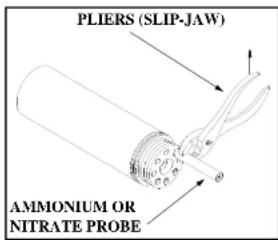
NOTE: The ion selective membranes are fragile. Be certain to: (1) Use only moist, high quality lens cleaning tissue for the cleaning procedure (not paper towels or other coarse materials); and (2) Stroke the probe face very gently with the tissue during the procedure. If you do not adhere to these instructions, you can seriously damage the sensors.
Sondes Section 2
2.10.3 SONDE STORAGE
Proper storage of the your sonde between periods of usage will not only extend the life of the sensors, but will also ensure that the unit will be ready to use as quickly as possible in your next application.
GENERAL RECOMMENDATIONS FOR SHORT TERM STORAGE
The recommended short term or interim storage procedure is simple and identical for all sondes -- YSI 600R, 600QS, 600XL, 600XLM, 6820V2-1, 6820V2-2, 6920V2-1, 6920V2-2, 6600V2-2, 6600EDS V2-2, 6600V2-4, and 600 OMS V2-1.
No matter what sensors are installed in the instrument, it is important to keep them moist without actually immersing them in liquid, which could cause some of them to drift or result in a shorter lifetime. For example, the reference junction of a pH sensor must be kept moist in pH 4 or 7 buffer, or tap water, to minimize its response time during usage, but continued immersion in pure water will compromise the function of the glass sensor and/or result in long term leaching of the reference junction.
YSI recommends that short term storage of all multi parameter instruments be done by placing approximately 0.5 inch of water in the calibration and/or storage cup that was supplied with the instrument, and by placing the sonde with all of the probes in place into the cup. The use of a moist sponge instead of a half inch of water, is also acceptable, as long as its presence does not compromise the attachment of the calibration cup to the sonde. The calibration cup should be sealed to prevent evaporation.
The key for interim storage is to use a minimal amount of water so that the air in chamber remains at 100 percent humidity. The water level has to be low enough so that none of the sensors are actually immersed. Any type of water can be used in this protocol: Distilled, deionized, or tap water. If the storage water is inadvertently lost during field sampling studies, environmental water can be used to provide the humidity.
Sondes with level sensors have a tube that vents the pressure transducer to the atmosphere. It is important that the air in the tube remains dry at all times. Sondes with integral cables should be stored with the desiccant in place and the vented end of the desiccant system sealed. Sondes with connectors should be stored with the connector cap firmly in place. When disconnecting the cable, put the cap on immediately. Vented cables should be stored with their caps in place, in a bag containing desiccant.
Sondes Section 2
plug. Leave the conductivity/temperature and the dissolved oxygen probes in the sonde with a membrane and electrolyte on the DO sensor. Place enough of deionized, distilled, or tap water in the calibration cup to cover the sensors, insert the sonde into the vessel, and seal with the cap/O-ring to minimize evaporation.
6820V2-1, 6820V2-2, 6920V2-1, 6920V2-2, 6600V2-2, 6600EDS V2-2, and 6600V2-4 - Leave the conductivity/temperature and the dissolved oxygen probes in the sonde with a membrane and electrolyte on the DO sensor. Remove all other probes from the sonde and store according to the instructions found in the following section on individual sensors. Cover the empty ports with the provided plugs. Place enough of deionized, distilled, or tap water in the calibration cup to cover the sensors, insert the sonde into the vessel, and tighten the threaded cup to attain a good seal and minimize evaporation.
600R and 600QS (with Replaceable Reference Electrode Module) -- Instruments of this design were generally sold after January, 1996 and can be identified by the presence of 4 probes -- temperature, dissolved oxygen, pH reference, and pH glass (600R) or pH glass/ORP (600QS) in the bulkhead. Remove the reference module, store it as described below, and plug the open port with the insert that was provided. Make certain that the dissolved oxygen sensor has an undamaged membrane and electrolyte in place. Place approximately 300~mL of tap water in the storage vessel, insert the sonde, and seal the vessel with the cap and O-ring. Do not use deionized or distilled water in this case, as it may damage the pH glass sensor that must remain in the sonde.
600 (with Combination pH Sensor) -- Instruments of this design were generally sold prior to January, 1996 and can be identified by the presence of only 3 probes (temperature, dissolved oxygen, pH) in the bulkhead. Be certain that the dissolved oxygen sensor has an undamaged membrane and electrolyte in place. Fill the provided storage vessel with a solution that is 2 molar (2 M) in potassium chloride (KCl) to a level that completely covers the dissolved oxygen and pH probes. See the following section for instructions on preparation of the KCl storage solution. Seal the vessel with the cap and O-ring.
600 OMS V2-1 - Store sonde dry with optical probe left in port. Cover membrane on ROX sensor with moist sponge.
All Sondes with Batteries - Because batteries can degrade over time and release battery fluid, it is extremely important to remove the batteries from all 600XLM, 6920V2-1, 6920V2-2, 6600V2-2, 6600EDS V2-2, 6600V2-4, and 600 OMS V2-1(battery version) prior to long term storage. Failure to remove batteries can result in corrosive damage to the battery terminals if the batteries happen to leak.
2.10.4 PROBE STORAGE
Sondes Section 2
RAPID PULSE DISSOLVED OXYGEN
Rapid Pulse dissolved oxygen sensors should always be stored with a membrane and electrolyte in place and in such a way that the drying out of the electrolyte on the probe face is minimized. For long-term storage, the medium should be water rather than the moist air used in interim storage. The long-term storage protocol is also dependent on the instrument under consideration.
ROX dissolved oxygen sensors should always be stored in a moist environment, i.e., either in water or in water-saturated air with storage in water being preferable. The easiest storage method is to use the protective plastic cap (and enclosed sponge) which was on the probe at receipt. If you have retained this cap/sponge, then simply soak the sponge in water and replace the cup on the probe tip. Inspect the sponge every 30 days to make sure it is still moist. Alternatively, you can remove the probe from the sonde and place it directly in water (making sure that the water does not evaporate over time or leave the probe in the sonde and make certain that the calibration cup has an atmosphere which is water-saturated by placing approximately 12 inch of water in the bottom of the cup and then sealing it snugly to the sonde.
For all 6-series sondes other than the 600R, 600QS, and 600 OMS V2-1, two long-term storage methods are equally acceptable.
-
Remove all probes other than dissolved oxygen (Rapid Pulse or ROX), conductivity, and temperature from the sonde and seal the vacant ports with the provided port plugs. Leave the electrolyte and membrane in place on the Rapid Pulse dissolved oxygen sensor. Fill the calibration cup with water (tap, deionized, or distilled are equally acceptable) and insert the sonde. Make certain the water level is high enough to completely cover the DO sensor. Seal the vessel to prevent evaporation of the water. At the end of the storage time, remove the existing membrane and re-membrane the probe using new electrolyte.
-
Remove the Rapid Pulse dissolved oxygen sensor from the sonde leaving the electrolyte and membrane in place. Store the probes in water (lap, deionized, or distilled are equally acceptable) in a beaker, flask, or other vessel of the user's choice. Be sure not to damage the membrane or the probe tip when placing the probe on the bottom of the vessel. If possible cover the vessel with parafilm or plastic wrap to minimize evaporation of the water during long-term storage. Monitor the water level in the storage vessel periodically and replenish if loss due to evaporation occurs. At the end of the storage time, remove the existing membrane and re-membrane the probe using new electrolite.
Sondes Section 2
ROX OPTICAL DISSOLVED OXYGEN
When the 6150 sensor is not in field use, it MUST BE STORED IN A MOIST ENVIRONMENT, i.e., either in water or in water-saturated air with storage in water being preferable. If the sensor membrane is allowed to dry out by exposure to ambient air, it is likely to drift slightly at the beginning of your next deployment unless it is rehydrated. Thus, to make the use of the sensor as simple as possible, remember to store it WET whenever possible. The easiest storage method is to use the protective plastic cap (and enclosed sponge) which was on the probe at receipt. If you have retained this cap/sponge, then simply soak the sponge in water and replace the cap on the probe tip. Inspect the sponge every 30 days to make sure it is still moist. Alternatively, you can remove the probe from the sonde and place it directly in water (making sure that the water does not evaporate over time or leave the probe in the sonde and make certain that the calibration cup has an atmosphere which is water-saturated by placing approximately 12 inch of water in the bottom of the cup and then sealing it snugly to the sonde.
pH
The key to pH probe storage, short or long-term, is to make certain that the reference electrode junction does not dry out. Junctions which have been allowed to dry out due to improper storage procedures can usually be rehydrated by soaking the sensor for several hours (overnight is recommended) in a solution which is 2 molar in potassium chloride (see dissolved oxygen section above for preparation of this solution). If potassium chloride solution is not available, soaking the sensor in commercial pH buffers or tap water may restore probe function. However in some cases the sensor may have been irreparably damaged by the dehydration and will require replacement. It is also important to remember not to store the pH sensor in distilled or deionized water as the glass sensor may be damaged by exposure to this medium.
The long-term storage protocol is dependent on the instrument.
For all YSI 6-series sondes other than the 600R and 600QS, the recommended long-term storage protocol is identical. Remove the probe from the sonde and seal the vacant port with the provided plug. Place the probe in the storage vessel (plastic boot or bottle) which was in place on delivery. The vessel should contain a solution which is 2 molar in potassium chloride, or pH 4 or 7 buffer. Make certain that the vessel is sealed to prevent evaporation of the storage solution.
The VCT 2009 and 160000 were the following models and algorithms were used with the model
Sondes Section 2
AMMONIUM, NITRATE AND CHLORIDE
The active element in the ammonium and nitrate ion selective electrode (ISE) sensors is a polyvinyl chloride (PVC) membrane that is impregnated with the reagent that provides specificity for either ammonium or nitrate. The useful life of this sensor can be reduced if the membrane is stored immersed in water. Thus, storage in dry air is recommended for long term storage. While dry air is slightly preferable for general storage, the short-term storage of these sensors in the sonde, with the entire sensor array in moist air, will have no significant detrimental effect on the life of the membrane. Remove the sensor module from the sonde and cover the vacant port with the provided plug. Place the sensor back in the storage boot that was provided, and set aside in room air.
The chloride ISE sensor utilizes a solid state membrane that provides specificity. For long-term storage, the module should be removed from the sonde, wiped clean with moist lens cleaning tissue, and placed in its storage boot to prevent abrasion.
TURBIDITY, CHLORPHYLL, BGA-PC, BGA-PE, AND RHODAMINE WT
No special precautions are necessary for either the short or long-term storage of these YSI optical probes. However, for long-term storage, the user may wish to remove the probe from the sonde, replace it with a port plug, and store the probe in dry in air to minimize any cosmetic degradation of the probe body and to maximize the life of the wiper.
DEPTH AND LEVEL
No special precautions are required for the sensor itself, but see instructions above with regard to maintaining a dry atmosphere in the vent tube. Sensors can be stored dry or wet, as long as solutions in contact with the strain gauge sensor port are not corrosive (for example, chlorine bleach).
Recommendations are identical for short-term and long-term storage.
SECTION 3 650 MDS DISPLAY/LOGGER
3.1 INTRODUCTION
The YSI 650 Multiparameter Display System (650 MDS) is a powerful, hand-held microcomputer based instrument that allows the user to display sonde readings, configure sondes, store and recall data, upload data from sondes and transfer data to computers for analysis and plotting.
Key features of the YSI 650 MDS:
• Completely waterproof case that is submersible to 1 m. Meets IP-67 specification.
• Rugged design with high impact resistance
• Large, non-volatile memory
• Simple cellular phone style keypad.
- Simple intuitive user-interface
- Choice of alkaline batteries or optional rechargeable battery pack
- Fuel gauge display of battery capacity
- User selectable backlight
• Handstrap (standard) or hands free harness (optional) for user comfort
- Optional barometer
- Optional GPS interface
- Compatibility with YSI EcoWatch for Windows data analysis software
- User upgradeable software via the YSI Web page
• CE and Australian C-Tick Compliance.
Partnered with a YSI 6-Series sonde, the 650 will allow the user to easily:
- Display real-time readings from YSI 6-series sondes.
- Log real-time sonde data to internal meter memory with custom site lists.
- Calibrate 6-series sondes.
- Set up 6-series sondes for deployment.
- Upload data from sondes for transfer to PC.
3.2.1 UNPACKING
Remove the instrument from the shipping box, being careful not to discard any parts or supplies. Use the packing list to ensure all items are included, and inspect all assemblies and components for damage. If any parts are damaged or missing, contact your YSI representative immediately. If you do not know which YSI dealer you obtained your YSI 650 from, refer to Section 8 of your 6-series sonde manual for contact information.
The 650 is offered in four configurations:
• 650-01 – Low memory with no barometer
• 650-02 – High memory with no barometer
• 650-03 – Low memory with barometer
• 650-04 – High memory with barometer
All configurations include the 650 with hand strap and strain relief lanyard installed and the 655174 PC interface cable for use in data transfer to a PC and software updates from a PC. Make certain that you have received these two items (650 itself and PC Interface Cable) during the unpacking process.
The following optional accessories are offered for use with the 650.
- 6113 Rechargeable Battery Pack Kit with 6116 charger adapter cable, 6114 110 volt wall charger, and 6117 battery pack included
- 6126 Rechargeable Battery Pack Kit with 6116 charger adapter cable, 6123 universal charger, European power cable, British power cable, and 6117 battery pack included
- 6127 Rechargeable Battery Pack Kit with 6116 charger adapter cable, 6123 universal charger, China/Australia power cord, and 6117 battery pack included
• 4654 Tripod
• 614 Ultra Clamp
• 5085 Hands Free Harness
• 5065 Form-litting Case
• 6117 Extra Rechargeable Battery Pack - 6115 GPS Cable for interface with user-supplied GPS unit
• 616 Cigarette Lighter Charger
650 MDS Section 3
used to log data in Discrete or Unattended sampling applications. For example, with the high memory option, it would be possible to easily upload the data from 7 sondes, each of which have data files in excess of 200 kB or approximately 75 days at a 15-minute unattended sampling interval.
No matter which memory option has been selected, it is important to understand that the memory resident in the 650 is "Flash", the same type of memory present in YSI 6-series sondes. Flash memory requires no battery backup and therefore stored data cannot be lost due to instrument malfunction - a significant advantage. However, it is not possible to erase individual files from flash memory - to free-up memory, the user must erase (or format) the entire memory chip. From a practical point of view, this means that, while named files which are already present in the 650 memory can be "overwritten" during multiple uploads, the previously written files still occupy space in the memory. These files are in fact designated "deleted" as will be described in Section 3.6.5 below. For example, if a file named "TEST" is uploaded initially with a memory allocation of 50KB and then is uploaded at a later time (and "overwritten") with a memory allocation of 100KB , the total memory occupied is 150KB even though only one file with the designation "TEST" and a file size of 100KB is shown in the file directory. For this reason, when dealing with large files, the user may wish to transfer files to a PC immediately after upload and then erase the entire flash in order to assure that maximum memory is present for subsequent uploads.
The storing of data directly from sondes to the 650 memory, the uploading of data stored in 6-series sondes to the 650, and the management of these data files are described in detail in Sections 3.5, 3.6, and 3.7 of this manual.
3.2.3 650 CONFIGURATIONS
There are a number of ways that you can configure the YSI 650. Below is a list of possible configurations and corresponding diagrams.
- 650 interfaced to a 6-Series sonde.
- 650 interfaced to a 6-Series Sonde and a user-supplied GPS unit.
- 650 interfaced to a PC for data transfer or software upgrade using the PC interface cable
• 650 with rechargeable battery pack being charged
Figure 1. 650 interfaced to a 6-series sonde.

650 MDS Section 3
Figure 2. 650 interfaced to a 6-series sonde with user-supplied GPS.

Figure 3. 650 interfaced to PC for data transfer or software upgrade.

650 MDS Section 3
Figure 4. Charging of 650 rechargeable battery pack.

The setup of these configurations is described in detail in subsequent sections of this manual. They are presented here so that your will be able to ascertain if you have all of the parts necessary for your applications.
650 MDS Section 3
3.2.4 650 FEATURES
The key physical features of the 650 display and keypad are shown in the figures below.

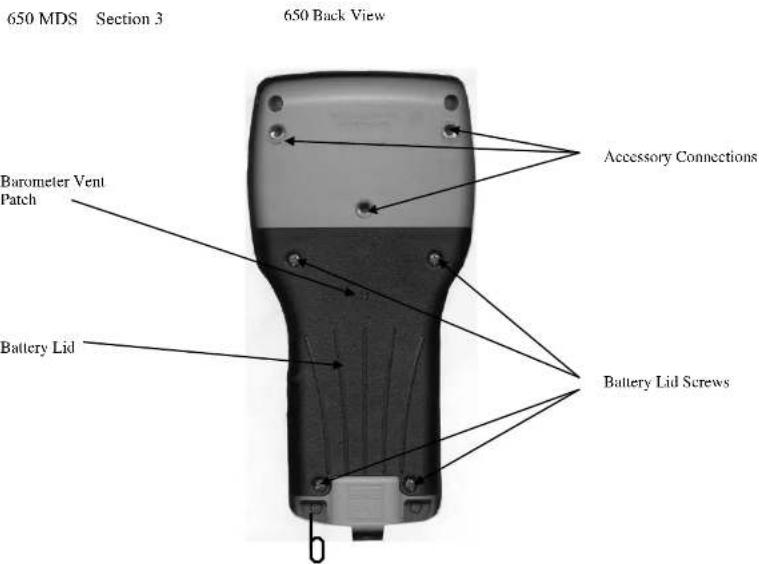
Note that the back of the case contains the battery lid that is attached to the main case with four captive screws and has three fittings for attachment of the ultraclamp and tripod accessories. In addition, the battery lid has a hole that is covered with water-impermeable patch for venting of the optional barometer.
CAUTION: The barometer-venting patch is resident on the inside of the battery lid. Removal of or damage to this patch will result in water leakage into the battery compartment.
The short cord with loop (lanyard) which is attached to the bottom of the case is attached to the strain relief of the sonde cable. Simply open the D-ring, pass the lanyard loop through the opening, and then close the D-ring
650 MDS Section 3
The circuit board in this instrument contains a manganese dioxide lithium "coin cell" battery that must be in place for continuity of power to memory devices on the board. This battery is not user serviceable or replaceable. When appropriate, an authorized YSI service center will remove this battery and properly dispose of it, per service and repair policies.
3.2.5.1 BATTERY INSTALLATION - C CELLS
Four C cells install easily into the back of the 650. Follow the instructions and diagrams below to install the batteries properly:
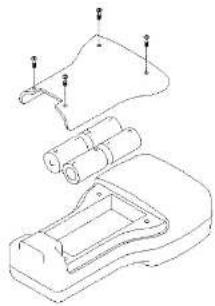
natural_image
Technical line drawing of a mechanical assembly with rollers and a base (no text or symbols)- Using a Phillips or slotted screwdriver, loosen the 4 captive screws on the battery lid and then remove the battery lid completely.
- Insert the cells between the battery clips, being sure to follow the polarity (+ and -) as indicated on the bottom of the battery compartment.
• Make certain that the gasket is properly installed on the battery lid before reinstallation.
650 MDS Section 3
• Make certain that the gasket is properly installed on the rechargeable battery before installation.
- Insert the rechargeable battery pack assembly into the battery compartment of the 650.
- Tighten the 4 captive screws securely and evenly using a Phillips or slotted screwdriver. Do not overtighten
3.2.5.3 BATTERY CHARGING - RECHARGEABLE BATTERY PACK
The 6117 rechargeable battery pack is charged via the MS-8 connector on the bottom of the instrument and thus the pack must be installed in the 650 for charging. To perform the charging operation, the user will need to locate the proper power supply (6114 for US/Canada/Japan or 6123 with proper power cord for all other countries) and the 6116 charger adapter cable which were supplied with your rechargeable battery pack (6113 for US/Canada, 6126 for Europe, 6127 for China/Australia). As shown in Figure 4 above, first attach the charger adapter cable to the 650, then insert the barrel connector of the power supply into the barrel of the adapter cable, and finally plug the power supply into an appropriate AC power outlet. The pack can be recharged with the 650 either "on "or "off". However, if the instrument is "on", the progress of the charging operation can be viewed in the Status Bar (see Section 3.2.10 below).
To ensure that you get maximum operational time from the rechargeable battery pack, the user should follow the procedures below:
- Place your display/logger on charge for approximately 2 hours to obtain an 80-90 % regeneration of battery capacity.
- Place your display/logger on charge for approximately 6 hours to get a full charge.
- Do not charge the batteries continuously for more than 48 hours.
- For long term storage, keep your battery pack between the temperatures of -20 C and 30 C and remove it from the 650 case.
- Do not charge your batteries at temperatures below 0 C or above 40 C.
- Do not use or store the battery pack at high temperature, such as in strong direct sunlight, in cars during hot weather, or directly in front of heaters.
650 MDS Section 3

To use the device with an American or Japanese vehicle, slide the adapter ring off of the plug. To use the device with a European vehicle, leave the adapter ring on the plug and position it so the slots on the ring line up with the plug's spring clips. To begin charging your battery pack, first plug the barrel connector of the cigarette lighter charger into the mating end of the 6116 adapter cable. Then attach the MS-8 end of the 6116 adapter cable to the 650. Finally, plug the other end of the cigarette lighter charger into the vehicle's lighter socket.
The 616 cigarette lighter charger contains a 2-ampere fast-blow type fuse. If the power cord stops working properly, unscrew the adapter's cap, remove the tip, and then pull out and check the fuse. See diagram above to remove the fuse. If the fuse is blown or you are unsure, replace it with a new 2-amp fast-blow fuse that is available at electronics stores such as Radio Shack. Reassemble the adapter and securely screw the cap back onto the adapter body.
After you have installed batteries or the rechargeable battery pack into your 650, you are ready to proceed to the next sections.
3.2.6 TURNING THE INSTRUMENT ON
650 MDS Section 3
Note that the screen is divided into two sections – the "Main Display" at the top and a "Status Bar" at the bottom. The Main Display will provide access to the 650 and sonde menus and will be used to view sonde sensor readings in real-time, to configure the 650 and the sonde, to calibrate the sonde sensors, and to log data to either sonde or 650 memory. The Status Bar will always show the date and time of the 650 clock (updated in real-time), the remaining battery capacity, the current barometer reading if you have purchased this option, the GPS readings from a user-supplied GPS instrument, and will indicate whether the menu being viewed in the Main Display is associated with your sonde or the 650. Additional information about the Status Bar will be provided in Section 3.2.10 of this manual.
You may also want to take the instrument into a dark room and, with the instrument turned ON, press the backlight key which is located at the top right of the keypad. The instrument backlight should illuminate the LCD so that the display can be read. Pushing the backlight key again will turn the backlight off. The backlight will power off automatically after two minutes of non-usc.
3.2.7 ADJUSTING THE DISPLAY CONTRAST
The contrast of the 650 display is automatically temperature compensated to provide a proper display under most field conditions (-10 to 40 C). Some users, however, may wish to alter the display contrast to meet their own preference. In addition, if the instrument is used at more extreme temperatures, the display is likely to require some adjustment.
The contrast is easily adjusted by pressing and holding down the backlight key in the upper right of the keypad and then pressing repeatedly or holding down the up/down arrow keys while observing the display. Pressing the up arrow while holding down the backlight key increases (darkens) the contrast; pressing the down arrow under these conditions decreases (lightens) the contrast.
NOTE: The backlight itself will only be activated if the backlight key is pressed and released. You must hold down the backlight key to adjust the contrast.
650 MDS Section 3
3.2.8 USING THE YSI 650 KEYPAD
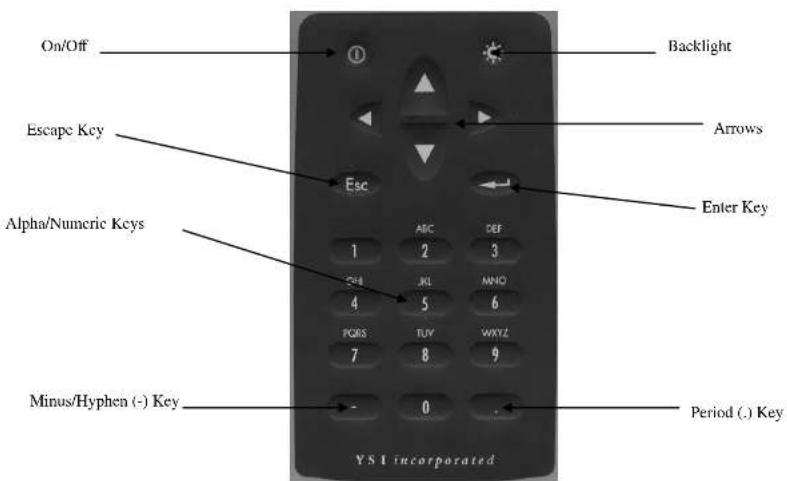
The 650 keypad allows the user to navigate various sonde and 650 menu selections and to make alpha/numeric entries into both the 650 and sonde software. The arrow keys are used to select various options in the menus; the cellular phone-style alpha/numeric keys allow data entry; the Enter key is used to confirm selections; and the Escape key returns the user to the previous position in the menu structure.
650 MDS Section 3
1-1
2-ABC2abc2
3 - DEF3def3
4-GHI4ghi4
5-JKL5jkl5
6 MNO6mno6
7 - PQRS7pqrs7
8-TUV8tuv8
9-WXYZ9wxyz9
0-0
Using this guide, it can be seen that the character "p" will appear and remain in the display by pressing the 7 key six times in succession. The other characters associated with this key ("P", "Q", "R", "S", and "+7") will appear during the repeated pressing of the numeric 7 key. However, only the "p" entry will be retained after the key is released after the six keystrokes.
After release of the numeric key for approximately 1second, the cursor will automatically scroll to the right to prepare for the next alphanumeric input. If you make a mistake in the entry, simply return to the previous character with the left arrow key and recenter the number or letter. After the entry is complete, press the Enter key to confirm it. You will follow an example of this type of entry when you enter an Instrument ID name for your 650 in the example below.
To familiarize yourself with the basics of the keypad entry system, follow the instructions below to set the date and time for your 650 and to enter an Instrument ID:
Turn the instrument on to display the 650 Main menu.
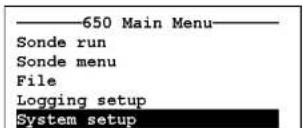
650 MDS Section 3
Use the arrow keys to highlight the Date and Time selection and press the Enter key. The following display will appear:

Highlight the selection for your desired date format and press Enter to confirm it.
Highlight the 4-digit year selection and press Enter to toggle between 2-digit (no check mark present) and 4-digit (check mark present) options.
Highlight the Date selection and press Enter. A cursor will appear over the first number in the date as shown in the following display.

650 MDS Section 3


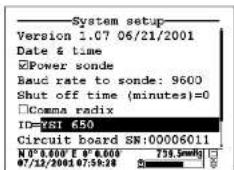
As shown above, enter the designation "YSI 650" using the general instructions outlined above. Start by pressing the numeric 9 key three times in rapid succession while viewing the characters on the display until a "Y" appears. After the entry is complete, pause and the cursor will automatically move to the next entry position. Now press the numeric 7 four times in succession while viewing the characters on the display. When an "S" appears, pause and the cursor will move automatically to the next entry position. Continue with the entries in this way until ID designation is complete. If you make a mistake, you can use the left arrow key to highlight the flawed entry and correct it. When the entry is complete, press Enter to confirm it. Note that for this example, where both alpha and numeric entries are appropriate, the user must press the numeric 2 key 4 times in succession to generate the number 2, as opposed to the previous clock-setting
650 MDS Section 3
"click". After connecting the sonde to the 650, press the "on" button on the upper left of the 650 keypad to activate the 650 Main menu as shown below:

Using the arrow keys, highlight the Sonde run entry in the Main 650 Menu and press the Enter key. Readings from the 6-series sonde sensors will appear on the 650 Main Display in real-time as shown in the following diagram.
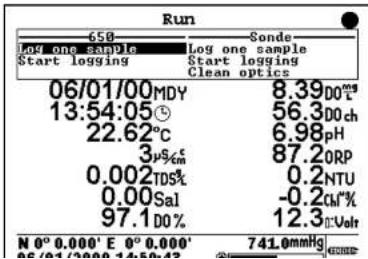
650 MDS Section 3
Section 3.11 of this manual. If symptoms persist after these actions, consult YSI Technical Support for advice.
3.2.10 UNDERSTANDING THE STATUS BAR
The diagram below shows the various components of the Status Bar of your 650. Each item identified in the drawing is explained in detail below.

2.10.1 Date and Time. This is the date and time for the clock in the 650, set by the user from the System setup menu as described above. The date and time entries are updated in real-time in the Status Bar.
2.10.2 GPS Reading. This value will be present only if a user-supplied GPS unit with NMEA 0183 format is connected to the 650 by the optional YSI 6115 cable. The setup of a GPS interface is described in more detail in Section 3.8 below. Once properly connected to a GPS instrument, the values displayed in the Status Bar are updated in real-time as the system is moved from location to location.
650 MDS Section 3

3.2.11 UPGRADING ECOWATCH FOR WINDOWS SOFTWARE
To utilize the full capability of the 650 MDS, you will need to upgrade your version of EcoWatch for Windows from the YSI World Wide Web page (www.ysi.com). Access the YSI Environmental Web Page, select "tech support" from the header, and then "Downloads". After registration, select the EcoWatch for Windows upgrade entry and follow the instructions provided. After the upgrade is complete, your software version (viewed from the EcoWatch toolbar entry Help|About EcoWatch) should be 3.13.00 or higher.
If you encounter difficulties in the upgrade procedures, contact YSI Technical Support for advice.
After reading the above sections and participating in the simple examples provided, you should be familiar with the basics of battery installation, keypad and display function, and keypad data entry. Please proceed to Section 3.3 where the setup of your 650 is described in detail.
3.3 SETTING UP THE 650
650 MDS Section 3

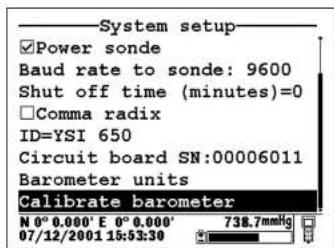
YSI suggests that the user become familiar with the features provided in the list below prior to using the 650 in field applications. Each item is described in some detail below.
3.3.1 Software version
The software version of your 650 is shown in the first line of the System setup menu. As enhancements are introduced to the 650, you will be able to upgrade your 650 from the YSI web page. This item will be used to track those upgrades and will be useful to YSI Technical Support personnel if you have questions about the function of the instrument.
3.3.2 Date and time:
As described above in Section 3.2.8, activate this selection to set the date and time from the 650 keypad.
3.3.3 Power sonde:
If this choice is active, your 6-series sonde will be powered directly from the 650 batteries. The choice MUST be active if you are using a sonde with no internal batteries (600R, 600XL, or 6820). If using a sonde with internal batteries (600XLM, 6920, 600 OMS battery version, or 6600), you can extend the life of your 650 batteries by deactivating this selection. Note that the selection MUST BE OFF in order to determine the voltage of the internal batteries of sondes - important information for Unattended studies.
650 MDS Section 3
3.3.7 ID
Activate this item and Enter choice of instrument identification (limit 11 characters) for your 650 as described in Section 3.1.8 above.
3.3.8 Circuit board SN
This item identifies the serial number of the circuit board resident in your 650. It cannot be changed by the user.
3.3.9 Barometer Units:
Highlighting this selection and pressing Enter will activate a display which will allow you to select the units of barometric pressure which will appear in real-time in the display Status Bar. Highlight the desired units and press Enter to confirm the selection. This entry will only appear if you have ordered your 650 with the barometer option.
3.3.10 Calibrate Barometer
You may need to scroll down with the arrow keys to view this selection which allows you to calibrate the optional barometer to your local barometric pressure. While the barometer has been factory calibrated and should provide accurate readings on receipt, some sensor drift may occur over time, requiring occasional calibration by the user. Proceed as follows:
Determine your local barometric pressure. This value is usually obtained from an independent laboratory barometer. You can also obtain a barometric pressure value from your local weather service. This latter value has usually been corrected to sea level and therefore must be “uncorrected” before it can be used in calibration of the 650 barometer. See Section 3.9 of this manual for details.
Select Calibrate barometer and press Enter. Input the known barometric pressure from the 650 keypad in the selected units (mm Hg in the following example) and press Enter. Note that in the example, the barometer output has changed from 733.4 (the previous incorrect value) to 740 (the correct value from your laboratory barometer). Note also that a value of the approximate barometer offset which occurred during the calibration (6.3 mm Hg) is present in the display. The offset value is approximate due to the variation in the tenths of a mm digit of the sensor. This value can be used to return the sensor to its factory calibration; simply recalibrate the sensor to a new value which is determined by (current value) - (offset).
650 MDS Section 3
3.4 SONDE MENU INTERFACE
3.4.1 INTRODUCTION
The Sonde menu selection in the 650 Main menu provides a terminal-like interface simulating the connection of the sonde to a PC as described in detail in Section 2 of the 6-series manual. Thus, this item provides access to the entire menu structure of your 6-series sonde software so that you can perform custom setup in the same way that would be possible if the sonde were attached to a PC.

From the 650 Main Menu, select Sonde menu and press Enter. A display similar (depending on sonde type and sonde software version) to that shown below will appear:

650 MDS Section 3
In fact, the only significant difference between the two interfaces is that, for the PC mode, submenus are accessed by entering the number associated with the specific item, while for the 650 mode the user must use the arrow keys to highlight the item and press the Enter key to activate it. Thus, the description of the 6-series sonde menu structure and function which is found in your sonde manual is completely valid as a reference for setting up your sonde for all types of studies. The menu structure of the sonde is presented in diagram form below, followed by two examples in Section 3.4.2 of how to use the 650 Sonde Menu interface. In addition, brief instructions for frequently performed sonde operation are provided as a reference in Section 3.4.3 below.
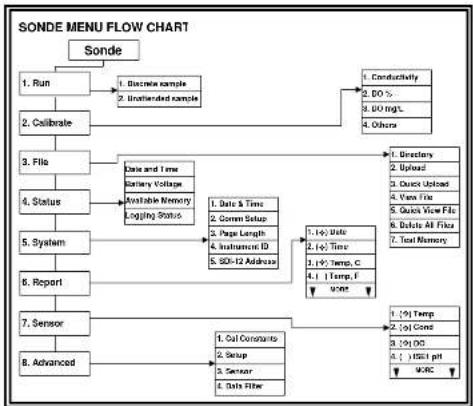
flowchart
graph TD
    A["1. Run"] --> B["2. Calibrate"]
    B --> C["3. File"]
    C --> D["4. Status"]
    D --> E["5. System"]
    E --> F["6. Report"]
    F --> G["7. Sensor"]
    G --> H["8. Advanced"]

    A --> I["1. Coordinate sample\n2. Unrelated sample"]
    I --> J["1. Conductivity\n2. DO %\n3. DO mg/L\n4. Others"]

    C --> K["Date and Time\nBinary Voltage\nAvailable Memory\nLogging Status"]
    K --> L["1. Date & Time\n2. Green Setup\n2. Page Length\n4. Instrument ID\n5. 30/-12 Address"]
    L --> M["1. (4) Unit\n2. (4) Time\n3. (9) Temp, C\n4.1. | Temp, F\nWater"]

    G --> N["1. Call Constraints\n2. Setup\n3. Sensor\n4. Data Filter"]
    N --> O["1. (9) Temp\n2. (9) Good\n3. (9) DC\n4. (1) MHz Pt\nWRC"]
650 MDS Section 3
3.4.2 SONDE MENU EXAMPLES
To become familiar with the 650 Sonde menu function, YSI recommends that the user connect a sonde to their 650 and proceed through the following two examples of common sonde interface operations.
Example 1: Setting up the Report Output – Activation of the Salinity Parameter
Highlight the Sonde menu selection in the 650 Main menu and press Enter. Then use the arrow keys highlight the Report selection and press Enter again.


Use the arrow keys to highlight the Salinity selection and then press the Enter key to activate the parameter as shown by a dot in the open circle. Note that the entire report list can be accessed by continuing to scroll the highlighting block down with the arrow key. After activation of salinity in the Report setup of the sonde, press the Escape key twice in succession to return to the Main sonde menu.

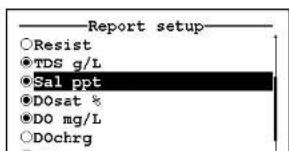
650 MDS Section 3
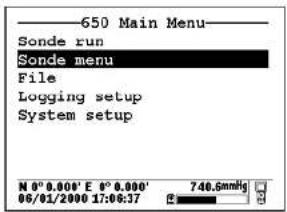
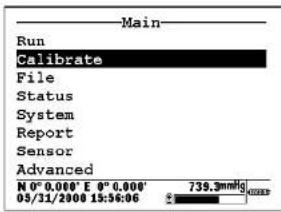
Use the arrow keys to highlight the Dissolved Oxygen selection and press Enter. Then, Use the arrow keys to highlight the DO% selection and press Enter.


Use the 650 numeric entry keys and the right/left arrow keys to enter the current local barometric pressure. Then, press the Enter key and observe the dissolved oxygen reading until stabilization occurs. Make sure the Calibrate selection is highlighted in upper window
650 MDS Section 3
"Calibrate" to "Continue". Make sure that "Continue" is highlighted and press Enter to return to the DO calibration menu.


3.4.3 COMMON OPERATIONS USING THE 650 SONDE MENU SELECTION
The following section provides brief instructions for carrying out frequently used sonde activities via the Sonde menu selection of the 650. The instructions do not provide the detail of the examples above, assuming that the user understands how to navigate the menus with the Enter, Escape, and Arrow keys and is able to make alpha/numeric entries from the keypad.
3.4.3.1 Running the sonde in real-time
This function can be accomplished either automatically from the Sonde run selection of the 650 menu or by using the Sonde menu selection to activate the Run|Discrete Sample submenu of the Main 6-series menu. If the Sonde run selection is made, data automatically appears on the screen at a sample interval of
650 MDS Section 3
3.4.3.4 Calibrating sonde sensors
Use the 650 Sonde menu selection to access the sonde Calibrate menu. Once the menu has been activated, use the arrow keys to highlight a sensor for calibration and follow the instructions on the screen. Use the keypad to enter numeric values associated with the calibration standards and press Enter to confirm your input. View the data from each calibration standard in real-time and then highlight the Calibrate selection in the upper frame. When the output is stable, press Enter to confirm the calibration point. Then highlight Continue and press Enter to either move to the next calibration point or to finalize the calibration. See the example in Section 3.4.2 above for a typical calibration procedure.
NOTE: To return a sensor calibration setup to its factory default setting, access any calibration routine for that particular sensor which asks for numeric input. However, instead of entering numbers, hold the Enter key down and press the Escape key. Highlight "yes" and press Enter. This protocol is the equivalent of entering the command "uneal" from a computer keyboard.
3.4.3.5 Changing the sonde Sensor setup
Use the 650 Sonde menu selection to access the sonde Sensor menu. Once the menu has been activated, use the arrow keys to highlight a sensor for activation/deactivation and press Enter to confirm your choice.
3.4.3.6 Changing the sonde Report setup
Use the 650 Sonde menu selection to access the sonde Report menu. Once the menu has been activated, use the arrow keys to highlight a sensor for activation/deactivation and press Enter to confirm your choice. See the example in Section 3.4.2 above.
3.4.3.7 Viewing data stored in the sonde
Utilize the 650 Sonde menu selection to access the File menu of the sonde. Highlight the "View file" selection and press Enter. Select the file that you want to view. Choose Proceed and press Enter to view the entire file or select the portion of the data that you want to view and then select Proceed and press Enter to confirm your selection. After data has appeared on the screen, use the arrow keys to select the particular sensor data that you wish to view.
IMPORTANT: The sonde Quick view file, which is designed to show the last page of data of the last logged file when the sonde is interfaced to a PC is slightly different for the sonde/650 interface. Making this selection will indeed show data from the last logged file, but all data (not just the last page) will be displayed. It is still possible, however, to quickly view the last few logged data points which may be important in checking a sonde's current performance in the field. To rapidly move to the end of the file (in title: Video file or Quick view file), and NOTD the down frame must change the transition to the
650 MDS Section 3
The rules are particularly important with regard to the method of dissolved oxygen calibration – automatic at the Unattended sample interval if Autosleep is Active; manually controlled by the user if Autosleep is inactive. See Section 2 of the 6-series manual for additional information on the Autosleep function.
To set the Autosleep function, utilize the 650 Sonde menu selection to access the Advanced|Setup menu of the sonde. Use the up/down arrow keys to highlight the Autosleep RS232 selection and toggle the function on/off with the Enter key until it is correct for your application.
3.5 LOGGING DATA WITH THE 650
3.5.1 INTRODUCTION AND BASICS OF LOGGING
A primary function of the 650 is to facilitate the storage of field data from 6-series sonde sensors for later analysis. It is important to understand that sonde sensor data can be logged to two memory locations using a system consisting of a 650 interfaced with a sonde: (1) memory resident in the sonde and (2) memory resident in the 650 itself. Different applications may favor one logging choice over another. In addition, data can be logged either as single points (after the user has verified stabilization) or as a continuous data stream at a fixed sample interval. No matter where or how the user decides to log field data with a 650/sonde system, the 650 software plays the key role in controlling the process.
When setting up the 650/sonde system for your logging application, it important to realize that the 650 Run display, from which all logging is initiated can be activated by two methods. The first is to simply highlight the Sonde run selection from the 650 menu. The second is to use the Sonde menu command from the 650 Main menu to enter the sonde menu structure and then to activate a Discrete sample study. Either of these methods can be used to log data to both the sonde and the 650. However, for most applications, the latter method (Run screen from sonde Discrete sample) should be used to activate logging to sonde memory with the sample interval between logged points in a continuous data stream set from the Discrete sample menu of the sonde. Likewise, the former method (direct activation of the 650 Run display from the Sonde run command) should usually be used to activate logging to 650 memory with the sample interval set in the Logging setup menu of the 650.
NOTE: Logging to sonde memory may not be possible for some older version 600R, 600XL, and 6820 sondes that were purchased prior to September 1999.
650 MDS Section 3

flowchart
graph TD
    A["650 Main Menu"] --> B["Sample Interval Set in 650 Logging setup menu"]
    C["650 Main Menu"] --> D["Sample Interval Set in Sonde Discrete sample menu"]
    E["650 Main Menu"] --> F["Sample Interval Set in Sonde Logging Window"]
    G["650 Main Menu"] --> H["Sample Interval Set in Sonde Discrete sample menu"]
    I["650 Main Menu"] --> J["Sample Interval Set in Sonde Logging Window"]
    K["650 Main Menu"] --> L["Sample Interval Set in Sonde Discrete sample menu"]
    M["650 Main Menu"] --> N["Sample Interval Set in Sonde Logging Window"]
    O["650 Main Menu"] --> P["Sample Interval Set in Sonde Discrete sample menu"]
    Q["650 Main Menu"] --> R["Sample Interval Set in Sonde Logging Window"]
    S["650 Main Menu"] --> T["Sample Interval Set in Sonde Discrete sample menu"]
    U["650 Main Menu"] --> V["Sample Interval Set in Sonde Logging Window"]
    W["650 Main Menu"] --> X["Sample Interval Set in Sonde Discrete sample menu"]
    Y["650 Main Menu"] --> Z["Sample Interval Set in Sonde Logging Window"]
    AA["650 Main Menu"] --> AB["Sample Interval Set in Sonde Discrete sample menu"]
    AC["650 Main Menu"] --> AD["Sample Interval Set in Sonde Logging Window"]
    AE["650 Main Menu"] --> AF["Sample Interval Set in Sonde Discrete sample menu"]
    AG["650 Main Menu"] --> AH["Sample Interval Set in Sonde Logging Window"]
    AI["650 Main Menu"] --> AJ["Sample Interval Set in Sonde Discrete sample menu"]
    AK["650 Main Menu"] --> AL["Sample Interval Set in Sonde Logging Window"]
    AM["650 Main Menu"] --> AN["Sample Interval Set in Sonde Discrete sample menu"]
    AO["650 Main Menu"] --> AP["Sample Interval Set in Sonde Logging Window"]
    AQ["650 Main Menu"] --> AR["Sample Interval Set in Sonde Discrete sample menu"]
    AS["650 Main Menu"] --> AT["Sample Interval Set in Sonde Logging Window"]
    AU["650 Main Menu"] --> AV["Sample Interval Set in Sonde Discrete sample menu"]
    AW["650 Main Menu"] --> AX["Sample Interval Set in Sonde Logging Window"]
    AY["650 Main Menu"] --> AZ["Sonde run"]
    AY --> BA["Sonde run"]
    AY --> BB["Sonde run"]
    AY --> BC["Sonde run"]
    AY --> BD["Sonde run"]
    AY --> BE["Sonde run"]
    AY --> BF["Sonde run"]
    AY --> BG["Sonde run"]
    AY --> BH["Sonde run"]
    AY --> BI["Sonde run"]
    AY --> BJ["Sonde run"]
    AY --> BK["Sonde run"]
    AY --> BL["Sonde run"]
    AY --> BM["Sonde run"]
    AY --> BN["Sonde run"]
    AY --> BO["Sonde run"]
    AY --> BP["Sonde run"]
    AY --> BQ["Sonde run"]
    AY --> BR["Sonde run"]
    AY --> BS["Sonde run"]
    AY --> BT["Sonde run"]
    AY --> BU["Sonde run"]
    AY --> BV["Sonde run"]
    AY --> BW["Sonde run"]
    AY --> BX["Sonde run"]
    AY --> BY["Sonde run"]
    AY --> BZ["Sonde run"]
    AY --> CA["Sonde run"]
    AY --> CB["Sonde run"]
    AY --> CC["Sonde run"]
    AY --> CD["Sonde run"]
    AY --> CE["Sonde run"]
    AY --> CF["Sonde run"]
    AY --> CG["Sonde run"]
    AY --> CH["Sonde run"]
    AY --> CI["Sonde run"]
    AY --> CJ["Sonde run"]
    AY --> CK["Sonde run"]
650 MDS Section 3
- Decide if you want to log data continuously, and, if so, determine what sample interval between data points is appropriate for you study. If you will be logging to 650 memory, highlight the Logging setup selection from the 650 Main menu, then highlight the Interval selection and set the interval as desired. If you will be logging to sonde memory, select the 650 Sonde menu and then Run|Discrete sample from the sonde menu. Set the sample interval and then activate the data display by selecting Start sampling.
- Select the memory (sonde or 650) in which you want to store your data by toggling between the logging windows.
- Highlight the logging method desired – “Log one sample” for a single logged point or “Start logging” to store a continuous data stream.
- Press Enter to activate the logging selection.
- To end the study if a continuous data stream was selected, press Enter with the highlight cursor on the Stop logging command or press the Escape key.
Sections 3.5.2 and 3.5.3 below provide details and real-life examples of logging data to sonde memory and to 650 memory, respectively, using the 650 as the interface.
3.5.2 LOGGING DATA TO SONDE MEMORY
3.5.2.1 INTRODUCTION
All YSI 6-series sondes sold since September 1999 have memory present on their internal PCBs. In addition, all 600XLM, 6920, and 6600 sondes have internal memory, regardless of the date of purchase. Interface of these sondes to a 650 allows the user to easily store data (either a single point or a continuous stream) to the sonde memory. If a continuous stream of data is desired, the interval between the stored points is controlled by the Sample Interval in the sonde's Discrete sample function. The file name under which this data is stored and the site name associated with the file are also input in the Discrete sample function of the sonde using the 650 keypad as the input method. When logging to sonde memory, be sure to follow the instructions above with regard to entering the 650 Run display either directly from the 650 Sonde run menu or indirectly from the 650 Sonde menu selection to control your sample interval.
650 MDS Section 3
The user places the sonde in the water and watches the readings on the 650 display until they are stable. When stable, the Log one sample selection in the Sonde logging window (upper right) is highlighted as shown above and the Enter key is pressed. The header changes from "Run" to "Sample logged" to confirm that the data storage to sonde memory was successful and then returns automatically to the Sonde run display. The user turns the 650 off and returns to the office to retrieve the data.
The single data point is stored in the sonde memory under the automatically generated file name NONAME1. The file can be viewed by selecting Sonde menu from the 650 Main menu and pressing Enter.

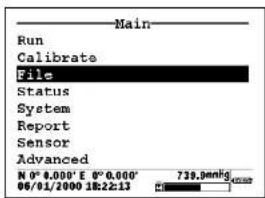
To view the data on return from the site, the user selects the sonde menu File selection, presses Enter to confirm the entry, and then highlights theView file selection and presses Enter. Following these instructions generates a display of the data that is stored in the sonde memory under the default name NONAME1. Use the right/left arrow keys to scroll horizontally to view all of the data.


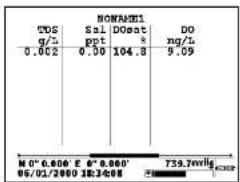
other
NONAME1 | Category | Value | |---|---| | CDS | 0.002 | | Sal | 0.90 | | DDoat | 104.8 | | DO | 9.09 | N 0" 0.600" E 6" 0.800" 739.7mVlg 05/01/2000 18:34:08650 MDS Section 3
The user attaches the 6920 sonde to a 650. After turning on the 650, the user selects Sonde menu from the 650 Main menu and presses Enter to display the Main sonde menu.

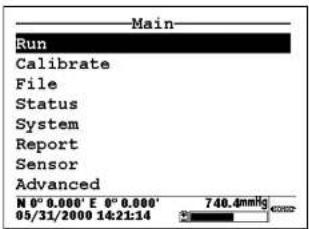
The user then selects Run from the sonde Main menu and Discrete sample from the Run menu, pressing Enter to confirm each selection.
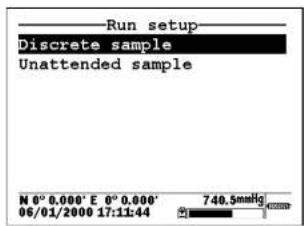

To set up the desired study parameters, the user uses the 650 keypad to change the Sample interval from 0.5 seconds to 16 seconds and inputs custom file (PROFILE1) and site (WEST LAKE) designations.
650 MDS Section 3


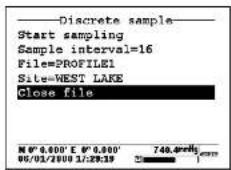
At the end of the 90 minute profile determination, the user either confirms the Stop logging command by pressing Enter or simply presses the Escape key to return to the sonde Discrete sample menu, highlights the Close file selection, and confirms the file closing by pressing Enter.
The profile data taken at a 16 second sample interval is now stored in the sonde memory under the file name PROFILE1. It can be viewed on the 650 display and/or uploaded to the 650 memory or directly to a PC by accessing the sonde File menu.
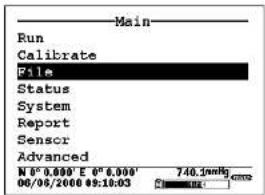

3.5.2.4 SONDES WITHOUT MEMORY
If your sonde is a 600R, 600XL, or 6820 purchased prior to September 1999, it may contain a circuit board that does not have become. With some of this one, you will not be able to buy due to the same, but
650 MDS Section 3
3.5.3 LOGGING DATA TO 650 MEMORY
Even if the sonde in your 650/sonde system has its own memory, it may be more convenient for you to log data directly to the 650 memory simply because you eliminate the need to upload the data after logging, i.e., it will already be resident in 650 memory. In addition, logging directly to 650 memory allows you to log GPS and barometric pressure readings along with sonde sensor data. Barometer and GPS data cannot be logged to sonde memory. Finally, the file/site list capability associated with the 650 is more powerful than that of the sonde, allowing you to log data from several sites to a single file. If these applications are important to you, then it is likely that logging directly to 650 memory should be your first choice. Naturally, if your sonde is a 600K, 600XL, or 6820 with no memory (pre-1999), then you will be REQUIRED to log your sonde data directly to the 650.
Before proceeding in this section, be sure that you review Section 3.5.1 above which describes the basics of logging with a 650 (either to sonde or to 650 memory).
The following sections will provide details and examples of the flexibility of logging sonde data to 650 memory. The distinction between (a) simple occasional logging with file and site names entered at the logging site and (b) logging to a more sophisticated file structure where file parameters are entered into a site list prior to going to the field will be described.
3.5.3.2 SIMPLE LOGGING TO 650 MEMORY
The term "simple logging" to 650 memory refers to the method of defining file and site names for the study. In applications of this type, the user inputs new file and site (optional) names for each study at the time the data is logged.
IMPORTANT: The Use site list selection in the 650 Logging setup menu should be INACTIVE for the example below which demonstrates simple logging.
A user with a 600XL/650 system wants to store a continuous stream of data electronically for a single site at a
650 MDS Section 3
Press Enter at the highlighted Interval selection and use the arrow keys to scroll to the right and change the interval from 1 second to 10 seconds. Confirm the selection by pressing Enter and then press Esc to return to the 650 Main menu.


Once the sample interval is set correctly in the 650 Logging setup menu, the user simply highlights the Sonde run selection in the 650 Main menu and presses Enter to begin data display.

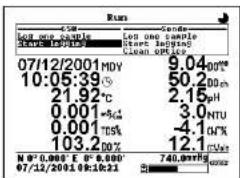
The user places the sonde in the water and then highlights the Start logging selection in the 650 logging window (upper left) and presses Enter. The user is then prompted to enter a Filename and Site description for the study as shown below.


650 MDS Section 3
Using the arrow keys, the Filename window is highlighted, the user presses the Enter key and then inputs the file name (in this case, WEST) from the keypad as shown above. A site name (BLUE LAKE) is then entered from the keypad by highlighting the Site description window and proceeding as for the File name. Pressing Enter confirms the Site entry. The user then highlights the OK window and presses Enter to log the point. The header of the 650 logging windows changes to Stop logging to confirm that the data storage to 650 memory is active and a countdown timer appears at the top of the display to show the exact moment a point is logged to 650 memory. When the study is complete, the user highlights the Stop logging selection and presses Enter to terminate logging.
NOTE: For ultimate simplicity, it was not necessary to enter either a file or a site name in the above application. If the OK window had been highlighted immediately and Enter pressed, a point will be logged to a file in the 650 memory under the designation NONAME1. It is also possible to input a custom file name, but not enter a site name and then log the point.
The stream of data is stored in the 650 memory under the file name WEST that was input by the user. The file can be viewed by selecting File from the 650 Main menu and pressing Enter. Then highlight the View file selection and then the selected file (WEST), pressing Enter after each entry. The data in the file will be displayed as shown below. Use the arrow keys to scroll horizontally in order to view all of the data.

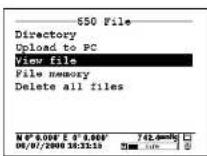

Note that, using these same basic guidelines, data could have been logged at another site on the same day with the user inputting a different site designation (file name and site name) in the field. Data could also have been logged single points or as a continuous data stream at each site simply by the choice of Log single point or Start logging, respectively, in the 650 Logging window.
Data can also be appended at later times to existing site designations. However, there is a limitation on this process: the parameter setup during subsequent logging runs MUST be exactly the same as for the first entry. For example, if you add a sonde parameter to the Report for the second logging run to a
650 MDS Section 3
3.5.3.3 LOGGING TO 650 MEMORY WITH A SITE LIST
In the example above, you learned how to log data to 650 memory that had file and site designations input to the logger at the time that the data was logged in the field. It is also possible, and in most cases more convenient, to place file and site designations into the 650 memory in the office or laboratory before moving to field for logging studies. This is particularly true if you are aware of the sites at which you will be determining water quality data and/or which you will be visiting on a regular basis. The following section describes how to set up site lists which contain entries designated "Site Designations" that will be instantly available to the user in the field to facilitate the logging of data in the field with pre-established naming of files and sites. There are two kinds of Site Designations available for use in Site lists:
- Site Designations associated with applications where data from a single site is always logged to a single file. This type is referred to as a "Single-Site Designation" and is characterized by two parameters - a file name and a site name. Files logged to 650 memory under a Single-Site Designations will be characterized primarily by the file name, but will also have the Site name attached, so that it is viewable in either the 650 File directory or in EcoWatch for Windows after upload to a PC
- Site Designations associated with applications where data from multiple sites are logged to a single file. This type is referred to as a "Multi-site Designation" and is characterized by three parameters – a file name, a site name, and a site number. Files logged to 650 memory under Multi-site Designations are characterized by a file name, but not a site name, since multiple sites are involved. However, each data point has a Site Number attached to it so that the user can easily determine the sampling site when viewing the data from the 650 File menu or processing the data in EcoWatch for Windows after upload to a PC.
When reading the following section on the use of the 650 Site list, remember that a Site List is a compilation of individual entries called Site Designations. Single-Site Designations are used when the data from a particular location is always logged to the same single file. A Single-Site Designation is characterized by a unique file name. Multi-Site Designations are used when data from several locations are logged to a single file. For Multi-site Designations, there will a single File Name with multiple Site Names and Site Numbers. The following displays show examples of Single and Multi-Site Designations.

650 MDS Section 3
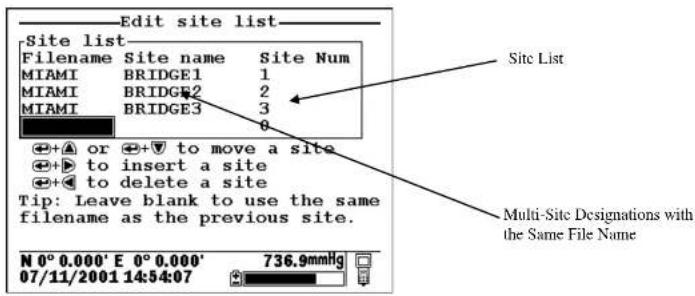
Note that Site lists containing Single Site Designations are usually input with the designation Store Site Number INACTIVE in the 650 Logging setup menu. Thus, no site numbers appear in the first Site list example. Conversely, Site lists containing Multi-Site Designations MUST be input with the Store Site Number selection ACTIVE as shown in the second example.
As noted above, establishment of either of these two types of Site Designations that are stored in 650 memory in a Site List will allow you to log field data to the 650 memory without entering file/site information from the 650 keypad in the field at each site. You will easily be able to access previously entered Site Designation information from this the Site List at each field site and thus simplify your record keeping and logging procedures. To utilize the full capability of the 650 logging system, you will need to understand how to set up and use these two types of Site Designations, particularly if you are performing multiple or replicate logging studies at various field sites. The following discussion and examples should help you understand how to set up site lists for various applications.
LOGGING OF DATA TO 650 MEMORY FROM SINGLE SITES TO SINGLE FILES - USE OF SINGLE-SITE DESIGNATIONS IN A SITE LIST
650 MDS Section 3
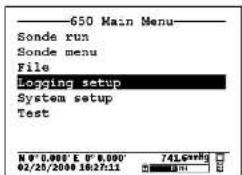
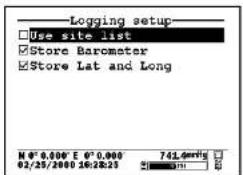

Note also that if you have purchased a 650 without the barometer option, the selection Store barometer will not be present. Decide whether or not you want to store GPS and barometer information with your data file and activate/deactivate the Store Lat and Long and Store Barometer selections appropriately. Leaving these selections active will occupy memory in the 650 during logging and this factor may be a consideration if you have purchased a 650 with "Low" memory and you do not really require this information in your file. Once these selections have been made, highlight the Edit site list selection and press Enter to display the screen below. Note that you can use the left/right arrows to scroll between the Filename and Site name selections and that tips about the meaning of these terms is provided at the bottom of the display depending on the position of the cursor.


To make Site list entries for this application, begin by highlighting the Filename position, pressing Enter and inputting the file name (WEST, in this case) from the keypad. Press Enter to confirm the entry and the cursor will automatically move to the right for the entry of a Site name. Enter BLUE LAKE for the site and press Enter to confirm the entry. The cursor will move automatically to the next Filename entry position. Now enter EAST for the file name and BLUE LAKE for the site name, pressing Enter after each
650 MDS Section 3
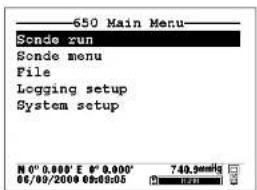

Then press Enter. When the logging prompt is activated, the site list will automatically appear on the display and be available for use in your study as shown below. First highlight the WEST file (since you are at that location) and press Enter to log data to the 650 memory. An indication that the logging was successful will appear in the 650 logging window. Then move to the next location (EAST), activate the 650 logging function, and repeat the logging process, but this time highlighting the EAST Filename entry.


NOTE: If you want to return to the Edit site list display for changes before logging, use the RIGHT ARROW KEY to highlight the Configure selection and press Enter. The up/down arrows will only scroll within the Site list.
The data from the two locations has been logged to the selected files that can be either viewed manually using the 650 View file menu or uploaded to EcoWatch for Windows from the 650 File menu. This means that all data for the West and East sites are located in separate files identified by the Filenames WEST and
650 MDS Section 3


These files will remain "open" in 650 memory so that you can return to each location at a future time and log more data to the file designations WEST and EAST (but see note below). The key for this Site list setup is that all data logged will be stored in a separate file for each location (WEST and EAST) which were designated as file names at the site BLUE LAKE.
NOTE CAREFULLY: As described above for non-site list files, there is a limitation on appending data to existing files: the parameter setup during subsequent logging runs MUST be exactly the same as for the first entry. For example, if you add a sonde parameter to the Report for the second logging run to a particular site, you will not be able to append this data to the existing file. If you logged Barometer or GPS readings to the initial file you will be required to maintain the logging of these files on subsequent logging runs. If your current parameter setup is different from the one used initially, the Site Designation for that file will be "grayed-out" in the Site list and will not be available until you adjust your parameter setup. If you try to log data to the grayed-out file, you will be shown a "Parameter Mismatch" screen similar to that for non-site list files which will aid in diagnosing the differences in the parameter setup that is preventing the existing file from being appended with new data
LOGGING OF DATA FROM SEVERAL DIFFERENT SITES TO THE SAME FILE - USE OF A "MULTI-SITE" LIST
The setup and use of Multi-Site Designations will be provided in the following example which deals with a different approach to the application in the previous example on Single-Site Designations: Water quality data needs to be collected for two sites at the West and East ends of a lake (Blue Lake) at various time intervals for 30 days. In this case, the environmental scientists want all of the data in a single file for recording keeping convenience. The key to this application is that the Site list will need to contain Multi-
650 MDS Section 3
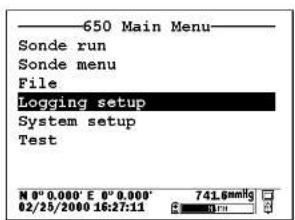

Then highlight the Edit site list selection and press Enter to display the following screen.

To generate a list of Multi-Site Designations for storing readings from various sites to the same file, establish two entries in the site list with the same file name (BLUEAKE). The entries will be differentiated by different Site names (WEST and EAST), and, more importantly, by different Site Numbers (1 for WEST and 2 for EAST) so that your site list appears as shown in display below.

650 MDS Section 3
Then move to the next location (EAST), activate the 650 logging function, and repeat the logging process, but this time highlighting the EAST Site name entry.
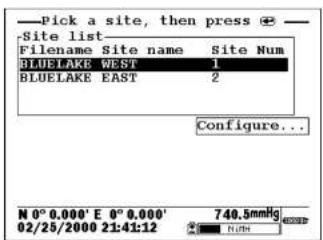

NOTE: If you want to return to the Edit site list display for changes before logging, use the RIGHT ARROW KEY to highlight the Configure selection and press Enter. The up/down arrows will only scroll within the Site list.
The data for two different sites has now been logged to the single file (BLUEAKE) that can be either viewed manually using the 650 View file menu or uploaded to EcoWatch for Windows from the 650 File [Upload to PC] menu. The Site Number ("1" for the WEST site and "2" for the EAST site) will be stored with each data point and will be thus be available for identifying where the data was taken. The file BLUEAKE can be examined by use of the 650 File selection. In the 650 File menu, highlight Directory and press Enter as shown below. Then press Enter with the cursor on the BLUEAKE file to show the file details.


650 MDS Section 3
Note that the data from two sites is identified by the Site Number attached to each data record. To index these numbers to the appropriate locations, the user must consult the Site list by activating Edit site list from the 650 Logging setup menu. The correlation between site names and numbers is found here, indicating that Site 1 is WEST and Site 2 is EAST.

This file will remain in 650 memory so that you can return to each location at a future time and log more data to the Site designations WEST and EAST. The key for this site list setup is that all data logged will be stored in the same file (BLUEAKE) under different Site Numbers for each location (1 for WEST and 2 for EAST).
NOTE CAREFULLY: The same limitation noted above applies for appending the file BLUFLAKE with additional data from these or other sites – the logging setup (sonde parameters, barometer, GPS) must be identical to that for the initially-stored data. If there has been a change in setup, the Site Designation will be "grayed-out" in the Site List indicating a parameter mismatch.
3.5.3.4 EDITING YOUR SITE LIST
The 650 software provides powerful tools for editing your site list. Actions such as inserting (adding) new entries, deleting existing entries, and moving entries within the list can be carried out easily from the keypad. Highlight the Edit site list entry in the 650 Logging setup display and press Enter to show the following screen.
650 MDS Section 3


The two inserted entries can be moved either up or down in the list by highlighting them and pressing the Up or Down arrow key while holding down the Enter key or completely deleted by highlighting the entry and pressing the Left arrow key while holding down the Enter key as shown below.

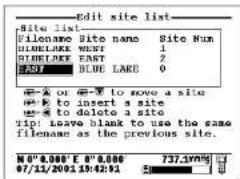
Finally, the user should be aware of a timesaving tip that is displayed when the Filename entry is highlighted. The tip allows much easier generation of Multi-Site Designations where the Filename is identical for several files. To "copy" the Filename from the previous file to a new entry below, simply highlight the new Filename block, press Enter and then enter site names and site numbers. The site list will show these blanks in the Edit site list mode as shown on the left below, but when the site list is accessed for logging studies the actual Filename will appear to avoid confusion. This is shown at the right below. Note that, by using this tip, two new sites have been easily added to the BLUEAKE Multi-site list with no need to enter "BLUEAKE" Filename for each new site.
3.5.4 650 LOGGING - "CANS" AND "CAN'TS"
The use of the 650 to facilitate the storage of data from YSI 6-series sondes has been described in some detail in the sections above. Unfortunately, the high levels of capability and flexibility of the 650 logging function might also be viewed as complexity which, in turn, can confuse some users about how to employ the 650 in their particular application. This section is designed to help with any confusion that exists by listing what “can” be done with the 650 logging system and what “can’t” be done.
3.5.4.1 SUMMARY OF 650 LOGGING CAPABILITIES
WITH A 650/YSI SONDE SYSTEM, THE USER CAN:
- Log sonde sensor data to either sonde memory (if your sonde is so equipped) or 650 memory.
- Log data as either a single point or as a continuous data stream.
- Log data in both single point form and continuous stream form to the same file in 650 or sonde memory.
- Log continuous data stream data at long or short sample intervals to sonde memory, as long as the study is started from the Run menu of the sonde.
- Log continuous data stream data at long or short sample intervals up to 15 minutes to 650 memory using the Sample Interval selection in the Logging setup menu of the 650.
- Log data from the 650 internal barometer to the memory of the 650.
- Log data from a user-supplied GPS unit to the memory of the 650, as long as the GPS unit is set up in NMEA format and has the proper cable.
- Log data with minimal keypad entry from the 650 display by using default file naming.
- Assign custom file and site names using the 650 keypad at the logging site.
- Set up custom site lists in the office or laboratory that are instantly available in the field to simply
650 MDS Section 3
3.5.4.2 SUMMARY OF 650 LOGGING LIMITATIONS
WITH A 650/YSI SONDE SYSTEM, THE USER CANNOT:
- Log GPS and/or barometer data to sonde memory.
- Log GPS and/or barometer to 650 memory without a sondc attached and the 650 in Run mode. See Sections 3.8.2 and 3.9.4 below.
- Log data to existing files in 650 memory if the data format does not EXACTLY match that of the data already in the file. Typical examples of this type of "file mismatch" include:
- Attempting to append existing data files after changing the parameter list.
- Attempting to append existing data containing a Site Number to a file that contains data without Site numbers.
- Attempting to append existing data containing NO site number to a file that contains data with Site numbers.
-
Attempting to append existing files containing GPS and/or barometer data after deactivating the storage of these parameters in Logging setup.
-
Delete individual files from 650 or sonde memory. The memory is "flash" and therefore all files must be deleted in order to regenerate the storage capacity.
- Enter more than 8 characters for a File name or more than 13 characters for a Site name.
3.6 MANAGING 650 FILES
3.6.1 INTRODUCTION
This section deals with the management of data that have been placed in 650 memory either through direct
650 MDS Section 3
To proceed with the details of 650 File management, turn the instrument on, highlight the File entry in the 650 Main menu, and press Enter to display the File commands as shown below.


3.6.2 DIRECTORY
Use the arrow keys to highlight the Directory selection in the 650 File menu and press Enter to display the list of files resident in the 650 memory.

Note that the size of the file is shown in two different ways: (1) the number of samples (logged data points of several parameters) and (2) the total number of bytes of memory occupied by the file. Highlight the top file (PPOEH E1) and year. Enter to separate a display of the detail of this file. Peace Faces and highlight
650 MDS Section 3
For both files, the file name, site name, file size and time of the first and last samples logged are shown. The information under Interval will identify whether the data were logged by manual control of the system (Discrete) or to the memory of a sonde set up in an Unattended sampling study. Only for Unattended sampling studies will the actual sample interval be displayed. When the Interval has the designation "Discrete", the time between samples can be determined by viewing the data as described below.
650 MDS Section 3
3.6.3 UPLOAD TO PC
This frequently used command is used to transfer data files resident in the 650 memory (either logged directly or uploaded from sonde memory) to a PC that is running YSI EcoWatch for Windows software. Once transferred, the data can be custom configured, plotted, and reported in tabular form using this software package. The data can also be exported from EcoWatch in spreadsheet compatible form if the user prefers this method of data analysis and management. In order to carry out the upload of data files to your PC, you must first connect the 650 to a serial port of your computer via the 655174 PC Interface cable as shown in the following diagram:

After the connection is made, run EcoWatch for Windows, click on the sonde icon in the upper toolbar, and set the Comm port number to match your interface. After this setup procedure, the following screen will be
650 MDS Section 3
To transfer data from the 650 to your PC, highlight the Upload to PC selection in the 650 File menu and press Enter to view a list of the files. Highlight the file that you wish to transfer and press Enter. The 650 and PC displays will show the progress of the file transfer until completion.


Note that there are three file types (with different extensions) in the above directory: (1) Files with .dat extensions which are data files logged to either sonde memory of 650 memory and which are in YSI PC6000 format; (2) Files with a .txt extension which are data files logged to sonde memory and then transferred to 650 memory in either ASCII or CDF format; and (3) Files with a .glp extension which are calibration records of either the sonde sensors or the 650 barometer. For files with a .dat or .txt extension, transfer to a PC using the Upload to PC command will proceed automatically and retain the file type that is present in 650 memory. For files with a .glp extension, an additional screen will appear on activating the transfer that gives a choice of binary, CDF, or ASCII for moving the file to the computer. You currently MUST use either the CDF or ASCII format for transfer so that the .glp file can be viewed in NotePad or other word processing program. The binary transfer option is for future YSI upgrades.
After transfer the file will be located in the C:\ECOWWIN\DATA subdirectory of your PC hard drive.
3.6.4 VIEW FILE
The View file selection in the 650 File menu allows the user to examine the data in files logged or uploaded to 650 memory. Highlight the View file selection and press Enter to display a list of files present. Then highlight the file of interest and press Enter to view the data on the 650 display.


650 MDS Section 3
Use the arrow keys to scroll vertically to view more data points with regard to time or horizontally to view more sensor data within a particular data entry. The vertical and horizontal scroll bars identify your location within the data file.
3.6.5 FILE MEMORY
The File memory selection in the 650 File menu allows the user to get a complete picture of how the memory of the instrument is presently allocated. To view details of the allocation, highlight File memory and press Enter to display the following screen.


The key number in the File bytes used display is the Free memory listing which can be used to determine when you need to format the 650 memory ("Delete all files" as described in the next section). The value under Total memory will reflect whether you purchased a 650 with high or low memory. The top three items in the display summarize the allocation of the used memory space. In the example above, 6400 bytes are used in defining the memory directory, 512 bytes are taken up with accessible files, and 0 bytes are taken up in "deleted" files. As described in Section 3.2.2 above, "deleted" files arise when the same file is uploaded from a sonde several times with the file "overwritten".
There is a lot of information on the File memory display, but the number of greatest importance is the Free
650 MDS Section 3
3.7 UPLOADING DATA FROM SONDES
3.7.1 INTRODUCTION
A primary function of the 650 is to serve as an intermediate location for transfer of data stored in deployed 6-series sondes to a PC without bringing the sondes back to the base facility. In this application, the user connects the 650 to the sonde at the deployment site via a standard YSI field cable and, using the proper keypad commands, transfers the data stored in the sonde to the memory of the 650. The sonde is then redeployed without disturbing the study and the data transferred to a PC on return to the base facility.
3.7.2 UPLOAD PROCEDURE
After attachment of the sonde to the 650 with a YSI field cable, turn on the 650, highlight the Sonde menu selection and press Enter to display the Main sonde menu. Highlight the File selection and press Enter. NOTE: The upload MUST be made from the File menu of the sonde, not the File menu of the 650.

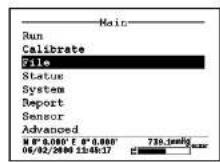
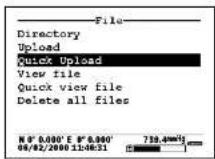
Select the Upload or Quick upload (last file) and press Enter. Then follow the instructions including selection of file format - YSI recommends the PC6000 format. Press Enter and the display will indicate that upload of data from sonde to 650 is in progress as shown below. When the upload is complete, the display will return to the Sonde File menu.
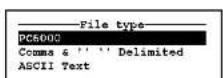

650 MDS Section 3
3.8 USING GPS WITH THE 650
3.8.1 SETTING UP THE GPS-650 INTERFACE
The 650 allows the user to display GPS readings of latitude and longitude from a commercially-available, user-supplied unit in the Status Bar of the 650 display. The interface of the GPS unit to the 650 is accomplished via the 6115 GPS cable that can be purchased as an optional accessory. Using the 6115 cable, GPS readings can also be logged to the 650 memory along with sonde sensor readings taken at a particular geographical location, which can then be relocated for subsequent studies.
The use of the GPS interface is easy, but the user must configure the hardware and software of the GPS unit as follows before proceeding:
- Consult the user manual of the GPS unit and configure the instrument so that readings in the NMEA 0183 protocol are generated.
• Purchase from your GPS manufacturer a cable that connects at one end to the GPS unit and has at its other end a female DB-9 connector for interface with the YSI 6115 GPS cable.
Once these requirements are met, proceed according to the following instructions, consulting Figure 2 in Section 3.2.3 above for assistance:
- Connect the 6115 GPS cable to the 650 via the MS-8 connector.
- Connect the other MS-8 connector of the 6115 GPS cable to the MS-8 connector or your sonde cable.
- Attach the male DB-9 connector of the 6115 GPS cable to the mating female connector of your GPS unit.
- Turn on the 650 and make certain that appropriate GPS readings are displayed in the upper left corner of the Status Bar as shown in the following display.
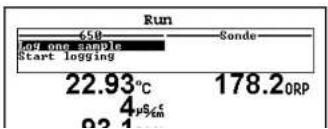
650 MDS Section 3
- The GPS readings must be logged to 650 memory from the 650 Run display along with sonde sensor readings. This means that you must have a sonde attached to your 650 via the 6115 cable in order to log GPS readings. Logging of GPS readings is not supported without sonde attachment even though these readings can be viewed in the Status Bar with no sonde attached.
- If your want to log the GPS readings to 650 memory along with sondc sensor readings at a particular location, you must make certain that the Store Lat and Long option is active in the Logging setup menu of the 650.
Once these conditions are met, follow the instructions in Section 3.5.3 above for logging of sonde sensor readings to 650 memory. The GPS readings will automatically be added to the file at the sample interval selected for the sonde readings.
GPS readings stored in 650 memory will remain as part of the sensor data file that can be viewed from the 650 display and/or uploaded with the data file for analysis in EcoWatch for Windows. Latitude and longitude are, however, displayed somewhat differently by the 650 and EcoWatch as noted below:
- For both display formats, the GPS are indexed relative to the point where the Greenwich Mean Time line crosses the equator.
- For the 650 Status Bar, readings are displayed in degrees and then decimal minutes relative to this point with actual "N" (north), "S" (south), "E" (east) and "W" (west) designations relative to the index point.
- When analyzing data in EcoWatch, the user will have the choice of two formats, decimal degrees (e.g., 47.5400 degrees) or degrees/decimal minutes (e.g., 47°32.400'). For EcoWatch, alpha directional characters ("N", "S", "E", and "W") are NOT used. Instead, points north and east of the index point are designated as positive, while points south and west are designated as negative.
These criteria mean that the GPS coordinates of Yellow Springs, Ohio, USA are approximately 39° 47.33' latitude and -83°54.13' longitude as read in EcoWatch, but N 39° 47.33' W 83°54.13' as displayed by the 650.
3.9 USING THE 650 BAROMETER
3.9.1 PRINCIPLES OF OPERATION
The optional barometer operates on the strain-gauge principle and is located on the internal PCB of the 650. To make certain that the barometer is sensing true atmospheric pressure under conditions of temperature and pressure changes, the interior of the case is vented to the atmosphere with patches of material which are permeable to air, but impermeable to water. One of these patches is located in the rear section of the case and the other is attached to the battery lid. The patch on the case rear is not accessible to the user, but the one on the battery lid can be damaged by abuse. Be certain to identify the location of the patch on the interior of the battery lid and take care not to puncture it with sharp objects or to peel it away from the plastic. If you suspect that the venting patch on your battery lid has been damaged, make certain that you do not expose the 650 to water (either spraying or submersion). Then contact YSI Technical Support as soon as possible for advice.
The 650 barometer reads true barometric pressure and therefore is unlikely to agree with values from your local weather service which are usually corrected to sea level before being distributed. Note, however, that the primary purpose of the barometer is for use in calibrating your sonde dissolved oxygen sensor and the "true" value as shown in the 650 Status Bar is the required parameter for this procedure.
3.9.2 CALIBRATING THE BAROMETER
The 650 barometer is factory calibrated to provide accurate readings in the 500 - 800mmHg range which will be useful for dissolved oxygen calibration at most locations. This factory calibration should provide readings that are useful for dissolved oxygen calibration for many months with no user attention. However, if the user wishes to either increase the accuracy of the sensor in the local barometric pressure range or to compensate for the small drift associated with any sensor, the 650 provides a single point calibration routine which is accessed in the 650 System setup menu and is described in Section 3.3.5 above.
The critical factor in carrying out the single point calibration is the accuracy of the "standard" barometer that is used to determine the true barometric pressure. Common sources of this "standard" reading are high quality laboratory barometers (either mercury-based or electronic) and data from your local weather service. Laboratory barometer readings are usually "true" (uncorrected) values of air pressure and can be used "as is" for a standard as long as the system is known to be accurate. Weather service readings are usually not "true".
650 MDS Section 3
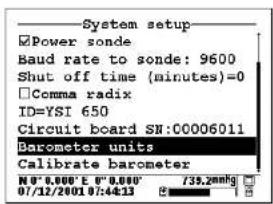
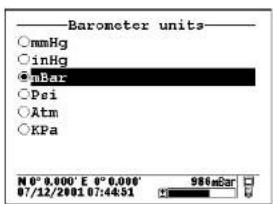
3.9.4 LOGGING BAROMETER READINGS
To log barometric pressure readings with the 650, the following conditions (similar to those above for logging GPS readings) must be met:
- Barometer readings can ONLY be logged to 650 memory – the system does NOT support logging to sonde memory.
- The barometer readings must be logged to 650 memory from the 650 Run display along with sonde sensor readings. This means that you must have a sonde attached to your 650 in order to log barometer readings. Logging of barometer readings is not supported without sonde attachment even though these readings can be viewed in the Status Bar with no sonde attached.
- If your want to log barometer readings to 650 memory, you must make certain that the Store Barometer option is active in the Logging setup menu of the 650.
Once these conditions are met, follow the instructions in Section 3.5.3 above for logging of sonde sensor readings to 650 memory. The barometer readings will automatically be added to the file at the sample interval selected for the sonde readings.
Barometer readings stored in 650 memory will remain as part of the sensor data file that can be viewed from the 650 display and/or unloaded with the data file for analysis in EcoWatch for Windows. The
650 MDS Section 3
3.10 UPGRADING 650 SOFTWARE
The 650 software can easily be upgraded from the YSI World Wide Web page (www.ysi.com). However, before accessing the Web page, the instrument should be prepared for upgrade by attaching the MS-8 end of the YSI 655174 PC Interface cable to the 650 and the DB-9 end of the 655174 to a serial port of a PC which has Internet access as shown below:

Once the setup is complete, access the YSI Web Page and locate the section on software upgrades. Select the 650 upgrade entry and follow the instructions provided on the Web Page. If you encounter difficulties in the upgrade procedure, contact YSI Technical Support for advice.
3.11 TROUBLESHOOTING
The following sections describes problems which you might encounter when using the 650 MDS and provides suggestions which might allow the user to overcome the symptom without additional assistance.
| PROBLEM | POSSIBLE SOLUTION |
| No display is visible after pressing the on/off key. | If C cells are used, make certain that they are installed properly with regard to polarity and that good batteries are used. If a rechargeable battery pack is used, place the pack in the instrument and charge for 30 minutes. |
| No interaction with the sonde occurs when pressing Sonde run or Sonde menu from the 650 menu. | Make certain that (a) the cable is connected properly between sonde and 650 and (b) that Sonde power is activated in the 650 System setup menu. |
| Instrument software appears to be locked up as evidenced by no response to keypad entries or display not changing. | First, attempt to reset the instrument by simply turning off and then on again. If this fails, remove battery power from the instrument for 30 seconds and then reapply power. When using C cells, remove the battery lid and one of the batteries; when using the rechargeable battery pack, remove the pack completely from the instrument. After 30 seconds replace the battery or battery pack and check for instrument function. |
| Upload of files to 650 from sonde fails. | (1) Make sure that cable is connected properly to both 650 and sonde; (2) Make certain that you are accessing the upload routine from the sonde File menu and NOT from the 650 File menu. |
| Upload of files from 650 to PC fails | 1) Make sure that cable is connected properly to both 650 and PC; (2) Make certain that the proper Comm port is selected in EcoWatch for Windows. |
| GPS and/or barometer data is not stored with sonde data file. | Make sure Store barometer and Store Lat and Long are active in 650 Logging setup menu. |
| Site Designations in the Site List are “grayed-out” and not available for appending files with additional data. A “Parameter Mismatch” screen is displayed. | There is a parameter mismatch between the current 650 setup and that initially used. Use 650 File view and the Parameter Mismatch screen to determine the sonde parameter, barometer, and GPS format of file. |
650 MDS Section 3
3.12 FERRITE BEAD INSTALLATION
WARNING: If you are using your 650 in a European Community (CE) country or in Australia or New Zealand, you must attach a ferrite bead to the 655174 PC Interface Cable and the 6116 Charger Adapter Cable in order to comply with the Residential, Commercial and Light Industrial Class B Limits for radio-frequency emissions specified in EN55011 (CISPR11) for Industrial, Scientific and Medical laboratory equipment. These ferrite assemblies are supplied as part of cable kits.
To install the beads, follow these steps:
• Make a small loop (approximately 5 cm in diameter) in the cable near the 650 MS-8 connector.
- Lay the open ferrite bead assembly under the loop with the cable cross-over position within the cylinder of the ferrite bead. See the drawing below for assistance.

natural_image
Pure technical line drawing of a mechanical component with no text or symbols- Snap the two pieces of the bead together making certain that the tabs lock securely.
When the installation is complete, the 655174 and 6116 cables should resemble the following schematic drawings.
3.13 650 SAFETY CONSIDERATIONS
IMPORTANT SAFETY INSTRUCTIONS!
⚠️ SAVE THESE INSTRUCTIONS!
In essence, the most important safety rule for use of the 650 is to utilize the instrument ONLY for purposes documented in this manual. This is particularly true of the 6117 rechargeable battery pack that contains nickel metal hydride (NiMH) batteries. The 650 user should be certain to read all of the safety precautions outlined below before using the instrument.
6113 Rechargeable Battery Pack Safety Information
⚠️Restrictions on Usage
- Never dispose of the battery pack in a fire.
- Do not attempt to disassemble the 6117 battery pack.
- Do not tamper with any of the electronic components or the batteries within the battery pack. Tampering with either the electronic circuitry or the batteries will result in the voiding of the warranty and the compromising of the system performance, but, more importantly, can cause safety hazards which result from overcharging such as overheating, venting of gas, and loss of corrosive electrolyte.
- Do not charge the battery pack outside the 0-40 C temperature range.
- Do not use or store the battery at high temperature, such as in strong direct sunlight, in cars during hot weather, or directly in front of heaters.
- Do not expose the battery pack to water or allow the terminals to become damp.
650 MDS Section 3
⚠️Danger Notifications – Misuse creates a STRONG possibility of death or serious injury.
FAILURE TO CAREFULLY OBSERVE THE FOLLOWING PROCEDURES AND PRECAUTIONS CAN RESULT IN LEAKAGE OF BATTERY FLUID, HEAT GENERATION, BURSTING, AND SERIOUS PERSONAL INJURY.
- Never dispose of the battery pack in a fire or heat it.
- Never allow the positive and negative terminals of the battery pack to become shorted or connected with electrically conductive materials. When the battery pack has been removed from the 650, store it in a heavy plastic bag to prevent accidental shorting of the terminals.
- Never disassemble the battery pack and do not tamper with any of the electronic components or the batteries within the battery pack. The battery pack is equipped with a variety of safety features. Accidental deactivation of any of these safety features can cause a serious hazard to the user.
- The NiMH batteries in the battery pack contain a strong alkaline solution (electrolyte). The alkaline solution is extremely corrosive and will cause damage to skin or other tissues. If any fluid from the battery pack comes in contact with a user's eyes, immediately flush with clean water and consult a physician immediately. The alkaline solution can damage eyes and lead to permanent loss of eyesight.
⚠ Warning Notifications – Misuse creates a possibility of death or serious injury
- Do not allow the battery pack to contact freshwater, seawater, or other oxidizing reagents that might cause rust and result in heat generation. If a battery becomes rusted, the gas release vent may no longer operate and this failure can result in bursting.
- If electrolyte from the battery pack contacts the skin or clothing, thoroughly wash the area immediately with clean water. The battery fluid can irritate the skin.
650 MDS Section 3
616 Cigarette Lighter Charger Safety Information
- This section contains important safety and operating instructions for the 650 cigarette lighter battery charger (YSI Model 616; RadioShack Number 270-1533E). BE SURE TO SAVE THESE INSTRUCTIONS.
- Before using the 616 cigarette lighter charger, read all instructions and cautionary markings on battery charger, battery pack, and Model 650.
- Charge the 6117 battery pack with the 616 cigarette lighter charger ONLY when the 6117 is installed in the YSI 650.
- Do not expose charger to rain, moisture, or snow.
- Use of an attachment not recommended or sold by the battery charger manufacturer may result in a risk of fire, electric shock, or injury to persons.
- To reduce risk of damage to cigarette lighter and cord, pull by cigarette lighter rather than cord when disconnecting charger.
- Make sure that the cord is located so that it will not be stepped on, tripped over, or otherwise subjected to damage or stress.
- Do not operate charger with damaged cord or cigarette lighter connector – replace it immediately.
- Do not operate charger if it has received a sharp blow, been dropped, or otherwise damaged in any way; contact YSI Technical Support.
- Do not disassemble charger other than to change the fuse as instructed. Replace the part or send it to YSI Product Service if repair is required. Incorrect reassembly may result in a risk of electric shock or fire.
- To reduce risk of electric shock, unplug charger before attempting any maintenance or cleaning. Turning off controls will not reduce this risk.
650 MDS Section 3
⚠️CAUTION: If water has contacted the rechargeable battery pack, do not attempt to reuse it until it has been evaluated by YSI Product Service. Failure to follow this precaution can result in serious injury to the user.
If it is suspected that leakage into the main cavity of the case has occurred, remove the batteries immediately and return the instrument to YSI Product Service for damage assessment.
CAUTION: Under no circumstances should the user attempt to open the main case.
3.14 650 MDS SPECIFICATIONS
Resistance to Water Leakage: IP 67 for both the standard alkaline battery configuration and for the rechargeable battery pack option.
Operating Temperature Range for Visible Display: -10 to 60 Degrees Celsius
Storage Temperature Range: -20 to 70 Degrees Celsius
Dimensions: 9.13 inches long by 4.75 inches wide by 2.25 inches deep
Weight with 4 Alkaline C cells and no attached sonde or cable: Approximately 2.1 lbs. (960 g).
Display: ¼ VGA; LCD with 320 by 240 pixels with backlight
Connector: MS-8; Meets IP 67 specification
Standard Battery Configuration:
4 Alkaline C Cells with detached battery cover
Optional Battery Configuration:
650 MDS Section 3
Barometer:
Range: 500 to 800 mm Hg
Resolution: 0.1 mm Hg
Accuracy: +/- 3 mm Hg within +/- 10°C of the calibration temperature
Communication Protocol:
RS-232 to all sondes and for data transfer to PC and for software updates
GPS via Y-cable - NMEA 0183
Standard Backlight Feature: 4 LEDs illuminating LCD
Keyboard: 20 keys including Meter On/Off, Backlight On/Off, Enter, Escape, 10 Number/Letter Entry Keys, 2 Vertical arrow keys, 2 Horizontal arrow keys, 1 minus/hyphen entry key, 1 decimal point/period
650 MDS Section 3
DECLARATION OF CONFORMITY
| Manufacturer: | YSI Incorporated1725 Brannum LaneP.O. Box 279Yellow Springs, OH 45387USA |
| Product Name: | Multiple Parameter Display/Data Logger |
| Model Numbers: | 650 (with accessories: 6117 Rechargeable Battery Pack, 616 Vehicle Cigarette Lighter Adapter, 6116 Adapter Cable) |
| Conforms to the following: | |
| Directives: | EMC Directive |
| Harmonized Standards: | EN 61326: Electrical Equipment for Measurement Control and Laboratory Use. Specifically the following:Emissions Standard (EN 55011: Class B; Residential, Commercial & Light Industrial) Safety Standard (EN61010) |
Supplementary information:
The Model 616 Vehicle Cigarette Lighter Adapter was evaluated for conformity to UL 2089, including testing per section 23, 24, 25, & 27, with no failures observed. Exposure of Model 650 to conditions per EN61000-4-3 at 1000-Volts and EN61000-4-2 at 8-Kv Contact, caused loss of instrument status and software lock-ups. Exposure to conditions per EN61000-4-4 at 3V/m or EN61000-4-6 at 3VRMS may cause similar malfunctions. Chronic exposure may lead to damage.

Lisa Abel
Director, Quality Assurance
650 MDS Section 3
EcoWatch for Windows Section 4
SECTION 4 ECOWATCH FOR WINDOWS
4.1 INTRODUCTION
EcoWatch for Windows is intended to be the PC software interface to YSI's 6-Series environmental monitoring systems equipment. From EcoWatch you can program field equipment, upload data collected on the equipment, and format the data in easy to understand graphs and tables.
4.1.2 GLOSSARY
These are a few of the more commonly used terms used in EcoWatch.

EcoWatch for Windows Section 4
6 - Page The Data Display Window can be divided in two pages, a
graph page and a table page. A page becomes active when you click on it.
7 - Terminal window
This is the window that is open to display the sonde's internal menu. Allows the user to interact with the sonde or display/logger. The terminal window is a communication interface with another piece of equipment, whereas the Data Display Window is direct interaction with the EcoWatch software.
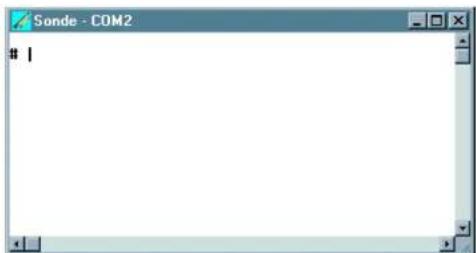
8 - Dialog box A dialog box opens to display choices. Such as File Open.
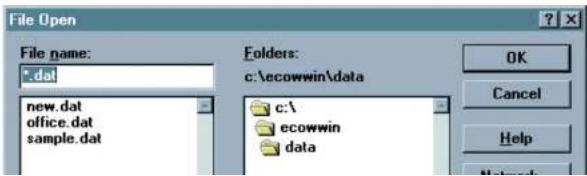
EcoWatch for Windows Section 4
EcoWatch starts without an open data file (or .DAT file). When a data file is not open, a shortened menu bar is visible and many of the tools in the toolbar appear dimmed. Opening a data file will better demonstrate the capabilities of EcoWatch software.
To open the sample data file:
- Click the File menu button in the toolbar.
- Select the SAMPLE.DAT file.
- Click OK to open the file.
Note that the data in this file appears as a graph of temperature, specific conductance, dissolved oxygen, pH, ORP, and depth, all versus time. The graphs are scaled automatically so that all data fits comfortably on the computer screen.
The Table and Graph buttons on the toolbar are on/off switches that are used to display or hide the graph and table pages respectively. When displaying a graph and a table at the same time, you can control the relative size of the two pages by placing the cursor over the small bar that separates them and then dragging it to the desired location.
From the Setup menu, click Graph. Click 2 Traces per Graph and notice that the parameters are now graphed in pairs. Click 1 Trace per Graph to return the display to the original setting.
Move the cursor to any position in the graph, then click and hold the right mouse button. Note that the exact measurements for this point in time are displayed to the left of the graph. While holding down the right mouse button, move to another area on the graph. Notice how the measurements change as you move. When you release the mouse button, the display returns to normal.
To view statistical information for the study, click the Statistics button on the toolbar. On the statistics window, click on any min or max value to display the time when it occurred. Double-click in the upper left of the Statistics window to return to the normal display.
End the tutorial by saving the Data Display in the format shown. To do this:
- From the File menu, click Save Data Display.
-
Type Default for the file name when prompted for the Data Display Name.
-
Click Save.
The parameters, colors, format, and v-axis time interval associated with the current display are now saved.
EcoWatch for Windows Section 4
Click To:

Open an existing data file (.DAT). EcoWatch displays the Open dialog box, in which you can locate and open the desired file.

Save the working Data Display of the active data file. EcoWatch displays the Save Data Display dialog box in which you can overwrite existing Data Display or save to a new one.

Export data as a graph in Window Meta File (.WMF) format or as data in Comma Delimited (.CDF) format.

Copy the whole graph page or data from the selection on the table to the clipboard.

Print the active graph page or table page depending on which one is currently active.

Open a new terminal window to communicate with the sonde.

Access context sensitive help (Shift+F1).

Toggle table window during file processing.

Toggle graph window during file processing.

Display study statistics.

Display study info.

EcoWatch for Windows Section 4
4.1.5 TYPICAL APPLICATION
Suppose you want to measure Dissolved Oxygen, pH, Temperature, and Turbidity in a nearby stream and decide to start with a 30-day deployment using the YSI 6920 sonde. The task can be organized into several steps:
1. Calibrate and setup the sonde.
First connect your sonde to one of the serial communications ports on your PC. In the Comm menu, click Sonde and you will get a terminal window where you can calibrate the sonde and set it up for logging. You are now communicating directly with the sonde software. See Section 2.6, Calibration for more detailed instructions on calibration of sensors. See Section 2.5, Sonde Software Setup for sonde setup.
2. Deploy the Sonde
For more details, see Section 2, Sondes and Section 3, Displays/Loggers.
3. Retrieve the Sonde and Upload the Data
After retrieving the sonde, connect it to your PC and upload the data. As with calibration and setup, you can use the Sonde button in EcoWatch to communicate with the sonde. Using the sonde menu, upload the data to EcoWatch. The data will now be in a .DAT file on your PC.
4. Graph the Data and Adjust the Graphs to Your Liking
Open the newly uploaded .DAT file. In this example, the file is called JONES2.DAT. Upon opening the file it looks like the graphic at the end of this tutorial. You can then use the commands in the Graph menu to Zoom to the portion of the graph that you are most interested in. You can use the Setup menu to add a title or change colors, scale the graphs or select the parameters to be shown.
EcoWatch for Windows Section 4

line
| Time (MM/DD/YY) | Oil Production (L/day) | Oil Core (mg/L) | Daily Oil Yield (%) | | --------------- | ---------------------- | --------------- | ------------------- | | 06/17/94 | ~0.8 | ~1.0 | ~6.5 | | 06/26/94 | ~0.7 | ~0.9 | ~6.3 | | 07/05/94 | ~0.8 | ~1.0 | ~6.7 | | 07/14/94 | ~0.7 | ~0.9 | ~6.4 |5. Print Your Graph
To print the graph, open the File menu, choose Print Setup or Print to choose exactly how the print should look.
EcoWatch for Windows Section 4
4.2 DATA ACQUISTION AND ANALYSIS
4.2.1 CONNECT A YSI SONDE OR A 650 DISPLAY/LOGGER
EcoWatch may be used with various sondes or display/loggers. To utilize the configuration that will work best for your application, make sure that you have all of the components that are necessary.


EcoWatch for Windows Section 4
A sonde or 650 display/logger must be connected to one of the serial communication ports on the back of your PC. These ports are usually referred to as COM1, COM2, etc. Most computers have at least two COM ports but they are often not labeled. To identify a COM port, look for unused 9 or 25 pin, D-shaped connectors with pin contacts.
Some sondes have integral cables and others require a separate cable sold especially for use with the sonde. Depending on the exact connector on your PC, you may also need a 9 to 25 pin adapter.
There is an PC interface cable for the 650 display/loggers that has a 9 pin D-shaped connector. This connector must be attached to your computer.
Once physically connected, you are ready to communicate using EcoWatch. Use the Sonde command in the Comm menu or the sonde button on the toolbar. This will give you a terminal window. From this window you interact with the sonde software using its menu system, or upload a file from a 650 display/logger. See Section 2, Sondes for details on how to use the sonde software.
4.2.2 UPLOAD A FILE FROM A SONDE
Data that is processed in EcoWatch typically originates in a sonde with batteries and is uploaded to a PC. To upload data from a YSI sonde, connect the sonde to your PC and open the EcoWatch software. Use the Sonde button on the toolbar to communicate with the sonde software.
Using the sonde software, go to the Main menu by typing "menu" on the blank terminal screen. Then choose 3-File Menu. You will most likely be uploading the most recently recorded data. If so, simply press 3-Quick Upload. Otherwise, press 2 to choose a file to upload. The sonde will ask you to choose a format for the file. Be sure to choose PC6000 format. After it is uploaded, the data will be in a .DAT file on your PC. You can then use EcoWatch to view, manipulate and print the data file.
4.2.3 UPLOAD A FILE FROM A 650 DM DISPLAY/LOGGER
To transfer data files resident in the 650 memory (either logged directly or uploaded from sonde memory) to a PC that is running YSI EcoWatch for Windows software, you must first connect the 650 to a serial port of your computer via the 655174 PC Interface cable as shown in the diagram above.
EcoWatch for Windows Section 4
To transfer data from the 650 to your PC, highlight the Upload to PC selection in the 650 File menu and press Enter to view a list of the files. Highlight the file that you wish to transfer and press Enter. The 650 and PC displays will show the progress of the file transfer until completion.

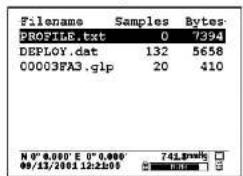

Note that there are three file types (with different extensions) in the above directory: (1) Files with .dat extensions which are data files logged to either sonde memory of 650 memory and which are in YSI PC6000 format; (2) Files with a .txt extension which are data files logged to sonde memory and then transferred to 650 memory in either ASCII or CDF format; and (3) Files with a .glp extension which are calibration records of either the sonde sensors or the 650 barometer. For files with a .dat or .txt extension, transfer to a PC using the Upload to PC command will proceed automatically and retain the file type that is present in 650 memory. For files with a .glp extension, an additional screen will appear on activating the transfer that gives a choice of binary, CDF, or ASCII for moving the file to the computer. You currently MUST use either the CDF or ASCII format for transfer so that the .glp file can be viewed in NotePad or other word processing program. The binary transfer option is for future YSI upgrades.
After transfer the file will be located in the C:\ECOWWIN\DATA subdirectory of your PC hard drive.
4.2.4 USING THE GRAPH
Once uploaded, data can be easily displayed in EcoWatch. Open a .DAT file. The six buttons on right side of the toolbar help you get a closer view of that portion of the graph you desire.

Use this to select a certain portion of the graph to be displayed. Click the button and then click and drag on the graph to select the portion you want to view. The
EcoWatch for Windows Section 4
Unzoom

Use this button to view the study from the beginning limit to the end limit. This command can be used on both graphs and data tables.
Zoom In

Click this button to magnify by 20%. This command can be used on both graphs and data tables.
Zoom Out

Click this button to reduce magnification by 20%. This command can be used on both graphs and data tables.
EcoWatch for Windows Section 4
4.2.5 GRAPH DATA IN REAL TIME
Choosing the New command from the Real-time menu will bring up a window with graphs that plot data from the sonde as the measurements are being taken. If you do not have a default COM port set in the Communications Settings dialog, then you will be asked which COM port to use for the real-time measurements. If you do have a default port selected, then the program will use that port automatically.
The number of parameters displayed during real-time is set by the sonde. If four parameters are set in the Report setup in the sonde, then those same parameters will be displayed in real-time. If you want to change the parameters displayed, then you must close the real-time window, open a sonde terminal window, change the number of parameters in the sonde software menu, and then return to real-time measurements.
The Settings command in the Real-time menu takes you to a dialog where you can set the x-axis time and the sample interval.
EcoWatch for Windows Section 4
4.3 ECOWATCH MENU
4.3.1 FILE
The File menu offers the following list of commands. Some commands are available only when a file is open.
OPEN
Use this to open sonde data file (.DAT).
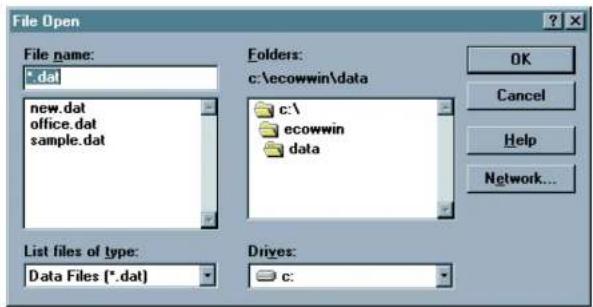
File Name Type or select the filename you want to open. This box lists files with the extensions you select in the List Files of Type box.
List of Files of Type Select the type of file that you want to open.
*.dat Sonde binary data file
*txt 500n ASCII text file
EcoWatch for Windows Section 4
CLOSE
Use this command to close all windows containing the active document. EcoWatch automatically saves any changes before the file is closed.
You can also close a document by using the Close icon on the document's window, as shown below:

IMPORT
With this command, you can import common ASCII files into EcoWatch. The file will be converted into PC6000 format and again with a .DAT extension.
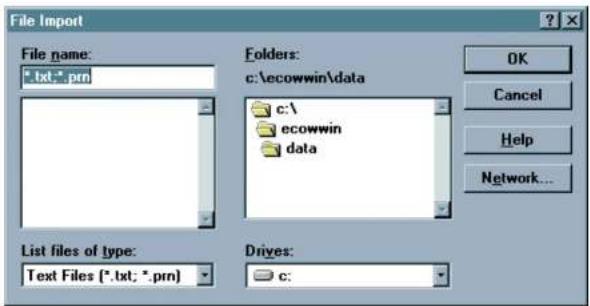
MERGE
EcoWatch for Windows Section 4
![Merge File This function merges two data files. Both files must be in PC6000 format [.DAT] and have the same number of parameters and types. Data record time stamps in the destination data file will be sorted in ascending order. Please enter source and destination files below. Source file 1 Browse... Source file 2 Browse... Destination file Browse... Merge Close](/content/2026/06/1216455/images/5fee44bfd77e25a69b09b789bc7262c0a97f44f759f6d3172c4815722235ebc8.jpg)
COPY TO CLIPBOARD
If a graph or table is active, then choosing this command will send its contents to the Windows clipboard so that it can be pasted into other programs. This is a normal method of transfer data between different Windows programs.
Shortcuts
Toolbar:
T:

CTRL+C
EcoWatch for Windows Section 4
SAVE DATA DISPLAY
When opening a data file, you will probably want to look at the data in graph form. You may also want to rearrange the default graph by selecting or rcordering parameters, zooming in to a portion of the graph, or even changing colors or changing fonts. You may sometimes choose to look at the data or a portion of it in table form. All of this work is done in the Data Display window.
This command allows you to save the settings and content of the Data Display window so that you can load it at another time and have it look exactly the same as when you saved it. This saved display is associated with the data file. Up to 9 data displays can be saved per data file. When you save a display you will be asked to give it a name in the following dialog box.

There must be an open data file for this command to be available. See also Load Data Display.
Shortcuts
Keys: CTRL+S
EcoWatch for Windows Section 4

EXPORT
Use this command to send the current data to a file. Typically, some other program will read the file. You will see the following dialog box.

EcoWatch for Windows Section 4
individual data entries, quotation marks surround any text and no formatting or marking is performed on numbers. EcoWatch can also open files in CDF formats.
When the exported file is to be imported into a spreadsheet, it is sometimes convenient to reduce the number of data. Averaging them can easily do this. See Change Parameter Attributes for more information.
Shortcuts
Toolbar:

REPORT
Use this command to send data or statistics to an ASCII text file. The information is easy to read in this format. When choosing this command the following dialog box will appear.

You must enter a filename (under File; use the Browse button if needed). If you want to simply have a report Tyne listing the data then click Data. If you want
EcoWatch for Windows Section 4
Use this command to print a document. If a graph is selected, this command presents a Print Option dialog box with the options below. When a table is selected, a standard print window is

presented.
Shortcut
Toolbar: Keys: CTRL + P

Printer
If you have a color printer, you can choose to print in Color. Otherwise you should choose Mono (black and white).
Size
If you choose Max size, then the program will size the graph so that it fits on one page. If you choose Exact size, then program will print the graph as close as possible to the size that is displayed.
Maintain Aspect Ratio
EcoWatch for Windows Section 4

PRINT SETUP
Use this command to select a printer and a printer connection. This command presents the Print Setup dialog box. The following options allow you to select the destination printer and its connection.

EcoWatch for Windows Section 4
Orientation Choose Portrait or Landscape.
Paper Size Select the size of paper that the document is to be printed on.
Paper Source Some printers offer multiple trays for different paper sources. Specify the tray here.
Options Displays a dialog box where you can make additional choices about printing, specific to the type of printer you have selected.
Network Displays a dialog box that allows you to choose a printer if you are on a network.
PAGE SETUP
Layout options for printable data tables may be specified. Page margins, table setup, page orientation, and page order are adjustable.

EcoWatch for Windows Section 4

4.3.2 EDIT
The edit menu appears whenever a data file is opened in EcoWatch. It allows you to locate, format, and manage data.
COPY
Copies the selection to the clipboard. If a graph or table is active, then choosing this command will send its contents to the Windows clipboard so that it can be pasted into other programs. This is a normal method of transfer data between different Window programs.
Copying data to the clipboard replaces the contents previously stored there.
EcoWatch for Windows Section 4
INSERT PARAMETER
Adds an additional parameter to the data table and graph. All available parameters that can be added are shown on a list.
FIND
Locates text within the selected parameter. Only one parameter may be searched at a time. A system beep indicates that there are no more occurrences of the desired text.
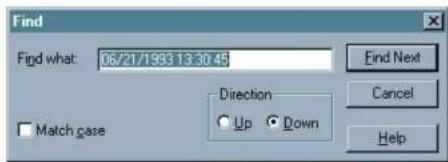
FIND AGAIN
Locates the text that was most recently searched for within the selected parameter. Only one parameter may be searched at a time.
4.3.3 VIEW
The View menu offers the following commands:
TOOLBAR
Use this command to display and hide the Toolbar, which includes buttons for some of the most common commands in EcoWatch, such as File Open. A check mark appears next to the menu item when the Toolbar is displayed.
EcoWatch for Windows Section 4
NUM The Num Lock key is latched down.
SCRL The Scroll Lock key is latched down
4-DIGIT YEAR
Use this command to toggle between a date with a two or four digit year on the graph and table.
GRAPH
Use this command to display and hide the Graph page when viewing a file. The graph page contains plots of data.
Shortcuts
Toolbar:

TABLE
Use this command to display and hide the Table page while viewing a data file.
Shortcuts
Toolbar:

GRID
Turns on or off the gridlines on graphs.
MARKERS
Turns on or off data point markers on the graphs. For graphs with more than a few data points we recommend that Markers be left off.
STATISTIC
EcoWatch for Windows Section 4
![Statistic 4315 Samples From (06/08/94 15:52) To (07/23/94 14:22) Temp [C] Min Max Mean Std 19.85 32.05 25.67 2.459 Sp Cond [mS/cm] 0.01 1.02 0.86 0.057 DO Conc [mg/L] 0.16 15.14 3.07 3.286 pH [] 6.79 7.77 7.27 0.127 Depth [ft] 0.93 2.84 2.32 0.236](/content/2026/06/1216455/images/e946d9ae40c2a229a29de04b43fd80804a56caee340b5ceba2a5739d8d909cba.jpg)
Shortcuts
Toolbar

STUDY INFO
This command will display a dialog box describing the study. It will show the sonde type and serial number that was used to collect the data, the parameters available, the logging interval, and the beginning and ending times of the sample.

EcoWatch for Windows Section 4
ZOOM IN
Enlarges graph or data table (whichever is currently active) by 20%.
Shortcuts
Toolbar:

ZOOM OUT
Reduces graph or data table (whichever is currently active) by 20%. If the graph already extends to both ends of the Study Limits, then it is not possible to zoom out any farther and this command will be dimmed.
Shortcuts
Toolbar:

UNZOOM
Displays the graph all the way to both ends of the Study Limit if a graph is selected. Displays the data table in default size, if a data table is selected.
Shortcuts
Toolbar:

4.3.4 COMM(UNICATION)
The Comm (Communications) menu commands let you control your communications settings with sondes, modems, and other devices. Several communication menu options are only available when a terminal window is opened.
SETTINGS
EcoWatch for Windows Section 4

Port Setup
This is where you can set port parameters, file transfer protocol and handshaking for each of the ports that you will use.
- Port Parameter Setup
EcoWatch for Windows Section 4
If a modem is selected for a particular COM port, then every time that port is
opened, EcoWatch will attempt to initialize a modem on that port. If the attempt fails, then EcoWatch will open a terminal window and you can communicate to that port with the computer keyboard. This can be very helpful in troubleshooting a connection to your modem or in determining exactly which settings work with your modem.

- Modern
EcoWatch for Windows Section 4
- Dialing
If there is no entry for Phone Number, then every time you choose an option that opens the COM port that connected to a modem, EcoWatch will ask you for a phone number. Timeout specifies how long in seconds EcoWatch will wait for the phone to answer. Use the Dial option to select Tone or Pulse dialing.
Other Setup
This is where you choose a default port for communicating with a sonde and default capture files for each sonde port. This tab addresses several COM port settings not covered on the other two tabs.

EcoWatch for Windows Section 4
- Default Sonde Port
This refers to the COM port you will most commonly use to connect to your sonde. If you select a port here, EcoWatch will automatically use this port as the default COM port when you use the Sonde command.
The Apply button in the bottom of this dialog box is not used in EcoWatch.
SONDE
This command opens a terminal window for communicating with a sonde. From the terminal window you can communicate to a sonde using the sonde menus. Unless you have chosen a default sonde port in the Communications Settings dialog box the following dialog box will appear asking you which COM port to use.

Shortcuts
Toolbar:

TERMINAL
EcoWatch for Windows Section 4
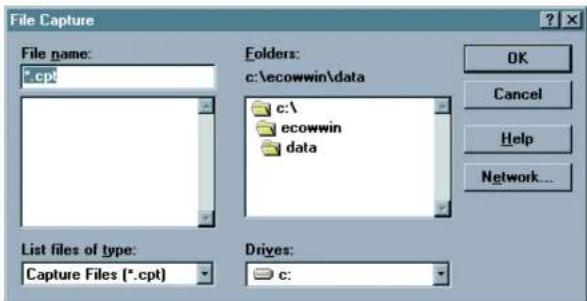
A common example is using a sonde in Run Mode. The sonde is simply taking readings and sending them to the COM port. If you want to keep a record of these readings, then a simple way to do so is to turn Capture on. When you are finished, run the Capture command again to turn it off.
FILE UPLOAD
Use this command to upload files from any device that uses Xmodem file transfer protocol. First initiate the upload from the device, then choose this command. This command is enabled only when the Xmodem or Xmodem 1K protocol has been selected in Port Setup.
DIAL MODEM
If you have specified a default phone number in the Modem tab of the communications Settings dialog box, then this command will call that number. If you have not specified a default number, then you will be asked for a number.
HANG-UP MODEM
EcoWatch for Windows Section 4
4.3.5 REAL-TIME
The Real-time menu offers the following commands that allow you to control how your data will be presented.

SETTINGS
This command is only active when there is a real-time window open. This command takes you to the Real-time Settings dialog where you can set the length of the x-axis.
In the Real-Time Settings box you will set the number of samples graphed across the axis. (The interval between samples is set in the sonde using the sonde menus.) After the graph is full, each new data point will cause the trace to scroll left so that you see only the most recent set of measurements.
If you have a YSI 6026 or 6136 turbidity, 6025 chlorophyll, or 6130 rhodamine WT probe with a wiper, then you may want to clean the optics periodically. Set that interval in this dialog.
Autoscaling will keep the trace comfortably on the graph as the measurement changes.
To Manually Scale a graph; double-click on its Y-axis labels. The Graph Y-Axis box will come up where you can set the scale. Note that you can manually set the scale for some parameters and autoscale others. When the autoscale box is checked, the high and low limits will be unavailable. See also the Autoscale
EcoWatch for Windows Section 4
4.3.6 GRAPH
ZOOM WINDOW
Enlarges a section of the graph. The pointer will change to a magnifying glass and then you can click and drag on the graph to indicate the section you want to view. This command stays active until you execute it again.
Shortcuts
Toolbar:

CENTER SCROLL
Centers graph at the mouse cursor. The pointer will change to a bullseye. Clicking anywhere on the graph will cause that point to be moved to the center. This command stays active until you execute it again.
Shortcuts
Toolbar:

LIMIT DATA SET
This command limits the amount of data being processed. If you are not presently interested in portions of the graph or table at the beginning or end of the study, you may want to use this command to indicate only that portion that you are interested in. The program will have fewer data points to handle and will respond to your commands quicker. Executing this command when modifying a graph will change the pointer to a vertical arrow. Click once on the left end of that part of the graph that you want and then click again at the right end. This command stays active until you execute it again.
To limit the data in a table, move the pointer to the far left of the table into the row numbers area and highlight from the desired cutoff point to the beginning or end of the data set, whichever is desired. Then select the Limit Data Set option from the graph menu or use the toolbar shortcut.
EcoWatch for Windows Section 4
MANUAL SCALE
Takes you to the Graph Y-Axis dialog box where you can set the scale for each parameter.
Graph Y-axis dialog box
To manually scale a graph, double click on its Y-axis labels. A dialog will come up where you can set the scale. Note that you can manually set the scale for some parameters and autoscale others. When the autoscale box is checked, the high and low limits will be dimmed. See also the Autoscale command in the Graph menu.
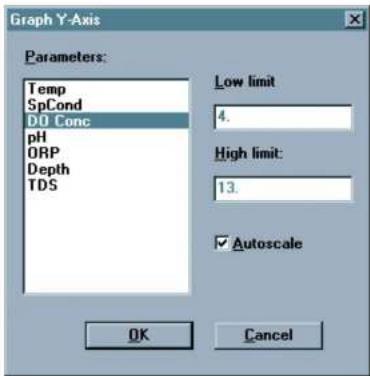
REDRAW
If part of a graph is not displayed it could be because your window is sized too small to display it or
EcoWatch for Windows Section 4
Add/Remove
There are two lists, Selected Parameters and Available Parameters. If, for example, you wish to graph another parameter, you must highlight it on the Available Parameter list and then click the Add button to move it over to the Selected Parameters list.
This is also where you decide the order in which the parameters will appear in both the table and the graphs. If you choose to have two traces per graph, then the first graph will have the first and second parameters on this list, the second graph will have the third and fourth parameters and so forth. The parameters will appear in the Selected Parameters list in the order that they were added. To rearrange the order, highlight the parameter you wish to move and then use the up and down buttons to move it to the desired spot in the order.
The TSS parameter (only available if your sonde has a Turbidity sensor) is a parameter that is not part of your original collected data. TSS is calculated by EcoWatch, which uses the Turbidity data and a set of correlation points that you enter. When you add TSS, a TSS calibration window will popup and prompt you for a set of correlation points. For more information see Calibrate TSS.
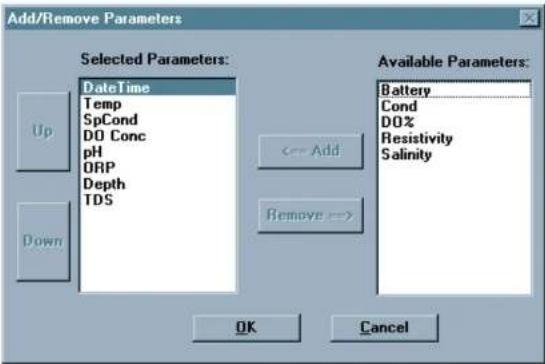
EcoWatch for Windows Section 4

Attributes
This command takes you to the Change Parameter Attributes dialog box where you have access to two powerful features. You can choose to display an average of your data, or graph the data with some parameter other than time for the x-axis. The most common use for this latter feature is to graph temperature and DO versus depth. Other combinations are possible. You may choose to average the data before it is graphed. An interval of 0 will cause there to be no averaging at all. The larger the averaging interval, the more points will be used in each average. For example, if you acquired data every 15 minutes and you set the average interval to 60 minutes, each set of four points will be averaged and then plotted as a single point. This feature will not only smooth a graph, but will also reduce the amount of data exported that is sometimes convenient when exporting to a spreadsheet.
The x-axis parameter is normally Time, but you can choose any parameter you like. By default, data files are sorted by increasing time. If you have chosen another parameter for the x-axis, then you may want to have the data sorted before graphing it.

EcoWatch for Windows Section 4

Calibrate TSS
TSS is an abbreviation for Total Suspended Solids. TSS is a unit derived from a Turbidity (NTU) measurement and correlated TSS-NTU measurements. The Calibrate TSS feature is only used if the TSS parameter has been added to the current data file using Add/Remove Parameters. This command opens the TSS Calibration window and allows calibration adjustment.

EcoWatch for Windows Section 4
Once you have at least two correlation points, you have established a linear correlation between the two measurements. EcoWatch allows you to enter up to five correlation points. The more correlation points you have, the higher that your accuracy will be.
To add the TSS parameter to your data file, go to the Setup menu. Choose Parameters, then Add/Remove. Select the TSS parameter and click the Add button. The Calibrate TSS window will appear.
Name the file for identification in the future. Multiple calibration files may be created. Any previously created calibration files will be located in the drop-down name list box.
Once you have entered the desired number of correlation points, click OK. EcoWatch will calculate the TSS values by doing a linear interpolation of the Turbidity (NTU) data and the correlation chart.
GRAPH
The Setup menu. Graph submenu has the following commands:
Font/Color
Goes to the Font Dialog Box where you can change the font and color of text that appears in the graph.
EcoWatch for Windows Section 4
• Color
Type or select one of the 16 predefined colors. To display color, you must have a color monitor; to print color, you must have a color plotter or a color printer.
- Sample
Shows the effects of the formatting you specify before you apply it to the document.
Page Color
Goes to the Color Dialog Box where you can change the color of the graph page. This is the background for all of the graphs rather than the background for each individual graph that is set with the next command.

Trace Color
Gocs to the Change Trace Color dialog box where you can change the color of the trace and the background for each of the individual graphs. For setting the background color for all graphs, see the previous command.
EcoWatch for Windows Section 4
Note that there are two color buttons, one for the trace color and the other for the background color. Clicking on either of these buttons will take you to the Color dialog box where you can change the color.
Use the Set All buttons to quickly set all traces or backgrounds to the same color.
Page Title
This is where you can enter a title for the graph. The title may have one or two lines.

1 Trace per Graph
Choose this to have just one parameter on each graph.
2 Traces per Graph
Choose this to have two parameters on each graph.
TABLE
If there is no table, then the commands on this submenu will be unavailable. The Table submenu offers the following commands:
Font/Color
Goes to the Font Dialog Box where you can change the font and color of text that appears in the table.
Page Color
C. 10.1.1.2.
EcoWatch for Windows Section 4
1 - Open a data file and observe the presentation of the data in graphic and tabular form.
2 - You can change the background and trace colors by going into the Graph and/or Table submenus of the Setup Menu.
3 - You can add or remove parameters by going into the Parameter submenu of the Setup Menu.
4 - You can change the units of the displayed parameters by going into the Parameter submenu of the Setup Menu.
5 - You can change the order of the parameters by going into the Add/Remove Parameters dialog box in the Parameter submenu of the Setup Menu.
6 - You can set the scaling options for your data by double-clicking on the Y-axis of the graph and using the Graph Y-Axis dialog box to set the scales.
7 - After setting the display parameters enter the Setup Menu and choose Sct Default Template. Now every data file that you initially open will use the display parameters that you have chosen. If you want to delete your template, enter the Setup Menu and choose Clear Default Template.
CLEAR DEFAULT TEMPLATE
This command will eliminate a default template that has been saved. With no default template, all new EcoWatch files open in whatever form they were saved in.
4.3.8 APPL(ICATIONS)
The Appl menu is the link to other Application programs that can be used with EcoWatch. For Help using a GIS software, consult the menu that came with the GIS system.
To reduce from a Cornell Scientific CP101 consensus, first proposed the consensus to a COM and wise.
EcoWatch for Windows Section 4
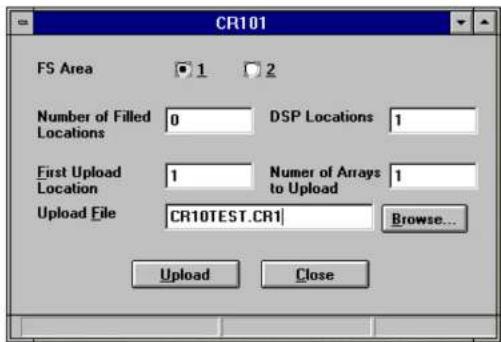
4.3.9 WINDOW
The Window menu offers the following commands that enable you to arrange multiple views of multiple documents in the application window:
CASCADE
Use this command to arrange multiple opened windows in an overlapped fashion
TILE HORIZONTAL
Use this command to vertically arrange multiple opened windows in non-overlapped horizontal tiles.
TILE VERTICAL
EcoWatch for Windows Section 4
4.3.10 HELP
The Help menu offers the following commands, which provide you assistance with this application:
CONTENTS
Offers you a list of the available Help topics.
USING HELP
Use this command for instructions about using Help.
TECHNICAL SUPPORT
YSI Technical support phone number.
ABOUT
Displays the version number of this application.
Principles of Operation Section 5
SECTION 5 PRINCIPLES OF OPERATION
5.1 CONDUCTIVITY
The sondes utilize a cell with four pure nickel electrodes for the measurement of solution conductance. Two of the electrodes are current driven, and two are used to measure the voltage drop. The measured voltage drop is then converted into a conductance value in milli-Siemens (millimhos). To convert this value to a conductivity value in milli-Siemens per cm (mS/cm), the conductance is multiplied by the cell constant that has units of reciprocal cm (cm ^-1 ). The cell constant for the sonde conductivity cell is approximately 5.0/cm. For most applications, the cell constant is automatically determined (or confirmed) with each deployment of the system when the calibration procedure is followed. Solutions with conductivities of 1.00, 10.0, 50.0, and 100.0 mS/cm, which have been prepared in accordance with recommendation 56-1981 of the Organization International De Metrologie Legale (OIML), are available from YSI. The instrument output is in mS/cm or uS/cm for both conductivity and specific conductance. The multiplication of cell constant times conductance is carried out automatically by the software.
CALIBRATION AND EFFECT OF TEMPERATURE
The conductivity of solutions of ionic species is highly dependent on temperature, varying as much as 3% for each change of one degree Celsius (temperature coefficient = 3%/°C). In addition, the temperature coefficient itself varies with the nature of the ionic species present.
Because the exact composition of a natural media is usually not known, it is best to report a conductivity at a particular temperature, e.g. 20.2 mS/cm at 14 °C. However, in many cases, it is also useful to compensate for the temperature dependence in order to determine at a glance if gross changes are occurring in the ionic content of the medium over time. For this reason, the sonde software also allows the user to output conductivity data in either raw or temperature compensated form. If Conductivity is selected, values of conductivity that are NOT compensated for temperature are output to the report. If Specific Conductance is selected, the sonde uses the temperature and raw conductivity values associated with each determination to generate a specific conductance value compensated to 25°C. The calculation is carried out as in equation (1) below, using a temperature coefficient of 1.91% ^I/C (TC = 0.0191):
Specific Conductance (25°C) = 1.7TC*0.5
Principles of Operation Section 5
4 - Perform sensor calibration at a temperature as close to 25^ C as possible. This will minimize any temperature compensation error.
5- The 6560 YSI 6-series conductivity system is extremely linear and therefore the sensor will be accurate within its 0.5% accuracy specification when calibrated anywhere in the range. Thus, there is normally no need to calibrate with low conductivity standards when making measurements in fresh water or high conductivity standards when making measurements in brackish or sea water. Low conductivity standards are very susceptible to contamination and their use is not recommended unless extra care is taken to rinse the calibration vessel and probe compartment with the standard prior to actually calibrating. For most applications, YSI recommends calibration using a mid-range calibration standard of approximately 10,000 uS/cm such as YSI 3163 Calibrator Solution which is available in quart bottles. For special applications or for users who insist on calibrating at values near that of the water to be monitored, YSI does offer standards of higher and lower conductivities - see Appendix C Accessories and Calibration Reagents.
5.2 SALINITY
Salinity is determined automatically from the sonde conductivity and temperature readings according to algorithms found in Standard Methods for the Examination of Water and Wastewater (ed. 1989). The use of the Practical Salinity Scale results in values that are unitless, since the measurements are carried out in reference to the conductivity of standard seawater at 15 °C. However, the unitless salinity values are very close to those determined by the previously used method where the mass of dissolved salts in a given mass of water (parts per thousand) was reported. Hence, the designation "ppt" is reported by the instrument to provide a more conventional output.
5.3 TOTAL DISSOLVED SOLIDS (TDS)
The electrical conductivity of environmental water is due to the presence of dissolved ionic species. Thus, the magnitude of the conductivity (or specific conductance) value can be used as a rough estimate of amount (in g/L) of these ionic compounds which are present. The 6-series software provides a conversion from specific conductance to total dissolved solids (TDS) by the use of a simple multiplier. However, this multiplier is highly dependent on the nature of the ionic species present. To be assured of even moderate
The following table provides the meaning of this multipliers for the right of the city of interest.
Principles of Operation Section 5
generally speaking. TDS cannot be calculated accurately from specific conductance unless the make-up of the chemical species in the water remains constant.
NOTE: EcoWatch for Windows contains a conversion factor of 0.65 for conversion of specific conductance in mS/cm to TDS in g/L. However, unlike the sonde software, this constant cannot be varied in EcoWatch. Thus, to calculate TDS from data resident in an EcoWatch file, the user should export the specific conductance readings to a spreadsheet and carry out the calculation there using the formula:
TDS in g/L = (Sp. Cond in mS/cm) x (User-Derived Constant)
5.4 OXIDATION REDUCTION POTENTIAL (ORP)
The sondes determine the Oxidation Reduction Potential (ORP) of the media by measuring the difference in potential between an electrode which is relatively chemically inert and a reference electrode. To measure ORP with a sonde, a combination pH/ORP probe must be in place in the sonde bulkhead and ORP must be accessed via the ISE2 channel of the sonde. The ORP sensor consists of a platinum button found on the tip of the probe. The potential associated with this metal is read versus the Ag/AgCl reference electrode of the combination sensor that utilizes gelled electrolyte. ORP values are presented in millivolts and are not compensated for temperature.
CALIBRATION AND EFFECT OF TEMPERATURE
Calibration may not be required for the ORP sensor of the sonde when it is new. However, older probes that have been deployed extensively may show some deviation from the theoretical ORP value. This deviation is usually due to a change in the concentration of the KCl in the reference electrode gel. To determine whether the sensor is functioning correctly, place the ORP probe in 3682 Zobell solution and monitor the millivolt reading. If the probe is functioning within specifications, the ORP reading should be within the range of 221-241 at normal ambient temperature. If the reading is outside of this range, the probe can be calibrated to the correct value (231 mV at 25°C) using the calibration procedure outlined in Section 2.6.1, Calibration.
ORP readings for the same solution can vary up to 100 mv depending on the temperature. However, no standard compensation algorithms exist for this parameter. Be sure to take this factor into account when reporting ORP values and checking sensor calibration. For Zobell solution, consult the following chart:
Principles of Operation Section 5
MEASUREMENT AND CALIBRATION PRECAUTIONS
1 - Instructions for preparation of ORP calibrator solutions (including Zobell reagent) can be found in Section 2580 A. of Standard Methods for the Examination of Water and Wastewater. Alternatively, the Zobell solution is available from YSI.
2 - Reagants to confirm ORP sensitivity are available. Contact YSI Technical Support for ordering information.
3 - ORP readings usually stabilize much more rapidly in standards (e.g., Zobell solution) than in most environmental water. Be certain to consider this factor when determining ORP in field studies.
4 - Clean and store the pH/ORP sensor by following the instructions in Section 2.10, Care, Maintenance and Storage of this manual.
5.5 pH
The sondes employ a field replaceable pH electrode for the determination of hydrogen ion concentration. The probe is a combination electrode consisting of a proton selective glass reservoir filled with buffer at approximately pH 7 and a Ag/AgCl reference electrode that utilizes electrolyte that is gelled. A silver wire coated with AgCl is immersed in the buffer reservoir. Protons (H ^+ ions) on both sides of the glass (media and buffer reservoir) selectively interact with the glass, setting up a potential gradient across the glass membrane. Since the hydrogen ion concentration in the internal buffer solution is invariant, this potential difference, determined relative to the Ag/AgCl reference electrode, is proportional to the pH of the media. The pH system of the 600R utilizes individual glass sensing and reference electrodes, but the operating principle is the same.
YSI offers three styles of pH and pH/ORP relative to the glass portion of the probe - flat-, bulb-, and hemisphere-type. The bulb-type sensors (6561, 6565, and 6566) use lower impedance glass and therefore are more stable in laboratory applications and calibration when in the presence of static. The flat-type sensors have higher impedance glass and so may show some jumpiness during laboratory operations, including calibration, unless the user avoids touching the sonde and stays out of close proximity to the instrument. The advantages of the flat-type glass sensors are that (a) they are much less susceptible to breakage than their bulb-type analogs and (b) they are more readily cleaned in long term field studies when
Principles of Operation Section 5
CALIBRATION AND EFFECT OF TEMPERATURE
The software of the sondes calculates pH from the established linear relationship between pH and the millivolt output as defined by a variation of the Nernst equation:
$$ \mathrm{E} = \mathrm{E} _ {\mathrm{v}} + 2. 3 \mathrm{RT} * \mathrm{pH} \quad \text { where } \mathrm{E} = \text { millivolts output } $$
E_0= a constant associated with the reference electrode
T = temperature of measurement in degrees Kelvin
R, n, and F are invariant constants
Thus, in simplified y = mx + b form, it is (mv output) = (slope)x(pH) + (intercept). In order to quantify this simple relationship, the instrument must be calibrated properly using commercially available buffers of known pH values. In this procedure, the millivolt values for two standard buffer solutions are experimentally established and used by the sonde software to calculate the slope and intercept of the plot of millivolts vs. pH. Once this calibration procedure has been carried out, the millivolt output of the probe in any media can readily be converted by the sonde software into a pH value, as long as the calibration and the reading are carried out at the same temperature. This last qualifier is almost never met in actual environmental measurements since temperatures can vary several degrees during a deployment simply from a diurnal cycle. Thus, a mechanism must be in place to compensate for temperature or, in other words, to accurately convert the slope and intercept of the plot of pH vs. millivolts established at T_c (temperature of calibration) into a slope and intercept at T_m (temperature of measurement). Fortunately, the Nernst equation provides a basis for this conversion.
According to the Nernst equation as shown above, the slope of the plot of pH vs. millivolts is directly proportional to the absolute temperature in degrees Kelvin. Thus, if the slope of the plot is experimentally determined to be 59 mv/pH unit at 298 K (25 C), then the slope of the plot at 313 K (40 C) must be (313/298)59=62 mv/pH unit . At 283 K (10 C), the slope is calculated to be 56 mv/pH unit ((283/298)59) . Determination of the slope of pH vs. mv plots at temperatures different from T_c is thus relatively simple. In order to establish the intercept of the new plot, the point where plots of pH vs. mv at different temperatures intersect (the isopotential point) must be known. Using standard pH determination protocol, the sonde software assigns the isopotential point as the mv reading at pH 7 and then calculates the intercept using this assumption. Once the slope and intercept to the plot of pH vs. mv are assigned at the new temperature, the calculation of pH under the new temperature conditions is straightforward, and is automatically carried out by the sonde software.
Principles of Operation Section 5
4 - During pH calibration, allow the sensors time to stabilize with regard to temperature (approximately 60 seconds) before proceeding with the calibration protocol. The pH readings after calibration are only as good as the calibration itself.
5- The true pH values of commercially-available buffers are slightly temperature dependent with the actual pH values at various temperatures usually shown on the bottle. For example, the actual pH of YSI "pH 7 buffer" at 20C is 7.02 rather than the value of 7.00 at 25C . Users who wish to obtain the maximum accuracy from their pH sensors should first determine the temperature of their buffers and then enter the proper pH reading for that temperature (from the bottle label) when carrying out calibration of pH.
6 - Clean and store the probe according to the instructions found in Section 2.10, Care, Maintenance and Storage of this manual.
5.6 DEPTH AND LEVEL
The sondes can be equipped with either depth or level sensors. In fact, both sensors measure depth, but by YSI convention, level refers to vented measurements and depth refers to non-vented measurements. Both measurements use a differential strain gauge transducer to measure pressure with one side of the transducer exposed to the water.
For depth measurements, the other side of the transducer is exposed to a vacuum. The transducer measures the pressure of the water column plus the atmospheric pressure above the water. Depth must be calculated from the pressure exerted by the water column alone; therefore, when depth is calibrated in air, the software records the atmospheric pressure and subtracts it from all subsequent measurements. This method of compensating for atmospheric pressure introduces a small error. Because the software uses the atmospheric pressure at the time of calibration, changes in atmospheric pressure between calibrations appear as changes in depth. The error is equal to 0.045 feet for every 1mm Hg change in atmospheric pressure. In sampling applications, frequent calibrations eliminate the error. Considering typical changes in barometer during long-term monitoring, errors of ±0.6 feet (0.2m) would be common. In applications where this error is significant, we recommend using a level sensor in place of the depth sensor.
As with depth measurements, level uses a differential transducer with one side exposed to the water. However, the other side of the transducer is vented to the atmosphere. In this case, the transducer measures only the pressure exerted by the water column. Atmospheric pressure is ignored and changes in
Principles of Operation Section 5
MEASUREMENT AND CALIBRATION PRECAUTIONS
(1) Be certain that the sonde is not immersed in water during the calibration procedure unless you know the exact distance between the sensor and the water surface. Calibration (zeroing) in air is usually the recommended method.
(2) Remember that the depth sensors for the sonde are not vented. In practical terms, this means that changes in barometric pressure after the sensor is calibrated will appear as changes in depth. This effect is significant, particularly for the 0-30 ft option of the depth probe. For example, a change of 1mm of Hg in barometric pressure will change the apparent depth by approximately 0.045 feet (0.012 m). As noted above, this error is eliminated for level sensors because they are vented to the atmosphere.
5.7 TEMPERATURE
The sondes utilize a thermistor of sintered metallic oxide that changes predictably in resistance with temperature variation. The algorithm for conversion of resistance to temperature is built into the sondes software, and accurate temperature readings in degrees Celsius, Kelvin, or Fahrenheit are provided automatically. No calibration or maintenance of the temperature sensor is required.
5.8 DISSOLVED OXYGEN - 6562 RAPID PULSE POLAROGRAPHIC
The sondes employ the patented YSI Rapid Pulse system for the measurement of dissolved oxygen (DO). Use of this technology provides major advantages for the monitoring of DO without significantly compromising the accuracy of sampling applications. Standard electrochemical detectors of DO are highly flow-dependent and therefore require external stirring of the medium being evaluated. This stirring must be supplied either by an auxiliary stirrer (which can consume much of the battery reserve in a portable system) or by manually agitating the sonde when carrying out spot sampling applications (which can be inconvenient). These disadvantages are overcome by the Rapid Pulse dissolved oxygen technology that is associated with the sonde because it needs no stirring to yield accurate readings. In addition, because of the nature of the technology, some effects of fouling of the sensor are minimized.
Principles of Operation Section 5
Teflon membrane. The current associated with this process is proportional to the oxygen present in the solution outside the membrane. However, as this electrochemical reaction proceeds, oxygen is consumed (or depleted) in the medium, resulting in a decrease in measured current (and apparent oxygen content) if the external solution is not stirred rapidly. To minimize this oxygen depletion, the probe electrodes in the YSI Rapid Pulse system are rapidly and reproducibly polarized (on) and depolarized (off) during a measurement sequence. The Rapid Pulse system thus measures the charge or coulombs (current summed over a specific time period) associated with the reduction of oxygen during a carefully controlled time interval. The coulombs due to charging of the cathode (capacitance), but not to reduction of oxygen, are subtracted during integration after the cathode has been turned off. The net charge, like the steady state current in a standard system, is proportional to the oxygen partial pressure in the medium. Because oxygen is only being reduced 1/100th of the total measurement time, even if the probe is pulsed in this manner continuously, oxygen consumption outside the membrane is kept to a minimum, and the stirring dependence of the system is greatly reduced.
One key to the practicality of Rapid Pulse oxygen system is the fact that the "on time" is very short. This allows the "off time" to also be relatively short and still maintain the off to on ratio of 100 which is necessary to obtain relatively flow independent measurements. The second important aspect of the Rapid Pulse technology is the integration (summing of the current) over the total pulse (on and off). Because the charging current of the electrodes is subtracted in this process, the net signal is due only to the reduction of oxygen. From a practical point of view, this means that when there is zero oxygen partial pressure outside the membrane, the Rapid Pulse signal will also be zero; this in turn allows the system to be calibrated with a single medium (air or water) of known oxygen pressure.
CALIBRATION AND EFFECT OF TEMPERATURE
The sonde Rapid Pulse system is calibrated using the same basic methods employed for steady state oxygen sensors. However, the software that controls the calibration protocol is somewhat different depending on whether the unit will be used in sampling or deployment studies. For sampling studies using either a 650 MDS display unit or a laptop computer, the Rapid Pulse system is allowed to run continuously when the Calibration mode is activated if "Autosleep" is turned off. Under these software conditions, the user views the DO readings in real time and confirms the calibration manually after the readings have stabilized.
For studies in which the sonde is deployed and readings are saved less frequently (5-60 minutes) to sonde memory, a computer or data collection platform, an appropriate warm up time is selected for the system in the AdvancedSensor menu. Usually 40 seconds is adequate for this parameter, but, in some cases, larger values may result in more accurate results. Most importantly for deployment studies, "Autosleep" should be used. What is the use of the sensor, we think that "Autosleep" is
Principles of Operation Section 5
protocol according to the instructions. The calibration will occur automatically at the end of the specified warm-up time.
If the Percent Saturation method is selected, the sonde is simply placed in a calibration cup that contains a small quantity of water or a damp sponge. The probe sensor should not be in the water for this calibration procedure. The sonde should be left under these conditions for 10-15 minutes to allow temperature and humidity equilibration to occur. Then input the true barometric pressure into the sonde software and begin the calibration protocol according to the instructions. The calibration will occur automatically at the end of the specified warm-up time.
NOTE: Remember that control of the calibration will be manual rather than automatic if the unit is set up properly for spot sampling applications (“Autosleep” deactivated).
The DO readings of steady state oxygen systems are greatly affected by temperature (approximately 3% per degree Celsius) due to the effect of temperature on the diffusion of oxygen through the membrane. The Rapid Pulse system exhibits a greatly reduced effect of temperature (approximately 1% per degree Celsius), but this factor still must be accounted for if DO readings acquired at temperatures different from that at calibration are to be accurate. The sonde software automatically carries out this compensation.
In addition, the relationship between the measured partial pressure of oxygen (percent saturation) and the solubility of oxygen in mg/L is very temperature dependent. For example, air saturated water (DOsat % = 100) contains 9.09 mg/L at 20 °C, but only 7.65 mg/L at 30 °C. The sonde software compensates for both of these temperature-related factors after instrument calibration. The temperature compensation for the percent saturation reading is empirically derived, while the conversion from percent saturation and temperature to solubility in mg/L is carried out automatically by the sonde software using formulae available in Standard Methods for the Examination of Water and Wastewater (ed. 1989). See Appendix D, Solubility and Pressure/Altitude Tables for dissolved oxygen solubility tables as a function of salinity and temperature.
FLOW DEPENDENCE
As noted above, oxygen readings acquired using the Rapid Pulse technology are much less affected by sample flow than steady state probes. However, there is a finite stirring dependence exhibited by the Rapid Pulse system if measurements are taken when the probe is being pulsed continuously. Our tests indicate that, under these sampling conditions, observed dissolved oxygen readings can be 2-3 percent lower than the true readings in very still water. Minimal movement of the water (which occurs during most environmental measurements) removes this effect.
Principles of Operation Section 5
(4) For short term storage (2 weeks or less), keep the probe moist when not in use, either by immersing in water or by placing a damp sponge in the calibration vessel. For longer-term storage, remove the probe from the sonde and store it in water with a membrane and electrolyte in place. If the membrane appears to be damaged or has dried out, be sure to replace it prior to calibration and deployment.
(65 Before you install a new membrane, make sure that the O-ring groove and the probe tip are clean and smooth. If the KCl electrolyte solution leaks from the probe surface during monitoring studies, the accuracy of the readings will be compromised.
5.9 DISSOLVED OXYGEN - 6150 ROX OPTICAL
In general, optical dissolved oxygen sensors from a variety of manufacturers are based on the well-documented principle that dissolved oxygen quenches both the intensity and the lifetime of the luminescence associated with carefully-chosen chemical dyes. The 6150 sensor operates by shining a blue light of the proper wavelength on this luminescent dye which is immobilized in a matrix and formed into a disk about 0.5 inches in diameter. This dye-containing disk will be evident on inspection of the sensor face. The blue light causes the immobilized dye to luminesce and the lifetime of this dye luminescence is measured via a photodiode in the probe. To increase the accuracy and stability of the technique, the dye is also irradiated with red light during part of the measurement cycle to act as a reference in the determination of the luminescence lifetime.
When there is no oxygen present, the lifetime of the signal is maximal; as oxygen is introduced to the membrane surface of the sensor, the lifetime becomes shorter. Thus, the lifetime of the luminescence is inversely proportional to the amount of oxygen present and the relationship between the oxygen pressure outside the sensor and the lifetime can be quantified by the Stern-Volmer equation. For most lifetime-based optical DO sensors (including the YSI 6150), this Stern-Volmer relationship ((T / zero / T) - 1)) versus O_2 pressure) is not strictly linear (particularly at higher oxygen pressures) and the data must be processed using analysis by polynomial non-linear regression rather than the simple linear regression used for most polarographic oxygen sensors. Fortunately, the non-linearity does not change significantly with time so that, as long as each sensor is characterized with regard to its response to changing oxygen pressure, the curvature in the relationship does not affect the ability of the sensor to accurately measure oxygen for an extended period of time. The 6150 probe is warranted for 2 years and sensor modules are warranted for 1 year by YSI.
Principles of Operation Section 5
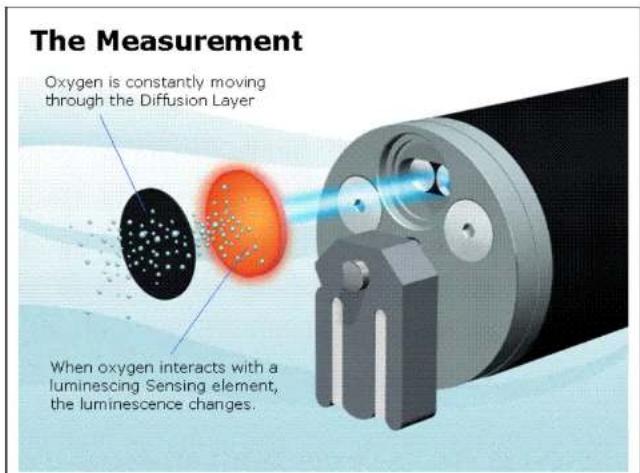
EFFECT OF TEMPERATURE AND SALINITY
In terms of the determination of dissolved oxygen in environmental water, the 6150 is similar to standard membrane-covered dissolved oxygen probes in that its measured parameter is proportional to the partial pressure (not the concentration) of oxygen in the solution being evaluated. This partial pressure value is reported as "Percent Air Saturation". The signal from the 6150 system is affected by temperature (approximately 1.32% per degree Celsius), and this factor must be accounted for if DO readings acquired at temperatures different from that at calibration are to be accurate. The sonde automatically carries out this
Principles of Operation Section 5
MEASUREMENT AND CALIBRATION PRECAUTIONS
(1) If water-saturated air is used as the calibrating medium, make certain that both the DO reading and the temperature have stabilized (10-15 minutes) before starting the calibration sequence. A wet thermistor can indicate artificially low temperature readings due to evaporation and this situation will result in poor temperature compensation and inaccurate readings.
(2) If air-saturated water is used as the calibrating medium, make certain that the water is truly air-saturated by sparging with an aquarium air-stone for at least 1 hour prior to implementing the calibration procedure.
(3) If calibrating in water-saturated air, insure that the calibration cup being used is vented or pressure released.
(4) When not in use, you MUST keep the probe moist, either by immersing in water or by covering the membrane on the probe tip with the plastic cap/moist sponge which was in place on the sensor when it was received.
(5) If you inadvertently leave your sensor exposed to ambient air for a period of more than approximately 2 hours, you can rehydrate the membrane by the following method: (1) Place approximately 400 mL of water in a 600 mL beaker or other similar glass vessel – do NOT use plastic vessels – and heat the water on a thermostatted hotplate or in an oven so that a consistent temperature of 50+/- 5 C is realized. Place the probe tip containing the sensor membrane in the warm water and leave it at the elevated temperature for approximately 24 hours. Cover the vessel if possible to minimize evaporation. After rehydration is complete, store the probe in either water or water-saturated air prior to calibration and deployment.
CAUTION: MAKE CERTAIN THAT THE WATER IN THE VESSEL DOES NOT
COMPLETELY EVAPORATE DURING THE REHYDRATION STEP.
(6) To assure that the best possible accuracy for the ROX Optical DO sensor, YSI recommends that the membrane assembly be replaced after 1 year. The 6155 Optical DO Membrane Replacement Kit can be ordered from YSI Technical Support.
For more information on the practical aspects of using the 6150 ROX dissolved oxygen sensor, see Appendix M of this manual.
Principles of Operation Section 5
change in voltage. Our experience with ISEs indicates that for best accuracy, the isopotential point should be determined empirically. To do so, the user employs a third calibration point where the voltage of the lower concentration standard is determined at a temperature at least 10^ C different from the first two calibration points. The slope, offset, and isopotential point drift slowly, and you should recalibrate the probe periodically.
All ion selective electrodes are subject to the interaction of species with the sensor membrane, which are similar in nature to the analyte. For example, chloride ion binds in this way to the nitrate membrane and produces positive nitrate readings even when no nitrate is present in the medium. Fortunately, most fresh water does not usually contain significant quantities of ions that produce a large interference on the nitrate reading, such as azide, perchlorate, and nitrite. It usually does contain some chloride and carbonate ions, but the interference from these ions is relatively small. For example, if the all of the ionic content of water with a conductivity of 1.2mS / cm (Sal = 0.6) were due to the presence of sodium chloride, the nitrate reading would be erroneously high by about 1.6mg / L . If the conductivity in this sample were all due to sodium bicarbonate, the sensor output would indicate the presence of only 0.2mg / L of non-existent nitrate from the interference.
Even though the interference from chloride is relatively small and thus tolerable at low salinity, the large quantity of this species in salt or brackish water creates interference so great as to make the sensor unsuitable for these media.
Despite the potential problems with interference when using ISEs, it is important to remember that almost all interfering species produce an artificially high nitrate reading. Thus, if the sonde indicates the presence of only small quantities of nitrate, it is unlikely that the reading is erroneously low because of interference. Unusually high nitrate readings (which could be due to interfering ions) should be confirmed by laboratory analysis after collection of water samples.
Ion selective electrodes have the greatest tendency to exhibit calibration drift over time of all the sensors available on the sonde. This drift should not be a major problem for sampling studies where the instrument can be frequently calibrated. However, if a nitrate sensor is used in a longer-term deployment study with the sonde, the user should be aware that drift is almost certain to occur. The extent of the drift will vary depending on the age of the probe, the flow rate at the site, and the quality of the water. For all monitoring studies using ion selective electrodes, the user should acquire a few "grab samples" during the course of the deployment for analysis in the laboratory by chemical means or with another nitrate sensor which has been recently calibrated. Remember that the typical accuracy specification for the sensor (+/- 10 % of the reading or 2 mg/L, whichever is larger) refers to sampling applications where only minimal time has elapsed between calibration and field use.
Principles of Operation Section 5
use the less time-consuming 2 point and 1-point routines to update the 3-point calibration. However, we strongly recommend a new 3-point calibration after each deployment of 30 days or longer.
(2) Ion selective electrodes may not stabilize as rapidly as pH sensors. Be sure to allow plenty of time for the readings to come to their final values during all calibration routines.
(3) Ion selective electrodes generally drift more than pH sensors. To check for this drift, place the sonde in one of your standards at the end of each deployment.
(4) Nitrate standards are good growth media for a variety of organisms. This growth can significantly reduce the nitrogen content of your standards, an effect that is particularly important for the 1 mg/L solution. It is best to use new standards for each deployment, but if you decide to save your solutions for reuse, we recommend refrigerated storage to minimize the growth of these organisms.
(5) Remember that the nitrate sensor will take longer to stabilize after exposure to pH buffers. To accelerate this process, soak the sensor in 100 mg/L standard for a few minutes after performing a pH calibration. In addition, be particularly careful that readings are stable during nitrate calibration after exposure to buffers.
CAUTION: The nitrate membrane module is for use only at depths less than 50 feet (15.2 meters). Use of the probe at greater depths is likely to permanently damage the sensor.
5.11 AMMONIUM AND AMMONIA
The sonde ammonium probe employs a silver/silver chloride (Ag/AgCl) wire electrode in a custom filling solution. Nonactin membrane separates the internal solution from the sample medium and this membrane selectively interacts with ammonium ions. When the probe is immersed in water, a potential is established across the membrane that depends on the relative amounts of ammonium in the sample and the internal filling solution. This potential is read relative to the reference electrode of the sonde pH probe. As for all ISEs, there is a linear relationship between the logarithm of the ammonium activity (or concentration in dilute solution) and the observed voltage. The Nernst equation describes this relationship.
Under ideal conditions, the Nernst equation predicts a response of 59 mV for every 10-fold rise in ammonium activity at 25°C. In practice, however, empirical calibration of the electrode is necessary to
Principles of Operation Section 5
= 0.6). Even if the ionic content were due to sodium chloride, the ammonium reading would be erroneously high, about 0.4 mg/L.
However, brackish or seawater has enough sodium and potassium to cause interference so great as to make the sensor unsuitable for these media.
The sensor used in the sonde detects only ammonium ions (NH_4) , the predominant form of total ammonium nitrogen in most environmental samples. However, using the concurrently determined values of pH, temperature, and conductivity, the sonde software can also provide the user with the concentration of free ammonia (NH_3) in the sample under investigation.
Ammonium ions and free ammonia are in equilibrium in any solution according to the following equation:
$$ \mathrm{NH} _ {4} ^ {+} \xrightarrow {\text { }} \mathrm{NH} _ {3} + \mathrm{II} ^ {+} $$
The value of the equilibrium constant associated with this reaction, K = [NH_3][H^+]/[NH_4^+] , and its variation with temperature and salinity, is well known. This information allows the free ammonia concentration [NH_3] to be automatically calculated by the sonde software and displayed if this parameter is activated.
Despite the potential problems with interference when using ISEs, it is important to remember that almost all interfering species produce an artificially high ammonium reading. Thus, if the sonde indicates the presence of only small quantities of ammonium, it is unlikely that the reading is erroneously low because of interference. Unusually high ammonium readings (which could be due to interfering ions) should be confirmed by laboratory analysis after collection of water samples.
Of all the sensors available on the sonde, ion selective electrodes have the greatest tendency to exhibit calibration drift over time. This drift should not be a major problem for sampling studies where the instrument can be frequently calibrated. However, if an ammonium sensor is used in a longer-term deployment study with the sonde, the user should be aware that drift is almost certain to occur. The extent of the drift will vary depending on the age of the probe, the flow rate at the site, and the quality of the water. For all monitoring studies using ion selective electrodes, the user should acquire a few "grab samples" during the course of the deployment for analysis in the laboratory by chemical means or with another ammonium sensor which has been recently calibrated. Remember that the typical accuracy specification for the sensor (+/- 10 % of the reading or 2 mg/L, whichever is larger) refers to sampling applications where only minimal time has elapsed between calibration and field use.
CALIBRATION AND EFFECT OF TEMPERATURE
Principles of Operation Section 5
(2) Ion selective electrodes may not stabilize as rapidly as pH sensors. Be sure to allow plenty of time for the readings to come to their final values during all calibration routines.
(3) Ion selective electrodes generally drift more than pH sensors. To check for this drift, place the sonde in one of your standards at the end of each deployment.
(4) Ammonium standards are good growth media for a variety of organisms. This growth can significantly reduce the nitrogen content of your standards, an effect that is particularly important for the 1 mg/L solution. It is best to use new standards for each deployment, but if you decide to save your solutions for reuse, we recommend refrigerated storage to minimize the growth of these organisms.
(5) Remember that the ammonium sensor will take longer to stabilize after exposure to buffers in a sonde pH calibration. To accelerate this process, soak the sensor in 100 mg/L standard for a few minutes after performing a pH calibration. In addition, be particularly careful that readings are stable during ammonium calibration after exposure to buffers.
CAUTION: The ammonium membrane module is for use only at depths less than 50 feet (15.2 meters). Use of the probe at greater depths is likely to permanently damage the sensor.
5.12 CHLORIDE
The sonde chloride probe employs a solid state membrane attached to a conductive wire. When the probe is immersed in water, a potential is established across the membrane that depends on the amount of chloride in the medium. This potential is read relative to the reference electrode of the sonde pH probe. As for all ISEs, there is a linear relationship between the logarithm of the chloride activity (or concentration in dilute solution) and the observed voltage. The Ncrnst equation describes this relationship.
Under ideal conditions, the Nernst equation predicts a response of 59 mV for every 10-fold rise in chloride activity at 25°C. However, in practice, empirical calibration of the electrode is necessary to establish the slope of the response. Typical slopes are 45-55 mV per decade for YSI sensors. This slope value is determined by calibration with two solutions of known chloride concentration (typically 10 mg/L and 1000 mg/L QI
The slope of the plot of log (chloride) vs. voltage is also a function of temperature, changing from its value at calibration by a factor of the ratio of the absolute temperatures at calibration to that at measurement. The
Principles of Operation Section 5
instrument can be frequently calibrated. However, if a chloride sensor is used in a longer-term deployment study with the sonde, the user should be aware that drift is almost certain to occur. The extent of the drift will vary depending on the age of the probe, the flow rate at the site, and the quality of the water. For all monitoring studies using ion selective electrodes, the user should acquire a few "grab samples" during the course of the deployment for analysis in the laboratory by chemical means or with another chloride sensor which has been recently calibrated. Remember that the typical accuracy specification for the sensor (+/- 15% of the reading or 5 mg/L, whichever is larger) refers to sampling applications where only minimal time has elapsed between calibration and field use.
CALIBRATION AND EFFECT OF TEMPERATURE
The chloride sensor should be calibrated using solutions of known chloride content according to the procedures detailed in Sections 2.6.1 and 2.9.2. If a two point calibration protocol is used, the temperature of the standards should be as close as possible to that of the environmental medium to be monitored. The recommended calibration procedure is one involving three solutions. Two of the solutions should be at ambient temperature while the third should be at least 10 degrees Celsius different from ambient temperature. This protocol minimizes the effects of taking readings at temperatures that are significantly different ambient laboratory temperatures.
MEASUREMENT AND CALIBRATION PRECAUTIONS
(1) The temperature response of ion selective electrodes is not as predictable as that of pH sensors. Therefore, be sure to carry out a 3-point calibration the first time you use the probc. This will provide a default setting for the effect of temperature on your particular sensor. After this initial calibration, you can use the less time-consuming 2 point and 1-point routines to update the 3-point calibration. However, we strongly recommend a new 3-point calibration after each deployment of 30 days or longer.
(2) Ion selective electrodes may not stabilize as rapidly as pH sensors. Be sure to allow plenty of time for the readings to come to their final values during all calibration routines.
(3) Ion selective electrodes generally drift more than pH sensors. Be sure to check for this drift by placing the sonde in a standard at the end of each deployment.
(4) Remember that the chloride sensor will take longer to stabilize after exposure to pH buffers. To accelerate this process, soak the sensor in 1000 mg/L standard for a few minutes after performing a pH calibration. In addition, he particularly careful that reading are stable during chloride calibration after
Principles of Operation Section 5
sonde software to provide readings in nephelometric turbidity units (NTUs). A schematic of a YSI turbidity sensor is shown in the following picture.

Two turbidity probes have been available for use with YSI 6-series sondes – the 6026 and the 6136. The 6026 probe is no longer available from YSI, but since a large number of this probe type are still in use, a description of the sensor will be included in this section. The probes are detailed briefly below; both are equipped with a mechanical wiper to periodically clean the sensor either by manual or automatic activation. These wiper systems make the probe ideal for long term monitoring, but they also work well for spot sampling applications.
- The Model 6026 probe was offered by YSI from 1995 to approximately 2002 and is characterized by relatively small optics, a factor that results in minimal penetration of the light beam into the sample and thus allows the use of shorter probe guards on the sonde in which it is installed. If a 6026 sensor
Principles of Operation Section 5
turbidity standards supplied by YSI, the value of the standard is 100 NTU when used for calibration of the 6026 sensor, but 126 NTU when used to calibrate the 6136.
In environmental water that contains suspended particles of varying size and density, the readings for the two probes will also differ after calibration with either formazin or polymer beads, with the 6026 almost always showing higher readings and the extent of the difference generally being proportional to the overall turbidity. For example, if both probes are calibrated at 0 and 100 NTU and then placed in a turbid river, the 6026 might read 400 NTU while the 6136 would read 300 NTU. The absolute difference in the sensor readings would shrink as the turbidity dropped. Thus, if the 6026 read 30 NTU, the 6136 would likely read approximately 21 NTU.
Note that the sonde software labels the output of the two sensors with slightly different units of turbidity ("turbid NTU" for the 6026 and "turbid- NTU" for the 6136) so that the user will readily be able to determine which sensor was used in a particular study during later data analysis.
No matter whether the 6026 or 6136 is installed in your sonde, it is important to remember that field optical measurements are particularly susceptible to fouling, not only from long term build up of biological and chemical debris, but also to shorter term formation of bubbles from outgassing of the environmental water. These bubbles can generally be removed in short term sampling applications by simply agitating the sonde manually. However, for studies longer than a few hours where the user is not present at the site, the quality of the turbidity data obtained with a turbidity sensor that has no capability of mechanical cleaning is likely to be poor. However, as noted above, both the 6026 and the 6136 probes are equipped with a mechanical wiper that makes them ideal for unattended applications. The wiper can be activated in real-time during discrete sampling operations or will function automatically during long term unattended sampling studies. The number of wiper movements and the frequency of the cleaning cycle for the unattended mode can be set in the sonde software. Generally one movement is sufficient for most environmental applications, but in media with particularly heavy fouling, additional cleaning cycles may be necessary.
CALIBRATION AND EFFECT OF TEMPERATURE
The sonde software offers the option of 1-point, 2-point, or 3-point calibrations procedures. For most applications, a 2-point calibration at 0 and approximately 100 NTU is sufficient for either the 6026 or the 6136 sensor. However, a user might wish to carry out a 3-point calibration at values of approximately 0, 100 and 1000 NTU to provide maximum accuracy over the entire normally encountered environmental turbidity range (0-1000 NTU). If the range of turbidity in the environmental sample is well known,
Principles of Operation Section 5
example, the label of the YS1 6073 turbidity standard bottle indicates that the value of the standard is 100 NTU when used for calibration of the 6026 sensor, but 126 NTU when used to calibrate the 6136. Note that the phenomenon of a sensor-specific formazin/AEPA-AMCO ratio is well known for sensors other than the 6026 and 6136.
YSI and its approved vendors offer easy-to use AMCO-AEPA turbidity standards which can also be quantitatively diluted with turbidity-free water to provide calibrant suspensions of lower values. Hach also offers relatively inexpensive formazin suspensions at various NTU values up to 1000 NTU under the Stablcal™ designation which will provide accurate calibration of either the 6026 or 6136 sensors as long as the user is willing to exercise the proper safety precautions as outlined in the MSDS associated with formazin. The primary advantage of the Hach formazin standards is their cost; their primary disadvantage is that the suspended matter settles out fairly rapidly. Although the AMCO-AEPA standards are somewhat more expensive, they do not settle out, making them significantly easier to use.
While the effect of temperature on the turbidity sensor is small, this factor is automatically taken into account by the sonde software providing temperature compensated readings. Temperature coefficients of 0.3%/degree C and 0.6%/degree C are automatically activated for the 6026 and 6136, respectively, when these sensors are activated in the Sensor menu.
MEASUREMENT AND CALIBRATION PRECAUTIONS
Principles of Operation Section 5
For most unattended sampling applications, selection of the above filter settings should also be appropriate. However, an additional capability is also available which enhances the elimination of spurious single point spikes from the logged data and thus allows for a better presentation of the average turbidity during the deployment. This "Turb Spike Filter" is activated/deactivated in the Advanced|Sensor menu. Its capability is further described in Section 2.9.8, Advanced. YSI recommends the use of this feature for all unattended studies. The user should determine from experience whether its activation is also appropriate for spot sampling studies at particular sites.
See Appendix E, Turbidity Measurements for additional practical information on the measurement of turbidity with 6-series sondes.
5.14 CHLOROPHYLL
INTRODUCTION
Chlorophyll, in various forms, is bound within the living cells of algae, phytoplankton, and other plant matter found in environmental water. Chlorophyll is a key biochemical component in the molecular apparatus that is responsible for photosynthesis, the critical process in which the energy from sunlight is used to produce life-sustaining oxygen. In general, the amount of chlorophyll in a collected water sample is used as a measure of the concentration of suspended phytoplankton, the magnitude of which can significantly affect the overall quality of the water.
The use of the measurement of phytoplankton as an indicator of water quality is described in Section 10200 A. of Standard Methods for the Examination of Water and Wastewater. The classical method of determining the quantity of chlorophyll at a particular site is to collect a fairly large water sample and analyze it in the laboratory. The procedure involves filtration of the sample to concentrate the chlorophyll containing organisms, mechanical rupturing of the collected cells, and extraction of the chlorophyll from the disrupted cells into the organic solvent, acetone. The extract is then analyzed by either a spectrophotometric method using the known optical properties of chlorophyll or by high performance liquid chromatography (HPLC). This general method is detailed in Section 10200 H. of Standard Method and has been shown to be accurate in multiple tests and applications as long as a competent laboratory analyst carries out the protocol. The procedure is generally accepted for reporting in scientific literature. The method is time-consuming, however, and usually requires an experienced, efficient analyst to generate consistently accurate and reproducible results. It also does not land itself readily to continuous monitoring
Principles of Operation Section 5
chlorophyll system are designed to complement the more accurate (but more difficult to obtain) results from more traditional methods of chlorophyll determination.
MEASUREMENT OF CHLOROPHYLL IN VIVO
One key characteristic of chlorophyll is that it fluoresces, that is, when irradiated with light of a particular wavelength, it emits light of a higher wavelength (or lower energy). The ability of chlorophyll to fluoresce is the basis for all commercial fluorometers capable of measuring the analyte in vivo. Fluorometers of this type have been in use for some time. These instruments induce chlorophyll to fluoresce by shining a beam of light of the proper wavelength into the sample, and then measuring the higher wavelength light which is emitted as a result of the fluorescence process. Most chlorophyll systems use a light emitting diode (LED) as the source of the irradiating light that has a peak wavelength of approximately 470 nm. LEDs with this specification produce radiation in the visible region of the spectrum with the light appearing blue to the eye. On irradiation with this blue light, chlorophyll resident in whole cells emits light in the 650-700 nm region of the spectrum. To quantify the fluorescence the system detector is usually a photodiode of high sensitivity that is screened by an optical filter that restricts the detected light. The filter prevents the 470 nm exciting light from being detected when it is backscattered off of particles in the water. Without the filter, turbid (cloudy) water would appear to contain fluorescent phytoplankton, even though none were present. The following diagram can be used to better understand the principles of the YSI system.

Principles of Operation Section 5
6025 chlorophyll probe is equipped with a mechanical wiper to periodically clean the optical face either by manual or automatic activation. With these features, the YSI chlorophyll sensor provides the same level of performance as the sonde fluorometers, but is much easier to use and can be deployed in environmental water for several weeks without the need for service. In addition, the probe will be a component in sondes that can acquire up to ten other parameters simultaneously with chlorophyll, rather just providing the single parameter.
CALIBRATION METHODS -- GENERAL
As described in Section 2 of this manual, the sonde software offers the option of performing 1-point, 2-point, or 3-point calibration procedures in g / L of chlorophyll. The 1-point calibration is designed only to zero the sensor in chlorophyll-free water and is sufficient for most field applications as described below. Performing a 1-point calibration also zeroes the relative fluorescence unit (RFU) parameter. The 2-point calibration will normally be used for checking the stability of the sensor during deployment by using a dye solution to set the relative sensitivity of the sensor as described below. The 3-point calibration routine is only for special applications and seldom improves the accuracy of the sensor.
For calibration of the YSI chlorophyll system, only one type of standard will assure accurate field readings: a suspension of phytoplankton of known chlorophyll content. The chlorophyll content of this suspension should be determined by the extractive analysis procedure described in Standard Methods. Most users will not have this analyzed plankton suspension available prior to field studies for use in the 2-point calibration protocol resident in the sonde software. Thus, the best “calibration” method usually comprises the following steps:
- Prior to use in the field, place the sensor in clean water and perform a 1-point calibration at 0 ug/L.
- Immerse the sonde in a dye standard (see below) and record the reading. Note that you are not "calibrating" to the dye reading, only checking its value relative to the default sensitivity of the sensor.
- While making your field readings (sampling or unattended studies), collect a few grab samples and record the date/time and location where they were acquired.
- On return to the laboratory, perform extractive analyses for chlorophyll on the grab samples and record the results for later use.
- After the study is complete, place your YSI chlorophyll data in the column of a spreadsheet and place your laboratory data in an adjacent column for comparison. Calculate ratios of field to laboratory results for each grab sample point and then average the results to produce a ratio for adjustment (or "postcalibration") of your field results into accurate chlorophyll readings (relative to extractive analysis).
- Use the calculating power of the spreadsheet to multiply all of your field readings by the correction ratio
Principles of Operation Section 5
PREPARATION OF DYE SOLUTIONS FOR CHECKING SENSOR DRIFT
RHODAMINE WT STANDARD SOLUTION
CAUTION: Be certain to read and follow all the safety instructions and MSDS documentation which is supplied with the dye before proceeding. Remember that only trained personnel should handle chemicals.
Use the following procedure to prepare a Rhodamine WT solution for use as a sensor stability check reagent.
- Rhodamine WT dye is usually purchased in solution form and can vary somewhat in nominal concentration. YSI uses Rhodamine WT from the supplier noted below and recommends that the user purchase this exact item if possible. The solution is approximately 2% in Rhodamine WT.
Fluorescent FWT Red Dye (Item 106023)
Kingscote Chemicals
3334 South Tech Blvd.
Miamisburg, OH 45342
1-800-394-0678
Fax: 937-886-9300
-
Accurately transfer 5.0 mL of the Rhodamine WT solution into a 1000 mL volumetric flask. Fill the flask to the volumetric mark with deionized or distilled water and mix well to produce a solution that is approximately 100 mg/L of Rhodamine WT. Transfer this standard to a glass bottle and retain it for future use.
-
Accurately transfer 5.0 mL of the solution prepared in the above step to a 1000 mL volumetric flask and then fill the flask to the volumetric mark with deionized or distilled water. Mix well to obtain a solution, which is 0.5 mg/L in water (a 200:1 dilution of the concentrated solution).
-
Store the concentrated standard solution produced in (2) above in a glass bottle in a refrigerator to retard decomposition. The dilute standard prepared in the previous step should be used within 24 hours of its preparation.
Principles of Operation Section 5
Table. Approximate algal chlorophyll equivalent of 0.5 mg/L Rhodamine WT as a function of temperature.
| T, C | ug/L Chl to Enter | T, C | Ug/L Chl to Enter |
| 30 | 100 | 18 | 122 |
| 28 | 103 | 16 | 126 |
| 26 | 106 | 14 | 131 |
| 24 | 110 | 12 | 136 |
| 22 | 113 | 10 | 140 |
| 20 | 118 | 8 | 144 |
REMEMBER: The use of Rhodamine WT for “calibration with Rhodamine WT is only an approximation. To assure accurate readings from the 6025 sensor, the user must relate the field fluorescence readings to data from extractive analysis samples as described above. YSI does not provide an accuracy specification for chlorophyll due to these limitations.
EFFECT OF TEMPERATURE ON READINGS
While the effect of temperature on the chlorophyll sensor itself is very small, YSI experiments have indicated that the fluorescence of phytoplankton suspensions can show significant temperature dependence. For example, the apparent chlorophyll content of our laboratory test samples of algae increased from 185 to 226 g/L when the temperature was dropped from 21 ^ C to 1 ^ C even though no change in phytoplankton content took place. In the absence of compensation, this effect would obviously result in errors in field chlorophyll readings if the site temperature were significantly different from the calibration temperature. This temperature error can be reduced by employing a chlorophyll temperature compensation routine (“Chl tempco”) resident in the sonde software under the Advanced|Sensor menu.
From our studies, it appears that entry of a value of 1 to 2% per degree C for "Chl tempco" is appropriate to partially account for changes in the fluorescence of environmental phytoplankton with temperature. This value can be estimated in the above example as follows:
Change in Temperature = 21-1 = 20 °C Change in Fluorescence = 226-185 = 41 μg/L % Change in Fluorescence = (41/185) x 100 = 22.1
Principles of Operation Section 5
wiper that makes it ideal for unattended applications. The wiper can be activated in real-time during discrete sampling operations or will function automatically just before each sample is taken during long term unattended monitoring studies. The number of wiper movements and the frequency of the cleaning cycle for the unattended mode can be set in the sonde software. Generally, one wiper movement is sufficient for most environmental applications, but in media with particularly heavy fouling, additional cleaning cycles may be necessary.
EFFECT OF TURBIDITY ON CHLOROPHYLL READINGS
As described above, the filters in front of the photodiode in the YSI 6025 chlorophyll probe prevent most of the 470nm light which is used to excite the chlorophyll molecules from reaching the detector after being backscattered off of non-fluorescent particles (turbidity) in environmental water. However, the filter system is not perfect and a minor interference on chlorophyll readings from suspended solids may result. Laboratory experiments indicate that a suspension of typical soil measured with a YSI turbidity sensor will have a turbidity interference characterized by a factor of about 0.03~ g / L per NTU. For example, the turbidity of the water must be above 100 NTU to produce an apparent chlorophyll reading equal to 3 g / L . In very cloudy water, the user may wish to use the independently-determined turbidity value and the above compensation factor to correct measured chlorophyll values using, for example, a spreadsheet.
LIMITATIONS OF IN VIVO CHLOROPHYLLMEASUREMENTS
As noted above, the measurement of chlorophyll from in vivo fluorescence measurements will always be less reliable than determinations made on molecular chlorophyll that has been extracted from the cells using the procedures described in Standard Methods. This section describes some of the known problems with in vivo chlorophyll measurement.
INTERFERENCES FROM OTHER FLUORESCENT SPECIES: The analytical methods described in Standard Methods for chlorophyll involve disruption of the living organisms present in suspension, followed by extraction of molecular chlorophyll into a homogeneous solution in an organic solvent. Acidification of the extract helps to minimize the interferences caused by a number of other, non-chlorophyll species. In addition, readings can be taken at various wavelengths on a spectrophotometer to differentiate between the various forms of chlorophyll (a, b, c) and phcophytin a.
Principles of Operation Section 5
standard that provides the best measure of accuracy for in vivo chlorophyll sensors is a portion of a phytoplankton suspension that has been analyzed for chlorophyll by the extractive procedure. We recommend the use of this procedure and further recommend that the phytoplankton suspension be taken from the site being monitored so that the species producing the fluorescence in the standard arc as close as possible to the field organisms. To truly assess data reliability in a long term monitoring study, grab samples should be taken periodically, e.g. weekly, and analyzed in the laboratory as the study progresses. These data can then be used to "postcalibrate" the readings logged to the instrument during the study, perhaps using a spreadsheet for the simple mathematical treatment. In any case, getting quantitative chlorophyll data from any in vivo fluorometric sensor is much more difficult than with most other environmental sensors. For this reason, it is difficult to provide an accuracy specification for chlorophyll measurement made with in vivo fluorometers and therefore no accuracy specification is quoted for the YSI 6025.
EFFECT OF CELL STRUCTURE, PARTICLE SIZE, AND ORGANISM TYPE ON IN VIVO READINGS: Even if the only fluorescent species present for in vivo measurements were chlorophyll, and reliable calibration standards were available, its absolute quantification would probably still be difficult because samples are not homogeneous. Differing species of algae with differing shape and size will likely fluoresce differently even if the type and concentration of chlorophyll are identical and this significantly limits the accuracy of in vivo measurements.
EFFECT OF TEMPERATURE ON PHYTOPLANKTON FLUORESCENCE: As noted above, YSI experiments indicate that phytoplankton fluorescence increases as temperature decreases. Thus, readings taken on a phytoplankton suspension at cold temperature would erroneously indicate the presence of more phytoplankton than when the suspension is read at room temperature. Unless this effect is taken into account, most field readings will be somewhat in error, since the field temperature will differ from the temperature of calibration. The use of the "Chl Tempco" factor found in the Advanced|Sensor menu will help to reduce this error, but must be used with caution since each species of phytoplankton is likely to have a slightly different temperature dependence.
EFFECT OF LIGHT ON PHYTOPLANKTON FLUORESCENCE: It is well documented in the literature that the fluorescence of chlorophyll resident in phytoplankton can be inhibited by light. This "photoinhibition" is confirmed by empirical data which indicate that, at constant phytoplankton level, the fluorescent signal can change significantly on a diurnal schedule, showing less fluorescence during the day and more fluorescence at night. Data showing this diurnal cycle is shown in Appendix I, Chlorophyll Measurements. It is clear that this effect would produce errors in the absolute values of chlorophyll unless it were accounted for by the user.
Principles of Operation Section 5
content of an environmental sample may appear to the eye to be relatively stable, the displayed chlorophyll reading can vary significantly depending on the nature of the particles in the optical path at the instant of measurement. In a discrete sample study of environmental water, for example, the variability of the output can be significant. This apparent jumpiness is not observed in dye standards, since these are homogeneous solutions containing no suspended matter.
The sonde chlorophyll system allows the user to apply a mathematical filter to the raw data so that the sensor output may be more representative of the average phytoplankton content of the environmental sample. From the Advanced|Sensor menu of the sonde software, the user can activate the data filter and adjust its performance. For typical sampling and monitoring applications, YSI recommends that the Data Filter settings for chlorophyll be selected as follows: Enabled -- On; Wait for Filter -- Off; Chlorophyll Time Constant = 12; Chlorophyll Threshold = 1. The advantage of the filter is a more stable display of chlorophyll readings.
5.15 RHODAMINE WT
INTRODUCTION AND PRINCIPLE OF OPERATION
Rhodamine WT is a red dye that is commonly used in stream flow studies. The amount of the species at various points (horizontal and vertical) in the water under examination is determined by utilizing the fact that Rhodamine WT fluoresces when irradiated with the proper wavelength of light and thus the YSI 6130 Rhodamine WT sensor works on the same principles as described above for the 6025 chlorophyll sensor.
As for chlorophyll, Rhodamine WT fluoresces, that is, when irradiated with light of a particular wavelength, it emits light of a higher wavelength (or lower energy). The ability of Rhodamine WT to fluoresce is the basis for all commercial fluorometers capable of measuring the analyte in situ. Fluorometers of this type have been in use for some time. These instruments induce Rhodamine WT to fluoresce by shining a beam of light of the proper wavelength into the sample, and then measuring the higher wavelength light which is emitted as a result of the fluorescence process. Most Rhodamine systems use a light emitting diode (LED) as the source of the irradiating light that has a peak wavelength of approximately 540 nm. LEDs with this specification produce radiation in the visible region of the spectrum with the light appearing green to the eye. On irradiation with this green light, Rhodamine WT in the water emits visible light with a higher wavelength than that of the exciting beam, i.e. the Rhodamine fluoresces. To quantify this fluorescence, the system detector is usually a photodiode of high sensitivity that is
Principles of Operation Section 5

Field optical measurements are particularly susceptible to fouling, not only from long term build up of biological and chemical debris, but also to shorter term formation of bubbles from outgassing of the environmental water. These bubbles can generally be removed in short term sampling application by simply agitating the sonde manually. However, for studies longer than a few hours where the user is not present at the site, the quality of the data obtained with a Rhodamine WT sensor that has no capability of mechanical cleaning may be compromised. Like all YSI optical probes described above, the 6130 Rhodamine WT probe is equipped with a mechanical wiper that makes it ideal for unattended applications. The wiper can be activated in real-time during discrete sampling operations or will function automatically during long term unattended sampling studies. The number of wiper movements and the frequency of the cleaning cycle for the unattended mode can be set in the sonde software. Generally one movement is sufficient for most environmental application, but in media with particularly heavy fouling, additional cleaning cycles may be necessary.
CALIBRATION AND EFFECT OF TEMPERATURE
Principles of Operation Section 5
RHODAMINE WT STANDARD SOLUTION – PREPARATION AND USE
CAUTION: Before using concentrated Rhodamine WT solution to prepare standards, be certain to read the safety instructions provided by the supplier with this chemical. Remember that only trained personnel should handle chemicals.
PREPARATION
Use the following procedure to prepare a 100 ug/L solution that can be used to calibrate your Rhodamine WT sensor for field use:
- We recommend that Rhodamine WT concentrate be purchased from Keystone Aniline Corporation, 2501 W. Fulton Street, Chicago, IL 60612 (Telephone: 312-666-2015) under the name KEYACID RHODAMINE WT LIQUID (Part # 70301027). As purchased, the solution is approximately 20% Rhodamine WT by weight, i.e., 200~g / L .
- Accurately weigh 0.500 g of the 20 % Rhodamine concentrate, quantitatively transfer the viscous liquid to a 1000-mL volumetric flask and fill the flask to the top graduation. This solution contains 100 mg of Rhodamine WT per 1000 mL of water.
- Accurately transfer 1.0 mL of the solution prepared in the above step to a 1000 mL volumetric and then fill the flask to the top graduation with purified water. Mix well to obtain a solution that is 100 ug/L (0.10 mg/L) in water (a 1000:1 dilution of the concentrated solution).
- Store the concentrated standard solution in a darkened glass bottle in a refrigerator to retard decomposition. The dilute standard prepared in the previous step should be used within 5 days of its preparation.
When Rhodamine WT standards are required in the future, perform another dilution of the concentrated dye solution after warming it to ambient temperature. Our experience has indicated that the concentrated solution that has been kept at cold temperatures is much more stable than the dilute solution stored at room temperature.
EFFECT OF TURBIDITY ON RHODAMINE WT READINGS
Principles of Operation Section 5
experiments indicate that a suspension of phytoplankton measured with a YS1 6025 sensor will have chlorophyll interference characterized by a factor of about 0.10 g / L Rhodamine WT per ug/L of chlorophyll. For example, the chlorophyll content of the water must be above 30~ g / L chlorophyll to produce an apparent Rhodamine WT reading equal to 3 g / L . In water with a high algal content, the user may wish to use the independently-determined chlorophyll value and the above compensation factor to correct measured Rhodamine values using, for example, a spreadsheet.
5.16 PHYCOCYANIN-CONTAINING BLUE-GREEN ALGAE
Introduction
Blue-green algae (BGA), also known as cyanobacteria, are common forms of photosynthetic bacteria present in most freshwater and marine environments. BGA contain a unique set of accessory pigments of the phycobiliprotein family that serve a variety of roles for the organism. The primary phycobilin pigments are phycocyanin (PC) and phycoerythrin (PE) and both happen to have strong fluorescent signatures that do not interfere significantly with the fluorescence of the chlorophylls. This allows for the in vivo detection of cyanobacteria with minimal interference from other groups of algae. BGA with the PC phycobilin pigment can be found in both fresh and brackish water environments while BGA with the PE phycobilin pigment is usually found only in brackish or marine environments.
The monitoring of BGA is of growing interest in a number of research and monitoring fields and of particular interest is the monitoring of BGA as a public health risk in freshwater and estuarine areas. As the rates of eutrophication accelerate due to human impacts on aquatic ecosystems, algal blooms are becoming a more common problem. In the case of BGA blooms, some species can produce toxins generally referred to as cyanotoxins that can cause health risks to humans and animals. The real-time monitoring of BGA through fluorometry can serve as an early warning system for potentially hazardous conditions. In addition to potential toxin production, BGA blooms can also result in water with an unpleasant appearance, and in the case of drinking water, an unpleasant taste and odor. These problems adversely affect water quality and diminish the water's recreational utility. Also of concern are high cell concentrations causing an increase in filter run times in drinking water plants. Thus, monitoring the BGA population and distribution in lakes, reservoirs and estuarine areas is extremely important for basic research, resource protection, and public health and safety.
Principles of Operation Section 5
described above. The YSI 6131 sensor is designed for these in vivo applications and its use allows the facile collection of large quantities of data in either spot sampling or continuous monitoring applications. It is important to remember, however, that the results of in vivo analysis will almost certainly not be as accurate as those from the certified extractive analytical or cell counting procedures.
The limitations of the in vivo method are outlined below and should be carefully considered before making BGA determinations with your YSI sonde and sensor. Some of the sources of inaccuracy can be minimized by combining the data from the YSI 6131 with data from standard laboratory analysis of a few samples acquired during a sampling or monitoring study. However, the in vivo studies will never replace the standard procedure. Rather, the estimates of BGA concentration from the easy-to-use YSI Phycocyanin Probe are designed to complement the more accurate (but more difficult to obtain) results from more traditional methods of BGA determination. The YSI 6131 sensor is ideally suited for the monitoring the relative changes (temporally or spatially) in the PC-containing BGA population.
Measurement of PC-containing BGA In Vivo
One key characteristic of phycocyanin-containing BGA is that the cells fluoresce, that is, when irradiated with light of a particular wavelength, they emit light of a higher wavelength (or lower energy). The ability of phycocyanin to fluoresce while present in whole BGA cells is the basis for all commercial fluorometers capable of measuring the analyte in vivo. These instruments induce phycocyanin to fluoresce by shining a beam of light of the proper wavelength into the sample, and then measuring the longer wavelength light which is emitted as a result of the fluorescence process. The YSI 6131 Phycocyanin Probe uses an orange light emitting diode (LED) for the excitation process. On irradiation with this orange light, phycocyanin molecules resident in whole cells emit light in the 600 - 700nm region of the spectrum. To quantify the fluorescence, the system detector is a photodiode of high sensitivity that is screened by an optical filter that restricts the detected light. The filter prevents the orange exciting light from being detected when it is backscattered off of particles in the water. Without the filter, turbid (cloudy) water would appear to contain significant amounts of PC-containing BGA, even though none were present. The following diagram can be used to better understand the principles of the YSI system.
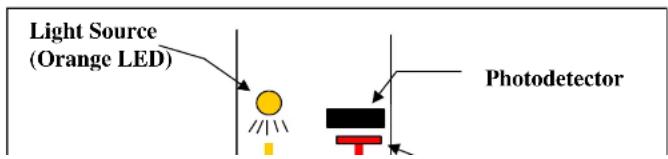
Principles of Operation Section 5
CALIBRATION METHODS
For calibration of the YSI BBA-PC Probe, only one type of standard will assure the best possible accuracy for field readings: a suspension of known PC-containing BGA cells. The BGA concentration of this suspension should be determined by either cell counting or a pigment extraction of PC. However, most users may not have cultures of BGA available prior to field studies for use in the 2-point calibration protocol resident in the sonde firmware and thus the best "calibration" method usually comprises the following steps:
- Prior to use in the field, place the sensor in clean water and perform a 1-point calibration at 0 cells/mL
- Immerse the sonde in a dye standard (see below) and record the reading. Note that you are not "calibrating" to the dye reading, only checking its value relative to the default sensitivity of the sensor.
- While making your field readings (sampling or unattended studies), collect a few grab samples and record the date/time and location where they were acquired.
- Collect and transport your field sample according to Standard Methods to ensure the BGA cells contained in the sample are not damaged or significantly changed since the time of collection.
- On return to the laboratory, analyze the grab samples for the amount of PC-containing BGA and record the results for later use.
- After the study is complete, place your YSI BGA-PC data in the column of a spreadsheet and place your laboratory data in an adjacent column for comparison. Calculate ratios of field to laboratory results for each grab sample point and then average the results to produce a ratio for adjustment (or "postcalibration") of your field results into more accurate values.
- Use the calculating power of the spreadsheet to multiply all of your field readings by the correction ratio to obtain the best possible accuracy for your 6131 data.
A variation of this method is to perform a 2-point calibration prior to deployment using a clear water and a dye standard, setting the apparent PC-containing BGA equivalent of the dye standard to the value shown in the table in the next section. However, it must be emphasized that this technique does not increase the accuracy of the PC sensor significantly over the simple 1-point calibration recommended above the user still must collect grab samples and perform laboratory analysis to be assured of meaningful BGA PC values. The primary utility of the dye is to check for sensor drift during deployment by reanalyzing the dye solution after sonde recovery. The use of the 2-point dye calibration procedure may make it easier to quantify the predeployment dye value and, if so, may be preferable. Remember, however, that no real enhancement of sensor accuracy is attained by using the dye as a calibrant.
BDEPADATION OF PHODAMINE WT SOLUTIONS FOR CHECKING
Principles of Operation Section 5
- Accurately weigh 0.500 g of the 20 % Rhodamine concentrate, quantitatively transfer the viscous liquid to a 1000-mL volumetric flask and fill the flask to the top graduation. Mix well. This solution contains 100 mg of Rhodamine WT per 1000 mL of water.
- Accurately transfer 1.0 mL of the solution prepared in the above step to a 1000 mL volumetric and then fill the flask to the top graduation with purified water. Mix well to obtain a solution that is 100 ug/L (0.10 mg/L) in water (a 1000:1 dilution of the concentrated solution).
- Store the concentrated standard solution in a darkened glass bottle in a refrigerator to retard decomposition. The dilute standard prepared in the previous step should be used within 5 days of its preparation.
When Rhodamine WT standards are required in the future, perform another dilution of the concentrated dye solution after warming it to ambient temperature. Our experience has indicated that the concentrated solution that has been kept at cold temperatures is much more stable than the dilute solution stored at room temperature.
It is well known that the intensity of the fluorescence of many dyes shows an inverse relationship with temperature. The effect must also be accounted for when “calibrating” the YSI PC sensor with Rhodamine WT. Enter the calibration value from the table below corresponding to the temperature of the standard.
WARNING: The "PC tempco" factor in the Advanced|Sensor menu MUST BE SET TO ZERO, when calibrating with Rhodamine WT.
Table. Approximate PC-containing equivalent of 100 ug/L Rhodamine WT as a function of temperature.
| T, C | Cells/mL to Enter | T, C | Cells/mL to Enter |
| 30 | 44940 | 18 | 76580 |
| 28 | 49700 | 16 | 83580 |
| 26 | 54600 | 14 | 91420 |
| 24 | 58940 | 12 | 98140 |
| 22 | 64120 | 10 | 107940 |
| 20 | 70000 | 8 | 113540 |
REMEMBER: The use of Rhodamine WT for "calibration" of the Phycocyanin Probe is only an
Principles of Operation Section 5
EFFECT OF CHLOROPHYLL ON BGA-PC READINGS
While the orange LED used in the 6131 Phycocyanin Probe is not ideal for excitation of the chlorophyll in non-BGA phytoplankton, some fluorescence of environmental chlorophyll will always be induced by the Phycocyanin Probe. Because the filter system for the 6131 photodiode is not perfect in excluding chlorophyll fluorescence, a minor interference on PC-containing BGA readings from chlorophyll-containing phytoplankton will result. Laboratory experiments indicate that a suspension of phytoplankton from Scenedesmus quadricauda which had its chlorophyll content measured using a YSI 6025 sensor will have chlorophyll interference characterized by a factor of about 77 cells/mL of PC-containing BGA per ug/L of chlorophyll. For example, at a chlorophyll value of 30~ug / L from Scenedesmus quadricauda, a PC-containing BGA reading of 2310 cell/mL will be observed over and above the reading actually due to the presence of BGA. Note, however, that the chlorophyll interferences from other algae species are likely to be significantly different from that used in the test, and so the quoted value of 77 cells/mL per ug/L of chlorophyll is only a gross approximation.
EFFECT OF TEMPERATURE ON BGA-PC READINGS
YSI experiments have indicated that the fluorescence of phytoplankton suspensions can show significant temperature dependence, both due to a change in BGA fluorescence and to a change in probe output. In the absence of compensation, this effect would obviously result in errors in field PC-containing BGA readings if the site temperature were significantly different from the calibration temperature. This temperature error can be reduced by employing a phycoeyanin temperature compensation routine ("PC tempeo") resident in the sonde firmware under the Advanced|Sensor menu where the factor in "% per degree C" can be input by the user.
The value of this factor can be estimated as follows using a single suspension of PC-containing BGA under laboratory conditions. In the experiment, the cells/mL value of the suspension is measured at both ambient temperature and then at a much colder temperature by cooling the suspension in a refrigerator.
Change in Temperature = 21 C at ambient temperature - 2 C in refrigerator = 19 C temperature change
Change in Fluorescence = 100,000 cells/mL at 21 C - 120,000 cells/ml at 2 C = 20,000 cells/mL change
% Change in Fluorescence = (20,000/100,000) x 100 = 20%
PC Tempco Factor = 20%/19 C = 1.05 % per degree °C
CAUTION: This example is hypothetical only. Actual tempo factor values must be determined by
Principles of Operation Section 5
capability of mechanical cleaning is likely to be compromised. The YSI 6131 probe is equipped with a mechanical wiper that makes it ideal for unattended applications. The wiper can be activated in real-time during discrete sampling operations or will function automatically just before each sample is taken during long term unattended monitoring studies. The number of wiper movements and the frequency of the cleaning cycle for the unattended mode can be set in the sonde firmware. Generally, one wiper movement is sufficient for most environmental applications, but in media with particularly heavy fouling, additional cleaning cycles may be necessary.
LIMITATIONS OF ACCURACY FOR THE BGA-PC SENSOR
As mentioned above, the measurement of PC-containing BGA from in vivo fluorescence measurements will almost always be less accurate than determinations made using either cell counting or spectrofluorometric quantitation of molecular phycocyanin after its extraction from cells. Some of the reasons for this accuracy limitation with in vivo BGA-PC measurement include the following:
- Interferences from other microbiological species such as chlorophyll-containing phytoplankton
- Interference from sample turbidity.
• Differences in the general fluorescence intensity of different PC-containing BGA species - Differences in the effect of temperature on the fluorescence intensity of different PC-containing BGA species
- Effect of the variation in ambient light conditions on BGA fluorescence and differences in this effect between different PC-containing BGA species.
In addition, when present in high concentrations, colonies of BGA can often be seen with the naked eye and may resemble fine grass cutting or take the form of small irregular clumps or pinhead-sized spheres. When BGA colonize into these forms, the sensitivity of the YSI sensor in terms of the fluorescence per cell of BGA is reduced because it has been designed to detect microscopic, free-floating cells and not large, macroscopic floating particles. Thus, the sensor is likely to underestimate the total amount of BGA present in the water when clumps are present.
Users should take careful note that these limitations mean that any in vivo sensors such as BGA-PC and chlorophyll will be significantly less quantitative than any of the other sensors offered for use with YSI 6-series sondes and make it impossible for YSI to provide an actual accuracy specification in cells/mL for the 6131 Phycocyanin Probe.
5.17 PHYCOERYTHRIN-CONTAINING BLUE-GREEN ALGAE
Introduction
Blue-green algae (BGA), also known as cyanobacteria, are common forms of photosynthetic bacteria present in most freshwater and marine systems. BGA contain a unique set of accessory pigments of the phycobiliprotein family that serve a variety of roles for the organism. The primary phycobilin pigments are phycocyanin (PC) and phycoerythrin (PE) and both happen to have strong fluorescent signatures that do not interfere significantly with the fluorescence of the chlorophylls. This allows for the in vivo detection of BGA with minimal interference from other groups of algae. BGA with the PC phycobilin pigment can be found in both fresh and brackish water environments while BGA with the PE phycobilin pigment is usually found only in brackish or marine environments.
The monitoring of BGA is of growing interest in a number of research and monitoring fields and of particular interest is the monitoring of BGA as a public health risk in coastal areas and as an important primary producer is some oceanic environments. As the rates of eutrophication accelerate due to human impacts on aquatic ecosystems, harmful algal blooms (HABS) are becoming a more common problem. In the case of cyanobacterial blooms, some species can produce toxins generally referred to as cyanotoxins that can cause health risks to humans and animals.
The YSI 6132 sensor, when used in conjunction with YSI 6-series multiparameter sondes, is designed to detect and monitor the presence of PE-containing BGA in order to provide an early warning system for potentially hazardous conditions as well as thoroughly characterize aquatic environments where PE-containing BGA exist.
The determination of BGA as an indicator of water quality has historically been carried out using either (a) extraction of BGA samples followed by analysis of the extracts by fluorometry, HPLC, or a combination of the two techniques or (b) the automated or manual counting of actual BGA cells in the known volume of sample water. While accurate, these types of analytical techniques usually are done as part of a "spot sampling" protocol and almost never yield continuous data with regard to BGA content. The methods are time-consuming and usually require an experienced, efficient analyst to generate consistently accurate and reproducible results. Most importantly, the methods do not lend themselves readily to continuous monitoring of PE-containing BGA, since the analysis of a collection of samples taken at reasonable time intervals, e.g., every hour, would be extremely tedious.
Principles of Operation Section 5
Measurement of PE-containing BGA In Vivo
One key characteristic of phycoerythrin-containing BGA is that the cells fluoresce, that is, when irradiated with light of a particular wavelength, they emit light of a higher wavelength (or lower energy). The ability of PE to fluoresce while present in whole BGA cells is the basis for all commercial fluorometers capable of measuring the analyte in vivo. These instruments induce PE to fluoresce by shining a beam of light of the proper wavelength into the sample, and then measuring the longer wavelength light which is emitted as a result of the fluorescence process. The YSI 6132 PE Probe uses a green light emitting diode (LED) for the excitation process. On irradiation with this green light, PE molecules resident in whole cells emit light in the 565-610 nm region of the spectrum. To quantify the fluorescence, the system detector is usually a photodiode of high sensitivity that is screened by an optical filter that restricts the detected light. The filter prevents the green exciting light from being detected when it is backscattered off of particles in the water. Without the filter, turbid (cloudy) water would appear to contain significant amounts of PE-containing BGA, even though none were present. The following diagram can be used to better understand the principles of the YSI system.

Principles of Operation Section 5
CALIBRATION METHODS
For calibration of the YSI BGA-PE Probc, only one type of standard will assure the best possible accuracy for field readings: a suspension of known PE-containing BGA cells. The BGA concentration of this suspension should be determined by either cell counting or a pigment extraction of PE. However, most users may not have cultures of BGA available prior to field studies for use in the 2-point calibration protocol resident in the sonde firmware and thus the best “calibration” method usually comprises the following steps:
- Prior to use in the field, place the sensor in clean water and perform a 1-point calibration at 0 cells/mL.
- Immerse the sonde in a dye standard (see below) and record the reading. Note that you are not "calibrating" to the dye reading, only checking its value relative to the default sensitivity of the sensor.
- While making your field readings (sampling or unattended studies), collect a few grab samples and record the date/time and location where they were acquired.
- Collect and transport your field sample according to Standard Methods to ensure the BGA cells contained in the sample are not damaged or significantly changed since the time of collection.
- On return to the laboratory, analyze the grab samples for the amount of PE-containing BGA and record the results for later use.
- After the study is complete, place your YSI BGA-PE data in the column of a spreadsheet and place your laboratory data in an adjacent column for comparison. Calculate ratios of field to laboratory results for each grab sample point and then average the results to produce a ratio for adjustment (or "postcalibration") of your field results into more accurate values.
- Use the calculating power of the spreadsheet to multiply all of your field readings by the correction ratio to obtain the best possible accuracy for your 6132 data.
A variation of this method is to perform a 2-point calibration prior to deployment using a clear water and a dye standard, setting the apparent PE-containing BGA equivalent of the dye standard to the value shown in the table in the next section. However, it must be emphasized that this technique does not increase the accuracy of the PE sensor significantly over the simple 1-point calibration recommended above - the user still must collect grab samples and perform laboratory analysis to be assured of meaningful BGA-PE values. The primary utility of the dye is to check for sensor drift during deployment by reanalyzing the dye solution after sonde recovery. The use of the 2-point dye calibration procedure may make it easier to quantify the predeployment dye value and, if so, may be preferable. Remember, however, that no real enhancement of sensor accuracy is attained by using the dye as a calibrant.
PREPARATION OF DUARDLINE UET SOLUTIONS FOR CUEFICING
Principles of Operation Section 5
- Accurately weigh 0.500 g of the 20 % Rhodamine concentrate, quantitatively transfer the viscous liquid to a 1000-mL volumetric flask and fill the flask to the top graduation. Mix well. This solution contains 100 mg of Rhodamine WT per 1000 mL of water.
- Accurately transfer 80 uL of the solution prepared in the above step to a 1000 mL volumetric and then fill the flask to the top graduation with purified water. Mix well to obtain a solution that is 8 ug/L (0.008 mg/L) in water.
- Store the concentrated standard solution in a darkened glass bottle in a refrigerator to retard decomposition. The dilute standard prepared in the previous step should be used within 5 days of its preparation.
When Rhodamine WT standards are required in the future, perform another dilution of the concentrated dye solution after warming it to ambient temperature. Our experience has indicated that the concentrated solution that has been kept at cold temperatures is much more stable than the dilute solution stored at room temperature.
It is well known that the intensity of the fluorescence of many dyes shows an inverse relationship with temperature. The effect must also be accounted for when “calibrating” the YSI BGA-PE sensor with Rhodamine WT. Enter the calibration value from the table below corresponding to the temperature of the standard.
WARNING: The "PE tempco" factor in the Advanced|Sensor menu MUST BE SET TO ZERO, when calibrating with Rhodamine WT.
Table. Approximate PE-containing equivalent of 8 ug/L Rhodamine WT as a function of temperature.
| T, C | Cells/mL to Enter | T, C | Cells/mL to Enter |
| 30 | 156,000 | 18 | 210,000 |
| 28 | 164,000 | 16 | 220,000 |
| 26 | 174,000 | 14 | 230,000 |
| 24 | 181,000 | 12 | 240,000 |
| 22 | 189,000 | 10 | 247,000 |
| 20 | 200,000 | 8 | 254,000 |
DEMEMBED: The use of Dhodoming WT for 'recultivation?' of the DE Dukes is only an annuropylation.
Principles of Operation Section 5
EFFECT OF CHLOROPHYLL ON BGA-PE READINGS
While the orange LED used in the 6132 PE Probe is not ideal for excitation of the chlorophyll in non-BGA phytoplankton, some fluorescence of environmental chlorophyll will always be induced by the 'PE Probe. Because the filter system for the 6132 photodiode is not perfect in excluding chlorophyll fluorescence, a minor interference on PE-containing BGA readings from chlorophyll-containing phytoplankton will result. Laboratory experiments indicate that a suspension of phytoplankton from Scenedesmus quadricauda which had its chlorophyll content measured with a YSI 6025 sensor will have chlorophyll interference characterized by a factor of about 20 cells/mL of PC-containing BGA per g/L of chlorophyll. For example, at a chlorophyll value of 30 g/L from Scenedesmus quadricauda, a PC-containing BGA reading of 600 cells/mL will be observed over and above the reading actually due to the presence of BGA. Note, however, that the chlorophyll interferences from other algae species are likely to be significantly different from that used in the test, and so the quoted value of 20 cells/mL per g/L of chlorophyll is only a gross approximation.
EFFECT OF TEMPERATURE ON BGA-PE READINGS
YSI experiments have indicated that the fluorescence of phytoplankton suspensions can show significant temperature dependence, both due to a change in BGA fluorescence and to a change in probe output. In the absence of compensation, this effect would obviously result in errors in field PE-containing BGA readings if the site temperature were significantly different from the calibration temperature. This temperature error can be reduced by employing a PE temperature compensation routine ("PE tempco") resident in the sonde firmware under the AdvancedSensor menu where the factor in "% per degree C" can be input by the user.
The value of this factor can be estimated as follows using a single suspension of PE-containing BGA under laboratory conditions. In the experiment, the cells/mL value of the suspension is measured at both ambient temperature and then at a much colder temperature by cooling the suspension in a refrigerator.
Change in Temperature = 21 C at ambient temperature - 2 C in refrigerator = 19 C temperature change
Change in Fluorescence = 100,000 cells/mL at 21 C - 120,000 cells/ml at 2 C = 20,000 cells/mL change
% Change in Fluorescence = (20,000/100,000) x 100 = 20%
PE Tempco Factor = 20%/19 C = 1.05 % per degree °C
CAUTION: This example is hypothetical only. Actual tempo factor values must be determined by
Principles of Operation Section 5
mechanical wiper that makes it ideal for unattended applications. The wiper can be activated in real-time during discrete sampling operations or will function automatically just before each sample is taken during long term unattended monitoring studies. The number of wiper movements and the frequency of the cleaning cycle for the unattended mode can be set in the sonde firmware. Generally, one wiper movement is sufficient for most environmental applications, but in media with particularly heavy fouling, additional cleaning cycles may be necessary.
LIMITATIONS OF ACCURACY FOR THE BGA-PE SENSOR
As mentioned above, the measurement of PE-containing BGA from in vivo fluorescence measurements will almost always be less accurate than determinations made using either cell counting or spectrofluorometric quantitation of molecular PE after its extraction from cells. Some of the reasons for this accuracy limitation with in vivo BGA-PE measurement include the following:
• Interferences from other microbiological species such as chlorophyll-containing phytoplankton
• Interference from sample turbidity.
• Differences in the general fluorescence intensity of different PE-containing BGA species
- Differences in the effect of temperature on the fluorescence intensity of different PE-containing BGA species
- Effect of the variation in ambient light conditions on BGA fluorescence and differences in this effect between different PE-containing BGA species.
In addition, when present in high concentrations, colonies of BGA can often be seen with the naked eye and may resemble fine grass cutting or take the form of small irregular clumps or pinhead-sized spheres. When BGA colonize into these forms, the sensitivity of the YSI sensor in terms of the fluorescence per cell of BGA is reduced because it has been designed to detect microscopic, free-floating cells and not large, macroscopic floating particles. Thus, the sensor is likely to underestimate the total amount of BGA present in the water when clumps are present.
Users should take careful note that these limitations mean that any in vivo sensors such as BGA-PE and chlorophyll will be significantly less quantitative than any of the other sensors offered for use with YSI sondes and make it impossible for YSI to provide an actual accuracy specification in cells/mL for the 6132 PE Probe.
Principles of Operation Section 5
5.18 FLOW
Flow is a calculated value. Whenever there is a one to one relationship between the level of water in an open channel and the flow of water through it, then flow can be calculated from a level measurement. YSI sondes that are equipped with shallow vented level can calculate flow based on several different methods.
Flow is only available in the Sensors menu on those sondes that have shallow vented level. The Flow Setup menu only appears when Flow is enabled in the Sensors menu.
Note: In this manual we describe how to use our sondes to calculate flow from vented level. While weirs, flumes and the Manning equation are described briefly in this manual, it is not a complete treatment of the subject. We make no claims on the accuracy or appropriateness of any of these techniques for any particular application.
WEIR AND FLUME
Many devices have been designed for the determination of flow in an open channel. For example, a weir is a dam of specific geometry that restricts the flow of water while giving a very repeatable and accurate relationship between level and flow. There are several varieties of weirs; each designed for a specific application. Similarly, a flume also restricts flow producing a repeatable and accurate flow/level curve by forcing the flow not over a dam, but through a narrower portion of the channel. The flow is gradually narrowed, passed through a throat in the channel, and then gradually expanded back to the original channel width. As with weirs, there are several varieties of flumes, each designed for a specific application.
The weir or flume is referred to as the primary measuring device, and the level meter is referred to as the secondary measurement device. There are commonly 3 types of wcirs and 7 types of flumes. Most of these are available in a number of sizes. Flow/level curves for common types and sizes are already programmed in the sonde so that it is only necessary to describe the primary measuring device to get flow readings. If you have a primary measuring device that is not already programmed, you have the option of entering either an equation or a table that defines the flow/level curve for your device. The table can also be used to calculate the flow of water in stream for which the flow/level data is available.
MANNING EQUATION
YSI sondes with shallow vented level can be used with the Manning equation. In an open channel without
Principles of Operation Section 5
vegetation in the channel also affects the value of n, and in most applications the value changes depending upon the depth of water in the channel.
Other uncertainties can also make the measurement inaccurate. Best results are obtained at the end of a straight channel 1000 feet (300 meters) long. However, in reality it is difficult to find channels that are very long, and very straight, and with constant slope, and with uniform roughness.
Even with all these uncertainties, the Manning equation can yield useful results as long as the user is aware of its limitations.
EQUATION
The YSI sondes that are equipped with shallow vented level can also calculate flow based on an equation. The equation must be of the form:
This allows the use of primary measuring devices other than the standard ones already programmed. Users may enter values for K1, P1, K2, and P2 and the sonde will calculate flow. Note: if you do not need the second term in the equation, simply enter 0 for K2.
TABLE
YSI sondes that are equipped with shallow vented level can also calculate flow based on a table. Users can enter up to 50 pairs of (level, flow) data. The sonde will then calculate flow from the resulting table, linearly interpolating between points when necessary. This feature can be used with non-standard primary measuring devices for which there is a table rather than an equation. This data is often available for rivers and streams so that flow can be calculated from the level in a river at the proper location.
See Appendix F, Flow for additional practical information on the calculation of flow with a sonde.
Troubleshooting Section 6
SECTION 6 TROUBLESHOOTING
This section contains troubleshooting tables that will be helpful to identify the causes of the most common difficulties that may occur while operating the YSI 6 Series Sondes. The Symptom column describes the type of difficulty that you might experience. The Possible cause column describes the conditions that might cause the stated symptom. The Action column provides simple steps that can be followed to correct for the "possible cause" and cure the "symptom" being experienced. The column entitled Ref is the number of the reference section and subsection in the manual where you may find additional information.
Troubleshooting problems have been categorized into four general areas.
• Calibration Error Messages
- Sonde Communication
- Sensor Performance
If you need assistance that this Troubleshooting section can not provide, please contact YSI Technical Support.
6.1 CALI BRATION ERRORS
There are three main Calibration Error messages that are possible and are listed below, instead of in the troubleshooting table. Only two of the error messages are related to sensor performance.
High DO Charge: This message indicates a malfunction in the Rapid Pulse DO sensor that is generally due to the roughness of the electrodes on the surface of the probe face. The charge associated with the DO sensor must be below 75 or the error message will appear when calibration is attempted. If this error message is encountered, remove the DO probe from the sonde and resurface it according to the instructions in Section 2.10, Care, Maintenance and Storage. After resurfacing the probe, activate the DO charge parameter in the Report setup section of the sonde software and confirm that the value is within the acceptable range of 50 ± 25 . After resurfacing, allow the sensor to pulse in the Run mode for at least 5 minutes, during which time the DO charge may be expected to drop in value if the sensor is still functional. If resurfacing according to the instructions in Section 2.10, Care, Maintenance and Storage does not result in a lowering of the charge, contact YSI Technical Support for additional help.
Troubleshooting Section 6
6.2 SONDE COMMUNICATION PROBLEMS
| SYMPTOM | POSSIBLE CAUSE | ACTION | REF |
| Cannot communicate with sonde | Sonde not powered | Check 12 vdc source | 2.3.3 |
| Cable connection is loose | Check both ends of cable; secure connectors | 2.3.4 | |
| Damaged connectors | Check pins at both ends; insure they are straight, dry and clean. | ||
| Com port not selected | Change to other com port, other peripheral on the same port (Internal mouse). Try other PC, 650 display/logger or dumb terminal | 2.4.3 | |
| Scrambled data | Unmatched baud rate between host and sonde | Match the baud rate | 2.4.3 |
| Host is too slow | Use faster computer | ||
| Interface cable failure | Check cable for damage. If necessary, return for service | 2.3.4 | |
| Internal failure | Return sonde for service | 9 | |
6.3 SENSOR PERFORMANCE PROBLEMS
| SYMPTOMS | POSSIBLE CAUSE | ACTION | REF |
| Rapid Pulse dissolved Oxygen reading unstable or inaccurate | Probe not properly calibrated | Follow DO cal procedures | 2.6.1 |
| Membrane not properly installed or may be punctured | Follow 6562 setup procedure | 2.3.1 | |
| DO probe electrodes require cleaning | Follow DO cleaning procedure. Use 6035 maint. kit | 2.10.2 | |
| Water in probe connector | Dry connector; reinstall probe | 2.3.2 | |
| Algac or other contaminant clinging to DO probe | Rinsc DO probe with clean water | 2.10.2 | |
| Barometric pressure entry is incorrect | Repeat DO cal procedure | 2.6.1 | |
| Cal at extreme temperature | Recal at (or near) sample temperature | 2.6.1 | |
| DO Charge too high (>75)1. Anodes polarized (tarnished)2. Probe left on continuously | Enable DO charge parameter in the Sonde report menu. Run sondc, if charge is over 100, recondition probe with 6035 Maintenance Kit. Follow DO cleaning procedure. | 2.10.2 | |
| DO Charge too low (<25) Insufficient electrolyte. | Replace electrolyte and membrane. | 2.3.1 | |
| DO probe has been damaged | Replace 6562 probe | 9 | |
| Internal failure | Return sondc for service | 9 | |
| ROX dissolved Oxygen reading unstable or inaccurate | Probe not properly calibrated | Follow DO cal procedures | 2.6.1 |
| Membrane assembly not properly installed or may be punctured | Follow instructions for proper membrane assembly replacement | 2.10.2 | |
| Water in probe connector | Dry connector; reinstall probe | 2.3.2 | |
| Algac or other contaminant clinging to DO probe | Rinsc DO probe with clean water | 2.10.2 | |
| Barometric pressure entry is | Repeat DO cal procedure | 2.6.1 |
Troubleshooting Section 6
| Water in probe connector | Dry connector; reinstall probe | 2.3.2 | |
| Probe has been damaged | Replace probe | 9 | |
| Calibration solutions out of spec or contaminated with other solution | Use new calibration solutions | C | |
| ORP fails Zobell check | Take into account temperature dependence of Zobell solution readings | 5.4 | |
| Internal failure | Return sonde for service | 9 |
| Depth unstable or inaccurate | Depth sensor has not been zeroed | Follow depth zero procedure | 2.6.1 |
| Depth sensor access hole is obstructed | Follow depth cleaning procedure | 2.10.2 | |
| Depth sensor has been damaged | Return sonde for service | 9 | |
| Internal failure | Return sonde for service | 9 | |
| Conductivity unstable or inaccurate. Error messages appear during calibration. | Conductivity improperly calibrated. | Follow cal procedure | 2.6.1 |
| Conductivity probe requires cleaning | Follow cleaning procedure | 2.10.2 | |
| Conductivity probe damaged | Replace probe | 9 | |
| Calibration solution out of spec or contaminated | Use new calibration solution | C | |
| Internal failure | Return sonde for service | 8 | |
| Calibration solution or sample does not cover entire sensor. | Immerse sensor fully. | 2.6.1 | |
| Installed probe has no reading | The sensor has been disabled | Enable sensor | 2.9.7 |
| Water in probe connector | Dry connector; reinstall probe | 2.3.2 | |
| Probe has been damaged | Replace the 6560 probe | 9 | |
| Report output improperly set up | Set up report output | 2.9.6 | |
| Internal failure | Return sonde for service. | 9 | |
| Temperature, unstable or inaccurate | Water in connector | Dry connector; reinstall probe | 2.3.2 |
| Probe has been damaged | Replace the 6560 probe | 9 | |
| Optical probe (turbidity, chlorophyll, rhodamine) | Probe requires cleaning. | Follow probe cleaning procedure | 2.10.2 |
| Probe requires calibration | Follow cal procedures | 2.6.1 |
Communications Section 7
SECTION 7 COMMUNICATION
This section describes the communication protocols that the Sondes use to communicate with the host system. Section 7.1 gives a brief overview of the communication ability of the Sondes. The remaining sections describe available hardware and software features.
7.1 OVERVIEW
The sondes communicate via a serial port that can be configured as either a SDI-12, or a 3-wire RS-232 interface. The normal mode of operation for the sonde is RS-232, with the following configurations:
Baud rate: 300, 600, 1200, 2400, 4800, 9600
Data Bit: 8
Parity: None
Handshake: None
For further detail into the sondes RS-232 and SDI-12 implementations, see Sections 7.3 and 7.4 respectively.
With these configurations, the Sonde is capable of interfacing to a variety of devices from a "dumb" terminal to numerous data collection platforms.
7.2 HARDWARE INTERFACE
Connection from the Sonde to the host computer is provided using the YSI 6095B MS-8 to DB-9 female adapter. This 6095B then connects to the standard DB-9 male connector on the host computer. The Sonde PC interface cable is wired for direct connection to a DTE device. The following table defines the interface circuits. The signals and their directions are defined with respect to use of the Sonde with the 6095B adapter.
Communications Section 7
7.3 RS-232 INTERFACE
The sonde has an auto-baud feature that allows the instrument to automatically adjust to the terminal baud rate. If the sonde is set to a baud rate of 4800 and a 9600 baud terminal is attached to it, after a few carriage returns are entered, the sonde will recognize the communication mismatch and attempt to change its own internal baud rate to match the terminals.
7.4 SDI-12 INTERFACE
SDI-12 is an industry-standard serial digital interface bus. The bus was designed to allow compatibility between data collection devices and sensors of various manufacturers. The description below applies specifically to the Sonde implementation of SDI-12 interface. For complete SDI-12 technical specifications please contact:
Campbell Scientific, Inc.
P.O. Box 551
Logan, Utah 84321 USA
(801) 753-2342
SDI-12 is a single master multi-drop bus and command protocol. As many as 10 sensors can be connected to the bus at a time. Each sensor is pre-assigned a unique address from 0 to 9. Each Sonde is factory-set to address 0. The address can be changed in the System menu, see Section 2.9.5, System menu for details.
Running the sonde in SDI-12 mode requires it to be connected to a SDI-12 master device. An example of such a device is the YSI 6200 or units from Campbell Scientific or Handar Instruments. These instruments provide the commands necessary to communicate with the sonde in SDI-12 mode. In addition, the sonde also supports the following commands which are entered from the command line at the # prompt:
SDI12
This command activates SDI-12 mode. This is the only mode in which the Sonde will respond to any SDI-12 command. To exit to command line, press any key from the terminal connected to the RS-232 port.
The Sonde implements the basic SDI-12 command set. Below are the descriptions of each command and
Communications Section 7
t.t.t. - Maximum time in seconds the Sonde will take to complete the measurement.
n - Number of data that will be available when the measurement is completed. This number is the same as the number of output parameters set in the Report menu, as described in Section 2.9.6, Report. For ten or more parameters, the sonde returns ":", ";", "<",ward", ">", "?", "@", "A", "B",...etc.
After finishing the measurement, the Sonde will usually send a service request "a[CR][LF]" to the bus master. The bus master can then retrieve the measurement result by "D0" to "D9" commands (see below). If the Sonde does not send a service request within the specified maximum time, the measurement is canceled. The bus master can then restart with another "M" command.
Master: aI! Send identification.
Sonde: allccccccmmmmmmvvvxxx...xxx[CR][LF]
1 - 2 character SDI-12 level number.
c - 8 character manufacturer identification. This field always contains "YSIIWQSG" (YSI Inc., Water Quality Systems Group).
m - 6 character model number. This field always contains "EM600_" or "EM 6920" (Environmental Monitoring System Sonde) depending on the sonde.
v - 3 character version number. This field holds the sonde's software version number ("100" for version 1.00).
Master: aD0! to aD9!
Retrieve measurement/verifying data
Sonde: a<values>[CR][LF]
Communications Section 7
Manufacturer: YSIWQSG
Model: EMS600
Version: 1.07
Master: IM!
Sonde: 10617[CR][LF]
The bus master sent a measurement command. The Sonde will take a maximum of 61 seconds to finish the measurement. Upon completion, it will have 7 sensor data available.
Sondc: 1|CR|[LF]
Master: ID0!
Sonde: 1+17.5+12.05+98.7+8.25+6.45[CR][LF]
Master: 1D1!
Sonde: 1-325+10|CR||LF|
After finishing the measurement, the Sonde sent a service request to indicate completion. The bus master then sent the "D0" command to retrieve the data. There were 5 data returned. Since 7 readings should be available, the master continued with "D1" command and received the remaining data. The responses from "D0" and "D1" commands are:
Temperature: 17.5
Specific conductance: 12.05
DO %: 98.7
DO mg/L: 8.25
pH (ISE1): 6.45
ORP (ISE2): -325
Depth: 10
SECTION 8 UPGRADING SONDE FIRMWARE
YSI periodically makes changes in the firmware which is resident in the sonde and controls its functions. These changes can be made to allow the use of new sensors, to improve the overall capability of the instrument, or to fix problems which have arisen in the existing firmware. New versions of 6-series firmware can easily be installed in the sonde without returning the instrument to the factory. Upgrades are performed from the YSI Website and should be carried according to the following instructions.
- Connect your sonde to the serial port of a PC with access to the Internet using the proper cable as described in Section 2 of the manual.
• Make sure that the sonde is powered with either internal batteries or a suitable power supply. - Access the YSI Environmental Software Downloads page at www.ysi.com/edownloads or go to main page at www.ysi.com and click on Support button in green bar.
- Log in, or if a first time user, fill out the registration form and wait for a login password via return E-mail.
- Click on the Software folder under the Software Downloads section.
- Inside the folder, click on the file 6-Series & 556MPS Code Updater. M-DD-YYYY and save the file to a temporary directory on your computer.
- After the download is complete, run the file that you just downloaded and follow the on-screen instructions to install the YSI Code Updater on your computer. If you encounter difficulties, contact YSI Technical Support for advice.
- Run the YSI Code Updater software that you just installed on your computer. The following window will be displayed:
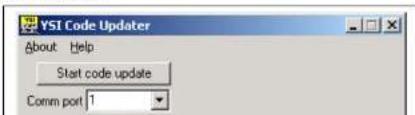
Upgrading Sonde Firmware
Section 8

- When the update is finished (indicated on the PC screen as shown below), close the YSI Code Updater window (on the PC) by clicking on the "X" in the upper right corner of the window.

SECTION 9 WARRANTY AND SERVICE INFORMATION
The sondes are warranted for two years and the 650 MDS for three years against defects in workmanship and materials when used for their intended purposes and maintained according to instructions. All cables are warranted for one year. The warranty periods for probes are as follows:
- All ROX DO optical probes manufactured on or after January 2012 are covered under a flat two year warranty. ROX membrane assembly is warranted for 1 year.
- All non-IDO (Turbidity, Chlorophyll, Rhodamine WT, Blue-green Algae – Phycocyanin, and Blue-green Algae – Phycocrythrin) optical probes manufactured on or after January 2012 are covered under a flat two year warranty.
- Depth, Rapid Pulse dissolved oxygen, temperature/conductivity, pH, pH/ORP, and chloride probes are warranted for 1 year. Ammonium and nitrate probes are warranted for six months.
Due to the dynamic nature of the shaft seal used on the optical probes, we strongly recommend probes be returned to a YSI repair center every two years for servicing. The dynamic shaft seal replacement and lubrication can only be performed at authorized service centers, and helps extend the operational life of the probe.
Please register your products online at www.ysi.com/warranty
This warranty does not include batteries or damage resulting from defective batteries. As documented in the Care and Maintenance Section of this manual, batteries should be removed from all sondes and the 650 MDS when the product is not in use. Since many battery manufacturers will repair or replace any equipment that has been damaged by their batteries, it is essential that leaky or defective batteries be retained with the damaged product until the manufacturer has evaluated the claim. Please contact the YSI Technical Support Group if you have any questions.
Damage due to accidents, misuse, tampering, or failure to perform prescribed maintenance is not covered. The warranty period for chemicals and reagents is determined by the expiration date printed on their labels. Within the warranty period, YSI will repair or replace, at its sole discretion, free of charge, any product that YSI determines to be covered by this warranty.
To exercise this warranty, write or call your local YSI representative, or contact YSI Technical
Warranty and Service Information
Section 9
EXCLUSIVE REMEDY FOR ANY DEFECTIVE PRODUCT COVERED BY THIS WARRANTY. IN NO EVENT SHALL YSI BE LIABLE FOR ANY SPECIAL, INDIRECT, INCIDENTAL OR CONSEQUENTIAL DAMAGES RESULTING FROM ANY DEFECTIVE PRODUCT COVERED BY THIS WARRANTY.
9.2 AUTHORIZED SERVICE CENTERS
YSI has several authorized Service Centers in the United States and around the world. Please refer to the YSI website (ysi.com) for you nearest authorized Service Center.
9.3 CLEANING INSTRUCTIONS
NOTE: Before they can be serviced, equipment exposed to biological, radioactive, or toxic materials must be cleaned and disinfected. Biological contamination is presumed for any instrument, probe, or other device that has been used with body fluids or tissues, or with wastewater. Radioactive contamination is presumed for any instrument, probe or other device that has been used near any radioactive source.
If an instrument, probe, or other part is returned or presented for service without a Cleaning Certificate, and if in our opinion it represents a potential biological or radioactive hazard, our service personnel reserve the right to withhold service until appropriate cleaning, decontamination, and certification has been completed. We will contact the sender for instructions as to the disposition of the equipment. Disposition costs will be the responsibility of the sender.
When service is required, either at the user's facility or at YSI, the following steps must be taken to insure the safety of our service personnel.
In a manner appropriate to each device, decontaminate all exposed surfaces, including any containers. 70% isopropyl alcohol or a solution of 1/4 cup bleach to 1-gallon tap water are suitable for most disinfecting. Instruments used with wastewater may be disinfected with .5% Lysol if this is more convenient to the user.
- The user shall take normal precautions to prevent radioactive contamination and must use
9.4 PACKING INSTRUCTIONS
5 Clean and decontaminate items to insure the safety of the handler.
Complete and include the Product Return Form which is on the next page of this section.
Place the product in a plastic bag to keep out dirt and packing material.
Use a large carton, preferably the original, and surround the product completely with packing material.
Insure for the replacement value of the product.
9.5 PRODUCT RETURN FORM

Product Return Form
If known, please provide your:
YSI Customer #
Service Request #
Step 1: Provide your billing and shipping information
| BILL TO |
| CONTACT: |
| PHONE: ( ) |
| FAX: ( ) |
| EMAIL: |
| SHIP TO |
| CONTACT: |
| PHONE: ( ) |
| FAX: ( ) |
| EMAIL: |
| RETURN SHIPPING | |
| VIA (CIRCLE ONE) | |
| DHL FedEx UPS | |
| Account #: | |
| Please note: Shipping is prepaid and add. | |
| METHOD (CIRCLE ONE) | |
| Ground | Next Day AM |
| 2 Day | Next Day PM |
| Other: | |
Step 2: Provide information on your equipment
| MODEL NUMBER: | SERIAL NUMBER: |
| PLEASE DESCRIBE THE PROBLEM(S): | |
Step 3: Provide your method of payment
PAYMENT METHOD
Step 4: Fill out the Cleaning Certificate
CLEANING CERTIFICATE
Warranty and Service Information
Section 9
Health and Safety Appendix A
APPENDIX A HEALTH AND SAFETY
NOTE: For additional health, safety, and disposal information about YSI reagents, download the MSDS documents for the chemical in question from the YSI webpage (ysi.com).
YSI Conductivity solutions: 3161, 3163, 3165, 3167, 3168, and 3169
INGREDIENTS:
θ Iodine
θ Potassium Chloride
θ Water
Inhalation:
Inhalation of mist or splashes of iodine solution can cause severe irritation, with potential destruction of respiratory tissues, spasms, and edema (choking) in throat and lungs, depending on frequency and degree of exposure. Other reported potential effects are coughing, burning sensation, laryngitis, headache, and nausea.
Use a NIOSH approved respirator for liquid mists and/or splashes. Get supplier recommendations. Provide adequate ventilation. Avoid conditions that cause misting or splashing.
Remove to fresh air. Give artificial respiration and get medical attention as needed.
Skin:
May cause irritation with repeated exposure.
Wear water-resistant gloves as needed.
Wash exposed areas with soap and water for 15 minutes. Remove contaminated clothing, and wash before re-using.
Health and Safety Appendix A
FIRST AID:
INHALATION: Remove victim from exposure area. Keep victim warm and at rest. In severe cases seek medical attention.
SKIN CONTACT: Remove contaminated clothing immediately. Wash affected area thoroughly with large amounts of water. In severe cases seek medical attention.
EYE CONTACT: Wash eyes immediately with large amounts of water, (approx. 10 minutes). Seek medical attention immediately.
INGESTION: Wash out mouth thoroughly with large quantities of water. Do not induce vomiting. Seek medical attention immediately.
YSI pH 4.00, 7.00, and 10.00 Buffer Solutions: 3821, 3822, 3823
pH 4 INGREDIENTS:
θ Potassium Hydrogen Phthalate
θ Formaldehyde
θ Water
pH 7 INGREDIENTS:
θ Sodium Phosphate, Dibasic
θ Potassium Phosphate, Monobasic
Health and Safety Appendix A
FIRST AID:
INHALATION - Remove victim from exposure area to fresh air immediately. If breathing has stopped, give artificial respiration. Keep victim warm and at rest. Seek medical attention immediately.
SKIN CONTACT - Remove contaminated clothing immediately. Wash affected area with soap or mild detergent and large amounts of water (approx. 15-20 minutes). Seek medical attention immediately.
EYE CONTACT - Wash eyes immediately with large amounts of water (approx. 15-20 minutes), occasionally lifting upper and lower lids. Seek medical attention immediately.
INGESTION - If victim is conscious, immediately give 2 to 4 glasses of water and induce vomiting by touching finger to back of throat. Seek medical attention immediately.
YSI Zobell Solution: 3682
INGREDIENTS:
θ Potassium Chloride
θ Potassium Ferrocyanide Trihydrate
θ Potassium Ferricyanide
CAUTION - AVOID INHALATION, SKIN CONTACT, EYE CONTACT OR INGESTION. MAY AFFECT MUCOUS MEMBRANES.
Health and Safety Appendix A
FIRST AID:
INHALATION - Remove victim from exposure area to fresh air immediately. If breathing has stopped, give artificial respiration. Keep victim warm and at rest. Seek medical attention immediately.
SKIN CONTACT - Remove contaminated clothing immediately. Wash affected area with soap or mild detergent and large amounts of water (approx. 15-20 minutes). Seek medical attention immediately.
EYE CONTACT - Wash eyes immediately with large amounts of water (approx. 15-20 minutes), occasionally lifting upper and lower lids. See medical attention immediately.
INGESTION - If victim is conscious, immediately give 2 to 4 glasses of water and induce vomiting by touching finger to back of throat. Seek medical attention immediately.
YSI Ammonium Standard Solutions: 3841, 3842, and 3843
INGREDIENTS:
θ Ammonium Chloride
θ Lithium Acetate Dihydrate
θ Sodium Azide (trace)
θ Hydrochloric acid
CAUTION - AVOID INHALATION, SKIN CONTACT, EYE CONTACT OR INGESTION.
Health and Safety Appendix A
FIRST AID:
INHALATION - Remove to fresh air. If not breathing, give artificial respiration. If breathing is difficult, give oxygen. Call a physician.
SKIN CONTACT - Remove contaminated clothing immediately. Wash affected area with soap or mild detergent and large amounts of water (approx. 15-20 minutes).
EYE CONTACT - Wash eyes immediately with large amounts of water (approx. 15-20 minutes), occasionally lifting upper and lower lids. Seek medical attention immediately.
INGESTION - Immediately rinse out mouth with large quantities of water. If reagent was swallowed, give 2 glasses of water and seek medical attention immediately.
YSI Nitrate Standard Solutions: 3885, 3886, and 3887
INGREDIENTS
θ Potassium Nitrate
θ Magnesium Sulfate
θ Gentamycin Sulfate (Trace)
CAUTION - AVOID INHALATION, SKIN CONTACT, EYE CONTACT OR INGESTION.
May be harmful by ingestion or skin absorption. May cause eye and skin irritation. The chemical,
abroad and technological association have not been thrommable investigated
Health and Safety Appendix A
YSI Turbidity Standard: 6073
INGREDIENTS
θ Styrene divinylbenzene copolymer spheres
The material is not volatile and has no known ill effects on skin, eyes, or on ingestion. Therefore, no special precautions are required when using the standards. General precautions should be adopted as required with all materials to minimize unnecessary contact. Note, however, that the chemical, physical, and toxicological properties have not been thoroughly investigated.
FIRST AID:
SKIN CONTACT - Remove contaminated clothing. Wash affected area with soap or mild detergent and water.
EYE CONTACT - Wash eyes immediately with large amounts of water (approx. 15-20 minutes), occasionally lifting upper and lower lids. If irritation occurs, seek medical attention immediately.
INGESTION - Rinse out mouth with large quantities of water. If irritation occurs or reagent was swallowed, seek medical attention as a precaution.
YSI Replacement Desiccant 065802
INGREDIENTS
Required Notice Appendix B
APPENDIX B
REQUI RED NOTICE
The Federal Communications Commission defines this product as a computing device and requires the following notice.
This equipment generates and uses radio frequency energy and if not installed and used properly, may cause interference to radio and television reception. It has been type tested and found to comply with the limits for a Class A or Class B computing device in accordance with the specification in Subpart J of Part 15 of FCC Rules, which are designed to provide reasonable protection against such interference in a residential installation. However, there is no guarantee that interference will not occur in a particular installation. If this equipment does cause interference to radio or television reception, which can be determined by turning the equipment off and on, the user is encouraged to try to correct the interference by one or more of the following measures:
θ Reorient the receiving antenna
θ Relocate the computer with respect to the receiver
θ Move the computer away from the receiver
Plug the computer into a different outlet so that the computer and receiver are on different branch circuits.
If necessary, the user should consult the dealer or an experienced radio/television technician for additional suggestions. The user may find the following booklet, prepared by the Federal Communications Commission, helpful: "How to Identify and Resolve Radio-TV Interference Problems". This booklet is available from the U.S. Government Printing Office, Washington, D.C. 20402, Stock No.0004-000-00345-4.
Required Notice Appendix B
Accessories and Calibration Standards Appendix C
APPENDIX C ACCESSORIES AND CALIBRATION STANDARDS
STANDARD EQUIPMENT WITH YSI SONDES
θ 600R, 600QS, 600XL, 600XLM, 600 OMS V2-1, 600LS, 6820V2-1, 6820V2-2, 6920V2-1, 6920V2-2, 6600V2-2, 6600EDS V2-2, and 6600V2-4 Sondes with Calibration Cup and Probe Guard
θ EcoWatch for Windows Software
θ Operations Manual
θ Guard for Probe Compartment
θ 6570 Maintenance Kit (all sondes except 600R and 600QS)
θ 6583 Maintenance Kit (600R and 600QS)
θ 6560 Conductivity/Temperature Probe (not supplied with the 600R, 600QS, 600LS, or 600 OMSV2-1 because of integral conductivity sensors)
PROBES FOR THE SONDES
(See Appendix M, Sonde Specifications for the probes that your sonde supports)
θ 6560 Conductivity/Temperature Probe
θ 6561 pH Probe
θ 6561FG Flat Glass pH Probe
0 6562 Rapid Pulse DO Probe
0 6150 ROX Optical DO Probe
θ 6565 Combination pH/ORP Probe
0 6565FG Flat Glass Combination pH/ORP Probe
θ 6566 Combination pH/ORP Probe, Fouling Resistant
θ 6025 Chlorophyll Probe, wiped
θ 6130 Rhodamine WT Probe, wiped
θ 6131 Phycocyanin Probe, wiped
0.6120 R 4.1 D 1
Accessories and Calibration Standards Appendix C
0 6628 Wiper Kit for 6600EDS V2-2 Sonde, White
0 6630 Wiper Kit for 6600EDS V2-2 Sonde, Black
0 6035 Probe Reconditioning Kit for 6562 Dissolved Oxygen Probe
θ 6038 12 VDC Power Supply with 110 VAC input
θ 6651 12 VDC Power Supply with 90 to 264 VAC input
θ 6100 External Power Connector, attaches to 6095B Field Cable
θ 6101 Power Pack, 12 VDC, MS-4
θ 6570 Maintenance Kit
θ 5775 Membrane Kit
θ 690 Replacement Sonde Weight for 600 series sondes, Small
θ 691 Replacement Sonde Weight for 600 series sondes, Large
θ 6885 Sonde Weight Kit for 6820 and 6920 series sondes
0 6044 Sonde Weight for 6600 series sondes
0 6182 Zinc Anode Kit
θ 6108 Desiccant Cartridge Kit
0 6109 Desiccant Canister Kit
θ 065802 Replacement Desiccant
θ 6120 6-Series Operations Manual, Spanish
θ 6121 6-Series Operations Manual, German
θ 116275 Extended Length Calibration Cup Assembly for 6600V2-2, 6600EDS V2-2, and 6600V2-4 Sondes
θ 655488 Extended Length Calibration Cup Sleeve for 6820V2-1, 6820V2-2, 6920V2-1, and 6920V2-2 Sondes
θ 066267 Decreased Length Calibration Cup Sleeve for 6600V2-4 Sonde
FLOW CELLS FOR THE SONDES
θ 6601 Flow Cell for 6600V2-2 Sonde
θ 131041460 (Endeco Part #) Flow Cell for 6600EDS V2-2 and 6600V2-4 Sondes
θ 5083 Flow Cell for 600XL and 600XLM
0 6160 Flow Cell for 6820V2-1, 6820V2-2, 6920V2-1, and 6920V2-2 Sondes
0 696 Flow Cell for 600R
Accessories and Calibration Standards Appendix C
CONDUCTIVITY REAGENTS
θ 3161 Calibrator Solution, 1,000 uS/cm (quart)
θ 3163 Calibrator Solution, 10,000 uS/cm (quart)
θ 3165 Calibrator Solution, 100,000 uS/cm (quart)
θ 3167 Calibrator Solution, 1,000 uS/cm (box of 8 pints)
θ 3168 Calibrator Solution, 10,000 uS/cm (box of 8 pints)
θ 3169 Calibrator Solution, 50,000 uS/cm (box of 8 pints)
pH REAGENTS
θ 3821 pH 4 Buffer (box of 6 pints)
θ 3822 pH 7 Buffer (box of 6 pints)
θ 3823 pH 10 Buffer (box of 6 pints)
θ 3824 Assorted Buffers (2 bottles of pH 4, pH7, and pH 10 Buffers)
ORP REAGENTS
0 3682 Zobell Solution (125 ml)
AMMONIUM REAGENTS
θ 3841.1 mg/L ammonium-nitrogen standard solution
θ 3842 10 mg/L ammonium-nitrogen standard solution
θ 3843 100 mg/L ammonium-nitrogen standard solution
NI TRATE REAGENTS
θ 3885 l mg/L nitrate-nitrogen standard solution θ 3886 10 mg/L nitrate-nitrogen standard solution
Accessories and Calibration Standards Appendix C
0 650-04 - High memory with barometer
0 6112 PC Interface Cable. PC to 650 MDS.
0 6113 Rechargeable Battery Pack Kit with 6116 charger adapter cable, 6114 110 volt wall charger, and 6117 battery pack included
θ 6126 Rechargeable Battery Pack Kit with 6116 charger adapter cable, 6123 universal charger, European power cable, British power cable, and 6117 battery pack included
θ 6127 Rechargeable Battery Pack Kit with 6116 charger adapter cable, 6123 universal charger, China/Australia power cord, and 6117 battery pack included
θ 4654 Tripod
θ 614 Ultra Clamp
θ 5085 Hands Free Harness
θ 5065 Form-fitting Case
θ 6930 Hard-sided Case
θ 6655 Soft-sided Case
θ 6124 Backpack
θ 6117 Extra Rechargeable Battery Pack for 650 MDS
θ 6115 GPS Cable for interface with user-supplied GPS unit
θ 616 Cigarette Lighter Charger
LOGGER/ TELEMETRY
θ 6200 Data Acquisition System (6200 DAS) and Accessories. Contact YSI Massachusetts (1-800-363-3269) for options and ordering information.
SOFTWARE
θ 6075 EcoWatch for Windows for use with 6-series applications; also available at no cost from the ysi.com website.
θ Software upgrades for sondes and 650 – See ysi.com website
ANTI-FOULING
APPENDIX D SOLUBILITY AND PRESSURE/ ALTITUDE TABLES
Table 1: Solubility of Oxygen (mg/L) in Water Exposed to Water-Saturated Air at 760 mm Hg Pressure.
Salinity = Measure of quantity of dissolved salts in water.
Chlorinity = Measure of chloride content, by mass, of water.
S(^0 / 00) = 1.80655 × Chlorinity (^0 / 00)
| Temp°C | Chlorinity 0Salinity: 0 | 5.0 ppt9.0 ppt | 10.0 ppt18.1 ppt | 15.0 ppt27.1 ppt | 20.0 ppt36.1 ppt | 25.0 ppt45.2 ppt | |||||
| 0.0 | 14.62 | 13.73 | 12.89 | 12.10 | 11.36 | 10.66 | |||||
| 1.0 | 14.22 | 13.36 | 12.55 | 11.78 | 11.07 | 10.39 | |||||
| 2.0 | 13.83 | 13.00 | 12.22 | 11.48 | 10.79 | 10.14 | |||||
| 3.0 | 13.46 | 12.66 | 11.91 | 11.20 | 10.53 | 9.90 | |||||
| 4.0 | 13.11 | 12.34 | 11.61 | 10.92 | 10.27 | 9.66 | |||||
| 5.0 | 12.77 | 12.02 | 11.32 | 10.66 | 10.03 | 9.44 | |||||
| 6.0 | 12.45 | 11.73 | 11.05 | 10.40 | 9.80 | 9.23 | |||||
| 7.0 | 12.14 | 11.44 | 10.78 | 10.16 | 9.58 | 9.02 | |||||
| 8.0 | 11.84 | 11.17 | 10.53 | 9.93 | 9.36 | 8.83 | |||||
| 9.0 | 11.56 | 10.91 | 10.29 | 9.71 | 9.16 | 8.64 | |||||
| 10.0 | 11.29 | 10.66 | 10.06 | 9.49 | 8.96 | 8.45 | |||||
| 11.0 | 11.03 | 10.42 | 9.84 | 9.29 | 8.77 | 8.28 | |||||
| 12.0 | 10.78 | 10.18 | 9.62 | 9.09 | 8.59 | 8.11 | |||||
| 19.0 | 9.28 | 8.79 | 8.33 | 7.90 | 7.48 | 7.09 | |||||
| 20.0 | 9.09 | 8.62 | 8.17 | 7.75 | 7.35 | 6.96 | |||||
| 21.0 | 8.92 | 8.46 | 8.02 | 7.61 | 7.21 | 6.84 | |||||
| 22.0 | 8.74 | 8.30 | 7.87 | 7.47 | 7.09 | 6.72 | |||||
| 23.0 | 8.58 | 8.14 | 7.73 | 7.34 | 6.96 | 6.61 | |||||
| 24.0 | 8.42 | 7.99 | 7.59 | 7.21 | 6.84 | 6.50 | |||||
| 25.0 | 8.26 | 7.85 | 7.46 | 7.08 | 6.72 | 6.39 | |||||
| 26.0 | 8.11 | 7.71 | 7.33 | 6.96 | 6.62 | 6.28 | |||||
| 27.0 | 7.97 | 7.58 | 7.20 | 6.85 | 6.51 | 6.18 | |||||
| 28.0 | 7.83 | 7.44 | 7.08 | 6.73 | 6.40 | 6.09 | |||||
| 29.0 | 7.69 | 7.32 | 6.96 | 6.62 | 6.30 | 5.99 | |||||
| 30.0 | 7.56 | 7.19 | 6.85 | 6.51 | 6.20 | 5.90 | |||||
| 31.0 | 7.43 | 7.07 | 6.73 | 6.41 | 6.10 | 5.81 | |||||
| 32.0 | 7.31 | 6.96 | 6.62 | 6.31 | 6.01 | 5.72 | |||||
| 33.0 | 7.18 | 6.84 | 6.52 | 6.21 | 5.91 | 5.63 | |||||
| 34.0 | 7.07 | 6.73 | 6.42 | 6.11 | 5.82 | 5.55 | |||||
| 35.0 | 6.95 | 6.62 | 6.31 | 6.02 | 5.73 | 5.46 | |||||
| 36.0 | 6.84 | 3.52 | 6.22 | 5.93 | 5.65 | 5.38 | |||||
| 37.0 | 6.73 | 6.42 | 6.12 | 5.84 | 5.56 | 5.31 | |||||
Solubility and Pressure/Altitude Tables Appendix D
Table 2: Calibration Values for Various Atmospheric Pressures and Altitudes
| PRESSURE | ALTITUDE | CALIBRATION VALUE | |||
| Inches Hg | mm Hg | Millibars | Feet | Meters | Percent Saturation |
| 30.23 | 768 | 1023 | -276 | -84 | 101 |
| 29.92 | 760 | 1013 | 0 | 0 | 100 |
| 29.61 | 752 | 1003 | 278 | 85 | 99 |
| 29.33 | 745 | 993 | 558 | 170 | 98 |
| 29.02 | 737 | 983 | 841 | 256 | 97 |
| 28.74 | 730 | 973 | 1126 | 343 | 96 |
| 28.43 | 722 | 963 | 1413 | 431 | 95 |
| 28.11 | 714 | 952 | 1703 | 519 | 94 |
| 27.83 | 707 | 942 | 1995 | 608 | 93 |
| 27.52 | 699 | 932 | 2290 | 698 | 92 |
| 27.24 | 692 | 922 | 2587 | 789 | 91 |
| 26.93 | 684 | 912 | 2887 | 880 | 90 |
| 26.61 | 676 | 902 | 3190 | 972 | 89 |
| 26.34 | 669 | 892 | 3496 | 1066 | 88 |
| 26.02 | 661 | 882 | 3804 | 1160 | 87 |
| 25.75 | 654 | 871 | 4115 | 1254 | 86 |
| 25.43 | 646 | 861 | 4430 | 1350 | 85 |
| 25.12 | 638 | 851 | 4747 | 1447 | 84 |
| 24.84 | 631 | 841 | 5067 | 1544 | 83 |
| 24.53 | 623 | 831 | 5391 | 1643 | 82 |
| 24.25 | 616 | 821 | 5717 | 1743 | 81 |
| 23.94 | 608 | 811 | 6047 | 1843 | 80 |
| 23.62 | 600 | 800 | 6381 | 1945 | 79 |
| 23.35 | 593 | 790 | 6717 | 2047 | 78 |
| 23.03 | 585 | 780 | 7058 | 2151 | 77 |
| 22.76 | 578 | 770 | 7401 | 2256 | 76 |
| 22.44 | 570 | 760 | 7749 | 2362 | 75 |
| 22.13 | 562 | 750 | 8100 | 2469 | 74 |
| 21.85 | 555 | 740 | 8455 | 2577 | 73 |
| 21.54 | 547 | 730 | 8815 | 2687 | 72 |
Solubility and Pressure/Altitude Tables Appendix D
Table 3. Conversion Factors for Feet/Meters, Celsius/Fahrenheit. mg/L/ppm
| TO CONVERT FROM | TO | EQUATION |
| Feet | Meters | Multiply by 0.305 |
| Meters | Feet | Multiply by 3.28 |
| Degrees Celsius | Degrees Fahrenheit | 5/9 × (^ - 32) |
| Degrees Fahrenheit | Degrees Celsius | 9/5 × (^) + 32 |
| Milligrams per liter (mg/L) | Parts per million (ppm) | Multiply by 1 |
Table 4. Conversion Factors for Common Units of Pressure
| kilo Pascals | mm Hg | millibars | inches H_2O | PSI | inches Hg | |
| 1 atm | 101.325 | 760.000 | 1013.25 | 406.795 | 14.6960 | 29.921 |
| 1 kiloPascal | 1.00000 | 7.50062 | 10.0000 | 4.01475 | 0.145038 | 0.2953 |
| 1 mmHg | 0.133322 | 1.00000 | 1.33322 | 0.535257 | 0.0193368 | 0.03937 |
| 1 millibar | 0.100000 | 0.750062 | 1.00000 | 0.401475 | 0.0145038 | 0.02953 |
| 1 inch H_2O | 0.249081 | 1.86826 | 2.49081 | 1.00000 | .0361 | 0.07355 |
| 1 PSI | 6.89473 | 51.7148 | 68.9473 | 27.6807 | 1.00000 | 2.0360 |
| 1 inch Hg | 3.38642 | 25.4002 | 33.8642 | 13.5956 | 0.49116 | 1.00000 |
| 1 hectoPascal | 0.100000 | 0.75006 | 1.00000 | 0.401475 | 0.0145038 | 0.02953 |
| 1 cm H_2O | 0.09806 | 0.7355 | 9.8 × 10^-7 | 0.3937 | 0.014223 | 0.02896 |
Turbidity Measurements Appendix E
APPENDIX E TURBIDITY MEASUREMENTS
This appendix is in the format of "frequently asked questions, is designed to allow users to optimize the performance and trouble-shooting problems for your YSI 6136 turbidity probe by supplementing the discussion of turbidity that is provided in the other sections of this manual (Getting Started, Basic Operation, Principles of Operation, and Maintenance).
Where should I get my turbidity standards?
To properly calibrate YSI turbidity sensors, you MUST use standards that have been prepared according to details in Standard Methods for the Treatment of Water and Wastewater (Section 2130 B). Acceptable standards include (a) formazin prepared according to Standard Methods; (b) dilutions of 4000 NTU formazin concentrate purchased from Hach; (c) Hach StabCal™ standards in various NTU denominations; and (d) AMCO-AEPA standards prepared specifically for the 6136 by either YSI or an approved YSI vendor as listed on YSI website (www.ysi.com). STANDARDS FROM OTHER VENDORS OTHER THAN IIACH, YSI, OR YSI-APPROVED ARE NOT ACCEPTABLE FOR USE WITH THE YSI TURBIDITY SYSTEM AND THEIR USE WILL LIKELY RESULT IN BOTH CALIBRATION ERRORS AND INCORRECT FIELD READINGS.
For the best combination of accuracy and case of use, we recommend that you use standards that have been prepared from AMCO-AEPA polymer beads by either YSI or a YSI-approved vendor. This material is listed as a secondary turbidity standard by Standard Methods for the Examination of Water and Wastewater. These standards have been certified to be the proper value in NTUs by comparison of their turbidity outputs with those of freshly prepared formazin, the latter being the most accepted primary standard for turbidity. The polymer standards can be linearly diluted with turbidity free water to generate standards that are lower in value and which can then also be used as calibrants. For example, diluting 50 mL of 100 NTU standard to a total volume of 500 mL will yield a 10 NTU standard.
You can also use formazin as your source for turbidity standards. The formazin can be generated by the procedure found in Standard Methods for the Examination of Water and Wastewater, or it can be purchased from Hoch as a 4000 NTU suspension that can be linearly diluted to form lower NTU standards. In addition, Hach offers formazin turbidity standards in a variety of NTU values under the StablCal™ designation and these standards may prove useful for the calibration of your YSI turbidity sensor. The advantage of the use of formazin is its cost; the primary disadvantage is that it is a somewhat hazardous reagent for which care must be taken in handling and disposed. In addition, formazin tattle out much more rapidly than the AMCO
Turbidity Measurements Appendix E
not recommend that you use tap water as the 0 NTU standard. For maximum accuracy at very low NTU values (below the specification of the instrument), you may want to purchase turbidity-free water from YSI or another vendor.
Should I carry out a 1-point, 2-point, or 3-point turbidity calibration, and what values should I use?
Even though the default calibration value in your sonde is reasonably appropriate for the "average" 6136 sensor, you need to carry out some multi-point calibration (2- or 3-point) prior to your first usage. This will make certain that your system meets the YSI accuracy specifications provided in the operations manual. For the accuracy required in most environmental applications, a 2-point calibration is sufficient, and it is recommended that the two points be 0 and approximately 100 NTU - YSI offers a 126 NTU standard. Only if you desire extreme accuracy in, for example, the 100-1000 NTU range, should you carry out a 3-point calibration at 0, ca. 100, and ca. 1000 NTU. Note, however, that the effect on accuracy may be too small to overcome the inconvenience of using the 3-point routine and the cost of the 1000 NTU standard.
Once the initial multi-point calibration of the 6136 sensor has been carried out, we recommend that the accuracy of the sensor at low NTU be checked (or reset) by performing a 1-point calibration at 0 NTU before each usage.
How often should I perform additional multi-point calibrations?
Your frequency of calibration will depend on the conditions under which your sonde is used and on the degree of accuracy required in your application. Periodic calibration also confirms that the sensor is performing properly with regard to its sensitivity and general function.
Our empirical testing has indicated that the optical system of the 6136 probe is very stable and likely to require only infrequent calibration. However, you should initially confirm the stability of the sensor for your typical sampling or monitoring application by frequently checking the sensor reading in a standard other than 0 NTU prior to increasing the time between multi-point calibrations.
What color wiper should be used with my 6136 turbidity sensor?
The optimal wiper color for the 6136 depends on the software which is installed in the sonde. For versions of 6-series software prior to 3.00, a white wiper should be used. For versions of software after 3.00, a
Turbidity Measurements Appendix E
For most applications involving both spot sampling and monitoring, the following settings are recommended with regard to data processing:
o In 3-Sensor, activate the "Turb Spike Filter"
o In 4-Data Filter, "Enable" the filter.
o In 4-Data Filter, "Disable" the "Wait for Filter" selection.
o In 4-Data Filter for turbidity, set the Time Constant to 12
o In 4-Data Filter for turbidity, set the Threshold to 0.010
These settings will normally produce data that is reflective of the "average" turbidity without having any significant effect on the response times of the other sensors. Increasing the values of the time constant, threshold, or both can further smooth the turbidity values, but also are likely to increase the apparent response time of the sensor.
How do I set up 6-series sondes for logging turbidity data to internal memory?
First, as outlined above, set the data filter and turbidity spike filter settings as recommended in the previous question/answer. Second, access 2-Setup in the Advanced submenu and make certain that the "Turb Wipes" entry is set to "1". Finally, in the same submenu, set the "Twipe Int" parameter (in minutes) to the same value as the sample interval for which data will be transmitted to the logging device. For example, if Sample Interval is set to "900 seconds" (15 minutes) in the Discrete Sample Run menu or "15 minutes" in the Unattended mode, set "Twipe Int" to "15". Under these conditions, the turbidity wiper will be activated in a single bi-directional cleaning motion every 15 minutes to clean bubbles and fouling from the optics of the probe and minimize the chance of corrupted readings due to these factors. Note, however, that for Unattended applications with the sonde where data is being logged to internal sonde memory and "Autosleep RS232" is activated, it is only necessary that the value of Twipe Int be less than that of the sample interval selected for the Unattended study. Thus, if Twipe Int is set to 5 minutes and the Unattended sample interval is set to 15 minutes, the sensor will only be cleaned every 15 minutes. For this reason, if you use your sonde primarily for Unattended monitoring, it is recommended that you leave Twipe Int at the default setting of "5", even though this is different from your sample interval. As outlined in the manual, in sites where fouling is more prevalent, it may be necessary to set "Turb Wipes" to a hisher
Turbidity Measurements Appendix E
How do I manually activate the turbidity wiper on a 6136 turbidity probe when the sonde is sampling?
If you are using the sonde with a 650, highlight the "Clean Optics" entry in the upper right logging box and press Enter to activate the wiper. If the sonde is connected to a computer (sequential lines of data are present on the screen), press the "3" key to activate the wiper.
What precautions should I take when using the sonde turbidity system with a 650 MDS display/logger in sampling applications where the user is present?
Prior to observing or logging turbidity readings, you should always activate the wiper manually for the 650 keypad to remove bubbles/and or fouling.
What are the things most likely to give me problems when measuring turbidity with the 6136 probe and YSI 6-series sondes?
The turbidity system has been designed to be easy to calibrate, easy to use in both sampling and deployment applications, and trouble-free in normal usage. However, during our empirical testing, we have observed occasional problems in calibration and in field applications. These difficulties are likely to be experienced only infrequently by users. In fact, most of these problems are not due to any malfunction in the turbidity system itself, but instead occur because of contaminated calibration solutions or the presence of bubbles on the optics of the probe. However, we have gained experience in separating problems which can be easily solved by the user from those which involve sensor malfunction and must be dealt with by YSI Technical Support and Product Repair. This section is intended to pass this experience along to the user.
You might see calibration errors. This problem could be due to bubbles on the optical surface, contamination of your 0 NTU standard, or a higher calibration standard which has not been prepared properly or has been contaminated or diluted inadvertently. The problem could also be due to an internal malfunction of the probe optical system. To troubleshoot the problem, do not override the cal error, return to the Main menu and activate Discrete Sampling in the Run mode. Remove the sonde guard and place your thumb or finger over the optics of the probe while observing the data display. A high (>1000 NTU) reading should be observed if the probe is responding correctly from an optical standpoint. If no response is noted, the probe must be returned to YSI Product Service for repair or replacement. CAUTION: DO NOT ATTEMPT TO DISASSEMBLE THE PROBE YOURSELF. If the probe is functioning properly, replace the probe guard and place the sonde back into 0 NTU water. Activate the wiper manually and enter
Turbidity Measurements Appendix E
- The probe is experiencing "interference" from the calibration cup bottom during the zero point calibration. This "interference" can due to (a) improperly using a calibration cup with a gray (rather than black) bottom; (b) using a calibration cup with a black bottom which has been contaminated with impurities; or (c) having the probe too close to a the calibration cup bottom. To overcome (a), be sure to use install the black bottom that came with your 6136 into your calibration cup. To overcome (b) be sure that the black bottom of the calibration cup is clean before performing a calibration. To overcome (c), make certain that you engage only ONE THREAD when screwing the calibration cup onto the sonde in order to keep the turbidity probe face as far as possible from the calibration cup bottom to avoid interference. To completely overcome the "interference" problem, use the extended length calibration cup (#116275 for 6600-style sondes and #069310 for 6820/6920-style sondes). Note, however, the longer calibration cups will require larger volumes of calibration standard.
You might observe readings during sampling which appear unreasonable from visual inspection of the water. Bubbles on the optics of the sensor usually cause the problem. Activate the wiper to remove the bubbles. If the readings are still unreasonable, remove the sonde completely from the water and then replace in the water. If problems are still evident, remove the sonde guard and check general probe function by placing your finger or thumb over the optics as described above. If the probe does not respond, contact YSI Technical Support.
You might see readings during sampling that you think are too jumpy. If this occurs, the water may be non-homogeneous with regard to the size of the suspended particles. The jumpiness that you are observing is probably real. However, if you want to smooth it out, you can incrementally increase the Time Constant and Threshold settings in the Data Filter menu to obtain the noise level which you desire.
You might observe single point spikes in data from deployment applications. These high readings may be real turbidity events caused by large particles passing over the optical surface at the time of measurement. As long as the spiking occurs only occasionally, there is no reason to believe that the turbidity system is malfunctioning. Depending on the site, these spikes may be a normal occurrence.
You might see a lot of unreasonable high spikes in data from deployment applications. This symptom usually results from improper activation or parking of the wiper assembly. If it occurs with a new wiper assembly, make certain that the wiper rotates and parks correctly (opposite the optical surface) in 0 NTU standard. If the wiper does not rotate at all, be certain that the setscrew of the assembly is contacting the flat part of the shaft and that the screw is securely tightened using the small hex key that is supplied with the wiper assembly. If the wiper still will not rotate on manual activation, contact YSI Technical Support. If the problem occurs with a wiper assembly which has been in the field for some time and is discolored or abraded, install a replacement wiper with a new pad, assure function and correct parking in 0 NTU
Turbidity Measurements Appendix E
Flow Appendix F
APPENDIX F FLOW
Flow is only available in the Sensors menu on sondes that have vented level. The Flow Setup menu only appears when Flow is enabled in the Sensors menu.
Note: In this manual we describe how to use YSI's sondes to calculate flow from vented level. While weirs, flumes and the Manning equation are described briefly here, this manual is not a complete treatment of the subject. We make no claims on the accuracy or appropriateness of any of these techniques for any particular application.
Flow is a calculated value. Whenever there is a one to one relationship between the level of water in an open channel and the flow of water through it, then flow can be calculated from a level measurement. Many devices are designed to be placed in an open channel to improve the determination of flow. For example, a weir is a dam of specific geometry that restricts the flow of water while giving a very repeatable and accurate relationship between level and flow. There are several varieties of weirs, each designed for a specific application. Similarly, a flume also restricts flow producing a repeatable and accurate flow/level curve by forcing the flow not over a dam, but through a narrower portion of the channel. The flow is gradually narrowed, passed through a throat in the flume, and then gradually expanded back to the original channel width. As with weirs, there are several varieties of flumes each designed for a specific application.
The weir or flume is referred to as the primary measuring device, and the level meter is referred to as the secondary measurement device. There are three common types of weirs and seven types of flumes. Most of these are available in a number of sizes. Flow/level curves for common types and sizes are already programmed in the sonde so that it is only necessary to describe the primary measuring device to get flow readings. If you have a primary measuring device that is not already programmed, you have the option of entering either an equation or a table that defines the flow/level curve for your device. The table can also be used to calculate the flow of water in stream for which the flow/level data is available.
The Manning Equation is also available to calculate flow in an open channel without any restriction built explicitly for measuring flow. In this case the channel itself is the primary measuring device.
SETTING UP YOUR SONDE
WEIR OR FLUME
Flow Appendix F
| Method | Type | Size |
| Weir | V-Notch | 22 12 °, 30°, 45°, 60°, 90°, 120° |
| Rectangular w/ End Contractions | Any size | |
| Rectangular w/o End Contractions | Any size | |
| Cipolletti | Any size | |
| Flume | Parshall | 1", 2", 3", 6", 9" 12", 18", 2", 3", 4", 5", 6", 8", 10", 12" |
| Palmer-Bowlus | 4", 6", 8", 10", 12", 15", 18", 21", 24", 27", 30" | |
| Leopold-Lageo | 4", 6", 8", 10", 12", 15", 18", 21", 24", 30" | |
| Trapezoidal | Large 60° V, X-large 60° V, 2" 45° WSC, 12" 45° SRCRC | |
| Hs | 0.4ft, 0.6ft, 0.8ft, 1ft, | |
| H | 0.5ft, 0.75ft, 1 ft, 1.5ft, 2ft, 2.5ft, 3 ft, 4.5 ft | |
| HL | 4 ft |
After selecting the method, type and size of primary device, YSI strongly recommends that you verify that the sonde is set up properly. Find a chart that lists head versus flow for your primary measuring device.
From the Flow Setup menu choose Test Flow. Then choose the units and flow units that are on your chart. Enter a few values for Test Head and compare the resulting Test Flow values against those found in the chart. Note that there may be minor differences in the least significant digit between the published values and the values given by the sonde. The difference is generally much less than the overall tolerance of the weir or flume being used.
The final step is to return to the Report menu and choose the flow and volume units you wish to have in the report. Note that the units in the report menu are independent of the units in the Flow Setup menu.
Flow Appendix F
The final step is to return to the Report menu and choose the flow and volume units you wish to have in the report. Note that the units in the report menu are independent of the units in the Flow Setup menu.
EQUATION
Equation is used to calculate flow with primary measuring devices other than the ones already programmed in the sonde. (Table is also sometimes useful for this purpose.)
Once in the Flow Setup menu you must define the equation. First choose the units for the equation. It is very important that the units chosen match the coefficients for the equation. The equation is of the form:
$$ \begin{array}{c c c} & P _ {1} \ 1 & & 2 \end{array} H ^ {B K} $$
Enter values for K1, P1, K2, and P2. Note: if you do not need the second term in the equation, simply enter zero for K2.
After setting up the Equation, we strongly recommend that you verify that the sonde is set up properly. From the Flow Setup menu choose Test Flow. Then choose the units and flow units that you prefer. Enter a few values for Test Head and compare the resulting Test Flow values against values that you have calculated.
The final step is to return to the Report menu and choose the flow and volume units you wish to have in the report. Note that the units in the report menu are independent of the units in the Flow Setup menu.
TABLE
Table is used to calculate flow with primary measuring devices other than the ones already programmed in the sonde (Equation is also sometimes useful for this purpose). Table can also be used to calculate flow in streams for which there is data relating flow to level.
Once in the Flow Setup menu you must define your Table. Do this by entering up to 50 pairs of Head and Flow data points. Choose Setup Table. Be sure to choose the units that match the data in your table. Then enter each pair of points one by one. It is not necessary to enter the points in order. The software will put them in order. There are items on the menu to edit the next point or the previous point, to enter a new point, to delete a point or to delete the entire table. Later, when the sonde is measuring level and calculating flow, it will linearly interpolate between points in the table.
After setting up the Table, we strongly recommend that you verify that the sonde is set up properly. From
Flow Appendix F
Deploy the sonde so that the pressure sensor on the side of the sonde is slightly below the lowest level expected. Be sure the sonde is installed so that it cannot move during measurement.
Normally, a staff gauge is installed with a weir. After the sondc is installed, calibrate depth to the value read off the staff gauge.
Be sure also to follow the instructions printed in Appendix G. Using Vented Level.
FLUME
Generally there is a staff gauge installed in a flume at the point where the level should be measured. Be certain that you know the location of the measurement for the flume you are using. Some flumes are built with a stilling well outside of the flume. Deploying the sonde in the stilling well will give accurate level readings, but readings of other parameters like DO and pH may not be equivalent to those in the main flow of the flume. Also be aware that many flumes are not much bigger than the sonde. Installing the sonde in the flume may change the way the flume behaves, thus causing errors in flow readings. An ideal deployment would include a flume with a recess for the sonde that locates the pressure sensor properly, allows the other sensors to measure the water flowing through the flume, and does not significantly alter the geometry of the flume. In a flume this means deploying the sonde horizontally. If possible, deploy the sonde so that the pressure sensor on the side of the sonde is slightly below the lowest level expected. Also be aware that the pressure sensor in the sonde is along the side of the sonde and not at its very tip. If a sonde is deployed vertically in the flume, then it may not be able to make measurements when the water level is low. Be sure the sonde is installed so that it cannot move during measurement.
Normally, a staff gauge is installed with a flume. After the sonde is installed, calibrate depth to the value read off the staff gauge.
Be sure to follow the instructions printed in Appendix G, Using Vented Level.
USING THE MANNING EQUATION IN AN OPEN CHANNEL
The channel should be large enough that the sonde does not significantly alter the flow of water. Most deployments will require the sonde to be in the channel horizontally so that the pressure sensor remains submerged at all times. Be sure that the sonde cannot move during the measurement. After installation measure the depth of water in the channel with a ruler and use that measurement to calibrate depth on the sonde.
Using Vented Level Appendix G
APPENDIX G USING VENTED LEVEL
Sondes that are equipped with level sensors use vented cables. The vented level option eliminates errors due to changes in barometric pressure. This is accomplished by using a special sensor that has been vented to the outside atmosphere by way of a tube that runs up through the sonde and cable. The tube must remain open and vented to the outside atmosphere to function. All storage caps must be removed and no foreign matter can block the openings. Never expose the sonde or the cable to the atmosphere for more than a few minutes without an active desiccant system in place. This prevents moisture from entering the vent tube.
Special field cables are used for the vented level. These cables have a vent tube that runs up the middle of the cable. Your sonde has a stainless steel connector on the top of it. In the center of this connector is the vent hole. When the cable is removed from the sonde, seal the sonde with the pressure cap provided with the sonde, to keep it clean and dry. The field cable should also be stored in a sealed plastic bag with some desiccant to keep it dry.
At the instrument end of every vented cable is a barbed fitting. This is to provide an attachment for a desiccant system. One of the two desiccant systems should always be attached to the sonde while exposed to the atmosphere to prevent moisture buildup in the vent tube. When dry and active, the desiccant is a distinct blue color. When exhausted it turns to a rose red or pink color. The desiccant can be regenerated in an oven. See Section 2.10, Care, Maintenance and Storage for the proper procedure.
Avoid bending the cables sharply to prevent the vent tube from kinking.
Two desiccant systems are available, a cartridge kit (YSI 6108) and a canister kit (YSI 6109). Either will keep moisture from entering the vent tube. The desiccant cartridge kit mounts directly to the cable and is intended for short-term applications. The desiccant canister contains a larger amount of desiccant and is intended for long term deployment. The desiccant canister kit contains mounting brackets for mounting the canister to a nearby structure. The length of time that the desiccant remains active depends on several factors including heat and humidity.
When using vented level, you must enter altitude and latitude. From the sonde Main menu, select Advanced, then 3-Sensor. Enter the altitude in feet and the latitude in degrees of the measurement site. These values need to be accurate within 500 feet and 1 degree, respectively.
For best performance of depth measurements, users should ensure that the sonde's orientation remains constant while taking readings. This is especially important for vented level measurements and for sondes
Using Vented Level Appendix G
- Place the short length of 1/4" tubing onto the 1/4" side of the 1/8" to 1/4" adapter fitting. Seat firmly.
- Place the length of 1/8" tubing onto the 1/8" side of the adapter fitting. Seat firmly.
- Remove one of the plugs from the end of the desiccant cartridge and place the open end of the short length of 1/4" tubing onto the open end of the desiccant cartridge. Seat firmly.
- Remove the plug from the barbed fitting on the end of the cable and place the open end of the 1/8" tubing onto the cable fitting. Seat firmly.
- Slide the sleeve-web over the end of the cable and the bail. Work the sleeve-web down the cable and over the cartridge taking care not to unplug the hose that connects the cartridge to the cable.
Optional: Using one of the tie-wraps, secure the hose to the cable taking care not to close off the hose.
The vent end of the cartridge should remain plugged until the sonde is ready for use. When putting the sonde into service, remove the plug to ensure that the sensor in the sonde is vented to the atmosphere.
INSTALLING THE CANISTER KIT
- Remove the 1/8" NPT plugs from the stainless steel fittings on the canister.
- Install the 1/8" NPT to 1/8" hose fittings into the stainless steel fittings located on the side of the desiccant canister. CAUTION: Do not over-tighten!
- Place the plugs over the fittings on the canister until you are ready to use the canister.
- Using suitable screws fasten the canister mounting brackets to an appropriate support structure. The spacing

EMC Performance Appendix H
APPENDIX H EMC PERFORMANCE
When using the YSI 6-Series sondes in a European Community (CE) country, please be aware that electromagnetic compatibility (EMC) performance issues may occur under certain conditions, such as when the sonde is exposed to certain radio frequency fields.
If you are concerned with these issues, consult the Declaration of Conformity (page II-2). Specific conditions where temporary sensor problems may occur are listed in this document.
If you are unable to locate the Declaration of Conformity that was shipped with your instrument, contact your local YSI representative, or YSI Technical Support in Yellow Springs. Ohio for a copy of the document. See Section 9, Warranty and Service Information for contact information.
EMC Performance Appendix H
DECLARATION OF CONFORMITY
| Manufacturer: | YSI Incorporated1725 Brannum LaneP.O. Box 279Yellow Springs, OH 45387USA |
| Product Name: | 6-Series Multi-parameter Water Quality Monitors (Sondes) |
| Model Numbers: | 600R, 600XL, 600XLM, 6820, 6920, 6600, 6600EDS, 600OMS, 600LS, 600DW-B, 6920DW, 6820V2, 6920V2, 6600V2 |
| Conforms to the following: | |
| Directives: | EMC Directive 2004/108/EC |
| Applied Standards: | EN 61326-1:2006CISPR 11:2010 |
| Harmonized Standards: | EN55011:2009, A1:2010 Class B equipmentEN61000-4-2 (ESD)EN61000-4-3 (RF radiated immunity)EN61000-4-4 (EFT)EN61000-4-6 (rf conducted immunity)EN61000-4-8 (50 Hz Radiated Susceptibility)FCC Part 15, Subpart B, Sections 15.107a & 15.109a, Class B |
Supplementary information:
This device complies with the requirements of the EMC Directive 2004/108/CE and carries the CE mark accordingly.
All performance met class A immunity criteria with the following exceptions:
- Diminished performance may be observed during laboratory procedures, when interfacing to PC, during ESD events that occur directly at the sensors. Permanent diminished performance in sensor performance may occur as a result of severe ESD events that occur at the sensors.
- Diminished performance may be observed with Chlorophyll measurements whenever the dry sonde is subject to radio-frequency fields approaching 3 Volts/meter. Fields nearing 10 Volts/meter can adversely affect measurements of Temperature, Dissolved Oxygen, Chlorophyll, Turbidity, Battery Volts, Ammonium, Nitrate, & Chloride.
Jinac M.19
Chlorophyll Measurements Appendix I
APPENDIX I CHLOROPHYLL MEASUREMENTS
This is a question and answer guide that will help you optimize performance and trouble-shoot problems. While the YSI 6025 chlorophyll sensor provides a simple and convenient way to estimate phytoplankton concentration in the field, there are significant limitations associated with its use that the user should appreciate fully before beginning field studies. In addition, the chlorophyll systems of YSI 6-series sondes are characterized by a great deal of flexibility from the point of view of the user. Some examples are shown below.
The data from the chlorophyll sensor can be processed via a sophisticated filtering algorithm that has variable parameters that are input by the user.
The chlorophyll system can be used in spot sampling applications with a YSI 650 MDS display/logger or a portable computer.
The chlorophyll system can be used on all sondes for long term deployment applications using cable attachment to a data collection platform.
The chlorophyll system can be used for long-term deployment applications with the YSI 6-series sondes which contain internal batteries by logging readings directly to sonde memory since they contain 'on board' power.
o A number of calibration options are offered with the YSI chlorophyll system.
This section is designed to help the user attain the maximum possible benefit from the YSI 6025 chlorophyll system by supplementing the discussions of chlorophyll provided in other sections of this manual. (Section 2.1 --Getting Started, Section 5 - Principles of Operation, and Section 2.10 - Care, Maintenance and Storage). These are questions that may be asked by a typical user of 6-series sondes with the YSI 6025 chlorophyll sensors. It does not deal with specific instructions for operation of the sondes at the level presented elsewhere in the manual.
What is the YSI 6025 chlorophyll probe designed to measure?
The YSI sensor is designed to estimate the phytoplankton content of environmental water. Phytoplankton concentrations can be useful in predicting detrimental algal blooms and, indirectly, in determining nutrient
Chlorophyll Measurements Appendix I
6025 should approximately track the chlorophyll trends in the environmental water being analyzed. For example, if the user deploys the sensor and acquires readings over time at a standard sampling interval (e.g., every 15 minutes), the changes in the chlorophyll data will usually reflect increases or decreases in the phytoplankton content at the site over a long period of time. If the user makes horizontal or vertical profiling spot readings in the same body of water, then the sensor output will usually indicate the presence of more or less phytoplankton at the various sampling sites. The figure below shows the tracking of the chlorophyll content at various sites by both the YSI 6025 and a good quality single parameter commercial fluorometer.
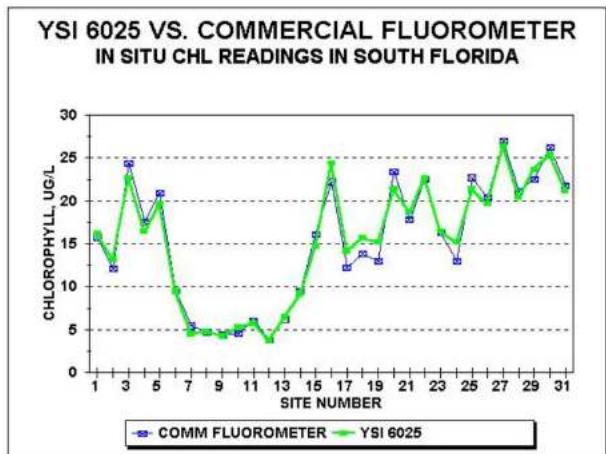
line
| SITE NUMBER | COMM FLUOROMETER | YSI 6025 | | ----------- | ---------------- | -------- | | 1 | 15 | 16 | | 3 | 24 | 23 | | 5 | 20 | 18 | | 7 | 5 | 9 | | 9 | 5 | 5 | | 11 | 6 | 5 | | 13 | 5 | 4 | | 15 | 16 | 15 | | 17 | 22 | 24 | | 19 | 13 | 15 | | 21 | 23 | 22 | | 23 | 13 | 16 | | 25 | 22 | 20 | | 27 | 27 | 26 | | 29 | 23 | 24 | | 31 | 26 | 25 |It is important for the user to remember that, because of the limitations defined in this appendix and in Section 5, Principles of Operation, YSI is unable to quote an accuracy specification for the in vivo
Chlorophyll Measurements Appendix I

Note: Be sure to carry out1-point calibration of the sensor before the study, using deionized water to make certain that the sensor reads zero in chlorophyll-free water.
If the sensor is post-calibrated using the values from laboratory analysis of grab samples, will my field data be totally accurate?
No. They will only be as accurate as possible within the limitations of the fluorometry method. The limitations for all in vivo chlorophyll determinations described in Section 5, Principles of Operation will almost certainly compromise the accuracy of your data even if you employ the best calibration method possible. For example, different phytoplankton species are likely to fluoresce differently in vivo even if the actual chlorophyll content is the same. Thus, unless the biological species are perfectly homogeneous with regard to site in a sampling study and with regard to time in a monitoring study; inaccuracy will occur if only a single phytoplankton calibration is performed. In addition, the fluorescence intensity of many phytoplankton types shows a diurnal cycle even though the same amount of material is present. Under this limitation, the time of day at which calibration samples are taken would have to be identical to the time of field measurement for the chlorophyll values determined by the two methods to agree consistently. This level of synchronization is usually not practical.
The key point to remember is that in vivo chlorophyll determinations made with any fluorometer are likely to be less accurate than those measured by laboratory analysis of individual samples. The advantages of
Chlorophyll Measurements Appendix I
Will the chlorophyll values determined in vivo with the YSI 6025 be reportable for compliance purposes?
Probably not. Because of the limitations on the method outlined above and in the Section 5, Principles of Operation, there is always inaccuracy in the in vivo method. It might be possible to work with a particular regulatory agency to develop specific correlation protocols between in vivo and laboratory-determined chlorophyll values for a particular site, but generation of this methodology is left to the user.
I have seen molecular chlorophyll standards advertised. Can these be used to calibrate the YSI 6025 sensor?
Probably not. The standards are usually only soluble in organic solvents such as acetone that would cause serious damage to the materials used in the YSI 6025 probe. Even if molecular chlorophyll standards that are soluble in aqueous media were available, their fluorescence is not likely to emulate in vivo chlorophyll fluorescence any better than the dye standard described above.
Caution: Do not expose the YSI 6025 to calibrant solutions involving any solvent other than water or very dilute aqueous acid mixtures. Damage to the sensor under these conditions will not be covered under warranty.
The Standard Methods procedure generates values designated as "chlorophyll a". Is this species the reporting unit for the YSI 6025?
No. The different types of chlorophyll cannot be differentiated by the YSI 6025, or by virtually any in vivo fluorometer. The values from the YSI 6025 should be reported either as relative fluorescence units or in ug/L of general chlorophyll as long as the method of determination (and its limitations) is specified.
Is the YSI 6025 sensor linear with regard to changes in phytoplankton content?
Yes. The sensor is very linear as evidenced by the following plot that shows the results of a serial dilution of a laboratory algae sample. This linearity on a particular algal species maximizes the ability of the sensor to track relative phytoplankton changes from site to site or during a monitoring study.
LINEARITY OF VOL0025 OIL SENSOR
Chlorophyll Measurements Appendix I
What Data Filter settings should I use to obtain the best possible field chlorophyll readings?
As described in Section 5, Principles of Operation, some processing of raw chlorophyll data is usually beneficial in terms of outputting values that reflect the "average" chlorophyll at the site. Filter options designed to optimize this data processing are located in the sonde menu structure under both the 3-Sensor and the 4-Data Filter selections in the Advanced submenu.
For most applications involving both spot sampling and monitoring, the following settings are recommended with regard to data processing:
o In 3-Sensor, Disable the "Chl Spike Filter" if present
o In 4-Data Filter, "Enable" the filter.
o In 4-Data Filter, "Disable" the "Wait for Filter" selection.
o In 4-Data Filter for chlorophyll, set the Time Constant to 12
o In 4-Data Filter for chlorophyll, set the Threshold to 1
These default settings will normally produce data that is reflective of the "average" chlorophyll without significantly slowing the response time of the sensor for either sampling or monitoring applications. Increasing the values of the time constant, threshold, or both can further smooth the chlorophyll values. Variation in the default settings should be based on empirical data taken at your particular site.
How often should I calibrate my YSI 6025 sensor?
You should always perform a zero point calibration in deionized water before each use of the YSI 6025 sensor.
Testing at YSI has indicated that the overall sensitivity of the optical system of the YSI 6025 is very stable and is unlikely to show significant drift over time. Thus, if you are using the dye “calibration” method (with its limitations), you may only have to carry out the routine very infrequently (Remember that it is basically only useful as a drift check anyway). In general, you should perform periodic 2-point calibrations using a dye sample more frequently during your initial studies with the YSI 6025 to empirically determine
Chlorophyll Measurements Appendix I
available water sampling devices that are designed specifically to acquire a representative sample at a particular depth.
You should also take precautions to stabilize your samples for transport back to the laboratory. The samples should be kept cool and in the dark (e.g., in an ice chest) until the analytical procedure has begun. Some users prefer to filter the sample in the field and keep the filter pads on ice in the dark during transport.
My environmental sites have a lot of visible floating algae, but my YSI 6025 chlorophyll sensor shows very low readings. What is causing this paradox?
The YSI 6025 is not designed to measure macroscopic algal or plant material that floats on the surface. Rather it measures the fluorescence from the microscopic phytoplankton that is suspended below the surface of the water. It is fairly common to see mats of floating algae on environmental water that has low subsurface phytoplankton concentrations.
What can I do to obtain the best possible data from my YSI 6025 sensor in sampling studies?
Two factors are most important. The first is to make certain that the readings are stable before manually recording them or logging them to a computer or YSI 650 MDS display/logger. You should visually monitor the readings for at least 1-2 minutes to assure stability after the sonde is immersed. The second factor is that you should always manually activate the mechanical wiper on the sensor after sonde immersion but before beginning the visual monitoring of the readings. The cleaning cycle is necessary to remove bubbles from the optical face, which are certain to cause erroneous readings. If the observed readings appear unusual after the first cleaning cycle, activate the wiper repeatedly to assure that all bubbles are removed. Manual activation of the wiper mechanism is easily accomplished from the Run screen of the 650 MDS.
You should also allow adequate time for the sonde to acclimate to the temperature of the water at the site.
What sort of "noise" level is expected for unattended monitoring studies?
All environmental water is somewhat heterogeneous with regard to phytoplankton content and this factor will cause some noise or jumpiness in long term monitoring studies for chlorophyll. The extent of the noise
Chlorophyll Measurements Appendix I
Note also that your may observe less or more noise at your site with no compromise in sensor performance. Occasional spikes during a monitoring study are normal and usually simply indicate the transient passage of a large phytoplankton particle over the optical face during the time of sampling.
If you consistently observe periods in your monitoring study where the data is clearly unreliable due to a large number of very high spikes, then you may have to take additional precautions to minimize the effect (see next question).
My unattended monitoring data shows a large number of chlorophyll spikes that clearly do not reflect the average phytoplankton content of the water. What is causing this effect and is there anything I can do to minimize it?
This effect, shown in the initial chlorophyll readings in the figure below, can be caused by the presence of subsurface macroscopic filamentous algae.
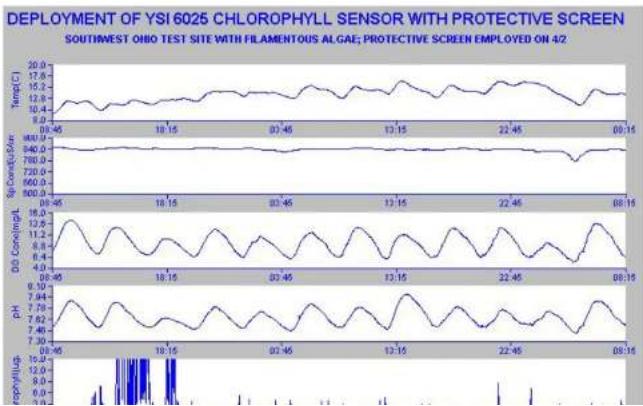
line
| Date | Sp Cond/Sat (°C) | DIO Conting/L (mL) | pH | |----------|-------------------|--------------------|-----| | 08:45 | ~17.0 | ~13.5 | ~12.0 | | 18:15 | ~17.0 | ~13.5 | ~12.0 | | 02:45 | ~17.0 | ~13.5 | ~12.0 | | 12:15 | ~17.0 | ~13.5 | ~12.0 | | 22:45 | ~17.0 | ~13.5 | ~12.0 | | 08:15 | ~17.0 | ~13.5 | ~12.0 |Chlorophyll Measurements Appendix I
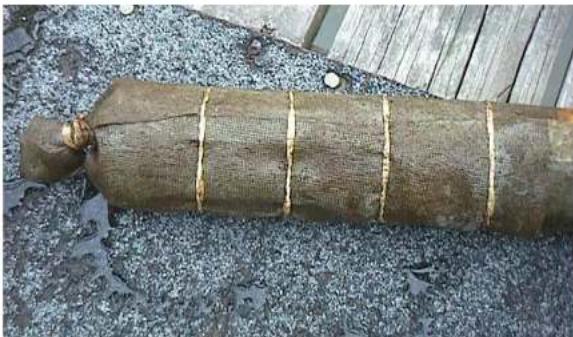
natural_image
Long cylindrical object wrapped in brown material, lying on gravel surface with wooden deck (no text or symbols visible)Note the significant improvement in the overall noise level of the readings after the screen was installed on 4/2/99. However, there is no guarantee that this solution will completely solve spiking problems caused by macro algal species. In some applications, it may be necessary to clean the sonde and probes at a frequent interval to minimize the number of erroneous readings.
CAUTION: If the installed screen becomes completely clogged with algal filaments, it can create an isolated environment within the probe compartment which does not accurately reflect the water quality readings of the overall water at the site. Users should periodically remove the screen and check for immediate changes in parameters such as dissolved oxygen and pH. If gross changes appear in the data after removal of the screen, then the screen is likely to be retarding water flow to the sensors and should be cleaned at more frequent intervals.
Another factor that can contribute to repeated spikes in the user's chlorophyll data is wiper malfunction so that the wiper assembly parks over the probe optics. This problem is usually due to the edges of the fluorescent wiper becoming coated with nonfluorescent material such as sediment that, in turn, prevents the sonde software from detecting the wiper movement. If the spikes are due to this factor, then the problem will be corrected by manually cleaning the wiper edges so that the fluorescent surface is restored.
Chlorophyll Measurements Appendix I
Do I have to worry about the effect of variable temperature on my field readings?
This factor is definitely a consideration depending on the level of reliability you require if the water at your site is at a significantly different temperature from that of calibration. YSI studies show that, while the optics and electronics of the sensor show very little temperature effect, the fluorescence of phytoplankton samples does vary significantly with temperature. Generally, the chlorophyll in biological samples shows increased fluorescence at lower temperatures with a factor of 1-2 % per degree Celsius. In practice, this means that if, for example, the calibration temperature is 25 C and the water temperature at the site is 10 C, the observed chlorophyll readings will be erroneously high by 15-30 %. The "Chl Tempco" factor in the Advanced|Sensor menu can be used to partially compensate for this error, if the user has some knowledge of the temperature effect on the particular phytoplankton at the site. The factor can be empirically determined by bringing a sample of the environmental water to the laboratory and determining its fluorescence at ambient temperature and low temperature. (Simply cool the sample in a refrigerator for the latter reading.) The calculated factor can then be entered into the sonde software. See the example in Section 5, Principles of Operation.
I suspect that my YSI 6025 chlorophyll sensor is not performing properly. What should I do before contacting YSI Technical Support to facilitate resolving the problem?
You should perform two diagnostic tests to help YSI personnel determine if the YSI 6025 is malfunctioning.
First, determine whether the wiper system of the probe is working by interfacing the sonde containing the sensor to a computer on a 650 MDS display/logger, beginning a Discrete Sample study, and manually activating the wiper. Determine if the wiper turns at all, and, if it does, whether it reverses direction and parks approximately 180 degrees from the optical face.
Second, determine the sensitivity of the probe by measuring its sensitivity under factory default conditions in a dye solution prepared as described in Section 5, Principles of Operation. Place the sonde containing the probe in question into the dye solution. Enter the Calibrate menu and then the Chlorophyll submenu and choose a "1-point Chl ug/L" protocol. Instead of entering a value at the prompt, type the work "uncal" and press Enter. This returns the sonde software to the factory default sensitivity. Begin a Discrete Sample study and record the chlorophyll ug/L reading displayed. Finally, place the sonde in deionized water and record the chlorophyll ug/L reading displayed in Discrete Sample.
Record the results of these two tests and report them, along with any other symptoms, to a YSI Technical
Chlorophyll Measurements Appendix I
Percent Air Saturation Appendix J
APPENDIX J PERCENT AIR SATURATION
The term "Percent Air Saturation" (abbreviated in many applications to "Percent Saturation") is a common parameter for expressing the state of the oxygenation of environmental water and is widely used by YSI and other manufacturers during the calibration of oxygen sensors. Basically the "Percent Saturation" value is simply a surrogate for the partial pressure of oxygen in the medium (air or water) being measured. In this light, it is important to understand that, to our knowledge, all environmental oxygen sensors (either electrochemical or optical) directly measure the pressure of oxygen – not the concentration. Thus, the "Percent Saturation" value from an environmental instrument reflects the directly measured parameter for the system, with the concentration in mg/L being easily calculated from known equations involving Percent Saturation, Temperature, and Salinity.
Because the "Percent Saturation" parameter can be expressed by two different conventions, there can be confusion around the use of the term. This section is designed to minimize that confusion by defining each of these conventions and to provide instructions for configuring your 6-series sonde so that you will have a choice as to which of the conventions is used. It is very important to note, however, that no matter which of the conventions is employed (in YSI or competitive instrumentation), the values of dissolved oxygen in mg/L, the units usually reported, will be identical and unaffected by the choice of DO % convention.
Note also that the discussion below applies equally to data obtained from both the YSI Rapid Pulse membrane-covered polarographic oxygen sensor and the YSI ROX optical dissolved oxygen sensor.
The "DOsat %" Convention
In the first convention, used for many years in YSI handheld and laboratory instruments and in 6-series sondes, the "% saturation" value at the time of calibration in air reflects the value of the barometer that was input in the calibration protocol. If the parameter "DOsat %" is active in your 6-series Report menu, then this convention is being used. Effectively, this convention provides a value of water oxygenation that can be carried out by air exposure, with the value referenced to having the air at exactly 1 atmosphere (760 mm Hg or 101.3 kPa). A "DOsat %" value of 89 means that the water contains 89 % of the oxygen that could be dissolved if the water was sparged with air that had a total pressure of 1 atm. For example, for an air calibration in the mountains at a typical barometric pressure of 630 mm Hg, the YSI "DOsat %" value at calibration would read 82.9 % (630/760 * 100). If the sensor did not drift electrochemically and the sonde
Percent Air Saturation Appendix J
The "DOsat %Local" Convention
In the second convention, used for many years by other multiparameter instrument companies and by many European handheld instrument manufacturers, the "% saturation" value is always set to exactly 100 % at the time of calibration regardless of the barometer value that was input. The software of the instrument "remembers" the barometric pressure input at the time of calibration for use in later calculation of the DO concentration in mg/L. Effectively, this convention provides a value of water oxygenation that can be carried out by air exposure with the value referenced to the local air pressure. The 100 % value at calibration for this convention basically reflects the fact that this is the most oxygen that can be dissolved in water for this location at the time of calibration. In late 2001 (Version 2.13 of 6-series code), this dissolved oxygen convention was added to the YSI 6-series software through the use of the parameter "DOsat %Local". For example, for an air calibration in the mountains at a typical barometric pressure of 630 mm Hg, the "DOsat %Local" value at calibration would read 100.0 % and the value of 630 mm would be stored in instrument memory. If the sensor did not drift electrochemically and the sonde was taken to a location where the atmospheric pressure was exactly 760 mm Hg (c.g., sea level), then the "DOsat %Local" reading in air (or air-saturated water) would change to 120.6 % (760/630 * 100) because there is more total oxygen in the air at the lower elevation.
The mg/L value for water saturated air or air-saturated water assuming a temperature of 20 C at both sites would change from 7.54 mg/L (1.00 * 630/760 * 9.09) in the mountains to 9.09 mg/L (1.206 * 630/760 * 9.09) at sea level. Thus, to calculate mg/L values at any site after calibration using this convention, the "DOsat %Local" value is multiplied by the ratio of the barometric pressure at calibration to 1 atm (table conditions) and then by the table value as shown above. Note that the same mg/L values are obtained at both sites for the "DOsat %" and "DOsat %Local" conventions even though the "percent saturation" values are significantly different.
It is important to note that the convention specified for "% saturation" by the British (and EU) standard REQUIRES that the local barometric pressure be read for every DO data point taken after calibration. Under this convention, a sensor should ALWAYS read 100 % saturation when in water-saturated air or air-saturated water. Since the software of most instruments does not "know" the barometer at any time after calibration, neither of the conventions described above complies with the British standard.
Calibrating Using the mg/L Mode
Percent Air Saturation Appendix J
%Local" values. For example, assume that the temperature of the calibration standard is 21 C (where air saturation at 760 mm Hg is 8.915 mg/L) and that the oxygen content of the solution has been determined to be 7 mg/L by Winkler titration. Assume also that the local barometric pressure was entered as 700 mm at the last "DOsat %" calibration. After the new "DO mg/L" calibration, the "DO mg/L" value will be set to 7.00, the "DOsat %" value will be set to (7/8.915)*100 = 78.5, and the "DOsat %Local" will be set to (760/700)*78.5 = 85.2.
NOTE: As pointed out above, it is important to realize that UNLESS THE BAROMETRIC PRESSURE IS KNOWN FOR EVERY DO READING AFTER CALIBRATION, the values of "DOsat %" and "DOsat %Local" will be incorrect if the barometric pressure has changed since calibration. Thus, even if the barometer had been input at the time of a mg/L calibration (a method used by some instrument manufacturers, the values of "DOsat %Local" will still not be exactly accurate after calibration.
Activation of the "DOsat %Local" or "ODOsat %Local" Parameter
On receipt of your sonde or after upgrading your 6-series software to Version 2.13 or higher, the "DOsat %Local" or "ODOsat %Local" parameter will NOT appear in your Report menu. To activate the parameter, it is necessary to exit the menu structure of the sonde software to the command line prompt ("#"). The "#" sign appears after you press Esc from the Main menu and then answer "Y" to the question, "Exit menu (Y/N)"? Once the "#" prompt is shown on the display, type "dolocal 1" as shown in the display below and press Enter. The screen will show "OK" to indicate that the action was successful and return another "#" sign as shown. Then type "menu" at the second "# sign and press Enter" to return to the sonde software menu structure.
![Tornado - COM1 [ ] [ ] [ ]](/content/2026/06/1216455/images/294f9e877d53f66c62763877cf71af8d86dee448b51549a02f1e2eadd0ea9bb0.jpg)
Percent Air Saturation Appendix J
PAR Sensor Appendix K
APPENDIX K PAR SENSOR
Some users of the YSI 6600-style sonde (6600V2-2, 6600EDS V2-2, and 6600V2-4) may wish to incorporate a photosynthetically active radiation (PAR) sensor into their field monitoring equipment. This sensor can be added to the 6600 in the form of a special product engineered by Endeco/YSI. This section is designed to give potential users of this type of system an idea of how it is configured and the steps necessary to acquire and log PAR data with the modified sonde.
Li-Cor PAR sensors are required for the 6600 modification and these can either be supplied to Endeco/YSI by the user or can be purchased from Endeco/YSI as part of the system cost. These sensors are then attached to "arms" which extend from the sonde and their output cables are connected to the sonde PCB through the top of the sonde as shown in the following picture. The picture shows the installation of two sensors (one pointing up, the other pointing down), but it is also possible to use a single PAR sensor if the user prefers that configuration.
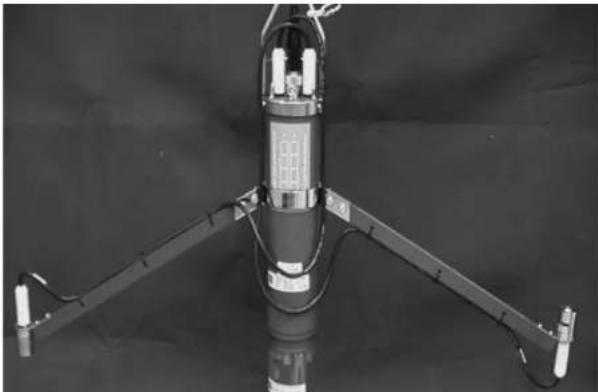
natural_image
Mechanical device with three articulated arms and attached cables, mounted on a dark surface (no visible text or symbols)PAR Sensor Appendix K

To set up your special PAR 6600-style sonde, follow the steps below in the sonde menu structure:
Enter the Sensor menu and then press the proper number for ISE3. Then choose PAR1 from the submenu and press Esc to return to the Sensor menu. If you have two PAR sensors, repeat the process to activate PAR2 for the ISE4 port.
| ----Sensors enabled---- | |
| 1- (*) Time | 7- ( ) IIS3 NONE |
| 2- (*) Temperature | 8- ( ) IIS3 NONE |
| 3- (*) Conductivity | 5- ( ) IIS3 NONE |
| 4- (*) Dissolved Oxy | A- (*) Turbidity |
| 5- (*) IST1 pH | B- (*) Chlorophyll |
| 6- (*) IST2 Orp | C- (*) Battery |
| Select type |
| 1- ( |T8E3 NE4+ |
| 2- ( |T8E3 NO3- |
| 3- ( |T8E3 C1- |
| 4- ( |T8E3 PAR1 |
| Select option (0 for previous menu): 4 |
PAR Sensor Appendix K
Finally, if you want to present your PAR data in photon flux density (umoles/second/m²), enter the Advanced|Sensor menu as shown below and enter values for the PAR gain settings after consulting the Certificate of Calibration obtained from Li-Cor for each sensor.
----Advanced sensor----
1-TDS constant=0.63
2-Pres psi=0
3-DC temp cc %/C=1.1
4-DC warm up soc=40
5-()Wait for 00
6-Wipes=1
7-Wipe interval=5
8-SDIL2-M/wipe=1
9-Turb temp co %/C=0.3
A-(*)Turb spike filter
B-Chl temp co %/C=0
C-()Chl spike filter
D-PAR1 gain=1
E-PAR2 gain=1

Select option (0 for previous menu);
The number that should be entered is derived from the Calibration Multiplier in the Certificate of Calibration supplied with each sensor, but the exact entry requires some modification of the Certificate value. First, the Calibration Multiplier "in water" should be selected. Second, the negative sign should be dropped from the number prior to entry. Finally, the number should be divided by either 100 (Low Sensitivity Hardware) or 1000 (High Sensitivity Hardware) prior to entry. Thus, if the two identical sensors characterized by the above Certificate were present in the sonde, but were configured for both low sensitivity (PAR1) and high sensitivity (PAR2), the entered gain numbers should be 3.1578 for PAR1 and 0.31578 for PAR2, with both numbers derived from the -315.78 value on the Certificate. As noted above, once these entries are made, the viewed and logged PAR values will be in umoles/second/m² of Photon Flux Density.
----Advanced sensor----
1-ID5 constant=0.66
2 Pres pai=0
3-DC temp cc %/C=1.1
4-DC warm up sec=40
PAR Sensor Appendix K
Protective Zinc Anode Appendix I.
APPENDIX L PROTECTIVE ZI NC ANODE
Shipbuilders have used the concept of the "sacrificial anode" for decades to minimize corrosion damage to all metallic parts of ships. Elemental zinc is commonly used as the sacrificial anode because it is more easily oxidized than most other metals. Thus, a replaceable block of zinc is installed in electrical contact to other metals on the ship which are susceptible to salt water corrosion and the zinc is preferentially oxidized (or corroded), preventing damage to the ship hull and other metal components.
The concept of the sacrificial anode can also be utilized for 6-series sondes which are deployed in corrosive media – particularly seawater or brackish estuarine water. In this case, the zinc anode is used to prevent corrosion of the stainless steel connector found on the top of most 6-series sondes. The instructions below outline the installation procedures for the zinc anode offered by YSI as Model 6182 Kit. The anode enclosed in the kit is divided into two C-shaped sections as shown in Figure 1 below. Note that each section has a flat on one end.

natural_image
Close-up of a metallic curved object with textured surface (no text or symbols visible)Figure 1
Installing the Zinc Anode on 600R, 600XL, 6820V2-1, and 6820V2-2 Sondes
NOTE: Before beginning the installation, be sure to clean the sonde connector of mud, sediment sediments, barnacles, etc. It is important for the surface to be clean in order to make good electrical
Protective Zinc Anode Appendix I.
- Using a large regular blade screwdriver, bend the bracket outward to the angle shown in Figure 2.
- Position the zinc anode flat towards the bracket and squeeze together with pliers if necessary as shown in Figure 3.
- Use the screwdriver to bend the bracket back to vertical.
- Secure zinc halves with the cable tie.
Installing the Zinc Anode on 6000upg, 6600V2-2, 6600EDS V2-2, 6600V2-4, 6920V2-1, 6920V2-2, 600XLM, and 600 OMS V2-1 Sondes:
NOTE: Before beginning the installation, be sure to clean the sonde connector of mud, sediment sediments, barnacles, etc. It is important for the surface to be clean in order to make good electrical contact to the zinc anode.
Figure 4
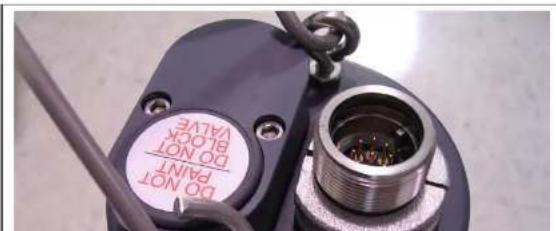
natural_image
Close-up of a mechanical component with a metallic threaded end and a circular label showing 'PAINT' and 'BLOCKY VALVE' (no readable text beyond labels)Protective Zinc Anode Appendix I.
natural_image
Close-up of a metallic mechanical component with a circular top and metal ring (no visible text or symbols)Figure 5
For 6920-style sondes, make certain that fresh batteries have been installed and that the battery lid is in place. Then position the zinc anode on the connector making certain that the flat is toward the bail hardware (Figure 5 above) and that the anode is installed below the threads on the connector.

natural_image
Close-up of a metallic mechanical component with a handle and circular top (no visible text or symbols)Protective Zinc Anode Appendix I.
NOTE: The zinc anode collar must be removed before you can replace the batteries for 600XLM, 600 OMS V2-1, and 6920-style sondes. A new plastic cable tie will be needed to re-secure the zinc.
WARNING: The zinc anode must not interfere with the ability to properly attach of the pressure cap to the sonde connector – the cap MUST be threaded all the way down to prevent leaks into the connector. Therefore, the anode must also NOT be placed over the threads of the connector.
APPENDIX M ROX OPTICAL DO SENSOR
This appendix is in the format of “frequently asked questions”, is designed to allow uscrs to optimize the performance and the trouble-shooting of problems for your YSI 6150 ROX Optical dissolved oxygen probe by supplementing the discussion of optical dissolved oxygen measurement that is provided in the other sections of this manual (Getting Started, Basic Operation, Principles of Operation, and Maintenance).
How does the ROX Optical DO Sensor work?
In general, optical dissolved oxygen sensors from a variety of manufacturers are based on the well-documented principle that dissolved oxygen quenches both the intensity and the lifetime of the luminescence associated with carefully-chosen chemical dyes. The 6150 sensor operates by shining a blue light of the proper wavelength on this luminescent dye which is immobilized in a matrix and formed into a disk about 0.5 inches in diameter. This dye-containing disk will be evident on inspection of the sensor face. The blue light causes the immobilized dye to luminesce and the lifetime of this dye luminescence is measured via a photodiode in the probe. To increase the accuracy and stability of the technique, the dye is also irradiated with red light during part of the measurement cycle to act as a reference in the determination of the luminescence lifetime.
When there is no oxygen present, the lifetime of the signal is maximal; as oxygen is introduced to the membrane surface of the sensor, the lifetime becomes shorter. Thus, the lifetime of the luminescence is inversely proportional to the amount of oxygen present and the relationship between the oxygen pressure outside the sensor and the lifetime can be quantified by the Stern-Volmer equation. For most lifetime-based optical DO sensors (including the YSI 6150), this Stern-Volmer relationship ((Tzcr0^) - 1) versus O_2 pressure) is not strictly linear (particularly at higher oxygen pressures) and the data must be processed using analysis by polynomial non-linear regression rather than the simple linear regression used for most polarographic oxygen sensors. Fortunately, the non-lincarity does not change significantly with time so that, as long as each sensor is characterized with regard to its response to changing oxygen pressure, the curvature in the relationship does not affect the ability of the sensor to accurately measure oxygen for an extended period of time.
Each YSI sensor module (the assembly which is attached to the face of the probe by three screws) is factory-calibrated over a range of 0-100 percent oxygen to quantify the relationship of its luminescence lifetime as a function of oxygen pressure. The Stern-Volmer parameters from this data are then fit to a third order regression equation ( x^2 + bx^2 + cx) and values of a, b, and c determined. These coefficients
ROX Optical DO Sensor Appendix M
- The ROX sensor is automatically wiped during field studies to eliminate effects of fouling. The Rapid Pulse sensor can be wiped, but only if a 6600EDS V2-2 sonde is used.
In addition, the ROX DO sensor has NO flow dependence, giving it a large advantage over systems which utilize steady-state membrane covered polarographic oxygen sensors. This advantage is minimal relative to the YSI Rapid Pulse technology which is effectively flow-independent in monitoring studies and shows only minimal flow dependence (ca. 3%) in continuous-on sampling studies.
What is the warranty period for the ROX DO Sensor?
The probe is warranted for 2 years and the sensor membrane assembly is warranted for 1 year. See Section 9 of this manual for details of the YSI warranty policy.
What sondes can use the ROX DO Sensor?
The ROX Sensor can be used with any existing or new YSI 6-series sonde which contains an optical port. Currently available sondes which support the use of the ROX sensor are 600 OMS V2-1, 6820V2-1, 6820V2-2, 6920V2-1, 6920V2-2, 6600V2-2, 6600EDS V2-2, and 6600V2-4 which were manufactured after June 1999. If you have an older sonde with an optical port and want to determine whether it will support the use of the ROX sensor, contact YSI Technical Support. They will be able to evaluate the compatibility of your sonde with the ROX sensor by giving you a few simple software commands to issue at the “#” sign of your sonde.
If I want to use the new ROX DO Sensor with my existing sonde, what else do I have to do?
In order to use the ROX technology on an existing YSI 6-series sondc, you must do the following:
- Upgrade the firmware in your sonde from the YSI Website (ysi.com) to Version 3.00 or higher.
- Upgrade your EcoWatch for Windows PC software from the YSI Website to Version 3.18 or higher.
- Upgrade the firmware in your 650 MDS Display/Logger from the YSI Website to Version 1.18 or higher.
ROX Optical DO Sensor Appendix M
- The 6150 optical sensor has no flow dependence even in continuous operation during spot sampling studies while the 6562 polarographic sensor can exhibit up to 3% flow dependence.
- For the 6562 polarographic sensor, users must calibrate the sensor by different methods for sampling (Discrete Sample) and monitoring (Unattended Sample) by activating or deactivating the "Autosleep RS-232" feature found in the Advanced|Setup menu. The calibration of the 6150 optical sensor is the same for both sampling and monitoring applications and no changes in the "Autosleep RS-232" feature are required.
- It is possible to calibrate the 6562 polarographic sensor ONLY in oxygen-containing media at a single point. The 6150 optical sensor can be calibrated at either a single point in oxygen-containing media OR at two points, a zero-oxygen medium and an oxygen-containing medium. This allows users to maximize the accuracy of the 6150 sensor at low oxygen levels if they feel it to be necessary.
Is the ROX DO Sensor calibrated at YSI prior to shipment to the customer?
Yes. Factory calibration is required because, unlike all other sensors for YSI 6-series sondes, the response of the ROX Optical DO sensor is not linear relative to the species being measured. This non-linearity requires that the sensor be factory-calibrated at a number of oxygen values and the data fit to a third-order regression. The three constants and the sensor value at zero dissolved oxygen which define this regression analysis are automatically stored in the sensor at the time of factory-calibration. It is important to note that these constants are a function of the sensor membrane installed on the 6150 probe and NOT a function of the probe, i.e., the constants reflect the characteristics of the sensor membrane and NOT the probe. When a 6150 probe is purchased from YSI, it already has a sensor membrane installed and the constants of that membrane are transferred automatically to the sonde PCB when the sensor is run for the first time. After transfer, the constants can be viewed by accessing the Advanced|Cal Constants menu as described below in a separate question/answer.
Note, however, that, even with the factory calibration, the user still should perform a calibration after receipt of the sensor as described below in order to assure that the typical accuracy specification is met.
How do I calibrate my ROX DO sensor?
The ROX DO sensor is typically calibrated in the same way as the YSI Rapid Pulse sensor - a single point
ROX Optical DO Sensor Appendix M
Should I calibrate my ROX sensor in water-saturated air or air-saturated water?
Studies at YSI have shown that the sensor shows effectively the same reading in air-saturated water and water-saturated air. Thus, if the calibration is carried out properly, either medium can be used with confidence. The advantage of air-saturated water is the quick equilibration of the sonde sensors relative to thermal and humidity factors; the disadvantages are that you will require an aquarium pump, an air-stone, a large vessel to immerse the sonde in the air-saturated water, and you must spurge the water for at least 1 hour prior to calibration to assure that it is air-saturated. The advantage of using water-saturated air is that the calibration can be carried out in the cup supplied with the sonde and it can be done somewhat faster than the air-saturated water method. Note, however, that if you use water-saturated air as the calibration method, you should still wait at least 15 minutes after placing the sensors in the calibration vessel to assure thermal equilibration between the temperature and ROX DO sensors.
The bottom line is that either method will give good results as long as the considerations above are followed. The air-saturated water method may be slightly preferable if you have the equipment because of the assured equilibration, but the advantage is slight.
If I want to perform a 2-point calibration, how do I generate a zero-oxygen medium?
Two methods are generally used to provide a zero-oxygen environment:
- Place the ROX sensor in a vessel which is filled with a flowing inert gas such as nitrogen gas
- Place the ROX sensor in an aqueous solution of sodium sulfite at a concentration of approximately 2 g/L)
The following qualifiers apply to the zero point calibration methods:
- If you use nitrogen gas for the zero point calibration, you should make certain that the vessel you use has a SMALL exit port to prevent back diffusion of air and that you have completely purged the vessel before confirming the calibration.
- If you use sodium sulfite solution for the zero point calibration, you should make up the solution at least 2 hours prior to use and keep it scaled in a bottle which does not allow diffusion of oxygen through the sides of the container. You should also transfer the sodium sulfite solution rapidly from its container to the sonde calibration cup, fill the cup as full as possible with solution to
ROX Optical DO Sensor Appendix M
- When prompted for the input of a barometer or a concentration value, type the word "uncal" and press Enter if your sonde is attached to a computer. If your sonde is attached to a 650 MDS, when prompted for input, hold down the Enter key and press the Esc key.
Either procedure will reset your 6150 calibration constants to the previously input values associated with your sensor membrane.
How often should I calibrate my ROX sensor?
Our experience is that, even though the drift of the ROX sensor is minimal, it is prudent to calibrate the sensor in air-saturated water or water-saturated air prior to each deployment or field sampling study. The calibration takes very little time and should be carried out to (a) maintain the best possible accuracy for the sensor and (b) to assure that the sensor is working properly prior to proceeding to the field.
I notice that, during Discrete Sample studies, there is a lag between when I begin the sampling and when ROX DO readings actually appear on the display. What is causing this effect?
The lag between starting the study and actually seeing data is due to the fact that the readings of all optical sensors, including ROX DO, are frozen during the sensor wiping sequence. If the sonde has not been used for more than a minute, it will be in the "sleep" mode and, under these conditions, all optical sensors will automatically wipe the first time a Discrete Sample command is issued. The extent of the lag varies depending on how many optical sensors are present in the sonde and will be about 15 seconds per optical sensor. Thus, lag will be about 15 seconds for a sonde with two optical sensors and about 1 minute for a sonde with four optical sensors.
How does the ROX sensor deal with fouling in field studies?
The ROX sensor has a wiper similar to those used on all YSI optical sensors (turbidity, chlorophyll, rhodamine WT, and blue-green algae) which removes fouling from the sensor membrane. The wiper activates just prior to each measurement point in a long term study. In addition, the wiper can be activated manually from a PC keyboard or from a 650 MDS handheld logger to remove bubbles from the sensor membrane prior to spot sampling measurements.
ROX Optical DO Sensor Appendix M
How often should I change my ROX sensor membrane assembly?
YSI recommends that you change your membrane assembly every 12 months. The membrane assembly is simple to install and can be purchased from YSI Technical Support as the YSI 6155 Optical DO Sensor Replacement Kit.
Since the sensor is non-linear and the non-linearity is not identical for all sensors, how do I take this factor into account when I replace the sensor membrane assembly?
As described in the instruction sheet for the 6155 Optical DO Sensor Replacement Kit, you will be required to enter coded constants which are provided with the new membrane assembly into the sonde software. The process takes only a few minutes as briefly described below.
Locate the Calibration Code Label which is attached at the end of the instruction sheet provided and note the five numbers which are listed as K1 through K4 and C on the sticker. These five numbers contain the calibration code for this particular sensor membrane.
From the Main sonde menu, select Calibrate|Optic T-Dissolved Oxy and then select the "3-Enter Cal Sheet" entry. You will be prompted to enter the K1 value from the sticker. After carefully entering K1, press Enter to confirm the entry and then you will be prompted to enter the value of the next number. Values of K2-K4 and C should be entered in similar fashion to K1, pressing Enter to confirm each entry. If no error message is encountered after confirming the C value, then you have made all entries correctly and the proper constants will be transferred automatically into the sensor system for correct calculation of dissolved oxygen. If an error message is displayed after entry of C, then you have made an error (or errors) in entering the code. Following the error message you will be returned to the Calibrate menu from which you should again enter the K1-K4 and C numbers until the entries have been made correctly
Note that it is good idea to place the instruction sheet which contains the calibration information IN A SAFE PLACE in the unlikely event that you need to reenter it later.
How can I be sure that my calibration coefficients have been entered correctly and confirm that they are being read correctly by the sonde software?
One of the five constants (C) which you entered in coded form is a check sum value associated with the values of K1-K4 and will prevent acceptance of the constants if typographical errors are made in their entry by the year. Thus, it is not possible to make an incorrect entry of the coded constants.
ROX Optical DO Sensor Appendix M
How should I store my ROX sensor when it is not in use?
When the 6150 sensor is not in field use, it MUST BE STORED IN A MOIST ENVIRONMENT, i.e., either in water or in water saturated air with storage in water being preferable. If the sensor membrane is allowed to dry out by exposure to ambient air, it is likely to drift slightly at the beginning of your next deployment unless it is rehydrated. Thus, to make the use of the sensor as simple as possible, remember to store it WET whenever possible. The easiest storage method is to use the protective plastic cap (and enclosed sponge) which was on the probe at receipt. If you have retained this cap/sponge, then simply soak the sponge in water and replace the cap on the probe tip. Inspect the sponge every 30 days to make sure it is still moist. Alternatively, you can remove the probe from the sonde and place it directly in water (making sure that the water does not evaporate over time or leave the probe in the sonde and make certain that the calibration cup has an atmosphere which is water-saturated by placing approximately 12 inch of water in the bottom of the cup and then sealing it snugly to the sonde.
If I have inadvertently allowed my ROX sensor membrane to dry out for several days, is it ruined?
No. The sensor membrane can easily be rehydrated using the following basic procedure:
Place approximately 400 mL of water in a 600 mL beaker or other similar glass vessel – do NOT use plastic vessels – and heat the water on a thermostatted hotplate or in an oven so that a consistent temperature of 50+/-5 C is realized. Place the probe tip containing the sensor membrane in the warm water and leave it at the elevated temperature for approximately 24 hours. Cover the vessel if possible to minimize evaporation. After rehydration is complete, store the probe in either water or water-saturated air prior to calibration and deployment.
Once the rehydration has been performed, the sensor should be returned to its original performance specification.
Can I use alcohol or other organic solvents to clean my sensor membrane?
Absolutely NOT. Alcohol will dissolve the outer paint layer of the membrane assembly and other organic solvents will likely dissolve the dye itself. Under NO circumstances should you use organic solvents to clean your sensor membrane. The best method of cleaning the membrane is just to gently wipe away any fouling with a piece of lens cleaning tissue which has been moistened with water only.
ROX Optical DO Sensor Appendix M
guard. It is also important to note that if the membrane is exposed to bright sunlight for extended periods, i.e., more than 60 minutes, the life of the membrane may be reduced due to photo-bleaching of the dye. Thus, make certain that you protect the membrane from bright sunlight during any storage and/or transportation to your deployment site.
Is there any effect of wiping the sensor membrane on the ROX DO readings?
Yes, there is a minor effect. Typically the optical DO reading will drop by about 1.5% immediately after a wipe which is activated during Discrete Sample studies. After 12 seconds, the reading has typically returned to within 0.7% of the final reading. It takes about 30 seconds for complete recovery of the ROX optical DO reading after the sensor membrane is wiped. This effect is due to the physical contact of the wiper pad with the membrane since it is not observed when the wiper assembly is removed and only the wiper shaft turns when a wipe command is issued.
Will this wiping effect cause inaccuracy in my Unattended study readings with the ROX DO sensor since I will be calibrating without wiping, but logging readings after the ROX sensor has been wiped?
The error will be minor in any case, but will vary depending on what other optical probes you have installed in your sonde. Since the effect is physical as described in the previous question, the longer it takes to log a reading after the ROX sensor has wiped, the less error there will be relative to the calibration. Under the worst case scenario, the user has ONLY a ROX sensor present with an ODO Time Constant setting of 12 seconds as set in Advanced|Data Filter. This set-up means that readings will be logged internally 12 seconds after the wipe has terminated and, under these conditions, there will be a typical error of 0.7% of the reading - within the sensor specification of 1% of the reading. This error will be further reduced if other optical probes are present since the time for them to be wiped plus their time constants will further increase the time between the wiping of the ROX sensor and the time a point is logged to internal memory. (Note that the ROX sensor is ALWAYS WIPED FIRST, no matter what optical port it is installed in as long as you have Version 3.04 or later of firmware installed in your sonde.) The extent of the error would thus be greatest with a 6920V2-1 running ROX DO only, less with a 6600-type or 6920V2-2 sonde running ROX DO and turbidity, still less with a 6600-type sonde running ROX DO and chlorophyll or BGA (since the time constant these other optical sensors is 24 seconds) and least for a 6600V2-4 sonde containing ROX DO and 3 other optical sensors. Typical errors in Unattended readings from this wiping effect are 0.7% for a sonde with only a ROX sensor and 0.3% for a sonde with a ROX and one other optical sensor. There is no discernible error for a 6600V2-4 sonde with a ROX and three other
ROX Optical DO Sensor Appendix M
protocol will prevent the stiff EDS auxiliary brush which cleans the pH or pH/ORP sensor from abrading the outer paint layer of the ROX membrane. There should be no problem with the EDS wiper parking correctly even though it is white (rather than the standard black wiper supplied with the probe) since an internal Hall Effect device controls the parking in the ROX sensor.
How can I tell if my ROX sensor is not functioning is not functioning properly?
There are two factors which would indicate that your sensor is not operating up to specifications. The first is that you are observing software errors when you attempt to calibrate the ROX probe. The second is that your data (either in Discrete Sample or Unattended Sample studies becomes jumpier than normal. In addition, if your membrane surface has suffered major damage as evidenced by loss of more than 10% of the outer paint layer, then, even if the readings are stable and you do not see calibration errors, it is probably time to change your membrane assembly.
What should I do if I don't think that my ROX sensor is functioning properly?
The first step is to remove the membrane assembly from the probe face as shown in Section 2.10.2 of this manual and make certain that there is no moisture present under the membrane assembly. If moisture is present, gently remove it with lens cleaning tissue and, if possible, by a compressed air stream. Make certain that the O-ring which seals the membrane assembly to the probe face is in the groove and undamaged. Then replace the membrane assembly and evaluate the probe performance. If the performance has not improved, consult YSI Technical Support for advice on how to proceed next.
ROX Optical DO Sensor Appendix M
NMEA Applications Appendix N
APPENDIX N NMEA APPLICATIONS
6-series sondes can be configured to output NMEA formatted strings (National Marine Electronics Association). Some equipment manufactures in the marine industry use this as their native method of communication. This appendix is designed to help personnel who are already trained in NMEA applications implement this specialized protocol for their sondes.
NMEA APPLICATIONS SET UP
There are two ways to get NMEA strings from the sonde:
- Send the NMEA command from the command prompt.
- Enable start up to NMEA in the advanced setup menu.
Once the sonde is outputting NMEA strings you can return to the command prompt by sending an
The format of the NEMA string is:
\$YSI,Code #1,Value #1,Code #2,Value #2,...*XX
Code is the YSI defined parameter code. (See table below)
Value is the value of the parameter.
XX is a check computed by a bitwise "exclusive or" (xor) of all characters between \$ and 8, non inclusive.
The XX value is sent as 2 hexadecimal nibbles, most significant nibble first.
Here's an example:
\$YSI,1,4.44,7,10,18,7.00*4E
In this case we have:
Temp C 4.44
SpCond uS/cm 10
pH 7.00
NMEA Applications Appendix N
7, SpCond uS/cm
4, Cond mS/cm
5, Cond uS/cm
9, Resist MOhm*cm
8, Resist KOhm*cm
94, Resist Ohm*cm
10, TDS g/L
95, TDS Kg/L
12, Sal ppt
14, DOSat 8
200, DOSat \$Local
15, DO mg/L
96, DOchrg
209, C12 mg/L
210, Cl2chrg
20, Press psia
104, Press psir
21, Press psig
111, Press psi
22, Depth meters
23, Depth feet
118, Flow ft3/sec
166, Flow ft3/min
167, Flow ft3/hour
168, Flow ft3/day
164, Flow gal/sec
119, Flow gal/min
165, Flow gal/hour
120, Flow Mgal/day
121, Flow m3/sec
169, Flow m3/min
170, Flow m3/hour
171, Flow m3/day
122, Flow L/s
172, Flow AF/day
123, Volume ft3
124, Volume gal
173. Volume Moral
NMEA Applications Appendix N
204, Rhodamine ug/L
211, ODOsat \$
214, ODOsat &Local
212, ODO mg
215, BGA-PC cells/mL
216. BGA-PC RFU
217, BGA-PE cells/mL
218, BGA-PE RFU
98, Gnd Hz
99, Scale Hz
100. Prescmp
32, Density kg/m3
28, Battery volts
NMEA Applications Appendix N
Specifications Appendix O
APPENDIX O SPECIFICATIONS
SONDE SPECIFICATIONS
6600V2-2 SONDE
Available Sensors Temperature, Conductivity, Rapid Pulse Dissolved Oxygen, pH, ORP, Ammonium, Nitrate, Chloride, and Depth (shallow, medium, deep, shallow vented). Two total optical sensors (ROX Optical DO, Turbidity, Chlorophyll, Rhodamine WT, BGA-PC, BGA-PE). Note that Rapid Pulse and ROX DO sensors cannot be activated simultaneously.
Operating Environment Medium: fresh, sea, or polluted water Temperature: -5 to +50 °C for most sensors Depth: 0 to 656 feet (200 meters)
Storage Temperature: -40 to +60 °C for sonde and all sensors except pH, pH/ORP, ISE and optical sensors -10 to +60 °C for pH, pH/ORP, ISE, and optical sensors
Material: PVC, Stainless Steel
Diameter: 3.5 inches (8.9 cm) Length: 19.6 inches (49.8 cm) with no depth, 21.6 inches (54.9 cm) with depth Weight: 7 pounds (3.18 kg) with depth and batteries but no added bottom weight
Computer Interface: RS-232C, SDI-12
Internal logging memory size: 384 kilobytes (150,000 individual parameter readings)
Power: 8 C-size Alkaline Batteries or External 12 VDC
Specifications Appendix O
Temperature: -5 to +50 °C for most sensors Depth: 0 to 656 feet (200 meters)
Storage Temperature: -40 to +60 °C for sonde and all sensors except pH, pH/ORP, and optical sensors -10 to +60 °C for pH, pH/ORP, and optical sensors
Material: PVC, Stainless Steel
Diameter: 3.5 inches (8.9 cm)
Length: 19.6 inches (49.8 cm) with no depth, 21.6 inches (54.9 cm) with depth
Weight: Approximately 7 pounds (3.18 kg) with depth and batteries but no added bottom weight
Computer Interface: RS-232C, SDI-12
Internal logging
memory size: 384 kilobytes (150,000 individual parameter readings)
Power: 8 C-size Alkaline Batteries or External 12 VDC
Battery Life: Approximately 75 days at 20 C at a 15 minute logging interval, and temperature, conductivity, pH/ORP, Rapid Pulse DO with a 60-second DO warm up time, and two optical probes other than ROX Optical DO active. Approximately 70 days at 20 C at a 15 minute logging interval, with temperature, conductivity, pH/ORP, ROX Optical DO, and one other optical probe active. Battery life is heavily dependent on sensor configuration and is given above for a typical sensor ensemble. If you have a different sensor configuration, set up your sonde for a deployment in the Run|Unattended menu and check the projected approximate battery life.
Specifications Appendix O
Computer Interface: RS-232C, SDI-12
Internal logging
memory size: 384 kilobytes (150,000 individual parameter readings)
Power: 8 C-size Alkaline Batteries or External 12 VDC
Battery Life: Approximately 55 days at 20 C at a 15 minute logging interval, and temperature, conductivity, pH/ORP, ROX Optical DO, Turbidity, Chlorophyll, and BGA-PC (or BGA-PE) sensors active. Battery life is heavily dependent on sensor configuration and is given above for a typical sensor ensemble. If you have a different sensor configuration, set up your sonde for a deployment in the RumUnattended menu and check the projected approximate battery life.
6920V2-1 SONDE
Available Sensors Temperature, Conductivity, Rapid Pulse Dissolved Oxygen, pH, ORP, three ion selective electrodes (ammonium, nitrate, chloride), and Depth (shallow, medium, shallow vented). One total optical sensor (ROX Optical DO, Turbidity, Chlorophyll, Rhodamine WT, BGA-PC, or BGA-PE). Note that Rapid Pulse and ROX DO sensors cannot be activated simultaneously.
Operating Environment Medium: fresh, sea, or polluted water
Temperature: -5 to +50 °C for most sensors
Depth: 0 to 200 feet (61 meters)
Storage Temperature: -40 to +60 °C for sonde and all sensors except pH, pH/ORP, ISE and optical sensors
-10 to +60 °C for pH, pH/ORP, ISE, and optical sensors
Material: Polyurethane, PVC, Stainless Steel
Diameter: 2.9 inches (7.4 cm)
Length: Approximately 18.25 inches (46.4 cm) with no depth.
Specifications Appendix O
6920V2-2 SONDE
Available Sensors Temperature, Conductivity, pH, ORP, one ion selective electrode (ammonium, nitrate, or chloride), and Depth (shallow, medium, shallow vented). Two total optical sensors (ROX Optical DO, Turbidity, Chlorophyll, Rhodamine WT, BGA-PC, or BGA-PE).
Operating Environment Medium: fresh, sea, or polluted water Temperature: -5 to +50 °C for most sensors Depth: 0 to 200 feet (61 meters)
Storage Temperature: -40 to +60 °C for sonde and all sensors except pH, pH/ORP, ISE and optical sensors -10 to +60 °C for pH, pH/ORP, ISE, and optical sensors
Material: Polyurethane, PVC, Stainless Steel
Diameter: 2.9 inches (7.4 cm)
Length: Approximately 18.25 inches (46.4 cm) with no depth, 19.63 inches (49.9 cm) with depth
Weight: Approximately 3.74 pounds (1.7 kg)
Computer Interface: RS-232C, SDI-12
Internal logging
memory size: 384 kilobytes (150,000 individual parameter readings)
Power: 8 AA-size Alkaline Batteries or External 12 VDC
Battery Life: Approximately 32 days at 20C at a 15 minute logging interval with ROX Optical DO, another optical sensor (turbidity, chlorophyll, Rhodamine WT, BGA-BC, or BGA-PE), temperature, conductivity, and pH active. Battery life is heavily dependant on sensor configuration and is given above for a typical sensor
Specifications Appendix O
Storage Temperature: -40 to +60 °C for sonde and all sensors except pH, pH/ORP, ISE and optical sensors -10 to +60 °C for pH, pH/ORP, ISE, and optical sensors
Material: PVC, Stainless Steel
Diameter: 2.9 inches (7.4 cm)
Length: Approximately 16.82 inches (42.7 cm) with no depth; 18.2 inches (46.2 cm) with depth
Weight: Approximately 3.4 pounds (1.5 kg)
Internal logging
memory size: 384 kilobytes (150,000 individual parameter readings)
Computer Interface: RS-232C, SDI-12
Power: External 12 VDC (8 to 13.8 VDC)
6820V2-2 SONDE
| Available Sensors | Temperature, Conductivity, pH, ORP, one ion selective electrode (ammonium, nitrate, or chloride), and Depth (shallow, medium, shallow vented). Two total optical sensors (ROX Optical DO, Turbidity, Chlorophyll, Rhodamine WT, BGA-PC, or BGA-PF). |
| Operating Environment | Medium: fresh, sea, or polluted waterTemperature: -5 to +50 °C for most sensorsDepth: 0 to 200 feet (61 meters) |
| Storage Temperature: | -40 to +60 °C for sonde and all sensors except pH , pH/ORP, ISE and optical sensors-10 to +60 °C for pH, pH/ORP, ISE, and optical sensors |
Material: Polyurethane, PVC, Stainless Steel
Specifications Appendix O
600XLM SONDE
| Available Sensors | Temperature, Conductivity, Dissolved Oxygen (Rapid Pulse Polarographic Only) pH, ORP, Depth (shallow, medium, shallow vented). |
| Operating Environment | Medium: fresh, sea, or polluted waterTemperature:-5 to +50 °C for most sensorsDepth: 0 to 200 feet (61 meters) |
| Storage Temperature: | -40 to +60 °C for sonde and all sensors except pH and pH/ORP-10 to +60 °C for pH and pH/ORP sensors |
| Material: | PVC, Stainless Steel |
| Diameter: | 1.65 inches (4.2 cm) |
| Length: | 21.3 inches (54.1 cm) with no depth; 23.3 inches (59.2 cm) with depth |
| Weight: | 1.48 pounds (0.67 kg) (with batteries, without bottom weight) |
| Computer Interface: | RS-232C, SDI-12 |
| Internal loggingmemory size: | 384 kilobytes (150,000 individual parameter readings) |
| Power: | 4 AA-size Alkaline Batteries or External 12 VDC |
| Battery Life: | Approximately 30 days at 20 C at a 15 minute logging interval with temperature, conductivity, pH/ORP, and Rapid Pulse DO with a 60-second DO warm up time active.Battery life is heavily dependent on sensor configuration and is given above for a typical sensor ensemble.If you have a different sensor configuration, set up your sonde for a deployment in the Run|Unattended menu and check the projected approximate battery life. |
600XL SONDE
Specifications Appendix O
Internal logging
memory size: 384 kilobytes (150,000 individual parameter readings)
Computer Interface: RS-232C, SDI-12
Power: External 12 VDC (8 to 13.8 VDC)
600R SONDE
Available Sensors Temperature, Conductivity, Dissolved Oxygen (Rapid Pulse Polarographic Only), pH, ORP
Operating Environment Medium: fresh, sea, or polluted water Temperature: -5 to +50 °C for most sensors Depth: 0 to 200 (61 meters)
Storage Temperature: -40 to +60 °C (without pH installed) -10 to +60 °C (with pH installed)
Material: PVC, Stainless Steel
Diameter: 1.65 inches (4.2 cm)
Length: 14.75 inches (37.5 cm) from bottom of probe guard to top of connector with no depth and no weight. Add 2 inches (5.1 cm) for depth; add 0.75 inches (1.9 cm) for bottom weight)
Weight: 1.1 pounds (0.50 kg) without weight
Computer Interface: RS-232C, SDI-12
Internal logging
manare clara 294 bilokutar (150 000 individual paramates sandinac)
Specifications Appendix O
Diameter: 1.65 inches (4.2 cm)
Length: 14.75 inches (36.20 cm) from bottom of probe guard to top of connector with no depth. Add 2 inches (5.1 cm) for depth; add 0.75 inches (1.9 cm) for bottom weight)
Weight: 1.1 pounds (0.65 kg) without weight
Computer Interface: RS-232C, SDI-12
Internal logging
memory size: 384 kilobytes (150,000 individual parameter readings)
Power: External 12 VDC (8 to 13.8 VDC)
600 OMS V2-1 SONDE
| Available Sensors | Temperature, Conductivity, and Depth (shallow, medium, shallow vented). One total optical sensor (ROX Optical DO, Turbidity, Chlorophyll, Rhodamine WT, BGA-PC, or BGA-PE) |
| Operating Environment | Medium: fresh, sea, or polluted waterTemperature: -5 to +50 °C for most sensorsDepth: 0 to 200 feet (61 meters) |
| Storage Temperature: -40 to +60 °C (without optical sensor installed)-10 to +60 °C (with optical sensor installed) | |
| Material: PVC, Stainless Steel | |
| Diameter: 1.65 inches (4.2 cm)Length: 21.25 inches (54.0 cm) from top of connector to bottom of probe guard without depth, bottom weight, and battery option. Add 3.75 inches (9.5 cm) for battery option. Add 2.0 inches (5.1 cm) for depth. Add 0.75 inches (1.9 cm) for weight | |
| Weight: 1.78 pounds (0.81 kg) with depth and batteries but without bottom weight | |
Specifications Appendix O
600LS SONDE
Available Sensors Temperature, Conductivity, and shallow vented depth.
Operating Environment Medium: fresh, sea, or polluted water Temperature: -5 to +50 °C Depth: 0 to 30 feet (15 meters)
Storage Temperature: -40 to +60 °C
Material: PVC, Stainless Steel
Diameter: 1.65 inches (4.2 cm)
Length: Approximately 15 inches (38.0 cm) from top of connector to bottom of probe guard, bottom weight, and battery option. Add 0.75 inches (1.9 cm) for weight
Weight: Approximately 1.10 pounds (0.50 kg)
Computer Interface: RS-232C, SDI-12
Internal logging
memory size: 384 kilobytes (150,000 individual parameter readings)
Power: 4 AA-size Alkaline Batteries or External 12 VDC
Battery Life: Approximately 180 days at 20 C with a 30 minute sample interval. Battery life is heavily dependent on sensor configuration and is given above for a typical sensor ensemble. If you have a different sensor configuration, set up your sonde for a deployment in the Run|Unattended menu and check the projected approximate battery life.
SENSOR SPECIFICATIONS
Specifications Appendix O
Non-Vented Level - Shallow
Sensor Type......Stainless steel strain gauge
Range....0 to 30 ft (9.1 m)
Accuracy ....+/- 0.06 ft (0.018 m)
Resolution....0.001 ft (0.001 m)
Temperature Range -5 to 45 C
Vented Level - Shallow
Sensor Type......Stainless steel strain gauge
Range....0 to 30 ft (9.1 m)
Accuracy, 0-30ft .....+/- 0.01 ft (0.003 m)
Resolution....0.001 ft (0.001 m)
Temperature Range -5 to 45 C
Temperature
Sensor Type.....Thermistor
Range....-5 to 50 °C
Accuracy....+/- 0.15 °C
Resolution.....0.01 °C
Depth.....200 meters
Rapid Pulse Dissolved Oxygen, % saturation
Sensor Type......Rapid Pulse - Clark type, polarographic
Range....0 to 500 % air saturation
Accuracy....0-200 % air saturation, +/- 2 % of the reading or 2 % air saturation, whichever is greater
200-500 % air saturation, +/- 6 % of reading
Resolution....0.1 % air saturation
Temperature Range -5 to 50 C
Depth.....200 meters
Rapid Pulse Dissolved Oxygen, mg/L (Calculated from % air saturation, temperature and salinity)
Sensor Type...... Rapid Pulse - Clark type, polarographic
Range....0 to 50 mg/L
Accuracy....0 to 20 mg/L, +/- 2 % of the reading or 0.2 mg/L, whichever is greater
20 to 50 mg/L, +/- 6 % of the reading
Resolution....0.01 mg/L
Temperature Range -5 to 50 C
Specifications Appendix O
pH
Sensor Type.....Glass combination electrode
Range....0 to 14 units
Accuracy....+/- 0.2 units
Resolution....0.01 units
Temperature Range -5 to 50 C
Depth.....200 meters
ORP
Sensor type..... Platinum button
Range....-999 to +999 mV
Accuracy....+/-20 mV in redox standard solutions
Resolution.....0.1 mV
Temperature Range -5 to 60 C
Depth....200 meters
Turbidity
Sensor type..... Optical, 90° scatter, with mechanical cleaning
Range....0 to 1000 NTU
Accuracy....+/- 2% of the reading or 0.3 NTU (whichever is greater), in YSI AMCO-AEPA standards
Resolution....0.1 NTU
Temperature Range -5 to 50 C
Depth 61 meters
Chlorophyll
Sensor type..... Optical, fluorescence, with mechanical cleaning
Range..... Approximately 0 to 400 μg/L Chl; 0-100 Relative Fluorescence Units (RFU)
Accuracy...... No specification provided
Linearity.... R2 > 0.9999 for serial dilution of Rhodamine WT solution from 0 to 500 ug/L
Detection Limit....Approximately 0.1 ug/L Chl (determined using cultures of Isochrysis sp. and chlorophyll a concentration determined through extractions).
Resolution....0.1 μg/L Chl; 0.1 RFU
Temperature Range -5 to 50 C
Depth.... 61 meters
Phycocyanin-Blue-green Algae (BGA-PC)
Sensor type..... Optical, fluorescence, with mechanical cleaning
Specifications Appendix O
Rhodamine WT
Sensor type..... Optical, fluorescence, with mechanical cleaning
Range.... 0 to 200 μg/L Rhodamine WT
Accuracy....+/- 5 % of the reading or 1 ug/L, whichever is greater
Resolution....0.1 μg/L Rhodamine WT
Temperature Range -5 to 50C
Depth.... 61 meters
Conductivity
Sensor Type.....4 electrode cell with autoranging
Range....0 to 100 mS/cm
Accuracy....+/- 0.5% of reading + 0.001 mS/cm
Resolution....0.001 mS/cm to 0.1 mS/cm (range dependent)
Temperature Range -5 to 60 C
Depth....200 meters
Salinity
Sensor Type.....Calculated from conductivity and temperature
Range....0 to 70 ppt
Accuracy....+/- 1.0% of reading or 0.1 ppt, whichever is greater
Resolution....0.01 ppt
Temperature Range -5 to 50 C
Depth.....200 meters
Nitrate-Nitrogen
Sensor Type.....Ion-selective electrode
Range....0-200 mg/L-N
Accuracy....+/- 10% of reading or 2 mg/L (whichever is greater)
Resolution....0.001 mg/L-N to 1 mg/L-N (range dependent)
Temperature Range -5 to 50 C
Depth....15 meters
Ammonium-Nitrogen
Sensor Type.....Ion-selective electrode
Range....0-200 mg/L.-N
Accuracy....+/- 10% of reading or 2 mg/L (whichever is greater)
Specifications Appendix O
Ammonia-Nitrogen
Sensor Type.....Calculated from ammonium, pH and temperature
Range....0-200 mg/L-N
Accuracy....+/- 10% of reading or 2 mg/L (whichever is greater)
Resolution....0.001 mg/L-N to 1 mg/L-N (range dependent)
Temperature Range -5 to 50 C
Depth.....15 meters
Chloride
Sensor Type......Solid state ion-selective electrode
Range....0-1000 mg/L
Accuracy....+/- 15% of reading or 5 mg/L (whichever is greater)
Resolution....0.001 mg/L to 1 mg/L (range dependent)
Temperature Range -5 to 50 C
Depth.....15 meters
SOFTWARE SPECIFICATIONS
EcoWatch for Windows (included)
IBM PC compatible computer with CD ROM drive and with a 386 processor (or better) running
Windows software. Compatible with Windows 3.1, Windows 95, Windows 98, Windows ME,
Windows NT, Windows 2000, and Windows XP. Minimum RAM requirement: 4 megabytes
Specifications Appendix O
YSI incorporated

1700/1725 Brannum Lane
Yellow Springs, Ohio 45387 USA
(800) 765-4974 (937) 767-7241
FAX: (937) 767-9320
- Water Quality Sondes
- User Manual
- SAFETY NOTES
- TECHNICAL SUPPORT AND WARRANTY INFORMATION
- COMPLIANCE
- SPECIFICATIONS
- GENERAL SAFETY CONSIDERATIONS
- TABLE OF CONTENTS
- SECTION 1 INTRODUCTION
- ABOUT YSI INCORPORATED
- UNPACKING AND INSPECTION
- SECTION 2 SONDES
- GETTING STARTED
- CONNECTING YOUR SONDE
- PREPARING THE SONDE FOR USE
- STEP 1 - INSTALLING THE DISSOLVED OXYGEN MEMBRANE
- DO MEMBRANE INSTALLATION WITH THE PROBE NOT INSTALLED IN THE SONDE
- DO MEMBRANE INSTALLATION WITH THE PROBE INSTALLED IN THE SONDE
- REMOVING THE PORT PLUGS
- 600XL & 600XLM SONDE BULKHEAD
- 6600V2-2 SONDE BULKHEAD
- 6600EDS V2-2 SONDE BULKHEAD
- Figure 20B
- 6600V2-4 SONDE BULKHEAD
- 6820V2-1 & 6920V2-1 SONDE BULKHEADS
- 6820V2-2 & 6920V2-2 SONDE BULKHEADS
- 600LS BULKHEAD
- 600R BULKHEAD
- 600QS BULKHEAD
- OMS V2-1 BULKHEAD
- LUBRICATE O-RINGS
- INSTALLING THE TURBIDITY, CHLOROPHYLL, RHODAMINE WT, BGA-PHYCOCYANIN, BGA-PHYCOERYTHRIN, AND ROX OPTICAL DISSOLVED OXYGEN PROBES
- INSTALLING THE 6562 RAPID PULSE DISSOLVED OXYGEN PROBE, CONDUCTIVITY/TEMP AND pH/ORP PROBES
- INSTALLING THE ISE PROBES
- INSTALLING THE PROBE GUARD
- STEP 3 - POWER
- POWER FOR LAB CALIBRATION
- INSTALLING BATTERIES
- INSTALLING BATTERIES INTO THE YSI 600XLM OR 600 OMS V2-1 SONDES
- Sondes Section 2
- STEP 4 - CONNECTING A FIELD CABLE
- ECOWATCH FOR WINDOWS -GETTING STARTED
- INSTALLING ECOWATCH FOR WINDOWS
- RUNNING ECOWATCH FOR WINDOWS
- ECOWATCH FOR WINDOWS SETUP
- SONDE SOFTWARE SETUP
- SETTING UP THE SONDE SOFTWARE LANGUAGE
- 1
- ENABLING SENSORS
- CHECKING ADVANCED SETTINGS
- GETTING READY TO CALIBRATE
- INTRODUCTION
- HEALTH AND SAFETY
- CONTAINERS NEEDED TO CALIBRATE A SONDE
- CALIBRATION TIPS
- USING THE CALIBRATION CUP
- RECOMMENDED VOLUMES OF CALIBRATION REAGENTS
- CALIBRATION OF 600 OMS V2-1 CONDUCTIVITY SENSOR
- CALIBRATION PROCEDURES
- CALIBRATION EXAMPLE
- CONDUCTIVITY
- RAPID PULSE POLAROGRAPHIC DISSOLVED OXYGEN
- Sampling Applications
- Monitoring Applications
- ROX OPTICAL DISSOLVED OXYGEN
- DEPTH AND LEVEL
- pH 2-POINT
- TURBIDITY 2-POINT
- CHLOROPHYLL 1-POINT
- BGA-PE 1-POINT
- RHODAMINE WT 2-POINT
- TAKING READINGS
- DISCRETE SAMPLING
- USING ECOWATCH TO CAPTURE, UPLOAD AND ANALYZE DATA
- CAPTURE
- REPORTING AND PLOTTING DATA WITH ECOWATCH
- OPENING A DATA FILE
- VIEWING DATA
- EXAMPLE OF CUSTOMIZING A SUBSET OF SAMPLE.DAT
- SONDE MENU
- IMPORTANT MESSAGE! WHAT IF THERE IS NO RESPONSE TO A KEYSTROKE?
- RUN
- Sampling Faster Than 0.5 Seconds
- Example:
- CALIBRATE
- RAPID PULSE POLAROGRAPHIC DISSOLVED OXYGEN WITH AUTOSLEEP ON
- RAPID PULSE DISSOLVED OXYGEN WITH AUTOSLEEP OFF
- User Calibration of the ROX Optical DO Sensor
- Calibration Using Percent Air Saturation - 1-Point
- 2-Point Calibrations
- PRESSURE - ABS AND GAGE
- CHLORIDE
- OPTIC TURBIDITY
- OPTIC RHODAMINE WT
- REESTABILISHING DEFAULT CALIBRATION - "UNCAL" COMMAND
- FILE
- STATUS
- SYSTEM
- SENSOR
- CARE, MAINTENANCE AND STORAGE
- O-RING CARE AND MAINTENANCE
- To remove the o-rings:
- CAUTION:
- SONDE PROBE PORTS
- CABLE CONNECTOR PORT
- PROBE CARE AND MAINTENANCE
- ROX OPTICAL DO PROBES
- Membrane Installation Instructions
- CONDUCTIVITY/TEMPERATURE PROBES
- 6561/6561FG pH AND 6565/6565FG/6566 COMBINATION pH-ORP PROBES
- DEPTH SENSOR
- CHLORIDE, 6883 NITRATE AND 6884 AMMONIUM SENSORS
- SONDE STORAGE
- GENERAL RECOMMENDATIONS FOR SHORT TERM STORAGE
- PROBE STORAGE
- RAPID PULSE DISSOLVED OXYGEN
- pH
- AMMONIUM, NITRATE AND CHLORIDE
- TURBIDITY, CHLORPHYLL, BGA-PC, BGA-PE, AND RHODAMINE WT
- SECTION 3 650 MDS DISPLAY/LOGGER
- INTRODUCTION
- Key features of the YSI 650 MDS:
- UNPACKING
- 650 CONFIGURATIONS
- 650 FEATURES
- BATTERY INSTALLATION - C CELLS
- BATTERY CHARGING - RECHARGEABLE BATTERY PACK
- TURNING THE INSTRUMENT ON
- ADJUSTING THE DISPLAY CONTRAST
- USING THE YSI 650 KEYPAD
- UNDERSTANDING THE STATUS BAR
- UPGRADING ECOWATCH FOR WINDOWS SOFTWARE
- SETTING UP THE 650
- Software version
- Date and time:
- Power sonde:
- ID
- Circuit board SN
- Barometer Units:
- Calibrate Barometer
- SONDE MENU INTERFACE
- INTRODUCTION
- SONDE MENU EXAMPLES
- Example 1: Setting up the Report Output – Activation of the Salinity Parameter
- COMMON OPERATIONS USING THE 650 SONDE MENU SELECTION
- Running the sonde in real-time
- Calibrating sonde sensors
- Changing the sonde Sensor setup
- Changing the sonde Report setup
- Viewing data stored in the sonde
- LOGGING DATA WITH THE 650
- INTRODUCTION AND BASICS OF LOGGING
- LOGGING DATA TO SONDE MEMORY
- INTRODUCTION
- SONDES WITHOUT MEMORY
- LOGGING DATA TO 650 MEMORY
- SIMPLE LOGGING TO 650 MEMORY
- LOGGING TO 650 MEMORY WITH A SITE LIST
- LOGGING OF DATA FROM SEVERAL DIFFERENT SITES TO THE SAME FILE - USE OF A "MULTI-SITE" LIST
- EDITING YOUR SITE LIST
- or # to move a site
- to insert a site
- to delete a site
- 650 LOGGING - "CANS" AND "CAN'TS"
- SUMMARY OF 650 LOGGING CAPABILITIES
- WITH A 650/YSI SONDE SYSTEM, THE USER CAN:
- SUMMARY OF 650 LOGGING LIMITATIONS
- WITH A 650/YSI SONDE SYSTEM, THE USER CANNOT:
- MANAGING 650 FILES
- INTRODUCTION
- DIRECTORY
- UPLOAD TO PC
- VIEW FILE
- FILE MEMORY
- UPLOADING DATA FROM SONDES
- INTRODUCTION
- UPLOAD PROCEDURE
- USING GPS WITH THE 650
- SETTING UP THE GPS-650 INTERFACE
- USING THE 650 BAROMETER
- PRINCIPLES OF OPERATION
- CALIBRATING THE BAROMETER
- LOGGING BAROMETER READINGS
- UPGRADING 650 SOFTWARE
- TROUBLESHOOTING
- FERRITE BEAD INSTALLATION
- 650 SAFETY CONSIDERATIONS
- IMPORTANT SAFETY INSTRUCTIONS!
- ⚠️ SAVE THESE INSTRUCTIONS!
- Rechargeable Battery Pack Safety Information
- ⚠️Restrictions on Usage
- ⚠️Danger Notifications – Misuse creates a STRONG possibility of death or serious injury.
- ⚠ Warning Notifications – Misuse creates a possibility of death or serious injury
- Cigarette Lighter Charger Safety Information
- 650 MDS SPECIFICATIONS
- Barometer:
- Communication Protocol:
- Supplementary information:
- Lisa Abel
- SECTION 4 ECOWATCH FOR WINDOWS
- INTRODUCTION
- GLOSSARY
- |
- Click To:
- TYPICAL APPLICATION
- Calibrate and setup the sonde.
- Deploy the Sonde
- Retrieve the Sonde and Upload the Data
- Graph the Data and Adjust the Graphs to Your Liking
- Print Your Graph
- DATA ACQUISTION AND ANALYSIS
- CONNECT A YSI SONDE OR A 650 DISPLAY/LOGGER
- UPLOAD A FILE FROM A SONDE
- UPLOAD A FILE FROM A 650 DM DISPLAY/LOGGER
- USING THE GRAPH
- GRAPH DATA IN REAL TIME
- ECOWATCH MENU
- FILE
- OPEN
- CLOSE
- IMPORT
- MERGE
- COPY TO CLIPBOARD
- SAVE DATA DISPLAY
- EXPORT
- REPORT
- Shortcut
- Printer
- Size
- PRINT SETUP
- PAGE SETUP
- EDIT
- COPY
- INSERT PARAMETER
- FIND
- FIND AGAIN
- VIEW
- TOOLBAR
- 4-DIGIT YEAR
- GRAPH
- Shortcuts
- TABLE
- GRID
- MARKERS
- STATISTIC
- STUDY INFO
- ZOOM IN
- ZOOM OUT
- UNZOOM
- COMM(UNICATION)
- SETTINGS
- Port Setup
- - Dialing
- Other Setup
- - Default Sonde Port
- SONDE
- TERMINAL
- FILE UPLOAD
- DIAL MODEM
- HANG-UP MODEM
- REAL-TIME
- GRAPH
- ZOOM WINDOW
- CENTER SCROLL
- LIMIT DATA SET
- MANUAL SCALE
- Graph Y-axis dialog box
- REDRAW
- Add/Remove
- Attributes
- Calibrate TSS
- Font/Color
- • Color
- - Sample
- Page Color
- Trace Color
- Page Title
- Trace per Graph
- Traces per Graph
- CLEAR DEFAULT TEMPLATE
- APPL(ICATIONS)
- WINDOW
- CASCADE
- TILE HORIZONTAL
- TILE VERTICAL
- HELP
- CONTENTS
- USING HELP
- TECHNICAL SUPPORT
- ABOUT
- SECTION 5 PRINCIPLES OF OPERATION
- CONDUCTIVITY
- CALIBRATION AND EFFECT OF TEMPERATURE
- SALINITY
- TOTAL DISSOLVED SOLIDS (TDS)
- OXIDATION REDUCTION POTENTIAL (ORP)
- MEASUREMENT AND CALIBRATION PRECAUTIONS
- pH
- DEPTH AND LEVEL
- TEMPERATURE
- DISSOLVED OXYGEN - 6562 RAPID PULSE POLAROGRAPHIC
- FLOW DEPENDENCE
- DISSOLVED OXYGEN - 6150 ROX OPTICAL
- EFFECT OF TEMPERATURE AND SALINITY
- CAUTION: MAKE CERTAIN THAT THE WATER IN THE VESSEL DOES NOT
- COMPLETELY EVAPORATE DURING THE REHYDRATION STEP.
- AMMONIUM AND AMMONIA
- CHLORIDE
- CHLOROPHYLL
- INTRODUCTION
- MEASUREMENT OF CHLOROPHYLL IN VIVO
- CALIBRATION METHODS -- GENERAL
- PREPARATION OF DYE SOLUTIONS FOR CHECKING SENSOR DRIFT
- RHODAMINE WT STANDARD SOLUTION
- EFFECT OF TEMPERATURE ON READINGS
- EFFECT OF TURBIDITY ON CHLOROPHYLL READINGS
- LIMITATIONS OF IN VIVO CHLOROPHYLLMEASUREMENTS
- RHODAMINE WT
- INTRODUCTION AND PRINCIPLE OF OPERATION
- RHODAMINE WT STANDARD SOLUTION – PREPARATION AND USE
- PREPARATION
- PHYCOCYANIN-CONTAINING BLUE-GREEN ALGAE
- Measurement of PC-containing BGA In Vivo
- CALIBRATION METHODS
- EFFECT OF CHLOROPHYLL ON BGA-PC READINGS
- EFFECT OF TEMPERATURE ON BGA-PC READINGS
- LIMITATIONS OF ACCURACY FOR THE BGA-PC SENSOR
- PHYCOERYTHRIN-CONTAINING BLUE-GREEN ALGAE
- EFFECT OF CHLOROPHYLL ON BGA-PE READINGS
- EFFECT OF TEMPERATURE ON BGA-PE READINGS
- LIMITATIONS OF ACCURACY FOR THE BGA-PE SENSOR
- FLOW
- WEIR AND FLUME
- MANNING EQUATION
- EQUATION
- SECTION 6 TROUBLESHOOTING
- CALI BRATION ERRORS
- SONDE COMMUNICATION PROBLEMS
- SENSOR PERFORMANCE PROBLEMS
- SECTION 7 COMMUNICATION
- OVERVIEW
- HARDWARE INTERFACE
- RS-232 INTERFACE
- SDI-12 INTERFACE
- SDI12
- SECTION 8 UPGRADING SONDE FIRMWARE
- SECTION 9 WARRANTY AND SERVICE INFORMATION
- AUTHORIZED SERVICE CENTERS
- CLEANING INSTRUCTIONS
- PACKING INSTRUCTIONS
- PRODUCT RETURN FORM
- Product Return Form
- APPENDIX A HEALTH AND SAFETY
- INGREDIENTS:
- Inhalation:
- Skin:
- FIRST AID:
- pH 4 INGREDIENTS:
- pH 7 INGREDIENTS:
- YSI Zobell Solution: 3682
- YSI Nitrate Standard Solutions: 3885, 3886, and 3887
- INGREDIENTS
- YSI Turbidity Standard: 6073
- YSI Replacement Desiccant 065802
- APPENDIX B
- REQUI RED NOTICE
- APPENDIX C ACCESSORIES AND CALIBRATION STANDARDS
- STANDARD EQUIPMENT WITH YSI SONDES
- PROBES FOR THE SONDES
- FLOW CELLS FOR THE SONDES
- CONDUCTIVITY REAGENTS
- pH REAGENTS
- ORP REAGENTS
- AMMONIUM REAGENTS
- NI TRATE REAGENTS
- LOGGER/ TELEMETRY
- SOFTWARE
- ANTI-FOULING
- APPENDIX D SOLUBILITY AND PRESSURE/ ALTITUDE TABLES
- APPENDIX E TURBIDITY MEASUREMENTS
- Where should I get my turbidity standards?
- Should I carry out a 1-point, 2-point, or 3-point turbidity calibration, and what values should I use?
- How often should I perform additional multi-point calibrations?
- What color wiper should be used with my 6136 turbidity sensor?
- How do I set up 6-series sondes for logging turbidity data to internal memory?
- APPENDIX F FLOW
- SETTING UP YOUR SONDE
- FLUME
- USING THE MANNING EQUATION IN AN OPEN CHANNEL
- APPENDIX G USING VENTED LEVEL
- INSTALLING THE CANISTER KIT
- APPENDIX H EMC PERFORMANCE
- APPENDIX I CHLOROPHYLL MEASUREMENTS
- What is the YSI 6025 chlorophyll probe designed to measure?
- APPENDIX J PERCENT AIR SATURATION
- The "DOsat %" Convention
- The "DOsat %Local" Convention
- Calibrating Using the mg/L Mode
- Activation of the "DOsat %Local" or "ODOsat %Local" Parameter
- APPENDIX K PAR SENSOR
- APPENDIX L PROTECTIVE ZI NC ANODE
- Installing the Zinc Anode on 600R, 600XL, 6820V2-1, and 6820V2-2 Sondes
- Installing the Zinc Anode on 6000upg, 6600V2-2, 6600EDS V2-2, 6600V2-4, 6920V2-1, 6920V2-2, 600XLM, and 600 OMS V2-1 Sondes:
- APPENDIX M ROX OPTICAL DO SENSOR
- How does the ROX Optical DO Sensor work?
- What sondes can use the ROX DO Sensor?
- Is the ROX DO Sensor calibrated at YSI prior to shipment to the customer?
- How often should I calibrate my ROX sensor?
- I notice that, during Discrete Sample studies, there is a lag between when I begin the sampling and when ROX DO readings actually appear on the display. What is causing this effect?
- How does the ROX sensor deal with fouling in field studies?
- APPENDIX N NMEA APPLICATIONS
- NMEA APPLICATIONS SET UP
- NMEA Applications Appendix N
- APPENDIX O SPECIFICATIONS
- SONDE SPECIFICATIONS
- 6600V2-2 SONDE
- 6920V2-1 SONDE
- 6920V2-2 SONDE
- 600R SONDE
- 600LS SONDE
- Internal logging
- Non-Vented Level - Shallow
- Vented Level - Shallow
- Temperature
- Rapid Pulse Dissolved Oxygen, % saturation
- ORP
- Turbidity
- Chlorophyll
- Phycocyanin-Blue-green Algae (BGA-PC)
- Rhodamine WT
- Salinity
- Nitrate-Nitrogen
- Ammonium-Nitrogen
- Ammonia-Nitrogen
- SOFTWARE SPECIFICATIONS
Brand : YSI
Model : 6445AF
Category : Sound level meter