LUM-328G - Speaker TVLogic - Free user manual and instructions
Find the device manual for free LUM-328G TVLogic in PDF.


User questions about LUM-328G TVLogic
0 question about this device. Answer the ones you know or ask your own.
Ask a new question about this device
Download the instructions for your Speaker in PDF format for free! Find your manual LUM-328G - TVLogic and take your electronic device back in hand. On this page are published all the documents necessary for the use of your device. LUM-328G by TVLogic.
USER MANUAL LUM-328G TVLogic
4K/UHD High Luminance HDR Emulation LCD Monitor
# Operation manual_V1.2
LUM-181H
LUM-181G
LUM-242H
LUM-242G
LUM-328G
LUM-550H
TVlogic®
TVlogic®
FCC (Federal Communications Commission)
This equipment has been tested and found to comply with the limits for class A digital device, pursuant to part 15 of the FCC Rules. These limits are designed to provide reasonable protection against harmful
Contents
01 CAUTION 04p
02 MAIN FEATURES 08p
03 CONTROLS & FUNCTIONS 09p
04 MENU ORGANIZATION & ADJUSTMENT 18p
05 MENU OPERATIONS 21p
[1] PICTURE & VIDEO 21p
[2] COLOR 23p
[3] GPI 25p
[4] MARD/ED 27p
4K/UHD HDR Emulation LCD Monitor
01 CAUTION
•Always use set voltage.
LUM-181H
- AC 100 \~ 240V (50\~60Hz)
- DC 12V/8A \~ 24V/4A
LUM-242H
- AC 100 \~ 240V (50\~60Hz)
- DC 24V/6.5A
- All operating instructions must be read and understood before the product is operated.
• These safety and operating instructions must be kept in safe place for future reference. - All warnings on the product and in the instructions must be observed closely.
- All operating instructions must be followed.
- Do not use attachments not recommended by the manufacturer. Use of inadequate attachments can result in accidents.
-
This product must be operated on a power source specified on the specification label. If you are not sure of the type of power supply used in your home, consult your dealer or local power company. For units designed to operate on batteries or another power source, refer to the operating instructions.
-
If any of the following conditions occurs, unplug the power cord from the AC outlet, and request a qualified service person to perform repairs.
a. When the power cord or plug in damaged.
b. When a liquid was spilled on the product or when objects have fallen into the product.
c. When the product has been exposed to rain or water.
d. When the product does not operate properly as described in the operating instructions. Do not touch the controls other than those described in the operating instructions. Improper adjustment of controls not described in the instructions can cause damage, which often requires extensive adjustment work by a qualified technician.
e. When the product has been dropped or damaged.
f. When the product displays an abnormal condition. Any noticeable abnormality in the product indicates that the product needs servicing. - In case the product needs replacement parts, make sure that the service person uses replacement parts specified by the manufacturer, or those with the same characteristics and performance as the original parts. Use of unauthorized parts can result in fire, electric shock and/or other danger.
4K /UHD HDR Emulation LCD Monitor
01 CAUTION
- Unplug the power cord from the AC outlet before cleaning the product. Use a damp cloth to clean the product. Do not use liquid cleaners or aerosol cleaners.
- Unplug the power cord from the AC outlet if you do not use the product for considerably long time.
- Do not use the product near water, such as bathtub, washbasin, kitchen sink and laundry tub, swimming pool and in a wet basement.
- Keep the product away from direct rays of the Sun-light.
- Do not place the product on an unstable cart, stand, tripod or table. Placing the product on an unstable base can cause the product to fall, resulting in serious personal injuries as well as damage to the product. Use only a cart, stand, tripod, bracket or table recommended by the manufacturer or sold with the product. When mounting the product on a wall, be sure to follow the manufacturer's instruction. Use only the mounting hardware recommended by the manufacturer.
- Infrared devices can cause noise or malfunction under condition as below.
-
Parts of the body come into contact with the infrared transmitter or acoustic device.
-
The vents and other openings in the cabinet are designed for ventilation. Do not cover or block these vents and openings since insufficient ventilation can cause overheating and/or shorten the life of the product. Do not place the product on a bed, sofa, rug or other similar surface, since they can block ventilation openings. This product is not designed for built-in installation; do not place the product in an enclosed place such as a bookcase or rack, unless proper ventilation is provided or the manufacturer's instructions are followed.
- The LCD panel used in this product is made of glass. Therefore, it can break when the product is dropped or applied with impact. Be careful not to be injured by broken glass pieces in case the LCD panel breaks.
- Keep the product away from heat sources such as radiators, heaters, stoves and other heat generating products (including amplifiers).
- If the still image is displayed on the screen in the same position for a long period of time, the permanent burn-in on the LCD panel may occur. So, do not display characters or markers continuously. If the video signals or image patterns are continuously displayed at the maximum or high level of luminance, the image smearing or flicker may occur on the screen because of the LCD
4K/UHD HDR Emulation LCD Monitor
01 CAUTION
VESA WALL MOUNTING

natural_image
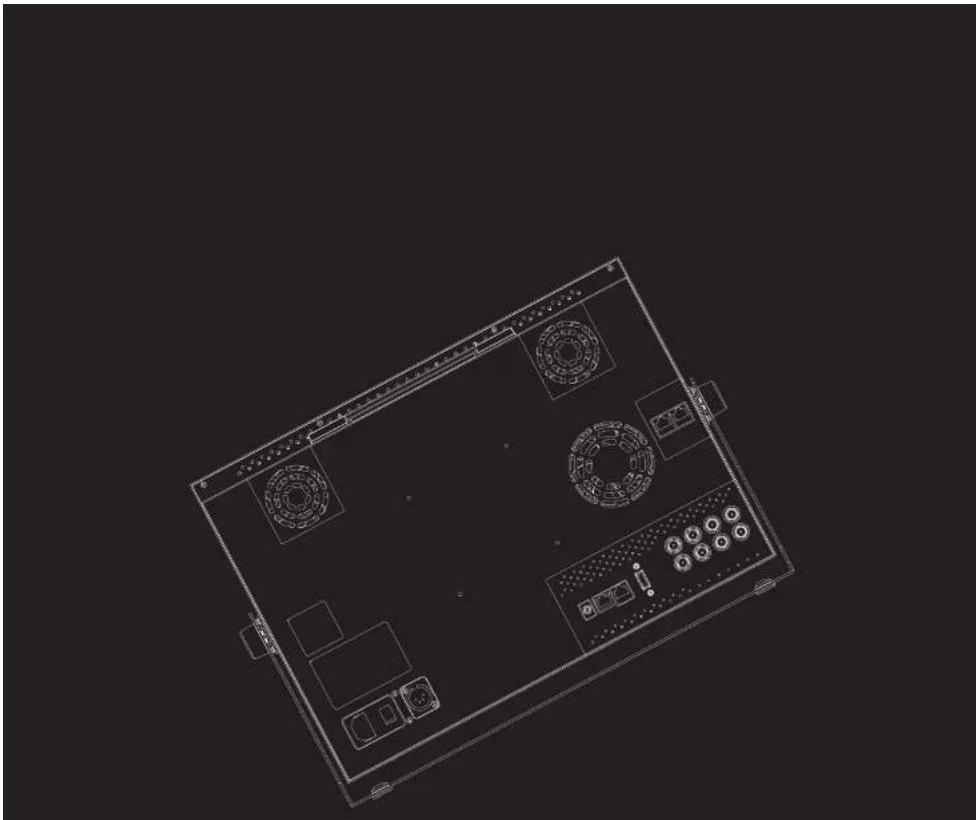
Technical line drawing of a computer tower with ventilation grilles and fan components (no text or symbols)4K /UHD HDR Emulation LCD Monitor
01 CAUTION
VESA WALL MOUNTING
- When mounting on the wall bracket, fix the monitor using 4 pieces of M4 x 10mm screws.
- Use the 100mm x 100mm VESA MOUNTING holes on the rear housing.
- Do not install on a place other than a vertical wall.
- Do not use screws longer then the standard dimension, as they may cause damage to the inside to the monitor.
- Do not tighten the screws too much. It may damage the monitor or make the monitor fall and cause personal injury. Vidente(TVLogic) is not liable for these kinds of accidents.
- Remove the stand before installing the monitor on the wall using the wall mount kit.
- Do not install your wall mount kit while the monitor is plugged in. It may result in personal injury due to electric shock.
4K/UHD HDR Emulation LCD Monitor
02 MAIN FEATURES
LUM-181H / 181G / 242H / 242G / 328G / 550H Monitor contains the following features:
- Compatible with various SDI signal formats
- This product is compatible with various SDI signals. - 720P, 1080p, 2160p
- Compatible with various Digital signal formats
- This product is compatible with various HDMI Digital signals- 50p, 59.94p, 60p.
- 4K(SMPTE ST 428-1-2006 : 4096 x2160 @24p /SMPTE ST 2036-1:2009 : 3840x2160 @23.98p \~ 60p) Support
- 6G/12G is supported only in SDI A, SDI B modes.
• Advanced Cooling System by adopting the Premium Quality Quite Fan
- The fans inside the monitor are designed to rotate at the maximum speed in order to lower the internal tmeperature of the monitor displaying the high-luminance content. - With the adoption of the premium quality fans featuring sophisticated aerodynamic design,
•Ethernet & USB support
- Supports the Ethernet connection for monitor control and the USB connection for firmware update and color calibration.
•HDMI(2.0) support
- 1 x HDMI(2.0) input is available without additional equipment.
•SDI 3G support
- Supports 3G-SDI YCbCr/RGB 4:4:4 and YCbCr 4:2:2 formats.
• Additional features
- Wide Viewing Angle, Active Loop Through(SDI), VESA Mounting Standard and OSD user interface. * Max. Brightness 1000cd/m²
• Various Color Gamut support
- ITU-R BT.709, BT.2020, DCI-P3(color standard of digital cinema), SGamut3, Panel Native.
4K/UHD HDR Emulation LCD Monitor
03 CONTROLS & FUNCTIONS
LUM-181H: FRONT

text_image
44/1936 120-289 F3 F4 F3 F2 F1 MENU 1936 TValog HDMI 5DI SINGLE 2SI QUAD MENU EXIT ENTER LED (POWER INDICATOR) POWER INFO VIDEO RANGE BLIGHT MARKER ASPECT SCANLUM-181H: REAR
4K/UHD HDR Emulation LCD Monitor
03 CONTROLS & FUNCTIONS
LUM-181G: FRONT

text_image
F5 F4 F3 F2 F1 HDMI SDI SINGLE 2SI QUAD TV Index MENU/DXT ENTER LED (POWER INDICATOR) POWER INFO: VIDEO RANGE BLIGHT MARKER ASPECT SCANLUM-181G: REAR
4K/UHD HDR Emulation LCD Monitor
03 CONTROLS & FUNCTIONS
LUM-242H: FRONT
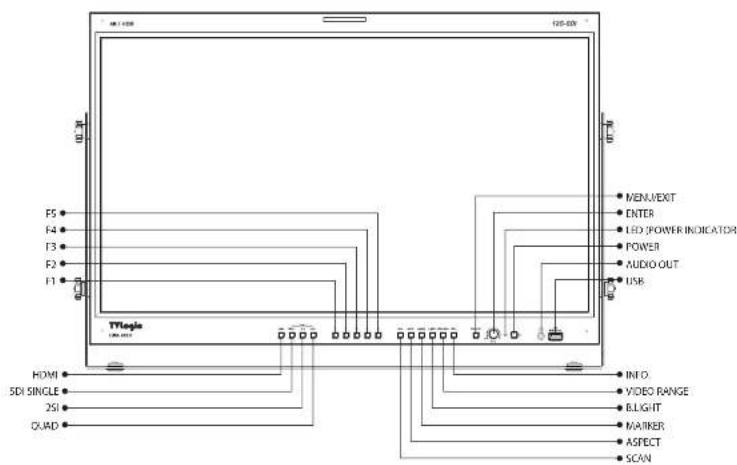
text_image
120-120 F5 F4 F3 F2 F1 HDMI SDI SINGLE 2SI QUAD TTLogis 120-120 MEN/EXIT ENTER LED POWER INDICATOR POWER AUDIO OUT USB INFO VIDEO RANGE BLIGHT MAINTER ASPECT SCANLUM-242H : REAR
4K/UHD HDR Emulation LCD Monitor
03 CONTROLS & FUNCTIONS
LUM-242G: FRONT

text_image
12G-SDI F5 F4 F3 F2 F1 TytLogic HDMI SDI SINGLE 2 SDI QUAD MENU/EXIT ENTER LCD POWER AUDIO OUT USB INFO. VIDEO RANGE BLIGHT MARKER ASPECT SCANLUM-242G: REAR
4K/UHD HDR Emulation LCD Monitor
03 CONTROLS & FUNCTIONS
LUM-328G: FRONT
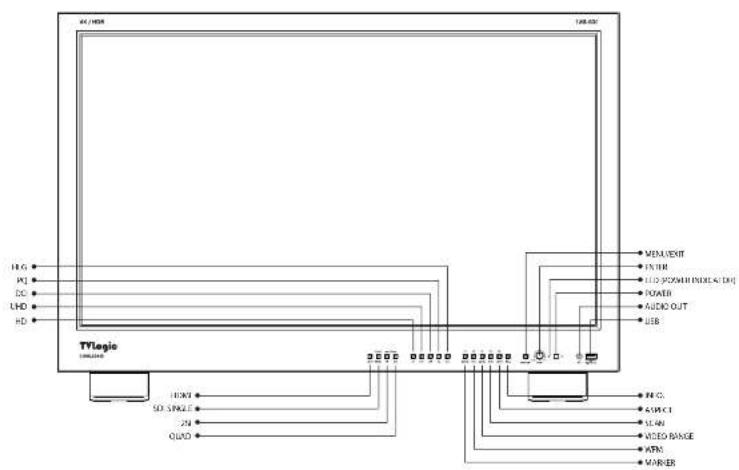
text_image
TVLogic 100MHz H.G. PQ. CC. LHD. HD. 100MHz SD SINGLE 2V QUOD MEM/VEIT FTRR LED POS/IN INDEX LED POWER AUDIO OUT USB REC.C. ASIKI SCAN VIDEO RANGE ATM MARKERLUM-328G: REAR
4K/UHD HDR Emulation LCD Monitor
03 CONTROLS & FUNCTIONS
LUM-55OH: FRONT

text_image
I5 F4 F3 F2 F1 MEVLENT ENTER LED OPPOOR RINDEX CDS POWER AUDIO OUT USS HDMI SCHINLET 25 QUICK VIDEO RANGE EIGHT MVRER ASPECT XCANLUM-55OH: REAR
03 CONTROLS & FUNCTIONS
LUM-181H/181G/242H/242G/328G/550H:FRONT
• [HDMI] Button/Lamp
- Used to select HDMI input.
• [SINGLE] Button/Lamp
- Used to select SDI input for one channel. Previously selected SDI input selection displays.
- Press the button to move through the modes: SDI-A → SDI-B → SDI-C → SDI-D
• [2SI] Button/Lamp
- Used to select the SDI 2-Sample Interleave input signal(quad link or dual link).
- Press the button to move through the modes : 2SI(4CH) → 2SI(2CH)
• [QUAD] Button/Lamp
- Used to select the SDI Quad link square division input signal.
• [F1 \~ F5] Button/Lamp
- Shortcut key for KEY MAPPING feature in the OSD MENU.
- Selectable function are as follows :
1) Blue Only - Activates in the order of [Blue Only] → [Mono]
6) Luma(Y') Zone
- Refer to the page 24.
7) Focus Assist
- Refer to the page 25.
8) Marker
- Refer to the page 21.
9) DR Mode
- Used to select the dynamic range mode in the order of SDR → HDR → User.
- SDR : Standard Dynamic Range Mode
- HDR : High Dynamic Range Mode
- User : Custom Dynamic Range Mode
10) Standard
- Refer to the page 16.
11} Disp Luminance
- Refer to the page 16.
12) EOTF
- Refer to the page 16.
13) Video Range
- Refer to the page 16.
2.1.12
03 CONTROLS & FUNCTIONS
LUM-181H/181G/242H/242G/328G/550H:FRONT
• [SCAN] Button
- Used to select [Zero Scan] and [Over Scan].
• [ASPECT] Button
- Used to select ASPECT mode.
- Available aspect modes are [FULL], [4:3], [2.35:1], [1.85:1], [15:9], [16:9], [16:10], [AUTO].
• [MARKER] Button
- Used to activate/deactivate the Marker.
• [B. LIGHT] Button
- Used to adjust the backlight level.
- Turn the ENTER knob left or right to adjust the value.
• [VIDEO RANGE] Button
- Used to select the video range.
- Available modes are [Narrow 100%], [Narrow 109%], [SDI Full].
- This function activates when [Standard] - [User1/2/3/4/5/6] is selected.
- INFO1 Button
• [MENU/EXIT] Button
- Used to activate/deactivate the OSD menu.
- Press the MENU button again to deactivate
the OSD menu.
• [UP/DOWN/ENTER] Knob
- Used to move up/down through the menus during the OSD menu activation and also to increase/decrease the value of the selected feature.
- Press the Knob to confirm a chosen value (or mode).
- May also be used to control the [Backlight] - [Brightness] - [Contrast] - [Volume] value during
the OSD menu inactivation. Turn the Knob to the left/right to adjust the value.
• [POWER INDICATOR] Lamp
- Indicates condition and power status of unit.
- Light turns off when the power is disconnected.
- Standby mode is indicated by a red LED light.
- Normal (active) mode is indicated by a Green LED light.
- The Green light turns off when the monitor
03 CONTROLS & FUNCTIONS
LUM-181H/181G/242H/242G/328G/550H:REAR
• [REMOTE] (RJ-45)
- Provides connection to control equipment(parallel switch) for external monitor control.
- Features can be changed in the GPI section of the OSD menu.
• [RS422 IN/OUT] (RJ-45)
- Used to control the monitor with a protocol provided by TVLogic.
• [HDMI]
- Signal input terminal for HDMI signal.
• [SDI-A/B/C/D] (BNC)
- SDI signal input terminal.
- SDI-A/B support 12G/6G/3G/HD-SDI Input.
- SDI-C/D support 3G/HD-SDI input.
• [SDI-A/B/C/D Output] (BNC)
- SDI signal loop-out terminal.
- SDI-A/B support 12G/6G/3G/HD-SDI output.
- SDI-C/D support 3G/HD-SDI output.
• [AUDIO IN]
- Used to connect the audio input signal.
• [LAN]
- Used to control the monitor with a protocol provided by TVLogic.
• [AC IN]
- LUM-181H: 100\~240V (50/60Hz)
- LUM-242H: 100\~240V (50/60Hz)
• [DC IN]
- LUM-181H: DC 12V/8A \~ 24V/4A
- LUM-242H: DC 24V/6.5A
When using the product make sure to ground, whenever possible, before connecting the input signal cable in order to prevent any possible damage to the product or connected devices. The damage may include signal noise, malfunction of main board or display panel. And the connected devices such as camera or video source player may also be influenced
04 MENU ORGANIZATION & ADJUSTMENT
[1] Menu Organization
- The product may be controlled and set by OSD display on the screen.
![TVLogic LUM-328G - [1] Menu Organization - 1](/content/2026/06/1216225/images/726efefaec0a66f2b00fa395ab6c3742252e89df92a6686eba200e076ca35cca.jpg)
text_image
Picture&Video LUM-181H Brightness 0 Contrast 0 Chroma 0 Aperture 0 Aspect 16:9 3G Format Normal Mode 4K Align TVLogic[2] Menu Adjustment
- You may control various functions using MENU, UP/DOWN and ENTER
[3] Menu Adjustment Procedure
- Menu control sequence follows the order below:
- Press the MENU button to activate the OSD menu.
- Move to a desired menu by turning the KNOB to the left/right.
- Press the KNOB button to select a menu and move to a sub-menu by turning the KNOB to the left/right.
- Press the KNOB button to select the desired sub-menu. (The selected sub-menu's font color will be highlighted.)
- Press the KNOB or MENU button to save the new value after adjusting the value with the KNOB button. (The changed font color will be returned to default.)
- Press the MENU button to return to the previous menu and if there is no previous menu, the OSD menu will be removed from
04 MENU ORGANIZATION & ADJUSTMENT
[4] Menu Tree
| PICTURE & VIDEO | Brightness | GPI | PIN1~PIN8 |
| Contrast | Monitor ID | ||
| Chroma | DHCP | ||
| Aperture | IP Address | ||
| Aspect | Subnet Mask | ||
| 3G Format | Gateway | ||
| 4K Align | Port NO. | ||
| Standard | Network settings apply | ||
| Video Range | UMD Display | ||
| Disp Luminance | UMD Character | ||
| Black Level | UMD character color | ||
| EOTF | UMD B.G. trans. (*Deactivated) | ||
| White Point | UMD size | ||
| HLG SG | Marker | ||
| Color Gamut | Center Marker | ||
| Gamut Warning | Safety Area | ||
| EETF | Fit Marker |
04 MENU ORGANIZATION & ADJUSTMENT
[4] Menu Tree
| WAVEFORM & FOCUS | Waveform Display | DISPLAY & SET | User Config Set |
| Waveform Intensity | Internal Pattern | ||
| Waveform Trans. (*Deactivated) | System Default | ||
| Waveform Color | S/W Upgrade | ||
| Line Waveform | S/W Upgrade Start | ||
| Line Select Position | Time Code | ||
| Luma(Y') Zone Check | Key Lock | ||
| Luma(Y') Zone Adjust | Key LED | ||
| Focus Assist | Closed Caption | ||
| Focus Assist Color | Decode Channel(608) | ||
| Focus Assist Level | Caption Service(708) | ||
| Range Error | OSD Position | ||
| Y Max | Transfer Matrix | ||
| Y Min | Gamut Control | ||
| Level Meter Select | [F1] Key Mapping | ||
| Level Meter Display | [F2] Key Mapping | ||
| Level Meter Reference | [F3] Key Mapping |
4K/UHD HDR Emulation LCD Monitor
05 MENU OPERATIONS
[1] Picture & Video
![TVLogic LUM-328G - [1] Picture & Video - 1](/content/2026/06/1216225/images/9e8cc07ab4b995aba8823fa754d743b587ce67afd4345009cd67faaf8c68a2cb.jpg)
text_image
Picture&Video LUM-181H Brightness Contrast Chroma Aperture Aspect 16:9 3G Format Normal Mode 4K Align TVLogic- Brightness
- Used to adjust the overall brightness (= Offset) level, which mainly affects the black level. The adjustment range is -100(MIN) to 100(MAX).
- Contrast
- Used to set the contrast(Gain) level from [-100] to [100].
- Chroma
- Used to set the saturation level from [-50] to [50].
• 4K Align
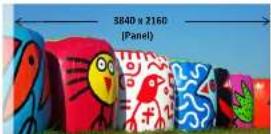
When the 4K 4096 x 2160(17:9) signal is input to the LUM-181H or LUM-242H whose resolution of the LCD panel is 3840 x 2160(16:0), the following four modes can be selected.
[Center]: The input image is displayed as pixel to pixel, and the vertical 128 lines on the left end and right end are hidden.
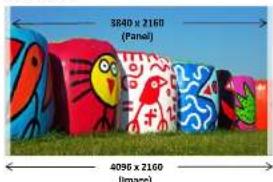
text_image
3840 x 2160 (Panel) 4096 x 2160 (image)[Right]: The input image is displayed as pixel to pixel. The right end of the input image is displayed in full, and the vertical 256 lines on the left are hidden.
05 MENU OPERATIONS
[2] Color
![TVLogic LUM-328G - [2] Color - 1](/content/2026/06/1216225/images/c47cd231798752fdc38b553024cff660addc80136f4adab24e20305944d8be39.jpg)
text_image
Color 1/3 LUM-181H Standard HD Video Range Narrow 109% Disp Luminance 100 Black Level Off EOTF 2,4 White Point D65 HLG SG Off Color Gamut B.T.709 TVLogic- Standard
- Used to select the color and dynamic range of the screen.
- Available options are [HD], [UHD], [DCI-P3], [PQ], [Dolby PQ], [HLG], [User1/2/3/4/5/6].
• Video Range
-
Used to select the range of digital video signal.
* [SDI Full] : Input signal 1\~254 (8bit). 4\~1019 -
Black Level (Not supported)
- The minimum black level of the video signal can be set differently depending on the performance of the monitor or the lighting environment.
* Lite : Black level similar to Global Dimming * Deep : Lowest Black level of the Panel - Activates only in the Color Standard User mode.
• EOTF (Electro-Optical Transfer Function)
- Electrophotic conversion Functions(ex: Gamma or HDR curve).
- Available options are [2.2], [2.4], [2.6], [2.8], [BT.1886], [PQ], [HLG], [Native].
- Activates only in [Standard]-[User] mode.
- White Point
- Used to select the White Point.
- Available options are [D60], [DCI-White], [D65], [9300K].
• HLG SG (HLG System Gamma)
4K/UHD HDR Emulation LCD Monitor
05 MENU OPERATIONS
[2] Color
![TVLogic LUM-328G - [2] Color - 1](/content/2026/06/1216225/images/b4e621b6773f74b4fab99a99b2e7238b2f23dbe61ef641c83907e297000b6469.jpg)
text_image
Color 2/3 LUM-181H Gainut Warning Off ETF Off Gain/Offset Default Reset No OK Finish Make ENT Select TVLogic• Gamut Warning
- Used to display warning when the input
colors exceeds the permissible range of the panel color gamut. - Available modes are [OFF] and [ON].
• EETF (Electrical-Electrical Transfer Function)
- It is a conversion function that expresses
(without clipping) the HDR image within
the actual luminance range (black level
05 MENU OPERATIONS
[2] Color
![TVLogic LUM-328G - [2] Color - 1](/content/2026/06/1216225/images/ed2105c0b5a367b903edf1056b0105def95e8e55efd35965324b54e5a5311097.jpg)
text_image
Color 3/0 LUM-181H Gain/Offset Default Gain Red 0 Gain Green 0 Gain Blue 0 Bias Red 0 Bias Green 0 Bias Blue 0 ColorCopy Default TVLogic- Gain/Offset
- Used to manually adjust the color and
brightness of the monitor. - Available options are [Default] and [User1/2/3].
• Gain Red
- Used to set Red Gain level from [-256] to [255].
- Adjusts the red color of bright section.
- Gain Green
- Bias Red
- Used to set Red Bias from [-256] to [255].
- Adjusts the red color of dark section.
- Bias Green
- Used to set Green Bias from [-256] to [255].
- Adjusts the green color of dark section.
- Bias Blue
- Used to set Blue Bias from [-256] to [255].
- Adjusts the blue color of dark section.
• Color Copy
- Used to copy the R/G/B Gain value of pre-stored color temperature settings.
- Turn the KNOB left/right and press the ENTER button to copy and apply the selected color temperature value.
4K/UHD HDR Emulation LCD Monitor
05 MENU OPERATIONS
[3] GPI
![TVLogic LUM-328G - [3] GPI - 1](/content/2026/06/1216225/images/9a21a441e05d5f5ece080fe6f912643eaf998f3f263cea3682f88ae1e6d3dd40.jpg)
text_image
GPI 1/3 LUM-181H PIN 1 SINGLE-SDI PIN 2 2SI-SDI PIN 3 QUAD-SDI PIN 4 HDMI PIN 5 Aspect PIN 6 H/V Delay PIN 7 Power On/Off PIN 8 GND MENU Prev VIA Note ENT Select TVLogic- This item activates/ inactivates the REMOTE function.
- The user may designate a function for each pin and each pin's default setting is as follows.
• The default settings are as follows:
PIN 1: SINGLE-SDI
PIN 2:2SI-SDI
| PIN No. Settable Values | |
| PIN1~6 | NONESINGLE-SDI2SI-SDIQUAD-SDIHDMIASPECTH/V DELAYBLUE ONLYMONO16:9 MARKER4:3 MARKER4:3 ON AIR MARKER15:9 MARKER14:9 MARKER13:9 MARKER1.85:1 MARKER |
05 MENU OPERATIONS
[3] GPI
![TVLogic LUM-328G - [3] GPI - 1](/content/2026/06/1216225/images/d7b6011938ca05506cb74232be224cf8f6ab9dfdce22d3a83459e1500e5bb815.jpg)
text_image
GPI 2/3 LUM-181H MONITOR ID DHCP OFF IP ADDRESS 192.168.123.0 SUBNET MASK 256.266.128.0 GATEWAY 0.0.0.0 PORT NO. 10262 Network settings apply Off Status: Rev TA: Note OK: Select TVLogic• Monitor ID
- This item sets the ID of each monitor for the TVLogic control protocol using RS-422/485 communication.
- Available values are [0\~127].
• DHCP
- Used to activate/deactivate the DHCP function.
text_image
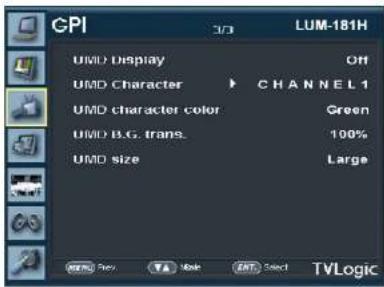
GPI 3/3 LUM-181H UMD Display Off UMD Character CHANNEL 1 UMD character color Green UMD B.G. trans. 100% UMD size Large TVLogic• UMD Display
- Used to set UMD and ANC.
- Available modes are [OFF], [UMD] and [ANC].
* [UMD] : Displays user customized 8 characters on screen.
* [ANC] : Displays characters embedded in SDI signal.
• UMD Character
- Used to customize the characters for Under
4K/UHD HDR Emulation LCD Monitor
05 MENU OPERATIONS
[4] Marker
![TVLogic LUM-328G - [4] Marker - 1](/content/2026/06/1216225/images/05ed220eed1adbdd496bafc938d05e6d929b16b6203b219fcc9636a3daf50f9d.jpg)
text_image
Marker 1/2 LUM-181H Marker Off Center Marker Off Safety Area Off Fit Marker Off Marker Mat Off Marker Color White Thickness 4 MENU Prev Move ENT Select TVLogic- Marker
- Used to select the marker type when the MARKER is displayed on the screen.
- MARKER may only be activated by pressing the MARKER button on the bottom front of the monitor.
- Available marker types are [Off], [16:9], [4:3], [4:3] ON AIR, [15:9], [14:9], [13:9], [1.85:1], [2.35:1], [1.85:1 & 4:3], [4:3 ALT 14:9], [16:9 ALT 14:9], [16:9 ALT 4:3] and [USER].
• Fit Marker
- Used to activate or inactivate the FIT MARKER function.
- When the Marker type is selected in the Marker menu, a border line of the Safety Area will be displayed inside the Marker. Images below show the difference between Fit Marker [ON] and [OFF].
- FIT MARKER ON/OFF displays as shown below
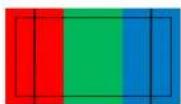
- MARKER :4:3
• SAFETY AREA :90%
• FIT MARKER : OFF
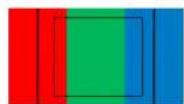
- MARKER :4:3
- SAFETY AREA : 90%
• FIT MARKER : ON
- Marker Mat
- Used to set the darkness level outside of the MARKER area from OFF to 7.
- The higher the level is, the darker the outside of the MARKER area is.
4K/UHD HDR Emulation LCD Monitor
05 MENU OPERATIONS
[4] Marker
![TVLogic LUM-328G - [4] Marker - 1](/content/2026/06/1216225/images/5363e4405b2861021931c2ffee8e6a98e8088059e24736dde020fc328ab8a3e8.jpg)
text_image
Marker 2/2 LUM-181H USER Marker H1 1 USER Marker H2 2040 USER Marker V1 1 USER Marker V2 1080 MENU Prev Move ENT Select TVLogic- USER Marker H1
- Used to set the position of the first horizontal marker line.
- Displayed when MARKER menu is set to USER.
- USER Marker H2
- Used to set the position of the second horizontal marker line.
- Displayed when MARKER menu is set to USER.
......
4K/UHD HDR Emulation LCD Monitor
05 MENU OPERATIONS
[5] Waveform & Focus
![TVLogic LUM-328G - [5] Waveform & Focus - 1](/content/2026/06/1216225/images/a42677826674f039e52d67bfff777f385a0af724e7e52f0ec63afb1f2237dd43.jpg)
text_image
Waveform & Focus 1/2 LUM-181H Waveform Display Off Waveform Intensity 0 Waveform Trans. Opaque Waveform Color Green Line Waveform Off Line Select Position 0 Luma(Y) Zone Check Off Luma(Y) Zone Adjust 0 TVLogic• Waveform Display
- This function sets the Waveform and Vectorscope.
- Activates in the order : [Off], [Waveform], [Vectorscope].
* [Waveform] Displays the shape and form of luminance level of a signal.
* [Vectorscope] : Displays the color components 'B-Y' and 'R-Y' of the input signals onto the X-Y axis. Two different types of Vetorscopes
• Waveform Trans. (Not Supported)
- Controls the transparency level of the Waveform/Vectorscope.
- Available values are OPAQUE and TRANS.
* If the option is set to OPAQUE, the main OSD will overlap with the waveform/vector. However, it will automatically display it as transparent and goes back to opaque if the main OSD disappears.
- Waveform Color
- Used to select a color of Waveform/Vectorscope
- Available modes are [Green] and [White].
- Line Waveform
- This item is utilized to display the entire data or one line data on the Waveform.
• Line Select Position (\*Will be Supported)
- Used to select specific Horizontal Line for Waveform/Vectorscope.
- It is available when Line Waveform is activated.
05 MENU OPERATIONS
[5] Waveform & Focus
![TVLogic LUM-328G - [5] Waveform & Focus - 1](/content/2026/06/1216225/images/26151c58402a9a58276d135940b0c7cf6d90be1cca2e596b22d1aa098835c286.jpg)
text_image
Waveform & Focus 1/2 LUM-181H Waveform Display Off Waveform Intensity 0 Waveform Trans. Opaque Waveform Color Green Line Waveform Off Line Select Position 0 Luma(Y) Zone Check Off Luma(Y) Zone Adjust 0 TVLogic• Luma(Y') Zone Check
- Analyzes the Luma(Y') level of the Input Image and displays the selected zone on the screen.
- Available modes are [(Color Patt.) On] and [(Zebra Patt.) On].
- After each pixel's Y' level is analyzed, it is displayed as a certain color or zebra pattern according to the Index on the right side of the screen.
- When a pixel's Y' level is under 0%(16), the pixel is displayed as green color or green diagonal lines, and over 100%(25) as red.
• [(Color Patt.) On] mode
- Pixels with Y' levels which are designated by the user are displayed in following colors - yellow, pink, cyan.
- Factory Default Y' (Border line between pink and yellow) level is [0]%.
- The upper 2.5% and lower 2.5% zone from the Y' level set in [Luma(Y') Zone Adjust] menu is displayed in Pink. The upper 10% zone from the
Pink zone is displayed in Yellow, and the lower 10% zone from the Pink zone is displayed in Cyan. So, 25% zone is displayed in colors and the other 75% zone is displayed mono and white.
![TVLogic LUM-328G - • [(Color Patt.) On] mode - 1](/content/2026/06/1216225/images/3c715f16a44d3300ea0909d6a9df57103141b64f201219d2b8aa620a358f9b7c.jpg)
![TVLogic LUM-328G - • [(Color Patt.) On] mode - 2](/content/2026/06/1216225/images/21e827aec4cb2463d535b0d7e682d4bee0cc1167ad38ea7ac14d656009fbb798.jpg)
4K/UHD HDR Emulation LCD Monitor
05 MENU OPERATIONS
[5] Waveform & Focus
![TVLogic LUM-328G - [5] Waveform & Focus - 1](/content/2026/06/1216225/images/2690d5c554fa1c76d220a3d3139ecd672e81d9c2604ca99d5c69681e7b2e609a.jpg)
text_image
Waveform & Focus 2/2 LUM-181H Focus Assist OFF Focus Assist Color Red Focus Assist Level 20% Range Error OFF Y Min 126 Y Min 1 TVLogic- Focus Assist
- Focus Assist function assigns a color on the pixels of the shape or boundary of the image, which helps the user easily see which part of the image is in focus or out of focus.
- With this function, the user can easily differentiate the focused area from the out-focused area especially when shooting with a shallow depth of field.
- Available types are [Color On] and [Mono On].
• Focus Assist Level
- Used to set the edge difference value between the edges in an image.
- Available values are from [0] to [100]. Larger value means more sophisticated detail detection.
- Designated color is displayed when the difference of the edges exceeds the previously set value.
- This feature is available only when the Focus Assist mode is activated.
- Range Error
- Used to set whether or not to activate [Y Max] and [Y Min] functions.
- The values of [Y Max] and [Y Min] are indicated in Waveform.
• Y Max
- Used to set the maximum luma(Y') level.
- Available range is [1] to [126].
- Y Min
- Used to set the minimum luma(Y') level.
05 MENU OPERATIONS
[6] Audio
![TVLogic LUM-328G - [6] Audio - 1](/content/2026/06/1216225/images/03caed780d27c6d571eeadb2e18a405481523692ded970bc59df72f6e9ea89eb.jpg)
text_image
Audio LUM-181H Level Meter Select Off Level Meter Display Pair Level Meter Reference 20% Peak Decay Time 0 Level Meter Size Small Volume 0 Em. Audio Left Off Em. Audio Right Off MENU Play TAV Mode CNT Select TVLogic• Level Meter Select
- Used to control the Embedded Audio Level Meters.
- Available modes are [Off], [G1+G2], [G2+G3], [G3+G4], [G1+G3], [G1+G4], [G2+G4] and [16CH].
• Level Meter Display
- Used to set the display method for Audio Level Meter.
- Available modes are Group and Pair.
• Level Meter Size
- Used to control the size of the Audio Level Meter
- Available modes are [Small], [Small Trans.], [Normal], [Normal Trans.], [Large], [Large Trans.].
- In Small, Normal and Large modes, the level meter appears opaque.
- In [Small Trans.], [Normal Trans.], [Large Trans.] modes, the level meter appears semitransparent.
• Volume
- Used to control the output volume of the [AUDIO OUT] terminal on the back of the monitor.
- Control range is from 0 to 30.
• Em. Audio Left
- Used to set embedded audio channel for left audio out of [AUDIO OUT] terminal on the back of the monitor.
- Available modes are [CH1], [CH2], ..., [CH16], [Ext. Audio], [Off].
• Em. Audio Right
-
-
-
-
-
-
-
-
-
-
-
-
-
-
-
-
-
-
-
-
-
-
-
-
-
-
-
-
-
-
-
-
-
-
-
-
-
-
-
-
-
-
-
-
-
-
-
-
-
-
-
-
-
-
-
-
-
-
-
-
-
-
-
-
-
-
-
-
-
-
-
-
-
-
-
-
-
-
-
-
-
-
-
-
-
-
-
-
- 90.
-
-
-
-
-
-
-
-
-
-
-
-
-
-
-
-
-
-
-
-
-
-
-
-
-
-
-
-
-
-
-
-
-
-
-
-
-
-
-
-
-
-
-
-
-
-
-
-
-
-
-
-
-
-
-
-
-
-
-
-
-
-
-
-
-
-
-
-
-
-
-
-
-
-
-
-
-
-
-
-
-
-
-
-
-
-
-
4K/UHD HDR Emulation LCD Monitor
05 MENU OPERATIONS
[7] Display & Set
![TVLogic LUM-328G - [7] Display & Set - 1](/content/2026/06/1216225/images/aecdf3f059b96c279895116eb40c8a3097fbab1db4ed7f23e45f9318c2baa097.jpg)
text_image
Display&Set 1/3 LUM-181H User config set User 1 Internal Pattern Off System Default No S/W upgrade Off S/W upgrade start Time Code Off Key Lock Off Key LED Off Logic Freq Mode SET Select TVLogic- User config set
- Used to save and apply in three kinds of user configurations.
- Available modes are [USER1], [USER2] and [USER3].
- Internal Pattern
- Generates White Pattern internally.
- Selectable range is from [0%] to [100%] with 5% increment.
- System Default
Key Lock
- Used to lock all buttons except Power, Input select and Menu buttons.
• Key LED
- Used to control the Key Lamp on the front of the monitor. - If the button with LED is pressed with the KEY LED Off, LED comes on but turns off after 5 seconds later.
05 MENU OPERATIONS
[7] Display & Set
![TVLogic LUM-328G - [7] Display & Set - 1](/content/2026/06/1216225/images/dcda4cee1adf46cbf9c8d7d195ee05bdd66ea0c8f6e0e9472246f9833c62356d.jpg)
text_image
Display&Set 2/3 LUM-181H Closed Caption Off Decode Channel(608) CC1 Caption Service(708) Service 1 OSD position Center Transfer Matrix Default Gamut Control Surface MENU Prev Made ENT Select TVLogic- Closed Caption
- This item controls the Closed Caption.
- Available modes are [OFF], [708], [608(LINE21)] and [608(ANC)].
• Decode Channel(608) - Sets the Channel of Closed Caption 608
- Available modes are [CC1] \~ [CC4].
• Caption Service(708) - Sets the service of Closed Caption 708.
- Available modes are [Service 1] \~ [Service 6].
![TVLogic LUM-328G - [7] Display & Set - 2](/content/2026/06/1216225/images/762f3dbc9a721f84792df464b3b311743e8eef2ff9a12a798050db4095e590f7.jpg)
text_image
Display&Set 3/3 LUM-181H [F1] Key Mapping Marker [F2] Key Mapping Waveform [F3] Key Mapping Video Range [F4] Key Mapping Scan [F5] Key Mapping Aspect Serial Number : Board Version 2003 0077 03 2:04 9 TVLogic• [F1] Key Mapping
- User can select the function for the F1 button.
• [F2] Key Mapping
- User can select the function for the F2 button.
• [F3] Key Mapping
- User can select the function for the F3 button.
• [F4] Key Mapping
- User can select the function for the F4 button.
• [F51] Key Mappind
05 MENU OPERATIONS
[8] Inform. (INFO.KEY)
| Signal information | |
| Input Channel | : SDI-A |
| Input Config | : 3G/HD-SDI(3G-B) |
| SDI Payload ID | : 8C-C2 00 01 |
| Video Standard | : 1080 3G-B 2-Str |
| Sampling | : 4:2:2 YCbCr |
| Picture Rate | : 73.98 |
| Scanning Method | : Progressive |
| Bit Depth | : 10-bit |
| Link Assignment | : Reserved |
- Input Channel
- Indicates the channel of the input signal.
- In the 2SI, QUAD MODE, use the KNOB button
to change the input signal and the
information of the signal will be displayed. - In the SINGLE MODE, the signal Information of
the channel will be displayed.
- Input Config
- Displays the current input signal.
- SDI Payload ID
06 VIDEO SUPPORT RESOLUTION
| Input Signal Interfaces Signal Format (HD-SDI / 3G SDI) | ||
| HD-SDI Quad link (4K) | 3840x2160(23.98/24/25/29.97/30p/Psf) | YCbCr 4:2:2 10bit |
| 4096x2160(23.98/24/25/29.97/30p/Psf) | ||
| Input Signal Interfaces S | gnal Format (HD-SDI / 3G SDI) | |
| 3G-SDI Quad link(4K) | 3840x2160(50/59.94/60p) YCbCr 4:2:2 | 10bit |
| 3840x2160(23.98/24/25/29.97/30/p/Psf) | YCbCr 4:4:4 10/12bitRGB 4:4:4 10/12bit | |
| 4096x2160(47.95/48/50/59.94/60p) | YCbCr 4:2:2 10bit | |
| 4096x2160(23.98/24/25/29.97/30p/Psf) | YCbCr 4:4:4 10/12bitRGB 4:4:4 10/12bit | |
| 3G-SDI 2-Sample Interleave Dual link(4K) | 3840x2160(23.98/24/25/29.97/30/p) | YCbCr 4:2:2 10bit |
| 4096x2160(23.98/24/25/29.97/30p) | YCbCr 4:2:2 10bit | |
| 3840x2160(50/59.94/60p) YCbCr 4:2:2 10bit | ||
4K/UHD HDR Emulation LCD Monitor
06 VIDEO SUPPORT RESOLUTION
| Input Signal Interfaces Signal Format (HDMI) | ||
| HDMI Single link(4K) | 720x480(60i)720x576(50i) | RGB 4:4:4 8/10/12bitYCbCr 4:4:4 8/10/12bit |
| 720x480(60p)720x576(50p)1280x720(60p)1920x1080(50/59.94/60i)1920x1080(50/59.94/60p) | RGB 4:4:4 8/10/12bitYCbCr 4:4:4 8/10/12bitYCbCr 4:2:2 12bit | |
| 800x600@60Hz1024x768@60Hz1280x1024@60Hz1600x1200@60Hz | VESA | |
| 3840x2160 (23.98/24/25/29.97/30)4096x2160 (23.98/24/25/29.97/30) | RGB 4:4:4 8bitYCbCr 4:4:4 8bit | |
| 3840x2160 (50/60p)4096x2160 (50/60p) | RGB 4:4:4 8bitYCbCr 4:4:4 8bit | |
4K/UHD HDR Emulation LCD Monitor
07 PRODUCT SPECIFICATIONS
| Specifications | LUM-181H | |
| LCD | Size | 18.4" |
| Resolution | 3840 x 2160 (16:9) | |
| Pixel Pitch | 0.03555(H) x 0.1069(V) mm | |
| Color Depth | 1.07B Colors (10 bit) | |
| Viewing Angle | 170°(H)/170°(V) | |
| Luminance of white | 1000bits | |
| Contrast Ratio | 1000 : 1 | |
| Display Area | 408.96(H) x 230.04(V) mm | |
| Input | 1 x HDMI | HDMI Input |
| 4 x BNC | 12G/6G/3G/HD-SDI A/B, 3G/HD-SDI C/D Channel Input | |
| Output | 4 x BNC | 12G/6G/3G/HD-SDI A/B, 3G/HD-SDI C/D Channel (Active Through Out) |
| Input Signal | 12G-SDI | 12Gb/s |
| 5G-SDI | 6Gb/s | |
| 3G-SDI | 2.970Gb/s | |
| HD-SDI | 1.485Gb/s | |
| HDMI | 480p/720p/1080p/2160p | |
| SDI Input Signal Formats | SMPTE ST 2092 | 3840x2160 (60/50/30/25/24p) |
| SMPTE ST 2081 | 3840x2160 (30/25/24p) | |
| SMPTE ST 2096-1:2009 | 3840x2160(23.98/24/25/29.97/30/50/59.94/60p) | |
| SMPTE-425M-A/B | 1080p160/59.94/50/30/29.97/25/24/23.98/308F/25.975F/258F/248F/23.988F1 | |
| 1080(60/59.94/5C) | ||
| SMPTE-274M | 1080(60/59.94/50) | |
| 1080p (30/29.97/25/24/24F/23.98/23.98sF) | ||
| SMPTE-29GM | 720p (60/59.94/50) | |
| SMPTE-260M | 1035(60/59.94) | |
4K/UHD HDR Emulation LCD Monitor
07 OPTIONAL ACCESSORIES
| Specifications | LUM-181G | |
| LCD | Size | 18.5" |
| Resolution | 1920 x 1080 (16.9) | |
| Pixel Pitch | 0.213(H) x 0.213(V) mm | |
| Color Depth | 16.7M Colors (True 8 bit) | |
| Viewing Angle | 178°(H) / 178°(V) | |
| Luminance of white | 500cd/m2 | |
| Contrast Ratio | 1000 : 1 | |
| Display Area | 408.96(H) x 230.04(V) mm | |
| Input | 4 x BNC | 12G/6G/3G/HD-SDI A/B, 3G/HD-SDI C/D Channel Input |
| 1 x HDMI | HDMI Input | |
| Output | 4 x BNC | 12G/6G/3G/HD-SDI A/B, 3G/HD-SDI C/D Channel (Active Through Out) |
| Input Signal | 12G-SDI | 12Gb/s |
| 6G-SDI | 6Gb/s | |
| 3G-SDI | 2.970Gb/s | |
| HD-SDI | 1.485Gb/s | |
| HDMI | 480p/720p/1080p/2160p | |
| SDI Input Signal Formats | SMPTE ST 2082 | 3840x2160 (60/50/30/25/24p) |
| SMPTE ST 2081 | 3840x2160 (30/25/24p) | |
| SMPTE ST 2036-1:2009 | 3840+2160(23.98/24/25/29.97/30/50/59.94/60p) | |
| SMPTE-425M-A/B | 1080p(60/59.94/50/30/29.97/25/24/23.98/30sF/29.97sF/25sF/24sF/23.98sF) | |
| 1080(60/59.94/50) | ||
| SMPTE-274M | 1080I (60/59.94/50) | |
| 1080p (30/29.97/25/24/24sF/23.98/23.98sF) | ||
| SMPTE-296M | 720p (60/59.94/50) | |
| SMPTE-260M | 1035I (60/59.94) | |
4K/UHD HDR Emulation LCD Monitor
07 PRODUCT SPECIFICATIONS
| Specifications | LUM-242H | |
| LCD | Size | 23.8" |
| Resolution | 3840 x 2160 (16.9) | |
| Pixel Pitch | 0.137(H) x 0.137(V) mm | |
| Color Depth | 1.07B Colors (10 bit) | |
| Viewing Angle | 178°(H) / 178°(V) | |
| Luminance of white | 1000bits | |
| Contrast Ratio | 1000 : 1 | |
| Display Area | 527(H) x 256(V) mm | |
| Input | 1 x HDMI | HDMI Input |
| 4 x BNC | 12G/6G/3G/HD-SDI A/B, 3G/HD-SDI C/D Channel Input | |
| Output | 4 x BNC | 12G/6G/3G/HD-SDI A/B, 3G/HD-SDI C/D Channel (Active Through Out) |
| Input Signal | 12G-SDI | 12Gb/s |
| 6G-SDI | 6Gb/s | |
| 3G-SDI | 2.970Gb/s | |
| HD-SDI | 1.405Gb/s | |
| HDMI | 480p/720p/1080p/2160p | |
| SDI Input Signal Formats | SMPTE ST 2082 | 3840x2160 (60/50/30/25/24p) |
| SMPTE ST 2081 | 3840x2160 (30/25/24p) | |
| SMPTE ST 2036-1 2009 | 3840x2160(23.98/24/25/29.97/30/50/59.94/60p) | |
| SMPTE-425M-A/B | 1080p(60/59.94/50/30/29.97/25/24/23.98/30sF;29.97sF/25sF/24sF/23.98sF) | |
| 1080p(60/59.94/50) | ||
| SMPTE-274M | 1080i (60/59.94/50) | |
| 1080p (30/29.97/25/24/24sF/23.98/23.38sF) | ||
| SMPTE-296M | 720p (60/59.94/50) | |
| SMPTE-260M | 1035i (60/59.94) | |
4K/UHD HDR Emulation LCD Monitor
07 OPTIONAL ACCESSORIES
| Specifications LUM-242G | ||
| LCD | Size 23.8" | |
| Resolution 3840 X 2160 (16:9) | ||
| Pixel Pitch 0.137(H) X 0 (137(V) mm | ||
| Color Depth 1.07B | ||
| Viewing Angle 178°(H) / (178°(V) | ||
| Luminance of white 540 cd/m2 (Center) | ||
| Contrast Ratio 1200 : 1 | ||
| Display Area 526(H) X 296(V) mm | ||
| Input Connector | 1 X HDMI HDMI Input | |
| 4 X BNC | 12G-SDI A/B, 3G-SDI C/D Channel Input | |
| Output | 4 X BNC | 12G-SDI A/B, 3G-SDI C/D Channel (Active Through Out) |
| Input Signal | 12G-SDI | 12Gb/s |
| 6G-SDI | 6Gb/s | |
| 3G-SDI | 2.970Gb/s | |
| HD-SDI | 1.485Gbps | |
| HDMI | 480p/720p/1080p/2160p | |
| SDI Input Signal Formats | SMPTE-425M A/B | 1080p(60/59.94/50/30/29.97/25/24/23.98/30sF/29.97sF/25sF/24sF/23.98sF)1080i(60/59.94/50) |
| SMPTE-274M | 1080i (60/59.94/50) | |
| 1080p (30/29.97/25/24/24sF/23.98/23.98sF) | ||
| SMPTE-296M | 720p (60/59.94/50) | |
| SMPTE-260M | 1035i (60/59.94) | |
| SMPTE-125M | 480i (59.94) | |
| ITU-R BT.656 | 576i (50) | |
| SMPTE ST 2036-1:2009 | 3840x2160(23.98/24/25/29.97/30/50/59.94/60p) | |
| SMPTE ST 2048-2:2011 | 2048x1080(23.98/24/25/29.97/30p/psf, 47.95/48/50/59.94/60p) | |
| SMPTE ST 2081 | 3840x2160 (30/25/24p) | |
| SMPTE ST 2082 | 3840x2160 (60/50/30/25/24p) | |
07 PRODUCT SPECIFICATIONS
| Specifications | LUM-328G | |
| LCD | Size | 31.5" |
| Resolution | 3840 x 2160 (16.9) | |
| Pixel Pitch | 0.18159(H) x 0.18159(V) mm | |
| Color Depth | 1.07B Colors (10 bit) | |
| Viewing Angle | 178°(0) / 178°(V) | |
| Luminance of white | 100°C/d/m2 | |
| Contrast Ratio | 1000 : 1 | |
| Display Area | 697 31(H) x 392.23(V) mm | |
| Input | 4 x BNC | 12G/6G/3G/HD-SDI A/B, 3G/HD-SDI C/D Channel Input |
| 1 x HDMI | HDMI Input | |
| Output | 4 x BNC | 12G/6G/3G/HD-SDI A/B, 3G/HD-SDI C/D Channel (Active Through Out) |
| Input Signal | 12G-SDI | 12Gb/s |
| 6G-SDI | 6Gb/s | |
| 3G-SDI | 2.970Gb/s | |
| HD-SDI | 1.485Gb/s | |
| HDMI | 480s/720p/1000p/2100p | |
| SDI Input Signal Formats | SMPTE ST 2082 | 3840x2160 (60/50/30/25/24p) |
| SMPTE ST 2081 | 3840x2160 (30/25/24p) | |
| SMPTE ST 2036-1:2009 | 3840x2160(23 98/24/25/29.97/30/50/59 94/60p) | |
| SMPTE-425M-A/B | 1080p(60/59 94/50/30/29.97/25/24/23 98/30sF/29.97sF/25sF/24sF/23.98sF) | |
| 1080(60/59 94/50) | ||
| SMPTE 274M | 1080i (60/59 94/50) | |
| 1080p (30/29.97/25/24/24sF/23.98/23.98sF) | ||
| SMPTE 296M | 720p (60/59 94/50) | |
4K/UHD HDR Emulation LCD Monitor
07 OPTIONAL ACCESSORIES
| Specifications | LUM-550H | |
| LCD | Size | 54.6" |
| Resolution | 3840 x 2160 (16.9) | |
| Pixel Pitch | 0.315(H) x 0.315(V) mm | |
| Color Depth | 1.97B Colors (10 bit) | |
| Viewing Angle | 178°(H) / 173°(V) | |
| Luminance of white | 700cd/m2 | |
| Contrast Ratio | 1100 : 1 | |
| Display Area | 1209 6(H) x 880.4(V) mm | |
| Input | 4 x BNC | 12G/6G/3G/HD-SDI A/B, 3G/HD-SDI C/D Channel Input |
| 1 x HDMI | HDMI Input | |
| Output | 4 x BNC | 12G/6G/3G/HD-SDI A/B, 3G/HD-SDI C/D Channel (Active Through Out) |
| Input Signal | 12G-SDI | 12Gb/s |
| 6G-SDI | 6Gb/s | |
| 3G-SDI | 2.9/0Gb/s | |
| HD-SDI | 1.485Gb/s | |
| HDMI | 480p/720p/1080p/2160p | |
| SDI Input Signal Formats | SMPTE ST 2062 | 3840x2160 (30/50/30/25/24p) |
| SMPTE ST 2061 | 3840x2160 (30/25/24p) | |
| SMPTE ST 2036-1:2009 | 3840*2160(23.98/24/25/29.97/30/50/59.94/60p) | |
| SMPTE 425M-A/S | 1060p(60/59.94/50/30/29.97/25/24/23.98/30sF/29.97sF/25sF/24sF/23.98sF) | |
| 1060(60/59.94/50) | ||
| SMPTE-274M | 1080i (60/59.94/50) | |
| 1080p (30/29.97/25/24/24sF/23.98/23.98sF) | ||
| SMPTE 296M | 720p (60/50.94/50) | |