
BZ-MVS4X4-4K - Switch BZBGear - Free user manual and instructions
Find the device manual for free BZ-MVS4X4-4K BZBGear in PDF.


| Product Type | 4x4 HDMI Matrix Switch with seamless switching and video wall |
| Brand | BZBGear |
| Model | BZ-MVS4X4-4K |
| Dimensions (W x D x H) | 430 mm x 220 mm x 44 mm (16.9" x 8.7" x 1.7") |
| Weight | 5 kg (11 lbs) |
| Power Supply | AC 110-240V, 60W max |
| Video Bandwidth | 18 Gbps |
| Maximum Resolution | 4K60 4:4:4 (3840x2160@60Hz 4:4:4) |
| HDMI Compliance | HDMI 2.0 |
| HDCP Compliance | HDCP 2.2 |
| Color Space Support | RGB, YCbCr 4:4:4, YCbCr 4:2:2 |
| Control Methods | Front panel, RS232, TCP/IP (LAN 10/100M), Web GUI, PC tool |
| Seamless Switching | Yes |
| Video Wall Support | Yes, with bezel compensation and up to 10 scenes |
| Audio Matrix | Yes, with external L/R audio insert and balanced audio output |
| IR Matrix | Yes, follows video routing |
| CEC Management | Yes (power on/off, volume control, mute) |
| EDID Management | Yes, via front panel or PC tool |
| Housing | Metal enclosure, black |
| Operating Temperature | 0°C ~ 40°C (32°F ~ 104°F) |
| Storage Temperature | -20°C ~ 70°C (-4°F ~ 158°F) |
| Relative Humidity | 10% ~ 50% RH (non-condensing) |
| ESD Protection | Human-body: ±8kV air, ±4kV contact |
| Package Contents | 1x Matrix, 1x AC cord, 1x IR remote, 4x IR receiver, 4x IR blaster, 1x Phoenix connector, 1x CAT6 cable, 1x USB to RS232 cable, 1x Manual |
| Spare Parts & Repairability | Professional service recommended; contact BZBGEAR support |
| Maintenance & Cleaning | Disconnect power before cleaning; use dry cloth; avoid moisture and solvents |
| Safety Recommendations | Use surge protection; ensure proper ventilation; do not expose to rain or moisture |
Frequently Asked Questions - BZ-MVS4X4-4K BZBGear
User questions about BZ-MVS4X4-4K BZBGear
0 question about this device. Answer the ones you know or ask your own.
Ask a new question about this device
Download the instructions for your Switch in PDF format for free! Find your manual BZ-MVS4X4-4K - BZBGear and take your electronic device back in hand. On this page are published all the documents necessary for the use of your device. BZ-MVS4X4-4K by BZBGear.
USER MANUAL BZ-MVS4X4-4K BZBGear
natural_image
Front view of a network equipment rack with ports, switches, and a digital display (no readable text or symbols)User Manual
Thank you for purchasing this product
For optimum performance and safety, please read these instructions carefully before connecting, operating or adjusting this product. Please keep this manual for future reference.
Surge protection device recommended
This product contains sensitive electrical components that may be damaged by electrical spikes, surges, electric shock, lighting strikes, etc. Use of surge protection systems is highly recommended in order to protect and extend the life of your equipment.
Table of Contents
- Introduction....1
- Features.... 1
- Package Contents.... 1
- Specifications....2
- Operation Controls and Functions.... 3
- RS232/LAN Control Connection.... 6
6.1 RS232 Connector Connection....6
6.2 Network Control Connection....6 - PC Tool User Guide....6
7.1 Account's Authentication....6
7.2 Connect with PC Tool....6
7.3 Matrix Switch Page....7
7.4 Advanced Switch Page....8
7.5 Signal Setting Page....9
7.6 FineTune Page....9
7.7 Video Wall Page....9
7.7.1 Video Wall Context Menu.... 11
7.7.2 Layout Save/Load 12
7.8 CEC Control Page.... 13 - Control via Web.... 14
- Tech Support....15
- Warranty....15
1. Introduction
The 18Gbps 4x4 seamless UHD Matrix can connect 4 HDMI sources to 4 HDMI displays. Supported video resolution is up to 4K60 4:4:4. The product supports IR matrix and Audio matrix. IR matrix routing follows the video routing. Audio extract and insert are supported. The product supports CEC management and strong video wall processing.
2. Features
☆ HDMI 2.0 and HDCP 2.2 compliant
☆ Support 18 Gbps video bandwidth
☆ Support video resolution up to 4K60 4:4:4
Color space: RGB, YCbCr 4:4:4, YCbCr 4:2:2
☆ Support seamless switching, video wall function
* Support CEC management
☆ Support audio matrix and IR matrix function
☆ Support external L/R audio insert on HDMI stream
☆ Support EDID management
☆ Support front panel, RS232, TCP/IP (LAN 10M/100M) control
3. Package Contents
① 1 x 4x4 seamless UHD Matrix
② 1 x AC Power Cord
③ 1 x Matrix IR Remote
④ 4 x IR Receiver cable (1.5 meters)
⑤ 4 x IR Blaster cable (1.5 meters)
⑥ 1 x 3-pin Phoenix Connector
⑦ 1× CAT6 cable
⑧ 1× USB to RS232 Cable
⑨ 1× User Manual
- Specifications
| Technical | |
| HDMI Compliance HDMI | 2.0 |
| HDCP Compliance HDCP | 2.2 |
| Video Bandwidth 18Gbps | |
| Video Resolution Up to 4 | K60 4:4:4 |
| Color Space RGB, YCbCr | 4:4:4/4:2:2 |
| HDMI Amplitude T.M.D.S | +/- 0.4Vpp |
| Differential Impedance 100±15ohm | |
| ESD Protection | Human-body Model: ±8kV (Air-gap discharge), ±4kV (Contact discharge) |
| RS232/Ethernet Control | |
| Baud rate and Protocol | Baud rate: 9600, data bit: 8Stop bit: 1, no parity checking |
| Ethernet IE10.0+.HTML5 | |
| Mechanical | |
| Housing Metal Enclosure | |
| Color Black | |
| Dimensions | 430mm (W)×220mm (D)×44mm (H) |
| Weight 5Kg | |
| Power Supply | AC 110 - 240V |
| Power Consumption 60W (Max) | |
| Operating Temperature | 0°C ~ 40°C / 32°F ~ 104°F |
| Storage Temperature | -20°C ~ 70°C / -4°F ~ 158°F |
| Relative Humidity 10%~50% RH (non-condensing) | |
5. Operation Controls and Functions
Front Panel
| HOMI® |
| ItemDescription | |
| LCDPanelDisplaysthecurrentvideoselections | |
| COM | PowerLED(alsoindicatescontrolcommands) |
| LOCK | Frontpanellock/unlock |
| OUTPUTOutputselectionbuttons1~4 | |
| INPUT | Inputselectionbuttons1~4 |
| ALL | Setalloutputstothenextinputselection |
| RES | Settheoutputscalernresolution |
| EDIDSettheEDIOptionsforthenextinputselection | |
| NEXT | Selectthenextavailableoption |
| SAVE | Savethecurrentmatrixsettingasapreset |
| RECALLSetthematrixsettingfromasavedpreset | |
| CLEAR | Cancelthecurrentcommandfunction |
| ENTERSetthedisplayedoption | |
- Press buttons ALL + INPUT m + TAKE by sequence, to switch input m to all the outputs.
- Press buttons SAVE + OUTPUT n to save current routing/video wall scene as scene n. Up to 8 scenes can be saved.
- Press buttons RECALL + OUTPUT n to recall routing scene n as the current routing.
- Press buttons RES + OUTPUT n + NEXT + TAKE, to change the output resolution of OUTPUT n.
Resolution options:
| Number | OutputResolutionSetting | Number | OutputResolutionSetting |
| 13840x2160p60Hz91440x105060Hz | |||
| 2 | 3840x2160p50Hz | 10 | 1366x76860Hz |
| 33840x2160p30Hz111360x76860Hz | |||
| 43840x2160p25Hz121280x102460Hz | |||
| 5 | 1920x120060Hz | 13 | 1280x76860Hz |
| 61920x1080p60Hz141280x720p60Hz | |||
| 7 | 1920x1080p50Hz | 15 | 1280x720p50Hz |
| 81600x120060Hz | 161024x76860Hz | ||
81600x120060Hz
161024×76860Hz
- Press buttons EDID + INPUT m + NEXT + TAKE, change the EDID mode of port INPUT m EDID options:
| NumberOutputResolutionSettingNumberOutputResolutionSetting | |||
| 1Manual51920x108060Hz | |||
| 2 | 3840x216060Hz | 6 | 1280x102460Hz |
| 33840x216030Hz;71280x720p60H | |||
| 41920x120060x81024x76860Hz | |||
Manual EDID is loaded by PC Tool
- Front Lock button
The front panel control buttons can be locked to prevent accidental use or operation by unauthorized persons. Press and hold the LOCK button for two seconds to lock or unlock the front panel. When the panel is locked, all buttons (except the LOCK button) will not function until the front panel is unlocked. The LOCKED/UNLOCKED state is shown on the LCD panel and by the LED above the LOCK button, which is lit when the front panel is fully LOCKED.
When the unit is UNLOCKED, press and hold the LOCK button for six seconds - The LCD panel will show the following (any exiting numbers indicates that those buttons are already locked):
Output: ----
Input: ----
Pressing any of the numbered Output or Input buttons will toggle the lock status of that button. The button will become locked when the respective button number is shown on the LCD panel. When all selection are done, press the ENTER button to set the new LOCK/UNLOCK states of those buttons.
Whenever a locked Output or Input button is activated, the LCD panel will show that the button is locked. In this mode, the LOCK LED is not lit.
To unlock those buttons, repeat the above steps to remove the button numbers from the LCD panel before pressing ENTER to accept the changes.
Rear Panel

• LAN(10M/100M). RS232 are for PC control.
- Analog Audio IN/OUT ports bind to corresponding HDMI ports. For example:
If HDMI 1 audio source is selected with External LR, then analog AUDIO IN LR1 (with phoenix connector) will be selected to replace the embedded audio of the HDMI input 1 data stream. If HDMI 1 audio source is selected with AUTO by PC TOOL or command, then the original embedded audio of input HDMI 1 will be used as its audio data stream. If the input is DVI signal, no matter how it is set up, system will get external analog audio input. Analog AUDIO OUT n will always output the same audio content with HDMI OUTPUT n.
- IR IN and IR OUT
IR IN/OUT routing follows the video matrix routing, no need to separately control IR matrix.
IR extender connectors (not as accessories)

- Audio Input
4 3-pin Phoenix connectors to input external analog LR audio, user can select this audio to replace the corresponding embedded HDMI audio. - Audio Output
4 5-pin Phoenix connectors to output balanced LR audio, and 4 mini Toslink jackets to output analog LR audio and digital Spdif audio.
The 4 sets of Audio output (LR and Toslink) channels can be independent of video and switched by PC Tool or commands.
6. RS232/LAN Control Connection
6.1 RS232 Control Connection
The product supports RS232 control. Connect the RS232 port of the product to a PC via a serial cable, as shown in the following figure:

6.2 Network Control Connection
The product also supports Network control. Connect the LAN port of the product to a PC via an UTP cable, as shown in the following figure:

7. PC Tool User Guide
7.1 Account's Authentication
Before running the PC tool, the password is needed for authentication.
Default password of Administrator (access to all features: 111111
Default password of User (access to all features, except OSD function) : 000000
7.2 Connect with PC Tool
- The default PC tool's UI style is as below.
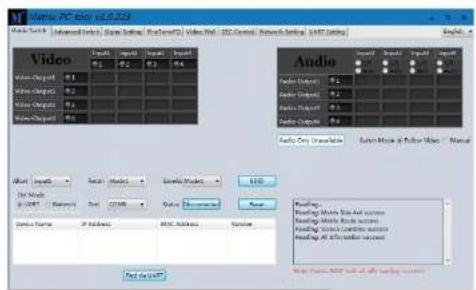
- You can select UART (with RS-232 cable) or Network to connect, baud rate is 9600 bps.
- Default IP address: 192.168.0.247.
7.3 Matrix Switch Page
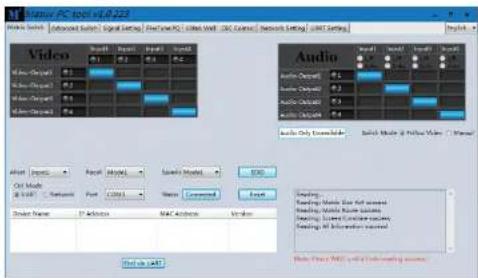
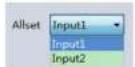
- There is a shortcut button to switch one input port to all output ports, that is Allset, For example, switch input 1 to all outputs, user can select
- System reset: The PC tool supports reset system to recover to factory configuration.
- Audio Switch mode: Follow Video mode or Manual mode
When selecting Manual mode, user can separately switch L/R(Phoenix interface) and Toslink output.
User also can select to use HDMI embedded or corresponding external LR audio.
6. EDID Control: Click the "EDID" button on Matrix Switch page, there will be a pop-up EDID control window. User can do following operations:
a) Read EDID of one output port
b) Open one existing EDID file
c) Write EDID to one input port
7.4 Advanced Switch Page
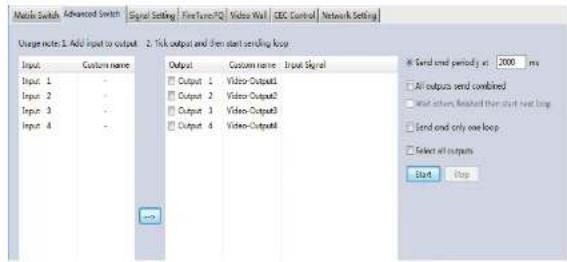
The Advanced Switch page will repeatedly send a batch of matrix selection commands at the interval specified in the value box after Send cmd periodically at text.
- Select one or more outputs.
- Select one input.
- Use the arrow button “->” to assign that input to the selected output or outputs.
- After completing all required selections, click the "Start" button to run the commands.
The available options are:
All outputs send combined – Combine all outputs that have the same input number as a single command.
Wait others finished the start next loop – Wait for all commands in the previous pass to
7.5 Signal Setting Page

- Audio Select
There are two options for input Audio Select.
a) Auto: If the input source is HDMI signal, system will get the embedded audio; if the input
source is DVI signal, the system will get the corresponding analog audio.
b) External: System will get the corresponding analog audio.
- Output Type
There are four options for input Output Type: UHD-HDMI (HDCP OFF), UHD-DVI,
UHD-HDCP-1.4, UHD-HDCP-2.2.
- Output Resolution: The same as the description on Front Panel page.
7.6 FineTune Page
You can read and set the Brightness/Contrast/Saturation/Sharpness of each output.
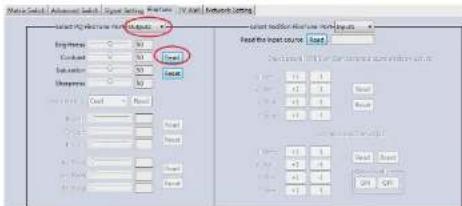
Note: Do not change the default settings without special conditions;
If there is a problem after changing, click "Reset" to return to the factory settings.
7.7 Video Wall Box

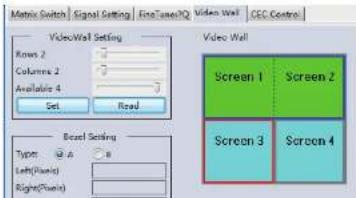
- Use the Video Wall Setting controls to change how the displays are arranged on the Video Wall page:
a. Adjust the Rows and Columns sliders to change the displayed screen arrangement to permit proper Drag-and-Select of the desired screens for the video wall.
b. Change the available slider to set how many outputs will be used for the Video Wall.
c. Click the "Set" button to change the Screen configuration.
2. Use the left mouse button to drag-select the screens that will be set for video wall mode. The selected screens will be shown as bright blue.
3. Use the right mouse button to open a menu.
4. Select "Screen Stitching" from the menu to program the video wall mode. The selected screens will now be shown as bright green.
5. To change the displayed image: right-click to open the pop-up menu and select the desired input from the "Input Select" menu option.
6. Repeating steps 2 - 5 above with a different set of outputs allows the creation of a second video wall. However, changing the Rows, Columns and Available sliders will automatically delete the current video wall set up when the "Set" button is clicked. The following example shows a more unusual video wall set-up of two video walls with two 2x1 configurations:
7.7.1 Video Wall Context Menu
Right clicking on any of the screen icons will display the following context menu:
| Screen Splicing | |
| Cancel Splicing | |
| Screen 2 - Cancel Splicing | |
| Input Select | ▸ |
| Output Select | ▸ |
| Output Type | ▸ |
| Output Format | ▸ |
| Mirror | ▸ |
| Test Pattern | ▸ |
| Screen Stitching | This option connects the selected screens into a video wall configuration. |
| Cancel Stitching | Return the Video Wall configuration to normal outputs. |
| Screen x - Cancel Stitching | Remove the single screen x from the video wall to allow the displaying another full frame image within the video wall configuration, as shown in this example:[IMAGE]Video Wall display with best compensation and different full frame image on display 3 |
| Input Select | Use the sub-menu to select the input to display on the video wall or the secondary input image shown in the above example. |
| Output Select | This option is only available for any screen that is not assigned to a video wall mode. |
| Output Type | This option is only available for any screen that is not assigned to a video wall mode. |
| Output Format | This option is only available for any screen that is not assigned to a video wall mode. It allows setting of the output resolution for the selected screen output. |
video wall display with bezel compensation and
different full frame image on display 3
Bezel Setting
The Bezel Setting section allows the entry of values to compensate for the display bezel thickness. These values may be entered either as pixels (Type A) or as milli metre (Type B).
Type A Bezel Settings
The image size will be adjusted to allow for the number of pixels entered in each of the entry boxes. Click the "Set" button to view the effect of the new values.
Type B Bezel Settings
The image size will be adjusted to allow for the Inner and Outer display dimensions as entered in each of the entry boxes. Click the "Set" button to view the effect of the new values.
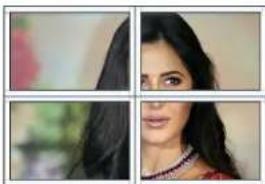
Bezel Compensation
The following images demonstrate the effect of not having bezel compensation and what a correctly configured bezel compensation settings should produce:

natural_image
Portrait collage of a woman with dark hair and a red top, wearing a necklace (no visible text or symbols)No Bezel Compensation
natural_image
Portrait of a woman with dark hair and a necklace, framed in four square frames (no text or symbols visible)Correct Bezel Compensation
7.7.2 Layout Save/Load
The Save Scene/Layout and Load Scene/Layout buttons allow a video wall configuration to be saved or recalled at any time. Up to 10 configurations, each with their own name can be saved or recalled. When saving, each Scene can optionally be given a name to identify that video wall scene setup.
7.8 CEC Control Page
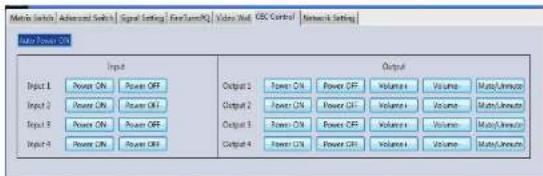
If Auto Power On is enabled, every time when the product is turned on, it will turn on all the sources and displayers which are connected to it.
The product supports CEC function, including Power on/off, Volume+/-, Mute/Unmute.
8. Control via Web
The built-in Web GUI interface provides only basic control of the matrix switcher and access to the network settings. The following will be displayed when the web interface is access each time:
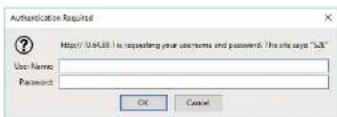
The default User Name is: admin
The default Password is: admin
After entering the User Name and Password, an interface similar to the following will be displayed:
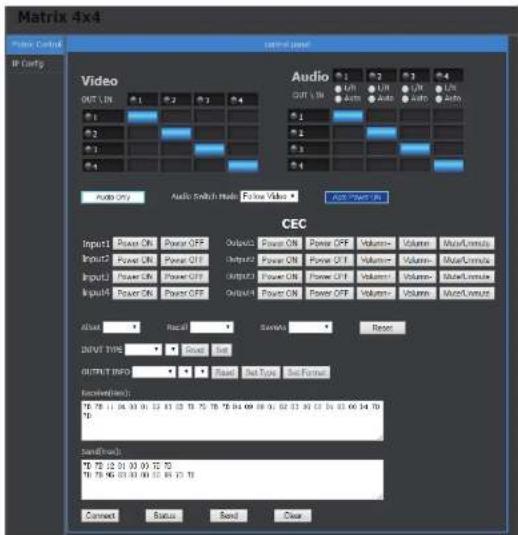
IP Config

9. Tech Support
Before contacting tech support, we may have answered your question already! Visit our BZBGEAR support page (bzbgear.com/support) for valuable information on our products.
Here you will find our Knowledge Base (bzbgear.com/knowledge-base) consisting of tutorials, quick start guides, and step-by-step troubleshooting instructions. Also visit our YouTube channel BZB TV (youtube.com/c/BZBTVchannel) for help setting up, connecting, and other how-to videos regarding our products.
If you still need help, please call 1.888.499.9906, email support@bzbgear.com, or chat at bzbgear.com.
10. Warranty
BZBGEAR Pro AV products and Cameras come with a three-year warranty. An extended two-year warranty is available for our Cameras upon registration for a total of five years.
For an extended two-year warranty on our Cameras, follow these steps:
1.. Register your Camera within 90 days of purchase by visiting bzbgear.co warranty.
2.. Complete the registration form. Provide all necessary proof of purchase detail including serial number and a copy of your sales receipt.
For complete warranty information, please visit bzbgear.com/warranty or scan the QR code.

11. Mission Statement
BZBGEAR manifests from the competitive nature of the audiovisual and live streaming industry to innovate while keeping the customer in mind. AV solutions can cost a pretty penny, and new technology only adds to it. We believe everyone deserves to see, hear, and feel the advancements made in today's AV world without having to break the bank. BZBGEAR is your answer for applications requiring the latest pro AV and live streaming solutions.
You'll notice comparably lower prices with BZBGEAR while the performance and quality are on par with the top brands in the industry. Our team offers system design


- Thank you for purchasing this product
- Surge protection device recommended
- Table of Contents
- Introduction
- Features
- Package Contents
- Operation Controls and Functions
- Rear Panel
- RS232/LAN Control Connection
- RS232 Control Connection
- Network Control Connection
- PC Tool User Guide
- Account's Authentication
- Connect with PC Tool
- Matrix Switch Page
- Advanced Switch Page
- Signal Setting Page
- FineTune Page
- Video Wall Context Menu
- Bezel Setting
- Type A Bezel Settings
- Type B Bezel Settings
- Bezel Compensation
- Layout Save/Load
- CEC Control Page
- Control via Web
- Config
- Tech Support
- Warranty
- Mission Statement
Brand : BZBGear
Model : BZ-MVS4X4-4K
Category : Switch