
BZ-MVS8x8-4K - Switch BZBGear - Free user manual and instructions
Find the device manual for free BZ-MVS8x8-4K BZBGear in PDF.


| Product Type | Seamless UHD Matrix Switcher |
| Model | BZ-MVS8x8-4K |
| Brand | BZBGear |
| Inputs | 8x HDMI (HDMI 2.0, HDCP 2.2) |
| Outputs | 8x HDMI |
| Maximum Video Resolution | 3840x2160@60Hz (4K60) with 18Gbps bandwidth |
| Audio Support | HDMI audio extraction, external LR analog audio insert, analog audio outputs |
| Switching Features | Seamless switching, IR matrix routing, EDID management |
| Control Methods | Front panel, RS232, LAN (TCP/IP), PC software, web interface |
| Front Panel Buttons | Power, Lock, Output/Input selection, TAKE, SAVE, RECALL, RES |
| RS232 Control | Baud rate 9600 via DB9 connector |
| Web Interface | Default IP accessible, username: admin, password: admin, requires HTML5 browser |
| Power Supply | AC 100-240V, 50/60Hz, includes AC power cord |
| Dimensions (Estimated) | 17.3 x 1.7 x 12 inches (19" rack mount, 1U) |
| Weight (Estimated) | 8 lbs (3.6 kg) |
| Package Contents | Main unit, user manual, AC power cord |
| Maintenance | Clean with a soft dry cloth; do not use liquids |
| Safety | Use only supplied power cord; avoid moisture; do not disassemble |
| Spare Parts & Repairability | Contact BZBGear support; no user-serviceable parts |
| Warranty | 1-year limited manufacturer warranty; free second year upon registration |
Frequently Asked Questions - BZ-MVS8x8-4K BZBGear
User questions about BZ-MVS8x8-4K BZBGear
0 question about this device. Answer the ones you know or ask your own.
Ask a new question about this device
Download the instructions for your Switch in PDF format for free! Find your manual BZ-MVS8x8-4K - BZBGear and take your electronic device back in hand. On this page are published all the documents necessary for the use of your device. BZ-MVS8x8-4K by BZBGear.
USER MANUAL BZ-MVS8x8-4K BZBGear
natural_image
Front view of a black network equipment rack with multiple ports and indicator lights (no visible text or labels)1. Introduction
BZ-MVS8x8-4K is a seamless UHD matrix switcher with 8x HDMI inputs and 8x HDMI outputs.
Audio extract or insert can also be enabled on this device. IR matrix routing on this video
matrix is followed with video routing.
Key Features:
● Supports HDMI 2.0/HDCP 2.2
● Supports seamless switching
● Supports IR matrix
● Supports HDMI audio extract
● Supports external LR audio insert on HDMI stream
● Supports EDID management
- HDMI video output resolution:
2. Front Panel Control

• OUTPUT/INPUT buttons
Press buttons OUTPUT n + INPUT m+ TAKE by sequence, user can switch matrix routing
- Press button POWER, to make the matrix enter or release standby state. When standby, the power LED will be lighted
- Press button LOCK, to lock or un-lock front buttons. When locked, the Lock LED will be lighted
- Press buttons ALL + INPUT m + TAKE by sequence, to switch input m to all the outputs
- Press button SAVE + OUTPUT n to save current routing scene as scene n. The maximum allowable scene No. is 8
- Press button RECALL + OUTPUT n to recall routing scene n as current routing
- Press buttons RES + OUTPUT n + NEXT + TAKE, to change output resolution of OUTPUT n
3. Back Panel

• LAN (10M/100M), RS232 are for PC control
- Analog Audio IN/OUT ports are bond with corresponding HDMI ports.
For example, if INPUT HDMI 1 signal is DVI, matrix will use analog AUDIO IN 1 as HDMI 1 audio source
Note, Analog AUDIO IN is only available when the corresponding video input is DVI signal.
Analog AUDIO OUT n will always output the same audio content with HDMI OUTPUT n
Analog Audio IN/OUT connection

Relationship between video and IR routing

flowchart
graph TD
    A["IN:HDMI m"] --> B["OUT:HDMI n1"]
    A --> C["OUT:HDMI n2"]
    D["IR OUT: m"] <--> E["IR IN: n1"]
    D <--> F["IR IN: n2"]
IR extender connectors (not as accessories)
4. PC Tool and RS232/LAN Control
4.1 RS232 connector
● RS-232 control, baud rate 9600, DB9 connector
- Pins configuration as bellow. User need use the corresponding cable, directly link cable

| Index | Pin |
| 1 | N/u |
| 2 | Tx( Matrix →PC ) |
| 3 | Rx( Matrix ←PC ) |
| 4 | N/u |
| 5 | Gnd |
| 6 | N/u |
| 7 | N/u |
| 8 | N/u |
| 9 | N/u |
Baud rate 9600

RS232 communication

4.3 PC Tool
The PC tool needs no installation, support serial control and network control.
Please note, Fine Tune/OSD CTRL/TV Wall pages are reserved for future used

• 4.3.1 UART Control
Control steps as follows:

The UI after connected successfully will be as follows:

• 4.3.2 Network Control
- Direct connection via Ethernet cable


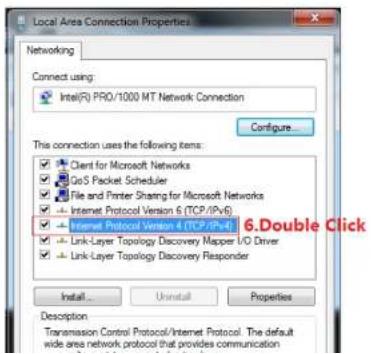

read the network configuration such as network port and so on of the device automatically)
- Click the 'Disconnected' button (which is right to "Status") to connect to the device
- If connected successfully, "Disconnected" button will show "Connected"
The UI after connected successfully will be as follows:
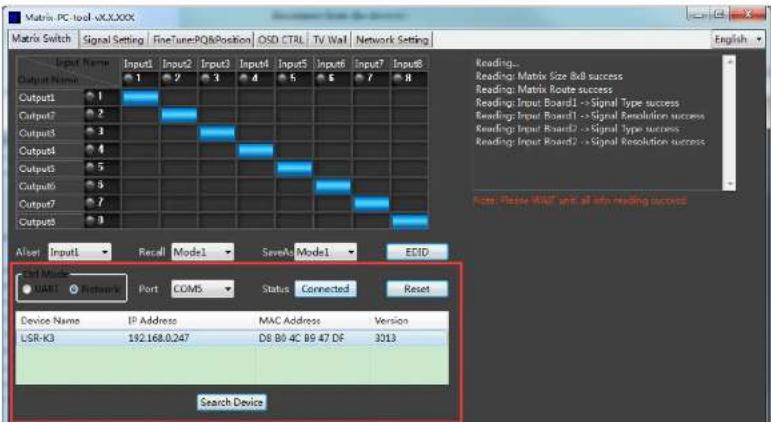
- Run the PC control software (If the IP address of the PC changed after running the software, you should close it and run it again)
- Click to switch "Ctrl Mode" to "Network"
- Click the "Search Device" button
- Click the device you want to control in the result list (When you click it, the software will read the network configuration such as network port and so on of the device automatically)
- Click the 'Disconnected' button (which is right to "Status") to connect to the device
- If connected successfully, "Status" button will show "Connected"
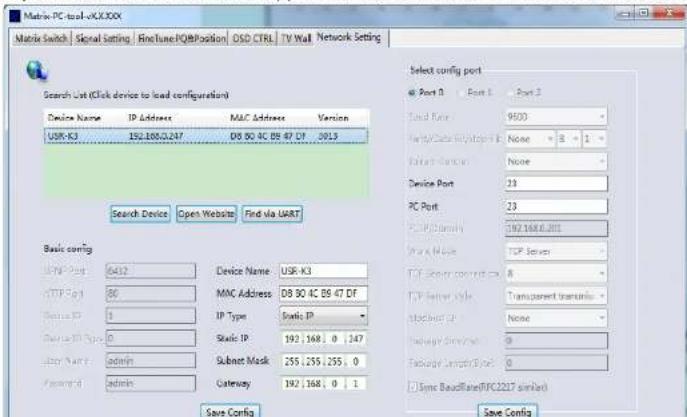
- 4.3.3 Configure the network module of the device
- Configuration via UART
Step A: Connected to the device via serial port cable at "Matrix Route" page.


2. Configuration via Network
Setp A: Switch to Ctrl Mode to "Network" page
Setp B : Click the "Search Device" button to search devices
Setp C : Click the device you want to configure in the result list (When you click
it, the software will read the network configuration of the device

NOTE :
- Select the device, will display the matrix's network board information. User can edit the device's name, in order to better identify matrix. User can set dynamic IP/ static IP, subnet mask, gateway and other network information. At the same time, user can also set the
• 4.3.4 Matrix Switch

When the PC-tool connect to the matrix via UART or Network, the PC-tool will display the matrix's input and output information.
- User can click the mouse to switch the input; Can edit the input source name (for example, the user can edit the input 1 name to set-top box); Can also edit the output name to show which sink is connected (for example, the output 1 user can edit the name to TV).
• 4.3.5 Signal Setting
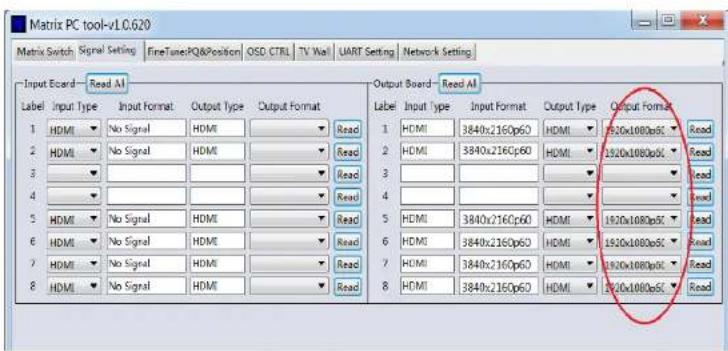
Only the red field can be changed for different output resolution, others are only for read
• 4.3.6 EDID control
Click the 'EDID' button on "Matrix Switch" page, open EDID control Window

5. Control via Web
- If do not know the matrix IP address: Click on the Network Settings page, and then click Search Device, and then select the device that found, click Open Website to open the web control web site, or can input the IP on the web browser, then enter the username: admin Password: admin, then can control the matrix switch function use the website; NOTE: The computer IP and matrix IP must be in the same segment and the same local area network; For example, the matrix's IP is 192.168.1.xxx, then the computer IP must be 192.168.1.yyy; Otherwise need to change the matrix's IP or the computer's IP. The browser must support HTML5 feature, which must be IE10 and above.
- Electrical parameters
| Electrical parameter | |
| Interface | HDMI-A |
| HDMI /DP /VGA Version | HDMI2.0, HDCP2.2 |
| Bandwidth | 18Gbps |
| Video Resolution | |
| Input | 800x600@60Hz,1024x768@60Hz,1280x768@60Hz,1280x800@60Hz,1280x1024@60Hz,1360x768@60Hz,1366x768@60Hz,1400x1050@60Hz,1440x900@60Hz,1600x1200@60Hz,1680x1050@60Hz, 1920x1200@60Hz.480p,576p,720p,1920x1080i,1920x1080p,3840x2160@24Hz/25Hz/30Hz/50Hz/60Hz,4096x2160@24Hz/25Hz/30Hz/50Hz/60Hz. |
| Output | 1920x1080@60Hz, 3840x2160@30Hz,3840x2160@60Hz, 1280x720@60Hz,1024x768@60Hz, 1360x768@60Hz,1600x1200@60Hz, 1920x1200@60Hz, |
| HDMI Amplitude | T.M.D.S +/- 0.4Vpp |
| Differential impedance | 100±15ohm |
| RS232/Ethernet control | |
7. Package Contents
| Item | Quantity |
| BZB-MVS8x8-4K unit | 1 |
| User Manual | 1 |
| Bracket | 0 |
| AC Power Cord | 1 |
8. Mission Statement
BZB Gear manifests from the competitive nature of the audiovisual industry to innovate while keeping the customer in mind. AV solutions can cost a pretty penny, and new technology only adds to it. We believe everyone deserves to see, hear, and feel the advancements made in today's AV world without having to break the bank. BZB Gear is the solution for small to medium-sized applications requiring the latest professional products in AV.
9. Warranty Information
BZB Gear | Second Year Assurance
BZB Gear wants to assure you peace of mind. We're so confident in the quality of our products that along with the manufacturer's one-year limited warranty, we are offering free second-year warranty coverage upon registration*.
Taking advantage of this program is simple, just follow the steps below:
- Register your product within 90 days of purchase by visiting BZBGear.com/warranty.
- Complete the registration form. Provide all necessary proof of purchase details, including serial number and a copy of your sales receipt.


- Introduction
- Key Features:
- Front Panel Control
- Back Panel
- PC Tool and RS232/LAN Control
- RS232 connector
- PC Tool
- • 4.3.1 UART Control
- Configuration via Network
- NOTE :
- • 4.3.4 Matrix Switch
- • 4.3.5 Signal Setting
- • 4.3.6 EDID control
- Control via Web
- Package Contents
- Mission Statement
- Warranty Information
Brand : BZBGear
Model : BZ-MVS8x8-4K
Category : Switch