
VL-SVN511BX - Intercom PANASONIC - Free user manual and instructions
Find the device manual for free VL-SVN511BX PANASONIC in PDF.


| Product Type | Video Intercom System |
| Brand | Panasonic |
| Model | VL-SVN511BX |
| Main Monitor Compatibility | VL-SVN511, VL-MVN511 |
| App Compatibility | iOS 7.0+ (iPhone 5 or later, iPad), Android devices |
| Wireless Connectivity | Wi-Fi via wireless router |
| Number of Doorphones Supported | Up to 2 doorphones plus entrance lobby |
| Doorphone Call Duration | Approximately 90 seconds |
| Monitoring Duration | Approximately 3 minutes |
| Email Notification Recipients | Up to 4 email addresses |
| Wireless Access Point Storage | Up to 10 SSIDs |
| Backlight Compensation | Adjustable via app |
| Zoom, Pan, Tilt | Supported via double-tap and touch |
| Electric Lock Operation | Supported via app |
| Alarm Notifications | Supports sensors (e.g., fire alarm) with audio and visual alerts |
| Power Supply | Via main monitor (refer to main monitor manual) |
| Cleaning | Wipe with a dry cloth; avoid liquids |
| Safety Precautions | Do not disassemble; keep away from water; use only specified power source |
| Spare Parts & Repair | Contact authorized Panasonic service center |
Frequently Asked Questions - VL-SVN511BX PANASONIC
User questions about VL-SVN511BX PANASONIC
0 question about this device. Answer the ones you know or ask your own.
Ask a new question about this device
Download the instructions for your Intercom in PDF format for free! Find your manual VL-SVN511BX - PANASONIC and take your electronic device back in hand. On this page are published all the documents necessary for the use of your device. VL-SVN511BX by PANASONIC.
USER MANUAL VL-SVN511BX PANASONIC
You can install the [Video Intercom] app (Video Intercom application for smartphone) on your mobile devices, and use your mobile devices to access features of your Panasonic main monitors.
• See page 4 for information about how to get started. - The following illustrates how the main monitor can connect to your devices over Wi-Fi and over the Internet. Note that a wireless router is required to connect your mobile device to the main monitor.
![graph LR A["Main monitor"] --> B["Wi-Fi network"] C["Mobile devices"] --> B B --> D["Wireless router"] D --> E["Modem"] E --> F["Internet"] G["Smartphone"] --> H["Internet"] I["Smartphone"] --> J["Internet"] K["Smartphone"] --> L["Internet"]](/content/2026/06/1216045/images/444cbc3df8ce00d82518d929d318efef935681d82fd39b4e0eab0dd30602bf0d.jpg)
Main features
• Answering doorphone calls (page 9) • Monitoring sound and images from a doorphone (page 9) - Receiving notifications from sensors connected to the main monitor (page 11) - Opening doors by operating electric locks that are connected to the main monitor (page 11) - Configuring the main monitor to send email notifications (page 12)
Supported devices
The following devices are supported as of October, 2015.
• Panasonic Video Intercoms Model numbers VL-SVN511, VL-MVN511 - iPhone and iPad iPhone 5 or later, iPad (iOS 7.0 or later) - Android™ devices
Table of Contents
1. Getting started
Getting started
1.2 [Video Intercom] app preparation overview 4
1.3 Starting the [Video Intercom] app ......6
1.4 Notifications 8
2. Using the app
Using the app
2.1 Answering doorphone calls 9
2.2 Monitoring the doorphone 9
2.3 Features available when talking on a doorphone call or monitoring .....10
2.4 Receiving a doorphone call while talking on another doorphone call or while monitoring ....11
2.5 Using alarm notifications .....11
2.6 Operating electric locks ....11
2.7 Configuring the email notification feature 12
2.8 Managing wireless access points .....14
3. Settings
Settings
3.1 Settings menu ..... 15
4. General Information
General Information
4.1 Troubleshooting .....17
4.2 Error Messages 20
4.3 Trademarks and Copyright Information 20
1. Getting started
1.1 Preface
About the [Video Intercom] app
- Product screens and illustrations used in this document are for reference only, and may differ from the actual product.
- The content of this document is current as of November, 2015.
- Operations and available features may differ from those explained in this document, depending on the mobile device's operating system, operating system version, and model. In some cases, the app may not be able to be used.
- The app may not be able to be used depending on other apps that are running on the same mobile device. In particular, apps that allow phone or voice calls may interfere with this app.
- The design and specifications of the app are subject to change without notice and may differ from the content in this document.
- The app can only be used when your mobile device and the main monitor are connected to the same network. Throughout this document, we use the expression "the same wireless router" to mean "the same network".
- Your mobile device will not receive notifications or doorphone calls if the app is not running.
1.2 [Video Intercom] app preparation overview
1 Connect the main monitor to your wireless router.
- Refer to the operating instructions included with the main monitor for information about connecting to wireless routers.
2 Enable your mobile device's Wi-Fi feature and connect your mobile device to your wireless router.
- Refer to the operating instructions included with your mobile device for information about connecting to wireless routers.
3 Download and install the [Video Intercom] app.
- Visit the following website for more information.
![PANASONIC VL-SVN511BX - [Video Intercom] app preparation overview - 1](/content/2026/06/1216045/images/124515a21c78743dcf95206b8132da1aeee1307f8ae92266e7df1ef0d9432b8a.jpg)
http://panasonic.net/pcc/support/intercom/smartphone/
4 Register your mobile device to the main monitor.
• See 1.2.1 Registering your mobile device to the main monitor (Page 4).
1.2.1 Registering your mobile device to the main monitor
1 Use your mobile device to perform the following.
- Start the [Video Intercom] app by tapping its icon (shown below).
1. Getting started
3 Use your mobile device to perform the following.
- Read the displayed message and tap [Register].
- A beep sounds from the main monitor when registration is completed.
4 Use the main monitor to perform the following.
- Press [OFF].
Cancelling your mobile device from the main monitor
If you do not plan on using the [Video Intercom] app any longer, we recommend cancelling your mobile device from the main monitor.
- Top menu → ↗ . OK
- Select "Register/Cancel" → OK
- Select "Cancel" → OK
- Select the mobile device registration number → OK
- Press [OFF
1. Getting started
1.3 Starting the [Video Intercom] app
Starting the application
- Start the [Video Intercom] app by tapping its icon (shown below).

- The top screen of the [Video Intercom] app is displayed (refer to the information below).
Navigating the screens
The screens shown here are examples from an Android device.
Top screen
Displayed when you start the app or exit the operation screen.
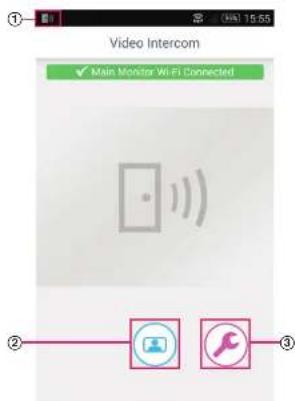
① App status icon (Android only)
Operation screen
Displayed when you are receiving a doorphone call, talking on a doorphone call, or monitoring a doorphone.
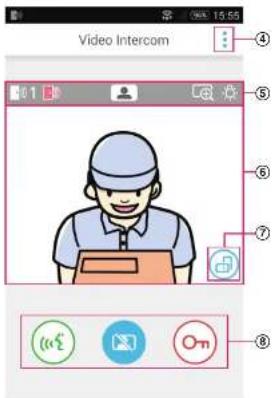
⑤ Status display area
1. Getting started
Returning to the previous screen
For Android devices, press your mobile device's "back" button.
For iPhone and iPad, tap
Status display area
| Display Meaning | |
| Indicates which doorphone is calling you, which doorphone you are talking to, or which doorphone you are monitoring. ("1" and "2" indicate the device number, and "L" indicates the entrance lobby.) | |
| Indicates that you are monitoring the doorphone (page 9). | |
| Indicates that you are talking on a doorphone call (page 9). | |
| Indicates that image is displayed in zoom mode. | |
| Indicates that the doorphone's LED lights are on. | |
| Indicates that you are receiving a doorphone call (while you are already talking to or monitoring another doorphone). |
1. Getting started
1.4 Notifications
The [Video Intercom] app can notify you when you receive calls from doorphones (page 9) and when sensors connected to the main monitor are triggered (page 11). The app can notify you by playing a ringtone or notification sound, and by displaying a message.
Note:
- Notification features behave differently depending on the status of your mobile device and your mobile device's settings.
When a notification is displayed
Tap the notification (unlock the screen if necessary) to display the [Video Intercom] app's screen. You can then take appropriate action, such as answering the doorphone call (page 9) or reading details about the alarm notification (page 11).
Note:
- You cannot change the ringtone used for the [Video Intercom] app's notifications.
- If the ringtone or notification sound plays but no notification is displayed, switch from the current app to the [Video Intercom] app manually.
Notes for Android device users
- If you are using another app when a doorphone call or alarm notification is received, your mobile device's screen switches automatically to the [Video Intercom] app's screen.
- Notification sound
A step-up tone is used for the notification sound (i.e., the sound plays quietly and gradually becomes louder).
- Ringtone
The doorphone ringtone plays at the same volume as your mobile device's ringtone (i.e., the ringtone used for phone calls).
- Silent mode
If your mobile device's silent mode is enabled, the notification sound will be played but the doorphone ringtone will not be played.
Notes for iPhone and iPad users
If the [Video Intercom] app's screen is not displayed after unlocking your mobile device's screen, display the app manually (i.e., tap the app's icon in your mobile device's home screen, select it from the recent apps list, etc.).
- Notification sound
If the screen is locked or another app is in the foreground, notification features behave according to the Notifications Centre settings, found in your mobile device's [Settings] app.
If the [Video Intercom] app is in the foreground, a step-up tone is used for the notification sound (i.e., the sound plays quietly and gradually becomes louder).
- Ringtone
If the screen is locked or another app is in the foreground, the doorphone ringtone plays at the same volume as
2. Using the app
2.1 Answering doorphone calls
When the app receives a doorphone call, it plays a ringtone.
1 From the [Video Intercom] app's operation screen, tap («»).
- If the app's operation screen is not displayed, display the [Video Intercom] app manually (i.e., tap the app's icon in your mobile device's home screen, select it from the recent apps list, etc.).
2 When finished, tap .
Note:
- You can talk for up to about 90 seconds.
- If your mobile device receives a phone call while you are talking on a doorphone call, the doorphone call is disconnected.
2.2 Monitoring the doorphone
You can monitor the sounds and images from the doorphone.
1 From the [Video Intercom] app's top screen, tap . If there are multiple doorphones, select the desired doorphone.
2 Monitor the sound and image.
- You can talk to the monitored party by tapping
3 When finished, tap

Note:
- The sound from your end is not heard at the doorphone.
- You can monitor for up to about 3 minutes.
- If your mobile device receives a phone call while you are monitoring a doorphone, monitoring ends.
Notes about doorphone audio
- When you begin talking on a doorphone call or monitoring a doorphone, the doorphone audio plays through your mobile device's audio output (receiver or speaker) according to the [Speaker setting] setting. This setting is available in the settings menu (page 15).
- While talking on a doorphone call or monitoring a doorphone, you can temporarily switch between the receiver and speaker by opening the options menu and selecting [Speaker] (page 10).
- When doorphone audio is played through your mobile device's speaker, the doorphone audio may cut out if there
2. Using the app
2.3 Features available when talking on a doorphone call or monitoring
2.3.1 Switching the display orientation
Tap the display orientation button (①) in the image viewing area, or rotate your mobile device so that it is in landscape position (i.e., parallel to the ground) or portrait position (i.e., perpendicular to the ground).
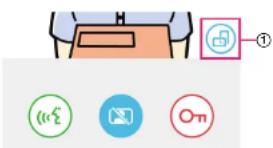
Note:
- When you switch to landscape display mode, the operation buttons disappear and only the image display area is shown. In order to call a doorphone or perform certain operations, you must switch to portrait display mode.
- The ability to switch between portrait and landscape display modes by rotating your mobile device may not be available depending on the features of your mobile device.
2.3.2 Zoom, pan, and tilt
Zooming in and out (wide mode, zoom mode)
Double tap the displayed image to zoom in (zoom mode); double tap again to zoom out (wide mode).
Changing the area that is displayed (pan/tilt)
While using zoom mode, tap the desired area of the image.
2.3.3 Backlight compensation, lighting, and speaker settings
The following features are not available when using landscape display mode.
Configuring backlight compensation for the doorphone
Configure settings when an image is displayed or when talking on a doorphone call.
- From the [Video Intercom] app's operation screen, tap → [Backlight compensation].
- Tap [-] or [+] to adjust brightness.
- Adjust the brightness while checking the displayed image. • To turn off backlight compensation, tap [OFF].
- Depending on the doorphone you are using, the adjustment buttons may be displayed as [OFF] and [ON].
2. Using the app
2.4 Receiving a doorphone call while talking on another doorphone call or while monitoring
If you receive a doorphone call when you are already talking to or monitoring another doorphone, the app plays the ringtone and displays in the status display area.
To monitor the new visitor
Tap or to end the current doorphone call or monitoring session and begin monitoring the new visitor.
To ignore the new doorphone call and continue the current doorphone call or monitoring session
Continue talking or monitoring; do not tap


2.5 Using alarm notifications
When a sensor (such as a fire alarm) is triggered, the app can play a notification sound and displays a message. You can tap the [Close] or [Stop] button to dismiss the alarm notification.
Note:
- For information about notification sounds and how notifications are displayed, see page 8.
- If a sensor is triggered while you are talking on a doorphone call or receiving a doorphone call, the call is disconnected.
- The app will not receive doorphone calls while an alarm notification is displayed.
Dismissing an alarm notification
Alarm notifications are dismissed in the following situations.
- 3 minutes pass after the sensor was triggered.
– The sensor is no longer being triggered.
- You tap the [Close] or [Stop] button.
What is the difference between [Close] and [Stop]?
[Close]
• Used to temporarily dismiss an alarm notification. - Displayed when the notification sound begins playing, then switches to [Stop] after 5 seconds. - Stops the notification sound played by your mobile device: the notification sound played by the main
[Stop]
• Used to permanently dismiss an alarm notification. - Displayed about 5 seconds after the notification sound begins playing. - Stops the notification sound played by your mobile device and the main monitor.
2. Using the app
2.7 Configuring the email notification feature
The email notification feature can be used to send an image from the doorphone when someone presses the doorphone's call button.
- For more information about this feature, see the documentation included with the main monitor.
- These settings can be configured using the main monitor; however, it is easier to configure them using the app.
2.7.1 Email notification feature configuration overview
Before configuring the email notification feature, gather the following information.
– Sender email address: This is the email address that is used for sending email messages from the main monitor. Note that mobile phone-exclusive addresses cannot be used.
Note that mobile phone-exclusive addresses cannot be used.
- Port number: This is the port number used to send email via the email server associated with the email address.
– Security type: This is the type of encryption used by the email server. The email notification feature supports [TLS], [SSL], and [None].
- Port number: This is the port number used to send email via the email server associated with the email address.
– Security type: This is the type of encryption used by the email server. The email notification feature supports
[TLS], [SSL], and [None].
- SMTP authentication: This is the user name and password required by the email server in order to send email.
Some servers do not require a user name and password.
Note:
- Email messages may not be received if they are treated as spam. Configure all receivers' email accounts
and email client software so that email messages sent by the email notification feature can be received.
- Email messages may not be sent depending on the condition of the network.
- All email notifications are sent to all registered email addresses. You cannot select certain email addresses to
receive only certain types of email notifications.
2.7.2 Registering the email server
1 From the [Video Intercom] app's top screen, tap → [Email notification settings] → [Registration].
2 Enter the required settings.
• These settings are explained in 2.7.1 Email notification feature configuration overview.
- For Android devices only
If you set [SMTP authentication] to [On], tap [Settings], and then enter the user name and password used
for authentication.
3 Tap [Next] (Android devices) or > (iPhone, iPad) → [OK].
- A test email message is sent to the specified email address. Confirm that the email message is received.
Confirming the email server settings
2. Using the app
2.7.3 Registering the notification email addresses
You can register up to 4 email addresses that will receive notifications.
1 From the [Video Intercom] app's top screen, tap → [Email notification settings] → [Email notification address]. 2 Enter the email address by one of the following steps.
- Repeat the steps listed below when entering multiple email addresses.
When selecting an email address saved in the contacts list on your mobile device
a. Tap or [+] next to the email address entry bar. b. Select an email address from the displayed contacts list.
When directly entering an email address
a. Tap the email address entry bar. b. Enter the email address.
3 Tap [Next] or >.
4 Confirm the message → [Send]. - A test-mail is sent to the specified email address. 5 Confirm that the message has arrived at the specified email address → [Register].
- The email address is registered and [Email notification] is enabled.
Deleting registered email address
- From the [Video Intercom] app's top screen, tap → [Email notification settings] → [Email notification address].
- Tap the entry bar of the email address you wish to delete, and then delete the entered email address.
- Tap [Next] or >.
2.7.4 Enabling and disabling the email notification feature
Email notifications are enabled when the email server and email addresses are registered in the main monitor. Use the following procedure if you want to disable all email notifications temporarily (such as when you are at home) or enable them again.
1 From the [Video Intercom] app's top screen, tap → [Email notification settings] → [Email notification]. 2 Slide the switch to the desired position.
- 10.00
2. Using the app
Note:
- These settings apply to all registered email addresses.
2.8 Managing wireless access points
A wireless access point is a device that allows your mobile device to connect to a network via Wi-Fi. (In most situations, your wireless access point is your wireless router.) A wireless access point is identified by the SSID (wireless network name) that is assigned to it.
The app maintains a list of up to 10 wireless access points that it can use to connect to your main monitor. In the following situations, use the procedure described in 2.8.1 Adding wireless access points (Page 14) to add additional wireless access points to the list.
When the main monitor is connected to a wireless access point that has multiple SSIDs (wireless network names)
In this case, add each SSID of the wireless access point to the list. This allows the app to connect to the main monitor regardless of which SSID your mobile device is connected to.
When there are multiple wireless access points with different SSIDs placed throughout your house in order to create a single network with wide wireless range
In this case, add the SSID of each wireless access point to the list. This allows the app to connect to the main monitor as you move between different areas of your house.
Note:
- Wireless access points are identified by their SSIDs, therefore, you do not need to register additional wireless access points if they use the same SSID as a wireless access point that you have already registered.
2.8.1 Adding wireless access points
Automatically adding wireless access points
If your mobile device is connected to a new wireless access point (i.e., an access point whose SSID has not been added to the wireless access point list), the [Video Intercom] app prompts you to add the wireless access point. When [Connected to a new wireless access point (SSID). Do you want to add it?] is displayed when using the [Video Intercom] app, tap [OK].
Manually adding wireless access points
- Connect to the wireless access point that you wish to add.
- Start the [Video Intercom] app.
- From the [Video Intercom] app's top screen, tap ⬤ → [Wireless access point].
- Tap [+] displayed on the top-right corner of the screen.
3. Settings
3.1 Settings menu
This section explains the settings that are available in the settings menu and how to adjust the settings.
1 From the [Video Intercom] app's top screen, tap

2 Select the desired item.
- Repeat this step as necessary to navigate to the desired setting.
3 Adjust the settings as desired.
- Refer to the following table when adjusting the settings.
| Menu name and submenu Description | Default | ||
| Email notification settings | Email notification address*1 | Allows you to register the email addresses (up to 4) that can receive email notifications.See page 13. | — |
| Email notification*2 | Determines whether the email notification feature is enabled or disabled.When [Registration] and [Email notification address] are configured, this setting is automatically enabled (i.e., email notifications will be sent).See page 13. | Disabled | |
| Notification selection*2 | Determines which devices can trigger email notifications. | All enabled | |
| Registration Registers the sender's email server information.See page 12. | — | ||
| Confirmation/modification*1 | Allows you to confirm the sender's email server information, and edit it if necessary. | — | |
| Deregistration*1 | Deletes the sender's mail server information. | — | |
| Call settings Android devices | Determines whether the ringtone plays when you receive a doorphone call, and how often the ringtone plays. | Ringtone is enabled, and plays each time the doorphone's call button is pressed | |
| iPhone and iPad | Ringtone is | ||
- Settings
| Menu name and submenu Description | Default | |
| Energy-saving mode (iPhone and iPad only) | Determines whether the app's energy saving feature is enabled or disabled. When this setting is enabled, the app's battery consumption is reduced while your mobile device is not connected to a network via Wi-Fi.When this setting is enabled, you may not be able to receive doorphone calls for up to 10 minutes after coming home. | Enabled |
| Automatic start app (Android devices only) | Determines whether the [Video Intercom] app starts automatically when you turn on your mobile device. | Enabled |
| Information Allows you to view information such as the [Video Intercom] app version, the IP address of your mobile device, the status of the app's to the main monitor, the list of wireless access points, etc.Tap [Add/Delete] under [Wi-Fi connection] to add or delete wireless access points. | — | |
| Register Used in the situations listed below. | - When re-registration to the main monitor is required.- When registering to a new main monitor.Select this item when registering your mobile device to a main monitor. | — |
| Wireless access point Allows you to add and delete wireless access points. See page 14. | — | |
| Help Opens your mobile device's web browser | and accesses the [Video Intercom] app support site.Visit the support site for the latest version of this document. | — |
| Exit (Android devices only) | Exits the [Video Intercom] app.Use only when you do not plan on using the [Video Intercom] app, such as when you are out of the house. | — |
4.1 Troubleshooting
Wi-Fi (wireless LAN) connections
Problem Cause & Solution
| Cannot connect to the main monitor | Your mobile device is not registered to the main monitor.→ Register your mobile device to the main monitor (page 4).The main monitor or your mobile device is not connected to the wireless router.→ Make sure that the wireless router is turned on, and that the main monitor and your mobile device are within range of the wireless router.The main monitor and your mobile device are not connected to the same wireless router.→ Make sure that the main monitor and your mobile device are connected to the same wireless router.The wireless settings of the main monitor or your mobile device are incorrect.→ Reconfigure the wireless settings of the main monitor and your mobile device. Refer to the documentation included with your main monitor and mobile device if necessary.The SSID of the wireless router has changed since the last time you used the app, either because you changed it or because you replaced your wireless router with a new one.→ Add the wireless access point to the wireless access point list (page 14). (Up to 10 wireless access points can be saved.) |
| Cannot connect to the main monitor even after adding the current wireless access point | Depending on the wireless router, your mobile device may not connect to the main monitor even after you added the wireless router.→ Check which SSID is registered on the main monitor, and then use your mobile device's Wi-Fi settings to select the same SSID.How to check which SSID is registered on the main monitorTop menu →OKSelect "Network" →OKSelect "Current status" →OKSelect "Wi-Fi information" →OK.For information about how to configure and connect to your wireless router, refer to the operating instructions included with the wireless router. |
Doorphone calls, doorphone monitoring
Problem Cause & Solution
4. General Information
| Problem Cause & Solution | |
| Sound is not played through the speaker when talking on a doorphone call or when monitoring | The audio settings are not set to play sound from the speaker.→ Check the [Speaker setting] settings (page 15).Depending on the model of your mobile device, app audio may not be able to be played through the speaker. |
| Sound cuts out while talking using your mobile device's speakerphone | Noise in the surrounding area is causing your mobile device's speakerphone audio to cut out.This is a characteristic of many speakerphones. Either use your mobile device in a quieter location, or switch from speaker to receiver (page 10). |
| Your voice cannot be heard by the visitor during a doorphone call | Make sure your mobile device's microphone is not covered by anything such as your fingers or face.IPhone and IPadThe app may not have permission to access your mobile device's microphone.→ Use your mobile device's [Settings] app to allow the app to access the microphone. |
| Sound from the doorphone cuts out, images from the doorphone freeze | The main monitor and mobile device are being used where the wireless LAN signal is weak.→ Use both devices where the wireless signal from the wireless router is strong. Refer to the main monitor documentation for information about how to check the signal status between the main monitor and the wireless router. For the signal status between your mobile device and the wireless router, refer to the documentation included with your mobile device.The main monitor and mobile device are being used near devices that give off strong electrical interference such as a microwave.→ Make sure that the main monitor is installed in a location free from electrical interference.→ Move your mobile device to an area with less electrical interference.→ Relocate the interference-causing device if possible.A Wi-Fi repeater is being used.→ This may occur if your mobile device switches its Wi-Fi connection between the wireless router and the Wi-Fi repeater. Use your mobile device in a location where it does not switch its Wi-Fi connection, or relocate the Wi-Fi repeater.Multiple devices, such as computers and mobile devices, are connected to the wireless router and are being used simultaneously.→ Do not use multiple devices simultaneously. |
| Certain features cannot be usedExample:• Using your mobile | Depending on the mobile device (model or operating system), some features may not be available. |
4. General Information
| Problem Cause & | Solution |
| Test email was received, but cannot receive email notifications | The power of the wireless router is off, or the main monitor is out of range of the wireless router.→ Confirm that the power of the wireless router is on, and relocate the main monitor to where it is within range of the wireless router.[Email notification] is disabled.→ Enable [Email notification] (page 13).Email notifications are disabled for [Notification selection].→ Enable [Notification selection] for the devices you wish to send notifications from (page 13).There is a problem with the network environment or the mail server.→ Check the sender's email account for an "undelivered message" reply from the mail server. |
| Do not wish to receive email notifications (Temporarily disable notifications such as when at home) | Disable the [Email notification] setting (page 13). |
Others
| Problem Cause & | Solution |
| Battery on mobile device drains too quickly | When at home (i.e., when your mobile device is connected to your wireless router), the [Video Intercom] app is ready and waiting to receive doorphone calls even when you are using another app. The [Video Intercom] app, therefore, consumes battery power even when it does not appear to be in use. This is not a malfunction.iPhone and iPad[Energy-saving mode] is disabled (page 16).→ Enable this setting. Note that if this setting is enabled, you may not be able to receive doorphone calls for up to 10 minutes after coming home. If you want to be able to receive doorphone calls immediately, start the [Video Intercom] app (page 6). |
| The product does not work with correct operations.The product does not work properly | Try restarting your mobile device. |
4.2 Error Messages
| Display Cause & Solution | |
| Cannot registerCannot connect to the main monitor. Enable Wi-Fi for this smartphone.Cannot connect to the main monitor. Check the Wi-Fi connection. | The wireless router's signal strength is poor.→ Relocate your devices so that your mobile device and the main monitor are closer to your wireless router.You did not complete the registration procedure within the specified time.→ Make sure that the wireless router is turned on, that the main monitor and your mobile device are connected to your wireless router, and then try registering your mobile device to the wireless router again.The Wi-Fi feature of your mobile device is turned off.→ Turn your mobile device's Wi-Fi feature on.Your mobile device is out of range of the wireless router.→ Make sure that the wireless router is turned on, that the main monitor and your mobile device are connected to your wireless router, and then try registering your mobile device to the wireless router again. |
| Could not connect to the main monitor. Please check the power or Wi-Fi connection to the main monitor. | The main monitor is not connected to the wireless router.→ Make sure that the wireless router is turned on, that the main monitor and your mobile device are connected to the same wireless router, and then try again. |
| Doorphone unavailable | There is a problem with the connection between the main monitor and doorphone.→ Make sure that the doorphone is receiving power.→ Make sure that there are no problems with the connection between the doorphone and the main monitor. |
| Cannot connect to the server. Check the settings. | Mail server settings are incorrect.→ Change the settings as needed and try again (page 12).The wireless router cannot connect to the Internet.→ Make sure your wireless router is configured so that the devices connected to your wireless router can connect to the Internet. |
| Authentication failureCheck the security type and SMTP authentication settings | Security settings are incorrect.SMTP authentication settings are required, but are incorrect.→ Change the settings as needed and try again (page 12). |
| Authentication failureVerify your account name or password | The user name and/or password settings used for SMTP authentication are incorrect.→ Change the settings as needed and try again (page 12). |
| Connection failure | The main monitor is not connected to the wireless router.→ Make sure that the wireless router is turned on and that the main |
4. General Information
Copyright information
- Parts of this product use open source software. Open source software is supplied based on the conditions of the Free Software Foundation's LGPL and other conditions. Copyright indication and licensing information are available on the following website. http://panasonic.net/pcc/support/intercom/smartphone/
- The license agreement for this product is available on the following website. http://panasonic.net/pcc/support/intercom/smartphone/
- Parts of this product use data created by Copyrights Vision Co., Ltd. © 2013-2014 Copyrights Vision Inc.
Notes
Notes
- MAIN FEATURES
- SUPPORTED DEVICES
- TABLE OF CONTENTS
- GETTING STARTED
- USING THE APP
- SETTINGS
- GENERAL INFORMATION
- PREFACE
- ABOUT THE [VIDEO INTERCOM] APP
- [VIDEO INTERCOM] APP PREPARATION OVERVIEW
- REGISTERING YOUR MOBILE DEVICE TO THE MAIN MONITOR
- STARTING THE [VIDEO INTERCOM] APP
- STARTING THE APPLICATION
- NAVIGATING THE SCREENS
- OPERATION SCREEN
- RETURNING TO THE PREVIOUS SCREEN
- NOTIFICATIONS
- NOTE
- WHEN A NOTIFICATION IS DISPLAYED
- NOTES FOR ANDROID DEVICE USERS
- NOTES FOR IPHONE AND IPAD USERS
- ANSWERING DOORPHONE CALLS
- MONITORING THE DOORPHONE
- NOTES ABOUT DOORPHONE AUDIO
- FEATURES AVAILABLE WHEN TALKING ON A DOORPHONE CALL OR MONITORING
- SWITCHING THE DISPLAY ORIENTATION
- ZOOM, PAN, AND TILT
- BACKLIGHT COMPENSATION, LIGHTING, AND SPEAKER SETTINGS
- CONFIGURING BACKLIGHT COMPENSATION FOR THE DOORPHONE
- RECEIVING A DOORPHONE CALL WHILE TALKING ON ANOTHER DOORPHONE CALL OR WHILE MONITORING
- TO MONITOR THE NEW VISITOR
- USING ALARM NOTIFICATIONS
- DISMISSING AN ALARM NOTIFICATION
- WHAT IS THE DIFFERENCE BETWEEN [CLOSE] AND [STOP]
- [CLOSE]
- [STOP]
- CONFIGURING THE EMAIL NOTIFICATION FEATURE
- EMAIL NOTIFICATION FEATURE CONFIGURATION OVERVIEW
- REGISTERING THE EMAIL SERVER
- REGISTERING THE NOTIFICATION EMAIL ADDRESSES
- DELETING REGISTERED EMAIL ADDRESS
- ENABLING AND DISABLING THE EMAIL NOTIFICATION FEATURE
- MANAGING WIRELESS ACCESS POINTS
- WHEN THE MAIN MONITOR IS CONNECTED TO A WIRELESS ACCESS POINT THAT HAS MULTIPLE SSIDS (WIRELESS NETWORK NAMES)
- WHEN THERE ARE MULTIPLE WIRELESS ACCESS POINTS WITH DIFFERENT SSIDS PLACED THROUGHOUT YOUR HOUSE IN ORDER TO CREATE A SINGLE NETWORK WITH WIDE WIRELESS RANGE
- ADDING WIRELESS ACCESS POINTS
- AUTOMATICALLY ADDING WIRELESS ACCESS POINTS
- MANUALLY ADDING WIRELESS ACCESS POINTS
- SETTINGS MENU
- TROUBLESHOOTING
- COPYRIGHT INFORMATION
Brand : PANASONIC
Model : VL-SVN511BX
Category : Intercom