LT2219W - TV Decoder MAG - Free user manual and instructions
Find the device manual for free LT2219W MAG in PDF.


User questions about LT2219W MAG
0 question about this device. Answer the ones you know or ask your own.
Ask a new question about this device
Download the instructions for your TV Decoder in PDF format for free! Find your manual LT2219W - MAG and take your electronic device back in hand. On this page are published all the documents necessary for the use of your device. LT2219W by MAG.
USER MANUAL LT2219W MAG
22" WIDE LCD MONITOR
USER'S GUIDE
BP2219W

natural_image
Landscape view of rugged mountains under a clear blue sky, with sparse vegetation and no visible text or symbols.©2007 by MAG®. All rights reserved.
Copyright protection claimed includes all forms and matters of copyrightable material and information now allowed by statutory judicial law or hereinafter granted, including without limitation, material generated from the software programs which are displayed on the screen such as icons, screen displays, looks, etc.
All MAG ^® product names mentioned in this publication are trademarks of MAG. Other company trademarks are also acknowledged.
Contents
Table of Contents
CE Marking Declaration Of Conformity....4
Federal Communications Commission (FCC) Statement ....5
■ Important Safety Instructions 6
Chapter 1 Introducing the Display
Features....9
Package Contents 10
Front View and Controls 11
Chapter 2 Installing the Display
Connecting Your LCD Monitor to a Computer 12
Method 1: Analog (D-SUB) Connection ..... 12
Method 2: Digital (DVI) Connection .....13
Installing Your LCD Monitor 16
Chapter 3 Using the OSD(On Screen Display) Menu
Using the OSD Menu 17
The OSD Options 18
Chapter 4 Technical Information
Preset Mode Timing Chart 21
DVI Connector PIN Assignment.... 22
D-SUB Connector PIN Assignment 23
Plug and Play....24
Visual Inspection 25
Troubleshooting 25
Specifications....26
Recycling Place
Recycling Place
EUROPE
When disposing of MAG Branded Monitors in Europe, please contact one of the following three locations to make arrangements for recycling.
■review International (UK) Limited
30 The Avenue, Walford, Hertfordshire
WD17 4AE United Kingdom
Timothy Lo
Tel: 144-1923-248-111
Fax: +44-923-248-222
Email: tim.lo@proview.co.uk
GL Europe B.V. (Proview Group Limited Rotterdam)
Satijnbloem 37
3068 JP
Rotterdam
Hollande
David Hrieb
Tel: +31-10-258-1090
Fax: +31-10-238-1091
Email: david@proview-group.nl
Kosl bybs
When disposing of MAG Branded Monitors in Asia, please contact the following location to
make arrangements for recycling.
■roview Technology (ShenZhen) Co., Ltd.
North Block 21, 23# Shatoukok Free Trade Zone, ShenZhen, China.
Mr. Dennis Chang
Tel: +86-755-2526-1512
Fax: 186-755-2526-1565
Email: recycling@review.com.cn
When disposing of MAG Branded Monitors in America, please call the following location to
make arrangements for recycling.
Proview Technology, Inc. (U.S.A.)
7375 Hunt Avenue, Garden Grove, CA 92541, U.S.A.
Patrick Yen
Tel: 714 736 2855
Tel: +714-798-3655
Fax: +714-379-5290
Email:pyen@proview.net

FCCACE
CE Marking Declaration Of Conformity
This LCD monitor complies with the requirements of the EC Directive 89/336/EEC "EMC Directive" and 73/23/EEC "Low Voltage Directive" as amended by Directive 93/68/EEC.
The electro-magnetic susceptibility has been chosen at a level that gives correct operation in residential areas, business and light industrial premises and small-scale enterprises, inside as well as outside of the buildings.
All places of operation are characterized by their connection to the public low voltage power supply system.
Federal Communications Commission (FCC) Statement
ICEACE

This equipment has been tested and found to comply with the limits of a class B digital device, pursuant to Part 15 of the FCC Rules. These limits are designed to provide reasonable protection against harmful interference in a residential installation. This equipment generates, uses and can radiate radio frequency energy and, if not installed and used in accordance with the Instructions, may cause harmful interference to radio communications. However, there is no guarantee that interference will not occur in a particular installation. If this equipment does cause harmful interference to radio or television reception, which can be determined by turning the equipment off and on, the user is encouraged to try to correct the interference by one or more of the following measures:
- Reorient/Relocate the receiving antenna.
- Increase the separation between the equipment and receiver.
- Connect the equipment into an outlet on a circuit which is different from what the receiver is connected to.
- Consult the dealer or an experienced radio/TV technician for help.

CAUTION: Changes or modifications not expressly approved by the manufacturer responsible for compliance could void the user authority to operate the equipment.

Equivalent Safety Instructions
Important Safety Instructions
To prevent any injuries, the following safety precautions should be observed in the installation, use, servicing and maintenance of this equipment.
Before operating this equipment, please read this manual completely, and keep it nearby for future reference.
| Important Safety Instructions | |
| This symbol indicates caution points. | |
| This symbol indicates actions that should not be done. | |
| This symbol indicates actions that must be performed. | |
| Do not place the equipment on any uneven or unstable carts, stands, tables, shelves etc. The equipment may fall, causing serious injury to children or adults and serious damage to the equipment itself.Use only a cart or stand recommended by the manufacturer. This equipment and recommended cart or stand should be handled with care. Quick stops, excessive force, and uneven surfaces may cause the equipment and cart/stand to overturn. | |
| Do not disable the 3-wire grounding type plug. The grounding pin on the 3-prong plug is an important feature. Removing the grounding pin will increase the risk of damaging the equipment. If you can not fit the plug into the electrical outlet, contact an electrician to install a grounding outlet.Always operate this equipment from the type of power source indicated on the rear of the serial/model plate. | |
| Never overload wall outlets and extensions.Use and handle the power cord with care.Do not place any heavy objects on the AC power cord. | |
Important Safety instructions
!
- Remove the plug from the wall outlet if the equipment will not be used for a long period of time.
- Do not place, use or handle this equipment near water.
- Never expose the equipment to liquid, rain, or moisture. Seek qualified service if any of the above is spilled into the equipment.
- Do not attempt to service the equipment yourself.
- Opening and removing the covers may expose you to dangerous voltage or other hazards and may void your warranty. Refer service to qualified personnel.
• Always remove the power cord from the outlet before cleaning the equipment. - Never use liquid or aerosol cleaners on the equipment. Clean only with a soft dry cloth.
- Do not expose the equipment to extreme temperature or to direct sunlight, as the equipment may heat up and suffer damage.
- Do not install the equipment near any heat sources such as radiators, heat registers, stoves, or any other apparatus that might produce heat.
- Do not block any ventilating openings. Leave an open space around the equipment.
- Never place the equipment: on a bed, sofa, rug, or any other similar surfaces; too close to drapes/curtains/walls, in a bookcase, built-in cabinet, or any other similar places that may cause poor ventilation.

[NO TEXT]
Important Safety Instructions
![MAG LT2219W - [NO TEXT] - 1](/content/2026/06/1215988/images/8609a905083d31cdedc70f1cb4950f09e6531d6c628c2cd5e629a07126b84ab9.jpg)
- If any of the following conditions occur, unplug the power cord from the outlet and request service from qualified personnel.
a. The power cord or plug is damaged.
b. Liquid is spilled into the product
c. An object falls onto or into the product.
d. The product has been dropped or damaged.
e. The product's display is abnormal.
DISPOSAL OF WASTE ELECTRONIC EQUIPMENT BY PRIVATE HOUSEHOLDS WITHIN THE EUROPEAN UNION
This sign indicates that this product may not be disposed of with your regular household waste. The recycling and separate collection of such products is your responsibility. Please drop off the above-mentioned waste at a designated place for recycling waste electrical and electronic equipment. If you do not know where to drop off your waste equipment for recycling, please contact your local city office or household waste collection service.
Chapter 1 Introducing the Display
Chapter 1
Introducing the Display
Features

A wide screen offer more space than 4:3 or 5:4 monitors. You can have more content viewed without scrolling windows all the time.

- FAST RESPONSE TIME
The faster response time is good to video or animation to reduce residual image effect. While playing 3D games or watch video, it can enhance fluent video streaming.

• SUPERIOR BRIGHTNESS & CONTRAST
High brightness can make images vivid and higher contrast results in sharper difference between black and white colors. This feature is able to make the images displayed true to nature and colors saturated with the gradation.

• PLUG-AND-PLAY CAPABILITY
Easy trouble-free configuration and set-up.

• MULTIPLE VIDEO SIGNAL INPUTS
This multiple signal inputs design allows connection of two more PCs with just one simple switch. This is especially convenient when you simultaneously share one monitor with two PCs (e.g. a desktop and a notebook).

• MULTIMEDIA ENHANCED SPEAKERS
True multimedia sound without using valuable desktop space. The LCD monitor features two built-in 2w stereo speakers integrated into the stylish design.

• INTEGRATED POWER DESIGN
The power part is integrated into the whole design and there's no more external power adapter to occupy your desktop space.
- HDCP has been implemented across DVI interface. The HDCP specification

Chapter 1 Introducing the Display
Package Contents
Make sure all of the following contents are included in the box. If any items are missing, please return this product to the original place of purchase.
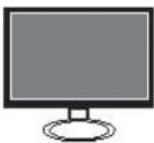
LCD Monitor
CD-ROM(Driver/Manual)

☑ D-SUB Cable ☑ Power Cord*


√ Audio Cable

☑ Warranty Card ☑ Quick Guide


* Power cord specification : H05 VV-F 3G 0.75mm ^2
Chapter 1 introducing the Display
Front View and Controls

text_image
OUTPUT AUTO MENU ① ② ③ ④ ⑤ITEM DESCRIPTION

In OSD mode, press the ▲▼ buttons to move the selection highlight to the next menu item counterclockwise or clockwise, respectively. Adjusts the speaker volume up and down.

The LED light indicates when the LCD monitor is activated (blue light indicates power on and amber light indicates power saving).

Turns the LCD monitor on and off.

Press to automatically adjust the display settings to optimize performance based on the D-SUB signal.

Chapter 2 Installing the Display
Chapter 2
Installing the Display
Refer to the owner's manual of the computer for connections. In the process of connecting external equipment, do not connect any AC power cords to wall outlets until all other connections are completed.
Connecting Your LCD Monitor to a Computer
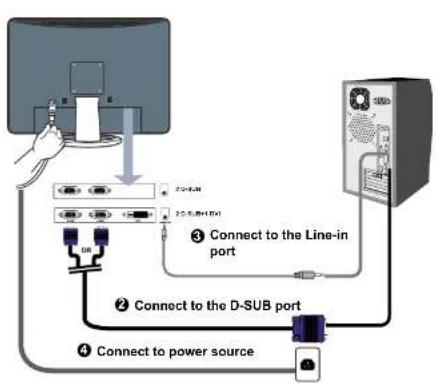
Method 1: Analog (D-SUB) Connection
① Turn off the computer and unplug the power cable.
② Connect the signal cable to the VGA port on the back of the computer.
③ Connect the audio cable to the line-in port on the back of the computer.
④ Connect the power cord to wall outlet and LCD monitor.
5 Press the button, located on the right side of the main unit to turn the monitor on, then turn the computer on. If the monitor displays an image, the monitor is successfully installed. If no image is displayed, check all connections.
Chapter 2 Installing the Display
flowchart
graph TD
    A["Computer"] -->|Connect to the Line-in port| B["Server"]
    B -->|Connect to the D-SUB port| C["Power Source"]
    C -->|Connect to the Line-in port| B


NOTE:
The button is used for switching the LCD monitor on and off, it does not disconnect the device from the main voltage. To completely disconnect the main voltage, please remove the power plug from the socket.

NOTE:
The LED indicator is blue when the monitor operates normally and will turn to amber when in power saving mode. When the monitor is off, the LED turns dark.

1.2.20
Chapter 2: Installing the Display
Method 2: Digital (DVI) Connection
① Turn off the computer and unplug the power cable.
2 Connect the signal cable (DVI) to the DVI port on the back of the computer.
③ Connect the audio cable to the line-in port on the back of the computer.
4 Connect the power cord to wall outlet and LCD monitor.
5 Press the ⏻ button, located on the bottom side of the main unit to turn the monitor on, then turn the computer on. If the monitor displays an image, the monitor is successfully installed. If no image is displayed, check all connections.

flowchart
graph TD
    A["Monitor"] --> B["Line-in port"]
    B --> C["DVI port"]
    C --> D["Power source"]
    D --> E["Server"]

NOTE:
Your LCD monitor may come with 2 D-Sub connectors or 2 D-Sub/1 DVI connectors
Chapter 2 Installing the Display
If the screen displays "out of range", please follow the instructions below to set up:
- Press the MENU button to display the OSD.
- Press the ▲ or ▼ button to highlight the ⚪ (INPUT SELECT) icon, then press the MENU button. The OSD displays:
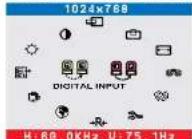
- Press the ▲ or ▼ button to select DIGITAL INPUT.

HOW TO GET SUPPORT FOR YOUR WIDE SCREEN
The wide-screen display enables you to view your content in a brand new way. The next generation of computing environments and game consoles are starting to support wide-screen resolutions.
■ Multitask - view applications side by side and reduce toggling between them.
■ Enrich - view DVD films in their native wide format for an enhanced multimedia experience
■ Experience - enjoy gaming action at higher wide-screen resolution.
However, to enable wide resolution (WSXGA+, 1680x1050), you need to select the correct setting in your Control Panel>Display>Settings dialog box in Windows ^3 .
Please note, some video cards and PCs with integrated video may not support the wide-screen resolutions. You may have to update the video chip/card driver or even purchase a new video card to utilize the advantages of the wide-screen.
For your PC, refer to the available drivers and downloads from the PC manufacturer's web site. For upgraded video card, refer to the video card manufacturer's web site: nVIDIA ^® (www.nvidia.

Chapter 2: Installing the Display
Installing Your LCD Monitor
Follow the instructions below to set up and install the monitor.
The package contains:
Display unit
Stand

natural_image
Technical line drawing of a display unit with a circular component and base plate (no text or symbols)2 Cover an even stable surface with a soft cloth. Place the unit face-down on the cloth. Fit the stand onto the bottom of the display unit as shown, then push until the two latches snap into their sockets.

natural_image
Hand holding a cable with an arrow pointing to a component (no text or symbols visible)Chapter 3 Using the USD Menu
Chapter 3
Using the OSD(On Screen Display)Menu
Using the OSD Menu
To create the best picture, your monitor has been preset at the factory with the Preset Mode Timing shown on page 21.
The OSD (On Screen Display) Menu allows the user to adjust various settings and options by following the steps below.
Press the MENU button to display the OSD. The OSD main menu provides an overview of the selection of controls available.
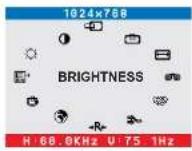
② Press the ▲ or ▼ button to highlight the desired icon. Then, press the MENU button to activate the highlighted icon
③ Press the ▲ button to change the value of the selected item.
④ Select the EXIT icon to exit the OSD.
5 Repeat steps 1 through 4 to make further adjustments. All changes are stored immediately.
Chapter 3 Using the OSD Menu
The OSD(On Screen Display) Options
The OSD (On Screen Display) menu includes the following options:

BRIGHTNESS
Controls the overall brightness.
CONTRAST
Controls the difference between the brightest and darkest regions of the picture.
HEPOSITION
Adjusts the position of the picture left and right in the window.
POSITION
Adjusts the position of the picture up and down in the window.
SIZE
Adjusts the width of the picture.
PHASE
Adjusts signal phase, which can improve focus clarity and image stability.
Chapter 3 Using the USD Menu
COLOR
Allows selection of the general color tint:
Select User Mode, WARM, or COOL.
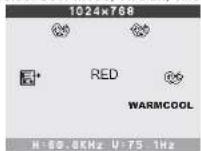
| Select User Mode |
| Allows the user to adjust red, green and blue color component levels independently. |
| COOL |
| Inclines colors toward the blue end of the spectrum.Fixes the red, green and blue component levels at factory settings; they cannot be independently adjusted. |
| WARM |
| Inclines colors toward the red end of the spectrum.Fixes the red, green and blue component levels at factory settings; they cannot be independently adjusted. |
| EXIT |
| Exits the OSD menu. |
INPUT SELECT
Allows selection of ANALOG INPUT or DIGITAL INPUT
depending on the type of input signal currently in use.
+RESET
Restores all options to the factory settings.

NGUAGE
Controls which language is used on all the on-screen menus.

Chapter 3 Using the OSD Menu
BOSD
Changes the position of the OSD.
| Position |
| Moves the OSD left and right in the window. |
| POSITION |
| Moves the OSD up and down in the window. |
| EXIT |
| Exits the OSD menu. |
眼片
Exits the OSD.
Chapter 4 Technical Information
Chapter 4
Technical Information
Preset Mode Timing Chart
The screen image has been optimized during manufacture for the display modes listed below.
Video signal: (IBM PC/AT)
| Dot X Line Horizontal Frequency(kHz) Vertical Frequency(Hz) | ||
| 720 x 400 31.47 | 70.00 | |
| 640 x 480 | 31.47 60.00 | |
| 37.86 72.80 | ||
| 37.50 75.00 | ||
| 800 x 600 | 35.16 56.25 | |
| 37.88 60.30 | ||
| 48.08 72.20 | ||
| 48.87 75.00 | ||
| 1024 x 768 | 48.36 60.00 | |
| 56.48 70.10 | ||
| 60.02 75.00 | ||
| 1280 x 1024 | 63.98 60 | |
| 79.98 75 | ||
| 1440 x 900 | 55.47 59.90 | |
| 70.64 74.98 | ||
| 1680 x 1050 | 64.67 60 | |
Chapter 4 Technical Information
DVI Connector PIN Assignment
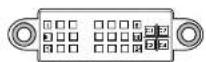
| PIN DESCRIPTION PIN DESCRIPTION | ON | ||
| 1 TMDS Data 2-15 GND | |||
| 2 TMDS Data 2+16 Hot Plug Detect | |||
| 3 TMDS Data 2 14 shield 17 TMDS Data 0- | |||
| 4 18 TMDS Data 0+ | |||
| 5 19 TMDS Data 0/5 shield | |||
| 6 DDC Clock 20 | |||
| 7 DDC Data 21 | |||
| 8 Analog Vertical Sync 22 | Clock shield | ||
| 9 | TMDS Data 1- | 23 | Clock + |
| 10 TMDS Data 1+24 | Clock - | ||
| 11 | TMDS Data 1/3 shield | C1 | Analog red |
| 12 | C2 | Analog green | |
| 13 | C3 | Analog blue | |
| 14 | +5V Power | C4 | Analog |
D-SUB Connector PIN Assignment
Chapter 4 Technical Information
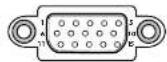
| PIN DESCRIPTION | |
| 1 Red | |
| 2 Green | |
| 3 Blue | |
| 4 Ground | |
| 5 Self Test | |
| 6 Red Ground | |
| 7 Green Ground | |
| 8 Blue Ground | |
| 9 5 VDC | |
| 10 Ground | |
| 11 Ground | |
| 12 SDA (FOR DDC) | |
| 13 H Sync | |
| 14 V Sync | |
| 15 | SCL (FOR DDC) |

Chapter 4 Technical Information
Plug and Play
This monitor conforms to the VESA DDC (Display Data Channel) standard, which means that when it is used with a DDC compatible video card, the monitor is easier to set up. With VESA DDC 1/2B, when the monitor is turned on, it will automatically notify a windows 9X/2000/XP host computer of its scanning frequencies, capabilities and characteristics. Windows 9X/2000/XP will automatically recognize the presence of the monitor and select the appropriate display resolution.
Visual Inspection
Permanently unlit or lit pixels
The standard of production techniques today cannot guarantee an absolutely fault free LCD display. A few isolated permanently lit or unlit pixels may be present. The maximum permitted number of pixel faults is stipulated in the stringent international standard ISO 13406-2 (Class II).
Chapter 4 Technical Information
Troubleshooting
Before consulting service personnel, check the following chart for a possible cause and solution to the trouble you are experiencing.
① Monitor will not turn on
- Make sure the power cord is plugged in.
② No picture
• Make sure the power cord is plugged in.
- Check the signal cable connecting the LCD monitor and the computer (refer to page 12-15).
- Press the button on the front panel of the monitor.
③ Poor picture or abnormal picture
- Check the signal cable connecting the LCD monitor and the computer (refer to page 12-15).
- Press the MENU button to adjust the Brightness Contrast option in the OSD.
- Adjust the Color Select option in the OSD.
- Press the AUTO button on the front panel of the monitor, to automatically adjust the display mode.
④ Out of range message appears
- Press the MENU button. Highlight the INPUT SELECT icon, then press the MENU button. Press the ▲ or ▼ button to select DIGITAL INPUT (refer to page 15).
- If using Windows 9X/2000/XP, wait a few seconds; once Windows detects the problem, a dialog will appear allowing you to manually set up the video mode according to the preset mode timing chart (refer to page 21).

Chapter 4 Technical Information
Specifications
| MODEL BP2219W | ||
| LCD Panel | Panel Size 22"w | TFT LCD |
| Brightness 300 | ||
| Contrast Ratio | 700:1 | |
| Dot Pitch 0.282mm x 0.282mm | ||
| Build-in Speaker Yes | ||
| Max. Resolution 1680x1050 | ||
| Input Connector D-SUB x 2V | DVI x 1/PC AUDIO or D-SUB x 2/PC AUDIO | |
| Power Source AC100-240V, 50-60Hz | ||
| Power Consumption 60W | ||
| Dimension(WxHxD) 623.7x3 | 398.2x178 mm | |
Changes are periodically made to this specifications.
Current specifications may also be obtained via the internet,
www.mag.com.tw