W424P - Hi-Fi System LG - Free user manual and instructions
Find the device manual for free W424P LG in PDF.


User questions about W424P LG
0 question about this device. Answer the ones you know or ask your own.
Ask a new question about this device
Download the instructions for your Hi-Fi System in PDF format for free! Find your manual W424P - LG and take your electronic device back in hand. On this page are published all the documents necessary for the use of your device. W424P by LG.
USER MANUAL W424P LG
In choosing this Firstline appliance, you have opted for the simplicity of utilisation. Designed in accordance with strict quality standards. It will bring you all the satisfaction that you are entitled to, for many years to come. Please read carefully the operating instructions before using your video recorder.
It will help you in setting up and using it.
See you soon.

text_image
Firstline ICR H2389 STRAWY BIO QUICK & SOFT MECHANEM BIQHQManual de instrucciones Instructions
Welcome to PRYCA
Thank you for buying this video cassette recorder Model VCR 498CS.
Before using your video recorder you need to be familiar with the names of some of the buttons on the remote control handset (see Operating the video recorder, pages 4 to 6), and you need to set up the video recorder so that it can receive the TV stations in your area and so that your TV set can receive pictures from it (see pages 11 to 13).
Installation
POWER
This Video Recorder operates on a mains supply of 100-240V\~, 50 Hz.
SERVICE
Never remove the cover of the video recorder. There are no user serviceable parts inside. If it does not operate properly, unplug it and contact your dealer.
PRECAUTIONS
For safe operation and satisfactory performance of your video recorder, keep the following in mind when selecting a place for its installation.
● Shield it from direct sunlight and keep it away from sources of intense heat.
● Avoid dusty or humid places.
- Avoid places with insufficient ventilation for proper heat dissipation.
● Install the video recorder in a horizontal position only.
● Avoid locations subject to strong vibration.
- Do not place the video recorder near strong magnetic fields.
- Do not move the video recorder from a cold to a hot location or vice versa.
MOISTURE CONDENSATION
Under special conditions like moving your video recorder from a cold to a warm room, moisture condensation can build up on the head drum, one of the most crucial parts of the video recorder. In order to prevent in such case any damage to your video recorder HEAD DRUM, connect the video recorder power cord to the AC line, press the OPERATE button on and allow at least 2 hours for the video recorder to dry out.
CONDENSATION IS LIKELY TO OCCUR WHEN:
- The video recorder is moved from a cold room to a warm room or from outdoors to inside your home.
• A cold room is heated quickly.
• The humidity is very high.
This product is manufactured to comply with the radio interference requirements of EEC DIRECTIVE 89/336/EEC, 93/68/EEC and 73/23/EEC.
Features & Contents
Features
● HQ (High Quality) picture enhancement system
● Full function infra-red remote control handset
● Programmable 80 channel memory with Frequency synthesized tuner
● ACMS (Automatic Channel Memory System) - the channels will be preset and memorized automatically.
● 8 event/1 month programmable timer
● Recording and playback for 16:9 Wide-screen format
● Self diagnosis function
● NTSC playback on PAL TV
● Energy saving system
● QSR - Quick Set Recording- of up to 9 hours
- Quick start function
● Auto Power on and Play
● Automatic Rewind
● Digital Auto Tracking System
● Auto Head Cleaner
● Still, Frame advance & Variable Slow functions
- Logic & Jet Search
● VISS - VHS Index Search System
● Real Time Counter & Volume of Tape Remaining display
● Center tape Mechanism for high quality pictures
- CANAL + Compatible
● Built in ShowView programming
● LP - Long Play-recording and playback
- Shuttle Controls
Contents
Reference Pages
| 2~6 | |
| Features & Contents | 3 |
| Operating the video recorder | 4-6 |
| The remote control handset | 4-5 |
| How to install batteries | 5 |
| The Front & Rear of the video recorder | 6 |
| 7~16 |
Installing your video recorder
| • Connecting the video recorder to your TV | 7 |
| Setting the VCR output channel | 8 |
| Initial preset | 9 |
On screen displays
| • The main menu | 9 |
| Storing TV stations in the video recorder tuner | 11-15 |
| • Automatic tuning | 11 |
| • Manual tuning | 12-13 |
| • Changing the programme order | 14 |
| • Clearing stations | 15 |
| Time and date setting | 16 |
Using the VCR to play back a tape
| Loading & Unloading a video cassette | 17 |
| Types of video cassette | 17 |
| How to using the energy saving mode | 17 |
| Normal playback | 18 |
| Picture sharpness adjustment | 18 |
| About Optimum Picture Response (OPR) | 18 |
Other playback features
| Fast forward (FF)/Rewind (REW) | 19 |
| LOGIC search/Picture search - CUE & REVIEW | 19 |
| JET search | 19 |
| Still picture playback | 20 |
| Slow motion playback, Shuttle | 20 |
| Selection of the colour system | 21 |
RECORDING
| Using the VCR to record | 22-23 |
| Introduction to the recording features | 22 |
| To record | 22-23 |
| Immediate timer (QSR)/Recording with decoder | 23 |
| Programming the VCR timer | 24-29 |
| Introduction to ShowView | 24 |
| ShowView programming on the TV screen | 24 |
| Recorder timer programming using the On Screen Displays | 26 |
| Checking & clearing stored timer programmes | 28 |
| Overlapping timer programme | 29 |
ADDITIONAL INFORMATION
| Other features | 30-34 |
| Copying (Rerecording) | 35 |
| Specifications | 36 |
| Before calling for service . . . | 37 |
| Video head cleaning | 37 |
Operating the video recorder
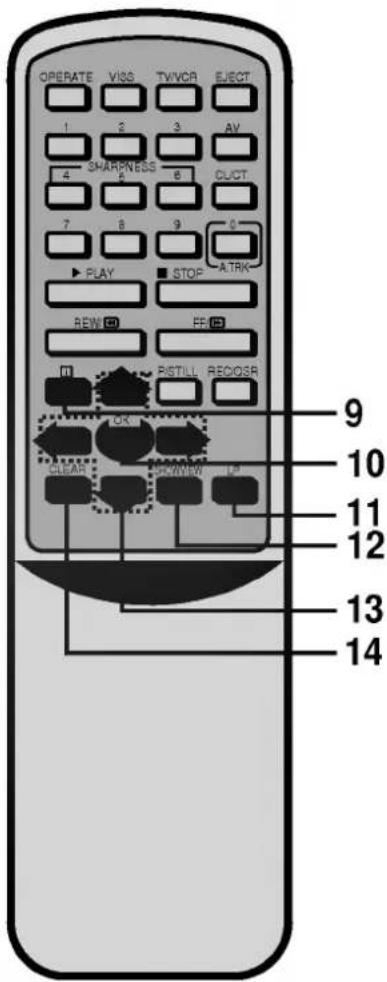
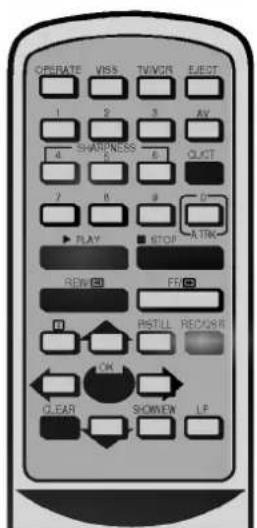
The Remote Control Handset
This video recorder is designed so that almost all of its functions can be controlled from the REMOTE CONTROL HANDSET. This must have a "line of sight" to the sensor on the front of the video recorder. It must be within an angle of 30 degrees either side of the centre. The maximum operating distance is about 7.5m (25 feet).
Some functions can also be controlled with the controls on the FRONT PANEL of the video recorder.

text_image
1 2 3 4 5 6 7 8 OPENATE VAS TV/DR EJECT AV 4 SHARPNESS 6 C/CT 7 5 3 0 PLAN FEW 30 FF 103 PSTILL RECISE OK CLEAR SHOWVIEW LP1 OPERATE
To switch the video recorder on and off.
2 VISS
To activate the VISS (VHS INDEX SEARCH SYSTEM (see p 34).
3 TV/VCR
Set this button to;
● VCR: To monitor, view playback or view the video recorder's tuner.
● TV: To watch TV or view another programme while recording one programme.
A EJECT BUTTON
To eject a tape (see p 17).
5 AUDIO/VIDEO MODE
To select the input source of a recording (see p 6).
6 CLOCK/TAPE COUNTER/TAPE REMAINING
To switch the display on the front panel of the video recorder between the current time and the tape counter (in hours and minutes), the volume of tape remaining on the TV screen (see p 31). This function will only operate when a tape is loaded.
7 Number buttons;
To select programme channels. To programme numeric information into On screen displays.
NOTE:
- The "4" and "6" buttons can be used to control the picture quality during playing back (see p 18).
- The "0" button can be used to select automatic adjustment of the tracking.
8 Basic operation buttons;
- PLAY (see p 18).
- STOP (see p 18).
- REWIND/REVIEW (see p 19).
- FAST FORWARD/CUE (see p 19).
● P/STILL (see p 20, 23).
● REC/QSR (see p 22, 23).
Operating the video recorder
text_image
OPERATE VISS TVVCR EJECT 1 2 3 AV 4 SHARPNESS 6 CLCT 7 8 9 0 PLAY STOP ATRK REW FF PI STILL RECOSR OK CLEAR VIEW LP 9 10 11 12 13 14
natural_image
Diagram of a car interior showing a door, seatbelt, and directional arrow (no text or symbols)9
To display the on screen display (OSD) menu (see p 9).
10ok
- Confirms menu selection (see p 9).
- Calls the on screen display (see p 31).
11 TAPE SPEED SELECT (LP)
To select the recording speed of the tape (see p 22).
12SHOWVIEW
To display the programme menu for ShowView programming (see p 24 to 25).
13 CURSORS (∧∨<> )
∧∨:
● During OSD menu, for moving the cursor, selection bar up or down.
- Switches one channel programme up or down.
● During playback, tracking control.
● During still playback, adjusting vertical tremble.
● To adjust manual fine tune for receiving normal audio and picture (see p 13).
<>:
● During OSD menu, for moving the cursor to the left or right.
- Adjust the playback speed (see p 20).
The cursor "<" button can be used to clear a data.
14 CLEAR
To reset the tape counter to zero (see p 31).
How to install batteries
The wireless remote control is powered by two "AA" size batteries.
1 Remove the battery compartment lid.
(Lift it up while pressing the tap forward).
2 Load the new batteries with their polarities (⊕ and ⊖) aligned properly and replace the lid.
If you do not intend to use the remote control unit for a long period of time, remove the batteries and store them in a cool, dry place.
Operating the video recorder
Front View

text_image
1 2 3 4 5 6 5 6 11 10 9 8 71 STAND BY
To switch the video recorder on and off.
To set the unit to energy save mode (see p 17).
2 STOP/EJECT
To stop the tape, or eject it from the video recorder.
3 VIDEO CASSETTE COMPARTMENT When a cassette is inserted loading is completed automatically.
4 REWIND/REVIEW
To rewind the tape (see p 19).
To see reverse playback picture at high speed (see p 19).
5 PLAY
To play the tape (see p 18).
6 FAST FORWARD/CUE
To wind the tape forward (see P 19).
To see forward playback picture at high speed (see p 19).
7 REC/QSR
Used to record and set the QSR (Quick Set Recording) time (see p 22 to 23).
8 PAUSE/STILL
Switches to still picture (see p 20), during recording to pause (see p 23).
9 PROGRAM (▲/▼)
Allows you to scan through memorized channels.
10 MULTI FUNCTION DISPLAY
Display of time, tape counter or other information about the status of the video recorder.
11 REMOTE CONTROL SENSOR
To receive the signals from the remote control handset.
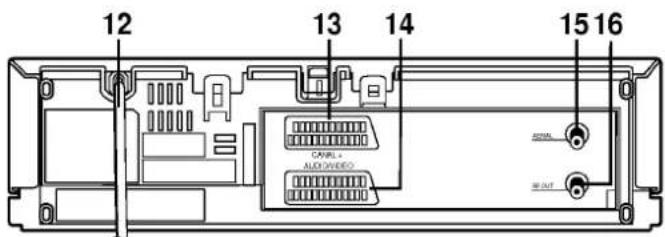
Rear View
text_image
12 13 14 15 16 CAVIL+ NLD/DIVED AIRL NEOUT12 MAINS LEAD
13 CANAL +
To connect the video recorder to pay TV (CANAL +) (see p 7).
14 AUDIO/VIDEO
To connect the video recorder to your TV set or to another video recorder (see p 7, 35).
For recording from AUDIO/VIDEO select "AV" with the "AV" button (see p 22).
15 AERIAL Connect the external aerial to this terminal.
16 RF.OUT Connect this terminal to the "AERIAL" terminal on the back of the TV, using the coaxial RF cable (supplied).
Installing your video recorder
IMPORTANT!
Before you use your video recorder you must:
1 Connect the video recorder to your TV aerial and TV set. (described later on this page).
2 Set the tuner channels so that the video recorder can receive TV signals (see p 11 to 13). When this has been done, the setting up of the video recorder is complete.
text_image
Diagram showing cable connections between a device and an antenna, with labeled ports and wiring paths.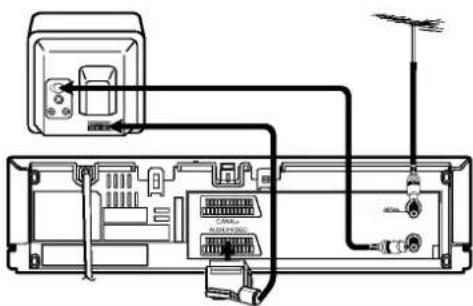
text_image
Diagram of a TV cable connector showing cable routing, power input, and antenna connection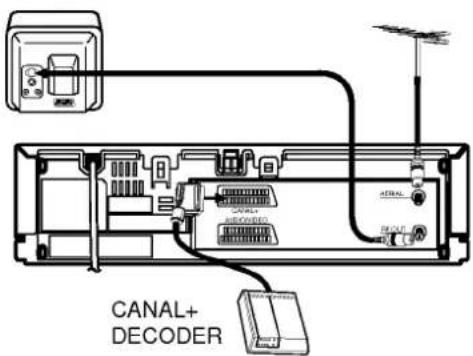
text_image
CANAL+ DECODERConnecting the video recorder to your TV
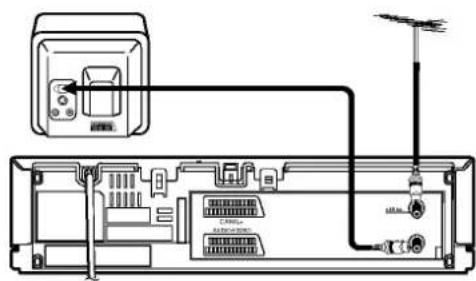
AERIAL/RF CONNECTIONS
For TV sets without AV input terminals:
1 Disconnect the aerial from your TV set and plug it into the socket marked "AERIAL" at the back of the video recorder.
2 Use the coaxial cable supplied to connect the aerial terminal on your TV set to the socket marked "RF.OUT" at the back of the video recorder.
3 Plug the video recorder into a mains wall socket.
A/V CONNECTION
This video recorder and your TV set can also be connected with a EURO SCART cable. This connection ensures the highest picture/sound quality.
DECODER CONNECTION
Some TV stations transmit encoded signals which you can only see with a purchased or hired decoder. You can connect such a decoder (descrambler) to this video recorder.
Use an EURO SCART leads to connect the decoder to the video recorder (CANAL+).
Setting the VCR output channel
Your TV set receives the video recorder signal like another TV station. So you have to select a programme number for the video recorder.
Take care to select this programme number, whenever you control the video recorder, or watch a recording. Only if you have selected this programme number, which we call video programme number, you will see the picture from the video recorder on the screen.
If you connect a monitor or a TV set equipped with Euro Scart or audio and video sockets, this adjustment will not be necessary. Consult the operating instructions of your TV set.
Connect the video recorder as described in the section on Connections (see on previous page).
Setting the output channel of the VCR

SETTING THE VIDEO CHANNEL WITH PLAYBACK
The output channel of the video recorder is set at UHF channel 36.
1 Switch on the TV set and the video recorder.
2 Play any video cassette tape on your video recorder.
3 Select the correct channel (36) on your TV set. And then you will see the picture being played in video recorder.
(Note - You will need to look at the instruction manual for your TV set if you do not know how to do this.)

SETTING THE VIDEO CHANNEL WITH OSD (ON SCREEN DISPLAY)
1 Switch on the TV set and the video recorder.
2 Select the correct channel (36) on your TV set.
3 And then you will see a blue background picture on the TV screen
4 Store this channel in an unused programme number on your TV set.
Changing the transmitter channel
If channel 36 is already occupied at your TV set, or if the picture is distorted, you can change the transmitter channel of the video recorder.
1 Select an unoccupied channel between 22 and 68 on your TV set.
2 During power off mode (only clock displays) hold down the PROG. "▼" and "▲" buttons on the VCR simultaneously for more than 4 seconds. Then, "RF-CH 36" will be displayed on the VCR's display.
3 Press the PROG. "▼" or "▲" buttons on the VCR to select another video channel eg. between channels 22 and 68, until the test pattern shown the left is received.
4 Press the OPERATE button when you have finished.

natural_image
Abstract black and white geometric shape with vertical stripes (no text or symbols)Initial preset
For the following steps we do assume that you have just connected your video recorder for the very first time. In this case the video recorder is on after mains connection. You should not touch any buttons yet. On the connected TV you will now see.
NOTE: If this menu does not appear, your video recorder is already programmed.
text_image
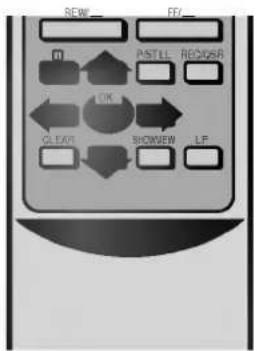
REW_ FF_ PSTLL REC/USR OK CLEAR SHOWER LF1 Select your country with cursor "<"and">". Then, select the type of the TV station tuning ("Búsqueda de canales" for tuning by Channel number, "Búsqueda de frecuencia" for tuning by frequency) by pressing the cursor "^" and "∨" buttons.
2 Press the "OK" button to start the pre-set.
3 Wait some minutes, until all stations are searched and the "TV station table" menu appears on the TV screen.
4 Press the "i" button to remove the menus from the TV screen. You might want to make manual changes to the order or delete double received stations (see p 14 to 15).


On Screen Displays
A number of the features of this video recorder can be set and altered using the handset with On Screen Displays (menus) on the TV screen.
The Main menu
1 Switch on your TV set and video recorder by pressing the "OPERATE" button.
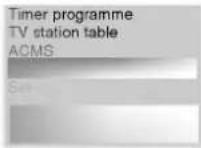
2 Press the "i" button to display the Main menu.
3 Press the cursor "∧" and "∨" buttons to select the desired menu and press the "OK" button.
4 NOTE - After using the menus press the "i" button to remove menus from the TV screen.
Timer programme
Used to record a programme with the timer (see p 26 to 27).
TV station table
Used to view stored TV stations or to set TV station information manually (see p 12 to 13).


text_image
OPERATE VSS TWBCR EJECT 1 2 3 AV 4 SHAPNESS 6 QUCT 7 8 9 0 ▶ PLAY ■ STOP A TIK NEW FRO 0 PISTLL RECORDER OK CLEAR SHOWN I.FOn Screen Displays


text_image
OPERATE VSS TWYCR EJECT 1 2 3 AV 4 SHAFNESS 6 OJCT 7 8 9 0 ▶ PLAY ■ STOP -A TRK REW ■ FF ■ 0 PISTILL REOGRS ← DK CLES SHOWER LDACMS
Used for automatic setting of the TV stations (see p 11).
Clock set
To set the clock manually (see p 16).
Set-up
You can set the desired mode by pressing the "OK" button repeatedly.
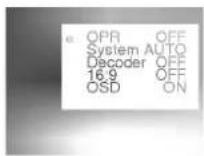
- OPR (Optimum Picture Response) When using the poor tape, set "OPR" to "ON" to improve playback picture quality (see p 18).
● SYSTEM (AUTO, PAL and MESE-CAM)
Select the colour system used for playback and recording (see p 21).
• DECODER
To use DECODER Scart socket for the connection of a pay-TV decoder (see p 23).
16:9
To select the aspect ratio of your TV. "AUTO":
for playing back wide-screen programmes as wide, normal programmes as normal (see p 33).
"ON":
for recording and playback with a 16:9 Wide-screen format recording.
"OFF":
for recording and playback with a normal format.
- OSD (On Screen Display)
Switches the on screen display OFF or ON (see p 31).
- LANGUAGE
Allows you to select the language of the On Screen Display.
You can select among English, Deutsch, Français, Italiano, Español.
NOTE :
The OPR and System menu will be displayed only when a tape is loaded.
Storing TV stations in the VCR tuner


text_image
OPERATE VSS TVVCR EJECT 1 2 3 AV SHAPNESS 6 OLCT 7 8 9 0 PLAY STOP A OK NEW FND PSTLL RODDER OK CLET SHOWOUT LPUp to 80 TV stations (80 channels) can be stored in the memory of this video recorder. These can be set automatically or manually.
Automatic tuning
To carry out Automatic tuning:
1 Switch on the TV and the video recorder (with the "OPERATE" button).
2 Press the "i" button on the video recorder handset.
The menu will appear on the TV screen.
3 Use the cursor "^" and "v" buttons to select "ACMS".
4 Press the "OK" button.
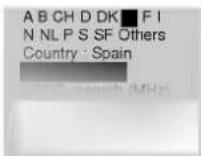
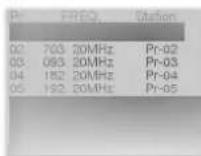
Select your country with cursor "<" and ">". Then, select the type of the TV station tuning ("Channel search" for tuning by Channel number, "FREQ. search (MHz)" for tuning by frequency) by pressing the cursor / and / buttons.
(for example, "FREQ. search (MHz)")
5 Press the "OK" button to start the automatic storing of the channels of the TV stations in your area.
6 After finishing the storing, the "TV station table" menu appears on the screen.
7 Press the "i" button to remove the menus from the TV screen.
3


4
5

6
Storing TV stations in the VCR tuner
Manual tuning
TV station Frequencies, Channel numbers and Station names can be stored manually.
To carry out manual tuning:
1 Press the "i" button on the video recorder handset. The menu will appear on the TV screen.
2 Use the cursor "V" button to select "TV station table".
2

3 Press the "OK" button.
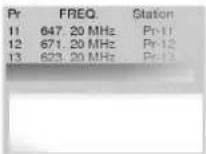
- For "FREQ. search (MHz)", you will see menu A.
- For "Channel search", you will see menu B.
(A)
(B)

(For example, "FREQ.search(MHz)")
4 Use the cursor "^" and "∨" buttons to select the programme number that you want to tune and press the "OK" button.
5 Enter the desired reception frequency with the number buttons. Right after it, the picture and sound transmitted by the selected station will appear.
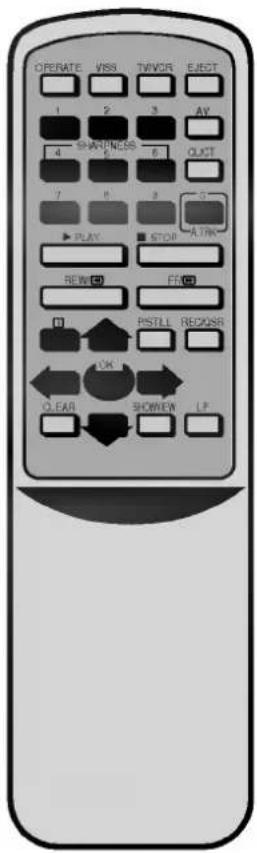
(For example, Channel search) 6 After following step 4 and press the "AV" button to select the type of TV channels.
● "C" for standard channels C02-C69.
● "S" for special channels (Cable) S01-S41.
5

6



text_image
OPERATE MISS TVVOR ELECT 1 2 3 AV 4 SHARPRESS 6 QUCT 7 8 9 10 ▶ PLAY ■ STOP A TRK REW □ FF□ □ PISTILL REGISTR ← OK CLEAR SHOWER LPStoring TV stations in the VCR tuner
text_image
OPERATE VSS TVVOR ELECT 1 2 3 AV 4 SHADNESS 6 QLCT 7 8 9 5 PLAY STOP ATRN REW FR PSTILL REDQSR OK O.EAR SHOWER LP7 Enter the channel number of station that you want to tune with number buttons.
- Searching will stop when it locates a station.
- Control the fine tuning of the station by pressing the cursor “^” and “∨” buttons.
8 To enter a station name, select "Station" using the cursor ">” button and press OK button.
The station name list will appear on the TV screen.
9 If the station name required is on the menu use the cursor "^" and "∨" buttons to select it.
Press the "OK" button and "i" button. Go to step 11.
If the name required is not on the menu go to step 10.
10 Press the use ">" button to make the station name manually.
1) Enter the first letter of the station name by repeatedly pressing the cursor "^" and "∨" buttons.
2) Now move the cursor with the ">" to the next position and write in the next letter of the station name.
- For corrections move back and forth with the "<" and ">" buttons.
3) When you have the station name as required press the "OK" button and "i" button.
The "TV station table" menu will be displayed.
Note: If you don't want to change the station name, press the "i" button instead of "OK" button.
Store other stations, missing or incorrect station names using steps 4 to 10.
11 End the station storing by pressing the "i" button.


natural_image
Two grayscale gradient panels with no text or symbols, one labeled '8' in top-left corner (no other visible content)
Storing TV stations in the VCR tuner

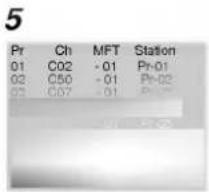
Changing the programme order of the "TV station table" menu
If you want to move the order of the TV stations you can easily do so as follows:

text_image
OPERATE VSS TVWOR ELECT 1 2 3 AV SHARPNESS 5 CLCT 7 8 9 0 PLAY STOP ATHL REW F PSTILL RECKSAR OK CLEAR SHOWER UP1 Press the "i" button on the video recorder handset. The menu will appear on the TV screen.
2 Select "TV station table" with the cursor "^" and "∨" buttons and press the "OK" button.
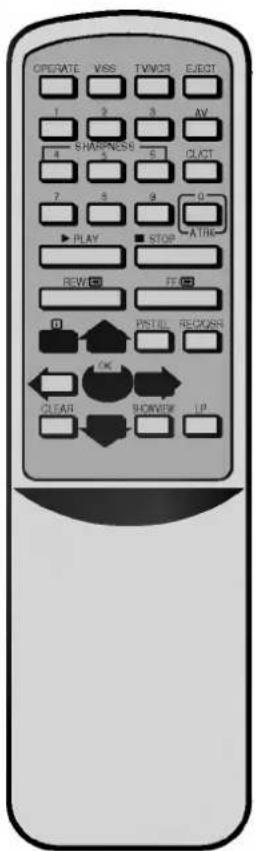
3 Move the cursor down or up with the cursor "^" and "∨" buttons to select the programme that you want to move to another position in the menu (for example, "Pr 03"). Press the cursor "> " to select move.
4 Move the cursor to place the cursor line at the position where to insert the selected programme. (for example "Pr 04").
5 Press the "OK" button.
The selected station will be moved to the new programme number.
6 Move other stations, if you wish, by repeating steps 3 to 5.
7 Press the "i" button to remove the menus from the TV screen.

text_image
3 Pr Ch MFT Station 01 C02 - 01 Pr-01 02 C50 - 01 Pr-02 03 04 C07 05 C09 ###
text_image
5 Pr Ch MFT Station 01 C02 -01 Pr-01 02 C50 -01 Pr-02 03 C07 -01 Pr-03Storing TV stations in the VCR tuner
Clearing stations from the "TV station table" menu
If you want to clear a TV station from the video recorder's store you can easily do so as follows:
1 Press the "i" button on the video recorder handset. The Main menu will appear on the TV screen.
2 Select "TV station table" with the cursor "V" button and press the "OK" button.
3 Move the cursor down or up with the cursor “^” and “√” button to select the programme that you want to clear. (for example “Pr 03”)
4 Press the "<" button to delete. After a short while, the selected station will be cleared.
5 Clear other stations, if you wish, by repeating steps 3 and 4.
6 Press the "i" button to remove the menus from the TV screen.
SELECTING STORED TV STATIONS
Stored TV stations can be selected in either of two ways.
1 Use the "∧" and "∨" buttons to move from one station to another.
2 Enter the programme number with the number buttons, to select a station directly. You can enter the stations 1 to 9 with the one digit only. The channel will be selected at once.
2


4


text_image
OPERATE VSS TAVCR ELECT 1 2 3 AV 4 SHIPPNESS 6 CLUST 7 8 9 ATR PLAY STOP NEW FRI PSTLL RECOR OK CLEAR SHOWN LPTime and date setting


text_image
OPERATE VRS TVWOR ELECT 1 2 3 AV 4 SHAPNESS 6 QUCT 7 8 9 10 A OK PLAY STOP REW FF PSTILL REOGR OK CLEAR SHOWN LPSetting the video recorder's clock
1 Press the "i" button. The Main menu appears on the TV screen.
2 Select "Clock set" with the cursor "^" and "∨" buttons.
3 Press the "OK" button.
4 Use the number or "^" and "∨" buttons to enter or alter the Hours, Minutes, Day, Month and Year (using the 24 hour clock). The day of the week will appear automatically when you have entered the date.
- Inputting 1 must be entered as 01, 2 as 02 etc.
- Correct errors during inputting with cursor "<" and "> " buttons.
5 Press the "i" button to remove the menus from the TV screen. The set time will appear on the video recorder's Display.
2
3

4


Using the VCR to play back a tape
1
natural_image
Illustration of a hand inserting a CD into a slot (no text or symbols)2

natural_image
Illustration of a hand inserting a CD into a case (no text or symbols visible)NOTE - Loading and unloading of a video cassette is only possible when the video recorder is plugged into a power source.
Loading & Unloading a video cassette
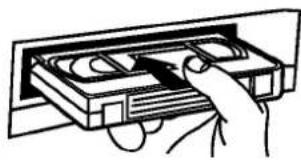
1 Insert the cassette into the video recorder with the window side up and the arrow pointing away from you. Do not attempt to insert a cassette which is upside down or back to front.
Gently press the middle of the tape.
2 Press the "EJECT" button, on either the handset or the front panel of the video recorder.
The cassette compartment will open and the video cassette will be partially ejected.
"EJECT" will appear for a few seconds on the TV screen. It is not necessary to switch on the video recorder, by pressing the "OPERATE" button before inserting and ejecting a video cassette.
Note - It is advisable to remove a video cassette from the video recorder when not in use. Rewind and unload it.
Types of video cassette
Use VHS tapes in this video recorder.
On SP (standard play) the maximum record and playback time is that given on the video cassette.
For example E-180 will record/play back for 180 minutes.
For example T-120 will play back for 120 minutes.
On LP (long play) the maximum record and playback time is twice that given on the video cassette.
For example E-180 will record/play back for 360 minutes.
For example T-120 will play back for 240 minutes.
natural_image
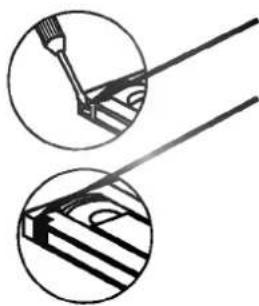
Technical illustration showing two views of a mechanical component with tool tips (no text or symbols)Accidental erasure prevention - If you do not wish to record on a tape, and hence erase what is already recorded on it, then remove the safety tab on the back edge of the video cassette.
Cover the hole with cellophane tape - It is possible to record on a video cassette from which the safety tab has been removed by covering the hole with cellophane tape.
Refer to the instructions included with the video cassette for more information.
How to using the energy saving mode
1 Press the "STAND BY" button on the VCR. The clock and channel number will be displayed on the video recorder's display.
2 Press the "STAND BY" button on the VCR once again. "SLEEP" indicator appears on the video recorder's display. If you press the "STAND BY" button once again within 10 seconds, video recorder will go into the energy saving mode. The STAND BY LED will light and the clock display disappears. Otherwise, if you do not press the "STAND BY" within 10 seconds, video recorder will go into the operate off mode. For releasing the energy saving mode, press the "STAND BY" button once again.
Using the VCR to play back a tape


text_image
OPERATE WISS TVVCR EJECT 1 2 3 AV 4 SHAPNESS 6 CLGT 7 8 9 0 ▶ PLAY ■ STOP A TRK REW ■ FF ■ 0 PARTILL RECORDER TICK CLEAR SHOWING LPNormal playback
1 Press the "PLAY" button to start playing a tape (called Normal playback). "PLAY" will appear for a few seconds on the TV screen.
Automatic tracking - The video recorder will automatically adjust the tracking to give the best quality picture.A.TRK will appear on the video recorder's display while it is doing this.
Standard Play (SP) or Long Play (LP) tape - The video recorder will automatically recognize whether the tape has been recorded at normal speed (SP) or half-speed (Long Play - LP), and play it back at the correct speed. If it is a long play tape LP will be shown on the video recorder's display.
Automatic playback - If the video cassette has had its safety tab removed, so that it cannot be erased, then the video recorder will automatically start playing the tape.
2 Short interruptions of the playback up to 5 minutes can be made with the "P/STILL" button. Continue playback by pressing the "PLAY" button.
3 End the playback with STOP button.
- If the end of the tape is reached, the video recorder stops automatically, rewinds, stops, ejects the tape and switched off.
Picture sharpness adjustment
During playback you can adjust the "sharpness" of the picture by pressing the number 4 and 6 buttons.
About Optimum Picture Response (OPR)
Optimum Picture Response (OPR) automatically improves playback picture quality by adjusting the video recorder to the condition of the tape.
Set OPR to ON to maintain better playback picture quality.
1 Press the "i" button to display the Main menu.
2 Press the cursor "∧" and "∨" buttons to select the "Set-up" menu and press the "OK" button.
3 Set "OPR" to "ON" with "OK" button.
4 Press the "i" button to remove menus from the TV screen.

Other playback features

text_image
OPERATE VSS TWVCR EJECT 1 2 3 AV 4 SHAPNESS 5 6 QUIT 7 8 9 10 ▶ PLAY ■ STOP -A TIK REFR FND FF FND PSTLL RESQSR OK CLEAR SNOWEN LPThis video recorder will allow you to rapidly wind a tape forwards or backwards, search a cassette tape, and view individual frames on a tape, and play back a tape in slow motion.
Fast forward (FF)
Pressing the fast forward ("FF") button with the tape on stop, will rapidly wind the tape forward. "FF" will appear for a few seconds on the TV screen.
Rewind (REW)
Pressing the rewind ("REW") button with the tape on stop, will rapidly wind the tape backwards. "REW" will appear for a few seconds on the TV screen.
LOGIC search
If you hold down either of the search buttons ("FF" or "REW") during fast forwarding or rewinding the tape, the picture will be seen at about 7 times (NTSC recorded tape: 5 times) the normal playback speed. This enables you to see where you are on the tape. When you release the button the video recorder continues fast forward or rewind.
Picture search - CUE & REVIEW
You can also quickly carry out a visual search for a desired section on a tape using the CUE and REVIEW functions.
During playing back press either the fast forward ("FF") or rewind ("REW") button.
The tape will be played forward or backwards at about 7 times (NTSC recorded tape: 5 times) the normal playback speed. When the desired point on the tape has been reached press the "PLAY" button and the video recorder will continue to play back the tape at the normal speed.
Picture search will only continue for about 3 minutes, after which the video recorder will return to normal playback mode.
JET search
If during picture search you hold down either of the search buttons ("FF" or "REW") for more than 1 second the picture will be played at about 11 times (NTSC recorded tape: 9 times) the normal playback speed. When the desired point on the tape has been reached, release the search button and the video recorder will continue to playback the tape at the normal speed.
Note - During a visual search, jet search or still playback, the sound is muted and there will be some "noise streaks" on the picture.

Other playback features
Still picture playback
You can play back and advance a still picture as follows:
1 Press the "P/STILL" button during playing back. You see a still picture on the TV screen.
NOTES : ● You can remove the vertical tremble with the cursor "∧" and "∨" buttons. ● If you want to remove the noise bars in a still picture, place the VCR in slow mode (see below "Slow motion playback, Shuttle"). Use the cursor "∧" and "∨" buttons to remove the noise bars. And then press the "P/STILL" button again.
2 You can advance the still picture by pressing the "P/STILL" button. By repeatedly pressing this button the picture advances one frame at a time. 3 To switch off the still picture, press the "PLAY", or the "STOP" buttons.
Slow motion playback, Shuttle
This video recorder is equipped with a slow motion and shuttle features.
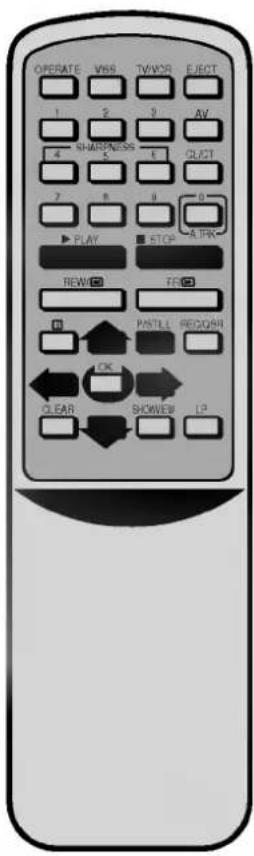
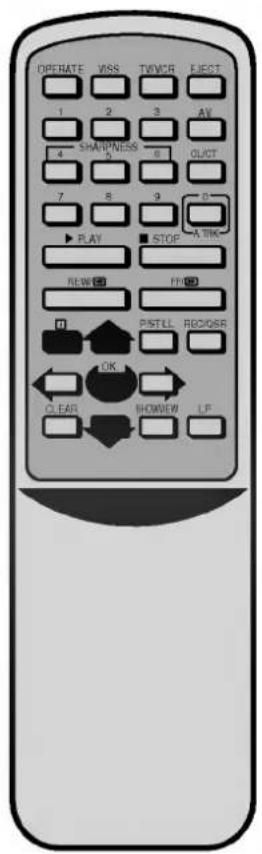
1 During playing back or still picture press the cursor "<" or ">" button.
2 You can reach the following playback speeds: fast review, review, -3Xplay, -play, -1/6 slow, -1/16 slow, -1/32 slow, still, 1/32 slow, 1/16 slow, 1/6 slow, play, cue, fast cue.
3 If distortions can be seen in the picture, remove them with the cursor "^" and "∨" buttons.
4 To switch off the slow motion, press the desired function, e.g. playback, search, still picture or stop.
The slow motion playback will only continue for about 3 minutes, after which the video recorder will return to normal playback mode, to avoid damage of the tape.
When using the special playback effects (logic, picture and jet search, still and slow motion playback) with a tape recorded in LP, there will be a loss of colour and there may be noise bars on the picture.
NOTE : ● During slow or still playback, the noise bars may appear on the picture according to the status of tape (especially NTSC recorded tape). In these cases adjust the tracking to play back a tape with the optimum picture quality. You can adjust the tracking with the cursor “∧” and “∨” buttons.
text_image
OPERATE VSS TVVOR ELECT 1 2 3 AV 4 SHARPNESS 5 6 QUCT 7 8 9 10 PLAY STOP A TPK REW FND PASTLE REQSPI OK CLEAR SHOWER LPOther playback features
text_image
OPERATE VSS TWVCR ELECT 1 2 3 AV SHAPNESS 0 OLCT 4 5 6 7 8 9 10 PLAY STOP A TIN NEW FP PSTLL REC/ISR OK CLEAR SHOWER LFSelection of the colour system
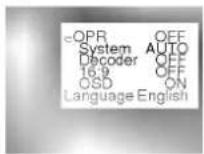
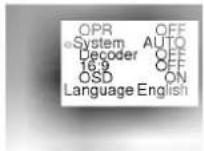
Because your video recorder is equipped with dual colour standard, you can play and record in PAL and SECAM B/G. During playing back or recording your video recorder detects the colour system automatically. If there are colour problems with very weak signals, you should select the colour system manually:
1 Press the "i" button to display the Main menu.
2 Press the cursor "^" and "∨" buttons to select the "Set-up" menu and press the "OK" button.
3 Press the cursor "V" buttons to select the "System".
4 Use the "OK" button to switch among:
"AUTO": automatic colour selection,
"PAL": PAL recordings
"MESECAM": MESECAM recordings
5 Press the "i" button to remove the menus from the TV screen.
2
3

Using the VCR to record
Introduction to the recording features
There are a variety of recording modes available to you on this video recorder.
1 You may record immediately, (a programme you may be watching), by switching the video recorder both on and off (see below).
2 You may record immediately for a set period of time of up to 9 hours. This is called Quick Set Recording (QSR). The video recorder will automatically switch itself off at the end of the QSR (see p 23).
3 You may record at a later time (up to 1 month from the present) using the built-in timer. Up to 8 of these automatic recordings may be set at the same time - provided, of course, that there is sufficient time on the video cassette.
Note - Ensure that the safety tab has not been removed from the video cassette on which you wish to record.
To record
1 Switch on the TV set and video recorder.
2 Insert a video cassette with the window side up, and the arrow pointing away from you, or if a video cassette is already loaded switch on the video recorder by pressing the "OPERATE" button.
3 Select the programme channel with the number buttons or cursor "^" and "∨" buttons.
Note - If you want to record from the EURO SCART socket on the back of the video recorder, press the "AV" button to the "AV" mode, as shown by the display on the video recorder's display.
4 Select LP with the "LP" button, if you want to record in long play mode.
5 Press the "REC/QSR" button to start recording. "RECORD" will appear for a few seconds on the TV screen. "VISS MARK" will appear on the video recorder's display.
The recording is being marked by the VISS (VHS Index Search System) function. This will enable you to quickly find the recording at a later date.

text_image
OPERATE VSS TWYCR EJECT 1 3 5 AV SHAPNESS 6 DCT 7 8 9 0 PLAY STOP A HK REW FF PSTILL REOISR OK CLEAR SHOWED LPUsing the VCR to record
text_image
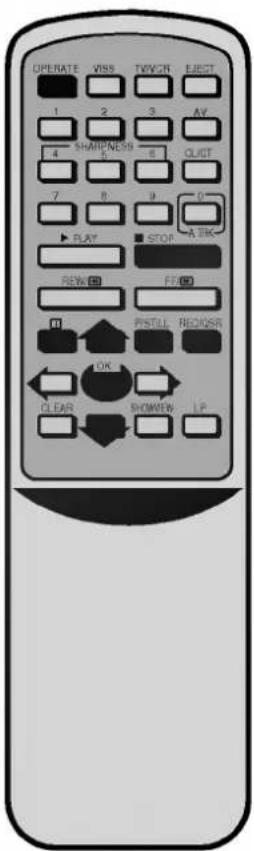
OPERATE VISS TWYCR EJECT 1 2 3 AV SHARPNESS 5 QUIT 7 8 9 0 PLAY STOP A OK REW FF PSTILL REQDSR OK CLEAR SHOWOUT LP6 If you want to avoid recording unwanted scenes press the "P/STILL" button. "RECP" will appear for a few seconds on the TV screen. To continue recording press the "P/STILL" button again.
7 Press the "STOP" button to stop recording. "STOP" will appear for a few seconds on the TV screen.
RECORDING ONE TV PROGRAMME WHILE WATCHING ANOTHER
You can record one programme while watching another by selecting the channel you watch on your TV set.
1 Start a recording by following steps 1 to 5 on previous page.
2 Select the TV station you want to watch with the programme channel selector on your TV set.
Immediate timer (QSR)
When making a recording you can set your video recorder to stop after a set period of time.
1 Press the "REC/QSR" button to start a recording.
2 Press the "REC/QSR" button several times until the desired recording time is shown on the video recorder's display.
Each time you press this button the QSR time will be extended by 30 minutes. The maximum time that can be set is 9 hours. When the QSR recording have been completed, the video recorder will stop and switch itself off.
3 To cancel a QSR recording, press the "STOP" or the "OPERATE" button.
Recording with decoder
We have already described, how to connect a decoder for pay-TV stations like CANAL+ on page 7.
1 Select the programme number of the pay-TV station.
2 Press the "i" button and select the "Set-up" with the cursor "^" and "∨" buttons.
3 Press the "OK" button and select "Decoder" with the cursor "V" button.
4 Switch to "Decoder: ON" by pressing the "OK" button.
5 Press the "i" button to remove the menus from the TV screen.

Programming the VCR timer
The timer allows you to record broadcasts automatically. Up to 8 recordings within one month can be programmed at the same time.
Introduction to ShowView
ShowView programming lets you set the video recorder to record programmes, by simply entering a ShowView Code. These ShowView Codes are published in TV listings in almost all newspapers and TV Guides. They can vary from one to nine digits and are usually with the programme name as shown in the sample page of a TV Guide.
The ShowView Codes contain all the information needed by the video recorder (programme start and stop date and time and programme number). It is easy to alter the information programmed into the video recorder by a ShowView Code if you wish to do so. For example you may wish to extend the stop time in case the programme is running late.
ShowView is a trademark applied for by Gemstar Development Corp.
ShowView system is manufactured under license from Gemstar Development Corporation.
ShowView programming on the TV screen
These new timer programming feature is very easy to use:
1 Press the SHOWVIEW button. The "SHOWVIEW" menu appears.
2 Select the recording type by repeatedly pressing the “^” and “∨” buttons. It select among:
Once: To record a programme once only.
Weekly: To record a programme at the same time every week.
Daily: To record a programme every day (except Saturday and Sunday) at the same.
3 Use the number buttons to enter the ShowView number of the broadcast you want to record, exactly as it is shown in your TV magazine.
- If you enter an incorrect number press the "<" button to erase it, and enter the correct number.
1

Programming the VCR timer
text_image
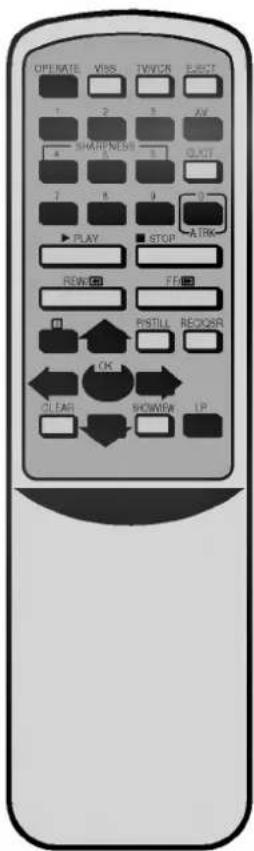
OPENATE VBS TWCR ELECT 1 2 3 AV SHARPNESS 1 3 QUIT 7 8 9 0 PLAY STOP AIRK REW FEB PSTILL REOBR OK CLEAR SHOWUP LP4 Press the OK button.
You will see the data of the selected broadcast.
- If "Please check number!" appears, you have to check the entering and repeat the procedure.
- If “- -” is displayed, you have to enter the programme number of the station, you want to record from.
- If you want to record from the EURO AV socket on the back of the video recorder, switch to "AV" mode with the "AV" button.
- If you want to change the record mode, press the "LP" button.
5 If you wish to change any of the settings as displayed you can do so. Move between them with the cursor "<" and ">" buttons.
Use the number buttons or cursor "^" and "∨" buttons to change the date and the time.
6 Finish your timer inputs with the "i" button.
A menu of the timer programmes set into the video recorder will be displayed on the TV screen.
- If "Please correct the data!" is displayed, you have entered a wrong data. Please correct the data.
7 Press the "i" button to remove the menus from the TV screen.
8 Make sure that there is a video cassette in the video recorder and switch the video recorder off with the "OPERATE" button.
The timer set 📋 symbol is shown on the video recorder.
IMPORTANT!
Timer recordings do not work during energy saving mode. (see p 17)
4

5

6


Programming the VCR timer
Recorder timer programming using the On Screen Displays
Without the ShowView code you need to enter the programme number, date, and the start and stop times of the programme you wish to record.
1 Press the "i" button, select "Timer programme" with the cursor "^" and "∨" buttons and press the "OK" button.
2 Press the "OK" button to enter the timer programming mode.
3 Select the programme number that you wish to record using the number buttons.
Programme number and dates 1 must be entered as 01, 2 as 02 etc.
- If you want to record from the EURO SCART socket on the back of the video recorder, switch to "AV" mode with the "AV" button.
- If you want to change the record mode, press the "LP" button.
LP : for Long play. SP : for Standard play.
3

4 Enter the day using the number buttons.
If you want to change recording type:
1) Press the "OK" button.
● Daily : for daily recordings from Monday to Friday.
● Weekly : (SUN to SAT) : for a weekly repeated recording.
2) Select the recording type with the cursor "^" and "∨" buttons and select it with the "OK" button.
4

Programming the VCR timer

text_image
OPENATE VSS TWCR EJECT 1 2 3 AV SHARPNESS 8 QUCT 7 8 9 10 PLAY STOP AIRK REW FF RSTILL REOAR OK CLEAR SHOWUP LP5 Enter the start and end times using the number buttons.
- For setting programme times you must use the 24 hour clock.
- Errors can be corrected with the "<" and ">" buttons.
5

6 Finish your timer inputs with the "i" button.
A menu of the timer programmes set into the video recorder will be displayed on the TV screen.
- If "Please correct the data!" is displayed, you have entered a wrong data. Please correct the data.
6

7 Press the "i" button to remove the menus from the TV screen.
8 Make sure that there is a video cassette in the video recorder and switch the video recorder off with the "OPERATE" button.
The timer set 📀 symbol is shown on the video recorder.
IMPORTANT!
Timer recordings do not work during energy saving mode. (see p 17)

Programming the VCR timer

text_image
OPERATE VSS TVYCR EIGHT 1 2 3 AV SHAKNESS 4 5 QLOT 7 8 9 10 PLAY STOP A TIK REW FF PASTILL REOISR OK CLEAR SHOWER LPChecking and clearing stored timer programmes.
The stored timer programmes can easily be viewed on the TV screen, and can also be cleared if not wanted.
1 Press the "i" button.
The Main menu appears on the screen.
2 Select "Timer programme" with the cursor "^" and "∨" buttons and press "OK" button. The timer programmes list will be displayed on the TV screen.
3 If you wish clear any of the programmes on the list, select it with the cursor “^” and “∨” buttons, and press the “<” button to clear.
4 If you wish change any of the data for any of the programmes on the list, select it with the cursor "^" and "∨" buttons, and press the "OK" button. The timer menu will be displayed. Change the data as described on previous page.
5 Press the "i" button to remove the menus from the TV screen.
2

Programming the VCR timer
Overlapping timer programmes
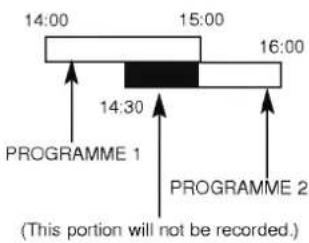
When timer programmes overlap, the programme which is already recording continues to its scheduled end time. Hence the beginning of the second programme will not be recorded.
NOTE - If you wish to stop a timer recording which has already started, press the "OPERATE" button.
text_image
14:00 15:00 16:00 14:30 PROGRAMME 1 PROGRAMME 2 (This portion will not be recorded.)Other features
Introduction
This video recorder has a number of other features which make it easier and more convenient to use. Some of these are described in this section of the manual. Later sections describe the connection of the video recorder to other equipment.
The features described here are:
1 The On Screen Display of the time or tape remain or tape counter, date, programme channel and operation mode of the video recorder.
2 The Digital Tape Counter and the Volume of Tape Remaining indicator.
3 The Memory Stop facility that can be used during rewind to stop the tape at a preset point.
4 The tracking control that optimizes the picture quality.
5 The Automatic Playback facility which plays back a tape, rewinds and ejects it and switches off the video recorder.
6 Automatic Memory Power Shut Off when a video cassette is rewound.
7 Automatic Switch Off when the TV station stops broadcasting.
8 The VISS (VHS Index Search System) to help you find the beginning of each recording on a video tape easily and quickly.
9 The 16:9 wide-screen recording and playback.
10 Self-diagnosis.
Other features
flowchart
graph TD
    A["VCR Function"] --> B["STOP"]
    B --> C["Pr-01"]
    C --> D["9:00"]
    D --> E["Clock/Tape counter/Volume of Tape Remaining"]
    style A fill:#f9f,stroke:#333
    style B fill:#ccf,stroke:#333
    style C fill:#cfc,stroke:#333
    style D fill:#fcc,stroke:#333
    style E fill:#cff,stroke:#333
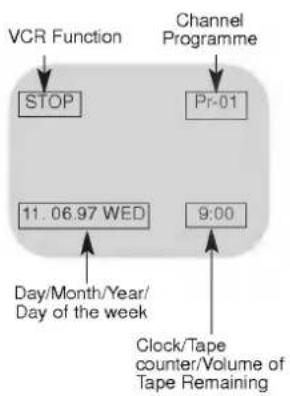
ON SCREEN DISPLAY OF THE TIME OR TAPE COUNTER, THE VOLUME OF TAPE REMAINING, DATE, PROGRAMME CHANNEL AND OPERATION MODE OF THE VIDEO RECORDER.
When the "OK" button is pressed, a display occurs on the TV screen of the current time or the tape counter and the volume of tape remaining, the date, year and day of the week, the programme channel and the operation mode of the video recorder. After three seconds this display will disappear, if the "OK" button is pressed twice in quick succession the clock display will remain on the TV screen. If a tape is loaded pressing the "CL/CT" button will change this display to the Tape Counter, the volume of tape remaining display and finally back to the clock display. If a tape is not loaded only the clock display will appear. Press the "OK" button again to remove the display from the TV screen.
Note- If a recording is taking place these On Screen displays will not be recorded onto the tape.
Digital Tape Counter/The Volume of Tape Remaining
The Digital Tape Counter and the volume of tape remaining can be displayed on the video recorder's display or on the TV screen instead of the time by repeatedly pressing the "CL/CT" button while a tape is loaded.
The Digital Tape Counter gives you the relative positions of recordings on the tape. If you set the counter to 0:00:00 at the beginning of a tape, you can note the counter reading at the beginning of each separate recording.
To set the counter to 0:00:00 press the "CLEAR" button.
The volume of tape remaining, gives the volume remaining on the tape in the mode currently set (i.e. standard play (SP) or long play (LP)).
The memory stop facility
Memory Stop automatically stops a tape when the tape counter is 0:00:00. This feature may be used to return the tape to a pre-selected position immediately after making a recording, or to repeatedly playback a portion of a tape.
1 Press the "CL/CT" button to set the display to the counter.
2 Before playback or recording, press the "CLEAR" button. The counter will read 0:00:00.
3 Begin the playback or recording.
The tape counter gives the actual time in hours, minutes and seconds.
4 Press the "STOP" button when playback or recording is completed.
5 Press the "REW" button. The tape will rewind and automatically stop when the counter returns to 0:00:00.
text_image
OPERATE VSS TV/VR ELECT 1 2 3 AV SHARNESS 6 8 OCT 2 K 9 0 PLAY STOP ATRN REIN FRD PSTILL RECOS R OK O.EAR SHOWN LPOther features

text_image
OPERATE VSS TWYCR EJECT 1 2 3 AV 4 SHAFNESS 6 CLGT 7 8 9 0 ▶ PLAY ■ STOP -A TK REW □ FT 0 PASTILL REOQSR TCK CLEAR SHOWOUT LPTracking Controls
Tracking distortions show up as streaks or an unstable picture. This video recorder can set the tracking automatically. You can also set the tracking manually if you need to do so.
AUTOMATIC TRACKING - The automatic tracking adjusts the tracking to playback a tape with the optimum picture quality. As soon as you start to playback a tape the tracking will be adjusted if necessary.
A. TRK is shown on the video recorder's display.
MANUAL TRACKING - If the quality of the recording is poor, or if the tapes are damaged, the automatic tracking will not be able to work correctly. In these cases you will have to remove tracking distortions manually.
You can adjust the tracking during playback with the cursor “^” and “∨” buttons. Press them repeatedly until the distortions have been eliminated.
You can switch on the automatic tracking again after using the manual tracking feature by pressing the "A.TRK" button. When you change a video cassette, the automatic tracking will always be switched on again.
Automatic Playback
Automatic Playback is a very convenient automatic action of this video recorder. It occurs whenever you insert into the video recorder a video cassette from which the safety tab has been removed (e.g. a video cassette which you have hired).
Automatic Playback carries out the following procedures:
It automatically switches on the video recorder's power and starts to playback the tape.
At the end of the tape, it automatically rewinds.
The tape is ejected automatically.
The video recorder switches itself off.
Automatic Memory Power Shut-Off
This feature of the video recorder enables you to initiate switching off the video recorder during tape rewind. Hence you do not have to wait until a tape has rewound before you can switch the video recorder off.
To activate Automatic Memory Power Shut Off press the "OPERATE" button during tape rewind. The tape will rewind to the beginning and the video recorder with switch itself off.
Pressing any of the control buttons (e.g. "OPERATE" or "PLAY") after setting Automatic Memory Power Shut Off will cancel it.
Automatic Switch Off
The video recorder will switch itself off after 8 minutes when not receiving a TV signal. This will occur when TV broadcasts have finished.
Other features
16:9 Compatibility (Wide - screen TV)
This video recorder can be recorded and played back the 16:9 wide aspect ratio programmes.
Select the required position in the "Set-up" menu as described on page 10:
To record in a wide-screen format, you have to set to "16:9 ON", or if you set to "16:9 OFF" the video recorder will be recorded in normal format.
When you set to "16:9 AUTO", the video recorder will be automatically played back the wide-screen programmes as wide, the normal programmes as normal.
NOTE:
When the picture disappears on the TV screen while playing back a 16:9 programme or recording in 16:9 format, set the TV to "AV" mode.
Self-Diagnosis
This function informs you of an error messages for solving the problems more easily.
These error messages will be shown on the video recorder's display or on the TV screen.
| STATUS OF DISPLAY | SOLUTION |
| no TAb | Insert a cassette with it's safety intact. |
| Please check antenna connection! | Connect the video recorder to your TV aerial and TV set. |
| Dust on the Heads! | Try to clean the video head. |

text_image
CANAL + DECODER Wide - screen TVOther features

text_image
OPERATE VSS TWYCR EJECT 1 2 3 AV 4 SHAFNESS 6 PLCT 7 8 9 II PLAY STOP -A TRK ROW FP 0 PASTILL RECISER OK CLEAR SHOWOUT LPThe VHS Index Search System (VISS)
VISS allows you to find the beginning of each recording on a tape easily and quickly. The video recorder automatically puts an index mark on the tape whenever you start a recording, and the VISS searches for these index marks.
AUTOMATIC VISS MARKING
At the beginning of each recording, a VISS mark is recorded automatically on the tape. This is indicated by VISS MARK appears on the video recorder's display.
VISS SCANNING
A VISS scan gives you a quick overview of the recordings on the video cassette.
To carry out a VISS scan:
1 Insert the video cassette.
2 Whilst the video recorder is on stop or playback press the "VISS" button.
3 Press the "FF" or "REW" button to fast forward or rewind the tape.
4 The tape winds on to the next VISS mark, switches to playback for a short time, so that you can view the tape at that point, and then winds on to the next VISS mark.
5 You can switch off the VISS scan at any time by pressing the "VISS" button or "STOP" button.
VISS SEARCHING
A VISS search is very similar to a VISS scan. Here you enter the desired mark with the number buttons. For example, if you want to find the fifth mark after (on fast forward) or before (on rewind) the present tape position, you enter 05. The VISS marks are not numbered, but the video recorder counts the marks during the winding and will switch to playback as soon as the entered number is reached.
To carry out a VISS search:
1 Insert the video cassette.
2 Whilst the video recorder is on stop or playback press the "VISS" button.
3 Use the number buttons to enter the number at which mark the playback is to start.
4 Press the "FF" or "REW" button to fast forward or rewind the tape.
5 The tape winds on to the requested VISS mark, and the video recorder switches to playback.
Copy (Rerecording)

text_image
(Recording video recorder) (Playing video recorder)With this video recorder you can make recordings from an external source, such as copying from another video recorder or camcorder.
To do this you will need an EURO scart cable (AV cable).
1 A second video recorder (for tape copying) should be connected to the EURO scart socket on the back.
2 Insert an empty cassette into this video recorder and if you are copying another tape insert it into the second video recorder.
3 Set the AV mode for recording video recorder with the "AV" button on the remote control.
4 Set the tape speed with the LP button at the recording video recorder.
5 Start the playback at the playing video recorder and then start the record with the REC/QSR button on the remote control or at the video recorder.
6 Short interruptions can be made with the P/STILL button, e.g. to cut scenes. To continue recording, press this button again.
7 End copying with the STOP button and switch all devices off.
COPYRIGHT LAW
Unauthorized recordings of copyrighted television programmes, films, video cassettes and other materials infringe the right of copyright owners and be contrary to copyright laws.
Specifications
General
| Power | : 100-240V~, 50Hz. |
| Power consumption | : Approx. 19 watts |
| Video Head system | : Double azimuth 4 heads, helical scanning system |
| Tape speed | : 23.39 mm/sec (SP mode)11.69 mm/sec (LP mode) |
| Tape format | : Tape width 1/2" (12.7 mm high density VHS tape) |
| Maximum recording time | : 4 hours in SP mode8 hours in LP mode(with E-240 tape) |
| Rewind time | : Approx. 150 sec. (with E-180 tape) |
| Dimensions (W X H X D) | : 14.2" X 3.5" X 11.7"(360 X 88 X 297 mm) |
| Weight | : 9.4 lbs. (4.3 kg) |
| Operating temperature | : 41°F-95°F (5°C-35°C) |
| Operating humidity | : Less than 80 % |
| Timer | : 24 hours display type |
Video
| Television system | : CCIR standard (625 lines, 50 fields) PAL/SECAM colour signal |
| Recording format | : PAL/MESECAM |
| RF reception | : PAL (B/G) |
| RF OUT | : PAL G |
| Input level | : VIDEO IN (SCART type)1.0 Vp-p, 75 ohm, unbalanced |
| Output level | : VIDEO OUT (SCART type)1.0 Vp-p, 75 ohm, unbalanced |
| Signal to noise ratio | : More than 43 dBm |
| RF modulator | : UHF channels 22-68 (adjustable) |
Audio
| Input level | : AUDIO IN (SCART type)0 dBm, more than 10 kΩ |
| Output level | : AUDIO OUT (SCART type)0 dBm, less than 1 kΩ |
| Audio track | : Mono track |
| Audio frequency response | : 100 Hz-10 kHz (-6/+3 dBm) |
| Audio signal to noise ratio | : More than 43 dBm |
- Design and specifications are subject to change without notice.
Before calling for service...
Please check to see if any problem which you may have with your video recorder is described here before taking it for service or calling a service engineer.
| Problem | Possible solution? |
| No mains power to the VCR | Is the video recorder plugged into the mains?Is the mains supply on and switched on? |
| TV programmes cannot be recorded | Can you get a picture on the TV screen?If are not the aerial and RF lead connected?Are the TV channels properly tuned in?Has the safety tab been removed from the video cassette to prevent recording? |
| A timer recording does not take place | Is OPERATE off?(Is the Timer symbol showing in the display?)Were the recording start and end times set correctly?Are the timer settings in the timer menu?Was the power interrupted after setting the timer?If so the time setting will be erased and timer recordings will not take place. |
| AUTO PLAY does not work | Has the safety tab been removed from the video cassette? |
| There is no picture on playback, or it is noisy and streaky | Are the TV channels properly tuned in?Try another video cassette.Is the TV set tuned to the RF output channel of the video recorder.Try a different RF output channel on the video recorder.Can you minimize the noise bars to an acceptable level with the “A.TRK” or “^” and “V” buttons? |
| The top of the playback picture is unstable | Is the video cassette damaged?Try another one.Adjust the horizontal hold control on your TV set. |
| Video cassettes cannot be inserted | Is the cassette compartment empty?Are you trying to insert the cassette the right way round? |
Video Head Cleaning
- Whenever a video cassette is inserted into or ejected from this video recorder the video head is automatically cleaned.
- Therefore additional head cleaning should not be necessary. However dirt accumulating on the head after a long period can cause the playback picture to become blurred or broken up.
- High quality video cassette tapes will not normally deposit dirt onto the video head, but old or damaged tapes might.