Wireline Advantage 29741EG - Projection screen DA-LITE - Free user manual and instructions
Find the device manual for free Wireline Advantage 29741EG DA-LITE in PDF.


User questions about Wireline Advantage 29741EG DA-LITE
0 question about this device. Answer the ones you know or ask your own.
Ask a new question about this device
Download the instructions for your Projection screen in PDF format for free! Find your manual Wireline Advantage 29741EG - DA-LITE and take your electronic device back in hand. On this page are published all the documents necessary for the use of your device. Wireline Advantage 29741EG by DA-LITE.
USER MANUAL Wireline Advantage 29741EG DA-LITE
natural_image
Empty white rectangular frame with black border, no text or symbols presentINSTRUCTION BOOK FOR
Wireline™ Advantage®
Original Instructions
Disclaimer
Milestone and its affiliated corporations and subsidiaries (collectively "Milestone"), intend to make this manual accurate and complete. However, Milestone makes no claim that the information contained herein covers all details, conditions or variations, nor does it provide for every possible contingency in connection with the installation or use of this subject to change without notice or obligation of any kind. Milestone makes no representation of warranty, expressed or implied, regarding the information contained herein. Milestone assumes no responsibility for accuracy, completeness or sufficiency of the information contained in this document.
Da-Lite ^® is a registered trademark of Milestone AV Technologies. All rights reserved.
Important Safety Instructions
When using your video equipment, basic safety precautions should always be followed, including the following:
- Read and understand all instructions before using.
- Position the cord so it will not be tripped over, pulled or contact hot surfaces.
- If an extension cord is necessary, a cord with a current rating at least equal to that of the appliance should be used. Cords rated for less amperage than the appliance may overheat.
- To reduce the risk of electric shock, do not disassemble this appliance. Contact an authorized service dealer when repair work is required. Incorrect reassembly can cause electric shock when the appliance is used subsequently.
- The use of an accessory attachment not recommended by the manufacturer may cause a risk of fire, electric shock, or injury to persons.
- Do not allow children to play with fixed controls. Keep remote controls away from children.
- Frequently examine the installation for imbalance and signs of wear or damage to cables. Do not use if repair or adjustment is necessary.
- Appliance is not to be used by persons, including children, with reduced physical, sensory or mental capabilities, or lack of experience and knowledge, unless they have been given supervision or instruction.
- Failure to provide adequate structural strength for this component can result in serious personal injury or damage to equipment! It is the installer's responsibility to make sure the structure to which this component is attached can support the weight of all equipment. Reinforce the structure as required before installing the component.
- Use this projection screen only for its intended use as described in these instructions. Do not use attachments not recommended by the manufacturer.
Tools Required for Installation

1/4", 7/16" and 3/4"
Open Wrench or
Socket Driver
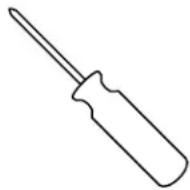
3 Phillips
Screwdriver

natural_image
Simple line drawing of a bent pipe or support structure (no text or symbols)1/8" Hex Key (included)
Pre-Installation
- Carefully unpack case from shipping crate.
- Set aside the Installation Kit. Items inside will be used during installation.
- Make sure to recheck measurement of case for proper installation clearance.
- Remove any protective foam from case.
- If necessary, adjust hanger brackets with a 3/4" open wrench or socket driver.
Case Installation
- Ceiling Mount: The case provides multiple attachment points for bolts, cables, or threaded rod. Page 4 shows threaded rod installed. The variable position-mounting bracket may be located anywhere along the length of the case. It is recommended to keep the brackets spaced evenly enough to distribute the weight of the screen. One mounting bracket is required for every 4' of case length.
Wall Mount: For use with optional flangeless case only. The variable position wall mounting brackets (sold separately) may be located anywhere along the length of the case. It is recommend to keep the brackets spaced evenly enough to distribute the weight of the screen. One mounting bracket is required for every 4' of case length.
- Ceiling Mount: Tighten bolts until trim flange is flush with ceiling.
Wall Mount: Remove flat brackets from top of case and discard. Save bolts to attach wall brackets to case. Determine spacing of wall brackets and attach to wall. Hoist screen to brackets and completely tighten bolts attaching case to wall brackets.
NOTE: For proper operation, screen assembly must be level after installation.
-
Remove the silver shipping brackets that attach the slat to the screen case. Use the supplied 1/8" hex key to remove the set screws and a 1/4" socket to remove the screws from the slat bar.
-
Using a 7/16" wrench and #3 Phillips screwdriver, remove the shipping bracket that is attached to the roller. Once the white wire is disconnected, feed it into the junction box in order to complete the electrical installation. See Figure 1.
NOTE: Depending on the final position of the screen roller, there may be a wood filler block insert for bracket attachment. The wood block must be removed and discarded before operation.
Case Installation (continued)
- Remove 2 screws to open junction box. Install electrical connections that apply to your unit. Make sure to review the wiring diagram for proper hook up. Replace junction box cover and secure with 2 screws.
NOTE: Motor Operator Projection Screen Model WAD must be installed in accordance with the requirements of the Local Building Codes, the Canadian Electrical Code (CEC), CAN/CSA C22.1 and the National Electric Code (NEC), NFPA 70. An appropriate disconnect device shall be provided as part of the building installation.
- Test installation by running screen up and down a few times. Be prepared to stop screen should any objects obstruct the movement of the screen. To prevent damage to the motor, the standard duty cycle is 2 minute 30 seconds on and 50 minutes off. For 230 volt motors 2 operating cycles is not to be exceeded.
NOTE: Do not allow upper batten bar to come to a rest on any object during travel. Doing so will cause cables to lose tension.
- The screen comes set standard with 18" of wire drop out of the case.

text_image
Remove Bolt Wood Filler Block White (Common) Wire Remove ScrewFigure 1
The Wireline Advantage comes standard with ceiling mount brackets.

text_image
(Suggested) 1/2" Threaded Rod (Not Included) Attached to Mounting Bracket 9 ½" Electrical Junction Box 12 ¾" 11" 11 ¾" Finished Ceiling Self-Trimming Flange 13 ¾"
text_image
Screen Roller Self-Trimming Flange Access Door Audience Side
text_image
Variable Position Mounting Brackets Electrical Junction BoxFor wall installation, the wall mount brackets must be ordered separately and the Wireline Advantage must be ordered with the flangeless case option..


text_image
Variable Position Wall Mounting Brackets (Optional Accessory) Flangeless Case Option Electrical Junction Box
text_image
Power Input 120VAC / 60Hz White (Common) Black (Hot) Green (Ground) Ground Lug230V Wiring Diagram

text_image
Power Input 230VAC / 50Hz Blue (Common) Brown (Hol) Green/Yellow (Ground) Ground LugSurface travel is set to stop automatically with 18" of wire travel out of the case. Use the supplied radio frequency remote control to make adjustments to the amount of travel.
NOTE: For multiple screen installations, disconnect power to every screen except the one being adjusted prior to making changes.
More Screen Drop Less Screen Drop
- Run screen in down direction until it reaches lower limit and stops.
- Press and hold both "UP" and "DOWN" arrows simultaneously until screen jogs.
- Run screen to new desired lower limit position by pressing DOWN arrow on remote
NOTE: Motor will run in momentary contact mode while in this procedure. If you go to far down you can press up and move to the next step.
- Press and "MY" (STOP) button until the screen jogs to confirm new limit.
CAUTION: Do not adjust for more than 29' of cable drop.
- Run screen in down direction until it reaches lower limit and stops.
- Press and hold both "UP" and "DOWN" arrows simultaneously until screen jogs.
- Run screen to new desired lower limit position by pressing UP arrow on remote.
NOTE: Motor will run in momentary contact mode while in this procedure. If you go to far down you can press down and move to the next step.
- Press and "MY" (STOP) button until the screen jogs to confirm new limit.
NOTE: The entire screen surface must be unrolled from the large roller for proper tensioning.
Front of Remote Back of Remote

text_image
sOmy my √
text_image
PROG - FCPairing an Accessory for 120V Screens
- On the back of the remote that shipped with the screen, press and hold the program button until the motor jogs.
- On the accessory being paired, press and hold the program button until the motor jogs.
- The accessory is now paired with the screen.
Surface travel is set to stop automatically with 18" of wire travel out of the case. Use the supplied radio frequency remote control to make adjustments to the amount of travel.
NOTE: For multiple screen installations, disconnect power to every screen except the one being adjusted prior to making changes.
- Press and hold the "PROG - FC" button on back of remote and the "DOWN" button on the front of the remote simultaneously until the screen jogs.
- Run screen to new desired lower limit position by pressing "DOWN" arrow on remote.
NOTE: Motor will run in momentary contact mode while in this procedure. If you go too far down you can press up and move to the next step.
- Press "STOP" on front of remote. Screen will jog to confirm new limit.
NOTE: The entire screen surface must be unrolled from the large roller for proper tensioning.
Front of Remote Back of Remote

text_image
Up Stop Down
text_image
PROG - FCPairing an Accessory for 230V Screens
See programming instructions included with the accessory.
One intermediate stopping position can be set (not required).
120V Screens
- Run screen to where you want the intermediate stopping position to be and press the "MY" button.
- Press and hold the "MY" button until the motor jogs up and down.
- To send the screen to intermediate position press the "MY" button.
NOTE: Screen should be stationary prior to activating the intermediate position. If screen is in motion you will have to press the "MY" button twice.
230V Screens
- Run screen to where you want the intermediate stopping position to be and press "STOP".
- Press the "UP" and "DOWN" button simultaneously and hold until the motor jogs up and down.
- To send the screen to intermediate position press and hold "STOP" button for at least three seconds.
Dry Contact Input Transmitter
A Dry Contact Input Transmitter is also included with your screen. It can be used to communicate between room automation or other third party systems and the screen motor. It functions as a single channel transmitter and accepts dry contact inputs. Once a direction is activated, a radio command is sent to the screen. See the instructions included with the interface for wiring connections. The unit will be paired with the screen motor prior to shipping.
Symptom Cause Solution
| Screen will not operate and motor does not hum. | Incorrect line voltage. | Verify 115-125V (or 220-230V). If insufficient voltage, rewire incoming electric line. |
| Blown fuse. Replace fuse. | ||
| Tripped circuit breaker. Reset circuit breaker. | ||
| No power to junction. | Check above. Tighten all loose wire connections. Correct any improper connections. | |
| Screen will not operate and motor does not hum. Power at junction box. | Thermal overload tripped. Let motor cool down for 50 minutes. Try again. Defective motor, limit switch or capacitor. Replace motor assembly. NOTE: Motor is a sealed assembly. Capacitor burned out. Replace motor assembly. | |
| Screen does not stop at correct position. | Limit switch out of adjustment. See Screen Adjustment section. | |
| Noise. NOTE: Screen will operate with a low pitched hum. | Squeaking, rubber end plug rubbing on motor. Center roller in case. Grinding. Foreign object in screen rubbing on roller or fabric. Gear noise. Replace motor assembly. | Remove. |
| Coasting. | Defective brake. | Replace motor assembly. |
| Fabrichangscrooked. | Screen not installed properly. Fabric is damaged. | Check for level and plumb. Replace fabric. |
[Non-Text]
[Non-Text]
[Non-Text]
[Non-Text]
[Non-Text]
[Non-Text]
[Non-Text]
[Non-Text]
[Non-Text]
[Non-Text]
[Non-Text]
[Non-Text]
[Non-Text]
[Non-Text]
[Non-Text]
[Non-Text]
[Non-Text]
[Non-Text]
[Non-Text]
[Non-Text]
[Non-Text]
[Non-Text]
[Non-Text]
[Non-Text]
[Non-Text]
[Non-Text]
[Non-Text]
[Non-Text]
[Non-Text]
[Non-Text]
[Non-Text]
[Non-Text]
[Non-Text]
[Non-Text]
[Non-Text]
[Non-Text]
[Non-Text]
[Non-Text]
[Non-Text]
[Non-Text]
[Non-Text]
[Non-Text]
[Non-Text]
[Non-Text]
[Non-Text]
[Non-Text]
[Non-Text]
[Non-Text]
[Non-Text]
[Non-Text]
[Non-Text]
[Non-Text]
[Non-Text]
[Non-Text]
[Non-Text]
[Non-Text]
[Non-Text]
[Non-Text]
[Non-Text]
[Non-Text]
[Non-Text]
[Non-Text]
[Non-Text]
[Non-Text]
[Non-Text]
11
[Non-Text]
[Non-Text]
[Non-Text]
[Non-Text]
[Non-Text]
[Non-Text]
[Non-Text]
[Non-Text]
[Non-Text]
[Non-Text]
[Non-Text]
[Non-Text]
[Non-Text]
[Non-Text]
[Non-Text]
[Non-Text]
[Non-Text]
[Non-Text]
[Non-Text]
[Non-Text]
[Non-Text]
[Non-Text]
[Non-Text]
[Non-Text]
[Non-Text]
[Non-Text]
[Non-Text]
[Non-Text]
[Non-Text]
[Non-Text]
[Non-Text]
[Non-Text]
[Non-Text]
[Non-Text]
[Non-Text]
[Non-Text]
[Non-Text]
[Non-Text]
[Non-Text]
[Non-Text]
[Non-Text]
[Non-Text]
[Non-Text]
[Non-Text]
[Non-Text]
[Non-Text]
[Non-Text]
[Non-Text]
[Non-Text]
[Non-Text]
[Non-Text]
[Non-Text]
[Non-Text]
[Non-Text]
[Non-Text]
[Non-Text]
[Non-Text]
[Non-Text]
[Non-Text]
[Non-Text]
[Non-Text]
[Non-Text]
[Non-Text]
[Non-Text]
[Non-Text]
[Non-Text]
[Non-Text]
[Non-Text]
[Non-Text]
[Non-Text]
[Non-Text]
[Non-Text]
[Non-Text]
[Non-Text]
[Non-Text]
[Non-Text]
[Non-Text]
[Non-Text]
[Non-Text]
[Non-Text]
[Non-Text]
[Non-Text]
[Non-Text]
[Non-Text]
[Non-Text]
[Non-Text]
[Non-Text]
[Non-Text]
[Non-Text]
[Non-Text]
11
[Non-Text]
[Non-Text]
[Non-Text]
[Non-Text]
[Non-Text]
[Non-Text]
[Non-Text]
[Non-Text]
[Non-Text]
1
[Non-Text]
[Non-Text]
[Non-Text]
[Non-Text]
[Non-Text]
[Non-Text]
[Non-Text]
[Non-Text]
[Non-Text]
[Non-Text]
[Non-Text]
[Non-Text]
[Non-Text]
[Non-Text]
[Non-Text]
[Non-Text]
[Non-Text]
[Non-Text]
[Non-Text]
[Non-Text]
• Temperature: Between 40 - 100°F (5 - 40°C)
• Relative Humidity: 30% to 70%, non-condensing
• Always keep the projection screen horizontal during transport and storage
• Make sure the entire package is supported when stored
- Do not stack more than six projection screens on top of each other
- Make sure the heaviest package is places at the bottom of the stack
Screen surface should be allowed to air out once every two months, or otherwise used on a regular basis, if the temperature is above 72^ F ( 22^ C) and at least once every month if the temperature goes above 85^ F ( 30^ C).
LIMITED FIVE YEAR WARRANTY ON DA-LITE PRESENTATION PRODUCTS
Milestone AV Technologies LLC warrants certain Da-Lite branded products to the original purchaser only, to be free from defects in materials and workmanship for a period of five (5) years from the date of purchase by the original purchaser; provided they are properly operated according to Da-Lite's instructions and are not damaged due to improper handling or treatment after shipment from the factory.
This warranty does not apply to equipment showing evidence of misuse, abuse or accidental damage, or which has been tampered with or repaired by a person other than authorized Da-Lite personnel.
Da-Lite's sole obligation under this warranty shall be to repair or to replace (at Da-Lite's option) the defective part of the merchandise. Returns for service should be made to your Da-Lite dealer. If it is necessary for the dealer to return the screen or part to Da-Lite, transportation expenses to and from Da-Lite are payable by the purchaser and Da-Lite is not responsible for damage in shipment. To protect yourself against damage or loss in transit, insure the product and prepay all transportation expenses.
TO THE MAXIMUM EXTENT PERMITTED BY APPLICABLE LAW, THIS WARRANTY IS IN LIEU OF ALL OTHER WARRANTIES, EXPRESS OR IMPLIED, INCLUDING WARRANTIES AS TO FITNESS FOR USE AND MERCHANTABILITY. Any implied warranties of fitness for use, or merchantability, that may be mandated by statute or rule of law are limited to the five (5) year warranty period. This warranty gives you specific legal rights, and you may also have other rights, which vary from state to-state. TO THE MAXIMUM EXTENT PERMITTED BY APPLICABLE LAW, NO LIABILITY IS ASSUMED FOR EXPENSES OR DAMAGES RESULTING FROM INTERRUPTION IN OPERATION OF EQUIPMENT, OR FOR INCIDENTAL, DIRECT, OR CONSEQUENTIAL DAMAGES OF ANY NATURE.
In the event that there is a defect in materials or workmanship of a Da-Lite product, you may contact our Customer Care Specialists at 3100 North Detroit Street, Warsaw, IN 46582, (574) 267-8101, (800) 622-3737.
IMPORTANT: THIS WARRANTY SHALL NOT BE VALID AND DA-LITE BRANDED PRODUCTS SHALL NOT BE BOUND BY THIS WARRANTY IF THE PRODUCT IS NOT OPERATED IN ACCORDANCE WITH THE DA-LITE WRITTEN INSTRUCTIONS.
Keep your sales receipt to prove the date of purchase and your original ownership.

FOR YOUR IMAGE | legrandav.com
USA P 866.977.3901 E info@da-lite.com
CANADA P 877.345.4329 E canadainfo@milestone.com
EMEA P +31 495 580 840 E emea.sales@milestone.com
APAC P +852 2145 4099 E asia.da-lite@milestone.com
In British Columbia, Milestone AV Technologies ULC carries on business as MAVT Milestone AV Technologies ULC. ©2018 Milestone AV Technologies. DL-O620 (Rev. 6) 11/18 Da-Lite is a registered trademark of Milestone AV Technologies. All other brand names or marks are used for Identification purposes and are trademarks of their respective owners. All patents are protected under existing designations. Other patents pending.