Airstream Wi-Fi Bar - Dimmer American DJ - Free user manual and instructions
Find the device manual for free Airstream Wi-Fi Bar American DJ in PDF.


User questions about Airstream Wi-Fi Bar American DJ
0 question about this device. Answer the ones you know or ask your own.
Ask a new question about this device
Download the instructions for your Dimmer in PDF format for free! Find your manual Airstream Wi-Fi Bar - American DJ and take your electronic device back in hand. On this page are published all the documents necessary for the use of your device. Airstream Wi-Fi Bar by American DJ.
USER MANUAL Airstream Wi-Fi Bar American DJ
text_image
ADJ AIRSTREAM WIFI-BARUser Manual
US SKU#: AIR314
UPC#: 818651028119
ITF-14#: 10818651028116
©2021 ADJ Products, LLC all rights reserved. Information, specifications, diagrams, images, and instructions herein are subject to change without notice. ADJ Products, LLC logo and identifying product names and numbers herein are trademarks of ADJ Products, LLC. Copyright protection claimed includes all forms and matters of copyrightable materials and information now allowed by statutory or judicial law or hereinafter granted. Product names used in this document may be trademarks or registered trademarks of their respective companies and are hereby acknowledged. All non-ADJ Products, LLC brands and product names are trademarks or registered trademarks of their respective companies.
ADJ Products, LLC and all affiliated companies hereby disclaim any and all liabilities for property, equipment, building, and electrical damages, injuries to any persons, and direct or indirect economic loss associated with the use or reliance of any information contained within this document, and/or as a result of the improper, unsafe, insufficient and negligent assembly, installation, rigging, and operation of this product.
ADJ PRODUCTS LLC World Headquarters
6122 S. Eastern Ave. | Los Angeles, CA 90040 USA
Tel: 800-322-6337 | Fax: 323-582-2941 | www.adj.com | support@adj.com
ADJ Supply Europe B.V.
Junostraat 2 | 6468 EW Kerkrade | Netherlands
Tel: +31 45 546 85 00 | Fax: +31 45 546 85 99 | www.americandj.eu | service@americandj.eu
text_image
QR code image containing encoded data, no visible human-readable textDOCUMENT VERSION
Due to additional product features and/or enhancements, an updated version of this document may be available online.
Please check www.adj.com for the latest revision/update of this manual before beginning installation and/or programming.
| Date | Document Version | Software Version | DMX Channel Mode | Notes |
| 10/07/20 | 1.0 | N/A | N/A | Initial Release |
| 01/12/21 | 2.0 | N/A | N/A | Updated Specifications & Dimensions |
Europe Energy Saving Notice
Energy Saving Matters (EuP 2009/125/EC)
Saving electric energy is a key to help protecting the environment. Please turn off all electrical products when they are not in use. To avoid power consumption in idle mode, disconnect all electrical equipment from power when not in use. Thank you!
ADJ Products, LLC - www.adj.com - Airstream Wifi Bar User Manual Page 2
Airstream Wifi Bar
Table of Contents
| Introduction 4 | |
| Features | Warranty Registration 5 | |
| Limited Warranty (USA Only) 6 | |
| Safety Guidelines 7 | |
| Set Up & Overview 9 | |
| Installation 10 | |
| Wireless Operation Guidelines 11 | |
| App Setup & Overview 12 | |
| App Operation 15 | |
| Troubleshooting 32 | |
| Frequently Asked Questions 34 | |
| Bar Color ID and Outlet List 35 | |
| Specifications | 37 |
| Dimensions | 38 |
Airstream Wifi Bar General Information
INTRODUCTION
Congratulations, you have just purchased one of the most innovative products on the market today! It has been designed to perform reliably for years when the guidelines in this manual are followed. Please read and understand the instructions in this manual carefully and thoroughly before attempting to operate this device. These instructions contain important safety and use information.
The ADJ AIRSTREAM WIFI BAR ^™ is a 4-channel WiFi switch BAR, which allows you to control your lighting fixtures wirelessly using the AirstreamWiFi app. The AirstreamWiFi app creates a private standalone WiFi network, so no existing network infrastructure is required. After connecting the AIRSTREAM WIFI BAR to the AirstreamWiFi app, you can wirelessly switch the 4 power outlets ON/OFF manually, automatically, or based on a specific schedule from iPhone, iPad, and iPod Touch mobile digital devices. The AIRSTREAM WIFI BAR network operates on a 2.4 GHz wireless frequency. The AIRSTREAM WIFI BAR is an ideal indoor solution for mobile entertainers, mobile DJs, bands, nightclubs, bars, production events, where data or power cables need to be hidden from sight.
UNPACKING
Every device has been thoroughly tested and has been shipped in perfect operating condition. Carefully check the shipping carton for damage that may have occurred during shipping. If the carton appears to be damaged, carefully inspect your unit and be sure all accessories necessary to operate the unit have arrived intact. In the event damage has been found or parts are missing, please contact our customer support team for further instructions. Please do not return this unit to your dealer without first contacting customer support at the number listed in this manual. Please do not discard the shipping carton in the trash. Please recycle whenever possible.
Airstream Wifi Bar Customer Support
CUSTOMER SUPPORT
ADJ® provides a customer support line, to provide set up help and to answer any questions that may arise during your set up or initial operation. You may also visit us on the web at www.adj.com for any comments or suggestions. For service related issues please contact ADJ.
ADJ SERVICE USA - Monday - Friday 8:00am to 4:30pm PST
Voice: 800-322-6337 Fax: 323-532-2941
E-mail: support@adj.com
ADJ GROUP SERVICE EUROPE - Monday - Friday 08:30 to 17:00 CET
Voice: +31 45 546 85 30 Fax: +31 45 546 85 96
E-mail: support@americandj.eu
WARRANTY REGISTRATION
Please complete and mail in the enclosed warranty card to validate your purchase. All returned service items, whether under warranty or not, must be freight pre-paid and accompany a return authorization (R.A.) number. The R.A. number must be clearly written on the outside of the return package. A brief description of the problem as well as the R.A. number must also be written down on a piece of paper and included in the shipping container. If the unit is under warranty, you must provide a copy of your proof of purchase invoice. Items returned without an R.A. number clearly marked on the outside of the package will be refused and returned at customer's expense. You may obtain an R.A. number by contacting customer support.
IMPORTANT NOTICE!
THERE ARE NO USER SERVICEABLE PARTS INSIDE THIS DEVICE. DO NOT ATTEMPT ANY REPAIRS YOURSELF; DOING SO WILL VOID THE WARRANTY. DAMAGES RESULTING FROM MODIFICATIONS TO THIS DEVICE AND/OR THE DISREGARD OF SAFETY AND OPERATION INSTRUCTIONS IN THIS USER MANUAL VOIDS THE MANUFACTURER'S WARRANTY AND IS NOT SUBJECT TO ANY WARRANTY CLAIMS AND/OR REPAIRS.
IMPORTANT NOTICE!
THERE ARE NO USER SERVICEABLE PARTS INSIDE THIS DEVICE. DO NOT ATTEMPT ANY REPAIRS YOURSELF; DOING SO WILL VOID THE WARRANTY. DAMAGES RESULTING FROM MODIFICATIONS TO THIS DEVICE AND/OR THE DISREGARD OF SAFETY AND OPERATION INSTRUCTIONS IN THIS USER MANUAL VOIDS THE MANUFACTURER'S WARRANTY AND IS NOT SUBJECT TO ANY WARRANTY CLAIMS AND/OR REPAIRS.
Airstream Wifi Bar Limited Warranty (USA Only)
A. ADJ Products, LLC hereby warrants, to the original purchaser, ADJ Products, LLC products to be free of manufacturing defects in material and workmanship for a prescribed period from the date of purchase (see specific warranty periods below). This warranty shall be valid only if the product is purchased within the United States of America, including possessions and territories. It is the owner's responsibility to establish the date and place of purchase by acceptable evidence, at the time service is sought.
B. For warranty service you must obtain a Return Authorization number (RA#) before sending back the product-please contact ADJ Products, LLC Service Department at 800-322-6337. Send the product only to the ADJ Products, LLC factory. All shipping charges must be pre-paid. If the requested repairs or service (including parts replacement) are within the terms of this warranty, ADJ Products, LLC will pay return shipping charges only to a designated point within the United States. If the entire instrument is sent, it must be shipped in its original package. No accessories should be shipped with the product. If any accessories are shipped with the product, ADJ Products, LLC shall have no liability whatsoever for loss of or damage to any such accessories, or for the safe return thereof.
C. This warranty is void if the serial number has been altered or removed; if the product is modified in any manner which ADJ Products, LLC concludes, after inspection, affects the reliability of the product; if the product has been repaired or serviced by anyone other than the ADJ Products, LLC factory unless prior written authorization was issued to purchaser by ADJ Products, LLC; if the product is damaged because not properly maintained as set forth in the instruction manual.
D. This is not a service contract, and this warranty does not include maintenance, cleaning or periodic check up. During the period specified above, ADJ Products, LLC will replace defective parts at its expense with new or refurbished parts, and will absorb all expenses for warranty service and repair labor by reason of defects in material or workmanship. The sole responsibility of ADJ Products, LLC under this warranty shall be limited to the repair of the product, or replacement thereof, including parts, at the sole discretion of ADJ Products, LLC. All products covered by this warranty were manufactured after August 15, 2012, and bear identifying marks to that effect.
E. ADJ Products, LLC reserves the right to make changes in design and/or improvements upon its products without any obligation to include these changes in any products theretofore manufactured. No warranty, whether expressed or implied, is given or made with respect to any accessory supplied with products described above. Except to the extent prohibited by applicable law, all implied warranties made by ADJ Products, LLC in connection with this product, including warranties of merchantability or fitness, are limited in duration to the warranty period set forth above. And no warranties, whether expressed or implied, including warranties of merchantability or fitness, shall apply to this product after said period has expired. The consumer's and/or Dealer's sole remedy shall be such repair or replacement as is expressly provided above; and under no circumstances shall ADJ Products, LLC be liable for any loss or damage, direct or consequential, arising out of the use of, or inability to use, this product. This warranty is the only written warranty applicable to ADJ Products, LLC Products and supersedes all prior warranties and written descriptions of warranty terms and conditions heretofore published.
LIMITED WARRANTY PERIODS
Non LED Lighting Products = 1-Year (365 Days) (Including Special Effect Lighting, Intelligent Lighting, UV lighting, Strobes, Fog Machines, Bubble Machines, Mirror Balls, Par Cans, Trussing, Lighting Stands, Power/Data Distribution, etc. excluding LED and lamps)
Laser Products = 1-Year (365 Days) (excluding laser diodes which have a 6-Month Limited Warranty)
LED Products = 2-Year (730 Days) (excluding batteries which have a 180 Day Limited Warranty)
NOTE: 2-Year (730 Days) Limited Warranty ONLY applies to product purchased within the United States. StarTec Series = 1-Year (365 Days) (excluding batteries which have a 180 Day Limited Warranty)
ADJ DMX Controllers = 2 Year (730 Days)
American Audio Products = 1 Year (365 Days)
ADJ Products, LLC - www.adj.com - Airstream Wifi Bar User Manual Page 6
Airstream Wifi Bar Safety Guidelines

This device is designed for indoor venues, on stage, in nightclubs, theatres, etc. Use of this device outdoors and/or wet environments voids all manufacturer's warranties. For proper operation, follow the guidelines described in this manual. Only qualified and certified personnel should perform installation of this device. Any modifications to any part of this device will void the original manufacturer's warranty and increase the risk of damage and/or personal injury. To guarantee a smooth operation, it is important to follow the guidelines in this manual. The manufacturer of this device will not accept responsibility for damages resulting from the misuse and/or disregard of the information printed in this manual.
This device falls under PROTECTION CLASS 1. It's essential this device be grounded properly. Only qualified personnel should perform all electrical connections.

INDOOR/DRY LOCATIONS ONLY! DO NOT EXPOSE DEVICE TO RAIN OR MOISTURE!

DO NOT PLUG INTO A DIMMER PACK! DO NOT EXCEED 8 A / 960 W POWER LOAD PER OUTLET! DO NOT EXCEED 15A / 1800W POWER LOAD PER BAR!
FCC STATEMENT
This device complies with Part 15 of the FCC Rules. Operation is subject to the following two conditions: (1) this device may not cause harmful interference, and (2) this device must accept any interference received, including interference that may cause undesired operation.
FCC RADIO FREQUENCY INTERFERENCE WARNINGS & INSTRUCTIONS
This product has been tested and found to comply with the limits as per Part 15 of the FCC Rules. These limits are designed to provide reasonable protection against harmful interference in a residential installation. This device uses and can radiate radio frequency energy and, if not installed and used in accordance with the included instructions, may cause harmful interference to radio communications. However, there is no guarantee that interference will not occur in a particular installation. If this device does cause harmful interference to radio or television reception, which can be determined by turning the device off and on, the user is encouraged to try to correct the interference by one or more of the following methods:
- Reorient or relocate the device and/or antenna.
- Increase the separation between the device and the receiver.
- Connect the device into an electrical outlet on a circuit different from that which the radio receiver is connected.
- Consult the dealer or an experienced radio/TV technician for help.
Airstream Wifi Bar Safety Guidelines
• DO NOT position device close to any FLAMMABLE MATERIALS while operating.
- DO NOT attempt installation and/or operation without knowledge how to do so.
- DO NOT permit operation by persons who are not qualified to operate this type of device.
- DO NOT shake device, avoid brute force when installing and/or operating.
- DO NOT operate this device if the main power cord have become frayed, crimped and/ordamaged. Replace any damaged power cords with a similar power rating.
- DO NOT remove or break-off the ground plug from the power cord.
- DO NOT remove disassemble device, there are NO user serviceable parts inside.
• ALWAYS disconnect device from main power source before performing any cleaning.
• ALWAYS be sure to install this device in an area that will allow proper ventilation.
- Power cords plugged into the device should be safely routed and secured so they are not likely walked on, pinched, or placed under heavy items.
- Disconnect the main power during long periods of non-use.
- Only use recommended rigging hardware as described in this guide.
- Use the original packaging and materials to transport the device in for service.
- This device should be serviced by qualified service personnel when:
A. The power cord or plug has become damaged.
B. Objects have fallen on and/or liquid has spilled into the device.
C. The device has been exposed to rain and/or moisture.
D. The device does not operate normally or exhibits a marked change in performance.
ADJ Products, LLC - www.adj.com - Airstream Wifi Bar User Manual Page 8
Airstream Wifi Bar Set Up & Overview

text_image
6 7 8 6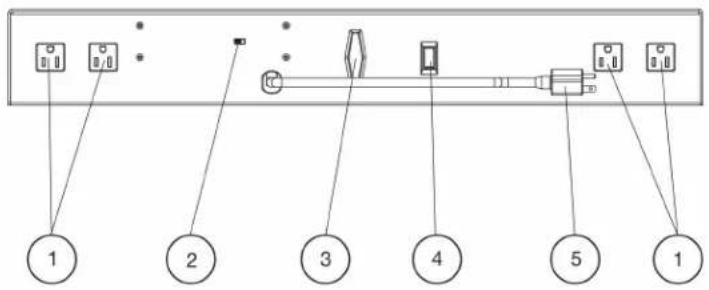
text_image
1 2 3 4 5 1- Power Outlets (x4)
- Primary/Secondary Mode Switch
- Pole Mount Slot Thumb Screw
- Power Switch
- Power Cable
- Lighting Fixture Mounting Point (x4)
- WiFi Antenna
- Pole Mount Slot
PRIMARY-SECONDARY CONFIGURATION
Each WIFI BAR must be set up as a PRIMARY or SECONDARY unit, where 1 PRIMARY unit wirelessly links up to 3 SECONDARY units. The mobile digital device wirelessly controls the PRIMARY unit exclusively, and the PRIMARY unit transmits this control wirelessly to additional SECONDARY units in the network. To set up a WIFI BAR as a PRIMARY or SECONDARY, toggle the PRIMARY/SECONDARY Mode switch located on top of the WIFI BAR near the power cord. (See image above) NOTE: ANY WIFI BAR CAN BE A PRIMARY OR SECONDARY, BUT THERE CAN ONLY BE ONE PRIMARY UNIT.
Airstream Wifi Bar Installation
text_image
Technical diagram of a mechanical device with labeled components and directional arrows indicating assembly or movement.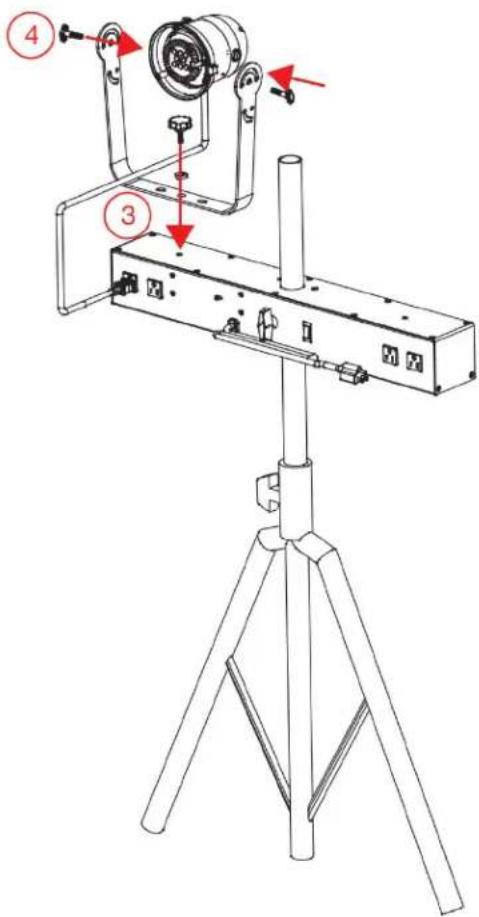
text_image
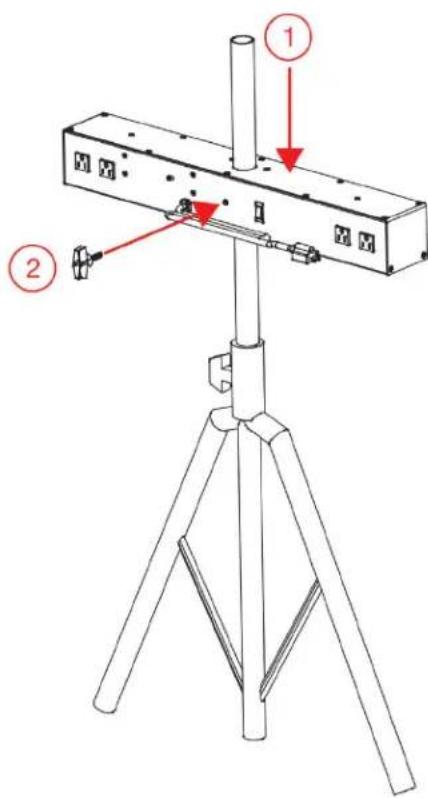
Technical diagram of a mechanical device with numbered components and directional arrows indicating assembly or movement.- Lower the device over the mounting pole of the tripod stand so that the mounting pole passes through the pole mount slot on the device.
- Position the device at the desired height and secure in place by tightening the pole mount slot thumb screw.
- Install the mounting brackets of any desired lighting fixtures at any one of the device's four (4x) lighting fixture mounting points.
- Attach your lighting fixtures to the mounting brackets. Connect the power cords of the lighting fixtures to the power outlets of the device.
CAUTION: DO NOT EXCEED THE MAXIMUM ELECTRICAL LOAD OF THE AIRSTREAM WIFI BAR WHEN CONNECTING LIGHTING FIXTURES TO THE DEVICE. ALWAYS CHECK THE ELECTRICAL SPECIFICATIONS OF BOTH THE AIRSTREAM WIFI BAR AND ALL LIGHTING FIXTURES THAT YOU INTEND TO ATTACH TO ENSURE THAT THE MAXIMUM ELECTRICAL LOAD IS NOT EXCEEDED.
Airstream Wifi Bar Wireless Operation Guidelines
There are many factors that affect and/or interrupt a wireless signal such as walls, glass, metal, objects, and people. Therefore it is highly recommended to:
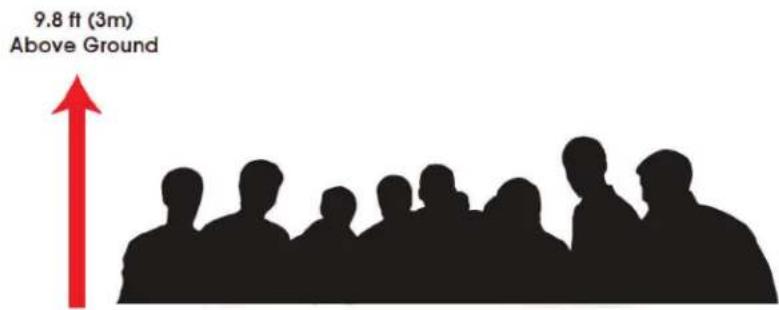
- Install device a minimum of 9.8 ft. (3m) above audiences and/or ground level
- Adjust the wireless antenna in a vertical upright position
- Position device in direct line of sight of the controlling mobile digital device
Careful planning and testing of the selected installation location with the controlling mobile digital device is critical to ensure optimum and reliable wireless operation.
text_image
9.8 ft (3m) Above GroundWiFi RANGE
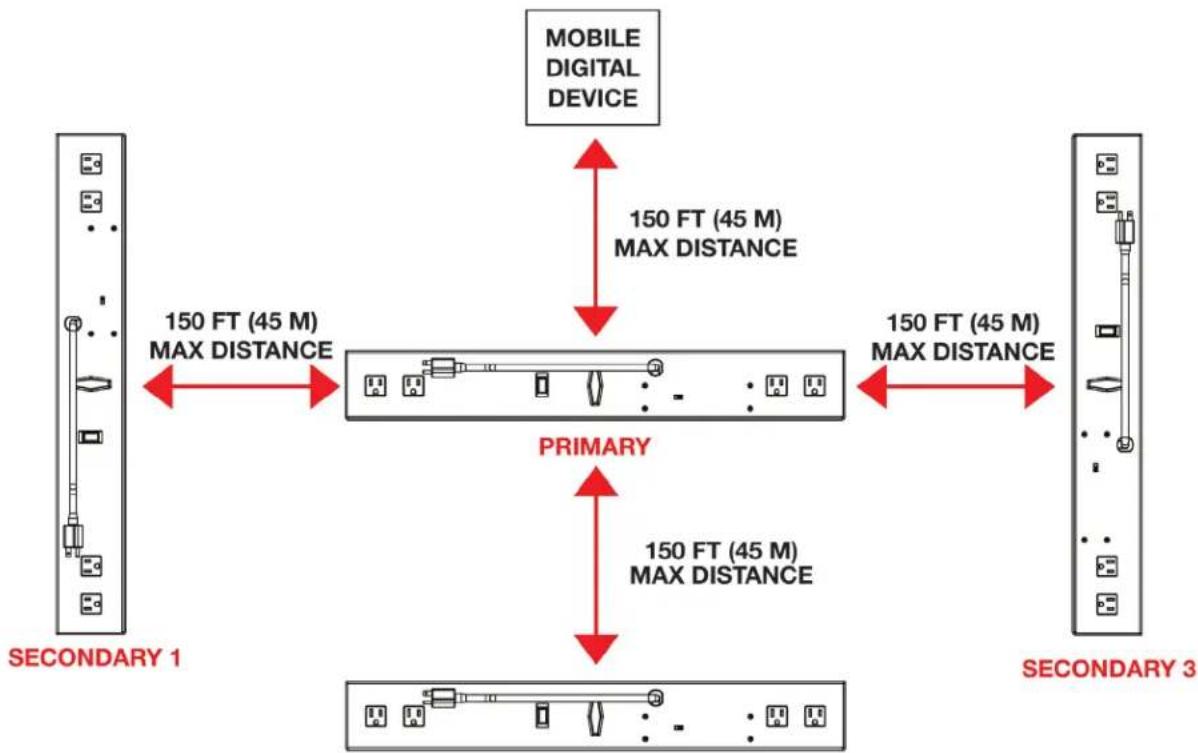
The maximum distance between the controlling mobile digital device and PRIMARY WIFI BAR, and between the PRIMARY WIFI BAR and each additional SECONDARY WIFI BARS (3 Max) is 150 feet (45m).
NOTE: UP TO 3 SECONDARY WIFI BARS CAN BE ADDED TO THE AIRSTREAM WIFI NETWORK.
flowchart
graph TD
    A["SECONDARY 1"] -->|150 FT (45 M) MAX DISTANCE| B["PRIMARY"]
    B -->|150 FT (45 M) MAX DISTANCE| C["SECONDARY 3"]
    D["MOBILE DIGITAL DEVICE"] -->|150 FT (45 M) MAX DISTANCE| B
    style A fill:#f9f,stroke:#333
    style B fill:#ccf,stroke:#333
    style C fill:#cfc,stroke:#333
SECONDARY 2
ADJ Products, LLC - www.adj.com - Airstream Wifi Bar User Manual Page 11
Airstream Wifi Bar App Setup & Overview
- Check that your mobile digital device is updated to the latest iOS version (8.0 or later) and update device if necessary before installing app.
NOTE: THIS IS VERY IMPORTANT TO ENSURE THE APP AND WIFI BARS FUNCTION CORRECTLY!
- Download the AirstreamWiFi app from the App Store and install on an iPhone, iPad, or iPod Touch.
text_image
Download on the App Store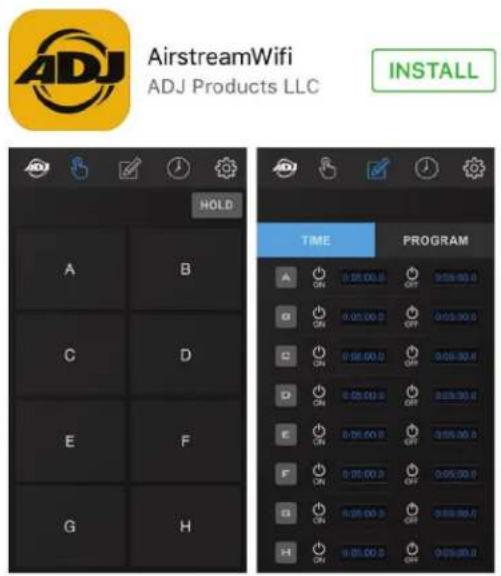
- Enable Wi-Fi on your mobile digital device and select the Airstream WiFi Bar wireless network, entering the default password airstreamwifi to join.

text_image
Settings Airplane Mode Wi-Fi Airstream Wifi Bar > Bluetooth Off >Airstream Wifi Bar App Setup & Overview
-
After successfully connecting to the Airstream WiFi Bar wireless network, set the mode switch on the first WIFI Bar to Primary, and set the mode switch on additional units to Secondary. (Up to 3 Secondary units max per wireless network)
-
Connect your lighting effect devices to any of the 4 power outlets on each WIFI Bar. NOTE: ALL CONNECTED DEVICES WITH A POWER SWITCH MUST BE POWERED ON.
-
Power ON all WIFI Bars.
-
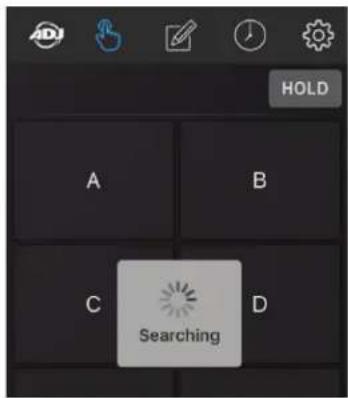
Open the app and it will automatically start searching for WIFI Bar units. If no WIFI Bar units are found, an error message will be displayed: "NOTE Connection Failed, Please check the wifi connection." (See images below)
text_image
HOLD A B C D Searching
text_image
NOTE Connection Failed. Please check the wifi connection.- Confirm all your WIFI Bar units are connected to your mobile digital device.
NOTE: TO PREVENT OTHERS FROM ACCESSING YOUR WIFI NETWORK, AND TO PREVENT WIRELESS CONNECTIVITY AND/OR INTERFERENCE ISSUES, IT IS HIGHLY RECOMMENDED TO CHANGE THE WIFI NETWORK NAME AND PASSWORD. SEE RENAME THE WIFI NETWORK and CHANGE THE WIFI PASSWORD SECTIONS FOR MORE DETAILS.
Airstream Wifi Bar App Setup & Overview
Below is an overview of the different app icons and their functions. This example illustrates 1 Primary and 2 Secondary WIFI Bar units connected to the app.
NOTE: (1) Primary and up to (3) Secondary bars can be connected to a single digital mobile device.

flowchart
graph TD
    A["APP and BAR Software Versions"] --> B["1"]
    C["ACTIVE WIFI BARS"] --> B
    D["MANUAL CONTROL"] --> B
    E["TIME PROGRAM"] --> B
    F["SCHEDULE"] --> G["HOLD"]
    H["APP and BAR Software Versions"] --> I["APP Version: 1.1.0413\nDevice.No.1 F/w: 2.07\nDevice.No.2 F/w: 2.07\nDevice.No.3 F/w: 2.07"]
    J["OK"] --> I
APP and BAR Software Versions - Press and hold to display app and bar software versions.
MANUAL CONTROL - Press to control connected WiFi Bar units manually.
TIME/PROGRAM - Press to setup custom TIME and PROGRAM control settings.
SCHEDULE - Press to setup custom SCHEDULE control settings.
SETTINGS - Press to access and modify multiple app settings.
ACTIVE WIFI BARS - Press desired icon to switch between connected WIFI BARS.
Airstream Wifi Bar App Operation
MANUAL CONTROL
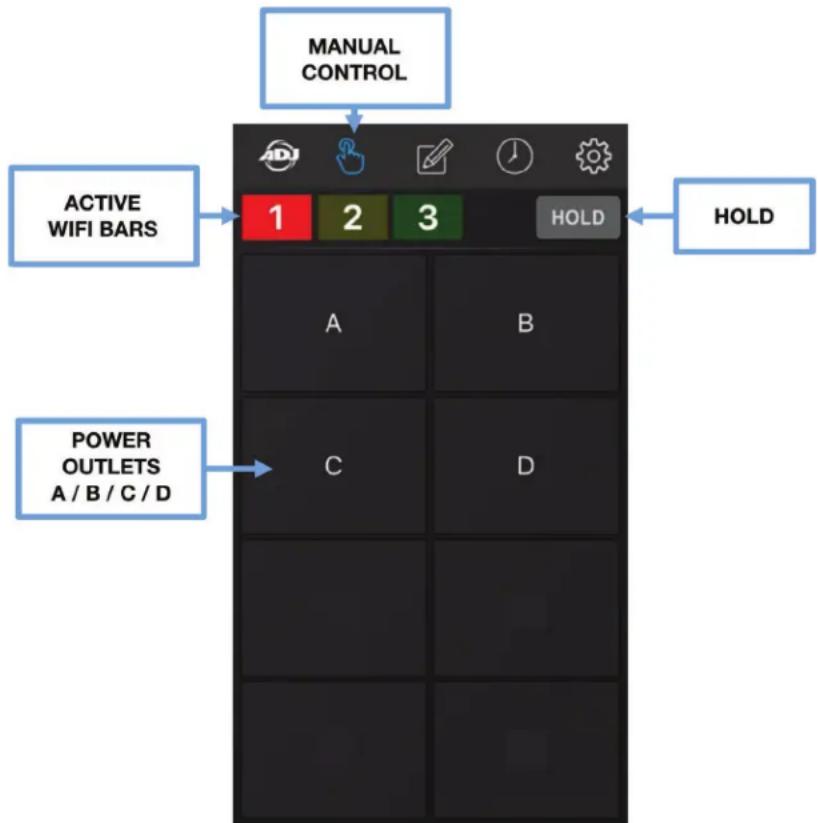
Pressing this icon displays the MANUAL CONTROL page where you can easily turn ON or OFF any of the 4 power outlets (A-D) on any connected WIFI Bar manually. As illustrated below, 3 Airstream WIFI Bars are active and receiving a wireless signal as indicated by the numbered icons at the top of the screen. The first numbered WIFI Bar unit is always the Primary, and additional WIFI Bar units are Secondary.
NOTE: ADDITIONAL CONNECTED BARS WILL APPEAR AS NUMBERED ICONS (2-4).
text_image
MANUAL CONTROL ACTIVE WIFI BARS 1 2 3 HOLD HOLD POWER OUTLETS A / B / C / D A B C D-
To momentarily power ON a device connected to the WIFI Bar, press the corresponding WIFI Bar icon then press and hold the corresponding power outlet letter button (A-D) of the device.
NOTE: ONLY 1 OUTLET CAN BE ACTIVATED AT A TIME. -
To power OFF a device, release the corresponding power outlet letter button (A-D) of the device.
-
To power ON multiple devices at the same time, or to keep any one device powered ON without holding the power outlet letter button, press the HOLD button, which will illuminate in blue indicating the HOLD feature is active. Now you can toggle any power outlet button between ON and OFF. To remove this function, press the HOLD button again, which will no longer illuminate in blue.
Airstream Wifi Bar App Operation
MANUAL CONTROL [continued]
You can momentarily HOLD any of the power outlets (A-D) on any of the connected WIFI Bar units. As illustrated below, a total of (3) WIFI Bar units (1 primary and 2 secondary units) are connected to the Airstream Bar network. The image below shows the HOLD feature engaged on power outlet A.
You can also add text labels and photos to each of the power outlets (A-D), which provides a more visual representation of the lighting devices you have connected to each WIFI Bar unit. Please see the SETTINGS - PHOTO section in this manual for more details.
NOTE: MANUAL SETTINGS ARE NOT SAVED TO THE WIFI BAR UNIT AND THEREFORE WILL BE LOST WHEN POWER IS LOST OR DISCONNECTED!
![American DJ Airstream Wi-Fi Bar - MANUAL CONTROL [continued] - 1](/content/2026/06/1214005/images/c6f6ecc1ef715479439c1b357015ecac2f596053046161e09e81268d5becf2c4.jpg)
text_image
MANUAL CONTROL 1 2 3 HOLD A B C D![American DJ Airstream Wi-Fi Bar - MANUAL CONTROL [continued] - 2](/content/2026/06/1214005/images/755e22188188f10aacf6f91bd20548f47cf94c3f46c4134cf4b70e4643d47aba.jpg)
text_image
HOLD 1 2 3 HOLD A B C DAirstream Wifi Bar App Operation
TIME / PROGRAM
Pressing this icon displays the TIME and PROGRAM pages. Pressing the TIME tab lets you to create custom ON and OFF timer settings for each power outlet (A-D) of any connected WIFI Bar unit.
NOTE: DEFAULT TIMER SETTINGS ARE 5 MINUTES ON AND 5 MINUTES OFF.

text_image
CONNECTED WIFI BARS TIME / PROGRAM TIME TIME TIMER WINDOW 1 2 3 A 0:05:00.0 0:05:00.0 04 0 H 05 M 00 S 0 DS 1 06 01 1 0 TIME PROGRAM A ON 0:05:00.0 OFF 0:05:00.0 B ON 0:05:00.0 C ON 0:05:00.0 D ON 0:05:00.0 OFF 0:05:00.0 TIMERS A, B, C, D ACTIVATED- Press a desired WIFI Bar button, then press the TIME button that displays the timer settings.
- Press the ON Timer next to the desired outlet letter (A-D) and a Timer Window will open where you can set the ON time for each outlet, then press SAVE. (See image above left).
- Press the OFF Timer next to the same selected outlet letter (A-D) and another Timer Window will open where you can set the OFF time for each outlet, then press SAVE. (See image above left.
NOTE: YOU CAN SET HOURS, MINUTES, SECONDS, AND DECISECONDS (DS) FOR THE ON/OFF TIMER SETTINGS. RUNNING TIMES CAN VARY FOR EACH CONNECTED DEVICE; THEY DO NOT NEED TO BE THE SAME. - Now press the selected outlet letter button (A-D) and the letter will illuminate blue indicating the timer settings are now activated. In the example (image above right), buttons A-D are illuminated blue meaning the timers for those outlets are active. To deactivate an outlet timer, press the outlet letter button again and the letter will no longer be illuminated blue indicating it is now deactivated.
Airstream Wifi Bar App Operation
TIME / PROGRAM [continued]
Pressing this icon displays the TIME and PROGRAM pages. Pressing the PROGRAM tab lets you to create custom running programs for each power outlet (A-D) of any connected WIFI Bar unit. Programs will use the timer settings set for each power outlet. (See previous section) If no custom timer settings are set, programs will use the default 5 minutes ON and 5 minutes OFF timer settings.
![American DJ Airstream Wi-Fi Bar - TIME / PROGRAM [continued] - 1](/content/2026/06/1214005/images/7711b5ddf7f34e9e82db9f0542c5f7d78ce0228482277da85373651f3249694e.jpg)
text_image
SCHEDULE PRIMARY WIFI BAR 1 2 3 ADD NEW SCHEDULE ON AM 4 PM 5 0 6 1 7 2 SUN MON TUE WED THU FRI SAT SAVE SCHEDULE WINDOW 12 HOUR* TIME / DAY SCHEDULE WINDOW 24 HOUR* TIME / DAY- Press a desired WIFI Bar button, then press the PROGRAM button to display the program settings.
- Press the PLUS button to add a NEW PROGRAM. A white BOX will appear without any letters.
- Press the space next to the white BOX and use the pop up keyboard to type in the desired outlet letters (A-D) to create a program. Press SAVE.
- Multiple outlet letters can be selected for a program, for example ABC. In this scenario, the program will start with powering outlet A ON per its timer settings, then power outlet B ON per its timers settings, and then power outlet C ON per its timer settings. This cycle will repeat indefinitely until you toggle off the PROGRAM ON/OFF switch (see step 7 on the next page), or per the WIFI BAR SCHEDULE. (See SCHEDULE ICON section for more details).
Airstream Wifi Bar App Operation
TIME / PROGRAM [continued]
- Multiple outlet letters can also be selected for a program however with a plus sign (+) in between each outlet letter for example A+B+C. In this scenario, the program will start powering all outlet letters A, B, and C at the same time. This cycle will repeat indefinitely until you toggle off the PROGRAM ON/OFF switch (see step 7 below), or per the WIFI BAR SCHEDULE. (See SCHEDULE ICON section for more details).
- To cue a program to run, press the empty white box next to it and a check mark will display indicating the program is now cued to run.
- Toggle the small PROGRAM ON/OFF switch located in the upper right to illuminate it in blue indicating programs are ON, and again to illuminate it in black indicating programs are OFF.
- To DELETE a program, press the white color settings wheel on the left side under the TIME button, which will illuminate blue. Then press the red minus (-) icon and then press the red DELETE button (See images below).
![American DJ Airstream Wi-Fi Bar - TIME / PROGRAM [continued] - 1](/content/2026/06/1214005/images/5129114852b790930a5b22e06f08a8648bb7a96cbf96f6a3388f2c5381e001a0.jpg)
flowchart
graph TD
    A["CONNECTED WIFI BARS"] --> B["TIME / PROGRAM"]
    B --> C["PROGRAM"]
    C --> D["1 2 3"]
    D --> E["TIME"]
    E --> F["PROGRAM"]
    F --> G["+"]
    G --> H["Setting Wheel"]
    H --> I["ABC"]
    I --> J["-"]
    J --> K["A+B+C"]
    K --> L["(-) MINUS"]
    L --> M["DELETE PROGRAM"]
    M --> N["1 2 3"]
    N --> O["TIME"]
    O --> P["PROGRAM"]
    P --> Q["+"]
    Q --> R["ABC"]
    R --> S["A+B+C"]
    S --> T["Delete"]
NOTE: PROGRAMS WILL RUN INDEFINITELY UNTIL THEY ARE SWITCHED OFF, OR PER THE WIFI BAR SCHEDULE. (See SCHEDULE ICON section for more details)
Airstream Wifi Bar App Operation
SCHEDULE
Pressing this icon displays the SCHEDULE page where you can create a custom ON/OFF Schedule for specific Times and Days of the week for each connected WIFI Bar unit.
NOTE: THERE MUST BE SAVED WIFI BAR PROGRAMS IN ORDER TO CREATE A SCHEDULE. (See TIME / PROGRAM ICON sections)

text_image
SCHEDULE WIFI BARS 1 2 3 SCHEDULE +Airstream Wifi Bar App Operation
SCHEDULE [continued]
The example below illustrates a SCHEDULE for the primary WIFI Bar #1.
![American DJ Airstream Wi-Fi Bar - SCHEDULE [continued] - 1](/content/2026/06/1214005/images/bb03c7be5908c26411b03670a39fc9c2e3dc37c78d18a30da2b387b07757bd46.jpg)
text_image
SCHEDULE PRIMARY WIFI BAR 1 2 3 ADD NEW SCHEDULE ON AM 4 PM 5 0 6 1 7 3 SUN MON TUE WED THU FRI SAT SAVE SCHEDULE WINDOW 12 HOUR* TIME / DAY SCHEDULE WINDOW 24 HOUR* TIME / DAY 1 2 3 SCHEDULE ON 16 17 0 18 1 SUN MON TUE WED THU FRI SAT SAVE SCHEDULE- Make sure you have set the desired TIMER and PROGRAM settings for each power outlet (A-D) on each connected WIFI Bar unit in your network, and each desired PROGRAM is turned ON. (See previous sections for TIMER and PROGRAM setting details)
- To create a new ON SCHEDULE, press the desired WIFI Bar and then press the plus sign (+) to open the Schedule Window, which will display the time in 12-HOUR (AM/PM) or 24-HOUR format.
NOTE: HOUR FORMAT CAN BE TOGGLED ON THE SETTINGS PAGE (See SETTINGS section)
- Select the Time and Days of the week for the ON SCHEDULE and push SAVE.
- To create a new OFF SCHEDULE, press the desired WIFI Bar and then press the plus sign (+) to open the Schedule Window, which will display the time in 12-HOUR (AM/PM) or 24-HOUR format.
- Select the Time and Days of the week for the OFF SCHEDULE and push SAVE.
Airstream Wifi Bar App Operation
SCHEDULE [continued]
- SCHEDULES will always default to ON as indicated by the power icon. (See below left)
- Toggle power icons from ON to set OFF SCHEDULES. (See below right)
- To activate a SCHEDULE slide switch towards the right and it will turn blue. (See below top right)
- To deactivate a SCHEDULE slide switch towards the left and it will turn black. (See below bottom right)
- To DELETE a SCHEDULE, press the white color settings wheel on the left side of the word SCHEDULE, which will illuminate blue. Then press the minus (-) icon and then press the red DELETE button. (See below)
![American DJ Airstream Wi-Fi Bar - SCHEDULE [continued] - 1](/content/2026/06/1214005/images/ca7b24d4c6aa551e5d96d7a29df8f778a9e652e43bd4db9f3909d1a481878600.jpg)
text_image
SCHEDULE MASTER WIFI BAR 1 2 3 SCHEDULE + AM 10:00 ON SUN WED THU FRI SAT PM 05:30 ON SUN WED THU FRI SAT PM 08:30 ON SUN WED THU FRI SAT PM 11:45 ON SUN WED THU FRI SAT POWER ICONS DEFAULT TO ON SCHEDULE + AM 10:00 ON SUN WED THU FRI SAT PM 05:30 OFF SUN WED THU FRI SAT PM 08:30 ON SUN WED THU FRI SAT PM 11:45 OFF SUN WED THU FRI SAT SCHEDULE + AM 10:00 ON SUN WED THU FRI SAT SCHEDULE + AM 10:00 - (-) MINUS SCHEDULE + SCHEDULE + AM 10:00 - > Delete SCHEDULE + SCHEDULE + SCHEDULE + SCHEDULE + SCHEDULE + SCHEDULE + SCHEDULE + SCHEDULE + SCHEDULE + SCHEDULE + SCHEDULE + SCHEDULE + SCHEDULE + SCHEDULE + SCHEDULE + SCHEDULE + SCHEDULE + SCHEDULE + SCHEDULE + SCHEDULE + SCHEDULE + SCHEDULE + SCHEDULE + SCHEDULE + SCHEDULE + SCHEDULE + SCHEDULE + SCHEDULE + SCHEDULE + SCHEDULE + SCHEDULE + SCHEDULE + SCHEDULE + SCHEDULE + T O G G L E P O W E R I N C O N T O O F F S L I D E S L I D E S W I C H T O A C T I V A T E S L I D E S W I C H T O A C T I V A T E S L I D E S W I C H T O A C T I V A T E S L I D E S W I C H T O A C T I V A T E S L I D E S W I C H T O A C T I V A T EAirstream Wifi Bar App Operation
SETTINGS - LOCK
Pressing this icon displays the SETTINGS page and pressing the LOCK tab lets you set a password for the AirstreamWiFi app. Passwords can be of any combination of at least 1 to a maximum of 6 characters. After you lock the app, NO changes can be made to any of the app settings without first entering the password.

text_image
SETTINGS 1 2 3 LOCK PHOTO SETTINGS Please enter new password Please confirm password Confirm CONFIRM Please enter new password ENTER 1 - 6 CHARACTER PASSWORD Please confirm password 1 2 3 4 5 6 7 8 9 0 - / : ; ( ) $ & @ " #+ = . , ? ! ' ABC space Done DONE- Press the top bar below the text "Please enter new password" and use the pop up keyboard to enter your desired 1 - 6 character password into the bar.
- Press the bottom bar below the text "Please confirm password" and use the pop up keyboard to enter the exact same 1 - 6 character password into the bar.
- After successfully entering the desired password, press DONE button. (See image above right)
- To lock the app press the Confirm button. (See image above left)
NOTE: DEVICE AND APP WILL LOCK ONLY AFTER THE PASSWORD IS CONFIRMED. WRITE AND SAVE PASSWORD IN A SAFE PLACE FOR FUTURE REFERENCE.
NOTE: PASSWORD MUST BE 1-6 CHARACTERS.
Airstream Wifi Bar App Operation
SETTINGS - LOCK
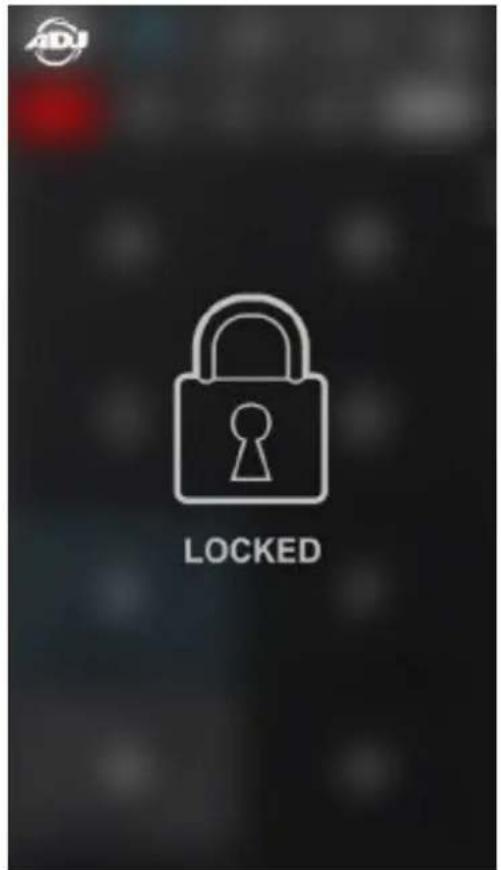
When the app is locked, the screen image below left is displayed.
- To unlock the app, press the LOCK icon and the screen image below right is displayed.
- Enter your 1 - 6 character password and the app will unlock.
text_image
ADJ LOCKED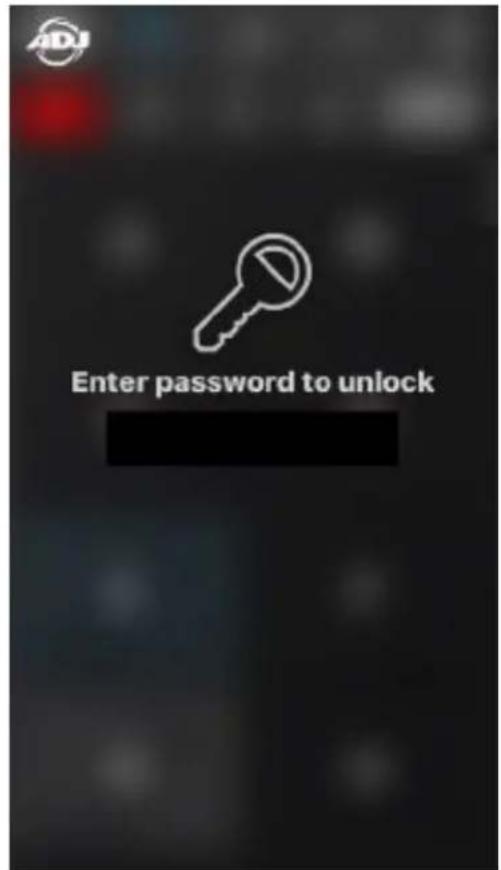
text_image
Enter password to unlock- If you enter an incorrect password, an error will display. (See image below)

text_image
Incorrect password, please try again. OKAirstream Wifi Bar App Operation
SETTINGS - LOCK [continued]
IF YOU FORGET THE PASSWORD OR ARE NOT ABLE TO ACCESS THE APP, CONTACT ADJ CUSTOMER SUPPORT TO REQUEST A PRIMARY CODE.
ADJ SERVICE USA - Monday - Friday 8:00am to 4:30pm PST
Voice: 800-322-6337 Fax: 323-532-2941
E-mail: support@americandj.com
ADJ GROUP SERVICE EUROPE - Monday - Friday 08:30 to 17:00 CET
Voice: +31 45 546 85 30 Fax: +31 45 546 85 96
E-mail: support@adjgroup.eu
- Enter the Primary Code and the app should unlock.
- If not, please contact ADJ Customer Support for further instructions.
- To lock the app again enter another 1 - 6 character password as explained in previous section.
NOTE: WRITE AND SAVE PASSWORD IN A SAFE PLACE FOR FUTURE REFERENCE.
![American DJ Airstream Wi-Fi Bar - SETTINGS - LOCK [continued] - 1](/content/2026/06/1214005/images/c68d9de90a5edb90b1085f601a81181a07261eda42edefa13de1d91387e123a3.jpg)
text_image
Enter password to unlockAirstream Wifi Bar App Operation
SETTINGS - PHOTO
Pressing this icon displays the SETTINGS page and pressing the PHOTO tab lets you add a custom 9-character TEXT label and PHOTO to each power outlet button (A-H) of a connected WIFI BAR (1-4). These text labels and photos will replace the lettered squares (A-H) on the MANUAL CONTROL page. You can add a text label and a photo or add only a text label or add only a photo. Photos can be new from the camera or existing photos from the library of the controlling mobile device. NOTE: WIFI BAR(s) MUST BE CONNECTED TO MOBILE DIGITAL DEVICE TO ADD TEXT AND PHOTOS. TEXT AND PHOTOS CANNOT BE ADDED WITHOUT WIFI BARS CONNECTED.

text_image
SETTINGS 1 2 3 PHOTO LOCK PHOTO SETTINGS TEXT EDIT SSID Airstream Wifi Bar ∠A ∠B ∠C ∠D ∠E ∠F ∠G ∠H PHOTO EDITAirstream Wifi Bar App Operation
SETTINGS - PHOTO [continued]
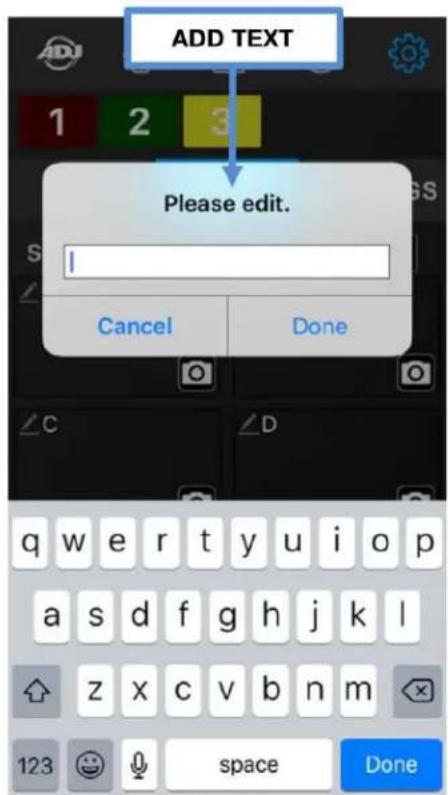
To add a TEXT label to a power outlet button, WIFI BARS must connected to your WiFi Network.
- Press text icon in upper left corner of a power outlet button to open a text edit window.
- Using the pop up keyboard enter a text label of up to 9-characters and press DONE. (See below Left)
To add a PHOTO to a power outlet button, WIFI BARS must connected to your WiFi Network.
- Press photo icon in upper right corner of a power outlet button to open a photo selection window.
- Select Take Photo to use mobile digital device camera or select Choose Existing to select photo mobile digital device library. (See below Center)
Example of TEXT labels and PHOTOS for each power outlet button (A-H). (See below Right)
text_image
ADD TEXT Please edit. Cancel Done q w e r t y u i o p a s d f g h j k l z x c v b n m 123 space Done
text_image
ADD PHOTO 1 2 3 LOCK PHOTO SETTINGS SSID Airstream WiFi Pack Take Photo Choose Existing Cancel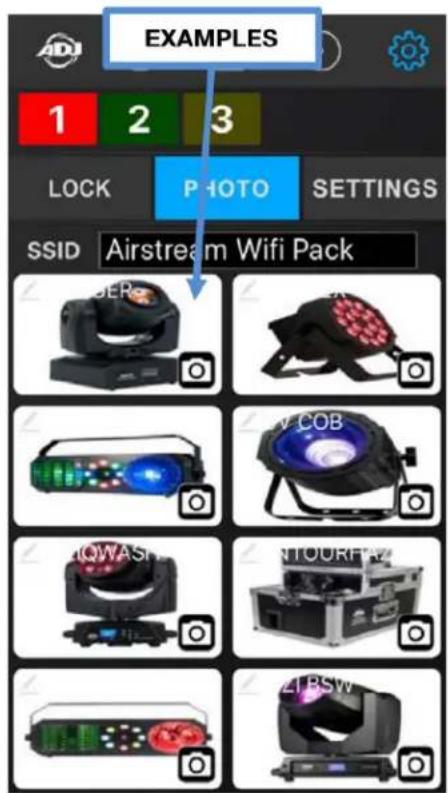
text_image
EXAMPLES 1 2 3 LOCK PHOTO SETTINGS SSID Airstream Wifi PackAirstream Wifi Bar App Operation
SETTINGS - PHOTO [continued]
After adding TEXT labels and/or assigning PHOTOS to each power outlet button of a connected WIFI BAR, the MANUAL CONTROL page will now no longer display the blank squares with letters A-H.
TEXT labels will now display for each power outlet button in the OFF mode.
TEXT labels will now illuminate blue for each power outlet button in the momentary or HOLD mode.
PHOTOS will now display for each power outlet button in the momentary or HOLD mode.
(See images below)
![American DJ Airstream Wi-Fi Bar - SETTINGS - PHOTO [continued] - 1](/content/2026/06/1214005/images/65332af313a7e2b0045cc2d4ac5ebd381feed703c67fbd677fec37a19dad7987.jpg)
text_image
OFF MODE TEXT/PHOTOS STINGER 18P HEX BOOM BOX1 UV COB VIZIQWASH ENTOURHAZ BOOM BOX2 VIZI BSW ON MODE TEXT STINGER 18P HEX BOOM BOX1 UV COB VIZIQWASH ENTOURHAZ BOOM BOX2 VIZI BSW ON MODE PHOTOS STINGER 18P HEX BOOM BOX1 UV COB VIZIQWASH ENTOURHAZ BOOM BOX2 VIZI BSWAirstream Wifi Bar App Operation
SETTINGS - PHOTO [continued] - RENAMING THE WiFi NETWORK NAME
Pressing this icon displays the SETTINGS page and pressing the PHOTO tab lets you also change the WiFi Network Name (SSID).
NOTE: THE WIFI NETWORK NAME MUST BE BETWEEN 8 - 32 CHARACTERS.
![American DJ Airstream Wi-Fi Bar - SETTINGS - PHOTO [continued] - RENAMING THE WiFi NETWORK NAME - 1](/content/2026/06/1214005/images/385eff1ce0a9714d4eba4490346840c5faf413e707fbf13f397c668f5c061996.jpg)
text_image
PHOTO LOCK PHOTO SETTINGS SSID Airstream Wifi Bar WiFi NETWORK NAME ✓ A ✓ B ✓ C ✓ D q w e r t y u i o p a s d f g h j k l z x c v b n m- Press the bar next to the text "SSID".
- Use the pop up keyboard to rename the default WiFi network name Airstream Wifi Bar. NOTE: THE WIFI NETWORK NAME MUST BE BETWEEN 8 - 32 CHARACTERS.
- Press DONE and the new name will appear.
- Power the Primary WIFI BAR OFF / ON for the new WiFi network name to take effect.
NOTE: TO PREVENT OTHERS FROM ACCESSING YOUR WIFI NETWORK, AND TO PREVENT WIRELESS CONNECTIVITY AND/OR INTERFERENCE ISSUES, IT IS HIGHLY RECOMMENDED TO CHANGE THE WIFI NETWORK NAME AND PASSWORD.
Airstream Wifi Bar App Operation
SETTINGS - SETTINGS [continued] - TIME FORMAT
Pressing this icon displays the SETTINGS page and pressing the SETTINGS tab lets you change the time format used in the app. You can select 12-Hour (AM/PM) or 24-Hour (Military) format.
![American DJ Airstream Wi-Fi Bar - SETTINGS - SETTINGS [continued] - TIME FORMAT - 1](/content/2026/06/1214005/images/6a283614eebf4eab22c69cdb190a4558430a8cd52c1dbe05c42bfacf2d1d2729.jpg)
flowchart
graph TD
    A["12 HOURS TIME FORMAT"] --> B["SLIDE SWITCH LEFT TO TOTGLE TO 12 HOUR TIME FORMAT"]
    B --> C["12 HOURS TIME FORMAT"]
    C --> D["24 HOURS TIME FORMAT"]
    D --> E["24 HOURS TIME FORMAT"]
Airstream Wifi Bar App Operation
SETTINGS - SETTINGS [continued] - BAR COLOR ID
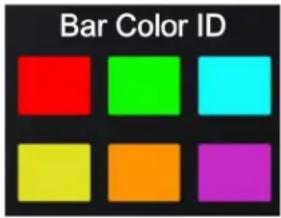
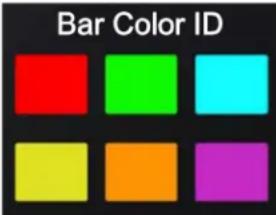
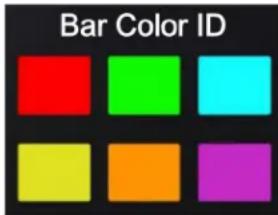
Pressing this icon displays the SETTINGS page and pressing the SETTINGS tab lets you change the Bar Color ID. You can select 1 of 6 colors (see below) for each connected WIFI BAR.
![American DJ Airstream Wi-Fi Bar - SETTINGS - SETTINGS [continued] - BAR COLOR ID - 1](/content/2026/06/1214005/images/0f8e758a50b91857cc68e894b4950febd3522e8955757831b0e147bff43e64ae.jpg)
text_image
MATERIAL WIFI BAR SELECTED 1 2 3 LOCK PHOTO SETTINGS 12 24HOUR CURRENT PASSWORD NEW PASSWORD Confirm Bar Color ID BAR Color ID SETTINGS- Press the desired WIFI BAR icon so it is highlighted. (See Red number 1 WIFI BAR above)
- Press the desired color from the Par Color ID grid to assign to the WIFI BAR. (See above)
- Repeat these steps for each WIFI BAR connected to your WiFi Network.
- Use the BAR COLOR ID AND OUTLET LIST in the back of this manual to keep track of your bars.
NOTE: ALTHOUGH EACH CONNECTED WIFI BAR HAS A NUMBER 1-4 WITH 1 ALWAYS BEING THE PRIMARY BAR, BARS 2, 3, and 4 MAY NOT ALWAYS CONNECT TO THE APP IN THE EXACT SAME ORDER. (See example below) THEREFORE IT IS STRONGLY SUGGESTED TO ASSIGN A COLOR TO EACH CONNECTED WIFI BAR, AND USE THE BAR COLOR ID AD OUTLET LIST IN THE BACK OF THIS MANUAL.
![American DJ Airstream Wi-Fi Bar - SETTINGS - SETTINGS [continued] - BAR COLOR ID - 2](/content/2026/06/1214005/images/83c9cd368d442d8e6a07983f7d309d0556c9c00627164ca093fec97acb0ded16.jpg)
text_image
1 2 3![American DJ Airstream Wi-Fi Bar - SETTINGS - SETTINGS [continued] - BAR COLOR ID - 3](/content/2026/06/1214005/images/103722f1a03890dda59b27c669fddf9beffedbd99ccb963f5ecc2d78893d4485.jpg)
text_image
1 2 3ADJ Products, LLC - www.adj.com - Airstream Wifi Bar User Manual Page 31
Airstream Wifi Bar Troubleshooting
Mobile Digital Device Does Not See the Airstream WIFI BAR Network
- Confirm your mobile digital device WiFi is ON and the Primary WIFI BAR is in Primary mode.
- Power the Primary Airstream WIFI Bar OFF / ON, then power ON remaining Secondary WIFI Bars.
- Confirm your mobile digital device sees the Airstream WIFI BAR network.
- If not, repeat step 1 above.
- If not, close the Airstream WIFI app and restart and wait to see if the WIFI connection is restored.
- If none of these solutions work, please contact ADJ Customer Service.
Mobile Digital Device Looses Connection with WIFI Bar(s)
- Wait until the spinning Searching wheel stops to see if the WIFI connection is restored.
- Confirm your mobile digital device WiFi is ON and the Primary WIFI BAR is in Primary mode.
- Confirm your mobile digital device is connected to the correct WiFi Network name.
- If not, close the Airstream WIFI app and restart and wait to see if the WIFI connection is restored.
- If not, power the Primary Airstream WIFI Bar OFF / ON then power ON remaining Secondary WIFI Bars.
- If none of these solutions work, please contact ADJ Customer Service.
WiFi Network Name and Password Reset
- Switch OFF the Primary WIFI BAR and make sure the Primary/Secondary switch is set to PRIMARY.
- Switch the WIFI BAR ON, wait 2 seconds, and then toggle the Primary/Secondary switch at least 3-4 times (Primary to Secondary, Primary to Secondary, Primary to Secondary) within 10 seconds after powering ON.
NOTE: MAKE SURE THE PRIMARY/SECONDARY SWITCH IS SET TO PRIMARY AFTER TOGGLING, BEFORE POWERING ON THE PRIMARY WIFI BAR. - The WIFI Network Name and Password will now reset to default. Network Name: Airstream WiFi Bar I Network Password: airstreamwifi.
- If not, repeat steps 1 and 2 above.
- If none of these solutions work, please contact ADJ Customer Service.
Airstream Wifi Bar Troubleshooting
Forgot "LOCK" Password For the App
- Contact ADJ Customer Service for a Master Code.
- Enter Primary Code as instructed by ADJ Customer Service to unlock the app.
- Update the LOCK password and save password in a safe place.
Unable To Join the network "Airstream Wifi Bar" Error Message
Unable to join the network "Airstream Wifi Pack"
Dismiss
This error message is displayed on the mobile digital device due to one of these reasons:
- The WIFI BAR is being controlled by another mobile digital device. Locate the controlling mobile digital device or reset the Master WIFI BAR to the default Network Name and Password.
- The WiFi Network Name and/or Network Password have been changed. Reset the Primary WIFI BAR to the default Network Name and Password.
- There are NO WIFI BARS that are set as the Primary Bar. Set 1 WIFI BAR to Primary mode.
- The controlling mobile digital device is out of range from the Primary WIFI BAR. Move the controlling mobile digital device within 150 feet (45m) of the Primary WIFI BAR.
"Over Load!" and "Please relaunch App!"

text_image
Note! A Over pad! OK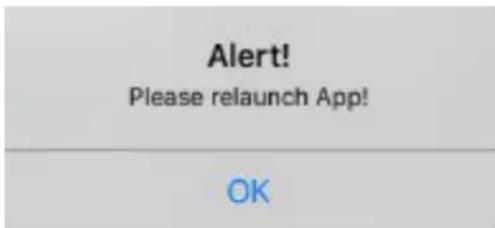
text_image
Alert! Please relaunch App!Error MessagesThese error messages are displayed on the mobile digital device due to one of these reasons:
- A device connected to one of the outlets (A-H) is drawing over the 8A / 960W maximum load. Remove the device, reset the Power / Reset switch on the WIFI BAR, and relaunch the app.
- A combination of multiple devices connected to the WIFI BAR is drawing over the 15A / 1800W maximum load. Remove all devices, reset the Power / Reset switch on the WIFI BAR, and relaunch the app. Carefully check/confirm the max power consumption of each device before connecting to WIFI BAR. Make sure not to exceed the maximum load rating for the WIFI BAR.
ADJ Products, LLC - www.adj.com - Airstream Wifi Bar User Manual Page 33
Airstream Wifi Bar Frequently Asked Questions
Listed below are a few answers to common questions users may have.
- How many WIFI BARS can you connect to single mobile digital device?
You can connect (1) Primary Bar and up to (3) Secondary Bars for a total of (4) Bars per mobile device.
- What is the maximum distance you can control a WIFI BAR from your mobile digital device?
The maximum distance between the controlling mobile digital device and PRIMARY WIFI BAR, and between the PRIMARY WIFI BAR and additional SECONDARY WIFI BARS is 150 feet (45m).
- What happens to WIFI BAR settings when it looses WiFi connection to your mobile device?
All timer, program, and schedule settings are saved directly to the WIFI BAR, so in the event it looses connection to the mobile digital device, all settings will remain unchanged. This also includes manual settings, which are saved in the app.
- What happens to WIFI BAR settings when it looses AC power?
All timer, program, and schedule settings are saved directly to the WIFI BAR, so in the event it looses connection to the controlling mobile digital device, all settings will remain unchanged. All manual settings however will be lost and must be reset once power is regained to the WIFI BAR.
- Can you add a name to each connected WIFI BAR instead of the numbers 1-4?
No, each connected WIFI BAR will be automatically assigned a number (1-4) depending on the order it connects to your Airstream WIFI network. However to help you differentiate between eachconnected WIFI BAR, you assign a different Bar Color ID besides the default red color. You can change the Bar Color ID in the Settings page in the app.
- What is the maximum power draw per each power outlet (A-H)?
8A / 960W7.
- What is the maximum power draw per each WIFI BAR?
15A / 1800W8.
- What kind of lighting effect devices can you connect to the WIFI BAR?
You can connect any type of lighting effect to the WIFI BAR, as long as it does not exceed the maximum power draw for a single power outlet.
- How many lighting effect devices can you connect to the WIFI BAR?
You can connect a total of (8) lighting effect devices to the WIFI BAR, as long as the combined total power draw of all (8) devices does not exceed the maximum power draw for a WIFI BAR.
ADJ Products, LLC - www.adj.com - Airstream Wifi Bar User Manual Page 34
Airstream Wifi Bar Bar Color ID and Outlet List
Keep track of the color of each of your WIFI BARS and the devices connected to each outlet.
PRIMARY BAR (device name | location).
text_image
Bar Color IDA: ____
B:
C:
D:
E:
F:
G:
H: ____
SECONDARYBAR(devicenameLocation)

text_image
Bar Color IDA: ____
B:
C:
D:
E:
F:
G:
H:
Airstream Wifi Bar Bar Color ID and Outlet List
Keep track of the color of each of your WIFI BARS and the devices connected to each outlet.
SECONDARY BAR (device name I location)
text_image
Bar Color IDA: ____
B:
C:
D:
E:
F:
G:
H: ____
SECONDARY BAR (device name I location)
text_image
Bar Color IDA: ____
B:
C:
D:
E:
F:
G:
H:
Airstream Wifi Bar Specifications
• 4 Channel wifi switch BAR
- 8A/960W per channel, 1,800W max.
- Intuitive Application for iOS mobile devices (iPad and iPhone)
- Creates a wireless network between iOS device and Airstream Bar
• 2.4 GHz DSSS wireless frequency
- Channel names can be renamed
- Wifi network is passcode protected
- Requires Airstream Wifi Application for control
• Power Consumption: 7.7W
• Voltage: AC 100 \~ 240V, 50/60Hz
• Total Max. Loading: 15A / 1,800W
• Single Channel Loading: 8A / 960W
• Wifi Frequency: 2.4GHz 802.11b
• Working Humidity: <85%RH
- Working Temperature: 0\~55 Degree
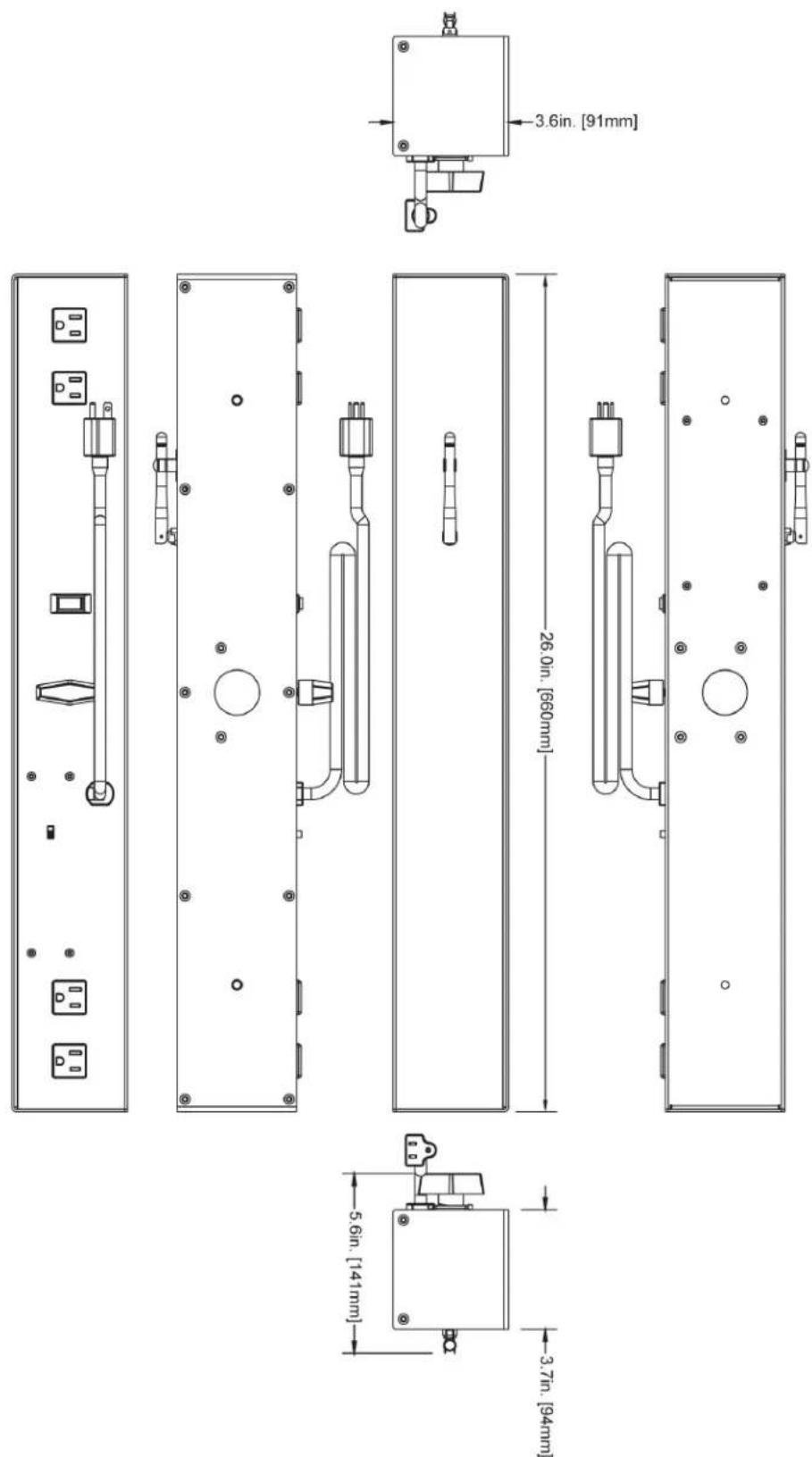
- Dimensions: 26.0" (L) x 5.6" (W) x 3.6" (H) / 660mm x 141mm x 91mm
• Max On/OFF Cycles: > 50,000
• cETLus Approved (Control # 5004962)
Compatible tripod stands (sold separately): ADJ's SPS-1B & SPSX2B

Intertek 5004962
Airstream Wifi Bar Dimensions
text_image
3.6in. [91mm] 26.0in. [660mm] 5.6in. [141mm] 3.7in. [94mm]FCC STATEMENT
This device complies with Part 15 of the FCC Rules. Operation is subject to the following two conditions: (1) this device may not cause harmful interference, and (2) this device must accept any interference received, including interference that may cause undesired operation.
FCC RADIO FREQUENCY INTERFERENCE WARNINGS & INSTRUCTIONS
This product has been tested and found to comply with the limits as per Part 15 of the FCC Rules. These limits are designed to provide reasonable protection against harmful interference in a residential installation. This device uses and can radiate radio frequency energy and, if not installed and used in accordance with the included instructions, may cause harmful interference to radio communications. However, there is no guarantee that interference will not occur in a particular installation. If this device does cause harmful interference to radio or television reception, which can be determined by turning the device off and on, the user is encouraged to try to correct the interference by one or more of the following methods:
•Reorient or relocate the device.
- Increase the separation between the device and the receiver.
- Connect the device to an electrical outlet on a circuit different from which the radio receiver is connected.
- Consult the dealer or an experienced radio/TV technician for help.