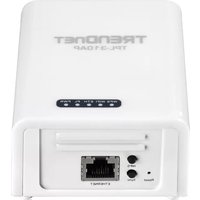
TPL-310AP - Access Point TRENDNET - Free user manual and instructions
Find the device manual for free TPL-310AP TRENDNET in PDF.


| Product Type | 200Mbps Powerline AV Wireless N Access Point |
| Brand | TRENDnet |
| Model | TPL-310AP |
| Standards | HomePlug AV, IEEE 802.11b/g/n |
| Data Rate | Up to 200Mbps (Powerline), Up to 300Mbps (Wireless) |
| Interfaces | 1x 10/100Mbps Ethernet, WPS button, Reset button, Sync button, Power switch |
| Wireless Security | WEP, WPA, WPA2 (AES/TKIP), WPS |
| LED Indicators | PWR, PL, ETH, WIFI, WPS |
| Power Supply | AC 100-240V, 50/60Hz (internal) |
| Dimensions (approx.) | 100 x 60 x 30 mm |
| Weight (approx.) | 150 g |
| Certifications | FCC, CE |
| Package Contents | TPL-310AP, CD-ROM, Quick Installation Guide, Network Cable (1.5m) |
| System Requirements | CD-ROM drive, PC with Ethernet adapter, Web browser IE6+, Existing wired network for bridging |
| Maintenance | Keep device clean and dry; avoid dust and moisture |
| Safety | Do not use on power strips or surge protectors; avoid AFCI/GFI circuits; do not dispose with household waste |
Frequently Asked Questions - TPL-310AP TRENDNET
User questions about TPL-310AP TRENDNET
0 question about this device. Answer the ones you know or ask your own.
Ask a new question about this device
Download the instructions for your Access Point in PDF format for free! Find your manual TPL-310AP - TRENDNET and take your electronic device back in hand. On this page are published all the documents necessary for the use of your device. TPL-310AP by TRENDNET.
USER MANUAL TPL-310AP TRENDNET
natural_image
White Treadjet device with ports and indicator lights, no visible text or symbols on the device bodyQuick Installation Guide


Table of Contents
English 1
- Before You Start 1
- Configure the TPL-310AP 3
- Create a powerline network 7
- LEDs and Buttons 9
Troubleshooting 11
Wireless Tips 15
natural_image
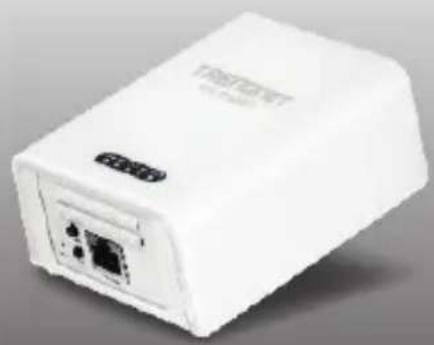
White wireless device with network ports and ports, no visible text or symbols on bodyPackage Contents
• TPL-310AP
• CD-ROM (Utility and User's Guide)
• Multi-Language Quick Installation Guide
• Network Cable (1.5m/4.9ft)
System Requirements
- CD-ROM Drive
- A Desktop or Laptop PC with or wireless Network Adapter Installed
- Existing 10/100Mbps wired network when TPL-310AP is used to a powerline network to an existing wired network
• Web Browser: Internet Explorer (6.0 or higher) - Additional HomePlug®AV powerline adapter (e.g. TRENDnet TPL-303E, TPL-304E, TPL-305E, or another TPL-310AP).
Note: You will need at least 2 powerline adapters to establish a powerline network. Please ensure that you have an additional powerline adapter before following the installation procedure for this product.
Software Utility Requirements
| Supported Operating Systems CPU | Memory | |
| Windows 7 (32/64-bit) | 1GHz or above | 1GB RAM or above |
| Windows Vista (32/64-bit) | 800MHz or above | 512MB RAM or above |
| Windows XP (32/64-bit) | 300MHz or above | 256MB RAM or above |
Note:
The configuration utility will allow you to add security to your powerline network by providing you with the ability to change the default network name and create your own personal network name for your powerline network. The utility can also help you to troubleshoot connectivity between powerline adapters by verifying the network name. Please refer to the User's Guide on the TPL-310AP CD-ROM for instructions on installing and using the utility.

The installation diagram shows a typical setup of the TPL-310AP extending your wireless network connectivity to another room when bridged with an additional powerline adapter, in this case, the TRENDnet TPL-303E. Assuming you have the TPL-310AP and one additional TRENDnet Powerline AV adapter, this guide will provide the procedure to installing and configuring the TPL-310AP with one additional TRENDnet Powerline AV adapter to extend your wireless network to another room (not in the same room as the router and modem). The orange line represents the powerline connectivity established through your home's electrical system and the blue lines represent Cat. 5, 5e, 6 Ethernet connectivity to your network enabled appliances such as a computer, router, or IP set top box connected to your television. The green lines represent the wireless connectivity from your wireless device (e.g. laptop computer, media bridge, etc.) to the TPL-310AP.
2. Configure the TPL-310AP
Note:
When installing for the first time, it is required that you configure the Access Point from a wired computer. Assign a Static IP address to your computer's network adapter in the subnet of 192.168.10.x. Since the Access Point's default IP address is 192.168.10.100, make sure no other network devices are assigned an IP address of 192.168.10.100. (Refer to Troubleshooting section on how to configure TCP/IP settings on your PC.)
-
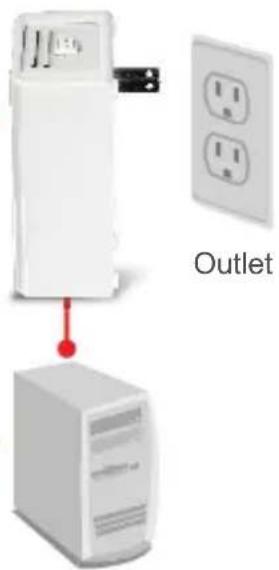
Plug the TPL-310AP into an available power outlet. The TPL-310AP should be within reach of your computer's network cable.
-
Connect a network cable from the TPL-310AP's network port into your computer's network port.
-
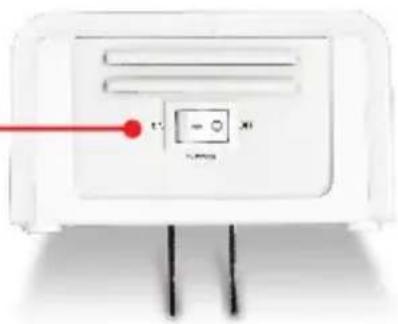
Move the Power switch to the "On" position.
-
Assign a Static IP address to your computer's network adapter in the subnet of 192.168.10.x. (Refer to Troubleshooting section on how to configure TCP/IP settings on your PC.)
-
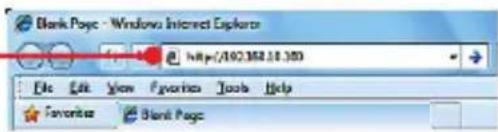
Open your web browser, type http://192.168.10.100 in the Address bar, and then press Enter.
-
Enter the User Name and password and then click OK. Default Settings:
User name: admin
Password: admin
Note: User name and Password are case sensitive.

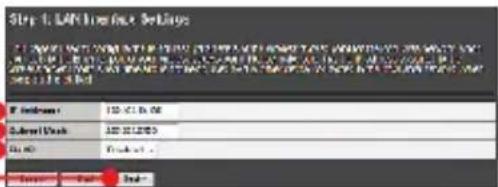
- The Setup Wizard will automatically appear. Click Setup Wizard if the Setup Wizard does not automatically appear.

- Click Next.

- For DHCP, click on the drop down arrow and Select Client for DHCP to have the TPL-310AP automatically obtain an IP address from your DHCP server (router). If Disabled is selected for DHCP, you will need to configure the following:
IP address: The assigned IP address should match your network (e.g. 192.168.10.x, 192.168.0.x, 192.168.1.x). This IP address should not be used by any other network device on your network.
Subnet Mask: In most cases, the default Subnet Mask (255.255.255.0) should be fine. Then click Next.
Note: It is recommended to manually configure the LAN Interface Settings (IP address and Subnet Mask) in case you need to access the TPL-310AP in the future. Please write down the IP settings assigned for future reference.
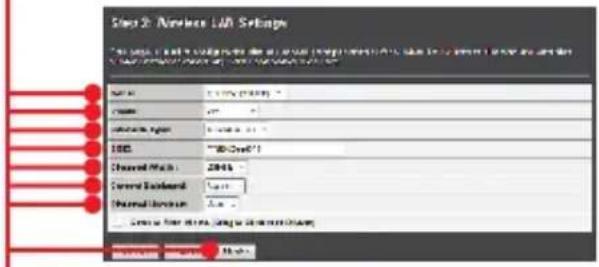
- You will need to configure the following:
Band: In most cases, the default setting (2.4GHz (B+G+N) should be fine.
Mode: In most cases, the default setting (AP) should be fine.
Network Type: This setting does not apply to (AP) mode. Continue to the next setting.
SSID: The SSID is the wireless network name of your wireless network (e.g. wireless router or access point). Enter a unique SSID (Network Name). Do not use anything that would be identifying like "Smith Family Network". Choose something that can be easily identified when searching for available wireless networks.
Channel Width: In most cases, the default Setting (20MHz) should be fine.
Channel Number: This setting only applies if the Channel Width is set to 40MHz. In most cases, the default setting should be fine.
Enable Mac Clone (Single Ethernet Client): In most cases, the default setting should be fine.
Then click Next.
Note:
- To protect your network from any unauthorized access it is recommended to enable wireless encryption.
- Once encryption is enabled on the Wireless Access Point, each wireless computer or device must be configured with the same encryption key.
- The example below is for WPA2 (AES) security. If you select WPA or WPA2, make sure your wireless adapters support WPA or WPA2. If your wireless adapters do not support WPA or WPA2, then select WEP.
-
For Wi-Fi Protected Setup (WPS) instructions please refer to the User's Guide on the CD-ROM. WPS instructions will vary depending on your wireless adapter. Please contact the manufacturer of your wireless
-
Select WPA2(AES).
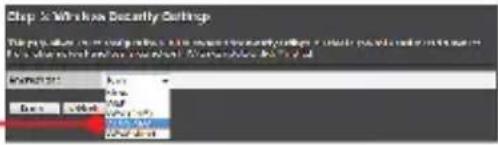
- Select Passphrase or Hex (64 characters) for Pre-Shared Key Format.
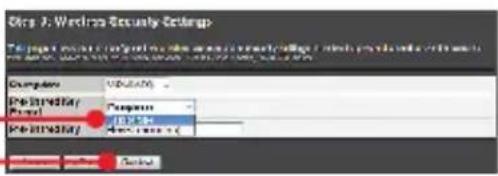
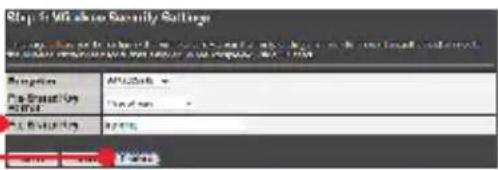
- Enter characters for your Pre-Shared key and then click Next. For WPA-PSK or WPA2-PSK, the Pre-Shared Key must be between 8 and 63 ASCII (Passphrase) or 64 (HEX 0-9 & A-F) characters. Make sure to copy down the Pre-Shared Key. Use the same encryption key on your wireless computer or other wireless device to connect to the TPL-310AP wirelessly.
- Please wait 25 seconds while the TPL-310AP reboots.

- After the settings are applied and the device has rebooted, disconnect the TPL-310AP from the power outlet.
3. Create a powerline network
Note:
- DO NOT install the TPL-310AP until instructed to do so.
- DO NOT plug the TPL-310AP into a surge protector or power strip.
- It is NOT recommended to use this product on electrical systems that use AFCI circuit breakers or plugged into GFI protected outlets as this may cause performance degradation or loss in connectivity.
- Assuming that the TPL-310AP and other TRENDnet Powerline AV devices are configured with the default settings, to create a powerline network, simply connect the TPL-310AP and other TRENDnet Powerline AV devices to wall outlets that are on the same electrical system. No additional configuration in the utility is necessary.
- Avoid connecting the TPL-310AP into an outlet that has appliances (e.g. refrigerators, washer and dryer) plugged in.
- This TPL-310AP 200Mbps Powerline AV Wireless N Access Point needs to pair with at least one other HomePlug®AV compatible powerline device. (e.g. TRENDnet Powerline AV products TPL-303E, TPL-304E, TPL-305E, or another TPL-310AP.
- In order for the TPL-310AP to link to your other TRENDnet Powerline AV devices, each unit must be on the same electrical system.
- A maximum of 16 TPL-310AP and other TRENDnet Powerline AV devices can be networked.
Below is an example showing how to create a Powerline network using TPL-310AP, TPL-303E and an existing router to share Internet.
-
Plug a TPL-303E or other TRENDnet Powerline AV adapter into an available power outlet. This powerline adapter should be located within the reach of the router's network cable.
-
Connect a network cable from the powerline adapter to an available LAN network port on your router (e.g. TEW-691GR).

natural_image
White wall-mounted power plug next to a separate white electrical outlet with two outlets (no text or symbols visible)
natural_image
Black wireless router with three antennas and a red warning symbol (no readable text or labels)- Plug the TPL-310AP into an available power outlet in your desired location to extend wireless connectivity. Please refer to the Wireless Tips section for optimal placement of the TPL-310AP.

natural_image
White electrical outlet device with two socket covers, shown alongside a separate white socket (no text or symbols on the device itself)- (OPTIONAL) Connect a network cable from the TPL-310AP into the network port on your remote computer or network appliances (e.g. Game Console, IP Set box, network enabled TV, etc.).

- Verify that the WIFI (Wireless) (Blinking/Green), ETH (Ethernet) (Green), PL (Powerline) and PWR (Power) (Solid/Green) LEDs are on for the TPL-310AP.
Your installation is now complete
For detailed information regarding the TPL-310AP configuration and advanced settings, please refer to the Troubleshooting section, User's Guide on the Utility CD-ROM, or TRENDnet's website at http://www.trendnet.com.
Register Your Product
To ensure the highest level of customer service and support, please take a moment to register your product Online at: www.trendnet.com/register
Thank you for choosing TRENDnet
4. LEDs and Buttons

flowchart
graph TD
    A["WPS (Wi-Fi Protected Setup)"] --> B["WPS WIFI ETH PL PWR"]
    B --> C["ETH (Network Port)"]
    C --> D["WIFI(Wireless)"]
    D --> E["PL (Powerline)"]
    E --> F["PWR (Power)"]
    F --> G["WPS WIFI ETH PL PWR"]
Note:
The Network Port, WPS button, Reset button and Sync button are located at the bottom of the device.
Network Port
WPS
Reset :
- Hold for 1 second to reset power line setting only.
- Hold for 5 seconds to reset AP settings only.
Sync
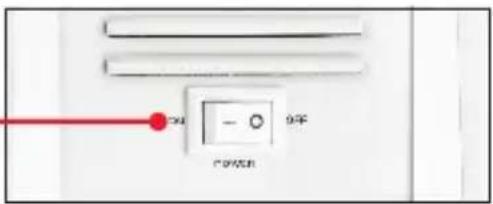
The Power switch is located at the top of the device.
Power Switch

*Note: The following factors may affect the powerline network's connection quality:
- Noise – Generated by appliances that are connected to your electrical system through power outlets that have high power consumption requirements. (e.g. Microwaves, ovens, blow dryer, iron, dishwasher, etc.) The quality of your household electrical wiring may also cause additional noise on your electrical system.
-
Distance – Long lengths of electrical wiring through your electrical system between connected powerline adapters.
-
How do I configure TCP/IP settings on my computer's network adapter?
Windows 7
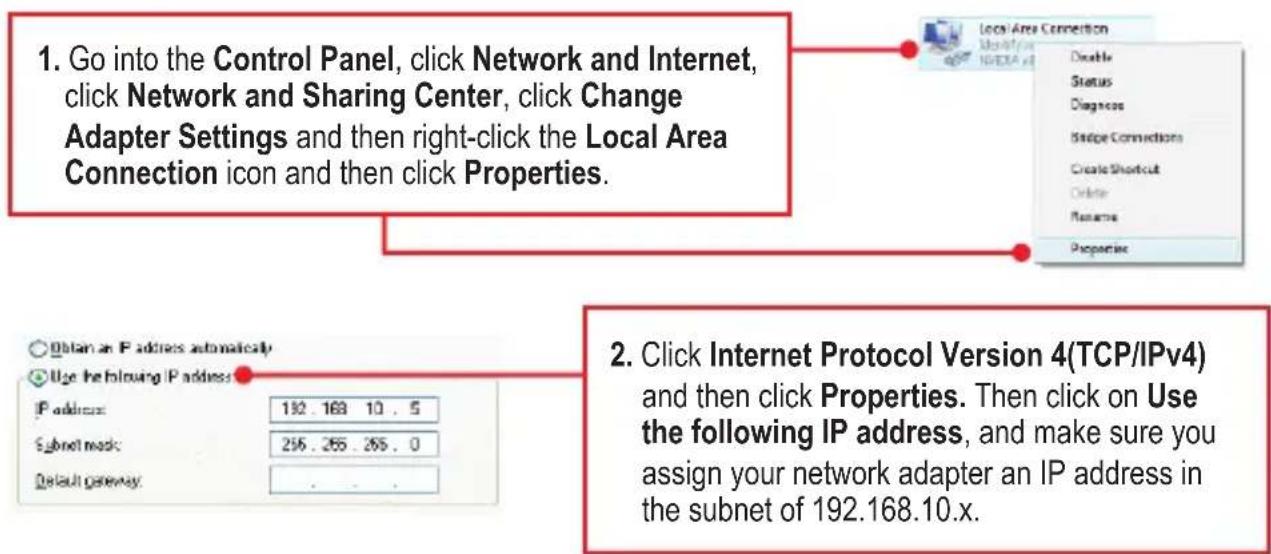
- Go into the Control Panel, click Network and Internet, click Network and Sharing Center, click Change Adapter Settings and then right-click the Local Area Connection icon and then click Properties.
Oblan an F address automatically
Use the following IP address
P adder
Subnet mask
Default gateway:
- Click Internet Protocol Version 4(TCP/IPv4) and then click Properties. Then click on Use the following IP address, and make sure you assign your network adapter an IP address in the subnet of 192.168.10.x.
Windows Vista
- Go into the Control Panel, click Network and Internet, click Network and Sharing Center, click Manage Network Connections and then right-click the Local Area Connection icon and then click Properties.

Local Area Connection
请注明公司网站:
Double
Status
Diagnose
Bridge Connections
Create Shortcut
Delete
Part-time
Роспис
Obtain an P address automatically
Use the following IP address
F address
5abnet mask
Default gateway:

- Click Internet Protocol Version 4(TCP/IPv4) and then click Properties. Then click on Use the following IP address, and make sure you assign your network adapter an IP address in the subnet of 192.168.10.x.
Windows XP/2000
- Go into the Control Panel, double-click the Network Connections icon and then right-click the Local Area Connection icon and then click Properties.
Local Cutting
Disable
Status
Repair
Bridge Connections
Create Shortcut
Delete
Romania
Properties
Obtian an F address automatically
Use the following IP address:
P address
Subnet mask
Default gateway
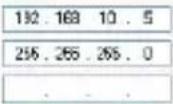
- Click Internet Protocol (TCP/IP) and then click Properties. Then click on Obtain an IP address automatically. Then click on Use the following IP address, and make sure you assign your network adapter an IP address in the subnet of 192.168.10.x.
2. I have verified that my Powerline device is connected to my workstation, but I cannot detect other Powerline devices. What should I do?
- Verify that you are using Cat. 5, Cat 5e or Cat. 6 Ethernet network cables from each TPL-310AP adapter.
- Verify that the power outlet of the TPL-310AP is plugged into is on the same electrical power distribution and/or circuit breaker box.
- If you are still not able to establish connectivity after performing the above steps, please reset the TPL-310AP other powerline devices to factory default. The default network name/key is "HomePlugAV". The Reset button is located on the bottom of the TPL-310AP.
a: With a pin or paperclip, press and hold the reset button for 1 second and release it. The PWR and PL LEDs will turn off and turn back on. (Note: The PL LED will flash in amber.)
b: To verify connectivity, the PL LED will become solid when the powerline adapters establish connectivity. The TPL-310AP and your other powerline devices must have the same network name/key in order to connect to each other.
Note: If you have problems resetting the device, unplug the powerline access point(s) from the power outlet, wait 15 seconds and plug the access point(s) back into the outlet, then repeat the reset procedure.
3. I can detect my Powerline devices on my Powerline network, but I cannot connect to the Internet. What should I do?
Assuming that the Powerline network is connected to a router:
- Make sure you are not connecting the device into a surge protector or power strip.
- Make sure that your Router is connected to the Internet and one of the Router's LAN port is connected to a TPL-310AP or other powerline device. Check both the powerline device and the router's network port LED for positive connection status.
- Make sure the TCP/IP setting for your computer's network adapter is set to Obtain an IP address automatically (see the steps below).
Windows 7
- Go into the Control Panel, click Network and Internet, click Network and Sharing Center, click Change Adapter Settings and then right-click the Local Area Connection icon and then click Properties.

Local Area Connection

图 14
Staties
Diagnos
Bridge Connections
Create Shortcut
Delete
Ratartes
- 2014年
Obtain an IP address automatically
○ Use the following IP address
P address
Sjubner mark:
Default License

- Click Internet Protocol Version 4(TCP/IPv4) and then click Properties. Then click on Obtain an IP address automatically.
Windows Vista
- Go into the Control Panel, click Network and Internet, click Network and Sharing Center, click Manage Network Connections and then right-click the Local Area Connection icon and then click Properties.

Local Area Connection
Mortifera
Status
Diagnos
Bridge Connections
Create Shortcut
Delete
Bancere
Роспис

○ Use the following IP address
P 402655
Sуббот reach:
Default gateway

- Click Internet Protocol Version 4(TCP/IPv4) and then click Properties. Then click on Obtain an IP address automatically.
Windows XP/2000
- Go into the Control Panel, double-click the Network Connections icon and then right-click the Local Area Connection icon and then click Properties.
Local Conne
Disable
Status
Repair
Bridge Connections
Create Shortcut
Delete
Rename
Properties

○ Use the following IP address
P address
5ybin magic
Default gateway

-
Click Internet Protocol (TCP/IP) and then click Properties. Then click on Obtain an IP address automatically.
-
I have a HomePlug 1.0 or HomePlug Turbo network. Can I use this with my network?
The TPL-310AP is not backwards compatible with HomePlug 1.0 or HomePlug Turbo.
-
I typed http://192.168.10.100 in my Internet Browser's Address Bar, but an error message says "The page cannot be displayed." How can I get into the TPL-310AP web configuration page?
-
Check your hardware settings again by following the instructions in section 2.
- Make sure the ETH and WIFI lights are lit.
- Make sure the TCP/IP settings are configured properly (see question 1).
- Since the Access Point's default IP address is 192.168.10.100, make sure that no other network devices are assigned an IP address of 192.168.10.100.
-
Reset the Access Point. Take a pin or paperclip and press the RESET button for 5 seconds, then let go. Then type http://192.168.10.100 into your browser.
-
If my network's IP is different than the Access Point's range, what should I do?
You should still configure the Access Point first. In Step 9 in section 2: Configure the Access Point, select Disabled for DHCP and change the IP address of the Access Point to match your network's IP (e.g. 192.168.2.x, 192.168.0.x).
- After I successfully configured the Access Point to meet my network settings, I cannot connect to my network using wireless computers.
If you have a DHCP server in your network, you need to go into TCP/IP settings again and re-select "Obtain an IP address automatically" to allow the PC to regain an IP address from your DHCP server.
-
All the settings are correct, but I cannot make a wireless connection to the Access Point.
-
Double check that the WIFI light on the Access Point is lit.
- Power cycle the TPL-310AP. Move the power switch to the off position. Wait 15 seconds, and then move the switch to the on position.
- Contact the manufacturer of your wireless network adapter. Make sure the wireless network adapter is configured with the proper SSID. The default SSID of the Access Point is TRENDnet310. If you have enabled encryption on the Access Point, make sure to configure the wireless network adapter with the same encryption key.
If you still encounter problems or have any questions regarding the TPL-310AP, please refer to the User's Guide included on the Utility CD-ROM or contact TRENDnet's Technical Support Department.
The following are some general wireless tips to help minimize the impact of interference within an environment.
Assign your network a unique SSID
Do not use anything that would be identifying like "Smith Family Network". Choose something that you would easily identify when searching for available wireless networks.
Do not turn off the SSID broadcast
The SSID broadcast is intended to be on and turning it off can cause connectivity issues. The preferred method of securing a wireless network is to choose a strong form of encryption with a strong and varied encryption key.
Note: after setting up the SSID, encryption type and encryption key/passphrase, please make a note of them for future reference. You will need this information to connect your wireless computers to the wireless router/access point.
Change the channel
Most wireless access points and routers are defaulted to channel 6. If you have a site survey tool that will display the channels you can plan your channel selection around neighboring access points to minimize interference from them. If your site survey tool does not display the channel try using channels 1 or 11.
If you are using 802.11n you should be securing the network with WPA2 security.
Note: Due to Wi-Fi certification considerations if you choose WEP, WPA or WPA2-TKIP encryption this device may operate in legacy wireless mode (802.11b/g). You may not get 802.11n performance as these forms of encryption are not supported by the 802.11n specification.
Please also make sure that the wireless hardware is not placed in any type of shelving or enclosures.
Avoid stacking hardware on top of each other to prevent overheating issues
Maintain enough free space around the hardware for good ventilation and airflow. There should also be plenty of free space around the antennas to allow the wireless signal to propagate.
There are a number of other environmental factors that can impact the range of wireless devices.
-
Adjust your wireless devices so that the signal is traveling in a straight path, rather than at an angle. The more material the signal has to pass through the more signal you will lose.
-
Keep the number of obstructions to a minimum. Each obstruction can reduce the range of a wireless device. Position the wireless devices in a manner that will minimize the amount of obstructions between them.
-
Building materials can have a large impact on your wireless signal. In an indoor environment, try to position the wireless devices so that the signal passes through less dense material such as dry wall. Dense materials like metal, solid wood, glass or even furniture may block or degrade the signal.
- Antenna orientation can also have a large impact on your wireless signal. Use the wireless adapter's site survey tool to determine the best antenna orientation for your wireless devices.
- Interference from devices that produce RF (radio frequency) noise can also impact your signal. Position your wireless devices away from anything that generates RF noise, such as microwaves, HAM radios, Walkie-Talkies and baby monitors.
- Any device operating on the 2.4GHz frequency will cause interference. Devices such as 2.4GHz cordless phones or other wireless remotes operating on the 2.4GHz frequency can potentially drop the wireless signal. Although the phone may not be in use, the base can still transmit wireless signals. Move the phone's base station as far away as possible from your wireless devices.
If you are still experiencing low or no signal consider repositioning the wireless devices or installing additional access points. The use of higher gain antennas may also provide the necessary coverage depending on the environment.
Company Information:
Company Name:
TRENDnet, Inc.
Company Address:
20675 Manhattan Place
Torrance, CA 90501
USA
Product Information:
Product Description:
200Mbps Powerline AV Wireless Access Point
Model Number:
TPL-310AP
Brand name:
TRENDnet

Technical Standards:
EN 300 328 V1.7.1: 10-2006
EN 301 489-1 V1.8.1: 04-2008
The product is herewith confirmed to comply with the requirements of Directive 1999/5/EC of the Council (European Parliament) on the radio and telecommunications terminal equipment and Energy-related products Directive 2009/125/EC.
I hereby declare that the products and devices mentioned above are consistent with the standards and provisions of the guidelines.
Sonny Su
Full Name
October 1, 2010
Date
Director of Technology
Position / Title

Signature
Certifications
This equipment has been tested and found to comply with FCC and CE Rules.
Operation is subject to the following two conditions:
(1) This device may not cause harmful interference.
(2) This device must accept any interference received. Including interference that may cause undesired operation.


Waste electrical and electronic products must not be disposed of with household waste. Please recycle where facilities exist. Check with you Local Authority or Retailer for recycling advice.

NOTE: THE MANUFACTURER IS NOT RESPONSIBLE FOR ANY RADIO OR TV INTERFERENCE CAUSED BY UNAUTHORIZED MODIFICATIONS TO THIS EQUIPMENT. SUCH MODIFICATIONS COULD VOID THE USER'S AUTHORITY TO OPERATE THE EQUIPMENT.
ADVERTENCIA
Description of Modes
Erp (EuP) Operation: Standby Mode
The EUT has no external mechanical switch and uses an internal program to control active and standby modes.
Disconnect the Ethernet cables from the device Ethernet ports, and after 3 minutes, the device will enter standby mode. The Power (PWR) LED will flash every 15 seconds to indicate that the device is currently in standby mode. To return to active mode, reconnect the Ethernet cables to the device Ethernet ports, and the device will re-enter active mode.

TRENDNET®
Product Warranty Registration
Please take a moment to register your product online. Go to TRENDnet's website at http://www.trendnet.com/register
- Table of Contents
- English 1
- Troubleshooting 11
- Wireless Tips 15
- Package Contents
- System Requirements
- Software Utility Requirements
- Note:
- Configure the TPL-310AP
- Create a powerline network
- Your installation is now complete
- Register Your Product
- LEDs and Buttons
- Network Port
- WPS
- Reset :
- Sync
- Power Switch
- I have verified that my Powerline device is connected to my workstation, but I cannot detect other Powerline devices. What should I do?
- I can detect my Powerline devices on my Powerline network, but I cannot connect to the Internet. What should I do?
- Windows 7
- Windows Vista
- Windows XP/2000
- Assign your network a unique SSID
- Do not turn off the SSID broadcast
- Change the channel
- Avoid stacking hardware on top of each other to prevent overheating issues
- There are a number of other environmental factors that can impact the range of wireless devices.
- Company Information:
- Product Information:
- Technical Standards:
- Certifications
- ADVERTENCIA
- TRENDNET®
- Product Warranty Registration
Brand : TRENDNET
Model : TPL-310AP
Category : Access Point