
VTM-PV26i - Unspecified Vitek - Free user manual and instructions
Find the device manual for free VTM-PV26i Vitek in PDF.


| Product Type | 22" & 26" Public View Widescreen LCD Display with Built-in Varifocal WDR Camera |
| Display Size | 22 inches or 26 inches |
| Dimensions (22") | 3.3" D x 21.2" W x 16.4" H (8.3 x 53.8 x 41.6 cm) |
| Dimensions (26") | 4.0" D x 26.1" W x 18.5" H (10.1 x 66.4 x 47.0 cm) |
| Unit Weight (22") | 23.2 lb (10.5 kg) |
| Unit Weight (26") | 32.0 lb (14.5 kg) |
| Power Supply | 100-240 VAC, 60/50 Hz |
| Power Consumption (22") | 65 W (1.1 A) |
| Power Consumption (26") | 140 W (1.4 A) |
| Display Features | Picture-in-Picture (PIP), Picture-by-Picture (PBP), Adjustable PIP size & location, 3D Noise Reduction, Scan Mode (Under/Full/Over/4:3), Still, Key Lock |
| Camera Specifications | 1/3" pixel-based imager, 720x540 picture elements, 540 TV lines, varifocal WDR lens (3.8-9.5 mm), min illumination 0.05 Lux (AGC max), auto/manual white balance, backlight compensation, NTSC/PAL |
| Input Interfaces | 2 BNC composite video inputs (looping), 1 BNC camera output, USB & SD card reader |
| Media Playback | Supports AVI (MPEG4), MP3, JPEG; subtitle formats (srt, smi, etc.); slide show with effects and music |
| Motion Sensor | Built-in motion sensor with adjustable sensitivity and display time; can trigger camera call-up or input switching |
| Light Sensor | Auto power on/off based on ambient light intensity; sensitivity 1-100, delay 5-30 seconds |
| Remote Control | Infrared remote with dedicated buttons for PIP, camera menu, media control, key lock, etc. |
| Mounting | VESA 100x100 mm standard; do not use screws longer than 12 mm |
| Cleaning | Use a soft cloth with diluted neutral detergent (5-6x dilution), then dry; do not use benzine or paint thinner |
| Safety | Do not open cabinet; disconnect power if malfunction; keep away from moisture; maintain 10 cm clearance around device; use specified power cord with grounding |
| Spare Parts / Repairability | No user-serviceable parts inside; refer servicing to qualified personnel; remote control batteries replaceable (AAA) |
| General Information | Class A digital device; FCC Part 15 compliant; includes 32-page user manual; designed for commercial/security applications |
Frequently Asked Questions - VTM-PV26i Vitek
User questions about VTM-PV26i Vitek
0 question about this device. Answer the ones you know or ask your own.
Ask a new question about this device
Download the instructions for your Unspecified in PDF format for free! Find your manual VTM-PV26i - Vitek and take your electronic device back in hand. On this page are published all the documents necessary for the use of your device. VTM-PV26i by Vitek.
USER MANUAL VTM-PV26i Vitek
natural_image
Two large black-framed display screens showing interior scenes of a shopping mall and supermarket with visible product boxes and signage (no readable text or symbols)•22" & 26" Public View 16:9 Widescreen LCD Displays
•Built-in High Resolution Varifocal WDR Camera with 540 TV Lines
• Two Looping Composite Inputs
•1 Camera Output for Internal Camera Video
•Built-In Motion Sensor for Auto Camera Call-up
- Integrated SD Memory Card Reader for Multimedia Presentations
- Adjustable PIP (Picture-in-Picture)
•Remote Control Included
•VESA 100mm Mounting
Contents
Contents 2
Important Safety Instructions .... 3
Regulatory Notices ....
Package Contents ....7
Installation 8
Rear Panel Connectors ....
Front Panel Controls
Installing Remote Control Batteries .... 1
Remote Control Functions .....
OSD Function ......
Menu Display
Camera Control
Media Mode (USB and SD card)
Media-Setup 25
Media-Movie
Media-Music .... 28
Media-Photo 29
Specifications ....
Important Safety Instructions
- Use at the rated power voltage.
Use of non-rated voltage may cause fire, electric shock and breakdown.
- Do not open the cabinet and external cover.
The high voltage inside of this product may cause the electric shock.
- Do not remodel or disassemble this product.
Remodeling or disassembling in wrong method may cause fire, electric shock or breakdown.
- Do not insert or drop any foreign substance such as metals or flammable object inside from the air hole.
It may cause fire, electric shock or breakdown.
If any foreign substance is inserted inside of this product, turn off the power, pull the plug out of the socket and contact the sales department. Do not use the product with the foreign substance in.
- Do not place any vase, potted plant, cup, medicine and any container with water on this product.
If the liquid is spilt, it may cause the fire, electric shock or breakdown.
- Do not place this product with water nor moisten it.
If water flows in it, it may cause the fire, electric shock or breakdown.
If there is water inside of the product, turn off the power immediately, pull the plug out of the socket and contact the sales department. Do not use the product with water in it.
- Never touch the antenna lie or power plug if it stars to thunder.
It may cause the electric shock.
-
If any impact is applied, the parts inside of the product may be fallen out or broken to be the cause of fire, electric shock or breakdown.
-
Clean the dust on the power plug periodically.
The dusty power plug may cause the poor insulation due to the moisture to be the reason of fire.
-
Do not destroy, process, make closer to heating device, bend or twist forcibly, place any heavy object on nor bind the power cord or power plug. If it is used in the broken condition, it may cause fire or electric shock.
-
Do not touch the power plug with wet hands.
If you pull in or out the power plug with wet hands, it may cause electric shocks.
- Put the power plug in firmly.
Putting the plug incompletely may cause the electric shock or fire by the generation of heat.
- Do not use any non-rated power socket with numerous devices jointed on one power socket or cable device.
The wire of non-designated capacity may cause the fire due to the generation of heat.
- In case of malfunction, turn off the power switch immediately and pull out the power plug.
If this product is used in the abnormal condition such as damage to it, foreign substance inside of the product, generation of joints, smelling, smoking, overheating and non production of signal, it may cause fire, electric shock or breakdown.
Turn off the power switch immediately, pull the power plug out of the socket and contact to the sales store..
- Leave space 10 cm or more from the wall for the installation of the device.
Do not install it close to the wall nor block the ventilation of the air.
Insufficient ventilation or accumulated heat inside of the product may cause the fire.
- Do not install it at the unstable location such as on the bouncing prop or tilted place.
It may be tipped over as it loses balance or damaged as it is fallen down.
- Do not install at the place with moisture or dust.
It may cause the fire or the electric shock.
Important Safety Instructions
-
Do not install it at the place with poisonous gas. It may cause the fire.
-
Do not install it at the location with continuous vibration. It may be tipped over as it loses balance or damaged as it is fallen down.
-
Do not install it at the place on the strong magnetic field or current field. It may cause fire, electric shock or break down. This equipment may be observed deterioration of the picture by electromagnetic radiation in electromagnetic environment.
-
Fasten the wheel of the product or shelf with wheels when installing this product. If it moves or is tipped over, it may be damaged.
-
Do not leave it in the car under the burning sun for a long time. The high temperature may distort the cabinet or the parts inside may be broken down or heated. If you use this product in this condition, it may cause the fire, electric shock or breakdown due to the short circuit or poor insulation.
-
Do not place any fire source such as candlelight close to this product or place it on this product. If it is tipped over or fallen down, it may cause damage or fire.
-
Do not sprinkle water drops or water on this product. It may cause the fire, the electric shock or breakdown.
-
Do not place heavy objects on this product. It may be tipped over as it loses balance or damaged as it is fallen down.
-
Do not transport it with the power cord or the connection cable connected. If you move this product with the power cord or the connection cable connected, the damaged power cord, connection cable or connection terminal may cause the fire, the electric shock or breakdown.
-
Pull the power cord out while holding the plug portion. If you pull the power cord out by force, the cord may the fire or the electric shock.
-
Do not use it outdoor. Dust or rainstorm may cause the fire, electric shock or breakdown.
-
Do not climb on this product. If you climb on it, it may damage or hurt it.
-
2 persons or more shall transport the device, which is heavier than 18 kg. If you drop or tip over the device, it may damage it. The weight is indicated on the user's manual.
-
Use the this unit shall be connected to a mains socket outlet with a protective earthing connection. And connection cable, or those, which are indicated on the user's manual. If you do not use the designated power cord and connection cable, it may cause the electric shock or breakdown.
-
Turn off the power switch when connecting the power cord or connection cable. If you not turn off when connecting it, it may cause the electric shock or breakdown.
-
Do not use any chemical such as the paint thinner or benzine to clean the cabinet. It may scratch the surface or disappear the indication to cause wrong operation, which can be the reason for disorder.
-
Clean the cabinet with 5\~6 time diluted neutral detergent water on smooth cloth as stirring to remove the contamination. After that, clean it with dry cloth to remove any stain.
Important Safety Instructions
Explanation of Safety Related Symbols

CAUTION
RISK OF ELECTRIC SHOCK DO NOT OPEN

CAUTION : TO REDUCE THE RISK OF ELECTRIC SHOCK, DO NOT REMOVE COVER (OR BACK). NO USER-SERVICEABLE PARTS INSIDE. REFER SERVICING TO QUALIFIED SERVICE PERSONNEL.
Shock Hazard Marking and Associated Graphical Symbols
CAUTION
RISK OF ELECTRIC SHOCK DO NOT OPEN

This symbol is intended to alert the user to the presence of uninsulated "dangerous voltage" within the product's enclosure that may be of sufficient magnitude to constitute a risk of electric shock to persons.

This symbol is intended to alert the user to the presence of important operating and maintenance (servicing) instructions in the literature accompanying the appliance.
WARNING – To Reduce The Risk Of Fire Or Electric Shock, Do Not Expose This Apparatus To Rain Or Moisture.
Regulatory Notices
This marking shown on the product or its literature, indicates that it should not be disposed with other household wastes at the end of its working life. To prevent possible harm to the environment or human health from uncontrolled waste disposal, please separate this from other types of wastes and recycle it responsibly to promote the sustainable reuse of material resources.
Household users should contact either the retailer where they purchased this product, or their local government office, for details of where and how they can take this item for environmentally safe recycling.
Business users should contact their supplier and check the terms and conditions of the purchase contract. This product should not be mixed with other commercial wastes for disposal.

This device complies with Part 15 of the FCC Rules and Regulations. Operation is subject to the following two conditions: (1) This device may not cause harmful interference, and (2) this device must tolerate any interference encountered, including interference that may cause improper operation.
The equipment has been tested and found to comply with the requirements stipulated in Part 15 of FCC regulations for a Class A digital device. These requirements are designed to provide reasonable protection against harmful interference in a residential installation.
This equipment generates, uses and can radiate radio frequency energy and, if not installed and used in strict compliance with the instructions, may disrupt radio communications. However, there is no guarantee that interference will not occur in a particular installation. If this equipment does cause detrimental interference with radio or television reception, which can be determined by turning the equipment off and on, the user is encouraged to try to correct the interference by taking one or more of the following measures:
● Reorienting or relocating the receiving antenna.
- Increasing the separation between the equipment and the receiver.
- Connecting the equipment into an outlet on a circuit different from that to which the receiver is connected.
- Consulting the dealer or an experienced radio/TV technician for help.
Shielded interconnected cables and shielded power cords must be used with this equipment to ensure compliance with the pertinent RFD emission limits governing this device.
Changes or modifications not expressly approved by the manufacturer could void the user's right to operate the equipment.
Notice of Compliance with Canadian Interference-causing Equipment Regulations.
This Class A digital apparatus meets all requirements of the Canadian Interference-Causing Equipment Regulations.
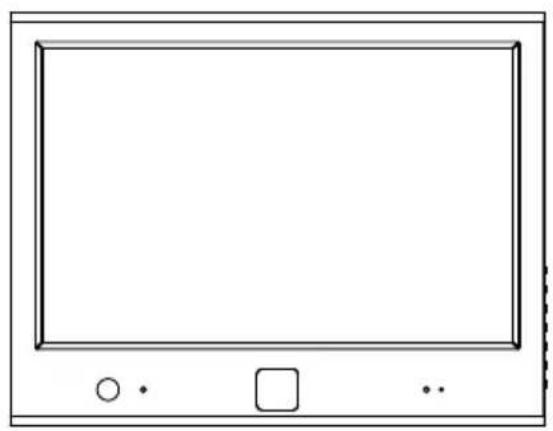
1 22/26-inch LCD public view monitor with WDR camera
1 Remote control unit
2 AAA batteries
1 Installation/ Operation manual
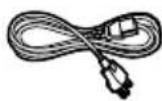
1 Power Cord
natural_image
Simple line drawing of a rectangular device with control buttons at the bottom (no text or symbols)PUBLIC VIEW MONITOR

REMOTE CONTROL
1EA
AAA BATTERIES
2EA

INSTALLATION/OPERATION MANUAL
1EA
Mounting
The monitor accommodates mounts that adhere to the VESA100x100 standard.

- VESA mounted bracket at the screw holes (4 places) located in the middle part of the rear LCD MONITOR, with screws.

Do not use longer screw than 12mm length except mount parts when you use vesa mount bracket.
Rear Panel Connectors
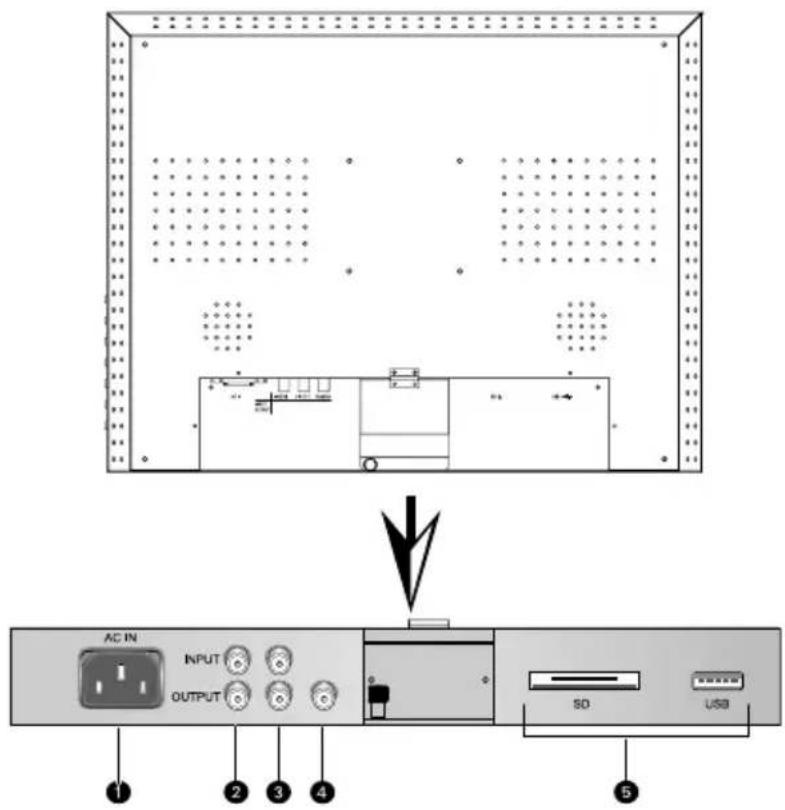
Rear Panel Connectors
- AC POWER: Power receptacle, which can be connected to a 100-240 VAC, 60/50 Hz source
- VIDEO1(loop through): Input connections from DVD players or time-lapseVCRs.
Video loops through the BNC video output.
- VIDEO2(loop through): Input connections from DVD players or time-lapseVCRs.
Video loops through the BNC video output.
- CAMERA OUT: Output signal of internal camera video
- MEDIA CARD IN: Input media card(USB, SD card).
Front Panel Controls
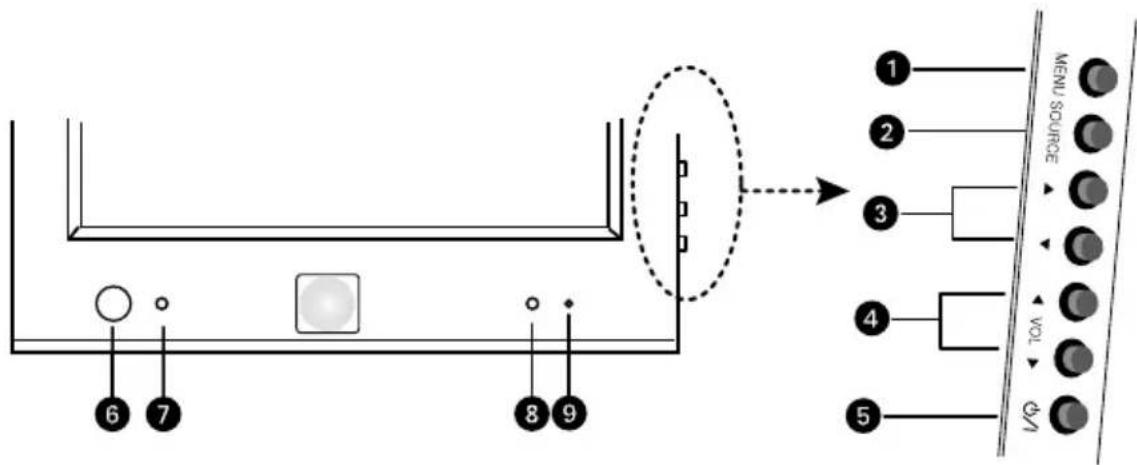
Front and Side Panel Controls
① MENU: Displays the main on-screen menu (monitor).
② SOURCE: Selects the input source and confirms your choice in menu.
③ ▼ and ▲ Navigates through the on-screen menu.
4 ▶/Vol+ and ▶Vol-: Increases or decreases the volume. Also selects or adjusts items on the on-screen menu.
⑤ Power : Turns on/off the monitor.
⑥ Motion Sensor: Motion detection sensor.
⑦ Photo Sensor: Brightness detection sensor.
⑧ Remote control signal receiver : Receives remote control signal.
⑨ Power indicator : Indicates power status. Red means the power is off, green means the power is on.
Installing Remote Control Batteries

natural_image
Three sequential diagrams showing a mechanical component being inserted into a curved blade, with no text or symbols present.Battery Installation
- Open and remove the back cover of the remote control.
- Install two AAA size batteries (supplied). Match the positive (+) and negative (-) signs on the batteries to the signs on the battery compartment.
- Close the battery cover. Make sure the lock snaps closed.

WARNINGS:
- Dispose of batteries in a designated disposal area. Do not throw batteries into a fire.
- Do not mix battery types.
- Remove dead batteries immediately to prevent battery acid from leaking into the battery compartment.
- Remove the batteries if you do not intend to use the remote control for a long period of time.
Remote Control Functions

① POWER: Turns the monitor on or off.
② MUTE: Temporarily silences the sound.
To return the sound: press MUTE again, VOL +, or VOL -. Press the button to select the desired input source.
③ VIDEO1/VIDEO2/MEDIA/CAMERA: Displays all the available input sources. Press the button to select the desired input source.
④ COLOR TEMP: Adjusts the color temperature(Kelvin) of the screen.
⑤ RESERVED: For future use only.(Mirror... etc)
⑥ (PIP): Controls the PIP as follows:
- PIP ON/OFF: Activates/deactivates PIP/PBP mode.
• P.SIZE: Selects the size of the sub picture.
• P.SWAP: Swaps the main and sub picture.
• P. INPUT: Selects an input source for the sub picture.
• P.LOCATION: Selects a location for the sub picture.
⑦ CYCLE: Cycles the input source:
• In PIP or PBP, the subpicture is cycled.
• In Full screen, the main picture is cycled.
• You can define the cycle time and source in the menu.
⑧ MENU/EXIT: Displays or exits the on-screen menu.
⑨ KEY LOCK: Locks the buttons to prevent unauthorized operation of the equipment..
10 ( /VOL- and /VOL+, , ): Controls the cursor in the on-screen menu, and also adjust the volume up or down.
⑪ ENTER: Confirms (store or enter) your choice in the on-screen menu.
12 SCAN: Changes the screen's scan mode (Under, Full, Over, 4:3).
⑬ STILL: Freezes the current picture.
⑭ CAMERA MENU: Display the Camera menu.
⑤ PLAY/PAUSE: Play and pause the slide show picture or video clip.
16 STOP/EXIT: Stop the slide-show or return to previous page. Exits the camera menu.
⑰ (◀/▶): Controls the cursor on the media menu.
* Camera control is optional.
INPUT SOURCE DISPLAY
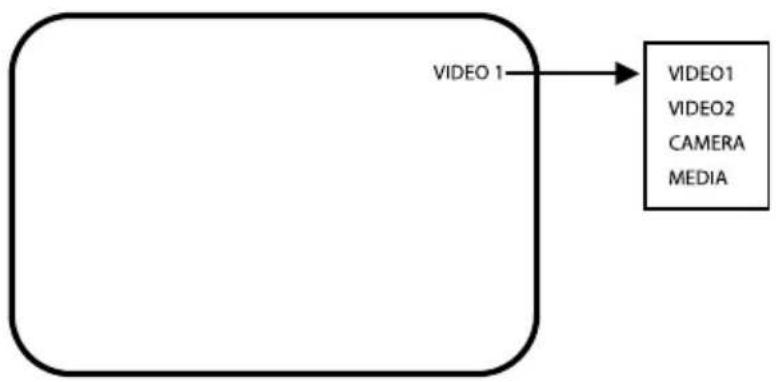
flowchart
graph LR
    A["VIDEO 1"] --> B["VIDEO1"]
    A --> C["VIDEO2"]
    A --> D["CAMERA"]
    A --> E["MEDIA"]
Input source name is displayed on the upper right-hand corner in case of changing input source, or pressing ENTER key on the remote controller.
To use the menus:
- Press the MENU button to access the Main menu.
- Use the ▲ and ▼row buttons to highlight a selection.
- Press ENTER(▶/VOL+) to select an item.
- Use the ▲ and ▼row buttons to highlight a selection.
- Use the ◀/ VOL- and ▶VOL + arrow buttons to adjust the setting on a selected item.

flowchart
graph TD
    A["MAIN MENU"] --> B["Input Menu"]
    B --> C["Contrast Menu"]
    C --> D["Brightness Menu"]
    D --> E["Sharpness Menu"]
    E --> F["Color Menu"]
    F --> G["Tint Menu"]
    G --> H["3D Noise Reduction Menu"]
    H --> I["OFF NR ON"]
    I --> J["Language Menu"]
    J --> K["ENGLISH ITALIAN FRENCH SPANISH GERMAN"]
    K --> L["Key Lock Menu"]
    L --> M["UNLOCK LOCK"]
    M --> N["Scan Mode Menu"]
    N --> O["FULL OVER 4:3 UNDER"]
    O --> P["PIP Menu"]
    P --> Q["SETUP"]
    Q --> R["OSD Menu"]
    R --> S["SETUP"]
    S --> T["Color Temo. Menu"]
    T --> U["NORMAL COOL USER"]
    U --> V["Utility Menu"]
    V --> W["SETUP"]
    W --> X["Media Control Menu"]
    X --> Y["ON/OFF"]
    Y --> Z["Reset Menu"]
    Z --> AA["RESTORE"]

    subgraph Setup Menu
        AB["PIP MODE<br>PIP INPUT<br>PIP LOCATION<br>PIP SIZE<br>PIP SWAP"]
        AC["OSD Setting Menu<br>H.POSITION<br>V.POSITION<br>DISPLAY TIME"]
        AD["User Menu<br>R-GAIN<br>B-GAIN<br>B-GAIN DEFAULT"]
    end

    subgraph Pip Mode Menu
        AE["PIP OFF<br>PIP ON<br>PBP ON"]
        AF["PIP Size Menu<br>LARGE NORMAL SMALL"]
        AG["PIP Input Menu<br>VIDEO 1<br>VIDEO 2<br>CAMERA MEDIA"]
        AH["OSD H Position<br>O 100<br>OSD Dwelling Time<br>OFF 5 30"]
        AI["R-Gain Menu<br>O 100<br>G-Gain Menu<br>O 100<br>B-Gain Menu<br>O 100<br>Reset Setting<br>RESTORE"]
    end

    subgraph OSD Setting Menu
        AJ["H.POSITION<br>V.POSITION<br>DISPLAY TIME"]
        AK["User Menu"]
        AL["Setup"]
    end

    style Setup Menu fill:#f9f,stroke:#333
    style OSD Setting Menu fill:#ccf,stroke:#333
    style Pip Mode Menu fill:#cfc,stroke:#333
Menu Tree
- MENU FIELD DEFINITIONS
UTILITY MENU
| Auto Power ON Select ON, OFF | ||
| Video Loss Sleep Select OFF, VIDEO1, VIDEO2, CAMERA, MEDIA | ||
| Light Sensor Mode ON, OFF | ||
| Sensitivity 1 to 100 | ||
| Delay 5 to 30 | ||
| Motion Sensor Mode OFF, FULL, PIP, PBP | ||
| Sensitivity LOW, MIDDLE, HIGH | ||
| Display Input VIDEO1, VIDEO2, CAMERA | ||
| Display Time 5 to 20 | ||
| Search Mode Off, FULL, PIP, PBP | ||
| Video1 Time Off, 5 to 30 | ||
| Video2 Time Off, 5 to 30 | ||
| Camera Time Off, 5 to 30 | ||
| Media Time Off, 5 to 30 | ||
Auto Power ON:
Select the video input when the power is turned on after returning from an electricity failure.
Video Loss Sleep:
Sets the function that turns off the monitor after video has been lost. If a signal comes, the monitor is on again.
Light Sensor mode:
Automatically turns the monitor off and on based on the light intensity.(1 to 100)
Light Sensor Sensitivity:
Sets the light intensity at which the monitor is turned off and on. (5 to 30)
Light Sensor Delay:
Sets the delay time that the Light Sensor feature waits before activating.
Motion Sensor Mode:
Sets the mode of Motion Sensor.
Motion Sensor Sensitivity:
Sets the sensitivity of Motion Sensor.
Motion Sensor Display Input:
Sets the video input which will be displayed when a human body is detected.
Motion Sensor Display Time:
Sets the time how long a selected video source triggered by Motion Sensor is displayed on the screen.
Search Mode:
Sets the Search of the input source.
Search Video1 Time:
Sets the Search time of Video1.
Search Video2 Time:
Sets the Search time of Video2.
Search Camera Time:
Sets the Search time of Camera.
Search Media Time:
Sets the Search time of Media.
If set off, The Search will skip the input.
- MENU FIELD DEFINITIONS
Source: Select VIDEO 1, VIDEO 2, CAMERA, or MEDIA.
Contrast: Adjusts black level of the video screen image (0 to 100).
Brightness: Adjusts white level of the video screen image (0 to 100).
Sharpness: Adjusts the picture softer or sharper (0 to 15).
Color: Adjusts the color saturation of the video signal (0 to 100).
Tint: Adjusts the range of color: green to red (0 to 100).
3D NR: Reduces the background noise of the video signal (NR ON or OFF).
Language: Select English, German, French, Spanish or Italian for the OSD display.
Key Lock: Select UNLOCK or LOCK. Locks/unlocks the buttons on the front panel.
Scan Mode: Select Under, Full, Over.
PIP: Select SETUP for the picture-in-picture. Then select one of the following:
- PIP Mode: Select PIP OFF, PIP ON, or PBP ON.
- PIP Input: Select VIDEO 1, VIDEO 2, CAMERA, or MEDIA.
- PIP Location: Select the PIP position as T/L (top left), T/R (top right), B/R (bottom right), or B/L (bottom left).
- PIP Size: Select the PIP size as LARGE, NORMAL or SMALL.
- PIP Swap: Select SWAP to interchange Main with PIP by pressing the ENTER button twice.
OSD Setting: Select SETUP for the on-screen display. Then select one of the following:
• H.Position: Adjusts the OSD horizontal position (0 to 100).
• V.Position: Adjusts the OSD vertical position (0 to 100).
• Display Time: Selects off, 5 to 30 secs.
Color Temperature: Select NORMAL, COOL, or USER.
If you select USER, then select from the following calibrations:
• R-Gain: Adjusts gain for red (0 to 100).
• G-Gain: Adjusts gain for green (0 to 100).
• B-Gain: Adjusts gain for blue (0 to 100).
- Reset: Select Restore to return to the original color temperature settings.
Media Control: Sets the media source" enable or disable.
Reset: Select Restore to return to the default settings.
Camera Control
* Camera control is optional.

flowchart
graph TD
    A["MENU"] --> B["PRESET"]
    A --> C["EXPOSURE"]
    A --> D["AGC"]
    A --> E["SHUTTER LIMIT"]
    A --> F["PICTURE CONTROL"]
    A --> G["RESTORE FACTORY SETTINGS"]
    A --> H["VIDEO STANDARD"]

    B --> B1["NORMAL"]
    B --> B2["INDOOR"]
    B --> B3["OUTDOOR"]
    B --> B4["FL-LIGHT"]
    B --> B5["LOBBY"]
    B --> B6["WAREHOUSE"]

    C --> C1["WDR MID"]
    C --> C2["WDR HIGH"]
    C --> C3["CUSTOM..."]

    C1 --> C1a["WINDOW"]
    C2 --> C2a["RANGE"]
    C2 --> C2b["BIAS"]

    C3 --> C3a["BLC..."]

    C3a --> C3a1["SAFE AREA"]
    C3a --> C3a2["ZONE ADJUST"]
    C3a --> C3a3["CENTER 1/3"]
    C3a --> C3a4["LOWER 2/3"]

    C3a --> C3a5["CTR SPOT"]
    C3a --> C3a6["UPPER 1/3"]
    C3a --> C3a7["MIDDLE 1/3"]
    C3a --> C3a8["LOWER 1/3"]

    D --> D1["WDR LOW"]
    D --> D2["MID"]
    D --> D3["HIGH"]
    D --> D4["LOW"]

    E --> E1["2X ESS"]
    E --> E2["4X ESS"]
    E --> E3["8X ESS"]
    E --> E4["16X ESS"]
    E --> E5["32X ESS"]

    F --> F1["WHITE BALANCE"]
    F1 --> F1a["ATW Normal"]
    F1 --> F1b["ATW Desat"]
    F1 --> F1c["ATW Xtnd"]
    F1 --> F1d["Manual..."]

    F1d --> F1d1["MANUAL WHITE BALANCE"]
    F1d1 --> F1d1a["ADJ MODE"]
    F1d1a --> F1d1a1["KELVIN... R/B..."]

    F1d1a --> F1d1a2["KELVIN ADJUST R/B ADJUST"]

    G --> G1["BRIGHTNESS"]
    G1 --> G1a["MID-LOW"]
    G1 --> G1b["MIDDLE"]
    G1 --> G1c["MID-HIGH"]
    G1 --> G1d["High"]
    G1 --> G1e["LOW"]

    G1e --> G1e1["DNR"]
    G1e --> G1e2["SHARPNESS"]
    G1e2 --> G1e2a["MIDDLE"]
    G1e2a --> G1e2a1["HIGH"]
    G1e2a --> G1e2a2["MAX"]
    G1e2a --> G1e2b["LOW"]

    G1e2b --> G1e2b1["FLIP"]
    G1e2b --> G1e2b2["OFF"]
    G1e2b --> G1e2b3["H-FLIP"]
    G1e2b --> G1e2b4["V-FLIP"]
    G1e2b --> G1e2b5["H/V-FLIP"]

    G1e2b5["COLOR SELECT"]
    G1e2b5 --> G1e2b6["COLOR 3"]
    G1e2b6 --> G1e2b7["COLOR 4"]
    G1e2b7 --> G1e2b8["COLOR 1"]
    G1e2b8["COLOR 2"]

    H --> H1["SATURATION"]
    H --> H2["NTSC PAL"]
Camera Control
- Setup Menu
PRESET menu
PRESET menu is provided to help the settings with the possible parameters obtained and assumed by the factory tests for the most common environments.
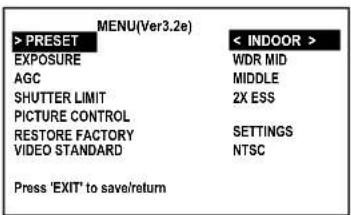
"PRESETs may not be the best optimized settings for the actual installations. In such cases, find the optimal settings in CUSTOM setting of EXPOSURE menu".
| PRESET | DESCRIPTIONS |
| INDOOR | Provides better leveling of image for in the darker areas of the scene. Suitable for indoor scenes that have higher contrast lighting. |
| OUTDOOR | Optimized for outdoor sunlit applications and provides better leveling for the brighter areas. Suitable for outdoor scenes having high contrast between sunlit and shadows. |
| FL-LIGHT | Reduces the color rolling by fluorescent lights when line-lock is not available(NTSC). DC auto iris lens is required. |
| LOBBY | Optimized for the common installation at lobby. |
| WAREHOUSE | Optimized for the common installation at warehouse. |
| NORMAL | Produces an image that has average contrast and suitable for normal indoor or low-contrast outdoor scenes. |
EXPOSURE menu
EXPOSURE menu is provided to help the settings with the possible parameters obtained and assumed by the factory tests for the most common environments.

"EXPOSURE presets may not be the best optimized settings for the actual installations. In such cases, find the optimal settings in CUSTOM setting of EXPOSURE menu".
| EXPOSURE | DESCRIPTIONS |
| WDR MID | Medium level of the dynamic range control for each PRESETs. |
| WDR HIGH | Increases the dynamic range control. Some highlight area may washed out. |
| CUSTOM | Provides more flexible compensation other than WDR MID, WDR LOW, WDR HIGH |
| BLC... | Compensates the brightness of main object against the bright back light.A zone out of CTR SPOT, UPPER1/3, MIDDLE1/3, LOWER1/3 can be set.Dynamic range control is inoperative if EXPOSURE is set to BLC. |
| WDR LOW | Decreases the dynamic range control. |
Camera Control
→ CUSTOM menu
To enter CUSTOM menu, press ENTER button at
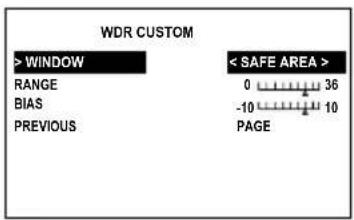
| WDR CUSTOM | DESCRIPTIONS |
| WINDOW | Metering of the dynamic control is weighted to the selected window from SAFE AREA, ZONE ADJUST, CENTER 1/3 AND LOWER 2/3. |
| RANGE | Adjusts the strength of the dynamic range control. |
| BIAS | Adjusts the base level of the dynamic range control. |
ZONE ADJ menu (In Window menu)
Adjusts the size and the location of the metering zone for the dynamic range control. Dynamic range control is very sensitive to the size and the location of the zone. The default window size is SAFE AREA.
To enter ZONE ADJ menu, press ENTER button at
NEXT: MENU-, RETURN: MENU --
In ZONE ADJ menu, 'NEXT:MENU-' stands for 'press ENTER button short for next menu' and 'RETURN:MENU---' means 'press ENTER button longer than 2 sec for return or exit'.
buttons are used for move, enlarge or reduce the zone.
White zone boundary moves the zone to locate it at the optimal position.
Green zone boundary enlarges the zone.
Red zone boundary reduces the zone.
BLC ZONE SELECT menu (In BLC... menu)
To enter BLC ZONE SELECT menu, press ENTER button at
BLC ZONE SELECT
PREVIOUS PAGE
Metering of the backlit compensation control is weighted to the selected window from CTR SPOT(1/9 of entire screen), UPPER 1/3, MIDDLE 1/3 and LOWER 1/3.
Camera Control
AGC MENU
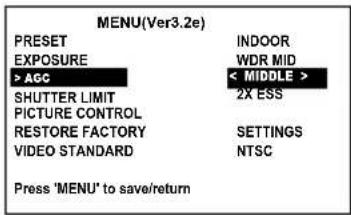
| AGC | DESCRIPTIONS |
| MIDDLE | Medium level of the Automatic gain control |
| HIGH | Increases the Automatic gain control. |
| LOW | Decreases the Automatic gain control |
SHUTTER LIMIT MENU

| SHUTTER LIMIT | DESCRIPTIONS |
| 2X ESS | The longest shutter is limited to 2X of 1/60(NTSC)/1/50(PAL) sec when the scene illumination becomes dim.Video refresh rate at 2X ESS is 15(NTSC)/12.5(PAL) frames/sec. |
| 4X ESS ~32X ESS | The longest shutter is limited to 4X~32X of 1/60(NTSC)/1/50(PAL) sec when the scene illumination becomes dim.The higher integration increases the sensitivity but decreases the video refresh rate. |
Camera Control
PICTURE CONTROL MENU
→WHITE BALANCE menu

• To enter PICTURE CONTROL sub-menu, press "ENTER" button at PICTURE CONTROL of MENU.
| WHITE BALANCE | DESCRIPTIONS |
| ATW Normal | White balance is compensated automatically in range of 2800K-7500K |
| ATW Desat | White balance is compensated automatically in range of 2000K-11000K. In the range of 2000-2800K and 7500-11000K, white balance is gradient-compensated. |
| ATW Xtnd | White balance is compensated automatically in range of 2000K-11000K |
| MANUAL | White balance can be adjusted by either KELVIN or R/B. |
→ MANUAL WHITE BALANCE menu (In Manual... Menu)
• To enter MANUAL WHITE BALANCE menu, press ENTER button at
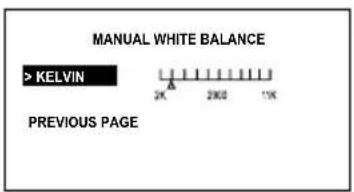
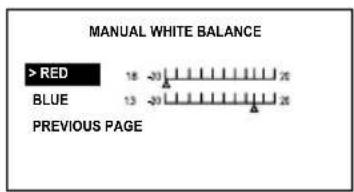
Shoot a white paper or a gray card and adjust either KELVIN or R/B so that the color on the monitor becomes most white.
BRIGHTNESS, DNR, SHARPNESS, FLIP, COLOR SELECT and SATURATION menus (in PITURE CONTROL menu)
| PICTURE CONTROL | DESCRIPTIONS |
| BRIGHTNESS | BRIGHTNESS level is a kind of video output gain and is different from the iris level control.It can be set to MID-LOW, MIDDLE, MID-HIGH, HIGH and LOW. If it is set too high, the dynamic range is decreased. |
| DNR | ON reduces the dynamic noise but effects SHARPNESS a little soft. |
| SHARPNESS | MIDDLE, HIGH, MAX, LOW |
| FLIP | OFF provides the normal video.H-FLIP(V-FLIP) provides the horizontally(vertically) flipped video.H/V-FLIP provides the horizontally and vertically flipped video. |
| COLOR SELECT | Four sets of COLOR variance are provided. |
| SATURATION | Color saturation can be adjusted between -2 and +2. |
RESTORE FACTORY SETTINGS menu
- Restores and saves all parameters of factory settings. Camera resets automatically.
| MENU(Ver3.2e) | |
| PRESET | INDOOR |
| EXPOSURE | WDR MID |
| AGC | MIDDLE |
| SHUTTER LIMIT | 2X ESS |
| PICTURE CONTROL | |
| >RESTORE FACTORY SETTINGS | |
| VIDEO STANDARD | NTSC |
| Press 'EXIT' to save/return | |
VIDEO STANDARD menu
- NTSC and PAL can be switched. VIDEO STANDARD does NOT change by RESTORE FACTORY SETTINGS.
| MENU(Ver3.2e) | |
| PRESET | INDOOR |
| EXPOSURE | WDR MID |
| AGC | MIDDLE |
| SHUTTER LIMIT | 2X ESS |
| PICTURE CONTROL | |
| RESTORE FACTORY | SETTINGS |
| >VIDEO STANDARD | NTSC |
| Press 'EXIT' to save/return | |
Media Mode (USB and SD card)

- Connecting USB device
- Connect USB device to USB slot which is on the slide of the TV set.
- Press USB key on the remote or select USB in main menu special mode.
-
Removing the USB device from Monitor.
-
Return to main menu.
-
Remove the USB device from Monitor.
- When you plug a USB, SD or MS memory card, the below screens will be displayed.

Notes :
- Don't extract the USB device while operating. Music files (MP3), image files (JPG) and AVI files can be played.
• USB HUB connection is not available. -
Recommended USB device and file system.
-
Connecting USB device should comply with USB 2.0 specifications.
- Compatible with: FAT16, FAT32 (Recommend FAT32 for USB over 2GB)
- Only use USB memory stick recommended.
• Devices which require additional program installation may cause identification or data reading problem.
- In case of a USB HDD, make sure to connect an auxiliary power to the USB HDD for proper operation.1 primary partitions of a drive is supported. If there is an extension partition, it will not be supported.
• Digital cameras and mobile phones are not supported.
- Unsupported or damaged AVI, JPG or MP3 files can cause errors. Do not try to change the file extension of unsupported file types to the file extension of supported file types.
- This device codec is hardware codec so the supportable file format and codec can not be updated by firmware upgrade.
- Customers should note that permission is required in order to download MP3 or movie files from internet. Our company has no right to grant such permission.
Permission should always be sought from the copyright owner.
Media - Setup
- Using the remote control
Select the S/W Version
• Show the S/W Version.
- Press the USB button and then use Button to select the Setup.
- Press the ENTER button to enter the Setup menu.
- Press the ▲/▼button to select the SYSTEM SETUP.
- Press the ▶ and then use button to select S/W VERSION.
- Press the ▶
- Press the STOP/EXIT button to return to the Main menu.
Select the Default
- Use the Default option to initialize the adjusted settings.
- Press the USB button and then use ▶ button to select the Setup.
- Press the ENTER button to enter the Setup menu.
- Press the ▲/▼button to select the SYSTEM SETUP.
- Press the ▶ and then use /button to select DEFAULT.
- Press the ▶.
- Press the STOP/EXIT button to return to the Main menu.

Media - Setup
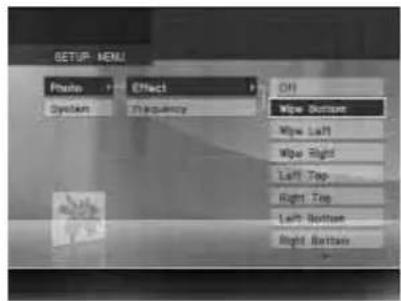
Select the Photo Effect
• The picture display effect for the slide show.
- Use button to select the Setup.
- Press the ENTER button to enter the Setup menu.
- Press the ▲/▼button to select the PHOTO SETUP.
- Press the ▶ and then use D/E button to select EFFECT.
- Press the ▶ and then use D/E button to select the desired Effect.
- Press the STOP/EXIT button to return to the Main menu.
Select the Frequency
- The picture display interval for the slide show.
- Use button to select the Setup.
- Press the ENTER button to enter the Setup menu.
- Press the ▲/▼button to select the PHOTO SETUP.
- Press the ▶ and then use button to select FREQUENCY.
- Press the ▶ and then use button to select the Frequency.
- Press the STOP/EXIT button to return to the Main menu.
Select the OSD Language
- You can select OSD lanuage.
- Use button to select the Setup.
- Press the ENTER button to enter the Setup menu.
- Press the ▲/▼button to select the System OSD Language.
- Press the ▶ and then use button to select Language.
- Press the STOP/EXIT button to return to the Main menu.


Media - Movie
Select the Movie, Music or Photo Media
- When you plug a USB, SD card, on the right screens will be displayed.
- Press ◀/button to select Movie, Music or Photo.
- Press the ENTER button to enter the Movie, Music or Photo media.
Movie File Playing Operation
- Use ▲button to select the Movie.
- Press the ENTER button.
- Press the PLAY/PAUSE or ENTER button. Then the movie starts.
- Press the STOP/EXIT button to stop or return to the main menu.
Notes:
- Movie (AVI) file compatibility with this player is limited as follows:
- Available resolution of AVI file is under 720x480 (576) pixel.
- If video codec is not supportable, "UNSUPPORTED FORMAT" OSD will be displayed in the file list menu.
- If sound codec is not supportable, Video may display but "UNSUPPORTED FORMAT" OSD will be displayed with no sound.
- If sound has no data stream, "NO SOUND" OSD will be displayed on the screen.
- If the number of the screen frame is over 30 per 1 second, this device may not operate normally.
• Supportable Subtitle format: srt, sri, smi, txt, ssa, ass, sub, psb
- Supportable movie file extension: ".DAT", ".AVI", ".MP4", ".MPG"
- Supportable video codecs: MPEG1(VCD 1.0, 1.1, 2.0, SVCD), MPEG4 ASP or Compatible codecs

Media - Music
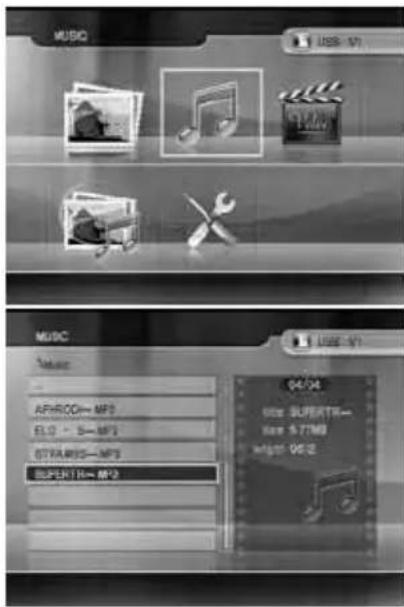
MP3 File Playing Operation
• Purchased MP3/music files may contain copyright restrictions.
- Use ▲/▼/◄/►button to select the Music.
- Press the ENTER button.
- Press the ▲/▼button to select folder and desired music file.
- Press the PLAY/PAUSE or ENTER button. Then the music starts.
- Press the STOP/EXIT button to stop or return to the Main menu.
Notes :
- MP3 compatibility with this player is limited as follows:
- Sampling frequency : within 8 -48 KHz
- Bit rate: 32-384Kbps, Support all variable bit rates
- Monitor cannot read an MP3 file that has a file extension other than ".mp3"
- File name should have a maximum of 8 letters and must incorporate an .mp3 extension.
- Total number of files on the USB memory device should be less than 1200.
- This Monitor mp3 player requires mp3 files to meet certain technical standards (ISO/IEC 111723, ISO/IEC 13818-3.2) in order to achieve optimal playback quality.
- There are many different types of MP3 encoders and these require certain pre-existing conditions above to ensure compatible playback.
- The navigation key can be shifted only up and down during MP3 file play and cannot switch to other folder.
- In order to play a file in other folder, stop the file being played, and move cursor to another folder.
- In case of VBR (Variable Bit Rate) MP3, estimated playing time may not correct as actual playing.
Media - Photo
JPEG File Viewing Options
- When you select Photo in entry menu, you will now see a screen filled with thumbnail photo media.
- Press the USB button and then use ▲/▼ button to select the Photo.
- Press the ENTER button.
- Press the ▲/▼button to select photo file.
- Press the ENTER or PLAY/PAUSE button for slide show.
- Press the STOP/RTN button to stop slide show or return file list, Main menu.
Slide Show (Slide show with music)
- Press the button to select JPEG file and then press the ENTER button. Slide show starts.
- You can choose the slide show effect, frequency and play mode in the Setup menu.
- Press the PLAY/PAUSE button to pause the current image.
- Press the STOP/RTN button to stop slide show return to the Main menu.
(Thumbnail mode :Press button in the ▶photo file list )
Notes :
JPEG compatibility with this player is limited as follows :
- Depending upon the size and the number of JPEG files, it could take a long time for Monitor to read the USB memory's contents. If you don't see an on screen display after several minutes, some of the files maybe too large-reduce the resolution of the JPEG files to less than 2M pixels as 2760x2048 resolution.
- The total number of files and folders on the USB or SD memory device should be less than 1200.
- File name without ".jpg" extension will not be able to read by this Multimedia player jpeg decoder. Even though the files are shown as JPEG image files in Windows Explorer.


natural_image
Grid of 16 black-and-white photos showing landscapes and structures, no visible text or symbolsSpecifications
ELECTRICAL
| Input Voltage | 100-240VAC, 60/50Hz |
| Power Consumption | |
| 22" | 65W (1.1A) |
| 26" | 140W (1.4A) |
| Input Interfaces | VIDEO: 2 BNCMedia card |
| Output Interfaces | Video: 2 BNCCamera: 1 BNC |
| Horizontal Frequency | 15.75/16.25 kHz |
| Vertical Frequency | 50/60Hz |
ENVIRONMENTAL
| Operating Temperature | 32irc to 104irc F( 0irc to 40irc C) |
| Storage Temperature | -4irc to 140irc F ( -20irc to 60irc C) |
| Operating Humidity | 20% to 80%, noncondensing |
| Storage Humidity | 10% to 90%, noncondensing |
PHYSICAL
| Dimensions | |
| 22" | 3.3" D x 21.2" W x 16.4" H(8.3 x 53.8 x 41.6 cm) |
| 26" | 4.0" D x 26.1" W x 18.5" H(10.1 x 66.4 x 47.0 cm) |
| Unit Weight | |
| 22" | 23.2 lb (10.5 Kg) |
| 26" | 32.0 lb (14.5 Kg) |
| Shipping Weight | |
| 22" | 28 lb (13Kg) |
| 26" | 39 lb (18Kg) |
CAMERA SPECIFICATIONS
| Imaging Device | 1/3-inch pixel-based imager |
| Picture Elements | 720 (H) x 540 (V) |
| Dynamic Range | 102 dB typical, 120 dB maximum |
| Scanning System | 2:1 interlace/progressive |
| Horizontal Resolution | |
| NTSC 504 TV lines --- CAMERA (540TVL) | |
| PAL 504 TV lines --- CAMERA (540TVL) | |
| Signal-to-Noise Ratio | >50 dB |
| Minimum Illumination | |
| Gain Control | Auto (42dB maximum by menu) |
| Exposure | Auto (1/15 to 1/22,000) |
| White Balance | Auto or manual, 2800°K to 7500°K |
| Backlight Compensation | Auto |
| Sync Format | NTSC/PAL |
Specifications
LENS SPECIFICATIONS
| Focal Length | 3.8 mm to 9.5 mm |
| Format Size | 1/3-inch |
| F-Number | F1.7 ~ F3.0 |
Operation
| Iris | FIXED |
| Focus | Manual |
| Zoom | Manual |
Angle of View*
| Horizontal | 73.5° to 29.7° APPROX. |
| Diagonal | 95.5° to 37.3° APPROX. |
| Vertical | 53.9° to 22.3° APPROX. |
*Focal length specifications presume a 10% horizontal and 4% vertical monitor overscan.
- Contents
- Important Safety Instructions
- Explanation of Safety Related Symbols
- CAUTION
- Shock Hazard Marking and Associated Graphical Symbols
- Regulatory Notices
- Mounting
- Rear Panel Connectors
- Front Panel Controls
- Installing Remote Control Batteries
- WARNINGS:
- Remote Control Functions
- INPUT SOURCE DISPLAY
- To use the menus:
- - MENU FIELD DEFINITIONS
- Auto Power ON:
- Video Loss Sleep:
- Camera Control
- - Setup Menu
- PRESET menu
- EXPOSURE menu
- AGC MENU
- SHUTTER LIMIT MENU
- PICTURE CONTROL MENU
- RESTORE FACTORY SETTINGS menu
- VIDEO STANDARD menu
- Media Mode (USB and SD card)
- - Connecting USB device
- Notes :
- Media - Setup
- - Using the remote control
- Select the S/W Version
- Select the Default
- Select the Photo Effect
- Select the Frequency
- Select the OSD Language
- Media - Movie
- Select the Movie, Music or Photo Media
- Movie File Playing Operation
- Notes:
- Media - Music
- MP3 File Playing Operation
- Media - Photo
- JPEG File Viewing Options
- Slide Show (Slide show with music)
- JPEG compatibility with this player is limited as follows :
- Specifications
Brand : Vitek
Model : VTM-PV26i
Category : Unspecified