
GSR-HM51 - Unspecified VAIS Technology - Free user manual and instructions
Find the device manual for free GSR-HM51 VAIS Technology in PDF.


| Product Type | SiriusXM Interface Adapter for Select Harley-Davidson Models |
| Model | GSR-HM51 |
| Compatibility | Select Harley-Davidson models with factory radio and SiriusXM-ready headunit; requires SiriusXM SXV300 Tuner (sold separately) |
| Power Supply | 12V DC (constant battery); pink and yellow wires to constant +12V, blue and green wires to chassis ground |
| Current Consumption | 0.3 A (max) supplied by headunit via SXV300 tuner |
| Dimensions (Tuner Unit) | 3.42 x 2 x 0.7 in (87 x 51.8 x 17.9 mm) |
| Weight (Tuner Unit) | 3 oz (85 g) |
| Antenna Type | Magnetic mount, SMB connector, 23 ft (7 m) cable |
| Operating Temperature | -4°F to +158°F (-20°C to +70°C) |
| Weather Resistance | Weather resistant (not waterproof); requires waterproofing of USB connection |
| Key Features | Allows factory radio control of SiriusXM channels, presets, and categories; supports SXV300 tuner; user interface via radio menus |
| Installation Requirements | Professional installation recommended; disconnect battery negative terminal and wait 90 seconds; all power wires must be connected; waterproof USB connection required |
| Included Accessories | GSR-HM51 adapter with USB cable, mounting bracket; SXV300 tuner and magnetic antenna included in kit (SXV300V1) |
| Warranty | 12-month limited warranty from VAIS Technology; covers defects in material and workmanship |
| Safety Warnings | Do not disassemble; do not block airbag; avoid splicing into electrical cables; keep cables free from moving parts |
| Country of Origin | Mexico (from kit label) |
Frequently Asked Questions - GSR-HM51 VAIS Technology
User questions about GSR-HM51 VAIS Technology
0 question about this device. Answer the ones you know or ask your own.
Ask a new question about this device
Download the instructions for your Unspecified in PDF format for free! Find your manual GSR-HM51 - VAIS Technology and take your electronic device back in hand. On this page are published all the documents necessary for the use of your device. GSR-HM51 by VAIS Technology.
USER MANUAL GSR-HM51 VAIS Technology
(Subscription is required. Sold separately.)

GSR-HM51-MAN
Compatible with select Harley Davidson models. Refer to GSR-HM51 application guide for details.


WARNING:Cancer and Reproductive Harm - www.P65Warnings.ca.gov.
| Before You Start | 3 |
| Installation | 5 |
| SiriusXM Source Selection | 8 |
| User Interface - Channels, Presets, Categories | 11 |
| Warranty | 12 |

WARNING
DO NOT DISASSEMBLE OR ALTER
Doing so may result in an accident, fire or electric shock
Do not block the airbag
Do not mount product or any added audio and/or video equipment where it can obstruct the operation of any safety devices such as the airbag.
Distraction Warning
Do not let product or any added audio and/or video equipment distract you while you are driving.
BEFORE WIRING, DISCONNECT THE CABLE FROM THE NEGATIVE BATTERY TERMINAL
Before starting any installation work, you must wait 90 seconds after turning the ignition switch to the LOCK position and disconnecting the negative (-) terminal from the battery. The supplemental restraint system (airbag) is equipped with a backup power source. If installation work is started less 90 seconds after disconnection of the negative (-) battery terminal, the SRS may deploy. When the negative (-) terminal cable is disconnected from the battery the clock and audio systems memory will be erased. Before starting installation work make a record of the clock and audio systems memory settings. When installation is complete, reset the clock and audio systems to their previous settings. Power tilt, power telescopic steering column, front power seats, power mirrors, and power shoulder belt anchorage are equipped with a memory function. The rear power seat is not equipped with a memory function. e and they can make a record of the memory contents, rear power seat is not equipped with the memory function. When installation is complete, it is necessary to readjust the features to their previous settings Never use a backup power supply (such as another battery) during installation work to avoid losing these memory settings.

CAUTION
DO NOT SPLICE INTO ELECTRICAL CABLES
Never cut away cable insulation to supply power to other equipment. Doing so will exceed the current carrying capacity of the wire and result in fire or electric shock.
DO NOT ALLOW CABLES TO BECOME ENTANGLED IN SURROUNDING OBJECTS
Cables or wiring that obstruct or get caught on places such as the steering wheel, shift lever, brake pedals, etc. can be extremely hazardous.
DO NOT INSTALL IN LOCATIONS WITH HIGH MOISTURE OR DUST
Moisture or dust may result in product failure.
HAVE THE WIRING AND INSTALLATION DONE BY EXPERTS
The wiring and installation of this product requires special technical skills and experience.
USE ONLY SPECIFIED ACCESSORY PARTS
Use of other than specified parts may damage product internally.
Follow the operational and installation manuals.
YOU SHOULD READ AND FAMILIARIZE YOURSELF THOROUGHLY WITH THE FOLLOWING INFORMATION PRIOR TO INSTALLING AND USING THIS UNIT. IN ADDITION, YOU MUST CAREFULLY READ AND FOLLOW THE INSTALLATION SCHEMATICS/INSTRUCTIONS FOR THE PRODUCT AND THE VEHICLE IN WHICH IT IS BEING INSTALLED. FAILURE TO FOLLOW INSTALLATION INSTRUCTIONS MAY DAMAGE THE PRODUCT AND THE VEHICLE, WILL VOID THE PRODUCT WARRANTY, AND MAY VOID THE VEHICLE WARRANTY.
Check your local laws
Some States/Provinces or other governmental jurisdictions (such as cities) may have laws that prohibit the operation of a video screen within the sight of the Driver. If you have purchased such a product, you should use the product only in locations where it is legal to do so, and if you do use the product, set up the screen so it is only visible to passengers.
TROUBLESHOOTING
Should this product fail to operate properly, please contact your Dealer or our Customer Service Department at info@vaistech.com.

IMPORTANT
This unit is an interface adapter for Toyota/Scion head unit to control the SiriusXM Tuner SXV300 (SOLD SEPARATELY).

About SiriusXM Satellite Radio Operation
The unit may refuse to change the channel if your reception is going ON and OFF.
Please wait until your reception stabilizes in order for the unit to allow you to change the channel easily.
Due to bad reception in some areas, SiriusXM Satellite Radio may not work and/or not able to display text.
Only SiriusXM® brings you more of what you love to listen to, all in one place. Get over 140 channels, including commercial--free music plus the best sports, news, talk, comedy and entertainment. Welcome to the world of satellite radio. A SiriusXM Vehicle Tuner and Subscription are required. For more information, visit www.siriusxm.com.
The SiriusXM Radio ID is required for activation and can be found by tuning to Channel 0 as well as by looking on the label found on the SiriusXM Connect tuner and its packaging.
After installing your SiriusXM Connect Vehicle Tuner and antenna, power on your radio and select SiriusXM mode. You should be able to hear the SiriusXM preview channel on Channel 1. If you cannot hear the preview channel, please check the installation instructions to make sure your SiriusXM Connect tuner is properly installed.
After you can hear the preview channel, tune to Channel 0 to find the Radio ID of your tuner. In addition, the Radio ID is located on the bottom of the SiriusXM Connect Vehicle Tuner and its packaging. You will need this number to activate your subscription. Write the number down for reference.
Note: the SiriusXM Radio ID does not include the letters I, O, S or F.
In the USA, you can activate online or by calling SiriusXM Listener care:
- Visit www.siriusxm.com/activatenow
• Call SiriusXM Listener Care at 1-866-635-2349
For Canadian Subscriptions, please contact:
- Visit www.siriusxm.ca/activatexm
• Call XM customer Care at 1-877-438-9677
As part of the activation process, the SiriusXM satellites will send an activation message to your tuner. When your radio detects that the tuner has received the activation message, your radio will display: "SUBSCR UPDATE..." "< please wait >". Once subscribed, you can tune to channels in your subscription plan. Note, the activation process usually takes 10 to 15 minutes, but may take up to an hour. Your radio will need to be powered on and receiving the SiriusXM signal to receive the activation message.
Sirius, XM, SiriusXM and all related marks and logos are trademarks of Sirius XM Radio Inc. All rights reserved.
What's Included
GSR-HM51 Harley Davidson Interface Adapter

Model: GSR-HM51

Connecting GSR-HM51
The GSR-HM51 is weather resistant, not weather-proof, and care must be taken to install the unit where it will not have direct contact with water. Do not open the GSR-HM51 as this will void the warranty.

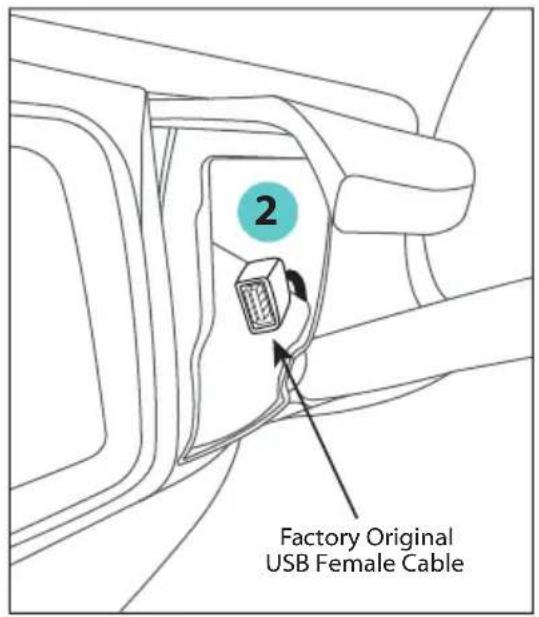
Locate and open the fairing pocket which has the factory original USB Female Cable.

2
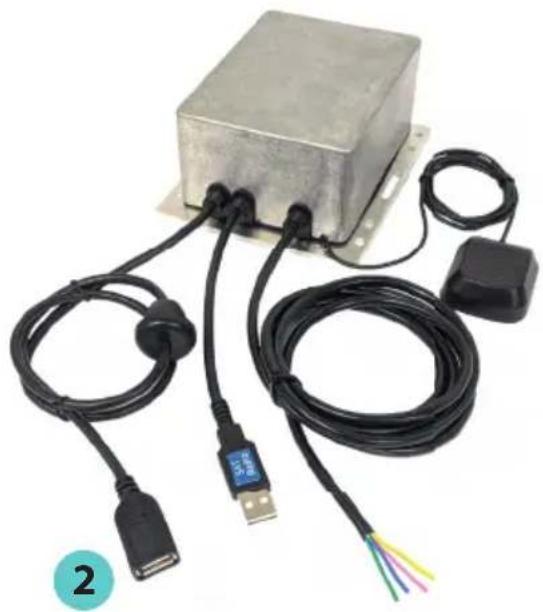
Remove the factory original USB Female Cable from the fairing pocket and replace with the USB Female Cable from the GSR-HM51.
natural_image
Electronic component with USB connector, black wiring, and a metallic housing (no visible text or symbols)3
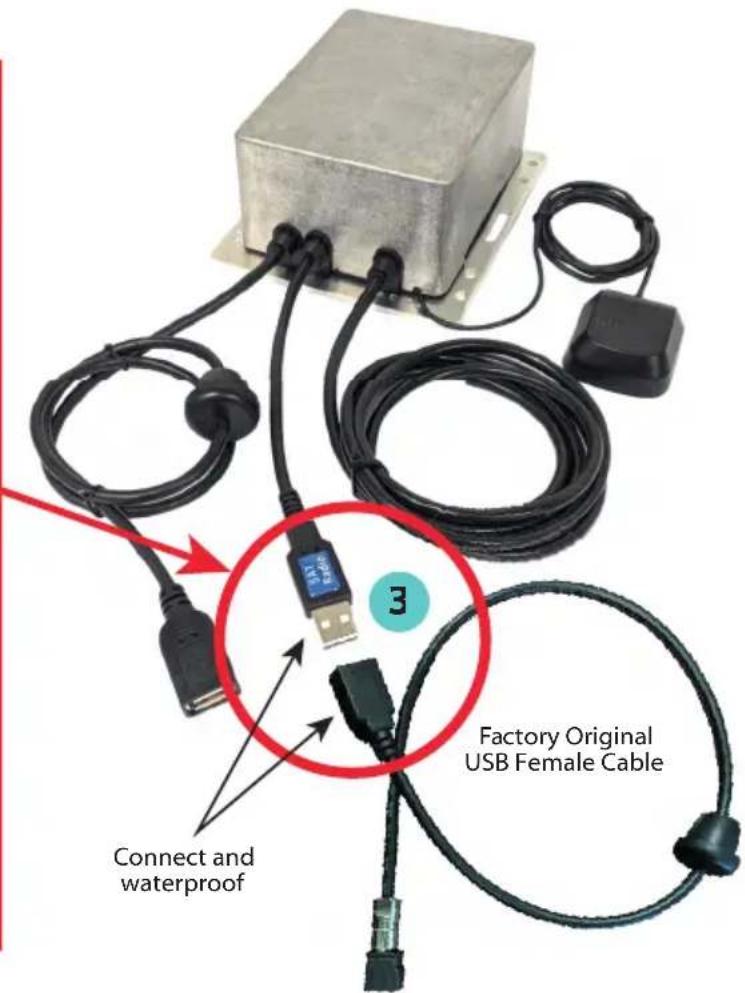
Connect the factory original USB Female Cable (which was removed from the fairing pocket) to the USB Male Cable from the GSR-HM51 which is labeled "SAT Radio". Apply silicone or other waterproofing material to the exterior of these USB connectors to make a watertight seal.

IMPORTANT
INSTALLER:
This USB connection must be made water-proof.
Apply silicone or other caulk to the exterior of this USB connection to ensure that there is a watertight seal.
Failure to waterproof this connection can damage the GSR-HM51 and the factory radio receiver through water intrusion.
4
Connect the GSR-HM51 to 12V power. Note that all power wires must be connected, and the Pink and Yellow +12V wires must be connected to constant battery power.

natural_image
Electronic device with USB and multimeter wires, no visible text or symbols on main subject
ALL POWER WIRES MUST BE CONNECTED
Blue AND Green Wires
connect BOTH to car chassis ground
Pink AND Yellow Wires CONSTANT BATTERY POWER+12V connect BOTH to constant battery power

DO NOT CONNECT TO ACCESSORY POWER
5
Mount the GSR-HM51 using the built-in bracket to a secure location where it will not have direct contact with water.
6
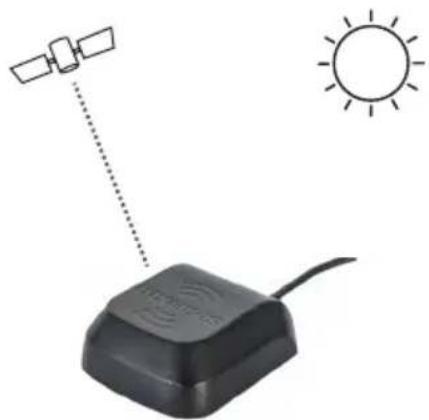
Place the magnetic mount antenna where it has a clear unobstructed view of the sky. The surface of the antenna which has the SiriusXM logo must be facing the sky. There can be no metal objects above the antenna which will interfere with receiving a satellite signal.
natural_image
Illustration of a satellite connected to a device with a sun symbol (no text or labels)A

B

C

D
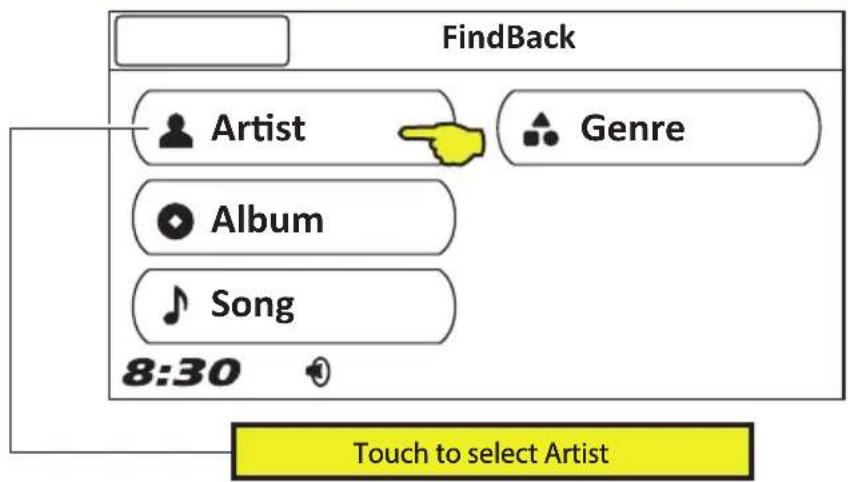
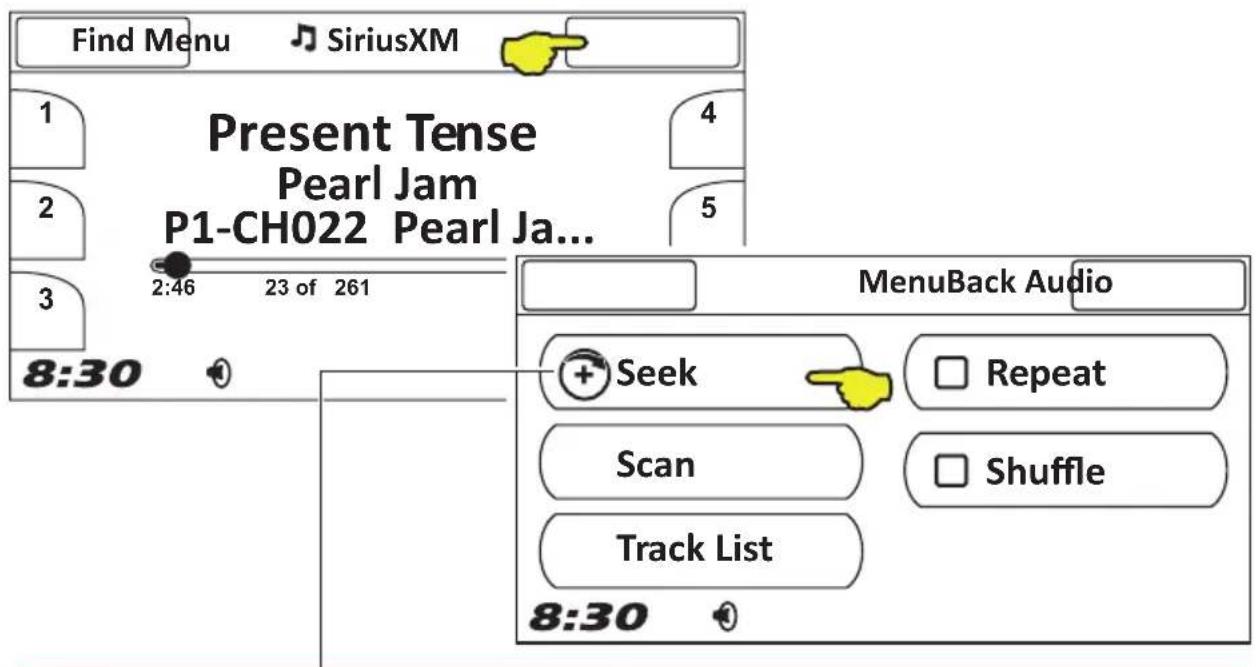

Tap Menu on the Now Playing screen and be sure that Seek is shown on the Menu screen. If Presets is shown tap the Presets button to change to Seek.
"Track Seek ▶" or "Track Seek ◀" (on handlebar controls) switch to next available channel.
Long Touch on "Track Seek ➞" or "Track Seek ➕" to switch to next available channel.


flowchart
graph TD
    A["Artists"] --> B["Tune Presets/Channels"]
    B --> C["All Channels"]
    B --> D["My Presets"]
    B --> E["Add Preset"]
    B --> F["Delete Preset"]
    B --> G["Replace Preset"]
    B --> H["Delete All Presets"]
    C --> I["1 CH025 Classic Rewind"]
    C --> J["2 CH033 1st Wave"]
    C --> K["3 CH002 Hits 1"]
    C --> L["4 CH301 Road Trip Radio"]
    D --> M["1 Save Current Channel - 'CH Name'"]
    E --> N["1 CH025 Classic Rewind"]
    E --> O["2 CH033 1st Wave"]
    E --> P["3 CH002 Hits 1"]
    E --> Q["4 CH301 Road Trip Radio"]
    F --> R["1 CH025 Classic Rewind"]
    F --> S["2 CH033 1st Wave"]
    F --> T["3 CH002 Hits 1"]
    F --> U["4 CH301 Road Trip Radio"]
    H --> V["1 Delete ALL 'XX' Presets"]

flowchart
graph TD
    A["Artists"] --> B["Tune Presets/Channels"]
    B --> C["Browse by Category"]
    C --> D["System Information"]
    D --> E["Pop"]
    E --> F["Rock"]
    F --> G["R&B"]
    G --> H["All Channels"]
    C --> I["1 CH019 Elvis"]
    C --> J["2 CH020 E Street Radio"]
    C --> K["3 CH021 Underground Garage"]
    C --> L["4 CH022 Pearl Jam Radio"]
    E --> M["1 CH000 Radio ID ABCD1234"]
    E --> N["2 CH001 SiriusXM Preview"]
    E --> O["3 CH002 SiriusXM Hits 1"]
    E --> P["4 CH003 Venus"]
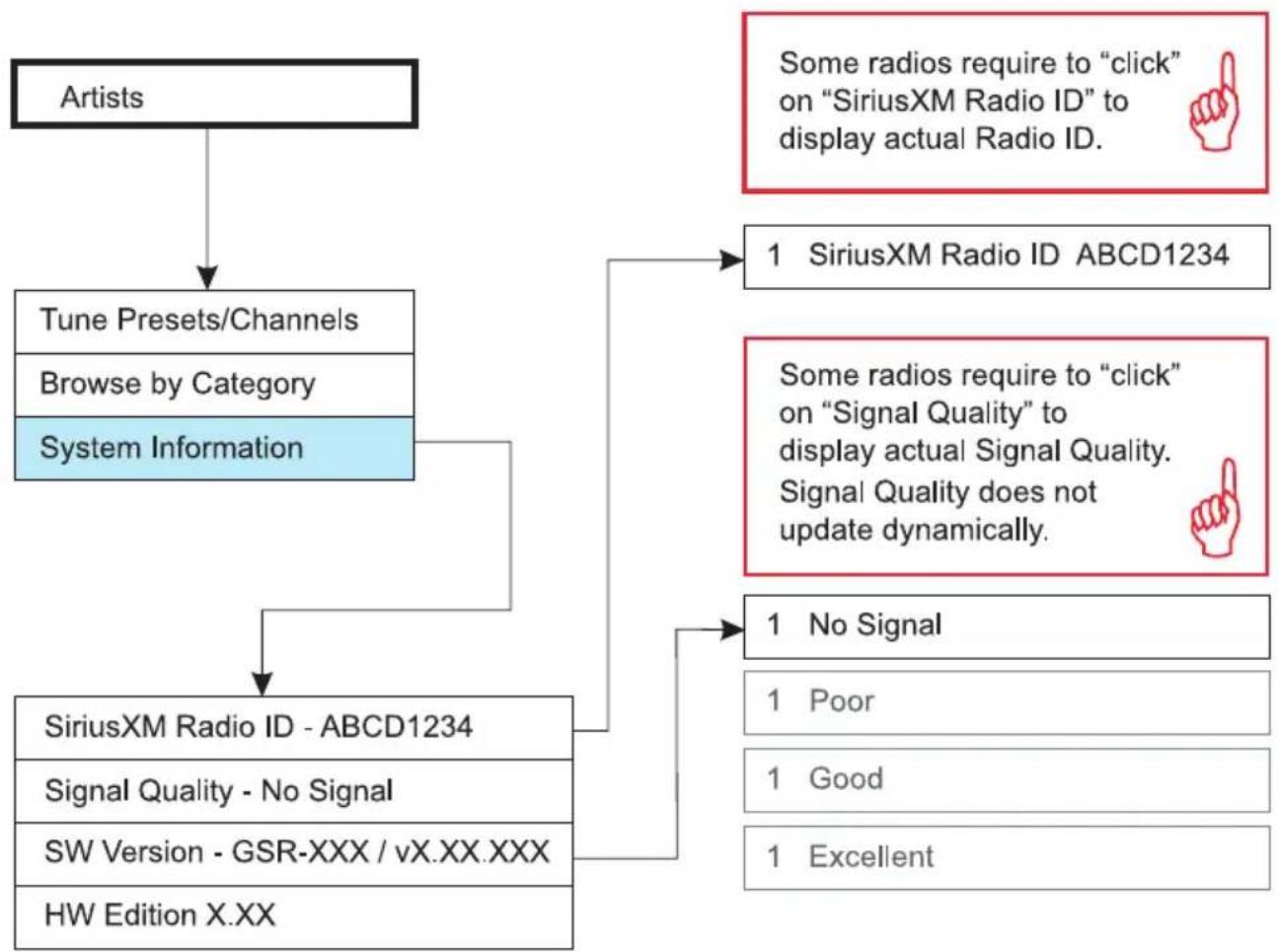
flowchart
graph TD
    A["Artists"] --> B["Tune Presets/Channels"]
    B --> C["Browse by Category"]
    C --> D["System Information"]
    D --> E["SiriusXM Radio ID - ABCD1234"]
    E --> F["Signal Quality - No Signal"]
    F --> G["SW Version - GSR-XXX / vX.XX.XXX"]
    G --> H["HW Edition X.XX"]
    D --> I["1 SiriusXM Radio ID ABCD1234"]
    I --> J["Some radios require to "click" on "SiriusXM Radio ID" to display actual Radio ID."]
    I --> K["Some radios require to "click" on "Signal Quality" to display actual Signal Quality. Signal Quality does not update dynamically."]
    K --> L["1 No Signal"]
    L --> M["1 Poor"]
    L --> N["1 Good"]
    L --> O["1 Excellent"]
Warranty is available for download: https://www.vaistech.com/download/15244/
To request a paper warranty copy please contact us:
VAIS Technology
Warranty Department
8811 American Way
Unit 125
Englewood, CO 80112
720-733-2348
sales@vaistech.com
((SiriusXm™))
SATELLITE RADIO
SXV300 Connect Vehicle Tuner
INSTALLATION GUIDE
WITH THIS TUNER, YOU'RE ELIGIBLE FOR
3 MONTHS FREE SERVICE
Minimum subscription and credit card required. See Offer Details on page 10.
\$60 VALUE
INCLUDES ALL ACCESS SUBSCRIPTION PACKAGE

natural_image
Front view of a white car with no visible text or symbolsThank you for purchasing the SXV300V1 SiriusXM Connect Vehicle Tuner Kit.
This kit comes with everything you need to add Satellite Radio to your SiriusXM-Ready headunit. Consult your headunit User Guide for features and detailed operational instructions.
For questions or support, please visit www.siriusxm.com or call 1-866-635-2349.
What's In the Box?
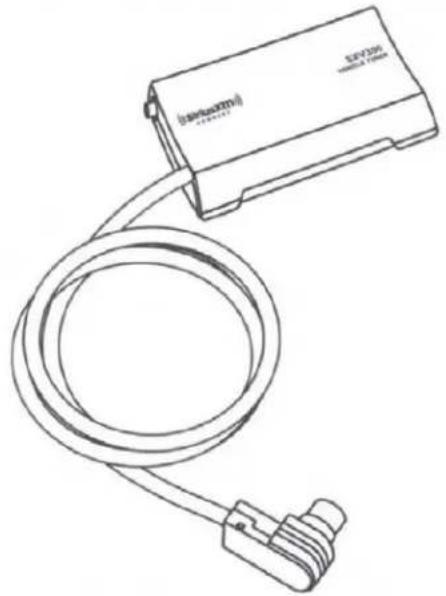
The SXV300V1 kit includes the following:
natural_image
Line drawing of a device with a coiled cable and connector (no text or symbols)SXV300 Vehicle Tuner

natural_image
Line drawing of a cable with a small connector attached, no text or symbols presentMagnetic Mount Antenna

Alcohol Prep Pad
Check Your Headunit For Compatibility
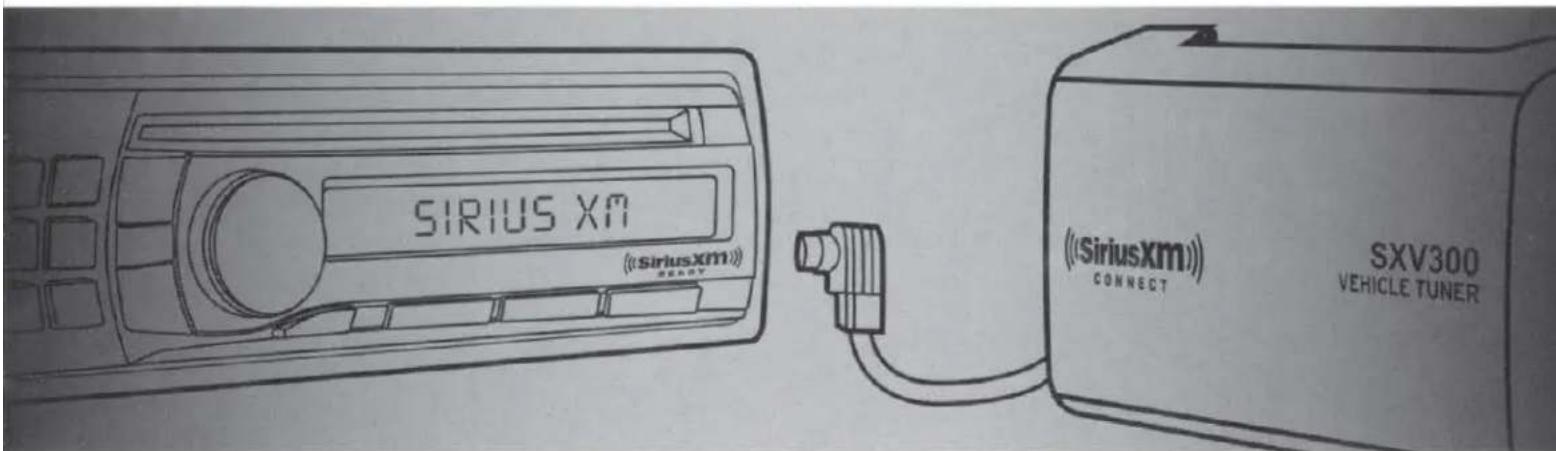
If your headunit has the official SiriusXM-Ready logo it is compatible with the SXV300 Vehicle Tuner. All SiriusXM-Ready headunits include a dedicated connector, allowing for quick and easy connection of the SXV300 tuner.

Products with this logo are compatible



Products with these logos are not compatible
Install the Magnetic Mount Antenna
Proper placement of the Magnetic Mount Antenna is very important. Consult a professional installer if you are uncomfortable with installing the antenna yourself. More detailed installation instructions and illustrations can be found at www.siriusxm.com/installation and clicking on the XM Vehicle Installation link.
- Place the Magnetic Mount Antenna on the outside of your vehicle on a horizontal surface that always faces the sky.
- Avoid placing the antenna near obstacles that could block a clear view of the sky (such as roof racks, other antennas like AM/FM, cellular, and GPS), preventing the satellite signal from reaching the antenna.
natural_image
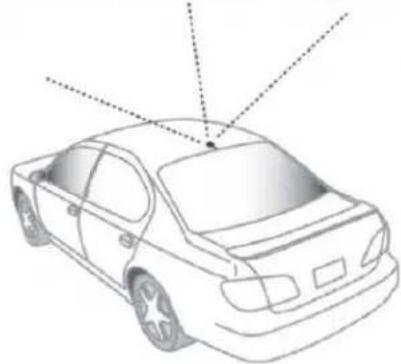
Line drawing of a sedan car with dashed lines indicating perspective projection (no text or symbols)Select the Best Location for the Magnetic Mount Antenna
For most vehicles the best location is on the roof, centered above the rear window or front windshield. Consult a professional installer to find an alternate antenna mounting location if your vehicle roof is made from a non-magnetic material such as aluminum, fiberglass, or carbon fibre.
- Sedan or Coupe: Recommended mounting location is above the rear window or front windshield.
- Pickup or SUV: Recommended mounting location is above the front windshield.
- Convertible: Recommended mounting location is above the front windshield, or alternately on the trunk lid, on the front hood, or on top of the front fender.

natural_image
Line drawing of a sedan car (no text or symbols)
natural_image
Line drawing of a pickup truck (no text or symbols)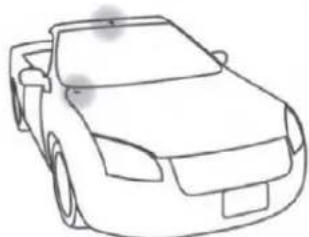
natural_image
Line drawing of a car with no text, numbers, or symbolsRoute the Antenna Cable
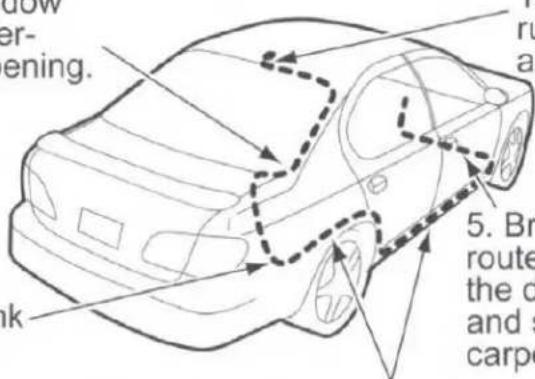
Use care when routing the antenna cable into and through the vehicle interior, avoiding sharp objects that can damage the cable. Keep the antenna cable away from moving parts such as gas and brake pedals, trunk and door hinges, and sliding seat brackets.

natural_image
Line drawings of five different car models with dashed outlines, no text or symbols presentHide the antenna wire inside the vehicle cabin by routing the cable under the carpet and behind plastic trim, toward the headunit location. Coil and secure any excess cable in a hidden location, such as under the carpet, using wire ties (not included).
CAUTION! Do not kink or sharply fold the antenna cable.
- Route cable out of window moulding and into weather-stripping around trunk opening.
-
Feed cable under rubber moulding around window.
-
Bring cable out from trim and route under carpet and behind the dash to the headunit. Coil and secure excess cable under carpet or behind dash.
-
Route cable along trunk wall and into cabin.
-
Route cable from trunk under interior trim, into cabin and towards front of vehicle.
Make the Connections
You'll need to access the back of the SiriusXM-Ready headunit so you can plug the SXV300 Vehicle Tuner into it. This may require you to remove the headunit from the dashboard. If you are uncomfortable with this step, consult a professional installer.
Be sure to turn OFF the SiriusXM-Ready headunit before connecting the SXV300 Vehicle Tuner. Locate the SiriusXM connector on the headunit and connect the SXV300. The headunit may have a panel mount type connector, or it may have a pigtail type connector.
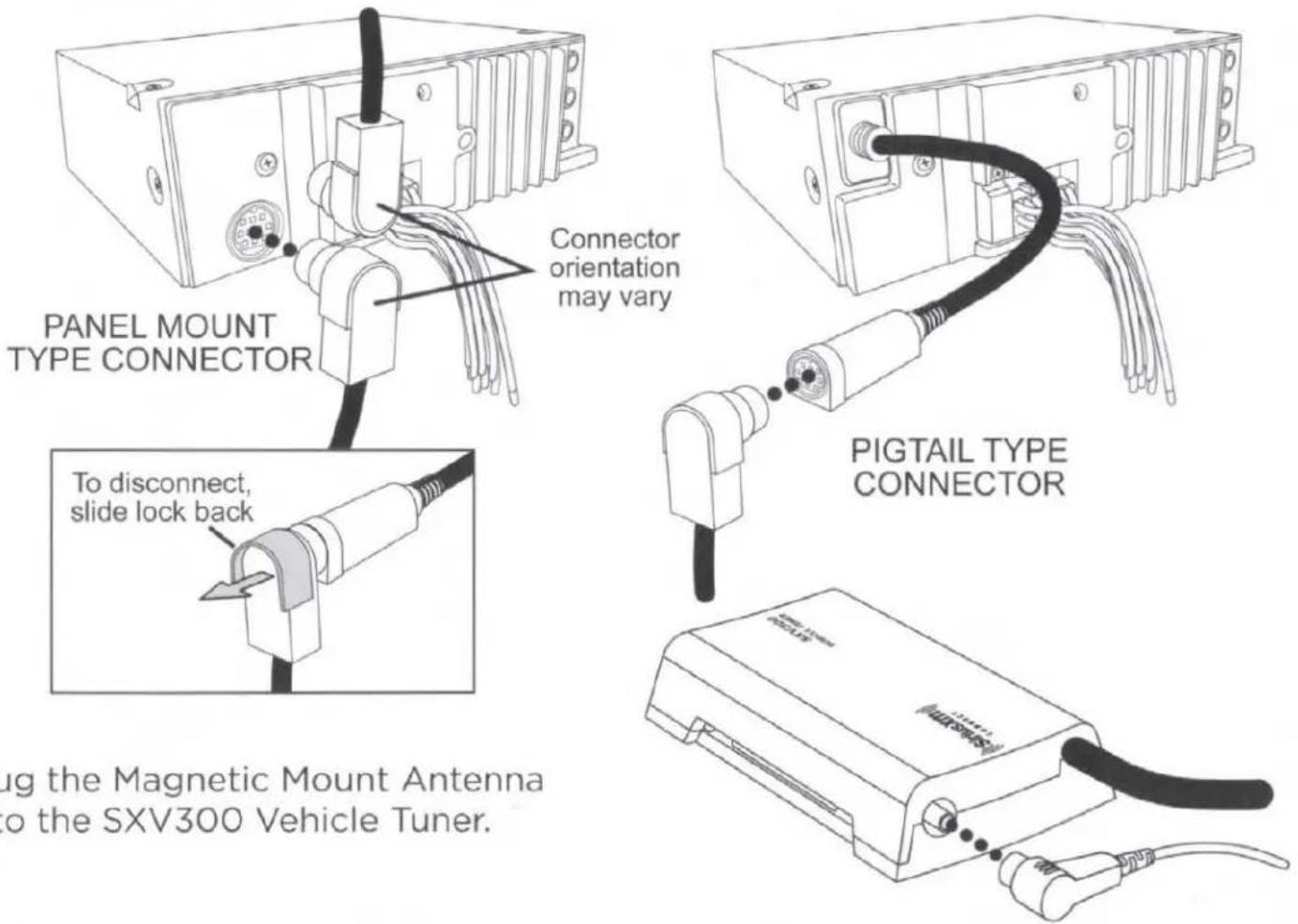
Connector orientation may vary
Plug the Magnetic Mount Antenna into the SXV300 Vehicle Tuner.
PIGTAIL TYPE CONNECTOR
Secure the Tuner
Secure the SXV300 Vehicle Tuner behind the vehicle headunit location or under the dash using wire ties (not included).
Thread the wire ties through the molded brackets on the underside of the Tuner as shown. Then secure it to a bracket or wiring harness using the wire ties. Avoid brackets with sharp edges and any moving parts such as gas and brake pedals.

natural_image
Technical line drawing of two electrical connector assemblies: one with a cable and pin, the other with coiled wires (no text or symbols)Reinstall the vehicle headunit if it had been removed from the dashboard.
Subscribe
You can subscribe to the SiriusXM service anytime by following these steps:
1 Make sure your vehicle headunit is turned on and that Satellite Radio is selected. Verify that you are receiving the SiriusXM signal so that you can hear the SiriusXM audio.
2 Make a note of your Radio ID. You can find it on channel 0, on a label on the bottom of the packaging, and on the label on the bottom of your SXV300 Vehicle Tuner.
NOTE! The Radio ID does not use the letters I, O, S, or F.
3 Activate your service:
- First see our Customer Agreement for complete terms at www.siriusxm.com and then:
• Online: Go to www.siriusxm.com/activatenow OR - By phone: Call 1-866-587-4225 (If calling to activate, be sure to mention "Never Miss A Beat")
4 Activation usually takes 10 to 15 minutes, but may take up to an hour. We recommend that your vehicle headunit remain on until subscribed. When your service is activated, you will see the SUBSCRIPTION UPDATED, PRESS ENTER TO CONTINUE or similar message displayed on the headunit. Once subscribed, you can tune to channels in your subscription plan.
5 Activation signals can be sent again at any time by visiting www.siriusxm.com/refresh.
Troubleshooting
The troubleshooting information listed below is for general reference. Consult the User Guide for your SiriusXM-Ready headunit for specific operating instructions and advisory messages that may be displayed. Your headunit may display slightly different messages.
| If you see this on the screen: | Try this: |
| No Signal (NoSignal) | Make sure that the vehicle is outdoors with a clear view of the southern sky.Make sure the Magnetic Mount Antenna is mounted outside of the vehicle.Move your antenna away from any obstructed area. For example, if you are parked in an underground garage, you should receive a signal after leaving the garage. |
| Check Antenna (Chek Antenna, CHK Antena, Chek Ant) | Make sure that the Magnetic Mount Antenna cable is firmly and securely plugged into the SXV300 Vehicle Tuner.Make sure the antenna cable is not bent or broken.Turn the headunit off, then on, to reset this message. If the message persists, most likely the antenna cable has been damaged. Replace the antenna. |
| Antenna Disconnected | Check the antenna connection to make sure it is fully plugged into the SXV300 Vehicle Tuner. |
| Antenna Cable Shorted | Replace the antenna. |
| Check Tuner (Chek Tuner, Chk Tunr) | Check the SXV300 Vehicle Tuner connection to the headunit and make sure it is plugged all the way in. |
| Channel Not Available (Chan Unavailable, Ch Unavailable, Ch Unavail, Ch Unavl) | The channel you have selected is not available. |
| Channel Not Subscribed (CH Unsubscribed, Chan Unsub, Ch Unsub) | The channel you have selected is not part of your current subscription plan. First see our Customer Agreement for complete terms at www.siriusxm.com, and then call 1-866-635-2349 to subscribe. |
| Subscription Updated-Press enter to continue (or similar message) | Your subscription has been updated; press the appropriate button (or other identified key) to continue. |
| If this happens: | Try this: |
| You do not receive all the channels to which you subscribe | · If you have not yet activated your service, call 1-866-635-2349.· Go to www.siriusxm.com/refresh and follow the directions to refresh your SXV300 Vehicle Tuner. |
| No song title or artist name is displayed | The information may not be available or updates may be in progress. |
| Traffic and Weather channels sound different from other channels | These channels use a different audio technology than other channels, so they often sound different from other channels. |
| Audio fades or has static when listening | · Check all the cables for a firm and secure connection.· Be sure that your headunit is correctly wired to the vehicle electrical system. |
Specifications
Tuner
Dimensions 3.42 in (W) x 2 in (H) x 0.7 in (D)
87mm (W) × 51.8mm (H) × 17.9mm (D)
Weight 3 oz (85 g)
Pigtail Cable Length 25.6 in (650 mm)
Power Requirements....12v DC, 0.3 A (MAX) (supplied by headunit)
Operating Temperature ....-4°F to +158°F (-20°C to +70°C)
Antenna
Type Magnetic Mount
Connector SMB
Cable Length....23 ft (7 m)
Network Operation.... XM Network Only
Specifications are subject to change without notice.
FCC Statement
The user is cautioned that changes or modifications not expressly approved by Sirius XM Radio Inc. can void the user's authority to operate this device. This device complies with Part 15 of the FCC Rules. Operation is subject to the following two conditions:
- This device may not cause harmful interference.
- This device must accept any interference received, including interference that may cause undesired operation.
This equipment has been tested and found to comply with the limits for a Class B digital device, pursuant to Part 15 of the FCC Rules. These limits are designed to provide reasonable protection against harmful interference in a residential installation. This equipment generates, uses, and can radiate radio frequency energy and, if not installed and used in accordance with the installation instructions, may cause harmful interference to radio communications. However, there is no guarantee that interference will not occur in a particular installation. If this equipment does cause harmful interference to radio or television reception, which can be determined by turning the equipment off and on, the user is encouraged to try to correct the interference by one or more of the following measures:
- Reorient or relocate the receiving antenna of the affected receiver.
- Increase the separation between the SiriusXM equipment and the affected receiver.
- Connect the SiriusXM equipment into an outlet on a circuit different from that to which the affected receiver is connected.
- Consult the dealer or an experienced radio/TV technician for help.
WARNING! The FCC and FAA have not certified Satellite Radio Receiver use in any aircraft (neither portable nor permanent installation). Therefore, Sirius XM Radio Inc. cannot support this type of application or installation.
Patent Information
It is prohibited to, and you agree that you will not, copy, decompile, disassemble, reverse engineer, hack, manipulate, or otherwise access and/or make available any technology incorporated in this product. Furthermore, the AMBE® voice compression software included in this product is protected by intellectual property rights including patent rights, copyrights, and trade secrets of Digital Voice Systems, Inc. The software is licensed solely for use within this product. The music, talk, news, entertainment, data, and other content on the Services are protected by copyright and other intellectual property laws and all ownership rights remain with the respective content and data service providers. You are prohibited from any export of the content and/or data (or derivative thereof) except in compliance with applicable export laws, rules and regulations. The user of this or any other software contained in a SiriusXM radio is explicitly prohibited from attempting to copy, decompile, reverse engineer, hack, manipulate or disassemble the object code, or in any other way convert the object code into human-readable form.
Environmental Information
Follow local guidelines for waste disposal when discarding packaging and electronic appliances. This product is packaged with cardboard, polyethylene, etc., and does not contain any unnecessary materials.
WARNING: This product contains chemicals known to the State of California to cause cancer and birth defects or other reproductive harm.
Copyrights and Trademarks
©2019 Sirius XM Radio Inc. Sirius, XM and all related marks and logos are trademarks of Sirius XM Radio Inc. All other marks and logos are the property of their respective owners. All rights reserved.
Offer Details
\15 Activation Fee and credit card are required for this offer. Purchase and activate the SiriusXM SXV300 by 12/31/19 at 11:59 PM ET with an All Access subscription plan and receive your first 3 months free (a \20.99/mo savings). Fees and taxes apply. Service will automatically renew thereafter and, at the beginning of the 4th month, you will be charged according to the billing plan you choose at then-current rates. Please see ourCustomer Agreement at www.siriusxm.com for complete terms and how to cancel, which includes calling SiriusXM at 1-866-635-2349. This offer cannot be combined with any other. All fees and programming are subject to change.
Important Legal Notice About Your Subscription
Hardware and subscription sold separately. Service will automatically renew into the subscription Package you choose (which may differ from the Package which arrived with the Radio), and will automatically bill at then current rates, after any complimentary trial or promotional period ends, until you call us at 1-866-635-2349 to cancel. See our Customer Agreement for complete terms at www.siriusxm.com. Fees and taxes apply. All fees and programming subject to change. Our satellite service is available only to those at least 18 and older in the 48 contiguous USA and DC. Our Sirius satellite service is also available in PR (with coverage limitations) but this SXV300 Tuner is not operational in PR. Our Internet radio service is available throughout our satellite service area and in AK and HI.
Important Legal Notice About Installation
Installation instructions are provided for your convenience. You must determine if you have the knowledge, skills, and ability required to properly perform installation. Professional installation is recommended. SiriusXM shall have no liability for damage/injury resulting from the installation/use of any SiriusXM or other products. You must ensure that all products are installed in adherence with local laws and regulations and in such a manner as to allow a vehicle to be operated safely and without distraction. SiriusXM product warranties do not cover the installation, removal, or reinstallation of any product.
SiriusXM 12-Month Limited Warranty
What This Warranty Covers
This warranty covers defects in material and workmanship for 12 months from the date of purchase by the original retail purchaser only. Sirius XM Radio Inc., at its sole option, will repair or replace the product with a new or reconditioned product without charge for parts and labor. Products replaced under this warranty become the property of SiriusXM. Replacement products are warranted to be free from defects for 30 days or the remainder of the original warranty, whichever is longer.
What This Warranty Does Not Cover
This warranty does not cover: products sold as used, as is, reconditioned or refurbished; software stored on internal or removable memory; non-rechargeable batteries, surface preparation cleaners, adhesive pads, fasteners, and ear-buds; costs incurred for installation, removal or reinstallation of the product; correction of installation problems, such as elimination of externally generated static or noise and antenna placement and aiming; defects or damage caused by alteration, improper installation or removal, use of third party accessories, mishandling, misuse, neglect, accident, power surges or acts of nature.
How to Obtain Warranty Service
To obtain warranty service, please call SiriusXM Listener Care at 1-866-635-7191. You will be required to provide proof of purchase and a description of the defect. You must prepay the cost of shipping the product to an approved service center.
LIMITATIONS OF LIABILITY
THE LIABILITY OF SIRIUSXM UNDER THIS WARRANTY IS LIMITED TO REPAIR OR REPLACEMENT AS PROVIDED ABOVE AND IN NO EVENT SHALL THE LIABILITY EXCEED THE PURCHASE PRICE PAID FOR THE PRODUCT. ANY IMPLIED WARRANTIES, INCLUDING ANY IMPLIED WARRANTY OF MERCHANTABILITY OR FITNESS FOR A PARTICULAR PURPOSE, SHALL BE LIMITED TO THE DURATION OF THIS WRITTEN WARRANTY. ANY ACTION FOR BREACH OF WARRANTY, INCLUDING BREACH OF ANY IMPLIED WARRANTY OF MERCHANTABILITY, MUST BE BROUGHT WITHIN 48 MONTHS FROM THE DATE OF ORIGINAL PURCHASE. IN NO CASE SHALL SIRIUSXM BE LIABLE FOR ANY CONSEQUENTIAL OR INCIDENTAL DAMAGES FOR BREACH OF THIS OR ANY OTHER WARRANTY, EXPRESS OR IMPLIED. SOME STATES DO NOT ALLOW LIMITATIONS ON HOW LONG AN IMPLIED WARRANTY LASTS OR THE EXCLUSION OR LIMITATION OF INCIDENTAL OR CONSEQUENTIAL DAMAGES, SO THE ABOVE LIMITATIONS OR EXCLUSIONS MAY NOT APPLY TO YOU. This warranty gives you specific legal rights and you may also have other rights, which vary from state to state.
Sirius XM Radio Inc. 1221 Avenue of the Americas New York, NY 10020
1.866.635.2349
siriusxm.com

© 2019 Sirius XM Radio Inc.
SXV300V1 Installation Guide (SXV300V1IG1010) 190123a
Warranty is available for download: https://www.vaistech.com/download/15244/
To request a paper warranty copy please contact us:
VAIS Technology
Warranty Department
8811 American Way
Unit 125
Englewood, CO 80112
720-733-2348
sales@vaistech.com
SIRIUSXM ADD-ON FOR SELECT HARLEY-DAVIDSON MODELS


22K19
MEXICO


DESCRIPTION
PART NO
QUANTITY
1500012388

GSR-HM51-TK


- WARNING
- Distraction Warning
- BEFORE WIRING, DISCONNECT THE CABLE FROM THE NEGATIVE BATTERY TERMINAL
- CAUTION
- IMPORTANT
- About SiriusXM Satellite Radio Operation
- What's Included
- Connecting GSR-HM51
- 2
- 3
- INSTALLER:
- 4
- Blue AND Green Wires
- 5
- 6
- ((SiriusXm™))
- SXV300 Connect Vehicle Tuner
- INSTALLATION GUIDE
- MONTHS FREE SERVICE
- Thank you for purchasing the SXV300V1 SiriusXM Connect Vehicle Tuner Kit.
- What's In the Box?
- Check Your Headunit For Compatibility
- Install the Magnetic Mount Antenna
- Select the Best Location for the Magnetic Mount Antenna
- Route the Antenna Cable
- Make the Connections
- Secure the Tuner
- Subscribe
- Troubleshooting
- Specifications
- Tuner
- Antenna
- FCC Statement
- Patent Information
- Environmental Information
- Copyrights and Trademarks
- Offer Details
- Important Legal Notice About Your Subscription
- Important Legal Notice About Installation
- SiriusXM 12-Month Limited Warranty
- What This Warranty Covers
- What This Warranty Does Not Cover
- How to Obtain Warranty Service
- LIMITATIONS OF LIABILITY
Brand : VAIS Technology
Model : GSR-HM51
Category : Unspecified