GC947P1 - Vacuum Cleaner LG - Free user manual and instructions
Find the device manual for free GC947P1 LG in PDF.


User questions about GC947P1 LG
0 question about this device. Answer the ones you know or ask your own.
Ask a new question about this device
Download the instructions for your Vacuum Cleaner in PDF format for free! Find your manual GC947P1 - LG and take your electronic device back in hand. On this page are published all the documents necessary for the use of your device. GC947P1 by LG.
USER MANUAL GC947P1 LG
• HQ (High Quality) picture enhancement system
● Full function infra-red remote control handset
- Programmable 88 channel memory with Frequency synthesised tuner
- ACMS (Automatic Channel Memory System) plus - the channels will be preset, sorted and memorized automatically.
- ACSS (Automatic Clock Setting System) - the clock will be set automatically by reading the present time and date from the teletext the German time TV stations ARD or ZDF.
- 7 event/1 month programmable timer
● Built-in ShowView programming
• VPS/PDC function
● Recording and playback for 16:9 Wide-screen format
● Energy Saving function
- ICON O.S.D (On Screen Display) - Enables menu to display on the blue picture and actual picture.
• NTSC playback on PAL TV
- PREMIERE Compatible
● LP - Long Play - recording and playback
● Logic & Picture Search
- Lock
● Auto Power on and Play
● Fine still, Frame advance & Slow functions
• Real Time Counter
- Quick Start function
● Auto Tracking System
● Reception of Stereo, Bilingual & Mono sound
● Hi-Fi Audio System
- Simulcast Recording
Model No. GC987P1/GC967P1/GC961P1/GC947P1/GC941P1 Part No. 3834RV0022L

text_image
φ/1 VIDEO IN LUKRIN AUDIO IN-R T. PROD. ▲ B. SEEDER E. POSTLL ←→Welcome to LG
Thank you for buying this LG video cassette recorder Model LV4787/LV4767/LV4765/LV4747/LV4745.
Before using your video recorder you need to be familiar with the names of some of the buttons on the remote control handset (see OPERATING THE VIDEO RECORDER, pages 4 to 6), and you need to set up the video recorder so that it can receive the TV stations in your area and so that your TV set can receive pictures from it (see p 12 to 14).
Installation
POWER
This Video Recorder operates on a mains supply of 200-240V\~, 50 Hz.
SERVICE
Never remove the cover of the video recorder. There are no user serviceable parts inside. If it does not operate properly, unplug it and contact your dealer.
PRECAUTIONS
For safe operation and satisfactory performance of your video recorder, keep the following in mind when selecting a place for its installation.
● Shield it from direct sunlight and keep it away from sources of intense heat.
● Avoid dusty or humid places.
● Install the video recorder in a horizontal position only.
- Avoid locations subject to strong vibration.
- Do not place the video recorder near strong magnetic fields.
- Do not move the video recorder from a cold to a hot location or vice versa.
MOISTURE CONDENSATION
Under special conditions like moving your video recorder from a cold to a warm room, moisture condensation can build up on the head drum, one of the most crucial parts of the video recorder. In order to prevent in such case any damage to your video recorder HEAD DRUM, connect the video recorder power cord to the AC line, press the "∅/l" button on and allow at least 2 hours for the video recorder to dry out.
CONDENSATION IS LIKELY TO OCCUR WHEN:
The video recorder is moved from a cold room to a warm room or from outdoors to inside your home.
● A cold room is heated quickly.
● The humidity is very high.
The apparatus shall not be exposed to dripping or splashing and that no objects filled with liquids, such as vases, shall be placed on the apparatus.


This product is manufactured to comply with the radio interference requirements of EEC DIRECTIVE 89/336/EEC, 93/68/EEC and 73/23/EEC.
Contents
| Operating the video recorder | 4-6 | |
| The remote control handset | 4-5 | |
| The front & back of the video recorder | 6 | |
| Installing your video recorder | 7-9 | |
| Setting the VCR output channel | 10 | |
| On screen displays | 11 | |
| Storing TV stations | 12-16 | |
| Automatic tuning | 12 | |
| Manual tuning | 13-14 | |
| Moving the programme order of the "TV station table" menu | 15 | |
| Clearing stations from the "TV station table" menu | 16 | |
| Time and date setting | 17 | |
| Using the VCR to play back a tape | 18-19 | |
| Loading & Unloading a video cassette | 18 | |
| Types of video cassette | 18 | |
| How to using the Energy saving mode | 18 | |
| Normal playback | 19 | |
| Still picture playback | 19 | |
| CM (Commercial Message) Skip | 19 | |
| Other playback features | 20-22 | |
| Fast forward, Rewind | 20 | |
| Logic & picture search | 20 | |
| OPR (Optimum Picture Response) | 20 | |
| Slow motion playback, Shuttle | 21 | |
| Selection of the colour system | 22 | |
| Recording with decoder | 22 | |
| Using the video recorder to record | 23-24 | |
| To record | 23-24 | |
| Immediate timer (ITR) | 24 | |
| Programming the video recorder timer | 25-29 | |
| Introduction to ShowView | 25 | |
| ShowView programming on the TV screen | 25-26 | |
| Recorder timer programming using the on screen displays | 27-28 | |
| Checking & clearing stored timer programmes | 29 | |
| Overlapping timer programmes | 29 | |
| Video Programme System (VPS) | 29 | |
| Other features | 30-33 | |
| Introduction | 30 | |
| Digital tape counter, Remaining tape volume, Memory stop | 31 | |
| Tracking controls | 32 | |
| Automatic playback, memory power shut-off | 32 | |
| The child lock, 16:9 Compatibility, Self-Diagnosis | 33 | |
| The Hi-Fi stereo sound system | 34 | |
| Recording from another equipment | 35 | |
| ez (easy) operations | 36 | |
| Controlling the TV | 37 | |
| Specifications | 38 | |
| Before calling for service... | 39 | |

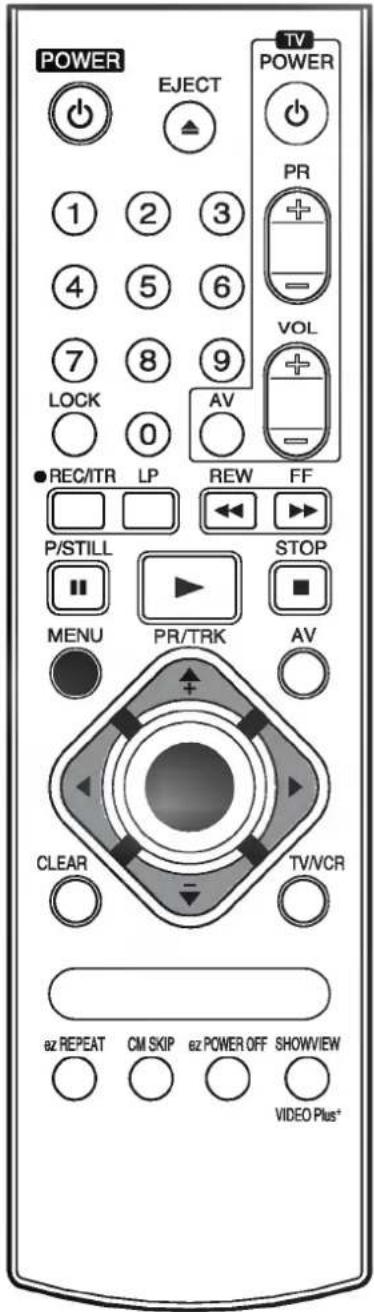
Operating the video recorder
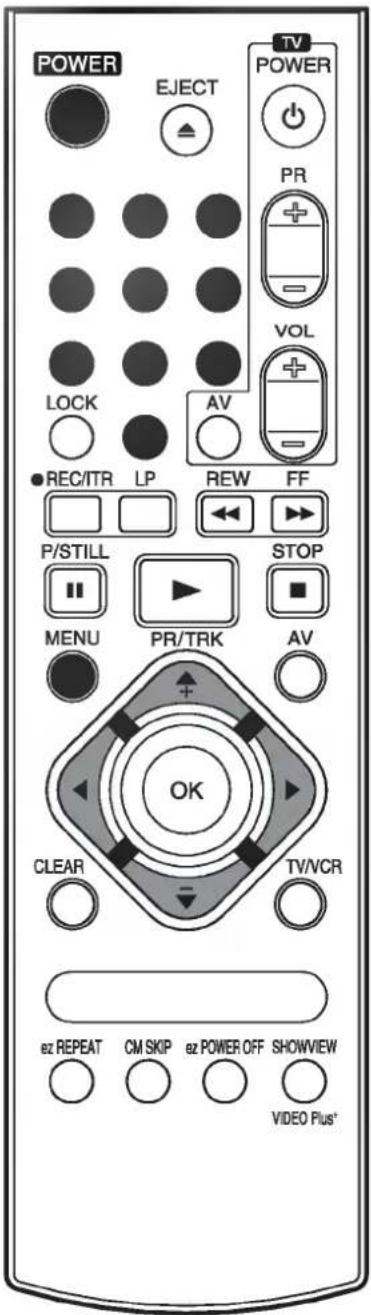
The Remote Control Handset
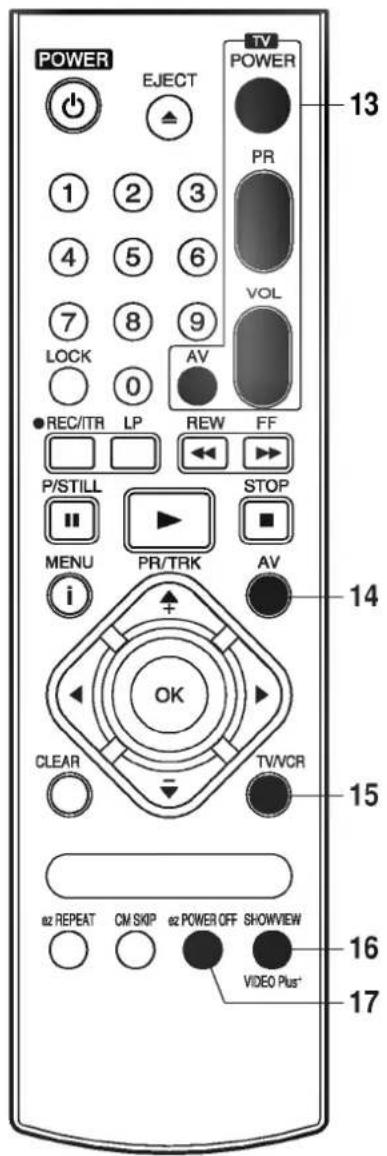
This video recorder is designed so that almost all of its functions can be controlled from the REMOTE CONTROL HANDSET. This must have a "line of sight" to the sensor on the front of the video recorder. It must be within an angle of 30 degrees either side of the centre. The maximum operating distance is about 7.5m (25 feet). Some functions can also be controlled with the controls on the FRONT PANEL of the video recorder.

text_image
POWER EJECT 1 2 3 4 5 6 7 8 9 10 11 12 TV POWER PR VOL AV REC/TR LP REW FF P/STILL STOP MENU PR/TRK AV CLEAR TV/VCR + - + - CM SKIP +Z POWER OFF SHOWVIEW VIDEO Plus+1 POWER
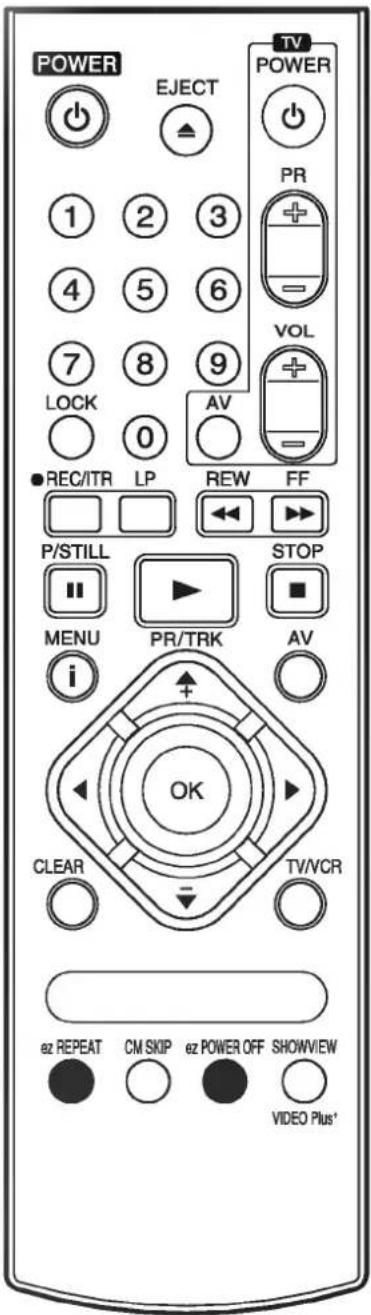
To switch the video recorder on and off.
2 EJECT
To eject a tape (see p 18).
3 NUMBER BUTTONS:
To select programme channels. To programme numeric information into On screen displays.
4 LOCK
To turn the LOCK function on/off (see p 33).
5 Basic operation buttons;
● P/STILL (see p 19, 23).
- REWIND/REVIEW (see p 20).
- PLAY (see p 19).
- FAST FORWARD/CUE (see p 20).
- STOP (see p 19).
- REC/ITR (see p 23 to 24).
6 TAPE SPEED SELECT (LP)
To select the recording speed of the tape (see p 23).
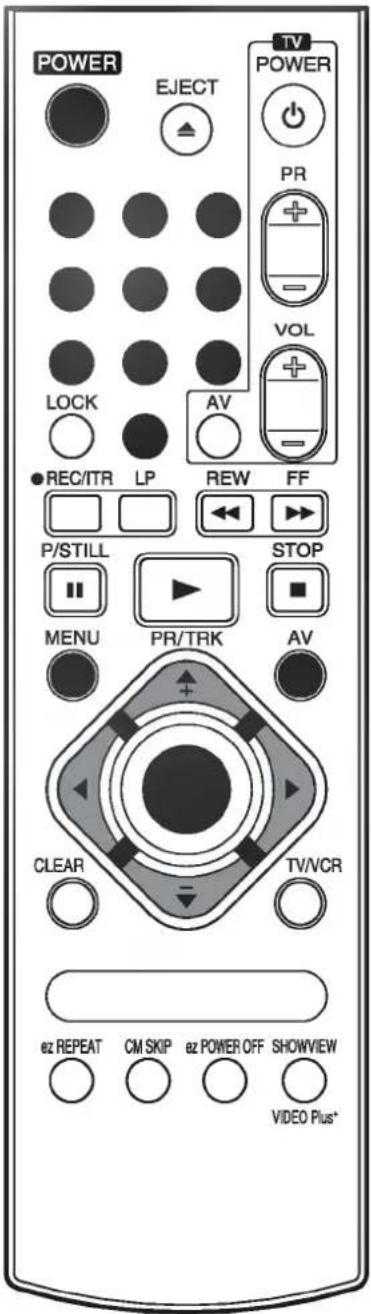
7 i (MENU)
To display the on screen display (OSD) menu (see p 11).
8 CURSORS (▲, ▼, ◀, ▶)/PR(+/-)/TRK(+/-) ▲▼:
● During OSD menu, for moving the cursor, selection bar up or down.
● Switches one channel programme up or down.
● During playback, tracking control.
● During still playback, adjusting vertical tremble.
● To adjust manual fine tune for receiving normal audio and picture (see p 13).
◀ ▶ :
● During OSD menu, for moving the cursor to the left or right.
- Adjust the playback speed (see p 21).
● To clear a data (see p 29).
9 OK
- Confirms menu selection (see p 11).
- Calls the on screen display (see p 31).
- To switch the display on the TV screen between the current time, the tape counter (in hours and minutes) and the remaining tape volume (see p 31).
This function will only operate when a tape is loaded.
10 CLEAR
To reset the tape counter to zero (see p 31).
11 ez REPEAT (see p 36).
12 CM SKIP
To fast forward picture search through 30 seconds of recording (see p 19).
Operating the video recorder
13 TV Control Buttons (see p 37)
TV POWER: Turns on or off the TV.
TV PR +/-: Selects TV's channel.
TV VOL +/-: Adjusts TV's volume.
TV AV: Selects the TV's source.
14 AV
Select input source for recording into tape (see p 23, 37).
15 TV/VCR
Set this button to;
● VCR: To monitor, view playback or view the video recorder's tuner.
- TV: To watch TV or view another programme while recording one programme (see p 24).
16 SHOWVIEW (LV4787/LV4767/LV4747)
To display the programme menu for ShowView programming on the handset (see p 25 to 26).
17 ez POWER OFF
(see p 36).
text_image
POWER EJECT TV POWER PR 1 2 3 4 5 6 7 8 9 VOL LOCK 0 AV ● REC/TR LP REW FF P/STILL STOP ■ MENU PR/TRK AV i OK CLEAR TV/VCR 15 16 17 13 14 15 16 17 12 REPEAT CM SKIP 12 POWER OFF SHOWVIEW VIDEO Plus+How to install batteries
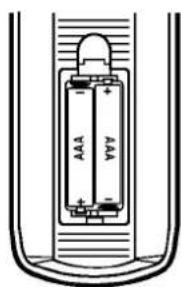
The wireless remote control is powered by two "AAA" size batteries.
1 Remove the battery compartment lid. (Lift it up while pressing the tap forward.)
2 Load the new batteries with their polarities (⊕ and ⊙) aligned properly and replace the lid.
- Do not use an old and a new battery together, and never use an alkaline battery with a manganese battery.
- If you do not intend to use the remote control unit for a long period of time, remove the batteries and store them in a cool, dry place.
text_image
AAA VWWOperating the video recorder
The front of the Video Recorder

text_image
LV4787 1 2 3 4 5 6 7 8 9 13 12 11 10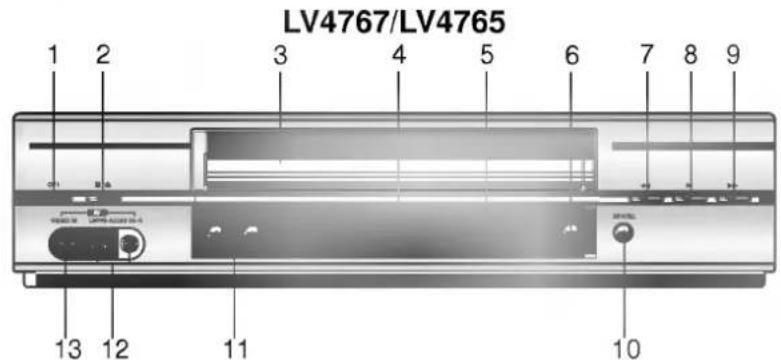
text_image
LV4767/LV4765 1 2 3 4 5 6 7 8 9 13 12 11 10
text_image
LV4747/LV4745 1 2 3 4 5 6 7 8 9 13 12 12 101 ⏻/1
To switch the video recorder on and off. (see p. 18).
2 ■/△

To stop the tape, or eject it from the video recorder (see p 18).
3 VIDEO CASSETTE COMPARTMENT
When a cassette is inserted loading is completed automatically.
4 MULTI FUNCTION DISPLAY
5 REMOTE CONTROL SENSOR
To receive the signals from the remote control handset.
6 REC/ITR
Used to record and set the ITR (Instant Timer Recording) time (see p 23 to 24).
7 REWIND

To play the tape (see p 19).
9 FF
10 P/STILL
Switches to still picture (see p 19), during recording to pause (see p 23).
11 PROG. (▼/▲)
Allows you to scan through memorized channels.
12 AUDIO INPUT TERMINALS (L/R)
To record audio from an external audio source (see p 8).
13 VIDEO INPUT TERMINAL
To receive a signal from another video equipment (e.g. Camcorder) (see p 9).
Installing your video recorder
IMPORTANT!
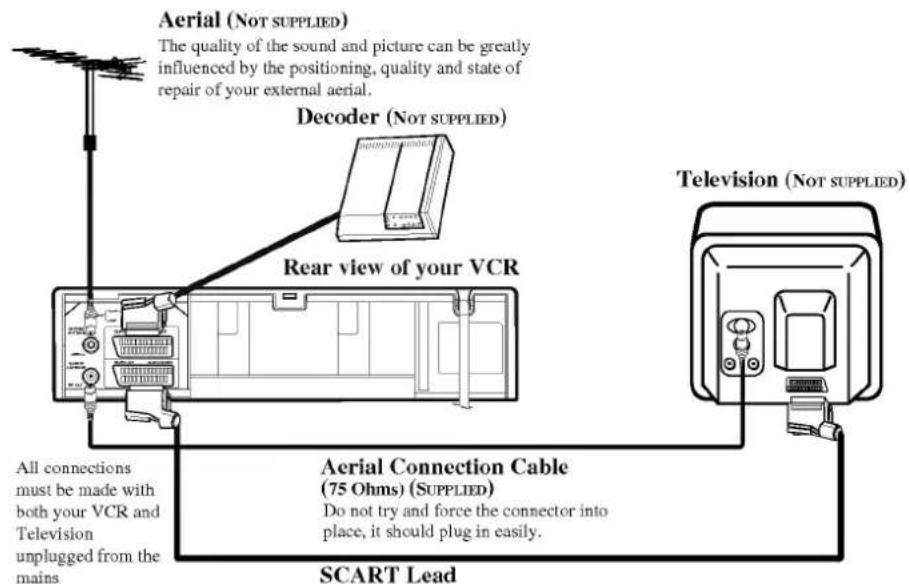
The guidance given on the next three pages in the most common forms of connection. However please check with your manufacturers instruction books for specific information. Make sure all connections are made with both your VCR and additional appliance unplugged from the mains to avoid damaging your equipment. Connecting a VCR using a SCART leads is one of the best ways to achieve optimum sound and picture quality from video-tape playback. If you own a stereo TV you will be able to enjoy stereo sound when playing a stereo video tape; you will be unable to enjoy this facility if you connected just a normal aerial lead.
Connecting to a TV & DECODER
text_image
Aerial (Not SUPPLIED) The quality of the sound and picture can be greatly influenced by the positioning, quality and state of repair of your external aerial. Decoder (Not SUPPLIED) Rear view of your VCR All connections must be made with both your VCR and Television unplugged from the mains Aerial Connection Cable (75 Ohms) (SUPPLIED) Do not try and force the connector into place, it should plug in easily. SCART Lead Television (Not SUPPLIED)- If you use a SCART lead picture quality will be improved and you will be able to enjoy stereo sound when playing tapes.
INITIAL PRESET
For the following steps we do assume that you have just connected your video recorder for the very first time. In this case the video recorder is on after mains connection. You should not touch any buttons yet. On the connected TV you will now see.

text_image
A B CH D DK E F I N NL P S SF ANDERENote - If this menu does not appear, your video recorder was programmed already.
1 Select the desired country with cursor "◀" and "▶" buttons.
"A": Austria, "B": Belgium, "CH": Switzerland,
"D": Deutsch, "DK": Denmark, "E": Spain, "F": France, "I": Italy,
"N": Norway, "NL": Netherlands, "P": Portugal, "S": Sweden,
"SF": Finland.
2 Press the "OK" button to start the automatic storing of the channels of the TV stations in your area.

text_image
01 C03 00 ARD S FConnecting to your Hi-Fi (Audio Out)
An audio system can be connected to the AUDIO OUT sockets on the back of your VCR.
Please remember to turn the volume to minimum on your Hi-Fi, then gradually increase the volume; this will prevent damaging your speakers and save your ears from an extremely noisy shock!

text_image
Hi-Fi (NOT SUPPLIED)Audio out sockets & Phono
Leads
The phono sockets for connecting your VCR to your Hi-Fi are on the back of the set; L = Left sound output, R = Right sound output. You normally have to select the AUX function on your Hi-Fi.
Please note if you press the MUTE button on your TV only the sound from the TV's speaker is switched off, not your Hi-Fi.
Installing your video recorder

Camcorder Connection
Make sure all connections are made with both your VCR and Camcorder unplugged from the mains to avoid damaging your equipment. To make connecting your Camcorder easier we have designed the Audio IN (Left and Right) and Video IN sockets on the front panel of your VCR.
You may also use the SCART socket on the rear of your VCR as well.

text_image
Back view of your VCR Front view of your VCR Audio Left & Right Lead Video Lead Camcorder (Not Supplied) To AUDIO OUT (L/R) To VIDEO OUTWhichever socket you choose to use remember to select the appropriate recording input e.g.
SC, AV1, AV2 or AV3.
If you are using the sockets on the front panel select source AV3.
Setting the VCR output channel
Your TV set receives the video recorder signal like another TV station. So you have to select a programme number for the video recorder.
Take care to select this programme number, whenever you control the video recorder, or watch a recording. Only if you have selected this programme number, which we call video programme number, you will see the picture from the video recorder on the screen.
If you connect a monitor or a TV set equipped with audio and video terminals, this adjustment will not necessary. Consult the operating instructions of your TV set.
Connect the video recorder as described in the section on Connections (see on previous page).
Setting the output channel of the VCR
1 SETTING THE VIDEO CHANNEL WITH PLAYBACK
The output channel of the video recorder is set at UHF channel 36.
1 Turn on the TV set and the video recorder.
2 Play any video cassette tape on your video recorder.
3 Select the correct channel (36) on your TV set.
And then you will see the picture being played in video recorder.
(Note - You will need to look at the instruction manual for your TV set if you do not know how to do this.)
2 SETTING THE VIDEO CHANNEL WITH OSD (ON SCREEN DISPLAY)
1 Turn on the TV set and the video recorder.
2 Repeat above No. 3. And then you will see a blue background picture on the TV screen.
3 Store this channel in an unused programme number on your TV set.
3 Changing the transmitter channel
If the channel 36 is already occupied at your TV set, or if the picture is distorted, you can change the transmitter channel of the video recorder.
1 Select an unoccupied channel between 22 and 68 on your TV set.
2 During power off mode (only clock display) press the PROG. "▼" or "▲" buttons on the VCR for more than 4 seconds.
Then, "RF36" will be displayed on the VCR's display.
3 Press the PROG. "▼" or "▲" buttons on the VCR to select another video channel e.g. between channels 22 and 68.
You can also set it to "OFF" if there is any interference when your TV is connected to the VCR with a SCART lead.
4 Press the " ⏻/l " button when you have finished.
On Screen Displays
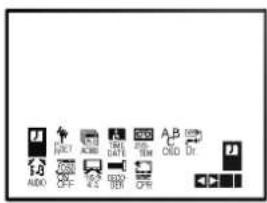
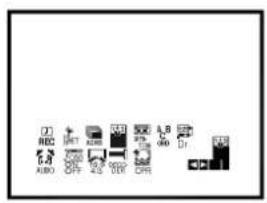
A number of the features of this video recorder can be set and altered using the handset with On Screen Displays (menus) on the TV screen.
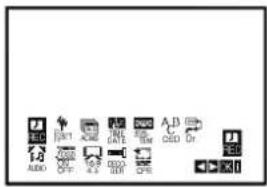
The Main menu
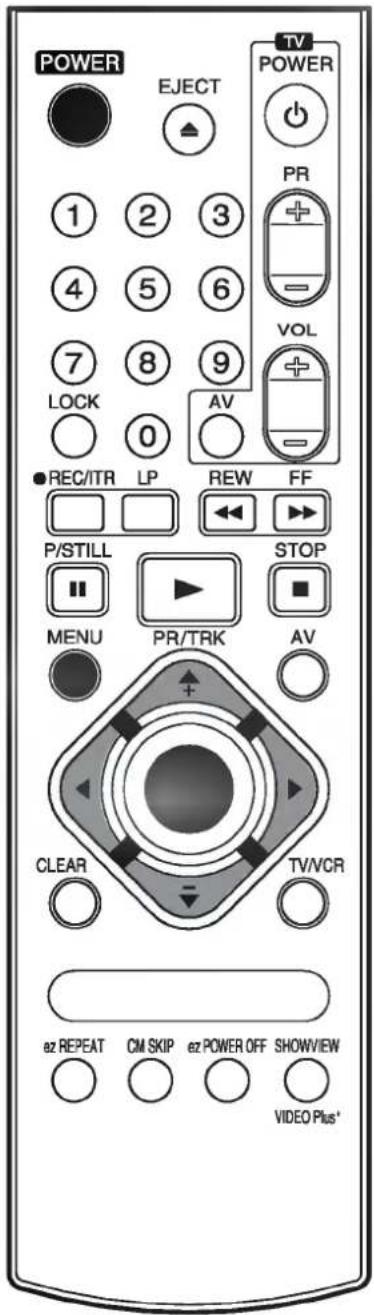
1 Switch on your TV set and video recorder by pressing the "POWER" button.
2 Press the "i" button to display the Main menu.
3 Press the cursor "◀" and "▶" buttons to select the desired menu and press the "OK" button.
Note - After using the menus press the "i" button to remove menus from the TV screen.

text_image
AUDIO PSET R ACMS TIME DATE SYS- TEM A B C OSD VCA ON OFF 16:9 4:3 DECO- DER OPR Dr.REC
Used to record a programme with the timer (see p 27 to 28).
PR SET
Used to view stored TV stations or to set TV station information manually (see p 13 to 14).
ACMS
Used for automatic setting of the TV stations (see p 12).
TIME DATE
To set the clock manually (see p 17).
SYSTEM (AUTO → PAL → MESECAM)
Select the colour system used for playback and recording (see p 22).
ABC OSD
Allows you to select the language of the On Screen Display. You can select between English, Deutsch, Italiano, Español, Dutch and Portuguese.
Dr.
To check a problem with your VCR (see p 33).
AUDIO (STEREO, LEFT, RIGHT or MONO)
Used to select the channel for audio output (see p 34).
OSD (On Screen Display)
Switches the on screen display OFF or ON (see p 31).
16:9/4:3
To select the aspect ratio of your TV (see p 33).
- AUTO: for playing back wide-screen programmes as wide, normal programmes as normal.
● 4:3 : for recording and playback with a normal format.
● 16:9 : for recording and playback with a 16:9 Wide-screen format recording.
DECODER
To use DECODER scart socket for the connection of a pay-TV decoder (see p 22).
OPR
To improve the playback picture (see p 20).
text_image
POWER EJECT TV POWER 1 2 3 PR 4 5 6 VOL 7 8 9 AV LOCK 0 ● REC/ITR LP REW FF P/STILL STOP MENU PR/TRK AV CLEAR TV/VCR a2 REPEAT CM SKIP a2 POWER OFF SHOWVIEW VIDEO Plus*Storing TV stations
Up to 88 TV stations (88 channels) can be stored in the memory of this video recorder. These can be set automatically or manually.
Automatic tuning
To carry out Automatic tuning:
1 Turn on the TV and the video recorder (with the "POWER" button).
2 Press the "i" button and select "ACMS" by using the cursor "◀" and "▶" buttons.

text_image
REC ADD OFF 100 100 100 100 100 100 100 100 100 100 100 100 100 100 100 100 100 100 100 100 100 100 100 100 100 10 10 10 10 10 10 10 10 10 10 10 10 10 10 10 10 10 10 10 10 10 10 10 10 10 10 10 10 10 10 10 10 10 15 15 15 15 15 15 15 15 15 15 15 15 15 15 15 15 15 15 15 15 15 15 15 15
text_image
A B CH DK E F I N NL P S SF OTHERS3 Press the "OK" button.
4 Select the desired country with cursor "◀" and "▶" buttons.
"A": Austria, "B": Belgium, "CH": Switzerland,
"D": Deutsch, "DK": Denmark,
"E": Spain, "F": France, "I": Italy,
"N": Norway, "NL": Netherlands,
"P": Portugal, "S": Sweden, "SF": Finland, Others.
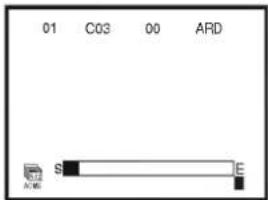
5 Press the "OK" button to start the automatic storing of the channels of the TV stations in your area.
The VCR's clock will be set automatically when automatic tuning has finished (LV4787/LV4767/LV4747).
If the clock is wrong please see "Setting the video recorder's clock manually" on page 17.
text_image
01 C03 00 ARD S E6 After finishing the storing, the video recorder will sort the stations.
Automatic channel tuning has been completed when the "TV station table" menu appears on the TV screen.
7 Press the "i" button to remove the menus from the TV screen.

text_image
02 CO2 00 ZDF 03 S40 00 WDR3 04 S11 00 BR3 05 CO2 00 HR3 06 -- -- ---- 07 -- -- ---- 08 -- -- ---- MOVES DELETE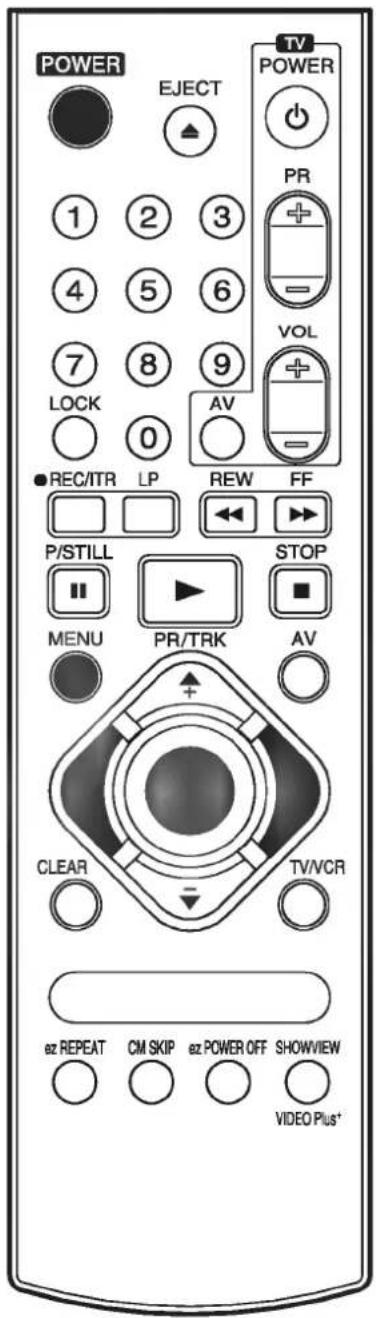
text_image
POWER EJECT TV POWER 1 2 3 PR + - VOL 7 8 9 AV LOCK 0 REC/ITR LP REW FF P/STILL STOP ■ MENU PR/TRK AV CLEAR TV/VCR oz REPEAT CM SKIP oz POWER OFF SHOWVIEW VIDEO Plus+Manual tuning
TV station Channel numbers and Station names can be stored manually.
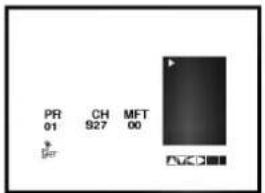
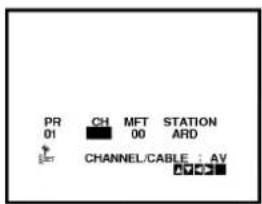
1 Press the "i" button on the video recorder handset. The menu will appear on the TV screen.
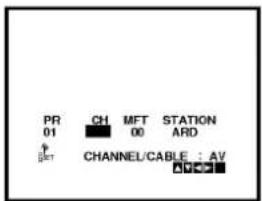
2 Use the cursor "◀" and "▶" buttons to select "PR SET"
3 Press the "OK" button to enter the manual tuning mode.
4 Press the "AV" button to select the type of TV channels.
● "C" for standard channels C02-C69.
● "S" for special channels (Cable) S01-S41.
5 Enter the channel number that you wish to enter the station with number buttons or cursor "▲" or "▼" buttons.
6 Use "▶" button to select "MFT" and control the fine tuning of the station by pressing the cursor "▲" and "▼" buttons.
7 Use "▶" button to select "STATION".
text_image
ADD OFF USB CIR CIR A B CIR D I K L M N O P
text_image
REC OFF CPU CPU A/B USB D1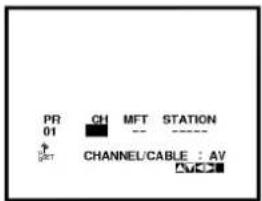
text_image
PR 01 CH MFT STATION CHANNEL/CABLE : AV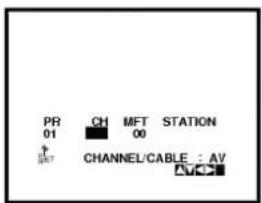
text_image
PR 01 CH MFT STATION 00 ↑ Channel/CABLE : AV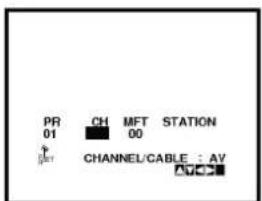
text_image
PR CH MFT STATION 01 00 CHANNEL/CABLE : AV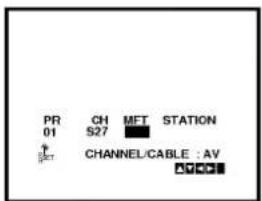
text_image
PR 01 CH S27 MFT STATION CHANNEL/CABLE : AV AVDC
text_image
PR 01 CH S27 MFT 00 STATION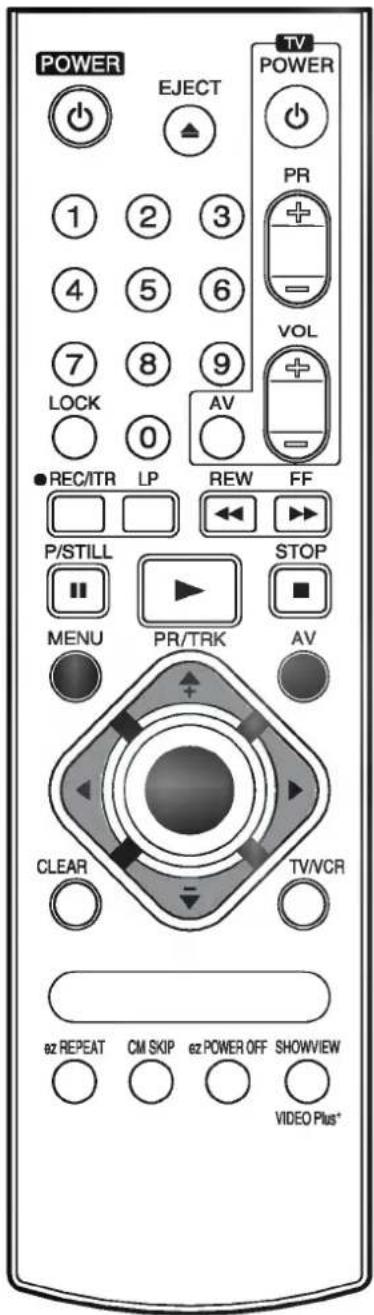
text_image
POWER EJECT TV POWER 1 2 3 PR + - VOL 7 8 9 AV LOCK 0 ● REC/TR LP REW FF P/STILL STOP MENU PR/TRK AV CLEAR TV/VCR 82 REPEAT CM SKIP 62 POWER OFF SHOWVIEW VIDEO Plus*Storing TV stations

text_image
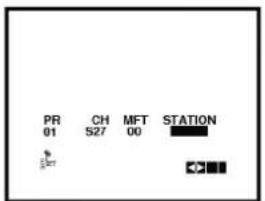
POWER EJECT TV POWER PR + - VOL AV LOCK ● REC/ITR LP REW FF P/ STILL STOP ■ MENU PR/TRK AV CLEAR TV/VCR ez REPEAT CM SKIP ez POWER OFF SHOWVIEW VIDEO Plus*8 Press the "OK" and select the cursor "▲" and "▼" buttons to select the station name from list.
NOTE:
Press the use "▶" button to input the station name manually.
1) Enter the first letter of the station name by repeatedly pressing the cursor "▲" and "▼" buttons.
2) Now move the cursor with the "▶" to the next position and write in the next letter of the station name.
For corrections move back and forth with the "◀" and "▶" buttons.
3) When you have the station name as required press the "OK" button and "i" button.
text_image
PR 01 CH S27 MFT 00 A
text_image
PR 01 CH MFT STATION S27 00 #CC9 Press the "OK" button to select it.
10 Press the "i" button. The "TV station table" menu will be displayed.
11 End the station storing by pressing the "i" button.
Selecting stored TV stations
Stored TV stations can be selected in either of two ways.
1 Use the "▲" and "▼" buttons to move from one station to another.
2 Enter the programme number with the number buttons, to select a station directly. You can enter the stations 1 to 9 with the one digit only. The channel will be selected at once.
When the channel is changed, a screen display (of a seconds duration) gives the programme number, and if the broadcast is STEREO or BIL (Bilingual).
text_image
PR 01 CH MFT STATION S27 00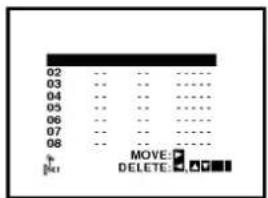
text_image
02 03 04 05 06 07 08 MOVE: DELETE:Storing TV stations
Moving the programme order of the "TV station table" menu
If you want to move the order of the TV stations you can easily do so as follows:
1 Press the "i" button on the remote control handset. The menu will appear on the TV screen.
2 Select "PR SET" with the cursor "◀" and "▶" buttons and press the "OK" button.
3 Press the "i" button.
The "TV station table" menu will be displayed.
4 Move the cursor down or up with the cursor "▲" and "▼" buttons to select the programme that you want to move to another position in the menu (for example "Pr 03"). Now you press the "▶" button to select move.
5 Move the cursor to place the cursor line at the position where to insert the selected programme (example Pr 04).
6 Press the "OK" button.
The selected station will be moved to the new programme number.
7 Move other stations, if you wish, by repeating steps 4 to 6.
8 Press the "1" button to remove the menus from the TV screen.
text_image
PR 01 CH MFT STATION 00 ARD CHANNEL/CABLE : AV A B C D E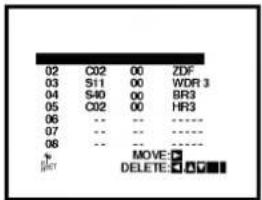
text_image
02 C02 00 ZDF 03 S11 00 WDR 3 04 S40 00 BR3 05 C02 00 HR3 06 -- ---- 07 -- ---- 08 -- ---- MOVE: DELETE: ▼▼
text_image
01 C03 00 ARD 02 C02 00 ZDF 03 S40 00 BR3 04 C02 00 HR3 05 -- -- ---- 06 -- -- ---- 07 -- -- ---- 08 -- -- ---- #CT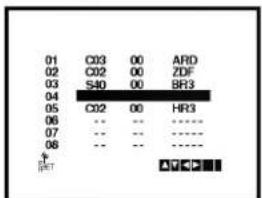
text_image
01 C03 00 ARD 02 C02 00 ZDF 03 S40 00 BR3 04 05 C02 06 HR3 06 -- -- ---- 07 -- -- ---- 08 -- -- ---- ↑ ▲▼▼▼▼▼▼▼▼▼▼▼▼▼▼▼▼▼▼▼▼▼▼▼▼▼▼▼▼▼▼▼▼▼▼▼▼▼▼▼▼▼▼▼▼▼▼▼▼▼▼▼▼▼▼▼▼▼▼▼▼▼▼▼▼▼▼▼▼▼▼▼▼▼▼▼▼▼▼▼▼▼▼▼▼▼▼▼▼▼▼▼▼▼▼▼▼▼▼▼▼▲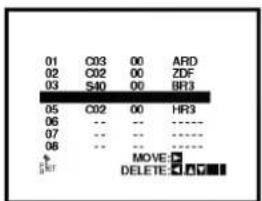
text_image
01 C03 00 ARD 02 C02 00 ZDF 03 S40 00 BR3 05 C02 00 HR3 06 -- -- ---- 07 -- -- ---- 08 -- -- ----move:
DELETE: ▲▲▼
text_image
POWER EJECT TV POWER PR + - VOL 7 8 9 AV LOC 0 ● REC/TR LP REW FF P/STILL STOP ■ MENU PR/TRK AV CLEAR TV/VCR BZ REPEAT CM SKIP BZ POWER OFF SHOWVIEW VIDEO Plus*Storing TV stations
Clearing stations from the "TV station table" menu
If you want to clear a TV station from the video recorder's store you can easily do so as follows:
1 Press the "i" button on the remote control handset. The menu will appear on the TV screen.
2 Select "PR SET" with the cursor "◀" and "▶" buttons and press the "OK" button.
3 Press the "i" button.
The "TV station table" menu will be displayed.
4 Move the cursor down or up with the cursor "▲" and "▼" button to select the programme that you want to clear. (for example station "Pr - 04").
5 Press the "◀" button to delete. After a short while, the selected station will be cleared.
6 Clear other stations, if you wish, by repeating steps 4 and 5.
7 Press the "i" button to remove the menus from the TV screen.
text_image
PR 01 CH MFT STATION 00 ARD CHANNEL/CABLE : AV AVV
text_image
02 C02 00 ZDF 03 S11 00 WDR 3 04 S40 00 BR3 05 C02 00 HR3 06 -- -- ---- 07 -- -- ---- 08 -- -- ---- * MOVE:DELETE: ▼ ▼ ■

text_image
01 C03 00 ARD 02 C02 00 ZDF 03 S11 00 WDR 3 05 C02 00 HR3 06 -- -- ---- 07 -- -- ---- 08 -- -- ---- MOVIE DELETE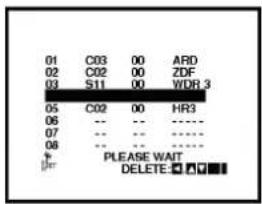
text_image
01 C03 00 ARD 02 C02 00 ZDF 03 S11 00 WDR 3 05 C02 00 HR3 06 -- -- ---- 07 -- -- ---- 08 -- -- ---- + PLEASE WAIT DELETE ▼ ▼ ■
text_image
POWER EJECT TV POWER PR 1 2 3 4 5 6 7 8 9 VOL LOCK 0 AV REC/ITR LP REW FF P/STILL STOP MENU PR/TRK AV CLEAR TV/VCR oz REPEAT CM SKIP oz POWER OFF SHOWVIEW VIDEO Plus+Time and date setting
Setting the video recorder's clock
The clock in this video recorder gives the date (including the day of the week) and the time. It is set automatically during Automatic Channel Tuning (LV4787/LV4767/LV4747). It is also continually checked against the date and time if this information is being broadcast as it is by all channels broadcasting a Teletext signal (LV4787/LV4767/LV4747). It is, therefore, unlikely that you will need to alter the clock settings.
Whenever the video recorder receives a signal containing the date and time it adjusts itself to these signals (LV4787/LV4767/LV4747).
Therefore, the video recorder clock is likely to be always showing the correct time (LV4787/LV4767/LV4747).
To manually alter the clock:
1 Press the "i" button. The Main menu appears on the TV screen.
2 Select "TIME DATE" with the cursor "◀" and "▶" buttons.
3 Press the "OK" button.
The auto adjust mode can be set to "OFF" by pressing "▲" and "▼" buttons if you want to set the time manually (LV4787/LV4767/LV4747).
4 Press the "OK" button.
5 Use the number buttons or cursor "▲", "▼", "◀" and "▶" buttons alter the Hours, Minutes, Day, Month and Year (using the 24 hour clock).
The day of the week will appear automatically when you have entered the date.
NOTE: Enter 1 as 01, 2 as 02 etc.
- Correct errors during inputting with cursor “◀” and “▶” buttons.
6 Press the "i" button to remove the menus from the TV screen. The set time will appear on the video recorder's Display.
text_image
Scanned image of a software toolbar with icons and labels, including ABD, RGB, and CD.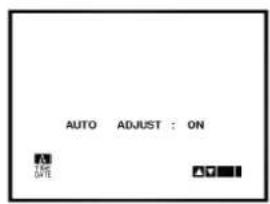
text_image
AUTO ADJUST : ON TIME DATE
text_image
HH MM DD MM YY A B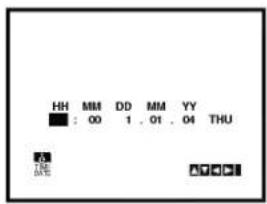
text_image
HH MM DD MM YY : 00 1 . 01 . 04 THU 53 LINE A7-00-1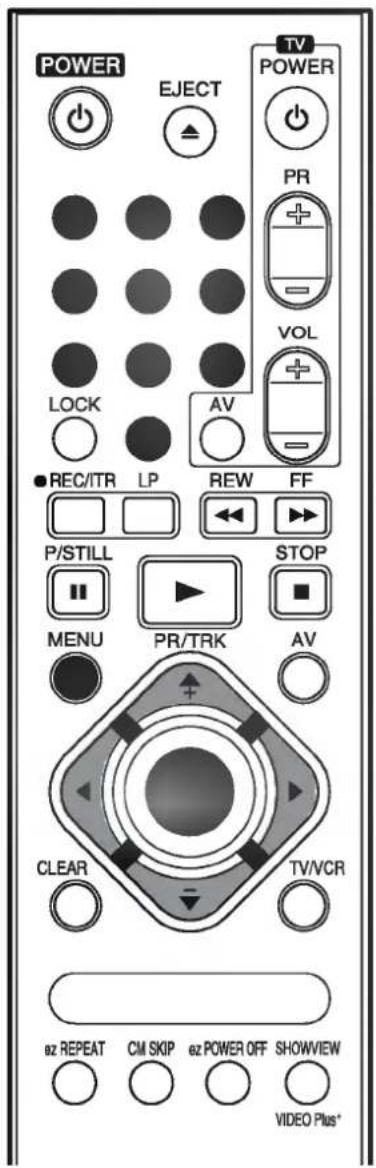
text_image
POWER EJECT TV POWER PR VOL LOCK AV REC/ITR LP REW FF P/STILL STOP MENU PR/TRK AV CLEAR TV/VCR oz REPEAT CM SKIP oz POWER OFF SHOWVIEW VIDEO Plus*Using the VCR to play back a tape

natural_image
Illustration of hands inserting a CD into a box (no text or symbols)
natural_image
Illustration of a hand inserting a CD into a case (no text or symbols)NOTE - Loading and unloading of a video cassette is only possible when the video recorder is plugged into a power source.
Loading & Unloading a video cassette
1 Insert the cassette into the video recorder with the window side up and the arrow pointing away from you. Do not attempt to insert a cassette which is upside down or back to front. Gently press the middle of the tape.
2 Press the "EJECT" button, on either the handset or the front panel of the video recorder. The cassette compartment will open and the video cassette will be partially ejected. "EJECT" will appear for a few seconds on the TV screen. It is not necessary to switch on the video recorder, by pressing the "POWER" button before ejecting a video cassette.
Note - It is advisable to remove a video cassette from the video recorder when not in use. Rewind and unload it.
Types of video cassette
Use VHS tapes in this video recorder.
On SP (standard play) the maximum record and playback time is that given on the video cassette.
For example E-180 will record/play back for 180 minutes.
For example T-120 will play back for 120 minutes.
On LP (long play) the maximum record and playback time is twice that given on the video cassette.
For example E-180 will record/play back for 360 minutes.
For example T-120 will play back for 240 minutes.

natural_image
Diagram showing two views of a device with a tool inserted, no text or symbols presentAccidental erasure prevention - If you do not wish to record on a tape, and hence erase what is already recorded on it, then remove the safety tab on the back edge of the video cassette.
Cover the hole with cellophane tape - It is possible to record on a video cassette from which the safety tab has been removed by covering the hole with cellophane tape.
Refer to the instructions included with the video cassette for more information.
How to using the Energy saving mode
Your VCR has an Energy Save feature which if set will place your VCR onto an economic power save where the clock display will disappear. If you have programmed a recording, this feature will not work.
1 Press the " ⏻/l" button on the VCR.
2 Press the " ⏻/I" button on the VCR again and your VCR will go into Energy Save. All the displays will be disappeared on the video recorder's display.
3 For releasing the energy saving mode, press the "∅/l" button once again.
Using the VCR to play back a tape

Normal playback
1 Press the "PLAY" button to start playing a tape (called Normal playback). "PLAY" will appear for a few seconds on the TV screen.
Automatic tracking - The video recorder will automatically adjust the tracking to give the best quality picture.
Standard Play (SP) or Long Play (LP) tape -
The video recorder will automatically recognise whether the tape has been recorded at normal speed (SP) or half-speed (Long Play - LP), and play it back at the correct speed. If it is a long play tape LP will be shown on the video recorder's display.
Automatic playback - If the video cassette has had its safety tab removed, so that it cannot be erased, then the video recorder will automatically start playing the tape.
2 Short interruptions of the playback up to 5 minutes can be made with the "P/STILL" button. Continue playback by pressing the "PLAY" button.
3 End the playback with "STOP" button.
- If the end of the tape is reached, the video recorder stops automatically, rewinds, stops, ejects the tape and switched off.
Still picture playback
You can playback and advance a still picture as follows:
1 Press the "P/STILL" button during playing back. You see a still picture on the TV screen.
2 You can remove the vertical tremble with the cursor "▲" and "▼" advance the still picture by pressing the "P/STILL" button. By repeatedly pressing this button the picture advances one frame at a time.
3 To switch off the still picture, press the "PLAY", or the "STOP" buttons.
The still playback will only continue for about 5 minutes, after which the video recorder will return to stop mode, to avoid damage of the tape.
CM (Commercial Message) Skip
(While in play mode) Pressing "CM SKIP" button on the remote control skips commercials or other programme material.
Pressing 1, 2, 3, 4, 5, or 6 times skips 30, 60, 90, 120, 150 or 180 seconds, respectively. CM SKIP skips at full 180 seconds of commercials in a few seconds, then resumes normal playback.

text_image
POWER EJECT TV POWER 1 2 3 PR + - 4 5 6 VOL 7 8 9 AV LOCK 0 ● REC/TR LP REW FF P/STILL STOP MENU PR/TRK i AV OK CLEAR TV/VCR oz REPEAT CM SKIP oz POWER OFF SHOWVIEW VIDEO Plus*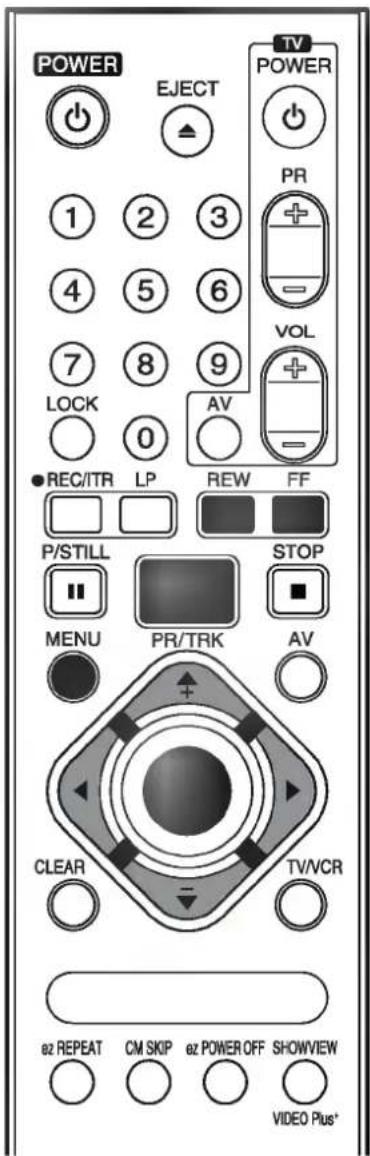
text_image
POWER EJECT TV POWER 1 2 3 PR + - VOL 7 8 9 AV - LOC 0 REC/ITR LP REW FF P/STILL STOP ■ MENU PR/TRK AV CLEAR TV/VCR a2 REPEAT CM SKIP a2 POWER OFF SHOWVIEW VIDEO Plus*
text_image
ADD 0.1 2.2 A.B 0.1 2.2 O.D DOther playback features
This video recorder will allow you to rapidly wind a tape forwards or backwards, search a cassette tape, view individual frames on a tape, and play back a tape in slow motion.
Fast forward (FF)
Pressing the fast forward ("FF") button with the tape on stop, will rapidly wind the tape forward. "FF" will appear for a few seconds on the TV screen.
Rewind (REW)
Pressing the rewind ("REW") button with the tape on stop, will rapidly wind the tape backwards. "REW" will appear for a few seconds on the TV screen.
LOGIC search
If you hold down either of the search buttons ("REW" or "FF") during fast forwarding or rewinding the tape, the picture will be seen at about 7 times (NTSC recorded tape: 5 times) the normal playback speed. This enables you to see where you are on the tape. When you release the button the video recorder continues fast forward or rewind.
Picture search - CUE & REVIEW
You can also quickly carry out a visual search for a desired section on a tape using the CUE and REVIEW functions.
During playing back press either the fast forward ("FF") or rewind ("REW") button. The tape will be played forward or backwards at about 7 times (NTSC recorded tape: 5 times) the normal playback speed. When the desired point on the tape has been reached press the "PLAY" button and the video recorder will continue to play back the tape at the normal speed.
Picture search will only continue for about 3 minutes, after which the video recorder will return to normal playback mode.
Note - During a visual search or still playback, the sound is muted and there will be some "noise streaks" on the TV screen.
OPR (Optimum Picture Response)
This feature automatically improves playback picture quality by adjusting your VCR to the condition of the tape.
1 Press the "i" button to display the Main menu.
2 Press the cursor "◀" and "▶" buttons to select the "OPR".
3 Press the "OK" button.
4 Press "▲" and "▼" repeatedly to select OFF, SOFT or SHARP. NOTE: This feature can only be operated when playing a tape.
5 Press the "i" button to release it.
Other playback features
Slow motion playback, Shuttle
This video recorder is equipped with a slow motion and shuttle features.
1 During playing back or still picture press the cursor "◀" or "▶" button.
2 You can reach the following playback speeds:
(-7xplay, -3xplay, -play, still, 1/19 slow, play, 2xplay, 7xplay)
3 If distortions can be seen in the picture, remove them with the cursor "▲" and "▼" buttons.
4 To switch off the slow motion, press the desired function, e.g. playback, search, still picture or stop.
The slow motion playback will only continue for about 30 seconds, after which the video recorder will return to normal playback mode, to avoid damage of the tape.
When using the special playback effects (logic, picture search, still and slow motion playback) with a tape recorded in LP, there will be a loss of colour and there may be noise bars on the picture.
Note:
During Slow or Still playback, the noise bars can be appeared on the picture according to status of tape (especially NTSC recorded tape). In these cases adjust the tracking to playback a tape with the optimum picture quality. You can adjust the tracking with the cursor "▲" and "▼" buttons.

text_image
POWER EJECT TV POWER 1 2 3 PR + - VOL 7 8 9 AV LOCK 0 ● REC/ITR LP REW FF P/STILL STOP ■ MENU PR/TRK i AV OK CLEAR TV/VCR e2 REPEAT CM SKIP e2 POWER OFF SHOWVIEW VIDEO Plus+Other playback features
Selection of the colour system
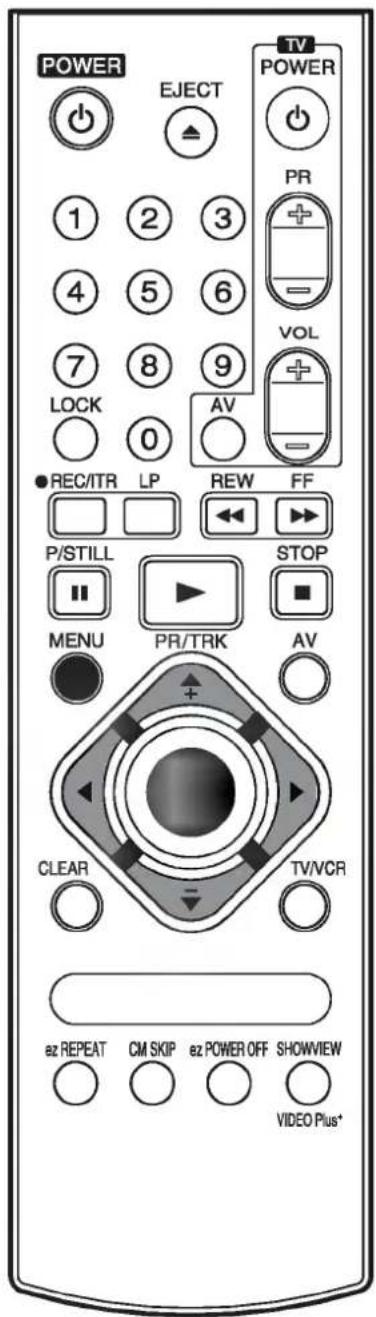
Because your video recorder is equipped with dual colour standard, you can playback recordings in PAL B/G and SECAM B/G.
During playback your video recorder detects the recorded colour system automatically. Only if there are colour problems with very weak recordings, you should select the colour system manually:
text_image
POWER EJECT TV POWER 1 2 3 PR + - VOL 7 8 9 AV LOCK 0 ● REC/ITR LP REW FF P/STILL STOP ■ MENU PR/TRK AV CLEAR TV/VCR BZ REPEAT CM SKIP BZ POWER OFF SHOWVIEW VIDEO Plus*1 Press the "i" button to display the Main menu.
2 Press the cursor "◀" and "▶" buttons to select the "SYSTEM".
3 Press the "OK" button.
4 Use the cursor "▲" and "▼" buttons to select the desired colour system.
"AUTO": automatic colour selection, "PAL": PAL recordings "MESECAM": MESECAM recordings
5 Press the "i" button to remove the menus from the TV screen.
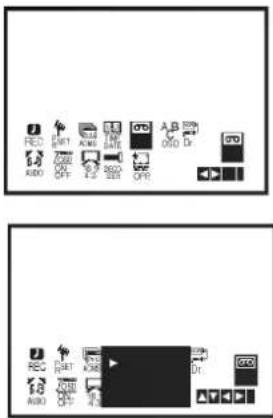
Recording with decoder
We have already described, how to connect a decoder for pay-TV stations like PREMIERE on page 7.
1 Press the "i" button and select the "DECODER" with the cursor "◀" and "▶" buttons.
2 Press the "OK" button and select to "ON" by pressing the "▲" and "▼".
3 Press the "i" button to remove the menus from the TV screen.
text_image
Two identical software icons with labeled buttons and icons, showing status indicators and function keys.
text_image
REC SET ACM A B OFF 4.5 OK CVR CSD DrIntroduction to the recording features
There are a variety of recording modes available to you on this video recorder.
1 You may record immediately (a programme you may be watching).
2 You may record immediately for a set period of time of up to 9 hours. This is called Instant Timer Recording (ITR).
3 You may record at a later time (up to 1 month from the present) using the built-in timer. Up to 7 of these automatic recordings may be set at the same time -provided, of course, that there is sufficient time on the video cassette.
There are two ways in which you can programme the video recorder for automatic recording.
1 You can use the ShowView feature, which is built into this video recorder (see p 25 to 26) (LV4787/LV4767/LV4747).
2 You may set the times manually, using either the on screen display (OSD) (see p 27 to 28).
Note - Ensure that the safety tab has not been removed from the video cassette on which you wish to record.
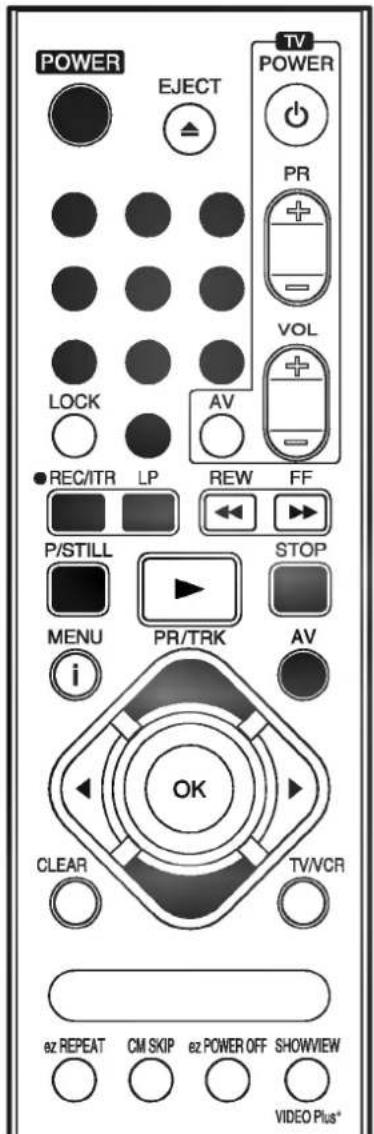
To record
1 Switch on the TV set and video recorder.
2 Insert a video cassette with the window side up, and the arrow pointing away from you, or if a video cassette is already loaded switch on the video recorder by pressing the "POWER" button.
3 Select the programme channel with the number buttons or cursor PR + and - buttons.
Note:
If you want to record from either of the EURO SCART sockets on the back of the video recorder, or from the AUDIO/VIDEO input terminals on the front, press the "AV" button to the correct position, as shown by the display on the TV screen.
"SC01": for Hi-Fi audio recording from AUDIO IN (L/R) terminals of your audio system.
"AV1": for recording from EURO AV1 scart socket.
"AV2": for recording from DECODER/EURO AV2 scart socket.
"AV3": for recording from VIDEO IN and AUDIO IN (L/R) terminals (see p 6).
4 Select LP with the "LP" button, if you want to record in Long Play mode.
5 Press the "REC/ITR" button to start recording. "RECORD" will appear for a few seconds on the TV screen.
6 If you want to avoid recording unwanted scenes press the "P/STILL" button. "RECP" will appear for a few seconds on the TV screen. To continue recording press the "P/STILL" button again.
7 Press the "STOP" button to stop recording. "STOP" will appear for a few seconds on the TV screen.
text_image
POWER EJECT TV POWER PR VOL AV LOCK REC/ITR LP REW FF P/STILL STOP MENU PR/TRK AV i OK CLEAR TV/VCR ez REPEAT CM SKIP ez POWER OFF SHOWVIEW VIDEO Plus*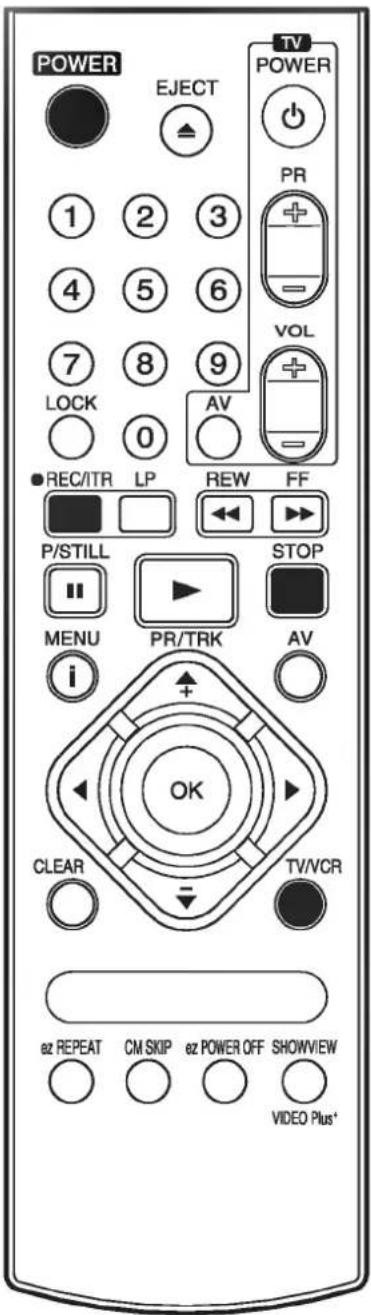
text_image
POWER EJECT TV POWER 1 2 3 PR + - VOL 7 8 9 AV LOCK 0 REC/ITR LP REW FF P/STILL STOP MENU PR/TRK AV i OK CLEAR TV/VCR e2 REPEAT CM SKIP e2 POWER OFF SHOWVIEW VIDEO Plus*Using the video recorder to record
Recording one TV programme while watching another
You can record one programme while watching another by selecting the channel you watch on your TV set.
1 Start a recording by following above steps 1 to 5 (see p. 23).
2 Select to TV mode by pressing the "TV/VCR" button on the remote control. "VCR" indicator will disappear on the video recorder's display.
3 Select the TV station you want to watch with the programme channel selector on your TV set.
Immediate timer (ITR)
When making a recording you can set your video recorder to stop after a set period of time.
1 Press the "REC/ITR" button to start recording.
2 Press the "REC/ITR" button several times until the desired recording time is shown on the video recorder's Display.
Each time you press this button the ITR time will be extended by 30 minutes. The maximum time that can be set is 9 hours.
When the ITR recording have been completed, the video recorder will stop and switch itself off.
3 To cancel a ITR recording, press the "POWER" or the "STOP" button.
Programming the video recorder timer

The timer allows you to record broadcasts automatically. Up to 7 recordings within one month can be programmed at the same time.
Introduction to ShowView (LV4787/LV4767/LV4747)
ShowView programming lets you set the video recorder to record programmes, by simply entering a ShowView Code. These ShowView Codes are published in TV listings in almost all newspapers and TV Guides. They can vary from one to eleven digits and are usually with the programme name as shown in the sample page of a TV Guide.
The ShowView Codes contain all the information needed by the video recorder (programme start and stop date and time and programme number). It is easy to alter the information programmed into the video recorder by a ShowView Code if you wish to do so. For example you may wish to extend the stop time in case the programme is running late.
SHOWVIEW is a registered trademark of Gemstar
Development Corporation.
The SHOWVIEW System is manufactured under licence from Gemstar Development Corporation.
ShowView programming on the TV screen (LV4787/LV4767/LV4747)
These new timer programming feature is very easy to use:
1 Press the "SHOWVIEW" button. The "SHOWVIEW" menu appears.
2 Select the recording type by repeatedly pressing the "▲" and "▼" buttons. It select between:
ONCE: To record a programme once only.
DAILY: To record a programme every day (except Saturday and Sunday) at the same time.
WEEKLY: To record a programme at the same time every week.
3 Use the number buttons to enter the ShowView number of the broadcast you want to record, exactly as it is shown in your TV magazine.
- If you enter incorrect number, press the "◀" button to erase it, and enter the correct number.

other
| Value | Label | |---|---| | 18.55 | RTL 2 Nachrichten 9-811-065 | | 19.00 | Tierdokumentation, 251-317 | | 19.30 | Bitte lächeln 856-152 | | 22.35 | Der Pate von 7-073-959 |
text_image
SHOWVIEW NO. OFF REC 0-9, 📄7211
text_image
SHOWVIEW NO. 12342 DAILY REC 0-9. 0000000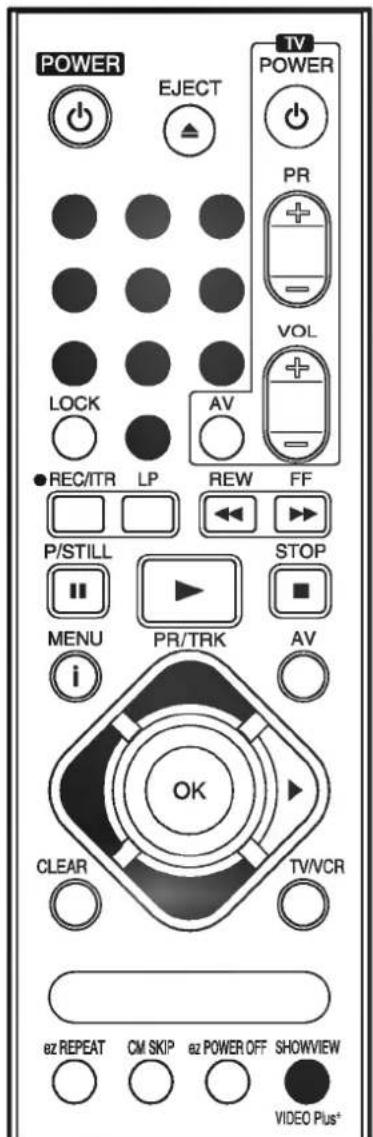
text_image
POWER EJECT TV POWER PR VOL AV LOCK REC/ITR LP REW FF P/STILL STOP MENU PR/TRK AV i OK CLEAR TV/VCR az REPEAT CM SKIP az POWER OFF SHOWVIEW VIDEO Plus*Programming the video recorder timer
text_image
POWER EJECT TV POWER PR VOL LOCK AV REC/ITR LP REW FF P/ STILL STOP MENU PR/TRK AV CLEAR TV/VCR e2 REPEAT CM SKIP e2 POWER OFF SHOWVIEW VIDEO Plus*4 Press the "OK" button.
You will see the data of the selected broadcasts.
- If "PLEASE CHECK" appears, you have to check the entering and repeat the procedure.
- If “--” is displayed, you have to enter the programme number of the station, you want to record from. This will automatically be stored in an internal SHOWVIEW channel map.
- If you want to record from either of the EURO SCART sockets or from either of the AUDIO/VIDEO input terminals, repeatedly press the "AV" button for the correct display.
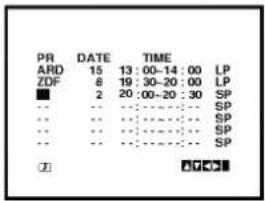
5 If you wish to change any of the settings as displayed you can do so.
Move between them with the cursor "◀" and "▶" buttons. Use the number buttons to change the date and the time.
6 Press the "▶" button and activate or deactivate VPS with the cursor "▲" and "▼" buttons.
“ • ” symbol will be displayed on the TV screen.
7 Press ▶ to select the recording speed. Press ▲ or ▼ to select the desired tape speed (SP, IP, or LP). IP mode determines how much tape is left and switches speed from SP to LP, if necessary, to complete recording the program. (IP mode does not operate during VPS/PDC ON.)
8 Finish your timer inputs with the "i" button.
A menu of the timer programmes set into the video recorder will be displayed on the TV screen.
- If "PLEASE CHECK" is displayed, you have entered a wrong data. Please correct the data.
9 Press the "i" button to remove the menus from the TV screen.
10 Make sure that there is a video cassette in the video recorder and turn the video recorder off with the "POWER" button.
The timer set "TIMER" symbol is shown on the video recorder.
NOTE:
Timer recordings do not work during power on mode.
text_image
PR DATE TIME ARD 15 13:00-14:00 LP ZDF 8 19:30-20:00 LP ■ 2 20:00-20:30 SP ... ... ... SP ... ... ... SP ... ... ... SP ... ... ... SP #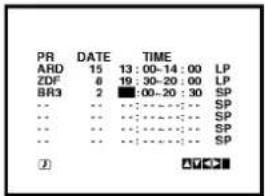
text_image
PR DATE TIME ARD 15 13:00-14:00 LP ZDF 6 19:30-20:00 LP BR3 2 ■ 00-20:30 SP ... ... ... SP ... ... ... SP ... ... ... SP ... ... ... SP J
text_image
PR DATE TIME ARD 15 13:00-14:00 LP ZDF 6 19:30-20:00 LP BR3 2 20:00-20:30 SP -- -- -- -- SP -- -- -- -- -- SP -- -- -- -- -- SP VPS/PDC : ON ⑦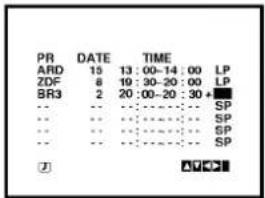
text_image
PR DATE TIME ARD 15 13:00-14:00 LP ZDF 8 19:30-20:00 LP BR3 2 20:00-20:30 + ... ... ... SP ... ... ... SP ... ... ... SP ... ... ... SP A V C DRecorder timer programming using the On Screen Displays
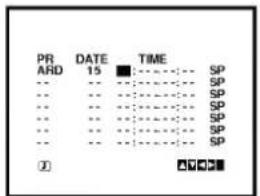
Without the ShowView code you need to enter the programme number, date, and the start and stop times of the programme you wish to record.
1 Press the "i" button and select "REC" with the cursor "◀" and "▶" buttons.
2 Press the "OK" button to enter the timer programming mode.
3 Press the "OK" button and select the programme number that you wish to record using the number buttons.
Programme number and dates 1 must be entered as 01, 2 as 02 etc.
- If you want to record from either the EURO SCART sockets or from the AUDIO/VIDEO input terminals, repeatedly press the "AV" button for the correct display.
4 Press the "▶" button and enter the day using the number buttons.
If you want to change recording type:
1) Press the "OK" button.
• DLY: for daily recordings from Monday to Friday.
- Weekly (SUN to SAT): To record a programme at the same time every week.
2) Select the recording type with the cursor "◀" and "▶" buttons and select it with the "OK" button.
text_image
AUDIO USB1 ACM ACM GATE USB A-13 CDD Dr
text_image
PR DATE TIME SP SP SP SP SP SP SP SP SP SP SP DELETE ▼ , ▲ ▼ ▼ ▼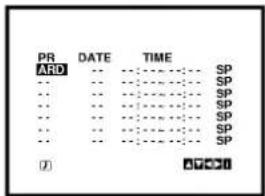
text_image
PR ARD SP SP SP SP SP SP SP SP SP SP SP SP SP (7) A10011
text_image
PR ARD DATE TIME SP SP SP SP SP SP SP SP SP SP SP A-✓-✓-✓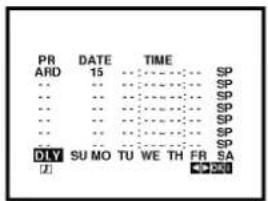
Programming the video recorder timer
text_image
POWER EJECT TV POWER PR VOL LOCK AV REC/ITR LP REW FF P/STILL STOP MENU PR/TRK AV OK CLEAR TV/VCR ez REPEAT CM SKIP ez POWER OFF SHOWVIEW VIDEO Plus*5 Enter the start and end times using the number buttons.
- For setting programme times you must use the 24 hour clock.
- Errors can be corrected with the “◀” and “▶” buttons.
6 Activate or deactivate VPS with the cursor "▲" and "▼" buttons (LV4787/LV4767/LV4747).
" • " symbol will be displayed on the TV screen.
7 Press ▶ to select the recording speed. Press ▲ or ▼ to select the desired tape speed (SP, IP, or LP). IP mode determines how much tape is left and switches speed from SP to LP, if necessary, to complete recording the program. (IP mode does not operate during VPS/PDC ON.)
8 Finish your timer inputs with the "i" button.
A menu of the timer programmes set into the video recorder will be displayed on the TV screen.
- If "PLEASE CHECK" is displayed, you have entered a wrong data. Please correct the data.
9 Press the "i" button to remove the menus from the TV screen.
10 Make sure that there is a video cassette in the video recorder and switch the video recorder off with the "POWER" button.
The timer set "TIMER" symbol is shown on the video recorder.
NOTE:
Timer recordings do not work during power on mode.
text_image
PR ARD DATE 15 TIME SP SP SP SP SP SP SP SP SP SP SP SP SP SP SP SP SP ①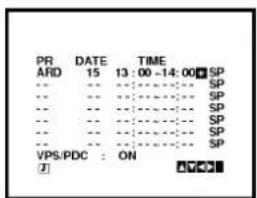
text_image
PR ARD DATE 15 TIME 13:00-14:00 SP SP SP SP SP SP SP SP SP VPS/PDC : ON J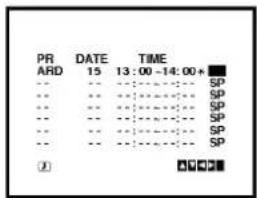
text_image
PR ARD DATE 15 13 : 00 -14 : 00 + SP SP SP SP SP SP SP SP SP SP SP SP SP ①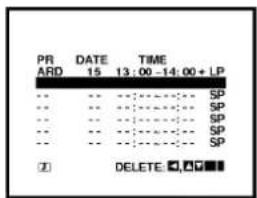
text_image
PR ARD DATE 15 TIME 13:00-14:00+LP SP SP SP SP SP SP SP SPDELETE □ ▼■■
Programming the video recorder timer
Checking and clearing stored timer programmes.
The stored timer programmes can easily be viewed on the TV screen, and can also be cleared if not wanted.
1 Press the "i" button and select "REC" with the cursor "◀" and "▶" buttons.
2 Press the "OK" button. The timer programmes list will be displayed on the TV screen.
3 If you wish clear any of the programmes on the list, select it with the cursor "▲" and "▼" buttons, and press the "◀" button to clear.
4 If you wish change any of the data for any of the programmes on the list, select it with the cursor "▲" and "▼" buttons. Then, press the "OK" button and change the data as described on previous page.
5 Press the "i" button twice to remove the menus from the TV screen.
Overlapping timer programmes.
When timer programmes overlap, the programme which is already recording continues to its scheduled end time.
Hence the beginning of the second programme will not be recorded.
NOTE - If you wish to stop a timer recording which has already started, press the "POWER" button.

text_image
PR ARD DATE 15 TIME 13 : 00 - 14 : 00 + LP SP SP SP SP SP SP SP SP SP DELETE: □ △ ■ ■Video Programme System (VPS) (LV4787/LV4767/LV4747)
The Video Programme System (VPS) ensures that the TV programmes that you have programmed for timer recording will be recorded exactly from their beginning to end, even if the actual broadcasting time differs from the scheduled time due to delayed start, or if the programme is extended beyond its scheduled time. Also, if a programme is interrupted, for example, if a news flash is inserted, the recording will also be interrupted automatically and resumed when the programme continues.
The VPS signal is broadcast by the TV station and this controls the timer in the video recorder.
VPS should be set ON for all timer recordings from TV stations broadcasting these signals. It should be set OFF for all timer recordings from TV stations that are not broadcasting these signals.
*** The similar system PDC, which is used in the time being in the Netherlands, can also be used with your new video recorder.

text_image
POWER EJECT TV POWER 1 2 3 PR 4 5 6 VOL 7 8 9 AV LOCK 0 ●REC/ITR LP REW FF P/STILL STOP MENU PR/TRK AV CLEAR TV/VCR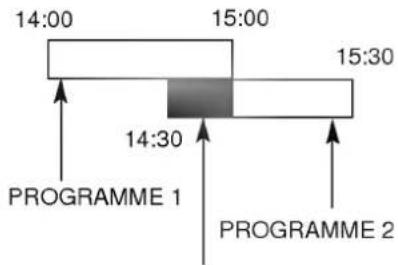
text_image
14:00 15:00 15:30 14:30 PROGRAMME 1 PROGRAMME 2(This portion will not be recorded)
Other features
Introduction
This video recorder has a number of other features which make it easier and more convenient to use. Some of these are described in this section of the manual. Later sections describe the connection of the video recorder to other equipment, and features relating on the video recorder.
The features described here are:
1 The On Screen Display of the time or tape counter, date, programme channel and operation mode of the vide recorder.
2 The Digital Tape Counter and Remaining Tape Volume indicator.
3 The Memory Stop facility that can be used during rewind to stop the tape at a preset point.
4 The tracking control that optimises the picture quality.
5 The Automatic Playback facility which plays back a tape, rewinds and ejects it and switches off the video recorder.
6 Automatic Memory Power Shut Off when a video cassette is rewound.
7 A Child Lock facility so that the video recorder can be controlled only from the handset.
8 The 16:9 wide-screen recording and playback.
9 Self-diagnosis.
Other features
ON SCREEN DISPLAY OF THE TIME OR TAPE COUNTER, REMAINING TAPE VOLUME, DATE, PROGRAMME CHANNEL AND OPERATION MODE OF THE VIDEO RECORDER.
When the "OK" button is pressed, a display occurs on the TV screen of the current time or the tape counter and the remaining tape volume, the date, year and day of the week, the programme channel and the operation mode of the video recorder.
The tape counter and the volume of the tape remaining appear only while a tape is loaded. After two seconds the clock display or the tape counter and the volume of tape remaining will only remain. If you press the "OK" once again within two seconds the clock display changes to the tape counter and the volume of the tape remaining or vice versa. Press the "OK" button again to remove the display from the TV screen.
Note - If a recording is taking place these On Screen displays will not be recorded onto the tape.
Digital Tape Counter/Remaining Tape Volume
The Digital Tape Counter and Remaining Tape Volume can be displayed on the TV screen instead of the time by repeatedly pressing the "OK" button.
The Digital Tape Counter gives you the relative positions of recordings on the tape. If you set the counter to 0:00:00 at the beginning of a tape, you can note the counter reading at the beginning of each separate recording.
To set the counter to M 0:00:00 press the "CLEAR" button.
The memory stop facility
Memory Stop automatically stops a tape when the tape counter is 0:00:00. This feature may be used to return the tape to a preselected position immediately after making a recording, or to repeatedly playback a portion of a tape.
1 Press the "OK" button to set the display to the counter.
2 Before playback or recording, press the "CLEAR" button. The counter will read M 0:00:00.
3 Begin the playback or recording.
The tape counter gives the actual time in hours, minutes and seconds.
4 Press the "STOP" button when playback or recording is completed.
5 Press the "REW" button. The tape will rewind and automatically stop when the counter returns to M 0:00:00.


flowchart
graph TD
    A["VCR RECORDER FUNCTION"] --> B["STOP SP"]
    A --> C["ARD"]
    B --> D["1.01.04"]
    C --> E["THU"]
    C --> F["11:00"]
    D --> G["DAY/MONTH/YEAR/DAY OF THE WEEK"]
    E --> H["Clock/Tape counter/Remaining Tape Volume"]
    F --> I["CHANNEL PROGRAMME"]

text_image
POWER EJECT TV POWER PR 1 2 3 4 5 6 7 8 9 LOCK 0 AV VOL REC/ITR LP REW FF P/STILL STOP MENU PR/TRK i AV CLEAR TV/VCR bz REPEAT CM SKIP bz POWER OFF SHOWVIEW VIDEO Plus+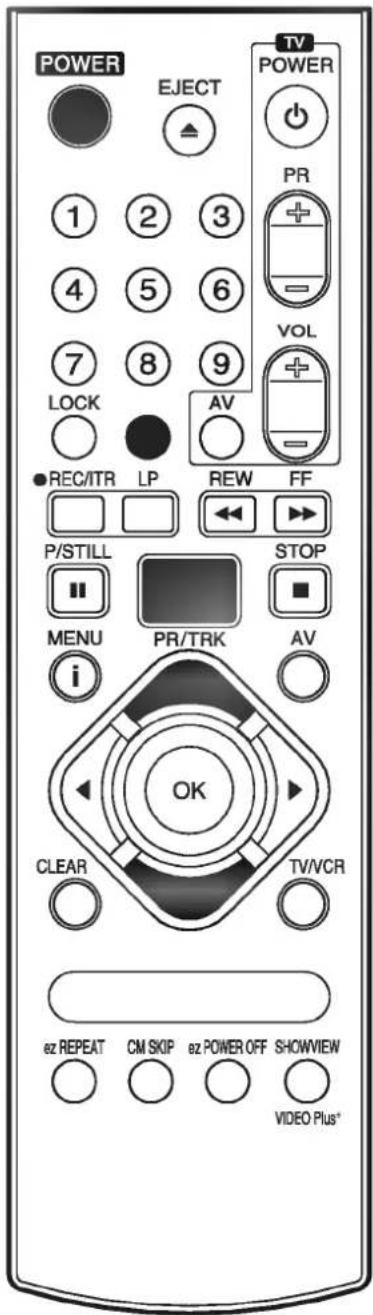
text_image
POWER EJECT TV POWER 1 2 3 PR + - VOL 7 8 9 AV ● REC/ITR LP REW FF P/STILL STOP ■ MENU PR/TRK i AV OK CLEAR TV/VCR oz REPEAT CM SKIP oz POWER OFF SHOWVIEW VIDEO Plus*Other features
Tracking Controls
Tracking distortions show up as streaks or an unstable picture. This video recorder can set the tracking automatically. You can also set the tracking manually if you need to do so.
Automatic tracking - The automatic tracking adjusts the tracking to playback a tape with the optimum picture quality. As soon as you start to playback a tape the tracking will be adjusted if necessary.
Manual tracking - If the quality of the recording is poor, or if the tapes are damaged, the automatic tracking will not be able to work correctly. In these cases you will have to remove tracking distortions manually.
You can adjust the tracking during playback with the cursor TRK + and - buttons. Press them repeatedly until the distortions have been eliminated.
You can switch on the automatic tracking again after using the manual tracking feature by pressing the "0" button. When you change a video cassette, the automatic tracking will always be switched on again.
Automatic Playback
Automatic Playback is a very convenient automatic action of this video recorder. It occurs whenever you insert into the video recorder a video cassette from which the safety tab has been removed (e.g. a video cassette which you have hired).
Automatic Playback carries out the following procedures:
It automatically switches on the video recorder's power and starts to playback the tape.
At the end of the tape, it automatically rewinds.
The tape is ejected automatically.
The video recorder switches itself off.
Automatic Memory Power Shut-Off
This feature of the video recorder enables you to initiate switching off the video recorder during tape rewind. Hence you do not have to wait until a tape has rewound before you can switch the video recorder off.
To activate Automatic Memory Power Shut Off press the "POWER" button during tape rewind. The tape will rewind to the beginning and the video recorder will switch itself off.
Pressing any of the control buttons (e.g. "POWER" or "PLAY") after setting Automatic Memory Power Shut Off will cancel it.
Other features
The Child Lock
The control buttons on the front of the video recorder are inoperative. The video recorder can be controlled only from the handset.
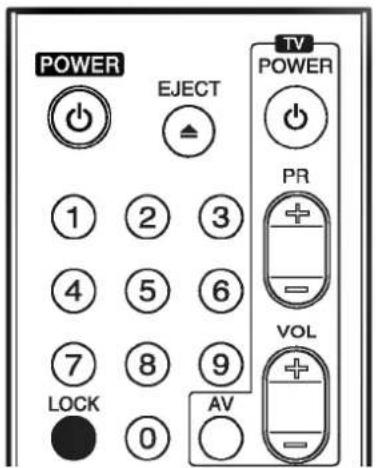
1 Press the "LOCK" button. SAFE will appear on the TV screen. SAFE will flicker in your video recorder's display for a few seconds.
The control buttons on the front of the video recorder are inoperative (except for "STOP/EJECT"). The video recorder can be controlled only from the handset. If any buttons on the front of your VCR are pressed SAFE will appear in your video recorder's display and on the TV screen for a few seconds.
2 To switch off the locking, press the "LOCK" button again.
OFF will flicker in your video recorder's display for a few seconds.
16:9 Compatibility (Wide - screen TV)
This video recorder can be recorded and played back the 16:9 wide aspect ratio programmes.
Select the required position in the main menu as described on page 11:
To record in a wide-screen format, you have to set to "16:9", or if you set to "4:3" the video recorder will be recorded in normal format.
When you set to "AUTO", the video recorder will be automatically played back the wide-screen programmes as wide, the normal programmes as normal.
NOTE:
When the picture disappears on the TV screen while playing back a 16:9 programme or recording in 16:9 format, set the TV to "AV" mode.
Self-Diagnosis
This function informs you of an error messages for solving the problems more easily.
1 Press the "i" button on the remote control handset. The menu will appear on the TV screen.
2 Select "Dr." with the cursor "◀" and "▶" buttons and press the "OK" button.
3 Check a problem with the cursor "▲" and "▼" buttons.
| Menu of Video Doctor | Status of Display | Solution & Information |
| HEAD STATUS | PLEASE CLEAN | Clean your video heads |
| TAPE STATUS | NOT RECORDABLE | Insert a tape with its protection tab in place |
| NO.OF TIMER PROGRAMME | 1 | Shows the number of timer recording |
| NEXT TIMER PROGRAMME | ARD 26 10:00~ 11:00 SP | Shows the status of current timer recording |
4 Press the "i" button.
text_image
POWER EJECT TV POWER PR VOL AV 1 2 3 4 5 6 7 8 9 LOCK 0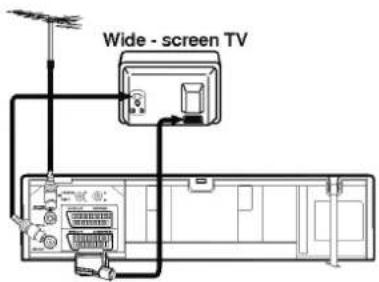
text_image
Wide - screen TV
text_image
VIDEO DOCTOR ► HEAD STATUS TAPE STATUS NO. OF TIMER PROGRAMME NEXT TIMER PROGRAMME OKThe Hi-Fi stereo sound system
Introduction
This video recorder will record and playback Hi-Fi stereo sound. There are, therefore, several possible ways of recording and playing back the sound. These are described below.
The audio tracks
Video cassette tapes recorded on this video recorder will have a normal mono audio track and two VHS Hi-Fi stereo audio tracks. These allow you to make audio recordings in Hi-Fi stereo or bilingual mode from a TV broadcast, a stereo audio system, a video disc or another video recorder.
Using your video recorder in combination with a Hi-Fi audio system will enhance the sound quality of video tapes.
| TYPE OF BROADCAST | AUDIO TRACKS | ||
| MONO TRACK | Hi-Fi TRACKS | ||
| L-CH | R-CH | ||
| STEREO | L+R-CH | L-CH | R-CH |
| BILINGUAL | L-CH (Main) | L-CH (Main) | R-CH (Sub) |
| MONO | MONO | MONO | MONO |
Stereo, bilingual, mono
STEREO AUDIO RECORDING- A TV broadcast being transmitted in stereo sound mode will display STEREO on the TV screen. During recording stereo sound will automatically be recorded on the Hi-Fi stereo tracks of the video tape, and in mono on the mono track.
BILINGUAL AUDIO RECORDING- A TV broadcast being transmitted in bilingual sound will display BIL on the TV screen. Both audio channels will automatically be recorded on the Hi-Fi stereo tracks of the video tape, and the main channel (left) will be recorded on the mono track.
Audio output during playback
The audio output mode during playback is that chosen "AUDIO" in the main menu. The choice is STEREO, LEFT (left channel), RIGHT (right channel) or MONO.
Note- that whilst adjusting the auto tracking control Hi-Fi stereo sound may revert to mono sound
BILINGUAL AUDIO OUTPUT - If the audio output is bilingual the primary language is output from the left channel, and the secondary language is output simultaneously from the right channel when the audio setting is STEREO. The primary language is output from both channels when the audio setting is MONO.
Recording from another equipment

text_image
To AUDIO OUT (L/R) VIDEO IN LIBONO-AUDIO IN R To AUDIO IN (L/R)Simulcast stereo recording and playback Recording
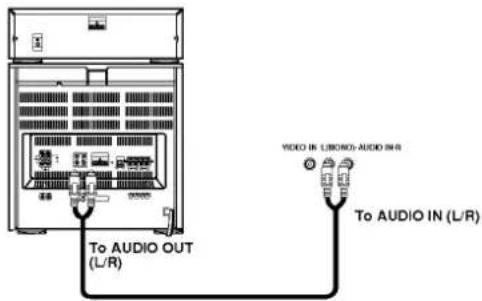
Some TV programmes is also broadcast in stereo sound on FM radio. For these simulcast broadcasts you can record the picture from the TV programme, and the sound from your audio system as follows:
1 Connect your audio system to the "AUDIO IN (L/R)" on the front of the video recorder.
2 Select "SC" mode with the "AV" button on the remote control handset.
3 Select the programme to be recorded with the handset.
4 Turn on your audio system and tune in to the sound broadcast.
5 Start recording.
NOTE: The Simulcast Stereo audio will be recorded on the Hi-Fi Audio tracks. The Normal (Mono) audio track will record the TV programme FM mono sound.
PLAYBACK
You can play back the stereo sound through a stereo TV set. To playback the stereo sound through your audio system, connect it to the "AUDIO OUT" terminals on the back of the video recorder. Turn off the sound on your TV set.

text_image
Diagram showing cable connections between a TV equipment and a separate internal device, with labels for components like antenna, cables, and ports.Recording from a second video recorder (for tape copying)
1 A second video recorder (for tape copying) should be connected to the "AUDIO IN (L/R)" and VIDEO IN terminals on the front of the video recorder or one of the EURO SCART sockets on the back.
2 The appropriate audio/video mode should be set with the "AV" button.
3 Insert an empty cassette into this video recorder, and if you are copying another tape insert it into the second video recorder.
4 Start recording on this video recorder, and if appropriate, the playback at the second video recorder.
NOTE - Unauthorised recording of copyrighted TV programmes, films video cassette and other materials may infringe the rights of copyright owners and be contrary to copyright laws.
text_image
POWER EJECT TV POWER 1 2 3 PR + - VOL 7 8 9 AV - LOC 0 ● REC/ITR LP REW FF P/ STILL STOP ■ MENU PR/TRK AV i OK CLEAR TV/VCR 62 REPEAT CM SKIP 62 POWER OFF SHOWVIEW VIDEO Plus*ez (easy) operations
ez (easy) power off
The sequence of "Stop → Rewind → Eject → Power Off" is operated automatically by pressing ez POWER OFF.
1 During play back press ez POWER OFF.
2 Your VCR will be operated as the following;

flowchart
graph LR
    A["STOP"] --> B["REWIND"]
    B --> C["EJECT"]
    C --> D["POWER OFF"]
ez (easy) repeat
By pressing & holding ez REPEAT during play back, the holding section is replayed twice automatically.
1 During play back, press & hold ez REPEAT at the point where repeat play is to be concluded.
2 Then, your VCR will go into reverse search.
3 Release ez REPEAT at the point where repeat play is to start.
4 The holding section is replayed twice automatically.
5 Pressing ez REPEAT again during repeat play, will return to normal play.
Controlling the TV
You can control the sound level, input source, and power switch of your LG TV with the supplied remote control.
You can control your TV using the buttons below
| By pressing | You can |
| TV POWER | Turns the TV on or off.. |
| TV PR +/- | Scans up or down through memorized channels. |
| TV VOL +/- | Adjust the volume of the TV. |
| TV AV | Switch the TV's input source between the TV and other input sources |
Controlling other TVs with the remote control
You can control the sound level, input source, and power switch of non-LG TVs as well. If your TV is listed in the table below, set the appropriate manufacturer code.
1 While holding down TV POWER button, press the number buttons to select the manufacturer code for your TV (see the table below).
2 Release TV POWER button.
Code numbers of controllable TVs
If more than one code number is listed, try entering them one at a time until you find the one that works with your TV.
| Manufacturer | Code Number |
| LG / GoldStar | 1 (Default), 2 |
| Zenith | 1, 3, 4 |
| Samsung | 6, 7 |
| Sony | 8, 9 |
| Hitachi | 4 |
NOTES:
- Depending on your TV, some or all buttons may not function on the TV, even after entering the correct manufacturer code.
- If you enter a new code number, the code number previously entered will be erased.
- When you replace the batteries of the remote, the code number you have set may be reset to the default setting. Set the appropriate code number again.

text_image
POWER EJECT TV POWER PR 1 2 3 4 5 6 7 8 9 LOCK 0 AV REC/ITR LP REW FF P/STILL STOP MENU PR/TRK AV i OK CLEAR TV/VCR ez REPEAT CM SKIP ez POWER OFF SHOWVIEW VIDEO Plus+General
| Power | : 200-240V~, 50Hz. |
| Power consumption | : Approx. 12 watts (Energy saving mode: 3 watts) |
| Video Head system | : Double azimuth 4 heads, helical scanning system |
| Tape speed | : 23.39 mm/sec (SP mode)/11.69 mm/sec (LP mode) |
| Tape format | : Tape width 1/2" (12.7 mm high density VHS tape) |
| Maximum recording time | : 4 hours in SP mode/8 hours in LP mode (with E-240 tape) |
| Rewind time | : Approx. 65(±10) sec. (with E-180 tape) |
| Dimensions (W X H X D) | : 14.2" X 3.2" X 9.1" (360 X 82 X 230 mm) |
| Weight | : 2.87 kg |
| Operating temperature | : 41°F-95°F (5°C-35°C) |
| Operating humidity | : Less than 80 % |
| Timer | : 24 hours display type |
Video
| Television system | : CCIR standard (625 lines, 50 fields) PAL (B/G), SECAM (B/G) colour signal |
| Recording format | : PAL/MESECAM |
| RF reception | : PAL B/G, SECAM B/G |
| RF OUT | : PAL G |
| Input level | : VIDEO IN (SCART, RCA type)1.0 Vp-p, 75 ohm, unbalanced |
| Output level | : VIDEO OUT (SCART type)1.0 Vp-p, 75 ohm, unbalanced |
| Signal to noise ratio | : More than 43 dBm |
| RF modulator | : UHF channels 22-68 (Adjustable) |
Audio
| Input level | : AUDIO IN (SCART, RCA type)Scart type: -6.0 dBm, more than 10 kΩRCA type: -6.0 dBm, more than 47 kΩ |
| Output level | : AUDIO OUT (SCART, RCA type)Scart type: -6.0 dBm, less than 1 kΩRCA type: -6.0 dBm, less than 1 kΩ |
| Audio track | : Mono track & Hi-Fi track |
| Audio frequency response | : Normal:100 Hz-10 kHz (-6/+3 dBm)Hi-Fi: 20 Hz-20 kHz (-3/+3 dBm) |
| Audio signal to noise ratio | : Normal audio: More than 43 dB (at SP mode)Hi-Fi audio: More than 70 dB (at SP mode) |
| Audio dynamic range | : Hi-Fi audio: More than 85 dB (at SP mode) |
- Design and specifications are subject to change without notice!
Before calling for service...

Please check to see if any problem which you may have with your video recorder is described here before taking it for service or calling a service engineer.
Problem
| No mains power to the recorder |
| TV programmes cannot be recorded |
| A timer recording does not take place |
| AUTO PLAY does not work |
| There is no picture on playback, or it is noisy and streaky |
| The top of the playback picture is unstable |
| Video cassettes cannot be inserted |
| No Hi-Fi sound |
Possible solution?
| • Is the video recorder plugged into the mains? |
| • Is the mains supply on and switched on? |
| • Can you get a picture on the TV screen? |
| • If are not the aerial and RF lead connected? |
| • Are the TV channels properly tuned in? |
| • Has the safety tab been removed from the video cassette to prevent recording? |
| • Is POWER off?(Is the "TIMER" showing in the display?) |
| • Were the recording start and end times set correctly? |
| • Are the timer settings in the timer menu? |
| • Was the power interrupted after setting the timer? |
| If so the time setting will be erased and timer recordings will not take place. |
| • Has the safety tab been removed from the video cassette? |
| • Are the TV channels properly tuned in? |
| • Try another video cassette. |
| • Can you minimise the noise bars to an acceptable level with the "0" or "▲" and "▼" buttons? |
| • Is the video cassette damaged? |
| Try another one. |
| • Adjust the horizontal hold control on you TV set. |
| • Insure that you are using the "video" channel on your TV set example 0, 8, 9 or 12. |
| • Is the cassette compartment empty? |
| • Are you trying to insert the cassette the right way round? |
| • Switch "AUDIO" in the main menu to "STEREO". |
Video Head Cleaning
Whenever a video cassette is inserted into or ejected from your Video the video head is automatically cleaned. This should mean that additional head cleaning should not be necessary. However dirt accumulating on the head after a long period of time can cause the playback picture to become blurred or broken up. High quality video cassette tapes will not normally deposit dirt onto the video head, but old or damaged tapes might.