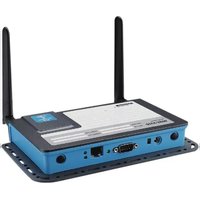
WISE-3310 - Unknown Advantech - Free user manual and instructions
Find the device manual for free WISE-3310 Advantech in PDF.


| Product Type | Wireless IoT Gateway |
| Brand | Advantech |
| Model | WISE-3310 |
| Processor | Freescale ARM Cortex-A9 i.MX6 Dual 1 GHz |
| System Memory | Onboard DDR3 1 GB |
| Flash Storage | Onboard 4 GB e.MMC |
| Operating System | Linux Kernel 3.0.35 / 3.10.17 |
| Wireless Protocol | SmartMesh IP (IEEE 802.15.4e, 6LoWPAN) |
| Antenna | 2 x 2.4 GHz SMA connectors |
| Network Interface | 1 x RJ45 (10/100/1000 Base-T) |
| Serial Port | 1 x RS-232 (D-sub 9-pin) |
| SD Card Slot | 1 x SD slot |
| LED Indicators | 2 LEDs for WSN network and power status |
| Reset Button | Yes (hardware reset) |
| Power Input | DC 12 V (adapter included) |
| Dimensions (with plate) | 205 x 126 x 31 mm (L x W x H) |
| Dimensions (without plate) | 180 x 114 x 31 mm |
| Operating Temperature | 0 to 40°C (32 to 104°F) |
| Storage Temperature | -20 to 60°C (-4 to 104°F) |
| Humidity | 95% @ 40°C (non-condensing) |
| Mounting | Wall mount, VESA mount |
| Certifications | CE, FCC Class B |
| Warranty | 2 years |
| Cleaning Instructions | Disconnect from AC, use damp cloth; no liquid or spray detergents |
| Safety Precautions | Do not cover openings; keep away from moisture; only qualified service personnel should open |
Frequently Asked Questions - WISE-3310 Advantech
User questions about WISE-3310 Advantech
0 question about this device. Answer the ones you know or ask your own.
Ask a new question about this device
Download the instructions for your Unknown in PDF format for free! Find your manual WISE-3310 - Advantech and take your electronic device back in hand. On this page are published all the documents necessary for the use of your device. WISE-3310 by Advantech.
USER MANUAL WISE-3310 Advantech
natural_image
Illustration of four electronic circuit boards with white outlines on a purple background (no text or symbols)WISE-3310
Copyright
The documentation and the software included with this product are copyrighted 2016 by Advantech Co., Ltd. All rights are reserved. Advantech Co., Ltd. reserves the right to make improvements in the products described in this manual at any time without notice. No part of this manual may be reproduced, copied, translated or transmitted in any form or by any means without the prior written permission of Advantech Co., Ltd. Information provided in this manual is intended to be accurate and reliable. However, Advantech Co., Ltd. assumes no responsibility for its use, nor for any infringements of the rights of third parties, which may result from its use.
Acknowledgements
Linear Dust is a trademark of Linear Technology Corporation.
ARM is a trademark of ARM Corporation.
All other product names or trademarks are properties of their respective owners.
Part No. 2006E33101 Edition 2
Printed in Taiwan October 2016
Product Warranty (2 years)
Advantech warrants to you, the original purchaser, that each of its products will be free from defects in materials and workmanship for two years from the date of purchase. This warranty does not apply to any products which have been repaired or altered by persons other than repair personnel authorized by Advantech, or which have been subject to misuse, abuse, accident or improper installation. Advantech assumes no liability under the terms of this warranty as a consequence of such events.
Because of Advantech's high quality-control standards and rigorous testing, most of our customers never need to use our repair service. If an Advantech product is defective, it will be repaired or replaced at no charge during the warranty period. For out-of-warranty repairs, you will be billed according to the cost of replacement materials, service time and freight. Please consult your dealer for more details.
If you think you have a defective product, follow these steps:
- Collect all the information about the problem encountered. (For example, CPU speed, Advantech products used, other hardware and software used, etc.) Note anything abnormal and list any onscreen messages you get when the problem occurs.
- Call your dealer and describe the problem. Please have your manual, product, and any helpful information readily available.
- If your product is diagnosed as defective, obtain an RMA (return merchandise authorization) number from your dealer. This allows us to process your return more quickly.
- Carefully pack the defective product, a fully-completed Repair and Replacement Order Card and a photocopy proof of purchase date (such as your sales receipt) in a shippable container. A product returned without proof of the purchase date is not eligible for warranty service.
- Write the RMA number visibly on the outside of the package and ship it prepaid to your dealer.
Declaration of Conformity
FCC Class B
Note: This equipment has been tested and found to comply with the limits of a Class B digital device, pursuant to part 15 of the FCC Regulations. These limits are designed to provide reasonable protection against harmful interference in a residential installation. This equipment generates, uses, and can radiate radio frequency energy and, if not installed and used in accordance with the instructions, may cause harmful interference to radio communications. However, there is no guarantee that interference will not occur in a particular installation. If the equipment does cause harmful interference to radio or television reception, as determined by turning the equipment off and on again, users are encouraged to try to correct the interference by performing one or more of the following actions:
■ Reorient or relocate the receiving antenna.
■ Increase the separation between the equipment and receiver.
■ Connect the equipment into an outlet on a circuit different from that to which the receiver is connected.
- Consult the dealer or an experienced radio/TV technician for assistance.
Technical Support and Assistance
- Visit the Advantech website at http://support.advantech.com where you can find the latest information about the product.
- Contact your distributor, sales representative, or Advantech's customer service center for technical support if you need additional assistance. Please have the following information ready before you call:
– Product name and serial number
– Description of your peripheral attachments
– Description of your software (operating system, version, application software, etc.)
– A complete description of the problem
– The exact wording of any error messages
Warnings, Cautions and Notes
Warning! Warnings indicate conditions, which if not observed, can cause personal injury!

Caution! Cautions are included to help you avoid damaging hardware or losing data. e.g.

There is a danger of a new battery exploding if it is incorrectly installed. Do not attempt to recharge, force open, or heat the battery. Replace the battery only with the same or equivalent type recommended by the manufacturer. Discard used batteries according to the manufacturer's instructions.
Note! Notes provide optional additional information.

Packing List
Before setting up the system, check that the items listed below are included and in good condition. If any item does not accord with the table, please contact your dealer immediately.
Gateway
- WISE-3310 (P/N: WISE-3310-D200L1E)
Accessory
- 2.4 GHz Antenna *2 (P/N: 1750007622-01)
- Adapter *1 (P/N: 96PSA-A36W12R1)
Safety Instructions
- Read these safety instructions carefully.
-
Keep this User Manual for later reference.
-
Disconnect this equipment from any AC outlet before cleaning. Use a damp cloth. Do not use liquid or spray detergents for cleaning.
- For plug-in equipment, the power outlet socket must be located near the equipment and must be easily accessible.
- Keep this equipment away from humidity.
- Put this equipment on a reliable surface during installation. Dropping it or letting it fall may cause damage.
- The openings on the enclosure are for air convection. Protect the equipment from overheating. DO NOT COVER THE OPENINGS.
- Make sure the voltage of the power source is correct before connecting the equipment to the power outlet.
- Position the power cord so that people cannot step on it. Do not place anything over the power cord.
- All cautions and warnings on the equipment should be noted.
- If the equipment is not used for a long time, disconnect it from the power source to avoid damage by transient overvoltage.
- Never pour any liquid into an opening. This may cause fire or electrical shock.
- Never open the equipment. For safety reasons, the equipment should be opened only by qualified service personnel.
- If one of the following situations arises, get the equipment checked by service personnel:
■ The power cord or plug is damaged.
■ Liquid has penetrated into the equipment.
■ The equipment has been exposed to moisture.
The equipment does not work well, or you cannot get it to work according to the user's manual.
■ The equipment has been dropped and damaged.
■ The equipment has obvious signs of breakage.
- DO NOT LEAVE THIS EQUIPMENT IN AN ENVIRONMENT WHERE THE STORAGE TEMPERATURE MAY GO BELOW -40°C (-40°F) OR ABOVE 85°C (185°F). THIS COULD DAMAGE THE EQUIPMENT. THE EQUIPMENT SHOULD BE IN A CONTROLLED ENVIRONMENT.
- CAUTION: THERE IS DANGER OF EXPLOSION IF BATTERY IS INCORRECTLY REPLACED. REPLACE ONLY WITH THE SAME OR EQUIVALENT TYPE RECOMMENDED BY THE MANUFACTURER, DISCARD USED BATTERIES ACCORDING TO THE MANUFACTURER'S INSTRUCTIONS.
The sound pressure level at the operator's position according to IEC 704-1:1982 is no more than 70 dB (A).
DISCLAIMER: This set of instructions is given according to IEC 704-1. Advantech disclaims all responsibility for the accuracy of any statements contained herein.
VCCI Certification
This is a Class B product based on the standard of the Voluntary Control Council for Interference from Information Technology Equipment (VCCI). If this is used near a
radio or television receiver in a domestic environment, it may cause interference. Install and use the equipment according to the instruction manual.
Class B ITE
Chapter 1 General Introduction ......1
1.1 Introduction 2
1.2 Product Features.... 2 1.2.1 Key Features.... 2 1.2.2 Key Specification.... 2
1.3 Mechanical Specification.... 3 1.3.1 Dimensions:.... 3
1.4 Power Requirement 3
1.5 Environment Specifications.... 3
Chapter 2 Hardware Functionality......5
2.1 Introduction 6
2.2 WISE-3310 I/O Indication....6 Figure 2.1 WISE-3310 front view....6 Figure 2.2 WISE-3310 Back view....6
2.3 WISE-3310 Antenna Connectors 6 2.3.1 Spare Antenna Hole 6 2.3.2 Power Input Connector 7 2.3.3 Power Switch 7 2.3.4 COM Connector 7 Table 2.1: COM Connector Pin Assignment 7
2.3.5 Reset Button .... 8 2.3.6 Ethernet Connector (LAN) .... 8 Table 2.2: LAN Connector Pin Assignment .... 8 2.3.7 SD Connector .... 9 Table 2.3: SD Connector Pin Assignment .... 9
2.4 WISE-3310 Hardware Installation....9 2.4.1 SD Card Installation....9 Figure 2.3 WISE-3310 SD Card Installation....9 2.4.2 Mounting Assembly Method....10 Figure 2.4 Flexible wall mounting....10
2.5 Test Tools 10 2.5.1 SD Test 10 2.5.2 Mini PCIe (Wi-Fi) Test 11 2.5.3 LAN Test 11 2.5.4 RS232 Test 12
Chapter 3 Building a WSN Network....13
3.1 Default Setting.... 14
3.2 Login 14
3.3 Web Setting Functions .... 15 3.3.1 Webmin.... 15 3.3.2 System .... 15 Table 3.1: Bootup and Shutdown .... 16
3.3.3 Networking .... 18 Table 3.2: WISE WSN Setting.... 19 Table 3.3: WSN Network Statistic .... 20 Table 3.4: WSN Network Statistic .... 20
3.3.4 Hardware 20
Chapter 4 Basic COM Port Settings...... 23
4.1 Introduction 24
4.1.1 CLI Access.... 24
4.1.2 Managing user and viewer Passwords 25
4.1.3 Mote Commands 25
4.2 Commands.... 25
4.2.1 Login 25
4.2.2 Logout.... 26
4.2.3 Reset 26
4.2.4 Show Config & Show Curconfig.... 27
4.2.5 Show Mote.... 28
4.2.6 Show Stat 29
4.2.7 Set Netid & Set Commonjoinkey 30
4.2.8 exec exchNetId 31
4.2.9 exec exchJoinKey 31
4.2.10 sm 32
Chapter 5 Advantech Service.... 33
5.1 Contact Information.... 34
5.2 Global Service Policy ...... 34
5.2.1 Warranty Policy.... 34
5.2.2 Repair Process 35
Chapter 1
General Introduction
1.1 Introduction
Advantech Wireless IoT Gateway, WISE-3310, is powered by Freescale ARM® Cortex™-A9 i.MX6 Dual 1 GHz high performance processor. With high-reliability wireless mesh network solution and remote management, WISE-3310 creates a cost-effective open platform for easy integration and development in different M2M/IoT applications. Connect with Advantech Wireless IoT nodes, by Smartmesh IP protocol for applications in wireless sensor networks where seamless internet protocol (IP) is valued. Also, WISE-3310 supportS SUSIAccess for an IoT PaaS Solution; it allows users to easily remote control and manage their devices through WISE CLOUD.
1.2 Product Features
1.2.1 Key Features
■ Freescale ARM® Cortex™-A9 i.MX6 Dual 1 GHz high performance processor
- Onboard DDR3 1 GB memory and 4 GB flash capability
■ Linear Tech Dust WSN IP Smartmesh solution
■ Complaint with IPv6, 6LowPAN Internet Protocol and IEEE802.15.4e standard
■ Supports wallmount, VESA mount for flexible mounting methods
1.2.2 Key Specification
Kernel: Linux V3.0.35
■ System Memory: Onboard 1GB DDR3 memory
■ Flash: Onboard 4 GB e.MMC flash
■ COM Port: 1 x RS232 Port (2 wires)
■ LED: 2 LED for WSN network power status
■ SD slot: 1 x SD Slot
■ Power input: 12 V DC
■ Power reset: 1 x reset button for system reboot
1.3 Mechanical Specification
1.3.1 Dimensions:
■ 205 x 126 x 31 mm (L x W x H) with the metal plate
■ 180 x114 x 31 mm without metal plate

1.4 Power Requirement
System Power: DC 12 V
■ RTC Battery: 3 V/210 mAh
1.5 Environment Specifications
■ Operating Temperature: 0 \~ 40°C (32 \~ 104°F)
■ Relative Humidity: 95% @ 40°C (non-condensing)
■ Storage Temperature: -20 \~ 60°C (-4 \~ 104°F)
Vibration Loading During Operation: 1 Gms, IEC 60068-2-64, random, 5 \~ 500 Hz, 1 Oct/min, 1 hr/axis.
■ EMC: CE, FCC Class B
Chapter 2
Hardware
Functionality
2.1 Introduction
The following sections show the external connectors and pin assignments for applications.
2.2 WISE-3310 I/O Indication
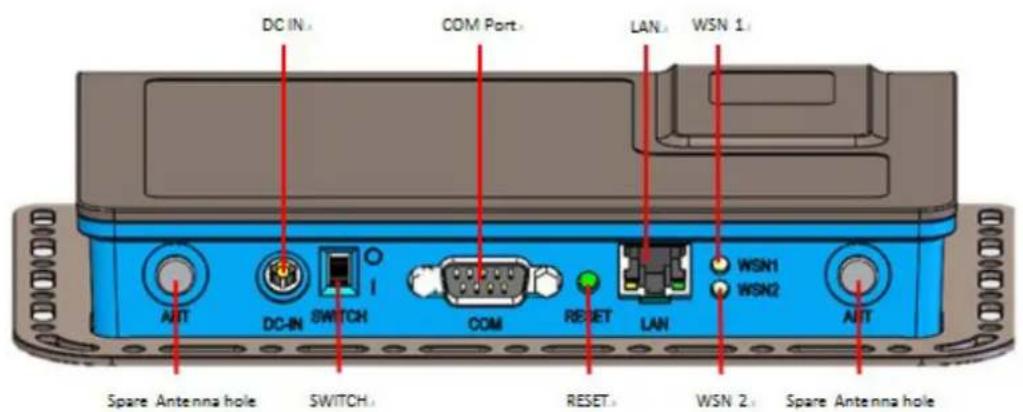
Figure 2.1 WISE-3310 front view
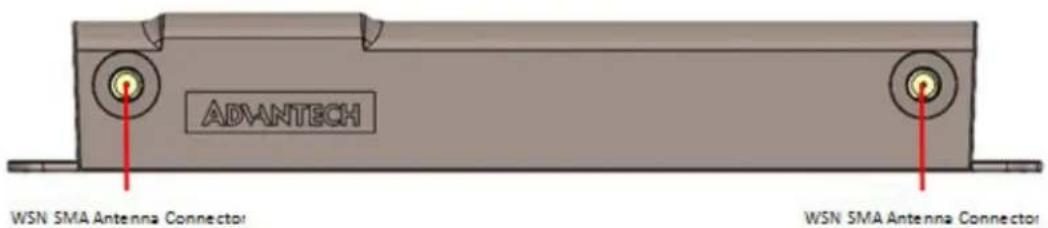
Figure 2.2 WISE-3310 Back view
2.3 WISE-3310 Antenna Connectors
2.3.1 Spare Antenna Hole
The WISE-3310 provides 2 spare antenna holes for standard SMA connectors.
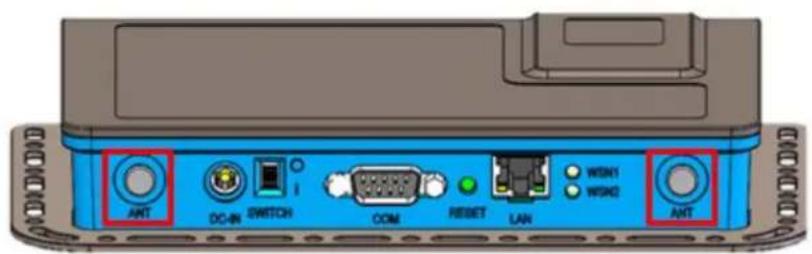
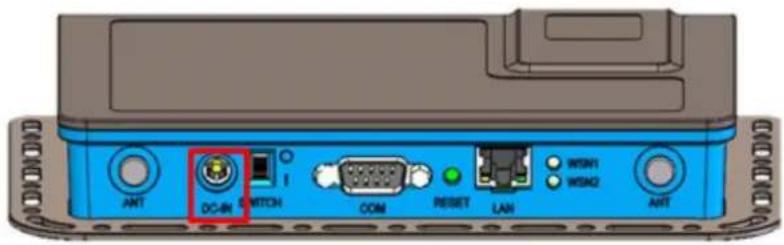
2.3.2 Power Input Connector
The WISE-3310 comes with a DC-jack header for 12V DC external power input.
2.3.3 Power Switch
The WISE-3310 has a power switch on the front side.

2.3.4 COM Connector
The WISE-3310 provides one D-sub 9-pin connector serial communication interface port. The port can support RS-232 mode communication.
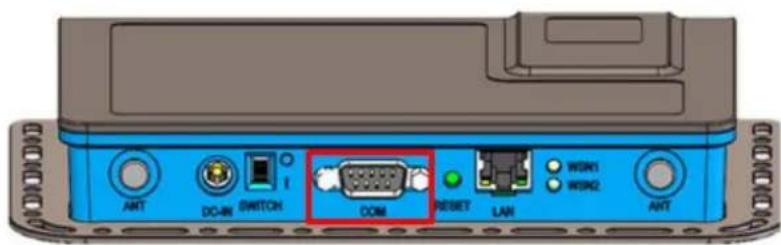
Table 2.1: COM Connector Pin Assignment
| Pin Description Pin Description | |||||||
| 1 N/C 2 UART1_RXD | |||||||
| 3 UART1_TXD 4 N/C | |||||||
| 5 | G | N | D | 6 | N | / | C |
| 7 N/C 8 N/C | |||||||
| 9 | N/C | ||||||
2.3.5 Reset Button
The WISE-3310 has a reset button on the front side. Press this button to activate the hardware reset function.

2.3.6 Ethernet Connector (LAN)
The WISE-3310 provides one RJ45 LAN interface connector, it is fully compliant with IEEE 802.3u 10/100/1000 Base-T CSMA/CD standards. The Ethernet port provides standard RJ-45 connector with LED indicators on the front side to show Active/Link status.
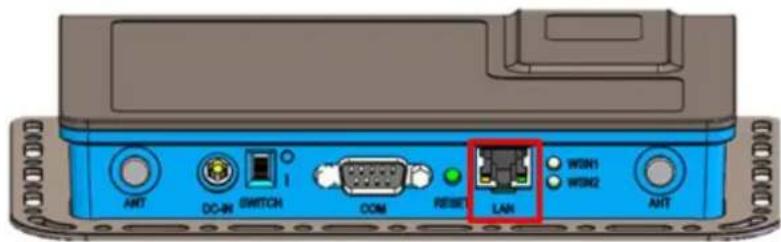

Table 2.2: LAN Connector Pin Assignment
Pin Description Pin Description
| 1 TX+(10/100),BI_DA+(GHz) 5 BI_DC-(GHz) |
| 2 TX-(10/100),BI_DA-(GHz) 6 RX-(10/100),BI_DB-(GHz) |
| 3 RX+(10/100),BI_DB+(GHz) 7 BI_DD+(GHz) |
| 4 BI_DC+(GHz) 8 BI_DD-(GHz) |
2.3.7 SD Connector
The WISE-3310 provides an SD slot. Users can insert an SD card easily.

natural_image
3D mechanical assembly diagram showing a blue internal component with a red arrow pointing to a blue base (no text or symbols)Table 2.3: SD Connector Pin Assignment
| Pin Description Pin Description | |||||||||
| 1 SD2_DATA3 2 SD2_CMD | |||||||||
| 3 | G | N | D | 4 | + | V | 3 | . | 3 |
| 5 SD2_CLK | 6 GND | ||||||||
| 7 SD2_DATA0 8 SD2_DATA1 | |||||||||
| 9 SD2_DATA2 10 SD2_CD# | |||||||||
| 11 | GND | 12 | SD2_WP | ||||||
2.4 WISE-3310 Hardware Installation
2.4.1 SD Card Installation
- Switch off the Power switch.
- Insert SD Card directly into the WISE-3310 SD slot, as Figure 2.3.

natural_image
3D rendering of a device housing with blue casing and highlighted component (no text or symbols)Figure 2.3 WISE-3310 SD Card Installation
2.4.2 Mounting Assembly Method
You can fix WISE-3310 to a wall by using wall mounting kit, as Figure 2.4.

natural_image
Diagram of a wall-mounted electrical switch mounted on a brick wall, showing wiring and component alignment (no text or symbols)Figure 2.4 Flexible wall mounting
2.5 Test Tools
All test tools must be verified on WISE-3310, please prepare required test fixtures before verifying each specified I/O. If you have any problems getting test fixtures, please contact Advantech for help.
2.5.1 SD Test
- When booting from eMMC, you should see only the directories below:
#ls /dev/mmcblk*
/dev/mmcblk0 /dev/mmcblk0boot0 /dev/mmcblk0boot1 /dev/mmcblk0p1
- Insert SD card to SD card slot (SD1) and check your device again. You should be able to see more directories. /dev/mmcblk1 is the SD card storage.
#ls /dev/mmcblk*
/dev/mmcblk0 /dev/mmcblk0boot1 /dev/mmcblk1 /dev/mmcblk1p2
/dev/mmcblk0boot0 /dev/mmcblk0p1 /dev/mmcblk1p1
- Create a file and copy to SD.
#echo 123456789ABCDEF > test.txt
#dd if=./test.txt of=/dev/mmcblk1 bs=1024 count=1
seek=25118
0+1 records in
0+1 records out
16 bytes (16 B) copied, 0.000109331 s, 146 kB/s
- Check if the file was created successfully.
#hexdump -C /dev/mmcblk1 -s 25720832 -s 32
01887800 31 32 33 34 35 36 37 38 39 41 42 43 44 45 46 0a
|123456789ABCDEF.|
01887810 1d 4f e2 19 d3 05 8b df ab 4a 40 5a c5 23 3c f2
|......|
Note! Please make sure that parameter "seek" is equal to 25118 as indicated in the above codes. If you create the file to a wrong sector, that may damage the system.
2.5.2 Mini PCIe (Wi-Fi) Test
This command is used to test the Wi-Fi module as shown below. The part number is: FWM-W142H01E
<h1 id="ifconfig-wlan0-up">ifconfig wlan0 up</h1>
<h1 id="iwlist-wlan0-scanning">iwlist wlan0 scanning</h1>
<h1 id="wpa_passphrase-wifi-name-password-tmpwpaconf">wpa_passphrase "Wifi name" password > /tmp/wpa.conf</h1>
<h1 id="wpa_supplicant-b-dwext-iwlan0-c-tmpwpaconf">wpa_supplicant -B dwext -iwlan0 -c /tmp/wpa.conf</h1>
<h1 id="udhcpc-b-i-wlan0">udhcpc -b -i wlan0</h1>
2.5.3 LAN Test
WISE-3310 sets DHCP as default network protocol.
ifconfig
eth0 Link encap:Ethernet HWaddr 00:04:9F:01:30:E0
inet addr:172.17.21.96 Bcast:172.17.21.255
Mask:255.255.254.0
UP BROADCAST RUNNING MULTICAST MTU:1500
Metric:1
RX packets:129 errors:0 dropped:18 overruns:0
frame:0
TX packets:2 errors:0 dropped:0 overruns:0
carrier:0
collisions:0 txqueuelen:1000
RX bytes:15016 (14.6 KiB) TX bytes:656 (656.0 B)
lo Link encap:Local Loopback
inet addr:127.0.0.1 Mask:255.0.0.0
UP LOOPBACK RUNNING MTU:16436 Metric:1
RX packets:0 errors:0 dropped:0 overruns:0
frame:0
TX packets:0 errors:0 dropped:0 overruns:0
carrier:0
collisions:0 txqueuelen:0
RX bytes:0 (0.0 B) TX bytes:0 (0.0 B)
If you would like to config IP manually, please use the command below:
ifconfig eth0 xxx.xxx.xxx.xxx up
Here is a real case for your reference. The host's (WISE-3310) IP is 172.17.21.97; the target (a desktop computer) IP is 172.17.20.192.
ifconfig eth0 172.17.21.97 up
ifconfig eth0
eth0 Link encap:Ethernet HWaddr 00:04:9F:01:30:E0
inet addr:172.17.21.97 Bcast:172.17.255.255
Mask:255.255.0.0
UP BROADCAST RUNNING MULTICAST MTU:1500
Metric:1
RX packets:2851 errors:0 dropped:271 overruns:0
frame:0
TX packets:30 errors:0 dropped:0 overruns:0
carrier:0
collisions:0 txqueuelen:1000
RX bytes:291407 (284.5 KiB) TX bytes:2000 (1.9
KiB)
The target computer (Client) IP address is 172.17.20.192, so we can use the below command to see if we can get any response from the client.
ping 172.17.20.192
PING 172.17.20.192 (172.17.20.192): 56 data bytes
64 bytes from 172.17.20.192: seq=0 ttl=128 time=7.417 ms
64 bytes from 172.17.20.192: seq=1 ttl=128 time=0.203 ms
64 bytes from 172.17.20.192: seq=2 ttl=128 time=0.300 ms
--- 172.17.20.192 ping statistics ---
3 packets transmitted, 3 packets received, 0% packet loss
round-trip min/avg/max = 0.203/2.640/7.417 ms
2.5.4 RS232 Test
RS232 port is debug console for WISE-3310.
Chapter 3
Building a WSN Network
This chapter will show you how to configure WISE-3310 by using the web-based configuration interface.
3.1 Default Setting
Please use your Ethernet port to connect to WISE-3310.
IP Address 192.168.0.1
User Name/ Password admin/admin
Network ID WSN1/WSN2 2001/2002
Join Key JOINADVANTECHIOT
3.2 Login
- Open a web browser (Chrome is suggested) and enter the IP Address. http://192.168.0.1

Note! If you have changed the default LAN IP Address of this device, ensure you enter the correct IP Address.

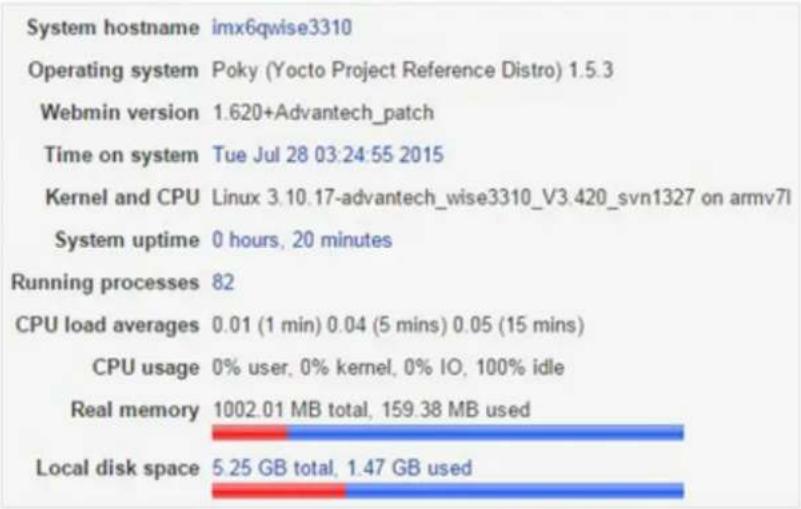
- The default username and password are both admin. Once you have entered the correct username and password, click the Login button to open the web-base configuration page.

- If successful, you will be logged in and see the following page.
ADVANTECH
Enabling an Intelligent Planet
bar_stacked
| Category | Value | |---|---| | System hostname imx6qwise3310 | | | Operating system Poky (Yocto Project Reference Distro) 1.5.3 | | | Webmin version 1.620+Advantech_patch | | | Time on system Tue Jul 28 03:24:55 2015 | | | Kernel and CPU Linux 3.10.17-advantech_wise3310_V3.420_svn1327 on armv7l | | | System uptime 0 hours, 20 minutes | | | Running processes 82 | | | CPU load averages 0.01 (1 min) 0.04 (5 mins) 0.05 (15 mins) | | | CPU usage 0% user, 0% kernel, 0% IO, 100% idle | | | Real memory 1002.01 MB total, 159.38 MB used | | | Local disk space 5.25 GB total, 1.47 GB used | |3.3 Web Setting Functions
The main functions of WISE-3310 web setting will be introduced in this section.
3.3.1 Webmin
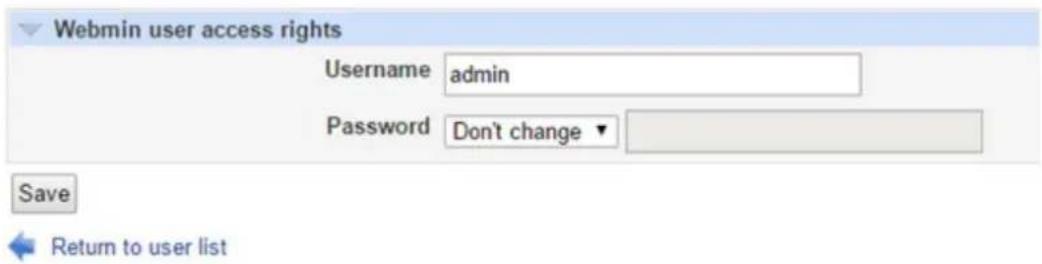
Under Webmin, you can change Username and Password on Webmin Users page.
3.3.2 System
The System section contains the following items: Back to Factory Default, Bootup and Shutdown, Firmware Update and Running Process.
3.3.2.1 Back to Factory Default
Click on Back to Advantech factory default, to revert the values of all web settings will be back to original setting.
Back to Advantech factory default
Click on this button to back to factory default. (usemame/password, network, timezone, WISE/WSN)
3.3.2.2 Bootup and Shutdown
In this page, all actions running in the system appearing in the table.
Boot system : SysV init
| Action | At boot? | Description | |
| apmd | Yes | Advanced Power Management daemon | |
| avahi-daemon | Yes | Zeroconf daemon for configuring your network | |
| connman | Yes | ||
| crond | Yes | cron is a standard UNIX program that runs user-specified | |
| dbus-1 | Yes | D-Bus is a simple interprocess messaging system, used | |
| dustlink | No | ||
| neard | Yes | neard is a daemon used to enable NFC features | |
| nfsserver | Yes | NFS is a popular protocol for file sharing across | |
| ntpd | Yes | ||
| ofono | Yes | ||
| oprofileui-server | Yes | ||
| rc.local | Yes | Run /etc/rc.local if it exist | |
| rpcbind | No | rpcbind is a server that converts RPC (Remote | |
| serialmux | No | ||
| sshd | Yes | ||
| tcf-agent | Yes | Target Communication Framework agent | |
| xinetd | Yes | ||
| Start | Stop | Restart | Start On Boot Disable On Boot Start Now and On Boot Disable Now and On Boot |
Reboot System
Click on this button to immediately reboot the system. All currently logged in users will be
Table 3.1: Bootup and Shutdown
| Start Start immediately | |
| Stop Stop immediately | |
| Restart Restart immediately | |
| Start On Boot Start when device on boot | |
| Disable On Boot Disable when device on boot | |
| Start Now and On Boot Start immediately and start when device on boot | |
| Disable Now and On Boot Disable immediately and disable when device on boot | |
| Reboot System | Click on this button to immediately reboot the system. All currently logged in users will be disconnected and all services will be re-started. |
3.3.2.3 Firmware Update
Please download the most updated Firmware version from Advantech Website and upload the image into SD card. After plugging the SD card into SD card slot, Firmware update process can be started.
Click browse icon to view image file in the SD card.

Double click "mmcb1p1" folder.

Select the file with "emmc.img.gz".

Click update icon to start firmware update. The firmware update process may take around 5\~10 minutes; please don't turn off the power or press the reset button. After the process completes, please type the default IP address to return to login page.

Please note, after firmware upgrade, the system will restore its default setting, the IP address will return to 192.168.0.1.
Note! The device is unavailable during the upgrade process. Any connections to or through the device will be lost.

3.3.2.4 Running Process
This page shows all running processes on your system, with child processes indented and displayed below their parent. For each process the PID, owner and command are displayed. Please click Help to get more information.
Display : PID | User | Memory | CPU | Search | Run..
| ID | Owner | Started | Command |
| 1 | root | 03:04 | init [5] |
| 163 | root | 03:04 | /lib/udev/udevd -d |
| 824 | root | 03:06 | /lib/udev/udevd -d |
| 827 | root | 03:06 | /lib/udev/udevd -d |
| 589 | root | 03:05 | /usr/sbin/rpcbind |
| 606 | messagebus | 03:05 | /usr/bin/dbus-daemon --system |
| 609 | root | 03:05 | /usr/sbin/connmand |
| 626 | root | 03:05 | /usr/sbin/sshd |
| 632 | root | 03:05 | /usr/sbin/wpa_supplicant -u |
| 633 | root | 03:05 | /usr/sbin/apmd -P /etc/apm/apmd_proxy --proxy-timeout 30 |
| 647 | root | 03:05 | /usr/bin/ntpd -p /var/run/ntp.pid -g |
| 650 | root | 03:05 | /usr/bin/ntpd -p /var/run/ntp.pid -g |
| 652 | root | 03:05 | /sbin/syslogd -n -O /var/log/messages |
| 655 | root | 03:05 | /sbin/klogd -n |
| 663 | root | 03:05 | /usr/sbin/xinetd -pidfile /var/run/xinetd.pid -stayalive |
| 670 | avahi | 03:05 | avahi-daemon: running [imx6qwise3310.local] |
| 671 | avahi | 03:05 | avahi-daemon: chroot helper |
3.3.3 Networking
The Networking section contains the following options: Network Configuration and WISE WSN Setting.
3.3.3.1 Network Configuration
On this page, you can set Network Interface, Routing Gateways, Hostname and DNS Client based on your networking environment.

Network Interfaces

Routing and Gateways

Hostname and DNS Client
3.3.3.2 WISE WSN Setting
There are 2 WSN networks available to be set up in WISE-3310. Each network has its default Network ID and JoinKey, both of the settings can be changed on this page.
| Network1 | |
| Network ID | 2001 |
| JoinKey | JOINADVANTECHIOT |
| Network2 | |
| Network ID | 2002 |
| JoinKey | JOINADVANTECHIOT |
| Save WSN config | Save&Exchange WSN config |
| Network Statistics | |
| Network 1 Statistics | Network 2 Statistics |
Table 3.2: WISE WSN Setting
| Network ID | The network identifier is the identifier of your network. It is set to 2001/2002 by default. |
| JoinKey | The Joinkey is the password to join the network. It is set to JOIN-ADVANTECHIOT by default. |
| Save WSN config/ Save&Exchange WSN config | Click Save WSN config to apply the new settings to gateway/ Click Save&Exchange WSN config to apply new settings to both gate-way and nodes. |
| Network Statistic | Click Network Statistic to see nodes status and WSN network health report. |
3.3.3.3 Network Statistic
In Network Statistic page, nodes status and network health can be monitored in the table.
| NetReliability | 100 % |
| NetPathStability | 85 % |
| NetLatency | 1000 (msec) |
| MAC address | MotelD | State | Routing | Reliability (%) | Latency (msec) |
| 00-17-0d-00-00-58-2c-2b | 1 | OPER | YES | 100 | 10 |
| 00-17-0d-00-00-60-63-8b | 2 | OPER | YES | 100 | 140 |
| 00-17-0d-00-00-58-29-78 | 3 | OPER | YES | 100 | 1420 |
| 00-17-0d-00-00-30-60-05 | 4 | OPER | YES | 100 | 210 |
| 00-17-0d-00-00-60-64-c8 | 5 | OPER | YES | 100 | 230 |
| 00-17-0d-00-00-60-62-4c | 6 | OPER | YES | 100 | 200 |
| 00-17-0d-00-00-60-63-e5 | 7 | OPER | YES | 100 | 310 |
| 00-17-0d-00-00-60-63-e4 | 8 | OPER | YES | 100 | 750 |
| 00-17-0d-00-00-60-64-1b | 9 | OPER | YES | 100 | 850 |
| 00-17-0d-00-00-60-64-8f | 10 | OPER | YES | 100 | 270 |
| 00-17-0d-00-00-60-64-9b | 11 | OPER | YES | 100 | 1830 |
| 00-17-0d-00-00-58-32-15 | 12 | OPER | YES | 100 | 1820 |
| 00-17-0d-00-00-58-2d-5f | 13 | OPER | YES | 100 | 1680 |
| 00-17-0d-00-00-30-08-92 | 14 | OPER | YES | 100 | 1290 |
| 00-17-0d-00-00-60-2e-47 | 15 | OPER | YES | 100 | 820 |
| 00-17-0d-00-00-60-61-f3 | 16 | OPER | YES | 100 | 1280 |
| 00-17-0d-00-00-30-53-b2 | 17 | OPER | YES | 100 | 1450 |
| 00-17-0d-00-00-30-08-96 | 18 | OPER | YES | 100 | 770 |
| 00-17-0d-00-00-60-63-d7 | 19 | OPER | YES | 100 | 330 |
| 00-17-0d-00-00-60-64-0f | 20 | OPER | YES | 100 | 850 |
| 00-17-0d-00-00-60-62-c3 | 21 | OPER | YES | 100 | 750 |
| 00-17-0d-00-00-30-50-dc | 22 | OPER | YES | 100 | 3460 |
| 00-17-0d-00-00-30-4c-20 | 23 | OPER | YES | 100 | 1180 |
| 00-17-0d-00-00-30-55-19 | 24 | OPER | YES | 100 | 1210 |
| 00-17-0d-00-00-60-63-fa | 25 | OPER | YES | 100 | 1590 |
| 00-17-0d-00-00-60-64-1d | 26 | OPER | YES | 100 | 1060 |
| 00-17-0d-00-00-60-62-da | 27 | OPER | YES | 100 | 200 |
Table 3.3: WSN Network Statistic
| Net Reliability Network reliability as a percentage |
| Net Path Stability Path stability as a percentage |
| Net Latency Average latency, in milliseconds |
Table 3.4: WSN Network Statistic
| MAC address MAC address (EUI-64) of the note. | |
| Mote ID | Short address assigned to this note by the manager, MotelD 1 is always the AP |
| State | “Lost” = Note is not currently part of the network.“Negotiating” = Note is in the process of joining the network.“Operational” = Note is operational. |
| Routing | Enable routing function = YesDisable routing function = No |
| Reliability Network reliability as a percentage | |
| Latency (msec) Average latency, in milliseconds | |
3.3.4 Hardware
3.3.4.1 System Time
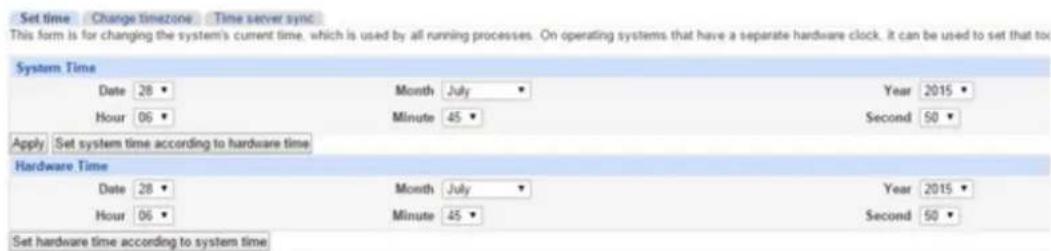
1. Set Time
This form is for changing the system's current time, which is used by all running processes. On operating systems that have a separate hardware clock, it can be used to set that too.
2. Change time zone
This form allows you to set the system's default time zone, which is used to convert the system time to a human-readable format and offset.

3. Time server sync
This form is for configuring the system to automatically synchronize the time with a remote server. Synchronization will be done using the UNIX time protocol or NTP, depending on which commands are installed and what the remote system supports.

Chapter 4
Basic COM Port Settings
4.1 Introduction
This guide describes some basic commands that you can send to a SmartMesh IP Manager by logging on to its Command Line Interface (CLI). The CLI is available by connecting a serial terminal program to the Manager. The CLI is intended for human interaction with a manger, e.g., during development, or for interactive troubleshooting. Most commands are atomic – a command and its arguments are typed into the CLI, and a response is returned. For example, the help command returns a list of possible commands. Traces are not atomic - once started, they generate output asynchronously until canceled.
Note! Chapter 4 was abstracted from "SmartMesh_IP_Manager_CLI_Guide". If you need more CLI information, Please refer to SmartMesh_IP_Manager_CLI_Guide" which can be downloaded from Linear Technology website.
4.1.1 CLI Access
There are two dedicated serial ports on the SmartMesh IP manager: one is for API communication with an external application, and the other is dedicated to this command line interface. You can log on to the CLI from any serial terminal program (such as HyperTerminal or Tera Term):
Serial 0 — If connecting to an evaluation board integrated with an FTDI serial-to-usb interface, the CLI will be found on the 3rd COM port mapped onto your system.
The following are the steps to log on to CLI using minicom:
- Establish a console connection to WISE-3310.
- freescale login: root
- root@freescale -\$ minicom -s
- In configuration menu, select "serial port setup" and press Enter
- A→dev/ttyUSB2; E→9600 8N1; F→No (dev/ttyUSB2_WSN1, dev/ttyUSB3_WSN2)
- Select Exit to leave.

There are two sets of privileges on this system, namely user and viewer. The user privilege allows for system settings to be set and the viewer privilege only allows the viewing of manager and network information.
For example, to login to the manager CLI from the terminal program, enter either of the following usernames and passwords:
login viewer
login user
To logout of the Manager CLI:
logout
4.1.2 Managing user and viewer Passwords
The default passwords should be changed with the following commands (after logging in with "user" privileges):
set config pwdviewer <newpassword>
set config pwduser <newpassword>
4.1.3 Mote Commands
Commands beginning with an 'm' such as mtrace or minfo are specific to the Access Point "mote" and are described in the WISE-3310_User_Manual documentation.
4.2 Commands
This manual describes the CLI commands available in the SmartMesh IP manager. The CLI is case-insensitive. In most cases a command will be recognized by the shortest unambiguous string, so the following are all equivalent:
> trace rawio_enc on
> trace rawio on
> trace raw on
4.2.1 Login
Description
The CLI interface requires a login, and the password entered determines the privilege used for the session. The default passwords match the two privilege levels: viewer and user. The viewer cannot make any configuration changes to the manager. The user has access to all commands. The login command can be used repeatedly without logging out to switch between privilege levels. Passwords for the two privilege levels can be changed using the set config command.
Syntax
login [<user>:] <password>
Parameters
| Parameter Description | |
| user viewer or user | |
| password | password for the privilege level.default passwords as shipped are "user" for user and "viewer" for viewerNote: passwords can be changed with the set config command |
Example
| login user: meh |
| login meh |
4.2.2 Logout
Description
Logout from the current CLI session.
Syntax
| Logout |
Example
| Logout |
4.2.3 Reset
Description
Reset a specified entity in the network: either a mote or the manager. This command requires user privilege.
Syntax
| reset |
Parameters
| Parameter Description | |
| entity | When called with "system", resets the manager and by extension the entire network.When called with "mote", mote can be referenced by Mote ID or MAC address. |
Example
reset mote 2
reset system
4.2.4 Show Config & Show Curconfig
> show config
netid = 302
txpower = 8
frprofile = 1
maxmotes = 33
basebw = 9000
dnfr_mult = 1
numparents = 2
cca = 0
channellist = 00:00:7f:ff
autostart = 1
locmode = 0
bbmode = 0
bbsize = 1
license = 00:00:00:00:00:00:00:00:00:00:00:00:00
ip6prefix = fe:80:00:00:00:00:00:00:00:00:00:00:00:00:00:00
ip6mask = ff:ff:ff:ff:ff:ff:ff:ff:00:00:00:00:00:00:00:00
radiotest = 0
bwmult = 300
onechannel = 255
Both of these commands return the same data structure. The show config command will display the persistent parameters, i.e., the ones used after the next boot. The Show Curconfig command displays the current parameters being used.
4.2.5 Show Mote
> show mote 2
Mote #2, mac: 00-17-0D-00-00-38-16-6B
State: Oper, Hops: 1.1, Uptime: 0-00:30:39, Age: 1
Regular. Route/TplgRoute.
Power Cost: Max 65534, FullTx 110, FullRx 65
Capacity links: 200, neighbours 31
Number of neighbors (parents, descendants): 8 (2, 15)
Bandwidth total / mote exist (requested): 90 / 954 (987)
Links total / mote exist (requested): 64.0 / 6.0 (5.8)
Link Utilization : 1.0
Number of total TX links (exist / extra): 64 / 0
Number of links : 130
Compressed : 5
Upstream tx/rx : 122 (64/58) (Rx10=58.0)
Downstream rx : 3
Neighbors:
-> # 1 Q: 71% RSSI: -59/0
-> # 7 Q: 55% RSSI: -55/-49
<- # 9 Q: 97% RSSI: -39/-40
<- #15 Q: 94% RSSI: -37/-39
<- #17 Q: 87% RSSI: -40/-43
<- #18 Q: 91% RSSI: -44/-44
<- #20 Q: 29% RSSI: -76/-74
<- #24 Q: 29% RSSI: -76/-75
Description of fields:
■ Mote: Short address of mote
■ mac: EUI-64 of mote
State: Manager-assigned current state for the mote, one of Idle, Negot1-2, Conn1-5, Oper, or Lost
Hops: The average number of hops taken by this mote's upstream packets, as measured by the TTL when received at the AP
■ Uptime: Time since the mote's most recent state change
■ Age: Time, in seconds, since the manager received the most recent upstream packet from this mote
Power type: Power (maxStCurrent in powerSrcInfo param = 0xffff), Regular, or Low Power (maxStCurrent less than needed for routing)
Route type reported by the mote: Route, No-route (from routingMode param)
Route type as assigned by the manager: TplgRoute, TplgNo-Route
■ Power Cost: powerSrcInfo parameters reported by mote during joining
Number of neighbors: first entry is # parents + # children = # nbrs, first entry in parentheses is # parents, second entry in parentheses is descendants. From this # children = # nbrs - # parentsmac: EUI-64 of mote
Bandwidth (ms/packet): the bandwidth section is devoted to upstream traffic and upstream links only; the total shows the combination of mote-local and descendant traffic; the mote exist value shows the bandwidth that the mote itself is responsible for; the requested value in parentheses shows the bandwidth that the mote asked for through service requests. Lower values here represent more bandwidth. In general, the mote exist value will be slightly less than the requested value since there is some roundoff as the manager cannot add fractional links.
- Links (links/superframe): the total shows the combination of links added to support mote-local and descendant traffic; the mote existing value shows the number of links added specifically for this mote's service requests; the requested value in parentheses shows a floating point number of links that could support the traffic, so the mote value is the requested value rounded up to the nearest integer.
Link Utilization: a number between 0 and 1 representing how close to the provisioning limit the manager thinks the mote is. For example, if the manager expects the mote to send 1 pkt/s, the provisioning is 3x, and the mote has 10 link/s upstream, the utilization would be 1 × 3/10 = 0.3 . This value is used to scale traffic requirements to the mote's parent to keep link numbers down in low-traffic networks.
Number of total TX links: the current value shows how many upstream links are currently assigned, and the extra value shows how many will be deleted during the next optimization cycle Number of links: Total links across all slot frames, not just the upstream links; also this is the sum of the next three rows - Compressed: Number of compressed links, which are used for advertising, join listen, and discovery; these are assigned during the mote's join up and never change, so the manager saves memory by storing them in a compressed format.
■ Upstream: Total, (# Tx / # Rx as an integer), (# Rx needed, not rounded up) - Downstream: # Rx links from parents; note that 1-hop motes may have two downstream Rx links from the AP, one broadcast and one multicast
- Neighbors: relationship (-> to parent, <- to child, – discovered), neighbor's mote ID, path quality (30% or 74% until path stability is measured), RSSI as measured by this mote, RSSI as measured by the neighbor mote
Note that "routing type" can be set either on the mote or on the manager. If either the mote or the manager declares a mote to be non-routing, then the mote will not be assigned children or advertisement links.
4.2.6 Show Stat
> show stat
Manager Statistics ----
established connections: 1
dropped connections: 0
transmit OK: 0
transmit error: 0
transmit repeat: 0
receive OK: 0
receive error: 0
acknowledge delay avrg: 0 msec
acknowledge delay max: 0 msec
Network Statistics ----
reliability: 100% (Arrived/Lost: 7217/0)
stability: 99% (Transmit/Fails: 14304/204)
latency: 200 msec
Motes Statistics ----
Mote Received Lost Reliability Latency Hops
#2 257 0 100% 580 1.3
#3 249 0 100% 450 1.0
#4 6463 0 100% 250 2.4
#5 248 0 100% 150 1.2
This command displays the mote and network statistics. The counters here are incremented or averaged over the lifetime of the network, or since they have actively been cleared using an exec clearStat CLI command or a clearStatistics API command.
In this example, mote 4 is generating data much more often than the other motes. It is also at 2.4 hops, so all its packets are being forwarded through other motes. Mote 3 is at 1.0 hops, so all its packets are going straight to the AP (it is the "single
parent" mote). Motes 2 and 5 are forwarding a fraction of their traffic through mote 3.
Analyzing the numbers:
Reliability: Arrived = 7217 = 257 + 249 + 6463 + 248, Lost = 0. The arrived/lost counters and reliability are kept real-time on the manager so will always be up-to-the-second accurate.
Stability: Transmit = 14304 ≈ 7217 (the packets that arrived) + 204 (the packets that failed and needed to be retransmitted) + 6463 (the packets from mote 4 that needed to be forwarded by 2, 3, & 5) + 50 (20% of mote 5's packets forwarded by mote 3) + 77 (30% of mote 2's packets forwarded by mote 3) + 293 (packets from mote 4 that went to motes 2 and 5 and needed to be forwarded through mote 3). The stability counters and average stability are calculated based on mote health reports so they lag the reliability statistics by up to 15 minutes.
4.2.7 Set Netid & Set Commonjoinkey
Description
Set a new Network ID and common join key in the Manager. The change will take effect upon the next system start (after reset or power cycle). This change is persistent. Note that features that require a license will take two resets - once for the license to take effect (and enable the settings change), and once for the setting to take effect.
Syntax
set config <param>=<value>
Parameters
Parameter Description
| param | ■ netid: network id |
| ■ commonjoinkey: common join key |
value Value (refer to the configuration parameter table)
Example
set config netid=100
4.2.8 exec exchNetId
Description
Exchange the Network ID. This command will change the Network ID of the manager and all motes connected to the network. The new Network ID takes effect the next time the network is restarted. Network IDs 0 and 65535 are reserved and should not be used. This change is persistent.
Syntax
exec exchNetId <netId>
Parameters
Parameter Description
netId Integer between 1 and 65534
Example
exec exchNetId 100
4.2.9 exec exchJoinKey
Description
Replace the join key for a specified mote. The message is sent to the mote and is also changed in the ACL. This change is persistent.
Syntax
exec exchJoinKey <address> <joinKey>
Parameters
Parameter Description
address Mote ID or MAC address of mote to be changed
joinkey 16-byte join key
Example
exec exchJoinKey 00-17-0D-00-00-38-00-21 000102030405060708090A0B0C0D0E0F
Note!
The joinkey showing on CLI is Hex code while in WebUI, it is presented as ASCII code.

4.2.10 sm
Description
Show motes in the network
Syntax
sm [-v]
Parameters
Parameter Description
-v verbose
Example
sm
MAC Moteld State Nbrs Links Joins Age StateTime
00-17-0D-00-00-38-07-13 1 Oper 2 25 1 0 0-00:45:39
00-17-0D-00-00-38-06-28 2 Oper 2 15 1 1 0-00:45:21
00-17-0D-00-00-38-04-2F 3 Oper 2 15 2 1 0-00:28:49
Number of motes (max 33): Total 3, Live 3, Joining 0
This command lists all the motes currently or previously in the network.
■ MAC: EUI-64 of the mote
■ MotelD: short address assigned to this mote by the manager. MotelD 1 is always the AP.
■ State: Current state of each mote (Negot, Conn, Oper, Lost)
Nbrs: Number of neighbors with which this mote has active links.
■ Links: Total number of links, compressed and normal.
■ Joins: Shows how many times the mote has advanced to the Operational state.
■ Age: Seconds since the most recent packet was received by the manager from this mote.
StateTime: Time (d-hh:mm:ss) since the mote was advanced to its current state. When a mote is Operational, StateTime shows how long the mote has been in the network.
Chapter 5
Advantech Service
5.1 Contact Information
Below is the contact information for Advantech customer service
| Region/Country Contact Information | |
| America 1-888-576-9688 | |
| Brazil 0800-770-5355 | |
| Mexico 01-800-467-2415 | |
| Europe (Toll Free) 00800-2426-8080 | |
| Singapore & SAP 65-64421000 | |
| Malaysia 1800-88-1809 | |
| Australia (Toll Free) | 1300-308-531 |
| China (Toll Free) | 800-810-0345800-810-8389Sales@advantech.com.cn |
| India (Toll Free) | 1-800-425-5071 |
| Japan (Toll Free) 0800-500-1055 | |
| Korea (Toll Free) | 080-363-9494080-363-9495 |
| Taiwan (Toll Free) | 0800-777-111 |
| Russia (Toll Free) | 8-800-555-01-50 |
You can also reach our service team through the website below, our technical support engineer will provide a quick response once the form is filled out:
http://www.advantech.com.tw/contact/default.aspx?page=contact_form2&subject=Technical+Support
5.2 Global Service Policy
5.2.1 Warranty Policy
Below is the warranty policy of Advantech products:
5.2.1.1 Warranty Period
Advantech branded off-the-shelf products and 3rd party off-the-shelf products used to assemble Advantech Configure to Order products are entitled to a 2 years complete and prompt global warranty service. Product defect in design, materials, and workmanship, are covered from the date of shipment.
All customized products will by default carry a 15 months regional warranty service. The actual product warranty terms and conditions may vary based on sales contract.
All 3rd party products purchased separately will be covered by the original manufacturer's warranty and time period, and shall not exceed one year of coverage through Advantech.
5.2.1.2 Repairs under Warranty
It is possible to obtain a replacement (Cross-Shipment) during the first 30 days of the purchase, thru your original ADVANTECH supplier to arrange DOA replacement if the products were purchased directly from ADVANTECH and the product is DOA (Dead-on-Arrival). The DOA Cross-Shipment excludes any shipping damage, customized and/or build-to-order products.
For those products which are not DOA, the return fee to an authorized ADVANTECH repair facility will be at the customers' expense. The shipping fee for reconstructive products from ADVANTECH back to customers' sites will be at ADVANTECH's expense.
5.2.1.3 Exclusions from Warranty
The product is excluded from warranty if
The product has been found to be defective after expiry of the warranty period.
- Warranty has been voided by removal or alternation of product or part identification labels.
The product has been misused, abused, or subjected to unauthorized disassembly/modification; placed in an unsuitable physical or operating environment; improperly maintained by the customer; or failure caused which ADVANTECH is not responsible whether by accident or other cause. Such conditions will be determined by ADVANTECH at its sole unfettered discretion.
The product is damaged beyond repair due to a natural disaster such as a lighting strike, flood, earthquake, etc.
■ Product updates/upgrades and tests upon the request of customers who are without warranty.
5.2.2 Repair Process
5.2.2.1 Obtaining an RMA Number
All returns from customers must be authorized with an ADVANTECH RMA (Return Merchandise Authorization) number. Any returns of defective units or parts without valid RMA numbers will not be accepted; they will be returned to the customer at the customer's cost without prior notice.
An RMA number is only an authorization for returning a product; it is not an approval for repair or replacement. When requesting an RMA number, please access ADVANTECH's RMA web site: http://erma.ADVANTECH.com.tw with an authorized user ID and password.
You must fill out basic product and customer information and describe the problems encountered in detail in "Problem Description". Vague entries such as "does not work" and "failure" are not acceptable.
If you are uncertain about the cause of the problem, please contact ADVANTECH's Application Engineers (AE). They may be able to find a solution that does not require sending the product for repair.
The serial number of the whole set is required if only a key defective part is returned for repair. Otherwise, the case will be regarded as out-of-warranty.
5.2.2.2 Returning the Product for Repair
It is possible customers can save time and meet end-user requirements by returning defective products to an y authorized ADVANTECH repair facility without an extra cross-region charge. It is required to contact the local repair center before offering global repair service.
It is recommended to send cards without accessories (manuals, cables, etc.). Remove any unnecessary components from the card, such as CPU, DRAM, and CF Card. If you send all these parts back (because you believe they may be part of the problem), please note clearly that they are included. Otherwise, ADVANTECH is not responsible for any items not listed. Make sure the "Problem Description" is enclosed.
European Customers that are located outside European Community are requested to use UPS as the forwarding company. We strongly recommend adding a packing list
to all shipments. Please prepare a shipment invoice according to the following guidelines to decrease goods clearance time:
- Give a low value to the product on the invoice, or additional charges will be levied by customs that will be borne by the sender.
- Add information "Invoice for customs purposes only with no commercial value" on the shipment invoice.
- Show RMA numbers, product serial numbers and warranty status on the shipment invoice.
- Add information about Country of origin of goods
In addition, please attach an invoice with RMA number to the carton, then write the RMA number on the outside of the carton and attach the packing slip to save handling time. Please also address the parts directly to the Service Department and mark the package "Attn. RMA Service Department".
All products must be returned in properly packed ESD material or anti-static bags. ADVANTECH reserves the right to return unrepaired items at the customer's cost if inappropriately packed.
Besides that, "Door-to-Door" transportation such as speed post is recommended for delivery, otherwise, the sender should bear additional charges such as clearance fees if Air-Cargo is adopted.
Should DOA cases fail, ADVANTECH will take full responsibility for the product and transportation charges. If the items are not DOA, but fail within warranty, the sender will bear the freight charges. For out-of-warranty cases, customers must cover the cost and take care of both outward and inward transportation.
5.2.2.3 Service Charges
The product is excluded from warranty if:
■ The product is repaired after expiry of the warranty period.
The product is tested or calibrated after expiry of the warranty period, and a No Problem Found (NPF) result is obtained.
The product, though repaired within the warranty period, has been misused, abused, or subjected to unauthorized disassembly/modification; placed in an unsuitable physical or operating environment; improperly maintained by the customer; or failure caused which ADVANTECH is not responsible whether by accident or other cause. Such conditions will be determined by ADVANTECH at its sole unfettered discretion.
The product is damaged beyond repair due to a natural disaster such as a lighting strike, flood, earthquake, etc.
■ Product updates and tests upon the request of customers who are without warranty.
If a product has been repaired by ADVANTECH, and within three months after such a repair the product requires another repair for the same problem, ADVANTECH will do this repair free of charge. However, such free repairs do not apply to products which have been misused, abused, or subjected to unauthorized disassembly/modification; placed in an unsuitable physical or operating environment; improperly maintained by the customer; or failure caused which ADVANTECH is not responsible whether by accident or other cause.
Please contact your nearest regional service center for detail service quotation.
Before we start out-of-warranty repairs, we will send you a pro forma invoice (P/I) with the repair charges. When you remit the funds, please reference the P/I number listed under "Our Ref". ADVANTECH reserves the right to deny repair services to
customers that do not return the DOA unit or sign the P/I. Meanwhile, ADVANTECH will scrap defective products without prior notice if customers do not return the signed P/I within 3 months.
5.2.2.4 Repair Report
ADVANTECH returns each product with a "Repair Report" which shows the result of the repair. A "Repair Analysis Report" is also provided to customers upon request. If the defect is not caused by ADVANTECH design or manufacturing, customers will be charged US\60 or US\120 for in-warranty or out-of-warranty repair analysis reports respectively.
5.2.2.5 Custody of Products Submitted for Repair
ADVANTECH will retain custody of a product submitted for repair for one month while it is waiting for return of a signed P/I or payment (A/R). If the customer fails to respond within such period, ADVANTECH will close the case automatically. ADVANTECH will take reasonable measures to stay in proper contact with the customer during this one month period.
5.2.2.6 Shipping Back to Customer
The forwarding company for RMA returns from ADVANTECH to customers is selected by ADVANTECH. Per customer requirement, other express services can be adopted, such as UPS, FedEx and etc. The customer must bear the extra costs of such alternative shipment. If you require any special arrangements, please indicate this when shipping the product to us
ADVANTECH
Enabling an Intelligent Planet
www.advantech.com
Please verify specifications before quoting. This guide is intended for reference purposes only.
All product specifications are subject to change without notice.
No part of this publication may be reproduced in any form or by any means, electronic, photocopying, recording or otherwise, without prior written permission of the publisher.
All brand and product names are trademarks or registered trademarks of their respective companies.
© Advantech Co., Ltd. 2016

- Copyright
- Acknowledgements
- Product Warranty (2 years)
- Declaration of Conformity
- FCC Class B
- Technical Support and Assistance
- Warnings, Cautions and Notes
- Packing List
- Safety Instructions
- VCCI Certification
- Class B ITE
- Chapter 1 General Introduction ......1
- Chapter 2 Hardware Functionality......5
- Chapter 3 Building a WSN Network....13
- Chapter 4 Basic COM Port Settings...... 23
- Introduction 24
- Commands.... 25
- Chapter 5 Advantech Service.... 33
- Chapter 1
- Introduction
- Product Features
- Key Features
- Key Specification
- Mechanical Specification
- Dimensions:
- Power Requirement
- Environment Specifications
- Chapter 2
- Introduction
- WISE-3310 I/O Indication
- WISE-3310 Antenna Connectors
- Spare Antenna Hole
- Power Input Connector
- Power Switch
- COM Connector
- Reset Button
- Ethernet Connector (LAN)
- SD Connector
- WISE-3310 Hardware Installation
- SD Card Installation
- Mounting Assembly Method
- Test Tools
- SD Test
- Mini PCIe (Wi-Fi) Test
- LAN Test
- ifconfig
- ifconfig eth0 xxx.xxx.xxx.xxx up
- ifconfig eth0 172.17.21.97 up
- ifconfig eth0
- ping 172.17.20.192
- RS232 Test
- Chapter 3
- Default Setting
- Login
- ADVANTECH
- Web Setting Functions
- Webmin
- System
- Back to Factory Default
- Bootup and Shutdown
- Firmware Update
- Running Process
- Networking
- Network Configuration
- WISE WSN Setting
- Network Statistic
- Hardware
- System Time
- Set Time
- Change time zone
- Time server sync
- Chapter 4
- Introduction
- CLI Access
- Managing user and viewer Passwords
- Mote Commands
- Commands
- Login
- Description
- Syntax
- Logout
- Reset
- Example
- Show Config & Show Curconfig
- Show Mote
- Description of fields:
- Show Stat
- Analyzing the numbers:
- Set Netid & Set Commonjoinkey
- Parameters
- exec exchNetId
- exec exchJoinKey
- sm
- Parameter Description
- Chapter 5
- Contact Information
- Global Service Policy
- Warranty Policy
- Warranty Period
- Repairs under Warranty
- Exclusions from Warranty
- Repair Process
- Obtaining an RMA Number
- Returning the Product for Repair
- Service Charges
- Repair Report
- Custody of Products Submitted for Repair
- Shipping Back to Customer
- www.advantech.com
Brand : Advantech
Model : WISE-3310
Category : Unknown