
GH20LP20 - Unspecified LG - Free user manual and instructions
Find the device manual for free GH20LP20 LG in PDF.


| Product Type | Internal Super Multi DVD Rewriter (Optical Drive) |
| Interface | Enhanced-IDE (ATAPI) / E-IDE |
| Disc Compatibility | DVD-ROM, DVD-R, DVD-RW, DVD+R, DVD+RW, DVD-R DL, DVD+R DL, DVD-RAM, CD-ROM, CD-R, CD-RW, CD-DA, Video CD, Photo CD, CD-Text, CD-Extra, CD-I FMV |
| Write Speed (DVD-R) | 2X, 4X, 8X, 12X, 16X, 20X |
| Write Speed (DVD+R) | 2.4X, 4X, 8X, 12X, 16X, 20X |
| Write Speed (DVD-RW) | 1X, 2X, 4X, 6X |
| Write Speed (DVD+RW) | 2.4X, 4X, 6X, 8X |
| Write Speed (DVD-R DL) | 4X, 6X, 8X, 10X, 12X |
| Write Speed (DVD+R DL) | 2.4X, 4X, 6X, 8X, 10X, 12X, 16X |
| Write Speed (DVD-RAM) | 2X, 3X, 5X, 6X, 8X, 12X (Ver. 2.0 & higher) |
| Average Access Time (CD-ROM) | 120 ms (typical, 1/3 stroke) |
| Average Access Time (DVD-ROM) | 140 ms (typical, 1/3 stroke) |
| Buffer Memory | 2 Mbytes |
| Power Supply | DC +5V / +12V (4-pin power connector) |
| Mounting Orientation | Horizontal or Vertical (8cm discs only horizontal) |
| Laser Classification | Class 1 Laser Product |
| Supported Operating Systems | Windows Vista, Windows 2000 Professional, Windows XP Home/Professional |
| Software Included | CD/DVD Recording Authoring Software; optional LG ODD Online F/W Update tool |
| LightScribe Support | Not supported on this model (GH20NP20 supports it) |
| Recommended Disc Brands | LG, Mitsubishi Kagaku Media, Verbatim, That's, Ritek, HP, Maxell, TDK, Ricoh, JVC |
| Certifications | FCC Class B, CE, Industry Canada |
Frequently Asked Questions - GH20LP20 LG
User questions about GH20LP20 LG
0 question about this device. Answer the ones you know or ask your own.
Ask a new question about this device
Download the instructions for your Unspecified in PDF format for free! Find your manual GH20LP20 - LG and take your electronic device back in hand. On this page are published all the documents necessary for the use of your device. GH20LP20 by LG.
USER MANUAL GH20LP20 LG
Installing the Drive
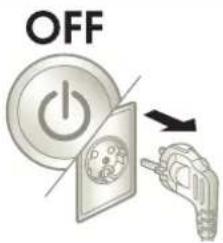
Before installing the drive, turn off the system power.
- Please pay attention to handling Electrostatic Sensitive Devices, you may use anti-static products such as wrist straps, heel straps, mats to protect your body from electrostatic.

Disconnect the power cord, and remove the cover.
- Remove a vacant 5.25" drive bay panel from the computer. Slide the drive into the drive bay.

natural_image
Illustration of a server rack with an open door and two arrows indicating flow direction (no text or symbols)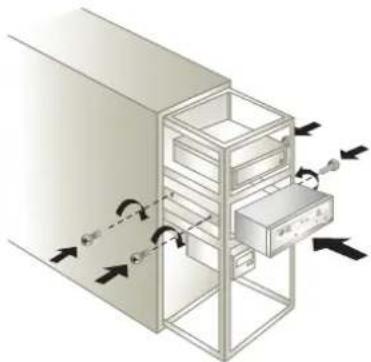
natural_image
Diagram of a server rack with internal components and directional arrows indicating movement (no text or symbols)
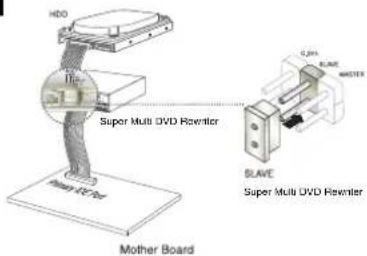
Set the jumper on the rear of the drive as necessary.
A. When using a Primary IDE port
If you need to connect your drive to the same primary IDE channel as the hard drive, the drive should be set to SLAVE position.
B. When using a Secondary IDE port
① If there is no device connected to the secondary IDE channel, connect the drive to this channel and set the jumper to MASTER.
② When two drives are connected, set one drive to MASTER and the other drive to SLAVE. If your operating system encounters interface problems after installing the new drive, try swapping the jumpers or move one drive to another IDE channel.
Method A
Method B


Connect the IDE data cable/DC power cable to the drive.
① Connect the IDE data cable to the back of the drive.
* Using a 40-pin IDE cable might bring the '04/08/03 error (LOGICAL UNIT COMMUNICATION CRC ERROR (ULTRA-DMA/32))'. In this case, as a substitute 80-pin type IDE cable is highly recommended. This kind of error is hardly detected from some specific motherboard.
* For Optimal 20x writing, 80 pin E-IDE cable and Pentium IV 2.4GHz or faster are recommended.
② Connect a 4-pin power supply cable from the computer to the drive.


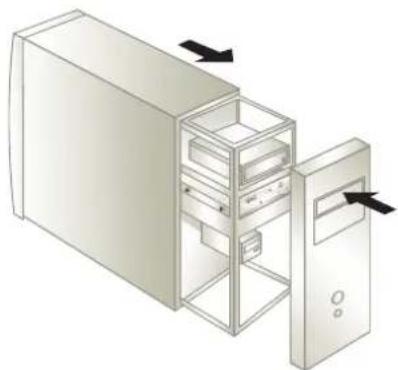
Replace the cover, connect the power cord and restart your computer.
- Your computer configuration may different from the illustrations.

natural_image
Illustration of a server rack cabinet with internal compartments (no text or symbols)ON

natural_image
Illustration of a desktop computer case with an open storage unit and two arrows indicating file direction (no text or symbols present)
LG Quick Set-up Guide
Super Multi DVD Rewriter
GH20
To install of your product, please read this guide manual carefully and completely. For the detailed owner's manual of the drive, please refer to the CD manual.
Features
• Enhanced-IDE (ATAPI) interface.
• Power tray loading and ejection of disc. (The disc can also be ejected manually
- Combination CD-R/RW, DVD-R/RW, DVD-R DL, DVD+R/RW, DVD+R DL, DVD-RAM functions into one drive.
• Supports Region playback control Phase II.
• Automatic buffer underrun error prevention technology.
• Supports SecurDist® Technology
• Supports LightScribe Direct Label Printing Technology - *Optional.
* You can use a variety of Drive
| GH20LP20 | GH20NP20 | |
| LightScribe | Supported | Not Supported |
You may experience lower write quality in case if you use disc products by some disc makers which those are not registered with the product's firmware.
Therefore, it is recommended that you use only discs by recommended companies. And even if the write session is completed successfully, check the write quality before you put the disc in storage, especially in case of an important data backup.
(Manufacturer is not responsible for any loss resulting from data backup failure.)
* For more SecurDisc information, visit http://www.securdisc.net
System Environment
Computer
This unit can be operated in the system environment explained here.
| System requirements | CPU: Pentium III 1.0GHz (Recommended system requirements for optimal performance, CPU: Pentium IV 2.4GHz or faster, Memory: 512MB or greater) |
| VGA Card Memory | 128MB or greater. |
| Hard disk | 20GB or more free space. (The free space needed for writing depends on the quantity of data.) |
| Interface | Enhanced-IDE interface (as Primary Slave, Secondary Master or Slave) |
| Drive bay | 5.25-inch half-height bay required |
| Power | +5V/+12V power socket required |
| Software Required OS | Windows Vista/Windows 2000 Professional/Windows XP (Home Edition/Professional), Direct X 9.0 or Higher is required. |
| CD-R, CD-RW, DVD-R, DVD-RW, DVD+R, DVD+RW, DVD+R DL, DVD-RAM media | CD-R : LG, Mitsubishi Kagaku Media, Verbatim, That's, Ritek or HP discs are recommended.CD-RW : LG, Mitsubishi Kagaku Media, Verbatim are recommended.DVD-R : Mitsubishi Kagaku Media, Maxell, That's are recommended.DVD-RW : Victor, JVC, Mitsubishi Kagaku Media, TDK are recommended.DVD+R : Mitsubishi Kagaku Media, That's, Maxell are recommended.DVD+RW : TDK, Mitsubishi Kagaku Media, Ricoh are recommended.DVD-R DL : Mitsubishi Kagaku Media, Verbatim are recommended.DVD+R DL : Mitsubishi Kagaku Media, Verbatim are recommended.DVD-RAM : Maxell, Mitsubishi Kagaku Media are recommended. |
* Compatibility problem in write/read function may occur with media depending on the media manufacturing quality.
* For DVD±R 20x support media: Mitsubishi Kagaku Media, That's are recommended.
* For DVD+R DL fox support media. After is recommended.
* Upon the media condition or some of user's environment the maximum speed sometimes could not be guaranteed.
Specifications
Items
General
Host Interface E-IDE/ATAPI
Supported Discs DVD-ROM(Single/Dual), DVD-RW, DVD-R, DVD-R
DL, DVD+RW, DVD+R, DVD+R DL, DVD-RAM,
CD-Digital Audio & CD-Extra, CD-Plus, CD-ROM,
CD-ROM XA-Ready, CD-I FMV, CD-TEXT,
CD-Bridge, CD-R, CD-RW, Photo-CD (Single &
Multi-Session), Video CD, DVD-Video
Supported CD-R, CD-RW, DVD+R, DVD+RW, DVD-R,
SecureDiscs DVD-RW, DVD+R DL, DVD-R DL, DVD-RAM
(8cm disc can be used only with drive placed horizontally.)
Mounting direction Horizontal/Vertical
Read/Write Speed
(DVD-R):2X,4X,8X,12X,16X,20X
(DVD-RW):1X,2X,4X,6X
(DVD+R): 2.4X, 4X, 8X, 12X, 16X, 20X
(DVD+RW): 2.4X, 4X, 6X, 8X
(DVD-RAM): 2X, 3X, 5X, 6X, 8X, 12X (Ver. 2.0 & higher)
(DVD+R DL): 2.4X, 4X, 6X, 8X, 10X, 12X, 16X
(DVD-R DL): 4X, 6X, 8X, 10X, 12X
66.6 Mbytes/s (Ultra-DMA Mode 4)
Average Access CD-ROM: 120msec (Typical)
Time (1/3 Stroke) DVD-ROM: 140msec (Typical)
Buffer capacity 2 Mbytes
MTBF 125,000 Power On Hours (Duty Cycle 10%)
Environmental Level
When operating Temperature: 5 °C to 45 °C
Humidity: 10% to 80% R.H.
When not operating Temperature: -30 °C to 60 °C
Humidity: 10% to 90% R.H.
Electrical
Power DC 5V, DC 12V
* The drive's appearance and specifications may change without prior notice.
Software
Install the appropriate CD/DVD Recording Authoring Software before using this unit.
* Please uninstall any previous CD burning software you may have loaded on your PC in order to prevent possible compatibility issues.
Once you have installed the supplied software, you may (if you wish) begin to reinstall previous software, taking note for errors.
Please visit www.lgservice.com and install the program,
"LG ODD Online F/W update." By using the program,
you can automatically check the latest information about FirmWares and update the FirmWare.
Worldwide support ; http://www.LGservice.com
Worldwide corporate site : http://www.LGE.com
P/NO. MFL40014116 Ver. 1
Safety Instructions
CAUTION: The laser used in the Super Multi DVD Rewriter can damage your eyes. Do not attempt to open the cover. To reduce the risk of electric shock, do not remove the cover (or back). There are no user-serviceable parts inside. Refer servicing to qualified service personnel. Use of controls or performance of procedures other than those specified herein may result in hazardous radiation exposure
WARNING: To reduce the risk of fire or electric shock, do not expose this appliance to rain or moisture.
This product is manufactured to comply with the radio interference requirements of EMC Directive 2004/108/EC and Low Voltage Directive 2006/95/EC.
The appliance is not intended for use by young children or infirm persons without supervision.
Industry Canada requirement
Note: This equipment has been tested and found to comply with the limits for a Class B digital device, pursuant to Part 15 of the FCC Rules. These limits are designed to provide reasonable protection against harmful interference in a residential installation. This equipment generates, uses, and can radiate radio frequency energy and, if not installed and used in accordance with the instructions, may cause harmful interference to radio communications. However, there is no guarantee that interference will not occur in a particular installation. If this equipment does cause harmful interference to radio or television reception, which can be determined by turning the equipment off and on, the user is encouraged to try to correct the interference by one or more of the following measures:
- Reorient or relocate the receiving antenna.
- Increase the separation between the equipment and receiver.
- Connect the equipment into an outlet on a circuit different from that to which the receiver is connected.
-
Consult the dealer or an Authorized Service Center for help.
-
FCC WARNING
Changes or modifications not expressly approved by the party responsible for compliance could void the user's authority to operate the equipment. - This Super Multi DVD Rewriter is for use only with UL listed personal computers that have installation instructions detailing user-installation of card cage accessory.
■ Microsoft ® and Windows ® are trademarks registered in the United States and other countries by the Microsoft Corporation.
■ The company names and product names written in this manual are trademarks or registered trademarks of the respective companies.


- Installing the Drive
- Before installing the drive, turn off the system power.
- Disconnect the power cord, and remove the cover.
- Set the jumper on the rear of the drive as necessary.
- When using a Primary IDE port
- When using a Secondary IDE port
- Connect the IDE data cable/DC power cable to the drive.
- Replace the cover, connect the power cord and restart your computer.
- LG Quick Set-up Guide
- Super Multi DVD Rewriter
- Features
- System Environment
- Specifications
- Items
- General
- Read/Write Speed
- Environmental Level
- Electrical
- Software
- Safety Instructions
- Industry Canada requirement
Brand : LG
Model : GH20LP20
Category : Unspecified