
PM300 - Power Module TOSHIBA - Free user manual and instructions
Find the device manual for free PM300 TOSHIBA in PDF.


| Product type | Laptop (notebook) |
| Brand | TOSHIBA |
| Model | PORTÉGÉ M300 (PM300) |
| Processor | Intel® Pentium® M (2 MB L2 cache, Enhanced Intel® SpeedStep™ technology) |
| RAM | 256 MB built-in, expandable up to 1,280 MB (DDR 333 module) |
| Hard drive | 40, 60, 80 or 100 GB (depending on model) |
| Screen | 12.1-inch TFT, XGA resolution (1024 × 768), 16 million colors |
| Optical drive | DVD-ROM&CD-R/RW or DVD Super Multi (depending on model) |
| Weight | Approximately 1.9 kg (depending on configuration) |
| Dimensions (W x D x H) | Approximately 289 × 226 × 29.5 mm |
| Power supply | Universal AC adapter 100-240 V, 50/60 Hz; rechargeable lithium-ion battery |
| Battery life | Varies depending on usage (up to 3-4 hours in standard use) |
| USB ports | 3 USB 2.0 ports |
| Network port | Ethernet 10/100 (RJ-45), V.90/V.92 modem (RJ-11) |
| Wireless | Wi-Fi IEEE 802.11 a/b/g and Bluetooth (depending on model) |
| Additional ports | External VGA, i.LINK (IEEE1394), infrared, headphone/microphone jack |
| Card readers | PC Card (Type II), SD, CompactFlash |
| Operating system | Microsoft® Windows® XP Professional pre-installed |
| Security | Kensington lock, user/supervisor password, automatic shutdown on low battery |
| Maintenance | Clean with a soft, slightly damp cloth; use LCD screen cleaner |
| Included accessories | AC adapter, power cable, user manual, warranty |
Frequently Asked Questions - PM300 TOSHIBA
User questions about PM300 TOSHIBA
0 question about this device. Answer the ones you know or ask your own.
Ask a new question about this device
Download the instructions for your Power Module in PDF format for free! Find your manual PM300 - TOSHIBA and take your electronic device back in hand. On this page are published all the documents necessary for the use of your device. PM300 by TOSHIBA.
USER MANUAL PM300 TOSHIBA
Portable Personal Computer
User's Manual
Copyright
© 2004 by TOSHIBA Corporation. All rights reserved. Under the copyright laws, this manual cannot be reproduced in any form without the prior written permission of TOSHIBA. No patent liability is assumed, with respect to the use of the information contained herein.
TOSHIBA PORTÉGÉ M300 Portable Personal Computer User's Manual
First edition, December 2004
Copyright authority for music, movies, computer programs, data bases and other intellectual property covered by copyright laws belongs to the author or to the copyright owner. Copyrighted material can be reproduced only for personal use or use within the home. Any other use beyond that stipulated above (including conversion to digital format, alteration, transfer of copied material and distribution on a network) without the permission of the copyright owner is a violation of copyright or author's rights and is subject to civil damages or criminal action. Please comply with copyright laws in making any reproduction from this manual.
Disclaimer
This manual has been validated and reviewed for accuracy. The instructions and descriptions it contains are accurate for the TOSHIBA PORTÉGÉ M300 Portable Personal Computer at the time of this manual's production. However, succeeding computers and manuals are subject to change without notice. TOSHIBA assumes no liability for damages incurred directly or indirectly from errors, omissions or discrepancies between the computer and the manual.
Trademarks
IBM is a registered trademark and IBM PC is a trademark of International Business Machines Corporation.
Intel, Intel SpeedStep, Pentium, Celeron and Centrino are trademarks or registered trademarks of Intel Corporation.
Windows and Microsoft are registered trademarks of Microsoft Corporation.
Photo CD is a trademark of Eastman Kodak.
Sonic RecordNow! is registered trademarks of Sonic Solutions.
Bluetooth is a trademark owned by its proprietor and used by TOSHIBA under license.
i.LINK is trademark and registered trademark of Sony Corporation.
InterVideo and WinDVD are registered trademarks of the InterVideo Inc. WinDVD Creator is trademark of the InterVideo Inc.
Other trademarks and registered trademarks not listed above may be used in this manual.
EU Declaration of Conformity
This product is carrying the CE-Mark in accordance with the related
CE
European Directives. Responsible for CE-Marking is TOSHIBA Europe GmbH, Hammfelddamm 8, 41460 Neuss, Germany.
The complete and official EU Declaration of Conformity can be found on TOSHIBA's web site http://epps.toshiba-teg.com on the Internet.
Working environment
This product was designed to fulfill the EMC (Electromagnetic Compatibility) requirements for “residential, commercial and light industry environments”.
The following environments are not approved:
Industrial Environments (e.g. environments with a mains voltage > 380V\~)
In the following environments the use of this product can be restricted:
■ Medical Environments: This product is not certified as a medical product according to the Medical Product Directive 93/42/EEC.
- Vehicle Environments: Please read the operator's manual of the vehicle manufacturer for further restrictions of use.
- Aircraft Environments: Please follow the advices of the flight personnel regarding restrictions of use.
Any consequences resulting from the use of this product in working environments that are not approved or the use is restricted are not the responsibility of TOSHIBA Corporation. The consequences of the use of this product in those working environments may be:
■ Interference with other devices or machines in the nearby surrounding area
■ Malfunction of or data loss from this product caused by disturbances generated by other devices or machines in the nearby surrounding area
Furthermore, for general safety reasons, the use of this product in environments with explosive atmospheres is not permitted.
CE compliance
This product is labelled with the CE Mark in accordance with the related European Directives, notably Electromagnetic Compatibility Directive 89/336/EEC for the notebook and the electronic accessories including the supplied power adapter, the Radio Equipment and Telecommunications Terminal Equipment Directive 99/5/EEC in case of implemented telecommunication accessories and the Low Voltage Directive 73/23/EEC for the supplied power adapter.
This product and the supplied accessories are designed to observe the related EMC (Electromagnetic Compatibility) and safety standards. However, TOSHIBA cannot guarantee that this product still observes these EMC standards if accessories or cables not manufactured / distributed by TOSHIBA are connected or implemented. To avoid EMC problems in general, the following advice should be observed:
■ Only CE marked accessories should be connected / implemented.
■ Only best shielded cables should be connected.
Modem warning notice
Conformity Statement
The equipment has been approved to [Commission Decision “CTR21”] for pan-European single terminal connection to the Public Switched Telephone Network (PSTN).
However, due to differences between the individual PSTNs provided in different countries/regions the approval does not, of itself, give an unconditional assurance of successful operation on every PSTN network termination point.
In the event of problems, you should contact your equipment supplier in the first instance.
Network Compatibility Statement
This product is designed to work with, and is compatible with the following networks. It has been tested to and found to conform with the additional requirements conditional in EG 201 121.
| Germany | ATAAB AN005,AN006,AN007,AN009,AN010 and DE03,04,05,08,09,12,14,17 |
| Greece | ATAAB AN005,AN006 and GR01,02,03,04 |
| Portugal | ATAAB AN001,005,006,007,011 and P03,04,08,10 |
| Spain | ATAAB AN005,007,012, and ES01 |
| Switzerland | ATAAB AN002 |
| All other countries/regions | ATAAB AN003,004 |
Specific switch settings or software setup are required for each network, please refer to the relevant sections of the user guide for more details.
The hookflash (timed break register recall) function is subject to separate national type approvals. It has not been tested for conformity to national type regulations, and no guarantee of successful operation of that specific function on specific national networks can be given.
Optical disc drive safety instructions

Be sure to check the international precautions at the end of this section.
Panasonic
DVD-ROM&CD-R/RW UJDA765

The DVD-ROM&CD-R/RW drive employs a laser system. To ensure proper use of this product, please read this instruction manual carefully and retain for future reference. Should the unit ever require maintenance, contact an authorized service location.
Use of controls, adjustments or the performance of procedures other than those specified may result in hazardous radiation exposure.
To prevent direct exposure to the laser beam, do not try to open the enclosure.
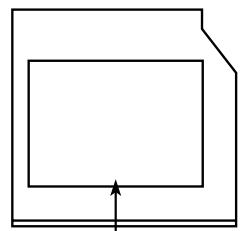
Location of the required label
natural_image
Simple line drawing of a rectangular frame with an arrow pointing upward (no text or symbols)COMPLIES WITH FDARADIATION PERFORMANCE STANDARDS, 21 CFR SUBCHAPTER J.
MANUFACTURED:
Panasonic Communications Co., Ltd. 1-62, 4-Chome Minoshima, Hakata-ku Fukuoka, Japan
DVD Super Multi UJ-822

The DVD Super Multi drive employs a laser system. To ensure proper use of this product, please read this instruction manual carefully and retain for future reference. Should the unit ever require maintenance, contact an authorized service location.
Use of controls, adjustments or the performance of procedures other than those specified may result in hazardous radiation exposure.
To prevent direct exposure to the laser beam, do not try to open the enclosure.
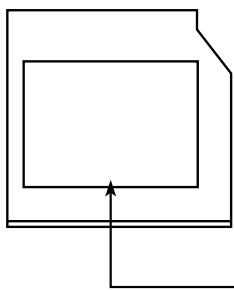
Location of the required label
natural_image
Pure geometric diagram with nested rectangles and an arrow, no text or symbols presentSERIAL NO.
MANUFACTURED:
COMPLIES WITH FDARADIATION
PERFORMANCE STANDARDS, 21 CFR
SUBCHAPTER J.
CLASS 1 LASER PRODUCT
LASER KLASSE 1
Panasonic Communications Co., Ltd. 1-62, 4-Chome Minoshima, Hakata-ku Fukuoka, Japan
International precautions
CAUTION: This appliance contains a laser system and is classified as a "CLASS 1 LASER PRODUCT." To use this model properly, read the instruction manual carefully and keep this manual for your future reference. In case of any trouble with this model, please contact your nearest "AUTHORIZED service station." To prevent direct exposure to the laser beam, do not try to open the enclosure.
CAUTION: USE OF CONTROLS OR ADJUSTMENTS OR PERFORMANCE OF PROCEDURES OTHER THAN THOSE SPECIFIED IN THE OWNER'S MANUAL MAY RESULT IN HAZARDOUS RADIATION EXPOSURE.
Equipment checklist 1-1
Hardware.... 1-1
Software 1-2
Documentation 1-2
Features 1-3
Special features.... 1-10
Utilities 1-13
Options.... 1-15
Chapter 2: The Grand Tour
Front with the display closed.... 2-1
Left side 2-2
Right side.... 2-3
Backside....2-5
Underside.... 2-6
Front with the display open 2-7
System indicators 2-10
Keyboard indicators 2-11
USB floppy disk drive (optional) 2-12
Optical media drives 2-13
Region codes for DVD drives and media 2-13
Writable discs 2-13
CDs 2-13
DVDs 2-14
Formats 2-14
DVD-ROM&CD-R/RW drive 2-14
DVD Super Multi drive 2-14
AC adaptor.... 2-15
Chapter 3: Getting Started
Setting up your work space....3-1
General conditions 3-2
Placement of the computer 3-2
Seating and posture 3-3
Lighting 3-3
Work habits 3-4
Connecting the AC adaptor 3-4
Opening the display 3-6
Turning on the power ....3-7
Starting up for the first time....3-7
Turning off the power....3-8
Shut Down mode (Boot mode) 3-8
Hibernation mode 3-8
Standby mode....3-10
Restarting the computer 3-11
Restoring the preinstalled software 3-12
Restoring from Recovery HDD 3-12
Restoring from the Product Recovery Media 3-14
Chapter 4 : Operating Basics
Using the Touch Pad ....4-1
Using the USB floppy disk drive ....4-2
Connecting USB floppy disk drive....4-2
Disconnecting USB floppy disk drive. 4-3
Using optical media drives 4-3
Loading discs 4-4
Removing discs....4-5
How to remove CD/DVD when the disk tray will not open . . . . . . . . . . . . . . . . . . . . . . . . . . . . . . . . 4-6
Writing CDs on DVD-ROM&CD-R/RW drive 4-7
Before writing or rewriting 4-7
When writing or rewriting....4-8
Writing CD/DVDs on DVD Super Multi drive....4-9
Important message 4-9
Disclaimer 4-9
Before writing or rewriting 4-9
When writing or rewriting....4-12
RecordNow! Basic for TOSHIBA. 4-12
Data Verification 4-13
DLA for TOSHIBA 4-14
When WinDVD Creator Platinum is used: 4-14
How to make a DVD-Video 4-15
How to learn more about InterVideo WinDVD Creator ....4-15
Important information for use 4-15
Media care 4-17
CD/DVDs 4-17
Floppy disks.... 4-17
Sound System 4-18
Volume Control 4-18
Microphone level 4-18
Audio controller 4-18
Modem 4-19
Region selection 4-19
Properties menu 4-19
Setting 4-19
Modem Selection.... 4-20
Dialing Properties 4-20
Connecting 4-20
Disconnecting 4-21
Wireless communications 4-21
Wireless LAN 4-22
Bluetooth wireless technology 4-23
Bluetooth™ Stack for Windows® by TOSHIBA 4-23
Wireless communication switch. 4-24
Wireless communication Indicator 4-25
LAN 4-25
LAN cable types 4-25
Connecting LAN cable.... 4-26
Disconnecting LAN cable 4-26
Cleaning the computer 4-27
Moving the computer 4-27
Heat dispersal 4-28
Chapter 5: The Keyboard
Typewriter keys 5-1
Function keys: F1 ... F12 .... 5-2
Soft keys: Fn key combinations 5-2
Emulating keys on enhanced keyboard. 5-2
Hot keys 5-3
Fn Sticky key 5-6
Windows special keys 5-7
Keypad overlay 5-7
Turning on the overlays 5-7
Temporarily using normal keyboard (overlay on).... 5-8
Temporarily using overlay (overlay off) 5-8
Temporarily changing modes.... 5-9
Generating ASCII characters 5-9
Chapter 6: Power and Power-Up Modes
Power conditions 6-1
Power indicators....6-2
Battery indicators....6-2
DC IN indicator 6-3
Power indicator 6-3
Battery types....6-3
Battery pack 6-3
High capacity battery pack (optional) 6-4
Real Time Clock (RTC) battery 6-5
Care and use of the battery pack 6-5
Safety precautions. 6-5
Charging the batteries....6-8
Monitoring battery capacity 6-9
Maximizing battery operating time....6-10
Retaining data with power off 6-10
Extending battery life....6-11
Replacing the battery pack 6-12
Removing the battery pack 6-12
Installing the battery pack 6-13
TOSHIBA Password Utility....6-14
User password 6-14
Supervisor password....6-16
Starting the computer by password....6-16
Power-up modes....6-17
Windows utilities 6-17
Hot keys 6-17
Panel power on/off 6-17
System Auto Off 6-17
Chapter 7: HW Setup
Accessing HW Setup 7-1
HW Setup window....7-1
Chapter 8 : Optional Devices
PC card 8-2
Inserting a PC card 8-2
Removing a PC card....8-2
SD card 8-3
Formatting an SD memory card 8-3
Inserting an SD card 8-4
Removing an SD card....8-4
SD card care 8-5
Creation of a boot disk 8-5
CF (CompactFlash) card.... 8-5
Inserting a CF card 8-6
Removing a CF card 8-6
CF card care 8-7
Memory expansion 8-7
Installing memory module 8-8
Removing memory module 8-9
Battery pack.... 8-10
AC adaptor....8-10
Battery charger 8-10
USB floppy disk drive 8-11
External monitor 8-11
i.LINK (IEEE1394) 8-12
Precautions 8-12
Connecting 8-13
Disconnecting 8-13
Advanced Port Replicator III 8-14
Parallel printer.... 8-15
Security lock 8-16
Chapter 9 : Troubleshooting
Problem solving process 9-1
Preliminary checklist 9-2
Analyzing the problem....9-2
Hardware and system checklist.... 9-3
System start-up 9-3
Self test 9-3
Power 9-4
Password....9-7
Keyboard 9-7
Internal LCD display panel 9-8
Hard disk drive. 9-8
DVD-ROM&CD-R/RW drive 9-9
DVD Super Multi drive....9-10
USB floppy disk drive 9-11
SD card 9-11
PC card 9-12
CF card 9-12
Infrared port 9-12
Pointing Device 9-13
USB 9-15
Memory expansion 9-15
Sound System 9-16
External monitor 9-16
i.LINK (IEEE1394)....9-17
Modem 9-17
LAN....9-18
Wireless LAN. 9-18
Bluetooth....9-19
Printer 9-19
TOSHIBA support....9-20
Before you call....9-20
Where to write....9-20
Appendix A : Specifications
Physical Dimensions ...... A-1
Environmental Requirements ...... A-1
Built-in Modem A-2
Appendix B : Display Controller and Modes
Display controller B-1
Video modes B-1
Display settings B-7
Appendix C : Wireless LAN
Card Specifications C-1
Radio Characteristics....C-2
Supported Frequency Sub-bands C-2
Wireless IEEE 802.11 Channels Sets (Revision B and G) C-3
Wireless IEEE 802.11 Channels Sets (Revision A)..... C-4
Wireless Channels Sets (Turbo Mode) C-5
Wireless Channels Sets (Turbo Mode) C-5
Appendix D : Bluetooth wireless technology Interoperability
Bluetooth wireless technology and your Health D-3
Regulatory statements....D-3
General D-3
European Union (EU) and EFTA. D-3
Canada - Industry Canada (IC)...... D-3
Caution: FCC Interference Statement. D-4
Caution: Exposure to Radio Frequency Radiation ..... D-4
Taiwan....D-5
Using Bluetooth™ Card from TOSHIBA equipment in Japan. D-6
Device Authorization D-7
Approved Countries/Regions for use (Bluetooth™ wireless technology) ..... D-8
Appendix E: AC Power Cord and Connectors
Certification agencies.... E-1
Appendix F : If your computer is stolen
Glossary
Index
Preface
Congratulations on your purchase of the PORTÉGÉ M300 computer. This powerful notebook computer provides excellent expansion capability, including multimedia devices, and it is designed to provide years of reliable, high-performance computing.
This manual tells how to set up and begin using your PORTÉGÉ M300 computer. It also provides detailed information on configuring your computer, basic operations and care, using optional devices and troubleshooting.
If you are a new user of computers or if you're new to portable computing, first read over the Introduction and The Grand Tour chapters to familiarize yourself with the computer's features, components and accessory devices. Then read Getting Started for step-by-step instructions on setting up your computer.
If you are an experienced computer user, please continue reading the preface to learn how this manual is organized, then become acquainted with this manual by browsing through its pages. Be sure to look over the Special features section of the Introduction, to learn about features that are uncommon or unique to the computers and carefully read HW Setup.
If you are going to install PC cards or connect external devices such as a monitor, be sure to read Chapter 8, Optional Devices.
Manual contents
This manual is composed of the following nine chapters, six appendixes, a glossary and an index.
Chapter 1, Introduction, is an overview of the computer's features, capabilities, and options.
Chapter 2, The Grand Tour, identifies the components of the computer and briefly explains how they function.
Chapter 3, Getting Started, provides a quick overview of how to begin operating your computer and gives tips on safety and designing your work area.
Chapter 4, Operating Basics, includes instructions on using the following devices: Touch Pad, USB floppy disk drive, optical media drives, sound system, modem, Wireless communication features, LAN. It also provides tips on care of the computer, floppy disks and CD/DVDs.
Chapter 5, The Keyboard, describes special keyboard functions including the keypad overlay and hot keys.
Chapter 6, Power and Power-Up Modes, gives details on the computer's power resources and battery save modes and how to set a password.
Chapter 7, HW Setup, explains how to configure the computer using the HW Setup program.
Chapter 8, Optional Devices, describes the optional hardware available.
Chapter 9, Troubleshooting, provides helpful information on how to perform some diagnostic tests, and suggests courses of action if the computer doesn't seem to be working properly.
The Appendixes provide technical information about your computer.
The Glossary defines general computer terminology and includes a list of acronyms used in the text.
The Index quickly directs you to the information contained in this manual.
Conventions
This manual uses the following formats to describe, identify, and highlight terms and operating procedures.
Abbreviations
On first appearance, and whenever necessary for clarity, abbreviations are enclosed in parentheses following their definition. For example: Read Only Memory (ROM). Acronyms are also defined in the Glossary.
Icons
Icons identify ports, dials, and other parts of your computer. The indicator panel also uses icons to identify the components it is providing information on.
Keys
The keyboard keys are used in the text to describe many computer operations. A distinctive typeface identifies the key top symbols as they appear on the keyboard. For example, Enter identifies the Enter key.
Key operation
Some operations require you to simultaneously use two or more keys. We identify such operations by the key top symbols separated by a plus sign (+). For example, Ctrl + C means you must hold down Ctrl and at the same time press C. If three keys are used, hold down the first two and at the same time press the third.
ABC
When procedures require an action such as clicking an icon or entering text, the icon's name or the text you are to type in is represented in the type face you see to the left.
Display

ABC
Names of windows or icons or text generated by the computer that appears on its display screen is presented in the type face you see to the left.
Messages
Messages are used in this manual to bring important information to your attention. Each type of message is identified as shown below.

Pay attention! A caution informs you that improper use of equipment or failure to follow instructions may cause data loss or damage your equipment.

Please read. A note is a hint or advice that helps you make best use of your equipment.

Indicates a potentially hazardous situation, which could result in death or serious injury, if you do not follow instructions.
General Precautions
TOSHIBA computers are designed to optimize safety, minimize strain and withstand the rigors of portability. However, certain precautions should be observed to further reduce the risk of personal injury or damage to the computer.
Be certain to read the general precautions below and to note the cautions included in the text of the manual.
Stress injury
Carefully read the Safety Instruction Manual. It contains information on prevention of stress injuries to your hands and wrists than can be caused by extensive keyboard use. Chapter 3, Getting Started, also includes information on work space design, posture and lighting that can help reduce physical stress.
Heat injury
- Avoid prolonged physical contact with the computer. If the computer is used for long periods, its surface can become very warm. While the temperature will not feel hot to the touch, if you maintain physical contact with the computer for a long time (if you rest the computer on your lap, or if you keep your hands on the palm rest, for example) your skin might suffer low-heat injury.
If the computer has been used for a long time, avoid direct contact with the metal plate supporting the I/O ports. It can become hot.
The surface of the AC adaptor can become hot when in use. This condition does not indicate a malfunction. If you need to transport the AC adaptor, disconnect it and let it cool before moving it. - Do not lay the AC adaptor on a material that is sensitive to heat. The material could be damaged.
Pressure or impact damage
Do not apply heavy pressure to the computer or subject it to strong impact. Excessive pressure or impact can cause damage to computer components or otherwise cause malfunctions.
PC card overheating
Some PC cards can become hot with prolonged use. Overheating of a PC card can result in errors or instability in the PC card operation. Also be careful when you remove a PC card that has been used for a long time.
Mobile phones
Use of mobile phones can interfere with the audio system. Computer operation is not impaired but it is recommended that a distance of 30 cm be maintained between the computer and a mobile phone in use.
Central Processing Unit ("CPU") Performance Disclaimer
CPU performance in your computer product may vary from specifications under the following conditions:
■ use of certain external peripheral products
■ use of battery power instead of AC power
■ use of certain multimedia games or videos with special effects
■ use of standard telephone lines or low speed network connections
■ use of complex modeling software, such as high end computer aided design applications
■ use of computer in area with low air pressure (high altitude >1,000 meters or >3,280 feet above sea level)
■ use of computer at temperatures outside the range of 5^ C to 30^ C ( 41^ F to 86^ F) or >25^ C ( 77^ F) at high altitude (all temperature references are approximate and may vary depending on the specific computer model - please refer to appendix A for details).
CPU performance may also vary from specifications due to design configuration.
Chapter 1
Introduction
This chapter provides an equipment checklist, and it identifies the computer's features, options and accessories.

Some of the features described in this manual may not function properly if you use an operating system that was not preinstalled by TOSHIBA.
Equipment checklist
Carefully unpack your computer. Save the box and packing materials for future use.
Hardware
Check to make sure you have all the following items:
■ PORTÉGÉ M300 Portable Personal Computer
■ AC adaptor and power cord (2-pin plug or 3-pin plug)
■ Modular cable for modem (optional)
Software
Microsoft® Windows XP Professional
■ The following software is preinstalled:
■ Microsoft® Windows XP Professional
■ Microsoft Internet Explorer
TOSHIBA Utilities
■ TOSHIBA SD Memory Boot Utility
DVD Video Player
■ TOSHIBA TouchPad On/Off Utility
TOSHIBA Power Saver
TOSHIBA Mobile Extension
TOSHIBA Assist
TOSHIBA ConfigFree
TOSHIBA Zooming Utility
■ TOSHIBA PC Diagnostic Tool
TOSHIBA Controls
Online manual
Documentation
PORTÉGÉ M300 Portable Personal Computer User's Manual
■ PORTÉGÉ M300 Quickstart
■ Safety Instruction Manual
Warranty information
If any of the items are missing or damaged, contact your dealer immediately.
Features
The computer uses TOSHIBA's advanced Large Scale Integration (LSI), Complementary Metal-Oxide Semiconductor (CMOS) technology extensively to provide compact size, minimum weight, low power usage, and high reliability. This computer incorporates the following features and benefits:
Processor
| Built-in | The computer is equipped with an Intel® processor.■ Intel® Pentium® M processor, which incorporates a 64 KB level 1 cache memory and a 2 MB level 2 cache memory. It also supports Enhanced Intel® SpeedStepTM technology.Other processors may be introduced. |

Some models in this series carry Intel® Centrino™ technology, which is based on three separate technologies of Intel® Pentium® M, Intel® PRO/Wireless Network Connection, and Intel® 855 Chipset Family. Intel® 855 Chipset Family is a model by whom Intel® Pentium® M processor is installed.
Memory
| Built-in | 256 MB of memory is installed on the main board. |
| Expansion slot | The slot accepts a 256, 512 or 1,024 MB memory module for a maximum of 1,280 MB system memory. |
| Video RAM | Part of system memory is used for Video RAM. 64 MB of RAM is provided for video display. |
Power
| Battery pack | The computer is powered by one rechargeable lithium-ion battery pack. |
| RTC battery | The internal RTC battery backs up the Real Time Clock (RTC) and calendar. |
| AC adaptor | The AC adaptor provides power to the system and recharges the batteries when they are low. It comes with a detachable power cord. It encloses 2-pin or 3-pin plug type.Because it is universal, it can receive a range of AC voltage from 100 to 240 volts; however, the output current varies among different models. Using the wrong model can damage your computer. Refer to the AC adaptor section in Chapter 2, The Grand Tour . |
Disks
| Hard disk drive (HDD) | Available in four sizes.■ 40.0 billion bytes (37.26 GB)■ 60.0 billion bytes (55.89 GB)■ 80.0 billion bytes (74.53 GB)■ 100.0 billion bytes (93.16 GB)Other hard disk drives may be introduced. |
| USB floppy disk drive (optional) | Accommodates either 3 1/2" 1.44-megabyte or 720-kilobyte floppy disks. It connects to a USB port. |

Computers in this series are configured with one of the following optical media drives. The available optical media drives are described below.
| DVD-ROM&CD-R/RW drive | Some models are equipped with a full-size, DVD-ROM&CD-R/RW drive module that lets you run CD/DVDs without using an adaptor. It reads DVD-ROMs at maximum 8 speed and CD-ROMs at maximum 24 speed. It writes CD-R at maximum 24 speed and CD-RW at maximum 24 speed. The drive supports the following formats: ■ DVD-ROM ■ DVD-Video ■ CD-DA ■ CD-Text ■ Photo CD^TM (single/multi-session) ■ CD-ROM Mode 1, Mode 2 ■ CD-ROM XA Mode 2 (Form1, Form2) ■ Enhanced CD (CD-EXTRA) ■ Addressing Method 2 ■ CD-R ■ CD-RW |
| DVD Super Multi drive | Some models are equipped with a full-size DVD Super Multi drive module that lets you record data to rewritable CD/DVDs as well as run either 12cm (4.72") or 8cm (3.15") CD/DVDs without using an adaptor. It reads DVD-ROMs at maximum 8 speed and CD-ROMs at maximum 24 speed. It writes CD-R at maximum 24 speed, CD-RW at maximum 10 speed, DVD-R at maximum 2 speed, DVD-RW at maximum 2 speed. DVD+R and DVD+RW at maximum 2.4 speed. DVD-RAM at maximum 2 speed. This drive supports the following formats in addition to DVD-ROM&CD-R/RW drive. ■ DVD-R ■ DVD-RW ■ DVD+R ■ DVD+RW ■ DVD-RAM |
Display
The computer's LCD display panel supports high-resolution video graphics. The LCD screen can be set at a wide range of viewing angles for maximum comfort and readability.
| Built-in | 12.1” TFT LCD screen 16 M colors, with a resolution of 1024 horizontal × 768 vertical pixels XGA. |
| Graphics controller | Graphics controller maximizes display performance. Refer to Display Controller and Modes section in Appendix B for more information. |
Keyboard
| Built-in | 85 keys or 86 keys, compatible with IBM® enhanced keyboard, embedded numeric overlay, dedicated cursor control, [icon] and [icon] keys. Refer to Chapter 5,The Keyboard, for details. |
Pointing Device
| Built-in Touch Pad | A Touch Pad and control buttons in the palm rest enable control of the on-screen pointer and scrolling of windows. |
Ports
| External monitor | Analog VGA port supports VESA DDC2B compatible functions. |
| Universal Serial Bus (USB 2.0) | The computer has three Universal Serial Bus ports that comply with the USB 2.0 standard, which enables data transfer speeds 40 times faster than the USB 1.1 standard (The ports also support USB 1.1). |
| Docking interface | This port enables connection of an optional Advanced Port Replicator III described in the Options section. |
| i.LINKTM (IEEE1394) | This port enables high-speed data transfer directly from external devices such as digital video cameras. |
| Infrared | The serial infrared port is compatible with Infrared Data Association (IrDA 1.1) standards. It enables cableless 4 Mbps, 1.152 Mbps, 115.2 kbps, 57.6 kbps, 38.4 kbps, 19.2 kbps or 9.6 kbps data transfer with IrDA 1.1 compatible external devices. |
Slots
| PC card | The PC card slot accommodates one Type II card. |
| CF card | This slot accommodates CompactFlash.You cannot use CompactFlash that does not conform to CompactFlash Association specifications. |
| SD card | This slot lets you easily transfer data from devices, such as digital cameras and Personal Digital Assistants, that use SD card flash-memory.Refer to Chapter 8, Optional Devices . |
Multimedia
| Sound system | Windows sound system compatible sound system provides internal speakers and microphone as well as jacks for an external microphone and headphones. |
| Headphone jack | A 3.5 mm mini headphone jack enables connection of stereo headphones. |
| Microphone jack | A 3.5 mm mini microphone jack enables connection of a three-conductor mini jack for monaural microphone input. |
Communications
| Modem | An internal modem provides capability for data and fax communication. It supports V.90 (V.92). The speed of data transfer and fax depends on analog telephone line conditions. It has a modem jack for connecting to a telephone line. Both of V.90 and V.92 are supported only in USA, Canada, UK, France, Germany and Australia. Only V.90 is available in other regions. |
| LAN | The computer has built-in support for Ethernet LAN (10 megabits per second, 10BASE-T), Fast Ethernet LAN (100 megabits per second, 100BASE-TX). |
| Bluetooth | Some computers in this series are equipped with Bluetooth functions. Bluetooth wireless technology eliminates the need for cables between electronic devices such as computers and printers. Bluetooth provides fast, reliable, and secure wireless communication in a small space. |
Wireless LAN
Some computers in this series are equipped with a Wireless LAN mini-PCI card that is compatible with other LAN systems based on Direct Sequence Spread Spectrum/Orthogonal Frequency Division Multiplexing radio technology that complies with the IEEE 802.11 Standard (Revision A, B or G), and Turbo Mode.
■ Theoretical maximum speed: 54Mbps (IEEE802.11a, 802.11g)
■ Theoretical maximum speed: 11Mbps (IEEE802.11b)
■ Theoretical maximum speed: 108Mbps (Turbo Mode; Atheros module type)
■ Frequency Channel Selection (5 GHz: Revision A / 2.4 GHz: Revision B/G)
■ Roaming over multiple channels
Card Power Management
Atheros Super G ^TM or Super AG ^TM technology (Atheros module type).
■ Wired Equivalent Privacy (WEP) data encryption, based on 152 bit encryption algorithm (Atheros module type).
■ Wired Equivalent Privacy (WEP) data encryption, based on 128 bit encryption algorithm (Intel module type).
■ Advanced Encryption Standard (AES) data encryption, based on 256 bit encryption algorithm (Atheros module type).
■ Wi-Fi Protected Access (WPA).

The numerical values for display are the theoretical maximums for Wireless LAN standards. The actual values may differ.
The transmission speed over the wireless LAN and the distance over which wireless LAN can reach may vary depending on surrounding electromagnetic environment, obstacles, access point design and configuration, and client design and software/hardware configurations. The Transmit Rate (xx Mbit/s) is the theoretical maximum speed under the IEEE802.11 (a/b/g) standard. The actual transmission speed will be lower than the theoretical maximum speed. To use the Atheros SuperG ^TM or SuperAG ^TM function, your client and access point must support the corresponding feature. Performance of these functions may vary depending on the format of data transmitted.
Wireless communication switch
This switch turns the Wireless LAN/Bluetooth functions on and off.
Security
| Security lock slot | Connects an optional security lock to anchor the computer to a desk or other large object. |
Special features
The following features are either unique to TOSHIBA computers or are advanced features, which make the computer more convenient to use.
| TOSHIBA Assist button | Press this button to launch an application automatically. The default is TOSHIBA Assist. | |
| TOSHIBA Presentation button | Press this button to change internal display, external display, simultaneous display, or multi-monitor display. | |
| Hot keys | Key combinations let you quickly change the system configuration directly from the keyboard without running a system configuration program. | |
| Display automatic power off | This feature automatically cuts off power to the computer's LCD display panel when there is no keyboard input for a time specified. Power is restored when any key is pressed. You can specify the time in the Monitor power off item of the Basic Setup tab in TOSHIBA Power Saver. | |
| HDD automatic power off | This feature automatically cuts off power to the hard disk drive when it is not accessed for a time specified. Power is restored when the hard disk is accessed. You can specify the time in the HDD power off item of the Basic Setup tab in TOSHIBA Power Saver. | |
| System automatic Standby/Hibernation | This feature automatically shuts down the system in standby mode or Hibernation mode when there is no input or hardware access for a time specified. You can specify the time and select either System Standby or System hibernation in the System standby and System hibernation items of the Basic Setup tab in TOSHIBA Power Saver. | |
| Keypad overlay | A ten-key pad is integrated into the keyboard. Refer to the Keypad overlay section in Chapter 5, The Keyboard, for instructions on using the keypad overlay. | |
| Power on password | Two levels of password security, supervisor and user, are available to prevent unauthorized access to your computer. | |
| Instant security | A hot key function blanks the LCD screen and disables the computer providing data security. | |
| Intelligent power supply | A microprocessor in the computer's intelligent power supply detects the battery's charge and calculates the remaining battery capacity. It also protects electronic components from abnormal conditions, such as voltage overload from an AC adaptor. You can monitor remaining battery capacity. Use theBattery remainingitem in TOSHIBA Power Saver. | |
| Battery save mode | This feature lets you save battery power. You can specify the Power Save Mode in theProfileitem in TOSHIBA Power Saver. | |
| Panel power on/off | This feature turns power to the computer off when the computer's LCD display panel is closed and turns it back on when the computer's LCD display panel is opened. You can specify the setting in theWhen I close the liditem of the Setup Actiontab in TOSHIBA Power Saver. | |
| Low battery automatic hibernation | When battery power is exhausted to the point that computer operation cannot be continued, the system automatically enters Hibernation and shuts down. You can specify the setting in the Setup Actiontab in TOSHIBA Power Saver. | |
| Heat dispersal | To protect from overheating, the CPU has an internal temperature sensor. If the computer's internal temperature rises to a certain level, the cooling fan is turned on or the processing speed is lowered. Use theCooling Methoditem of theBasic Setuptab in TOSHIBA Power Saver. | |
| Maximum Performance | Turns on fan first, then if necessary lowers CPU processing speed. | |
| Performance | Uses a combination of fan and lowering the CPU processing speed. | |
| Battery optimized | Lowers the CPU processing speed first, then if necessary turns on the Cooling Method. | |
| Optical media drive power icon | Use this to turn the power of the optical media drive on or off. Clicking on the optical media drive icon on the taskbar will turn the power of the optical media drive on or off. If the optical media drive power is off, the disc tray will not open even if the eject button is pushed. The power of the optical media drive can be turned on using the optical media drive icon. | |
| HDD Protection | Using the acceleration sensor built in the computer, HDD Protection detects vibration, shocks, and those signs in the computer, and automatically moves the HDD (Hard Disk Drive) head to the safe position to reduce the risk of damage that could be caused to the disk by head-to-disk contact. | |

This function does not guarantee that the HDD will not be damaged.
| Hibernation | This feature lets you turn off the power without exiting from your software. The contents of main memory are saved to the hard disk, when you turn on the power again, you can continue working right where you left off. Refer to the Turning off the power section in Chapter 3, Getting Started, for details. |
| Standby | If you have to interrupt your work, you can turn off the power without exiting from your software. Data is maintained in the computer's main memory. When you turn on the power again, you can continue working right where you left off. |
Utilities
This section describes preinstalled utilities and tells how to start them. For details on operations, refer to each utility's online manual, help files or readme.txt files.
| TOSHIBA Power Saver | To access this power savings management program, clickstart, clickControl Panel, click Performance and Maintenanceand select the TOSHIBA Power Saver icon. |
| HW Setup | This program lets you customize your hardware settings according to the way you work with your computer and the peripherals you use. To start the utility, To access this utility, clickstart, click Control Panel, click Printers and Other Hardwareand select the TOSHIBA HWSetup icon. |
| TOSHIBA Controls | This utility have a section to let you do the following:■ Buttons: Assign applications to the TOSHIBA Presentation button (default setting is the simultaneous display on LCD and CRT with resolution of 1024 × 768 .) and to the TOSHIBA Assist button (default setting is the TOSHIBA Assist). |
| DVD Video Player | The DVD Video Player is used to play DVD-Video. It has an on-screen interface and functions. Clickstart, point toAll Programs, point toInterVideo WinDVD, then click InterVideo WinDVD. |
| Bluetooth TOSHIBA Stack | This software enables communication between remote Bluetooth devices. |

Bluetooth cannot be used in models that do not have a Bluetooth module installed.
| TOSHIBA SD Memory Boot Utility | The TOSHIBA SD memory boot utility is a utility which can create SD memory card to a boot disk. You can boot TOSHIBA SD Memory Boot Utility from the menu bar as follows. Clickstart, point to All Programs, point to TOSHIBA, point to Utilities and click SD Memory Boot Utility. |
| TOSHIBA Zooming Utility | This utility allows you to enlarge or reduce the icon size on the desktop or the application window. |
| RecordNow! Basic for TOSHIBA | You can create CD/DVDs in several formats including audio CDs that can be played on a standard stereo CD player and data CD/DVDs to store the files and folders on your hard disk drive. This software can be used on a model with DVD-ROM&CD-R/RW drive and DVD Super Multi drive. |
| TOSHIBA Assist | TOSHIBA Assist is a graphical user interface that provides easy access to help and services. It is the default function launched by the TOSHIBA Assist button. |
| TOSHIBA PC Diagnostic Tool | TOSHIBA PC Diagnostic Tool displays the basic information on PC, and the test of built-in devices can also be performed. To start TOSHIBA PC Diagnostic Tool, clickstart, point toAll Programs, point toTOSHIBA, point toUtilitiesand clickPC Diagnostic Tool. |
| TOSHIBA Mobile Extension | This utility supports docking your computer to an optional Advanced Port Repricator III. To open the property dialog, select TOSHIBA Mobile Extension from TOSHIBA Assist. |
| TOSHIBA ConfigFree | TOSHIBA ConfigFree is a suite of utilities to allow easy control of communication devices and network connections. TOSHIBA ConfigFree also allows you to find communication problems and create profiles for easy switching between locations and communication networks. To start ConfigFree, clickstart, point toAll Programs, point toTOSHIBA, point toNetworkingand clickConfigFree. |
| TOSHIBA TouchPad On/Off Utility | This utility has the following function. To disable/ enable the Touch Pad withFn+F9key. |
| TOSHIBA Password Utility | This utility lets you set a password that restricts access to the computer. |
| TOSHIBA Accessibility | This utility lets you make theFnkey sticky, that is, you can press it once, release it, and they press an “Fnumber” key. TheFnkey remains active until another key is pressed. |
| DLA for TOSHIBA | DLA (Drive Letter Access) is the packet writing software which provides the function which writes files and/or folders to DVD-RW, CD-RW and DVD+RW disc via a drive letter like a floppy disk or other removable disks. |
| TOSHIBA Hotkey Utility for Display Devices | This utility has the change of a display device, and the function to change display resolution. Press Fn + F5 to change the active display device. Press Fn + Space keys to change the display resolution. |
| TOSHIBA SD Memory Card Format | This utility has the function which formats SD memory card by SD standard format. |
| TOSHIBA Acoustic Silencer | This utility has the function to set up the speed (read) of CD/DVD drive.You can set up one of the modes: [Normal Mode] can read data early, and [Quiet Mode] can lessen noise. |
Options
You can add a number of options to make your computer even more powerful and convenient to use. The following options are available:
| Memory expansion | A 256, 512 or 1,024 MB memory module (DDR 333) can easily be installed in the computer. |
| Battery pack | An additional battery pack can be purchased from your TOSHIBA dealer. Use it as a spare or replacement. |
| High capacity battery pack | An additional battery pack can be purchased from your TOSHIBA dealer. Use it as a spare or replacement. |
| AC adaptor | If you use your computer at more than one site frequently, it may be convenient to purchase an additional AC adaptor for each site so you will not have to carry the adaptor with you. |
| Battery charger | The battery charger lets you charge extra batteries outside the computer. |
| Security lock | A slot is available to attach a security cable to the computer to deter theft. |
| USB floppy disk Kit | USB floppy disk drive accommodates 1.44-megabyte or 720-kilobyte floppy disk. It connects to a USB port. (You cannot format 720-kilobyte floppy disks on Windows XP, but you can use previously formatted disks.) |
| Advanced Port Replicator III | The Advanced Port Replicator III provides the ports available on the computer in addition to separate PS/2 mouse and PS/2 keyboard ports, a digital visual interface (DVI) port, i.LINKTM (IEEE1394) port, line-in jack and line-out jack, External monitor port, Universal Serial Bus port (USB2.0) × 4, LAN jack, Modem jack, Serial port, Parallel port. |

The PORTÉGÉ M300 does not support the DVI and i.LINK ports on the Advanced Port Replicator III.
| Wireless LAN Kit | This option enables wireless LAN functions in computers that do not have wireless preinstalled. It is installed by dealers only. |
| Bluetooth Kit | This option enables Bluetooth wireless communications in computers that do not have Bluetooth preinstalled. It is installed by dealers only. |
| Bluetooth SD card3 | Bluetooth SD card is an optional accessory compatible with the SD card slot of this computer. You can buy the card from a TOSHIBA dealer. |
The Grand Tour
This chapter identifies the various components of your computer. Become familiar with each component before you operate the computer.

Certain notebook chassis are designed to accommodate all possible configurations for an entire product series. Your select model may not have all the features and specifications corresponding to all of the icons or switches shown on the notebook chassis, unless you have selected all those features.
Front with the display closed
The following figure shows the computer's front with its LCD display panel in the closed position.
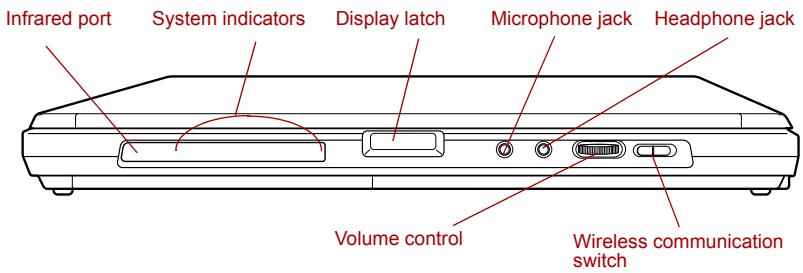
Front of the computer with LCD display panel closed

| Infrared port | This infrared port is compatible with Infrared Data Association (IrDA 1.1) standards. It enables cableless 4 Mbps, 1.15 Mbps, 115.2 kbps, 57.6 kbps, 38.4 kbps, 19.2 kbps or 9.6 kbps data transfer with IrDA 1.1 compatible external devices. |
| System indicators | LEDs let you monitor the status of various computer functions. Details are given in the System indicators section. |

natural_image
Three black icons: a microphone, an earphone, and a triangle on a white background (no text or symbols)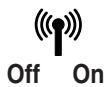
| Display latch | This latch secures the LCD panel in its closed position. Push the latch to open the display. |
| Microphone jack | A 3.5 mm mini microphone jack enables connection of a three-conductor mini jack for monaural microphone input. |
| Headphone jack | A 3.5 mm mini headphone jack enables connection of stereo headphones. |
| Volume control | Use this dial to adjust the volume of the stereo speakers and the stereo headphones. |
| Wireless communication switch | Slide this switch to the left to turn off Wireless LAN and Bluetooth functions. Slide it to the right to turn on the functions. |

Set the switch to off in airplanes and hospitals. Check the wireless communication indicator. It will stop glowing when the wireless communication function is off.
Left side
The following figure shows the computer's left side.
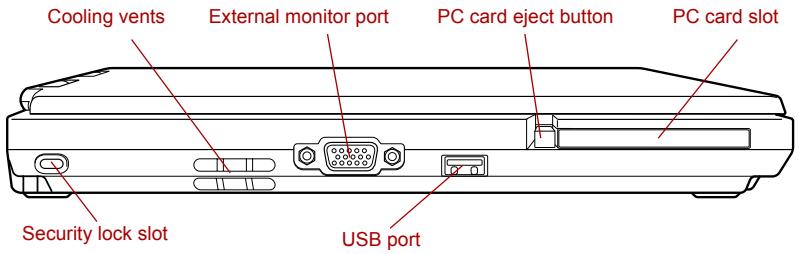
The left side of the computer
Cooling vents Cooling vents help CPU keep from overheating.

Do not block the cooling vents. Do not insert or allow foreign objects to enter the cooling vents. If pins or similar objects are inserted into the computer, the computer's circuitry may be damaged.
 | External monitor port | This external monitor port lets you connect an external video display. |
 | PC card slot | The PC card slot can accommodate a Type II card. The slot supports 16-bit PC cards and CardBus PC cards. |
| PC card eject button | Press this button to eject a PC card from the PC card slot. | |
 | Keep foreign objects out of the PC card slot. A pin or similar object can damage the computer's circuitry. | |
 | Security lock slot | A security cable attaches to this slot. The optional security cable anchors your computer to a desk or other large object to deter theft. |
 | Universal Serial Bus (USB 2.0) port | There is one Universal Serial Bus port on the left side. The port complies with the USB 2.0 standard, which enables data transfer speeds 40 times faster than the USB 1.1 standard (The ports also support USB 1.1). |
 | Keep foreign objects out of the USB connectors. A pin or similar object can damage the computer's circuitry. | |
 | Operation of all functions of all USB devices has not been confirmed. Some functions might not execute properly. | |
Right side
The following figure shows the computer's right side.
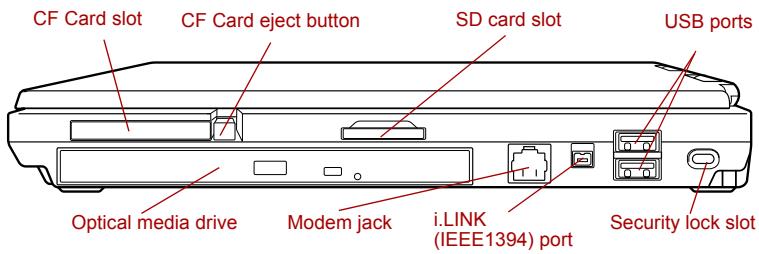
The right side of the computer
 | CF Card slot | This slot accommodates CompactFlash. You cannot use CompactFlash that does not conform to CompactFlash Association specifications. |
| CF card eject button | Press this button to eject a CompactFlash Card from the CF card slot. | |
 | Keep foreign objects out of the CF Card slot. A pin or similar object can damage the computer's circuitry. | |
 | SD card slot | SD cards are used in a wide variety of external devices. This slot lets you transfer data from the device to your computer. |
 | Keep foreign objects out of the SD card slot. A pin or similar object can damage the computer's circuitry. | |
 | Universal Serial Bus (USB 2.0) ports | Two Universal Serial Bus ports are on the right side. Refer to Left side section, for details. |
| Optical media drive | This computer is configured with a DVD-ROM&CD-R/RW drive or a DVD Super Multi drive. | |
 | Modem jack | The modem jack lets you use a modular cable to connect the modem directly to a telephone line. |
 | In case of a lightning storm, unplug the modular cable from the telephone jack.Do not connect the modem to a digital telephone line. A digital line will damage the modem. | |
 | i.LINK (IEEE1394) port | Connect an external device, such as a digital video camera to this port for high-speed data transfer. |
 | Security lock slot | A security cable attaches to this slot. The optional security cable anchors your computer to a desk or other large object to deter theft. |
Backside
The following figure shows the computer's backside.
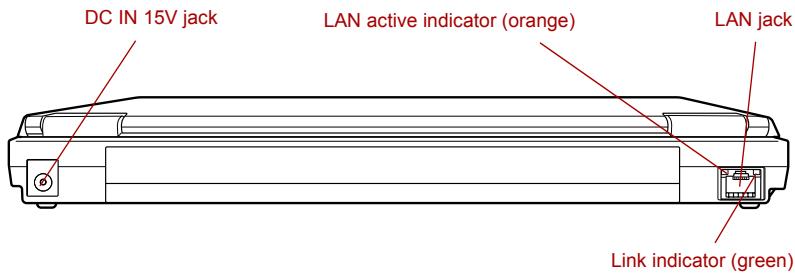
The backside of the computer


| DC IN 15V jack | The AC adaptor connects to this jack. Use only the model of AC adaptor that comes with the computer. Using the wrong adaptor can damage your computer. |
| LAN jack | This jack lets you connect to a LAN. The adaptor has built-in support for Ethernet LAN (10 megabits per second, 10BASE-T) and Fast Ethernet LAN (100 megabits per second, 100BASE-TX). The LAN has two indicators.Refer to Chapter 4, Operating Basics, for details. |

Do not connect any cable other than a LAN cable to the LAN jack. It could cause damage or malfunction.
Do not connect the LAN cable to a power supply. It could cause damage or malfunction.
| Link indicator (green) | This indicator glows green when the computer is connected to a LAN and the LAN is functioning properly. |
| LAN active indicator (orange) | This indicator glows orange when data is being exchanged between the computer and the LAN. |
Underside
The following figure shows the underside of the computer. Make sure the display is closed before turning over your computer.
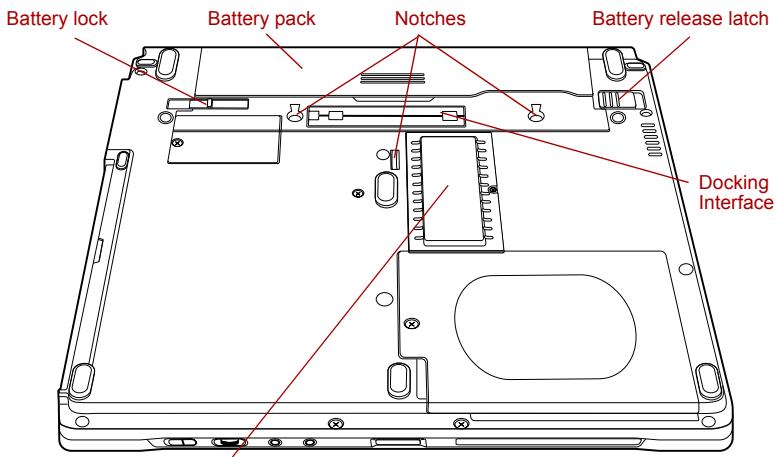
Memory module cover
The underside of the computer
| 1 [IMAGE] | Battery lock | Slide this lock to release the battery pack for removal. |
| Battery pack | The battery pack powers the computer when the AC adaptor is not connected. For detailed information on the battery pack, refer to Chapter 6,Power and Power-Up Modes. | |
| Notches | Notches on the computer engage hooks on the Advanced Port Replicator III to hold the connection securely. | |
 | Battery release latch | Slide and hold this latch to release the battery pack for removal.For detailed information on removing the battery packs, refer to Chapter 6,Power and Power-Up Modes. |
 | Docking interface | This port enables connection of an optional Advanced Port Replicator III described in Chapter 8,Optional Devices. |
 | Keep foreign objects out of the docking interface port. A pin or similar object can damage the computer’s circuitry. A plastic shutter protects the connector. | |

Memory module cover
This cover protects one memory module socket one or no module is preinstalled. Refer to the Memory expansion section in Chapter 8, Optional Devices.
Front with the display open
This section shows the computer with the LCD display panel open. Refer to the appropriate illustration for details. To open the display, push the display latch on the front of the LCD display panel and lift up. Position the LCD display panel at a comfortable viewing angle.

The front of the computer with the LCD panel open
| Display hinge | The display hinge holds the LCD display panel at easy-to-view angles. |
| LCD screen | The LCD screen displays high-contrast text and graphics. The computer’s XGA screen consists of 1024 × 768 pixels. Refer to Display Controller and Modes in Appendix B.When the computer operates on the AC adaptor the LCD screen’s image will be somewhat brighter than when it operates on battery power. The lower brightness level is intended to save battery power. |
| LCD Sensor switch | This switch senses when the computer’s LCD display panel is closed or opened and activates the Panel Power Off/On feature. When you close the LCD display panel the computer enters Hibernation mode and shuts down. When you open the computer’s LCD display panel the computer starts in Hibernation mode. Use the TOSHIBA Power Saver Utility to enable or disable this feature. The default is “enabled”.Refer to the TOSHIBA Power Saver and Panel Power Off/On items in Chapter 1, Special features, for details on settings. |

Do not put a magnetic object close to the switch. The computer will automatically enter Hibernation mode and shut down even if the Panel Power Off features is disabled.
| Stereo speakers | The speakers emit sound generated by your software as well as audio alarms, such as low battery condition, generated by the system. |
| Touch Pad | A Touch Pad located in the center of the palm rest is used to control the on-screen pointer.Refer to the Using the Touch Pad section in Chapter 4, Operating Basics. |
| Touch Pad control buttons | Control buttons below the Touch Pad let you select menu items or manipulate text and graphics designated by the on-screen pointer. |
| Microphone | A built-in microphone lets you record sound into your applications. Refer to the Microphone level section in Chapter 4, Operating Basics. |
| Power button | Press the power button to turn the computer's power on and off. |


TOSHIBA Presentation button
Press this button to change internal display, simultaneous display, or multi-monitor display. The default setting is the simultaneous display on LCD and CRT with resolution of 1024 × 768 . When you press this button twice, the display mode returns to single display on LCD only. Setting of multi-monitor display in Windows XP, computer changes its display mode to the multi-monitor display on LCD and CRT. You can also return to single display by pressing this button twice.
The setting of TOSHIBA Presentation button can be changed through the properties of TOSHIBA Controls. Display mode is changed to the multi-monitor display by selecting "Different Image" (Windows XP only) or to the simultaneous display on internal and external display by selecting "Same Image".

TOSHIBA Assist button
Press this button to launch an application automatically. If the computer is off, pressing this button starts the computer and launches the associated program automatically. The default is TOSHIBA Assist.
System indicators
LEDs beneath icons, light when various computer operations are in progress.

DC IN

Power
Battery

HDD

Wireless communication

SD card
System indicators
 | DC IN | The DC IN indicator glows in green when DC power is supplied from the AC power adaptor. If the adaptor's output voltage is abnormal or if the power supply malfunctions, this indicator flashes orange. |
 | Power | The Power indicator glows in green when the computer is on. If you select Standby from Shut Down Windows, this indicator blinking orange (one second on, two seconds off) while the computer shuts down. |
 | Battery | The Battery indicator shows the condition of the battery's charge: Green indicates full charge, orange indicates battery charging and flashing orange indicates a low battery charge. Refer to Chapter 6, Power and Power-Up Modes . |
 | HDD | The HDD indicator glows green when the computer is accessing the built-in hard disk. |
 | Wireless communication | The Wireless communication indicator glows when the Bluetooth and wireless LAN functions are turned on.Some models are equipped with Wireless communication features. |
 | SD card | The SD card indicator glows green when the computer is accessing the SD card slot. |
Keyboard indicators
The figures below show the positions of the keypad overlay indicators and the Caps Lock indicator.
When the Arrow mode indicator glows the keypad overlay lets you control the cursor.
When the Numeric mode indicator glows the keypad overlay lets you enter numbers.
When the Caps Lock indicator glows the keyboard is in all-caps mode.
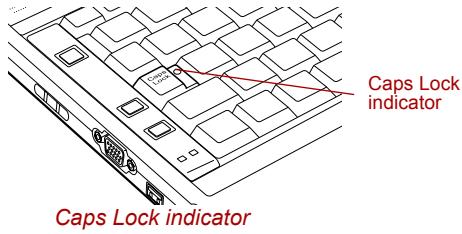
| Caps Lock | This indicator glows green when the alphabet keys are locked in uppercase. |
| Arrow mode indicator | Numeric mode indicatorKeypad overlay indicators |
| Arrow mode | When the Arrow mode indicator lights green, you can use the keypad overlay (gray labeled keys) as cursor keys. Refer to the Keypad overlay section in Chapter 5, The Keyboard . |
| Numeric mode | You can use the keypad overlay (gray labeled keys) for numeric input when the Numeric mode indicator lights green. Refer to the Keypad overlay section in Chapter 5, The Keyboard . |


USB floppy disk drive (optional)
The optional USB floppy disk drive accommodates 1.44-megabyte or 720-kilobyte floppy disks.
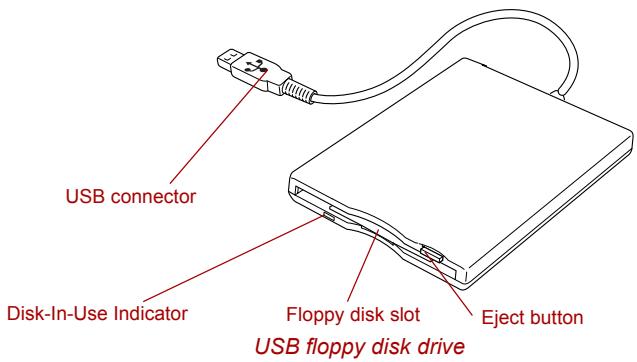
| USB connector | Insert this connector to the USB port of your computer. |
| Disk-In-Use Indicator | This indicator lights when the floppy disk is being accessed. |
| Floppy disk slot | Insert a floppy disk in this slot. |
| Eject button | When a floppy disk is fully seated in the drive, the eject button pops out. To remove a floppy disk, push in the eject button and the floppy disk pops out partially for removal. |

Check the Disk-In-Use indicator when you use the USB floppy disk drive. Do not press the eject button or turn off the computer while the light is glowing. Doing so could destroy data and damage the floppy disk or the drive.

The USB floppy disk drive should be placed on a flat, horizontal surface when in use. Do not set the drive on an incline greater than 20^ while it is operating.
- Do not set anything on top of the floppy disk drive.
Optical media drives
One of the following optical media drives is installed in the computer: DVD-ROM&CD-R/RW drive or DVD Super Multi drive. An ATAPI interface controller is used for CD/DVD-ROM operation. When the computer is accessing a CD/DVD, an indicator on the drive glows.
For information on loading and unloading discs refer to the Using optical media drives section in Chapter 4, Operating Basics.
Region codes for DVD drives and media
DVD-ROM&CD-R/RW and DVD Super Multi drives and media are manufactured according to the specifications of six marketing regions. When you purchase DVD-Video, make sure it matches your drive, otherwise it will not play properly.
| Code | Region |
| 1 | Canada, United States |
| 2 | Japan, Europe, South Africa, Middle East |
| 3 | Southeast Asia, East Asia |
| 4 | Australia, New Zealand, Pacific Islands, Central America, South America, Caribbean |
| 5 | Russia, Indian Subcontinent, Africa, North Korea, Mongolia |
| 6 | China |
Writable discs
This section describes the types of writable CD/DVD discs. Check the specifications for your drive to for the type of discs it can write. Use RecordNow! to write compact discs. Refer to Chapter 4, Operating Basics.
CDs
- CD-R discs can be written only once. The recorded data cannot be erased or changed.
■ CD-RW discs can be recorded more than once. Use either 1, 2, or 4 multi speed CD-RW discs or high-speed 4- to 10-speed discs. The write speed of the ultra-speed CD-RW discs is maximum 24-speed.
DVDs
DVD-R and DVD+R discs can be written only once. The recorded data cannot be erased or changed.
DVD-RW, DVD+RW and DVD-RAM discs can be recorded more than once.
Formats
The drives support the following formats:
CD-ROM
DVD -Video
DVD-ROM
CD-Text
CD-DA
■ CD-ROM Mode 1, Mode 2
■ Photo CD™ (single/multi-session)
■ Enhanced CD (CD-EXTRA)
■ CD-ROM XA Mode 2 (Form1, Form2)
- Addressing Method 2
DVD-ROM&CD-R/RW drive
The full-size DVD-ROM&CD-R/RW drive module lets you record data to rewritable CDs as well as run either 12 cm (4.72") or 8 cm (3.15") CD/DVDs without using an adaptor.

The read speed is slower at the center of a disc and faster at the outer edge.
| DVD read | 8 speed (maximum) |
| CD read | 24 speed (maximum) |
| CD-R write | 24 speed (maximum) |
| CD-RW write | 24 speed (maximum, high-speed media) |
DVD Super Multi drive

The read speed is slower at the center of a disc and faster at the outer edge.
| DVD read | 8 speed (maximum) |
| DVD-R write | 2 speed (maximum) |
| DVD-RW write | 2 speed (maximum) |
| DVD+R write | 2.4 speed (maximum) |
| DVD+RW write | 2.4 speed (maximum) |
| DVD-RAM write | 2 speed (maximum) |
| CD read | 24 speed (maximum) |
| CD-R write | 24 speed (maximum) |
| CD-RW write | 10 speed (maximum, Ultra-speed media) |
AC adaptor
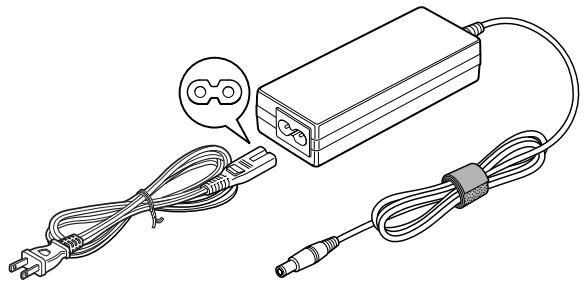
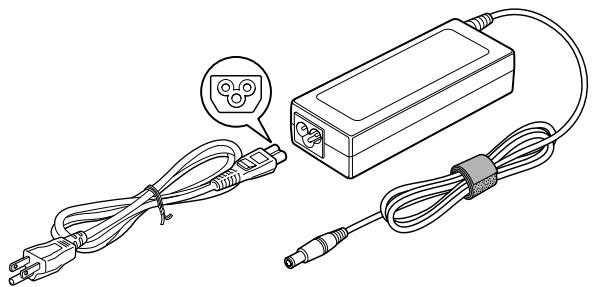
The AC adaptor converts AC power to DC power and reduces the voltage supplied to the computer. It can automatically adjust to any voltage from 100 to 240 volts and to a frequency of either 50 or 60 hertz, enabling you to use the computer in almost any country/region.
To recharge the battery, simply connect the AC adaptor to a power source and the computer. Refer to Chapter 6, Power and Power-Up Modes, for details.
natural_image
Line drawing of an electronic device with cable and connector, no text or symbols presentThe AC adaptor (2-pin plug)
natural_image
Line drawing of a battery pack connected to two cables, one with a close-up inset showing a plug (no text or symbols present)The AC adaptor (3-pin plug)

The Universal AC Adaptor and power cord bundled with this product may differ depending on the product model. Depending on the model, a 2-pin plug or 3-pin plug set of the above may be bundled.
Do not use a 3-pin to 2-pin conversion plug.
The supplied power cord conforms to safety rules and regulations in the region the product is bought and should not be used outside this region. For use in other regions, please buy power cords that conform to safety rules and regulations in the particular region.

Use only the AC adaptor that came with the computer or an equivalent optional adaptor. Use of any other adaptors could damage your computer. TOSHIBA assumes no liability for any damage in such case.

Use only the AC adaptor supplied as an accessory. Other AC adaptors have different voltage and terminal polarities and use of them may produce heat and smoke or even result in fire or rupture.
Chapter 3
Getting Started
This chapter provides basic information to get you started using your computer. It covers the following topics:
Setting up your work space — for your health and safety

Be sure also to read the Safety Instruction Manual. This guide, which is included with the computer, explains product liability.
■ Connecting the AC adaptor
■ Opening the display
■ Turning on the power
■ Starting up for the first time
■ Turning off the power
■ Restarting the computer
■ Restoring the preinstalled software

All users should be sure to read the section Starting up for the first time.
Setting up your work space
Establishing a comfortable work site is important for you and your computer. A poor work environment or stressful work habits can result in discomfort or serious injury from repetitive strain to your hands, wrists or other joints. Proper ambient conditions should also be maintained for the computer's operation. This section discusses the following topics:
General conditions
- Placement of the computer
■ Seating and posture
Lighting
Work habits
General conditions
In general, if you are comfortable, so is your computer, but read the following to make sure your work site provides a proper environment.
■ Make sure there is adequate space around the computer for proper ventilation.
■ Make sure the AC power cord connects to an outlet that is close to the computer and easily accessible.
The temperature should be 5 to 35 degrees Centigrade (41 to 95 degrees Fahrenheit) and the relative humidity should be 20 to 80 percent.
- Avoid areas where rapid or extreme changes in temperature or humidity may occur.
- Keep the computer free of dust, moisture, and exposure to direct sunlight.
- Keep the computer away from heat sources, such as electric heaters.
- Do not use the computer near liquids or corrosive chemicals.
- Do not place the computer near objects that create strong magnetic fields (e.g., stereo speakers).
Some computers in the computer, including data storage media, can be damaged by magnets. Do not place the computer near magnetic objects or bring magnetic objects close to the computer. Be careful of objects, such as stereo speakers, that produce strong magnetic fields during operation. Also, be careful with metal objects, such as bracelets, which can be inadvertently magnetized.
- Do not operate the computer in close proximity to a mobile phone.
Leave ample ventilation room for the fan. Do not block the vents.
Placement of the computer
Position the computer and peripheral devices to provide comfort and safety.
- Set the computer on a flat surface at a comfortable height and distance. The LCD display panel should be no higher than eye level to avoid eyestrain.
Place the computer so that it is directly in front of you when you work and make sure you have adequate space to easily operate other devices. - Allow adequate space behind the computer to let you freely adjust the LCD display panel. The LCD display panel should be angled to reduce glare and maximize visibility.
If you use a paper holder, set it at about the same height and distance as the computer.
Seating and posture
The height of your chair in relation to the computer and keyboard as well as the support it gives your body are primary factors in reducing work strain. Refer to the following tips.
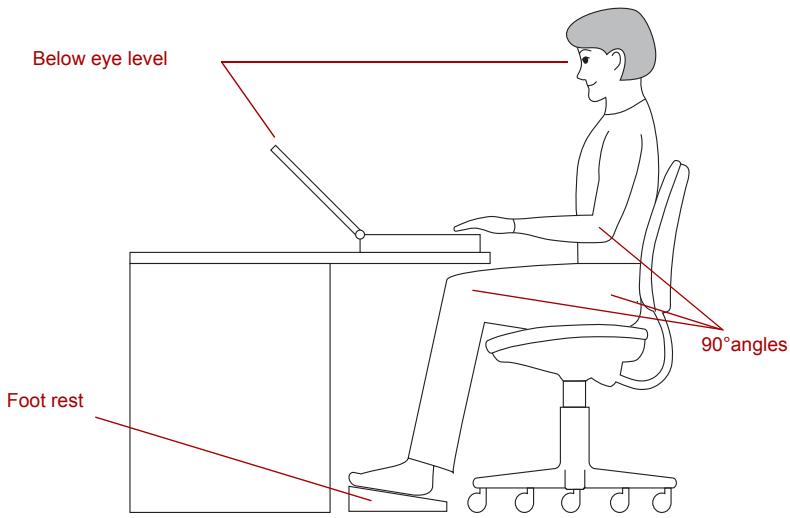
Posture and positioning of the computer
Place your chair so that the keyboard is at or slightly below the level of your elbow. You should be able to type comfortably with your shoulders relaxed.
- Your knees should be slightly higher than your hips. If necessary, use a foot rest to raise the level of your knees to ease pressure on the back of your thighs.
- Adjust the back of your chair so it supports the lower curve of your spine.
Sit straight so that your knees, hips and elbows form approximately 90 degree angles when you work. Do not slump forward or lean back too far.
Lighting
Proper lighting can improve legibility of the LCD screen and reduce eyestrain.
■ Position the computer so that sunlight or bright indoor lighting does not reflect off the LCD screen. Use tinted windows, shades or other screen to eliminate sun glare.
- Avoid placing the computer in front of bright light that could shine directly in your eyes.
If possible, use soft, indirect lighting in your computer work area. Use a lamp to illuminate your documents or desk, but be sure to position the lamp so that it does not reflect off the LCD screen or shine in your eyes.
Work habits
A key to avoiding discomfort or injury from repetitive strain is to vary your activities. If possible, schedule a variety of tasks into your workday. If you must spend long periods at the computer, finding ways to break up the routine can reduce stress and improve your efficiency.
- Sit in a relaxed posture. Good positioning of your chair and equipment as described earlier can reduce tension in your shoulders or neck and ease back strain.
■ Vary your posture frequently. - Occasionally stand up and stretch or exercise briefly.
Exercise and stretch your wrists and hands a number of times during the day.
Frequently, look away from the computer and focus your eyes on a distant object for several seconds, for example 30 seconds every 15 minutes.
Take frequent short breaks instead of one or two long breaks, for example, two or three minutes every half hour.
■ Have your eyes examined regularly and visit a doctor promptly, if you suspect you might be suffering from a repetitive strain injury.
A number of books are available on ergonomics and repetitive strain injury or repetitive stress syndrome. For more information on these topics or for pointers on exercises for such stress points as hands and wrists, please check with your library or book vendor. Also refer to the computer's Safety Instruction Manual.
Connecting the AC adaptor
Attach the AC adaptor when you need to charge the battery or you want to operate from AC power. It is also the fastest way to get started, because the battery pack will need to be charged before you can operate from battery power.
The AC adaptor can be connected to any power source supplying from 100 to 240 volts and 50 or 60 hertz. For details on using the AC adaptor to charge the battery pack, refer to Chapter 6, Power and Power-Up Modes.

Use only the AC adaptor supplied as an accessory. Other AC adaptors have different voltage and terminal polarities and use of them may produce heat and smoke or even result in fire or rupture.

Use only the AC adaptor that came with the computer or an equivalent optional adaptor. Use of any other adaptors could damage your computer. TOSHIBA assumes no liability for any damage in such case.
- Do not use a 3-pin to 2-pin conversion plug.
The supplied power cord conforms to safety rules and regulations in the region the product is bought and should not be used outside this region. For use in other regions, please buy power cords that conform to safety rules and regulations in the particular region.
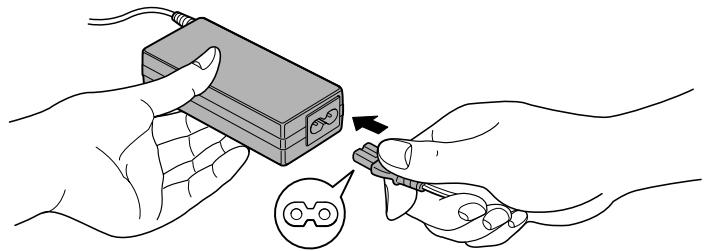
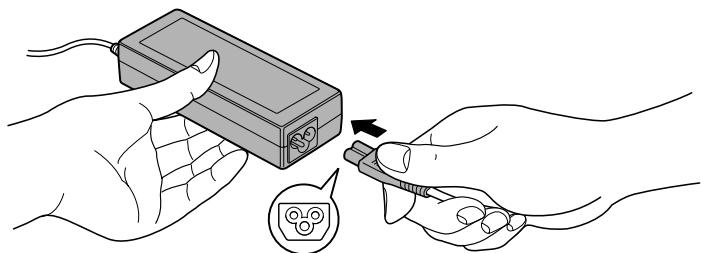
When you connect the AC adaptor to the computer, always follow the steps in the exact order as described in the User's Manual. Connecting the power cable to a live electrical outlet should be the last step otherwise the adaptor DC output plug could hold an electrical change and cause an electrical shock or minor bodily injury when touched. As a general safety precaution, avoid touching any metal parts.
- Connect the power cord to the AC adaptor.
natural_image
Illustration of hands using a handheld device to adjust or install a device (no text or symbols visible)Connecting the power cord to the AC adaptor (2-pin plug)
natural_image
Illustration of hands holding a device with a tool, showing a close-up of the component (no text or symbols present)Connecting the power cord to the AC adaptor (3-pin plug)

The Universal AC Adaptor and power cord bundled with this product may differ depending on the product model. Depending on the model, a 2-pin plug or 3-pin plug set of the above may be bundled.
- Connect the AC adaptor's DC output plug to the DC IN 15V jack on the back of the computer.
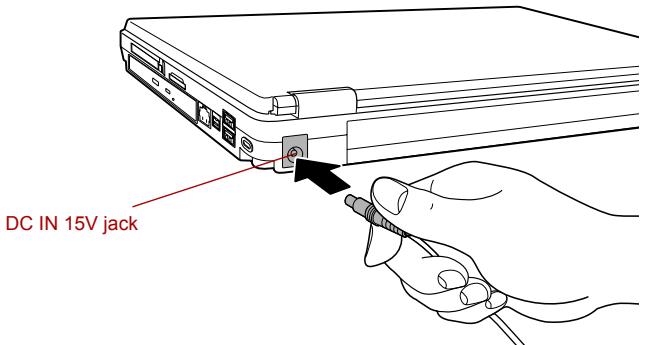
Connecting the adaptor to the computer
- Plug the power cord into a live wall outlet. The Battery and DC IN indicators on the front of the computer should glow.
Opening the display
The computer's LCD display panel can be rotated in a wide range of angles for optimal viewing.
- Push the display latch on the front of the computer to unlatch the display panel.
- While holding down the palm rest with one hand so that the main body is not raised, lift the panel slowly. Adjust the angle of the panel to provide optimal clarity.

Use reasonable care when opening and closing the LCD display panel. Opening it vigorously or slamming it shut could damage the computer.
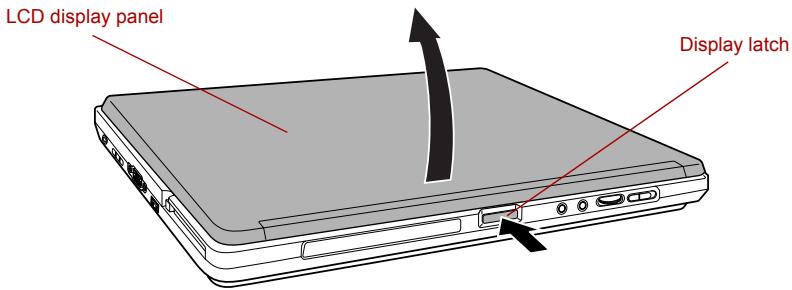
Opening the LCD display panel
Turning on the power
This section describes how to turn on the power.
The Power button LED indicates the status. Refer to the Power indicator section in Chapter 6, Power and Power-Up Modes.

■ After you turn on the power for the first time, do not turn it off until you have set up the operating system. Refer to the section Starting up for the first time.
If the USB floppy disk drive is connected, make sure it is empty. If a floppy disk is in the drive, press the eject button and remove the floppy disk.
- Open the computer's LCD display panel.
- Press and hold the computer's power button for two or three seconds.
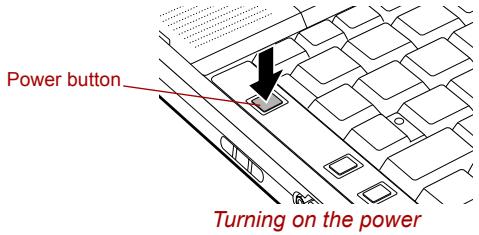
Starting up for the first time
When you first turn on the power, the computer's initial screen is the Microsoft Windows XP Startup Screen Logo. Follow the on-screen directions for each screen. During setup, you can click the Back button to return to the previous screen.
Be sure to read the Windows End User License Agreement display carefully.

Be sure to read the License Agreement carefully.
Turning off the power
The power can be turned off in one of the following modes: Shut down (Boot), Hibernation or Standby mode.
Shut Down mode (Boot mode)
When you turn off the power in Shut Down mode no data is saved and the computer will boot to the operating system's main screen.
- If you have entered data, save it to the hard disk or to a floppy disk.
- Make sure all disk (disc) activity has stopped, then remove the CD/DVDs or floppy disk.

Make sure the HDD indicator is off. If you turn off the power while a disk (disc) is being accessed, you can lose data or damage the disk (disc).
- Click start then click Turn Off Computer. From the Turn Off Computer menu select Turn Off.
- Turn off the power to any peripheral devices.

Do not turn the computer or devices back on immediately. Wait a moment to let all capacitors fully discharge.
Hibernation mode
The hibernation feature saves the contents of memory to the hard disk when the computer is turned off. The next time the computer is turned on, the previous state is restored. The hibernation feature does not save the status of peripheral devices.

- Save your data. While entering hibernation mode, the computer saves the contents of memory to the HDD. However, for safety sake, it is best to save your data manually.
Data will be lost if you remove the battery or disconnect the AC adaptor before the save is completed. Wait for the HDD indicator to go out.
Do not install or remove a memory module while the computer is in hibernation mode. Data will be lost.
Benefits of hibernation
The hibernation feature provides the following benefits:
- Saves data to the hard disk when the computer automatically shuts down because of a low battery.

For the computer to shut down in hibernation mode, the hibernation feature must be enabled in two places: the Hibernate tab in Power Options and Setup Action tab in TOSHIBA Power Saver.
Otherwise, the computer will shut down in Standby mode. If battery power becomes depleted, data saved in Standby mode will be lost.
- You can return to your previous working environment immediately when you turn on the computer.
■ Saves power by shutting down the system when the computer receives no input or hardware access for the duration set by the System hibernate feature. - You can use the panel power off feature.
Starting Hibernation

You can also enable Hibernation by pressing Fn + F4. Refer to Chapter 5, The Keyboard, for details.
To enter Hibernation mode, follow the steps below.
- Click start.
- Select Turn Off Computer.
- Open the Turn Off Computer dialog box. Hibernate is not displayed.
- Press the Shift key. The Standby item will change to Hibernate.
- Select the Hibernate.
Automatic Hibernation
The computer will enter Hibernate mode automatically when you press the power button or close the lid. First, however, make the appropriate settings according to the steps below.
- Click start and open the Control Panel.
- Open Performance and Maintenance and open Power Options.
- Select the Hibernate window in the Power Options Properties, select the Enable hibernation check box and click the Apply button.
- Open TOSHIBA Power Saver.
- Select the Setup Action window.
- Enable the desired Hibernation settings for When I press the power button and When I close the lid.
- Click the OK button.
Data save in hibernation mode
When you turn off the power in hibernation mode, the computer takes a moment to save current memory data to the hard disk. During this time, the HDD indicator will light.
After you turn off the computer and memory is saved to the hard disk, turn off the power to any peripheral devices.

Do not turn the computer or devices back on immediately. Wait a moment to let all capacitors fully discharge.
Standby mode
If you have to interrupt your work, you can turn off the power without exiting from your software. Data is maintained in the computer's main memory. When you turn on the power again, you can continue working right where you left off.

When the AC adaptor is connected, the computer will go into Standby mode according to the settings in the TOSHIBA Power Saver utility.
To restore operation from Standby mode, press the power button or press any key. The latter action works only if Wake-up on Keyboard is enabled in HW Setup.
If the computer automatically enters Standby mode while a network application is active, the application might not be restored when the computer wakes up from Standby.
To prevent the computer from automatically entering Standby mode, disable Standby in TOSHIBA Power Saver. That action, however, will nullify the computer's Energy Star compliance.

Before entering Standby mode, be sure to save your data.
Do not install or remove a memory module while the computer is in standby mode. The computer or the module could be damaged.
Do not remove the battery pack while the computer is in standby mode (unless the computer is connected to an AC power source). Data in memory will be lost.
If you carry the computer on board an aircraft or into a hospital, be sure to shut down the computer in hibernation mode or in shutdown mode to avoid radio signal interference.
Benefits of standby
The standby feature provides the following benefits:
Restores the previous working environment more rapidly than does hibernation.
■ Saves power by shutting down the system when the computer receives no input or hardware access for the duration set by the System Standby feature.
■ You can use the panel power off feature.
Executing standby

You can also enable Standby by pressing Fn + F3. See Chapter 5, The Keyboard, for details.
You can enter standby mode in one of three ways:
- Click start, click Turn Off Computer and click Stand By.
- Close the computer's LCD display panel. This feature must be enabled. Refer to the Setup Action tab in TOSHIBA Power Saver Utility described in the Control Panel. Open Performance and Maintenance and open TOSHIBA Power Saver.
- Press the power button. This feature must be enabled. Refer to the Setup Action tab in TOSHIBA Power Saver Utility described in the Control Panel. Open Performance and Maintenance and open TOSHIBA Power Saver.
When you turn the power back on, you can continue where you left when you shut down the computer.

When the computer is shut down in standby mode, the power indicator blinking orange.
If you are operating the computer on battery power, you can lengthen the operating time by shutting down in hibernation mode. Standby mode consumes more power.
Standby limitations
Standby will not function under the following conditions:
■ Power is turned back on immediately after shutting down.
■ Memory circuits are exposed to static electricity or electrical noise.
Restarting the computer
Certain conditions require that you reset the system. For example, if:
■ You change certain computer settings.
An error occurs and the computer does not respond to your keyboard commands.
There are three ways to reset the computer system:
- Click start then click Turn off computer. From the Turn off computer menu select Restart.
- Press Ctrl + Alt + Del to display the Windows Task Manager, then select Shut Down and Restart.
- Press the power button and hold it down for five seconds. Wait 10 to 15 seconds, then turn the power on again by pressing the power button.
Restoring the preinstalled software

Some models in this series are prepared for Hard Disk Recovery. These models will come without a Product Recovery optical media and a Tools & Utilities CD-ROM. You can restore the preinstalled software depending on the model you purchased.
Restoring from Recovery HDD

For models only with HDD Recovery installed.
If preinstalled files are damaged, use the HDD Recovery installation to restore them.

When you reinstall the Windows operating system, the hard disk will be reformatted and all data will be lost. Make sure you have a backup copy of your data, before you perform a complete system recovery.
Creating Optical Recovery Discs
A recovery image of your computer is stored on the hard disk. You may use this image to create CD or DVD recovery discs using the following steps:
- Select either blank CDs or DVD media.
- The application will allow you to choose a type of media to create recovery CDs/DVD including: CD-R, CD-RW, DVD-R, DVD-RW, DVD+R and DVD+RW.

Some media may not be compatible with the Optical Drive of your computer. Please verify your Optical Drive supports the blank media you choose.
- Turn on your computer to open Windows XP.
- Insert the (first) blank media into the tray of the Optical Drive.
- Double click the Recovery Disc Creator Launcher icon on the Windows XP desktop, or Select the application from start Menu.
- After Recovery Disc Creator starts, select the type of media and the title you wish to copy to the media then click the Burn button.

If your Optical Drive can only write to CDs, select "CD" as the "Type" on Recovery Disc Creator. If your Optical Drive of your computer can write to either CD or DVDs, select the one you are using as the "Type" on Recovery Disc Creator.
Restoring from the Recovery HDD
About 2GB of hard disk space is reserved for recovery partition.
When re-setting up your hard disk, do not change, delete or add partitions in a manner other than specified in the manual. Otherwise, space for software may be destroyed.
In addition, if you use a third-party partitioning program to reconfigure partitions on your hard disk, it may become impossible to re-setup your computer.
- Turn off your computer.
- While holding down 0 (zero) key on the keyboard, turn on your computer.
- A menu appears. Press the "1" key on the keyboard to restore the original configuration as purchased. Press the "2" key to keep your current partitions intact and restore. Press the "3" key to specify partitions and restore.
- Follow the on-screen instructions.
Restoring from your created Recovery Media
If preinstalled files are damaged, use your created Recovery Media to restore them. To restore the operating system and all preinstalled software, follow the steps below.

When you reinstall the Windows operating system, the hard disk will be reformatted and all data will be lost.
- Load the Recovery Media in the optional optical media drive and turn off the computer's power.
- Hold down the F12 key and turn on the power. When In Touch with Tomorrow TOSHIBA appears, release the F12 key.
- Use the left or right cursor key to select the CD-ROM icon in the display menu. For details, refer to the Boot Priority section in Chapter 7, HW Setup.
- A menu appears. Press the "1" key on the keyboard to restore all hard disk. Press the "2" key to Restore drive C:. Press the "3" key to Restore Recovery tool.
- Follow the on-screen instructions.
Restoring from the Product Recovery Media

For models only with bundled Product Recovery optical media.
If preinstalled files are damaged, use the Product Recovery DVD or the TOSHIBA Tools & Utilities CD-ROM to restore them.
Restoring the complete system
To restore the operating system and all preinstalled software, follow the steps below.

When you reinstall the Windows operating system, the hard disk will be reformatted and all data will be lost. Make sure you have a backup copy of your data, before you perform a complete system recovery.
- Load the Product Recovery disk in the optical media drive and turn off the computer's power.
- Hold down the F12 key and turn on the power. When In Touch with Tomorrow TOSHIBA appears, release the F12 key.
- Use the left or right cursor key to select the CD-ROM/DVD-ROM icon in the display menu. For details, refer to the Boot Priority section in Chapter 7, HW Setup.
- Follow the on-screen instructions.
- If your computer came with additional software installed, this software can not be recovered from the Product Recovery disk. Re-install these applications (e.g. Works Suite, DVD Player, Games, etc.) separately from other media.
Restoring TOSHIBA utilities and drivers
If Windows is working properly, individual drivers or applications can be separately restored. The Toshiba Tools & Utilities CD-ROM contains drivers and applications which were included with your computer system. If your system drivers or applications have become damaged in some way, this CD allows you to reinstall most of the components which are not part of the Windows operating system.
Operating Basics
This chapter gives information on basic operations including using the Touch Pad, the USB floppy disk drive (optional), optical media drives, Sound System, Modem, Wireless communication features and LAN. It also provides tips on care of the computer, floppy disks and CD/DVDs.
Using the Touch Pad
To use the Touch Pad, simply touch and move your fingertip across it in the direction you want the on-screen pointer to go.
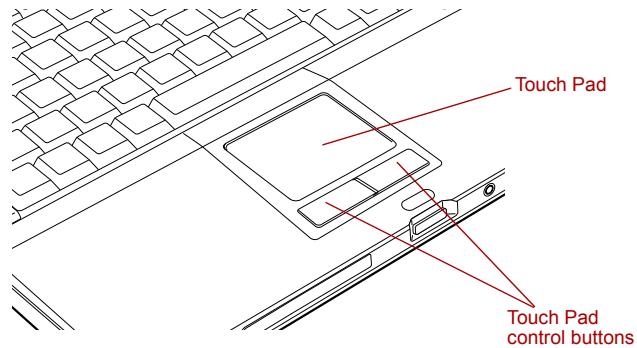
Touch Pad and Touch Pad control buttons
Two buttons below the Touch Pad are used like the buttons on a mouse pointer. Press the left button to select a menu item or to manipulate text or graphics designated by the pointer. Press the right button to display a menu or other function depending on the software you are using.

You can also tap the Touch Pad to perform functions similar to those of the left button.
Click: Tap once
Double-click: Tap twice
Drag and drop: Tap to select the material you want to move. Leave your finger on the Touch Pad after the second tap and move the material.
Using the USB floppy disk drive
USB floppy disk drive connects to one of the computer's USB ports. It accommodates 1.44-megabyte or 720-kilobyte floppy disks. Refer to Chapter 2, The Grand Tour, for more information.
Connecting USB floppy disk drive
To connect the drive, plug the floppy disk drive's USB connector into a computer's USB port.

Make sure the connector is right side up and properly aligned with the socket. Do not try to force the connection, doing so can damage the connecting pins.
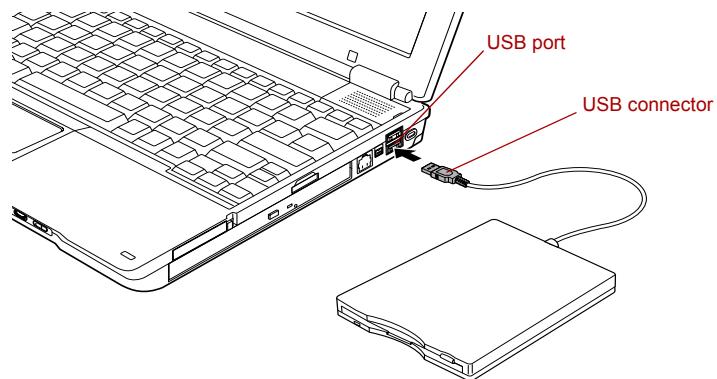
Connecting the USB floppy disk drive

If you connect the USB floppy disk drive after turning on the computer, it will take about 10 seconds for the computer to recognize the drive. Do not disconnect and reconnect before 10 seconds has elapsed.
Disconnecting USB floppy disk drive
When you have finished using the USB floppy disk drive, follow the procedures below to disconnect it:
- Wait for the indicator light to go out to make sure all floppy disk activity has stopped.

If you disconnect the USB floppy disk drive or turn off the power while the computer is accessing the drive you may lose data or damage the floppy disk or the drive.
- Click the Safely Remove Hardware icon on the Task Bar.
- Click USB floppy disk drive that you want remove.
- Pull the USB floppy disk drive's USB connector out of the computer's USB port.
Using optical media drives
The full-size drive provides high-performance execution of CD/DVD-ROM-based programs. You can run either 12 cm (4.72") or 8 cm (3.15") CD/DVDs without an adaptor. An ATAPI interface controller is used for CD/DVD-ROM operation. When the computer is accessing a CD/DVD-ROM, an indicator on the drive glows.

Use the WinDVD application to view DVD-Video discs.
If you have a DVD-ROM&CD-R/RW drive, refer also to the Writing CDs on DVD-ROM&CD-R/RW drive section for precautions on writing to CDs.
If you have a DVD Super Multi drive, refer also to the Writing CD/DVDs on DVD Super Multi drive section for precautions on writing to CDs.

When the power of the optical media drive is off, pressing the Fn + Tab keys will turn the power of the optical media drive on. Furthermore, it is possible to set it to turn the power of the optical media drive on and eject the tray at the same time.
Loading discs
To load CD/DVDs, follow the steps below.
- When the computer's power is on, press the eject button to open the disc tray slightly.
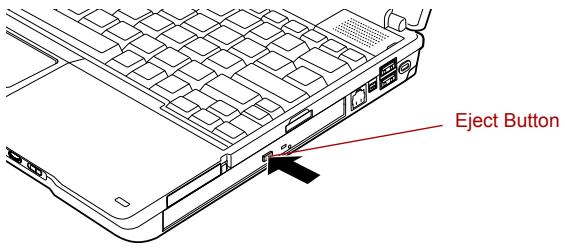
Pressing the eject button
- Grasp the disc tray gently and pull until it is fully opened.
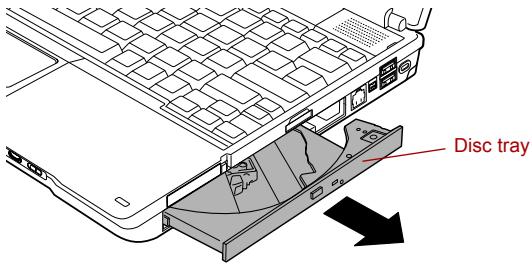
Pulling the disc tray open
- Lay the CD/DVD, label side up, in the disc tray.
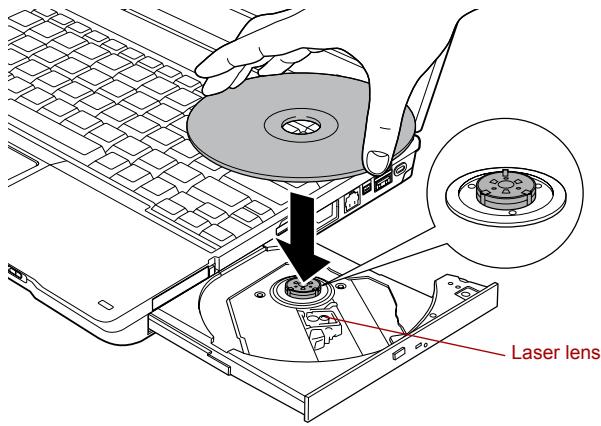
Inserting a CD/DVD

When the disc tray is fully opened, the edge of the computer will extend slightly over the CD/DVD tray. Therefore, you will need to turn the CD/DVD at an angle when you place it in the disc tray. After seating the CD/DVD, however, make sure it lies flat.

Do not touch a laser lens and its circumference portion. Doing so could cause misalignment.
■ Prevent foreign objects from entering the drive. Check the surface of the disc tray, especially the area behind the front edge of the disc tray, to make sure there are no such objects before closing the drive.
- Press gently at the center of the CD/DVD until you feel it click into place. The CD/DVD should lie below the top of the spindle, flush with the spindle base.
- Push the center of the disc tray to close it. Press gently until it locks into place.

If the CD/DVD is not seated properly when the disc tray is closed, the CD/DVD might be damaged. Also, the disc tray might not open fully when you press the eject button.
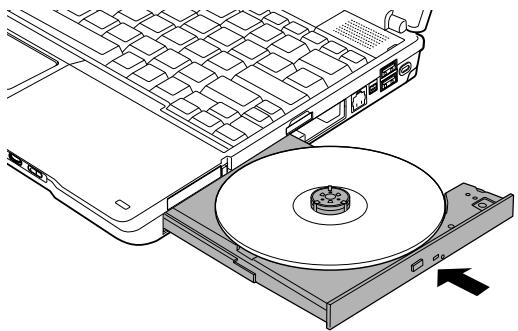
natural_image
Diagram of an open CD or DVD disc being placed into a laptop keyboard, showing internal components and an arrow indicating motion (no text or symbols present)Closing the CD/DVD disc tray
Removing discs
To remove the CD/DVD, follow the steps below.

Do not press the eject button while the computer is accessing the media drive. Wait for the Optical media drive indicator to go out before you open the disc tray. Also, if the CD/DVD is spinning when you open the disc tray, wait for it to stop before you remove it.
- To pop the disc tray partially open, press the eject button. Gently pull the disc tray out until it is fully opened.

When the disc tray pops open slightly, wait a moment to make sure the CD/DVD has stopped spinning before pulling the disc tray fully open.
- The CD/DVD extends slightly over the sides of the disc tray so you can hold it. Hold the CD/DVD gently and lift it out.
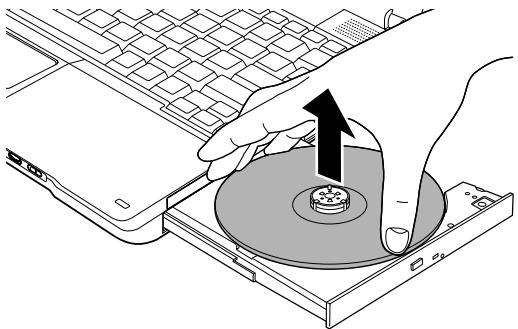
natural_image
Illustration of a hand pressing down on a CD into a laptop keyboard, with an arrow indicating the press direction (no text or symbols present)Removing a CD/DVD
- Push the center of the disc tray to close it. Press gently until it locks into place.
How to remove CD/DVD when the disk tray will not open
Pressing the eject button will not open the disc tray when the computer power is off. If the power is off, you can open the disc tray by inserting a slender object (about 15 mm) such as a straightened paper clip into the eject hole just to the right of the eject button.
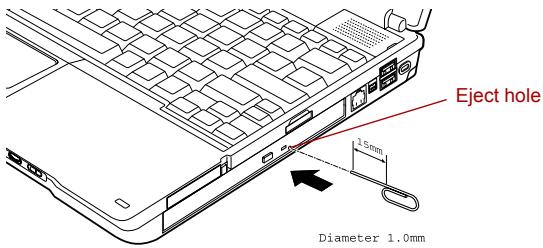
Manual release with the eject hole

Turn off the power before you use the eject hole. If the CD/DVD is spinning when you open the disc tray, the CD/DVD could fly off the spindle and cause injury.
Writing CDs on DVD-ROM&CD-R/RW drive
The DVD-ROM&CD-R/RW drive lets you write as well as read CD-ROMs. Observe the precautions in this section to ensure the best performance for writing CDs. For information on loading and unloading CDs refer to the Using optical media drives section.

- CD-R discs can be written to only once. CD-RW discs can be rewritten many times.
When the power of the optical media drive is off, the disc tray will not open even if the eject button is pushed. Use the optical media drive power icon to turn the power of the optical media drive on. Refer to the Special features section in Chapter 1, Introduction.
Do not turn off the power of the optical media drive while the computer is accessing the drive. If you turn off the power, you may lose data.
Before writing or rewriting
Please observe the following points when you write or rewrite the data.
We recommend the following manufacturers of CD-R and CD-RW media. Media quality can affect write or rewrite success rates.
CD-R:
TAIYO YUDEN CO., LTD. Mitsui Chemicals Inc. MITSUBISHI CHEMICAL CORPORATION RICOH Co., Ltd. Hitachi Maxell Ltd.
CD-RW:
The following special media recommend the next manufacturers.
Multi-Speed and High-Speed CD-ROM:
TOSHIBA has confirmed the operation of CD-R and CD-RW media of the manufacturers above. Operation of other media cannot be guaranteed.
The actual number of rewrites to CD-RW is affected by the quality of the disc and the way it is used.
- Be sure to connect the AC adaptor when you write or rewrite.
- Be sure to close all other software programs except the writing software.
Do not run software such as a screen saver which can put a heavy load on the CPU.
- Operate the computer at full power. Do not use power-saving features.
Do not write while virus check software is running. Wait for it to finish, then disable virus detection programs including any software that checks files automatically in the background.
- Do not use hard disk utilities, including those intended to enhance HDD access speed. They may cause unstable operation and damage data.
Write from the computer's HDD to the CD. Do not try to write from shared devices such as a LAN server or any other network device.
Writing with software other than Sonic RecordNow! has not been confirmed. Therefore, operation with other software cannot be guaranteed.
When writing or rewriting
Note the following when you write or rewrite a CD-R or CD-RW.
■ Always copy data from the HDD to the CD. Do not use cut-and-paste. The original data will be lost if there is a write error.
■ Do not perform any of the following actions:
■ Change users in the Windows XP operating system.
- Operate the computer for any other function, including use of a mouse or Touch Pad, closing/opening the LCD panel.
■ Start a communication application such as a modem.
■ Apply impact or vibration to the computer.
■ Install, remove or connect external devices, including the following: PC card, CF Card, SD card, USB devices, external monitor, i.LINK devices, optical digital devices.
■ Open the optical media drive.
If the media is poor in quality, dirty or damaged, writing or rewriting errors may occur.
■ Set the computer on a level surface and avoid places subject to vibration such as airplanes, trains or cars. Do not use an unstable surface such as a stand.
- Keep mobile phones and other wireless communication devices away from the computer.
Writing CD/DVDs on DVD Super Multi drive
You can use the DVD Super Multi drive to write data to either CD-R/RW or DVD-R/-RW/+R/+RW/-RAM discs. The following applications for writing are preinstalled: RecordNow!, and DLA licensed by Sonic Solutions. InterVideo WinDVD Creator 2 Platinum, which is a product of InterVideo, Inc.

- CD-R discs can be written to only once. CD-RW discs can be rewritten many times.
When the power of the optical media drive is off, the disc tray will not open even if the eject button is pushed. Use the optical media drive power icon to turn the power of the optical media drive on. Refer to Chapter 1, Special features.
Do not turn off the power of the optical media drive while the computer is accessing the drive. If you turn off the power, you may lose data.
Important message
Before you write or rewrite to CD-R/RW or DVD-R/-RW/+R/+RW/-RAM disc, read and follow all setup and operating instructions in this section. If you fail to do so, the DVD Super Multi drive may not function properly, and you may fail to write or rewrite, lose data or incur other damage.
Disclaimer
TOSHIBA does not bear responsibility for the following:
■ Damage to any CD-R/RW or DVD-R/-RW/+R/+RW/-RAM disc that may be caused by writing or rewriting with this product.
■ Any change or loss of the recorded contents of CD-R/RW or DVD-R/-RW/+R/+RW/-RAM disc that may be caused by writing or rewriting with this product, or for any business profit loss or business interruption that may be caused by the change or loss of the recorded contents.
■ Damage that may be caused by using third party equipment or software.
Given the technological limitations of current optical disc writing drives, you may experience unexpected writing or rewriting errors due to disc quality or problems with hardware devices. Also, it is a good idea to make two or more copies of important data, in case of undesired change or loss of the recorded contents.
Before writing or rewriting
Based on TOSHIBA's limited compatibility testing, we suggest the following manufacturers of CD-R/RW and DVD-R/+R/-RW/+RW/-RAM disc. However, in no event does TOSHIBA guarantee the operation, quality or performance of any disc. Disc quality can affect write or rewrite success rates.
CD-R:
TAIYO YUDEN CO., LTD.
CD-RW: (Multi-Speed and High-Speed)
CD-RW: (Ultra-Speed)
DVD Specifications for Recordable Disc for General Version 2.0
TAIYO YUDEN CO., LTD.
PIONEER VIDEO CORPORATION
Matsushita Electric Industrial Co., Ltd.
DVD+R:
DVD Specifications for Recordable Disc for Version 1.1 or version 1.2
VICTOR COMPANY OF JAPAN.LIMITED
DVD Specifications for DVD-RAM Disc for Version 2.0 or Version 2.1
Matsushita Electric Industrial Co., Ltd.
Hitachi Maxell Ltd.

This drive cannot use discs that allow writing faster than 2 speed (DVD-R, DVD-RW, DVD-RAM), 2.4 speed (DVD+R, DVD+RW).
If the disc is poor in quality, dirty or damaged, writing or rewriting errors may occur. Be careful to check the disc for dirt or damage before you use it.
The actual number of rewrites to CD-RW, DVD-RW, DVD+RW or DVD-RAM is affected by the quality of the disc and the way it is used.
There are two types of DVD-R discs: authoring and general use discs. Do not use authoring discs. Only general use discs can be written to by a computer drive.
- You can use DVD-RAM discs that can be removed from a cartridge and
DVD-RAM discs designed without a cartridge. You cannot use a disc with a 4.7 GB single-sided capacity or 9.4 GB double-sided capacity.
- Other DVD-ROM drives for computers or other DVD players may not be able to read DVD-R/-RW or DVD+R/+RW discs.
Data written to a CD-R/DVD-R/DVD+R disc cannot be deleted either in whole or in part.
Data deleted (erased) from a CD-RW, DVD-RW, DVD+RW and DVD-RAM disc cannot be recovered. Check the content of the disc carefully before you delete it. If multiple drives that can write data to discs are connected, be careful not to delete data from the wrong drive.
In writing to a DVD-R/-RW, DVD+R/+RW or DVD-RAM disc, some disc space is required for file management, so you may not be able to write the full capacity of the disc.
■ Since the disc is based on the DVD standard, it might be filled with dummy data if the written data is less than about 1 GB. Even if you write only a small amount of data, it might take time to fill in the dummy data.
DVD-RAM formatted by FAT32 cannot be read in Windows 2000 without DVD-RAM Driver Software.
When multiple drives that can write data to discs are connected, be careful not to write to the wrong drive.
- Be sure to connect the AC adaptor before you write or rewrite.
Before you enter standby/hibernation mode, be sure to finish DVD-RAM writing. Writing is finished if you can eject DVD-RAM media.
- Be sure to close all other software programs except the writing software.
Do not run software such as a screen saver, which can put a heavy load on the CPU.
- Operate the computer in the full-power mode. Do not use power-saving features.
Do not write while virus check software is running. Wait for it to finish and then disable virus detection programs including any software that checks files automatically in the background.
Do not use hard disk utilities, including those intended to enhance HDD access speed. They may cause unstable operation and data damage.
■ CD-RW (Ultra Speed +) media is not available. If used, data may be lost or damaged.
Write from the computer's HDD to the CD/DVD. Do not try to write from shared devices such as a LAN server or any other network device.
Writing with software other than RecordNow! and InterVideo WinDVD Creator Platinum are not recommended.
When writing or rewriting
Please observe/consider the following when you write or rewrite to a CD-R/RW, DVD-R/-RW/-RAM or DVD+R/+RW disc.
- Do not perform any of the following actions when writing or rewriting:
■ Change users in the Windows XP operating system.
- Operate the computer for any other function, including using a mouse or Touch Pad or closing/opening the LCD panel.
■ Start a communication application such as a modem.
■ Apply impact or vibration to the computer.
■ Install, remove or connect external devices, including the following: PC card, CF card, SD card, USB devices, external monitor, i.LINK devices, optical digital devices.
■ Use the Audio/Video control button to reproduce music or voice.
■ Open the DVD Super Multi drive.
- Do not use shut down/log off and standby/hibernation while writing or rewriting.
■ Make sure writing or rewriting is completed before going into standby/hibernation. Writing is completed if you can open the DVD-ROM&CD-R/RW or DVD Super Multi drive tray.
■ Set the computer on a level surface and avoid places subject to vibration such as airplanes, trains, or cars. Do not use an unstable surface such as a stand.
- Keep mobile phones and other wireless communication devices away from the computer.
■ Always copy data from the HDD to the DVD-RAM. Do not use cut-and-paste. The original data will be lost if there is a write error.
RecordNow! Basic for TOSHIBA
Note the following limitations when you use RecordNow!:
■ DVD-Video cannot be created using RecordNow!.
■ DVD-Audio cannot be created using RecordNow!.
- You cannot use RecordNow!'s "Audio CD for Car or Home CD Player" function to record music to the DVD-R/-RW or DVD+R/+RW disc.
Do not use the "Exact Copy" function of RecordNow! to copy DVD-Video and DVD-ROM with copyright protection.
DVD-RAM disc cannot be backed up with the "Exact Copy" function of RecordNow!.
- You cannot back up a CD-ROM or CD-R/RW to DVD-R/-RW or DVD+R/+RW using the "Exact Copy" function of RecordNow!.
You cannot back up DVD-ROM, DVD-Video or DVD-R/-RW or DVD+R/+RW to CD-R/RW using the "Exact Copy" function of RecordNow!. - RecordNow! cannot record in packet format.
You might not be able to use the "Exact Copy" function of RecordNow! to back up a DVD-R/-RW or DVD+R/+RW disc that was made with other software on a different DVD-R/-RW or DVD+R/+RW recorder.
If you add data to a DVD-R and DVD+R disc that you have already recorded to, you might not be able to read the added data under some circumstances. It cannot be read in 16-bit operating systems, such as Windows 98SE and Windows Me. In Windows NT4, you will need Service Pack 6 or later to read added data. In Windows 2000, you will need Service Pack 2 or later to read it. Some DVD-ROM and DVD-ROM&CD-R/RW drives cannot read added data regardless of the operating system.
RecordNow! does not support recording to DVD-RAM discs. To record to a DVD-RAM, use Explorer or other utility.
When you back up a DVD disc, be sure the source drive supports recording to DVD-R/-RW or DVD+R/+RW discs. If the source drive does not support recording to DVD-R/-RW or DVD+R/+RW discs, it might not be backed up correctly.
When you back up a DVD-R, DVD-RW, DVD+R or DVD+RW, be sure to use the same type of disc. - You cannot partially delete any data written to a CD-RW, DVD-RW or DVD+RW disc.
Data Verification
To verify that data is written or rewritten correctly, follow the steps below before you write or rewrite a Data CD/DVD.
- Click the Options button ( 📄 ) on the RecordNow! Console to open the Options panels.
- Select the Data in the left-side menu.
- Mark the Verify data written to the disc after burning check box in the Data Options.
Click the OK button.
DLA for TOSHIBA
Note the following limitations when you use DLA:
This software supports only rewritable discs (DVD+RW, DVD-RW, and CD-RW). It does not support DVD+R, DVD-R, and CD-R discs that are not rewritable.
DLA does not support formatting a DVD-RAM disc and writing to it. They are performed by DVD-RAM Driver Software. If DLA Format menu may appear when inserting a DVD-RAM disc into the drive and right-clicking the drive icon in Windows Explorer, please use "DVDForm" to format this disc. You can run "DVDForm" by clicking the Start button on the taskbar to display the Start menu and then selecting "All Programs", "DVD-RAM", "DVD-RAM Driver" and "DVDForm" sequentially.
Do not use any discs that have been formatted with packet writing software other than DLA. Similarly, do not use any discs that have been formatted with DLA with any packet writing software other than DLA. When using a disc you are not familiar with, format it by selecting “Full Format” before using it.
Do not use the Cut & Paste function for files and folders. A file or folder that has been cut may be lost if writing fails due to an error on the disc.
When writing the Setup files for the program to a disc formatted by DLA and starting Setup from this disc, an error may occur. In this case, please copy them to your hard disk and then run Setup.
When WinDVD Creator Platinum is used:
You can record video back to your digital camcorder via i.LINK (IEEE1394) using WinDVD Creator Platinum. However, there is a case where its playback sound is choppy.
- Click start and select the Control Panel.
- Click the Performance and Maintenance icon in the Control Panel.
- Click the System icon in the Performance and Maintenance window.
- Click the Advanced tab in the System Properties window.
- Click the Settings icon in the "Performance" section.
- Click the Advanced tab in the Performance Options window.
- Click the Change icon in the "virtual memory" section.
- Select the Custom size button in the Virtual Memory window.
- Specify much higher values for "Initial size" and "Maximum size."
- Click the Set button in the Virtual Memory window.
- Click the OK button in the Virtual Memory window.
How to make a DVD-Video
Simplified steps for making a DVD-Video from video data captured from a DV-Camcorder:
- Click [Start]-[All Programs] - [InterVideo WinDVD Creator2] - [InterVideo WinDVD Creator] to launch WinDVD Creator.
- Click [Capture] button then capture the video data from the DV-Camcorder via IEEE1394.
- Click [Edit] button then drag the video clips from [Video Library] tab to the edit track.
- Click [Make Movie] button in the top bar.
- Double Click the Right arrow button icon in the center of right side.
- Put a blank DVD-R/+R disc or an erased DVD-RW/+RW disc in the drive.
- Click [Start] to record to the disc.
- When recording is finished, the tray opens.
How to learn more about InterVideo WinDVD Creator
Please refer to the on-line Help for additional InterVideo WinDVD Creator information.
Important information for use
Note the following limitations when you write video DVD:
- Editing digital video
■ Log in with Administrator rights to use WinDVD Creator.
■ Make sure that your computer is running on AC power when using WinDVD Creator.
- Operate the computer at Full Power. Do not use power-saving features.
■ While you are editing DVD, you can display previews. However, if another application is running, the preview might not display properly.
WinDVD Creator cannot show video on the external monitor when in simultaneous mode.
■ WinDVD Creator cannot edit or play copy protected content.
- Do not change display settings while using WinDVD Creator.
- Do not enter standby/hibernation mode while using WinDVD Creator.
Do not operate WinDVD Creator immediately after turning on the computer. Please wait until all Disc Drive activity has stopped.
When recording to a DV-Camcorder, to ensure you capture all of your data, let the camcorder record for a few seconds before you begin recording your actual data.
■ CD recorder, JPEG functions, DVD-Audio, mini DVD and Video CD functions are not supported in this version.
■ While recording video to DVD or tape, please close all other programs.
- Do not run software like a screen saver because it can put a heavy load on the CPU.
- Do not run communication applications like a modem or a LAN.
-
Before recording the video to DVD
-
When you record to DVD disc, please use only discs recommended by the Drive manufacturer.
-
Do not set the working drive to a slow device like a USB 1.1 hard disk drive or it will fail to write DVD.
■ Do not perform any of the following actions: -
Operate the computer for any other function, including using a mouse or Touch Pad or closing/opening the LCD panel.
- Bump or cause vibration to the computer.
- Use the Mode control button and Audio/Video control button to reproduce music or voice.
- Open the DVD drive.
-
Install, remove or connect external devices, including the following: PC card, CF card, SD card, USB devices, external monitor, i.LINK devices, optical digital devices.
-
Please verify your disc after recording important data.
DVD-R/+R/-RW disc cannot be written in VR format.
WinDVD Creator cannot export to DVD-Audio, VideoCD, miniDVD format.
WinDVD Creator can write DVD-RAM/+RW in VR format, but the disc may only play on your computer.
When writing to DVD disc, WinDVD Creator requires 2GB or more over disk space every one hour of video.
When you make a fully recorded DVD, the chapter sequence may not play correctly. -
About Disc Manager
■ WinDVD Creator can edit one play list on a disc.
WinDVD Creator might show a different a thumbnail than you previously set in CE (Consumer Electronics) DVD-RAM recorder.
■ Using the Disc Manager, you can edit DVD-VR format on DVD-RAM, DVD+VR format on DVD+RW, and DVD-Video format on DVD-RW.
- About recorded DVDs
Some DVD-ROM drives for personal computers or other DVD players may not be able to read DVD-R/+R/-RW/+RW/-RAM discs.
- When playing your recorded disc on your computer, please use the WinDVD software application.
If you use an over-used rewritable disc, the full formatting might be locked. Please use a brand new disc.
Media care
This section provides tips on protecting data stored on your CD/DVDs and floppy disks.
Handle your media with care. The following simple precautions will increase the lifetime of your media and protect the data stored on them:
CD/DVDs
-
Store your CD/DVDs in the container they came in to protect them and keep them clean.
-
Do not bend the CD/DVD.
-
Do not write on, apply a sticker to, or otherwise mar the surface of the CD/DVD that contains data.
-
Hold the CD/DVD by its outside edge or the edge on the center hole. Fingerprints on the surface can prevent the drive from properly reading data.
-
Do not expose to direct sunlight, extreme heat or cold. Do not place heavy objects on your CD/DVDs.
-
If your CD/DVDs become dusty or dirty, wipe them with a clean dry cloth. Wipe from the center out, do not wipe in a circular direction around the CD/DVD. If necessary, use a cloth dampened in water or a neutral cleaner. Do not use benzine, thinner or similar cleaner.
Floppy disks
-
Store your floppy disks in the container they came in to protect them and keep them clean. If a floppy disk is dirty, do not use cleaning fluid. Clean it with a soft damp cloth.
-
Do not slide back the floppy disk's protective metal covering or touch the floppy disk's magnetic surface. Fingerprints may prevent the floppy disk drive from reading data from the floppy disk.
-
Data may be lost if the floppy disk is twisted; bent; or exposed to direct sunlight, extreme heat or cold.
-
Do not place heavy objects on your floppy disks.
-
Do not eat, smoke, or use erasers near your floppy disks. Foreign particles inside the floppy disk's jacket can damage the magnetic surface.
-
Magnetic energy can destroy the data on your floppy disks. Keep your floppy disks away from speakers, radios, television sets and other sources of magnetic fields.
Sound System
This section describes audio controls including sound levels and power management.
Volume Control
The Volume Control utility lets you control the audio volume in Windows for both playback and recording.
To launch Volume Control for playback, click start, point to All Programs, point to Accessories, point to Entertainment and click Volume Control.
To launch Recording Control, click Options, point to Properties, choose Recording and click OK.
■ To view details of the Volume Control, click Help on the Volume Control.
Microphone level
The change the microphone gain, follow the steps below.
- Click start, point to All Programs, point to Accessories, point to Entertainment and click Volume Control.
- Click Options and point to Properties.
- Select Recording and click OK.
- Click Options and select Advanced Controls.
- Click Advanced.
- Check the Microphone Boost checkbox.
Audio controller
The audio controller can be powered down when the audio function is idle. To enable Audio Power Management, follow the steps below.
- Click start and click Control Panel.
- If you are viewing the Control Panel in Category View, click on Switch to Classic View.
- Double-click the SigmaTel Audio icon.
Power management
- Clicked the Advanced tab.
- Select the Enable Power Management check box.
- Input a time in Time to Power Saving State.

If the Enable Power Management check box is not selected, the audio controller always runs.
Sound quality
Adjust the equalizer settings to enhance sound quality.
Modem
This section describes how to connect and disconnect the internal modem to and from a telephone jack.

The internal modem does not support voice functions. All data and fax functions are supported.

In case of a lightning storm, unplug the modular cable from the telephone jack.
Do not connect the modem to a digital telephone line. A digital line will damage the modem.
Region selection
Telecommunication regulations vary from one region to another, so you will need to make sure the internal modem's settings are correct for the region in which it will be used.
To select a region, follow the steps below.
- Click start, point to All Programs, point to TOSHIBA, point to Networking and click Modem Region Select.

Do not use the Country/Region Select function in the Modem setup utility in the Control Panel if the function is available. If you change the Country/Region in the Control Panel, the change may not take effect.
- The Region Selection icon will appear in the Windows Task Bar.
-
Click the icon with the primary mouse button to display a list of regions that the modem supports. A sub menu for telephony location information will also be displayed. A check will appear next to the currently selected region and telephony location.
-
Select a region from the region menu or a telephony location from the sub-menu.
-
When you click a region it becomes the modem's region selection, and the New Location for telephony will be set automatically.
- When you select a telephony location, the corresponding region is automatically selected and it becomes the modem's current region setting.
Properties menu
Click the icon with the secondary mouse button to display properties menu on the screen.
Setting
You can enable or disable the following settings:
AutoRun Mode
The Region Select utility starts automatically when you start up the operating system.
Open the Dialing Properties dialog box after selecting region.
The dialing properties dialog box will be displayed automatically after you select the region.
Location list for region selection.
A submenu appears displaying location information for telephony.
Open dialog box, if the modem and Telephony Current Location region code do not match.
A warning dialog box is displayed if current settings for region code and telephony location are incorrect.
Modem Selection
If the computer cannot recognize the internal modem, a dialog box is displayed. Select the COM port for your modem to use.
Dialing Properties
Select this item to display the dialing properties.

If you are using the computer in Japan, the Telecommunications Business Law requires that you select Japan region mode. It is illegal to use the modem in Japan with any other selection.
Connecting
To connect the modular cable, follow the steps below.

The modular cable that comes with the computer must be used to connect a modem. Connect the end of the modular cable with the core to the computer.

In case of a lightning storm, unplug the modular cable from the telephone jack.
Do not connect the modem to a digital telephone line. A digital line will damage the modem.
-
Plug one end of the modular cable into the computer's modem jack.
-
Plug the other end of the modular cable into a telephone jack.
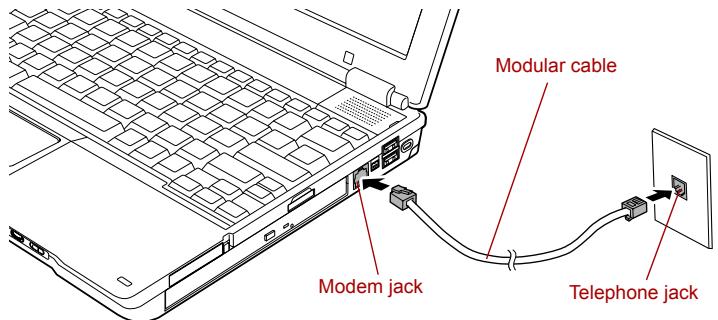
Connecting the internal modem

Do not pull on the cable or move the computer while the cable is connected.

If you use a storage device such as an optical drive or HDD connected to a 16-bit PC card, you might experience the following modem problems:
Modem speed is slow or communication is interrupted.
■ Skips may occur in sound.
Disconnecting
To disconnect the internal modular cable, follow the steps below.
- Pinch the lever on the connector in the telephone jack and pull out the connector.
- Disconnect the cable from the computer's modem jack in the same manner.
Wireless communications
The computer's wireless communication function supports both Wireless LAN and Bluetooth devices.
Bluetooth is provided with some models in this series.
Wireless LAN
The Wireless LAN is compatible with other LAN systems based on Direct Sequence Spread Spectrum /Orthogonal Frequency Division Multiplexing radio technology that complies with IEEE802.11 Wireless LAN standard (Revision A, B or G) and Turbo Mode.
■ Theoretical maximum speed: 54Mbps (IEEE802.11a, 802.11g)
■ Theoretical maximum speed: 11Mbps (IEEE802.11b)
■ Theoretical maximum speed: 108Mbps (Turbo Mode; Atheros module type)
■ Frequency Channel Selection (Revision A:5 GHz, Revision B/G: 2.4 GHz)
■ Roaming over multiple channels
Card Power Management
Atheros Super G ^TM or Super AG ^TM technology (Atheros module type).
■ Wired Equivalent Privacy (WEP) data encryption, based on the 152 bit encryption algorithm (Atheros module type).
Wired Equivalent Privacy (WEP) data encryption, based on the 128 bit encryption algorithm (Intel module type).
■ Advanced Encryption Standard (AES) data encryption, based on 256 bit encryption algorithm (Atheros module type).
■ Wi-Fi Protected Access (WPA).

The numerical values for display are the theoretical maximums for Wireless LAN standards. The actual values may differ.
The transmission speed over the wireless LAN and the distance over which wireless LAN can reach may vary depending on surrounding electromagnetic environment, obstacles, access point design and configuration, and client design and software/hardware configurations. The Transmit Rate (xx Mbit/s) is the theoretical maximum speed under the IEEE802.11 (a/b/g) standard. The actual transmission speed will be lower than the theoretical maximum speed.
To use the Atheros SuperG ^TM or SuperAG ^TM function, your client and access point must support the corresponding feature. Performance of these functions may vary depending on the format of data transmitted.
Security
Be sure to enable WEP (encryption) function. Otherwise your computer will allow the illegal access by outsider through Wireless LAN to cause illegal intrusion, eavesdropping, and loss or destruction of stored data. TOSHIBA strongly recommend the customer to enable the WEP function.
■ TOSHIBA is not liable for the eavesdropping of data due to the use of Wireless LAN and the damage thereof.
Bluetooth wireless technology
Bluetooth™ wireless technology eliminates the need for cables between electronic devices such as desktop computers, printers and mobile phones.
You cannot use the built-in Bluetooth functions and an optional Bluetooth SD card 3 simultaneously.
Bluetooth wireless technology has the following features:
Worldwide operation
The Bluetooth radio transmitter and receiver operate in the 2.4 GHz band, which is license-free and compatible with radio systems in most countries in the world.
Radio links
You can easily establish links between two or more devices. The link is maintained even if the devices are not within line of sight.
Security
Two advanced security mechanisms ensure a high level of security:
■ Authentication prevents access to critical data and makes it impossible to falsify the origin of a message.
■ Encryption prevents eavesdropping and maintains link privacy.
Bluetooth™ Stack for Windows® by TOSHIBA
Please note that this software is specifically designed for the following operating systems:
■ Microsoft® Windows® 2000 Professional
■ Microsoft® Windows® XP
Detailed information regarding the use with these operating systems is listed below. Please refer also to the electronic information which is included with each software.

This Bluetooth ^TM Stack is based on Bluetooth ^TM Version 1.1/1.2 specification. TOSHIBA cannot confirm all compatibility among any PC products and/or other electronic devices using Bluetooth ^TM other than TOSHIBA mobile PCs.
Release Notes related to the Bluetooth™ Stack for Windows® by TOSHIBA
- Install:
On Windows2000 or Windows XP, Bluetooth™ Stack for Windows® by TOSHIBA does not need signature. - Fax application software:
Regarding FAX application software, there are some software that you cannot use on this Bluetooth™ Stack. - Multi User:
On Windows XP, Multi user does not support.
When you use Bluetooth, you might not use Bluetooth another logon user.
Product Support:
The latest information regarding Operating System support, Language Support or available upgrades can be found on our web site http://www.toshiba-europe.com/computers/tnt/bluetooth.htm in Europe or www.pcsupport.toshiba.com in the United States.
Wireless communication switch
You can enable or disable Wireless LAN and Bluetooth functions, with the on/off switch. No transmissions are sent or received when the switch is off. Slide the switch to the right to turn it on and to the left to turn it off.

Set the switch to off in airplanes and hospitals. Check the indicator. It will stop glowing when the wireless communication function is off.
■ Turn the computer off when you enter an airplane and check the carrier's regulations before you use a computer on board.
Wireless communication Indicator
The wireless communication indicator indicates the status of the wireless communication functions.
| Indicator status | Indication |
| Indicator off | Wireless communication switch is set to off. Automatic power down because of overheating. Power malfunction |
| Indicator glows | Wireless communication switch is on. Wireless LAN or Bluetooth is turned on by an application. |
If you used the Task Bar to disable W-LAN, restart the computer or follow the procedures below to enable the system to recognize W-LAN. Open or click the following: start, Control Panel, System, Hardware, Device Manager, Network adapters, Intel® PRO/Wireless 2200BG/2915ABG Network Connection or Atheros AR5004G/AR5004X Wireless Network Adapter and enable.
LAN
The computer has built-in support for Ethernet LAN (10 megabits per second, 10BASE-T) and Fast Ethernet LAN (100 megabits per second, 100BASE-TX).
This section describes how to connect/disconnect to a LAN.

Do not install or remove an optional memory module while Wake-up on LAN is enabled.

The Wake-up on LAN function consumes power even when the system is off. Leave the AC adaptor connected while using this feature.
LAN cable types

The computer must be configured properly before connecting to a LAN. Logging onto a LAN using the computer's default settings could cause a malfunction in LAN operation. Check with your LAN administrator regarding set-up procedures.
If you are using Fast Ethernet LAN (100 megabits per second, 100BASE-TX), be sure to connect with a CAT5 cable or higher. You cannot use a CAT3 cable.
If you are using Ethernet LAN (10 megabits per second, 10BASE-T), you can connect with either a CAT5 or a CAT3.
Connecting LAN cable
To connect the LAN cable, follow the steps below.

Connect the AC adaptor before connecting the LAN cable. The AC adaptor must remain connected during LAN use. If you disconnect the AC Adaptor while the computer is accessing a LAN, the system may hang up.
Do not connect any other cable to the LAN jack except the LAN cable. Otherwise, malfunctions or damage may occur.
Do not connect any power supplying device to the LAN cable that is connected to the LAN jack. Otherwise, malfunctions or damage may occur.
- Turn off the power to the computer and to all external devices connected to the computer.
- Plug one end of the cable into the LAN jack. Press gently until you hear the latch click into place.
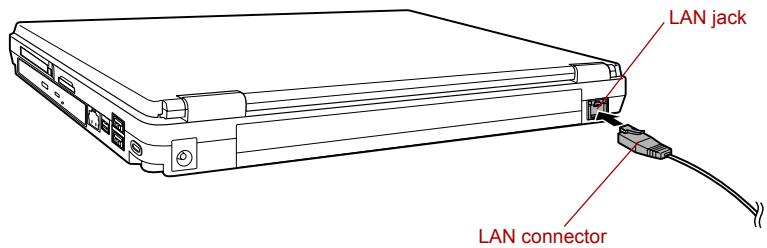
Connecting the LAN cable
- Plug the other end of the cable into a LAN hub connector. Check with your LAN administrator before connecting to a hub.

When the computer is exchanging data with the LAN, the LAN Active indicator glows orange. When the computer is connected to a LAN hub but is not exchanging data, the Link indicator glows green.
Disconnecting LAN cable
To disconnect the LAN cable, follow the steps below.

Make sure the LAN Active indicator (orange LED) is out before you disconnect the computer from the LAN.
- Pinch the lever on the connector in the computer's LAN jack and pull out the connector.
- Disconnect the cable from the LAN hub in the same manner. Check with your LAN administrator before disconnecting from the hub.
Cleaning the computer
To help ensure long, trouble-free operation, keep the computer free of dust and use care with liquids around the computer.
- Be careful not to spill liquids into the computer. If the computer does get wet, turn the power off immediately and let the computer dry completely before you turn it on again.
- Clean the computer using a slightly damp (with water) cloth. You can use glass cleaner on the LCD display screen. Spray a small amount of cleaner on a soft, clean cloth and wipe the screen gently with the cloth.

Never spray cleaner directly onto the computer or let liquid run into any part of it. Never use harsh or caustic chemical products to clean the computer.
Moving the computer
The computer is designed for rugged durability. However, a few simple precautions taken when moving the computer will help ensure trouble-free operation.
■ Make sure all disk activity has ended before moving the computer. Check the HDD indicator on the computer.
If a CD/DVD is in the drives, remove it. Also make sure the disc tray is securely closed.
■ Turn off the power to the computer.
■ Disconnect the AC adaptor and all peripherals before moving the computer.
- Close the LCD display panel. Do not pick up the computer by its panel.
- Close all port covers.
■ Use the carrying case when transporting the computer.
When carrying your computer, be sure to hold it securely so that it does not fall or hit anything.
- Do not carry your computer by holding protruded portions.
Heat dispersal
To protect from overheating, the CPU has an internal temperature sensor. If the computer's internal temperature rises to a certain level, the cooling fan is turned on or the processing speed is lowered. You can select whether to control the CPU temperature by turning on the fan first, then if necessary, lowering the CPU speed. Or, by lowering the CPU speed first, then if necessary, turning on the fan. Use the Cooling Method item of the Basic Setup tab in TOSHIBA Power Saver.
| Maximum Performance | Turns on the fan first, then if necessary, lowers the CPU processing speed. |
| Performance | Uses a combination of the fan and lowering the CPU processing speed. |
| Battery optimized | Lowers the CPU processing speed first, then if necessary turns on the fan. |
When the CPU temperature falls to a normal range, the fan is turned off and the CPU operation returns to standard speed.

If the CPU temperature reaches an unacceptably high level with either setting, the system automatically shuts down to prevent damage. Data in memory will be lost.
Chapter 5
The Keyboard
The computer's keyboard layouts are compatible with a 101/102-key enhanced keyboard. By pressing some keys in combination, all the 101/102-key keyboard functions can be executed on the computer.
The number of keys on your keyboard depends on which country/region's keyboard layout your computer is configured with. Keyboards for numerous languages are available.
There are six types of keys: typewriter keys, function keys, soft keys, Hot keys, Windows special keys and keypad overlay.
Typewriter keys
The typewriter keys produce the upper- and lower-case letters, numbers, punctuation marks, and special symbols that appear on the screen.
There are some differences, however, between using a typewriter and using a computer keyboard:
Letters and numbers produced in computer text vary in width. Spaces, which are created by a “space character,” may also vary depending on line justification and other factors.
The lowercase I (el) and the number 1 (one) are not interchangeable on computers as they are on a typewriter.
The uppercase O (oh) and the 0 (zero) are not interchangeable.
The Caps Lock function key locks only the alphabetic characters in uppercase while the shift lock on a typewriter places all keys in the shifted position.
The Shift keys, the Tab key, and the BkSp (backspace) key perform the same function as their typewriter counterparts but also have special computer functions.
Function keys: F1 ... F12
The function keys (not to be confused with Fn) are the 12 keys at the top of your keyboard. These keys function differently from other keys.

F1 through F12 are called function keys because they execute programmed functions when pressed. Used in combination with the Fn key, keys marked with icons execute specific functions on the computer. Refer to the section, Soft keys: Fn key combinations, in this chapter. The function executed by individual keys depends on the software you are using.
Soft keys: Fn key combinations
The Fn (function) is unique to TOSHIBA computers and is used in combination with other keys to form soft keys. Soft keys are key combinations that enable, disable or configure specific features.

Some software may disable or interfere with soft-key operations. Soft-key settings are not restored by the Standby feature.
Emulating keys on enhanced keyboard
![Esc F1 F2 F3 F4 F5 F6 F7 F8 F9 F10 F11 F12 PrtSc SprRect Scroll lock Pause Break Bk Sp Ins Home PgUp Num Lock / * - Del End PgDn 7 Home 8 9 PgUp 4 ← 5 6 ← 1 End 2 3 PgDo 0 Ins - Del Tab← Q W E R T Y U I O P [ ] CapsLock A S D F G H J K L : " Enter ← Shift Z X C V B N M < > ? / Shift Ctrl Alt Alt Ctrl](/content/2025/01/121214/images/a7770b3f628f443565af0d2a538488effca3830a109241a790d81ff49650e371.jpg)
A 101-key enhanced keyboard layout
The keyboard is designed to provide all the features of the 101-key enhanced keyboard, shown in the above figure. The 101/102-key enhanced keyboard has a numeric keypad and scroll lock key. It also has additional Enter and Ctrl keys to the right of the main keyboard. Since the keyboard is smaller and has fewer keys, some of the enhanced keyboard functions must be simulated using two keys instead of one on the larger keyboard.
Your software may require you to use keys that the keyboard does not have. Pressing the Fn key and one of the following keys simulates the enhanced keyboard's functions.

Press Fn + F10 or Fn + F11 to access the integrated keypad. When activated, the keys with gray markings on the bottom edge become numeric keypad keys (Fn + F11) or cursor control keys (Fn + F10). Refer to the Keypad overlay section in this chapter for more information on how to operate these keys. The power on default for both settings is off.

Press Fn + F12 (ScrLock) to lock the cursor on a specific line. The power on default is off.

Press Fn + Enter to simulate Enter on the enhanced keyboard's numeric keypad.
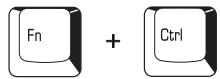
Press Fn + Ctrl to simulate the enhanced keyboard's right Ctrl key.
Hot keys
Hot keys (Fn + a function or Esc key) let you enable or disable certain features of the computers.
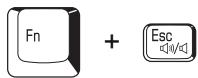
Sound mute: Pressing Fn + Esc in a Windows environment turns sound on or off. When you press these hot keys, the current setting will change and be displayed as an icon.
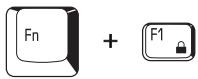
Instant security: Press Fn + F1 to blank the screen to prevent others from accessing your data. To restore the screen and original settings, press any key or press the Touch Pad. If a screensaver password is registered, a dialog box will appear. Enter the screensaver password and click OK. If no password is set, the screen will be restored when you press any key or press the Touch Pad.
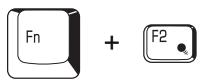
Power save mode: Pressing Fn + F2 changes the power save mode.
If you press Fn + F2 in a Windows environment, the settings dialog box for the Power Save Mode, similar to the one below, is displayed. Continue holding down Fn, and release and press F2 again to toggle between the settings. Release both Fn and F2 to put the new setting into effect. You can also change this setting through the Profile options in TOSHIBA Power Saver.
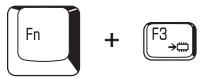
Standby: When you press Fn + F3, the computer enters the Standby mode. Before entering Standby, a dialog box appears asking for your confirmation. This dialog box will not be displayed in the future when you click the check box in it.
Hibernation: When you press Fn + F4, the computer enters the Hibernation mode. Before entering Hibernation, a dialog box appears asking for your confirmation. This dialog box will not be displayed in the future when you click the check box in it.
Display selection: Press Fn + F5 to change the active display device. When you press these hot keys, a dialog box appears. Only selectable devices will be displayed. Hold down Fn and press F5 again to change the device. When you release Fn and F5, the selected device will change. If you hold down these hot keys for five seconds the selection will return to the internal LCD.
Internal LCD screen Brightness: Pressing Fn + F6 decreases the LCD screen brightness in decrements. When you press these hot keys, the current setting will be displayed for two seconds by an icon. You can also change this setting through the Screen brightness item of the Basic Setup tab in TOSHIBA Power Saver.
Internal LCD screen Brightness: Pressing Fn + F7 increases the LCD screen brightness in increments. When you press these hot keys, the current setting will be displayed for two seconds by a pop-up icon. You can also change this setting through the Screen brightness item of the Basic Setup tab in TOSHIBA Power Saver.

The brightness level is always set at the maximum value for about 18 seconds, when the internal LCD screen turns on. After 18 seconds, the brightness level will appear at the Power Save Mode setting or you can change it manually.
■ LCD screen clarity increases with the brightness level.
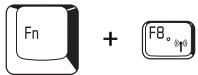
Wireless setting: If your computer has both Bluetooth and wireless LAN functions, you can press Fn + F8 to select which type of wireless communication you want to use. When you press these hot keys, a dialog box will appear. Continue holding down Fn and press F8 to change the setting. If wireless communication is turned off, Disabled Wireless Communication Switch will be displayed.

If no wireless communication device is installed, no dialog box will appear.
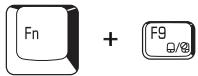
Touch Pad: Pressing Fn + F9 in a windows environment enables or disables the Touch Pad function. When you press these hot keys, the current setting will change and be displayed as an icon.
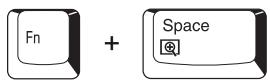
LCD screen resolution selection: Press Fn + Space keys to change the LCD screen resolution. Each time when you press these hot keys, the LCD screen resolution changes as follows: With XGA, you can change the resolution between 800 × 600 and 1024 × 768 pixels.
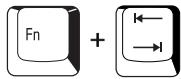
Optical media drive power icon: Press the Fn + Tab keys to turn the power of the optical media drive on or eject the disc tray. A dialog box is displayed when this hotkey is pressed. To choose between the functions, press the Tab key while holding down the Fn key. The chosen function is executed when the Fn + Tab keys are released.
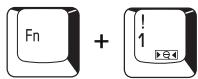
TOSHIBA Zooming Utility (reduce): To reduce the icon size on the desktop or the application window, press the 1 key while holding down the Fn key.
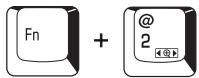
TOSHIBA Zooming Utility (enlarge): To enlarge the icon size on the desktop or the application window, press the 2 key while holding down the Fn key.
Fn Sticky key
You can use the TOSHIBA Accessibility Utility to make the Fn key sticky, that is, you can press it once, release it, and then press an "F number" key. To start the TOSHIBA Accessibility Utility, click start, point to All Programs, point to TOSHIBA, point to Utilities and click Accessibility.
Windows special keys
The keyboard provides two keys that have special functions in Windows: Windows logo key activates the start menu and the other, the application key, has the same function as the secondary mouse button.

This key activates the Windows start menu.

This key has the same function as the secondary mouse button.
Keypad overlay
Your computer's keyboard does not have an independent numeric keypad, but its numeric keypad overlay functions like one.
The keys in the center of the keyboard with gray letters make up the numeric keypad overlay. The overlay provides the same functions as the numeric keypad on the 101/102-key enhanced keyboard in the figure below.
Turning on the overlays
The numeric keypad overlay can be used for numeric data input or cursor and page control.
Arrow mode
To turn on the Arrow mode, press Fn + F10. The Arrow mode indicator lights. Now try cursor and page control using the keys shown in the figure below. Press Fn + F10 again to turn off the overlay.
Numeric mode
To turn on the Numeric mode, press Fn + F11. The Numeric mode indicator lights. Now try numeric data entry using the keys in the figure below. Press Fn + F11 again to turn off the overlay.
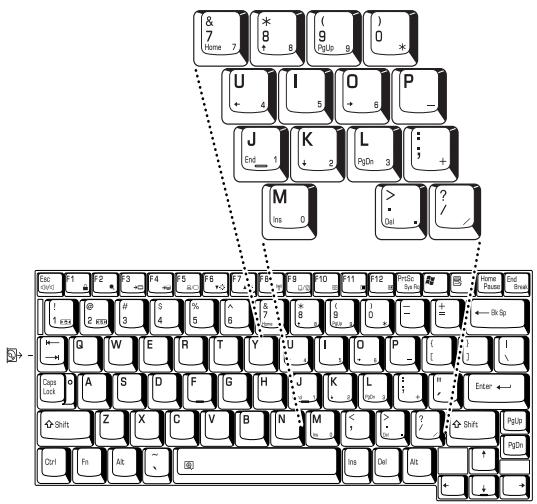
The numeric keypad overlay
Temporarily using normal keyboard (overlay on)
While using the overlay, you can temporarily access the normal keyboard without turning off the overlay:
- Hold Fn and press any other key. All keys will operate as if the overlay were off.
- Type upper-case characters by holding Fn + Shift and pressing a character key.
- Release Fn to continue using the overlay.
Temporarily using overlay (overlay off)
While using the normal keyboard, you can temporarily use the keypad overlay without turning it on:
- Press and hold down Fn.
- Check the keyboard indicators. Pressing Fn turns on the most recently used overlay. If the Numeric mode indicator lights, you can use the overlay for numeric entry. If the Arrow mode indicator lights, you can use the overlay for cursor and page control.
- Release Fn to return to normal keyboard operation.
Temporarily changing modes
If the computer is in Numeric mode, you can switch temporarily to Arrow mode by pressing a shift key.
If the computer is in Arrow mode, you can switch temporarily to Numeric mode by pressing a shift key.
Generating ASCII characters
Not all ASCII characters can be generated using normal keyboard operation. But, you can generate these characters using their ASCII codes.
With the overlay on:
- Hold down Alt.
- Using the overlay keys, type the ASCII code.
-
Release Alt, and the ASCII character appears on the display screen.
With the overlay off: -
Hold down Alt + Fn.
- Using the overlay keys, type the ASCII code.
- Release Alt + Fn, and the ASCII character appears on the display screen.
Power and Power-Up Modes
The computer's power resources include the AC adaptor, battery pack and internal batteries. This chapter gives details on making the most effective use of these resources including charging and changing batteries, tips for saving battery power, and power up modes.
Power conditions
The computer's operating capability and battery charge status are affected by the power conditions: whether an AC adaptor is connected, whether a battery pack is installed and what the charge level is for the battery.
Power conditions
| Power on | Power off(no operation) | ||
| AC adaptor connected | Battery fully charged | OperatesLED: Battery greenDC IN green | LED: Battery greenDC IN green |
| Battery partially charged or no charge | OperatesQuick ChargeLED: Battery orangeDC IN green | Quick chargeLED: Battery orangeDC IN green | |
| No battery installed | OperatesNo chargeLED: Battery offDC IN green | No chargeLED: Battery offDC IN green | |