CE-H21Y11-S1 - Audio/Video Accessories Siig - Free user manual and instructions
Find the device manual for free CE-H21Y11-S1 Siig in PDF.


User questions about CE-H21Y11-S1 Siig
0 question about this device. Answer the ones you know or ask your own.
Ask a new question about this device
Download the instructions for your Audio/Video Accessories in PDF format for free! Find your manual CE-H21Y11-S1 - Siig and take your electronic device back in hand. On this page are published all the documents necessary for the use of your device. CE-H21Y11-S1 by Siig.
USER MANUAL CE-H21Y11-S1 Siig
natural_image
Simple circular icon with a horizontal line and curved band, no text or symbols present.VGA & Audio to HDMI Converter Scaler Installation Guide
Introduction
The VGA & Audio to HDMI Converter Scaler converts VGA and audio signals to HDMI.
Key Features and Benefits
• Supports PC graphics resolution up to WUXGA (1920x1200) and HDTV (1080p)
- Supports de-interlacing & video H/V mirror
• Active video area adjustment and over/under scanning adjustable
• Supports noise reduction and video enhancement
- Stereo S/PDIF and analog Stereo audio inputs
- OSD control interface and IR remote control
- Metal housing with wall mount capability
Package Contents
• VGA & Audio to HDMI Converter Scaler
- Screw Kit and 4 rubber pads
• Power adapter (5V/2A)
- IR remote control
- Software CD and Installation guide
Layout

text_image
LED Indicator S/PDIF IN N/RMAL POWER SIGNAL DOWN UP MENU S/PDIF Audio In DIP Switch IR Sensor Push ButtonsFigure 1: Front Layout
• S/PDIF Audio In: Connect to a digital RCA
S/PDIF audio source
- DIP Switch: F/W ( ) for firmware update; NORMAL (↓) for normal operation
- LED Indicator: The upper LED lights up when powered on; the lower LED lights up when signal is detected
- IR sensor: Receives the IR commands from the included IR remote control
- Push Buttons (from left to right): Down, Up, Menu/Enter. See page 5 for more details.
text_image
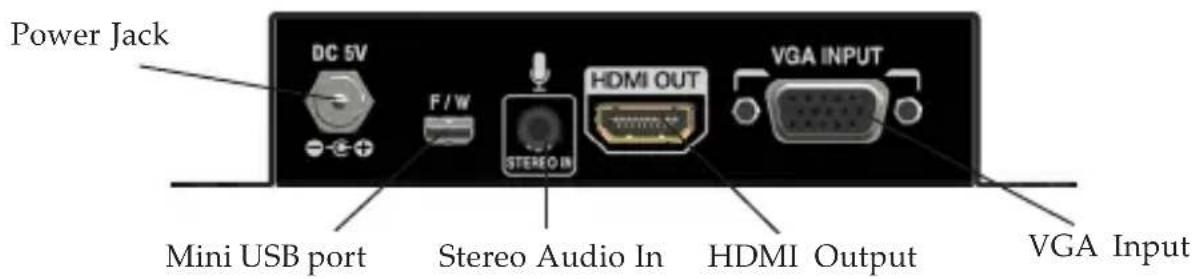
Power Jack DC 5V F/W STUDIO IN HDMI OUT VGA INPUT Mini USB port Stereo Audio In HDMI Output VGA InputFigure 2: Rear Layout
• Power Jack: Plug in the power adapter here
- Mini USB port: Connects to a USB port of a computer to control the Scaler via software.
- Stereo Audio In: Connects to an analog stereo audio source
• HDMI Output: Connects to an HDMI display
• VGA Input: Connects to a VGA source
Hardware Installation
- Power off all devices, including the source device and display.
-
Connect the PC's VGA output to the Scaler's VGA Input.
-
Connect the PC's analog stereo audio output to the Scaler's Stereo Audio In, or connect the PC's S/PDIF audio output to the Scaler's S/PDIF Audio In.
-
Plug the included power adapter into the Scaler's Power Jack, then plug it into a reliable power outlet.
-
Power on all audio/video units connected to the Scaler. The Scaler is ready to use.
Application
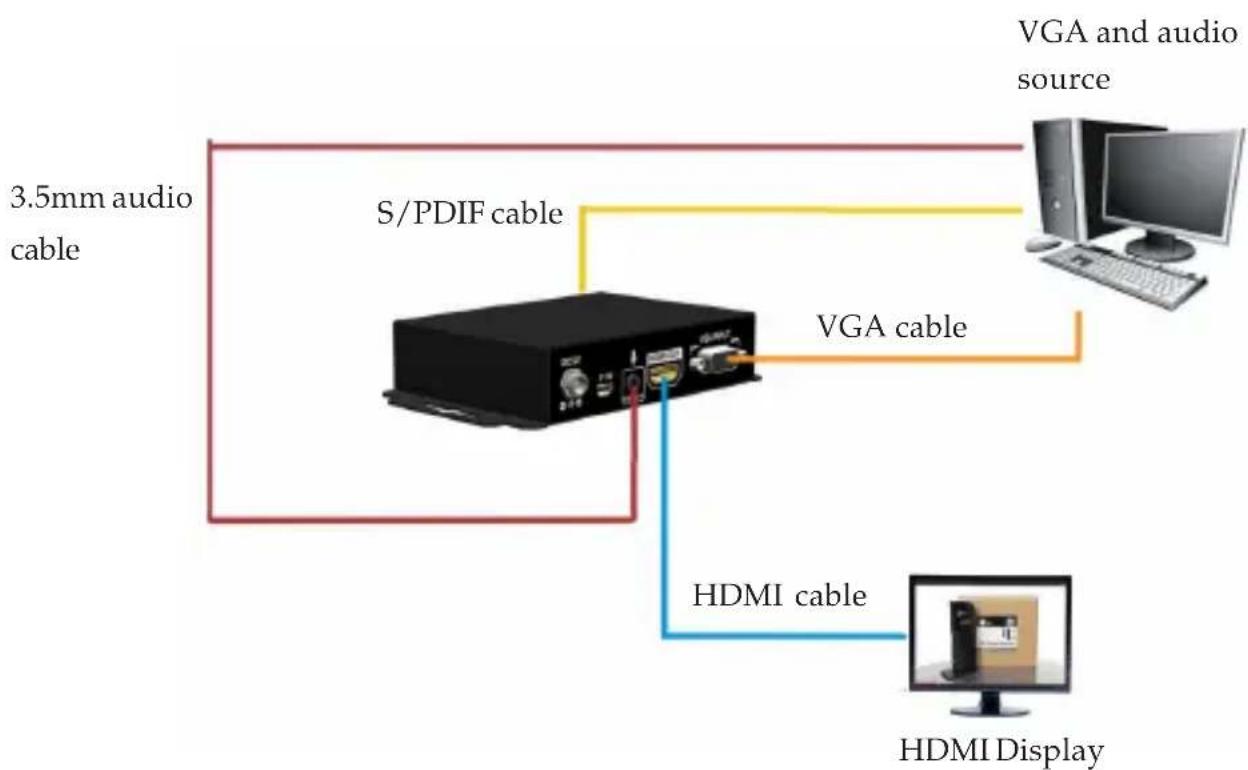
text_image
3.5mm audio cable S/PDIF cable VGA cable VGA and audio source HDMI cable HDMI DisplayFigure 3: Application
Scaler Control
The Scaler can be controlled by the front panel push buttons, IR remote control or Scaler software.

text_image
S/PDIF IN NORMAL E/W POWER SIGNAL DOWN UP MENUPush ButtonsIR Sensor
Push Button
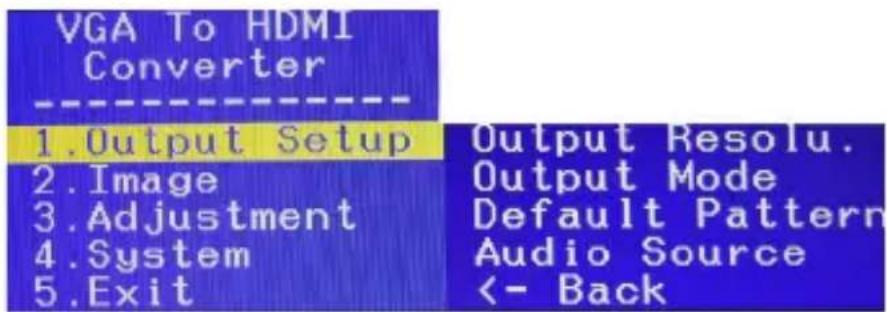
Press the MENU button to open the selection menu, see Figure 4. Use the UP or DOWN button to select the setting you want to change. Click Menu button to display the menu options.
text_image
VGA To HDMI Converter 1. Output Setup 2. Image 3. Adjustment 4. System 5. Exit Output Resolu. Output Mode Default Pattern Audio Source <- BackFigure 4
IR Remote Control
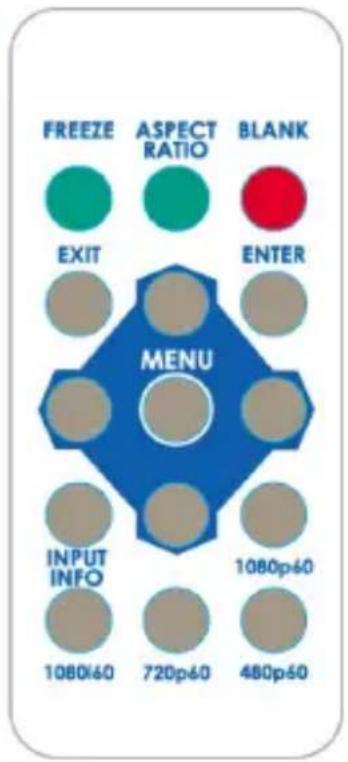
Point the remote control at the Scaler's IR sensor.
| Button | Function |
| FREEZE | Freeze video |
| ASPECT RATIO | Aspect ratio change |
| BLANK | Blank video |
| EXIT | Exit OSD |
| ENTER | Enter key |
| UP | Up key |
| LEFT | Left key |
| RIGHT | Right key |
| DOWN | Down key |
| MENU | Menu on |
| INPUT INFO | Source resolution information |
| 1080p60 | Select 1080p60 output resolution |
| 1080i60 | Select 1080i60 output resolution |
| 720p60 | Select 720p60 output resolution |
| 480p60 | Select 480p60 output resolution |
text_image
FREEZE ASPECT RATIO BLANK EXIT ENTER MENU INPUT INFO 1080p60 720p60 480p60Figure 5
Scaler Software
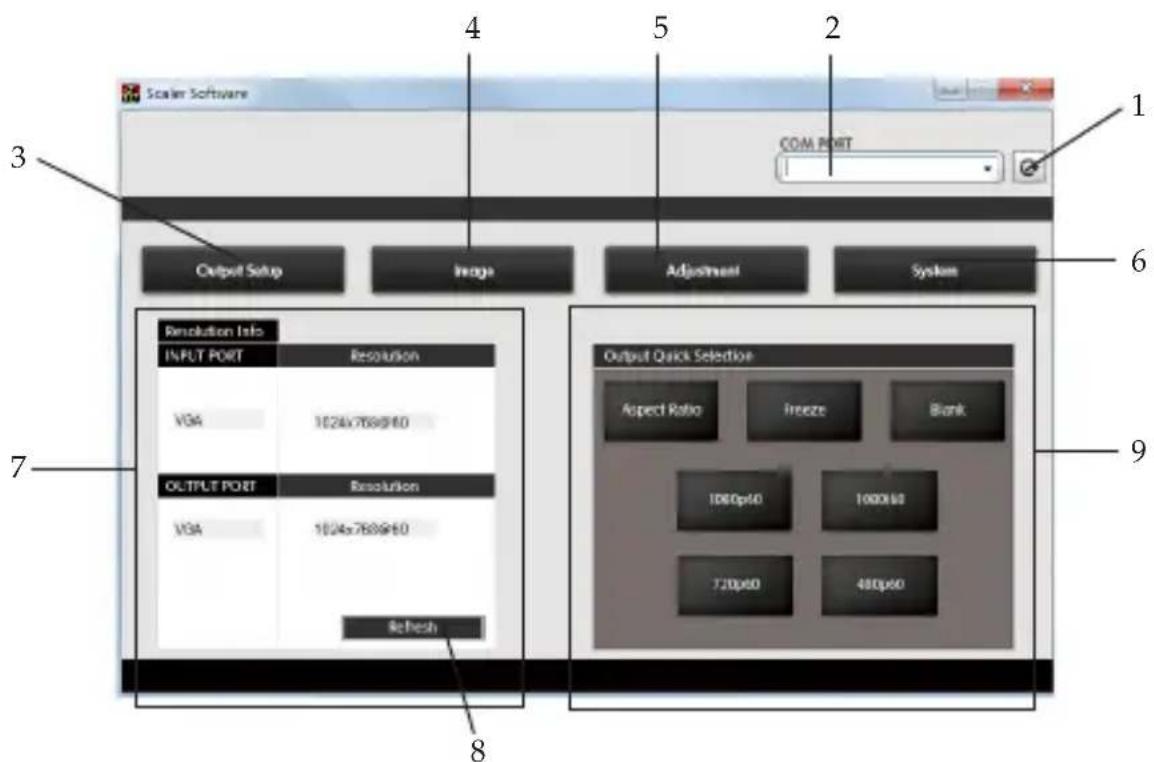
Connect the Scaler's mini USB port to your computer's USB port using a USB cable (cable not included). Insert the included software CD to your computer, double click the Setup file and follow the on-screen instructions to install the driver. After completing the installation, double click the Scaler Software icon to launch the software.
text_image
Scaler Software COM PORT Output Setup Image Adjustment System Resolution Info INPUT PORT Resolution VGA 1024x788@H0 OLT/PLT PORT Resolution VGA 1024x788@H0 Refresh Output Quick Selection Aspect Ratio Freeze Blank 1000p60 1000p60 720p60 480p60Figure 6: Scaler Software Main Menu
- COM Port search button:
Click the button to search for available COM ports.
- COM Port selection menu:
Select the Scaler's COM port from the drop down menu.
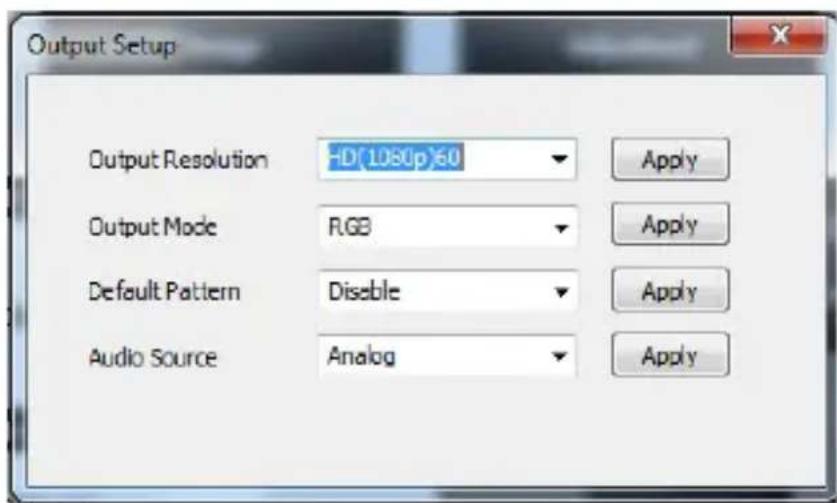
- Output Setup button:
Select the output resolution, output mode, default pattern, and the EDID audio channel from the drop down menu, then click Apply to enforce these changes.
text_image
Output Setup Output Resolution -D(1080p)60 Output Mode RGB Default Pattern Disable Audio Source Analog Apply Apply Apply Apply ApplyFigure 7
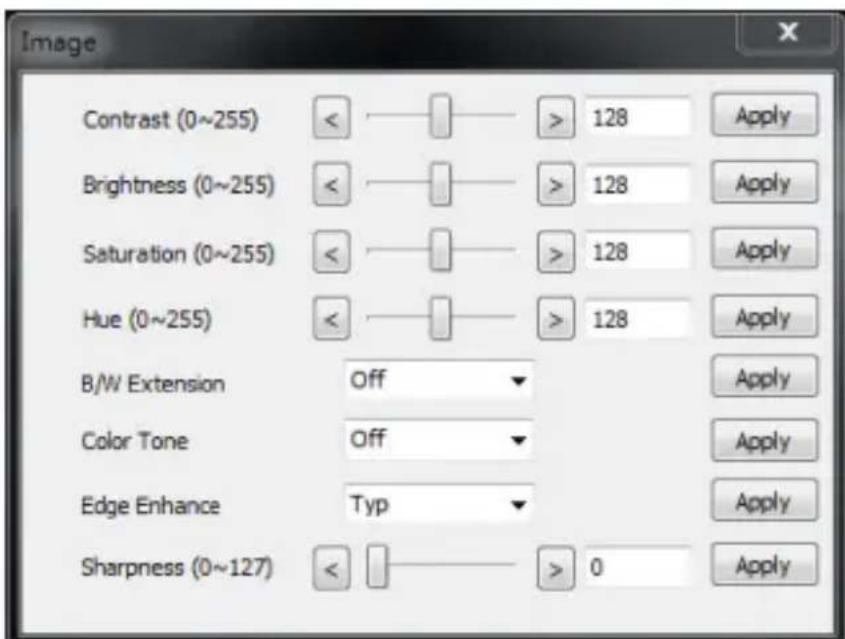
4. Image button:
Click the Image button to set up your preferred display contrast, brightness, saturation, hue and other related values.
text_image
Image Contrast (0~255) < > 128 Apply Brightness (0~255) < > 128 Apply Saturation (0~255) < > 128 Apply Hue (0~255) < > 128 Apply B/W Extension Off Apply Color Tone Off Apply Edge Enhance Typ Apply Sharpness (0~127) < > 0 ApplyFigure 8
5. Adjustment Button:
Click the Adjustment Button to adjust the screen size, change the aspect ratio or other display settings.

text_image
Adjustment Under/Over Scan -50%~50% < > 0 Apply Aspect Ratio 16:9 H-Mirror Off V-Mirror Off Input H adj (0~200) < > 0 Apply Input V adj (0~100) < > 0 ApplyFigure 9
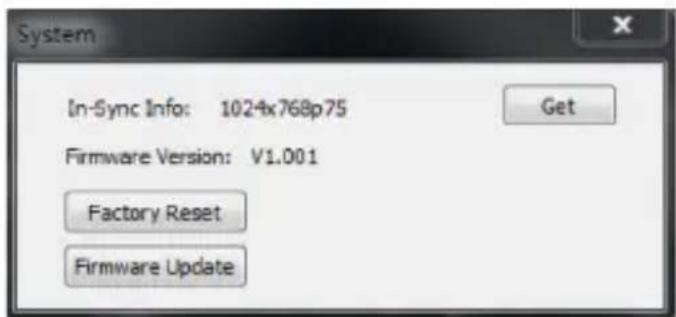
6. System Button:
Click System button, then click Get to view the current input resolution, or click Factory Reset to set the Scaler back to the default settings. The firmware can also be updated here. Please refer to the instructions on page 11.
text_image
System In-Sync Info: 1024x768p75 Firmware Version: V1.001 Factory Reset Firmware Update GetFigure 10
- Resolution info:
Displays the input/output port and screen resolution information.
- Refresh button:
After making any changes, click this button to view your new configuration.
- Output Quick Selection:
Shortcuts to some commonly used settings:
(1) Aspect ratio: Click to switch aspect ratio between 4:3 and 16:9.
(2) Freeze: Click to freeze the display. The display will remain still until you click the Freeze button again.
(3) Blank: Click to disable the display. Click the Blank button again to return to normal operation.
(4) 1080p60, 1080i60, 720p60, 680p60: Click to change the output resolution.
Firmware Update
Note: If the Scaler Software is not installed, go to Scaler Software on page 6 now and follow the instructions to install it. Otherwise, follow the instruction below to update the firmware.
- Connect the Scaler to your computer using a USB cable (cable not included), double click the Scaler software icon.
- Enter the Scaler software main menu, select a COM port and click Refresh to make the connection.
- Click System button, then click Firmware Update.
- Click Load file, select the firmware file.
- Set the DIP Switch up to F/W, unplug and plug the Scaler's power adapter.
- Click Burn. Wait for the firmware update process to complete.
- Power off the Scaler, unplug the USB cable from the computer, then set the DIP Switch back to Normal. The firmware update is now complete.
Refer to Table 1 for the various OSD viewing options.
| 1st Tier Option | 2nd Tier Option Range | |
| Output Setup | Out Resolution | |
| Output Mode | RGB(24bit) | |
| YC444(24Bit) | ||
| YC422(16EMB) | ||
| YC422(16SEP) | ||
| YC422(20EMB) | ||
| YC422(20SEP) | ||
| Default Pattern | Disable (Default) | |
| Window | ||
| H-Ramp | ||
| V-Ramp | ||
| H-Gray | ||
| V-Gray | ||
| H-Color | ||
| V-Color | ||
| Audio Source | I2S (Default) | |
| SPDIF | ||
| 1st Tier Option 2nd Tier Option Range | ||
| Image | Contrast 0~255 (Default 128) | |
| Brightness 0~255 (Default 128) | ||
| Saturation 0~255 (Default 128) | ||
| Hue 0~255 (Default 128) | ||
| B/W Extension | Off (Default) | |
| On | ||
| Color Tone | Off (Default) | |
| Skin | ||
| Green | ||
| Edge Enhance | Typ (Default) | |
| Mid | ||
| Max | ||
| Off | ||
| Sharpness 0-127 (Default 0) | ||
| System | In-Sync Info | |
| Firmware Version V1.001 | ||
| Factory Reset | No (Default) | |
| Yes | ||
| Adjustment | Under/Over Scan | -50%~50% (Default Off) |
| Aspect Ratio | 16:9 (Default) | |
| 4:3 | ||
| H-Mirror | Off (Default) | |
| On | ||
| V-Mirror | Off (Default) | |
| On | ||
| Input H Adj 0~200 | (Default 0) | |
| Input V Adj 0~100 | (Default 0) | |
Table 1
Table 1
Table 1
Supported Video Resolution
| Resolution | Refresh Rate |
| 800 x 600p | 56Hz / 60Hz / 72Hz / 75Hz |
| 1024 x 768p | 60Hz / 70Hz / 75Hz |
| 1280 x 720p | 60Hz |
| 1280 x 768p | 60Hz |
| 1280 x 960p | 60Hz |
| 1280 x 1024p | 60Hz / 75Hz |
| 1360 x 768p | 60Hz |
| 1366 x 768p | 60Hz |
| 1400 x 900p | 60Hz |
| 1400 x 1050p | 60Hz |
| 1600 x 900p | 60Hz |
| 1600 x 1200p | 60Hz |
| 1680 x 1050p | 60Hz |
| 1920 x 1080p | 60Hz |
Table 2
Technical Support and Warranty
QUESTIONS? SIIG's Online Support has answers! Simply visit our web site at www.siig.com and click Support. Our online support database is updated daily with new drivers and solutions. Answers to your questions could be just a few clicks away. You can also submit questions online and a technical support analyst will promptly respond.
SIIG offers a 3-year manufacturer warranty with this product. This warranty covers the original purchaser and guarantees the product to be free of any defects in materials or workmanship for three (3) years from the date of purchase of the product.
SIIG will, at our discretion, repair or replace (with an identical product or product having similar features and functionality) the product if defective in materials or workmanship. This warranty gives you specific legal rights, and you may also have other rights which vary from state to state. Please see our web site for more warranty details.
If you encounter any problems with this product, please follow the procedures below.
A) If it is within the store's return policy period, please return the product to the store where you purchased from.
B) If your purchase has passed the store's return policy period, please follow the steps below to have the product repaired or replaced.
Step 1: Submit your RMA request.
Go to www.siig.com, click Support, then REQUEST A PRODUCT REPLACEMENT to submit a request to SIIG RMA or fax a request to 510-657-5962. Your RMA request will be processed, if the product is determined to be defective, an RMA number will be issued.
Step 2: After obtaining an RMA number, ship the product.
- Properly pack the product for shipping. All accessories that came with the original package must be included.
- Clearly write your RMA number on the top of the returned package. SIIG will refuse to accept any shipping package, and will not be responsible for a product returned without an RMA number posted on the outside of the shipping carton.
- You are responsible for the cost of shipping to SIIG. Ship the product to the following address:
SIIG, Inc.
6078 Stewart Avenue
Fremont, CA 94538-3152, USA
RMA #: ____
- SIIG will ship the repaired or replaced product via Ground in the U.S. and International Economy outside of the U.S. at no cost to the customer.
About SII G, Inc.
Founded in 1985, SIIG, Inc. is a leading manufacturer of IT connectivity solutions (including Serial ATA and Ultra ATA Controllers, FireWire, USB, and legacy I/O adapters) that bridge the connection between Desktop/Notebook systems and external peripherals. SIIG continues to grow by adding A/V and Digital Signage connectivity solutions to our extensive portfolio. SIIG products offer comprehensive user manuals, many user-friendly features, and are backed by an extensive manufacturer warranty. High quality control standards are evident by the overall ease of installation and compatibility of our products, as well as one of the lowest defective return rates in the industry. SIIG products can be found in computer retail stores, mail order catalogs, through major distributors, system integrators, and VARs in the Americas and the UK, and through e-commerce sites.
PRODUCT NAME
VGA & Audio to HDMI Converter Scaler
FCC RULES: TESTED TO COMPLY WITH FCC PART 15, CLASS B OPERATING ENVIRONMENT: FOR HOME OR OFFICE USE
FCC COMPLIANCE STATEMENT:
This device complies with part 15 of the FCC Rules. Operation is subject to the following two conditions: (1) This device may not cause harmful interference, and (2) this device must accept any interference received, including interference that may cause undesired operation.
THE PARTY RESPONSIBLE FOR PRODUCT COMPLIANCE
SIIG, Inc.
6078 Stewart Avenue
Fremont, CA 94538-3152, USA
Phone: 510-657-8688
VGA & Audio to HDMI Converter Scaler is a trademark of SIIG, Inc. SIIG and SIIG logo are registered trademarks of SIIG, Inc. All other trademarks are the property of their respective owners