PDMIUSBMT300 - Speaker Pyle - Free user manual and instructions
Find the device manual for free PDMIUSBMT300 Pyle in PDF.


| Product Type | Portable Bluetooth Speaker |
| Brand | Pyle |
| Model | PDMIUSBMT300 |
| Color | Black |
| Dimensions (L x W x H) | 10.2 x 3.5 x 3.9 inches |
| Weight | 2.2 lbs |
| Power Source | Built-in rechargeable battery (3.7V 1800mAh) |
| Charging | Micro USB (5V/1A) |
| Battery Life | Up to 6 hours |
| Charging Time | 3-4 hours |
| Bluetooth Version | 4.2 |
| Bluetooth Range | 33 feet (10 meters) |
| Audio Playback | USB flash drive, microSD card, AUX input |
| FM Radio | Yes, with built-in antenna |
| Speaker Output | 10W RMS |
| Frequency Response | 20Hz - 20kHz |
| Microphone | Built-in for hands-free calls |
| Controls | Volume, Play/Pause, Mode, Next/Prev |
| LED Indicator | Yes, for pairing and charging |
| Care and Maintenance | Wipe with dry cloth, avoid moisture |
| Safety | Do not expose to liquids, use only included charger |
| Reparability | No user-serviceable parts; contact Pyle support |
| Package Contents | Speaker, USB charging cable, AUX cable, manual |
Frequently Asked Questions - PDMIUSBMT300 Pyle
User questions about PDMIUSBMT300 Pyle
0 question about this device. Answer the ones you know or ask your own.
Ask a new question about this device
Download the instructions for your Speaker in PDF format for free! Find your manual PDMIUSBMT300 - Pyle and take your electronic device back in hand. On this page are published all the documents necessary for the use of your device. PDMIUSBMT300 by Pyle.
USER MANUAL PDMIUSBMT300 Pyle
Need service or repair?
Want to leave a comment?
PyleUSA.com/ContactUs
DYLE
Questions? Issues?
We are here to help!
Phone: (1) 718-535-1800
Email: support@pyleusa.com
PYLE
PyleUSA.com

natural_image
Black PYLE audio recording device with blue foam grille and three legs (no visible text or symbols)★★★★★★★√
+□○□◆■□♣▲★□□★□□□□
4 Polar Patterns Streaming & Pro Audio Recording Mic with Tripod Stand, Easy USB Plug-and-Play (for Podcast Recording, Streaming, Gaming)
User Manual
ASSEMBLY - ATTACHING THE STAND STAND ANGLE ADJUSTMENT

natural_image
Illustration of a handheld device being adjusted for a lock mechanism, showing hand positioning and red-handled adjustment (no text or symbols)
natural_image
Diagram of a mechanical device with a cylindrical component and a base, showing a rotation arrow (no text or symbols)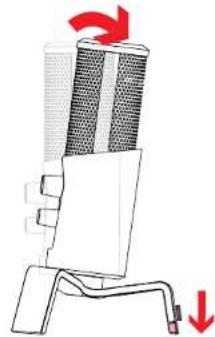
natural_image
Diagram of a device with a fan and handle, showing red directional arrows indicating rotation or movement (no text or symbols present)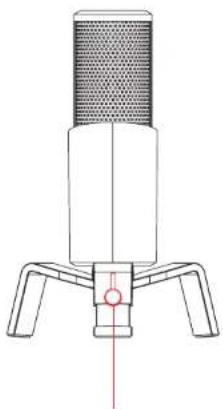
natural_image
Line drawing of a desktop microphone with three legs and a central hub (no text or symbols)
natural_image
Line drawing of a desktop microphone with adjustable base and top mount (no text or symbols)- Twist knob counter-clockwise to loosen.
Adjust leg height and twist clockwise to lock position
MICROPHONE FUNCTIONS

text_image
Dual Function Button A. Turn left to right to increase gain B. Press in to mute (LED glows RED) Headphone volume controller Headphone (3.5mm input)MICROPHONE FUNCTIONS
text_image
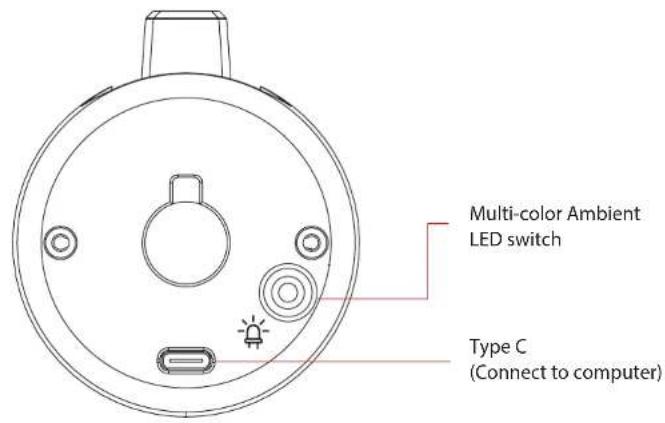
Multi-color Ambient LED switch Type C (Connect to computer)LED CONTROLS
natural_image
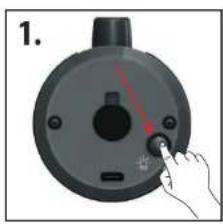
Hand pressing a button on a circular mechanical component (no text or symbols visible)NORMAL MODE
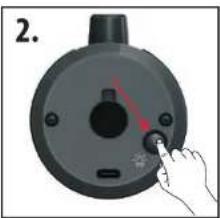
Press this button to change LED colors. The LED will stay illuminated.
natural_image
Hand pressing a button on a circular mechanical component (no text or symbols visible)ECO MODE
Hold this button (for 3 sec) to turn the LED function off.

natural_image
Hand pressing a button on a circular mechanical component (no text or symbols visible)RESET
Hold this button again (3 sec.) to turn the LED function back on. (Normal mode)
SELECT POLAR PATTERN
Press the Mode button to select different polar pattern settings. LED lights will illuminate to show each pattern.

text_image
POLAR PATTERN SELECTION CARDIOID (FRONT LED) BIDIRECTIONAL STEREO OMNIDIRECTIONAL- CARDIOID MODE: is perfect for recording sounds directly in front of the microphone. This is the most used polar pattern. It is the most beneficial and best pattern for streaming and gaming.
BIDIRECTIONAL MODE: records sound from the front and rear of the microphone. It's typically used for interviews but can be used by anyone sitting on opposite sides of the mic.
• STEREO MODE: uses both left and right channels to capture a realistic general sound image. It's great for recording musical instruments or acoustics.
OMNIDIRECTIONAL MODE: picks up sound equally from all directions. This mode is best for multi-person broadcasts so you can capture sound from around the room.
You have many choices in recording software.
Select the program that will best suit your audio needs and budget.
SETTING YOUR SOFTWARE LEVELS
The correct adjustment of microphone level is Important for optimum performance. Ideally, the microphone level should be as high as possible without overloading the input of your computer.
If you hear distortion or if your recording program shows levels that are consistently overloaded (at peak levels), turn the microphone volume or level) down. Do this using the control panel (or system preferences) settings or through your recording software.
If your recording program shows insufficient level, you can increase the microphone gain either from the control panel (or system preferences) settings or through your recording program.
It is important to position the microphone directly in line (on axis) with the person speaking/singing or instrument (or other sound source) to achieve the best frequency response of the microphone.
This requires the user to speak into the microphone from the Stadium symbol side positioned towards the mouth. The distance from the mouth should be about 1 inch, or 10 - 40mm for optimal recording.
For use in speaking/singing applications, the ideal placement for the microphone is directly in front of the person speaking/singing.
The same placement is optimal when you mic an instrument such as an acoustic guitar, drums or piano. Experiment with different mic placements to find the best sound for your particular setup based on the Polar pattern selected.
FREQUENCY RESPONSE DIAGRAMSELECTING SOFTWARE
CARDIOID (FRONT LED)
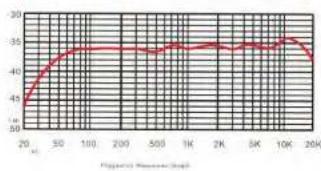
line
| X-axis Label | Y-axis Value | |---|---| | 20 | 45 | | 50 | 48 | | 100 | 49 | | 200 | 49 | | 500 | 49 | | 1K | 49 | | 2K | 49 | | 5K | 49 | | 10K | 49 | | 20K | 48 |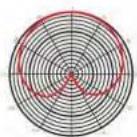
BIDIRECTIONAL
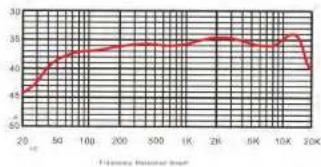
line
| Frequency Relative to Plant | Value | |---|---| | 20 Hz | 45 | | 50 Hz | 48 | | 100 Hz | 49 | | 200 Hz | 49.5 | | 300 Hz | 49.5 | | 1K | 49.5 | | 2K | 49.5 | | 5K | 49.5 | | 10K | 49.5 | | 20K | 47.5 |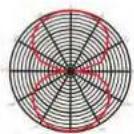
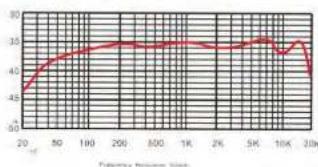
STEREO
line
| Frequency (Hz) | Value | |---|---| | 20 | 45 | | 50 | 48 | | 100 | 50 | | 200 | 52 | | 500 | 53 | | 1K | 52 | | 2K | 51 | | 5K | 50 | | 10K | 49 | | 20K | 47 |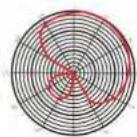

OMNIDIRECTIONAL

line
| Time Point | Value | |---|---| | 20 | 43 | | 50 | 46 | | 100 | 47 | | 200 | 48 | | 500 | 48 | | 1K | 48 | | 2K | 48 | | 5K | 48 | | 10K | 49 | | 20K | 47 |
PRELIMINARY SETUP WITH MAC OS X
- Plug the free end of the provided USB cable into the USB port on your computer. Your computer will automatically recognize the USB device.
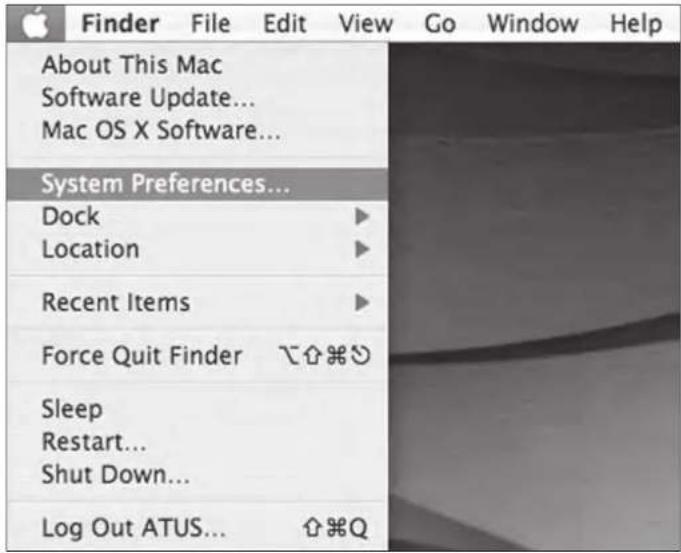
- To select the PDMIUSBMT300 as your audio input, first open your System Preferences.
text_image
Finder File Edit View Go Window Help About This Mac Software Update... Mac OS X Software... System Preferences... Dock Location Recent Items Force Quit Finder Sleep Restart... Shut Down... Log Out ATUS...NOTE: Many recording software programs are available online.
- Next, click Sound to display the Sound Preference panel.

text_image
System Preferences Show All Personal Appearance Dashboard & Expose Desktop & Screen Saver Dock International Security Spotlight Hardware Bluetooth CDs & DVDs Displays Energy Saver Keyboard & Mouse Print & Fax Sound Internet & Network Mac Network Quick Time Sharing System Accounts Date & Time Software Update Speech Startup Disk Universal Access- Click the input tab and select the PDMIUSBMT300 USB as the device for sound input.

text_image
Sound Show All Sound Effects Output Input Choose a device for sound input Name Port internal microphone Built-in FORMUSUM EXCELIN Settings for the selected device Input level: Input volume: Output volume: Mute Show volume in menu barYour preferences are now set to use the PDMIUSBMT300 on your Mac with GarageBand or another recording program of your choice.
PRELIMINARY SETUP WITH WINDOWS XP
- Plug the free end of the provided USB cable into the USB port on your computer. Your computer will automatically recognize the USB device.
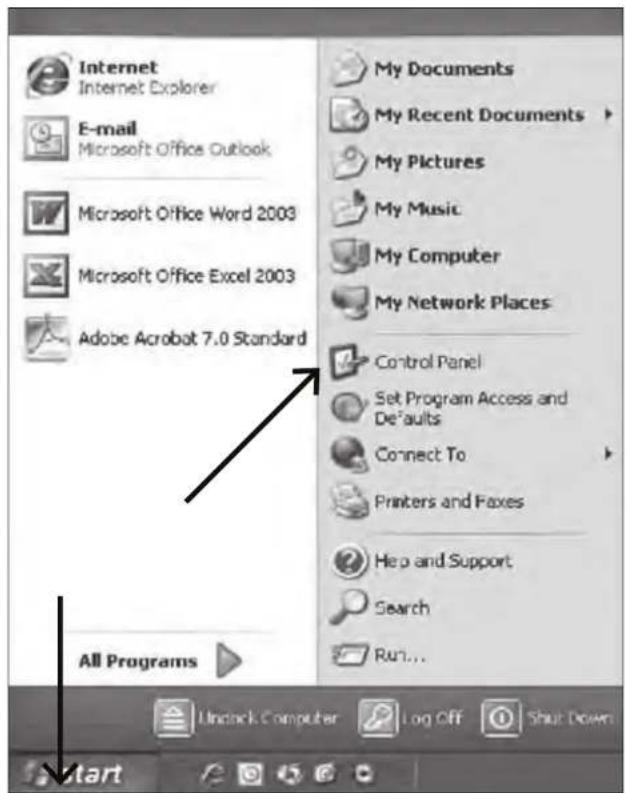
- To select the PDMIUSBMT300 as your default recording device, select START MENU> Control Panel.
text_image
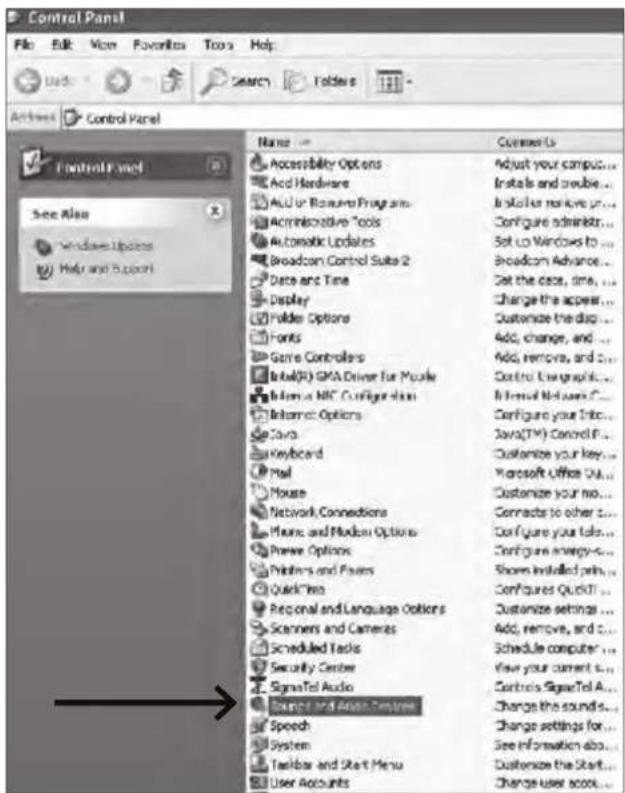
Internet Internet Explorer E-mail Microsoft Office Outlook Microsoft Office Word 2003 Microsoft Office Excel 2003 Adobe Acrobat 7.0 Standard All Programs My Documents My Recent Documents My Pictures My Music My Computer My Network Places Control Panel Set Program Access and Defaults Connect To Printers and Foxes Help and Support Search Run... Uncheck Computer Log Off Shut Down- Select Sounds and Audio Devices.
text_image
Control Panel File Edit View Favorites Tools Help Actions Control Panel Name Comment Us Accessibility Options Adjust your compus... Acc Hardware Installs and create... ACU or Resource Programs Installer remove up... Administrative Tools Configure adminstrs... Automatic Updates Set up Windows to... Broadcom Control Suite 2 Broadcom Advance... Date and Time Get the case, time... Display Change the appear... Folder Options Customize the disp... Fonts Add, change, and ... Game Controllers Add, remove, and ... Intel® GPU Driver for Muscle Control Graphic... Information NBC Configuration Internal Networks C... Internet Options Configure your Info... Java TV Control P... Keyboard Customize your key... Mail Microsoft Office Mail... Mouse Customize your no... Network Connections Connects to other ... Music and Modem Options Configure your info... Power Options Configure synergy... Printers and Passes Show installed pin... Quick Time Configures QuickT... Regional and Language Options Customize settings ... Scanners and Cameras Add, remove, and ... Scheduled Tasks Schedule computer ... Security Center View your current ... SigmaTel Audio Controls Signal Tel A... Monitor and Audio Controls Change the sounds... Speech Change settings for ... System See information about... Toolbar and Start Menu Customize the Start... User Accounts Change user scou...- Select the Audio tab, and choose PDMIUSBMT300 as the default device.
-
Adjust computer volume by clicking on the Volume button beneath Sound recording Default device.
-
Through the Wave In window, you can set the computer volume or mute the microphone.

text_image
Sounds and Audio Devices Properties Volume Sounds Audio Voice Hardware Sound playback Default device: SigmaTel Audio Volume... Advanced... Sound recording Default device: PDMIUSBMT300 Volume... Advanced... MIDI music playback Default device: Microsoft GS Wavstable SW Synth Volume... About... Use only default devices OK Cancel Help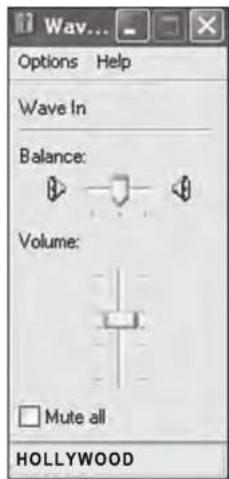
text_image
Wave... Options Help Wave In Balance: Volume: Mute all HOLLYWOOD- Your preferences are now set to use the PDMIUSBMT300 with Windows XP with the recording program of your choice.
PRELIMINARY SETUP WITH WINDOWS VISTA
- Plug the free end of the USB cable into the USB port on your computer. Your computer will automatically recognize the USB device.
- To select the PDMIUSBMT300 as your default recording device, begin at START MENU > Control Panel > Sound

text_image
Control Panel 4 Name Color Management Case and Time Default Programs Device Manager Sack of Audio Center Radio Systems Falls System Controllers Induding Options Internet Systems OCD Solution Wire Keyboard Mint Mouse Network and Steering C Off-line Max Fan and Input Devices Private Fiber Wire Performing Informatics Recommendations Power and Microwave Top Power Options Primers Program Reports and S Programs and Features Reported and Language Services and Controls Security Center Signal Tel Audio Sound Speech Recognition Sp Sym. Center System Category Hardware and Sound Cloud, Languages and Region Programs Hardware and Sound System and Maintenance Ease of Audio, Appearance and Personalized Appearance and Personalization Hardware and Sound System and Maintenance Network and Internet Security System and Maintenance Sound Playback Recording Sounds Select a recording device below to modify its settings: Microphone SigmaTel C-Major Audio Working Microphone PDMIUSBMT300 Working Configure Get Default Properties OK Cancel Apply- Select the Recording tab. Make sure that the PDMIUSBMT300 microphone is set as the default recording device.
(You should see a green check mark beside the USB microphone icon.)
Your preferences are now set to use the PDMIUSBMT300 with Windows Vista with the recording program of your choice.
PRELIMINARY SETUP WITH WINDOWS 7/10
- Plug the free end of the USB cable into the USB port on your computer.
Your computer will automatically recognize the USB device.
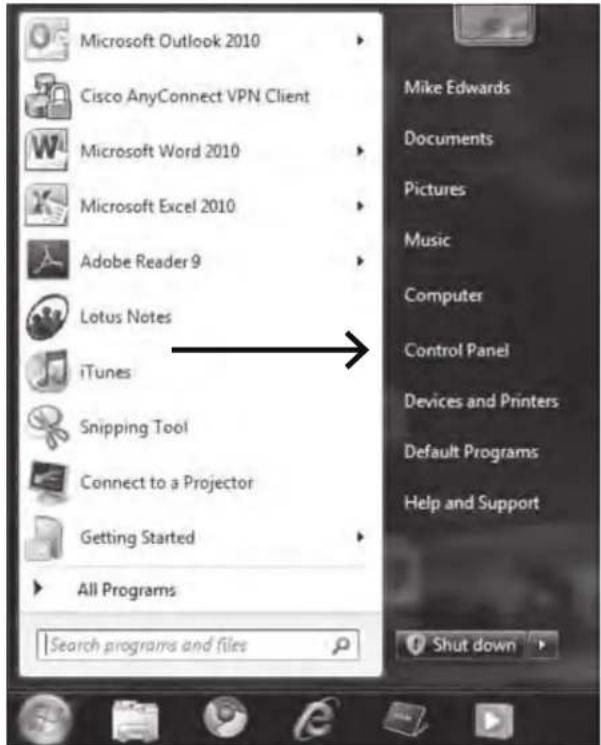
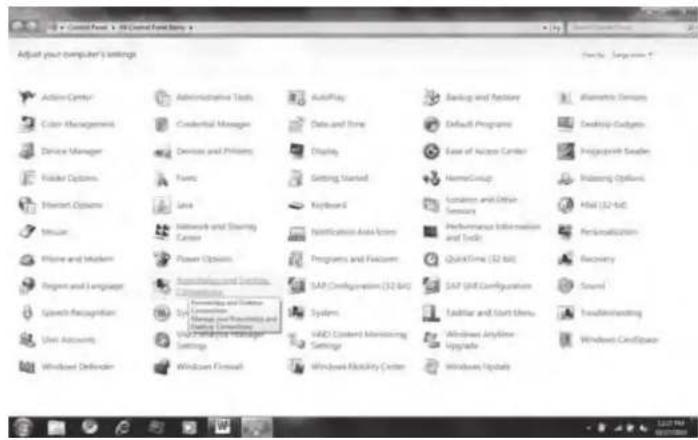
- START menu > Control Panel > Sound
To select the PDMIUSBMT300 USB as your default recording device, begin at your START menu. Select Control Panel.
text_image
Microsoft Outlook 2010 Cisco AnyConnect VPN Client Microsoft Word 2010 Microsoft Excel 2010 Adobe Reader 9 Lotus Notes iTunes Snipping Tool Connect to a Projector Getting Started All Programs Search programs and files Mike Edwards Documents Pictures Music Computer Control Panel Devices and Printers Default Programs Help and Support Shut down- Select Sound
text_image
Adjust your computer's settings Action Center Color Management Device Manager Folder Options Hostset Options Music Phone and Audio Program and Language Speech Recognition Unit Accounts Windows Definder Administrative Tools Credential Manager Devices and Providers Fonts Java Network and Sharing Cancer Power Options Information and Security Settings System Web Server Management Settings AutoPlay Data and Time Display Getting Started Keyboard Notification And Scene Programs and Features SAP Configuration (32 bit) Systems HAMD Control Administering Settings Windows Flexibility Center Banking and System Default Programs Ease of Access Center NameGroup Location and Other Services Performance information and Web QuickTime (32 bit) SAP Diff Configuration Editor and Start Users Windows Any/Flow Upgrade Windows Update- The following screen will pop up
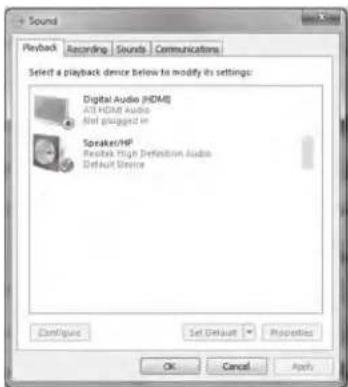
text_image
Sound Playback Recording Sounds Communications Select a playback device below to modify its settings: Digital Audio (HDMI) All HDMI Audio Not plugged in Speaker/HP Repeats High Definition Audio Default Device Configure Set Default Properties OK Cancel Apply-
Select the Recording tab & choose PDMIUSBMT300 USB as the default device.
-
Double click on the PDMIUSBMT300 USB icon to open the Microphone Properties window. Select the levels tab to adjust microphone level (loudness). You may need to come back to this window to readjust the level after you begin recording.
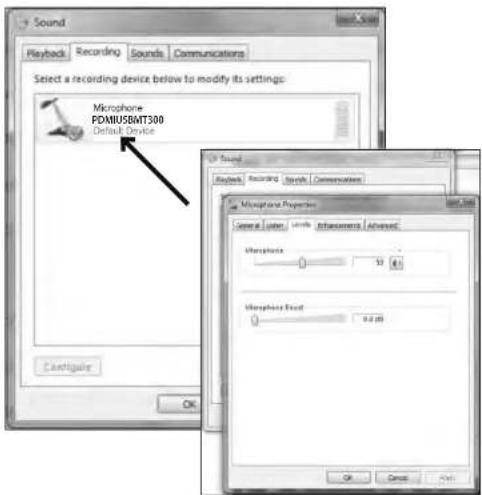
text_image
Sound Playback Recording Sounds Communications Select a recording device below to modify its settings: Microphone PDMIUSBMT300 Default Device OK Configure Sound Playback Recording Sounds Communications Microphone Properties General Color Length Inferences Advanced Microphone 12.4 Microphone Real 6.2 dB OK Cancel AddSYSTEM REQUIREMENTS
Macintosh
Mac OS X: USB 1.0 or 2.0; 64 MB RAM (minimum)
Windows
XP/Vista/Windows 7: USB 1.0 or 2.0; 64 MB RAM (minimum)
Specifications are subject to change without notice.
- 1 x USB Microphone
- 1 x Adjustable trifold stand
• 1 x USB cable length:1.8M
This manual is considered correct at time of printing but is subject to change. For latest manuals and updates refer to the website.
Features:
• Pro Audio Broadcasting Desktop Microphone
- Adjustable 4-in-1 Selector - Cardioid/Bidirectional/Stereo/Omnidirectional Polar Patterns
• Simple USB 'Plug-and-Play' Operation
• Headphone Jack, 3.5mm
- Adjustable Mic Volume/Gain & Headphone Volume Control
• RGB Solid Colors Effect with Eco-mode and Normal-mode
• LED Controls or Functions
- Connects to Your Computer for Hassle-Free Sound Control
• Used for Podcasts, Gaming, Streaming, Recording, Audio Editing
• Lab Tested for Stage & Studio-Quality Performance
• Crisp Vocal Pickup, High-Precision Audio Clarity
• Freestanding Mic Placement on Any Desktop, Counter, Table
• 5.9' Detachable USB Cable
- Detachable Metal Tripod Mic Stand Mount with angle adjustment
• Universal Computer Compatibility: Works with PC, Mac, Linux
• For Home, Office & Business Use
What's in the Box:
- USB Microphone - Solid Spider Stand - USB Cable
Technical Specs:
- Pickup/Polar Pattern: Cardioid/Bidirectional/Stereo/Omnidirectional Selectable
• Microphone Type: Back Electret Condenser
- Connection Interface: USB 2.0, Powered
- Sensitivity: -36dB +/- 2dB (0dB=1V/Pa at 1KHz)
- Max SPL: 130dB
• Frequency Response: 30-18kHz
• Output Impedance: 32 Ohm
- Bit Depth: 24 bit
• Sampling Rate: Up to 96kHz
• Computer Operating System Support: Windows XP, Vista, 7, 8, 10, Mac OS X, Linux
• Mic Stand Construction Material: Engineered Metal Alloy
• USB Cable Length: 5.9' ft.
• Power Output: USB-Powered, 100 mA
- Microphone Dimension: 7.1" x 2.9" x 2.9" – inches
• Total Assembled Dimensions (L x W x H): 9.25" x 5.1" x 5.1"-inches