E11IS9 - Laptop ECS - Free user manual and instructions
Find the device manual for free E11IS9 ECS in PDF.


| Product Type | Educational Laptop (Intel-powered Classmate PC) |
| Brand | ECS |
| Model | E11IS9 |
| Dimensions | 267.6 x 216 x 29.9-34.7 mm |
| Weight | 1.33 kg (3-cell battery) / 1.54 kg (6-cell battery) |
| Power Supply | AC Adapter 100-240V, 40W, 19V DC output |
| CPU | Intel Atom N435 (Single Core, 1.33GHz, 512K L2 cache) |
| Memory | 1GB or 2GB DDR3 667 So-DIMM (1 slot, expandable) |
| Storage Options | 8GB/16GB/32GB SSD, 160GB/250GB HDD, or 8GB UFD |
| Display | 10.1" (1024x600) or 7" (800x480) anti-glare LCD |
| Wireless | Wi-Fi 802.11 b/g/n, optional 3G/HSPA or WiMAX |
| Battery | 3-cell (11.1V, 2200mAh) or 6-cell (11.1V, 4400mAh/5200mAh) |
| Operating System | Windows 7 Starter / Home Basic / Professional |
| Keyboard | Spill-resistant, 83 UK or 84 US keys with hotkeys |
| Pointing Device | Touchpad with left/right buttons and vertical scroll bar |
| Audio | Built-in stereo speakers, microphone, headphone/mic jacks |
| Ports | 2x USB 2.0, Ethernet, External monitor, DC-in, Kensington lock |
| Card Reader | SD / SDHC / MMC |
| Security | Kensington lock, BIOS supervisor/user passwords |
| Special Features | G-sensor (HDD protection, optional), water-resistant keyboard/touchpad |
Frequently Asked Questions - E11IS9 ECS
User questions about E11IS9 ECS
0 question about this device. Answer the ones you know or ask your own.
Ask a new question about this device
Download the instructions for your Laptop in PDF format for free! Find your manual E11IS9 - ECS and take your electronic device back in hand. On this page are published all the documents necessary for the use of your device. E11IS9 by ECS.
USER MANUAL E11IS9 ECS
Intel-powered Classmate PC User's Manual

natural_image
Illustration of children playing with butterflies and a laptop, set against a forest background (no text or symbols)Preface
©Copyright 2010
All Rights Reserved.
The information in this document is subject to change without prior notice in order to improve reliability, design and function and does not represent a commitment on the part of the manufacturer.
In no event will the manufacturer be liable for direct, indirect, special, incidental, or consequential damages arising out of the use or inability to use the product or documentation, even if advised of the possibility of such damages.
This document contains proprietary information protected by copyright. All rights are reserved. No part of this manual may be reproduced by any mechanical, electronic, or other means in any form without prior written permission of the manufacturer.
Limitation of Liability
While reasonable efforts have been made to ensure the accuracy of this manual, the manufacturer and distributor assume no liability resulting from errors or omissions in this manual, or from the use of the information contained herein.
Table of Content
ATTENTION: TEACHERS, PARENTS AND ADULT SUPERVISORS ...... 2
AGENCY REGULATORY NOTICES 5
MODIFICATIONS....5
CONNECTIONS TO PERIPHERAL DEVICES....6
SAR EXPOSURE 6
DECLARATION OF CONFORMITY....6
EUROPEAN NOTICE 6
CANADIAN NOTICE....7
ATTACHMENT LIMITATIONS STATEMENT....7
POWER CORD REQUIREMENT 8
U.S. AND CANADA....8
BATTERY PACK SAFETY....9
LITHIUM BATTERY WARNING / BRIDGE BATTERY WARNING .... 10
GETTING TO KNOW THE BASICS 12
OPENING THE LCD PANEL....12
FRONT VIEW 13
WATER RESISTANCE PRECAUTIONARY MEASURES ON KEYBOARD,
POWER BUTTON AND TOUCH PAD BUTTONS 16
LEFT VIEWS 18
RIGHT VIEW....19
BOTTOM VIEW....20
CARDREADER....21
GETTING STARTED 23
CONNECTING THE AC ADAPTER....23
TO REMOVE THE BATTERY PACK: 25
BATTERY LOW-POWER WARNING....27
CHARGING THE BATTERY AND CHARGING TIME....27
CHECKING THE BATTERY LEVEL 28
PROLONGING THE BATTERY'S LIFE AND USAGE CYCLES....28
STANDBY SUSPEND....29
HIBERNATE SUSPEND....29
USING INTEL-POWERED CLAMSHELL CLASSMATE PC ....32
LCD CARE....32
FUNCTION KEYS (QUICK KEYS)....33
FUNCTION KEYS (QUICK KEYS)....33
TOUCHPAD PRECAUTIONS....34
BIOS SETUP AND SECURITY FEATURE....37
MAIN SETUP 39
ADVANCED SETUP....40
SECURITY 40
BOOT SETUP....41
EXIT SETUP 41
3G CONNECTION (OPTION) 44
TROUBLESHOOTING....54
SPECIFICATION....56
Chapter
1

natural_image
Two globe-shaped icons showing a laptop with a photo of a child and a smartphone displaying a family photo, symbolizing global connectivity (no text or symbols present)Attention: Teachers, Parents and Adult Supervisors
This product is an educational tool designed for school children, ages 6 and up. There must be supervision by an adult on school children under 10 when using this Intel-powered classmate PC. It is a must to have a thorough explanation to students on safe and proper handling of the Intel-powered classmate PC, power supply, battery pack, and power cord.

Be sure to keep the power cord away from younger children
Please ensure that students understand the following:
Emphasize to students that this device is an educational tool and not a toy. The computer, power supply, battery pack or power cord should not be dropped, crushed, stepped on or otherwise abused.
➢ Ensure students understand the safe and proper handling of power cord and power supply. Misuse could result in serious injury.
The teacher, parent or adult supervisor should periodically inspect the computer; power supply and power cord for damage and replace it, if necessary.
Students should report any damage or loose parts to their teacher, parent or adult supervisor, immediately.
Do not leave PC plugged in or "on" when enclosed in a non-vented container, such as a school backpack, as overheating may occur.
It is recommended that students should take a 5 minute break every 30 minutes of use.
Safety Precautions
The following are lists of precautionary measure the students must understand before using this computer inside the classroom or home environment:

- Do not place near fire or other sources of heat.
- Do not expose to magnetic fields.
- Do not expose to direct sunlight.
- Do not expose to rain or moisture.
- Do not place heavy objects to add heavy pressure on the computer.
- Do not drop the computer.
Caring for your Computer
Be sure not to clean the computer when it is plugged into a wall socket.
When cleaning the unit, clean only with a damp soft cloth. Do not pour liquid onto the unit..
Do not clean while computer is "on" or plugged into wall socket.
➢ Caution students to avoid using this device under wet conditions and also to protect the unit when carrying under this condition.
Be sure the touch pad does not come into contact with dirt, liquids, or grease.
Chapter
2

natural_image
Two floating laptops with photos of children on their backs, set against a blue sky and clouds (no text or symbols)Agency Regulatory Notices
Federal Communications Commission Notice
This equipment has been tested and found to comply with the limits for a Class B digital device, pursuant to Part 15 of the FCC Rules. These limits are designed to provide reasonable protection against harmful interference in a residential installation. This equipment generates, uses, and can radiate radio frequency energy and, if not installed and used in accordance with the instructions, may cause harmful interference to radio communications. However, there is no guarantee that interference will not occur in a particular installation. If this equipment does cause harmful interference to radio or television reception, which can be determined by turning the equipment off and on, the user is encouraged to try to correct the interference by one or more of the following measures:
Reorient or relocate the receiving antenna.
Increase the separation between the equipment and the receiver.
Connect the equipment into an outlet on a circuit different from that to which the receiver is connected.
Consult the dealer or an experienced radio or television technician for help.

WARNING....
This transmitter must not be co-
located or operating in conjunction with any other antenna or transmitter.
Modifications
The FCC requires the user to be notified that any changes or modifications made to this device that is not expressly approved by the Manufacture may void the user's authority to operate the equipment.
Connections to Peripheral Devices
Connections to this device must be made with shielded cables with metallic RFI/EMI connector hoods to maintain compliance with FCC Rules and Regulations.
SAR Exposure
Intel-powered clamshell classmate PC has been tested for and found to be in compliance with FCC RF Exposure Limit. During extended periods of use the integrated antenna located at the top left corner of the display screen should be positioned at least 20cm from users or nearby persons.
Declaration of Conformity
This device complies with Part 15 the FCC Rules. Operation is subject to the following two conditions: (1) this device may not cause harmful interference, and (2) this device must accept any interference received, including interference that may cause undesired operation.
European Notice
Products with the CE Marking comply with both the EMC Directive (2004/108/EC) and the Low Voltage Directive (2006/95/EC) and R&TTE Directive (1999/5/EC) issued by the Commission of the European Community.
Compliance with these directives implies conformity to the following European Norms:
EN55022: 2006, CLASS B
EN61000-3-2: 2006, CLASS D
EN61000-3-3: 1995+A1: 2001+A2: 2005
EN55024: 1998+A1: 2001+A2: 2003
IEC61000-4-2: 2001 ED. 1.2
IEC61000-4-3: 2006 ED. 3.0
IEC61000-4-4: 2004 ED. 2.0
IEC61000-4-5: 2005 ED. 2.0
IEC61000-4-6: 2006 ED. 2.2
IEC61000-4-8: 2001 ED. 1.1
IEC61000-4-11: 2004 ED. 2.0
EN 300 328-2, EN 300 328-1, EN 301 489-1, EN 301 489-17
(ETSI 300 328, ETSI 301 489) Electro-magnetic Compatibility and Radio Spectrum Matter.
EN60950 (IEC60950) I.T.E. Product Safety
Canadian Notice
This digital apparatus does not exceed the Class B limits for radio noise emissions from digital apparatus as set out in the radio interference regulations of the Canadian Department of Communications.
Attachment Limitations Statement

NOTICE.... This equipment meets
telecommunications network protective, operational and safety requirements as prescribed in the appropriate Terminal Equipment Technical Requirements document(s).
This is confirmed by marking the equipment with the Industry Canada certification number. The Department does not guarantee the equipment will operate to the user's satisfaction.
Before installing this equipment, users should ensure that it is permissible to be connected to the facilities of the local telecommunications company.
The equipment must also be installed using an acceptable method of connection. The customer should be aware that compliance with the above conditions may not prevent degradation of service in some situations.
Repairs to certified equipment should be coordinated by a representative designated by the supplier. Any repairs or alterations made by the user to this equipment, or equipment malfunctions, may give the telecommunications company cause to request the user to disconnect the equipment.
Users should ensure for their own protection that the electrical ground connections of the power utility, telephone lines and internal metallic water pipe system, if present, are connected together. This precaution may be particularly important in rural areas.

CAUTION...
Users should not attempt to make such connections themselves, but should contact the appropriate electric inspection authority, or electrician, as appropriate.
Power Cord Requirement
The power cord supplied with the AC adapter should match the plug and voltage requirements for your local area. Regulatory approval for the AC adapter has been obtained using the power cord for the local area.
However, if you travel to a different area and need to connect to a different outlet or voltage, you should use one of the power cords listed below. To purchase a power cord (including one for a country not listed below) or a replacement AC adapter, contact your local dealer.
U.S. and Canada
The cord set must be UL/ETL-Listed and CSA-Certified or UL/C-ETL Listed.
The minimum specifications for the flexible cord are (1) No. 18 AWG, (2) Type SPT-2, and (3) 2-conductor.
The cord set must have a rated current capacity of at least 7A.
The attachment plug must be NEMA 1-15P (7A, 125V) configuration.
Other Countries
The cord set fittings must bear the certification mark of the agency responsible for evaluation in a specific country. Acceptable agencies are:
* CCC (China)
The flexible cord must be of a HAR (harmonized) type HO5VV-F 3-conductor cord with a minimum conductor size of 0.03 square inches.
The minimum specification for the flexible cord for Class II product are: (1) 2X0.75 mm ^2 conductors, (2) 2-conductor cord.
The cord set must have a current capacity of at least 10 A and a nominal voltage rating of 125 / 250 VAC.
NOTE....
This model is designed to use with the
following AC Adapter model only.
Manufacture: LISHIN INTERNATIONAL ENTERPRISE CORP.
Model: 0225C2040 (AC 2 Pin)
Model: 0225A2040 (AC 3 Pin)
Manufacture: DELTA ELECTRONICS, INC.
Model: ADP-40MH AD (AC 2 Pin)
Model: ADP-40MH BD (AC 3 Pin)
Battery Pack Safety
The battery pack is intended to use only with this notebook.
The battery pack should be replaceable by the end user. Only qualified service technicians should replace the battery pack.
Do not disassemble the pack.
Do not dispose of the battery pack in fire or water.
To avoid risk of fire, burns, or damage to your battery pack, does not allow a metal object to touch the battery contacts.
Handle a damaged or leaking battery with extreme care. If you come in contact with the electrolyte, wash the exposed area with soap and water. If it contacts the eye, flush the eye with water for 15 minutes and seek medical attention.
Do not charge the battery pack if the ambient temperature exceeds 45°C (113°F).
To obtain a replacement battery, contact your local dealer.
Do not expose the battery pack to high storage temperatures (above 60^ C, 140^ F).
When discarding a battery pack, contact your local waste disposal provider regarding local restrictions on the disposal or recycling of batteries.
Use only supplied AC Adapter for charging.
CAUTION... Danger of explosion if battery is incorrectly replaced. Only qualified service technicians should replace and discard the battery pack. Replace only with same or equivalent type recommended by the manufacturer. Discard used batteries according to the manufacturer's instructions or local laws.
Lithium battery warning / Bridge battery warning
This computer contains a lithium battery to power the clock and calendar circuitry.
CAUTION... This part is hot. Be careful.
VORSICHT... Diese Flachewird sehr heiss. When you see this symbol, be careful as this spot may be very hot.
When you see this symbol, be careful as this spot may be very hot.
Chapter
3

natural_image
Two globe-shaped icons showing a laptop and a tablet, each with a photo of a family on its screen (no text or symbols)Getting To Know The Basics
Welcome to the Intel-powered Clamshell Classmate PC
Congratulations on your purchase of Intel-powered classmate PC. Intel-powered clamshell classmate PC features the latest advances in portable computing technology. Intel-powered clamshell classmate PC modular design provides maximum expandability without compromising portability.
Getting to Know Your Computer
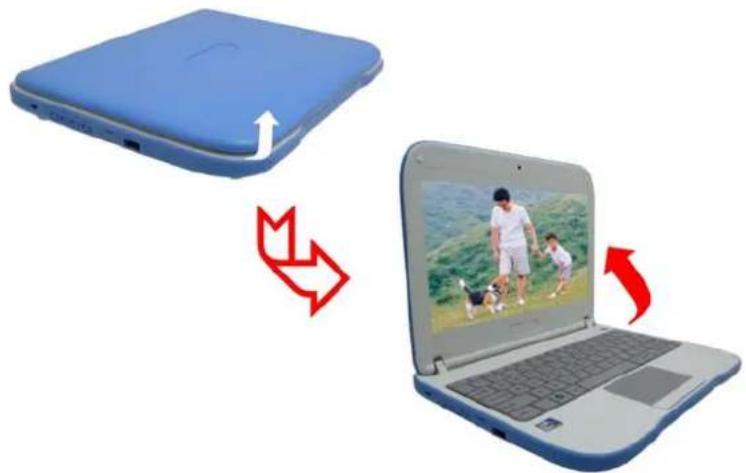
Opening the LCD Panel
natural_image
Two blue laptops with arrows indicating a change in image direction from left to right, showing the laptop screen and its side profile (no text or symbols present)WARNING....
The Intel-powered clamshell
classmate PC also features a rugged design that helps protect the computer from scratches and light falls. Please be careful when handling your computer and recommended not to let the computer fall from high places.

WARNING....
To avoid damage to the display
panel:
- Try not to slam the display upon closing it.
- Try not to place any object on top when it is closed or open.
- Be sure the system is turned off or in suspend mode before you close the display panel.
With the LCD screen open, you will see several features important for operating your Intel-powered clamshell classmate PC.
Front View
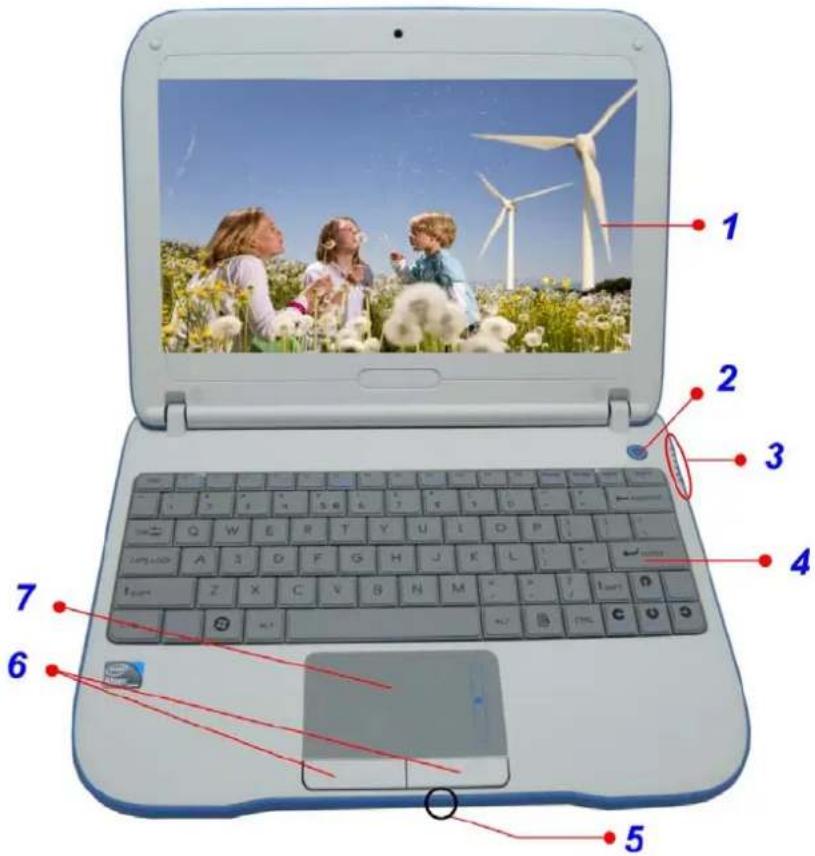
1. LCD Display
The panel is where the system content is displayed.
2. Power/Suspend Button
* Press momentarily to turn on the system.
* Press the power/suspend button again to return from the suspend mode.
3. LED Status Indicator
The LED Status Indicator displays the operating status of your Intel-powered classmate PC. When a certain function is enabled, the LED will light up. The following section describes each indicator.
System and Power Status Indicators

| LED Graphic Symbol | Indication | |
 | Blue light indicates the numeric keypad is activated. | |
 | Blue light indicates the cap-lock is activated. | |
 | Blue light indicates the is reading/writing data. | |
 | Blue light indicates the WLAN module is active. | |
 | Blue light indicates the system is ON. | |

The battery LED reflects according to the following status:
Blue light indicates the battery is fully charged and the AC Adapter is plugged in.
■ Red light indicates the battery is charging.
■ Blinking red light indicates the battery power is low.
No light indicates that the battery pack is not installed in your system.
■ Red light indicates the system is operated by battery where the capacity is low.
4. Keyboard
The keyboard is used to enter data.
5. Built-in Microphone
The microphone is used when you are having an audio/video conference with the other party.
6. Touch Pad
The touch pad is a built-in pointing device with functions similar to a mouse.
NOTE....
The touch pad is also equipped with a move around in a large document.
Sliding a vertical presentation of content, such as text, drawings, or images, across a screen or display window. It is often used to show large amounts of data that could not fit on the viewport all at the same time.

7. Touchpad Buttons
Works like the two buttons on an ordinary mouse.
Water Resistance Precautionary Measures on Keyboard, Power Button and Touch pad Buttons
The Intel-powered clamshell classmate PC features a spill-resistance function on keyboard, power button and touch pad buttons to ensure greater protection against spills in the classroom or anywhere.
These are the ways to avoid damage to your system:
Save all important documents within 3-minutes.
Power off the system in normal procedure (Click "Start" "Shut down"), unplug the AC adapter then remove the battery.
Tilt the system to the leftmost or rightmost position and gently wipe the liquid on the keyboard (Remember not to press the keyboard).

Power On the system after letting it dry up for four hours.
These procedures only apply for water resistance keyboard, power button and touchpad buttons.
WARNING.... Please take note that it can cause a severe damage to the system if the user uses the abnormal procedure (pressing the Ctrl-Alt-Del key combination) and forcibly shut down the system.
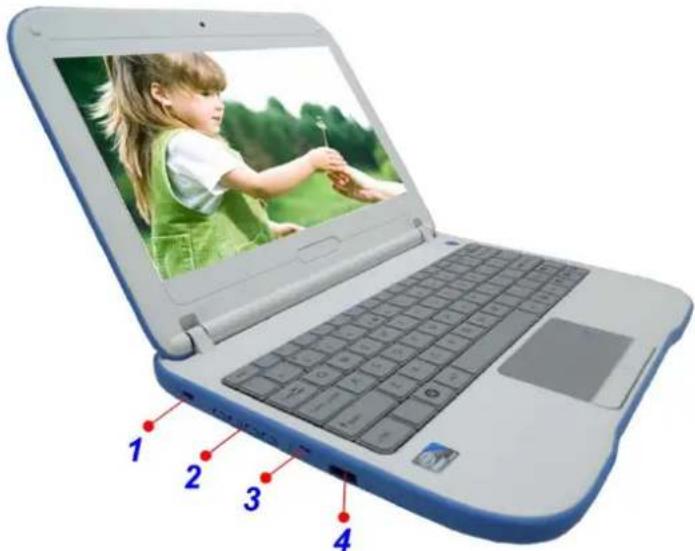
Left Views
natural_image
Laptop with a child playing on screen, labeled with numbered pointers (1–4) pointing to the screen area.1. Kensington Lock
This security lock provides the best options for physical security of computer in preventing the computer from being stolen.
2. Ventilation Grill
The ventilation opening allows the system to cool off and prevent overheating. Do not block this opening when the system is turned on.
3. Ethernet / LAN Port
NOTE....
When using a LAN, please use an EMI
Shielding Cable to minimize an interference when transmitting.
4. USB 2.0 Port
This port conforms to the latest USB2.0 plug-and-play standards.
NOTE....
USB power supported on S5 (power off)
- Power is supported whether the system is ON or OFF under AC mode.
Right View
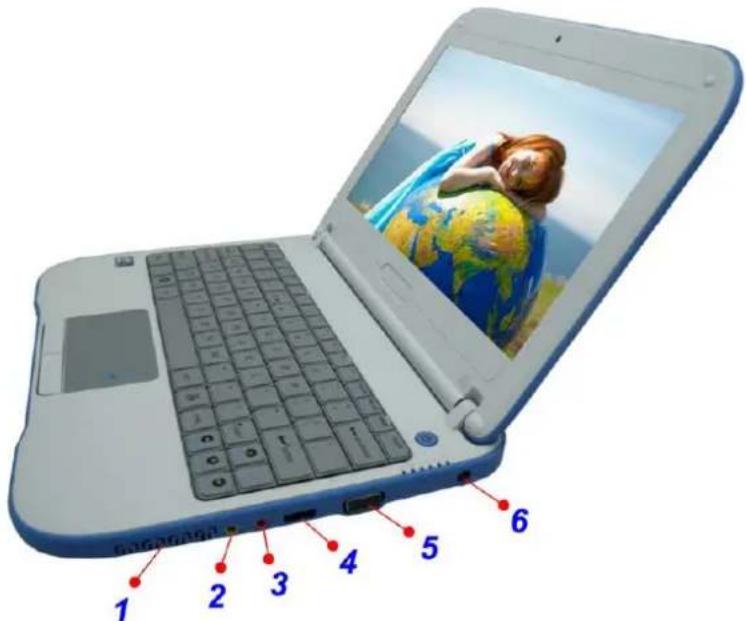
1. Ventilation Grill
The fan grill is where air is exchanged to dissipate the internal heat. Do not completely block this airway.
2. Stereo Headphone Jack
Use the headphone jack to connect an external headphone set.
3. Microphone Jack
Use the microphone jack to connect an external microphone.
4. USB 2.0 Ports
This port conforms to the latest USB2.0 plug-and-play standards.
5. External Monitor Port
Use this port to connect to an external monitor.
6. Power Jack (DC-in)
The DC-out jack of the AC Adapter connects here and power on the computer.
Bottom View
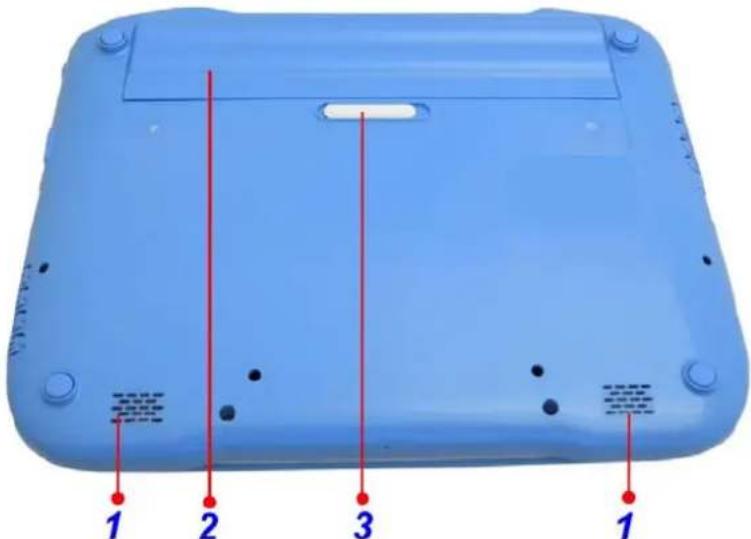
- Built-in Stereo Speakers
The built-in speaker output the sound in stereo.
- Battery Bay
This compartment contains the battery pack for your system.
- Battery Release Latch/Lock Latch
Slide this latch to release or lock the battery from the battery bay.
CardReader
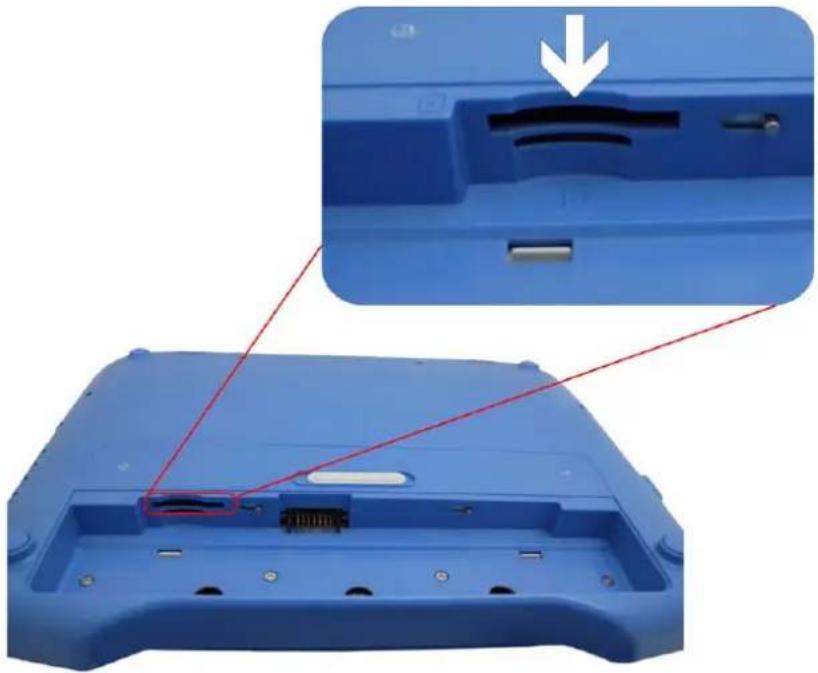
natural_image
Blue plastic electronic device casing with internal connector and red annotation lines (no text or symbols)Chapter
4

natural_image
Two globe-shaped icons showing a laptop and a tablet, each with a photo of a child on its screen (no text or symbols)Getting Started
Connecting to a Power Source
Connecting the AC Adapter
A universal AC adapter is provided to supply your computer with power and also charge the computer's battery pack. The adapter's AC input voltage can range anywhere from 100 to 240 volts, covering the standard voltages available in almost every country. To connect the computer to an external power source:
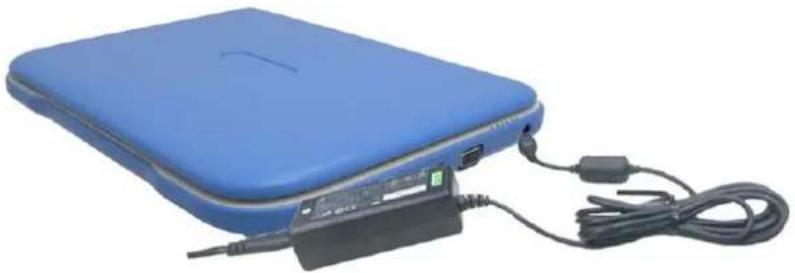
natural_image
Blue rectangular electronic device with attached black cable and power adapter (no visible text or symbols)WARNING....
Do not use inferior extension
cords as this may result in damage to your Intel-powered classmate PC. Intel-powered clamshell Classmate PC comes with its own AC adapter. Do not use a different adapter to power the computer and other electrical devices.
Whenever possible, keep the AC adapter plugged into the Intel-powered classmate PC and an electrical outlet to recharge the battery.
WARNING....
Never turn off or reset your Intel-
powered classmate PC while the hard disk is in use; doing so can result in loss or destruction of your data. Always wait at least 5 seconds after turning off your Intel-powered classmate PC before turning it back on; turning the power on and off in rapid succession can damage the Intel-powered classmate PC's electrical circuitry.
Turning On Your Computer
Turn on your Intel-powered classmate PC by pressing the power button. Hold the button down for a second or two and release. The Power-On Self Test (POST) runs automatically.
After the POST is completed, the computer reads the operating system from the hard disk drive into computer memory (this is commonly referred to as "booting" a computer). If your OS (Operating System such as Windows 7.... Etc.) is installed, it should start automatically.
To turn the Intel-powered classmate PC off, save your work and close all open applications, click on "Start", select "Shut down" or slightly press the power button.
Operating on Battery Power
Your computer comes with a rechargeable battery pack that lets you operate the computer without an external power source. When the battery pack is fully charged, you can operate the computer under the following conditions:
The battery pack initially has a full charge.
No peripheral devices are installed.
The Battery Pack
To Install the Battery Pack:
Align the battery pack and insert into the battery bay.
Slide the battery pack gently but firmly until it locks into place.
Slide the battery lock into locked position.

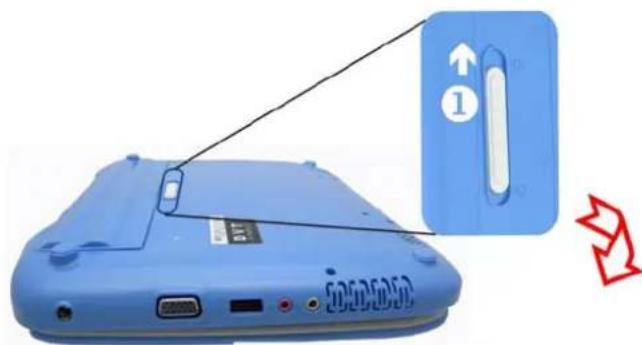
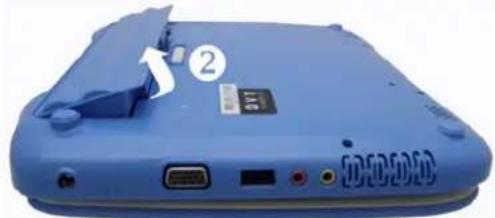
To Remove the Battery Pack:
Slide the battery lock switch left into unlocked position. The battery pack will pump up from the battery bay.
Slide and hold the battery release latch then slide the battery pack up.
Lift up the battery pack from the battery bay.
natural_image
Blue electronic device rear panel with ports and indicator lights (no visible text or symbols)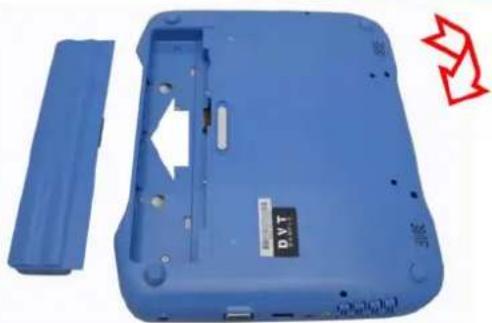
natural_image
Blue plastic electronic device casing with visible internal components and a red arrow symbol (no text or symbols on the device itself)Lithium-Ion Battery
Your Intel-powered classmate PC uses a Lithium-Ion battery pack that provides power when you don't have access to an AC outlet.
NOTE....
You must charge the battery pack for at
least six hours before using it for the first time.
In the Standby Suspend mode, a fully charged battery loses its power in roughly 1/2 day or less.
When not being used, the battery's power will deplete in one to two months.
The battery pack in this system is replaceable by the end user.
Battery Low-Power Warning
1. Low Battery Warning
Low battery condition occurs when battery power is reduced to 10 percent. The red battery status LED indicator blinks and the system beeps once every 16 seconds or so.
2. Very Low Battery Warning
Very Low battery condition occurs at 5 percent power remaining. The red battery status LED indicator blinks and the system beeps at 4-second interval.
When the Intel-powered classmate PC warns you of its low battery condition, you will have about three to five minutes to save your current work.

WARNING....
Do not expose battery packs to
temperatures below 0 degree Celsius (32 degree F) or above 60 degree C (140 degree F). This may adversely affect the battery pack.
Charging the Battery and Charging Time
To charge the battery, plug the AC adapter into the Intel-powered classmate PC and an electrical outlet.
For a totally discharged battery, it will take approximately two hours to charge to 90% capacity, and approximately three hours to 100% capacity while Intel-powered classmate PC is powered off. It will take about 5 hours to charge the battery to 100% capacity while Intel-powered classmate PC is powered on.
When the battery is fully charged, the battery charge indicator becomes blue.

NOTE....
If system runs at heavy loads or in a high
temperature environment, the battery may not be fully charged. You need to continue to charge it with the AC adapter plugged in until the charging LED turns blue.
NOTE....
System will not charge battery when
temperature exceeds 45°C.
Checking the Battery Level
You can check the remaining battery power in Operating System battery status indicator.
Prolonging the Battery's Life and Usage Cycles
There are ways you can prolong the use of battery.
Use the AC adapter wherever AC wall outlet is available. This will ensure uninterrupted computing.
Store the battery pack at room temperature. Higher temperature tends to deplete the battery's power faster.
Make good use of the power management function. Save To Disk (Hibernate) saves the most energy by storing current system contents in a hard disk space reserved for this function.
The life expectancy of the battery is approximately 300 recharges.
See the notices section in the beginning of the user manual on how to care for the battery pack.
Use Function+F7 key to decrease the brightness of the screen.
NOTE....
To achieve optimal battery performance,
you may need to do a battery calibration at a 3-month interval. To do this:
Fully charge the battery.
Then discharge the battery by entering the BIOS setup screen. (Press DEL key as soon as you turn on the computer. And let it remain on the setup screen until the battery runs out.
▶ Fully charge the battery again.
Using Power Options
Operating System Power Management provides basic power saving features. In the power configuration dialogue box, you may enter time-out values for display and hard disk drive.
Operating System power manager saves power by turning off hard drive after 1 minute of inactivity, for example.
NOTE.... Also consult Operating System user guide for more information on how to use Operating System power management functions. Actual dialogue box shown above may appear slightly different.
Suspend Mode
Standby Suspend
The system automatically enters this mode after a period of inactivity, which is set in the Power Scheme dialog box. In Standby mode, hardware devices, such as display panel and hard disk, are turned off to conserve energy.
Hibernate Suspend
In this mode, all system data are saved in the hard disk before powering down. When this mode is activated, all system state and contents are saved to the hard disk drive after a period of inactivity defined by the user.
No power or very little power is drawn from the battery module under this mode.
However, depending on how much RAM that has been installed on your computer, the amount of time the system requires to restore all its previous contents can range from five to 20 seconds.
Power Button Action
Intel-powered clamshell classmate PC power button can be set to turn off the system or activate the suspend mode.
CardReader

natural_image
Blue plastic electronic device casing with internal connectors and a red arrow pointing to a component detail (no text or symbols visible)Chapter
5

natural_image
Two floating laptops with photos of a child and a family, set against a blue sky background (no text or symbols)Using Intel-powered Clamshell Classmate PC
Adjusting the LCD Screen Display
The LCD screen display can be adjusted by the following key combinations.


the screen. It also disables the auto brightness (Light Sensor) adjustment.
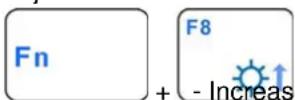
the screen. It also disables the auto brightness (Light Sensor) adjustment.
LCD Care
LCD screens are delicate devices that need careful handling. Please pay attention to the following precautions:
When you are not using the computer, keep the LCD screen closed to protect it from dust.
If you need to clean your LCD screen, use a soft tissue to gently wipe the LCD surface.
Do not put your fingers or sharp objects directly on the surface and never spray cleaner directly onto the display.
Do not press on, or store any objects on the cover when it is closed. Doing so may cause the LCD to break.
Intel-powered clamshell Classmate PC Hot Key Controls
Function Keys (Quick Keys)

Function Keys (Quick Keys)
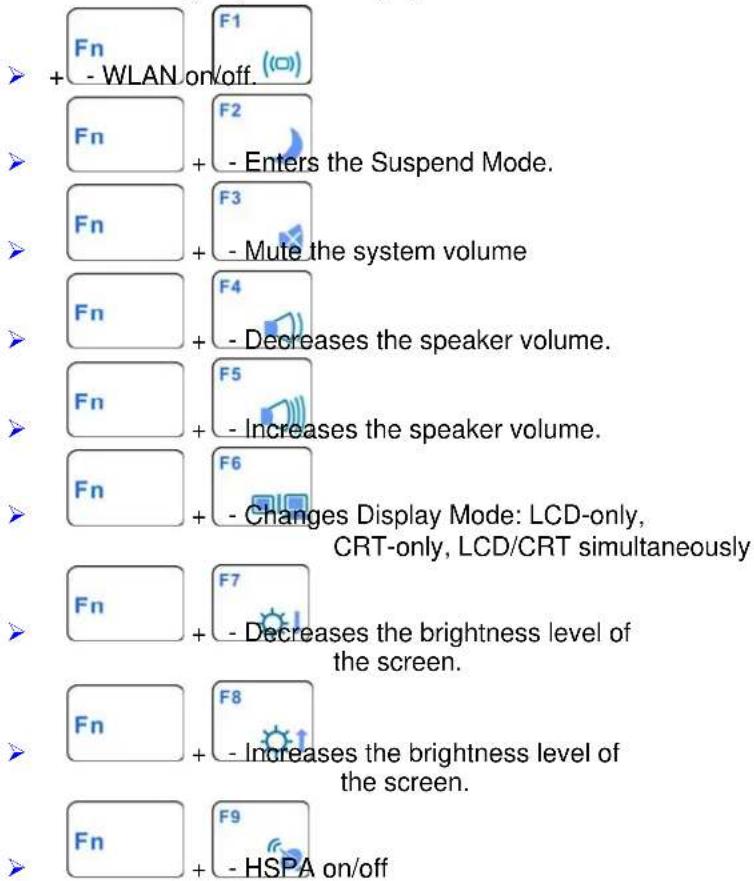
The TouchPad

natural_image
Laptop with keyboard and screen displaying a photo of a woman in a world (no visible text or symbols)The touchpad is a rectangular electronic panel located just below your keyboard. You can use the static-sensitive panel of the touchpad and slit it to move the cursor. You can use the buttons below the touchpad as left and right mouse buttons.
Move the tip of your finger across the touch pad to move the cursor on the screen.
➢ Press the left button once for a left-click operation.
Press the left button twice for double click operations.
Press the right button once for right-click operation
To drag and drop, press and hold the left button, and move your finger on the touch pad to the desired location.
TouchPad Precautions
The TouchPad is a pressure sensitive device. Please take note of the following precautions.
Make sure the TouchPad does not come into contact with dirt, liquids or grease.
Do not touch the TouchPad if your fingers are dirty.
Do not rest heavy objects on the TouchPad or the TouchPad buttons.
You can use the TouchPad with Microsoft Windows as well as non-Windows applications.
Resetting the System
After installing a software application package, you may be prompted to reset the system to load the changed operating environment.
To reset the system, or "reboot," press the [Ctrl]+[Alt]+[Delete] keys simultaneously. This is known as "warm boot." This key combination acts as "software" reset switch when you encounter hardware or software problems, which lock up the Intel-powered classmate PC.
If this key combination does not shut down the Intel-powered classmate PC, you can reset the computer by using the Intel-powered classmate PC's power button. Should the computer lock up for some reason, pressing this button powers the system off.
G Sensor (Optional)
natural_image
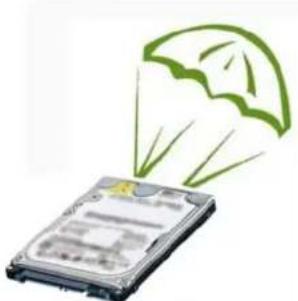
Illustration of a hard disk with an umbrella emitting green smoke (no text or symbols)The Hard-Disk Drive (HDD) Protection application protects the system's HDD from damage caused by sudden harmful shocks.
It monitors system movements that exceed the defined shock threshold. Once a shock is detected, the application instructs the HDD to temporarily park its heads which protects against potential damage the drive.
Chapter
6

natural_image
Two globe-shaped icons showing a laptop and a smartphone with a family photo, symbolizing global connectivity (no text or symbols)BIOS Setup And Security Feature
The Setup Utility is a hardware configuration program built into your computer's BIOS (Basic Input/Output System). It runs and maintains a variety of hardware functions. It is menu-driven software, which allows you to easily configure and change the settings.
The BIOS contains manufacturers default settings for the computer's standard operations. However, there are occasions when you may be required to modify the default settings in the BIOS.
The BIOS allows you to set up passwords to limit access to users. This is an important feature because a great deal of vital information is carried within the computer nowadays. Unauthorized access can be prevented. Later in this chapter, you will learn how to use this security feature.
Entering the BIOS Setup Screen
First turn on the power. When the BIOS performs the POST (Power-On Self Test), press DEL key quickly to activate the Setup Utility.
NOTE.... You may need to press DEL key fairly quickly. Once the system begins to load operating system, you may have to retry by cycle-power on again
Leaving the BIOS Setup Screen
When you have finished modifying the BIOS settings, exit the BIOS. It takes a few seconds to record changes in the CMOS.
BIOS Action Keys
| Legend Key | Alternate Key | Function |
| F1 Displays the General Help window. It can be enabled from anywhere in the BIOS. | ||
| Esc Jumps to the Exit menu or returns to the Main menu from a submenu. | ||
| ← | Selects the menu item to the left. | |
| → | Selects the menu item to the right. | |
| ↑ Or ↓ | Keypad arrow keys | Moves the cursor up and down between fields. |
| Tab Enter | Moves the cursor to the next position available in the field. | |
| Minus key (=) | Scrolls backward through the values for the highlighted field. | |
| Plus key (+) | Scrolls forward through the values for the highlighted field. | |
| Home PgUp | Moves the cursor to the field at the top of the window. | |
| End PgDn | Moves the cursor to the field at the bottom of the window. | |
| F9 Sets the parameters for the current menu to their default values. | ||
| F10 Save and Exit. | ||
| Enter Will select a sub menu or show a range of options for a field. | ||
Modifying the BIOS Settings
The BIOS setup main menu is subdivided into sub-menus. Each menu item is described in this section.
Main Setup
Under this menu, you may change time/date and view basic processor and system memory information.
![Phoenix SecureCore(tm) Setup Utility Main Advanced Security Boot Exit BIOS Version: BPPNV20L86A.0007.2010.1202.1659 KBC Version: 0.20 Language: System Memory: 2048MB System Time: [15:14:03] System Date: [12/17/2010] F1 Help ↑ Select Item -/+ Change Values F9 Setup Defaults Esc Exit ←→ Select Menu Enter Select ▶ Sub-Menu F10 Save and Exit](/content/2026/06/1210986/images/5d76d97418083b1b6f91294aa0519e95b2a9c14bfe4f6462fcbea2a205b45c19.jpg)

NOTE....
Due to various configurations on this may show different information.
System Time: Type in the current time, in HH:MM:SS format.
System Date: Type in the current date, in MM/DD/YY format.
Advanced Setup
| Phoenix SecureCore(tm) Setup Utility | ||||
| Main | Advanced | Security | Boot | Exit |
| CPU ConfigurationIDE ConfigurationVideo (Intel IGD) Control Sub-MenuSATA Controller Mode Option: [Enhanced]SATA AHCI Enable [Enabled] | Item Specific Help | |||
| F1 Help ↑↓ Select Item -/+ Change Values F9 Setup DefaultsEsc Exit ←→ Select Menu Enter Select ▶ Sub-Menu F10 Save and Exit | ||||
Security
| Phoenix SecureCore(tm) Setup Utility | |||||
| Main Advanced Security Boot Exit | |||||
| Supervisor Password Is: Not InstalledUser Password Is: Not InstalledSet Supervisor Password [Enter]Set User Password [Enter]Password on boot: [Enabled] | Item Specific Help | ||||
| Supervisor Password controls access to the setup utility. | |||||
| F1 Help Select Item -/+ Change Values F9 Setup DefaultsEsc Exit Select Menu Enter Select ▶ Sub-Menu F10 Save and Exit | |||||
Boot Setup
![Phoenix SecureCore(tm) Setup Utility Main Advanced Security Boot Exit ► Boot Settings Configuration[Disabled] ► Boot Device Priority Item Specific Help F1 Help ↑ Select Item -/+ Change Values F9 Setup Defaults Esc Exit ←→ Select Menu Enter Select ► Sub-Menu F10 Save and Exit](/content/2026/06/1210986/images/ab7b0b8c8e46bb1f20af7679faf82a1c2573a38452d835d91ec8dc9bbbf4bba5.jpg)
Exit Setup
| Phoenix SecureCore(tm) Setup Utility | |||||
| Main Advanced Security Boot Exit | |||||
| Exit Saving Changes Exit Discarding Changes Load Setup Defaults Discard Changes Save Changes | Item Specific Help | ||||
| Exit System Setup and save your changes to CMOS. | |||||
| F1 Help ↑↓ Select Item -/+ Change Values F9 Setup Defaults Esc Exit ←→ Select Menu Enter Select ▶ Sub-Menu F10 Save and Exit | |||||
Save Changes and Exit: After you have completed the BIOS settings, select this item to save all settings, exit BIOS Setup utility, and reboot. New system settings will take effect on next
power-up. F10 key can be used for this operation.
Discard Changes and Exit: Discards changes done so far to any of the setup questions and exit.
Discard Changes: Discards changes done so far to any of the setup questions.
Load Optimal Defaults: Load Optimal Default value for all the setup questions. F9 key can be used for this operation.
Chapter
7

natural_image
Two globe-shaped icons showing a laptop and a smartphone with a family photo, symbolizing global connectivity (no text or symbols)3G Connection (Option)
3G Connection
3G is the third generation of mobile phone standards and technology. 3G enable users a wide range of more advanced services while achieving greater network capacity through improved spectral efficiency.
natural_image
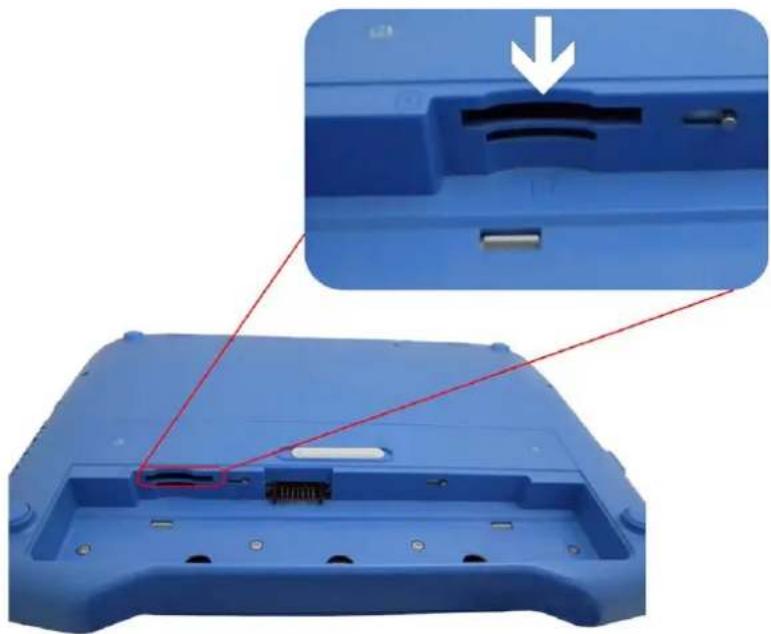
Blue plastic electronic device casing with internal connector and red annotation arrows indicating features (no text or symbols)Press the hot key combination of Fn + F9 to verify 3G card status (Enable or Disable?) if it is Enable, then click the 3G application icon to start executing the application.
Procedures in installing the application
Insert the SIM card into the SIM slot.
Execute the application by pressing the Mobile Partner icon
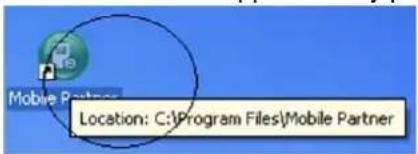
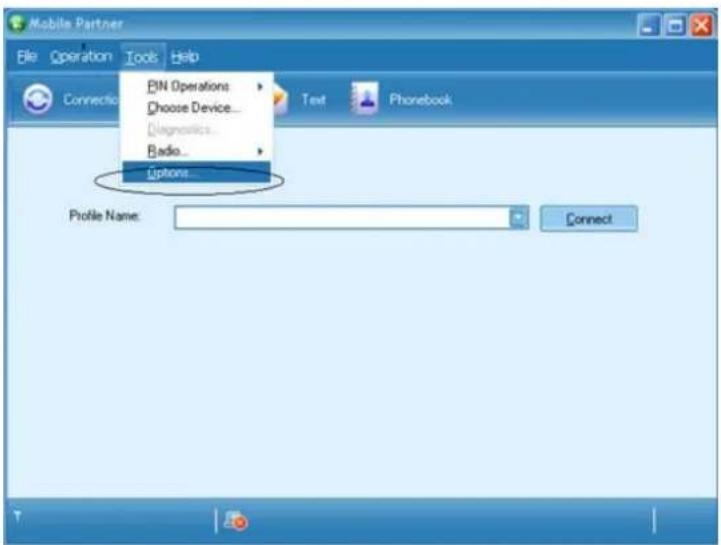
From the Mobile Partner display window, click on the "Tools" item

Select the "Options".
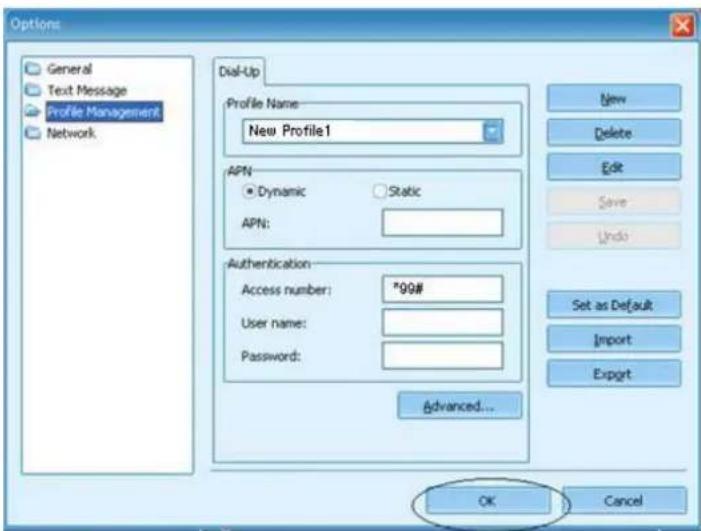
Double click on the "Profile Management" and click on the "New" tab

Click on the "OK" tab.
On the next window, click on the "Connect" tab.

All configuration settings were completed, please click save icon to save all settings.
The HSPA is successfully connected

Wimax\WiFi Connection
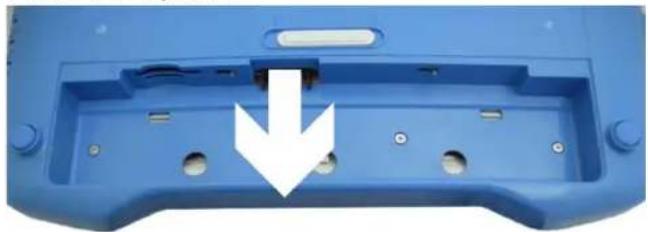
Remove the battery from its compartment.
➢ Press the two knobs inside the battery compartment to release the keyboard.
natural_image
Blue plastic game controller casing with a white arrow pointing to a hole (no text or symbols visible)
natural_image
Blue sky with faint white clouds against a dark background (no text or symbols)

natural_image
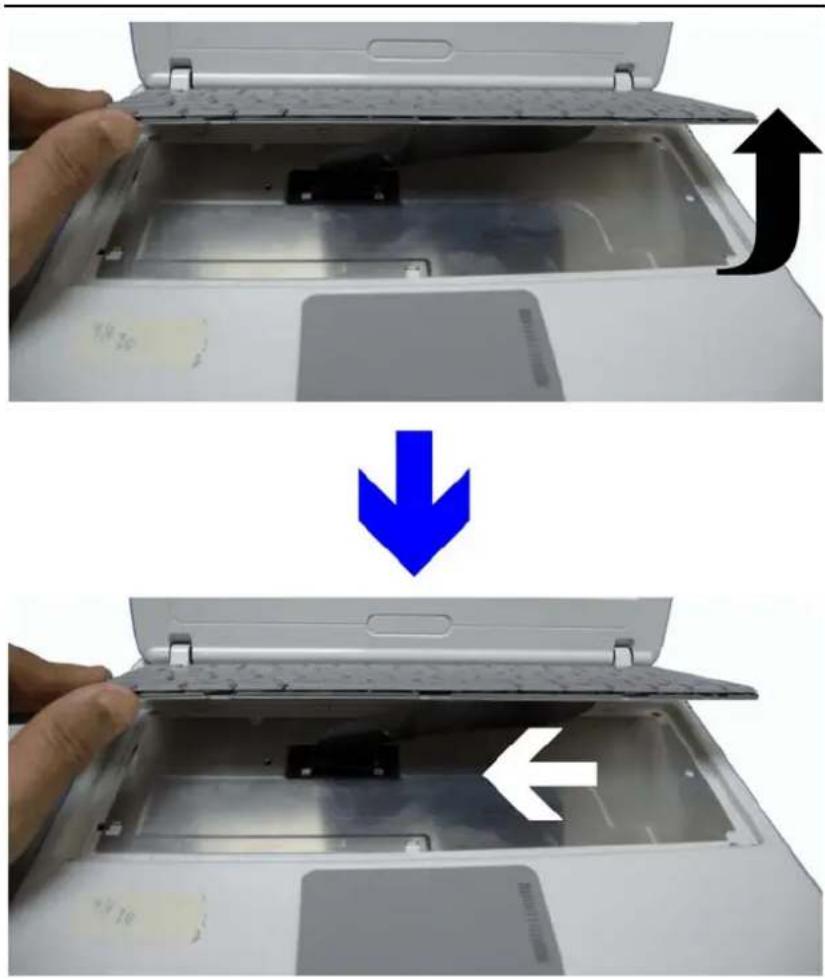
Blue plastic electronic device casing with internal components and mounting holes (no text or symbols visible)Turn the computer over facing you and lift up the keyboard from its compartment.
▶ Slide the plate to left direction.
- Locate the Wimax\WiFi connector as shown in the illustration. - Remove the screw to release the Wimax\WiFi card.

natural_image
Interior view of an open electronic device showing internal components and a highlighted circuit board (no readable text or symbols)
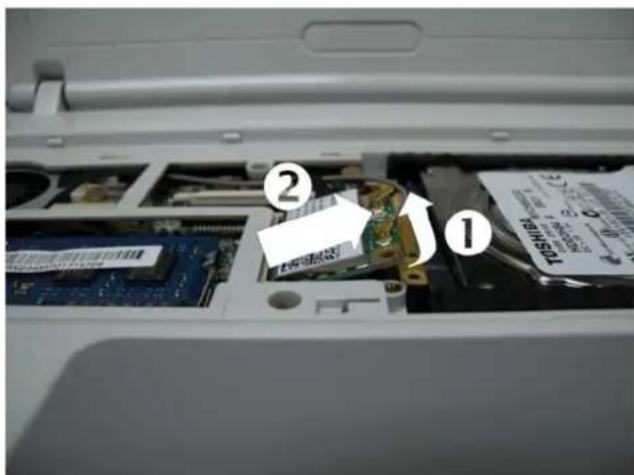

Chapter
8

natural_image
Two globe-shaped icons showing a laptop and a smartphone, both floating on a blue sky with clouds (no text or symbols)Troubleshooting
Your computer has been fully tested and complies with the system specifications before shipping. However, incorrect operations and/or mishandling may cause problems. You may also encounter simple setup or operating problems that can solve by considering the following suggestions. If the problem persists, contact your dealer for service.
Check to see if the power cord is properly plugged into the wall outlet and to the computer.
▶ Check to see the power indicator of the computer is on.
Check to see if your keyboard is operational by pressing and holding any key.
Check for any incorrect or loose cable connections. Make sure the latches on the connectors latch securely on to the receptor end.
Be sure you have not performed an incorrect setting on the hardware devices in the BIOS Setup utility. A faulty setting may cause the system to malfunction. If you are not sure of the changes you made, try to restore all the settings to factory defaults.
Be sure all the device drivers are installed properly. For example, without the audio driver properly installed, the speakers and microphone will not work.
Some software programs, which have not gone through rigorous coding and testing, may cause problems during your routine use. Consult the software vendor for problem solving.
Appendix
A

natural_image
Two globe-shaped icons showing a laptop and a smartphone with children, set against a blue sky background (no text or symbols)Specification
Operating System
Support Windows 7 Starter/Home Basic/Professional
CPU
Intel® Atom ™ processor N435 (Single Core) 1.33GHz / 512K L2
Support C-state of C1 (E) / C2 (E) / C4 (E)
Memory
DDR3 667 So-DIMM DRAM module, 1GB. 2GB
So-DIMM 204-pin socket * 1
Core Logic
Intel® NM10 Express Chipset
Audio Codec
Realtek ALC269-VA
Azalia integrated audio
Analog 2.1
D3 mode support
Card reader (Optional)
Support SD / SDHC/ MMC Memory Card.
USB 2.0 interface
Support boot from CR
LAN Controller
Supports 10 and 100 Mb/sec. Full and half Duplex operation
Wireless LAN
Half Mini-card form factor
Wi-Fi 802.11 B/G/N 1x1
▶ Open mesh support on Linux only
PCI-E interface
Keyboard
▶ Integrated QWERTY keyboard W/ Hot key
83 UK / 84 US KEY K/B
Multi-languages Supported
Pointing Device
PS/2 Touch Pad with Left and Right Click Button and scrolling Bar
Storage
UFD
* USB flash disk 8G MLC
SSD
* SATA 8G/16G/32G SSD MLC
2.5" HDD
* Single-HDD for 2.5" 9.5mm SATA support
* Support SATA 2.0
* 5400rpm support
* 160G/250G
LCD
10.1" with 1024x600 resolution
7" with 800X480 (Anti-Glare)
3.75G / WIMAX (Optional)
Wireless Broadband module support
USB interface, Mini-card type
HSPA/ modules support
Connection Manager AP support for Broadband section
HSPA module w/ 2 antenna support
Battery Pack
3 cell 3S1P
* 11.1V / 2200mAh (3S1P), 3.7V/2200mAh LG/BAK cell
6 cell (3S2P)
11.1V / 4400mAh (3S2P), 3.7V/2200mAh LG/BAK cell
6 cell (3S2P)
* 11.1V / 5200mAh (3S2P), 3.7V/2600mAh LG/BAK cell
AC-Adapter
➢ Automatics Voltage adjustment between 100 and 240VAC 50/60Hz, 40Watts
19V/40W
Supports 2 pin and 3 pin power cord
BIOS
Support PnP & ACPI 2.0
Support external USB flash memory card boot up.
Physical Outline
Dimension: 267.6mm W x 216mm H x 29.9\~34.7mm
Weight:
* 10.1" W LCD /HDD/ 6 cell battery pack: 1.54 Kg
* 10.1" W LCD /HDD/ 3 cell battery pack: 1.33 Kg
EMC
CE, FCC, CCC
RF
FCC&SAR / R&TTE
Safety
UL / CB


- Intel-powered Classmate PC User's Manual
- Preface
- Limitation of Liability
- Table of Content
- ATTENTION: TEACHERS, PARENTS AND ADULT SUPERVISORS ...... 2
- AGENCY REGULATORY NOTICES 5
- GETTING TO KNOW THE BASICS 12
- GETTING STARTED 23
- USING INTEL-POWERED CLAMSHELL CLASSMATE PC ....32
- BIOS SETUP AND SECURITY FEATURE....37
- 3G CONNECTION (OPTION) 44
- Chapter
- 1
- Attention: Teachers, Parents and Adult Supervisors
- Safety Precautions
- Caring for your Computer
- 2
- Agency Regulatory Notices
- Federal Communications Commission Notice
- WARNING....
- Modifications
- Connections to Peripheral Devices
- SAR Exposure
- Declaration of Conformity
- European Notice
- Canadian Notice
- Attachment Limitations Statement
- NOTICE.... This equipment meets
- CAUTION...
- Power Cord Requirement
- U.S. and Canada
- Other Countries
- NOTE....
- Battery Pack Safety
- Lithium battery warning / Bridge battery warning
- 3
- Getting To Know The Basics
- Welcome to the Intel-powered Clamshell Classmate PC
- Getting to Know Your Computer
- panel:
- LCD Display
- Power/Suspend Button
- LED Status Indicator
- Keyboard
- Built-in Microphone
- Touch Pad
- Touchpad Buttons
- Water Resistance Precautionary Measures on Keyboard, Power Button and Touch pad Buttons
- Kensington Lock
- Ventilation Grill
- Ethernet / LAN Port
- USB 2.0 Port
- Ventilation Grill
- Stereo Headphone Jack
- Microphone Jack
- USB 2.0 Ports
- External Monitor Port
- Power Jack (DC-in)
- 4
- Getting Started
- Connecting to a Power Source
- Connecting the AC Adapter
- Turning On Your Computer
- Operating on Battery Power
- The Battery Pack
- To Install the Battery Pack:
- To Remove the Battery Pack:
- Lithium-Ion Battery
- Battery Low-Power Warning
- Low Battery Warning
- Very Low Battery Warning
- Charging the Battery and Charging Time
- Checking the Battery Level
- Prolonging the Battery's Life and Usage Cycles
- Using Power Options
- Suspend Mode
- Standby Suspend
- Hibernate Suspend
- Power Button Action
- 5
- Using Intel-powered Clamshell Classmate PC
- Adjusting the LCD Screen Display
- LCD Care
- Intel-powered clamshell Classmate PC Hot Key Controls
- Function Keys (Quick Keys)
- TouchPad Precautions
- Resetting the System
- G Sensor (Optional)
- 6
- BIOS Setup And Security Feature
- Entering the BIOS Setup Screen
- Leaving the BIOS Setup Screen
- Modifying the BIOS Settings
- Main Setup
- 7
- 3G Connection (Option)
- 3G Connection
- Wimax\WiFi Connection
- 8
- Troubleshooting
- Appendix
- A
- Specification
- Operating System
- CPU
- Memory
- Core Logic
- Audio Codec
- Card reader (Optional)
- LAN Controller
- Wireless LAN
- Keyboard
- Pointing Device
- Storage
- UFD
- SSD
- 2.5" HDD
- LCD
- 3.75G / WIMAX (Optional)
- Battery Pack
- AC-Adapter
- BIOS
- Physical Outline
- EMC
- RF
- Safety
Brand : ECS
Model : E11IS9
Category : Laptop