MegaPix CaaS DWCA-VF25WIR4-64 - Security Camera Digital Watchdog - Free user manual and instructions
Find the device manual for free MegaPix CaaS DWCA-VF25WIR4-64 Digital Watchdog in PDF.


User questions about MegaPix CaaS DWCA-VF25WIR4-64 Digital Watchdog
0 question about this device. Answer the ones you know or ask your own.
Ask a new question about this device
Download the instructions for your Security Camera in PDF format for free! Find your manual MegaPix CaaS DWCA-VF25WIR4-64 - Digital Watchdog and take your electronic device back in hand. On this page are published all the documents necessary for the use of your device. MegaPix CaaS DWCA-VF25WIR4-64 by Digital Watchdog.
USER MANUAL MegaPix CaaS DWCA-VF25WIR4-64 Digital Watchdog
MEGApix CaaS™ Surface Mount Outdoor Dome Camera

natural_image
Exterior view of two white surveillance cameras with 'DW' branding and a central display showing 12 sensors (no text or symbols on the devices themselves)
OnVIF


Before installing or operating the camera, please read and follow this manual carefully.
PRECAUTIONS
- Do not open or modify.
- Do not open the case except during maintenance and installation, for it may be dangerous and can cause damages.
- Do not put objects into the unit.
- Keep metal objects and flammable substances from entering the camera. It can cause fire, short-circuits, or other damages.
■ Be careful when handling the unit. - To prevent damages, do not drop the camera or subject it to shock or vibration.
- Do not install near electric or magnetic fields.
- Protect the camera from humidity and dust.
- Protect the camera from high temperature.
- Be careful when installing near the ceiling of a kitchen or a boiler room, as the temperature may rise to high levels.
■ Cleaning: To remove dirt from the case, moisten a soft cloth with a soft detergent solution and wipe.
■ Mounting Surface: The material of the mounting surface must be strong enough to support the camera.
FCC COMPLIANCE
This equipment has been tested and found to comply with the limits for a Class B digital device, pursuant to Part 15 of the FCC rules. These limits are designed to provide reasonable protection against harmful interference, when the equipment is operated in a residential environment. This equipment generates, uses, and radiates radio frequency energy, and if it is not installed and used in accordance with the instruction manual, it may cause harmful interference to radio communications.
WARNING: Changes or modifications are not expressly approved by the manufacturer.
TABLE OF CONTENTS\*
Introduction......4
Features....4
Parts 5
Dimensions....6
Inside the Box 7
Installation....8
Network Connection 8
Installation- Easy Camera Installation ....9
Installation- Adjusting the Camera's Lens ....9
Installation- Using the Mount Plate ....10
Installation- Using the Bolts & Nuts ....11
Installation- SD Card ....12
MEGApix® CaaS™ Camera Setup....13
Installing DW IP Finder™ 13
Using DW IP Finder™ 14-15
Network Options....16
Camera Reboot....17
MEGApix® CaaS™ Camera Web Viewer....18
Accessing the Camera's Web Viewer....18
GUI Description 19
First & Second Stream....20
Export & Print Image....21
Instant Recording....22
Audio Control....23
Alarm & Relay Control ....24
MEGApix® CaaS™ Camera Setup....25
Basic 25-28
DW Spectrum CaaS™ 28-30
Camera....21-33
System....34-38
Specifications 39-40
Troubleshooting 41-44
Warranty....45
Limits & Exclusions....46
FEATURES\*
■ 1/3" 3.0 Megapixel CMOS Image Sensor (3.0MP, 30fps)
■ Digital Wide Dynamic Range (DWDR)
- DW Spectrum™ VMS Edge Storage and Management
- Run DW Spectrum Edge Simultaneously with additional analytics software
■ 8.0mm, 2.8mm and 4.0mm Lens Options
■ Web Server Built-in
■ Smart DNR™ 3D Digital Noise Reduction
■ Network Failover and Redundancy
■ SD/SDHC Card Slots (up to 128GB)
■ 64GB SD Card Class 10 included
■ True Day/Night with Mechanical IR Cut Filter
■ Auto Gain Control (AGC)
■ Backlight Compensation (BLC)
■ Auto White Balance (AWB)
■ Motion Detection
■ Power over Ethernet (PoE) & DC12V
■ ONVIF Compliant, Profile S
- Compact Size for Discrete Installations
■ Dual Codecs (H.264, MJPEG) with Simultaneous Multi-Stream
■ IP66 Certified (Weather Resistant)
PARTS & DESCRIPTIONS*
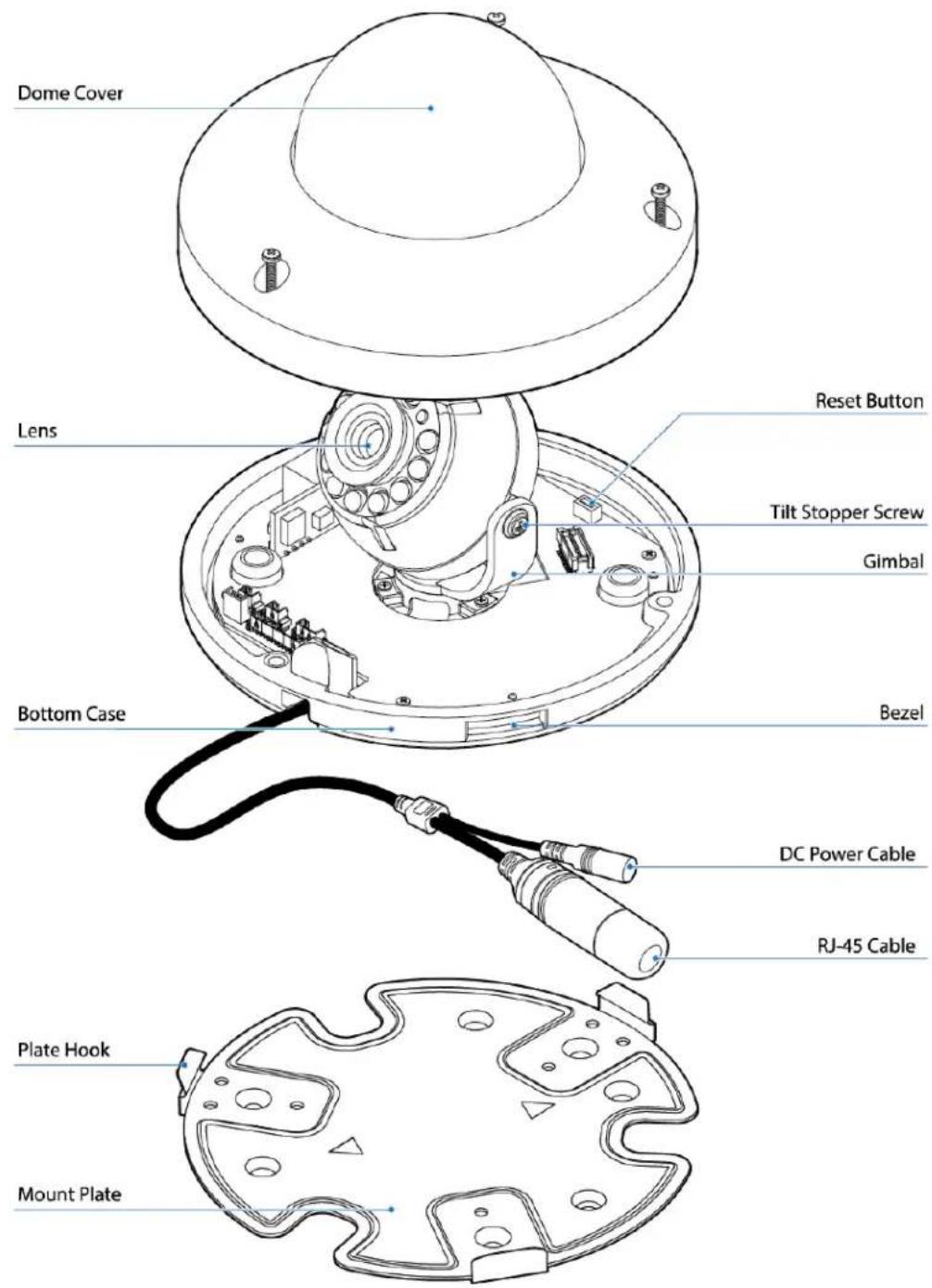
text_image
Dome Cover Lens Reset Button Tilt Stopper Screw Gimbal Bottom Case Bezel DC Power Cable RJ-45 Cable Plate Hook Mount PlateDIMENSIONS\*

text_image
74.3 [2.9"] [1.58"] 40.2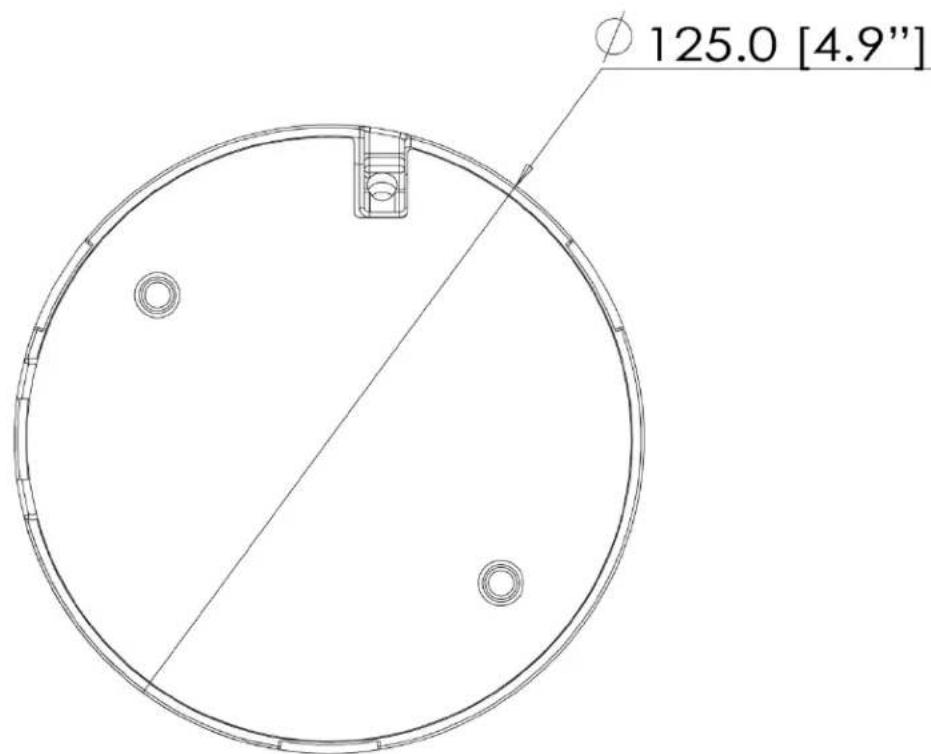
text_image
125.0 [4.9"]INSIDE THE BOX \*
The following items are included with the MEGApix® CaaS™ camera.
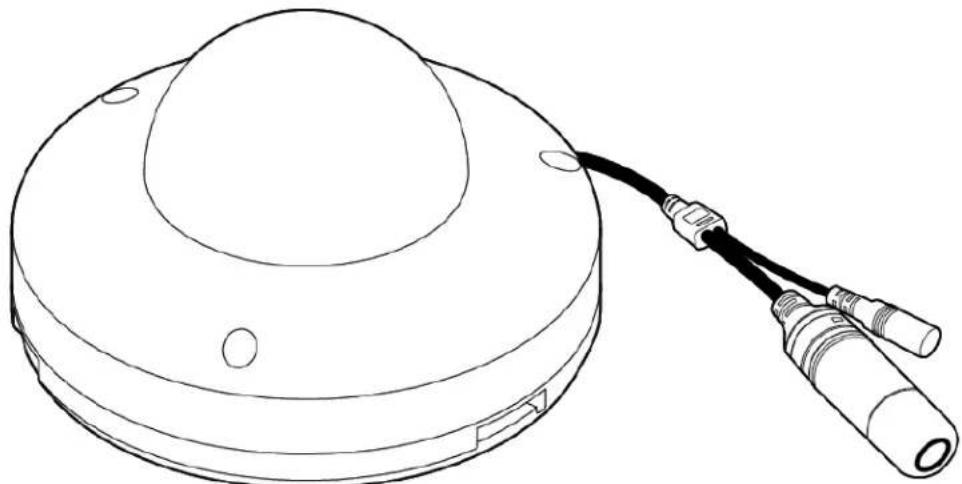
natural_image
Line drawing of a circular device with a black cable and connector, no text or symbols presentCamera
Cables
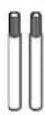


Mount Bolt & Nut
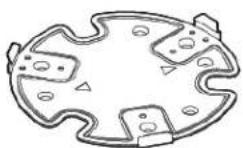
Mount Plate

Manual CD
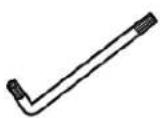
Torx Wrench
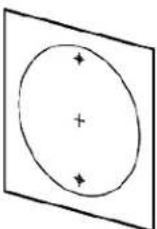
Template Sheet for installing by Bolt & Nut

Template Sheet for installing by Plate

Quick Manual

Screw & Plastic Anchor-3pcs
NETWORK CONNECTION\*
There are two way to power a MEGApix® CaaS™ camera.
Use a PoE-enabled switch to connect data and power through a single cable and begin viewing and recording images instantly. A non-PoE switch will require an adaptor for power transmission.
1. Using a PoE-Enabled Switch
The MEGApix® CaaS™ Camera is PoE-Compliant, allowing transmission of power and data via a single Ethernet cable. PoE eliminates the need for the different cables used to power, record, or control the camera. Follow the illustration below to connect the camera to a PoE-enabled switch using an Ethernet cable.
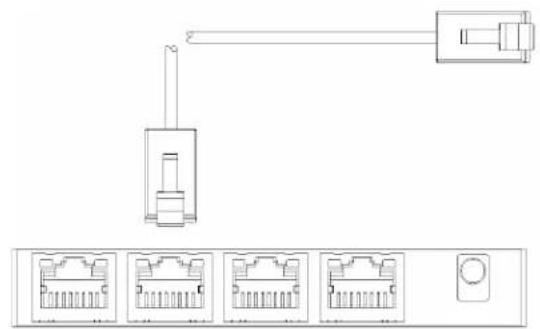
natural_image
Diagram of a network topology showing Ethernet ports connected to a port (no text or labels)PoE Switch

natural_image
Technical line drawing of a mechanical component with circular and rectangular features (no text or symbols)2. Using 12VDC
If a PoE injector is not available, use a power adaptor for power transmission and a non-PoE switch for data transmission. Follow the illustrations below to connect the camera without a PoE Injector.
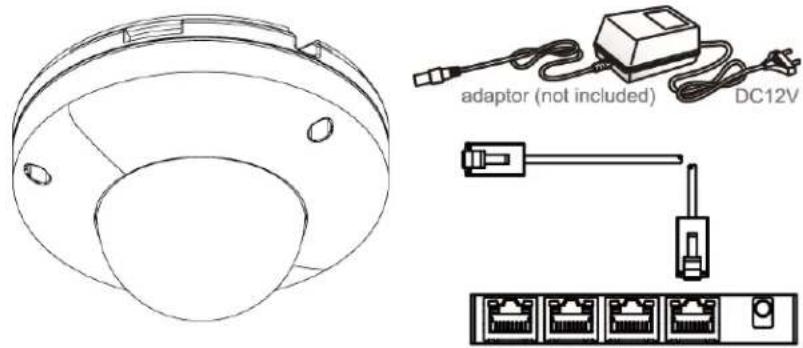
text_image
adaptor (not included) DC12VNon-PoE Switch
INSTALLATION\*
Easy Camera Installation
- Detach the camera's cover dome from the camera's module by unscrewing the three cover dome screws using the L-Wrench.
- Use the camera or mounting template to mark and drill the necessary holes in the wall or ceiling.
- Pull wires through and make connections.
- Using three (3) included screws, mount and secure the camera to the wall or ceiling.
- Secure the camera's cover dome onto the camera base to complete the installation.
Using the Cable Weather Protector,
To use the LAN water protector case, refer to the diagram below:
- Insert the network cable into (a), the camera's network port.
- Connect (b) to the camera's network port by rotating it clock-wise until tight.
- To complete the water-proof installation, connect part (c) to the case's body, securing tightly by rotating it clock-wise.

text_image
Diagram illustrating three steps of a mechanical assembly with labeled parts (a, b, c) and directional arrows indicating motion.
text_image
Template Sheet ② ③ ④ ⑤ ⑥INSTALLATION USING MOUNT PLATE\*
- Detach the camera's cover dome from the camera's module by unscrewing the three cover dome screws.
- Using the metal mount plate, mark and drill the necessary holes in the wall or ceiling.
- Pull wires through and make connections.
- Using the three (3) included screws, mount and secure the camera to the wall or ceiling.
- Attach the camera base to the metal mount by snapping it into place using the two metal handles.
- Secure the camera's cover dome onto the camera base to complete the installation.
- See page 9 for water-proof cabling installation.
Adjusting the Camera's Angle
To adjust the camera's orientation:
-
- Loosen the tilt stopper screw at the base of the camera's Gimbal by rotating it counter clock-wise.
-
- Move the camera to the desired angle.
-
- Secure the camera's lens position by screwing the tilt stopper screw clock-wise.
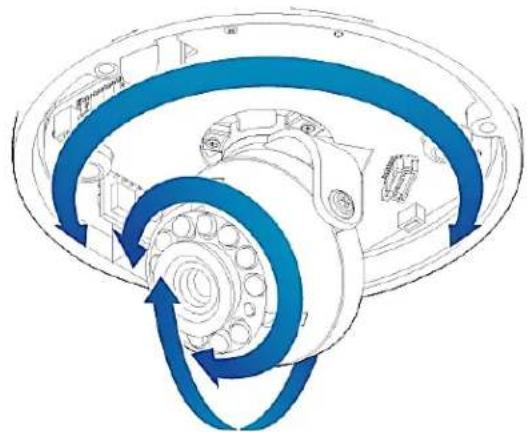
natural_image
Diagram of a mechanical assembly with blue spiral arrows indicating rotational flow (no text or labels)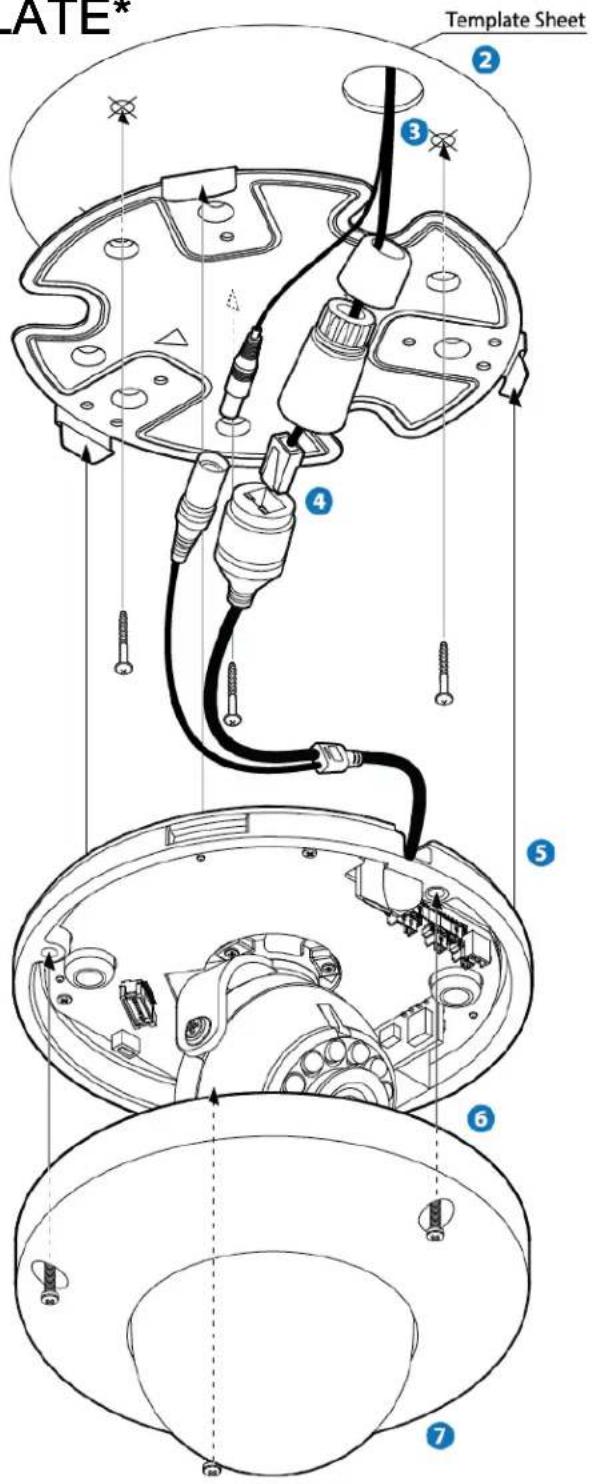
text_image
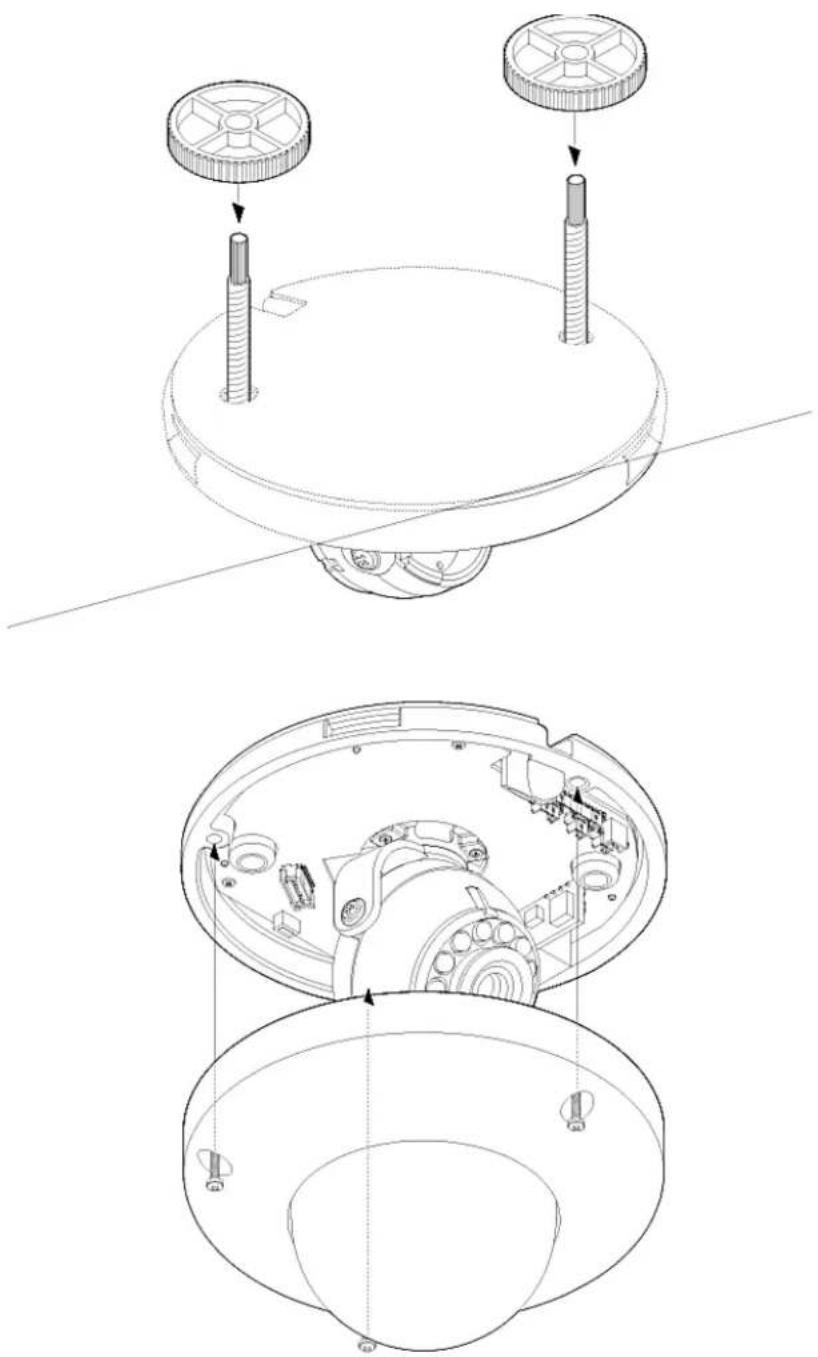
ATE* Template Sheet ② ③ ④ ⑤ ⑥ ⑦INSTALLATION USING MOUNT BOLT & NUT\*
- Detach the camera's cover dome from the camera's module by unscrewing the three cover dome screws.
- Using the camera or mounting template, mark and drill the necessary holes in the wall or ceiling.
- Secure the two long mounting screws to the camera's base.
- Pull wires through and make connections.
- Mount the camera to the mounting surface using the 2 mounting nuts.
- Secure the camera's cover dome onto the camera base to complete the installation.
- See page 9 for water-proof cabling installation.
- See page 10 for adjusting the camera's tilt and angle.
natural_image
Technical line drawing of a mechanical assembly with two views showing internal components (no text or symbols)INSTALLATION\*
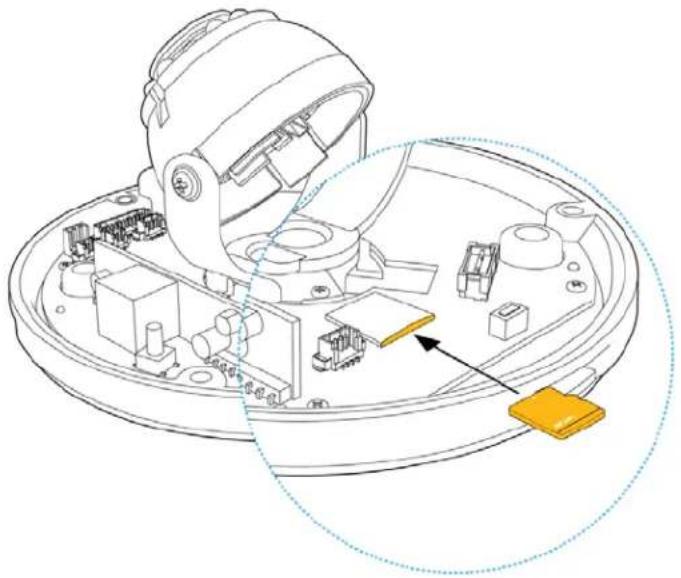
SD Card
The MEGApix® CaaS™ camera can record locally, eliminating the need for dedicated drivers.
- To install the camera's SD Card, locate the SD card slot in the back of the camera module.
- Insert a class 10 SD card into the SD card slot by pressing the SD card slot.
- To remove the SD Card, press the card inward to release from the card slot.
natural_image
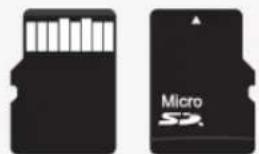
Technical line drawing of a mechanical assembly with labeled components (no text or symbols)The memory card is an external data storage device that has been developed to offer an entirely new way to record and share video, audio, and text data using digital devices.
natural_image
Two black micro S2 cards with white memory card symbols on either side (no readable text or labels)Recommended SD Card Specification
- Type: Micro SD (SDHC)
- Manufacturer: SanDisk
- Capacity: 16\~128GB
- Class: Over Class 10
*NOTE: 64GB SD Card Class 10 is already included with your camera. To upgrade the card, please follow the instructions above.
DW IP FINDER™ \*
Installing DW IP Finder™ Software
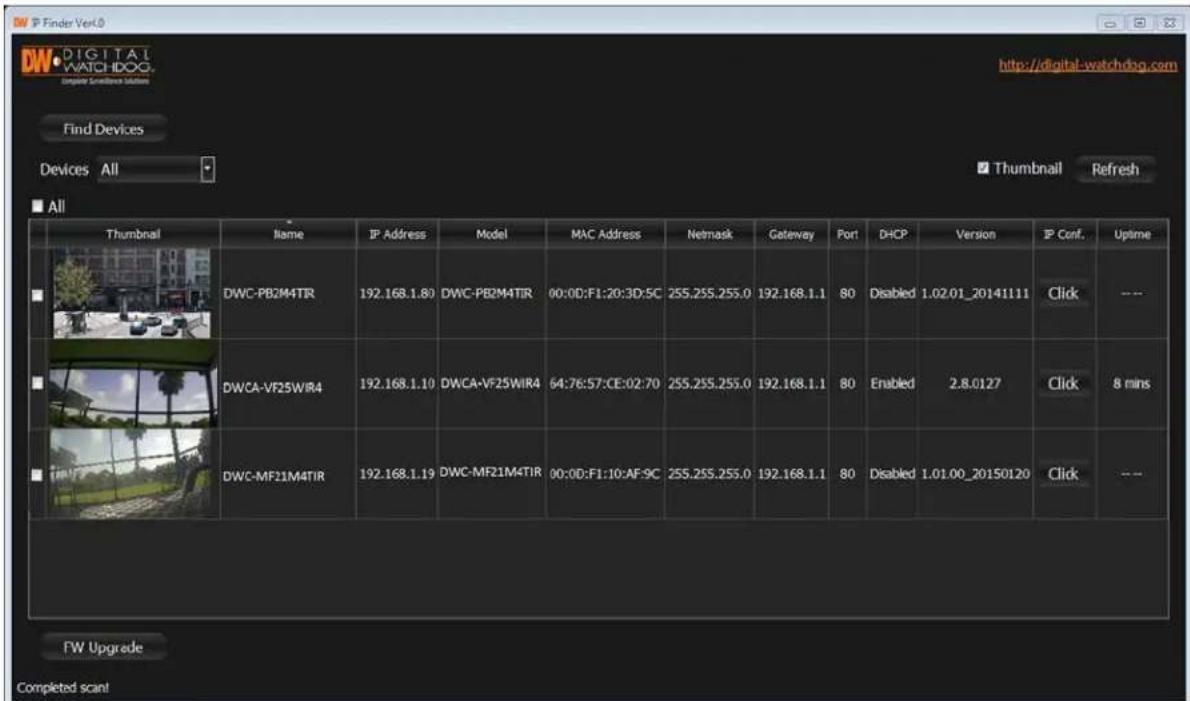
DW IP Finder™ searches for all available Digital Watchdog devices currently connected to your network.
- Install DW Desktop Tool to find the MEGApix® CaaS™ camera on your local network. The software can be found on the included User Manual CD. Run DW Desktop Tool and install onto your PC.
- When setup is complete, launch DW Desktop Tool.
- The software will automatically search your network for all Digital Watchdog® supported devices. Your camera will appear, for example, as "DWCA-VF25WIR4."
- Double-click on the camera name and select 'View Camera Website' to launch the camera' web viewer.
text_image
Finder Ver.0 DW DIGITAL WATCHDOG. Computer Scanbase Solutions Find Devices Devices All Thumbnail Refresh All Thumbnail Name IP Address Model MAC Address Netmask Gateway Port DHCP Version IP Conf. Uptime DWC-PB2M4TIR 192.168.1.80 DWC-PB2M4TIR 00:00:F1:20:30:5C 255.255.255.0 192.168.1.1 80 Disabled 1.02.01_20141111 Click --- DWCA-VF25WIR4 192.168.1.10 DWC-VF25WIR4 64:76:57:CE:02:70 255.255.255.0 192.168.1.1 80 Enabled 2.8.0127 Click 8 mins DWC-MF21M4TIR 192.168.1.19 DWC-MF21M4TIR 00:00:F1:10:AF-9C 255.255.255.0 192.168.1.1 80 Disabled 1.01.00_20150120 Click --- FW Upgrade Completed scan!*Install the DW IP Finder to a computer located on the same Subnet Mask as the MEGApix® CaaS™ camera.
DW IP FINDER™ \*
Using DW IP Finder™ Software
Use DW IP Finder™ to change the basic settings of your MEGApix® CaaS™ camera, update firmware for multiple cameras simultaneously or connect to your MEGApix® CaaS™ camera.

text_image
Search for Cameras Camera's Network Settings View Camera's Thumbnail View Filter Search Results Find Devices Devices All Thunbnail Name IP Address Model MAC Address Network Cctwnv Port DHCP Version IP Conf. Uptime DWC-PE2M4TIR 192.168.1.80 DWC-PE2M4TIR 00:00:F1:20:30:50 255.255.255.0 192.168.1.1 80 Disabled 1.02.01_20141111 Click -- DWC-MF10M2BT 192.168.1.10 DWC-MF10M2BT 64:76:57:CE:02:70 255.255.255.0 192.168.1.1 80 Enabled 2.8.0127 Click 8 mins DWC-MF21M4TIR 192.168.1.19 DWC-MF21M4TIR 00:00:F1:10:AF:9C 255.255.255.0 192.168.1.1 80 Disabled 1.01.00_20150120 Click -- Camera Name, Model, IP Address, and MAC Address FW Upgrade Completed scan! Camera Uptime Camera's Firmware Open Camera's IP Configuration ScreenDW IP FINDER™ \*
Using DW IP Finder™ Software
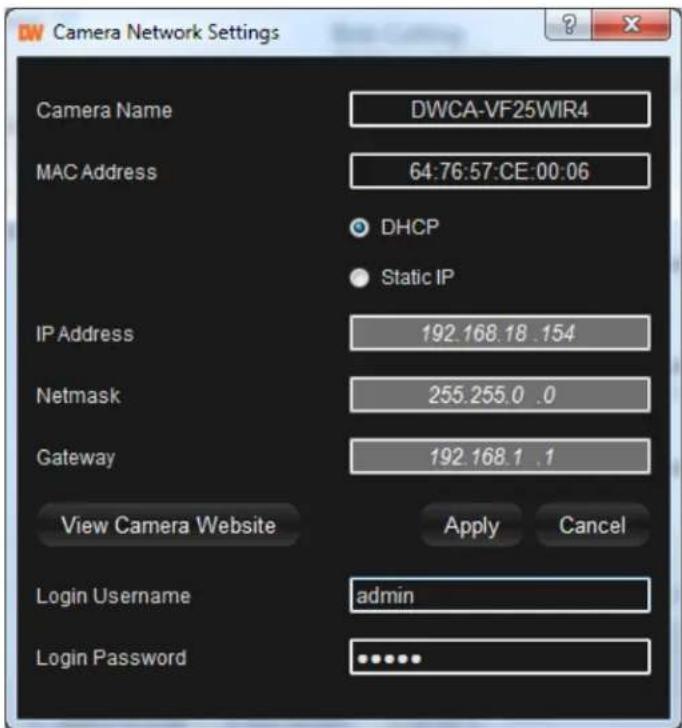
Use DW IP Finder™ to set the connection type and the IP address information for your MEGApix® CaaS™ camera.
- DHCP: Select DHCP to access the camera within the same internal network. For further explanation on DHCP, please see page 17.
- Static IP: Select Static to connect to the camera from an external network. For further explanation on Static, please see page 17.
-
If STATIC IP is selected, manually enter the camera's IP address, netmask and gateway. These need to match the settings of your network. Please contact your network administrator for more information.
-
To apply changes, enter the camera's username and password and click 'Apply'.
-
To view the camera's web client for additional setup options, press the 'View Camera Website' button.
text_image
Camera Network Settings Camera Name DWCA-VF25WIR4 MAC Address 64:76:57:CE:00:06 DHCP Static IP IP Address 192.168.18 .154 Netmask 255.255.0 .0 Gateway 192.168.1 .1 View Camera Website Apply Cancel Login Username admin Login Password *****If you change the camera's IP, write down the camera's MAC Address for identification in the future.
DW IP FINDER™ \*
DHCP
The Dynamic Host Configuration Protocol (DHCP) is a network configuration protocol that allows a device to configure automatically according to the network it is connected to.
If your network supports DHCP and your MEGApix® CaaS™ camera is set to DHCP, IP Finder will automatically find and set your MEGApix® CaaS™ camera to correspond with your network requirements.
Static
Static IP addresses are recommended when using a network that does not support DHCP or when setting your device to be accessed externally via the internet. If Static is selected, you must manually enter the correct network settings for your MEGApix® CaaS™ camera. The settings will correspond with your network. To set your camera to a static IP address, we recommend that you (1) setup the camera to DHCP, (2) allow it to configure itself according to your network, and (3) change the settings to a static IP address.
- To set your MEGApix® CaaS™ camera to Static, highlight the desired device from the search results list, and click on Configuration. In the “Network Configuration” window, make sure Static is selected.
- Enter the following information: IP Address, Netmask, Gateway, and Preferred DNS.
- Click Apply and Reboot to save all changes.
DW IP FINDER™ \*
Upgrading Cameras using the DW IP Finder™
Use the DW IP Finder™ to perform firmware upgrade to all your MEGApix® CaaS™ cameras from one convenient location.
- Press the 'Firmware' button.
- In the Firmware Upload section, browse and select the appropriate firmware file to use.
- Select all the cameras you would like to upgrade. You can select multiple cameras by clicking on multiple camera models while holding down the Ctrl button*.
- Click 'Update Cameras'.
- The system will indicate if the upgrade was successful or not for each camera.
- When all cameras have been upgraded, restart the cameras to apply the new firmware.
- Allow up to 60 seconds for the cameras to reboot and press the 'Search' button. If the cameras reappear in the IP Finder the reboot is complete and the camera is ready.

text_image
DW Desktop Tools V3.5 DW DIGITAL WATCHDOG. Complete Software Solutions Refresh List Finder Firmware ONVF Camera Found: 5 DW New DW Legacy 1 Cameras Displayed / 0 Selected Name MAC Address IP Address Model Version Uptime Status DWcam 647657:CE9270 192.168.1.20 DWCA-VF25WIR4 2.8.0127 43 mins Firmware Upload Firmware File Browse Filter Search Results Version: N/A None Apply Upgrade Type: Kernel Upgrade Server Upgrade Update CamerasCAMERA REBOOT\*
Resetting the Camera
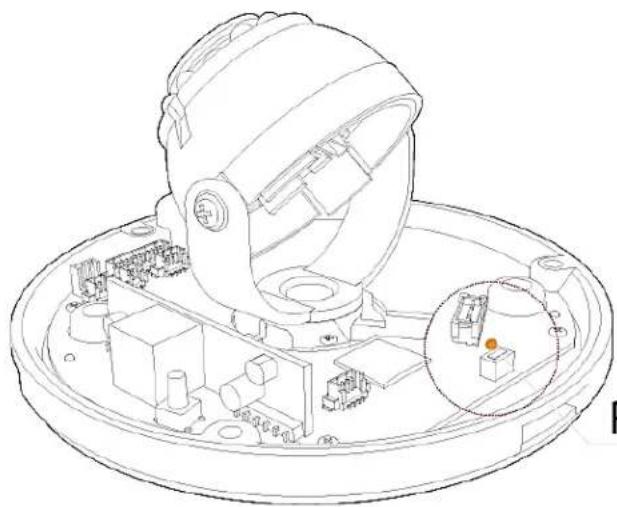
Pressing the reset button on the camera's back for five (5) seconds will initialize all environmental variables to factory default. Previous setup for IP default, time, etc. will be deleted. If a system's IP address is lost, reset the camera back to factory default.
The following are the default network settings.
| IP Mode DHCP | |
| IP Address 169.254.X.Y | |
| Subnet Mask 255.255.255.0 | |
| Gateway --- | |
| HTTP Port 80 |
natural_image
Technical line drawing of a mechanical assembly with a circular inset showing internal components (no text or symbols)Reset Button
* Frequent use may cause system error.
WEBVIEWER\*
Remote Video Monitoring Via Internet Explorer
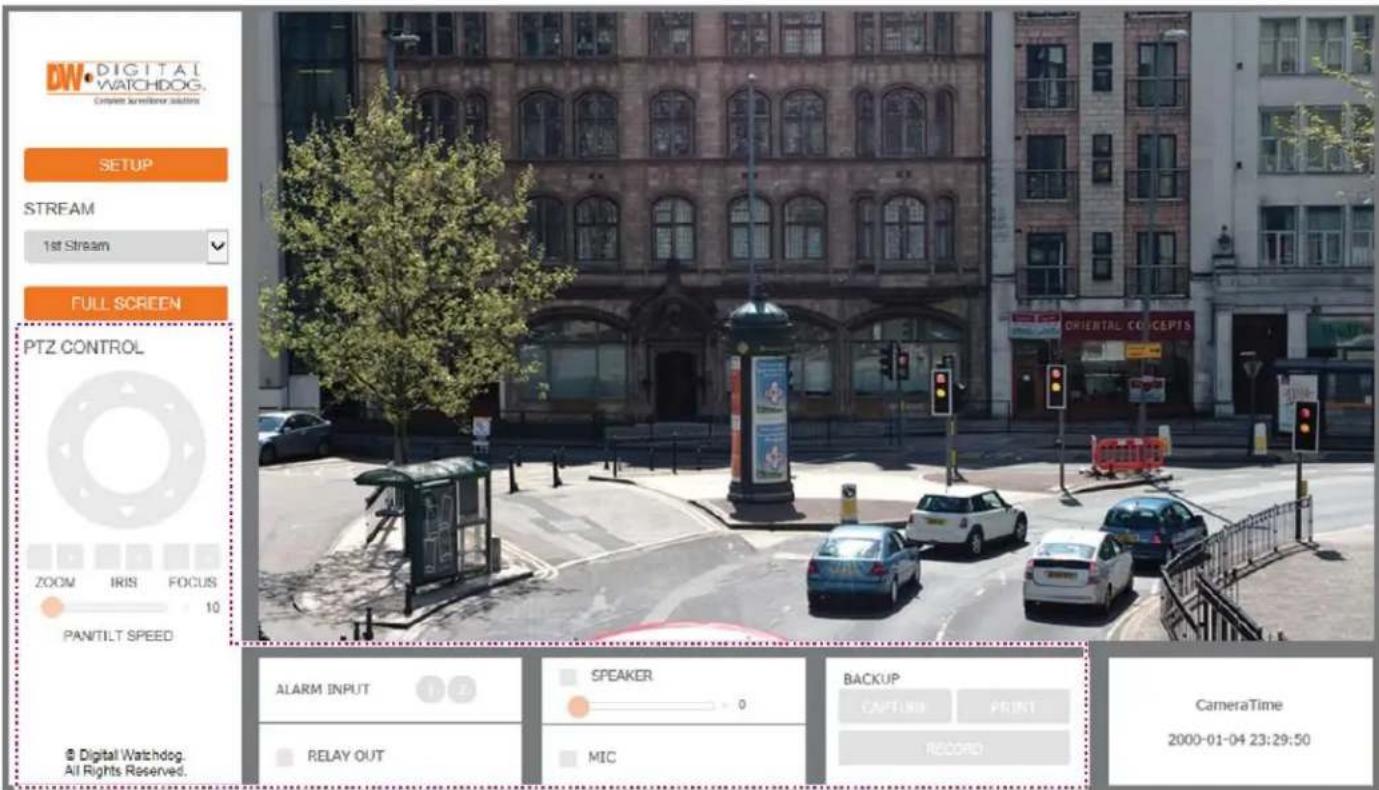
Monitor and configure the MEGApix® CaaS™ camera through a built-in web viewer.
- Type the IP address of the camera in an Internet Explorer window.
Example: http://192.168.1.123 (Factory Default)
- Enter Username and Password
Default: Username: admin | Password: admin
- The web browser may ask to install FbVLC to view video from the camera. Once it has been installed, Internet Explorer will display video images from the camera.
- The Web Client is also available in Google Chrome, Safari and Firefox web viewers. Please note that features may be limited.
text_image
DW DIGITAL WATCHDOG. Cineen screenless assets SETUP STREAM 1st Stream FULL SCREEN PTZ CONTROL ZOOM IRIS FOCUS 10 PANTILT SPEED © Digital Watchdog. All Rights Reserved. ALARM INPUT RELAY OUT SPEAKER MIC BACKUP CAPTURE PRINT RECORD CameraTime 2000-01-04 23:29:50WEBVIEWER\*
GUI Description
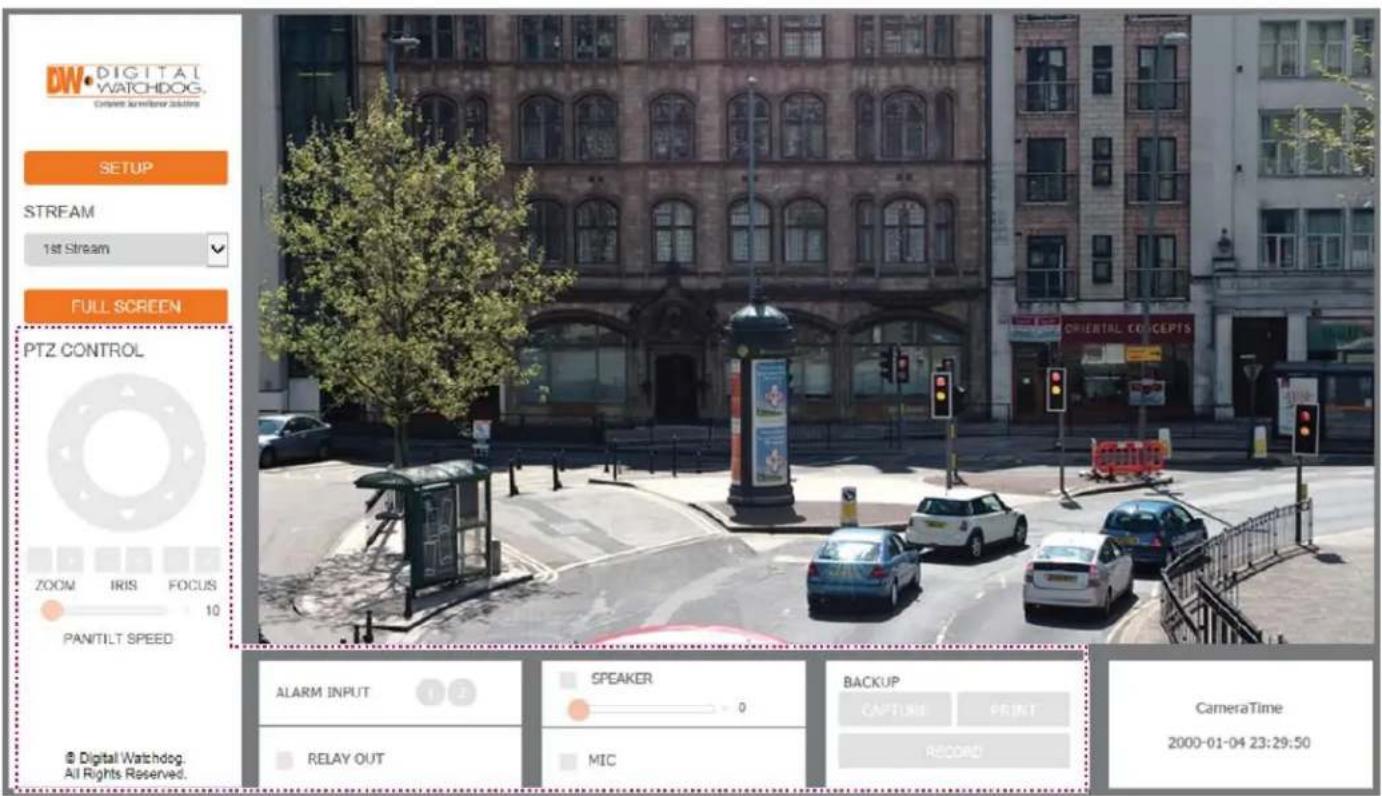
Monitor and configure the MEGApix® CaaS™ camera through a built-in web viewer.
- Live video display- This is the region for live video stream from the camera.
- Setup Menu- Setup the camera's Video, Network, Events, System etc.
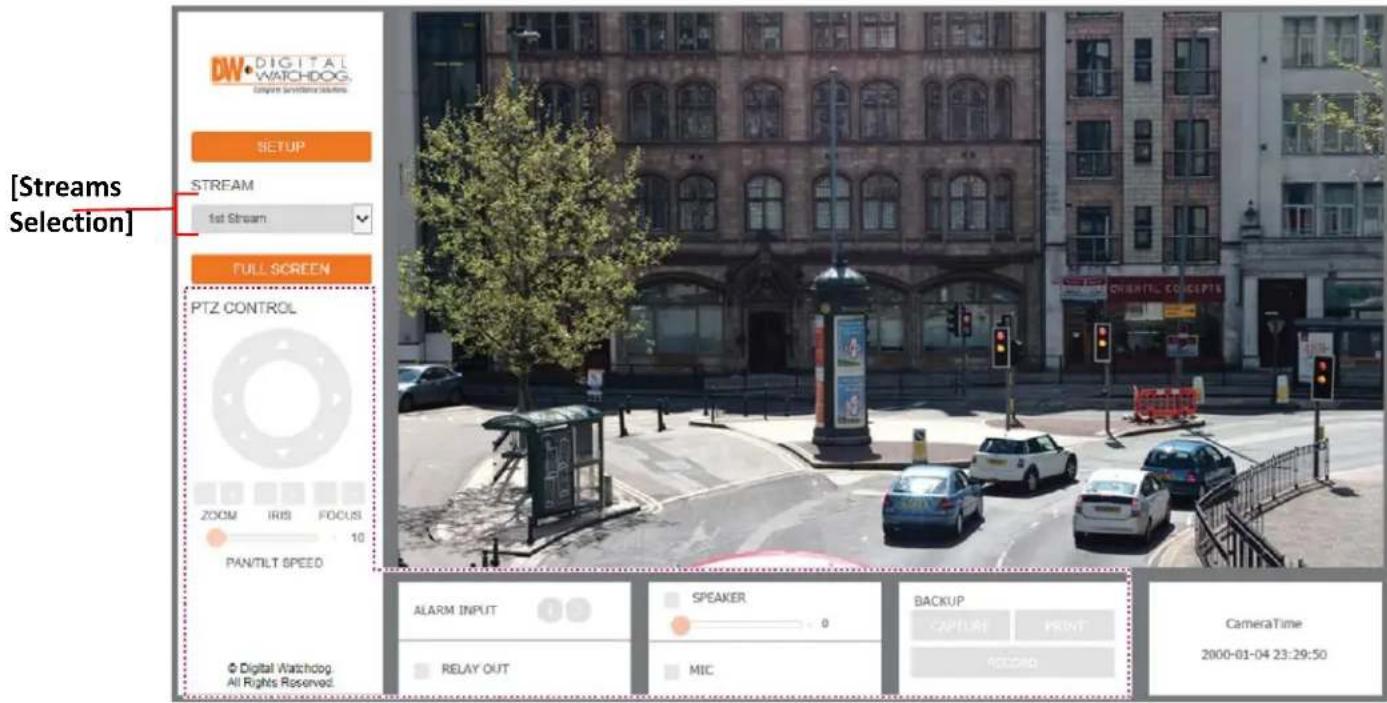
- Stream selection- Select a stream to display it in the viewing area.
- Full Screen- Expand the camera's view into full screen.
- Menu options such as PTZ, audio, sensor and backup options will be disabled for cameras that do not support those functions.
text_image
DW DIGITAL WATCHDOG. Current command line SETUP STREAM 1st Stream FULL SCREEN PTZ CONTROL ZOOM IRIS FOCUS 10 PANTILT SPEED © Digital Watchdog. All Rights Reserved. ALARM INPUT 1 2 RELAY OUT SPEAKER 0 MIC BACKUP CAPTIME PRINT RECORD CameraTime 2000-01-04 23:29:50WEBVIEWER\*
First Stream & Second Stream
Configure up to two (2) stream settings for monitoring and recording. On the main monitoring page, user can view the camera with the First Stream settings or secondary Stream settings. The camera supports the setup of up to two (2) different streams with different resolution, and FPS for maximum network control. Select which stream to view in the camera's main menu by selecting one of the options from the drop-down menu. Streams that are not enabled in the Streams Setup page will not appear in the drop-down menu.
For Setup Stream Settings, refer to page 25-26.
text_image
[Streams Selection] DW DIGITAL WATCHDOG System Simulation Settings SETUP STREAM 1st Stream FULL SCREEN PTZ CONTROL ZOOM IRIS FOCUS 10 PANTILT SPEED © Digital Watchdog. All Rights Reserved. ALARM INPUT RELAY OUT SPEAKER MIC BACKUP CAPTURE PRINT ACCORD CameraTime 2000-01-04 23:29:50WEBVIEWER\*
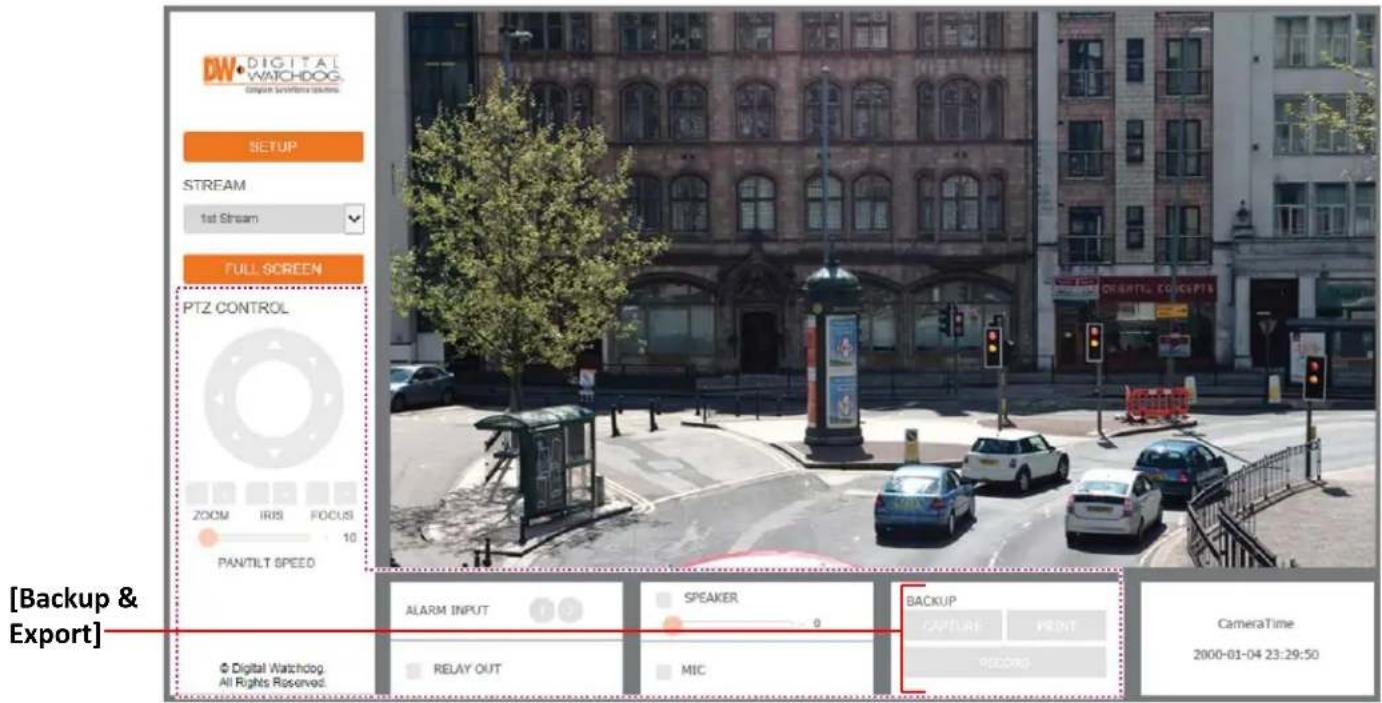
Export Image (On Supported Models)
Export a screenshot of the current live video to your computer.
- Export a screenshot of the camera's view with date/time and camera's name overlay by pressing the CAPTURE button.
- You can also print the camera's view for your records by pressing the PRINT button. The printing setup page will appear, allowing you to adjust the printer's options, add notes and the camera's information as text overlay.
*NOTE: Some of these features may be disabled for cameras that do not support these functions.
text_image
DW DIGITAL WATCHDOG Configure surveillance modules SETUP STREAM 1st Stream FULL SCREEN PTZ CONTROL ZOOM IRIS FOCUS 10 PANTILT SPEED [Backup & Export] © Digital Watchdog. All Rights Reserved. ALARM INPUT SPEAKER BACKUP RELAY OUT MIC RECORD CameraTime 2000-01-04 23:29:50WEBVIEWER\*
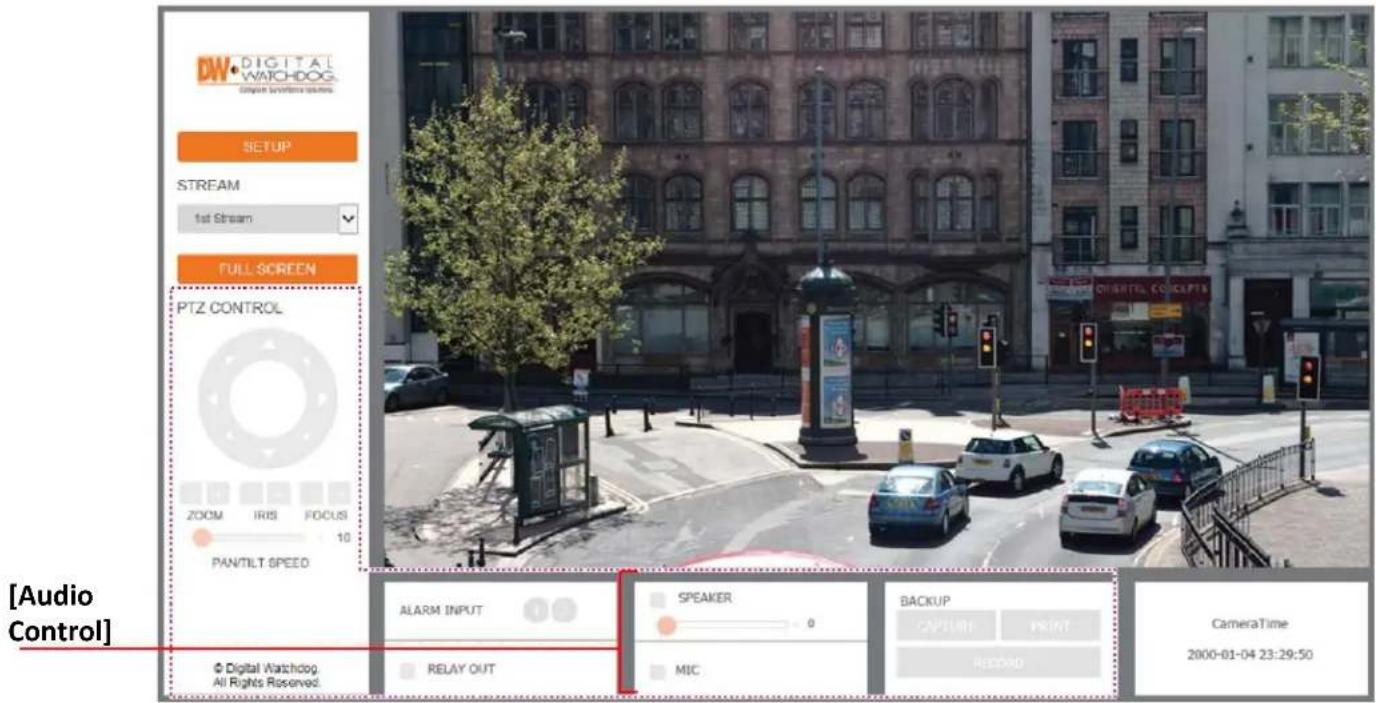
Audio Control (On Supported Models)
Enable two-way audio for supported cameras.
Speaker
- For cameras supporting audio, check the box next to SPEAKER to hear audio from the camera.
- Make sure your camera supports audio from external devices or includes a microphone built-in.
- If needed, adjust the camera's volume using the volume bar.
Microphone
- For supported cameras, enable audio to be transmitted from the web viewer to the camera by checking the box next to MIC.
- Make sure your camera supported external devices for audio.
Please note that audio from the camera and microphone from the viewer cannot operate at the same time. To enable one, make sure the other is disabled.
text_image
DW DIGITAL WATCHDOG Configure soundwave signals SETUP STREAM 1st Stream FULL SCREEN PTZ CONTROL ZOOM IRIS FOCUS 10 PANTILT SPEED [Audio Control] © Digital Watchdog. All Rights Reserved. ALARM INPUT RELAY OUT SPEAKER 0 MIC BACKUP PRINT RECORD CameraTime 2000-01-04 23:29:50WEBVIEWER\*
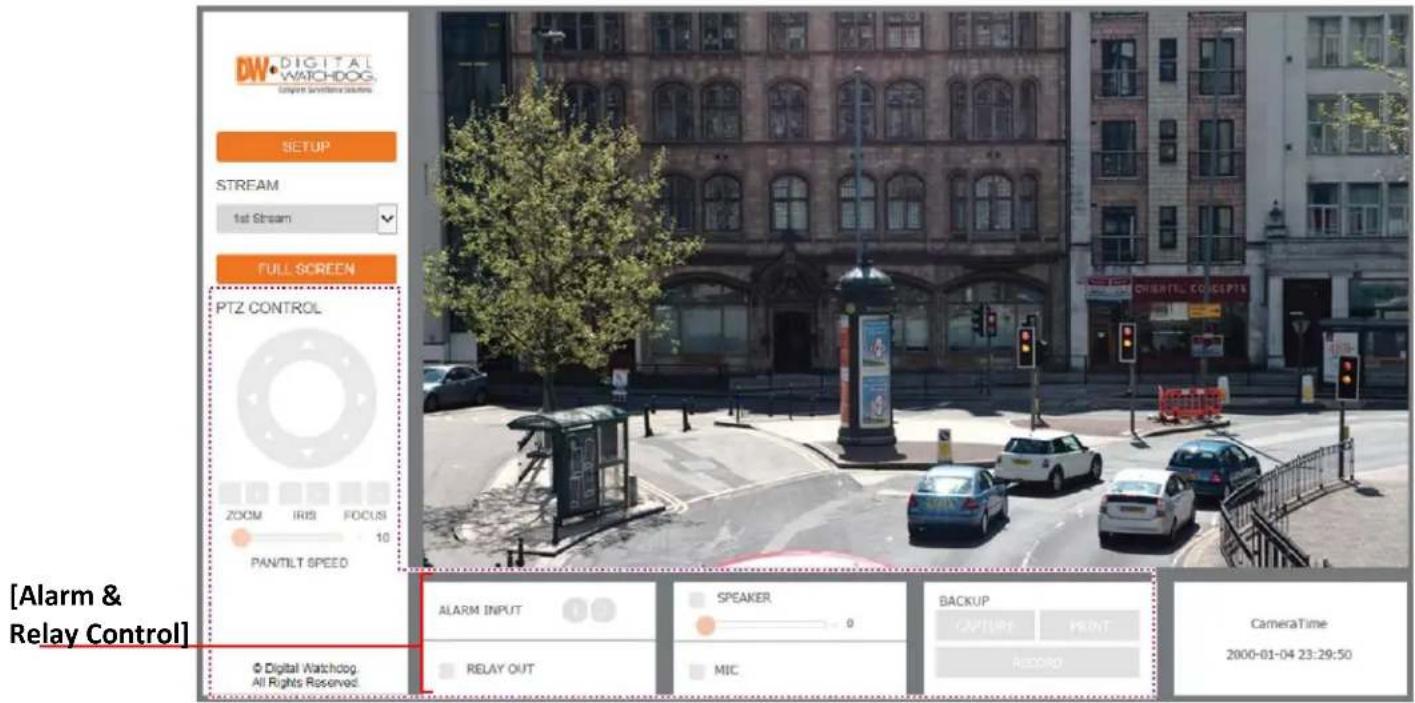
Alarm Input and Relay Output (On Supported Models)
Control external devices connected to the camera such as alarms and sensors.
Alarm Input
- When any of the camera's Alarms are activated, the corresponding number will turn on and be displayed in color. This function will be available for supported cameras that support alarm input.
Relay Out
- For cameras that support relay output control, enable or disable the relay directly from the camera's web viewer. Relay output will be disabled when the check box next to it is unchecked. When the check box is checked, the relay output will be activated. This function will be available for supported cameras that support relay output.
text_image
DW·DIGITAL WATCHDOG Capture surveillance buttons SETUP STREAM 1st Stream FULL SCREEN PTZ CONTROL ZOOM IRIS FOCUS 10 PAN/TILT SPEED [Alarm & Relay Control] © Digital Watchdog. All Rights Reserved. ALARM INPUT RELAY OUT SPEAKER MIC BACKUP CAPTURE PRINT REDAID CameraTime 2000-01-04 23:29:50WEBVIEWER\*
Setup > Basic > Video
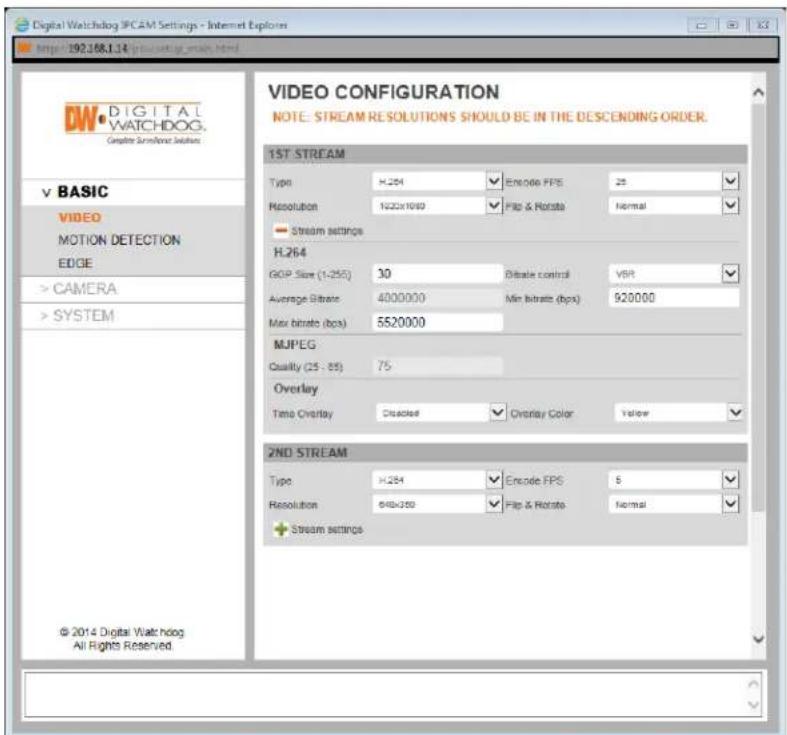
The MEGApix® CaaS™ camera allows you to setup 2 different streams to optimize storage and bandwidth usage.
- Type (Codec)- Select the type of compression to use when outputting the video. The compression type affects the image quality, bandwidth, and file size of saved images. MJPEG, the lowest Compression type, will provide the highest image quality, but also will cause the image size to be the largest, and take up the most bandwidth. H.264 Mainline Profile is the default codec. If OFF is selected, this stream will not be enabled.
- Resolution- Set Resolution for each stream. The better the resolution, the more bandwidth it will require to stream images.
- Encode FPS- Select from 0fps to 30fps. The camera is set by default to 30fps.
- Flip & Rotate- Select whether to flip the stream's image vertically or rotate it.
text_image
Digital Watchdog IPCAM Settings - Internet Explorer http://92.168.1.14 (visualizing video.html) VIDEO CONFIGURATION NOTE: STREAM RESOLUTIONS SHOULD BE IN THE DESCENDING ORDER. 1ST STREAM Type H.264 Encode FFS 25 Resolution 1020x1040 Flip & Rotate Normal Stream settings H.264 GDP Size (1-255) 30 Dibrate control VBR Average Filter 4000000 Min bitrate (bps) 920000 Max bitrate (bps) 5520000 MUPEG Quality (25 - 55) 75 Overlay Time Overlay Detected Overlay Color Yellow 2ND STREAM Type H.264 Encode FPS 5 Resolution 640x350 Flip & Rotate Normal Stream settings © 2014 Digital Watchdog All Rights Reserved.WEBVIEWER\*
Setup > Basic > Video
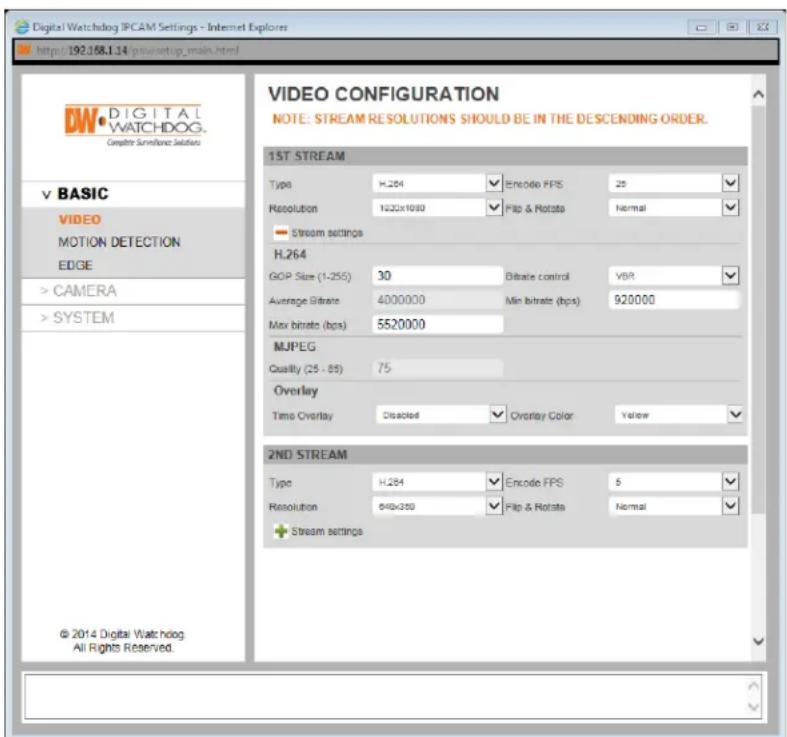
The MEGApix® CaaS™ camera allows you to setup 2 different streams to optimize storage and bandwidth usage.
- Advanced Stream Settings: H.264-
a. GOP Size – This sets the number of I-frames and P-frames per second. If GOP is set to 30, the camera will record 1 I-frame and 29 P-frames. To improve the recording quality, lower the GOP number. However, the lower the number, the larger streaming file size will be.
b. Bitrate Control – Select the appropriate bitrate control option from the drop-down menu options.
c. Minimum and Maximum Bitrate - Set the min and max values for the camera's bitrate range.
d. Min/ Max Bitrate – If VBR Bitrate mode is selected, adjust the minimum and maximum bitrate levels.
Frist Stream: Max 8Mbits, Min 1 Mbit
Second Stream: Max 6Mbits, Min 0.5 Mbits
e. Average Bitrate – If CBR Bitrate mode is selected, adjust the average bitrate.
2. Advanced Stream Settings: MJPEG Quality-Set MJPEG image quality from 25 to 85. The higher the quality, the more bandwidth will be required to stream the image.
3. Advanced Stream Settings: Overlay- Select to show/ hide time stamp and select the text color. The time stamp will appear on the top left side of the camera's view.
4. Select 'Apply' to save changes.
text_image
Digital Watchdog IPCAM Settings - Internet Explorer http://192.168.1.14/psw/setup_main.html VIDEO CONFIGURATION NOTE: STREAM RESOLUTIONS SHOULD BE IN THE DESCENDING ORDER. 1ST STREAM Type H.264 Encode FPS 25 Resolution 1020x1080 Flip & Rotata Normal Stream settings H.264 GOP Size (1-255) 30 Bitrate control VBR Average Bitrate 4000000 Min bitrate (bps) 920000 Max bitrate (bps) 5520000 MJPEG Quality (25 - 85) 75 Overlay Time Overlay Disabled Overlay Color Yellow 2ND STREAM Type H.264 Encode FPS 5 Resolution 640x350 Flip & Rotata Normal Stream settings © 2014 Digital Watchdog All Rights Reserved.WEBVIEWER\*
Setup > Basic > Motion Detection
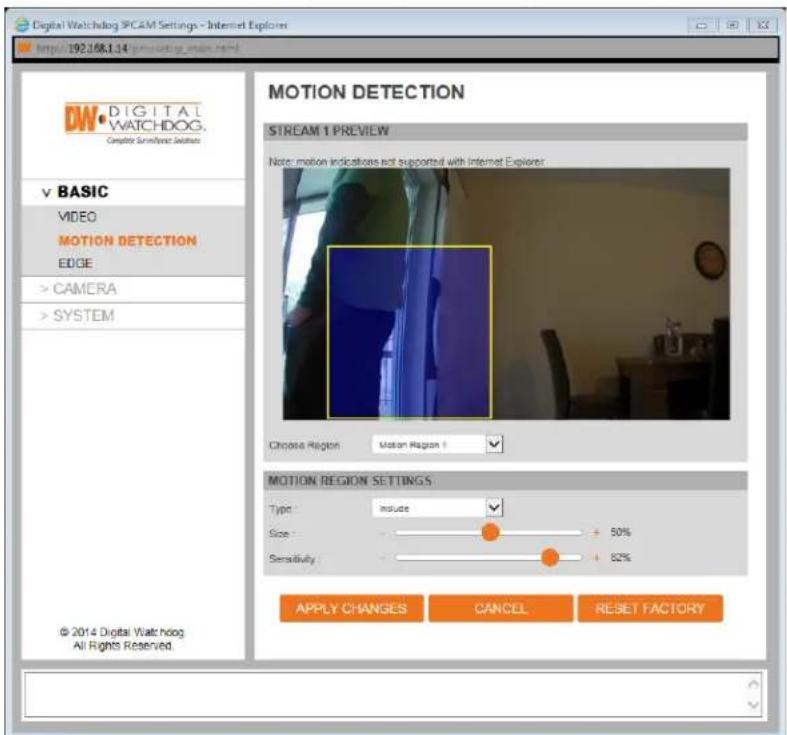
The MEGApix® CaaS™ camera allows you to setup four (4) motion detection masks in the camera's Field of View.
The camera supports up to four (4) separate motion detection regions. To setup motion detection:
- Select the region you wish to setup from the 'Choose Region' drop-down menu.
- To set the region's position and size in the camera's view, go to the camera's view above the settings and click and hold with your mouse and drag across the camera's view. The region's size and position will be displayed over the camera's view in a blue layer. If you have more than one region setup, the region in current setup will be highlighted with a yellow border.
- Type: Select whether this region will include motion detection or exclude it. If exclude is selected, motion in this region WILL NOT be detected.
- Size: Select the size of the object you want to detect motion. The larger the percentage, the larger
the object causing motion will have to be in order for the camera to detect the motion.
5. Sensitivity: Set the camera's sensitivity to motion in the region. The higher the percentage, the more sensitive the camera will be to motion in that region.
6. Click 'Apply Changes' to save.
7. When motion occurs in a region set to detect motion, the camera will display a motion indicator in the camera's web viewer.
NOTE: motion indicator is not supported in Internet Explorer viewer.
text_image
Digital Watchdog IPCAM Settings - Internet Explorer http://92.168.1.14/mosvog/ipoam.html MOTION DETECTION STREAM 1 PREVIEW Note: motion indications not supported with Internet Explorer Choose Region Motion Region 1 MOTION REGION SETTINGS Type: include Size : 50% Sensitivity : 82% © 2014 Digital Watchdog All Rights Reserved. APPLY CHANGES CANCEL RESET FACTORYWEBVIEWER\*
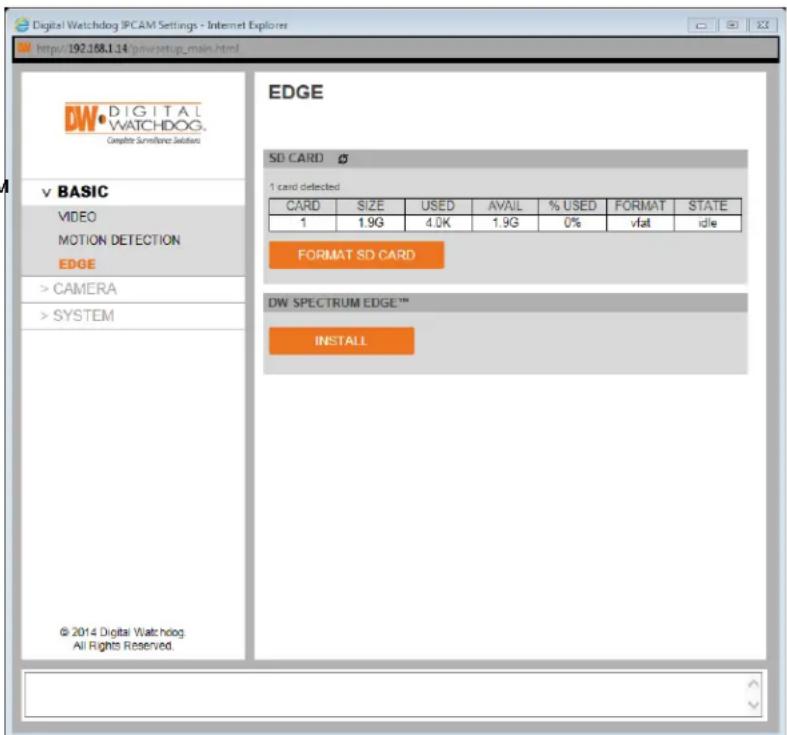
The MEGApix® CaaS™ camera support edge storage with DW Spectrum CaaS™.
- SD Card: this setup screen allows you to view your SD card's information, format the SD card and install DW Spectrum Edge™ for local edge recording. NOTE: For DWCS-VF35W4-64, DWCS-VF35WIR4-64, and DWCS-VF35W28-64, a 64GB SD card is included with the camera and should prepopulate in this section.
- The system will automatically display all installed SD cards. If your SD card does not appear in the table, try rebooting the camera and re-inserting the card.
- The system will display the SD Card's total size, current used and free space, format type and current recording status.
- To format the SD Card, press the 'Format SD Card' button. This will erase any data on the SD Card and format it.
- To add the edge capability to the camera, please install the DW Spectrum CaaS™ software. This software will allow you to record locally to the camera, use the failover redundancy feature and control your camera as any other server using the DW Spectrum™ IP VMS software.
- To download the DW Spectrum CaaS™ software and for more information, please go to Digital Watchdog's website at www.digital-watchdog.com.
text_image
Digital Watchdog IPCAM Settings - Internet Explorer http://192.168.134\pwsetup_main.html DW DIGITAL WATCHDOG. Composite Simultific Jelodies v BASIC VIDEO MOTION DETECTION EDGE >CAMERA >SYSTEM © 2014 Digital Watchdog All Rights Reserved. EDGE SD CARD Ø 1 card detected CARD SIZE USED AVAIL % USED FORMAT STATE 1 1.9G 4.0K 1.9G 0% vfat idle FORMAT SD CARD DW SPECTRUM EDGE™ INSTALLWEBVIEWER\*
Setup > Basic > Edge > DW Spectrum CaaS™
The MEGApix® CaaS™ camera support edge storage with DW Spectrum CaaS™.
To install the DW Spectrum CaaS™ software:
- Press the INSTALL button.
- In the new popup window, press the 'Choose File' button and select the appropriate file.
- Press the UPLOAD button.
- The system will upload the file. SUCCESS will appear once the installation is complete.

text_image
Spectrum Edge Update - Google Chrome 192.168.3.229/priv/dwedge_update.html Spectrum Edge Update Spectrum Edge Software: Choose File No file chosen UPLOAD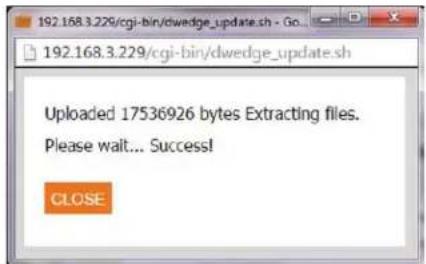
text_image
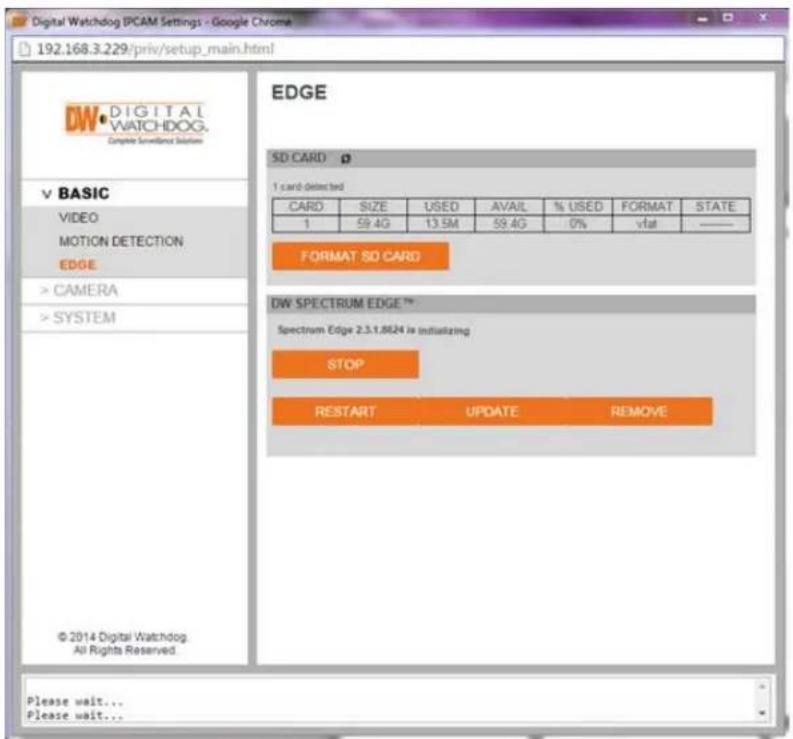
Uploaded 17536926 bytes Extracting files. Please wait... Success! CLOSE- Once the DW Spectrum CaaS™ software is installed on the camera, you can stop or restart the now installed DW Spectrum CaaS™ server, update the software or remove it from the camera.
text_image
Digital Watchdog IPCAM Settings - Google Chrome 192.168.3.229/priv/setup_main.html DW DIGITAL WATCHDOG. Engine surveillance solution EDGE SD CARD 1 card detected bed CARD SIZE USED AVAIL % USED FORMAT STATE 1 59.4G 13.5M 59.4G 0% vlat ——— FORMAT SD CARD DW SPECTRUM EDGE** Spectrum Edge 2.3.1.8624 is initializing STOP RESTART UPDATE REMOVE © 2014 Digital Watchdog. All Rights Reserved. Please wait... Please wait...WEBVIEWER\*
Setup > Basic > Edge > DW Spectrum CaaS™
The MEGApix® CaaS™ camera support edge storage with DW Spectrum CaaS™.
Once the DW Spectrum CaaS™ software is installed on the camera, the camera is considered a DW Spectrum server. As such, all settings for the camera's recording, playback, backup, and further software updates can be done from the DW Spectrum client.
- To access the camera via DW Spectrum client, please install the client software included in the accessory CD.
- Run the DW Spectrum software.
-
Enter the camera's IP address in the login screen.
-
See the DW Spectrum manual for more information on DW Spectrum operation.

text_image
DW New Layout® Search System (DW_Cast) SPECTRUM_EDGE IPCAM (192.168.18.154) Users Local SPECTRUM_EDGE-IPCAM 1920x1080 10.00fps @ 1.96Mbps (H264) Hi-Res LIVE Live 2015 24 June 2015 25 June 2015 26 June 2015 24 June 2015 25 June 2015 26 June SPECTRUM_EDGE IPCAM Hi-Careb THMB CLNDWEBVIEWER\*
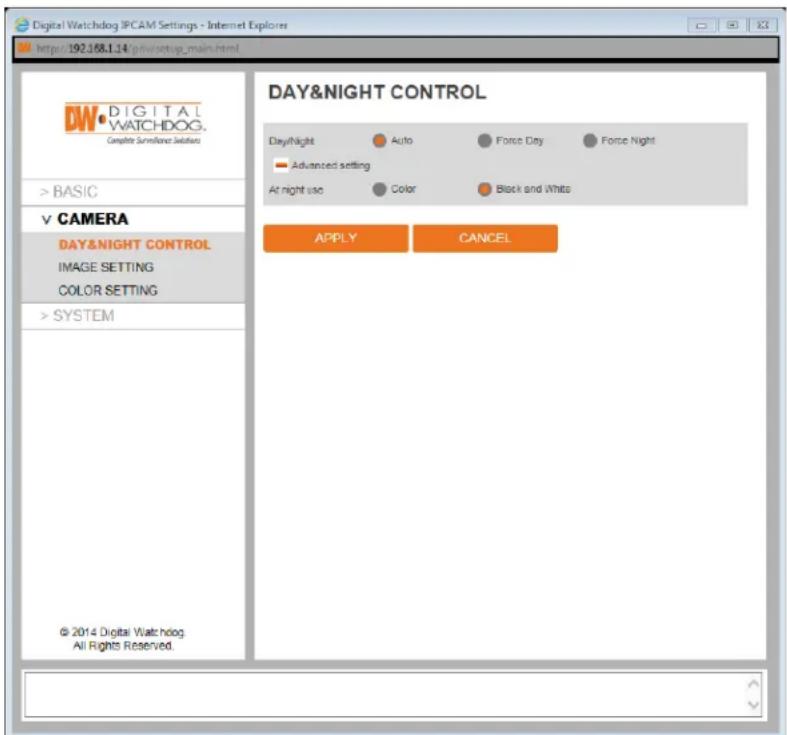
Setup > Camera > Day & Night Control
Adjust the MEGApix® CaaS™ camera's Day & Night, Image and Color settings.
- Day / Night – select the camera's color mode.
a. Auto - The camera will switch between color and B/W automatically based on the levels of light in the camera's Field of View (FoV).
b. Force Day – Manually use the camera's True Day/Night IR cut filter the camera's view to day mode regardless of the light levels in the camera's FoV.
c. Force Night – Manually removes the True Day/Night IR cut filter from the camera's lens and turns the camera's view to night mode regardless of the light levels in the camera's FoV. - Advanced Settings – The camera will switch by default to B/W in night mode. You can manually select what action the camera will take in night mode under the advanced settings. You can change the settings by selecting Color in the advanced settings.
text_image
Digital Watchdog IPCAM Settings - Internet Explorer http://192.168.1.14/g/n/m/m/m/m/m/m/m/m/m/m/m/m/m/m/m/m/m/m/m/m/m/m/m/m/m/m/m/m/m/m/m/m/m/m/m/m/m/m/m/m/m/m/m/m/m/m/m/m/m/m/m/m/m/m/m/m/m/m/m/m/m/m/m/m/m/m/m/m/m/m/m/m/m/m/m/m/m/m/m/m/m/m/m/m/m/m/m/m/m/m/m/m/m/m/m/m/m/m/m/m DAY&NIGHT CONTROL Day/Night Auto Force City Force Night Advanced setting At night use Color Black and White APPLY CANCEL DAY&NIGHT CONTROL DAY&NIGHT CONTROL IMAGE SETTING COLOR SETTING > SYSTEM © 2014 Digital Watchdog All Rights Reserved.WEBVIEWER\*
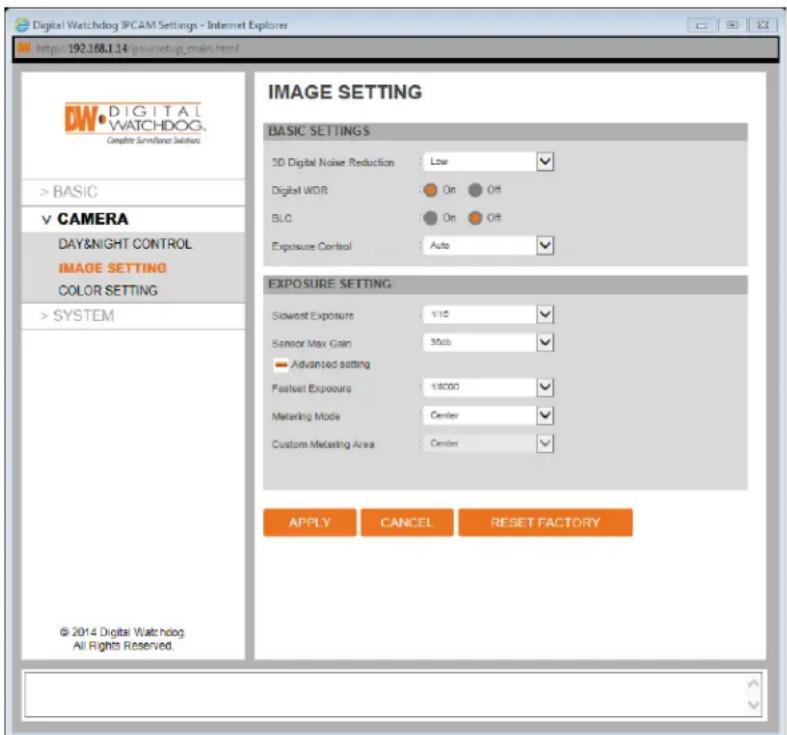
Setup > Camera > Image Setting
Adjust the MEGApix® CaaS™ camera's Day & Night, Image and Color settings.
1. BASIC SETTINGS
a. 3D Digital Noise Reduction – Control the level of noise in the image. Select from Off, Low, Medium and High. The higher the level, the more the camera will manipulate the image to reduce digital noise, but it will also increase lagging when motion occurs. By default, the 3D DNR settings are set to Low.
b. Digital WDR (Wide Dynamic Range) – The Digital Wide Dynamic Range is used when there are extremely bright and extremely dark areas in the VoF of the camera. Select to enable or disable this feature. By default, Digital WDR is set to ON.
c. BLC (Backlight Compensation) – This setup option allows you to adjust the camera's capture of light when there is strong backlight in the camera's Field of View [FoV]. By default, BLC is set to OFF.
d. Exposure Control – In case the camera's image is flickering, adjust the value on this setting. By Default, Exposure Control is set to 60GHz.
2. EXPOSURE SETTING
a. Slowest Level – Set the shutter speed from the available options between 1/7.5 and 1/8000. Select 1/7.5 to set more exposure time to light. This setting is used to make movements look natural/unfrozen. Select 1/8000 to set less exposure time to light. This settings is used to catch fast moving objects.
b. Sensor Max Gain – Maximum light gain settings in low light conditions. Select from 26dB (least light), 30dB, 36dB to 42dB (most light). Default value is 36dB
c. Fastest Exposure – Set the shutter speed from the available options between 1/25 and 1/32000. Select 1/25 to set more exposure time to light. This setting is used to make movements look natural/unfrozen. Select 1/32000 to set less exposure time to light. This settings is used to catch fast moving objects.
d. Metering Mode – This is the region of interest for the exposure settings. The camera's exposure will be determined by the selected Metering Mode, affecting the camera's bright levels. Select an option from the available drop-down options.
e. Custom Metering Area – If 'Custom' is selected in the Metering Mode, adjust the Metering Mode position in the camera's FoV. Select an option from the available drop-down options.
text_image
Digital Watchdog IPCAM Settings - Internet Explorer http://192.168.134/pmvsetup_main.html DW DIGITAL WATCHDOG. Composite Simultaneous Solutions > BASIC V CAMERA DAY&NIGHT CONTROL IMAGE SETTING COLOR SETTING > SYSTEM © 2014 Digital Watchdog. All Rights Reserved. IMAGE SETTING BASIC SETTINGS 3D Digital Noise Reduction : Low Digital WDR : On Off BLC : On Off Exposure Control : Auto EXPOSURE SETTING Slowest Exposure : 1/15 Sensor Max Gain : 30kb Advanced setting Fastest Exposure : 18000 Metering Mode : Center Custom Metering Area : Center APPLY CANCEL RESET FACTORYWEBVIEWER\*
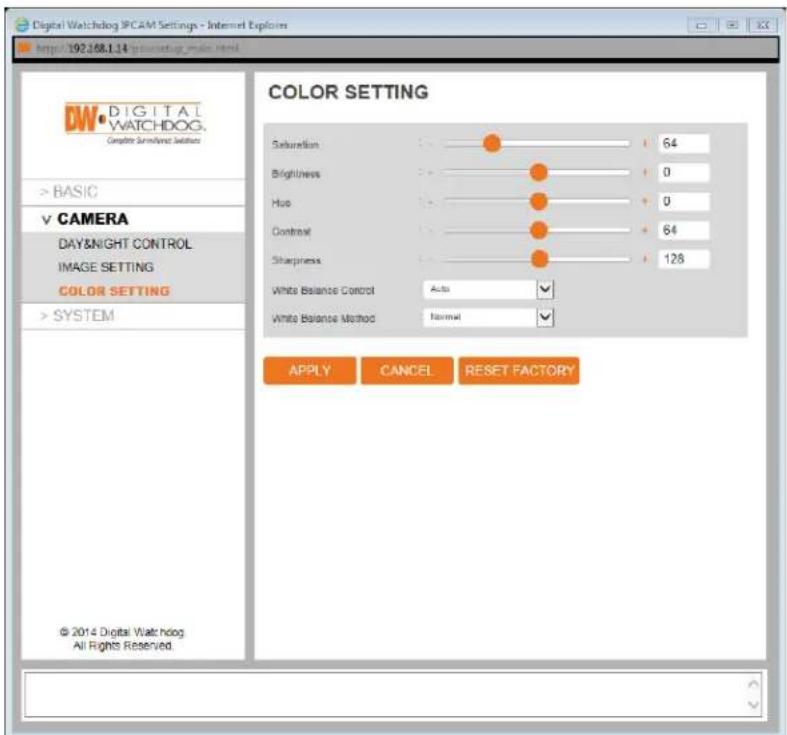
Setup > Camera > Color Setting
Adjust the MEGApix® CaaS™ camera's Day & Night, Image and Color settings.
- Saturation – Set the camera's saturation levels from 0 \~ 255. The higher the number, the more vibrant will the colors appear on the camera's image. The lower the number, the more black and white the image will appear. Default value is 64.
- Brightness – Set the brightness of the camera's image from -255\~255. The higher the number, the brighter the camera's image will appear. Default value is 0.
- Hue – from -15 \~ 15. The higher the number, the camera's image will use warmer tones. The lower the number, the camera's image will use cooler color tones. Default value is 0.
-
Contrast – Set the camera's contrast between 0 \~ 128. The higher the number, the contrast between the dark and bright areas in the camera's FoV will be more distinct. Default value is 64.
-
Sharpness – Sets the image sharpness between 0 \~ 255. The higher the number, the sharper the image. Default value 128.
-
White Balance Control – This gives the camera a reference to “true white.” White Balance is used to make colors appear the same in the Field of View (FoV) no matter what is the light temperature of the light source. Select form the available drop-down menu options.
-
White Balance Method – Select the Custom, Normal, or Gray World.
text_image
Digital Watchdog IPCAM Settings - Internet Explorer http://192.168.1.14/pcu#setug:WEBVIEWER\*
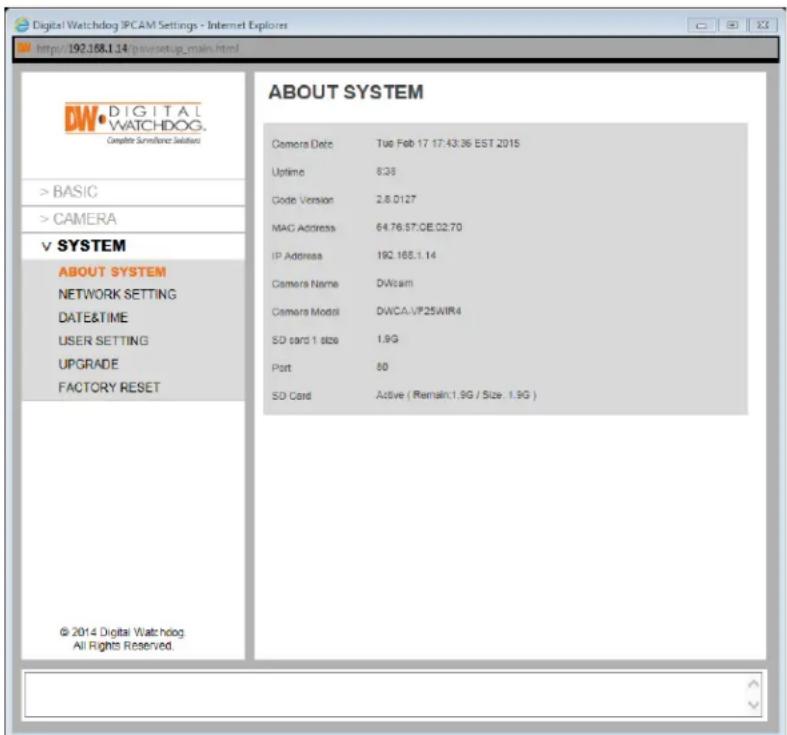
Setup > System > About System
View the MEGApix® CaaS™ camera's basic information.
This page displays the camera's main information including:
- Camera's Date And Time – Displays the camera's current date, time and time zone.
- Camera's Uptime – how long the camera has been operating since its last power cycle
- Code Version – camera's firmware version.
- MAC & IP Address – the camera's address information.
- Camera Name – display the camera's name.
- Camera Model – displays the camera's model number
- SD Card Information - displays the size of all SD cards currently mounted on the camera.
- Port – displays the web port for the camera.
- SD Card Status – displays the current SD card's status, size and remaining space.
text_image
Digital Watchdog IPCAM Settings - Internet Explorer http://192.168.1.14/psvsetup_main.html DW DIGITAL WATCHDOG. Complete Simultaneous Schedules >BASIC >CAMERA V SYSTEM ABOUT SYSTEM NETWORK SETTING DATE&TIME USER SETTING UPGRADE FACTORY RESET © 2014 Digital Watchdog All Rights Reserved. ABOUT SYSTEM Camera Date Tue Feb 17 17:43:36 EST 2015 Uptime 6:38 Code Version 2.8.D127 MAC Address 64.76.57:GE.02.70 IP Address 192.168.1.14 Camera Name DWteam Camera Model DWCA.VF25WIR4 SD card 1 size 1.9G Port 80 SD Card Active ( Remain:1.9G / Size: 1.9G ) © 2014 Digital WatchdogWEBVIEWER\*
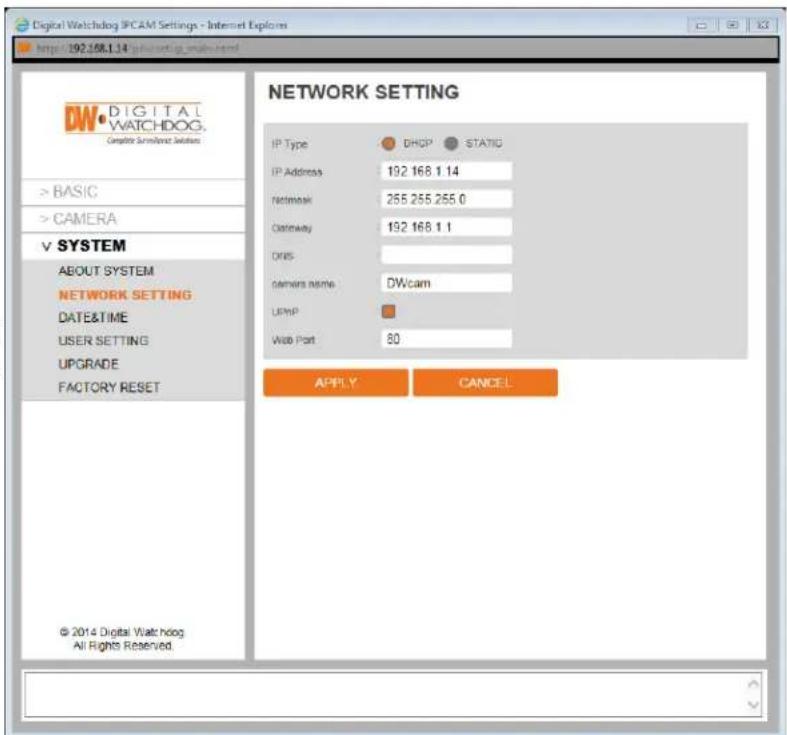
Setup > System > Network Setting
View the MEGApix® CaaS™ camera's basic information.
This page displays the camera's main information including:
- IP Type – Select whether the camera's IP address will be static or DHCP. Select DHCP if you are using a DHCP Server. When the camera is set to DHCP, it will obtain all its network information automatically from the server. If you do not have a DHCP server, or wish to manually enter the camera's network information, select STATIC. To obtain a static IP Address and network information, contact your Internet Service Provider (ISP) or Network Administrator.
- IP Address – Enter an IP address for the camera
- Netmask - default is 255.255.255.0
- Gateway – This is your router's external IP address. This address is used when accessing the camera remotely from outside the network. The router will channel the data request to the appropriate port associated with the camera.
- DNS – Enter a DNS address. The Domain Name Server translates a web addresses to an IP addresses.
- Camera Name – If needed, rename the camera for proper identification.
- UPnP – Enable or disable the camera's UPnP function according to your network requirements.
- Web Port – By default, the camera's web port is set to 80. These are the ports necessary in order to communicate with the camera when accessing from a different network. Some ISP may block port 80. Please contact your Network Administrator for additional information.
text_image
Digital Watchdog IPCAM Settings - Internet Explor http://92.108.1.14\pub.com/ware.html DW DIGITAL WATCHDOG. Compatible Simulink Solutions >BASIC >CAMERA V SYSTEM ABOUT SYSTEM NETWORK SETTING DATE&TIME USER SETTING UPGRADE FACTORY RESET © 2014 Digital Watchdog All Rights Reserved. NETWORK SETTING IP Type DHCP STATIC IP Address 192.168.1.14 Network 255.255.255.0 Gateway 192.168.1.1 DNS networks name: DWcam UPMP Web Port 80 APPLY CANCELWEBVIEWER\*
Setup > System > Date & Time
View the MEGApix® CaaS™ camera's basic information.
This page displays the camera's current time and date & time setting options:
- Camera Time—This section displays the camera's current date, time, and time zone.
- Time Zone—Select the appropriate time zone from the drop-down menu.
- NTP Server- Set the camera to sync its time with an NTP server by pressing the 'SYNC' button.
- Computer Time—You can also set the camera to sync its time with your computer's settings by pressing the 'SYNC' button.
Setup > System > User Setting
Use the User Setting page to set a new password for the camera's admin user. To change the admin's password, type and retype the new password in the corresponding fields and click 'Apply'.

text_image
Digital Watchdog IPCAM Settings - Internet Explorer http://82.168.1.14 Digital Watchdog IPCAM Settings - Internet Explorer DW DIGITAL WATCHDOG. Computer Interface Solutions >BASIC >CAMERA ✓ SYSTEM ABOUT SYSTEM NETWORK SETTING DATE:TIME USER SETTING UPGRADE FACTORY RESET © 2014 Digital Watchdog. All Rights Reserved. DATE & TIME Copyright Time: 2015-02-16 09:39:00 Timecode: (UTC ~05:00) AmericanTime_York MTP Server: pool.ntp.org COMPUTER TIME: 2015-02-16 10:06:07 STPG
text_image
Digital Watchdog BPCAM Settings - Internet Explorer http://192168.1.14 USER SETTING Name: password: ⑨ Type: password: ⑨ APPLY DW DIGITAL WATCHDOG Complete surveillance solutions >BASIC >CAMERA > SYSTEM ABOUT SYSTEM NETWORK SETTING DATE&TIME USER SETTING UPGRADE FACTORY RESET © 2014 Digital Watchdog. All Rights Reserved.WEBVIEWER\*
Setup > System > Firmware Upgrade
View the MEGApix® CaaS™ camera's basic information.
Use this setting page to upgrade the camera's firmware. The information at the top of the page shows the camera's name, current firmware version and date. To check for the latest firmware, click on the link to Digital Watchdog's website, or go to www.digital-watchdog.com.
To start the upgrade process:
- Download the latest firmware from the Digital Watchdog website.
- Click the 'Browse' button and select the firmware file.
- Press the 'Upload' button.
- The system will automatically start the upgrade process.
- You can track the upgrade process in the update status page.
- Once the upgrade is complete, the camera will reboot to complete the update.

text_image
Digital Watching PCAM Settings - Google Devices 192.168.37.130/priv/senup_main.html DW IP.com DWIP.com Version: 2.8.0217 Built: Tue Feb 17 20:36:11 PST 2015 www.digital-watchdog.com CURRENT VERSION DWIP.com Version: 2.8.0217 Built: Tue Feb 17 20:36:11 PST 2015 www.digital-watchdog.com MANUAL UPDATE Software file name Choose File No file chosen UPLOAD NETWORK UPDATE VERSION CHECK DOWNLOAD © 2014 Digital Watchdog. All Rights Reserved.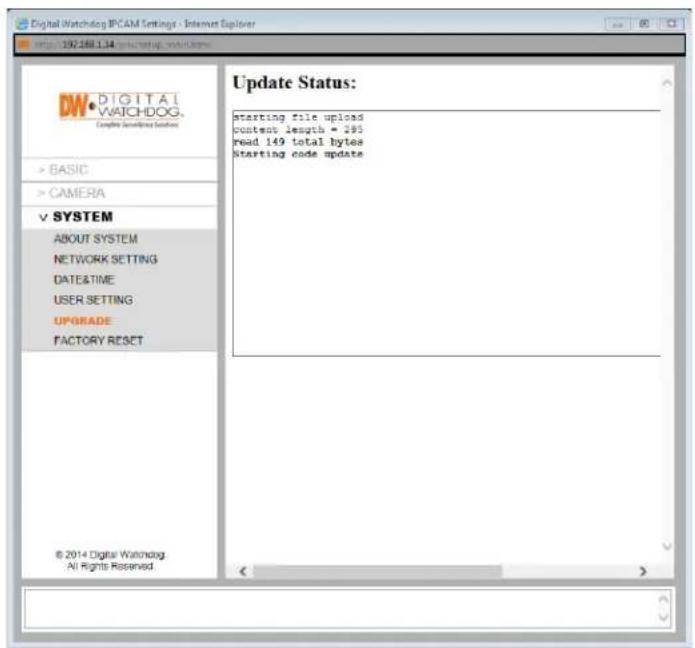
text_image
Digital Watchdog IPCAM Settings - Internet Explorer http://192.168.1.34 DW DIGITAL WATCHDOG. Complete Security Solutions >BASIC >CAMERA ∨ SYSTEM ABOUT SYSTEM NETWORK SETTING DATE&TIME USER SETTING UPGRADE FACTORY RESET © 2014 Digital Watchdog All Rights Reserved Update Status: starting file upload context length = 285 read 149 total bytes Starting code updateWEBVIEWER\*
Setup > System > Factory Reset
View the MEGApix® CaaS™ camera's basic information.
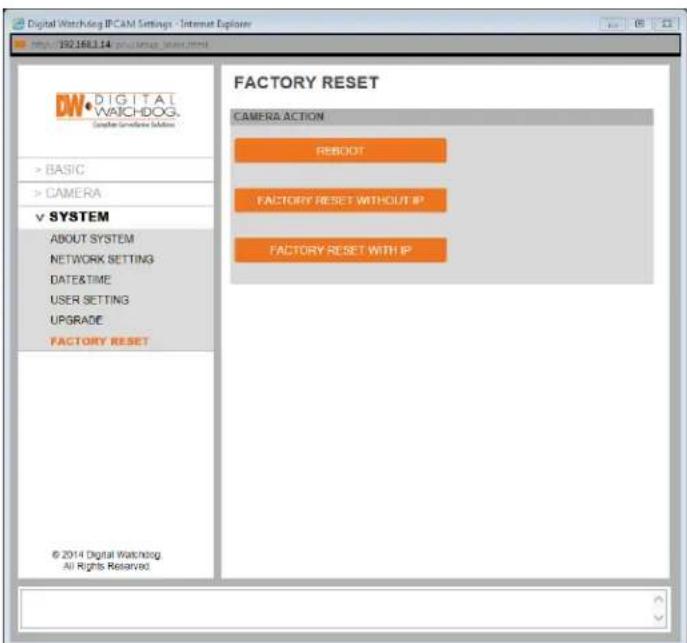
The Factory Rest page allows you to reboot the camera or reset its settings to factory default.
- Reboot – press the 'Reboot' button to reboot and power cycle the camera.
- Factory Reset without IP – Select to reset the camera's settings back to factory default. If this option is selected, all settings except for the camera's network settings with be deleted and reset to their factory default. Press OK in the confirmation window to complete the reset.
- Factory Reset with IP – Select to reset the camera's settings back to factory default. If this option is selected, all settings, including the camera's network settings, with be deleted and reset to their factory default. Press OK in the confirmation window to complete the reset.
text_image
Digital Watchdog IPCAM Settings - Internet Explorer http://392168114 DIGITAL WATCHDOG. System Interface Solutions >BASIC >CAMERA ∨ SYSTEM ABOUT SYSTEM NETWORK SETTING DATE&TIME USER SETTING UPGRADE FACTORY RESET © 2014 Digital Watchdog. All Rights Reserved FACTORY RESET CAMERA ACTION REBOOT FACTORY RESET WITHOUT IP FACTORY RESET WITH IP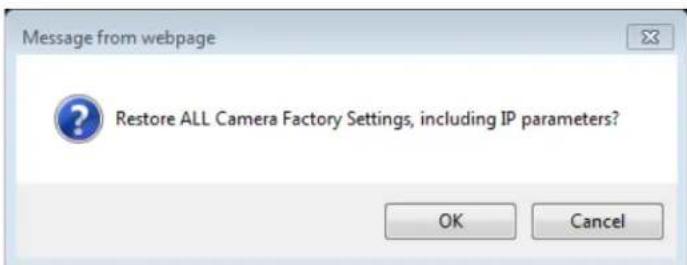
text_image
Message from webpage Restore ALL Camera Factory Settings, including IP parameters? OK CancelSPECIFICATIONS*
| IMAGE | |
| Image Sensor 1/3" 2.1MP CMOS Sensor | |
| Total Pixels 2304 (H) x 1536 (V) 1.55μm | |
| Minimum Scene Illumination | DWCA-VF25W28, DWCA-VF25W28-64: F1.8 (30IRE): 0.06Lux [Color], F2.0 (30IRE): 0.02Lux [B&W] |
| DWCA-VF25WIR4, DWCA-VF25WIR4-64, DWCA-VF25W464: F1.4 (30IRE): 0.5 Lux [Color], F1.4 (30IRE): 0.001 Lux [B&W] | |
| DWCA-VF25WIR8, F2.0 (30IRE): 0.5Lux [Color], F2.0 (30IRE): 0.00Lux [B&W] | |
| Focal Length | DWCA-VF25W28, DWCA-VF25W28-64: 2.8mm, F1.4, 102° Viewing Angle |
| DWCA-VF25WIR4, DWCA-VF25WIR4-64, DWCA-VF25W464: 4.0mm, F1.8, 86° Viewing Angle | |
| DWCA-VF25WIR8: 8.0mm, F2.0, 39° Viewing Angle | |
| Lens Type Fixed Lens | |
| IR Distance 30ft Range IR (IR models only) | |
| OPERATIONAL | |
| Brightness -255 ~ 255 | |
| Shutter Mode Auto/ Manual | |
| Shutter Speed | 1/7.5, 1/15, 1/25, 1/30, 1/50, 1/60, 1/100, 1/120, 1/240, 1/480, 1/960, 1/1024, 1/8000, 1/16000, 1/32000 sec |
| Digital Slow Shutter (DSS) Off, 2x, 4x | |
| Smart DNR™ Digital Noise Reduction Off/ | Low/ Middle/ High |
| Auto Gain Control Max 41dB | |
| BLC (Back Light Compensation) Off/ On | |
| Digital Wide Dynamic Range (DWDR) | Auto/ Off |
| Day and Night Auto/ Day (Color)/ Night (B/W) | |
| Motion Detection: Sensitivity Low/ Middle/ High | |
| Memory Slot | SD/SDHC Micro Memory Card (Card is not included), up to 128GB |
| Hue | -15 ~ 15 |
| Saturation | 0 ~ 255 |
| Sharpness | 0 ~ 10 |
| Flip & Rotate | Yes |
SPECIFICATIONS*
| NETWORK | |
| LAN 802.3 Compliance 10/100 LAN | |
| Video Compression Type H.264, MJPEG | |
| Resolution 1920 x 1080 ~ 160 x 90 | |
| Frame Rate 30fps at 1080P Resolution | |
| Stream Capability Multi Streaming CBR/VBR (Controllable Frame Rate and Bandwidth) | |
| IP IPv4, IPv6 | |
| Protocol ONVIF, TCP/UDP, RTSP/HTTP/HTTPS/FTP | |
| Maximum User Access 4 Users | |
| Memory Slot Micro Memory Card, up to 128GB | |
| ONVIF Conformance Yes | |
| Web Viewer | Supported OS: Windows XP, Windows Vista, Windows 7, MAC OSSupported Browser: Internet Explorer, Google Chrome, Mozilla Firefox, Safari |
| Video Management Software | DW SpectrumTM, ONSSI, Milestone, Genetec |
| ENVIRONMENTAL | |
| Operating Temperature | -10°C ~ 45°C (14°F ~ 113°F) |
| Operating Humidity | Less than 90% (Non-Condensing) |
| IP Rating | IP66 Certified (Weather Resistant) |
| Other Specifications | CE, FCC, RoHS |
| Electrical | |
| Power Requirement | DV12V, PoE [IEEE802.3af, Class 2] |
| Power Consumption | IR LED Off: 2.2W, 180mAIR LED On: 3W, 255mA |
| Mechanical | |
| Housing Material | Aluminum Die-Casting |
| Dimensions | ∅ 125 x 74.3 mm (∅ 4.9 x 2.9 inch) |
| Weight | 1.5 lbs |
TROUBLESHOOTING
Before sending your camera for repair, check the following or contact your technical specialist.
I can't find my MEGApix® CaaS™ camera on the IP Finder software.
Is the PoE cable connected properly?
Make sure cable is tightly connected at both ends. It should make a "click" sound when connected properly.
Make sure cable is intact and there are no cuts or exposed wires.
- If Yes, are the camera's LED light turned on and blinking?
The camera's LED lights indicate that the camera is powered on. Blinking LED light indicate that the camera has finished booting up and is transmitting data.
■ If Yes, is the internet working properly?
Make sure you can connect to the internet with other devices on the network (ex. Your Computer). Your internet could be temporarily down.
- If Yes, if using a power adaptor, does it meet camera's power requirements?
Power Requirements: DC12V (IR LED Off: 2.2W, 180mA, IR LED On: 3W, 255mA), PoE Ports (Class 2, less than 5W)
If Yes, if using PoE Switch, is it connected to a proper internet outlet and operating properly?
Make sure the PoE Switch is connected to a router/modem and the ports that have devices connected to them have a green LED on.
If Yes, is the computer on the same network as the MEGApix® CaaS™ camera?
Camera and computer should be connected to the same router. Contact your network administrator if you have more than one network available.
If Yes, try pinging the IP camera's default IP address 169.254.X.X
From your desktop, go to Start > Programs > Accessories > Command Prompt. Type "ping 169.254.X.X" and press Enter. If you get the message "Request timed out," camera is not connected. Camera is connected if you get data.
- If Yes, try connecting the camera to a different port in the PoE Switch.
That specific Switch Port may be damaged or currently not working properly.
- If Yes, try resetting the camera to default settings.
Press the 2 buttons in the back together and hold for 5 seconds. The camera will return to factory default with default IP address 192.168.1.123. If your network supports DHCP, the camera will be found using the IP Finder software with an IP address that matches your network's requirements.
TROUBLESHOOTING
Before sending your camera for repair, check the following or contact your technical specialist.
I can't connect to my MEGApix® CaaS™ camera through the Web Browser
- Are the camera's LEDs on and blinking?
The camera's LED indicates the camera is On. If the LED blinks, the camera has finished booting up and is transmitting data.
■ If Yes, is the internet working properly?
Make sure you connect to the internet with other devices on the network (ex. Your Computer). Your internet could be temporarily down.
- If Yes, is the computer on the same network as the IP camera?
Camera and computer should be connected on the same router. Contact your network administrator if you have more than one network available.
If Yes, try pinging the MEGApix® CaaS™ camera's IP address as it appears on the IP finder.
From your desktop, go to Start > Programs > Accessories > Command Prompt. Type "ping" followed by the camera's IP address; then, press Enter. If you get the message "Request timed out," camera is not connected. If you get data back, that means the camera is connected.
If Yes, try connecting the camera, to a different port in the PoE Switch.
That specific Switch Port may be damaged or currently not operating properly.
- If Yes, check your security settings on your internet browser.
Try adding the camera's IP address to the trusted sites list in your Internet Options. *Setup may vary depending on the browser you use.
TROUBLESHOOTING
Before sending your camera for repair, check the following or contact your technical specialist.
I can't see the live video of my MEGApix® CaaS™ camera.
- Are you trying to view the camera's video from an Internet Explorer browser?
Make sure you have the minimum PC requirements to view the MPA20M camera. *See below for more information.
If Yes, did you install all required FbVLC files? These are VLC media files that allows the camera to stream its video to the web client.
When you connect to your MEGApix® CaaS™ camera for the first time, your browser will ask you to install FbVLC. Make sure your Web Browser's security settings do not block pop-up windows and allows FbVLC files to be installed and used. *Setup may vary depending on the browser you use. - If Yes, make sure nothing is blocking the camera's lens.
Web Viewer Specifications
Minimum Requirements for PC
CPU Intel P4 2.0GHz Dual Core
RAM More than 1GB
HDD 200 GB Required for Saving Clip Image
OS Microsoft Windows XP or Higher
Resolution Higher than 1024X768
TROUBLESHOOTING
Before sending your camera for repair, check the following or contact your technical specialist.
Setting the IP Address for your PC
Dynamic Host Configuration Protocol (DHCP) is the default setting for the camera.
If the MEGApix® CaaS™ camera is connected to a DHCP network and the camera's IP Configuration Mode is set to DHCP, the server will automatically assign an IP address to the camera. If the camera is using DHCP, the default IP address will be 192.168.1.123, and the default subnet mask will be 255.255.255.0.
The MEGApix® CaaS™ camera can also connect to the web viewer using a static IP address. This will allow you to set your own IP address manually.
Setup the Network Protocol on your PC.
- Go to Network icon on your PC.
- Right-click and select Properties.
- Double-click Local Area Connection.
- Click Properties.
- Double-click Internet Protocol Version 4 (TCP/IPv4).
- Select Obtain an IP address automatically to set the computer to a dynamic IP address, or select Use the following IP address to set the computer to a static IP address.
- If the option Use the following IP address has been selected, setup the IP address as 192.168.1.XXX. The last three digits should be a number between 1 and 254.

text_image
Control Panel Home Change adapter settings Change advanced sharing settings View your basic network information and set up connections Local Area Connection Status General Connection IPv4 Connectivity: Internet IPv6 Connectivity: No network access Media States: Enabled Durations: 00x36:07 Speed: 100.0 Mbps Details... Activity sent Received Bytes: 18,931,920 528,109,020 Properties Disable Diagnose See also HomeGroup Internet Options Windows Firewall Close Connect or disconnect Local Area Connection Enter: Local Connections: N connections or set up a router or access point. or VPN network connection. Computers, or change sharing settings. Meshooting information.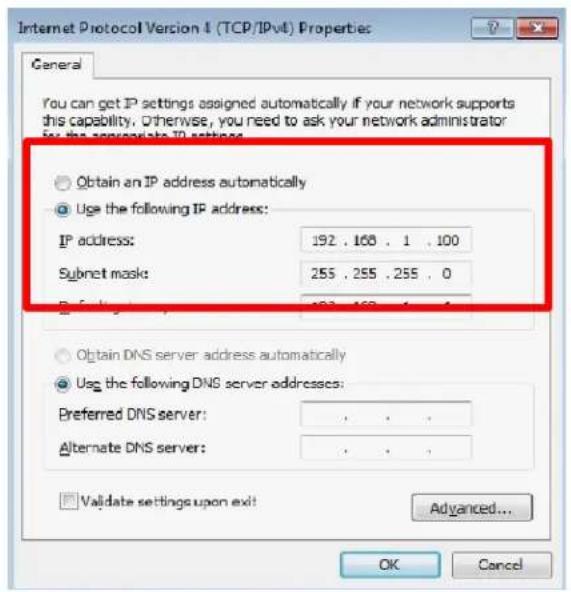
text_image
Internet Protocol Version 4 (TCP/IPv4) Properties General You can get IP settings assigned automatically if your network supports this capability. Otherwise, you need to ask your network administrator for the appropriate IP settings. Obtain an IP address automatically Use the following IP address: IP address: 192 . 168 . 1 . 100 Subnet mask: 255 . 255 . 255 . 0 B : F : G : H : I : J : K : L : M : N : O : P : Q : R : S : T : U : V : W : X : Y : Z : A : A Obtain DNS server address automatically Use the following DNS server addresses: Preferred DNS server: . . . . Alternate DNS server: . . . . Validate settings upon exit! Advanced... OK CancelWARRANTY INFORMATION\*
Digital Watchdog (referred to as “the Warrantor”) warrants the Camera against defects in materials or workmanships as follows:
Labor: For the initial two (2) years from the date of original purchase if the camera is determined to be defective, the Warrantor will repair or replace the unit with new or refurbished product at its option, at no charge.
Parts: In addition, the Warrantor will supply replacement parts for the initial two (2) years.
To obtain warranty or out of warranty service, please contact a technical support representative at 1-866-446-3595 Monday through Friday from 9:00AM to 8:00PM EST.
A purchase receipt or other proof of the date of the original purchase is required before warranty service is rendered. This warranty only covers failures due to defects in materials and workmanship which arise during normal use. This warranty does not cover damages which occurs in shipment or failures which are caused by products not supplied by the Warrantor or failures which result from accident, misuse, abuse, neglect, mishandling, misapplication, alteration, modification, faulty installation, set-up adjustments, improper antenna, inadequate signal pickup, maladjustments of consumer controls, improper operation, power line surge, improper voltage supply, lightning damage, rental use of the product or service by anyone other than an authorized repair facility or damage that is attributable to acts of God.
LIMITS & EXCLUSIONS\*
There are no express warranties except as listed above. The Warrantor will not be liable for incidental or consequential damages (including, without limitation, damage to recording media) resulting from the use of these products, or arising out of any breach of the warranty. All express and implied warranties, including the warranties of merchantability and fitness for particular purpose, are limited to the applicable warranty period set forth above.
Some states do not allow the exclusion or limitation of incidental or consequential damages or limitations on how long an implied warranty lasts, so the above exclusions or limitations may not apply to you. This warranty gives you specific legal rights, and you may also have other rights from vary from state to state.
If the problem is not handled to your satisfaction, then write to the following address:
Digital Watchdog, Inc. ATTN: RMA Department 5436 W Crenshaw St Tampa, FL 33634
Service calls which do not involve defective materials or workmanship as determined by the Warrantor, in its sole discretion, are not covered. Cost of such service calls are the responsibility of the purchaser.

DIGITAL
WATCHDOG®
Complete Surveillance Solutions
Headquarters Office: 5436 W Crenshaw St, Tampa, FL 33634
Sales Office: 16220 Bloomfield Ave., Cerritos, California, USA 90703
PH: 866-446-3595 | FAX: 813-888-9262
www.Digital-Watchdog.com
technicalsupport@dwcc.tv
Technical Support PH:
USA & Canada 1+ (866) 446-3595
International 1+ (813) 888-9555
French Canadian 1+ (514) 360-1309
Technical Support Hours: Monday-Friday
9:00am to 8:00pm Eastern Standard Time