MEGApix CaaS DWC-MB44LPRWC - Security Camera Digital Watchdog - Free user manual and instructions
Find the device manual for free MEGApix CaaS DWC-MB44LPRWC Digital Watchdog in PDF.


User questions about MEGApix CaaS DWC-MB44LPRWC Digital Watchdog
0 question about this device. Answer the ones you know or ask your own.
Ask a new question about this device
Download the instructions for your Security Camera in PDF format for free! Find your manual MEGApix CaaS DWC-MB44LPRWC - Digital Watchdog and take your electronic device back in hand. On this page are published all the documents necessary for the use of your device. MEGApix CaaS DWC-MB44LPRWC by Digital Watchdog.
USER MANUAL MEGApix CaaS DWC-MB44LPRWC Digital Watchdog
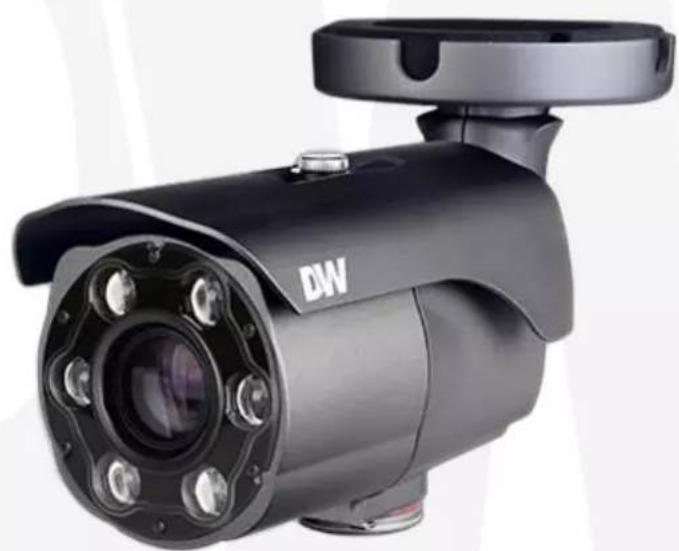
MEGApix® CaaS™ 4MP LPR IP camera
DWC-MB44LPRC6 - 64GB storage DWC-MB44LPRC1 - 128GB storage DWC-MB44LPRC2 - 256GB storage DWC-MB44LPRC5 - 512GB storage DWC-MB44LPRC1T - 1TB storage
natural_image
Black DW surveillance camera with lens and control panel (no visible text or symbols)User's Manual Ver. 04/22
Before installing and using the camera, please read this manual carefully. Be sure to keep it handy for future reference.
CAUTION
RISK OF ELECTRIC SHOCK. DO NOT OPEN.

CAUTION:
TO REDUCE THE RISK OF ELECTRIC SHOCK, DO NOT REMOVE COVER (OR BACK) NO USER SERVICEABLE PARTS INSIDE. REFER SERVICING TO QUALIFIED SERVICE PERSONNEL.
Warning Precaution
This symbol indicates that dangerous voltage consisting a risk of electric shock is present within this unit.

This exclamation point symbol is intended to alert the user to the presence of important operating and maintenance (servicing) instructions in the literature accompanying the appliance.
WARNING
To prevent damage which may result in fire or electric shock hazard, do not expose this appliance to rain or moisture.
WARNING
- Be sure to use only the standard adapter that is specified in the specification sheet. Using any other adapter could cause fire, electrical shock, or damage to the product
- Incorrectly connecting the power supply or replacing battery may cause explosion, fire, electric shock, or damage to th product.
- Do not connect multiple cameras to a single adapter. Exceeding the capacity may cause excessive heat generation or fire
- Securely plug the power cord into the power receptacle. Insecure connection may cause fire
- When installing the camera, fasten it securely and firmly A falling camera may cause personal injury.
- Do not place conductive objects (e.g. screw drivers, coins, metal items, etc.) or containers filled with water on top of the camera. Doing so may cause personal injury due to fire electric shock, or falling objects.
- Do not install the unit in humid, dusty, or sooty locations. Doing so may cause fire or electric shock
- If any unusual smells or smoke come from the unit, stop using the product. Immediately disconnect the power sorce and contact the service center. Continued use in such a condition may cause fire or electric shock
- If this product fails to operate normally, contact the nearest service center. Never disassemble or modify this product in any way.
- When cleaning, do not spray water directly onto parts of the product. Doing so may cause fire or electric shock
Precaution
Operating
- Before using, make sure power supply and all other parts are properly connected.
- While operating, if any abnormal condition or malfunction is observed, stop using the camera immediately and contact your dealer.
Handling
- Do not disassemble or tamper with parts inside the camera.
- Do not drop the camera or subject it to shock or vibration as this can damage the camera.
- Clean the clear dome cover with extra care. Scratches and dust can ruin the quality of the camera image.
Installation and Storage
- Do not install the camera in areas of extreme temperature, exceeding the allowed range.
- Avoid installing in humid or dusty environments.
- Avoid installing in places where radiation is present.
- Avoid installing in places where there are strong magnetic fields and electric signals.
- Avoid installing in places where the camera would be subject to strong vibrations.
-
Never expose the camera to rain or water.
-
Read these instructions. - All safety and operating instructions should be read before installation or operation.
-
Keep these instructions. - The safety, operating and use instructions should be retained for future reference.
-
Heed all warnings. - All warnings on the product and in the operating instructions should be adhered to.
-
Follow all instructions. - All operating and use instructions should be followed.
-
Do not use this device near water. - For example: near a bath tub, wash bowl, kitchen sink, laundry tub, in a wet basement; near a swimming pool; etc.
-
Clean only with dry cloth. - Unplug this product from the wall outlet before cleaning. Do not use liquid cleaners.
-
Do not block any ventilation openings. Install in accordance with the manufacturer's instructions. - Slots and openings in the cabinet are provided for ventilation, to ensure reliable operation of the product, and to protect it from over-heating. The openings should never be blocked by placing the product on bed, sofa, rug or other similar surfaces. This product should not be placed in a built-in installation such as a bookcase or rack unless proper ventilation is provided and the manufacturer's instructions have been adhere to.
-
Do not install near any heat sources such as radiators, heat registers, or other apparatus (including amplifiers) that produce heat.
-
Do not defeat the safety purpose of the polarized or grounding-type plug. A polarized plug has two blades with one wider than the other. A grounding type plug has two blades and a third grounding prong. The wide blade or the third prong are provided for your safety. If the provided plug does not fit into your outlet, consult an electrician for replacement.
-
Protect the power cord from being walked on or pinched particularly at plugs, convenience receptacles, and the point where they exit from the apparatus.
-
Only use attachments/accessories specified by the manufacturer.
-
Use only with cart, stand, tripod, bracket, or table specified by the manufacturer, or sold with the apparatus. When a cart is used, use caution when moving the cart/apparatus combination to avoid injury from tip-over.

-
Unplug the apparatus during lightning storms or when unused for long periods of time.
-
Refer all servicing to qualified service personnel. Servicing is required when the apparatus has been damaged in any way, such as power supply cord or plug is damaged, liquid has been spilled or objects have fallen into the apparatus, the apparatus has been exposed to rain or moisture, does not operate normally, or has been dropped.

natural_image
Symbol of a trash bin crossed out by a diagonal line, representing no waste or discharge (no text or labels)Disposal of Old Appliances
-
When this crossed-out wheel bin symbol is attached to a product it means the product is covered by the European Directive 2002/96/EC.
-
All electrical and electronic products should be disposed of separately form the municipal waste stream stream in accordance to laws designated by the government or the local authorities.
-
The correct disposal of your old appliance will help prevent potential negative consequences for the environment and human health.
-
For more detailed information about disposal of your old appliance, please contact your city office, waste disposal service or the shop where you purchased the product.
FCC
This equipment has been tested and found to comply with the limits for a Class A digital device, pursuant to part 15 of the FCC Rules. These limits are designed to provide reasonable protection against harmful interference when the equipment is operated in a commercial environment. This equipment generates, uses, and can radiate radio frequency energy and, if not installed and used in accordance with the instruction manual, may cause harmful interference to radio communications. Operation of this equipment in a residential area is likely to cause harmful interference in which case the user will be required to correct the interference at his own expense.
INTRODUCTION
02 Important Safety Information
03 Features
04 Product & Accessories
05 Part Name
INSTALLION
06 Installation
09 Cabling
11 Inserting / Removing an SD Memory Card
NETWORK SETUP
12 DW IP Finder
WEB VIEWER SCREEN
13 Basic Screen
14 Video & Audio Setup
SETUP
22 Camera Setup
26 Network Setup
36 Trigger Action Setup
40 Events Setup
00 Record Setup
48 Security Setup
55 System Setup
64 Quick Start of Network Connection
65 DDNS Registration
66 Guide to Network Environment
66 Setup Case (A\~D)
67 Port Forwarding
69 Current TCP/IP Settings
70 Starting IP Camera
APPENDIX
00 Changing IP Address and Subnet mask
71 FAQ
SPECIFICATION
73 Dimensions
74 Warranty
75 Limits and Exclusions
Introduction - Product & Accessories
Please check if all the camera and accessories are included in the package.

text_image
Camera Cables Screw & Plastic Anchor-4pcs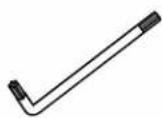
Torx Wrench

Test Video Cable Quick ManualTemplate Sheet

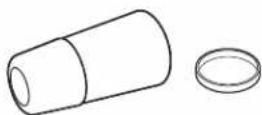
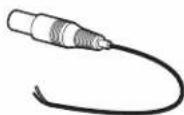
Waterproof cap & Gasket DC Plug Cable
Introduction - Part Name

text_image
Sunshield Sunshield Adjusting Screws Lens Control Board Con Cap Pan/Tilt Stoper Screw Bracket Con Cap Alarm In/Out RJ-45 Connector Waterproof cap Audio In/Out DC Power JackInstallation - Installation
Before installing your camera, you have to read the following cautions.
- You have to check whether the location can bear five times of the weight of your camera.
- Don't let the cable to be caught in improper place or the electric line cover to be damaged. Otherwise it may cause a breakdown or fire.
- When installing your camera, don't allow any person to approach the installation site. If you have any valuable things under the place, move them away.
text_image
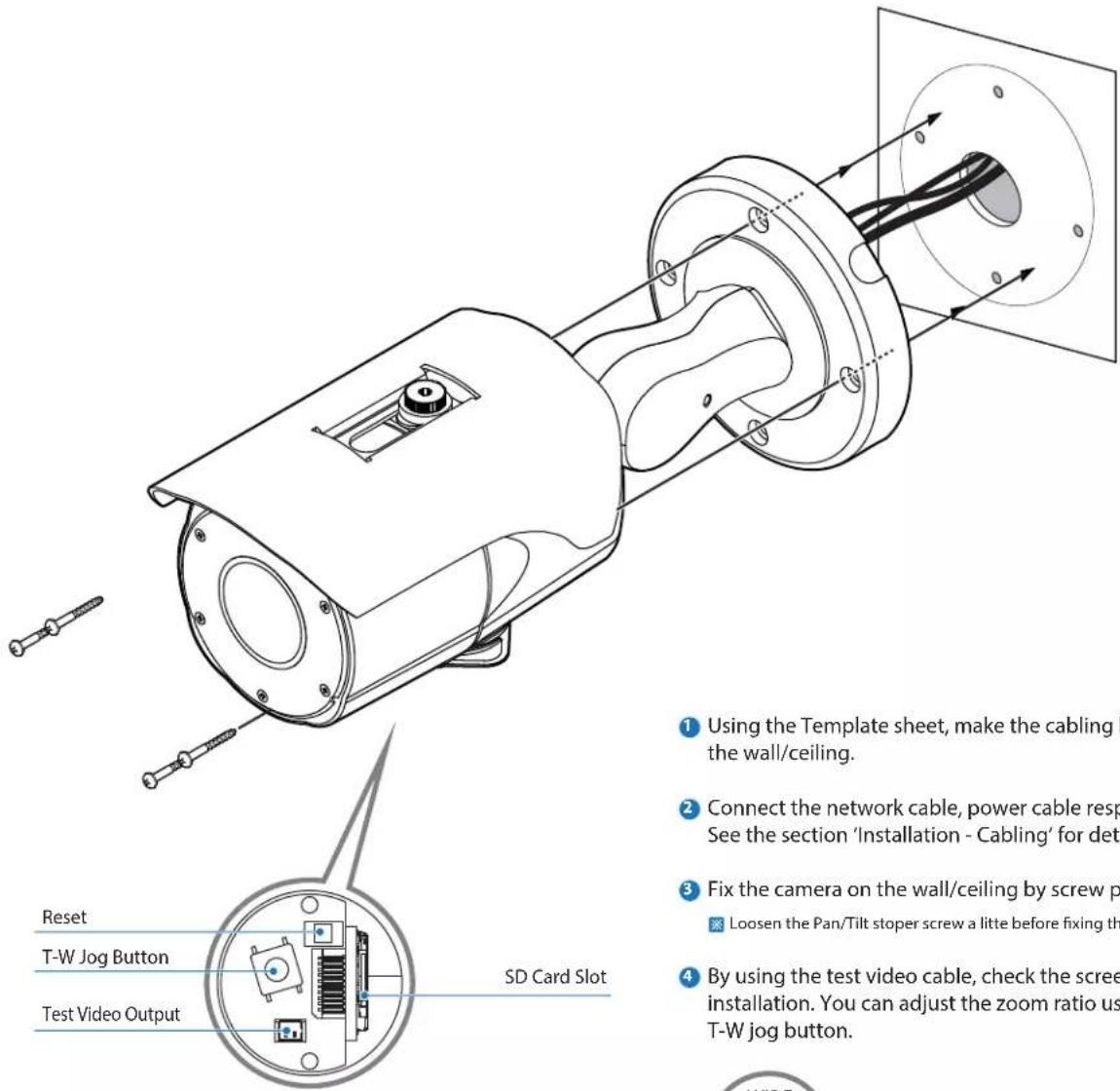
Reset T-W Jog Button Test Video Output SD Card Slot Using the Template sheet, make the cabling h the wall/ceiling. Connect the network cable, power cable resp See the section 'Installation - Cabling' for deta Fix the camera on the wall/ceiling by screw p Loosen the Pan/Tilt stoper screw a litte before fixing th By using the test video cable, check the screen installation. You can adjust the zoom ratio us T-W Jog button.Reset to the Factory Default
Press the reset button for 5 seconds to return the setup to the factory default.
Warning
If you press the 'Reset' button, you will lose all setting data. If needed, please, make a note for further installation.
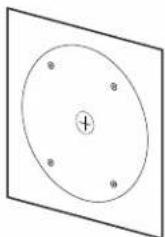
1 Using the Template sheet, make the cabling hole on the wall/ceiling.
2 Connect the network cable, power cable respectively. See the section 'Installation - Cabling' for details.
3 Fix the camera on the wall/ceiling by screw provided.
Loosen the Pan/Tilt stoper screw a litte before fixing the camera.
4 By using the test video cable, check the screen during installation. You can adjust the zoom ratio using the T-W jog button.

Installation - Installation
An LPR camera is designed to read a license plate only. When a license plate passes by the camera, the reflective film on the plate will be reflected back to the camera which gives you the good clear shot of the plate. You will ONLY capture an image of the plate.
US license plates need to be at least 216 pixels wide. This translates roughly into an image no wider than 5-6 feet assuming 1440p standard definition video.
The horizontal angle between the camera and plate should be within 20° degrees. This means that if your camera is 10 feet away from the plate, the plate cannot be more than 3 feet to the right or left of the camera.
2 The vertical angle between the camera and plate is within 30^ degrees. This means that if your camera is 10 feet away from the plate and the plate is 3 feet off the ground, the camera cannot be mounted more than 8 feet high.
3 Attempting to position the security camera at odd angles or exceeding the distance capabilities will result in a poor shot of the plate.
4 The DVR's recording fps should be at the highest to assure best capture quality.
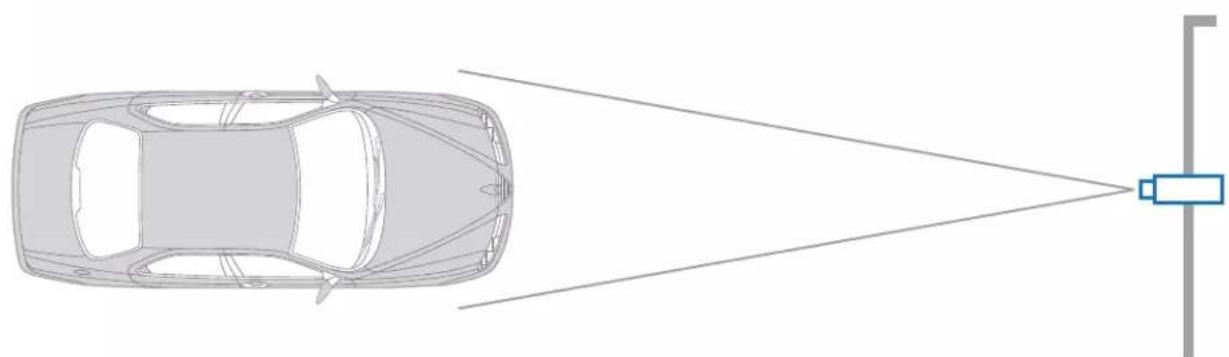
natural_image
Top-down schematic of a car with a sensor or detection device emitting light rays from the side, no text or symbols present.THE CAMERA SHOULD BE MOUNTED AT AN ANGLE NO GREATER THAN 30 DEGREES

text_image
< 20°CAMERA ANGLE NO GREATER THAN 20 DEGREES FOR SIDE MOUNT INSTALLATIONS
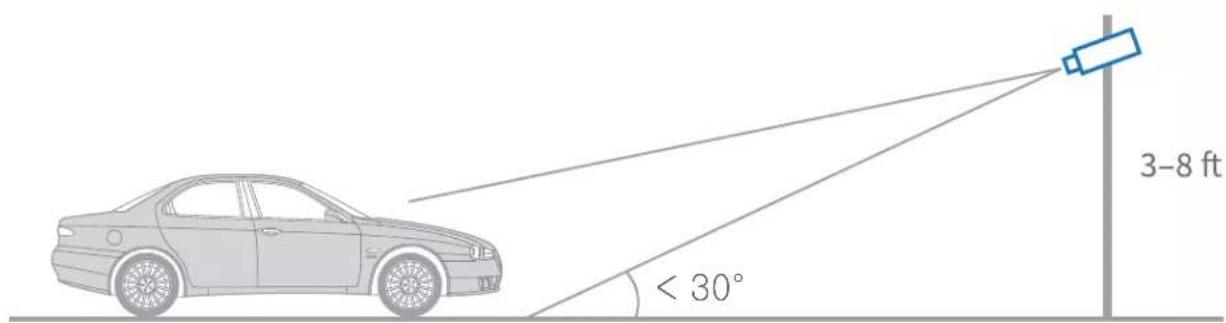
text_image
3-8 ft < 30°THE CAMERA SHOULD BE MOUNTED AT AN ANGLE NO GREATER THAN 30 DEGREES
Installation - Cabling
Two Options
Use a PoE-enabled switch to connect data and power through a single cable and begin viewing and recording images instantly. A non-PoE switch will require an adaptor for power transmission.
1. Using a PoE Switch or PoE Injector
The Camera is PoE-compliant, allowing transmission of power and data via a single Ethernet cable. PoE eliminates the need for the different cables used to power, record, or control the camera. Follow the illustration below to connect the camera to a PoE-enabled switch using an Ethernet cable.
2. Not using PoE Switch or PoE Injector
If a PoE-enabled switch is not used, use a power adaptor for power transmission and non-PoE switch for data transmission.
Follow the illustrations below to connect the camera without a PoE-enabled Switch.
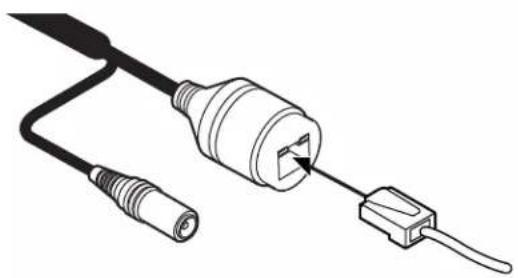
natural_image
Diagram of a plug with two connectors, one connected to a terminal block (no text or symbols present)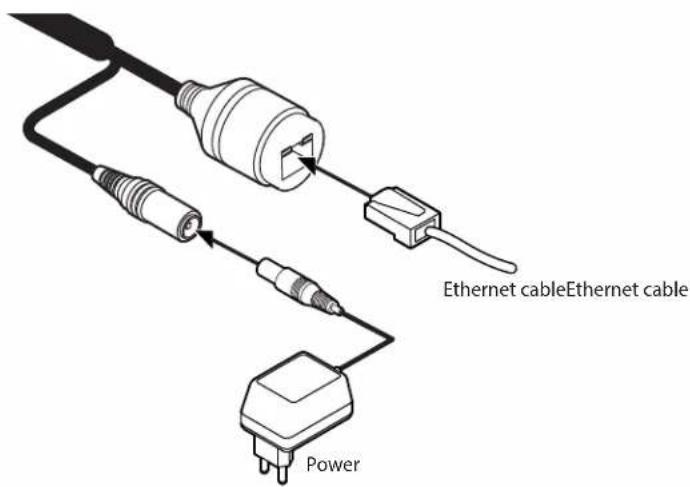
text_image
Ethernet cable Ethernet cable PowerInstallation - Cabling
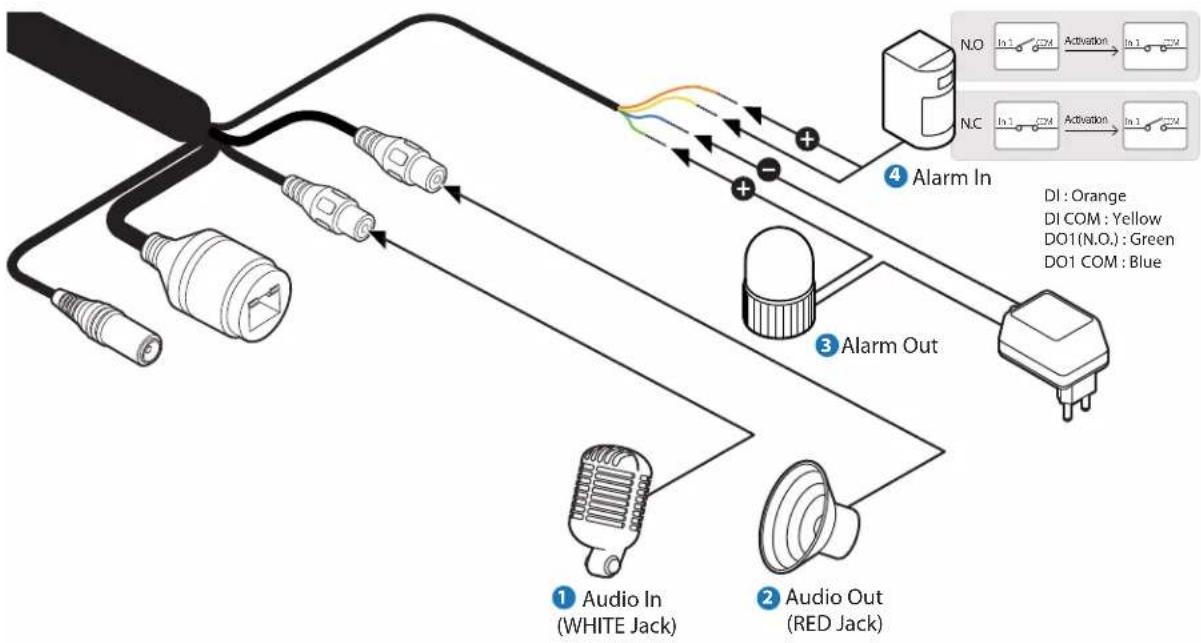
flowchart
graph TD
    A["1 Audio In (WHITE Jack)"] --> B["2 Audio Out (RED Jack)"]
    B --> C["3 Alarm Out"]
    C --> D["4 Alarm In"]
    D --> E["N.O. In 1 CM"] --> F["Activation In 1 CM"]
    G["N.C. In 1 CM"] --> H["Activation In 1 CM"]
    I["DI: Orange"] --> J["Di COM: Yellow"]
    K["DO1(N.O.): Green"] --> L["DO1 COM: Blue"]
1 Audio In (White Jack)
Connect the 'Audio In' cable of the camera to the device like microphone.
2 Audio Out (Red Jack)
Connect the 'Audio Out' cable of the camera to device like speaker.
Audio Out supports only RTSP Back channel function. It plans to make it available on the web later.
3 Alarm Out
It connects to the alarm lights, siren or lamps and the sensor types are normal open and normal close. Cable of the alarm output device should connect to DO1 (N.O.) and DO1 COM of the cable slot.
4 Alarm In
Cable of the sensor/alarm input device should connect to orange and yellow line of the Alam cable.
Installation -
Inserting/Removing SD Memory Card
natural_image
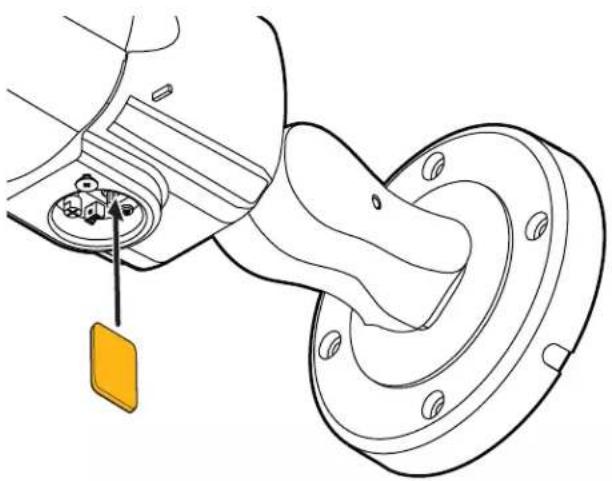
Technical line drawing of a mechanical component with a yellow tag and assembly detail (no text or symbols)The memory card is an external data storage device that has been developed to offer an entirely new way to record and share video, audio, and text data using digital devices.
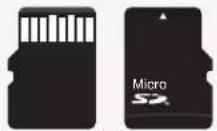
Recommended SD Card Specification (Not Included)
- Type: Micro SD (SD/SDHC/SDXC)
- Manufacturer: Transcend, Kingston, Toshiba, SanDisk
- Capacity: 4GB\~64GB
- Class: over UHS-I U3 Class 10
natural_image
Technical line drawing of a mechanical component with a highlighted section and directional arrow (no text or symbols)1 Inserting an SD Memory Card
Insert the SD card in the arrow direction.
Don't insert the SD memory card while it's upside down by force. Otherwise, it may damage the SD memory card.
Use the tweezers when inserting or picking out the SD card.
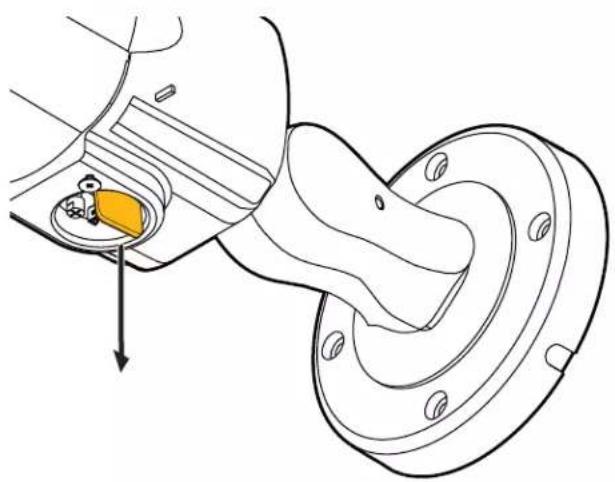
② Removing an SD Memory Card
Removing an SD Memory Card Gently press down on the exposed end of the memory card as shown in the diagram to eject the memory card from the slot.
* Pressing too hard on the SD memory card can cause the card to shoot out uncontrollably from the slot when released.
If you have saved data in the SD memory card, removing the SD memory card prior to setting record to OFF will cause damage to the data stored in the card.
Network Setup - DW IP Finder™

text_image
Thumbnail view Select network to scan Filter results Scan network Show/hide thumbnail view Refresh thumbnail view Bulk IP assignment Bulk password assignment Firmware upgrade Selected camera's username and password Thermal Name IP Addressgranate Mode MAC Addressgranate Network Sateway Port DHP DWC.PPTZDB 182.168.150.34 DWC.PPTZDB 00:07:08:19:18:14 255.255.255.0 182.168.150.1 80 Deated 1.8 PK-42_release Ping Text IP Conf Uptime DWC.MV44VA 182.168.150.49 DWC.MV44VA 00:00 F1:21:52:49 255.255.255.0 182.168.150.1 80 Deated A2.31.02_20180619 Ping Ctrl 20day 14hrs 10hrs DWC.FZ2J46BT 182.168.150.4 DWC.FZ2J46BT 00:00 F1:21:29:21 255.255.255.0 182.168.150.1 80 Deated A3.31.03_20180433 Ping Ctrl 20day 15hrs 36hrs DWC.PV10W 182.168.150.49 DWC.PV10W 00:00 F1:21:30:40 255.255.255.0 182.168.150.1 80 Deated A2.31.03_20180399 Ping Ctrl 56day 16hrs 46hrs DWC.PV9MTR 182.168.150.81 DWC.PV9MTR 00:04:01:1A:00:14 255.255.255.0 182.168.150.1 80 Deated -Ping Ctrl --. DWC.PVFMQTR 182.168.150.63 DWC.PVFMQTR 00:04:01:1A:06:57 255.255.255.0 182.168.38.1 80 Deated -Ping Ctrl --. DWC.PVFAW 182.168.150.43 DWC.PVFAW 00:00 F1:29:FR:49 255.255.255.0 182.168.150.1 80 Deated A2.31.03_20180619 Ping Ctrl 28day 14hrs 9hrs Digital Watchdog Selected Camera Access Connection (20:14R 8:19) Hardware version Camera's uptime Open IP configuration settings Ping camera Camera's network information Camera's name, IP and MAC addressesTo install the DW IP Finder, go to: http://www.digital-watchdog.com
② Enter "DW IP Finder" on the search box at the top of the page.
3 Go to the "Software" tab on the DW IP Finder page to download the installation file.
4 Follow the installation to install the DW IP Finder. Open the DW IP Finder and click 'Scan Devices'. It will scan the selected network for all supported devices and list the results in the table. During the scan, the DW® logo will turn gray.
5 When connecting to the camera for the first time, a password must be set. To set up a password for your camera:
a. Check the box next to the camera in the IP Finder's search results. You can select multiple cameras.
b. Click "Bulk Password Assign" on the left.
c. Enter admin/admin for the current username and password. Enter a new username and password to the right.
Passwords must have a minimum of 8 characters with at least 4 combinations of uppercase letters, lowercase letters, numbers and special characters. Passwords cannot contain the user ID.
d. Click "change" to apply all changes.
6 Select a camera from the list by double-clicking on the camera's image or clicking on the 'Click' button under the IP Conf. column. The pop-up window will show the camera's current network settings, allowing admin users to adjust the settings as needed.
7 To access the camera's web page, click on the 'View Camera Website' from the IP Config window.
To save changes made to the camera's setting, enter the username and password of the camera's admin account and click 'Apply'.

text_image
Bulk Password Assignment Current Account Username: Password: New Password Name: Custom: Note: Name MAC Address P Address Note DAC: 5123847.0000F12166652 192.168.80.158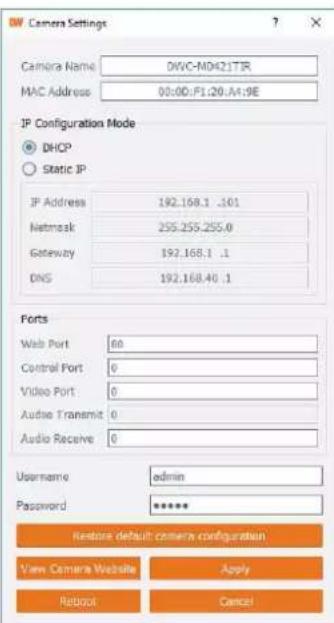
text_image
DW Camera Settings Camera Name DWC-M04217TR MAC Address 00:00:F1:20:A4:9E IP Configuration Mode DHCP Static IP IP Address 192.168.1 .101 Network 255.255.255.0 Gateway 192.168.1 .1 DNS 192.168.40 .1 Forts Web Port 60 Control Port 0 Video Port 0 Audio Transmit 0 Audio Receive 0 Username admin Password ***** Restore default camera configuration View Camera Website Apply Reboot CancelWeb Viewer Screen - Basic Screen
text_image
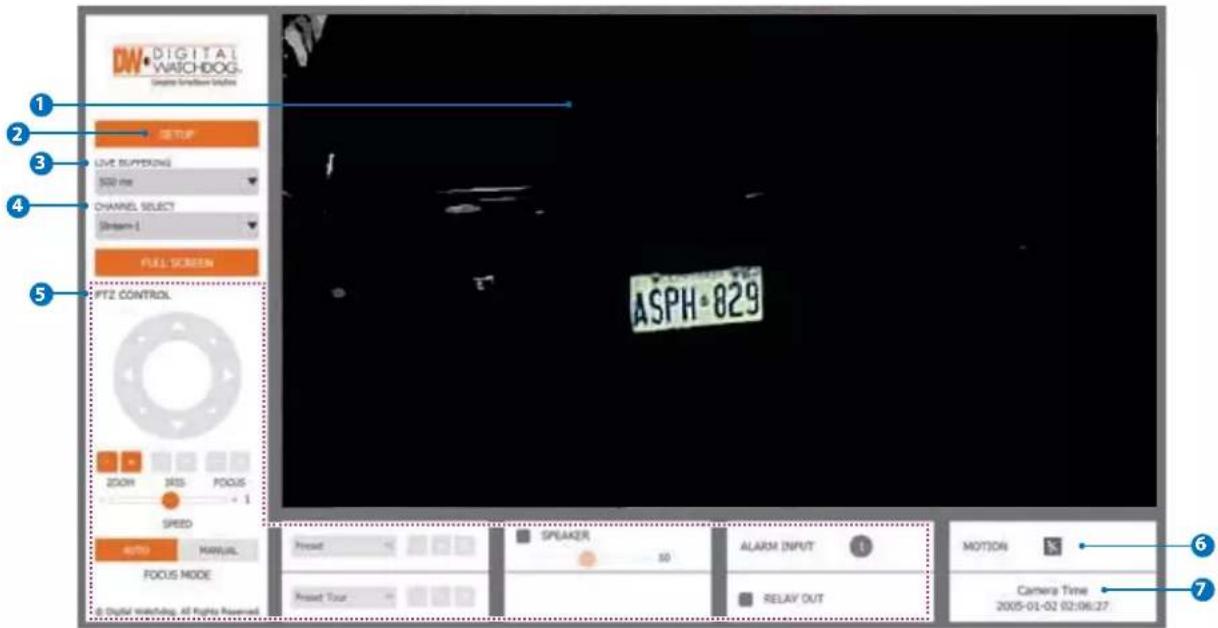
DW DIGITAL WATCHDOG Drive Insetbox Slatches 1 2 3 4 5 SETUP LIVE SUFFERING 500 ms CHANNEL SELECT Stream-1 FULL SCREEN PTZ CONTROL ZOOM IRES PODUS SPEED AUTO MANUAL FOCUS MODE © Digital Watchdog, All Rights Reserved. ASPH 829 Preset Speaker 3D ALARM INPUT T MOTION K Reset Tour RELAY OUT Camera Time 2005-01-02 02:06:27. 6Web viewer is optimized with explorer10 or above version and Firefox.
If VLC is not installed or VLC plugin is not supported (Chrome), Live buffering and Channel select menu on 3, 4 will be changed to Live Viewer menu, and then if HTML5(MJPEG) is selected on Live Viewer menu, then you can check the video.
1 Live video display. This is the region for live video stream from the camera.
2 Setup popup button. Click it to open the Setup page to setup details of IP camera like Video, Network, Events, System and etc. See the section 'Setup'.
3 When the image goes unsmoothly because of bad network connection, it stored image during setup time and shows the image on the live view screen.
※ User will see the delayed images as much as setup time.
4 Channel Select button. Select a stream produced from the camera between Stream 1 \~ 3 to display it in the live view screen.
Refer the ' Setup -> Video & Audio -> Video' to setup the Video Stream.
5 Below "Menu" is supported in accordance with models.
PTZ Control
This camera model supports the zoom and focus.
Preset
Does not support.
Speaker Control
Enable/Disable Audio stream received
from the camera and Volume control of the speaker in the
Computer.
Alarm Input
If the alarm is triggered, the color of corresponding input number will be changed to bright red from dark gray.
Relay Out
Using these Checkbox, you can read status of Relay Out and also set or reset it manually.
6 Motion
It shows the Motion event status.
Event Alert Icon ( ) appears if 'Motion Detection' is activated.
7 Camera Time
Display the camera time.
Setup - Video & Audio Setup Video Configuration

text_image
DW DIGITAL WATCHDOG Complete Surveillance Solutions 1 2 VIDEO&AUDIO VIDEO OSD ROI AUDIO PRIVACY MASK >CAMERA >NETWORK >TRIGGER ACTION >EVENTS >RECORD >SECURITY >SYSTEM VIDEO CONFIGURATION Stream Codec Description 1 H.264 channel1 2 H.264 channel2 3 M-JPEG channel3 Codec Codec H.264 Description channel1 Resolution 2560x1440 Frame Rate(FPS) 30 GOP 30 [1 - 120] Profile High Smart Bitrate Control Off Bitrate Mode CBR Target Bitrate 5120 [100Kbps ~ 10Mbps] Extension Option Off Quality 3 [1 - 10] APPLY © Digital Watchdog. All Rights Reserved.1 Detail Page
When you selects an item from the menu, you can set the details for the selected item.
2 Setup Constitution
Video&Audio
[VIDEO, OSD, ROI, AUDIO, PRIVACY MASK]
Camera
[IMAGE ADJUSTMENT, EXPOSURE, IMAGE, VIDEO]
Network
[ STATUS, NETWORK SETTING, AUTO IP, ONVIF, UPNP, DDNS, FTP, SMTP, SNMP, RTSP INFORMATION ]
Trigger Action
[ ACTION RULES, IMAGE TRANSFER, RELAY OUT ]
Events
[ EVENT RULES, MOTION, TEMPERATURE, ALARM INPUT ]
Record
[ MANAGEMENT, RECORD LIST, STORAGE ]
Security
[IP ADDRESS FILTER, RTSP AUTHENTICATION, IEEE 802.1x, HTTPS, CERTIFICATES, SERVICE]
System
[INFORMATION, FIRMWARE UPDATE, DATE&TIME, DST,
USER MANAGEMENT, LOG, FACTORY RESET, RESTART]
Setup - Video & Audio Setup Video Configuration
text_image
VIDEO CONFIGURATION Stream Codec Description 1 H.264 channel1 2 H.264 channel2 3 M-JPEG channel3 Codec Codec H.264 Description channel1 Resolution 2560x1440 Frame Rate(FPS) 30 GOP 30 [1 - 120] Profile High Smart Bitrate Control Off Bitrate Mode CBR Target Bitrate 5120 [100Kbps ~ 10Mbps] Extension Option Off Quality [1 - 10] APPLY1 Live Video Channel Setup
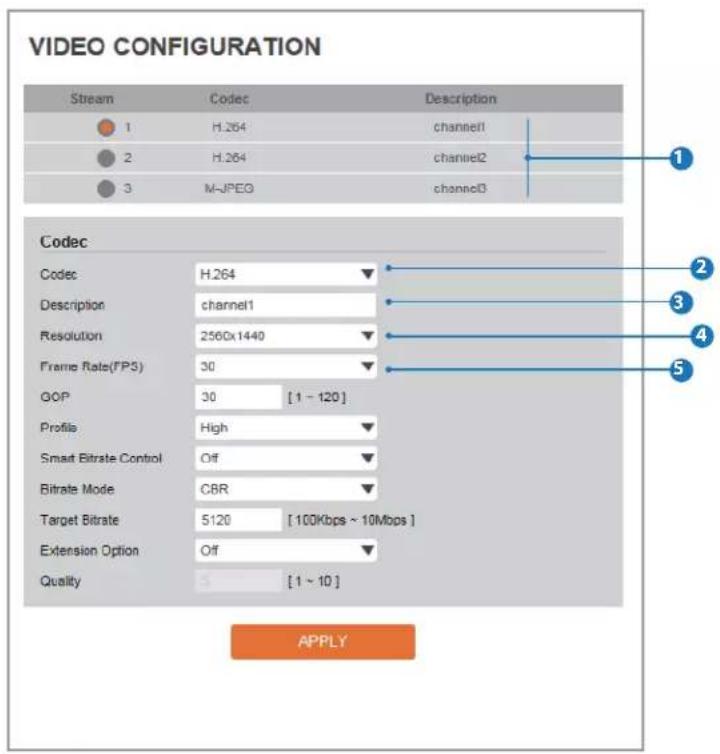
The video can be configured to variety settings with a combination of codec and resolution.
The camera performance has to be considered when setting multiple channels. This effects on the performance of the camera.
2 Codec
Choose the video codec. According to the selected codec, the subcategories can be changed automatically.
When MJPEG codec is selected, it will be able to set whether to use the relevant channel for image transfer.
3 Description
Input the additional description about the selected channel. Max. 30 alphabets are allowed(Including space). For the description, English Alphabets, numbers and special characters (-_@.) can be used.
4 Resolution
Select the video resolution.
Available resolution can be depends on the codec setup between the channels.
| NTSC | PAL | |
| 4M | 2560 x 1440 | 2560 x 1440 |
| 3M | 2304 x 1296 | 2304 x 1296 |
| 1080p/i | 1920 x 1080 | 1920 x 1080 |
| 720p/i | 1280 x 720 | 1280 x 720 |
| SVGA | 800 x 600 | 800 x 600 |
| VGA | 640 x 480 | 640 x 480 |
| 4CIF | 704 x 576 | 704 x 576 |
| 704 x 480 | 704 x 480 | |
| CIF | 352 x 288 | 352 x 288 |
| 352 x 240 | 352 x 240 |
5 Frame Rate
Select the maximum Frame Rate.
Available Frame Rate can be different although same codecs were set up.
Setup - Video & Audio Setup Video Configuration
VIDEO CONFIGURATION
| Stream | Codec | Description |
| 1 | H.264 | channel1 |
| 2 | H.264 | channel2 |
| 3 | M-JPEG | channel3 |

text_image
Codec Code: H.264 Description: channel1 Resolution: 2560x1440 Frame Rate(FPS) 30 GOP 30 [1 - 120] Profile High Smart Bitrate Control Off Bitrate Mode CBR Target Bitrate 5120 [100Kbps ~ 10Mbps] Extension Option Off Quality [1 - 10]
6 GOP(Group of Pictures) Size
Set up the number of frames (P-frame) which contain only changed information based on basic frame (I-frame). Regarding videos with lots of movement, if you set GOP size bigger, only the number of P-frames is bigger. As a result, video resolution will be low but 'File size' and 'Bit-rate can be decreased.
GOP(Group of Pictures) Size is..
I-frame and P-frame can be created for MPEG4 and H.264 video compression. I-frame(=key-frame) means the whole image data for one specific scene of video. P-frame is image data which has been changed information compared to I-frame GOP is made up of one I-frame and corresponding several P-frames. To improve video quality, set the number of P-frames smaller and to decrease image size, set the number of P-frames bigger.
7 Profile
The profile defines the subset of bit stream features in an H.264 stream, including color reproduction and additional video compression.
Baseline
A simple profile with a low compression ratio.
Main
An intermediate profile with a medium compression ratio.
High
A complex profile with a high compression ratio.
8 Smart Bitrate Control
Off
Does not use the Smart Bitrate Control.
CVBR (Framerate priority)
This Mode is for cameras which do not want absolute any frame drop, but still want to get lower bitrate. It has limitation when the Target bitrate is set to be very low, but actual motion is big or scene is very noisy.
CVBR (Quality priority)
When the Target bitrate is set to very low, and motion is big, then LBR will try to drop frames, and make the final fps to be lower, so that it can save its and make the output frames to have better quality.
CBR
This Mode is a CBR alike mode which is close to traditional security IPCAM, and it's not designed for LBR, It's provided as an option in LBR library just to help comparison.
Setup - Video & Audio Setup Video Configuration
text_image
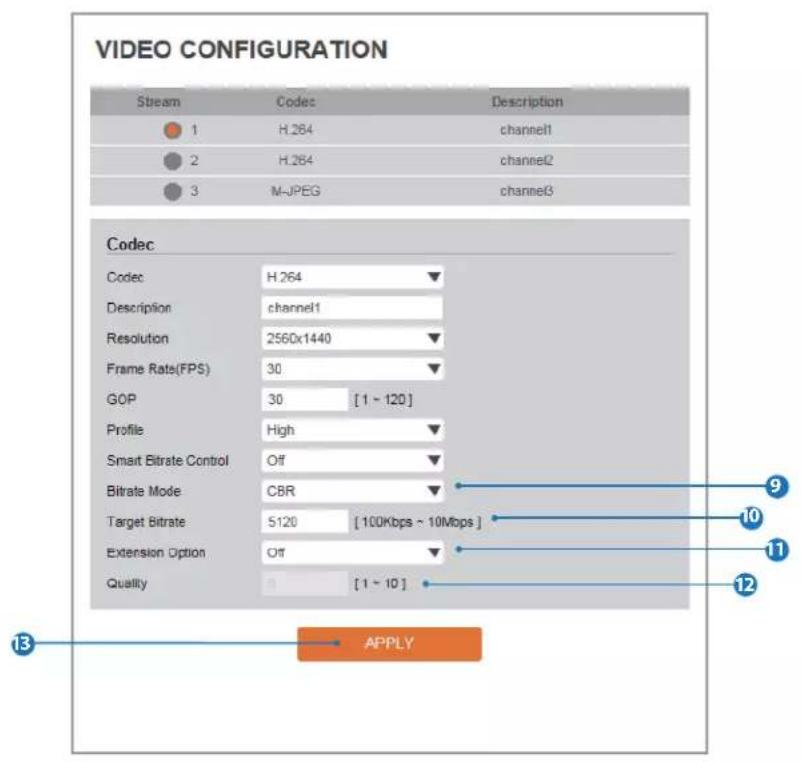
VIDEO CONFIGURATION Stream Codes Description 1 H.264 channel1 2 H.264 channel2 3 M-JPEG channel3 Codec Codec H.264 ▼ Description channel1 Resolution 2560x1440 ▼ Frame Rate(FPS) 30 ▼ GOP 30 [1 - 120] Profile High ▼ Smart Bitrate Control Off ▼ Bitrate Mode CBR ▼ Target Bitrate 5120 [100Kbps ~ 10Mbps ] Extension Option Off ▼ Quality [1 - 10] 9 10 11 12 13 APPLY9 Bitrate Mode
Select the bit rate control scheme of video compression from CBR (Constant Bit Rate) or VBR (Variable Bit Rate).
CBR
To guarantee the designated constant bit rate, the quality of video are controlled in this mode. Therefore, the quality of video is likely to be varying when network traffic is changing.
VBR
To guarantee the designated quality, the bit rate of video stream is changed in this mode. Therefore, the frame rate of video is likely to be varying when network traffic is changing.
This category won't be appear if you select the codec.
10 Target Bitrate
If Bitrate Control is set to be CBR, you can set the Target Bitrate.
11 Extension Option
OFF
Does not use the extension option.
SVC-T On
Scalable video coding is a type of video encoding algorithm that can be applied to streaming, so that, they could be transmitted over lossy, low bandwidth networks effectively.
12 Quality
For VBR control mode, The Target Quality of video can be setup.
13 Click 'Apply' to make above setting effective.
Setup - Video & Audio Setup OSD Configuration

text_image
ON SCREEN DISPLAY(OSD) CONFIGURATION Date & Time Off On Position X [0 ~ 100] Position Y [0 ~ 100] User Text Off On Position X [0 ~ 100] Position Y [0 ~ 100] Text APPLY1 Date / Time
Display the current time.
2 User Text
Output the TEXT entered by the user.
Support a maximum of 30 characters.
3 Click 'Apply' to make above setting effective.
Setup - Video & Audio Setup
Region of Interest Configuration
text_image
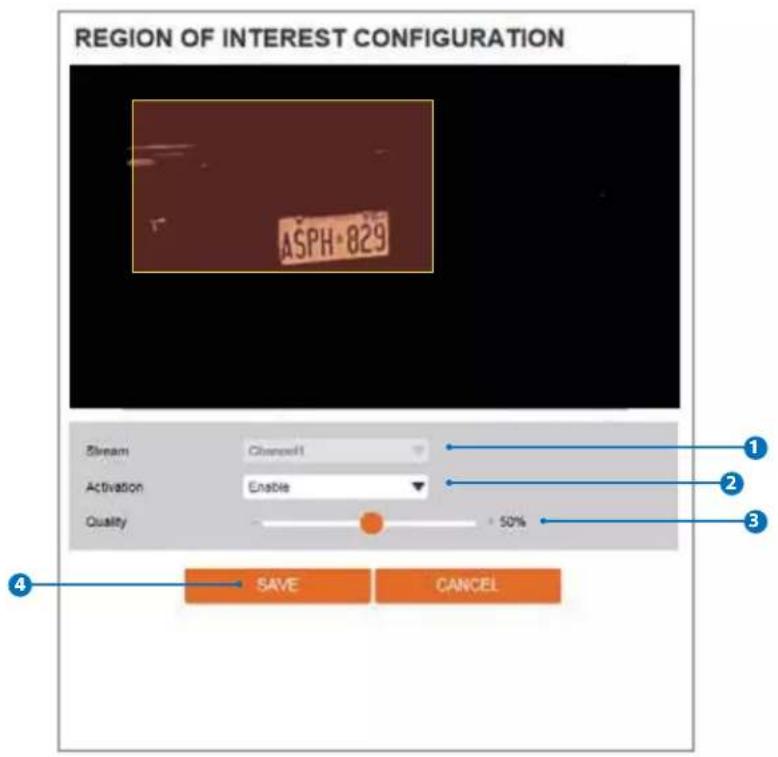
REGION OF INTEREST CONFIGURATION ASPH-829 Stream Cinocell Activation Enable Quality + 50% SAVE CANCELRegion of interest function gives much more efficiency picture quality for indicated area to improve picture qualities of movement scene at the same bandwidth.
1 Stream
Select the Stream.
Currently it supports only Channel1.
2 Activation
The Region of interest can be enable or disable.
3 Quality
Set the quality of the set area.
4 Click 'Save' to save the current settings.
Click 'Cancel' to return to the previous setting.
Setup - Video & Audio Setup Audio Configuration
text_image
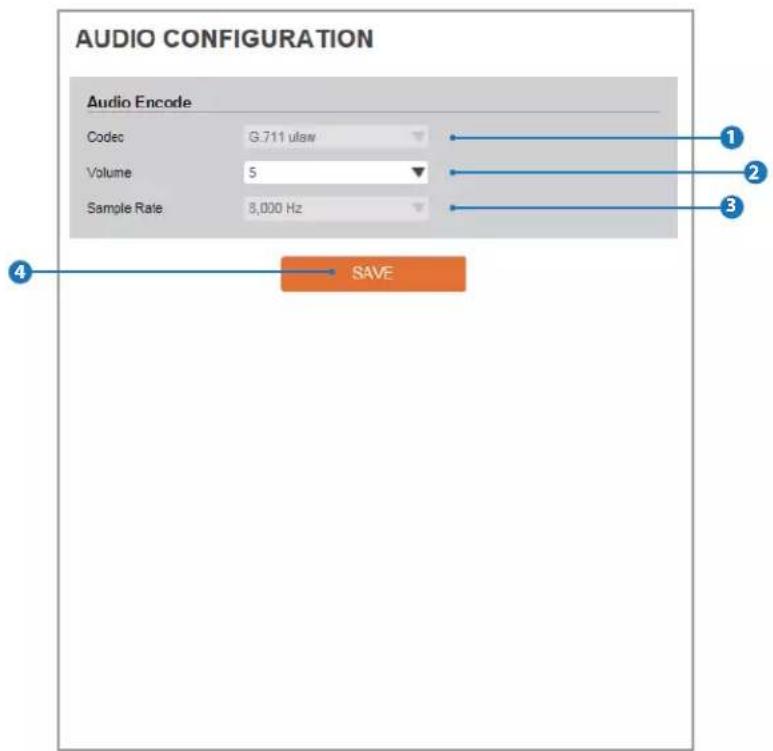
AUDIO CONFIGURATION Audio Encode Codec G.711 ulaw Volume 5 Sample Rate 8,000 Hz SAVE
Codec
Select the Audio Codec.
Currently it supports only codec G.711.

Volume
Select the Audio Volume from 0 to 10.

Sample Rate
Select the Audio Sample Rate.
Currently it supports only 8000 Hz.

Click 'Apply' to make above setting effective.
Setup - Video & Audio Setup Privacy Mask Configuration

text_image
PRIVACY MASK CONFIGURATION ASP H-829 Activation On Off Area Area1 1 2 3 CLEAR AREA SAVE CANCELUse this function to mask areas that you want to hide on screen to protect privacy.
1 Activation
The Privacy mask function can be enable or disable.
2 Area
Select the Area1 \~ Area4 and Set the privacy area.
3 Click 'Save' to save the current settings.
Click 'Cancel' to return to the previous setting.
Click 'Clear Area' to delete the selected Area1\~Area4.
Setup - Camera Setup Camera Image Adjustment

text_image
IMAGE ADJUSTMENT ASPH 829 Sharpness 58 Brightness 50 Contrast 43 Saturation 25 1 2 3 4 5 SAVE CANCEL DEFAULT1 Sharpness
Using this control, sharpness of image can be adjusted to meet your preference.
2 Brightness
Using this control, brightness of image can be adjusted to meet your preference.
3 Contrast
Using this control, contrast of image can be adjusted to meet your preference.
4 Saturation
Using this control, Saturation of image can be adjusted to meet your preference.
5 Click 'Save' to save the current settings.
Click 'Cancel' to return to the previous setting.
Click 'Default' to settings to the factory defaults.
Setup - Camera Setup Camera Exposure Settings

text_image
EXPOSURE SETTINGS ASP H-829 Auto Exposure Off On Exposure Level 128 AE Metering Center Shutter Speed 1/1000 Slow Shutter Off Gain Limit 3 dB SAVE CANCEL DEFAULT1 Auto Exposure
Automatic exposure(AE) automatically sets the aperture or shutter speed, based on the external lighting conditions for the photo.
2 Exposure Level
If this value is increases, the image becomes brighter.
3 AE Metering
AE metering mode refers to the way in which a camera determines the exposure.
4 Shutter Speed
If this speed is faster, the moving object can be photographed without the ghost effect. However, picture can be dark if there is no sufficient lighting.
5 Slow Shutter Level
Slow shutter Level lets you adjust the amount of light striking the sensor, and essentially determines when the video sensor sends out its batch of data for processing.
6 Gain Limit
The smaller number makes the daker image.
7 Click 'Save' to save the current settings.
Click 'Cancel' to return to the previous setting.
Click 'Default' to settings to the factory defaults.
Setup - Camera Setup
Camera Image Enhancement
text_image
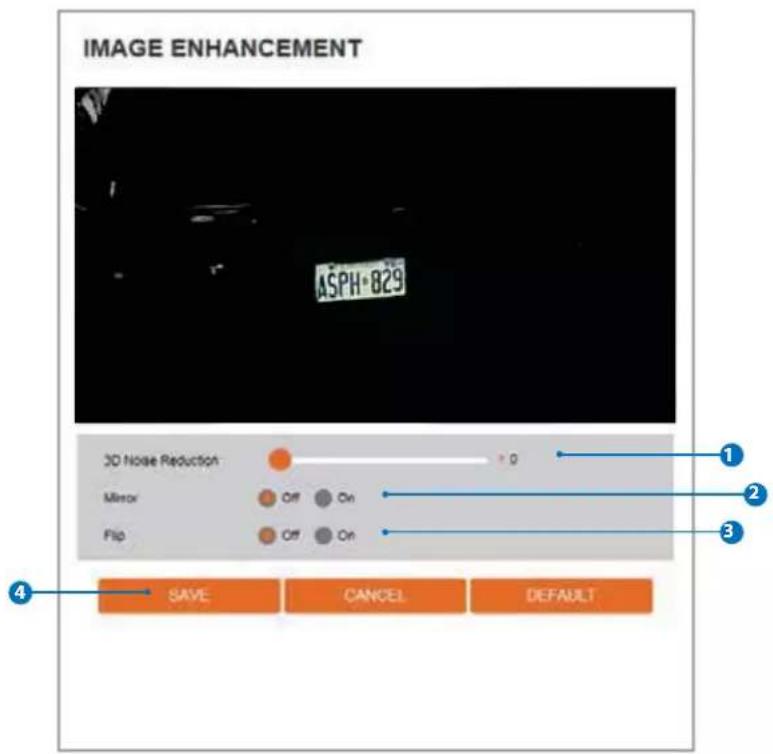
IMAGE ENHANCEMENT ASP H-829 3D Noise Reduction 0 Mirror Off On Flip Off On SAVE CANCEL DEFAULT1 3D Noise Reduction
3DNR function enables to suppress noise and retain good video quality in low light conditions.
2 Mirror
Reverse the video from side to side.
3 Flip
Reverse the video from up to down.
4 Click 'Save' to save the current settings.
Click 'Cancel' to return to the previous setting.
Click 'Default' to settings to the factory defaults.
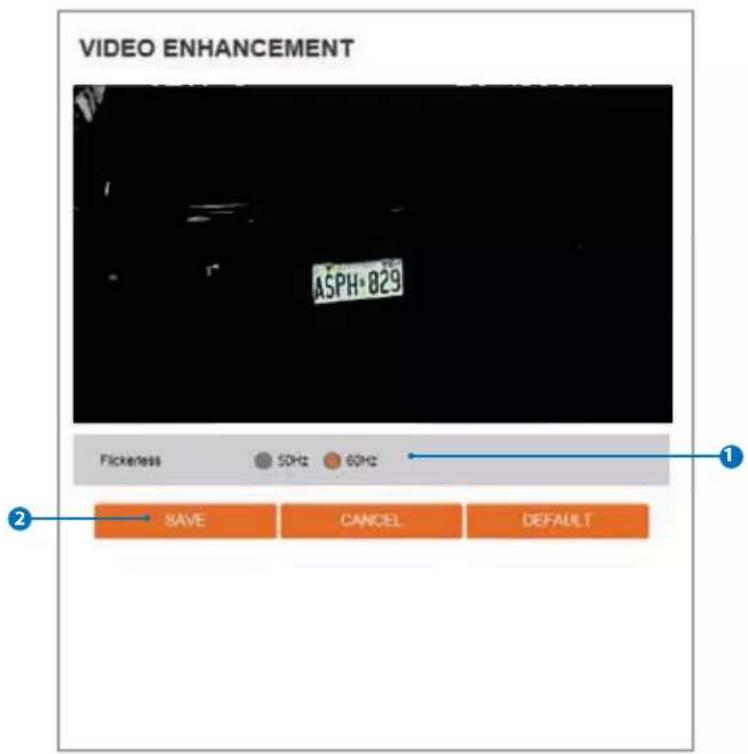
text_image
VIDEO ENHANCEMENT ASPH 829 Flickiness 50Hz 60Hz 1 2 SAVE CANCEL DEFAULT
Flicker
This function Enable to enhance the flicker situation.

Click 'Save' to save the current settings.
Click 'Cancel' to return to the previous setting.
Click 'Default' to settings to the factory defaults.
NETWORK STATUS
| MAC Address | 64.76.57.CE.00.43 |
| IP Address | 192.168.1.33 |
| Subnet Mask | 255.255.0.0 |
| Default Gateway | 192.168.1.1 |
| Preferred DNS Server | 203.248.252.2 |
| Alternate DNS Server | 164.124.101.2 |
| HTTP Port | 80 |
| RTSP Port | 554 |
This menu will show you all the information of Network setting in the camera. However, you cannot change those here.
Setup - Network Setup Network Settings
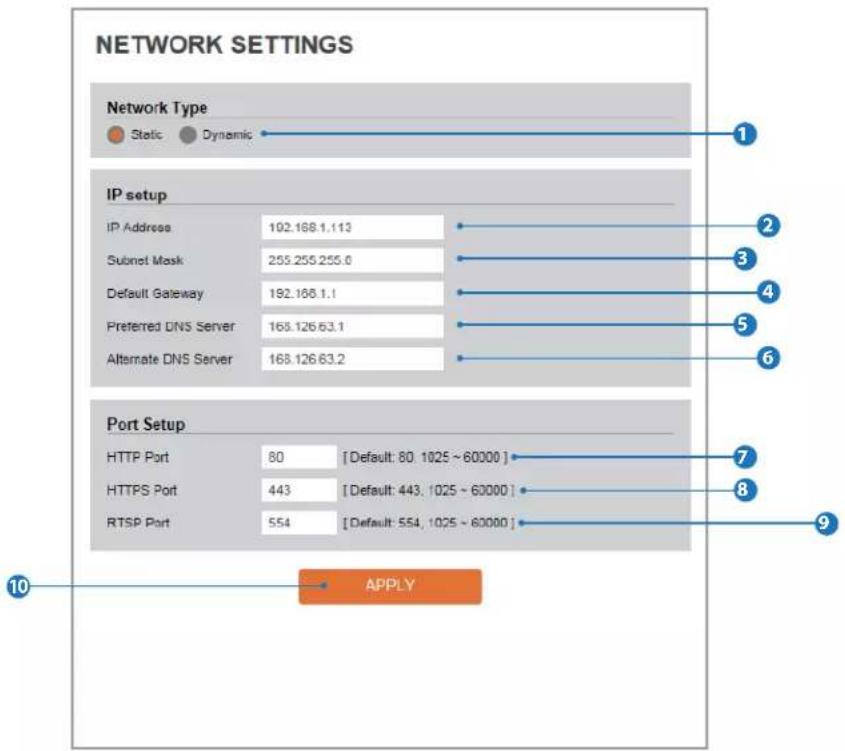
text_image
NETWORK SETTINGS Network Type Static Dynamic IP setup IP Address 102.168.1.113 Subnet Mask 255.255.255.0 Default Gateway 192.168.1.1 Preferred DNS Server 168.126.63.1 Alternate DNS Server 168.126.63.2 Port Setup HTTP Port 80 [Default: 80, 1025 ~ 60000] HTTPS Port 443 [Default: 443, 1025 ~ 60000] RTSP Port 554 [Default: 554, 1025 ~ 60000] 10 APPLY1 Network Type
Define network IP address type from the Static Mode for the fixed IP or the Dynamic Mode by the dynamic IP address. If you select the Static Mode, you must fill out IP Address, Subnet Mask, Gateway, DNS Server and all ports. If you select the Dynamic Mode, the IP address will be allocated automatically by DHCP equipment. If you click the Apply button to update changes, the system will be re-booted. In this case, you have to reconnect the camera using new IP address.
2 IP Address
Define the IP address. The address is consisted of four numbers separated by dots and the range of each number is from 0 to 255.
3 Subnet Mask
Define the Subnet Mask. Format is same as the IP address.
4 Default Gateway
Default the Gateway IP Address. Format is same as the IP address.
5 Preferred DNS Server
Define the DNS server IP address. Format is same as the IP address.
6 Alternate DNS Server
Define the Secondary DNS server IP address. Format is same as the IP address.
7 HTTP Port
The HTTP port can be set to 80 which default or in between 1025 to 60000.
8 HTTPS Port
The HTTPS port can be set to 443 which default or in between -en1025 to 60000.
9 RTSP Port
The RTSP port can be set to 554 which default or in between 1025 to 60000.
10 Click 'Apply' to make above setting effective.
If the network type is dynamic, the IP address is changed in below cases. Therefore, the IP address needs to be searched again, and the camera needs to be reconnected in these cases.
- When the camera power is on / off.
- After Firmware update, Default set and reboot.
Setup - Network Setup Auto IP Settings

text_image
AUTO IP SETTINGS General Setting Off On UNIQUE ID a832a4fb-8821-4c35-b232-86c415d574a5 AUTO IP ADDRESS 169.254.189.3 APPLY1 General Setting
Auto IP Settings function can be enable or disable.
2 Auto IP Settings Information
It displays the unique id or Auto IP address.
3 Click 'Apply' to make above setting effective.
Setup - Network Setup ONVIF Settings
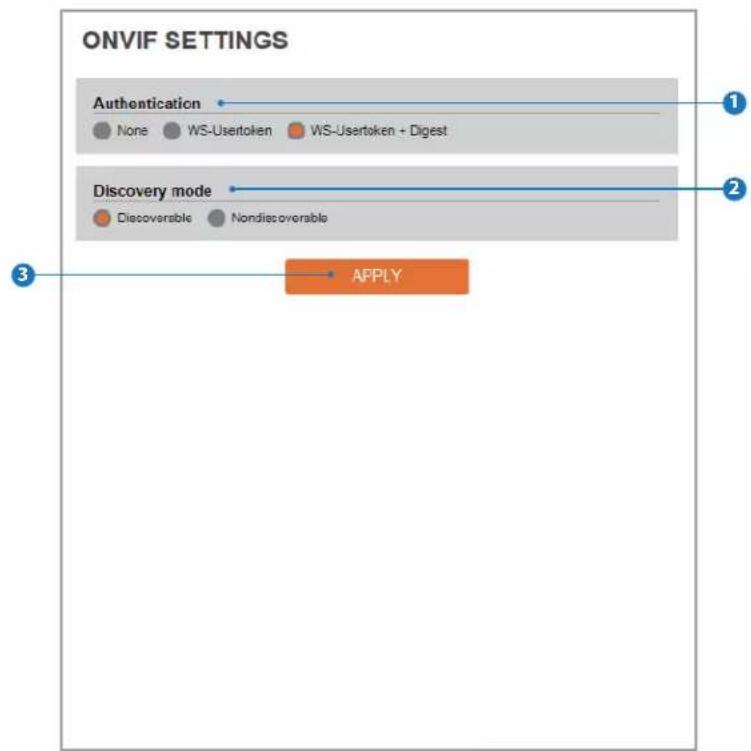
text_image
ONVIF SETTINGS Authentication None WS-Usertoken WS-Usertoken + Digest Discovery mode Discoverable Nondiscoverable APPLY1 Authentication
None: Allows to access without ONVIF authentication.
WS-Uesrtoken: Allows to access with WS-User
Token of ONVIF authentication.
WS-Usertoken +Digest: Allows to access with WS-User
Token and Digest of ONVIF authentication.
2 Discovery Mode
The discovery function can be enable or disable.
3 Click 'Apply' to make above setting effective.
Setup - Network Setup UPNP Settings

text_image
UPNP SETTINGS General Setting Off On Device Information FriendlyName APPLY1 General Setting UPNP function can be enable or disable.
2 Friendly Name
Define the friendly name.
3 Click 'Apply' to make above setting effective.
Setup - Network Setup DDNS Settings
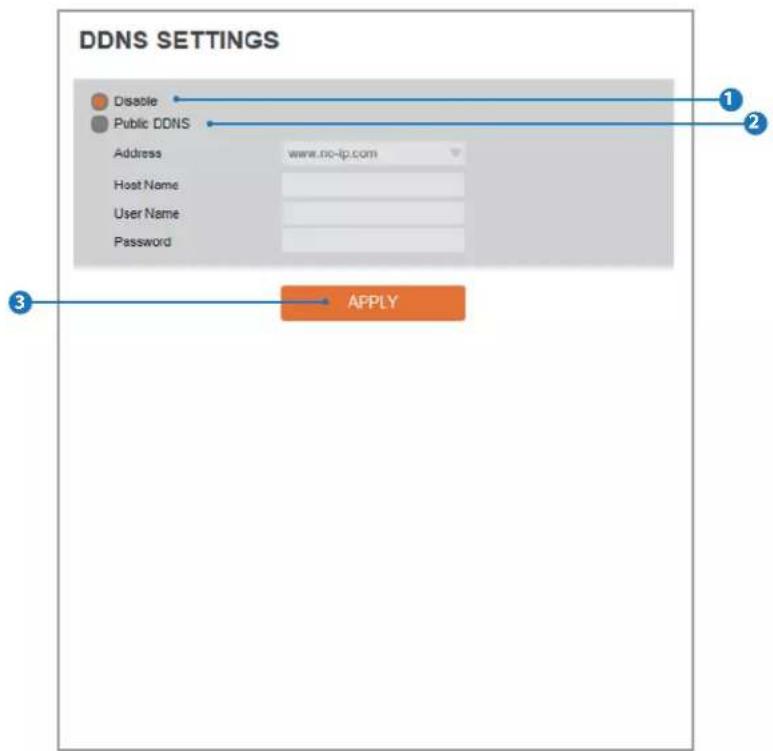
text_image
DDNS SETTINGS Disable Public DDNS Address www.no-ip.com Host Name: User Name: Password APPLY1 DDNS Disable
If it is selected, DDNS service does not work.
2 Public DDNS
To use public DDNS service, select a site address listed in the list. After filling out the Host Name of the site, the setup is completed by entering User Name and Password registered in that DDNS site.
| DDNS Provider Site Address | |
| DynDNS | www.dyndns.com |
| No-IP | www.no-ip.com |
If you setup DDNS properly, the IP address of your camera will be updated automatically whenever IP address is changed or system is rebooted.
If IP updating to DDNS site is failed, camera will keep retrying in 1min. interval.
3 Click 'Apply' to make above setting effective.
Setup - Network Setup FTP Settings
text_image
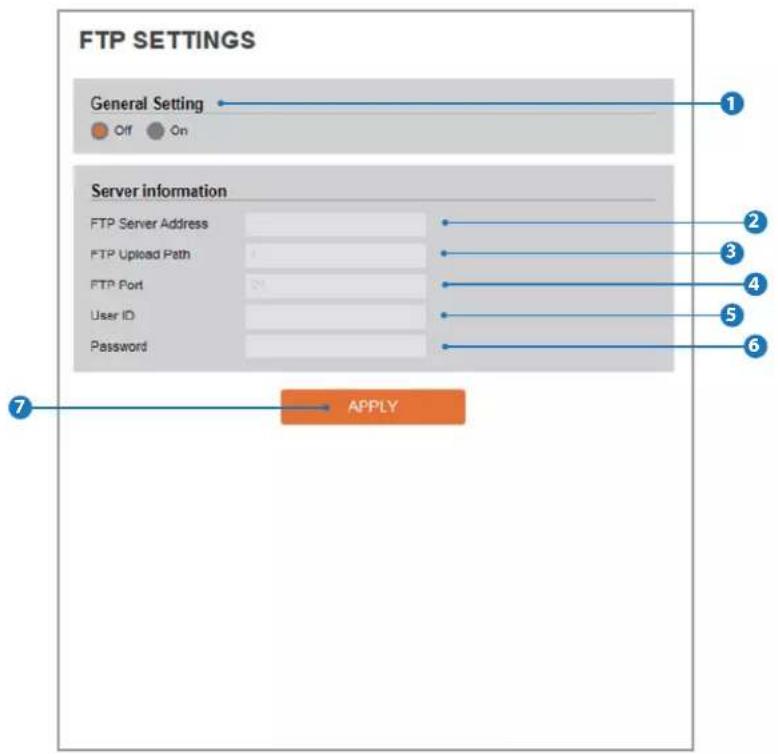
FTP SETTINGS General Setting Off On Server information FTP Server Address FTP Upload Path FTP Port User ID Password 1 2 3 4 5 6 7 APPLYTo transfer / save the image to the relevant sites through FTP, then FTP needs to be setup.
1 General Setting
FTP function can be enable or disable.
2 FTP Server Address
Define FTP Server IP Address. If IP Address form is incorrect, a Message box will be shown to try again.
3 FTP Upload Path
Define a path in FTP server to store video. For the path name, English Alphabets, numbers and special characters (/\~!@ \$ ^ () _ {- } [ ];,) can be used.
4 FTP Port
Define the FTP Server Port. If Port is not appropriate, it is impossible to access to FTP Server.
5 User ID
Define User ID to access to the FTP Server. Fill out the correct User ID registered in the FTP Server.
6 Password
Define Password to access to the FTP Server. Fill out the correct Password registered in the FTP Server.
7 Click 'Apply' to make above setting effective.
Refer the above screen image for the example.
Setup - Network Setup SMTP Settings
text_image
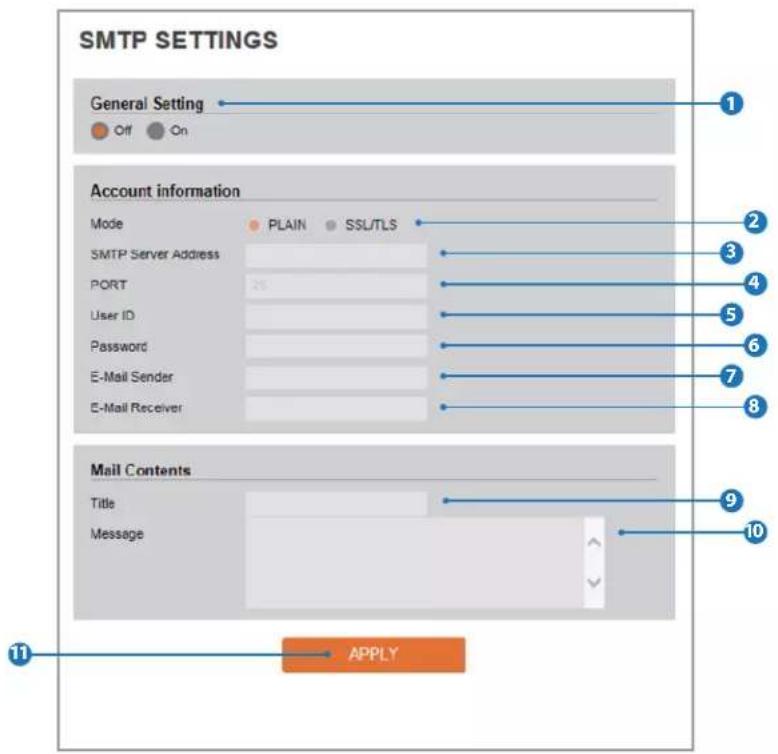
SMTP SETTINGS General Setting Off On Account information Mode PLAIN SSL/TLS SMTP Server Address PORT User ID Password E-Mail Sender E-Mail Receiver Mail Contents Title Message 11 APPLYTo send / save the image to the relevant sites by Email, SMTP needs to be setup.
1 General Setting
SMTP function can be enable or disable.
2 Mode
Select Security mode of SMTP from Plain or SSL / TLS. After checking account setup of your SMTP Server, you may select one.
3 SMTP Server Address
Define the SMTP Server Address. If the IP Address form is incorrect, a Message box will be shown to try again.
4 Port
Define the Port used in the Plain or SSL / TLS security mode in the above.
5 User ID
Define the User ID to access to SMTP Server. Fill out the correct User ID registered in the SMTP Server.
6 Password
Define the Password to access to SMTP Server. Fill out the correct Password registered in the SMTP Server.
7 E-Mail Sender
Define the e-mail address of E-Mail Sender. It will be displayed as the sender when the camera sends an E-mail.
8 E-Mail Receiver
Define the e-mail address of E-Mail Receiver. It will be displayed as the Receiver when the camera sends an E-mail.
9 Title
Define the title of the E-Mail when the camera sends an E-mail.
The title of the Email is limited to 40 characters including the spaces.
10 Message
Define the contents of E-Mail when camera sends an E-mail. The message of the Email is limited to 40 characters including the spaces.
11 Click 'Apply' to make above setting effective.
Setup - Network Setup SNMP Settings

text_image
SNMP SETTINGS SNMP v1/v2c SNMPv1 Off On SNMPv2 Off On Read Community private Write Community private SnmpTrap Off On TrapAddress 0.0.0.0 TrapCommunity private SNMP v3 Mode Read Activation Off On Read Name read Security Level no auth, no priv. Authentication Algorithm MDS Authentication Password Private-Key Algorithm DES Private-Key Password 1 2 3 4 5 6 7 8 9 10 11 APPLY1 SNMPv1/SNMPv2
Select the SNMPv1/SNMPv2 option and type the names of Read community and Write community.
SNMP trap can be used to check periodically for operational thresholds or failures that are defined in the MIB.
2 SNMP Trap
SNMP trap can be enable or disable.
SNMPv3 contains cryptographic security, a higher security level, which allows you to set the Authentication password and the Encryption password.
3 Mode
Select the either Read or Read/Write mode.
4 Activation
It can be enable or disable selected mode.
⑤ Read/Write name
Define Read name and Write name.
6 Security Level
Select one of no auth, no priv/auth, no priv/auth, priv
⑦ Authentication Algorithm
Select MD5 or SHA as the authentication method.
8 Authentication Password
The Authentication Password is an encryption for authentication and they are at least 8 digits and up to 30 digits allowed.
9 Private-Key Algorithm
Select DES or AES as the encryption algorithm.
10 Private-Key Password
Information protection password is a private encryp-tion and they are at least 8 digits and up to 30 digits allowed.
11 Click 'Apply' to make above setting effective.
text_image
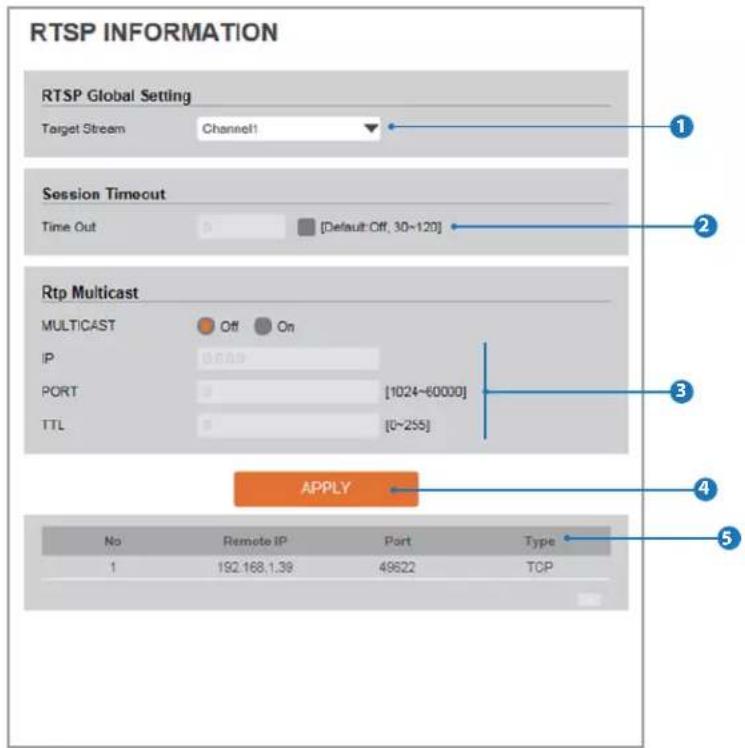
RTSP INFORMATION RTSP Global Setting Target Stream Channel1 Session Timeout Time Out [Default Off, 30~120] Rtp Multicast MULTICAST Off On IP PORT [1024~60000] TTL [0~255] APPLY No Remote IP Port Type 1 192.168.1.38 49622 TCP1 Target Stream
Select the channel you want to set.
2 Time out
Set the RTSP time out.
The session is disconnected after the specified time out.
3 RTP Multicast
Check RTP Multicast On/Off. To activate RTP Multicast,
-
Click "On" button
-
Enter accessible RTP Multicast IP, port for video stream control, RTP packet TTL
-
Click "Apply" button.
It is possible to set each RTP Multicast for CH1\~3.
4 Click 'Apply' to make above setting effective.
Click this button when completed setup each channels.
5 It shows RTSP Connection information.
Setup - Trigger Action Setup Action Rules Configuration
text_image
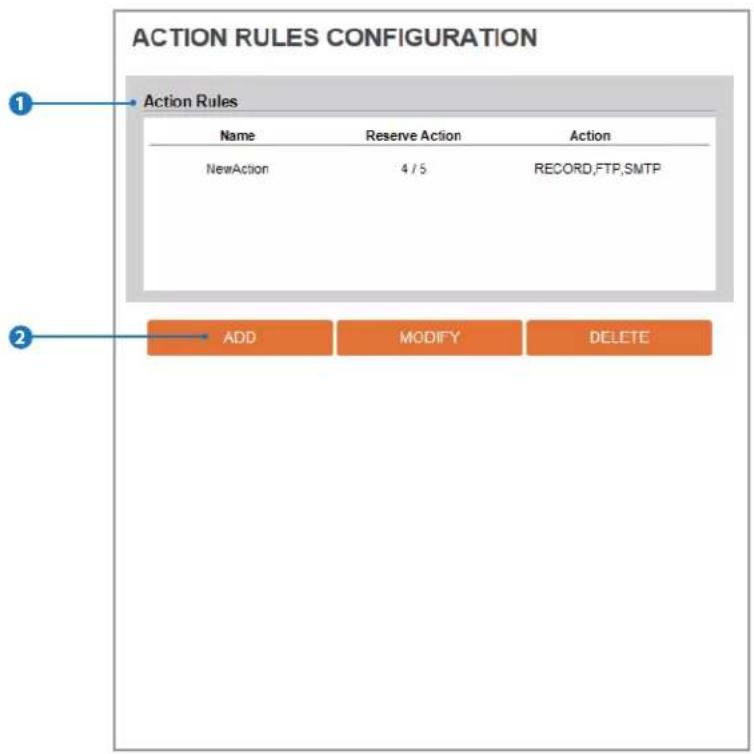
ACTION RULES CONFIGURATION 1 Action Rules Name Reserve Action Action NewAction 4 / 5 RECORD,FTP,SMTP 2 ADD MODIFY DELETE1 Action rules List
It indicates the custom action rule information added to Action rules list.
2 Click 'Add' to add custom action rules.
Click 'Modify' to modify selected item from the action rules list.
Click 'Delete' to delete selected item from the action rules list.
Setup - Trigger Action Setup Action Rules Add / Modify
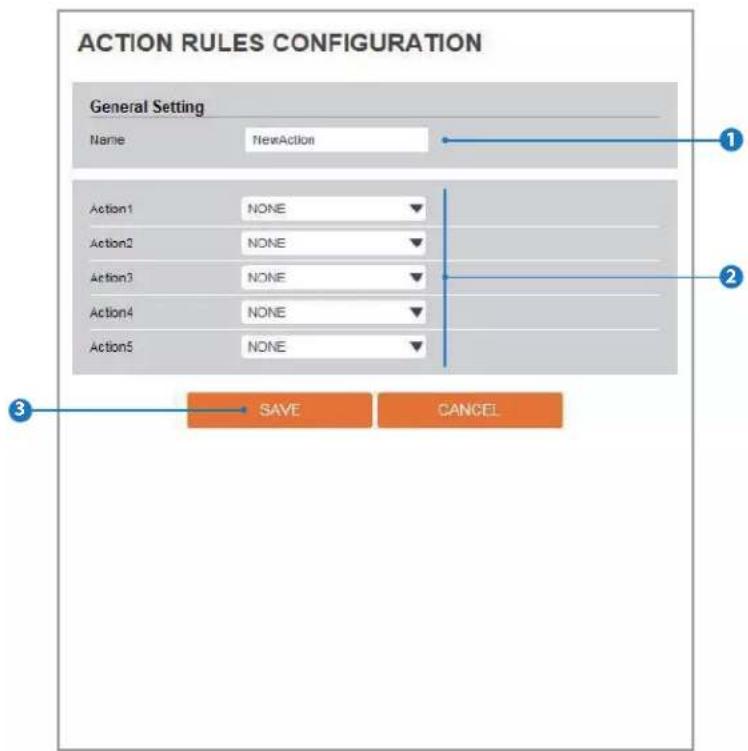
text_image
ACTION RULES CONFIGURATION General Setting Name NewAction Action1 NONE Action2 NONE Action3 NONE Action4 NONE Action5 NONE SAVE CANCEL
Name
Define name of action rules.

Action1 \~ Aciton5
Select the action to take If the event occurs.

Click 'Save' to save the current settings.
Click 'Cancel' to return to the previous menu.
Setup - Trigger Action Setup Image Transfer Configuration

text_image
IMAGE TRANSFER CONFIGURATION Pre/Post Alarm Image Number Of Image 2 Image Per Seconds(s) [ 1 ~ 5 ] Pre-Alarm Duration 3 Second(s) [ 1 ~ 5 ] Post-Alarm Duration 3 Second(s) [ 1 ~ 30 ] APPLY1 Pre / Post Alarm Image
Image Transfer due to event is configured by setting Image transfer rate and Pre / Post alarm duration.
| Descriptions | |
| Number of Image | Define Number of image transferred per second. |
| Pre-alarm Duration | Define duration of image transfer before an event. |
| Post-alarm Duration | Define duration of image transfer after an event. |
2 Click 'Apply' to make above setting effective.
Setup - Trigger Action Setup Relayout Configuration
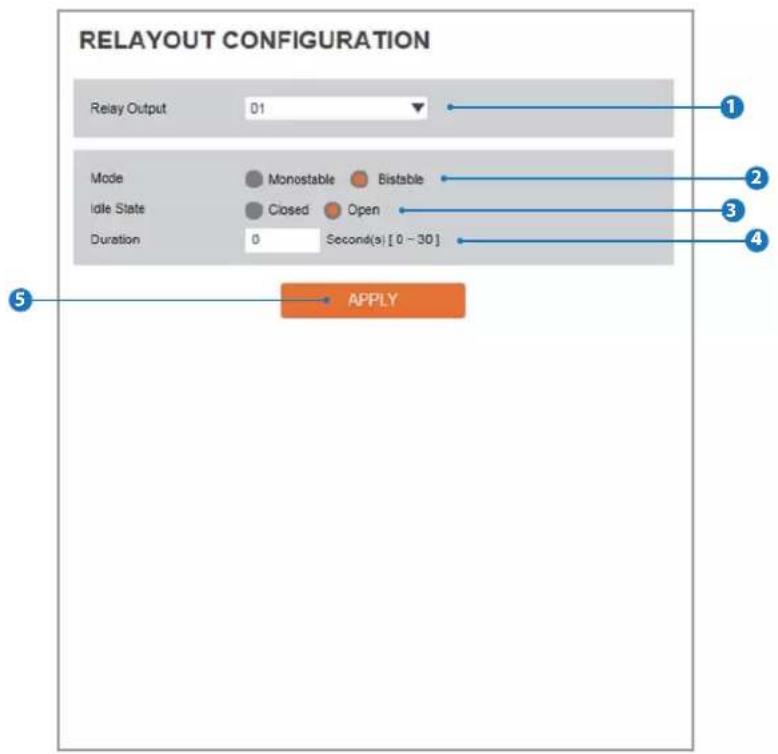
text_image
RELAYOUT CONFIGURATION Relay Output 01 Mode Monostable Bistable Idle State Closed Open Duration 0 Second(s) [0 - 30] APPLY1 Relay Output
Select the Relay output.
The number of relay outputs depends on the camera model.
2 Mode
Select the monostable / bistable for relay mode.
3 Idle State
Select whether the contact is normally opened or is closed.
4 Duration
Relay out is operated during the setting time.
If bistable mode is selected, this function is activation.
5 Click 'Apply' to make above setting effective.
Setup - Events Setup Event Rules Configuration
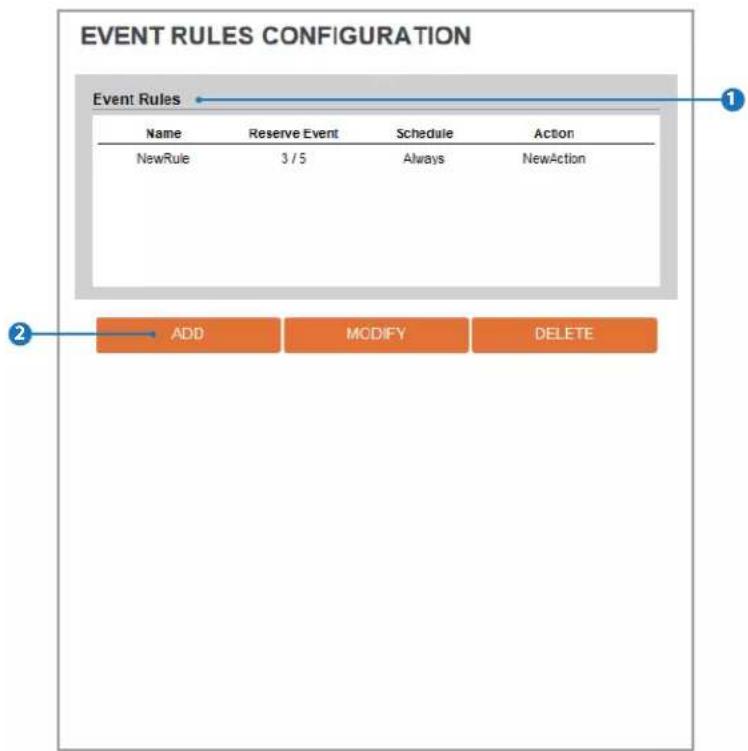
text_image
EVENT RULES CONFIGURATION Event Rules Name Reserve Event Schedule Action NewRule 3 / 5 Always NewAction ADD MODIFY DELETE1 Event Rules List
It indicates the custom Event Rule information added to Event Rules list.
2 Click 'Add' to add custom event rules.
Click 'Modify' to modify selected item from the event rules list.
Click 'Delete' to delete selected item from the event rules list.
Setup - Events Setup Event Rules Configuration
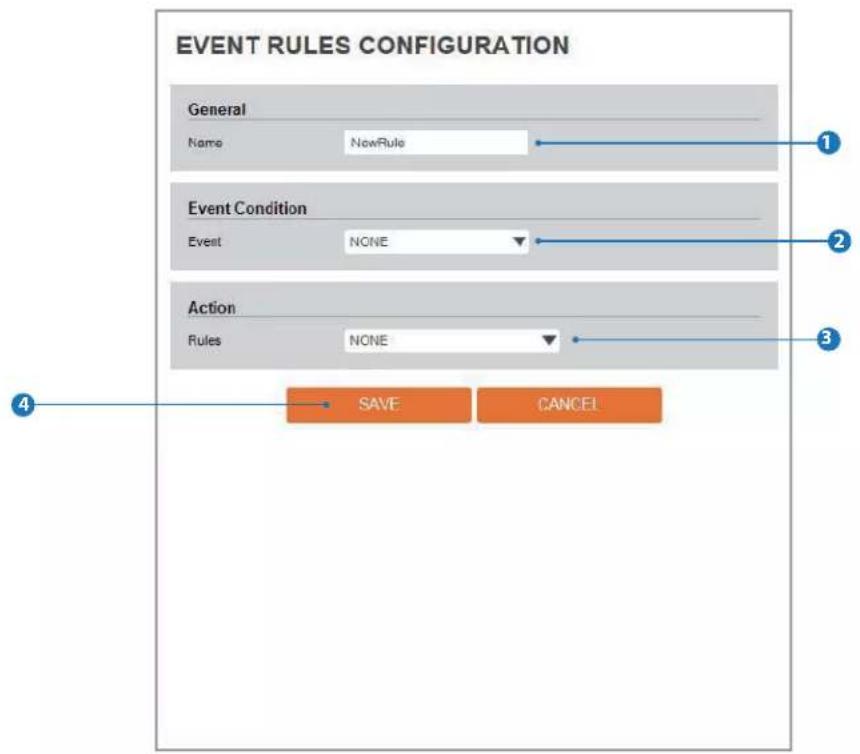
text_image
EVENT RULES CONFIGURATION General Name NowRule Event Condition Event NONE Action Rules NONE SAVE CANCEL
Name
Define the Event rule name.

Event
Select the event among motion detection, schedule.
Click 'Cancel' to return to the previous setting.
You need a event one more.

Rules
Select the action rule defined in the Trigger Action-Action rule menu.

Click 'Save' to save the current settings.
Click 'Cancel' to return to the previous setting.
Setup - Events Setup
Motion Detection Configuration
text_image
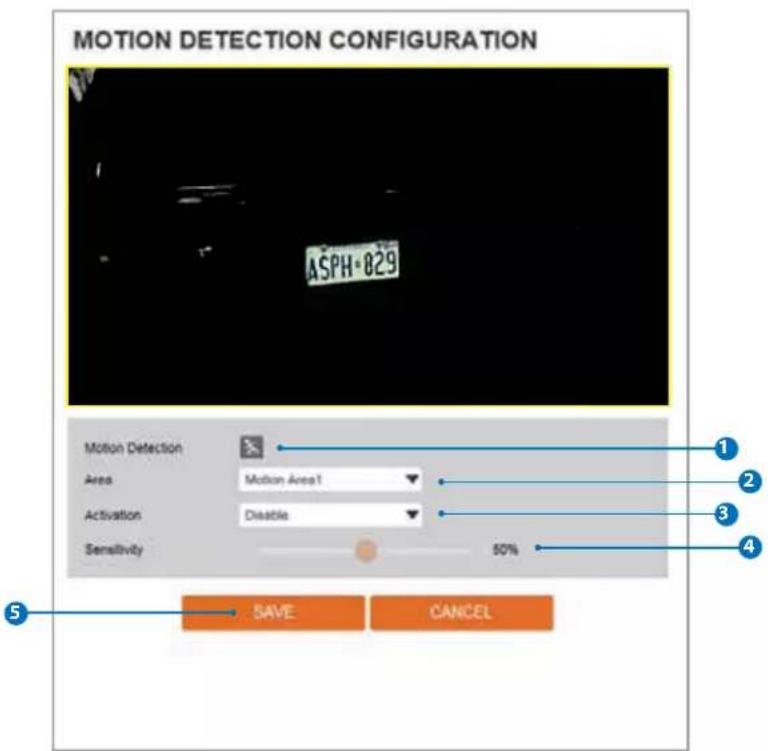
MOTION DETECTION CONFIGURATION ASP H-829 Motion Detection Area Motion Area1 Activation Disable Sensitivity 50% SAVE CANCEL1 Motion Detection
It shows the Motion event status.
Event Alert Icon(✗) appears if 'Motion Detection' is activated.
2 Area
Set the motion detected area.
You can set up to four areas.
3 Activation
Enable or Disable motion detection function.
4 Sensitivity
Define the sensitivity of motion detection. If High value is selected, it will detect very small motion while it becomes relatively insensitive when Low value is selected.
5 Click 'Save' to save the current settings.
Click 'Cancel' to return to the previous setting.
text_image
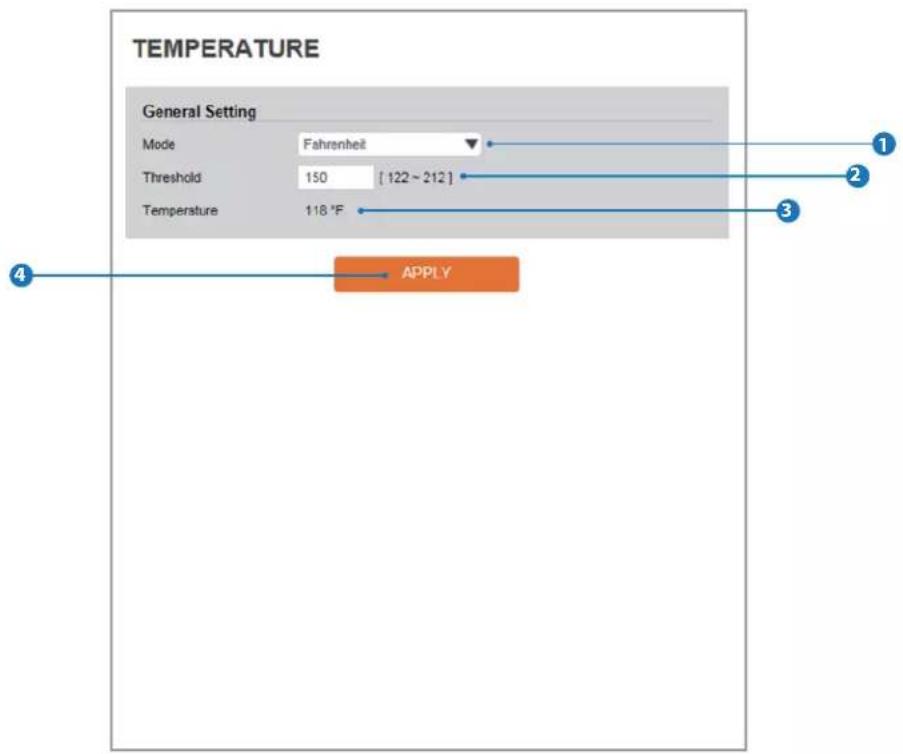
TEMPERATURE General Setting Mode Fahrenheit Threshold 150 [122~212] Temperature 118 °F 3 1 2 4 APPLY
Mode
Select the either Fahrenheit and Celsius.

Threshold
Define the temperature at which the event trigger is occurred.

Temperature
It indicates the current temperature of the IP camera.

Click 'Apply' to make above setting effective.
Setup - Events Setup Alarm Configuraion
text_image
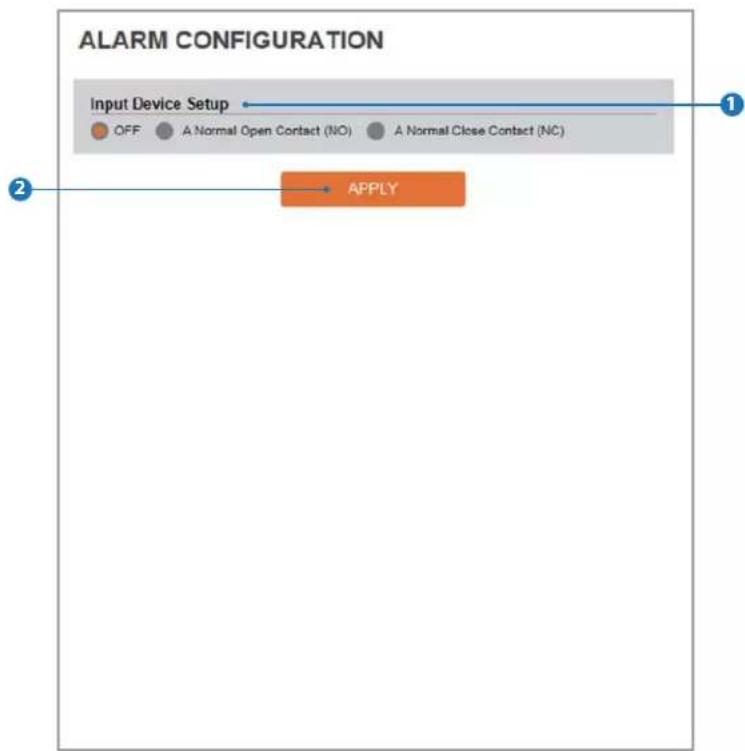
ALARM CONFIGURATION Input Device Setup OFF A Normal Open Contact (NO) A Normal Close Contact (NC) APPLY1 Input Device Setup
Select input device type from OFF / N.O. / N.C.
| Operation | |
| OFF | Ignore this Input sensor. |
| NO | The contact is normally open and closed when activated. |
| NC | The contact is normally closed and open when activated. |
② Click 'Apply' to make above setting effective.

text_image
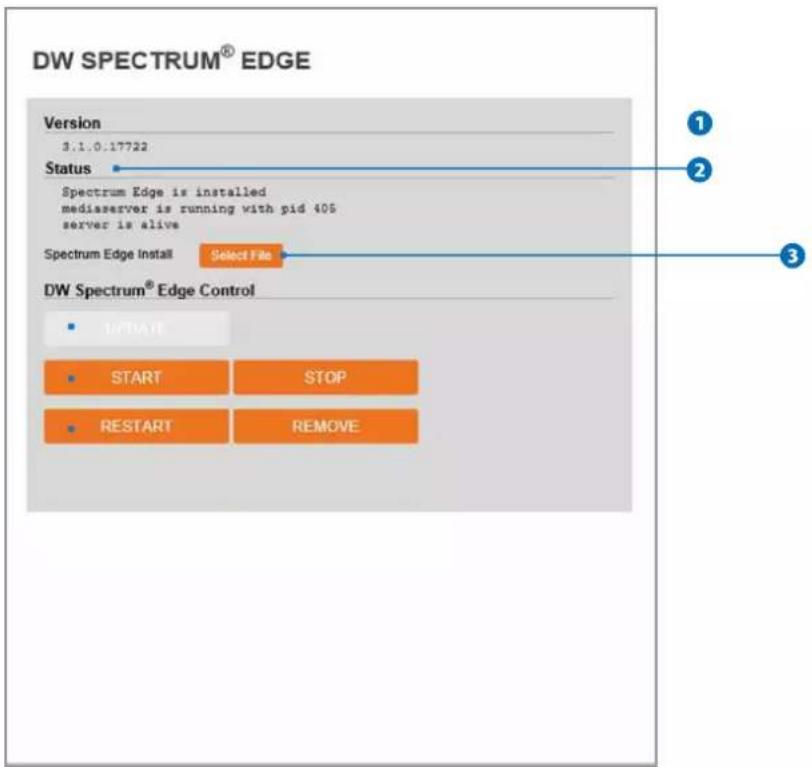
DW SPECTRUM® EDGE Version 3.1.0.17722 Status Spectrum Edge is installed mediaserver is running with pid 405 server is alive Spectrum Edge Install Select File DW Spectrum® Edge Control UPDATE START STOP RESTART REMOVE1 Version - Displays the version of DW Spectrum® edge (media server) installed in the camera.
2 Status - Displays the status of the DW Spectrum® edge (media server) installed in the camera. Wait until the status of the server is marked as 'alive'.
3 Select a new version of DW Spectrum® edge (media server) file to update and upload.
4 Update with selected file. If you select file, it will be activated.
5 DW Spectrum® edge (media server) start / stop
- Start : Start the DW Spectrum® edge (media server) installed in the camera.
- Stop : Close the DW Spectrum® edge (media server) installed in the camera.
6 DW Spectrum® edge (media server) restart / remove
- Restart : Restart the DW Spectrum® edge (media server) installed in the camera.
- Remove : Delete the DW Spectrum® edge (media server) installed from the camera.
Before DW Spectrum® edge (media server) install.

text_image
Version unknown Status Spectrum Edge is not installed Spectrum Edge Install Select File- If SD Card does not automatically mount, you must format for mounting SD card.
Storage List
| Name | Mounted | Size | Used(%) | Available |
| sdcard0 | 0 | 29.8G | 4% | 28.5G |
Display the SD card information mounted from device.
When you select the item in Storage list, You can set the functions related to the SD card.
Setup - Edge Setup Storage Configuration
- If SD Card does not automatically mount, you must format for mounting SD card.
SD CARD0
Storage Size
Unmount
Format
4.0K/7.4Q
UNMOUNT
FORMAT
1
2
3
1 Storage Size - Total capacity of SD card and the remainder of it are displayed.
2 Unmount - Remove the SD card from the device. UNMOUNT cannot be done when EDGE (Media server) is running.
3 Format - Delete the all contents that stored in SD card. FORMAT cannot be done when EDGE (Media server) is running.
Setup - Security Setup
IP Address Filter Configuration

text_image
IP ADDRESS FILTER CONFIGURATION General Setting IP Address Filter On Off IP Filter Type Allow 1 2 3 APPLY 4 Filtered IP Address* IP Address IP Address [Invalid] 5 6 ADD REMOVE REMOVE ALL1 IP Address Filter
IP filter function can be enable or disable.
2 IP Filter Type
Select the recording IP filter type.
3 Click 'Apply' to make above setting effective.
4 Filter IP Address
Display the filterd IP address.
5 IP Address
Define the IP address you want to apply the IP filter.
6 Click 'Add' to add the ip address to the list.
Click 'Remove' to remove the ip address selected in the list.
Click 'Remove All' to remove all ip in the list.
Setup - Security Setup
RTSP Authentication Configuration
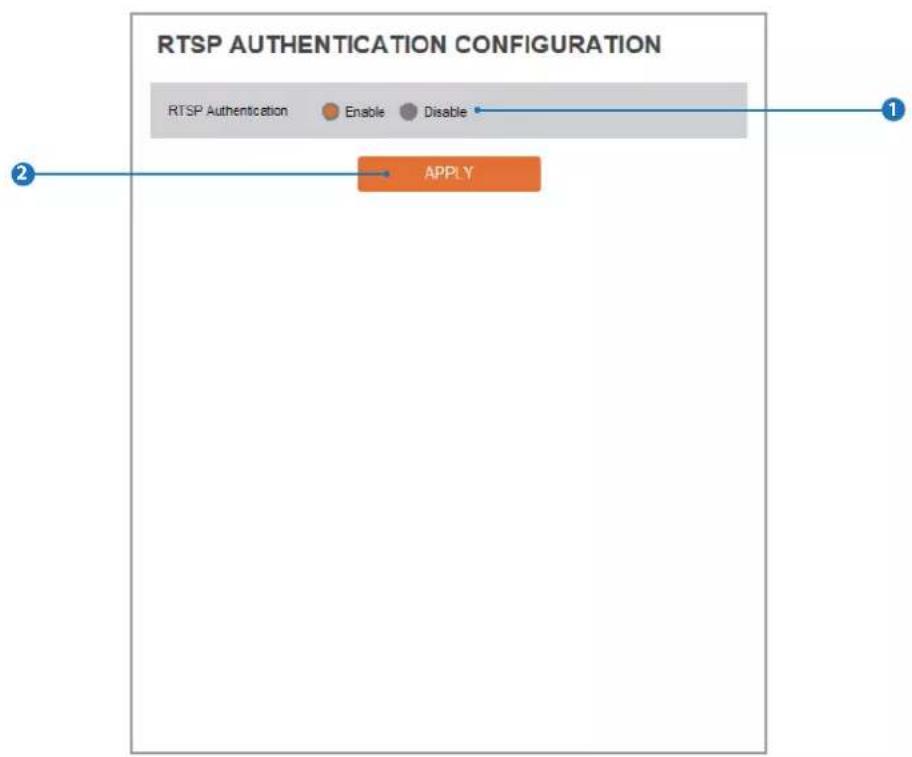
flowchart
graph LR
    A["RTSP Authentication"] --> B["Enable"]
    A --> C["Disable"]
    D["APPLY"] --> E["2"]
1 RTSP Authentication
RTSP Authentication can be enable or disable.
2 Click 'Apply' to make above setting effective.

text_image
IEEE 802.1X CONFIGURATION General Setting IEEE 802.1x On Off Protocol MD5 EAPOL Version 1 ID Password Verify CA Certificate NONE Certificate NONE 1 2 3 4 5 6 7 8 9 APPLYThe feature is needed when connecting the camera to the network protected by the IEEE 802.1X.
1 IEEE 802.1x
The IEEE 802.1x feature can be enable or disable.
2 Protocol
MD5: It provides one-way password-based network authentication of the client.
PEAP: It is similar to TTLS in that it does not require a certifi-cate on the client side.
TTLS/MD5: It does not require a certificate on the client side.
TLS: It relies on client-side and server-side certificates to perform authentication.
3 EAPOL Version
Select the EAPOL Version.
4 ID
Type the ID to identify the client in the IEEE 802.1X authen -tication server.
5 Password
Type the Password to identify the client in the IEEE 802.1X authentication server.
6 Verify
Verify Password.
7 CA Certificate
Select the CA certificate required for TLS, TTLS, and PEAP authentication.
8 Certificate
Select the client certificate required for TLS authen -tication
9 Click 'Apply' to make above setting effective.
Setup - Security Setup HTTPS Configuration

text_image
HTTPS CONFIGURATION 1. If no certificates are available go to certificates to manage. Certificates Certificate NONE HTTPS connection Policy Administrator HTTP and HTTPS Operator HTTP and HTTPS Viewer HTTP and HTTPS APPLYHTTPS encrypts session data over SSL or TLS protocols instead of using plain text in socket communications.
1 Certificate
Select an installed certificate.
If you can not select a certificate, please install the certificate from the Security->Certificates menu.
② HTTPS connection Policy
Select one of "HTTP", "HTTPS", "HTTP and HTTPS" depending on the connected user authority.
3 Click 'Apply' to make above setting effective.
When HTTPS mode is chosen, input https://
Setup - Security Setup Certificates Configuration
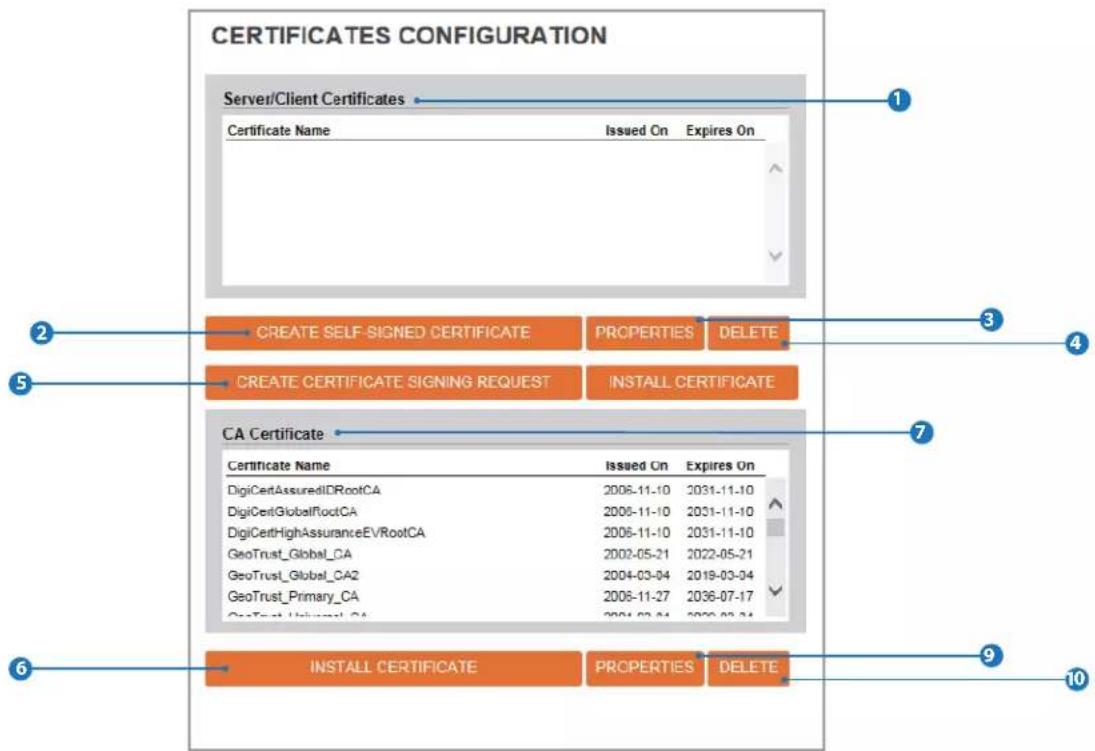
text_image
CERTIFICATES CONFIGURATION Server/Client Certificates Certificate Name Issued On Expires On CREATE SELF-SIGNED CERTIFICATE PROPERTIES DELETE CREATE CERTIFICATE SIGNING REQUEST INSTALL CERTIFICATE CA Certificate Certificate Name Issued On Expires On DigiCertAssuredIDRootCA 2006-11-10 2031-11-10 DigiCertGlobalRootCA 2006-11-10 2031-11-10 DigiCertHighAssuranceEVRootCA 2006-11-10 2031-11-10 GeoTrust_Global_CA 2002-05-21 2022-05-21 GeoTrust_Global_CA2 2004-03-04 2019-03-04 GeoTrust_Primary_CA 2008-11-27 2036-07-17 GeoTrust_Universal_CA 2004-03-04 2036-07-17 INSTALL CERTIFICATE PROPERTIES DELETE1 Server/Client Certificates
It show the installed certificates.
② Create Self-Signed Certificate
A self-signed SSL certificate is an identity certificate signed by its own creator. but they are considered to be less trust -worthy.
3 Properties
Shows information about the selected certificate.
4 Delete
Delete the selected certificate.
⑤ Create Certificate signing request
This is the encoded data that contains the necessary information for issuing the certificate.
they must be filled in when creating the CSR (Certificate Signing Request).
6 Install Certificate
Install Certification
7 CA Certificate
It show the installed CA certificates.
8 Install CA Certificate
Install Certification, see the detail page.
9 Properties
Shows information about the selected certificate.
10 Delete
Delete the selected CA certificate.
Setup - Security Setup Certificates Configuration
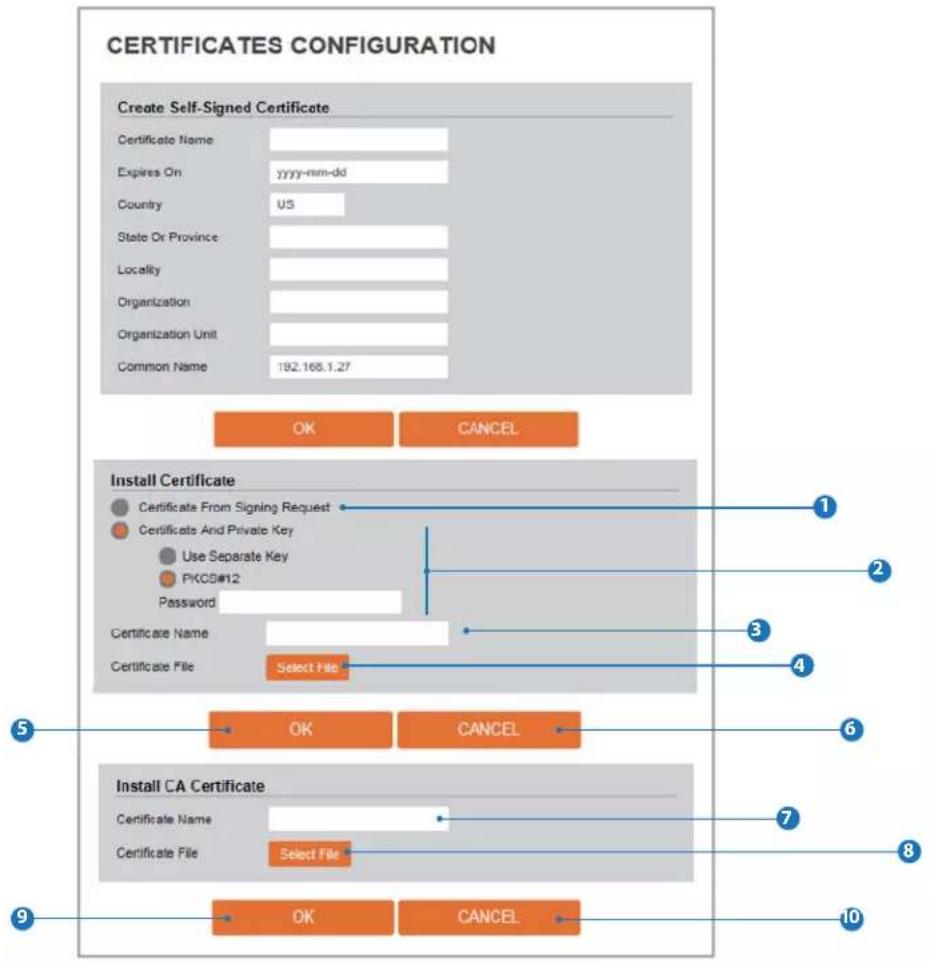
text_image
CERTIFICATES CONFIGURATION Create Self-Signed Certificate Certificate Name Expires On yyyy-mm-dd Country US State Or Province Locality Organization Organization Unit Common Name 192.168.1.27 OK CANCEL Install Certificate Certificate From Signing Request Certificate And Private Key Use Separate Key PKCB#12 Password Certificate Name Select File Install CA Certificate Certificate Name Select File OK CANCEL 1 2 3 4 5 6 7 8 9Detail for Install Certification.
1 Certificate From Signing Request
Select to install signed certificate returned from the CA.
② Certificate And Private Key
Select to install Certificate And Private Key to install a certi-ficate and private key.
Use Seperate Key: Too install certificate uploading Certifi -cate and Private Key file.
PKCS#12" : "PKCS#12" is cryptography standard. if you want to install using PKCS#12, must enter the password.
3 Certificate Name
Enter a unique name to identify certificate.
4 Select File
Choose certification file.
5 OK
Request installing certificate.
6 Cancel
Cancel install certificate and then back to certificates configuration.
Detail for Install CA Certification.
7 Certificate Name
Enter a unique name to identify CA certificate.
8 Select File
Choose CA certification file
9 OK
Request installing CA certificate.
10 Cancel
Cancel install CA certificate and then back to certi-ficates configuration.
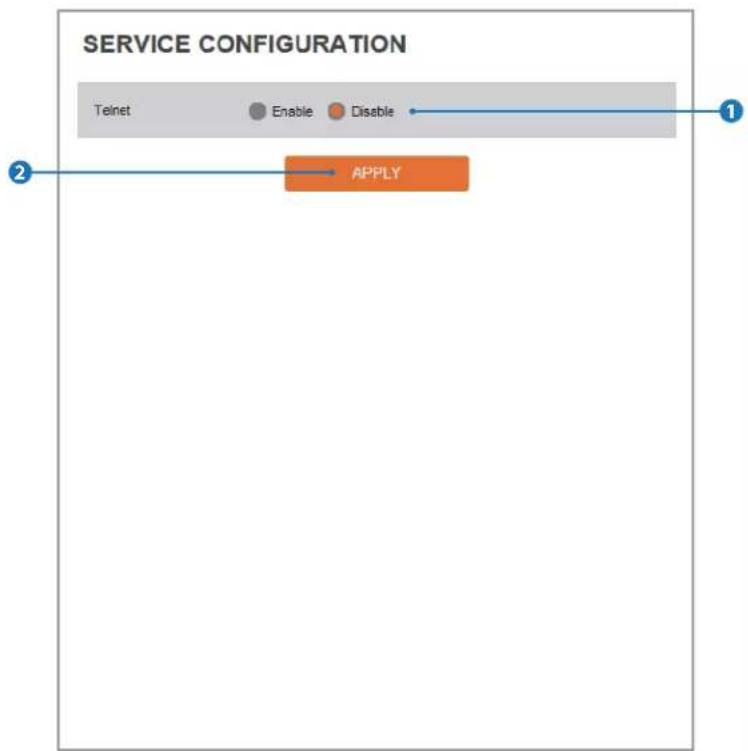
flowchart
graph LR
    A["Telnet"] --> B["Enable"]
    A --> C["Disable"]
    D["APPLY"] --> E["End"]

Telnet
The Telnet function can be enable or disable.

Click 'Apply' to make above setting effective.
Setup - System Setup System Information

text_image
SYSTEM INFORMATION Device Name IP Camera 1 2 APPLY Model Name N5Fx-ALAH Manufacturer IPNC Max Resolution 1080p Max Framerate 30 tps Photo Resistor(CDS) SUPPORT Alarm In NOT SUPPORT Relay out NOT SUPPORT Audio NOT SUPPORT Optical Zoom NOT SUPPORT Digital Zoom NOT SUPPORT PTZ NOT SUPPORTSystem Capability information.
1 Device Name You can define the device name.
6 Click 'Apply' to make above setting effective.
Setup - System Setup Firmware Update
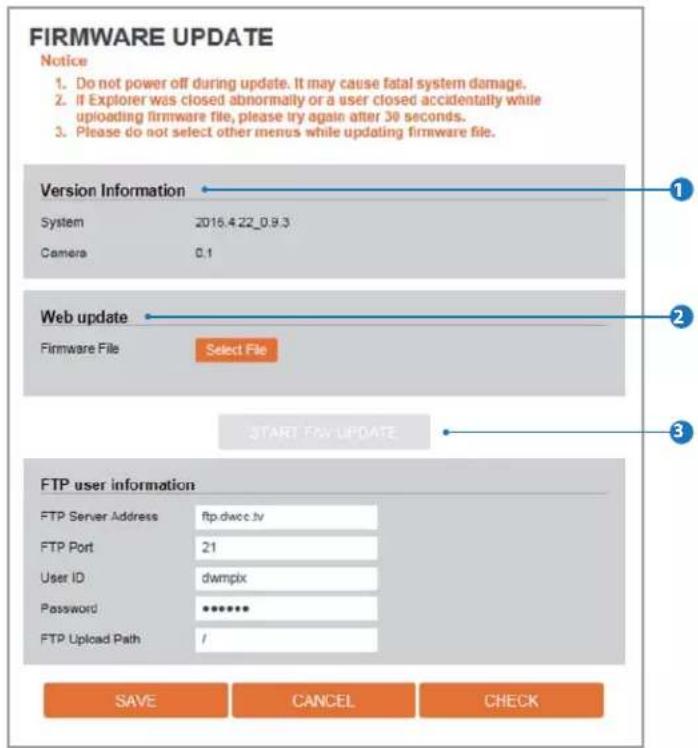
text_image
FIRMWARE UPDATE Notice 1. Do not power off during update. It may cause fatal system damage. 2. If Explorer was closed abnormally or a user closed accidentally while uploading firmware file, please try again after 30 seconds. 3. Please do not select other menus while updating firmware file. Version Information System 2016.4.22_0.9.3 Camera 0.1 Web update Firmware File Select File START FIV UPDATE FTP user information FTP Server Address ftp.dwcc.tv FTP Port 21 User ID dwmpix Password ****** FTP Upload Path / SAVE CANCEL CHECK1 Version Information
It shows the current Firmware Version in the system.
2 Web Update
Select the Firmwar file in your computer by clicking [Select file] button.
3 Start F / W Update
Click this button to start update. Progress of uploading will be displayed using Progress Bar. If you assign the wrong file name, an error massage will be shown.
Warning:
- Do not turn off the power of camera during the Firmware update. Otherwise, the system can be stuck to be unstable. If updating is finished, the system will be rebooted automatically.
- Please make sure to check the 'Notice' shown on screen. If firmware update is completed, the camera will reboot automatically and 'Setup window' will be closed.
Setup - System Setup Firmware Update
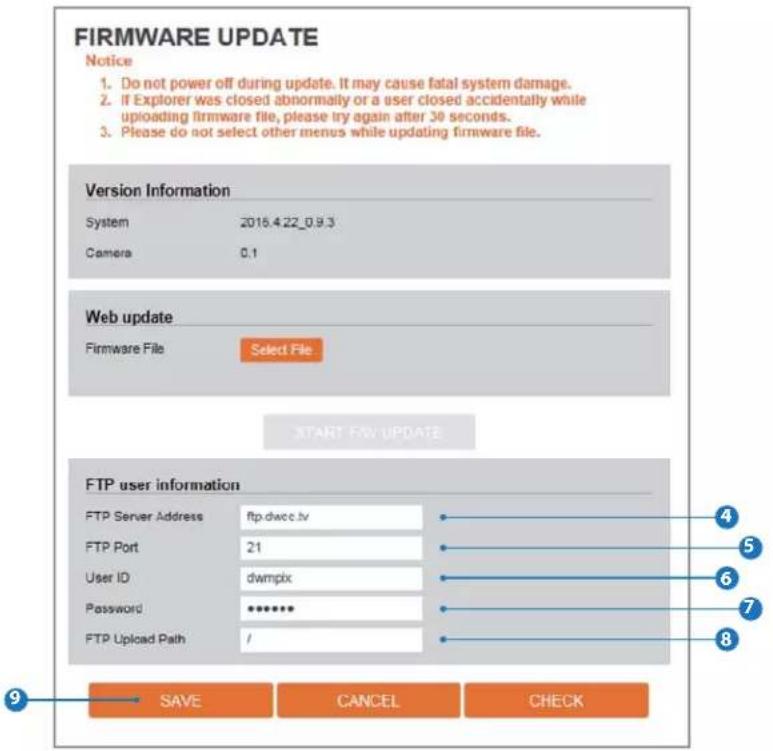
text_image
FIRMWARE UPDATE Notice 1. Do not power off during update. It may cause fatal system damage. 2. If Explorer was closed abnormally or a user closed accidentally while uploading firmware file, please try again after 30 seconds. 3. Please do not select other menus while updating firmware file. Version Information System 2016.4.22_0.9.3 Camera 0.1 Web update Firmware File Select File START F/W UPDATE FTP user information FTP Server Address ftp.dwcc.lv FTP Port 21 User ID dwmpix Password ****** FTP Upload Path / SAVE CANCEL CHECK4 FTP Server Address
Define FTP Server IP Address. If IP Address form is incorrect, a Message box will be shown to try again.
5 FTP Port
Define the FTP Server Port. If Port is not appropriate, it is impossible to access to FTP Server.
6 User ID
Define User ID to access to the FTP Server. Fill out the correct User ID registered in the FTP Server.
7 Password
Define Password to access to the FTP Server. Fill out the correct Password registered in the FTP Server.
8 FTP Upload Path
Define a path in FTP server to store video. For the path name, English Alphabets, numbers and special characters (/\~!@\$^()_-{}[];,) can be used.
9 Click 'Save' to make above setting effective.
| SAVE Save FTP information | |
| CANCEL Click 'Cancel' to return to the previous setting. | |
| CHECK | Check the F/W file and if the file exists, 'F/W Update' button will appear and click it to update for F/W. |
Setup - System Setup Date & Time Settings
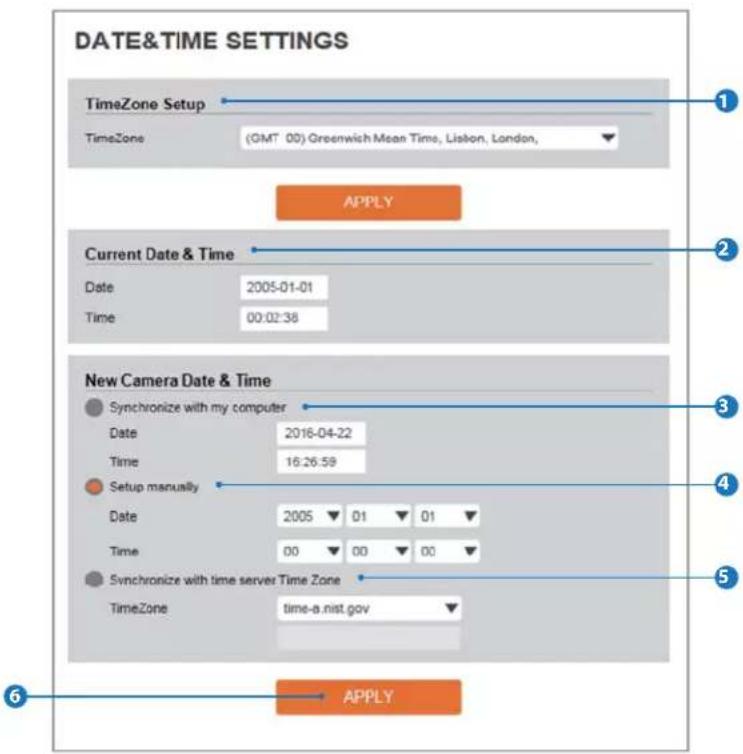
text_image
DATE&TIME SETTINGS TimeZone Setup TimeZone (GMT 00) Greenwich Mean Time, Lislon, London, 1 APPLY Current Date & Time Date 2005-01-01 Time 00:02:38 New Camera Date & Time Synchronize with my computer Date 2016-04-22 Time 16.26.59 Setup manually Date 2005 01 01 Time 00 00 00 Synchronize with time server Time Zone TimeZone time-a.nist.gov 5 APPLY1 TimeZone Setup
Choose TimeZone for camera. It will be activated after clicking 'Apply' button.
Prior to setting below 'New Camera Date & Time', set correct Timezone first.
2 Current Date & Time
Shows the current date and time setting in the Camera.
③ Synchronize with my computer
Set the date / time using those of PC currently connected.
4 Setup manually
Set the date / time by typing manually.
5 Synchronize with time server(NTP)
Choose time server available to connect to current camera. Date & Time will be updated automatically every hour when connected.
6 Click 'Apply' to make above setting effective.
Setup - System Setup DST Settings
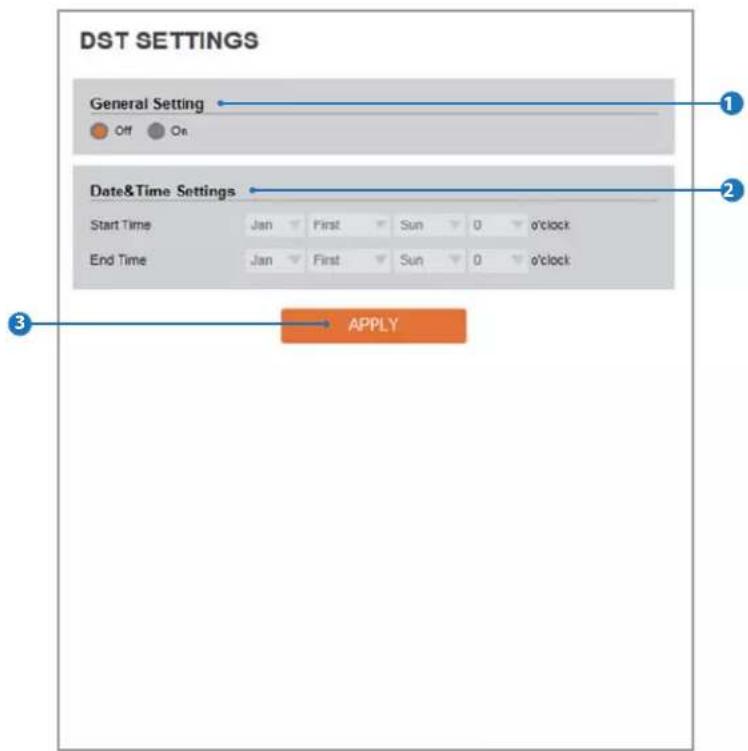
text_image
DST SETTINGS General Setting Off On Date&Time Settings Start Time Jan First Sun 0 o'clock End Time Jan First Sun 0 o'clock 3 APPLYDaylight Saving Time (DST) is the practice of setting the clocks forward one hour from standard time during the summer months, and back again in the fall, in order to make better use of natural daylight.
1 General Setting DST function can be enable or disable.
2 Date&Time Settings Set the Start time and end time that the DST apply.
3 Click 'Apply' to make above setting effective.
Setup - System Setup Users Management
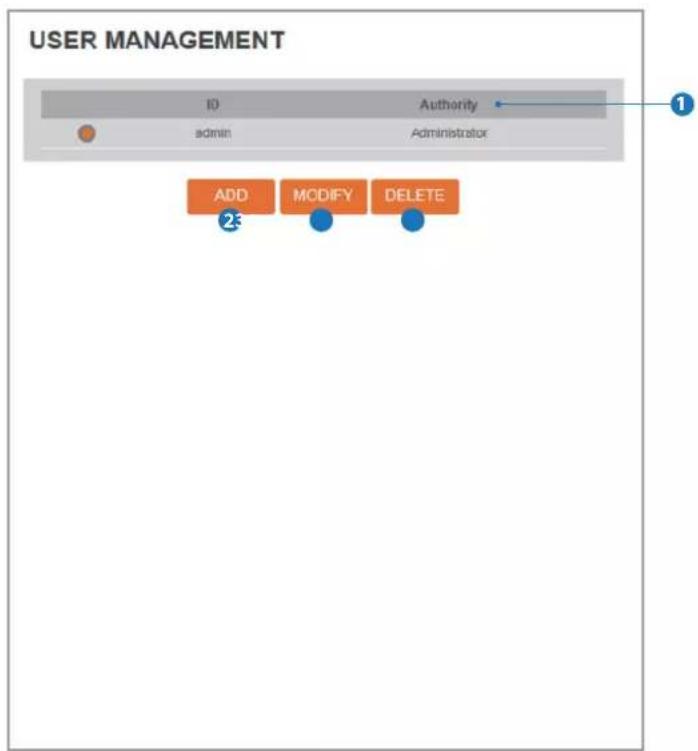
text_image
USER MANAGEMENT ID admin Authority Administrator ADD 23 MODIFY DELETE
Users
List all the user accounts for authentication.

Add
Register a new user
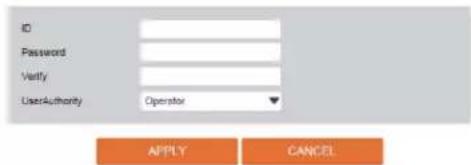
text_image
ID Password Verify UserAuthority Operator APPLY CANCEL| ID Enter | a new user ID except Admin since it exists. |
| Password | Enter the user Password. |
| Verify | Enter the user Password again for verification. |
| User Authority | Select Operator or Viewer.Viewer: Only monitoring is allowed.Operator: Most of the functions are allowed except 'Setup'.Administrator: All functions are allowed. |
The ID and Password are limited to 10 characters.
Click 'Apply' to make above setting effective.
Click 'Cancel' to return to the previous menu.

Modify
Modify the information of the user accounts registered. For admin account, only Password function can be modified.

Delete
Delete the selected user account. Admin account cannot be deleted.
Setup - System Setup System Log

text_image
SYSTEM LOG Filter Date Time Type Sort 0 0 0 0 0 0 0 All Decending 1 2 REFRESH FILTER List Date & Time Log IP 2005/01/01-00:07:14 Change video encoder config 192.166.1.39 2005/01/01-00:00:20 RTSP session connected 192.166.1.39 2005/01/01-00:00:19 RTSP session connected 192.166.1.39 2005/01/01-00:00:17 RTSP session connected 192.166.1.39 2005/01/01-00:00:15 Network initialized system 2005/01/01-00:00:15 Sensor alarm accured : 1 : Off system 2005/01/01-00:00:15 System initialized system 2005/01/01-00:45:47 System terminated system 2005/01/01-00:45:46 Factory default 192.166.1.39 1 2 3 4 5 6 7 8 9 10
Filter
Select a date, sort or type of log to filter the log.

Click the 'Refresh' button to refresh the log list.
Click 'Filter' to view the filtered log.

System Log List
The filtered log is displayed.
Setup - System Setup Factory Reset

text_image
DEFAULT SET 1 All Except network setting 2 APPLY1 Reset to the factory defaults Return the setup to the factory default.
All Reset all Settings to the factory defaults.
Except Network Settings Except Network related settings, reset all others to the factory default.
2 Click 'Apply' to make above setting effective.

text_image
The page at 192.168.1.116 says: Do you want to restart the system? OK CancelIf you click the 'RESTART' menu, a message box will be shown to confirm. Click the 'Ok' button to restart.
Network Setup - Quick Start of Network Connection
Please follow the steps below to complete the initial setup of the network function.
i Please do not power on the IP Camera until instructed.
① Temporarily disable any proxy servers configured in internet Explorer.
If connecting the IP Camera directly to a modem, power down and reset the modem. Leave the modem powered down until configuration was utilized with the IP Camera and the IP Camera has been correctly connected to the modem.
-
Connect the IP Camera and PC to the configured network.
-
Open the IP Installer on a PC, then search for the IP camera.
If you have a DHCP server, it will automatically set the Camera IP.
If you do not have a DHCP server, Camera IP is set to 192.168.1.80 after one minute. In this case, PC IP must be changed to the IP to be able to access the 192.168.1.80.
- If multiple numbers of camera are connected it should be distinguished by the mac address of the Camera.
- Click the Camera IP, and connect to the WEB PAGE.
- Default ID/Password to access IP Camera are both the word: admin.
Familiarize yourself with the Viewer Interface Screen.6.
please install VLC to display live video.7.
- The IP setting can be set to 'STATIC' at IP Installer or web viewer followed by Setup -> Network -> TCP / IP.
- If the IP Camera is connected to a network which utilizes a router, you must have Port Forwarding confined on your personal router to forward all ports to the IP address you have assigned the IP Camera.
- After configuring Port Forwarding on your router (if necessary), you may access your IP Camera on your local network by opening Internet Explorer and specifying the IP address and Web Port that you have assigned to the IP Camera.
Example: http://192.168.0.200:8888
If you leave your Web Port set to 80, you don't need to specify the port in the Address Bar to access to your IP Camera.
11. Access your IP Camera via the Internet :
If you use a static IP address assigned by your ISP
1) Open Internet Explorer.
2) Type the IP of the IP Camera.
3) If you use a router, type the routers' static IP and the web port number of the IP Camera.
If you have a dynamic address provided by your ISP
1) Open Internet Explorer and visit the DDNS website.
2) Register the IP Camera.
3) Reboot the IP Camera.
4) Give the DDNS server 10 minutes to locate your IP Camera's IP information.
5) Click the refresh button in the Internet Explore.
6) After your camera is connected, select your camera.
If you have DYNAMIC IP service from your Internet Service Provider (ISP), you can't tell the current IP address of the IP Camera. To solve this problem, you have to register to our DDNS service.
At first, you have to check if you are using dynamic addressing. If so, register your IP Video Server on our DDNS website before you configup, or install the IP Camera.
Even though your IP is not dynamic, you will get benefit if you register to DDNS. In this case, just remember 'hostname.dyndns.com/gate1' instead of complicated series of numbers like http://201.23.4.76:8078.
For more details, contact our Support Center.
To use a public DDNS called 'dyndns' or 'no-ip', refer to the detail information on how to use the service. (Visit the web site : http://www.dyndns.com or http://www.no-ip.com)
Network Setup - Guide to Network Environment
Please configure the IP Camera at the installation site. You must determine your network scenario in order to configure the IP Camera with the proper TCP/IP settings. This tutorial will guide you through the process. Before actually configuring the IP Camera, determine settings to be applied. Record those settings to be used to configure your IP Camera for reference.
When configuring your IP Camera, treat the IP Camera as another PC on your network. You will assign it several addresses and other TCP/IP properties to match your current network.
This step-by-step tutorial will teach what IP addresses and network configurations should be assigned based on the network scenario.
- The following descriptions are several basic network scenarios. Determine which scenario describes your network. If your network does not match one of the scenarios below and you are unsure how to setup your IP Camera, contact your network administrator and then call our Support Center.
You cannot control the rectangular gray areas and only the ISP has access to the devices.
- Before you begin, locate any information and settings received from your Internet Service Provider (ISP). You may need to refer to these IP addresses at a later time during the configuration.
| Current TCP/IP Settings | |
| IP Address | |
| Subnet Mask | |
| Default Gateway | |
| Primary DNS Server | |
| Secondary DNS Server (Option) | |
| Static Dynamic □ | |
If you were not given any IP addresses or the ISP was responsible for the setup and installation of your Internet connection, go to step 2.
If you are not using a router on your network, your 'Current TCP/IP Settings' (from the previous section) and 'Assigned IP Addresses from My ISP' will be exactly the same.
- You must determine whether the IP address is STATIC or DYNAMIC. At this moment, you are only concerned about the ISP. Did they provide you with a STATIC or DYNAMIC address? If you are unsure, contact your ISP.
- Configure your IP Camera's TCP/IP settings for network connectivity by selecting Setup from the main interface and selecting TCP/IP located on the left of the Setup screen.
- If prompted for ID and Password, use 'admin' for both entries.
The default web port number is 80. If port 80 is blocked by the ISP, a value between 1025 \~ 60000 should be used. If TCP port 80 is blocked, consult the ISP
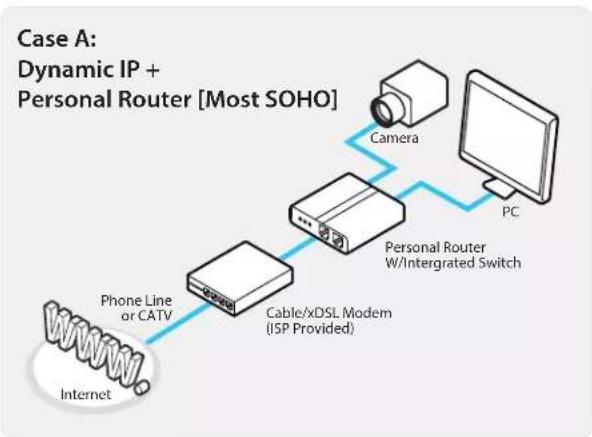
flowchart
graph LR
    A["Internet"] --> B["Phone Line or CATV"]
    B --> C["Cable/xDSL Modem (ISP Provided)"]
    C --> D["Personal Router W/Intergrated Switch"]
    D --> E["PC"]
    E --> F["Camera"]
    F --> G["Most SOHO"]

flowchart
graph LR
    A["Internet"] -->|Public Line| B["Gateway or Router at ISP"]
    B --> C["Personal Router W/Intergrated Switch"]
    C --> D["PC"]
    B --> E["Camera"]
    E --> C
Configure your IP Camera's TCP/IP properties as follows :
Network Type: STATIC (even though you have Dynamic IP from your ISP, use STATIC on the IP Camera)
Internet Address :2A private IP address such as 192.168.0.200 (Example)
You need to assign an IP address to the IP Camera just as you do with PC.
The IP address you assign must be unique to your network and match your network as well. For information on how to choose a unique IP and match your network, read the FAQ.
The IP address you assign must be a private IP. For information on how to choose a private IP please, read the FAQ.
Subnet Mask:3255.255.255.0 (Example)
You must use the same subnet mask as the one you noted under 'Current TCP/IP Settings'.
Default Gateway:4.92.168.0.1 (Example)
This IP address must be the IP address of your router. (private or LAN side)
Use the same Default Gateway you noted under 'Current TCP/IP Settings'.
Preferred DNS Server: Use the 1st DNS Server from 'Assigned IP Address from My ISP'.
If you did not receive any IP addresses from your ISP, contact the ISP and acquire the IP address of their DNS server.
DDNS Server: Use the DDNS server.
This is the same site you will register later to accommodate dynamic IP from your ISP.
8888Web Port:7.
Do not use the default port 80 as this number must be changed.
You may select any number between 1025 \~ 60000.
Case C:
Static(Fixed) IP [Dedicated line directly to the IP Camera]

flowchart
graph LR
    A["Camera"] --> B["Cable/xDSL Modem (ISP Provided)"]
    B --> C["Phone Line or CATV"]
    C --> D["Internet"]
Configure your IP Camera's TCP/IP properties as follows :
STATICNetwork Type:1.
Internet Address: A static IP address received from your ISP such as 24.107.88.125 (Example)
You need to assign an IP address to the IP Camera just as you do with PC.
Subnet Mask : Subnet mask assigned from your ISP such as 255.255.255.240 (Example)
Default Gateway :424.107.88.113 (Example)
Use the assigned default gateway from your ISP
Preferred DNS Server :\$ Use the 1st DNS Server from 'Assigned IP Address from My ISP'
If you have not received any IP addresses from your ISP, contact them to acquire the IP address of their DNS server.
DDNS Server : Use the DDNS server
This is the same site you will register later to utilize our DDNS service.
80Web Port:7.
You may select any number between 1025 \~ 60000.
Case D:
Dynamic IP + DSL/Cable Modem [Connected directly to the IP Camera]
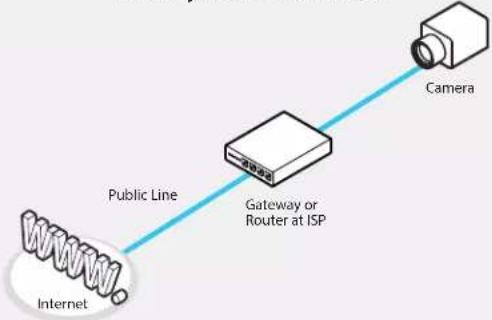
flowchart
graph LR
    A["Internet"] -->|Public Line| B["Gateway or Router at ISP"]
    B --> C["Camera"]
To connect the IP Camera directly to a modem, power down and reset the modem. Leave the modem powered down until configurations are finalized with the IP Camera and the IP Camera has been connected correctly to the modem. Then power on the modem, followed by the IP Camera.
Configure your IP Camera's TCP/IP properties as follows :
DYNAMICNetwork Type:1.
Use the DDNS serverDDNS Server:2.
This is the same site you will register later to accommodate dynamic IP from your ISP.
80Web Port:3.
You may select any number between 1025 \~ 60000.
Network Setup - Port Forwarding
After entering the correct TCP/IP settings, you are ready for 'Port Forwarding'(Cases A, B).
- Please record the TCP/IP settings of your IP Camera for future reference. You may need this information to access your IP Camera and to configure 'Port Forwarding'.
| IP Camera TCP/IP Settings | |
| IP Address | |
| Subnet Mask | |
| Default Gateway | |
| Preferred DNS Server | |
| DDNS Server | |
| Web Port | |
- After clicking 'Apply', the system will prompt for a reboot. Please allow the system 50 seconds to reboot and accept the changes. After 50 seconds, close the configuration screen. The view will display 'Trying to Reconnect'. If the ACTIVE light on the IP Camera has gone off and is now back on again flashing, the IP Camera has rebooted. After the system reboots completely, remove the power supply from the unit and close Internet Explorer.
- Return your PC/Laptop TCP/IP properties to their original settings.
- Before installing the IP Camera, you must use 'Port Forwarding' on your personal router (Cases A, B).
You will need to forward 1 ports:
- Web Port
All the ports will be forwarded to the IP address you assigned to the IP Camera.
In the example above, you would forward:
• 8888 → 192.168.0.200
For information on how to use 'Port Forwarding', please read Appendix C.
After forwarding correctly the Web Port, through your router (if applicable), install the IP Camera in a proper location.
- Locate the serial number located on the label attached to the bottom of the IP Camera, you will need this for DDNS registration.
- Connect the IP Camera to your router or cable/DSL modem (per your network scenario) via a Cat5/5e UTP Ethernet network cable.
- Supply power to the IP Camera.
- After 1 minute, the IP Camera will operate.
- After configuring Port Forwarding on your computer (if necessary), access your IP Camera on your local network by opening Internet Explorer and specifying the IP address and Web Port assigned to the IP Camera.
Examples: http://192.168.0.200:8888 or http://24.106.88.123
If you left your Web Port set to 80, do not need to specify the port in the Address Bar to access the IP Camera.
Access your IP Camera via the Internet :6.
If you use Case B, C
1) Open Internet Explorer.
2) Type the IP of the IP Camera.
If you use Case A, D
1) Open Internet Explorer.
2) Visit the DDNS website.
3) Register the IP Camera.
4) Give the DDNS server 10 minutes (MAX) to locate your IP Camera's IP information. You may reboot the server to send an immediate request to our DDNS server.
5) After your camera is connected, select your camera.
The distance between B and C is that B needs to set the port forwarding.
i Since the type of DDNS differs from the service type, refer to the related service site.
1. My POWER light is not on?
Power is not being supplied to the unit. Please use the power supply shipped with the unit and verify that a power source is active from the attached power outlet used to connect the adapter. You can test this by plugging in any other electrical device and verify its operation. After using the power supply shipped with the product, checking the power source, and reinserting the power connector into the IP Camera, please call our Support Center. The power supply may be defective.
2. My ACTIVE light is not flashing?
Verify the power supply to the unit. Power off the unit and back on again, wait 1 minute, if the ACTIVE light still does not begin to flash, you will have to set the unit to its factory default (THIS WILL DELETE ANY CONFIGURATION AND SET THE UNIT TO THE FACTORY DEFAULTS). Power on the unit and inert the end of a paper clip into the small recessed opening on the back of the unit. Use the clip to press the button located within that opening.
3. My LINK light is not flashing or solid?
Verify the cable connection. 99% of the time the cable's connection to the unit is causing this problem. Try using a different network cable or crossover cable (for PC connection only). Try reinserting the cable, if this still doesn't solve the problem call our Support Center.
4. I can access the video server on my LAN, but not from the Internet.
Verify that your router (if applicable) has port forwarding properly configured. If accessing from our DDNS service, verify correct serial number. Firewall issues may prevent user access.
5. How do I open an MS-DOS or Command Prompt?
Start > (All) Programs > Accessories > Command Prompt
6. How do I find out my IP address information if my settings were automatically detected?
1) Open a Command Prompt
2) At the prompt type - "ipconfig / all" (without the quotes)
3) Near the end of the information supplied, should be your current IP address, subnet mask, default gateway and DNS servers
7. I can't connect!!
In the case of a connection failure.
Modem Reboot > Modem Reboot Finished > Router Reboot > Router Reboot Finished > IP Camera Reboot > IP Camera Reboot Finish > Verify DDNS and IP Camera connection, if applicable.
8. How do I "PING" an IP address?
1) Open an MS-DOS (or Command) prompt
2) At the prompt type - "ping xxx.xxx.xxx.xxx" (without the quotes and replace the "x" s with an IP address)
3) Press Enter
9. I'm accessing my video server remotely over the Internet and the video stream is choppy, is this normal?
Yes. The frames per second received remotely are determined by your bandwidth capabilities both at your site where the IP Camera is installed and your remote location. The lower of the two sites will determine how fast your video stream is received. It is recommended to have at least a 256Kb/sec upstream connection from the site where the IP Camera is installed. Lower speeds will operate properly, but provide poor remote performance. The Faster the Internet connection at both ends, the faster the video stream.
10. How do I enable or check VLC on mybrowser
Internet Explorer
Open Internet Explorer > Tools on the menu bar > Internet Options > Security Tab > Custom Level > Scroll down and verify that you are prompted or have enabled plug-ins to be downloaded and executed. > click OK > restart browser.
Chrome
Open Chrome > Chrome menu settings > Advanced settings > Individual information - content settings > Run automatically
11. How do I reset the unit to factory defaults?
Refer to the previous functions page and find the reset button. Power ON the unit and use a paper clip to push the reset button within that opening. You should then see the ACTIVE light turn off and after a few seconds the ACTIVE light will begin to flash, signifying a successful reboot. If the ACTIVE light does not turn off after depressing the reset button, please try holding the button in for a few seconds and releasing. YOU WILL LOSE ALL DATA THAT HAD BEEN ENTERED PREVIOUSLY AND THE IP CAM -ERA WILL BE SET TO ITS FACTORY RESETS.
1. My POWER light is not on?
Power is not being supplied to the unit. Please use the power supply shipped with the unit and verify that a power source is active from the attached power outlet used to connect the adapter. You can test this by plugging in any other electrical device and verify its operation. After using the power supply shipped with the product, checking the power source, and reinserting the power connector into the IP Camera, please call our Support Center. The power supply may be defective.
2. My ACTIVE light is not flashing?
Verify the power supply to the unit. Power until and back on again, wait 1 minute, if the ACTIVE light still does not begin to sh, you will have to set the unit to its factory default (THIS WILL DELETE ANY CONFIGURATION AND SET THE UNIT TO THE FACTORY DEFAULTS). Power on the unit and insert the end of a paper clip into the small recessed opening on the back of the unit. Use the clip to press the button located within that opening.
3. My LINK light is not flashing or solid?
Verify the cable connection. 99% of the time the cable's connection to the unit is causing this problem. Try using a different network cable or crossover cable (for PC connection only). Try reinserting the cable, if this still doesn't solve the problem call our Support Center.
4. I can access the video server on my LAN, but not from the Internet.
Verify that your router (if applicable) has port forwarding properly configured. If accessing from our DDNS service, verify correct serial number. Firewall issues may prevent user access.
5. How do I open an MS-DOS or Command Prompt?
Start > (All) Programs > Accessories > Command Prompt
6. How do out my IP address information if my settings were automatically detected?
1) Open a Command Prompt
2) At the prompt type - "ipconfig / all" (without the quotes)
3) Near the end of the information supplied, should be your current IP address, subnet mask, default gateway and DNS servers
7. I can't connect!!
In the case of a connection failure. Modem Reboot > Modem Reboot Finished > Router Reboot > Router Reboot Finished > IP Camera Reboot > IP Camera Reboot Finish > Verify DDNS and IP Camera connection, if applicable.
8. How do I "PING" an IP address?
1) Open an MS-DOS (or Command) prompt
2) At the prompt type - "ping xxx.xxx.xxx.xxx" (without the quotes and replace the "x"s with an IP address)
3) Press Enter
9. I'm accessing my video server remotely over the Internet and the video stream is choppy, is this normal?
Yes. The frames per second received remotely are determined by your bandwidth capabilities both at your site where the IP Camera is installed and your remote location. The lower of the two sites will determine how fast your video stream is received. It is recommended to have at least a 256Kb/sec upstream connection from the site where the IP Camera is installed. Lower speeds will operate properly, but provide poor remote performance. The Faster the Internet connection at both ends, the faster the video stream.
10. How do I enable or check VLC on my browser
Internet Explorer
Open Internet Explorer > Tools on the menu bar > Internet Options > Security Tab > Custom Level > Scroll down and verify that you are prompted or have enabled plug-ins to be downloaded and executed. > click OK > restart browser.
Chrome
Open Chrome > Chrome menu settings > Advanced settings > Individual information - content settings > Run automatically
11. How do I reset the unit to factory defaults?
Refer to the part name page and find the reset button. Power ON the unit and use a paper clip to push the reset button within that opening. You should then see the ACTIVE light turn off and after a few seconds the ACTIVE light will begin to flash, signifying a successful reboot. If the ACTIVE light does not turn off after depressing the reset button, please try holding the button in for a few seconds and releasing. YOU WILL LOSE ALL DATA THAT HAD BEEN ENTERED PREVIOUSLY AND THE IP CAM -ERA WILL BE SET TO ITS FACTORY RESETS.
Unit: Inch (mm)

text_image
9.7" (247.2mm) 3.6" (92.4mm) 5.2" (131.9mm) 94 3.8" (96.7mm)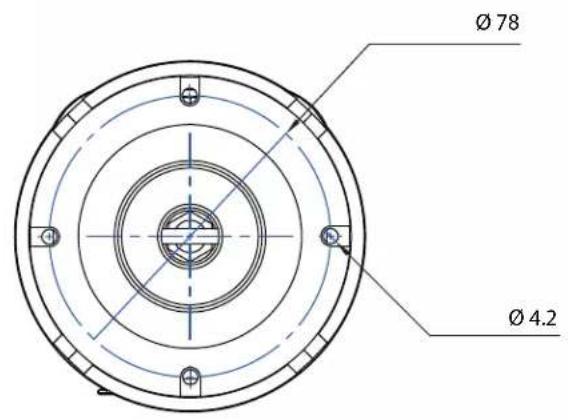
text_image
Ø 78 Ø 4.2Go to https://digital-watchdog.com/page/rma-landing-page/ to learn more about Digital Watchdog's warranty and RMA.
To obtain warranty or out of warranty service, please contact a technical support representative at: 1+ (866) 446-3595, Monday through Friday from 9:00 AM to 8:00 PM EST.
A purchase receipt or other proof of the date of the original purchase is required before warranty service is rendered. This warranty only covers failures due to defects in materials and workmanship which arise during normal use. This warranty does not cover damages that occurs in shipment or failures which are caused by products not supplied by the Warrantor or failures which result from accident, misuse, abuse, neglect, mishandling, misapplication, alteration, modification, faulty installation, setup adjustments, improper antenna, inadequate signal pickup, maladjustments of consumer controls, improper operation, power line surge, improper voltage supply, lightning damage, rental use of the product or service by anyone other than an authorized repair facility or damage that is attributable to acts of God.
Limits & Exclusions
There are no express warranties except as listed above. The Warrantor will not be liable for incidental or consequential damages (including, without limitation, damage to recording media) resulting from the use of these products, or arising out of any breach of the warranty. All express and implied warranties, including the warranties of merchantability and fitness for particular purpose, are limited to the applicable warranty period set forth above.
Some states do not allow the exclusion or limitation of incidental or consequential damages or limitations on how long an implied warranty lasts, so the above exclusions or limitations may not apply to you. This warranty gives you specific legal rights, and you may also have other rights from vary from state to state.
If the problem is not handled to your satisfaction, then write to the following address:
Digital Watchdog, Inc.
ATTN: RMA Department
16220 Bloomfield Ave
Cerritos, CA 90703
Service calls which do not involve defective materials or workmanship as determined by the Warrantor, in its sole discretion, are not covered. Cost of such service calls are the responsibility of the purchaser.
DW
DIGITAL
WATCHDOG®
Complete Surveillance Solutions
DW® east coast office and warehouse: 5436 W Crenshaw St, Tampa, FL 33634
DW® west coast office and warehouse: 16220 Bloomfield Ave., Cerritos, California, USA 90703
PH: 866-446-3595 | FAX: 813-888-9262
www.Digital-Watchdog.com
technicalsupport@dwcc.tv
Technical Support PH:
USA & Canada 1+ (866) 446-3595
International 1+ (813) 888-9555
French Canadian 1+ (904) 999-1309
Technical Support hours: Monday-Friday 9:00am to 8:00pm Eastern Standard Time