ADVD-2350P - Media player LG - Free user manual and instructions
Find the device manual for free ADVD-2350P LG in PDF.


User questions about ADVD-2350P LG
0 question about this device. Answer the ones you know or ask your own.
Ask a new question about this device
Download the instructions for your Media player in PDF format for free! Find your manual ADVD-2350P - LG and take your electronic device back in hand. On this page are published all the documents necessary for the use of your device. ADVD-2350P by LG.
USER MANUAL ADVD-2350P LG
Before connecting, operating or adjusting this product, please read this instruction booklet carefully and completely.
WARNING: TO REDUCE THE RISK OF FIRE OR ELECTRIC SHOCK, DO NOT EXPOSE THIS PRODUCT TO RAIN OR MOISTURE.
CAUTION: THIS DVD PLAYER EMPLOYS A LASER SYSTEM.
TO ENSURE PROPER USE OF THIS PRODUCT, PLEASE READ THIS OWNER'S MANUAL CAREFULLY AND RETAIN FOR FUTURE REFERENCE, SHOULD THE UNIT REQUIRE MAINTENANCE, CONTACT AN AUTHORIZED SERVICE LOCATION (SEE SERVICE PROCEDURE).
USE OF CONTROLS, ADJUSTMENTS OR THE PERFORMANCE OF PROCEDURES OTHER THAN THOSE SPECIFIED MAY RESULT IN HAZARDOUS RADIATION EXPOSURE.
TO PREVENT DIRECT EXPOSURE TO LASER BEAM, DO NOT TRY TO OPEN THE ENCLOSURE. VISIBLE LASER RADIATION WHEN ENCLOSURE OPENED. DO NOT STARE INTO LASER BEAM.
WARNING: CHANGES OR MODIFICATIONS NOT EXPRESSLY APPROVED BY THE PARTY RESPONSIBLE FOR COMPLIANCE COULD VOID THE USER'S AUTHORITY TO OPERATE THE EQUIPMENT.
RECORD YOUR MODEL NUMBER (Now, while you can see it)
The model and serial number of your new DVD player are located on the back of the DVD player cabinet. For your future convenience, we suggest that you record these numbers here:
MODEL NO.
SERIAL NO.
Introduction
□ Safety Precautions....2
Table of Contents....3
□ Precautions 4
Notes on Discs 5
☐ Identification of Controls 6-9
Front Panel/Display Window 6
Rear Panel 7
Remote Control....8
Preparing the Remote Control 9
Operating with the Remote Control 9
Connections
□ Connecting to a TV 10
□ Connecting to an Audio System ..... 11
□ Connecting to Optional Equipment ..... 12-15
Enjoying Dolby Digital (AC-3) Sound 12
Enjoying Dolby Digital (5.1CH) Sound 13
Enjoying Dolby Pro Logic Surround Sound ..... 14
Enjoying 2 Channel Digital Stereo Sound....15
Enjoying DTS Sound 15
Basic Operation
□ Basic Playback....16-20
Basic Playback....16-18
Various speed playback with shuttle Ring ..... 19
Resuming Playback from the Same Location.....20
Operation Using GUI Menu Icons
☐ General Information about GUI menu icons .... 21
□ Detailed description of each GUI menu icon....22
Advanced Operation
□ Using a title menu/DVD menu 23
□ Changing subtitle language ..... 24
□ Changing audio soundtrack language.....25
□ Viewing from another angle ..... 26
□ Producing a 3D Surround effect ..... 26
□ Repeat Play....27
□ Storing markers in memory to be viewed (listened to) again. 28
□ Zooming Feature/Random Play 29
Program Play....30
Initial SETUP Operation
Setup....31
□ Selecting disc Languages ..... 32
☐ Selecting rating level and password ..... 33-34
☐ Selecting TV Aspect....35
☐ Selecting Menu Language ..... 36
☐ Selecting Digital Audio Output ..... 37
□ Selecting Speaker 38
Table of Languages and Abbreviations.....39
Reference
☐ Disc Requirements/Copyright Information.....40
Before Calling Service Personnel....41
Specifications....42
Notes on handling
☐ When shipping the DVD player, always use the original shipping carton and packing materials. For maximum protection, repack the unit as it was originally packed at the factory.
☐ Do not use volatile liquids, such as insect spray, near the DVD player. Do not leave rubber or plastic products in contact with the DVD player for a long time. They will leave marks on the finish.
☐ The top and rear panels of the DVD player may become warm after a long period of use. This is normal and not a malfunction.
☐ When the DVD player is not in use, be sure to remove the disc and turn off the power.
☐ If you do not use the DVD player for a long period, the unit may not function properly in the future. Turn on and use the DVD player occasionally.
Notes on Locating
☐ When you place this DVD player near a TV, radio, or VCR, the playback picture may become poor and the sound may be distorted. In this case, move the DVD player away from the TV, radio, or VCR.
Notes on Cleaning
Use a soft, dry cloth for cleaning.
☐ For stubborn dirt, soak the cloth in a weak detergent solution, wring well and wipe. Use a dry cloth to wipe it dry. Do not use any type of solvent, such as thinner and benzine, as they may damage the surface of the DVD player.
☐ If you use a chemical saturated cloth to clean the unit, follow that product's instructions.
Warning: Cleaning and adjustment of lenses and/or other components of playback mechanism should be performed by a qualified service technician.
To Obtain a Clear Picture
The DVD player is a high technology, precision device. If the optical pick-up lens and disc drive parts are dirty or worn down, the picture quality becomes poor. To obtain a clear picture, we recommend regular inspection and maintenance (cleaning or parts replacement) every 1,000 hours of use depending on the operating environment. For details, contact your nearest dealer.
Notes on Moisture Condensation
Moisture condensation damages the DVD player. Please read the following carefully.
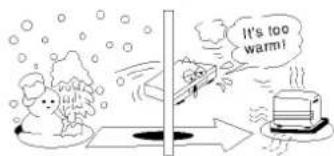
Moisture condensation occurs, for example, when you pour a cold drink into a glass on a warm day, drops of water form on the outside of the glass. In the same way, moisture may condense on the optical pick-up lens inside this unit, one of the most crucial internal parts of the DVD player.

text_image
Examples of moisture condensation! Optical pickup lensMoisture condensation occurs during the following cases.
☐ When you bring the DVD player directly from a cold place to a warm place.
☐ When you use the DVD player in a room where you just turned on the heater, or a place where the cold wind from the air conditioner directly hits the unit.
In summer, when you use the DVD player in a hot and humid place just after you move the unit from an air conditioned room.
☐ When you use the DVD player in a humid place.
text_image
It's too warm!☐ Do not use the DVD player when moisture condensation may occur.
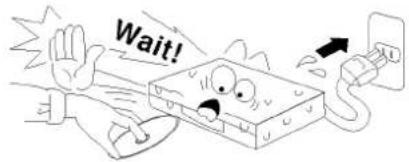
If you use the DVD player in such a situation, it may damage discs and internal parts. Remove the disc, connect the power cord of the DVD player to the wall outlet, turn on the DVD player and leave it "ON" for two or three hours. After two or three hours, the DVD player will have warmed up and evaporated any moisture. Keep the DVD player connected to the wall outlet and moisture condensation will seldom occur.
text_image
Wait!This section shows you how to handle, clean, and store discs.
On Handling Discs
Do not touch the playback side of the disc.

- Do not attach paper or tape to discs.

On Storing Discs
Do not store discs in a place subject to direct sunlight or near heat sources.
Do not store discs in places subject to moisture and dust such as a bathroom or near a humidifier.
Store discs vertically in a case. Stacking or placing objects on discs outside of their case may cause warping.
On Cleaning Discs
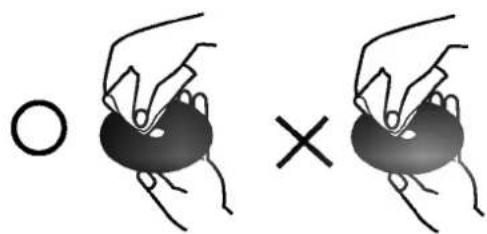
- Fingerprints and dust on the disc cause picture and sound deterioration. Wipe the disc from the center outward with a soft cloth. Always keep the disc clean.
If you cannot wipe off the dust with a soft cloth, wipe the disc lightly with a slightly moistened soft cloth and finish with a dry cloth.
Do not use any type of solvents such as thinner, benzine, commercially available cleaners or anti-static spray for vinyl LPs. They may damage the disc.
natural_image
Illustration of two hands holding a ring with a circle and an 'X' symbol (no text or labels)About This Owner's Manual
- This owner's manual explains the basic instructions of this DVD player.
Some DVD video discs have functions that may not be explained in this owner's manual. Therefore, some instructions may differ from this owner's manual, and there may be extra instructions. In this case, follow the instructions displayed on the TV screen or package. - “ Ⓧ ” may appear on the TV screen during operation. This icon means the function explained in this owner’s manual is not available on that specific DVD video disc.

natural_image
Abstract grayscale gradient bars with no text or symbols
text_image
POWER/Standby button and indicator (Power ON mode: Green color Standby mode: Red color) PAUSE/STEP button Display window MENU button SELECT/ENTER button SHUTTLE Ring ARROW buttons DISC tray SKIP buttons OPEN/CLOSE button PLAY button STOP buttonDisplay Window
text_image
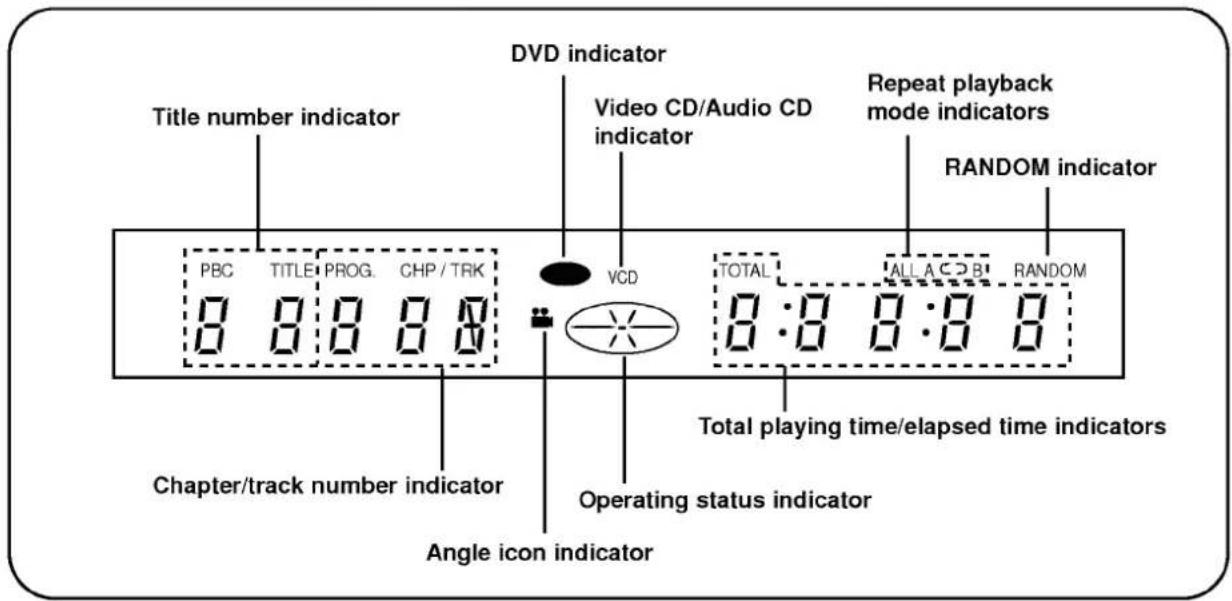
Title number indicator DVD indicator Video CD/Audio CD indicator Repeat playback mode indicators RANDOM indicator PBC TITLE PROG. CHP/TRK VCD TOTAL ALL A C D B RANDOM Chapter/track number indicator Total playing time/elapsed time indicators Operating status indicator Angle icon indicator
natural_image
Abstract grayscale gradient bars with no text or symbols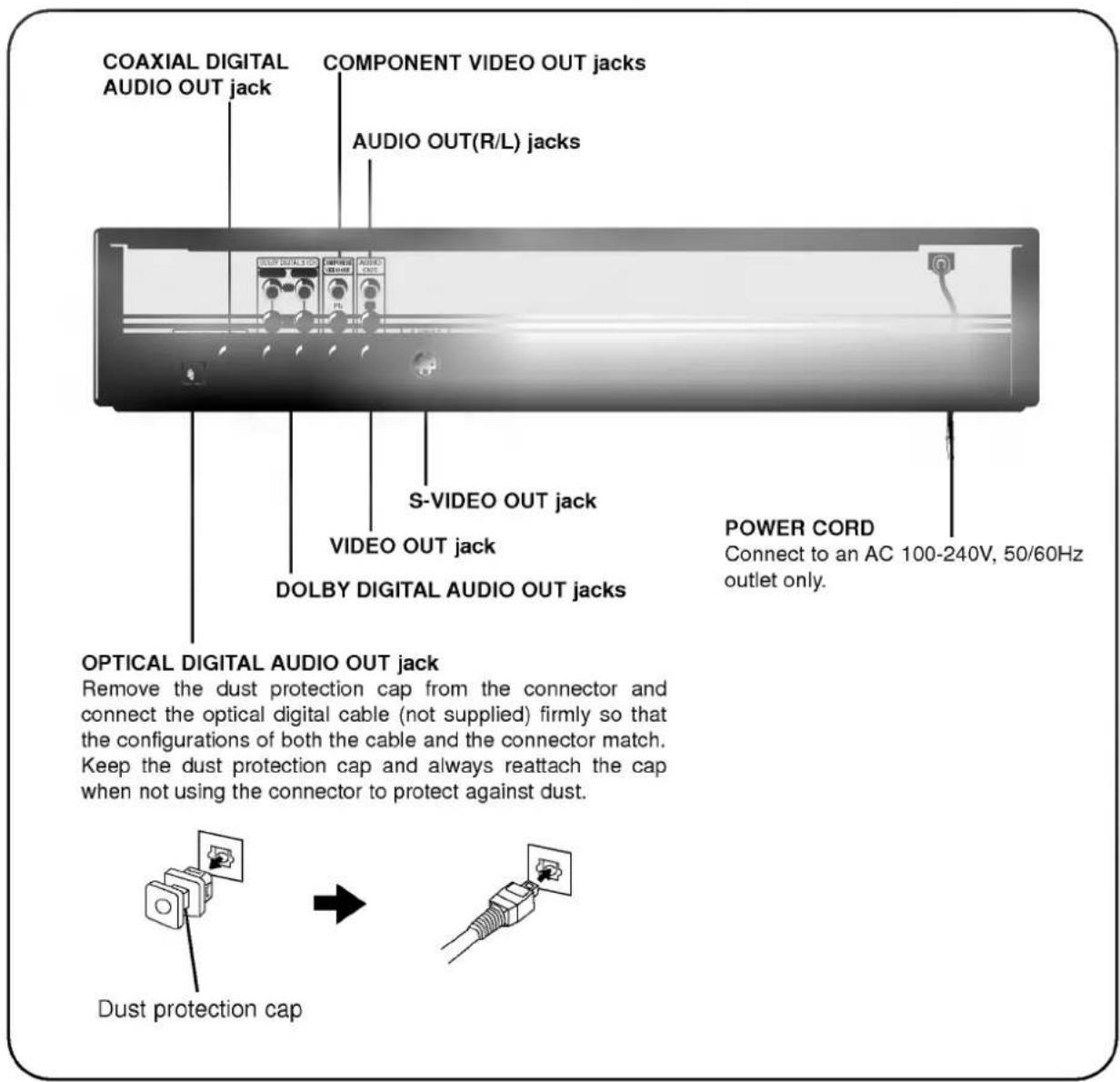
text_image
COAXIAL DIGITAL AUDIO OUT jack COMPONENT VIDEO OUT jacks AUDIO OUT(R/L) jacks S-VIDEO OUT jack VIDEO OUT jack DOLBY DIGITAL AUDIO OUT jacks POWER CORD Connect to an AC 100-240V, 50/60Hz outlet only. OPTICAL DIGITAL AUDIO OUT jack Remove the dust protection cap from the connector and connect the optical digital cable (not supplied) firmly so that the configurations of both the cable and the connector match. Keep the dust protection cap and always reattach the cap when not using the connector to protect against dust. Dust protection capREMOTE CONTROL
You will find instructions for each of the remote control functions in the appropriate sections of this instruction manual.

text_image
POWER button PLAY button REV SKIP button PAUSE/STEP button SELECT/ENTER button RESUME button DISPLAY button NUMBER buttons CLEAR button ANGLE button SUBTITLE button AUDIO button SETUP button REPEAT button A-B button RANDOM button FWD/REV SLOW/SCAN Shuttle Ring ***TITLE button Use the TITLE button to display the title screen included on DVD video discs. To operate a menu screen, follow the instructions in "Using a Title Menu" (page 23). *** directional arrow buttons (up, down, left, right) for use in highlighting a selection on a GUI menu screen, TITLE and MENU screen. *MENU button Use the MENU button to display the menu screen included on DVD video discs. To operate a menu screen, follow the instructions in "Using a DVD Menu" (page 23). ** Directional arrow buttonsPreparing the Remote Control
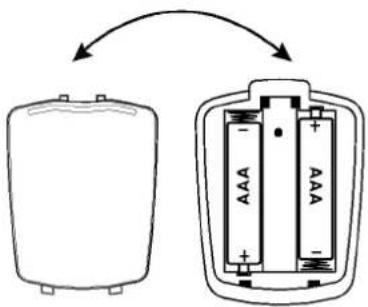
Insert the batteries into the remote control so you can use it to operate the DVD player.

Open the battery cover.

Insert batteries (AAA size).
● Make sure to match the + and - on the batteries to the marks inside the battery compartment.

Close the cover.
text_image
Diagram showing two battery cells with labeled internal components and directional arrows indicating flow or transformation.○ Improper use of batteries may cause battery leakage and corrosion.
To operate the remote control correctly, follow the instructions below.
Do not insert the batteries into the remote control in the wrong direction.
Do not charge, heat, open, or short-circuit the batteries. Do not throw the batteries into fire.
Do not leave dead or exhausted batteries in the remote control.
Do not use different types of batteries together, or mix old and new batteries.
If you do not use the remote control for a long period of time, remove the batteries to avoid possible damage from battery corrosion.
If the remote control does not function correctly or if the operating range becomes reduced, replace all batteries with new ones.
If battery leakage occurs, wipe the battery liquid from the battery compartment, then insert new batteries.
The batteries should last about one year with normal use.
Operating with the Remote Control
This section shows you how to use the remote control.
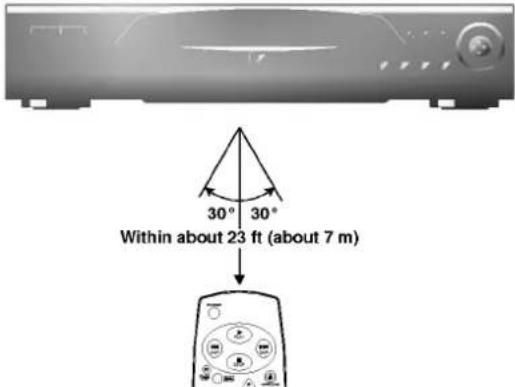
Point the remote control at the remote sensor and press the buttons.
text_image
30° 30° Within about 23 ft (about 7 m)Distance: About 23 ft (7 m) from the front of the remote sensor
Angle: About 30° in each direction of the front of the remote sensor
* Do not expose the remote sensor of the DVD player to a strong light source such as direct sunlight or illumination. If you do so, you may not be able to operate the DVD player with the remote control.
○ Direct the remote control at the remote sensor of the DVD player.
Do not drop or give the remote control a shock.
Do not leave the remote control near extremely hot or humid place.
Do not spill water or put anything wet on the remote control.
Do not open the remote control.
Connect the DVD player to your TV

flowchart
graph TD
    A["Digital OUT"] --> B["Coateral Optical"]
    B --> C["Signal 1: Blue & Green & White & Red & Yellow & White & V"]
    C --> D["To Audio/Video OUT"]
    D --> E["Audio/Video cable (supplied)"]
    E --> F["To S-Video OUT"]
    F --> G["S-video cable (supplied)"]
    G --> H["To S-video input"]
    H --> I["TV or monitor with audio video inputs"]
    I --> J["Video cable (Y, Pb, Pr) (not supplied)"]
    J --> K["If the TV has an S-video input, connect the DVD player with the supplied S-video cable."]
    K --> L["The component video connections supply component signals (Y, Pb, Pr) to video equipment equipped with component video input connections. If your TV receiver has component video inputs, it is highly recommended that you use a component video cable (not supplied) to obtain the full benefit of DVD's superb picture quality. (The picture quality obtained using component video is even better than that of S-video.)"]
- Refer to the owner's manual of your TV as well.
When you connect the DVD player to your TV, be sure to turn off the power and unplug both units from the wall outlet before making any connections.
If your television set has one audio input, connect the DVD player to a Y cable adapter (not supplied) and then connect to your TV.
Connect the DVD player to your TV directly. If you connect the DVD player to a VCR, the playback picture will be distorted because DVD video discs are copy protected.
Warning
Do not set the Digital Audio Output of this DVD player to "Dolby Digital" unless you are connecting the coaxial digital audio jack of this DVD player to an AV decoder that has the Dolby Digital (AC-3) decoding function. High volume sound may damage your hearing as well as the speakers. (Refer to "Selecting Digital Audio Output" on page 37.)

natural_image
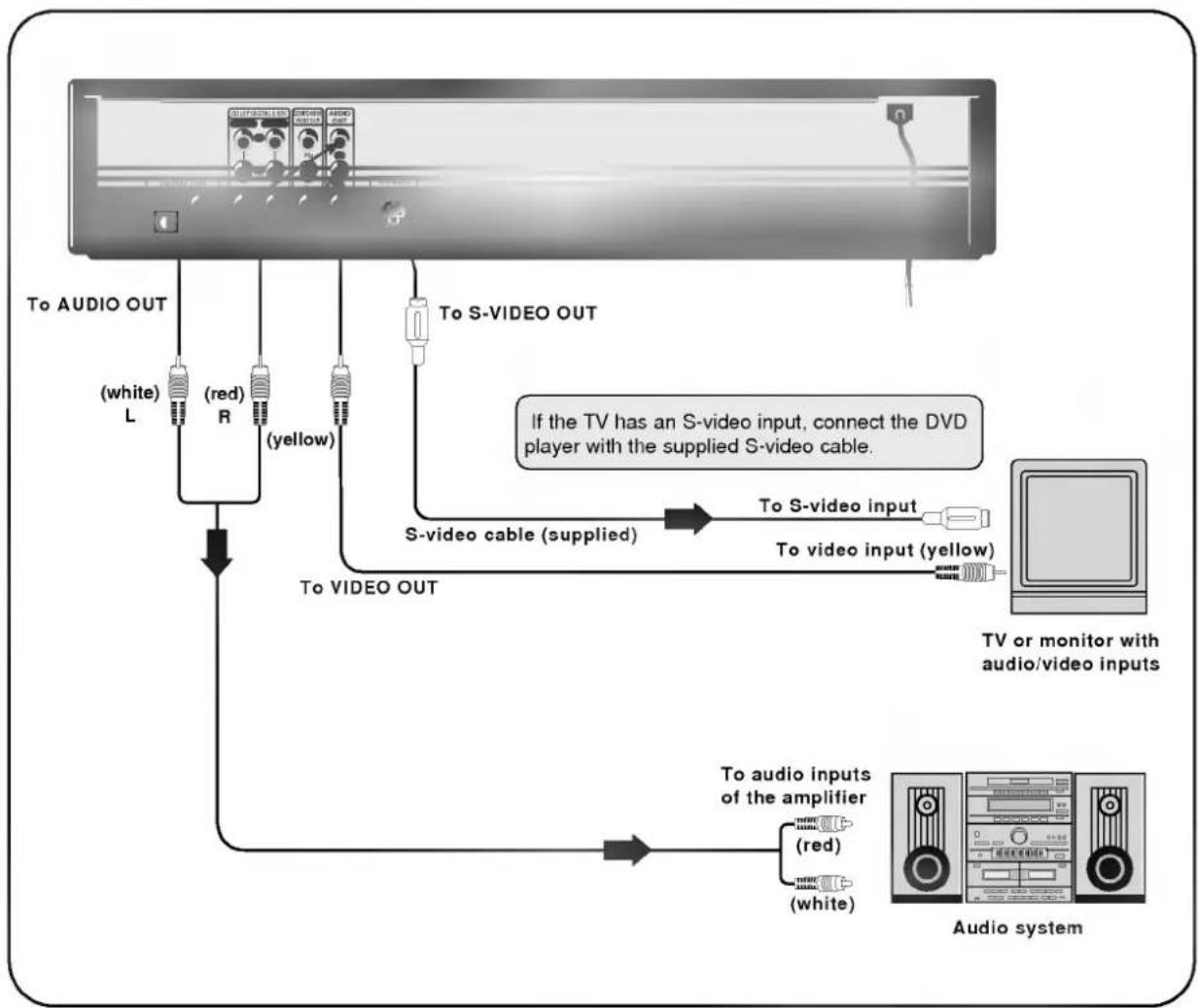
Gradient gray bar with no text or symbolsYou can listen to the sound of audio CDs and DVD video discs in stereo.
flowchart
graph TD
    A["TV or monitor with audio/video inputs"] --> B["To video OUT"]
    B --> C["S-video cable (supplied)"]
    C --> D["To S-video input"]
    D --> E["To S-VIDEO OUT"]
    E --> F["To audio inputs of the amplifier"]
    F --> G["To audio OUT"]
    H["TV or monitor with audio/video inputs"] --> I["(red)"]
    I --> J["(white)"]
    J --> K["(yellow)"]
    K --> L["(white) L"]
    L --> M["(red) R"]
    M --> N["(yellow) R"]
    N --> O["(white) L"]
    O --> P["(yellow) R"]
    P --> Q["(white) L"]
    Q --> R["(yellow) R"]
    R --> S["(white) L"]
    S --> T["(yellow) R"]
    T --> U["(white) L"]
    U --> V["(yellow) R"]
    V --> W["(white) L"]
    W --> X["(yellow) R"]
    X --> Y["(white) L"]
    Y --> Z["(yellow) R"]
    Z --> AA["(white) L"]
    AA --> AB["(yellow) R"]
    AB --> AC["(white) L"]
    AC --> AD["(yellow) R"]
    AD --> AE["(white) L"]
    AE --> AF["(yellow) R"]
    AF --> AG["(white) L"]
    AG --> AH["(yellow) R"]
    AH --> AI["(white) L"]
    AI --> AJ["(yellow) R"]
    AJ --> AK["(white) L"]
    AK --> AL["(yellow) R"]
    AL --> AM["(white) L"]
    AM --> AN["(yellow) R"]
    AN --> AO["(white) L"]
    AO --> AP["(yellow) R"]
    AP --> AQ["(white) L"]
    AQ --> AR["(yellow) R"]
    AR --> AS["(white) L"]
    AS --> AT["(yellow) R"]
    AT --> AU["(white) L"]
    AU --> AV["(yellow) R"]
    AV --> AW["(white) L"]
    AW --> AX["(yellow) R"]
    AX --> AY["(white) L"]
- Refer to the owner's manual of your audio system as well.
When you connect the DVD player to other equipment, be sure to turn off the power and unplug all of the equipment from the wall outlet before making any connections.
If you place the DVD player near a tuner or radio, the radio broadcast sound might be distorted. In this case, move the DVD player away from the tuner and radio.
The output sound of the DVD player has a wide dynamic range. Be sure to adjust the receiver's volume to a moderate listening level. Otherwise, the speakers may be damaged by a sudden high volume sound.
Turn off the receiver before you connect or disconnect the DVD player's power cord. If you leave the receiver power on, the speakers may be damaged.
Warning
Do not set the Digital Audio Output of this DVD player to "Dolby Digital" unless you are connecting the coaxial digital audio jack of this DVD player to an AV decoder that has the Dolby Digital (AC-3) decoding function. High volume sound may damage your hearing as well as the speakers. (Refer to "Selecting Digital Audio Output" on page 37.)
Enjoying Dolby Digital (AC-3) Sound
You can enjoy the high quality dynamic sound of Dolby Digital (AC-3), Dolby Pro Logic, and 2 Channel Digital Stereo.
Dolby Digital (AC-3)
Dolby Digital is the surround sound technology used in theaters showing the latest movies, and is now available to reproduce this realistic effect in the home. You can enjoy motion picture and live concert DVD video discs with this dynamic realistic sound by connecting the DVD player to a 6 channel amplifier equipped with a Dolby Digital (AC-3) decoder or Dolby Digital (AC-3) processor.
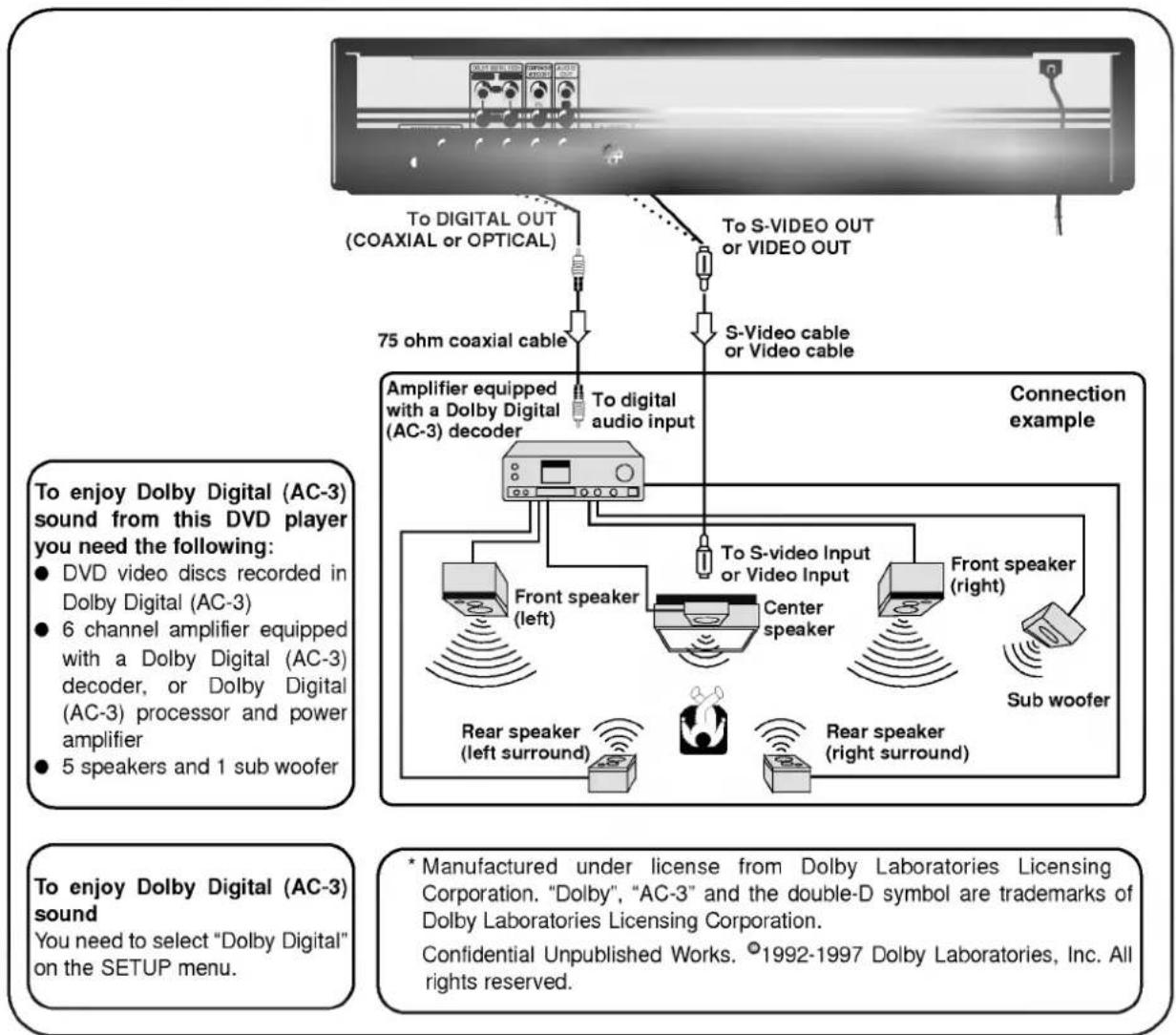
flowchart
graph TD
    A["To digital audio input"] --> B["Amplifier equipped with a Dolby Digital (AC-3) decoder"]
    B --> C["To digital OUT (COAXIAL or OPTICAL)"]
    B --> D["S-Video cable or Video cable"]
    C --> E["To S-VIDEO OUT or VIDEO OUT"]
    D --> E
    E --> F["Connection example"]
    F --> G["Front speaker (left)"]
    F --> H["Center speaker"]
    F --> I["Front speaker (right)"]
    G --> J["Rear speaker (left surround)"]
    H --> K["Rear speaker (right surround)"]
    I --> L["Sub woofer"]
    J --> M["75 ohm coaxial cable"]
    K --> N["6 channel amplifier equipped with a Dolby Digital (AC-3) decoder, or Dolby Digital (AC-3) processor and power amplifier"]
    L --> O["5 speakers and 1 sub woofer"]
Enjoying Dolby Digital (5.1 CH) Sound
Dolby Digital Surround (5.1 CH)
Dolby Digital (AC-3) is a six-channel digital surround sound technology developed by Dolby Laboratories for theater-like surround sound reproduction. DVDs supporting Dolby Digital (AC-3) technology feature the 12000 digital logo. You can enjoy realistic, theater-like surround sound from DVD movie or music discs featuring this logo. Two front, one center and two rear speakers plus a subwoofer make up the "5.1-channel" audio system that Dolby Digital (AC-3) uses.
Hookups
Connect an amplifier with 5.1 channel inputs to the player and to the speakers. See the figure below.
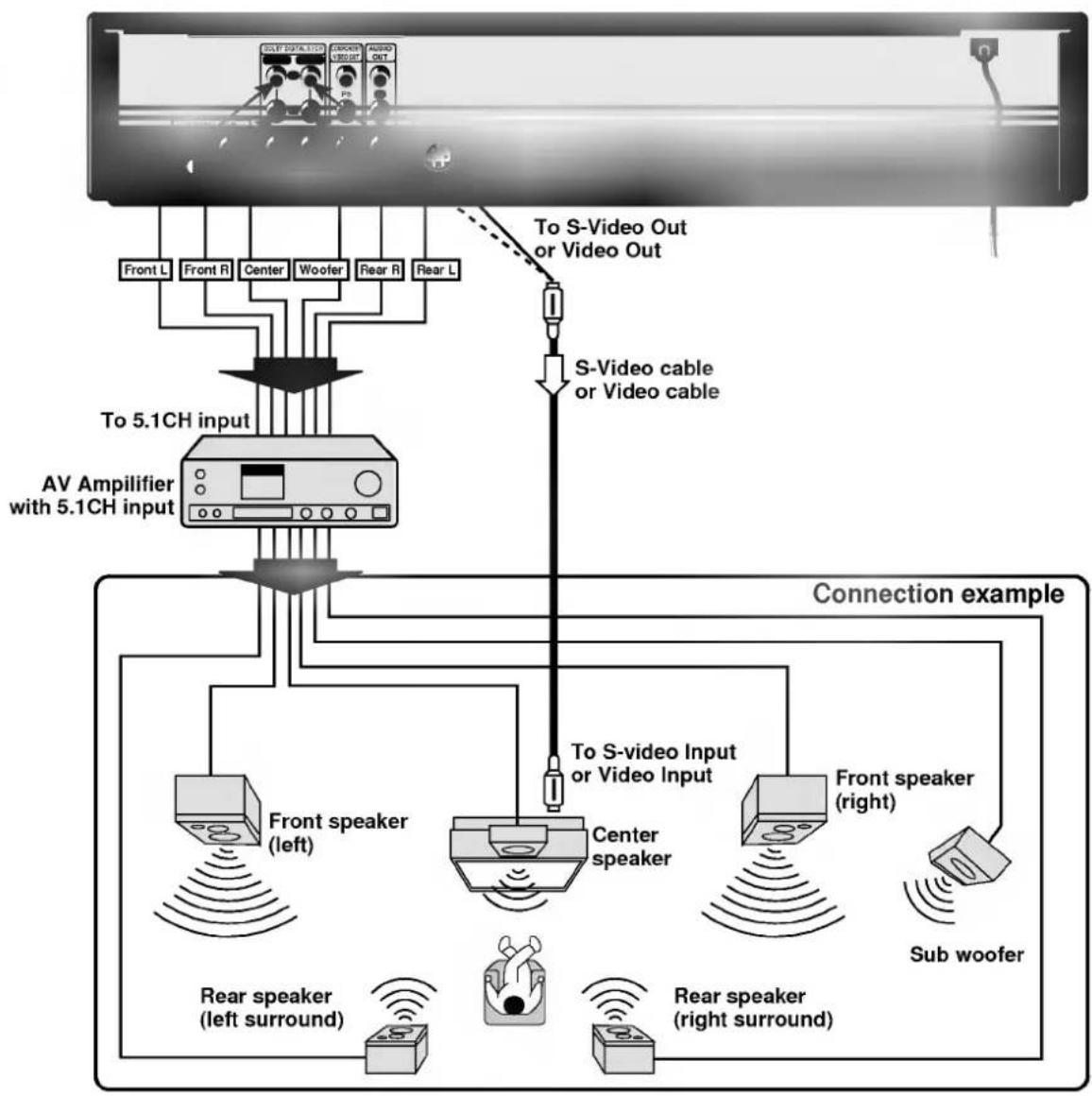
flowchart
graph TD
    A["AV Amplifier with 5.1CH input"] --> B["To 5.1CH input"]
    B --> C["Front L Front R Center Woofer Rear R Rear L"]
    B --> D["S-Video cable or Video cable"]
    D --> E["To S-video Out or Video Out"]
    E --> F["Connection example"]
    F --> G["Front speaker (left)"]
    F --> H["Center speaker"]
    F --> I["Front speaker (right)"]
    F --> J["Sub woofer"]
    G --> K["Rear speaker (left surround)"]
    H --> L["Rear speaker (right surround)"]
    I --> M["Rear speaker (right surround)"]
Enjoying Dolby Pro Logic Surround Sound
Dolby Pro Logic Surround
You can still enjoy the excitement of Surround Sound even if your A/V receiver does not offer Dolby Digital (AC-3) decoding. If your A/V receiver has a Dolby Pro Logic decoder. Refer to the following connection diagram.
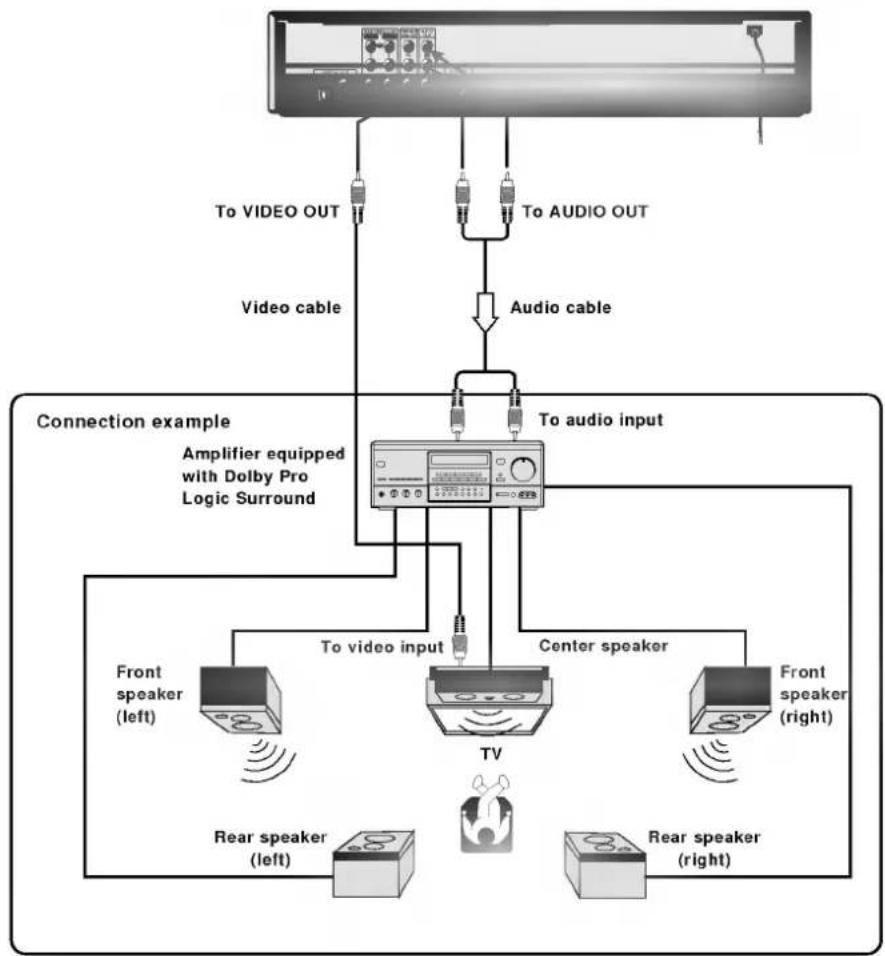
flowchart
graph TD
    A["Video cable"] --> B["Audio cable"]
    B --> C["To audio input"]
    C --> D["Front speaker (left)"]
    C --> E["Center speaker"]
    C --> F["Rear speaker (left)"]
    C --> G["Rear speaker (right)"]
    D --> H["TV"]
    E --> H
    F --> H
    G --> H
    H --> I["To video input"]
    I --> J["Amplifier equipped with Dolby Pro Logic Surround"]
    style A fill:#f9f,stroke:#333
    style B fill:#ccf,stroke:#333
    style C fill:#cfc,stroke:#333
    style D fill:#fcc,stroke:#333
    style E fill:#fcc,stroke:#333
    style F fill:#fcc,stroke:#333
    style G fill:#fcc,stroke:#333
    style H fill:#cff,stroke:#333
Connect one or two rear speakers.
The output sound from the rear speakers will be monaural even if you connect two rear speakers.
● With a receiver equipped with Dolby Digital (AC-3)
Connect the equipment the same way as described in "Enjoying Dolby Digital (AC-3) Sound" on the previous page. Refer to that receiver's owner's manual and set the receiver so you can enjoy Dolby Pro Logic Surround sound.
Warning
Do not set the Digital Audio Output of this DVD player to "Dolby Digital" unless you are connecting the coaxial digital audio jack of this DVD player to an AV decoder that has the Dolby Digital (AC-3) decoding function. High volume sound may damage your hearing as well as the speakers. (Refer to "Selecting Digital Audio Output" on page 37.)
Enjoying 2 Channel Digital Stereo Sound
2 Channel Digital Stereo
You can enjoy the dynamic sound of 2 Channel Digital Stereo by connecting this DVD player to a receiver equipped with a digital audio input and speaker system (right and left front speakers).
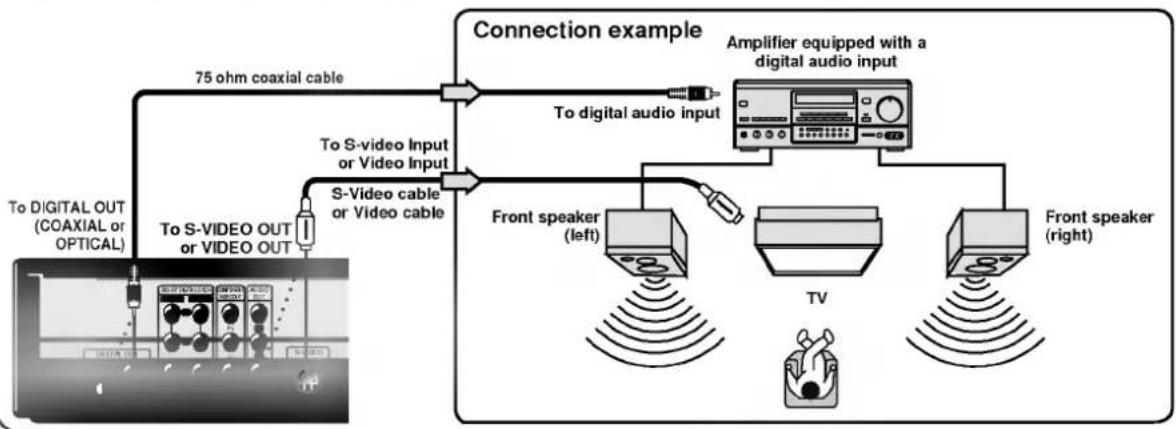
flowchart
graph TD
    A["75 ohm coaxial cable"] --> B["To digital audio input"]
    C["S-Video cable or Video cable"] --> D["To S-video Input or Video Input"]
    E["To digital OUT (COAXIAL or OPTICAL)"] --> F["To S-VIDEO OUT or VIDEO OUT"]
    G["Front speaker (left)"] --> H["Amplifier equipped with a digital audio input"]
    I["Front speaker (right)"] --> J["TV"]
    H --> K["Signal wave source"]
    J --> L["Signal wave source"]
Enjoying DTS Sound
Introducing DTS Digital Surround™...the finest technology ever invented to transform existing "home theater" systems into six discrete channels of exceptionally clear, better-than-compact disc, digital audio performance. DTS Digital Surround is the only 5.1 surround sound format that can deliver this revolutionary 3-dimensional experience through new music recordings on compact discs, original 5.1 soundtracks on motion picture laserdiscs, and soon, a wide variety of products on DVD.
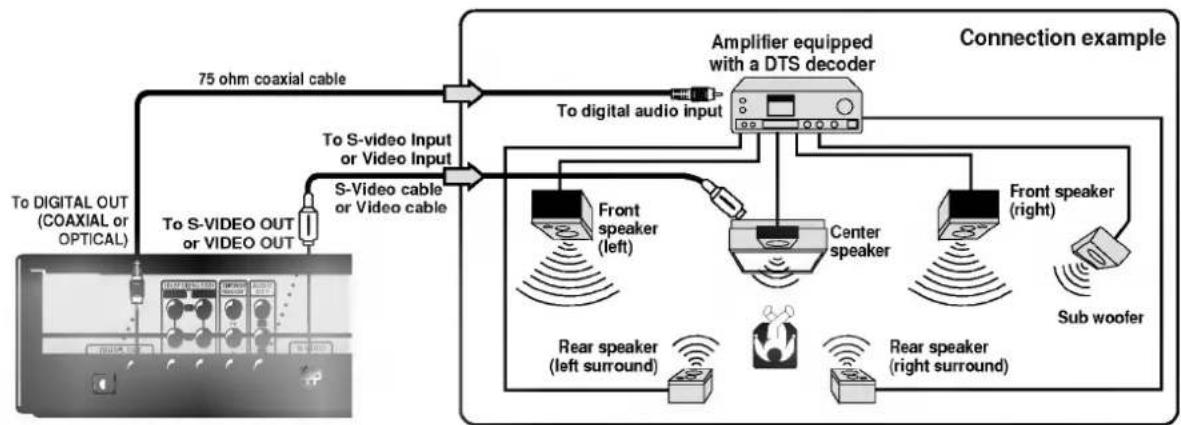
flowchart
graph TD
    A["To DIGITAL OUT (COAXIAL or OPTICAL)"] --> B["75 ohm coaxial cable"]
    C["To S-VIDEO OUT or VIDEO OUT"] --> D["S-Video cable or Video cable"]
    D --> E["To S-video Input or Video Input"]
    E --> F["Amplifier equipped with a DTS decoder"]
    F --> G["To digital audio input"]
    G --> H["Front speaker (left)"]
    G --> I["Center speaker"]
    G --> J["Front speaker (right)"]
    G --> K["Sub woofer"]
    H --> L["Rear speaker (left surround)"]
    I --> M["Rear speaker (right surround)"]
    J --> N["Rear speaker (right surround)"]
    K --> O["Rear speaker (right surround)"]
    style A fill:#f9f,stroke:#333
    style C fill:#f9f,stroke:#333
    style F fill:#ccf,stroke:#333
    style H fill:#cfc,stroke:#333
    style I fill:#cfc,stroke:#333
    style J fill:#cfc,stroke:#333
    style K fill:#cfc,stroke:#333
"DTS" and "DTS Digital Out" are trademarks of Digital Theater Systems, Inc.
○ Refer to the owner's manual of your receiver as well.
When you connect the DVD player to other equipment, be sure to turn off the power and unplug all of the equipment from the wall outlet before making any connections.
The output sound of the DVD player has a wide dynamic range. Be sure to adjust the receiver's volume to a moderate listening level, otherwise, the speakers may be damaged by a sudden high volume sound.
Turn off the receiver before you connect or disconnect the DVD player's power cord. If you leave the receiver power on, the speakers may be damaged.
This section shows you the basics on how to play back a DVD video disc.

text_image
POWER PLAY SKIP SKIP STOP PULSE STEP SELECT ENTER REQUIRE DISPLAY 1 2 3 RETURN 4 5 6 SOUND 7 8 9 PROGRAM CLEAR TITLE MENU 0 ALEO: SUBTITLE ANGLE MARKER-SEARCH SETUP REPEAT AIR RANDOM JCOM SLOW/SCAN FWD REV
Example of interactive DVD On-Screen Menu


Preparations
- When you want to play back DVD video discs, turn on the TV and select the video input source connected to the DVD player.
- When you want to enjoy the sound of DVD video discs or audio CDs from the audio system, turn on the audio system and select the input source connected to the DVD player.
● For connection details, see pages 10 through 15. - Set the playback picture size according to the aspect ratio of the connected TV.
- If you do not have the necessary equipment to enjoy Dolby Digital (AC-3) sound, set the Digital Audio Output at the SETUP menu to "PCM".

Press POWER.
The DVD player turns on and the power indicator goes on.

Press OPEN/CLOSE.
The disc tray opens.
- You can open the disc tray by pressing this button even if the DVD player is turned off.

Place a disc on the disc tray with the playback side down.
- If the disc is placed in upside down (and it is a single sided disc), the DVD display will indicate "NO DISC" or "DISC ERROR".
There are two different disc sizes. Place the disc in the correct guide on the disc tray. If the disc is out of the guide, it may damage the disc and cause the DVD player to malfunction. - Do not place anything except 3" discs or 5" discs on the disc tray.

Press PLAY.
The disc tray is automatically closed and playback begins.
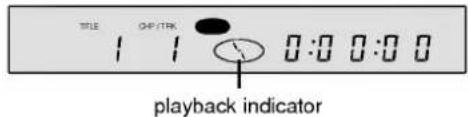
text_image
TITLE OP/TRK 0:00:00 playback indicator- If you insert an audio CD, the CD indicator lights up in the DVD display.
The title number does not appear.
● After playing back all of the chapters in the title, the DVD player automatically stops and returns to the menu screen.
When a menu screen appears on the TV screen.
In case of interactive DVDs with control, a menu screen appears on the TV screen. Perform step 5 on page 17 to start play.
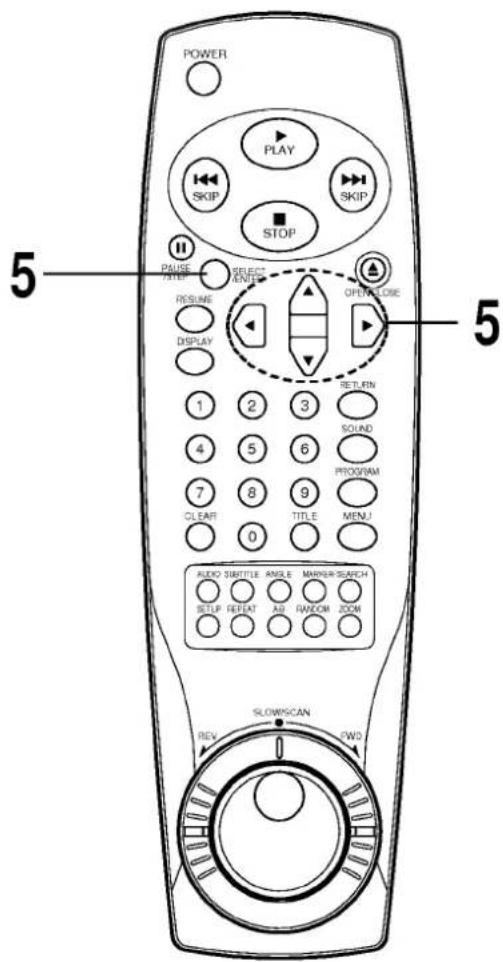
text_image
POWER PLAY SKIP SKIP STOP 5 PAUSE TIME SELECT AMPS RESUME DISPLAY OPENCLOSE 1 2 3 1 2 3 4 5 6 7 8 9 CLEAR TITLE MENU RESET SOUND PROGRAM AUDIO SUBTITLE ANGLE MANNER/SEARCH SETUP FEETAT AD RANDOM ICON SLOWSCAN REV FWD


Press ▲/▼/◀/▶ and press SELECT/ENTER, or press the numeric button(s), to select the desired item.
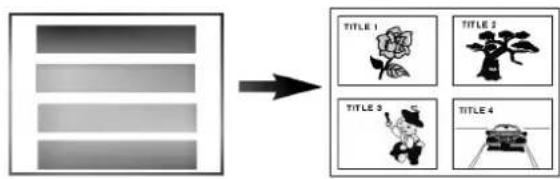
flowchart
graph LR
    A[" "] --> B[" "]
    B --> C[" "]
    C --> D["TITLE 1"]
    C --> E["TITLE 2"]
    C --> F["TITLE 3"]
    C --> G["TITLE 4"]
The selected item now begins to play.
- For further info, refer to the jacket or case of the disc you are playing.
After operation
When the unit is not in use, remove the disc and press POWER to turn off the power.
Video CD
This contains recordings of pictures and sound whose quality is on a par with that of video tape. This player also supports Video CDs with playback control (Version 2.0).
What is playback control (PBC)?
If a Video CD has "playback control" written on its disc or jacket, it means that particular scenes or information can be selected for viewing interactively with the TV monitor using the menu screen.
Do not move the DVD player during playback. Doing so may damage the disc.
Use the OPEN/CLOSE button on the remote control or DVD player to open and close the disc tray. Do not push the disc tray while it is moving. Doing so may cause the DVD player to malfunction.
Do not push up the disc tray or put any objects other than discs on the disc tray. Doing so may cause the DVD video player to malfunction.
Keep your fingers well clear of the disc tray as it is closing. Be especially careful with children's fingers around the closing disc tray as there is a risk of personal injury.
When " ✉ " appears on the TV screen while a button is pressed, it means that this function is not available on the disc you are playing.
Depending on the DVD disc, some operations may be different or restricted. Refer to the jacket or case of the disc you are playing.
text_image
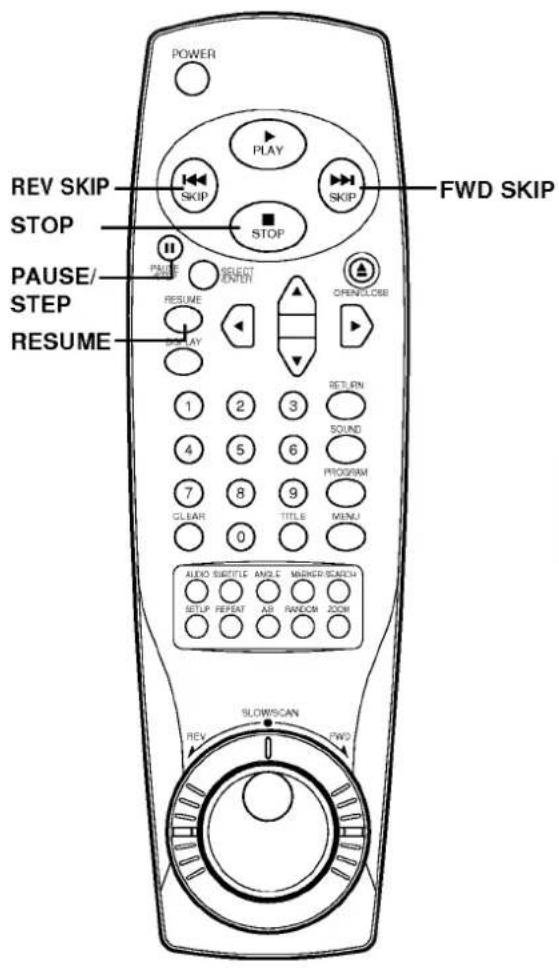
POWER REV SKIP STOP PAUSE/ STEP RESUME SLOWS/CAN REV SLOWS/CAN FWD SKIP PLAY SELECT INPUT OPEN/LOSE 1 2 3 RETURN SOUND PROGRAM 7 8 9 CLEAR TITLE MENU 0 AEXO SIBOTLE ANGLE MINGER SCALE SETUP REPEAT AB RANDOM ZOOM FWDPress STOP during playback.
For your convenience
- When play is stopped, the unit records the point where STOP was pressed (RESUME function). Press RESUME, and play will resume from this point. When the tray is opened or PLAY is pressed again, the RESUME function will be cleared.
The RESUME function works only with discs for which the elapsed playing time appears on the window display during playback.
This feature will be cleared when the power is turned OFF and then ON.
The Resume function may not be available on some DVD discs.
If the player is left in the stop mode for more than 8 minutes, the power shuts off automatically.
Still Picture (Pause)/Playing Frame by Frame
Press PAUSE/STEP during playback.
- DVD/Video CD
The player will be placed in the still picture mode.
CD
The player will be placed in the pause mode.
Also you can advance a DVD video disc frame by frame. Each time you press the PAUSE/STEP button during still playback, the picture advances one frame.
To return to normal playback, press PLAY.
Skipping forward
Press SKIP ▶▶ during play.
A chapter (DVD) or a track (Video CD/CD) is skipped each time the button is pressed.
Skipping back
Press SKIP ◀ during play.
- When the button is pressed once midway through a chapter/track, the player returns to the start of that chapter/track. When it is pressed again immediately, a chapter/track is skipped each time the button is pressed.
For your reference:
- When SKIP is pressed during menu play of video CDs with playback control (version 2.0), a menu screen may sometimes be recalled.
Various speed playback with Shuttle Ring


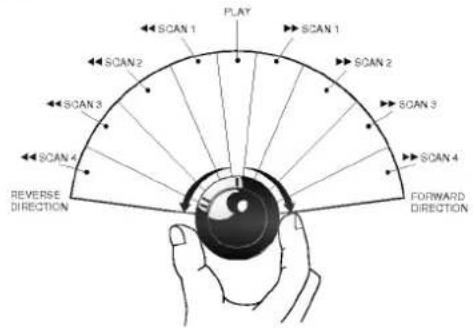
You can play back discs at various speeds, and resume normal playback.

text_image
POWER PLAY SKIP STOP PLAY SELECT POWER ON/OFFOCLOSE RESUME DISPLAY RETURN SOUND PROGRAM CLEAR TITLE MEND 1 2 3 4 5 6 7 8 9 0 AUDIO SLUTTER AVELE MASCUS/SCAN SETUP RETURN AS RANDOM CLK SLOW/SCAN Shuttle ring REV - EVDIn the PAUSE mode, rotating and holding the SHUTTLE ring to the positions indicated gives these slow modes.
● The variable-speed slow picture will appear on the TV screen.
Release the SHUTTLE ring to resume the still picture mode.

text_image
e mode. - SLOW 1 - SLOW 2 - SLOW 3 - SLOW 4 - REVERSE DIRECTION FAUSE SLOW 1 SLOW 2 SLOW 3 SLOW 4 FORWARD DIRECTIONIn the PLAYBACK mode, rotating and holding the SHUTTLE ring to the positions indicated gives these fast search modes.
● The variable-speed search picture will appear on the TV screen.
Release the SHUTTLE ring to resume normal playback.
text_image
PLAY SCAN 1 SCAN 2 SCAN 3 SCAN 4 REVERSE DIRECTION FORWARD DIRECTION SCAN 1 SCAN 2 SCAN 3 SCAN 4The DVD player does not play back sound during slow-motion playback, the high speed reverse and forward playback of DVD video discs. However, the DVD player plays back sound during fast forward or fast reverse playback of audio CDs.
- Subtitles do not appear on the screen during slow motion playback.
○ The scan speed increases up to 2 steps in case of Audio CDs.
○ The slow and scan speed increases up to 3 steps in case of VCD.
○ The reverse slow does not work in case of VCD.
Resuming Playback from the Same Location
You can stop playback and resume playback later from the same location on the disc.

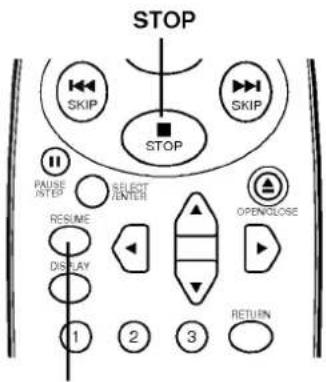
Press STOP at the location where you want to interrupt playback.
● The DVD player memorizes the location where you stopped playback.
● The DVD player stores that location in its memory, unless you turn off the player or open the disc tray.
- Opening the disc tray cancels this function.

Press RESUME.
The DVD player resumes playback immediately before the location where you stopped playback.
text_image
STOP SKIP SKIP STOP PAUSE LISTED SELECT ENTER RESUME DISPLAY 1 2 3 OPEN/LOSE RETURNRESUME
The Resume function is cancelled if the DVD player is disconnected from the wall outlet, or if power is interrupted.
The DVD player resumes playback from the beginning of the stopped chapter or track in case of audio CD.
The Resume function may not be available on some DVD discs or Video CDs (version 2.0).
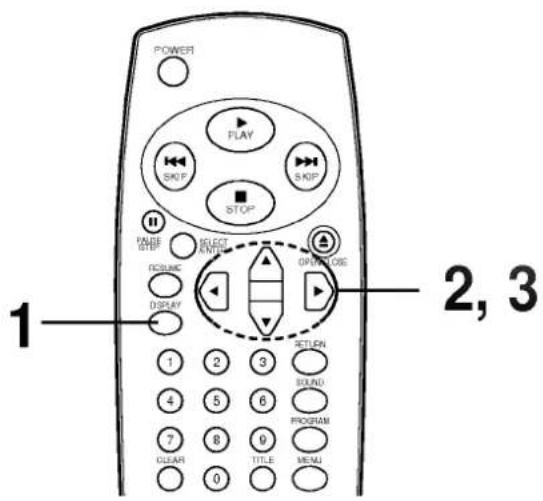
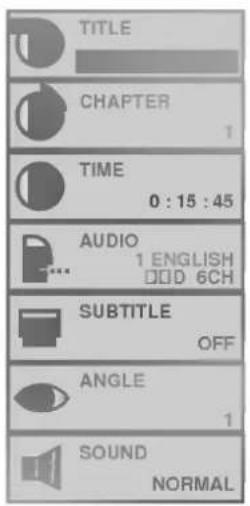
This unit features GUI Menu Icons showing disc information (title/chapter/track number, elapsed playing time, audio/subtitle language, angle, and sound) and player information (repeat play, play mode, marker, etc.). Some icons only show the indicated information. Other icons allow the settings to be changed.
text_image
POWER PLAY SKIP STOP PANE SELECT OPEN RETURN DISPLAY OPTION 2, 3 1 2 3 4 5 6 7 8 9 CLEAR TITLE MENU 0


Common procedures

Press DISPLAY during playback.
● Title function can be accessed from the stop mode.

Press ▲/▼ to select the desired item.
● The currently selected item is indicated by a yellow frame on its GUI menu icons.

Press ◀/▶ to select the desired setting.
- When numbers are displayed (e.g. title No.), the numeric buttons can also be used for setting instead of ◀▶.
- For some functions, the setting will be registered immediately; for others, SELECT/ENTER must be pressed.
Press DISPLAY to clear the GUI Menu Icons.
Examples of GUI Menu Icons.
(The screens may differ depending on the disc contents.)
text_image
TITLE CHAPTER 1 TIME 0:15:45 AUDIO 1 ENGLISH DOD 6CH SUBTITLE OFF ANGLE 1 SOUND NORMAL(DVD GUI)

text_image
TRACK TIME 15:45 AUDIO STEREO SOUND NORMAL(Video CD/CD GUI)

text_image
AUDIO STEREO SOUND NORMAL TIME 15 : 45(Video CD (Version 2.0))
text_image
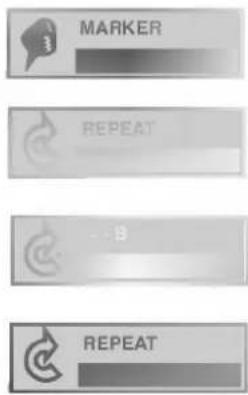
MARKER REPEAT - B REPEAT(DVD and CD GUI)
You can view information about a disc and its operational status on the TV screen.
Press DISPLAY during playback.
[TV screen] DVD GUI
| TITLE |
| CHAPTER 1 |
| TIME 0:15:45 |
| AUDIO 1 ENGLISH DOD 6CH |
| SUBTITLE OFF |
| ANGLE 1 |
| SOUND NORMAL |
FUNCTION (Press ▲/▼ to select desired item)
| To show the current title No.and to jump to the desired title No. | ◀/▶, orNumericSELECT/ENTER |
| To show the current chapter No.and to jump to the desired chapter No. | ◀/▶, or NumericSELECT/ENTERSKIP |
| To show the elapsed timeand directly select scenes by the elapsed time. | NumericSELECT/ENTER |
| To show the current audio soundtrack language,encoding method, channel No.and to change the settings. | ◀/▶,AUDIO |
| To show the current subtitles languageand to change the setting. | ◀/▶,SUBTITLE |
| To show the current angle No.and to change the angle. | ◀/▶,ANGLE |
| To show the current sound (NORMAL or 3D SURROUND)and to change the setting. | ◀/▶,SOUND |
Press DISPLAY during playback.
[TV screen] Video CD/CD GUI
| TRACK |
| TIME 15:45 |
| AUDIO STEREO |
| SOUND NORMAL |
FUNCTION (Press ▲/▼ to select desired item)
| To show the current track No.and to jump to the desired track No. | SKIP, ◀/▶, |
| To show the elapsed time.(Display only) | — |
| To show the current audio (LEFT, RIGHT, STEREO)and to select the desired audio channel. | ◀/▶,AUDIO |
| To show the current sound (NORMAL or 3D SURROUND)and to change the setting. | ◀/▶,SOUND |
DVD VIDEO
Using a title Menu
Some movie discs may contain two or more titles. If the disc has a title menu recorded on it, the TITLE button can be used to select the movie title. (The details of operation differ depending on the disc used.)
- Selecting a title may not be possible on certain DVD discs.

text_image
STOP RIGHT STEP SELECT UNIT RESET OPEN/LOSE DISPLAY RETURN SOUND PROGRAM CLEAR TITLE MENU 0 AUDIO-SUBTITLE ANGLE MARKET-SEARCH DEEP REPEAT AS MANICUM ZOOM 2 1 2 2Press TITLE.
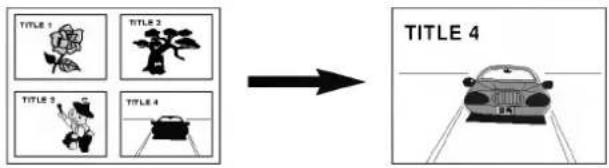
A list of the titles on the disc are displayed.

Press TITLE again to resume play from the scene when TITLE was first pressed.
Press ▲/▼/◀/▶ and press SELECT/ENTER or PLAY, or press the numeric button(s), to select desired title.
flowchart
graph LR
    A["TITLE 1"] --> B["TITLE 2"]
    C["TITLE 3"] --> D["TITLE 4"]
    E[" "] --> F["TITLE 4"]
The selected title now starts playing.
Using a DVD Menu
Some DVDs have unique menu structures called DVD menus. For example, DVDs programmed with complex contents provide guide menus, those recorded with various languages provide menus for audio and subtitle language. Although the DVD menu's contents and operation differ from disc to disc, the following explains the basic operation when this feature is used.
text_image
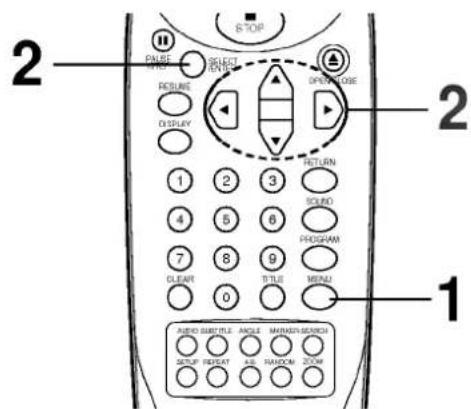
2 PANE 1 RESET 2 DISPLAY 3 RETURN 4 5 6 SOUND 7 8 9 PROGRAM 0 TITLE MENU 1 AUDIO BURYTELE ANGLE MINDEN-MEISON 2 SUPPORT RESET ALL RANDOM ZOOMPress MENU during play.
The DVD menu available on the disc is now displayed.
Pressing MENU again resumes play from the scene when MENU was first pressed.
Press ▲/▼/◄/► and press SELECT/ENTER, or press the numeric button(s), to select desired item.

The selected item is now executed.
It is possible to change the subtitle language to a different language from the one selected at the initial settings. (See page 32 for further info.)
This operation works only with discs on which multiple subtitle languages are recorded.
DVD VIDED
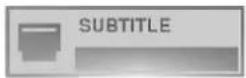
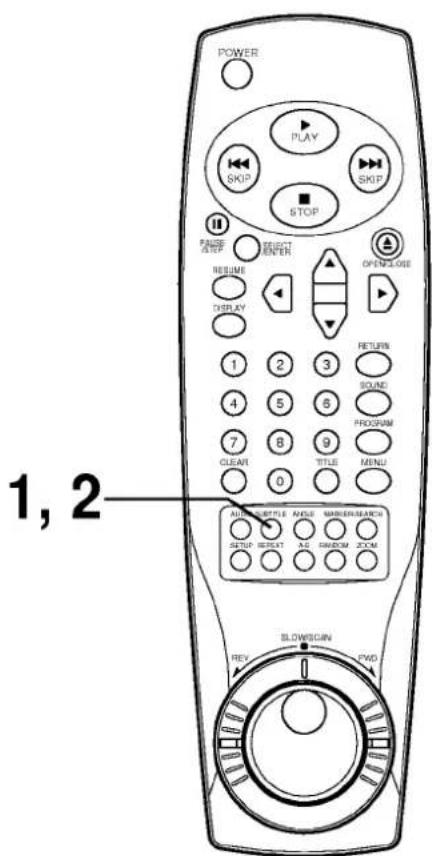
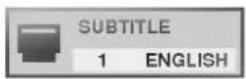
Press SUBTITLE during playback. When no subtitles are recorded, "OFF" will be displayed instead of the language number.
text_image
POWER PLAY SKIP SKIP STOP PULSE SHIFT SELECT ENTER RESET DISPLAY OPENCLOSE 1 2 3 RETURN SOUND PROGRAM 1 2 3 4 5 6 7 8 9 CLEAR 0 TITLE MENU 1000 BOTTLE ANSE MARRIEN/SMRCH SETUP RESET AS DIM/CM ZOOM SLOW/SMR REV CWD 1, 2Press SUBTITLE repeatedly until the desired language is selected.
Number of the subtitle language being played back.
To eliminate the On Screen Subtitles.
Press SUBTITLE repeatedly to select OFF at step 2.
In some cases, the subtitle language is not changed to the selected one immediately.
When a disc supporting the closed caption is played, the subtitle and the closed caption may overlap each other on the TV screen. In this case, turn the subtitle off.
When the desired language is not selected even after pressing the button several times, it means that the language is not available on the disc.
When the power is turned on or the disc is removed, subtitles appears in the language selected at the initial settings. If this language is not recorded on the disc, the disc's priority language appears.
It is possible to change the audio soundtrack language to a different language from the one selected at the initial settings. (See page 32 for further info.) This operation works only with discs on which multiple audio soundtrack languages are recorded.


• DVD

Press AUDIO during play.
Number of the audio soundtrack language being played back.


text_image
POWER PLAY 6 KIP STOP PULSE CHANGE SELECT ENTER RESET DISPLAY 1 2 3 RETURN 4 5 6 SOUND 7 8 9 PROGRAM CLEAR TITLEC MENU 0 AUTO SUBTLE MOOLE MANNER/SMARK SEMP RESET A1 MINDOM ZUM 1, 2 BLOWSCAN REV PWD
Press AUDIO repeatedly until the desired language is selected.

- Video CD/CD

Press AUDIO during play.

Press AUDIO repeatedly until the desired sound is selected.
When the desired language is not selected even after pressing the button several times, it means that the language is not available on the disc.
When the power is turned on or the disc is removed, the language heard is the one selected at the initial settings. If this language is not recorded on the disc, only the available language on the disc will be heard.
Some discs may not respond to Audio feature.
DVD VIDEO
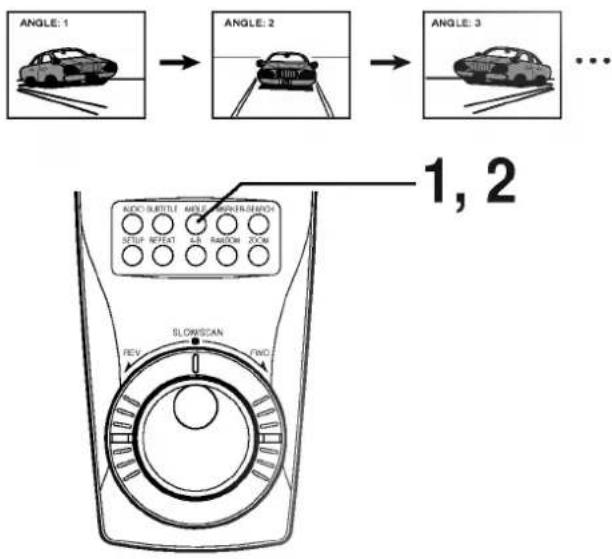
Some DVDs may contain scenes which have been shot simultaneously from a number of different angles. For these discs, the same scene can be viewed from each of these different angles using the ANGLE button. (The recorded angles differ depending on the disc used.)
Press ANGLE during playback.
Number of angle being played back.

flowchart
graph TD
    A["ANGLE: 1"] --> B["ANGLE: 2"]
    B --> C["ANGLE: 3"]
    C --> D["..."]
    E["1, 2"] --> F["MODE SLUTTER ANGLE CONTROL SWITCH"]
    F --> G["SLOW/SCAN FINO."]
    G --> H["REV."]
Press ANGLE repeatedly until the desired angle is selected.
This function only works for discs with scenes recorded at different angles.
The ANGLE indicator on the unit lights up at scenes recorded at different angles to indicate that angle switching is possible.
The angle number can be programmed beforehand; the angle will be switched to the selected number when the ANGLE indicator lights up.


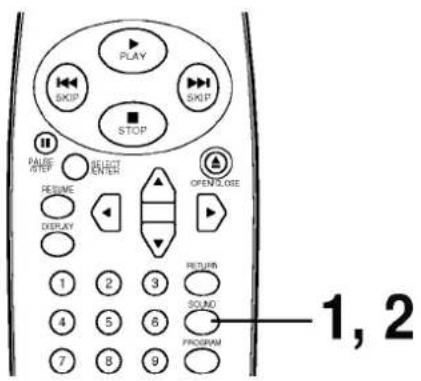
This unit can produce a 3D Surround effect, using Spatializer™ N-2-2™ technology, which simulates multi-channel audio playback from two conventional stereo speakers instead of the five or more speakers normally required to listen to multi-channel audio from a home theatre. This feature works with DVD discs encoded with Dolby Pro Logic, Dolby Digital (AC-3) and DTS multi-channel audio tracks.
text_image
PLAY SKIP STOP PAUSE STEP RESET ENTER OPEN/LOSE RETIME DISPLAY 1 2 3 RETURN SOUND PROGRAM 1, 2Press SOUND during playback.
Each time this button is pressed, the TV screen display changes:

Press SOUND repeatedly until the desired sound is selected.
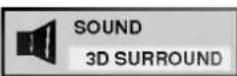
This 3D Surround effect may not be available on some DVD discs, such as those recorded with a mono audio soundtrack.
Turn off the TV surround sound and other surround effects when using this 3D surround effect.
For best 3D Surround effect using only two speakers it is recommended that the two speakers be positioned approximately 6' to 8' apart, and the listening position should be 6' to 8' away from the speakers.
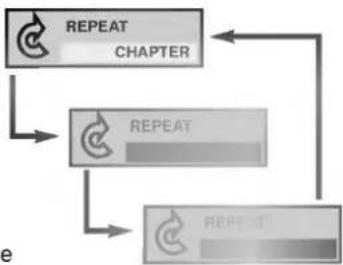
Repeating viewing (listening) Press REPEAT during playback.
Each time this button is pressed, the TV screen changes as shown below and the disc will repeat a chapter or title (DVD) or a track (Video CD/CD).
• DVD
Repeat chapter being played
Repeat title being played
Cancel repeat mode (normal play)
flowchart
graph TD
    A["REPEAT"] --> B["CHAPTER"]
    B --> C["REPEAT"]
    C --> D["REPEAT"]
    D --> A
- Video CD/CD
Repeat track being played
Repeat entire disc contents
Cancel repeat mode (normal play)

flowchart
graph TD
    A["REPEAT"] --> B["REPEAT"]
    B --> C["REPEAT"]
    C --> A
To return to normal play
Press REPEAT several times until "OFF" is displayed.


Repeating sections between two specific points (A-B repeat)

Press A-B during play at the point where repeat play is to start (A).


Press A-B during play at the point where repeat play is to be concluded (B).

Repeat play of the selection between points A and B starts.
To return to normal play
Press A-B once "OFF" is displayed.

- Repeat play works only with discs for which the elapsed playing time appears in the DVD display window during playback.
- Repeat play may not work correctly with some DVDs and some Video CDs.
○ A-B repeat play works only within a title DVD or a track Video CD/CD.
○ A-B repeat play works only with discs for which the elapsed playing time appears in the DVD display window during playback.
Some subtitles recorded around point A or B may fail to appear (DVD). - Repeat play does not work with an interactive DVD or during play of a Video CD with playback control.
DVD SIBEN
Storing a MARKER in the DVD memory is similar to marking your page in a book. It allows you to quickly return to any point on the disc.
Storing a marker in the memory
Press MARKER during play at the starting point to be viewed (listened to) again.

MARKER
四、汇率变动对现金的影响
Indicates "1/5" is stored in the memory. Up to 5 markers can be stored in the memory.
Recalling/Clearing a marker

Press SEARCH during playback.

text_image
MARKER PICTURE 1 MARKER PICTURE 2 MARKER PICTURE 3 MARKER PICTURE 4 MARKER PICTURE 5 PRESENT PICTURE
Press ▲/▼/◄/► to select the marker to be recalled/cleared.

Press PLAY or SELECT/ENTER to recall a marker. or Press CLEAR to clear a marker.
Play resumes from the point corresponding to the selected marker, or the selected marker is cleared.
● The "PRESENT PICTURE" is not cleared.
These operations work only with discs for which the elapsed playing time appears in the DVD display window during playback.
Some subtitles recorded around the marker may fail to appear (DVD).
All the markers are cleared when the power is turned off or the disc is removed.
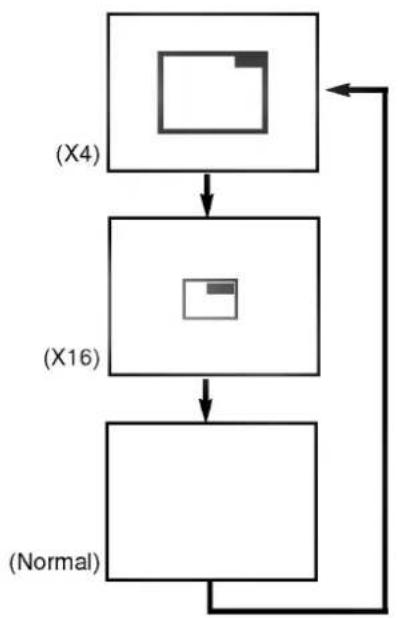
The Zoom feature allows you to "ZOOM-IN" and enlarge the picture on the screen to either 4 times (X4) or 16 times (X16) its normal size.

Press ZOOM during normal playback or still playback.
The DVD player magnifies the image in the center of the picture.
Each press of the ZOOM button changes the TV screen in the following sequence.
flowchart
graph TD
    A["(X4)"] --> B["(X16)"]
    B --> C["(Normal)"]
    C --> A
The magnification level will be displayed in the upper right corner of the zoom area.
If you press the ARROW buttons (▲/▼, ◀/▶), the zoom point shifts.

Press SELECT/ENTER.
The selected frame is displayed in full size on the TV screen.

To resume normal playback
Press ZOOM again to cancel Zoom feature and resume normal playback or still play-back.
The Zoom function is possible only with DVD discs.
Some discs may not respond to Zoom feature.
During some scenes, the buttons may not work in the right column.
○ Zoom does not work on subtitles or menus included on DVD video discs.


Note: Random play function only works with DVD video karaoke discs and with audio CD discs. Random does not work with DVD movies.
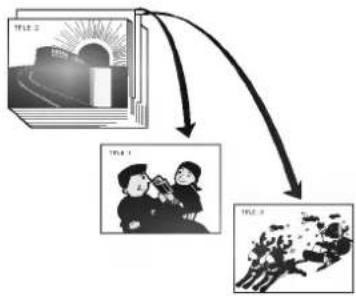
You can playback titles, chapters within a title, or tracks in random order (Random playback).
The DVD player automatically selects the titles in a DVD video karaoke disc only and plays them back randomly.
flowchart
graph TD
    A["Book 1"] --> B["Sun"]
    C["Child 1"] --> D["Photo of children watching"]
    E["Group 1"] --> F["Group of people watching"]
Random play (DVD)

Press RANDOM during stop.
The DVD player starts random playback.
If you press the RANDOM button during normal playback, the DVD player will randomly select another title and begin random playback immediately.

To resume normal playback Press RANDOM during random playback.
The RANDOM indicator in the DVD display window disappears.
Random play (Video CD/CD)
The player plays the tracks in the disc in random order.

Press RANDOM during stop.
The random playback screen appears on the TV screen.
If you press the RANDOM button during normal playback, the DVD player immediately selects another track and begins random playback.

To resume normal playback Press RANDOM during random playback.
The RANDOM indicator in the DVD display window disappears.
- Random playback may not be possible on certain discs or Video CDs (Version 2.0).
If you press the SKIP ▶ button during random playback, the DVD player goes to another track randomly and starts playback.
Note: Program play function is possible only with audio CDs and Video CDs. It does not work with DVD movie discs and Video CDs (Version 2.0).
text_image
POWER PLAY SKIP SKIP STOP PULSE A/STEP SELECT ENTER OPEN CLOSE RESUME DISPLAY 1 2 3 RETURN SOUND PROGRAM 7 8 9 CLEAR TITLE MENU 0 AUDIO SUBTITLE AMOLE TIMER SEARCH SETUP RESET AS RANDOM ZOOM SLOWS/CAN REV FWD
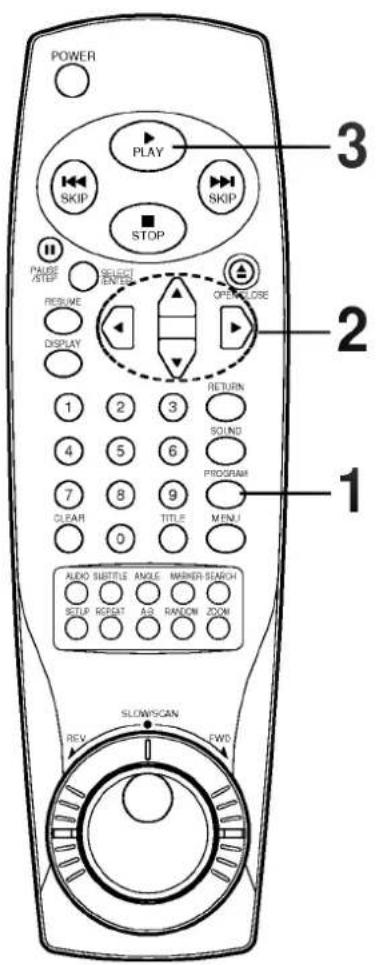
The player plays the tracks in the disc in the order you specify.

Press PROGRAM during playback or stop mode.
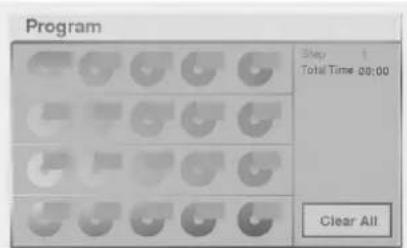
The program playback screen appears on the TV screen.
text_image
Program Step 1 Total Time: 00:00 Clear All• To exit the screen, press PLAY, PROGRAM or SELECT/ENTER.

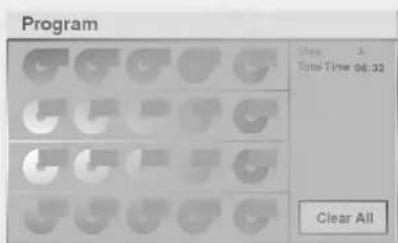
Press ▲/▼/◄/► and press the numeric button(s), to select the desired track number.
text_image
Program Clear 3 Total Time 06:32 Clear All- Repeat step 2 to select another track.
- Up to 20 tracks can be programmed.

Press PLAY or SELECT/ENTER to exit the screen.
The selected track is stored in the memory and play now begins in the programmed sequence.
- If you press PROGRAM to exit the screen, the selected tracks are not memorized.
After playback
Play is stopped.
Clearing the program
● To clear the program one by one
Press ▲/▼/◄/► to select the unwanted No. and then press CLEAR.
● To clear all the programs
Press ▲/▼/◄/► to select the "Clear All" and press SELECT/ENTER. Press PLAY or SELECT/ENTER to exit the screen. If you press PROGRAM to exit the screen, the programs are not cleared. (The programs are also cleared when the power is turned off or the disc is removed.)
Once the initial settings have been completed, the player can always be operated under the same conditions (especially with DVD discs). The settings will be retained in the memory until they are changed, even if the power is switched off.

text_image
POWER PLAY SKIP SKIP STOP 3 PAULER PULSE SELECT ENGLISH RESUME DISPLAY 2, 3 OPTIONAL CLOSE 1 2 3 RETURN 4 5 6 SOUND PROGRAM 7 8 9 CLEAR TITLE MENU 0 1 AUDIO SUBTITLE AMILE MARKER SEARCH SETUP REPEAT A.P RANDOM ZOOM SLOW/SCAN FINDDVD
Common procedures of initial settings

Press SETUP in the stop mode.
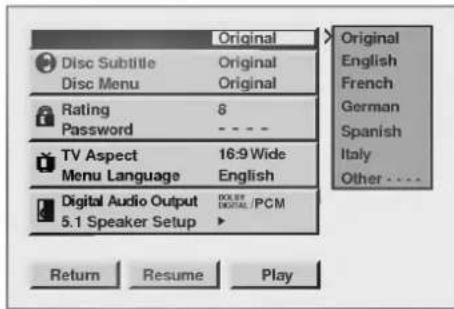
The SETUP menu is displayed.
text_image
Original Disc Subtitle Original Disc Menu Original Rating 8 Password - TV Aspect 16:9 Wide Menu Language English Digital Audio Output DOLID Digital / PCM 5.1 Speaker Setup Return Resume Play Original English French German Spanish Italy Other - - - -
Press ▲/▼ to select the desired item.
The screen will show the current setting for the selected item, and the alternate setting(s).
- Disc Audio
- Disc Subtitle
- Disc Menu
• Rating (see page 33) - Password (see page 34)
• TV Aspect (see page 35) - Menu Language (see page 36)
• Digital Audio Output (see page 37) - Speaker (see page 38)

Press ▶ and then ▲/▼ to select the desired setting and press SELECT/ENTER.
- Some items require additional steps. (See the respective page.)
When the alternate setting is selected the screen returns to the Initial Settings display.
To exit SETUP menu
Press SETUP, RETURN or RESUME. (The previous screen is displayed.)
To clear the initial settings screen
Press ▲/▼/◀/▶ to select RESUME and press SELECT/ENTER. (Pressing SETUP, RETURN or RESUME also clears the initial settings screen.)

This is to select the audio soundtrack language, subtitle language and the language used in title menus or DVD menus which will always be used for every disc to be played back.
When you play back a DVD video disc, the DVD player automatically displays the pre-selected subtitle language if it is included on the disc.
At the setup screen

Press ▲/▼ to select "Disc Audio" and press ▶.

text_image
Disc Subtitle Original Disc Menu Original Rating 6 Password - - TV Aspect 16:9 Wide Menu Language English Digital Audio Output 5.1 Speaker Setup DOUBLE DIGITAL/PCM Return Resume Play English French German Spanish Italy Other - - - - -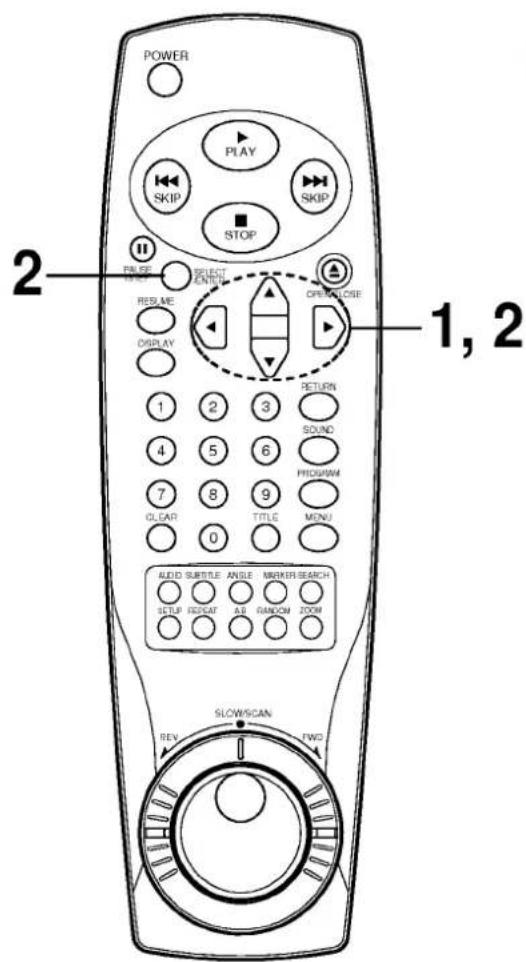
text_image
POWER PLAY SKIP SKIP STOP 2 PULSE SELECT CONTROL RESET ORANGE 1, 2 REQUIRE DISPLAY RETURN SOUND PROGRAM 7 8 9 0 TITLE MENU AUDIO SUBTITLE ANGLE MARKER SEARCH SETUP REPEAT A/B RANDOM ZOOM SLOW/SCAN TWO REV
Press ▲/▼ to select the desired language and then press SELECT/ENTER.
Original : The original language of each disc will be selected. English : The English will be Selected.
Other : Another language can be selected. You can input 4-digit language code. (Refer to the language codes on page 39. Press CLEAR if an incorrect language code is entered.)
The Disc Subtitle and Disc Menus are selected by the same method.
The screen illustrated in step 1 is displayed. Press
▲/▼/◄/► to select RESUME and press SELECT/ENTER to return to the initial settings screen.
If the language selected is not available on the disc, the original language designated by each disc will be selected.
Selecting rating level and password (DVD only)
This is to prohibit the playing of specified DVDs which are unsuitable for children.
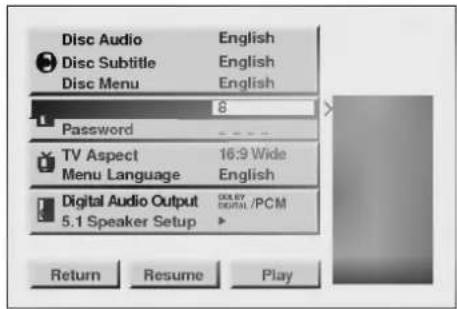
● Some DVD discs contain a restriction level which enables parents to remove scenes or prevent playback of discs by children. DVD players are equipped with a password designed to prevent children changing the level.

text_image
POWER PLAY SKIP STOP PULSE SELECT ENTER RESUME DISPLAY 1 2 3 4 5 6 7 8 9 CLEAR 0 RETURN SOUND PROGRAM TITLE MENU AUDIO SUBTITLE ANGLE MARKER SEARCH SETUP RESET A/B RANDOM ZOOM SLOW/SCAN REV EWD 1, 2Selecting rating level (DVD only)
At the SETUP screen
Press ▲/▼ to select Rating and press ▶.
text_image
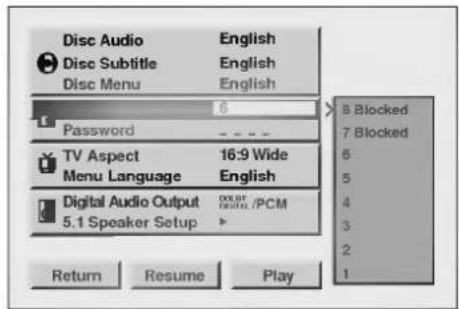
Disc Audio Disc Subtitle Disc Menu English English English Password 16:9 Wide Menu Language English Digital Audio Output 5.1 Speaker Setup 00:07 DHTML /PCM Return Resume PlayPress ▲/▼ to select the desired level and press SELECT/ENTER.
text_image
Disc Audio English Disc Subtitle English Disc Menu English Password 6 TV Aspect 16:9 Wide English Menu Language Digital Audio Output 0.000 /PCM 5.1 Speaker Setup Return Resume Play 8 Blocked 7 Blocked 6 5 4 3 2 1You cannot play DVD video discs rated higher than the level you selected unless you cancel the parental lock function. For example, when you select level 7, discs rated higher than level 7 are blocked and cannot be played.
If you change the level and enter a password, playback of all DVDs with ratings higher than your selection will be blocked, unless the correct password is entered again. For example: if you change the level to "5", the DVD player will not play discs with ratings of "6", "7" or "8" unless the correct password is entered on the remote control.

text_image
POWER PLAY SKIP SKIP STOP 2, 5 PAUSE RESET ON/OFF/RESET 1 DISPLAY 1 2 3 4 5 6 7 8 9 0 RETURN SOUND PROGRAM MENU ALDO ELTRITE: ANGLE MANNER SEARCH STUP: REPEAT A/D RANDOM ROOM SLOWSCAN FWD REVSetting your password (DVD only)
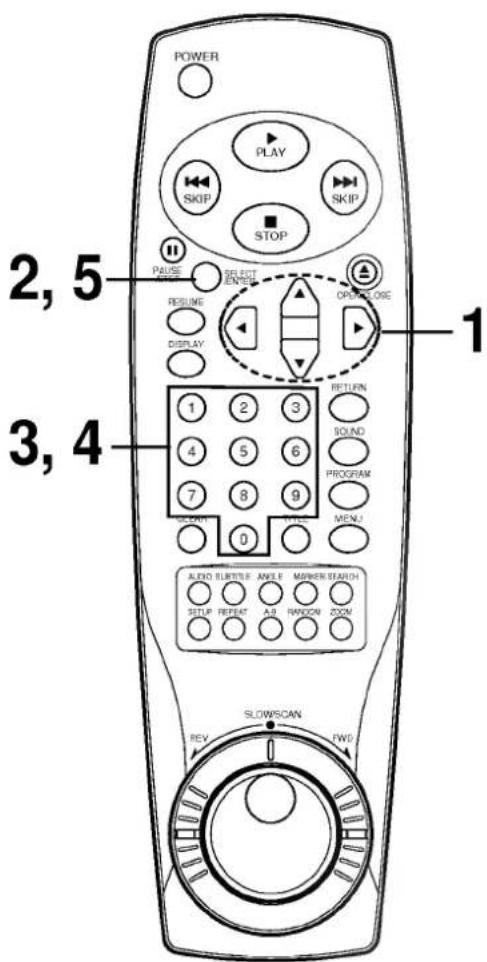
If you change the rating level to "7" or lower, you must enter a 4-digit "password" to prevent playback of discs with higher ratings.
At the SETUP screen

Press ▼ to select password.
Press ▶ and then ▲/▼ to select the "Change" item.

text_image
Disc Audio English Disc Subtitle English Disc Menu English Rating 8 TV Aspect 16:9 Wide Menu Language English Digital Audio Output DIGITAL /PCM 5.1 Speaker Setup Return Resume Play Change
Press SELECT/ENTER.

text_image
Disc Audio Disc Subtitle Disc Menu Rating TV Aspect Menu Language Digital Audio Output 5.1 Speaker Setup English English English 16:9 Wide English Digital Audio /PCM Digital Audio 5.1 Speaker Setup Change Clear Return Resume Play
Input a 4-digit password.
Example : 1234
Do not forget your password.
To clear your 4-digit password
If you forget your password, to clear the current password, follow the procedure below.
At the SETUP screen
1 Press ▼ to select "Password" item.
2 Enter 6-digit number "210499" and then press SELECT/ENTER.
The 4-digit password is cleared.
3 Enter a new password
Refer to "Setting your password" section on the right.

Input the 4-digit password again to verify.
Press SELECT/ENTER.
Setting is finished and the SETUP screen is displayed.
- When the selected password is already set, "Set" appears. When it is not set, "----" appears
● The rating is locked. Any discs whose rating is higher than the setting cannot be played back unless the correct password is entered.
To change the settings
To change the rating level/password, enter your 4-digit password and follow the steps on page 33-34 again.
Selecting TV Aspect
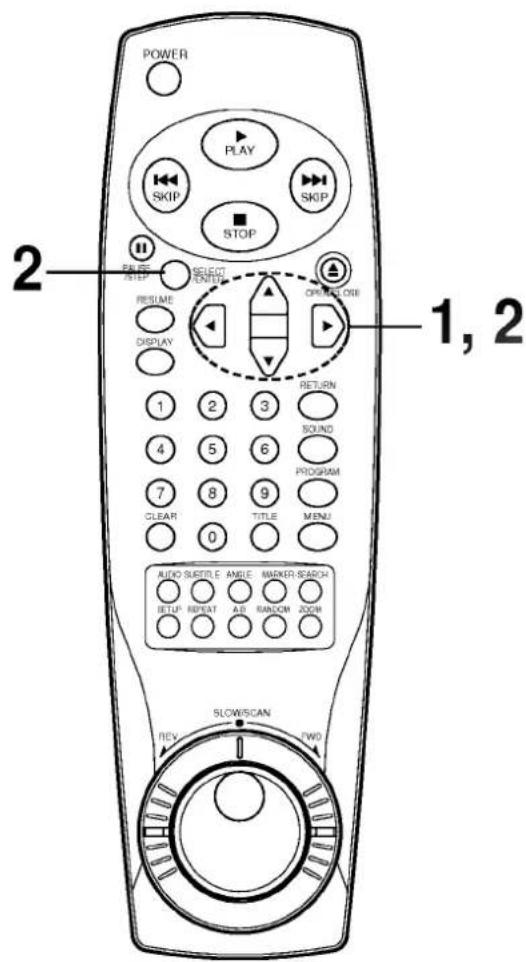
Select the appropriate screen type according to your TV set; conventional size screen (4:3) or wide-screen (16:9).
text_image
POWER PLAY SKIP SKIP STOP 2 PULSE SELECT OUTPUT RESUME ORIGINAL ORDER DISPLAY 1 2 3 RETURN 1 2 3 SOUND 4 5 6 PROGRAM 7 8 9 MENU CLEAR 0 TITLE MENU AUDIO SUBTITLE AMICE MARKER SEADISH SETUP REPEAT A.D. RANDOM ZOOM SLOW/SCAN FWD REV
4:3 Letterbox
4:3 Panscan

16:9 Wide
At the SETUP screen.
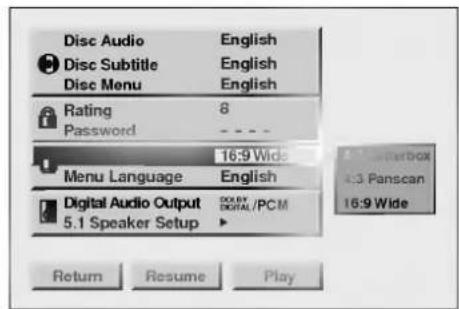
Press ▲/▼ to select TV Aspect and press ▶.
text_image
Disc Audio Disc Subtitle Disc Menu Rating Password 16:9 Wide Menu Language Digital Audio Output 5.1 Speaker Setup 8 - - English English English Digital Audio Output Digital /PCM 4.3 Panscan 16:9 Wide Return Resume Playpress ▲/▼ to select the desired Aspect and press SELECT/ENTER.

text_image
Disc Audio English Disc Subtitle English Disc Menu English Rating 8 Password - - - Menu Language English Digital Audio Output 00:00/ Digital / PCM 5.1 Speaker Setup ▶ 4:3 Letterbox 4:3 Panscan 16:9 Wide Return Resume Play4:3 Letterbox : The video material not formatted in the Pan & Scan style is played back in the letterbox style (black bands appear at top and bottom of screen).
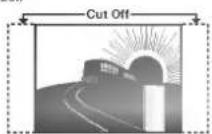
4:3 Panscan : Select when a conventional TV set is connected. The video material formatted in the Pan & Scan style is played back in that style (the left and right edges are cut off).
16:9 Wide : Select when a wide-screen TV set is connected. Played in "FULL" size. (Setting the wide-screen TV to "FULL" mode is also necessary.)
* Each screen shows an example of when the video material for a wide-screen is played. (This setting does not affect the video material for conventional size.)
Setting is finished and the SETUP screen is displayed.
DVD VIDEO
text_image
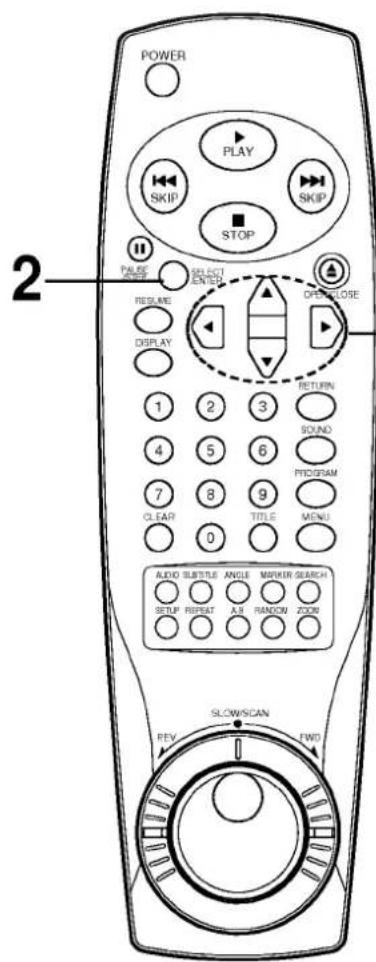
POWER PLAY SKIP STOP PULSE CHANGE SELECT ENTER RESET DISPLAY 1 2 3 RETURN 1 2 3 SOUND 4 5 6 PROGRAM 7 8 9 CLEAR 0 TITLE MENU AUDIO SUBTITLE ANGLE MARKER SEARCH SETUP REPAT A/B RANDOM ZOOM SLOW/SCAN FWT REVAt the SETUP screen.

Press ▲/▼ to select Menu Language and press ▶.
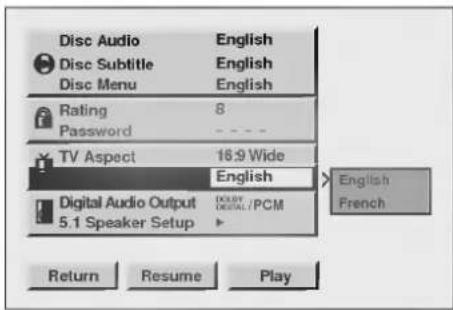
text_image
Disc Audio Disc Subtitle Disc Menu English English Rating Password 8 TV Aspect 18.9 Wide English Digital Audio Output 5.1 Speaker Setup DOUBLE DETAIL / PCM Return Resume Play English French
Press ▲/▼ to select the desired Menu Language and press SELECT/ENTER.

text_image
Disc Audio English Disc Subtitle English Disc Menu English Rating 8 Password - - - TV Aspect 16:9 Wide Digital Audio Output COLEY /PCM 5.1 Speaker Setup Return Resume Play EnglishDVD TIBEO
Selecting Digital Audio Output
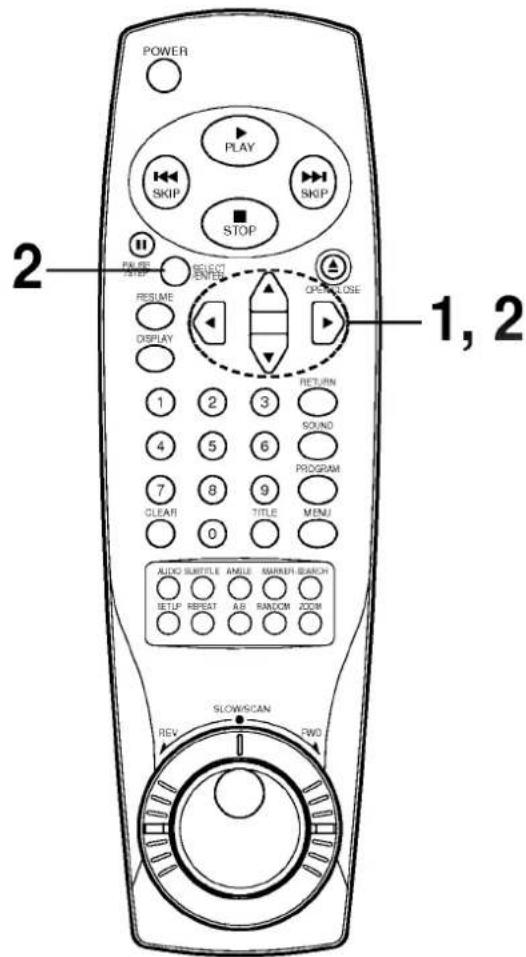
Each DVD disc has a variety of audio output options. Set the player's Digital Audio Output according to the type of audio system you use.
text_image
POWER PLAY SKIP SKIP STOP 2 REQUIRE SELECT ENTER RESET DISPLAY 1 2 3 RETURN SOUND PROGRAM 7 8 9 CLET TITLE MENU AUDIO SUBTITLE AMILE MARKER SEARCH SETUP RESET A/B RANDOM ZOOM SLOW/SCAN REV CWO 1, 2| Playback Disc | OUTPUT | ||
| Stream/PCM | Dolby Digital/ PCM | PCM only | |
| 96 kHz Linear PCM DVD | PCM | PCM | PCM |
| DTS DVD | DTS bit Stream | Not Output | Not Output |
| Dolby Digital DVD | Dolby Digital bit Stream | Dolby Digital bit Stream | PCM |
| MPEG DVD | MPEG bit Stream | PCM | PCM |
| Audio CD/ Video CD | PCM | PCM | PCM |
| DTS Audio CD | DTS bit Stream | DTS bit Stream | DTS bit Stream |
At the SETUP screen. Press ▲/▼ to select Digital Audio Output and press ▶.

text_image
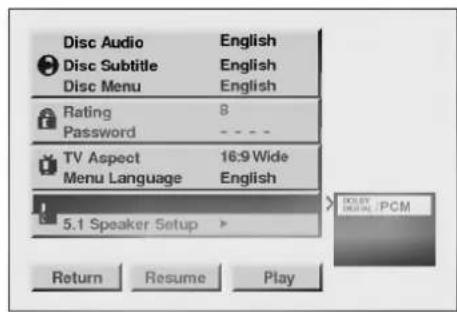
Disc Audio English Disc Subtitle English Disc Menu English Rating 8 Password - - - TV Aspect 16:9 Wide Menu Language English 5.1 Speaker Setup Return Resume Play RETURN INTERNAL/PCM STREAM/PCM PCMPress ▲/▼ to select the desired output and press SELECT/ENTER.
text_image
Disc Audio English Disc Subtitle English Disc Menu English Rating 8 Password - - - TV Aspect 16:9 Wide Menu Language English 5.1 Speaker Setup > Return Resume PlayDOLBY DIGITAL/PCM: Select "DOLBY DIGITAL/PCM" if an active digital output is supplied to Dolby Digital decoder, (or an amplifier or other equipment with Dolby Digital decoder).
Stream/PCM: Select "Stream/PCM" if an active digital output is supplied to an amplifier or other equipment with DTS decoder, Dolby Digital decoder and MPEG decoder.
PCM: Select "PCM" if an active digital output is supplied to an amplifier or other equipment with linear PCM only (or MD recorder or DAT deck).
When you are not using the player's digital audio output, don't select any of the options.
If an active digital audio output signal is supplied to receiver or other equipment without a corresponding digital decoding capability, a very loud noise may be produced which could permanently damage the speakers.
The DTS DVD disc sound is played back only when the DVD player is connected with amplifier with a DTS decoder.

Adjusting Speaker Level
Select the speaker to adjust the audio output level of the speaker.
text_image
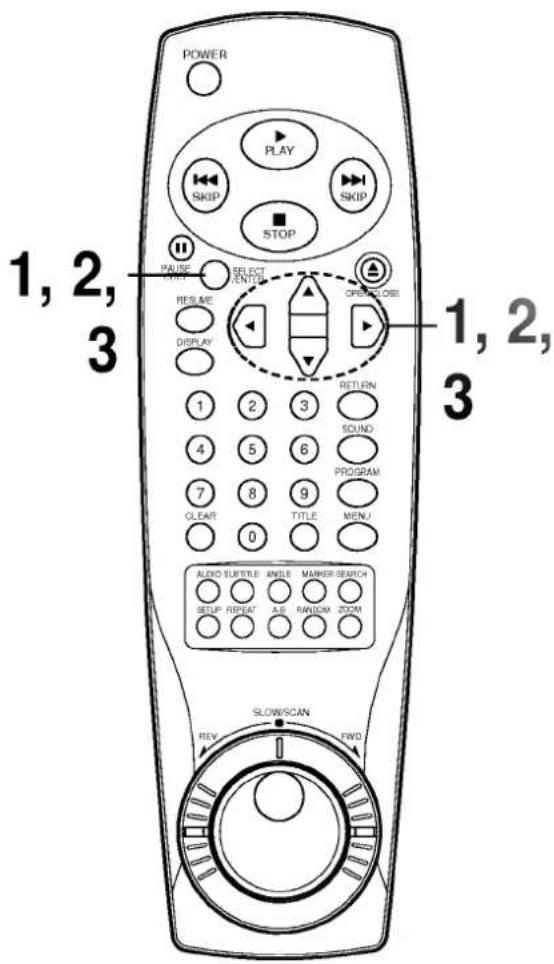
POWER PLAY SKIP STOP 1, 2, 3 PAUSE POTY SELECT ENTER RESIZE DISPLAY OPENCLOSE 1, 2, 3 RETURN SOUND PROGRAM CLEAR TITLE MENU AUDIO TURKEY ANGLE MARKER SWITCH SETUP REPEAT A/B RANDOM ZOOM SLOWSCAN FWDAt the SETUP screen.
Press ▲/▼ to select 5.1 Speaker Setup and press SELECT/ENTER.

text_image
Disc Audio Disc Subtitle Disc Menu English English Rating Password 8 TV Aspect Menu Language 16:9 Wide English Digital Audio Output Digital /PCM Press Select Return Resume PlayPress ▲/▼ to select the desired speaker and press ◀/▶ to adjust speaker level.

text_image
Front Right 100 Center 100 Rear Left 100 Rear Right 100 Sub Wooter 100 Master 100 Test ReturnMaster : Press ◀/▶ to adjust all speaker's levels. You can adjust the volume of all the speakers at one time.
Test : Press SELECT/ENTER to hear the test tone of speakers adjusted. You can hear the test tone from each speaker in sequence. (The test tone does not output from the subwoofer.) Press ▲/▼ to cancel the test tone. If you want to the hear tone from the Front speaker during the test, press SELECT/ENTER.
Return : Press SELECT/ENTER to return to the previous menu screen.
To return to the previous menu, press ▲/▼ to select Return and then press SELECT/ENTER.
Do not place the center or rear speakers farther away from the listening position than the front speakers.

Enter the appropriate code number for the initial settings "Audio", "Subtitle" and/or "Menu" (See page 32).
| Code | Language | Code | Language | Code | Language | Code | Language |
| 6565 | Afar | 7079 | Faroese | 7678 | Lingala | 8375 | Slovak |
| 6566 | Abkhazian | 7082 | French | 7679 | Laothian | 8376 | Slovenian |
| 6570 | Afrikaans | 7089 | Frisian | 7684 | Lithuanian | 8377 | Samoan |
| 6577 | Ameharic | 7165 | Irish | 7686 | Latvian, Lettish | 8378 | Shona |
| 6582 | Arabic | 7168 | Scots Gaelic | 7771 | Malagasy | 8379 | Somali |
| 6583 | Assamese | 7176 | Galician | 7773 | Maori | 8381 | Albanian |
| 6588 | Aymara | 7178 | Guarani | 7775 | Macedonian | 8382 | Serbian |
| 6590 | Azerbaijani | 7185 | Gujarati | 7776 | Malayalam | 8385 | Sundanese |
| 6665 | Bashkir | 7265 | Hausa | 7778 | Mongolian | 8386 | Swedish |
| 6669 | Byelorussian | 7273 | Hindi | 7779 | Moldavian | 8387 | Swahili |
| 6671 | Bulgarian | 7282 | Croatian | 7782 | Marathi | 8465 | Tamil |
| 6672 | Bihari | 7285 | Hungarian | 7783 | Malay | 8469 | Telugu |
| 6678 | Bengali; Bangla | 7289 | Armenian | 7784 | Maltese | 8471 | Tajik |
| 6679 | Tibetan | 7365 | Interlingua | 7789 | Burmese | 8472 | Thai |
| 6682 | Breton | 7378 | Indonesian | 7865 | Nauru | 8473 | Tigrinya |
| 6765 | Catalan | 7383 | Icelandic | 7869 | Nepali | 8475 | Turkmen |
| 6779 | Corsican | 7384 | Italian | 7876 | Dutch | 8476 | Tagalog |
| 6783 | Czech | 7387 | Hebrew | 7879 | Norwegian | 8479 | Tonga |
| 6789 | Welsh | 7465 | Japanese | 7982 | Oriya | 8482 | Turkish |
| 6865 | Danish | 7473 | Yiddish | 8065 | Panjabi | 8484 | Tatar |
| 6869 | German | 7487 | Javanese | 8076 | Polish | 8487 | Twi |
| 6890 | Bhutani | 7565 | Georgian | 8083 | Pashto, Pushto | 8575 | Ukrainian |
| 6976 | Greek | 7575 | Kazakh | 8084 | Portuguese | 8582 | Urdu |
| 6978 | English | 7576 | Greenlandic | 8185 | Quechua | 8590 | Uzbek |
| 6979 | Esperanto | 7577 | Cambodian | 8277 | Rhaeto-Romance | 8673 | Vietnamese |
| 6983 | Spanish | 7578 | Kannada | 8279 | Rumanian | 8679 | Volapūk |
| 6984 | Estonian | 7579 | Korean | 8285 | Russian | 8779 | Wolof |
| 6985 | Basque | 7583 | Kashmiri | 8365 | Sanskrit | 8872 | Xhosa |
| 7065 | Persian | 7585 | Kurdish | 8368 | Sindhi | 8979 | Yoruba |
| 7073 | Finnish | 7589 | Kirghiz | 8372 | Serbo-Croatian | 9072 | Chinese |
| 7074 | Fiji | 7665 | Latin | 8373 | Singhalese | 9085 | Zulu |
natural_image
Two horizontal gray gradient bars with no text or symbolsThis DVD player can play back the following discs.
| Disc mark | Contents | Disc size | Maximum playback time | |
| DVD video discs |  | Audio+Video (moving pictures) | 12 cm | Approx. 4 hours (single sided disc) |
| Approx. 8 hours (double sided disc) | ||||
| 8 cm | Approx. 80 minutes (single sided disc) | |||
| Approx. 160 minutes (double sided disc) | ||||
| Video CDs |  | Audio+Video | 12 cm | 74 minutes |
| 8 cm | 20 minutes | |||
| Audio CDs |  | Audio | 12 cm | 74 minutes |
| 8 cm | 20 minutes |
You cannot playback discs other than those listed above. (CD-ROM, CD-Extra, CD-G, photo CD, and CD-i discs can not be played on this DVD player.)
This DVD player uses the PAL color system.
"Certain audio features of this product manufactured under a license from Desper Products, Inc., Spatializer® 3-D Stereo, Spatializer N-2-2 (TM) and the circle-in-square device are trademarks owned by Desper Products, Inc."
Region Management Information: This DVD Player is designed and manufactured to respond to the Region Management Information that is recorded on a DVD disc. If the Region number described on the DVD disc does not correspond to the Region number of this DVD player, this DVD player cannot play that disc.
The Region number of this DVD player is 2.

You may not be able to play back some DVD video discs on this player if they were purchased from outside your geographic area or made for business purposes.
When you try to play back an unauthorized disc, "Check Regional Code" appears on the TV screen.
It is forbidden by law to copy, broadcast, show, broadcast on cable, play in public, and rent copyrighted material without permission.
DVD video discs are copy protected, and any recordings made from these discs will be distorted. This product incorporates copyright protection technology that is protected by method claims of certain U.S. patents and other intellectual property rights owned by Macrovision Corporation and other rights owners. Use of this copyright protection technology must be authorized by Macrovision Corporation, and is intended for home and other limited viewing uses only, unless otherwise authorized by Macrovision Corporation. Reverse engineering or disassembly is prohibited.
Symptoms and Correction
Check the following guide for the possible cause of a problem before contacting service.
| Symptom | Cause | Correction |
| No power. | The power cord is disconnected. | Plug the power cord into the wall outlet securely. |
| The power is on, but the DVD player does not work. | No disc is inserted. | Insert a disc. (Check that the DVD or, audio CD indicator in the DVD display is lit.) |
| No picture. | The TV is not set to receive DVD signal output. | Select the appropriate video input mode on the TV so the picture from the DVD player appears on the TV screen. |
| The video cable is not connected securely. | Connect the video cable into the jacks securely. | |
| The connected TV power is turned off. | Turn on the TV. | |
| No sound. | The equipment connected with the audio cable is not set to receive DVD signal output. | Select the correct input mode of the audio receiver so you can listen to the sound from the DVD player. |
| The audio cables are not connected securely. | Connect the audio cable into the jacks securely. | |
| The power of the equipment connected with the audio cable is turned off. | Turn on the equipment connected with the audio cable. | |
| The Digital Audio Output is set to the wrong position. | Set the Digital Audio Output to the correct position, then turn on the DVD player again by pressing the POWER button. | |
| The playback picture is poor. | The disc is dirty. | Clean the disc. |
| The DVD player does not start playback. | No disc is inserted. | Insert a disc.(Check that the DVD, or audio CD indicator in the DVD display is lit.) |
| An unplayable disc is inserted. | Insert a playable disc. (Check the disc type, color system and Regional code.) | |
| The disc is placed upside down. | Place the disc with the playback side down. | |
| The disc is not placed within the guide. | Place the disc on the disc tray correctly inside the guide. | |
| The disc is dirty. | Clean the disc. | |
| A menu is on the TV screen. | Press the SETUP button to turn off the menu screen. | |
| The Rating level is set. | Cancel the Rating function or change the rating level. | |
| The remote control does not work properly. | The remote control is not pointed at the remote sensor of the DVD player. | Point the remote control at the remote sensor of the DVD player. |
| The remote control is too far from the DVD player. | Operate the remote control within about 23 ft (7 m). | |
| There is an obstacle in the path of the remote control and the DVD player. | Remove the obstacle. | |
| The batteries in the remote control are exhausted. | Replace the batteries with new ones. |
DVD player/Outputs/Supplied Accessories
| [DVD player] | Power supply | AC 100-240V, 50/60 Hz |
| Power consumption | 20 W | |
| Mass | 7.7 lbs (3.5 kg) | |
| External dimensions (W X H X D) | 17" X 3.2" X 12" (430 x 80 x 305 mm) | |
| Signal system | PAL 625/50 | |
| Laser | Semiconductor laser, wavelength 650 nm | |
| Frequency range (digital audio) | 2 Hz to 44 kHz | |
| Signal-to-noise ratio (digital audio) | More than 105 dB (EIAJ) | |
| Audio dynamic range (digital audio) | More than 95 dB (EIAJ) | |
| Harmonic distortion (digital audio) | 0.003 % | |
| Wow and flutter | Below measurable level (less than + 0.001 % (W.PEAK)) (EIAJ) | |
| Operating conditions | Temperature: 41°F to 95°F, Operation status: Horizontal | |
| [Outputs] | Video output | 1.0 V (p-p), 75 Ω, negative sync., RCA jack x 1 |
| S-video output | (Y) 1.0 V (p-p), 75 Ω, negative sync., Mini DIN 4-pin x 1(C) 0.286 V (p-p), 75 Ω, | |
| Component video output | (Y) 1.0 V (p-p), 75 Ω, negative sync., RCA jack x 1(Pb)/(Pr) 0.7 V (p-p), 75 Ω | |
| Audio output (digital audio) | 0.5 V (p-p), 75 Ω, RCA jack x 1 | |
| Audio output (optical audio) | Optical connector x 1 | |
| Audio output (analog audio) | 2.0 Vrms(1 KHz, 0 dB), 330 Ω, RCA jack (L, R) x 1 | |
| [Supplied Accessories] | ● S-video cable....1● Coaxial audio cable....1● Audio/video cable....1● Remote control....1● Batteries (AAA)....2 | |
* Designs and specifications are subject to change without notice.

LG Electronics Inc.