
ES4m - Tablet ECS - Free user manual and instructions
Find the device manual for free ES4m ECS in PDF.


| Product Type | Tablet based on ECS ES4m mainboard |
| Processor | Intel Pentium 4 Socket-478, up to 2.8 GHz, FSB up to 533 MHz |
| Chipset | SiS650GL Northbridge + SiS962/962L Southbridge |
| Memory | 1 x 184-pin DDR SDRAM DIMM, up to 1GB, 266 MHz |
| Graphics | Integrated 256-bit 3D/2D Graphics Engine, up to 32MB shared memory |
| Audio | AC'97 2.2 compliant, 4-channel DAC, SNR up to 90dB |
| Ethernet | 10/100 Mbps built-in LAN (Realtek RTL8201 PHY) |
| USB | 6 x USB 2.0 (4 back-panel, 2 via header) |
| IEEE 1394a | Optional (only with SiS962 SB) |
| Storage Interfaces | 2 x ATA 66/100/133 IDE channels (Primary/Secondary) |
| Expansion Slots | 1 x 32-bit PCI slot |
| Back Panel I/O | PS/2 mouse & keyboard, 1 x serial, 1 x parallel, 1 x VGA, 1 x LAN, 3 x audio (line-in, line-out, mic), 4 x USB |
| Dimensions | 177 x 190 mm (Mini-Micro ATX form factor) |
| Power Supply | ATX power connector, ACPI 1.0b/APM 1.2 |
| BIOS | AMI BIOS with PnP, ACPI, power management |
| Hardware Monitoring | CPU & system temperature, fan speeds, voltages |
| Bundled Software | PC-Cillin 2002, MediaRing Talk, PC DJ, Adobe Acrobat Reader |
Frequently Asked Questions - ES4m ECS
User questions about ES4m ECS
0 question about this device. Answer the ones you know or ask your own.
Ask a new question about this device
Download the instructions for your Tablet in PDF format for free! Find your manual ES4m - ECS and take your electronic device back in hand. On this page are published all the documents necessary for the use of your device. ES4m by ECS.
USER MANUAL ES4m ECS
Mainboard User's Manual
This publication, including all photographs, illustrations and software, is protected under international copyright laws, with all rights reserved. Neither this manual, nor any of the material contained herein, may be reproduced without written consent of the author.
The information in this document is subject to change without notice. The manufacturer makes no representations or warranties with respect to the contents hereof and specifically disclaims any implied warranties of merchantability or fitness for any particular purpose. Further, the manufacturer reserves the right to revise this publication and to make changes from time to time in the content hereof without obligation of the manufacturer to notify any person of such revision or changes.
Trademarks
IBM, VGA, and PS/2 are registered trademarks of International Business Machines.
Intel, Pentium/II/III, Pentium 4, Celeron and MMX are registered trademarks of Intel Corporation.
Microsoft, MS-DOS and Windows 98/ME/NT/2000/XP are registered trademarks of Microsoft Corporation.
PC-cillin is a registered trademark of Trend Micro Inc.
AMI is a registered trademark of American Megatrends Inc.
MediaRing Talk is a registered trademark of MediaRing Inc.
SiS is a trademark of Silicon Integrated System Corporation.
Other names used in this publication may be trademarks and are acknowledged.
Copyright © 2002
All Rights Reserved
ES4M Series, V1.3
S650GL/December 2002
Mainboard User's Manual
Notice:
Owing to Microsoft's certifying schedule is various to every supplier, we might have some drivers not certified yet by Microsoft. Therefore, it might happen under Windows XP that a dialogue box (shown as below) pop out warning you this software has not passed Windows Logo testing to verify its compatibility with Windows XP. Please rest assured that our RD department has already tested and verified these drivers. Just click the “Continue Anyway” button and go ahead the installation.

Mainboard User's Manual
Table of Contents
Trademarks.... I
Chapter 1: Introduction....1
Key Features....2
Package Contents....6
Static Electricity Precautions....7
Pre-Installation Inspection....7
Chapter 2 : Mainboard Installation....9
Mainboard Components ....10
I/O Ports....11
Install A CPU 12
Installing Memory Modules 13
Setting Jumper Switches....14
Install the Mainboard....15
Install the Extension Brackets .....16
Optional Extension Brackets ....18
Install Other Devices 20
Expansion Slots 22
Chapter 3: BIOS Setup Utility....23
Introduction 23
Running the Setup Utility 24
Standard CMOS Setup Page....25
Advanced Setup Page....26
Power Management Setup Page 28
PCI / Plug and Play Setup Page....30
Load Optimal Settings....30
Load Best Performance Settings....31
Features Setup Page....31
CPU PnP Setup Page 33
Hardware Monitor Page....34
Change Password....35
Exit 35
Chapter 4: Using the Mainboard Software ....37
Introduction 37
Installing Support Software....38
Bundled Software Installation 40
Mainboard User's Manual
Chapter 1
Introduction
This mainboard has a Socket-478 processor socket for Intel Pentium 4 type of processors supporting front side bus (FSB) speeds up to 533 MHz.
This mainboard integrates the SiS650GL Northbridge along with SiS962/962L Southbridge chipsets that support built-in AC97 Codec, one DDR266 SDRM modules up to 1GB system memory, and provides Ultra DMA 66/100/133 function. These chipsets' function is detailed as the Chipset description in next section. This mainboard integrates a 256-bit 3D/2D Graphics Engine, Video Accelerator and Advanced Hardware Acceleration MPEGI/MPEGII Video Decoder for the Intel Pentium 4 series based PC systems. It supports built-in 10BaseT/100BaseTX Network Interface. In addition, this mainboard has a full set of I/O ports including two PS/2 ports for mouse and keyboard, one serial port, one parallel port, one VGA port, one IEEE1 port (only for SiS962 SB) and six USB ports (USB2.0)—four back-panel ports and onboard USB header USB1 providing two extra ports by connecting the Extended USB Module to the mainboard.
This mainboard is Mini-Micro ATX size and has power connectors for an ATX power supply and measures 177 x 190mm.
Mainboard User's Manual
Key Features
The key features of this mainboard include:
Socket-478 Processor
◆ The PGA Socket 478
◆ Supports Intel Pentium 4 series CPUs
◆ Supports up to 533 MHz Front-Side Bus
Chipset
There are SiS650GL Northbridge and SiS962/962L Southbridge in this chipset in accordance with an innovative and scalable architecture with proven reliability and performance.
Memory Support
◆ One 184-pin DIMM socket for DDR266 memory
◆ Support DDR SDRAM up to 266 MHz memory bus
◆ Maximum installed memory is 1GB
Expansion Slots
◆ One 32-bit PCI slots for PCI 2.2-compliant bus interface
Onboard IDE channels
♦ Primary and Secondary PCI IDE channels
◆ Support for PIO (programmable input/output) modes
◆ Support for Multiword DMA modes
◆ Support for Bus Mastering and Ultra DMA ATA 66/100/133 modes
Power Supply and Power Management
♦ ATX power supply connector
◆ Meets ACPI 1.0b and APM 1.2 requirements, keyboard power on/off
◆ Supports RTC Alarm, Wake On Modem, AC97 Wake-Up and USB Wake-Up
1: Introduction
Onboard VGA
◆ Supports high performance & high quality 3D Accelerator—A built-in 256-bit 3D engine, up to 143 MHz 3D engine clock speed
◆ Supports high performance 128-bit 2D Accelerator—Ultra-AGPII™ 2GB/s data read for all 2D engine functions
◆ Maximum Share Memory size is 32MB
AC97 Audio Codec
♦ Compliant with AC'97 2.2 specification
◆ Full-duplex Codec with independent and variable sampling rate
◆ Earphone Buffer Built-In, SNR up to 90db
◆ 4Ch DAC, support 4-channel speak-out
◆ Advanced power management support
Built-in Ethernet LAN
Built-in 10BaseT/100BaseTX Ethernet LAN
SiS962/962L Embedded Fast Ethernet MAC and onboard Realtek RTL8201 LAN PHY compliant with IEEE802.3u 100BASE-TX, 10BASE-T and ANSI X3.263 TP-PMD standards
♦ Compliant with ACPI 1.0 and the Network Device Class Power Management 1.0
◆ High Performance provided by 100Mbps clock generator and data recovery circuit for 100Mbps receiver
Onboard I/O Ports
The mainboard has a full set of I/O ports and connectors:
◆ Two PS/2 ports for mouse and keyboard
♦ One serial port
◆ One VGA port
♦ One parallel port
◆ Supports IEEE1394a port (only for SiS962 SB)
- Six USB ports (four back-panel ports, onboard USB headers providing two extra ports)—USB2.0
◆ Audio jacks for microphone, line-in and line-out
Mainboard User's Manual
Hardware Monitoring
Built-in hardware monitoring for CPU & System temperatures, fan speeds and mainboard voltages.
Onboard Flash ROM
◆ Supports Plug and Play configuration of peripheral devices and expansion cards
USB 2.0
♦ Compliant with Universal Serial Bus Specification Revision 2.0
♦ Compliant with Intel’s Enhanced Host Controller Interface Specification Revision 0.95
◆ Compliant with Universal Host Controller Interface Specification Revision 1.1
PCI multi-function device consists of two UHCI Host Controller cores for full-/low-speed signaling and one EHCI Host Controller core for high-speed signaling
◆ Root hub consists 4 downstream facing ports with integrated physical layer transceivers shared by UHCI and EHCI Host Controller
◆ Support PCI-Bus Power Management Interface Specification release 1.1
◆ Legacy support for all downstream facing ports
IEEE 1394a (only for SiS962 SB)
◆ Fully supports provisions of IEEE1394-1995 for high-performance serial bus and the P1394a draft 2.0 standard
◆ Provides three fully compliant cables ports at 100/200/400 Mbits/s and available with one, two or three ports
◆ Supports optional 1394 Annex J electrical isolation barrier at PHY-link interface
◆ Supports power-down feature to conserve energy in battery powered application
◆ Node power-class information signaling for system power management
1: Introduction
Bundled Software
◆ PC-Cillin2002 provides automatic virus protection under Windows 98/ME/NT/2000/XP
◆ MediaRing Talk provides PC to PC or PC to Phone internet phone communication
- PC DJ is a dual-MP3 player that enables users to actually mix music right on their own personal computers.
- Adobe Acrobat Reader V5.0 is the software to help users read .PDF files.
Dimensions
♦ Mini-Mcro ATX form factor 177 x 190 mm
Note: Hardware specifications and software items are subject to change without notification.
Mainboard User's Manual
Package Contents
Your mainboard package contains the following items:
□ The mainboard
□ The User's Manual
□ One diskette drive ribbon cable
□ One IDE drive ribbon cable
□ Software support CD
Optional Accessories
You can purchase the following optional accessories for this mainboard.
□ Extended USB module
□ Extended IEEE1394a module (only for SiS962 SB)
1: Introduction
Static Electricity Precautions
Components on this mainboard can be damaged by static electricity. Take the following precautions when unpacking the mainboard and installing it in a system.
- Keep the mainboard and other components in their original static-proof packaging until you are ready to install them.
- During installation, wear a grounded wrist strap if possible. If you don't have a wrist strap, discharge static electricity by touching the bare metal of the system chassis.
- Handle the mainboard carefully by the edges. Avoid touching the components unless it is absolutely necessary. During installation put the mainboard on top of the static-protection packaging it came in with the component side facing up.
Pre-Installation Inspection
- Inspect the mainboard for damage to the components and connectors on the board.
- If you suspect that the mainboard has been damaged, do not connect power to the system. Contact your mainboard vendor and report the damage.
Mainboard User's Manual
Chapter 2
Mainboard Installation
To install this mainboard in a system, please follow the instructions in this chapter:
□ Identify the mainboard components
□ Install a CPU
□ Install one or more system memory modules
□ Verify that all jumpers or switches are set correctly
☐ Install the mainboard in a system chassis (case)
□ Connect any extension brackets or cables to connecting headers on the mainboard
☐ Install other devices and make the appropriate connections to the mainboard connecting headers.
Note:
-
Before installing this mainboard, make sure jumper JP2 is under Normal setting. See this chapter for information about locating JP2 and the setting options.
-
Never connect power to the system during installation; otherwise, it may damage the mainboard.
Mainboard User's Manual
Mainboard Components
This diagram identifies major components on the mainboard.
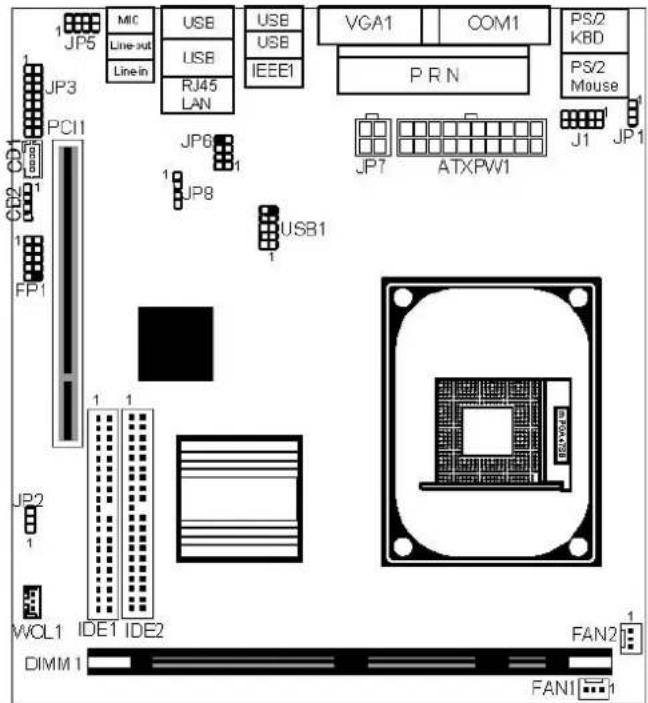
Note 1: Any jumpers on your mainboard that do not appear in the illustration above are for testing only.
Note 2: The mainboard supports IEEE1394a only when SiS962 Southbridge is installed.
2: Mainboard Installation
I/O Ports
The illustration below shows a side view of the built-in I/O ports on the mainboard.
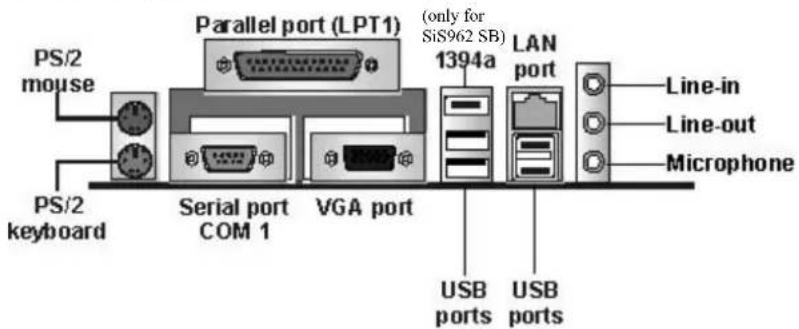
| PS/2 Mouse | Use the upper PS/2 port to connect a PS/2 pointing device. |
| PS/2 Keyboard | Use the lower PS/2 port to connect a PS/2 keyboard. |
| LPT1 | Use LPT1 to connect printers or other parallel communications devices. |
| COM1 | Use the COM port to connect serial devices such as mice or fax/modems. COM1 is identified by the system as COM1. |
| VGA | Use the VGA port to connect VGA devices. |
| 1394a Port | Use the 1394a port to connect any Firewire devices. (only for SiS962 SB) |
| LAN Port | Connect an RJ-45 jack to the LAN port to connect your computer to the Network. |
| USB Ports | Use the USB ports to connect USB devices. |
| Audio Ports | Use the three audio ports to connect audio devices. The first jack is for stereo Line-In signal. The second jack is for stereo Line-Out signal. The third jack is for Microphone. |
Mainboard User's Manual
Install A CPU
This mainboard has a Socket-478 that supports Intel Pentium 4 series processors.
To ensure reliability, ensure that your processor has a heatsink/cooling fan assembly.
Do neither try to install a Socket 370 processor nor a Socket 423 in the Socket-478. A Socket 370 processor such as the Pentium III, or Celeron, does not fit in the Socket 478.
The following processor is currently supported by this mainboard.
Intel P4 478: 1.4GHz \~ 2.8GHz and up, FSB: 533MHz
Installing a Socket-478 Processor
A processor installs into the ZIF (Zero Insertion Force) Socket-478 on the mainboard.
- Locate the Socket-478 and CPUFAN FAN1. Pull the locking lever out slightly from the socket and raise it to the upright position.

-
On the processor, identify the Pin-1 corner by its beveled edge.
-
On the Socket-478, identify the Pin-1 corner. The Pin-1 corner is at the top of the locking lever when it locked.
-
Match the Pin-1 corners and insert the processor into the socket. No force is required and the processor should drop into place freely.
-
Swing the locking lever down and hook it under the catch on the side of the socket. This secures the CPU in the socket.
2: Mainboard Installation
- All processors should be installed with a combination heatsink/cooling fan, connect the cable from the fan to the CPU fan power connector FAN1.
Installing Memory Modules
This mainboard has one 184-pin 2.5V unbuffered DDR SDRAM memory modules. The memory chips must be standard or registered SDRAM (Synchronous Dynamic Random Access Memory).
The CPU supports 100MHz system bus. The DDR SDRAM DIMM can synchronously work with 100 MHz or operates over a 266 MHz system bus.
DDR SDRAM provides 800 MB/s or 1 GB/s data transfer rate corresponding with the bus 100 MHz or 266 MHz. It doubles the rate to 1.0 GB/s and 2.1 GB/s by transferring data on both the rising and falling edges of the clock.
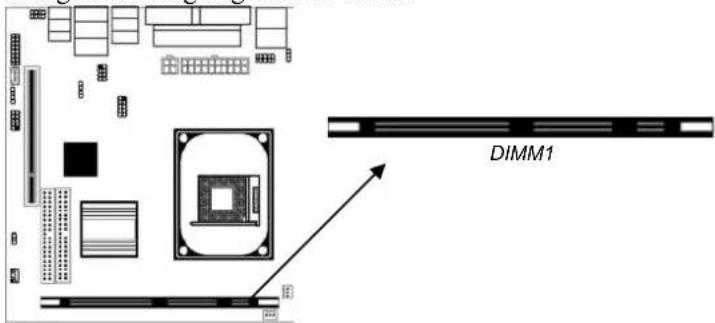
Installation Procedure
The mainboard has one memory module. You can install one module in the socket with maximum 1GB system memory. Refer to the following to install the memory module.
-
Push the latches on each side of the DIMM socket down.
-
Align the memory module with the socket. The DIMM socket is keyed with notches and the DIMM is keyed with cutouts so that they can only be installed correctly.
Mainboard User's Manual
-
Check that the cutouts on the DIMM module edge connector match the notches in the DIMM socket.
-
Install the DIMM module into the socket and press it firmly down until it is seated correctly. The socket latches are levered upwards and latch on to the edges of the DIMM.
Setting Jumper Switches
Jumpers are sets of pins that can be connected together with jumper caps. Jumper caps change the operating way of the mainboard by changing the electronic circuits. If a jumper cap connects two pins, these pins are SHORT; if it is removed, these pins are OPEN.
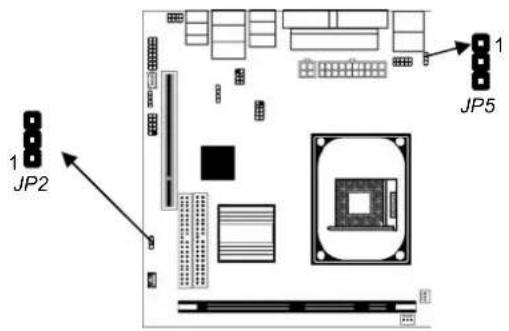
Jumper JP2: Clear CMOS Memory
This jumper can clear the contents of the CMOS memory. You may need to clear the CMOS memory if the settings in the Setup Utility are incorrect and prevent your mainboard from operating. To clear the CMOS memory, disconnect all the power cables from the mainboard and then move the jumper cap into the CLEAR setting for a few seconds.
| Function | Jumper |
| Clear CMOS Short Pins | 1-2 |
| Normal Mode Short Pins | 2-3 |
Setting
2: Mainboard Installation
JP1: Keyboard Power On
If the Keyboard Power On is enabled, hot keys on the keyboard can work as a power on/off switch for the system.
| Function | Jumper | Setting |
| Disabled Short Pins 1-2 | ||
| Enabled | Short | Pins |
2-3
Note: The system must supply at least 1A on the +5VSB (+5V Standby) signal before enabling the Keyboard Power On function.
Install the Mainboard
Install the mainboard in a system chassis (case). The board is a Mini-Micro ATX size mainboard. You can install this mainboard in an ATX case. Ensure that your case has an I/O cover plate that matches the ports on this mainboard. Install the mainboard in a case. Follow the instructions provided by the case manufacturer using the hardware and internal mounting points on the chassis.
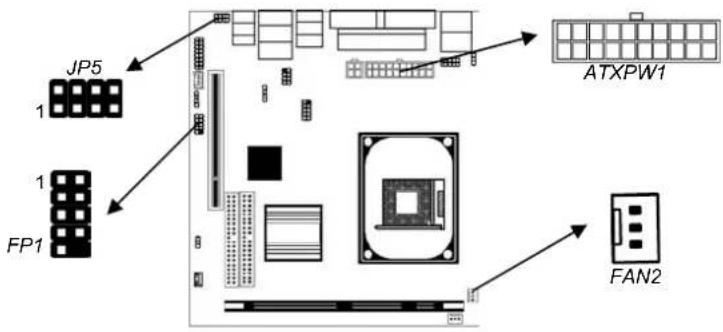
Connect the power connector from the power supply to the ATXPW1 connector on the mainboard.
If there is a cooling fan installed in the system chassis, connect the cable from the cooling fan to the FAN2 fan power connector on the mainboard.
Mainboard User's Manual
Connect the case switches and indicator LEDs to the FP1 header. Here is a list of the FP1 header's pin assignments.
| Pin | Signal | Pin | Signal |
| 1 | HDLED+ | 2 | PWR/SLP+ |
| 3 | HDLED- | 4 | PWR/SLP+ |
| 5 | RSTGND | 6 | PSW+ |
| 7 | RESET | 8 | PSW- |
| 9 | RESEV | 10 | KEY |
If there are a headphone jack or/and a microphone jack on the front panel, connect the cables to the JP5 header on the mainboard. Here is a list of the JP5 header's pin assignments.
| Pin | Signal | Pin | Signal |
| 1 | GND | 2 | GND |
| 3 | MICI | 4 | MICO |
| 5 | SPR | 6 | SPRO |
| 7 | SPL | 8 | SPLO |
Install the Extension Brackets
The extension brackets connect features on the mainboard to external connectors that can be attached to the system chassis. Follow these steps below to install the extension brackets.
Note: All the ribbon cables used on the extension brackets have a red stripe on the Pin-1 side of the cable.
2: Mainboard Installation
Fax/Modem Module
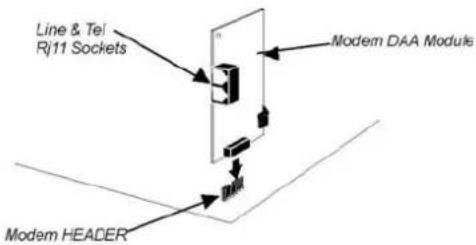
The Fax/Modem DAA module plugs directly into the mainboard in aligned with an expansion slot opening in the system chassis.
When you remove the slot cover from the system chassis, you can access the LINE and TEL RJ11 connectors on the metal edge of the Fax/Modem DAA module.

| Pin | Signal Pin | Signal | |
| 1 | PHONE_IN | 2 | GROUND |
| 3 | GROUND | 4 | NC |
| 5 | SB3V 6 | NC | |
| 7 | GROUND | 8 | NC |
| 9 | VCC3 10 | GROUND | |
| 11 | SDATO 12 | SDATI 0/1 | |
| 13 | AC_RESET- | 14 | SYNC |
| 15 | BIT_CLK 16 | NC | |
- Locate the modem header on this mainboard.
- Plug the Fax/Modem DAA module into the modem header.
- Remove the modem header slot cover.
flowchart
graph TD
    A["Line & Tel Rj11 Sockets"] --> B["Modem DAA Module"]
    B --> C["Modem HEADER"]
    C --> D["Modem Header"]
Mainboard User's Manual
Optional Extension Brackets
For this mainboard, you can also obtain a USB module extension bracket for more USB ports. Install them by following the steps below.
Note: All the ribbon cables used on the extension brackets have a red stripe on the Pin-1 side of the cable.
Extended USB Module
This module bracket has four USB ports for more USB devices (USB port 3-6).
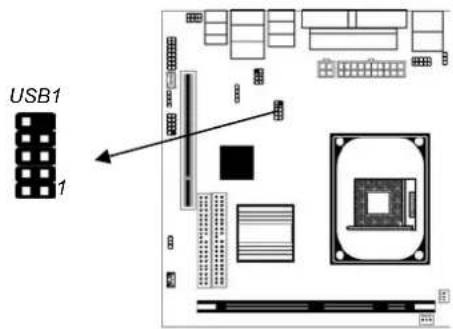
USB1
| Pin | Signal | Pin | Signal |
| 1 | VCC5 | 2 | VCC5 |
| 3 | -UV5 | 4 | UV2- |
| 5 | +UV5 | 6 | UV2+ |
| 7 | GROUND | 8 GROUND | |
| 9 | KEY | 10 | NC |
- Locate the USB1 header on the mainboard.
- Plug the bracket cable onto the USB1 header.
- In the system chassis, remove one expansion slot cover and install an extension bracket in the opening.
- Secure the extension bracket to the chassis with a screw.
2: Mainboard Installation
Extended IEEE1394a Header (only for SiS962 SB)
You can obtain one optional IEEE1394a header. Install it by following the steps below.
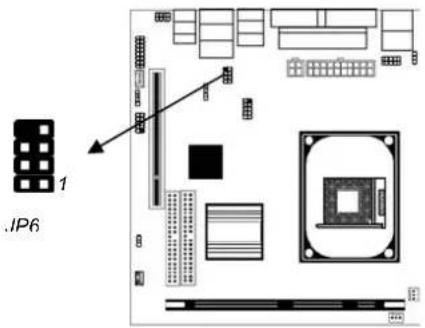
JP6
| Pin | Signal | Pin | Signal |
| 1 | VCC | 2 | GROUND |
| 3 | TPB1- | 4 | TPB1+ |
| 5 | TPA1- | 6 | TPA1+ |
| 7 | SHIELD | 8 KEY |
- Locate the JP6 header on the mainboard.
- Plug the bracket cable onto the JP6 header.
- In the system chassis, remove the blanking plate from the corresponding expansion slot you want to use, and install an extension bracket in there. Secure the extension bracket in the chassis with a screw.
Mainboard User's Manual
Install Other Devices
Install and connect other devices in the system as steps below.

IDE Devices
IDE devices include hard disk drives, high-density diskette drives, and CD-ROM or DVD-ROM drives, among others.
The mainboard ships with an IDE cable that can support one or two IDE devices. If you connect two devices to a single cable, you must configure one of the drives as Master and one of the drives as Slave. The documentation of the IDE device will tell you how to configure the device as a Master or Slave device. The Master device connects to the end of the cable.
Install the device(s) and connect power from the system power supply. Use the cable provided to connect the device(s) to the Primary IDE channel connector IDE1 on the mainboard. If you want to install more IDE devices, you can purchase a second IDE cable and connect one or two devices to the Secondary IDE channel connector IDE2 on the mainboard. If you have two devices on the cable, one must be Master and one must be Slave.
2: Mainboard Installation
Internal Sound Connections
If you have installed a CD-ROM drive or DVD-ROM drive, you can connect the drive audio cable to the onboard sound system.

On the mainboard, locate the two 4-pin connectors CD1 and CD2. There are two kinds of connector because different brands of CD-ROM drive have different kinds of audio cable connectors. Connect the cable to the appropriate connector.
| Pin | Signal | Pin | Signal |
| 1 CD IN L | 1 GND | ||
| 2 | GND | 2 | CD |
| 3 | GND | 3 | GND |
| 4 CD IN R | 4 CD IN L |
Keyboard Remote Control Header
This header J1 connects to the Keyboard/Mouse port from the front panel. Here is a list of the J1 header's pin assignments.
| Pin | Signal Pin | Signal | |
| 1 | XKBDAT | 2 | KBDAT |
| 3 | XKBCLK | 4 | KBCLK |
| 5 | GROUND | 6 | SB5V |
| 7 | XPMDAT | 8 | PMDAT |
| 9 | XPMCLK | 10 | PMCLK |
Mainboard User's Manual
Onboard LAN LED Connections
If you have a set indicator LEDs for the onboard LAN communication, you can connect the LED cable to the header JP8.
| Pin | Signal | Pin | Signal |
| 1 | LED0 | 2 | VCC5 |
| 3 | GROUND | 4 | LED3 |
Expansion Slots
This mainboard has one 32-bit PCI slot.

Follow the steps below to install a PCI expansion card.
- Locate the PCI slot on the mainboard.
- Remove this slot cover from the system chassis.
- Insert the expansion card edge connector into the slot and press it firmly down into until fully seated.
- Secure the expansion card bracket to the system chassis with a screw.
Chapter 3
BIOS Setup Utility
Introduction
The BIOS Setup Utility records settings and information about your computer such as the date and time, the type of installed hardware, and various configuration settings. Your computer applies that information to initialize all the components while booting up, and the basic functions of coordination between system components.
If the Setup Utility configuration is incorrect, it may cause the system to malfunction. It can even stop your computer booting properly. If it happens, you can use the clear CMOS jumper to clear the CMOS memory that has stored the configuration information; or you can hold down the Page Up key while rebooting your computer. Holding down the Page Up key also clears the setup information.
You can run the setup utility and manually change the configuration. You might need to do this to configure some hardware installed in or connected to the mainboard, such as the CPU, system memory, disk drives, etc.
Mainboard User's Manual
Running the Setup Utility
Every time you start your computer, a message appears on the screen before the operating system loading that prompts you to "Hit if you want to run SETUP". Whenever you see this message, press the Delete key and the Main menu page of the Setup Utility appears on your monitor.
AMIBIOS SIMPLE SETUP UTILITY - VERSION 1.21.12
(C) 2000 American Megatrends, Inc. All Rights Reserved
| Standard CMOS SetupAdvanced SetupPower Management SetupPCI / Plug and Play SetupLoad Optimal SettingsLoad Best Performance Settings | Features SetupCPU PnP SetupHardware MonitorChange PasswordExit |
| Esc : Quit ↑↓←→: Select Item (Shift)F2 : Change Color F5 : Old ValuesF6 : Optimal values F7 : Best performance values F10 : Save&Exit | |
| Standards COMOS setup for changing time, date, hard disk type, etc. | |
You can use cursor arrow keys to highlight anyone of options on the main menu page. Press Enter to select the highlighted option. Press the Escape key to leave the setup utility. Hold down the Shift key and press F2 to cycle through the Setup Utility's optional color schemes.
Some options on the main menu page lead to tables of items with installed values that you can use cursor arrow keys to highlight one item, and press PgUp and PgDn keys to cycle through alternative values of that item. The other options on the main menu page lead to dialog boxes requiring your answer Yes or No by hitting the Y or N keys.
If you have already changed the setup utility, press F10 to save those changes and exit the utility. Press F5 to reset the changes to the original values. Press F6 to install the setup utility with a set of default values. Press F7 to install the setup utility with a set of high-performance values.
Standard CMOS Setup Page
This page helps you set up basic information such as the date and time, the IDE devices, and the diskette drives.
| AMIBIOS SETUP - STANDARD CMOS SETUP (C) 2000 American Megatrends, Inc. All Rights Reserved | ||||||||||
| Date (mm/dd/yy): Thu Dec 12, 2002 Time (hh/mm/ss): 18:31:05 | ||||||||||
| Type | Size | CyIn | Head | WPcom | Sec | LBA Mode | Blk Mode | PIO Mode | 32Bit Mode | |
| Pri Master : Auto | On | |||||||||
| Pri Slave : Auto | On | |||||||||
| Sec Master : Auto | On | |||||||||
| Sec Slave : Auto | On | |||||||||
| Floppy Drive A : 1.44 MB 3 1/2 Floppy Drive B : Not Installed | ||||||||||
| Month : Jan - Dec Day : 01-31 Year : 1901-2099 | ESC : Exit ↑↓ : Select Item PU/PD/+- : Modify (Shift)F2 : Color F3 : Detect All HDD | |||||||||
| Date & Time | Use these items to set the system date and time |
| Pri Master | Use these items to configure devices connected to the Primary and Secondary IDE channels. To configure an IDE hard disk drive, choose Auto. If the Auto setting fails to find a hard disk drive, set it to User, and then fill in the hard disk characteristics (Size, Cyls, etc.) manually. If you have a CD-ROM drive, select the setting CDROM. If you have an ATAPI device with removable media (e.g. a ZIP drive or an LS-120) select Floptical. |
| Pri Slave | |
| Sec Master | |
| Sec Slave | |
| Floppy Drive A | Use these items to set the size and capacity of the floppy diskette drive(s) installed in the system. |
| Floppy Drive B |
Mainboard User's Manual
Advanced Setup Page
This page sets up more advanced information about your system. Take care of this page with caution. Any changes can affect the operation of your computer.
| AMIBIOS SETUP - ADVANCED SETUP(C) 2000 American Megatrends, Inc. All Rights Reserved | |
| Quick Boot Enabled 1^st Boot Device IDE-0 2^nd Boot Device IDE-1 3^rd Boot Device CDROMTry Other Boot Devices YesS.M.A.R.T. for Hard Disks DisabledBootUp Num-Lock OnPassword Check SetupBoot To OS/2 >64MB NoL2 Cache EnabledSystem BIOS Cacheable DisabledShare Memory Size 32 MBGraphic Win Size 4MDRAM CAS# Latency 3TTiming Setting Mode NormalMA 1T/2T Select MA 2TAdvanced Read Prefetch EnabledHyper Threading Function Disabled | Auto Detect DIMM/PCI Clk EnabledSpread Spectrum DisabledDOS Flat Mode Disabled |
| ESC : Quit ↑↓←→ : Select ItemF1 : Help PU/PD/+/- : ModifyF5 : Old Values (Shift)F2 : ColorF6 : Load BIOS DefaultsF7 : Load Setup Defaults | |
| Quick Boot | If you enable this item, the system starts up more quickly be elimination some of the power on test routines. |
| 1^st Boot Device 2^nd Boot Device 3^rd Boot Device | Use these items to determine the device order the computer uses to look for an operating system to load at start-up time. |
| Try Other Boot Device | If you enable this item, the system will also search for other boot devices if it fails to find an operating system from the first two locations. |
| S.M.A.R.T. for Hard Disks | Enable this item if any IDE hard disks support the S.M.A.R.T. (Self-Monitoring, Analysis and Reporting Technology) feature. |
| BootUp Num-Lock | This item determines if the Num Lock key is active or inactive at system start-up time. |
3: BIOS Setup Utility
| Password Check | If you have entered a password for the system, use this item to determine, if the password is required to enter the Setup Utility (Setup) or required both at start-up and to enter the Setup Utility (Always). |
| Boot to OS/2 > 64MB | Enable this item if you are booting the OS/2 operating system and you have more than 64MB of system memory installed. |
| L2 Cache | Leave these items enabled since all the processors that can be installed on this board have internal L2 cache memory. |
| System BIOS Cacheable | If you enable this item, a segment of the system BIOS will be copied to main memory for faster execution. |
| Share Memory Size | This item lets you allocate a portion of the main memory for the onboard VGA display application with five options of 4/8/16/32/64 MB. |
| Graphic Win Size | This item defines the size of aperture if you use a graphic adapter. |
| DRAM CAS# Latency | This item determines the operation of DRAM memory CAS (column address strobe). It is recommended that you leave this item at the default value. The 3T setting requires faster memory that specifically supports this mode. |
| Timing Setting Mode | This item determines the timing setting mode of the memory. We recommend you leave this item at the default value. |
| MA 1T/2T Select | This item adjusts timing 1T/2T latency. We recommend you to leave this item at the default value. |
| Advanced Read Prefetch | This item enables prefetching for reading data. We recommend you to leave this item at the default value. |
Mainboard User's Manual
| Hyper Threading Function | If your P4 CPU is not HT CPU, this item will be hidden. If your P4 CPU is HT CPU, BIOS will show this item. You can set "Disabled" or "Enabled" to control HT CPU support in O.S. Set "Enabled" to test HT CPU function. |
| Auto Detect DIMM/PCI CIk | When this item is enabled, BIOS will disable the clock signal of free DIMM/PCI slots. |
| Spread Spectrum | If you enable spread spectrum, it can significantly reduce the EMI(Electro-Magnetic Interference) generated by the system. |
| DOS Flat Mode | This item enables BIOS to enter the DOS protected mode without other software supporting under the DOS operating system. We recommend you leave this item at the default value. |
Power Management Setup Page
This page sets some of the parameters for system power management operation.
| AMIBIOS SETUP - POWER MANAGEMENT SETUP(C) 2000 American Megatrends, Inc. All Rights Reserved | |
| Power Management EnabledSuspend Time out DisabledHard Disk Time out DisabledResume On RTC Alarm DisabledRTC Alarm Date 15RTC Alarm Hour 12RTC Alarm Minute 30RTC Alarm Second 30LAN/Ring Power On DisabledKeyboard Power On Disabled | ACPI Aware O/S Yes |
| ESC: Quit ↑↓←→: Select ItemF1: Help PU/PD/+-: ModifyF5: Old Values (Shift)F2: ColorF6: Load BIOS DefaultsF7: Load Setup Defaults | |
| ACPI Aware O/S | Enable this item if you are using an O/S that supports ACPI function such as Windows 98/ME /2000. |
| Power Management | Use this item to select a power management scheme. Both APM and ACPI are supported. |
3: BIOS Setup Utility
| Suspend Time Out | This sets the timeout for Suspend mode in minutes. If the time selected passes without any system activity, the computer will enter power-saving Suspend mode. |
| Hard Disk Time Out | This sets the timeout to power down the hard disk drive, if the time selected passes without any hard disk activity. |
| Resume On RTC Alarm Date / Hour / Minute / Second | The system can be turned off with a software command. If you enable this item, the system can automatically resume at a fixed time based on the system's RTC (realtime clock). Use the items below this one to set the date and time of the wake-up alarm. You must use an ATX power supply in order to use this feature. |
| LAN/Ring Power On | The system can be turned off with a software command. If you enable this item, the system can automatically resume if there is an incoming call on the Modem. You must use an ATX power supply in order to use this feature. |
| Keyboard Power On | If you enable this item, you can turn the system on and off by pressing hot keys on the keyboard. You must enable the Keyboard Power On jumper and use an ATX power supply in order to use this feature. |
Mainboard User's Manual
PCI / Plug and Play Setup Page
This page sets some of the parameters for devices installed on the PCI bus and devices that use the system plug and play capability.
| AMIBIOS SETUP - PCI / PLUG AND PLAY SETUP(C) 2000 American Megatrends, Inc. All Rights Reserved | |
| Primary Graphics Adapter PCIAllocate IRQ to PCI VGA YesPCI IDE BusMaster Disabled | Plug and Play Aware O/S Yes |
| ESC: Quit ↑↓←→ : Select ItemF1: Help PU/PD/+-: ModifyF5: Old Values (Shift)F2: ColorF6: Load BIOS DefaultsF7: Load Setup Defaults | |
| Plug and Play Aware O/S | Enable this item if you are using an O/S that supports Plug and Play such as Windows 95/98/ME. |
| Primary Graphics Adapter | This item indicates if the primary graphics adapter uses the PCI or the AGP bus. The default PCI setting still lets the onboard display work and allows the use of a second display card installed in a PCI slot. |
| Allocate IRQ to PCI VGA | If this item is enabled, an IRQ will be assigned to the PCI VGA graphics system. You set this value to No to free up an IRQ. |
| PCI IDE BusMaster | This item enables or disables the DMA under DOS mode. We recommend you to leave this item at the default value. |
Load Optimal Settings
If you select this item and press Enter a dialog box appears. If you press Y, and then Enter, the Setup Utility loads a set of fail-safe default values. These default values are not very demanding and they should allow your system to function with most kinds of hardware and memory chips.
Note: It is highly recommended that users enter this option to load optimal values for accessing the best performance.
Load Best Performance Settings
If you select this item and press Enter a dialog box appears. If you press Y, and then Enter, the Setup Utility loads a set of best-performance default values. These default values are quite demanding and your system might not function properly if you are using slower memory chips or other low-performance components.
Features Setup Page
This page sets some of the parameters for peripheral devices connected to the system.
| AMIBIOS SETUP - FEATURES SETUP(C) 2000 American Megatrends, Inc. All Rights Reserved | |
| OnBoard IR Port DisabledOnBoard Parallel Port 378hParallel Port Mode ECPParallel Port IRQ 7Parallel Port DMA 3OnBoard Game Port 201hOnBoard MIDI Port 300hMIDI Port IRQ 10OnBoard PCI IDE BothAudio Device EnabledModem Device EnabledEthernet Device EnabledIEEE1394 Device EnabledOnboard USB Function EnabledUSB Function for DOS DisabledThumbDrive for DOS Disabled | OnBoard Serial Port 3F8h/COM1 |
| ESC : Quit ↑↓←→ : Select ItemF1 : Help PU/PD/+/- : ModifyF5 : Old Values (Shift)F2 : ColorF6 : Load BIOS DefaultsF7 : Load Setup Defaults | |
| OnBoard Serial PortA | Use these items to enable or disable the onboard COM1/2 serial port, and to assign a port address. |
| OnBoard IR Port | This item enables or disables the Infrared port, and assigns a port address. If you select a specific address, the resources are assigned to the IR port, and you can use these items below to determine the operation of the IR port. |
| Onboard Parallel Port | Use this item to enable or disable the onboard LPT1 parallel port, and to assign a port address. The Auto setting will detect and available address. |
Mainboard User's Manual
| Parallel Port Mode | Use this item to set the parallel port mode. You can select SPP (Standard Parallel Port), ECP (Extended Capabilities Port), EPP (Enhanced Parallel Port), or ECP + EPP. |
| Parallel Port IRQ | Use this item to assign either IRQ 5 or 7 to the parallel port. |
| Parallel Port DMA | Use this item to assign a DMA channel to the parallel port. The options are 0, 1 and 3. |
| OnBoard Game Port | Use this item to enable or disable the onboard Game port. |
| OnBoard MIDI Port | Use this item to enable or disable the onboard MIDI port, and to assign a port address. |
| MIDI Port IRQ | Use this item to assign an IRQ to the MIDI port. |
| Onboard PCI IDE | Use this item to enable or disable either or both of the onboard Primary and Secondary IDE channels. |
| Audio Device | This item enables or disables the onboard AC'97 audio chip. |
| Modem Device | This item enables or disables the onboard AC'97 modem chip. |
| Ethernet Device | This item enables or disables the onboard Ethernet LAN. |
| IEEE1394 Device | This item enables or disables the onboard IEEE1394. |
| Onboard USB Function | Enable this item if you plan to use the USB ports on this mainboard. |
| USB Function for DOS | Enable this item if you plan to use the USB ports on this mainboard in a DOS environment. |
| ThumbDrive for DOS | Enable this item to make a small portion of memory storage device for the USB ports. |
3: BIOS Setup Utility
CPU PnP Setup Page
This page lets you manually configure the mainboard for the CPU. The system will automatically detect the kind of CPU that you have installed and make the appropriate adjustments to the items on this page.
| AMIBIOS SETUP – CPU PnP SETUP©2000 American Megatrends, Inc. All Rights Reserved | |
| CPU Type Intel P4CPU/DRAM Speed 100/100 MHzCPU Core Voltage 1.616VCPU Ratio H/W TRAPCPU Frequency 100 MHzDRAM Frequency 100 MHz | |
| ESC : Quit ↑↓←→ : Select ItemF1 : Help PU/PD/+/- : ModifyF5 : Old Values (Shift)F2 : ColorF6 : Load Optimal valuesF7 : Load Best performance values | |
| CPU Type/Core Voltage/Ratio/ Frequency | These items show the type, core voltage, ratio and frequency of CPU installed in your system. |
| CPU/DRAM Speed/Frequency | These items decide CPU/DRAM speed/frequency installed in your system. |
Mainboard User's Manual
Hardware Monitor Page
This page sets some of the parameters for the hardware monitoring function of this mainboard.
| AMIBIOS SETUP - HARDWARE MONITOR(C) 2000 American Megatrends, Inc. All Rights Reserved | |
| Vcore 1.616VVcc 2.5V 2.496VVcc 3.3V 3.392VVcc 4.945V+12V 12.032VSB3.3V 3.472V-12V -11.885VSB5V 5.026VVBAT 3.472VSYSTEM Fan Speed 0 RPMCPU Fan Speed 1308RPMPOWER Temperature 38°C/100°FSYSTEM Temperature 37°C/98°FCPU Temperature 30°C/86°FStart Passive Temp 75°C/167°F | *** System Hardware ***ESC : Quit ↑↓←→ : Select ItemF1 : Help PU/PD/+/- : ModifyF5 : Old Values (Shift)F2 : ColorF6 : Load BIOS DefaultsF7 : Load Setup Defaults |
| CPU / System Temperature | These items display CPU and system temperature measurement. |
| FANs & Voltage Measurements | These items indicate cooling fan speeds in RPM and the various system voltage measurements. |
| Start Passive Temp | If the CPU temperature goes higher than the defaulted measurement, the BIOS will adjust it to maintain the defaulted temperature. |
3: BIOS Setup Utility
Change Password
If you highlight this item and press Enter, a dialog box appears which lets you enter a Supervisor password. You can enter no more than six letters or numbers. Press Enter after you have typed in the password. A second dialog box asks you to retype the password for confirmation. Press Enter after you have retyped it correctly. The password is then required to access the Setup Utility or for that and at start-up, depending on the setting of the Password Check item in Advanced Setup.
Change or Remove the Password
Highlight this item, press Enter and type in the current password. At the next dialog box, type in the new password, or just press Enter to disable password protection.
Exit
Highlight this item and press Enter to save the changes that you have made in the Setup Utility configuration and exit the program. When the Save and Exit dialog box appears, press Y to save and exit, or press N to exit without saving.
Mainboard User's Manual
Chapter 4
Software & Applications
Introduction
This chapter describes the contents of the support CD-ROM that comes with the mainboard package.
The support CD-ROM contains all useful software, necessary drivers and utility programs to properly run our products. More program information is available in a README file, located in the same directory as the software.
To run the support CD, simply insert the CD into your CD-ROM drive. An Auto Setup screen automatically pops out, and then you can go on the auto-installing or manual installation depending on your operating system.
If your operating system is Windows 98/ME/2000/XP, it will automatically install all the drivers and utilities for your mainboard; if Windows NT or manual installation, please follow the instructions described as the Installing under Windows NT or Manual Installation section.
Mainboard User's Manual
Installing Support Software
- Insert the support CD-ROM disc in the CD-ROM drive.
- When you insert the CD-ROM disc in the system CD-ROM drive, the CD automatically displays an Auto Setup screen.
- The screen displays three buttons of Setup, Browse CD and Exit on the right side, and three others Setup, Application and ReadMe at the bottom. Please see the following illustration.
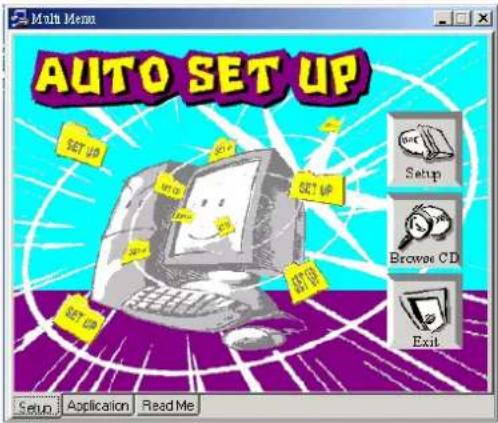
The Setup button runs the software auto-installing program as explained in next section.
The Browse CD button is a standard Windows command that you can check the contents of the disc with the Windows 98 file browsing interface.
The Exit button closes the Auto Setup window. To run the program again, reinsert the CD-ROM disc in the drive; or click the CD-ROM driver from the Windows Explorer, and click the Setup icon.
The Application button brings up a software menu. It shows the bundled software that this mainboard supports.
The ReadMe brings you to the Install Path where you can find out path names of software driver.
4: Software & Applications
Auto-Installing under Windows 98/ME/2000/XP
If you are under Windows 98/ME/2000/XP, please click the Setup button to run the software auto-installing program while the Auto Setup screen pops out after inserting the support CD-ROM:
- The installation program loads and displays the following screen. Click the Next button.
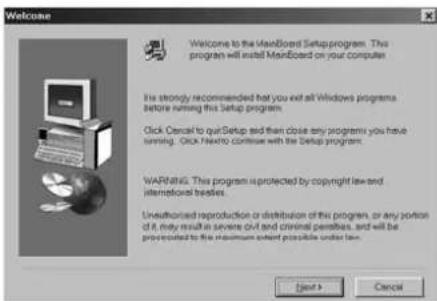
- Select the items that you want to setup by clicking on it (the default options are recommended). Click the Next button to proceed.
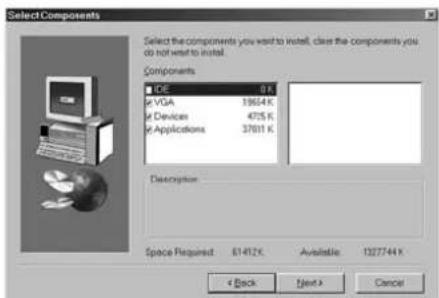
- The support software will automatically install.
Once any of the installation procedures start, software is automatically installed in sequence. You need to follow the onscreen instructions, confirm commands and allow the computer to restart as few times as needed to complete installing whatever software you selected. When the process is finished, all the support software will be installed and start working.
Mainboard User's Manual
Installing under Windows NT or Manual Installation
If you are under Windows NT, the auto-installing program doesn't work out; or you have to do the manual installation, please follow this procedure while the Auto Setup screen pops out after inserting the support CD-ROM:
- Click the ReadMe to bring up a screen, and then click the Install Path at the bottom of the screen.
- Find out your mainboard model name and click on it to obtain its correct driver directory.
- Install each software in accordance with the corresponding driver path.
Bundled Software Installation
All bundled software available on the CD-ROM is for users' convenience. You can install bundled software as follows:
- Click the Application button while the Auto Setup screen pops out after inserting the support CD-ROM.
- A software menu appears. Click the software you want to install.
- Follow onscreen instructions to install the software program step by step until finished.
Hyper Threading CPU
You must update BIOS to initiate BIOS Hyper Threading Function and use HT CPU function under WinXP Operating System; if not, please disable this option.
When BIOS detects the HT CPU, it shows the “Hyper Threading Function (default Disabled)” option, which you must set Enabled if you want to test HT CPU function. If there is no HT CPU, this option is hidden and default Disabled.
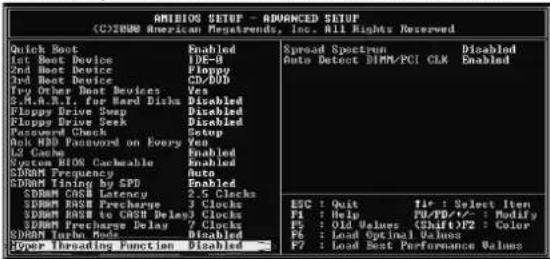
◆ To test HT CPU function, you must use HT CPU to re-install WINXP.

While you are in Windows Task Manager, please push down ctrl+Alt Del keys. A dual CPU appears in the CPU Usage History&Device Manager under WinXP.
Note: Hyper Threading Function only works under WINXP Operating System; therefore, disable it under other Operating System.


- Mainboard User's Manual
- Trademarks
- Notice:
- Table of Contents
- Chapter 1
- Introduction
- Key Features
- Socket-478 Processor
- Chipset
- Memory Support
- Expansion Slots
- Onboard IDE channels
- Power Supply and Power Management
- 1: Introduction
- Onboard VGA
- AC97 Audio Codec
- Built-in Ethernet LAN
- Onboard I/O Ports
- Hardware Monitoring
- Onboard Flash ROM
- USB 2.0
- IEEE 1394a (only for SiS962 SB)
- Bundled Software
- Dimensions
- Package Contents
- Optional Accessories
- Static Electricity Precautions
- Pre-Installation Inspection
- Chapter 2
- Mainboard Installation
- Note:
- Mainboard Components
- 2: Mainboard Installation
- I/O Ports
- Install A CPU
- To ensure reliability, ensure that your processor has a heatsink/cooling fan assembly.
- Installing a Socket-478 Processor
- Installing Memory Modules
- Installation Procedure
- Setting Jumper Switches
- Jumper JP2: Clear CMOS Memory
- JP1: Keyboard Power On
- Install the Mainboard
- Install the Extension Brackets
- Fax/Modem Module
- Optional Extension Brackets
- Extended USB Module
- Extended IEEE1394a Header (only for SiS962 SB)
- Install Other Devices
- IDE Devices
- Internal Sound Connections
- Keyboard Remote Control Header
- Onboard LAN LED Connections
- Chapter 3
- BIOS Setup Utility
- Running the Setup Utility
- Standard CMOS Setup Page
- Advanced Setup Page
- Power Management Setup Page
- PCI / Plug and Play Setup Page
- Load Optimal Settings
- Load Best Performance Settings
- Features Setup Page
- 3: BIOS Setup Utility
- CPU PnP Setup Page
- Hardware Monitor Page
- Change Password
- Change or Remove the Password
- Exit
- Chapter 4
- Software & Applications
- Installing Support Software
- 4: Software & Applications
- Auto-Installing under Windows 98/ME/2000/XP
- Installing under Windows NT or Manual Installation
- Bundled Software Installation
- Hyper Threading CPU
Brand : ECS
Model : ES4m
Category : Tablet