EDN288ME - Security Camera EverFocus - Free user manual and instructions
Find the device manual for free EDN288ME EverFocus in PDF.


User questions about EDN288ME EverFocus
0 question about this device. Answer the ones you know or ask your own.
Ask a new question about this device
Download the instructions for your Security Camera in PDF format for free! Find your manual EDN288ME - EverFocus and take your electronic device back in hand. On this page are published all the documents necessary for the use of your device. EDN288ME by EverFocus.
USER MANUAL EDN288ME EverFocus
Value IP Series Outdoor Network Camera
2-Megapixel 288 Series / 3-Megapixel 368 Series / 4-Megapixel 468 Series
User's Manual
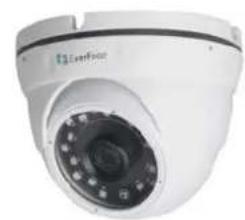
natural_image
Exterior view of a white surveillance camera (no visible text or symbols)EBN288/368/468

text_image
EverFocusEDN288M/368M/468M
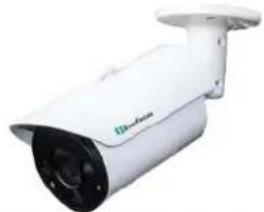
natural_image
White security camera with black lens and ventilation slots (no visible text or symbols)EZN288M/368M/468M
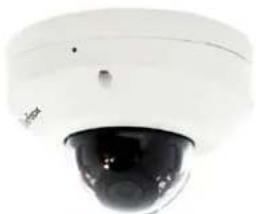
natural_image
Close-up of a white surveillance camera with a black dome lens (no visible text or symbols)EMN468

natural_image
Exterior view of a white surveillance camera with a black dome lens (no visible text or symbols)EMN468W
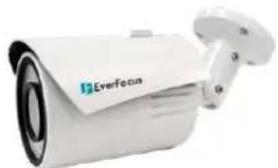
natural_image
Exterior view of a white surveillance camera with 'EverFocus' branding (no additional text or symbols visible)EZN288/368/468

EverFocus
Copyright © EverFocus Electronics Corp.
Release Date: January, 2018

EverFocus
Copyright © 1995-2018 EverFocus Electronics Corp.
Disclaimer
All the images including product pictures or screen shots in this document are for example only. The images may vary depending on the product and software version. Information contained in this document is subject to change without notice.
Copyright
All rights reserved. No part of the contents of this manual may be reproduced or transmitted in any form or by any means without written permission of the EverFocus Electronics Corporation.
EverFocus
12F-1, No.79, Sec. 1, Shin-Tai Wu Road,
Hsi-Chih, New Taipei City, Taiwan
TEL: +886 2 2698 2334
FAX: +886 2 2698 3943
www.everfocus.com.tw
January, 2018
About this document
All the safety and operating instructions should be read and followed before the unit is operated. This manual should be retained for future reference. The information in this manual was current when published. The manufacturer reserves the right to revise and improve its products. All specifications are therefore subject to change without notice.
Regulatory Notices
FCC Notice "Declaration of Conformity Information"
This equipment has been tested and found to comply with the limits for a Class
A digital device, pursuant to part 15 of the FCC Rules. These limits are designed to provide reasonable protection against harmful interference in a residential installation. This equipment generates, uses and can radiate radio frequency energy and, if not installed and used in accordance with the instructions, may cause harmful interference to radio communications. However, there is no guarantee that interference will not occur in a particular installation. If this equipment does cause harmful interference to radio or television reception, which can be determined by turning the equipment off and on, the user is encouraged to try to correct the interference by one or more of the following measures:
- Reorient or relocate the receiving antenna.
- Increase the separation between the equipment and receiver.
- Connect the equipment into an outlet on a circuit different from that to which the receiver is connected.
- Consult the dealer or an experienced radio/TV technician for help.
Warning: Changes or modifications made to this equipment, not expressly approved by EverFocus or parties authorized by EverFocus could void the user's authority to operate the equipment.
This device complies with part 15 of the FCC Rules. Operation is subject to the following two conditions:
(1) This device may not cause harmful interference, and
(2) This device must accept any interference received, including interference that may cause undesired operation.
EverFocus Electronics Corp.
12F-1, No. 79, Sec. 1, Shin-Tai Wu Rd.,
Hsi-Chi, New Taipei City, Taiwan
Value IP Series camera complies with CE and FCC.
Precautions
Do not install the camera near electric or magnetic fields.
Install the camera away from TV/radio transmitters, magnets, electric motors, transformers and audio speakers since the electromagnetic fields generated from these devices may distort the video image or otherwise interfere with camera operation.
Never disassemble the camera beyond the recommendations in this manual nor introduce materials other than those recommended herein.
Improper disassembly or introduction of corrosive materials may result in equipment failure or other damage.
Try to avoid facing the camera toward the sun.
In some circumstances, direct sunlight may cause permanent damage to the sensor and/or internal circuits, as well as creating unbalanced illumination beyond the capability of the camera to compensate.
- Keep the power cord away from water and other liquids and never touch the power cord with wet hands.
Touching a wet power cord with your hands or touching the power cord with wet hands may result in electric shock.
- Never install the camera in areas exposed to oil, gas or solvents.
Oil, gas or solvents may result in equipment failure, electric shock or, in extreme cases, fire.
- Cleaning
For cameras with interchangeable lenses, do not touch the surface of the sensor directly with the hands. Use lens tissue or a cotton tipped applicator and ethanol to clean the sensor and the camera lens. Use a damp soft cloth to remove any dirt from the camera body. Please do not use complex solvents, corrosive or abrasive agents for cleaning of any part of the camera.
- Do not operate the camera beyond the specified temperature, humidity or power source ratings.
Use the camera at temperatures within -10^ 50^ / 14^ 122^ , and humidity between 0% and 90%; this device is not rated as submersible. The input power source is 12VDC / PoE. Be sure to connect the proper + / - polarity and voltage, as incorrect polarity or too high a voltage will likely cause the camera to fail, and such damage is not covered by the warranty. The use of properly fused or Class 3 power limited type supplies is highly recommended.
- Mounting
Use care in selecting a solid mounting surface which will support the weight of the camera plus any wind, snow, ice or other loading, and securely attach the camera to the mounting surface using screws and anchors which will properly support the camera. If necessary (e.g. when mounting to drop ceilings) use a safety wire to provide additional support for the camera.
CONTENTS
- Introduction......1
- Physical Description .... 3
2.1. Dimensions ....5
- FEATURES....7
- Installation....8
4.1. Packing List....8
4.2. Optional Accessory 8
4.3. Cables....9
4.4. Basic Installation....11
4.4.1 Mounting and Wiring....11
4.4.2 Inserting a Micro SD Card 22
- Accessing the Camera 25
5.1. Checking the Dynamic IP Address 25
5.2. Settings for Microsoft Internet Explorer....27
5.3. Connecting the Camera to the Network....28
5.4. Live View Window 30
- Quick Setup Panel 32
6.1 Streaming....32
6.2 Camera....33
6.3 Lens CTRL....33
6.4 Account....34
- System 34
7.1. System Settings....35
7.1.1 Network 35
7.1.1.1 IP Settings....35
7.1.1.2 Multicast Settings....37
7.1.1.3 DDNS Settings....38
7.1.2 Date / Time 40
7.1.2.1 Date/Time Settings....40
7.1.2.2 NTP Settings....40
7.1.2.3 DST Settings....41
7.1.3 Schedule Record 42
7.1.4 Storage....43
7.1.5 Display and Overlay....44
7.1.6 System Maintenance....45
7.1.5.1 Upgrade Firmware....45
7.1.5.2 Auto Reboot 45
7.1.5.3 Restore....46
7.1.7 System Information....48
7.1.8 User....49
7.1.9 Serial Communication....51
7.1.10 Local Settings ....52
7.2. Camera Settings....53
7.2.1 Streaming and Audio ....53
7.2.1.1 Audio Settings....53
7.2.1.2 Stream Settings....54
7.2.1.3 Privacy Mask Settings....55
7.2.2 Camera....56
7.2.3 Image 59
7.3. Event Settings 60
7.3.1 Event 60
7.3.1.1 Motion Settings....60
7.3.1.2 Tamper Detection Settings 62
7.3.1.3 Alarm Input....63
7.3.1.4 Alarm Output....65
7.3.1.5 Exception Settings 66
7.3.2 Notification....67
7.3.2.1 Email Settings 67
7.4. Search and Play....68
7.4.1 Playback 68
7.4.2 File....70
7.4.3 View Log....72
8. Upgrading Firmware Using IP Utility....73
9. Specifications 75
10. Troubleshooting....77
Appendix....77
A. Enabling the Multicast Function....77
B. RTSP URL Syntax 79
C. Setting up Port Forwarding Function....80
D. Setting up DDNS Function 82
1. Introduction
The Value IP 2-megapixel 288 / 3-megapixel 368 / 4-megapixel 468 series H.265 Outdoor IP camera provides 30fps at 1920 x 1080 / 2048 x 1536 / 2592 x 1520 viewing resolution. The series supports dual streams from H.265 or H.264 video compression formats. In same resolution, the H.265 provides higher compression efficiency and lower bitrate comparing with H.264 codec, allowing more efficient bandwidth and data storage usage. The True Wide Dynamic Range (WDR) function on the other hand enables the IP camera to provide clear images even under back light circumstances where intensity of illumination can vary excessively.
Featured with a motorized zoom lens, EDN288M/368M/468M; EZN288M/368M/EZN468M can provide the desired field of view with superior video quality in precise focus. Equipped with a weather-proof (IP66) housing, the Value IP 288 / 368 / 468 series meets a wide variety of needs for outdoor surveillance. Except 12VDC power supply, the series also supports Power over Ethernet (IEEE 802.3af), which eliminates the need for power cables and thus reduce the installation costs.
The Value IP 288 / 368 / 468 series conforms to ONVIF for compatibility with other network video devices. You can also use EverFocus Mobile applications to remotely view the live views of the cameras through your iOS or android handheld devices; or use EverFocus CMS to remotely manage multiple IP devices connected on the network.
Types of Models
The Value IP camera provides two types: Standard type and Economic type. The Standard type models provide full functionality; while the Economic type models provide basic functionality.
| Standard Type Economic Type | ||
| Supported Models | EBN288/368/468EDN288M/368M/468MEZN288/368/468EZN288M/368M/468M | EBN288/368/468EDN288M/368M/468MEMN468/468WEZN288/368/468EZN288M/368M/468M |
| Functions | ||
| Audio In/Out Supported - | ||
| Alarm In/Out Supported - | ||
| RS-485 | Reserved | - |
Models Comparison
| Model Name | Lens | Max. Resolution | Storage | IR / WDR | IP66 / IK10 |
| EBN288 | 3.6mm Fixed Lens | 1920 x 1080 | - | Yes / T-WDR | Yes / - |
| EBN368 | 2048 x 1536 | Yes / T-WDR | |||
| EBN468 | 2592 x 1520 | Yes / D-WDR | |||
| EDN288M | 2.8-12mm Motorized Lens | 1920 x 1080 | Micro SD / SDHC / SDXC (Max. 128GB) | Yes / T-WDR | Yes / Yes |
| EDN368M | 2048 x 1536 | Yes / T-WDR | |||
| EDN468M | 2592 x 1520 | Yes / D-WDR | |||
| EMN468 3.6mm Fixed Lens | 2592 x 1520 | Micro SD / SDHC / SDXC (Max. 128GB) | Yes / D-WDR | Yes / - | |
| EMN468W | 2.2mm Fixed Lens | - / D-WDR | |||
| EZN288 | 3.6mm Fixed Lens | 1920 x 1080 | Micro SD / SDHC / SDXC (Max. 128GB) | Yes / T-WDR | Yes / - |
| EZN368 | 2048 x 1536 | Yes / T-WDR | |||
| EZN468 | 2592 x 1520 | Yes / D-WDR | |||
| EZN288M | 2.8-12mm Motorized Lens | 1920 x 1080 | Micro SD / SDHC / SDXC (Max. 128GB) | Yes / T-WDR | Yes / - |
| EZN368M | 2048 x 1536 | Yes / T-WDR | |||
| EZN468M | 2592 x 1520 | Yes / D-WDR | |||
System Requirement
Before installing, please check that your computer meets the following system requirements.
• Operating System: Microsoft Windows XP / Vista (32-bit) / 7 (32-bit)
- Microsoft Internet Explorer 11 or later, Chrome (Windows version 44 and earlier), Firefox version 50 and earlier, EverFocus Browser
Note: For using the Internet Explorer, some settings are required. Please refer to 5.2 Settings for Microsoft Internet Explorer.
2. Physical Description
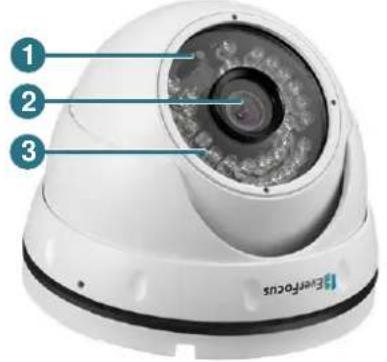
EBN288/368/468 EDN288M/368M/468M
text_image
1 2 3 Enerfocus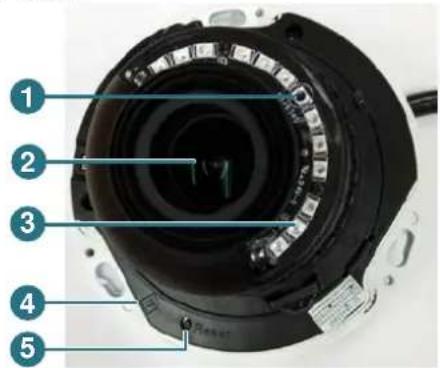
text_image
Labeled diagram of a camera module with numbered parts for identification| No. | Item Name | Descriptions |
| 1 | Light Sensor | Detects lights. |
| 2 | Lens Lens. | |
| 3 | IR LEDs | IR LEDs for infrared illumination in night vision applications. |
| 4 | Micro SD/SDHC/SDXC Slot | Insert a micro SD/SDHC/SDXC card. Please go to the web page of the IP camera to see the latest Storage Compatibility List.http://www.everfocus.com.tw |
| 5 | Reset Button | Press the button to restore the camera to factory default. |
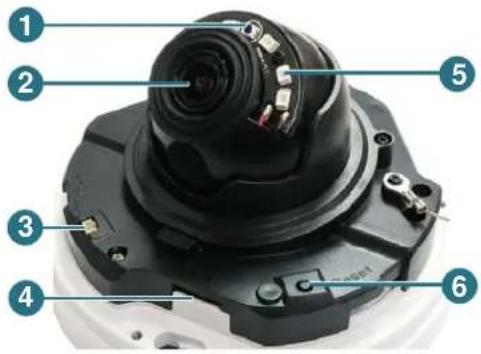
EMN468 EMN468W
text_image
Labeled diagram of a camera lens assembly with numbered parts for identification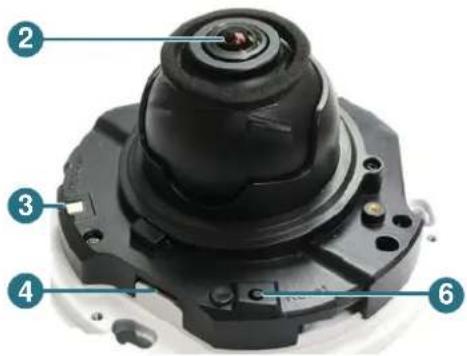
text_image
Labeled diagram of a camera lens assembly with numbered parts for identification| No. | Item Name | Descriptions |
| 1 | Light Sensor | Detects lights. |
| 2 | Lens Lens. | |
| 3 | Video Test Output | Connects to a monitor. |
| 4 | Micro SD/SDHC/SDXC Slot | Insert a micro SD/SDHC/SDXC card. Please go to the web page of the IP camera to see the latest Storage Compatibility List.http://www.everfocus.com.tw |
| 5 | IR LEDs | IR LEDs for infrared illumination in night vision applications. |
| 6 | Reset Button | Press the button to restore the camera to factory default. |
EZN288/368/468
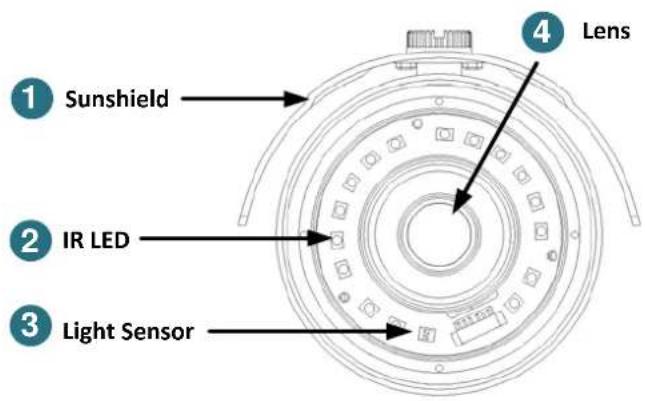
text_image
Sunshield IR LED Light Sensor Lens
text_image
5 Reset Button 6 Micro SD/SDHC/SDXC Card Slot| No. | Item Name | Descriptions |
| 1 | Sunshield | Protect the camera from the direct rays of the sun. |
| 2 | IR LEDs | IR LEDs for infrared illumination in night vision applications. |
| 3 | Light Sensor | Detects lights. |
| 4 | Lens | Fixed lens. |
| 5 | Reset Button | Press the button to restore the camera to factory default. |
| 6 | Micro SD/SDHC/SDXC Slot | Insert a micro SD/SDHC/SDXC card. Please go to the web page of the IP camera to see the latest Storage Compatibility List.http://www.everfocus.com.tw |
EZN288M/368M/468M
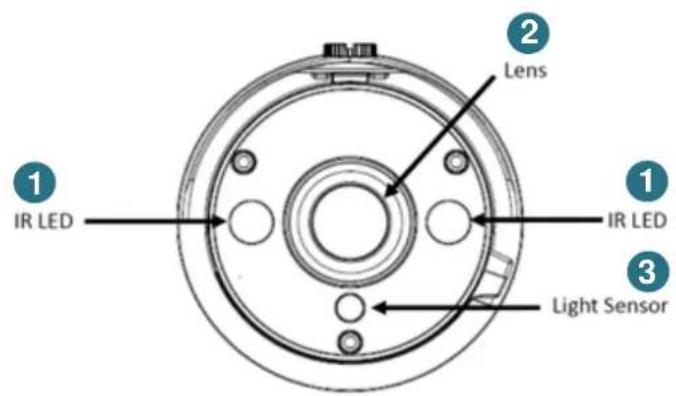
text_image
1 IR LED 2 Lens 1 IR LED 3 Light Sensor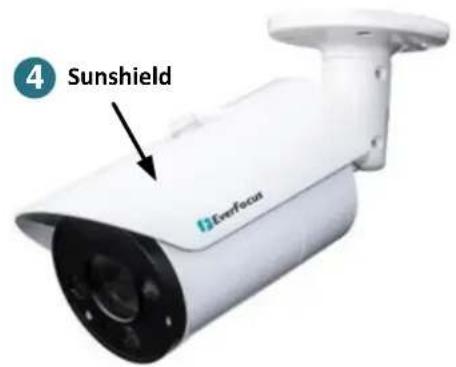
text_image
4 Sunshield Everfocus| No. | Item Name | Descriptions |
| 1 | IR LEDs | IR LEDs for infrared illumination in night vision applications. |
| 2 | Lens | Motorized lens. |
| 3 | Light Sensor | Detects lights. |
| 4 | Sunshield | Protect the camera from the direct rays of the sun. |
2.1. Dimensions
EBN288/368/468
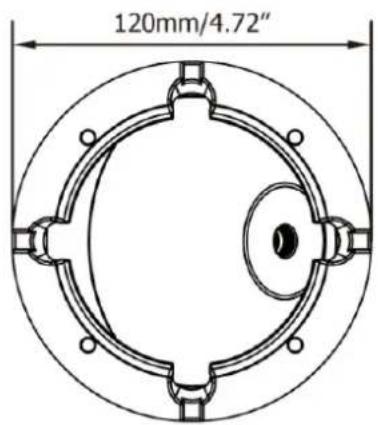
text_image
120mm/4.72"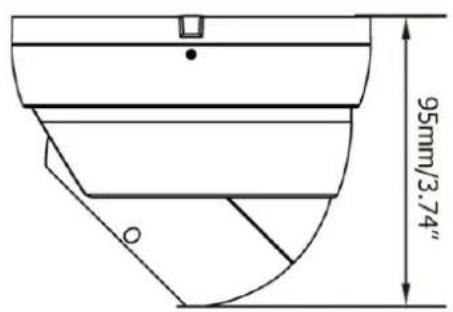
text_image
95mm/3.74"EDN288M/368M/468M
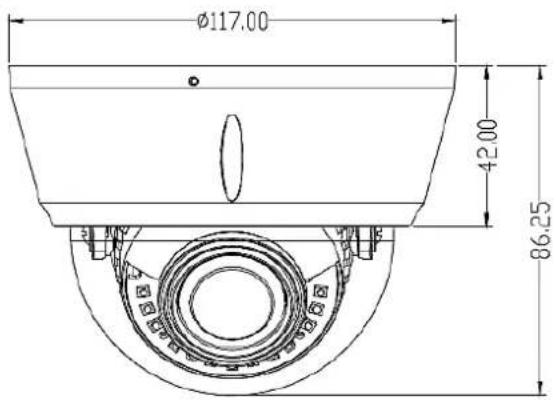
text_image
Ø117.00 42.00 86.25EMN468/468W
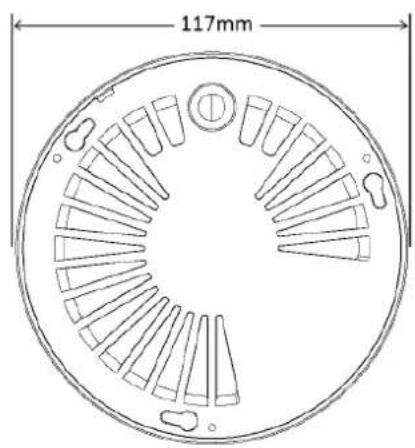
text_image
117mm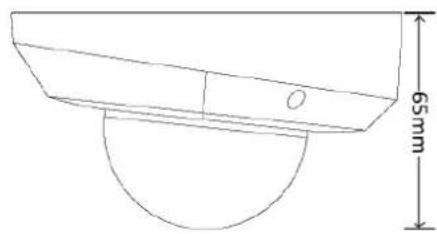
text_image
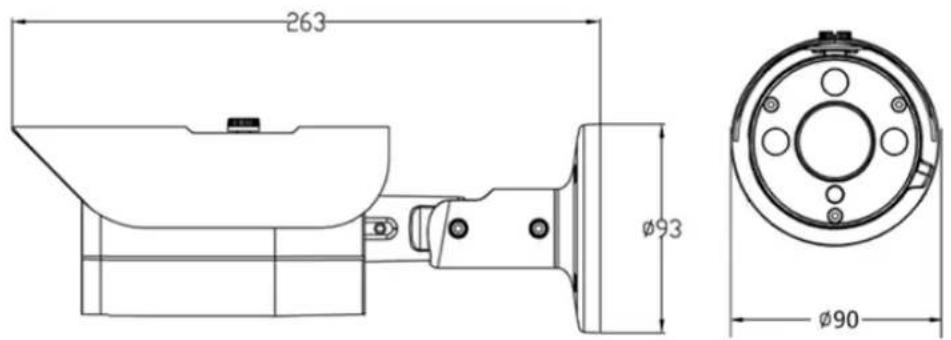
65mmEZN288/368/468
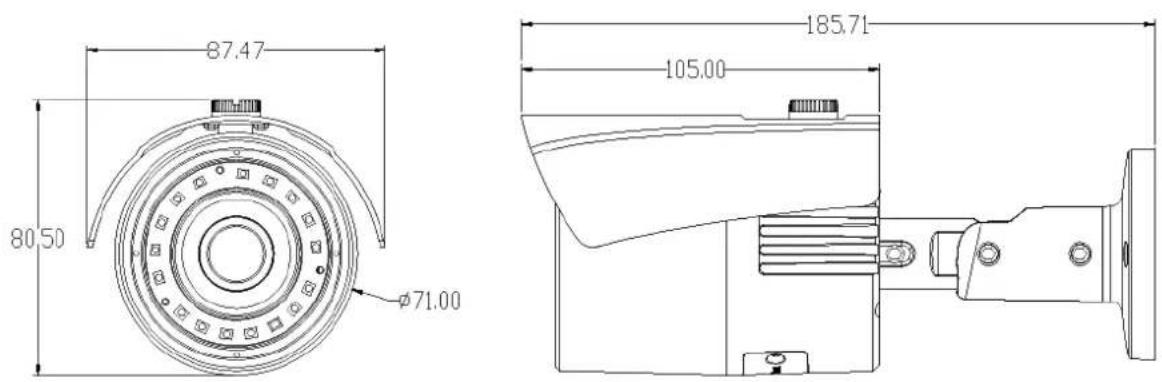
EZN288M/368M/468M
3. Features
• SONY Progressive Scan CMOS sensor
• Various lens selection:
- Astounding image quality from the 3.6mm lens (EBN288/368/468; EMN468; EZN288/368/468)
- Motorized 2.8-12mm lens to capture the desired field of view (EDN288M/368M/468M; EZN288M/368M/468M)
- Wide angle of view with 2.2mm lens (FOV: Diagonal 165°) (EMN468W)
• Supports True Wide Dynamic Range (120dB) (only for 2MP/3MP models)
- Provides True Day/Night functionality with automatic IR filter operation
• Supports IR LEDs for night vision:
- Extended IR range up to 30m / 100ft (Depending on scene IR reflectivity) (for EBN/EDN/EZN series models)
- Extended IR range up to 10m / 33ft (Depending on scene IR reflectivity) (for EMN468)
• Multi-streaming from H.265 / H.264
• 1080p real time recording
• Weather proof IP66-rated
• The flexible angle viewing with 3-Axis rotation design (EMN series models support 2-Axis)
• Supports Motion Detection & Email Notification
• Supports mobile application for live monitoring - MobileFocus Apps (iOS & Android)
• Supports Power over Ethernet / 12VDC
• Ideal for low light and nighttime visibility
• Supports EverFocus Genie XMS CMS
• ONVIF profile S compliant
• Supports Micro SD card (EBN series models are not supported)
• Supports two-way audio*
• Supports Alarm I/O*
• Supports RS-485 (reserved)*
4. Installation
4.1. Packing List
Please check that there is no missing item in the package before installing.
| No | Item Name | EBN288/368/468 | EDN288M/368M/468M | EMN468/468W | EZN288/368/468 | EZN288M/368M/468M |
| 1 | Camera | x 1 | x 1 | x 1 | x 1 | x 1 |
| 2 | MAC Address StickerScrew Anchor | x 2 | x 2 | x 2 | x 2 | x 2 |
| 3 | (in conjunction with Screw) | x 4 | x 3 | x 3 | x 3 | x 4 |
| 4 | ScrewHexagon Wrench | x 4 | x 3 | x 3 | x 3 | x 4 |
| 5 | (for adjusting camera position)Cable Gland Kit | x 1 | - | x 1 | x 1 | x 1 |
| 6 | (connect to the LAN/PoE cable for waterproofing) | x 1 | x 1 | x 1 | x 1 | x 1 |
| 7 | Set Screw | x 3 | - | - | - | - |
| 8 | Power Pigtail CableAccessories Instruction | x 1 | x 1 | x 1 | x 1 | x 1 |
| 9 | (for installation of Set Screw) | x 1 - - | - | |||
| 10 | Software CD | x 1 | x 1 | x 1 | x 1 | x 1 |
| 11 | Quick Installation GuideSticker(Mounting Template) | x 1 | x 1 | x 1 | x 1 | x 1 |
| 12 | x 1 | x 1 | x 1 | x 1 | x 1 | |
| 13 | Gasket | - | - | x 1 (EMN468W only) | - | - |
Note:
- Equipment configurations and supplied accessories vary by country. Please consult your local EverFocus office or agents for more information. Please also keep the shipping carton for possible future use.
- Contact the shipper if any items appear to have been damaged in the shipping process.
4.2. Optional Accessory
You can go to the product page on EverFocus' website to check the related optional accessories.
www.everfocus.com.tw
4.3. Cables
For Standard models, the cables provide connections for Network, BNC output, power, audio input / output, RS-485 (reserved) and alarm inputs / output. A Reset Button is also provided. Note that the audio-in / out cable features a line 3.5mm jack (TRS). Be sure to prepare microphones / speakers with TRS connector (see TRS Connector image below). Also, microphones / speakers with a (built-in) amplifier and external power supply are required.

text_image
Alarm Output / RS-485 (Red) Alarm Input (Black) LAN / PoE Cable Audio Output (TRS Line-out) (White) Audio Input (TRS Line-in) (Red) Reset Button Video Output (BNC) (Yellow) 12VDC Input| Cable | EBN288/368/468 | EDN288M/368M/468M | EMN468/468W | EZN288/368/468 | EZN288M/368M/468M |
| Alarm In(with Terminal Block) | Yes | Yes | - | Yes | Yes |
| Alarm Out /RS-485 (reserved)(with Terminal Block) | Yes | Yes | - | Yes | Yes |
| Audio In (Red) | Yes | Yes | - | Yes | Yes |
| Audio Out (White) | Yes | Yes | - | Yes | Yes |
| Video Out (RNC) | Yes | Yes | Yes | Yes | |
| LAN/RoF | Yes | Yes | Yes | Yes | Yes |
| 12VDC | Yes | Yes | Yes | Yes | Yes |
| Reset Button(with a dust-proof cap) | Yes - - - Yes | ||||
For Economic models, the cables provide connections for Network, power and Reset Button.

text_image
Reset Button 12VDC Input LAN / PoE CableCables of Economic Models
| Model | LAN/PoE | 12VDC | Reset Button |
| EBN288/368/468 Yes Yes | Yes (with a dust-proof cap) | ||
| EDN288M/368M/468M | Yes | Yes | - |
| EMN468/468W | Yes | Yes | - |
| EZN288/368/468 | Yes | Yes | - |
| EZN288M/368M/468M | Yes | Yes | Yes (with a dust-proof cap) |
Audio Function

text_image
TRS Connector Ground (Sleeve) Right Channel (Ring) Left Channel (Tip)To activate the Audio function, the Complex Stream must be selected. See Stream in 7.2.1.2 Streaming Settings.

text_image
Stream Settings Compress Type: Main Stream (Normal) Stream: Complex Stream (Video & Audio) Resolution: 3MPin Assignment
Alarm Output / RS-485 (reserved)
| Alarm Output | COM (-) | |
| NO (+) | ||
| RS-485(reserved) | B (+) | |
| A (-) |
| Alarm Input | ||
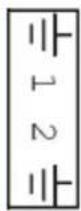 | Alarm In 1 | GND (-) |
| Alarm In (+) | ||
| Alarm In 2 | Alarm In (+) | |
| GND (-) | ||
Reset Button
1. Reboot the camera:
When the camera is powered up, press the Reset Button will reboot the camera.
2. Restore the camera:
Keep the Reset Button pressed, at the same time unplug the camera power then plug it back again will return camera settings to the factory default values.
4.4. Basic Installation
4.4.1. Mounting and Wiring
EBN288/368/468
- Before screwing the camera to the wall, stick the Sticker on the wall / ceiling to mark the position for installation. Drill four holes on the wall / ceiling according to the supplied Sticker and push the supplied four Screw Anchors into the four holes on the wall / ceiling. Drill another hole in the middle of the Sticker if you wish to run the wires into the wall / ceiling.

natural_image
Simple diagram with four red square markers on a white circular background, no text or symbols present.- Twist the Outer Housing counterclockwise and then remove the Outer Housing from the camera base.
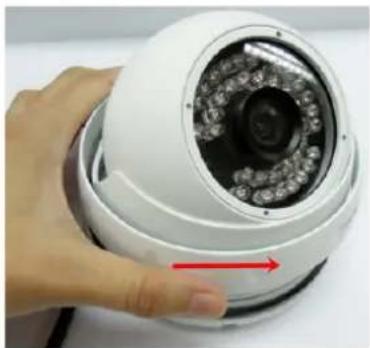
natural_image
Close-up of a hand holding a white security camera with a red arrow pointing to the lens (no text or symbols visible)-
Place the camera base on the wall / ceiling and run the cable through the camera base first.
-
Tread the cables:
a. From the side cut of the camera base
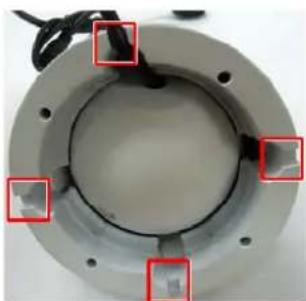
natural_image
Close-up of a mechanical component with red square highlights on its surface (no text or symbols visible)b. Through the wall / ceiling: run the cables through the hole on the wall / ceiling.
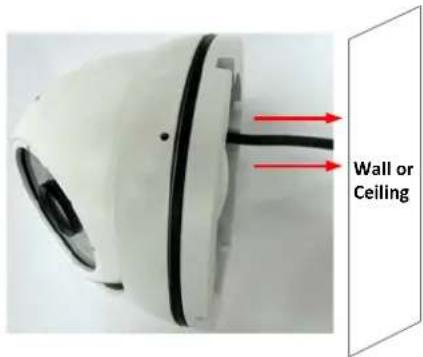
text_image
Wall or Ceiling- Use the supplied four Screws to screw the camera base to the ceiling / wall.
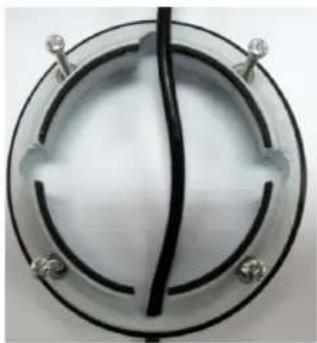
natural_image
Circular mechanical component with black and white markings, no visible text or symbols-
Adjust the camera angle and twist back the Outer Housing simultaneously.
-
Optionally screw back the Set Screw by using the supplied Hexagon Wrench to prevent uninstallation.
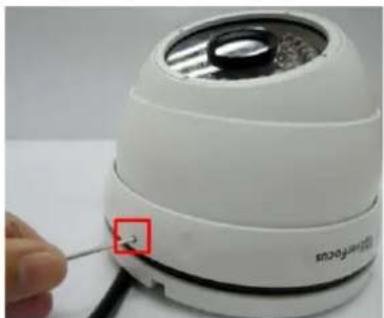
natural_image
Close-up of a white electronic device with a red square mark and 'Sisipes' label, being inserted by a hand (no readable text beyond label)- Connect the LAN / PoE cable to the camera.
a. Remove the Screw Cap from the Cable Gland.

text_image
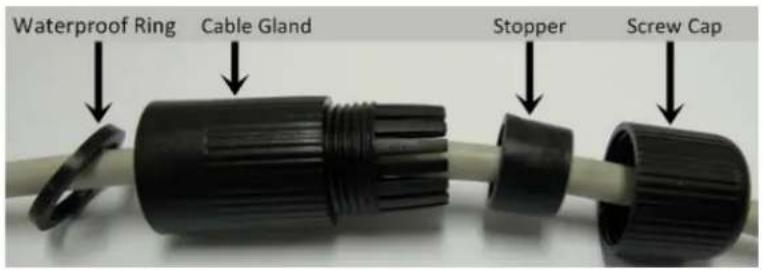
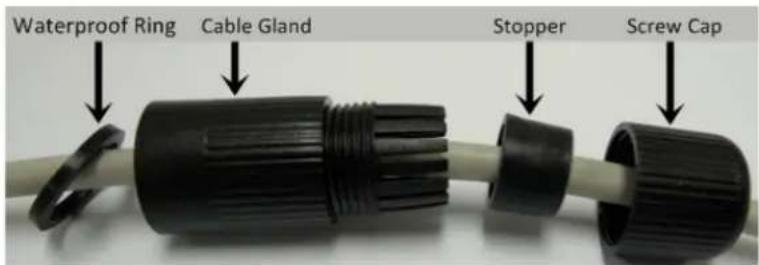
Screw Cap Cable Glandb. Insert a RJ-45 network cable (without the RJ-45 connector on the one end) through the Cable Gland and Screw Cap.
text_image
Waterproof Ring Cable Gland Stopper Screw Capc. Place the Waterproof Ring into the LAN / PoE cable. Connect the RJ-45 cable to the RJ-45 Connector Cable. Tightly screw the Cable Gland and Screw Cap to the RJ-45 Connector Cable.

text_image
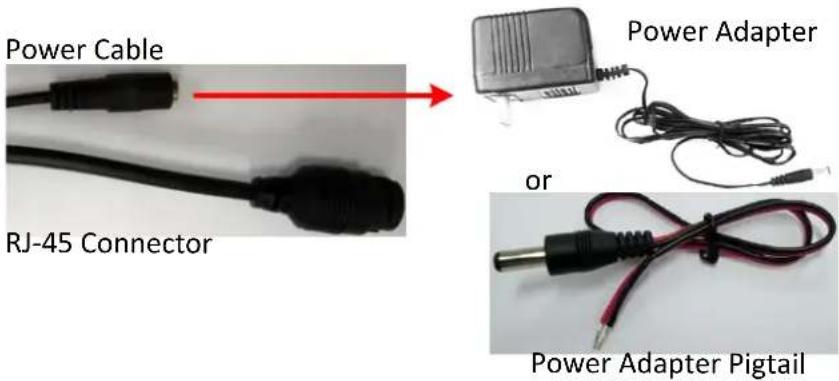
Waterproof Ring- Optionally connect the camera to the 12VDC power source using the supplied Power Adapter Pigtail or a power adapter.
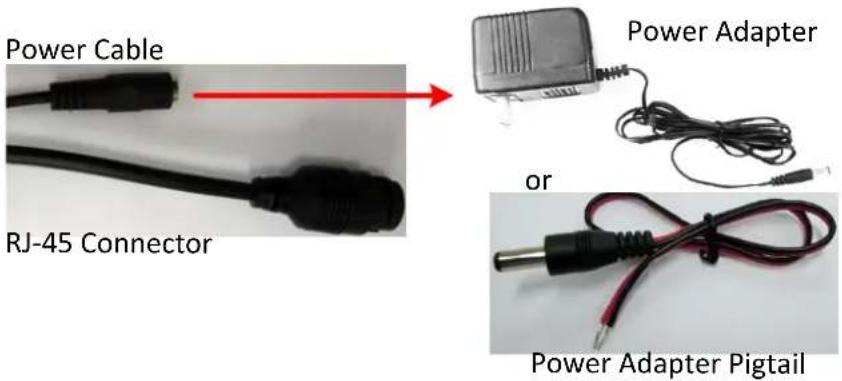
text_image
Power Cable RJ-45 Connector Power Adapter or Power Adapter PigtailEDN288M/368M/468M
- Before screwing the camera to the wall, stick the Sticker on the wall / ceiling to mark the position for installation. According to the supplied Sticker, drill three screw-depth holes on the wall / ceiling, and then drill a through-wall hole for wiring the camera cables. Push the supplied three Screw Anchors into the three holes on the wall / ceiling.
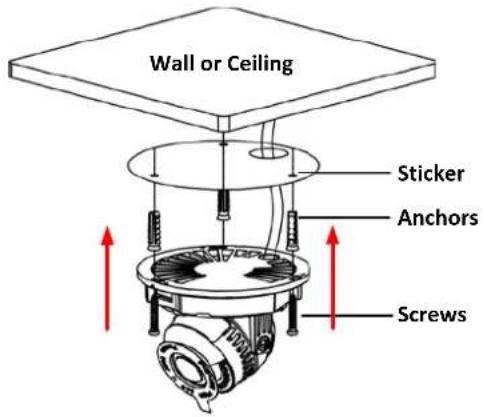
text_image
Wall or Ceiling Sticker Anchors Screws- Unscrew the camera cover and screw the camera base to the ceiling / wall by using the supplied Screws.
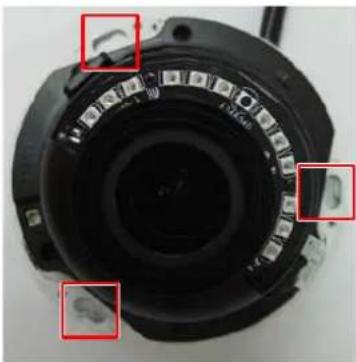
natural_image
Close-up of a camera lens with three red square annotations highlighting specific components (no text or symbols present)-
Optionally insert the micro SDHC / SDXC card. Please refer to 4.4.2 Inserting a micro SD Card.
-
Connect the LAN / PoE cable to the camera.
a. Remove the Screw Cap from the Cable Gland.
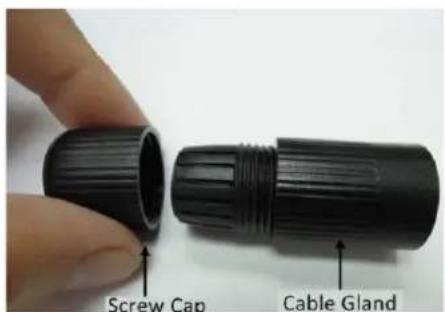
text_image
Screw Cap Cable Glandb. Insert a RJ-45 network cable (without the RJ-45 connector on the one end) through the Cable Gland and Screw Cap.
text_image
Waterproof Ring Cable Gland Stopper Screw Capc. Place the Waterproof Ring into the LAN / PoE cable. Connect the RJ-45 cable to the RJ-45 Connector Cable. Tightly screw the Cable Gland and Screw Cap to the RJ-45 Connector Cable.
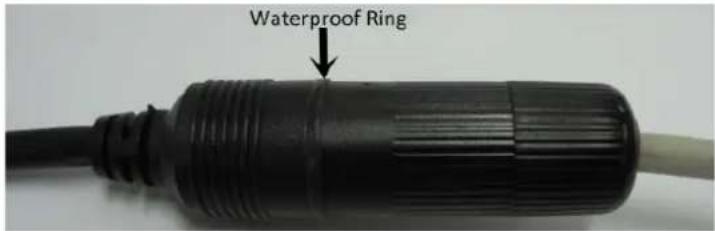
text_image
Waterproof Ring- Optionally connect the camera to the 12VDC power source using the supplied Power Adapter Pigtail or a power adapter.
text_image
Power Cable RJ-45 Connector Power Adapter or Power Adapter Pigtail-
Access the camera live view. See 5. Accessing the Camera. Or using a video Test-Out cable to connect a monitor to the camera for setting image aim and focus.
-
To adjust camera angles.
Pan Adjustment: Simply turn left / right of the 3-Axis bracket by 75° to the desired position.
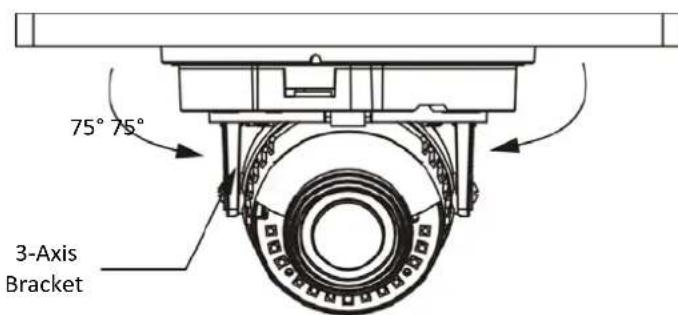
text_image
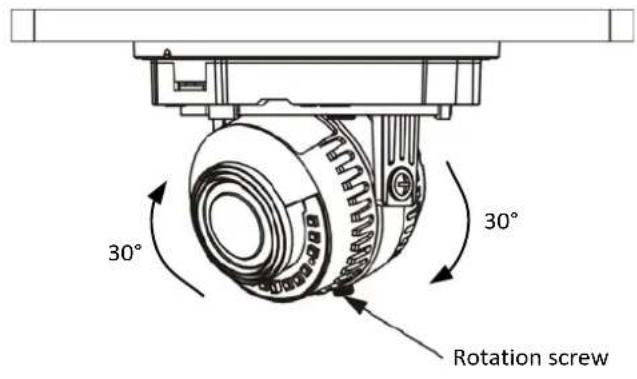
75° 75° 3-Axis BracketRotational Adjustment: Loosen the rotate screw and rotate the camera left / right to the desired position, then tighten the rotate screw. Due to the internal connector design, it is recommended not to rotate the camera more than 30^ .
text_image
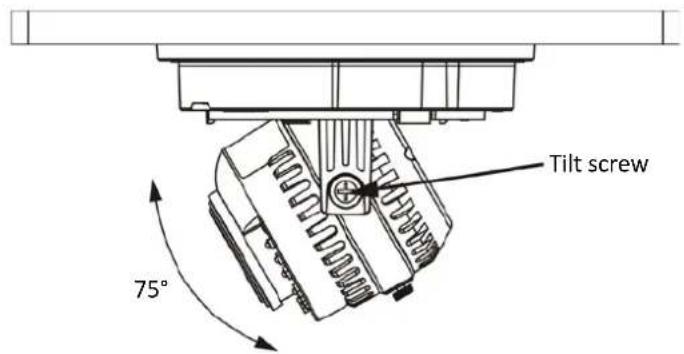
30° 30° Rotation screwTilt Adjustment: Loosen the two tilt screws and adjust the angle by 75^ to the desired position, then tighten the tilt screw.
text_image
Tilt screw 75°- Secure the cover back to the camera.
EMN468/468W
-
Before screwing the camera onto the surface, stick the Sticker onto the surface to mark the position for installation. According to the supplied Sticker, drill three holes on the surface, and optionally drill a through-out hole for wiring the camera cables. Push the supplied three Screw Anchors into the three holes on the surface.
-
Unscrew the camera cover and screw the camera base to the surface by using the supplied Screws. Note that for EMN468W, place the supplied Gasket between the camera base and the surface; and then screw the camera base to the surface with the Gasket in the middle.

natural_image
Close-up of a mechanical component with multiple ports and mounting holes, no visible text or symbols- Connect the LAN / PoE cable to the camera.
a. Remove the Screw Cap from the Cable Gland.

text_image
Screw Cap Cable Glandb. Insert a RJ-45 network cable (without the RJ-45 connector on the one end) through the Cable Gland and Screw Cap.

text_image
Waterproof Ring Cable Gland Stopper Screw Capc. Place the Waterproof Ring into the LAN / PoE cable. Connect the RJ-45 cable to the RJ-45 Connector Cable. Tightly screw the Cable Gland and Screw Cap to the RJ-45 Connector Cable.
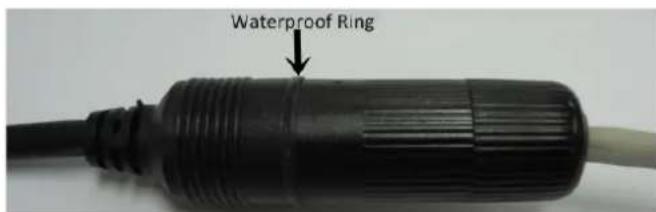
text_image
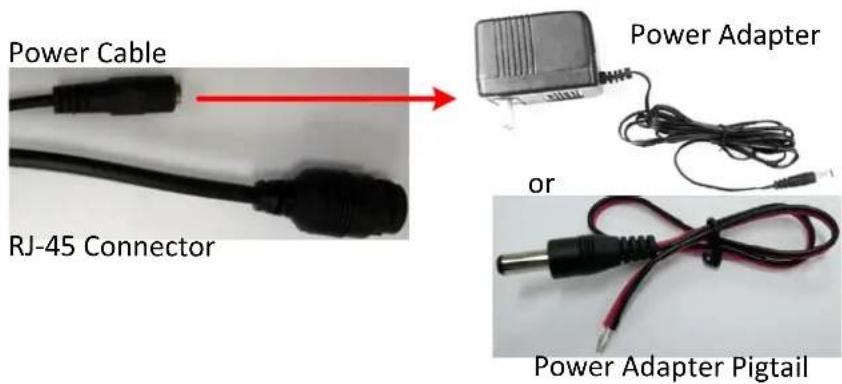
Waterproof Ring- Optionally connect the camera to the 12VDC power source using the supplied Power Adapter Pigtail or a power adapter.
text_image
Power Cable RJ-45 Connector Power Adapter or Power Adapter Pigtail- Access the camera live view. See 5. Accessing the Camera. Or using a video Test-Out cable to connect a monitor to the Video Test Output on the camera for setting camera angles.
natural_image
Close-up of a black camera module with a red inset highlighting a small component, labeled 'Reset' (no readable text beyond label)- To adjust camera angles.
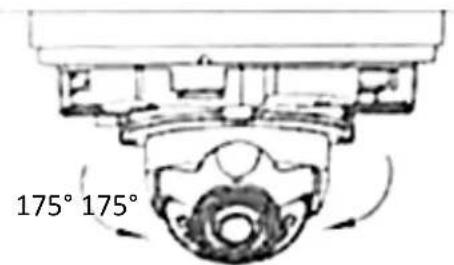
Pan Adjustment: Simply turn left / right of the camera by 175^ each side to the desired position.
text_image
175° 175°Tilt Adjustment: Adjust the tilt angle between 25^ and 90^ .

text_image
25~90°- Secure the cover back to the camera.
EZN288/368/468 & EZN288M/368M/468M
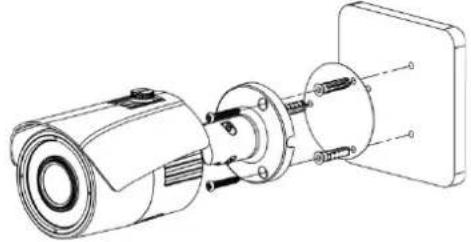
- Before screwing the camera to the wall, stick the Sticker on the wall / ceiling to mark the screw position. Drill three (EZN288/368/468) or four (EZN288M/368M/468M) holes on the wall / ceiling according to the supplied Sticker and push the supplied Anchors into the holes on the wall / ceiling. Drill another hole in the middle of the Sticker if you wish to run the wires into the wall / ceiling.
natural_image
Technical line drawing of a mechanical assembly with no visible text or symbolsEZN288/368/468
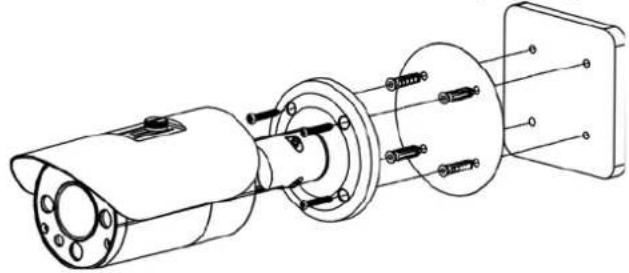
natural_image
Technical line drawing of a mechanical assembly with no visible text or symbolsEZN288M/368M/468M
- You can wire the cables from the side of the camera or through the wall.
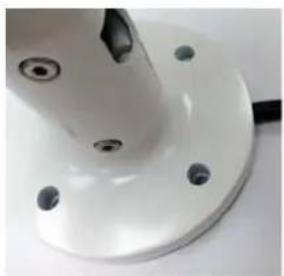
natural_image
Close-up of a white mechanical component with mounting holes and a curved edge (no text or symbols visible)Wire the cables from the side of the camera

natural_image
Close-up of a mechanical component with a circular base and black rod (no visible text or symbols)Wire the cables through the wall
- Place the camera's base against the anchoring surface so that the holes line up. Screw the camera to the wall / ceiling using the supplied Screws.
- Optionally insert a micro SD / SDHC / SDXC card into the card slot. Please refer to 4.4.2 Inserting a micro SD Card.
- Connect the LAN / PoE cable to the camera.
a. Remove the Screw Cap from the Cable Gland.

text_image
Screw Cap Cable Glandb. Insert a RJ-45 network cable (without the RJ-45 connector on the one end) through the Cable Gland and Screw Cap.
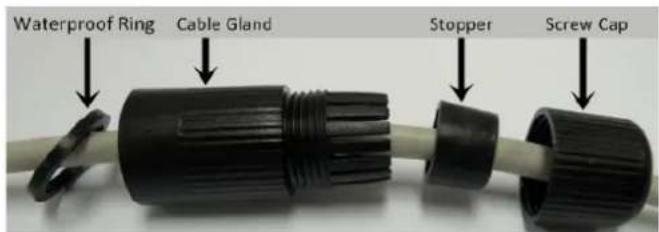
text_image
Waterproof Ring Cable Gland Stopper Screw Capc. Place the Waterproof Ring into the LAN / PoE cable. Connect the RJ-45 cable to the RJ-45 Connector Cable. Tightly screw the Cable Gland and Screw Cap to the RJ-45 Connector Cable.

text_image
Waterproof Ring- Optionally connect the camera to the 12VDC power source using the supplied Power Adapter Pigtail or a power adapter.
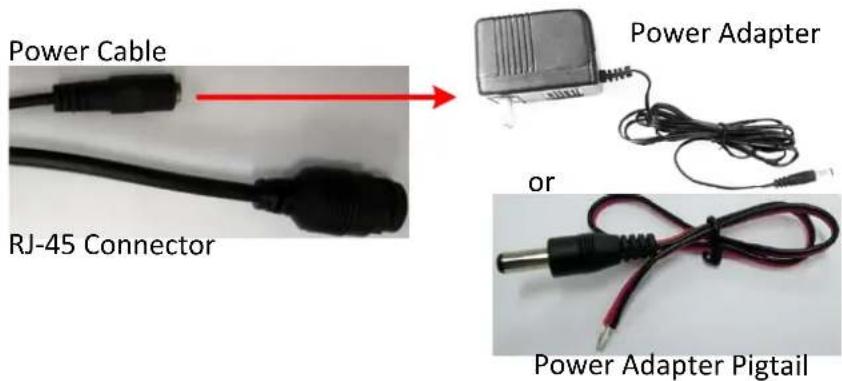
text_image
Power Cable RJ-45 Connector Power Adapter or Power Adapter Pigtail- Access the camera live view. See 5. Accessing the Camera. Or connect a handheld test monitor to the CVBS wire on the Cable Assembly for adjusting viewing angles.
- To adjust the camera angles:
Pan Adjustment: Loosen the Set Screw using the supplied Hexagon Wrench. Rotate the camera by 360° to the desired position and screw the Set Screw until it locks against the Camera Base.

text_image
Camera Base Set Screw 360°EZN288/368/468

text_image
Camera Base Set Screw 360°EZN288M/368M/468M
Tilt Adjustment: Loosen the Set Screw using the provided Hexagon Wrench and adjust the angle by 90°.

Rotational Adjustment: Loosen the Screw using the provided Hexagon Wrench and rotate the camera by 360°.

text_image
Set ScrewEZN288/368/468

text_image
Set ScrewEZN288M/368M/468M
Note:
- Before start operating the IP camera, please make sure the camera date and time are correct. To configure the camera date/time, go to System > Date/Time setting page on Web UI.
- By default, the system will automatically adjust the IR LED strength according to the scene, so please avoid IR reflection when installing the camera to prevent out-of-focus at night.
- Under Auto focus mode, if the camera does not focus after switching the Day/Night mode, it is recommended to switch the focus mode to Manual and adjust focus manually.
4.4.2. Inserting a Micro SD Card
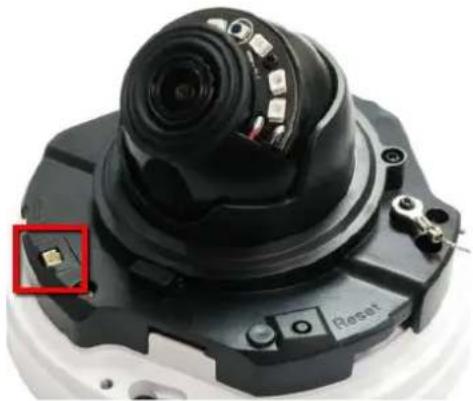
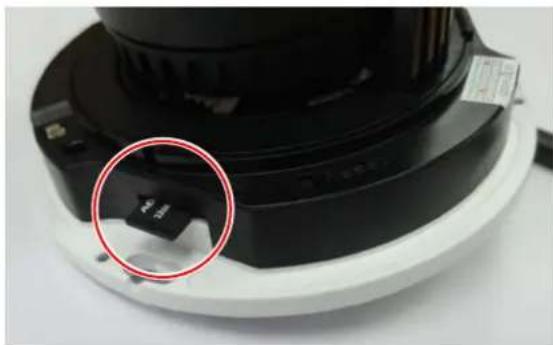
You can optionally insert a micro SD card to the card slot on the camera module for recording videos. Before inserting a micro SD card, make sure you turn off the camera first.
EDN288M/368M/468M
- Unscrew and then remove the camera cover.
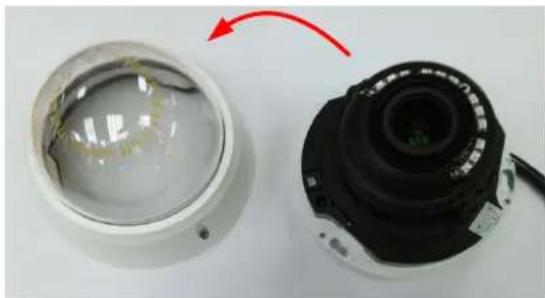
natural_image
Two camera lenses shown from front and side, one with a red arrow indicating rotation (no text or symbols visible)- Insert a micro SD card into the card slot.
natural_image
Close-up of a black cylindrical device with a red circle highlighting a small component, no visible text or symbols.EMN468/468W
-
Unscrew and then remove the camera cover.
-
Insert a micro SD card into the card slot.

natural_image
Close-up of a mechanical component with a red circle highlighting a specific part, labeled 'Reset' (no other text or symbols visible)EZN288/368/468
- Open the cover on the bottom of the camera by loosening the screws.
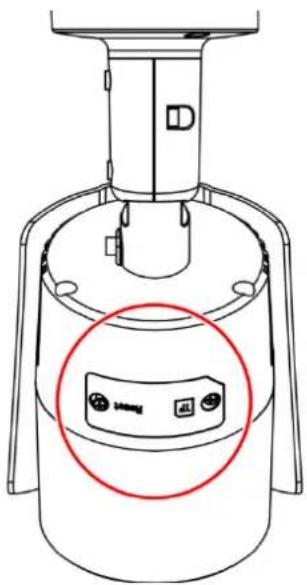
text_image
Technical diagram of a device with labeled components and a red circle highlighting a specific component.- Insert a micro SD card into the card slot.
EZN288M/368M/468M
- Loosen the two set screws on the bracket.

text_image
Set Screw- Loosen the three screws on the rear housing. Rotate and then remove the rear housing.
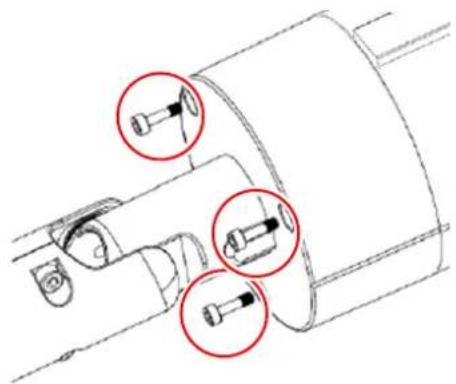
natural_image
Technical line drawing of a mechanical component with three red-circled detail views (no text or symbols)- Loosen the four screws on the IPC board.
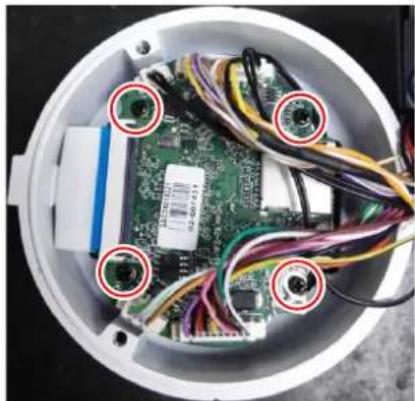
natural_image
Interior view of an electronic device showing exposed circuit board, wires, and connectors (no text or symbols visible)- Insert a micro SD card into the card slot.

natural_image
Interior view of an open electronic device showing a green circuit board with a red circle highlighting a component (no visible text or symbols)- Put the water-proof ring on the groove that near the edge of the housing. Place the desiccant bag beside the IPC board.

text_image
Desiccant bag Water-proof ring- Screw back the IPC board, secure the rear housing back to the front housing and tighten the set screws on the bracket.
Note: Please make sure you wear the antistatic gloves or antistatic wrist strap when installing the Micro SD card to protect the device from damage.
5. Accessing the Camera
This section explains how to access the Web interface of the camera for configuration.
5.1. Checking the Dynamic IP Address
You can look up the IP address and access the Web interface of the IP camera using the IP Utility (IPU) program, which is included in the software CD. The IP Utility can also be downloaded from EverFocus' Website: http://www.everfocus.com.tw/HQ/Support/DownloadCenter_p1.aspx (Support > Download Center > Keyword Search: IP Utility). Please connect the IP camera on the same LAN of your computer.
1. Save IP Utility Setup .exe

in your computer. Double click the .exe file and follow the on-screen instructions to install the IP Utility.
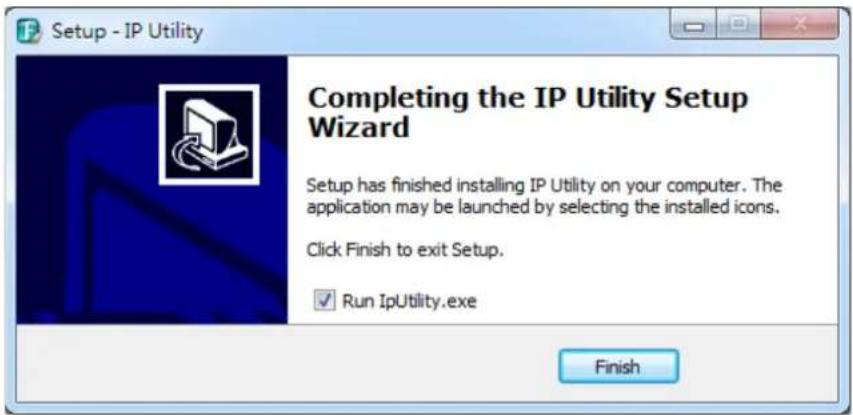
text_image
Setup - IP Utility Completing the IP Utility Setup Wizard Setup has finished installing IP Utility on your computer. The application may be launched by selecting the installed icons. Click Finish to exit Setup. ✓ Run IpUtility.exe Finish- Click the Finish button, the IP Utility will be automatically launched to search the IP devices connected on the same LAN.
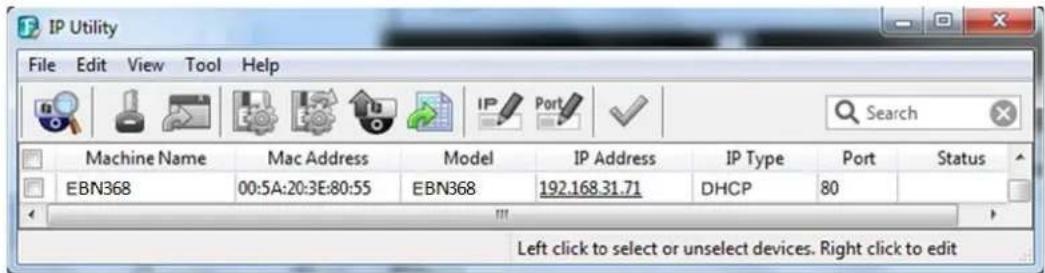
text_image
IP Utility File Edit View Tool Help Machine Name Mac Address Model IP Address IP Type Port Status EBN368 00:5A:20:3E:80:55 EBN368 192.168.31.71 DHCP 80 Left click to select or unselect devices. Right click to edit- To access the Live View window, double click the IP address of the desired device, the login window pops up. Type the user ID and password to log in. By default, the user ID is user1 and the password is 11111111

text_image
EverFocus User Name: Password: Mode: IE ActiveX English Login- Click Login, the Live View window appears.
Note:
- To enable Remote Live View, Firmware Upgrade and ActiveX Prompt on Internet Explorer, some settings have to be complete. Please refer to 5.2 Settings for Microsoft Internet Explorer.
-
The default IP mode of the IP camera is DHCP. However, if there is no dynamic IP address assigned to the device, its IP will switch to 192.168.0.10.
-
To optionally configure the Machine Name, IP Address, IP Type or Port Number using the IPU:
a. Log in the camera by checking the desired model and then click the Log in icon. The Log in dialog box appears.

text_image
IP Utility File Edit View Tool Help Log in Username user1 Password OK Cancel EBN368 N/A Search Port Status 80 Left click to select or unselect devices. Right click to editb. Type the Username and Password. Click the OK button, the Login status displays.
| Machine Name | Model | IP Address | IP Type | Port | Status |
| EBN368 | EBN368 | 192.168.32.135 | DHCP | 80 | Login |
Note:
- The default user ID is user1 and the default password is 11111111.
- If you select more than one camera that has the same user ID / password, you will be able to log in several cameras at once.
c. Right click the column to configure the settings. Click the Apply Changes √ button to apply and save the settings.
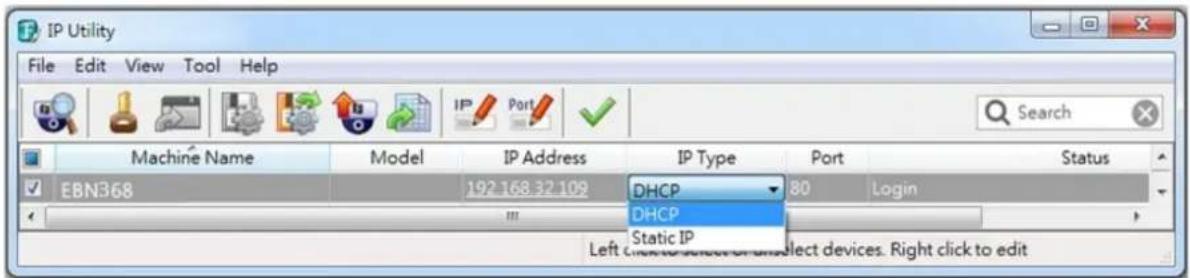
text_image
IP Utility File Edit View Tool Help Machine Name Model IP Address IP Type Port Status EBN368 192.168.32.109 DHCP 80 Login Static IP Left Connection or Select devices. Right click to edit5.2. Settings for Microsoft Internet Explorer
If you have difficulties viewing live view or upgrading firmware, it is suggested to complete the following settings of your computer.
- If your PC or laptop is running with Windows, it's required to run the browser as administrator when first entering the remote web page of the device. Go to C:\Program Files (x86)\Internet Explorer, right-click the browser and then click Run as administrator.
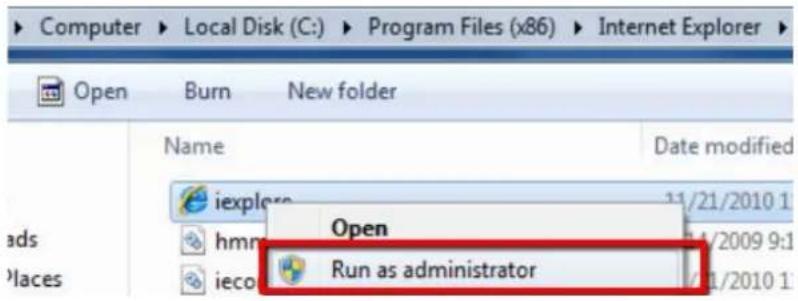
text_image
Computer > Local Disk (C:) > Program Files (x86) > Internet Explorer Open Burn New folder Name Date modified iexplero 11/21/2010 1 hmm Open 4/2009 9:1 ieco Run as administrator 1/1/2010 1- You may need to turn User Account Control off if you still can't see the Remote Live View. On the computer, click Start > Control Panel > System and Security > Action Center (click Change User Account Control Settings), the User Account Control Settings window appears. Adjust the slide bar to Never Notify and then click OK. Restart your computer if requested.

text_image
User Account Control Settings Choose when to be notified about changes to your computer User Account Control helps prevent potentially harmful programs from making changes to your computer. Tell me more about User Account Control settings Always notify Never notify Never notify me when: • Programs try to install software or make changes to my computer • I make changes to Windows settings i Not recommended. Choose this only if you need to use programs that are not certified for Windows 7 because they do not support User Account Control.5.3. Connecting the Camera to the Network
There are three methods to connect the IP camera to the network: Router or LAN Connection, Direct High-Speed Connection and One-to-One Connection.
Router or LAN connection
This is the most common connection in which the IP camera is connected to a router and allows multiple users on and off site to see the IP camera on a LAN / WAN (Internet). The camera must be assigned an IP address that is compatible with its LAN. By setting up port forwarding on the router, you can remotely access the cameras from outside of the LAN via the Internet. To remotely access the Web interface of the IP camera, please refer to 7.1.1 Network (DDNS Settings). To set up port forwarding, please refer to Appendix D. Setting up Port Forwarding Function.
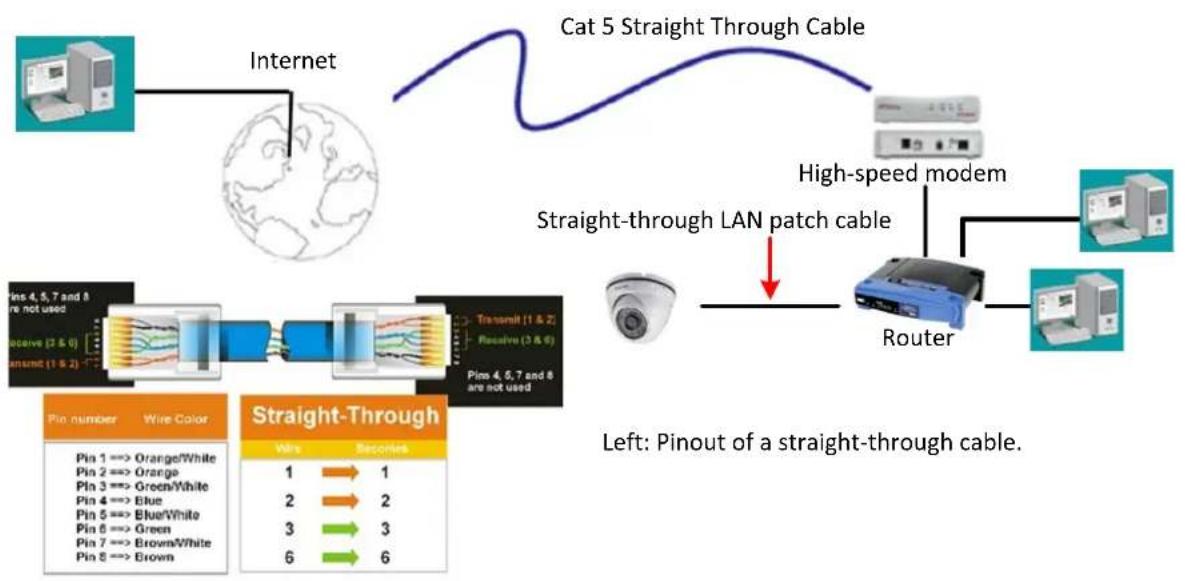
flowchart
graph TD
    A["Internet"] --> B["Cat 5 Straight Through Cable"]
    B --> C["High-speed modem"]
    C --> D["Router"]
    D --> E["Mac"]
    D --> F["Computer"]
    G["Pin 4, 5, 7 and 8 are not used"] --> H["Wire Color"]
    I["Receive (3 & 6) transmit (1 & 2)"] --> J["Wire Color"]
    K["Transmit (1 & 2) receive (3 & 6) are not used"] --> L["Wire Color"]
    M["Pins 4, 5, 7 and 8"] --> N["Wire Color"]
    O["Pin 6 => Green"] --> P["Blue/White Pin 5 => Green/White Pin 7 => Brown/White Pin 8 => Brown"] --> Q["Blue/White Pin 6 => Green Pin 7 => Brown/White Pin 8 => Brown"]
    R["Left: Pinout of a straight-through cable."] --> S["Right: Straight-Through Cable"]
Direct High-Speed Connection
In a Direct High-Speed Connection, the camera connects directly to a modem without the need for a router. You need to set the static or dynamic WAN IP address assigned by your ISP (Internet Service Provider) in the camera's configuration web pages. To access the camera, just type
"http://xxx.xxx.xxx.xxx", where xxx.xxx.xxx.xxx is the IP address given by your ISP. If you have a dynamic IP address, this connection may require that you use DDNS for a reliable connection. Please refer to Appendix E. Setting up DDNS Function.
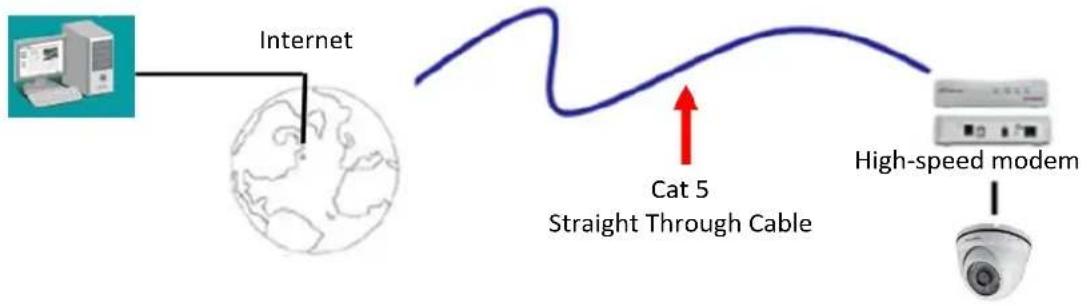
flowchart
graph LR
    A["Internet"] --> B["Cat 5 Straight Through Cable"]
    B --> C["High-speed modem"]
    style A fill:#f9f,stroke:#333
    style B fill:#bbf,stroke:#333
    style C fill:#dfd,stroke:#333
One-to-One Connection (Directly from PC to IP Camera)
You can connect directly without using a switch, router or modem. However, only the PC connected to the camera will be able to view the IP camera. You will also have to manually assign a compatible IP address to both the computer and the IP camera. Unless the PC has another network connection, the IP camera will be the only network device visible to the PC. See the diagram below:

text_image
Cat 5 Right: Pinout of a crossed-over cable. Pin number Wire Color Crossed-Over Pin 1 ==> Orange/White Pin 2 ==> Orange Pin 3 ==> Green/White Pin 4 ==> Blue Pin 5 ==> Blue/White Pin 6 ==> Green Pin 7 ==> Brown/White Pin 8 ==> Brown Wire Recovers 1 → 3 2 → 6 3 → 1 6 → 25.4. Live View Window
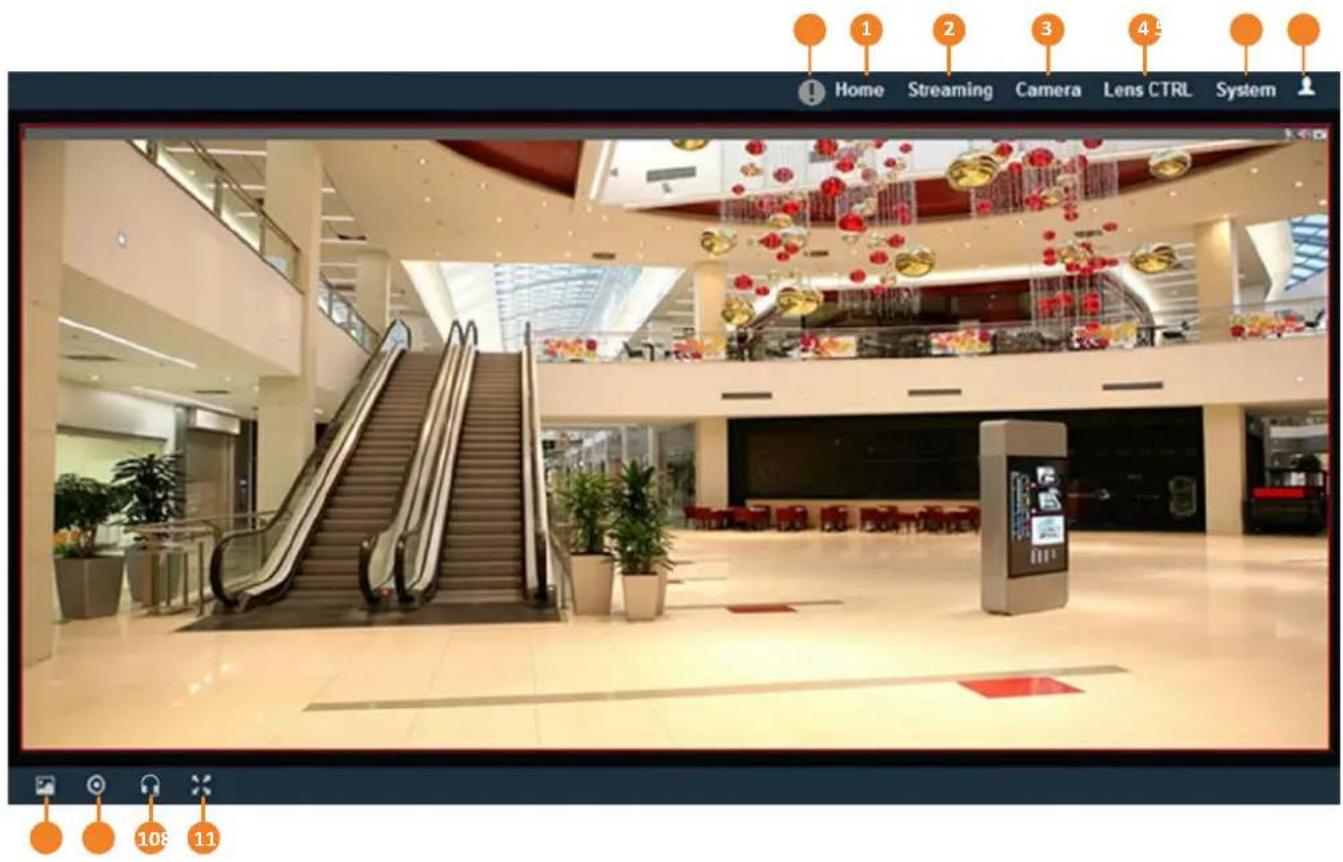
text_image
Home Streaming Camera Lens CTRL System 1 2 3 4 5 108 111. Home
Click the tab to display the Live View window. On the Live View Window, you can directly operate the zoom in / out by scrolling your mouse wheel over the image.
2. Streaming
Click the Streaming tab to display the Streaming quick setup panel. See 6.1 Streaming for more details.
3. Camera
Click the tab to display the Camera quick setup panel. See 6.2 Camera for more details.
4. Lens CTRL
Click the tab to display the Lens Control quick setup panel. See 6.3 Lens CTRL for more details. The function is only available for EDN288M/368M/468M and EZN288M/368M/468M.
5. System
Click the tab to enter the Settings page. See 7. System for more details.
6. Account
Click the button to display the Account panel. You can check the current log-in information, or log out of the Web interface by clicking Lougout. See 6.4 Account for more details.
7. Event signal icons
When an event is triggered, the alarm icon ⚠️ at the top of the Live View window will turn red
and blink ⚠️ to alert the user. Click the icon to view the alarm information. On the pop-up window, click Disarming / Arming to stop / start prompting alarm information, click Clear Alarm to remove the current alarm information from the list.
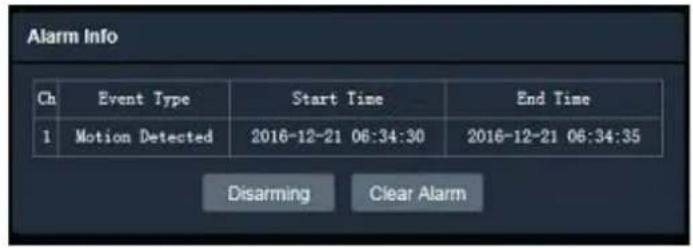
text_image
Alarm Info Ch Event Type Start Time End Time 1 Motion Detected 2016-12-21 06:34:30 2016-12-21 06:34:35 Disarming Clear Alarm8. Snapshot
Click the Snapshot button to take a snapshot, and the storage folder will pop up automatically. By default, the snapshot will be saved at C: Everfocus/Value_3M/Snapshots. To change the location, see Live View Snapshot in 7.1.9 Local Settings.
9. Record
Click the Record button to start / stop recording the current video stream. By default, the recordings will be saved at C:Everfocus/Value_3M/Recordings. To change the location, see Live View Recording in 7.1.9 Local Settings.
10. Two-way Audio
Click the Two-way Audio buttons to switch the sound on / off for the speakers and microphones (if such external devices have been connected to the camera directly or via the network). To activate the Audio function, the Complex Stream must be selected. See Stream in 7.2.1.2 Stream Settings. Note that the camera provides the TRS line-in / out terminal I/O, therefore, TRS microphones / speakers with a (built-in) amplifier and external power supply are required.
11. Full Screen
Click to display the current camera stream in full screen. To exit full screen, right-click the mouse or press the ESC button on keyboard. Under full screen mode, these icons help you quickly be alerted of motion events, turn the audio on/off and take snapshots.
When a motion event is triggered, the alarm icon will turn red to alert the user.
Click the Audio buttons to switch the sound on / off for the speakers (if such external devices have been connected to the camera directly or via the network).
Click the Snapshot button to take a snapshot.
6. Quick Setup Panel
You can click the ▶ button to display the panel over the live view. Click the ◀ button to fix the panel on the right-side. Click the X button or the Close Control Panel button to close the panel.
6.1 Streaming
Click the Streaming tab to display the streaming quick setup panel.
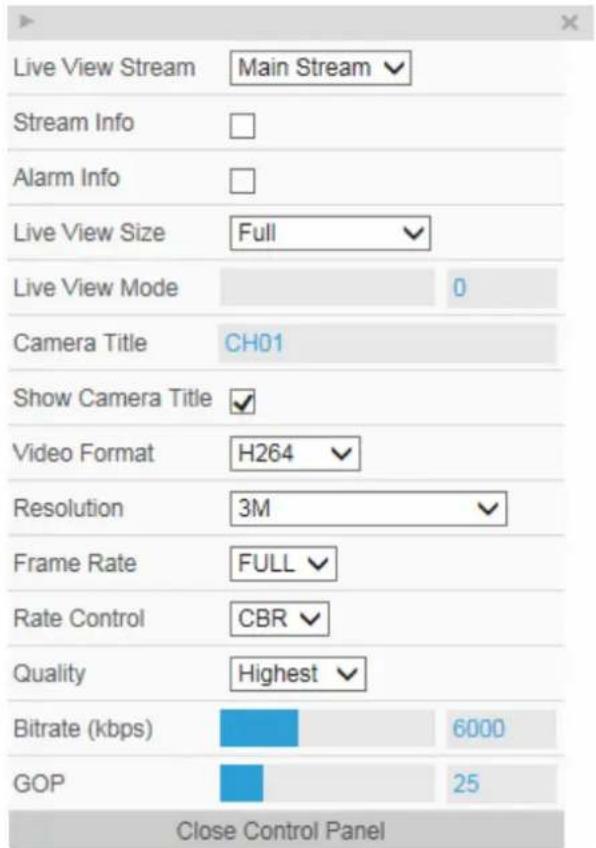
text_image
Live View Stream Stream Info Alarm Info Live View Size Full Live View Mode 0 Camera Title CH01 Show Camera Title Video Format H264 Resolution 3M Frame Rate FULL Rate Control CBR Quality Highest Bitrate (kbps) 6000 GOP 25 Close Control PanelLive View Stream: Select from Main Stream and Sub Stream.
Stream Info: Check to show the current bitrate and current frame rate at the top of the Live View window.
Alarm Info: Check to show the current triggered alarm type and trigger time.
Live View Size: Select the appropriate view size of the live view window.
Live View Mode: Slide the bar to set up the live stream performance between Real Time (smaller value) and Smooth way (larger value).
Camera Title: Type a name in the column to change the title.
Show Camera Title: Check to show the camera title.
Format: Select the encoding format - H.265 or H.264.
Resolution: Select the most suitable resolution for your needs.
Frame Rate: Select from 1fps to Full Frame. The default frame rate is Full Frame.
Rate Control: If required, select whether you want the stream to stream a CBR (Constant Bit Rate) or a VBR (Variable Bit Rate), and set the values of whichever option you choose.
Quality: Select the desired front end devices video coding quality, from Lowest to Highest.
Bitrate (kbps): For CBR, Slide the bar to adjust the customized Constant Bit Rate. For VBR, Slide the bar to adjust the Variable Constant Bit Rate limit.
GOP: Slide the bar to adjust the GOP (Group of pictures) level to adjust the frequency of generating I-frames per second.
6.2 Camera
Click the Camera tab to display the camera quick setup panel.

bar
| Parameter | Value | |---|---| | Brightness | 100 | | Hue | 116 | | Saturation | 100 | | Contrast | 148 | | Sharpness | 128 | Default Color Mode Normal ✓ Mirror OFF ✓ Exposure Time Auto ✓ AGC Mid-High ✓ TWDR OFF ✓ Close Control PanelBrightness: Slide the bar to adjust brightness.
Hue: Slide the bar to adjust hue.
Saturation: Slide the bar to adjust saturation.
Contrast: Slide the bar to adjust contrast.
Sharpness: Slide the bar to adjust sharpness.
Default: Click to return the above value to factory default.
Color Mode: Select a color mode from Normal, Bright or Nature. The default color mode is Normal.
Mirror: Select a mirror mode from OFF, Horizontal Mirror, Vertical Mirror or 90 / 180 / 270 degree Rotation (see 7.2.3 Image for more details). The default Mirror mode is OFF.
Exposure Time: Select an exposure mode from auto or a shutter speed (from 1/25 \~ 1/10,000 seconds).
AGC: For Auto Exposure mode, you can further configure the AGC value. Select the Auto Gain Control level from Low to High (see 7.2.2 Camera for more details). The default AGC level is Mid-High.
TWDR: There are four value options: Close, Low, Mid and High (see 7.2.2 Camera for more details). The default TWDR mode is OFF.
6.3 Lens CTRL
Click the Lens CTRL tab to display the lens control quick setup panel.
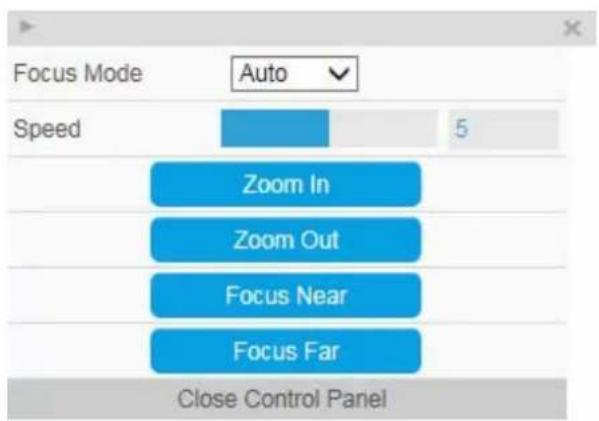
text_image
Focus Mode Auto Speed 5 Zoom In Zoom Out Focus Near Focus Far Close Control PanelFocus Mode: Select a focus mode from Auto, or Manual. For Manual, use the Focus Near / Focus Far buttons to adjust focus.
Speed: Use the slider to adjust the speed for Zoom and Focus.
Zoom In / Zoom Out: Use the buttons to adjust Zoom in or out.
Focus Near / Focus Far: Use the buttons to adjust Focus near or far.
Note:
- By default, the system will automatically adjust the IR LED strength according to the scene, so please avoid IR reflection when installing the camera to prevent out-of-focus at night.
- Under Auto focus mode, if the camera does not focus after switching the Day/Night mode, it is recommended to switch the focus mode to Manual and adjust focus manually.
6.4 Account
Click the button to display the account panel.

text_image
user1 Logout Close ControlsAccount: Display the current user's login account.
Logout: Click to log out of the Web interface.
7. System
Click the System tab on the Live View Window to enter the setting page. Click the item of the one you want to see in the setting menu to display the details.

text_image
EverFocus Home System System Settings Network Date / Time Storage Display and Overlay System Maintenance System Information User Serial Communication Local Settings Camera Settings Streaming and Audio Camera Image Event Settings Event Notification Search and Play File Log System Information Device Name: EBN368 Model Name: EBN368 Device Type: IPC Firmware Version: 1.0.1_161209 Format: 50Hz Save7.1. System Settings
7.1.1. Network
You can configure network-related settings, including IP, Multicast, DHCP, DDNS and Port on this page. Click the tab of the one you want to see.
7.1.1.1. IP Settings
Enter the IPv4 details in this area, which applies to your system.

text_image
EverFocus System Settings Network IP Settings Multicast Settings DDNS Settings Date / Time Storage Display and Overlay System Maintenance System Information User Serial Communication Local Settings Camera Settings Streaming and Audio Camera Image IP Settings IPV4 Static IP DHCP HTTP Port: 80 HTTPS Port: 443 RTSP Port: 554 RTMP Port: 1935 Enable UPnP: Device Port: 5050 Enable PPPoE: User Name: Password: Confirm PWD: PPPoE IP: 100.100.100.100 SaveIPV4: Click the radio to enable IPv4 (Internet Protocol version 4), and then enter the IPv4 details in this area.
Static IP: Click the radio to enable Static IP. You can manually set the Static IP address. This type of address is stable and cannot change, but the user has to make sure there are no address conflicts with other network-connected devices.
DHCP: Click the radio to enable DHCP. This setting lets the system use an automatically assigned (dynamic) IP address. This address can change under certain circumstances. For instance, when the camera's network switch / hub has to be rebooted. Do not assign to the DHCP server the same IP addresses used for the other network cameras and PCs with unique IP addresses.
IP Address: When DHCP is not used, the user needs to manually enter the IP address of the camera. Do not enter an IP address that is already used for your computer or other network cameras.
Subnet Mask: This field is used to set the subnet mask for your network, so that the IP camera will be recognized within the network. Example: 255.255.255.0. When DHCP is selected, the DHCP server will assign this value automatically.
Gateway: This field is used to set the gateway for your network so that the IP camera will be recognized within the network. When DHCP is selected, the DHCP server will assign this value automatically.
Primary DNS: Enter the IP address of the DNS server if this is provided by an ISP.
Secondary DNS: If your ISP provided you with a secondary DNS address, please enter it here.
MAC: The value of MAC address cannot be changed on this page, and are for reference only.
HTTP Port: Enter HTTP port numbers. The default port number is 80.
HTTPS Port: Enter HTTPS port numbers. The default port number is 443.
RTSP Port: Use domain name to access and login device need mapping RTSP. The default port number is 554.
RTMP Port: Use domain name to access and login device need mapping RTMP. The default port number is 1935.
Enable UPnP: Click the box to enable UPnP. Promoted by the UPnP Forum (Universal Plug and Play), the UPnP is a networking architecture providing compatibility among networked devices listed in the networked device table. Enable the UPnP function means you can directly connect the cameras listed in the networked device table by clicking on them.
Device Port: Enter device port numbers. The default port number is 5050.
Enable PPPoE: Click the box to enable PPPoE. This is a DSL-connection application. The ISP will ask the user to input a username and password. Contact your ISP for these details.
User Name: Enter the account's username for PPPoE.
Password: Enter the account's password for PPPoE.
Confirm PWD: Enter the password again to confirm it.
PPPoE IP: Enter the device's dynamic IP address.
After complete the settings, click Save to apply the changes.
7.1.1.2. Multicast Settings
Enable if required, fill in the setting options for main stream / sub stream video and audio. For more details, please refer to Appendix B. Enabling the Multicast Function.

text_image
EverFocus System Settings Network IP Settings Multicast Settings DDNS Settings Date/Time Storage Display and Overlay System Maintenance System Information User Serial Communication Local Settings Camera Settings Streaming and Audio Camera Image Event Settings Event Notification Search and Play File Multicast Settings Enable Multicast Primary Stream Video IP address : 238.255.0.2 Port: 28000 TTL: 255 D-255 Sub Stream Video IP address : 238.255.0.3 Port: 28084 TTL: 255 D-255 Primary Stream Audio IP address : 238.255.0.4 Port: 28088 TTL: 255 D-255 Sub Stream Audio IP address : 238.255.0.3 Port: 28082 TTL: 255 D-255 SaveEnable Multicast: Check the box to enable the Multicast function.
IP Address: Fill in the multicast IP address. IP addresses in the range of 224.0.0.0 through
239.255.255.255 are reserved for multicasting. For devices, you can use 225.x.x.x - 232.x.x.x and 234.x.x.x - 238.x.x.x. Click here for more details.
Port: Change the port number if necessary.
TTL: Input a Time-To-Live (TTL) value. The TTL value specifies the number of routers (hops) that multicast traffic is permitted to pass through before expiring on the network.
After complete the settings, click Save to apply the changes.
text_image
EverFocus System Settings Network IP Settings Multicast Settings DDNS Settings Date / Time Date / Time Settings NTP Settings Storage Display and Overlay System Maintenance System Information User Serial Communication Local Settings Camera Settings DDNS Settings Enable DDNS: Server Type: 3322 Server Name: members 3322.org Port: 80 User Name: Password: Confirm PWD: Domain: SaveDDNS (Dynamic Domain Name System) is a service used to map a domain name to the dynamic IP address of a network device. You can set up the DDNS service for remote access to the IP camera. DDNS assigns a domain name (URL) to the IP camera, so that the user does not need to go through the trouble of checking if the IP address assigned by DHCP Server has changed. Once the IP is changed, the IP camera will automatically update the information to the DDNS to ensure it is always available for remote access. For setting up the DDNS function, please refer to Appendix E. Setting up DDNS Function.
Before enabling the following DDNS function, user should have applied for a host name from the DDS service provider's website. We support these DDNS server providers:
www.everfocusddns.com, members.dyndns.org, ddns.oray.org, dynupdate.no-ip.com, members.3322.org and www.dnsdynamic.org
Note: We highly recommend that you use xxxx.everfocusddns.com for the simplicity of setting up your IP cameras.
Enable DDNS: Check the box to enable DDNS function.
Service: You can either apply for a host name from EverFocus or other DDNS server providers (Dyndns, PeanutHull, NO-IP, 3322 and DnsDynamic). If you choose the EverFocus DDNS server, you can obtain a free host name from EverFocus.
From EverFocus: To obtain a free host name from EverFocus, type a desired host name in the Domain field (there is no need to enter username / password).
From other DDNS server providers: To obtain a domain name from one of the three DDNS server providers, you have to register your name with the provider first, and then select the provider
and fill in the required information. Please refer to the specific DDNS company's website for further information.
Server Name: The server name of the DDNS provider. For example, www.everfocusddns.com. You can modify the server name if required.
Port: Enter the port numbers. The default port number is 80.
User Name / Password: Type the login account of your DDNS server provider. Type the password again in the Confirm PWD field.
Domain: Type the registered domain name from the DDNS server provider.
After complete the settings, click Save to apply the changes.
Note:
- In order to support the full functionality of the camera, you must open the port numbers (80, 554, 443) on the router for remote access to the IP camera. This function is available on most routers in the market and is often known as “Port Forwarding”. To set up Port Forwarding, please consult the manual of the router.
- In certain router models, it is possible that you will not be able to access the camera using DDNS while inside the router's network. Please try using a PC located outside of your router's network.
Default Ports on All EverFocus IP Cameras:
HTTP: 80
RTSP: 554
HTTPS: 443
7.1.2. Date / Time
You can set up the system's time and NTP server. Click the tab of the one you want to see.
Note: Before start operating the IP camera, please make sure the camera date and time are correct.
7.1.2.1. Date/Time Settings
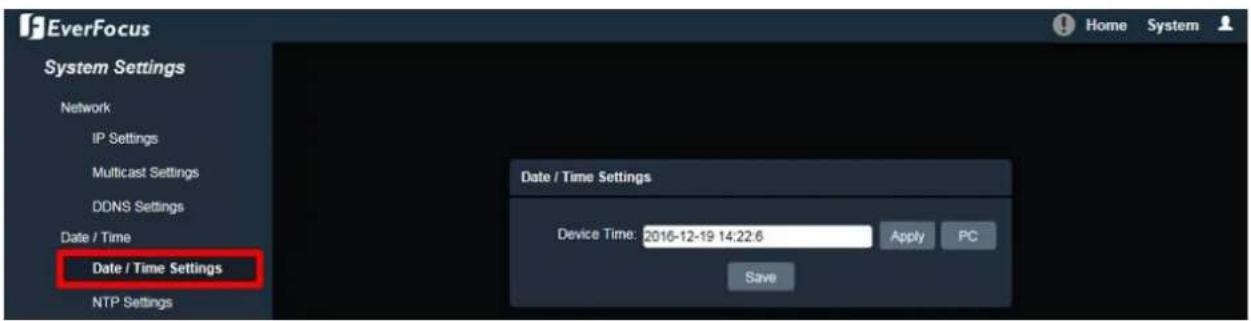
text_image
EverFocus System Settings Network IP Settings Multicast Settings DDNS Settings Date / Time Date / Time Settings NTP Settings Date / Time Settings Device Time: 2016-12-19 14:22:6 Apply PC SaveDevice Time: Display the device current time. You can manually set up and click Apply to save the time setting. Click PC to automatically adjust the camera's time by synchronizing with the PC.
After complete the settings, click Save to apply the changes.
7.1.2.2. NTP Settings
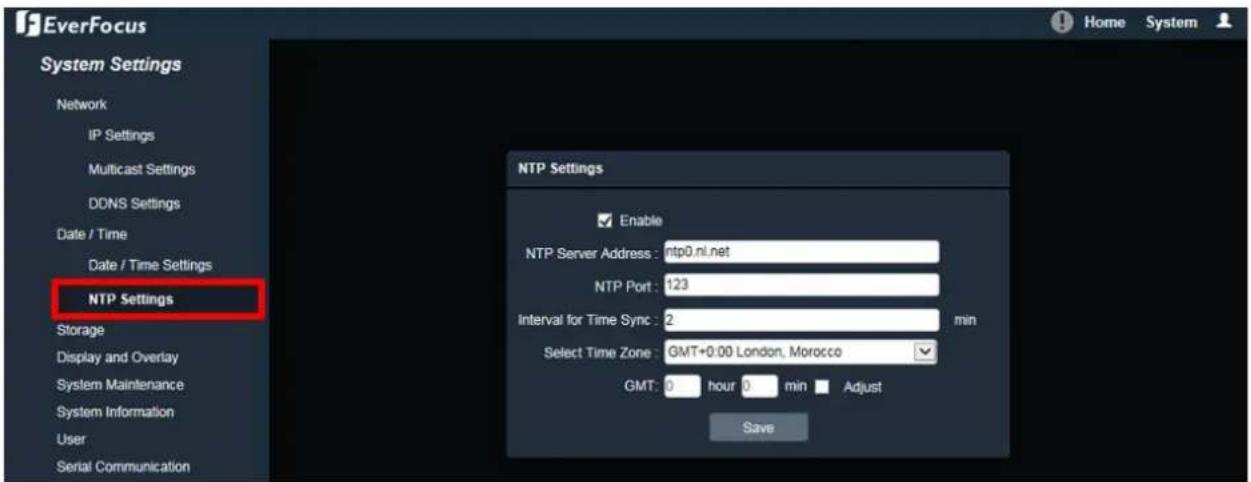
text_image
EverFocus System Settings Network IP Settings Multicast Settings DONS Settings Date / Time Date / Time Settings NTP Settings Storage Display and Overlay System Maintenance System Information User Serial Communication NTP Settings Enable NTP Server Address: http0.nl.net NTP Port: 123 Interval for Time Sync: 2 min Select Time Zone: GMT+0:00 London, Morocco GMT: 0 hour 0 min Adjust SaveEnable: Check the box to enable NTP function.
NTP Server Address: Enter the Network Time Protocol server, if applicable. The camera's time will be automatically adjusted by synchronizing with the NTP server.
NTP Port: Enter the Network Time Protocol port. The default port number is 123.
Interval for Time Sync: Input the interval time for automatic time synchronization with NTP.
Select Time Zone: Select the time zone of the camera's location.
GMT: Check the Adjust box to enable adjusting the offset and set the desired minute in the min field.
After complete the settings, click Save to apply the changes.
7.1.2.3. DST Settings

text_image
EverFocus System Settings Network Date / Time Date / Time Settings NTP Settings DST Setting Schedule Record Storage Display and Overlay System Maintenance System Information User Serial Communication DST Setting Enable From: Jan 1 week Sun 0hour 0min To: Jan 1 week Sun 0hour 0min DST Bias: 30 min SaveEnable: Check the box to enable DST function.
From: Select the date and time when the region's daylight saving time to start.
To: Select the date and time when the region's daylight saving time to end.
DST Bias: Select a shift time for the DST function.
After complete the settings, click Save to apply the changes.
7.1.3. Schedule Record
You can set up schedule record for the camera. This page will only appear when a micro SD card has been inserted to the card slot (please refer to 4.4.2 Inserting a Micro SD Card).

text_image
EverFocus System Settings Network Date / Time Schedule Record Storage Display and Overlay System Maintenance System Information User Serial Communication Local Settings Camera Settings Streaming and Audio Camera Image Event Settings Event Motion Settings Tamper Detection Setin Schedule Record Enable Week: Mon All Day ✓ Section1: 0 0 - 0 0 ✓ Section2: 0 0 - 0 0 ✓ Section3: 0 0 - 0 0 ✓ Section4: 0 0 - 0 0 ✓ Section5: 0 0 - 0 0 ✓ Section6: 0 0 - 0 0 ✓ Section7: 0 0 - 0 0 ✓ Section8: 0 0 - 0 0 Week Copy: Mon SaveTo set up a Record Schedule:
- Check the Enable box to enable the Schedule Record function.
- Select a day (Monday \~ Sunday) from the Week drop-down list to configure the schedule.
- Set up schedules to active the Schedule Record function. Check the box of the desired section to configure the schedule, and select a start / end time from the drop-down list for the section.
- You can optionally use the Week Copy function to copy the configurations and then apply to other days.
- Click Save to save the settings.
Note:
- EBN series models do not support the Schedule Record function.
- Before you insert or remove the SD card, please turn off the IP camera first.
7.1.4. Storage
You can check the SD Card utility or format the SD Card using this page.

text_image
EverFocus System Settings Network IP Settings Multicast Settings DDNS Settings Date/Time Date/Time Settings NTP Settings Storage Display and Overlay Storage Index Record Status Capacity(MB) Free Space(MB) Status Type 1 1007 601 Norma LccalHDD 2 59882 17767 Norma LccalHDD FormatIf a micro SD card has been inserted to the micro SD card slot of the camera, the micro SD card information will be displayed in this field, such as capacity, available free space and record status. To format the card, click the Format button and all data saved on the micro SD card will be removed (see 4.4.2 Inserting a Micro SD Card).
Note:
- EBN series models do not support the Schedule Record function.
- Before you insert or remove the SD card, please turn off the IP camera first.
7.1.5. Display and Overlay
You can enable displaying camera information on the live view / backup images using this page.

text_image
EverFocus System Settings Network Date / Time Storage Display and Overlay System Maintenance System Information User Serial Communication Local Settings Camera Settings Streaming and Audio Audio Settings Stream Settings Privacy Mask Settings Camera Image Display and Overlay Camera CH01 Show Title: Main Stream 24pt OSD: Sub Stream 12pt OSD: Multi-line Text: TimeFormat: 24-Hour OSD DateFormat: XXXX-XX-XX Year Month Da Camera Title: ↑ ↓ ← → Date & Time: ↑ ↓ ← → Multi-line Text: ↑ ↓ ← → SaveCamera Title: Check the Show box to enable the Camera Title function. Type a name in the column to change the title.
Main Stream OSD: Select the font size for main stream OSD.
Sub Stream OSD: Select the font size for sub stream OSD.
Multi-line Text: Enter the desired text in the input field, and check the Show box to display the text.
Time Format: Check the OSD box to enable the Time Format function. Select the desired time format from the drop-down list.
Date Format: Check the OSD box to enable the Date Format function. Select the desired date format from the drop-down list.
text_image
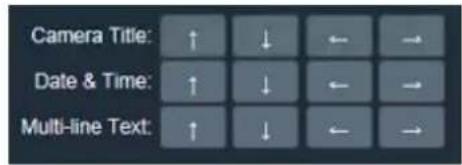
Camera Title: ↑ ↓ ← → Date & Time: ↑ ↓ ← → Multi-line Text: ↑ ↓ ← →Camera Title: You can adjust the position of the title by the arrow buttons.
Date & Time: You can adjust the position of the date / time by the arrow buttons.
Multi-line Text: You can adjust the position of the Multi OSD by the arrow buttons.
7.1.6. System Maintenance
7.1.5.1. Upgrade Firmware
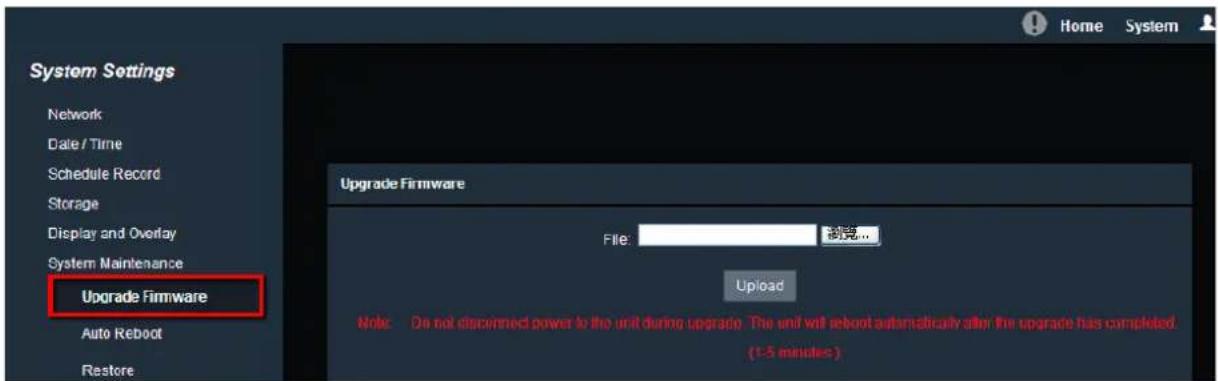
text_image
Home System System Settings Network Date / Time Schedule Record Storage Display and Overlay System Maintenance Upgrade Firmware File: 浏览... Upgrade Firmware File: Upload Note: Do not disconnect power to the unit during upgrade. The unit will reboot automatically after the upgrade has completed. (1-5 minutes)Click the Browse button to find a previously prepared firmware upgrade file. Click the Update button to install the new firmware. You can also upgrade firmware using IP Utility, see 8. Upgrading Firmware Using IP Utility.
Note:
- System updating should only be accomplished by trained staff.
- Do not disconnect power to the IP camera during the upgrade sequence. The IP camera will reboot automatically after the upgrade has completed (1-5 minutes).
7.1.5.2. Auto Reboot
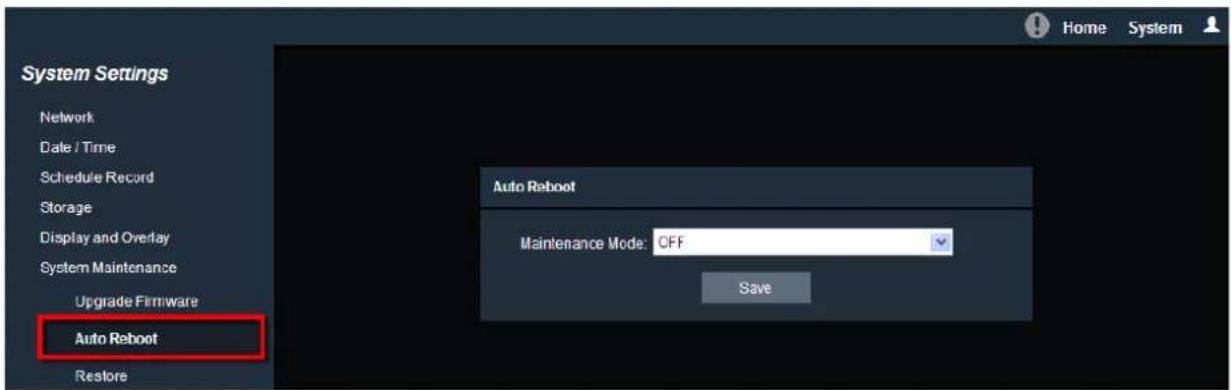
text_image
Home System System Settings Network Date / Time Schedule Record Storage Display and Overlay System Maintenance Upgrade Firmware Auto Reboot Restore Auto Reboot Maintenance Mode: CFF SaveSelect OFF to disable the Auto Reboot function, or select an interval for the Auto Reboot function from Every Day, Every Week or One Time. The IP camera will automatically reboot at the specified time.
• OFF: The IP camera will not reboot automatically.
• Every Day: The IP camera will reboot automatically every day at the specified time (hh:mm).
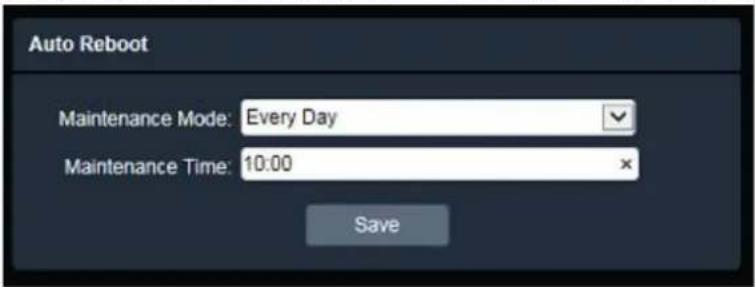
text_image
Auto Reboot Maintenance Mode: Every Day Maintenance Time: 10:00 Save- Every Week: On the selected day, the IP camera will reboot automatically at the specified time (hh:mm).

text_image
Auto Reboot Maintenance Mode: Every Week Weekly Schedule: Sun Mon Tue Wed Thu Fri Sat Maintenance Time: 10:00 Save• One Time: The IP camera will reboot at the specified time (YYYY/MM/DD hh:mm:ss).
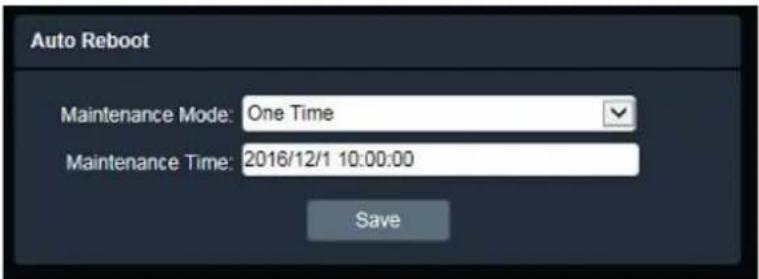
text_image
Auto Reboot Maintenance Mode: One Time Maintenance Time: 2016/12/1 10:00:00 SaveAfter complete the settings, click Save to apply the changes.
7.1.5.3. Restore

text_image
Home System System Settings Network Date / Time Schedule Record Storage Display and Overlay System Maintenance Upgrade Firmware Auto Reboot Restore System Information Restore Save Config Load Config Restore RebootSave Config: To make a backup file of the machine's current configurations, click this button to export all the configurations to a configuration file. This will enable the user to reload these configuration settings if the settings are changed and there is unexpected behavior.
Load Config: Click to import a previously prepared configuration file and then apply the parameters from the configuration file to the system.
Restore: This button should be used with caution. Clicking this button will return the selected camera settings to the factory default values.

text_image
Restore ✓ All ✓ Network Parameters ✓ Account Settings ✓ Alarm & Exception ✓ Miscellaneous OK CancelReboot: Click to reboot the IP camera without changing any of the settings. Use this function if the IP camera is not behaving as expected.
7.1.7. System Information
You can check the system information or set up NTSC / PAL on this page.

text_image
EverFocus System Settings Network Date / Time Storage Display and Overlay System Maintenance Upgrade Firmware Auto Reboot Restore System Information User Serial Communication Local Settings Home System System Information Device Name: EBN368 Model Name: EBN368 Device Type: IPC Firmware Version: 1.0.1_161209 Format: 50Hz SaveDevice Name: If required, enter a desired name for the machine. This name will be visible in the Machine Name field of the IP Utility software.
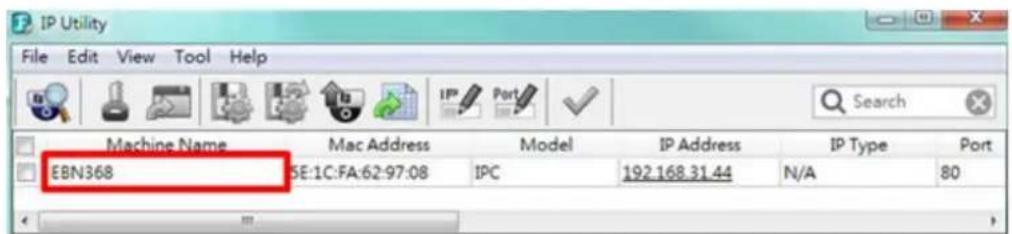
text_image
IP Utility File Edit View Tool Help Machine Name Mac Address Model IP Address IP Type Port EBN368 SE:1C:FA:62:97:08 IPC 192.168.31.44 N/A 80Model Name: Display the model name of the camera. The values cannot be changed on this page. Device Type: Display the device type. The values cannot be changed on this page. Firmware Version: Display the current software version. The values cannot be changed on this page. Format: Select NTSC (60Hz) or PAL (50Hz) for your local scanning system.
Note: Modifying the Format will cause the system to reboot automatically. Please create a new network connection to the IP camera when the reboot is complete.
After complete the settings, click Save to apply the changes.
7.1.8. User
The system administrator can create user accounts on this page.

text_image
System Settings Network Date / Time Schedule Record Storage Display and Overlay System Maintenance System Information User Serial Communication User User Name User Group Operation user1 Admin Modify Delete Authority guest Guest Modify Delete Authority Create UserTo add a user account:
- Click the Create User button and the following dialog box appears.
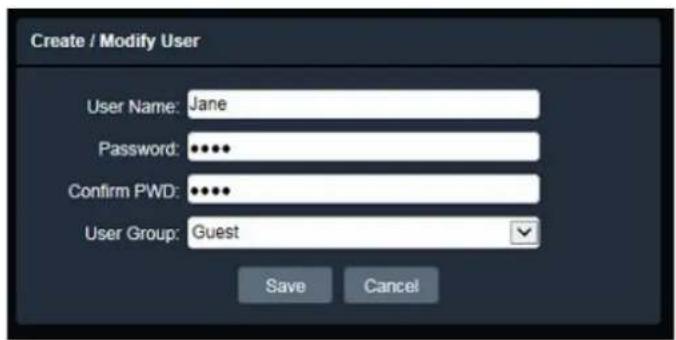
text_image
Create / Modify User User Name: Jane Password: ••••• Confirm PWD: ••••• User Group: Guest Save Cancel- Type the user name and password for the account. Type the password again in the Confirm PWD field.
- Select an authority level for the user account from the User Group drop-down list. The default authority for each group is listed below. You can still configure the privileges for each account by clicking Authority.
| Default Authority | Admin | Guest | Operator |
| Remote PTZ | Yes | - | Yes |
| Remotely Playback | Yes | Yes | Yes |
| Remote Parameter Setting | Yes | - | - |
| Remotely Query Log | Yes | Yes | Yes |
| Remotely Upgrade and Format | Yes | - | Yes |
| Remote 2-Way Audio | Yes | - | Yes |
| Remote Live View | Yes | Yes | Yes |
| Remotely Reboot | Yes | Yes | Yes |
Note: Multiple Guest / Operator account can be configured, but only one Admin account can be created for an IP camera.
- Click Save to add the user account.
To modify a user account:
- Click the Modify button in the Operation column. The following dialog box appears.

text_image
Create / Modify User User Name: Jane Password: ••••• Confirm PWD: ••••• User Group: Guest Save Cancel- Edit the user name and password. Type the password again in the Confirm PWD field.
- Edit the authority level for the user account from the User Group drop-down list.
- Click Save to save all the settings.
To delete a user account:
- Click the Delete button in the Operation column. The following dialog box appears. The following dialog box appears.

text_image
Message Are you sure to delete this user? OK Cancel- Click OK to delete the user account.
To set up privileges for a user account:
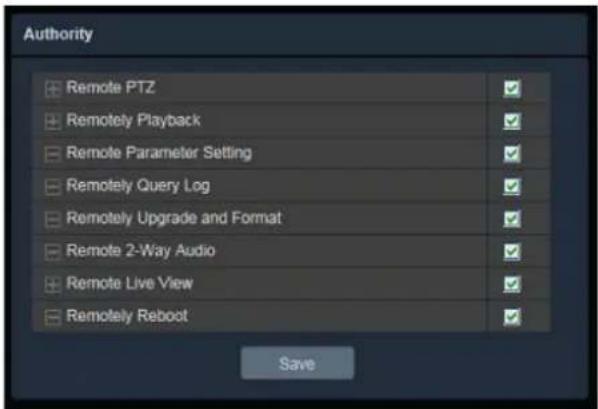
- Click the Authority button in the Operation column. The following dialog box appears.
text_image
Authority Remote PTZ Remotely Playback Remote Parameter Setting Remotely Query Log Remotely Upgrade and Format Remote 2-Way Audio Remote Live View Remotely Reboot Save- Check the box to grant the privileges to this user account.
- Click Save to save all the settings.
7.1.9. Serial Communication
The function is currently reserved.

text_image
EverFocus System Settings Network Date/Time Date/Time Settings NTP Settings Storage Display and Overlay System Maintenance System Information User Serial Communication Local Settings Camera Settings Serial Communication Protocol: pelcoD Address: 1 Baud Rate: 9600 SaveProtocol: Select a protocol from Pelco-D or Pelco-P.
Address: Enter the address from 0 to 255.
Baud Rate: This field is to set the speed at which is used to transmit instruction or information through the RS-485 port (reserved) on the video encoder. There are six different speeds, from 50 to 115200.
After complete the settings, click Save to apply the changes.
7.1.10. Local Settings
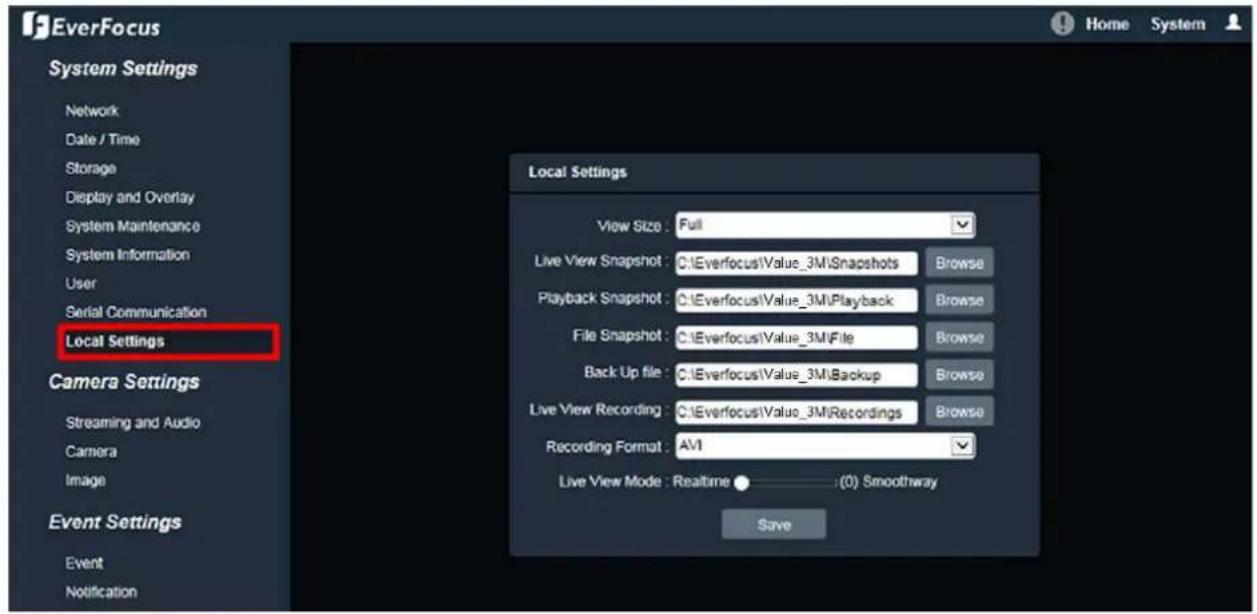
You can configure the storage path for storing the recordings / snapshot on your PC.
text_image
EverFocus System Settings Network Date / Time Storage Display and Overlay System Maintenance System Information User Serial Communication Local Settings Camera Settings Streaming and Audio Camera Image Event Settings Event Notification Local Settings View Size: Full Live View Snapshot: C:\Everfocus\Value_3M\Snapshots Browse Playback Snapshot: C:\Everfocus\Value_3M\Playback Browse File Snapshot: C:\Everfocus\Value_3M\File Browse Back Up file: C:\Everfocus\Value_3M\Backup Browse Live View Recording: C:\Everfocus\Value_3M\Recordings Browse Recording Format: AV1 Live View Mode: Realtime ● (0) Smoothway SaveView Size: Select the appropriate view size of the live view window.
Live View Snapshot: Type the storage path for snapshots captured in the Home page (Live View window).
Playback Snapshot: Type the storage path for snapshots captured in the Playback page.
File Snapshot: Type the storage path for snapshots captured in the File page.
Backup file: Type the storage path for recording files backed up in the Playback page.
Live View Recording: Type the storage path for recordings recorded in the Home page (Live View window).
Record Format: Currently only AVI is available.
Live View Mode: Slide the bar to set up the live stream performance between Real Time and Smooth way.
After complete the settings, click Save to apply the changes.
Note: The Playback related settings are only functional if the micro SD Card has been inserted in the camera's micro SD card slot.
7.2. Camera Settings
You can configure camera related settings, such as video, audio, image and privacy mask.
7.2.1. Streaming and Audio
7.2.1.1. Audio Settings
text_image
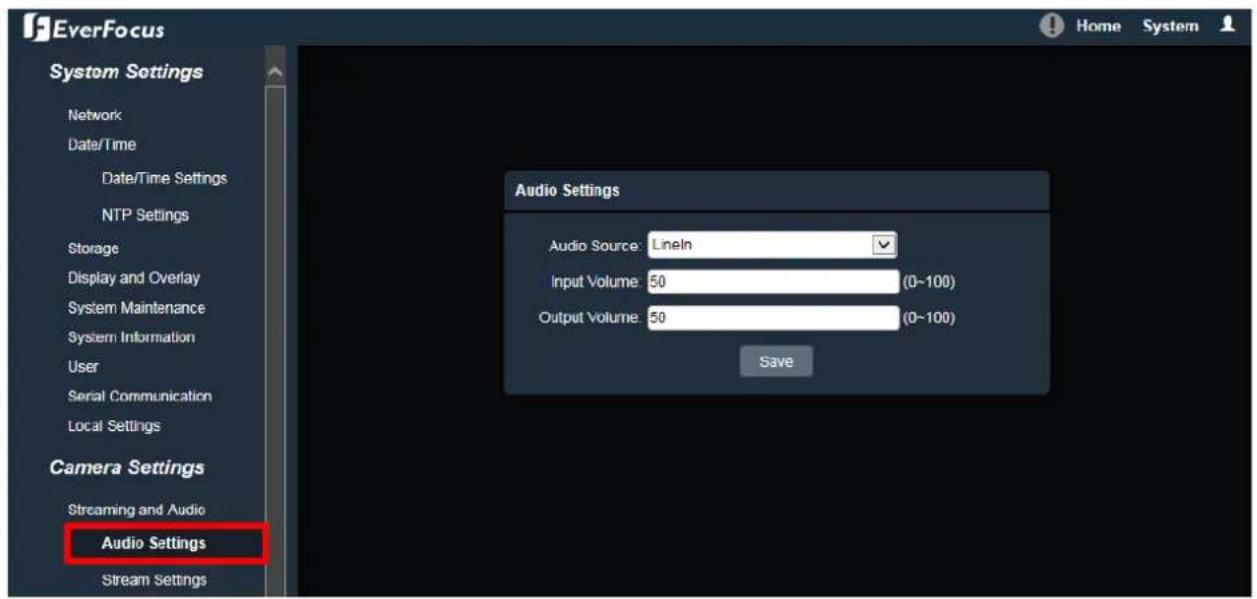
EverFocus System Settings Network Date/Time Date/Time Settings NTP Settings Storage Display and Overlay System Maintenance System Information User Serial Communication Local Settings Camera Settings Streaming and Audio Audio Settings Stream Settings Audio Settings Audio Source: Lineln Input Volume: 50 (0~100) Output Volume: 50 (0~100) SaveThe camera can transmit audio to your computer if you have connected an external line-in audio device to its audio Input. Select an audio source (currently only Line-in is available) then adjust the audio input / output volume. Note that the camera provides the line-in / out audio ports, therefore, microphones / speakers with an (built-in) amplifier and external power supply are required.
After complete the settings, click Save to apply the changes.
7.2.1.2. Stream Settings
text_image
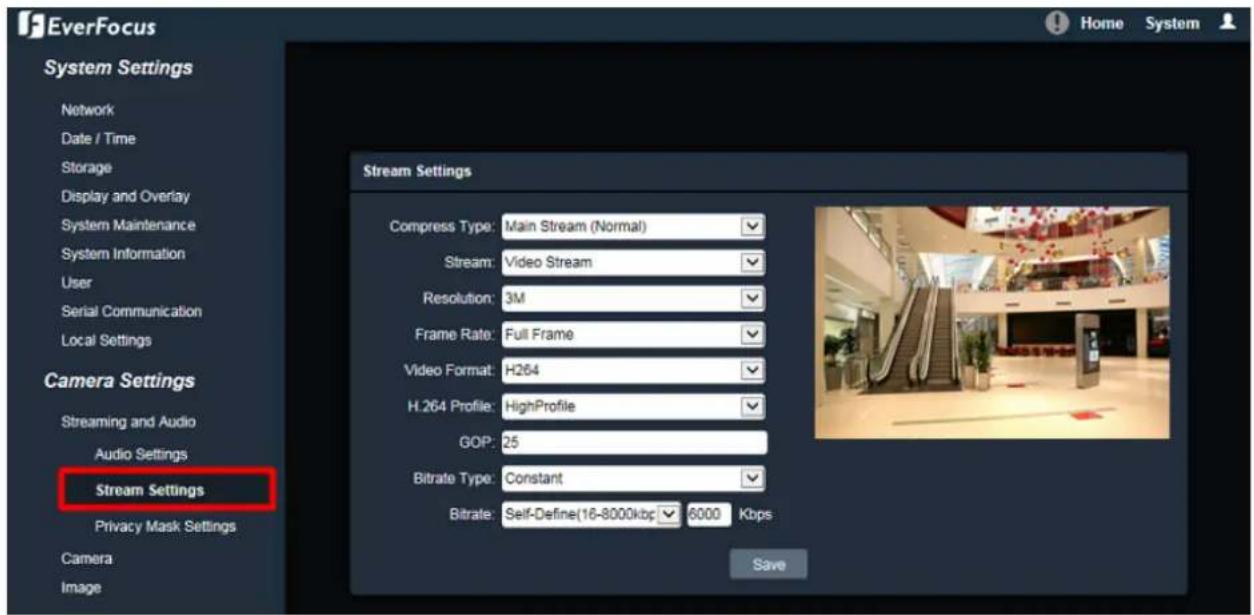
EverFocus System Settings Network Date / Time Storage Display and Overlay System Maintenance System Information User Serial Communication Local Settings Camera Settings Streaming and Audio Audio Settings Stream Settings Privacy Mask Settings Camera Image Stream Settings Compress Type: Main Stream (Normal) Stream: Video Stream Resolution: 3M Frame Rate: Full Frame Video Format: H264 H.264 Profile: HighProfile GOP: 25 Bitrate Type: Constant Bitrate: Self-Define(16-8000kbp) 6000 Kbps SaveCompress Type: Select from Main Stream or Sub Stream.
Stream: Select from Video Stream (video only) or Complex Stream (video & audio).
Resolution: Select the most suitable resolution for your needs.
Frame Rate: Select from 1fps to Full Frame. The default frame rate is Full Frame.
Video Format: Select the encoding format – H.265 or H.264.
H264 Profile: Select the video coding level from Main Profile, Baseline or High Profile.
GOP: Enter the I-frame interval time from 2 to 255 to adjust the frequency of generating I-frames per second.
Bitrate Type: If required, select whether you want the stream to stream a Constant Bit Rate or a Variable Bit Rate, and set the values of whichever option you choose.
Bitrate: For Constant Bit Rate only. Select the desired Bit Rate from the drop-down list or enter a customized Constant Bit Rate (16 to 8000 kbit) in the ☐ Kbps field.
Max Bitrate: For Variable Bit Rate only. Select the desired Max Bit Rate from the drop-down list or enter a customized Max Bit Rate (16 to 8000 kbit) in the □ Kbps field.
Quality: For Variable Bit Rate only. Select the desired front end devices video coding quality, from Lowest to Highest.
After complete the settings, click Save to apply the changes.
Note: If you connect to the camera via the Internet and experience a delay (lag time) in the video feed, try to reduce the quality and resolution of the streams – but keep the frame rate at its maximum.
7.2.1.3. Privacy Mask Settings
The Privacy Mask can block out sensitive areas from view, covering the areas with black boxes in both live view and recorded clips. This feature is useful when users' don't want the sensitive information visible. Up to four Privacy Masks can be configured.

text_image
EverFocus System Settings Network Date/Time Date/Time Settings NTP Settings Storage Display and Overlay System Maintenance System Information User Serial Communication Local Settings Camera Settings Streaming and Audio Audio Settings Stream Settings Privacy Mask Settings Camera Privacy Mask Settings Enable Area settings. Clear SaveTo set up a Privacy Mask:
- Check the Enable box to enable the Privacy Mask function.
- In the Area Settings field, move the cursor to the position where you want the mask rectangle to start and then click it. Move the cursor to the position (diagonally opposing corner) where you want the mask rectangle to end and then click it.
- You can remove the configured mask by clicking the Clear button.
After complete the settings, click Save to apply the settings.
7.2.2. Camera

text_image
EverFocus System Settings Network Date / Time Storage Display and Overlay System Maintenance System Information User Serial Communication Local Settings Camera Settings Streaming and Audio Camera Image Event Settings Event Notification Search and Play Playback File Log Camera Day/Night Mode Mode: Auto (Light sensor) Switching time: 3 (0-30) Day to Night: 20 (0-255) Night to Day: 35 (0-255) Light Board Control Mode: Auto Brightness: 0 (0-100) Advanced Settings TWDR: OFF 3DNR: Low Defog: OFF Slow Shutter: OFF Exposure Settings Mode: Auto (AGC) Manual AGC: Low Shutter: 1/30(1/25) Save Aperture Lens: Manual Semiautomatic Gamma Gamma: CURVE_2_2 Flickerless: OFFDay/Night Mode
Mode: Select a mode from the drop-down list. The default Day/Night mode is Auto(Light sensor).
- Auto(Light sensor): Select to let the camera automatically switch to Day mode (color images) or Night mode (black and white images with IR LED on) based on the light sensor's detection on the light level.
- Auto(AGC): Select to let the camera automatically switch to Day mode (color images) or Night mode (black and white images with IR LED on) based on the AGC value of the current video image.
- Color: Select to keep the camera in Day mode (color images with IR LED off), even in nighttime.
- Black White: Select to keep the camera in Night mode (black and white images with IR LED on), even in daytime.
Switching Time: Select the transition duration a switching will take for Auto(AGC) Day/Night Mode, from 0 to 30 second(s). The default switching time is 3 seconds.
Day to Night: You can configure the sensitivity for Auto(AGC) Day/Night Mode ranging from 0-255. The camera will automatically switch from day mode to night mode based on the setup sensitivity. The default value is 20.
Night to Day: You can configure the sensitivity for Auto(AGC) Day/Night Mode ranging from 0-255. The camera will automatically switch from night mode to day mode based on the setup sensitivity. The default value is 35.
Light Board Control
Mode: Select a mode (OFF, Manual, Auto) from the drop-down list. The default Light Board Control mode is OFF.
Brightness: You can configure the brightness for Manual Light Board Control Mode.
Advanced Settings
TWDR (True Wide Dynamic Range): The WDR function provides clearer images when both of the very bright and dark areas simultaneously appear on the camera view. There are four value options: OFF, Low, Mid and High. Note that when WDR is enabled, some parts of the image may appear solarized. This is normal for WDR, and is not a camera malfunction. The default TWDR mode is OFF.
3DNR (3D Noise Reduction): Noise Reduction limits the amount of digital “video noise” that is usually found in any video stream, and helps to reduce file size. There are five value options: OFF, Low, Mid, Mid-High and High. The default 3DNR mode is Low.
Defogging: The Defog function makes the subject appear clearer when the surrounding area of the subject is foggy and low contrast. There are four value options: OFF, Low, Mid and High. The default defogging mode is OFF.
Slow Shutter: Select from OFF or ON.
Note: Modifying the TWDR mode will cause the system to reboot automatically. Please create a new network connection to the IP camera when the reboot is complete.
Exposure Control
Mode: Select a mode from Auto or Manual. The default Exposure mode is Auto.
- Auto(AGC): Selecting Auto for the camera to automatically adjust the Shutter based on the measured light level. You can further configure the AGC value.
- Manual: Select this option to manually set up the Shutter value.
AGC: For Auto(AGC) Exposure mode, you can further configure the AGC value. Select the Auto Gain Control level from Low to High. The lower the AGC level, the lower the video signal and the noise. The higher the AGC level, the better the sensitivity under low illumination, while the noise will be more obvious. The default AGC level is Mid-High.
Shutter: For Manual Exposure mode, you can further configure the Shutter value. If enabled, this setting lets you set the shutter speed yourself (measured in fractions of a second).
Aperture
Lens: Select a mode from Manual or Semiautomatic. The default Iris mode is Semiautomatic.
Note: The Aperture function is only available for EDN288M/368M/468M and EZN288M/368M/468M.
Gamma
Gamma: Users can use this field to optimize video quality of the monitor. Choose CURVE_1_6, CURVE_1_8, CURVE_2_0 or CURVE_2_2 from the drop down list. The darker the environment is, the higher Gamma value you should choose. The default Gamma mode is CURVE_2_0.
Flikerless: Choose between OFF, 50HZ or 60HZ. The default Flikerless mode is OFF.
After complete the settings, click Save to apply the changes.
7.2.3. Image

text_image
EverFocus System Settings Network: Date / Time Display and Overlay System Maintenance System Information User Serial Communication Local Settings Camera Settings Streaming and Audio Audio Settings Stream Settings Privacy Mask Settings Camera Image Mirror: OFF Color Mode: Normal Sharpness: 133 Brightness: 100 Contrast: 148 Saturation: 100 Hue: 115 SaveMirror: Select a mirror mode from OFF, Horizontal Mirror, Vertical Mirror, 180 degree Rotation, 90 degree Rotation or 270 degree Rotation. The default Mirror mode is Close.
• Horizontal Mirror: The image will be rotated horizontally around a vertical axis.
• Vertical Mirror: The image will be rotated vertically around a horizontal axis.
• 180 degree Rotation: The image will be rotated 180 degree.
• 90 degree Rotation: The image will be rotated 90 degree.
• 270 degree Rotation: The image will be rotated 270 degree.
Note: Set up 90 / 180 / 270 degree rotation will cause the system to reboot automatically. Please create a new network connection to the IP camera when the reboot is complete.
Color Mode: Select a color mode from Normal, Bright or Nature. The default color mode is Normal.
Sharpness: Slide the bar to adjust the sharpness.
Brightness: Slide the bar to adjust the brightness.
Contrast: Slide the bar to adjust the contrast.
Saturation: Slide the bar to adjust the saturation.
Hue: Slide the bar to adjust the hue.
Click the Default button ↩ to return the color settings (Bright, Contrast, Saturation and Hue) to the default value.
After complete the settings, click Save to apply the changes.
7.3. Event Settings
You can set up the Motion Detection event or Tampering Detection event to automatically notify the users when an event occurs.
7.3.1. Event
7.3.1.1. Motion Settings
Use this page to configure the area in which motion will be detected, and set up schedules to active alarm functions. When a motion is detected by the camera, the alarm icon ⚠️ at the top of the Live View window will turn red and blink ⚠️ to alert the user. Up to four Motion areas can be configured.
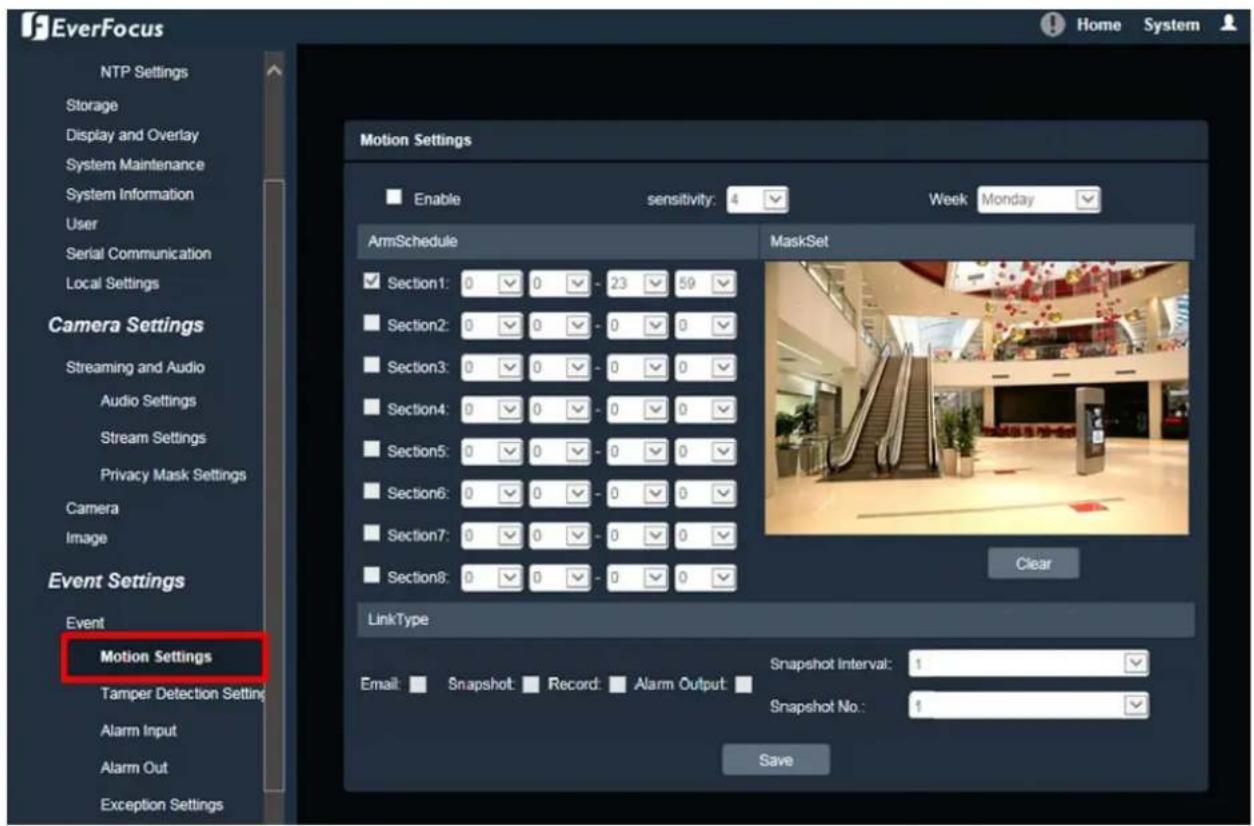
text_image
EverFocus NTP Settings Storage Display and Overlay System Maintenance System Information User Serial Communication Local Settings Camera Settings Streaming and Audio Audio Settings Stream Settings Privacy Mask Settings Camera Image Event Settings Event Motion Settings Tamper Detection Setting Alarm Input Alarm Out Exception Settings Motion Settings Enable sensitivity: 4 Week Monday ArmSchedule MaskSet Section1: 0 0 - 23 59 Section2: 0 0 - 0 0 Section3: 0 0 - 0 0 Section4: 0 0 - 0 0 Section5: 0 0 - 0 0 Section6: 0 0 - 0 0 Section7: 0 0 - 0 0 Section8: 0 0 - 0 0 LinkType Email: Snapshot Record Alarm Output Snapshot Interval: 1 Snapshot No.: 1 SaveTo set up a Motion Detection area:
- Check the Enable box to enable the Motion Detection function. Select a value from the drop-down list to set the sensitivity of the Motion Detection.
-
Select a day (Monday \~ Sunday) from the Week drop-down list to configure the schedule.
-
Set up schedules to active the alarm functions and send alarm notification. Check the box of the desired section to configure the schedule, and select a start / end time from the drop-down list for the section.
- On the preview window, click and drag to draw the desired Motion Detect area, the area will be marked in red.
- You can remove the configured Motion Detection area by clicking the Clear button.
- Set up event reactions for the Motion Detection function. Check the box of the desired reaction (Email, Snapshot, Record or Alarm output) to link with the function.
Email: Check the box to enable transmitting the alarm notification to the mail server. To configure Email settings, see 7.3.2.1 Email Settings.
Snapshot: Check the box to enable taking snapshots to the micro SD Card when an event occurs. You can further configure the Snapshot settings including Snapshot Interval and Snapshot No.. For example, if you set up the Snapshot Interval to 5 and Snapshot No. to 3, system will take 3 snapshots every 5 seconds.
Record: Check the box to enable recording to the micro SD Card when an event occurs.
Alarm Output: Check the box to enable triggering the external alarm device.
After complete the settings, click Save to apply the settings.
Note: The Snapshot and Record settings are only functional if the micro SD Card has been inserted in the camera's micro SD card slot.
7.3.1.2. Tamper Detection Settings
Use this page to configure the area in which tampering will be detected and set up schedules to active alarm functions. When a tampering is detected by the camera, the alarm icon ⚠ at the top of the Live View window will turn red and blink ⚠ to alert the user.
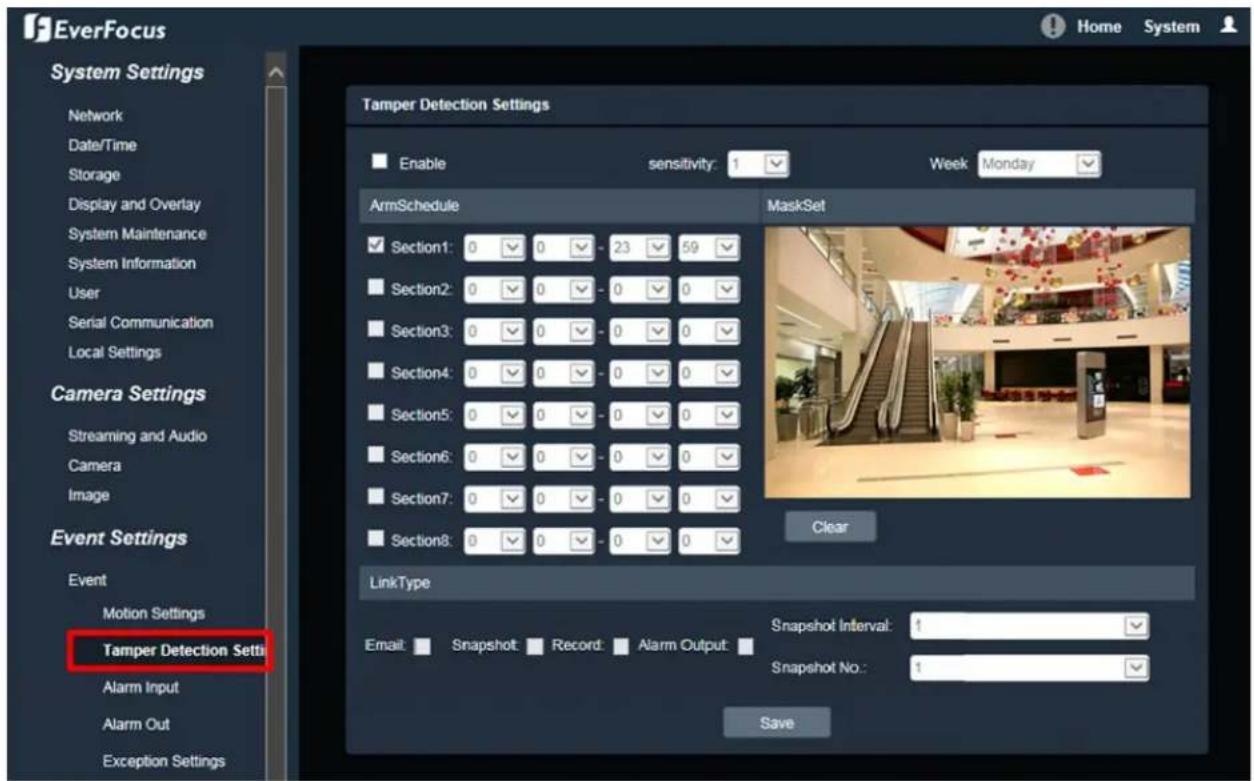
text_image
EverFocus System Settings Network Date/Time Storage Display and Overlay System Maintenance System Information User Serial Communication Local Settings Camera Settings Streaming and Audio Camera Image Event Settings Event Motion Settings Tamper Detection Setti Alarm Input Alarm Out Exception Settings Tamper Detection Settings Enable sensitivity: 1 Week Monday ArmSchedule MaskSet Section1: 0 0 - 23 59 Section2: 0 0 - 0 0 Section3: 0 0 - 0 0 Section4: 0 0 - 0 0 Section5: 0 0 - 0 0 Section6: 0 0 - 0 0 Section7: 0 0 - 0 0 Section8: 0 0 - 0 0 Clear LinkType Email: Snapshot Record Alarm Output: Snapshot Interval: 1 Snapshot No.: 1 SaveTo set up a Tampering Detection area:
- Check the Enable box to enable the Tampering Detection function. Select a value from the drop-down list to set the sensitivity of the Tampering Detection.
- Select a day (Monday \~ Sunday) from the Week drop-down list to configure the schedule.
- Set up schedules to active the alarm functions and send alarm notification. Check the box of the desired section to configure the schedule, and select a start / end time from the drop-down list for the section.
- On the preview window, click and drag to draw the desired Tampering Detection area, the area will be marked in red.
- You can remove the configured Tampering Detection area by clicking the Clear button.
- Set up event reactions for the Tampering Detection function. Check the box of the desired reaction (Email, Snapshot, Record or Alarm output) to link with the function.
Email: Check the box to enable transmitting the alarm notification to the mail server. To configure Email settings, see 7.3.2.1 Email Settings.
Snapshot: Check the box to enable taking snapshots to the micro SD Card when an event occurs. You can further configure the Snapshot settings including Snapshot Interval and Snapshot No.. For example, if you set up the Snapshot Interval to 5 and Snapshot No. to 3, system will take 3 snapshots every 5 seconds.
Record: Check the box to enable recording to the micro SD Card when an event occurs.
Alarm Output: Check the box to enable triggering the external alarm device.
After complete the settings, click Save to apply the settings.
Note: The Snapshot and Record settings are only functional if the micro SD Card has been inserted in the camera's micro SD card slot.
Use this page to configure the alarm input channel in which event will be triggered and set up schedules to active alarm functions. When an event is triggered by the alarm input, the alarm icon ⚠️ at the top of the Live View window will turn red and blink ⚠️ to alert the user.
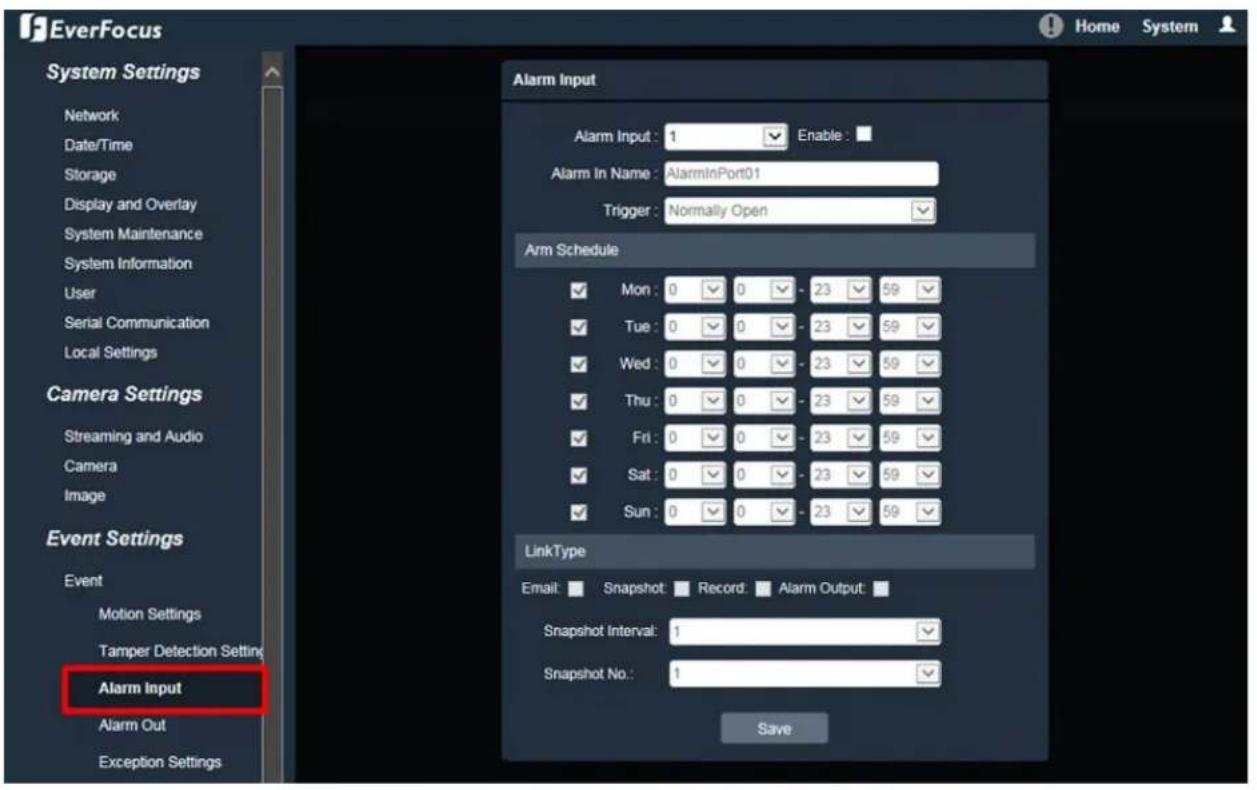
text_image
EverFocus System Settings Network Date/Time Storage Display and Overlay System Maintenance System Information User Serial Communication Local Settings Camera Settings Streaming and Audio Camera Image Event Settings Event Motion Settings Tamper Detection Setting Alarm Input Alarm Out Exception Settings Alarm Input 1 Enable : Alarm In Name : AlarminPort01 Trigger : Normally Open Arm Schedule Mon : 0 0 - 23 59 Tue : 0 0 - 23 59 Wed : 0 0 - 23 59 Thu : 0 0 - 23 59 Fri : 0 0 - 23 59 Sat : 0 0 - 23 59 Sun : 0 0 - 23 59 LinkType Email: Snapshot Record Alarm Output: Snapshot Interval: 1 Snapshot No: 1 SaveTo set up the Alarm Input function:
- Select a camera's Alarm Input channel from the drop-down list and check the Enable box to enable this channel. After enabling this channel, you can further configure the Alarm Input schedules and event reactions.
- Enter a name for the Alarm Input channel in the Alarm Input Title field (the name will show up in the event notifications and logs) and select Normally Open or Normally Close from the Trigger Type drop-down list.
- Set up schedules to active the alarm functions and send alarm notification. Check the box of the desired day (Monday \~ Sunday) to configure the schedule, and select a start / end time from the drop-down list for each day.
- Set up event reactions for the Alarm Input channel. Check the box of the desired reaction (Email, Snapshot, Record or Alarm output) to link with the function.
Email: Check the box to enable transmitting the alarm notification to the mail server. To configure Email settings, see 7.3.2.1 Email Settings.
Snapshot: Check the box to enable taking snapshots to the micro SD Card when an event occurs. You can further configure the Snapshot settings including Snapshot Interval and Snapshot No.. For example, if you set up the Snapshot Interval to 5 and Snapshot No. to 3, system will take 3 snapshots every 5 seconds.
Record: Check the box to enable recording to the micro SD Card when an event occurs.
Alarm Output: Check the box to enable triggering the external alarm device.
After complete the settings, click Save to apply the settings.
Note: The Snapshot and Record settings are only functional if the micro SD Card has been inserted in the camera's micro SD card slot.
7.3.1.4. Alarm Output
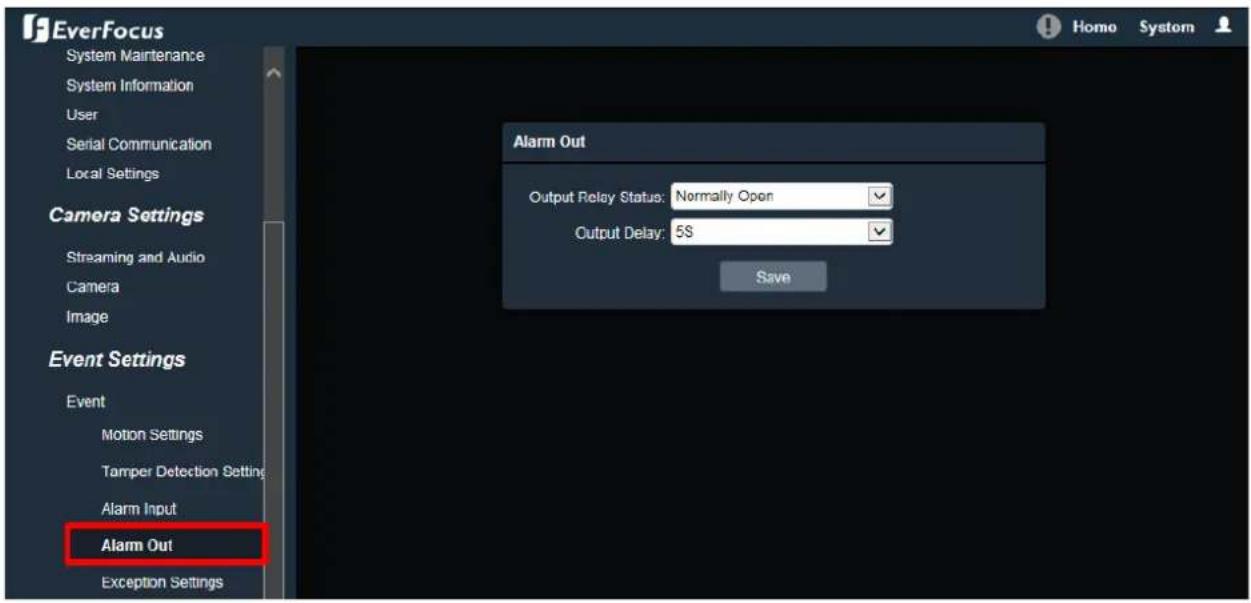
text_image
EverFocus System Maintenance System Information User Serial Communication Local Settings Camera Settings Streaming and Audio Camera Image Event Settings Event Motion Settings Tamper Detection Setting Alarm Input Alarm Out Exception Settings Alarm Out Output Relay Status: Normally Open Output Delay: 5S SaveOutput Relay Status: Select Normally Open or Normally Close from the drop-down list.
Output Delay: Select the duration (5 seconds - 10 minutes) for the buffer. This will determine the length of time after the event trigger moment that the external alarm device will keep alarming.
After complete the settings, click Save to apply the settings.
7.3.1.5. Exception Settings

text_image
EverFocus System Maintenance System Information User Serial Communication Local Settings Camera Settings Streaming and Audio Camera Image Event Settings Event Motion Settings Tamper Detection Setting Alarm Input Alarm Out Exception Settings Notification Home System Exception Settings Exception Type : Network Broken Record Alarm Out SaveException Type: Select an exception type from Network Broken, IP Address Conflict or Illegal Access.
Record: Check the box to enable recording to the micro SD Card when an event occurs.
Alarm Output: Check the box to enable triggering the external alarm device.
After complete the settings, click Save to apply the settings.
Note: The Record setting is only functional if the micro SD Card has been inserted to the camera's micro SD card slot.
7.3.2. Notification
7.3.2.1. Email Settings

text_image
System Settings Network Date / Time Schedule Record Storage Display and Overlay System Maintenance System Information User Serial Communication Local Settings Camera Settings Streaming and Audio Camera Image Event Settings Event Notification Email Settings Email Settings Email Address: Password: Confirm PWD: SMTP Server: SMTP Port: 0 Email Sending Interval: 259 Email Title: Receiver Address: Enable SSL: SaveSender Address: Input the sender's e-mail address, so that the receiver can recognize the sender when an event message is received.
Password: Input the user's login password if the SMTP server requires authentication.
Confirm PWD: Type the password again to confirm it.
SMTP Server: Enter the IP address or the host name of the SMTP server used to send e-mails.
SMTP Port: Enter the port number for SMTP.
Email Sending Interval: Input the interval time for sending e-mail notification.
Email Title: Type the e-mail title.
Receiver Address: Input the e-mail addresses for receiving an e-mail message when events occur. Currently only one receiver address can be configured.
After complete the settings, click Save to apply the settings.
7.4. Search and Play
You can remotely play back the recordings stored in the on-camera micro SD card on the Playback page, or play back the snapshots / recordings stored in the computer on the File page.
7.4.1. Playback
Playback is designed as a quick way to check recent event recordings in the on-camera micro SD card. This page is only available when a micro SD card has been inserted to the SD card slot.
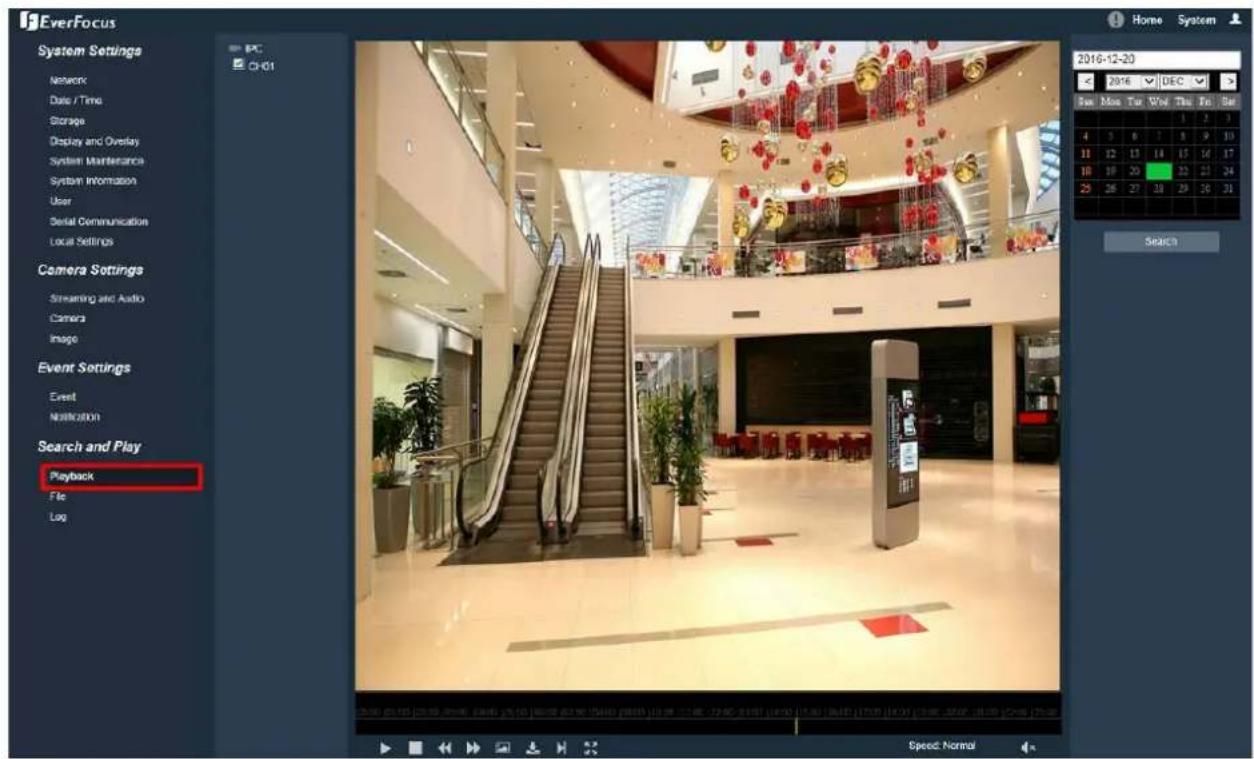
text_image
EverFocus System Settings Network Date / Time Storage Display and Overlay System Maintenance System Information User Serial Communication Local Settings Camera Settings Streaming and Audio Camera Image Event Settings Event Notification Search and Play Playback File Log 2016-12-20 2016 DEC Rev Mon Tue Vol Thu Fri Set 4 5 6 7 8 9 10 11 12 13 14 15 16 17 18 19 20 21 22 23 24 25 26 27 28 29 30 31 Search Speed NormalTo search and then play back the recording:
Check the CH01 box to select the IP camera on the left-side panel, and then select the date you want to search on the right-side panel. Click Search to get your search results. Double-click on the Time Bar to play back from the specified time, or click the Start to play back from the start.

text_image
Speed: NormalStart / Pause: Click ▶ to play the recording file. Click ▶ to pause playing back.
Stop: Click to stop playing back.
Slow: Click to slow down the playback speed (switch between 1/2, 1/4, 1/8 and 1/16).
Fast: Click to speed up the playback speed (switch between 2, 4, 8 and 16).
Capture: Click to take a snapshot.
Backup: Click and a Video Download window will pop up.
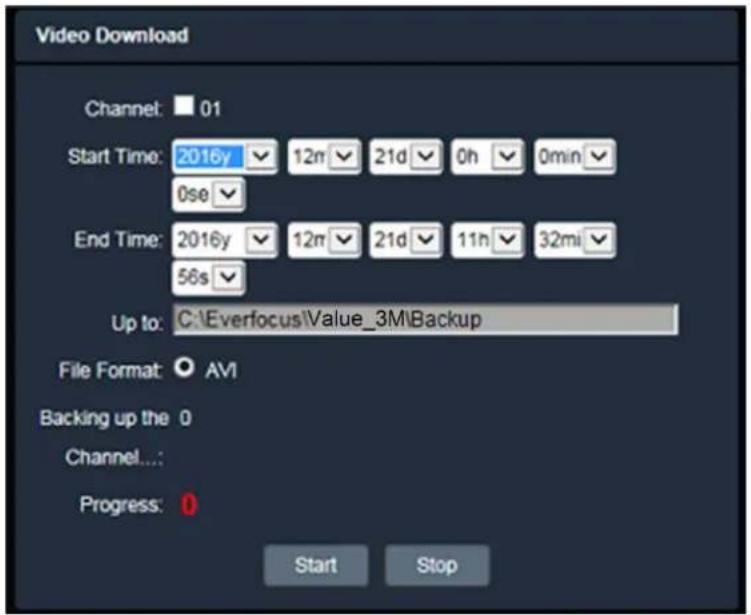
text_image
Video Download Channel: 01 Start Time: 2016y 12n 21d 0h 0min 0se End Time: 2016y 12n 21d 11n 32mi 56s Up to: C:\Everfocus\Value_3M\Backup File Format: AVI Backing up the 0 Channel... Progress: 0 Start StopTo back up the recording:
- Check the 01 box to select the IP camera
- Select the Start/End Time for the recordings you want to back up.
- Specify the storage path for the backup files in the Up to column.
- Click Start to download the recording files; click Stop to stop downloading.
Frame Play: Click ▶ to play the recording file frame by frame.
Full Screen: Click to display the current recordings in full screen.
Speed: Display the current playback speed.
Voice: Click to adjust the volume or switch the sound on / off for of the recording.
Note: The Playback page is only accessible if the micro SD Card has been inserted in the camera's micro SD card slot.
7.4.2. File
File is a tool to check all the snapshots, recordings and backup files in the on-camera micro SD card or the local storage.
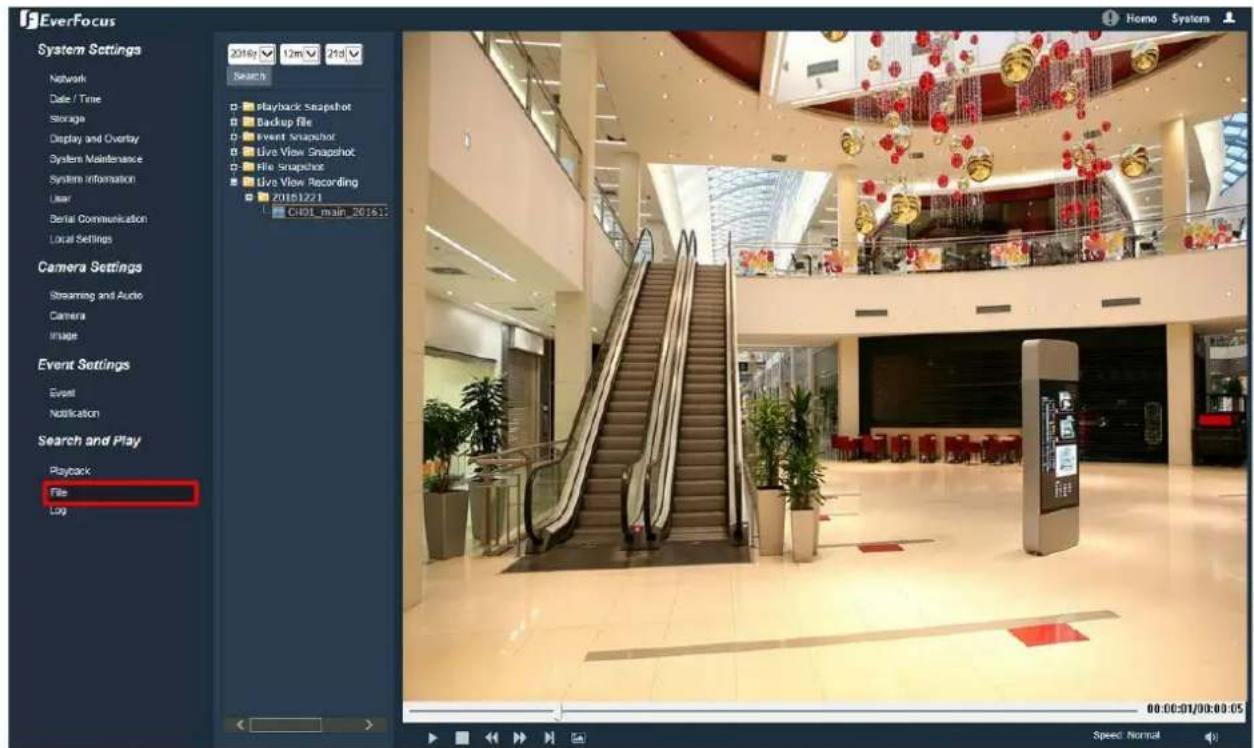
text_image
EverFocus System Settings Network Date / Time Storage Display and Overlay System Maintenance System Information User Serial Communication Local Settings Camera Settings Streaming and Audio Camera Image Event Settings Event Notification Search and Play Playback File Log 2016r 12m 25d Search Playback Snapshot Backup file Event Snapshot Live View Snapshot File Snapshot Live View Recording 20161221 C40F_main_20161: 00:00:01/00:00:05 Speed NormalTo search and then view the snapshot / recording file:
- On the left-side panel, select the date you want to search and then click Search.
- Click the + node of the desired file type to expand the sub-folder (date folder).

text_image
Playback Snapshot Backup file Event Snapshot Live View Snapshot File Snapshot Live View Recording 20161221- Click the + node of the desired date folder to list all files captured or recorded on this date.

text_image
Live View Recording 20161221 CH01_main_201612- Double-click on the file to display it.
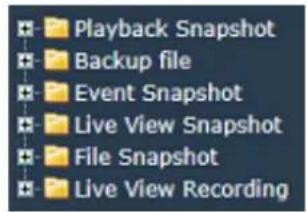
text_image
Playback Snapshot Backup file Event Snapshot Live View Snapshot File Snapshot Live View RecordingPlayback Snapshot: Click to list all snapshots captured in the Playback page.
Backup file: Click to list all recording files backed up in the Playback page.
Event Snapshot: Click to list all snapshots captured by the triggering of Events.
Live View Snapshot: Click to list all snapshots captured in the Home page (Live View window).
File Snapshot: Click to list all snapshots captured in this (File) page.
Live View Recording: Click to list all recordings recorded in the Home page (Live View window).

text_image
Speed: NormalStart / Pause: Click ▶ to play the file. Click ▶ to pause playing.
Stop: Click ■ to stop playing.
Slow: Click to slow down the play speed (switch between 1/2, 1/4, 1/8 and 1/16)
Fast: Click to speed up the play speed (switch between 2, 4, 8 and 16)
Frame Play: Click to play the recording file frame by frame.
Capture: Click to take a snapshot.
Speed: Display the current speed.
Voice: Click to adjust the volume or switch the sound on / off for of the recording file.
To change the storage path, see 7.1.9 Local Settings.
Note: The Playback Capture / Backup / Linkage Capture folders are only accessible if the micro SD Card has been inserted in the camera's micro SD card slot.
7.4.3. View Log

text_image
EverFocus Home System System Settings Log Network Date / Time Storage Display and Overlay System Maintenance System Information User Serial Communication Local Settings Camera Settings Streaming and Audio Audio Settings Stream Settings Privacy Mask Settings Camera Image Event Settings Event Notification Search and Play File Log Index Log Time Log Type Log Theme Ch User Address 1 2016-12-15 08:01:01 Additional Information Set up NTP Application Parameters 1 192.168.31.100 2 2016-12-15 08:00:44 Additional Information Set up Device Time 1 192.168.31.100 3 2016-12-15 16:35:43 Additional Information Set up NTP Application Parameters 1 192.168.31.100 4 2016-12-15 16:35:36 Additional Information Set up Device Time 1 192.168.31.100 5 2016-12-15 08:31:31 Operation Remdely Logoff 1 6 2016-12-15 08:30:19 Operation Remdely Logoff 1 7 2016-12-15 08:29:30 Operation Remdely Logoff 1 8 2016-12-15 08:28:54 Operation Remdely Upgrade 1 9 2016-12-15 08:29:41 Operation Remdely Logoff 1 10 2016-12-15 08:22:16 Operation Remdely Logoff 1 11 2016-12-15 08:21:42 Operation Remdely Reboot 1 192.168.31.100 12 2016-12-15 08:21:41 Additional Information Set up SENSOR 1 192.168.31.100 13 2016-12-15 08:21:40 Additional Information Set up OSD Image Parameters 1 192.168.31.100 14 2016-12-15 08:19:29 Operation Remdely Logoff 1 15 2016-12-14 02:03:26 Operation Remdely Logoff 1 16 2016-12-13 09:42:33 Operation Remdely Logoff 1 17 2016-12-12 20:16:30 Operation Remdely Logoff 1 18 2016-12-12 19:57:53 Additional Information Set up Multi-card Parameters 1 19 2016-12-12 19:57:52 Operation Remdely Logoff 1 20 2016-12-12 19:57:42 Operation Remdely Reboot 1 192.168.31.44 21 2016-12-12 19:51:51 Additional Information undefined 1 192.168.31.44 22 2016-12-12 19:51:2! Operation Remdely LogoffTo search the system log:
- On the left-side panel, click on the Main Type drop-down list to select a log type from All, Alarm, Exception Settings, Operation and Setup.
- Click on the Start/End Time column to bring up the calendar and then select a start/end date.
- Click the Search button, the search result will be displayed in the right part of the page.
- You can specify how many logs to display on each page in the No. per Page column.
8. Upgrading Firmware Using IP Utility
You can upgrade the Firmware using the IP Utility software included in the software CD. The IP Utility can also be downloaded from EverFocus'
Website: http://www.everfocus.com.tw/HQ/Support/DownloadCenter_p1.aspx (Support > Download Center > Keyword Search: IP Utility). Please connect the IP camera on the same LAN of your computer.
- Install and then start the IPU program 🔍, the following IPU window appears. The IPU will automatically search the IP devices connected in the LAN.
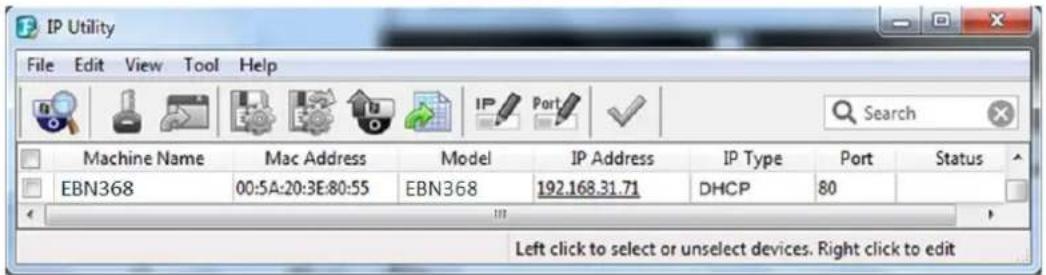
text_image
IP Utility File Edit View Tool Help Machine Name Mac Address Model IP Address IP Type Port Status EBN368 00:5A:20:3E:80:55 EBN368 192.168.31.71 DHCP 80 Left click to select or unselect devices. Right click to edit- Log in the camera by checking the desired model and then click the Log in icon. The Log in dialog box appears.
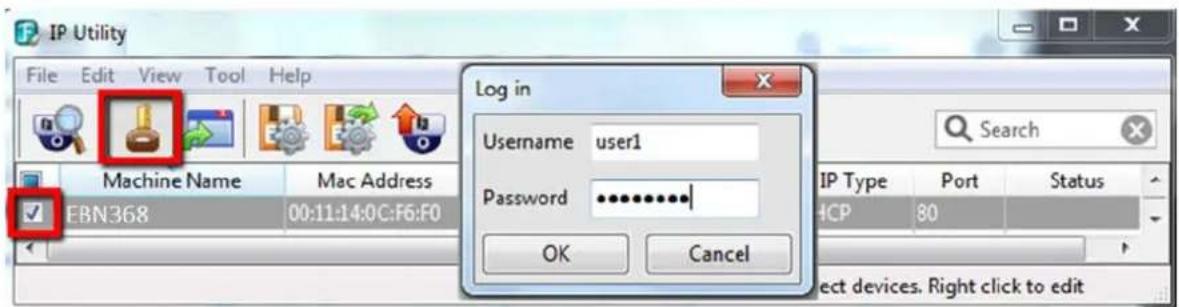
text_image
IP Utility File Edit View Tool Help Machine Name Mac Address EBN368 00:11:14:0C:F6:F0 Log in Username user1 Password ********* OK Cancel IP Type Port Status HCP 80 Select devices. Right click to edit- Type the Username and Password. Click the OK button, the Login status displays.
| Machine Name | Mac Address | Model | IP Address | IP Type | Port | Status |
| EBN368 | 00:11:14:12:30:A4 | EBN368 | 192.168.31.67 | DHCP | 80 | Login |
Note:
- The default user ID is user1 and the default password is 11111111
- If you select more than one camera that has the same user ID / password, you will be able to log in several cameras at once.
-
Up to 10 cameras can be simultaneously upgraded to the latest firmware. If you connect the cameras to a PoE switch, please make sure the Power Consumption of the PoE switch is sufficient.
-
Click the Upgrade Firmware button 📋, a browsing window appears.

text_image
Select a firmware file Look in: Firmware exn-1.2.4.evbl File name: Files of type: Firmware File (*.evbl) Open Cancel- Select the firmware file (.evb) and then click Open. The IPU will automatically upgrade the firmware. The camera will reboot once the upgrade process is complete.
| Machine Name | Model | IP Address | IP Type | Port | Status | |
| √ | EBN368 | EBN368 | 192.168.31.215 | Static IP | 80 | Success |
- Specifications
| Model | EBN288/368/468 | EDN288M/368M/468M | EMN468/468W | EZN288/368/468 | EZN288M/368M/468M |
| Camera | |||||
| Megapixel | 288 Series: 2MP; 368 Series: 3MP; 468 Series: 4MP | ||||
| Pickup Device | Sony Progressive Scan CMOS sensor | ||||
| Min. Illuminations | 288/268 Series: Color: 0.05Lux @ F1.4; B/W: 0.005Lux @ F1.4468 Series: Color: 0.5Lux @ F1.4; B/W: 0.2Lux @ F1.4 | ||||
| Day/Night | True Day/Night with ICR | ||||
| Shutter Time | 1/25 ~ 1/10,000 | ||||
| Scanning System | NTSC / PAL | ||||
| WDR | 288/268 Series: T-WDR (120dB)468 Series: D-WDR | ||||
| AGC Yes | |||||
| AWB Yes | |||||
| Lens | |||||
| Lens | 3.6mm fixed lens: EBN288/368/468; EMN468; EZN288/368/468Motorized 2.8-12mm lens: EDN288M/368M/468M; EZN288M/368M/468M2.2mm lens FOV 152°(H) x 83°(V) x 173°(D): EMN468W | ||||
| Lens Angle of View | - | Horizontal 150°,Vertical 75° | - | Horizontal 360°,Vertical 90° | Horizontal 360°,Vertical 90° |
| Day/Night | True Day/Night with ICR (EMN468W does not feature this function) | ||||
| IR Distance | 30m / 100ft. | 10m / 33ft.* | 30m / 100ft. | ||
| IR LED Quantity | 18 | 12 | 6* | 15 | 3 (High Power IR LEDs) |
| IRIS | Fixed Iris | ||||
| Video | |||||
| Video Compression | H.265 / H.264 | ||||
| Max. Video Resolution | 288 Series: 1920 x 1080; 368 Series: 2048 x 1536; 468 Series: 2592 x 1520 | ||||
| Frame Rate | 25fps / 30fps (PAL / NTSC) | ||||
| S/N Ratio | 288/268 Series: ≥ 50dB (AGC OFF)468 Series: ≥ 35dB (AGC OFF) | ||||
| Image Settings | Contrast, Brightness, Saturation, Sharpness, Mirroring of Images | ||||
| Audio | |||||
| Audio Compression | G.711A / 64Kbps / Two-way audio** | ||||
| Audio Input / Output | 1 In (Line-in 3.5mm stereo TRS jack)**1 Out (Line-out 3.5mm stereo TRS jack)** | ||||
| Model | EBN288/368/468 | EDN288M/368M/468M | EMN468/468W | EZN288/368/468 | EZN288M/368M/468M | |
| Network | ||||||
| Interface | RJ-45 10M/100M adaptive | |||||
| Supported Protocols | TCP/IP, UDP, HTTP, DHCP, RTSP, DDNS, NTP, PPPOE, UPNP, SMTP, ONVIF | |||||
| Connector | Power 12VDC, PoE | |||||
| Ethernet | RJ-45 | |||||
| Event / Notification | ||||||
| Event Trigger | Motion Detection | |||||
| Notification | Email Notification | |||||
| General | ||||||
| Storage - | Micro SD / SDHC / SDXC slot (Max. 128G, up to class 10) | |||||
| RS-485 | RS-485 x 1 (reserved)** | |||||
| Alarm Input / Output 2 / 1** | ||||||
| Video Output | Video Output cable** | |||||
| Power Supply | 12VDC / PoE (IEEE802.3af Class 3) | |||||
| Max. Power Consumption (IR LEDs on) | 12VDC 5.2W / PoE 5.8W | 12VDC 4.5W / PoE 4.9W | EMN468: 12VDC/PoE: 7W EMN468W: 12VDC/PoE: 6W | 12VDC 3.5W / PoE 3.9W | 12VDC 7.4W / PoE 8.2W | |
| Water Proof | IP66 | |||||
| Humidity | 0% ~ 90% not condensing | |||||
| Operating Temperature | -10°C ~ 50°C / 14°F ~ 122°F | |||||
| Dimensions | 120 x 95mm/ 4.72" x 3.74" | 117 x 86mm / 4.61" x 3.39" | 117 x 65mm / 4.61" x 2.60" | 186 x 71mm / 7.32" x 2.80" | 263 x 93mm / 10.35" x 3.66" | |
| Weight | 740g / 1.63lb | 660g / 1.46lb | EMN468: 516g / 1.14lb EMN468W: 514g / 1.13lb | 600g / 1.32lb | 957g / 2.11lb | |
| Certificates | CE / FCC | |||||
* EMN468W does not feature IR LEDs.
**Economic models do not include the feature
10. Troubleshooting
Low Frame Rate
If the frame rate is lower than expected, follow the steps below to fix the problem.
- Reduce the number of applications running on your PC.
- Limit the number of users that access camera live view.
- Check whether the network bandwidth is sufficient.
- Lower the video resolution.
- Lower the camera Bit Rate by configuring Constant Bit Rate or Variable Bit Rate (see 7.2.1 Streaming and Audio).
Appendix
A. Enabling the Multicast Function
The Multicast Function is a technique for one-to-many communication over an IP infrastructure in a network that is designed to share IP camera loading and reduce network bandwidth. Note that for this function to work, the router / switch must support multicast function.
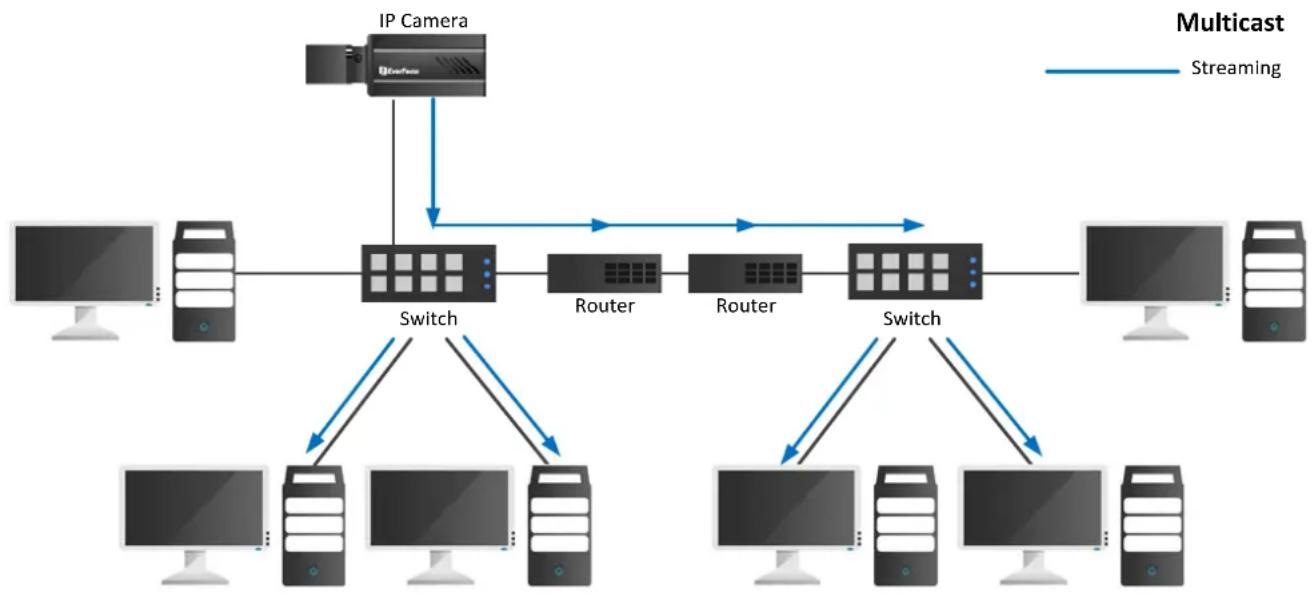
flowchart
graph TD
    A["IP Camera"] --> B["Switch"]
    B --> C["Router"]
    C --> D["Router"]
    D --> E["Switch"]
    E --> F["Computer"]
    B --> G["Computer"]
    C --> H["Computer"]
    D --> I["Computer"]
    E --> J["Computer"]
    style B fill:#f9f,stroke:#333
    style C fill:#ccf,stroke:#333
    style D fill:#ccf,stroke:#333
    style E fill:#cfc,stroke:#333
    style F fill:#fcc,stroke:#333
    style G fill:#ffc,stroke:#333
    style H fill:#ffc,stroke:#333
    style I fill:#ffc,stroke:#333
    style J fill:#ffc,stroke:#333
    subgraph Multicast
        B --> C
        C --> D
        D --> E
        E --> F
        F --> G
        G --> H
        H --> I
        I --> J
    end
To enable the Multicast Function:
- Complete the installation of the IP cameras, routers / switches and computers (refer to diagram above).
- Access to the Web UI of the IP camera to enable the Multicast function. Click the Save button to save the setting. (System > System Settings > Network > Multicast Settings > Enable Multicast)

text_image
System Settings Network IP Settings Multicast Settings DDNS Settings Date / Time Schedule Record Storage Display and Overlay System Maintenance System Information User Serial Communication Local Settings Camera Settings Streaming and Audio Camera Image Event Settings Event Notification Search and Play Home System Enable Multicast Main Stream Video IP Address: 238.255.0.2 Port: 28080 TTL: 255 0-255 Sub Stream Video IP Address: 238.255.0.3 Port: 28084 TTL: 255 0-255 Main Stream Audio IP Address: 238.255.0.4 Port: 28088 TTL: 255 0-255 Sub Stream Audio IP Address: 238.255.0.3 Port: 28082 TTL: 255 0-255 Save- Go to the setting page of the router / switch to enable the Multicast function. Here we use a D-Link DIR655 router and EverFocus 24-port switch for example.
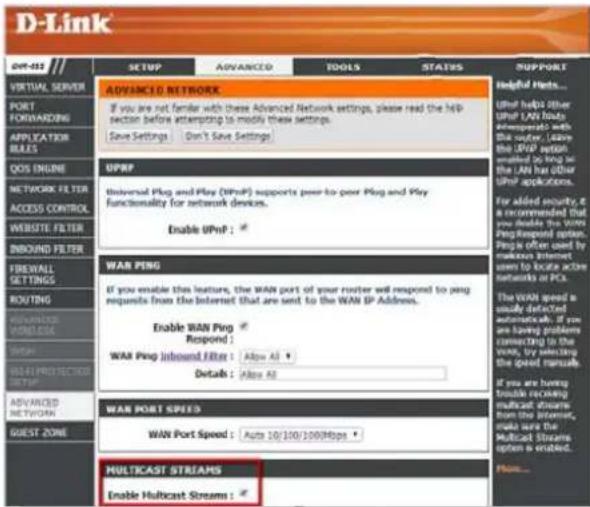
text_image
D-Link OPT-432 SETUP ADVANCED TOOLS STATUS SUPPORT VIRTUAL SERVER PORT FORWARDING APPLICATION RULES QOS ONLINE NETWORK FILTER ACCESS CONTROL WEBSITE FILTER INDBOND FILTER FIREWALL SETTINGS ROUTING HEAVANCED WORKER GETAWAY BEET PROTECTION SETUP ADVANCED NETWORK QUEST ZONE ADVANCED NETWORK FOR YOUR POWER IF you are not familiar with these Advanced Network settings, please read the help section before attempting to modify these settings. Save Settings Don't Save Settings UPNP Universal Ping and Play (UPnP) supports peer to peer Ping and Play functionality for network devices. Enable UPnP : * WAR PING If you enable this feature, the WAN port of your router will respond to ping requests from the Internet that are sent to the WAN IP Address. Enable WAN Ping Respond : WAR Ping Inbound Filter : Allow All > Details : Allow All WAR PORT SPEED WAN Port Speed : Auto 10/100/100Mbps * MULTICAST STREAMS Enable Multicast Streams : * HELP Helpful Flats... UPnP helps other UPnP LAN links against the network. Let us order, leave the UPnP option required by taking up the LAN has other UPnP applications. For added security, it is recommended that you divide the WAN Ping Respond option. People often used by making internet upon to locate active networks or PCs. The WAN speed is usually detected automatic. If you are having problems connecting to the website, try switching the speed manual. If you are having trouble recovering multicast streams from the internet, calls out the Multicast Streams option is enabled. How...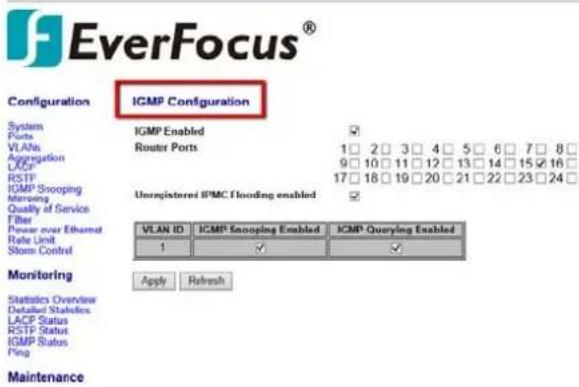
text_image
EverFocus® Configuration IGMP Configuration System Ports VLANs Aggregation LACP RSTP IGMP Snooping Merging Quality of Service Filter Power over Ethernet Rate Unit Storm Control Monitoring Statistics Overview Detailed Statistics LACP Status RSTP Status IGMP Status Ping Apply Refresh Maintenance- The Multicast function setup is now complete.
B. RTSP URL Syntax
Following is the RTSP URL syntax of EverFocus' IP cameras.
rtsp://[device-ip-address]/ch1_[main]
* [device-ip-address] is the IP address of the IP camera
* [main] is for Main Stream; [sub] is for Sub Stream
For example, if the IP address of the IP camera is 192.168.37.55, the RTSP URL (main stream / sub stream) of this IP camera will be:
Main Stream:
rtsp://192.168.37.55/ch1_main
Sub Stream:
rtsp://192.168.37.55/ch1_sub
Note: If you have difficulty getting the live view image, please reduce the number of clients accessing the IP camera.
C. Setting up Port Forwarding Function
IP Camera port forwarding can be used when users need to access a certain IP camera from outside of the local network where the IP camera is connected to.
To enable the IP camera port forwarding function, you have to configure the port forwarding settings both on the IP camera and the router (UPnP-enabled). Please follow the steps below:

flowchart
graph LR
    PC["PC"] --> RouterSwitch["Router Switch"]
    RouterSwitch --> IPCamera["IP Camera"]
    IPCamera --> Notebook["Notebook"]
    RouterSwitch --> RouterSwitch
- Go to System > System Settings > Network > IP Settings.
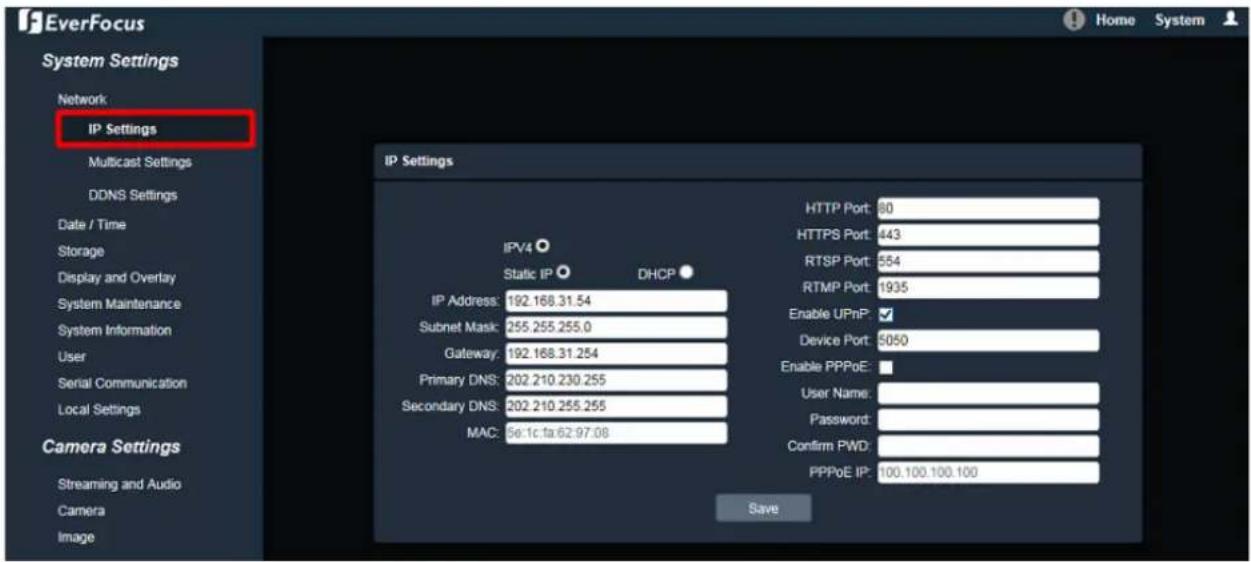
text_image
EverFocus System Settings Network IP Settings Multicast Settings DDNS Settings Date / Time Storage Display and Overlay System Maintenance System Information User Serial Communication Local Settings Camera Settings Streaming and Audio Camera Image IP Settings IPV4 Static IP DHCP HTTP Port: 80 HTTPS Port: 443 RTSP Port: 554 RTMP Port: 1935 Enable UPnP: Device Port: 5050 Enable PPPoE: User Name: Password: Confirm PWD: PPPoE IP: 100.100.100.100 Savea. Set up a static IP for the IP camera. Type in the subnet mask, gateway and the DNS if provided by the Internet Service Provider.
b. Enter the port numbers and check the Enable UPnP box to enable the port forwarding function. Click the Save button.
The default ports of all EverFocus' IP cameras are as below. You can change the port numbers if necessary. Be sure the port numbers setup on the router match the ones setup here.
HTTP: 80
HTTPS: 443
RTSP: 554
- Set up the port forwarding settings on the router. Here we use D-Link's router for example.

text_image
Product Page: DIR-615 Hardware Version: B2 Firmware Version: 2.27 D-Link® DIR-615 SETUP ADVANCED TOOLS STATUS SUPPORT VIRTUAL SERVER PORT FORWARDING This option is used to open multiple ports or a range of ports in your router and redirect data through those ports to a single PC on your network. This feature allows you to enter ports in various formats including, Port Ranges (100-150), Individual Ports (80, 68, 888), or Mixed (1020-5000, 689). Save Settings Don't Save Settings PORT FORWARDING Helpful Hints... Check the Application Name drop down menu for a list of predefined applications. If you select one of the predefined applications, click the arrow button next to the drop down menu to fill out the corresponding field. You can select a computer from the list of DHCP clients in the Computer Name drop down menu, or you can manually enter the IP address of the LAN computer to which you would like to open the specified port. Select a schedule for when the rule will be enabled. If you do not see the schedule you need in the list of schedules, go to the Tools - Schedules screen and create a new schedule. You can enter ports in various formats:Please be noted that each router may look different in some ways, however, the concept of the port forwarding setting is the same. For more details, please consult the manual of your router.

text_image
Ports to Open Name EDN3260_http << Application Name 80 TCP Schedule Always IP Address 192.168.0.172 << Computer Name UDP Inbound Filter Allow All Name EDN3260_https << Application Name 443 TCP Schedule Always IP Address 192.168.0.172 << Computer Name UDP Inbound Filter Allow All Name EDN3260_RTSP << Application Name 554 TCP Schedule Always IP Address 192.168.0.172 << Computer Name UDP Inbound Filter Allow All Enter the IP address of the IP camera Enter the HTTP/HTTPS/RTSP port numbers of the IP camera- Open a browser and type in the IP address of the router, now you are able to access the IP camera from the Internet.
D. Setting up DDNS Function
If you set up your IP Camera with DHCP network, the IP address of your IP Camera may change at different times for different reasons, particularly after a power failure. The changing IP address of the IP Camera may cause you difficulties accessing the IP Camera. To solve this problem, you can set up the DDNS function to your IP Camera, and access your IP Camera with a fixed host name whenever the IP address of your IP Camera changes.
DDNS (Dynamic Domain Name System) is a service used to map a domain name to the dynamic IP address of a network device. It assigns a domain name (URL) to the IP Camera, so that the user does not need to go through the trouble of checking if the IP address assigned by DHCP Server has changed. Once the IP is changed, the IP Camera will automatically update the information to the DDNS to ensure it is always available for remote access.
To set up DDNS for your IP Camera, you have to 1) enable the DMZ or Port Forwarding function of your router 2) configure the network setting of your IP Camera 3) configure the DDNS setting of your IP Camera. Please follow the steps below.
To enable the DDNS function:
- In order to access the IP camera from outside of the local network, enable either the Port Forwarding or DMZ function of your router. Please refer to the manual of your router for more details.
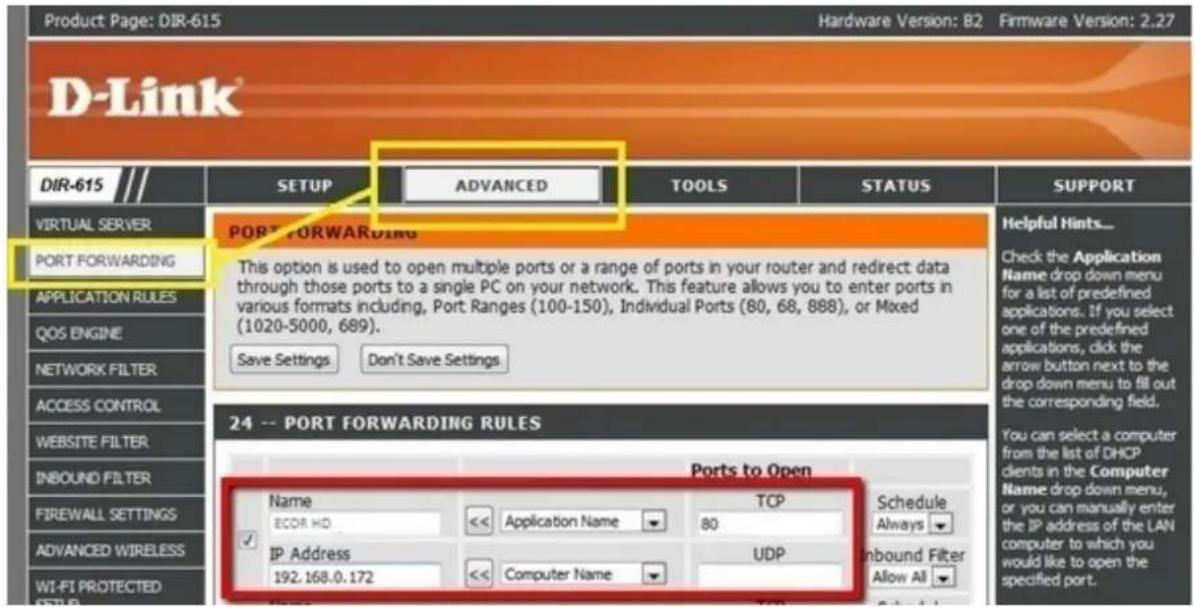
text_image
Product Page: DIR-615 Hardware Version: 82 Firmware Version: 2.27 DIR-615 SETUP ADVANCED TOOLS STATUS SUPPORT VIRTUAL SERVER PORT FORWARDING This option is used to open multiple ports or a range of ports in your router and redirect data through those ports to a single PC on your network. This feature allows you to enter ports in various formats including, Port Ranges (100-150), Individual Ports (80, 68, 888), or Mixed (1020-5000, 689). Save Settings Don't Save Settings Helpful Hints... Check the Application Name drop down menu for a list of predefined applications. If you select one of the predefined applications, click the arrow button next to the drop down menu to fill out the corresponding field. ACCESS CONTROL WEBSITE FILTER INBOUND FILTER FIREWALL SETTINGS ADVANCED WIRELESS WI-FI PROTECTED 24 -- PORT FORWARDING RULES Ports to Open Name TCP Schedule ECOR HD << Application Name 80 Always IP Address UDP Inbound Filter Allow All 192.168.0.172 << Computer NameNote: If you enable the Port Forwarding of your router, the Enable UPnP Port Forwarding function must be enabled on the IP camera (see Port Settings field in the Step 2 image).

text_image
DIR-86SL SETUP ADVANCED TOOLS STATUS VIRTUAL SERVER PORT FORWARDING APPLICATION RULES QOS ENGINE NETWORK FILTER ACCESS CONTROL WEBSITE FILTER INBOUND FILTER FIREWALL SETTINGS ROUTING ADVANCED WIRELESS WI-FI PROTECTED SETUP ADVANCED NETWORK DLNA SETTINGS ITUNES SERVER GUEST ZONE IPV6 FIREWALL IPV6 ROUTING FIREWALL & DMZ SETTINGS DMZ means "Demilitarized Zone". DMZ allows computers behind the router firewall to be accessible to Internet traffic. Typically, your DMZ would contain Web servers, FTP servers and others. Save Settings Don't Save Settings FIREWALL SETTINGS Enable SPI : □ ANTI-SPOOF CHECKING Enable anti-spoof checking : □ DMZ HOST The DMZ (Demilitarized Zone) option lets you set a single computer on your network outside of the router. If you have a computer that cannot run Internet applications successfully from behind the router, then you can place the computer into the DMZ for unrestricted Internet access. Note: Putting a computer in the DMZ may expose that computer to a variety of security risks. Use of this option is only recommended as a last resort. Enable DMZ : ✓ DMZ IP Address : 192.168.0.119 | × << Computer Name ✓- On the Network Setting page (Setting > System Settings > Network > IP Settings), configure the IP Settings, keep the default Port Settings and then click the Save button.

text_image
EverFocus System Settings Network IP Settings Multicast Settings DDNS Settings Date / Time Storage Display and Overlay System Maintenance System Information User Serial Communication Local Settings Camera Settings Streaming and Audio Camera Image IP Settings IPV4 Static IP DHCP HTTP Port: 80 HTTPS Port: 443 RTSP Port: 554 RTMP Port: 1935 Enable UPnP: Device Port: 6050 Enable PPPoE: User Name: Password: Confirm PWD: PPPoE IP: 100.100.100.100 Save- If Static IP is selected: Enter the IP address, subnet mask, default gateway and the DNS Server. Please consult with your ISP service provider for the information of subnet mask, default gateway and the DNS Server.
- If DHCP is selected: The IP address, subnet mask, default gateway and the DNS Server will be assigned automatically by DHCP server.
-
If Enable PPPoE is selected: Enter the User Name (e.g. xxxx@hinet.net) and Password provided by your ISP service provider.
-
In the DDNS Settings field (Setting > System Settings > Network > DDNS Settings), register a free host name from EverFocus DDNS and then click the Save button.
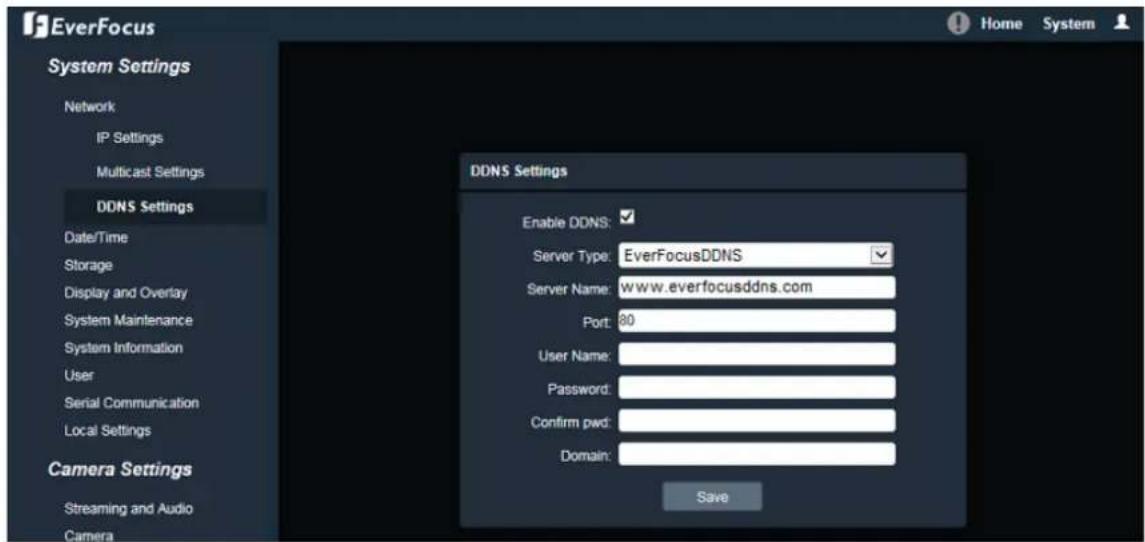
text_image
EverFocus System Settings Network IP Settings Multicast Settings DDNS Settings Date/Time Storage Display and Overlay System Maintenance System Information User Serial Communication Local Settings Camera Settings Streaming and Audio Camera DDNS Settings Enable DDNS: Server Type: EverFocusDDNS Server Name: www.everfocusddns.com Port: 80 User Name: Password: Confirm pwd: Domain: Savea. Check Enable DDNS to enable the DDNS function.
b. Select www.everfocusddns.com and enter a desired host name in the Domain field.
Note: The host name should not include a space, or a dot (period) or any special characters particularly _\~ ! @ # \$ % ^ & * ( ) + < > "; : . ,
c. Click Save.
- The DDNS setup is now complete. Open a browser and enter the domain name (http://[host name].everfocusddns.com) in the address field. The Web interface of the device should be displayed. For example, if you've obtained the host name "HQtest" from EverFocus DDNS server, enter http://HQtest.everfocusddns.com in the address field of the browser.

text_image
http://HQtest.everfocusddns.com Everfocus IP Camera EverFocus Home Streaming Camera Lens CTRL SystemEverFocus Electronics Corp.
EverFocus Taiwan:
12F-1, No.79, Sec. 1, Shin-Tai Wu Road, Hsi-Chih, New Taipei City, Taiwan
TEL: +886 2 2698 2334
FAX: +886 2 2698 3943
www.everfocus.com.tw
marketing@everfocus.com.tw
EverFocus China - Beijing:
Room 609, Technology Trade Building, Shangdi Information Industry Base, Haidian District, Beijing 100085, China
TEL: +86 10 6297 3336\~39
FAX: +86 10 6297 1423
www.everfocus.com.cn
marketing@everfocus.com.cn
EverFocus USA - California:
1801 Highland Avenue, Unit A, Duarte, CA 91010, USA
TEL: +1 626 844 8888
FAX: +1 626 844 8838
www.everfocus.com
sales@everfocus.com
EverFocus Europe - Germany:
Albert-Einstein-Strasse 1, D-46446
Emmerich, Germany
TEL: +49 2822 93940
FAX: +49 2822 939495
www.everfocus.de
sales@everfocus.de
EverFocus China - Shenzhen:
3F, Building 7, Longcheng Industrial
Park, No.440, Longguan Road, Dalang Street,
Longhua, Shenzhen, Guangdong, China
TEL: +86 755 2765 1313
FAX: +86 755 2765 0337
www.everfocus.com.cn
marketing@everfocus.com.cn
EverFocus Japan:
3F, Kuramochi, Building II
2-2-3 Koto-Bashi, Sumida-Ku,
Tokyo, 130-0022, Japan
TEL: +81 3 5625 8188
FAX: +81 3 5625 8189
www.everfocus.co.jp
info@everfocus.co.jp

Your EverFocus product is designed and manufactured with high quality materials and components which can be recycled and reused.
This symbol means that electrical and electronic equipment, at their end-of-life, should be disposed of separately from your household waste. Please, dispose of this equipment at your local community waste
collection/recycling centre. In the European Union there are separate collection systems for used electrical and electronic product. Please, help us to conserve the environment we live in!